Knowledge base
1000 FAQs, 500 tutorials and instructional videos. Here, there are only solutions!
This guide explains how to insert a QR code on the invoices you send to your customers (as part of the Infomaniak ticketing system).
Preamble
- A QR Invoice allows for easier payment of an invoice by directly including all the necessary information to make a payment using the QR code provided with the invoice.
- If your customers decide to pay an order by invoice on your ticketing system, and you have set up the necessary information on the ticketing system, your customers will receive an invoice with a QR code:

Add a bank account
Prerequisites
- This feature is only available for bank accounts in CHF.
- It is essential to obtain the QR IBAN for your bank account; ask your bank to provide you with the QR Invoice information:
Whether you already have a bank account set up or not, if you want to add a QR code to the invoice, you will need to specify a new bank account:
- Click here to access the management of your product on the Infomaniak Manager (need help?).
- Click directly on the name assigned to the ticketing system concerned by the event.
- Click on Accounting in the left sidebar menu.
- Click on Infomaniak Collection in the left sidebar menu.
- Click on Add a bank account at the bottom of the page:

- Enter your bank account information including the QR-IBAN:

- Click the button to Confirm.
- Choose the new bank account to use from the dropdown menu (the dropdown list is in order of creation date):

Link to this FAQ: https://faq.infomaniak.com/2800
Has this FAQ been helpful?
This guide explains the procedure for creating free entries for your guests (as part of the Infomaniak ticketing system).
Preamble
- The simplest way to create free entries for your guests is to create a free rate, which is not available online, but only from the ticket office.
- This allows you to generate completely free tickets for your shows.
Setting up the invitation rate
In order to create invitations, you must first include an invitation rate in the areas where you want to be able to create this type of entry.
- Click here to access the management of your product on the Infomaniak Manager (need help?).
- Click directly on the name assigned to the ticketing concerned by the event.
- Click on Programming in the left sidebar.
- Click on Events in the left sidebar.
- Click on the event concerned.
- Click on the Pricing tab.
- If the event has multiple dates, this section is replaced by “Dates” which opens a calendar.
- Click on the calendar date to join the pricing…
- Click on Add a rate:

- Add a free rate with the desired name:

- Once the rate is created, click on the visibility option and choose Hidden from customer or Hidden from customer and reseller:

Create the invitation ticket
To create the invitation ticket, go to the ticket office and proceed as a normal sale with the invitation rate:
Link to this FAQ: https://faq.infomaniak.com/2801
Has this FAQ been helpful?
This guide explains how to use your bank's CAMT files to automatically validate orders paid by invoice (as part of the Infomaniak ticketing system).
Introduction
- If customers choose to pay an order by invoice, they will receive an invoice directly with your bank details.
- You will therefore need to check that the payment has been received and manually validate the customer's order.
- The following procedure automates a large part of this process, allowing you to simply validate orders with a few clicks.
Import the CAMT file
Prerequisites
- Make sure you have specified a QR-IBAN to generate QR Invoices.
- CAMT imports require the bank to record information related to the order, and this information is only available if the customer uses QR-Invoice when paying the invoice.
- Please contact your bank to find out how you can obtain a CAMT file (example of documentation).
Next:
- Click here to access the management of your product on the Infomaniak Manager (need help?).
- Click directly on the name assigned to the ticketing system for the event.
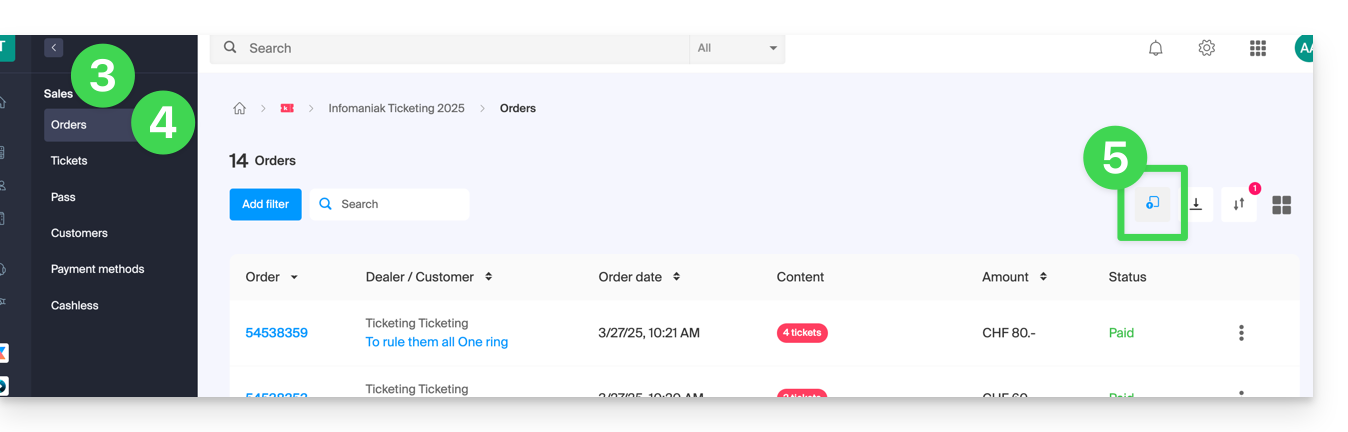
- Click on Sales in the left-hand menu.
- Click on Orders in the left-hand menu.
- Click on the button in the top right corner:
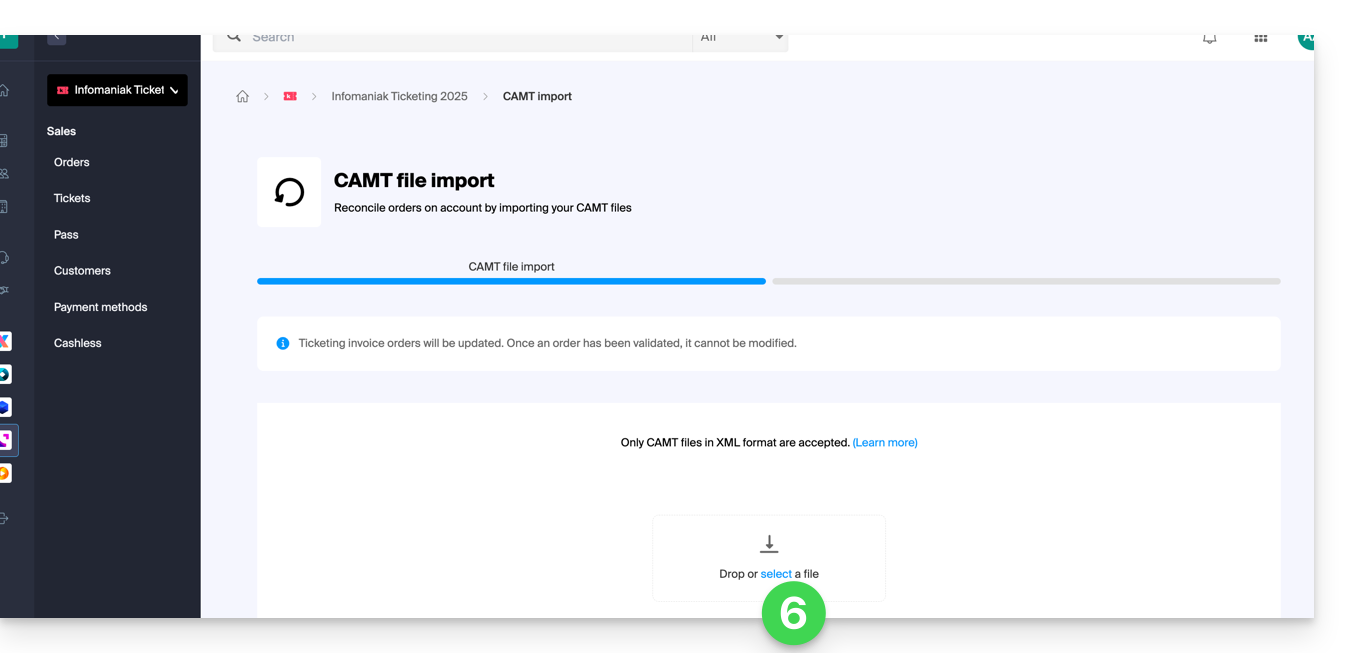
- Import the CAMT file:
- Choose the transactions to validate:
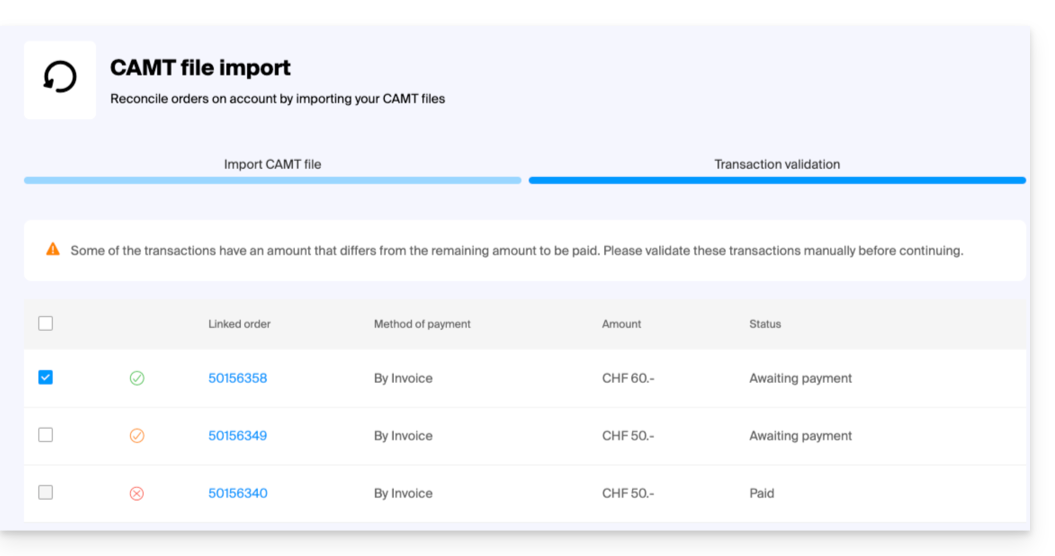
- Transactions whose payment corresponds to the invoice amount will be automatically selected.
- Transactions with partial payments can be validated manually, but will be recorded as complete in the ticketing system.
- Once you have selected the orders to validate, click on Validate selected transactions.
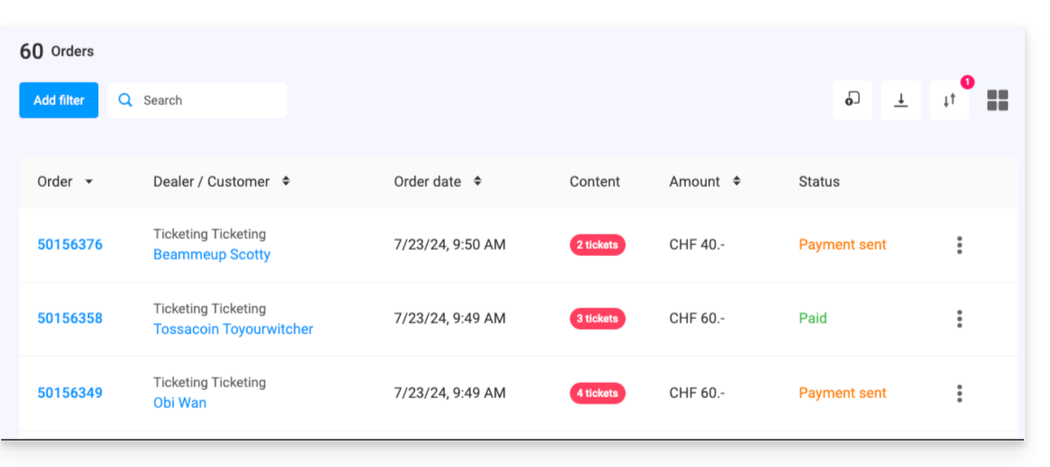
- The orders are automatically set to validated:
Link to this FAQ: https://faq.infomaniak.com/2802
Has this FAQ been helpful?
This guide explains the procedure for creating events taking place in the city of Lausanne (as part of the Infomaniak ticketing system).
Introduction
- In accordance with the tax ordinance of the city of Lausanne, a tax is levied on the price of tickets, paid seats, and other surcharges, in particular for company events, balls, fairs, concerts, conferences, musical, literary, artistic, and sporting events, etc.
- Infomaniak's ticketing system is approved by the city of Lausanne, so you can create your ticketing system for any event in the city of Lausanne.
- The tax rate is 14%.
- You will need to check with the city of Lausanne to see if your event is taxable, non-taxable, or exempt...
- The possibilities for exemption from this tax are exhaustively detailed in the tax assessment.
- If your event is subject to tax, please note that the process will take several days, and the waiting time may be longer depending on the number of pending applications.
- Pleasetake this waiting time into account when launching your ticketing!
Creating your event in Lausanne
The creation process will generally be the same as for any other event, but any information appearing on the ticket can no longer be modified once the validation request has been sent:
- The name of the event
- The date and time of the event (as well as the opening hours)
- The event location
- The prices
- Ticket templates
Therefore, ensure that these settings are properly defined before submitting the validation request.
Request for validation and awaiting the decision
When you set the location to the city of Lausanne…
… and once you have finished configuring your event (you will receive the suggestions below), you can submit the authorization request to the city of Lausanne.
Event Status
The events subject clearly indicates the status that will be updated as soon as your event is validated:
Ticket and subscription sales in Lausanne
It is possible to sell subscriptions or passes for events taking place in the municipality of Lausanne, subject to certain conditions:
- Non-negotiable: all events for which tickets are sold must take place in the municipality of Lausanne and be subject to entertainment tax.
- Create the pass, but leave it empty (do not add any events to the pass).
- Contact Infomaniak support (via messaging only) with the list of events to be added to each pass. The operation will be performed within 7 days.
- No additional authorization from the city of Lausanne is required for this operation.
Link to this FAQ: https://faq.infomaniak.com/2806
Has this FAQ been helpful?
This guide explains how to set up a validation system for passes or subscriptions (as part of the Infomaniak ticketing system).
Introduction
- This option allows you to create passes for which visitors must register, and you can validate their registration before they can use the pass.
- This feature will be useful for any restricted access or when the organizer needs to validate the request.
- This can include requests for accreditations, registrations for specialized courses requiring verification of certain documents, access to certain areas or events, etc.
Setting up the pass to be validated
To do this:
- Click here to access the management of your product in the Infomaniak Manager (need help?).
- Click directly on the name assigned to the ticketing system for the event.
- Click on Scheduling in the left-hand menu.
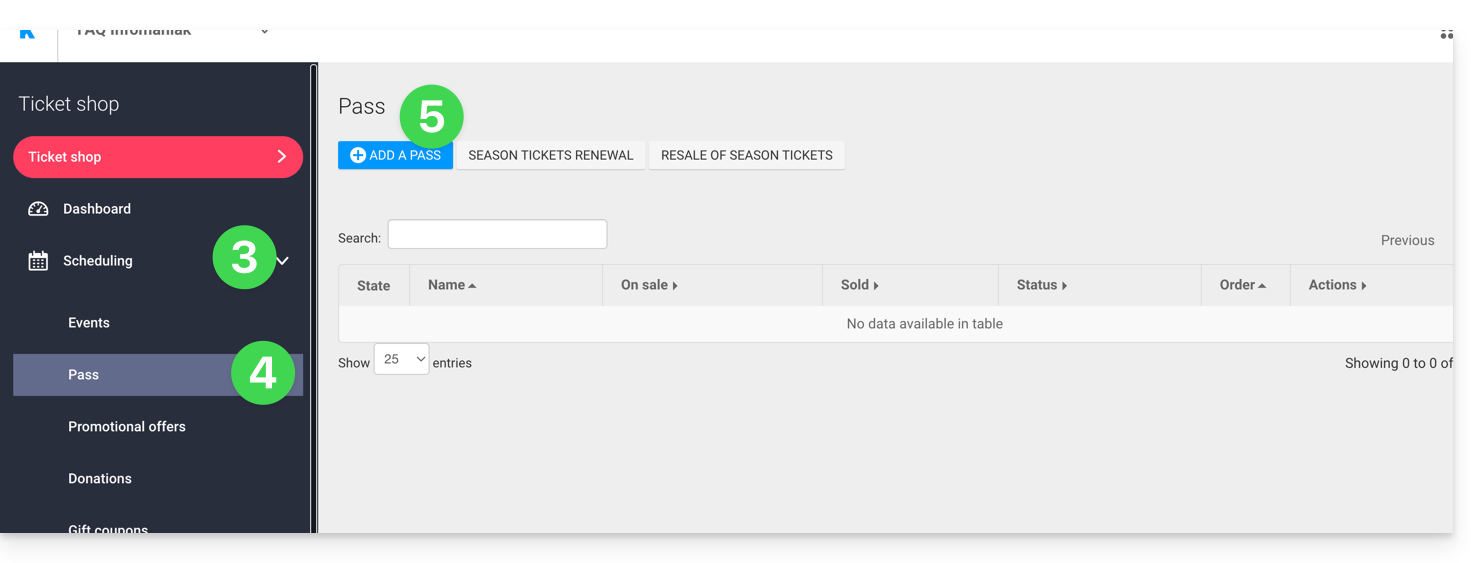
- Click on Pass in the left-hand menu.
- Click on Add a pass:
- During the pass creation process, enable Pass validity by setting it to Yes:
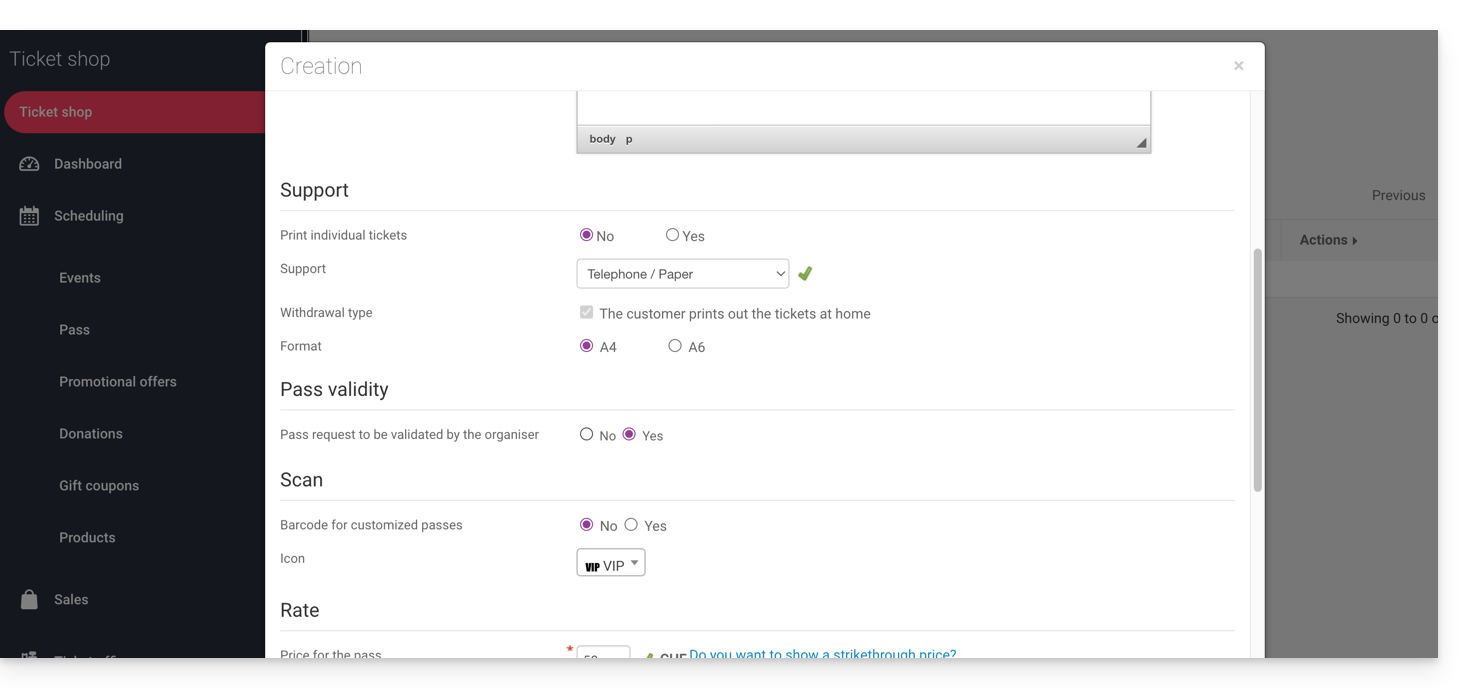
- This action will automatically enable the options required for this feature, namely a free, custom pass with a minimum of 0 tickets.
Once the pass has been created, click on it to configure the information requested from the visitor: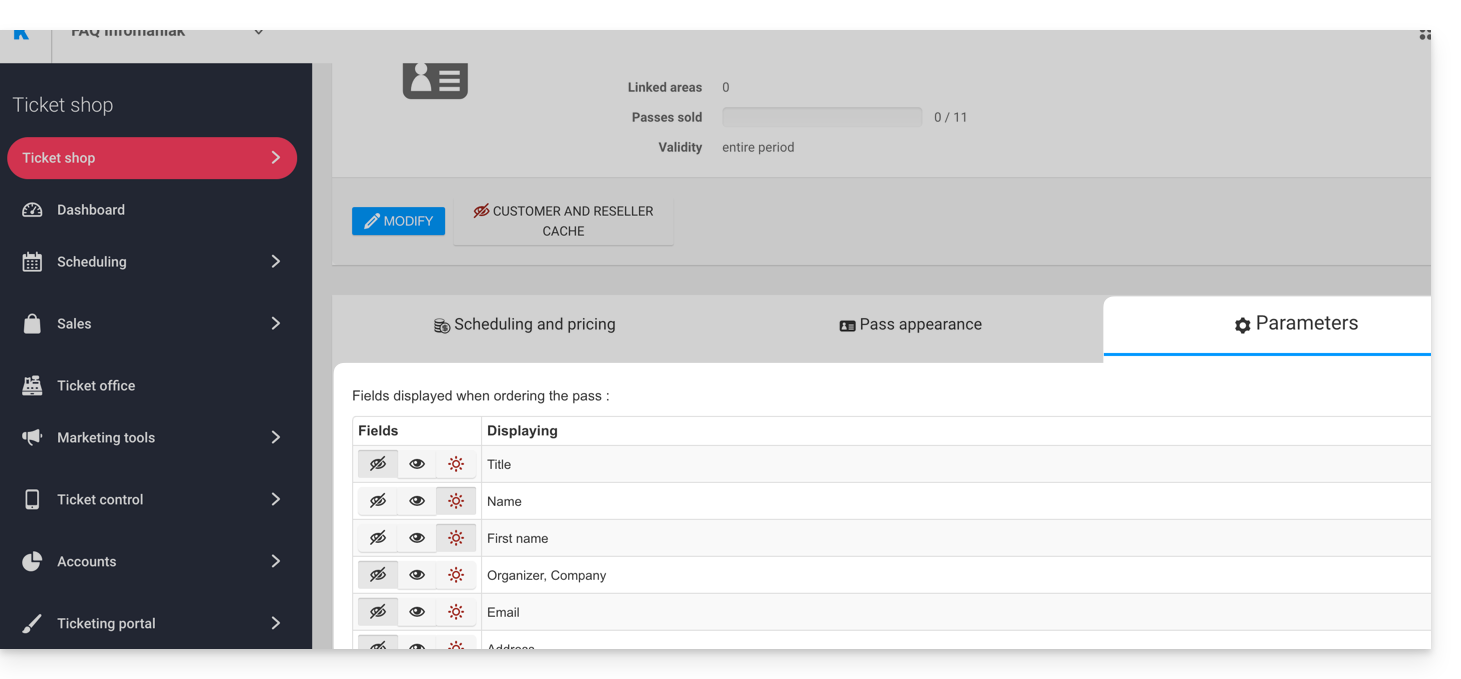
This allows you to make each field hidden , visible
, or required
…
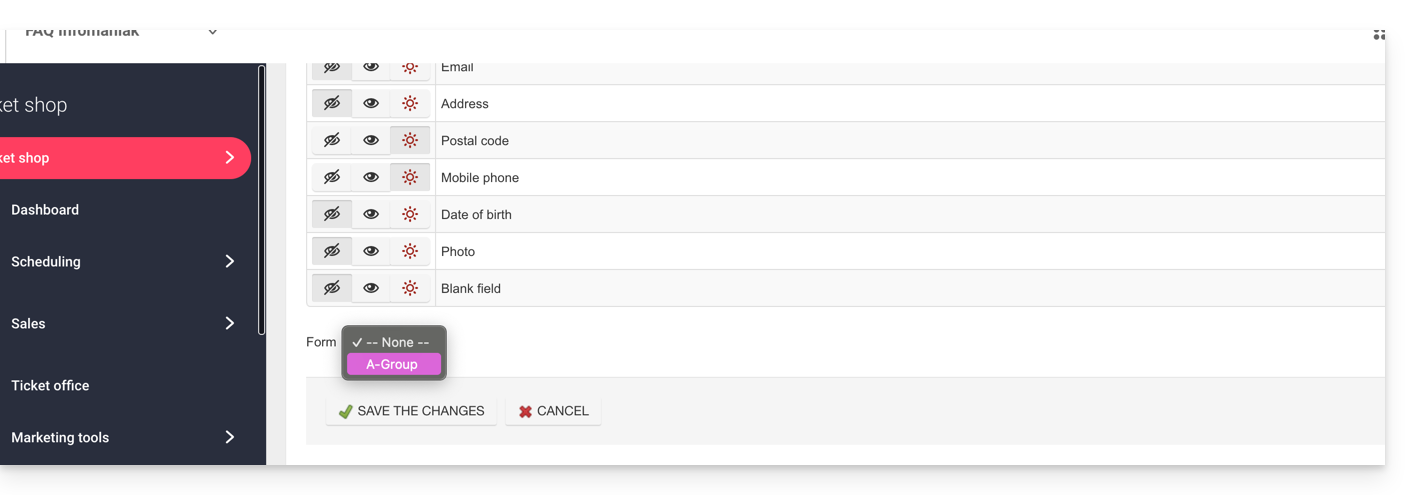
If you need to request additional information or supporting documents, you can add them using the form feature:
- Create a form for each pricing plan with the information you need from the visitor.
- Associate the form with the pass by price:
Procedure for requesting a pass to be validated
The visitor can order the pass just like any other order process. However, there are a few differences to note:
- The terms used during the online process will refer to validation requests instead of orders.
- The visitor will receive an initial email confirming that their request has been received and that they will be notified when the request is approved.
- The visitor will receive the pass in a confirmation email when the pass is approved.
Procedure for validating a request
To validate a pass validation request from a visitor, go to the list of passes:
- Click here to access the management of your product in the Infomaniak Manager (need help?).
- Click directly on the name assigned to the ticketing system for the event.
- Click on Sales in the left-hand menu.
- Click on Pass in the left-hand menu.
If needed, use the filter to display only the passes that need to be validated and select the desired pass category: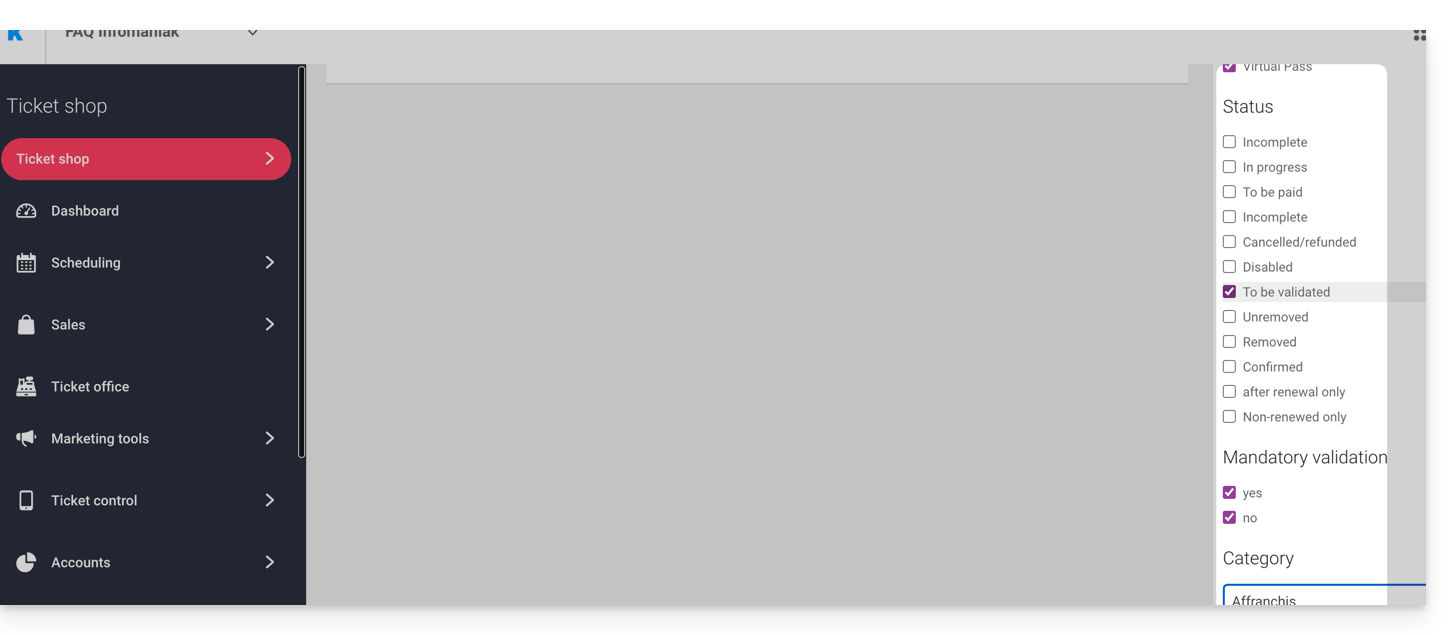
Verification before validation
Click on the passes to be checked. All the information can be found on the pass page.
If additional fields have been added via a form, they will be located in the Edit information section: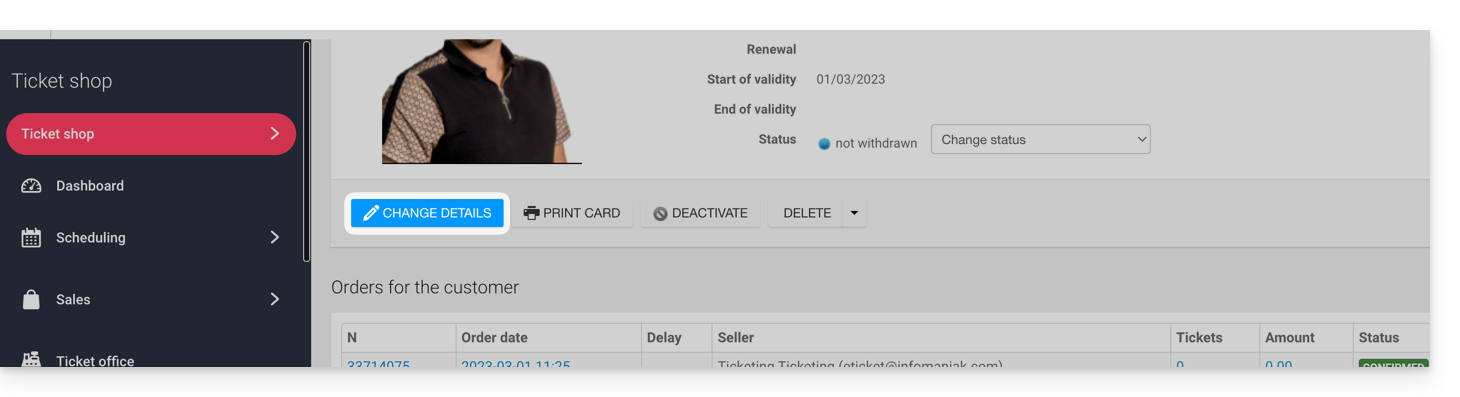
Example with files that the user has uploaded: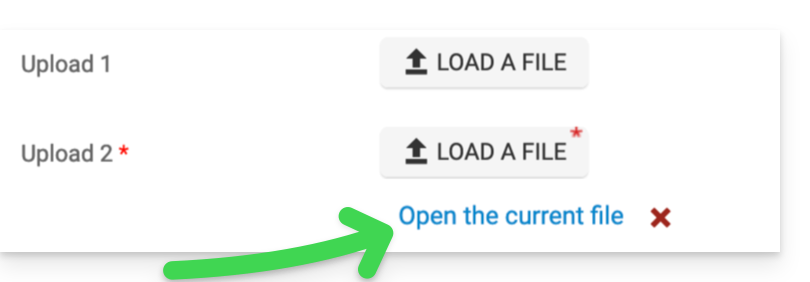
Modify the status
Change the status to Valid or Removed, or not, so that the pass is valid:
An email will be automatically sent to the visitor with the information needed to complete their pass and add the tickets.
In the event of a refusal, it is possible to send an email to the visitor inviting them to change the information.
It is also possible to do this on the previous page using multiple selections, for example: 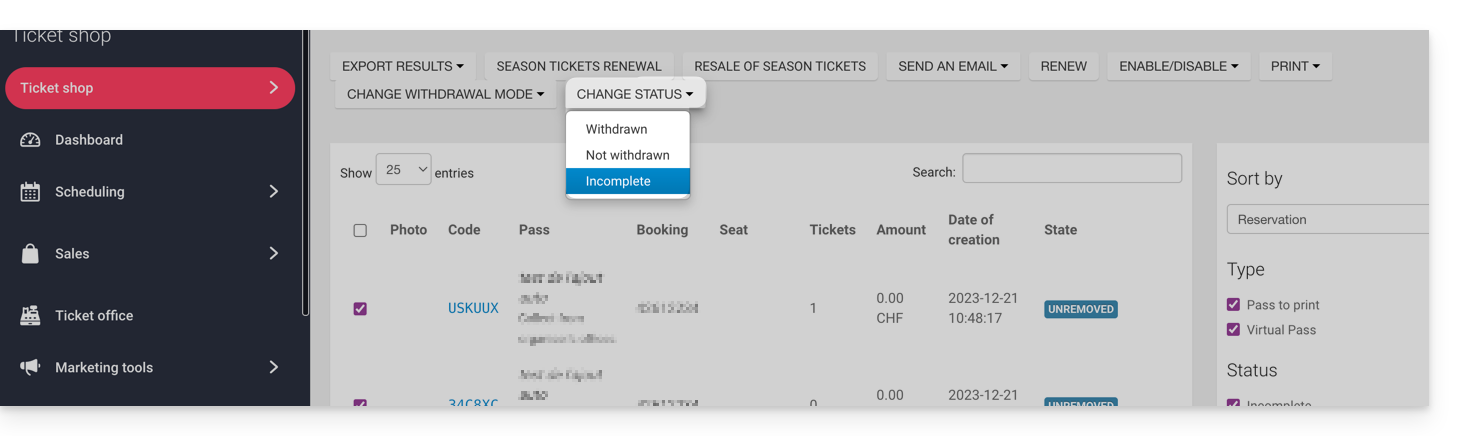
Link to this FAQ: https://faq.infomaniak.com/2829
Has this FAQ been helpful?
This guide explains how to configure the appearance of a pass (within the Infomaniak ticketing system). These settings will be available once step 1 is completed:
- Define the type during creation (subscription, ticket pack, etc.) as well as the basic information and settings
- Associate events with passes
- Configure the visual appearance and information related to the pass (below)
- Define and collect the information of subscribers who will be linked to the passes
3. Set up a visual for the passes
To do this:
- Click here to access the management interface for your product in the Infomaniak Manager (need help?).
- Click directly on the name assigned to the ticket office for the event.
- Click on Program in the left-hand menu.
- Click on Pass in the left-hand menu.
- Click on the name of the pass in question.
- Click on the Pass Appearance tab:

For PVC passes
PVC passes are available in a format that allows visitors to use them digitally on their phone, and allows the organizer to print them on a PVC card using a printer available for rent: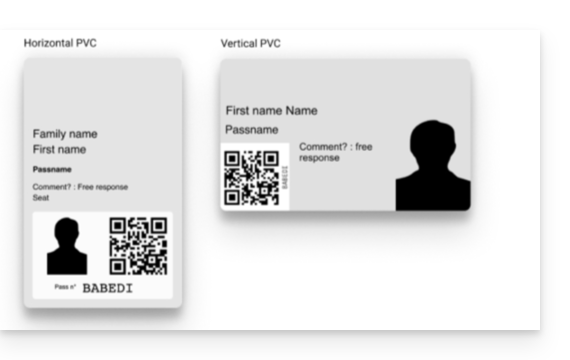
When selecting the design, you will need to choose between vertical and horizontal mode. You will then be able to choose the elements to display on the pass, as well as a background image:
For phone/paper passes
For phone/paper formats, the visitor can directly use the digital version on their phone or choose to download the PDF version to print it on an A4 sheet: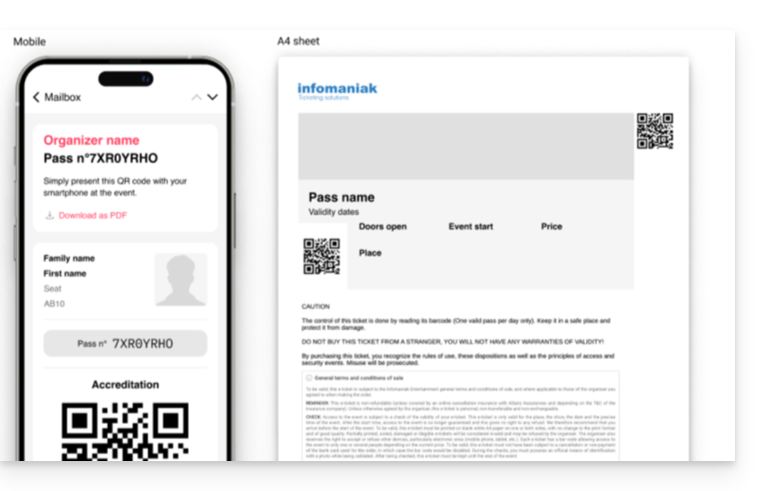
No configuration is required for the digital version, but you can assign a ticket template. To configure a ticket visual, please refer to this other guide.

The next step is todefine and collect subscriber information that will be linked to the passes.
Link to this FAQ: https://faq.infomaniak.com/2830
Has this FAQ been helpful?
This feature allows subscribers who cannot attend one or more events during the season to put the tickets concerned (included in their subscription) up for sale directly on the ticketing platform (as part of the Infomaniak ticketing system).
Introduction

- If a pass holder is unable to attend an event, they can resell tickets from their pass menu.
- Reselling pass tickets only works for passes with assigned, numbered seats.
- The areas covered by the reselling of pass tickets must have public prices (and not just pass prices).
- This ticket will be put back on sale on your ticketing platform and can be purchased by a new person by following the standard ticket purchase procedure.
- Resale proceeds may be allocated as follows:
- transferred, in whole or in part, to the pass owner who is selling the ticket
- credited, in whole or in part, to the pass owner's account
- converted into a donation for an association designated by the organizer
The organizer is responsible for transferring the resale proceeds to the pass holder.
Creating a pass resale campaign
Prerequisites
Then:
- Click here to access the management interface for your product in the Infomaniak Manager (need help?).
- Click directly on the name assigned to the ticketing system for the event.
- Click on Scheduling in the left-hand menu.
- Click on Pass in the left-hand menu.
- Click on Resell subscription tickets:
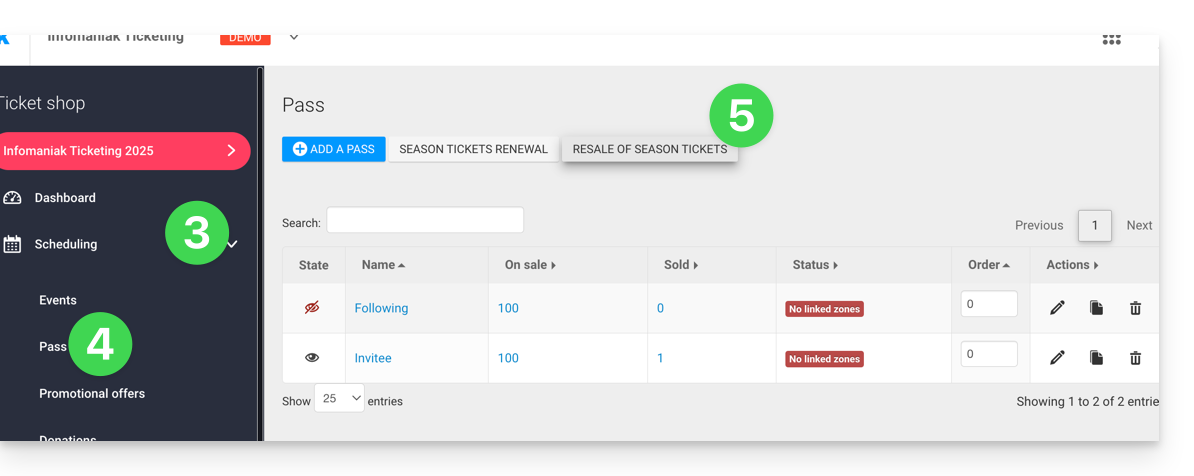
- Click on Add a resale campaign:
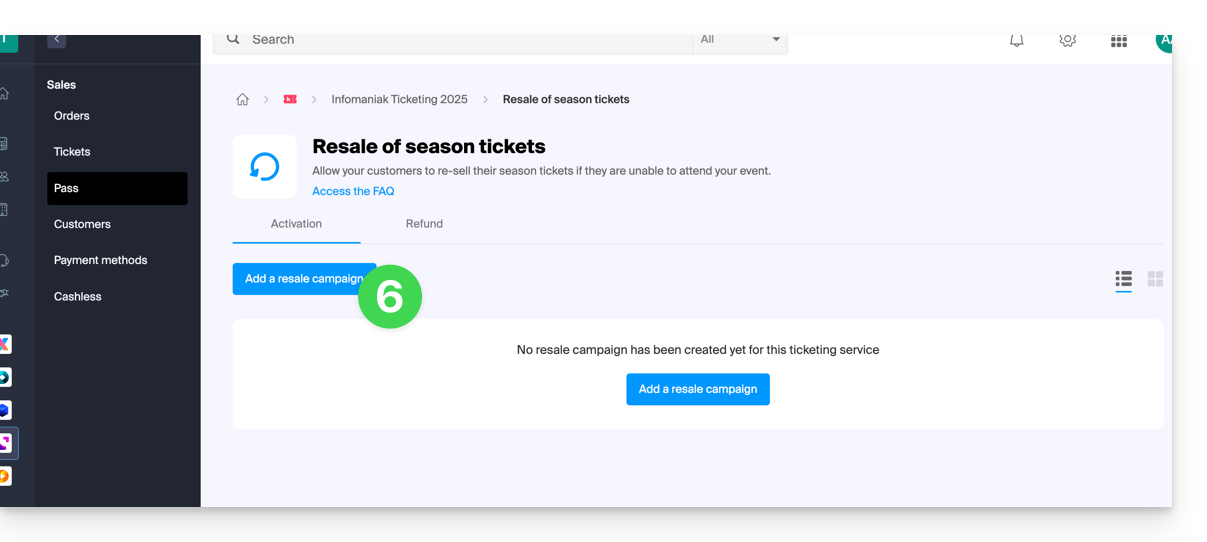
- Choose the pass for which to activate reselling.
- Define the percentage of the resale price that will be paid to the pass holder, as well as the payment method:
- Bank transfer: the pass holder will be prompted to enter their bank details.
- Credit to the subscriber's pass, to be used for future purchases on the ticketing platform or for pass renewal.
- Specify whether the subscriber can donate the amount to the organizer:
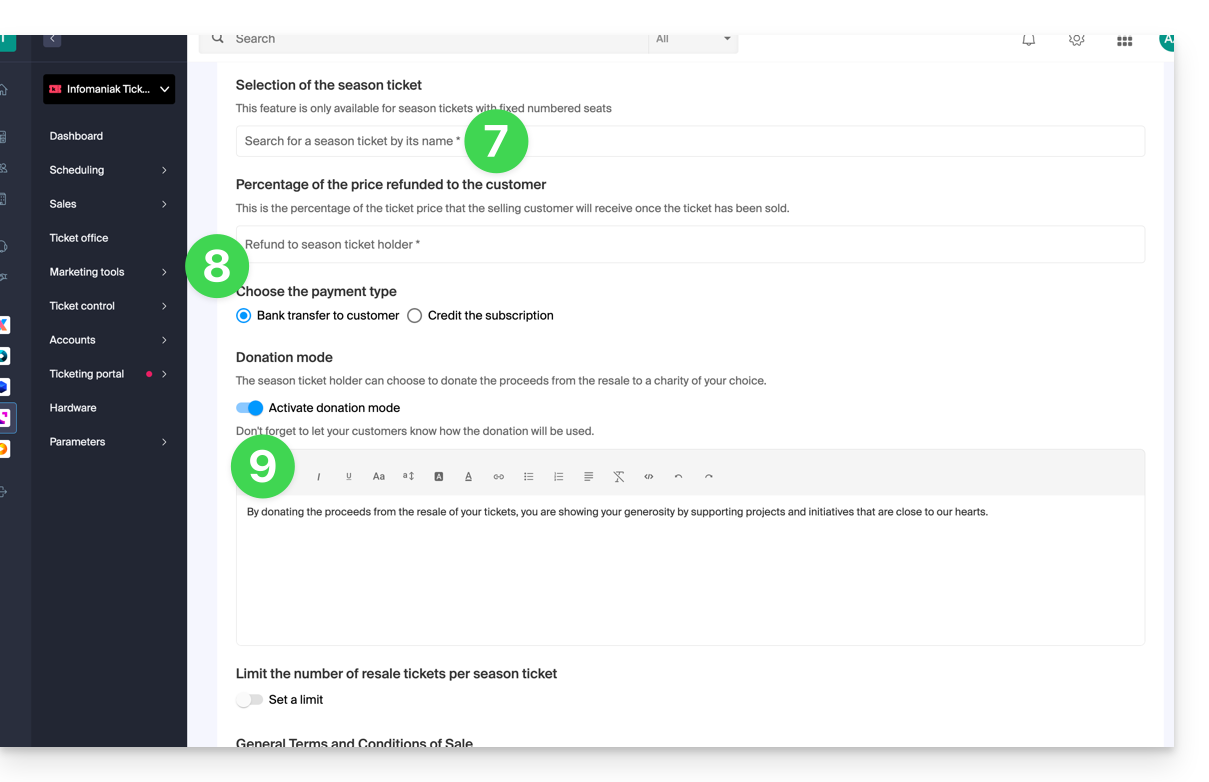
Procedure for subscribers wishing to resell tickets
For customers who wish to resell their pass tickets, you will need to provide them with the link that allows them to access the resale page.
To do this, please generate the link to the desired ticketing system and add /pass-area to the end. Here is an example:
https://infomaniak.events/shop/abcABC4242I/pass-area
The subscriber can then follow this guide to manage their resales.
Tracking ticket resales
You can view the status of resales at any time from the Resale tab: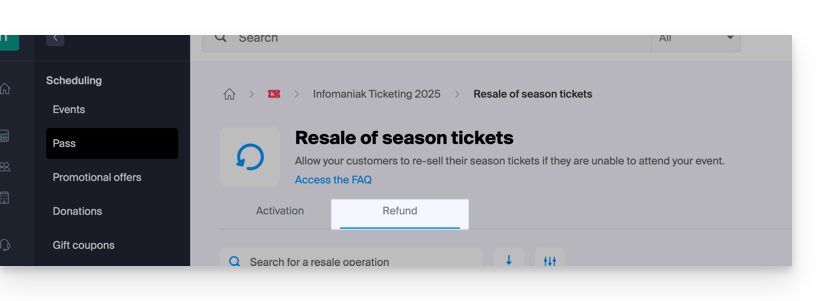
In the case of a bank transfer, the bank details are available directly in the action menu ⋮ located to the right of the relevant item:

Link to this FAQ: https://faq.infomaniak.com/2831
Has this FAQ been helpful?
This guide explains how to renew your subscription directly online for the new season or edition of your subscription.
Access the subscription renewal page
The renewal is made available by the event organizer on the ticketing platform for the new season. Once there, click on the Renewal Subscriber button:
Enter the subscription number from the previous year
Renewal requires the subscription number to be renewed:
Select the new subscription
The selection of new subscriptions will be displayed. You will simply need to choose the desired subscription and continue with the purchase process:
Link to this FAQ: https://faq.infomaniak.com/2834
Has this FAQ been helpful?
This guide explains how to resell tickets from a pass (as part of the Infomaniak ticketing system).
Log in to your account
To do this:
- Use the link provided by the event organizer.
- Enter the email address and the code associated with your subscription to log in:

- Copy the code sent by email to validate access to your customer area:

- Enter the code received by email:

Resell tickets
- Once in your account, in the quick actions column, click on List tickets for sale:

- The overview screen displays the tickets available for sale.
- Check the event or events you want to offer for sale:

- Choose how the payment will be processed. Depending on the options offered by the organizer, you can choose from the following three options:
- Donate to the organizer
- Request a bank transfer
- Credit the amount to your subscription so you can reuse it for future purchases on the ticketing platform

Managing Tickets on Sale
- Tickets on sale now appear on the overview screen:

- An email will notify you of the success or failure of a ticket sale.
- It will be possible to cancel the resale of a ticket at any time, as long as it has not been resold.
The resale price will depend on the price at which the ticket is resold. Only the event organizer can decide on the available payment methods.
Link to this FAQ: https://faq.infomaniak.com/2835
Has this FAQ been helpful?
This guide explains how to view the sales report and use filters to highlight the necessary figures to track your sales and establish your accounting (within the framework of the Infomaniak ticketing system).
Access the sales report
To do this:
- Click here to access the management of your product on the Infomaniak Manager (need help?).
- Click directly on the name assigned to the ticketing concerned by the event.
- Click on Accounting in the left sidebar.
- Click on Sales Report:

Filtering and views for efficiency
The sales report offers a filter and saved views system that allows you to record and quickly retrieve the desired figures:
- By making good use of filters and saved views, you will no longer need to define search parameters for each of your consultations.
- The filters can be modified freely during each consultation, and if you wish to remember the new filters, simply save the filters or create a new view:

The different types of displays
It is possible to display the figures in several ways:
- Summary: Displays the overall figures by events or by sales channel without the details of each zone or pricing category. The second part displays the sales of global tickets
- Detailed: Allows you to display details by date, zone, and price. This is the display mode that allows you to see all the necessary accounting information.
- By pricing category: The display by pricing category allows you to have the figures grouped by prices. It is thus possible to retrieve figures for the desired categories for all events combined. It is thus used to identify, for example, the share of visitors who purchased full-price tickets, reduced-price tickets, or who went through subscriptions.

Add and modify filters
It is possible to add as many filters as necessary to refine the result of the sales report. To do this:
- Click on the blue Add a filter button.
- Select the desired type of filter and choose the elements to include or exclude.
Strict inclusion and exclusion allow you to display only the items that are fully affected by the filter.
In the example below, only orders paid 100% by credit card will appear. Therefore, any order that has been partially paid by credit card and another payment method will not appear on the list:
When applicable, it is possible to select all items in a list by clicking on the category:
The filter is added to the list of active filters:
To modify an active filter, click on it to display the menu.
Sales report views
By default, two views are available, each with its own display:
- Global view: has only one default filter, and thus allows you to see the global sales of the current month.
- Infomaniak Settlement: Displays only online transactions, allowing you to see the turnover corresponding to the statements sent each month with the payments:

Add, export and modify a view
To add a view with the selected filters, click on + Add a view in the list of views:
You will be able to name this new view:
To modify, export or delete a view, click on the dropdown to the right of the save button:
View sales report details
In detailed mode or by pricing category, you can find the details of each event, order, or price.
For example, you can see a quick breakdown of each line by hovering your pointer over the Amount of sales:
You can also view the exhaustive list of orders related to an event, a performance, or even a price by clicking on the action menu ⋮ located to the right of the item concerned:
To keep the sales report page open, it is recommended to open the orders page – accessible via this action – in a new tab.
Link to this FAQ: https://faq.infomaniak.com/2843
Has this FAQ been helpful?
This guide explains how to associate products with tickets for your events on Infomaniak Ticketing.
For create products intended for sale on the ticketing platform, please refer to this other guide.
Selling products related to tickets
There are two ways to link products and tickets:
- Purchasing the product requires purchasing a ticket.
- Purchasing the ticket requires purchasing the associated product.
1. Purchasing the product requires purchasing a ticket
This type of link is configured during the first step of product creation by activating the following option:
During the purchase process, adding the product to the cart requires that a related ticket or tickets are already present in the cart (5 tickets in the example below).
If the customer has already purchased tickets, they can log in with their email address and choose the ticket(s) to associate with the product:
The customer can then retrieve their product using the QR code on their ticket.
2. Purchasing the ticket requires purchasing the product.
This type of link is configured in the last step of the product creation process (and requires that you have not selected the option presented above):
- Click on Add sales rules:

- Select the pricing plans that will be associated with the sale of this product:

- Don't forget to finish creating your product.
During the ticket purchase process, these rates will offer associated products, clearly indicating the additional cost at each stage of the order:

Link to this FAQ: https://faq.infomaniak.com/2844
Has this FAQ been helpful?
This guide explains how to configure the VAT rate (within the framework of the ticketing system Infomaniak).
Introduction
- If your Organization is subject to VAT, you will need to provide this information.
- In case of doubt, please contact your legal or financial representative, or inquire with the town hall of your municipality.
Setting the global VAT rate for ticketing
To do this:
- Click here to access your product management on the Infomaniak Manager (need help?).
- Click directly on the name assigned to the ticketing related to the event.
- Click on Settings in the left sidebar.
- Click on Ticketing Settings in the left sidebar.
- Check the box indicating that you are subject to VAT.
- Select the VAT rate from the dropdown menu.
- Specify your VAT number in the appropriate field:

- Save your changes at the bottom of the page.
Set specific VAT rates for a price
In the case where certain ticket prices have a different VAT rate than the global VAT, set it at the level of the rate in question:
- Click here to access your product management on the Infomaniak Manager (need help?).
- Click directly on the name assigned to the ticketing related to the event.
- Click on Programming in the left sidebar.
- Click on Events in the left sidebar.
- Click on the name of the event in question:

- Click on the pricing tab.
- Create or edit a price:

- Click on the Advanced settings.
- Check the box Modify VAT.
- Enter the VAT rate for this price, using the drop-down menu.
- Click the Confirm button to save:

Link to this FAQ: https://faq.infomaniak.com/2848
Has this FAQ been helpful?
This guide explains how to help customers who may be stuck when using a credit card (as part of the Infomaniak ticketing system).
Ask customers for information
Infomaniak's online ticketing system allows customers to securely pay for their purchases with a credit card. For this reason, 3-D Secure authentication is mandatory for all credit and debit card payments.
Ask the customer what the issue is to try to resolve it. Here are some typical examples that may be encountered:
Blank window or page that appears
The ticketing system attempts to call up the customer's bank's 3D-Secure page. The blank page indicates that their card does not have the 3D-Secure option activated. The customer must contact their bank to request activation of this option.
Unable to make payment with credit card
Make sure the customer is using a VISA or MasterCard credit card. Some banks issue cards that are not on these networks. Infomaniak does not accept credit cards on the American Express network.
Authentication notification received, but unable to proceed
The customer will need to contact their bank or try with another card.
Credit card payment issue
You can obtain more information about this type of problem from the Infomaniak Manager.
Please find the order using the order number, email address, or any other customer-related information:
- Click here to access the management of your product on the Infomaniak Manager (need help?).
- Click directly on the name assigned to the ticketing system concerned by the event.
- Click on Sales in the left-hand side menu.
- Click on Order in the left-hand side menu.
- Search for the order using the information provided by the customer.
- Click on the order number:

- Click on the Transactions. tab
- Check the Notes of failed transactions:

Cases of incomplete transactions with notes
In the case illustrated above, it is a 3D-Secure double authentication failure, but the reasons can be varied. These notes are error messages transmitted by the customer's bank, and are often just an indication of the type of error.
Only the customer can obtain the details related to his error by contacting his bank.
Cases of non-existent transactions
If the Transactions tab indicates a 0 and has no items, the customer was unable to start the online payment process. Therefore, they should check if their card is a valid VISA or MasterCard.
Problem resolution
There are two ways to help the customer with credit card payment issues. They should either…
- … try with another credit card or another payment method,
- … contact their bank to resolve the issue with the card used.
For other cases
Please gather as much information as possible before contacting Infomaniak support who can conduct more in-depth investigations.
Link to this FAQ: https://faq.infomaniak.com/2849
Has this FAQ been helpful?
This guide explains how to easily assign a customer to a pass when the customer has a registered address (within the Infomaniak ticketing system).
Prerequisites
- The customer record must exist and be associated with an email address.
- The pass must have an email address specified in order for this feature to be able to suggest customers to link.
- Therefore, you need to make this option visible or mandatory in the pass configuration:

- Therefore, you need to make this option visible or mandatory in the pass configuration:
Complete the order by entering the email address
When adding passes to the cart, or once they are in the cart, please enter an email address. Several passes, each with its own email address, can be in the cart:
Only one customer can be linked to an order.

Once the pass is validated, on the Customer tab, an additional field will offer you the choice of customers to link to the order:
Link to this FAQ: https://faq.infomaniak.com/2850
Has this FAQ been helpful?
This guide explains how to manage an event (within the Infomaniak ticketing system).
Accessing the event page
To do this:
- Click here to access the management interface for your product on the Infomaniak Manager (need help?).
- Click directly on the name assigned to the ticketing system for the event.
- Click on Schedule in the left-hand menu.
- Click on Event in the left-hand menu.
- Click on the name of the event in question:

Overview
The overview provides a general view of your event: 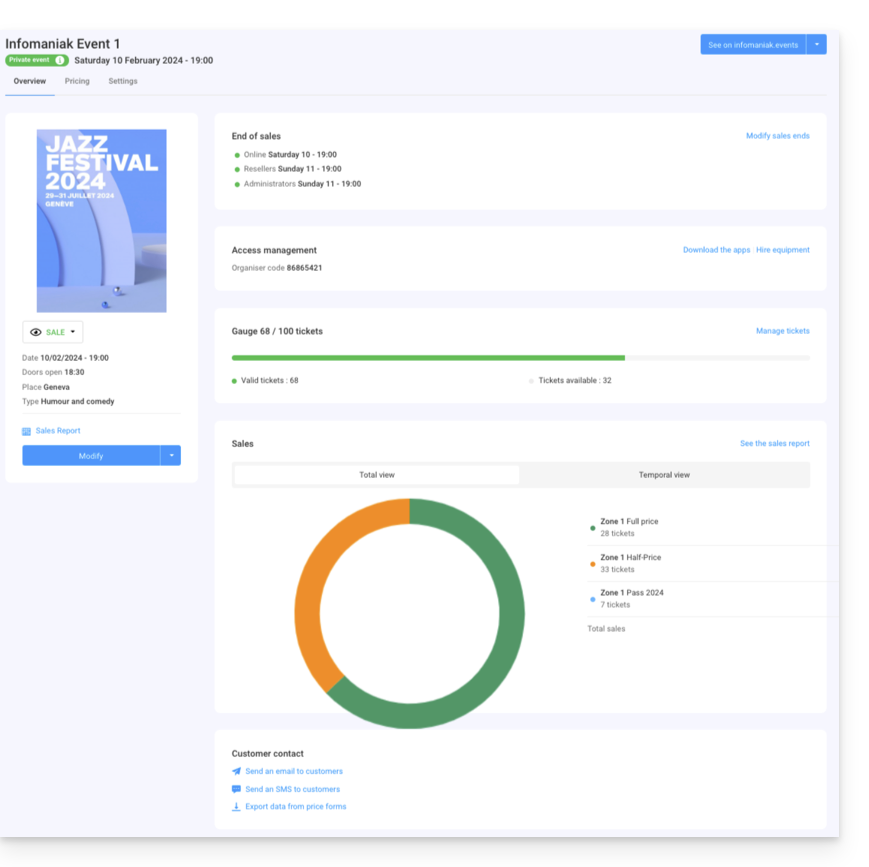
- On the left, you will find the event information and status. You can change the event's visibility, access the sales report, and make changes to the event:

- The end-of-sales information and access codes for ticket control are located at the top of the right column:

- A graph summarizing the number of tickets sold and revenue by price allows you to track your sales:

- The options concerning the event's attendees are located at the bottom of the page. These allow you to contact attendees who purchased tickets for this event and export the results from the forms they filled out:

- The button at the very top right allows you to view the online version of the event on your ticketing platform and, if you decide to embed the event on your website, access the embedding options:

Differences in the case of multi-date events
If your event has multiple performances, the information will be broken down according to the page you are viewing. You will find:
- On the main page, the information and general settings applicable to all dates.
- On each date or event page, you will find the information for that date or event.
Manage prices, ticket templates, and sales closing times
You can switch to these options in the tabs at the top of the event page:
Link to this FAQ: https://faq.infomaniak.com/2857
Has this FAQ been helpful?
This guide explains how to add event tickets, passes and gift vouchers to the mobile box office (within the framework of the ticketing system Infomaniak).
Preamble
- For an overview of the mobile ticket office, refer to this other guide.
2. Add items to the cart
From the Event, Pass or Gift Certificate tabs, you can select the items to add to the cart. Depending on the item, the procedure will vary slightly.
At any time, you can click on one of the tabs **Event, Pass or Gift Certificates** to select other items to add to the cart.
Event ticket sales
- Select the event, date, or performance you want from the left column.
- Choose the quantity of tickets to add to the cart using the + and - icons for the desired prices.
- Click on Add to Cart to proceed:

Pass sales
The pass page is divided into 2 parts. The left column allows you to generate new passes. The right column allows you to manage existing passes:
- Select the pass to generate on the left column.
- Enter the subscriber's information.
- Once the pass is in the cart, you can add tickets for associated events for passes with selectable events:


Sale of gift voucher
As for gift cards, they are listed for you. You just need to select the cards to add to your cart:
Next steps
- Manage and validate the mobile kiosk cart
- Print tickets and manage orders from the mobile kiosk
- Send the cash report (Coming Soon)
- Mobile counter settings (Coming soon)
Link to this FAQ: https://faq.infomaniak.com/2867
Has this FAQ been helpful?
This guide explains how to manage and modify the contents of the cart for your direct ticket sales on the mobile kiosk (within the framework of the ticketing system Infomaniak).
Preamble
- For an overview of the mobile ticket office, refer to this other guide.
3. Manage and modify the cart content
The cart content is located on the left side of the screen in the Cart tab, and you can modify it at any time by performing the following actions:
- Add additional items: You can add tickets, subscriptions, or gift vouchers at any time by selecting the desired tab.
- Modify the quantity of items: For tickets and gift vouchers, you can modify the quantity of items in the cart by using the numbers that indicate the quantities:

- Modify the content of a pass with selectable tickets: If the pass content requires ticket selection, you can view the tickets already on the pass and add tickets by clicking on the relevant menus

- Delete items from the cart: By clicking on the Trash icon next to the cart items, you can delete these items. Warning: If you have taken an existing reservation from the orders, this operation will modify the order.

- Empty the cart : You can also empty the cart by clicking on the blue trash can at the bottom of the page

For reservations: If you wish to remove an item from a reservation, please use the Trash icon. If you wish to remove items while keeping the original order, prefer the reservation splitting method.
Using a promotional code
If the customer has a promotional code, or if you want to apply a promotional code to them, you can click on the % icon on the right side of your screen:
Validate the cart
Once the cart is filled with all the desired items, you can choose the payment method that the visitor wants to use to validate the cart and place the order.
To do this, you have, on the right side of the screen, the payment methods available to you at the ticket office. To modify the available payment methods, please refer to the guide on this subject:
In the case where the cash payment method is chosen, it is possible to enter the amount given by the customer and the change to be given will be indicated on the order validation pop-up:
Next steps
- Print tickets and manage orders from the mobile kiosk
- Send the cash report (Coming Soon)
- The mobile ticket office settings (Coming Soon)
Link to this FAQ: https://faq.infomaniak.com/2868
Has this FAQ been helpful?
This guide explains how to manage orders and print tickets from the mobile ticket office (as part of the ticketing system Infomaniak).
Preamble
- For an overview of the mobile ticket office, refer to this other guide.
4. Printing orders
To do this:
- Select the order to print.
- If you are in the sales process and have just validated an order, it will be selected by default when you reach this step.
- Click on the desired printer to print the ticket(s):

- In the case of a pass, the mobile ticket office will indicate the available badge printers:

Print a receipt with the ticket
You can print a receipt for the order by activating the option on the right of the prints. The receipt will be printed at the end of the tickets:
Search for an order and filter the order list
It is possible to filter the list of orders or perform a specific search. The search field allows you to use all information related to the order, such as the name, email address, order number, etc.
You can also filter orders by event date.

Manage orders
Each order has options allowing you to manage it more precisely:
- Add or modify the order's client:

- Send by email the invoice, the tickets or the confirmation email, or print the receipt:

- Manage tickets individually, either to print a selection of tickets, or, for reservations, split the reservation:

- If the order contains passes, access the pass options:

- If the order contains gift certificates, display them and copy the code to the clipboard:

Next steps
- Send the cash report (Coming Soon)
- The mobile ticket office settings (Coming Soon)
Link to this FAQ: https://faq.infomaniak.com/2869
Has this FAQ been helpful?
This guide describes the differences between the Ticketing and Guest Manager tools offered by Infomaniak.
What type of event are you organizing?
- If you are organizing a one-off private event, such as a birthday party, a general meeting, or a graduation ceremony with a well-defined guest list, use the Guest Manager.
- This tool allows you to create an event, invite the people of your choice, and track their registrations and attendance.
- On the other hand, the Ticketing feature is better suited for events open to the general public or for those where anyone with the link can purchase tickets.
| Infomaniak Ticketing | Guest Manager | |
|---|---|---|
| Issue tickets | ✔ | ✔ |
| Personalized tickets | ✗ Optional | ✔ |
| Option to offer paid tickets | ✔ | ✗ |
| Requires a known list of guests | ✗ Guests cannot be selected. | ✔ Recipient email addresses are required |
| Purchase possible by anyone with a link | ✔ | ✗ No link is generated; everything is done via email |
| Only guests can respond to the invitation | ✗ | ✔ |
| Tickets for multiple events | ✔ | ✗ |
| Option to offer multiple dates | ✔ | ✗ |
| Form to fill out | ✔ | ✔ |
| Registration tracking feature | ✗ You can retrieve the list of customers | ✔ |
| Creates a link for purchasing tickets | ✔ | ✗ |
| Send a direct invitation to purchase tickets | ✗ | ✔ |
Link to this FAQ: https://faq.infomaniak.com/2879
Has this FAQ been helpful?