Knowledge base
1000 FAQs, 500 tutorials and instructional videos. Here, there are only solutions!
This guide explains how to set up invoice payments (within the Infomaniak ticketing system).
Introduction
- This payment method will allow your customers to pay for their order later.
- Regardless of the payment method, you will be the one to receive the money.You will therefore need to manually validate the order.
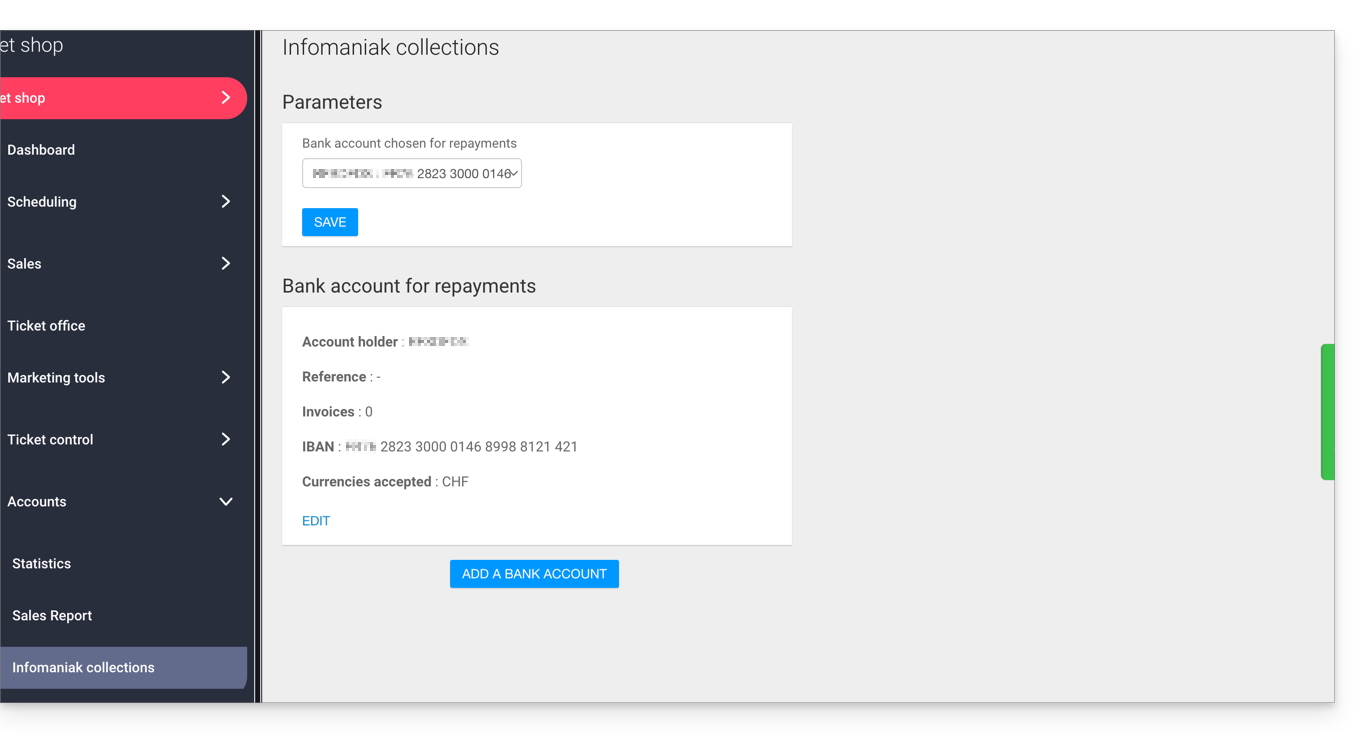
- In the case of a bank transfer, the payment will be directly credited to the account details (RIB/IBAN) configured in your billing area under Accounting, then Infomaniak Payments in the left-hand menu:
- This payment method is subject to a fixed fee of 0.20 per ticket (see pricing).
Enable the payment method in the Ticketing system
To do this:
- Click here to access the management of your product in the Infomaniak Manager (need help?).
- Click directly on the name assigned to the ticketing system for the event.
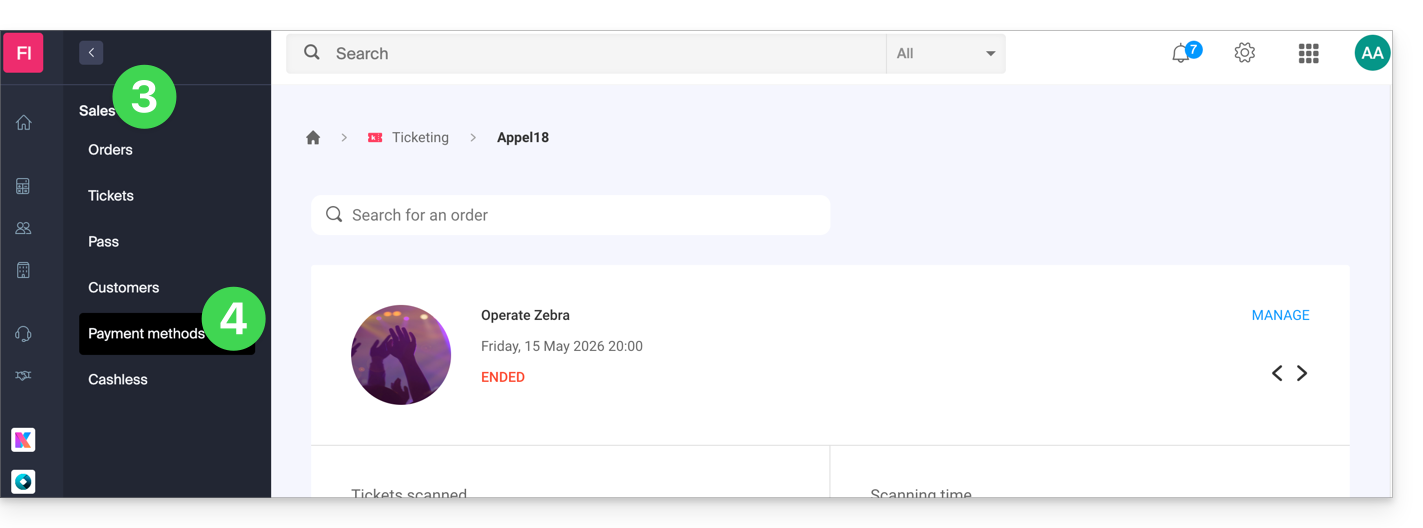
- Click on Sales in the left-hand menu.
- Click on Payment methods in the left-hand menu:
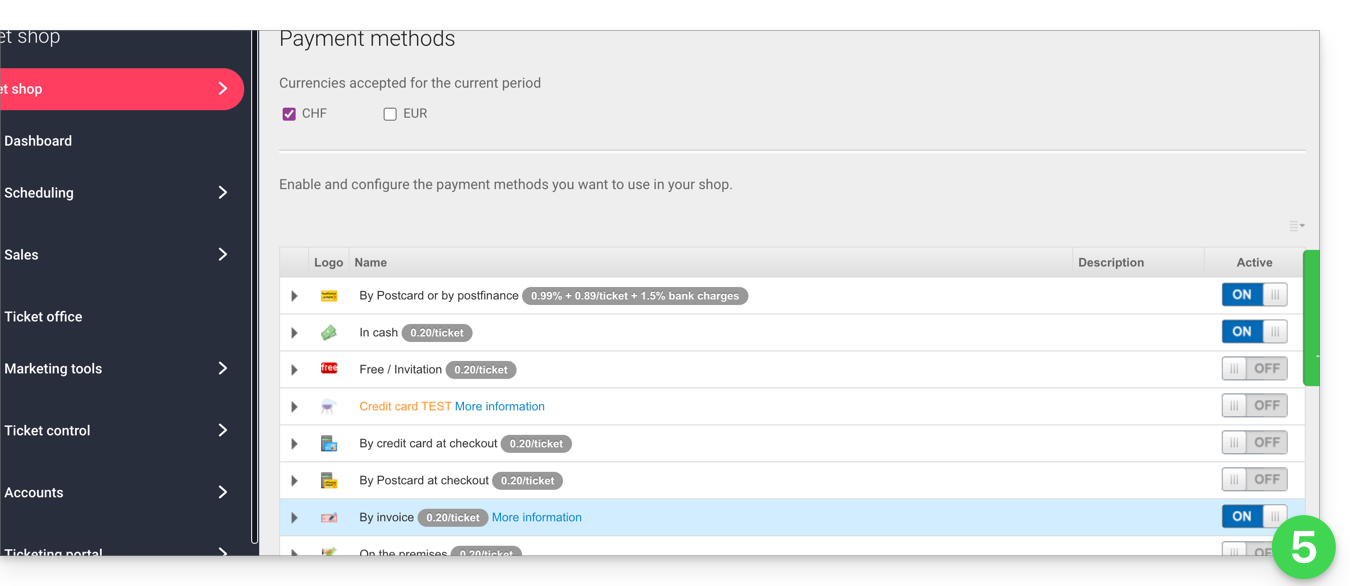
- Set the toggle switch to ON to the right of the Invoice item:
Configure the method
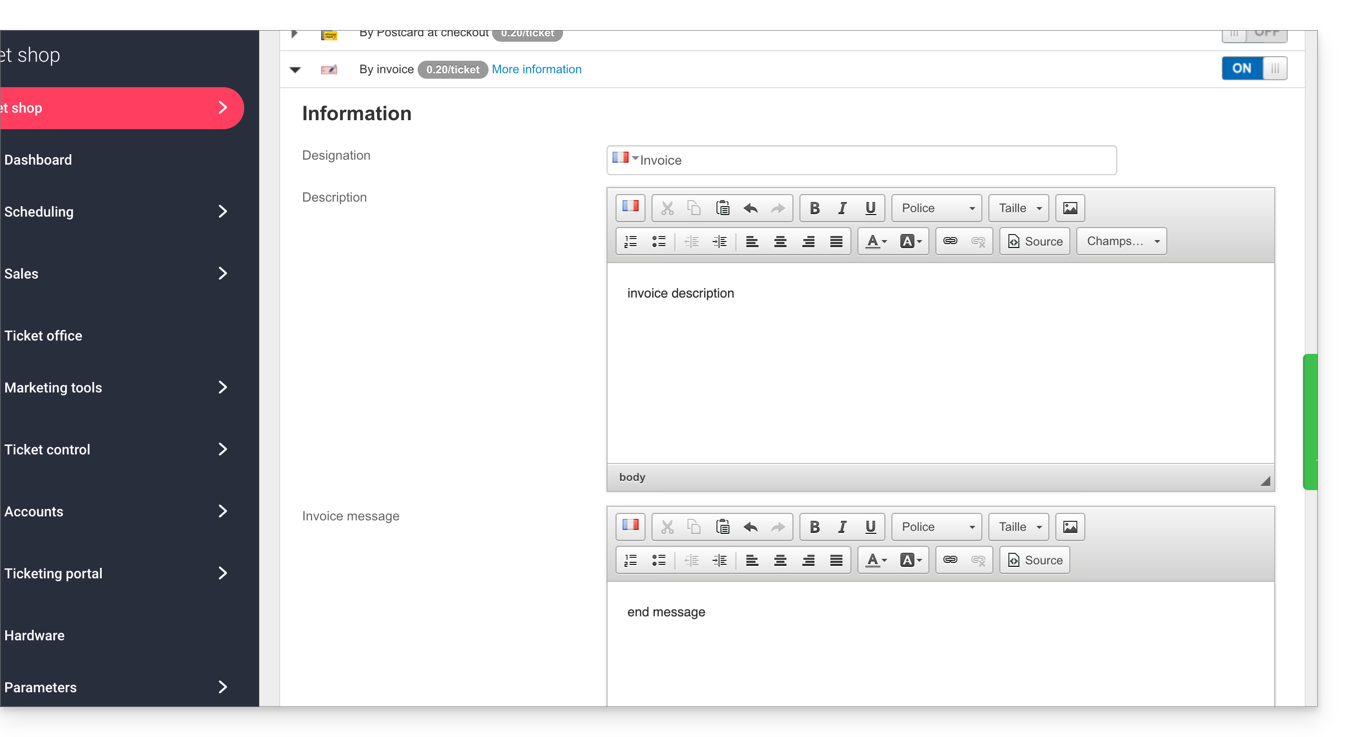
Click on the arrow to the left of the Invoice payment method:
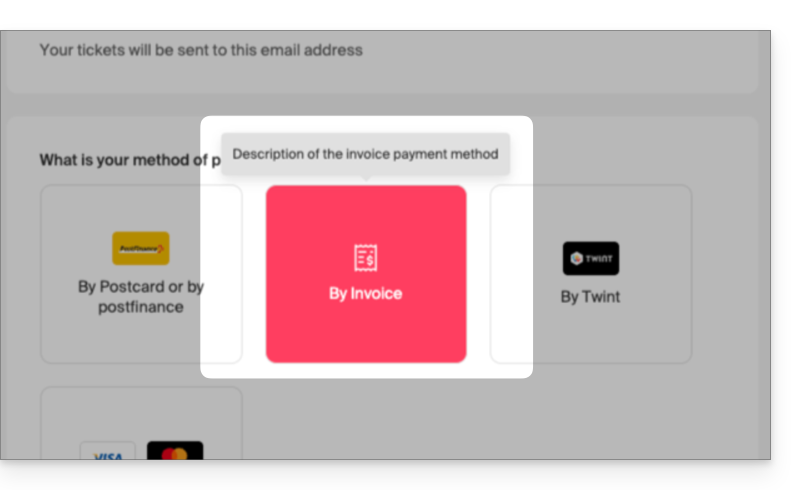
- The first section allows you to define the name of this payment method, add a description, and add a message to the end of the generated document:
- Here is a sample result:
Customizing the invoice payment method
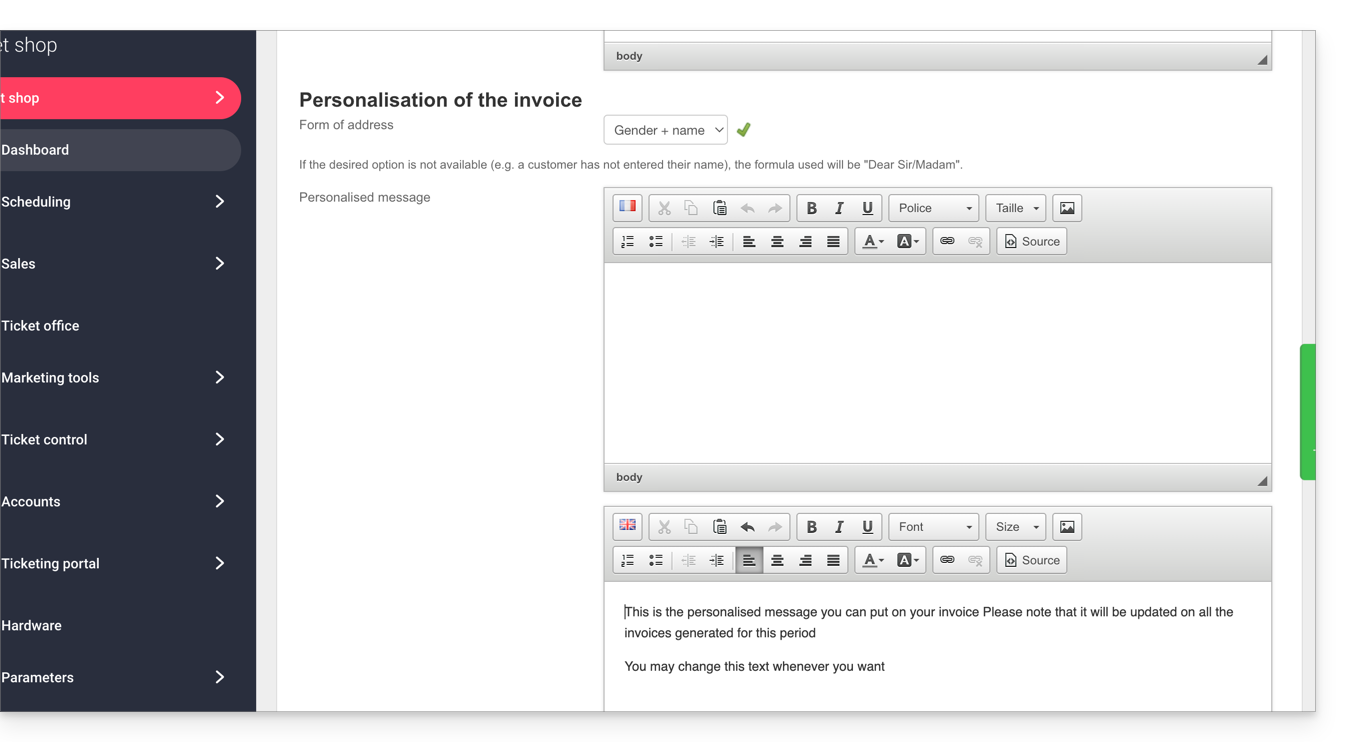
You can customize the invoice to address it to the customer and include a personalized message:
- If you want to address the invoice directly to the customer, in the form Mr. Smith, please ensure that the customer records have the Title and Name fields filled in and completed:
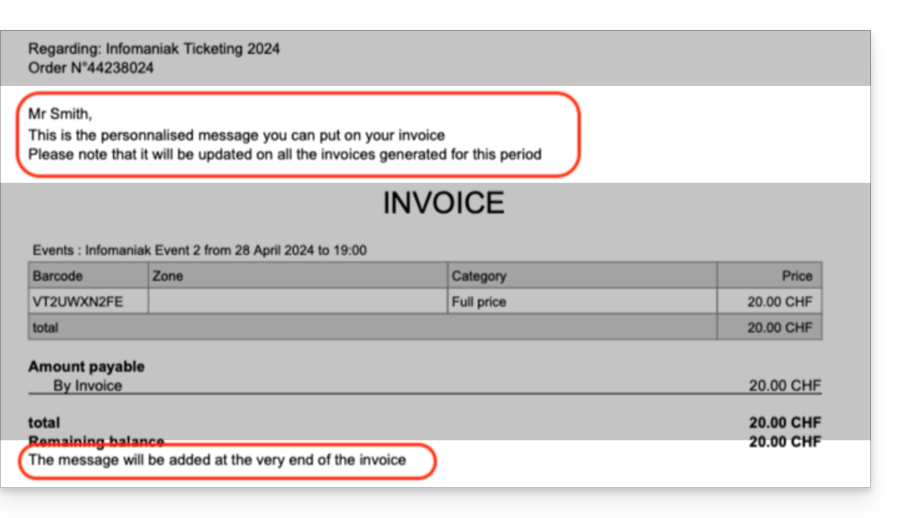
- Here is a sample result:
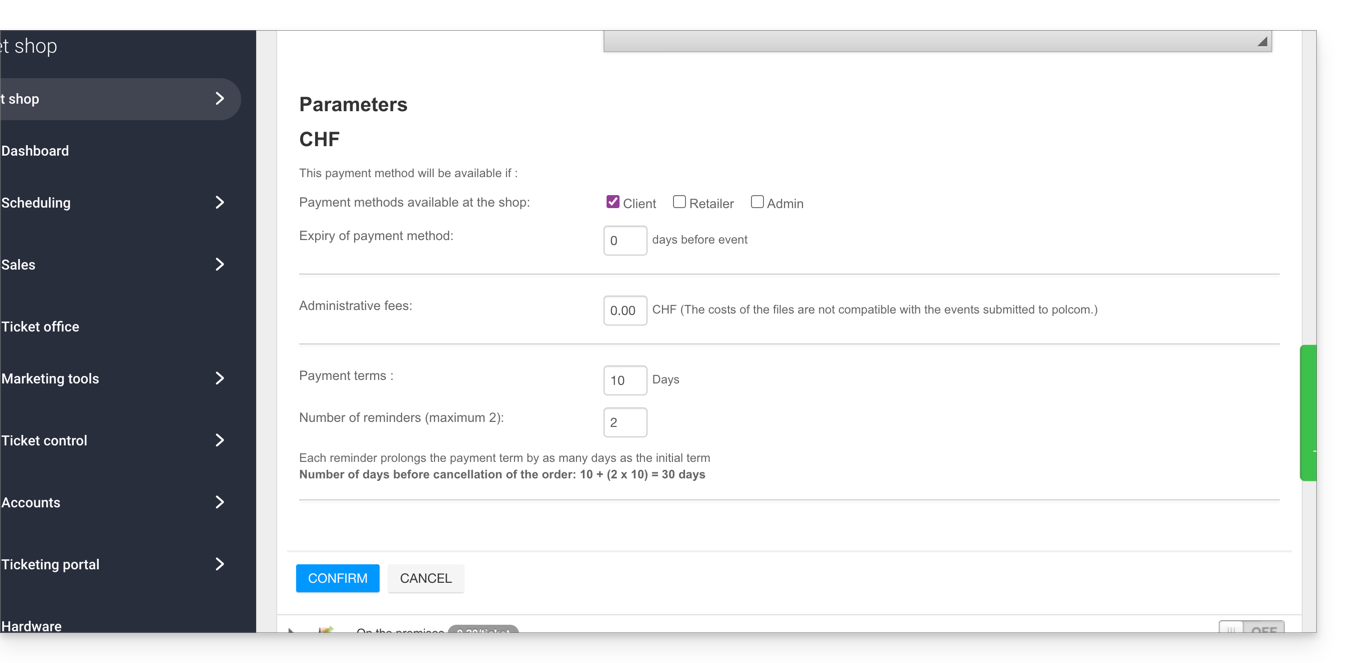
The following settings allow you to manage the use of this payment method:
- The ability to choose the availability of this payment method:
- customer: for online orders by visitors
- reseller and administrator: for the web and mobile interface
- The ability to define an expiration date for using this payment method when placing an order.
- It will always be possible to pay an invoice generated before the expiration date, but it will no longer be possible to choose this payment method when placing orders during the period indicated in this field.
- Add processing fees to cover the management costs of this payment method.
Manage payment due dates for Invoices
To ensure that slots are not blocked indefinitely by this payment method, you can define a payment deadline. Please refer to this other guide if you are looking for information on the number of days before each reminder and the number of reminders.
Validating an order awaiting payment
There are several ways to validate a payment method:
From the Infomaniak Manager
- Click here to access the management of your product in the Infomaniak Manager (need help?).
- Click directly on the name assigned to the ticketing system for the event.
- Click on Sales in the left-hand menu.
- Click on Orders in the left-hand menu.
- Click on an order awaiting payment.
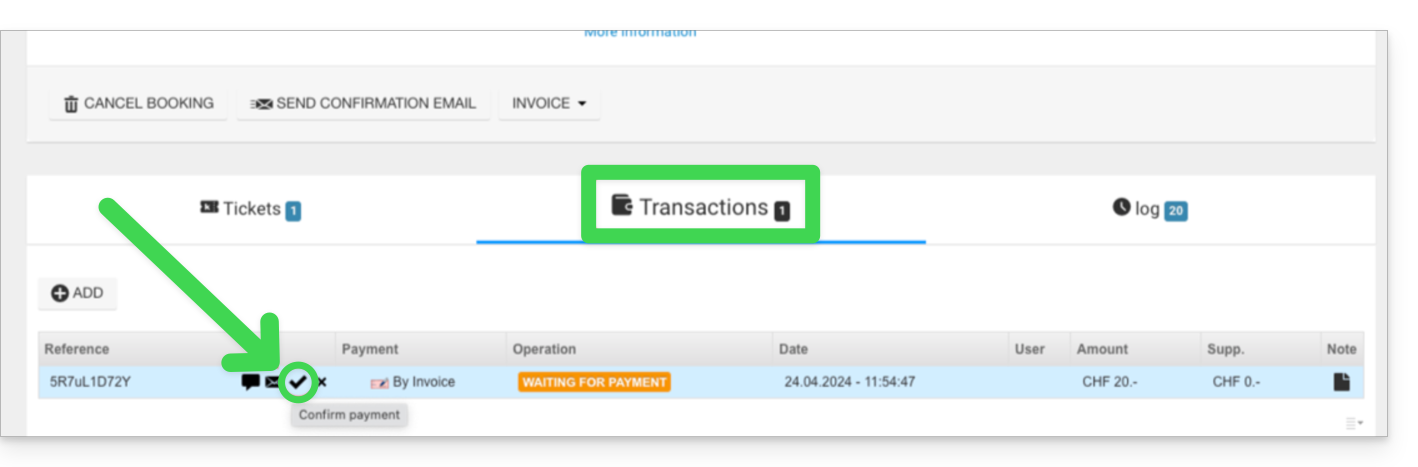
- Click on the Transactions tab, hover over the unpaid invoice payment, and click on the Validate icon:
Via the Web Control Panel
- Log in to the Web Control Panel.
- Start a search for pending payment orders by:
- Order number
- Customer name
- Click on the pending payment order.
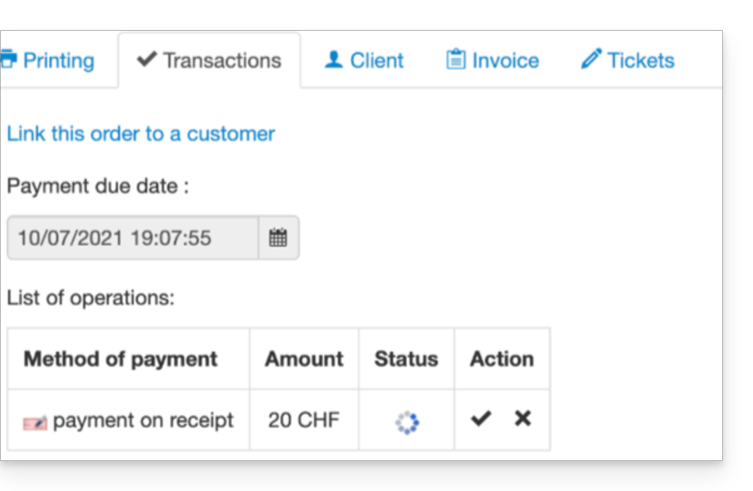
- Go to the Transaction tab and click on the Validate icon:
From the Mobile App
- Log in to the Mobile Portal.
- Start a search for pending payment orders.
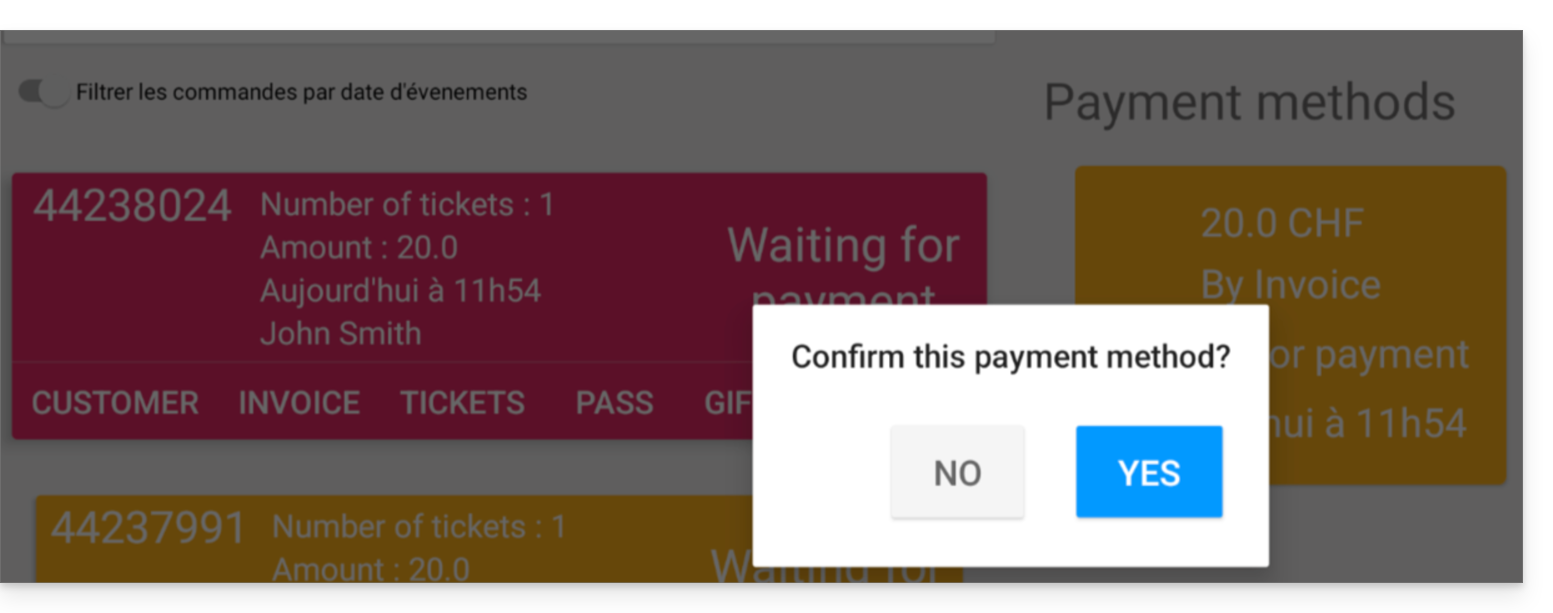
- From the list of payment methods, choose the one to validate and select Confirm:
Link to this FAQ: https://faq.infomaniak.com/2609
Has this FAQ been helpful?
This guide explains how to set up the Exchange payment method (as part of the Infomaniak ticketing system).
Introduction
- This payment method will allow your customers to exchange the tickets they have for new tickets.
Activate the payment method in the Ticketing system
To do this:
- Click here to access the management interface for your product in the Infomaniak Manager (need help?).
- Click directly on the name assigned to the ticketing system for the event.
- Click on Sales in the left-hand menu.
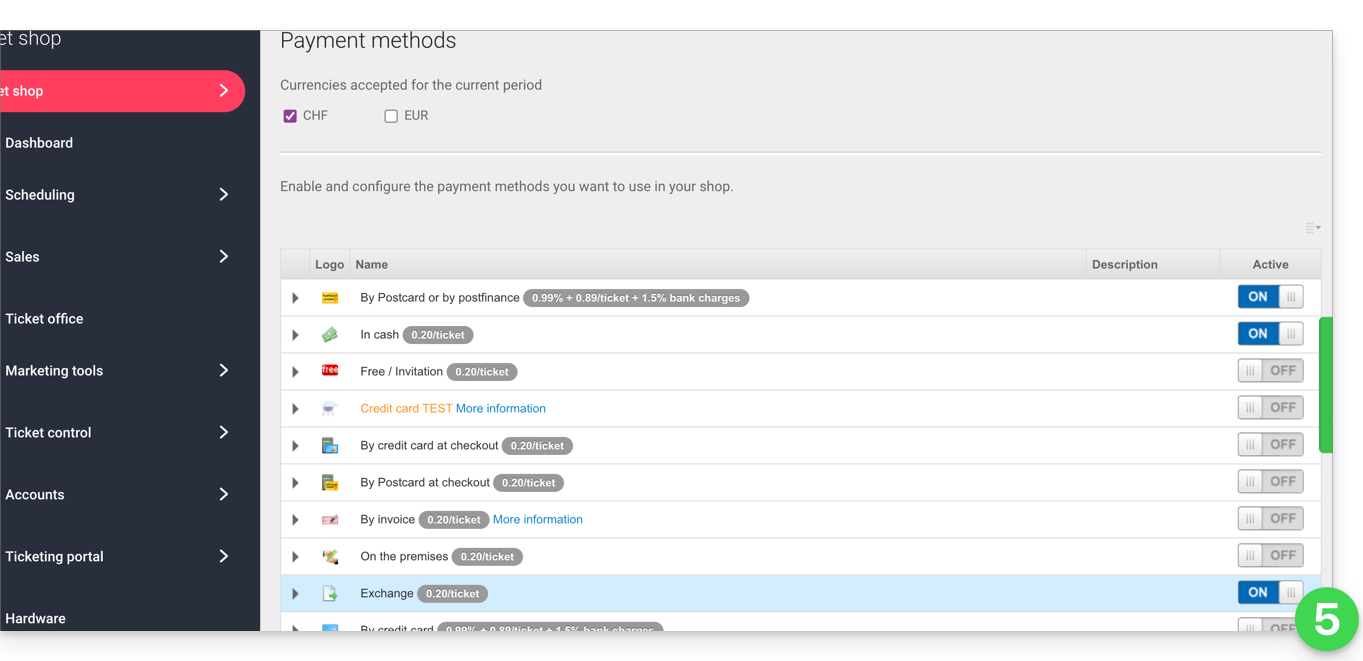
- Click on Payment methods in the left-hand menu:
- Switch the toggle switch to ON to the right of the Exchange item:
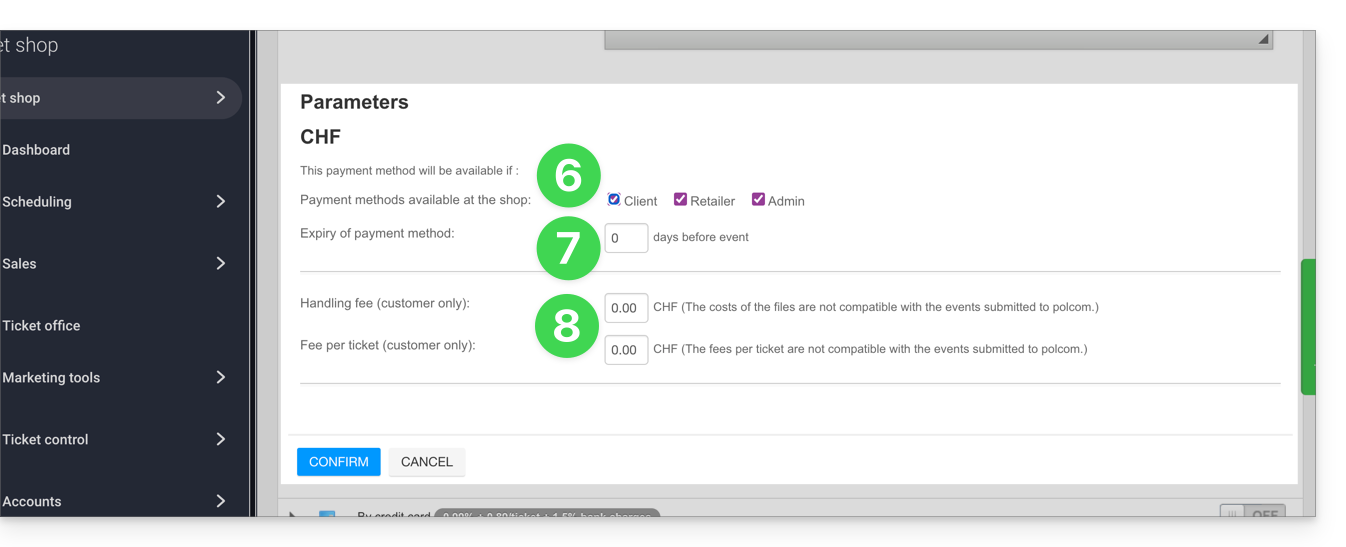
- Click on the arrow to the left of the Exchange mode and then check the client box to enable this option for clients on the online ticketing system; they will then be able to make exchanges directly from your online ticketing system.
- Define the number of days before the event from which the client will no longer be able to exchange a ticket.
- This value prevents customers from changing tickets on the online ticketing system too close to the event date.
- Then, specify the fees associated with this operation, which the customer will have to pay to exchange the tickets:
Once the option is enabled, your customers will find the option to exchange tickets at the bottom of the ticketing page.
Link to this FAQ: https://faq.infomaniak.com/2633
Has this FAQ been helpful?
This guide explains how to connect the Zapier management tool to the Infomaniak ticketing system.
Introduction
- Depending on the volume of customers and/or events you manage, you may need to subscribe to a paid plan for Zapier and/or your CRM.
- Infomaniak cannot be held responsible for these costs.
- For further assistance, contact the support for the software you are using or a partner.
Establishing the connection with Infomaniak Ticketing
To do this:
- Click here to access Zapier.com.
- Create an account if necessary.
- Create a new Zap (need help?).
- When choosing the applications to use, type Infomaniak Ticketing in the search bar and select the option.
- When Zapier asks you to log in, use the credentials and password of the Infomaniak account linked to the Ticketing system.
Link to this FAQ: https://faq.infomaniak.com/2634
Has this FAQ been helpful?
This guide explains how to perform a ticket exchange as a visitor using the Infomaniak Ticketing tool.
Introduction
- If you have selected the wrong date or tickets, this process will allow you to exchange them and order new tickets.
Enter the details of the tickets to be exchanged
To do this:
- Go to the organizer's ticketing platform, as you did when ordering the tickets.
- Scroll to the bottom of the page and click the Exchange tickets button:

- In the new window, enter the email address used when making the reservation, and your ticket number(s), then click Confirm:

- Click on Purchase more tickets or Order tickets to proceed to the next step.
Order new tickets
To do this:
- Proceed as with a normal ticket order, selecting the new event and date, as well as the number of tickets to order.
- When validating the shopping cart, the exchanged tickets will be displayed as credits at the top of the page:

- Complete the order, and if necessary, pay the remaining balance of the shopping cart.
You cannot have a positive balance at this stage: the new order must have an amount equal to or greater than the total value of the tickets exchanged. For refunds, you must contact the event organizer only.
Link to this FAQ: https://faq.infomaniak.com/2635
Has this FAQ been helpful?
This guide explains how to install IDP PVC badge printers for printing tickets for your ticketing system.
Badge printers are designed to work with the mobile kiosk on the tablet as well as the web kiosk on your computer. It can be connected to the network or used directly by connecting a USB cable.
What do you want to do
Video Guide
Learn more
Link to this FAQ: https://faq.infomaniak.com/2644
Has this FAQ been helpful?
This guide explains how to set up and use your sales kit with the Zebra printer for event and cinema tickets (as part of the Infomaniak ticketing system).
Installation and setup of your sales kit
Connecting the devices
- Plug in the power adapter for the Samsung TabS tablet.
- Plug in the Zebra printer's power supply.
- Plug in the Wifi or 4G terminal and ensure it is connected to the other devices.
Make sure the tablet is connected to the Infomaniak network.
Video Guide
Setting up the printer
- Open the printer using the opening buttons located on the sides:


- Insert the tickets into the slot at the back of the printer. For the ticket orientation, please consider the Infomaniak logos: the first one should come out on the left, and the second on the right. The ticket should be facing the correct way when it comes out from right to left.
 .
. 
- Close and turn on the printer:

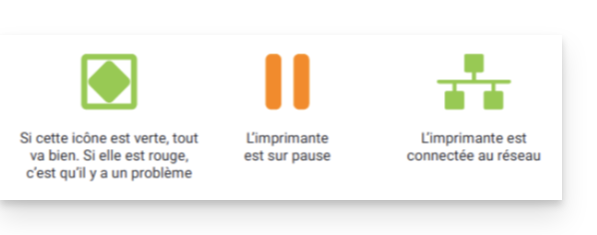
- Press the "Pause" button. Two green indicator lights will be lit:
Printing tickets with the printer
Format Verification
The printers are already configured for the ordered ticket format. If necessary, you can check the configuration by opening the menu in the top left corner and going to Options. The Cinema ticket format option should only be enabled if the tickets will use this format (see below regarding calibration when changing the format).
Printing a ticket
To start printing, log in to the ticketing account from the tablet using the Infomaniak account username and password. The tablet will automatically connect to the ticket counter interface.
- Perform a “test” print or use a command in the “Command” menu.
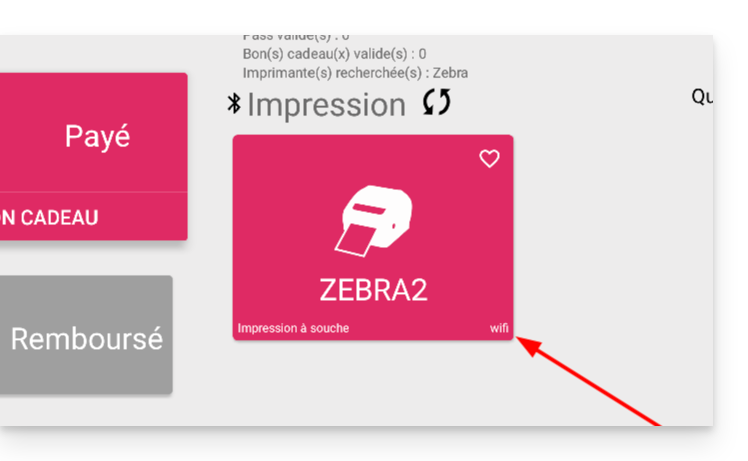
- The printer should appear (ZEBRAXX) on the right side of the tablet.
- Tap the printer icon to start printing:
Configure the correct ticket on the printer
This section only applies to users who ordered tickets before July 2024…
Since July 2024, Infomaniak has been providing tickets with new separators in the form of a notch. If you still have older types of tickets, please watch the video below to configure your tickets correctly:
Learn more
Link to this FAQ: https://faq.infomaniak.com/2645
Has this FAQ been helpful?
This guide explains how to set up and use your sales pack with the Zebra printer for tickets in show and cinema format (as part of the Infomaniak ticketing system).
Video Guide
Powering and connecting the terminal to the network
Connect the terminal
These Wi-Fi terminals are not routers and therefore require a connection to your wired network
To connect the terminal to your network, you will need to plug it in using the Ethernet connection:
- Connect the terminal (MAIN/48V) to the adapter in the POE slot:
- Plug the adapter into the internet network in the LAN slot:
Turn on the terminal
The terminal will turn on and the light will turn blue, indicating that the terminal is functioning properly:
Connect to the Infomaniak network
Once the terminal is turned on and connected to the network via Ethernet, the terminal will create a network named "Infomaniak".
Learn more
Link to this FAQ: https://faq.infomaniak.com/2646
Has this FAQ been helpful?
This guide explains how to set up and use the 4G terminal to connect your sales kit or scanners to the Infomaniak ticketing system.
Introduction
- The 4G hotspot acts as an access point for your on-site vending machines and scanners.
- It connects to a mobile network and creates a network to which tablets, printers, and scanners will connect.
- There is no need to use the RJ45 Ethernet connection to use the 4G hotspot.
Setting up the 4G hotspot
Prerequisites
- Ensure sufficient mobile network coverage for the 4G hotspot to function.
Watch the video guide:
Operating the terminal
To do this:
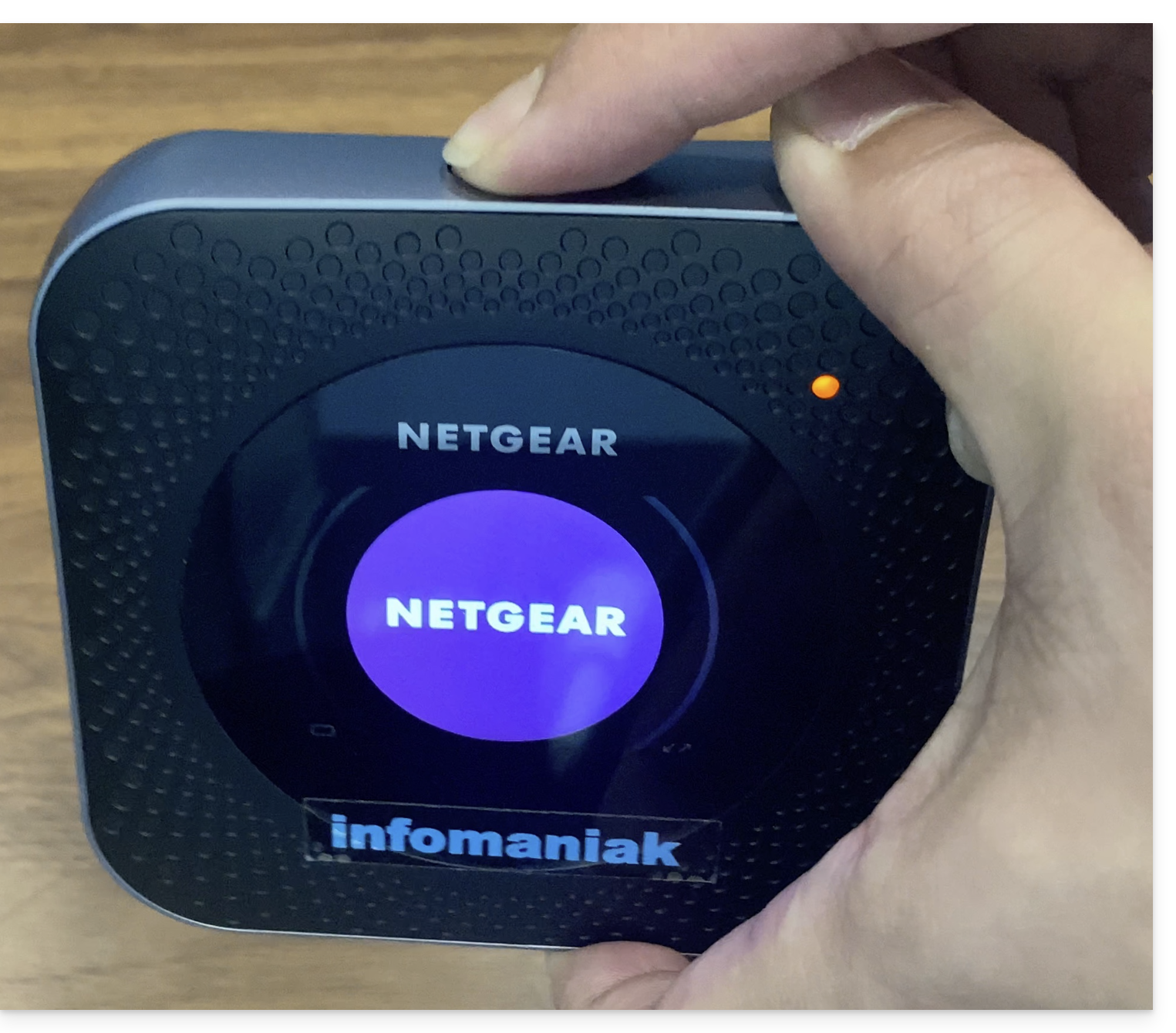
- Press the button on the top of the machine for about 4 seconds:
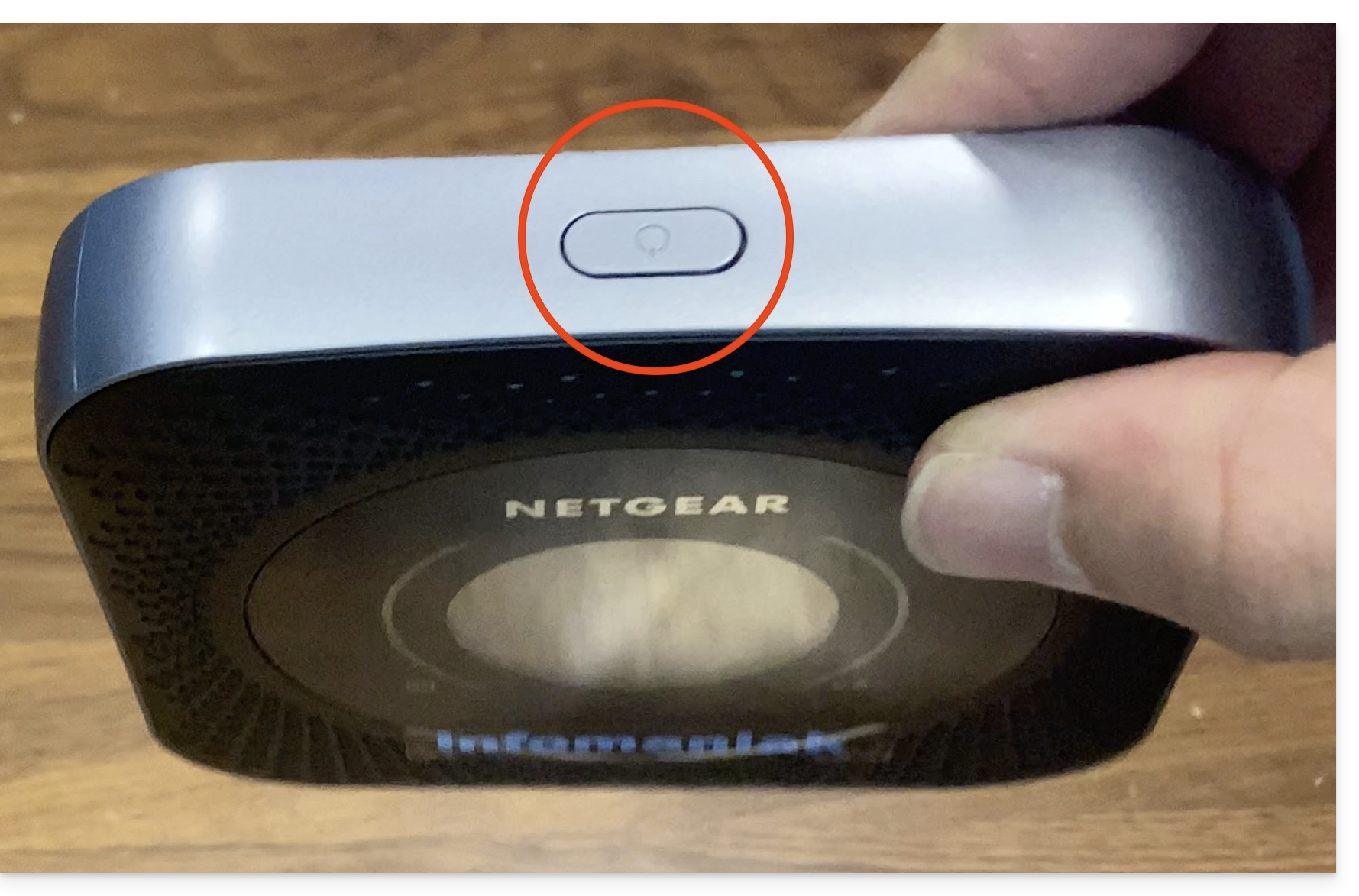
- The screen will turn on:
- The terminal automatically connects to the Swisscom network and is ready for use:
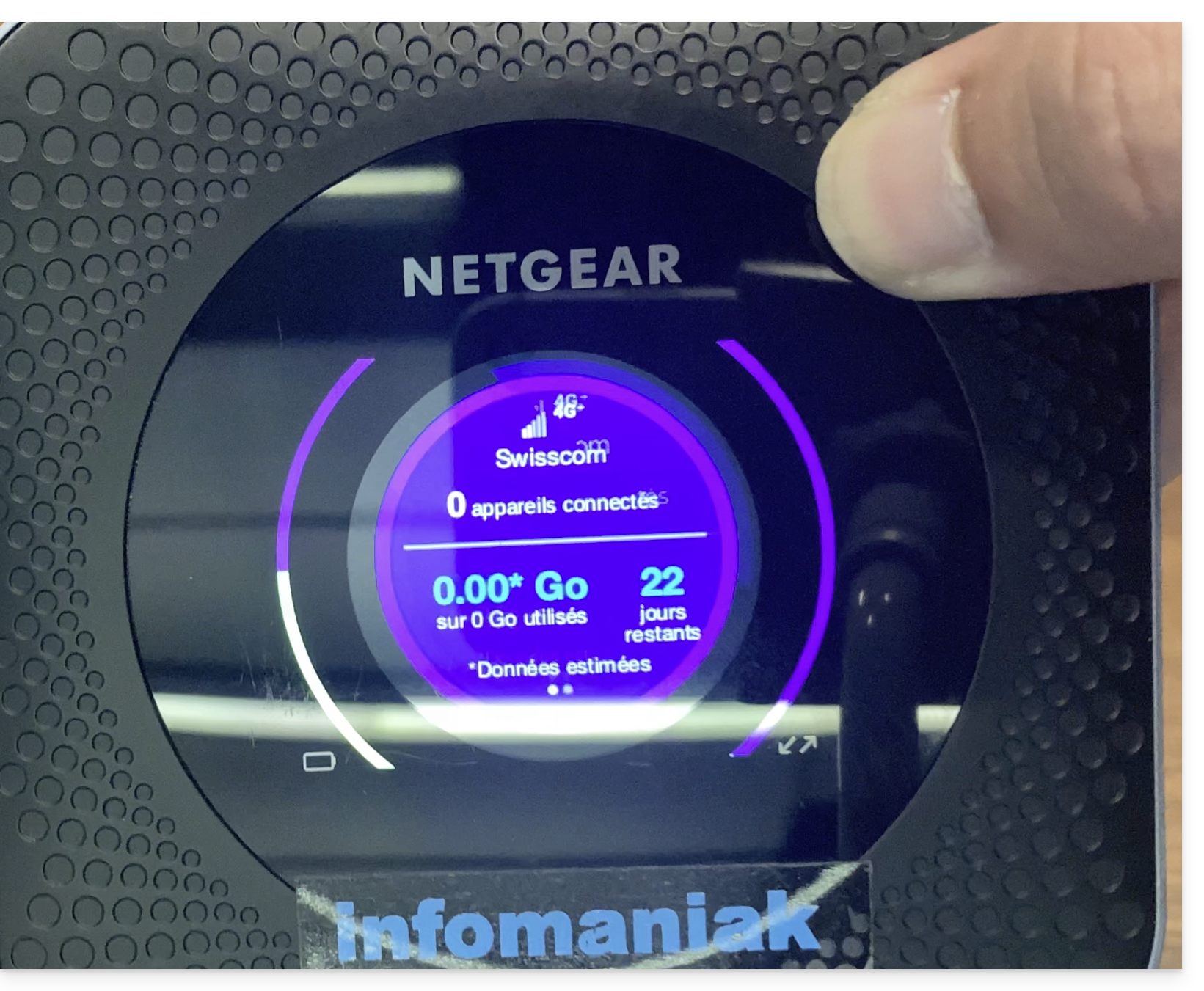
- You can check the number of devices connected to the terminal with a simple press of the button.
- The number of days remaining is a countdown at the end of the month and has no impact on the use of the terminal…
- Once the device is turned on and connected to the 4G network, it will create a network named Infomaniak.
- Infomaniak printers, tablets, and scanners will automatically connect to this network.
Link to this FAQ: https://faq.infomaniak.com/2647
Has this FAQ been helpful?
This guide explains how to use scanners to check tickets for your event (as part of the Infomaniak ticketing system).
Configure the control tools
To activate your control tools on your ticketing:
- Click here to access the management of your product on the Infomaniak Manager (need help?).
- Click on Manage to the right of the Control Tools section:

- Choose the ticketing system for your control session.
- Click the Confirm button:

- Choose one of the control methods:

- Infomaniak Etickets scan mobile app (for iOS/Android smartphone or tablet).
- Rent a barcode/QR code reader.
- Paper printout (not recommended for more than a few dozen customers).
Use the scanner
Hardware prerequisites
- Connect the base power supply and place the scanners on it to charge them.
- The scanners are configured to automatically connect to the Infomaniak network generated by the WiFi and 4G access points
- If no connection is detected, check the connection in the device's Settings menu.
To do this:
- Log in to the mobile app using one of the following methods:
- Email and password of the Infomaniak user account with access to the ticketing system.
- Organizer code (see point 2 above).
- Code generated in the Profile management menu (or click on the action menu ⋮ located to the right of the profile concerned to display a QR code replacing the code):

- If necessary, select the dates at the top to display the correct events.
- Select one or more events to scan (long press on each for multi-selection).
- Point the camera at the QR code on the ticket to perform the scan.
- The scanner will indicate whether the ticket is valid or not:
- Refer to this other guide regarding the customization of the display during scanning.
- The different scanner options are in the menu at the top left.
Manage the app's settings
On the main page
- Quick ticket cancellation
- Allows you to scan pre-printed tickets (your unsold items) to quickly put them back on sale without having to consult the orders in the Infomaniak Manager.
- Scan Mode
- Normal - Classic scan, the ticket is allowed to enter only once.
- Entry / Exit - Validates tickets in either mode to allow participants to enter and exit.
- Multiple Entries - Validates and allows entry multiple times, ticket never refused (unless it is an incorrect date).
- Laser Mode
- Bluebird - to make the application compatible with Bluebird devices.
- Zebra - to make the application compatible with Zebra devices.
On the event page
- Search for an order
- Allows you to find an order with the visitor's name or order number.
- Flash
- Allows you to activate the flash on the device.
- Scan by zone
- Allows you to limit the tickets assigned to the selected zones.
Link to this FAQ: https://faq.infomaniak.com/2648
Has this FAQ been helpful?
Profiles allow you to define permissions for ticket sales, ticket validation (scanners), and access to the admin panel (Infomaniak Manager). Profiles can be used for autonomous scanning, with predefined settings, using access codes that you create.
Create a profile
You can assign profiles to your users. If you want to add more users, please add them in the user management section of your Organization.
- Click here to access the management of your product in the Infomaniak Manager (need help?).
- Click directly on the name assigned to the ticketing system for the event.
- Click on Settings in the left-hand menu.
- Click on Profile Management in the left-hand menu:
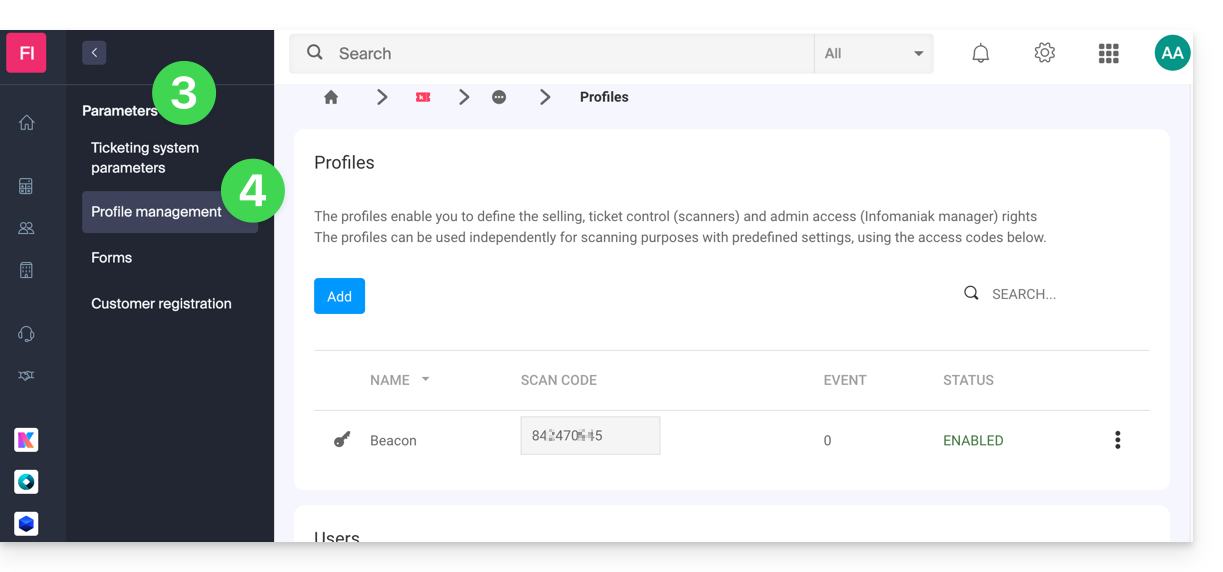
Link to this FAQ: https://faq.infomaniak.com/2649
Has this FAQ been helpful?
Thank you for choosing the Infomaniak ticketing service, which allows you to manage all your online ticketing: event creation, online publishing, ticket control, sales tracking, and customer management. These guides will help you quickly use the essential features.
Setting up and managing your ticketing system
- Create a ticketing system
- Configure an event
- Manage events with multiple occurrences
- Associate a floor plan
- Using access passes
- Configuring promotions
- Issue gift vouchers
- Define payment methods
- Create customer forms
Publishing and marketing
- Website launch checklist
- Manage online stores
- Configure automatic emails before the event
- Listing on leprogramme.ch
- Connect the ticketing system to Zapier
- Use the ticketing system API
Advanced event management
Ticket sales and management
Direct sales and reseller sales
Sales and monitoring tools
- Order rental equipment
- Available ticket formats
- Using the sales packages
- Badge printer user guide
- Configure the control tools
- Manage user profiles
Support and management of customer requests
- Checks to perform in case of payment error by credit card
- Exchange tickets at the ticket office
- Enable online exchange for visitors
- Process a refund
- Offer cancellation insurance
- Cancel an order or tickets
Sales and customer tracking
Why ticket-net.ch?
If the mention ticket-net.ch appears on your bank statements, it simply corresponds to the purchase of a concert ticket, show ticket, or ticket for another cultural event for which Infomaniak is the ticketing provider involved in the transaction. Many organizers/partners rely on the Infomaniak Ticketing / Infomaniak Events solution, which explains why this reference may appear when your card or bank account is debited.
Link to this FAQ: https://faq.infomaniak.com/2650
Has this FAQ been helpful?
This guide explains how to activate and use the "test" payment mode (as part of the Infomaniak ticketing system) that allows you to make orders without using your credit card.
Preamble
- This test payment mode allows you to make payments on the online ticketing system as your customers do with a test bank card.
- This creates a real reservation with real tickets, but a commission of 0.99% of the ticket price + 0.89 CHF (or EUR).
- This payment mode is only visible when you are logged into the shop with an administrator account and it is linked to a customer record (see prerequisites below).
Activate the "Test Credit Card" payment mode
Prerequisites
- Add the email address to the customer database, in case the administrator's address is not yet registered as a customer:
- Click here to access the management of your product on the Infomaniak Manager (need help?).
- Click directly on the name assigned to the ticketing concerned by the event.
- Click on Sales in the left sidebar.
- Click on Customers in the left sidebar menu.
- Click on Add a customer and fill in the fields:

Then:
- Click here to access the management of your product on the Infomaniak Manager (need help?).
- Click directly on the name assigned to the ticketing concerned by the event.
- Click on Sales in the left sidebar.
- Click on Payment Methods in the left sidebar:

- Toggle the switch to ON to the right of the test credit card item:

Use the card to place test orders
To do this:
- Go to the online ticket office.
- Log in to the ticket office using an email address of an administrator of the ticket office account:

- Place an order, and when choosing the payment method, select the Test Credit Card.
- Enter the following information when ordering:
- Code:
4242 4242 4242 4242 - CVV:
100 - Expiration date:
01/32or any future date - 3D-Secure password:
Checkout1!(specified directly in the field to fill out)
- Code:
- Complete the order…
Don't forget to cancel orders from the Sales - Orders menu once your tests are complete!
Link to this FAQ: https://faq.infomaniak.com/2651
Has this FAQ been helpful?
This guide explains how to install the driver for the badge printer (as part of the Infomaniak ticketing system) and how to print from a computer using the USB cable.
Install the drivers
Installing the drivers is only necessary when using the web interface to print passes. Using the mobile interface on a tablet is Plug&Play:
- Turn on and connect the printer to the computer with the USB cable.
- Go to the downloads page under the Support and Download tab.
- Select Product: SMART-51 Series and Product model: SMART-51S…
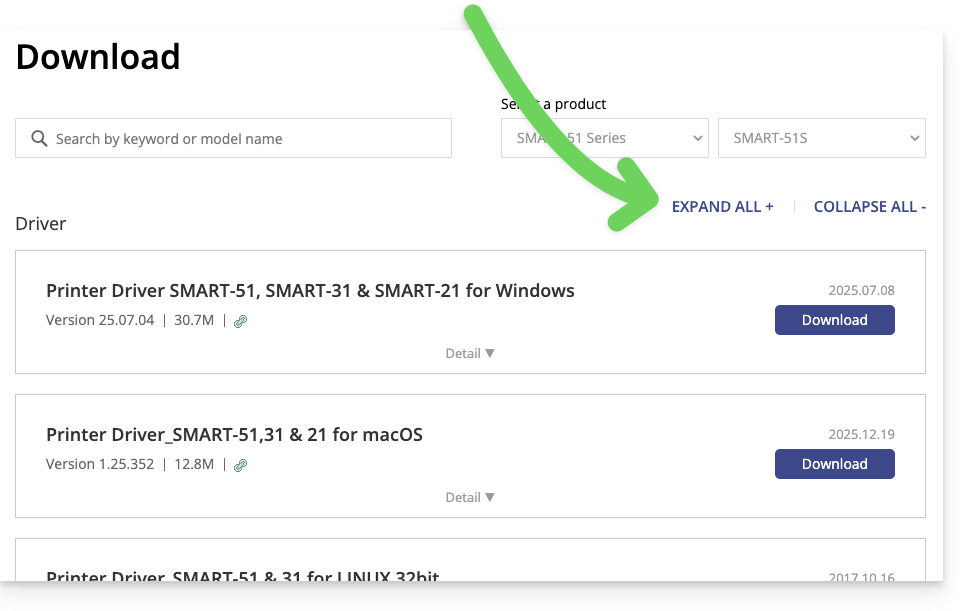
- For Mac and Linux, click on EXPAND ALL + to choose the correct version for your operating system:
- For Mac and Linux, click on EXPAND ALL + to choose the correct version for your operating system:
Configure the printer
For optimal printer usage, it is recommended to configure the printer before using it.
Printing passes from a computer
Once the printer driver has been installed:
- Connect the printer to the computer.
- Open the front of the printer and insert the badges with the side to be printed facing upwards:

- On your computer, go to the Ticket Office.
- Search for an order with a pass; you can click on Search for a reservation at the top of the ticket office for a quick search:

- In the left-hand section of the window that opens, click Print passes to generate the PDF:
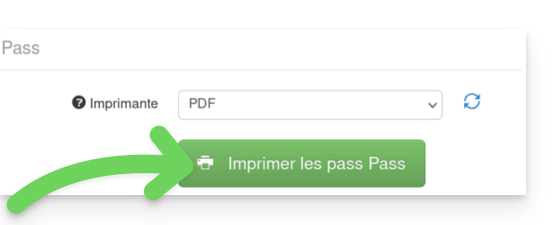
- From the generated PDF, start printing by selecting the Smart 51S printer.
Link to this FAQ: https://faq.infomaniak.com/2652
Has this FAQ been helpful?
This guide explains how to configure your IDP Smart51 badge printer for printing from the computer of your passes (as part of the ticketing system Infomaniak).
Printer Configuration
To this end:
- Access your computer's printer manager
- Select the IDP Smart 51 printer, then the option Printers and Scanners Preferences

- In the Resin Extract option choose Black Dots Only
- Paper size: CR80 Card (54x86mm)
- Orientation: Portrait
- AJUSTER: print all image


- It is possible to save these settings in order to keep them in memory
Read more
Link to this FAQ: https://faq.infomaniak.com/2653
Has this FAQ been helpful?
This guide explains how to print passes from the Infomaniak tablet kiosk (as part of the Infomaniak ticketing system).
Introduction
- The hardware is already configured to connect automatically to the network and the tablet.
- The tablet will then be automatically detected when a pass is ready to be printed.
- It is recommended to use computer printing if possible.
Connect the printer to the network
To do this:
- Turn on the printer.
- Connect the printer to your internet network using the RJ45 Ethernet cable.
- Connect the Wi-Fi hotspot to the network.
Printing passes from the tablet
To do this:
- Log in to the ticketing account from the tablet using the Infomaniak account username and password.
- The tablet will automatically connect to the ticket office interface.
- Create a new order on the tablet or search for an existing order.
- Tap the printer icon:
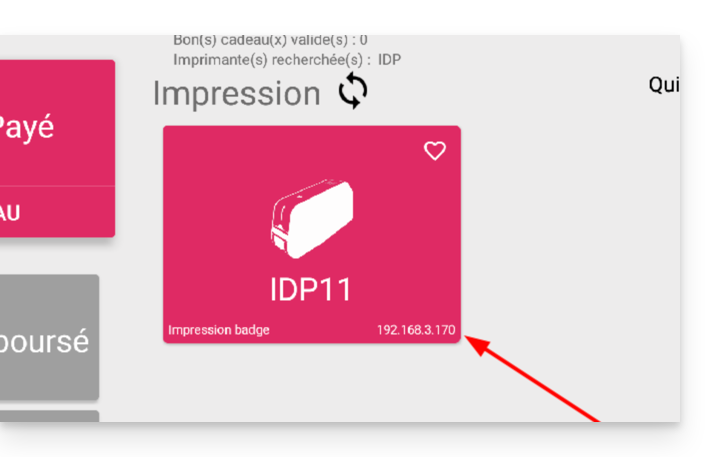
If the printer does not appear in the list on the right
- Try refreshing the list by clicking on the rotating arrows.
- Make sure the printer is properly connected to your network with the RJ45 cable.
- Make sure the Infomaniak Wi-Fi hotspot is properly connected and turned on.
- Make sure the printer and tablet are connected to the Infomaniak network.
- To ensure the printer is properly connected to the network, click the button on the left side of the printer's screen and check if it has been assigned an IP address.
- Otherwise, restart the printer.
Warning: if two Wi-Fi access points are connected nearby, this may create interference. Please ensure that only one access point is connected when using the printer.
Learn more
Link to this FAQ: https://faq.infomaniak.com/2654
Has this FAQ been helpful?
This guide explains how to replace the IDP SMART 51 badge printer ribbon (as part of the Infomaniak ticketing system).
Ribbons are used to print on PVC cards, just like ink cartridges. Black and white ribbons can produce approximately 1200 prints, and color ribbons approximately 250.
Replacing the Ribbons
If the quality of your prints starts to degrade, you need to replace the ribbon.
Video Guide
Please follow each step carefully; incorrect handling may cause the printer to malfunction temporarily or permanently.
- Open the printer by pressing on the area indicated in the image below:
- Replace the old ribbon with the new one, following the order indicated in the image below. First, insert the part without the toothed wheels into the hole, and then press on the part with the wheels to ensure it fits properly into the slots provided for this purpose:
- Remove the protective film by pulling firmly on the tab provided for this purpose:
- Insert the ribbon into the printer, hook facing the front of the printer, as shown in the image below:
- Close the printer.
Learn More
Link to this FAQ: https://faq.infomaniak.com/2655
Has this FAQ been helpful?
This guide explains how to activate and set up promotions for visitors in order to thank them or encourage their loyalty (as part of the Infomaniak ticketing system).
Introduction
- This option allows you to offer a feature that works like loyalty cards, for example, "buy 4 tickets and get the 4th one free."
- The x=y promotion allows you to automatically apply a promotion to the shop/ticket office cart based on a tiered number of tickets, without using a promotional code.
- Example:
- This offer is activated for the following condition: For every 3 tickets purchased, one of these tickets benefits from a 50% discount.
- If the customer purchases three tickets at once, the promotion is applied directly to the tickets in their cart.
- If the customer first places an order for a single ticket, and then a second order for two tickets, the offer will be activated on the ticket from this second order; the total number of tickets purchased will be saved!
- All parameters can be modified later by clicking on "Edit" on the promotional offer page:
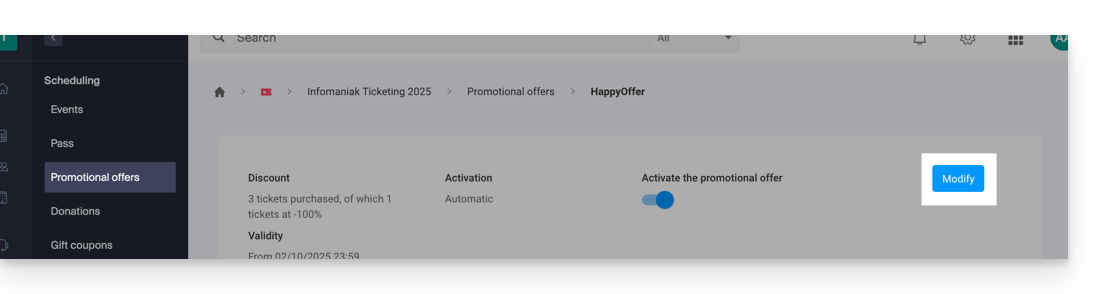
Enable the option in your ticketing system
To do this:
- Click here to access the management of your product in the Infomaniak Manager (need help?).
- Click directly on the name assigned to the ticketing system for the event.
- Click on Scheduling in the left-hand menu.
- Click on Promotional Offers in the left-hand menu:
- Click on the blue Add button:
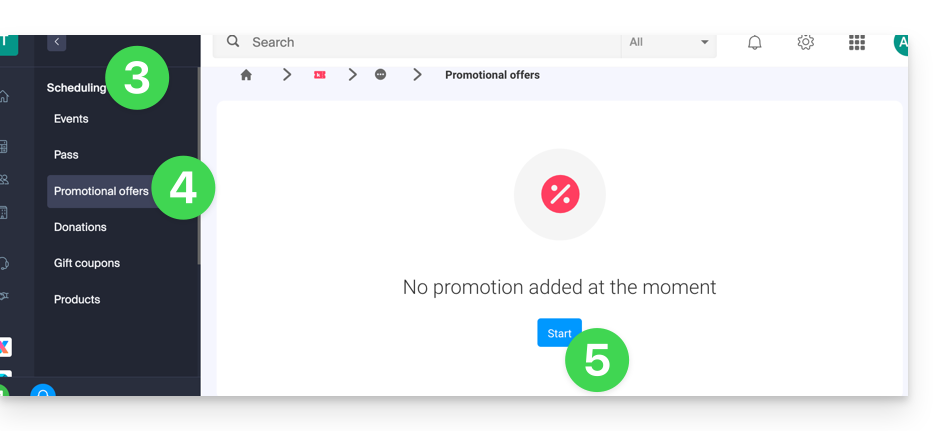
Configure the offer
Promotional Offer
- Enter a name for the offer to be proposed; this name will be visible to the customer (when using a promo code, for example).
- In Discount, choose the type of promotion, for example: Tickets purchased, tickets offered.
- Then, indicate the number of tickets required to activate the offer…
- … followed by the number of tickets that can benefit from the offer.
- Finally, indicate the type of promotion applied to these tickets, as a percentage or a fixed price.
Once an order has been placed, it is no longer possible to modify the type of discount, the number of tickets to purchase, or the number of discounted tickets, or the value of the discount.
- Enter the discount value:
- If the discount value is higher than the ticket price, the ticket will be free.
- Specify the application strategy; this defines the priority of tickets benefiting from the offer: more expensive tickets first or less expensive tickets first.
- Specify the validity dates:
The start date of validity is required for the promotion to work; tickets purchased before the specified date will not be counted in this promotion.
- Click the button to Continue:
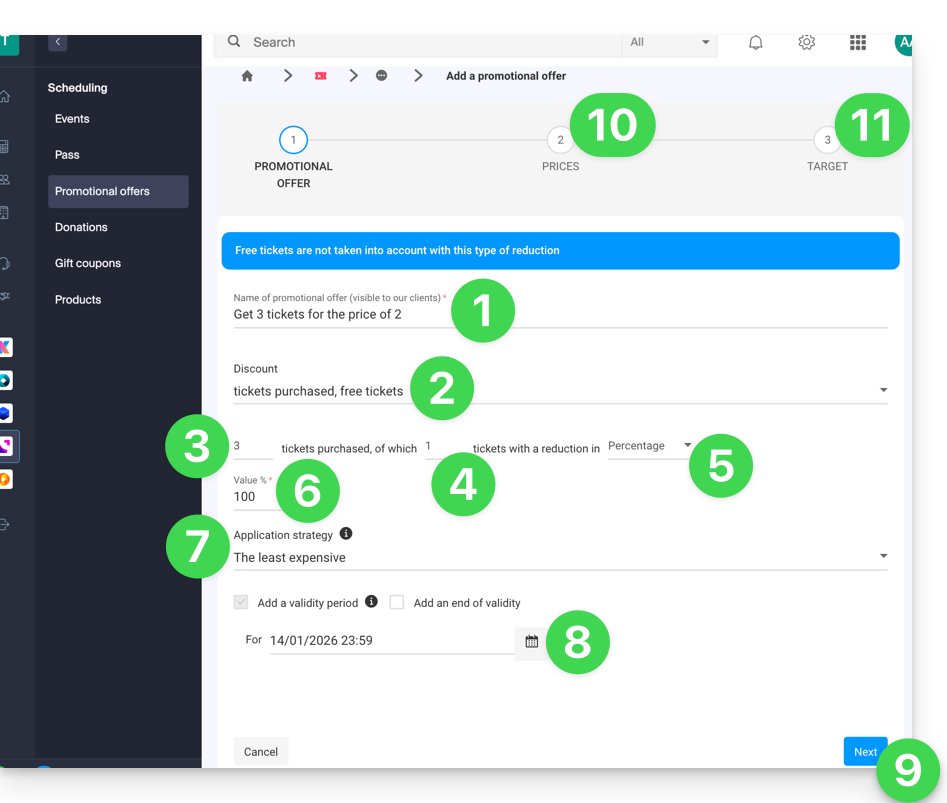
10. Pricing
This step allows you to configure the events, zones, and pricing for which this promotion will apply (it is also possible to set maximum quotas and limits per order per item).
11. Target
This step allows you to configure the following conditions for which this promotion will apply:
- Limit to specific customers (limit to customers who have already placed an order through the ticketing system and are therefore already on the customer list, to those who have subscribed to the newsletter, or to a manually selected customer list...)
- Limit to specific ticket counter profiles
Once activated, the promotion will be applied immediately from the start date.
Link to this FAQ: https://faq.infomaniak.com/2656
Has this FAQ been helpful?
This guide explains how to perform ticket exchanges at the counter (as part of the Infomaniak ticketing system).
Introduction
- This function allows you to select new tickets while canceling the current ones.
- This operation is only possible for individual tickets; for passes, you will need to cancel a ticket and re-add it from the passes menu.
Enable Exchange mode
To enable the Exchange payment method, please refer to this other guide and then:
- Go to the Control Panel.
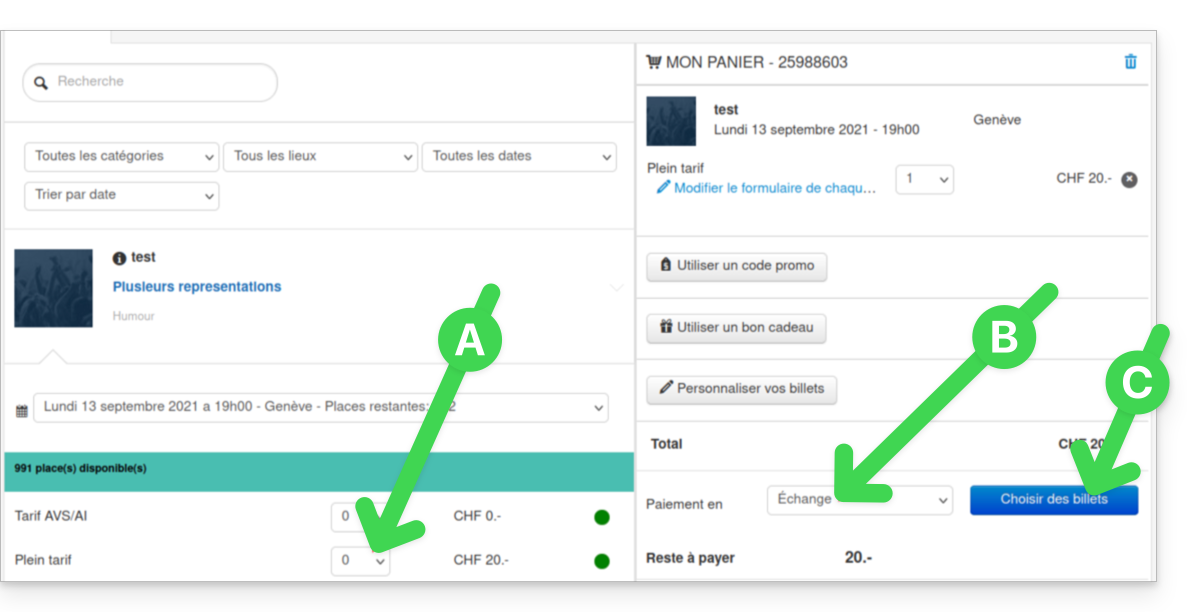
- From the Control Panel, select the new tickets; they will be added to the cart on the right side of the screen.
- Once all the new tickets have been selected, select the Exchange payment method:
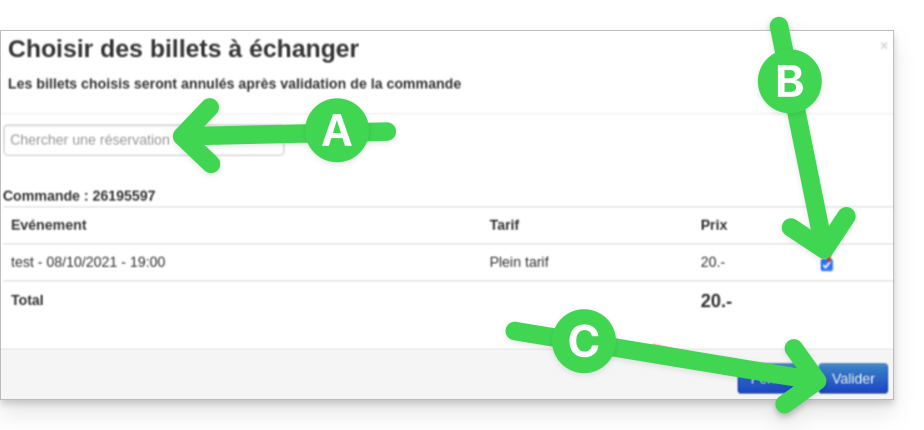
- In the new window, search for the order or ticket number.
- Select the tickets to cancel and confirm:
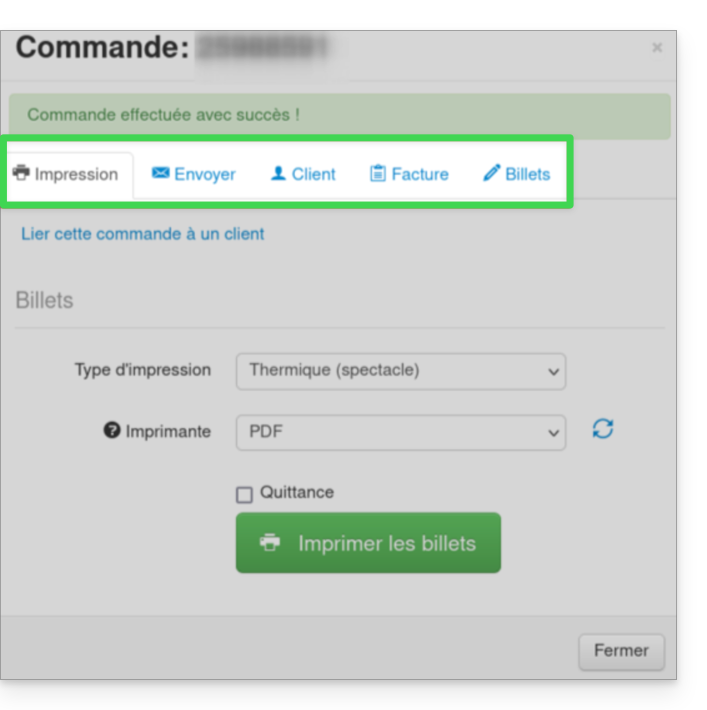
- Enter the customer's information and send the order confirmation to the customer, or print the ticket:
Link to this FAQ: https://faq.infomaniak.com/2657
Has this FAQ been helpful?
This guide explains how to create a new ticketing system, or new period, within the Infomaniak ticketing system.
Introduction
- You can create multiple events within the same ticketing system:
- This “period” generally corresponds to an edition, season, or a highlight of your program (2025-2026 season, summer 2026 festival, etc.).
- It is simply a framework for grouping; it does not technically isolate events as a new ticketing system would.
- Creating a new ticketing system allows you to structure and organize your ticket sales independently:
- You organize recurring seasons of events (cultural seasons, sports seasons).
- You manage several distinct clients (e.g., ticketing partners).
- You want to separate your sales, settings, or statistics from one series of events to another.
- You need separate management spaces, with different teams or access rights.
- This action should not be confused with creating a new Infomaniak Organization.
- Also, please review this other guide before publishing.
Add the Online Ticketing Tool
To start a new Infomaniak ticketing system:
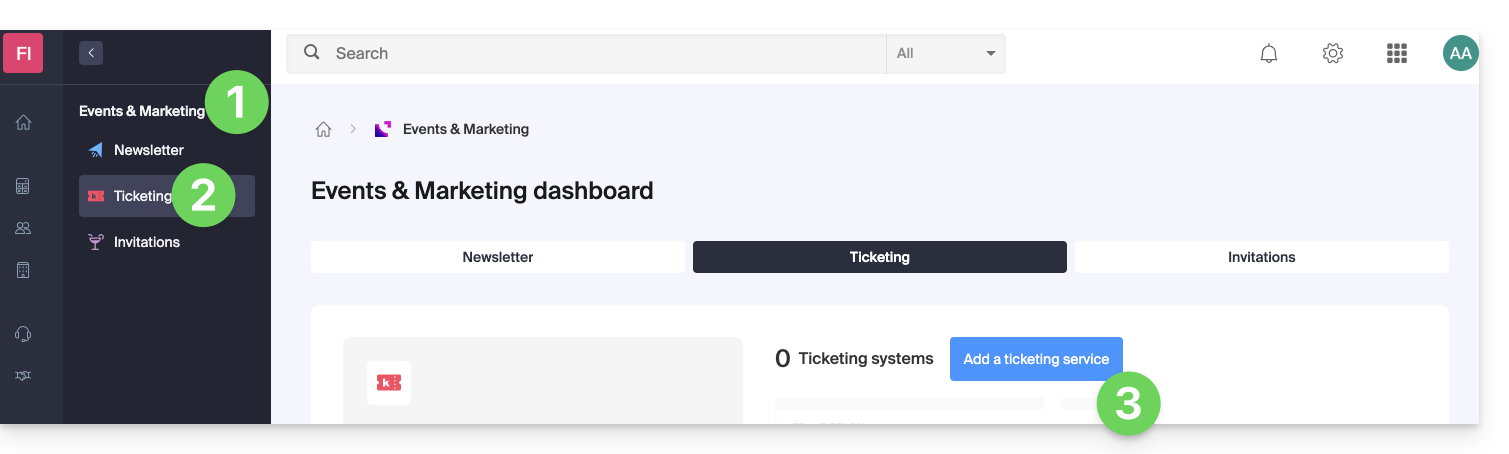
- Click here to access the management of your products on the Infomaniak Manager.
- Click on Ticketing under the Events & Marketing section.
- Click on the blue Add button:
- Enter the name of the ticketing system, the currencies to use, and the languages to use on the ticketing system.
- Enter the user's contact information.
- Choose the default appearance of the ticketing system:
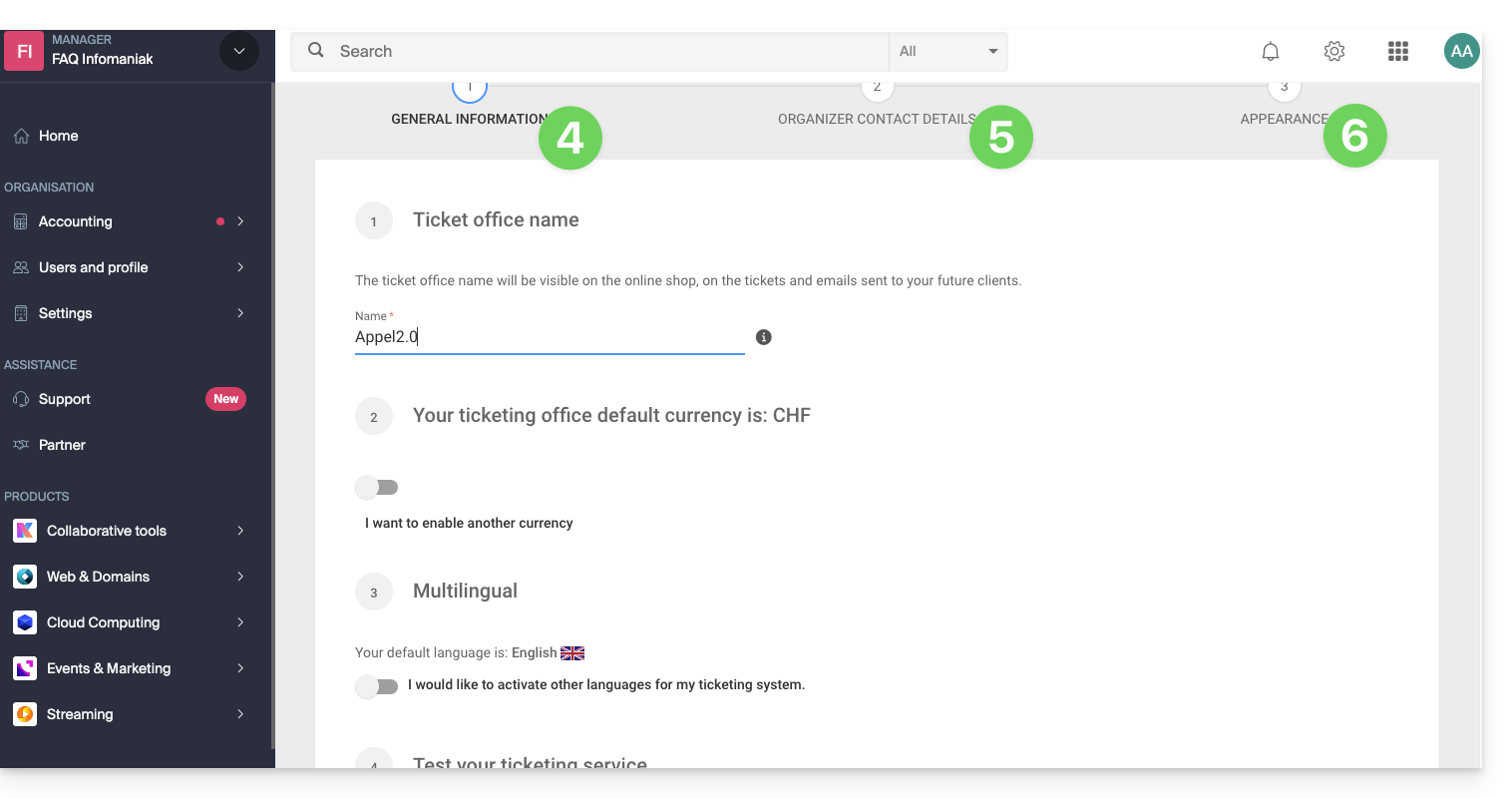
This information can be modified at any time in the ticketing system settings.
Link to this FAQ: https://faq.infomaniak.com/2658
Has this FAQ been helpful?
This guide explains how to create a new event (within the Infomaniak ticketing system).
Create an event
To do this:
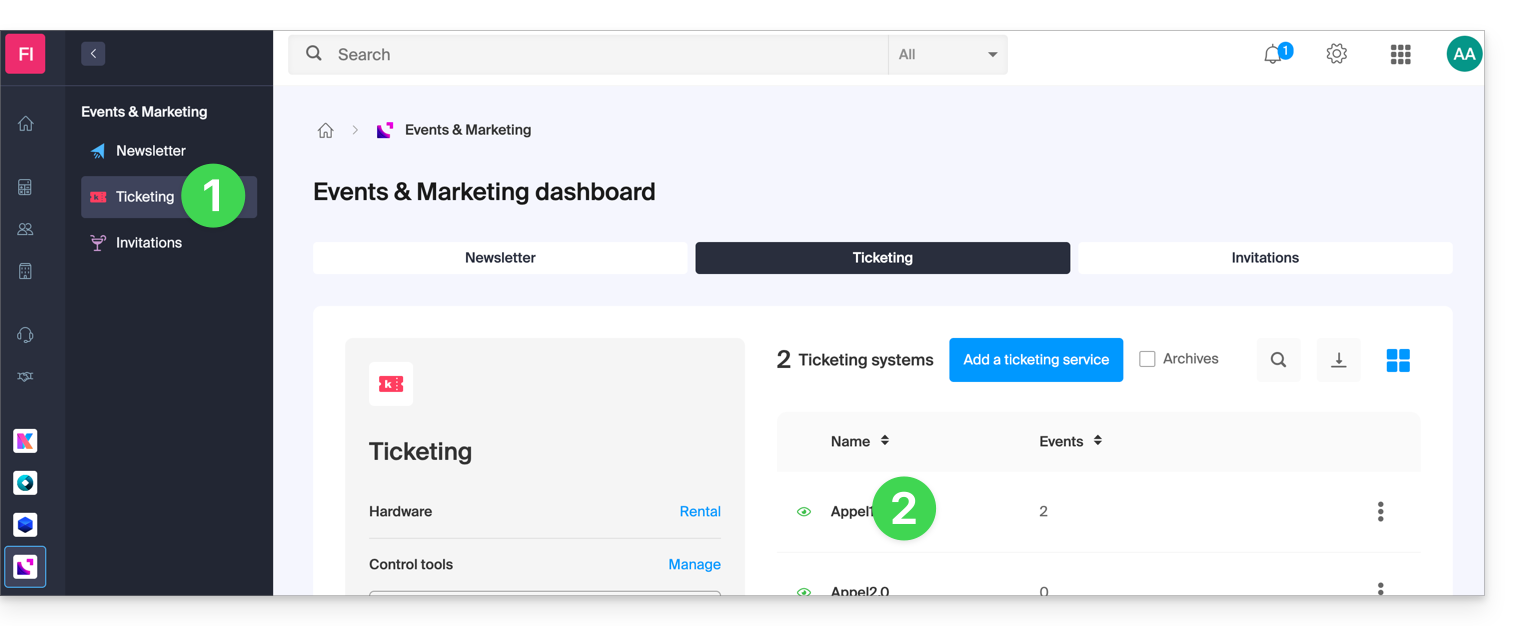
- Click here to access your ticketing management in the Infomaniak Manager (need help?).
- Click directly on the name assigned to the ticketing system for the event:
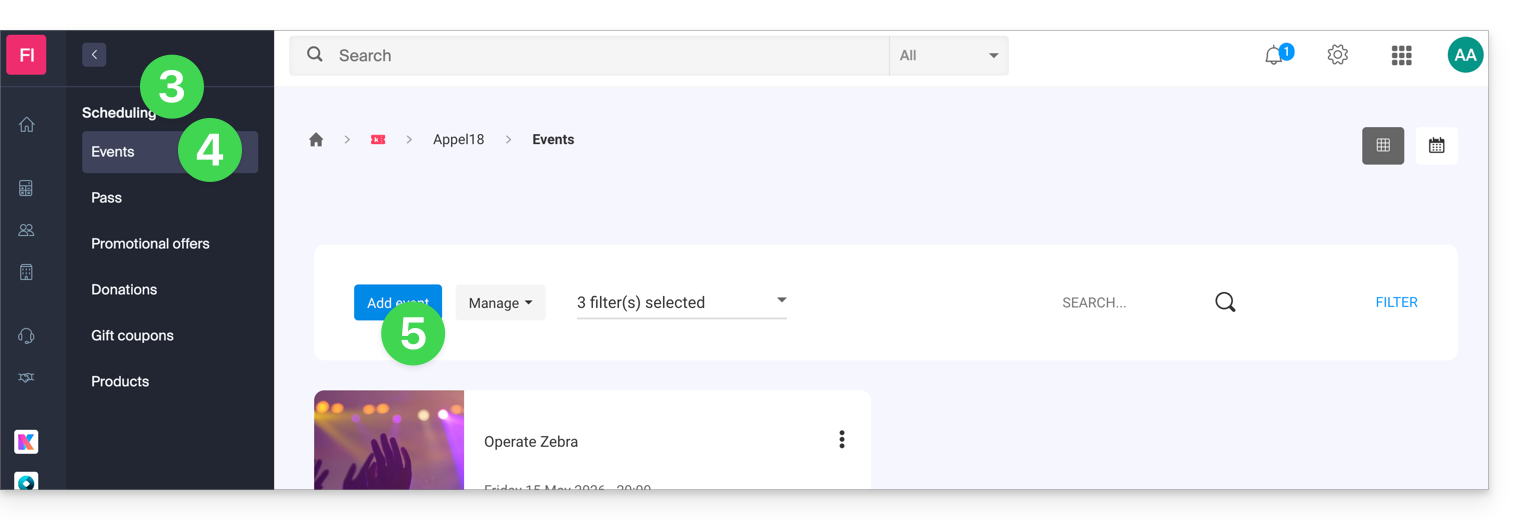
- Click on Program in the left-hand menu.
- Click on Events in the left-hand menu.
- Click on the Add event button:
Configure the event
All information can be added or modified later in the event settings.
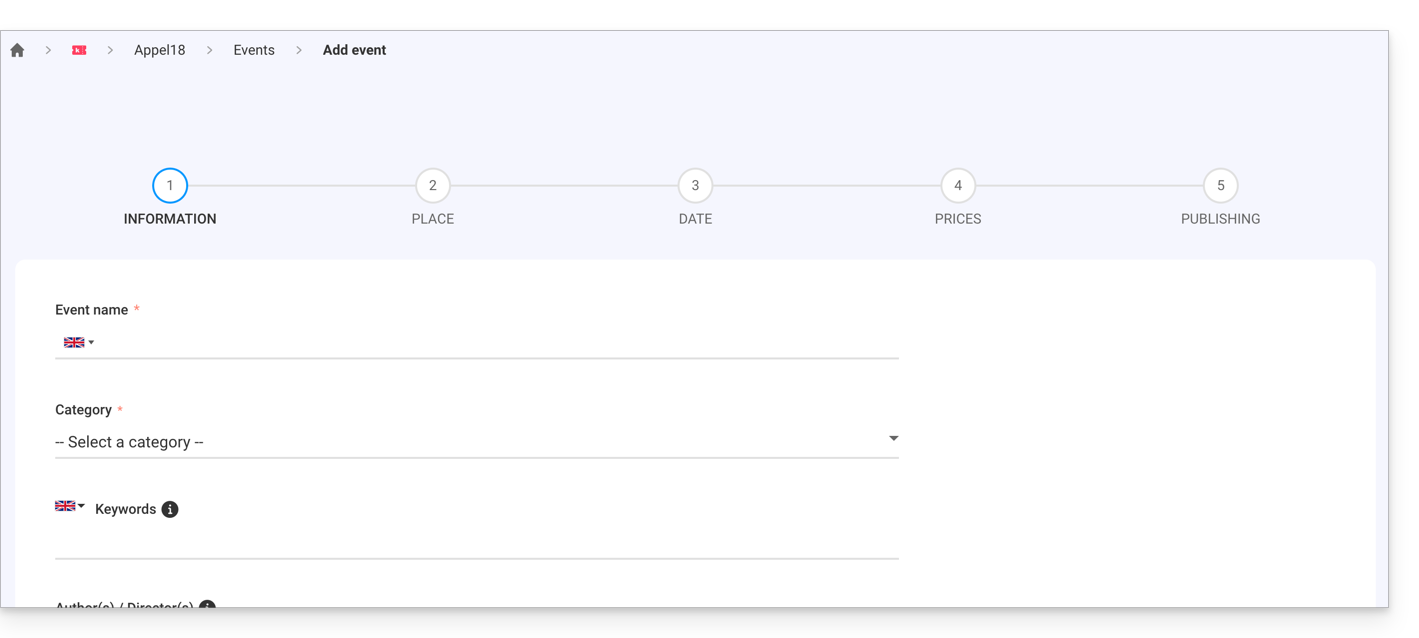
Define event information
- Event name which will be displayed on the ticketing page and on the tickets.
- Category of the event, which will allow you to identify the event and associate it with other events of the same type on the Infomaniak Events portal.
- Keywords that allow you to find the event on the Infomaniak Events portal.
- Event poster and other images associated with your event.
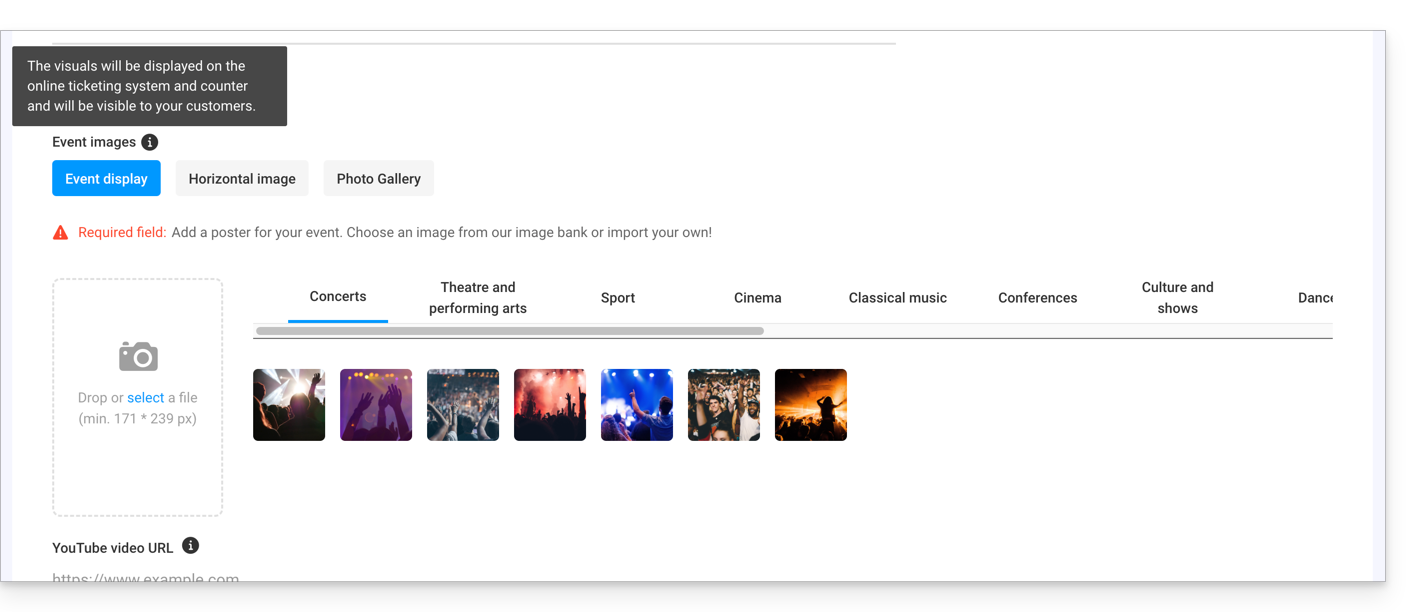
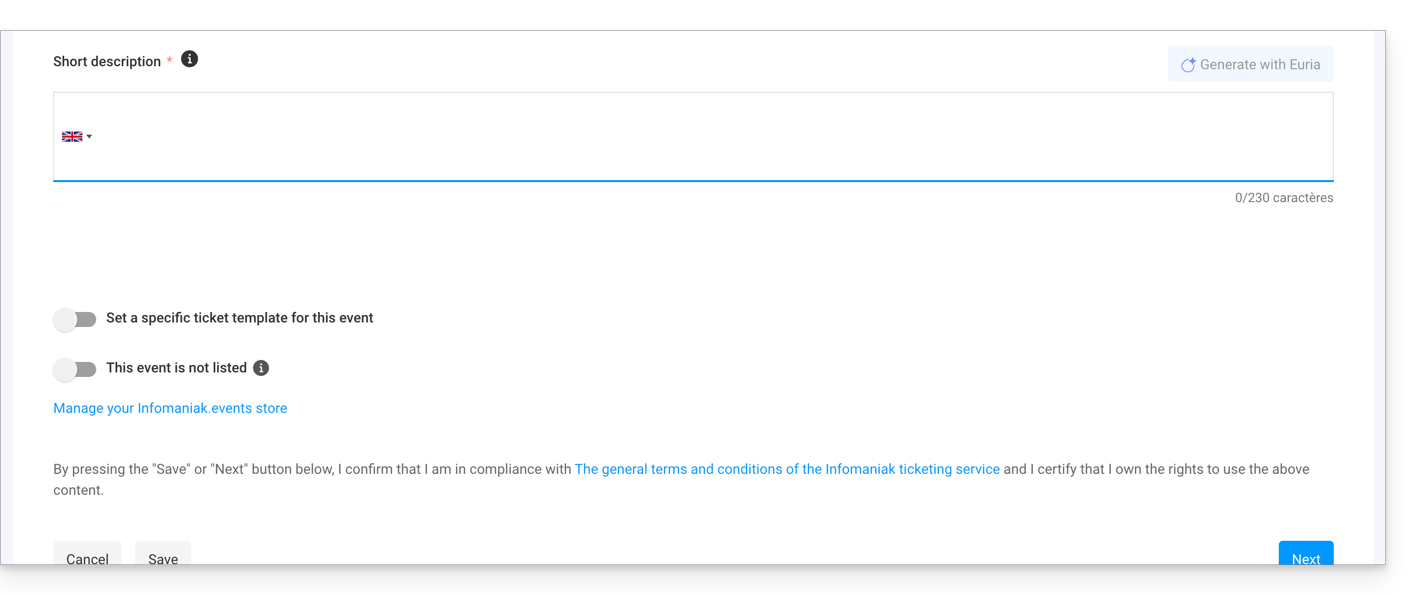
- Description of the event as it will appear on the online ticketing platform when visitors make a purchase.
- Short description that you can generate via Euria (click on the dedicated button), which will then be based on the details of the long description and the event information (director, artists, etc.).
- Define a ticket template to be used specifically for this event.
- Specify whether the event is private or not; leave this option disabled if you want your event to be visible on the infomaniak.events portal.souhaitez que votre évènement soit visible sur le portail infomaniak.events.
Define the event location
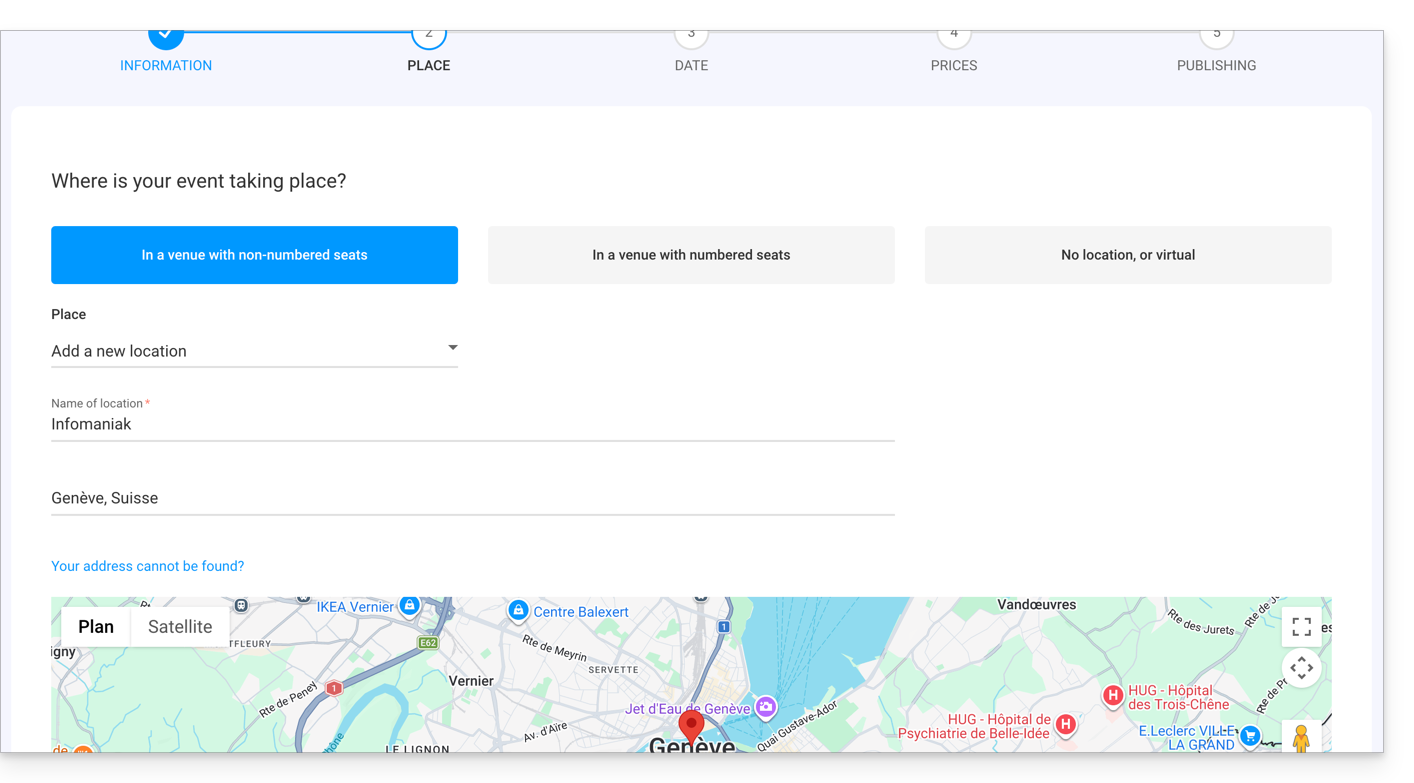
In a venue with free seating
- Seats are not assigned when purchasing a ticket.
- It is possible to define a new location or an existing location.
- For an event taking place at a physical address, the address will be automatically detected and the map will be generated on the event page. You can move the red pointer directly on the map to correct the address.
In a venue with numbered seats
- Allows you to define a floor plan associated with the event.
- This makes it possible to assign seats on the floor plan when purchasing a ticket or pass.
- To create or assign a room to the ticketing system, you will need to contact Infomaniak support.
No location or virtual
- For any event that does not take place in a physical location (online).
- Allows you to not assign a location or address.
The Broadcast event online option allows you to use Infomaniak's Streaming tool to broadcast your events live.
Add dates to the event
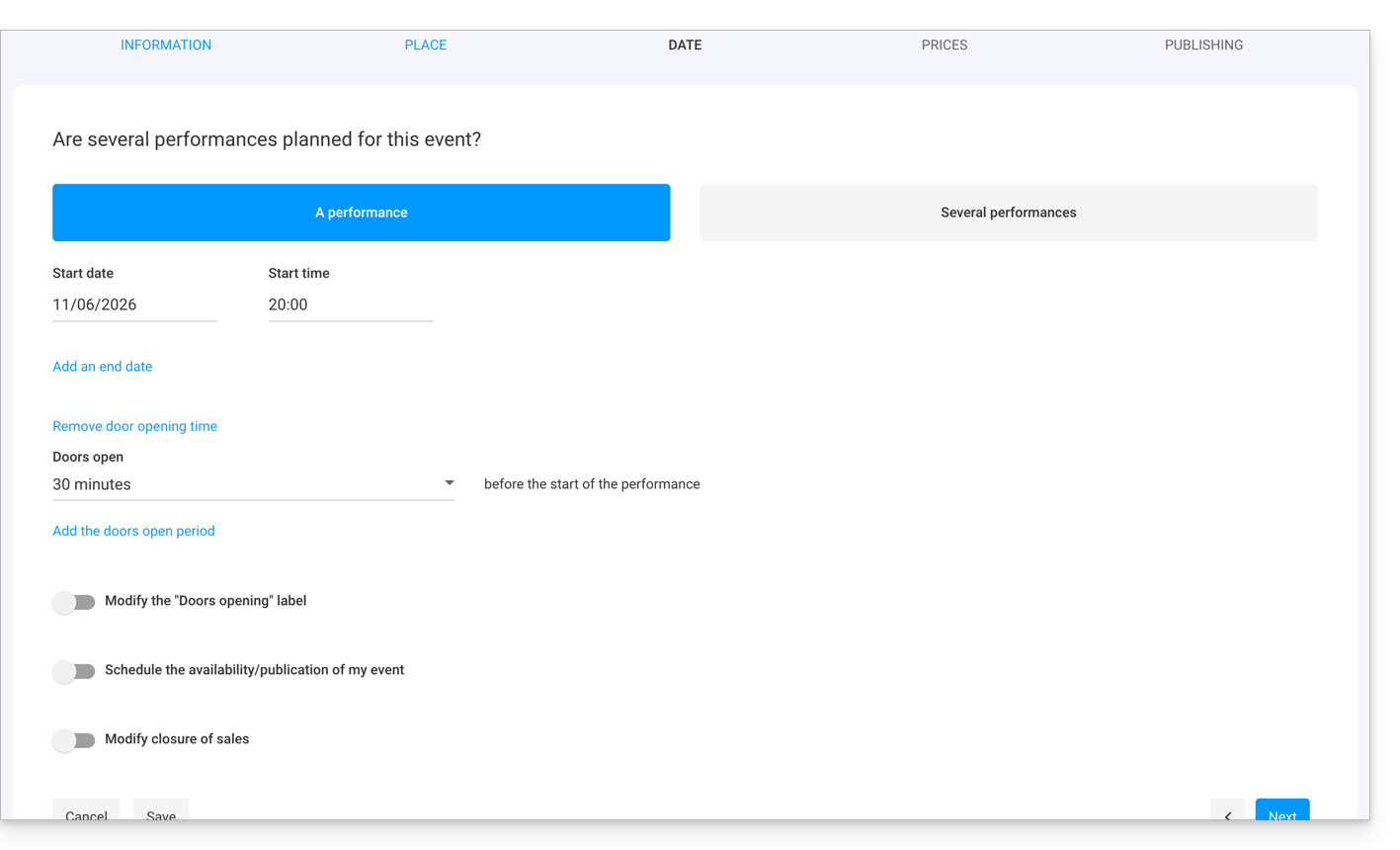
- Choose the date and time of the event.
- You can also add an end date, for example if the event takes place over several days.
- The opening time and the duration during which the doors are open allow you to manage the arrival time of visitors.
- It is also possible to change the text of the door opening times in order to have a text that suits your event.
- It is possible to create an event with multiple dates for the event.
- The online scheduling/event publishing option allows you to define how many days in advance the event becomes accessible online for customers:
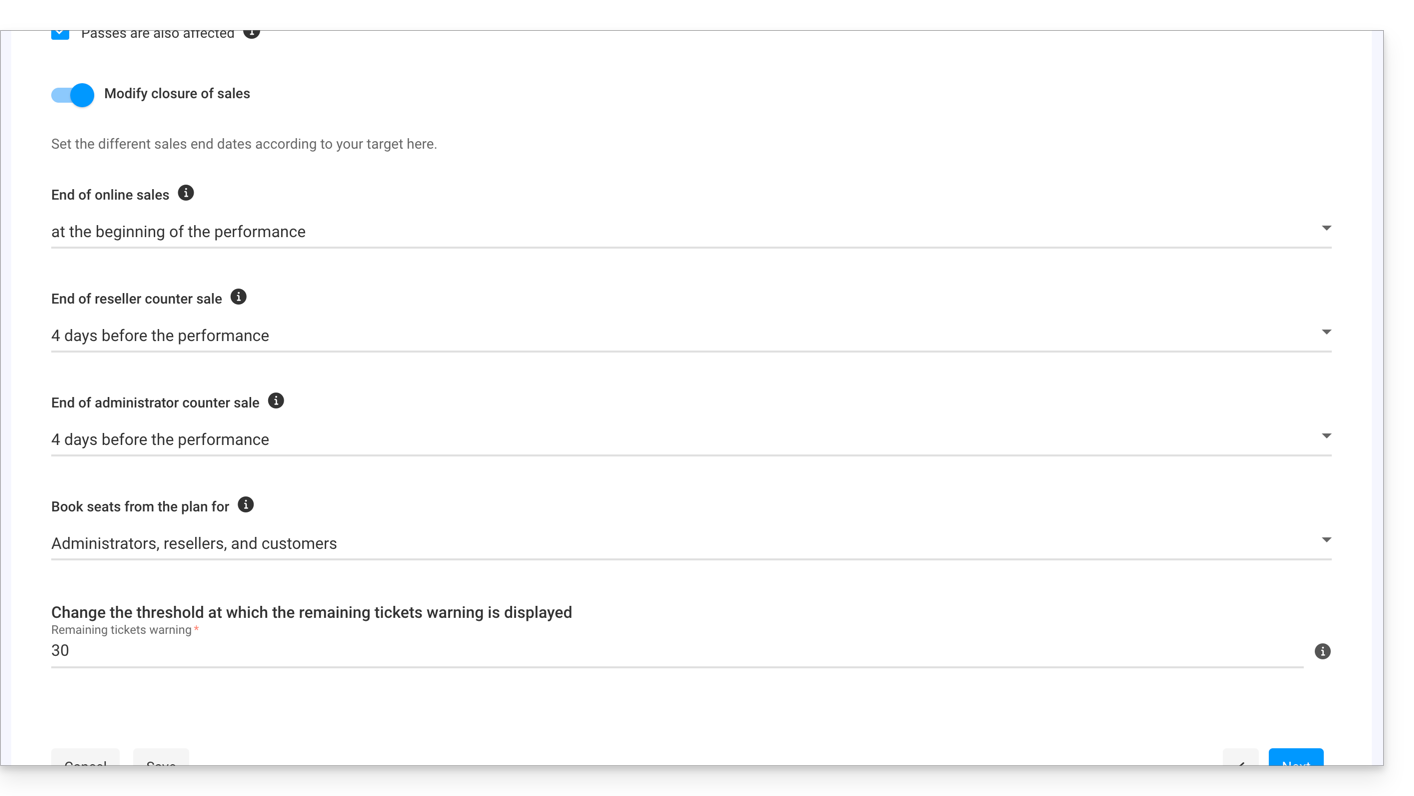
- The last option allows you to configure the closing times for online and on-site sales. By default, these will be set at the beginning of the event for online sales, and 1 day after the event for resellers and the organizer:
Manage pricing
This page allows you to define the zones (standing area, bleachers, VIP, etc.), quotas, and prices for ticket sales. Please refer to this other guide regarding pricing per zone: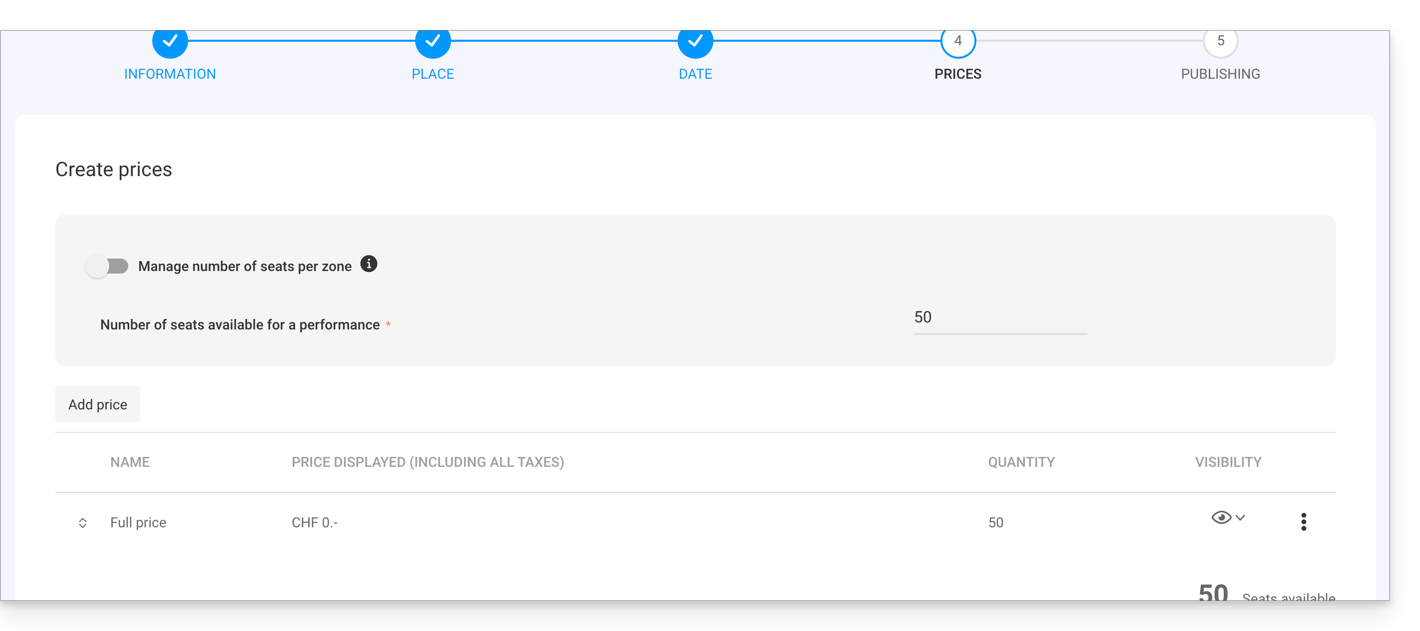
Page overview and publishing
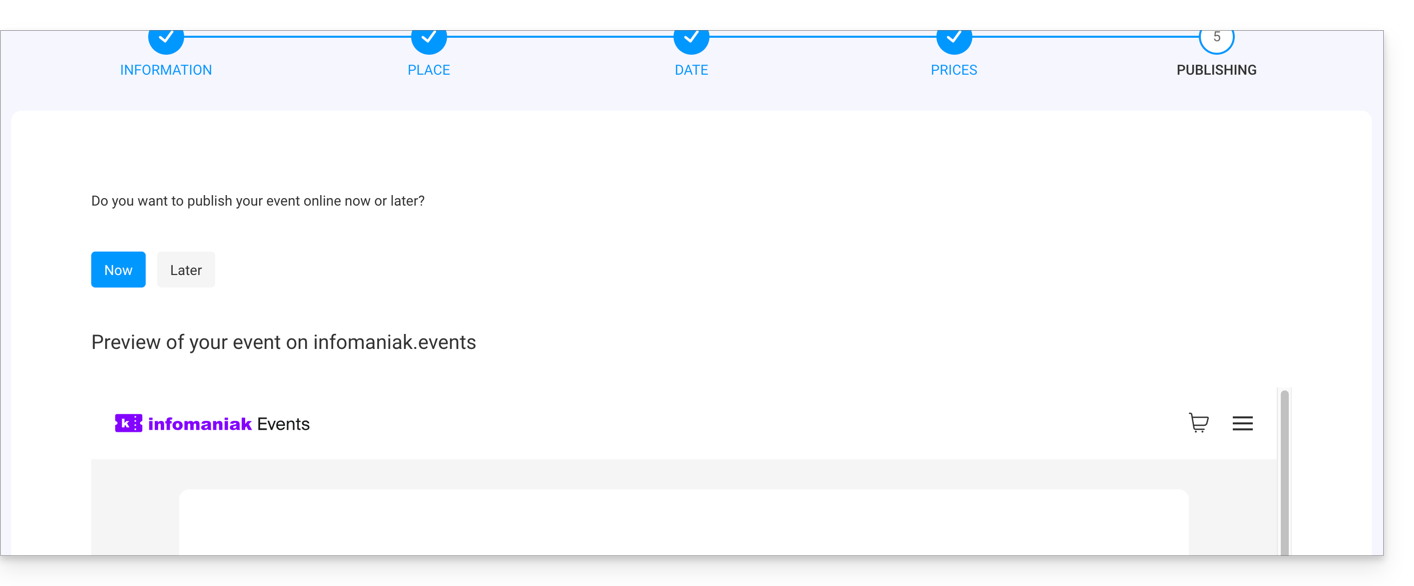
Once you have finished configuring your event, you can preview the event's sales page, and you can choose to make the event available immediately or keep it hidden from sale for now (refer to this other guide to check the essential points before publishing).
Link to this FAQ: https://faq.infomaniak.com/2659
Has this FAQ been helpful?