Knowledge base
1000 FAQs, 500 tutorials and instructional videos. Here, there are only solutions!
This guide explains how the cancellation insurance available to customers within the Infomaniak ticketing system works.
How the cancellation insurance works
Infomaniak offers, through its partner Allianz Suisse, cancellation insurance to customers who purchase their tickets on the online ticketing platform. This insurance allows customers to be reimbursed for their ticket purchases under certain conditions.
Customers wishing to request a refund should contact Allianz Suisse directly with the ticket number:
Allianz
+41 (0)44 283 32 22
info.ch@allianz.com
Please read the terms and conditions.
Link to this FAQ: https://faq.infomaniak.com/2660
Has this FAQ been helpful?
This guide for developers and advanced users explains how to create an API key (as part of the Infomaniak ticketing system) so that you can use it to integrate it directly into your website.
Create an API key
To do this:
- Click here to access the management interface for your product in the Infomaniak Manager (need help?).
- Click directly on the name of the relevant ticketing system:
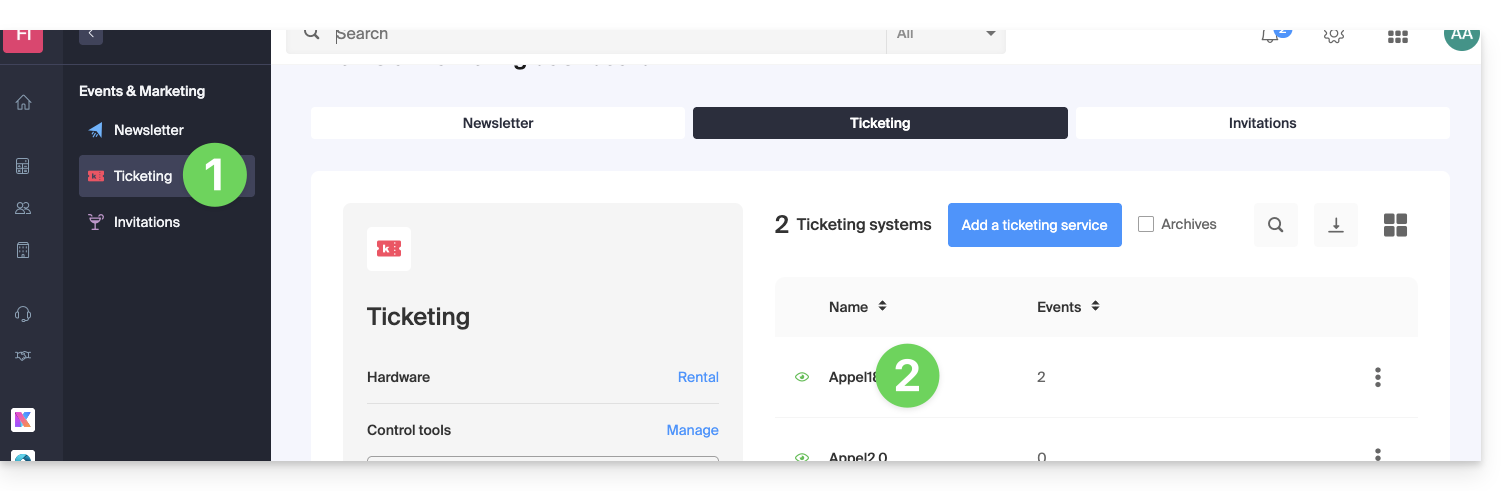
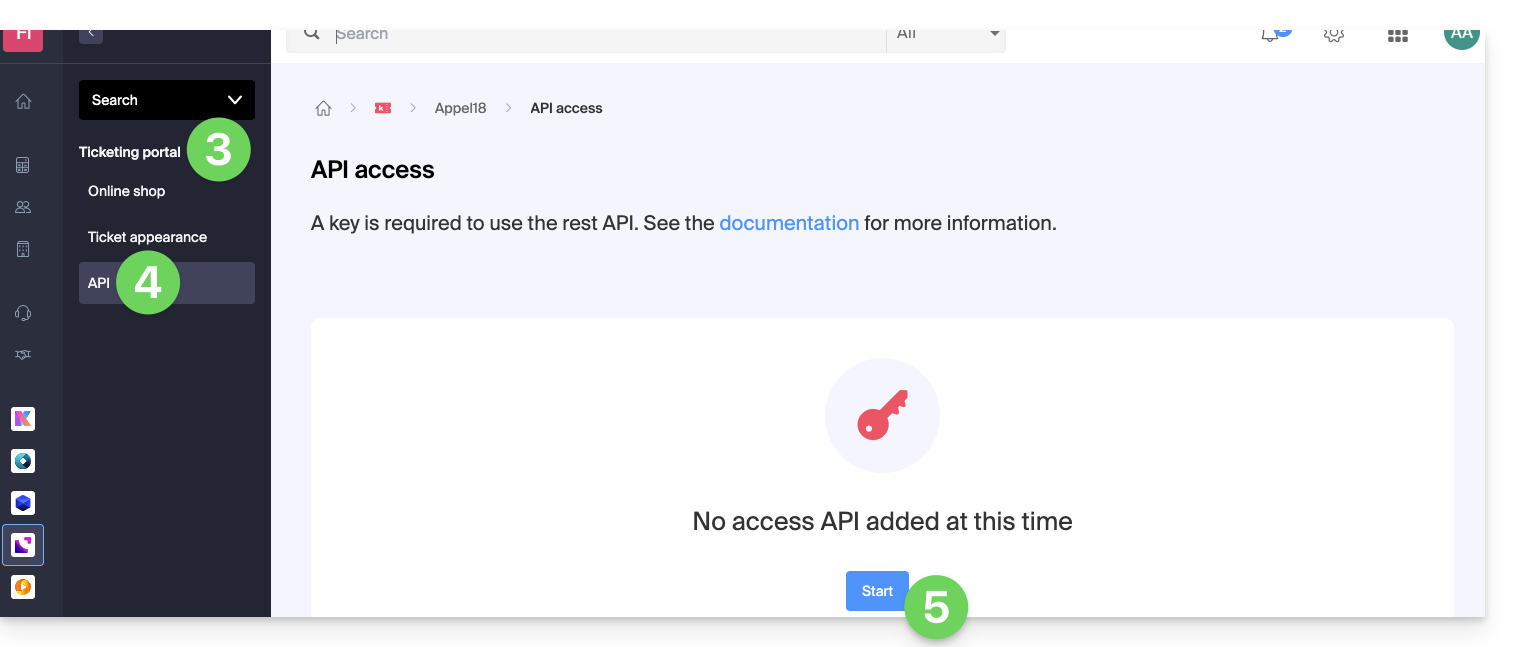
- Click on Shop / Online in the left-hand menu.
- Click on API Access in the left-hand menu.
- Click on the blue Add button:
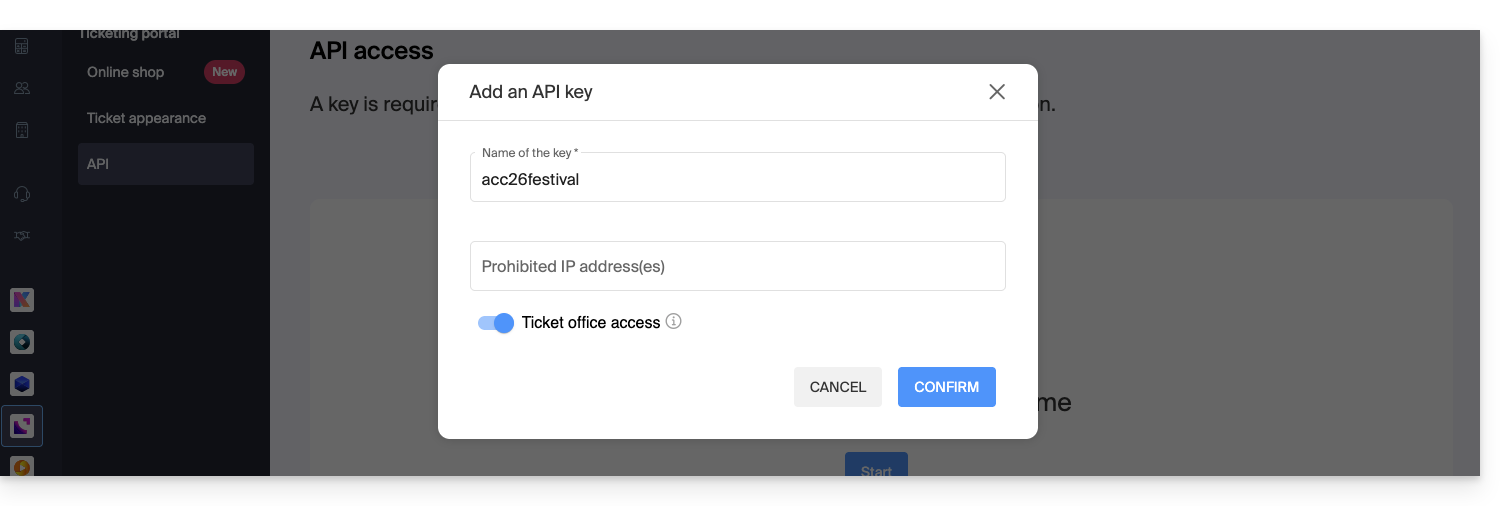
- When creating the key, specify the IP addresses to block (optional).
- Indicate whether this API key will be allowed to sell tickets or not:
- Confirm the operation and then obtain the key generated for using the REST API:
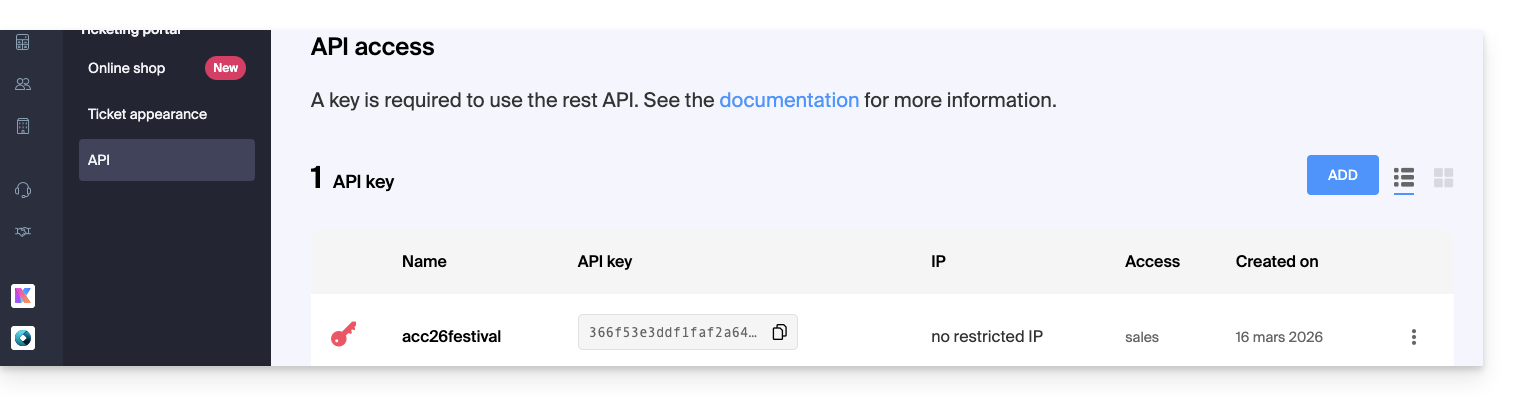
Refer to the documentation for the API commands.
Link to this FAQ: https://faq.infomaniak.com/2661
Has this FAQ been helpful?
This guide covers the pass system, its various uses, and how to configure it (within the Infomaniak ticketing system).
Creating a pass
For detailed procedures and explanations, please refer to the following guides:
- Create a pass and configure it
- Associate events with passes
- Configure the visual appearance and information related to the pass
- Define and collect subscriber information that will be linked to the passes
Types of passes
A pass is a versatile tool that allows you to group events:
- The all-inclusive subscription
- It provides access to all events associated with it.
- This is the solution to choose if you want a seasonal subscription where everything is directly included, with or without numbered seats.
- These can be renewed year after year.
- Subscription with discounts on each ticket (package of several events to choose from)
- Similar to the Swiss Federal Railways' half-price subscription, it is possible to create a pass where each added ticket will have a reduced price.
- Multi-event access package (multi-day package (2-day pass, weekend pass))
- A 2-day pass, a 10-entry pass, etc.
- This type of pass allows the customer to attend events taking place over several days, either all events or a selection.
- Accreditation
- Allows you to create passes that provide access to certain areas or specific dates.
Pass formats
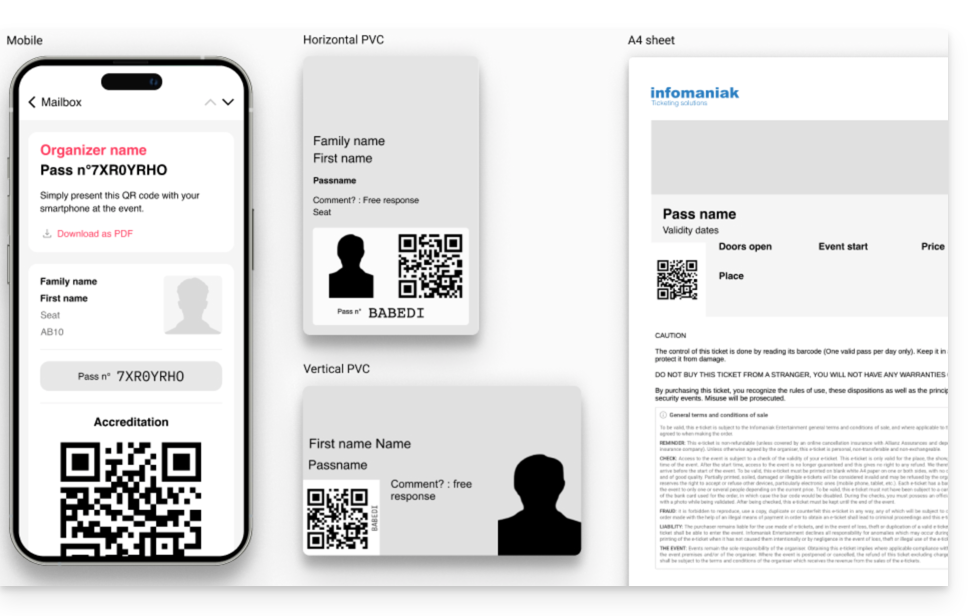
The pass can be:
- Printed on a CR80-type PVC card (credit card format) using a suitable printer available for rent.
- Printed in A4 or A6 format, like a standard ticket.
Used in digital format directly on the phone
- either with an email containing a QR code
- or by downloading the PDF version to be saved on the phone
Link to this FAQ: https://faq.infomaniak.com/2662
Has this FAQ been helpful?
This guide explains how to publish your event on the Swiss platform leprogramme.ch.
List an event on the leprogramme.ch website
Prerequisites
- To be able to add this, the event must be one of the following types:
- concerts
- theatre and performing arts
- humour and comedy
- culture and shows
- festivals
- classical music
- dance
- The publication on
leprogramme.chalso depends on the acceptance of your request byleprogramme.ch(with no guarantee).
To request its publication, click on the Publish button on the event management page, as shown in the example below:
The box will then be updated to reflect the correct implementation of your request:
Link to this FAQ: https://faq.infomaniak.com/2663
Has this FAQ been helpful?
This guide provides the list of triggers to use for your Google Tags and Meta (Facebook) pixel trackers in your store (as part of the Infomaniak ticketing system).
Prerequisites
- Contact Infomaniak support if you would like to enable this feature.
- These triggers must then be inserted into the “
HEAD” section of the advanced options for your store.
Examples of Meta Pixel and Google Tags
Refer to the external documentation for the Meta pixel:
!function(f,b,e,v,n,t,s){
    if(f.fbq)return;
    n=f.fbq=function(){n.callMethod?
    n.callMethod.apply(n,arguments):n.queue.push(arguments)};
    if(!f._fbq)f._fbq=n;
    n.push=n;n.loaded=!0;
    n.version='2.0';
    n.queue=[];
    t=b.createElement(e);
    t.async=!0;
    t.src=v;
    s=b.getElementsByTagName(e)[0];
    s.parentNode.insertBefore(t,s)
}(window,document,'script','{{URL_4}}');

document.addEventListener("ike_event_view", function( e ) {
  fbq('init', '14085424191xxxxx');
  fbq('track', "PageView");
  fbq('track', 'InitiateCheckout');
});

document.addEventListener("ike_cart_payment_launched", function( e ) {
  fbq('init', '14085424191xxxxx');
  fbq('track', "PageView");
  fbq('track', 'Purchase', {value: e.detail.topaid, currency: e.detail.currency.name});
});
… and for Google Tag Manager (GTM) + gtag.js:
window.dataLayer = window.dataLayer || [ ];
function gtag(){dataLayer.push(arguments);}
gtag('js', new Date());
gtag('config', 'UA-xxxxxxx-x');

document.addEventListener("ike_event_view", function( e ) {
  gtag('event', 'view_item', {
    'event_category' : e.detail.name,
    'event_label' : e.detail.date
  });
});

document.addEventListener("ike_cart_add", function( e ) {
  gtag('event', 'add_to_cart');
});

document.addEventListener("ike_cart_confirm", function( ) {
  gtag('event', 'checkout_progress', {
    'event_category' :'valid cart'
  });
});

document.addEventListener("ike_cart_payment_launched", function( e ) {
  gtag('event', 'add_payment_info', {
    'event_category' : 'paiement',
    'event_label' : e.detail.currency.name,
    'value': e.detail.topaid
  });
});
In Google Tag Manager, make sure that the tag format is correct:
(view_item|add_cart|add_payment_info)
CSP and its impact on conversion tracking
The “Content Security Policy” (CSP) is a web security policy that protects pages against certain attacks such as Cross-Site Scripting (XSS) and the injection of malicious content. However, it can also block certain legitimate scripts, such as Meta tracking pixels or Google Tag Manager, thus preventing conversion tracking from working properly.
Why are some pixels not working?
If your website displays an error related to the Content Security Policy (CSP), particularly in the browser's developer tools console or network tab, it means that some third-party scripts – such as Google tags or Meta (Facebook) pixels – are being blocked. To ensure that conversion tracking works correctly on your store, it is necessary to add a specific exception to your site's CSP configuration to allow the resources used by the Infomaniak ticketing system.
Key CSP directives impacting tracking
script-src: defines the allowed sources for scripts.img-src: controls images (including<img>tags used for tracking pixels).connect-src: manages tracking requests sent to marketing tool servers.
For example, if you use Google Tag Manager or Facebook Pixel, make sure your CSP policy explicitly allows loading scripts and sending data to their domains. Here is an example of directives to include in your CSP, which you should adapt according to your configuration:
script-src 'self' {{URL_7}} {{URL_8}} {{URL_9}}
img-src 'self' {{URL_10}} {{URL_11}}
connect-src 'self' {{URL_12}} {{URL_13}}
Google provides a detailed guide on configuring a CSP that is compatible with its tracking tools.
Also, check that your security management system (application firewall, CDN, CMS) is not blocking these resources, and make the necessary adjustments to allow tracking events to trigger correctly.
If your CSP is too restrictive, it may prevent third-party scripts from loading, such as:
- Facebook Pixel (connect.facebook.net)
- Google Tag Manager (GTM) (www.googletagmanager.com)
- Google Analytics (www.google-analytics.com)
Errors visible in the developer console (browser's Developer Tools):
Refused to load the script '{{URL_15}}'
because it violates the following Content Security Policy directive: "script-src 'self'"- No data in Google Analytics or Facebook Ads Manager.
- Events defined in GTM are not triggering.
When the CSP blocks these resources, they cannot collect data on visitors or record conversion events.
Complete list of triggers
Home page:
trigger: ike_home_view
Data: none
document.addEventListener("ike_home_view", function(e) {
  //send to your tracking tool
});
Event page:
Page of an event with multiple dates
trigger: ike_event_view
Data: detail.name
document.addEventListener("ike_event_view", function(e) {
  console.log(e.detail.name);
  //send to your tracking tool
});
Date page:
Page displaying the date of an event
trigger: ike_date_view
Data: detail.name, detail.date
document.addEventListener("ike_date_view", function(e) {
  console.log(e.detail.name, e.detail.date);
  //send to your tracking tool
});
Pass page:
Page of a pass category
trigger: ike_abo_view
Data: detail.name
document.addEventListener("ike_abo_view", function(e) {
  console.log(e.detail.name);
  //send to your tracking tool
});
Pass selection page:
Page for selecting pass dates
trigger: ike_abo_selection
Data: detail (cart details)
document.addEventListener("ike_abo_selection", function(e) {
  console.log(e.detail.name, e.detail.date);
  //send to your tracking tool
});
User login:
Triggered on successful login
trigger: ike_user_login
Data: detail (cart details)
document.addEventListener("ike_user_login", function(e) {
  console.log(e.detail);
  //send to your tracking tool
});
User logout:
trigger: ike_user_logout
Data: detail (cart details)
document.addEventListener("ike_user_logout", function(e) {
  console.log(e.detail);
  //send to your tracking tool
});
Cart add:
Triggered when an item is added to the cart.
trigger: ike_cart_add
Data: detail (cart details)
document.addEventListener("ike_cart_add", function(e) {
  console.log(e.detail);
  //send to your tracking tool
});
Cart page:
trigger: ike_cart_view
Data: detail (cart details)
document.addEventListener("ike_cart_view", function(e) {
  console.log(e.detail);
  //send to your tracking tool
});
Cart update:
Triggered when a cart item is updated
trigger: ike_cart_update
Data: detail (cart details)
document.addEventListener("ike_cart_update", function(e) {
  console.log(e.detail);
  //send to your tracking tool
});
Cart is empty:
Triggered when the empty button is pressed.
trigger: ike_cart_empty
Data: detail (cart details)
document.addEventListener("ike_cart_empty", function(e) {
  console.log(e.detail);
  //send to your tracking tool
});
Cart confirm:
Triggered when the confirm button is pressed
trigger: ike_cart_confirm
Data: detail (cart details)
document.addEventListener("ike_cart_confirm", function(e) {
  console.log(e.detail);
  //send to your tracking tool
});
Cart delivery page:
trigger: ike_cart_delivery_view
Data: detail (cart details)
document.addEventListener("ike_cart_delivery_view", function(e) {
  console.log(e.detail);
  //send to your tracking tool
});
Cart form page:
trigger: ike_cart_form_view
Data: detail (cart details)
document.addEventListener("ike_cart_form_view", function(e) {
  console.log(e.detail);
  //send to your tracking tool
});
Cart payment page:
trigger: ike_cart_payment_view
Data: detail (cart details with paymentMethodSelected)
document.addEventListener("ike_cart_payment_view", function(e) {
  console.log(e.detail);
  //send to your tracking tool
});
Cart payment changed:
trigger: ike_cart_payment_changed
Data: detail.path
document.addEventListener("ike_cart_payment_changed", function(e) {
  console.log(e.detail);
  //send to your tracking tool
});
Cart payment initiated:
trigger: ike_cart_payment_launched
Data: detail (cart details)
document.addEventListener("ike_cart_payment_launched", function(e) {
  console.log(e.detail);
  //send to your tracking tool
});
Cart payment success page:
trigger: ike_cart_payment_success
Data: detail (cart details)
document.addEventListener("ike_cart_payment_success", function(e) {
  console.log(e.detail);
  //send to your tracking tool
});
Cart delete item:
trigger: ike_cart_delete
Data: detail (previousCart and newCart)
document.addEventListener("ike_cart_delete", function(e) {
  console.log(e.detail);
  //send to your tracking tool
});
Page Changed:
trigger: ike_page_changed
Data: detail.path
document.addEventListener("ike_page_changed", function(e) {
  console.log(e.detail);
  //send to your tracking tool
});
Link to this FAQ: https://faq.infomaniak.com/2664
Has this FAQ been helpful?
This guide explains how to create and manage gift vouchers (within the Infomaniak ticketing system). Gift vouchers can be purchased directly on your ticketing platform and used to purchase tickets or passes.

This allows your customers to offer gift vouchers to third parties, who can then use them to purchase tickets on your platform.
Gift vouchers can only be used to purchase tickets on the Infomaniak online ticketing platform.
Creating gift vouchers
To do this:
- Click here to access the management interface for your product in the Infomaniak Manager (need help?).
- Click directly on the name assigned to the ticketing system for the event.
- Click on Schedule in the left-hand menu.
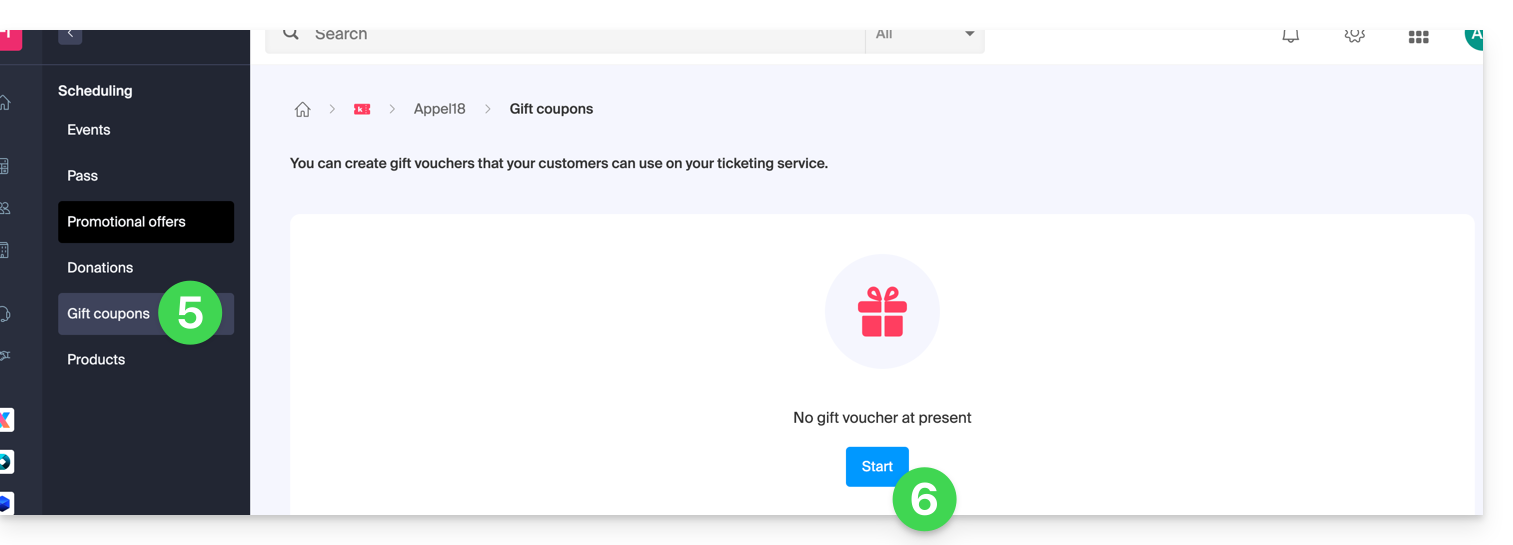
- Click on Gift cards in the left-hand menu.
- Click on the blue Add a gift card button:
- Choose the selling price of the gift card: this is the price the customer will pay to purchase the gift card.
- Define the value of the gift card. This may be different from the purchase price and represents the amount that can be used when the gift card is redeemed.
- Define the visibility of the gift voucher. Visible allows customers to purchase it on the online ticketing platform, while hidden statuses allow it to be reserved for use exclusively by resellers or by the administrator:
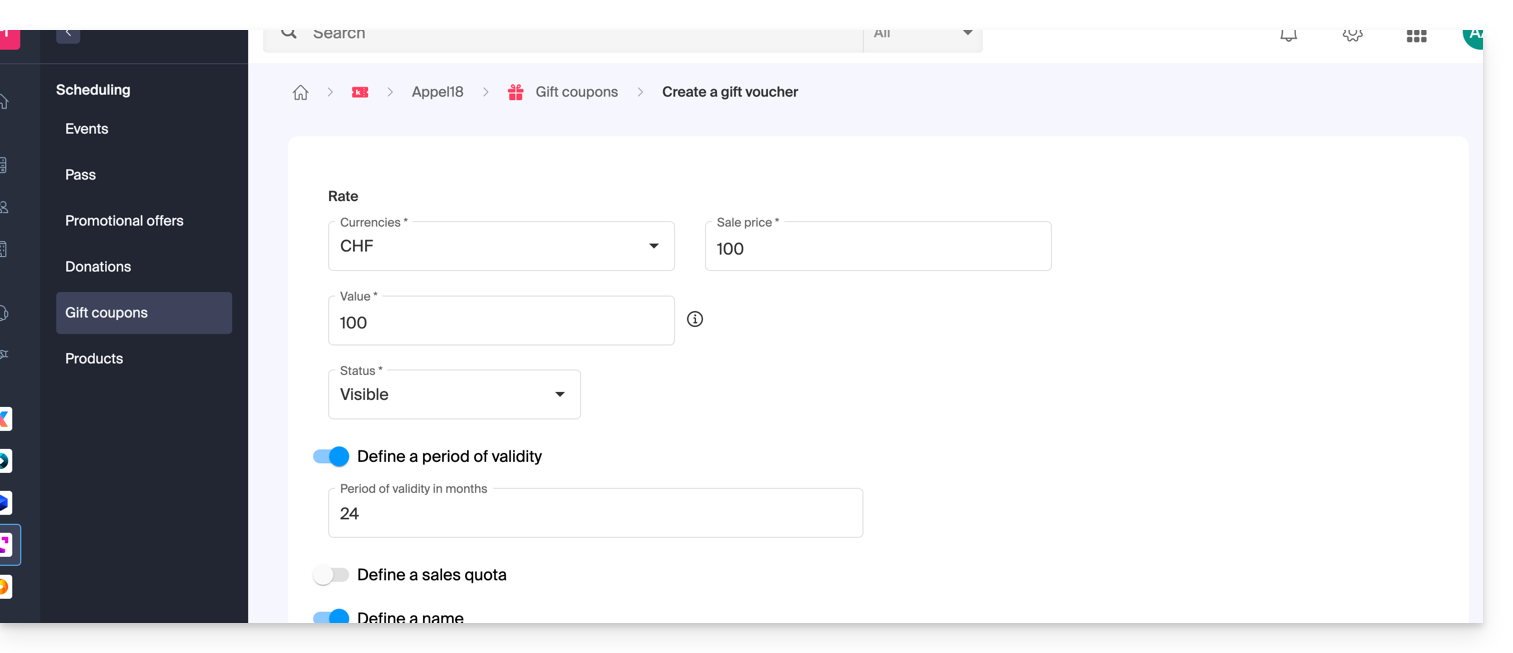
- Define the gift voucher settings:
- The validity period of a gift voucher.
- The number of gift vouchers that will be available for sale.
- The name you want to give to the gift voucher.
- The description of the gift voucher.
- The image that will be used for the gift voucher.
Gift voucher management
Once the gift voucher has been generated, you will be able to manage each gift voucher after it has been purchased: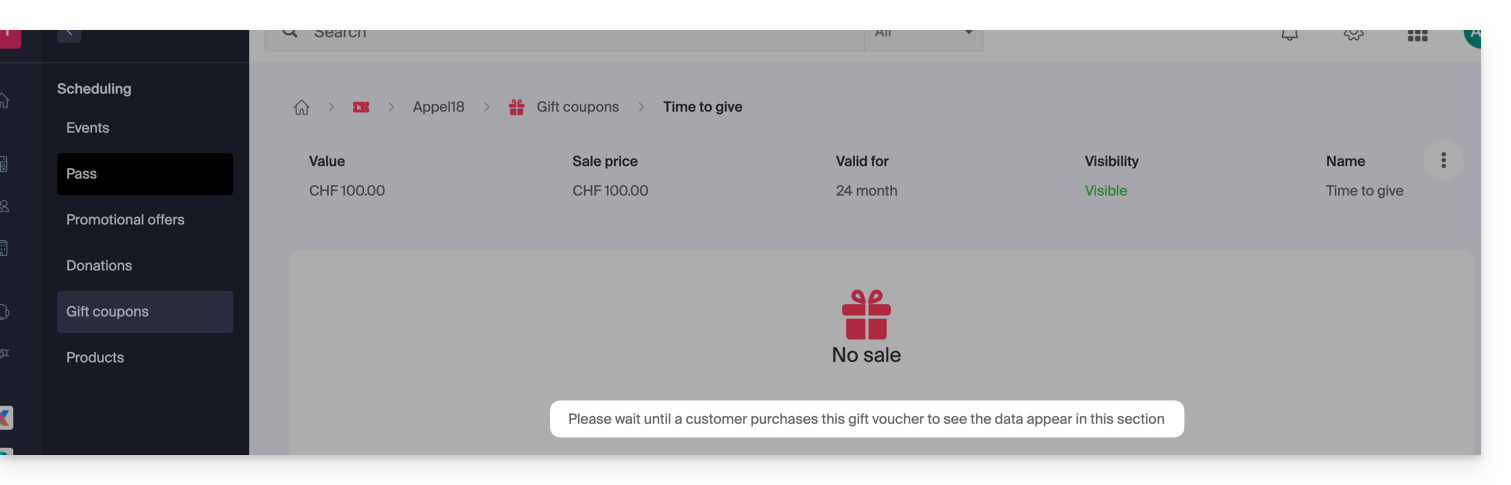
You will be able to:
- Check the balance on a gift card.
- View the orders associated with a gift card.
- Send the gift voucher to the customer by email.
- Print the gift voucher.

Link to this FAQ: https://faq.infomaniak.com/2665
Has this FAQ been helpful?
This guide explains how to set up a promotional offer (as part of the Infomaniak ticketing system).
Introduction
- These offers allow you to set up manual or automatic discounts.
- A manual discount involves promotional codes that you can share with your customers.
- The automatic discount is a rule to be implemented so that the promotional offer applies when a certain number of tickets has been purchased by a customer.
Promotional codes and offers are only valid for the purchase of tickets and/or subscriptions/passes. They are not compatible with the purchase of gift vouchers and products. If the buyer's cart contains one of these two types of items,they will not be able to apply a promotional code to their order.
Available promotions
Link to this FAQ: https://faq.infomaniak.com/2674
Has this FAQ been helpful?
This guide explains how to create and manage your promotional codes (within the Infomaniak ticketing system).
Enable the option in your ticketing system
To do this:
- Click here to access your product management interface on the Infomaniak Manager (need help?).
- Click directly on the name assigned to the ticketing system for the event.
- Click on Schedule in the left-hand menu.
- Click on Promotional Offers in the left-hand menu:
- Click on the blue Add button:
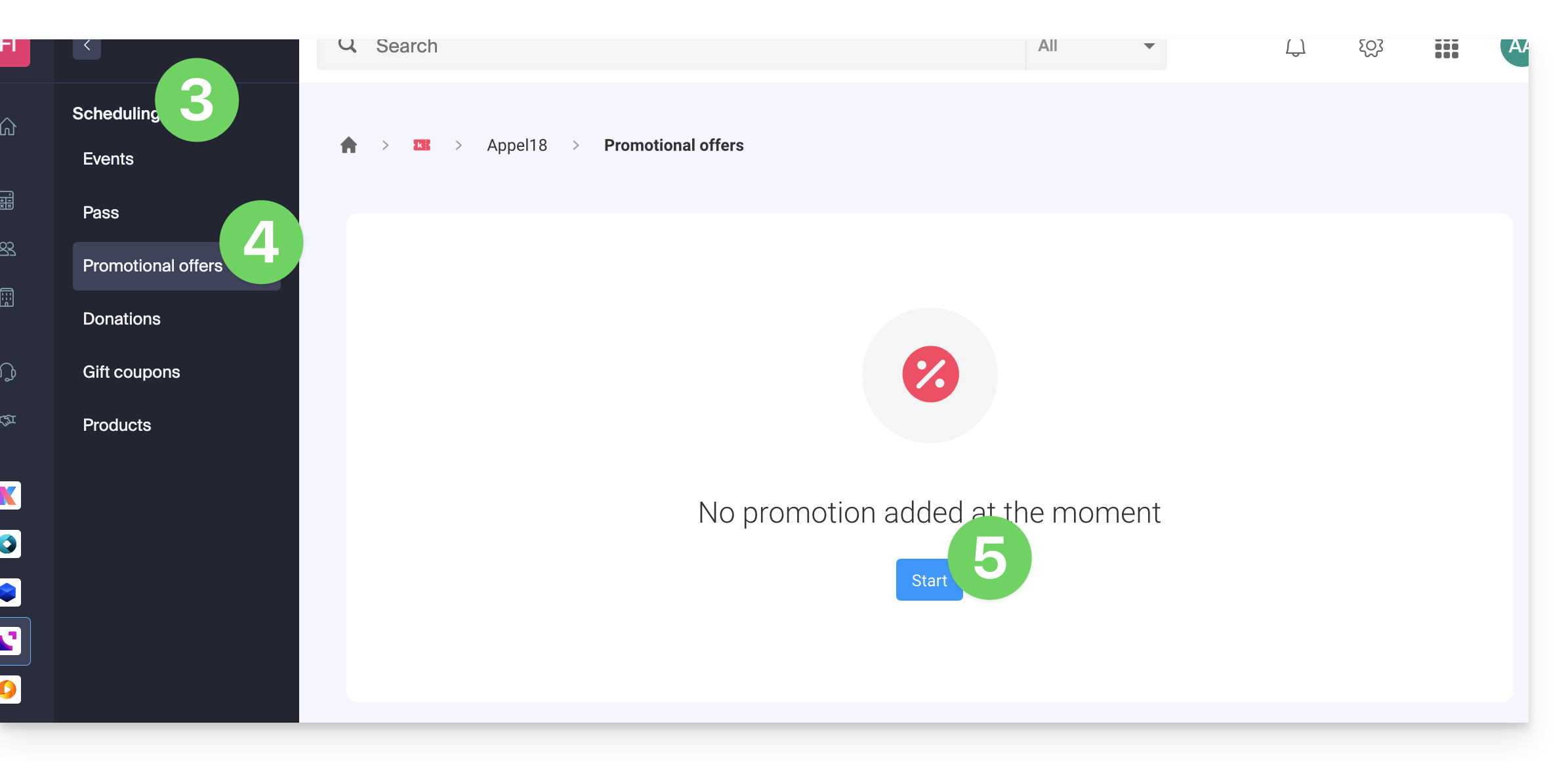
Promotional codes and offers are only valid for the purchase of tickets and/or subscriptions/passes. They are not compatible with the purchase of gift vouchers and products. If the buyer's cart contains either of these two types of items, they will not be able to apply a promotional code to their order.
Configure the offer
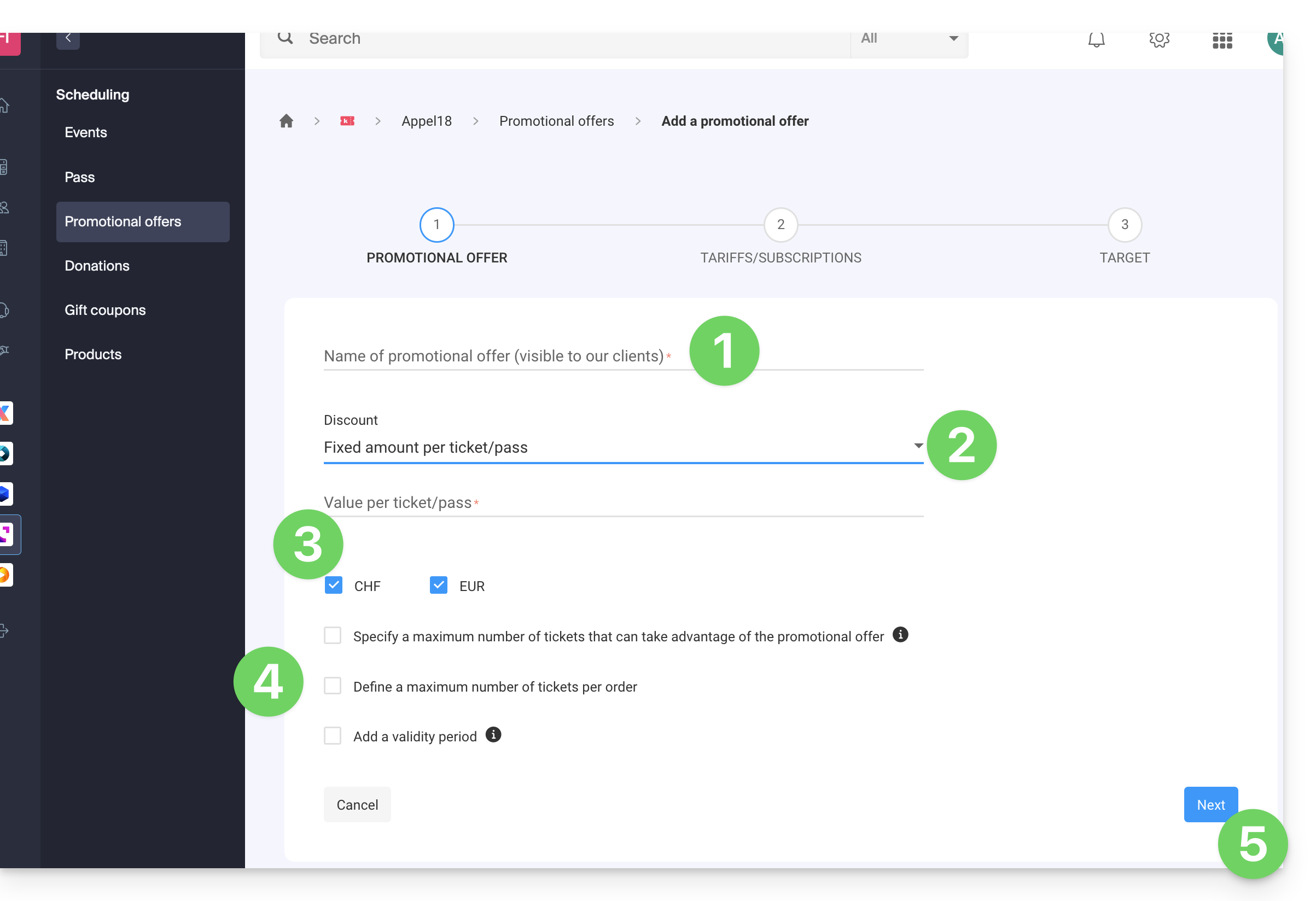
1. Promo code
- Enter a name for the offer to be proposed; this name will be visible to the customer when using the promo code(s).
- In Discount, choose the type of discount: you can set a percentage on the cart, a fixed amount per ticket/pass, or a fixed amount on the total cart value.
- Choose the currency and the discount price or the percentage of the discount to apply.
- It is possible to define 3 additional options:
- The maximum number of tickets that can benefit from this offer: once this quota is reached, no promotional code can be validated; this is useful if you want to provide a large number of codes, but only the first X users can benefit from the offer; note that pending orders will count towards the quota unless the order is cancelled.
- The maximum number of tickets per order: if the order contains more than this number, an error message will indicate that the code cannot be used because the maximum number has been exceeded.
- The validity period: this defines when this offer can be used.
- Click the button to Continue:
2. Pricing
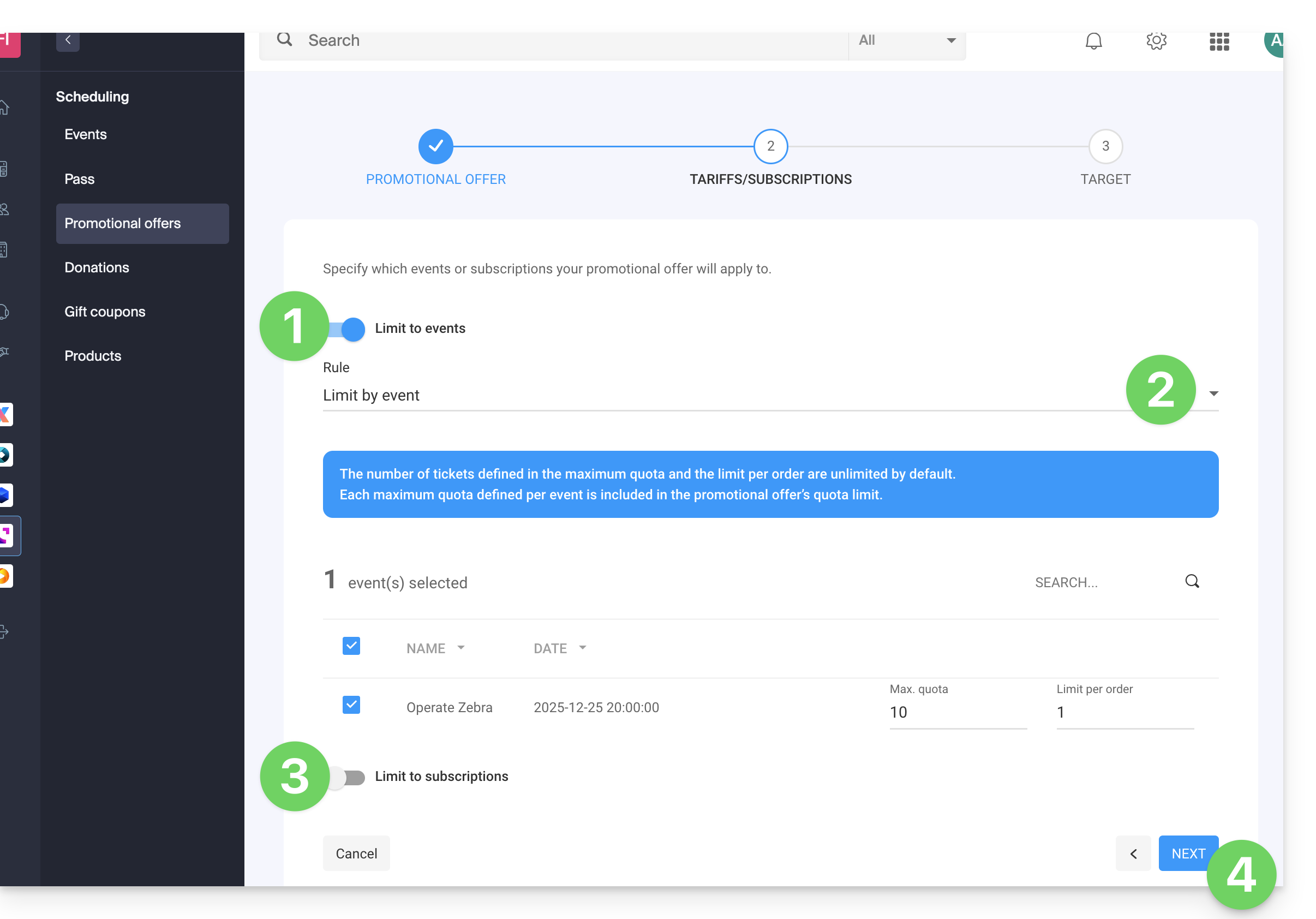
This step allows you to specify which events or subscriptions your promotional offer will apply to:
- If you limit it to events…
- … configure the events, zones, and prices for which this promotion will apply:
- It is possible to set maximum quotas and limits per order per item.
- The number of tickets defined in the maximum quota and the limit per order are unlimited by default.
- Each maximum quota defined per event is included in the quota limit of the promotional offer.
- If you limit it to subscriptions…
- The number of tickets defined in the maximum quota and the limit per order are unlimited by default.
- Each maximum quota defined per subscription is included in the quota limit of the promotional offer:
- Click Next to continue:
3. Target
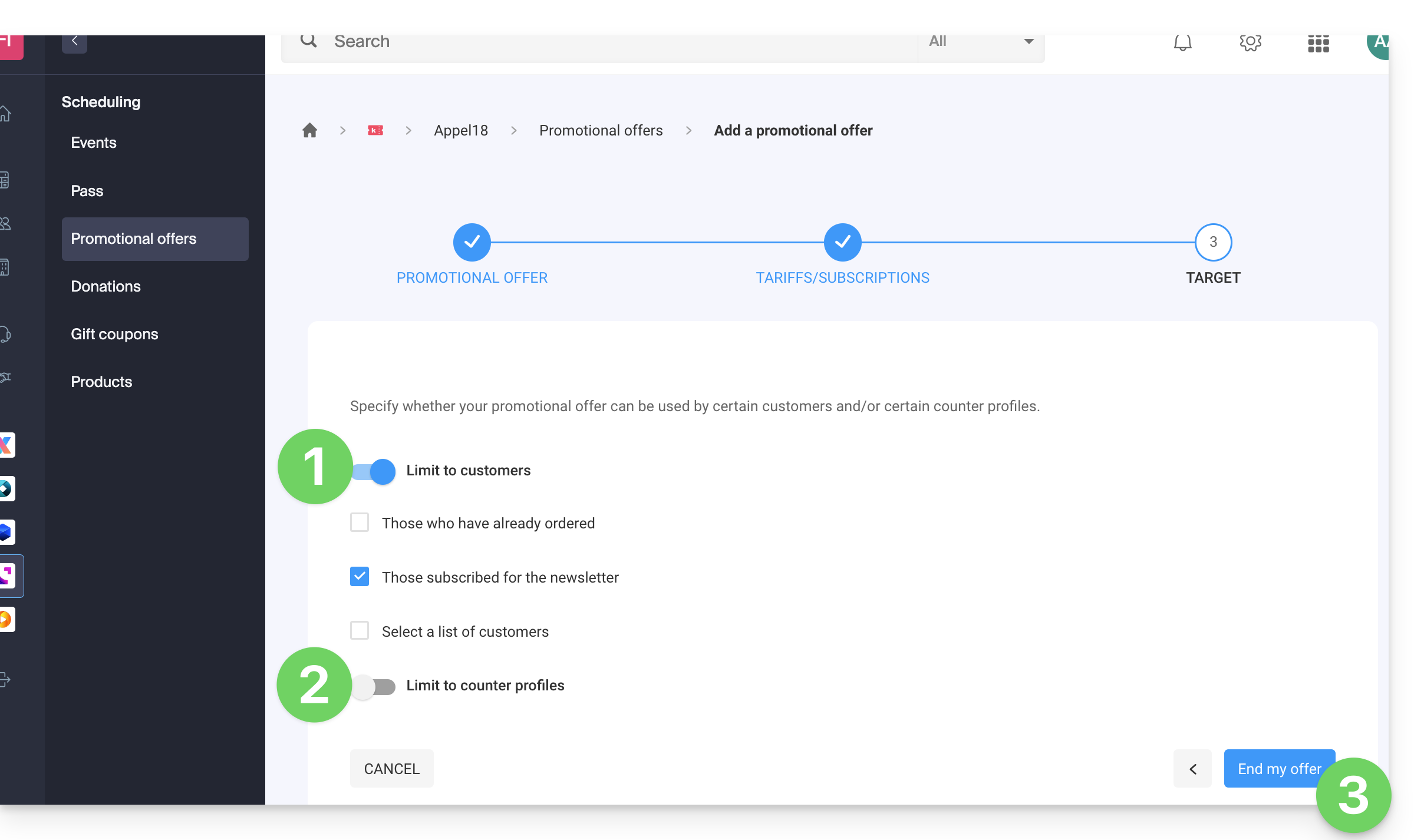
This step allows you to configure the following conditions for which this promotion will apply:
- Limit to specific customers (limit to customers who have already ordered tickets and are therefore already on the ticketing system's customer list, to those who have subscribed to the newsletter, or to a manually selected customer list…)
- Limit to certain cashier profiles.
- Click the button to Finish:
Once activated, the promotion will be applied immediately from the start date.
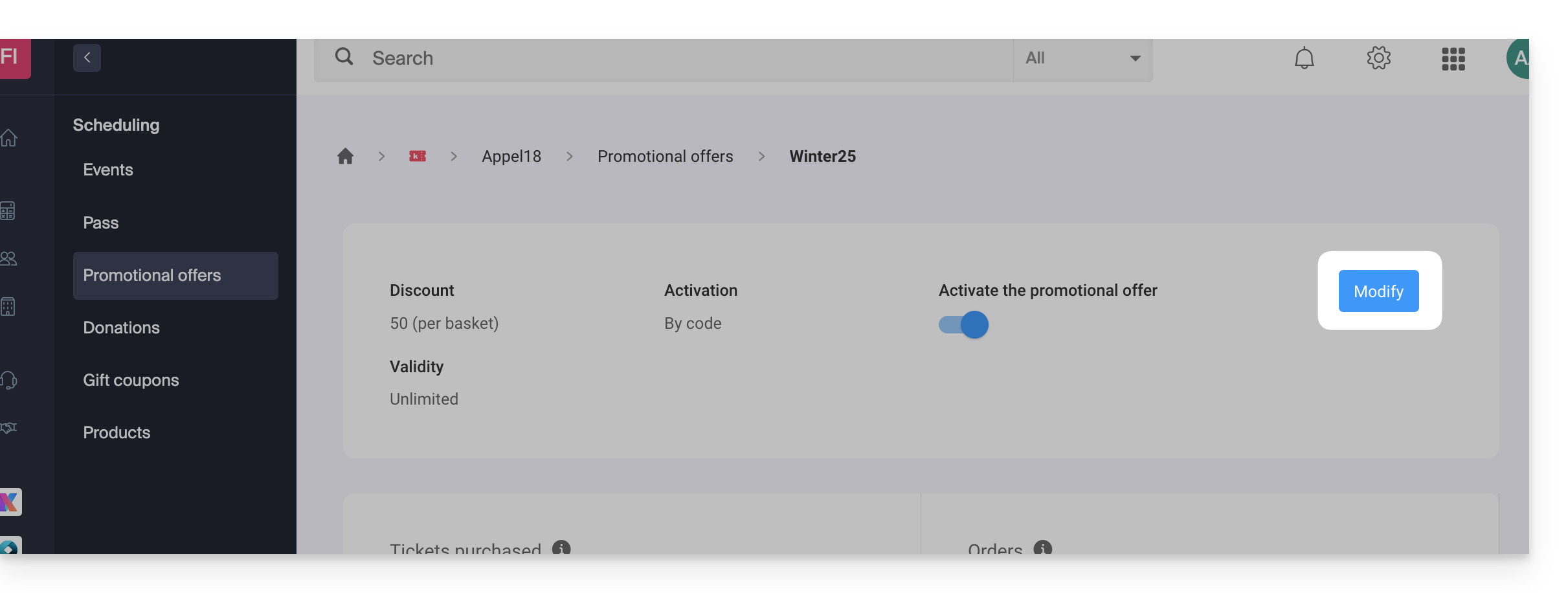
Please note that you can modify the settings later:
- Click on the Edit button on the promotional offer page:
Add promotional codes
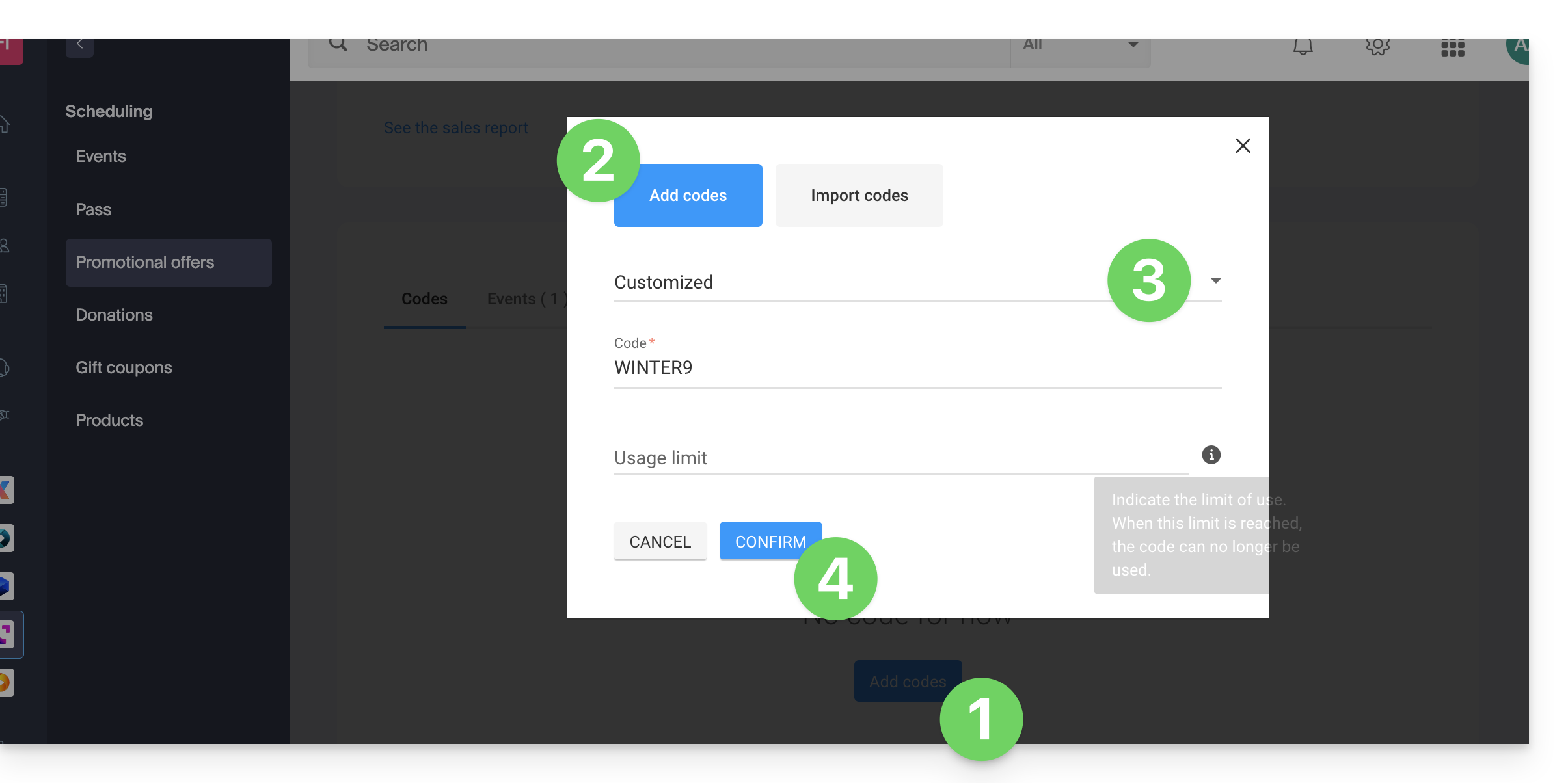
Once the offer has been created, you now need to create the codes that customers can use when placing an order:
- Click on the Add codes button at the bottom of the page.
- Make sure you are adding codes (importing is described further down in this guide).
- Choose the type of code:
- Custom: Allows you to define a code manually, as well as the maximum number of uses; this makes it possible to generate codes with words that are easy to remember or share on various media, even personalized for certain people.
- Random: Generates a specified number of unique codes randomly; useful if the code itself is not important.
- Click on Confirm to validate the addition of the code:
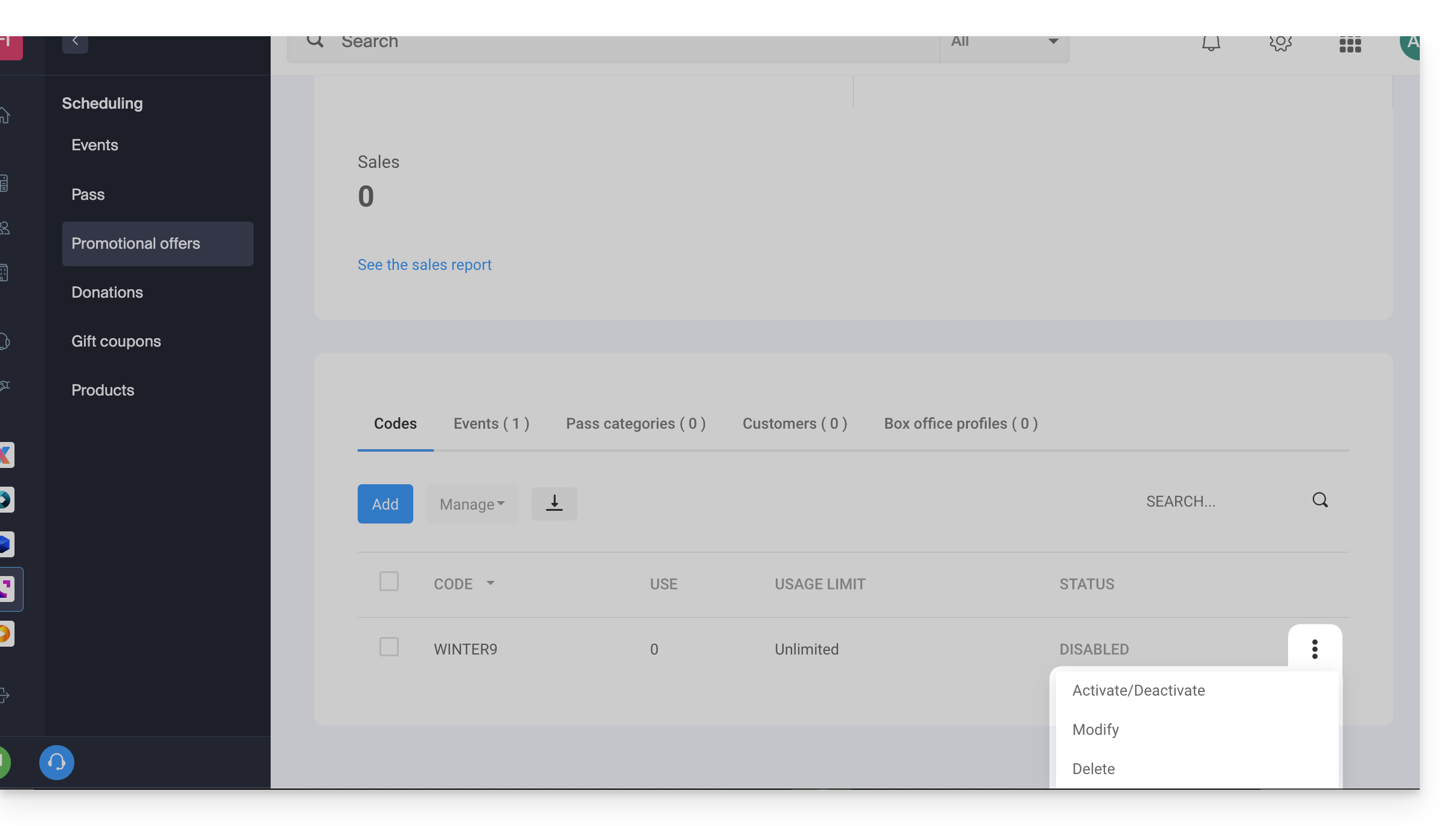
An action menu allows you to, for each generated promo code, either:
- disable (or enable)
- modify
- delete:
Export and/or import promo codes
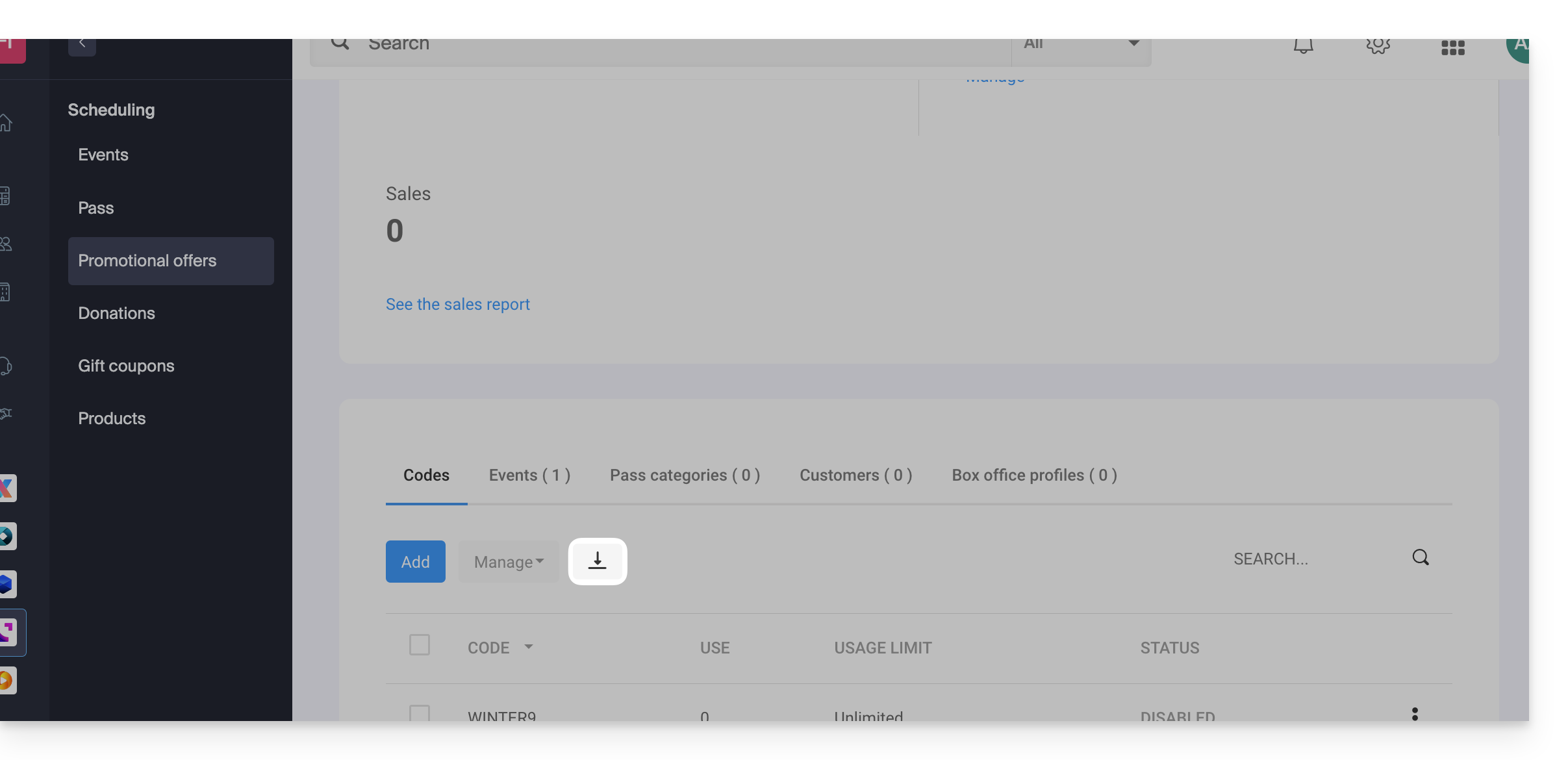
Once the promotional codes have been generated, you can download a CSV file containing all the codes:
- Click on the button with the downward arrow to download the list of codes:
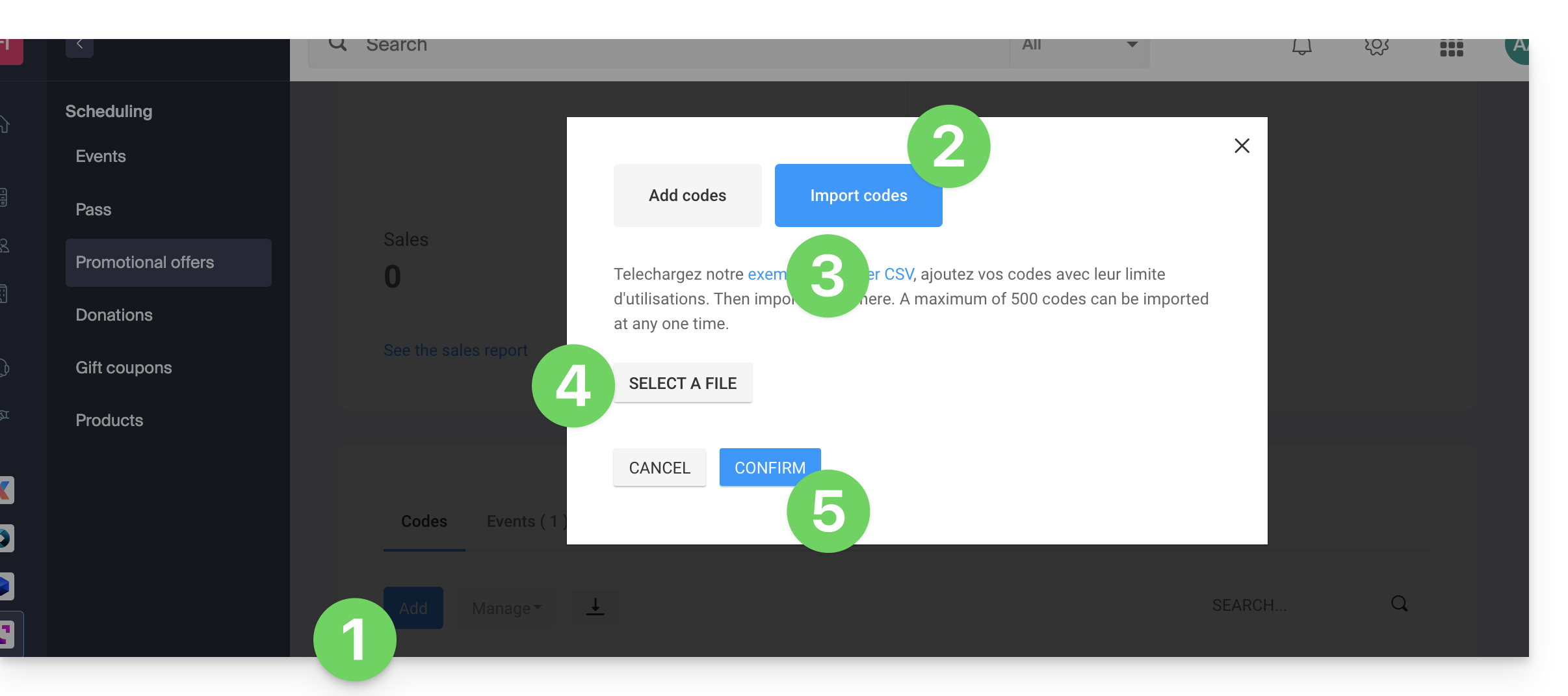
For example, you can export a list of promotional codes from last year's ticketing system and re-import it into this year's ticketing system (maximum of 500 codes per import):
- Click the Add codes button at the bottom of the page.
- Click on Import codes.
- If necessary, download a sample
CSVfile so that the document structure is accepted during import. - Select your correctly formatted
CSVfile. - Click the button to Confirm the import:
Link to this FAQ: https://faq.infomaniak.com/2675
Has this FAQ been helpful?
This guide explains how to manage the different payment methods (within the Infomaniak ticketing system).
Available payment methods
It is important to clearly distinguish between the 3 payment methods available:
- online methods (fee: 0.89 + 1% + bank charges)
- Postcard
- Credit card
- Twint
- on-site or directly on your account payment methods (fee: 0.20 per ticket)
- cash
- Postcard
- Credit card
- by invoice
- on-site
- exchange payment methods (free)
- exchanges at the counter
- exchanges on the online ticketing platform
- free / invitation
There is also a test credit card that allows you to simulate a payment.
Enable and manage payment methods
To do this:
- Click here to access the management interface for your product in the Infomaniak Manager (need help?).
- Click directly on the name assigned to the ticketing system for the event.
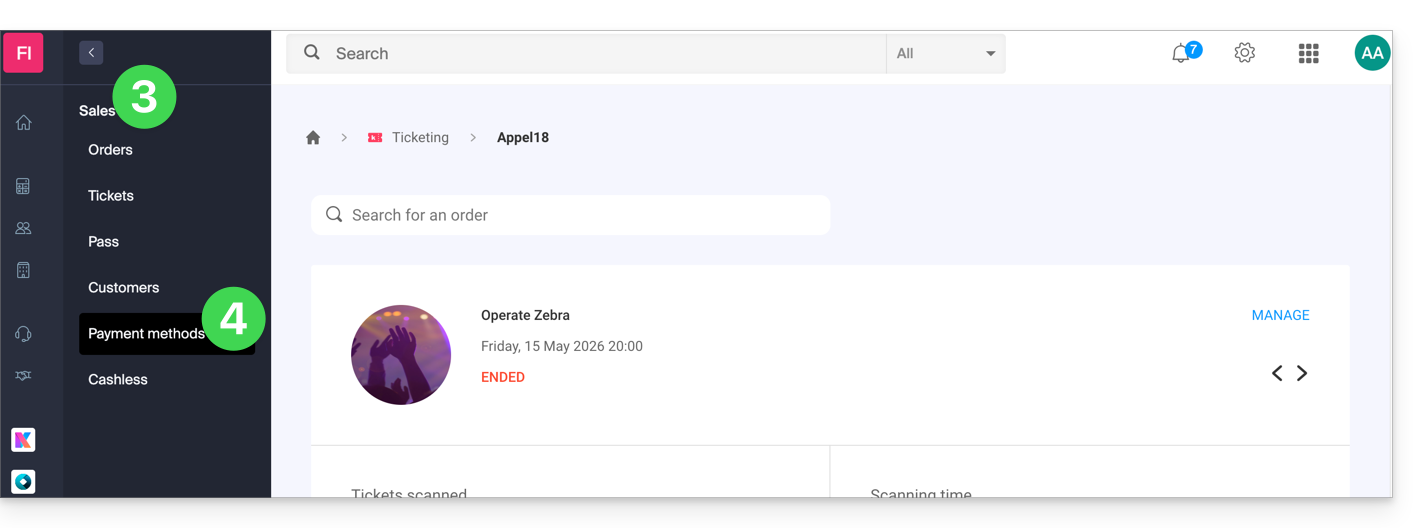
- Click on Sales in the left-hand menu.
- Click on Payment methods in the left-hand menu:
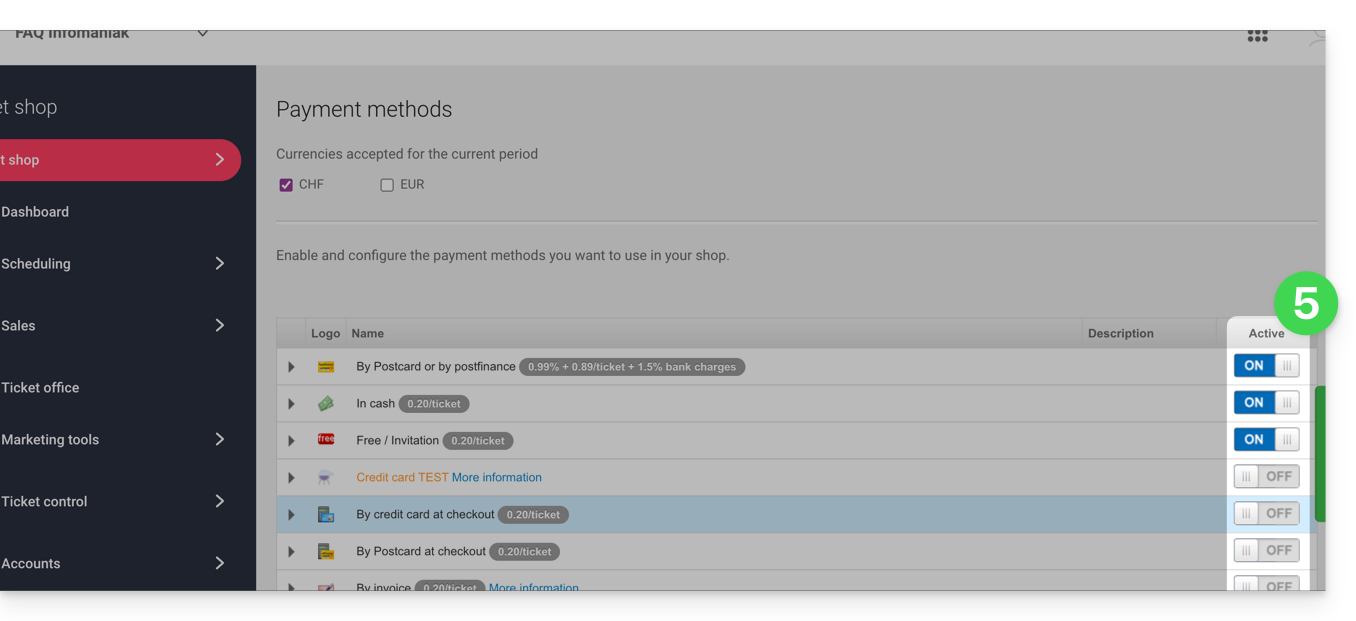
- To enable or disable a payment method, toggle the switch to ON or OFF to the right of the desired payment method:
- To manage the details of a payment method, click on the arrow to the left of the payment method to configure various aspects:
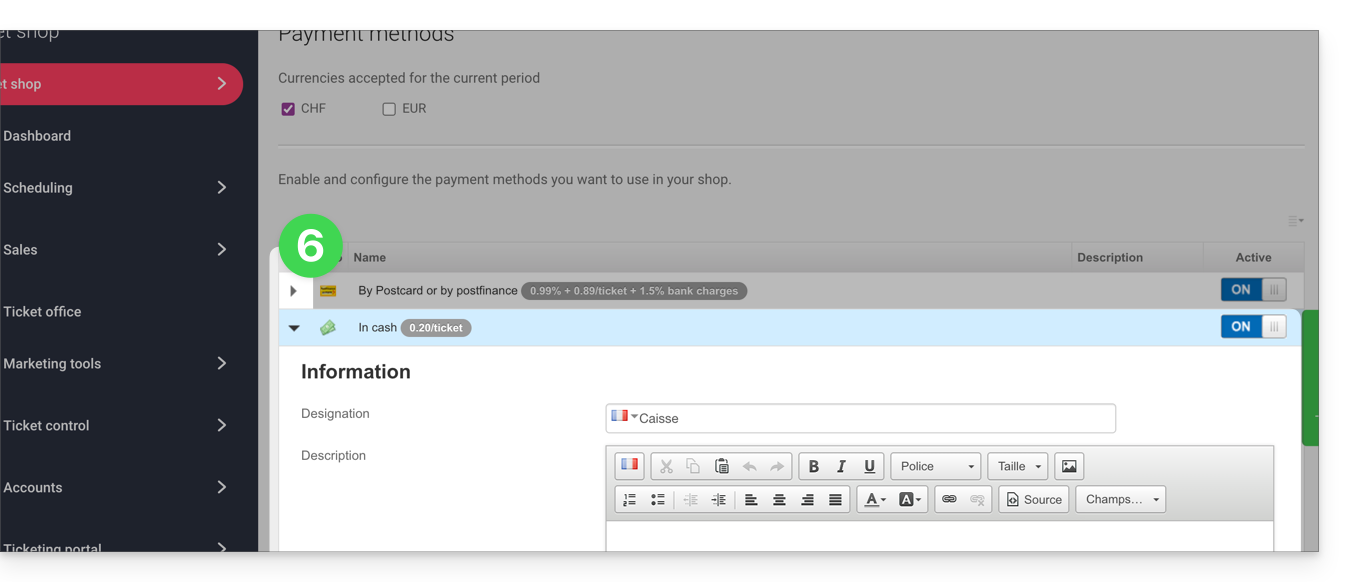
- Name: the name indicated for this payment method
- Description: for the description of this payment method in case explanations are needed
- Minimum amount required for the payment method to be available
- Availability of the payment method (customers, resellers, and administrator)
- Fees for transactions or tickets (for the exchange method)
Link to this FAQ: https://faq.infomaniak.com/2676
Has this FAQ been helpful?
This guide explains how to use registration forms to request information from your customers when they place an order (as part of the Infomaniak ticketing system).
Preamble
- You can ask your customers to provide information such as first and last name, phone number, address, or any other details you deem necessary.
Setting up forms
There are three distinct ways to request information from your customers:
- The registration form - registration requested when placing an order on the ticketing system.
- The form by rate - to retrieve the information of each participant.
- The pass form - requested when ordering a pass / subscription.
Export customer information
To view and extract the information collected through the forms, refer to this other guide.
Data protection and the right to be forgotten
All information collected from your customers is stored at all times on Infomaniak's servers in Switzerland. This data is the exclusive property of the event organizer. Infomaniak will never use it for commercial purposes nor transmit it to third parties.
Any end customer, i.e. the person who purchases a ticket via the ticketing system, can exercise their right to be forgotten and request the deletion of their personal data at any time.
Delete a customer profile
To delete a buyer's information, for example following their request:
- Click here to access the management of your product on the Infomaniak Manager (need help?).
- Click directly on the name assigned to the ticketing system concerned by the event.
- Click on Sales in the left sidebar menu.
- Click on Customers in the left sidebar menu.
- If necessary, search for the profile of the person to be deleted.
- Click on the profile concerned:

- Click on the delete button (trash icon):

- Confirm the deletion.
Information related to orders is retained for legal and accounting purposes, but, at the request of the end customer, all data allowing identification are deleted or anonymized.
Link to this FAQ: https://faq.infomaniak.com/2677
Has this FAQ been helpful?
This guide explains how to create forms that will be linked to the different pricing options for an event (within the Infomaniak ticketing system). This allows you to create specific forms for each pricing option available for an event.
Create a form for each pricing option
To do this:
- Click here to access the management interface for your product in the Infomaniak Manager (need help?).
- Click directly on the name assigned to the ticketing system for the event.
- Click on Settings in the left-hand menu.
- Click on Form in the left-hand menu.
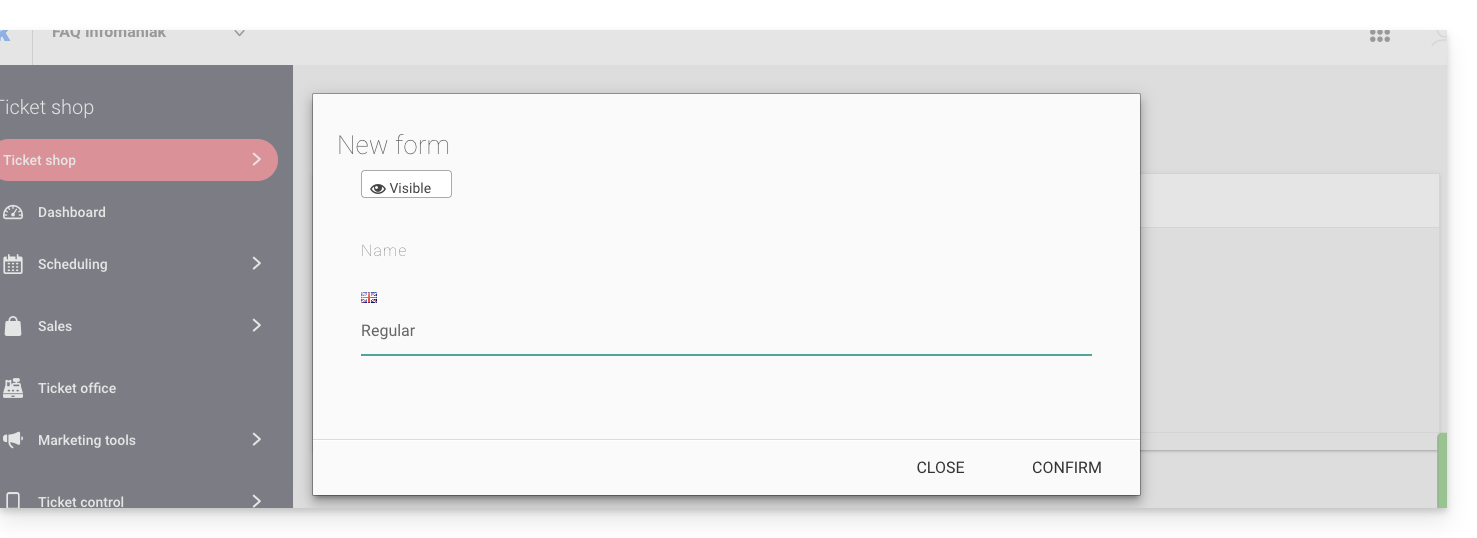
- Click on the Add a form button and give the form a name:
Add fields
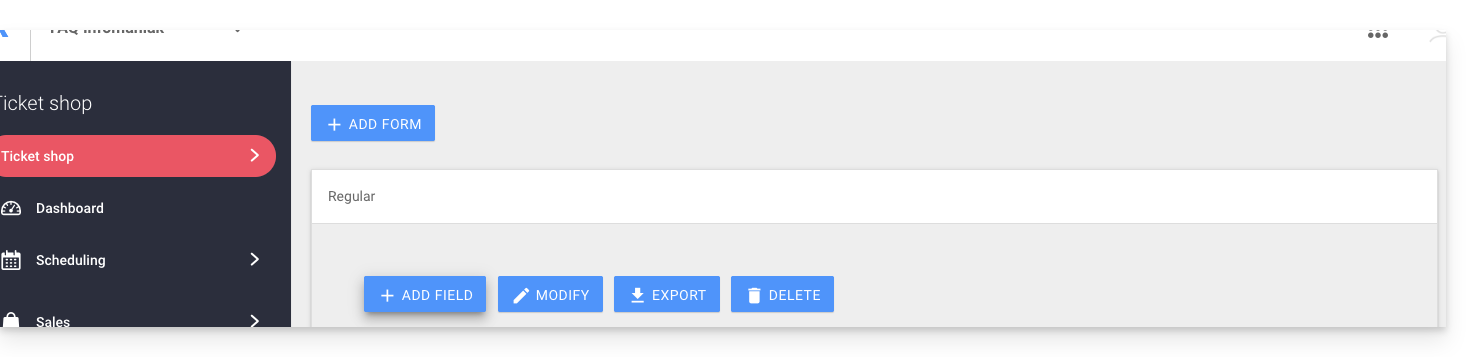
Add the items to include in the form, per pricing plan:
- Click on the Add button:
Choose the field name and type:
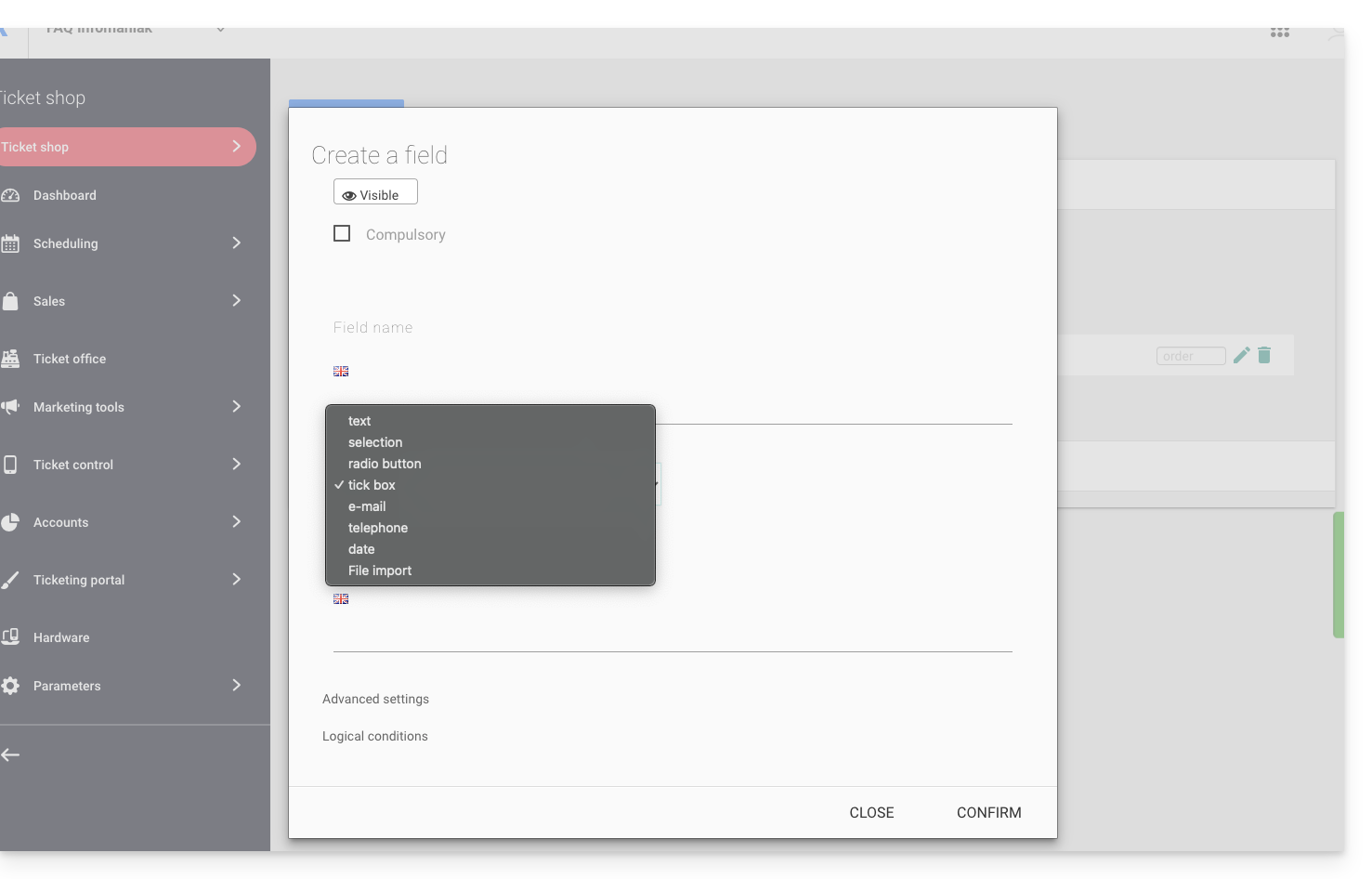
- Text: a free field for inserting text
- Selection: a drop-down menu for selecting an option from the available options
- Radio button: radio buttons for selecting an option from the available options
- Checkboxes: checkboxes that can be checked or left blank
Note: if the required option is selected, all checkboxes must be checked to proceed. Example use: “I have read and accept the terms of use”…
- Email: for entering an email address. This allows you to use a different email address than the one used by the person who placed the order.
- Phone: for a phone number
- Date: for a date
Advanced options and logical conditions
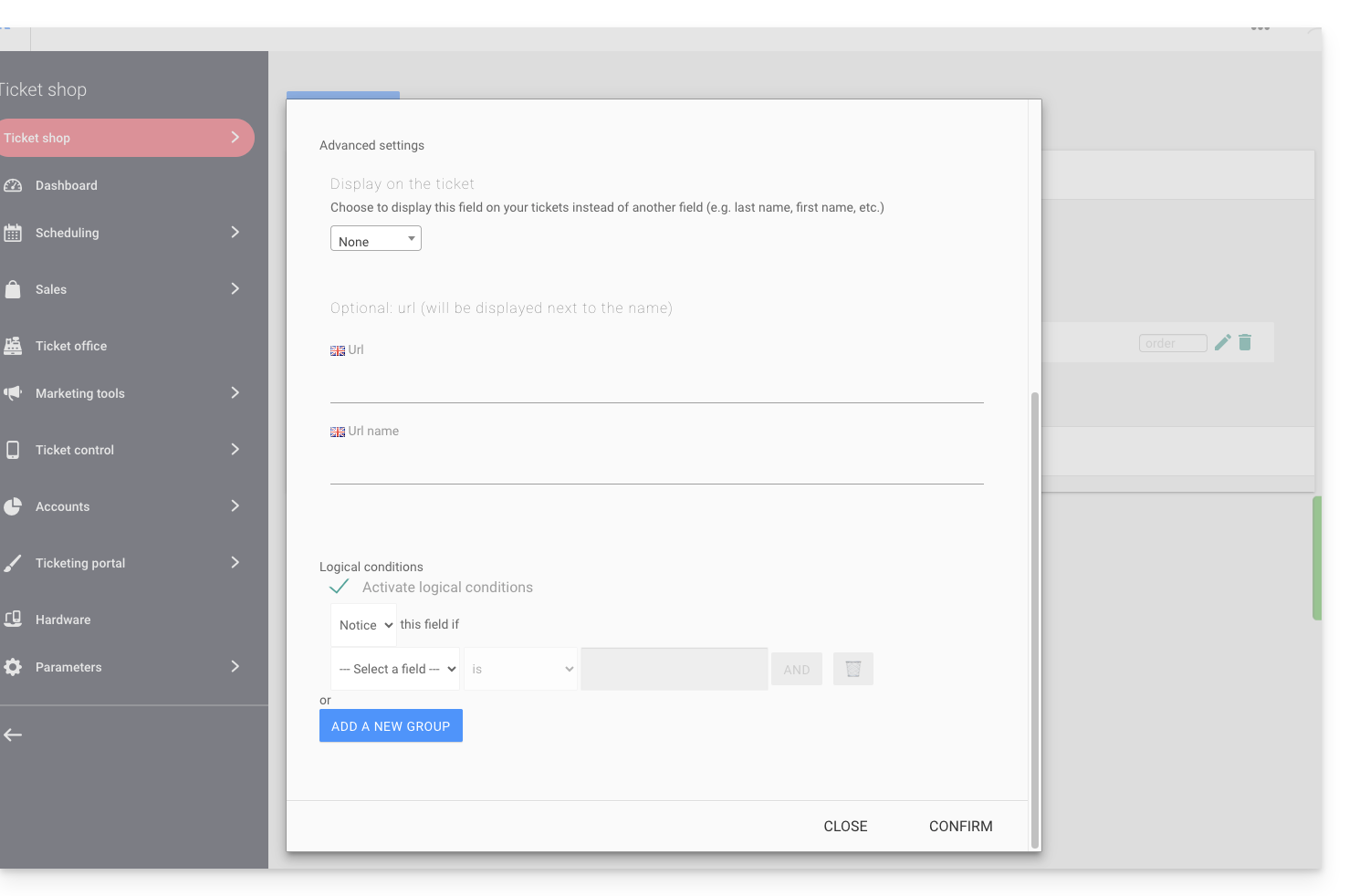
- Display on the ticket: allows you to replace the form information directly. For example, to display the name of the person attending the event on the ticket instead of the name of the person who made the order…
- Add a URL: URL that will be displayed in the field, then above the field to allow the visitor to fill it in.
- Logical conditions should be used when multiple fields have been created and you want to control their display/visibility/presence.
Choose the order of the questions
Choose the order in which the questions will appear on the ticketing form: 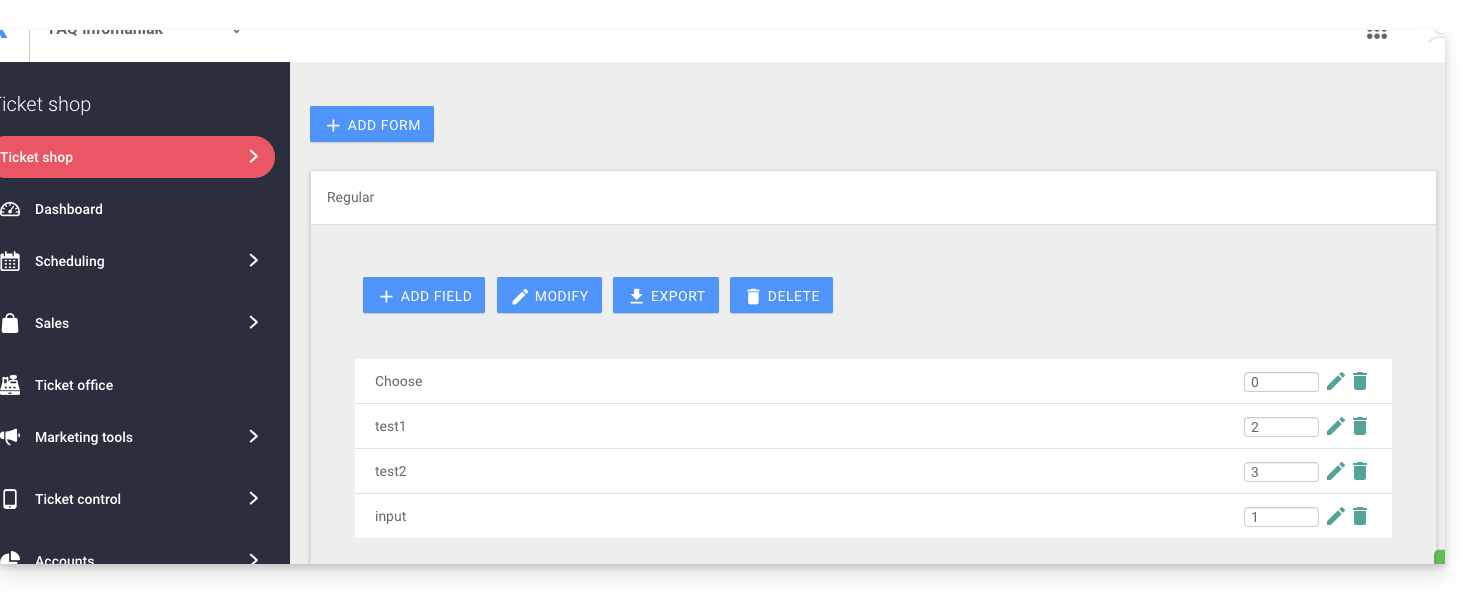
- Numbered positions will be in numerical order: 1, 2, 3, etc.
- Those without a defined order will follow (not recommended).
- Position 0 will appear at the very end.
Link the form to a pricing plan
To do this:
- Click here to access the management interface for your product in the Infomaniak Manager (need help?).
- Click directly on the name assigned to the ticketing system for the event.
- Click directly on the name assigned to the event (or, if necessary, click on Program in the left-hand menu, then Events):
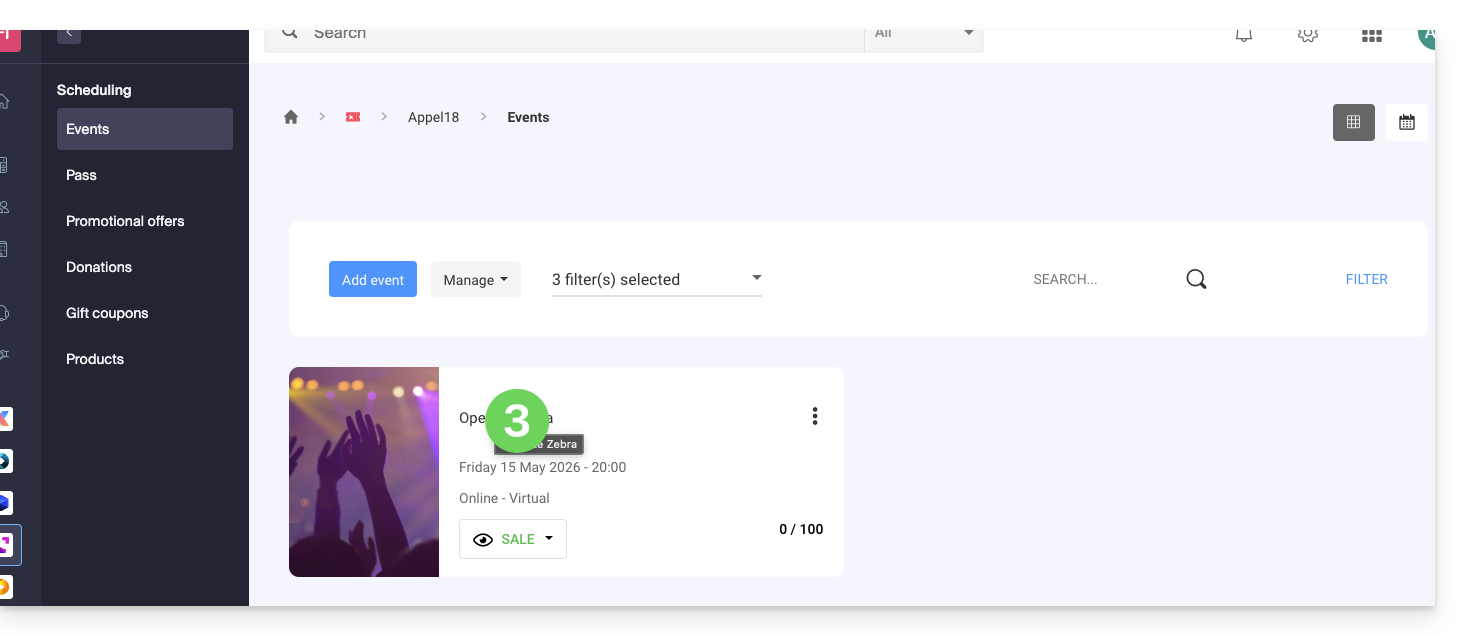
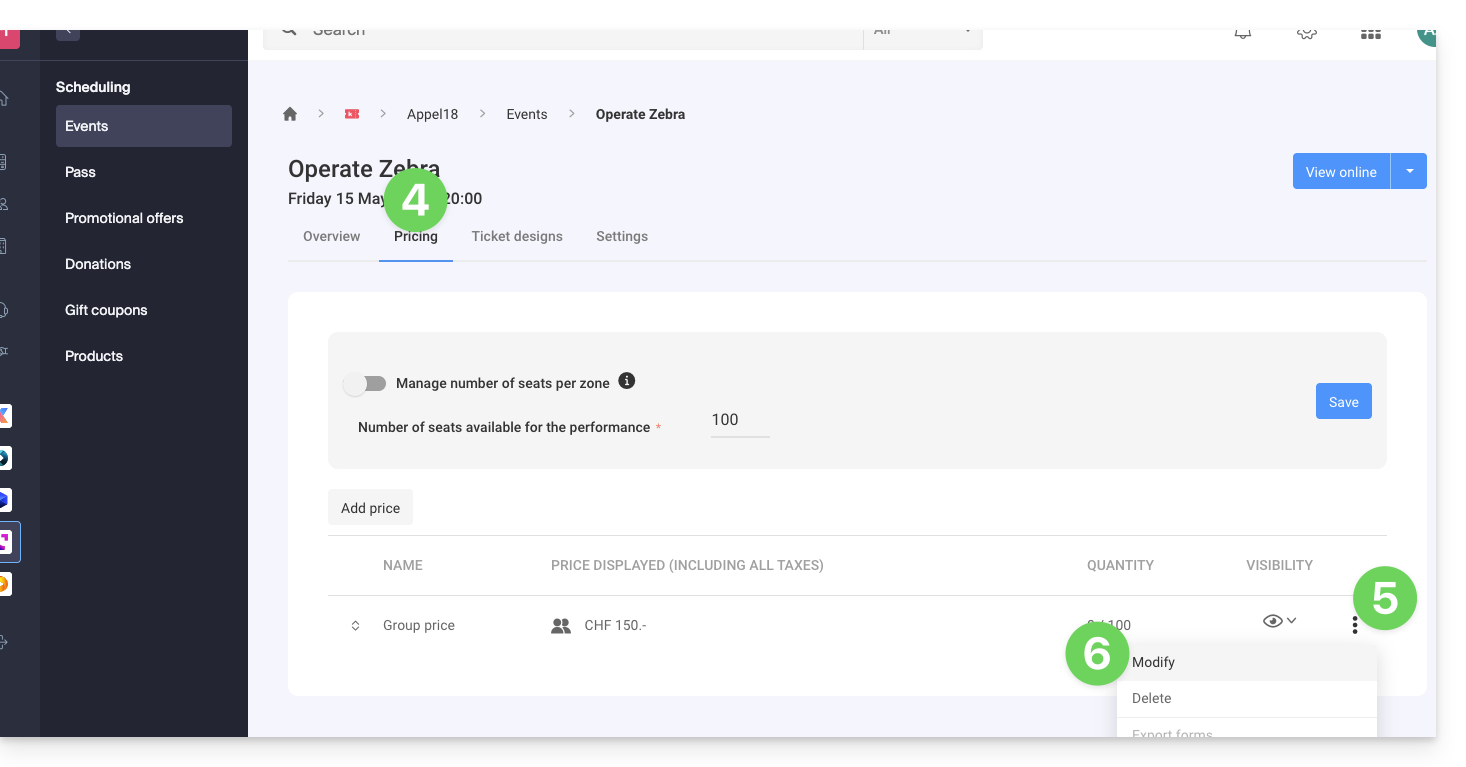
- Click on the Pricing tab.
- If the event has multiple dates, this section is replaced by “Dates”, which opens a calendar.
- Click on the date in the calendar to access the pricing…
- Click on the action menu ⋮ located to the right of the price to which you want to associate the form (by expanding the Zone using the chevron if necessary).
- Click on Edit:
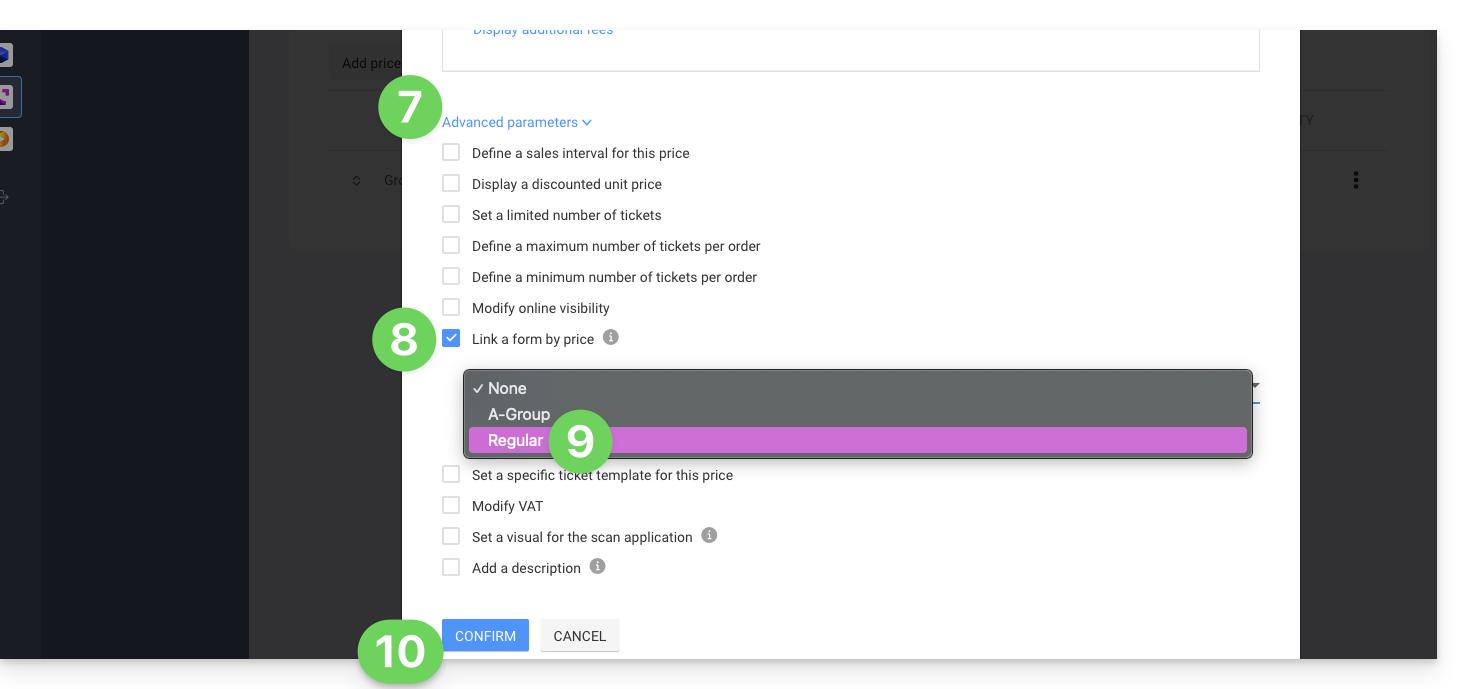
- Then, click on the down arrow to expand the advanced settings.
- Enable the Link a form to a price option.
- Choose the form to link.
- Click the Confirm button:
To retrieve information related to the forms, please refer to this other guide.
Link to this FAQ: https://faq.infomaniak.com/2678
Has this FAQ been helpful?
This guide explains how to use the mobile point of sale on a tablet to sell tickets for your events (as part of the Infomaniak ticketing system).
1. The mobile point of sale and on-site sales
Infomaniak provides a free mobile application for Android, as well as a rental service for the equipment needed for on-site sales.
The mobile point-of-sale system allows you to create an order, manage the payment method used, and print the generated tickets.

Infomaniak does not provide credit card or Postcard payment terminals.
Navigating the mobile checkout
Once the tablet is turned on, log in with your Infomaniak account username and password.
You will be prompted to choose the customer account, ticketing system, and currency to use:
You can then navigate between the different menus using the tabs at the top of the screen.
The first three allow you to add items to the cart.
Once the orders are validated, they will be added to the list of orders.
Finally, the last tab allows you to generate the report for the cash registers:
- Event: for selling tickets to your events
- Pass: for selling passes
- Gift cards: for selling gift cards
- Shopping cart: the items that are added to the cart. You can add items or modify the contents at any time. This is where you can choose the payment method used to validate the order.
- Orders: a list of all orders with the option to print tickets. Useful for finding reservations or retrieving past orders.
- Sales report: to view and send the sales report by email.

Next steps
Link to this FAQ: https://faq.infomaniak.com/2681
Has this FAQ been helpful?
This guide explains how to configure the questions asked to visitors when ordering a pass/subscription (as part of the Infomaniak ticketing system). These settings will be available once step 1 is completed:
- Define the type during creation (subscription, ticket pack, etc.) as well as the basic information and settings
- Associate events with passes
- Configure the visual appearance and information related to the pass
- Define and collect the information for subscribers that will be linked to the passes (below).
Configure the information linked to the passes
This information will be linked to the passes and is therefore independent of the form associated with the order.
To do this:
- Click here to access the management of your product in the Infomaniak Manager (need help?).
- Click directly on the name assigned to the ticketing system for the event.
- Click on Scheduling in the left-hand menu.
- Click on Pass in the left-hand menu.
- Click on the name of the pass in question.
- Click on the Settings tab:

- Activate the desired options:
- Title: dropdown menu offering the choice between Mr. and Mrs.
- Last Name: text field for entering the last name
- First Name: text field for entering the first name
- Organization, Company: text field for entering the company
- Email: text field for entering the email address
- Address: 5 text fields including the number and street, city, and country
- Postal Code: adds a field between the number and street for the postal code
- Mobile Phone: field for the phone number
- Date of Birth: adds a calendar to indicate the date of birth
- Photo: allows uploading a photo that can be displayed on the pass
- Custom Field: text field for free-form information
Link to this FAQ: https://faq.infomaniak.com/2682
Has this FAQ been helpful?
This guide explains how to use the advanced options for your custom stores in the Infomaniak ticketing system (refer to this other guide if you are looking for information on the general configuration of the main store).
Introduction
- This Custom Store section, intended for advanced users, allows you to find all the advanced settings for your online stores.
- You can continue to use multiple links with different configurations and advanced settings to integrate them into your site as you wish.
- It is possible to configure events that will not be listed on
infomaniak.events. - All private events will therefore use this option.
Create a customized store
To access the online ticketing options:
- Click here to access the management interface for your product in the Infomaniak Manager (need help?).
- Click directly on the name of the relevant ticketing system.
- Click on Ticket Portal in the left-hand menu:
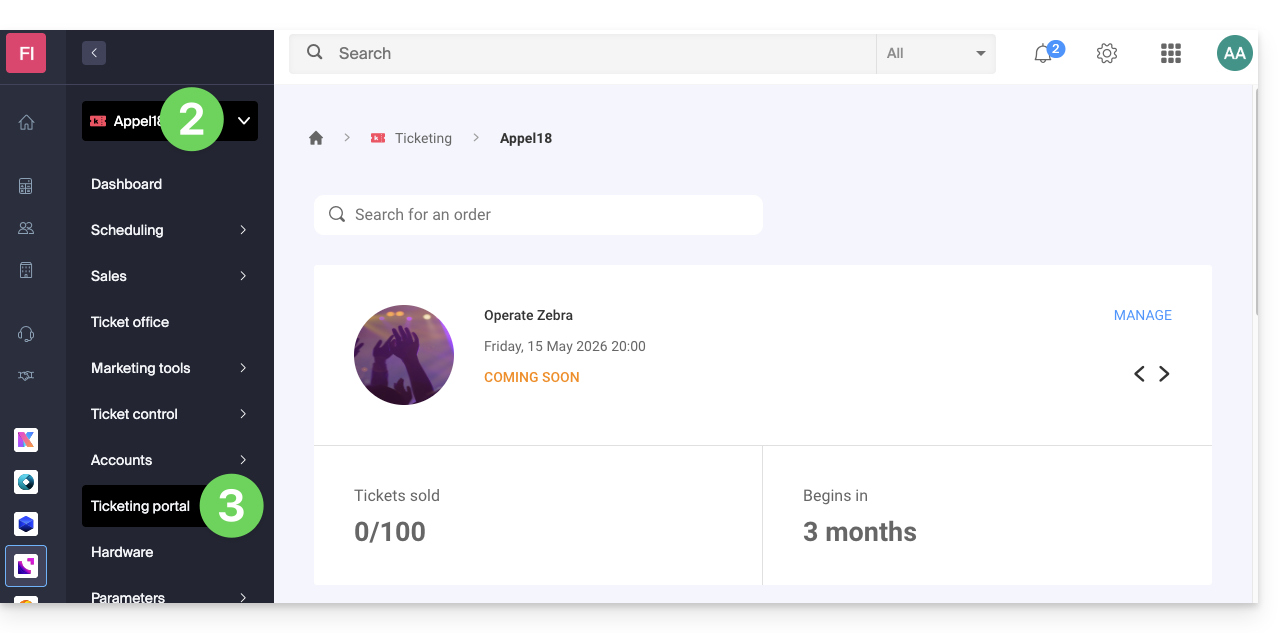
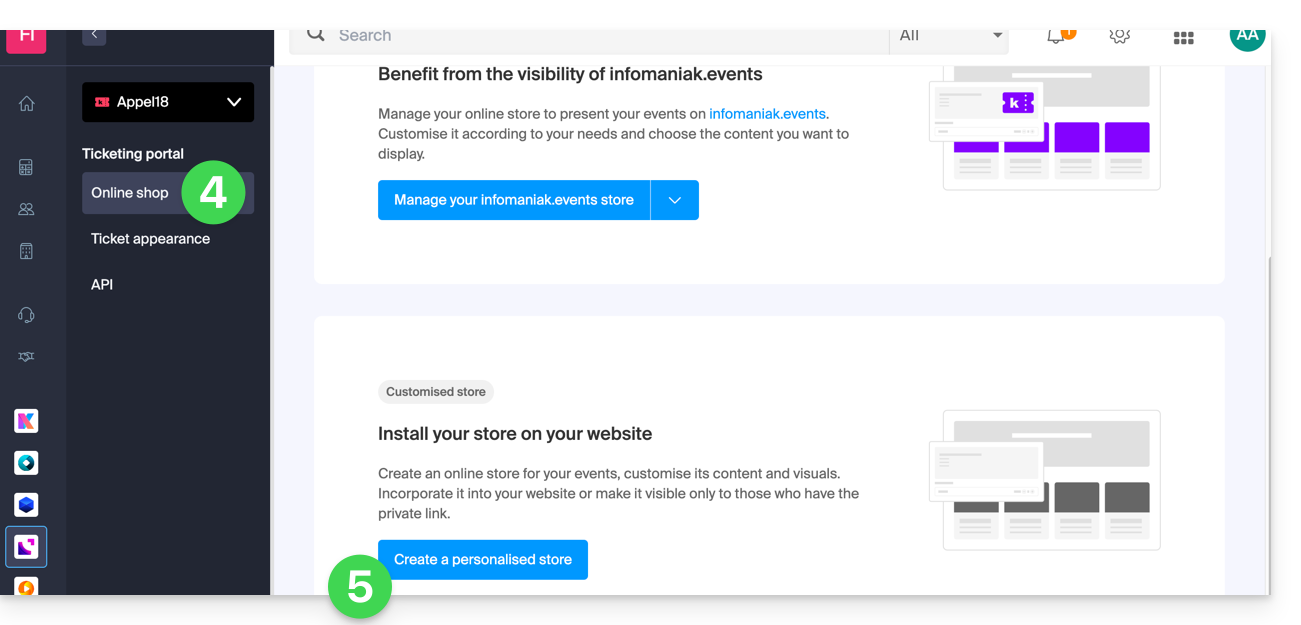
- Click on Online Store in the left-hand menu.
- Click on Create a custom store:
Configure the custom store
This store is designed for advanced use and allows you to configure stores that will not be listed on infomaniak.events. All private events will therefore go through this option, including if there is a need for customization with html or js code.
It is possible to have multiple links with different types of content to configure. These options can be found in the Developer menu at the bottom of the page:
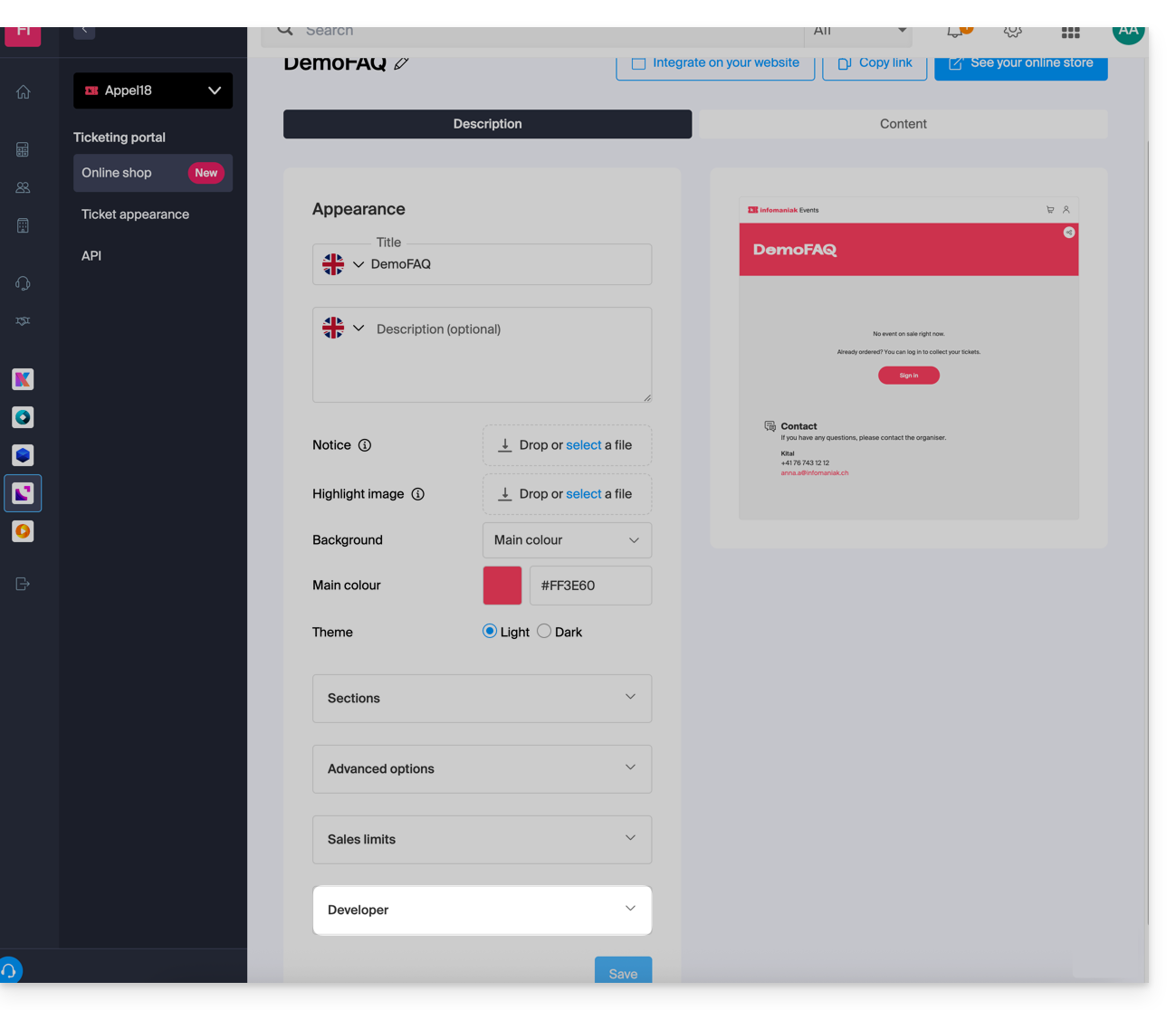
Each customized store will have its own URL and can be managed independently. You can retrieve the links to these stores at any time for integration on your site, or delete them to disable the link: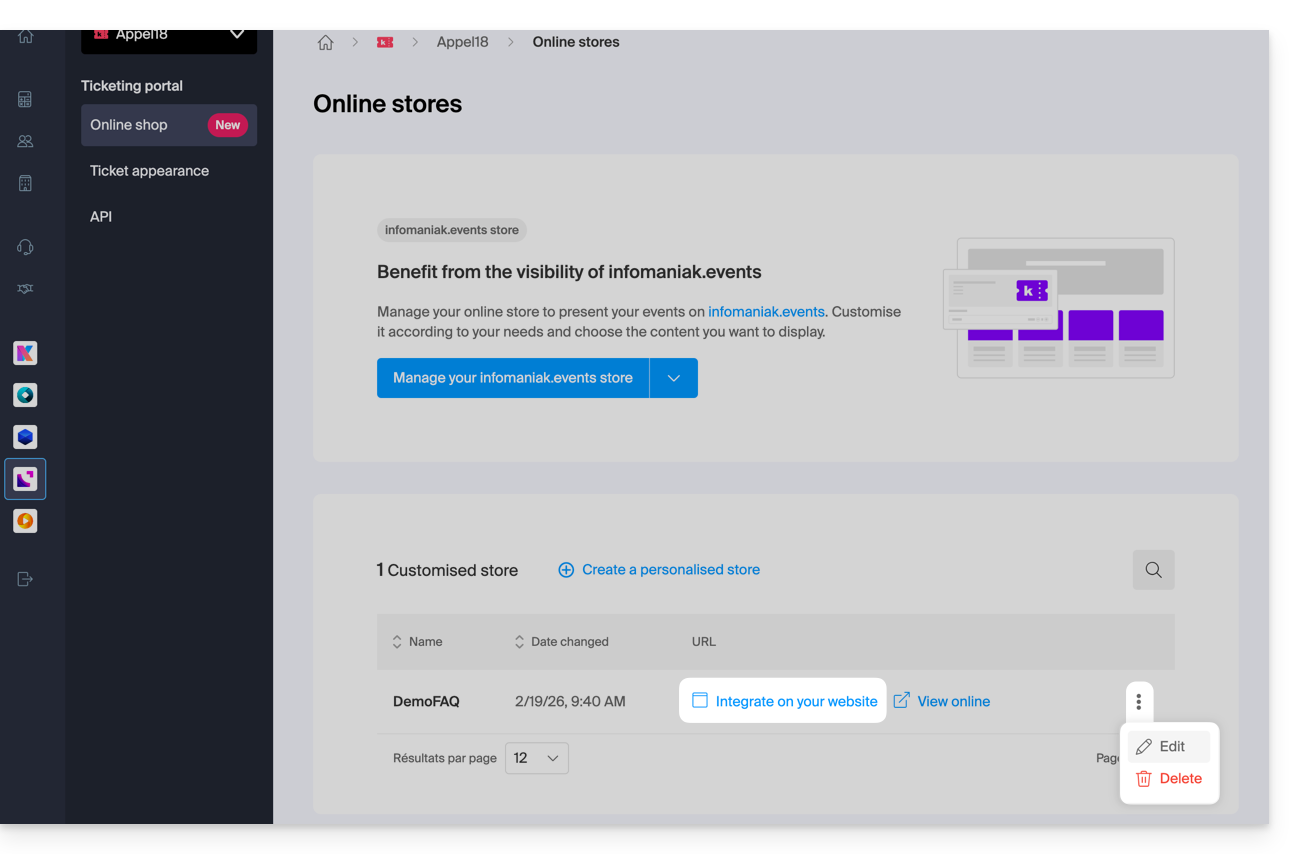
Using triggers for marketing tools
You can insert, at the HTML code level, a script to connect your store page with tools such as the Meta pixel (Facebook) or Google Tag Manager: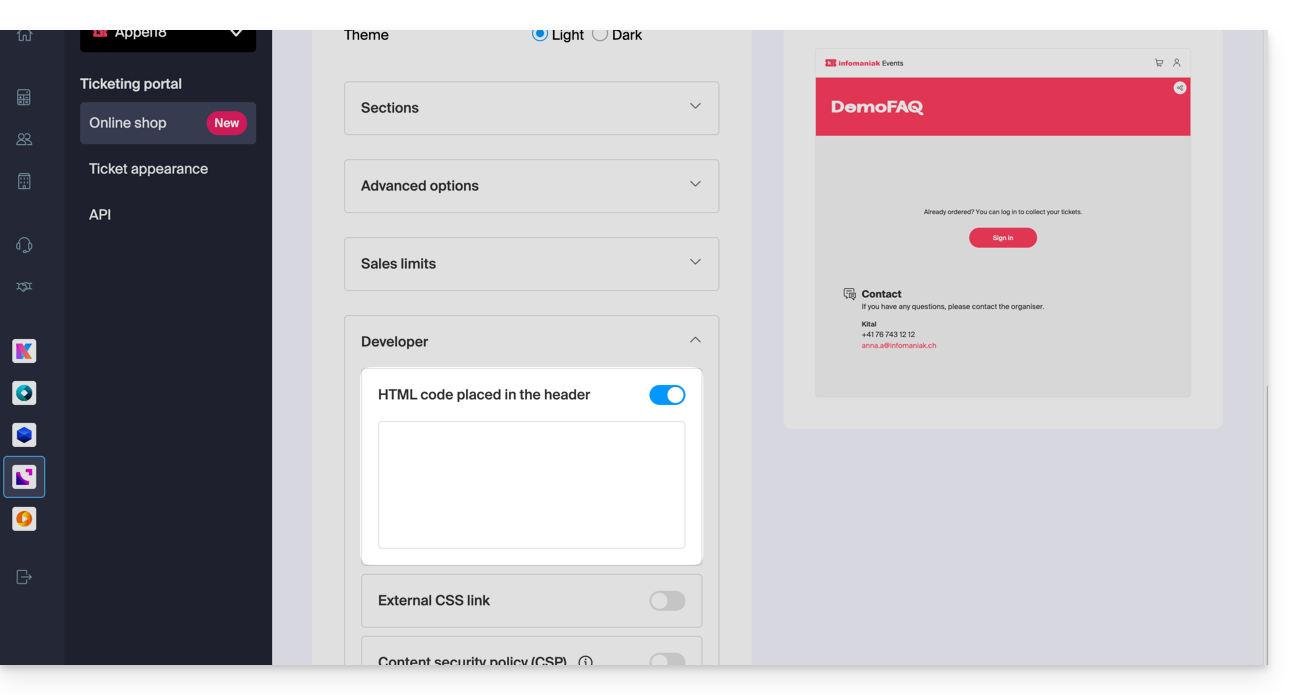
Integration via API
API integration allows you to embed the ticketing system directly on your website. To do this, you will need to create an API key and follow the documentation.
Link to this FAQ: https://faq.infomaniak.com/2684
Has this FAQ been helpful?
This guide explains how to configure the information and images that will appear on the tickets that visitors to your events will receive (as part of the Infomaniak ticketing system).
Prerequisites
- Create an event to access the mobile ticket design options.
Access ticket designs
To do this:
- Click here to access the management interface for your product in the Infomaniak Manager (need help?).
- Click directly on the name assigned to the ticketing system for the event.
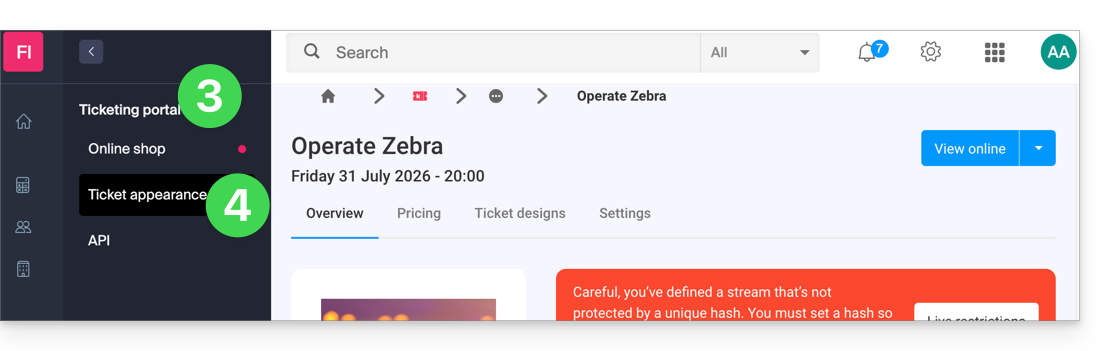
- Click on Ticketing portal in the left-hand menu.
- Click on Post Visual:
Customizing Basic Information
Tickets contain the following information, which will be retrieved from the event settings and the information provided by the customer: 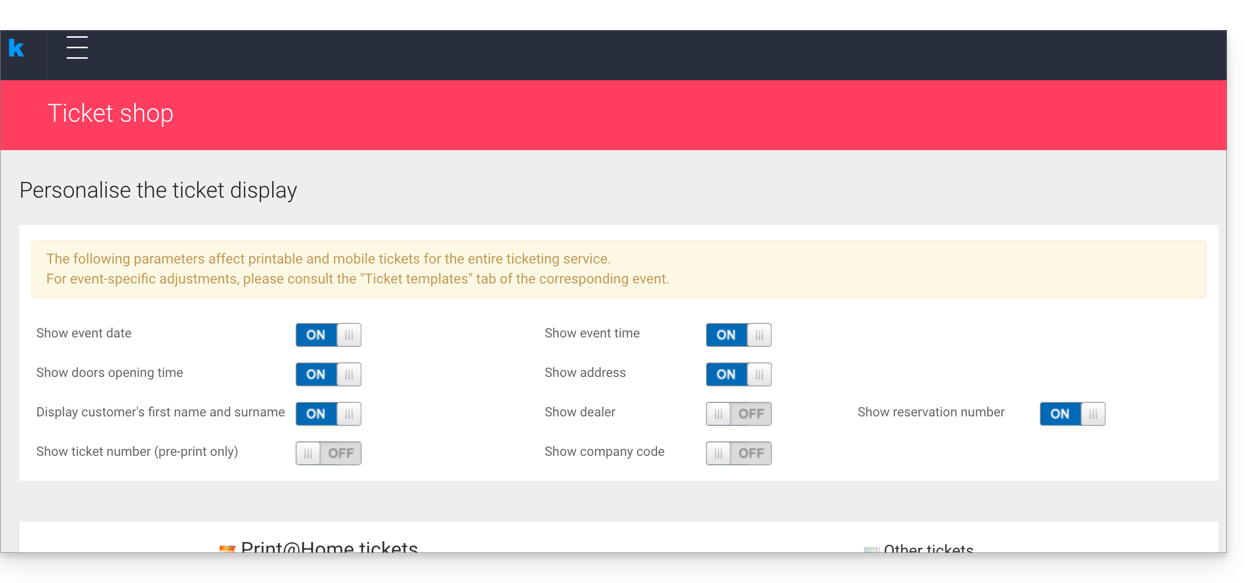
- Designation: the name of the event.
- This option cannot be disabled, but the text can be modified at the event level in the Ticket Template option of the event in question.
- The event date.
- The event time.
- The opening time, if defined in the event.
- The event address.
- The customer's and/or reseller's first and last name, if provided.
- The reservation number.
- The ticket number (for pre-printed tickets).
- The company name, if provided.
Modify the appearance of tickets
Default image size
The minimum image size is 1138x524 px, but the recommended size is 1307x605 px (+ ratio 9:4.17).
Print@home tickets
These tickets are designed to be printed directly by customers using a standard printer. To modify the ticket content:
- Top image: the background image of the ticket can be modified here. Please note that the text may not be legible if the image has contrasts that do not allow the letters to be distinguished.
- Body text: you can modify the text in the middle of the post. If the text overflows onto the image at the bottom of the page, the latter will not be displayed.
- Bottom image: this will, by default, contain the general terms and conditions of sale, but they can be replaced with a custom image.

Other formats
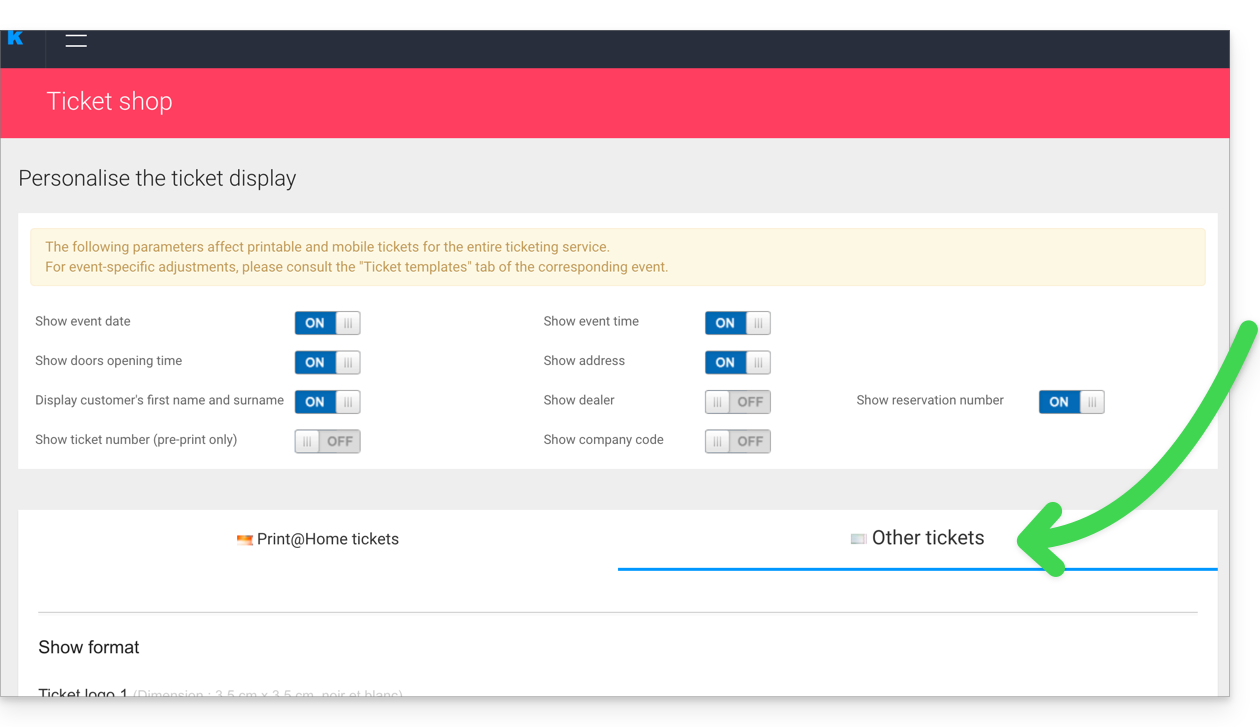
The other formats are intended for use by the organizer and cannot therefore be sent to customers automatically by email:
- Show Format: For printing with a thermal printer (available for rent).

- Cinema Format: The format used in cinemas for printing with a thermal printer (available for rent).

Save and use ticket templates
It is possible, and recommended, to save the appearance of tickets as a new template. The button for saving is located at the bottom of the ticket appearance customization page: 
You can then select it to edit, or set it as the default template: 
apply a default template for ALL ticketing
apply a default template for a SPECIFIC event
apply a default template for a SPECIFIC price
You should also consult this other guide regarding passes.
Link to this FAQ: https://faq.infomaniak.com/2689
Has this FAQ been helpful?
This guide explains how to sell tickets with a free-pricing option (within the Infomaniak ticketing system).
Introduction
- This pricing option allows visitors to specify the amount they wish to pay for their ticket.
- The pay-what-you-want pricing option is not available in the following cases:the event takes place in Lausanne and is subject to entertainment tax..
- The minimum price must be higher than CHF/EUR 2 due to bank charges related to online transactions.
Manage the custom pricing for your event
To do this:
- Click here to access the management of your product in the Infomaniak Manager (need help?).
- Click directly on the name assigned to the ticketing system for the event.
- Click on Scheduling in the left-hand menu.
- Click on Events in the left-hand menu.
- Click directly on the event name.
- Then, click on the downward-pointing chevron to the right of the Edit button.
- Click on Add / modify a price:

- Choose to Add a price.
- Choose the Libre plan.
- Specify the name and minimum prices in the desired currencies.
- Enable any available advanced settings.
- Click Next to proceed to the date and time zone selection:

The display of pricing varies depending on the type of event: for a multi-date event, it is managed via an action menu on the "Edit" button, while for a single-date event, it appears directly in the "Pricing" tab at the top of the page.
Link to this FAQ: https://faq.infomaniak.com/2691
Has this FAQ been helpful?
This guide explains how to cancel tickets that have been ordered (within the Infomaniak ticketing system).
Log in to the ticketing system and find the order
To do this:
- Click here to access your product management interface on the Infomaniak Manager (need help?).
- Click directly on the name assigned to the ticketing system for the event.
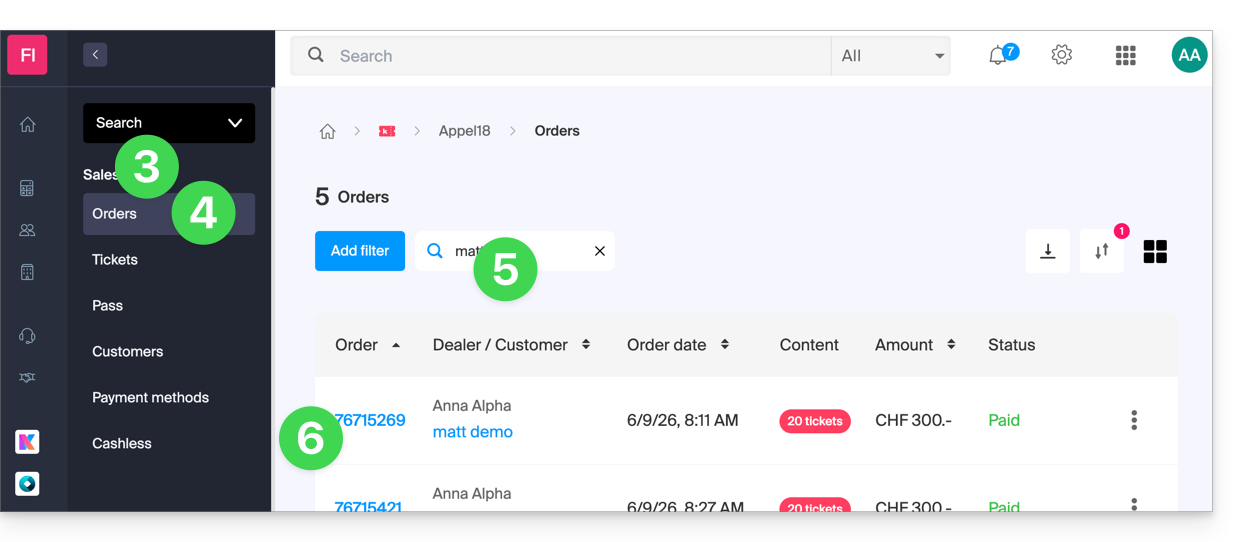
- Click on Sales in the left-hand menu.
- Click on Orders in the left-hand menu.
- In the search field, enter the order number, customer name, customer email address, or ticket number, depending on the information you have available.
- Click on the order for which you want to cancel the tickets:
Cancel a paid order or tickets
You can cancel the entire order, or cancel individual tickets.
Please note: This operation does not refund the tickets! It ensures that these tickets are no longer valid during inspection and releases the seats for sale.
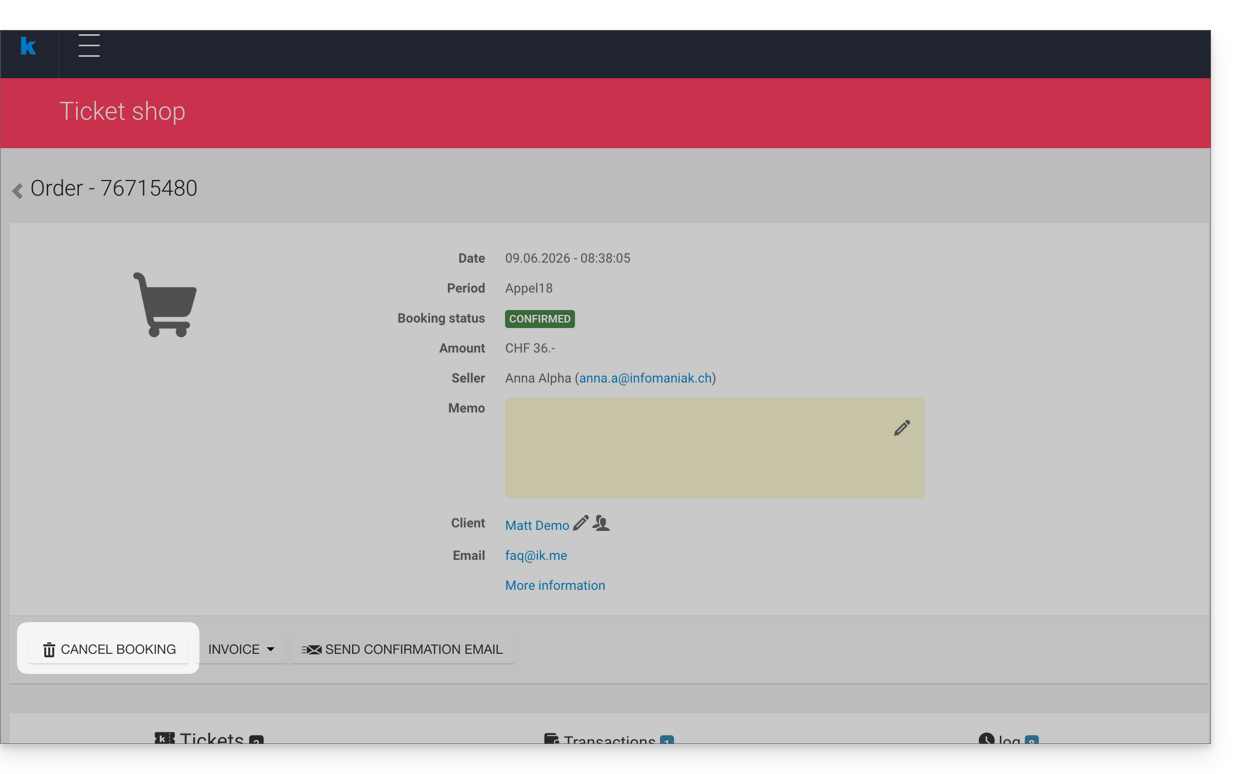
- To cancel the entire order, click Cancel in the order window:
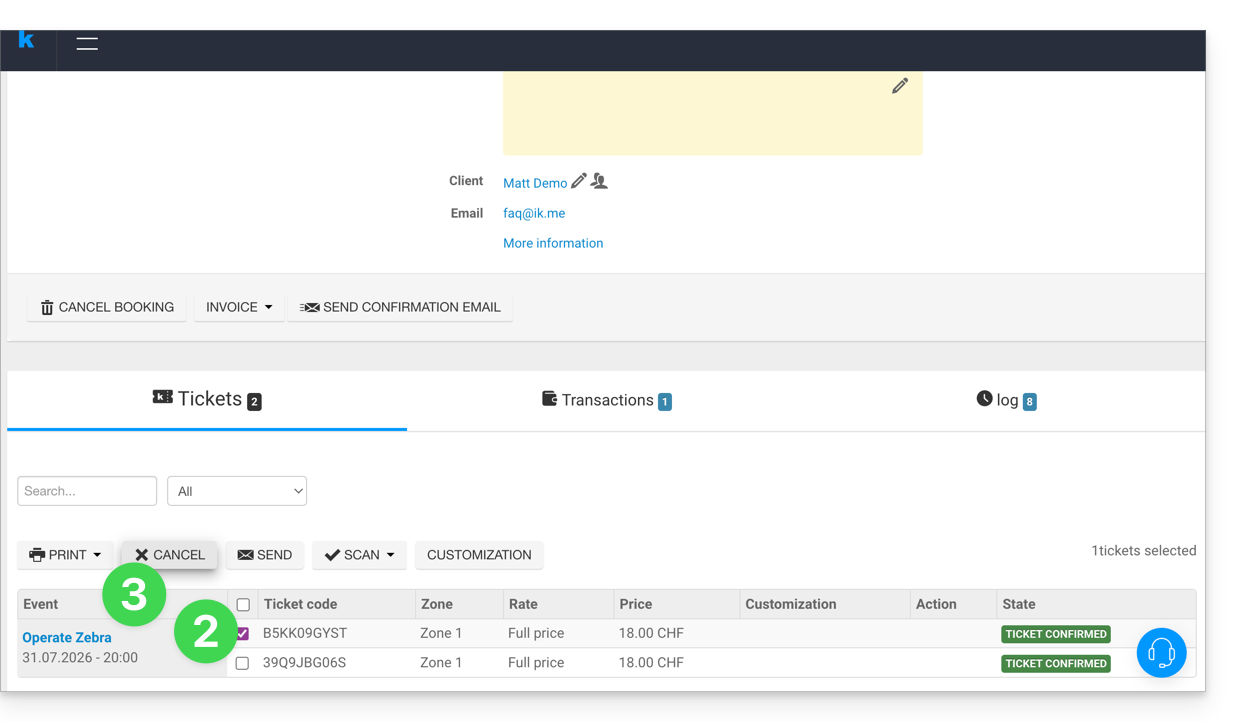
- To cancel individual tickets, select the tickets you wish to cancel below.
- Then click on the Cancel button:
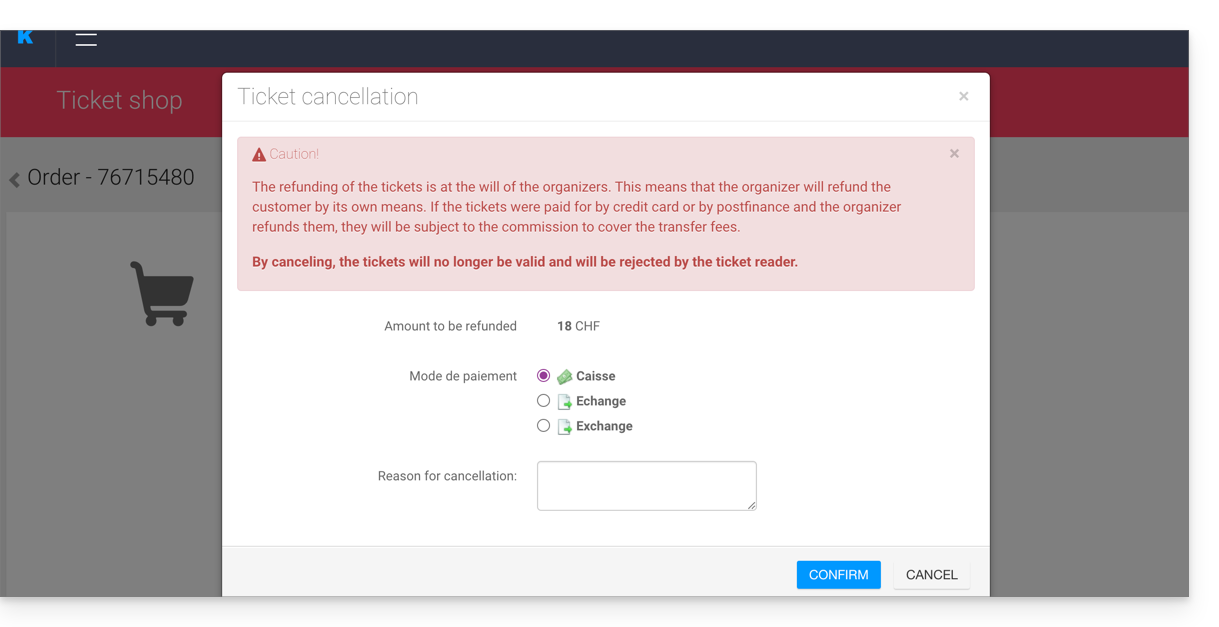
- Choose the method used for the refund and the reason for the refund. This information may be useful for your accounting operations:
- If the customer is unaware, inform them that the ticket(s) have been cancelled.
The refundit is the organizer's responsibility to refund the customer, using their own means. Tickets are always subject to the Infomaniak commission.
Cancel an order awaiting payment
When using the Invoice payment method, it is not possible to cancel individual tickets, as the invoice would no longer be accurate.
You will need to cancel the entire order, create a new order, and send the new invoice to the customer.
Also, please refer to this other guide regarding automatic cancellation deadlines with this payment method.
Cancel tickets at the ticket counter
To do this:
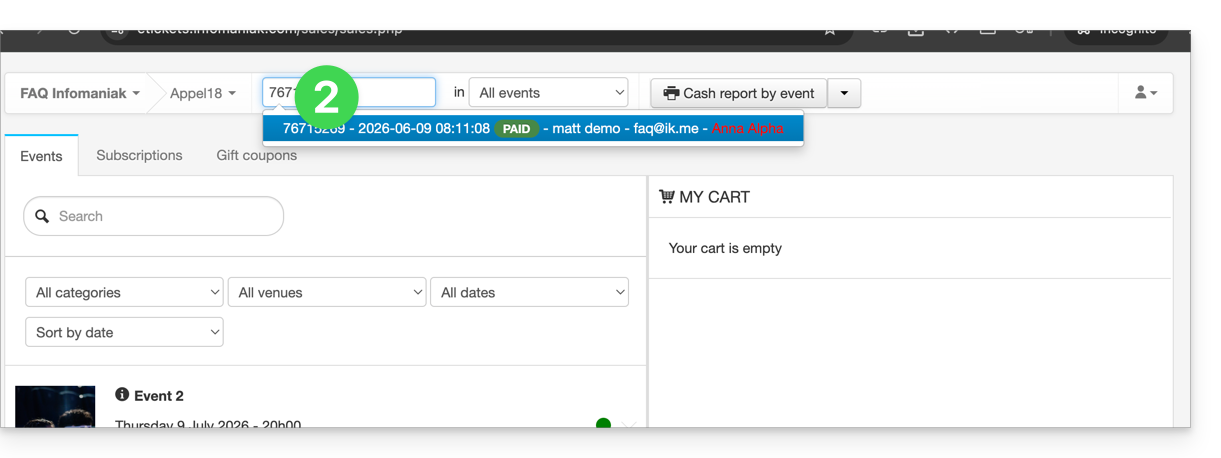
- Go to the Control Panel.
- Use the search field at the top of the control panel to find the command:
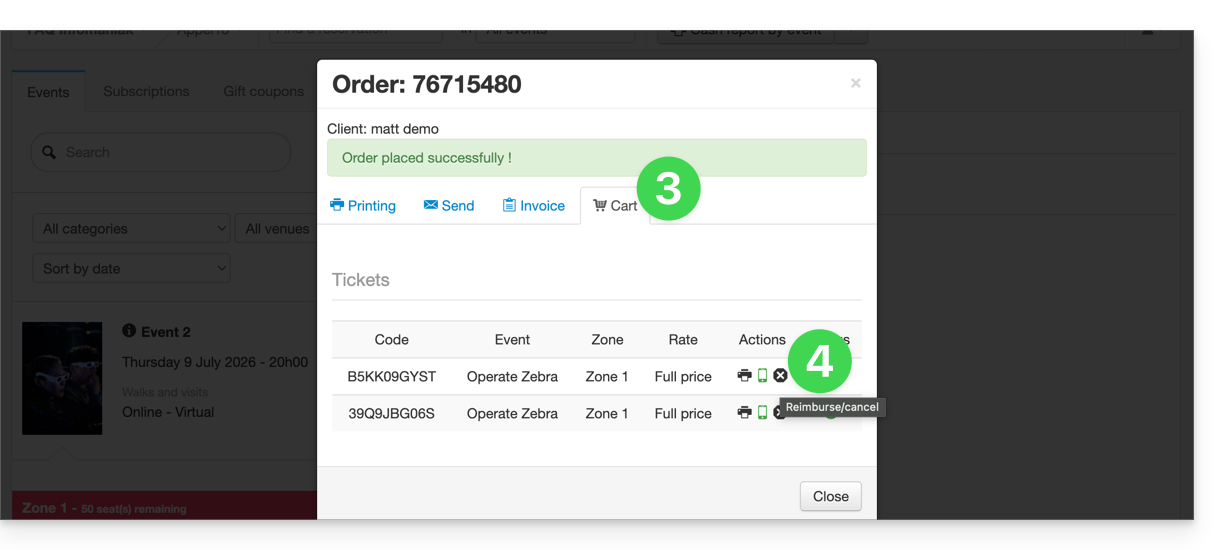
- Go to the Cart tab.
- Click on the small black cross next to the ticket you want to cancel:
Link to this FAQ: https://faq.infomaniak.com/2693
Has this FAQ been helpful?
This guide explains how to verify your identity to order rental equipment from Infomaniak and receive your payments (as part of the Infomaniak ticketing system).
Introduction
- This identity verification procedure must be performed the first time you want to receive payments or request to be featured on the Infomaniak portal.
- Identity verification can only be performed by the legal account owner. If the options to start the verification procedure do not appear on your account, this indicates that you do not have the necessary access.
Access your ticketing system
To do this:
- Click here to access the management of your product in the Infomaniak Manager (need help?).
- Click directly on the name assigned to the ticketing system for the event.
Complete the identity verification process
The process can be accessed in two places:
- On the main dashboard:

- If a bank account is entered, in the Accounting menu, then Infomaniak Payments:
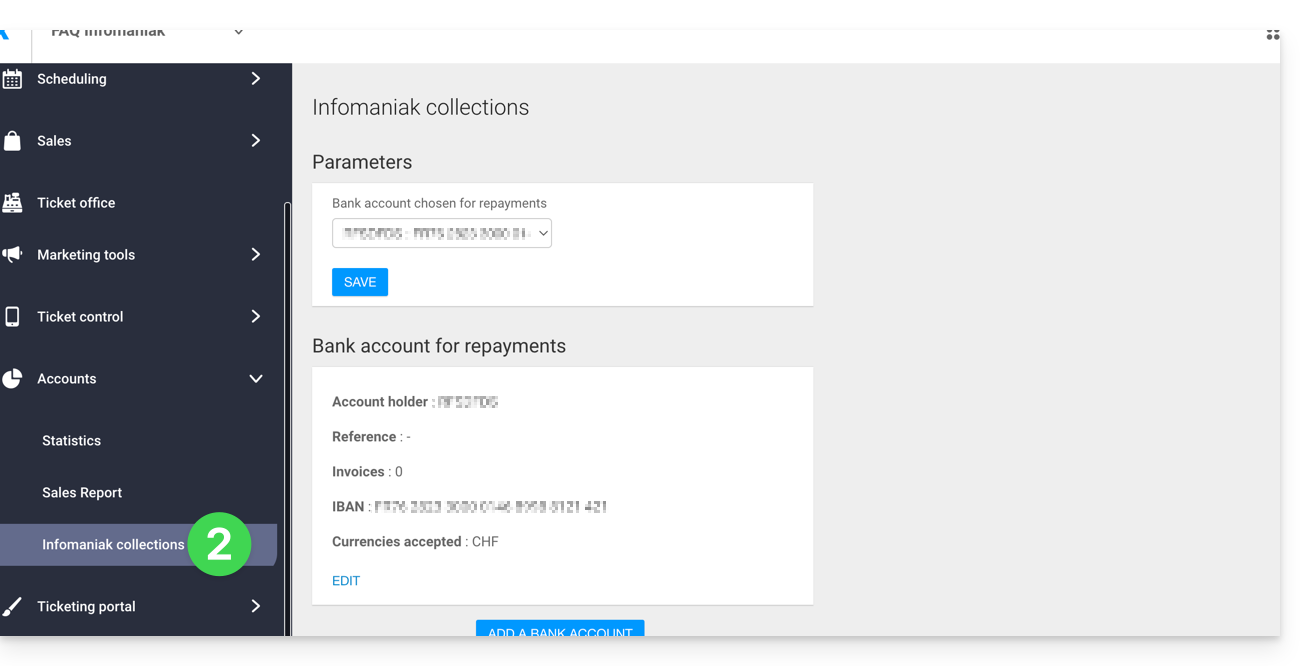
- Refer to this other guide to complete the identity verification process with kCheck.
Link to this FAQ: https://faq.infomaniak.com/2694
Has this FAQ been helpful?
This guide explains how to process refunds when canceling orders (within the Infomaniak ticketing system).
Infomaniak does not handle refunds
⚠️ Infomaniak does not offer any refunds to end customers, as the terms and conditions for refunds, whether full or partial, in the form of gift vouchers, or through exchanges, are defined by the event organizers.
Infomaniak has no decision-making power regarding cancellations, refunds, or ticket exchanges. You can implement methods for ticket exchanges either at the ticket counter or allow your customers to do so from the online ticketing system.
Depending on the refund method you wish to use, you will need to request the necessary information from customers who request a refund. You can also ask customers to provide this information when placing their order.
Ticket Cancellation
Please refer to this other guide regarding ticket cancellations on the ticketing platform, which details the various cancellation methods available. Also, please refer to this other guide regarding cancellation insurance.
Link to this FAQ: https://faq.infomaniak.com/2695
Has this FAQ been helpful?