Knowledge base
1000 FAQs, 500 tutorials and instructional videos. Here, there are only solutions!
This guide explains how to save and export a calendar from the Infomaniak Web app Calendar (online service ksuite.infomaniak.com/calendar) in .ics format.
Exporting a calendar
To export the calendar in .ics format:
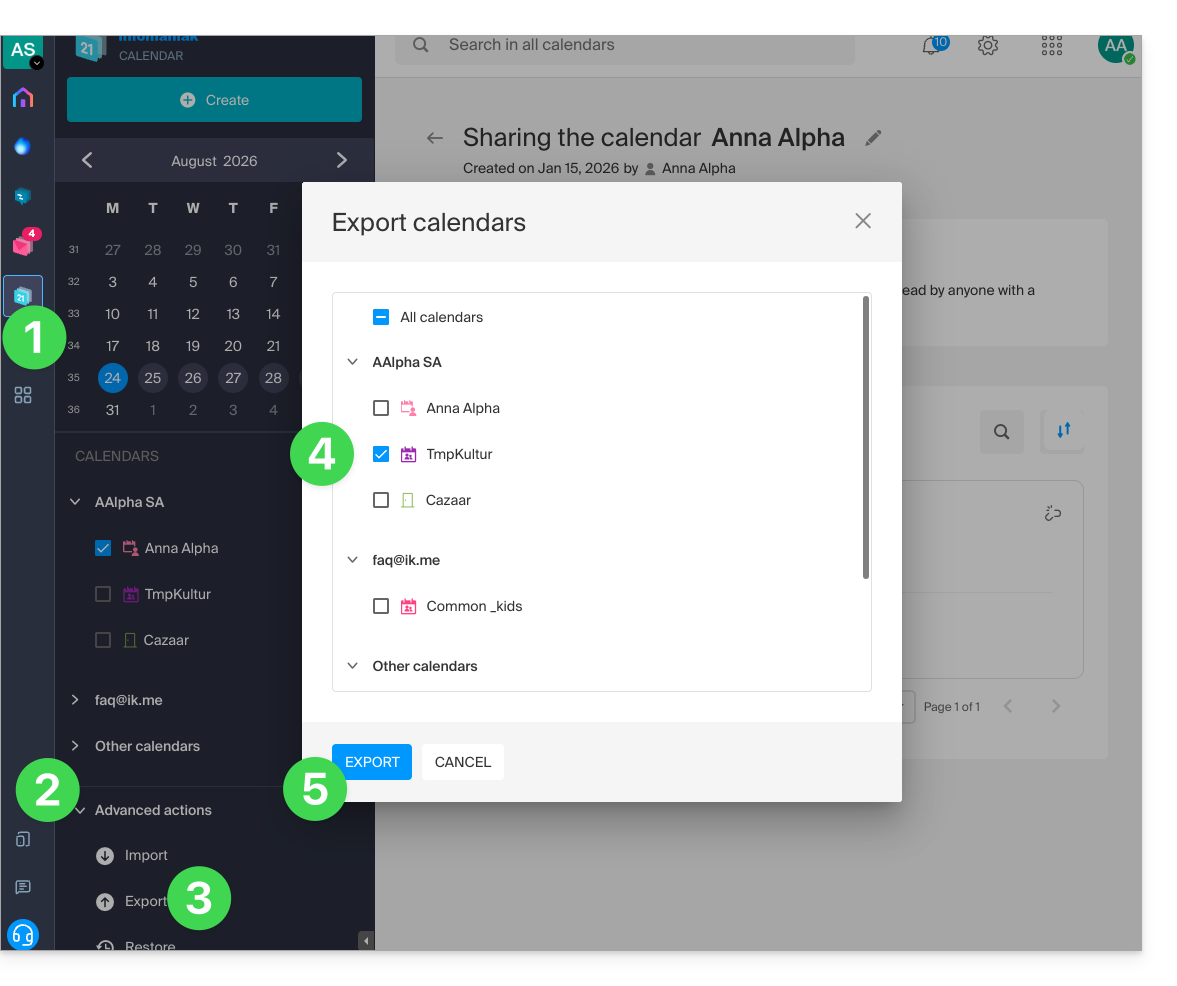
- Click here to access the Infomaniak Calendar web app (online service ksuite.infomaniak.com/calendar).
- Click on Advanced actions in the left-hand menu.
- Click on Export in the left-hand menu.
- Check the calendar(s) you want to export.
- Click on Export:
- Save the
.icsfile to your computer.
Refer to this other guide if you are looking for information about importing events.
Link to this FAQ: https://faq.infomaniak.com/1173
Has this FAQ been helpful?
This guide explains how to use the Gmail mobile app (application for iOS/Android smartphones or tablets) to access an email address hosted by Infomaniak.
Introduction
- Instead of the manual configuration below, it is recommended to use the Infomaniak Mail app (iOS / Android) to benefit from Infomaniak's security features.
Using the Gmail mobile app for Infomaniak
Prerequisites
- Create the email address (❓: help my kSuite | Mail Service/kSuite).
- Create a device password (❓: help my kSuite | Mail/kSuite Service).
- Verify that the domain is configured correctly (❓: help).
To add your Infomaniak email address via IMAP to your Gmail mobile app (❓: official help):
- Go to Gmail's Settings.
- Tap Add account.
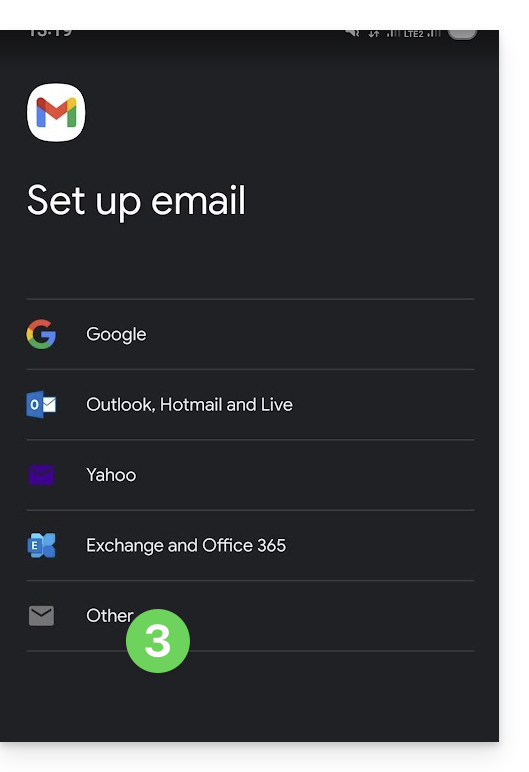
- Choose Other:
- Enter the email address you want to use.
- Choose the IMAP account type.
- Enter the password (see prerequisites) for the email address:
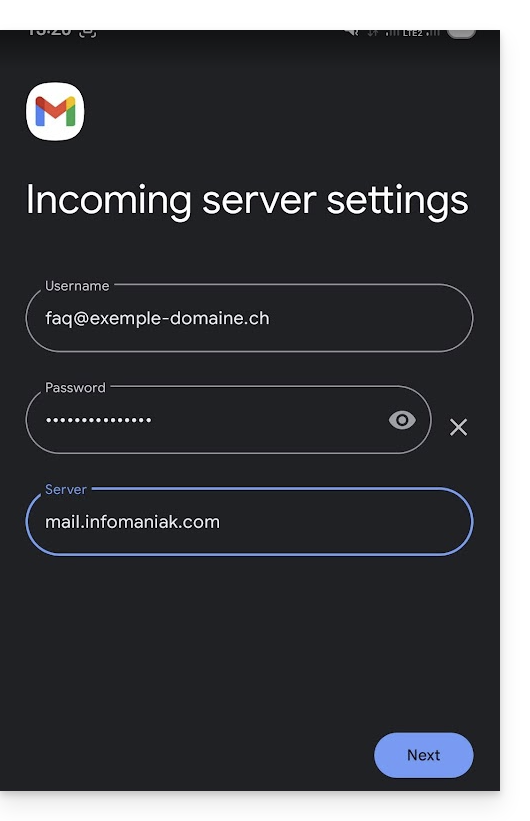
- Use the server name
mail.infomaniak.comfor:- Incoming IMAP server (receiving)
- Outgoing SMTP server (sending)
- Finish adding the address.
Link to this FAQ: https://faq.infomaniak.com/1208
Has this FAQ been helpful?
This guide explains how to connect the Apple Mail desktop app on macOS (MacBook Pro, Neo, etc.) to an email address hosted by Infomaniak.
Introduction
- Your macOS computer will be automatically configured using Apple-compatible .mobileconfig configuration profiles, unlike a manual configuration.
- It is possible to delete a configuration profile once it has been installed (scroll to the bottom of this page for instructions).
Install a configuration profile
Prerequisites
- Create the email address within my kSuite or a Mail Service / kSuite.
- Check that the Mail Service is configured optimally.
You can download the profile from the device in question or send it from another device (if you already have an email address that works correctly, for example):
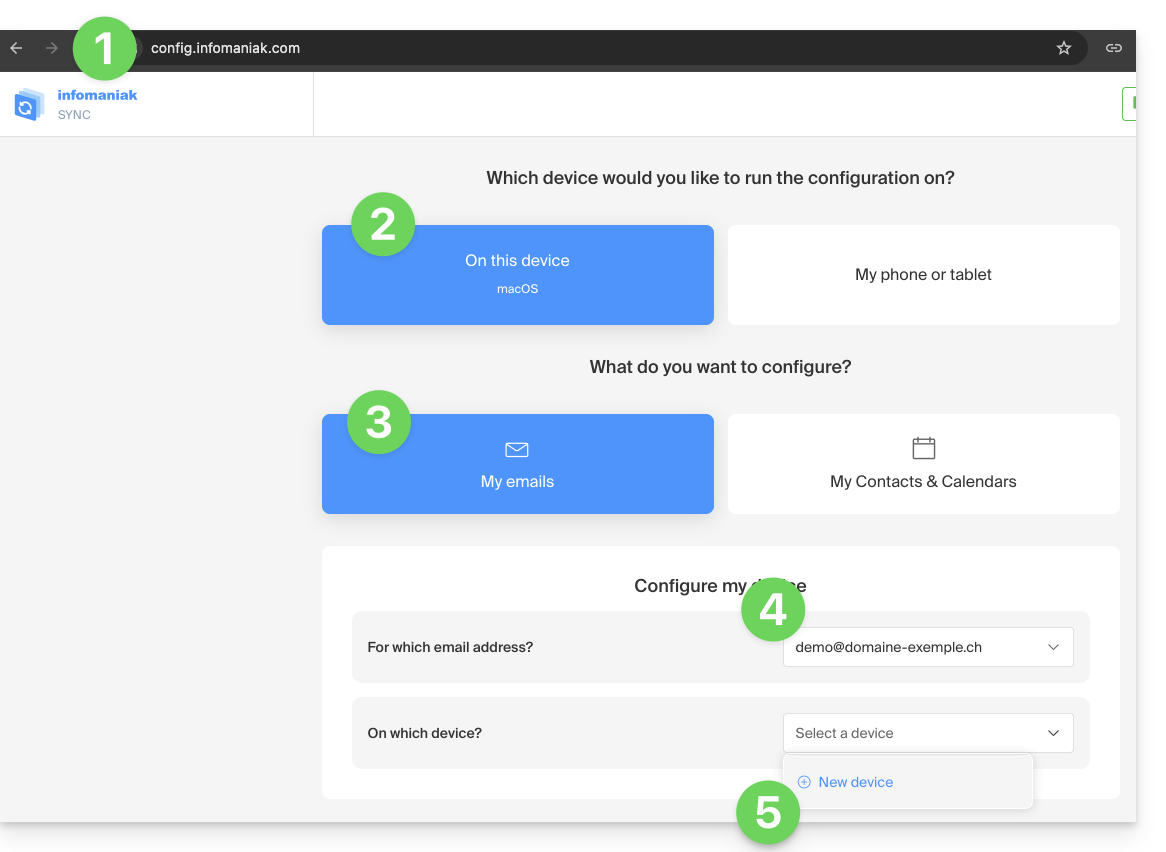
- Click here to access the Infomaniak configuration tool (online service https://config.infomaniak.com) — log in to your Infomaniak account on the Organization where your email address is managed, if necessary.
- Choose to install the profile on this device.
- Choose to synchronize emails.
- Choose the email address to configure in Apple Mail (from the ones you have access to).
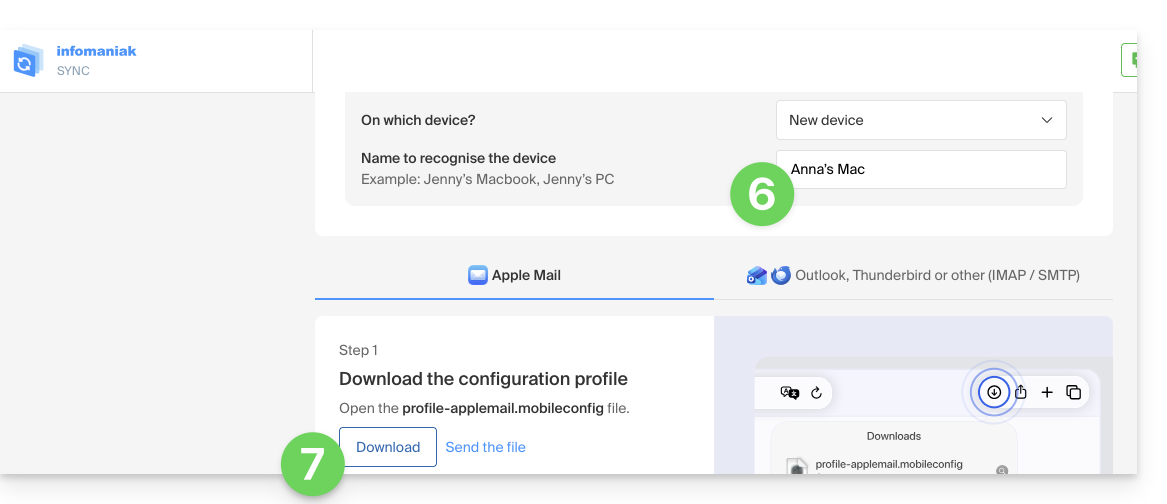
- Create a new device:
- Enter a descriptive name for the new device.
- Click the button to download the profile (you can also send it by email using the link on the right):
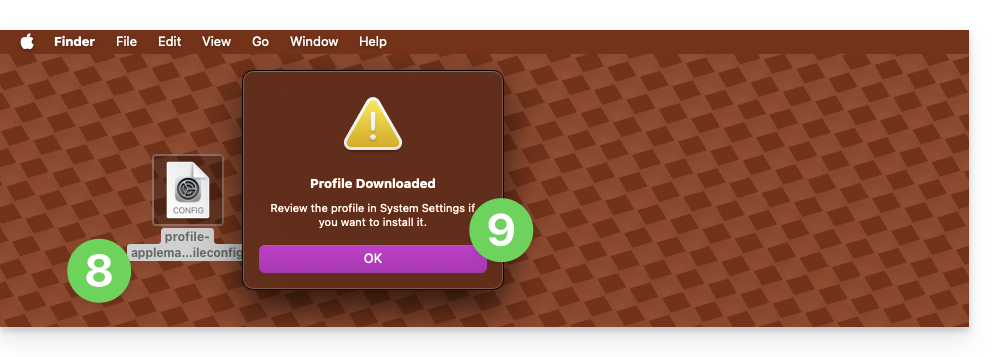
- Once the
profile-applemail.mobileconfigfile is on your computer, double-click it to open and run it. - Click OK:
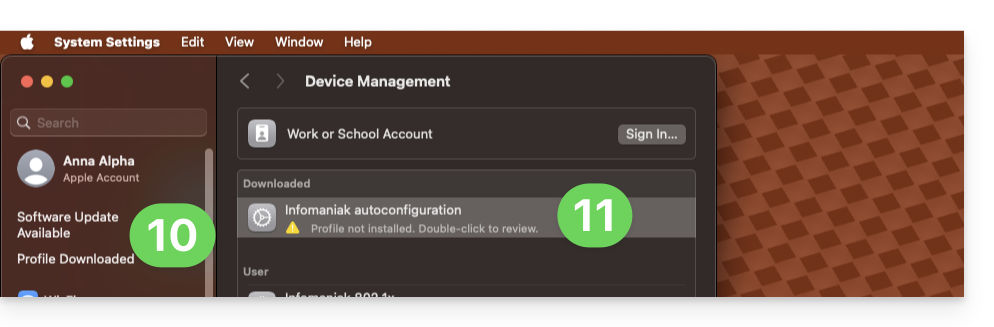
- Open the computer’s System Settings.
- Click on Downloaded Profile in the sidebar, then double-click the new profile to apply it:
- If you have an older version of macOS or cannot find the profile, search for “profile” in the settings, or consult the official documentation by changing the version of your system at the top of the page if necessary.
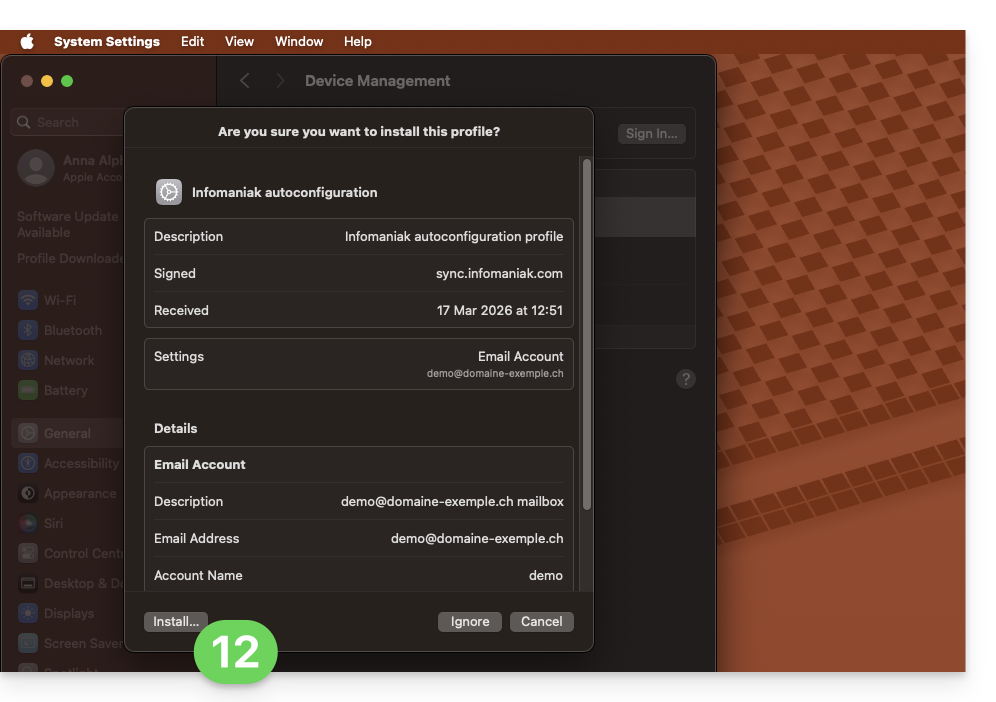
- Click on Install…:
- A password will then be requested…
- either you know it because you have already created it in the Devices section of the Mail Service:
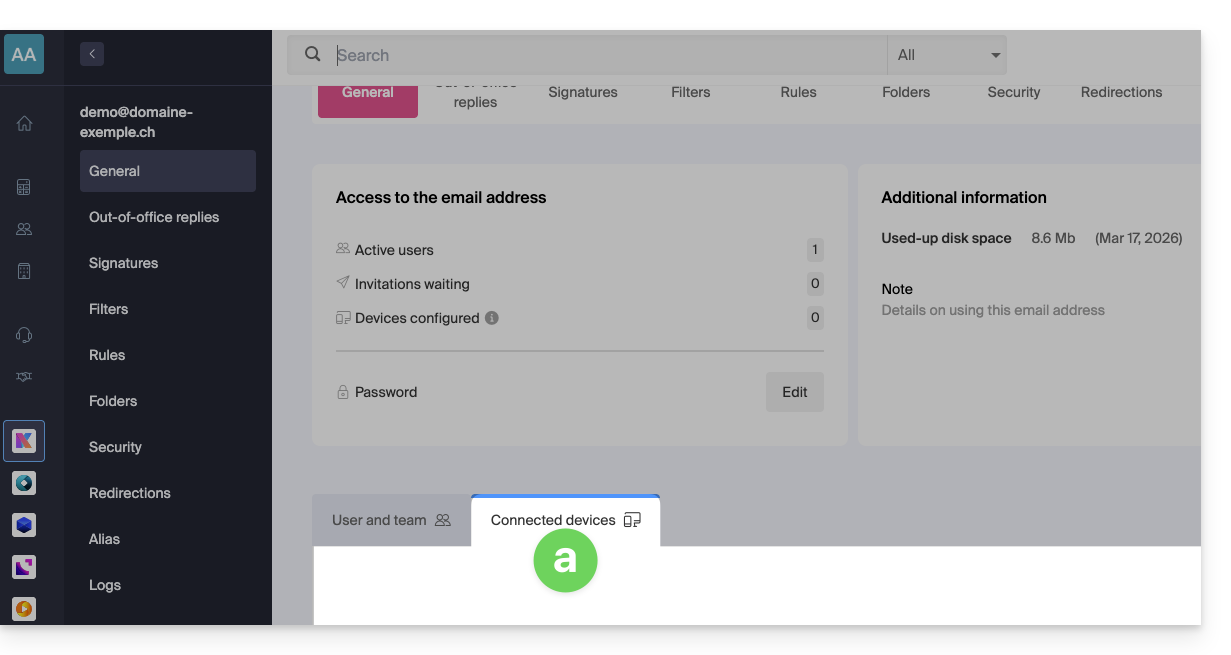
- or you can copy the new password that is located further down on the assistant page
config.infomaniak.comthat was opened previously: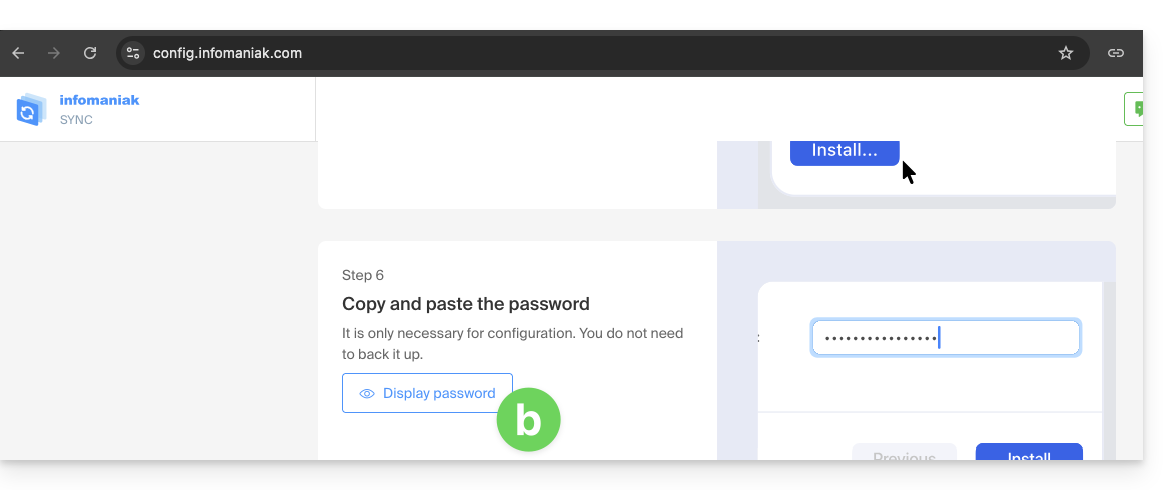
- Before the email address password is displayed, your Infomaniak account password may be requested for security reasons:
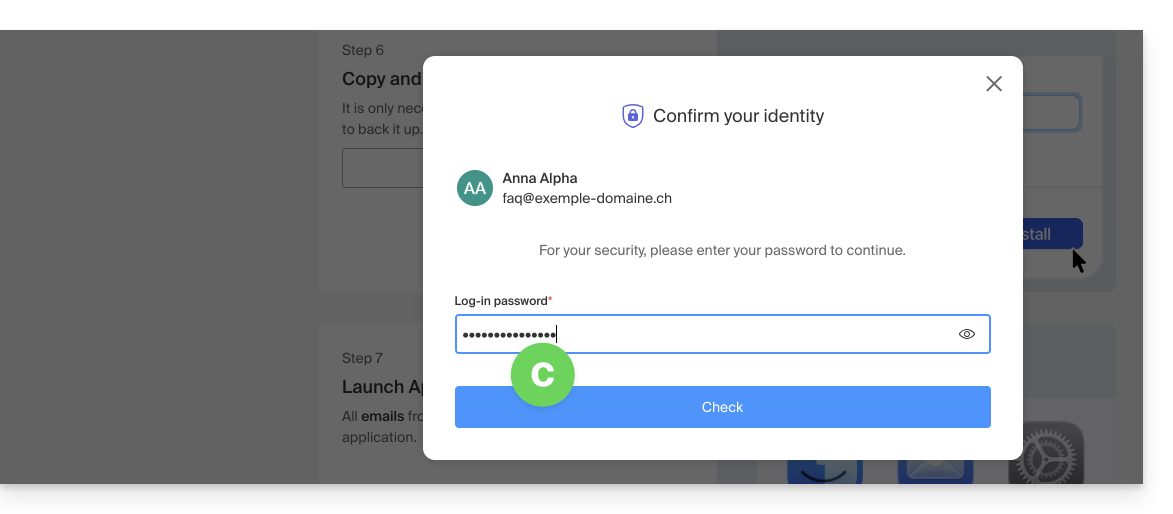
- There you go, the randomly generated password is displayed, simply copy it:
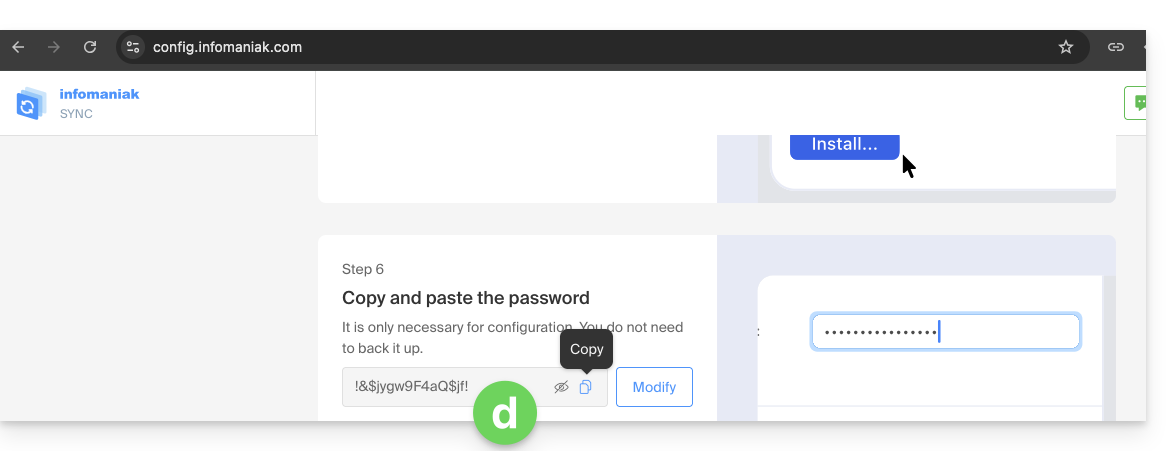
- either you know it because you have already created it in the Devices section of the Mail Service:
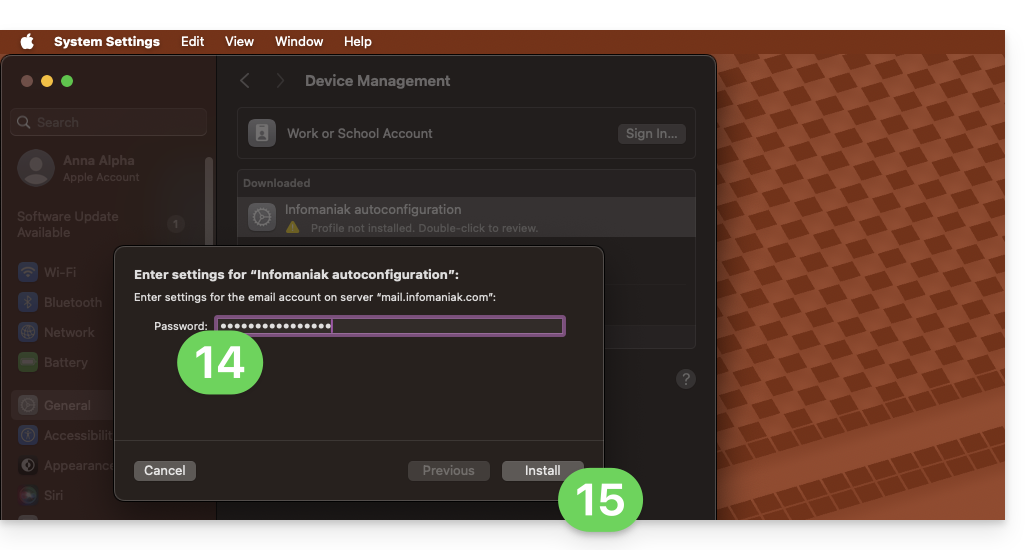
- Paste the password into the macOS window.
- Click Install to start installing the profile:
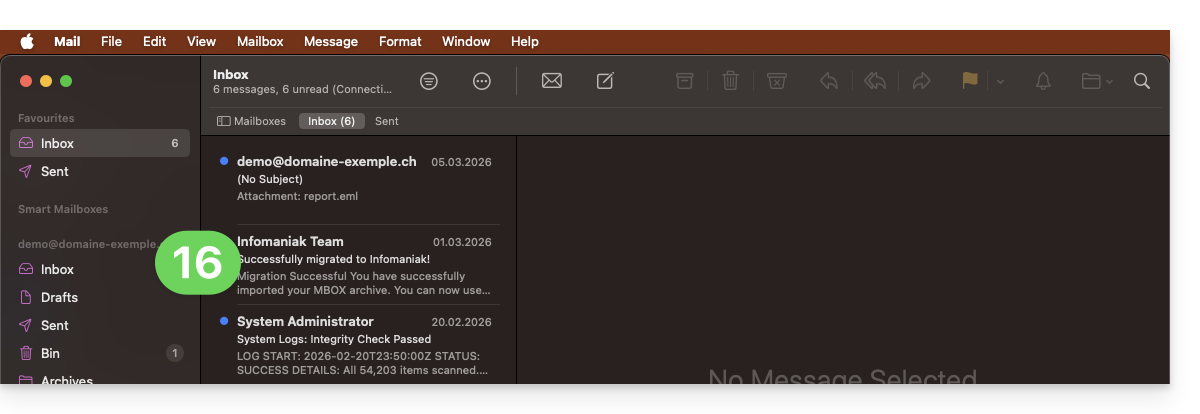
- That's it, your email address is now configured in the Apple Mail application, which you can open and manage:
Remove an IMAP account
Refer to the "Stop using an account" chapter. If necessary, change the version of your system at the top of the page*. (Note: Do not delete a POP-configured account without saving your messages beforehand).
Delete an Apple profile
Refer to the official documentation by changing the version of your system at the top of the page * if necessary.
*Why is it necessary to select the guide version that exactly matches your macOS / iOS system version?Apple introduces subtle changes with each new version of its system, for example, a path in iOS 15…
… becomes this in iOS 18…
Link to this FAQ: https://faq.infomaniak.com/1316
Has this FAQ been helpful?
This guide explains how to connect the Apple Mail iOS app (iPhone, iPad, etc.) to an email address hosted by Infomaniak.
Introduction
- Your iOS device will be automatically configured using .mobileconfig configuration profiles compatible with Apple, unlike a manual configuration.
- It is possible to delete a configuration profile once it has been installed (scroll to the bottom of this page for instructions).
Install a configuration profile
Prerequisites
- Create the email address within my kSuite or a Mail Service / kSuite.
- Verify that the Mail Service is configured optimally.
Then:
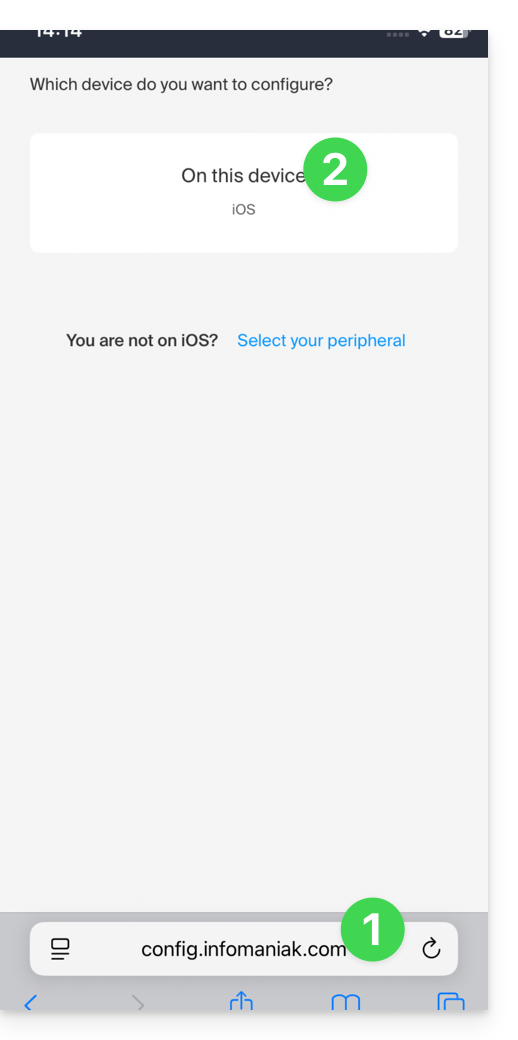
- Click here to access the Infomaniak configuration tool (online service https://config.infomaniak.com) — log in if necessary to your Infomaniak account for the Organization where your email address is managed.
- Choose to install the profile on this iOS device:
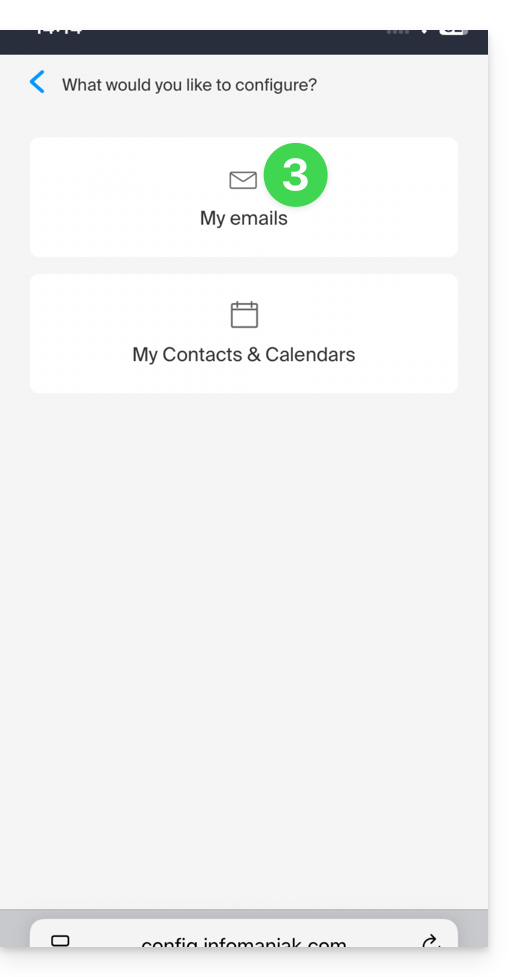
- Choose to synchronize emails:
- Choose the email address (from those already linked to your current user) that should be synchronized on your device:
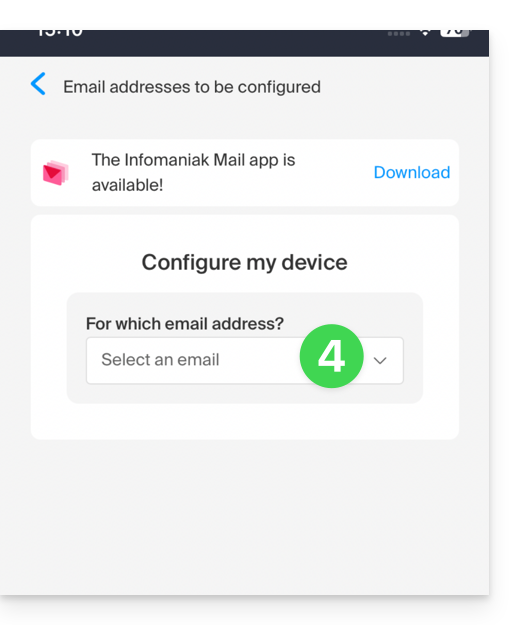
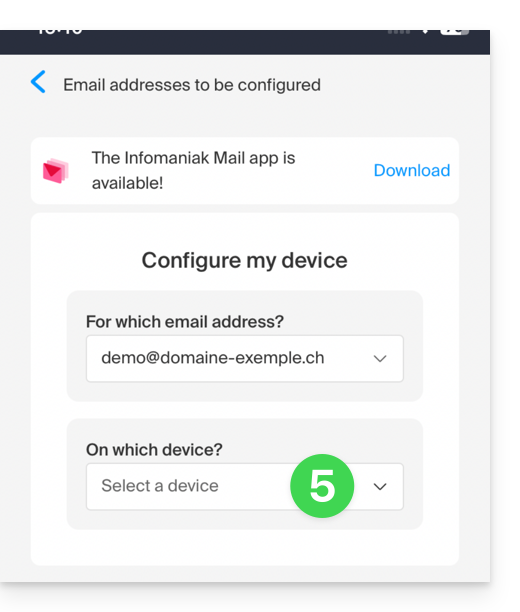
- Choose from the list of devices to enable synchronization on a new device (the one you are using):
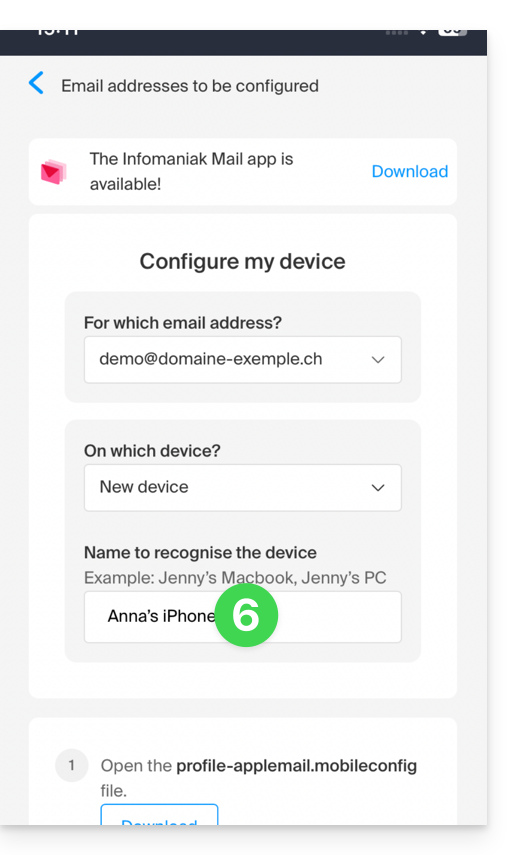
- The device name, which is purely descriptive, is adjusted accordingly, but you can modify it if necessary:
- Scroll down in the wizard and generate a password dedicated to email synchronization:
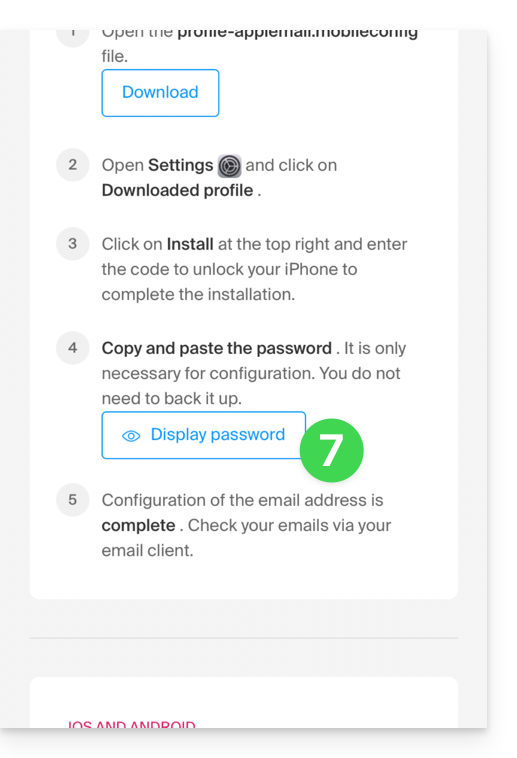
- Copy the generated password (you will be asked for it when installing the Apple profile).
- Download the Apple profile:
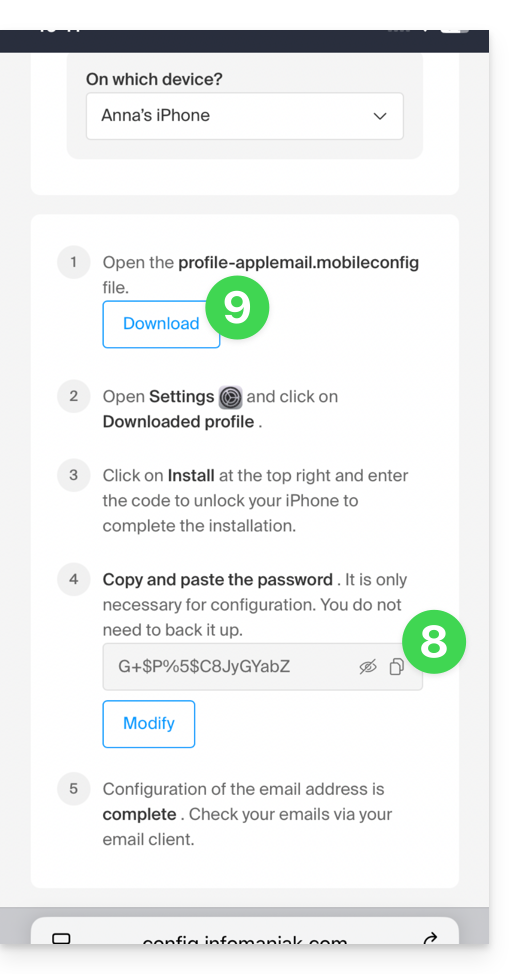
- Allow the download on the device:
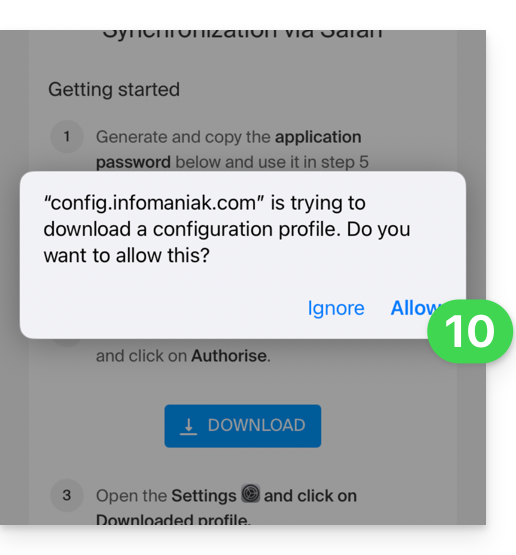
- Tap to close the message:
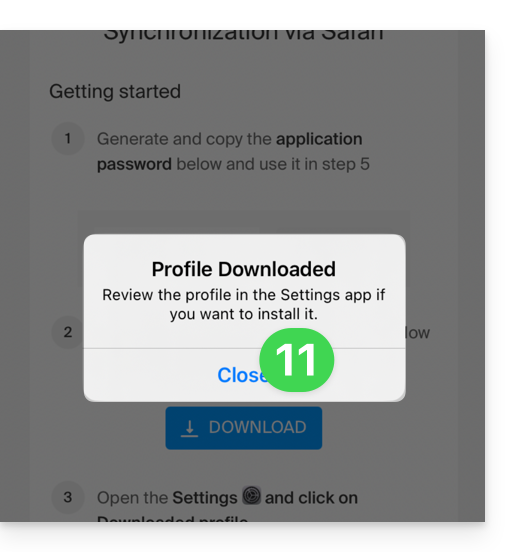
- Open the settings of your iOS device and tap on the banner at the top that informs you that a new profile has been downloaded:
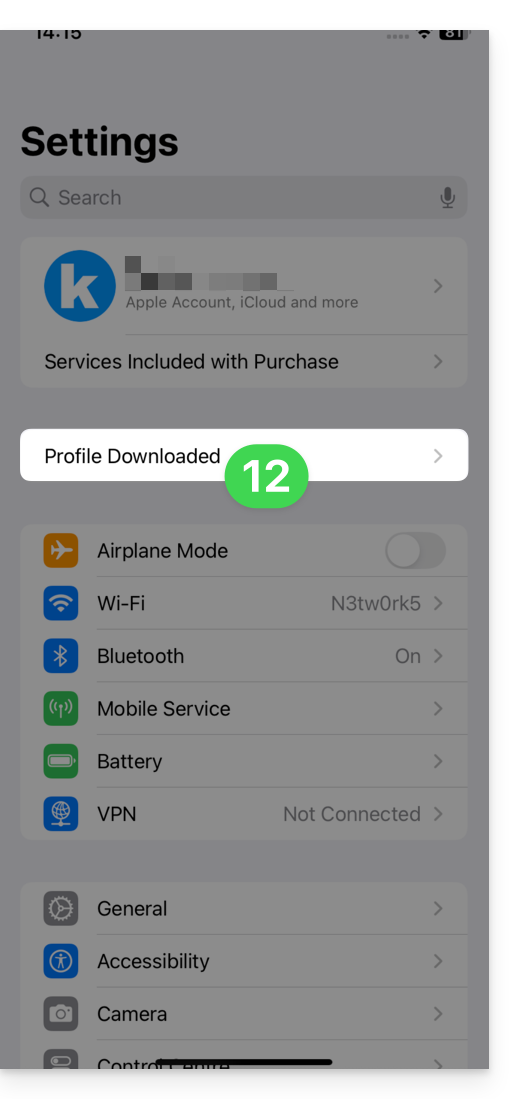
- Tap Install:
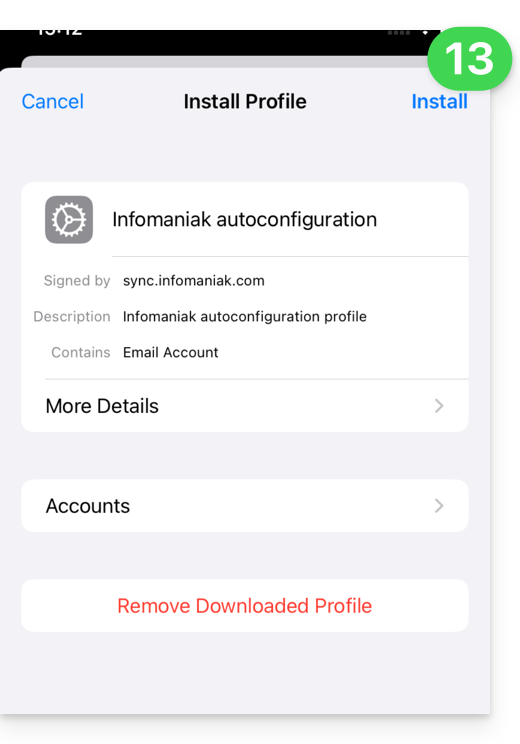
- Enter the code for your iOS device, as if you were unlocking it:
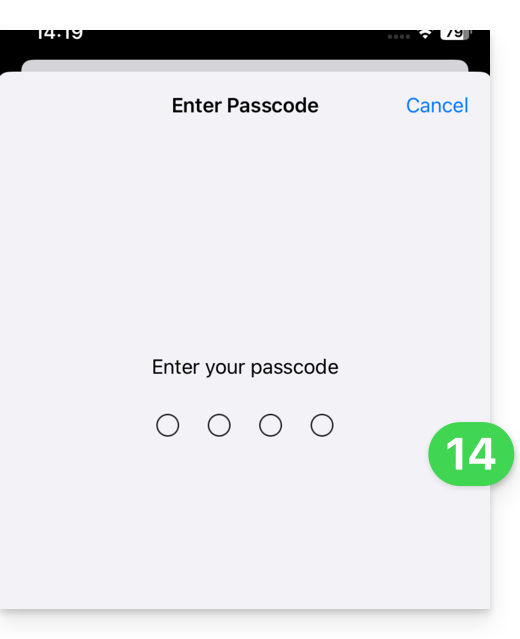
- Tap Install:
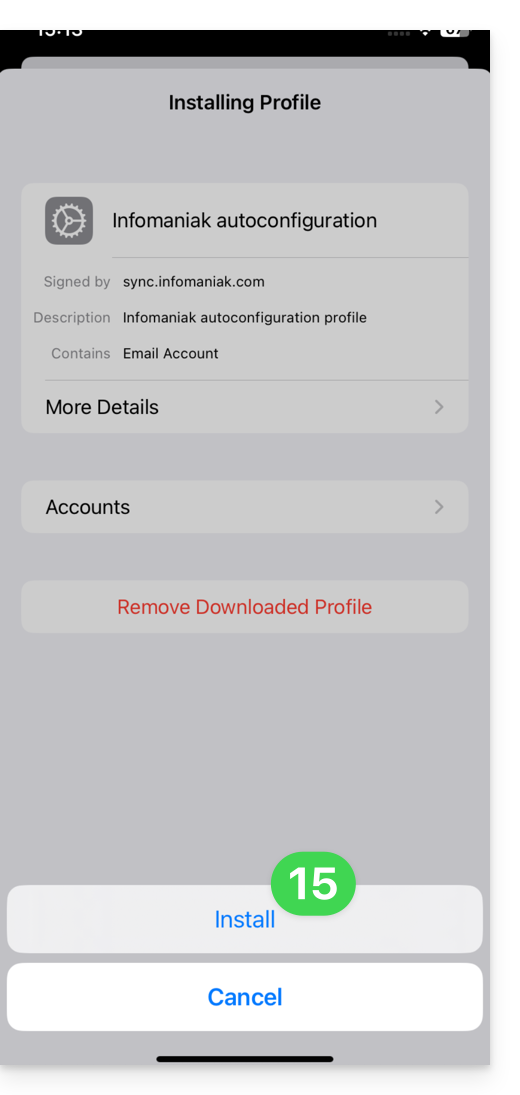
- Enter (or paste) the device password that you copied in step 8 above:
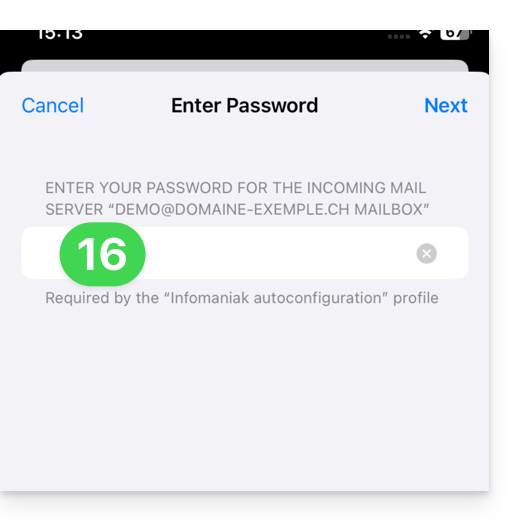
- When the message appears at the top, it's done:
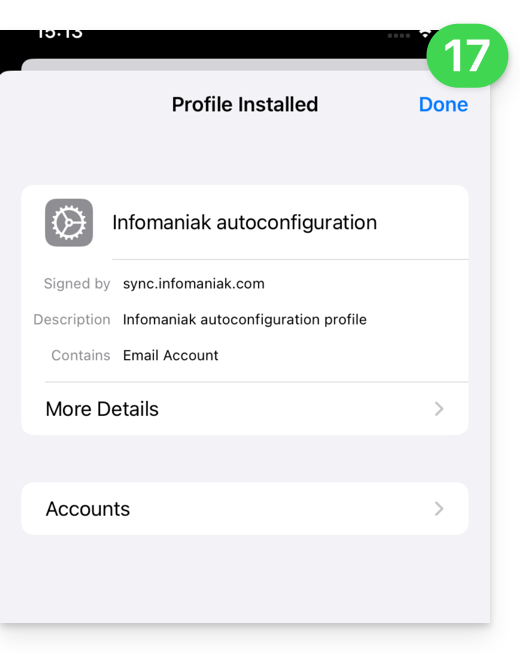
If your Apple Mail iOS app was already open, you need to restart it. You will then see the information added by the synchronization: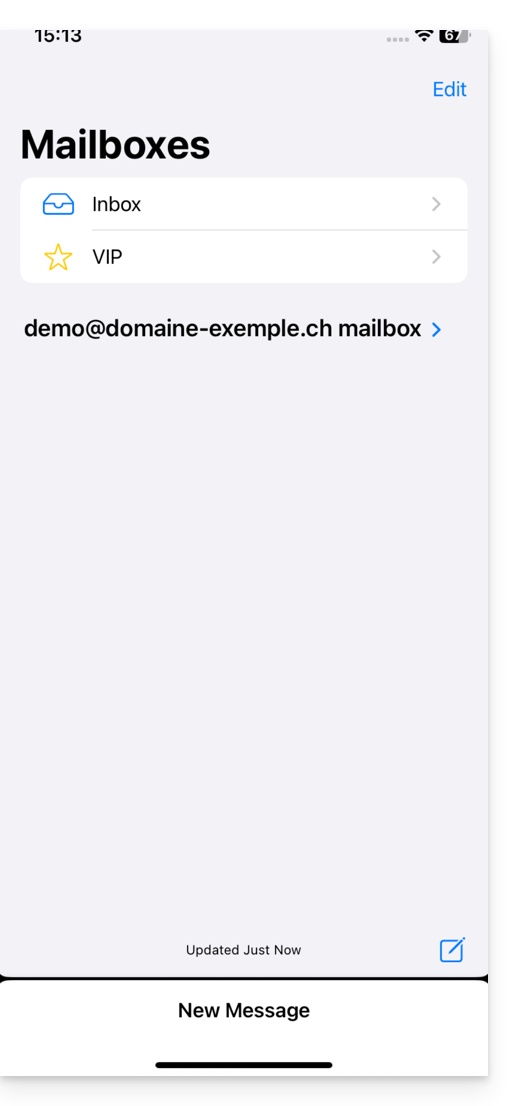
Remove an Apple profile
Refer to the official documentation, changing the version of your system at the top of the page * if necessary.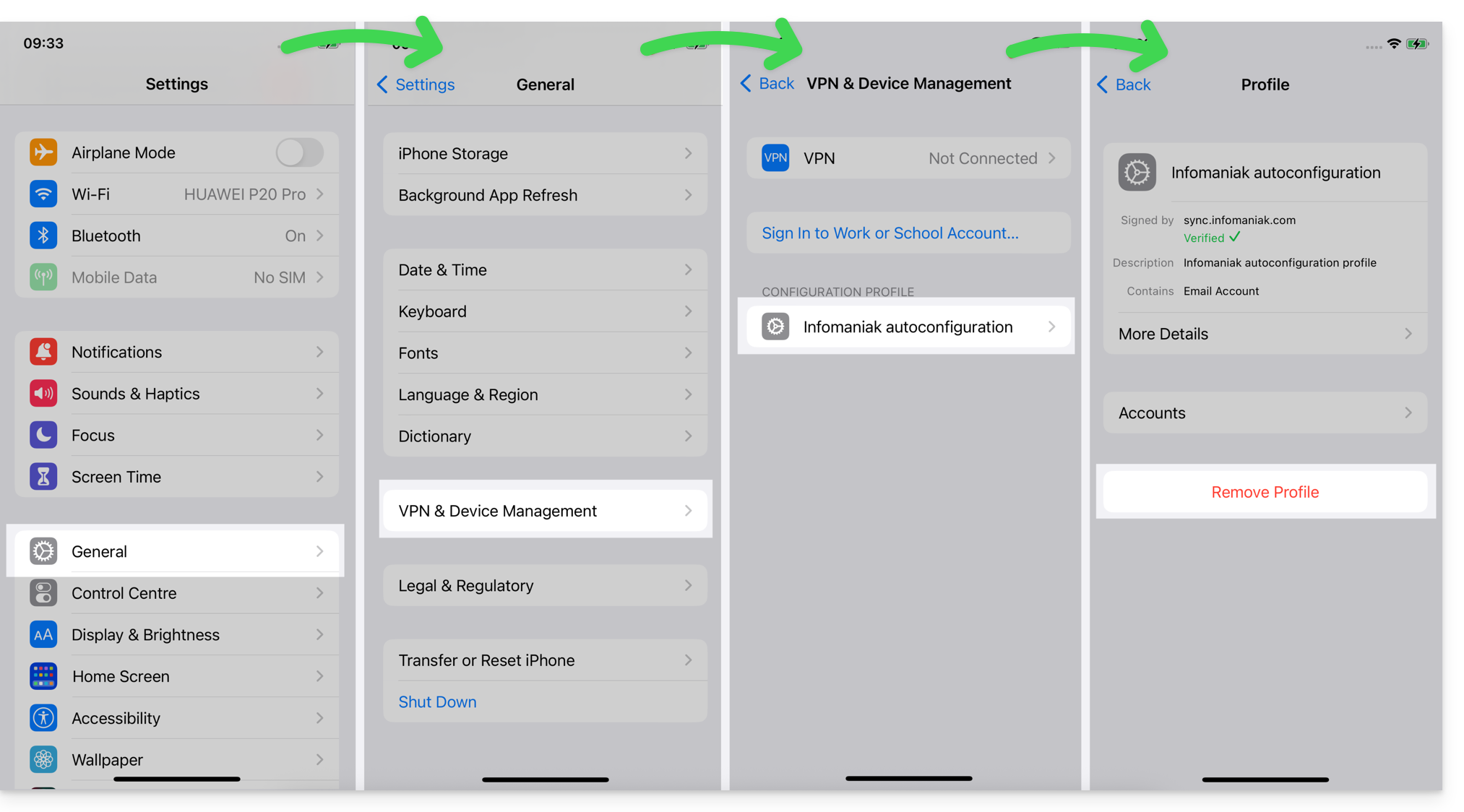
*Why is it necessary to choose the guide version that exactly matches your macOS/iOS system version? Apple introduces subtle changes with each new version of its system. For example, a path on iOS 15…
… becomes this on iOS 18…
Link to this FAQ: https://faq.infomaniak.com/1319
Has this FAQ been helpful?
This guide explains how to create and manage the passwords for an email address from within the Mail service, so that you can access it using a third-party application, such as Outlook or Thunderbird.
Other access and management options are presented in the main guide. If you are a my kSuite user, please refer to this other guide.
Prerequisites
- Order a Mail Service from Infomaniak.
- Create one or more addresses on this Mail service.
- Have at least the right to manage the Mail service in question (or be Administrator / Legal Representative within the Organization).
Generate an email address password
To add a password to the example address demonstration@exemple-domaine.ch:
- Enter your Infomaniak account login ID and password on the page https://manager.infomaniak.com/:
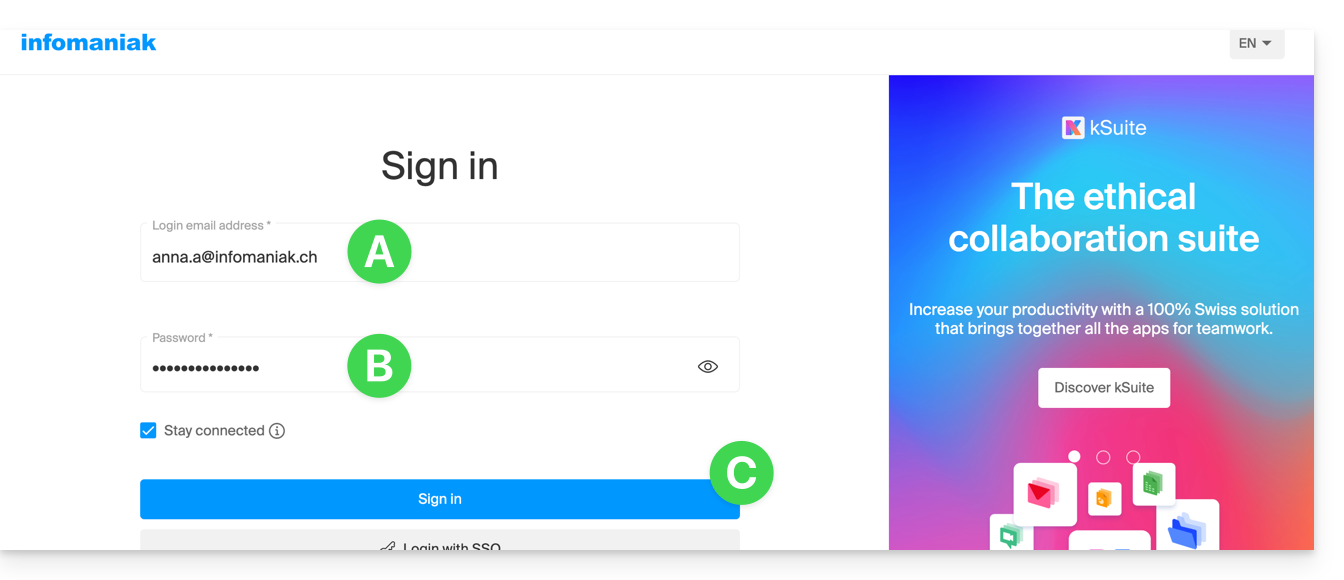
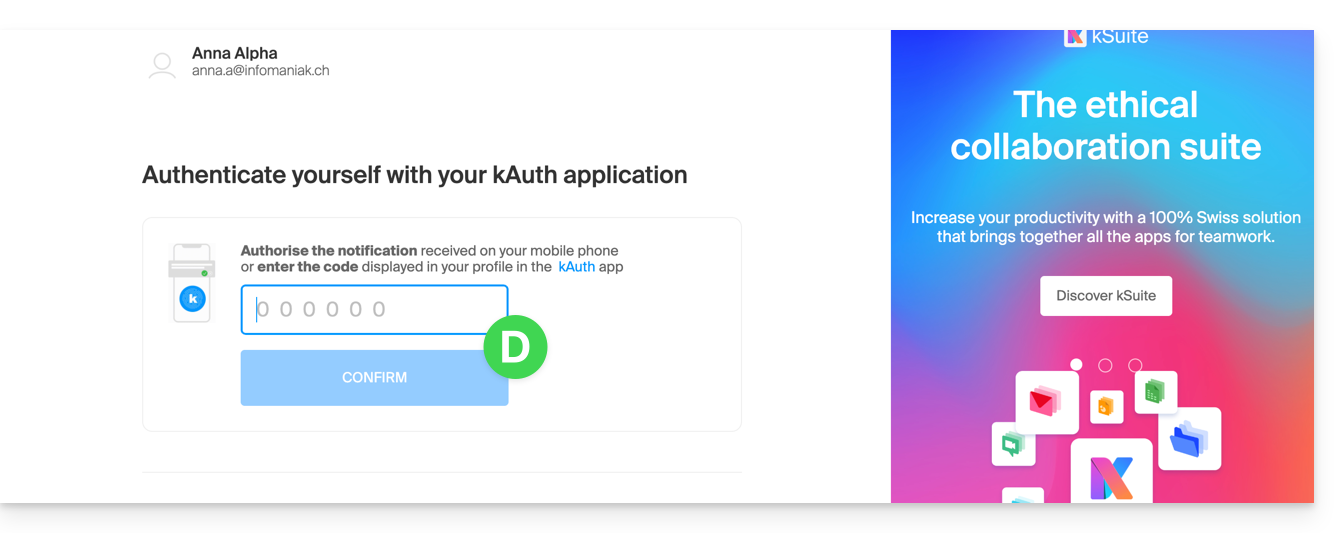
- Confirm the login on the Manager using the 2FA (two-factor authentication) method that you initially set up:
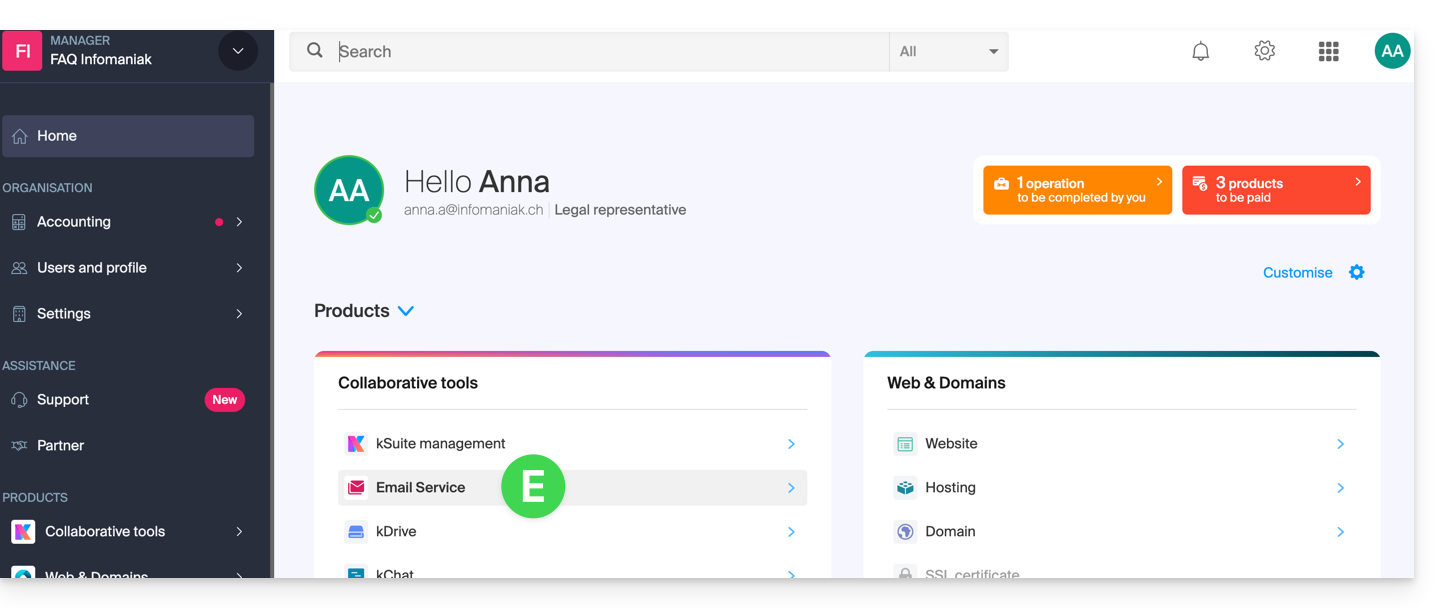
- Once on the dashboard, click on Mail Service:
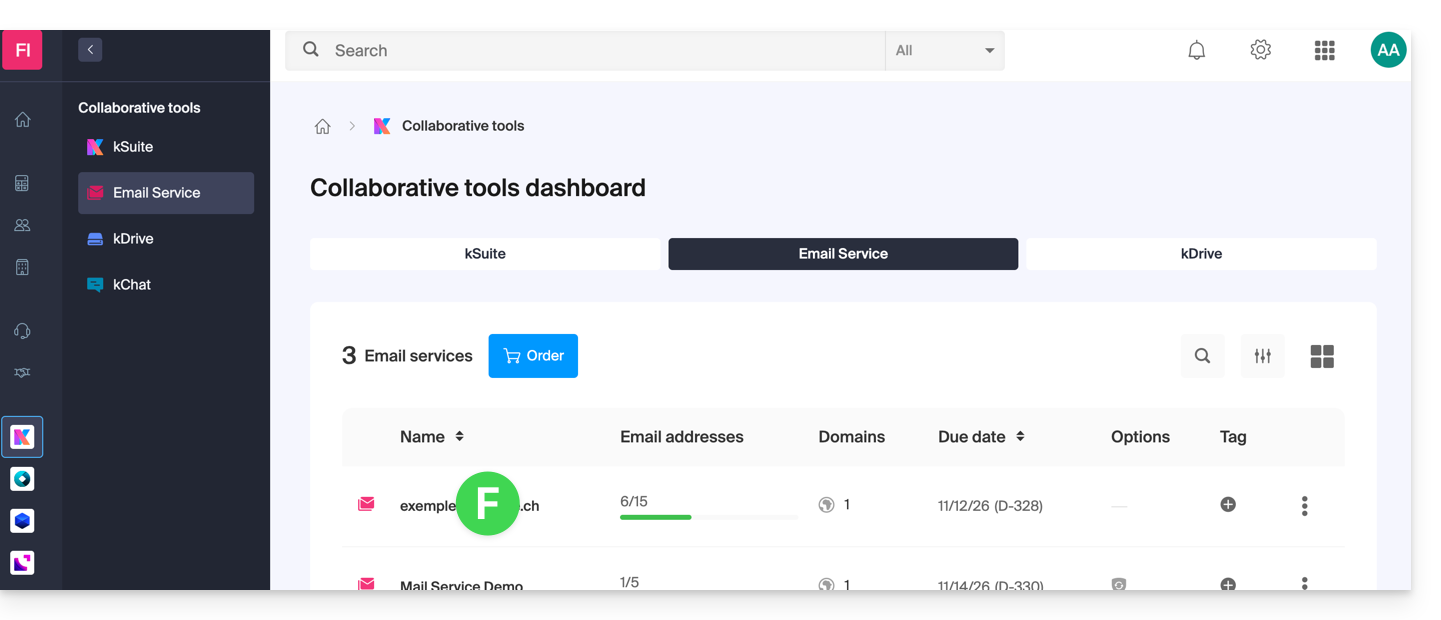
- Once on your Mail Services page, click on the name / domain name to which the email address in question belongs:
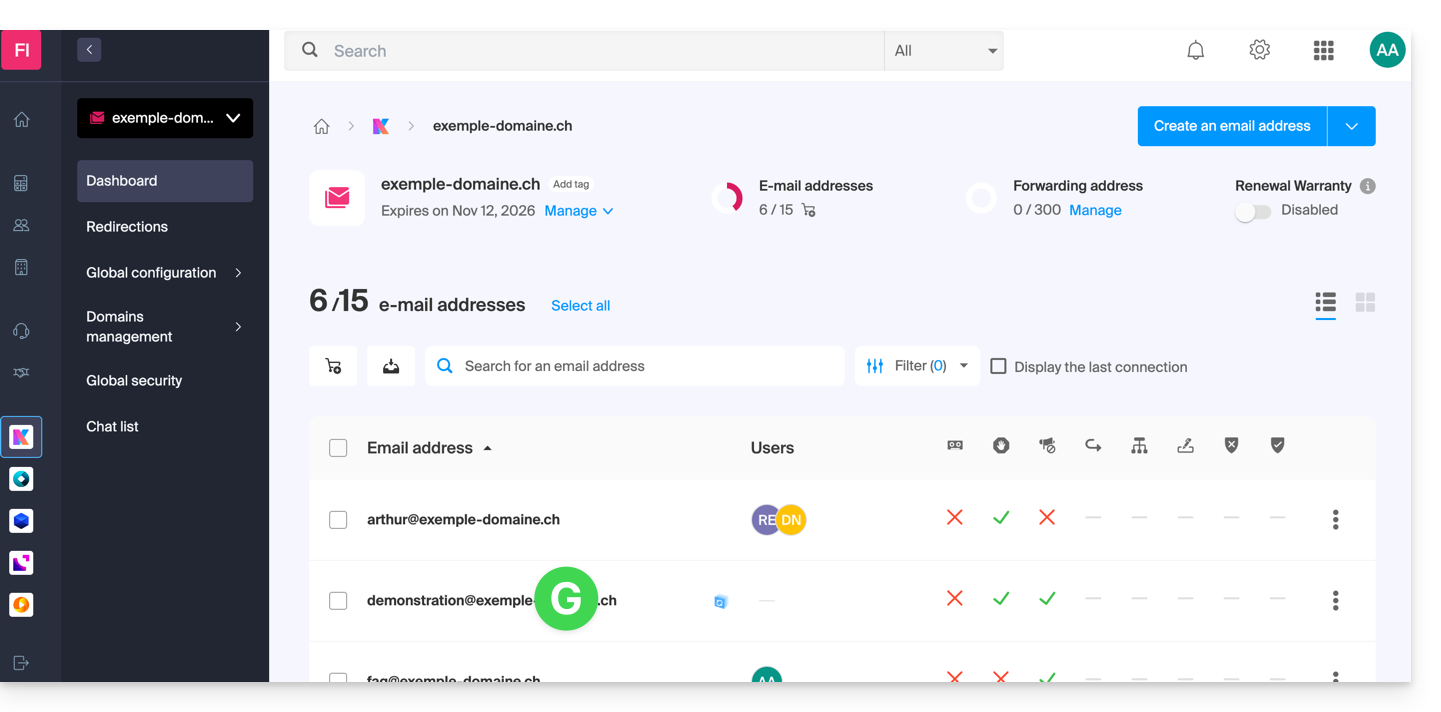
- Once you are on the Mail service to which the address belongs, click on the email address in question:
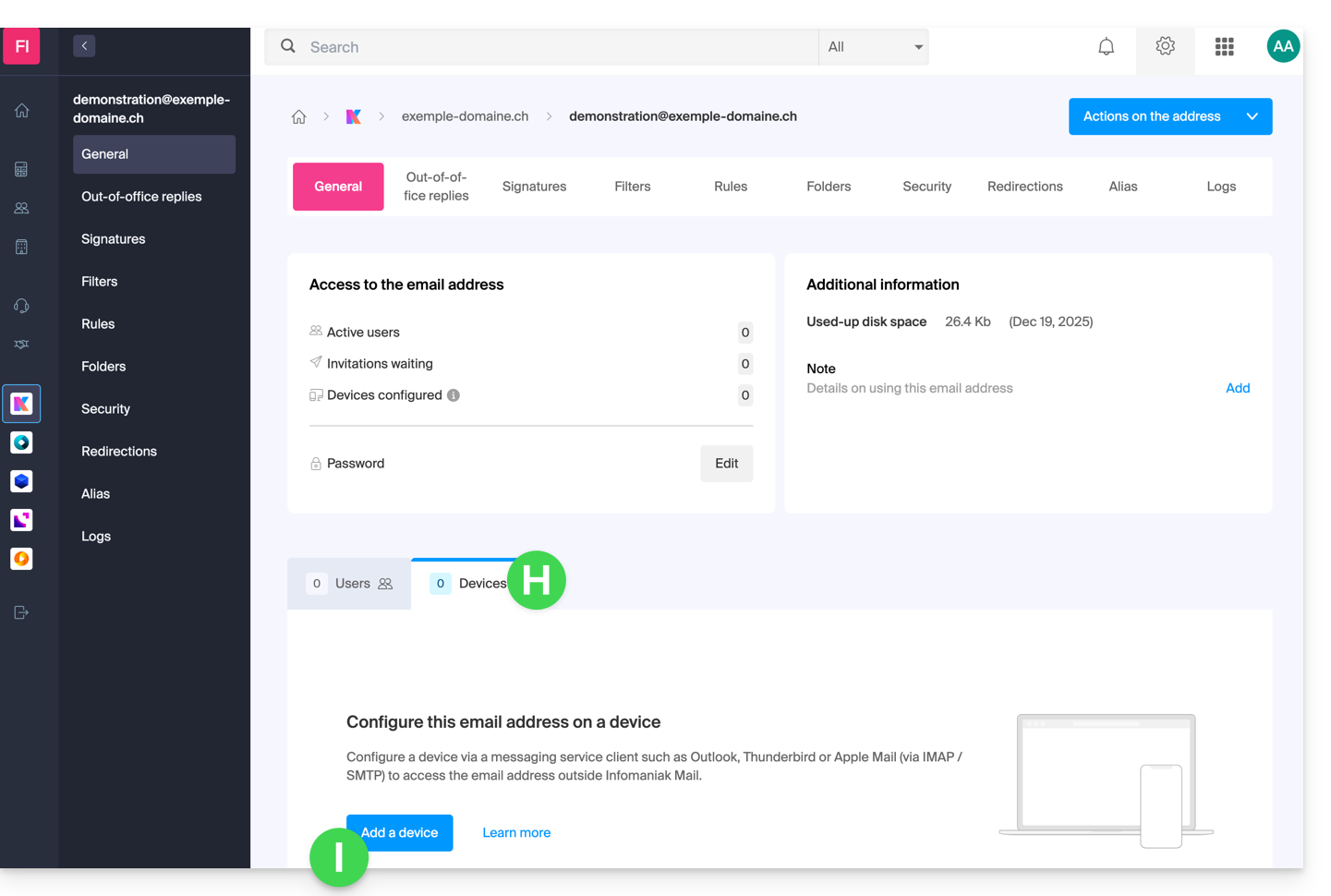
- Once you are on the email address in question, click on the Devices tab, then click on Add a device:
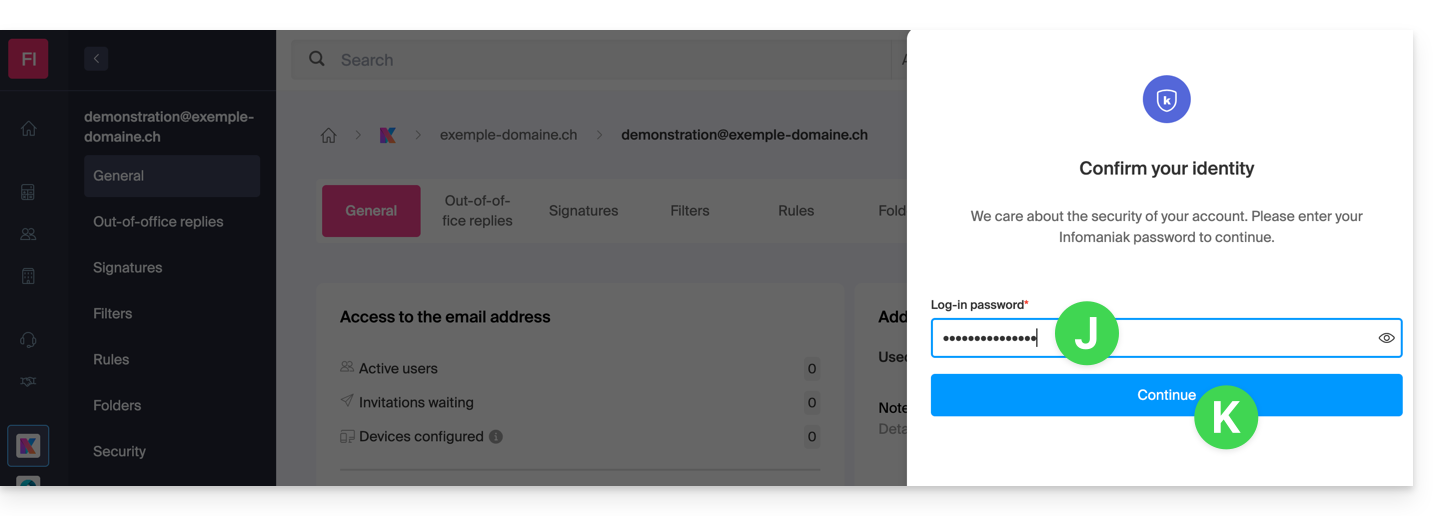
- At this stage, it may be necessary to re-enter the login password (the one from step B above):
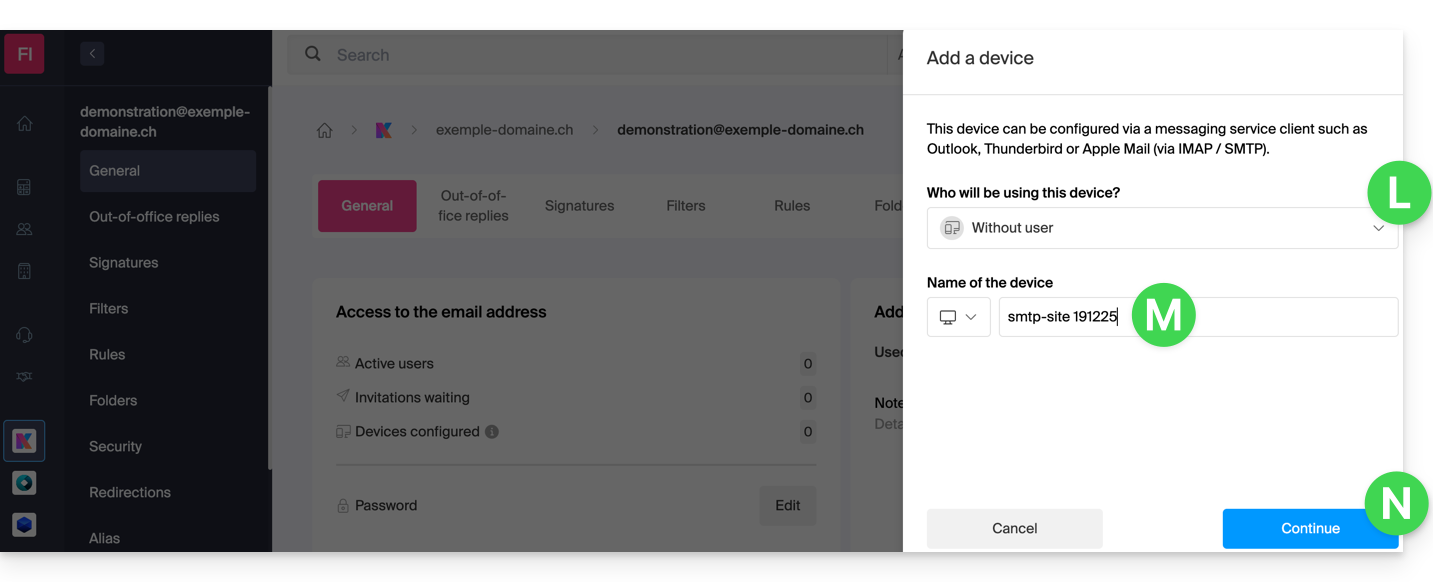
- Then, choose not to specify a particular user ("No user").
- Specifying a user, however, allows you to link any potential SMTP restriction for that user to their connected devices, in addition to simply removing their sending rights within the Infomaniak ecosystem.
- Enter a descriptive name that will help you identify the reason why you created this device(here, the user needs a password to be able to send emails from a website, and they add the current date as useful information):
- There you go: the new password is displayed, and you can change the characters (minimum 16) if necessary.Please note that it will not be possible to display it again later.).
- Save it at the bottom of the page to use it as you see fit:
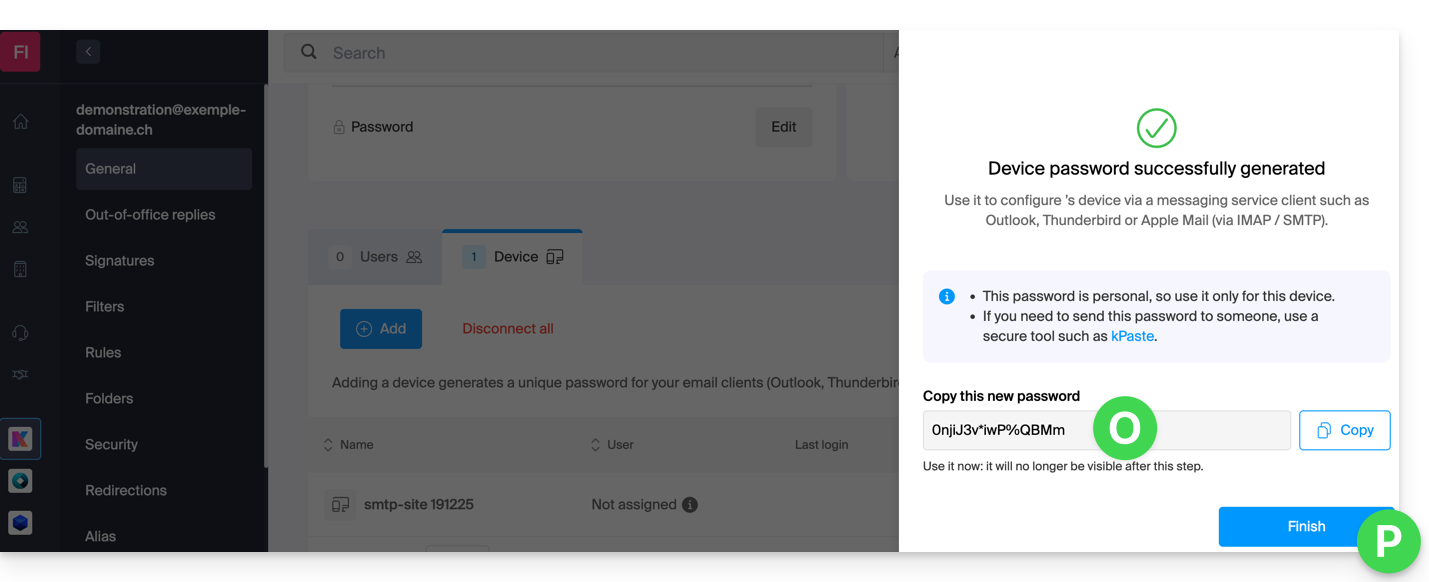
Did you click the “Finish” button (above, “P”) without noting the password? No problem, you can modify or regenerate a new one!
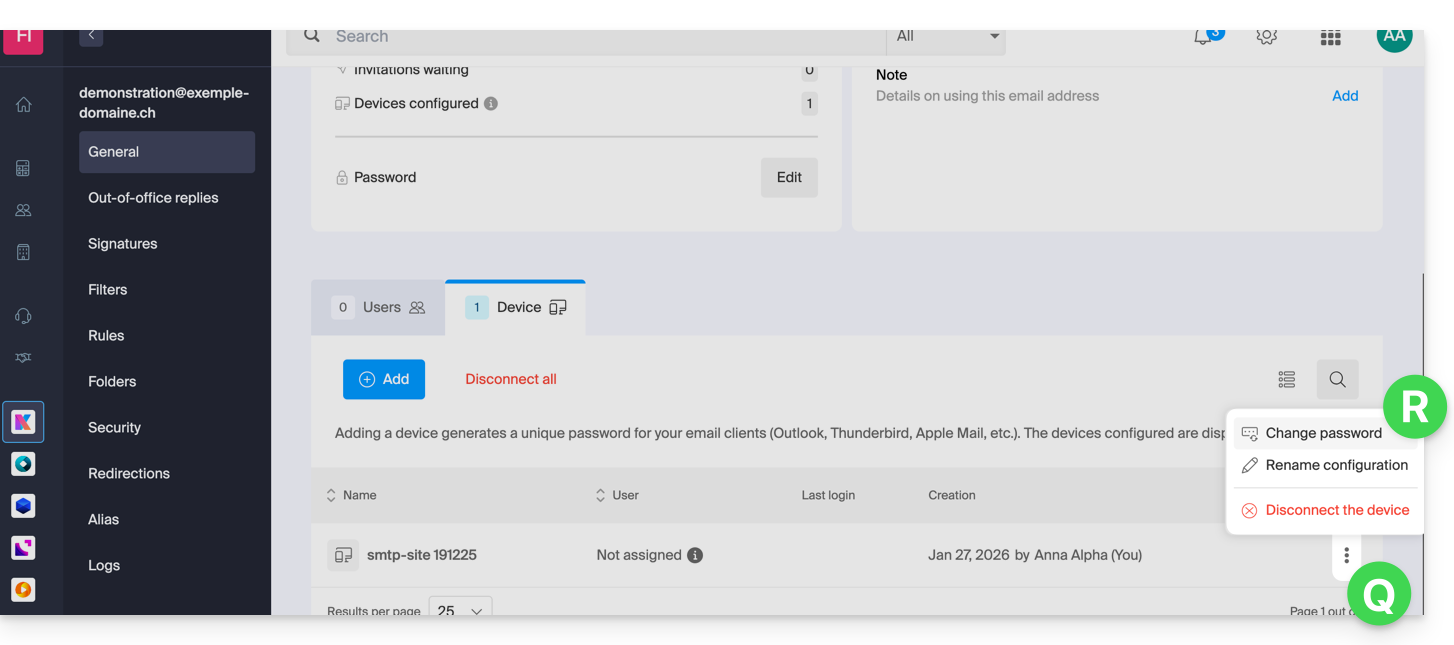
- Click on the action menu ⋮ located to the right of the device you just created and click on Change password:
- Click the button on the far right of the field to generate a new random password and/or enter the secure characters you want to use (minimum 16) for the new password, then click the button to save the change:
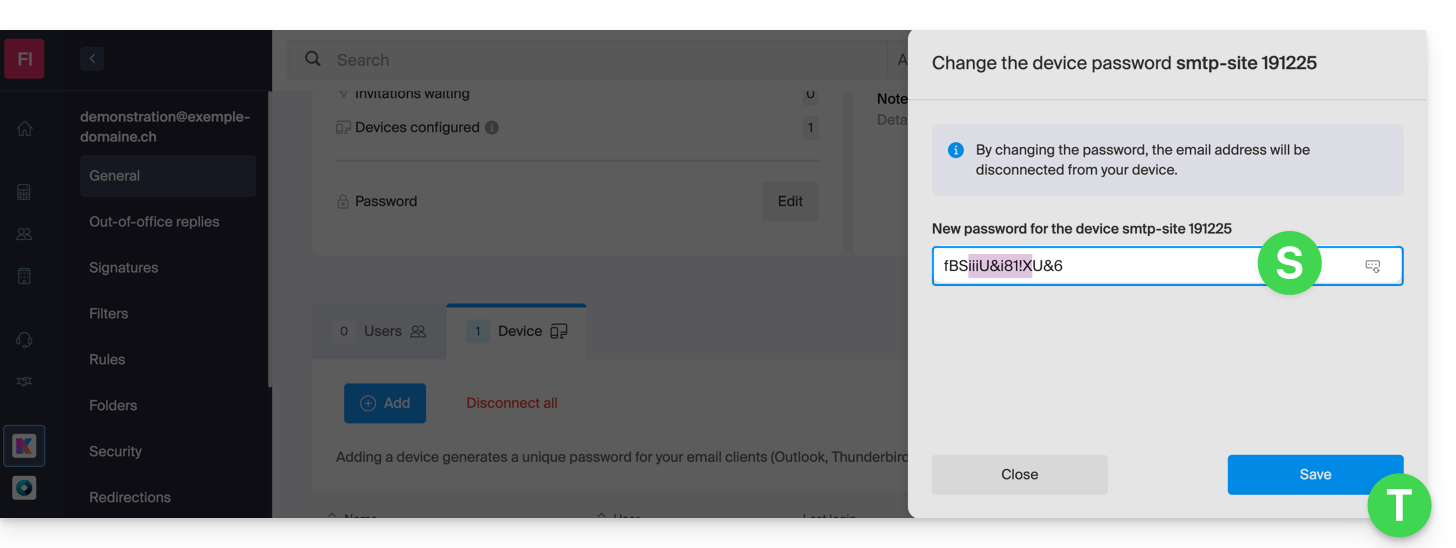
- The new password, which replaces the old one, is now displayed permanently. You can enter it on your device(s) to replace the previous password (note that it will not be possible to display it again later).
Do you need a password for a secondary, temporary user? No problem, generate a second one!
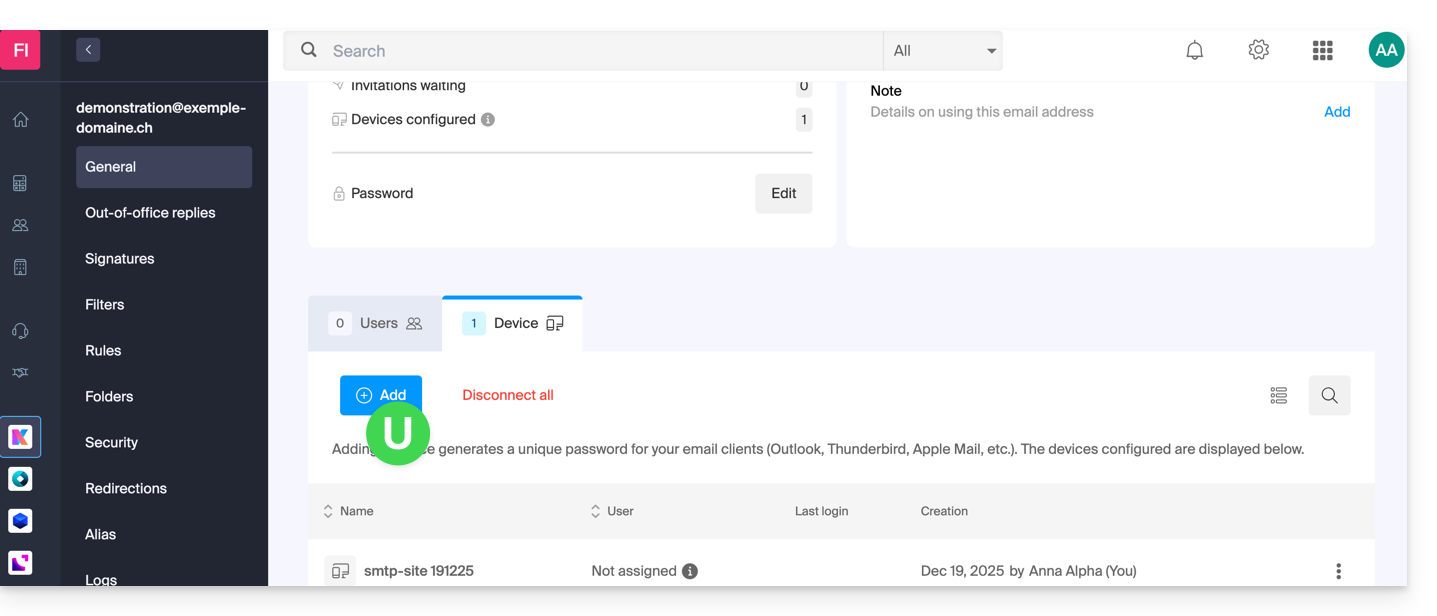
- Click the button to Add a new additional device:
- Then, choose not to specify a particular user, and enter a name that will allow you to identify the reason why you created this device (here, the user needs a password for a one-week intern):
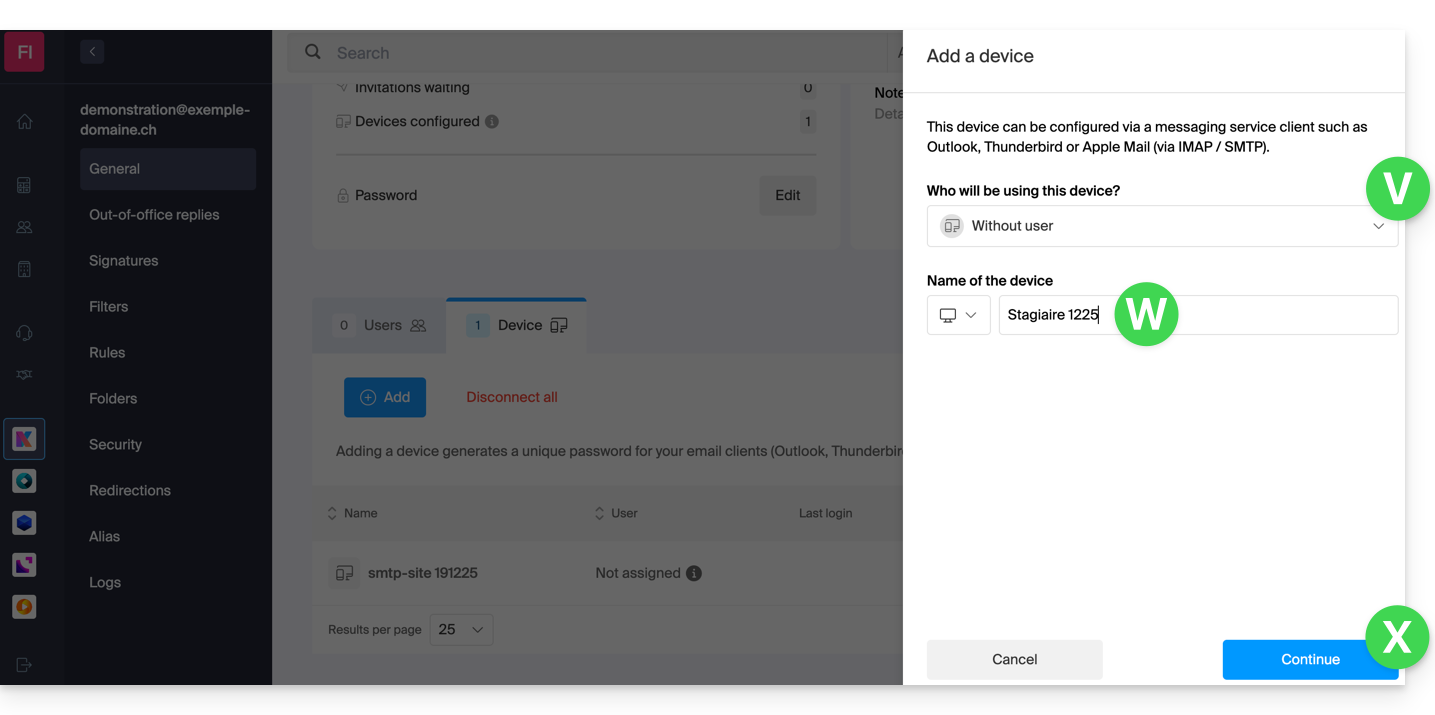
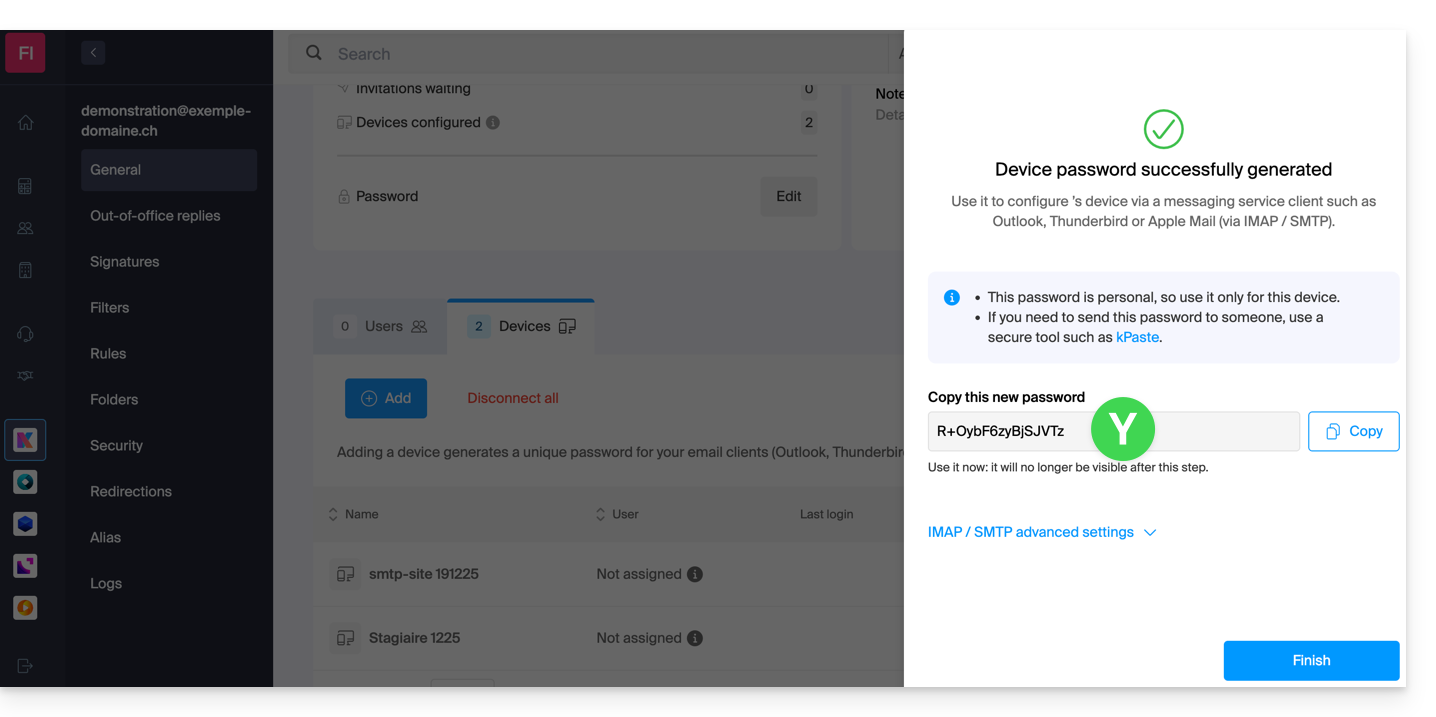
- The password is now displayed; you can use it for your intended purpose (please note that it will not be possible to display it again; however, as before, it will of course be possible to modify it or generate a new one):
Alternative: create a password for a user
Instead of creating a password yourself and then having to communicate it to the user, you can directly allow a user with fewer permissions than you to obtain the password for the device they need:
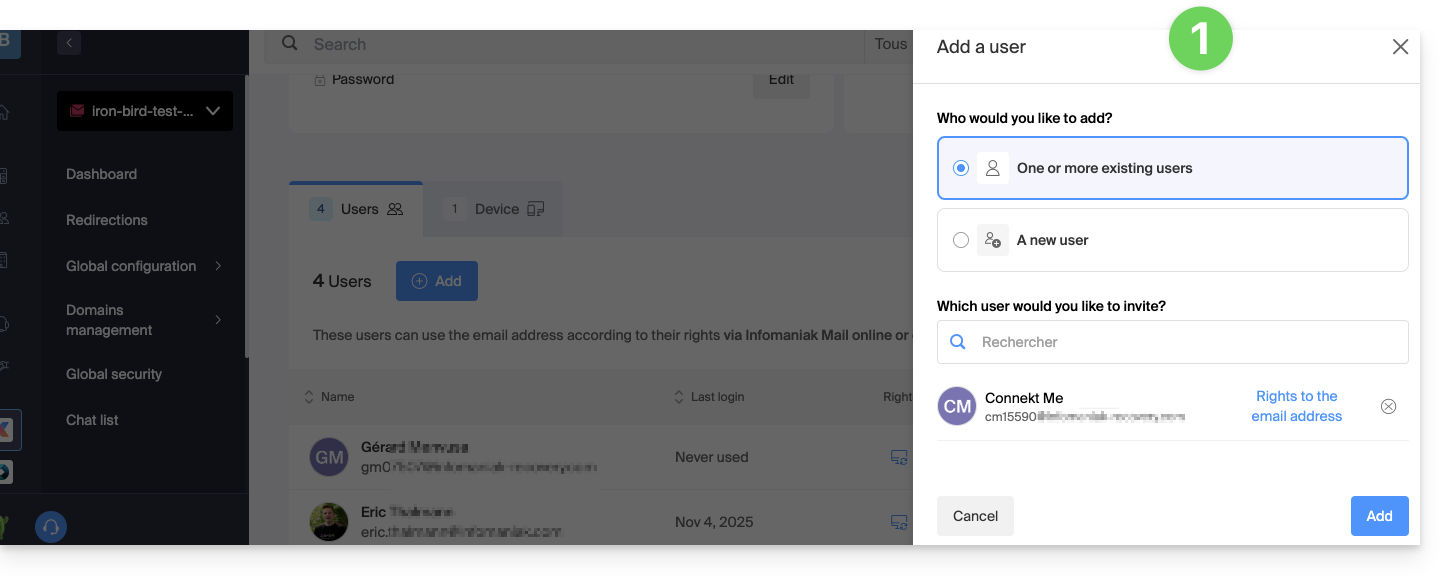
- Add the new user (whether they already exist in the Organization or not) as described in this other guide:
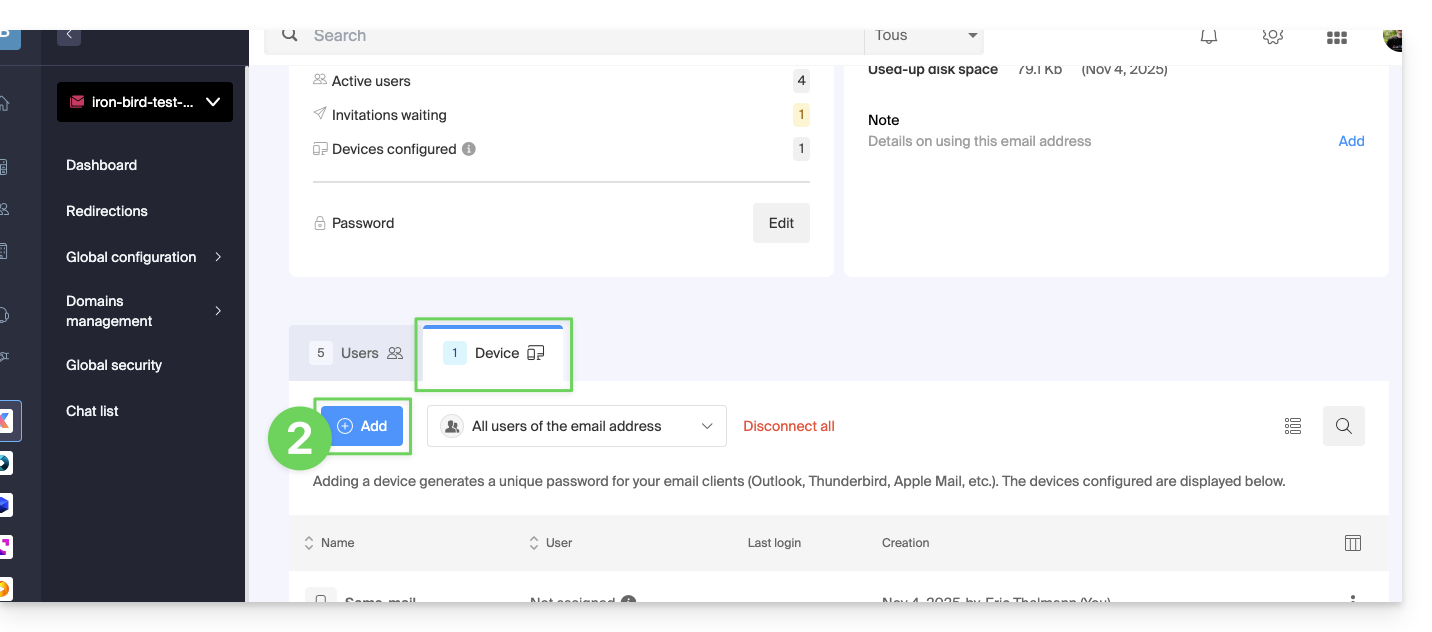
- Once the user has been added, switch to the devices tab to add a new device:
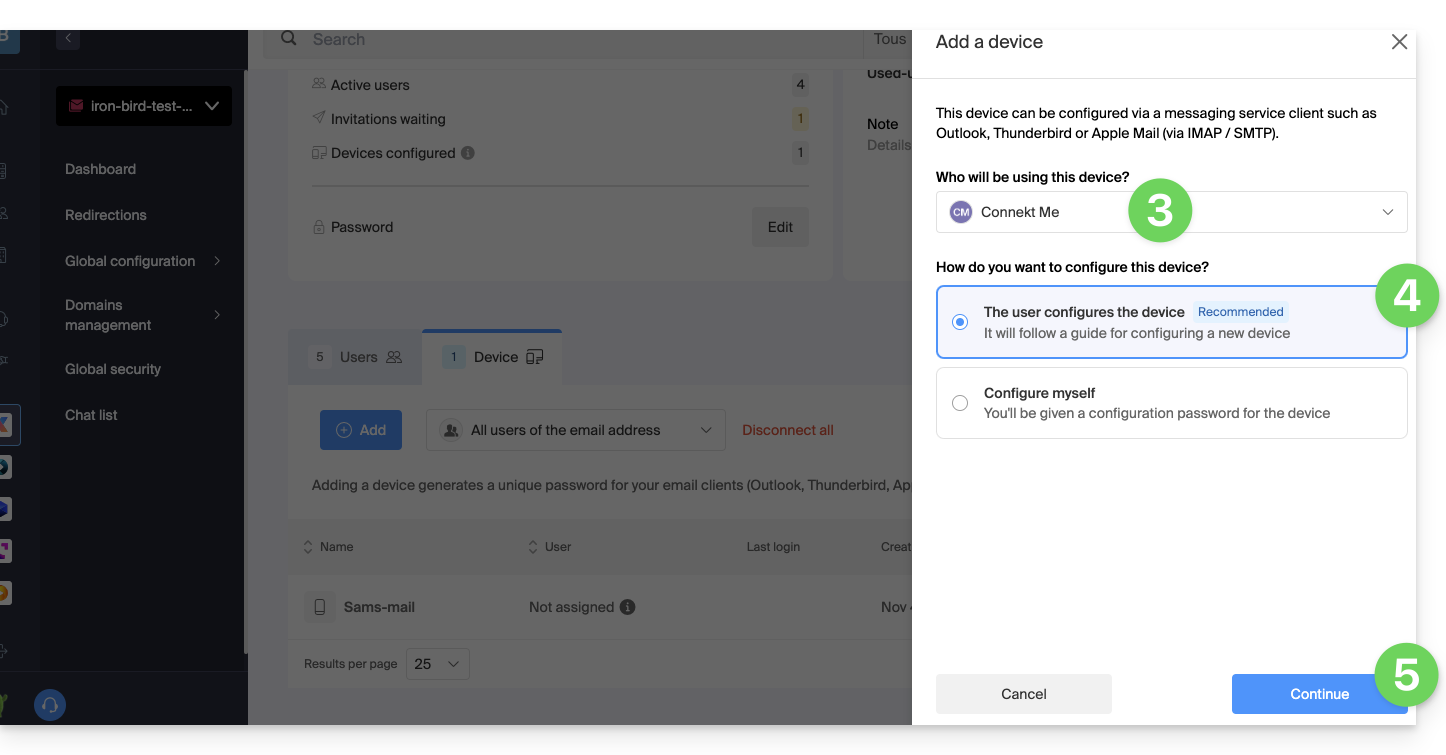
- If necessary, enter the password to log in to your Infomaniak account, then select the user created in step 1.
- Click on the first option to send a configuration assistant for the user's device.
- Click on the Continue button:
- Copy the invitation link, which is valid for 30 days, and send it to the user.
- If necessary, send the invitation to the user's email address:
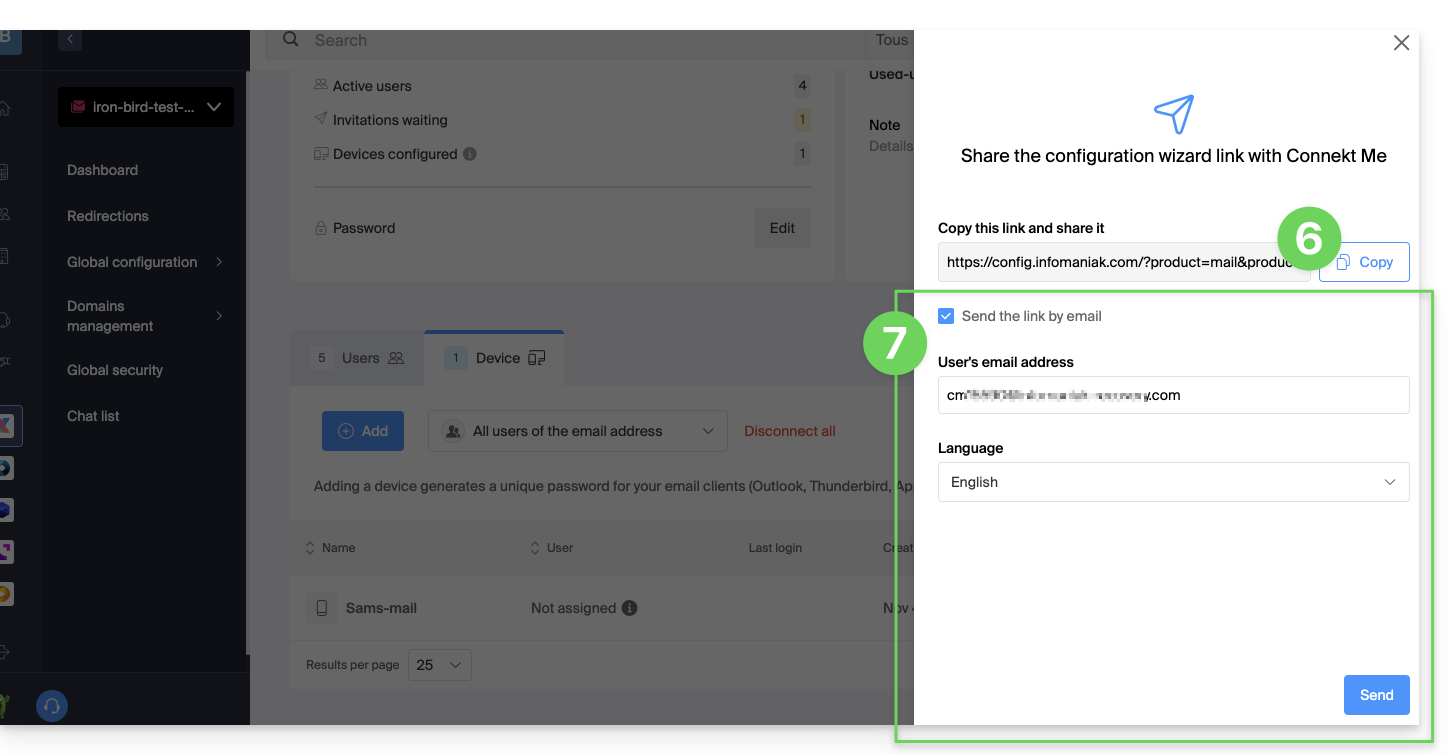
In step 4 above, you can also choose to generate a password:
- The password you created will be displayed; you can modify it one last time, copy it, and store it securely (e.g., in a password manager); it will no longer be possible to display it afterward.
Modify or remove an existing password
When access is no longer needed, revoke only the password in question: other access to the email address will remain active.
Link to this FAQ: https://faq.infomaniak.com/1321
Has this FAQ been helpful?
This guide details the room booking feature (for meeting rooms, sports facilities, classrooms, etc.) available in the Infomaniak Web app Calendar (online service ksuite.infomaniak.com/calendar).
✘ NOT AVAILABLE with
my kSuite / my kSuite+ (ik.me, etik.com, ikmail.com)
Mail service Starter / Premium
Introduction
- You can create and associate physical meeting rooms with events in Calendar, for example, to organize an event in a specific location that has equipment and a limited number of seats.
- Each created room displays a dedicated calendar in the app, which can be shared (❓: help).
- Double (or multiple) room bookings are possible.
- Number of possible rooms per resource:
- kSuite Free = 1
- kSuite Standard = 2
- kSuite Business = 6
- kSuite Enterprise = 50
Configure meeting rooms
Prerequisites
- You must be an Administrator or Legal Representative within the Organization (❓: help).
- Users with limited rights (collaborators and clients) who have access to this product will not be able to do so.
To create rooms that can be booked by collaborators:
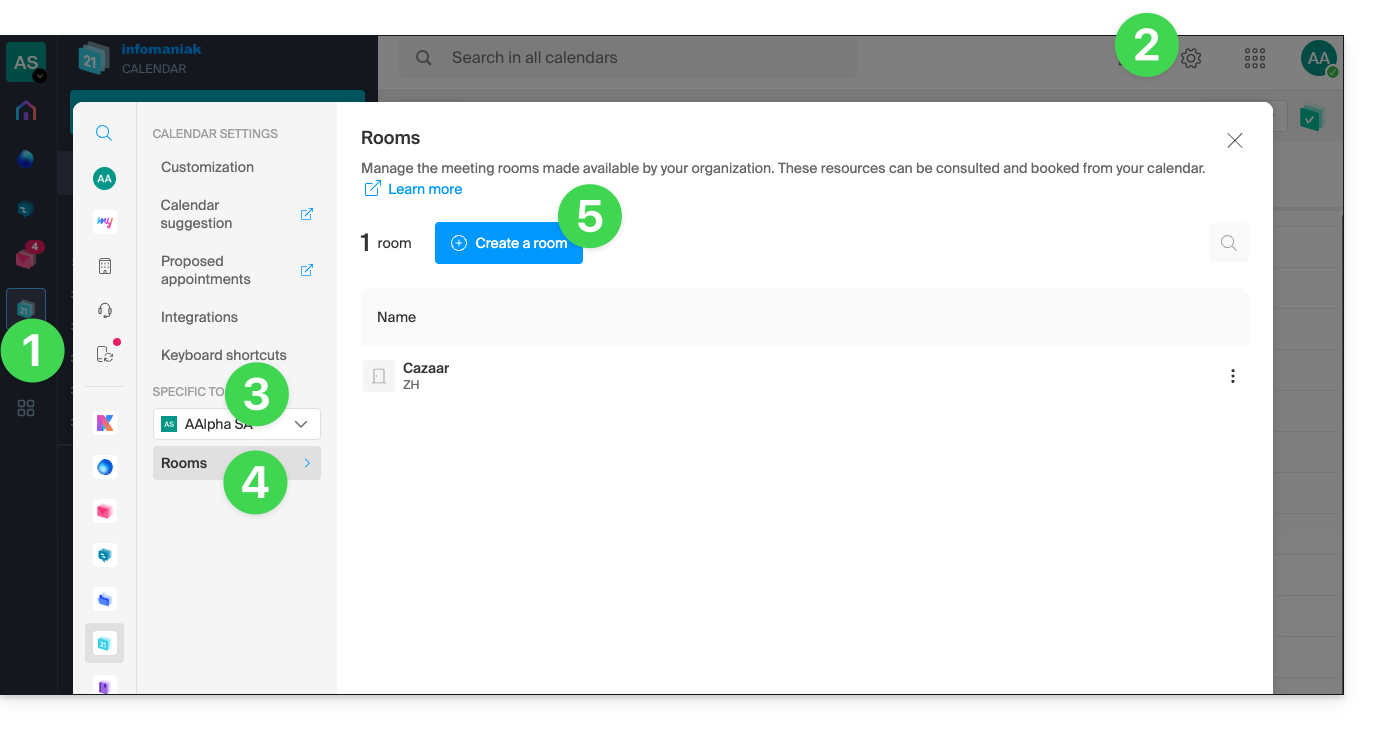
- Click here to access the Infomaniak Calendar web app (online service ksuite.infomaniak.com/calendar).
- Click on the Settings icon in the top right corner.
- Check or select the relevant Organization from the dropdown menu in the left-hand sidebar.
- Click on Rooms in the left-hand sidebar.
- Click on the Create a room button:
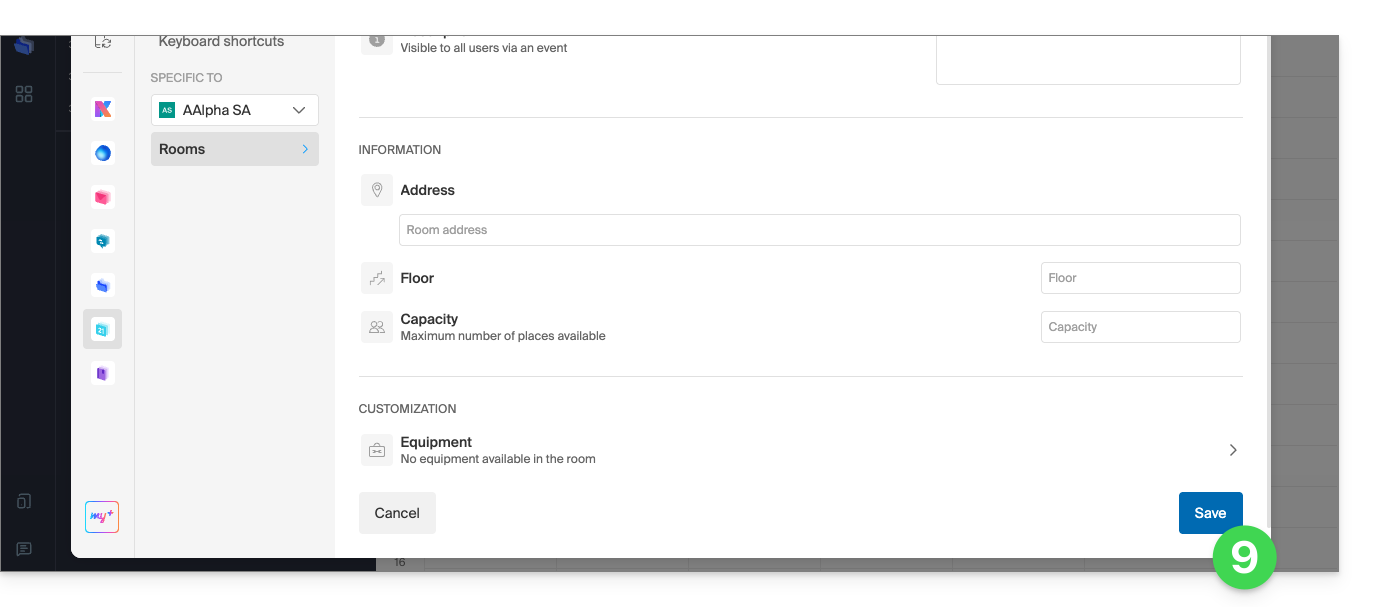
- Enter the essential information such as the name, precise location (full address, floor), a color, and the maximum number of people that can be accommodated:
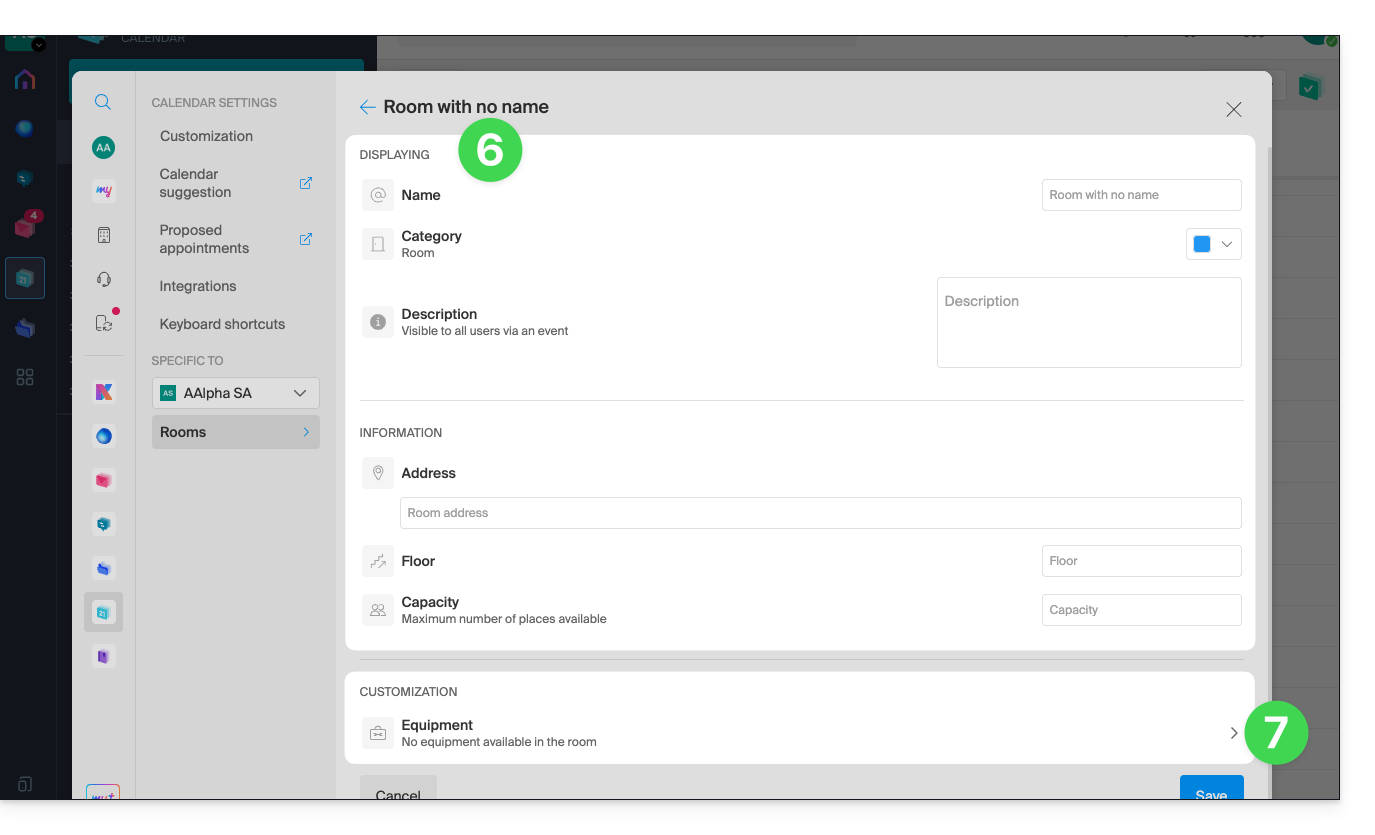
- Add any equipment available in the room and on the floor in question.
- Click Save to save the equipment associated with the room:
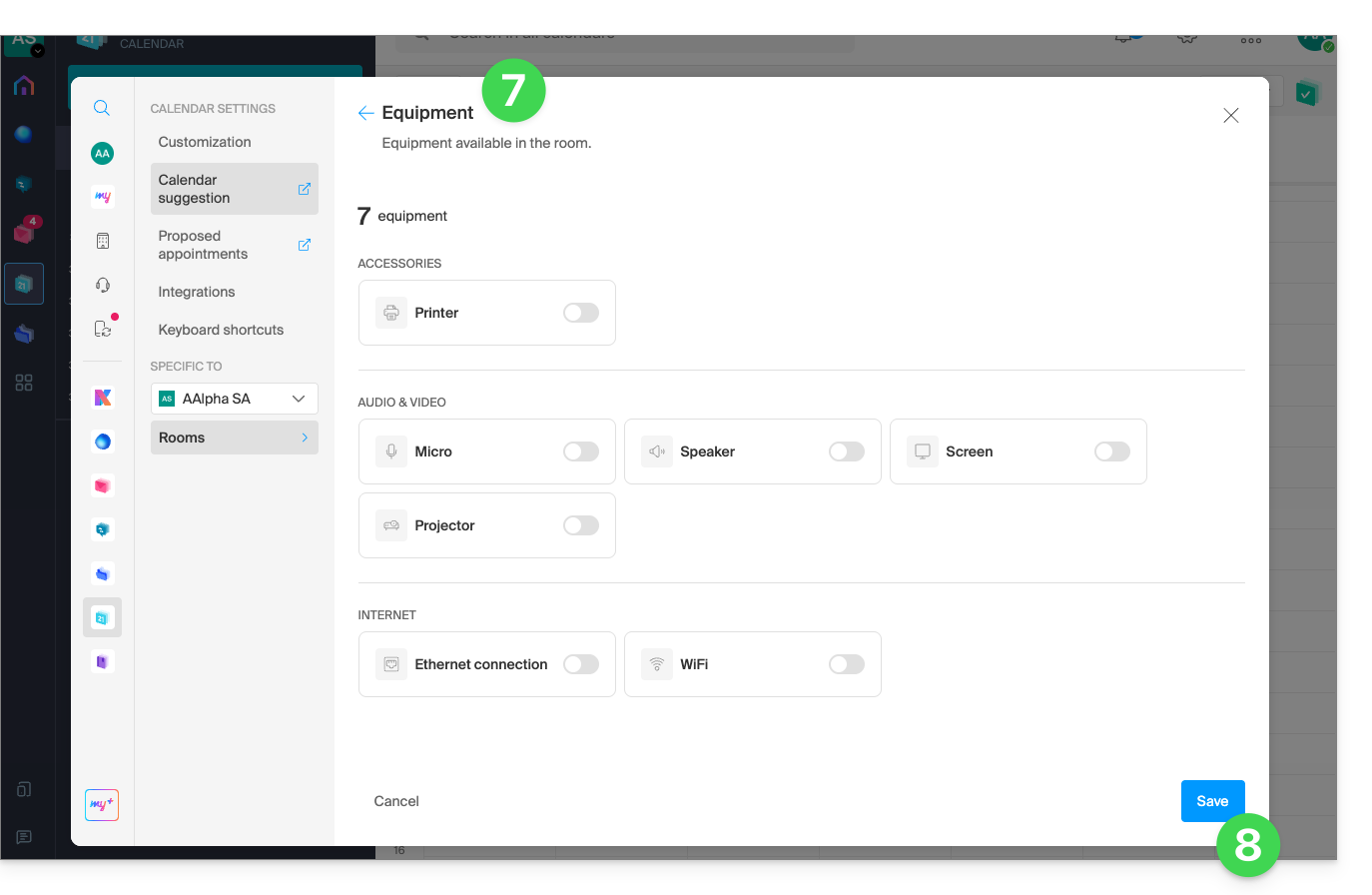
- Click Save to create the meeting room:
Actions on the created room
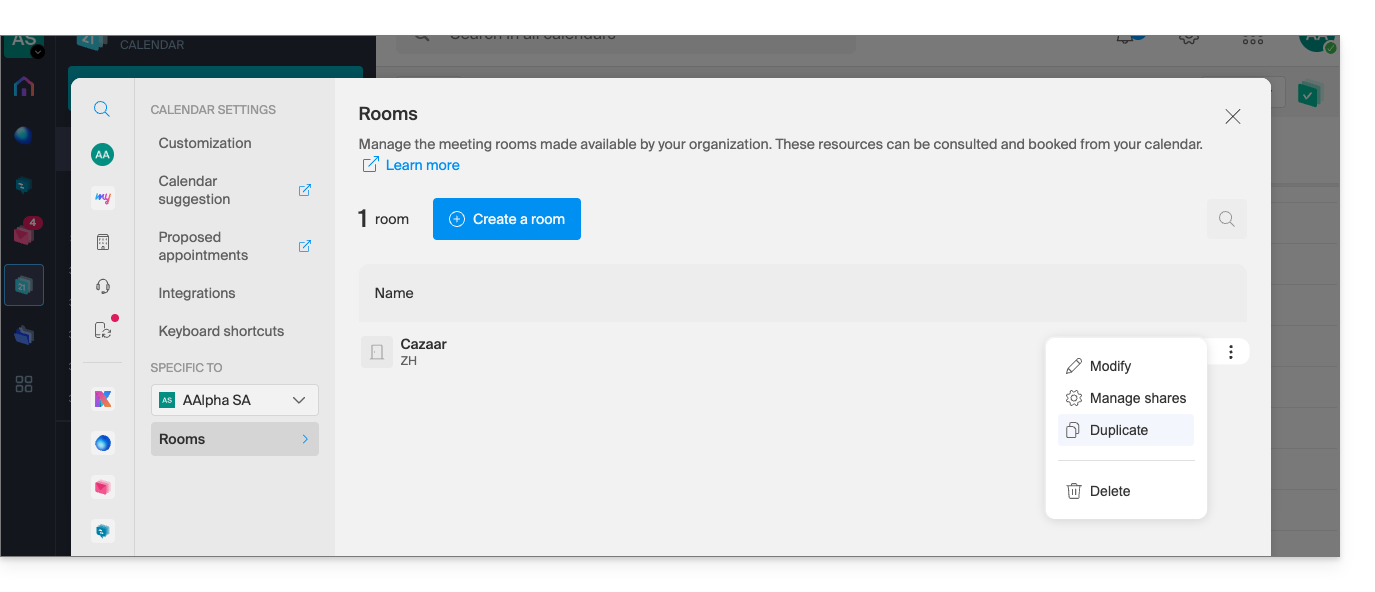
If you have several similar rooms, you can speed up their creation by duplicating the first one:
- Click on the action menu ⋮ to the right of the room in question in the table that appears:
Create an event and associate it with a room
Once the room has been created and configured, simply create an event to associate it with the desired room:
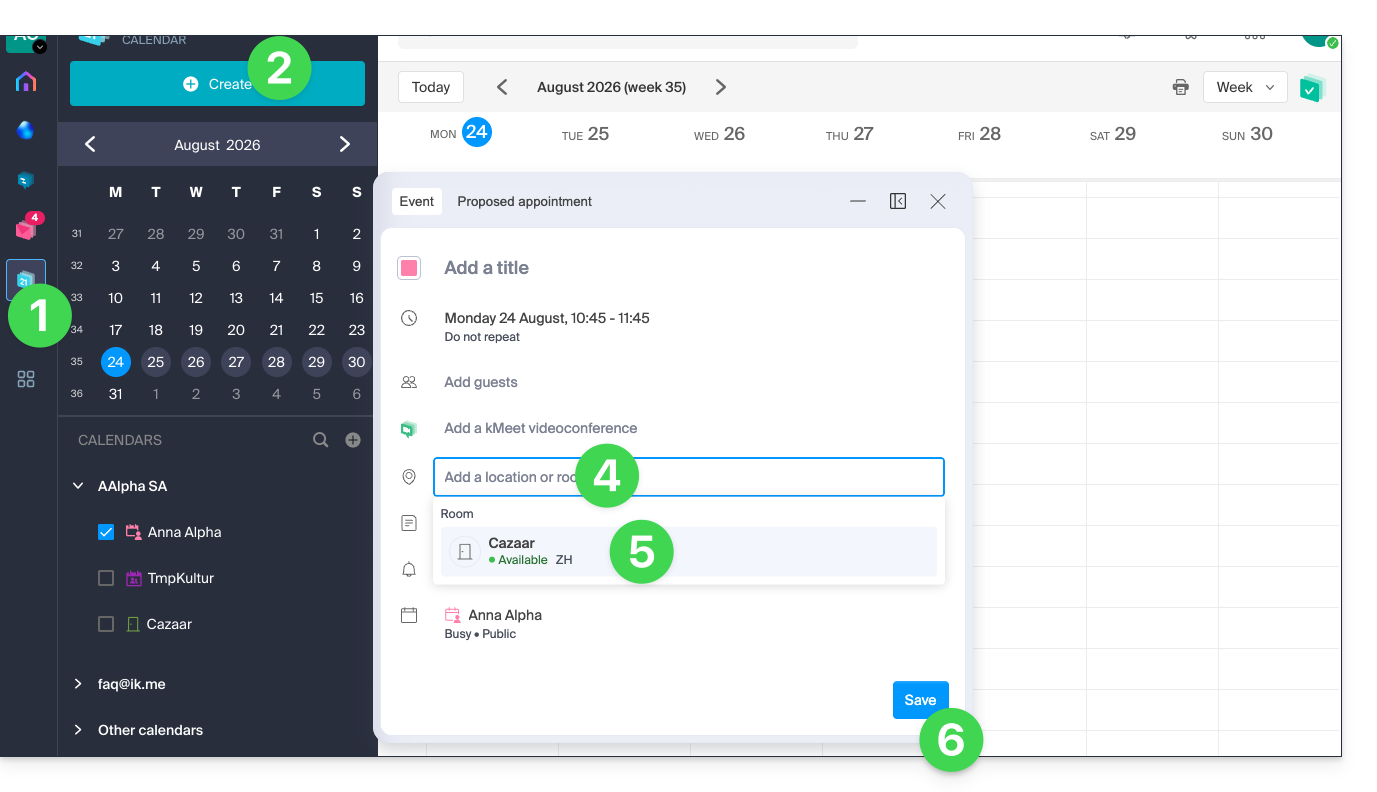
- Click here to access the Infomaniak Web app Calendar (online service ksuite.infomaniak.com/calendar).
- Click the Create button in the upper left corner.
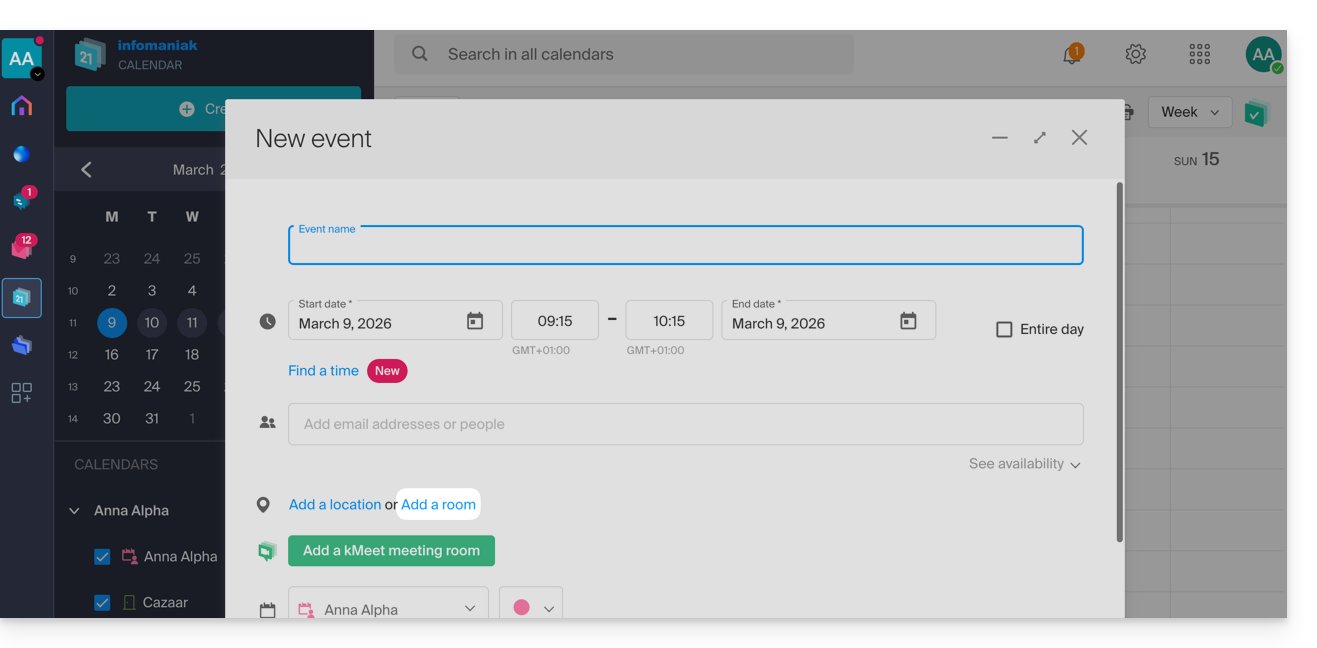
- Click on Event.
- Click on Add a room:
- Click in the Search for a room or venue field to display the available rooms for the selected time slot (the 3 most recently booked rooms, from newest to oldest).
- Click Save to publish the event and its room in the calendar:
- You can find all the information about the chosen location on the event page in the calendar (and on the room's calendar - see below):
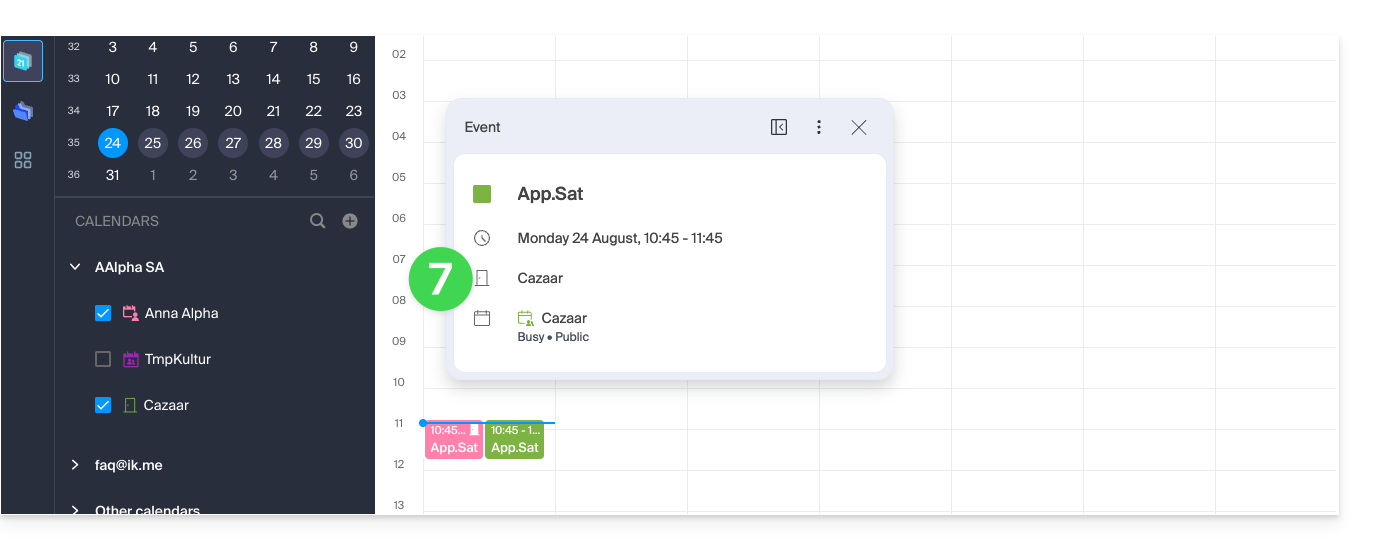
Overview of rooms and their availability
You can view an overview of each room's calendar to see its availability. When a room is created, a calendar associated with it is created in the Organization's calendars: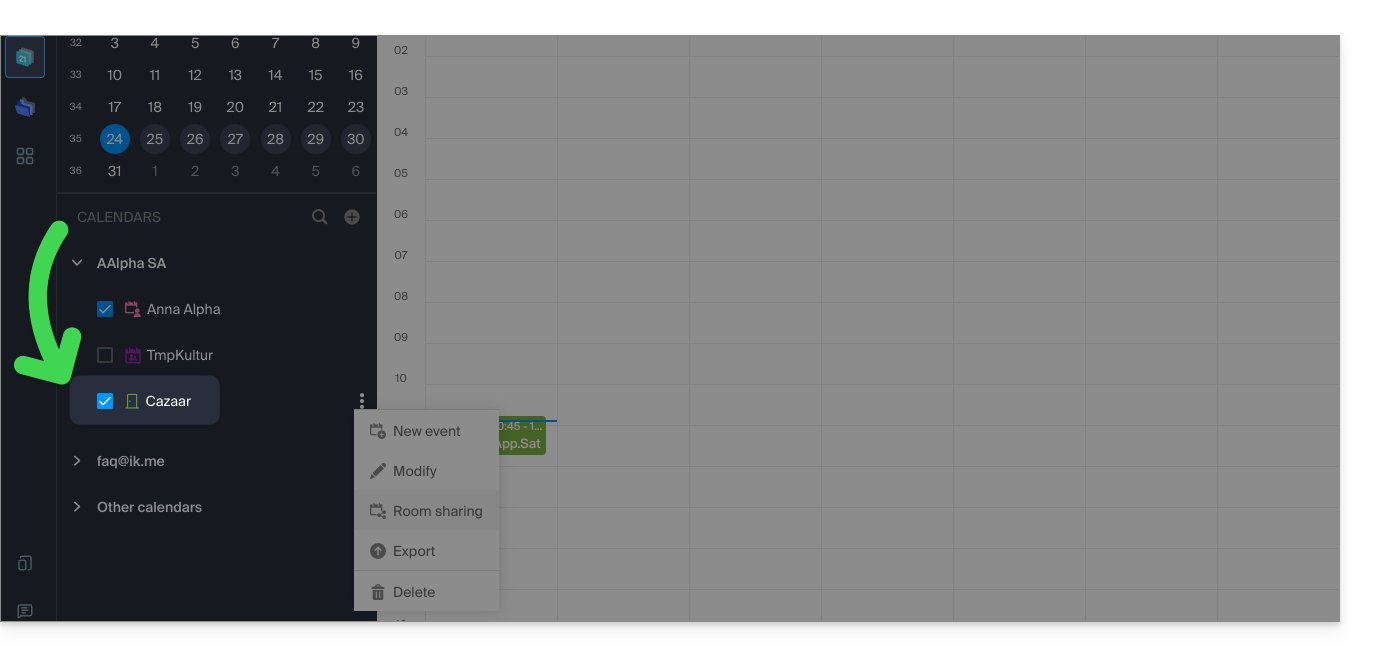
Your dedicated kSuite space (❓: help) also displays a real-time view of your rooms' availability, with the option to book one in just a few clicks, saving you time when organizing your meetings: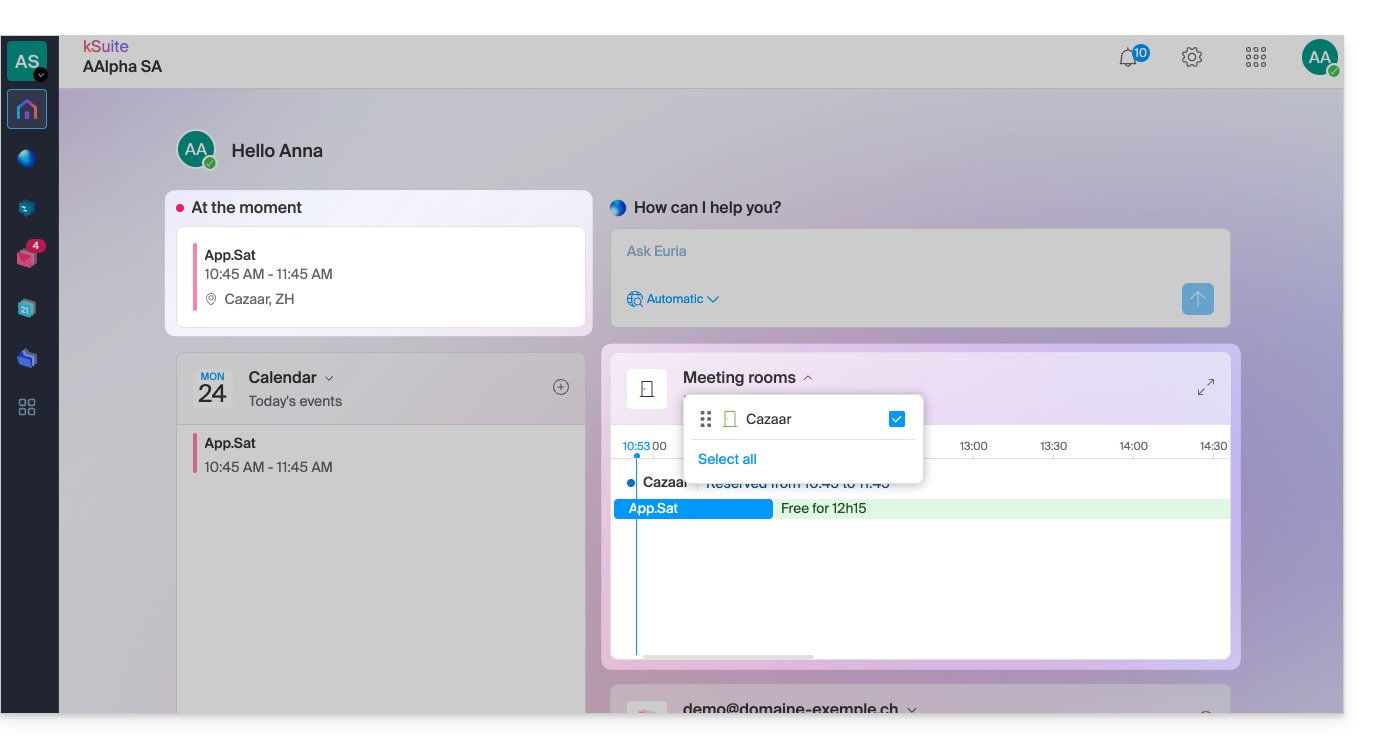
Link to this FAQ: https://faq.infomaniak.com/1329
Has this FAQ been helpful?
This guide explains how to create, hide, or delete address books in the Infomaniak Contacts web app (online service ksuite.infomaniak.com/contacts).
Introduction
- To manage contacts, please refer to this other guide.
- To manage notebook sharing, please refer to this other guide.
- To learn more about Organization directories, please refer to this other guide.
Add a new address book
To create an additional address book:
- Click here to access the Infomaniak Contacts web app (online service ksuite.infomaniak.com/contacts).
- Click on in the left-hand menu:
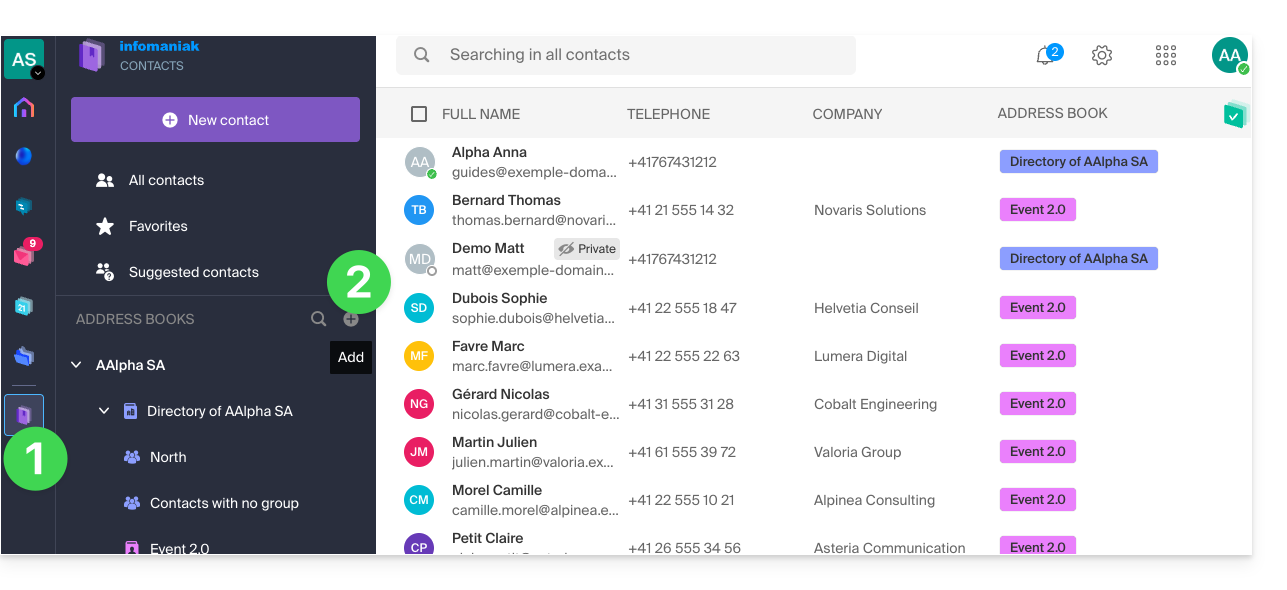
- Give the address book a name.
- Choose a color.
- Choose the Organization in which the notebook should be created.
- Click the button to finish:
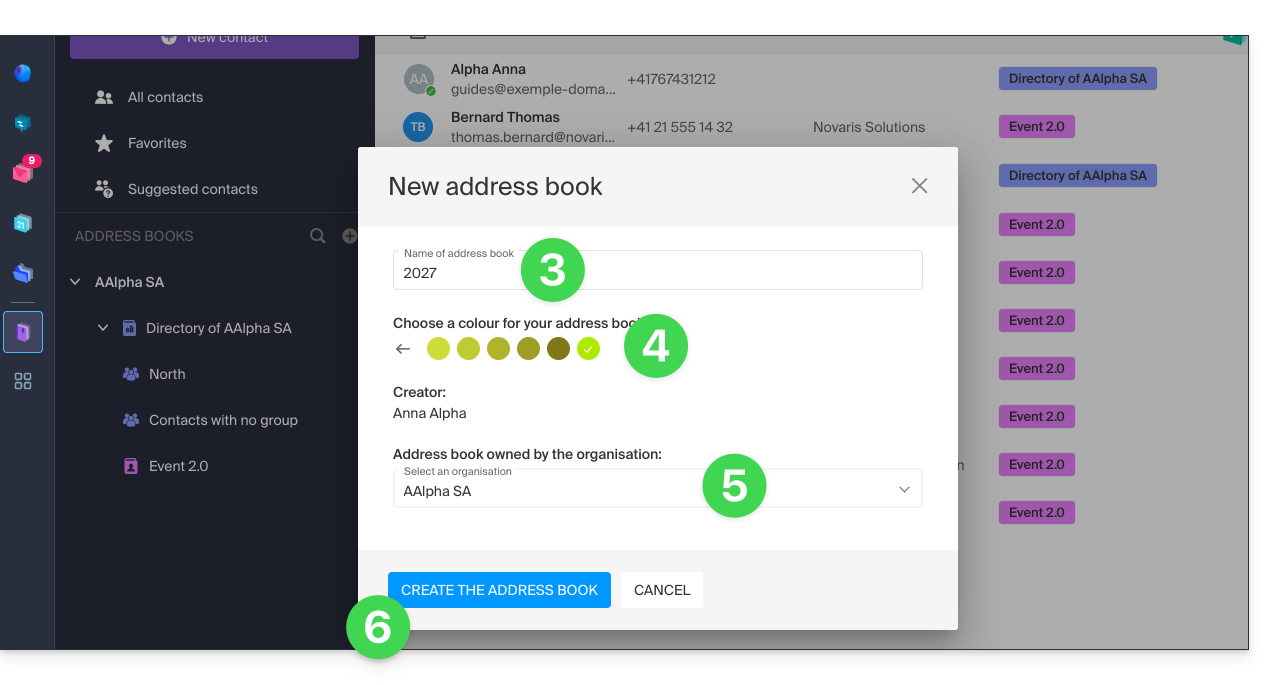
- The new, still empty notebook is added to the list in the left-hand menu:
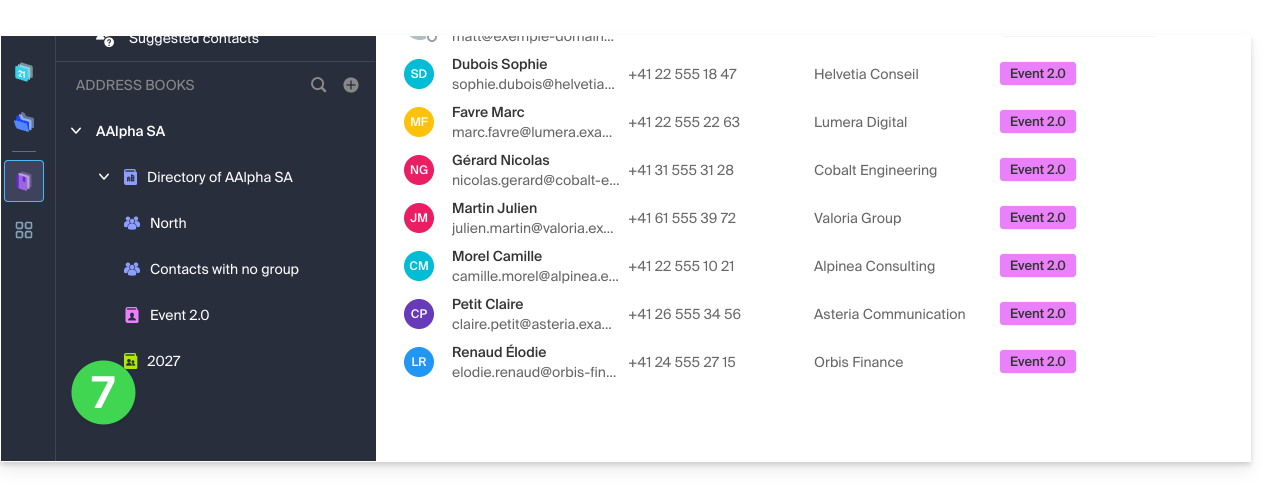
- You can copy or move contacts to it.
New address book during import
You can also create a new address book directly during the import of new contacts: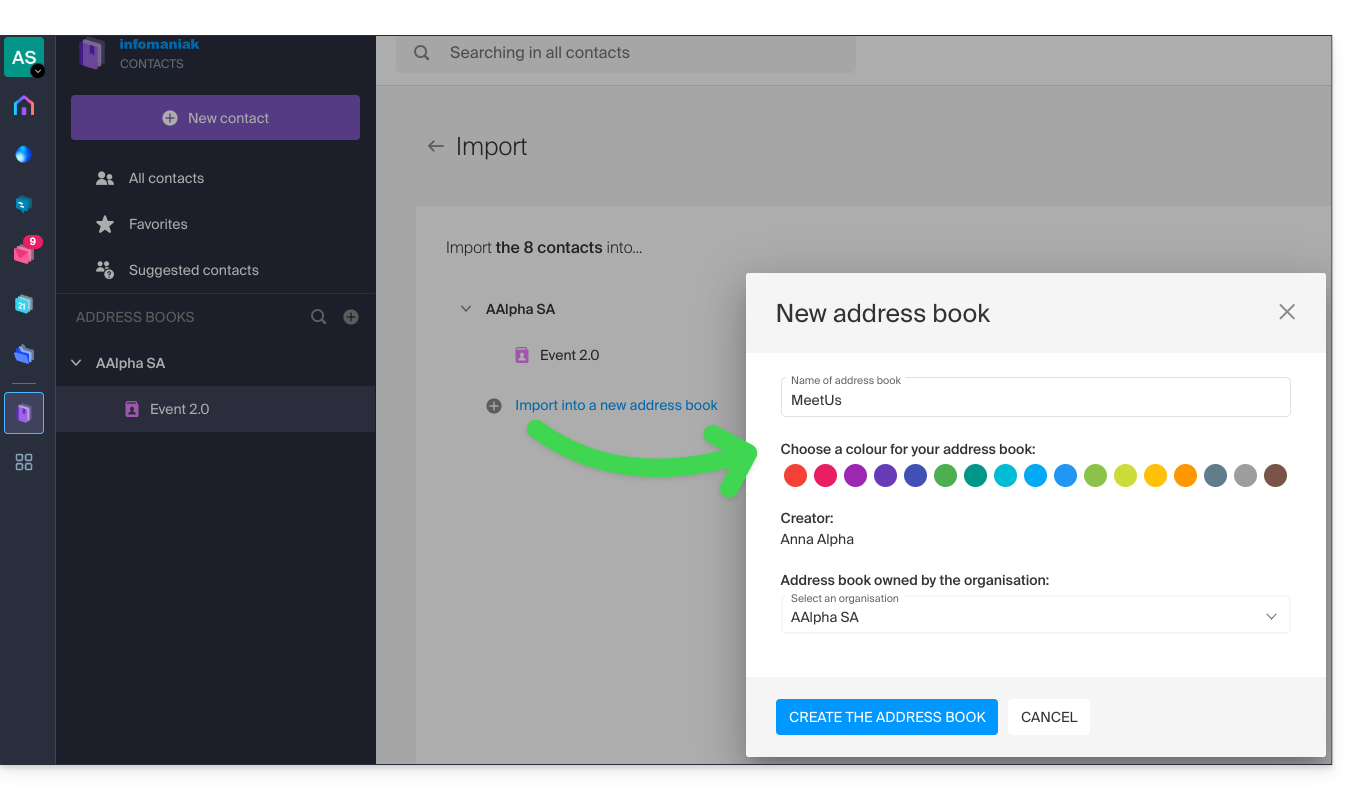
Here too, you can choose which Organization (from those already associated with your user) you want to create this new directory in to store your imported contacts.
Manage user address books within the Organization
As an administrator within an Organization, you can manage the various address books of your users:
- Click on the action menu ⋮ to the right of the organization in question.
- Click on Manage address books:
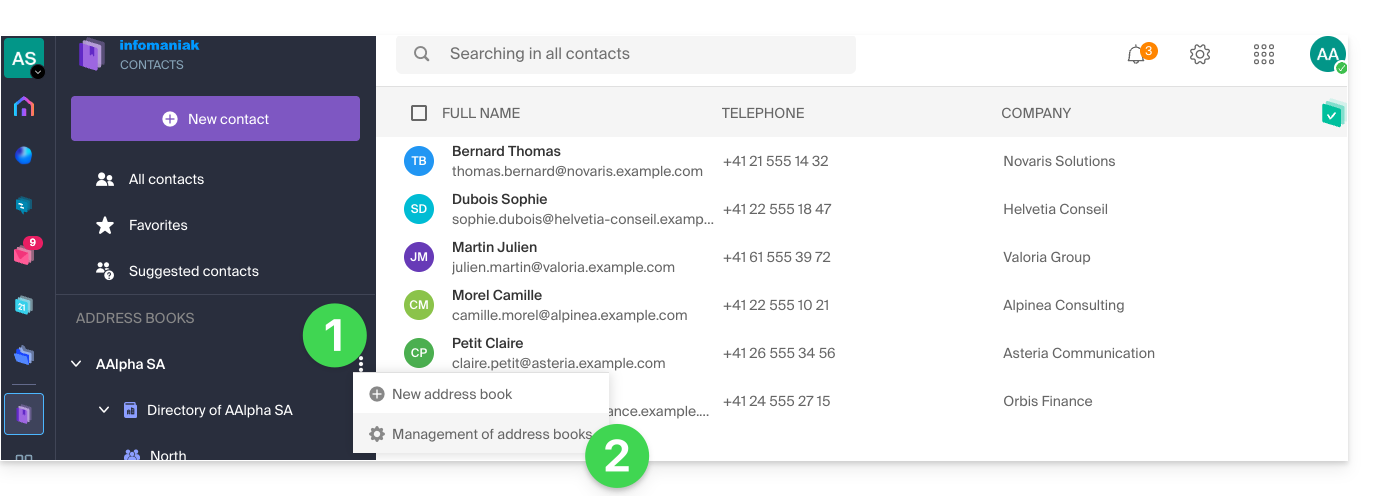
- The list of all users' address books within the Organization is displayed, showing their name and the number of contacts they contain (by default, these contacts are not visible):
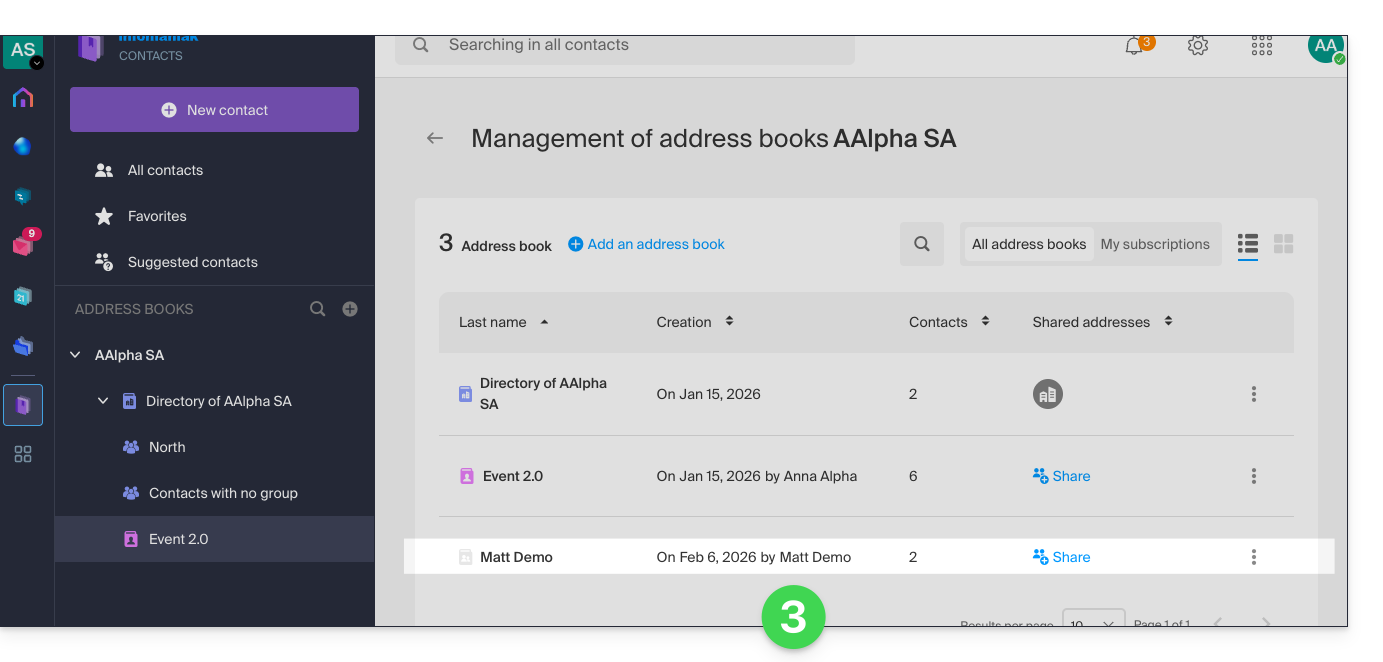
- Clicking on Share will grant you access to the contacts.
- You can even choose to grant access not only to your user, but to the entire Organization.
- Click the button to grant access (an informative email is sent to the user):
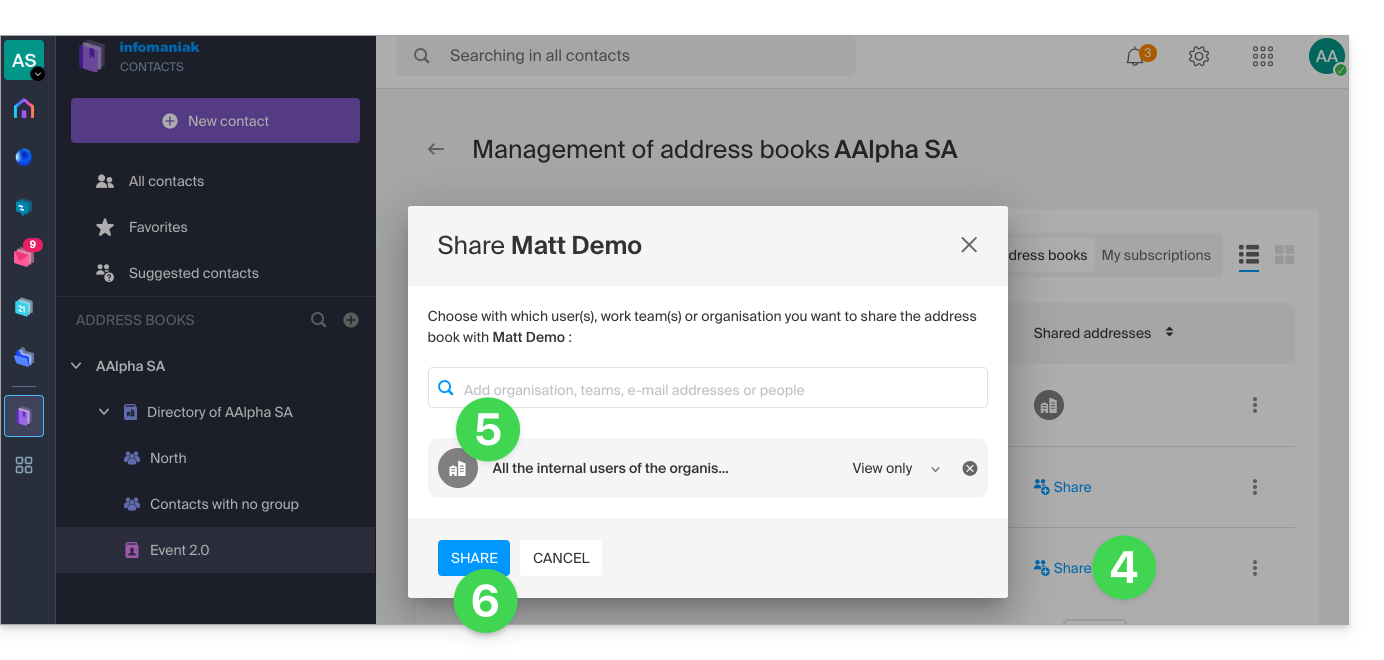
- Refresh the interface if necessary to display the address book.
Hide/re-display an address book
To hide the display of an additional notebook (it is not possible to hide the default notebook or an Organization notebook) only on your profile:
- Click on the action menu ⋮ to the right of the notebook in question.
- Click on Hide this address book:
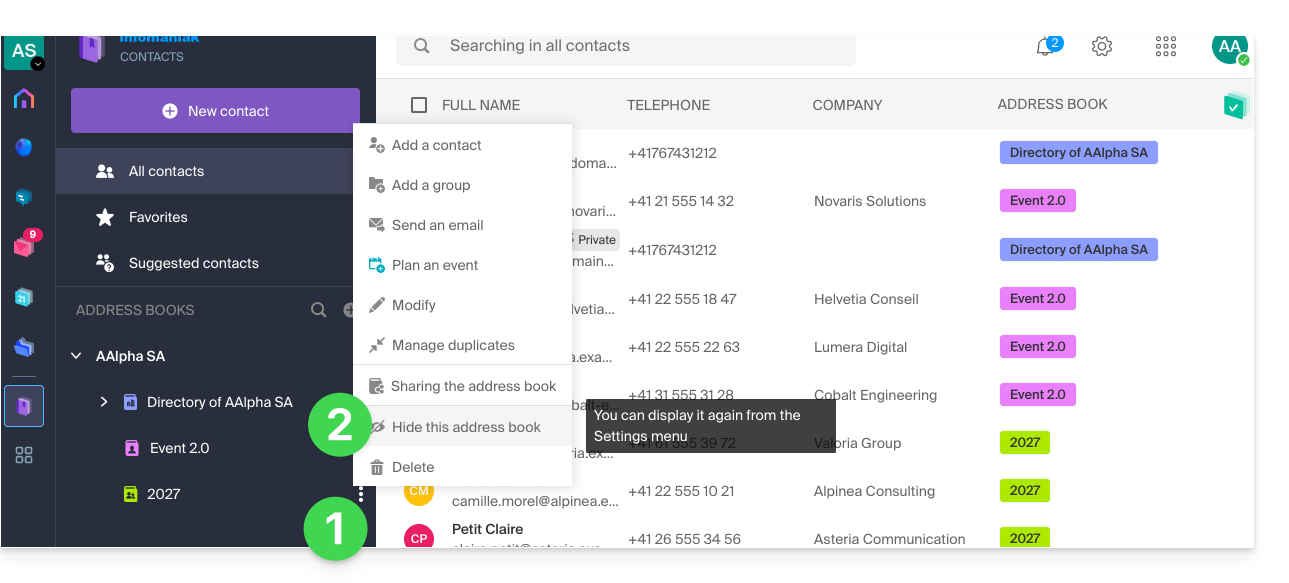
- The address book disappears from the list.
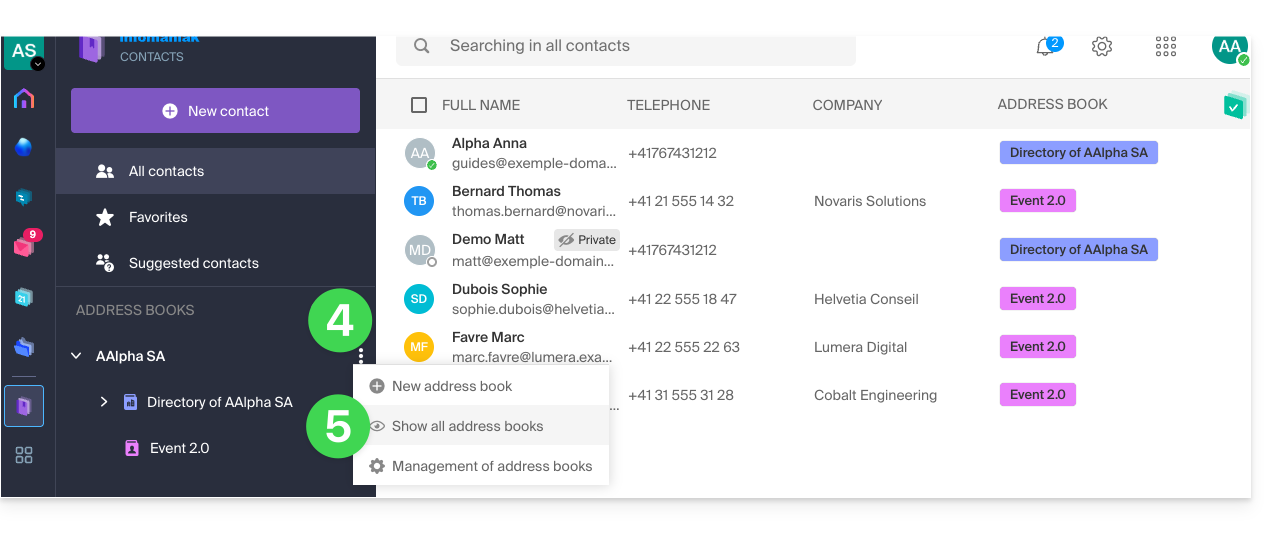
- Click on the action menu ⋮ to the right of the organization in question.
- Click on Show all address books:
Unshare instead of hiding
If the address book that you no longer want to see in the list is the result of a share initiated by another user, you can also unshare it, and you will no longer have access to the shared address book:
- Click on the action menu ⋮ to the right of the relevant notebook.
- Click on the share item.
- Click the icon to detach this share:
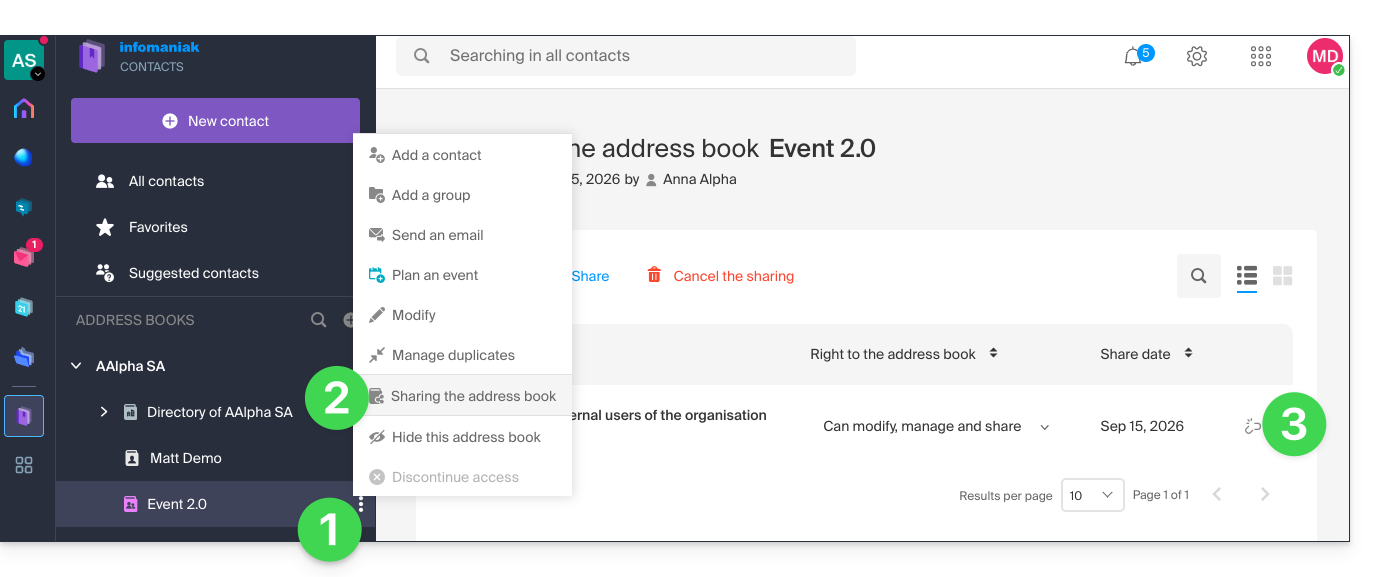
- Confirm the operation, then refresh the interface if necessary to make the widget disappear.
Link to this FAQ: https://faq.infomaniak.com/1340
Has this FAQ been helpful?
This guide presents the security model that allows you to assign users to an email address or dedicate a different password to it for each device or software that needs to access it.
Introduction
- No password is set when creating a mail address.
- If you remain within the Infomaniak ecosystem, i.e., you only use the Infomaniak Mail web app (online service ksuite.infomaniak.com/mail) and/or the Infomaniak Mail mobile app (application for iOS/Android smartphones or tablets), you do not need to manage a password because everything is configured using the concept of a user, i.e., an Infomaniak account (which has a password):
- A mail address can be viewed/used on these Infomaniak Mail apps without a password other than the one that already allows access to your Infomaniak account, simply after you have been invited.
- You only need to authorize your own account or invite an acquaintance to be a user of the mail address.
- Otherwise, outside of this ecosystem, you simply create a password (or several) for your devices (Outlook, iPhone, CRM, etc.) according to your needs:
- Each password can be revoked individually, without affecting other users or devices linked to this address.
- It is not possible to display a previously created password; simply create a new one!
Add a user
= Allow a person to view the email address in the Infomaniak Mail interface
To allow a user (including yourself) to view the email address in Infomaniak without needing a password other than their own (the password for their Infomaniak account):
- From the Mail Service dashboard:
- add the email address to your Infomaniak Mail apps so you can use the address,
- or decide which other external user should have access to the address in their Infomaniak Mail apps,
- or remove a user's access: the other accesses to the email address will remain active.
- You can manage authorized users directly from the Mail web app (any user of an email address on Infomaniak can view the list of other users who have access).
Add a device
= Add a password to allow someone to access the address on a device (Outlook, iPhone, CRM, etc.)
To allow a user (including yourself) to view the email address in IMAP and send messages via SMTP (both protocols require a password):
- From the Mail Service dashboard:
- You can manage connected devices directly from the Mail web app.
Link to this FAQ: https://faq.infomaniak.com/1344
Has this FAQ been helpful?
This guide explains how to broadcast an online meeting using kMeet in a separate stream accessible via a unique URL, thanks to Infomaniak's Video Streaming service.
✘ UNAVAILABLE with
kSuite Free / kSuite Standard
my kSuite / my kSuite+ (ik.me, etik.com, ikmail.com)
Introduction
- Broadcasting a typical conference-style meeting in a Video Streaming feed rather than within the kMeet application offers several advantages:
- Public, large-scale broadcasting without having to restrict access to an audience limited to invited individuals.
- Attracting a wider audience, such as for conferences, webinars, or live events where hundreds or thousands of viewers can follow the event without joining a private call.
- Allows reaching an unlimited number of viewers.
- No need to manage access for each participant; the stream can simply be viewed via a link.
- A simple web browser is sufficient to access the streaming feed.
- Passive access: viewers are not forced to participate actively or interact; they can simply watch the event without registering or logging in, which is better suited for large events.
- No voice interruptions or disruptions related to microphone management; this allows for a smoother, more speaker-focused stream.
- Higher streaming resolution when kMeet may be limited by bandwidth constraints and lower video quality to avoid network overload.
Create the video streaming share link
Prerequisites
- You must be a moderator of kMeet to be able to create a live streaming link.
- It is not necessary to have an Infomaniak video streaming plan.
Next:
- Start kMeet via ksuite.infomaniak.com/kmeet or from one of the applications for desktop or mobile devices.
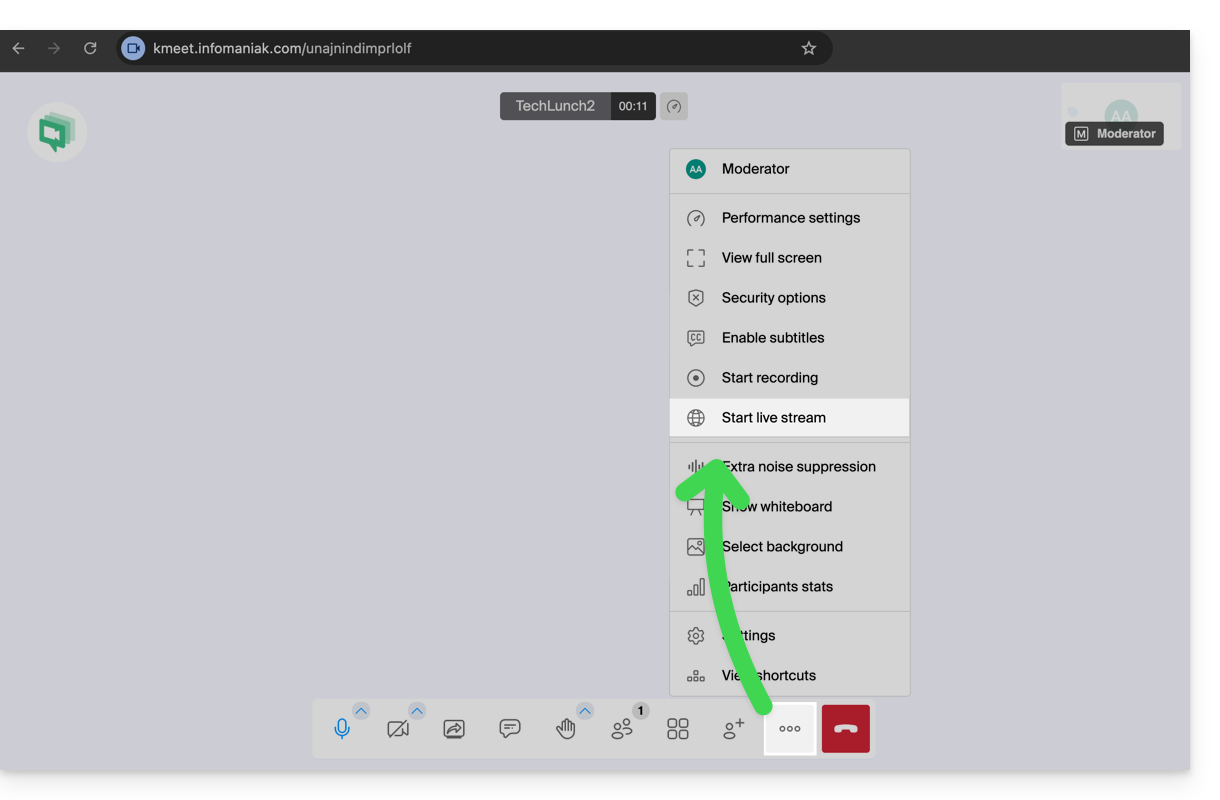
- Once in the meeting, click on the action menu ○○○ in the kMeet toolbar.
- Choose Start live broadcast:
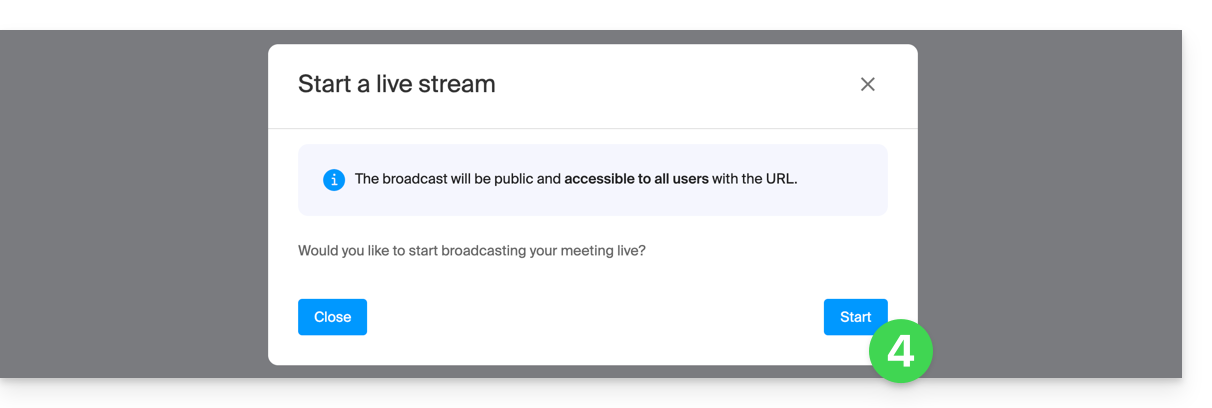
- Click the button to Start:
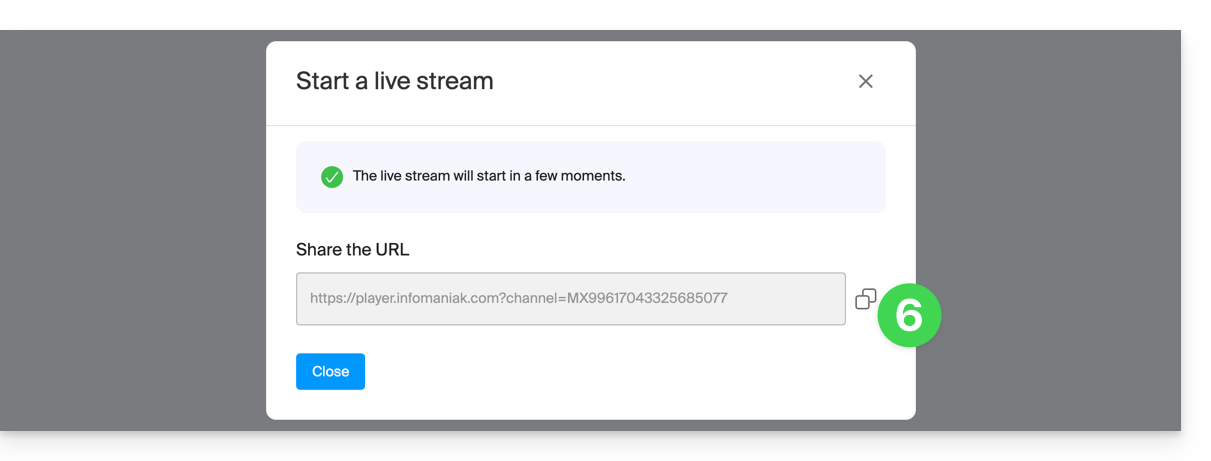
- Please wait while the video streaming feed is created.a symbol displayed on kMeet, along with an audible signal, indicates the start of the video streaming.
- In the same location, once the stream link is displayed, click on the icon to the right to copy the URL corresponding to the live stream; paste the URL into a message for the participants or anyone who needs to attend the live stream:
The stream is broadcast continuously for a maximum of 24 hours, and will no longer be accessible once the kMeet meeting is stopped.
Link to this FAQ: https://faq.infomaniak.com/1355
Has this FAQ been helpful?
This guide concerns Euria, the sovereign artificial intelligence assistant, a full-fledged kSuite service, also available within a standalone app.
Introduction
- Euria's strength lies in its local infrastructure:
- Unlike solutions based on foreign public cloud, Infomaniak's AI is hosted exclusively on its own servers in Switzerland.
- This approach ensures strict compliance with data protection standards and guarantees that no processed information is used to train third-party models or shared outside the host's secure infrastructure.
- The use of AI at Infomaniak is based on a transparent and ethical approach; Euria uses state-of-the-art language models (LLMs) selected for their efficiency and performance, while also being optimized to minimize their energy footprint.
- Infomaniak is committed to complete transparency regarding the algorithms used, reflecting the company's commitment to technological independence and environmental sustainability.
Discover Euria
To get started with Euria, please refer to this other guide.
Tocreate an AI project with custom instructions and a knowledge base, please refer to this other guide.
Infomaniak services also include Euria
Designed to offer a European alternative to American tech giants, the sovereign artificial intelligence assistant Euria stands out thanks to its deep integration into Infomaniak's productivity ecosystem, while guaranteeing absolute user data confidentiality:
- kChat
- The Euria AI integrated into kChat helps save time in communications: it can rephrase sentences, generate quick responses, correct spelling, or even adjust the tone of a message. The user retains full control over the suggestions, which are only local to each session.
- Mail Infomaniak
- Within the Mail application, Euria assists in composing emails. It can generate content from a few keywords, rephrase or structure a message, and adapt to different styles. Nothing is sent automatically, and the user can modify the text at any time.
- Site Creator
- An AI-powered writing assistant allows Site Creator to quickly generate content suitable for different types of web pages. This service is useful for people launching a website and looking to produce clear, optimized, and relevant text.
- kDrive
- On kDrive, artificial intelligence is used at two complementary levels to simplify document management. Euria allows you to interact with text files stored in the drive. This module can answer questions about the content of a document, summarize, translate, or extract useful information. It is particularly effective for reading reports, understanding complex texts, or quickly generating an overview of a file.
Usage limitations
Every service incorporating AI follows strict principles to guarantee reliable and responsible use:
- the protection of information is guaranteed by processing all data within infrastructures located exclusively in Switzerland, thereby ensuring complete control over digital sovereignty,
- the results generated are never used to train the models or for advertising purposes,
- and the AI is not intended to replace humans, but to assist them.
To ensure a smooth and secure experience, the use of Euria is subject to certain volume and file size limitations:
- Quota calculation (rolling window): the limits (below) are not reset at midnight but are calculated in real time over a 24-hour window; each message sent "occupies" a space in your quota and is automatically released 24 hours after it is sent.
- If you send messages throughout the morning until you reach your limit at 11 a.m., your sending rights will gradually become available the next morning as each message reaches its 24-hour age.
- Global message quota: your daily limit is shared; each request sent to Euria is deducted from your global quota, regardless of the project or conversation in which you are interacting.
- A conversation cannot exceed 254,000 tokens at this time.
- Transcriptions: transcription services are unlimited.
- Number of possible projects / Maximum number of conversations per project:
- kSuite Free = 2 / 5
- kSuite Standard = 10 / 50
- kSuite Business = unlimited / unlimited
- kSuite Enterprise = unlimited / unlimited
- my kSuite = 2 / 5
- my kSuite+ = unlimited / unlimited
- Size limit (in MB) per file for document uploading / image sending (maximum 20 files per conversation):
- kSuite Free = 100 / 10
- kSuite Standard = 100 / 10
- kSuite Business = 100 / 10
- kSuite Enterprise = 100 / 10
- my kSuite = 20 / 10
- my kSuite+ = 20 / 10
- Supported Documents file formats:
- PDF:
PDF - Spreadsheets:
CSV,XLS,XLSX - Word processing:
DOC,DOCX - Text & Code:
JSON,MD,TXT,XML,YAML,YML - Presentations:
PPT,PPTX
- PDF:
- Supported Audio file formats:
AAC,M4A,MP3,OGA,OGG,OPUS,WAV
- Supported Video file formats:
MP4
- Supported Image file formats:
- Local (browser):
BMP,JPG,JPEG,PNG,WEBP - Extended:
TIF,TIFF
- Local (browser):
- Restriction on the use of Euria; the service is not available in these countries:
- Afghanistan
- Saudi Arabia
- Argentina
- Armenia
- Azerbaijan
- Bahrain
- Bangladesh
- Belize
- Bhutan
- Burma (Myanmar)
- Bolivia
- Brunei
- Cambodia
- China
- Colombia
- North Korea
- Costa Rica
- United Arab Emirates
- Ecuador
- El Salvador
- Georgia
- Guatemala
- Guyana
- Honduras
- India
- Indonesia
- Iraq
- Iran
- Israel
- Jordan
- Kazakhstan
- Kyrgyzstan
- Kuwait
- Laos
- Lebanon
- Malaysia
- Maldives
- Mexico
- Mongolia
- Nepal
- Nicaragua
- Oman
- Uzbekistan
- Pakistan
- Palestine
- Panama
- Paraguay
- Peru
- Philippines
- Qatar
- Sri Lanka
- Suriname
- Syria
- Tajikistan
- Taiwan
- East Timor
- Turkmenistan
- Uruguay
- Venezuela
- Yemen
Responsibilities of the parties
Data provided to the AI
- Infomaniak's AI is currently based by default on these models.
- These include Mistral, Whisper, DeepSeek, Llama, and granite…
- By using a writing assistant, messages and requests addressed to the AI are processed exclusively in Switzerland using Infomaniak's infrastructure.
- No data is processed or shared with any third party.
Data provided by AI
- The language model generates text based on the data it has learned, without consciousness, intentions, or moral responsibility.
- It is crucial that the user is aware that the information generated by the model is not always accurate and should not be considered an unquestionable source of information.
- The user should exercise critical judgment and verify the information provided by the assistant with reliable sources when necessary.
- For example, if a person uses the model for critical tasks such as medical, legal, or financial advice, they should take extra precautions to confirm the information provided by the model.
- In the event of inappropriate or dangerous use of this assistant, the user taking such actions shall be held responsible.
Discover also AI Services: Infomaniak provides a platform that allows you to easily integrate open-source models into custom projects. It is possible to leverage text analysis, content generation, translation, or other AI applications via on-demand calls. These services allow developers to take advantage of powerful AI without relying on closed or proprietary solutions.
Link to this FAQ: https://faq.infomaniak.com/1369
Has this FAQ been helpful?
This guide explains how to remove an user's access to an email address within the Infomaniak ecosystem, from within a Mail service. This means that the user will only be able to access the email address using the Mail Infomaniak web app (online service ksuite.infomaniak.com/mail) and/or the Infomaniak Mail mobile app (application for iOS/Android smartphones or tablets).
Other methods for managing access (e.g., using a password) are described in the main guide; also, refer to this other guide if necessary.Block an entire Mail service for all users.
Prerequisites
- You must have at least the right to manage the Mail Service in question (or be an Administrator / Legal Representative within the Organization).
Managing and removing a user from the Mail Service
The current mail access management model allows each user within an Organization to connect independently and securely to the same mail address, without sharing a global password.
If a user should no longer have access to a mail address and its content, simply remove it from the interface:
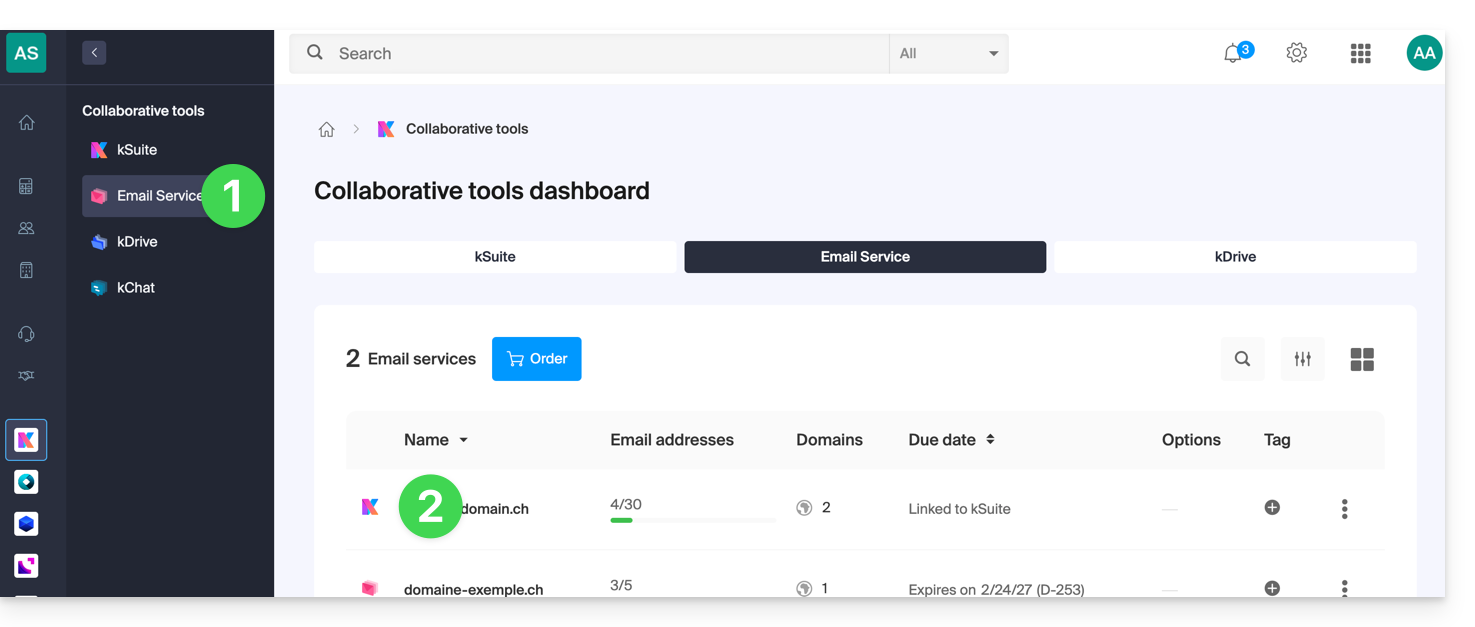
- Click here to access the management of your Mail Service in the Infomaniak Manager (need help?).
- Click directly on the name assigned to the product in question:
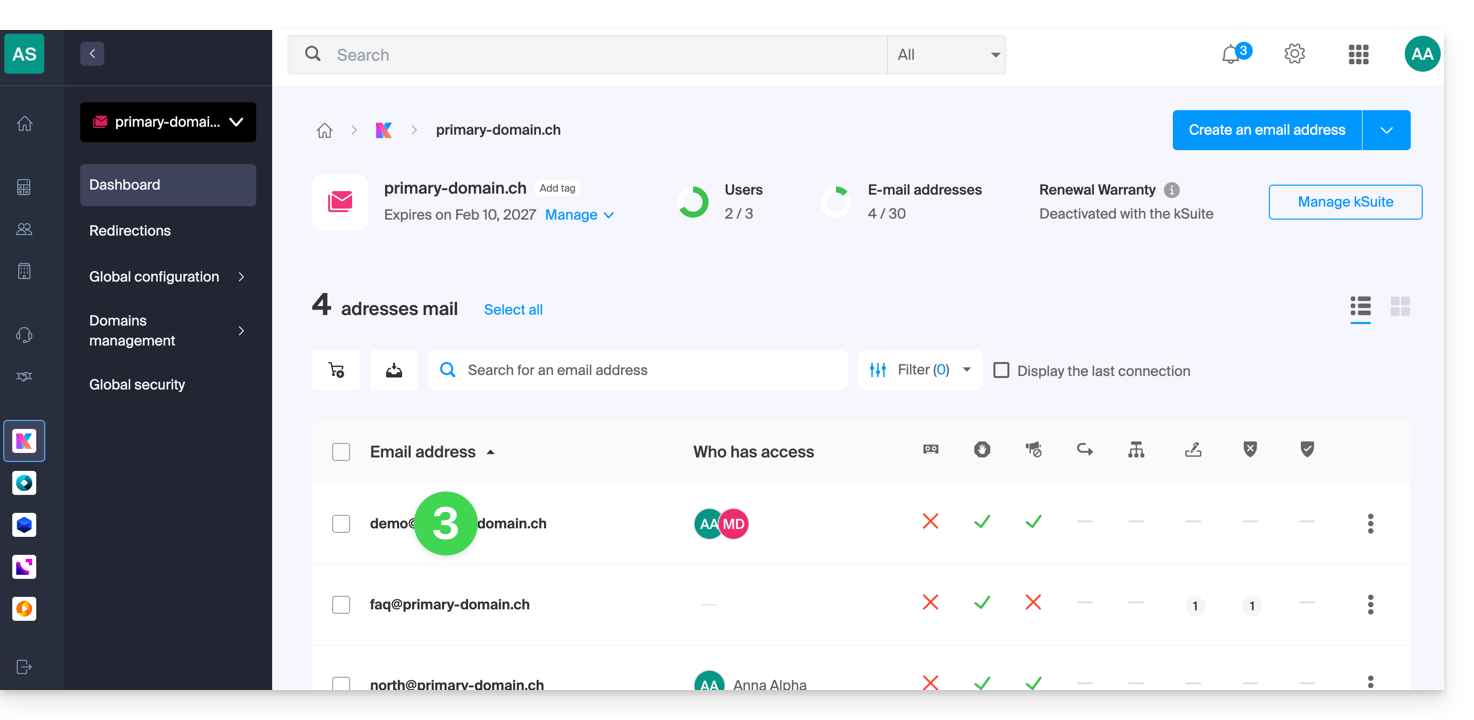
- Click on the email address in question in the table that appears:
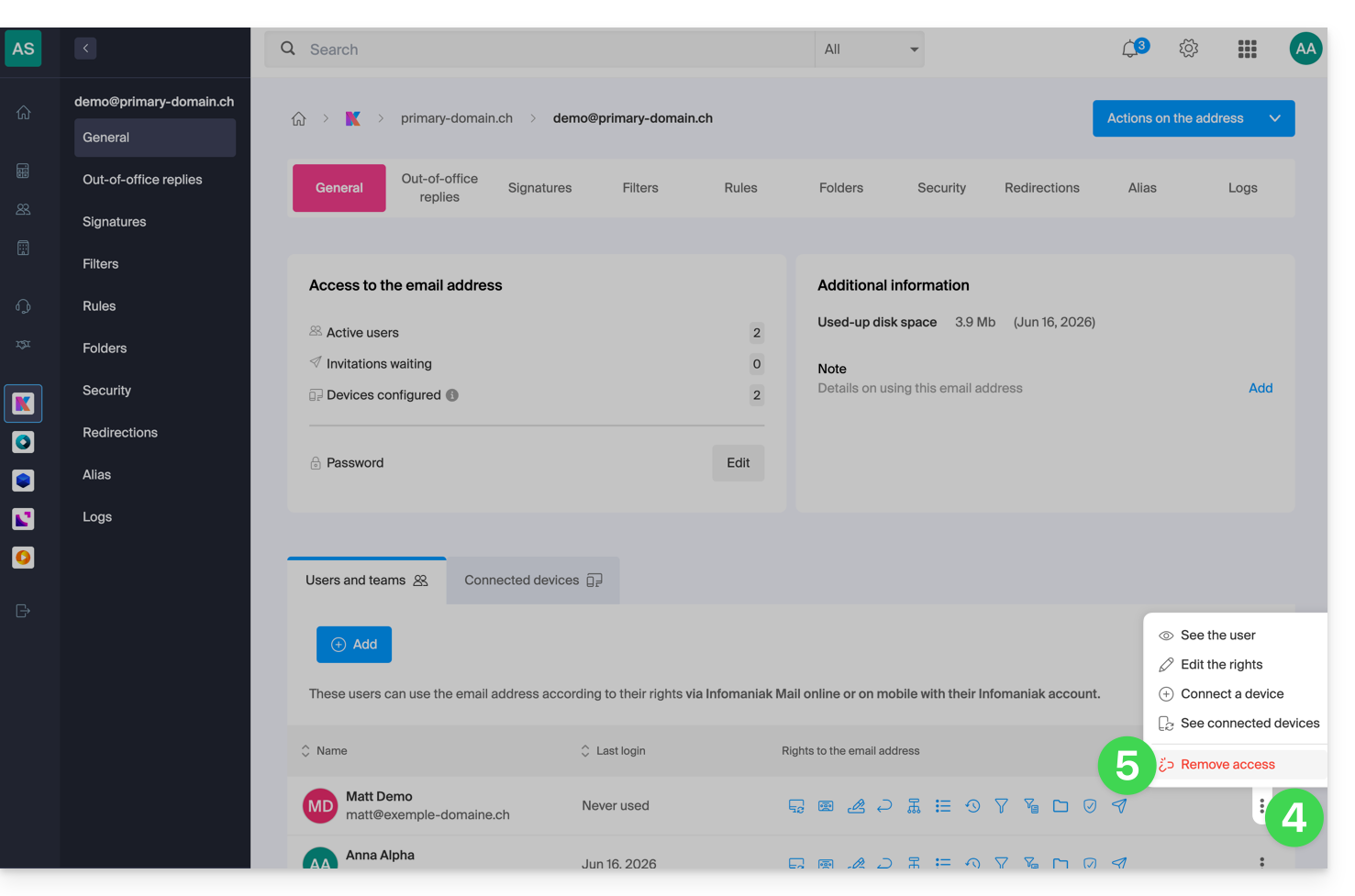
- On the list of users who currently have access to the address in question, click on the action menu ⋮ to the right of the user in question.
- Choose to remove their access to the email address:
- Confirm the action: all access to the email address will be terminated, and it will no longer be possible to view it.
Link to this FAQ: https://faq.infomaniak.com/1371
Has this FAQ been helpful?
The easiest way to manage your calendars is to use the Infomaniak Calendar web app (online service ksuite.infomaniak.com/calendar).
This interface offers many advantages:
- No software to install or configure.
- Share calendars with other users.
- Continuously saved.
- Synchronization of calendars (+ tasks) across devices.
- Attachment / kDrive.
- Secure and respects your privacy, hosted in Switzerland by a neutral and independent company.
How to get started with Infomaniak Calendar?
Whether you are using kSuite or the Mail app, it is essential to log in with your Infomaniak account credentials (username and password). It will not work if you directly enter an email address hosted on a service that is not an Infomaniak account. Understand the difference
- Click here to access the Infomaniak Web app Calendar (online service ksuite.infomaniak.com/calendar).
What would you like to do?
- Sync calendars across all your devices
- Customize the app's display
- Show public holidays
- Create a task
- Create a one-time event
- Create a recurring event
- Create an event reminder
- Schedule a meeting
- Schedule a meeting from the Mail web app
- Manage room bookings
- Print a calendar
- Import a calendar
- Import tasks
- Export a calendar
- Share a calendar
- Share a calendar publicly
- Restore deleted events
- Add an attachment to an event
- Set a default calendar in the app
- Create a desktop app (from the Web Calendar app, for example) from Chrome
Have a question or feedback?
- Contact Infomaniak support
- Click here to share feedback or a suggestion about an Infomaniak product.
Link to this FAQ: https://faq.infomaniak.com/1451
Has this FAQ been helpful?
The easiest way to manage your contacts is to use the Infomaniak Contacts web app (online service ksuite.infomaniak.com/contacts).
How to get started with Infomaniak Contacts?
Whether using kSuite or the Mail app, it is essential to log in with your Infomaniak account credentials (username and password). Simply entering an email address hosted on a service that is not an Infomaniak account will not work. Understand the difference
- Click here to access the Infomaniak Web app Contacts (online service ksuite.infomaniak.com/contacts):
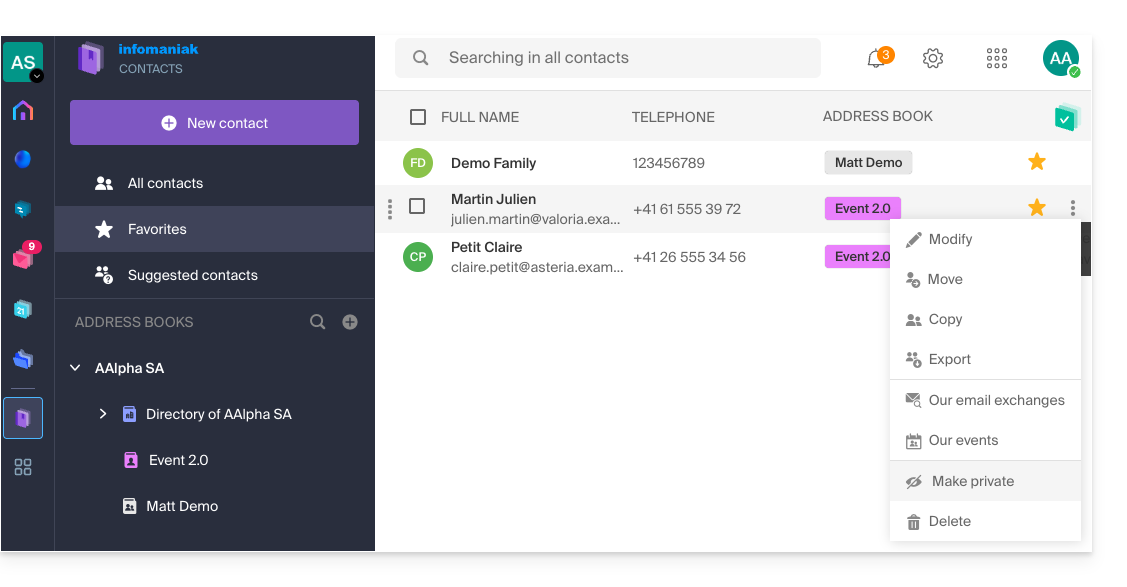
- This interface offers many advantages:
- No software to install or configure.
- Share address books with other users.
- Permanently saved.
- Sync your contacts across devices.
- Secure and respects your privacy, hosted in Switzerland by a neutral and independent company.
What would you like to do?
- Sync contacts & calendars across all your devices
- Manage address books
- Manage contacts
- Manage duplicates
- Import contacts
- Export contacts
- Group contacts
- Copy or move contacts
- Restore contacts
- Search for contacts
- Share an address book
Have a question or feedback?
- Contact Infomaniak support
- Click here to share feedback or a suggestion about an Infomaniak product.
Link to this FAQ: https://faq.infomaniak.com/1452
Has this FAQ been helpful?
This guide explains how to invite a user who is not yet part of your Organization to kChat, and who will be registered as a kSuite user.
Introduction
- Refer to this other guide to grant access to one or more kChat channels to an external user, who will then be able to interact with your team without being counted as a kSuite userand without having any specific rights within the Organization (of which he will not be a part).
- You can also invite an entire Group from kChat.
- Refer to this other guide if you wish to manage the channels to which new members will automatically belong.
Invite users to use kSuite
Prerequisites
- You must be a kChat administrator:
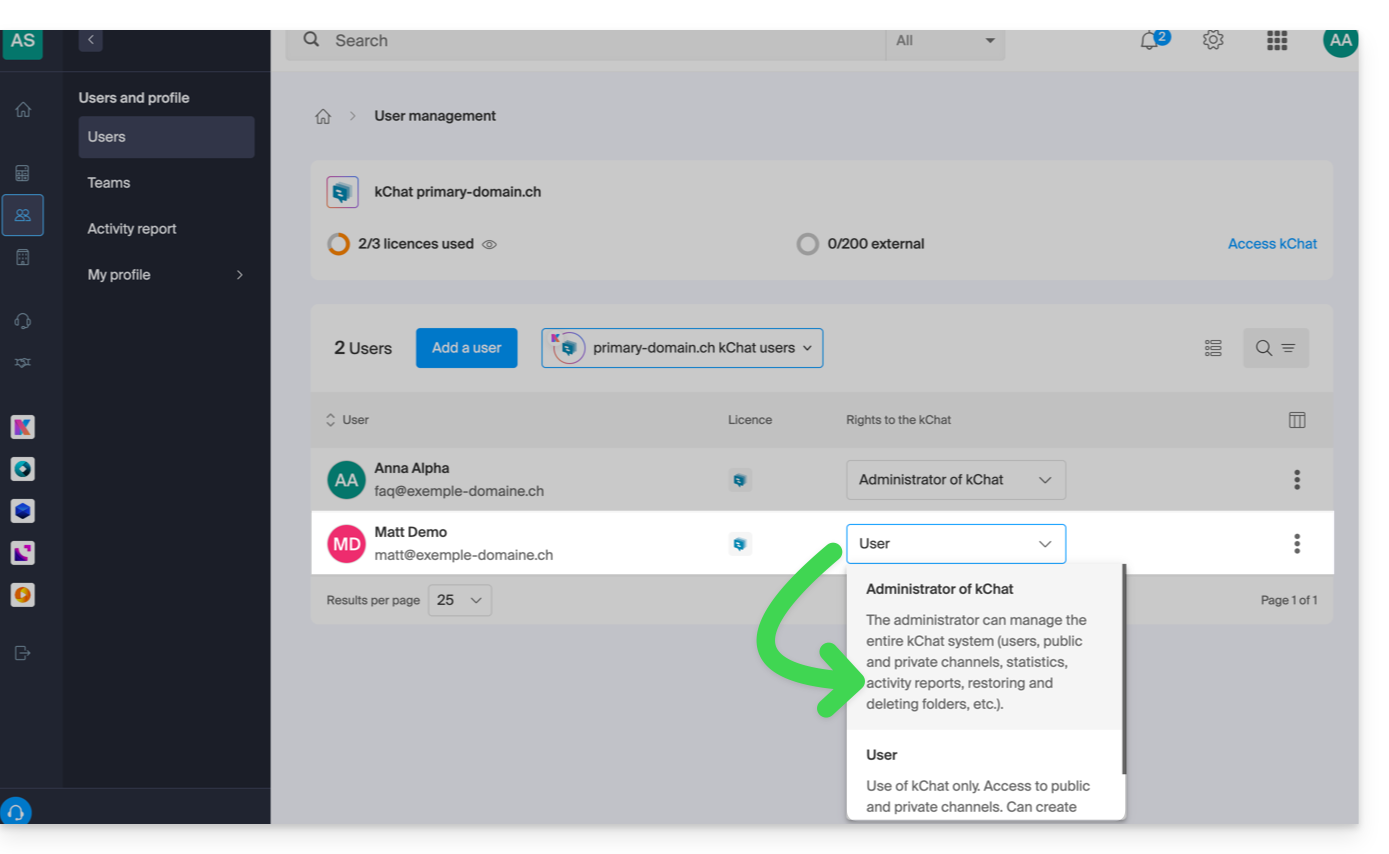
- The role within the Organization is irrelevant; being an Organization administrator in the Organization that contains the kSuite (and therefore kChat) is not required, and is not sufficient in any case:
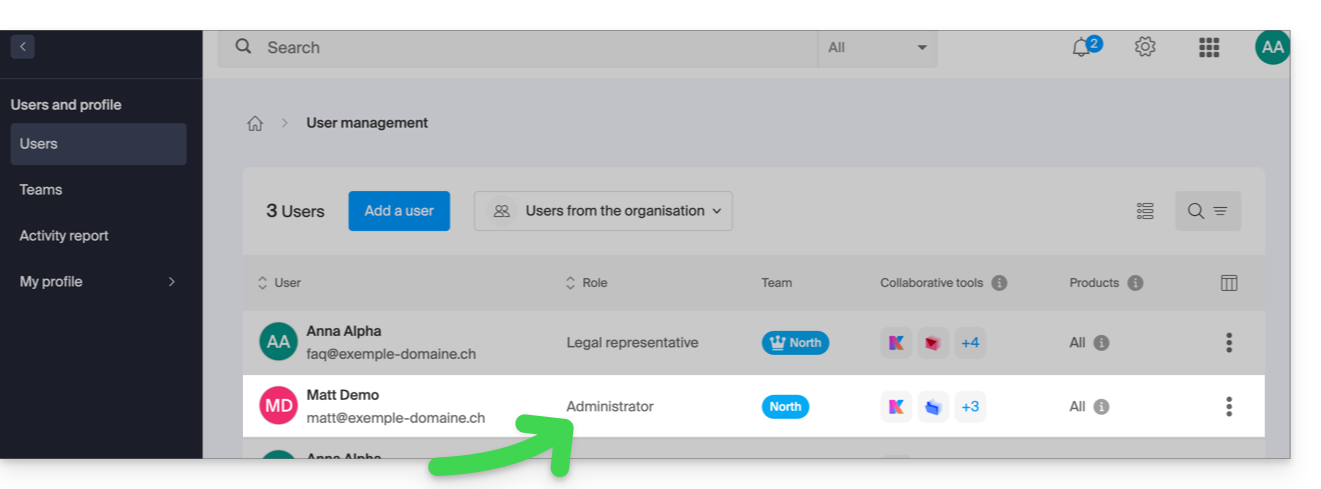
- The role within the Organization is irrelevant; being an Organization administrator in the Organization that contains the kSuite (and therefore kChat) is not required, and is not sufficient in any case:
Next, invite the user following the procedure below. Once invited, the user will be able to confirm their membership and access kChat with the limited permissions you have granted them:
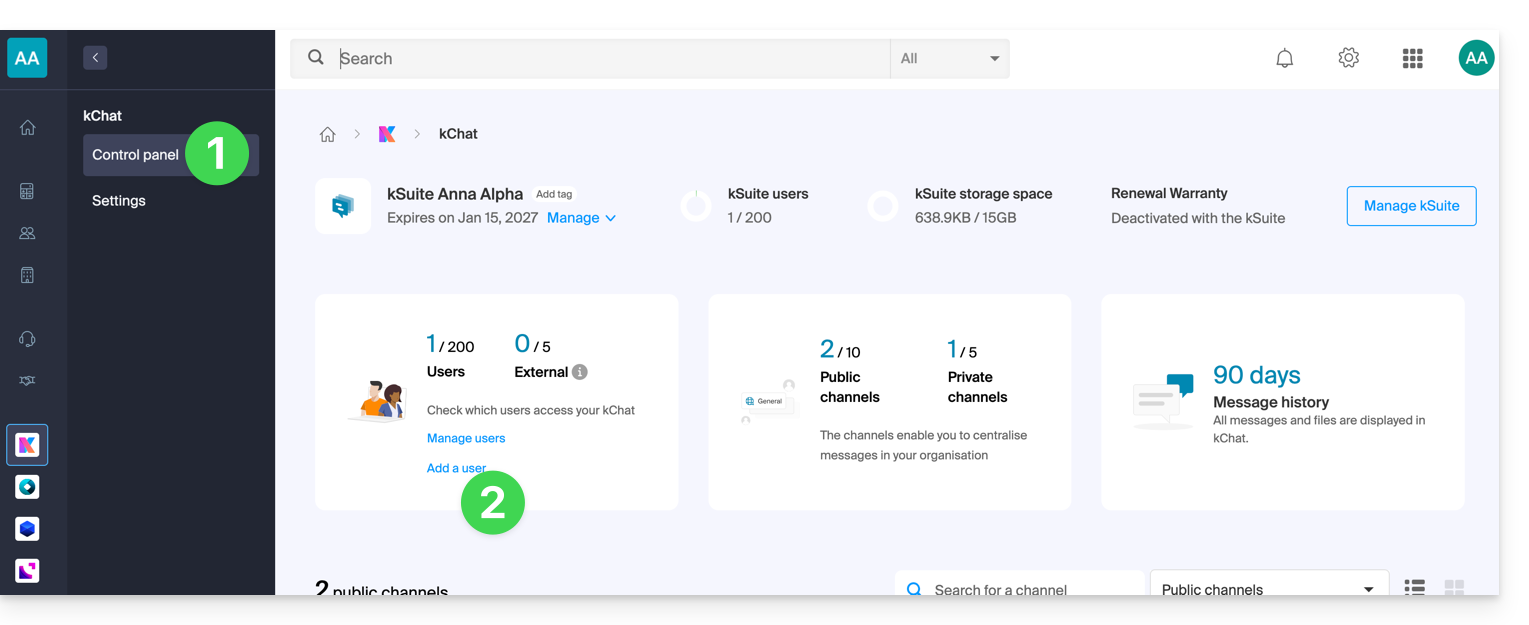
- Click here to access the kChat management interface in the Infomaniak Manager (need help?).
- Click on Add a user:
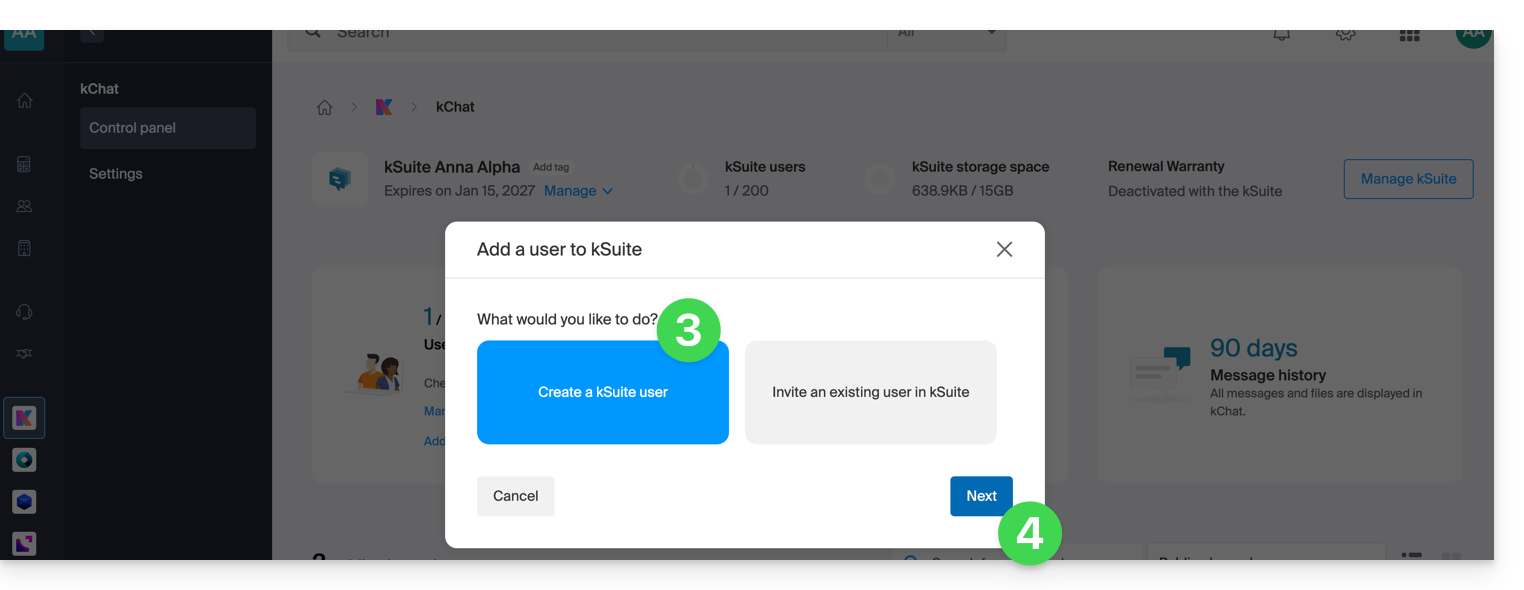
- Click on Create a kSuite user.
- Click on Next:
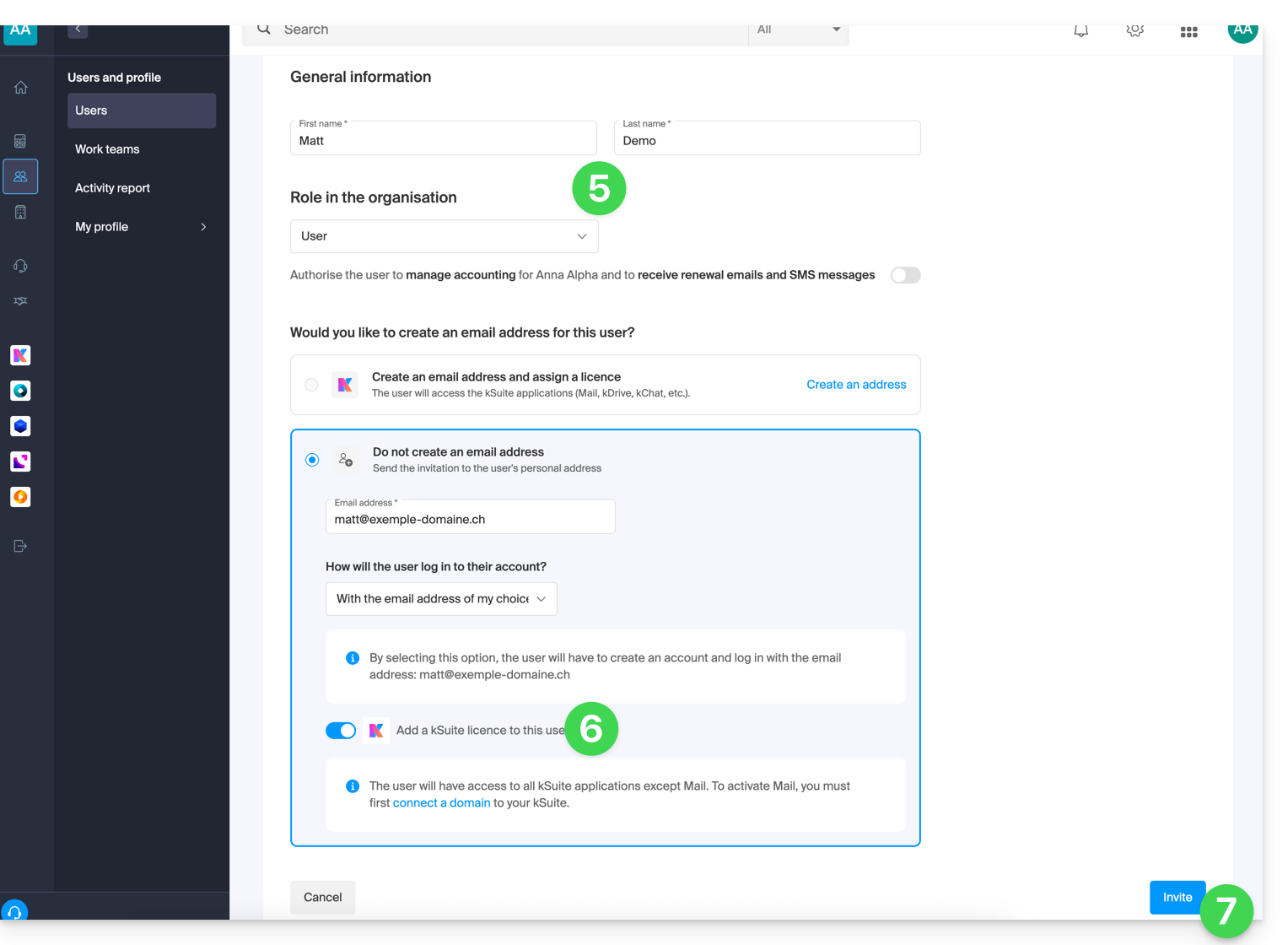
- Enter the user's first name and last name, and define their role as a standard user:
- Legal representative
- Legal responsibility for the organization
- Can manage all products and users
- Can manage accounting and orders for new products
- Administrator
- Can manage all products and users
- Can manage accounting and orders for new products
- User
- Can manage the products you authorize
- Can manage accounting if you authorize it
- Legal representative
- Do not create a new email address for the user; instead, specify their existing email address to which the invitation should be sent:
- You can require this future user to log in with this email address, or allow them to specify a different email address (this is particularly useful if they already have a user account with Infomaniak using a different login ID).
- Add the user to your kSuite using the toggle switch.
- Click the Invite button:
- The invitation is pending until the invited user registers. The user dashboard for the Organization displays this status:
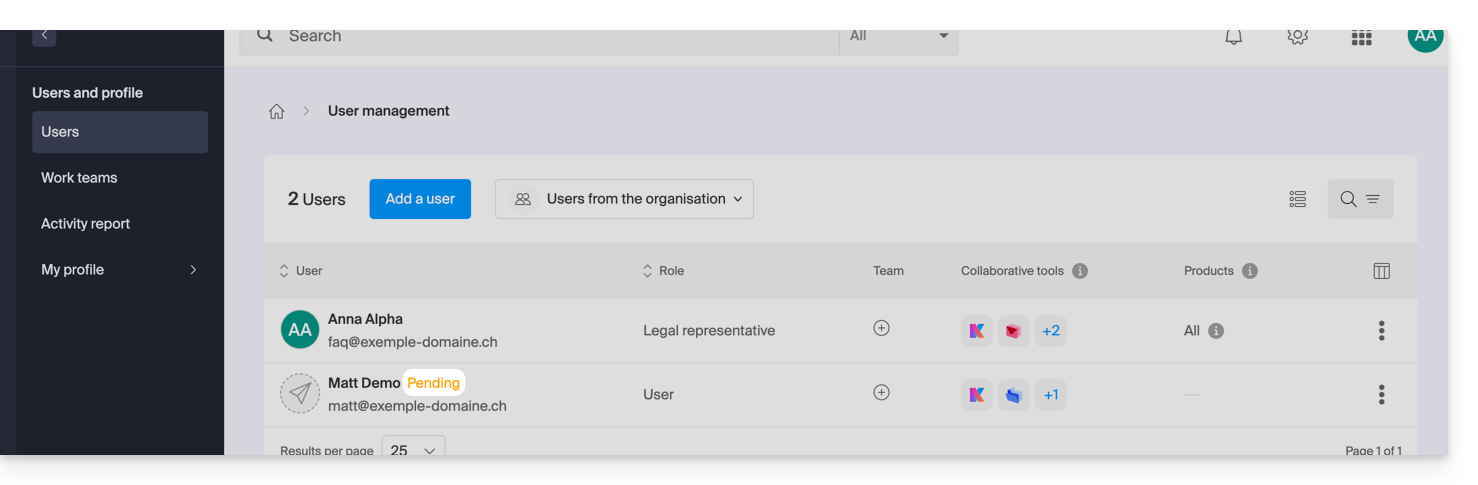
- The invitation is pending until the invited user registers. The user dashboard for the Organization displays this status:
Accept the invitation
To access the Organization that owns kChat:
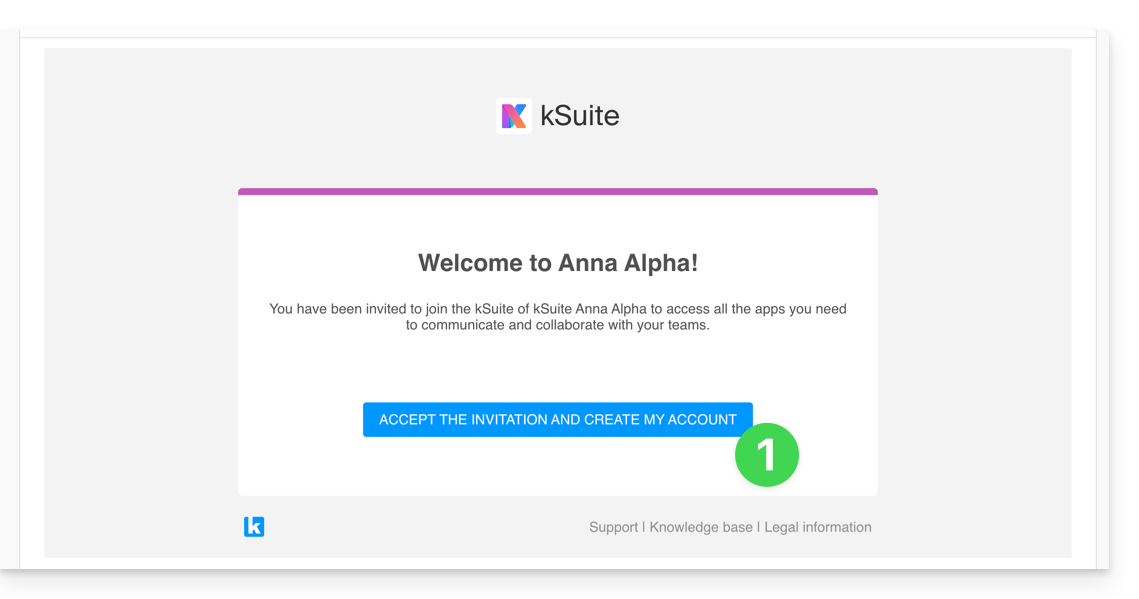
- The invited user receives the invitation at their email address and clicks on the Accept invitation button:
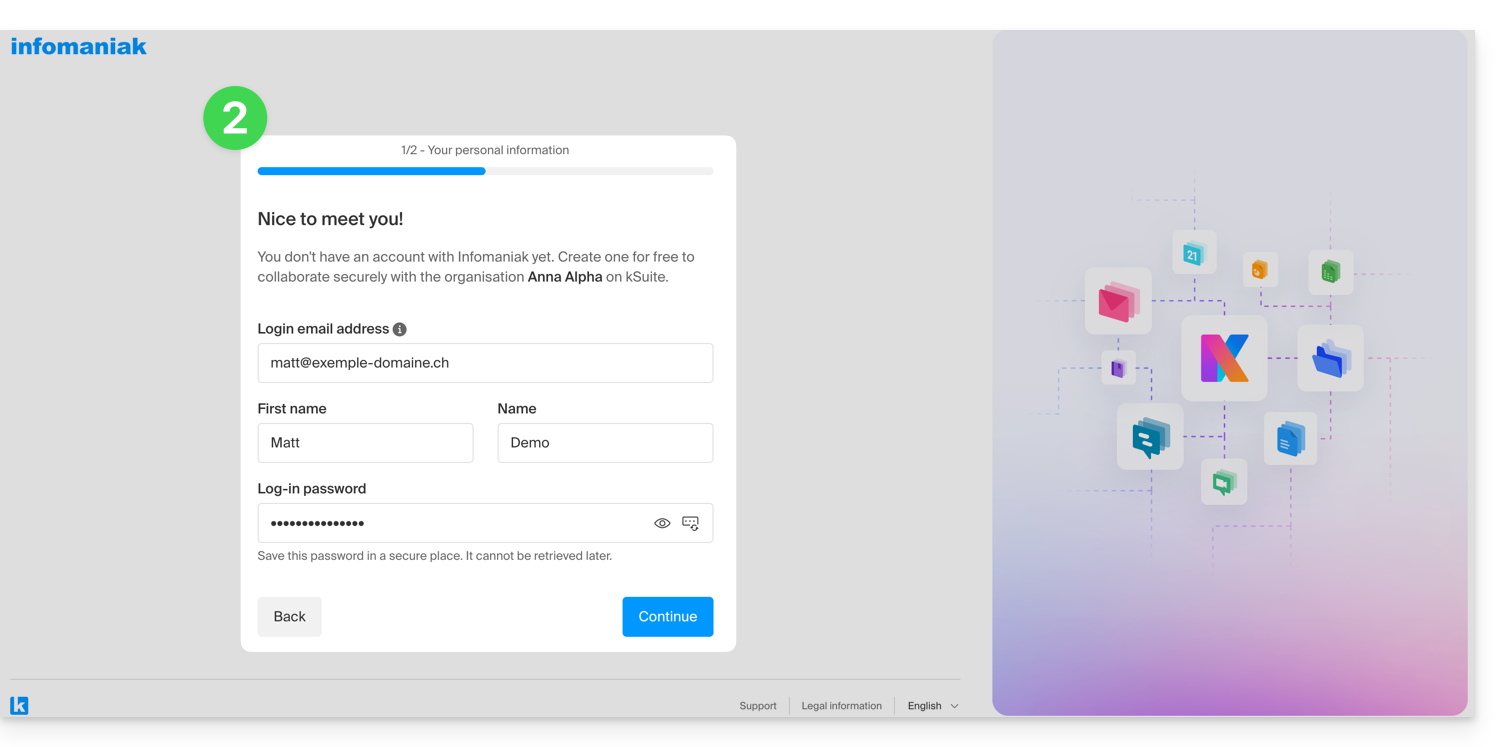
- They specify their contact details as well as the email address/password they wish to use and complete the registration:
- Once registration is complete, the newly registered user can log in to their Manager and access the kChat to which they were invited.
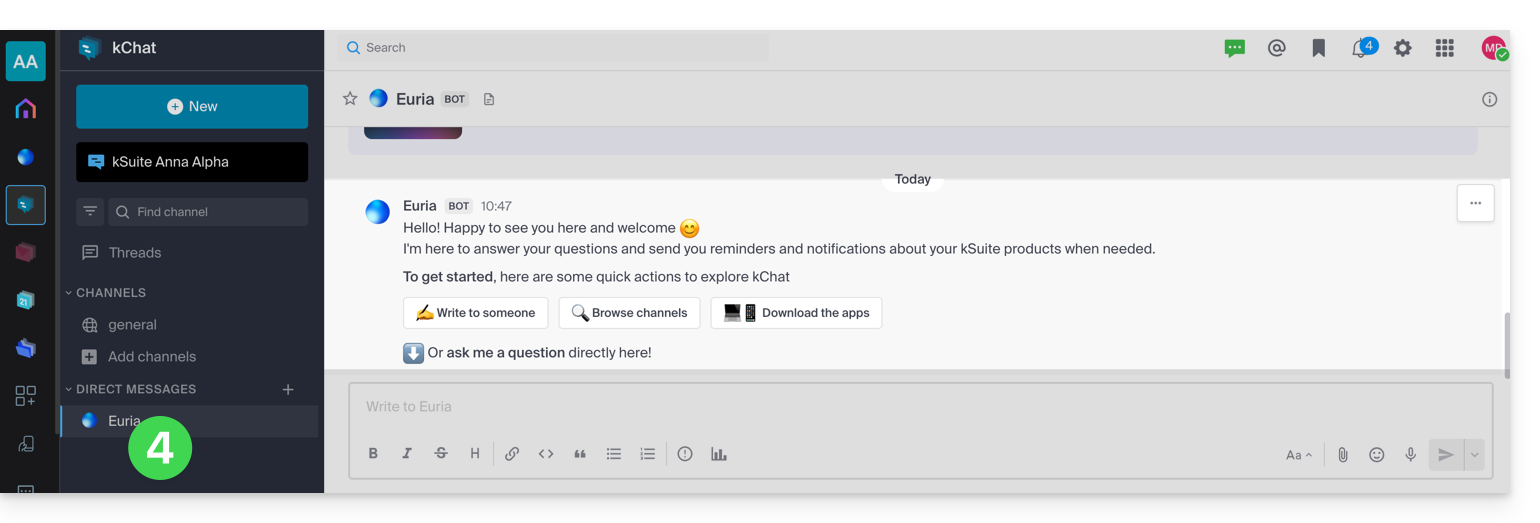
- Existing users are automatically notified of the new participant's arrival and can now chat with them; as soon as they are added, the new user receives a welcome message from Euria (Infomaniak's AI Bot):
Access to kSuite, and not access to the management of kSuite!
It is important to differentiate between using the kChat app (within kSuite) and managing kSuite itself.
In the invitation example above, the new user has been invited to join kChat, and is therefore now counted as a kSuite user when an administrator accesses the kChat user management section: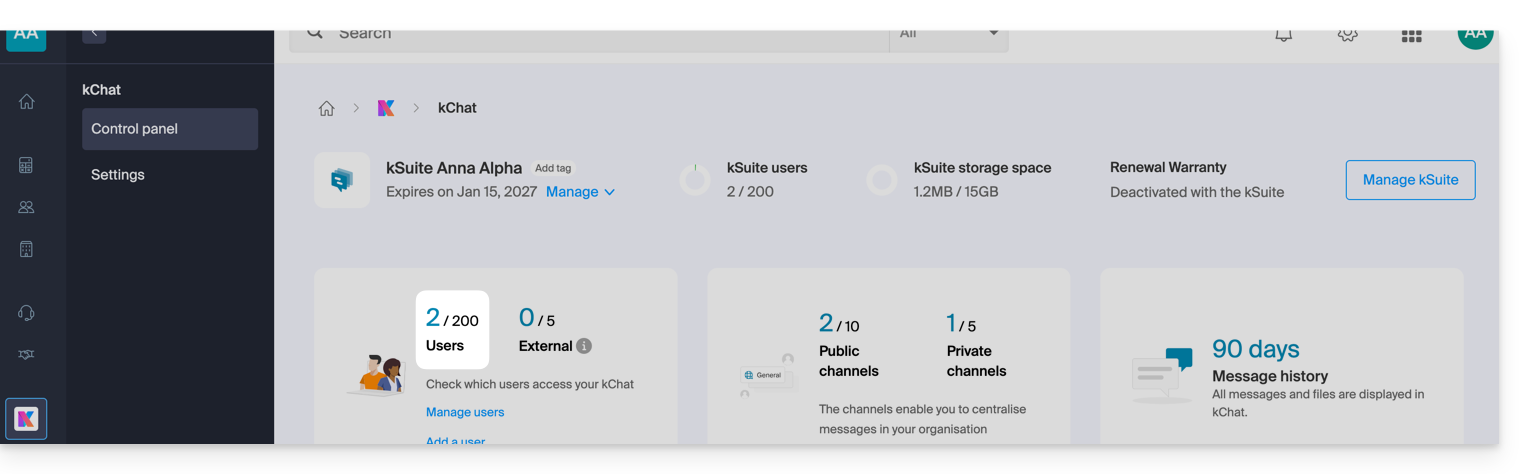
The same applies, of course, to kSuite user management: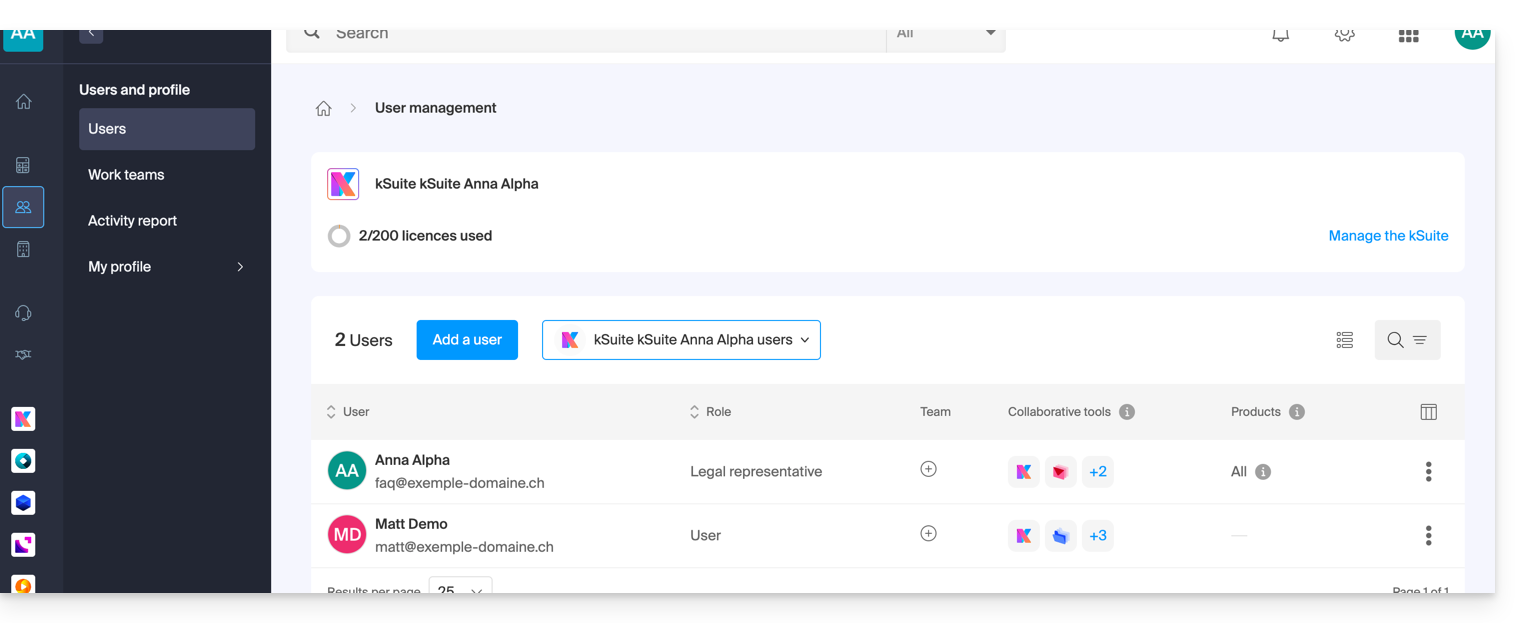
However, this new user will not be able to directly manage the kSuite to which they have been invited, since their role (defined in point 5 above) does not authorize them to do so: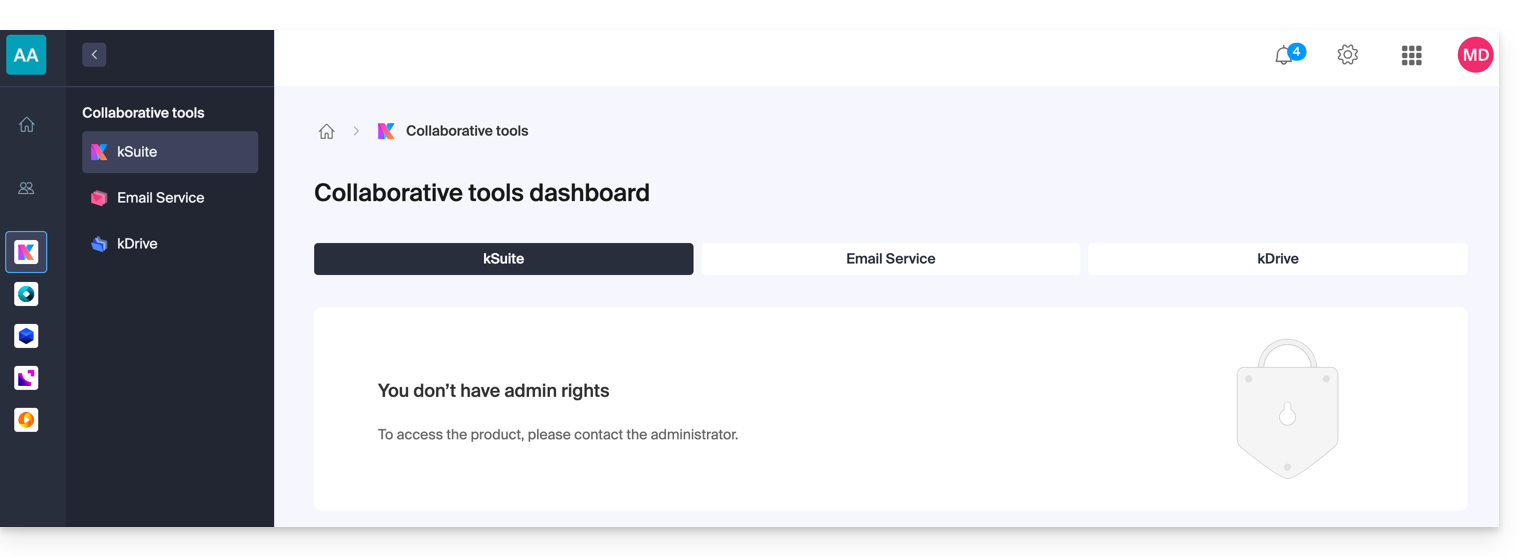
- This is why this user will not see any active links in the Collaborative Tools → kSuite section of their Infomaniak Manager.
- He will need to switch to the Infomaniak applications using the menu in the top right corner:
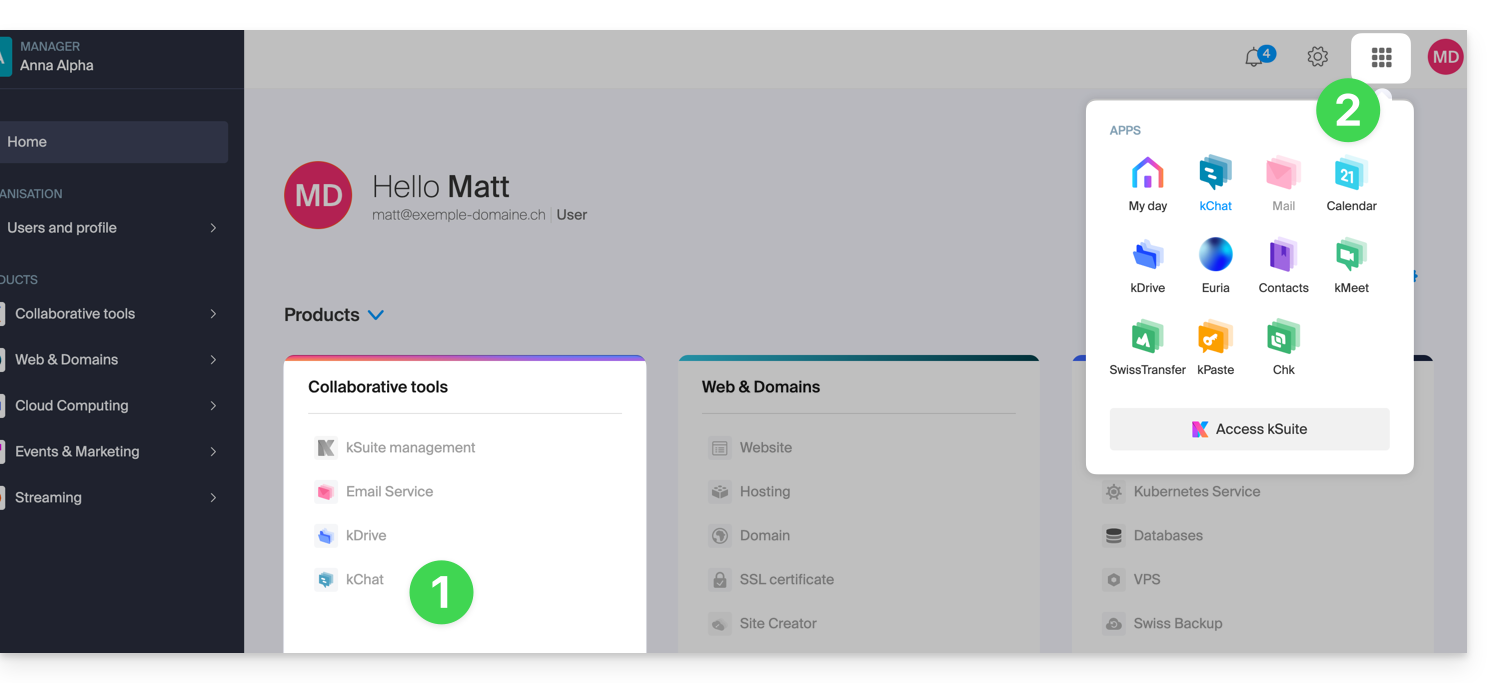
Note that, if he wishes, this user can order his own kSuite, independent of the kSuite to which he was invited.
Link to this FAQ: https://faq.infomaniak.com/1455
Has this FAQ been helpful?
This guide introduces you to the kSuite workspaces, the suite of productivity and online collaboration tools developed in Switzerland by Infomaniak.
Introduction
- A kSuite space brings together access to your applications and offers an intelligent dashboard to quickly access essential information:
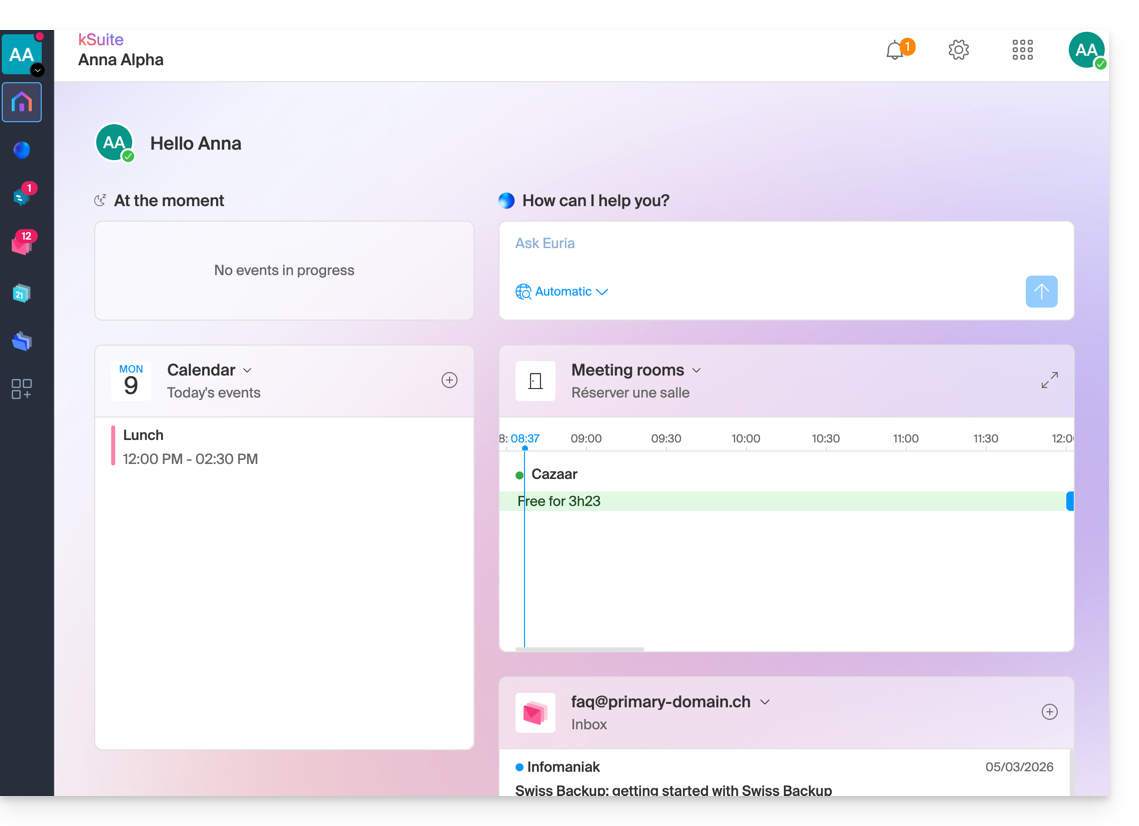
- widgets like "Now" display your appointments (location, participants, kMeet link).
- the "Euria" widget allows you to request AI assistance with a single click.
- your latest received emails…
- navigation is designed to allow you to switch seamlessly from one application to another within a single browser window.
- The interface allows you to manage your status and presence in order to collaborate more effectively with other users.
- You can switch between the kSuite workspaces of your different Organizations in the same way as on the Infomaniak Manager: learn how.
- If you have my kSuite, this workspace will always be offered first.
Accessing the kSuite page from the Manager
Click on the icon in the top right corner of the interface, then click on My Day to switch between the Infomaniak Manager and the kSuite space, as well as the kSuite apps: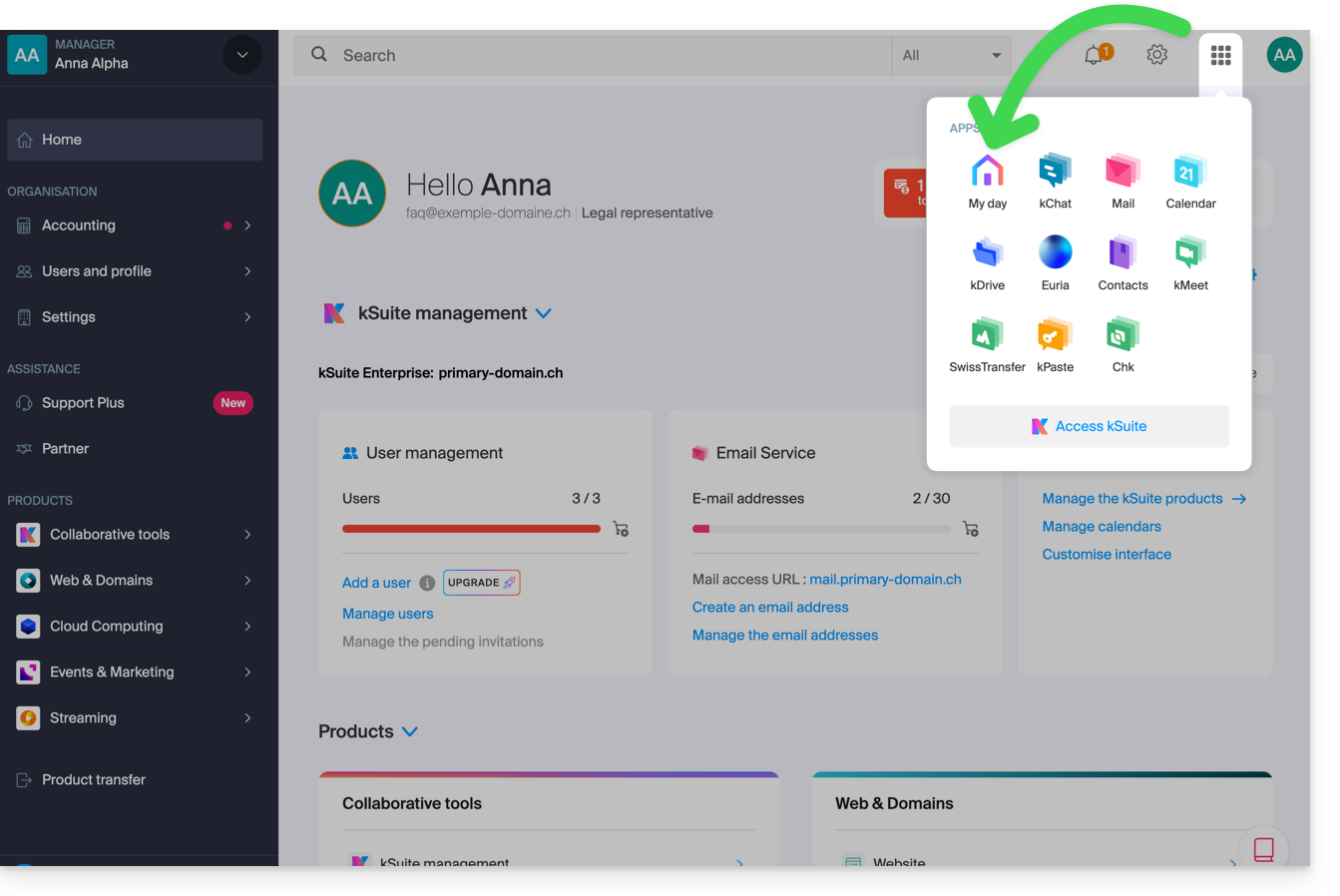
Accessing the kSuite space from an app
If you are already on a kSuite app, click on the colored house in the left-hand menu or click on the icon in the top right corner of the interface, then click on My Day: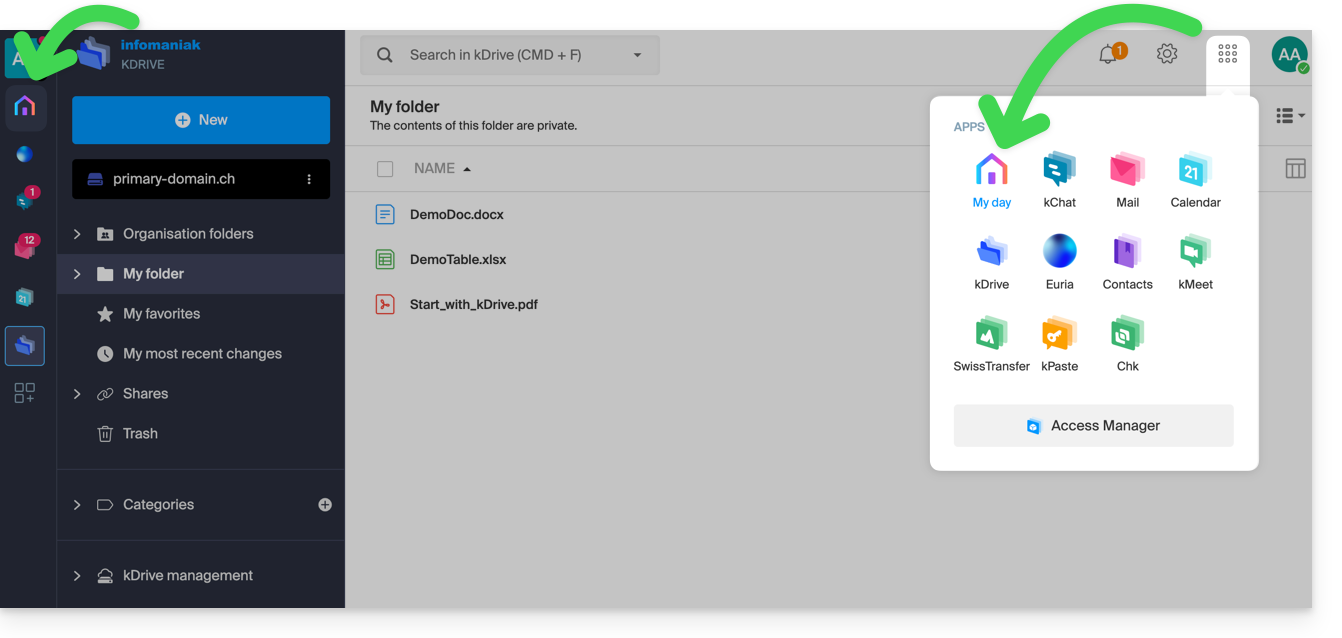
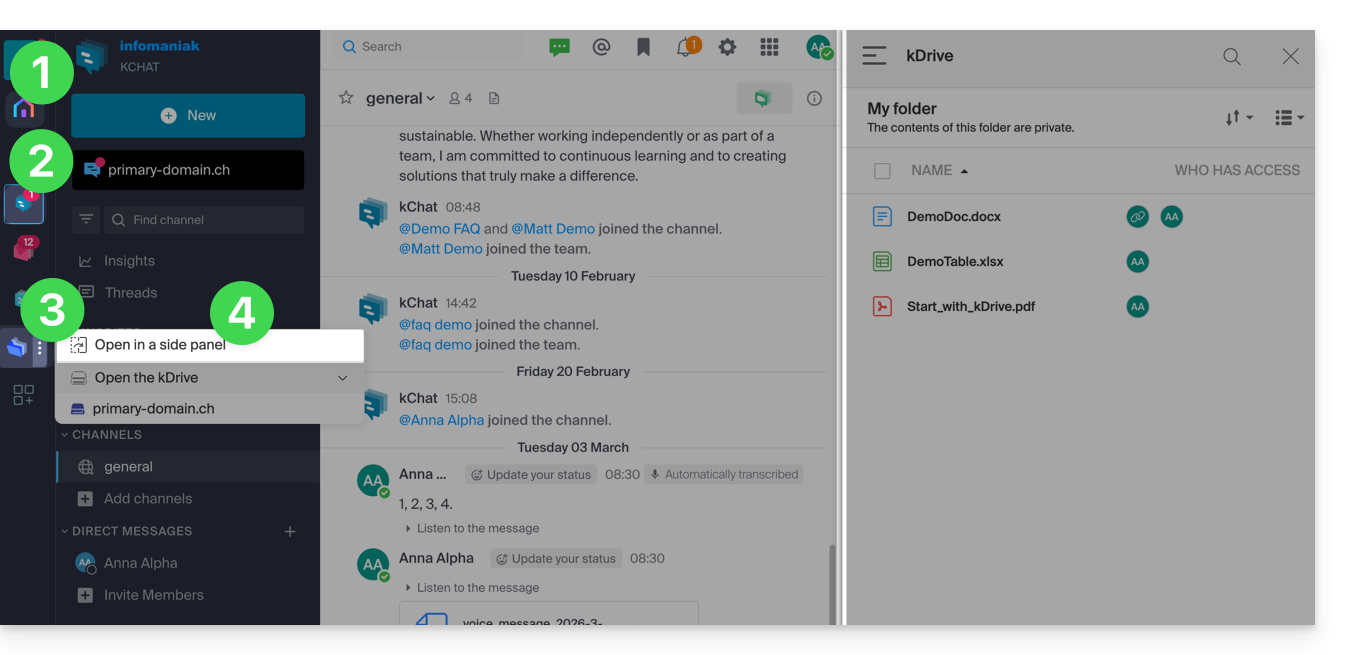
Split the screen for 2 kSuite apps
To work with 2 kSuite apps side by side:
- Click here to access your Organization's kSuite area.
- Click on the icons in the left-hand menu to access a kSuite app, such as kChat.
- Click on the action menu ⋮ located to the right of another kSuite app, such as kDrive.
- Choose to open the app in a side panel to have both apps side by side:
Learn more
Link to this FAQ: https://faq.infomaniak.com/1496
Has this FAQ been helpful?
This guide explains how to connect the Contacts and Calendar iOS (iPhone, iPad…) apps with the contacts & calendars hosted by Infomaniak.
Introduction
- Rather than the manual configuration below, it is recommended to use the .mobileconfig configuration profiles offered by Apple.
- Infomaniak contacts & calendars are linked to your Infomaniak account; when you log in to ksuite.infomaniak.com/contacts or /calendar, you will likely need to perform two-factor authentication (2FA) during login.
- In this case, an application password is required to establish synchronization between your device and Infomaniak tools.
- But don't worry, creating such a password is offered as part of the configuration wizard.
Manual configuration (contacts & calendars)
Obtain your login information
To obtain the CardDAV/CalDAV synchronization username and password:
- Click here to access the Infomaniak configuration tool (online service https://config.infomaniak.com) — log in if necessary to your Infomaniak account for the Organization where your email address is managed.
- Select a device other than iOS (this is to obtain your username):
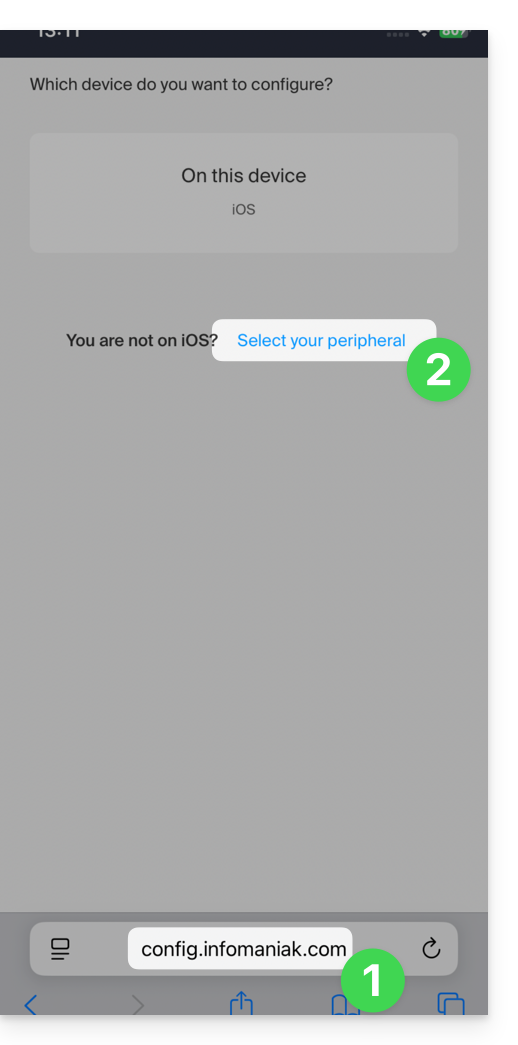
- Choose Linux:
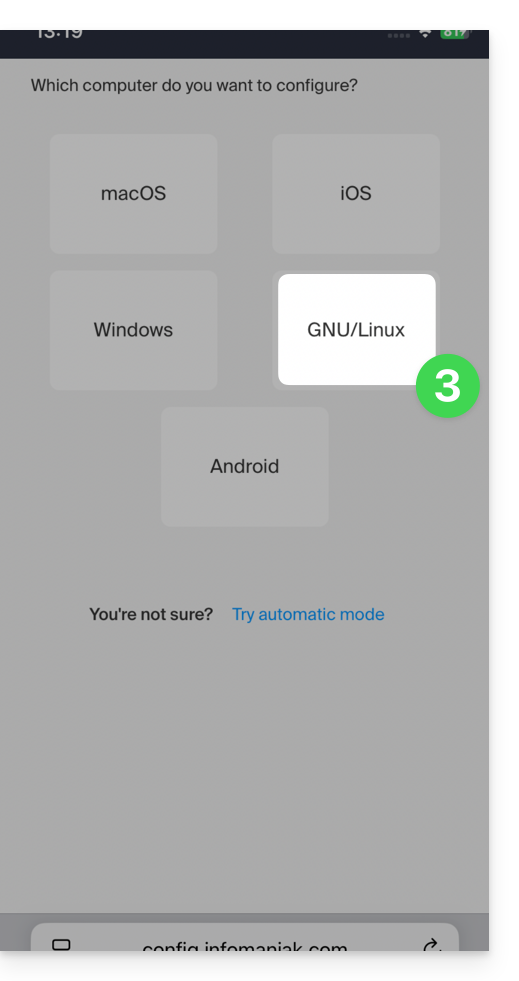
- Choose Contacts or Calendars:
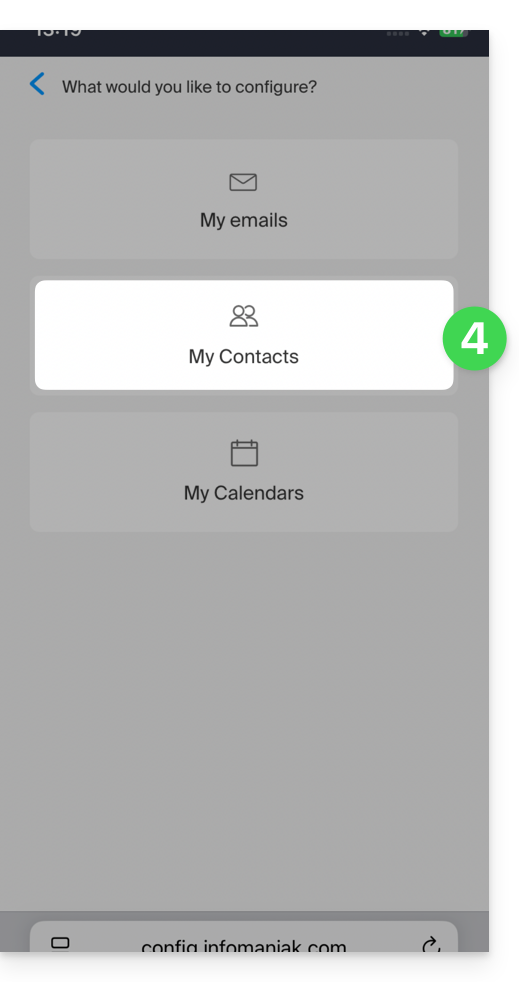
- Choose the specific service that needs to be synchronized.
- Tap the right arrow several times, then tap the title of the manual synchronization tab:
- The information displayed below allows you to obtain:
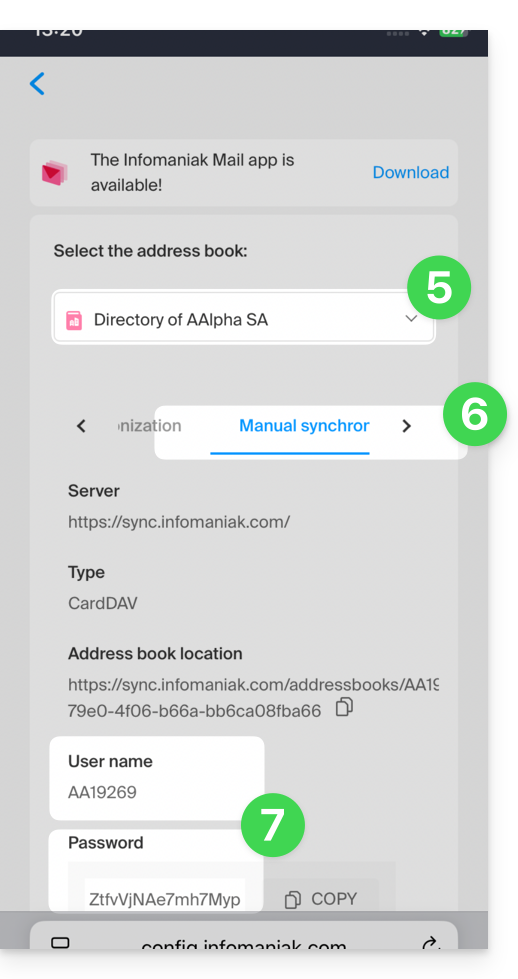
- your username (e.g.,
AB12345)… - application password if two-factor authentication is enabled or the password for your Infomaniak user account if you have not enabled 2FA.
- For the server address, use only
sync.infomaniak.com.
- your username (e.g.,
Using the login information
With this information, all you have to do is add your accounts according to Apple's instructions:
- Go to Settings > Contacts > Accounts > Add Account.
- Tap Other, then Add CardDAV Account and enter the account and server information.
Do the same for the Calendar app:
- Go to Settings > Calendar > Accounts > Add account.
- Tap Other, then Add CalDAV account and enter the account and server details.
Synchronization specifics
Refer to this other guide.
Link to this FAQ: https://faq.infomaniak.com/1544
Has this FAQ been helpful?
This guide explains how, from a Mail service, you can access a mail address on the Infomaniak ecosystem (using your login credentials for your Infomaniak account) by using only the Infomaniak Mail web app (online service ksuite.infomaniak.com/mail) and/or the Infomaniak Mail mobile app (application for iOS/Android smartphones or tablets), without creating a specific password for the address.
Other access and management options are presented in the main guide.
Prerequisites
- Order a Mail Service from Infomaniak.
- Create one or more addresses on this Mail service.
- Have at least the right to manage the Mail service in question (or be Administrator / Legal Representative within the Organization).
Accessing an email address
To use the existing email address demonstration@exemple-domaine.ch:
- Enter your Infomaniak account login ID and password on the page https://manager.infomaniak.com/:
- Confirm the login on the Manager using the 2FA (two-factor authentication) method that you initially set up:
- Once on the dashboard, click on Mail Service:
- Once on your Mail Services page, click on the name / domain name to which the email address in question belongs:
- Once you are on the Mail service to which the address belongs, click on the email address in question:
- Once you are on the email address in question, click on the Add user button:
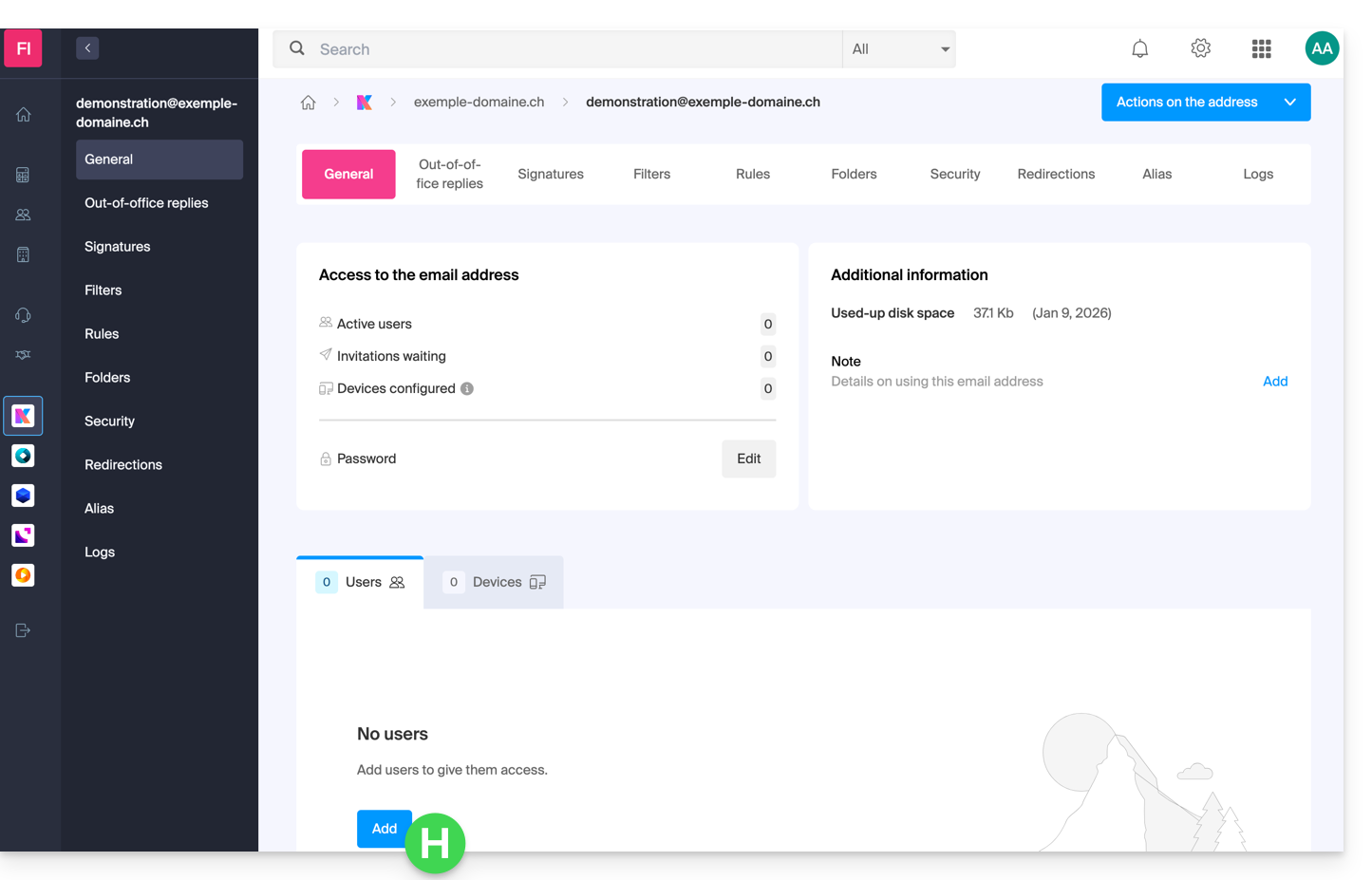
- At this stage, it may be necessary to re-enter the login password (the one from point B above):
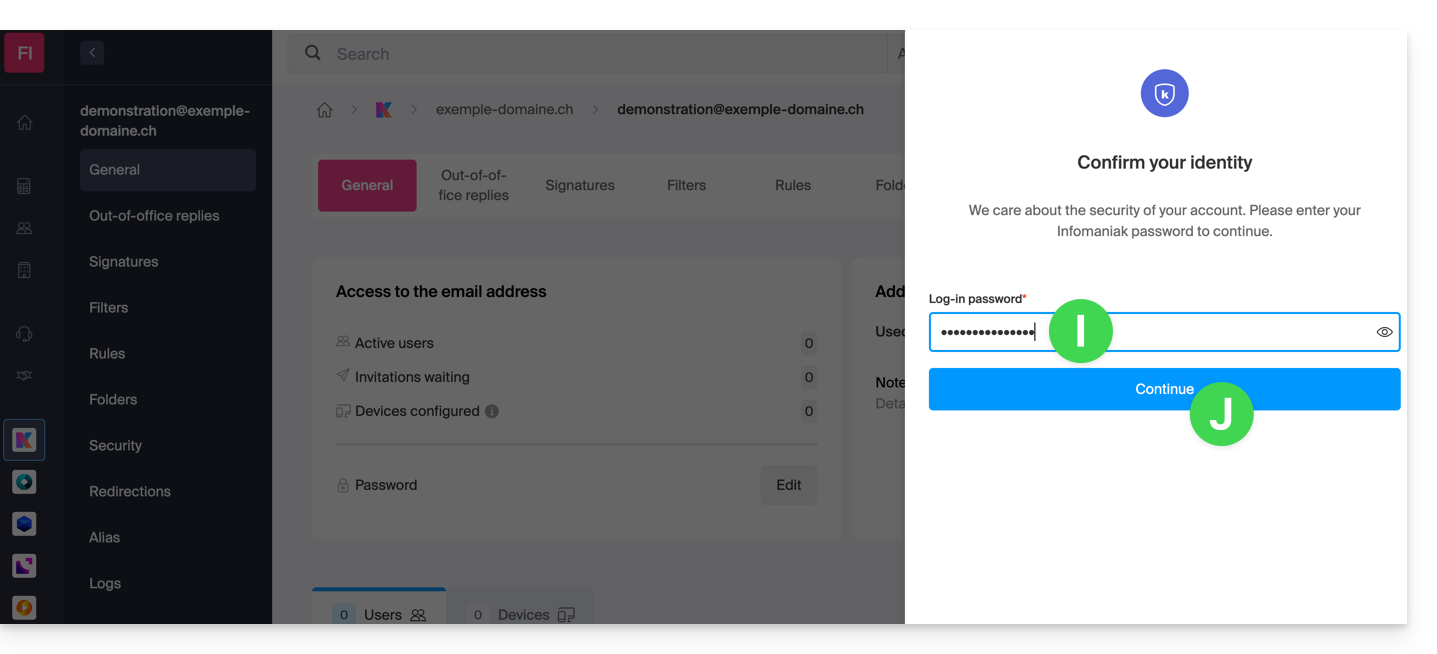
- Then, choose the option to add an existing user, then click on the field below, which will display the list of users in the Organization you are connected to, and click on your username (your login ID for your Infomaniak account). Confirm the addition using the button in the bottom right corner:
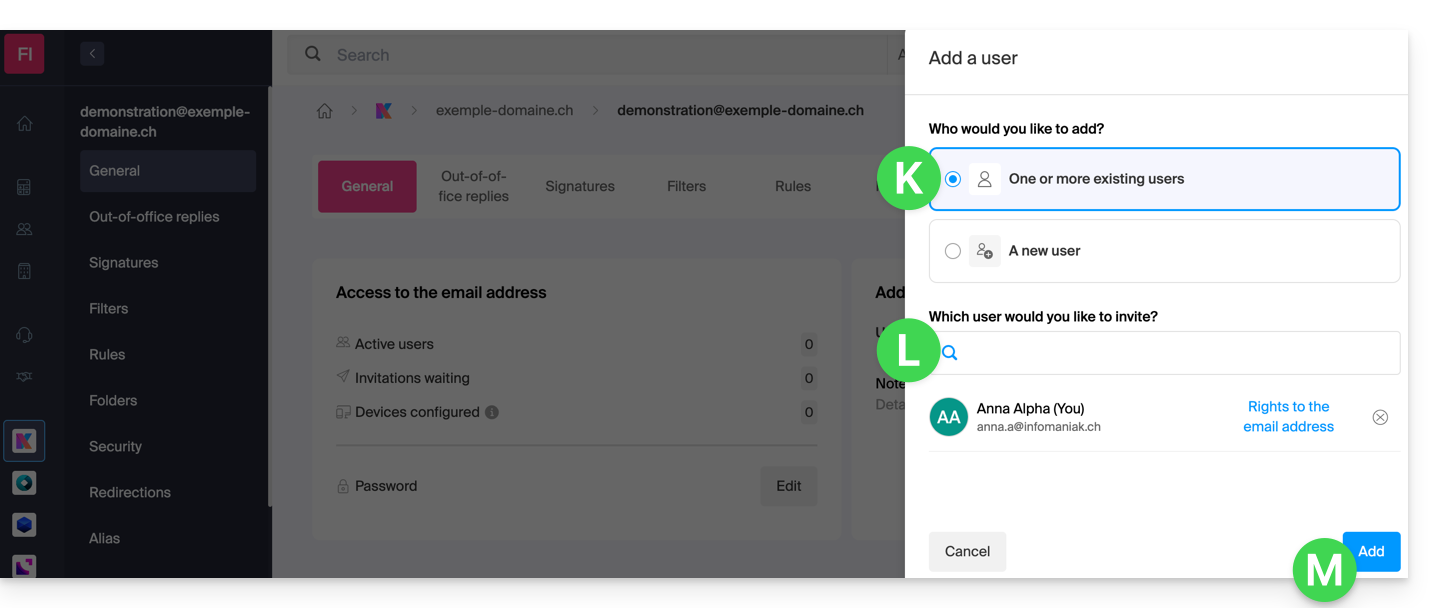
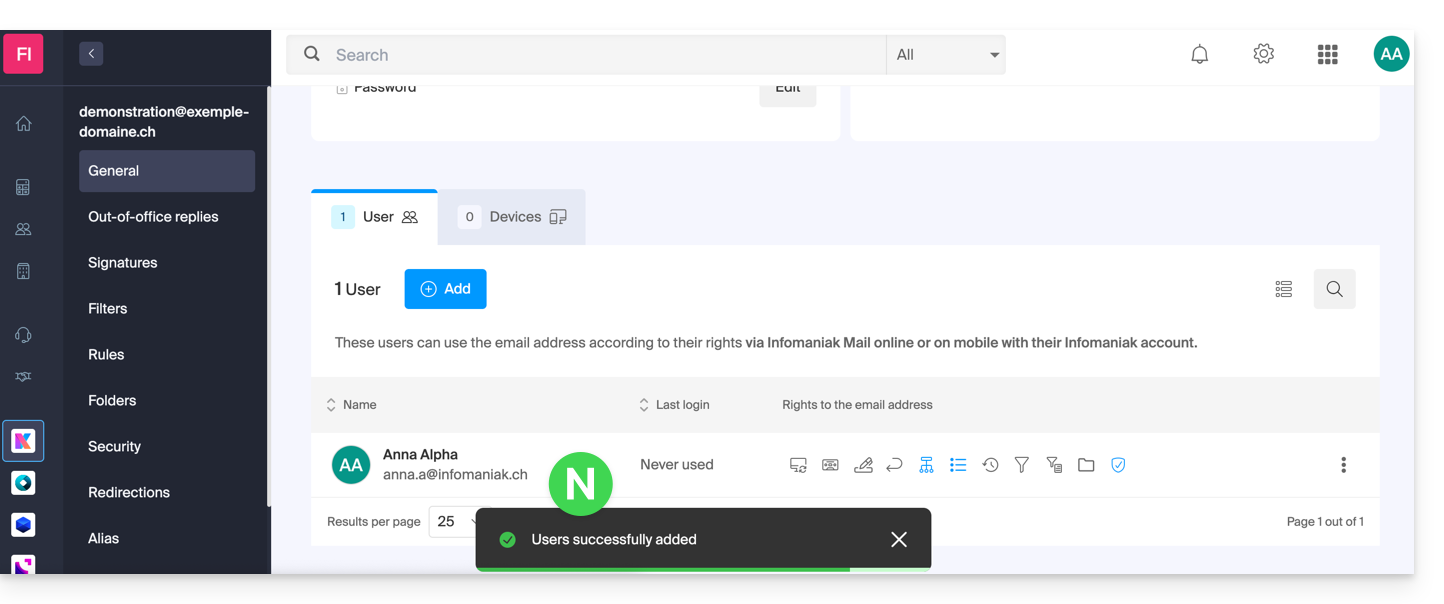
- Done, your user has been added:
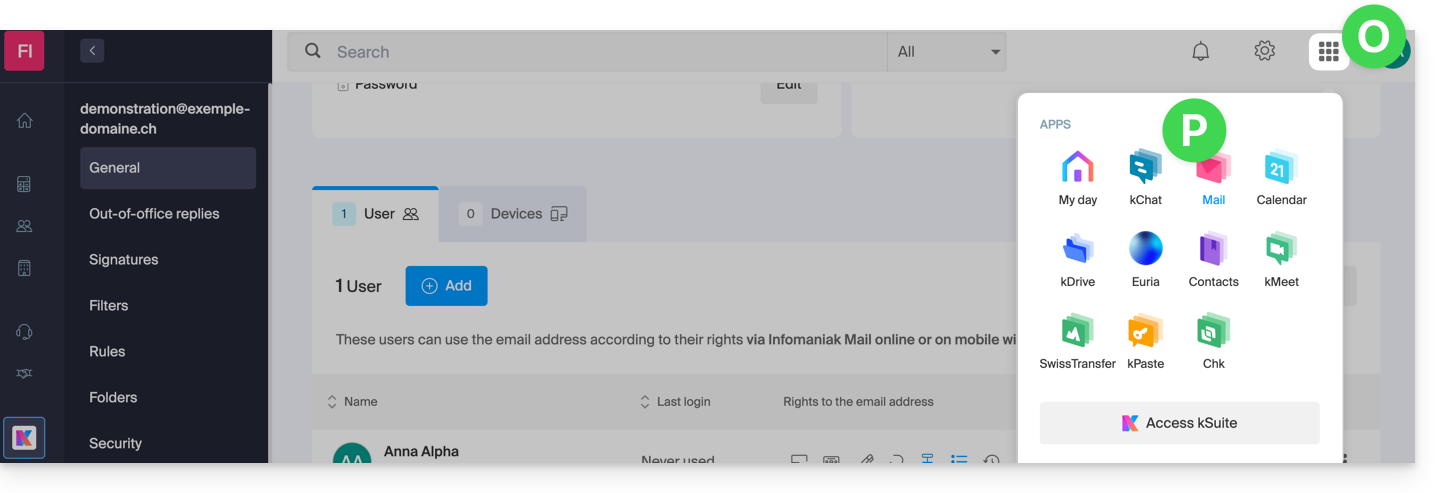
- Next, click on the icon at the top of the screen to open the kSuite tools, and then click on the Mail Infomaniak web app:
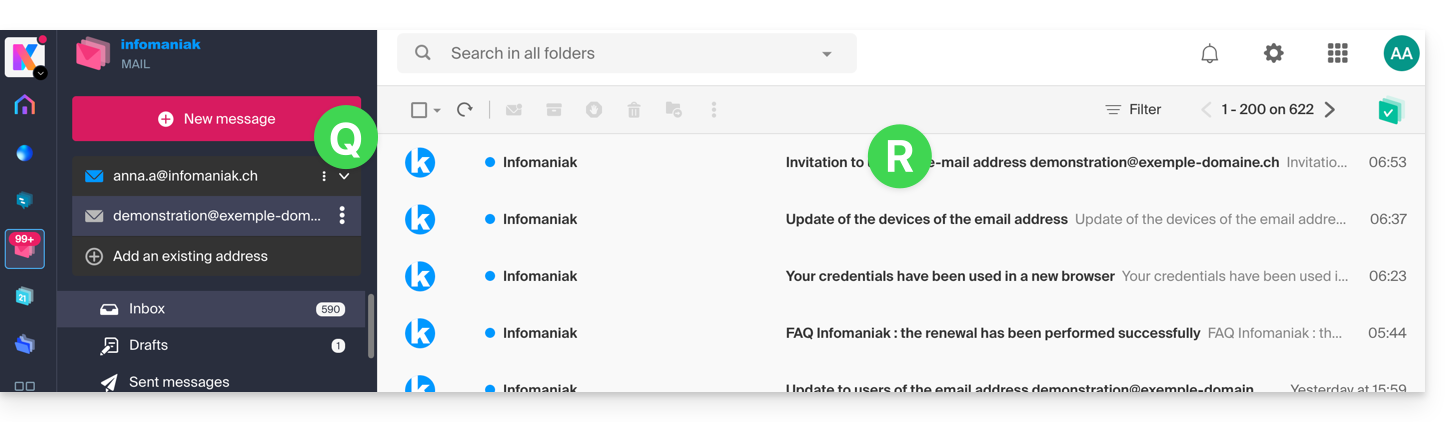
- The email address has been successfully added to the Mail web app (click on the down arrow if necessary to expand the address menu and access it). An informational email has been sent to the user (you in this case) to notify them of the operation:
When your user ID is added as a user with access to the email address, the mailbox is automatically added to your Infomaniak Mail apps: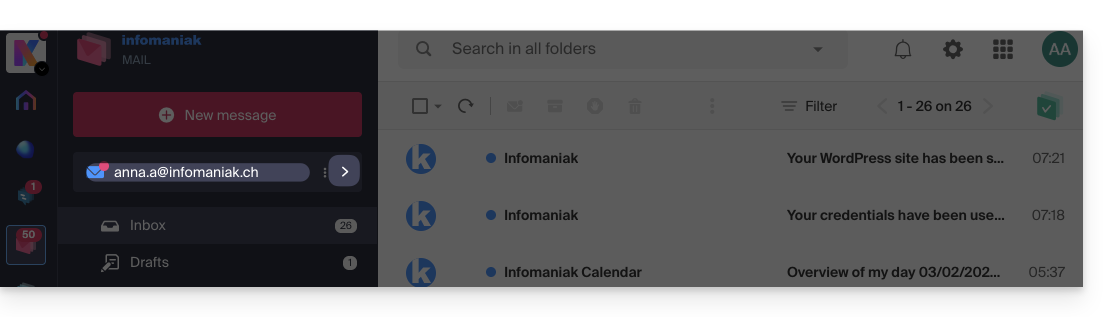
You can switch between your addresses at any time using the chevron located in the top left corner of the screen: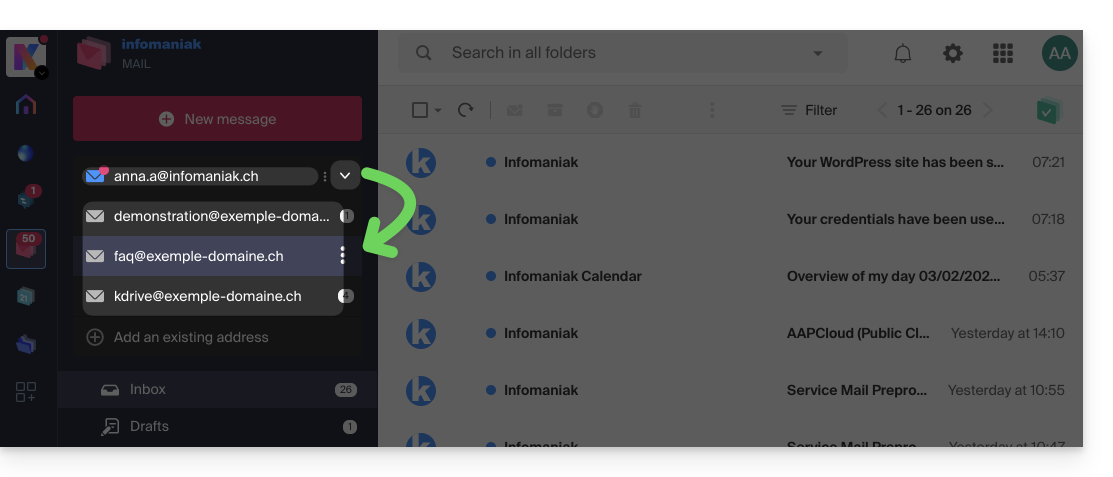
If the address is not displayed, try refreshing the browser page (Command ⌘ + R on macOS and Ctrl + F5 on Windows).
Link to this FAQ: https://faq.infomaniak.com/1547
Has this FAQ been helpful?
This guide explains how to add a new recurring event to a calendar in the Infomaniak Web app Calendar (online service ksuite.infomaniak.com/calendar).
Introduction
- To easily create and configure a new event, refer to this other guide.
- It is possible to modify (move/delete) a single instance of a recurring event in the Infomaniak calendar without affecting the entire series, allowing you to adjust the time, participants, location, or duration of a specific meeting while preserving the original configuration for all other instances.
Add a recurring event
To add an event that will be repeated in the future:
- Click here to access the Infomaniak Calendar web app (online service ksuite.infomaniak.com/calendar).
- Click the Create button in the upper left corner.
- Click on Event:
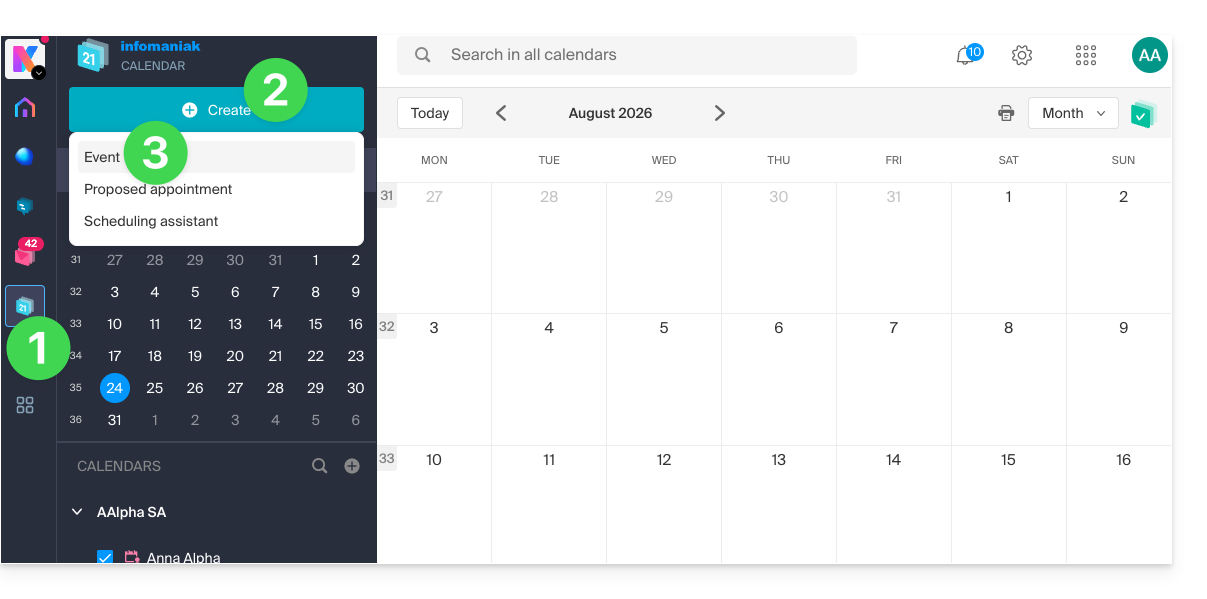
- Enter the event details.
- Click on the time/date section:
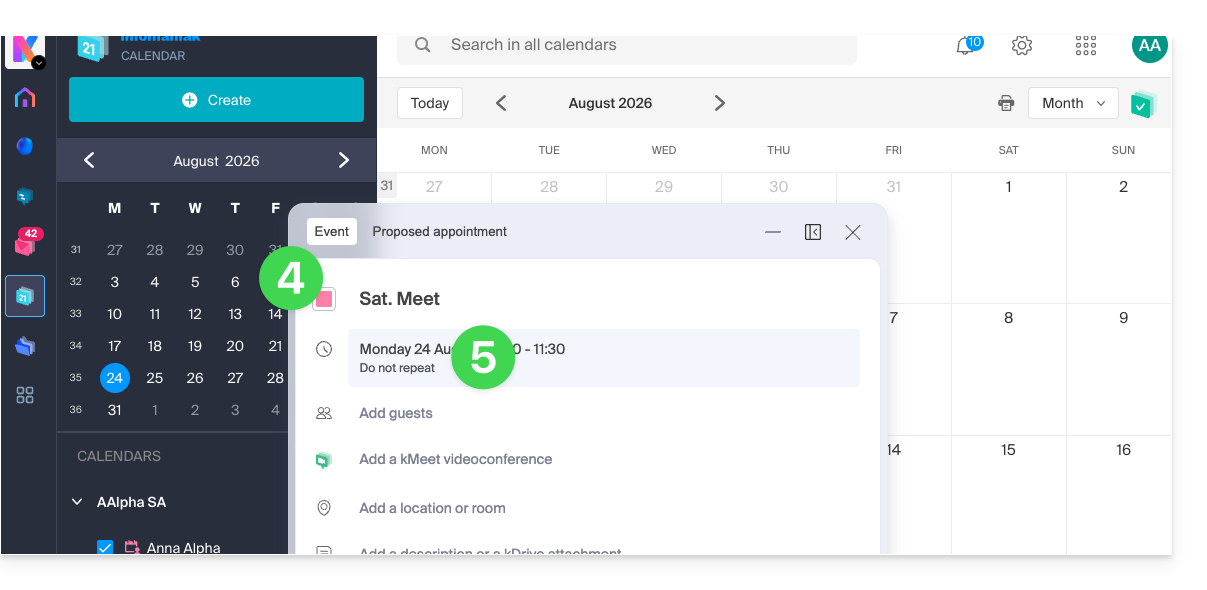
- Enable recurrence and customize it as needed.
- Save the recurring event at the bottom of the page:
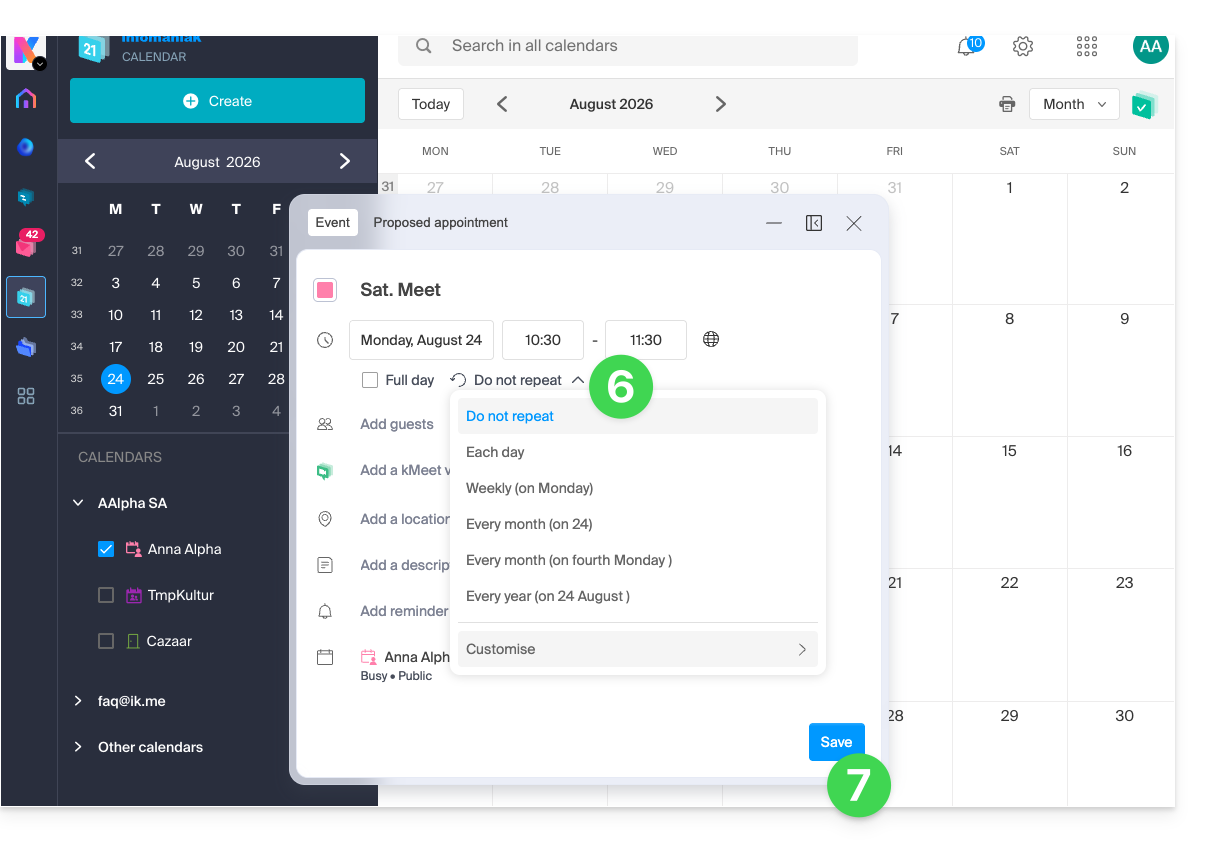
Link to this FAQ: https://faq.infomaniak.com/1565
Has this FAQ been helpful?
This guide explains how to change your plan for kDrive, the collaborative storage solution on a 100% Swiss Made cloud.
Introduction
- kDrive is the name given to the file storage/sharing service offered by Infomaniak in Switzerland.
- kDrive is accessible free of charge or through a subscription, depending on whether you are the only user or if you want collaborators to also have access.
- kDrive is available as a standalone product, or as part of the kSuite & my kSuite / my kSuite+ suite.
- To help you identify the offer that best suits your needs, please refer to this other guide.
If you have been invited to view/collaborate on a file in a kDrive, you may not actually own the kDrive product; you only have access to a kDrive managed by someone else. Therefore, you cannot interact with the current offer.
Determine your current kDrive plan
From the kDrive web app
To find out which plan you currently have:
- Click here to access the Infomaniak kDrive web app (online service ksuite.infomaniak.com/kdrive).
- Click on Manage to go to the plan change page and view the current plan:
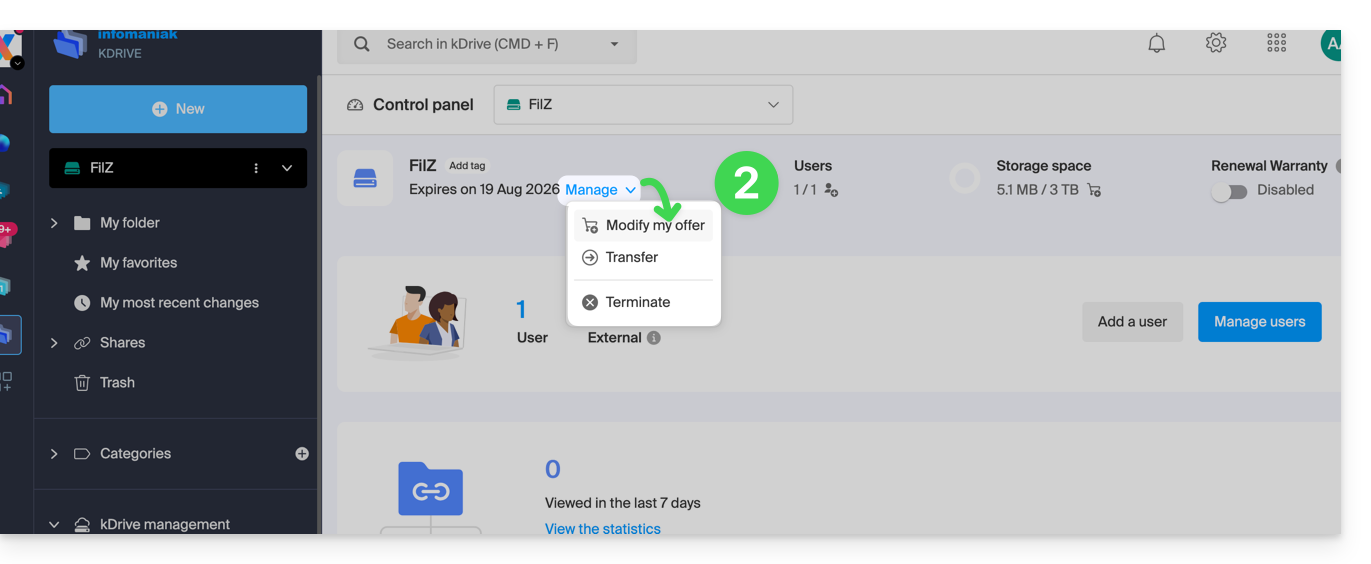
If no dashboard is accessible in the bottom left corner, you have limited features (e.g., the my kSuite plan) that can be unlocked by upgrading to a higher plan: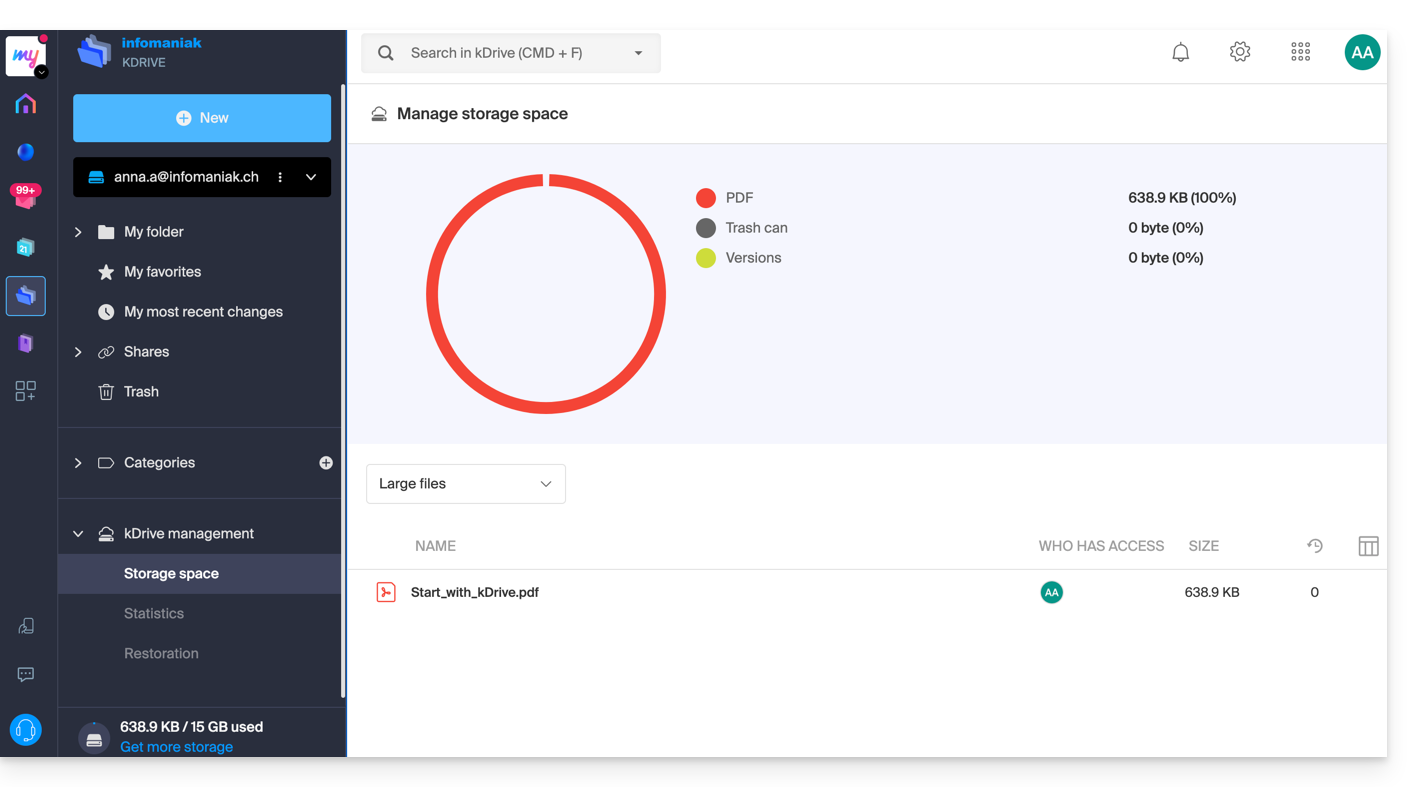
From the Infomaniak Manager
You can also find out about the current offer from the Manager, the dashboard for your products.
If no kDrive product is present in the Manager, the kDrive app is accessible only among the apps in the top right corner, because you have…
- either a my kSuite / my kSuite+ offer:
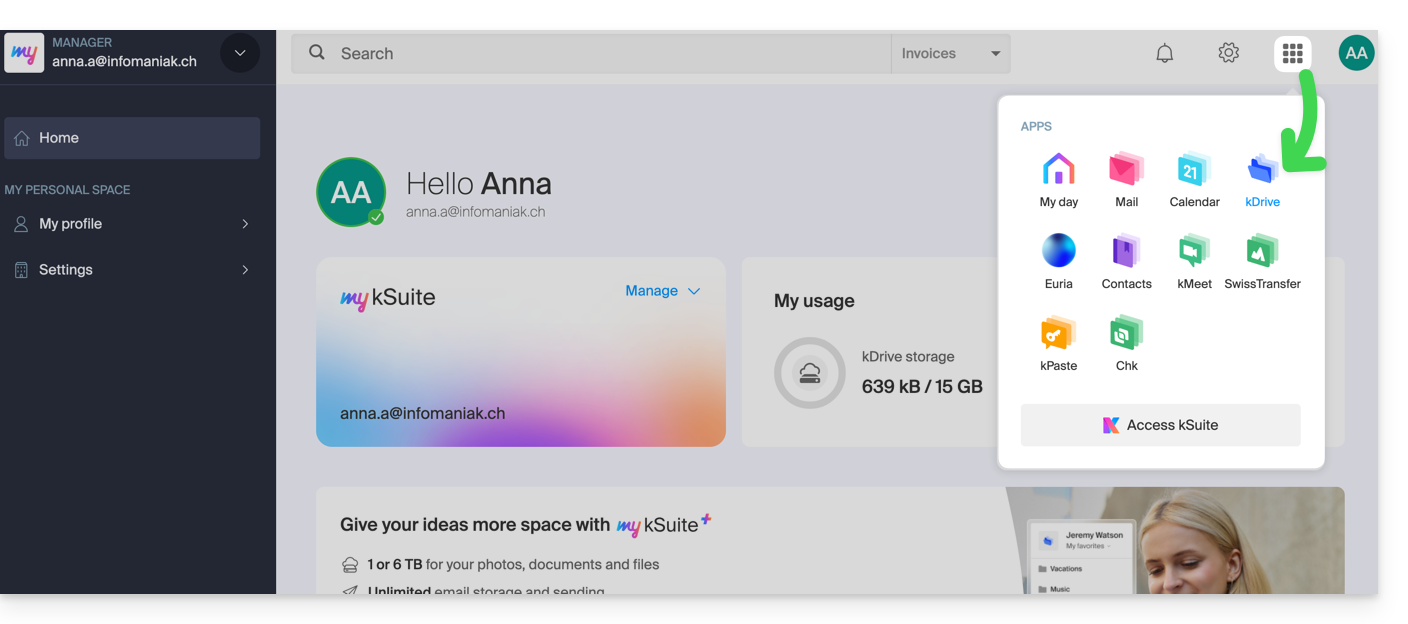
- either you were invited when a document was shared (in which case you are an external kDrive user):
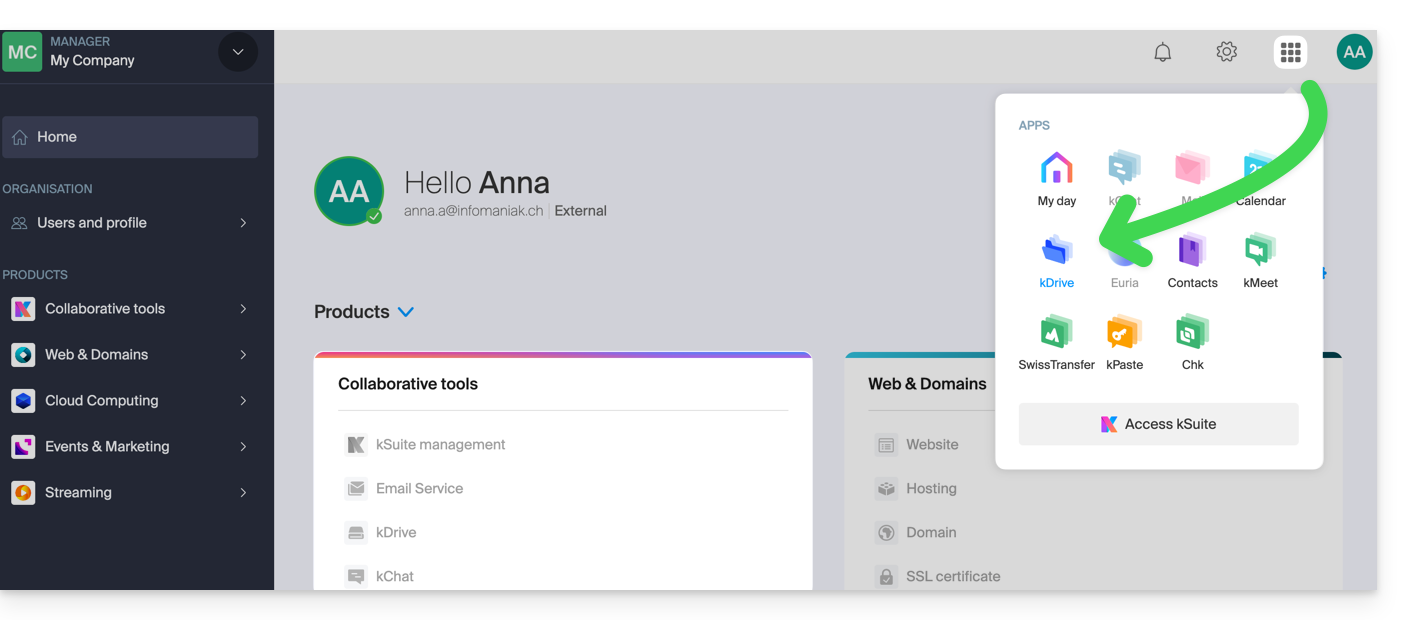
Otherwise, find your kDrive among your collaboration tools: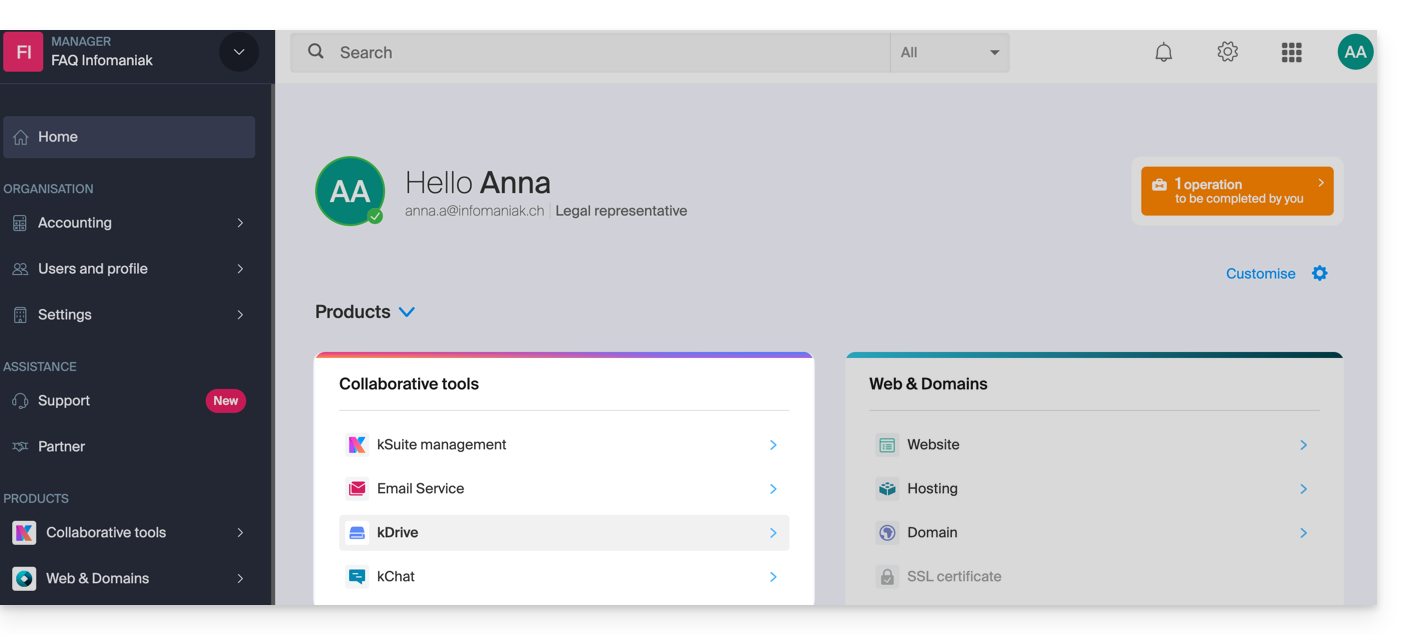
Change your current kDrive plan
Your kDrive can grow with you. As your needs expand – whether to accommodate new collaborators, integrate a family member, or store an increasing volume of data – easily increase its capacity to unlock its full potential.
Prerequisites
- You must have sufficient permissions within the Organization.
To change your current kDrive plan:
- Click here to access the Infomaniak kDrive web app (online service ksuite.infomaniak.com/kdrive).
- Click on Manage to go to the plan change page and view your current plan:
This will allow you to switch to a higher plan from the Infomaniak Shop: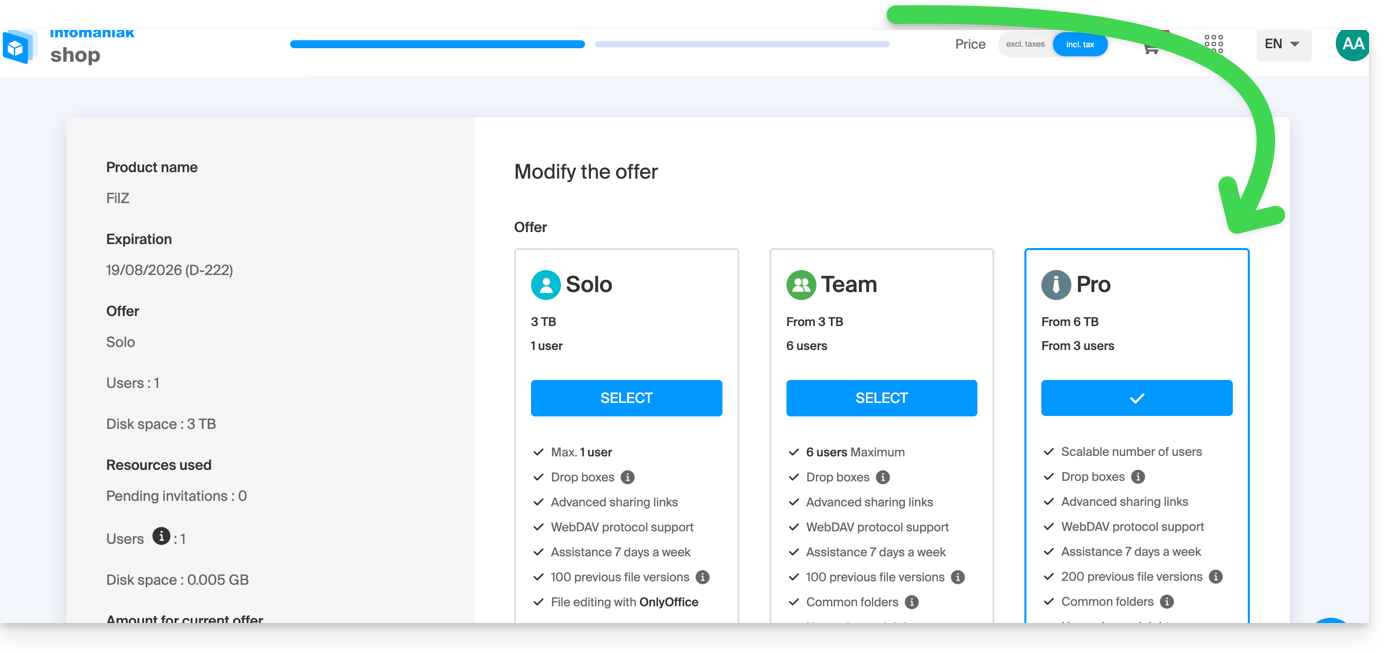
For example, if you increase the number of users who can be added to your kDrive by choosing a new plan, please refer to this other guide to invite them to join you.
Link to this FAQ: https://faq.infomaniak.com/1577
Has this FAQ been helpful?
This guide for the Infomaniak Mail web app (online service ksuite.infomaniak.com/mail) or the Infomaniak Mail mobile app (application for iOS/Android smartphones or tablets) explains how to enable encryption for emails sent from the Infomaniak web and mobile services.
Introduction
- When encryption is enabled, emails and attachments are encrypted as soon as they are received on Infomaniak servers, using the public keys of the senders and recipients.
- Each email address generates a key the first time it is used, which is stored securely in Infomaniak's data centers.
- The keys are based on elliptic-curve cryptography (ECC) and use the OpenPGP standard.
- They are themselves encrypted in AES-256-GCM with automatic decryption via Infomaniak authentication.
- In search results, only the subject of encrypted messages will be visible, while their content will remain secure during storage.
Enable email encryption…
… from the Infomaniak Web Mail app
To automatically encrypt a message sent to an email address:
- Click here to access the Infomaniak Mail web app (online service ksuite.infomaniak.com/mail).
- Compose a new message as usual.
- Click on the lock icon to the left of the Send button to enable encryption:
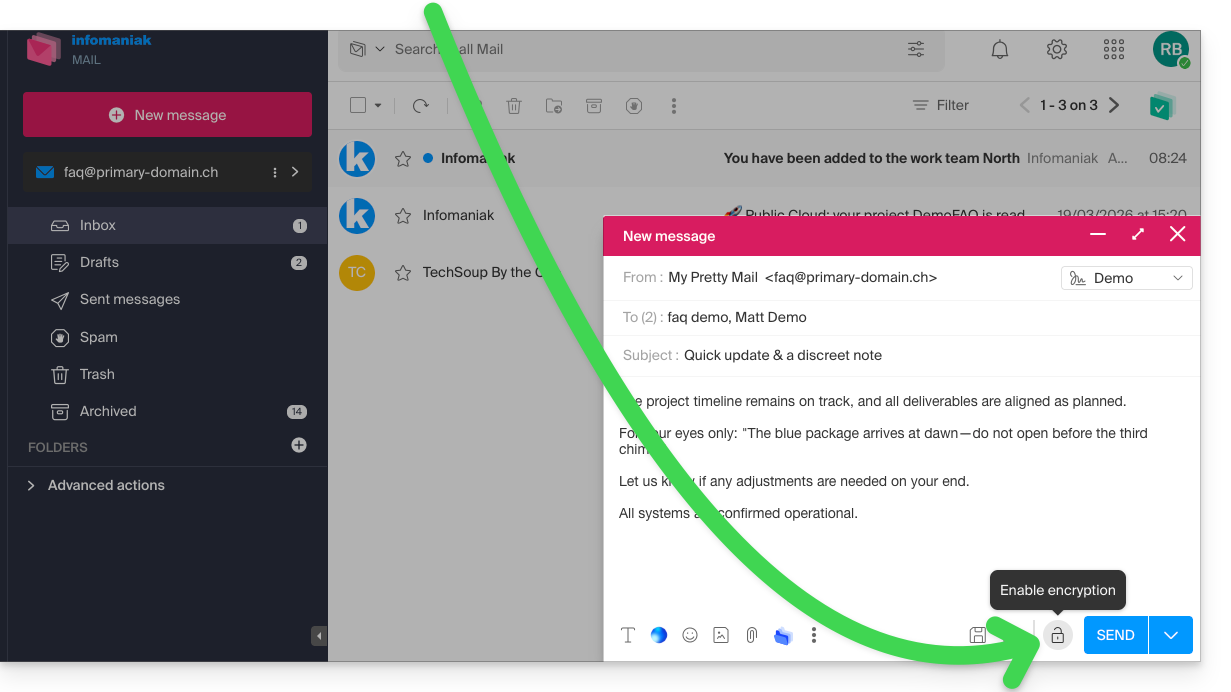
- Confirm the action if a confirmation window appears.
- The icon now represents a closed padlock, and the overall color has been changed:
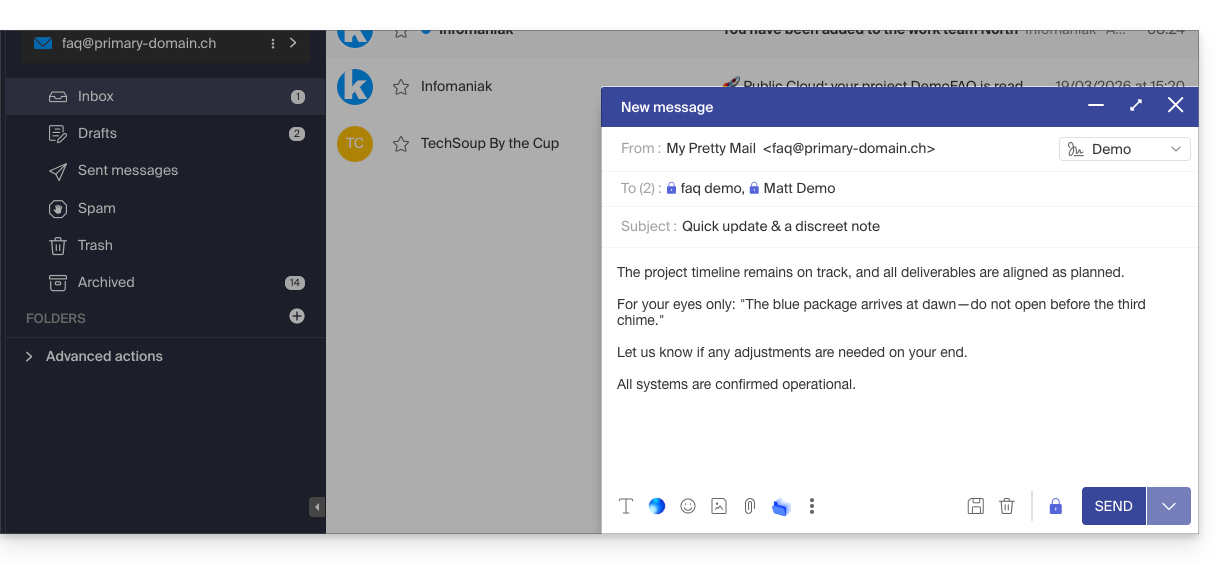
- Click the Send button.
This action must be performed each time you send a new email.
A. Recipient whose email is managed with Infomaniak
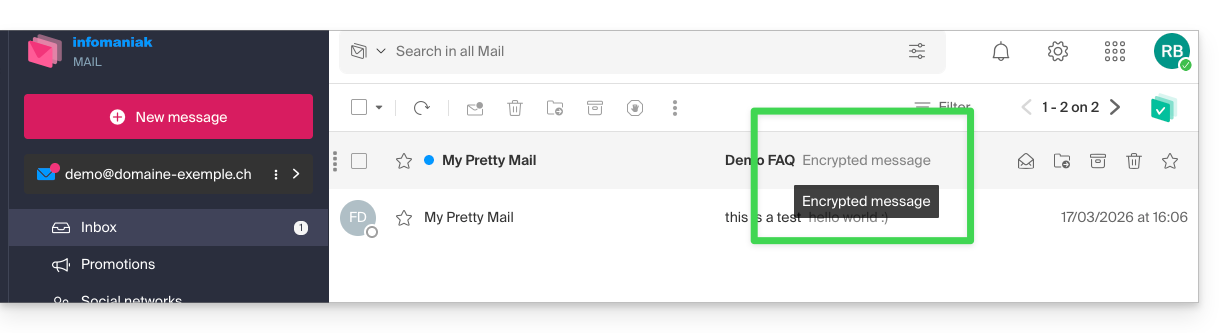
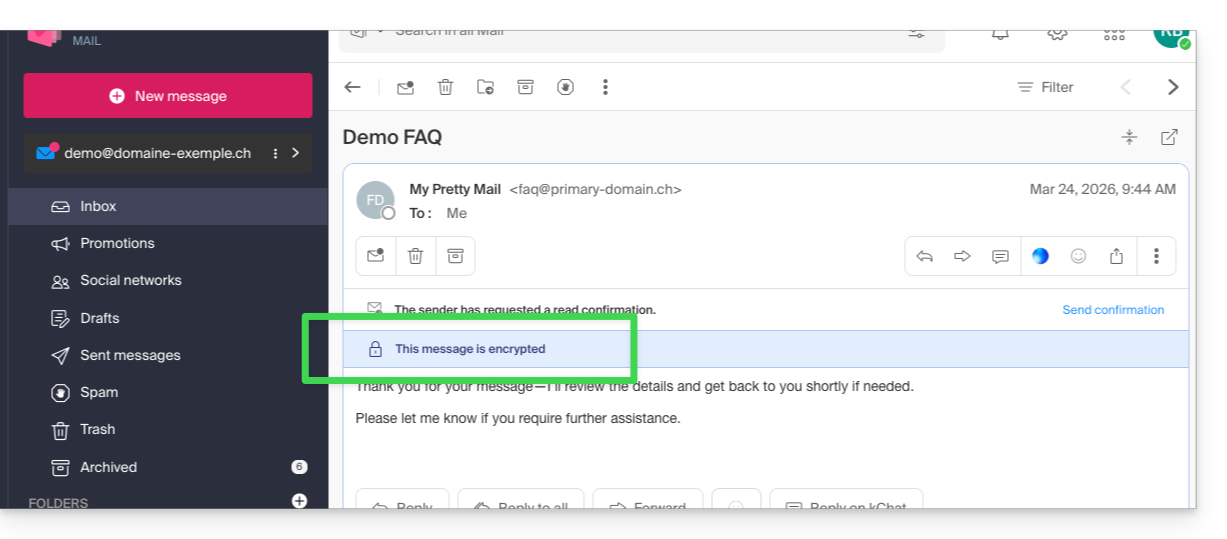
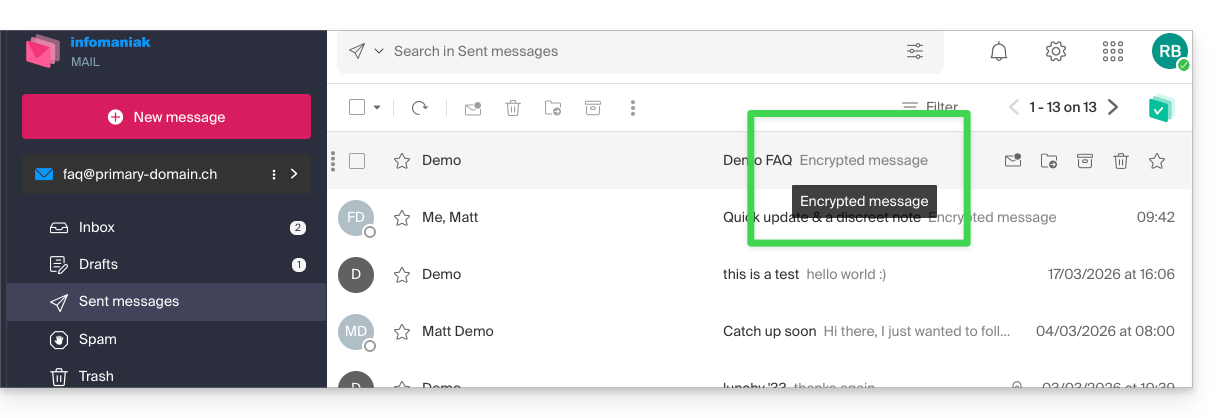
If the recipient of the encrypted email has an email address managed with Infomaniak, the encryption process is completely transparent for both the sender and the recipient. A notification will indicate that the message is encrypted…
- … in the recipient's inbox:
- … when opening the received message:
- … and in the folder containing messages sent by the sender:
B. External recipient
If the recipient of the encrypted email has an email address managed outside of Infomaniak's services, encryption is still possible, but it requires setting a password:
- Click here to access the Infomaniak Mail app (online service ksuite.infomaniak.com/mail).
- Compose a new message as usual, but address it to an email address outside of Infomaniak.
- Click on the lock icon to the left of the Send button to enable encryption.
- A modal window will open, allowing you to create a password:
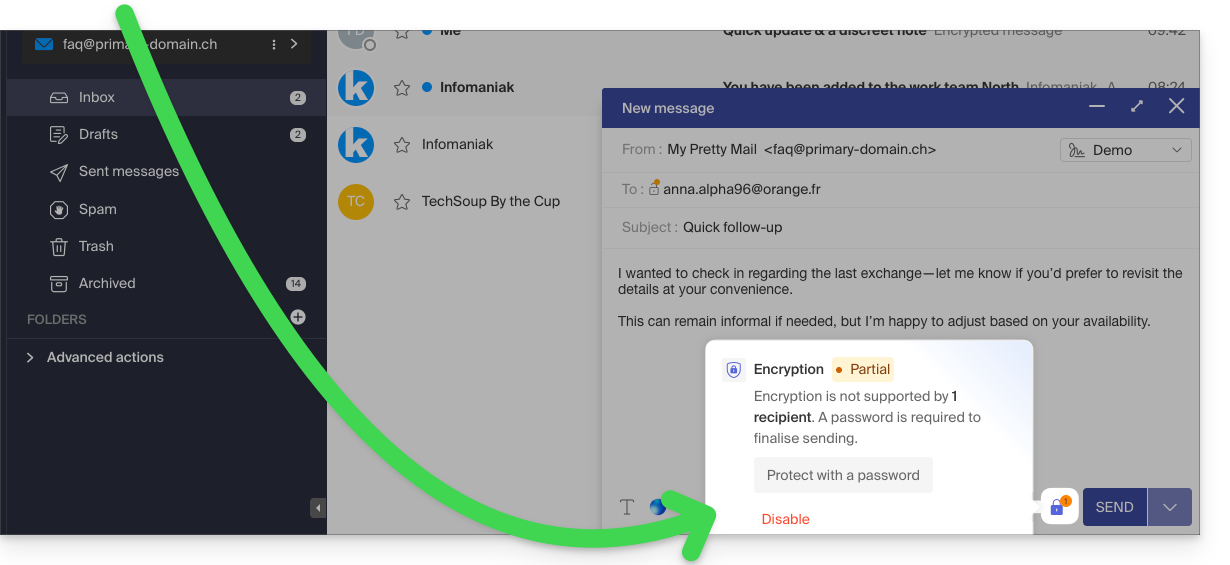
- Enter a password and copy it to send it to the recipient using your own means (kPaste for example) (you can agree on a password in advance so that the recipient is already informed):
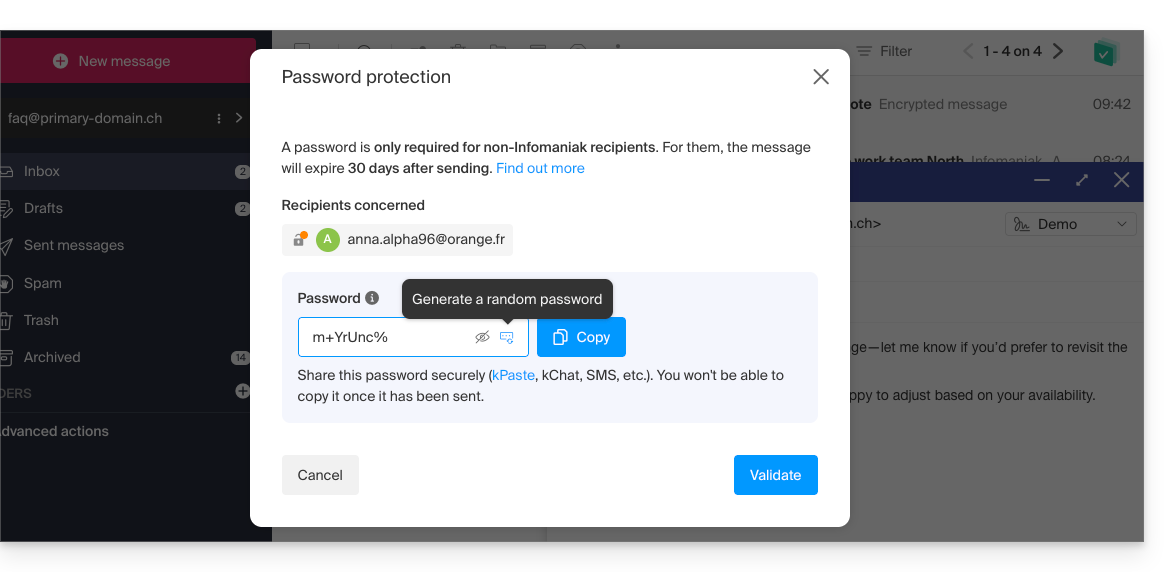
- Enter a password and copy it to send it to the recipient using your own means (kPaste for example) (you can agree on a password in advance so that the recipient is already informed):
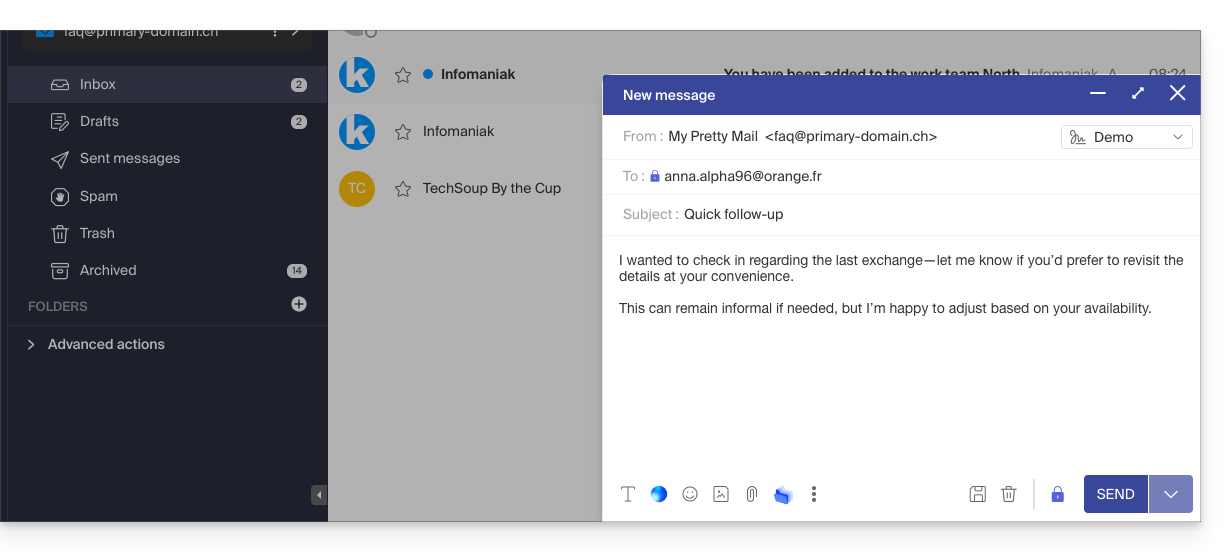
- The icon now represents a closed padlock without the orange chip, and you can send the email as usual:
- Recipients will then receive a message informing them that an encrypted email is waiting for them:
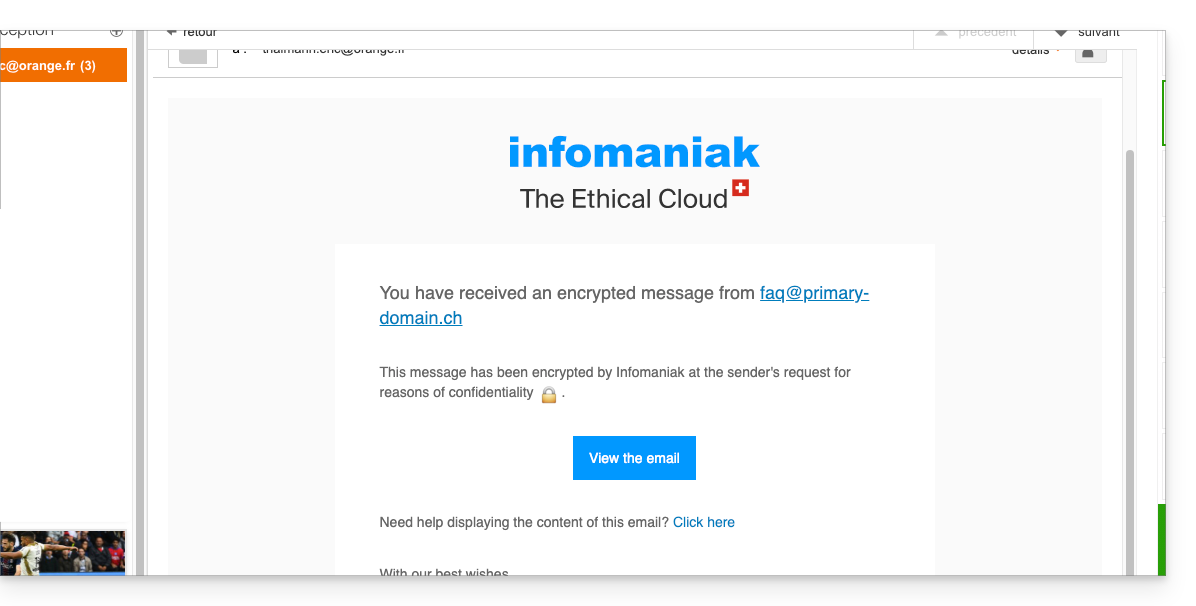
- By clicking on the provided button, they will be redirected to a secure web page where the password must be entered.
- Once the password has been validated, the encrypted message can be viewed on the same page, valid for 30 days.
… from the Infomaniak Mail mobile app
To automatically encrypt a message sent to an email address:
- Open the Infomaniak Mail mobile app (application for iOS/Android smartphones or tablets).
- Compose a new message as usual.
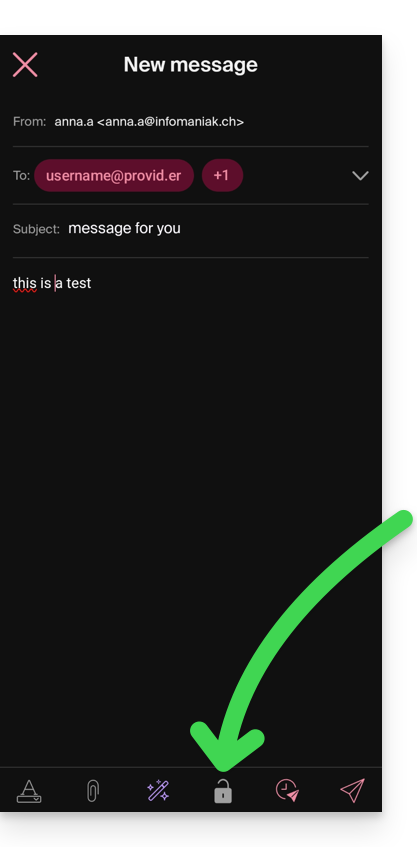
- Click the lock icon at the bottom of the composition window to enable encryption:
A. Recipient whose email is managed with Infomaniak
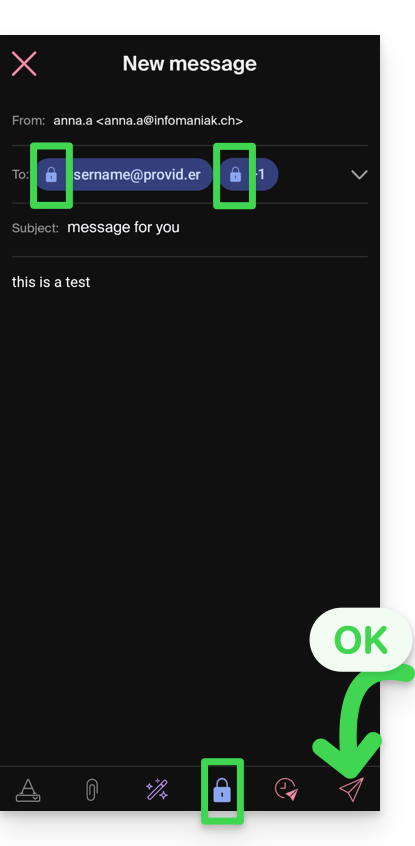
If the recipient of the encrypted email has an email address managed with Infomaniak, the encryption process is completely transparent for both the sender and the recipient:
- Closed padlock icons are displayed on the screen.
- Tap the send icon:
B. External recipient
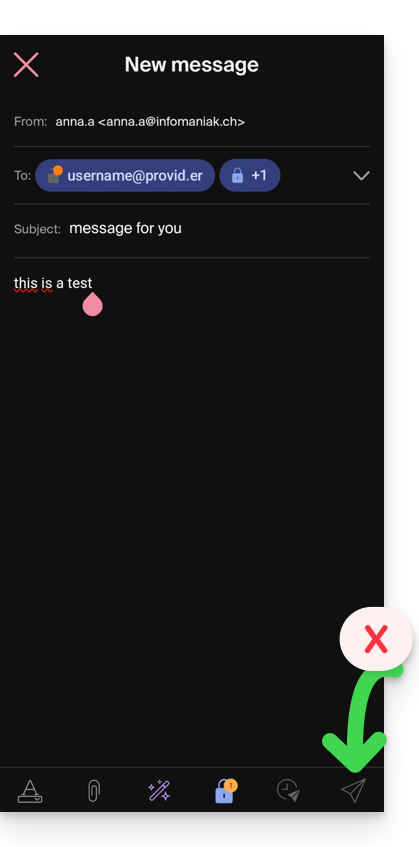
If the recipient of the encrypted email has an email address managed outside of Infomaniak services, encryption is still possible, but it requires setting a password:
- Sending will not be possible because the send icon will remain grayed out and symbols will appear on the locks:
- Tap the padlock icon.
- A modal window will open, allowing you to create a password.
- Use the suggested password or enter a new password and copy it to send it to the recipient using your own means (e.g., kPaste). You can agree on a password in advance so that the recipient is already informed.
- Press the cross in the upper left corner if you have finished managing the password.
- The sending process can now be performed in encrypted mode:
Link to this FAQ: https://faq.infomaniak.com/1582
Has this FAQ been helpful?