Knowledge base
1000 FAQs, 500 tutorials and instructional videos. Here, there are only solutions!
This guide explains how to import contacts into the address books of the Infomaniak Web app Contacts (online service ksuite.infomaniak.com/contacts).
Introduction
- An assistant facilitates the import of contacts from various sources, such as Outlook, macOS address books, Thunderbird, Gmail, etc.
- Import can be done using a file in
VCARDorCSVformat. - The file must not exceed 50 MB and must not contain more than 10,000 lines.
Import contacts
To do this:
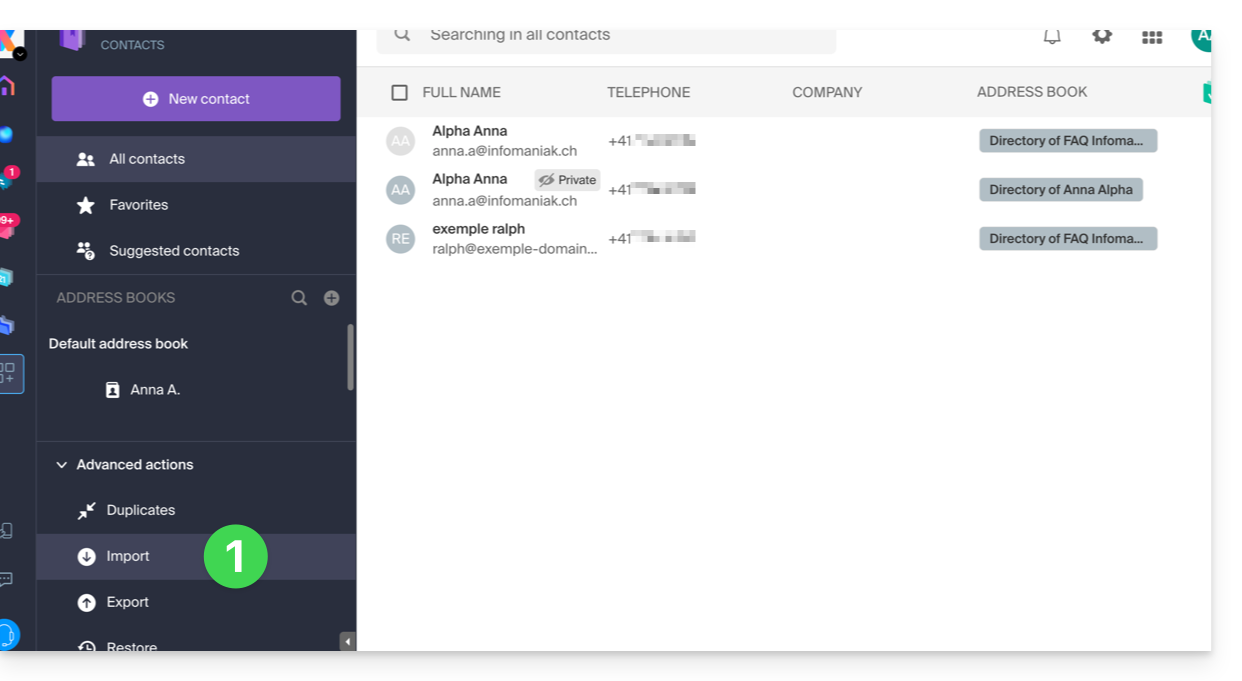
- Click here to access the Import section of the Infomaniak Web app Contacts (online service ksuite.infomaniak.com/contacts):
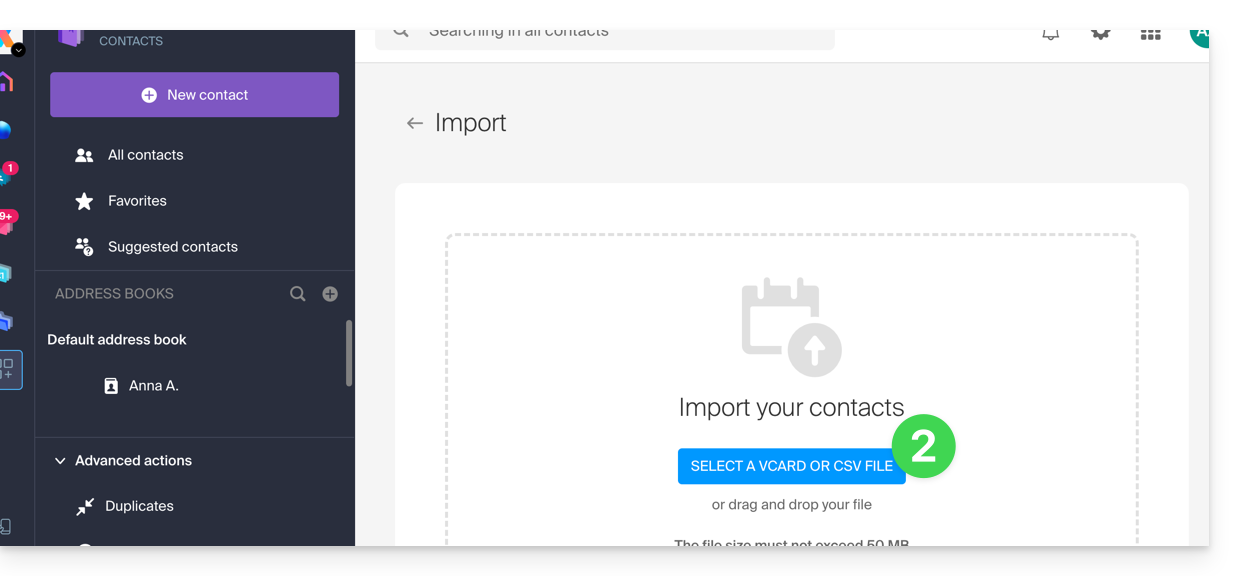
- Click on the blue Select a VCARD or CSV file button:
Import from a vCard (.vcf) file
The content of a contacts export in vCard format looks like this:
BEGIN:VCARD
VERSION:3.0
FN:John Smith
N:Smith;John;;;
EMAIL;TYPE=INTERNET:john.smith@example.com
TEL;TYPE=CELL:+41791234567
ORG:Example Ltd
END:VCARD
BEGIN:VCARD
VERSION:3.0
FN:Jane Miller
N:Miller;Jane;;;
EMAIL;TYPE=INTERNET:jane.miller@example.com
ORG:Freelance
END:VCARD
...
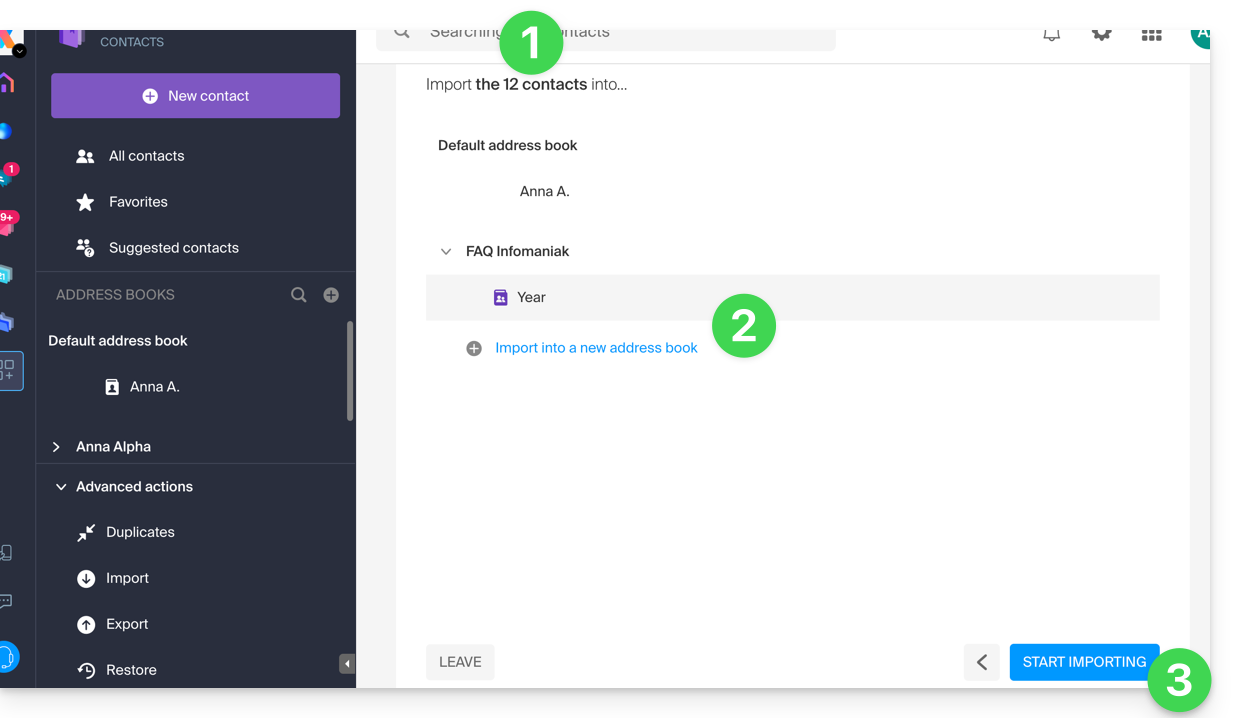
When you select your .vcf file in the import tool, here are the next steps:
- The assistant indicates the number of contacts detected in your file.
- Choose an address book (or create a new one) to store your contacts.
- Click the button to start the import:
Import from a CSV file (.csv)
The content of a contacts export in CSV format looks like this:
Name,First name,Email,Phone,Organization,Notes
Smith,John,john.smith@example.com,+41791234567,Example Ltd,VIP customer
Miller,Jane,jane.miller@example.com,,Freelance,
Brown,Mark,,+41792345678,,Former colleague
Taylor,Sarah,sarah.taylor@example.com,+41793456789,City Hall,
Wilson,Lucas,lucas.wilson@example.com,,,Quote request in March
Moore,Elise,,+41794567890,BioShop,
Walker,Thomas,thomas.walker@example.com,+41795678901,InnoTech,Python expert
Young,Julie,julie.young@example.com,,,
...
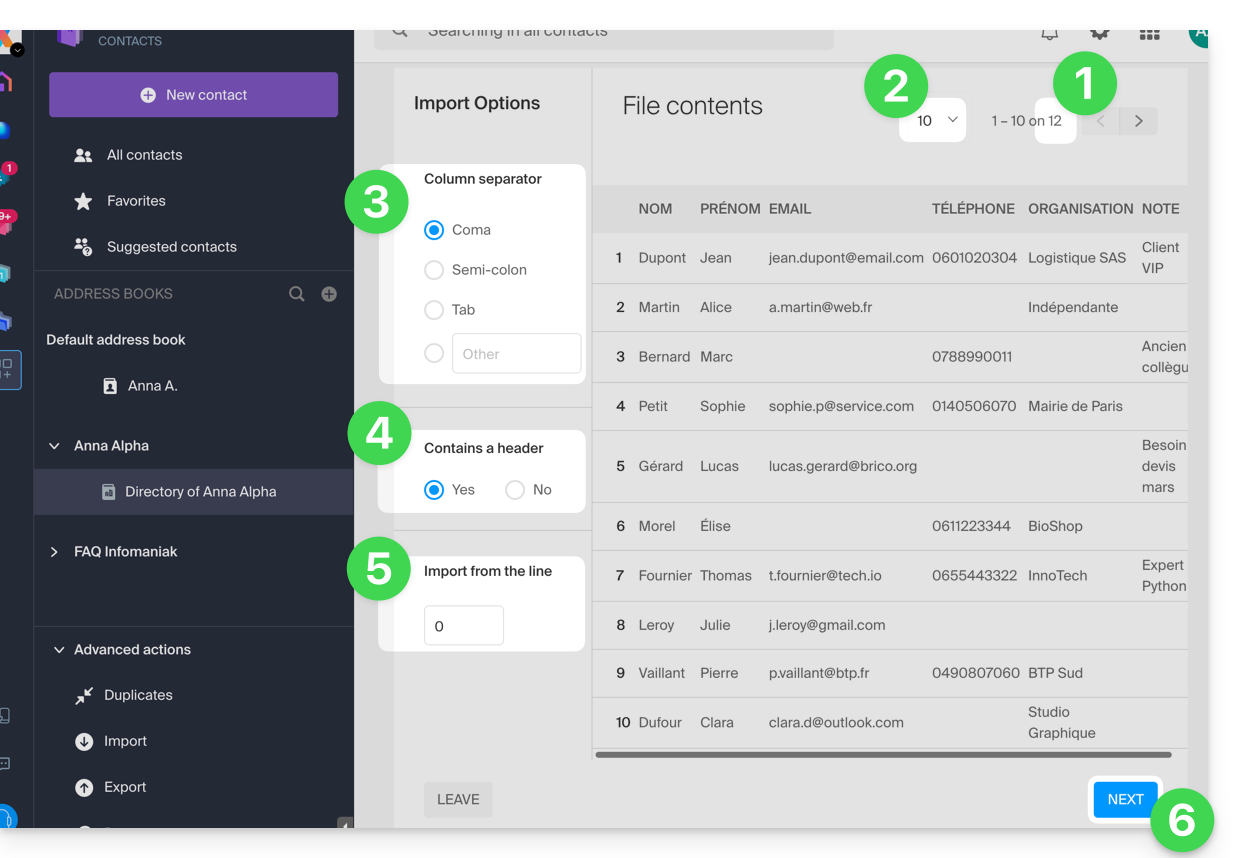
When you select your .csv file in the import tool, here are the next steps:
- The assistant indicates the number of contacts detected in your file.
- You can increase the number of contacts displayed per page, which allows you to better preview them in their entirety if needed.
- Choose the separator used to delimit the information in your text file.
- Specify whether the file containsFirst row without contact information (only column headers).
- Specify if you want to import contacts starting from a specific row.
- Click the button to continue:
- Assign the information detected in the file to each contact using the available fields in your address book:
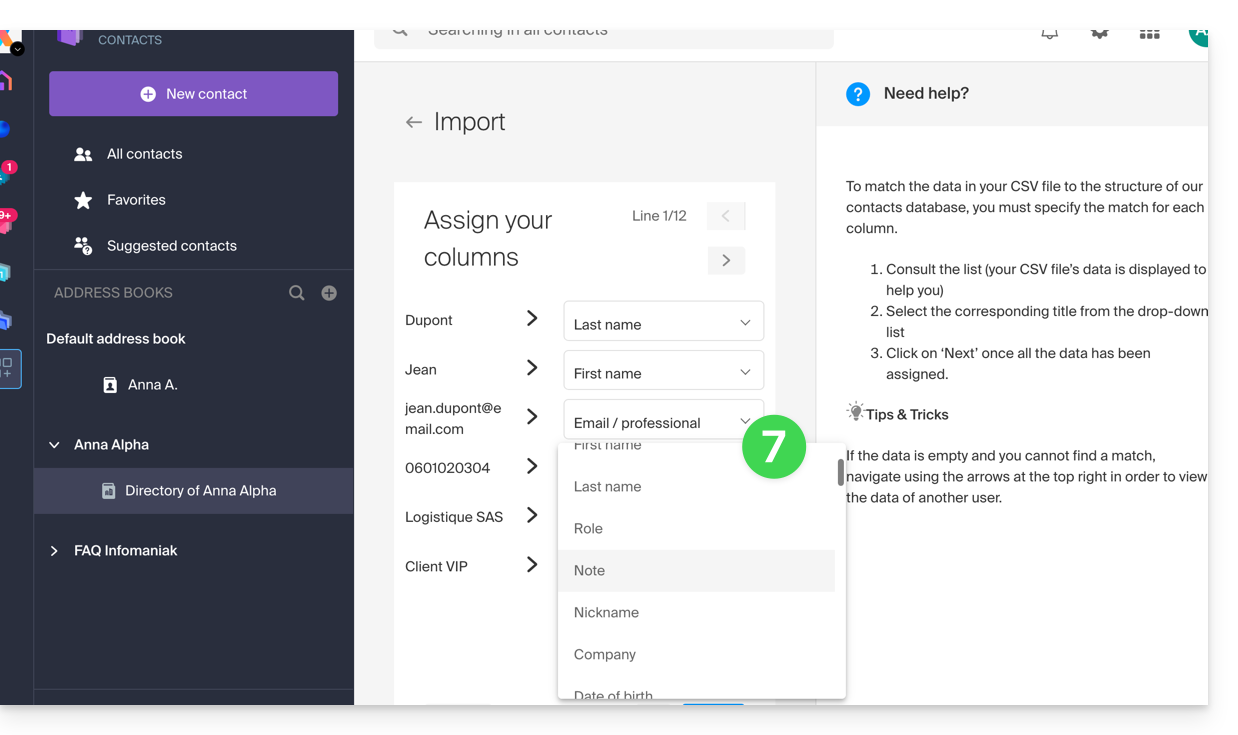
- Browse the contacts to import and specify any additional fields if necessary.
- Go back to check the impact of your changes, then click the button to continue:
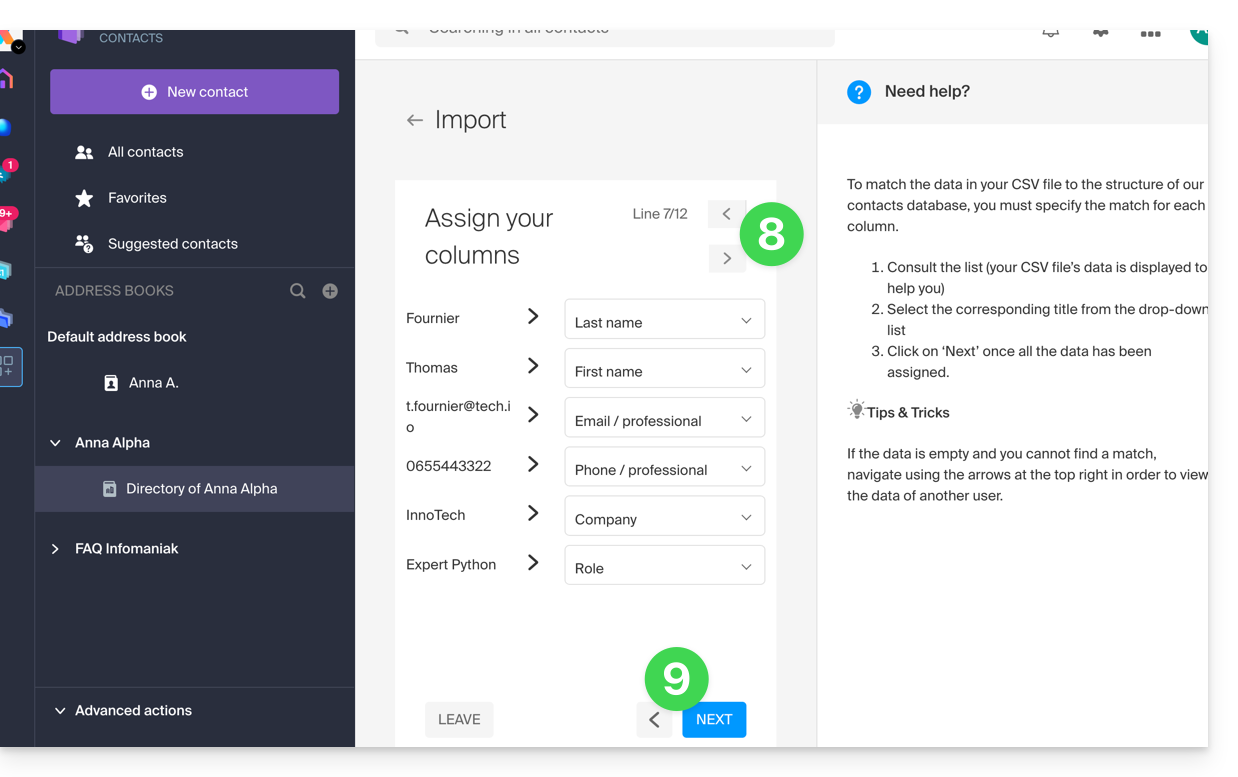
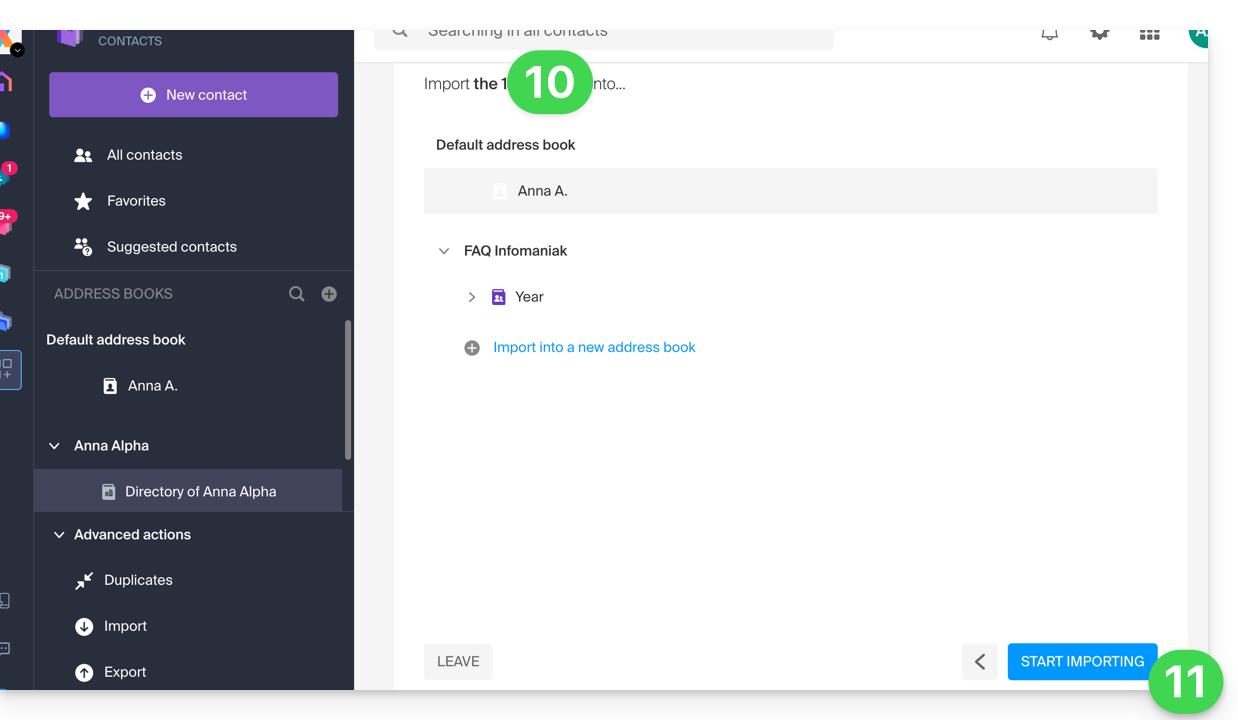
- Choose the address book (or create a new one) to store your contacts.
- Click the button to start the import:
Imported contacts
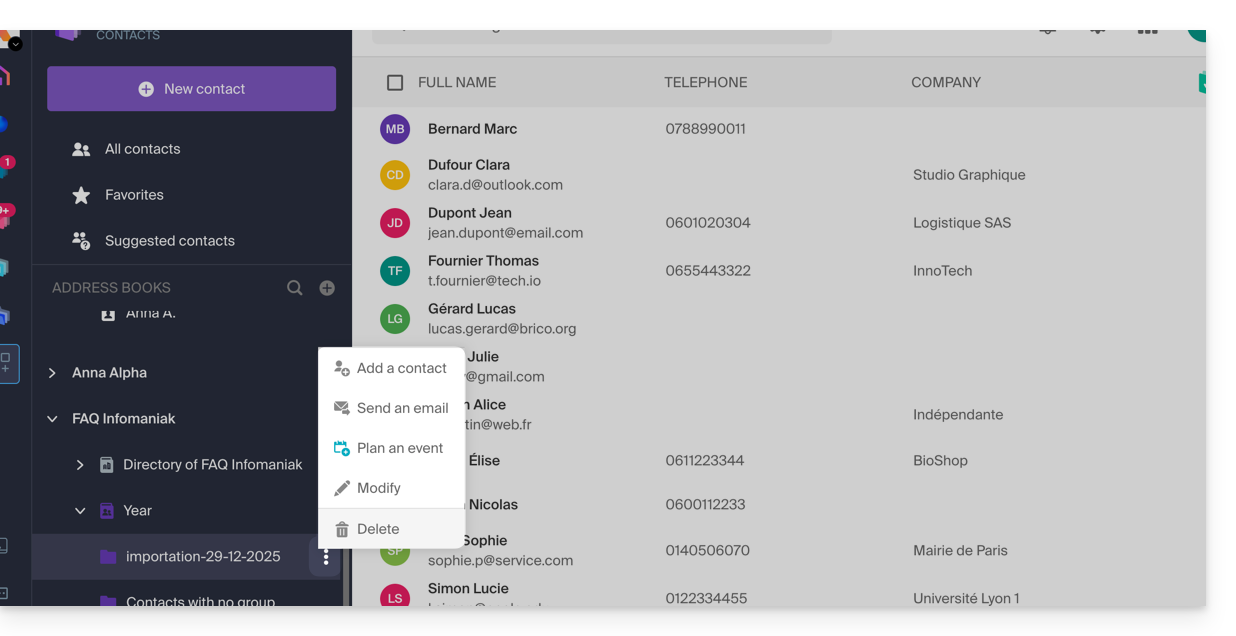
The contacts are imported into the specified location, within a group. If necessary, you can delete this folder, which was created for this purpose (this will not delete the contacts unless you enable this option when deleting the folder):
- Click on the action menu ⋮ located to the right of the name of the group created with the import date.
- Click on Delete:
In case of a problem
- Complete the contact details:
- A contact containing only the first and last name may be ignored by the system for security reasons.
- Make sure that at least one additional piece of information is present (email address or phone number).
- Check the header of your (CSV) file:
- The columns must be clearly named (e.g., "Name", "First Name", "Email").
- If the headers are missing or incorrect, the system will not be able to read the data.
- Data format:
- Check that phone numbers do not contain unusual special characters and that email addresses are spelled correctly (presence of the
@and the period).
- Check that phone numbers do not contain unusual special characters and that email addresses are spelled correctly (presence of the
- File encoding:
- For optimal results, save your CSV file in UTF-8 format; this ensures that accents and special characters are displayed correctly.
If you need to export them from...
... Outlook (older version)
- From your Outlook software, go to your address book.
- Select the contacts to export.
- In Actions, click Transfer as vCard.
- Send the email containing the vCard.
- Retrieve the email in the Infomaniak Mail web app (online service ksuite.infomaniak.com/mail).
- Click on Add all contacts.
... macOS (or refer to this other guide)
- In your Contacts application, go to File and select Export.
- Choose Export vCard.
- Save your vCard file to your computer.
... Thunderbird (or refer to this other guide)
- From your Thunderbird software, go to Window and select Address Book.
- In Tools, select Export.
- In the save options, choose Comma-separated as the format.
- Save your CSV file.
... Gmail (or refer to this other guide)
- From your Gmail interface, go to the Contacts section.
- Click the Export button.
- Select vCard format.
- Save your vCard file to your computer.
... Office 365 (or consult this other guide)
- From your Outlook software, go to the Contacts section.
- Click on Manage and choose Export.
- Save your CSV file to your computer.
... Yahoo Mail: refer to this other guide
... Proton Mail: check out this other guide
... Bluewin: check out this other guide
Refer to this other guide to import other data.
Link to this FAQ: https://faq.infomaniak.com/1599
Has this FAQ been helpful?
This guide explains how to modify the access rights to products for a user in your Organization on the Infomaniak Manager.
Introduction
- Since you opened your account with Infomaniak, you have been part of at least one Organization (❓: help).
- If you were the only user and it wasn't an invitation, an Organization was created in your name, and you automatically become its legal representative.
- Otherwise, you belong to the Organization that invited you (to join its kSuite, to manage a product, etc.).
- It is possible to change a user's role within your Organization (❓: help).
- You can then define whether a user…
- … is part of your Organization and whether they should become:
- Legal Representative
- Administrator
- Collaborator (this section is detailed below…)
- … is external to your Organization (limited rights):
- External users are not included in calendar and address book sharing with the entire Organization.
- … is part of your Organization and whether they should become:
Who can access what…
Prerequisites
- First, switch to the desired Organization if you cannot find the expected list of users (❓: help).
- Be at least an Administrator of the Organization (❓: help).
- Haveadded a user as a collaborator (❓: help).
The guide below explains how to manage access to products for collaborators and external users. Indeed, a legal representative or an Administrator always has access to all existing products within the Organization, as displayed in the Infomaniak Manager.
To modify a user's product access within the Organization:
- Click here to access user management in the Infomaniak Manager (❓: help).
- Click on the action menu ⋮ located to the right of the user in question.
- Click on Modify product access:
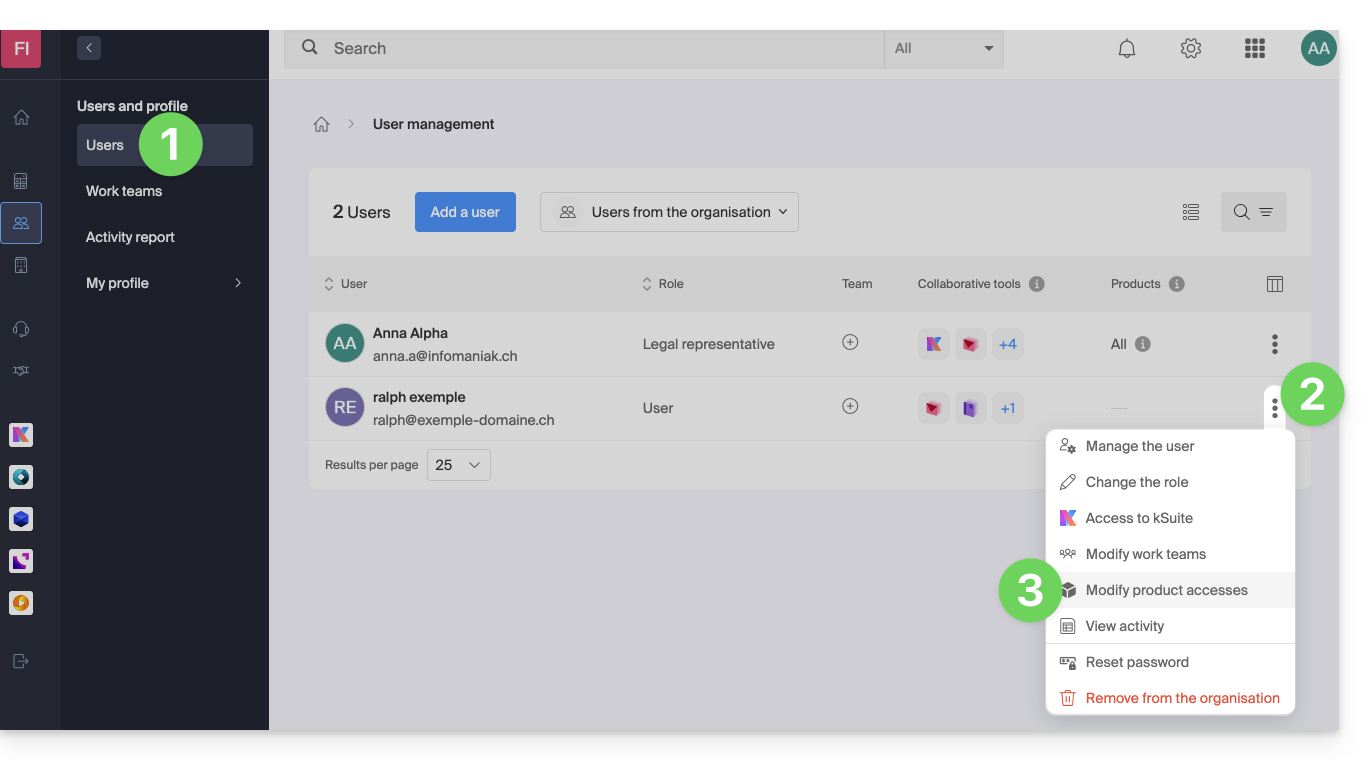
- You can grant access to everything with maximum permissions in one click.
- Otherwise, click on the product category you want to grant access to.
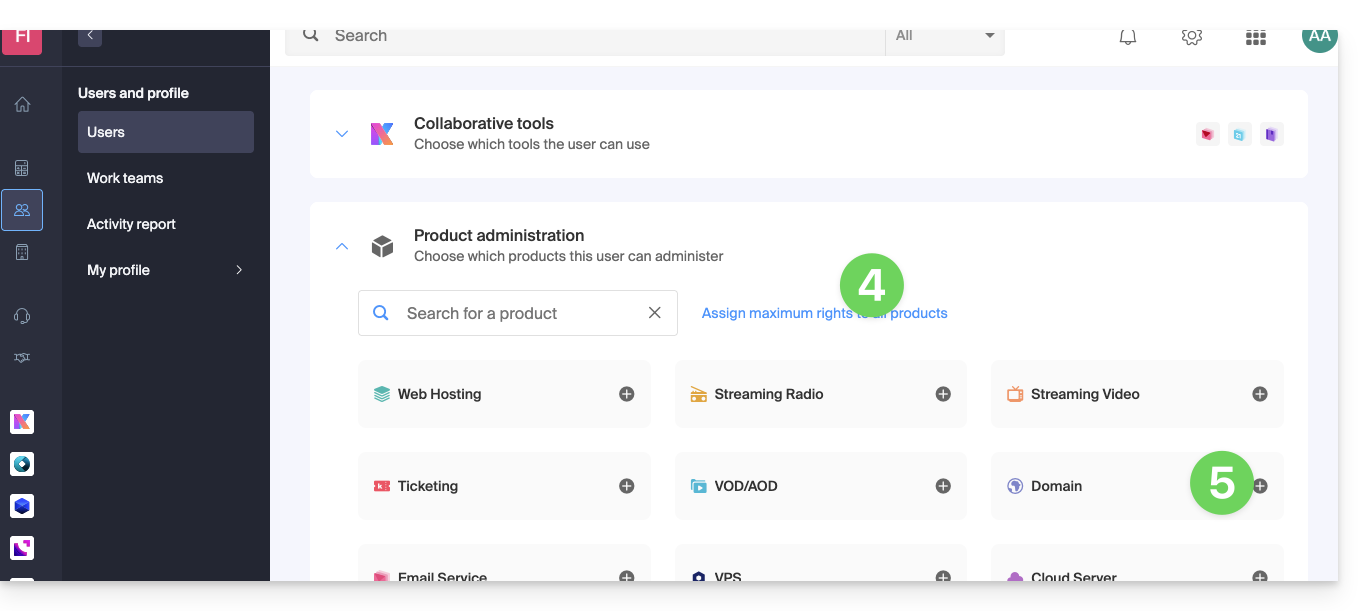
- Select the product(s) you need.
- If you have selected multiple products, decide whether a future additional product should automatically be visible to the user (and with what type of permissions❓: help).
- Click the Save button:
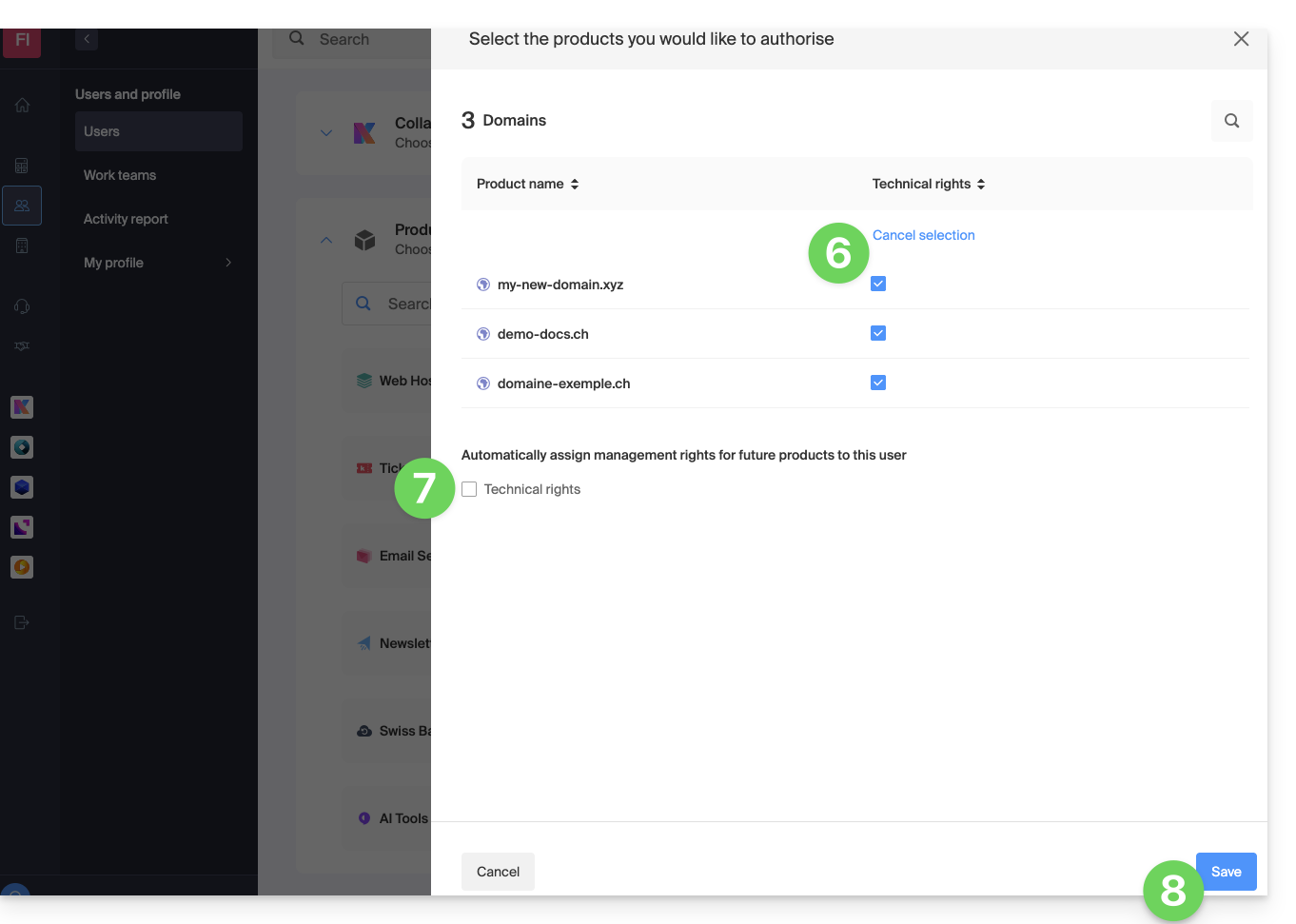
- Permissions are granted immediately.
- Click on the pencil ✎ icon to modify the permissions:
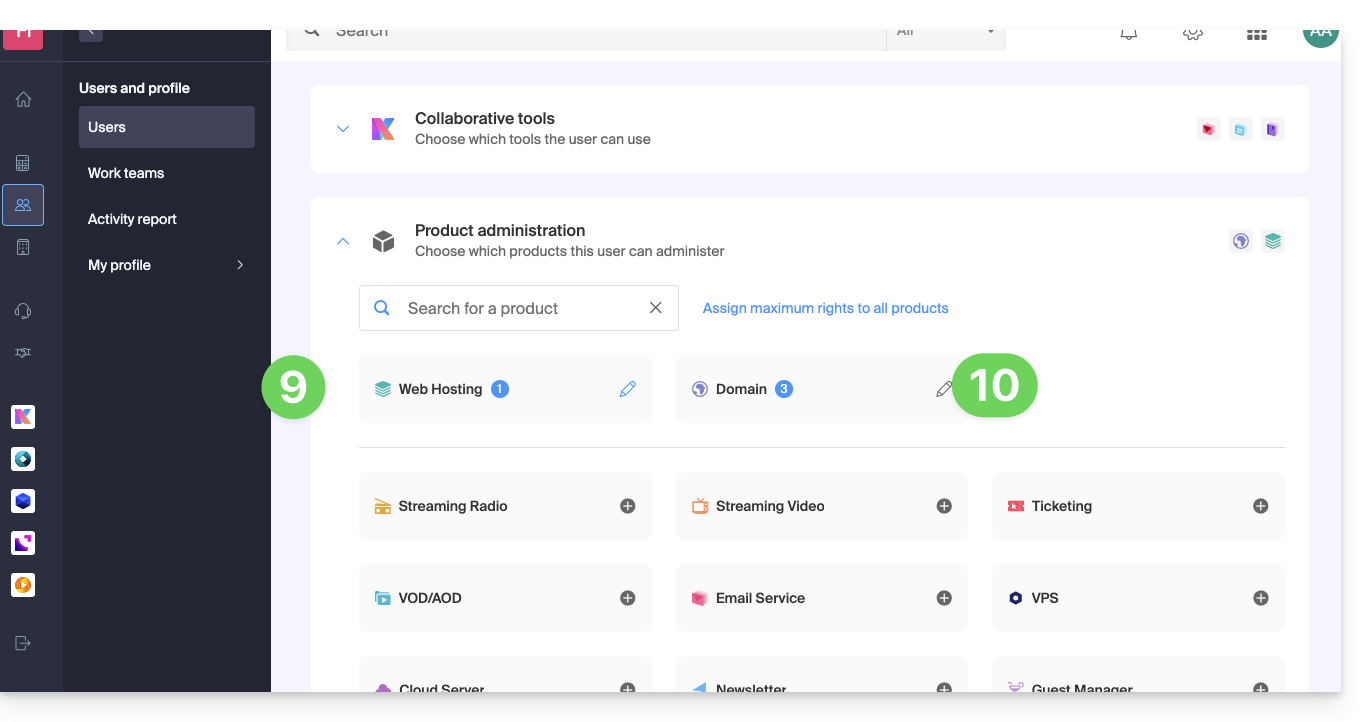
- If you need to grant access to multiple products, start again from step 5.
Using the service / Managing the service
Please note that in the product table, it is important to distinguish between access to the products (e.g., kDrive within kSuite) and access to product management: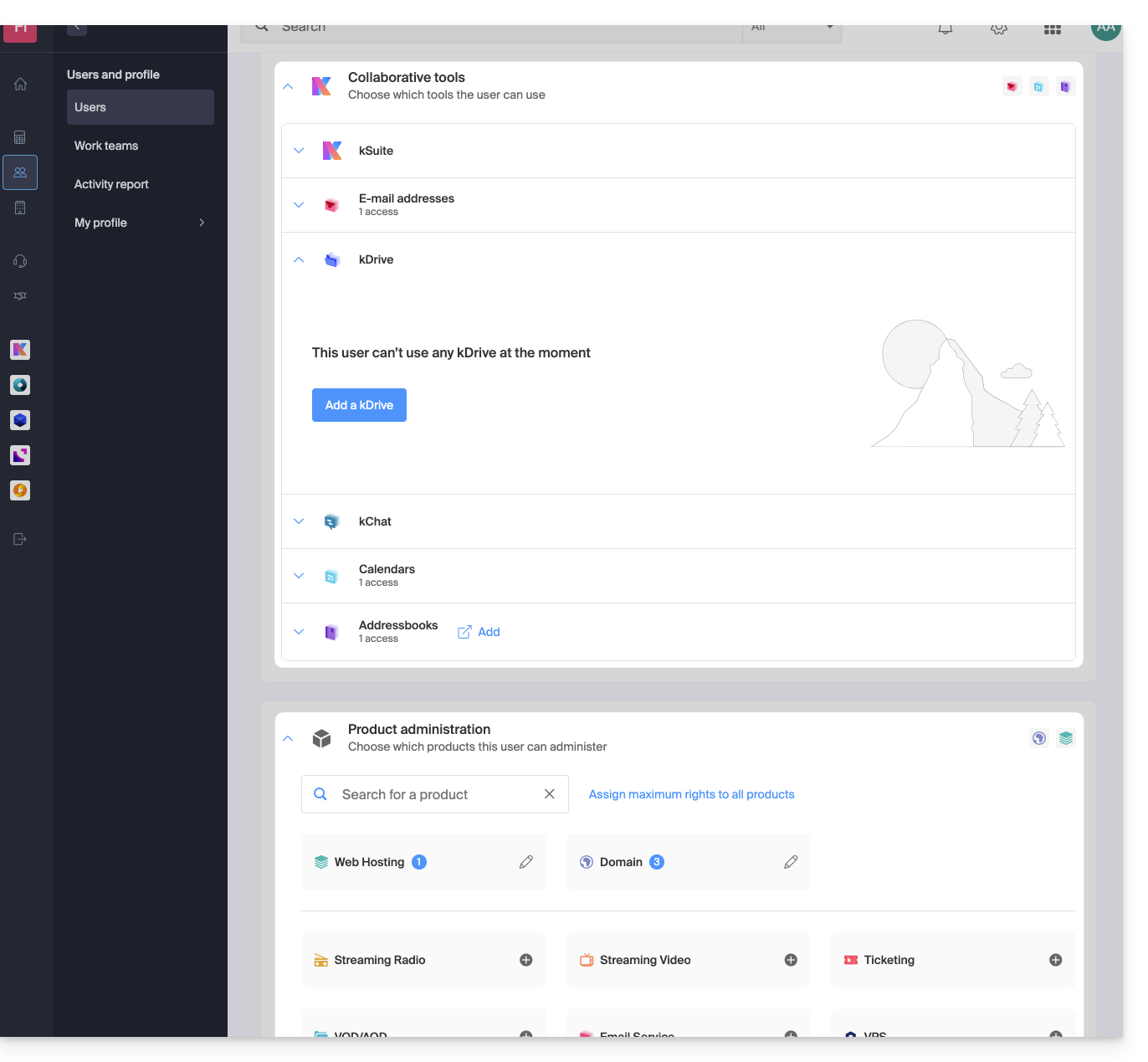
It is possible to authorize a user to use kDrive (e.g., create a PDF) without granting them management rights for the kDrive service (they will not be able to change the plan, invite a new user, cancel, etc.).
Technical rights / Statistical rights
With certain services like kDrive, it is possible to grant a collaborator TECHNICAL and/or STATISTICAL rights (adds access to the dashboard, sharing links, storage statistics, active users, connected devices, activity on the kDrive):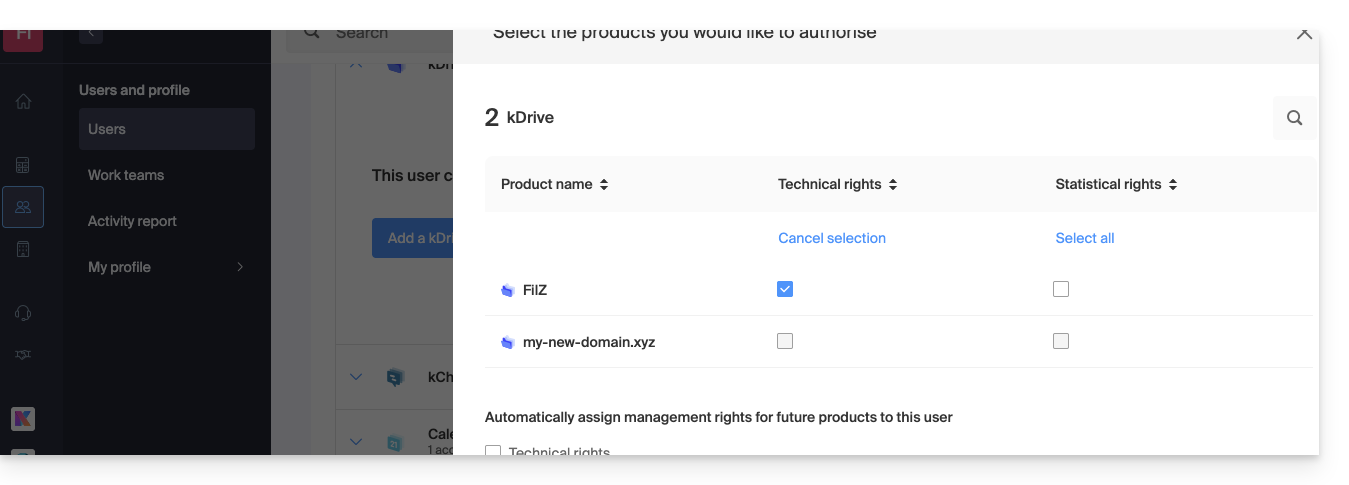
Other services, such as domain names, do not have a STATISTICS section: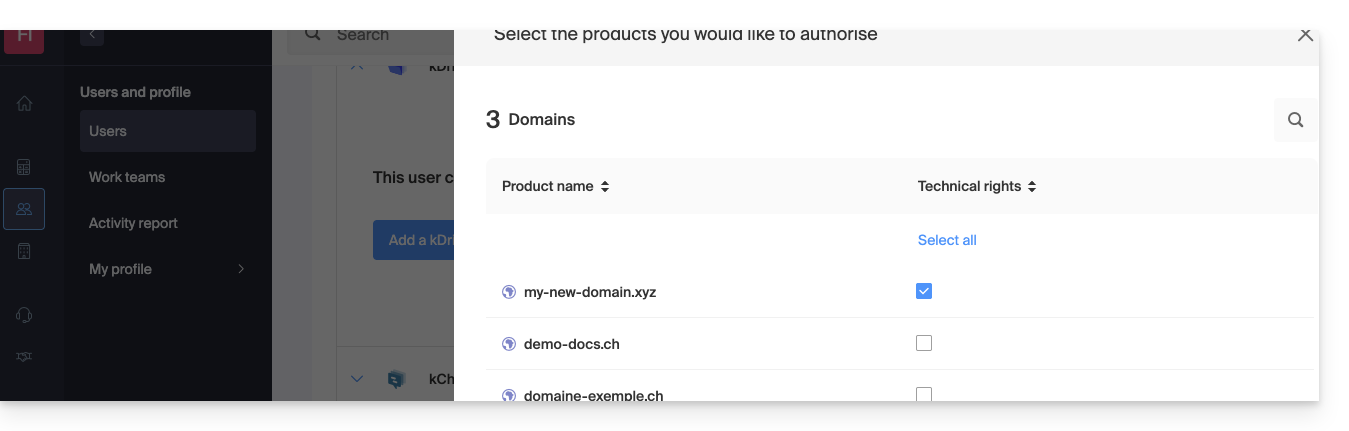
Some specific services, such as ticketing, allow for even more detailed permissions: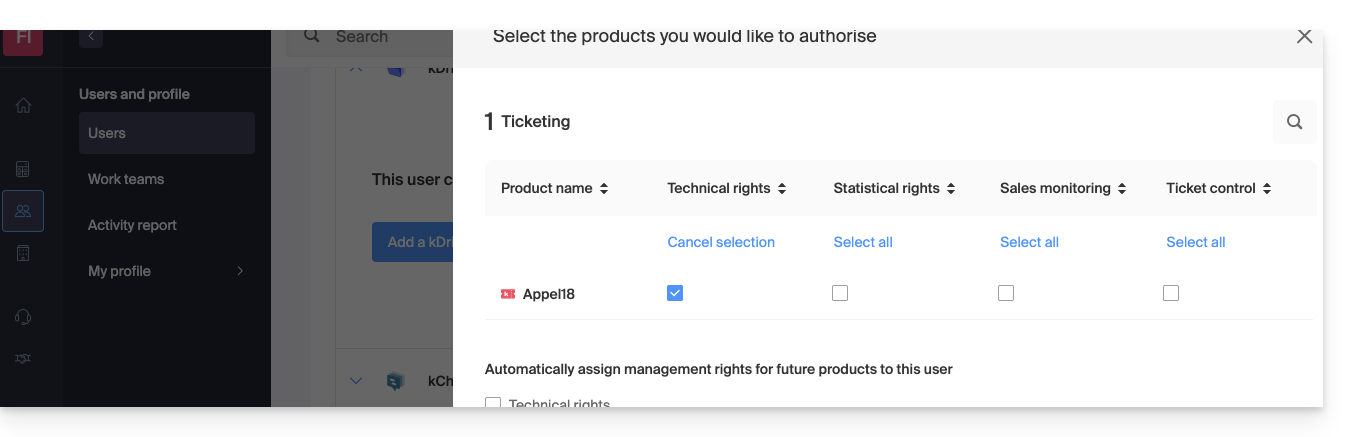
Easy Access: Groups
To simplify the process of adding access rights to a product within your Organization, there are Groups (❓: help). These allow you to create teams that are linked to Infomaniak products with the desired rights, which is very useful for granting a new member of your Organization access to the products they will need in their daily work.
Link to this FAQ: https://faq.infomaniak.com/1610
Has this FAQ been helpful?
This guide explains how to automatically receive a summary of your activities recorded in Infomaniak Calendar in your Mail inbox and/or kChat every morning.
Introduction
- This feature is disabled by default on all calendars.
- This summary is sent to your email address, which is the one you use to log in to your Infomaniak account (❓: help).
- It contains a list of all the day's events with their most important information (possible kMeet link, location, times, etc.).
- You can even share this daily schedule with your team or assistant so they know when it's best to contact you, including by creating an rule for automatic forwarding based on the criteria corresponding to the email received.
Obtain a schedule automatically and daily
Prerequisites
- To send a summary on kChat, you must have kChat within your Organization.
Start your day by viewing a message in your Infomaniak inbox containing the schedule based on your Infomaniak calendar:
- Click here to access the Settings Calendar in your Infomaniak kSuite (❓: help).
- Check or select the relevant Organization from the dropdown menu in the left-hand menu.
- If you change it, return to the settings by clicking on the daily reminder item to access the settings:
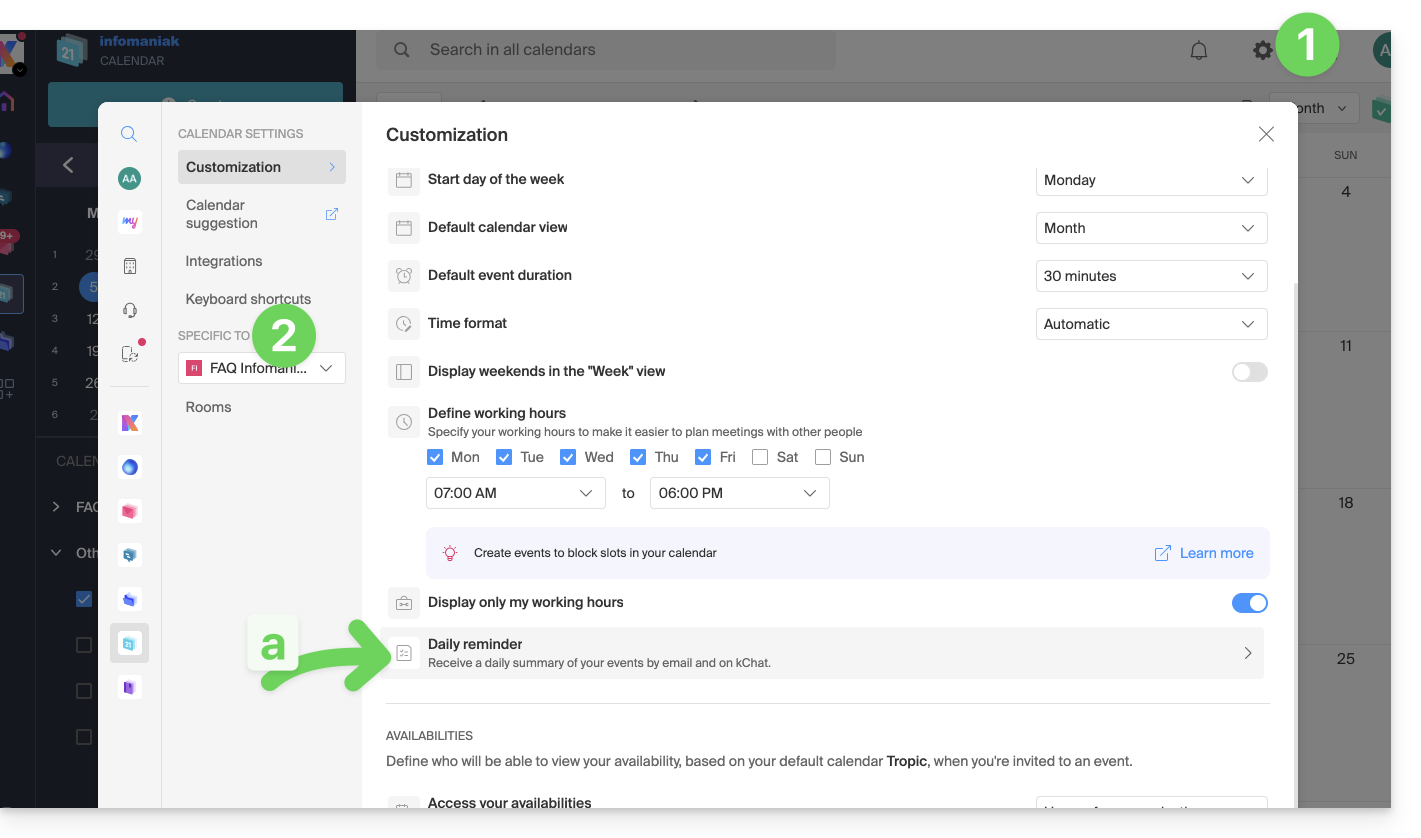
- If you change it, return to the settings by clicking on the daily reminder item to access the settings:
- Click the button to Add a daily reminder and configure it:
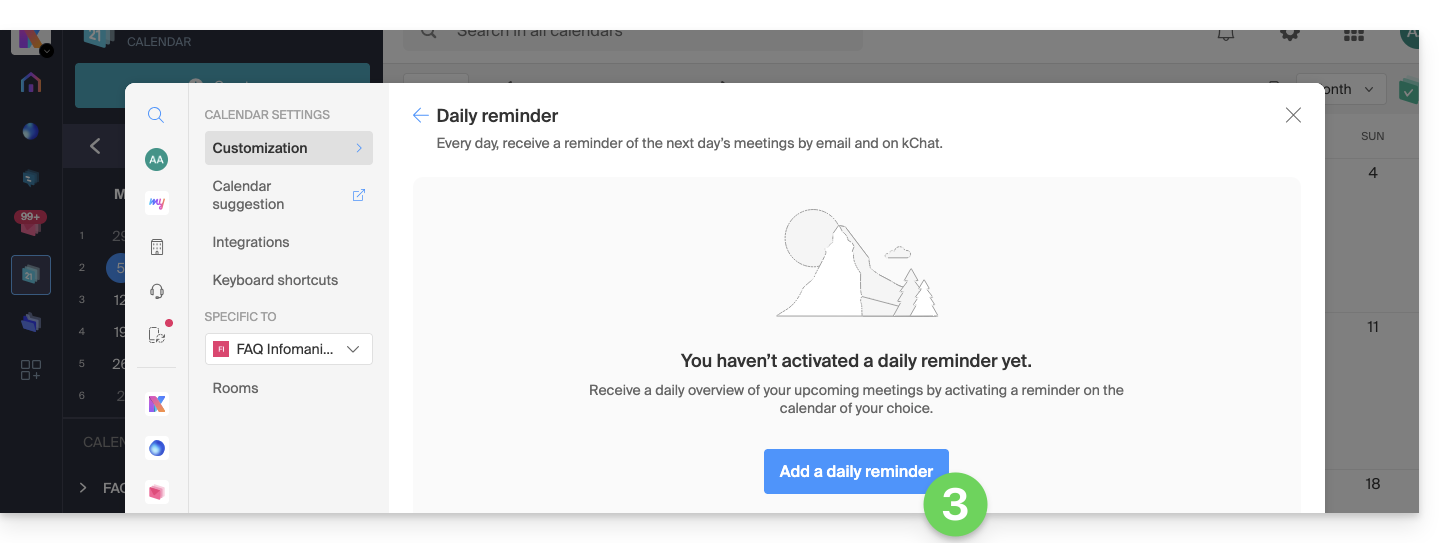
To customize your reminder according to your needs:
- Select the calendar in question.
- Choose the notification method (Mail, kChat, or both).
- Choose when you want to receive the reminder (the evening before or early on the day itself).
- Choose whether or not to include recurring events (❓: help).
- Choose the days during which the daily reminder will be sent.
- Confirm your choices at the bottom of the page:
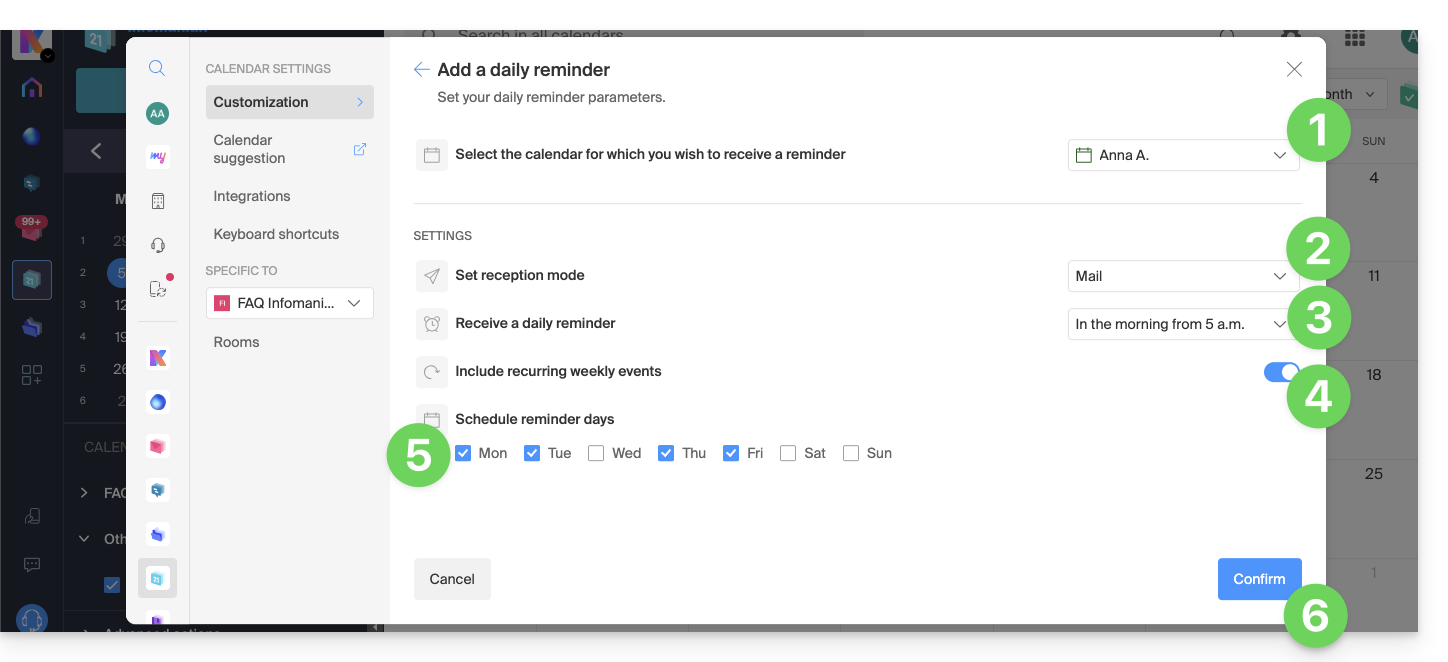
Disable the daily reminder
To stop receiving the daily summary by email or via Euria on kChat:
- Click on the link located at the very bottom of the notification you received:
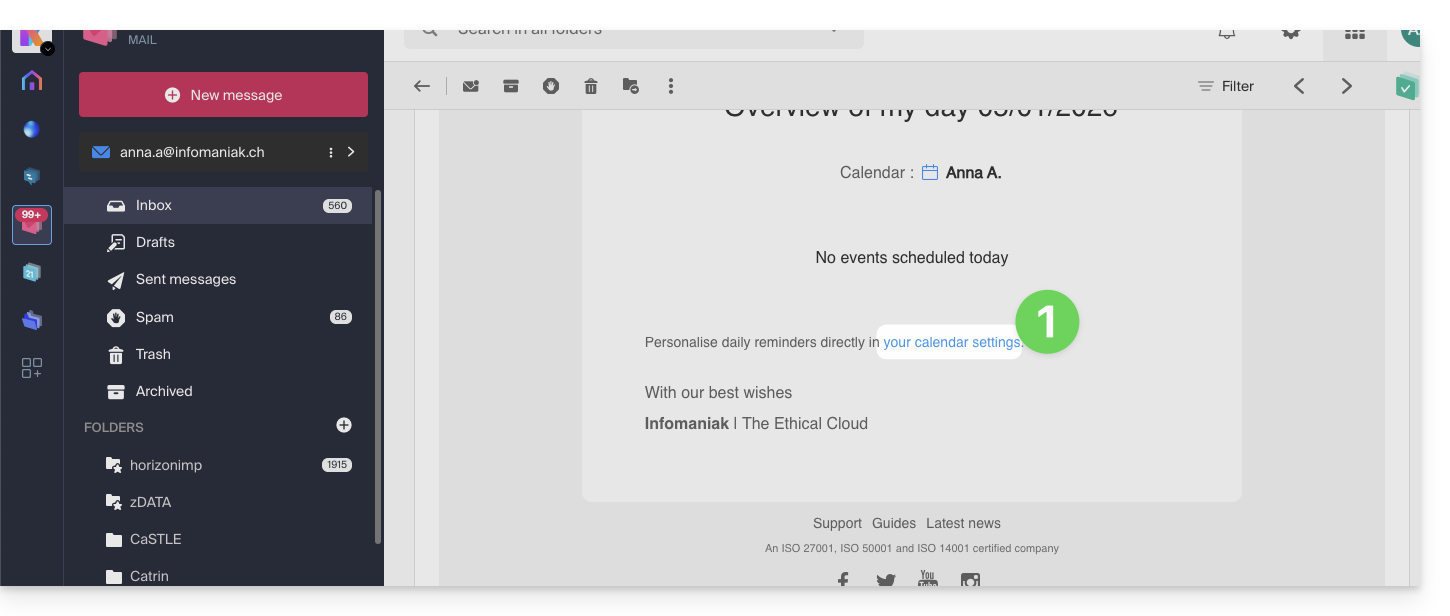
- Click on the reminder to delete it:
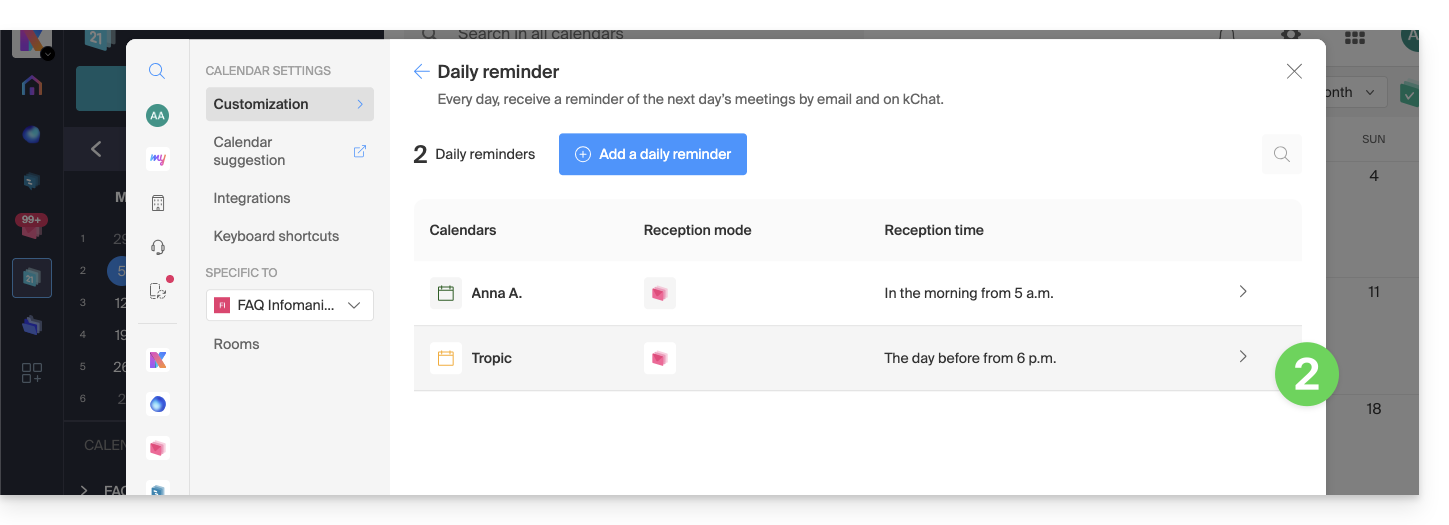
- Delete the reminder from the edit page:
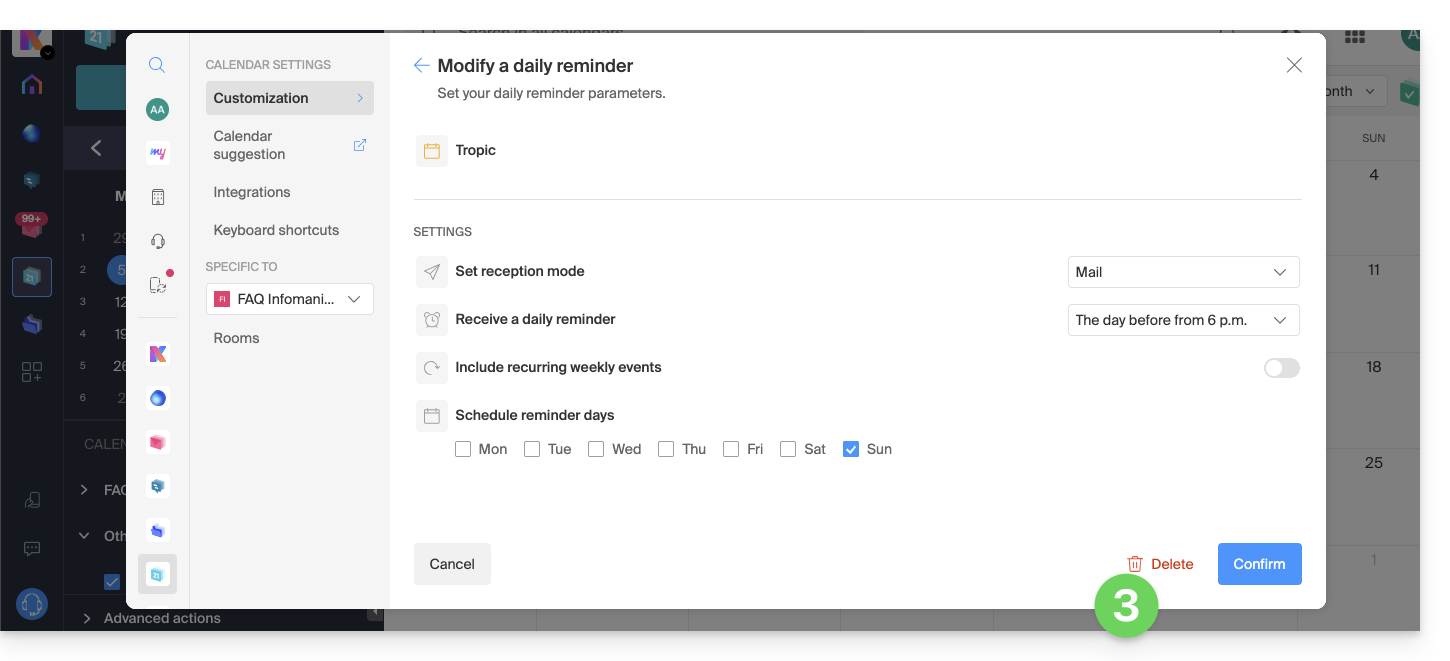
Link to this FAQ: https://faq.infomaniak.com/1622
Has this FAQ been helpful?
This guide explains how to modify the role and permissions of a user so that they only have a limited legal role or access to only certain features of your Organization within the Infomaniak Manager.
Introduction
- Since you opened your account with Infomaniak, you have been part of at least one Organization (❓: help).
- If you were the only user and it wasn't an invitation, an Organization was created in your name, and you automatically become its legal representative.
- Otherwise, you belong to the Organization that invited you (to join its kSuite, to manage a product, etc.).
- You can define whether a user…
- … belongs to your Organization and whether they should have the role of:
- Legal Representative
- Administrator
- Collaborator
- … is external to your Organization (limited rights):
- External users are not taken into account when sharing calendars and address books with the entire Organization.
- … belongs to your Organization and whether they should have the role of:
Modify a user's rights/permissions
Prerequisites
- First, switch to the desired Organization if you cannot find the expected list of users (❓: help).
- You must be at least an Administrator of the Organization (❓: help).
- Learn about the different permissions (e.g., access rights to products) and administrative contact preferencesfor a user within an Organization (❓: help).
- Please note that it is impossible to remove a legal representative if there is no other legal representative (❓: help).
To change a user's role:
- Click here to access the user management section in the Infomaniak Manager (❓: help).
- Click on the action menu ⋮ located to the right of the user in question.
- Click on Edit role:
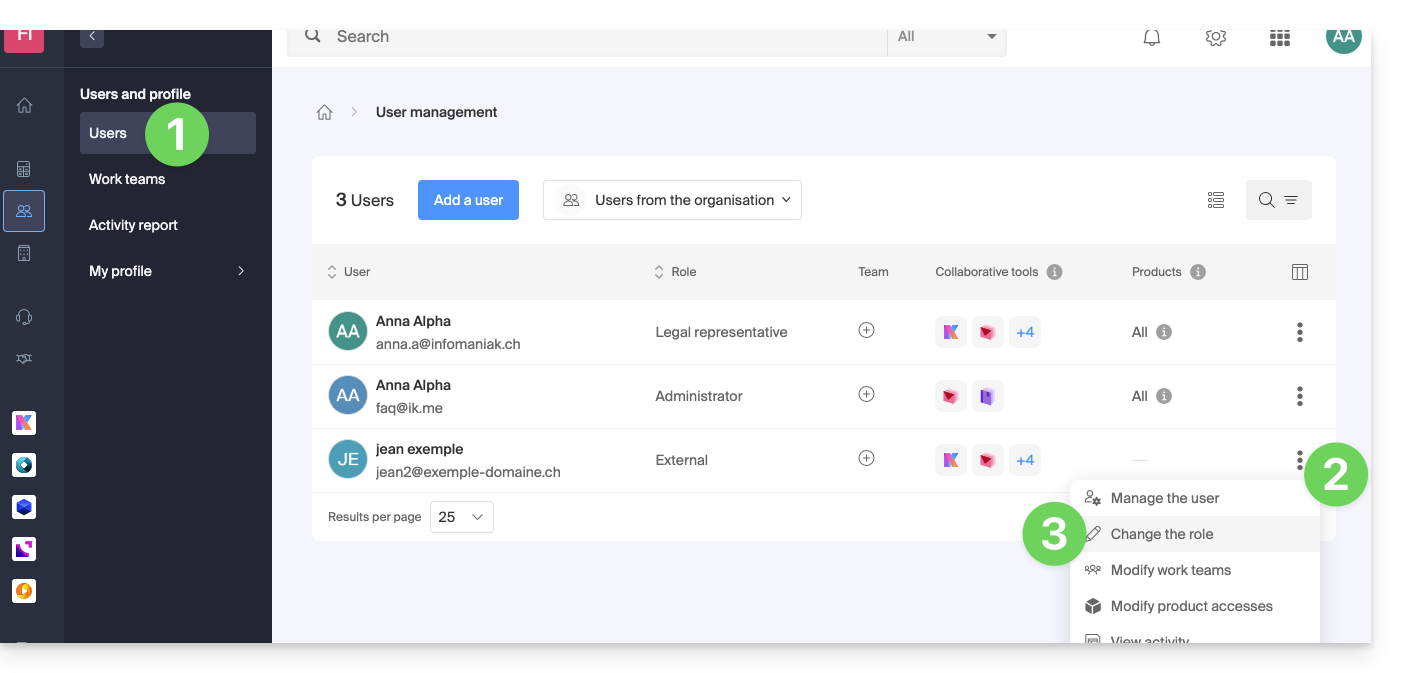
- Modify the desired role:
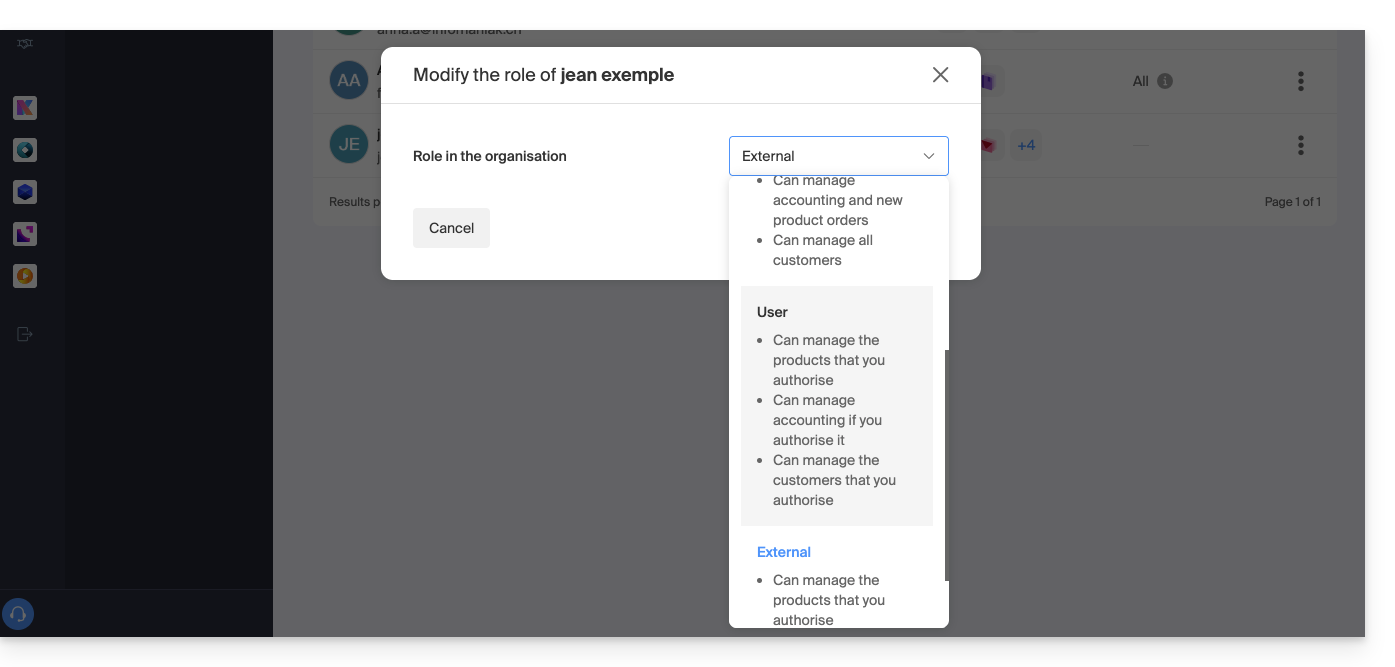
- Click the Save button.
A summary email is sent to the user whose role has been changed.
If you assign the user a simple collaborator role…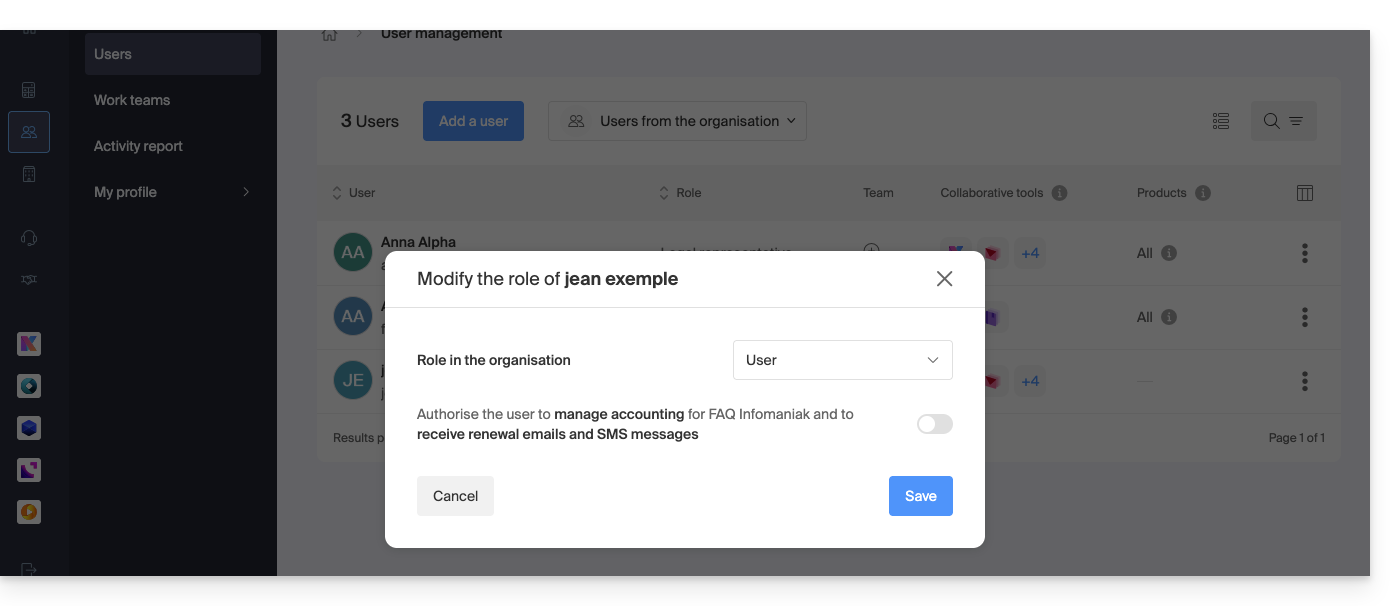
… you can modify the services they can access (❓: help):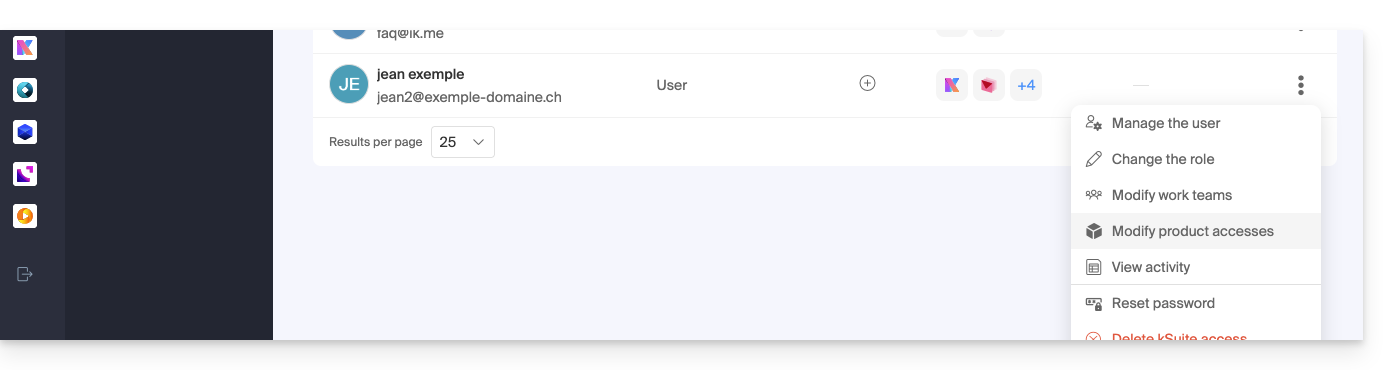
Link to this FAQ: https://faq.infomaniak.com/1633
Has this FAQ been helpful?
This guide explains how to copy or move contacts to address books in the Infomaniak Contacts web app (online service ksuite.infomaniak.com/contacts).
Introduction
- Contacts can also be managed within groups, i.e., subfolders of your address book.
Copy or move a contact
To do this:
- Click here to access the Infomaniak Web app Contacts (online service ksuite.infomaniak.com/contacts).
- Click on the action menu ⋮ to the right of a contact to choose to copy or move the contact to the desired location using a wizard:
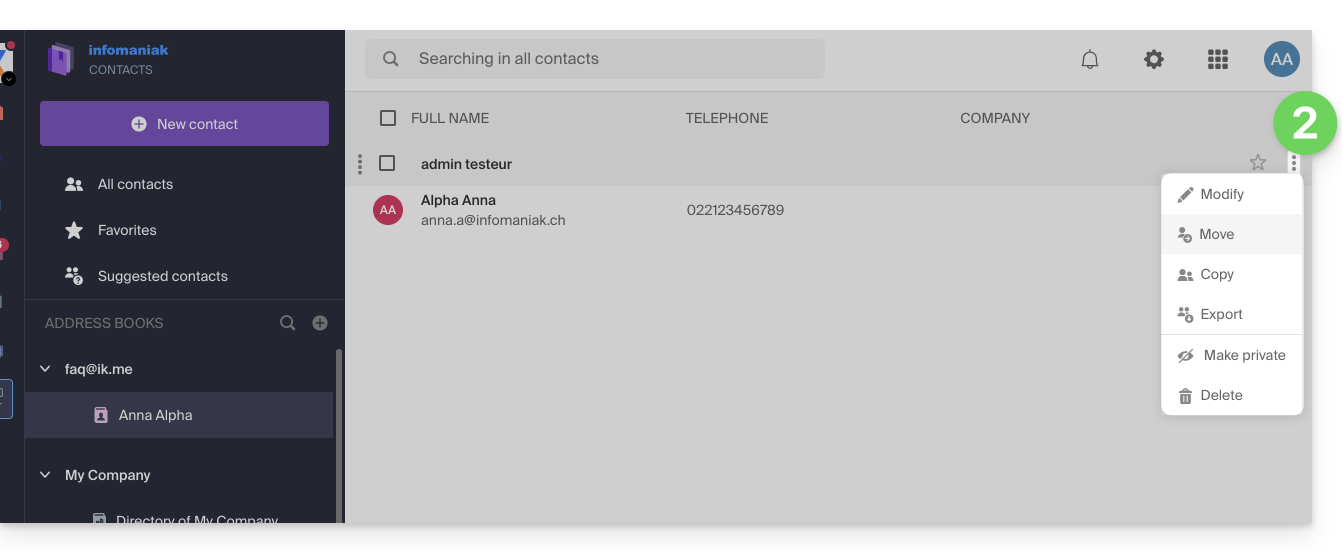
You can also click and hold the mouse on the far left of a contact's row to copy or move a contact (or several contacts if you select them beforehand) to the desired address book in the left sidebar: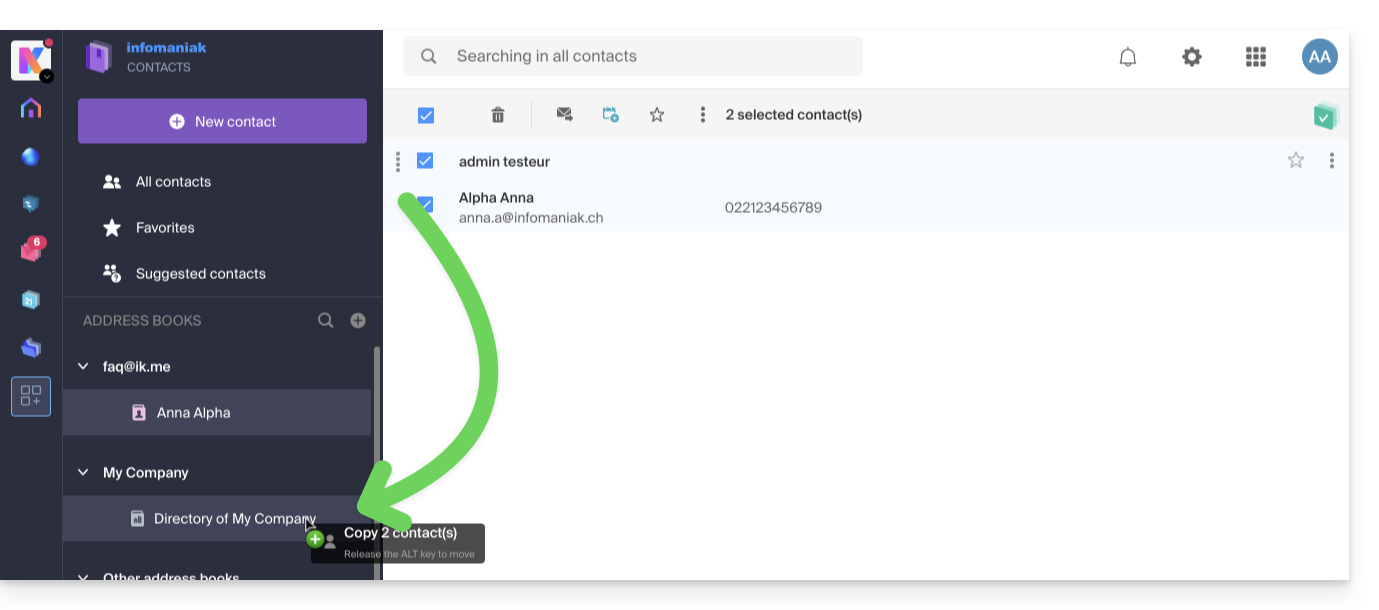
The default behavior when moving a contact from one address book folder to another is "move".
By pressing the keyboard key that you usually use to copy files from your computer (the ALT key, for example) while dragging them from one location to another, you can "copy" contacts instead of moving them.
Link to this FAQ: https://faq.infomaniak.com/1652
Has this FAQ been helpful?
This guide explains how to add an attachment from kDrive to an event in a calendar using the Infomaniak Calendar web app (online service ksuite.infomaniak.com/calendar).
Introduction
- Some software or applications also allow you to add an attachment, and in this case, if you synchronize the calendar with your solution, the attached file can be up to a maximum size of 64 KB.
Add a kDrive attachment
When you create a new event on the Infomaniak Calendar web app (online service ksuite.infomaniak.com/calendar), you can add one or more attachments (links to files in kDrive):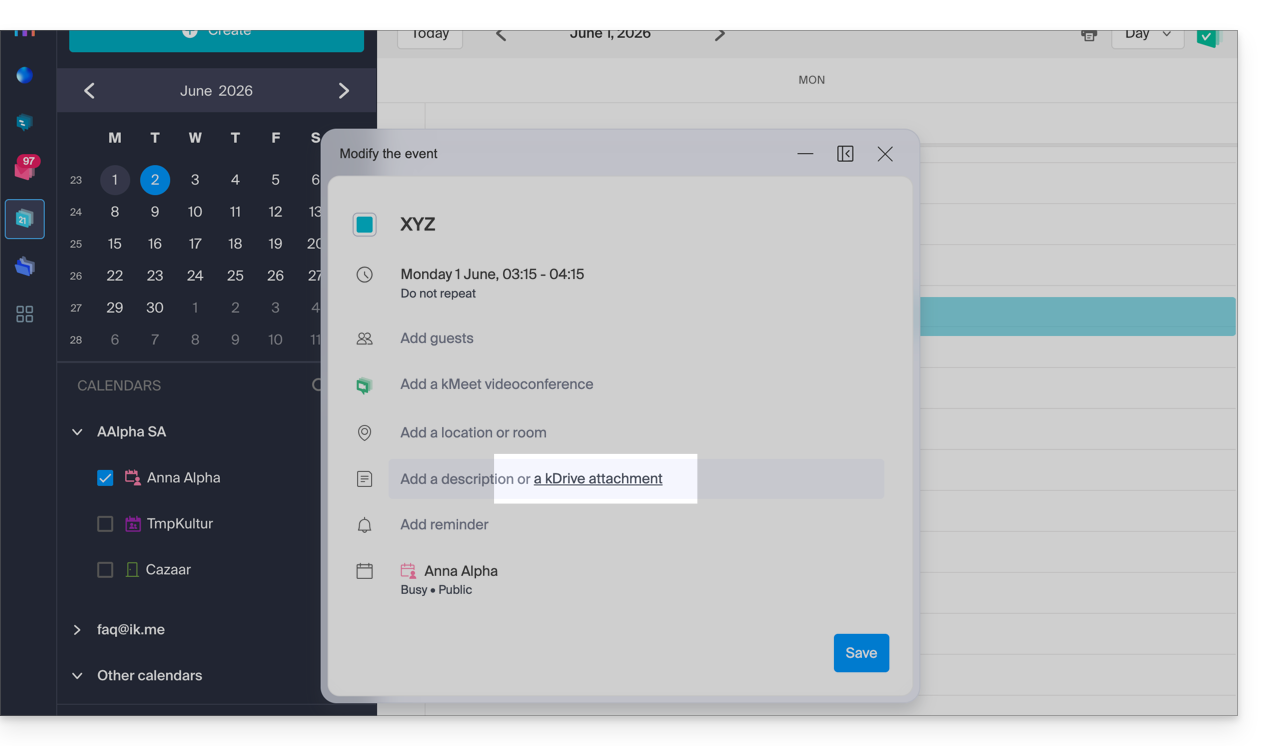
Then, click on the “Insert a kDrive link” link, and you will access kDrive directly from the Calendar event creation window: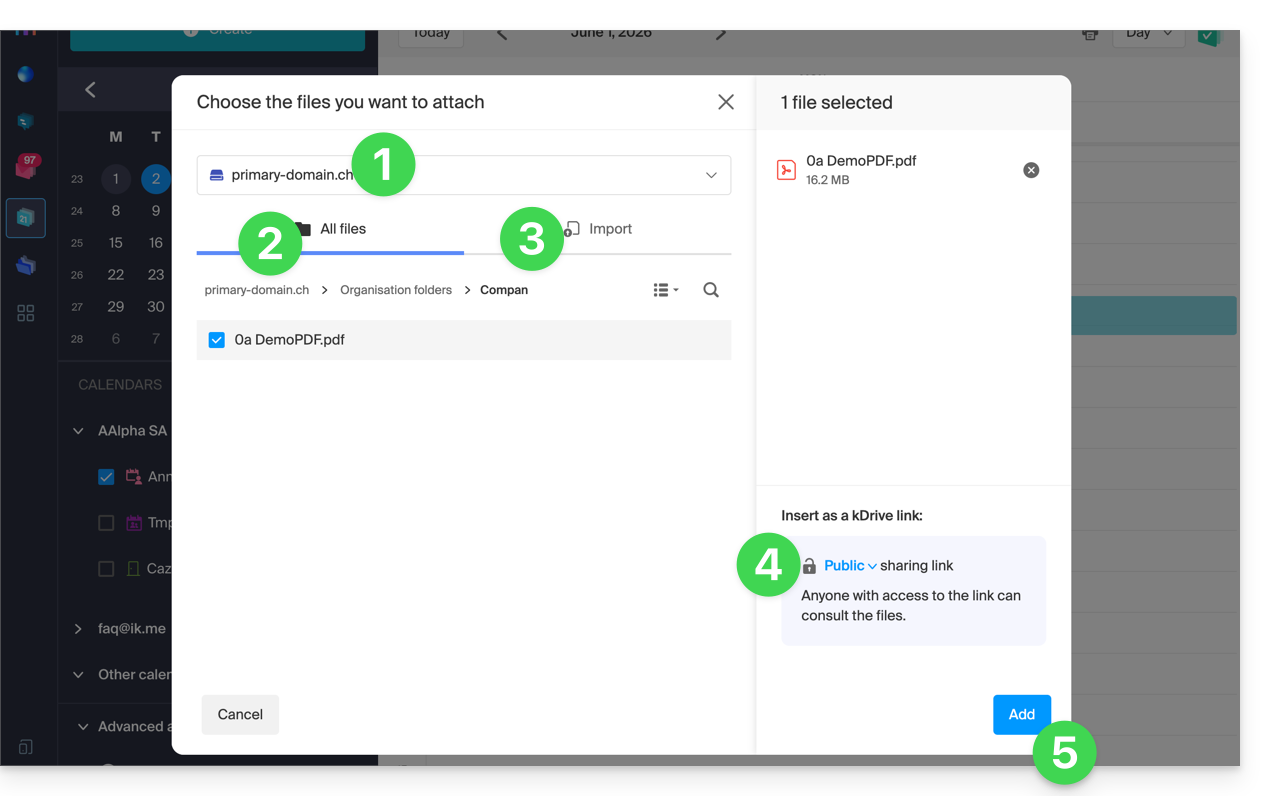
- Select kDrive if necessary.
- Browse and select the files to add to the event.
- Otherwise, import new documents that will be stored on kDrive.
- Once selected, choose whether their link should be:
- a public link (everyone can access it)
- a restricted link (only people with access can access it)
- Click on Add.
Whether the event is recurring or not, you can add files that will be shared with those who view the event in the calendar: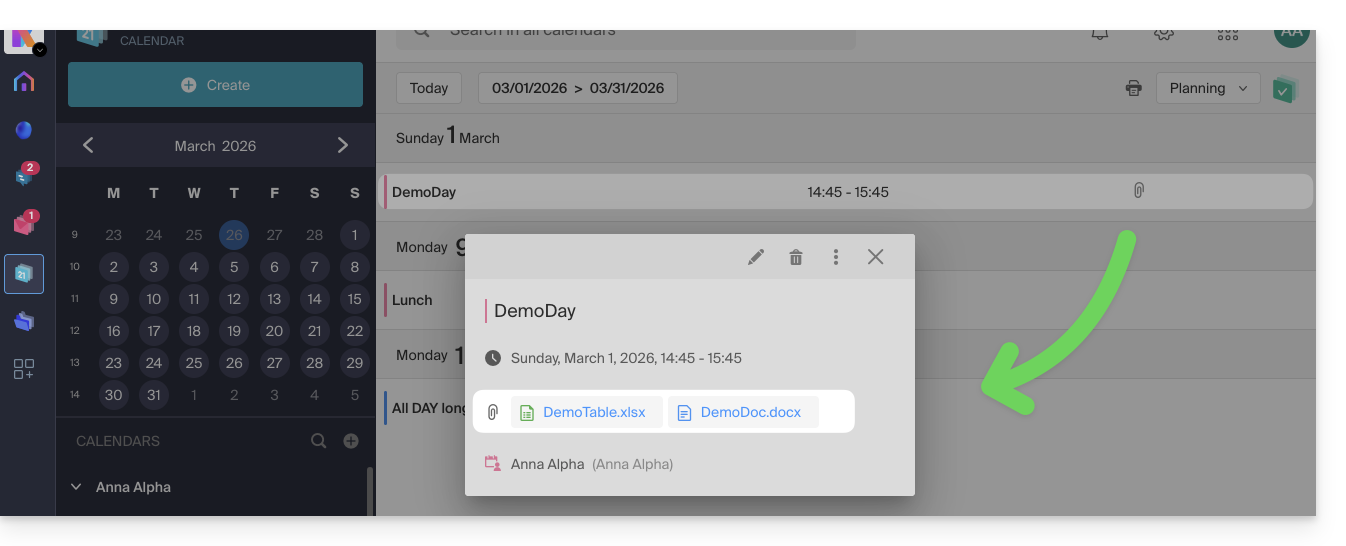
Guests who view the event details via a synchronized application, Outlook, Gmail, and others, will see the links in the description (as is the case for the possible kMeet link, for example, if a video conference is planned for the event).
Link to this FAQ: https://faq.infomaniak.com/1673
Has this FAQ been helpful?
This guide explains how to share contacts with other users from the address books in the Infomaniak Contacts web app (online service ksuite.infomaniak.com/contacts).
Introduction
- To manage contacts, please refer to this other guide.
- Please refer to this other guide to manage address books and also their sharing.
Share an address book
To share contacts:
- Click here to access the Infomaniak Web app Contacts (online service ksuite.infomaniak.com/contacts).
- Click on the action menu ⋮ to the right of an address book (before any groups, which cannot be shared specifically but will be visible when sharing is accepted).
- Click on Share:
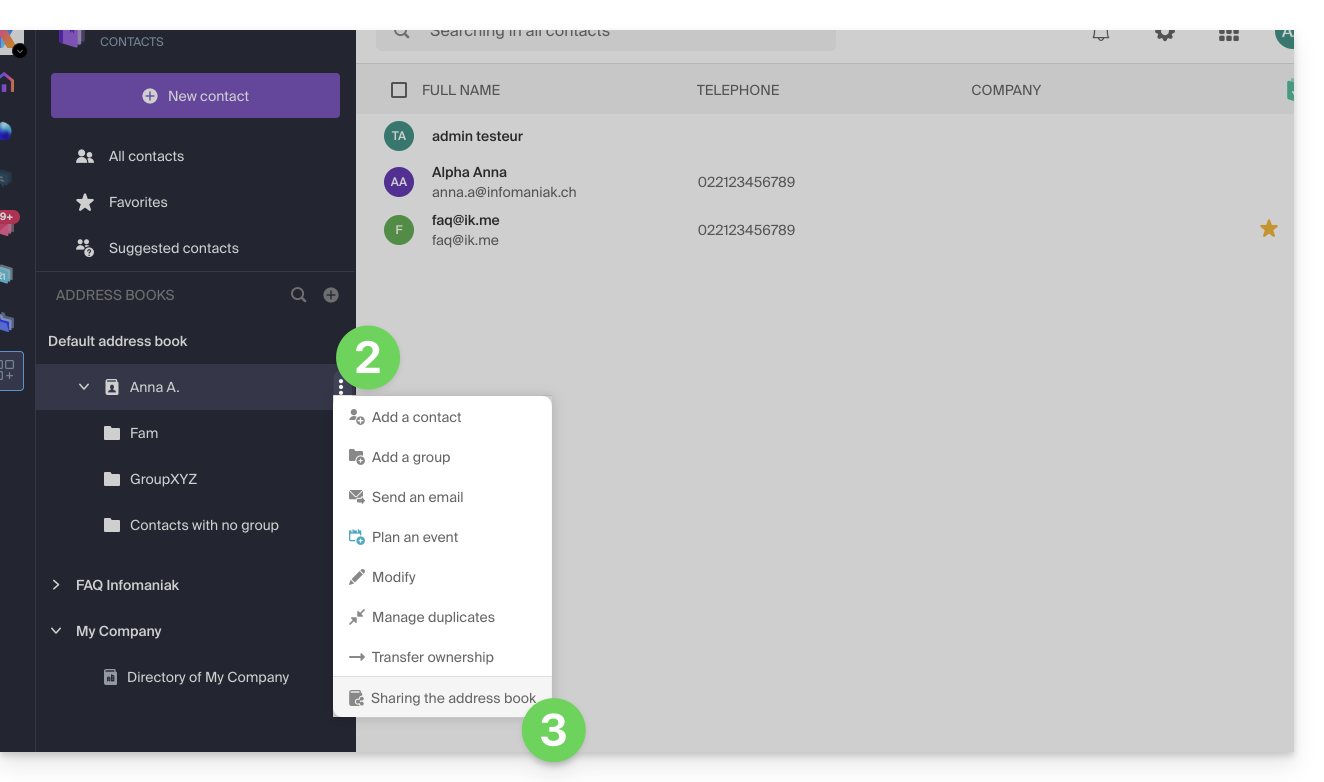
- If a share is already in progress and you want to start a new one, click on Share at the top; otherwise, click on the Share button further down.
- Enter the email address of the user who will access the address book:
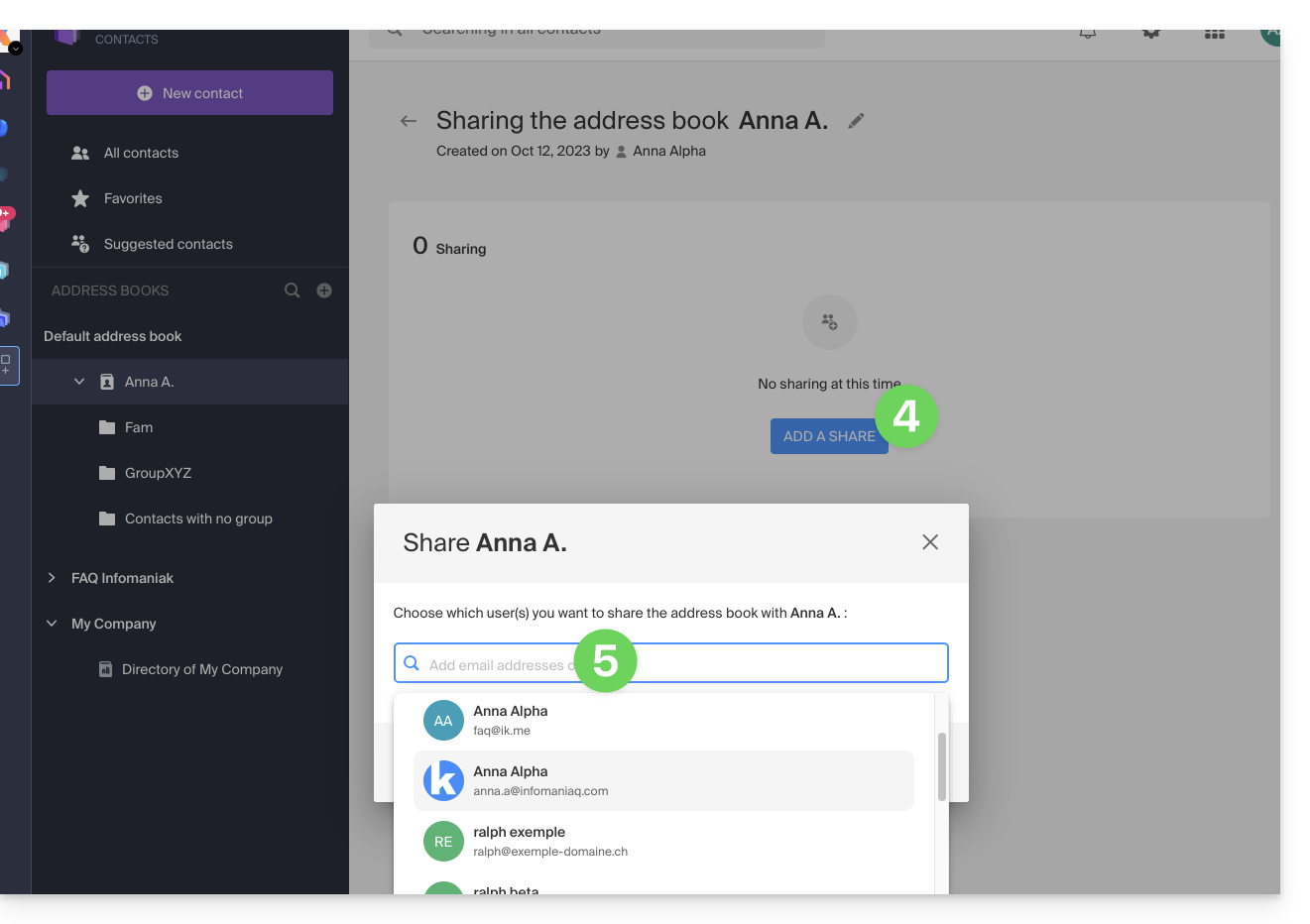
- If the user does not yet have one, they can create one for free.
- Specify the user's permissions for this address book (Administration, Read-only, Read and write).
- Finish by clicking the share button:
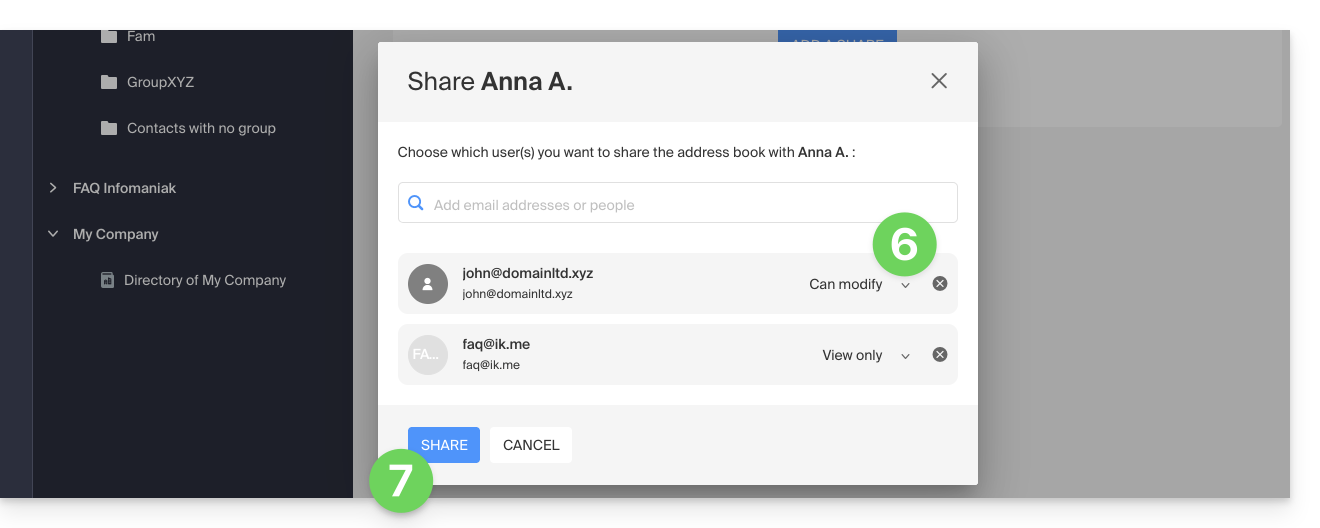
Contacts created or moved/copied to this address book in the future will be dynamically visible to all users with access to the share.
Accept the share
The invited user must accept the share to access the shared data (group names are already visible before acceptance), which will be located in an “Other address books” section: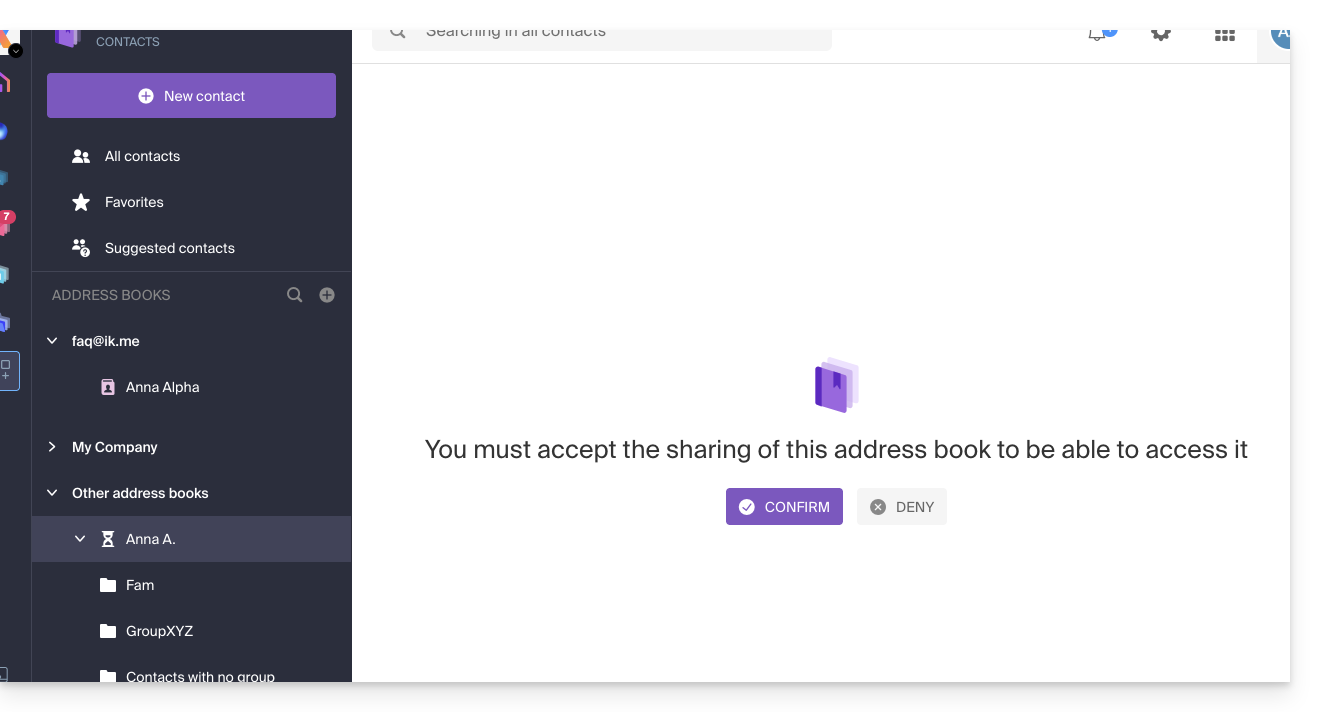
Depending on their permissions, they may be able to perform certain operations on contacts or simply view them, including when composing a new email: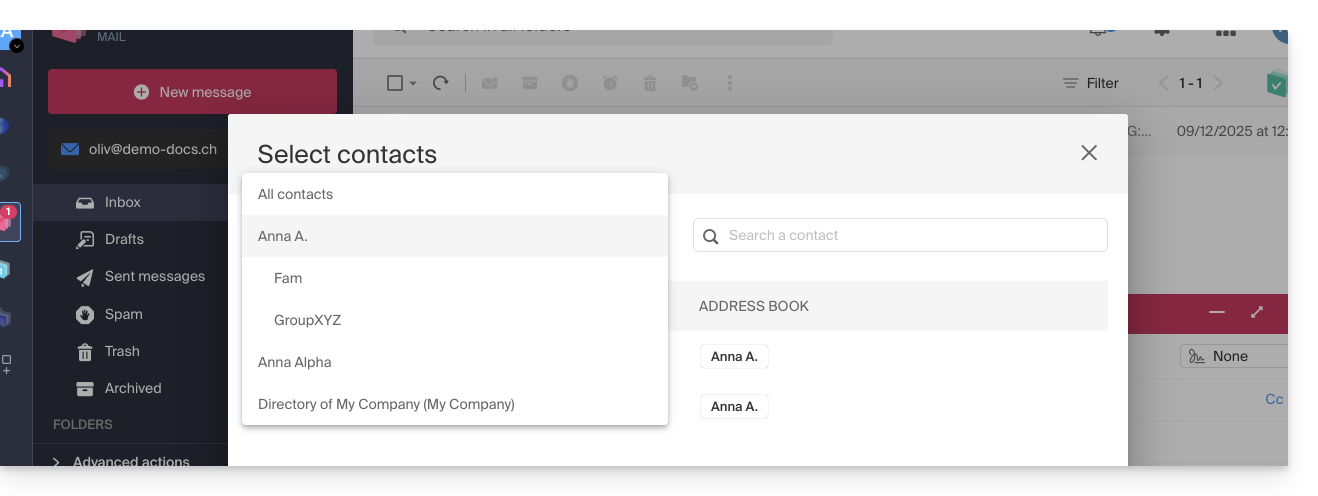
Withdraw from a previously accepted share
A user can withdraw from a shared address book from the action menu ⋮ on the right-hand side: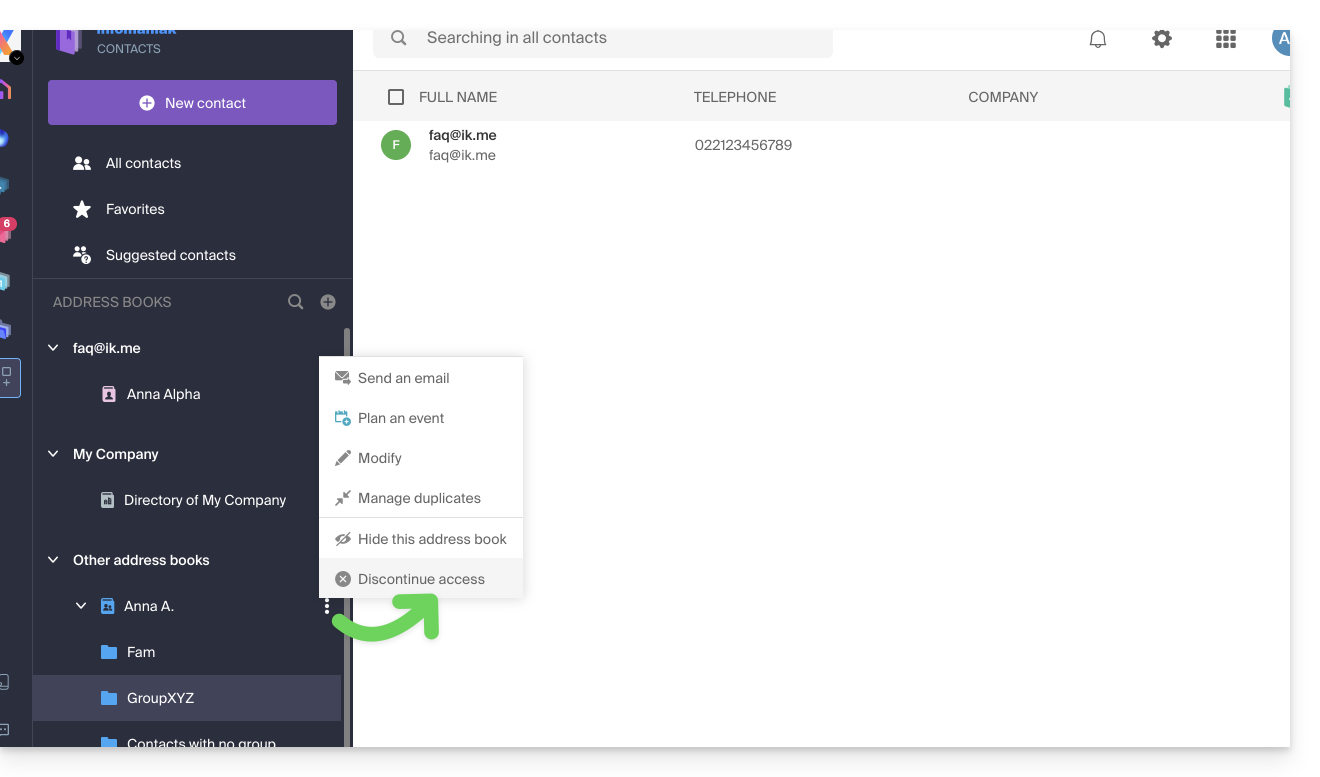
Link to this FAQ: https://faq.infomaniak.com/1678
Has this FAQ been helpful?
This guide explains how to share one of your calendars with other Infomaniak users or collaborators from the Infomaniak Calendar web app (online service ksuite.infomaniak.com/calendar).
Introduction
- Consult this other guide to configure synchronization for your calendars, or this other guide to integrate a read-only calendar into a third-party tool.
Share an Infomaniak calendar
To enable sharing for one of your calendars:
- Click here to access the Infomaniak Calendar web app (online service ksuite.infomaniak.com/calendar).
- Click on the action menu ⋮ to the right of a calendar.
- Click on Share calendar.
- Click on the button to Add a share:
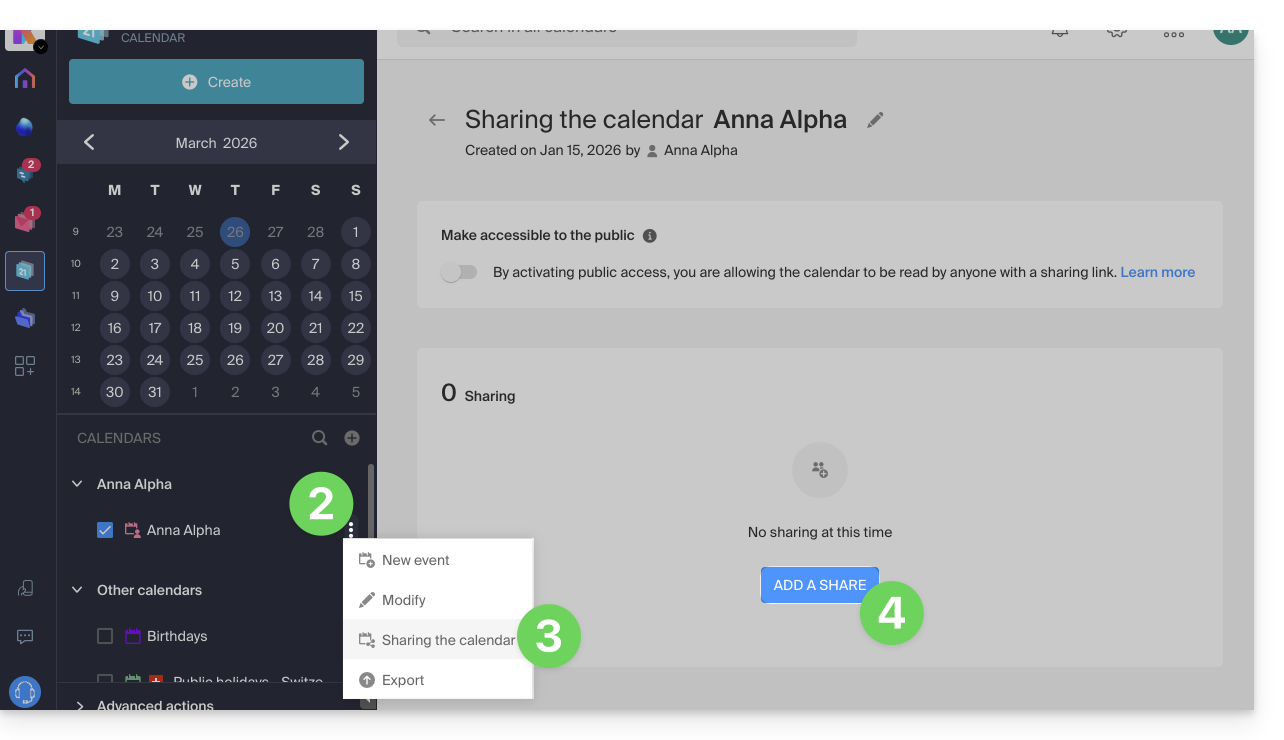
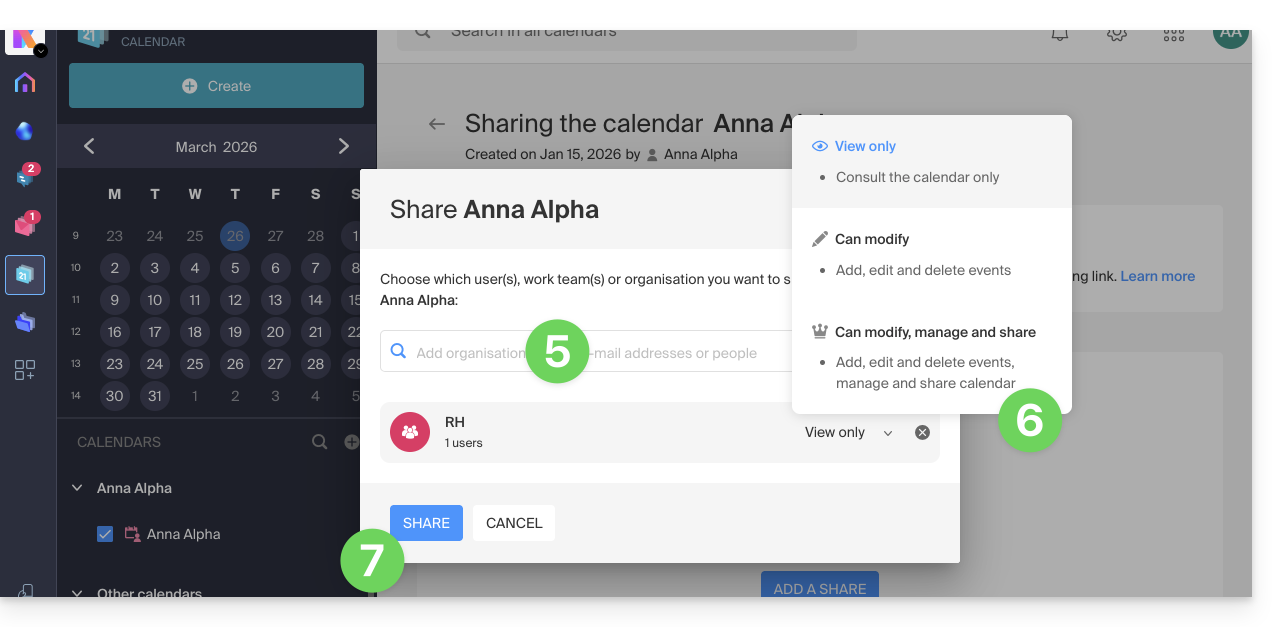
- Enter the Organization, group, orthe email address corresponding to the Infomaniak user accountthat will access the calendar (if the user does not yet have an account, they can create one for free with the invitation they receive).
- Define the user permissions for this calendar (Can view, Can edit, Can edit and share).
- Finish by clicking on the button:
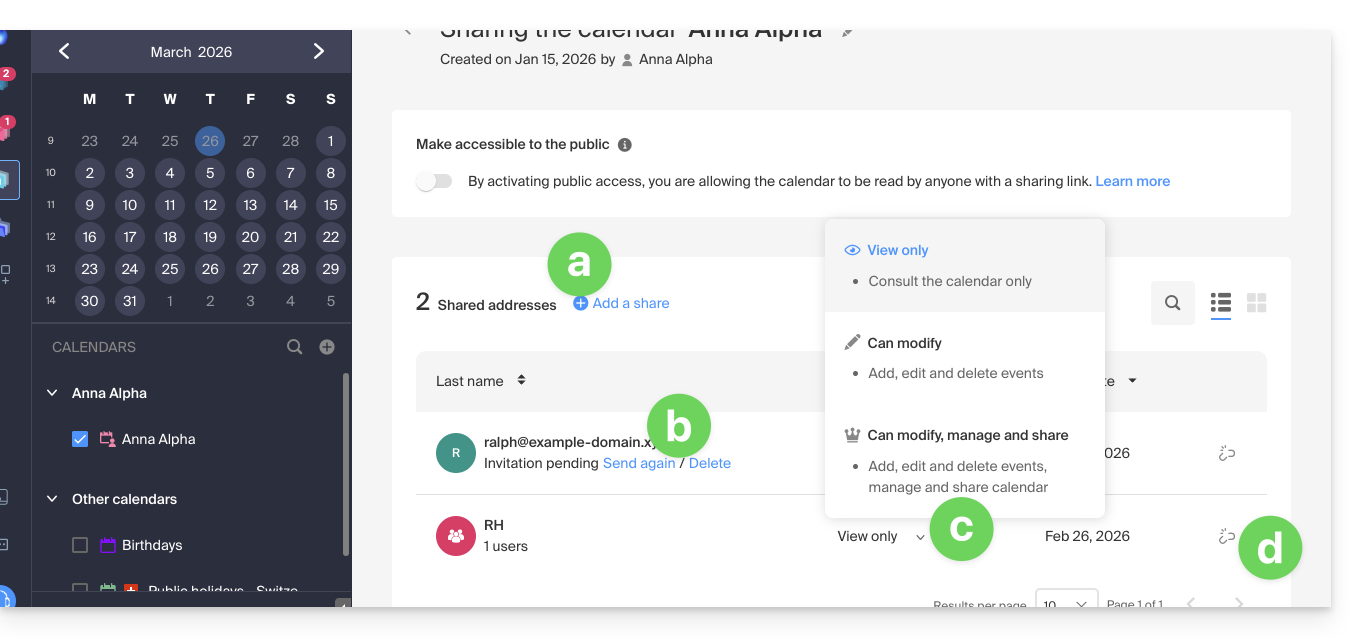
- You can perform other actions from the same page at any time:
- add another share
- resend or delete an access invitation
- modify the permissions related to calendar sharing
- delete/revoke the share
Share a meeting room calendar
To share the calendar for meeting rooms, the principle of sharing and assigning rights is based on the same principle as above: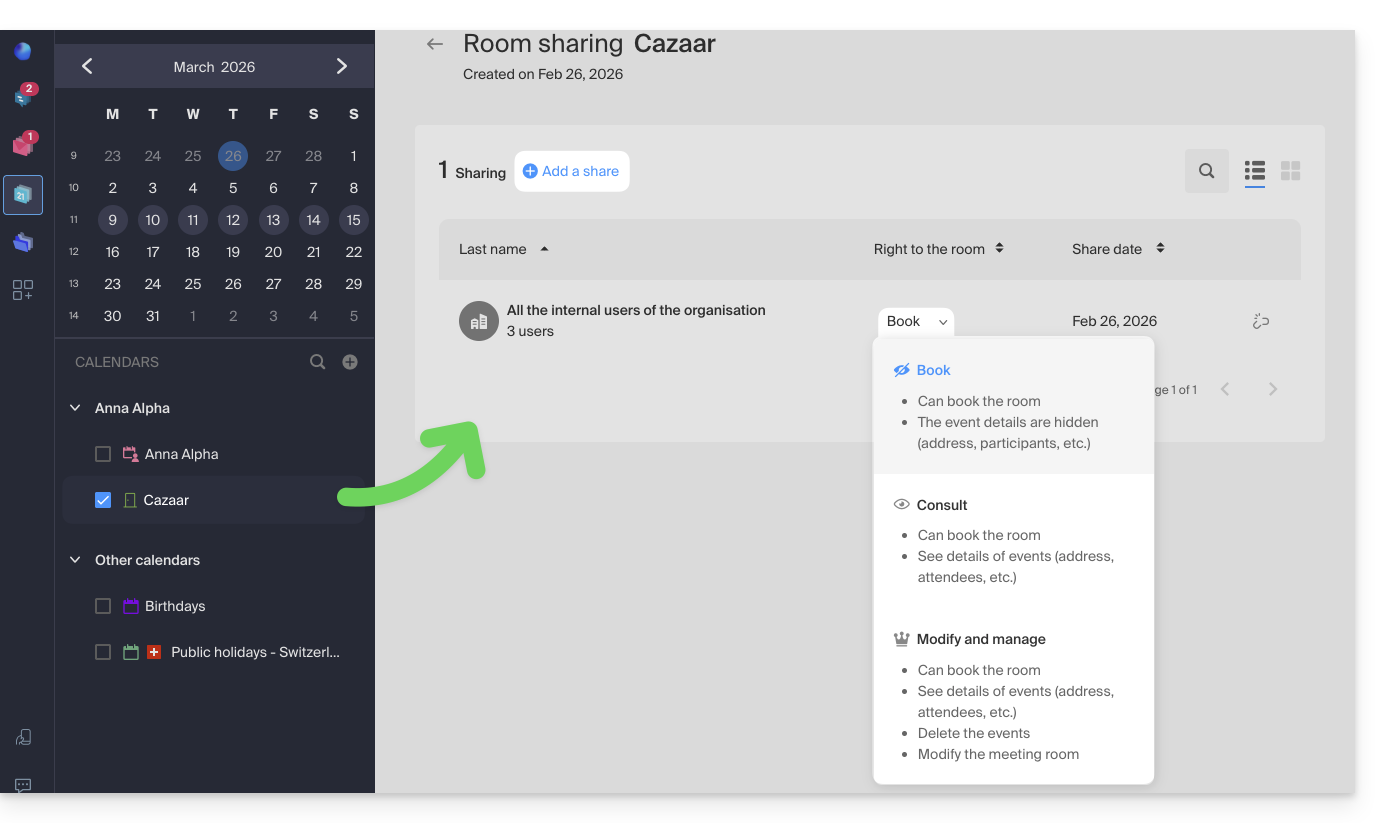
Link to this FAQ: https://faq.infomaniak.com/1679
Has this FAQ been helpful?
This guide explains how to recover events, tasks, unavailable time slots, and deleted time slots from one of your calendars in the Infomaniak Calendar web app (online service ksuite.infomaniak.com/calendar for managing your events and appointments).
✘ NOT AVAILABLE with
kSuite Free
my kSuite (ik.me, etik.com, ikmail.com)
Mail Starter service
By upgrading one of these free plans, you will be able to restore backups for up to 30 days.
Calendar/Agenda Restoration
Backup Retention Period
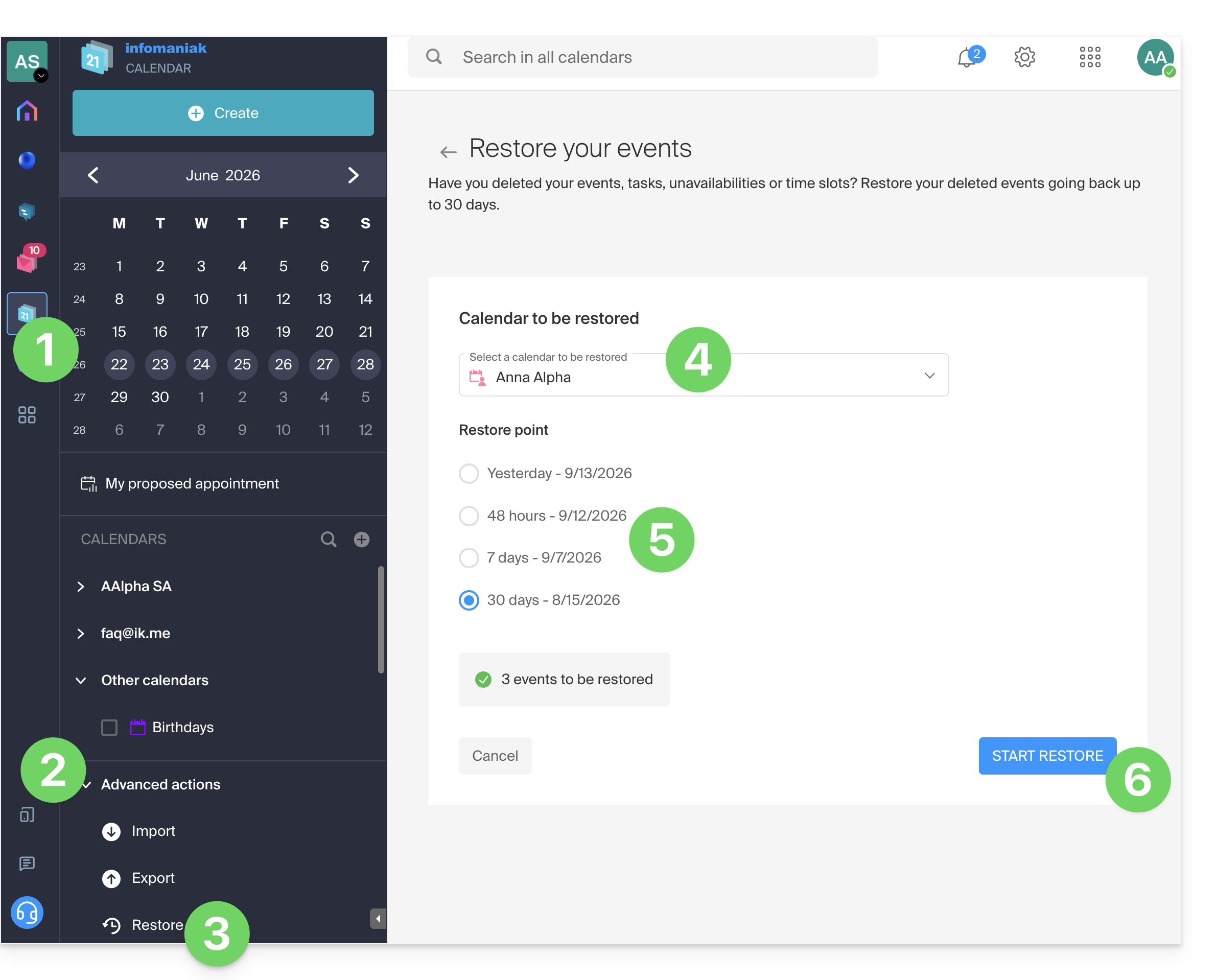
Restore points are created every day. Once a backup of your calendar's complete state has been created, Infomaniak makes it available to you for 30 days. If events can be restored, you can revert to the point from 24 hours, 48 hours, 7 days, and 30 days ago:
- Click here to access the Infomaniak Calendar web app (online service ksuite.infomaniak.com/calendar).
- Click on Advanced actions from the left-hand menu.
- Select Restore.
- Choose the calendar to restore.
- Choose the desired version (1/2/7/30 days).
- Start the restoration using the button at the bottom of the page, which is activated if events can be restored:
Link to this FAQ: https://faq.infomaniak.com/1688
Has this FAQ been helpful?
This guide explains how to transfer to Infomaniak email addresses currently hosted by Swisscom, using an IMAP import tool.
Introduction
- The operation does not affect either the data already present in the destination address or the data in the source address.
- The entire external mailbox will be imported.
- Once the import process has started, it is no longer possible to interrupt it.
- Any duplicates will be handled: identical content will only be copied once.
- Consult this other guide if you are looking for alternatives to this IMAP process.
Import Bluewin email content into Infomaniak
Infomaniak Requirements
- You must have a Mail Service on your Infomaniak Manager.
- Have a number of available addresses or adjust it if necessary.
- Make sure your email is properly secured
- Create one or more addresses on this Mail service.
- If you have many (10+) email addresses to create, please refer to this other guide regarding bulk creation.
- The destination email address must be linked to the user (= the Infomaniak account) you are using.
Next, to import your email content:
- Click here to access the import tool (online service https://import-email.infomaniak.com).
- If necessary, log in to your Infomaniak account for the relevant organization; the import will be done to one of the email addresses associated with the Infomaniak Mail web interface (online service ksuite.infomaniak.com/mail) of the Infomaniak account you are using.
- Click on IMAP import.
- Click on one-time import.
- Fill in the field on the left with your source email address (from which the content will be copied).
- Fill in the field on the right with the password for this same source email address (see prerequisites).
- Click on Confirm.
- If necessary, enter a second email address to be imported at the same time.
- Choose the email address from which to import emails; the drop-down menu lists the email addresses currently associated with your Infomaniak Web Mail interface (online service ksuite.infomaniak.com/mail) for the Infomaniak account you are logged into.
- After selecting the desired destination address from the list, click the blue Import Emails button.
- The copy process begins. You can wait and see the result on the page once the import is complete, or close the window (the import continues in the background, and progress can be tracked - see below).
- A confirmation email will be automatically sent to all email addresses involved in the operation once the import is complete, indicating the number of messages copied.
- A progress tracker is available in the settings of the destination email address, on the Mail web app (online service ksuite.infomaniak.com/mail) only.
- The tracking feature allows you to view the import history for the specified address.
Import all your contacts
To continue using your address book, you need to export your contacts from Bluewin:
- Log in to your Bluewin interface.
- Click on Contacts.
- Click on Settings in the toolbar.
- Click on Export contacts.
- Save the
contacts.csvfile to your device.
Next, you need to import them:
- Log in to your Infomaniak Address Book.
- Click on Advanced actions at the bottom left.
- Click on Import.
- Select your
.csvfile that you downloaded in step 5 above. - Click Next and start the import.
Forward emails to Infomaniak
If your Bluewin address will continue to exist for some time, you can set up a message forwarding rule. This will automatically redirect incoming messages to your new Infomaniak address:
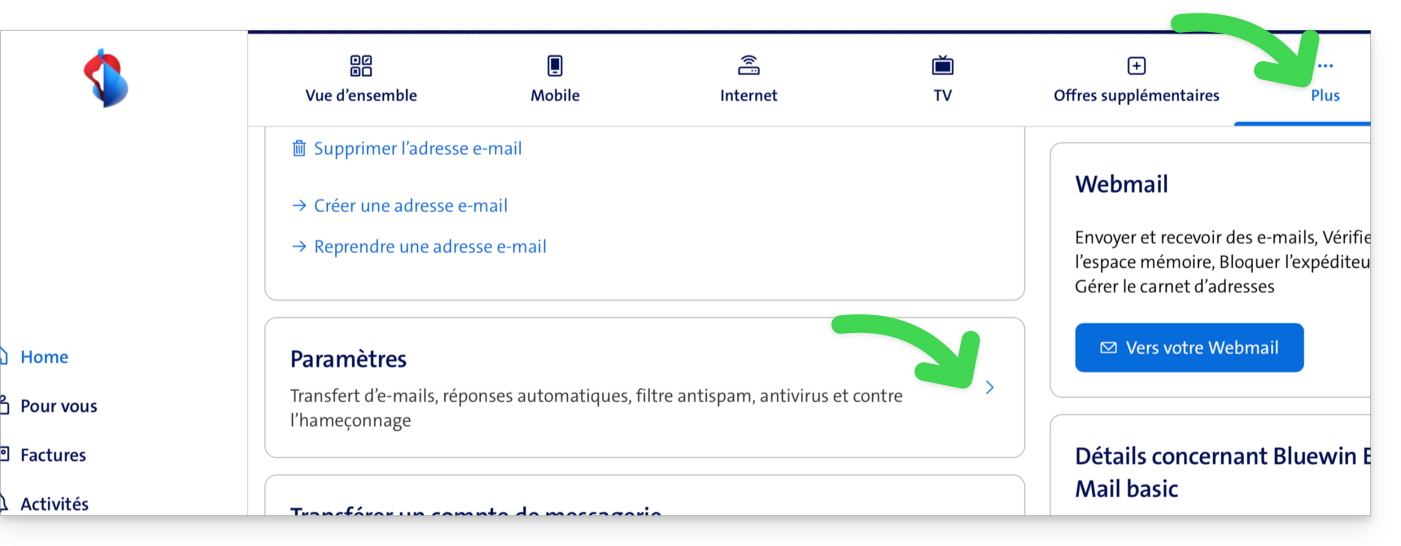
- Log in to “MySwisscom”, click on the "More" box, then “Settings”:
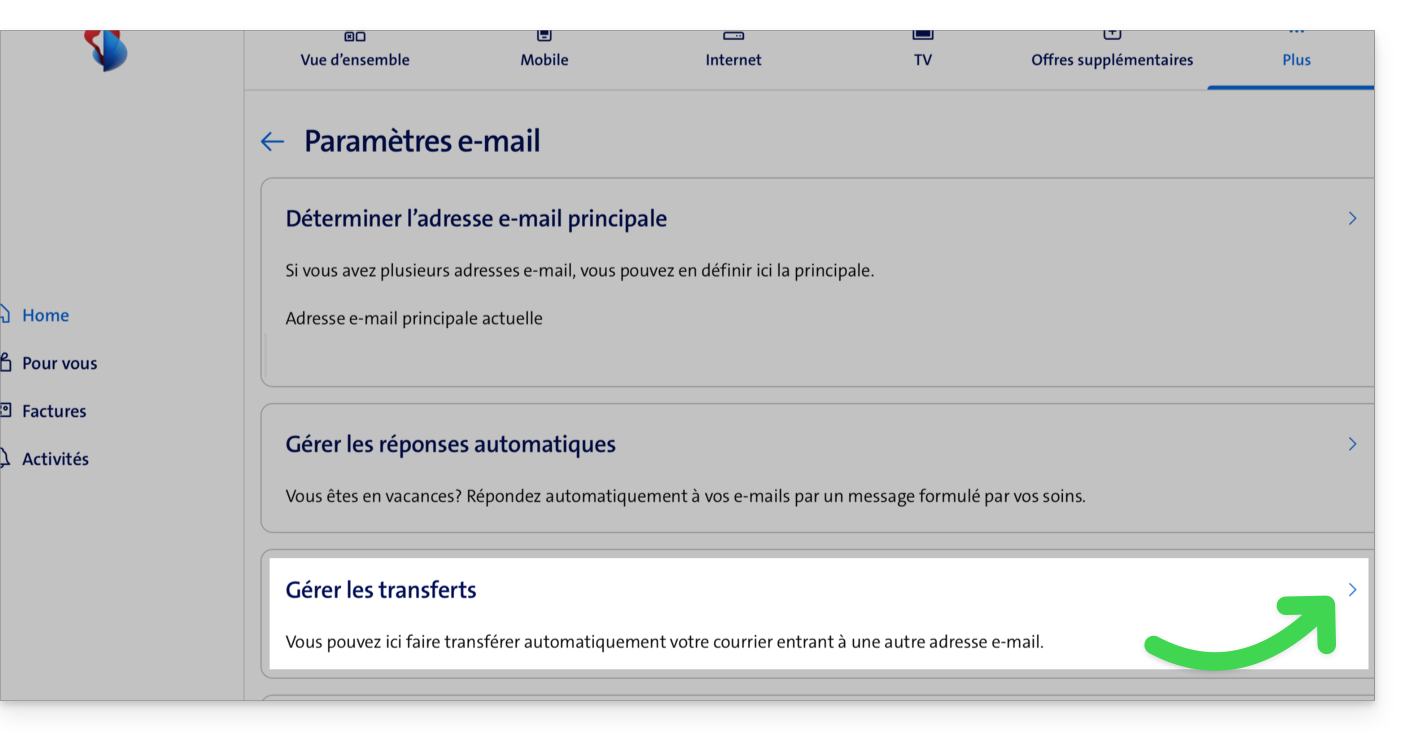
- Then click on “Manage transfers”:
- Specify the email address created with Infomaniak as the destination for all your future incoming emails.
Link to this FAQ: https://faq.infomaniak.com/1693
Has this FAQ been helpful?
This guide explains how to connect the desktop apps Contacts and Calendar on macOS (MacBook Pro, Neo…) with the contacts & calendars hosted by Infomaniak.
Introduction
- Rather than the manual configuration below, it is recommended to use the .mobileconfig configuration profiles offered by Apple.
- Infomaniak contacts & calendars are linked to your Infomaniak account; when you log in to ksuite.infomaniak.com/contacts or /calendar, you will likely need to perform two-factor authentication (2FA) during login.
- In this case, an application password is required to establish synchronization between your device and Infomaniak tools.
- But don't worry, creating such a password is offered as part of the configuration wizard.
Manual configuration (contacts & calendars)
To configure both services on macOS:
- Click here to access the Infomaniak configuration tool (online service https://config.infomaniak.com) — log in if necessary to your Infomaniak account for the Organization where your services to be synchronized are managed.
- Choose synchronization for this device.
- Choose to synchronise your contacts & calendars.
- Click on the Manual synchronisation tab.
- Click on the Generate button to obtain an application password:
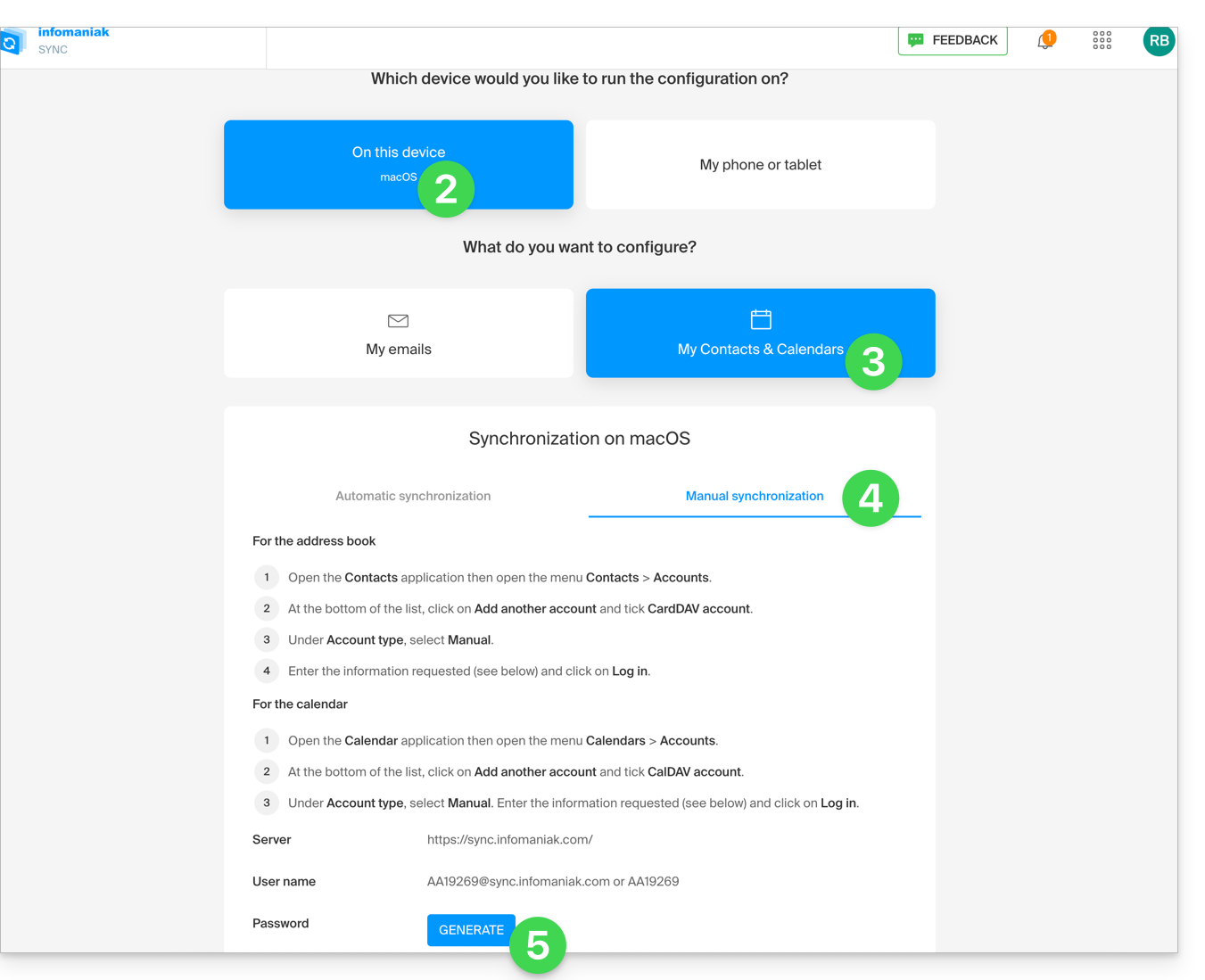
- Note the information that will be displayed on your screen.
- Then, open the Calendar application on your device.
- Add a new account, making sure to select CalDAV:
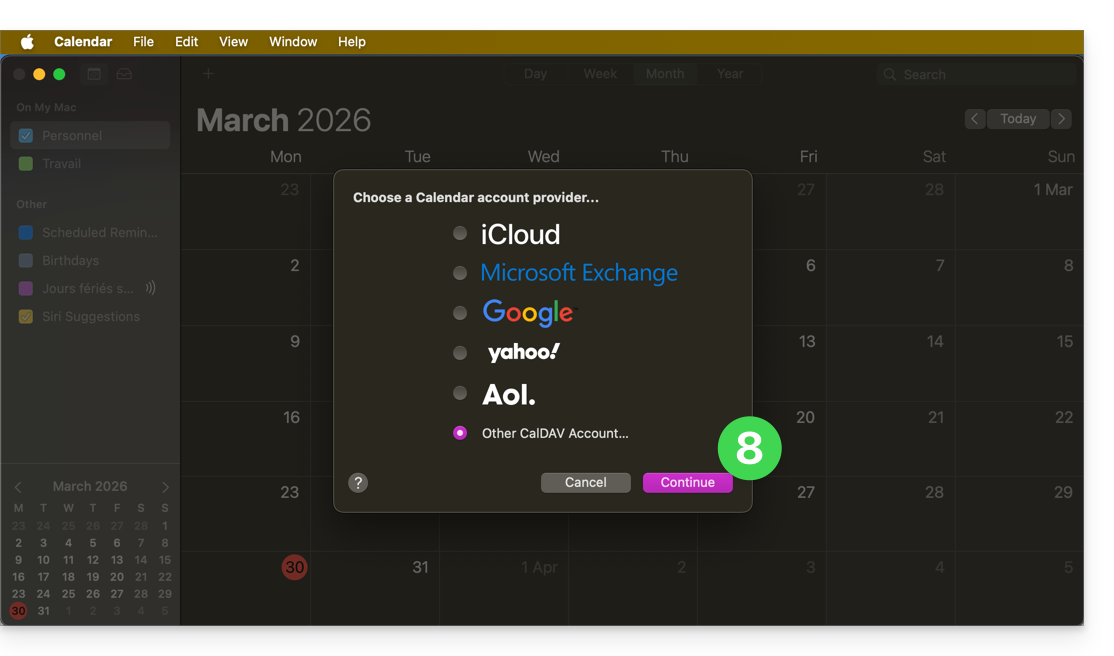
- Enter the information noted in step 6 above:
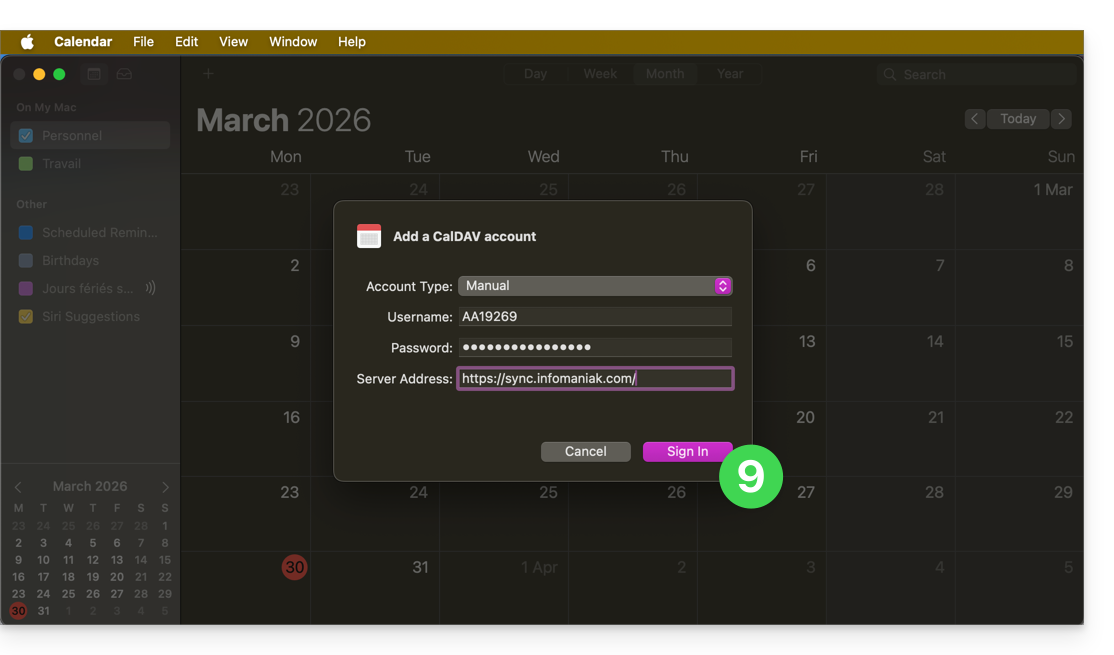
- Username: enter the username provided by the synchronisation assistant in uppercase (e.g.
AB12345)… - Password: the one from step 5 above (i.e. an application password if you have activated two-factor authentication) or the password for your Infomaniak user account if you have not activated 2FA…
- Server address:
https://sync.infomaniak.com/
- Username: enter the username provided by the synchronisation assistant in uppercase (e.g.
- That's it, you can now open your macOS Contacts and Calendar applications.
If your applications were already open, you need to restart them. You will then see the information added by the synchronisation: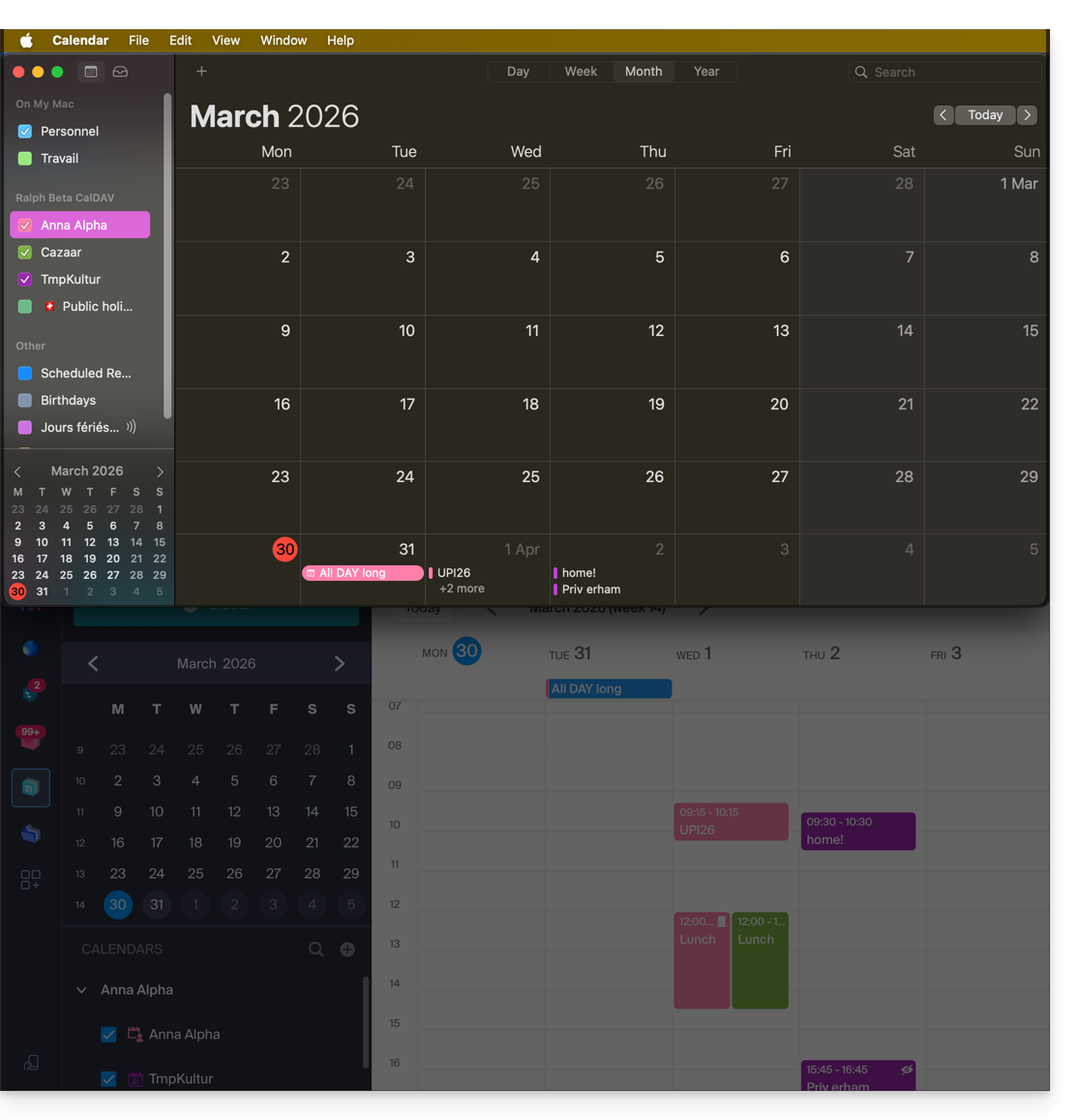
Specifics of synchronisation
Refer to this other guide.
Deleting a CardDAV or CalDAV account
Refer to the chapter "Stop using an account" and, at the top of the page, change the system version if necessary to match your own *.
*Why is it necessary to choose the guide version that exactly matches your macOS / iOS system version? Apple introduces subtle changes with each new version of its system, for example, a path on iOS 15…
… becomes this on iOS 18…
Link to this FAQ: https://faq.infomaniak.com/1701
Has this FAQ been helpful?
This guide concerns kSuite and the possibility for users to define a status and manage the display of their presence or absence.
Introduction
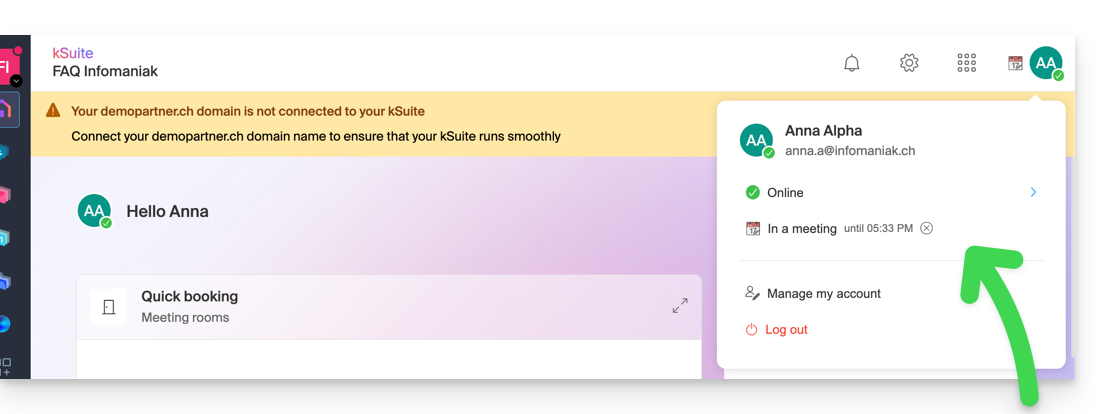
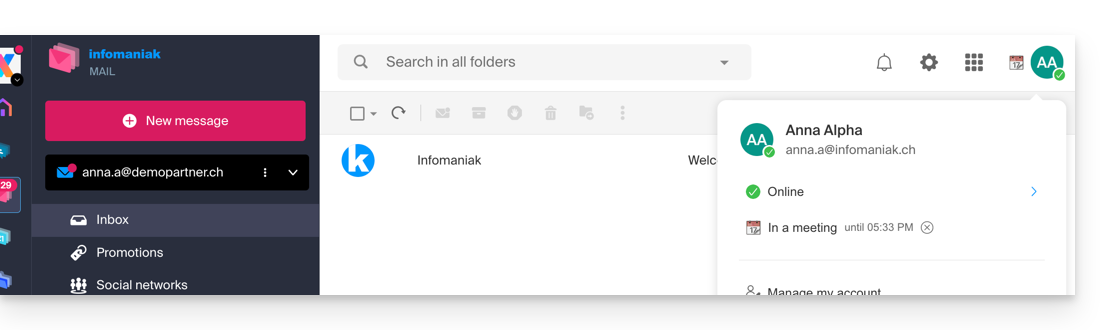
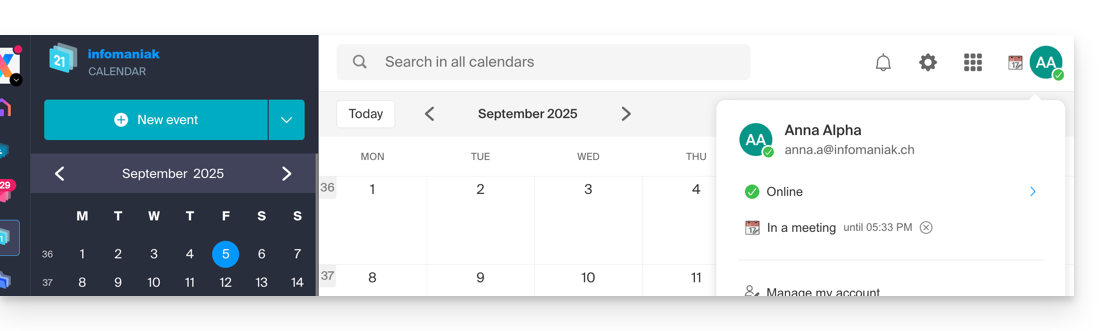
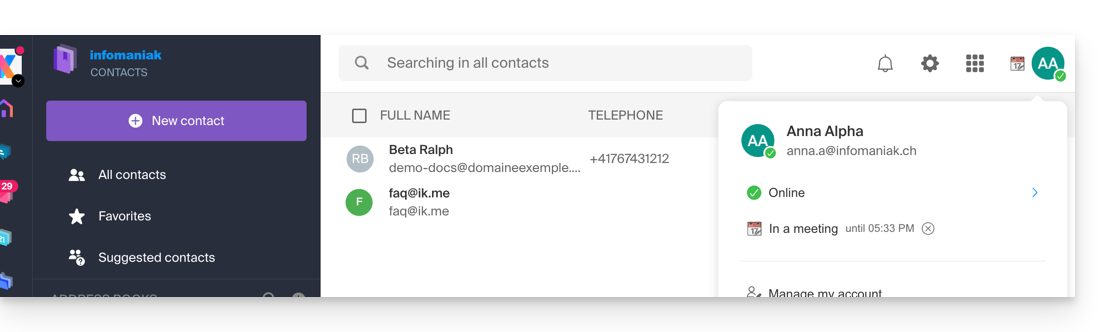
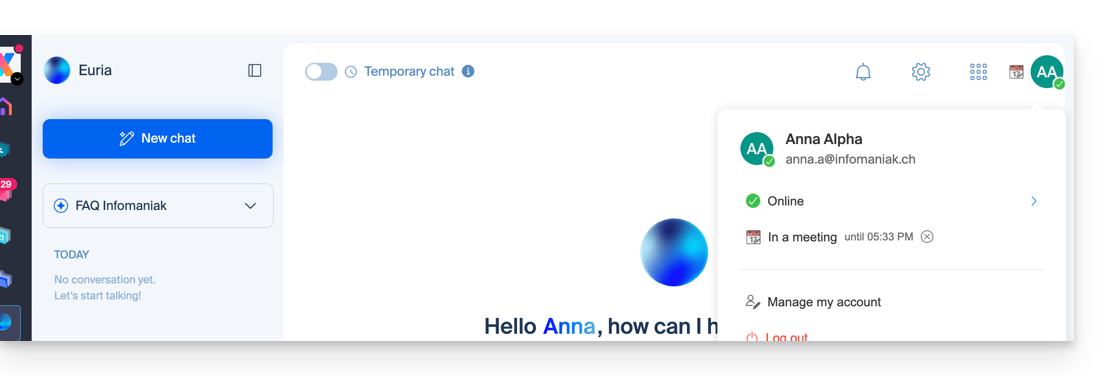
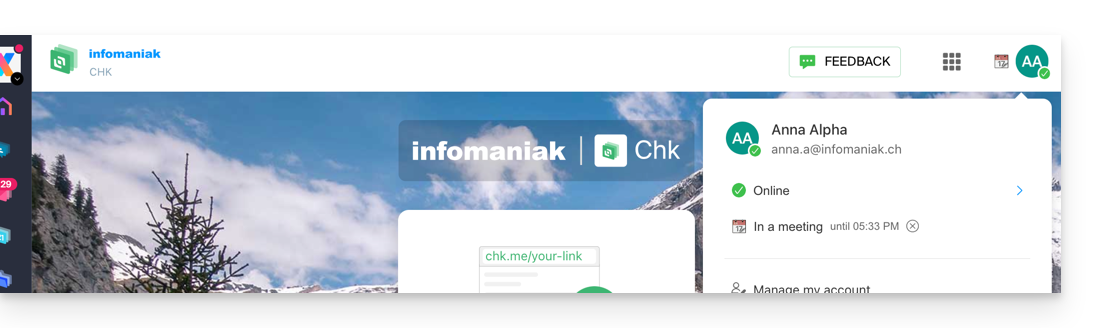
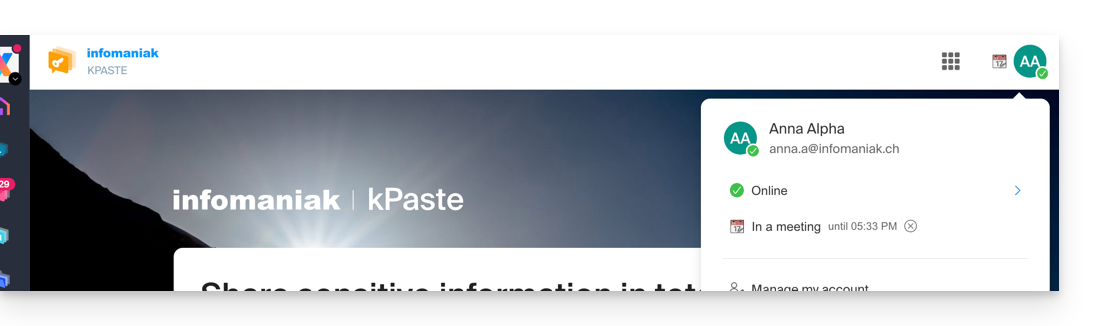
- Once defined, your custom status is visible to users within the Organization on various pages related to kSuite:
- Home page ksuite.infomaniak.com
- Mail
- Calendar
- Contacts
- kDrive
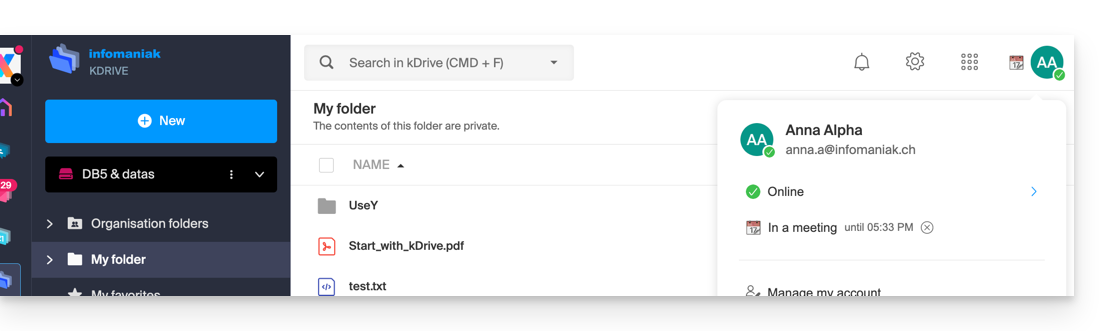
- Euria
- Chk
- kPaste
- kMeet
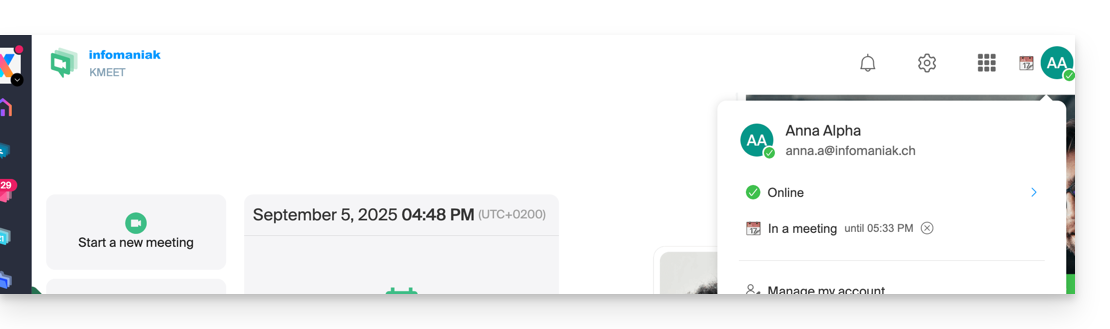
- Home page ksuite.infomaniak.com
- A presence status different from the default status, such as "Do not disturb," may affect the notifications of certain services (❓: help).
Update the kSuite profile status
To do this:
- Click here to access your kSuite (❓: help).
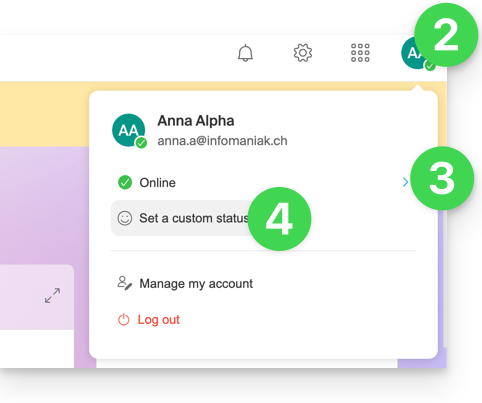
- Click on the badge with your initials/avatar in the top right corner.
- Click on Online to choose a different status if needed (away or do not disturb)…
- … or click on Set a custom status to enter a custom status or choose one from the suggestions:
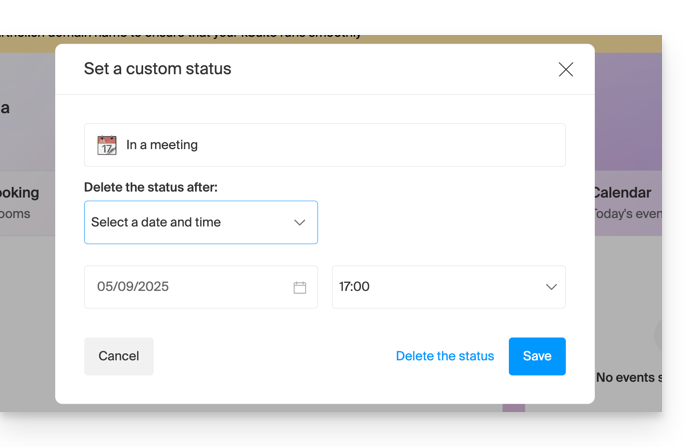
- Specify an expiration date if necessary and save:
Link to this FAQ: https://faq.infomaniak.com/1712
Has this FAQ been helpful?
This guide details what you can search for in the Infomaniak Mail web app (online service ksuite.infomaniak.com/mail) or other kSuite services. For searching in kDrive, please refer to this other guide.
Search for an email
On ksuite.infomaniak.com/mail, type the term you want to find in the search bar at the top of the page.
The search will be performed within the email address mentioned in the left sidebar(to search across multiple email addresses simultaneously, use an IMAP email client to which you connect your different addresses):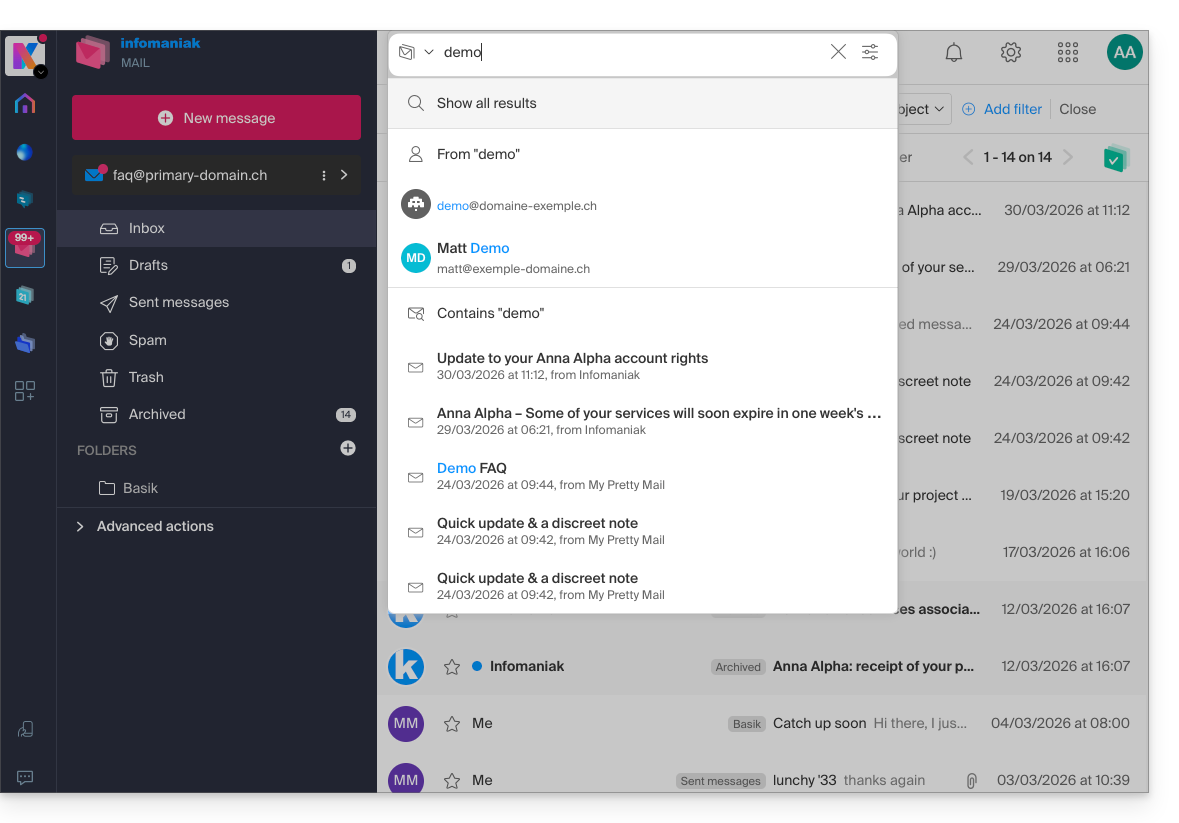
Advanced search is accessible to the right of the search field at the top of your Mail: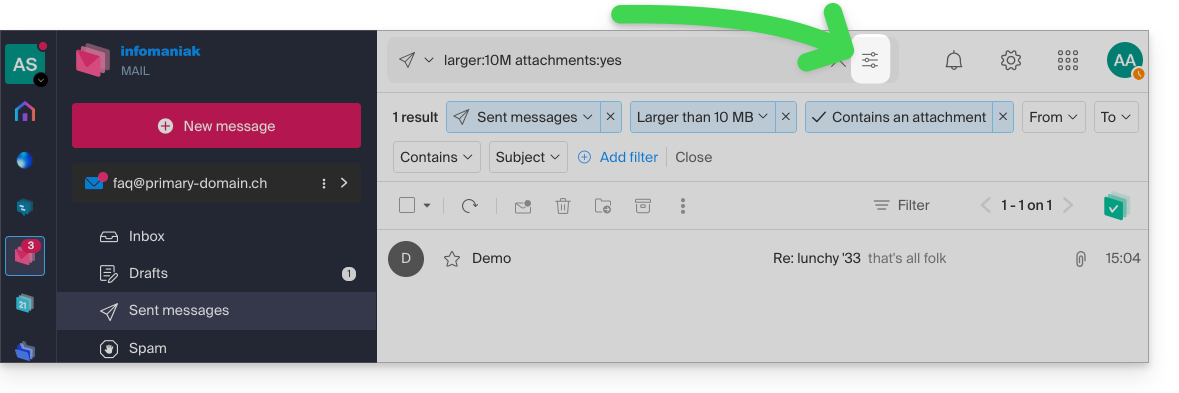
You can search for content…
- either in the body of the message,
- either in its subject,
- or among its senders/recipients…
You can also filter the search by message size and by whether or not it contains an attachment.
Regarding the scope of the searches:
- The content of encrypted emails is not indexed (except for the email subject).
- The content of attachments, as well as their name, is not indexed: therefore, it is not possible to find an email by searching for the name of the file that was attached to it.
- The "Search all emails" function does not include the Trash or Spam folder:
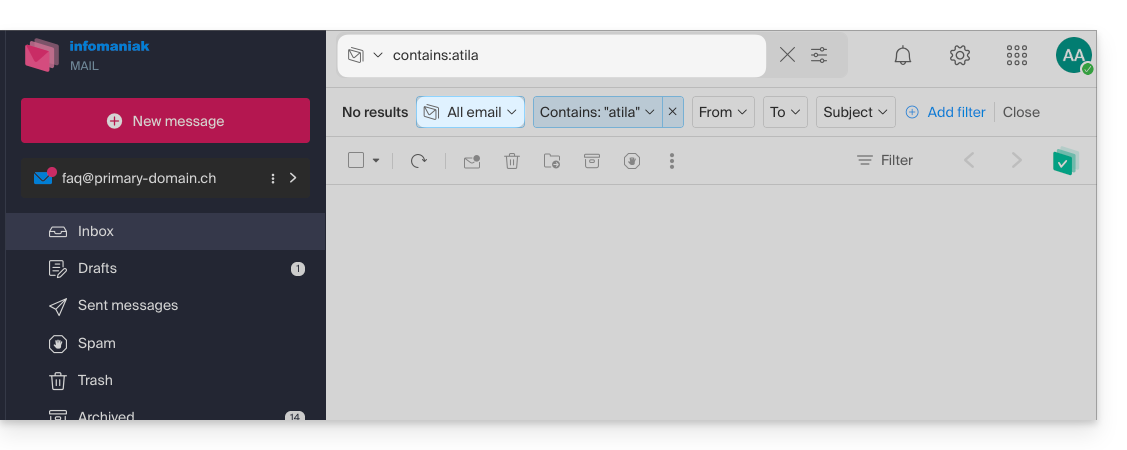
- If a global search returns no results, the email may be in one of these two folders.
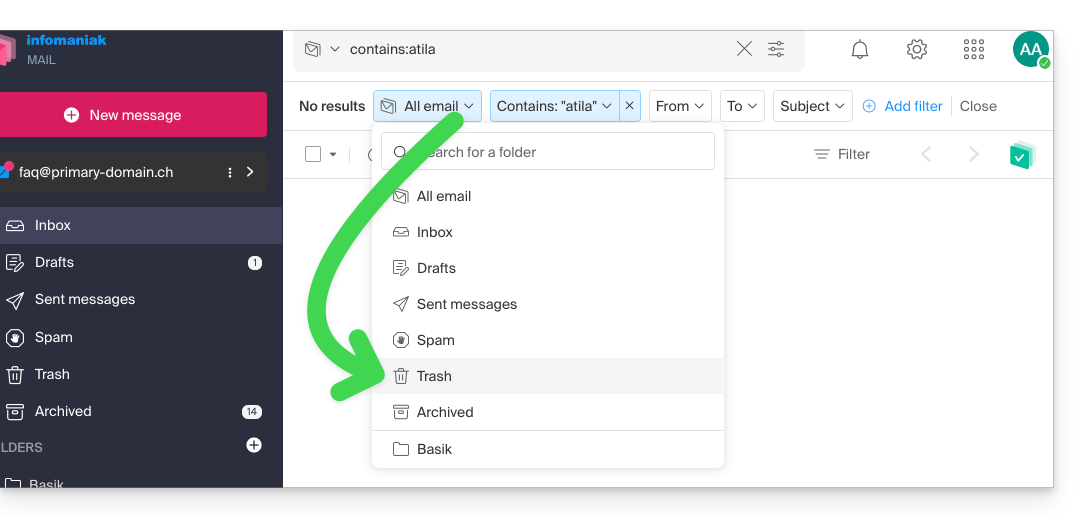
- You will then need to go specifically to the Trash or Spam folder to perform the search there, or launch the search by selecting one of these two items:
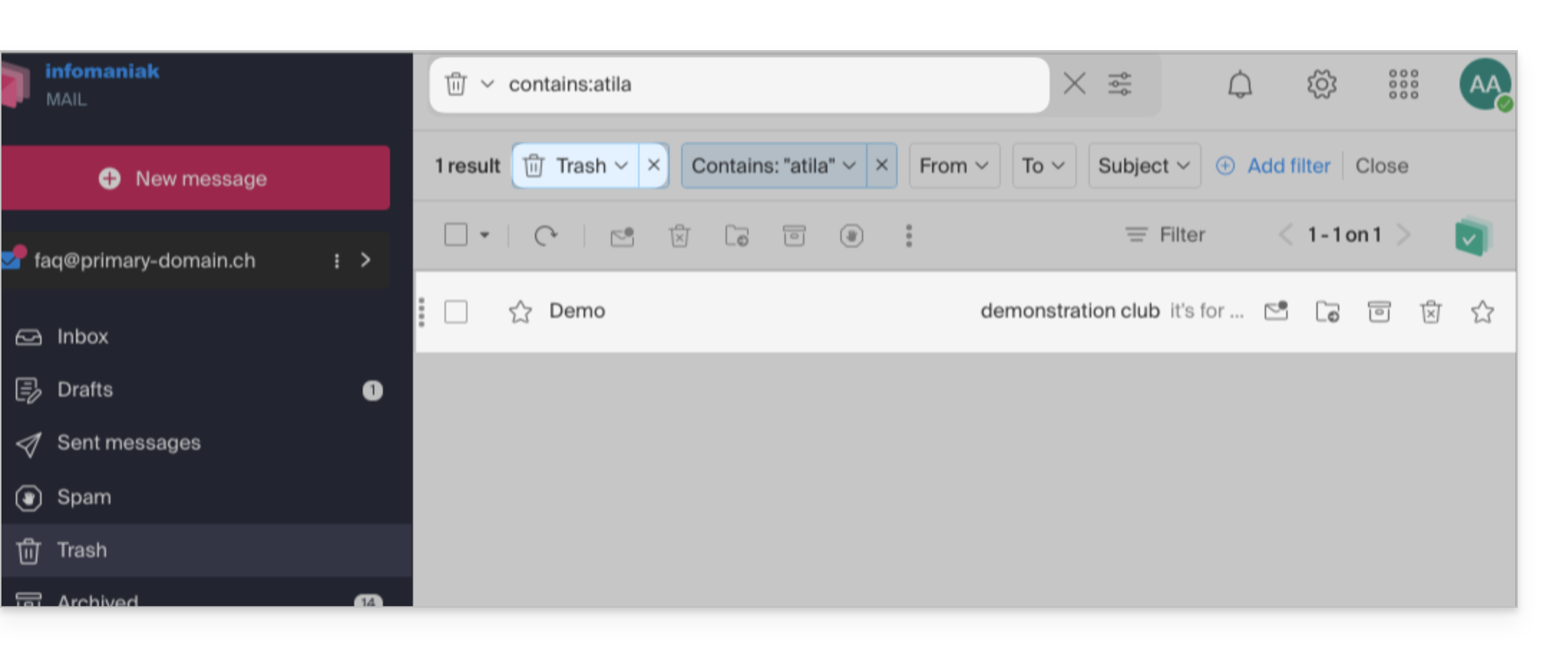
- Any items found will then be displayed:
- Similarly, when you want to find a message in a specific folder, it is best to go there first from the left-hand menu, and then launch a search.
To search for traces of an email or to see its activity, you can also search in the logs of an email address.
Email search with a software/email client
To find out how your specific email application performs searches, consult its documentation. For example, desktop apps like Thunderbird and Outlook can synchronize messages locally and perform local searches, while other applications may prefer searching on the IMAP server. In this case, the software/email client sends a search command to the server, which then searches through all messages stored on the server and returns the results to the software/email client.
Search for a contact in your address books
The search function automatically searches through all your address books, groups, and contacts using the search field at the top of the ksuite.infomaniak.com/contacts interface: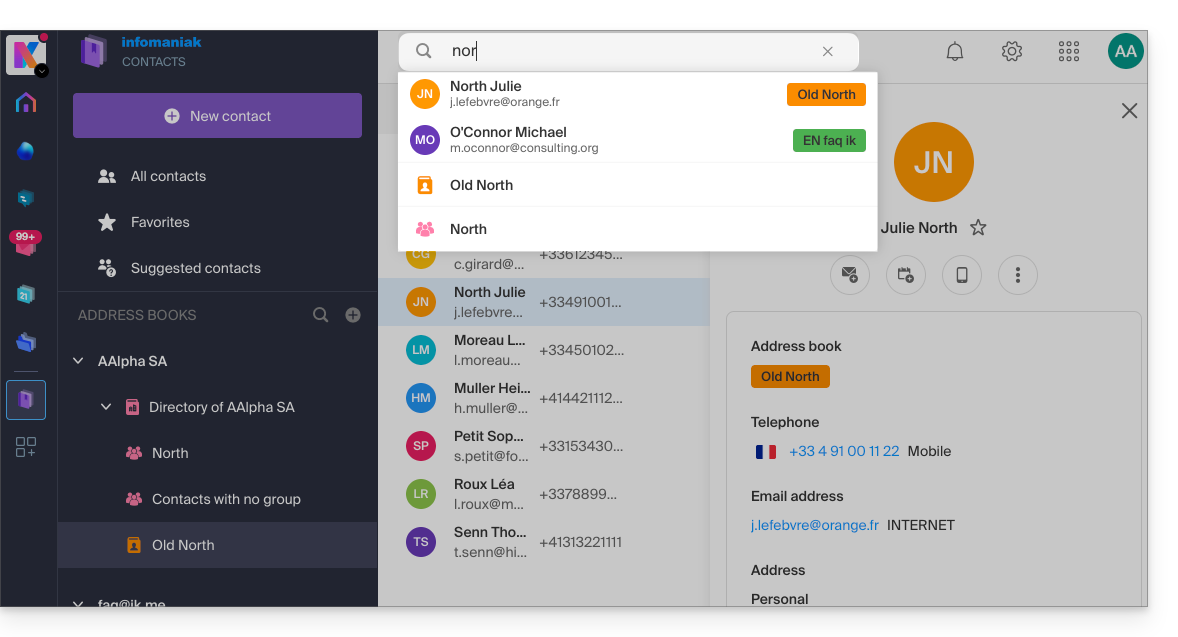
Search for an event in your calendars
Searching for an item on ksuite.infomaniak.com/calendar is performed automatically across all your calendars, events, and rooms, including within the description of these items and the people associated with them (if you click on a contact, you will see the events you have in common with that contact):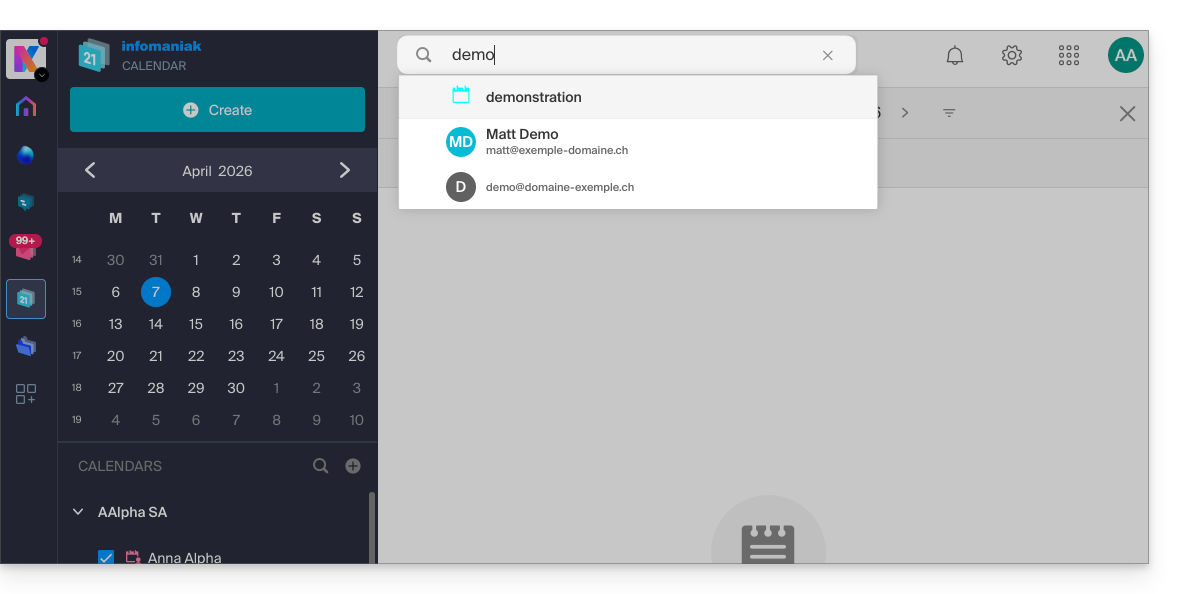
Search in kChat
To search for an item in ksuite.infomaniak.com/kchat, use the main search field to find messages, replies, or file content: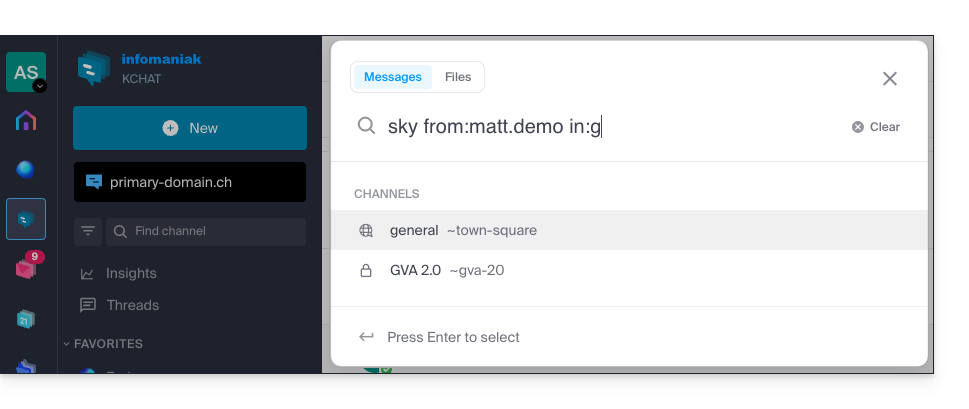
To refine your search results, several search modifiers are available:
from:: to find messages sent by a specific user (e.g.,from:jean.dupont).in:: to restrict the search to a specific public channel, private channel, or direct message (e.g.,in:channel-name).before:,after:,on:: to target a specific date (in YYYY-MM-DD format) or period (e.g.,on:2026-09-01).
Exclude a channel or terms from a search (exclusions)
It is possible to exclude certain search results by using the hyphen - before a term or modifier. This is an extremely useful feature for filtering out irrelevant results:
- Exclude a channel: add
-in:channel-nameto your query to completely exclude results from that channel. - Exclude a word: type
test -releaseso that the results include the term "test" while excluding messages containing "release". - Exclude a user: type
-from:userto hide messages sent by that specific person.
You can perfectly combine these exclusions. For example, the search test -release -in:release-discussion -from:anna will find the word "test", excluding the word "release", completely ignoring the "release-discussion" channel, and excluding messages from the user “anna”.
Link to this FAQ: https://faq.infomaniak.com/1733
Has this FAQ been helpful?
This guide explains how to, from a Mail service, reset or delete the passwords for a mail addressto disconnect a third-party application such as Outlook or Thunderbird.
Other access and management options are presented in the main guide.
Introduction
- Changing the password for an email address is equivalent to changing the IMAP / SMTP password:
- As soon as the password is changed, you must update your settings on Outlook, iPhone, etc. (❓: help) with the new password (this is your responsibility).
- If you cannot log in to Manager or Mail / kSuite, you will not be able to manage the passwords for any of your email addresses (❓: help).
Remove a password / device
Prerequisites
- You must have at least the right to manage the Mail service in question (❓: help).
To disconnect any current IMAP/POP/SMTP connections using a password generated in this interface, you can revoke a device, or even delete all existing configurations with a single click (this does not remove the address from Infomaniak Mail apps; to do this, you need to manage the users of the email address —❓: help):
- Click here to access the Mail Service management section in your Infomaniak Manager (❓: help).
- Click on the name of the Mail Service in question.
- Click on the email address in question in the table:
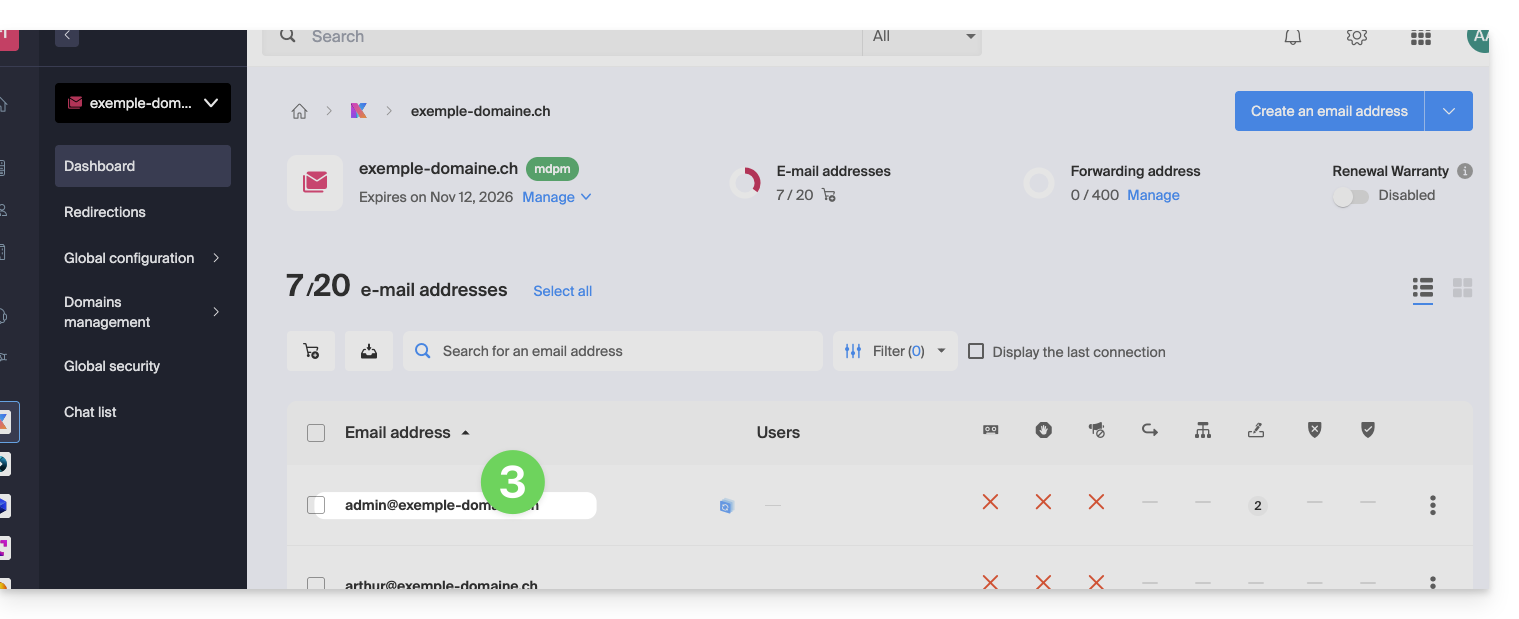
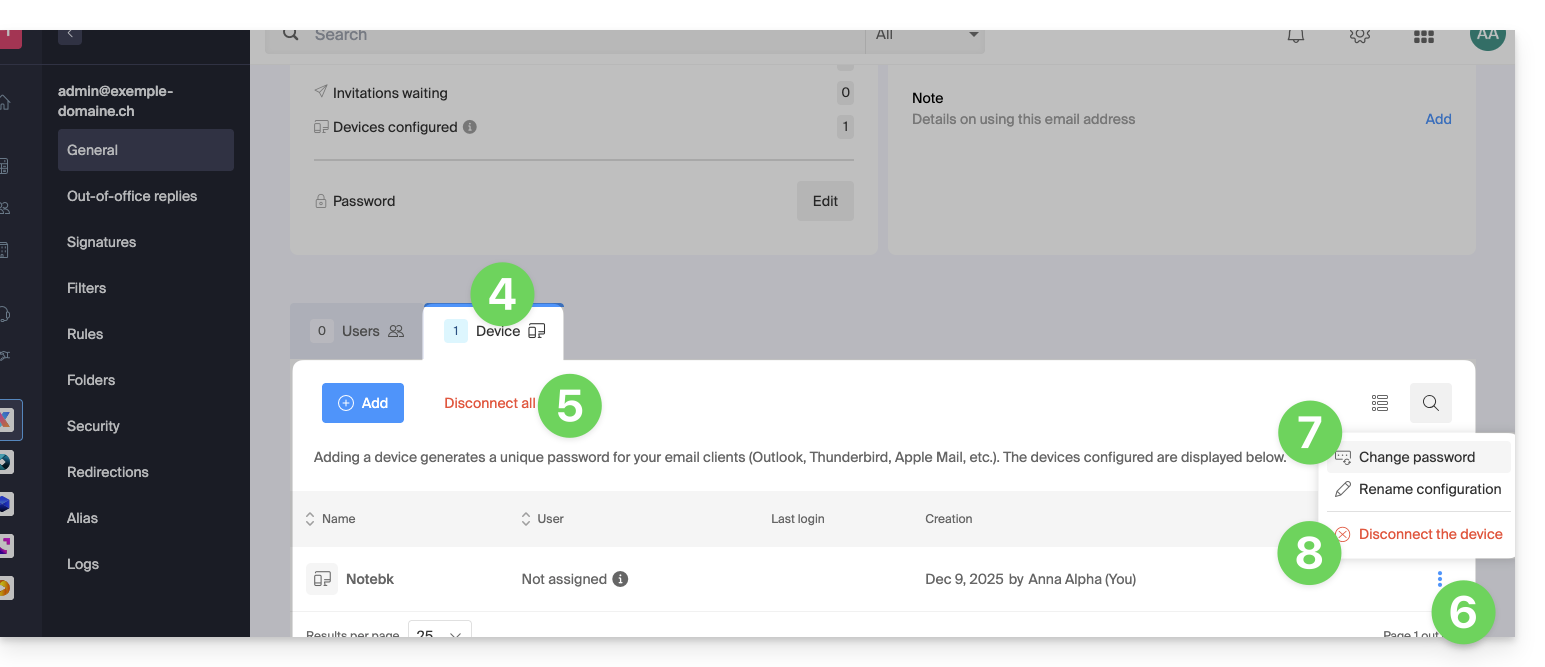
- Click on the Devices tab.
- Click on the red link to disconnect all registered devices (confirmation is required).
- Click on the action menu ⋮ located to the right of the device in question.
- Click on “Change password” to disconnect the current connection but allow the device to reconnect with a new password directly.
- Click on “Disconnect device” to remove it from the list and delete the corresponding connection:
What is a “generic” password?
Some email addresses may display a specific indication in the Devices section: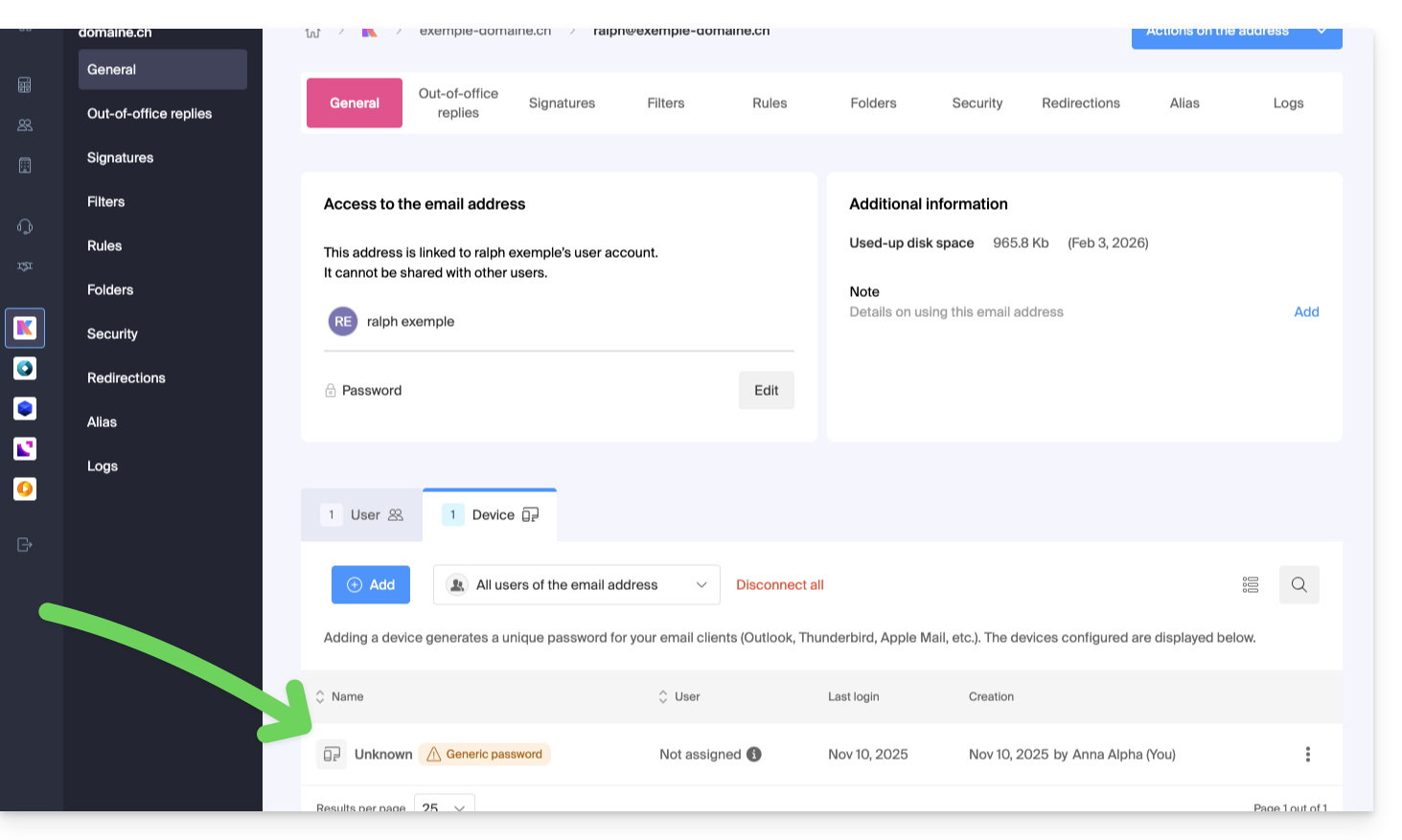
If this is the case, don't worry; it means that the address has a password assigned to it when it was created (prior to 2026). This password remains valid, but like other passwords, it cannot be displayed.And unlike other passwords, this one cannot be reset (the option is grayed out, disabled):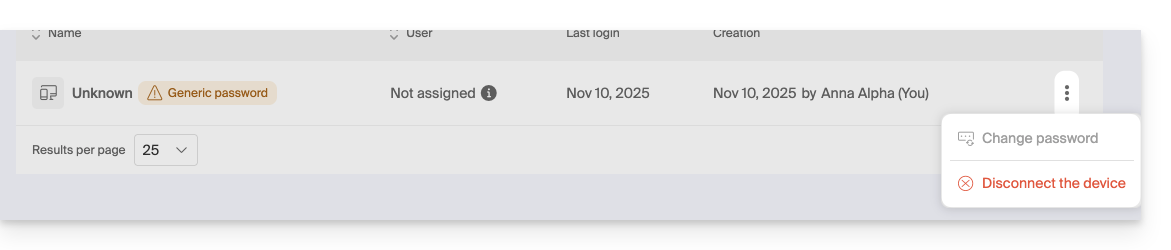
In this case, you can easily add an additional password (❓: help).
Link to this FAQ: https://faq.infomaniak.com/1736
Has this FAQ been helpful?
This guide explains how to delete one of the users in your Organization from the Infomaniak Manager.
Prerequisites
- Switch to the desired Organization beforehand if you cannot find the expected list of users (❓: help).
- You must be at least an Administrator of the Organization (❓: help).
- Please note that it is not possible to remove a Legal Representative if there is no other legal representative. (❓: help).
Remove a user from your Organization
If the user had access to kDrive or was invited to access a third-party email address, several intermediate steps will ask you what actions to take with their data and will inform you, if applicable, about what will happen to the calendars and address books. To remove one of the users from the Organization:
- Click here to access the organization's user management in the Infomaniak Manager (❓: help).
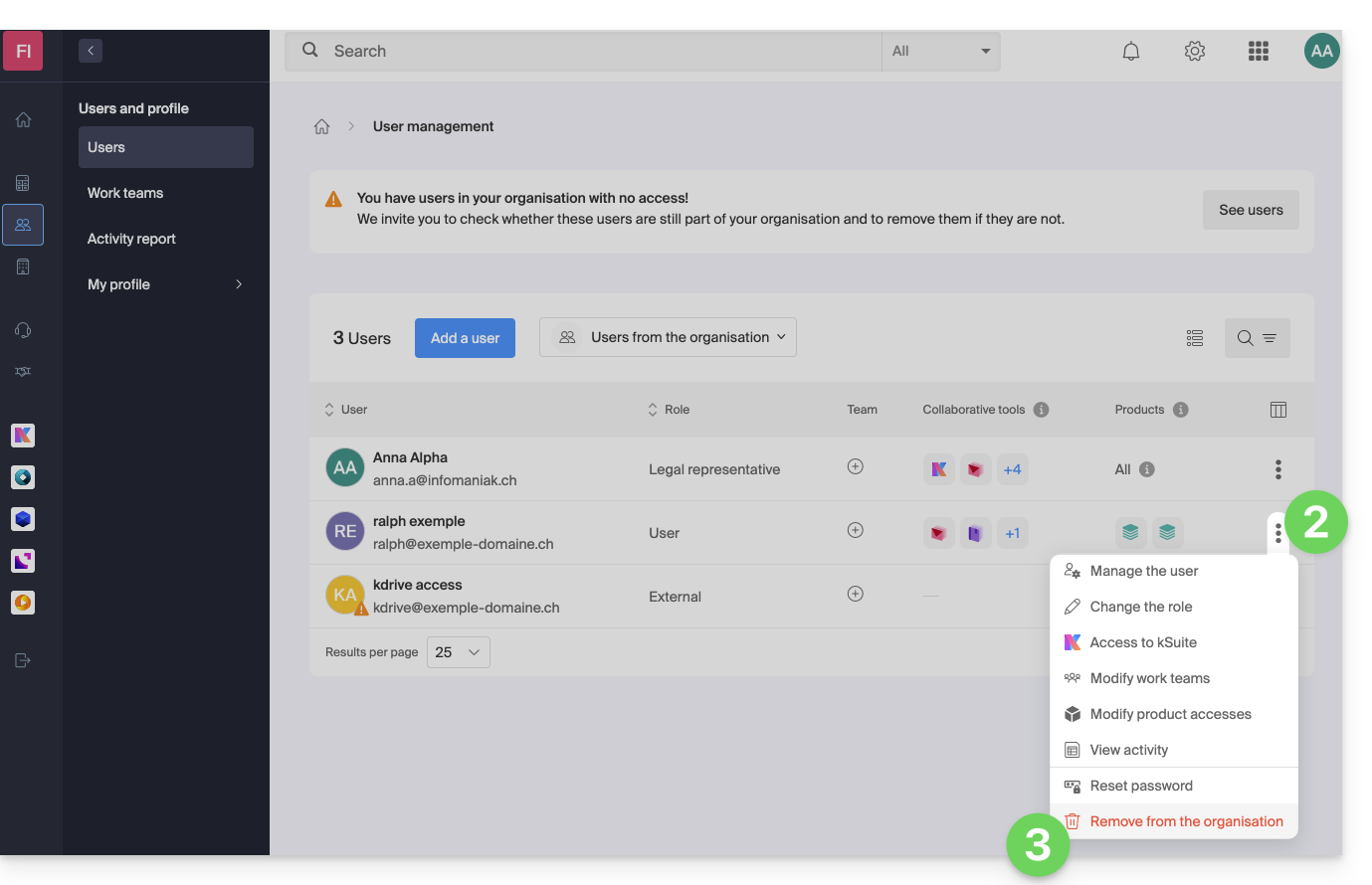
- Click on the action menu ⋮ to the right of the user in question.
- Click on Remove from Organization:
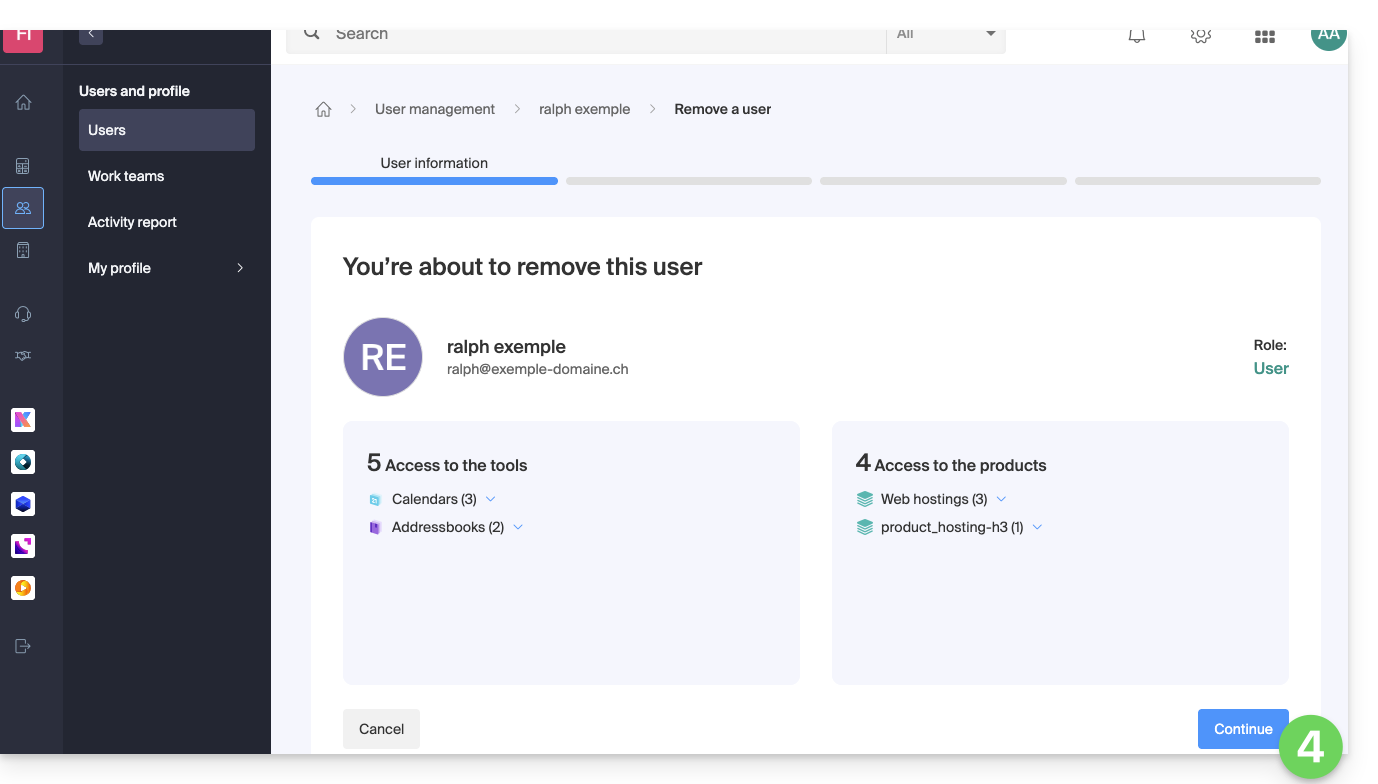
- Review the information (click on the down arrows if necessary to view the details of the deletions) and then click the blue Continue button:
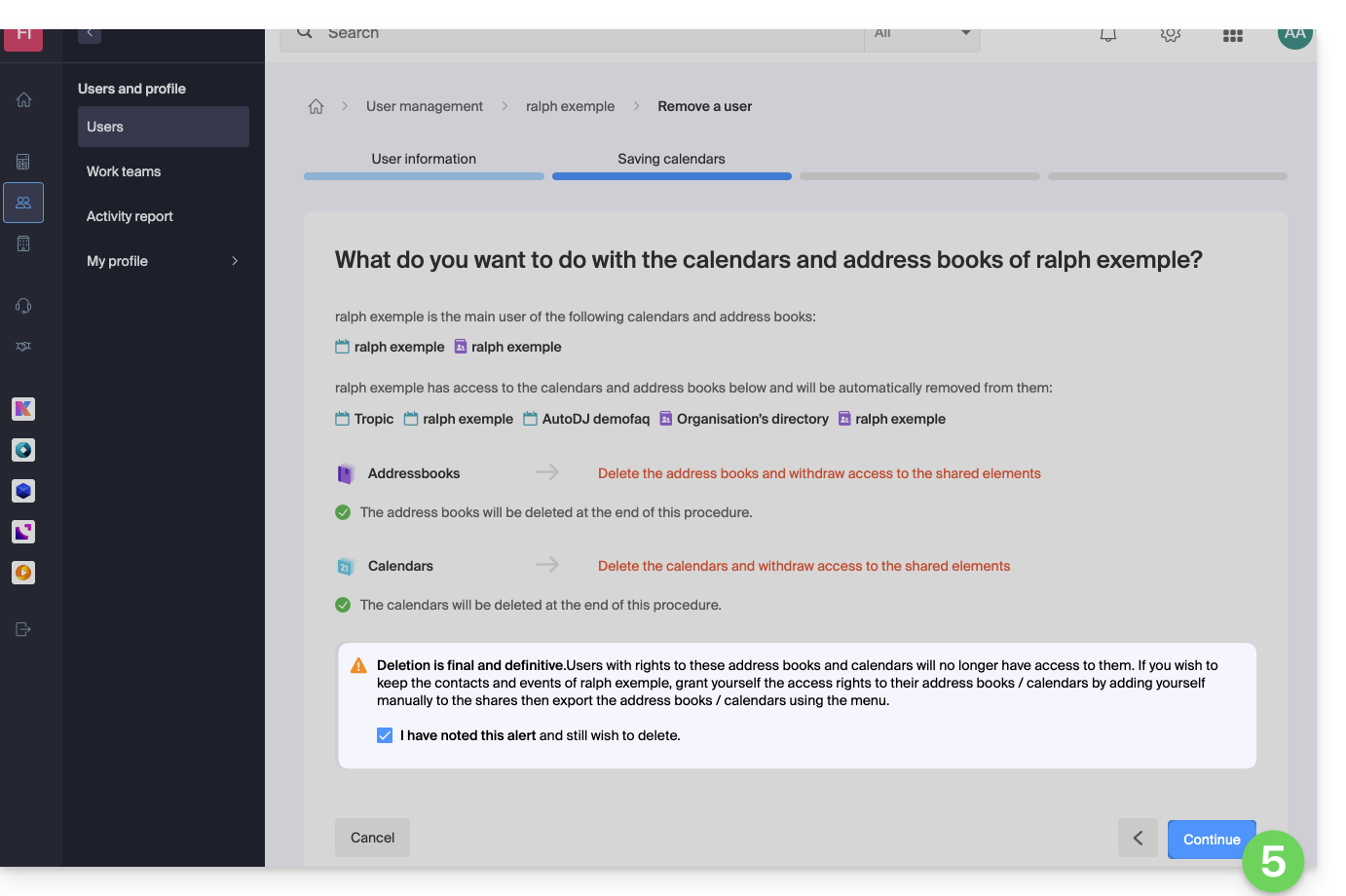
- Review the information, confirm the deletion by checking the box, and then click the blue Continue button:
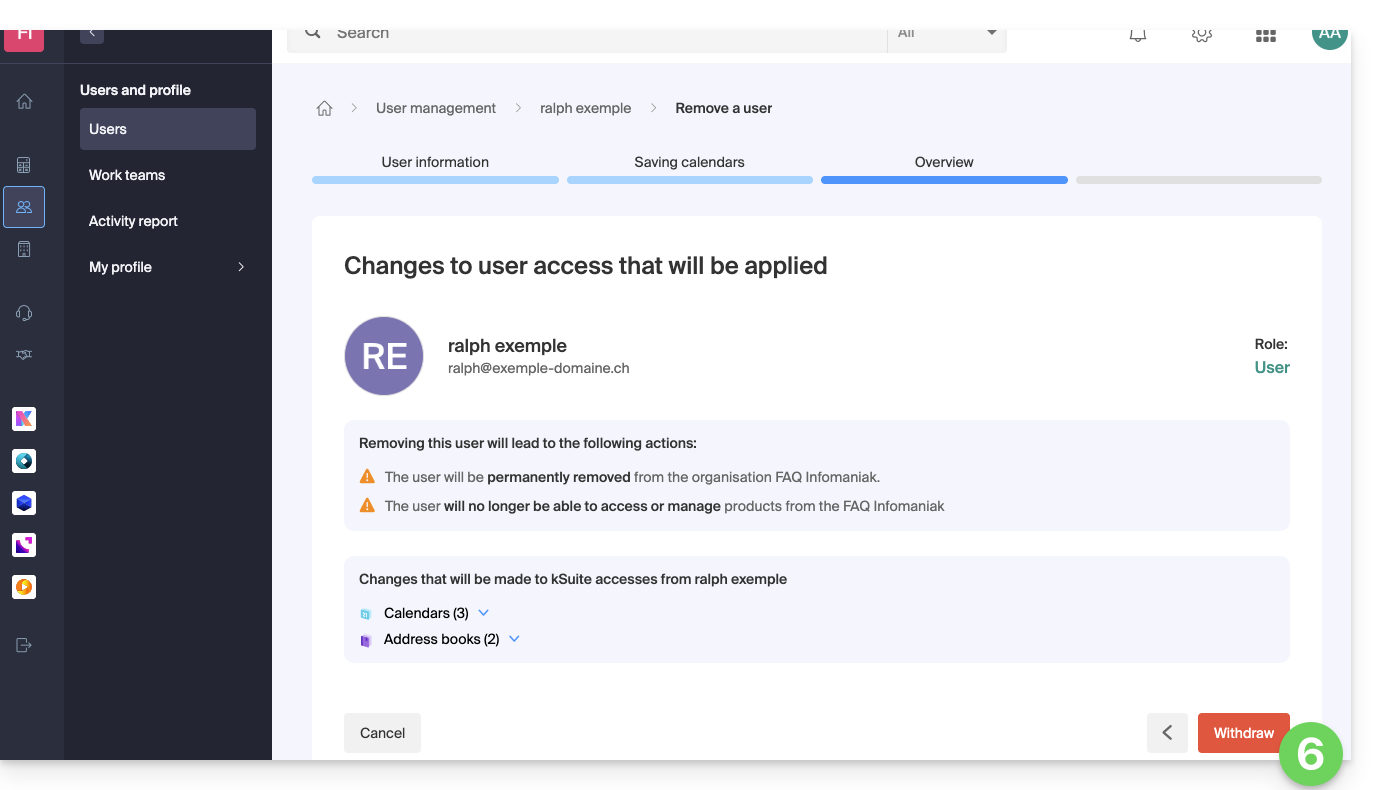
- Review the information (click on the chevrons if necessary to view the details of the deletions) and then click on the red Remove button:
- Enter your email address (login ID for the Manager), check the confirmation box, and then click the red Remove this user button to permanently remove the user, with no possibility of reverting the action.
Link to this FAQ: https://faq.infomaniak.com/1738
Has this FAQ been helpful?
This guide explains how to restore accidentally deleted contacts in the address books of the Infomaniak Contacts web app (online service ksuite.infomaniak.com/contacts).
✘ UNAVAILABLE with
kSuite Free
my kSuite (ik.me, etik.com, ikmail.com)
Mail Service Starter
By upgrading one of these free plans, you will be able to restore the backup for up to 30 days.
Contact restoration
Restore points are performed daily. Once a backup of your entire address book has been created, Infomaniak makes it available to you for 30 days. You can also recover contacts deleted within the last 24 hours, 48 hours, or 7 days:
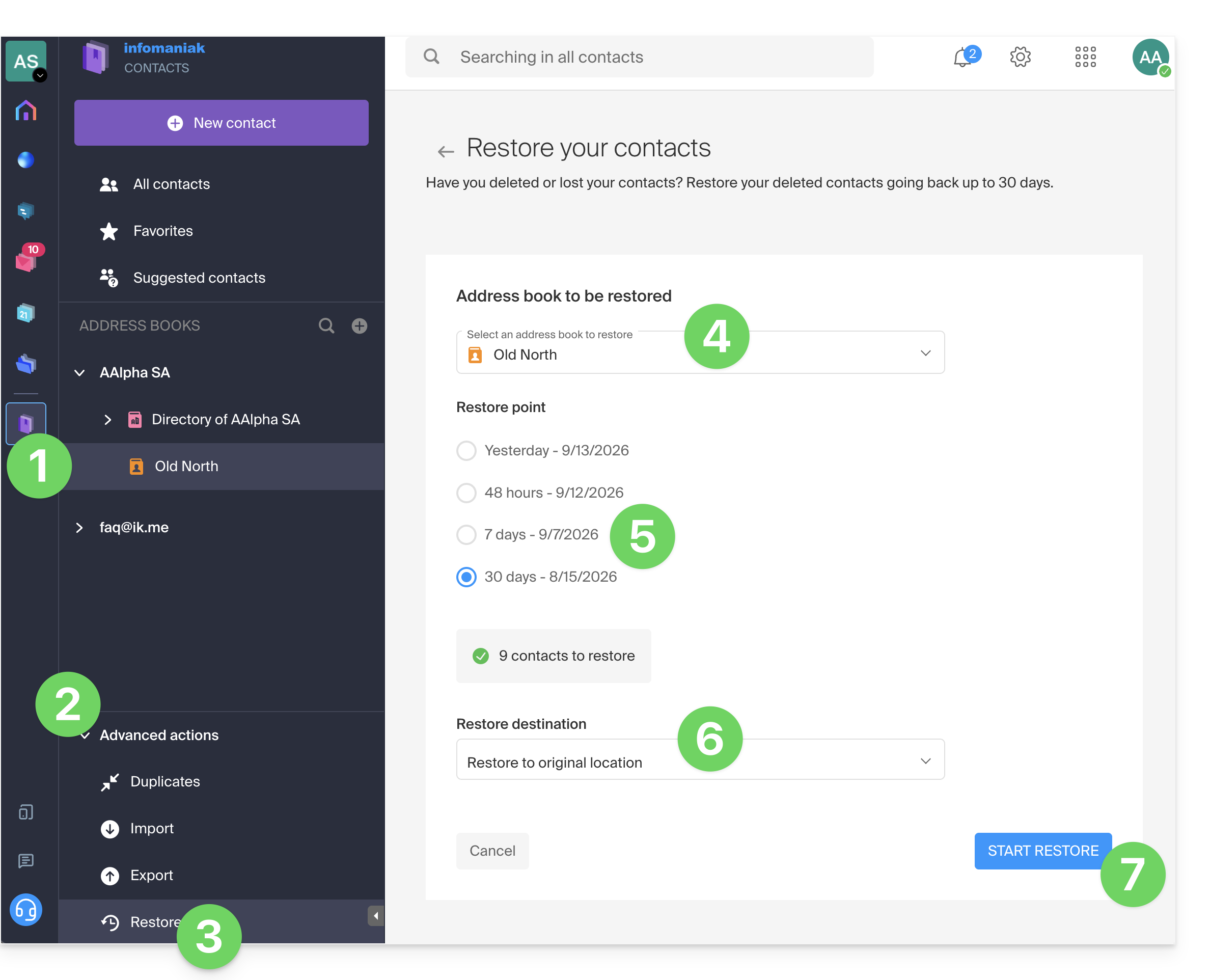
- Click here to access the Infomaniak Contacts web app (online service ksuite.infomaniak.com/contacts).
- Click on the chevron to expand the Advanced actions section.
- Click on Restore.
- Choose the snapshot to restore.
- Choose the version from yesterday, 48 hours ago, or 7 and 30 days ago.
- Choose the destination (in the original location or in another address book if available).
- Start the restoration using the button at the bottom of the page, which is activated if contacts can be restored:
Link to this FAQ: https://faq.infomaniak.com/1741
Has this FAQ been helpful?
This guide details the possibility of grouping contacts within Infomaniak address books in the Infomaniak Contacts web app (online service ksuite.infomaniak.com/contacts).
Introduction
- Creating a contact group makes it easier to reach them.
- It also facilitates sending emails intended for a specific type of contact.
Creating the group
To manage contact groups:
- Click here to access the Infomaniak Contacts web app (online service ksuite.infomaniak.com/contacts).
- Click on the action menu ⋮ located to the right of the address book in question.
- Click on Add a group:
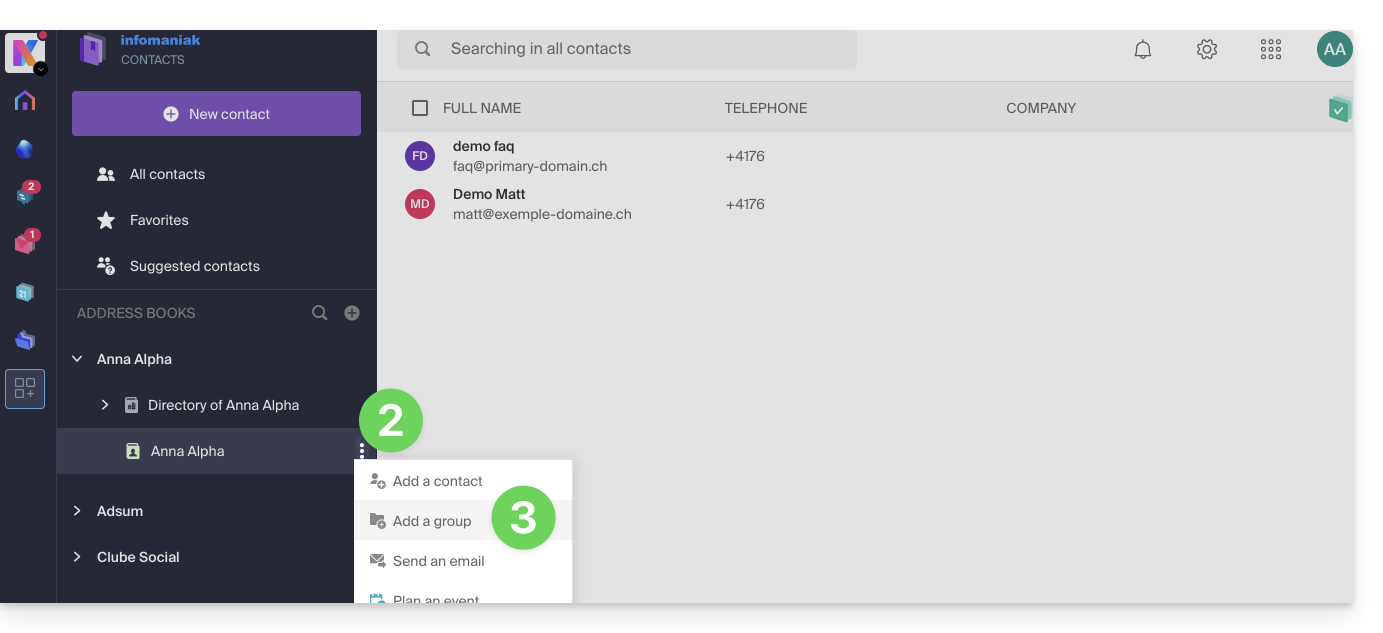
- Enter the group name.
- Click on the blue button to validate (and thus automatically create the "folder" with the name of the chosen group, as well as a second mandatory "folder" that will group all contacts that will not be classified in your new group, called "Contacts without group"):
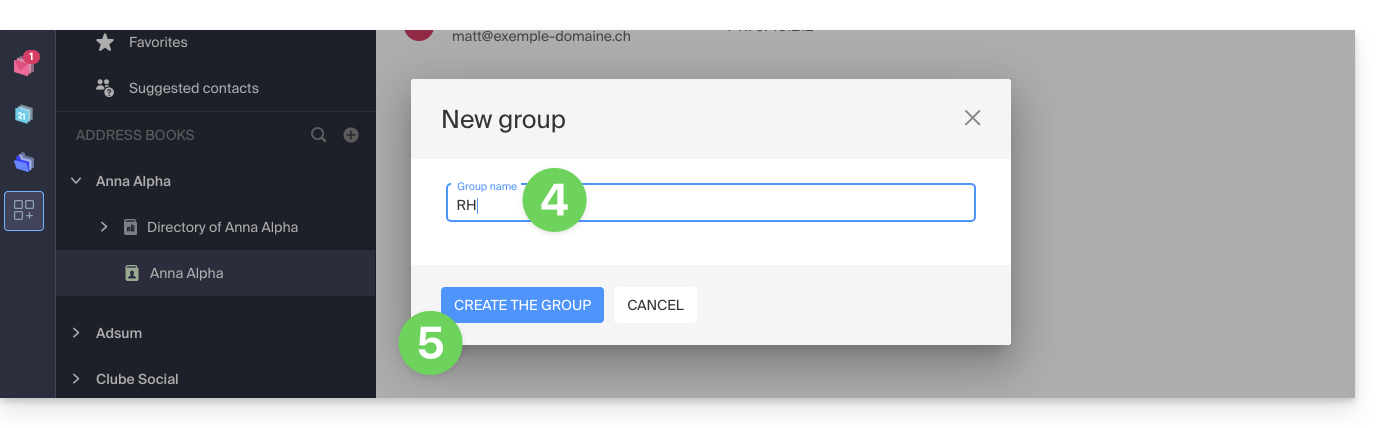
- From the main address book or from “Contacts without group,” drag and drop the contacts that should be associated with this new group:
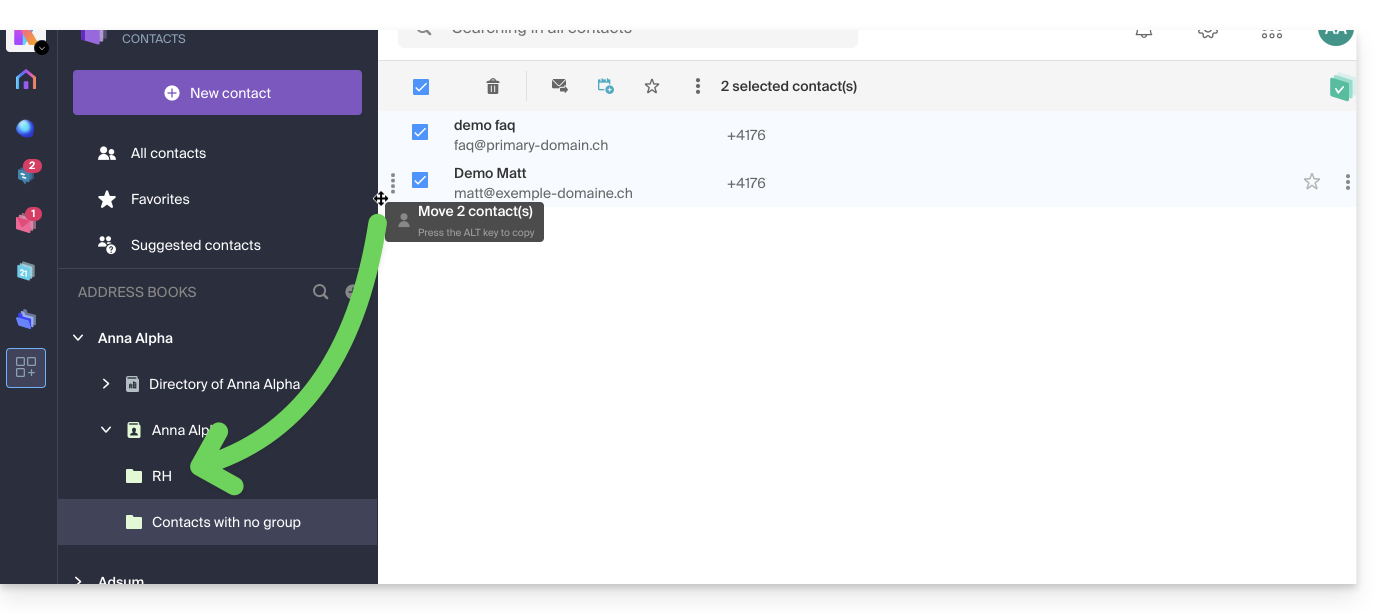
- You can also assign membership to a specific group when editing a contact.
- To change a contact's membership in an address book or group, simply check/uncheck the corresponding boxes and save the changes:
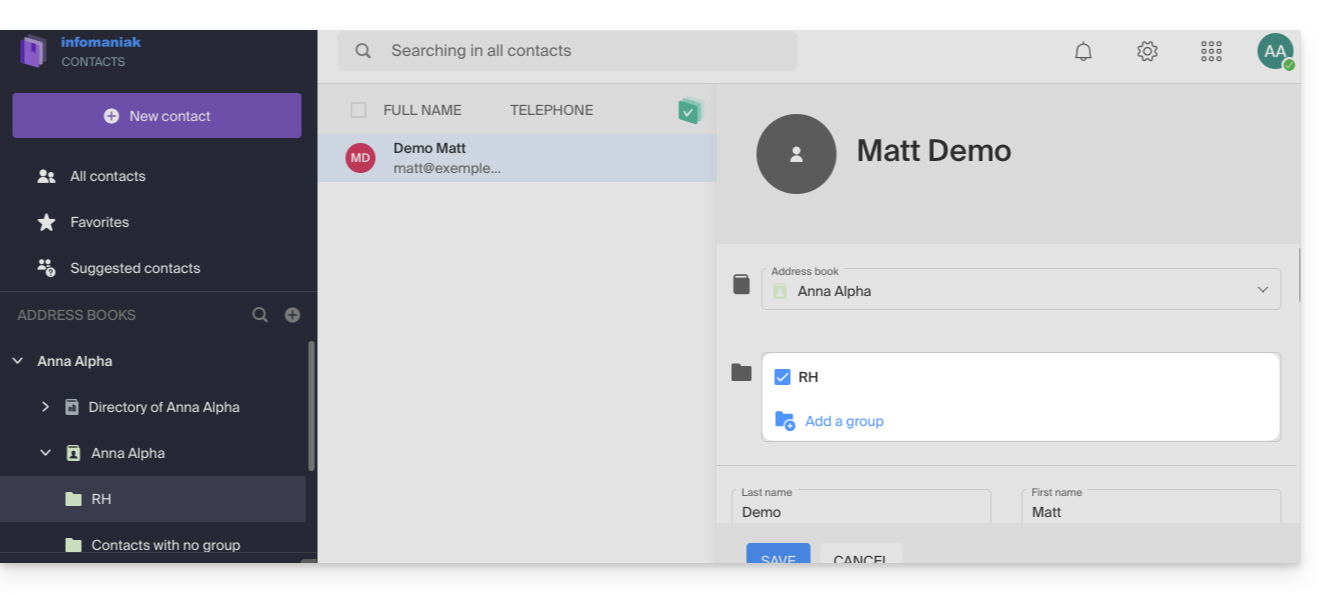
Workgroups
If you have defined one or more workgroups…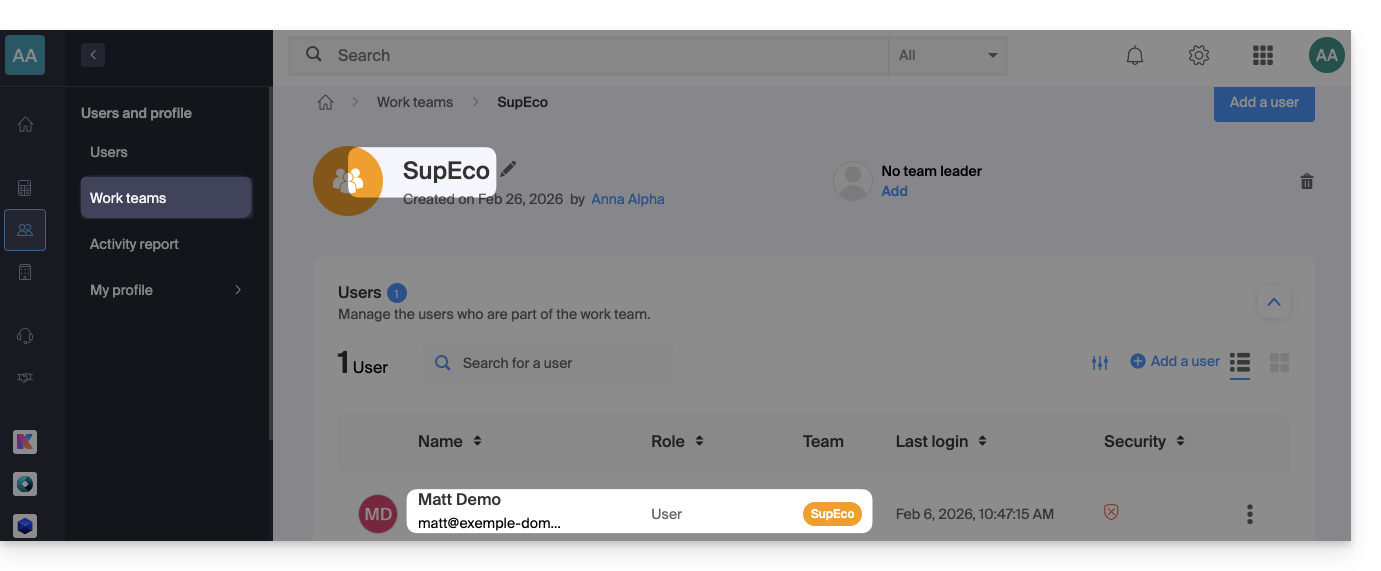 … then the users placed within them will be automatically visible in the Organization address books section: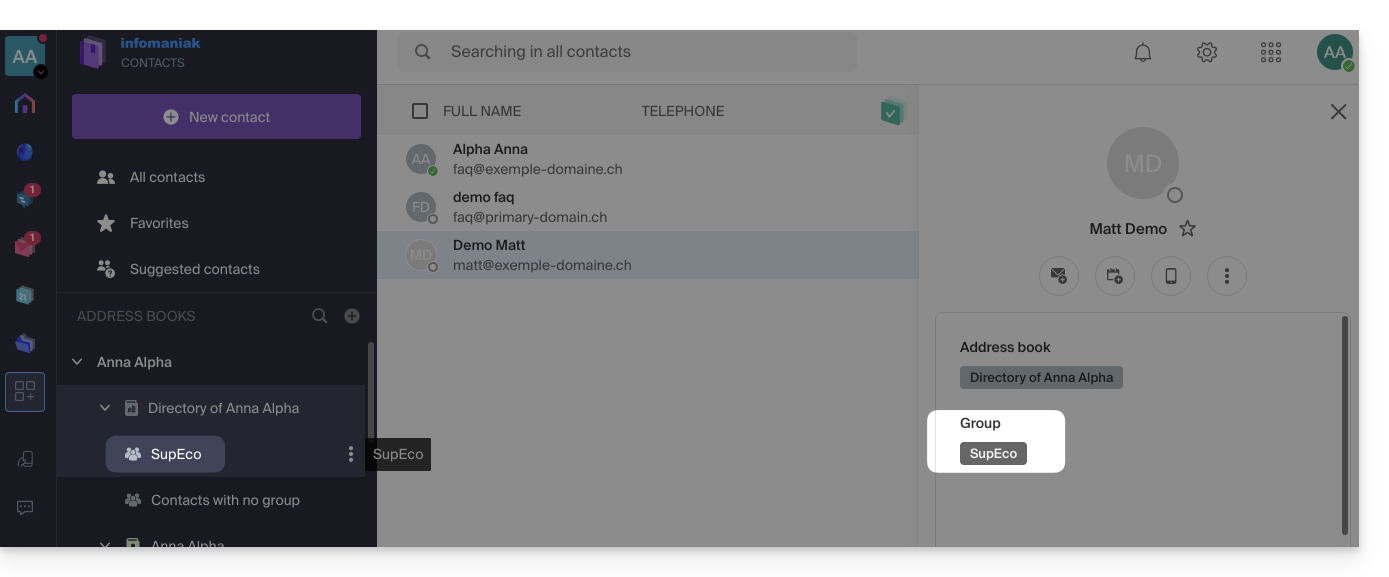
Delete a group with or without the contacts
When you choose to delete a contact group, you can decide whether the contacts it contains should also be deleted: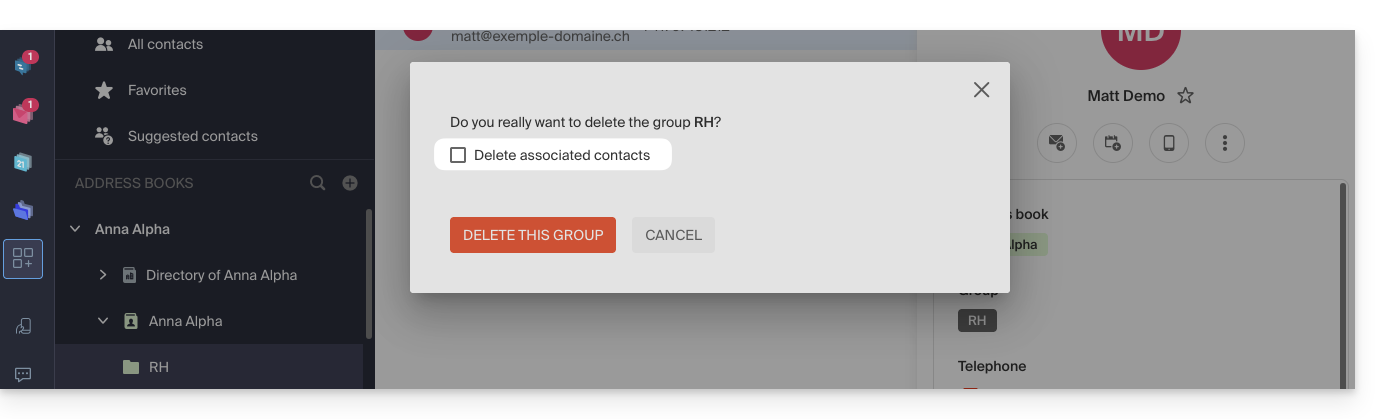
Group sending
To send an email to the entire group:
- Click here to access the Infomaniak Mail web app (online service ksuite.infomaniak.com/mail).
- Compose a new message.
- Type the beginning of the contact name to display it and select it:
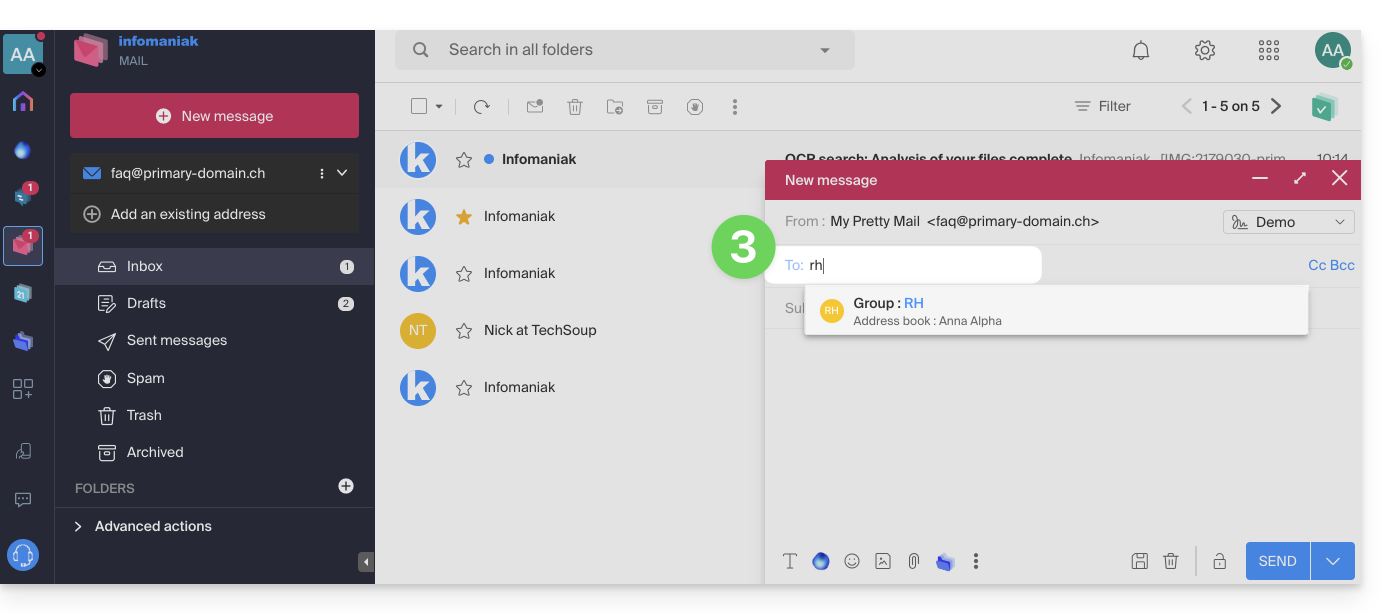
- You can also click on the "A" to the left of the recipient address field to access your address book and its subfolders (contact groups):
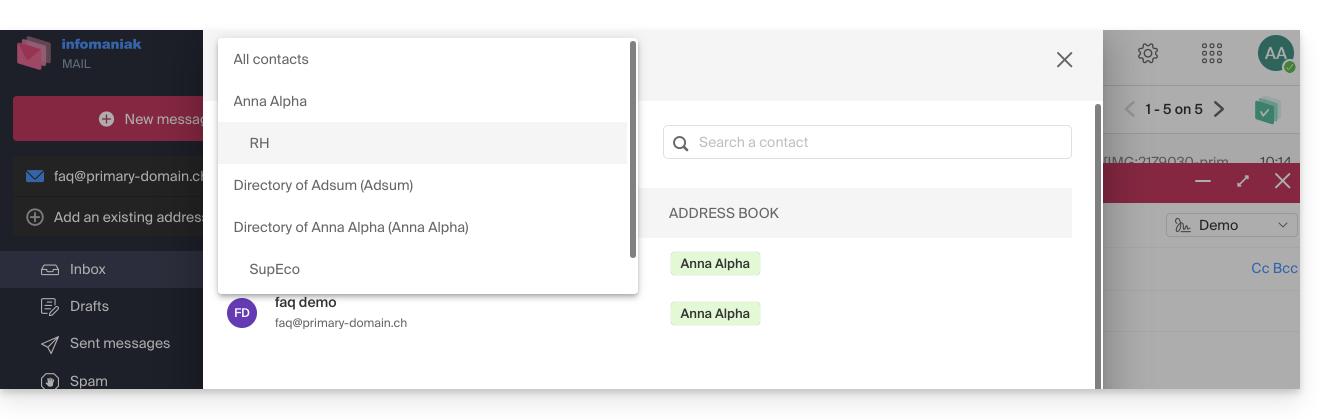
- Of course, you can also use the contacts currently in your address book to send them an individual or group message by typing their first few letters.
- You can also click on the "A" to the left of the recipient address field to access your address book and its subfolders (contact groups):
You can share an entire address book with other users (users that you have invited and selected, of course), but not just a specific group.
Link to this FAQ: https://faq.infomaniak.com/1760
Has this FAQ been helpful?
This guide explains how to mark selected emails as "favorites" in Infomaniak's email service, allowing you to "track" these messages and display them separately if you choose.
Track one or more messages…
… from the Infomaniak Web Mail app
To add a message as a favorite:
- Click here to access your emails on your Infomaniak kSuite (❓: help).
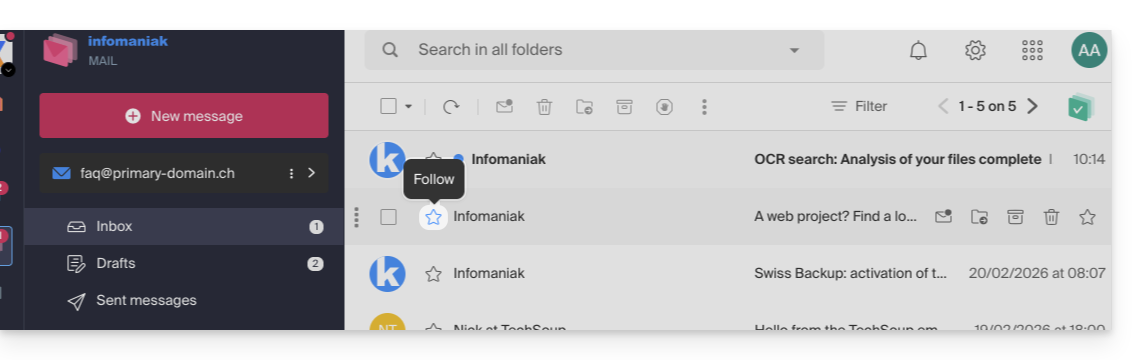
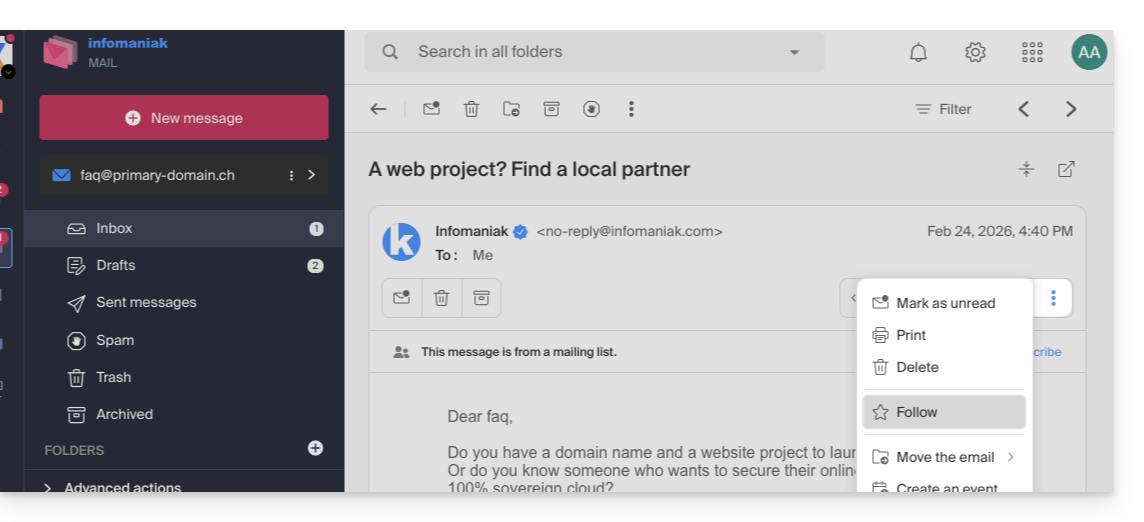
- Click on the ☆… icon:
- … to the left of a message in the message list
- … in the top right corner of the message reading window
- … to the left of a message in the message list
- Once tracking is enabled, a drop-down menu in the upper right corner allows you to display only a selection of your received messages based on several criteria: All, Read, Unread, Tracked, Not Tracked:
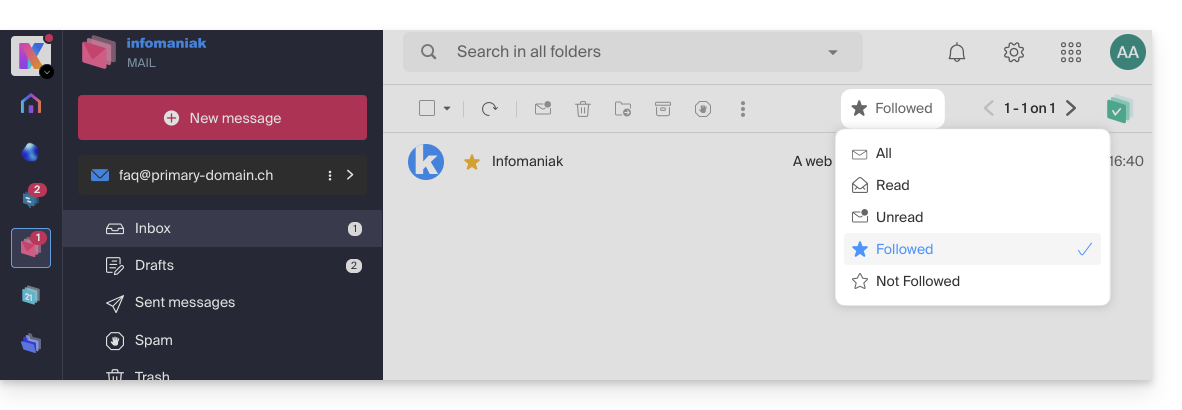
Please note that the Tracked / Not Tracked filtering is done only on the currently displayed folder. And in the case of conversation mode (multiple emails displayed one below the other — ❓: help), a message may belong to a received folder and another message from the same conversation may belong to a sent folder, so the filtering may not display the tracked conversation depending on where the tracked message and the current filter are located.
You can also define an action on hover or add a shortcut in the bar above the message lists (❓: help):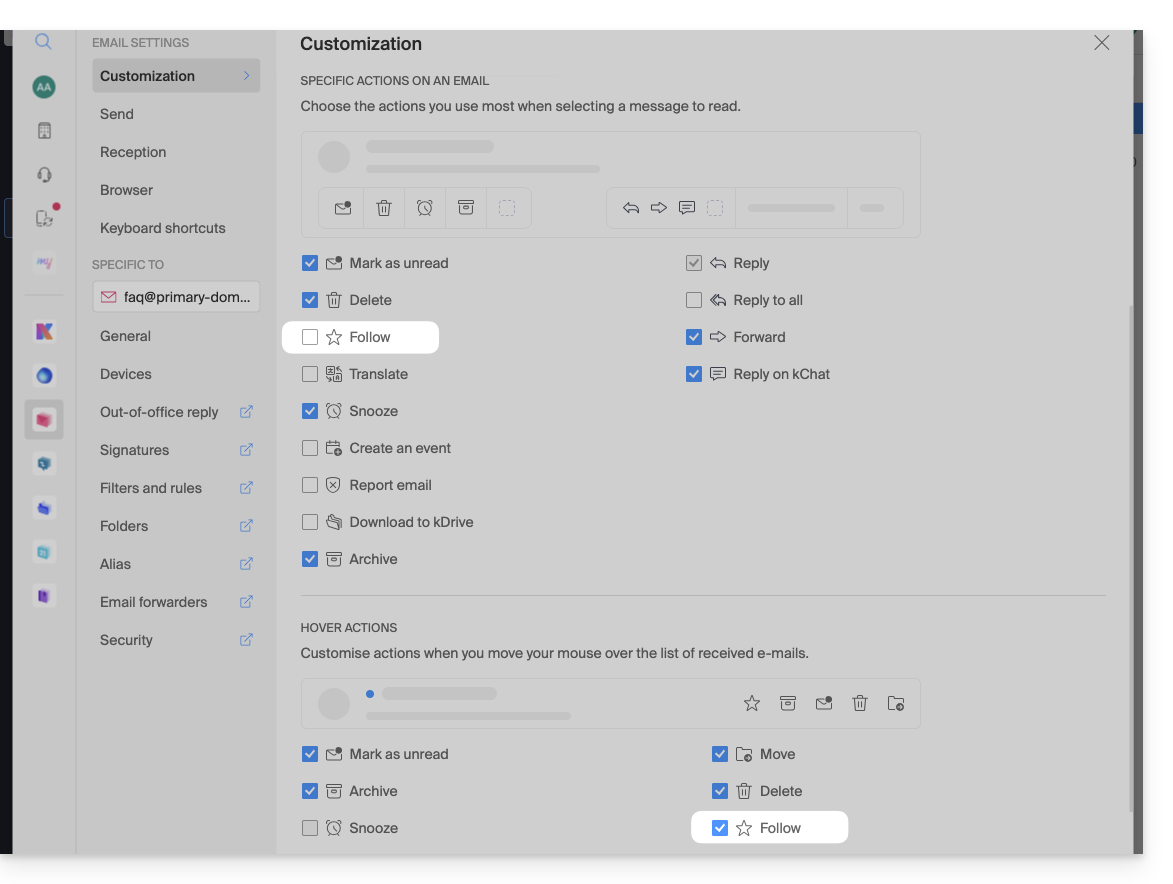
… from the Infomaniak Mail mobile app
In the message list:
- Tap and hold a message.
- Tap the ☆ icon at the bottom of the screen:
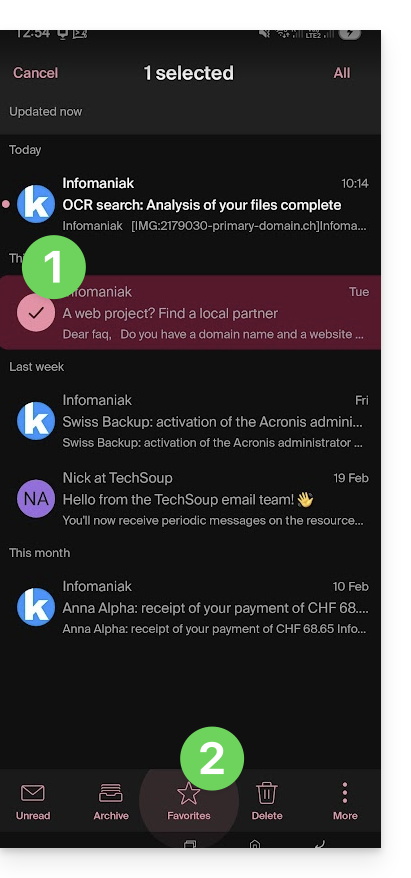
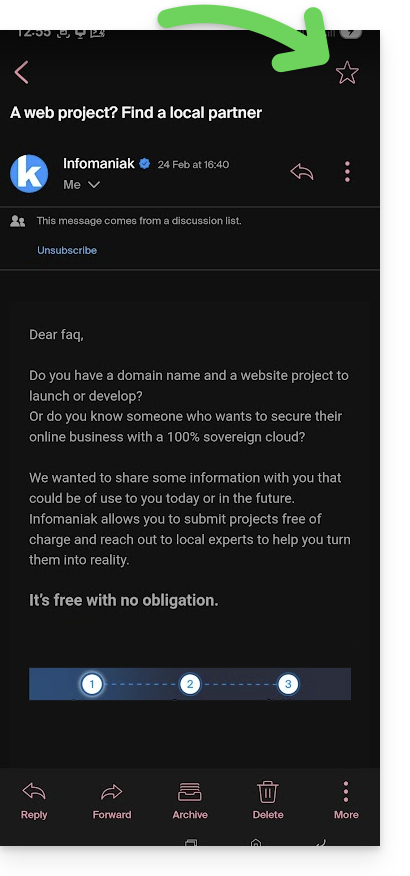
On an open message:
- Tap the ☆ icon in the top right corner of the message reading window:
You can also define a swipe gesture (❓: help) that will allow you to favorite a message with a swipe.
Link to this FAQ: https://faq.infomaniak.com/1761
Has this FAQ been helpful?
This guide explains how to make one of your calendars public from the Infomaniak Calendar web app (online service ksuite.infomaniak.com/calendar).
Introduction
- You will obtain a specific URL for your calendar in the format
.icsthat Calendar (formerly iCal Apple), Calendrier (formerly iCalendar Microsoft), Thunderbird (formerly Lightning Mozilla), or even Google Calendar can recognize to display your calendar: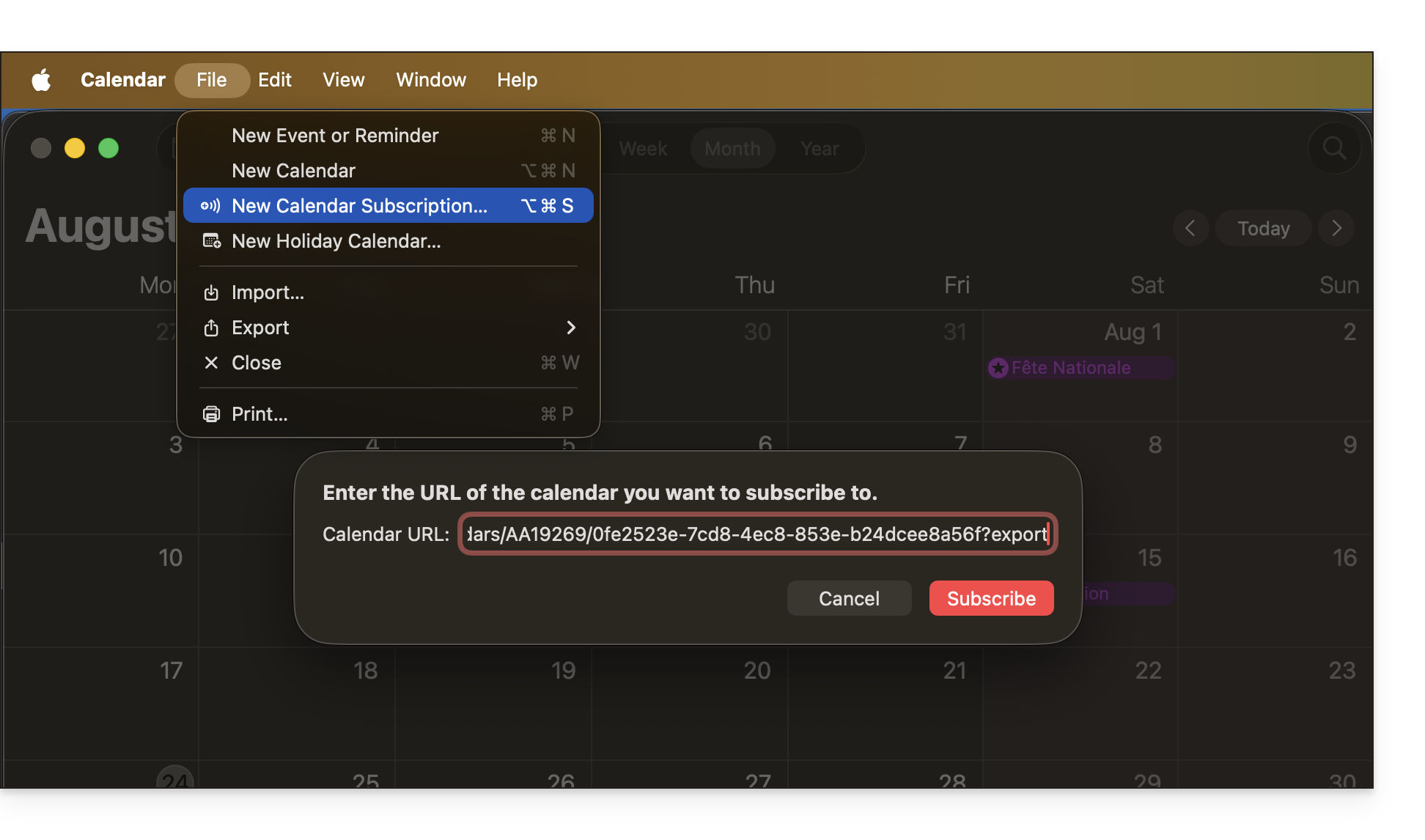
- The data contained in the shared calendar will no longer be private but will only be available in read-only mode to users who "subscribe" to it.
- The frequency of the incremental updates performed by the application that subscribes to your calendar's URL must be defined within that application.
- PHP scripts (not provided) can also be used to parse such files, allowing you, for example, to include events on a website.
- Refer to this other guide to configure the synchronization of your calendars, or this other guide to share a calendar with your colleagues with different permissions.
Enable public sharing of an Infomaniak calendar
To share a calendar publicly:
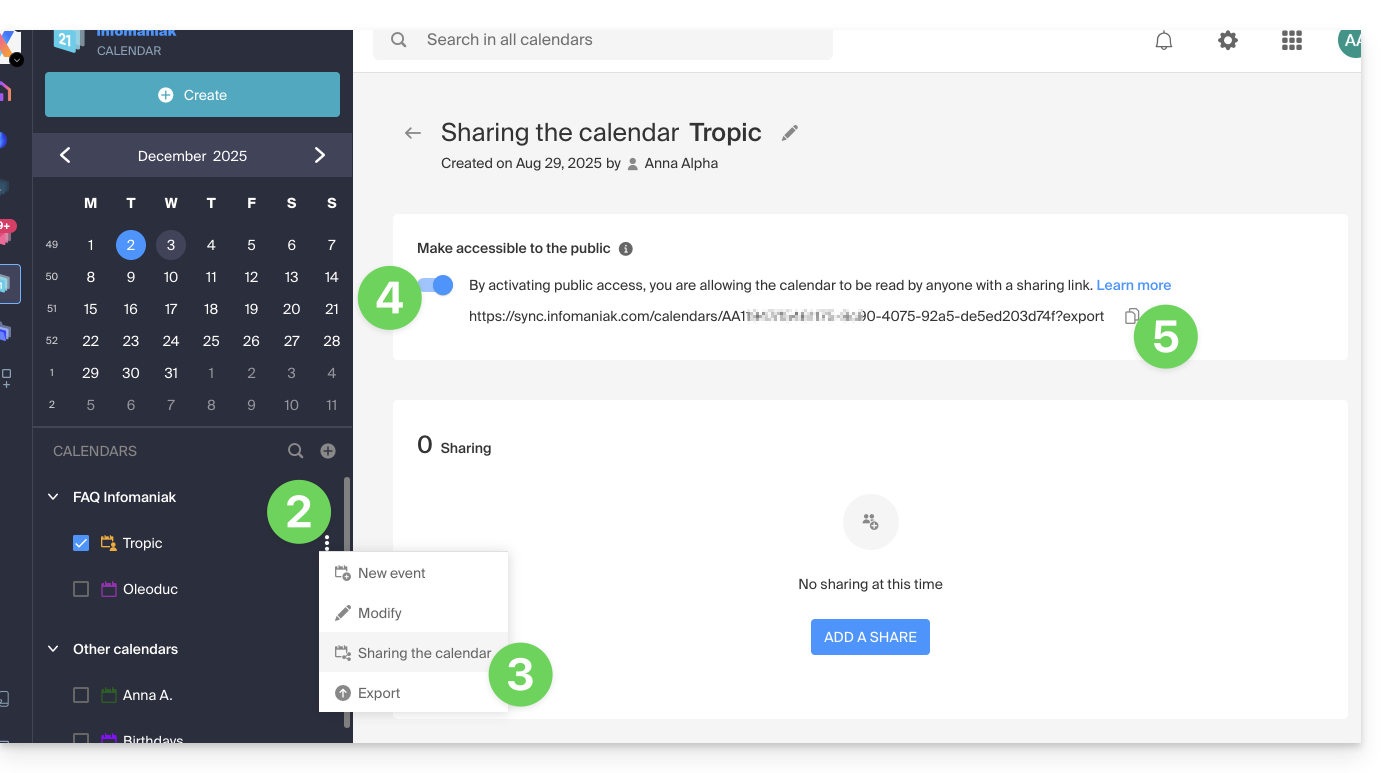
- Click here to access the Infomaniak Calendar web app (online service ksuite.infomaniak.com/calendar).
- Click on the action menu ⋮ to the right of a calendar.
- Click on Share calendar.
- Activate the toggle switch for public sharing.
- Click the icon to copy the address to the clipboard:
- You can always remove public access from this sharing page (see point 4 above):
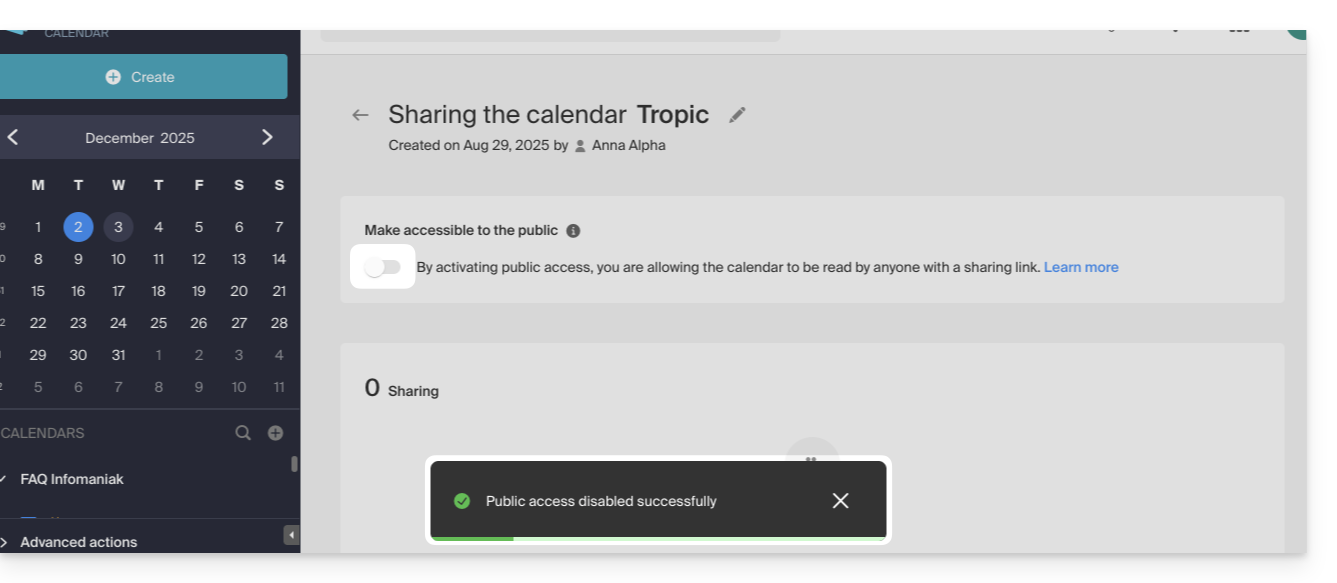
- You can always remove public access from this sharing page (see point 4 above):
Link to this FAQ: https://faq.infomaniak.com/1763
Has this FAQ been helpful?
This guide explains how to change the color of events in your calendars in the Infomaniak Calendar web app (online service ksuite.infomaniak.com/calendar) and customize the displayed period.
Define the default settings
To do this:
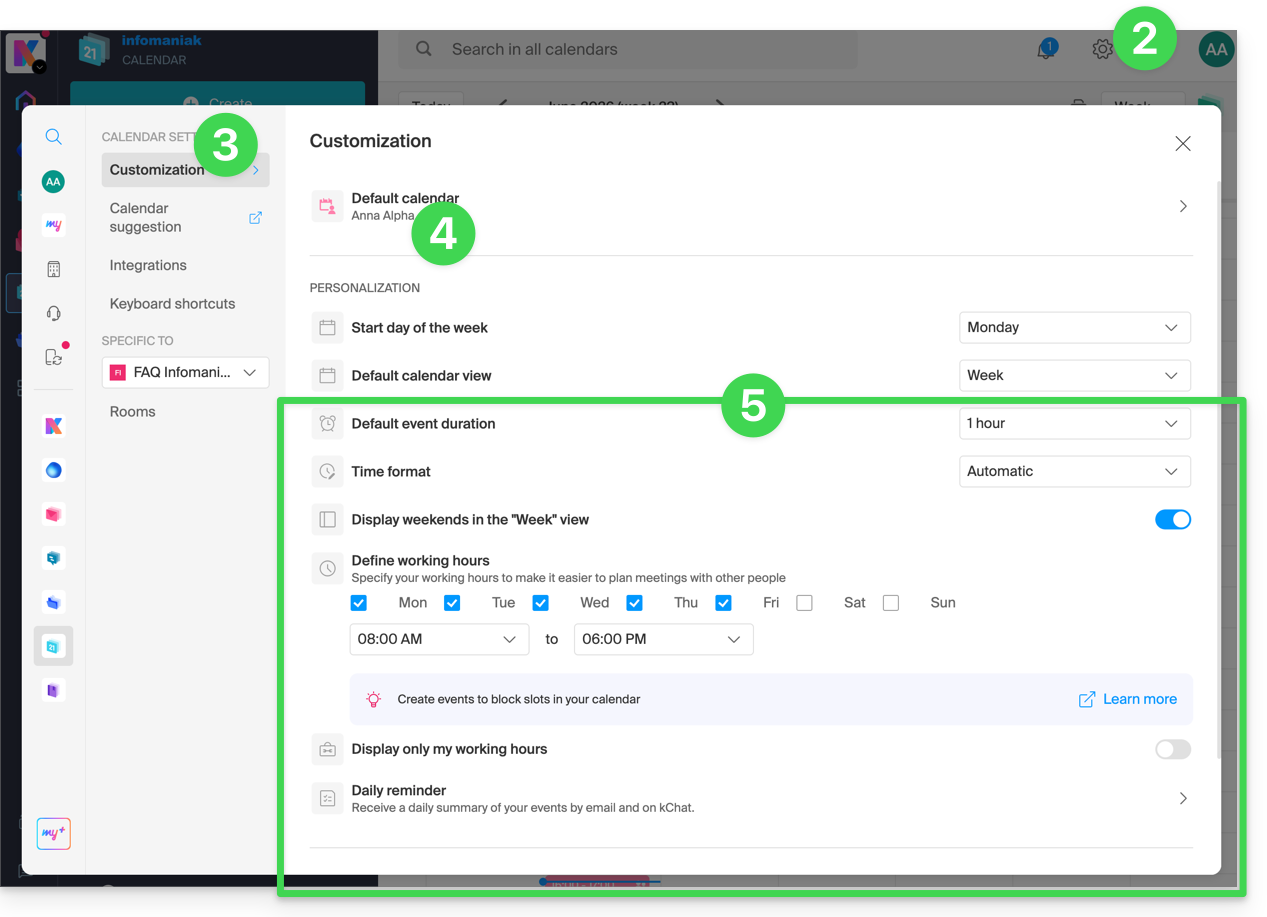
- Click here to access the Infomaniak Calendar web app (online service ksuite.infomaniak.com/calendar).
- Click on Settings in the top right corner.
- Click on Customization.
- Refer to this other guide regarding the default calendar feature.
- Settings such as the default event duration or the working hours to display on the calendar will help improve the use of the appointment scheduling assistant:
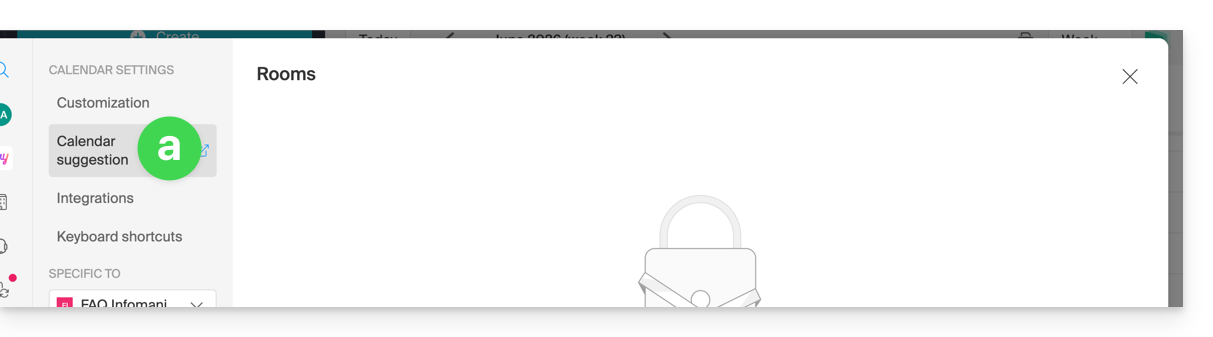
- Regarding these menu items:
Please refer to this other guide.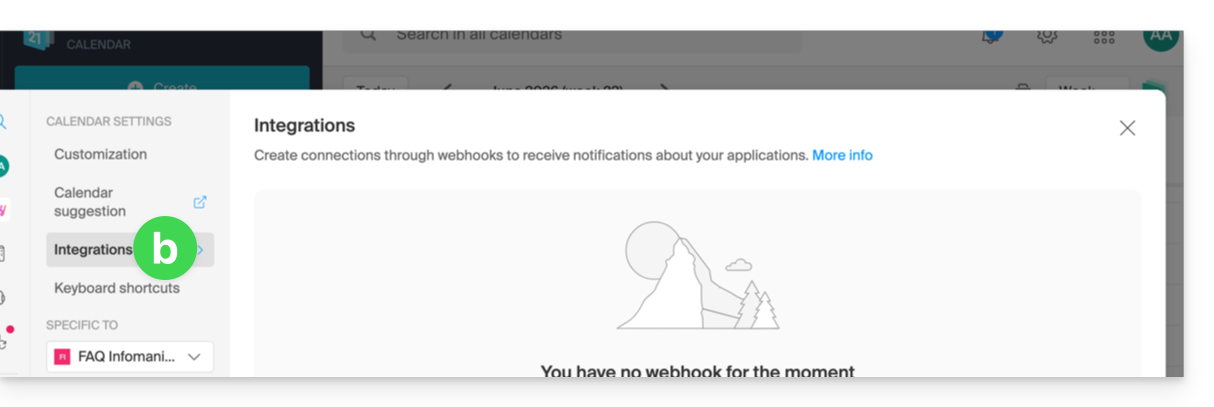
Please refer to this other guide.
Define the color of a calendar
To do this:
- Click here to access the Infomaniak Calendar web app (online service ksuite.infomaniak.com/calendar).
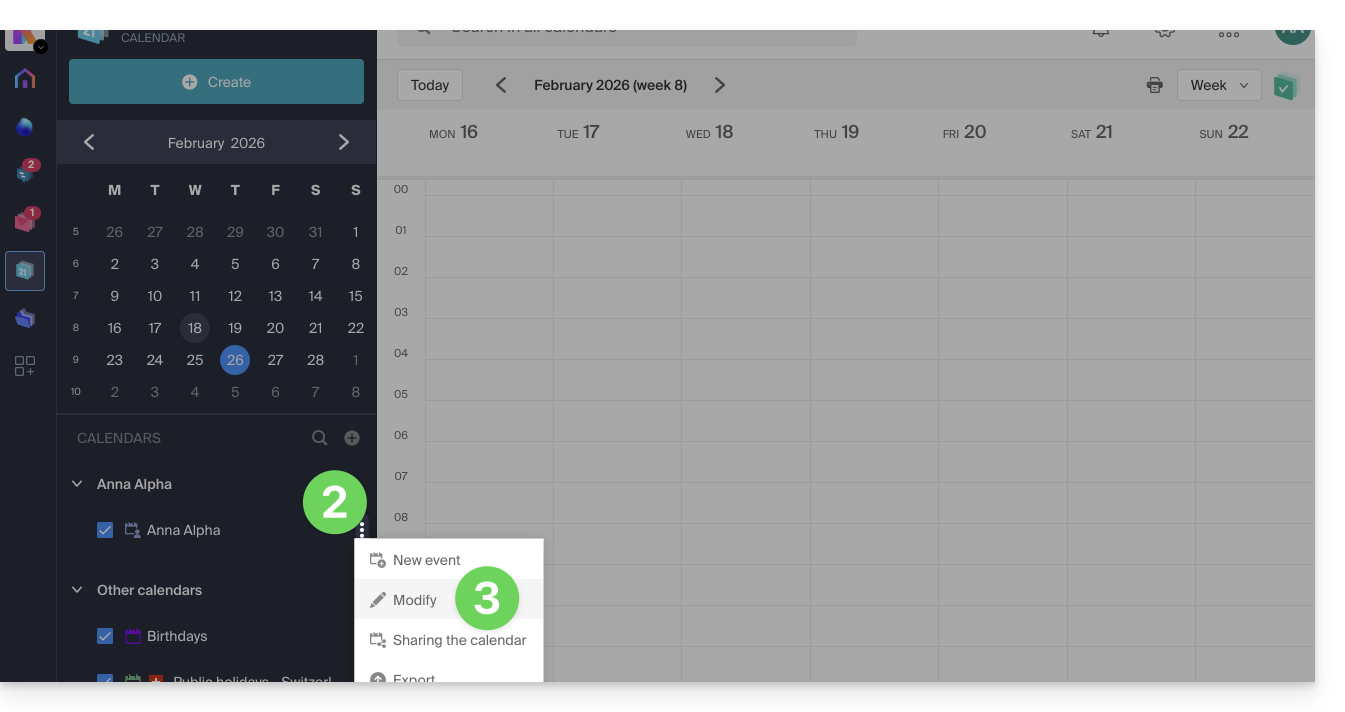
- Click on the action menu ⋮ to the right of the calendar in question.
- Click on Edit:
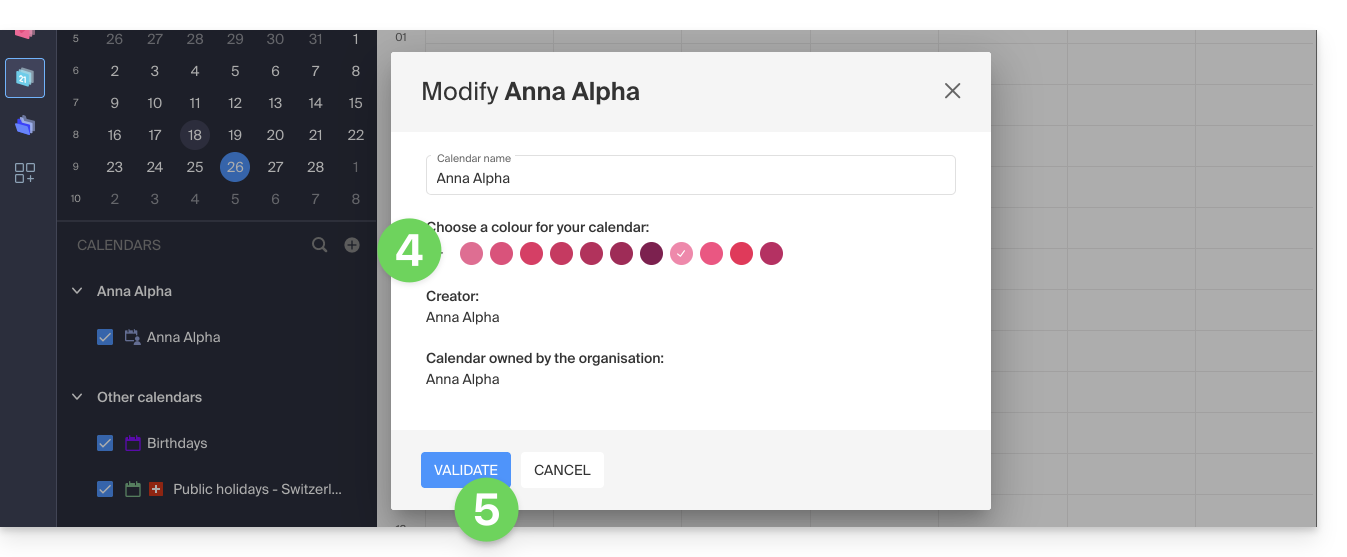
- Choose the desired color.
- Click the button to Confirm:
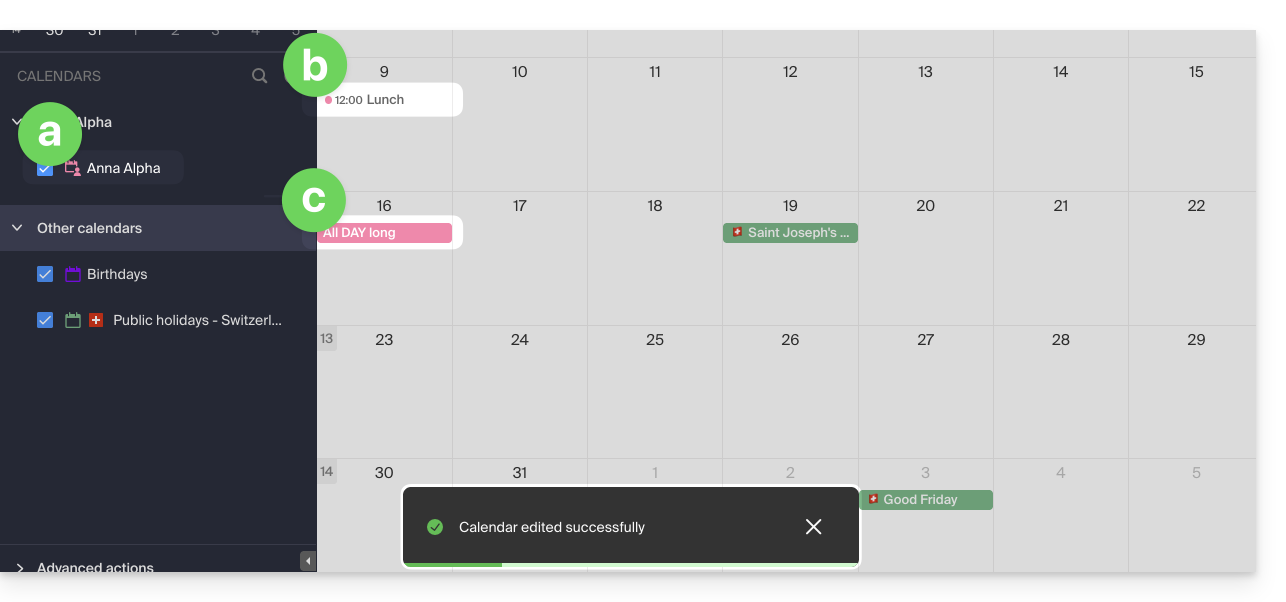
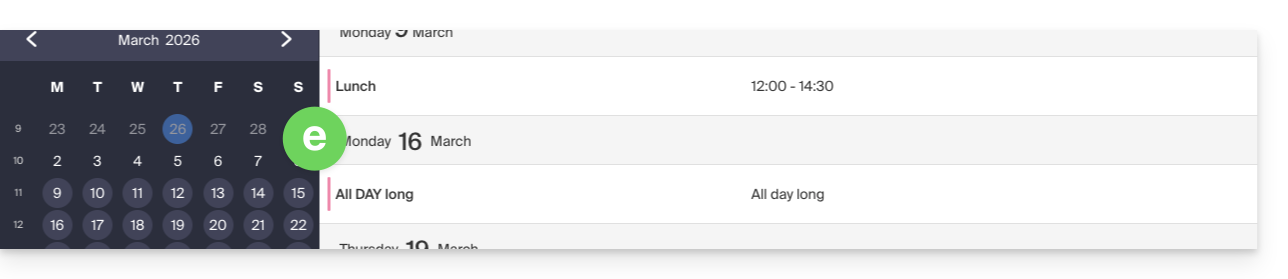
- The specified color will then be visible:
- in the Calendar name,
- for fixed-time events in the monthly view,
- for all-day events in the monthly view,
- in the daily view:

- in the agenda view:
etc.
Define the color of an event
To manually change the color of a specific event, which will override the calendar's color:
- Click here to access the Infomaniak Calendar web app (online service ksuite.infomaniak.com/calendar).
- Create an event and choose its color, or click on an existing event and then click the pencil ✎ icon to edit the details, including its color:
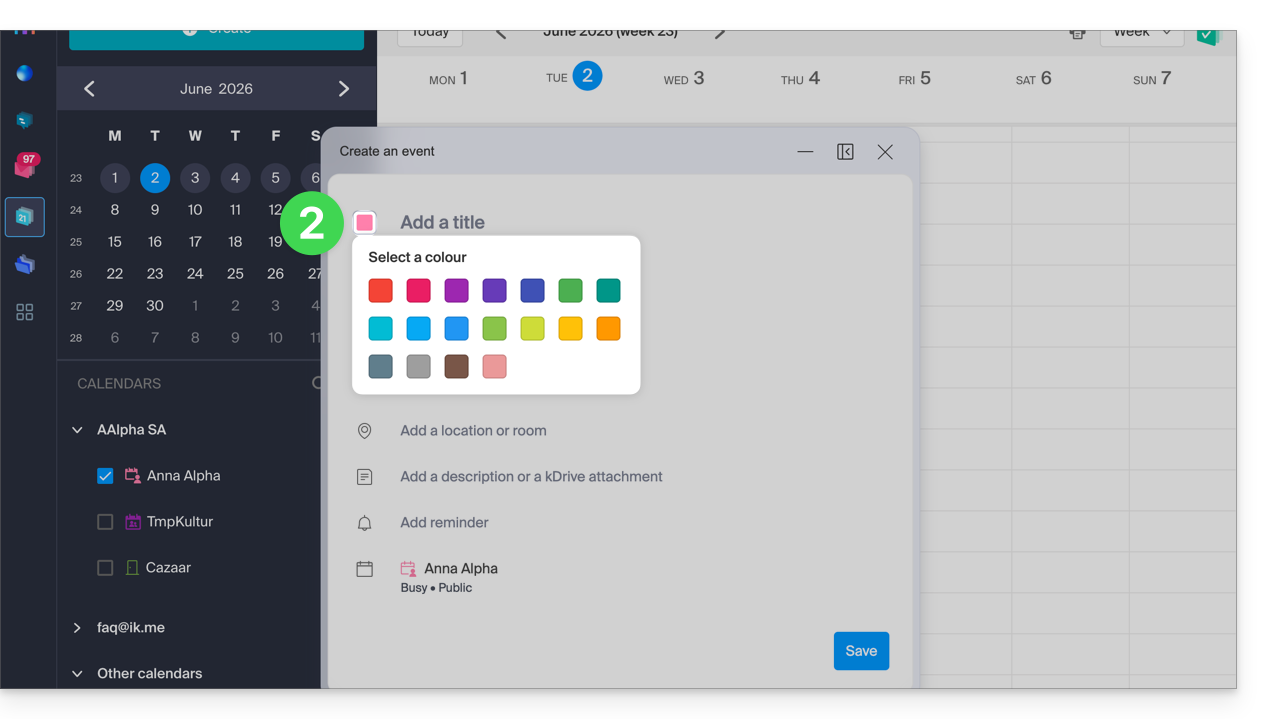
- Confirm at the bottom of the page.
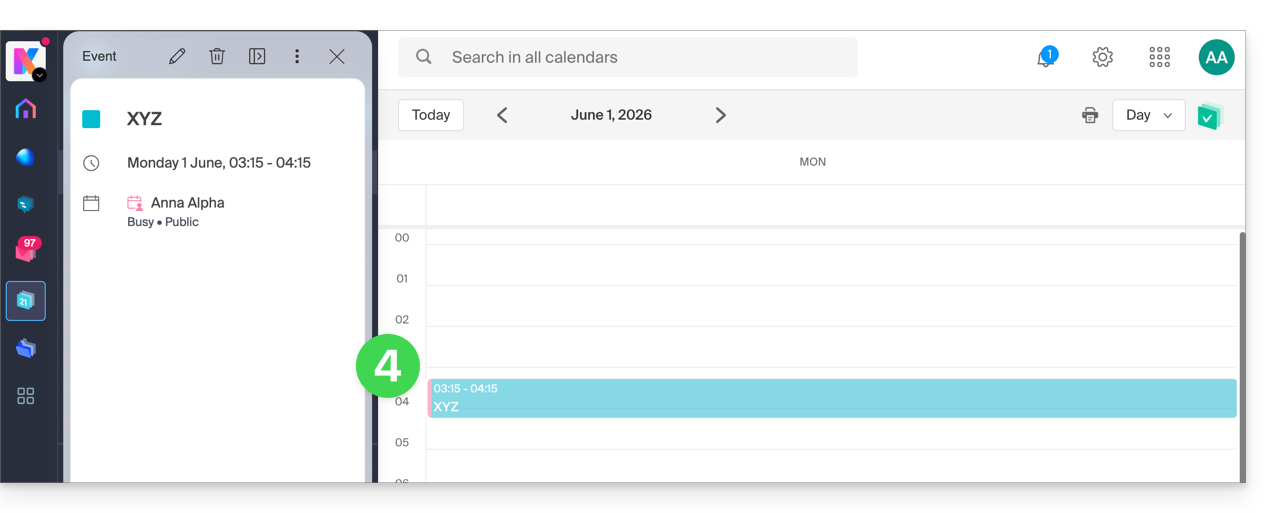
- The specified color will then be visible at the event level:
Customize the displayed period
To do this:
- Click here to access the Infomaniak Calendar web app (online service ksuite.infomaniak.com/calendar).
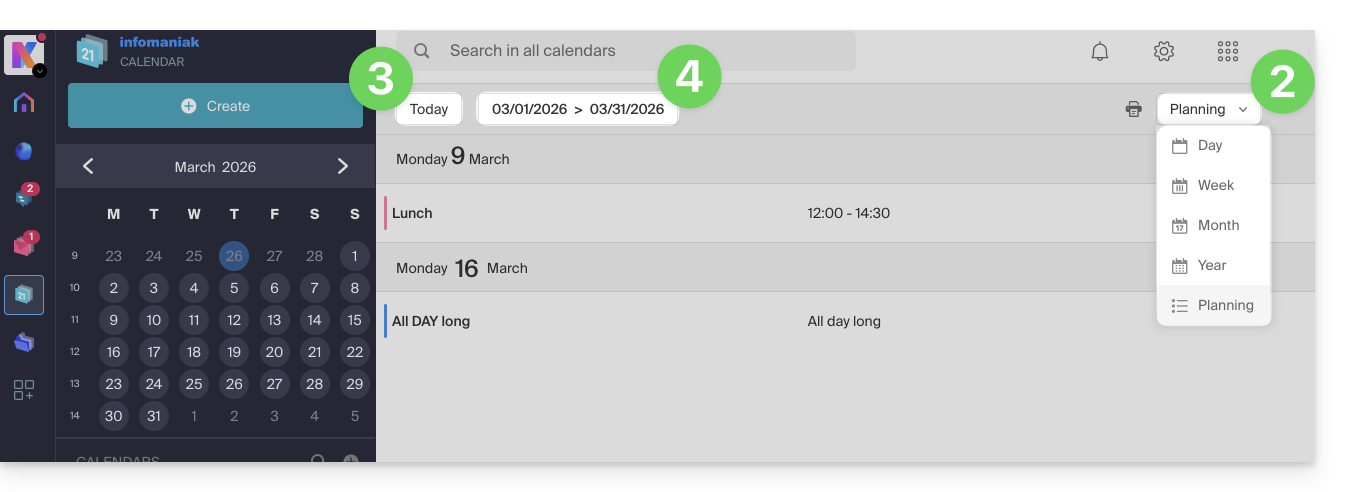
- Choose to display the calendar in Day, Week, Month, Year, or Planning view.
- At any time, click on Today to reset the current view.
- In the Planning view, you can choose the period to display ("this week", "next month", etc.):
Link to this FAQ: https://faq.infomaniak.com/1771
Has this FAQ been helpful?