Knowledge base
1000 FAQs, 500 tutorials and instructional videos. Here, there are only solutions!
Broadcast a kMeet meeting using live streaming mode
This guide explains how to broadcast an online meeting using kMeet in a separate stream accessible via a unique URL, thanks to Infomaniak's Video Streaming service.
✘ UNAVAILABLE with
kSuite Free / kSuite Standard
my kSuite / my kSuite+ (ik.me, etik.com, ikmail.com)
Introduction
- Broadcasting a typical conference-style meeting in a Video Streaming feed rather than within the kMeet application offers several advantages:
- Public, large-scale broadcasting without having to restrict access to an audience limited to invited individuals.
- Attracting a wider audience, such as for conferences, webinars, or live events where hundreds or thousands of viewers can follow the event without joining a private call.
- Allows reaching an unlimited number of viewers.
- No need to manage access for each participant; the stream can simply be viewed via a link.
- A simple web browser is sufficient to access the streaming feed.
- Passive access: viewers are not forced to participate actively or interact; they can simply watch the event without registering or logging in, which is better suited for large events.
- No voice interruptions or disruptions related to microphone management; this allows for a smoother, more speaker-focused stream.
- Higher streaming resolution when kMeet may be limited by bandwidth constraints and lower video quality to avoid network overload.
Create the video streaming share link
Prerequisites
- You must be a moderator of kMeet to be able to create a live streaming link.
- It is not necessary to have an Infomaniak video streaming plan.
Next:
- Start kMeet via ksuite.infomaniak.com/kmeet or from one of the applications for desktop or mobile devices.
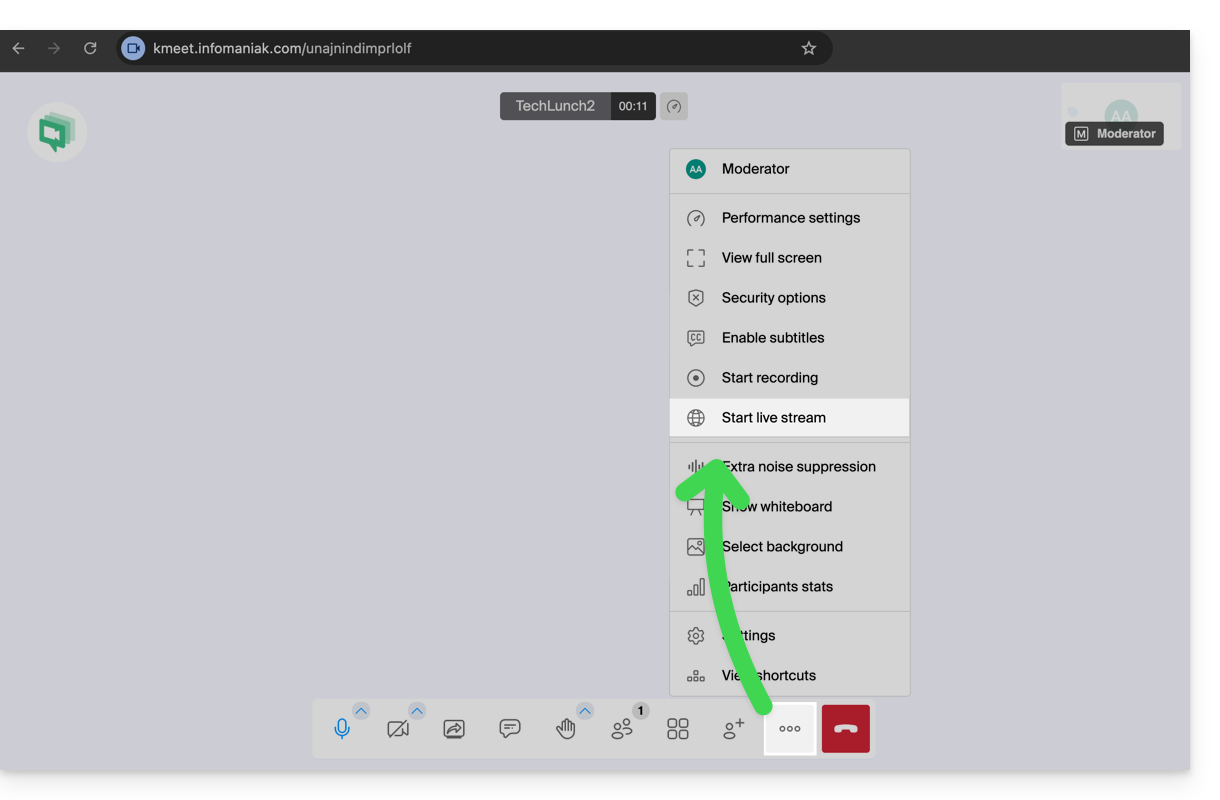
- Once in the meeting, click on the action menu ○○○ in the kMeet toolbar.
- Choose Start live broadcast:
- Click the button to Start:
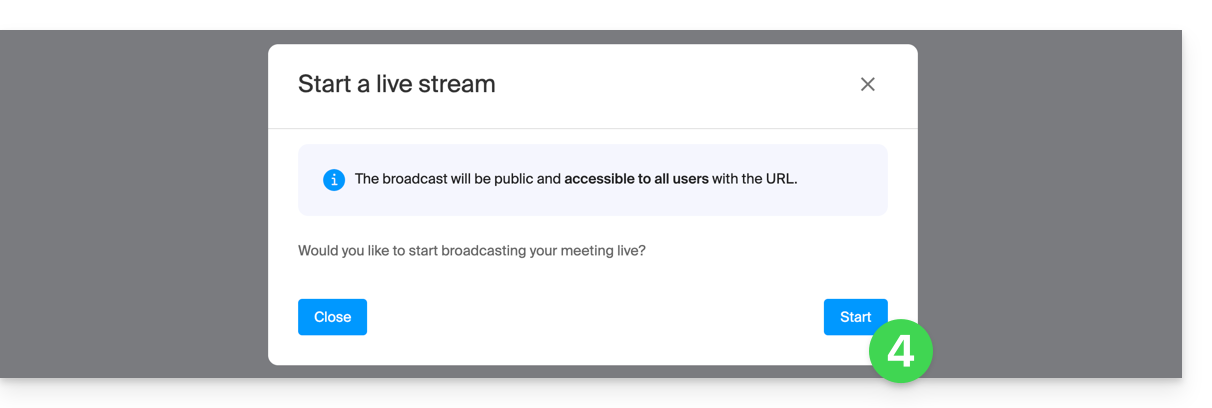
- Please wait while the video streaming feed is created.a symbol displayed on kMeet, along with an audible signal, indicates the start of the video streaming.
- In the same location, once the stream link is displayed, click on the icon to the right to copy the URL corresponding to the live stream; paste the URL into a message for the participants or anyone who needs to attend the live stream:
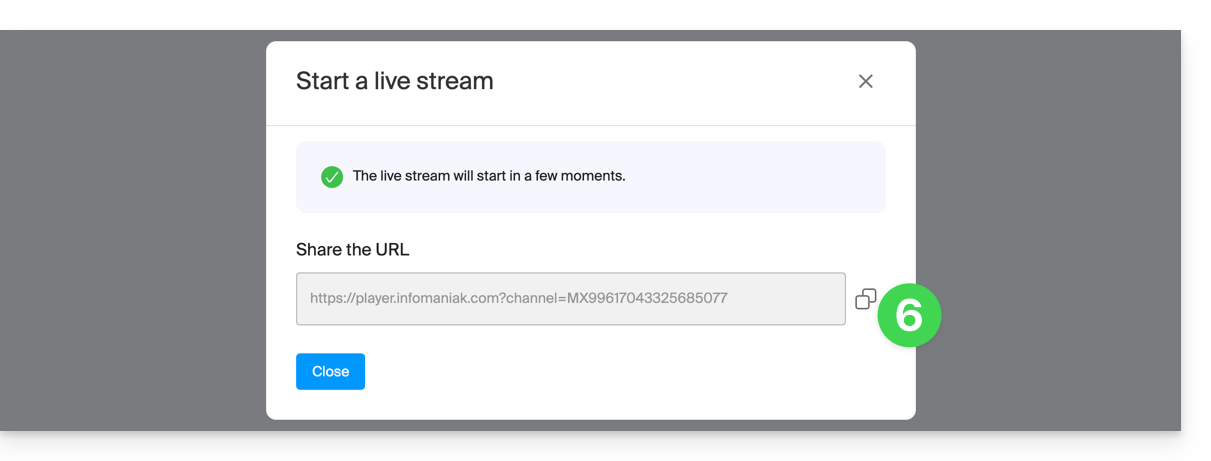
The stream is broadcast continuously for a maximum of 24 hours, and will no longer be accessible once the kMeet meeting is stopped.
Link to this FAQ: https://faq.infomaniak.com/1355
Has this FAQ been helpful?