Knowledge base
1000 FAQs, 500 tutorials and instructional videos. Here, there are only solutions!
This guide explains how to connect the Apple Mail iOS app (iPhone, iPad, etc.) to an email address hosted by Infomaniak.
Introduction
- Your iOS device will be automatically configured using .mobileconfig configuration profiles compatible with Apple, unlike a manual configuration.
- It is possible to delete a configuration profile once it has been installed (scroll to the bottom of this page for instructions).
Install a configuration profile
Prerequisites
- Create the email address within my kSuite or a Mail Service / kSuite.
- Verify that the Mail Service is configured optimally.
Then:
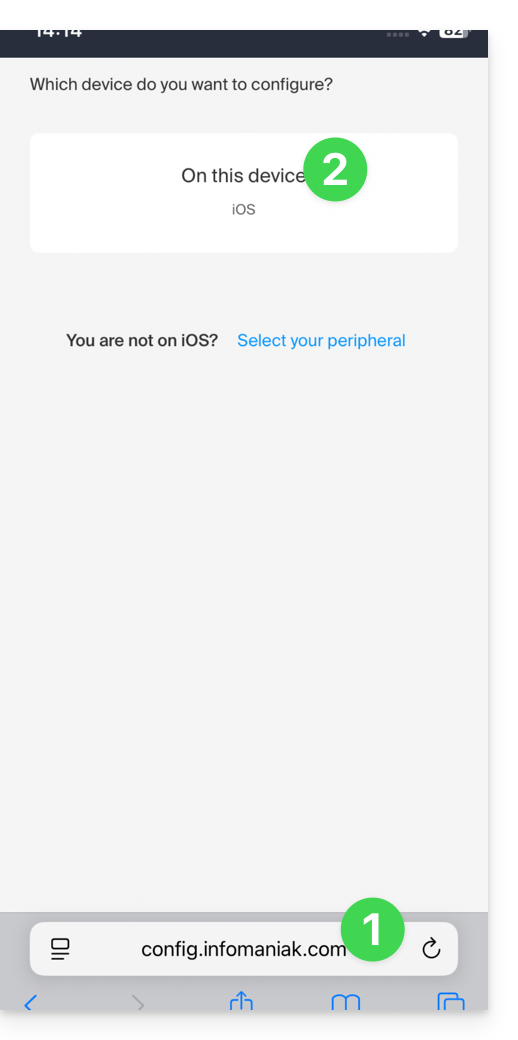
- Click here to access the Infomaniak configuration tool (online service https://config.infomaniak.com) — log in if necessary to your Infomaniak account for the Organization where your email address is managed.
- Choose to install the profile on this iOS device:
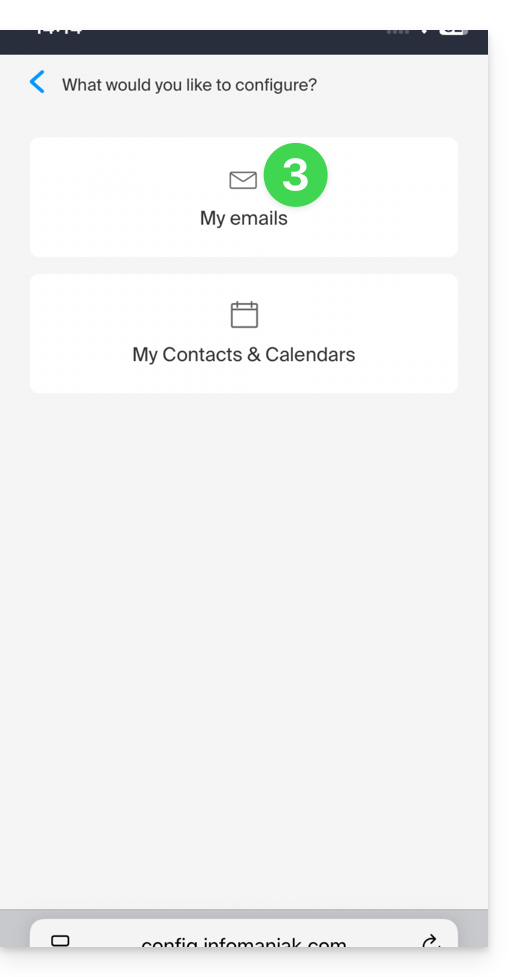
- Choose to synchronize emails:
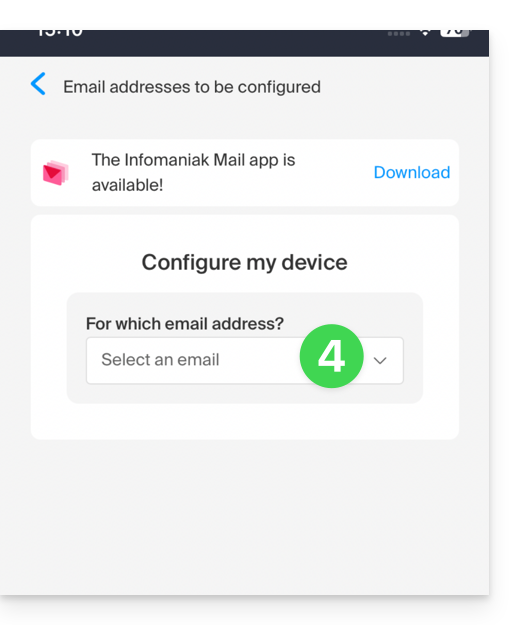
- Choose the email address (from those already linked to your current user) that should be synchronized on your device:
- Choose from the list of devices to enable synchronization on a new device (the one you are using):
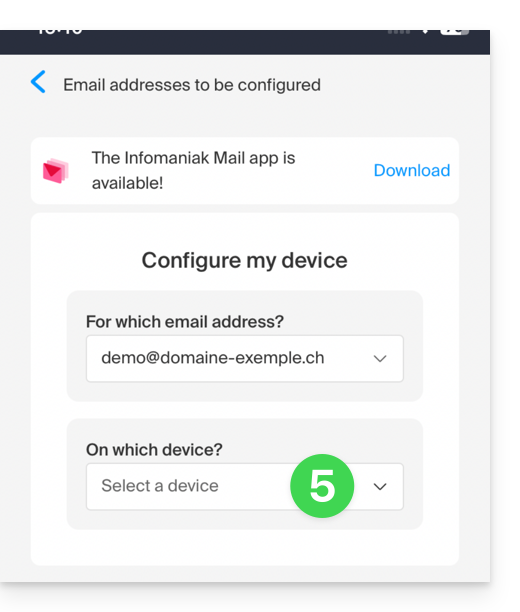
- The device name, which is purely descriptive, is adjusted accordingly, but you can modify it if necessary:
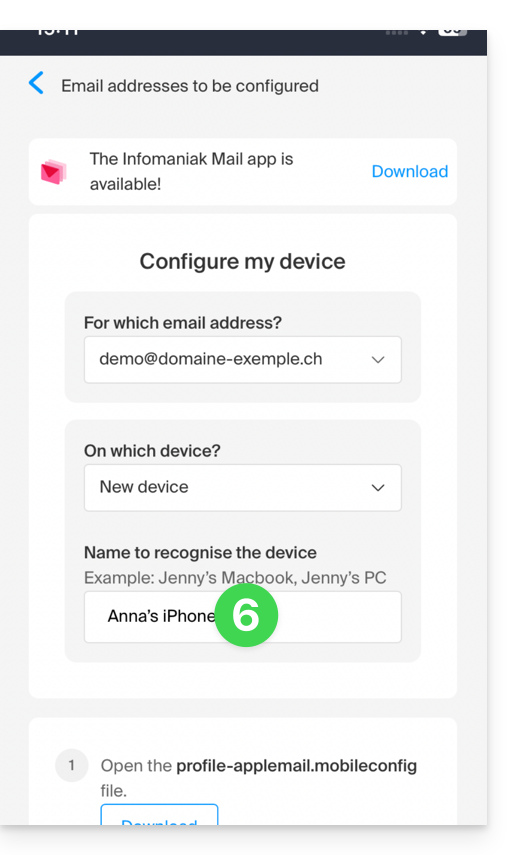
- Scroll down in the wizard and generate a password dedicated to email synchronization:
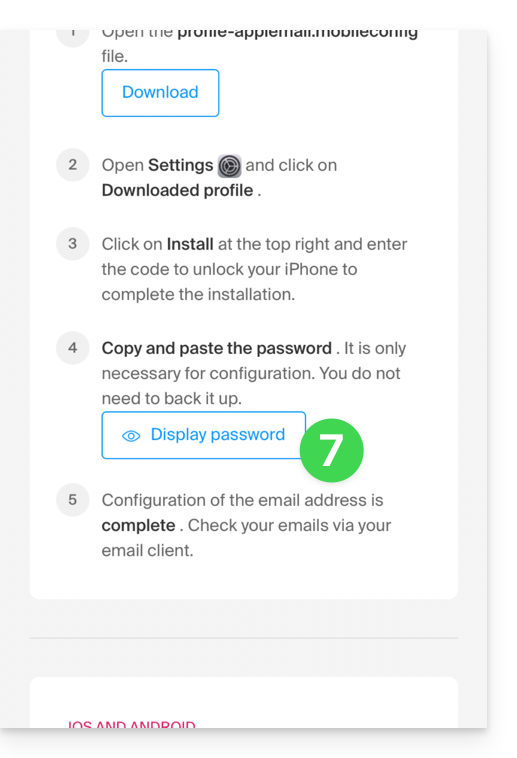
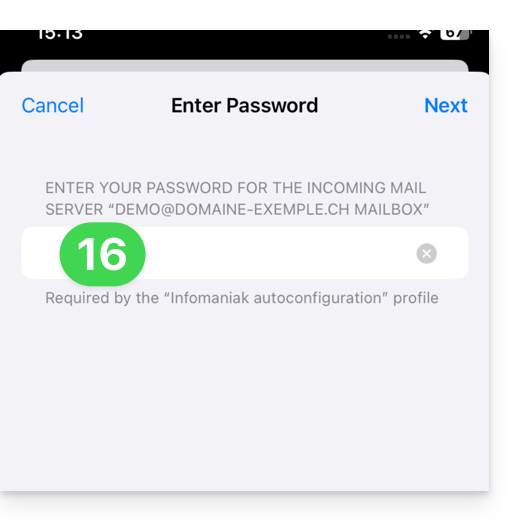
- Copy the generated password (you will be asked for it when installing the Apple profile).
- Download the Apple profile:
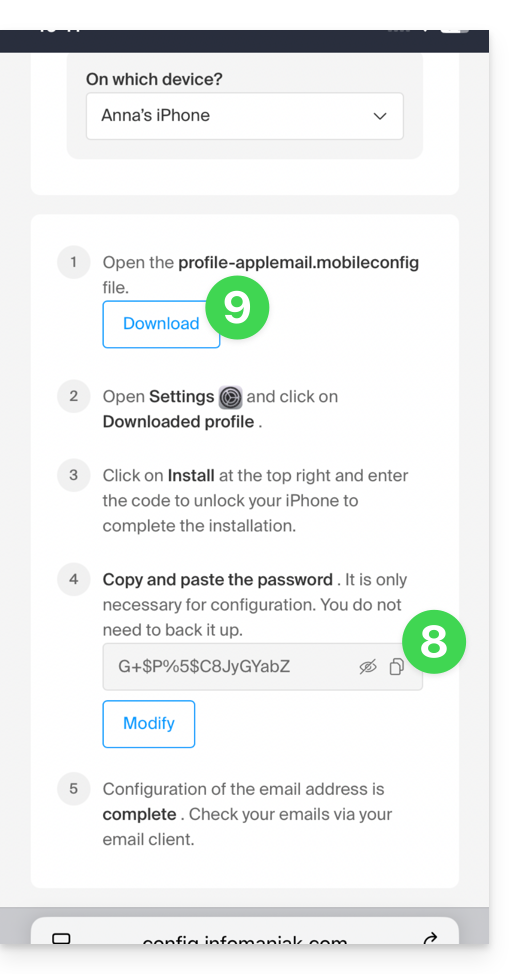
- Allow the download on the device:
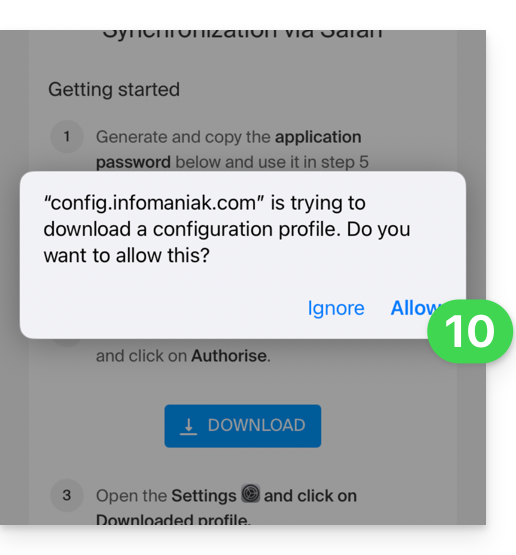
- Tap to close the message:
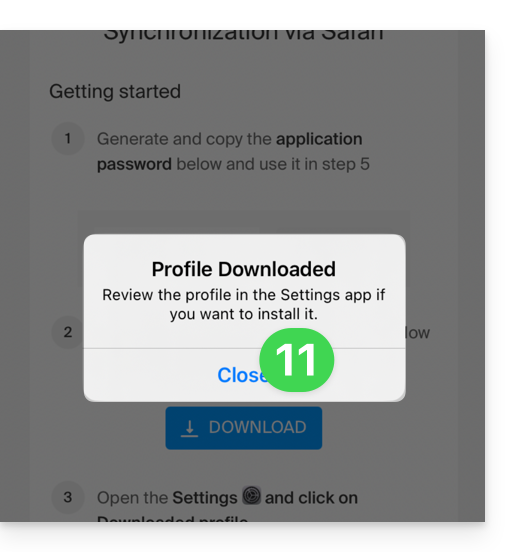
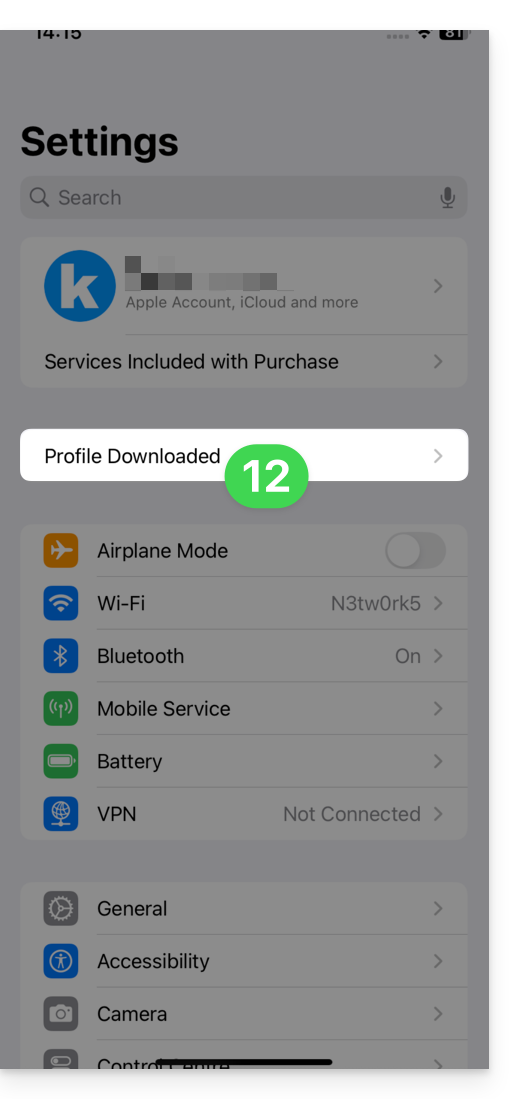
- Open the settings of your iOS device and tap on the banner at the top that informs you that a new profile has been downloaded:
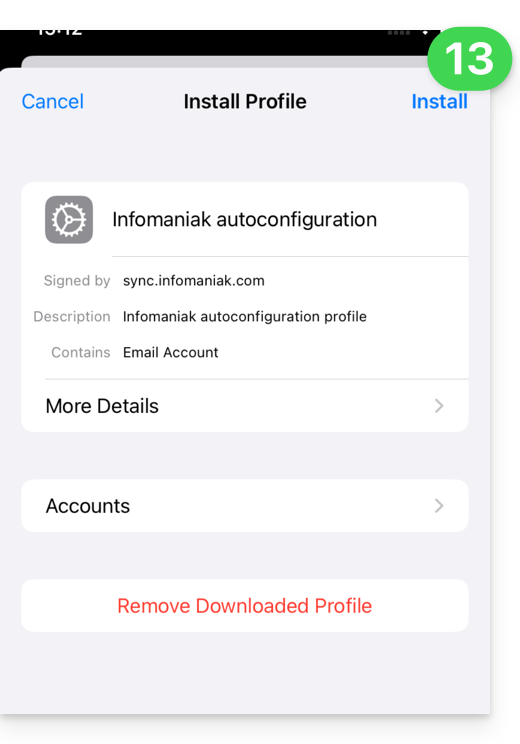
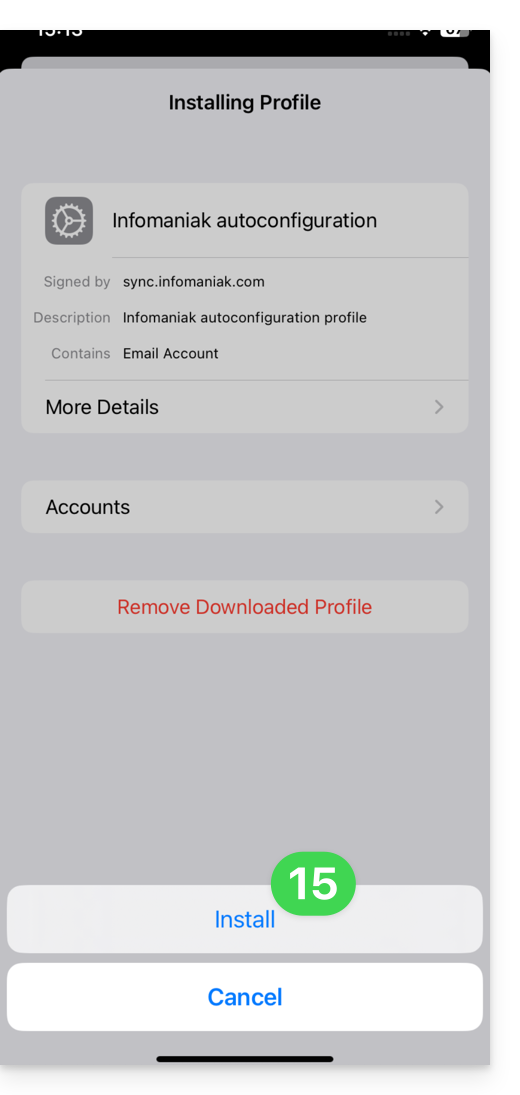
- Tap Install:
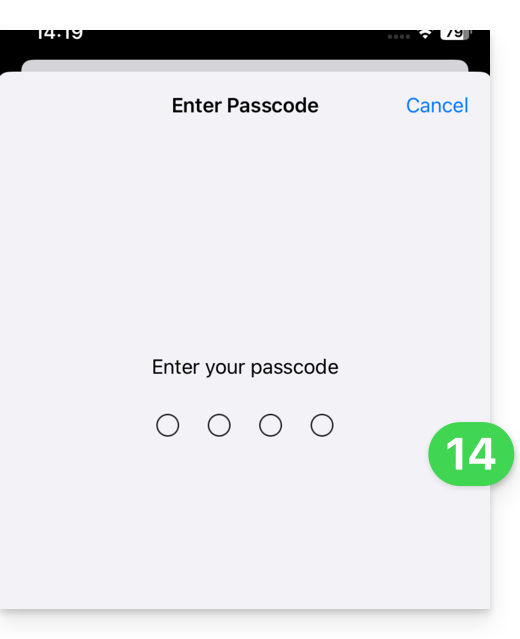
- Enter the code for your iOS device, as if you were unlocking it:
- Tap Install:
- Enter (or paste) the device password that you copied in step 8 above:
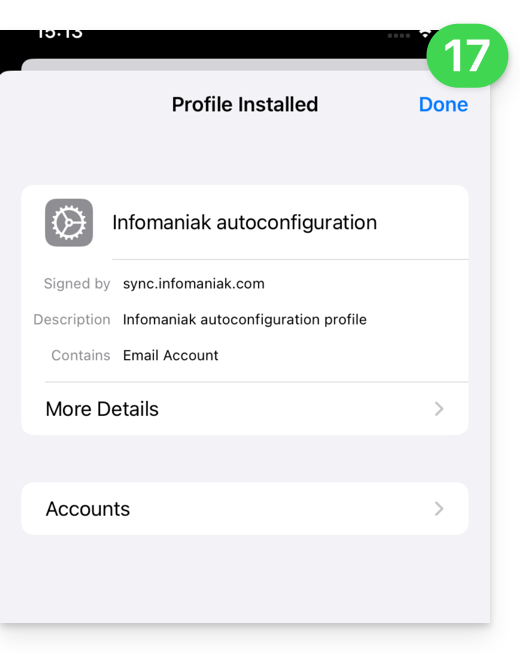
- When the message appears at the top, it's done:
If your Apple Mail iOS app was already open, you need to restart it. You will then see the information added by the synchronization: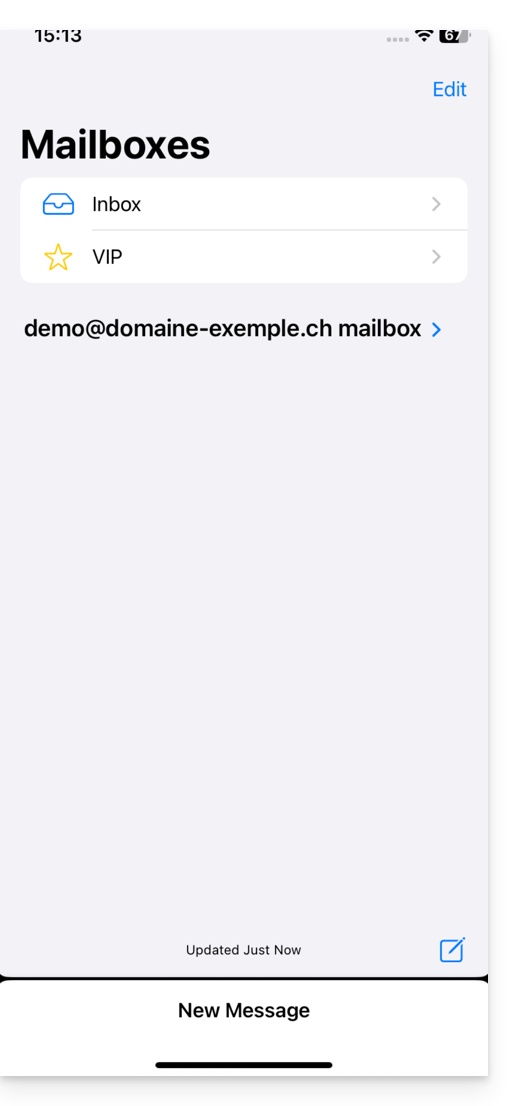
Remove an Apple profile
Refer to the official documentation, changing the version of your system at the top of the page * if necessary.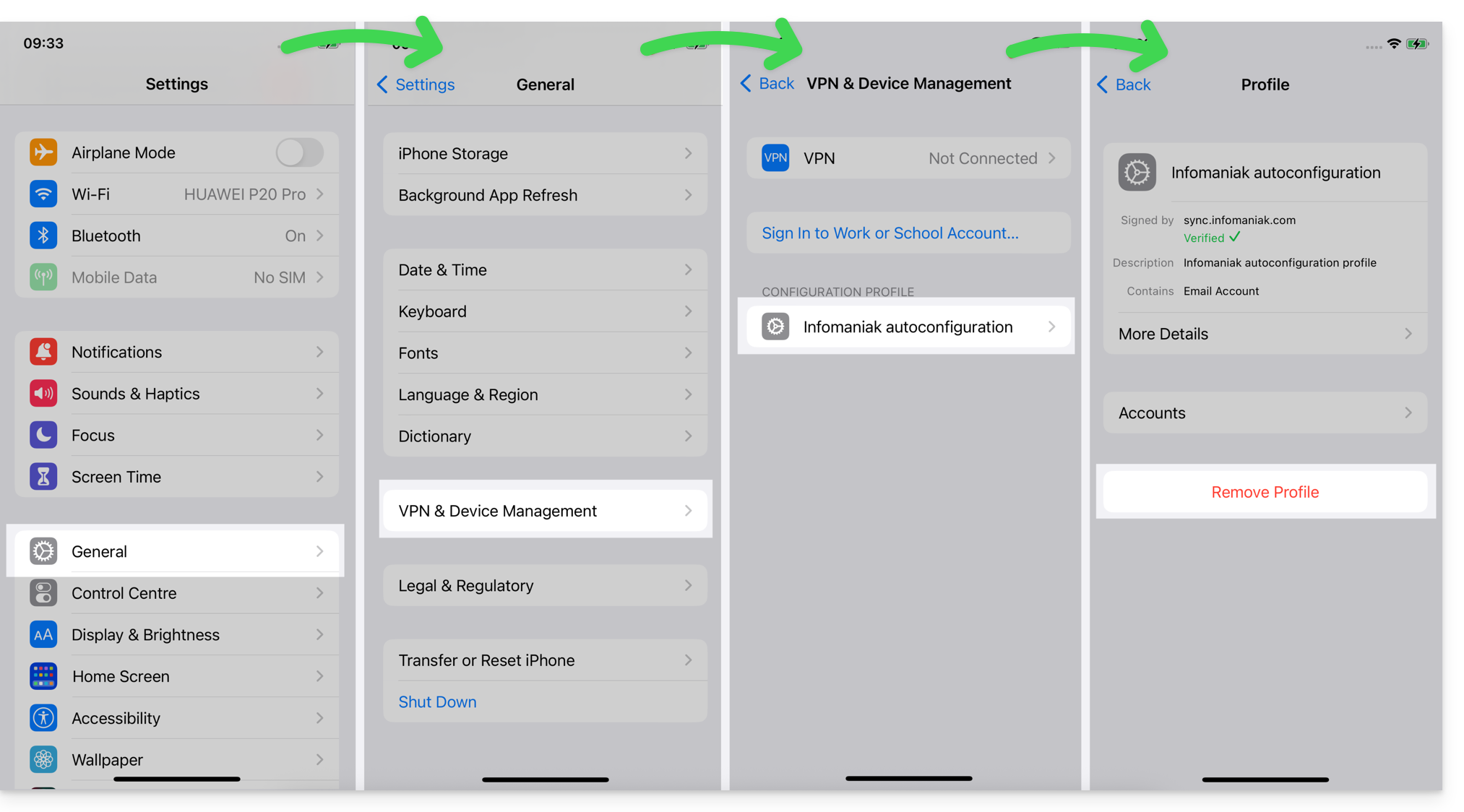
*Why is it necessary to choose the guide version that exactly matches your macOS/iOS system version? Apple introduces subtle changes with each new version of its system. For example, a path on iOS 15…
… becomes this on iOS 18…
Link to this FAQ: https://faq.infomaniak.com/1319
Has this FAQ been helpful?
This guide explains how to create and manage the passwords for an email address from within the Mail service, so that you can access it using a third-party application, such as Outlook or Thunderbird.
Other access and management options are presented in the main guide. If you are a my kSuite user, please refer to this other guide.
Prerequisites
- Order a Mail Service from Infomaniak.
- Create one or more addresses on this Mail service.
- Have at least the right to manage the Mail service in question (or be Administrator / Legal Representative within the Organization).
Generate an email address password
To add a password to the example address demonstration@exemple-domaine.ch:
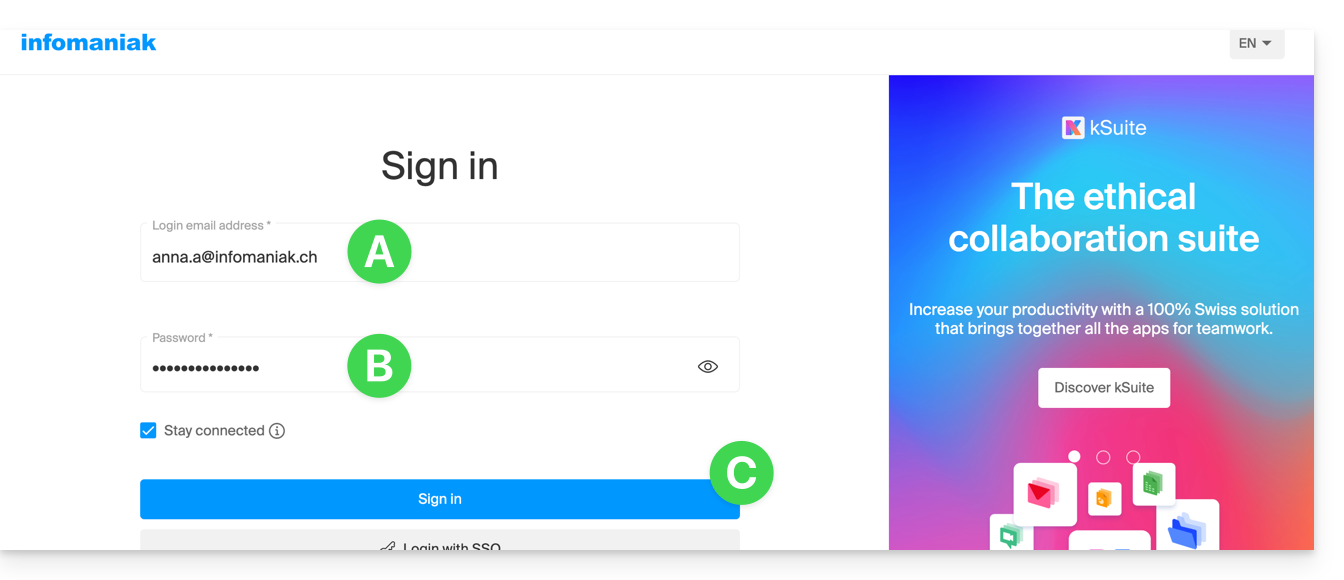
- Enter your Infomaniak account login ID and password on the page https://manager.infomaniak.com/:
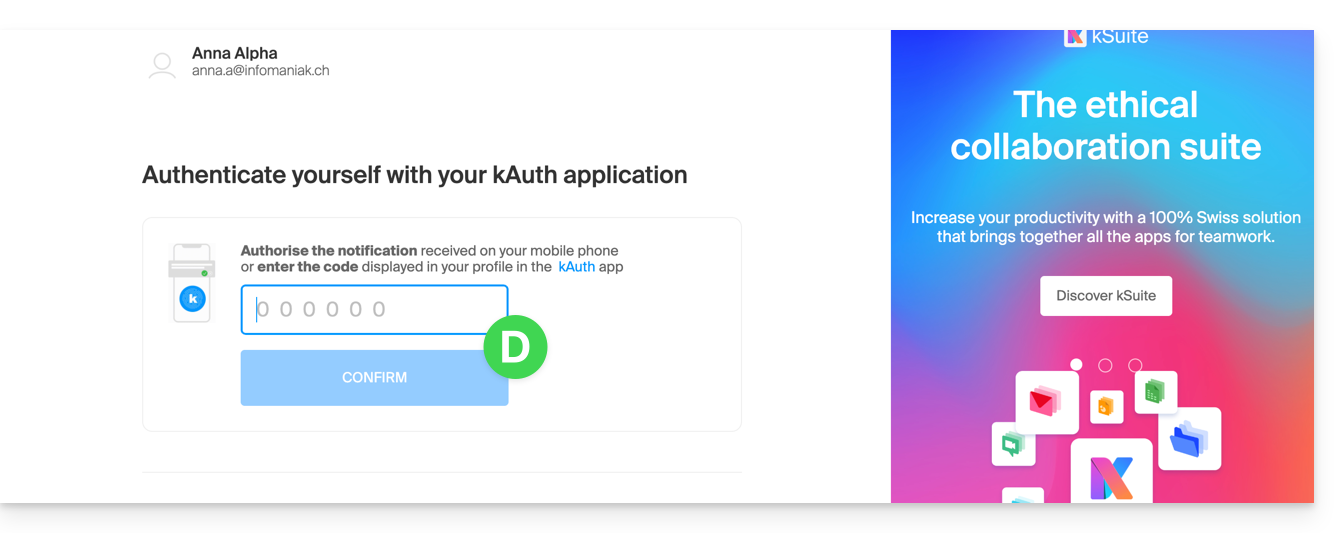
- Confirm the login on the Manager using the 2FA (two-factor authentication) method that you initially set up:
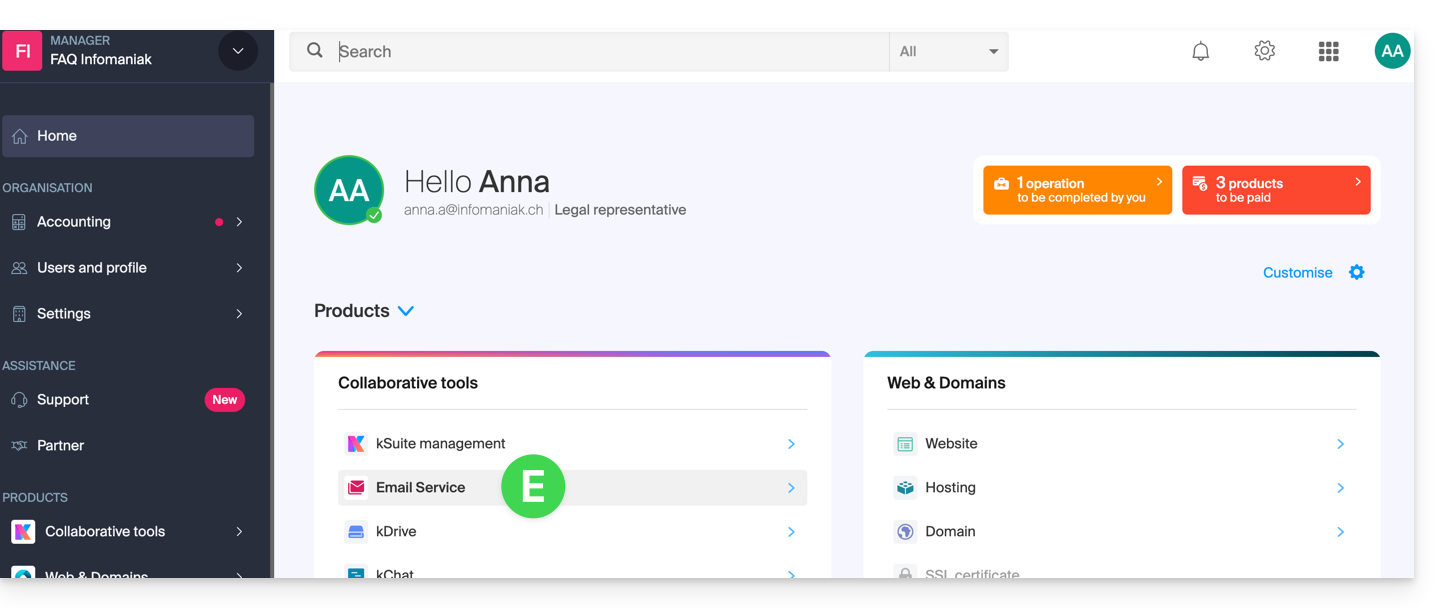
- Once on the dashboard, click on Mail Service:
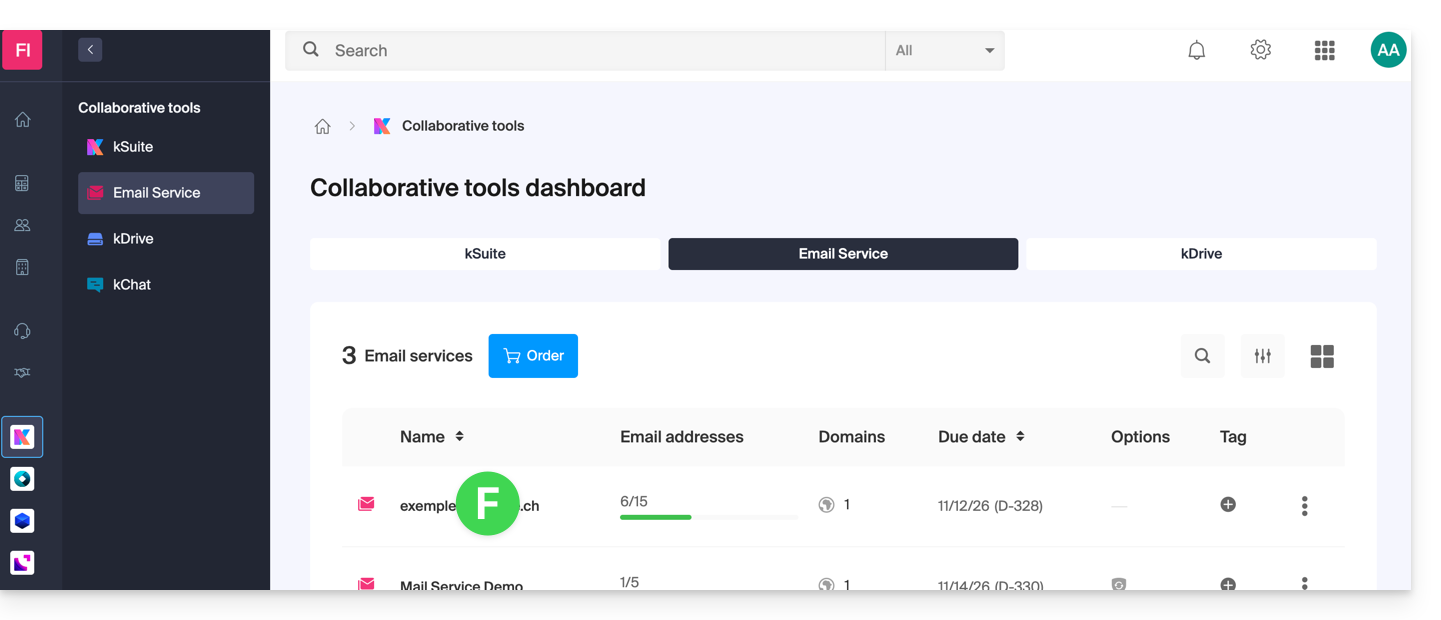
- Once on your Mail Services page, click on the name / domain name to which the email address in question belongs:
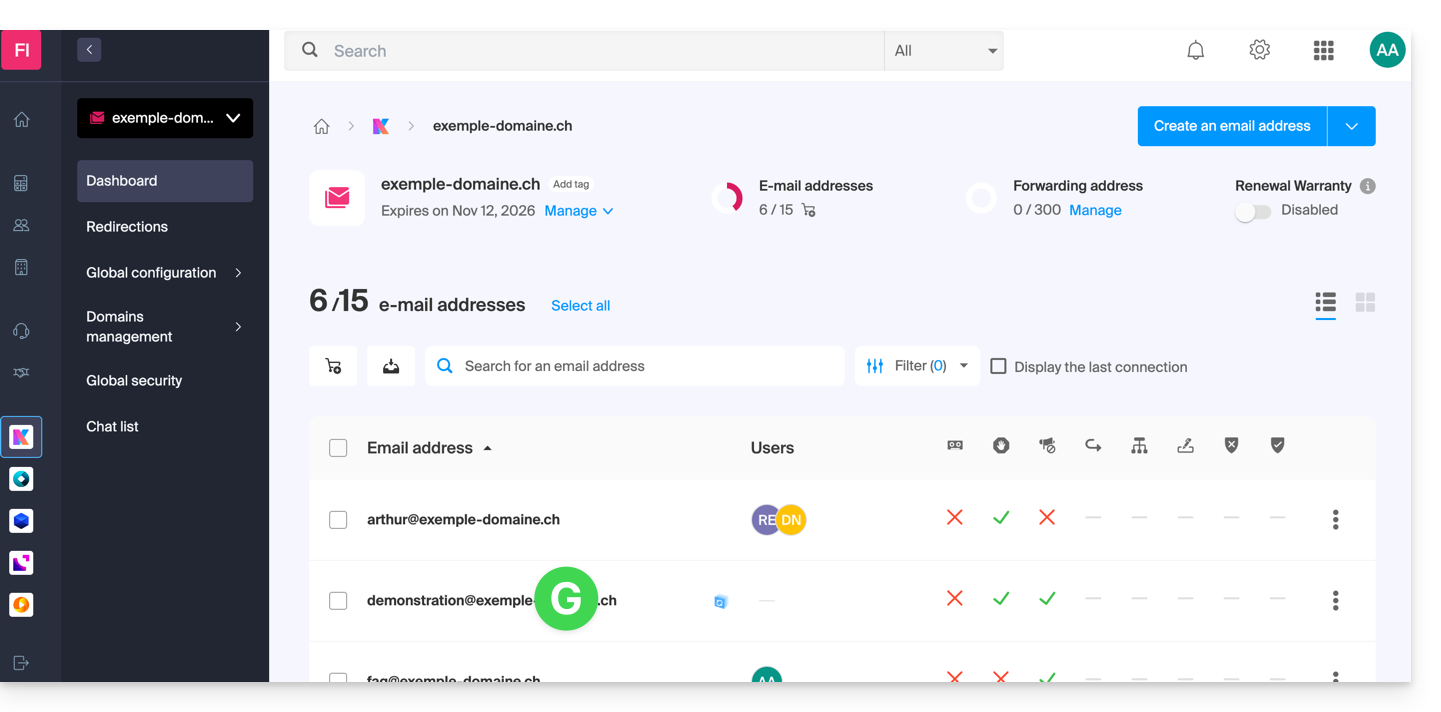
- Once you are on the Mail service to which the address belongs, click on the email address in question:
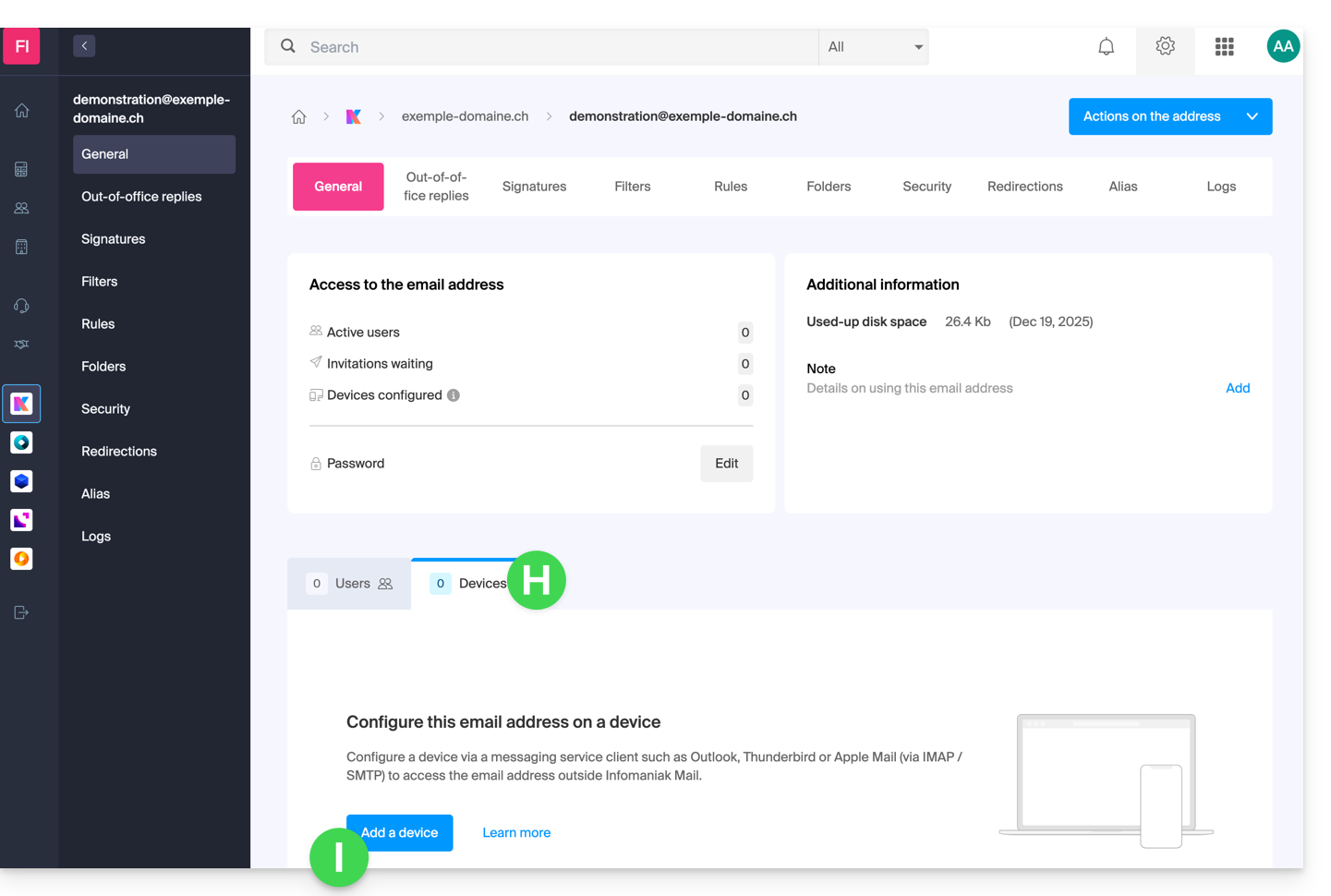
- Once you are on the email address in question, click on the Devices tab, then click on Add a device:
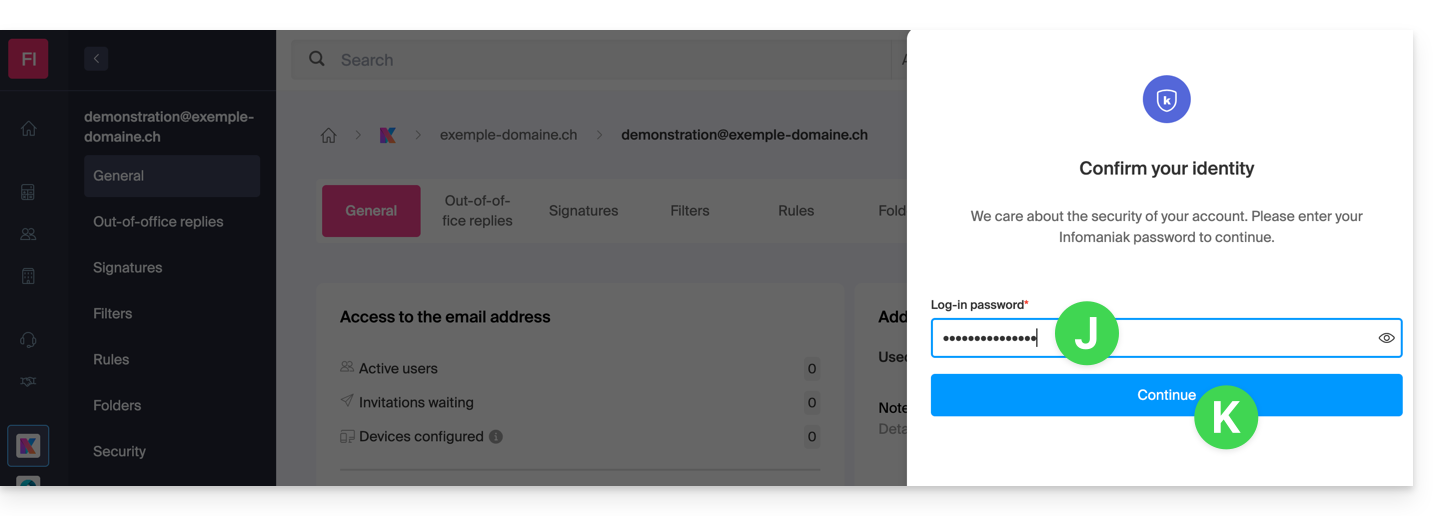
- At this stage, it may be necessary to re-enter the login password (the one from step B above):
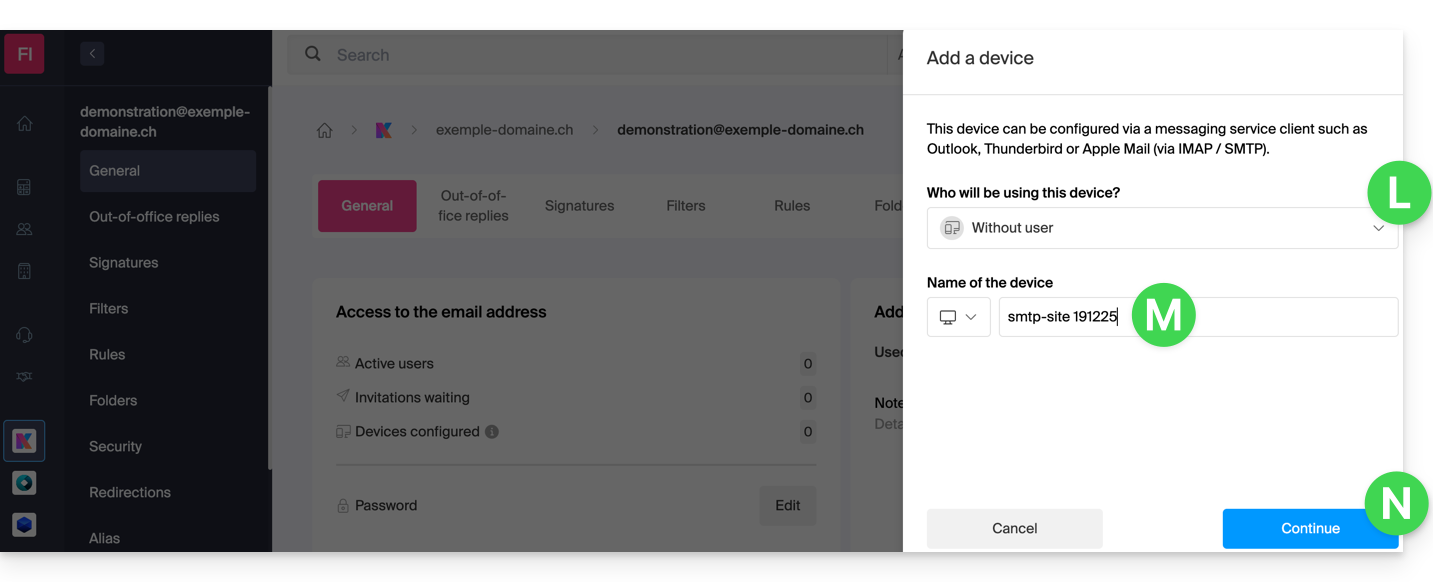
- Then, choose not to specify a particular user ("No user").
- Specifying a user, however, allows you to link any potential SMTP restriction for that user to their connected devices, in addition to simply removing their sending rights within the Infomaniak ecosystem.
- Enter a descriptive name that will help you identify the reason why you created this device(here, the user needs a password to be able to send emails from a website, and they add the current date as useful information):
- There you go: the new password is displayed, and you can change the characters (minimum 16) if necessary.Please note that it will not be possible to display it again later.).
- Save it at the bottom of the page to use it as you see fit:
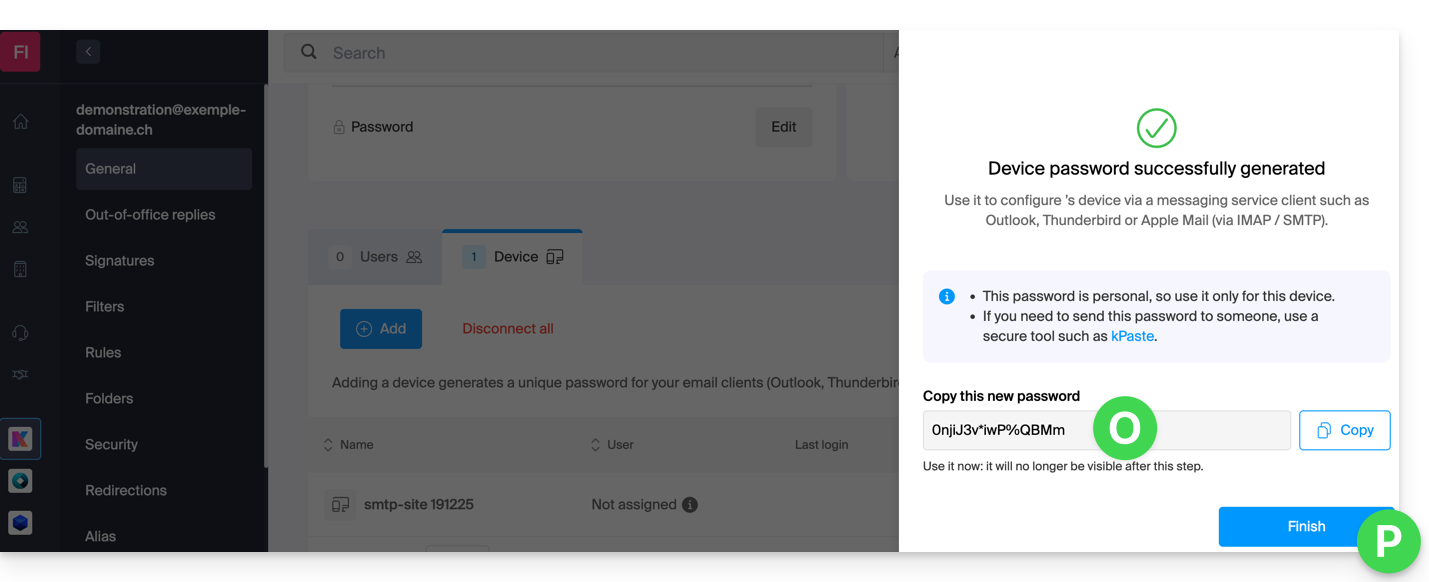
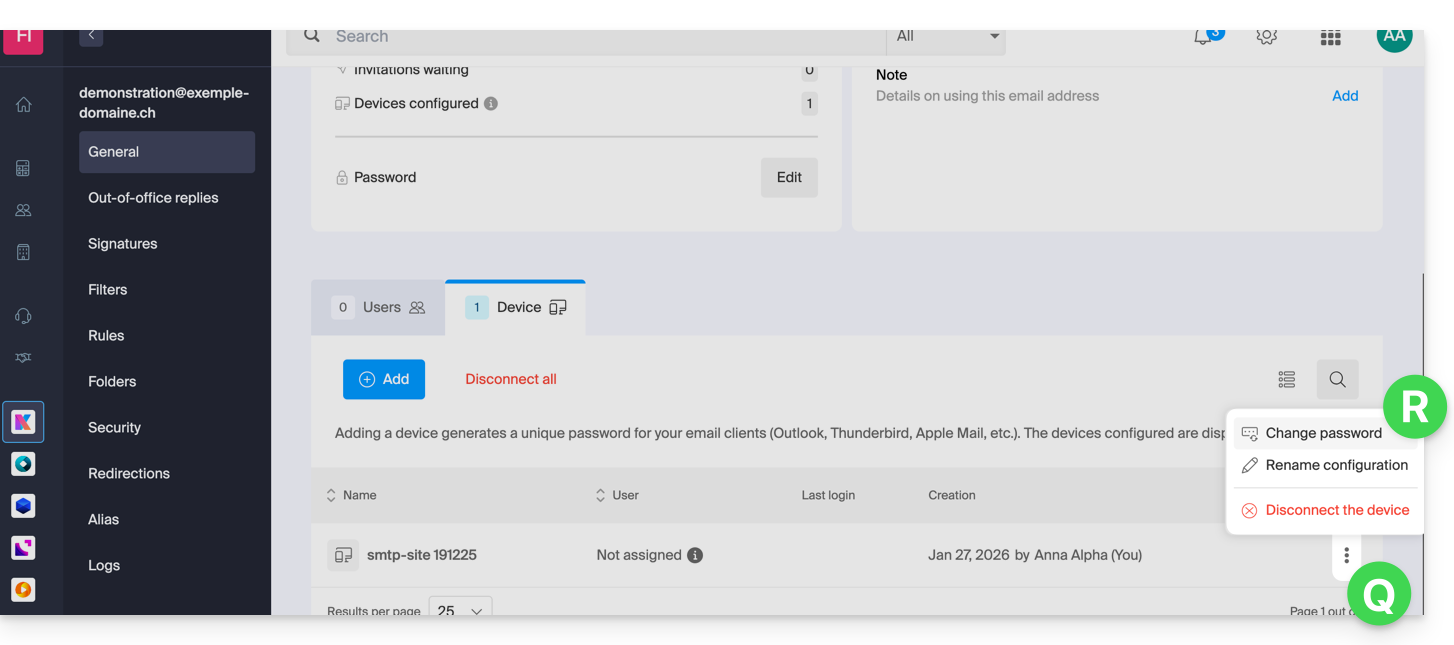
Did you click the “Finish” button (above, “P”) without noting the password? No problem, you can modify or regenerate a new one!
- Click on the action menu ⋮ located to the right of the device you just created and click on Change password:
- Click the button on the far right of the field to generate a new random password and/or enter the secure characters you want to use (minimum 16) for the new password, then click the button to save the change:
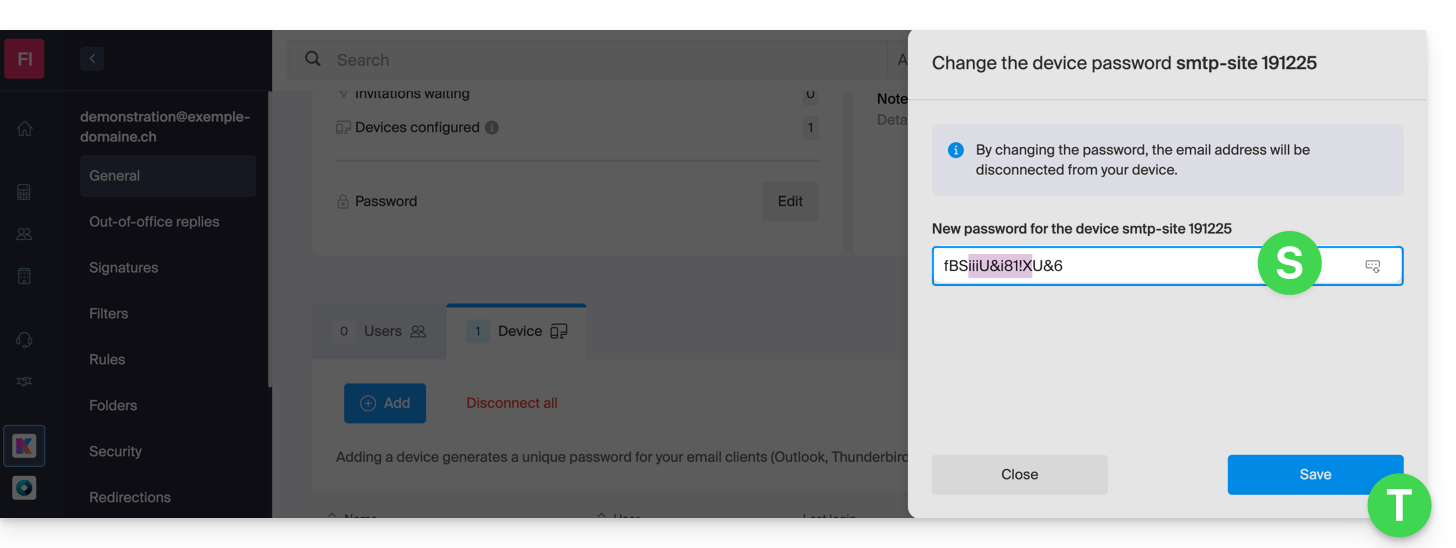
- The new password, which replaces the old one, is now displayed permanently. You can enter it on your device(s) to replace the previous password (note that it will not be possible to display it again later).
Do you need a password for a secondary, temporary user? No problem, generate a second one!
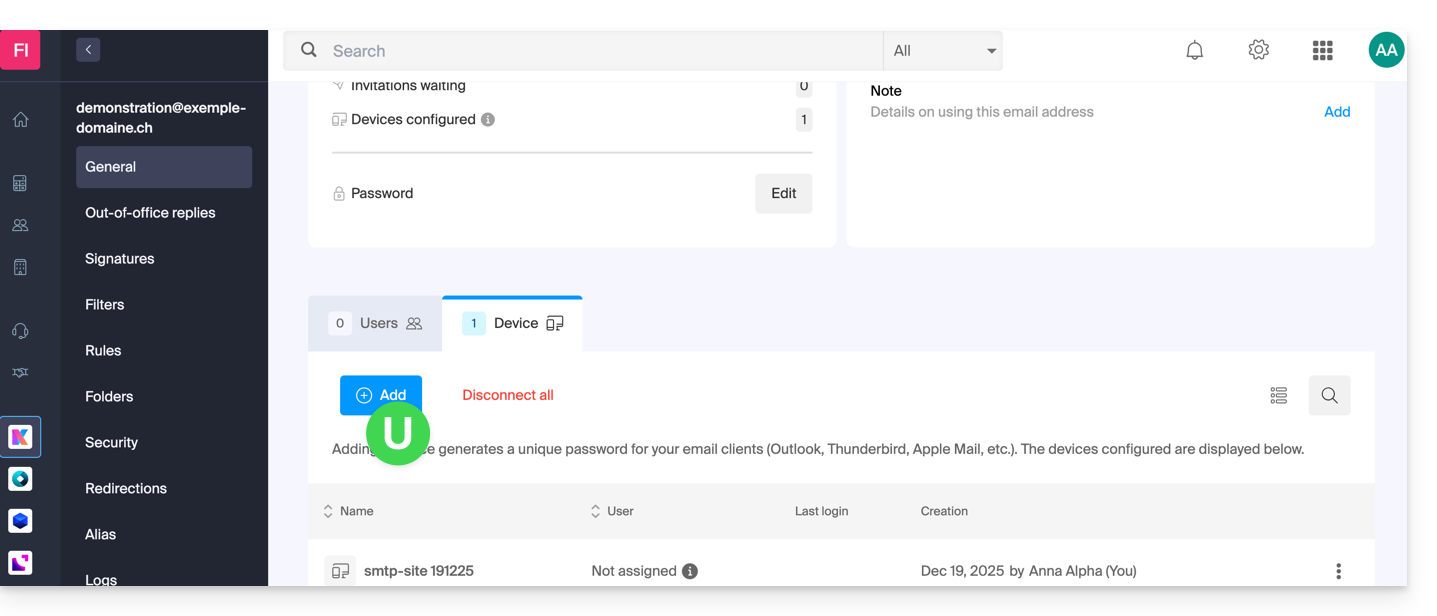
- Click the button to Add a new additional device:
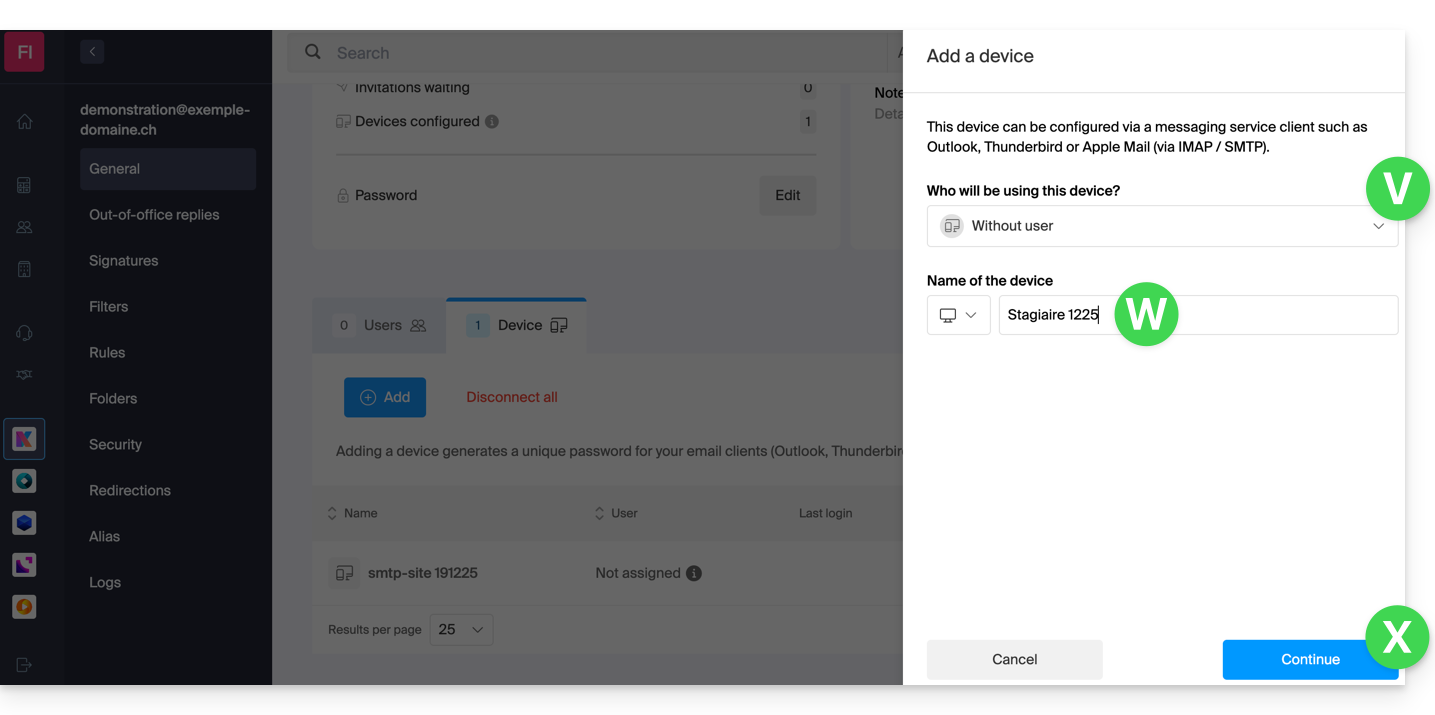
- Then, choose not to specify a particular user, and enter a name that will allow you to identify the reason why you created this device (here, the user needs a password for a one-week intern):
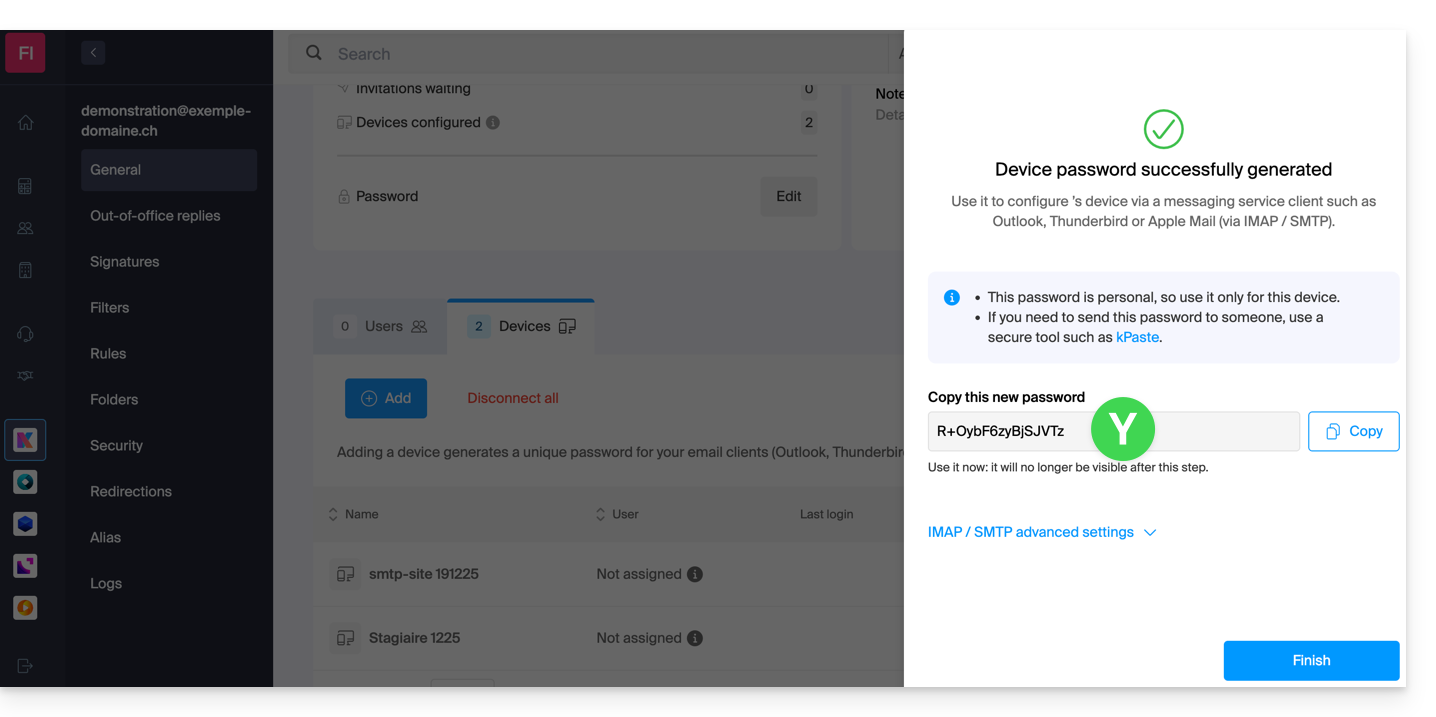
- The password is now displayed; you can use it for your intended purpose (please note that it will not be possible to display it again; however, as before, it will of course be possible to modify it or generate a new one):
Alternative: create a password for a user
Instead of creating a password yourself and then having to communicate it to the user, you can directly allow a user with fewer permissions than you to obtain the password for the device they need:
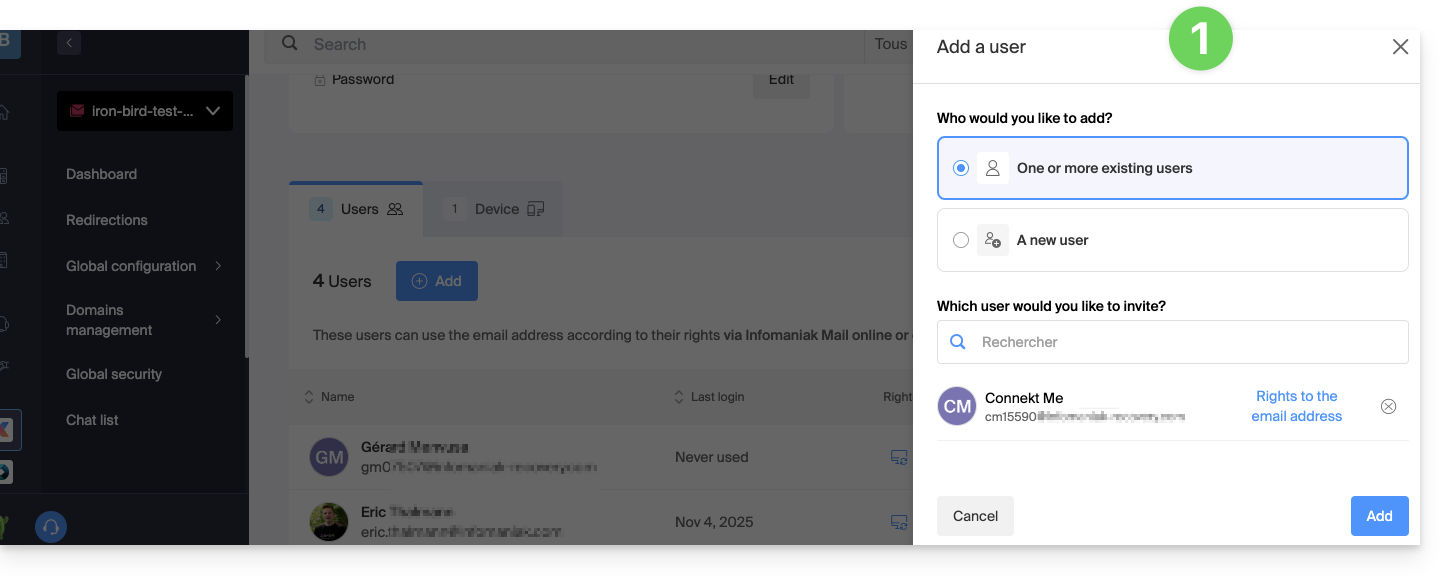
- Add the new user (whether they already exist in the Organization or not) as described in this other guide:
- Once the user has been added, switch to the devices tab to add a new device:
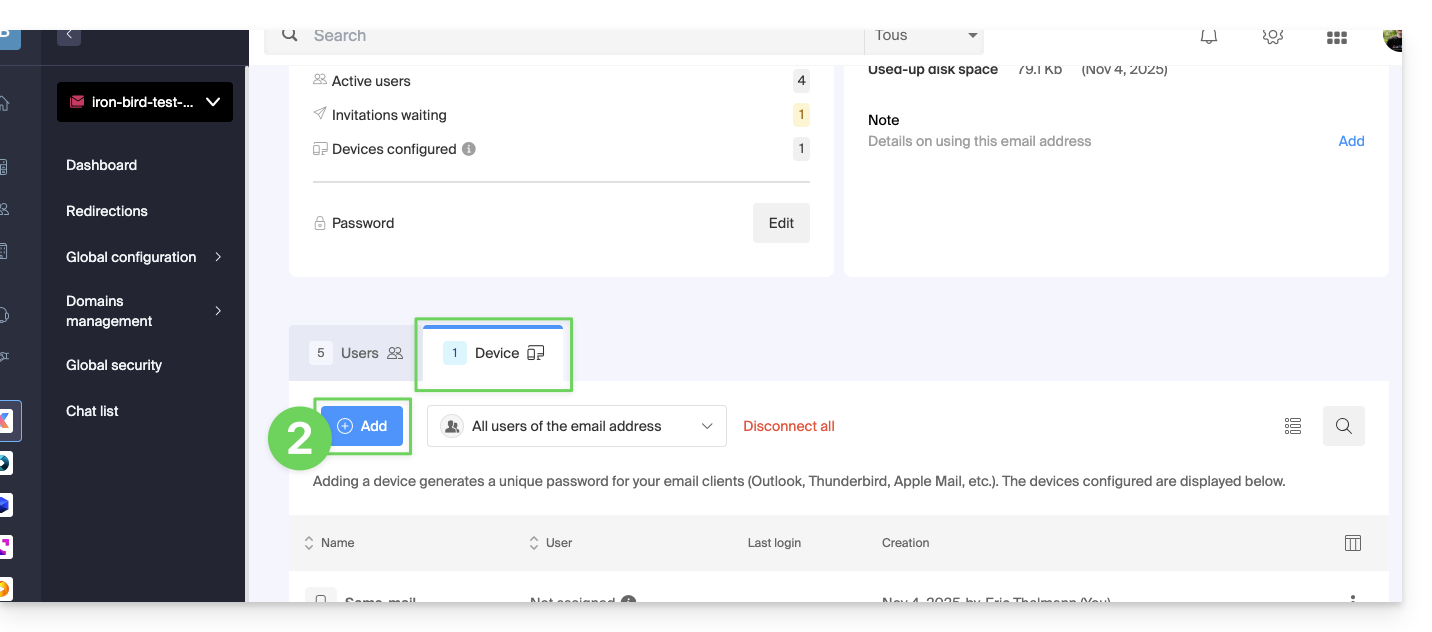
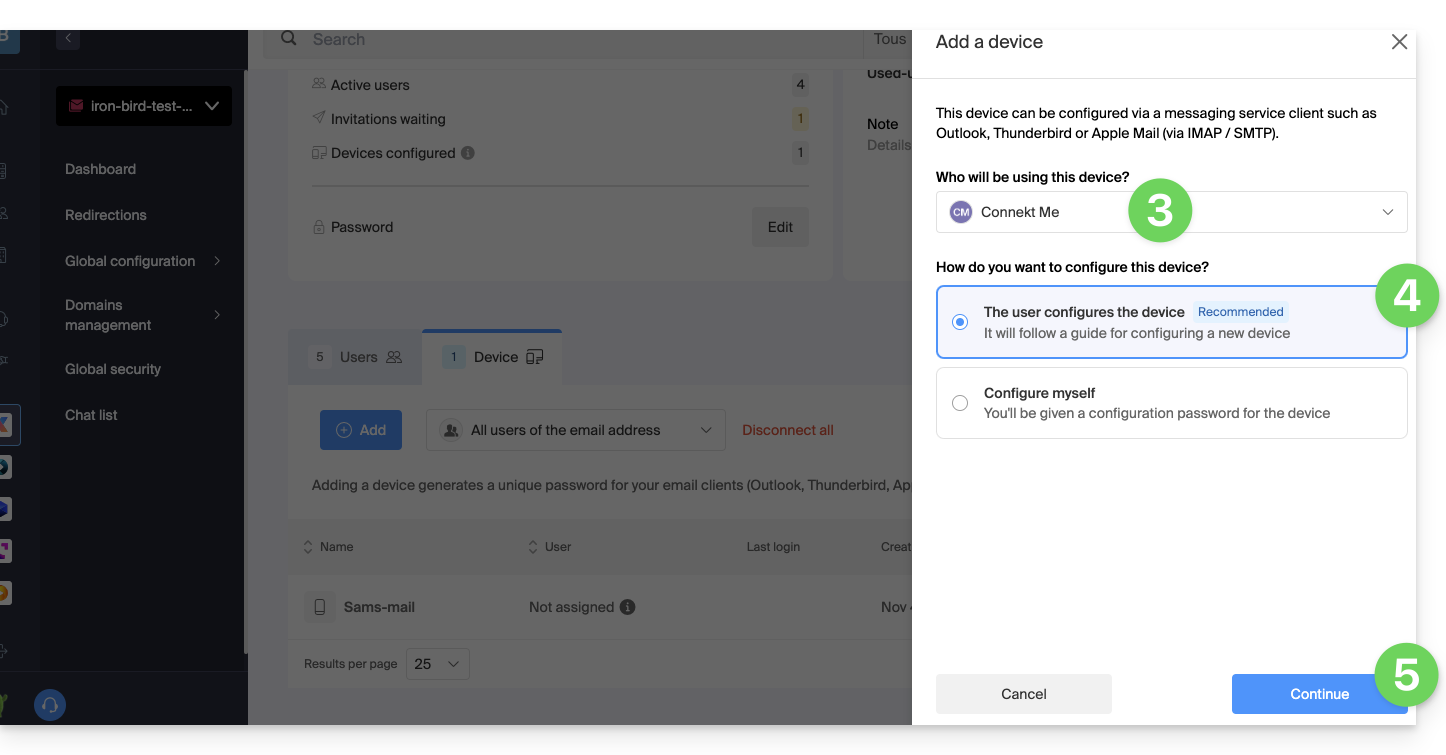
- If necessary, enter the password to log in to your Infomaniak account, then select the user created in step 1.
- Click on the first option to send a configuration assistant for the user's device.
- Click on the Continue button:
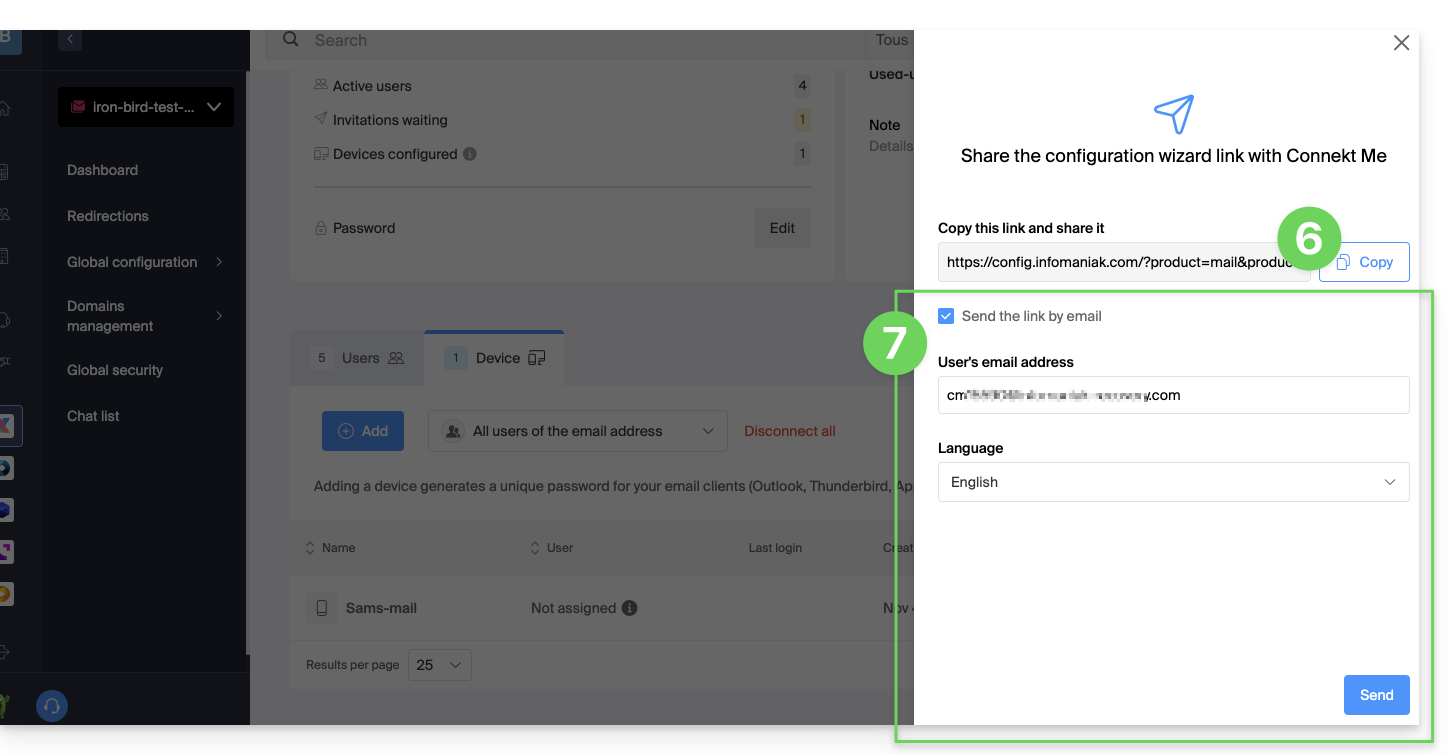
- Copy the invitation link, which is valid for 30 days, and send it to the user.
- If necessary, send the invitation to the user's email address:
In step 4 above, you can also choose to generate a password:
- The password you created will be displayed; you can modify it one last time, copy it, and store it securely (e.g., in a password manager); it will no longer be possible to display it afterward.
Modify or remove an existing password
When access is no longer needed, revoke only the password in question: other access to the email address will remain active.
Link to this FAQ: https://faq.infomaniak.com/1321
Has this FAQ been helpful?
This guide explains how RBLs work, the questionable policies of some of them, and how to resolve any potential email blocking issues.
Introduction
- RBLs (Realtime Blackhole Lists) or DNSBLs (Black List DNS) are lists containing addresses, IP addresses, or names of providers and servers that are known as major spam senders.
- These are often large, general blacklists used to identify messages considered undesirable, as well as their senders, and are managed by certain providers such as smtpcheck or uceprotect (non-exhaustive list).
1. Adding the email address to the RBL
When an email address is identified as belonging to an unwanted sender, it is blocked to prevent the reception of unsolicited messages. A block in the RBL does not expire: addresses remain listed indefinitely.
If you receive a message indicating that your email address is blocked by an RBL, it means that Infomaniak's security system has detected suspicious or undesirable activity associated with that email address. This may include sending large numbers of unsolicited messages, participating in phishing campaigns, or other malicious behavior.
2. Resolving an email block (RBL)
If the error message mentions your address and an RBL
If you receive errors such as:
anna.a@domain.xyz is RBL blacklisted - http://chk.me/rbl
If you encounter this issue when sending an email and believe it is a false positive, contact Infomaniak support.
To prevent your email address from being blocked by the RBL blocking system in the future, follow best practices for email usage:
- Do not send unsolicited messages or mass messages to unknown recipients.
- Regularly sort the recipient list you use.
- Do not participate in phishing or cybercrime activities.
- Ensure the highest level of security where your emails are used:
- strong password
- up-to-date software
- up-to-date operating system (iOS, Android, Windows, macOS, etc.)
- up-to-date configuration of the associated domain
If the error mentions an organization such as Sorbs or Barracuda
If you receive errors such as:
554 5.7.1 Client host blocked using Sorbs
or similar:
- Follow the procedure outlined by the organization in question (for example, http://www.barracudacentral.org) to have your address removed from the list.
- Temporarily change your internet service provider or connection method (Wi-Fi vs. 4G/5G) to send your messages.
- Inform your contact and their email provider to take the necessary steps or to stop using an unreliable RBL.
- Please wait a few hours and try again.
Fewer and fewer professionals (ISPs, hosting providers, etc.) are using service providers such as Backscatterer / UCEPROTECT, whose primary purpose is financial gain. There are many other very effective lists, such as ABUSIX or SPAMCOP, which are well maintained and whose real goal is to fight spam, one of Infomaniak's priorities.
Link to this FAQ: https://faq.infomaniak.com/1333
Has this FAQ been helpful?
This guide presents the security model that allows you to assign users to an email address or dedicate a different password to it for each device or software that needs to access it.
Introduction
- No password is set when creating a mail address.
- If you remain within the Infomaniak ecosystem, i.e., you only use the Infomaniak Mail web app (online service ksuite.infomaniak.com/mail) and/or the Infomaniak Mail mobile app (application for iOS/Android smartphones or tablets), you do not need to manage a password because everything is configured using the concept of a user, i.e., an Infomaniak account (which has a password):
- A mail address can be viewed/used on these Infomaniak Mail apps without a password other than the one that already allows access to your Infomaniak account, simply after you have been invited.
- You only need to authorize your own account or invite an acquaintance to be a user of the mail address.
- Otherwise, outside of this ecosystem, you simply create a password (or several) for your devices (Outlook, iPhone, CRM, etc.) according to your needs:
- Each password can be revoked individually, without affecting other users or devices linked to this address.
- It is not possible to display a previously created password; simply create a new one!
Add a user
= Allow a person to view the email address in the Infomaniak Mail interface
To allow a user (including yourself) to view the email address in Infomaniak without needing a password other than their own (the password for their Infomaniak account):
- From the Mail Service dashboard:
- add the email address to your Infomaniak Mail apps so you can use the address,
- or decide which other external user should have access to the address in their Infomaniak Mail apps,
- or remove a user's access: the other accesses to the email address will remain active.
- You can manage authorized users directly from the Mail web app (any user of an email address on Infomaniak can view the list of other users who have access).
Add a device
= Add a password to allow someone to access the address on a device (Outlook, iPhone, CRM, etc.)
To allow a user (including yourself) to view the email address in IMAP and send messages via SMTP (both protocols require a password):
- From the Mail Service dashboard:
- You can manage connected devices directly from the Mail web app.
Link to this FAQ: https://faq.infomaniak.com/1344
Has this FAQ been helpful?
This guide concerns the notifications that you can receive with the Infomaniak Mail mobile app (application for iOS/Android smartphones or tablets).
Receive notifications based on a specific email address
The Infomaniak Mail mobile app allows you to manage multiple email addresses, and you can choose to receive notifications for only some of your email addresses and not others.
To access the notification settings in the app, please refer to this other guide.
Troubleshooting…
… on iOS
In the settings of the Infomaniak Mail mobile app, check that notifications are enabled for the email address in question: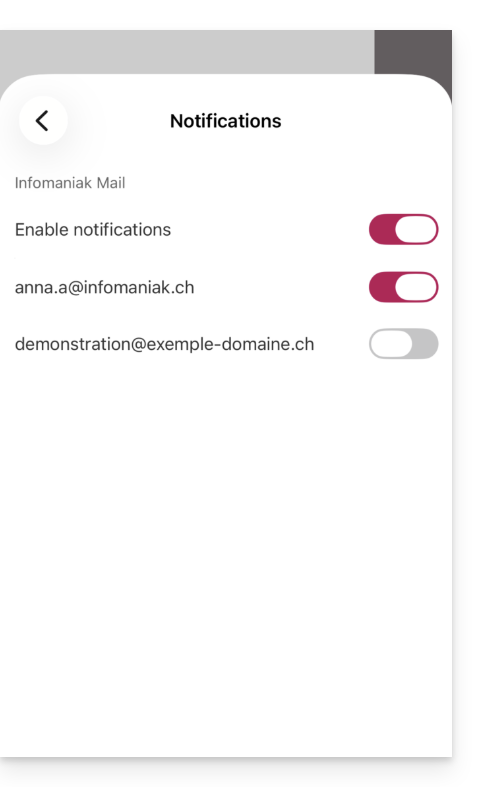
… on Android
On Android devices, especially Samsung devices with One UI 6.1 and later, the system settings screen for notifications no longer allows you to specify which of your email addresses should trigger a notification by default: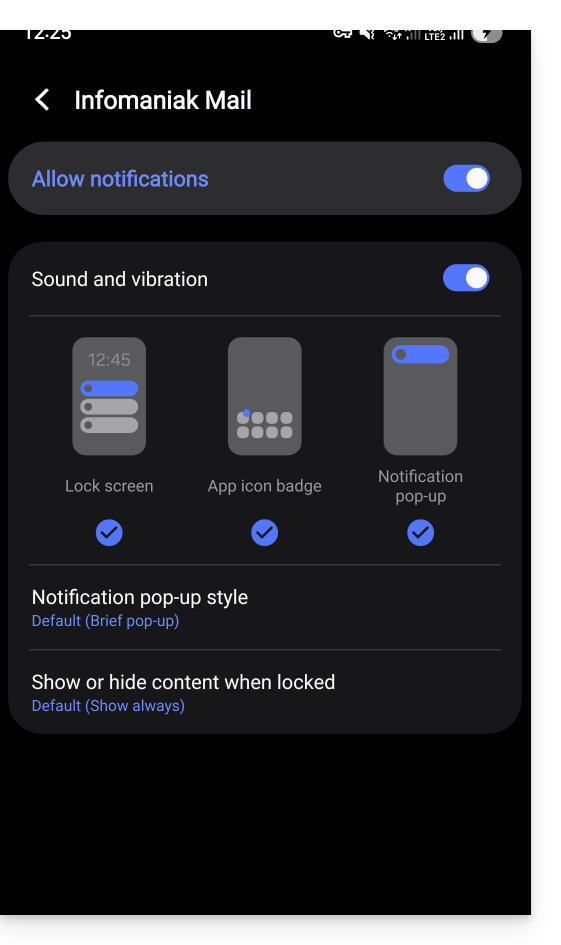
The solution is to enable this from the main Android notifications page by clicking on “Advanced settings” at the bottom of the window…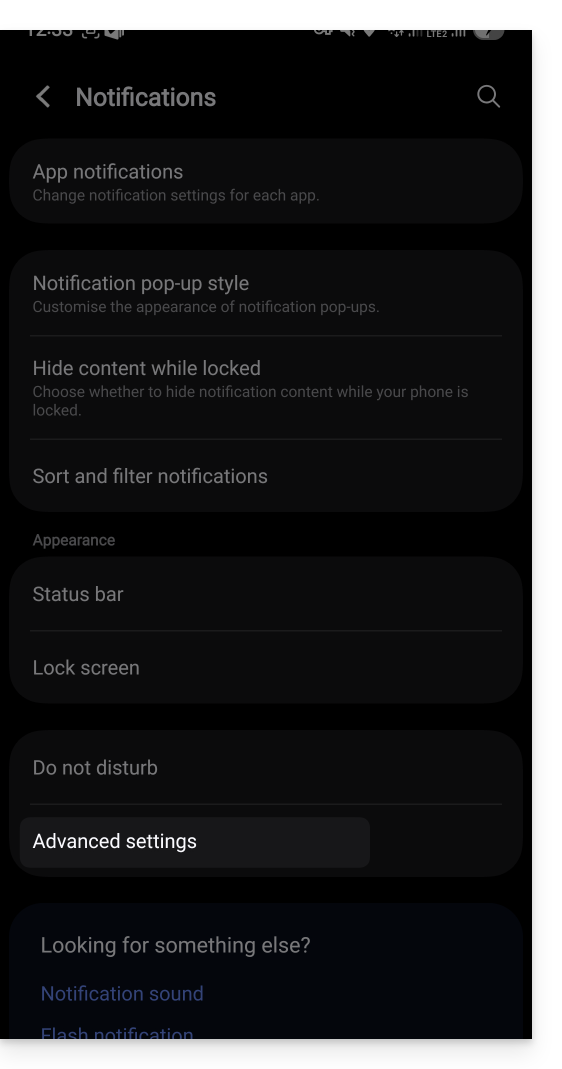
… the “Manage notification categories for each application” option: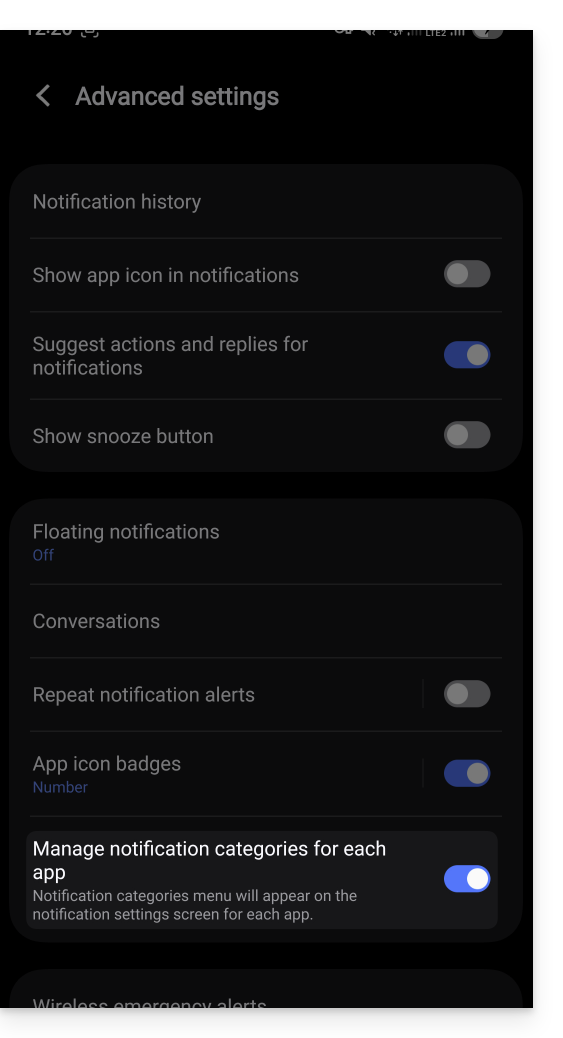
Then, go back to the Infomaniak app’s notification page and you can tap on “Notification categories”…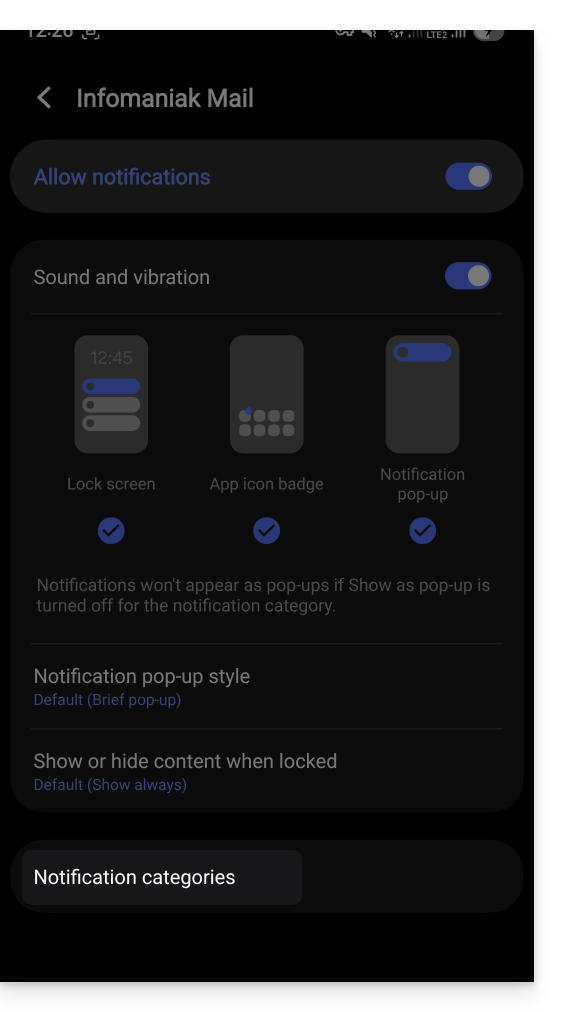
… to restore the option to choose specific notifications per email address: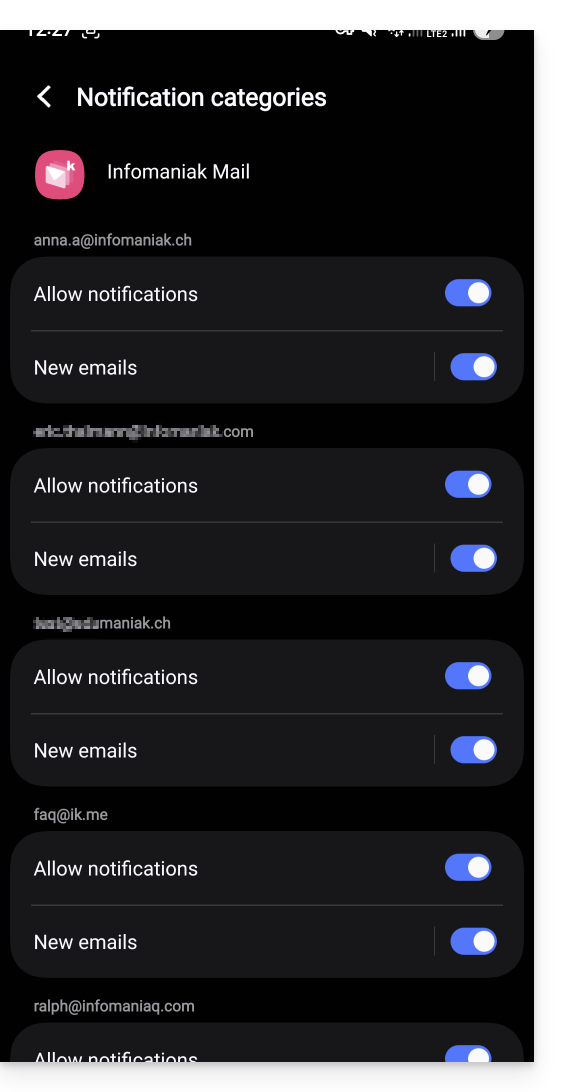
Receive all notifications
If you have enabled notifications for the app on your mobile device, you will receive a notification for each new message that arrives.
Troubleshooting…
If you see a new message arriving in your inbox, but it hasn't triggered any notifications on your device, there may be several reasons.
- Start by opening the application to make sure it's working, and update it if necessary.
- Open another application or turn off the device screen (if the Infomaniak Mail application is open, in the foreground, and the screen is on, the device may not send any notifications).
- Send a new test message to your email address to trigger a notification.
- Is the test message in your inbox? Indeed, a message that goes to spam or another folder may not trigger any notifications.
… on Android
- Have you waited several tens of minutes? Indeed, quick notifications (like push notifications) require going through a Google service to function, but some devices that do not use Google services (like Fairphone) may experience notifications arriving at much longer intervals.
Link to this FAQ: https://faq.infomaniak.com/1364
Has this FAQ been helpful?
This guide explains how to remove an user's access to an email address within the Infomaniak ecosystem, from within a Mail service. This means that the user will only be able to access the email address using the Mail Infomaniak web app (online service ksuite.infomaniak.com/mail) and/or the Infomaniak Mail mobile app (application for iOS/Android smartphones or tablets).
Other methods for managing access (e.g., using a password) are described in the main guide; also, refer to this other guide if necessary.Block an entire Mail service for all users.
Prerequisites
- You must have at least the right to manage the Mail Service in question (or be an Administrator / Legal Representative within the Organization).
Managing and removing a user from the Mail Service
The current mail access management model allows each user within an Organization to connect independently and securely to the same mail address, without sharing a global password.
If a user should no longer have access to a mail address and its content, simply remove it from the interface:
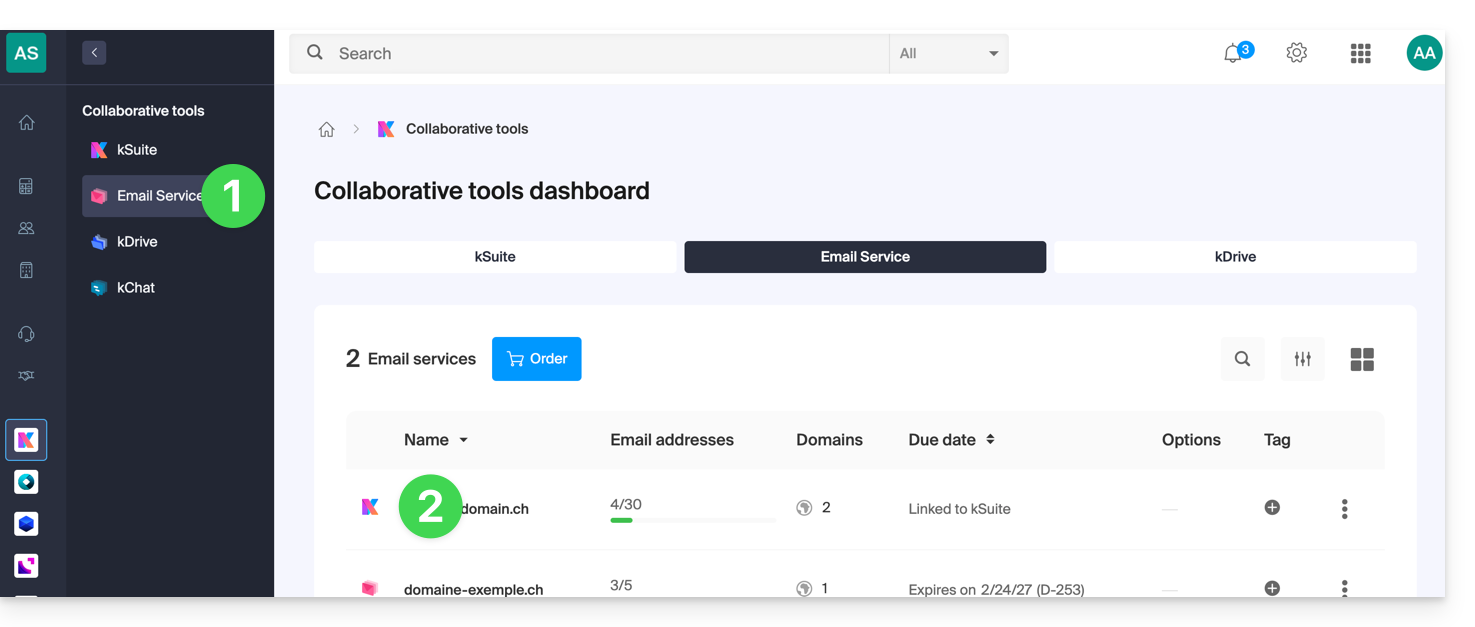
- Click here to access the management of your Mail Service in the Infomaniak Manager (need help?).
- Click directly on the name assigned to the product in question:
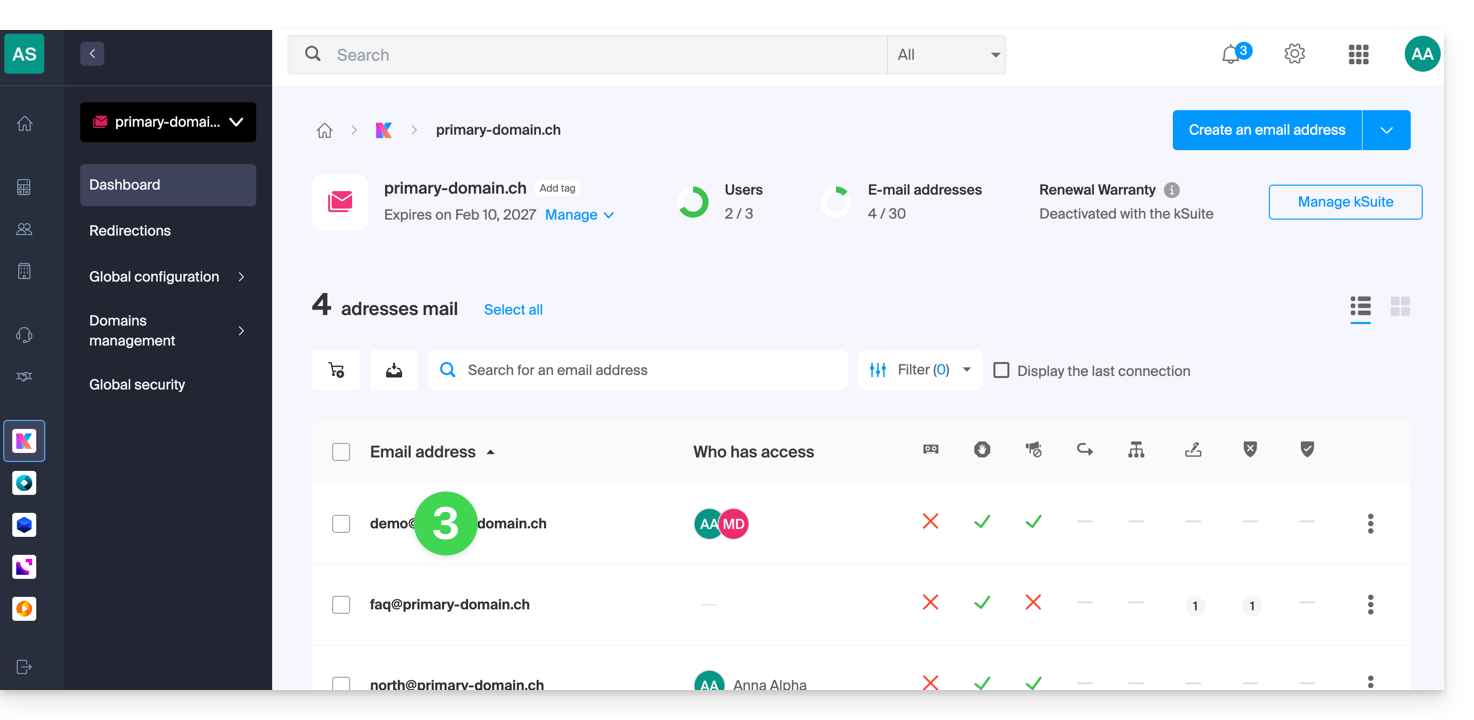
- Click on the email address in question in the table that appears:
- On the list of users who currently have access to the address in question, click on the action menu ⋮ to the right of the user in question.
- Choose to remove their access to the email address:
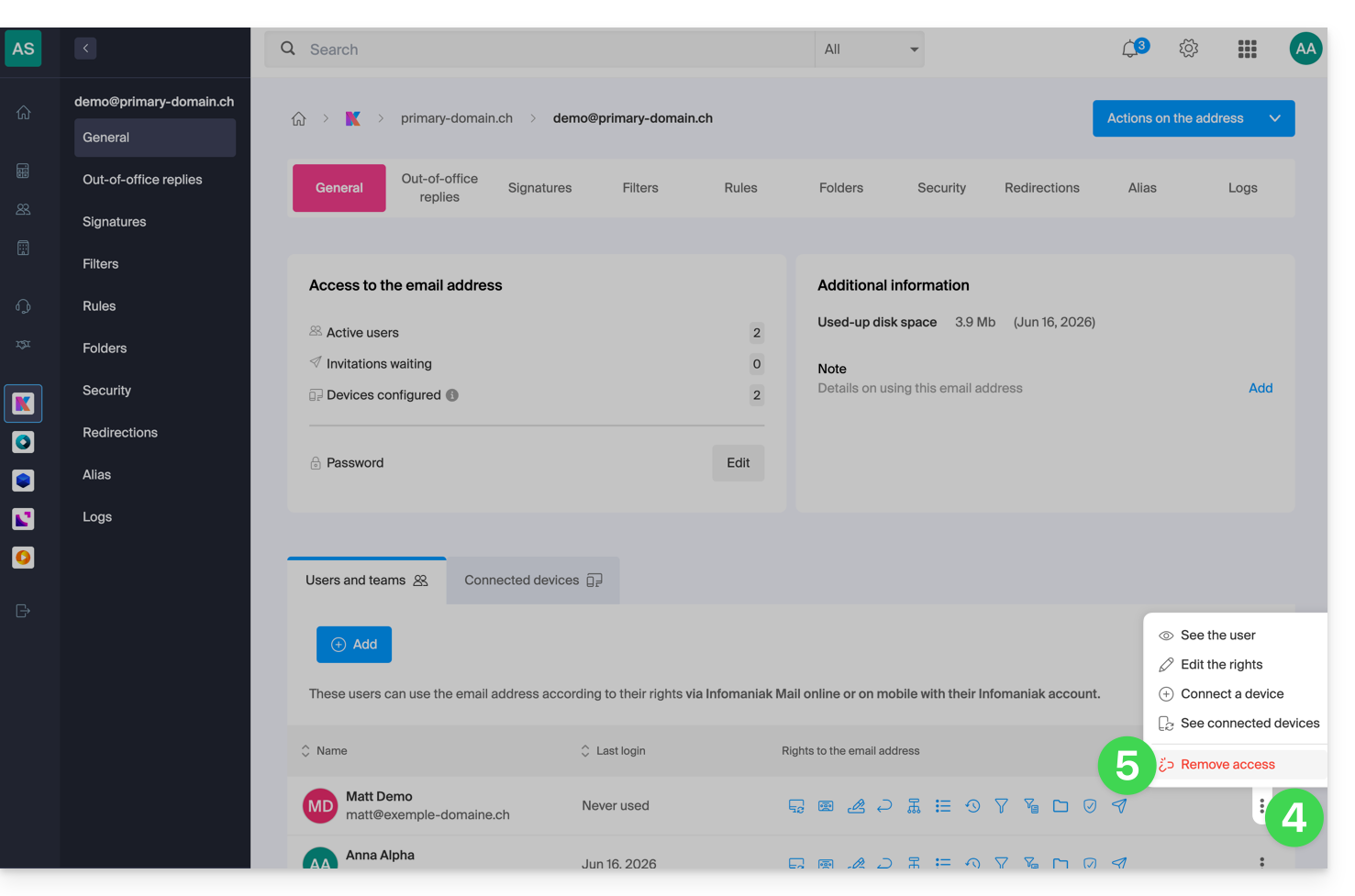
- Confirm the action: all access to the email address will be terminated, and it will no longer be possible to view it.
Link to this FAQ: https://faq.infomaniak.com/1371
Has this FAQ been helpful?
This guide explains how to manage other users who access a mail address from the Infomaniak Mail web app (online service ksuite.infomaniak.com/mail).
Other ways to manage access (e.g., from the Mail Service) are presented in the main guide.
Manage users with access to the email address
When an email address is created within a Mail Service, you can, among other things:
- add yourself so that you can view it on Infomaniak,
- add another user from the Mail service or from the Mail web app so that they can view it on Infomaniak.
To easily manage these different access methods later, access your Infomaniak email:
- Click here to access the Infomaniak Mail web app (online service ksuite.infomaniak.com/mail).
- Click on the Settings icon in the top right corner of the interface.
- Check or select the relevant email address from the drop-down menu in the left-hand menu.
- Click on Shared with:
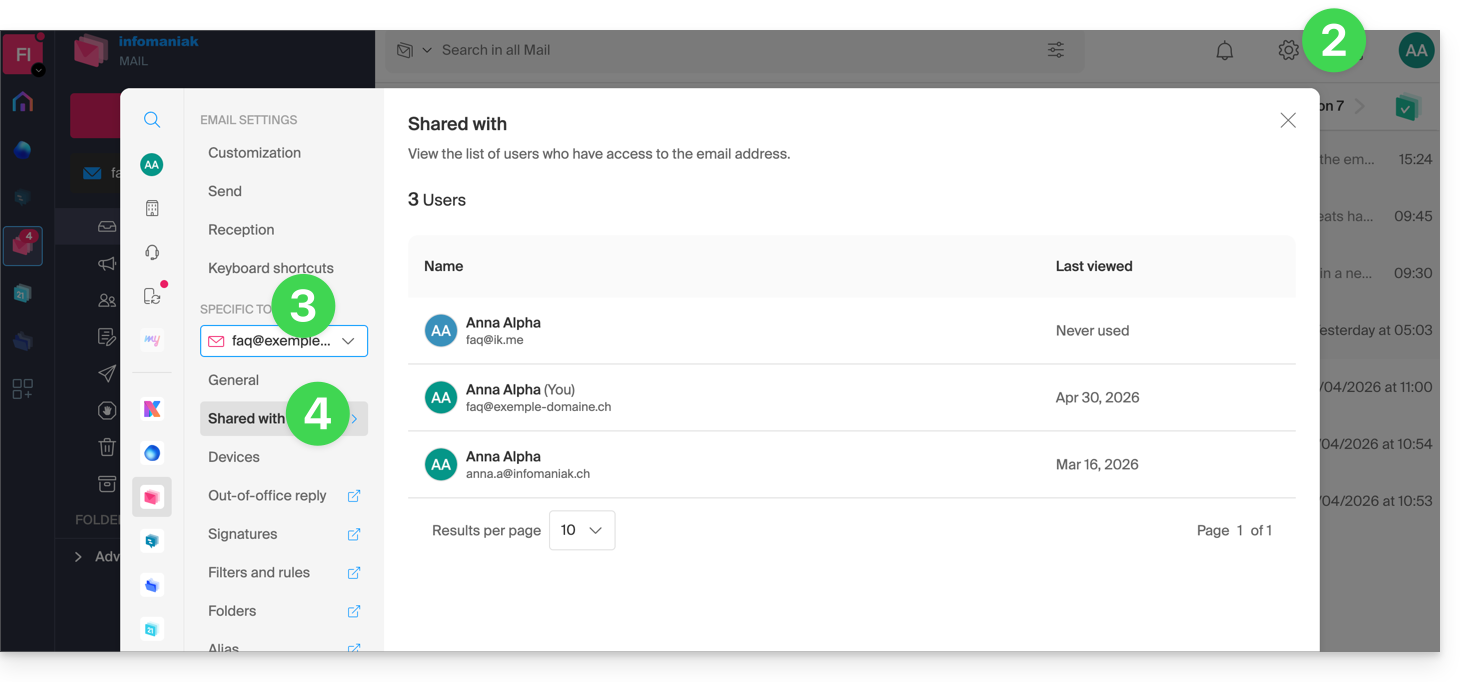
- Here, the list is purely informative because the email address in question is managed within another Organization – no action is possible.
Get information, add a user, or remove them…
In the case of a mail address managed by you (or for which you have obtained sufficient rights), more options are available to you:
- The Manage button allows you to go directly to the user management section for the relevant Mail Service.
- Click on the action menu ⋮ to the right of the user to access quick actions:
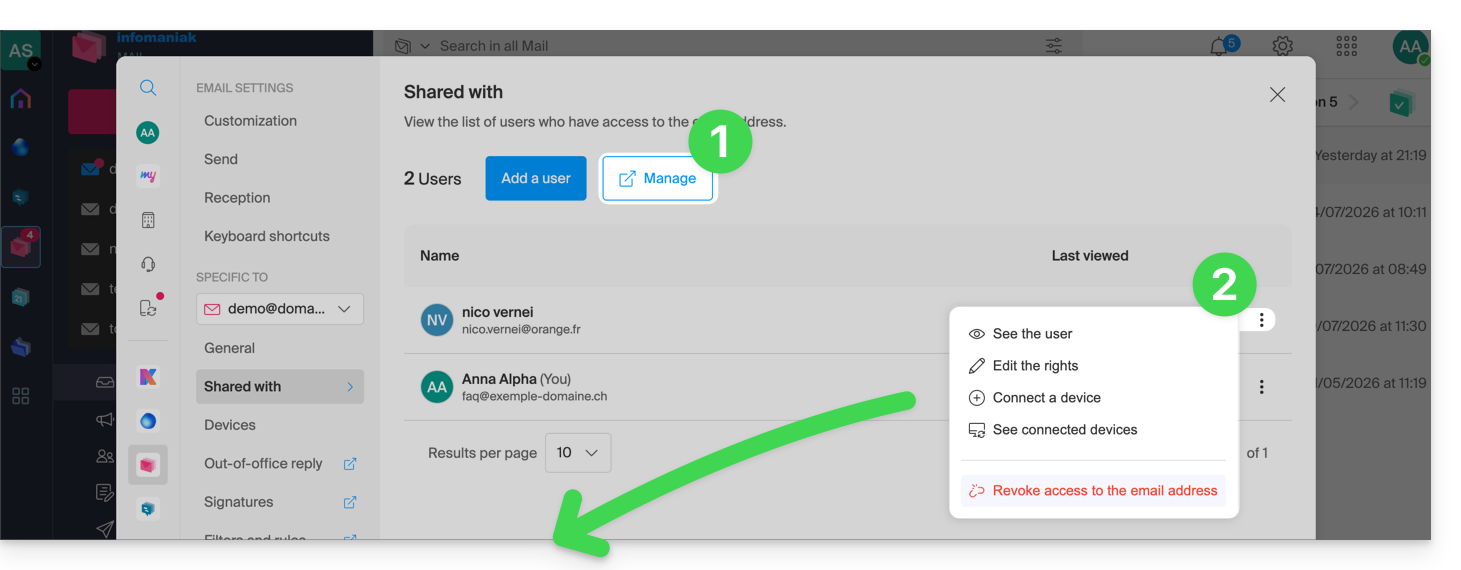
- Get details about the user.
- Edit the user's permissions.
- Connect (or allow the user to connect) a device (by creating a password).
- View the connected devices (which have a previously created password).
- Revoke access for the user in question.
From the same page, using the Add a user button, you can grant a user access to view and use the email address. See this other guide.
Shortcut
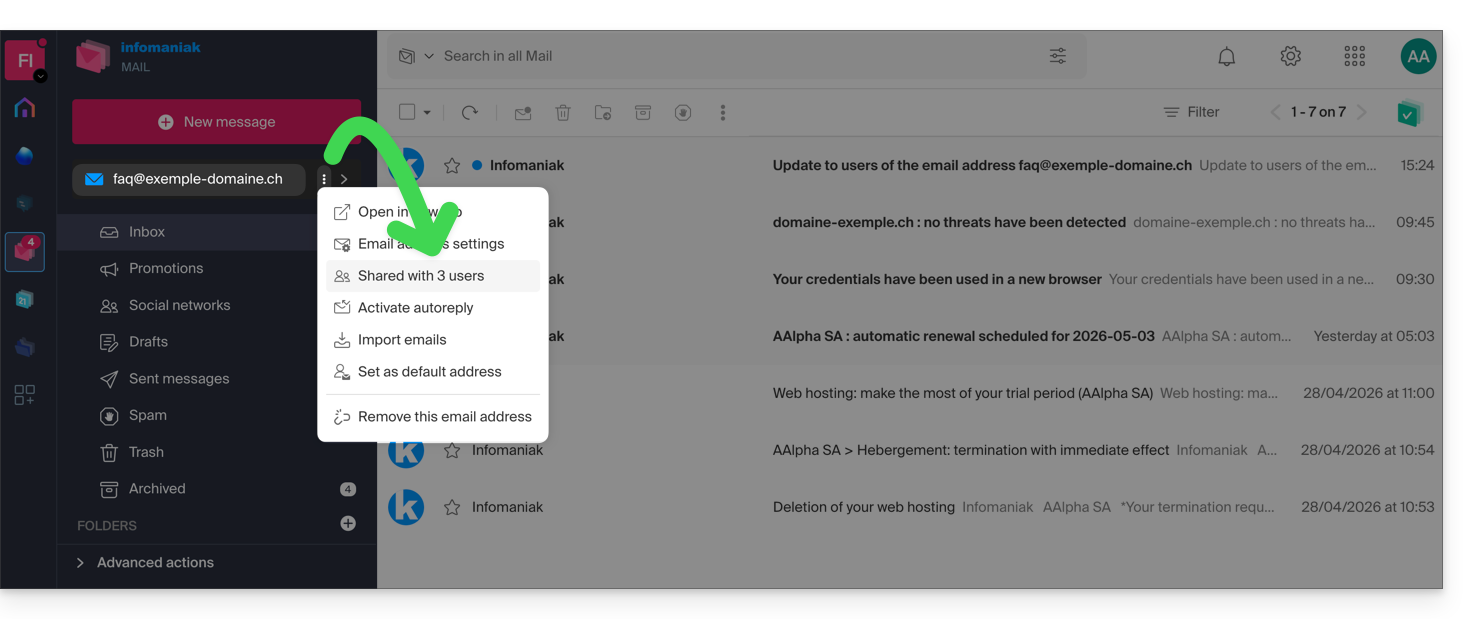
You can also access the settings directly from the home page:
- Click on the action menu ⋮ to the right of your email address.
- The number of shares is displayed; if you click on the item, you will be taken to the management page described above:
Link to this FAQ: https://faq.infomaniak.com/1390
Has this FAQ been helpful?
This guide explains how to insert rich text and images into your messages on the Infomaniak Mail web app (online service ksuite.infomaniak.com/mail).
Introduction
- To define some of the settings below by default for all your new messages, please refer to this other guide.
- Please refer to this other guide if you are looking for information on adding and inserting images.
Customize and format an email
To modify the writing style of your emails in Mail Infomaniak:
- Click here to access the Infomaniak Web Mail app (online service ksuite.infomaniak.com/mail).
- Compose a new message and select a portion of it.
- Click the
Aicon at the bottom right of the editing window to display the toolbar. - Format your text with the style options (italic / bold / underlined), size, font, alignment, colors, etc., or revert to plain text:

- You can also edit the source code (HTML) of your message:

Link to this FAQ: https://faq.infomaniak.com/1412
Has this FAQ been helpful?
This guide explains how to schedule an email to be sent at a specific date and time in the future, using the Infomaniak Mail web app (online service ksuite.infomaniak.com/mail), even if you are no longer connected at that time.
Introduction
- Scheduling is also possible on the Infomaniak Mail mobile app (application for iOS/Android smartphones or tablets).
- kSuite Free / my kSuite / Mail Starter service does not allow for customization of the schedule when scheduling.
Scheduled sending: plan a message
To send an email at a later date/time:
- Click here to access the Infomaniak Mail web app (online service ksuite.infomaniak.com/mail).
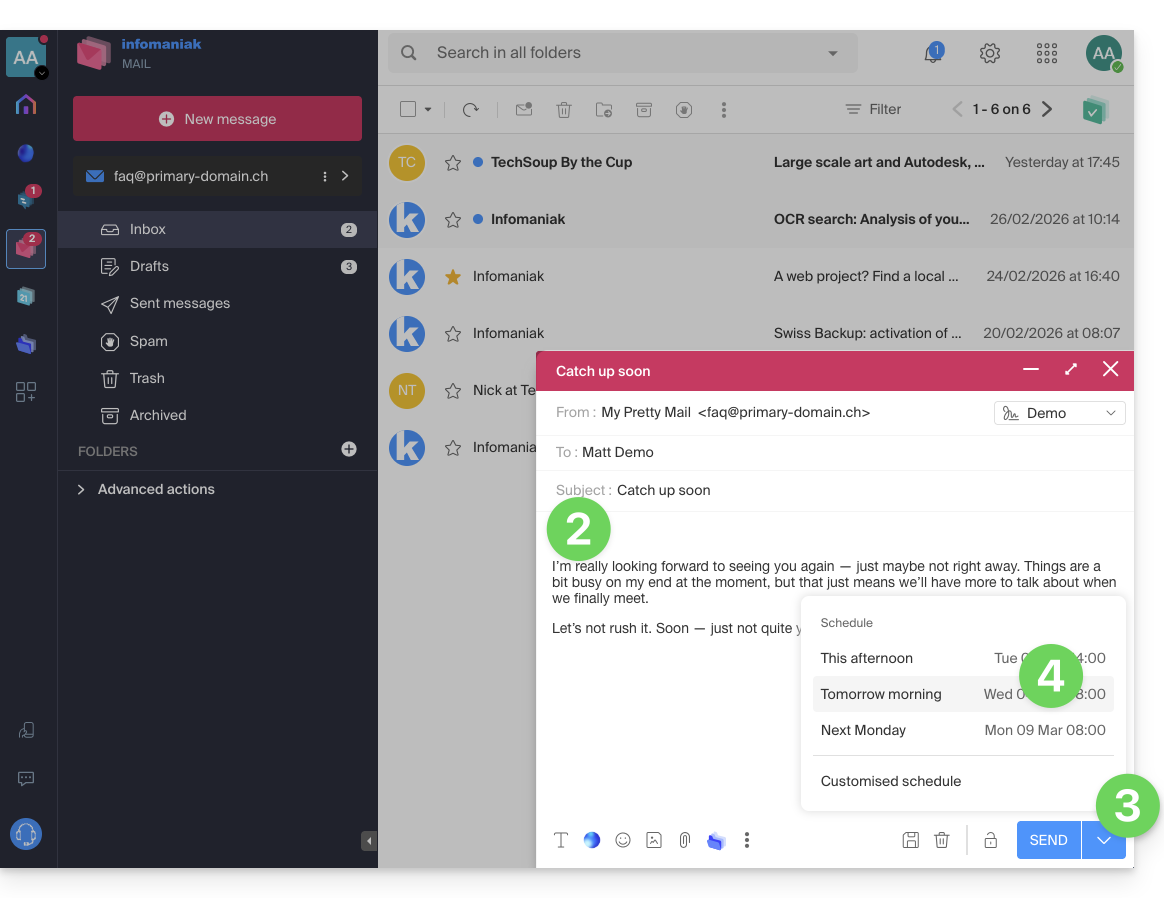
- Compose a new message as usual.
- Click on the chevron to the right of the Send button to access additional actions.
- Choose the time when the message should be sent, from the suggestions or by customizing the schedule (see introduction above):
- You can then find your scheduled messages in a dedicated new section:
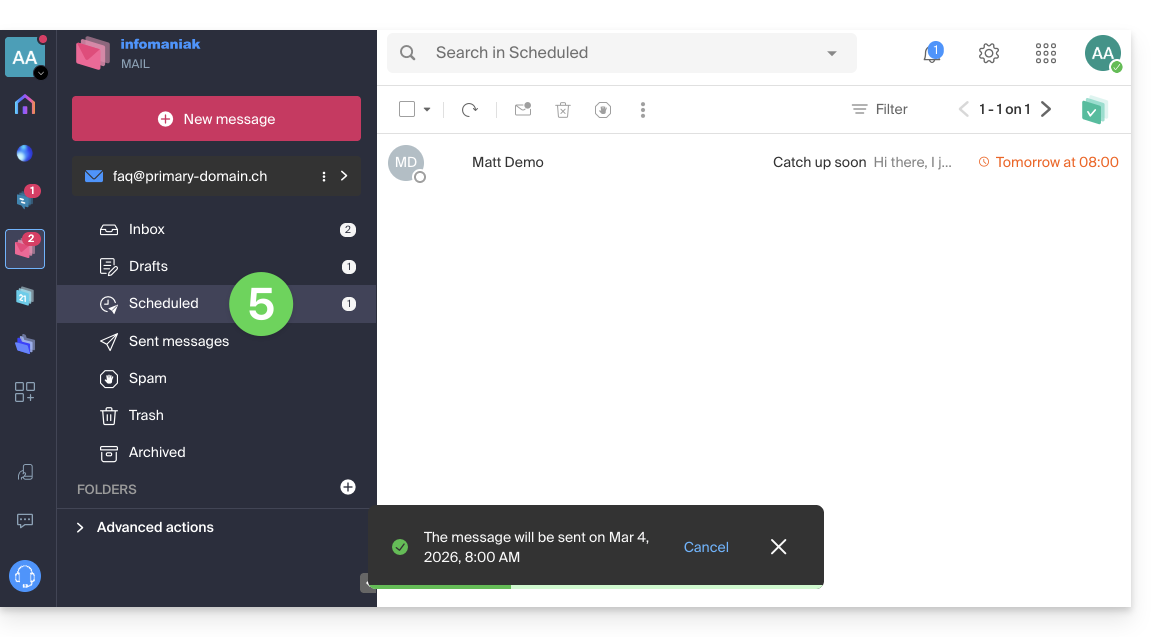
Reschedule or cancel a scheduled sending
To change the sending time of a message that has already been scheduled to be sent later:
- Click here to access the Infomaniak Mail web app (online service ksuite.infomaniak.com/mail).
- Click on Scheduled sends in the left-hand menu.
- Open the message for which you want to change the future sending time:
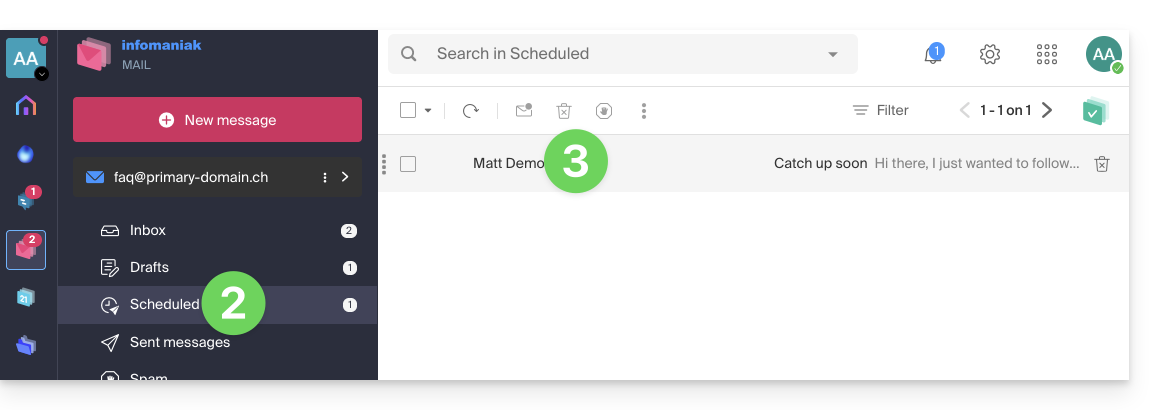
- Click to Reschedule the sending to the time you specify using the drop-down menu…
- OR click the ✎ Edit draft button:
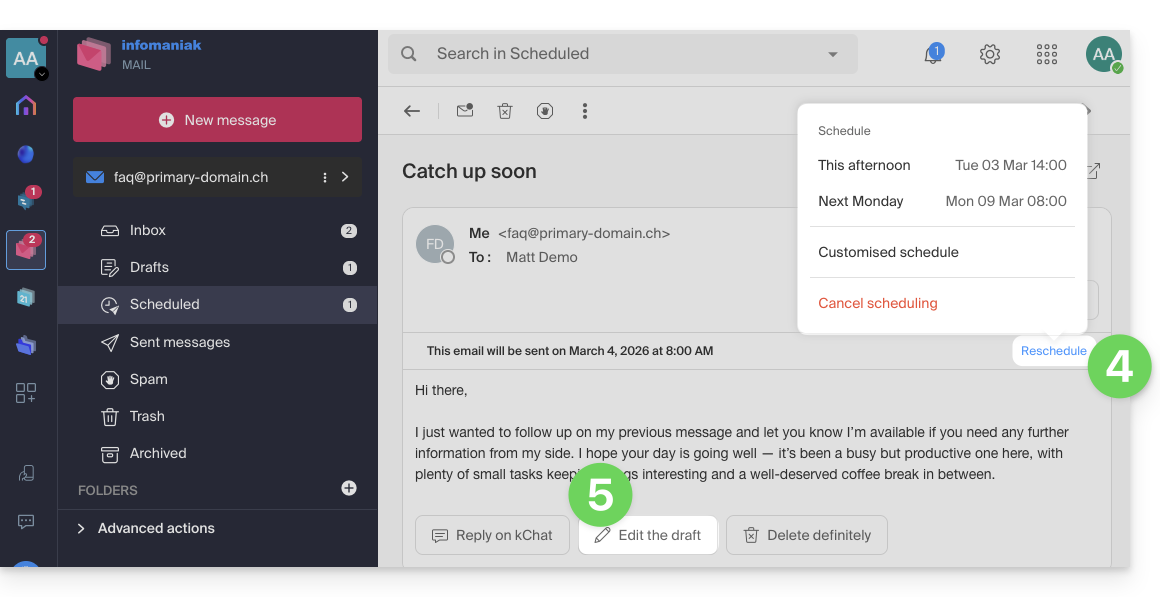
- Confirm that the message will be moved to Drafts and that the scheduled sending will therefore be canceled.
- Start again at step 3 of the first chapter above to reschedule sending for a future date.
Completely delete a scheduled message
To permanently delete a message with no possibility of recovery:
- Click here to access the Infomaniak Mail web app (online service ksuite.infomaniak.com/mail).
- Click on Scheduled emails in the left-hand menu.
- Hover over the message to delete and click on the trash can:
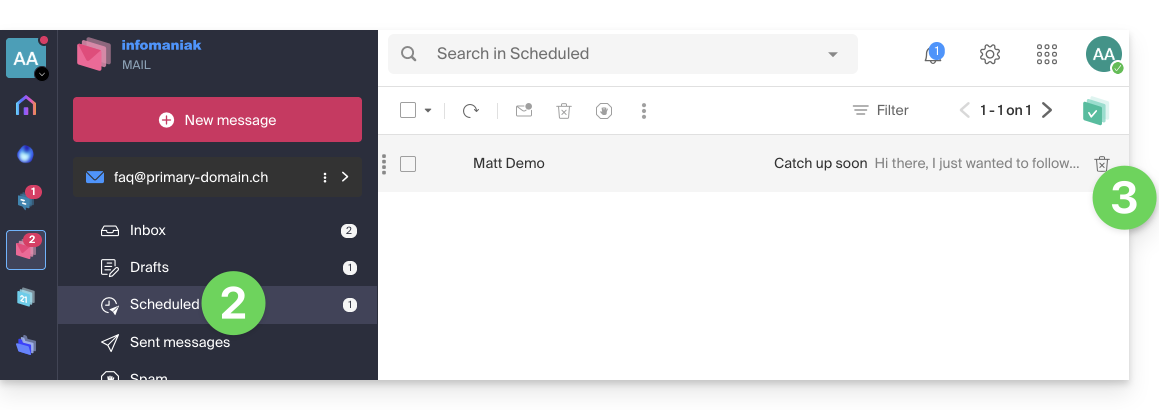
- Confirm the deletion to permanently destroy the draft.
Link to this FAQ: https://faq.infomaniak.com/1449
Has this FAQ been helpful?
This guide explains how, from a Mail service, to allow a person to access an email address within the Infomaniak ecosystem, i.e., by using only the Infomaniak Mail web app (online service ksuite.infomaniak.com/mail) and/or the Infomaniak Mail mobile app (application for iOS/Android smartphones or tablets), without creating a specific password for the address.
Other access and management options are presented in the main guide.
Prerequisites
- Order a Mail Service from Infomaniak.
- Create one or more addresses on this Mail service.
- Have at least the right to manage the Mail service in question (or be Administrator / Legal Representative within the Organization).
Invite a user to use an email address from the Mail service
To allow an existing user to access the email address you want to share:
- Click here to access the management of your Mail Service in the Infomaniak Manager (need help?).
- Click directly on the name assigned to the product in question.
- Click on the email address in the table that appears:
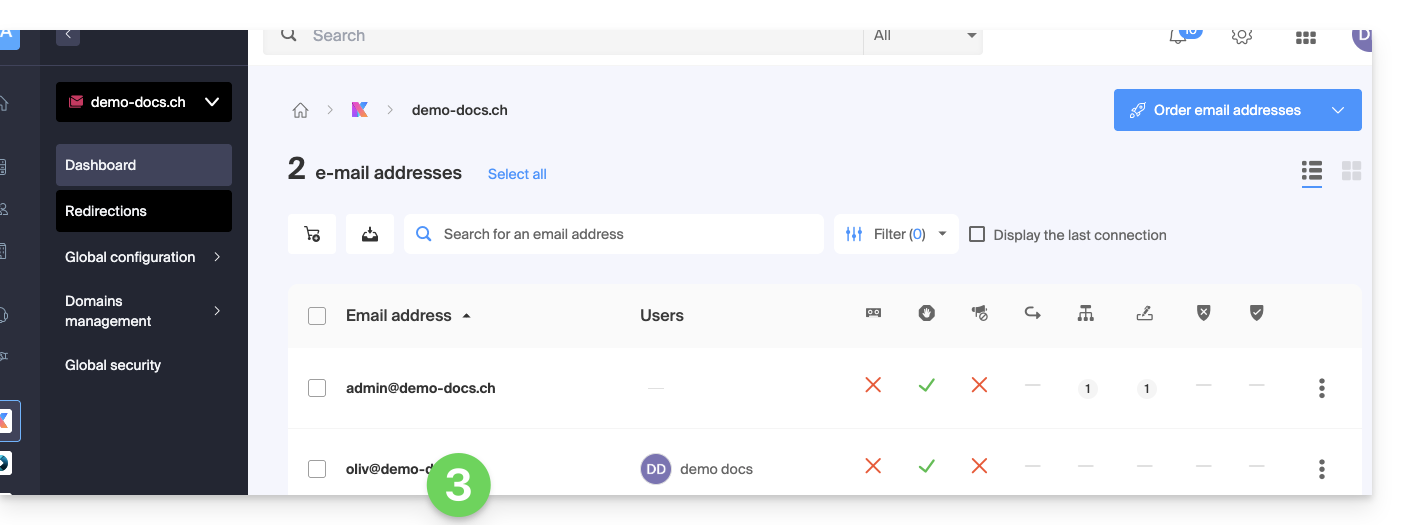
- Click on Add above the table of users who currently have access to the email address in Mail:
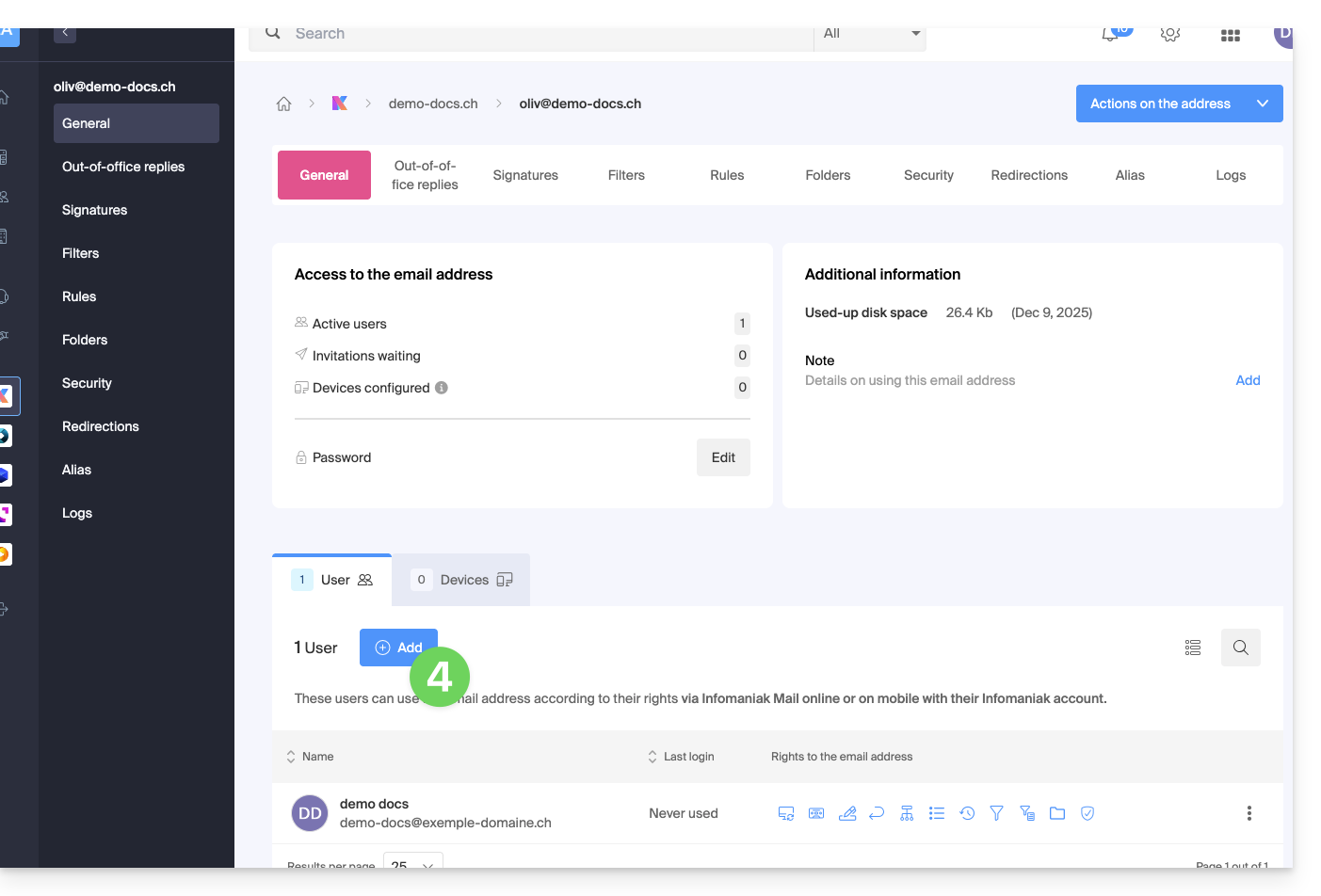
- Enter the password to log in to your Infomaniak account if prompted.
- Choose (a) one of the existing users within your Organization or (b) an external user:
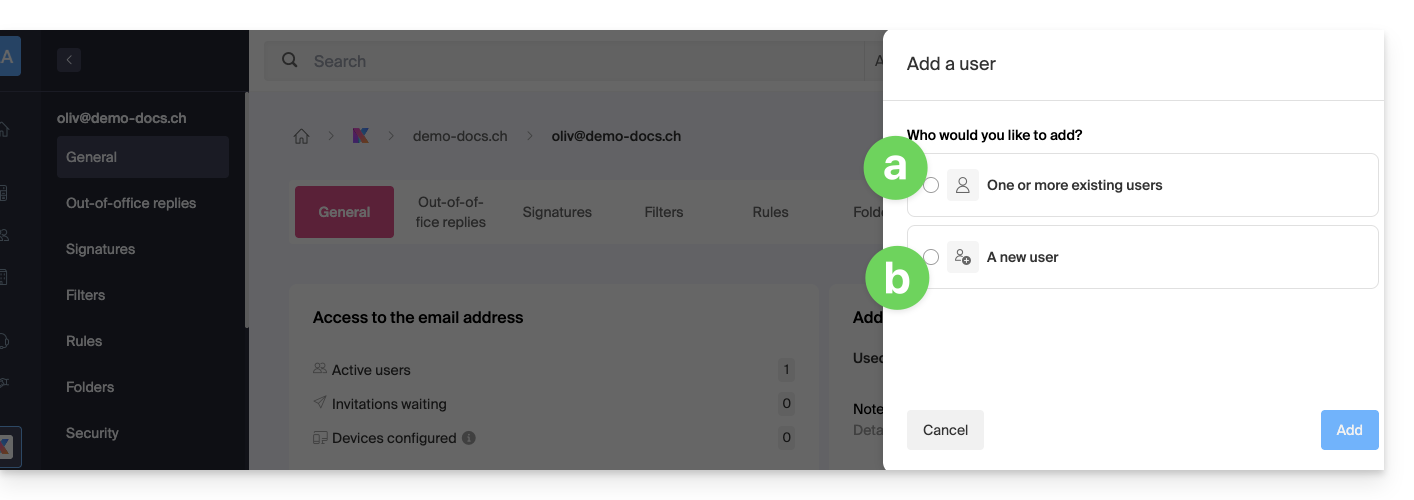
Option [a]: Existing user in the Organization
When the third party who needs access to the email is already part of the Organization, it's very simple:
- The email address in question will automatically be visible and accessible to the selected user on the Infomaniak Mail web app (online service ksuite.infomaniak.com/mail) with the specified permissions.
- Click the button to Add the user:
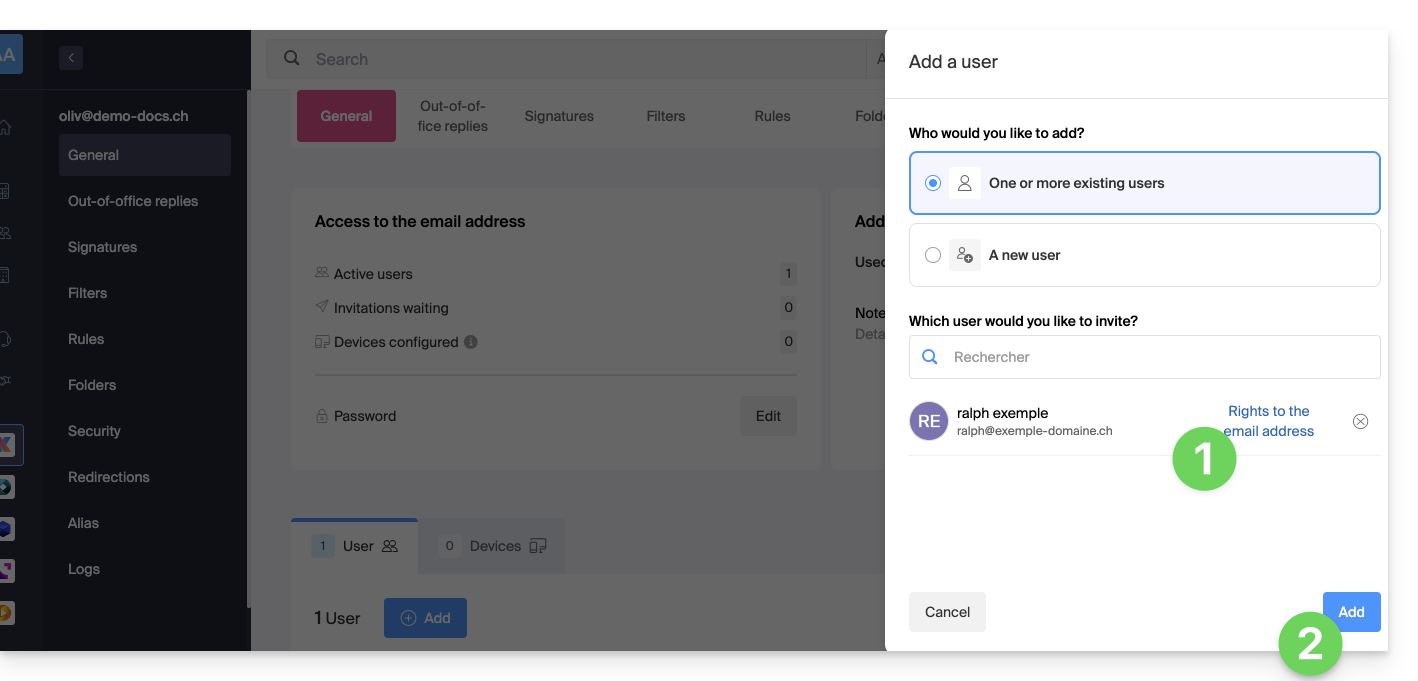
- After adding the user, you can still restrict their access by clicking on the icons corresponding to the permissions…
- …or even remove their access to the email address:
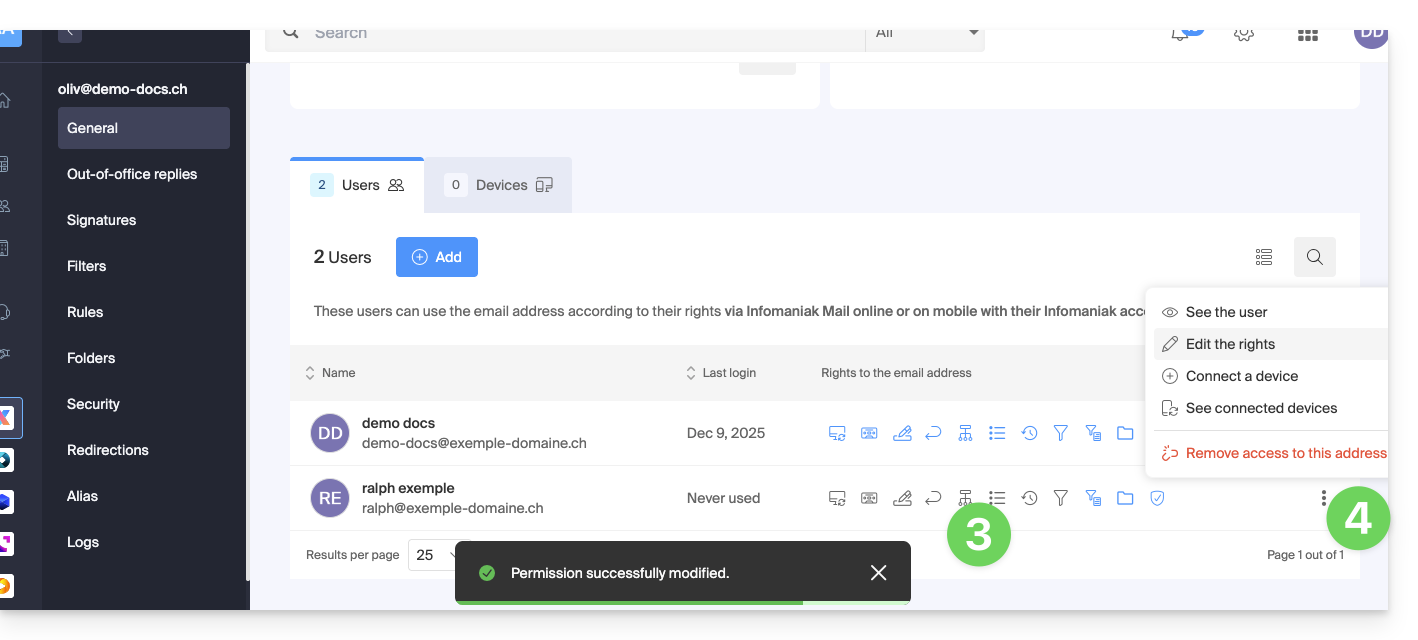
The user in question does indeed have access to the email address in question: 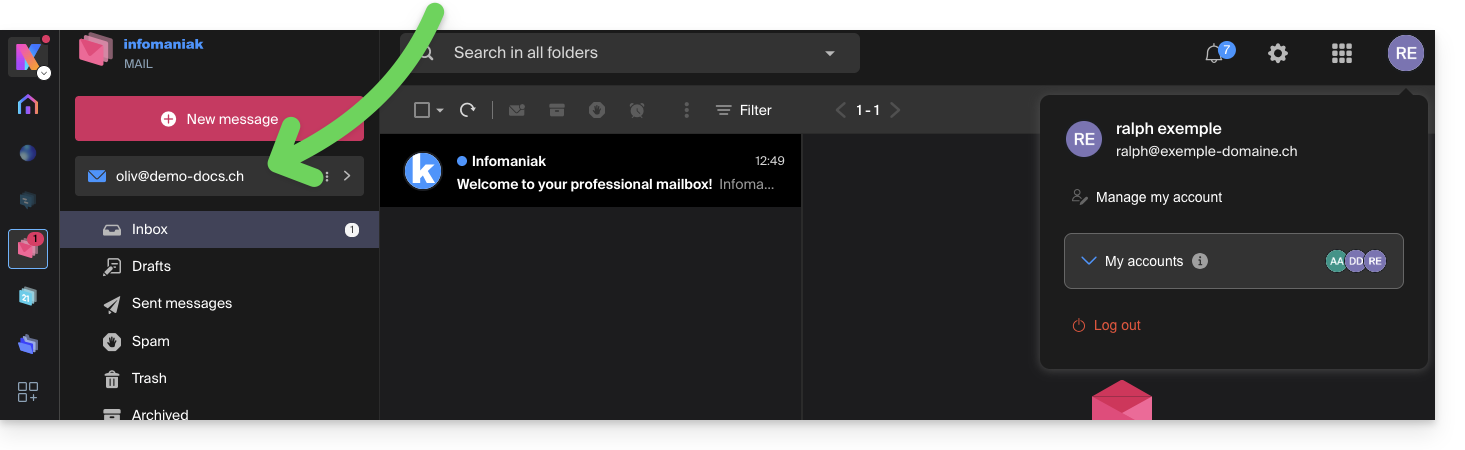
Option [b]: User external to the Organization
If the third party is not at all affiliated with the Organization, either because they are not yet familiar with Infomaniak, or because they have their own Organization:
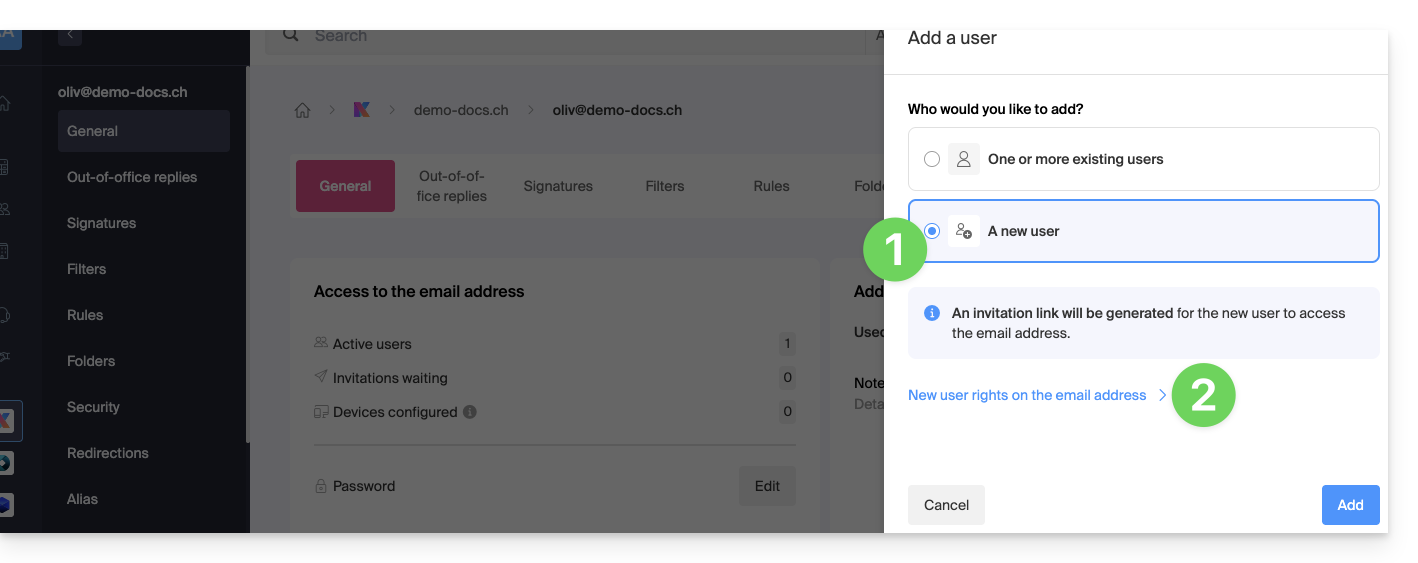
- Click on the radio button to select the new user option.
- Click to configure the user's permissions:
- If necessary, modify the permissions granted to the user for the email address in question.
- Save the changes:
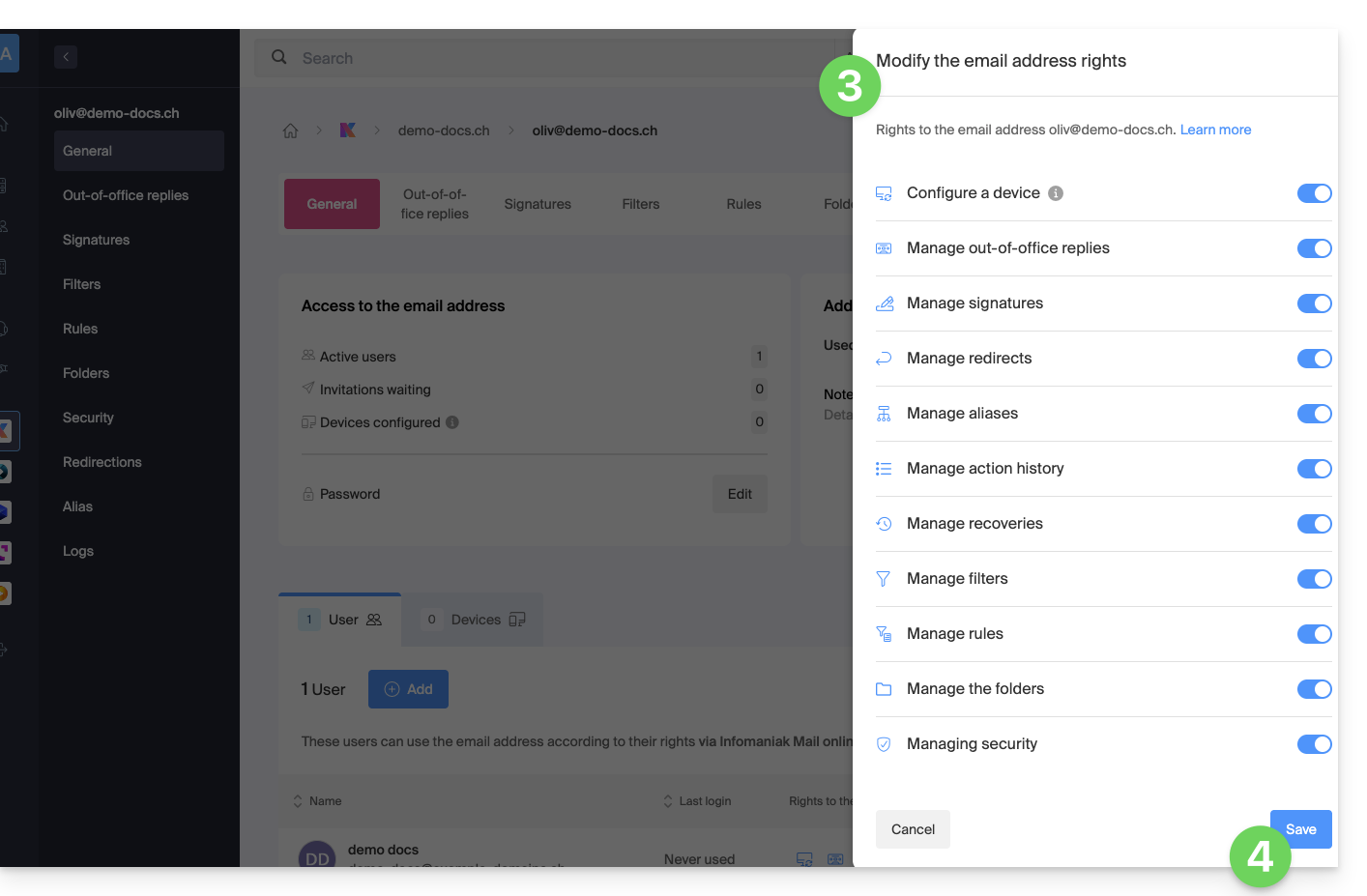
- Click the button to Add the user:
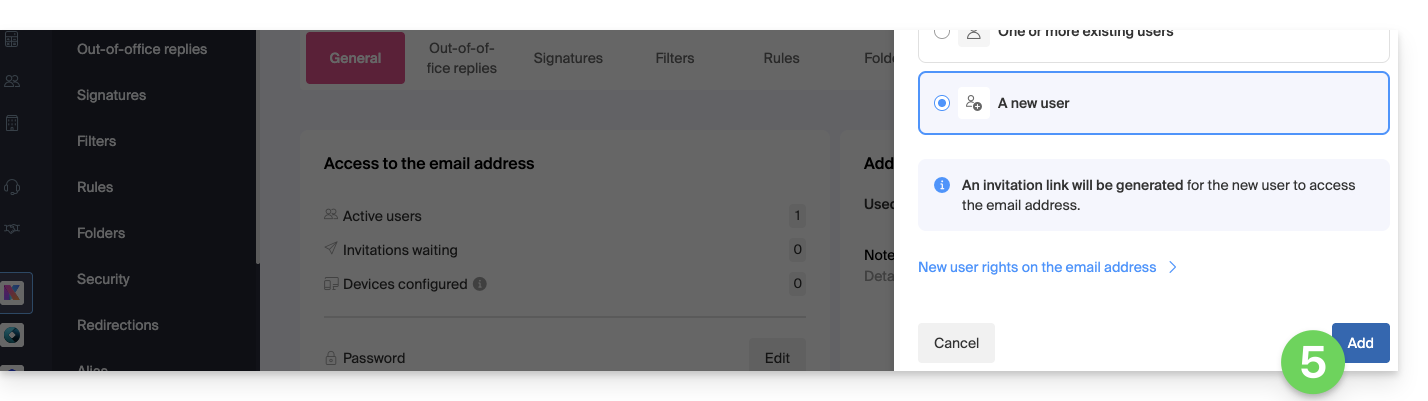
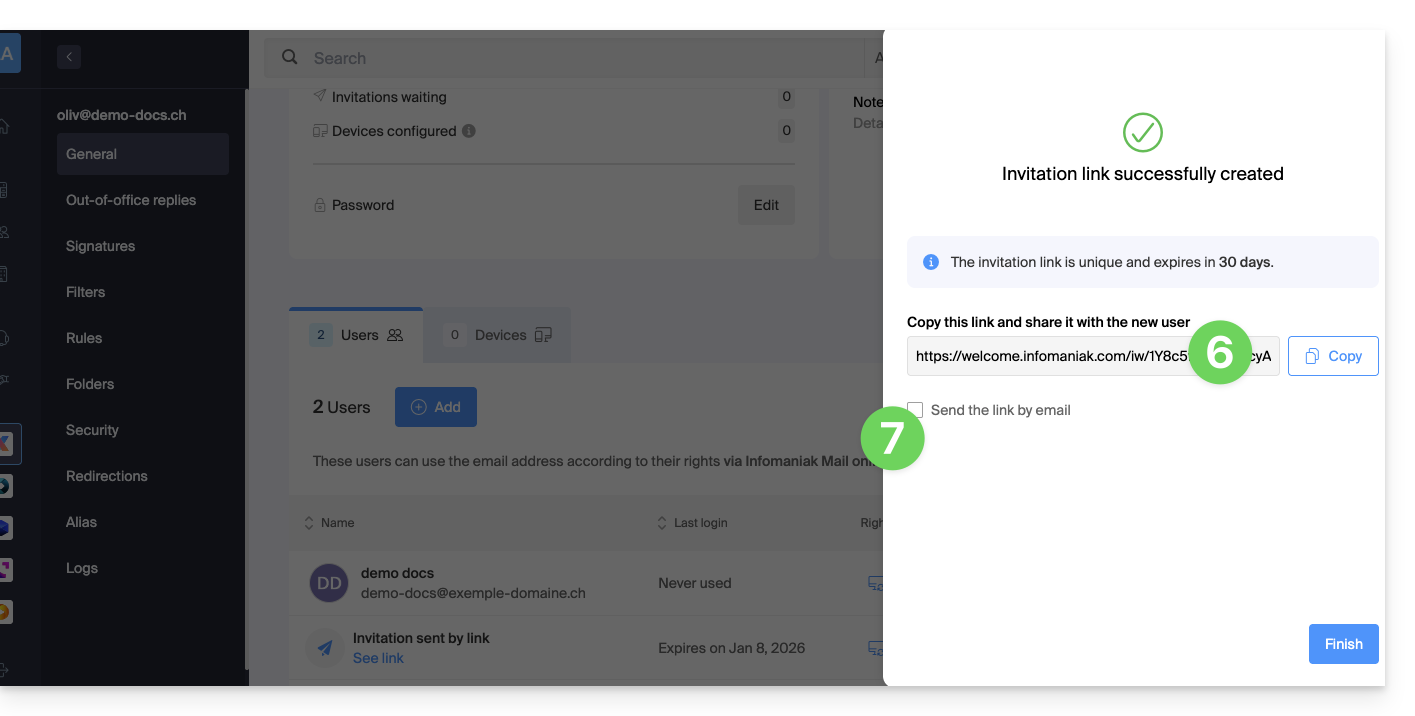
- The invitation is created (in the form of a URL, such as
https://welcome.infomaniak.com/iw/abcdef-12345..…), and the user simply needs to click on the link (see below) to add the email address to their Infomaniak Mail account. - It is possible to send the invitation by email:
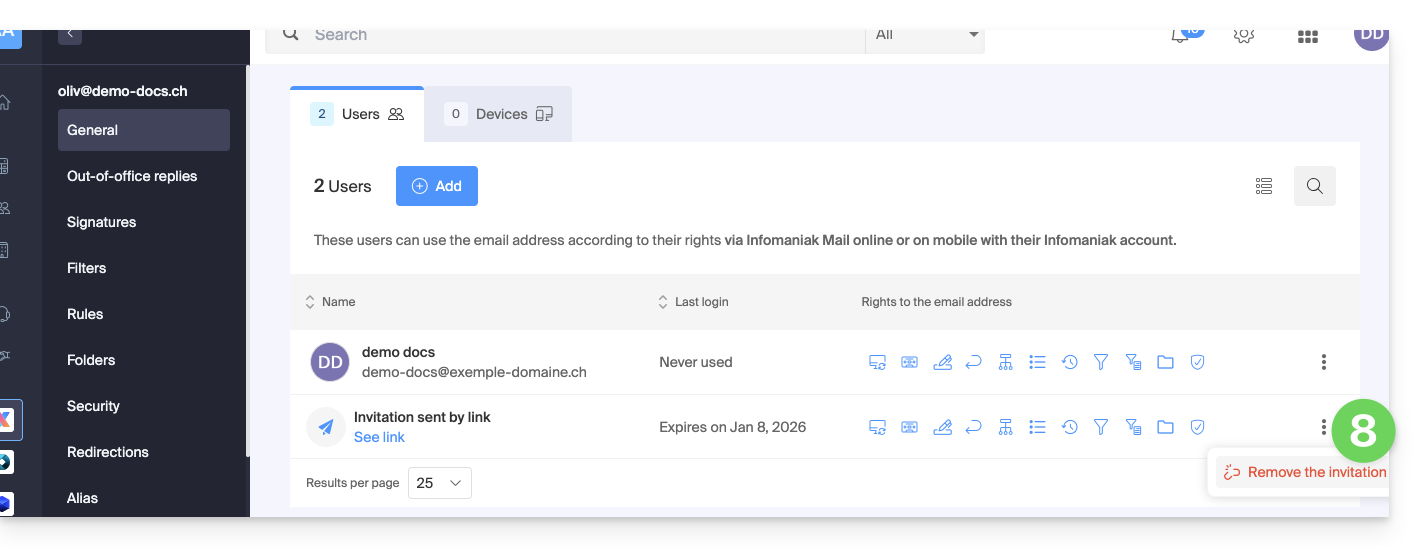
- The invitation is visible in the user tab of the email address, and it can be deleted at any time:
If the third party is already using the Infomaniak Web Mail app…
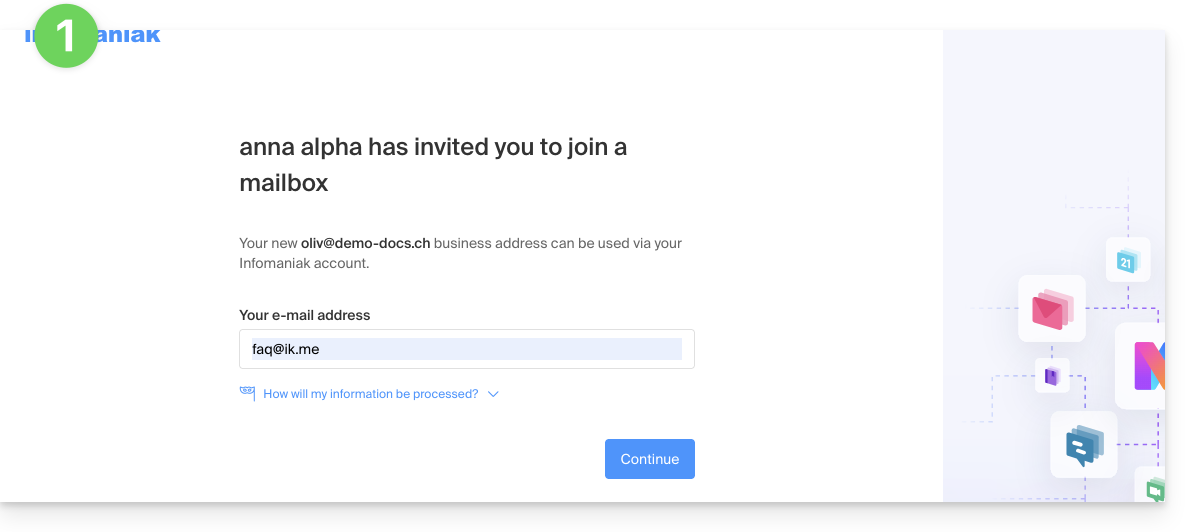
The user (third party) clicks on the invitation link while logged in to their Infomaniak account…
- … or if they log in to their account after clicking on the invitation link:
- If necessary, the user can still change accounts before associating the address if needed:
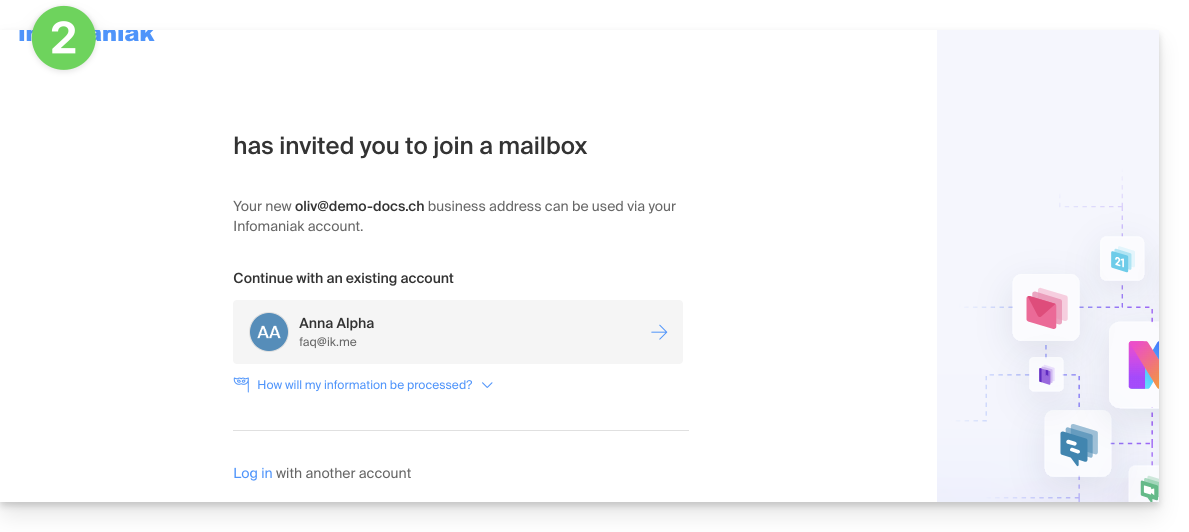
- The user in question can access the email address in question once they have chosen the organization:
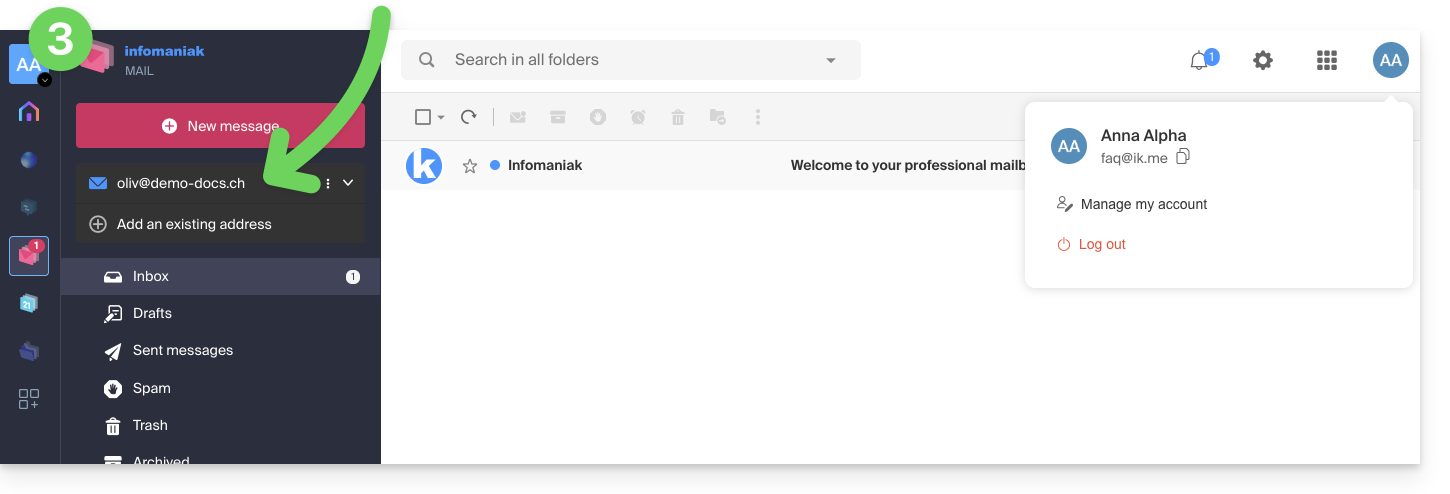
If the third party is not yet using Infomaniak…
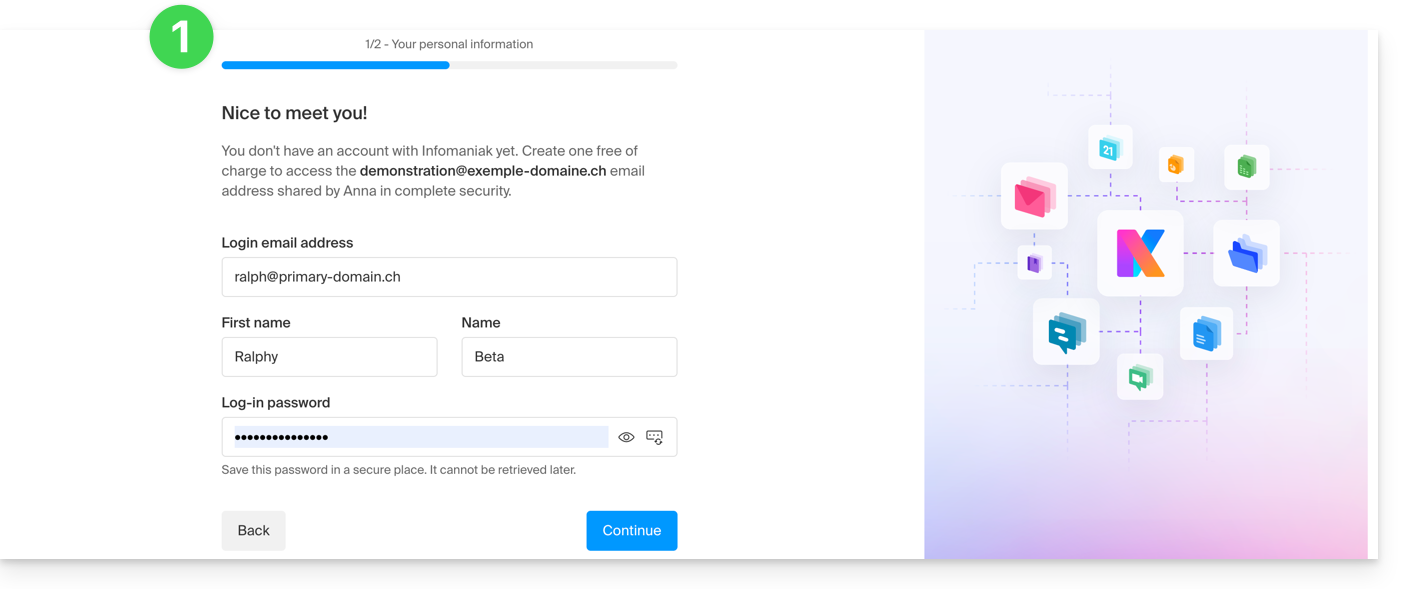
After clicking on the invitation link received and entering their email address, the third party will be prompted to create an Infomaniak account:
- She will need to enter her contact details and create a password to log in to her Infomaniak account:
- She will need to provide a phone number and accept the terms and conditions:
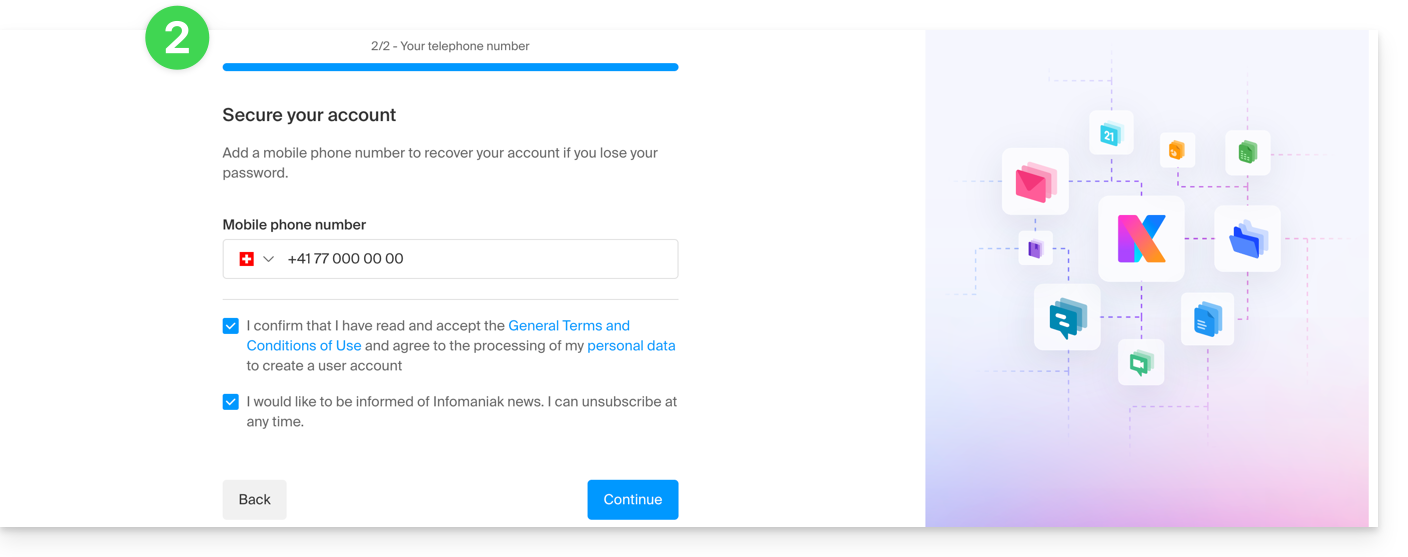
- She will need to add a two-factor authentication (2FA) method to secure access to her Infomaniak account:
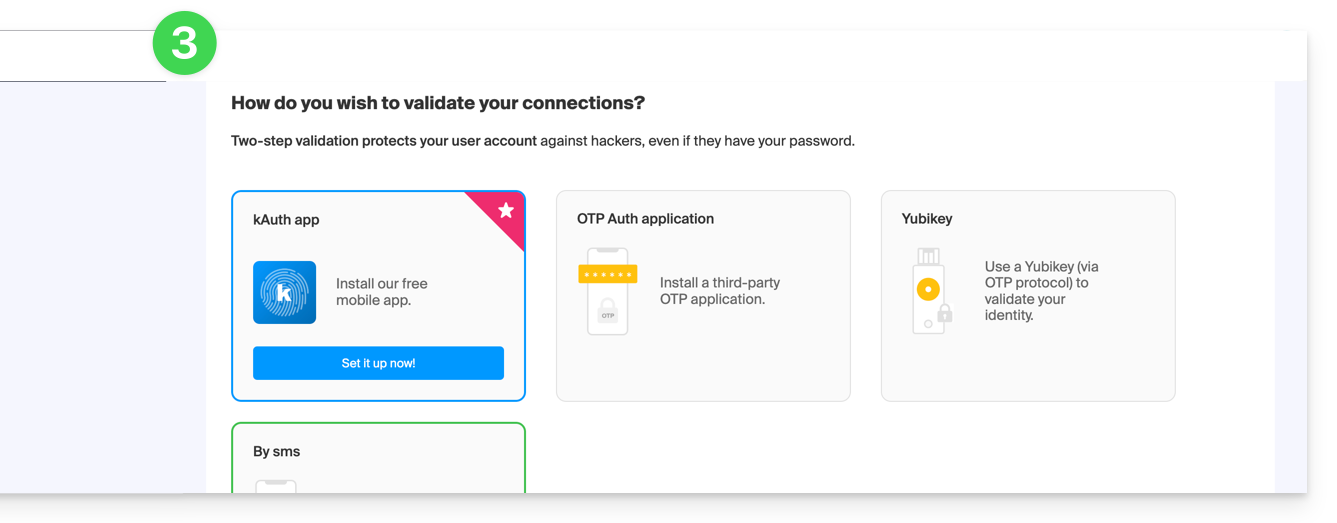
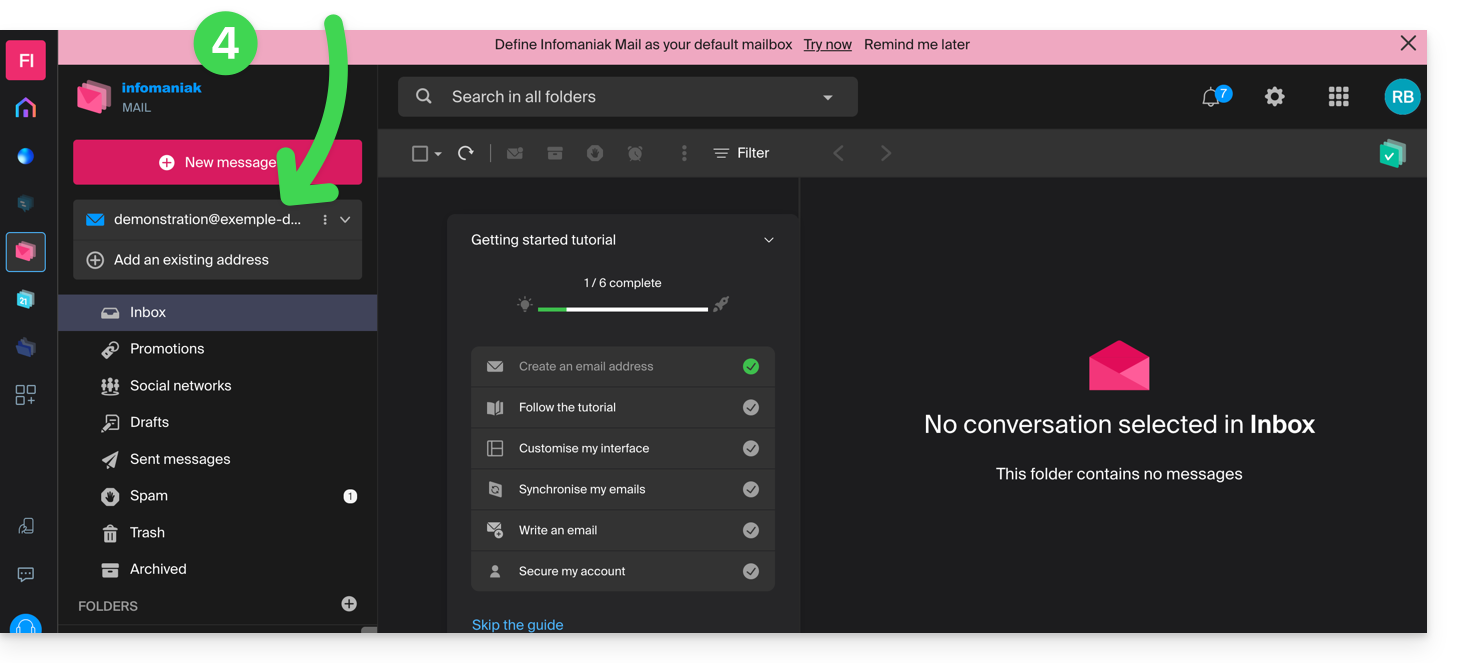
- Once the 2FA method has been added, that's it: the user is redirected to the Mail Infomaniak web app, which will display the email address to which the invitation link referred:
In case of a problem
If the Invite button is not visible or remains grayed out, check that:
- your user account has sufficient permissions to manage the product in question
- the email address in question does not yet exist as a login ID for an Infomaniak Organization
- the table below the button does not mention a user with an email address identical to the email address in question.
Example: you want to invite someone to view the address anna.a@domain.xyz, but the button is grayed out because a user anna.a@domain.xyz is listed in the table.
Solution: to be able to invite a new user to view the address in question (or if a message indicates that it is not possible to proceed further for security reasons), please refer to this other guide.
If the user cannot access the address
When a user is added, the email address is automatically added to their Mail Infomaniak apps: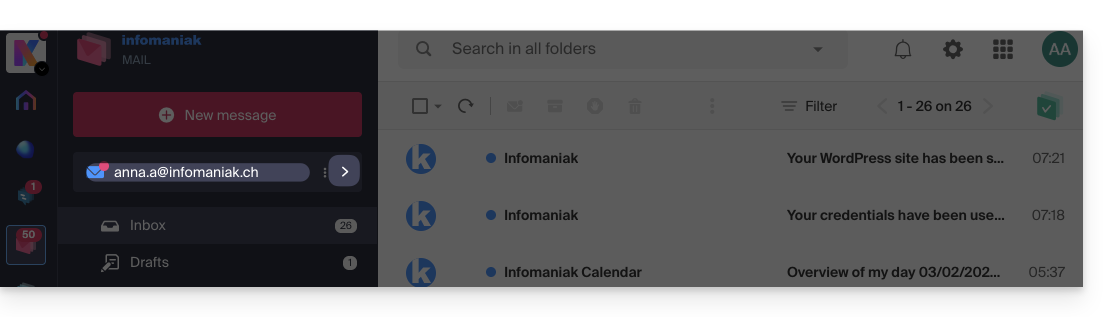
They can switch between their addresses at any time via the chevron located in the upper left corner of the screen: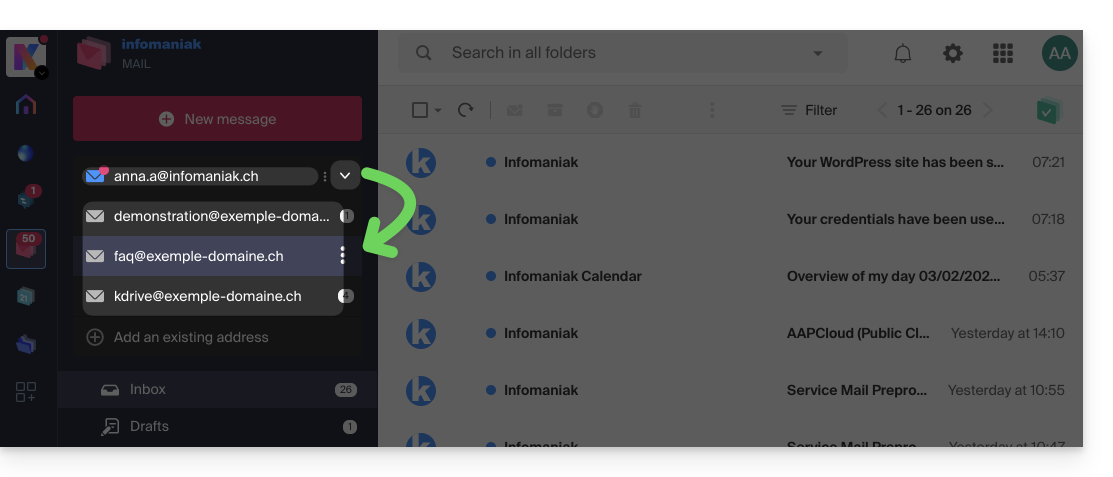
It can also switch between the various Organizations to which its Infomaniak account belongs, in order to access other addresses for other Mail Services (refer to this other guide).
If the address associated with the invitation does not appear, try refreshing the browser page (Command ⌘ + R on macOS and Ctrl + F5 on Windows).
Link to this FAQ: https://faq.infomaniak.com/1478
Has this FAQ been helpful?
This guide explains how to share a message received by email on Infomaniak's Mail apps using a specific link.
✘ UNAVAILABLE with
my kSuite (ik.me, etik.com, ikmail.com)
Introduction
- It is possible to share any email, regardless of its location (sent messages, archived messages, etc.).
- The sharing link is valid for 30 days.
- Attachments will be visible.
- It is not necessary to have an Infomaniak account to view the message.
- Returning to the same message to copy the sharing link again will generate a different link, valid for 30 days.
- Note: it is not possible to revoke a sharing link.
Share the content of a message…
… from the Infomaniak Web Mail app
To obtain the sharing link for an email from the Infomaniak Mail interface:
- Click here to access the Infomaniak Web Mail app (online service ksuite.infomaniak.com/mail).
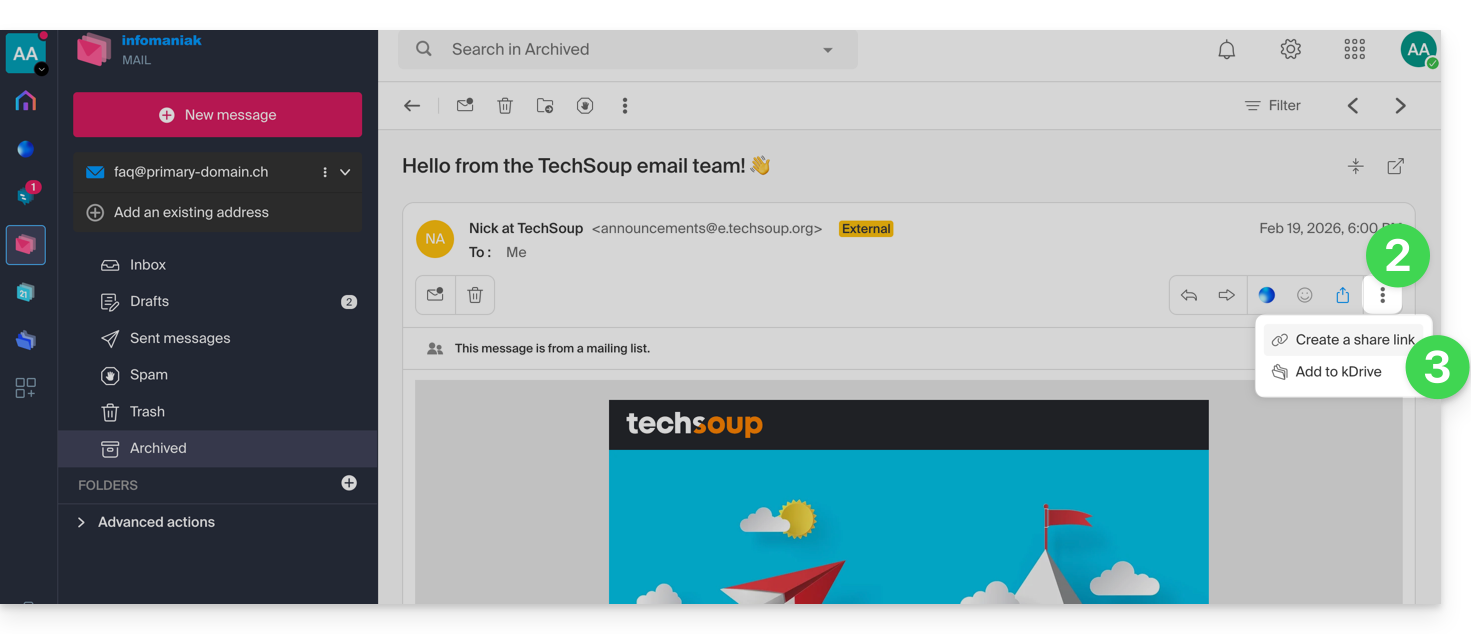
- Open the message to share and click on the action menu ⋮ on the right.
- From the menu that appears, select Copy sharing link:
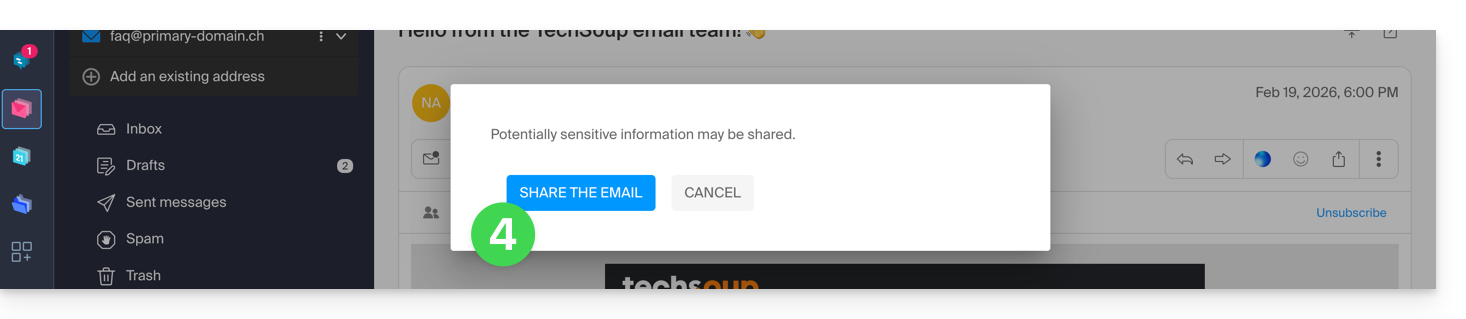
- Confirm the sharing:
- The link has been copied to your clipboard; you can view the URL to preview the share and forward the URL:

… from the Infomaniak Mail mobile app
To do this:
- Open the email in question on the Infomaniak Mail mobile app (application for iOS/Android smartphones or tablets).
- Click on the action menu ⋮ located in the upper right corner of the displayed email.
- Choose Share email to send the specific link to this email using the methods provided by your device (SMS, Quick Share, etc.).
Link to this FAQ: https://faq.infomaniak.com/1535
Has this FAQ been helpful?
This guide explains how, from a Mail service, you can access a mail address on the Infomaniak ecosystem (using your login credentials for your Infomaniak account) by using only the Infomaniak Mail web app (online service ksuite.infomaniak.com/mail) and/or the Infomaniak Mail mobile app (application for iOS/Android smartphones or tablets), without creating a specific password for the address.
Other access and management options are presented in the main guide.
Prerequisites
- Order a Mail Service from Infomaniak.
- Create one or more addresses on this Mail service.
- Have at least the right to manage the Mail service in question (or be Administrator / Legal Representative within the Organization).
Accessing an email address
To use the existing email address demonstration@exemple-domaine.ch:
- Enter your Infomaniak account login ID and password on the page https://manager.infomaniak.com/:
- Confirm the login on the Manager using the 2FA (two-factor authentication) method that you initially set up:
- Once on the dashboard, click on Mail Service:
- Once on your Mail Services page, click on the name / domain name to which the email address in question belongs:
- Once you are on the Mail service to which the address belongs, click on the email address in question:
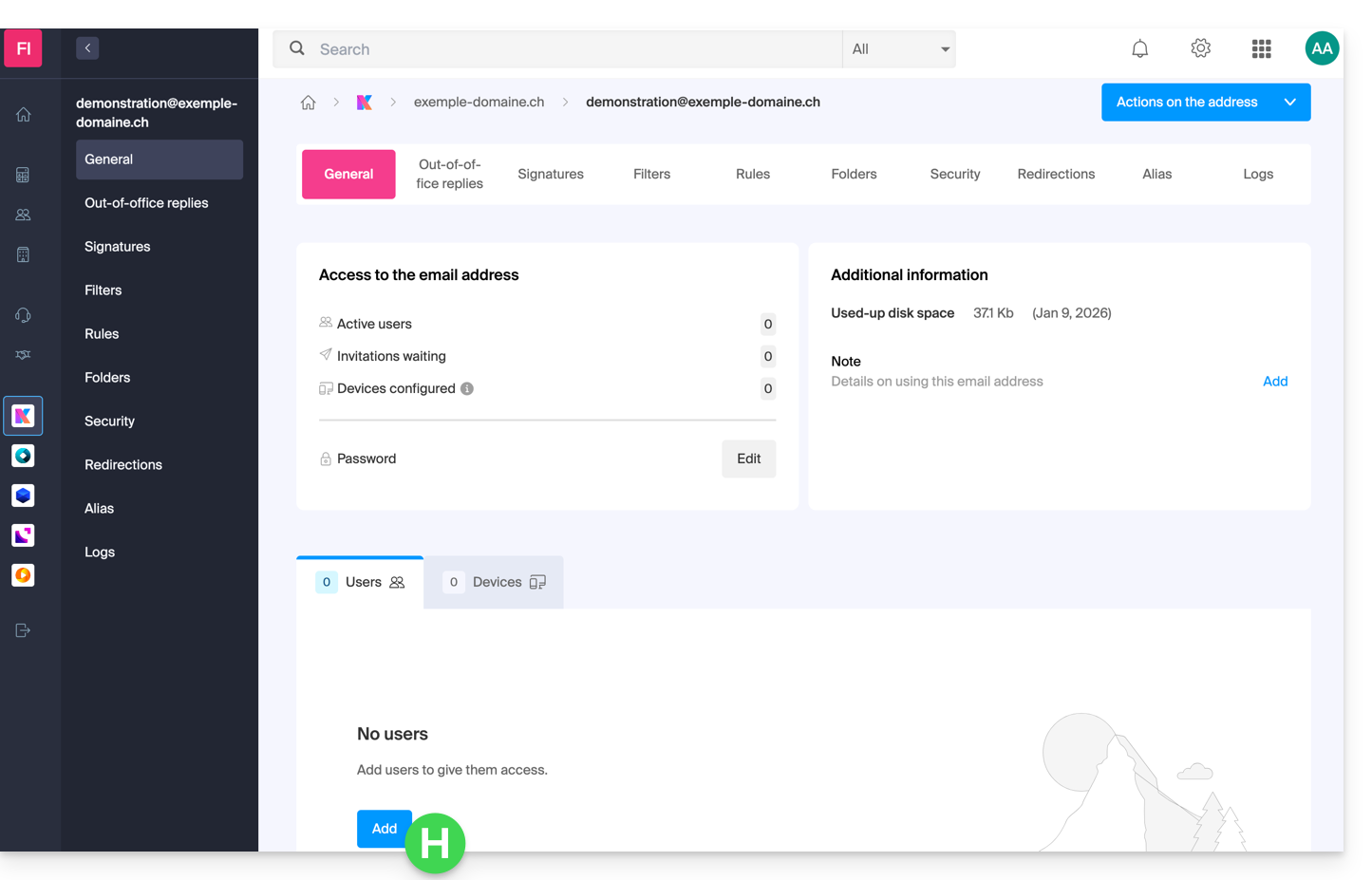
- Once you are on the email address in question, click on the Add user button:
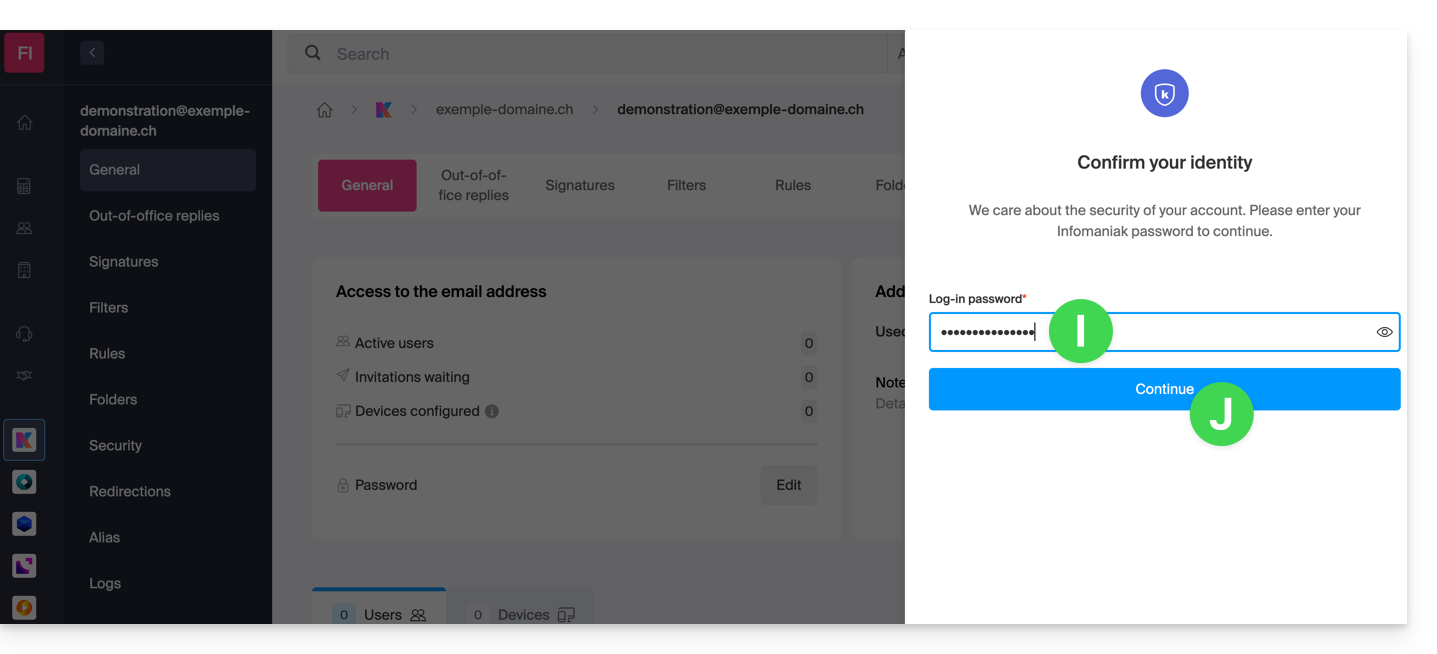
- At this stage, it may be necessary to re-enter the login password (the one from point B above):
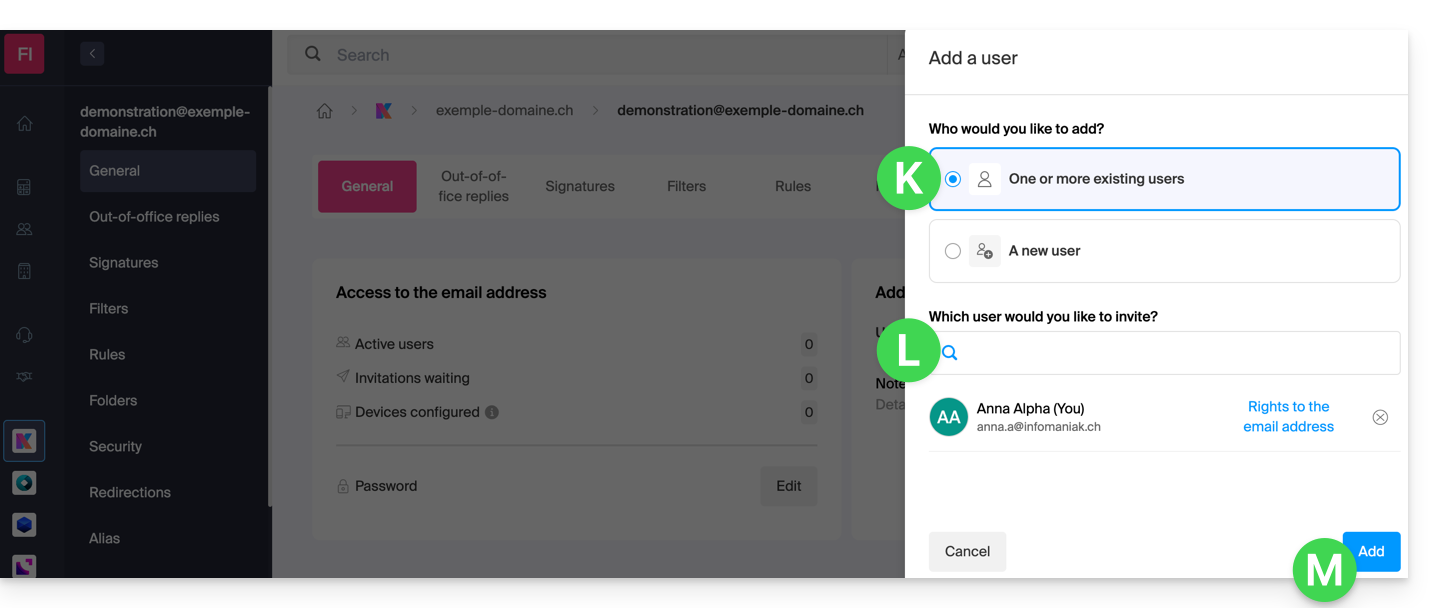
- Then, choose the option to add an existing user, then click on the field below, which will display the list of users in the Organization you are connected to, and click on your username (your login ID for your Infomaniak account). Confirm the addition using the button in the bottom right corner:
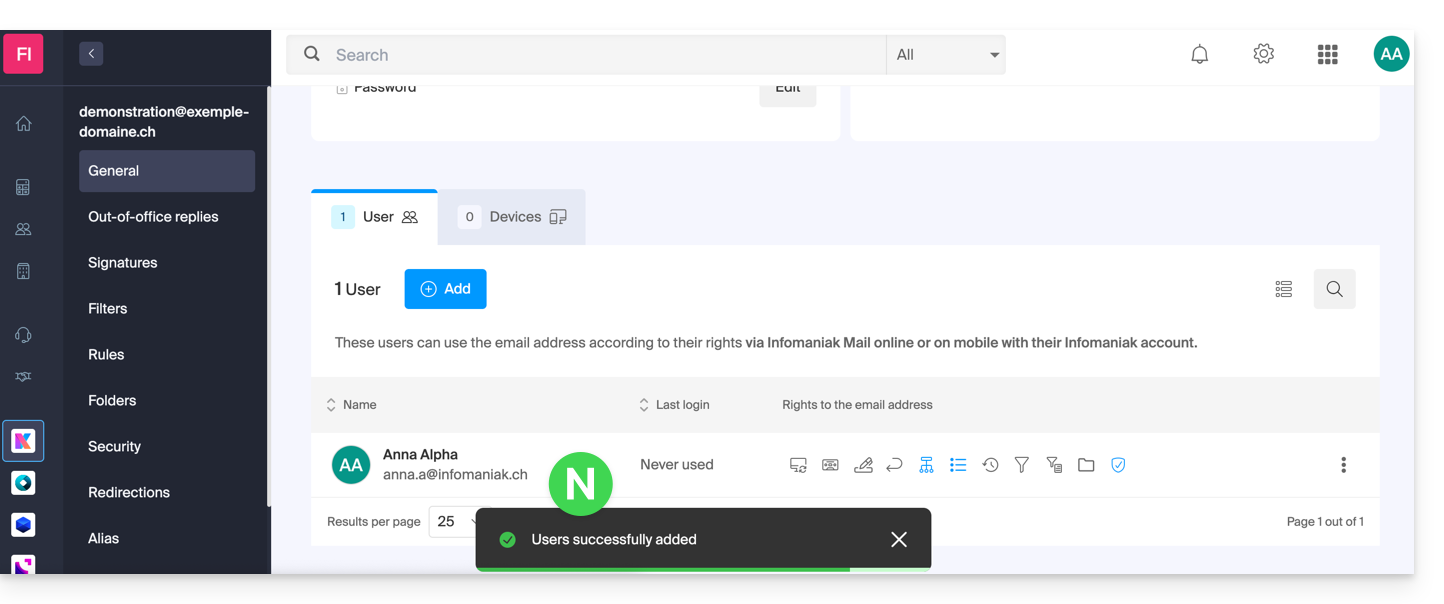
- Done, your user has been added:
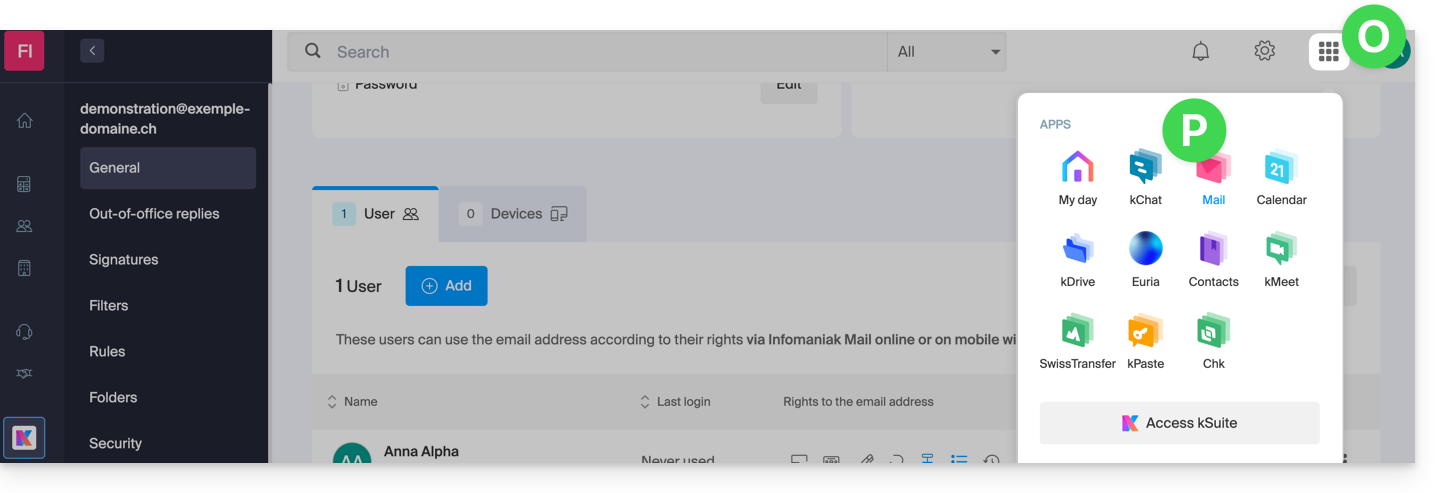
- Next, click on the icon at the top of the screen to open the kSuite tools, and then click on the Mail Infomaniak web app:
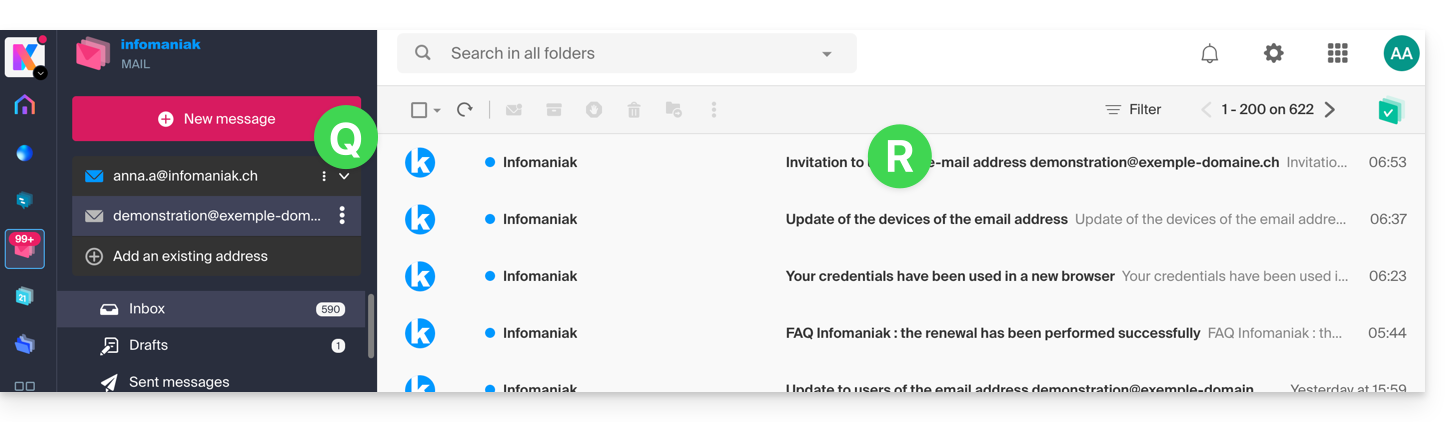
- The email address has been successfully added to the Mail web app (click on the down arrow if necessary to expand the address menu and access it). An informational email has been sent to the user (you in this case) to notify them of the operation:
When your user ID is added as a user with access to the email address, the mailbox is automatically added to your Infomaniak Mail apps:
You can switch between your addresses at any time using the chevron located in the top left corner of the screen:
If the address is not displayed, try refreshing the browser page (Command ⌘ + R on macOS and Ctrl + F5 on Windows).
Link to this FAQ: https://faq.infomaniak.com/1547
Has this FAQ been helpful?
This guide explains how to quickly respond to an email on the Infomaniak Mail web app (online service ksuite.infomaniak.com/mail).
Introduction
- Reactions are not possible if:
- you were a recipient of the message but in the BCC field
- you have already added 5 reactions
- the message has more than 20 recipients and/or is a newsletter or mailing list
- the sender is
no-reply/postmaster/catchall(❓: help) - the message is encrypted or is in spam, drafts, the trash, or scheduled messages (❓: help)
- the message is the one announcing a previous reaction
- It is possible to cancel sending a reaction, even if you have not enabled a cancellation period for sending emails (❓: help).
Send a reaction in the form of an emoji
Prerequisites
- Have permission to manage sending: if you were invited to the Infomaniak Mail web app (online service ksuite.infomaniak.com/mail)to manage your address, it is possible that the Mail Service administrator has removed this right from their admin account (❓: help).
To quickly send an emoji reaction to a received email:
- Click here to access the Infomaniak Mail web app (online service ksuite.infomaniak.com/mail).
- Open the email you want to reply to.
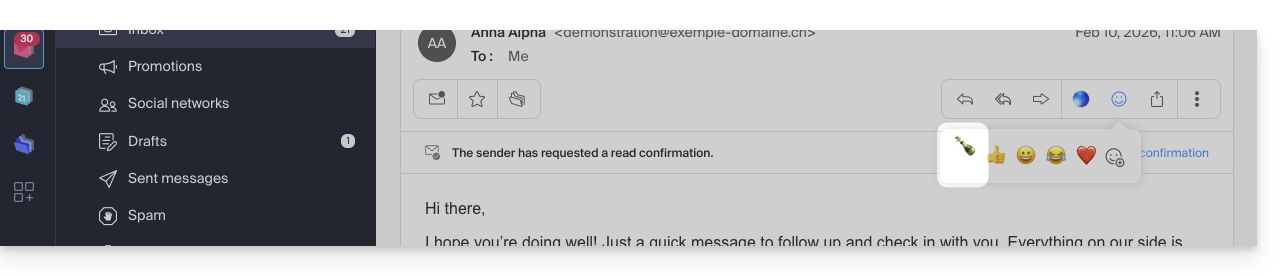
- Click on the “Smiley” emoji in the list of quick actions at the top right of the message:
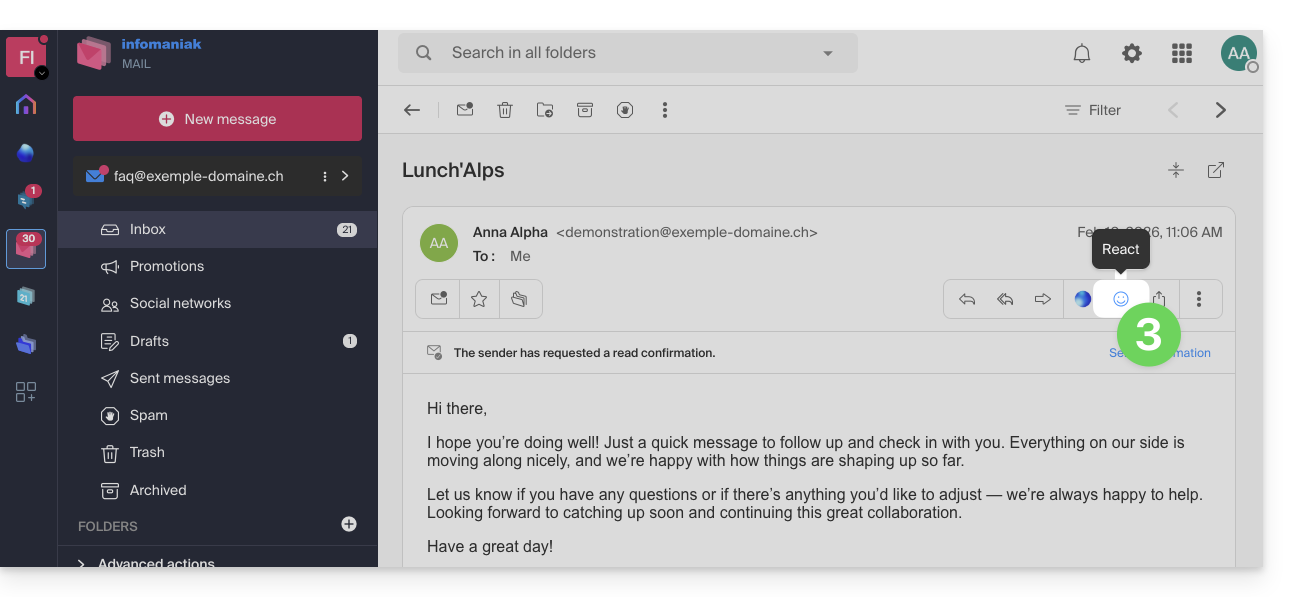
- You can also access this feature via a button below the message:
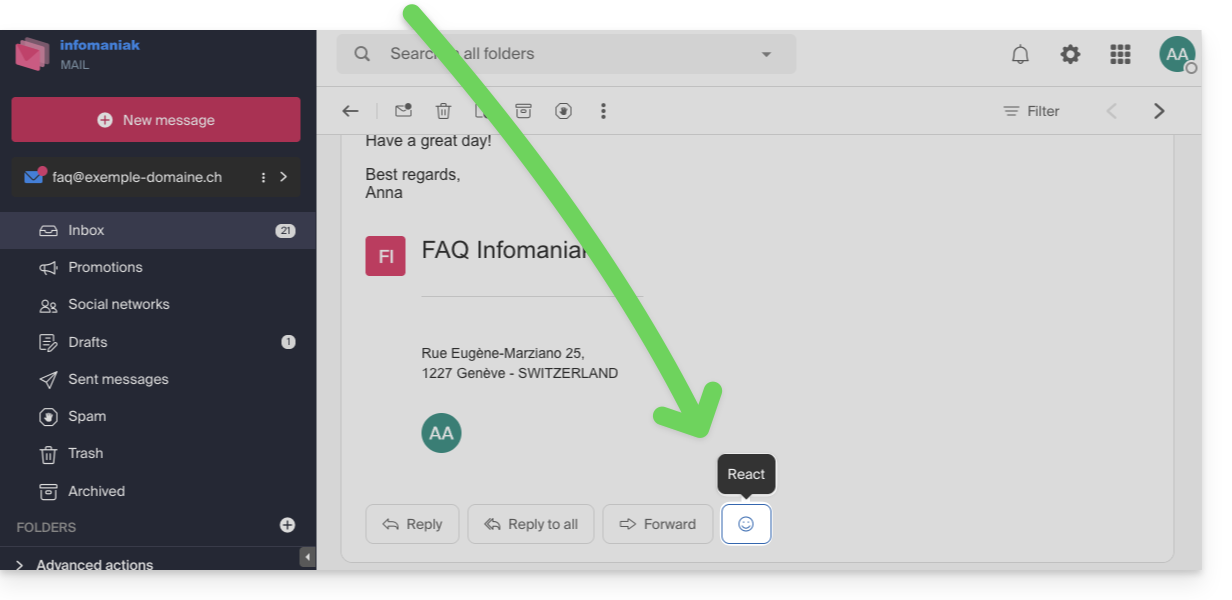
- You can also access this feature via a button below the message:
- Click on the emoji that best represents your reaction. It will be added below the message and immediately sent to your contact.
- You can cancel the sending while it's in progress from the notification displayed at the bottom of the screen:

- You can cancel the sending while it's in progress from the notification displayed at the bottom of the screen:
- The emoji is displayed on the message in question.
- A record of your reaction is also stored in the sent messages folder.
- If several people have reacted, you can hover over the emoji to see who added which reaction:
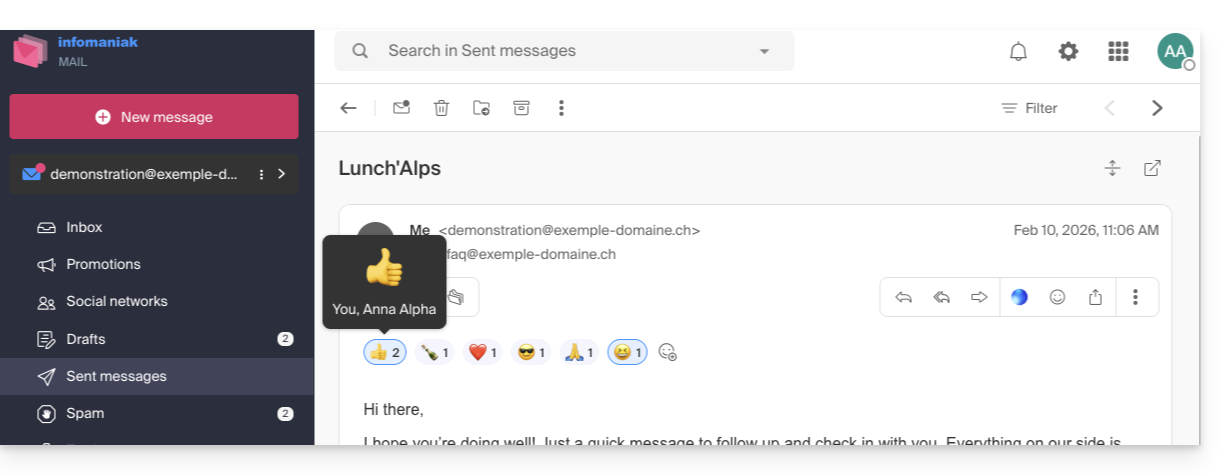
- The emoji is displayed to your recipient, who receives a notification as usual when they receive a reply to their email:
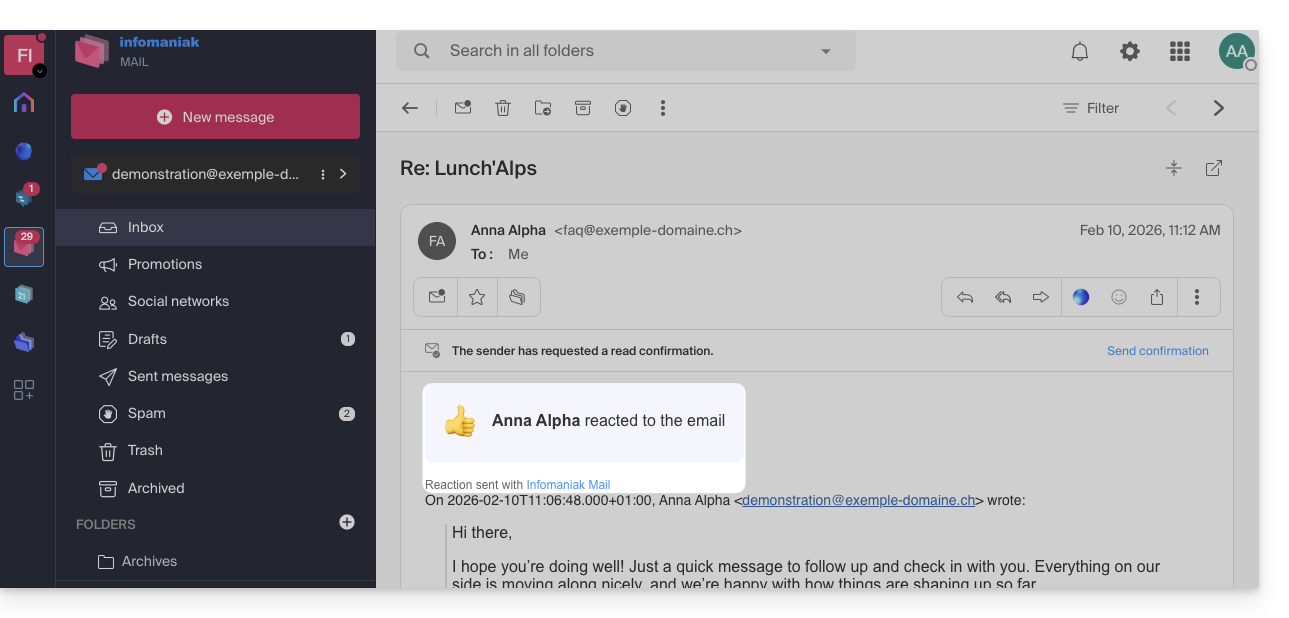
- They can also reply to the reaction via email (but not with a new reaction) as usual when receiving a new message.
- The user who reacted to the email can quickly find the last emoji used in their list of reactions in the app, avoiding having to search for it each time:
Link to this FAQ: https://faq.infomaniak.com/1573
Has this FAQ been helpful?
This guide for the Infomaniak Mail web app (online service ksuite.infomaniak.com/mail) or the Infomaniak Mail mobile app (application for iOS/Android smartphones or tablets) explains how to enable encryption for emails sent from the Infomaniak web and mobile services.
Introduction
- When encryption is enabled, emails and attachments are encrypted as soon as they are received on Infomaniak servers, using the public keys of the senders and recipients.
- Each email address generates a key the first time it is used, which is stored securely in Infomaniak's data centers.
- The keys are based on elliptic-curve cryptography (ECC) and use the OpenPGP standard.
- They are themselves encrypted in AES-256-GCM with automatic decryption via Infomaniak authentication.
- In search results, only the subject of encrypted messages will be visible, while their content will remain secure during storage.
Enable email encryption…
… from the Infomaniak Web Mail app
To automatically encrypt a message sent to an email address:
- Click here to access the Infomaniak Mail web app (online service ksuite.infomaniak.com/mail).
- Compose a new message as usual.
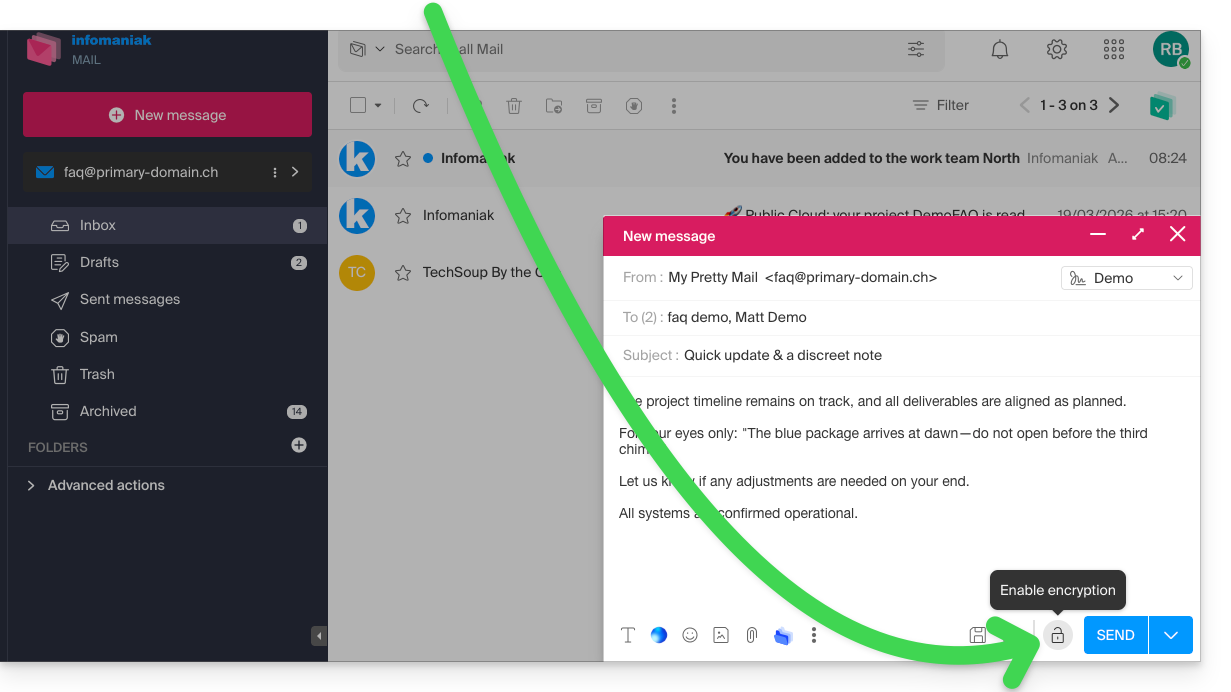
- Click on the lock icon to the left of the Send button to enable encryption:
- Confirm the action if a confirmation window appears.
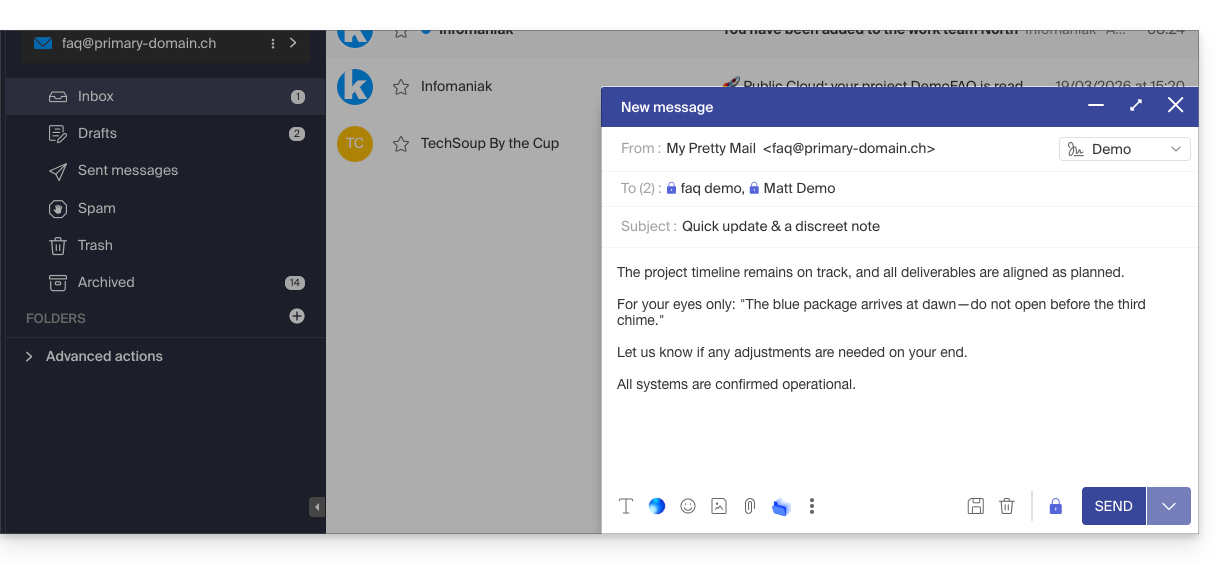
- The icon now represents a closed padlock, and the overall color has been changed:
- Click the Send button.
This action must be performed each time you send a new email.
A. Recipient whose email is managed with Infomaniak
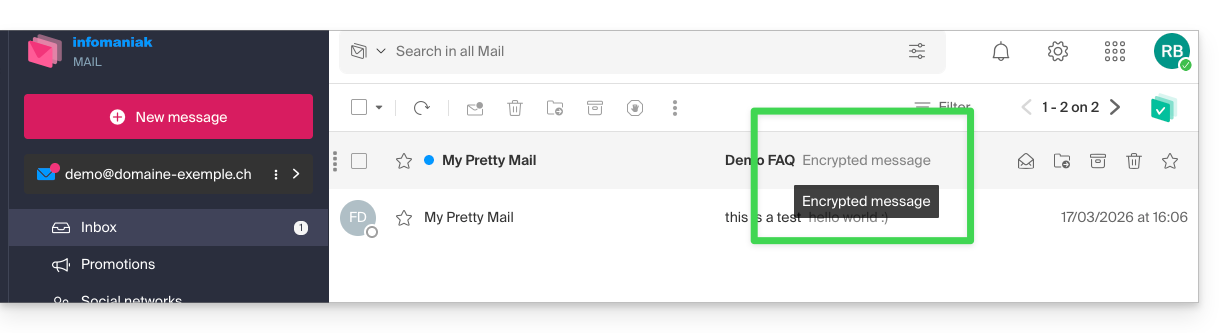
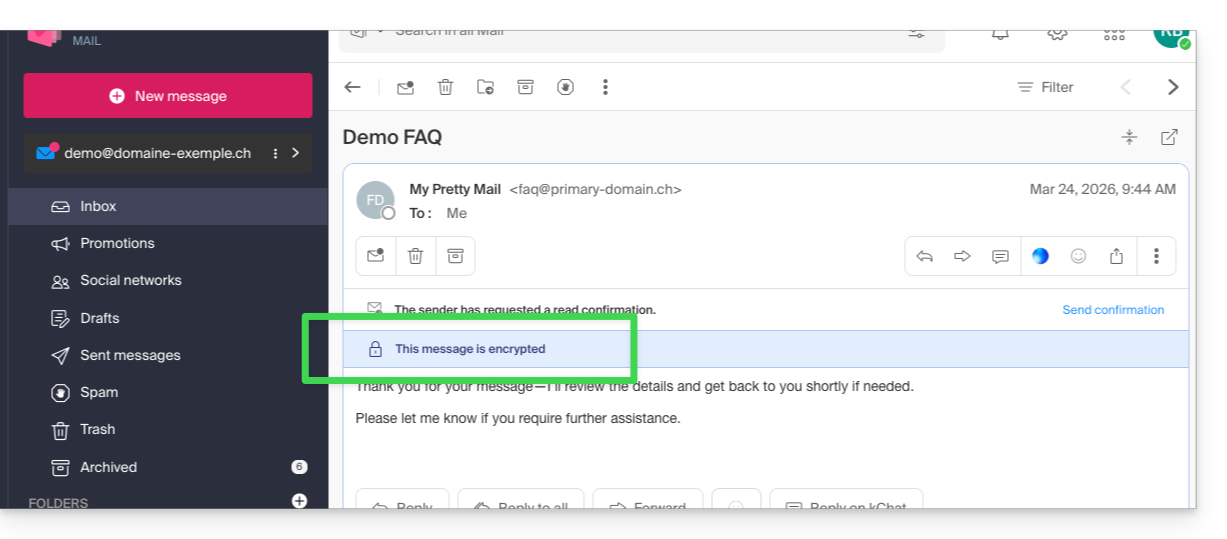
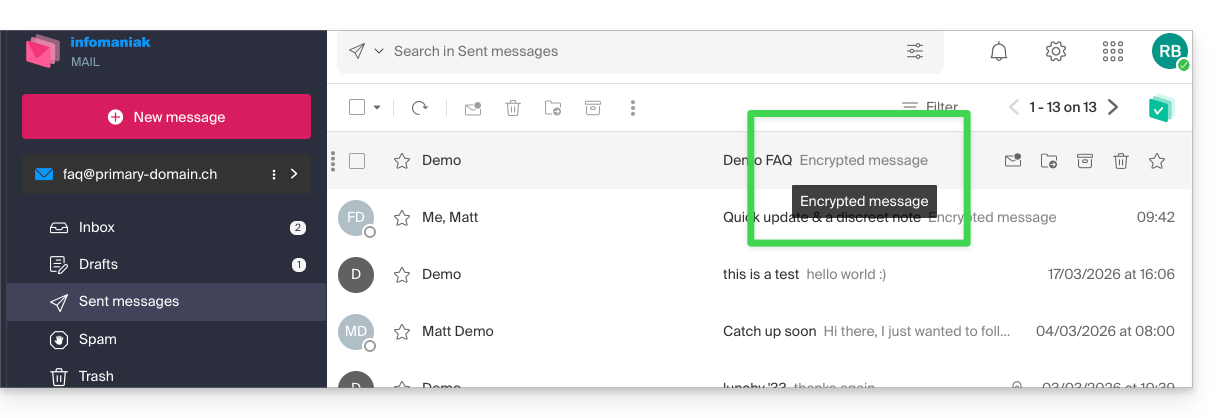
If the recipient of the encrypted email has an email address managed with Infomaniak, the encryption process is completely transparent for both the sender and the recipient. A notification will indicate that the message is encrypted…
- … in the recipient's inbox:
- … when opening the received message:
- … and in the folder containing messages sent by the sender:
B. External recipient
If the recipient of the encrypted email has an email address managed outside of Infomaniak's services, encryption is still possible, but it requires setting a password:
- Click here to access the Infomaniak Mail app (online service ksuite.infomaniak.com/mail).
- Compose a new message as usual, but address it to an email address outside of Infomaniak.
- Click on the lock icon to the left of the Send button to enable encryption.
- A modal window will open, allowing you to create a password:
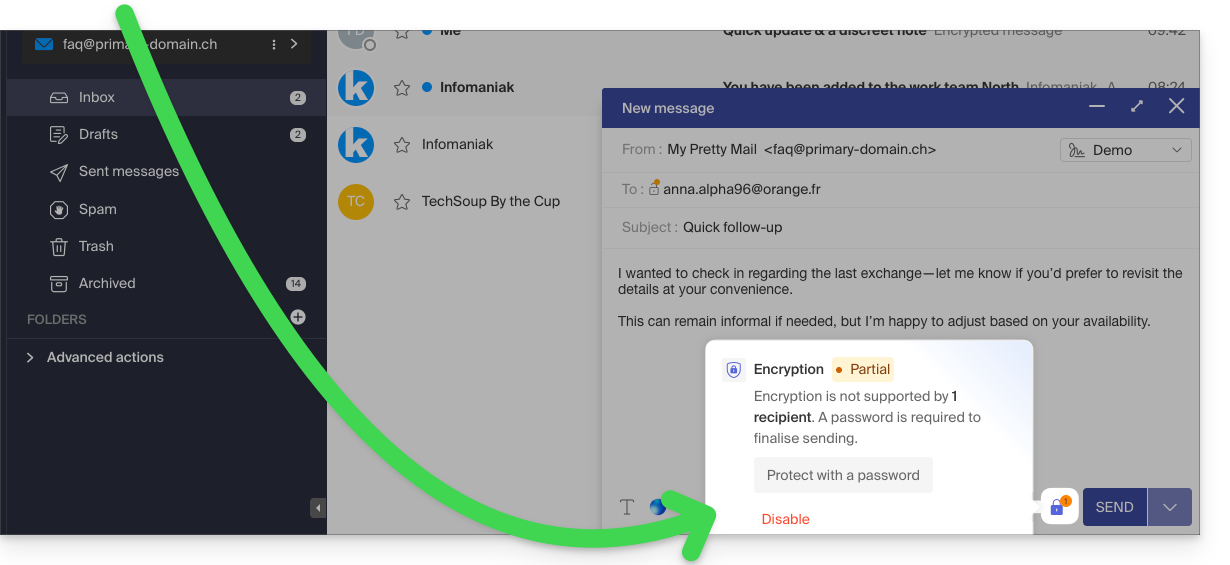
- Enter a password and copy it to send it to the recipient using your own means (kPaste for example) (you can agree on a password in advance so that the recipient is already informed):
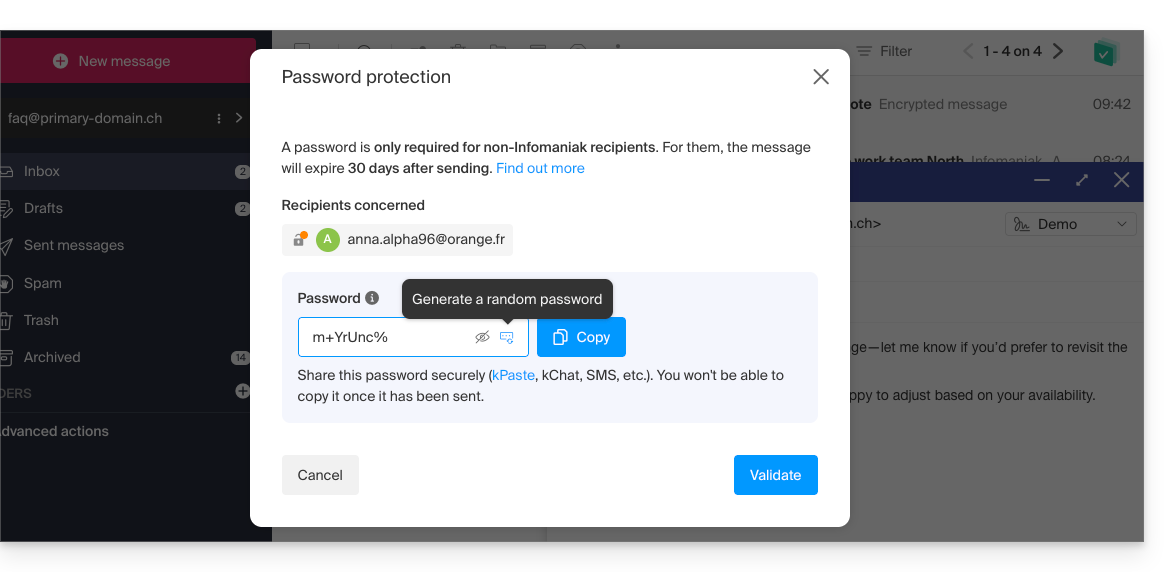
- Enter a password and copy it to send it to the recipient using your own means (kPaste for example) (you can agree on a password in advance so that the recipient is already informed):
- The icon now represents a closed padlock without the orange chip, and you can send the email as usual:
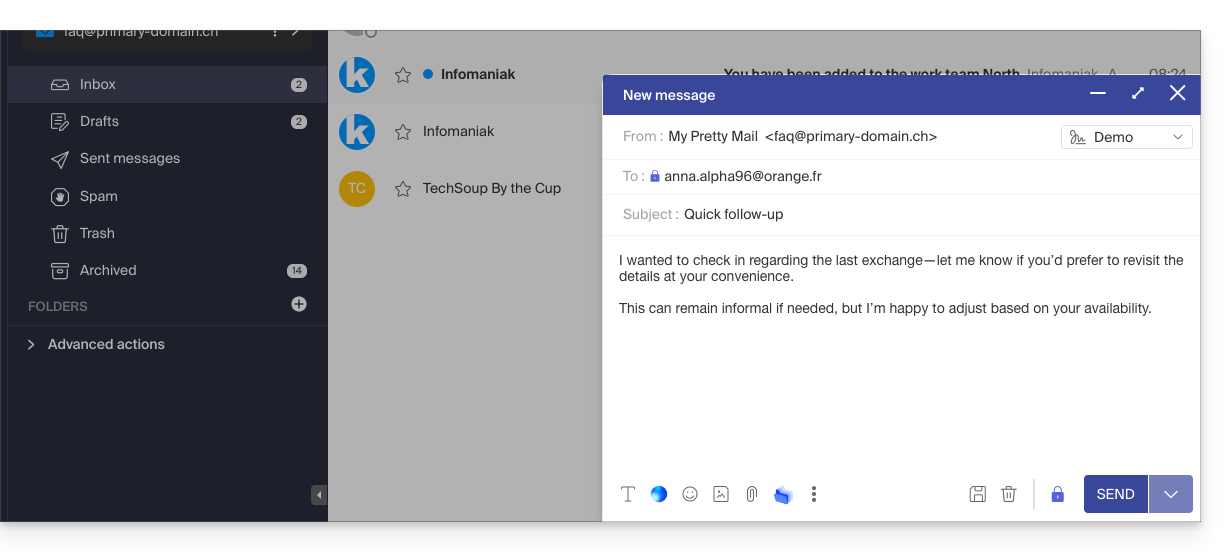
- Recipients will then receive a message informing them that an encrypted email is waiting for them:
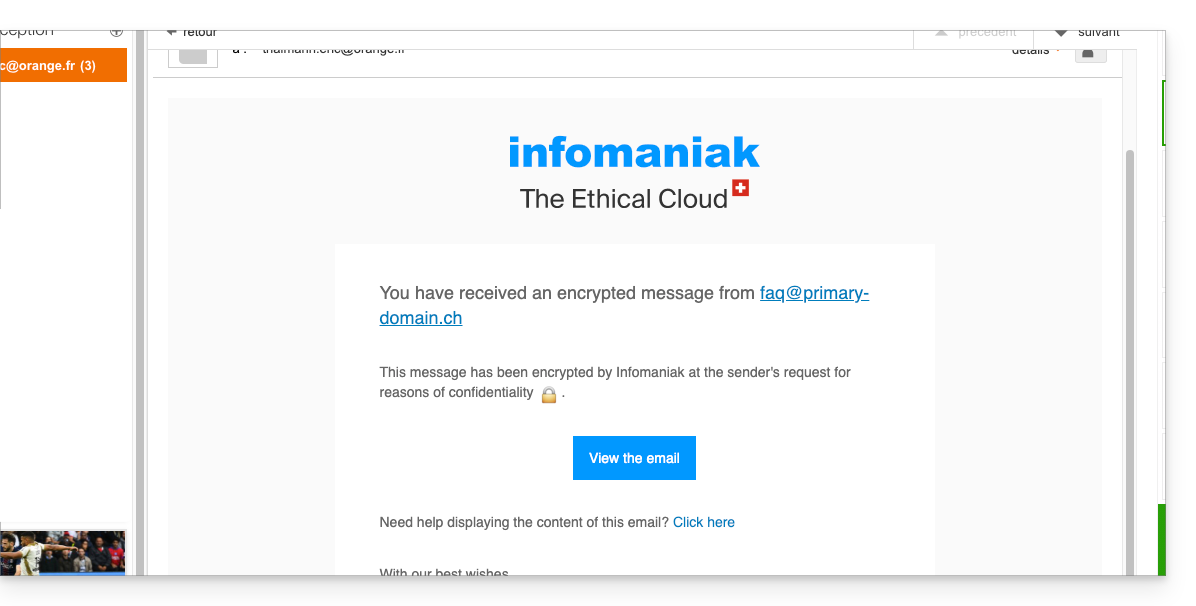
- By clicking on the provided button, they will be redirected to a secure web page where the password must be entered.
- Once the password has been validated, the encrypted message can be viewed on the same page, valid for 30 days.
… from the Infomaniak Mail mobile app
To automatically encrypt a message sent to an email address:
- Open the Infomaniak Mail mobile app (application for iOS/Android smartphones or tablets).
- Compose a new message as usual.
- Click the lock icon at the bottom of the composition window to enable encryption:
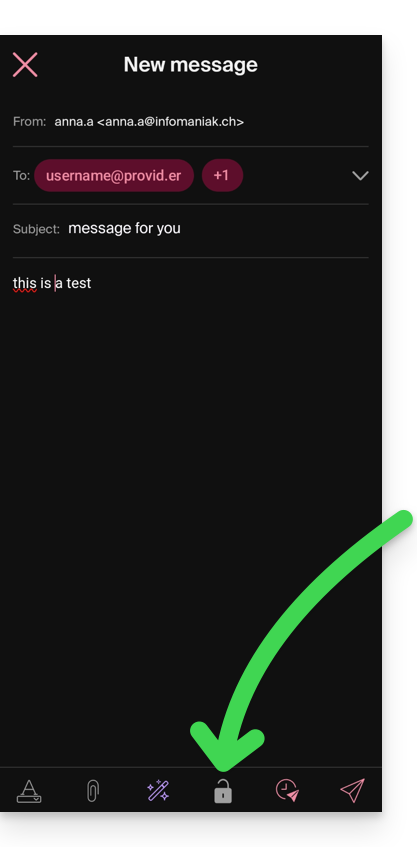
A. Recipient whose email is managed with Infomaniak
If the recipient of the encrypted email has an email address managed with Infomaniak, the encryption process is completely transparent for both the sender and the recipient:
- Closed padlock icons are displayed on the screen.
- Tap the send icon:
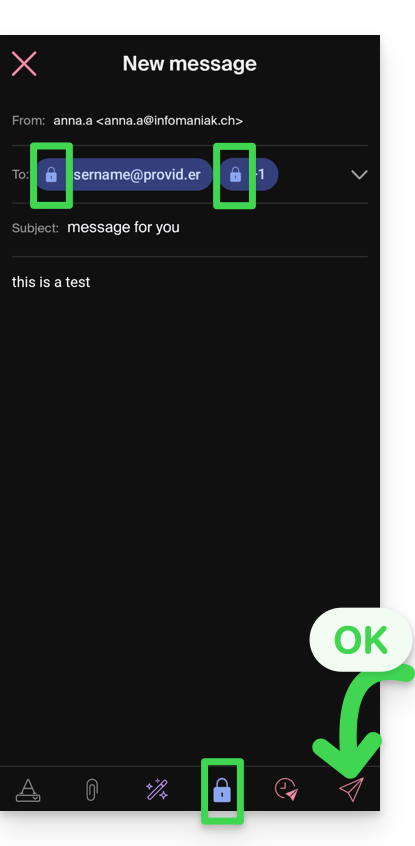
B. External recipient
If the recipient of the encrypted email has an email address managed outside of Infomaniak services, encryption is still possible, but it requires setting a password:
- Sending will not be possible because the send icon will remain grayed out and symbols will appear on the locks:
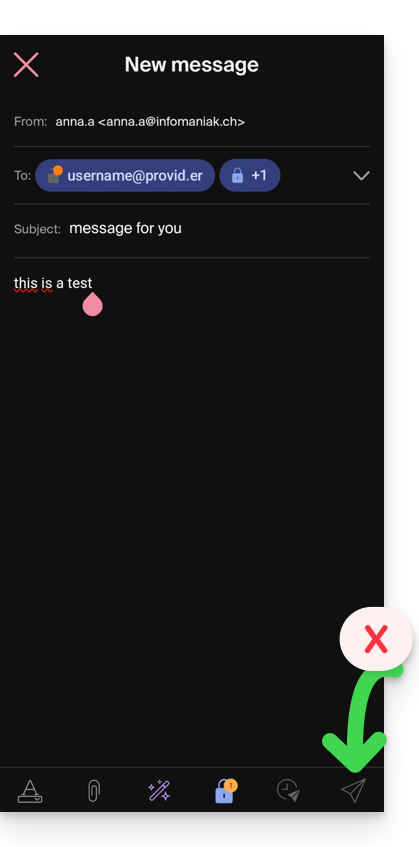
- Tap the padlock icon.
- A modal window will open, allowing you to create a password.
- Use the suggested password or enter a new password and copy it to send it to the recipient using your own means (e.g., kPaste). You can agree on a password in advance so that the recipient is already informed.
- Press the cross in the upper left corner if you have finished managing the password.
- The sending process can now be performed in encrypted mode:
Link to this FAQ: https://faq.infomaniak.com/1582
Has this FAQ been helpful?
This guide explains how to create and share a digital business card (QR code) containing your contact details and social media links from the Infomaniak Mail app (iOS / Android).
Create the QR code and share it with your contacts
To access the QR code feature in the Infomaniak Mail app on your device:
- Click on the badge with your initials / avatar in the top right corner of the app.
- Click to the right of your Infomaniak account name in the bottom menu:
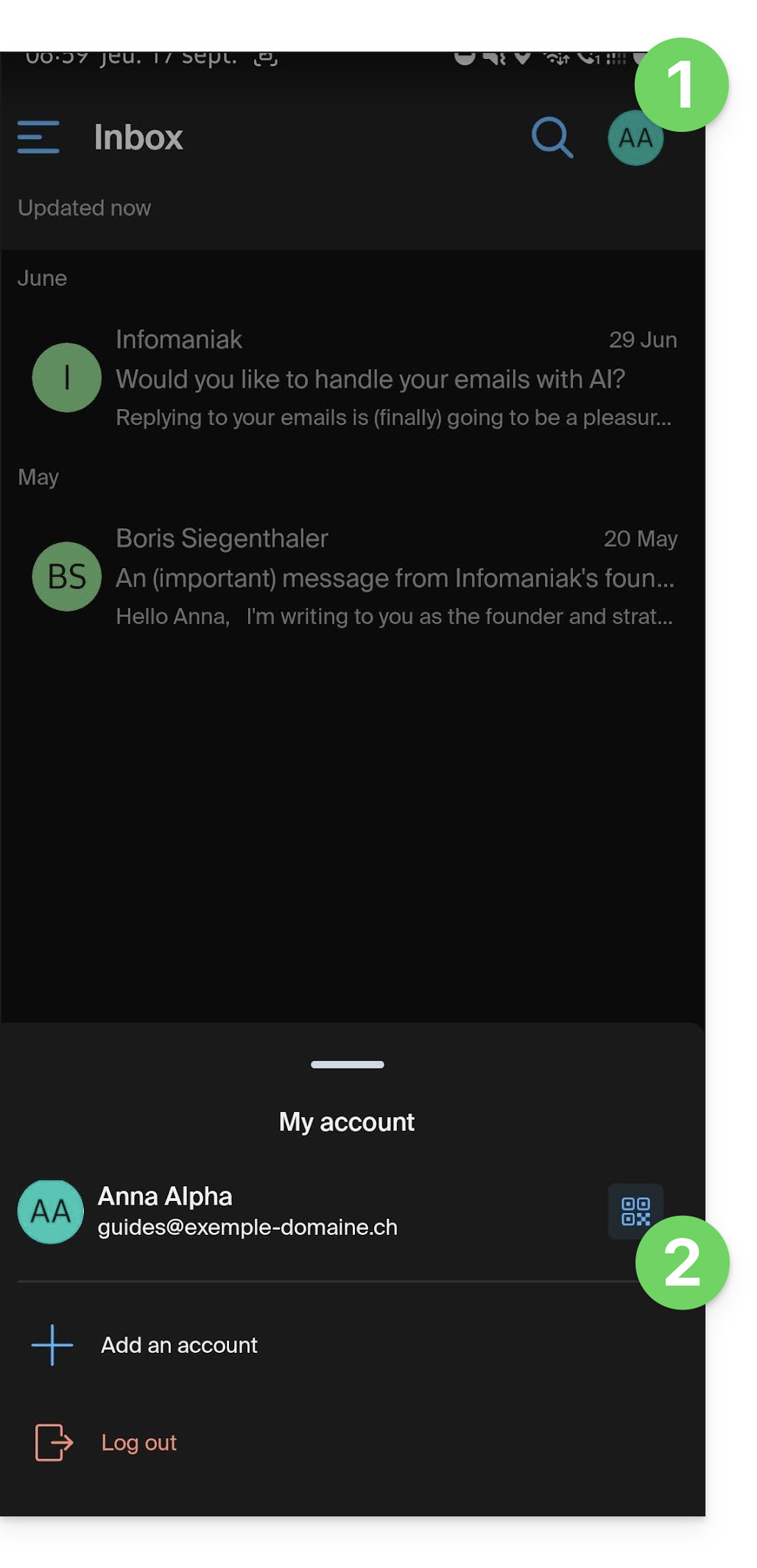
- The first time you use it, a screen will introduce you to the feature; click the button to start creating your business card:
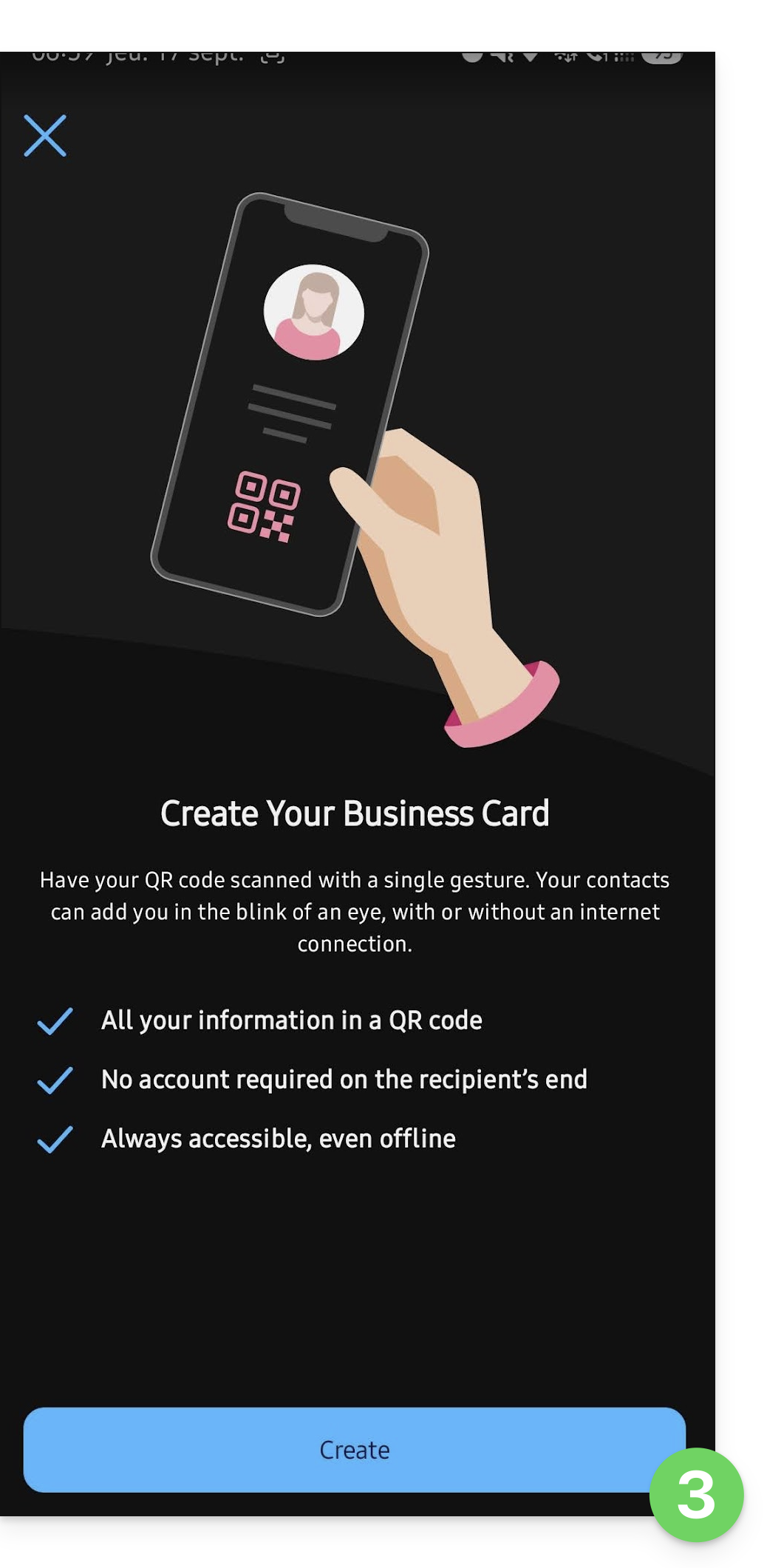
- Enter the information you want to display on your contact details page.
- If necessary, add other links to include (website, social media).
- Save your contact card by clicking Save:
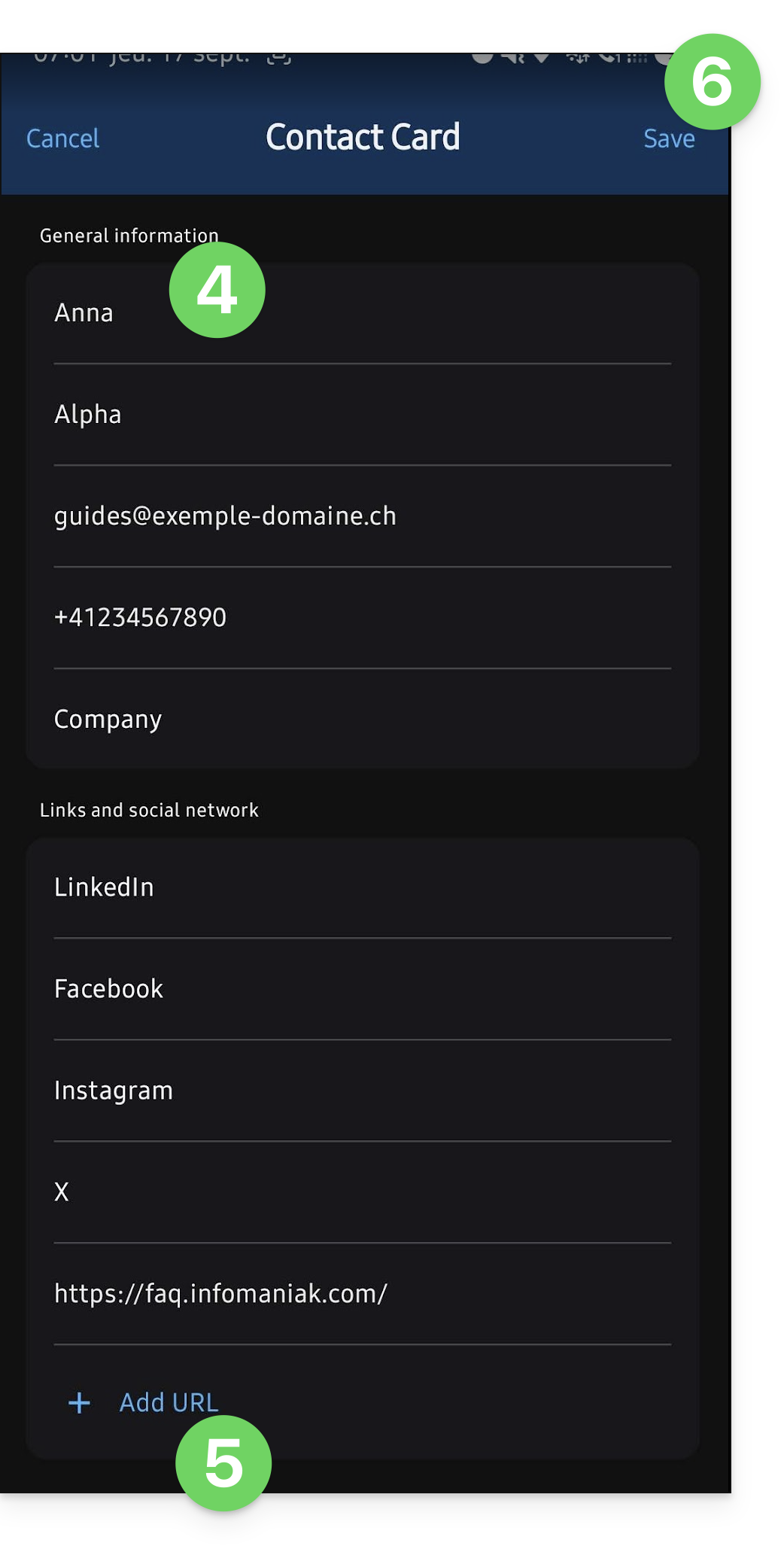
- The QR code appears and can be scanned directly by another device to save the associated contact card.
- This contact information can be sent via other means by clicking on the Share button.
- The
.vcfformat, which works on the same principle as, for example, exporting contacts, is automatically recognized by contact management applications: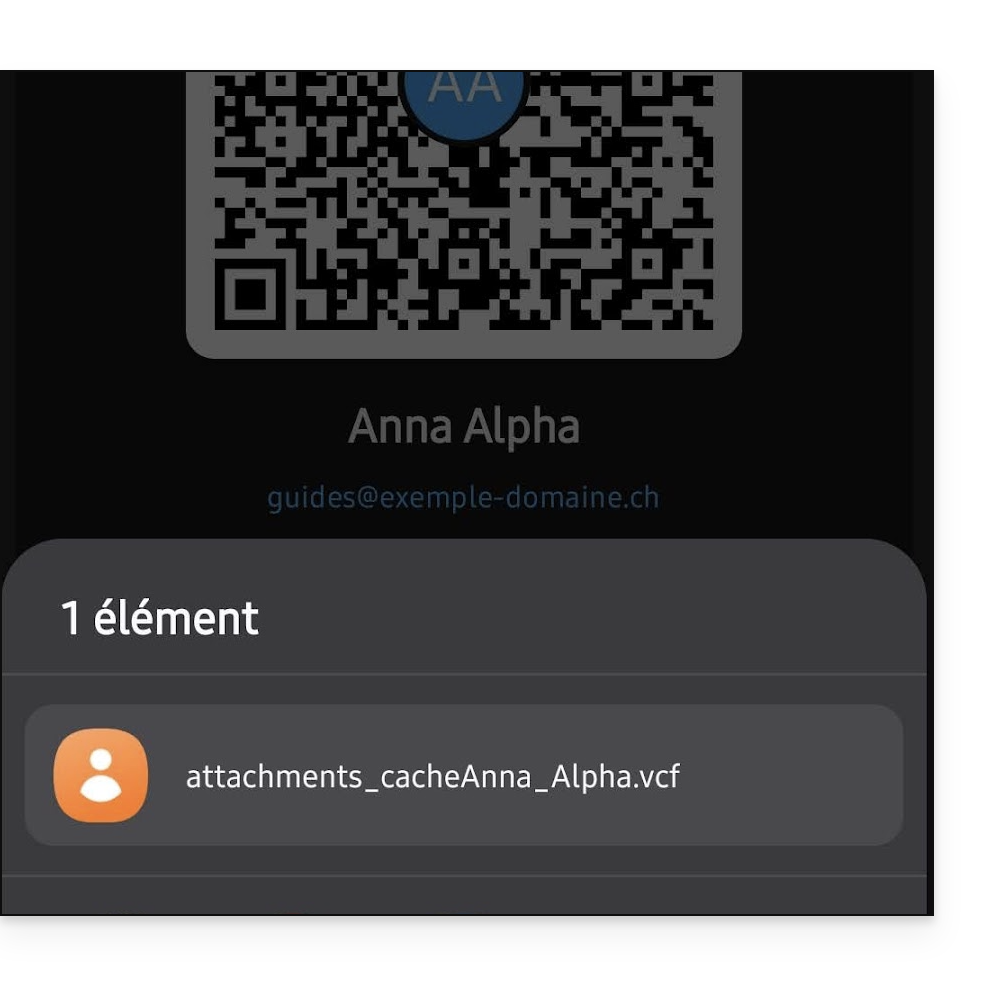
- The
- You can edit your information at any time from the action menu ⋮ in the top right corner:
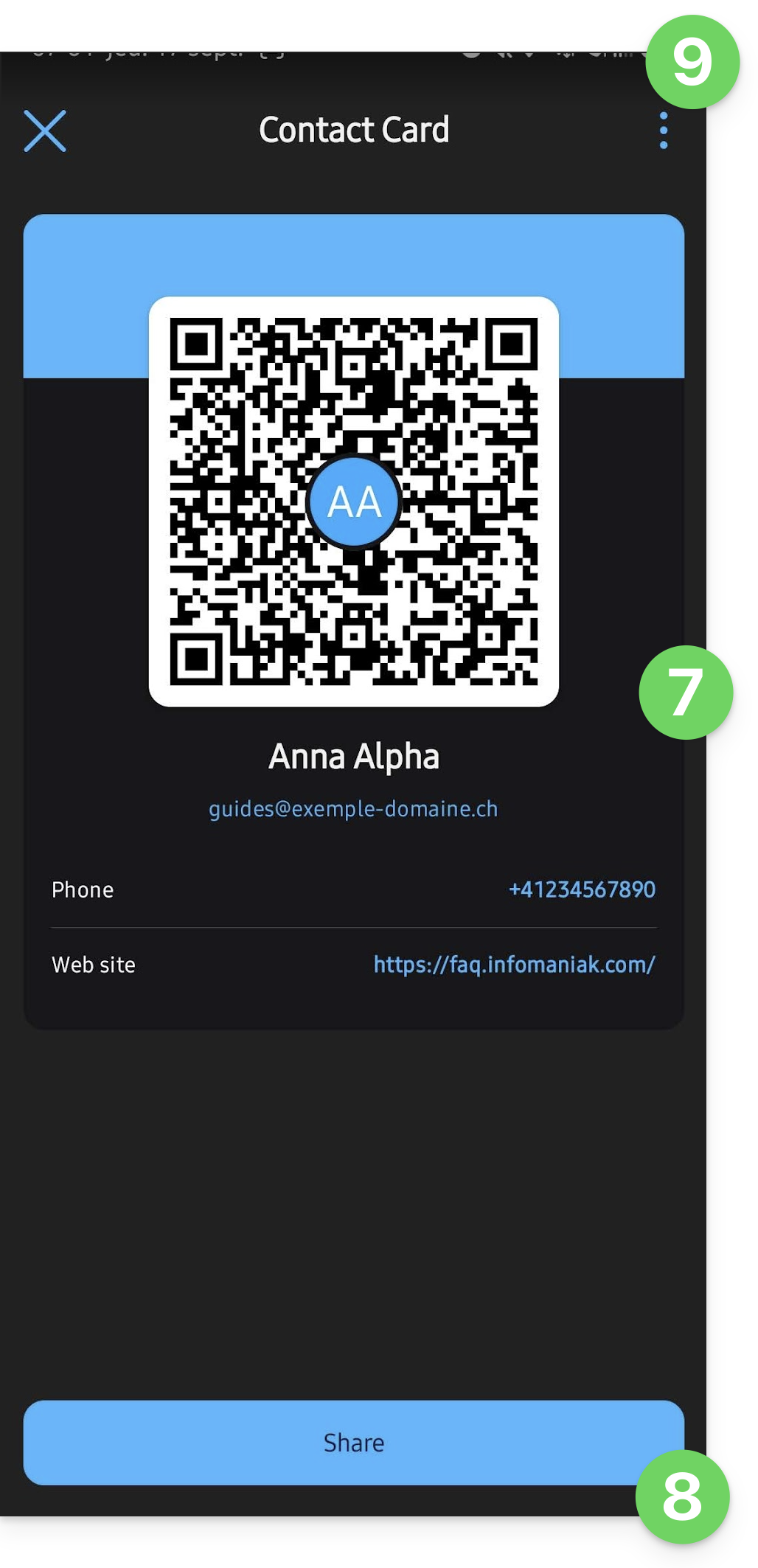
- From now on, to display the generated QR code directly, follow steps 1 & 2 above.
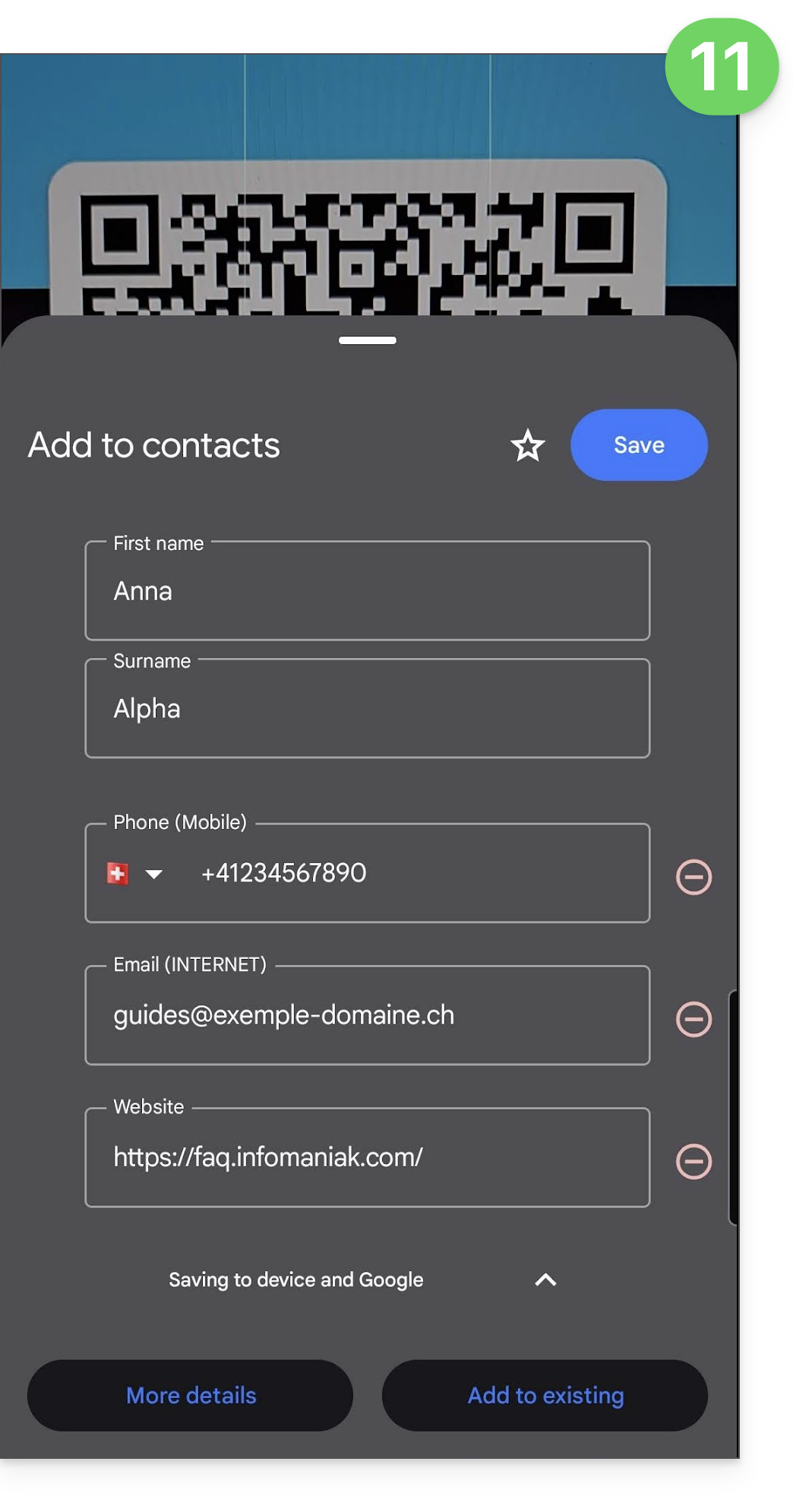
- The person scanning the QR code can directly save your contact information to their device:
Link to this FAQ: https://faq.infomaniak.com/1584
Has this FAQ been helpful?
This guide explains how to report spam or declare a false positive if spam messages slip through the cracks in an Infomaniak Mail Service, or conversely, if a valid email has been incorrectly classified as spam; you can take action in just a few clicks.
Report spam
Prerequisites
- Make sure the spam filter is active.
Next, to automatically move an email from your inbox to the Spam folder if it has bypassed the anti-spam filter:
- Click here to access the Infomaniak Mail web app (online service ksuite.infomaniak.com/mail).
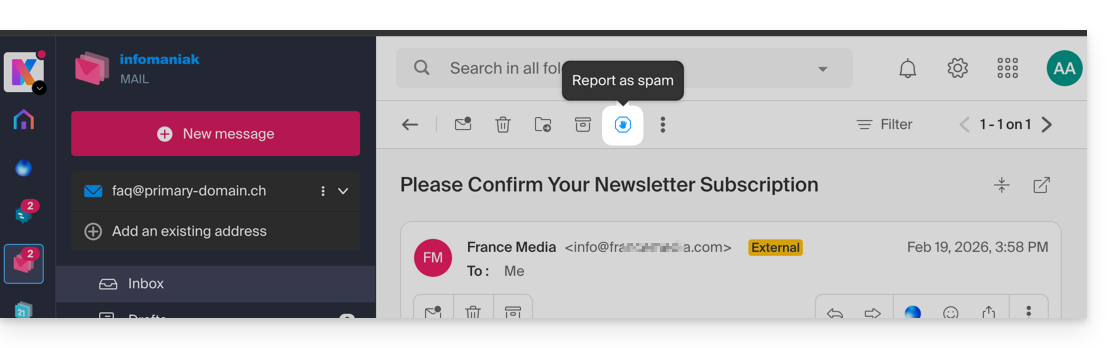
- Select the message in your inbox and then click on the Spam icon in the toolbar:
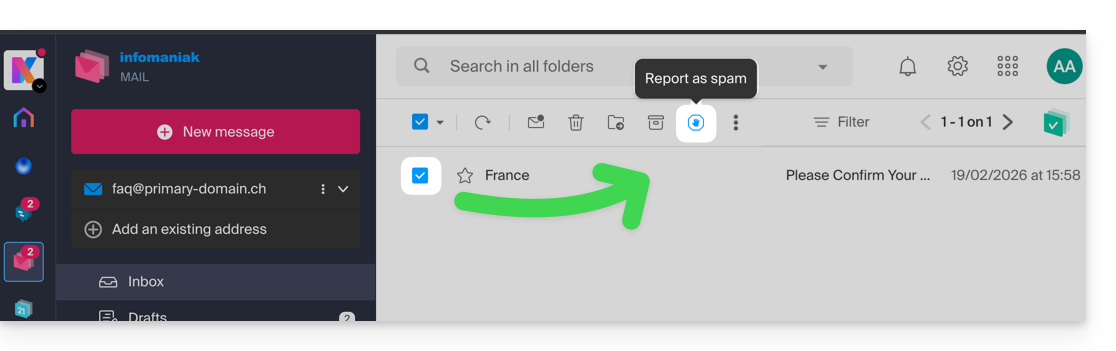
- You can also open it and report it as Spam later:
- Another option: open it and click on the action menu ⋮ on the right:
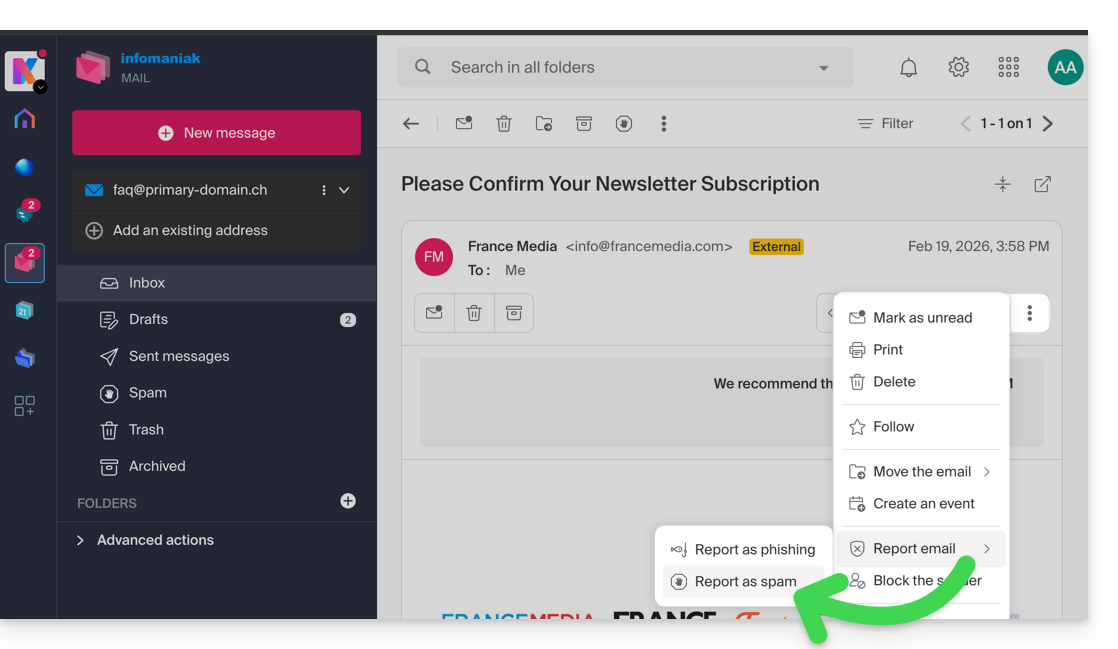
Once you have clicked on Report as spam:
- the email is moved to the Spam folder (or to the manually defined folder)
- the sender's address is added to the blocked users list
- the filter is refined for better performance over time.
Report a false positive
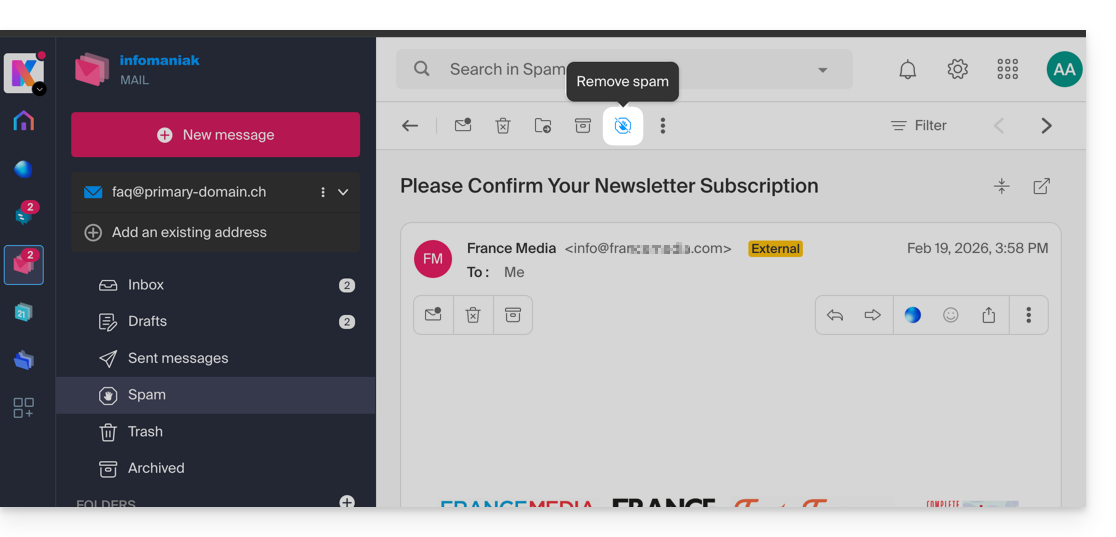
Conversely, if you take action on an email that is incorrectly identified as spam (false positive) by clicking on the "This is not spam" icon:
- The email is moved to the inbox…
- The sender's address is added to the list of authorized users…
- This also affects the filter and its criteria.
Link to this FAQ: https://faq.infomaniak.com/1592
Has this FAQ been helpful?
This guide explains how to add or modify a sender name that will be used when sending your emails from the Infomaniak Mail web app (online service ksuite.infomaniak.com/mail).
Introduction
- This full name (usually a first name and last name) is linked to your email address, your Infomaniak account, and any signatures you may have.
- It is displayed instead of or next to your email address when the recipient receives your email.
- Please note that if the sender has already added you to their address book with a name/first name, these saved details will often take precedence.
Add/modify the sender's name
Without signature
If you do not use a signature when sending your message, The credentials used are those of your Infomaniak account:
- Click here to access the Infomaniak Mail web app (online service ksuite.infomaniak.com/mail) to compose a new message.
- Check the From: field, i.e., the sender.
- Make sure you are not using a signature:
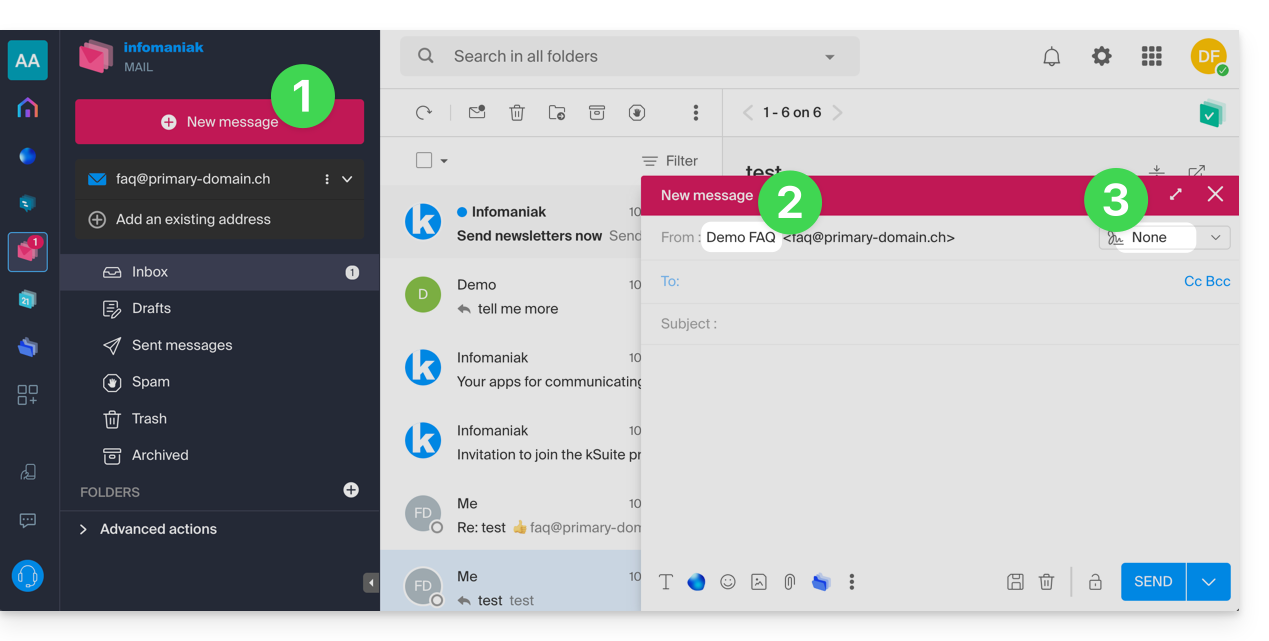
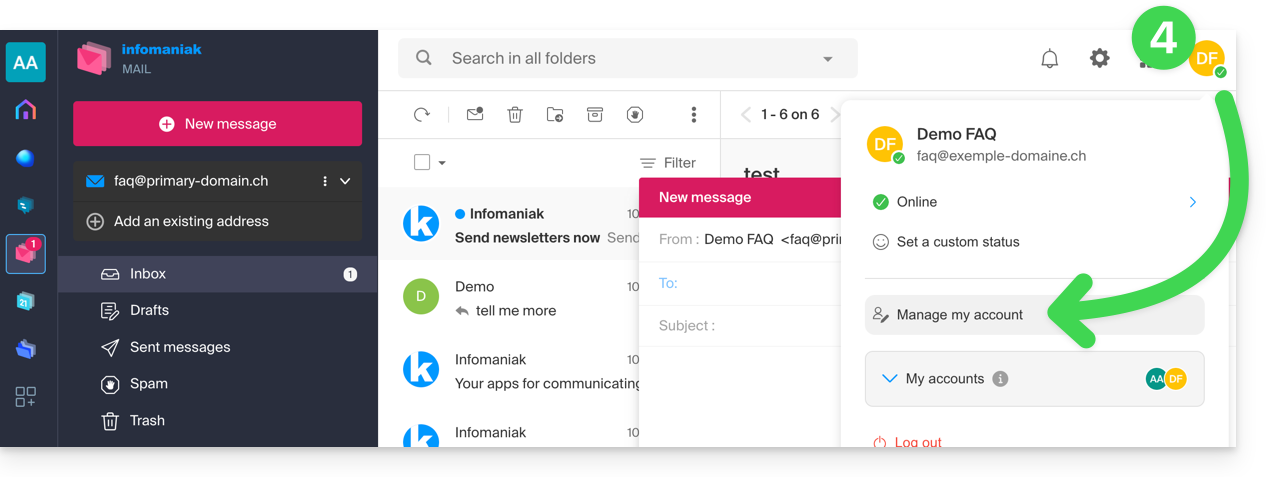
- In this case, click here (or on the badge with your initials / avatar in the top right corner of the Infomaniak Manager) to "Manage my account":
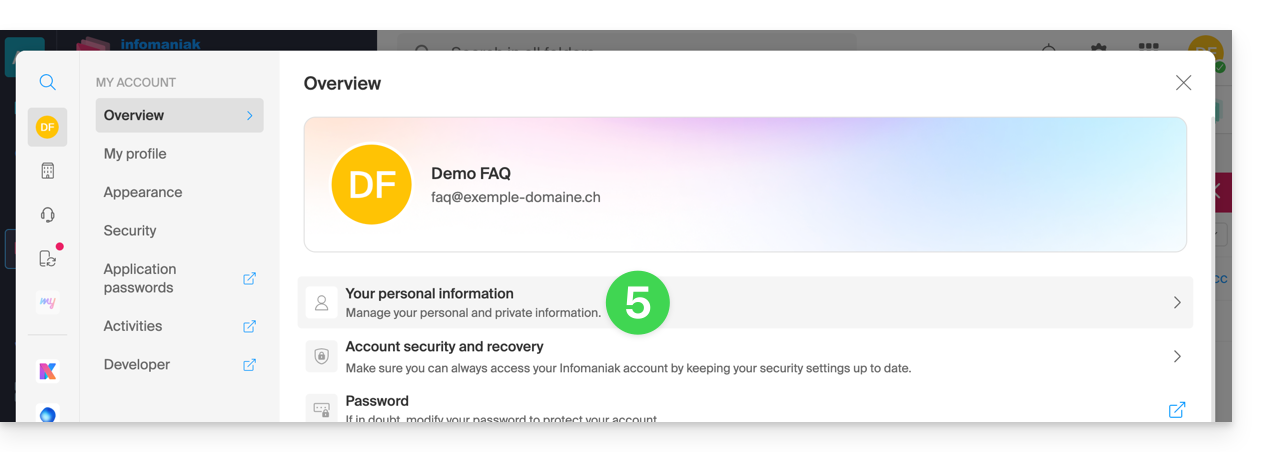
- Click to edit your personal information:
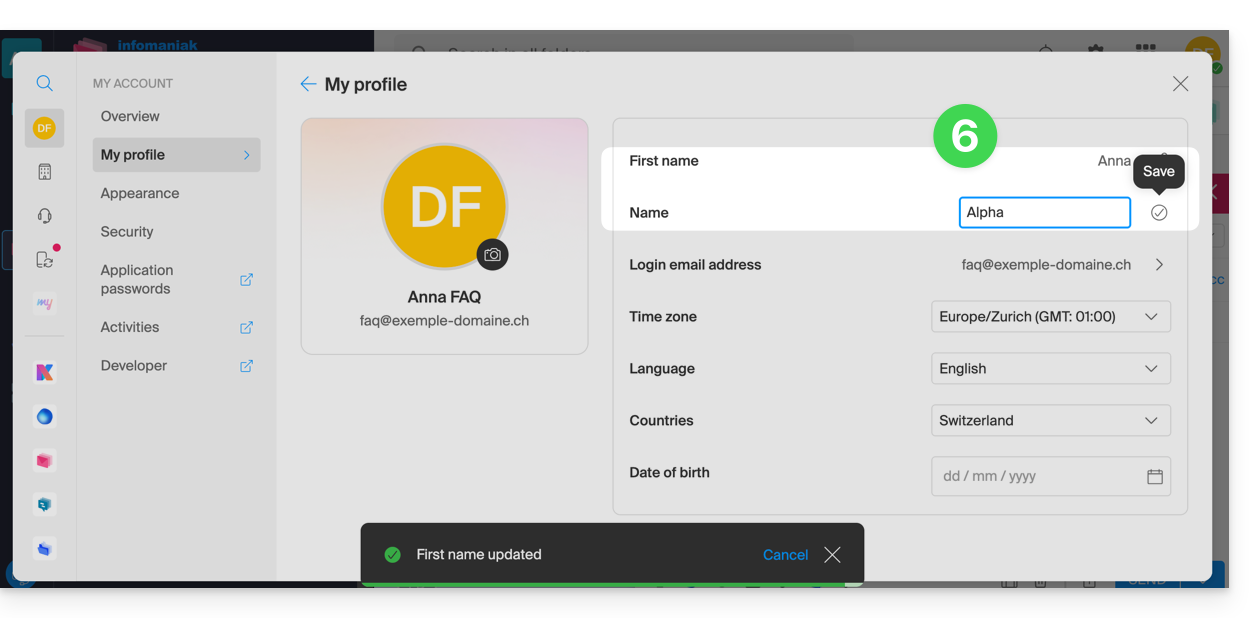
- Edit the first and last name, then validate by clicking to the right of the corresponding line:
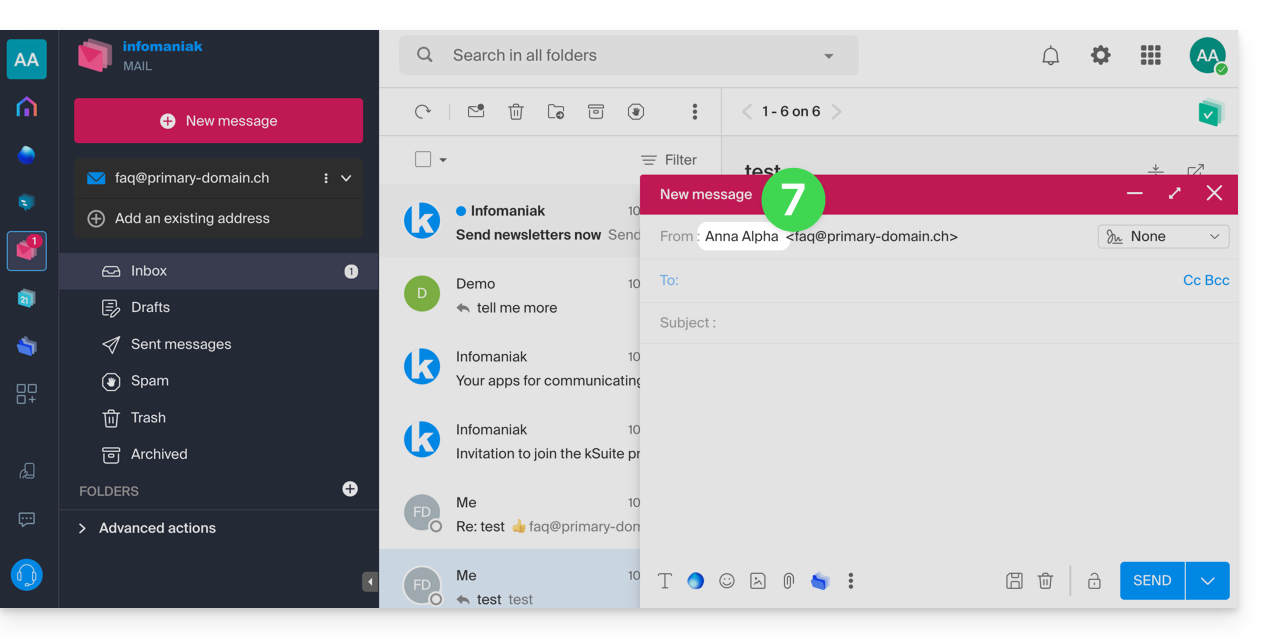
- Go back to composing a new email, refresh the browser window if necessary, and check that the from field has been correctly modified:
With signature
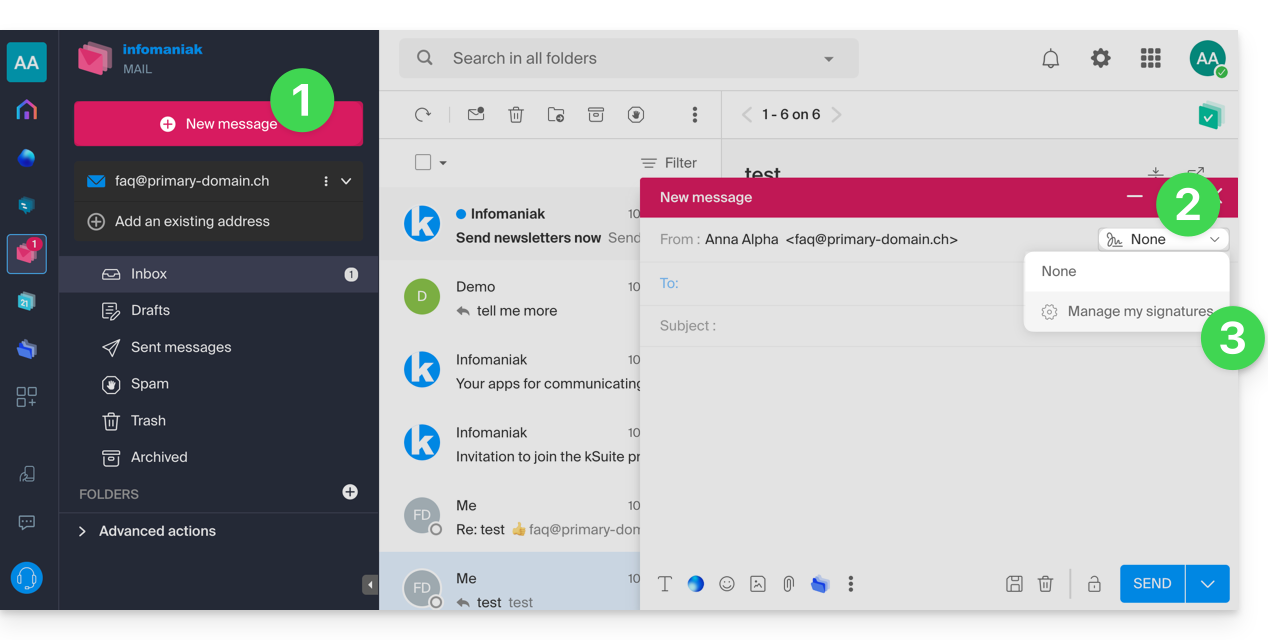
- Click here to access the Infomaniak Mail web app (online service ksuite.infomaniak.com/mail) and compose a new message.
- Click on the signatures menu.
- Click on Manage my signatures:
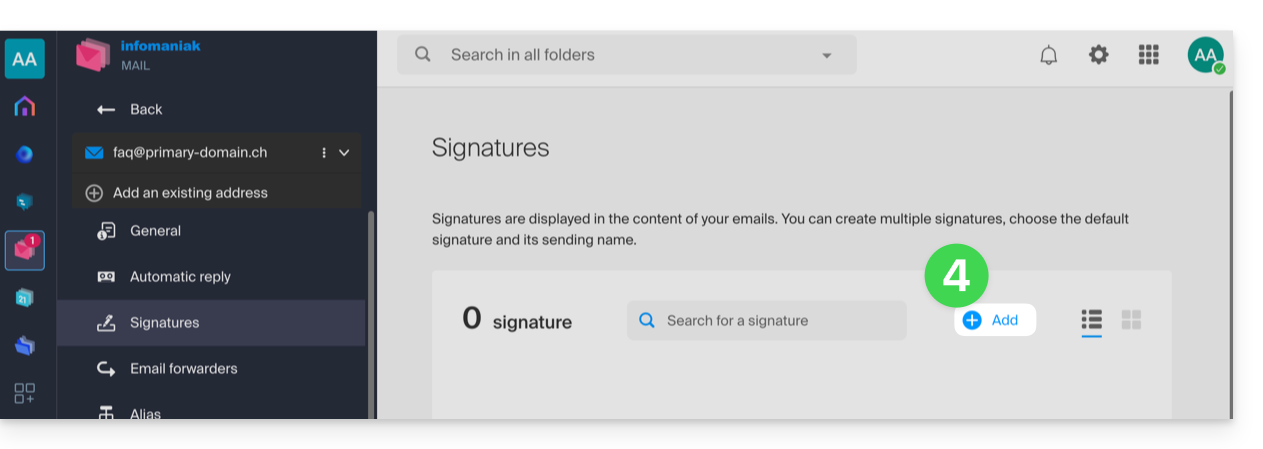
- Add a new signature:
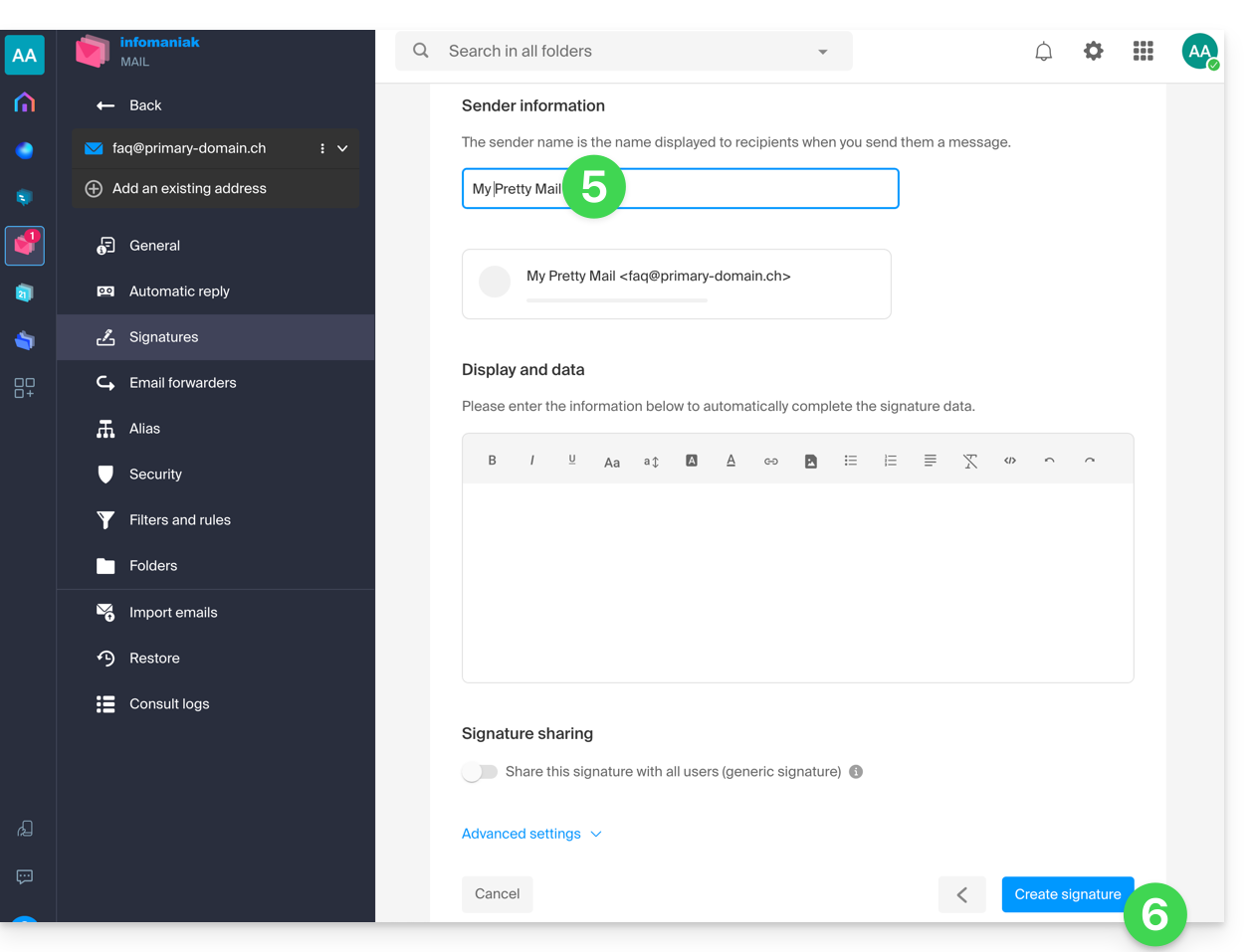
- Choose the template to use, then on the editing page, enter the name that should appear as the sender.
- Save your signature:
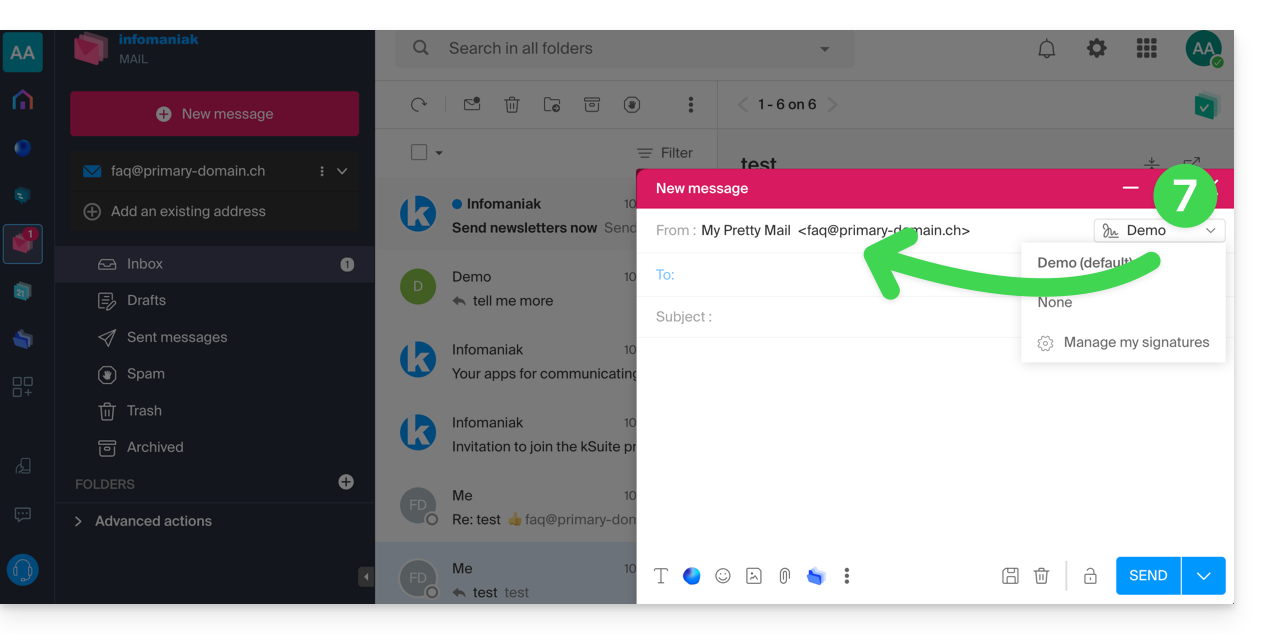
- Select your new signature; it will complete the from field of your message with the name you have customized:
Refer to this other guide if you need information on editing Mail signatures and on how the full name is displayed for different users in a signature template.
Link to this FAQ: https://faq.infomaniak.com/1662
Has this FAQ been helpful?
This guide details the rules for sending bulk emails with Infomaniak to avoid being classified as spam, in accordance with Swiss federal laws and the Infomaniak Terms of Service.
Obtaining consent (double opt-in)
Double opt-in is the only method to protect yourself against complaints.
For the subscription to be valid, the user must:
- Originate from a form dedicated to a specific topic.
- Be confirmed by the recipient via a validation link sent by email.
- Be tracked by the system (IP address and date are recorded).
How to stay compliant?
- Use a contact form with double opt-in to build your lists.
- Always keep the IP address and registration date of each subscriber.
- Always include a visible unsubscribe link at the bottom of each email.
Spam complaint management
In the event of a complaint, Infomaniak may temporarily suspend sending.
- If you provide proof of registration (IP address and date): the complaint will be dismissed.
- Without proof of registration: the complaint is deemed justified. Infomaniak may then suspend the email address, the domain, or terminate the contract in the event of a recurrence.
Link to this FAQ: https://faq.infomaniak.com/1667
Has this FAQ been helpful?
This guide explains how to transfer to Infomaniak email addresses currently hosted by Swisscom, using an IMAP import tool.
Introduction
- The operation does not affect either the data already present at the destination address or the data at the source address.
- The entire external mailbox will be imported.
- Once the import process has started, it is no longer possible to interrupt it.
- Any duplicates will be handled: identical content will only be copied once.
- Refer to this other guide if you are looking for alternatives to this IMAP process.
Import Bluewin email content into Infomaniak
Infomaniak Requirements
- You must have a Mail Service on your Infomaniak Manager.
- Have a number of available addresses or adjust it if necessary.
- Make sure that the email is properly secured
- Create one or more addresses on this Mail service.
- If you have many (10+) email addresses to create, please refer to this other guide regarding bulk creation.
- The destination email address must be linked to the user (= the Infomaniak account) you are using.
Next, to import your email content:
- Click here to access the import tool (online service https://import-email.infomaniak.com).
- If necessary, log in to your Infomaniak account for the relevant organization; the import will be done to one of the email addresses associated with the Infomaniak Mail web interface (online service ksuite.infomaniak.com/mail) of the Infomaniak account you are using.
- Click on the import via IMAP.
- Click on single import.
- Fill in the field on the left with your source email address (from which the content will be copied).
- Fill in the field on the right with the password for this same source email address (see prerequisites).
- Click Confirm.
- If necessary, enter a second email address to be imported at the same time.
- Choose the email address from which to import emails; the drop-down menu lists the email addresses currently associated with your Infomaniak Web Mail interface (online service ksuite.infomaniak.com/mail) for the Infomaniak account you are logged into.
- After selecting the desired destination address from the list, click the blue Import Emails button.
- The copy process begins. You can wait and see the result on the page once the import is complete, or close the window (the import continues in the background, and progress can be tracked - see below).
- A confirmation email will be automatically sent to all email addresses involved in the operation once the import is complete, indicating the number of messages copied.
- A progress tracker is available in the settings of the destination email address, on the Mail web app (online service ksuite.infomaniak.com/mail) only.
- The tracking feature allows you to view the import history for the specified address.
Import all your contacts
To continue using your address book, you need to export your contacts from Bluewin:
- Log in to your Bluewin interface.
- Click on Contacts.
- Click on the Settings icon in the toolbar.
- Click on Export contacts.
- Save the
contacts.csvfile to your device.
Next, you need to import them:
- Log in to your Infomaniak Address Book.
- Click on Advanced actions at the bottom left.
- Click on Import.
- Select your
.csvfile that you downloaded in step 5 above. - Click Next and start the import.
Forward emails to Infomaniak
If your Bluewin address will remain active for some time, you can set up a message forwarding rule. This will automatically redirect incoming messages to your new Infomaniak address:
- Log in to “MySwisscom”, click on the "More" box, then “Settings”:
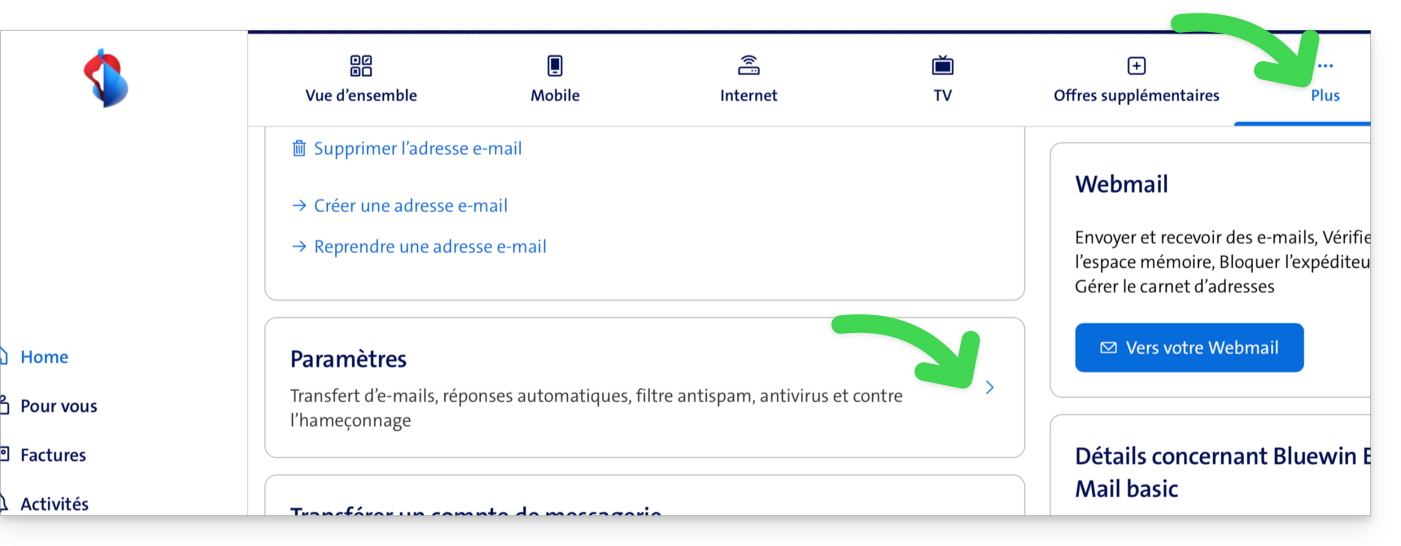
- Then click on “Manage transfers”:
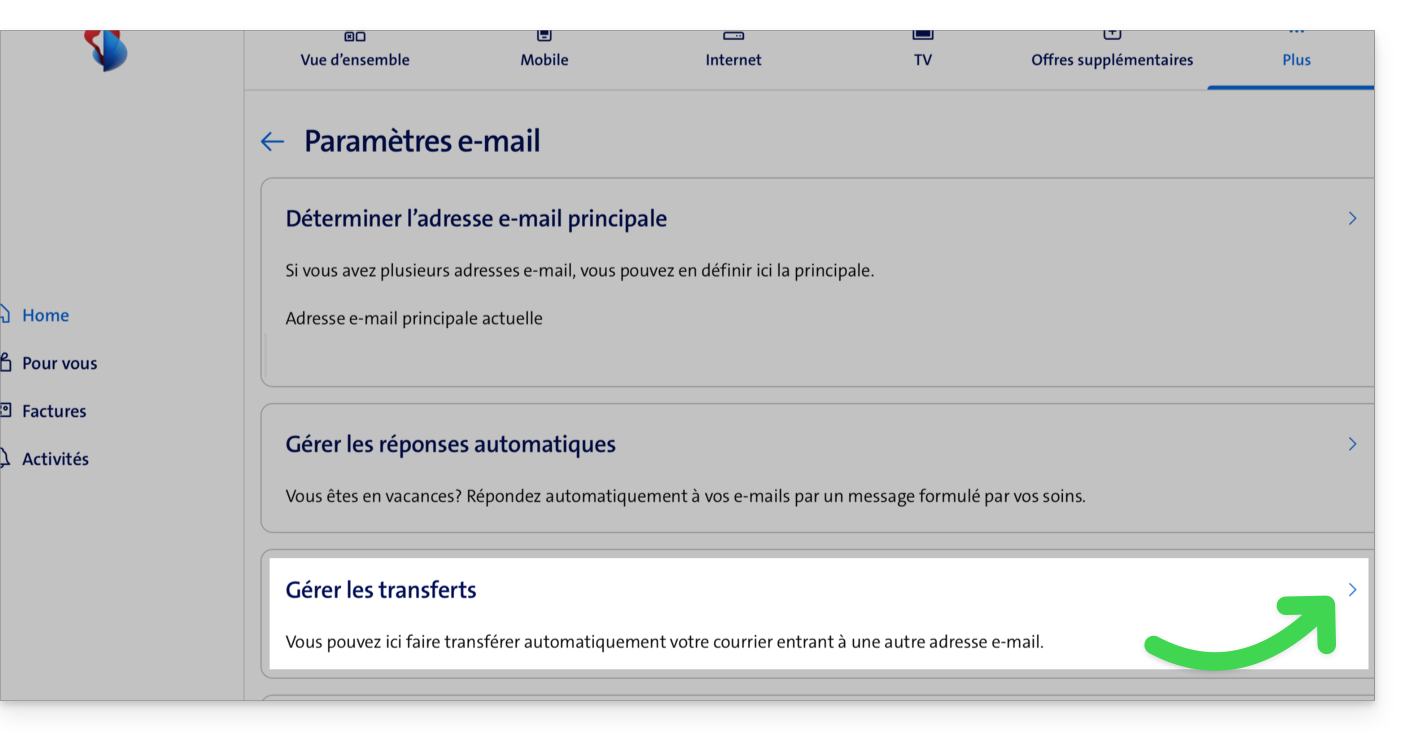
- Specify the email address created with Infomaniak as the destination for all your future incoming emails.
Link to this FAQ: https://faq.infomaniak.com/1693
Has this FAQ been helpful?
This guide concerns the configuration of the mobile app Infomaniak Mail (application for iOS/Android smartphones or tablets).
The language of the application is based on the language of your device on which the Infomaniak Mail mobile app is installed, and not on the language set in your user account.
Accessing the application settings
To open the settings of the Infomaniak Mail mobile app (application for iOS/Android smartphones or tablets) on your device:
- Tap the top left of your inbox:
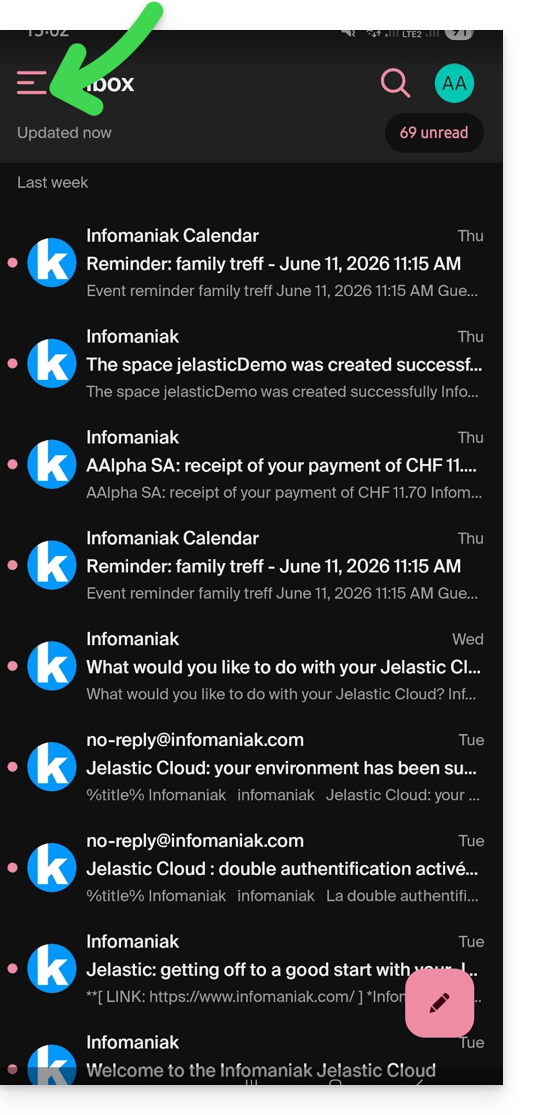
- Click on the Settings icon in the top right of the panel that opens:
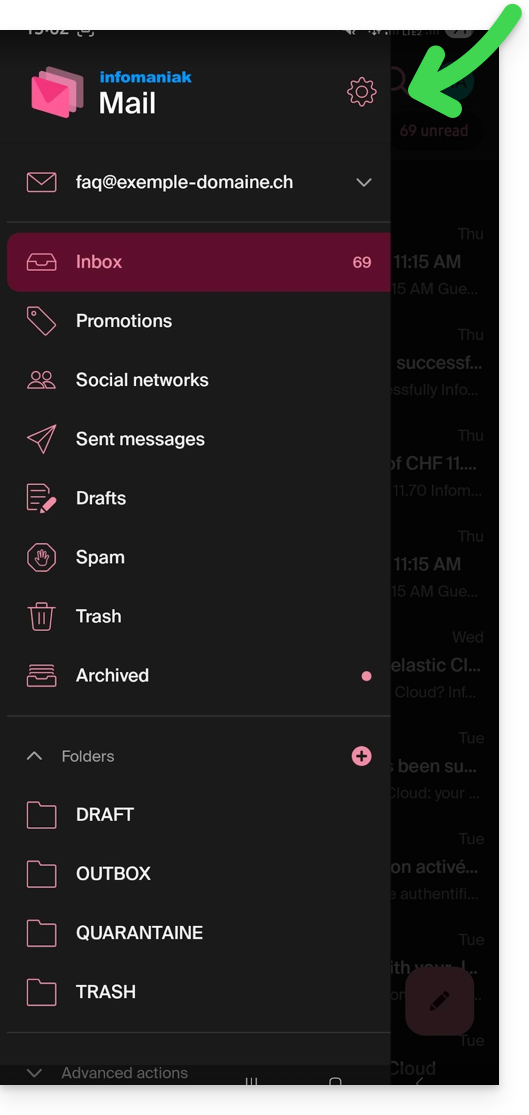
- You can manage the settings from the screen that appears:
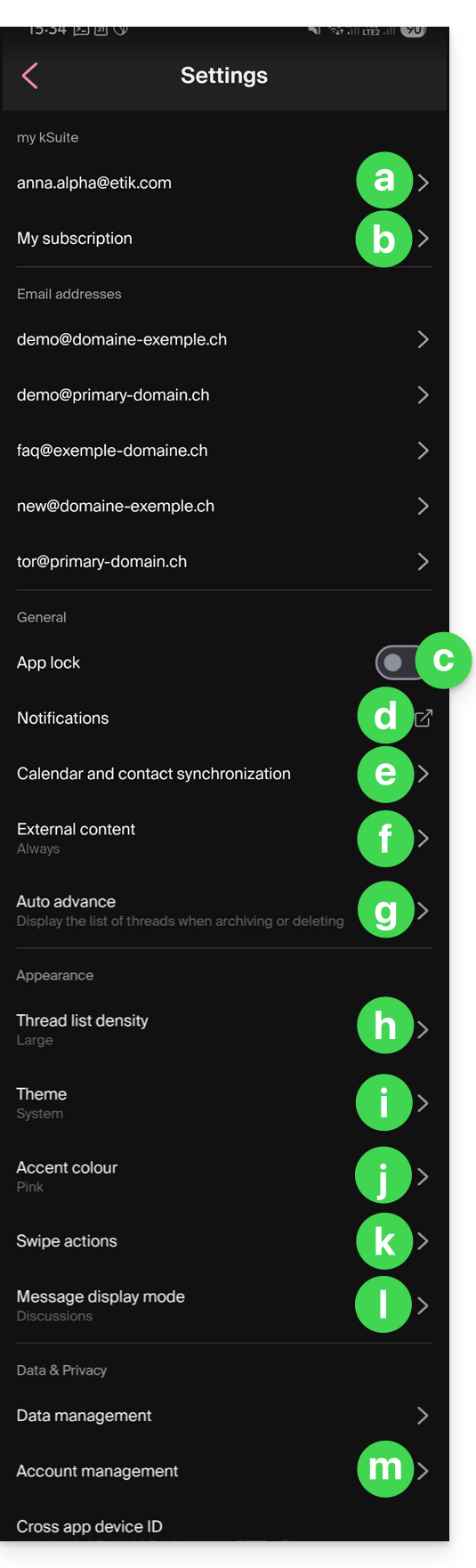
a. Signature selection
If you have multiple email addresses linked to your account, tap on the email address for which you want to change the signature. Then, choose a different signature from the configured signatures.
On iOS, you can also manage your read receipt requests.
b. my kSuite only
Provides information about the current subscription. Example: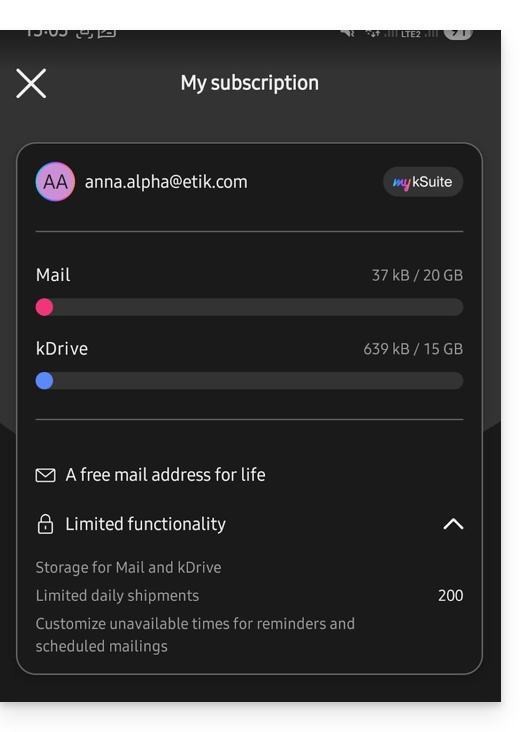
c. App Lock
This option allows you to protect the app using one of your device's lock methods. This ensures that you remain logged into your Infomaniak account, but prevents unauthorized access to Infomaniak Mail when the app is no longer in the list of open applications.
If your device has a fingerprint reader, you can use this method to enable the lock. The same applies to Face ID on iOS.
When you reopen the application, authentication will be required.
d. Device notifications
You can configure notifications for each of the email addresses linked in the application.
e. Contact & calendar synchronization
This synchronization is currently managed externally; please refer to the https://config.infomaniak.com/ wizard.
f. External content
This section allows you to choose whether to automatically display all external content present in an incoming email that you are reading, or whether you prefer to hide it and only display it on demand.
g. Automatic advance
This section allows you to choose the action to be performed after an email is archived or deleted: open the next message, or the previous one, or return to the message list.
h. Conversion list density
The display mode can be compact, normal, or wide.
i. Theme
The theme allows you to choose between a dark mode display or, conversely, a light display with black text on a white background. This display can also be defined based on the device's theme, allowing it to adopt any system setting that changes the display based on the time of day.
j. Accent color
The accent color is either blue or pink.
k. Swipe actions
Swipe actions allow you to define which operation Infomaniak Mail should perform if you swipe your finger on a message in the list from right to left or from left to right (including the “long swipe” on iOS):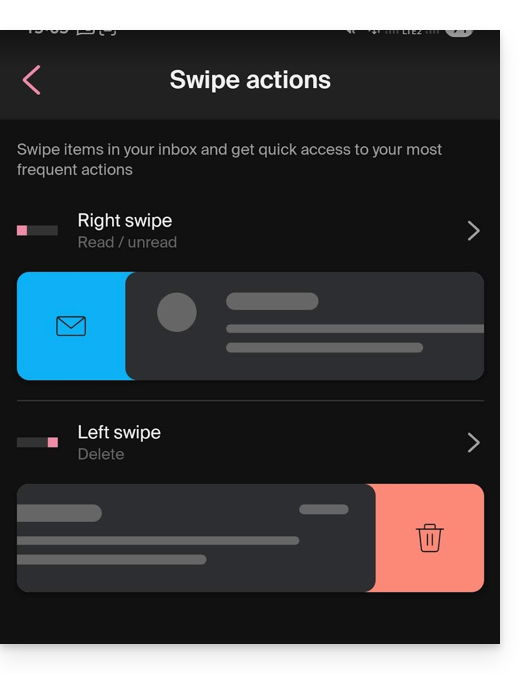
The available actions are:
- delete the message (it will be moved to the trash)
- archive the message (it will be moved to an archive folder)
- mark it as read or unread
- move the message (and in this case, the list of folders will appear after a scan)
- favorites (to enable tracking of the message)
- report as spam
- quick actions menu (also accessible from the message view, offering options to write a reply, forward, delete, print, etc.)
You can also choose "none" to avoid operations that may not be desirable if your device is not suitable for scanning: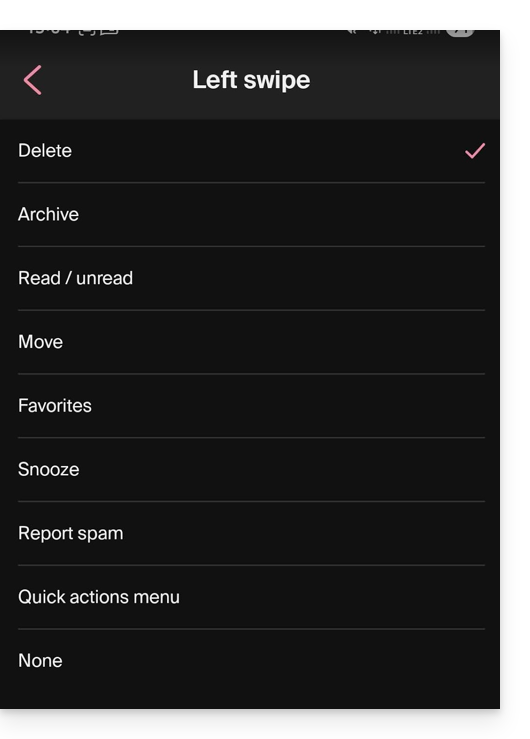
l. Message display mode
Choose between displaying messages individually or using “thread”/“conversation” mode, which groups your emails by topic/sender. This means emails received are grouped according to the subject of the discussion, making the inbox display cleaner and easier to follow the messages from the different participants in the conversation:
m. Account management
Allows you to delete your Infomaniak account (after confirming that you have read the important warning). Also, please refer to this other guide: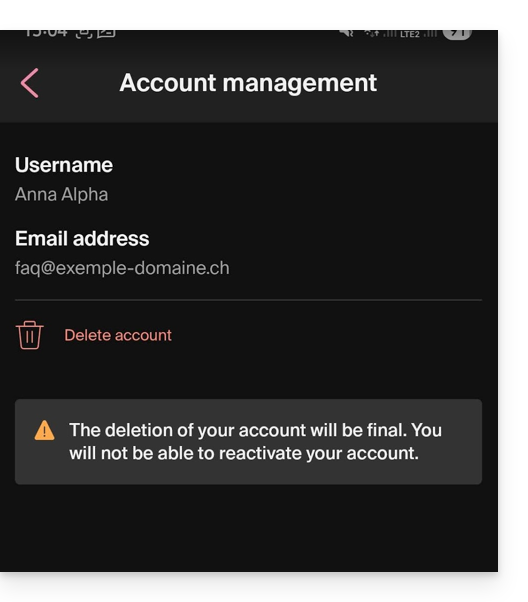
Link to this FAQ: https://faq.infomaniak.com/1696
Has this FAQ been helpful?