Knowledge base
1000 FAQs, 500 tutorials and instructional videos. Here, there are only solutions!
Manage email addresses passwords (Mail Service / my kSuite)
This guide explains how to manage the password of an email address from an Infomaniak Mail Service.
Preamble
- If you cannot log in to the Manager or Mail / kSuite, you will not be able to manage the passwords of any email addresses: refer to this other guide in this case.
- Changing the password of an email address means changing the IMAP / SMTP password: as soon as the password is changed, you must update your software (Outlook, etc.), mobile devices (iPhone), etc. with the new password (this is your responsibility).
- An email address can be accessed (on the Infomaniak Mail app) without the notion of a password: simply authorize your account or invite an acquaintance to be a user of the email address.
Add a password to an Infomaniak email address
Refer to this other detailed guide on this subject.
Create a password for a user
Instead of creating a password yourself and having to communicate it to the user later, you can directly allow a user who does not have as many permissions as you to obtain the password for the device they need:
- Add the new user (existing in the Organization or not) as described in this other guide:
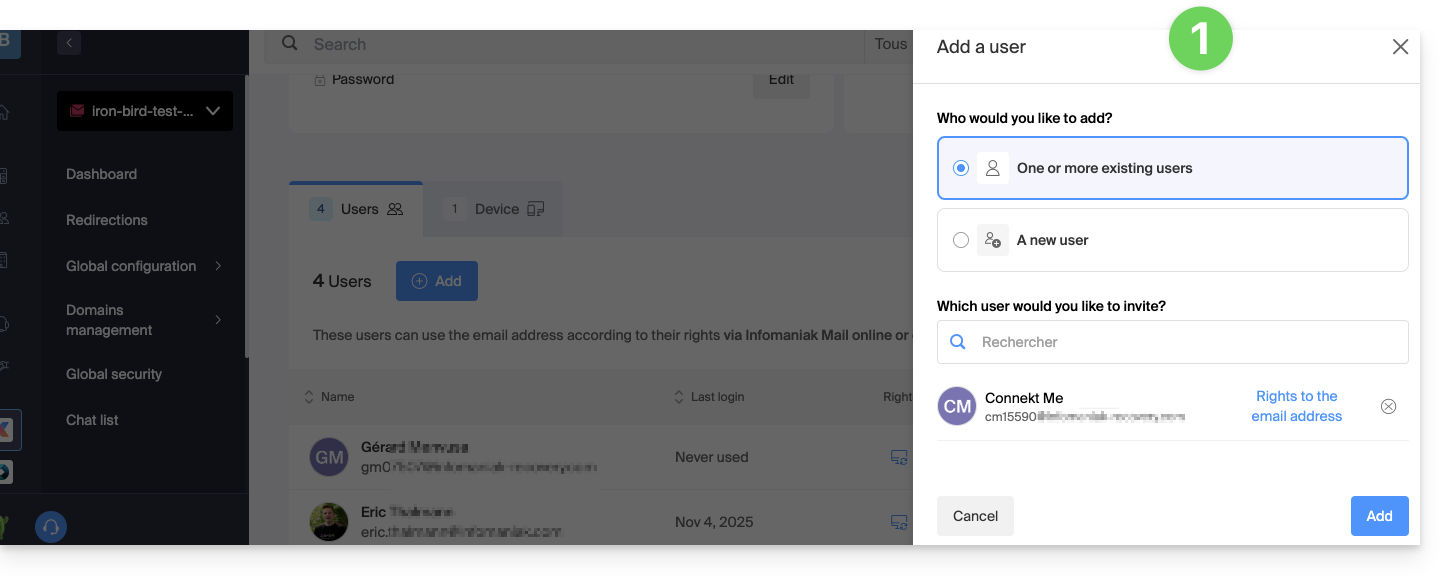
- Once the user is added, switch to the devices tab to add a new device:
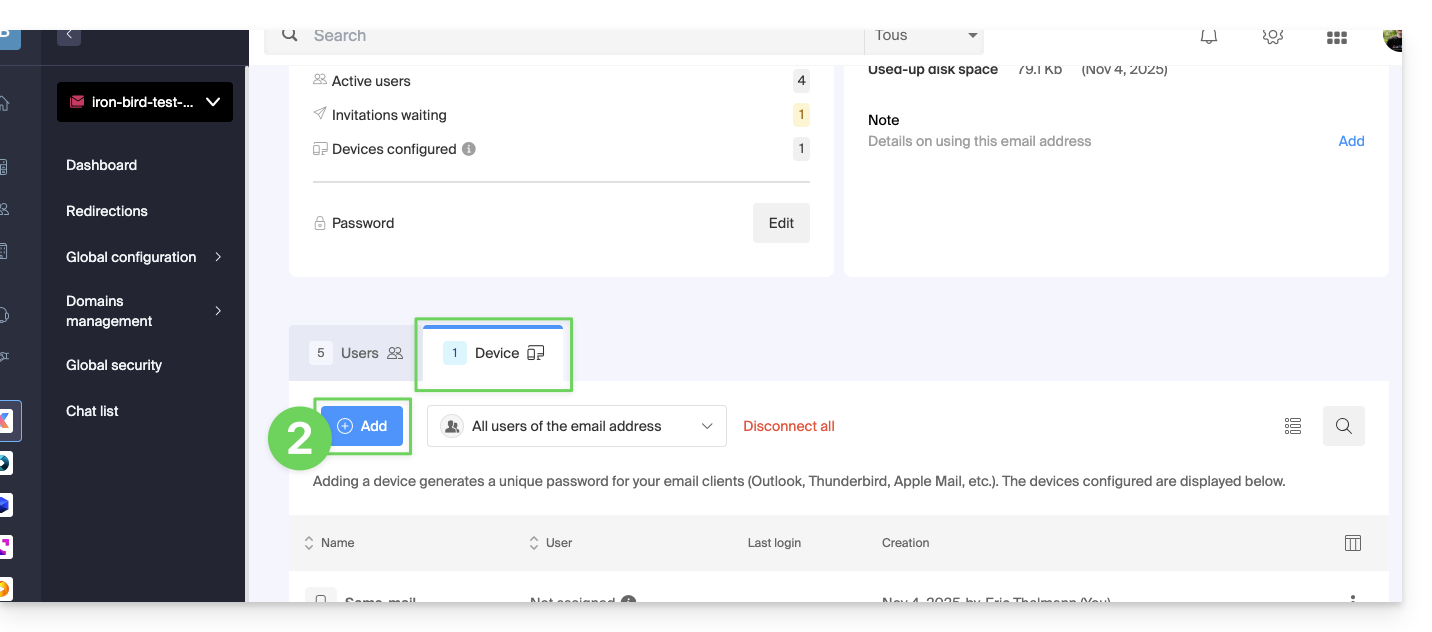
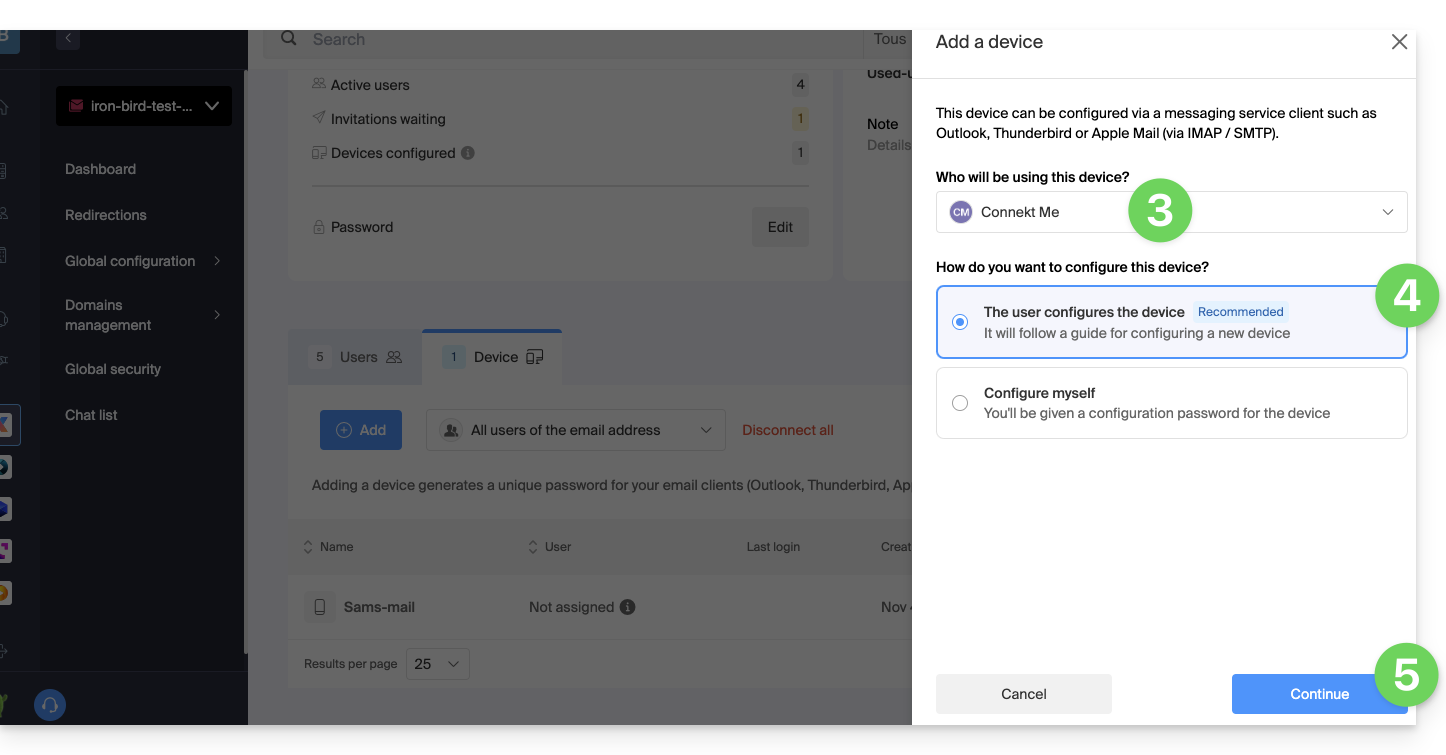
- Enter the password to log in to your Infomaniak account if necessary, then select the user created in step 1.
- Click on the first option to send a setup assistant for the user's device.
- Click the Continue button:
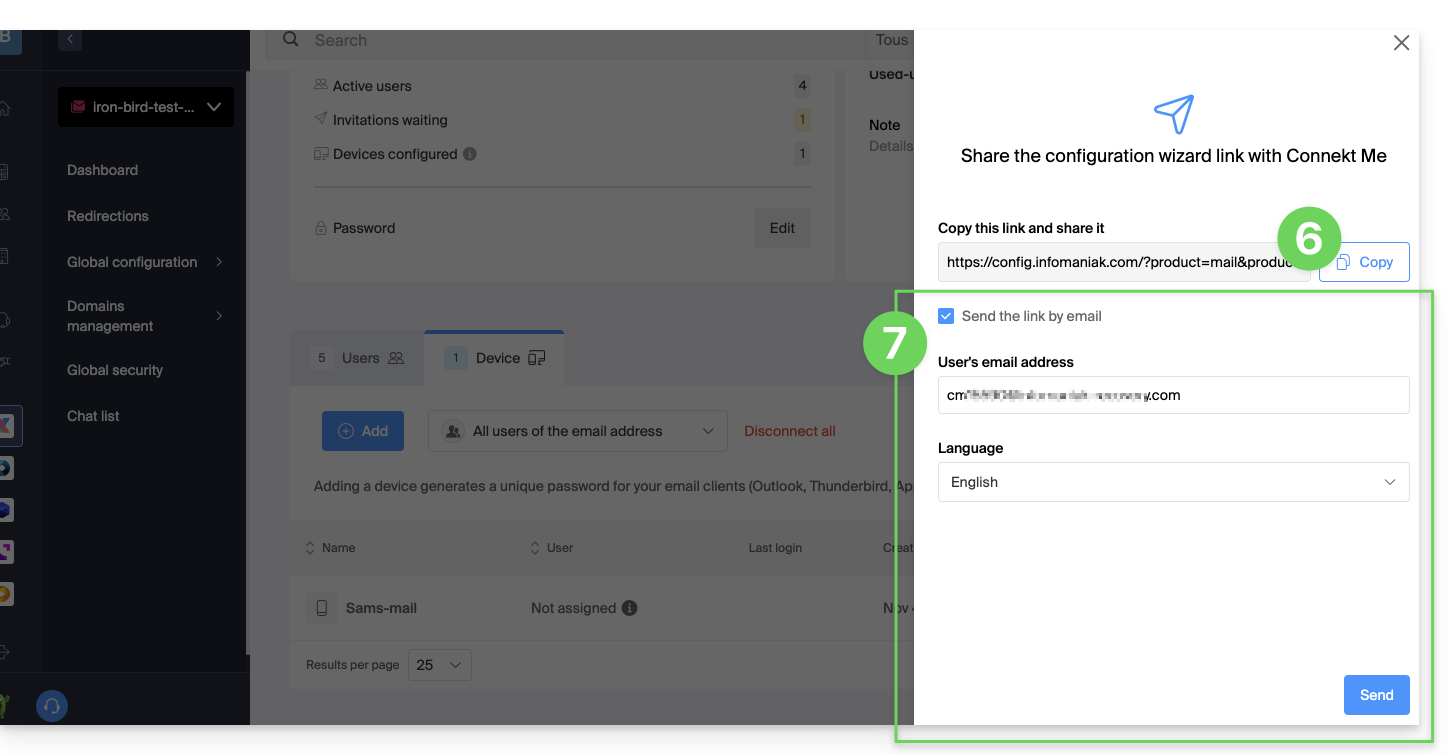
- Copy the invitation link valid for 30 days to be sent to the user.
- If necessary, send the invitation to the user's email address:
In step 4 above, you can also choose to generate a password:
- The created password will be displayed, you can modify it one last time, copy it, and keep it safe (password manager, for example); it will no longer be able to be displayed afterward.
Reset/remove device password(s)
To cut off any current IMAP/POP/SMTP connection that is made using a password generated on this interface (this does not remove the address from the Infomaniak Web App Mail (online service ksuite.infomaniak.com/mail) — you need to administer the users of the email address for this), you can revoke a device, or even delete all existing configurations in 1 click:
- Click here to access the management of your product in the Infomaniak Manager (need help?).
- Click on the product name concerned.
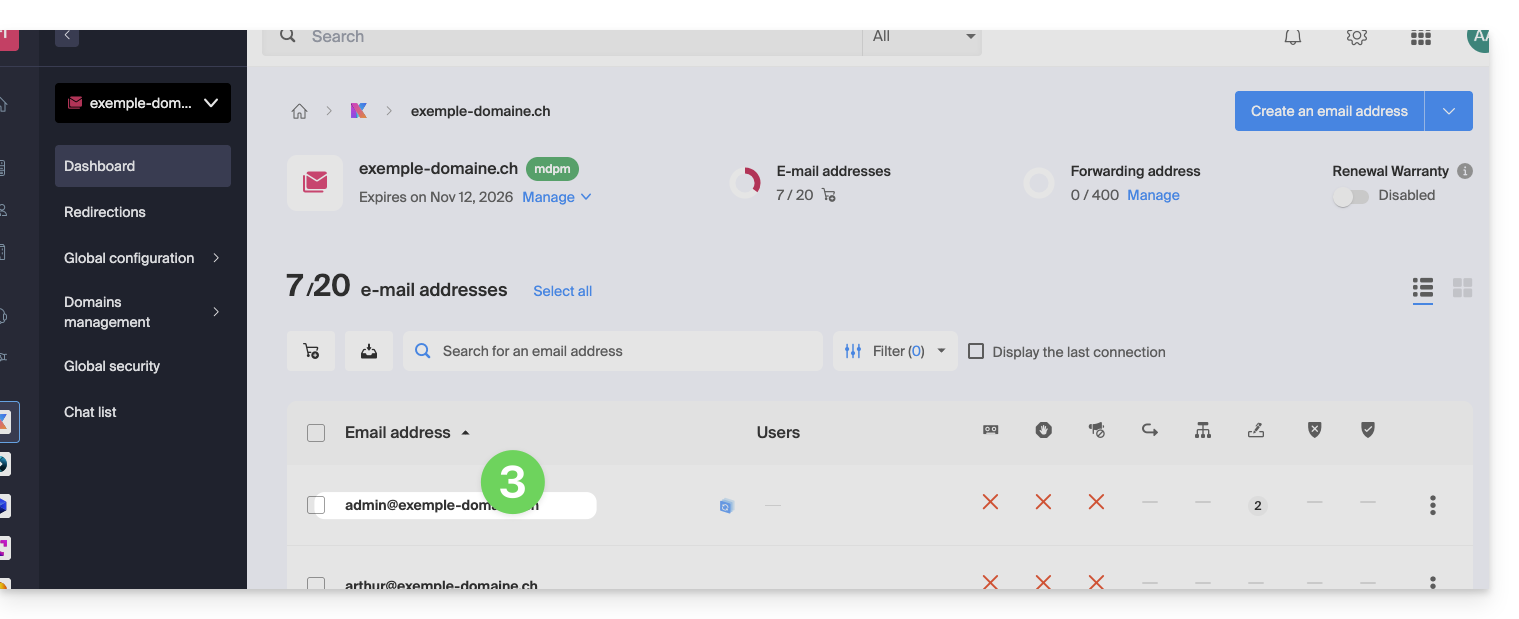
- Click on the email address concerned in the table:
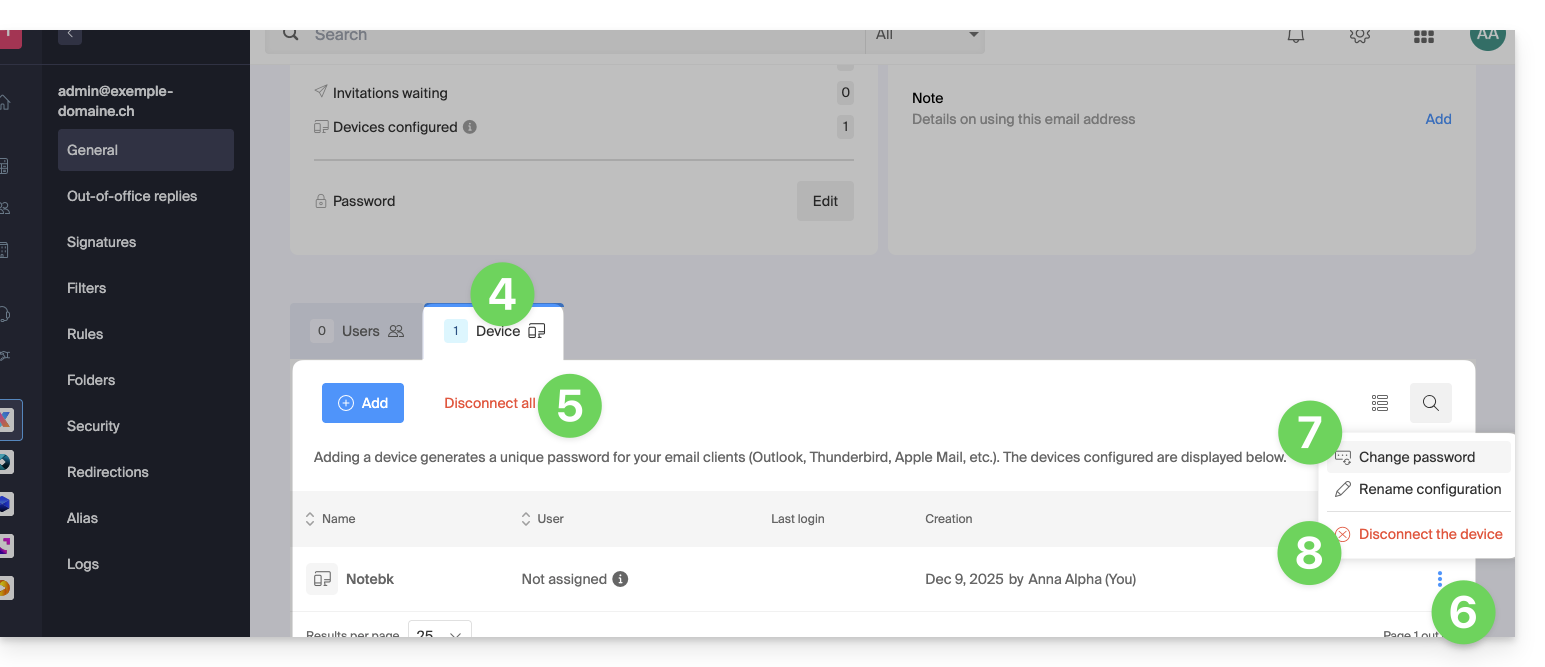
- Click on the Devices tab.
- Click on the red link to disconnect all registered devices (confirmation is required).
- Click on the action menu ⋮ located to the right of the device concerned.
- Click on “Change password” to cut the current connection but allow the device to reconnect with a new password directly.
- Click on “Disconnect the device” to remove it from the list and delete the corresponding connection:
What is a “generic” password?
Some email addresses may display a particular indication in the Devices section: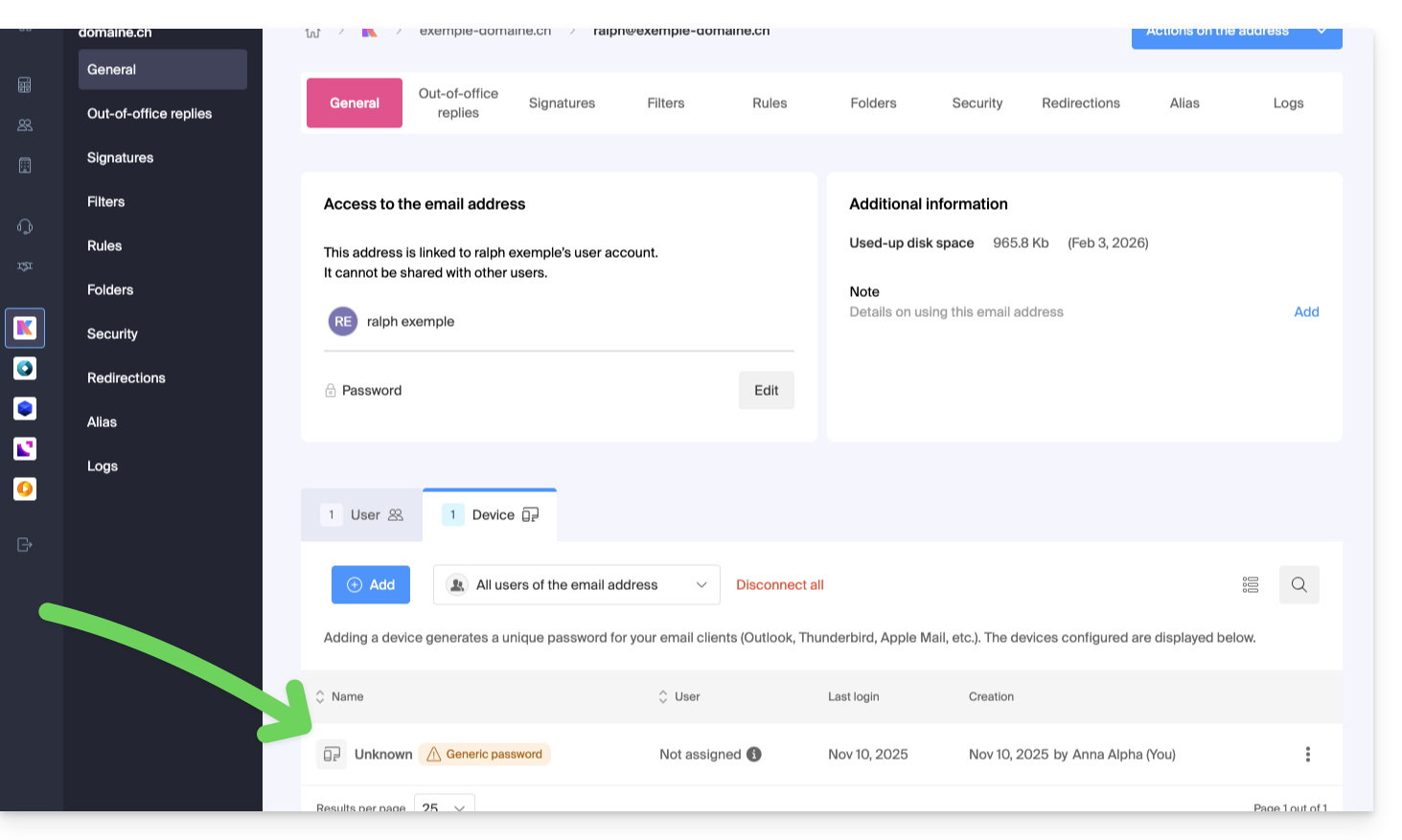
If this is the case, do not worry, this corresponds to the fact that the address has a password assigned to it when it was created (before the year 2026). This remains valid but, like other passwords, it is impossible to display. And unlike other passwords, this one cannot be reset (the option is grayed out, deactivated):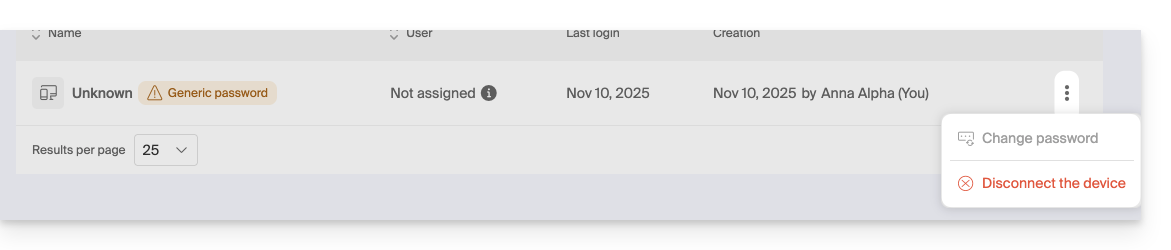
You can add an additional password without any problem.
Link to this FAQ:
Has this FAQ been helpful?