Knowledge base
1000 FAQs, 500 tutorials and instructional videos. Here, there are only solutions!
This guide concerns the support for secure hashing functions (including SHA-256) by Infomaniak servers, as well as the emphasis on the security of SSL/TLS certificates using CSRs generated with SHA-256.
SHA-256 Hashing Algorithm
The cryptographic hash function SHA-1 is supported, and Infomaniak servers also support the SHA-256 function, which is particularly useful for Paypal and SaferPay (SIX).
CSRs (certificate signing requests) are in SHA-256 and not in SHA-1.
Link to this FAQ: https://faq.infomaniak.com/1441
Has this FAQ been helpful?
This guide explains how to display the IP address of a website on your Web Hosting.
Introduction
- The IPv4 address is generally the same for each website on the hosting (unless you have acquired a dedicated IP address).
Display your website's IP address
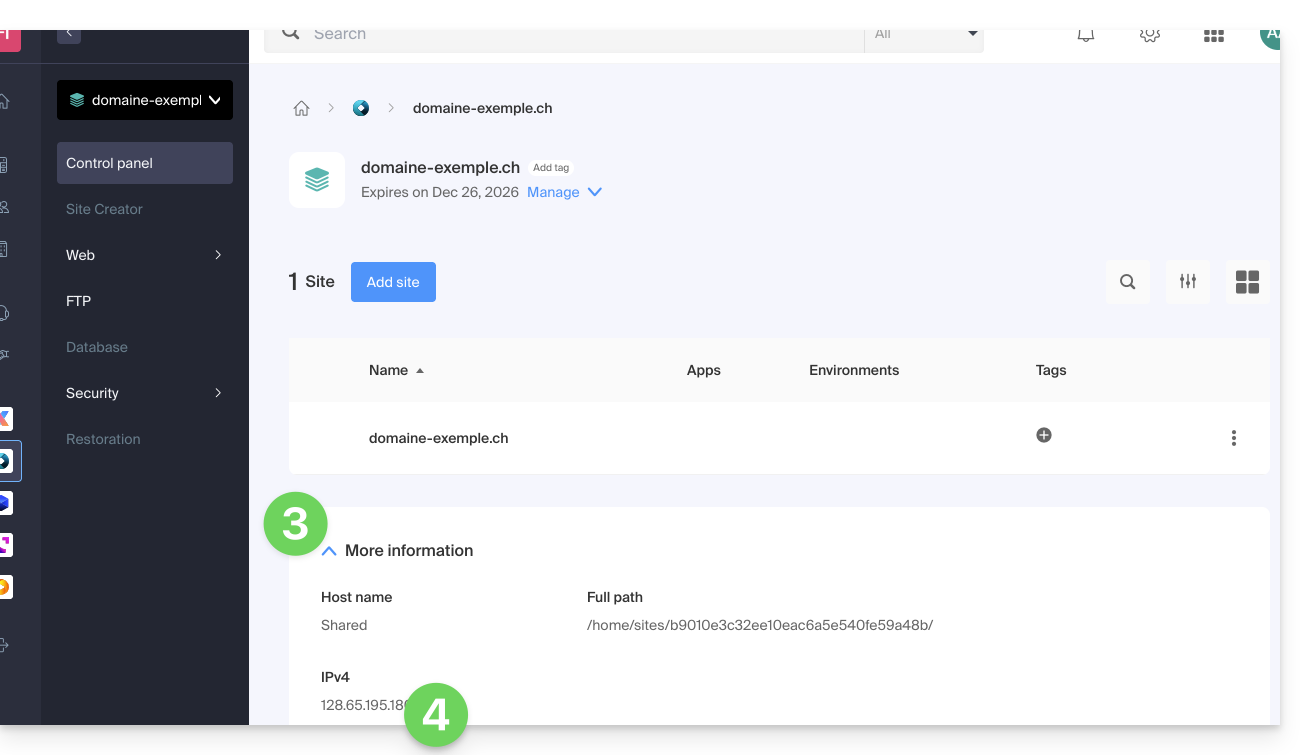
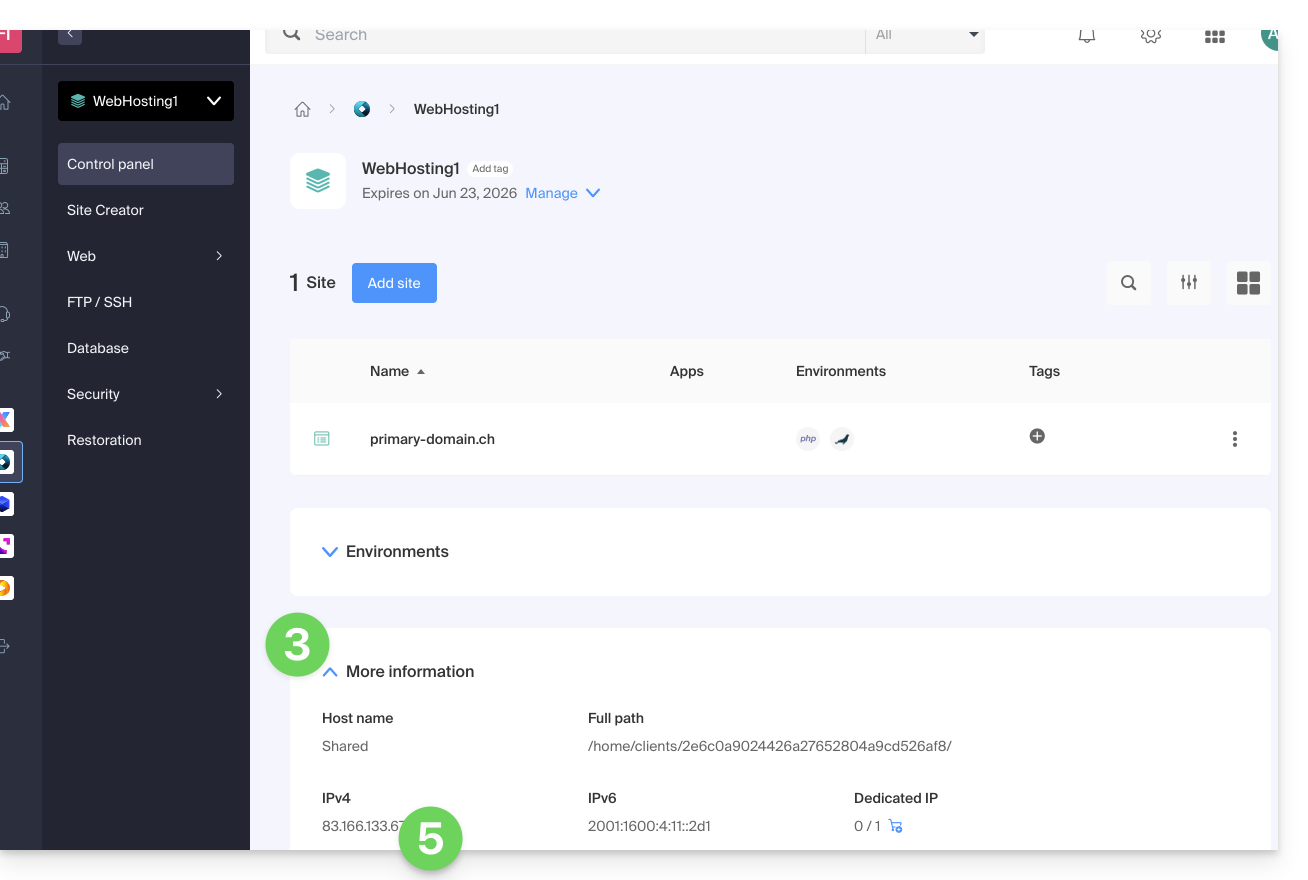
The IP address is specified on the hosting management page (Starter or containing multiple sites):
- Click here to access the hosting & site management section in your Infomaniak Manager (❓: help).
- Click on the name of the website in question.
- Then, click on the down arrow to expand the Information section for this hosting.
- The IPv4 address is displayed on the page:
- The IPv6 address is also displayed for paid hosting plans:
Link to this FAQ: https://faq.infomaniak.com/1500
Has this FAQ been helpful?
This guide details the "502 Bad Gateway" errors that you may encounter when visiting a website.
Introduction
- The 502 Bad Gateway error occurs when the server acting as a gateway between the browser and the origin web server receives an invalid response.
- This error can be caused by an overloaded web server, communication issues between a CDN and the web hosting server, or a misconfigured proxy server.
- Sometimes, the error may be caused by an incorrect entry in the DNS server.
Troubleshooting steps
To resolve the 502 Bad Gateway error, it is often necessary to proceed by elimination:
- Check if it is not a temporary server overload: simply reload the page after a few minutes and the error should disappear.
- Clear your browser's cache.
- Try using a different browser.
Link to this FAQ: https://faq.infomaniak.com/1509
Has this FAQ been helpful?
This guide explains how to change the URL of your website from the Joomla app installed on your Web Hosting Infomaniak (only if you installed Joomla using the dedicated tools provided by Infomaniak).
This allows you to assign a different domain name to your Joomla site.
Prerequisites
- The domain name you wish to use must first be added as an alias to the main domain (❓: help) on the relevant website.
Change the domain name of your Joomla site
To change the address of your Joomla site to a different domain name that is already in the same Organization:
- Click here to access the hosting & website management section in your Infomaniak Manager (❓: help).
- Click on the name of the website in question.
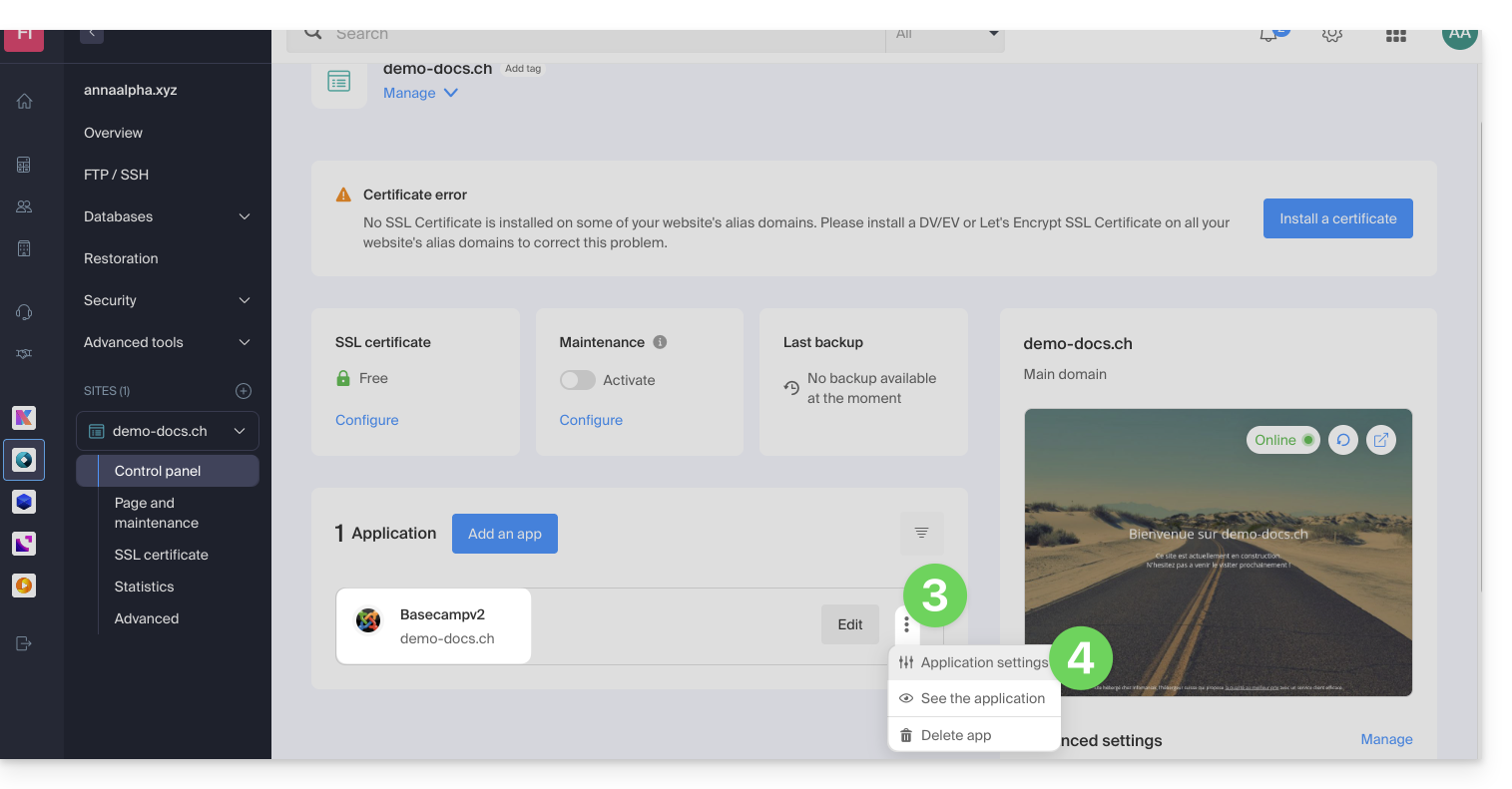
- Click on the action menu ⋮ located to the right of the relevant Web Application.
- Click on the application's Settings:
- Click on Edit to the right of Joomla:
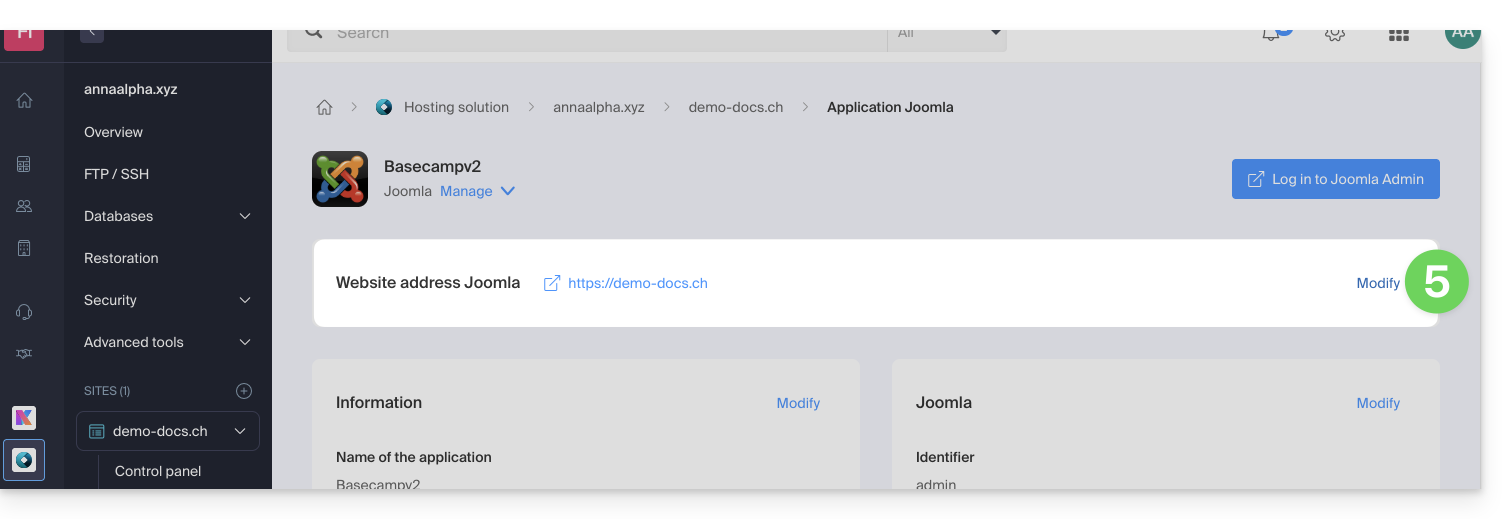
- Under Website URL, select the desired web address from the dropdown menu:
- If you have not followed the prerequisites above, the desired domain will not appear even if it is registered in the same Organization.
- If you have added the domain as an alias for the site, the desired domain will appear and you can select it to replace the previous domain.
- Click on the Save button:
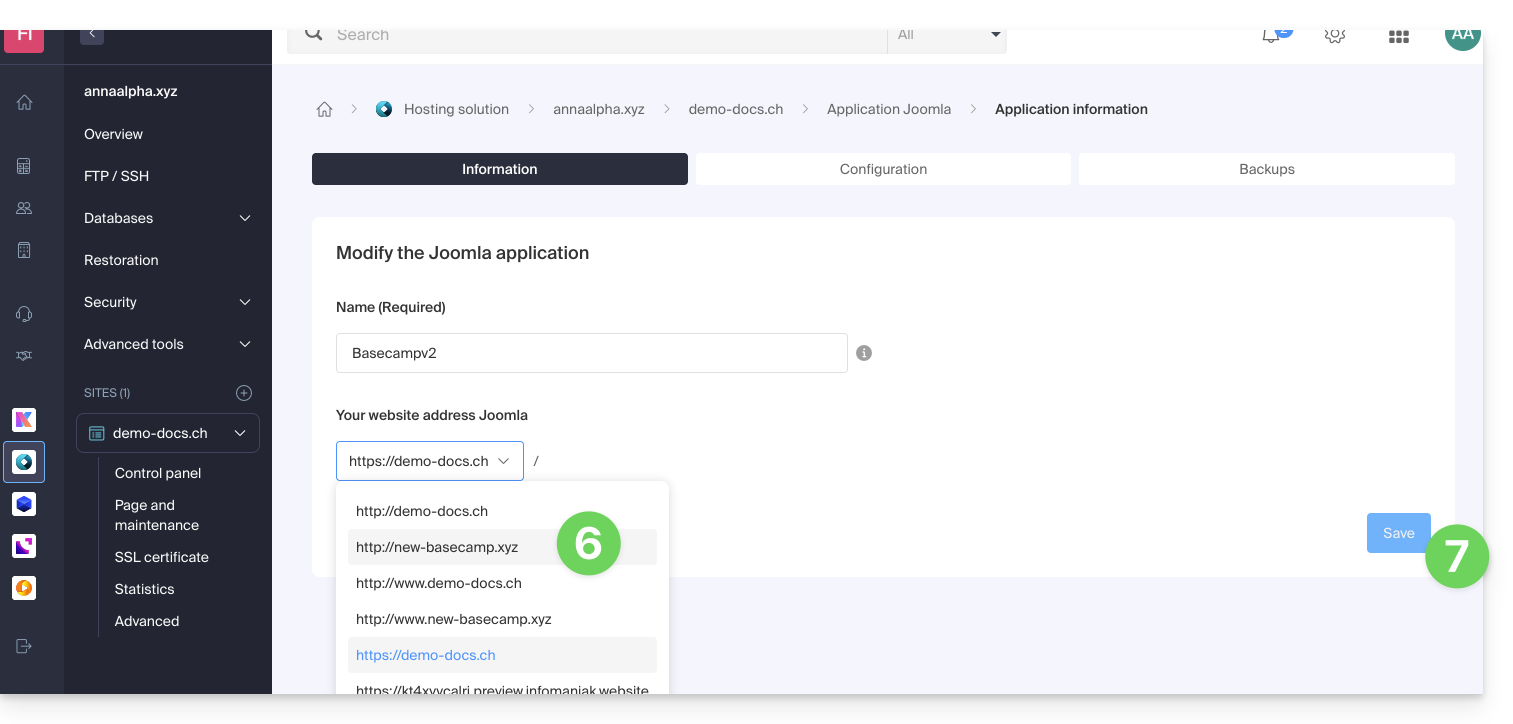
Domain “…preview.infomaniak.website”?
Among the URLs in the drop-down menu, the preview URL (❓: help) allows you to access your Joomla site in case the site's domain name is not yet correctly configured to point to your app: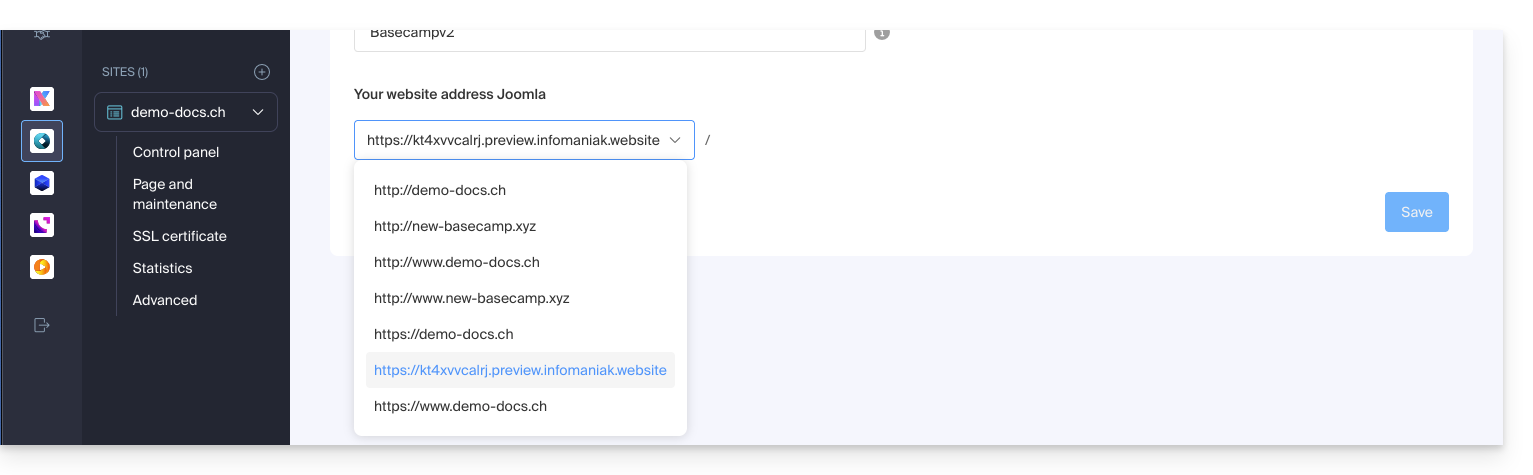
Modify the address or location of Joomla
⚠️ These operations will break the link between your Joomla and the Infomaniak Web Applications system; you will no longer be able to benefit from the advantages of the latter.
Prerequisites
To modify the Joomla installation if it was done in a subdirectory…
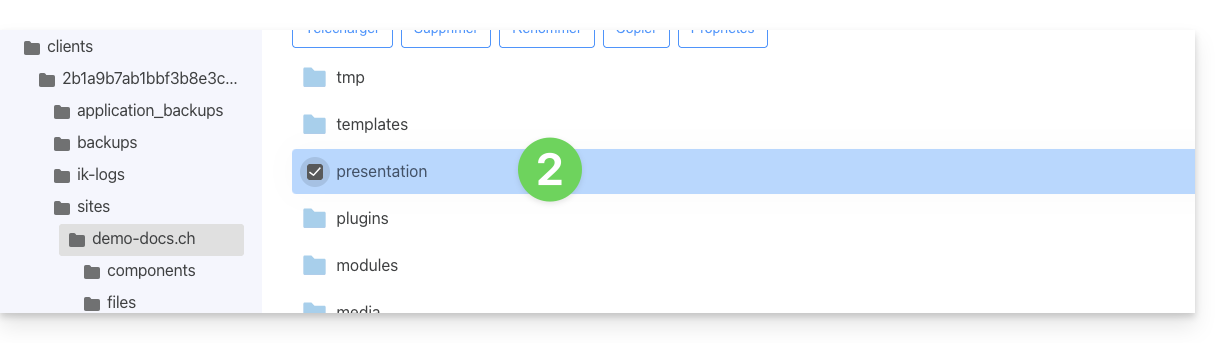
- Delete the now-empty subfolder:
- Modify the
.htaccessfile located in the root directory of your Joomla installation. - Replace
RewriteBase /presentationwithRewriteBase /: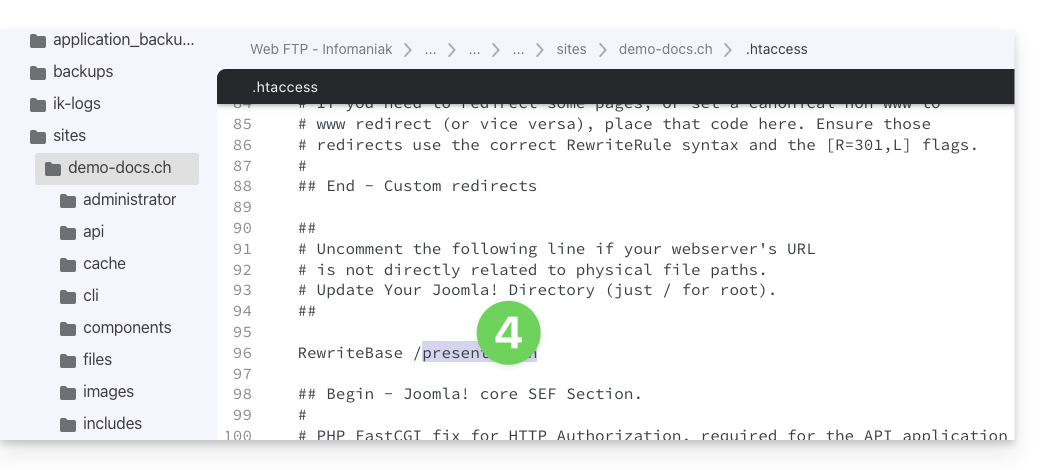
- Save the changes.
- Do not uninstall the Joomla Web Application, simply stop using it and connect directly to the management interfacefrom your Joomla via the URL
/administrator: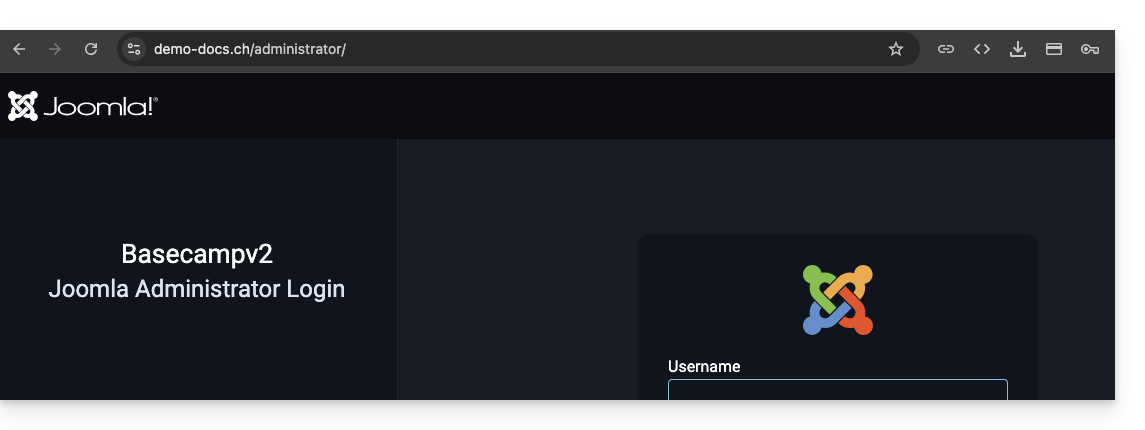
Link to this FAQ: https://faq.infomaniak.com/1515
Has this FAQ been helpful?
This guide details how to troubleshoot issues related to the automatic media retrieval feature with the VOD/AOD extension for WordPress, particularly when synchronization fails despite an established connection between the extension and the VOD space.
Introduction
- If the VOD plugin in your CMS can no longer automatically retrieve videos from your VOD space, it is likely that the MySQL user of the database on which the CMS is installed does not have administrator privileges.
- This situation can cause a problem when installing the VOD plugin on your CMS.
Fix automatic video recovery
To be performed on your web hosting
- Click here to access the hosting & website management section in your Infomaniak Manager (❓: help).
- Click on the name of the product in question.
- Click on Databases in the left-hand menu.
- Click on Users in the left-hand menu.
- Click on the action menu ⋮ located to the right of the user who manages the database for your CMS.
- Click on Edit:
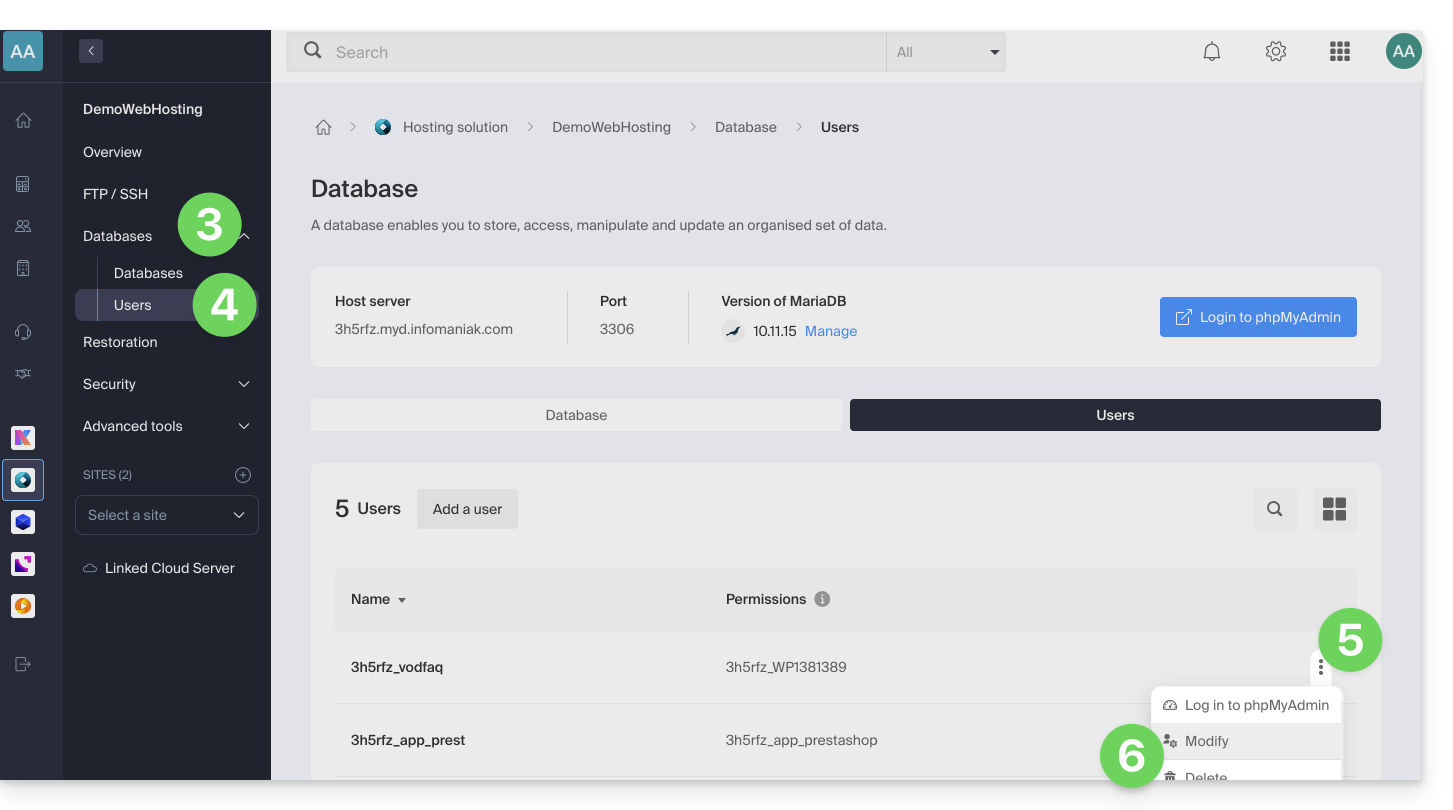
- If necessary, add the ADMIN permission to the user for the relevant database:
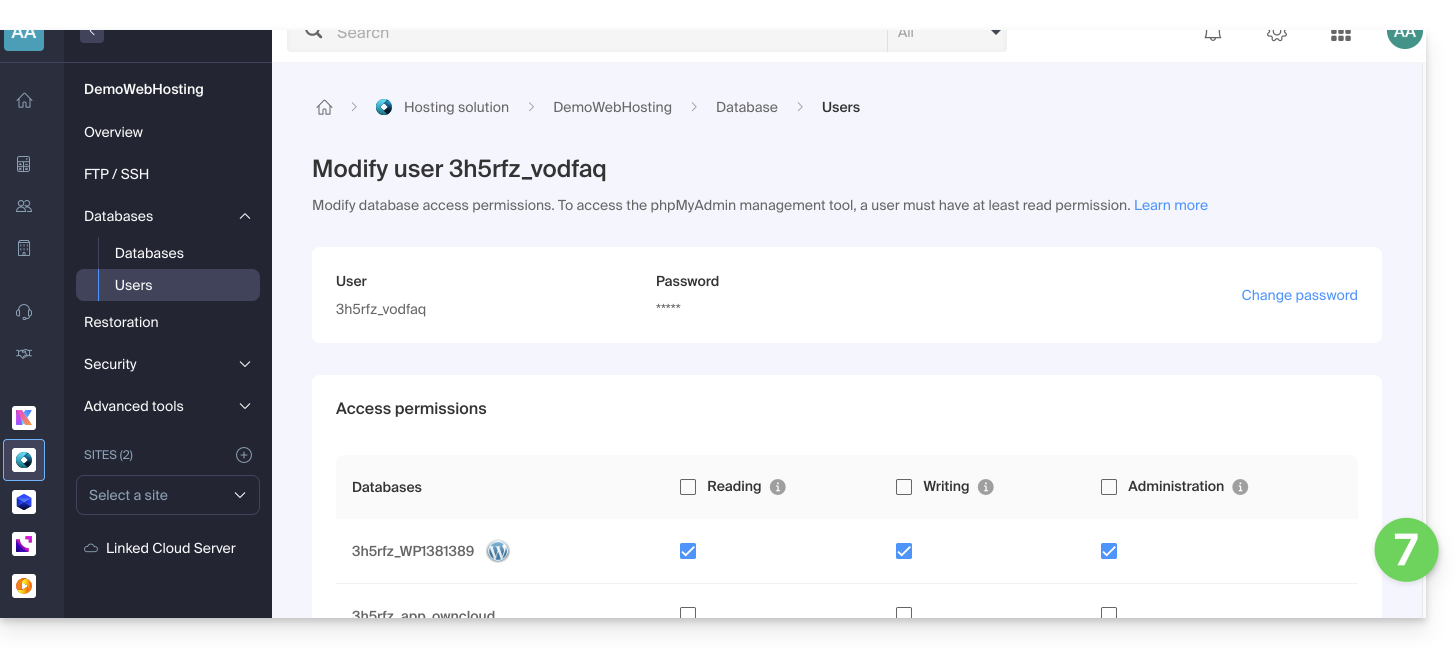
- Click the button to Confirm at the bottom of the page.
To be performed on WordPress
- Uninstall the VOD plugin
- Reinstall and activate the VOD plugin (refer to this other guide)
- Reconfigure the plugin's connection to your Infomaniak VOD account
- Resubmit the video file linking request.
Once the configuration is restored, the MySQL user's administrator privileges can be revoked if necessary.
If an imported video persistently displays a "converting" status, even though it is finalized in the Manager, a conflict with access restriction extensions (such as Members Only) is likely.
In case of abnormal behavior, temporarily disable your third-party extensions to identify any potential software incompatibility.
To force a refresh of a video that is stuck in the conversion process, use the Synchronize function available in the VOD extension settings under WordPress.
To be performed on the Infomaniak Manager
Although the extension synchronizes periodically with your account, the appearance of new items (Players, folders, or playlists) may be delayed on your CMS.
For an immediate update, go to the VOD Management > Configuration section of your Manager and enable Fast Synchronization.
If new media do not appear in the CMS list, check the accessibility of the callback URL. This address, used by the encoding system to notify your site of a video's availability, must be publicly accessible. Refer to the VOD Management > Configuration page for more details.
Link to this FAQ: https://faq.infomaniak.com/1536
Has this FAQ been helpful?
This guide explains how to manage the interactions between your Infomaniak VOD/AOD space and any of your WordPress sites, using an extension developed by Infomaniak.
Introduction
- This WordPress extension allows you to retrieve and manage all your videos stored in an Infomaniak VOD/AOD space, with automatic updates when new videos are added.
- It manages the automatic retrieval of existing Players and playlist management.
- You can search for your videos while writing an article or page, or import media directly from the CMS administration panel.
- Possible incompatibilities:
- The plugin is not compatible with Elementor.
- Test if the problem persists after installing another editor.
- The plugin is not compatible with WordPress Multisite.
- The plugin is not compatible with Really Simple Security (Really Simple SSL).
- Test if the problem persists by enabling or disabling this setting in the Really Simple Security extension:
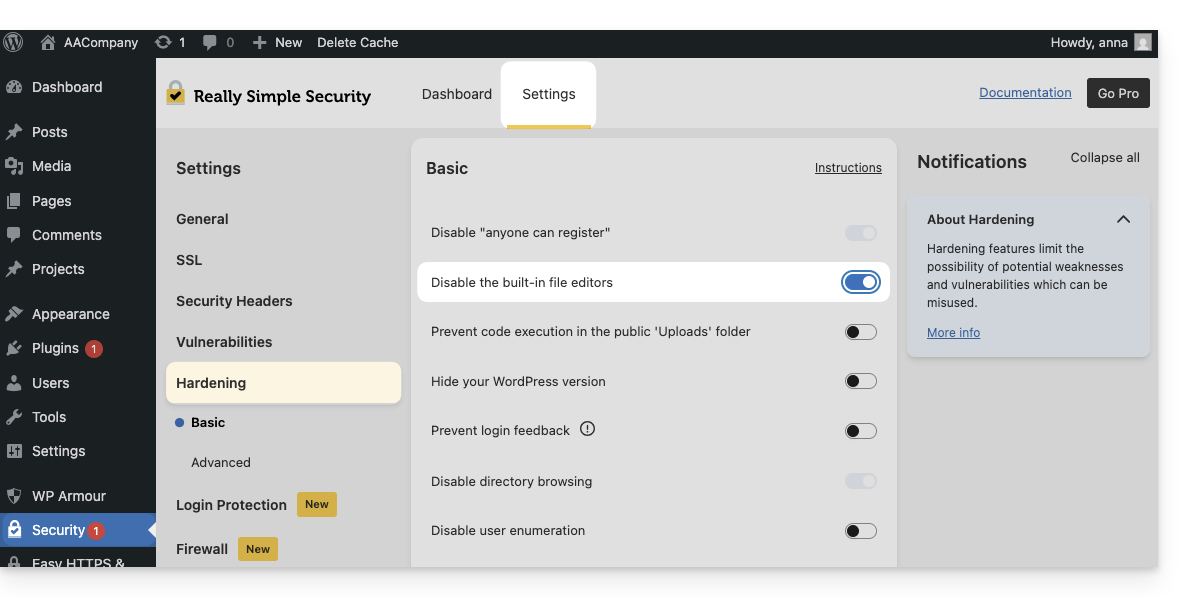
- Test if the problem persists after using another similar module.
- If problems persist, refer to this other guide.
- Test if the problem persists by enabling or disabling this setting in the Really Simple Security extension:
- The plugin is not compatible with Elementor.
Get the Infomaniak VOD extension
Go to your VOD space to find the information needed for the external WordPress module:
- Click here to access the management of your product on the Infomaniak Manager (need help?).
- Click directly on the name assigned to the product in question:
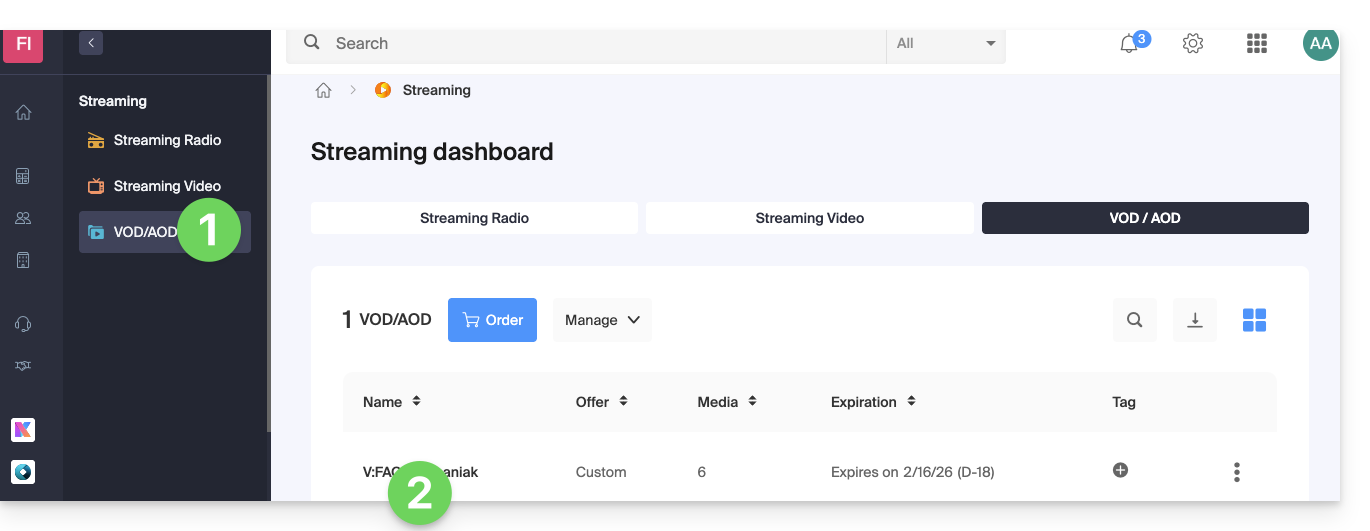
- Click on CMS/API Extensions in the left-hand menu.
- Click on CMS Extensions in the left-hand menu.
- Download the WordPress extension.
- Configure the extension using the instructions provided:
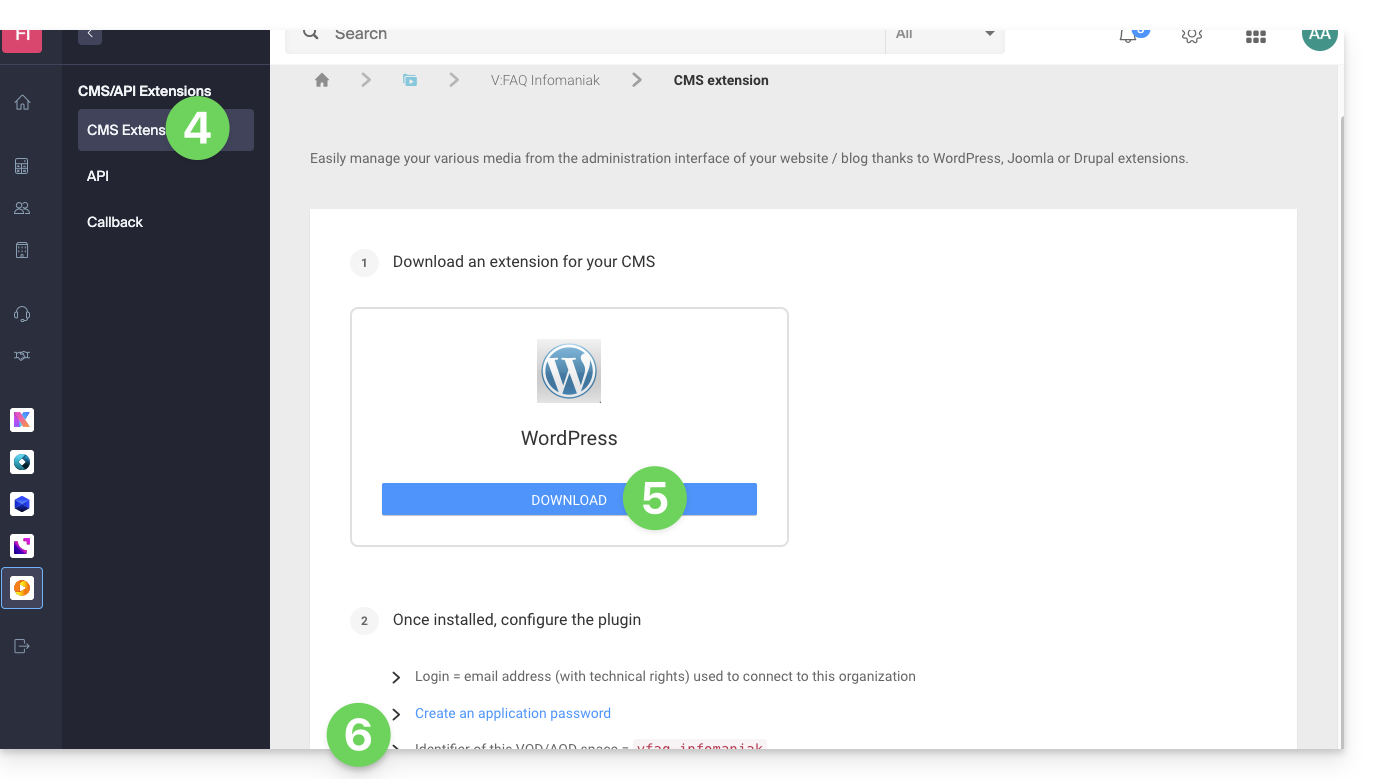
- It is recommended to create a new user in your Organization with only technical rights on the VOD/AOD product and then create the application password from this dedicated account.
You can also download the extension directly from the WordPress extension library: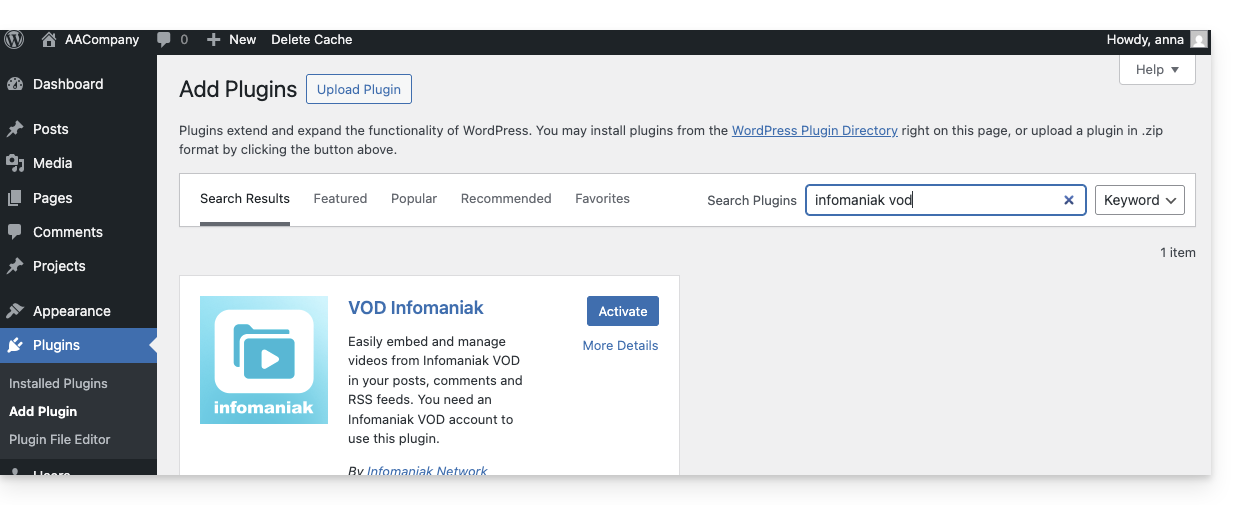
A similar feature exists for Typo3 with the dedicated extension that you can find and install from its extension library: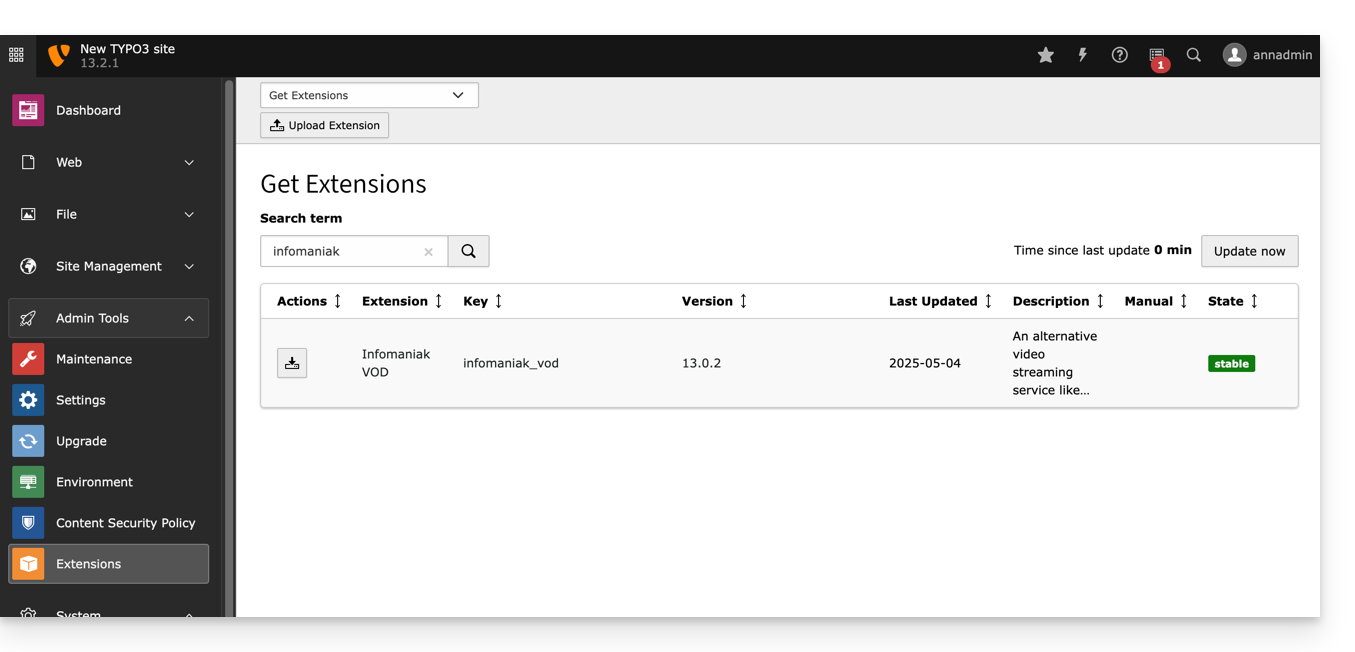
Link to this FAQ: https://faq.infomaniak.com/1539
Has this FAQ been helpful?
This guide details the specifics related to managing MongoDB on your managed Cloud Server, particularly regarding the version lifecycle.
Introduction
- Any new installation of the application deploys MongoDB version 7.0 (or higher) by default.
Upgrading from version 6 to 7
It is not possible to perform an automatic upgrade from version 6 to version 7 directly from your interface.
You have two options:
- Order a new Cloud Server: it will natively include version 7, and you can then migrate your data to it.
- Reinstall the application: uninstall and then reinstall MongoDB on the current server.
Uninstalling the application will delete all of your MongoDB data. Furthermore, it will no longer be possible to reinstall version 6 after this operation.
Backups and responsibility
As an administrator, you are fully responsible for managing and ensuring the integrity of your data.
Before performing any operation (including reinstallation):
- Perform your own backups and exports (dumps) of your databases.
- Plan for the manual import of your data once the new version is active.
Link to this FAQ: https://faq.infomaniak.com/1558
Has this FAQ been helpful?
This guide explains how to publish an application created with Lovable, using a Node.js-based website on Infomaniak.
Prerequisites
- A Lovable project on a paid Lovable plan, synchronized with a GitHub repository.
- A Node.js website.
- A domain name or subdomain for the application.
1. Synchronize the Lovable project with GitHub
To do this:
- Open the project in Lovable.
- Open the project settings.
- Go to the Git > GitHub section:
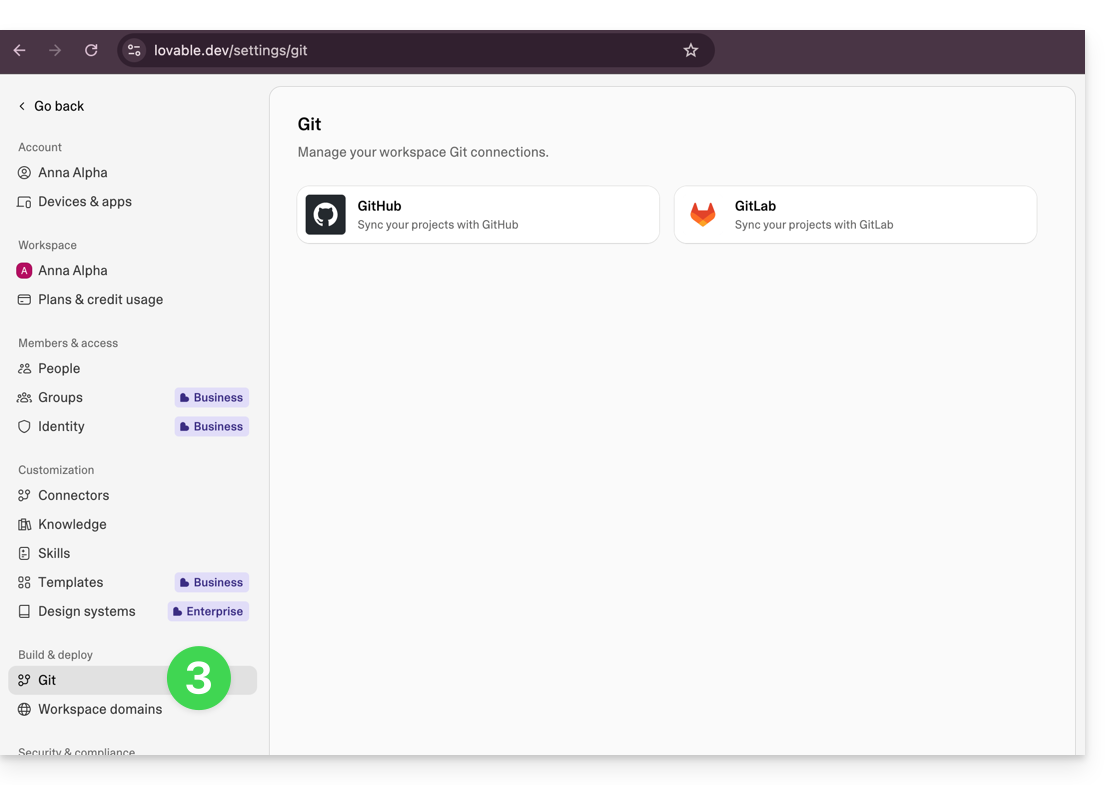
- Connect the project to a GitHub account.
- Wait for the GitHub repository to be created and the synchronization to complete.
2. Download the ZIP archive from GitHub
To do this:
- Open the GitHub repository associated with the Lovable project.
- In GitHub, click on Code.
- Click on Download ZIP:
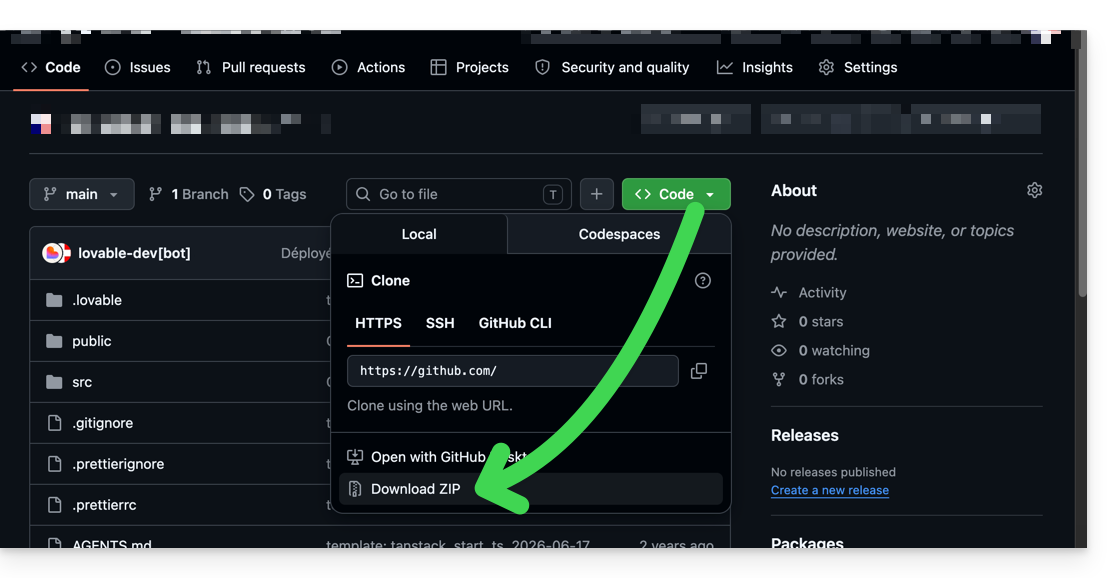
- Keep the downloaded ZIP archive.
3. Create the Node.js site on Infomaniak
To do this:
- Click here to access the hosting & website management section in your Infomaniak Manager (❓: help).
- Click on the name of the relevant hosting.
- Click the button to add a website.
- Select a project using advanced technologies.
- Choose Node.js.
- Associate the domain name or subdomain intended for the application.
- Select the custom method:
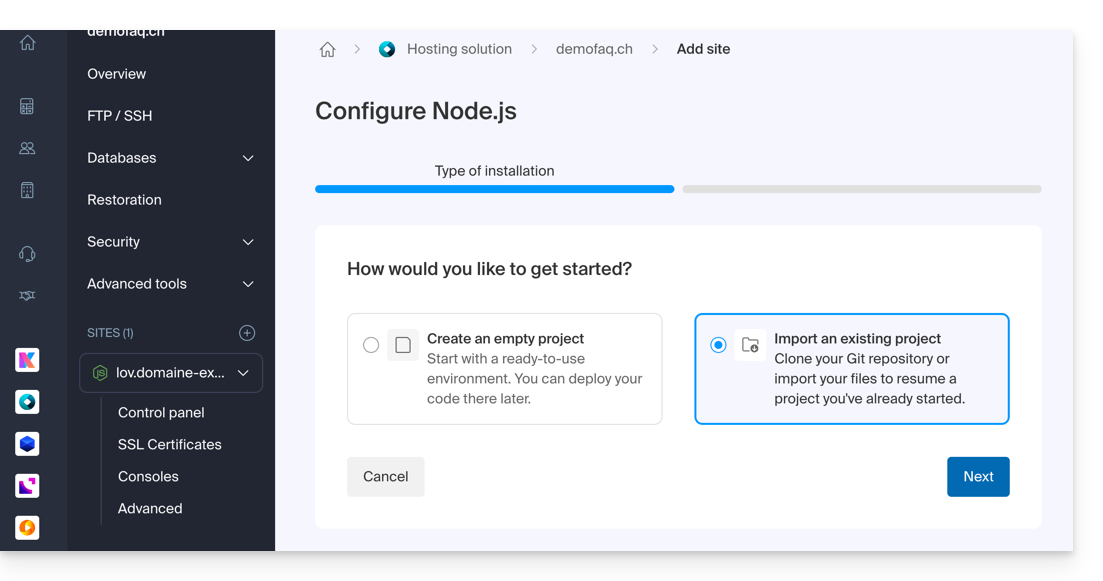
- Choose import via ZIP archive.
- Import the ZIP archive downloaded from GitHub:
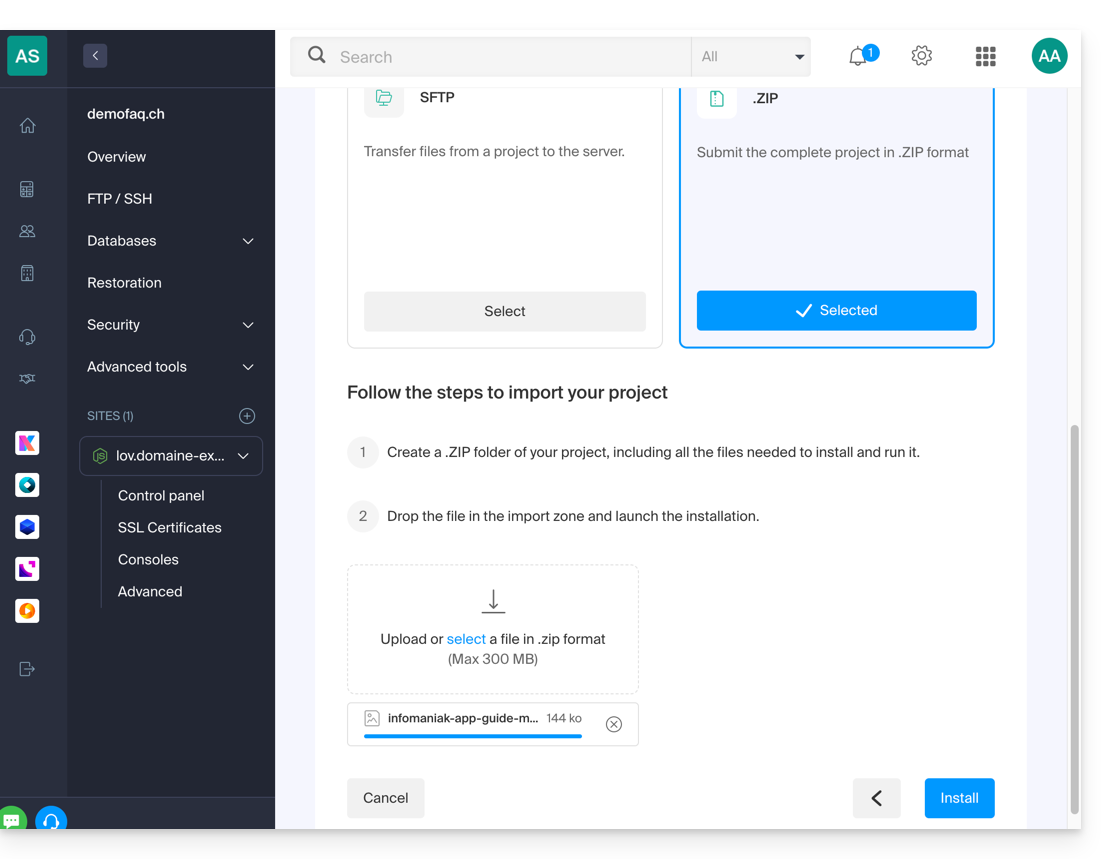
Then, enter the following values:
Build command:
npm install && npm run buildExecution command:
npm start
Save the configuration.
Your site has been published.
Link to this FAQ: https://faq.infomaniak.com/1568
Has this FAQ been helpful?
This guide details the essential steps to protect your WordPress site against spam and automated malicious content.
Introduction
- An unprotected website is an easy target for
spambotsthat use comments to spread fraudulent links. - Without protection, every form (contact, booking, poll) can be exploited to send mass emails from your server.
- Spam degrades your user experience, harms the reputation of your domain (email blacklisting), and can saturate your hosting resources.
1. Master the comment system
By default, WordPress is configured to allow comments. To limit abuse, please refer to the WordPress codex.
Disabling comments in the general settings only affects future posts. For posts that have already been published, a bulk modification or the use of a dedicated extension is necessary.
If you want to keep the interactions private, you can restrict comments to only logged-in users via the discussion settings page.
2. Use automatic protection tools
To block robots without affecting the user experience of your visitors, two main technologies exist: captcha (visual test) and honeypot (an invisible trap for humans but detectable by robots).
Solution included with Infomaniak
If you installed WordPress using Infomaniak's automatic installation tool, the WP Armour – Honeypot Anti Spam plugin is already activated. It natively protects the most common forms:
WP Comments&WP RegistrationContact Form 7,Elementor Forms,Divi Contact FormWooCommerce Reviews,BBPress,Gravity Forms
Recommended alternatives
- Akismet Anti-Spam: developed by
Automattic, it is a very effective solution, although it is a paid service for commercial websites. - The anti-spam Sentinel: a comprehensive extension that has received excellent reviews from the French-speaking community.
- Contact Form 7 Honeypot: a specific module if you only use the
Contact Form 7extension.
The role of the hosting provider
Beyond the security of your website, Infomaniak implements protections at the server level. To learn more, please refer to the article on combating malicious emails as well as the FAQ on the security tools available.
Link to this FAQ: https://faq.infomaniak.com/1591
Has this FAQ been helpful?
This guide explains how to report spam or declare a false positive if spam messages slip through the cracks in an Infomaniak Mail Service, or conversely, if a valid email has been incorrectly classified as spam; you can take action in just a few clicks.
Report spam
Prerequisites
- Make sure the spam filter is active (❓: help).
Next, to automatically move an email from your inbox to the Spam folder if it has bypassed the anti-spam filter:
- Click here to access your emails in your Infomaniak kSuite (❓: help).
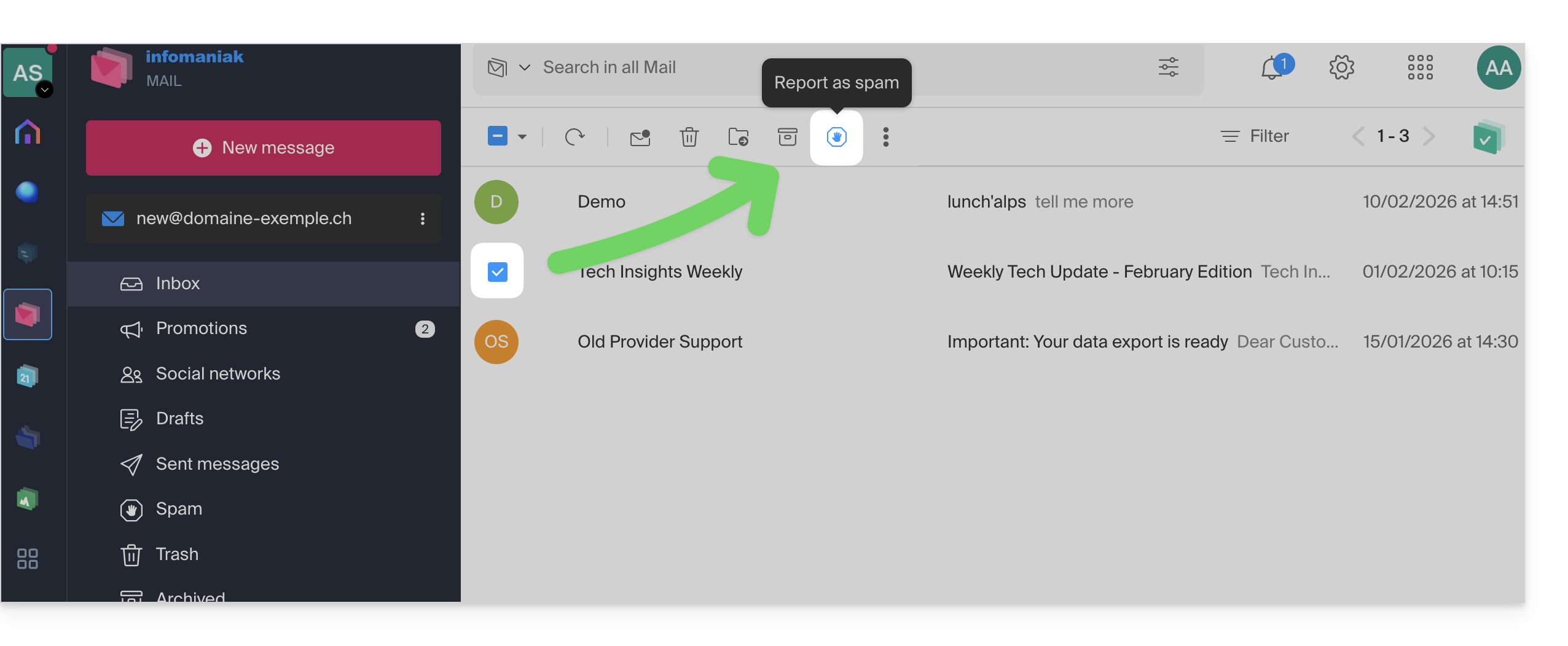
- Select the message in your inbox and then click on the Spam icon in the toolbar:
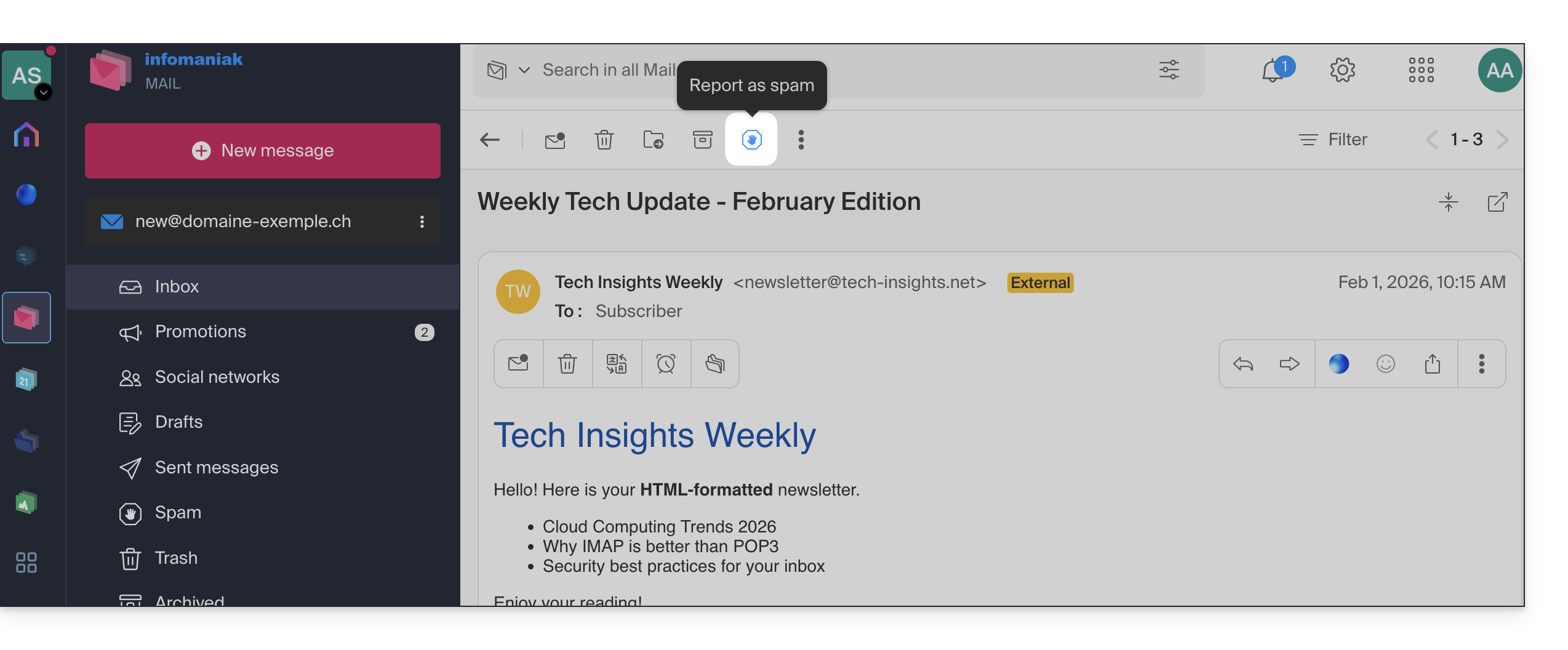
- You can also open it and report it as Spam later:
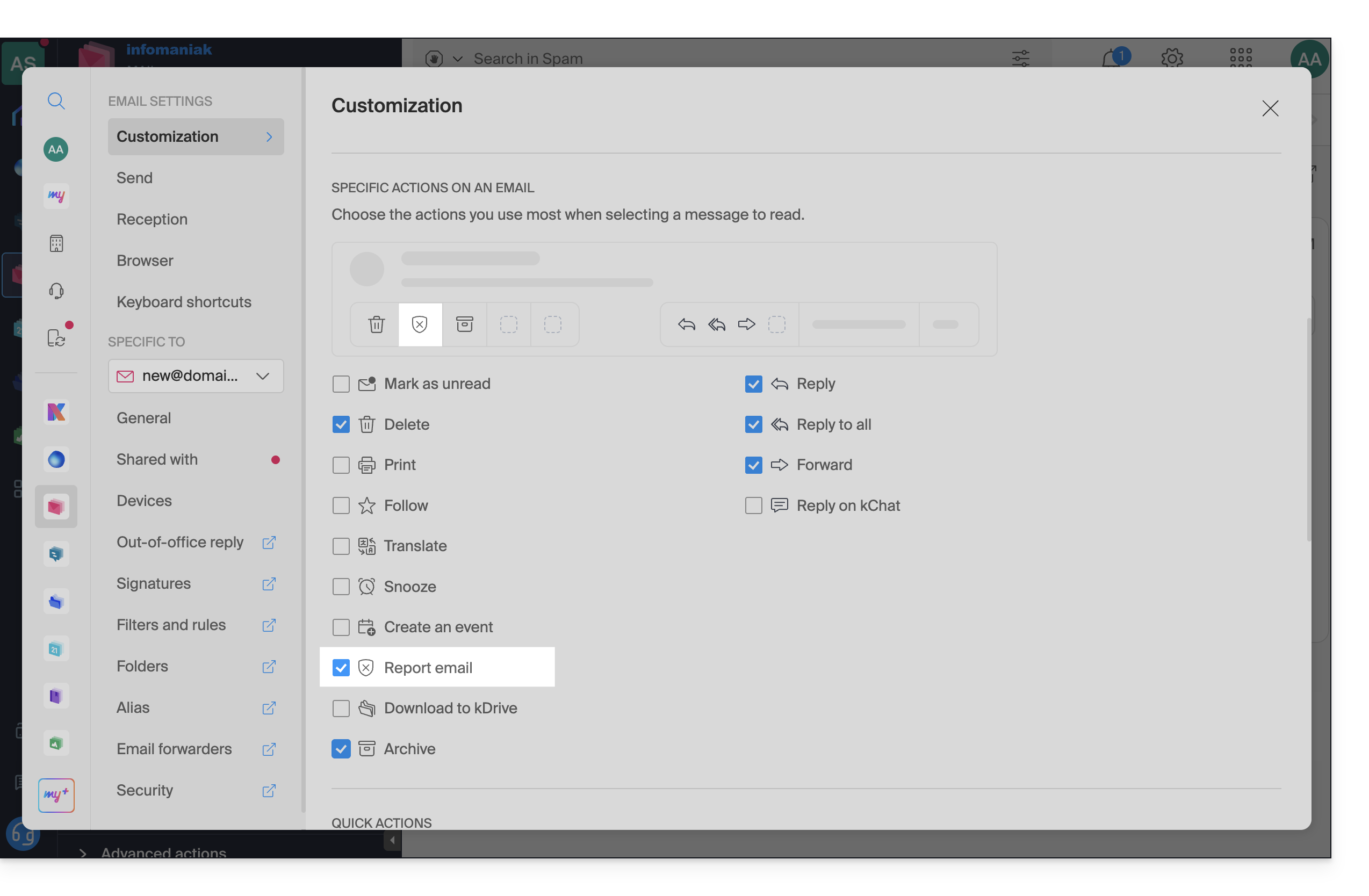
- If you have enabled the visibility of the report icon (❓: help):
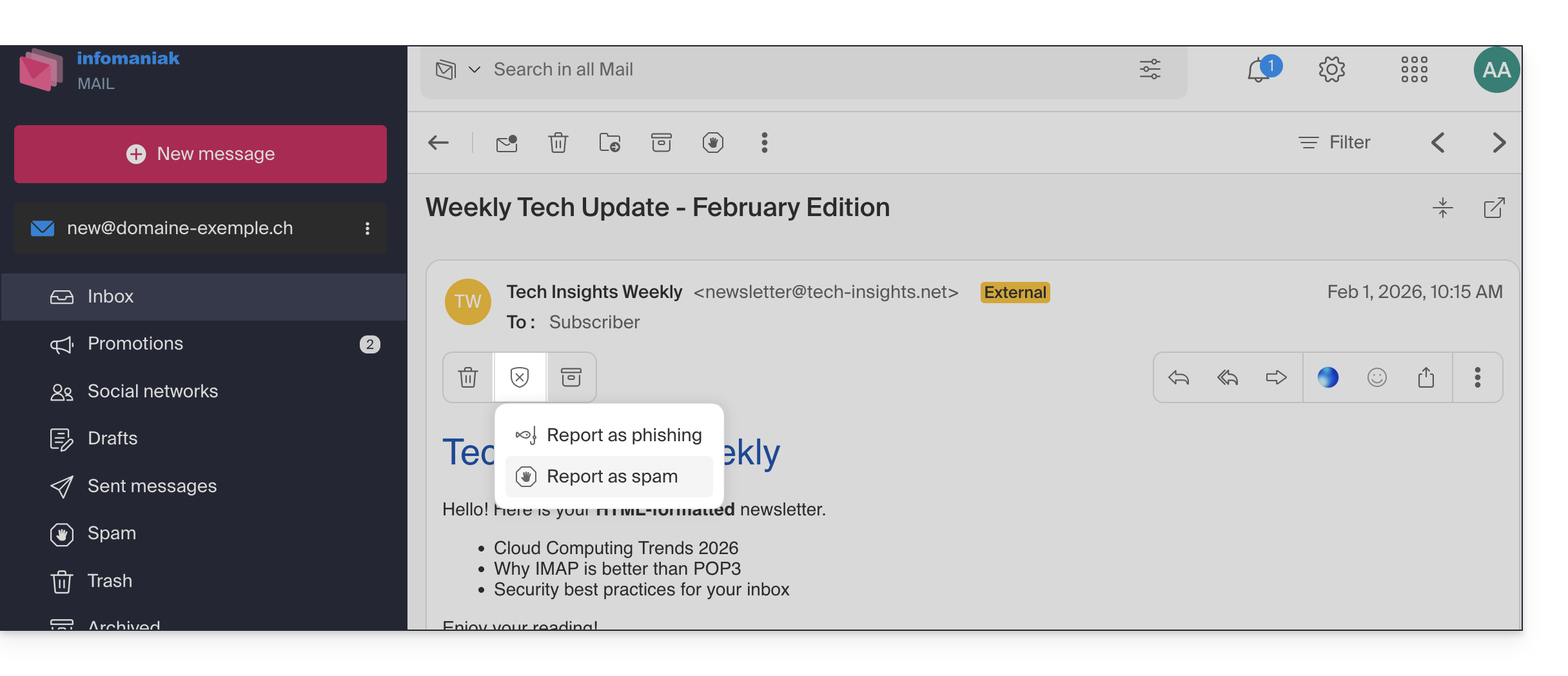
- then you can also do so from the message's toolbar:
- If you have enabled the visibility of the report icon (❓: help):
- Another option: open it and click on the action menu ⋮ on the right:
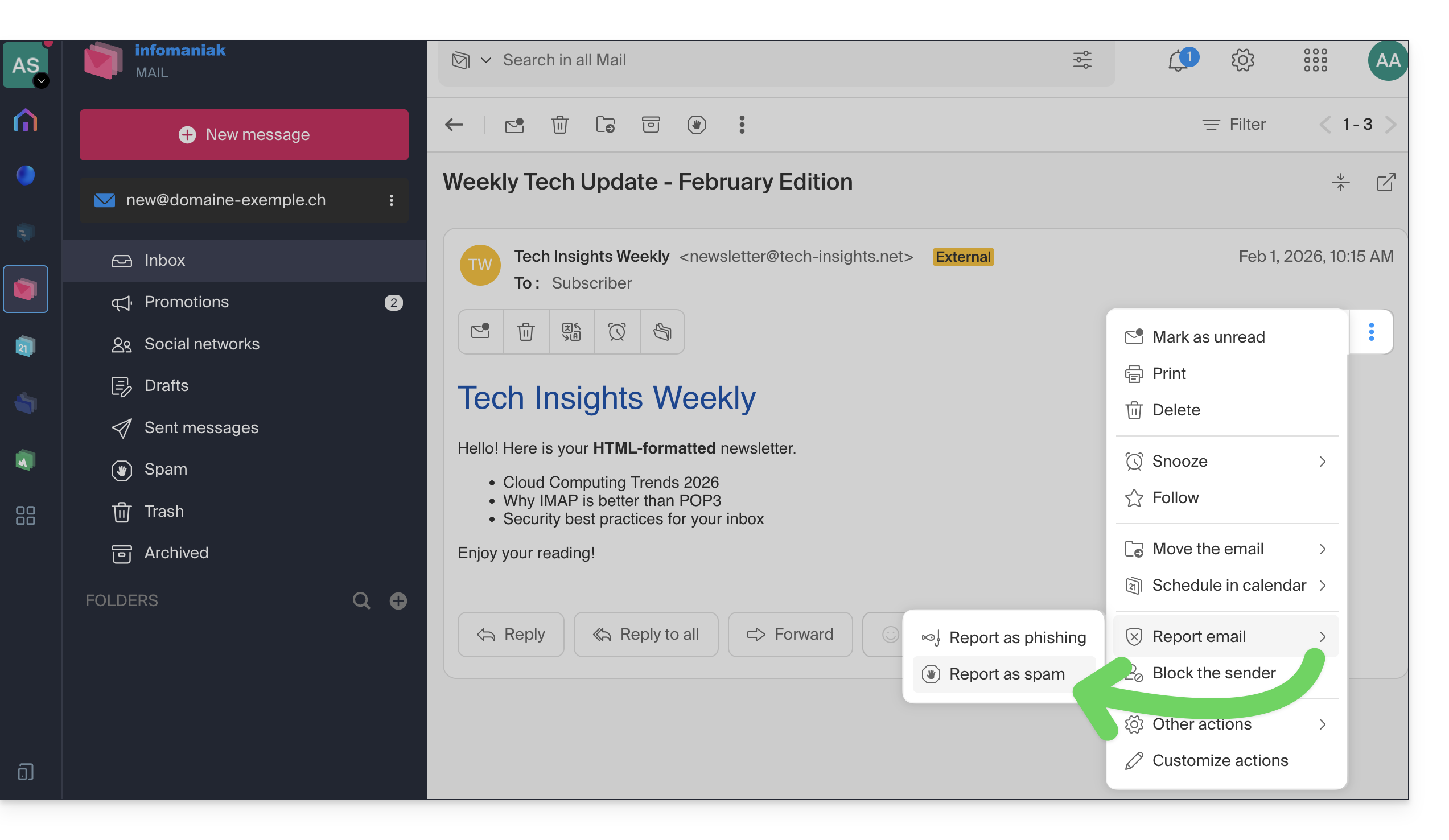
Once you have clicked on Report as spam:
- the email is moved to the Spam folder – or to the manually defined folder (❓: help)
- the sender's address is added to the blocked users list (❓: help)
- the filter is refined for better performance over time
Report a false positive
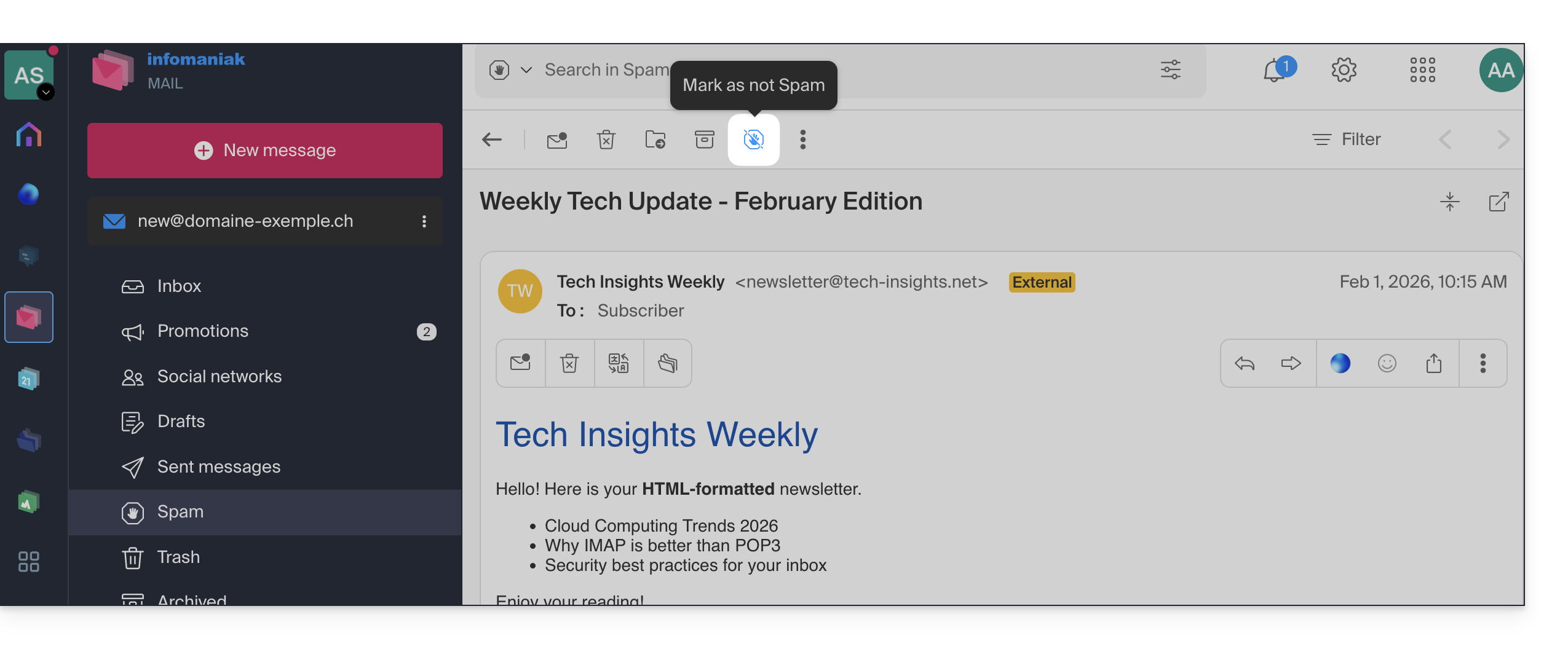
Conversely, if you take action on an email that is incorrectly identified as spam (false positive) by clicking on the "This is not spam" icon:
- The email is moved to the inbox.
- The sender's address is added to the list of authorized users (❓: help)
- This also affects the filter and its criteria.
Link to this FAQ: https://faq.infomaniak.com/1592
Has this FAQ been helpful?
This guide details the specific rules to follow when using a password containing the “dollar” character $ to send an email via the Infomaniak SMTP in a script (PowerShell, Python, etc.).
Introduction
- If you receive an authentication error (e.g.,
auth failed,invalid login or password) when sending an email via SMTP, even though the password is correct and works in software like Outlook, the problem may be due to how the$character is handled in your script or configuration file. - To ensure reliable execution of your SMTP scripts, it is strongly recommended to avoid using any special characters with syntactic meaning, especially
$, in the passwords used in scripts and configuration files. - The problem may also occur when connecting to databases.
Rules to follow
The $ character is a special symbol in many languages and environments. When used in a password within a script or configuration file, it may be incorrectly interpreted as a variable or control character.
Here are some common cases where you should not use the $ character in a password:
- PowerShell:
$is used to declare variables. A password containing$may cause syntax errors or be truncated. - Bash / Shell (Linux):
$is also a variable prefix. It may trigger unexpected substitutions. - YAML files (e.g., Home Assistant, GitHub Actions, Docker Compose):
$can be interpreted as an environment variable. .env,.inifiles, or other configuration files: the tools that read these files may attempt to interpret the variables.- Commands or URLs with authentication: a password containing
$may be incorrectly encoded or fail during parsing.
To correct or prevent this type of error:
- Avoid using the
$character in passwords intended for use in scripts or automated systems. - If you absolutely must use it, always enclose the password string correctly according to the language:
- In PowerShell: use single quotes
'password$Test'if possible. - In Python: ensure that the string is properly enclosed in single or double quotes, without interpretation.
- In Bash: escape the
$with a backslash\$.
- In PowerShell: use single quotes
Link to this FAQ: https://faq.infomaniak.com/1608
Has this FAQ been helpful?
This guide explains what you need to determine as a website visitor if you encounter a 403 error in order to resolve this issue.
What is a 403 error?
The HTTP 403 error code generally means that the server is denying the client access to a resource.
When does this error occur?
The user is not authenticated: the server requires the user to identify themselves to access the resource. This may be the case for private pages that require authentication, for example.
The user is authenticated but does not have the necessary permissions: the server recognizes the user but does not allow them to access the requested resource due to permission or role restrictions. This cause of the 403 error may be due to incorrect permissions on a folder or file. For a folder, the error message is of the type "403 Forbidden", for a file, "failed to open stream: Permission denied". In this case, you should check that the permissions for your folders/files are correct, i.e., at least 644 for a file and 755 for a folder. See this other guide.
The user's IP address is blocked or restricted: the server may block access to a specific IP address for security reasons, to protect against attacks, etc. See this other guide.
The requested resource does not exist on the server: in this case, the server returns a 403 error instead of a 404 error to prevent the disclosure of confidential information. If you are trying to access your homepage or a part of your site by entering an address like www.domain.xyz or www.domain.xyz/folder/, make sure that there is indeed a homepage named "index.html, .htm, or .php" placed in the correct location (at the root of your FTP space, in the /web directory, or in the /folder/ directory). Refer to this other guide.
Also, check that there are no uppercase letters in the file name; all file and folder names must be in lowercase, without accents or spaces.
Script-related error: if you were running a script, filling out a form, or uploading a file and you receive this type of message:
Accès interdit!
Vous n'avez pas le droit d'accéder à l'objet demandé.
Soit celui-ci est protégé, soit il ne peut être lu par le serveur.
Si vous pensez qu'il s'agit d'une erreur du serveur, veuillez contacter le gestionnaire du site.
Error 403
the cause may be a filter that prevents the unwanted use of scripts by spammers. Indeed, the Infomaniak antivirus blocks file uploads via scripts or via FTP. This means that when a hacker sends a file identified as a virus via a form, an insecure script, or via FTP, its installation is directly blocked, the file is not uploaded to the server, and the upload generates a 403 error.
In the event of a false positive, contact Infomaniak support, providing the URL of the page where you are encountering this error message, in order to accurately diagnose the cause of the problem.
However, there are many other cases in which you may receive a "403 forbidden" message for a variety of reasons (PHP, perl scripts, mod_security, .htaccess, ...).
Link to this FAQ: https://faq.infomaniak.com/1609
Has this FAQ been helpful?
This guide helps you resolve issues related to special characters (accents, emojis, etc.) that are not displayed correctly or appear as symbols like ??, often due to incorrect encoding when connecting to MySQL.
Introduction
- By default, MySQL uses
UTF-8. - Recent MySQL servers are generally configured to use
UTF-8orUTF-8MB4by default.- This is suitable for most cases, especially for international languages and emojis.
- Also, refer to this other guide to learn how to avoid causing encoding issues with non-European characters and emojis in your developments.
Define the default MySQL / MariaDB charset (Cloud Server)
With an Infomaniak Cloud Server, it is possible to define the default charset (utf8 or utf8mb4):
- Click here to access the management of your product on the Infomaniak Manager (need help?).
- Click directly on the name assigned to the product in question.
- Click on MariaDB in the left-hand menu.
- Choose the default character set:
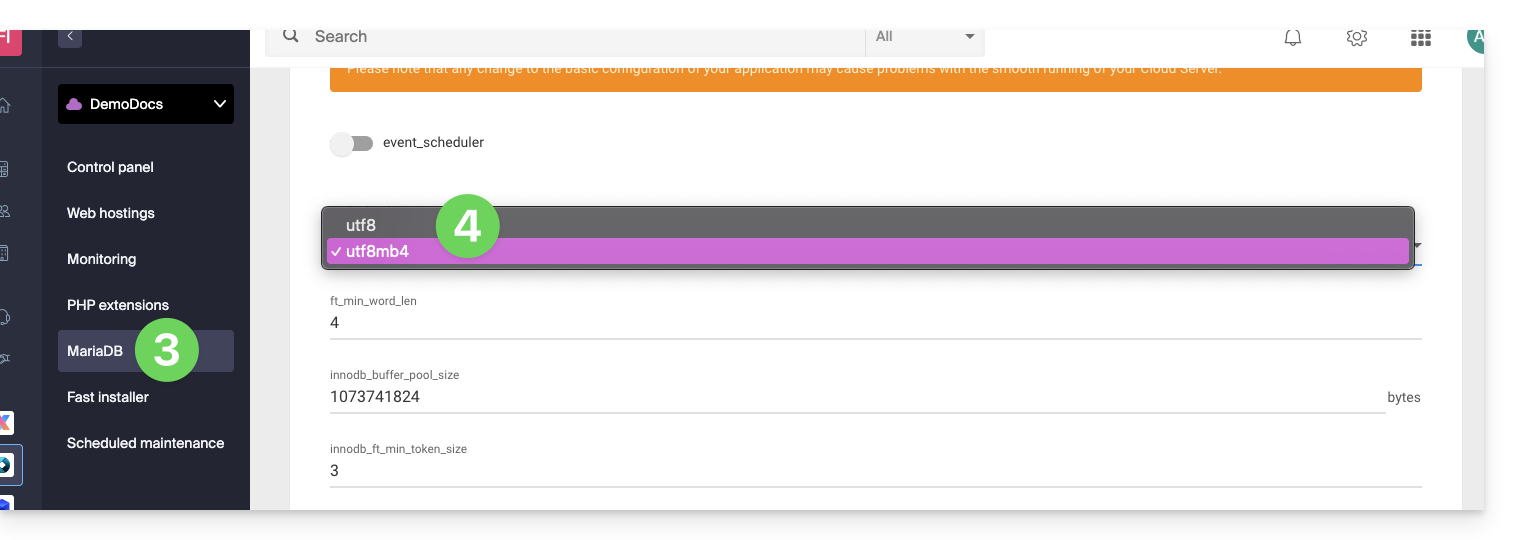
- If you have not yet migrated to MariaDB, the principle is the same.
- Save your changes at the bottom of the page.
Force a specific encoding (e.g., latin1)
If you need to work with a database in latin1 (ISO-8859-1), you must explicitly align the encoding when connecting, depending on your environment.
For current offers, place the following code in a user.ini file located in the root directory of your hosting:
mysql.connect_charset = "latin1"
mysqli.connect_charset = "latin1"
pdo_mysql.connect_charset = "latin1"
or in PHP (MySQL API):
mysql_query("SET CHARACTER SET latin1");
For older hosting plans, force the MySQL connection to use latin1 via the .htaccess file located in the root directory of your hosting:
php_value mysql.connect_charset latin1
php_value mysqli.connect_charset latin1
php_value pdo_mysql.connect_charset latin1
Link to this FAQ: https://faq.infomaniak.com/1611
Has this FAQ been helpful?
This guide explains how to transfer a website on which WordPress is installed, using one of its extensions, All-in-One WP Migration.
Prerequisites
- Order a Web Hosting / Cloud Server if you don't already have one.
- Create a website on your new hosting.by choosing to install WordPress on Infomaniak(this option is offered when adding a website – you can also install a WordPress website after creating a blank website).
Complete WordPress site backup
To back up all files and the database of an existing WordPress site:
- Install and then activate the All-in-One WP Migration extension from the WordPress administration interface of the current site.
- Go to the dashboard of the newly installed extension.
- Click on Export.
Download the exported archive:
Website Restoration
As specified in the prerequisites above, install a new WordPress on your Infomaniak web hosting and then:
- Install and activate the All-in-One WP Migration plugin from the administration interface of the new WordPress (it may be necessary to use the preview URL to connect to the new site, for example if the domain is being transferred).
- Go to the plugin's dashboard.
- Click to import a file, in this case, the archive exported from your previous WordPress site.
- If the archive is large, you need to increase, in the website settings, the maximum allowed size for imports on the server.
- Once the site has been re-imported, reconfigure the main site address on the Infomaniak side.
- When conditions allow (e.g., domain name transfer is complete), install an SSL certificate and check point 4 above again to select the
httpS://address.
Link to this FAQ: https://faq.infomaniak.com/1643
Has this FAQ been helpful?
This guide explains how to access automatic backups and restore a specific file from a website on an Infomaniak hosting account.
Restore specific files or folders
To do this:
- Access the FTP server via Web FTP (need help?).
- Go to the
/backupsfolder. - Select the files and/or folders to restore.
- Click the Copy button:
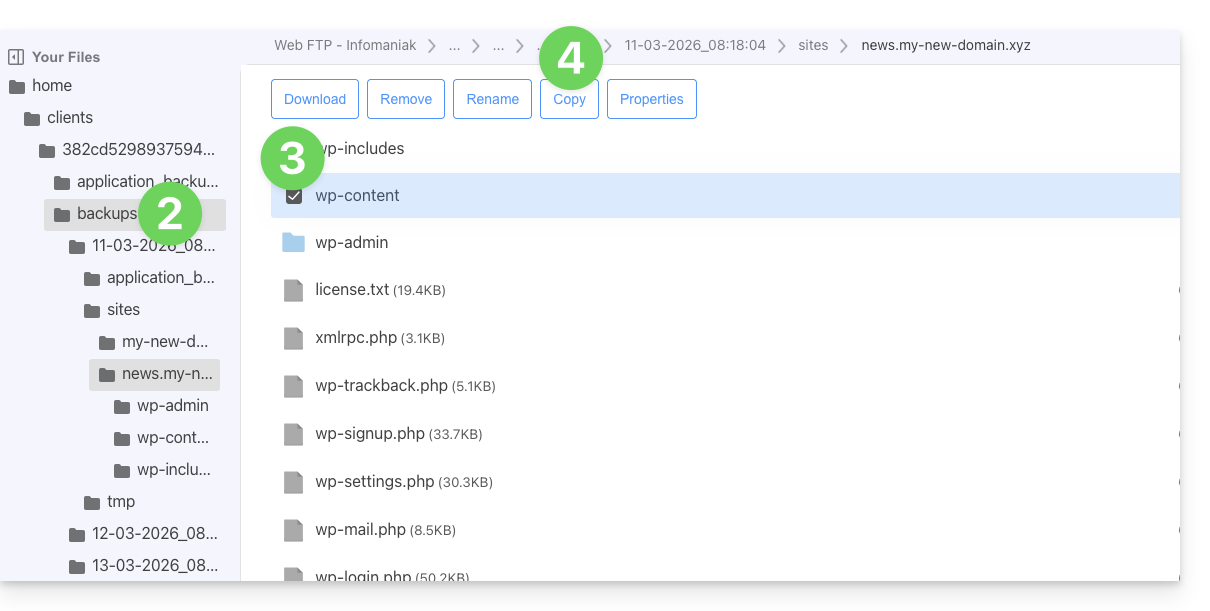
- Select the location to which to copy/restore the data (existing data will be replaced by the selected data).
Link to this FAQ: https://faq.infomaniak.com/1655
Has this FAQ been helpful?
This guide concerns MySQL/MariaDB and more specifically index and query analysis with Web Hosting.
Slowlog for long queries
The MySQL slow log is enabled on all MySQL servers and groups together queries that take more than 5 seconds* to execute. If your queries are well-structured, you will never see these files. Otherwise, check them regularly to correct any potential issues and ensure your site functions properly.
Contact Infomaniak support in writing to obtain them (except for older v1 hosting plans - older packages), which can be accessed directly from the Web FTP, one level above /web in the /logs directory).
What about the logs?
No MySQL logs are created (except for slow logs) because the MySQL servers could not handle the load of millions of simultaneous logs. If needed, Infomaniak can activate this MySQL log for 5 minutes to allow you to analyze them with EXPLAIN and determine useful indexes, for example. To do this, contact Infomaniak support in writing.
* of elapsed time. And regarding locks, the documentation provides the following clarification: "The time to acquire the initial locks is not counted as execution time"
Link to this FAQ: https://faq.infomaniak.com/1676
Has this FAQ been helpful?
This guide explains how to suspend the administrative management of a product so that no user in the Organization can use it within the Infomaniak Manager. It is also possible to block a user from your Organization without deleting them.
Introduction
- By blocking the management of a product:
- Only administrators and the legal representative will be able to unblock it.
- Users with limited rights (collaborators and clients) who have access to this product will no longer be able to manage it.
- An email is sent to the users of the Organization.
Block a product
Prerequisites
- Be an Administrator or Legal Representative within the Organization (❓: help).
- Users with limited rights (collaborators and clients) who have access to this product will not be able to do so.
To block or unblock certain products for the entire Organization:
- Click here to access the product management section in the Infomaniak Manager (❓: help).
- Access the service you wish to block.
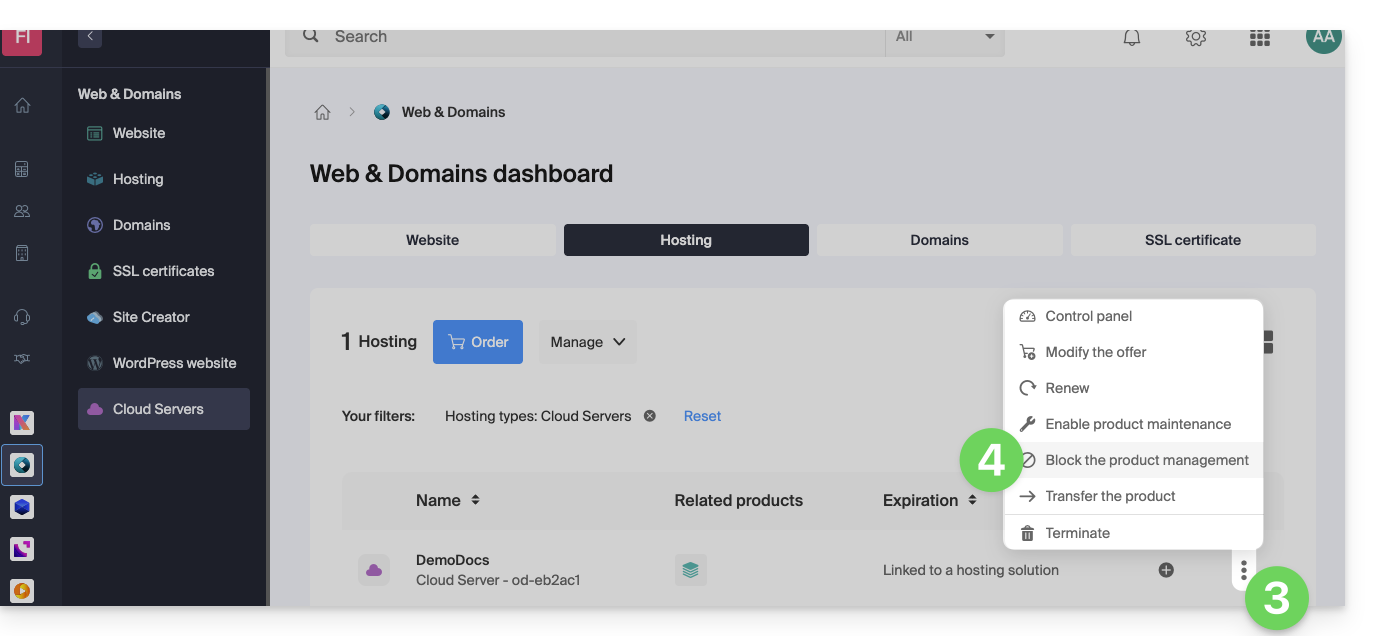
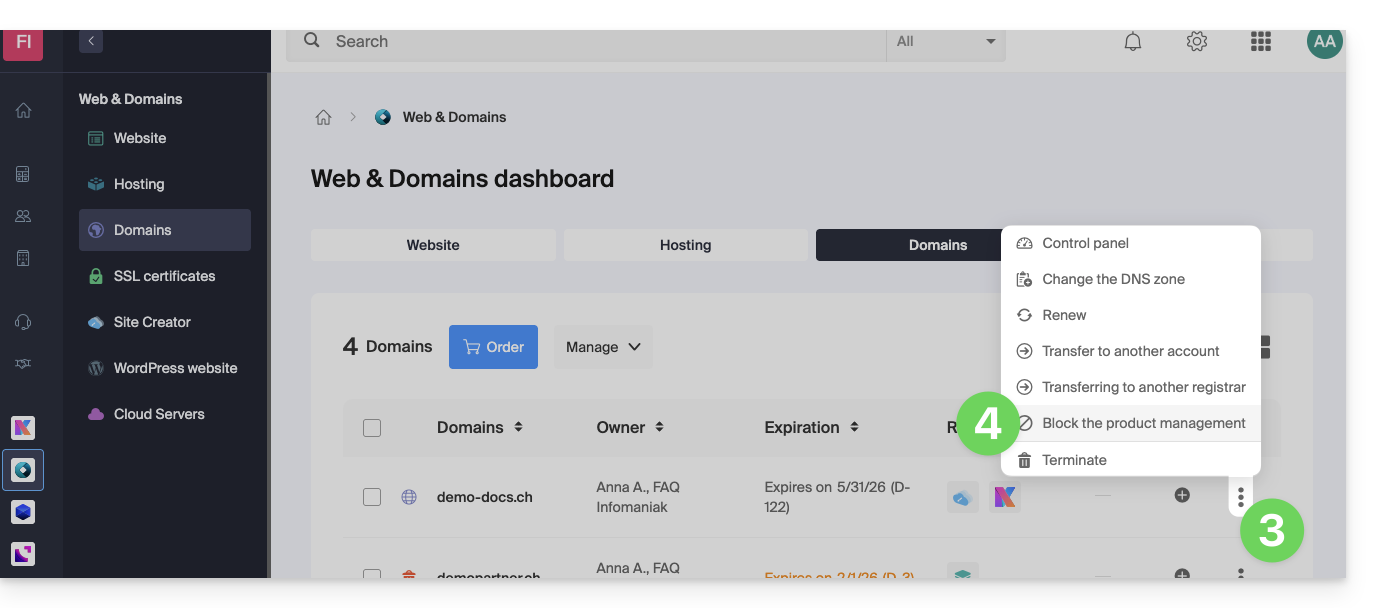
- Click on the action menu ⋮ located to the right of the item in question.
- Click on Block product management:
- Example 1, Cloud Server:
- Example 2, domain name:
- Example 1, Cloud Server:
- Confirm the suspension.
Suspend emails
A Mail service cannot be blocked in the manner described above, but it can be put into maintenance mode.
Prerequisites
- You must be an administrator or legal representative; users with limited rights (collaborators and clients) who have access to this product will not be able to do so.
To suspend email addresses:
- Click here to access the management interface for your product in the Infomaniak Manager (❓: help).
- Click directly on the name assigned to the product in question.
- Click on Manage.
- Click on Enable maintenance:
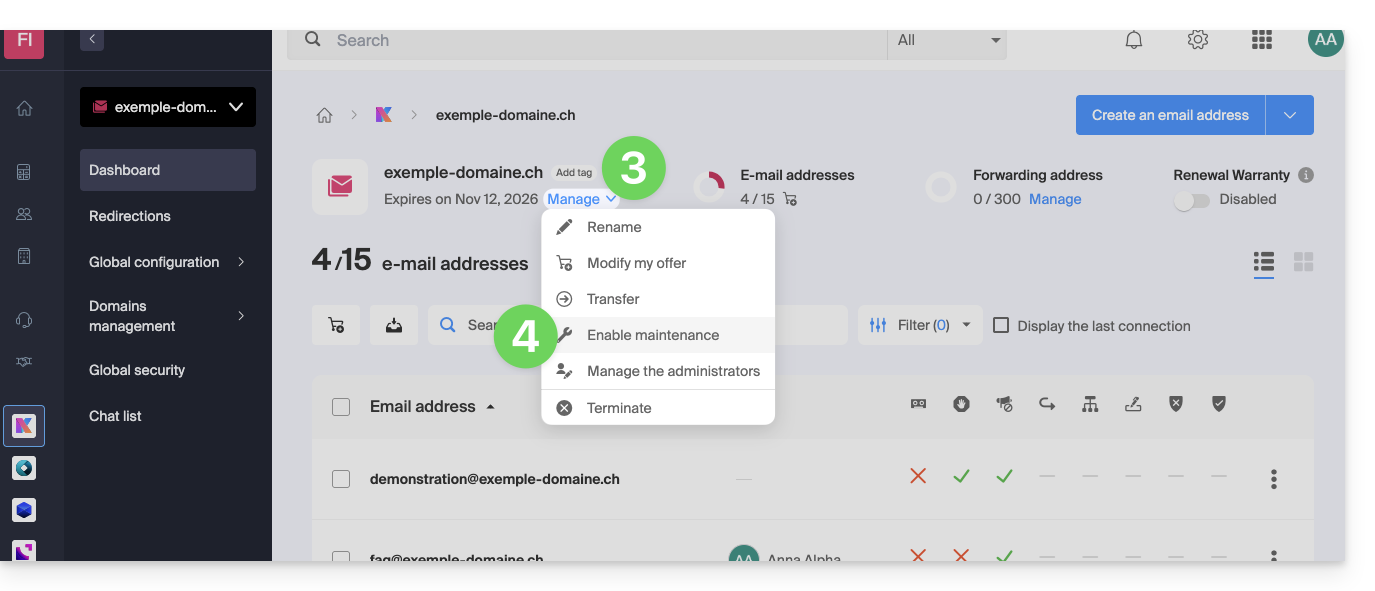
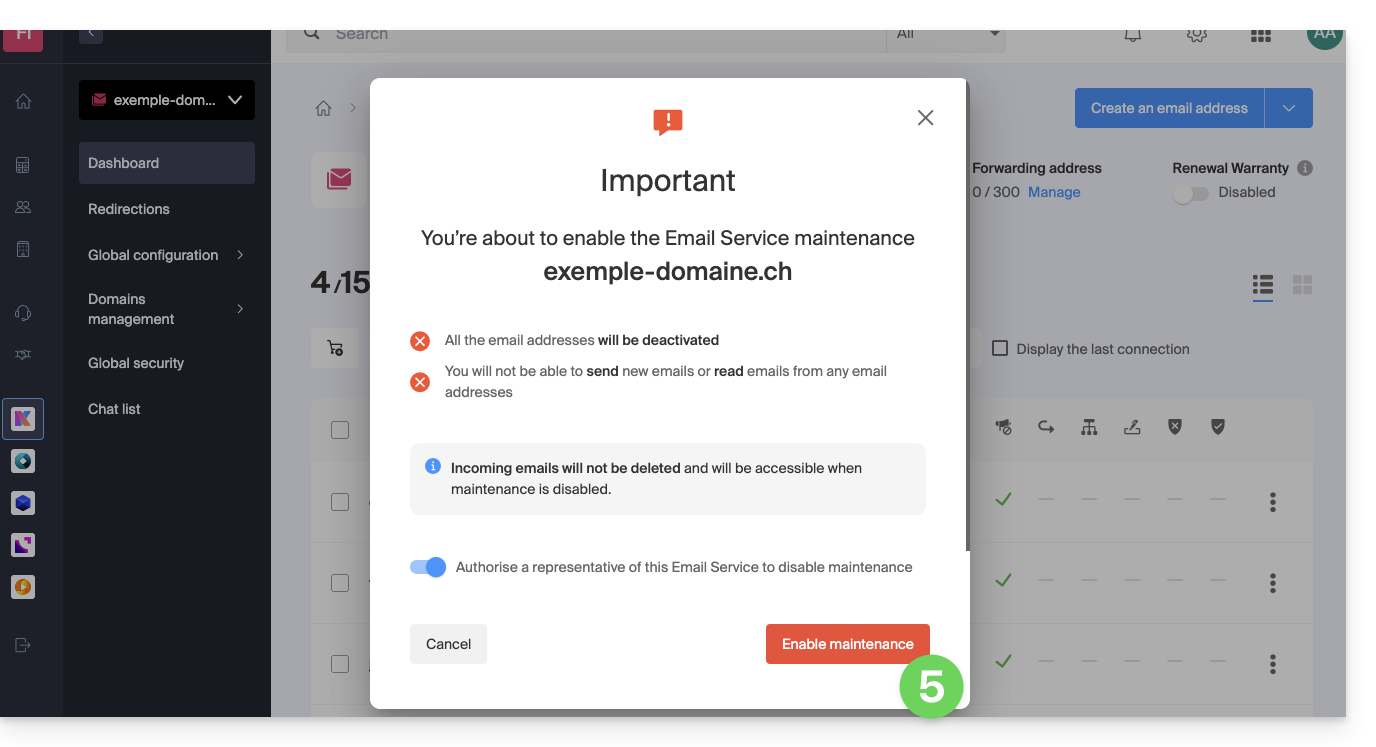
- Confirm the suspension of email address usage by clicking on the red button (sending is not interrupted, but viewing is impossible):
Block a User from the Organization
To quickly block a user from the Organization, in case of a security incident, log in to your user management as an Administrator or Legal Representative of the Organization:
- Click here to access user management in the Infomaniak Manager (❓: help).
- Click on the user in question:
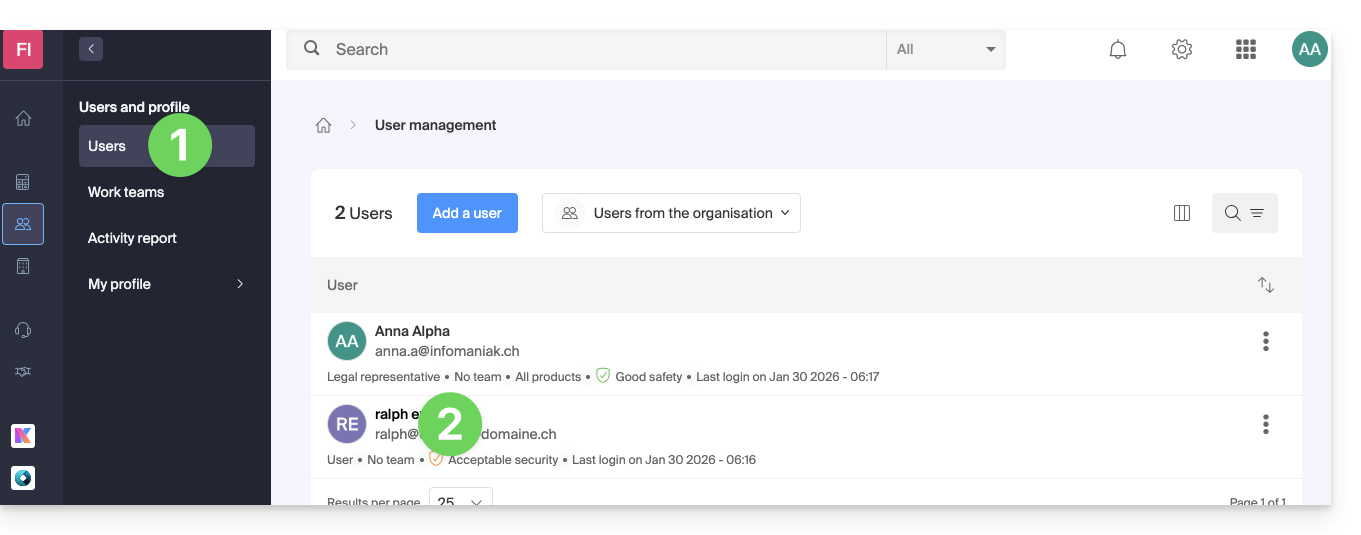
- From the Manage button at the top of the page, you can remove the user from the Organization (which also removes their various management access rights to the products they had access to).
- Further down, you can manage in more detail the products to which the user should have access:
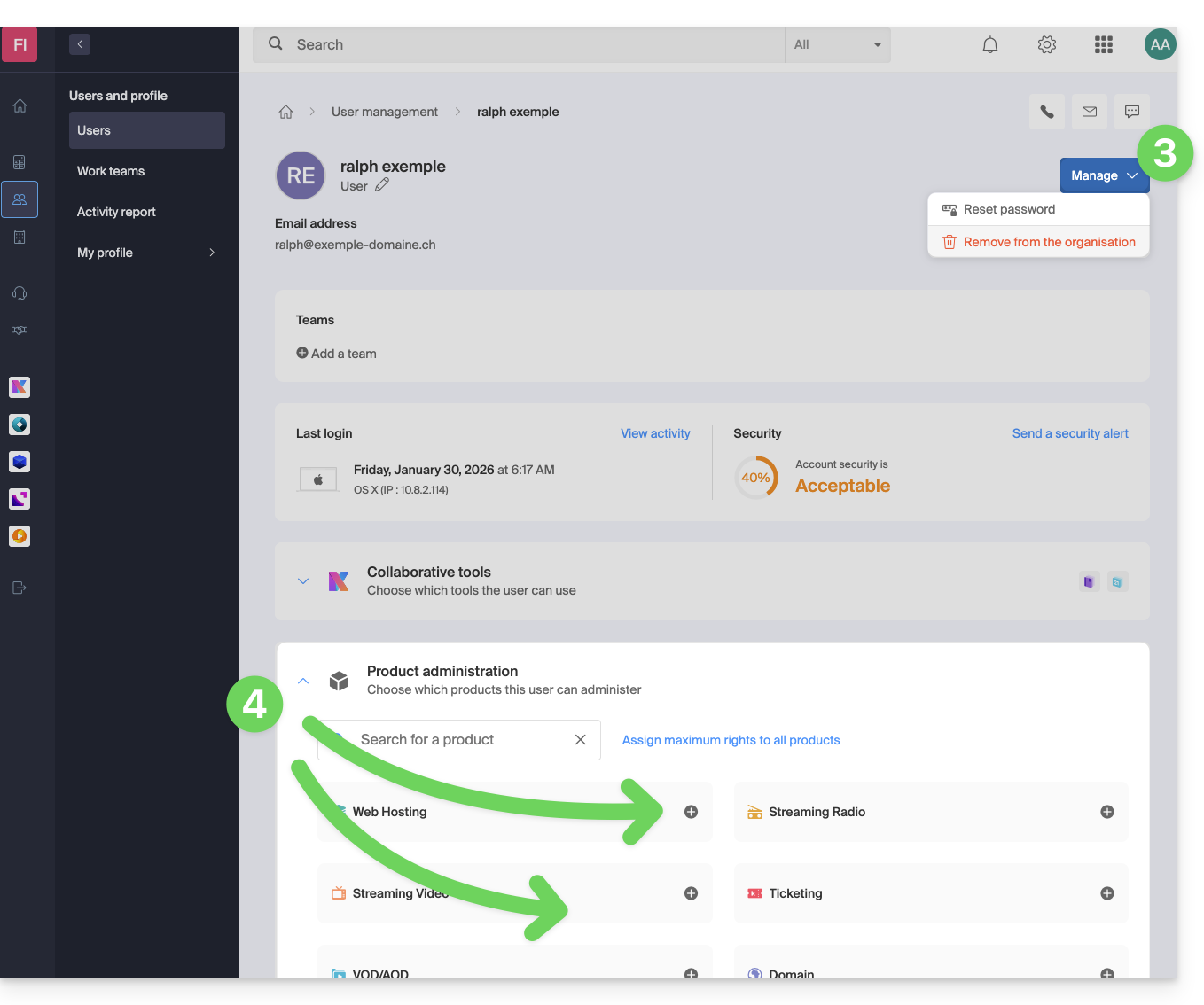
As a result, critical services such as the Manager interface for your Organization, the kDrive web app, and the Mail web app may become inaccessible to this user.
Depending on the situation, you can block other services such as web services (❓: help) or messaging, and more specifically IMAP (❓: help) and/or SMTP (❓: help).
To avoid blocking the user yourself, you can provide them with instructions on how to secure their account (❓: help).
Link to this FAQ: https://faq.infomaniak.com/1689
Has this FAQ been helpful?
This guide details Infomaniak's Managed Cloud Server offering and Infomaniak's VPS offering, which are intended for different uses.
Introduction
- Infomaniak offers two advanced hosting solutions:
- the Managed Cloud Server, which allows you to create multiple hosting accounts (FTP/SSH spaces) on which you can add your websites (Apache vhosts),
- and the VPS (Virtual Private Server), which offers complete administrative freedom and meets different needs.
Managed Cloud Server
The Cloud Server allows you to overcome the limitations of shared hosting. You can create and distribute your websites as you wish, define the root directory for each site, and adjust parameters such as memory_limit and max_execution_time.
Integrated tools are provided: cron jobs, Site Creator, simplified WordPress installation, and access and error logs. It is also possible to add specific Apache modules or install a caching system.
The software environment is managed by Infomaniak (FastCGI, PHP-FPM). You do not have complete freedom to configure the server (no arbitrary software installation), but some specific programs can be installed.
VPS (unmanaged)
The VPS gives you complete control over the server, but you are responsible for its management. Infomaniak manages the hardware and installs the version of Linux or Windows that you selected when placing your order. Infomaniak does not perform any software-related operations: you administer the system, install, and configure the software.
You can restart the server via the Infomaniak Manager. A snapshot system is available (except for the VPS Lite offer).
Video content and alternatives
If your project mainly involves a large volume of videos, it is often preferable to separate video streaming from the main hosting. Combined with shared hosting, the Infomaniak VOD/AOD service allows you to efficiently store and stream videos, handle traffic spikes, and obtain detailed viewing statistics.
Migration between Cloud Server and VPS
There is no automated migration solution between a managed Cloud Server and a VPS.To switch from one plan to another, you must cancel the product you no longer use and order the new plan. Infomaniak will refund any new server upon request if the cancellation occurs within 30 days of the order.
Link to this FAQ: https://faq.infomaniak.com/1730
Has this FAQ been helpful?
BIMI (Brand Indicators for Message Identification) is a standard that provides brand indicators for message identification) allows businesses to incorporate their logo into the emails they send.
Introduction
- Infomaniak applications (and those of other companies worldwide - see the troubleshooting section below) are compatible with BIMI and will display logos next to received email messages.
- Infomaniak Mail Services allow you to configure your email with your logo; the benefits are numerous:
- increased trust: recipients can visually identify your emails, reducing the risk of phishing.
- brand reinforcement: a clearly visible logo in inboxes strengthens brand awareness.
- improved deliverability: emails that comply with DMARC are more likely to reach the main inbox.
1. Create a logo
Create a logo in SVG format (Scalable Vector Graphics). This format is required because it ensures optimal quality regardless of the device or display size.
To be imported into the Infomaniak interface (see below), it must not exceed 10 MB, but it can also be hosted on a secure server that is publicly accessible, and you will simply need to provide its URL for the BIMI DNS record.
2. Obtain the VMC certificate
A verified logo certificate (VMC) is required; it confirms that you are the legitimate owner of the logo. You can obtain this certification from recognized certification authorities such as DigiCert and Entrust.
When your VMC certificate is issued, you will receive a PEM file containing the entity's certificate. This PEM file includes your logo in SVG format as well as the VMC.
3. Add the logo to the Mail service
Prerequisites
- All indicators Global Securityfor your Mail Service must be green (SPF + DKIM + DMARC)!
To access the Mail Service and define your company's logo:
- Click here to access the management of your Mail Service in the Infomaniak Manager (need help?).
- Click directly on the name assigned to the Mail Service in question.
- Click on Global Security in the left-hand menu.
- Click on the Create button (in the BIMI section):
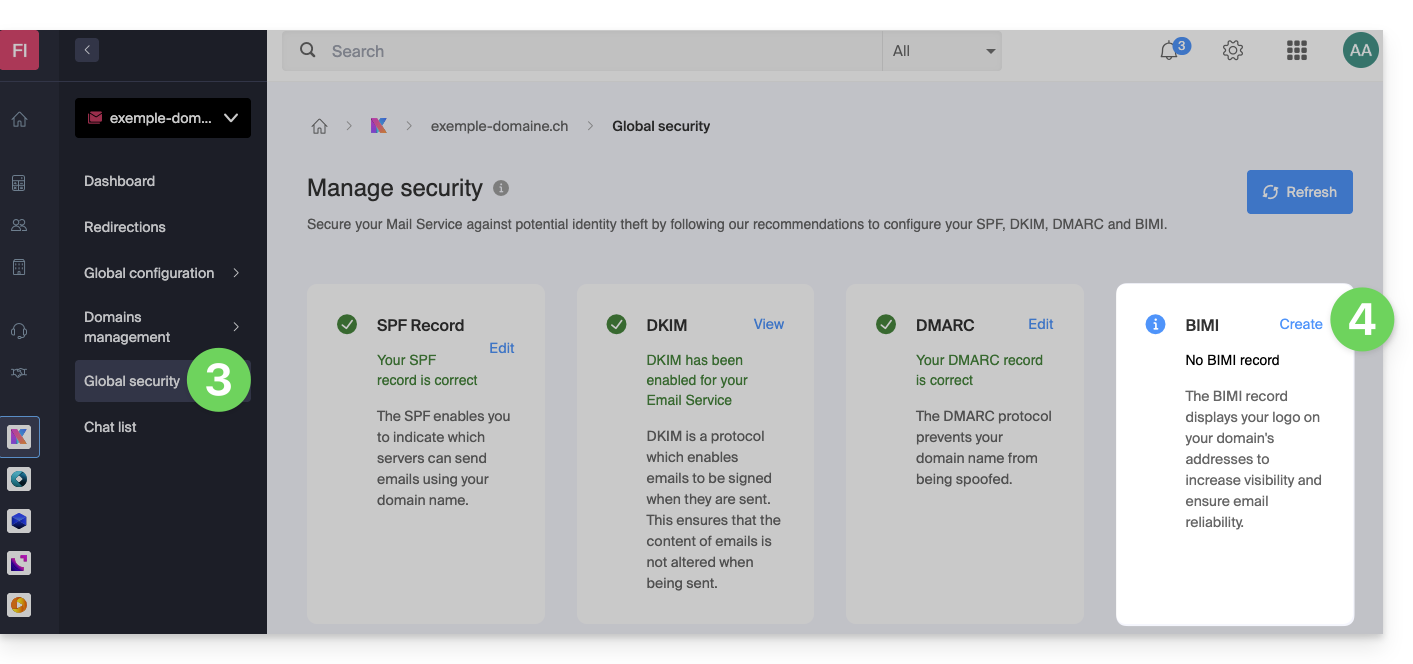
- Fill in the requested information using the documents you received (see chapter 2 above) and don't forget to save.
In case of a problem
- If the Create button in the BIMI box remains gray, carefully check the information messages: DMARC may exist but not be at the required rejection percentage, so adjust the settings according to the instructions.
- When there are multiple domains linked to the Mail service, make sure you have a certificate on each linked domain if you want BIMI to be enabled on those domains.
- Note that Apple Mail supports BIMI, unlike Microsoft Outlook, Thunderbird, and the Mail app from Samsung, which have not yet fully adopted it.
Disable BIMI
To disable BIMI, simply go to the domain name management page associated with the Mail service and delete the corresponding TXT record.
Link to this FAQ: https://faq.infomaniak.com/1816
Has this FAQ been helpful?
This guide explains how to change the management password for WordPress or any other Web Application (Joomla, Drupal, Typo3, PrestaShop, ownCloud, etc.) installed using the Infomaniak tools included in the paid Web Hosting plans.
Introduction
- Some applications also allow you to change a user's password directly from their dedicated interface:
- Example: WordPress (manage users, names, passwords, roles, etc.).
Change the password for a web app
To change the password for accessing the administration panel of your web application, follow these steps:
- Click here to access the hosting & website management section in your Infomaniak Manager (❓: help).
- Click on the name of the website in question.
- Click on the action menu ⋮ located to the right of the relevant Web Application.
- Click on Settings in the application:
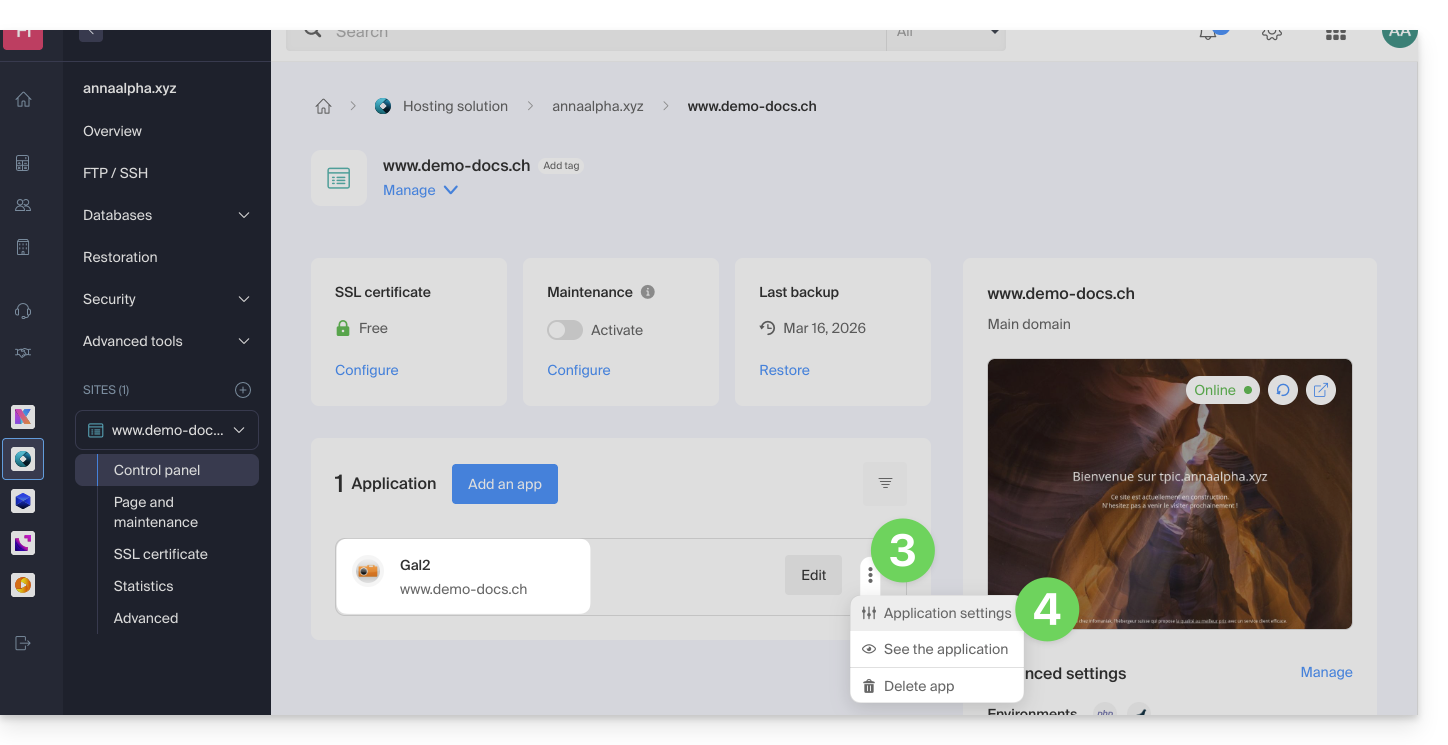
- Click on Edit to the right of the Application:
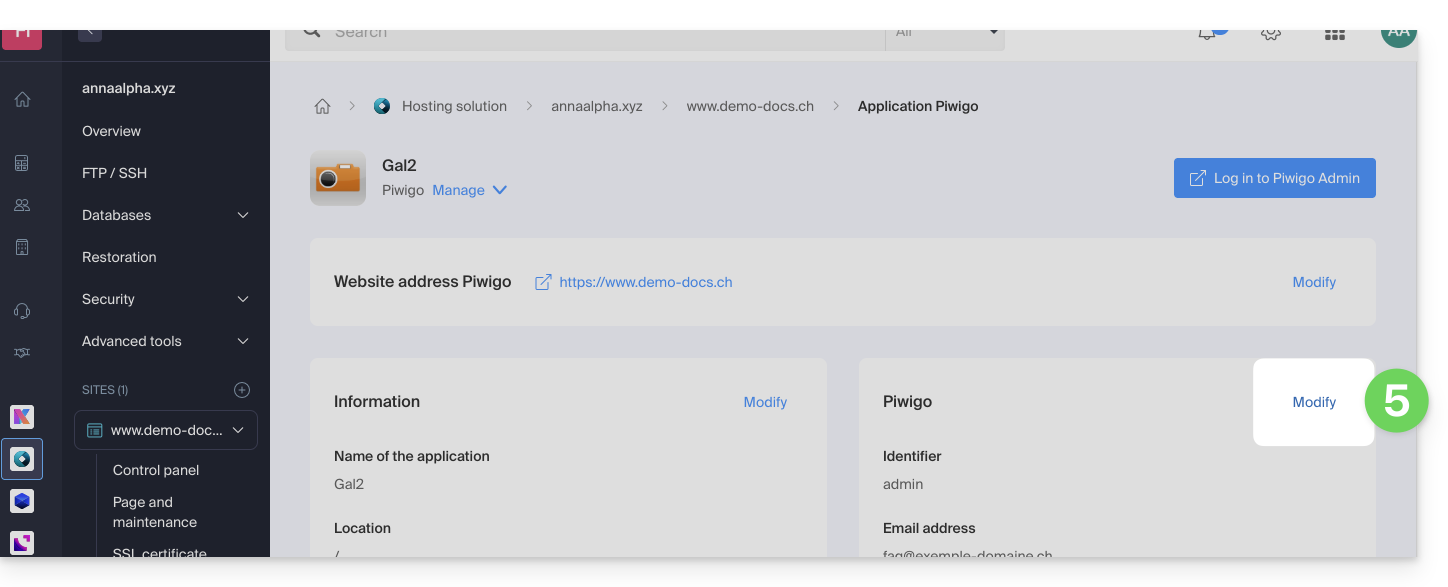
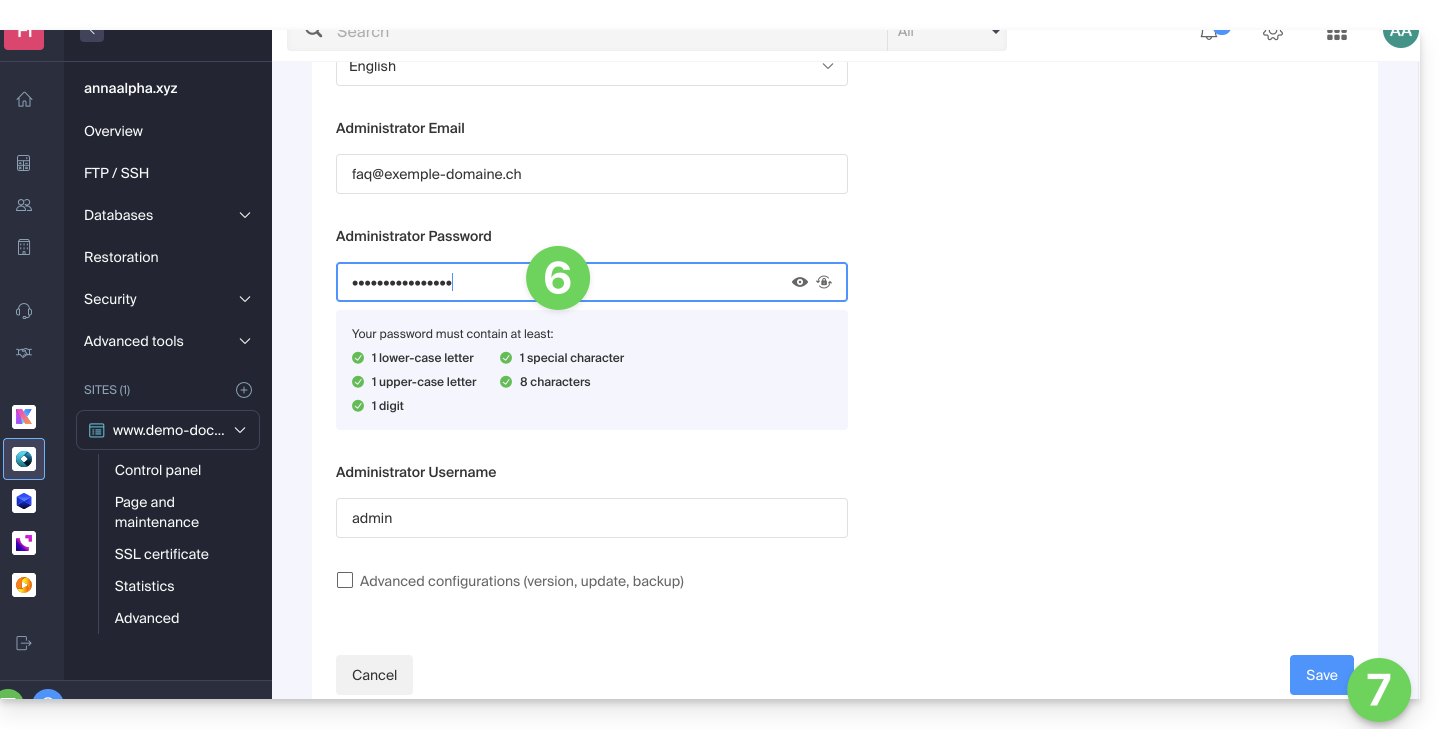
- Under Password, enter the new password (for logging in with the ID shown above).
- Click the Save button at the bottom of the page:
Link to this FAQ: https://faq.infomaniak.com/1848
Has this FAQ been helpful?