Knowledge base
1000 FAQs, 500 tutorials and instructional videos. Here, there are only solutions!
Change the password of a Web Application
This guide explains how to change the management password for WordPress or any other Web Application (Joomla, Drupal, Typo3, PrestaShop, ownCloud, etc.) installed via the Infomaniak tools included in the paid Web Hosting offers.
Preamble
- Some applications also allow changing the user password directly from their dedicated interface:
- Example: WordPress (manage users, names, passwords, roles, etc.).
Change the password of a Web App
To change the password to access the administration panel of your web application, perform the following actions:
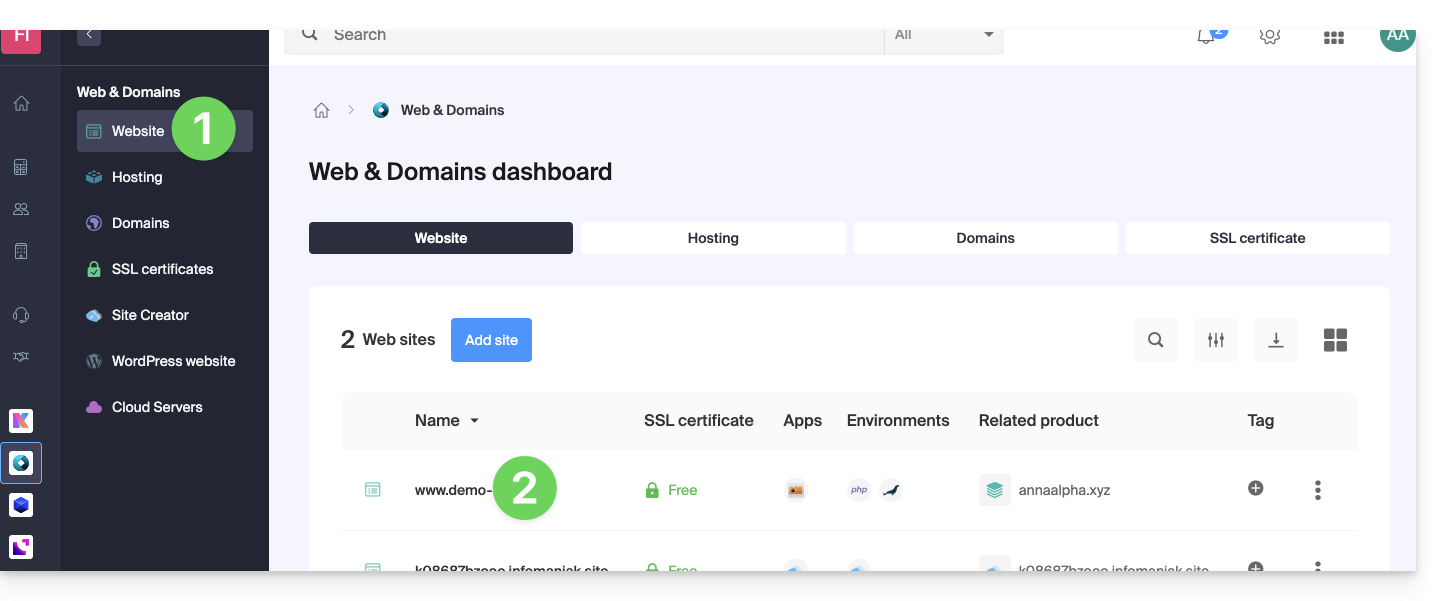
- Click here to access the management of your site on the Infomaniak Manager (need help?).
- Click directly on the name assigned to the site concerned:
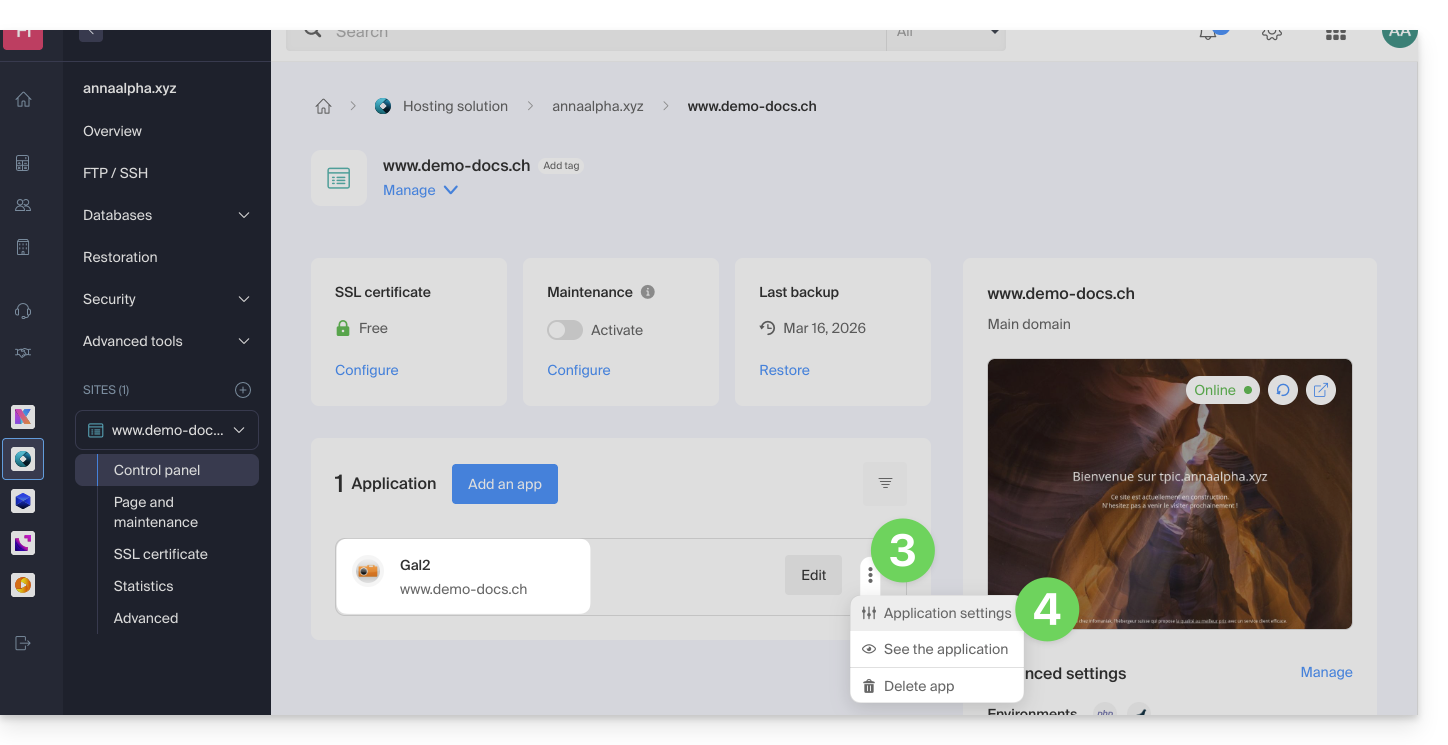
- Click on the action menu ⋮ located to the right of the Web Application concerned.
- Click on Settings of the application:
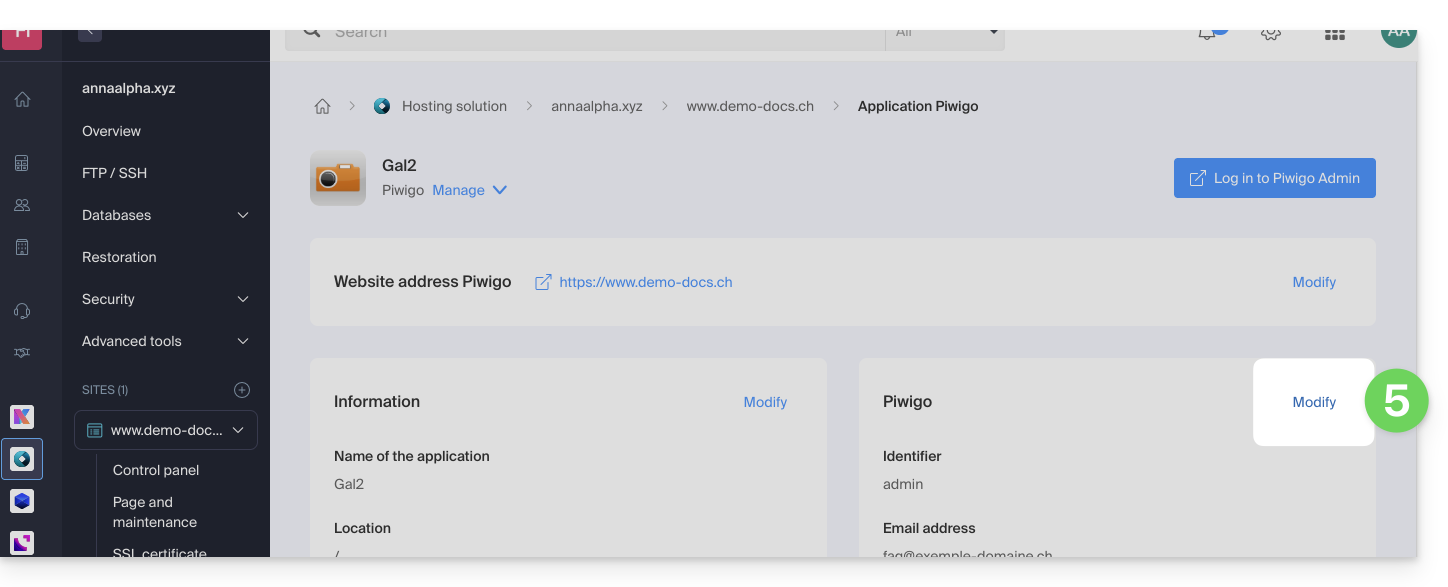
- Click on Modify to the right of the Application:
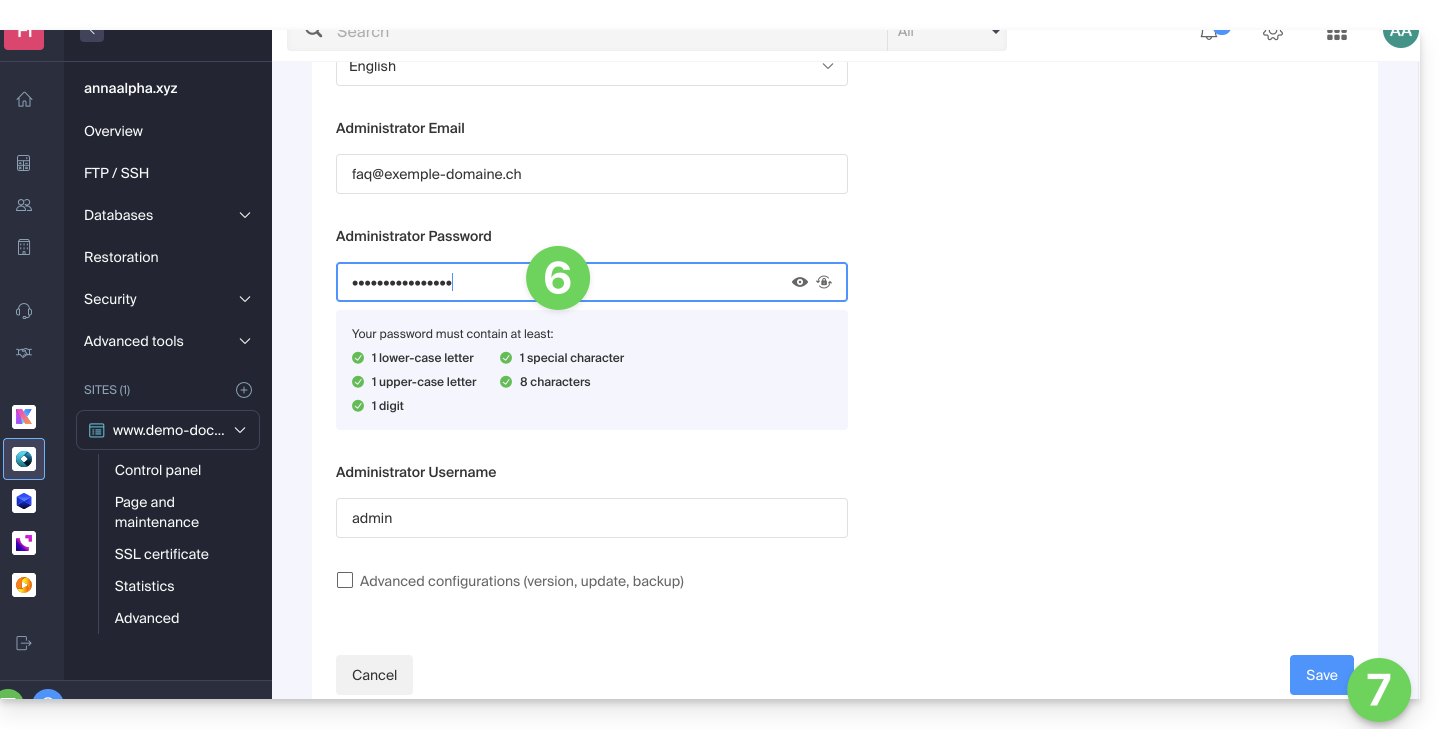
- Under Password enter the new password (for the connection with the identifier indicated above).
- Click on the Save button at the bottom of the page:
Link to this FAQ: https://faq.infomaniak.com/1848
Has this FAQ been helpful?