Knowledge base
1000 FAQs, 500 tutorials and instructional videos. Here, there are only solutions!
This guide explains what spamtrap email addresses are.
Introduction
- A spamtrap, also known as a honeypot, is a tool used to detect and catch spammers.
- It is essentially an email address or system that is created with the aim of attracting unwanted messages, such as spam.
How a Spamtrap Address Works
A spamtrap address works by attracting spam and identifying the senders of unwanted messages. Here's how this can happen:
- An email address is created specifically to act as a spam trap; it is generally configured in such a way that it does not receive legitimate communications.
- The spam trap address is hidden or obscured so that it is not visible to legitimate users, but only to spammers; this can be done by placing it on hidden web pages, in forums inaccessible to the public, or by making it invisible to humans (for example, by using white text on a white background).
- Spammers use automated techniques to extract email addresses from various sources, such as websites, forums, social networks, or stolen address lists; during this process, they may unintentionally or intentionally include spam traps in their lists.
- When a spammer sends a message to a spam trap address, it is captured and recorded; since the address is not used for legitimate communication, any email received is considered unwanted.
- When a spamtrap receives spam, it triggers an alert for email service providers like Infomaniak; these providers can then identify the spammer by examining the message headers or information related to the source IP address.
- Once a spammer has been identified through a spamtrap address, measures can be taken to block or filter their unwanted messages; Infomaniak can add the spammer's IP address to a blacklist, implement stricter anti-spam filters, or take other measures to protect its users.
Link to this FAQ: https://faq.infomaniak.com/1863
Has this FAQ been helpful?
This guide details how to work on a WordPress site with a development environment.
Introduction
- This process can be used at the beginning of a staging process, i.e., the creation of a new version of your website in a live environment, on a development or test environment:
- This allows website owners to test features, security updates, plugins, themes, WordPress updates, and content changes without risking disruptions or problems on the live site.
- Once the tests have been performed and the changes have been validated on the staging copy, it is possible to deploy them to production (on the live site) using automated deployment tools or by making the changes manually.
Simple method
To install and prepare a new WordPress site using the Infomaniak installer without overwriting your current website:
1. Install WordPress in a second location
Refer to this other guide to create the new website (in parallel with the existing website domain.xyz) by assigning it a domain name in the format new.domain.xyz, for example, and installing WordPress via Web Applications (Infomaniak WordPress installer).
At this stage, the main website (domain.xyz) remains unchanged, and you can work on the new website new.domain.xyz without any issues. Both websites will function in parallel.
2. Replace the old site with the new one
Once the new site is finished, you can delete the old site in order to reuse its domain name on the new site:
- Delete the old website to make the domain name available and allow you to reuse it.
- Add domain.xyz as an alias for
new.domain.xyz. - Reverse the alias with the main domain.
- Remove (unlink/delete)
new.domain.xyz, which has become an alias. - As a precaution, check the main URL of the WordPress site via the Web Applications dashboard in the Infomaniak Manager, to ensure that it corresponds to the new name and no longer to the subdomain you had chosen.
Advanced method
To work on an existing WordPress site without modifying its public version, it is recommended to proceed in 3 steps:
- Duplicate the existing site
- Then, work on your copy.
- Modify the target directory of the live site to the directory of the production environment, and update the URLs of the pre-production site based on the domain name of the live site, using a WordPress plugin or via phpMyAdmin.
1. Duplicate the website to a second location
- Refer to this other guide to create the new website (in parallel with the existing website
domain.xyz) by assigning it a domain name in the formatnew.domain.xyz, for example, and installing WordPress using the Web Applications (Infomaniak WordPress installer). - Copy your existing website and paste it onto the newly created second WordPress website, using a WordPress plugin.
2. Edit the duplicated website
- At this stage, the main site (
domain.xyz) remains unchanged, and you can work on the new sitenew.domain.xyzwithout any issues. Both sites operate in parallel. - It is recommended to install a WordPress extension (there are dozens available) dedicated to putting the second site into maintenance mode.
- If you modify the structure of your website and the URLs of your articles/pages change, you can use a free extension like Redirection to automatically create redirects. This will prevent your visitors from encountering 404 pages while search engines re-index your site or if external sites link to your site.
3. Replace the target
- Once you have finished redesigning your website, all you need to do is change the target directory of the site in production to the directory of the production environment and change the URLs of the pre-production site according to the domain name of the production site using a plugin.
- If you are using a caching plugin such as WP-Rocket, W3 Total Cache, or WP Super Cache, you will need to completely clear all the cache or disable and then reactivate the plugin.
- If you continued to make changes to your live site during the redesign, you will need to retrieve your changes (articles, media, pages, etc.).
- After performing the necessary checks (missing images, broken links, etc.), all that remains is to disable maintenance mode on your site and admire the result.
Link to this FAQ: https://faq.infomaniak.com/1907
Has this FAQ been helpful?
This guide explains how to order a DNS zone from Infomaniak.
Introduction
- Having your DNS zone with Infomaniak is useful if your domain name is registered elsewhere (with a third-party provider/registrar) and you want to easily link this domain to Infomaniak products.
- Indeed, simply having a
domain.xyzwebsite with Infomaniak and specifying the 2 Infomaniak DNS addresses with the domain name registrar (if it is not Infomaniak) is not enough for the website to be displayed when you typedomain.xyzin a browser. - You must add a DNS zone in the same location as your hosting to ensure your website functions correctly.
- This will also be particularly useful if the provider managing your domain name does not offer DNS zone management.
Order a DNS zone
To do this:
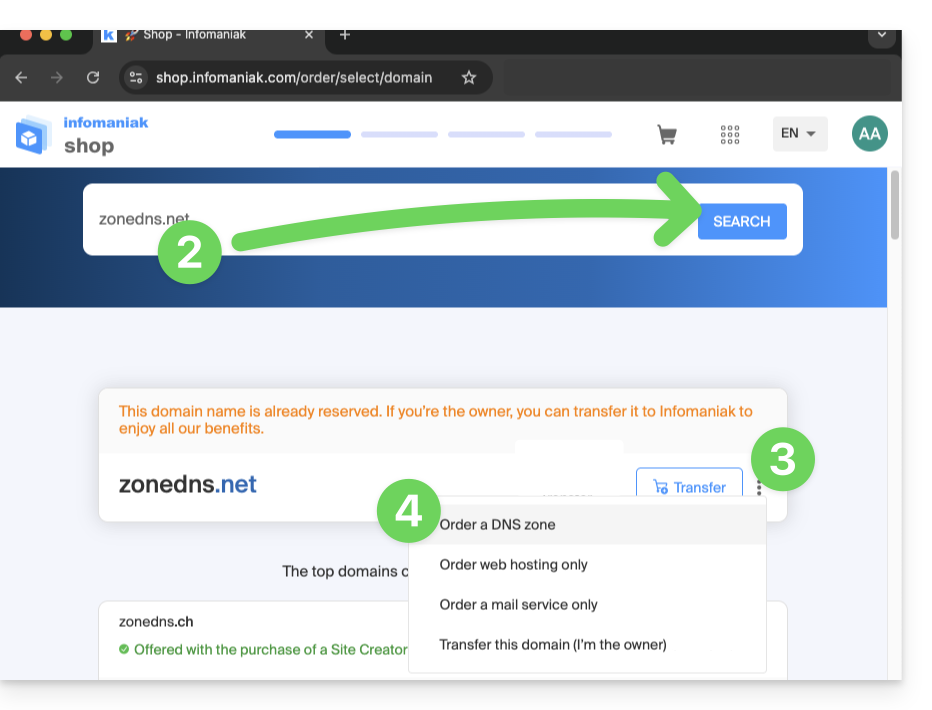
- Click here to access the Infomaniak domain Shop.
- Start a search with the name of the domain registered elsewhere.
- Click on the action menu ⋮ located to the right of the result.
- Select Order a DNS zone:
- Complete the purchase.
- Once added to your Manager, the zone can be edited.
Link to this FAQ: https://faq.infomaniak.com/1914
Has this FAQ been helpful?
This guide details the software libraries that can be used to manipulate the PDF format and that are compatible with the various web hosting offers from Infomaniak.
Introduction
- The
PDFPHP extensions allow you, among other things, to generate a PDF from dynamic data, for example, to create custom invoices.
PDF and Cloud Server
On Cloud Server, you can install apps like PDFtk…
- The PHP class
FPDFis supported. PDFlibfrom Apryse is no longer offered on the latest Managed Cloud Servers because thePHP_PDFextension has become a paid service. If you purchase it, you will need to install it on Cloud VPS / VPS Lite or Public Cloud.
On shared hosting, ImageMagick is active and supports the EPDF, PDF, and PDFA formats.
Link to this FAQ: https://faq.infomaniak.com/1925
Has this FAQ been helpful?
This guide explains how to view and download Apache logs for Web Hosting, which are useful for analyzing PHP errors or diagnosing certain application behaviors.
Introduction
- Access and error logs are kept for at least 7 days.
- Once the retention period has elapsed, older entries cannot be restored, even upon request.
- You can also find these files directly on the server via SSH/FTP in the
ik-logsfolder at the root of your hosting.
Accessing access and error logs
To view these logs:
- Click here to access the hosting & website management section in your Infomaniak Manager (❓: help).
- Click on the name of the website in question.
- Click on Advanced in the left sidebar.
- Click on Logs in the left sidebar.
- Click on Errors or Access to view the error log or access log.
- Select a period if necessary.
- Click on the icon to view the details.
- Click on Send by email to immediately receive all entries by email at your user address.
- Click to export the data in
.logformat: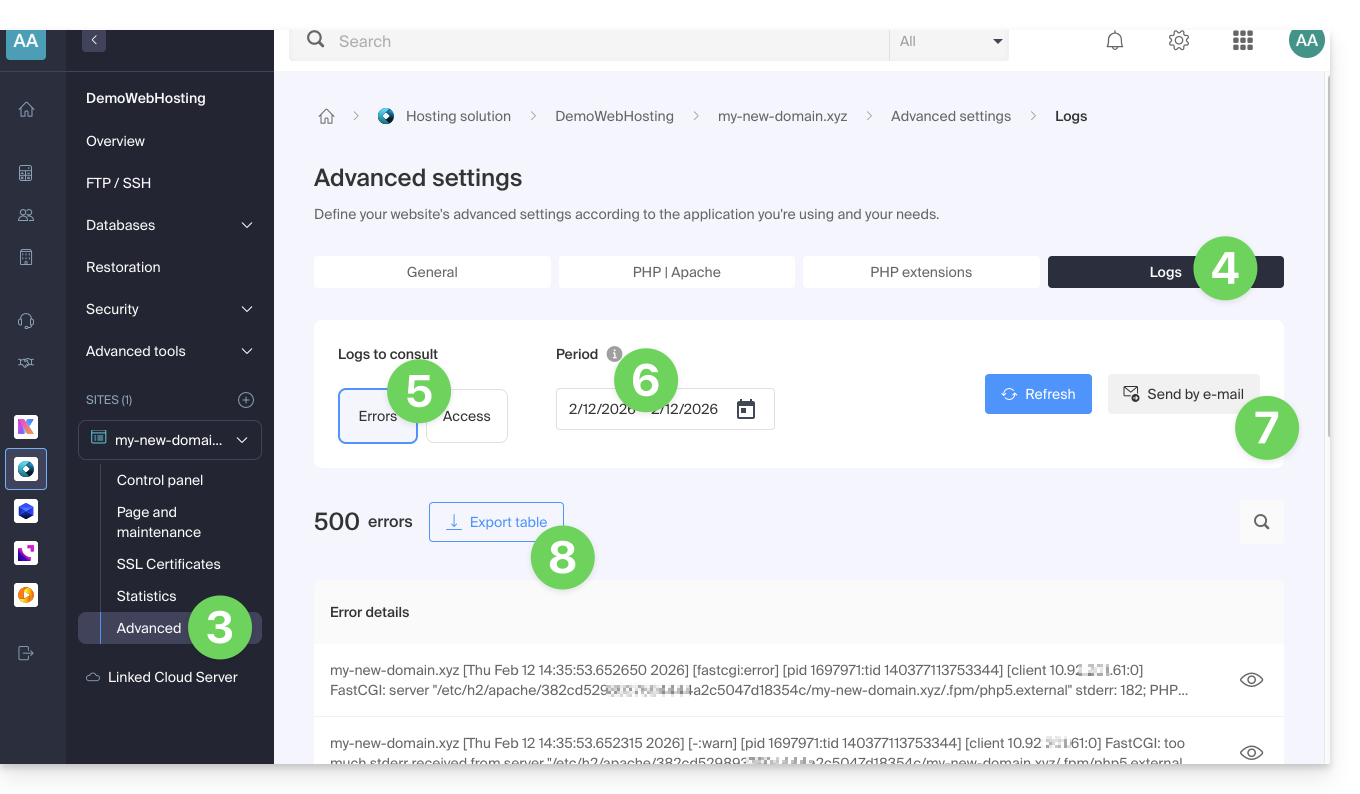
Identify the most active IP addresses in the access logs
To do this, connect to the server via SSH (need help?).
The command to execute via SSH is as follows:
cat ik-logs/access.log | awk '{ print $2}' | sort -n | uniq -c | sort -n | tail -n 20Link to this FAQ: https://faq.infomaniak.com/1926
Has this FAQ been helpful?
This guide explains how to modify the server configuration of a website on Infomaniak Web Hosting.
Introduction
- Apache is the HTTP server.
- It is configured using an
.htaccessfile placed in the root directory of the website.
- It is configured using an
- PHP is a programming language used to create dynamic web pages via an HTTP server.
- It is possible to customize PHP directives with an
.user.inifile, which will be effective in the directory and subdirectories of the location of the .user.ini file.
- It is possible to customize PHP directives with an
- Consult this other guide on creating .htaccess and .user.ini files.
Modify a website's server configuration…
… via the Manager
To modify the PHP configuration and most parameters (max_input_vars, allow_url_fopen, memory_limit, post_max_size + upload_max_filesize, etc.):
- Click here to access your website management in the Infomaniak Manager (need help?).
- Click directly on the name assigned to the website in question.
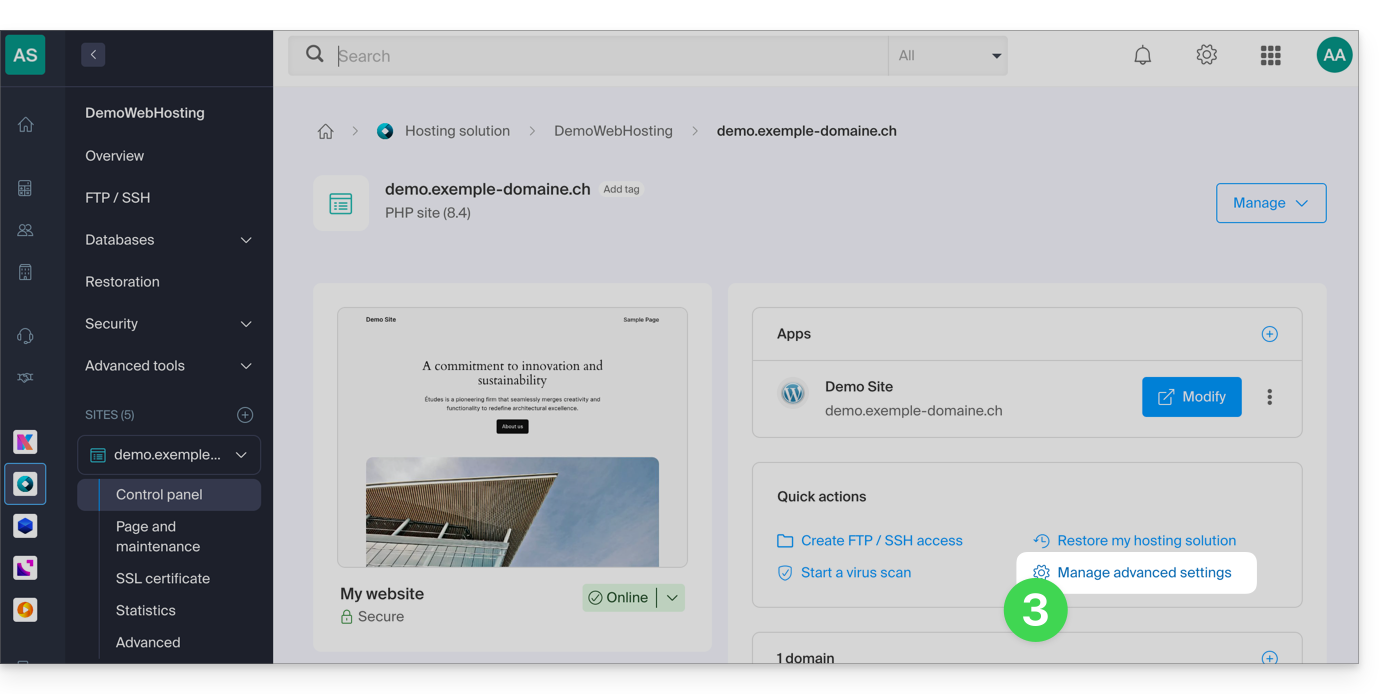
- Click on Manage advanced settings:
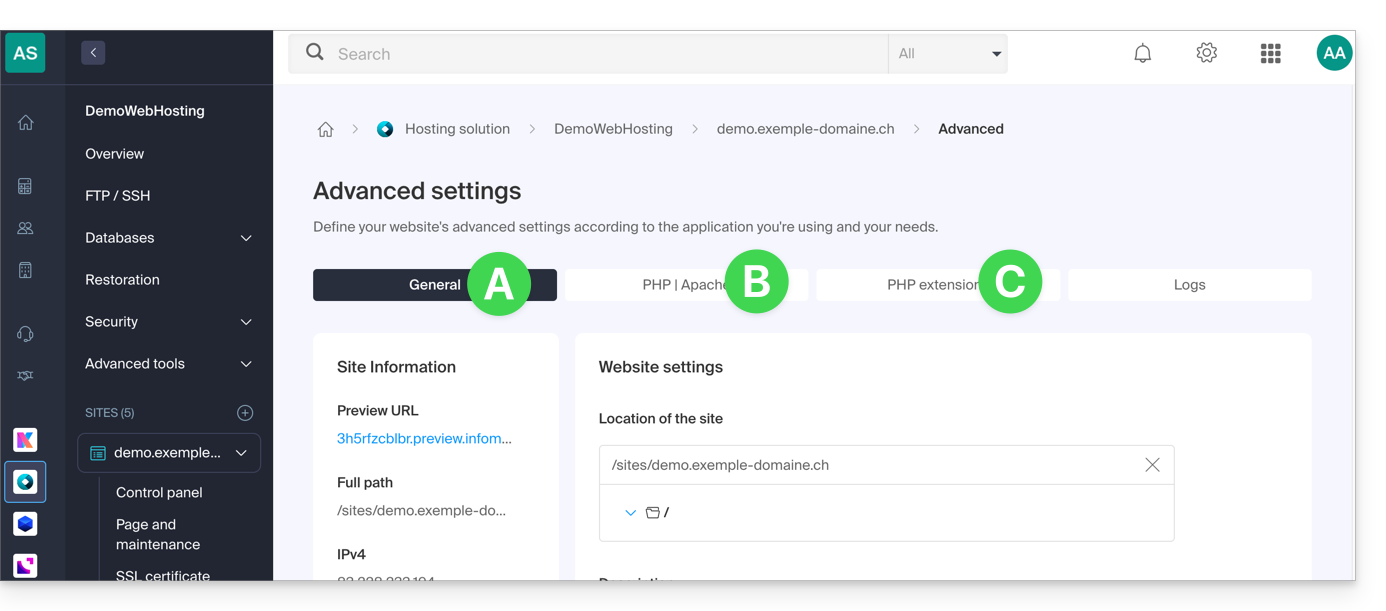
- Click on the different General, PHP / Apache, and PHP Extensions tabs to make the desired adjustments:
- Refer to this other guide if you are looking for information about limit values and the possibilities for unlocking them.
- If necessary, refer to this other guide regarding the fourth tab.
Don't forget to save the changes at the bottom of the page.
… via the .user.ini file
For PHP directives that are not available in the Manager, it is necessary to define the desired values in the .user.ini file, for example:
max_file_uploads = 20The list of existing directives can be found on the official PHP website, but the items with the PHP_INI_SYSTEM indication in the Modifiable column, as well as max_input_time, memory_limit, and mysqli.default_socket, cannot be used.
… via CLI
To customize PHP directives when running scripts via the command line interface (CLI) or in CRON tasks, it is necessary to specify the desired values in a .user.ini file.
Next, to apply these configurations, use the PHP executable with the -c option, followed by the path to the .user.ini file.
For example, to change the memory limit available for PHP to 1024M, you can create or modify the .user.ini file using the following command:
echo 'memory_limit = 1024M' > .user.iniThis command writes the memory_limit directive with the value 1024M into the .user.ini file.
Then, when running a PHP script from the command line or in a CRON task, the PHP command will be used with the -c option to specify the .user.ini file containing the custom configurations.
The following example enables allow_url_fopen for the WP CLI tool (which, among other things, allows you to retrieve extensions):
php -d allow_url_fopen=On ~/bin/wp package install trepmal/wp-revisions-cliphp: the PHP executable-d allow_url_fopen=On: the-doption allows you to define a PHP configuration directive (allow_url_fopen) with the valueOn~/bin/wp: path to the WP CLI executablepackage install trepmal/wp-revisions-cli: the specific command to install the WP CLI packagetrepmal/wp-revisions-cli
This ensures that the allow_url_fopen option is enabled during the execution of the specified WP CLI command. Enabling allow_url_fopen may be necessary for certain operations that involve opening remote URLs, such as downloading extensions or packages. Make sure that this option is enabled securely and in accordance with best security practices.
Link to this FAQ: https://faq.infomaniak.com/1928
Has this FAQ been helpful?
This guide explains how to install a new Infomaniak WordPress site included in the paid Web Hosting plans. You will find 2 different ways to create a WordPress site, as well as explanations about uninstalling it.
Create a WordPress site on an existing hosting account
To access your Web Hosting and add a new website by installing WordPress at the same time:
- Click here to access your hosting management in the Infomaniak Manager (need help?).
- Click directly on the name assigned to the relevant hosting.
- Click on the button to add a site:
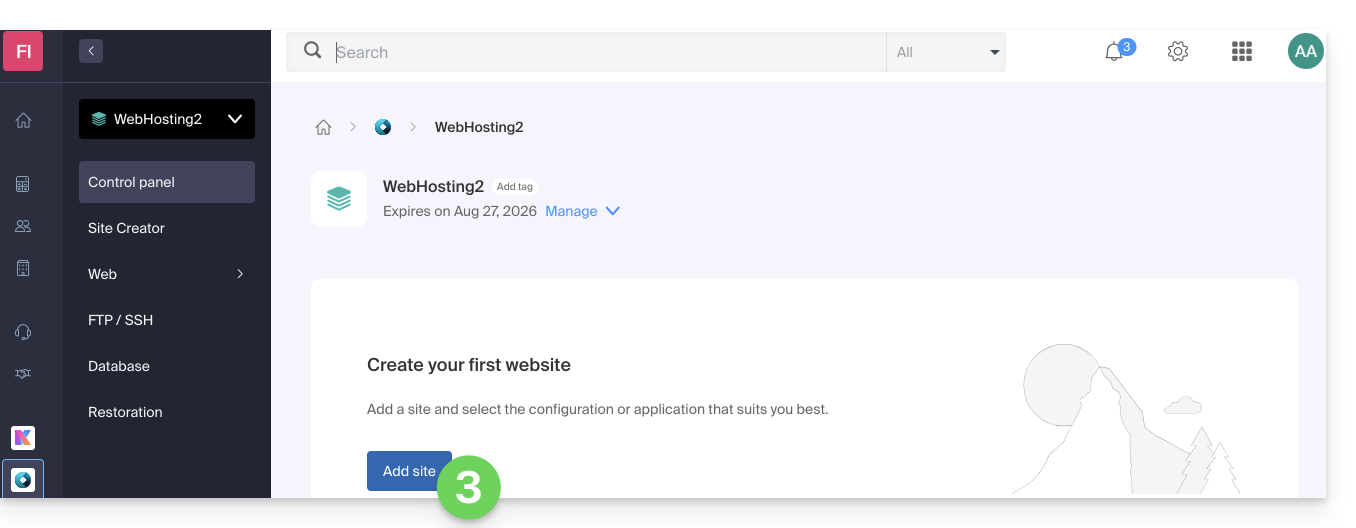
- Choose to install WordPress.
- Click on the Next button:
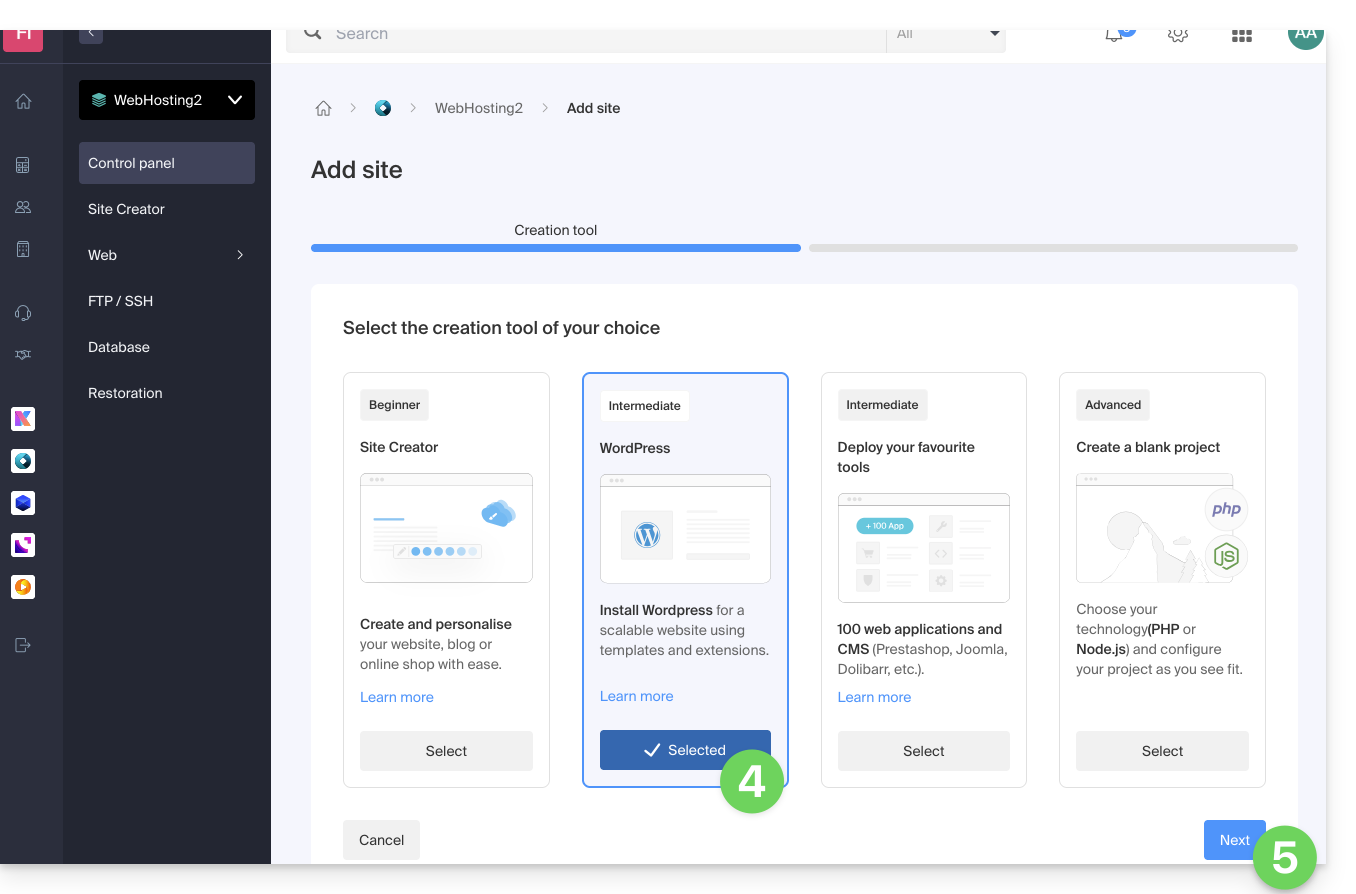
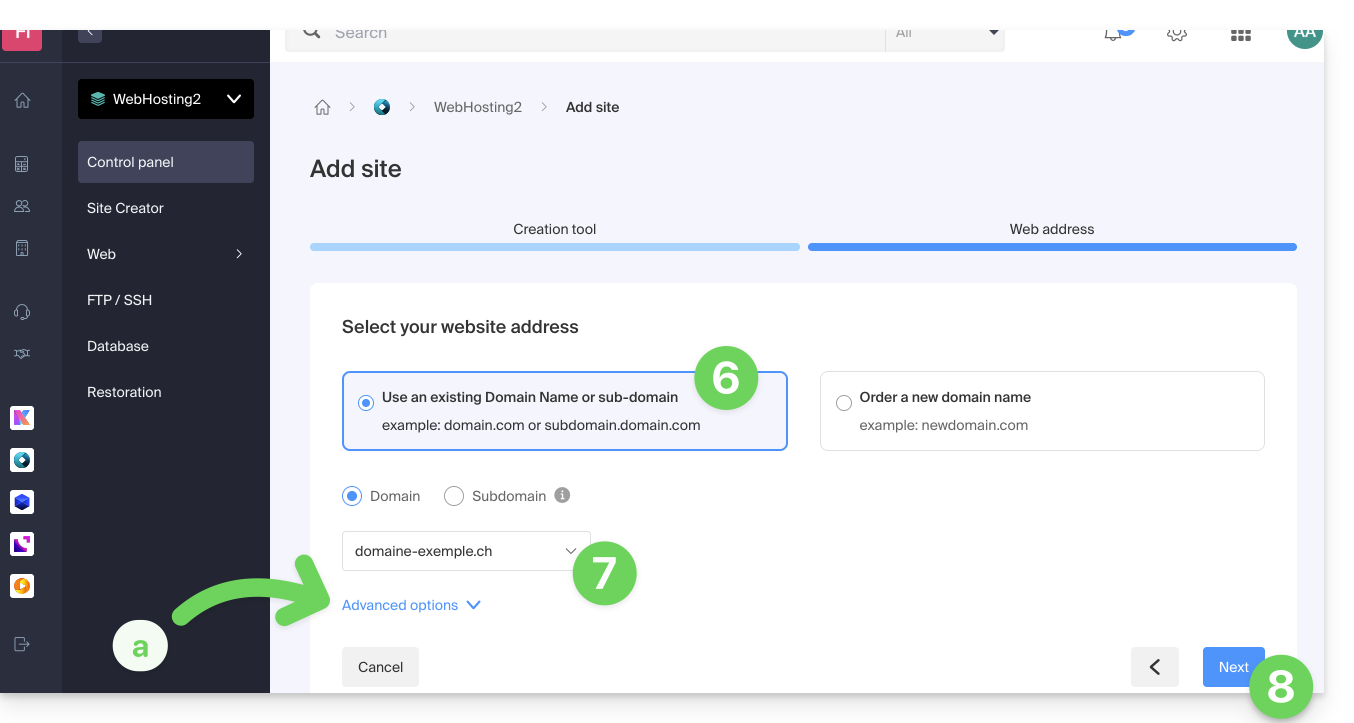
- Click the button to use a domain name that is already present in your Organization (or click the other button if you need to order a new domain first).
- Select the domain name from your existing domains.
- The advanced options allow you, in particular, to choose a custom location on the hosting server and an older version of PHP.
- Click on the Next button:
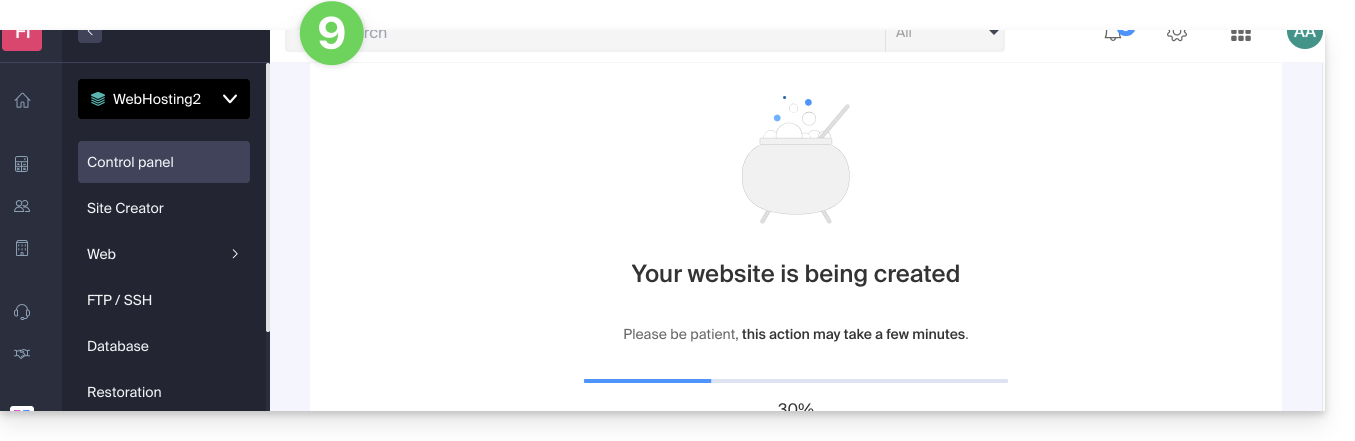
- Wait a few minutes while the website is being created on the hosting:
- Enter the requested information, as it will be used to log in to your WordPress dashboard(you can modify this information at any time after installation).
- Click on the Next button:
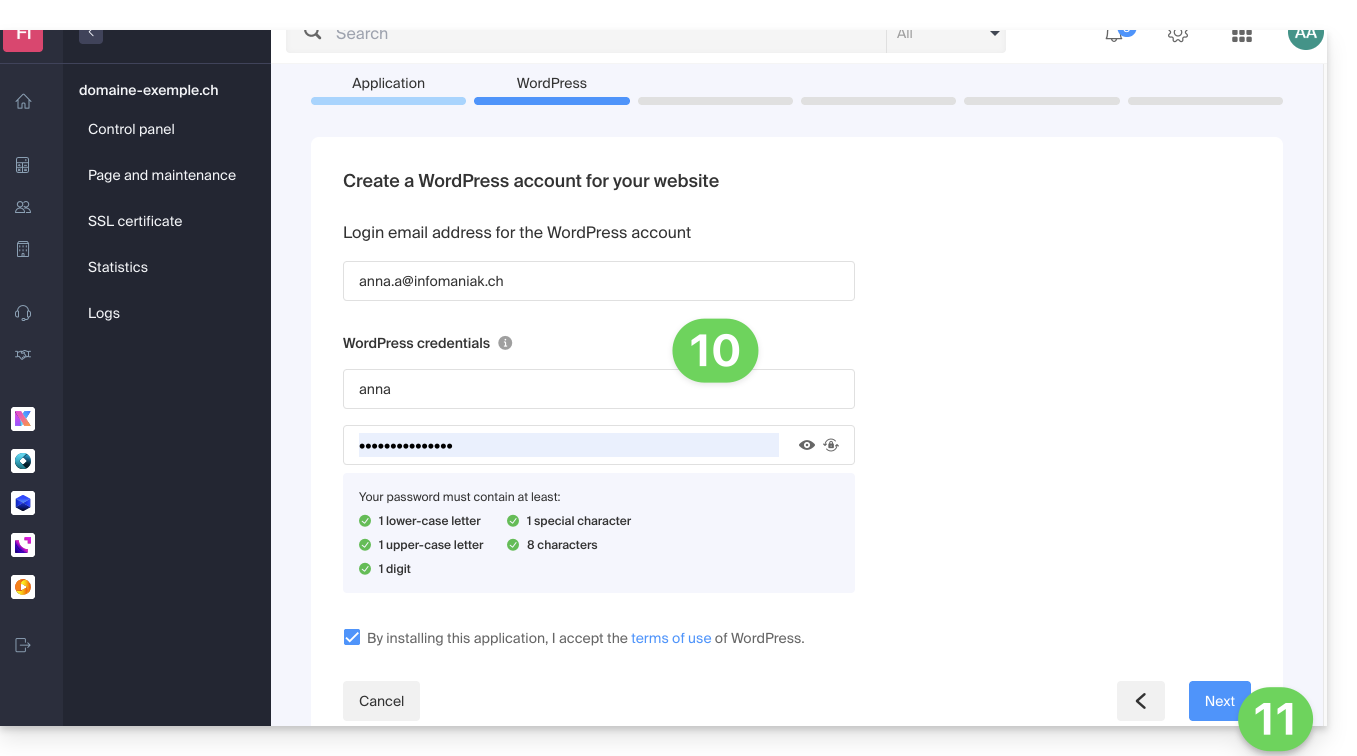
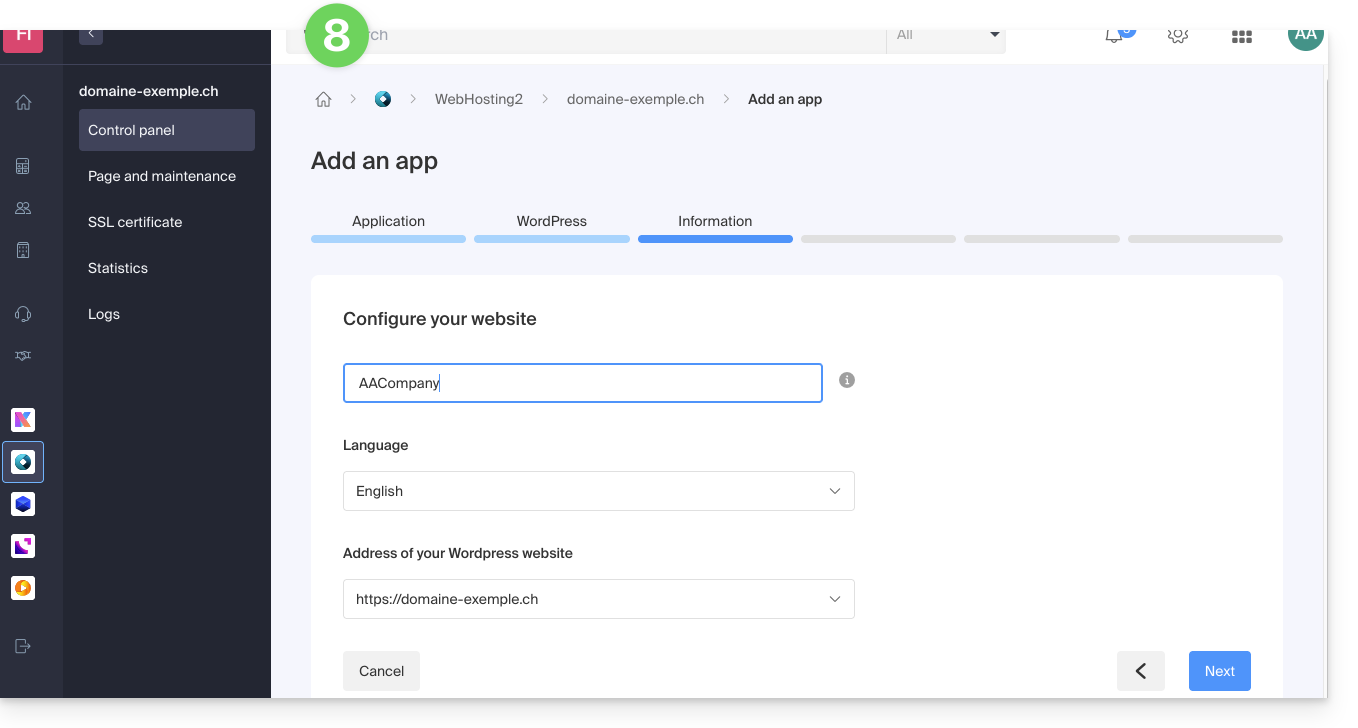
- Enter the information related to your website (you can modify this information at any time after installation).
- Click on the Next button:
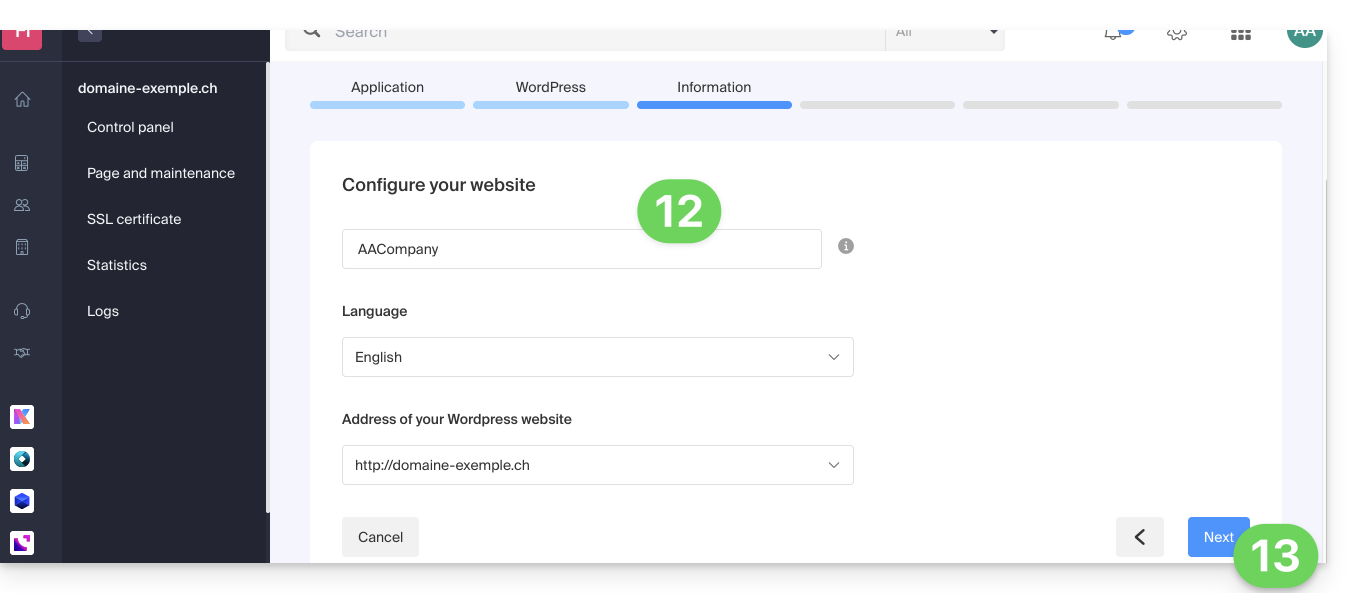
- Choose between the Divi theme and the official theme of the latest WordPress version (you can change this information at any time after installation).
- Click on Next:
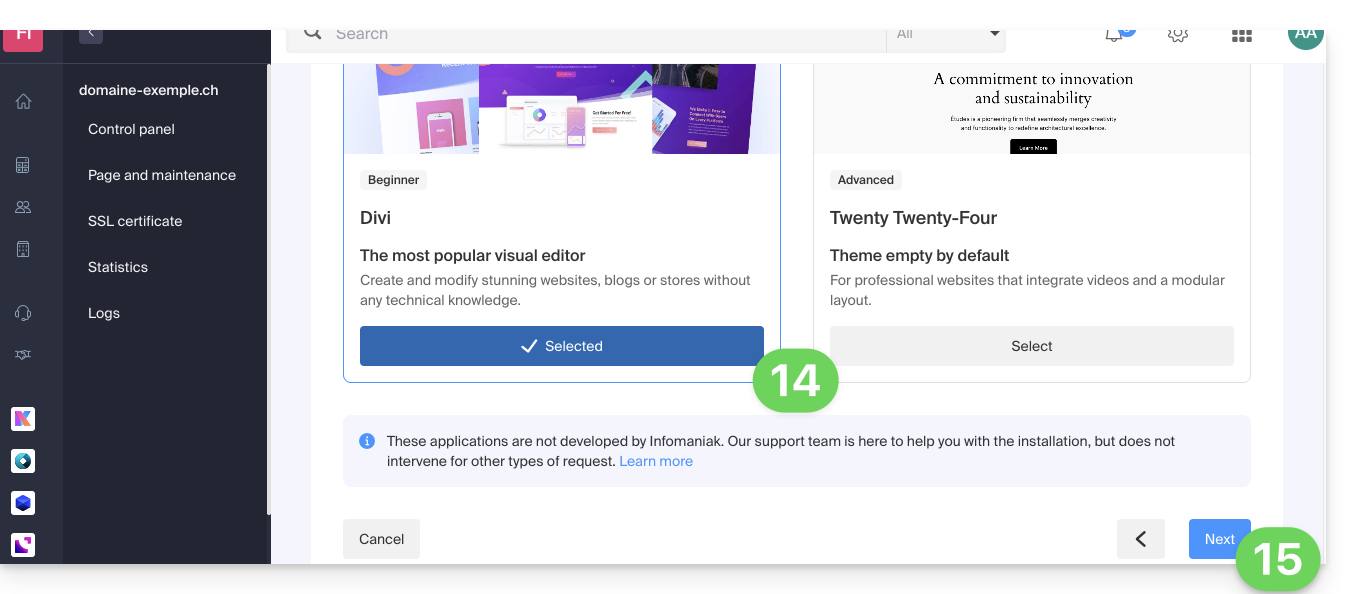
- Confirm the installation from the summary page.
- You can then log in to the WordPress dashboard or return to the Infomaniak website management interface.
Install WordPress on an existing blank website
To access the existing blank website on your hosting and install WordPress:
- Click here to access your website management in the Infomaniak Manager (need help?).
- Click directly on the name assigned to the website in question.
- Click the button to add an application:
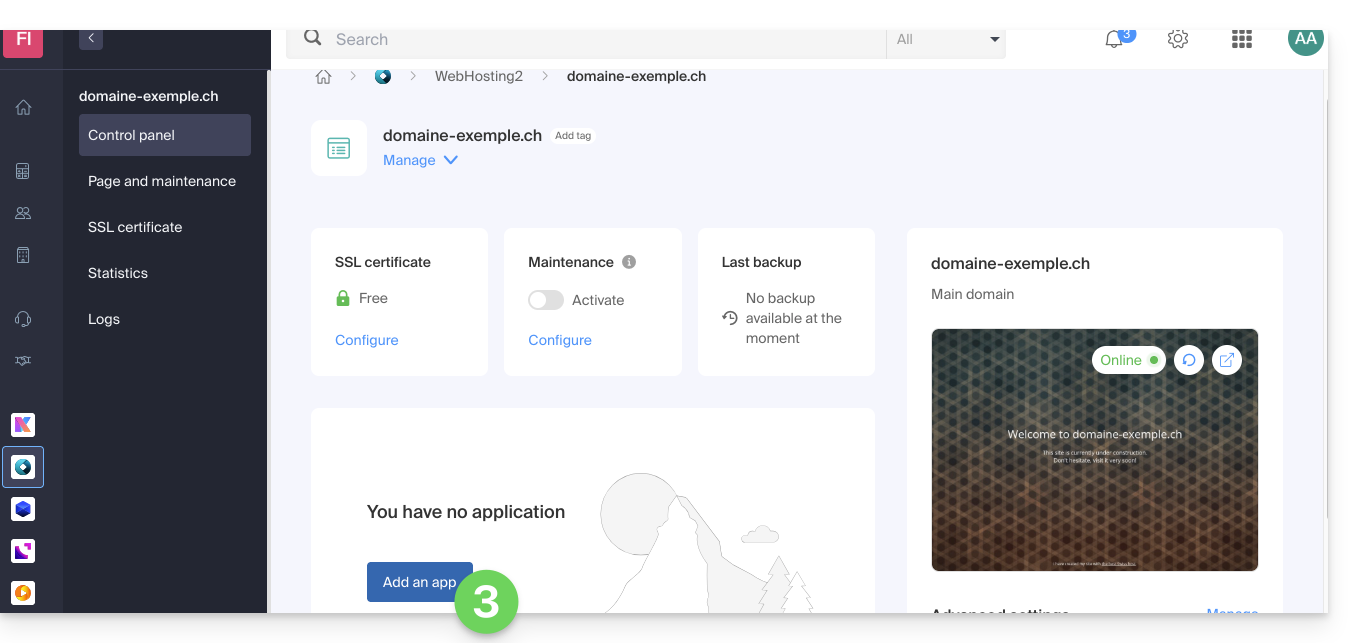
- Choose to install WordPress:
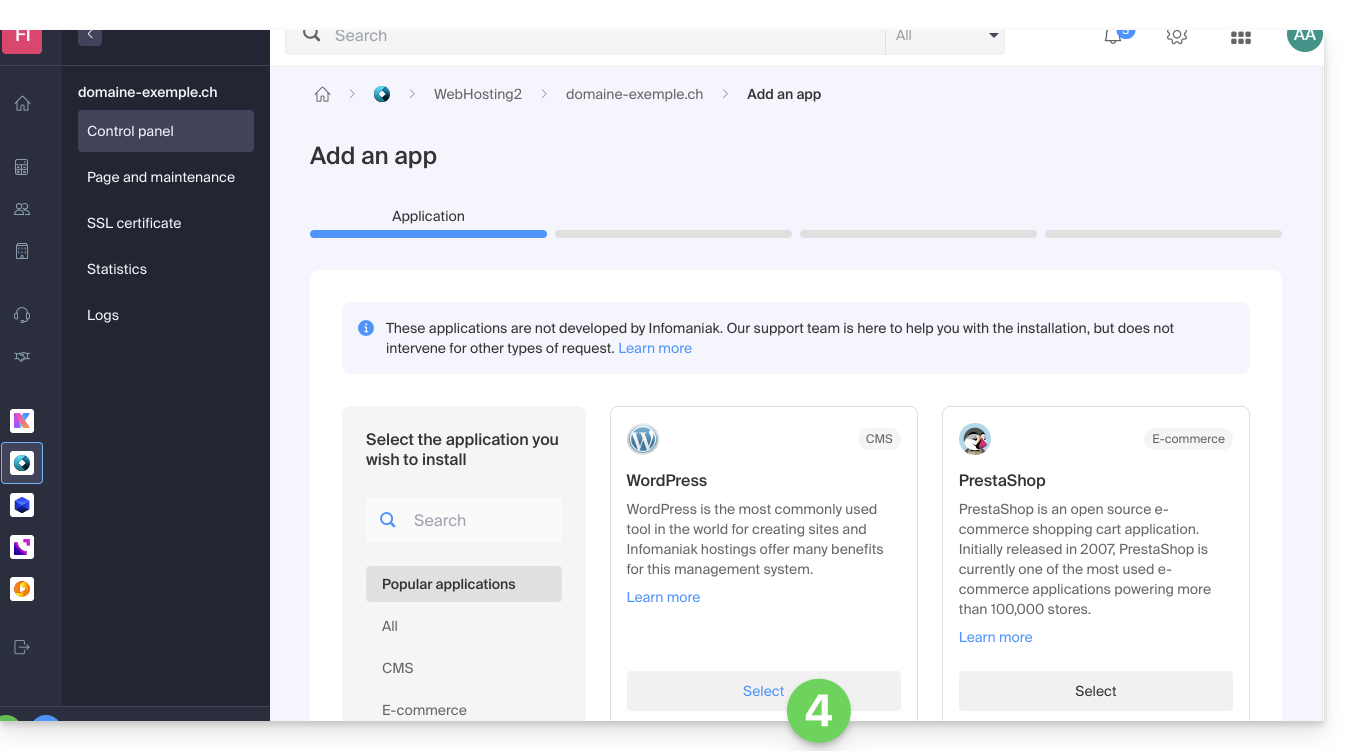
- Click the Next button at the bottom of the page.
- Enter the requested information; it will be used tolog in to your WordPress dashboard (you can change this information at any time after installation).
- Click on the Next button:
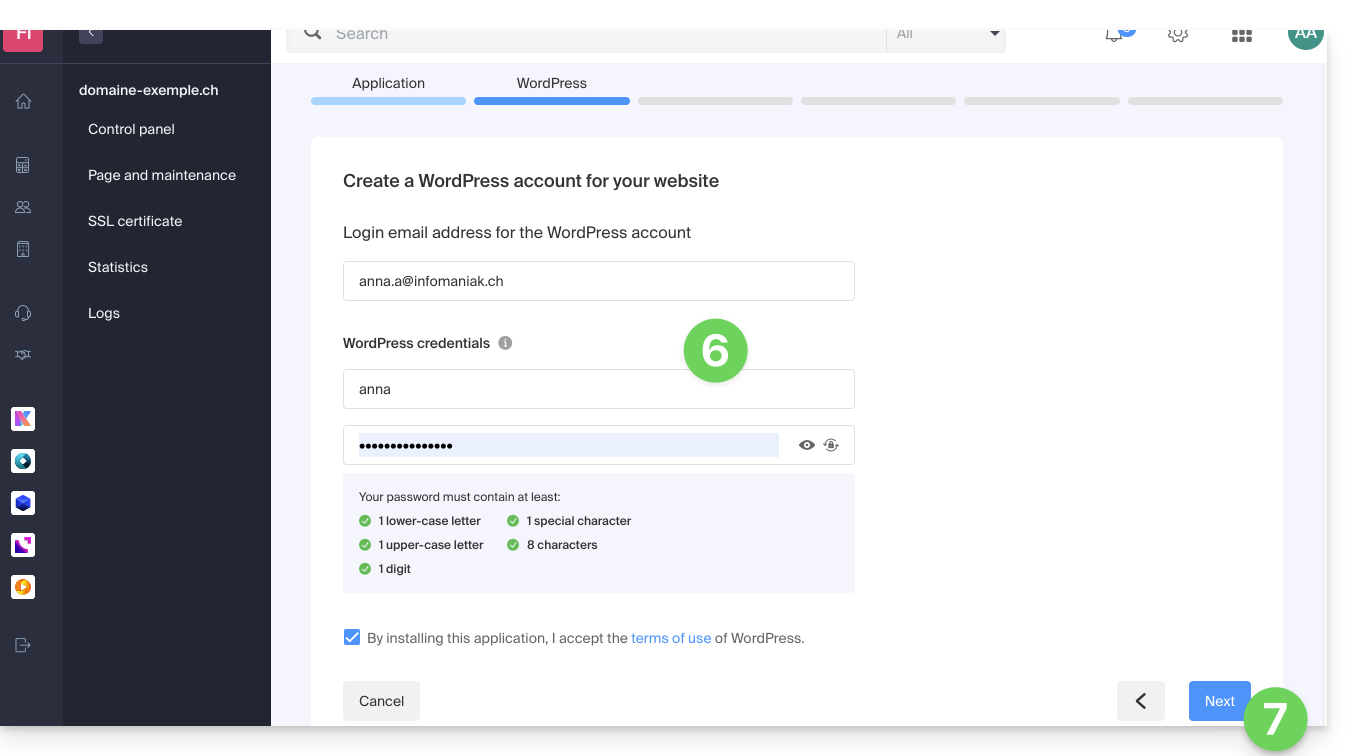
- Continue in the same way as from step 12 of the previous chapter above.
Uninstall Infomaniak WordPress
You can delete a WordPress site:
- by completely removing the website from the hosting (and keeping or deleting the WordPress data, databases, etc.)
- by keeping the website on the hosting but removing the WordPress app…
Option 1
- Click here to access the management of your WordPress site in the Infomaniak Manager (need help?).
- Click on the action menu ⋮ located to the right of the item in question.
- Click on Unlink site:
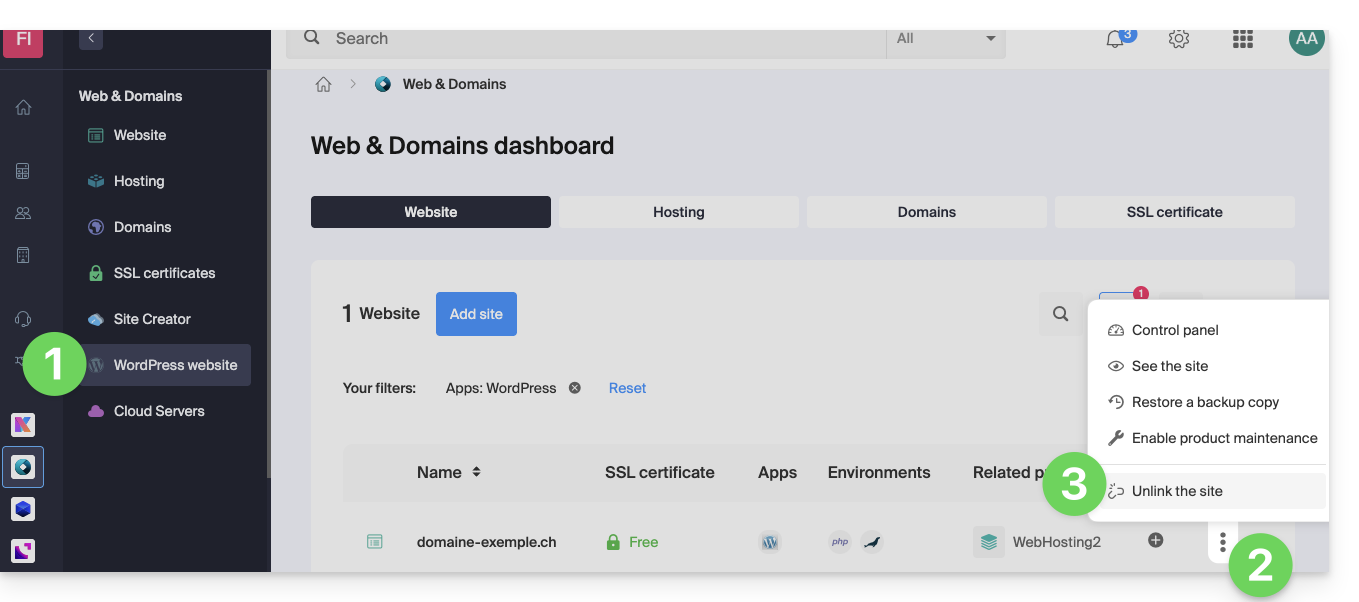
- Choose whether you want to delete everything or keep a trace of the WordPress data on the hosting server:
- If you check the box, there will be nothing left in the Manager (except for backups):
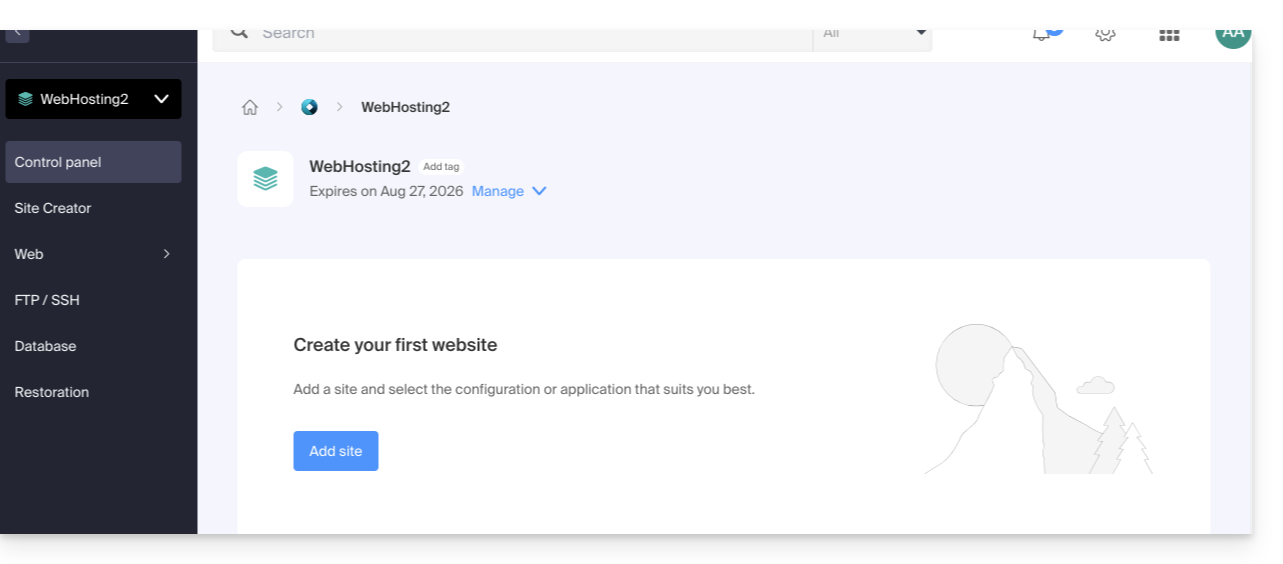
and nothing left on the server: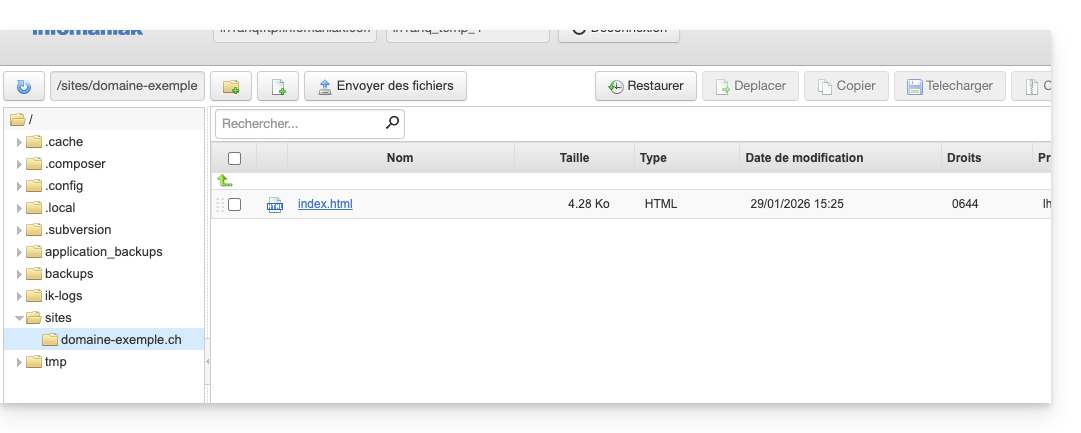
- If you do not check the box, there will be nothing left in the Manager (except for backups):
but the WordPress files will still be accessible on the server: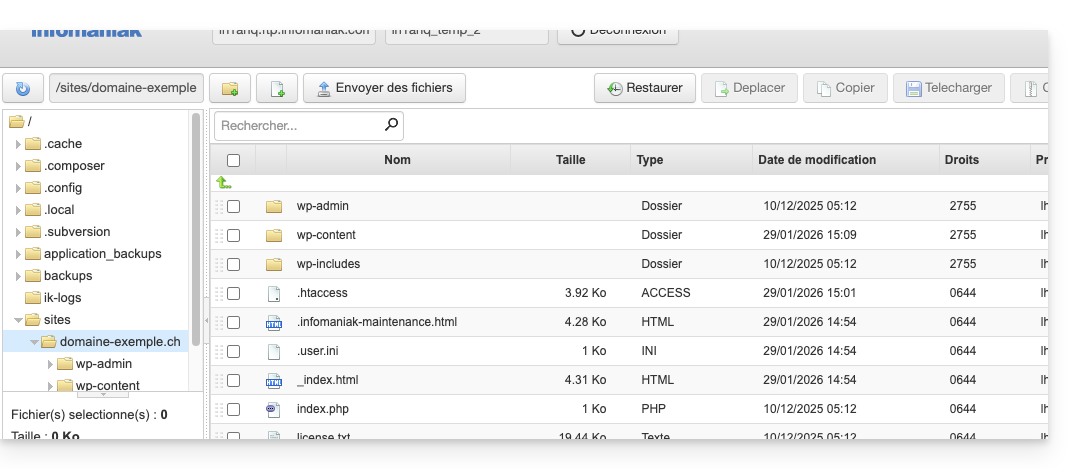
And you will get an error if you then try to reinstall a new WordPress site in the same location with the same domain name: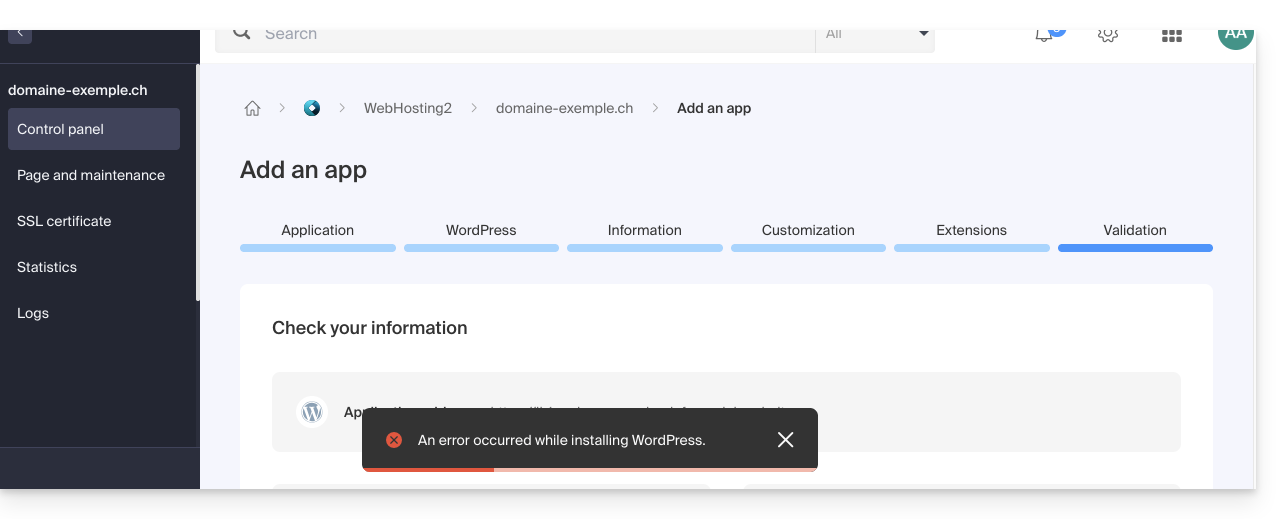
- If you check the box, there will be nothing left in the Manager (except for backups):
- Confirm the deletion.
- Click to delete and wait.
Option 2
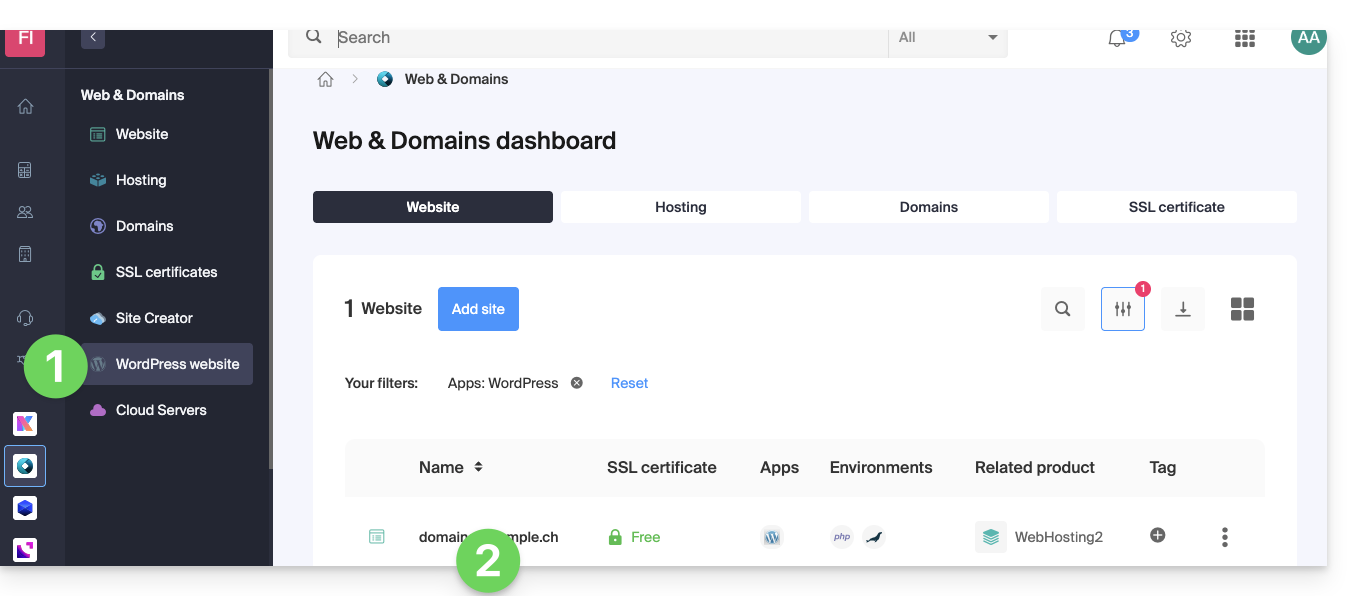
- Click here to access the management of your WordPress site in the Infomaniak Manager (need help?).
- Click directly on the name assigned to the site in question:
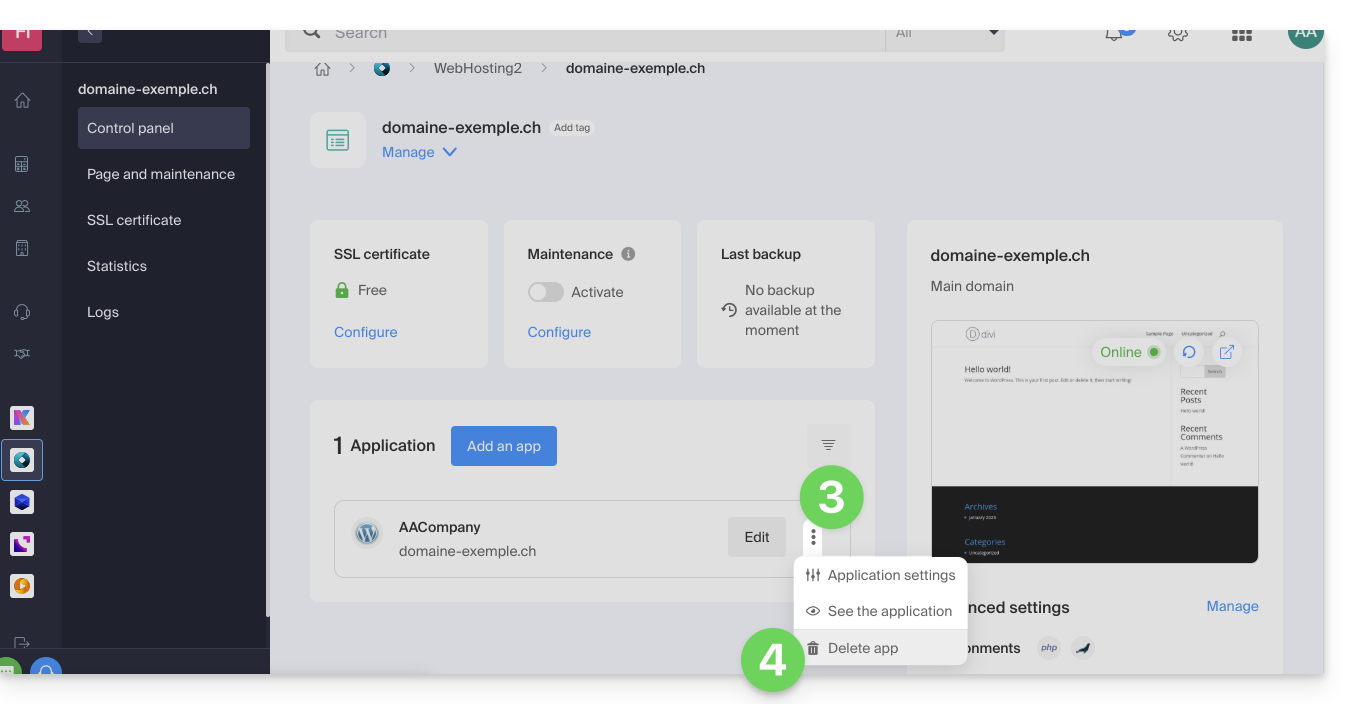
- Click on the action menu ⋮ located to the right of the item in question.
- Click on Remove app:
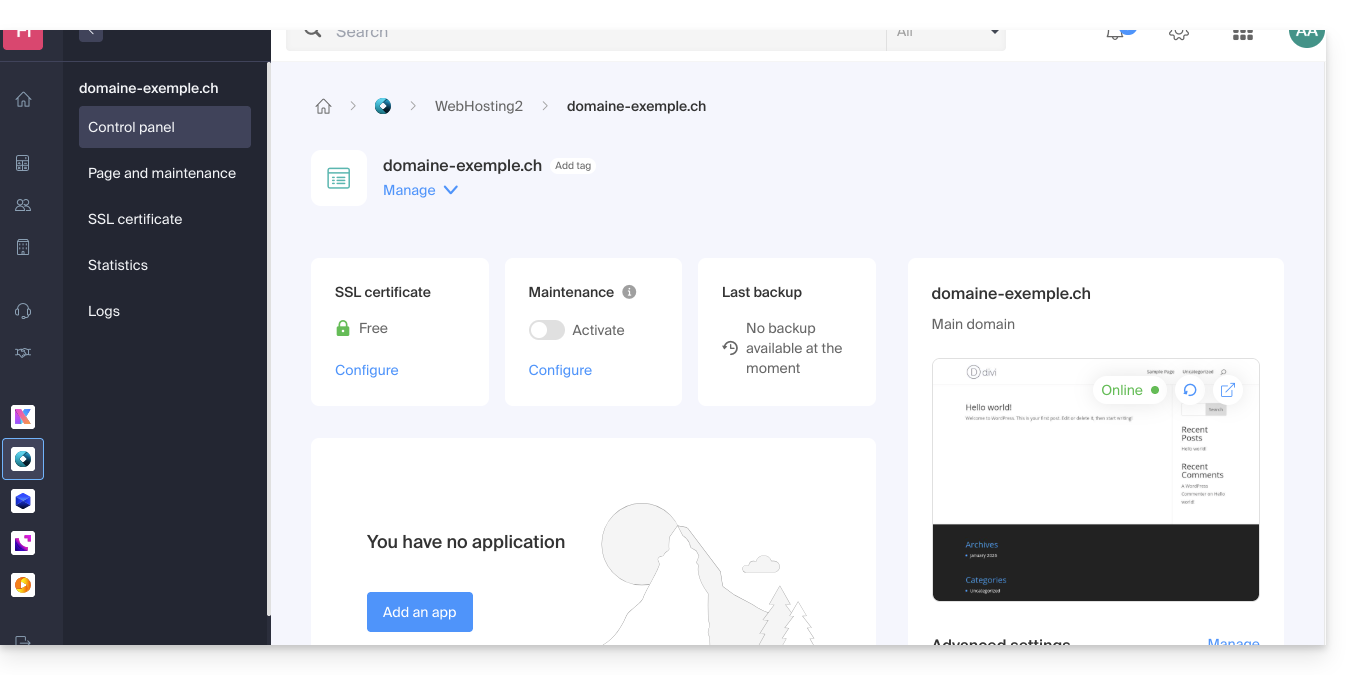
- Confirm the deletion and wait. Your hosting will still contain a website, but without any applications installed:
Learn more
Link to this FAQ: https://faq.infomaniak.com/1931
Has this FAQ been helpful?
This guide explains how to disable all extensions installed on your WordPress on a Web Hosting.
Introduction
- Disabling WordPress plugins allows you to quickly identify if one of them is causing an issue on your site, and to draw the necessary conclusions in order to fix it.
Quickly disable WP plugins
To disable all WordPress plugins:
- Log in to the server via FTP (need help?).
- Go to the website location (the folder corresponding to your WordPress site).
- Rename
/wp-content/pluginsto/wp-content/_plugins, for example.- To disable a specific plugin, rename
/wp-content/plugins/PluginNameto/wp-content/plugins/_PluginName, for example.
- To disable a specific plugin, rename
Link to this FAQ: https://faq.infomaniak.com/1937
Has this FAQ been helpful?
This guide explains how to connect via SSH to a Web Hosting or a Cloud Server.
Connecting via SSH…
… via a web browser
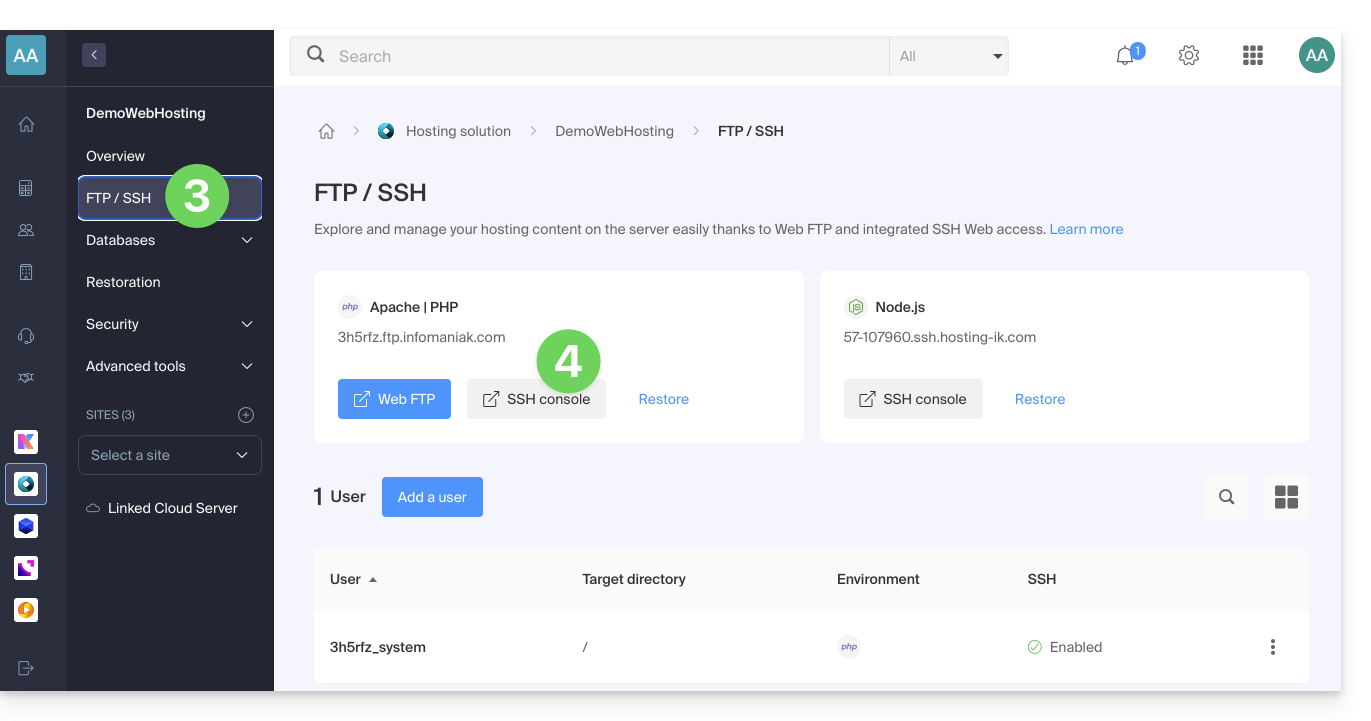
- Click here to access the hosting & website management section in your Infomaniak Manager (❓: help).
- Click on the name of the relevant hosting.
- Click on FTP / SSH in the left-hand menu.
- Click on the SSH Console button:
… via the terminal or an application
To connect via SSH, use the following commands from a Terminal application (command-line interface, CLI) on your device, for example:
- Terminal (an application already integrated into macOS and Linux)
- PuTTY (Windows) (❓: help)
Then, enter the following command:
ssh username@serverusernameis the username for the FTP account (❓: help)serveris the host server (e.g. xxxx.ftp.infomaniak.com)
To find out which command is available and to know the path to use, run the "whereis" command:
$ whereis mysql
mysql: /opt/mysql/bin/mysql
Link to this FAQ: https://faq.infomaniak.com/1941
Has this FAQ been helpful?
This guide explains how to import a MySQL/MariaDB database to an Infomaniak Web Hosting account.
Importing a database
To import an Infomaniak database:
- Click here to access the hosting & website management section in your Infomaniak Manager (❓: help).
- Click on the name of the hosting in question.
- Click on the downward-pointing chevron to the right of the database menu in the left-hand sidebar.
- Click on Databases.
- Click on the “More actions” button/menu to access different options.
- Choose Import a database:
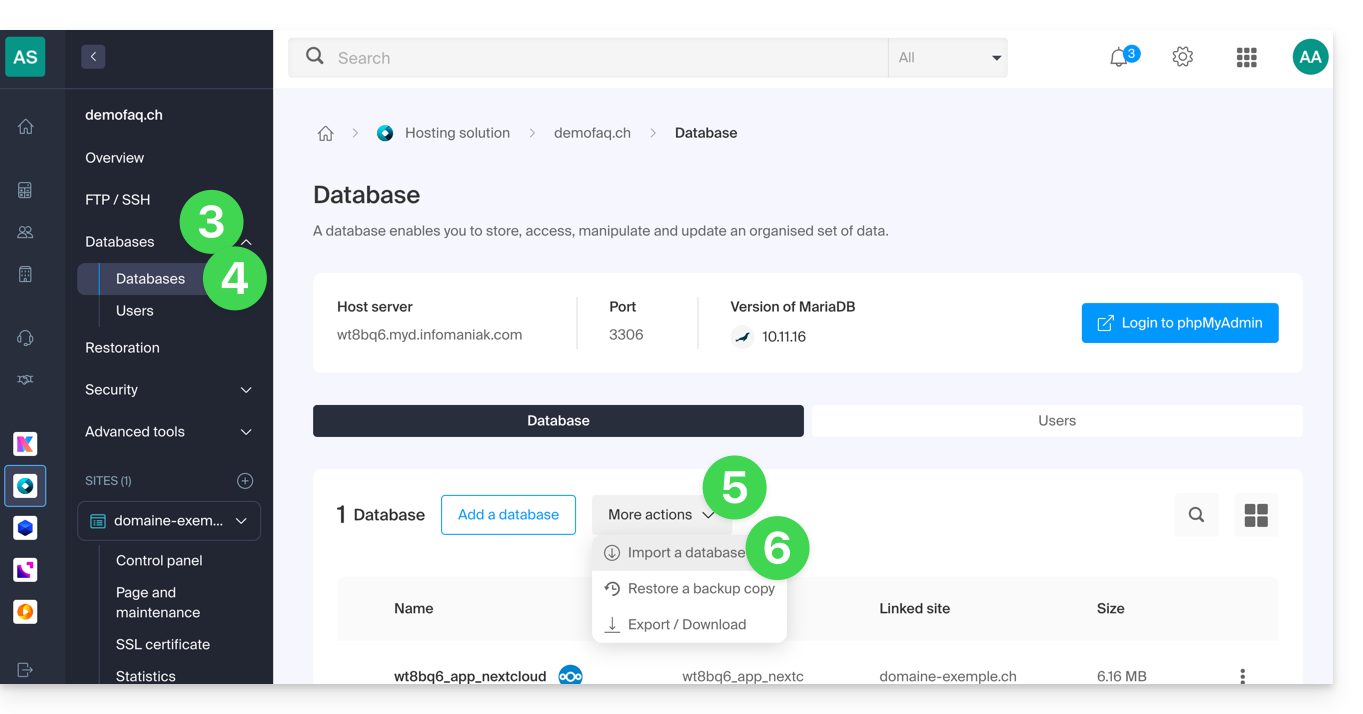
- You will then have the following options:
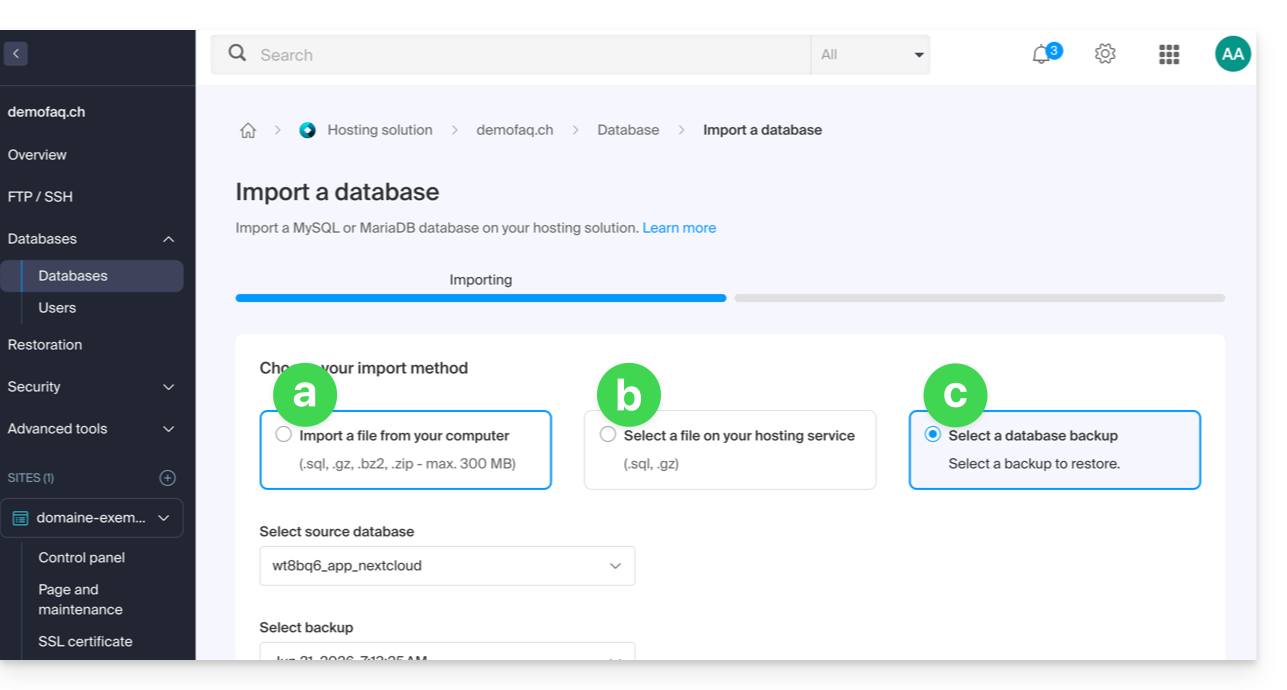
- you can also choose:
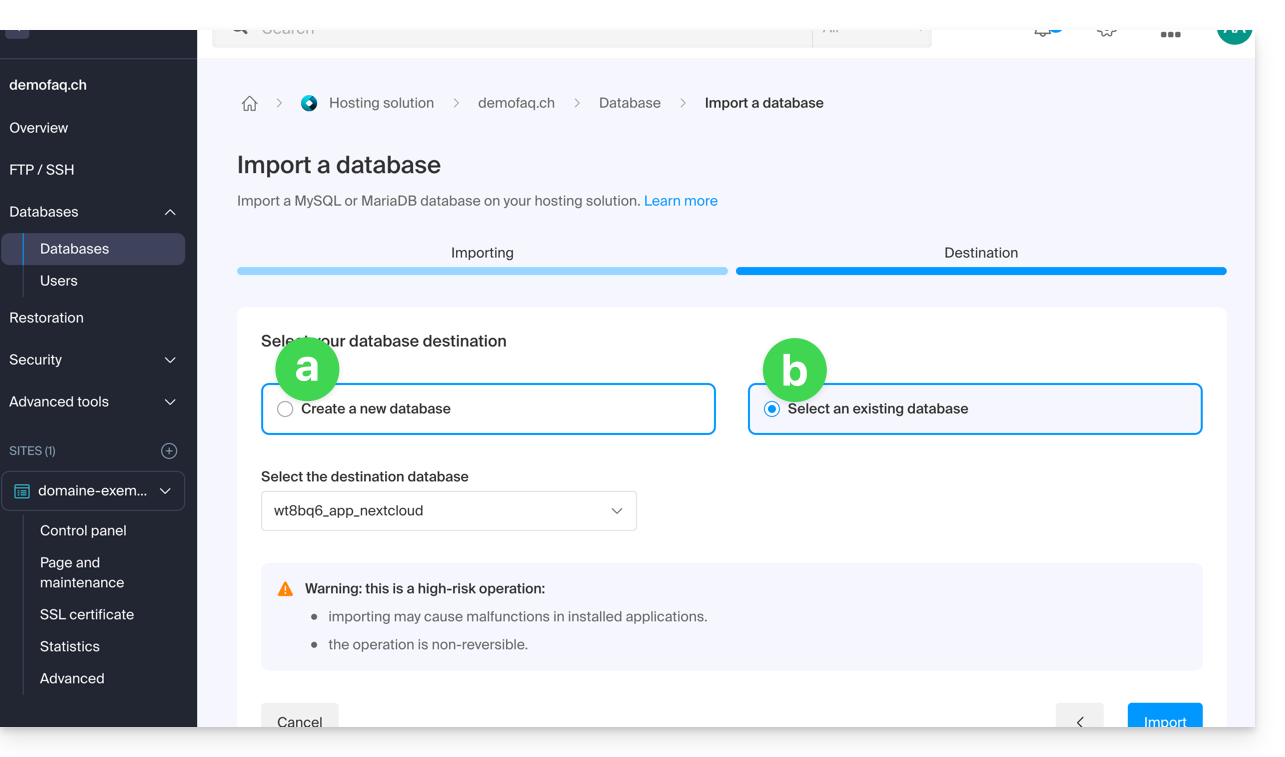
- import the data into a new database (creation),
- import into an existing database (replacement/overwrite).
Note:MySQL/MariaDB import following an exportrequires action on your part if you are using TRIGGERS/VIEWS (❓: help).
Alternative method (SSH - for advanced users)
Prerequisites
- Have the
.sqlfile of the database to be imported. - Have created a new, empty database (❓: help).
- Have a user who has all rights on the database (❓: help).
- Have an FTP + SSH account (❓: help).
To import via SSH:
- Upload the database to be imported via FTP to your hosting account (❓: help).
- Open an SSH terminal/console,
- From a
Terminalapplication (command-line interface,CLI) on your device, for example the PuTTY application (which you can download and install on Windows) or Terminal (installed by default on macOS), run and adapt the following command: ssh ftp-user@adresse-du-serveur- Replace
ftp-userwith the username of your FTP + SSH account (e.g.abcd_user). - Replace
adresse-du-serveurwith the address of your web hosting server (❓: help).
- Replace
- Enter the password for your FTP + SSH account.
Enter and adapt the following command:
mysql --verbose -u db-user -p db-name -h db-host < path- replace
db-userwith the database username (e.g.abcd_user) - replace
db-namewith the database name (e.g.abcd_sample) - replace
db-hostwith your hosting's MySQL server (❓: help) - replace
pathwith the path where you uploaded the database in step 1 of this procedure (if you have a single website stored in the default location, the path would be, for example,~/web/test.sql)
- replace
- Wait for the import to complete (this may take several minutes depending on the size).
Link to this FAQ: https://faq.infomaniak.com/1942
Has this FAQ been helpful?
This guide explains how to add a new domain name to a website on Infomaniak.
Introduction
- When you add a new domain name to a website, it is referred to as a linked domain, but also as an alias.
- An alias domain in this case is an additional domain name, also linked to an existing website.
- To make the website
domain.xyzaccessible with a completely different domain name, such asprivate.abc, you need to addprivate.abcas an alias for the website. - Second example, to make the website
domain.xyzalso accessible withwww.domain.xyz, you need to add it as an alias to the domaindomain.xyz. In this example,domain.xyzis the parent website of the aliaswww.domain.xyz. In general, thewwwalias is already added automatically and is present…
- To make the website
Add an alias to an existing website
Prerequisites
- If the domain name (intended to become an alias) or its DNS zone is managed by Infomaniak, everything is fine. If not:
- The A record of the domain name must point to Infomaniak.
- To simplify things, you can entrust the domain management to Infomaniak.
- The future alias must not already be an alias; if it is, you will need to unlink it from the current site beforehand (the same applies if it is a synonym).
To add an additional domain that will be linked to your website:
- Click here to access the hosting & website management section in your Infomaniak Manager (❓: help).
- Click on the name of the website in question.
- Then, click on the Add a domain button:
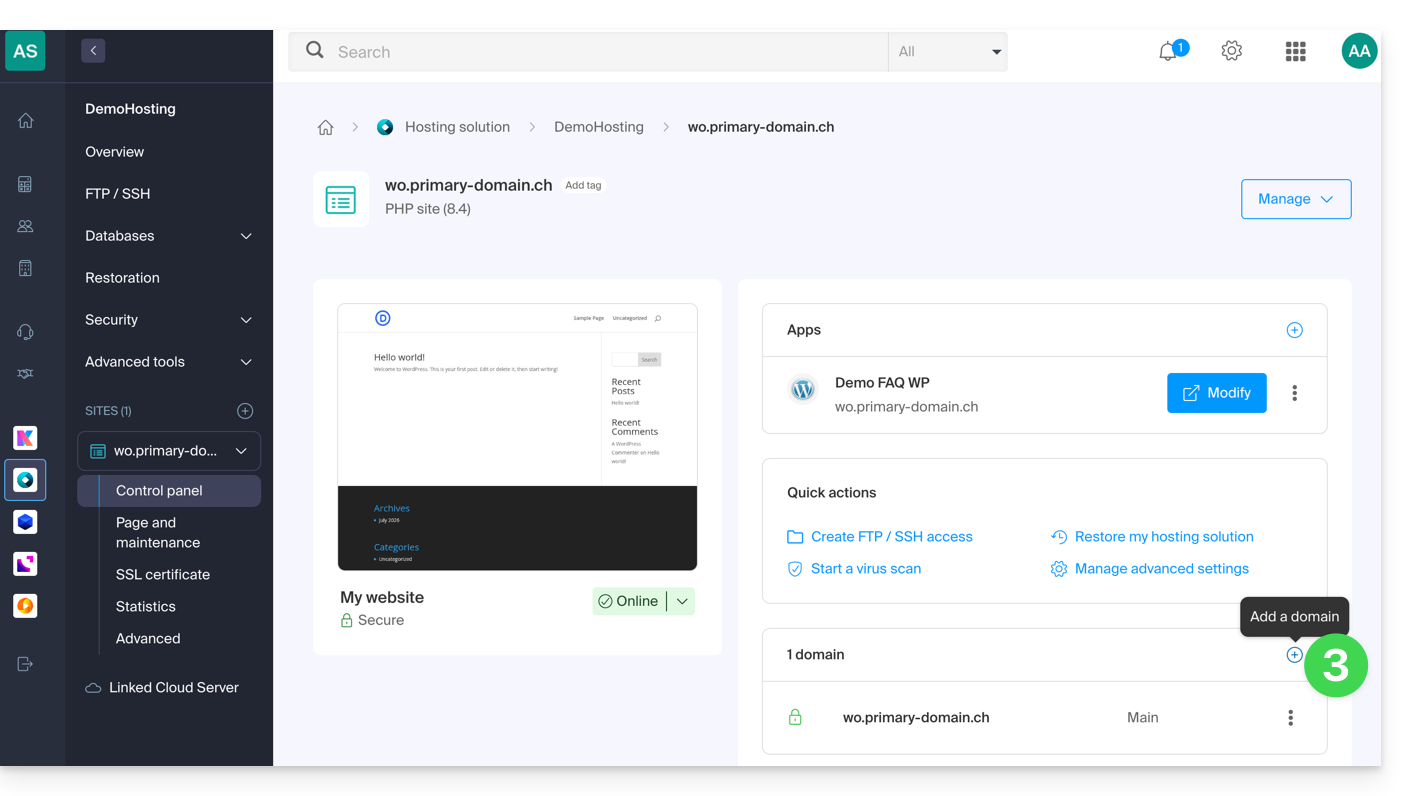
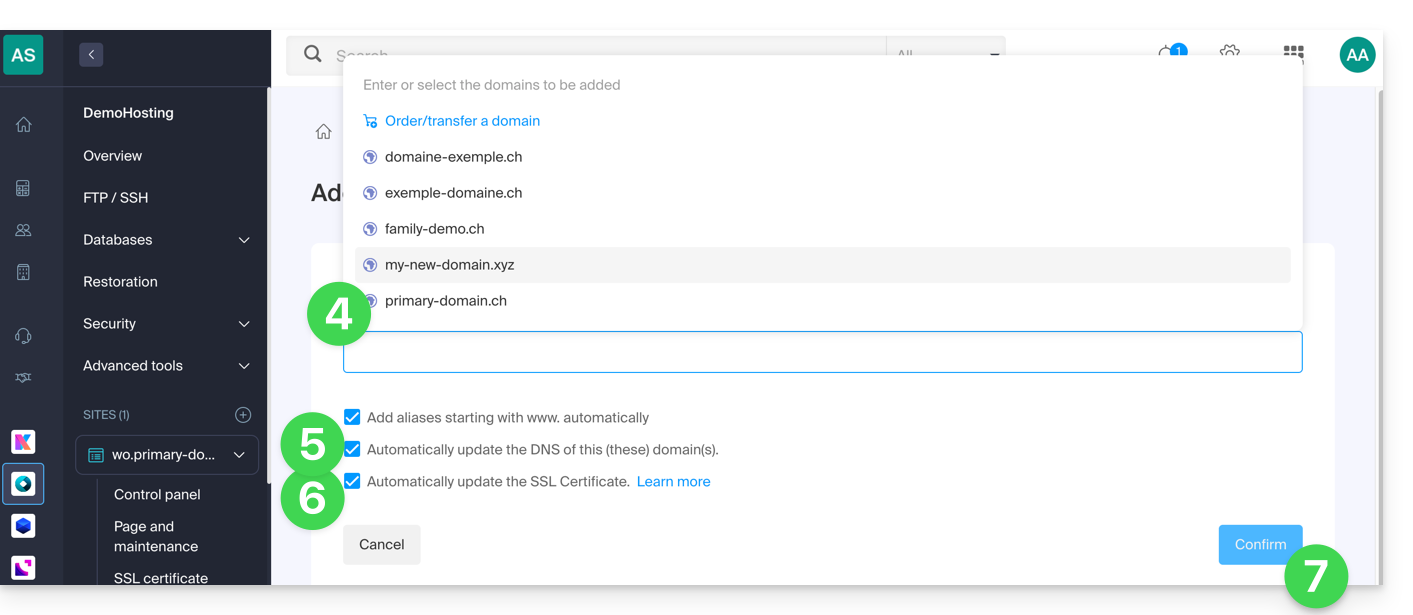
- Enter the domain name(s) to add, separating them with the Enter key.
- If the alias or its DNS zone is managed by Infomaniak, it is possible to automatically update the DNS entries. Otherwise, make any necessary changes with your registrar.transfer the domain name management to Infomaniak.
- If you have an SSL certificate such as Let's Encrypt, you can request to update it here to include the new names.
- Click on Confirm to complete the process:
- The domains associated with the site are updated:
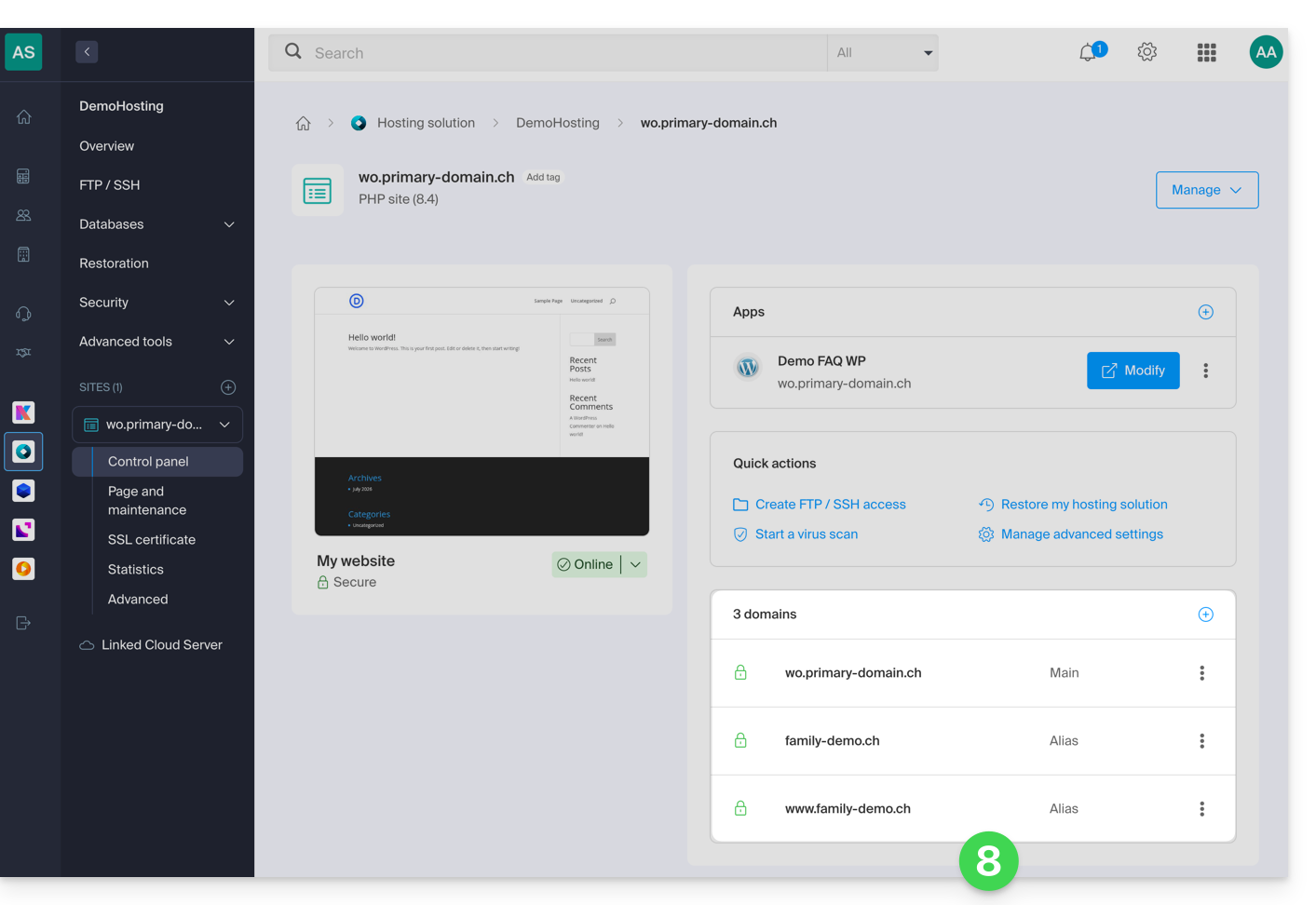
To define the alias as the primary domain, please refer to this other guide.
Link to this FAQ: https://faq.infomaniak.com/1946
Has this FAQ been helpful?
This guide explains how to host multiple websites on the same platform, both from a technical and administrative perspective.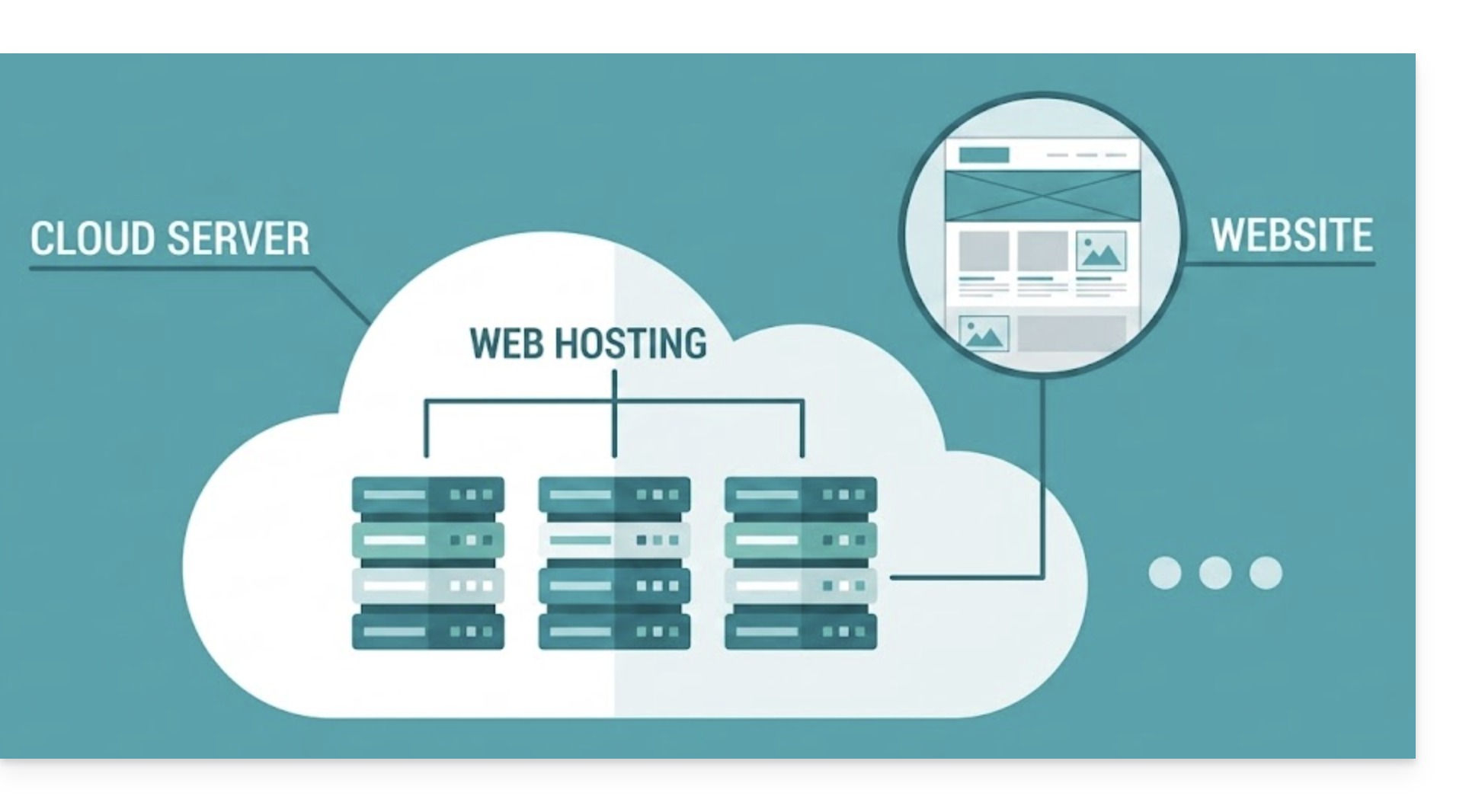
Technical operation
A web hosting plan can host multiple websites:
- In this case, the resources of this hosting plan (disk space, databases, memory, etc.) are shared among all the websites hosted on it.
With a Cloud Server, you have access to a larger infrastructure:
- For example, a standard offer may include 5 hosting accounts and allow you to create up to 20 websites. You are free to distribute these 20 websites across your 5 hosting accounts as needed.
Access Management
In the Infomaniak Manager, access rights apply to the hosting service as a whole:
- It is not possible to limit a user's access to a specific website: if they are invited to a hosting account, they will have access to all the websites it contains.
However, to restrict access to a single site, you can use these alternatives:
- On the server: create an FTP user and limit its access to the specific folder of the website.
- On the website itself: manage permissions and access directly from the website creation system (for example, with WordPress role management).
Link to this FAQ: https://faq.infomaniak.com/1947
Has this FAQ been helpful?
This guide explains how to access MySQL/MariaDB backups and restore a specific database from an Infomaniak hosting account.
Restoring a specific database
To access web hosting:
- Click here to access the hosting & site management section in your Infomaniak Manager (❓: help).
- Click on the name of the hosting account in question.
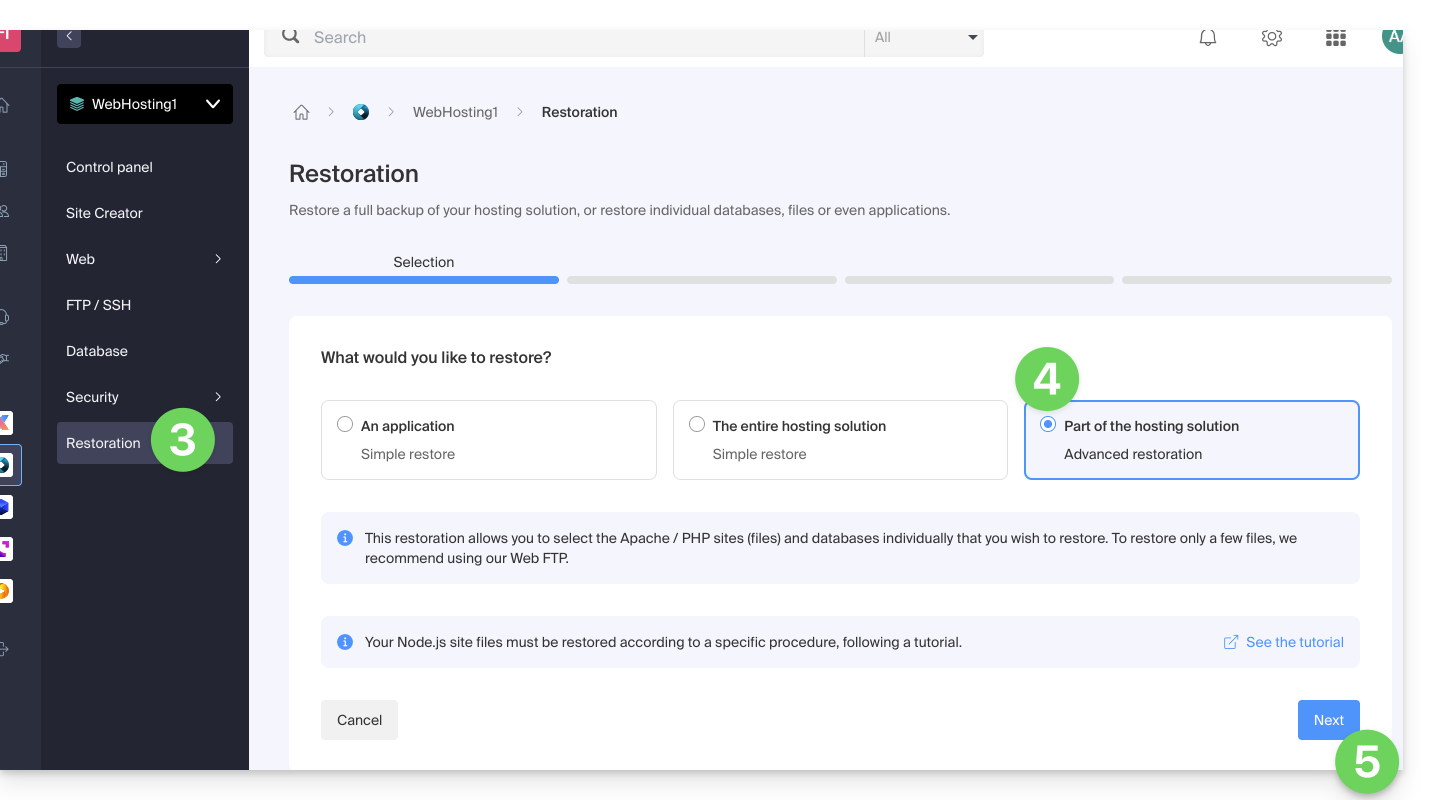
- Click on Restore in the left-hand menu.
- Choose the “Advanced Restore” type, which allows you to select the databases to restore.
- Click on the Next button:
- Choose the desired restoration date and click the Next button:
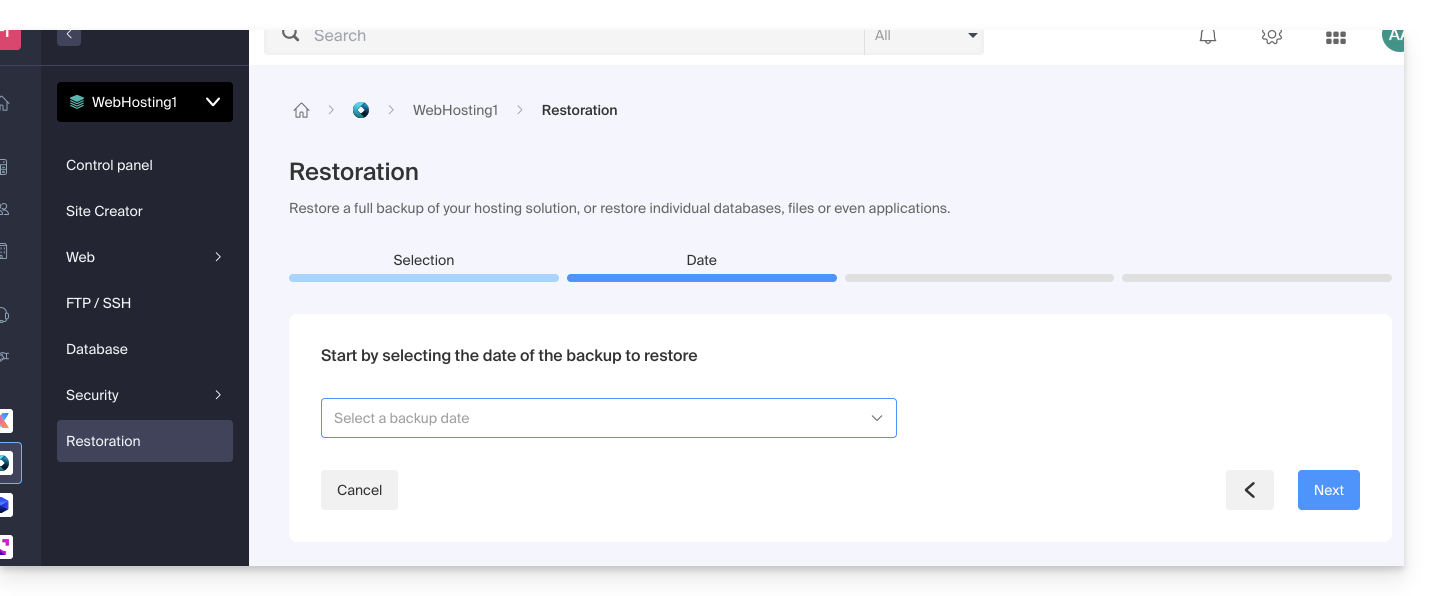
- In the Databases section, choose the database(s) to restore (the closest date is indicated on the right) and click the Next button:
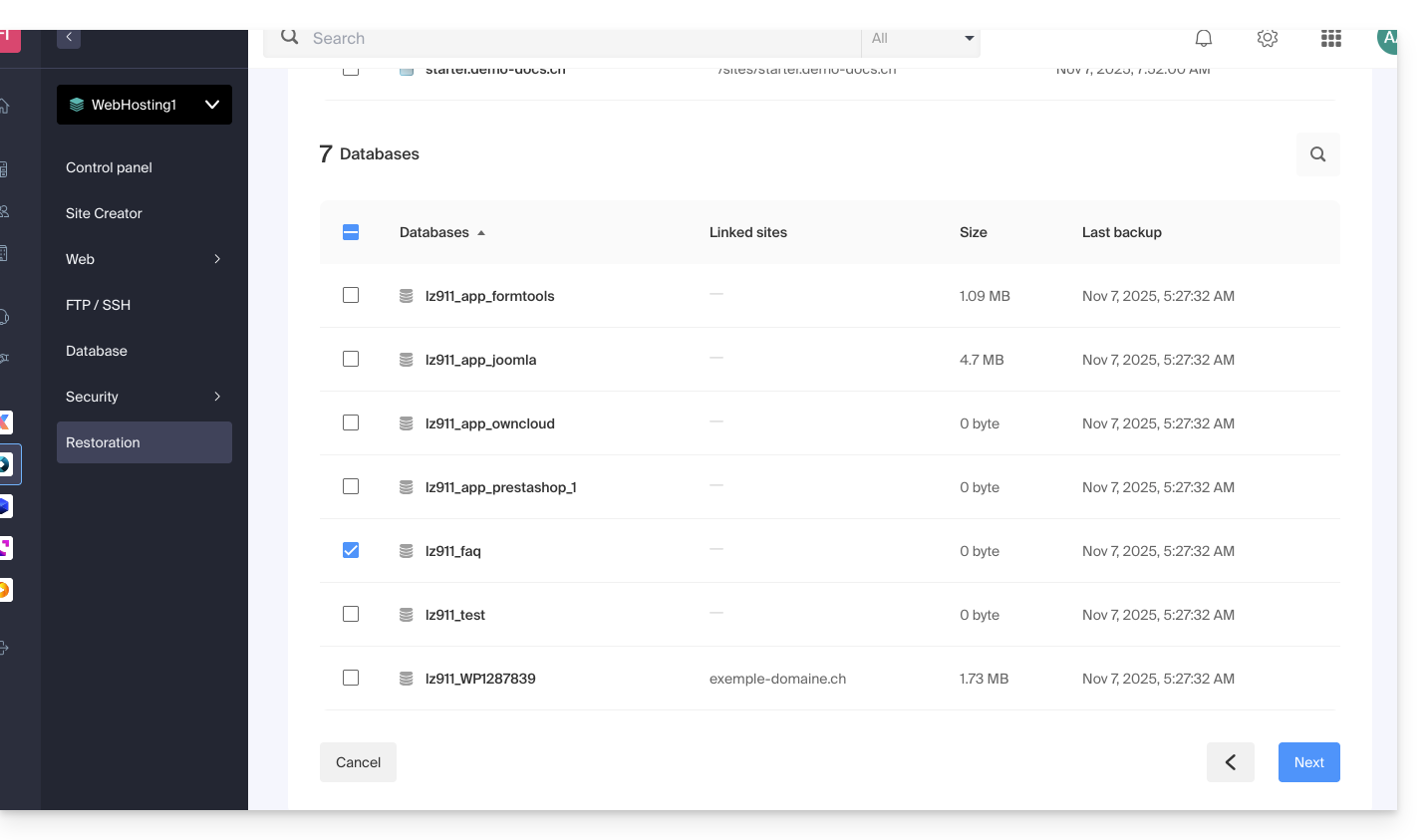
- Choose (if available) the method for re-importing the content and click the Restore button:
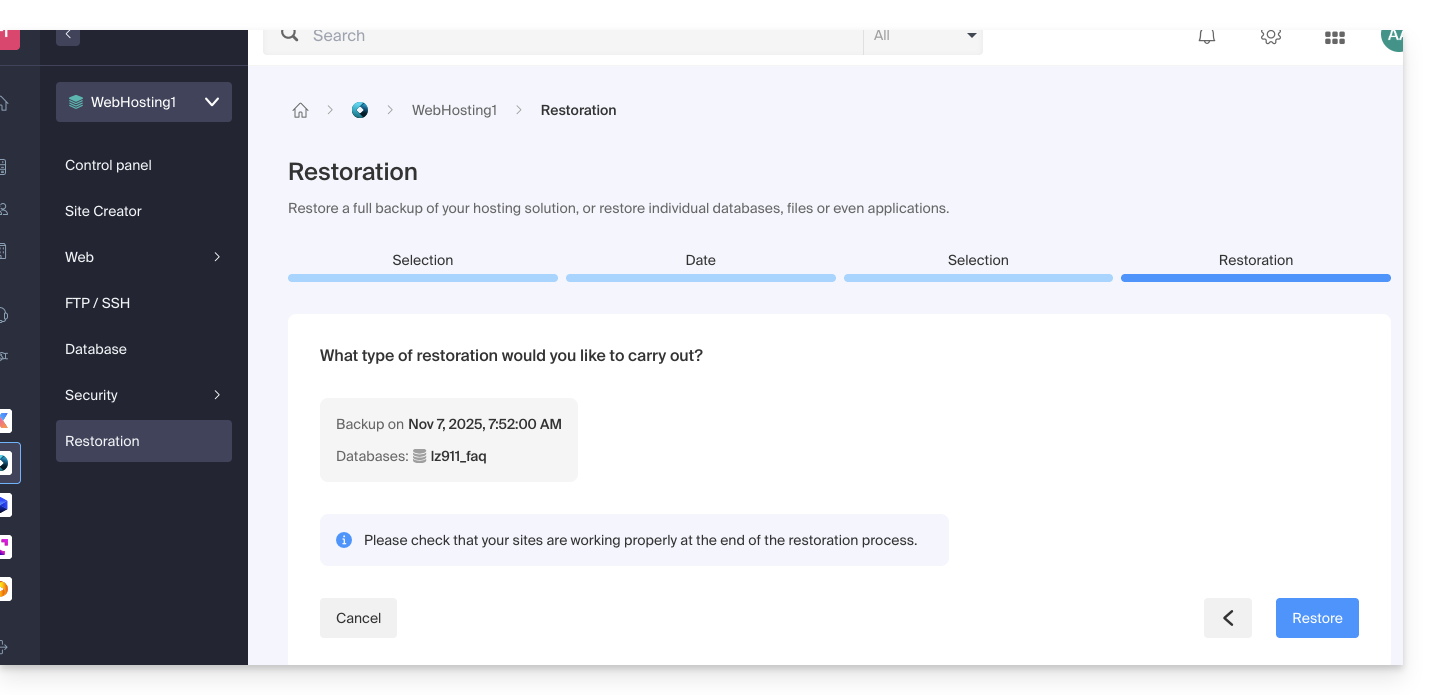
- Confirm the re-import method and its implications:
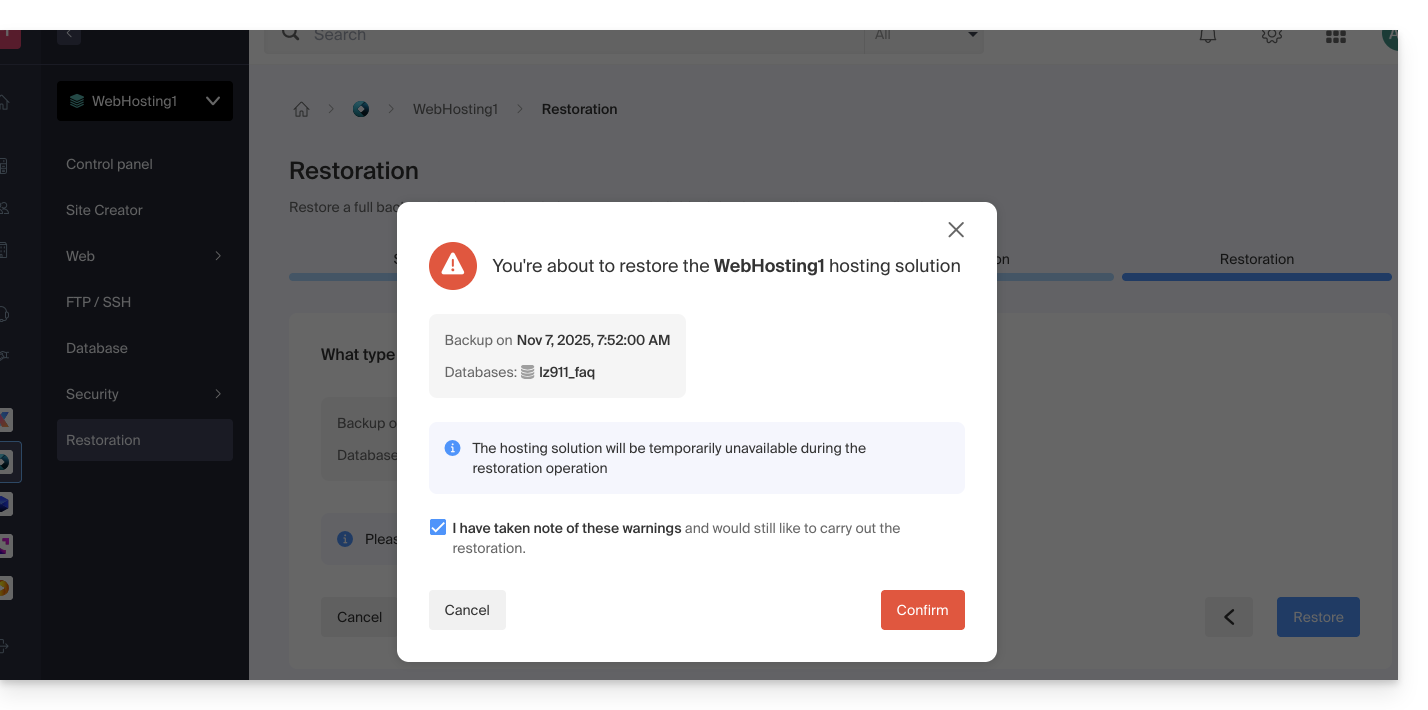
- You will receive an email when the operation is complete.
Link to this FAQ: https://faq.infomaniak.com/1960
Has this FAQ been helpful?
This guide explains how to redirect all visitors to a secure https version (SSL) of a website on Infomaniak's Web Hosting.
Introduction
- This redirection is generally automatic with a standard configuration and installation.
Manual redirection via the .htaccess file
Prerequisites
- You must have a valid and functional SSL certificate for the Infomaniak website.
Next, modify or add the following three lines to the .htaccess file of the website in question so that all its visitors automatically access its secure https version:
RewriteEngine on
RewriteCond %{HTTPS} off
RewriteRule (.*) {{URL_1}} [R=301,L]
Replace domain.xyz with your domain name and the appropriate extension (.com, .fr, .ch, etc.).
If you encounter any issues, replace the second line of the code above with RewriteCond %{HTTP:X-Forwarded-Proto} !https.
With a CMS
Most web applications, such as WordPress and Joomla, have extensions/plugins that automatically redirect visitors to a site's secure https version.
WordPress
If you are using a content management system (CMS) such as WordPress to create your website, it is recommended to install an extension to perform this redirection:
- Back up the website's files and database as a precaution.
- Install the Really Simple SSL extension or a similar one from the WordPress console and activate it.
- Visitors are now automatically redirected to the https version of the site.
Joomla
Replace domain.xyz with your domain name and the appropriate extension (.com, .fr, .ch, etc.).
Find the line
var $live_site ='';in the Joomla configuration file (
configuration.php) on the server.Replace it with
var $live_site = '{{URL_3}}';Add three lines to your
.htaccessfile on the server:RewriteEngine On RewriteCond %{HTTPS} OFF RewriteRule (.*) {{URL_4}}- Open the Joomla administration panel under "System - Configuration".
- Click on the "Server" tab and, under "Force SSL", choose "Administration and site".
- Save, and visitors will now be automatically redirected to the https version of the site.
Prestashop
- Access the general settings in the Prestashop back-office to enable SSL:
- < v1.7 click on "Preferences" then on "General"
- > v1.7 click on "Shop Parameters" then on "General"
- Set the "Enable SSL" toggle switch to "YES".
- Click "Save".
- On the same page, set the "Enable SSL for the entire site" toggle switch to "YES".
- Click on "Save".
If a security padlock does not appear in the browser or a warning is displayed, the issue may lie with the template or modules, as they are sometimes not fully compatible with SSL. Your Prestashop may then load elements (images, .css or .js files, fonts, etc.) using "http" instead of "https", as it should.
Drupal
Read this article (in English) which explains how to migrate a Drupal website from http to https.
Alternative solutions
Replace domain.xyz with your domain name and the appropriate extension (.com, .fr, .ch, etc.).
In your .htaccess file, to force the site URL to be https:// but without www:
RewriteEngine On
RewriteCond %{HTTPS} off [OR]
RewriteCond %{HTTP_HOST} ^www. [NC]
RewriteRule (.*) {{URL_6}} [R=301,L]
In the case of a redirection loop, adapt the code above as follows:
RewriteEngine on
RewriteCond %{HTTP:X-Forwarded-Proto} !https [OR]
RewriteCond %{HTTP_HOST} ^www. [NC]
RewriteRule (.*) {{URL_7}} [R=301,L]
In your .htaccess file, to force the redirection with www:
with subdomains:
RewriteEngine On
RewriteCond %{HTTPS} off [OR]
RewriteCond %{HTTP_HOST} !^www. [NC]
RewriteRule (.*) {{URL_8}} [R=301,L]
In the case of a redirection loop, adapt the code above as follows:
RewriteEngine on
RewriteCond %{HTTP:X-Forwarded-Proto} !https [OR]
RewriteCond %{HTTP_HOST} !^www. [NC]
RewriteRule (.*) {{URL_9}} [R=301,L]
and without the subdomains:
RewriteEngine on
RewriteCond %{HTTPS} off [OR]
RewriteCond %{HTTP_HOST} ^domain.xyz [NC]
RewriteRule (.*) {{URL_10}} [R=301,L]
In the case of a redirection loop, adapt the code above as follows:
RewriteEngine on
RewriteCond %{HTTP:X-Forwarded-Proto} !https [OR]
RewriteCond %{HTTP_HOST} ^domain.xyz [NC]
RewriteRule (.*) {{URL_11}} [R=301,L]
Common errors after an HTTPS redirect
To resolve common issues that may arise after redirecting your website to its secure HTTPS version, please refer to this other guide.
Link to this FAQ: https://faq.infomaniak.com/1961
Has this FAQ been helpful?
Supervisor is not offered directly because systemd is recommended, better integrated with Debian, and available in Fast installer.
If you still need to install it, contact Infomaniak support in writing.
Link to this FAQ: https://faq.infomaniak.com/1963
Has this FAQ been helpful?
This guide explains how to install a new Web Application (Joomla, Drupal, Typo3, PrestaShop, etc.) in just a few clicks on the paid Web Hosting plans.
Prerequisites
- Have an Infomaniak web hosting plan (order if needed).
Specific guides
Refer to these guides if you need specific installation instructions for:
Refer to this other guide about additional technologies that can be installed with just a few clicks, but only on Cloud Server.
Guides for any other Web Application
To access the Hosting and install a new website and a Web Application on it:
- Click here to access the hosting & website management section in your Infomaniak Manager (❓: help).
- Click on the name of the relevant hosting.
- Click on the Add a website button:
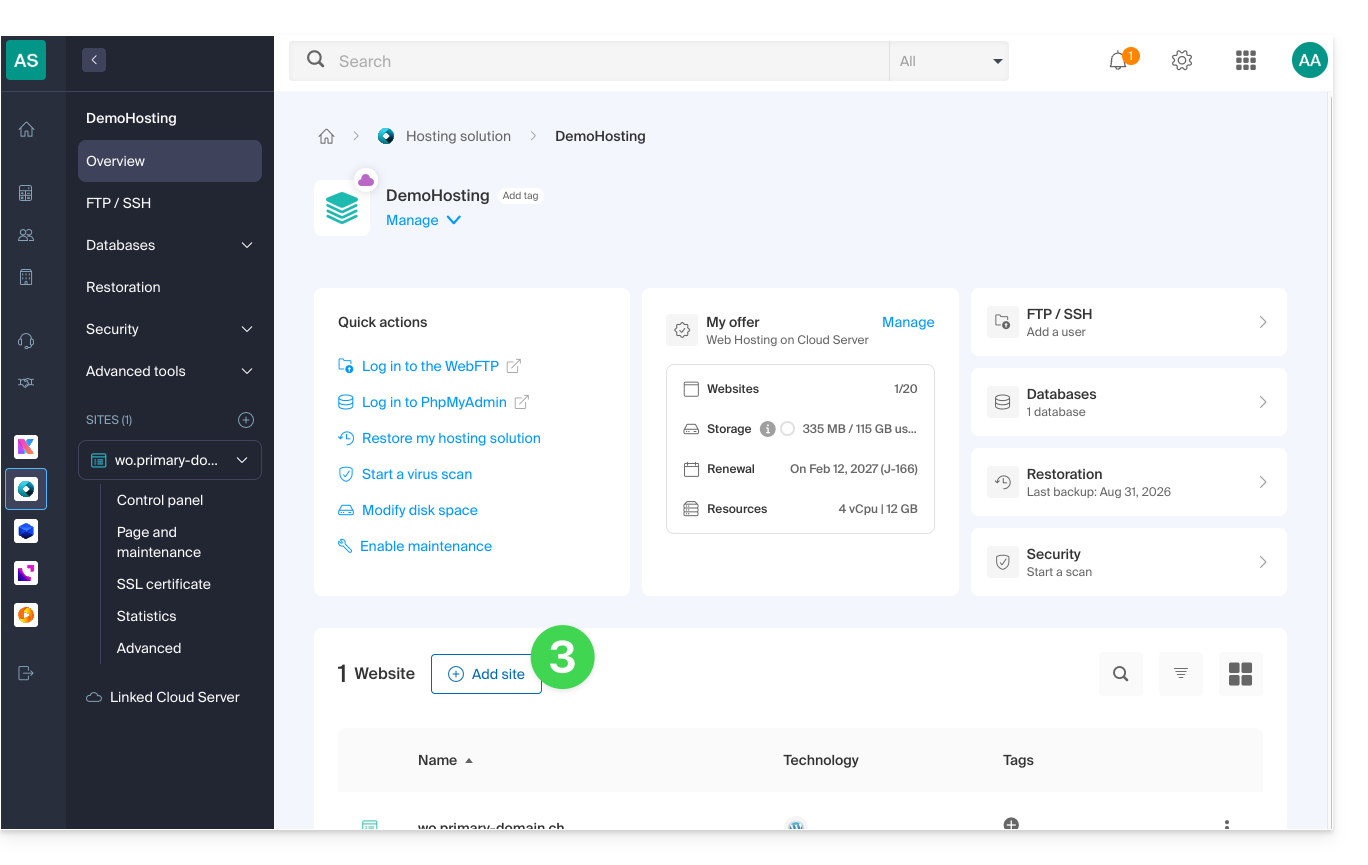
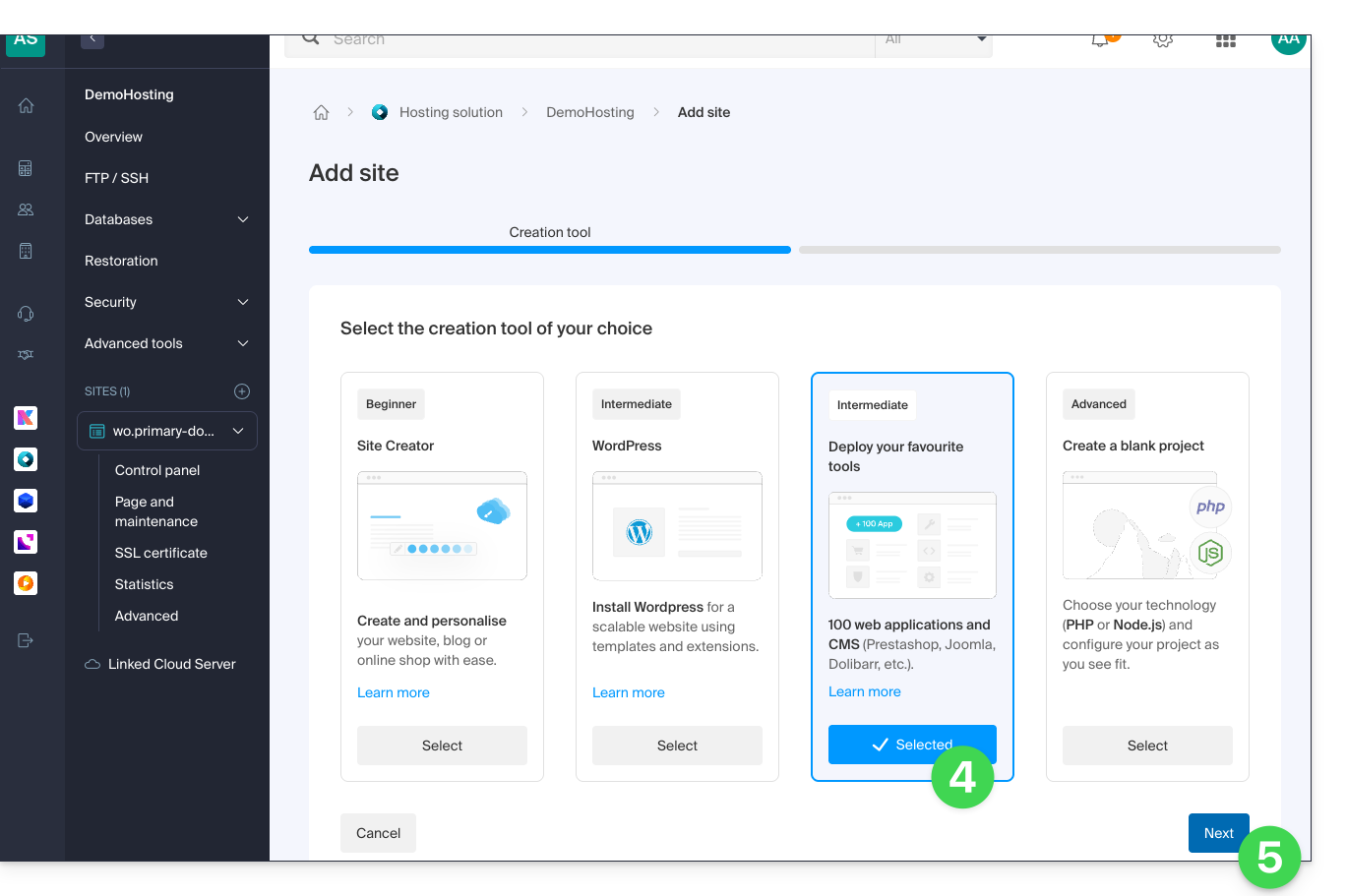
- Choose to install a website with a selected application.
- Click on Next at the bottom of the page:
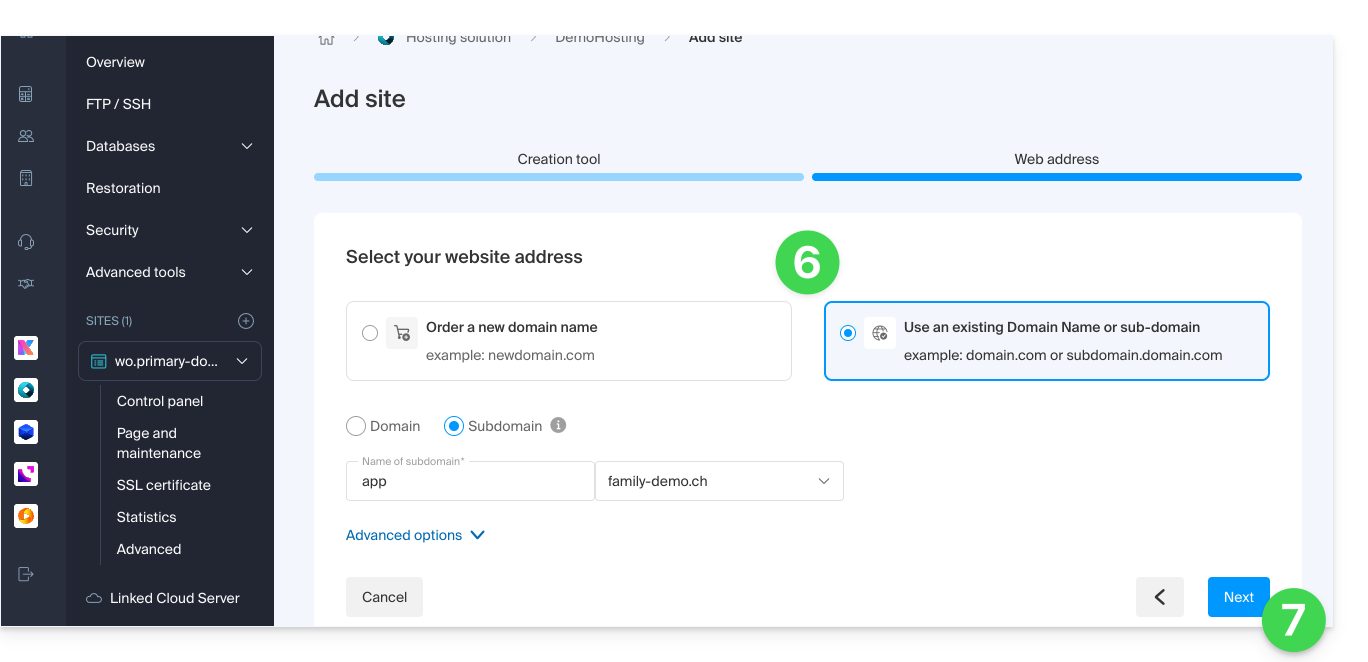
- Choose the domain name that should match the website and the application.
- Click on Next:
- Wait while the website is created on the hosting.
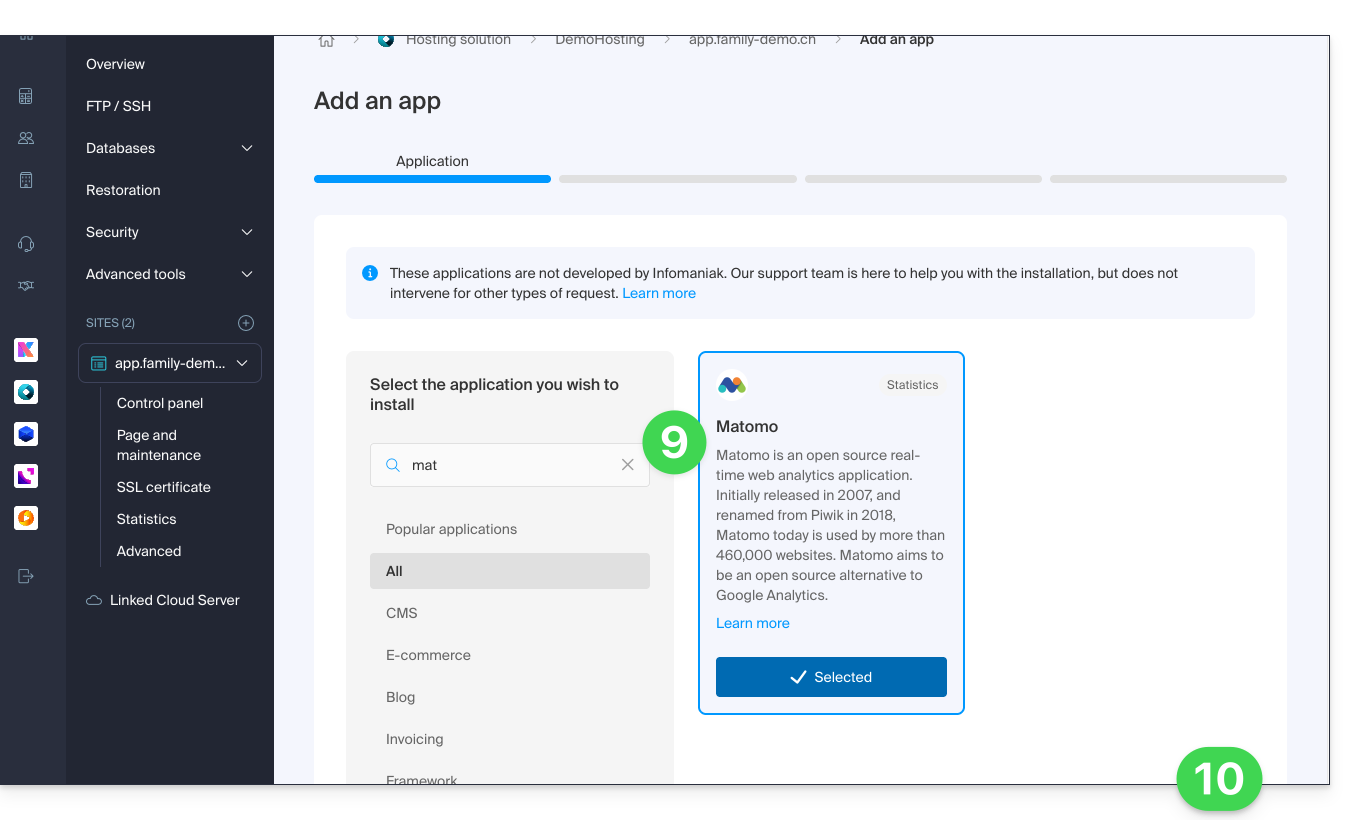
- Select the application to install (if necessary, filter and search).
- Click on Next at the bottom of the page:
- Enter a name.
- Leave the default location or choose to install the app in a new folder, which you can create using the icon visible to the right of point 8 in the image.
- If necessary, select the option to install an older version.
- Click on Next:
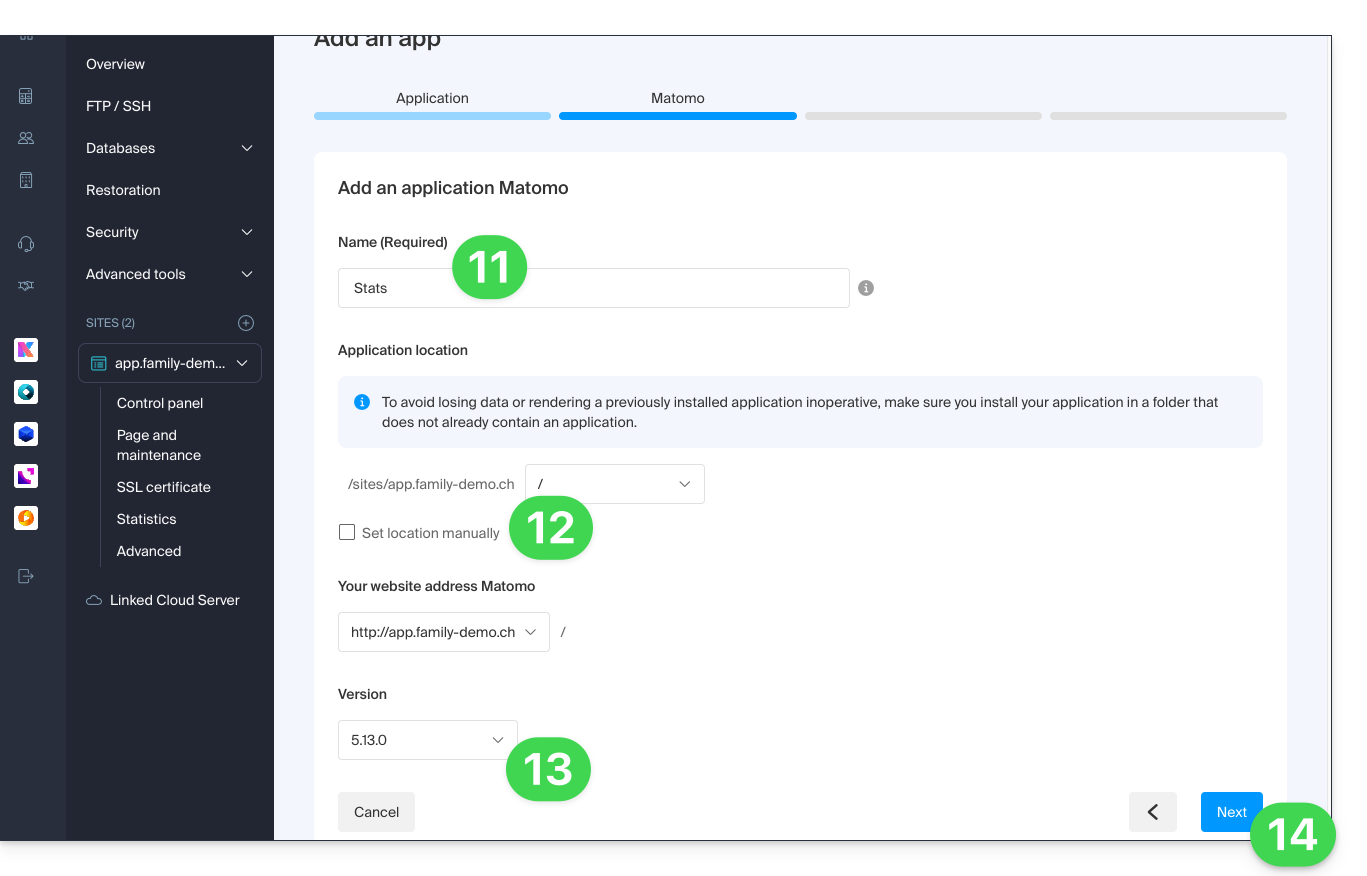
- Configure the username and password.
- Specify certain advanced settings if necessary (e.g., backup type).
- Read and accept the terms of use for the selected app.
- Click on Next:
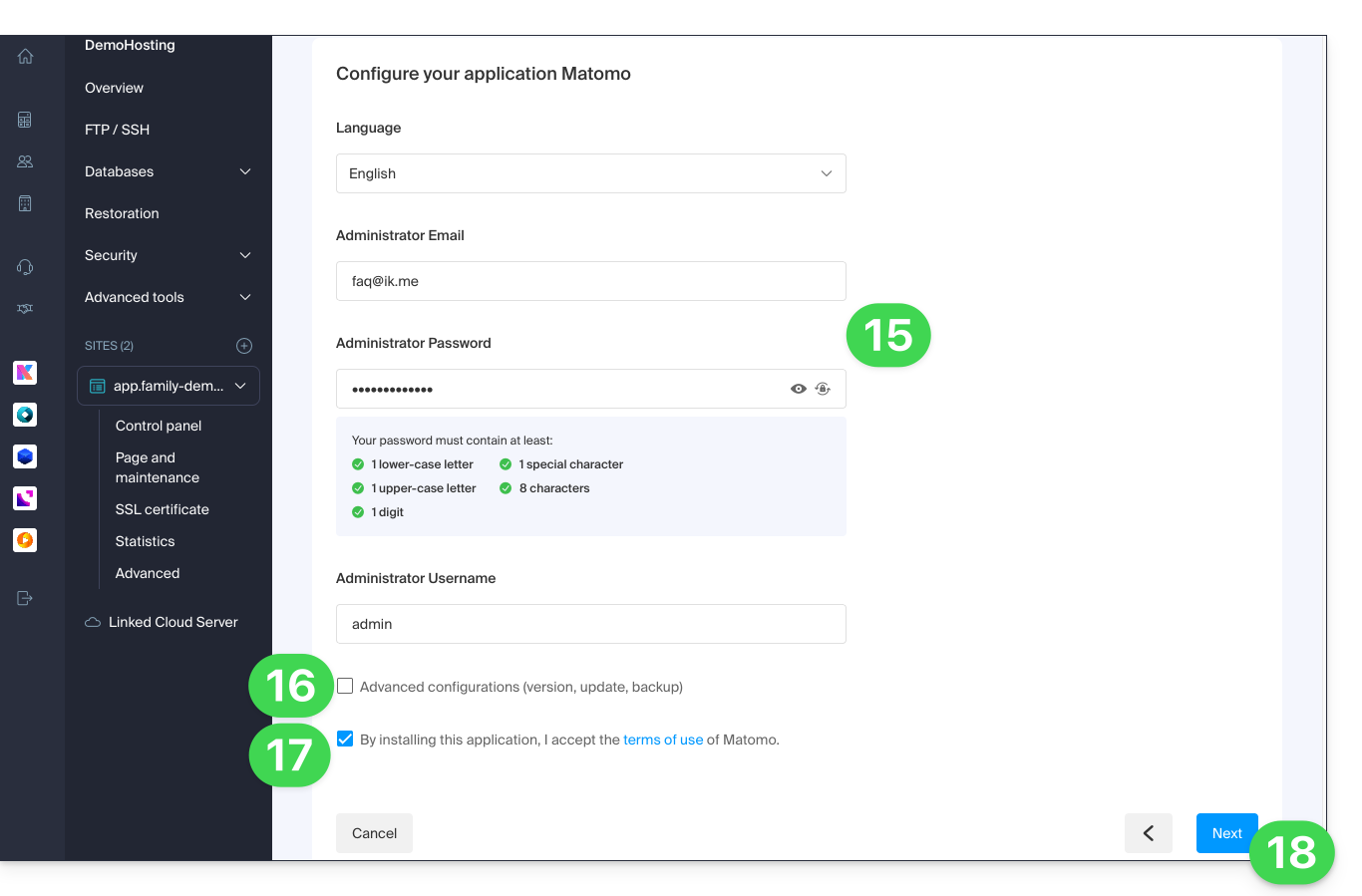
- Confirm the application installation in the next step and wait:
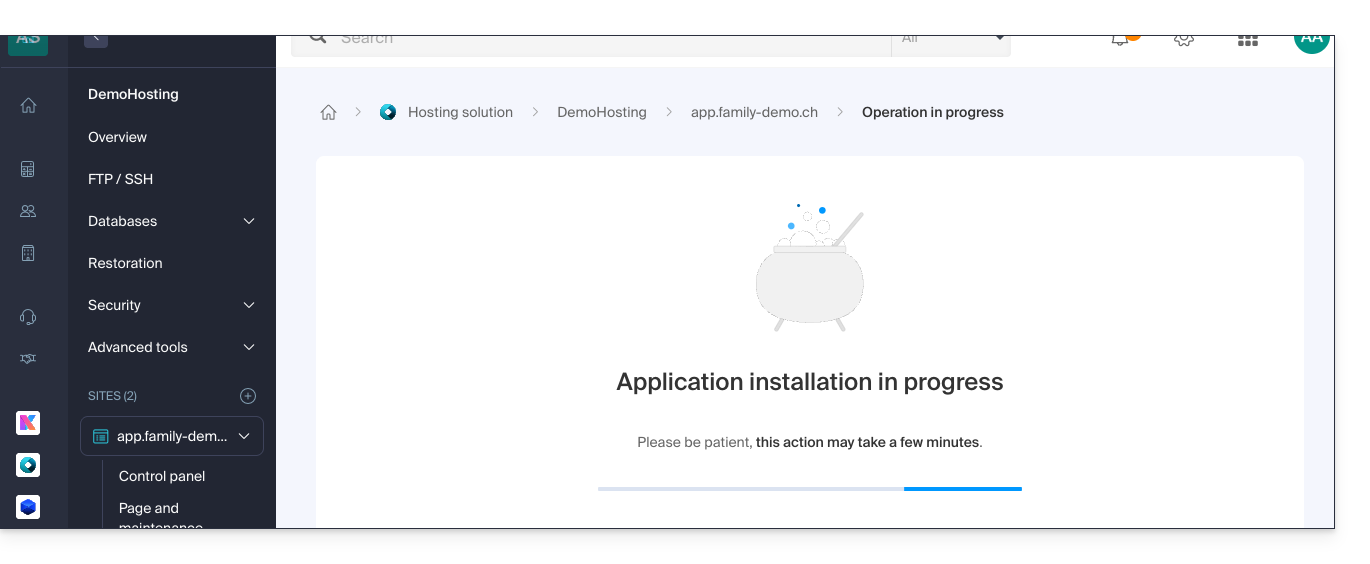
- Check for any error messages on the screen, for example, if the selected installation folder is not empty or if the PHP version of the website on which you are attempting the installation is not compatible.
Uninstall a Web Application
To access Web Hosting and uninstall the previously installed application:
- Click here to access the management of your hosting on the Infomaniak Manager (need help?).
- Click directly on the name assigned to the hosting in question:
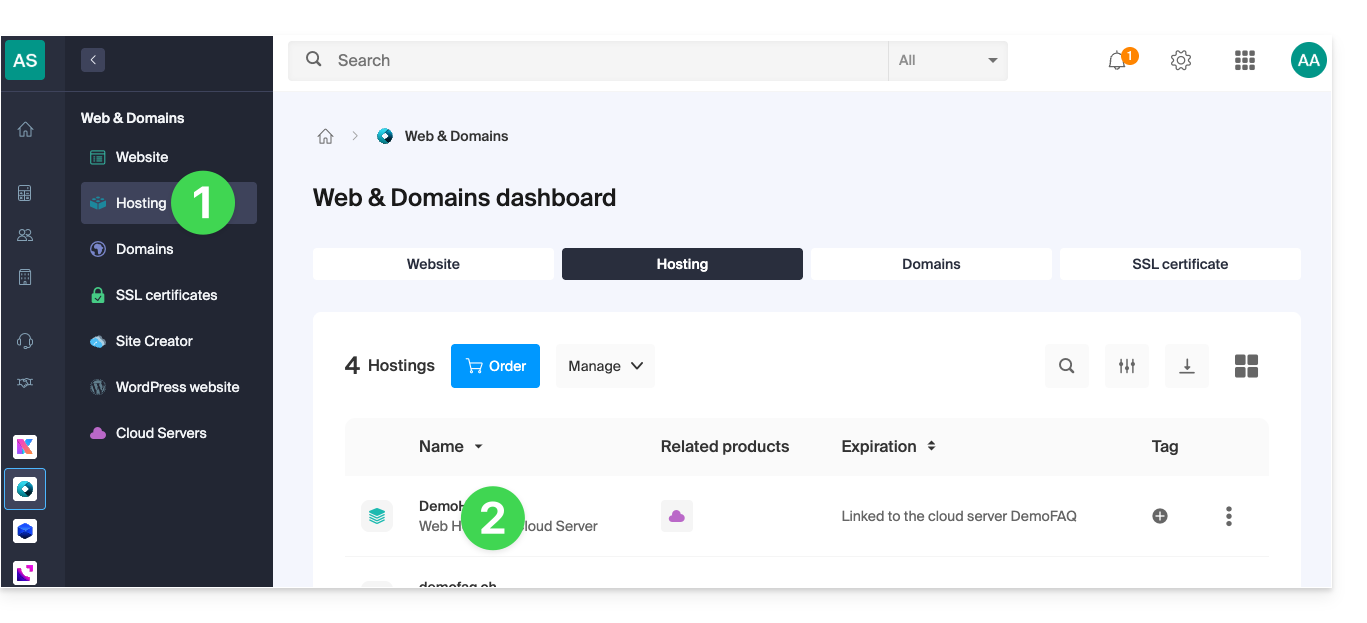
- If you remove the site from the hosting:
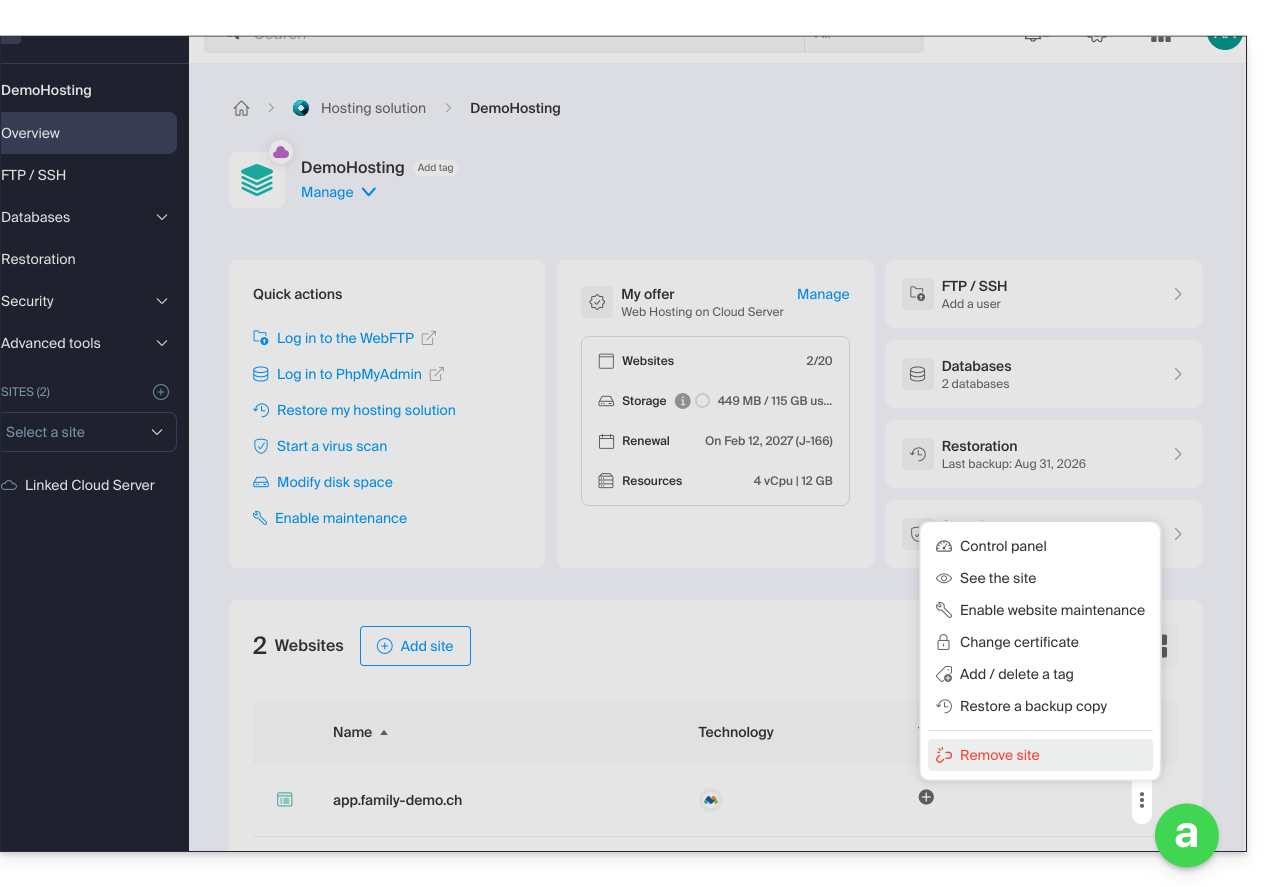
- The application files can be deleted or kept on the server, but in all cases the site is deleted and disappears (the URL assigned to the site will no longer correspond to anything).
- If you click on the site name first:
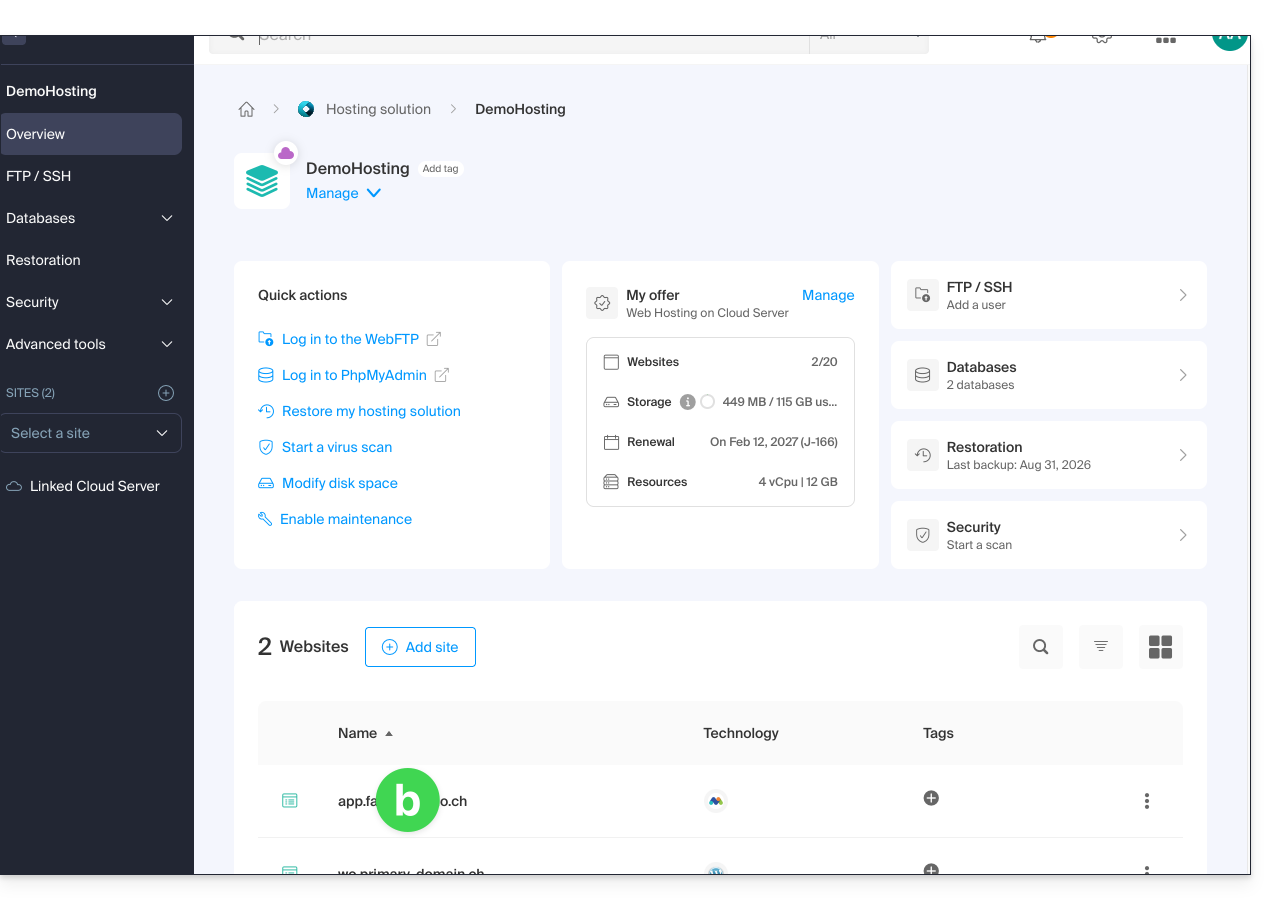
- You can choose to uninstall the previously installed application:
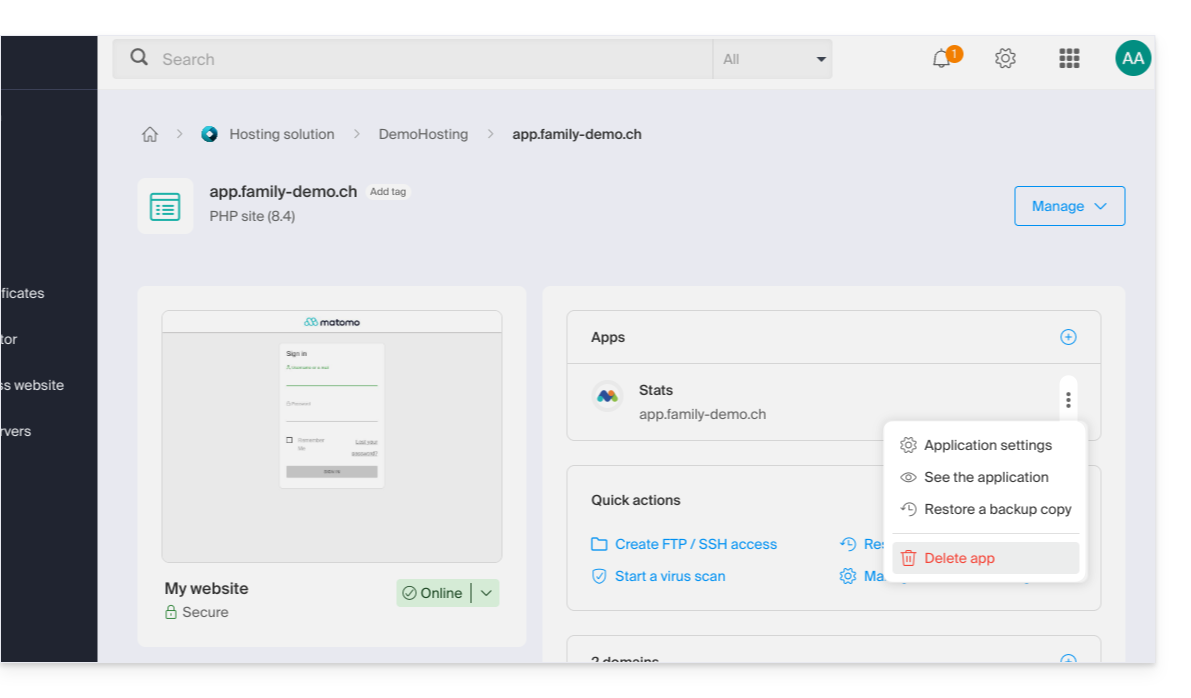
- You can choose to uninstall the previously installed application:
- If you remove the site from the hosting:
Learn more
Link to this FAQ: https://faq.infomaniak.com/1977
Has this FAQ been helpful?
This guide explains how to add a MySQL/MariaDB database, create or modify users, and how to find all the necessary settings to configure your scripts and CMS on a Web Hosting service.
Managing Databases
To access the database management page for your hosting:
- Click here to access your hosting management on the Infomaniak Manager (need help?).
- Click directly on the name assigned to the hosting in question.
- Click on Databases (or MariaDB if necessary) in the left-hand menu to access the Databases and Users menu:
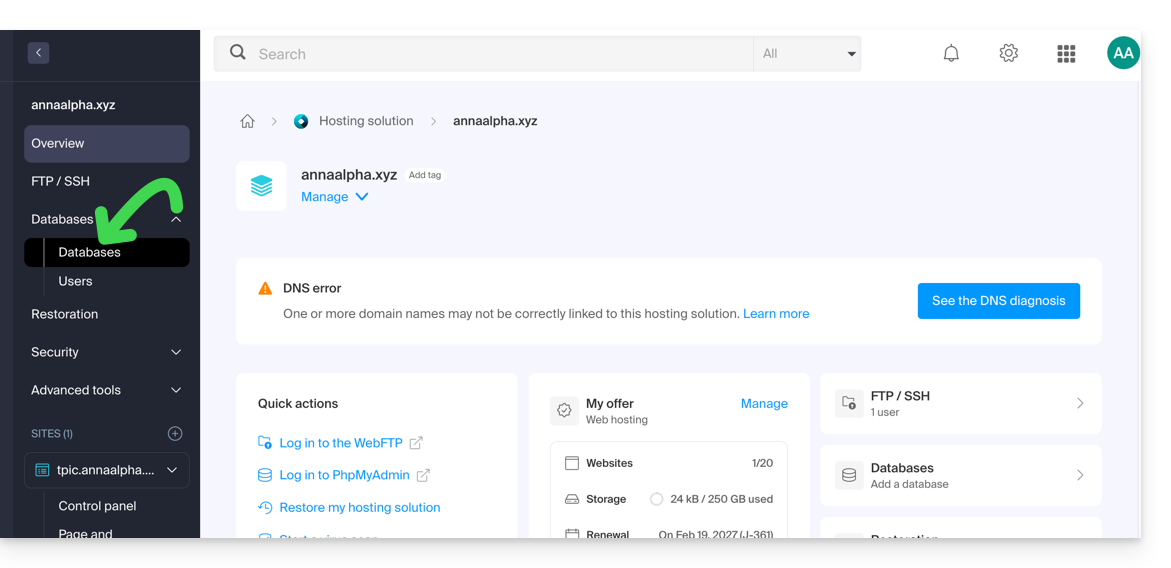
Databases
Under the Databases tab, you can:
- Create a MySQL/MariaDB database by clicking the Add a database button.
- Import, export, or restore a MySQL database by clicking the chevron to the right of the Add button.
Users
Under the Users tab, you can: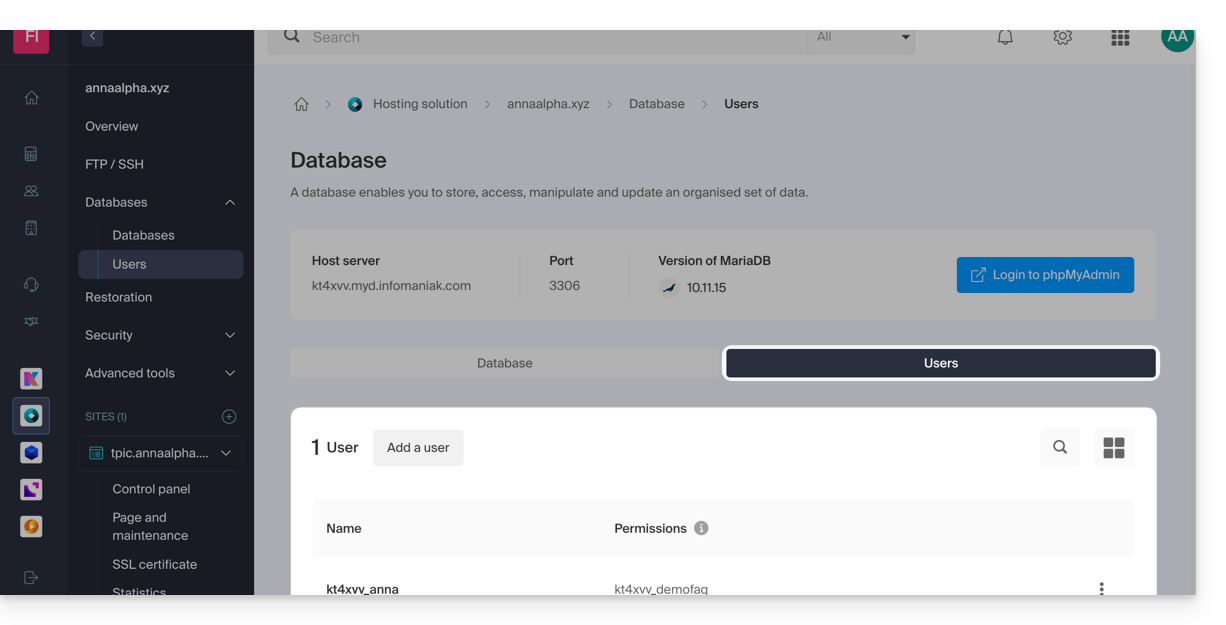
- Create a MySQL/MariaDB database user by clicking the Add User button.
Configuration information
You will also find the information required to configure CMS or web applications here:
- The name of a database (e.g.
XXXX_dbname) - The username of a database (e.g.
XXXX_username) - The password for the database username (the one you chose when creating the MySQL/MariaDB user reset it if you have forgotten it
- The MySQL/MariaDB server for the databases / the hostname (e.g.
XXXX.myd.infomaniak.com) with its version (e.g. 5.7)
User rights, shared servers & Cloud
- With read permissions: “SELECT”
- With write permissions: "INSERT, UPDATE, DELETE, CREATE TEMPORARY TABLES, LOCK TABLES"
- With admin rights: "CREATE, DROP, INDEX, ALTER, CREATE VIEW, SHOW VIEW, REFERENCES"
- + "CREATE ROUTINE, ALTER ROUTINE, EXECUTE, TRIGGER, EVENT" only on Cloud Server (please refer to this other guide for more information)
- With no rights: the database will not appear in phpMyAdmin for the user.
Databases for Web Applications
- Check out this other guide about WordPress.
- Read this other guide about Joomla.
Link to this FAQ: https://faq.infomaniak.com/1981
Has this FAQ been helpful?
This guide explains how to manage the content of a web hosting account by accessing the server, in particular using the FTP protocol or via the command line (CLI), securely via SSH.
Introduction
- To easily and quickly manage the files on your web hosting without having to install an application or enter FTP credentials, use Web FTP from your Infomaniak Manager (it allows you to perform CHOWN and compress/decompress
zipfiles). - When creating a website via an Apache/PHP hosting, a An FTP/SSH/SFTP user is created automatically.You can create additional FTP accounts.
- However, in the case of a Node.js site, no SSH/SFTP user is created automatically; it is necessary to manually create a user with SSH/SFTP permissionsto access your Node.js environment.
- Regardingprotocols supported by Infomaniak (FTP, SFTP, etc.) depending on your hosting plan (Starter, Node.js, etc.), please refer to this other guide.
Create an FTP account
To manage the FTP settings:
- Click here to access the hosting & website management section in your Infomaniak Manager (❓: help).
- Click on the name of the relevant hosting.
- Click on FTP / SSH in the left-hand menu.
- Then, either click on the Add button to create a new FTP / SSH account…
- either you click on the action menu ⋮ to the right of an existing account to change its password, or to delete it:
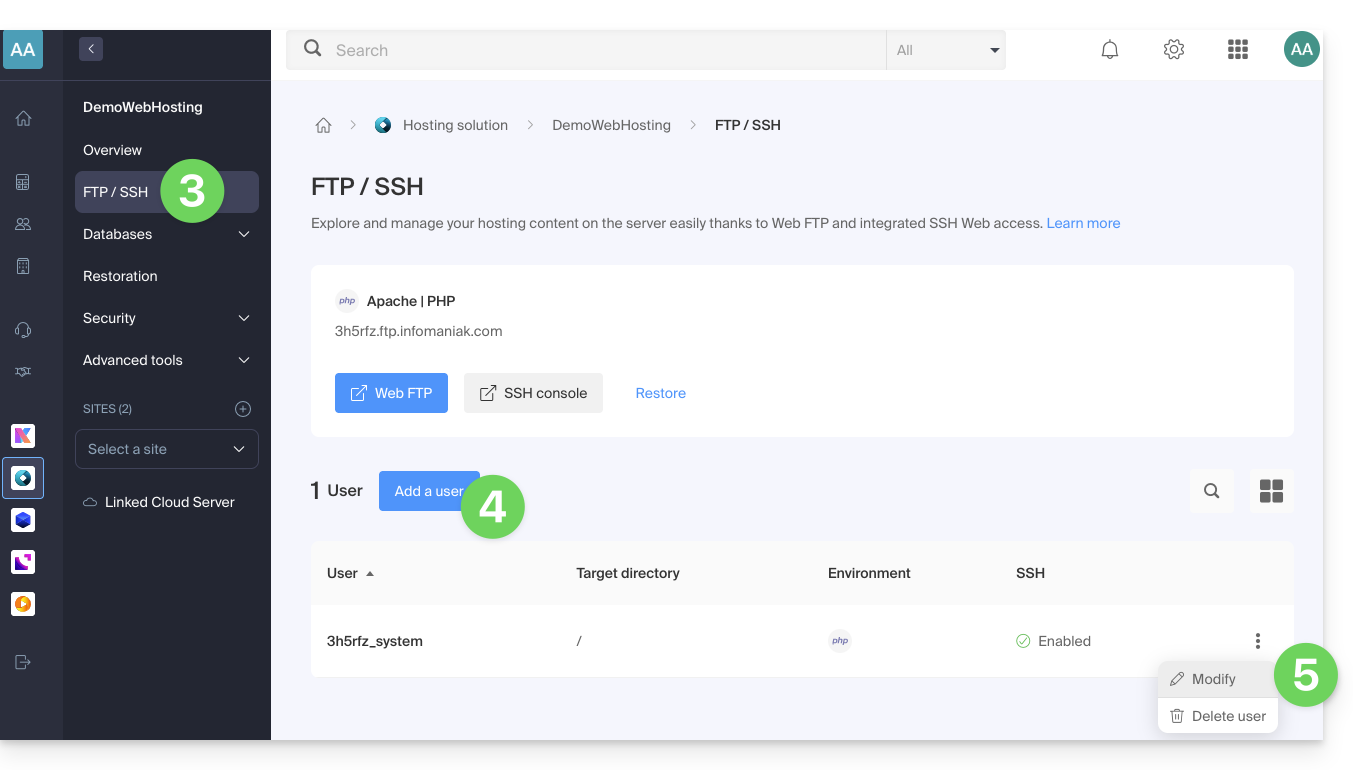
- If you have a node.js site on your hosting, you must choose the desired environment for creating a new FTP/SSH account:
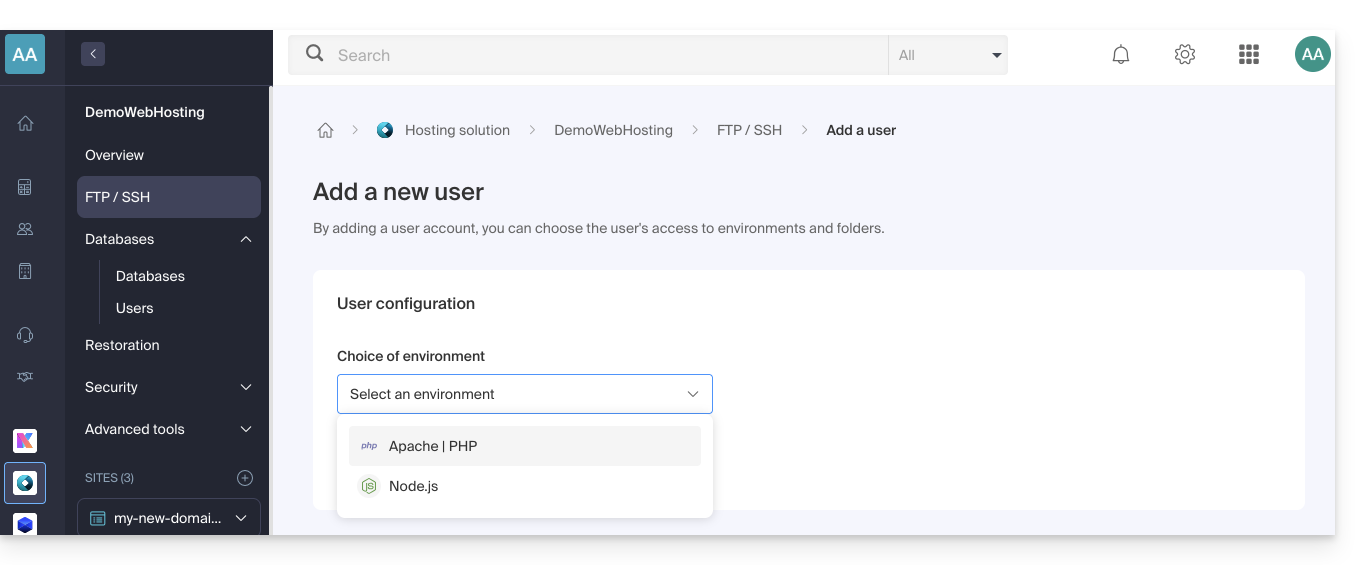
- Then enter the desired information:
- An FTP + SSH account gives the user in question access to all the content of a hosting account and allows them to manage it via FTP/SFTP and SSH.
- An FTP account allows you to restrict a user's access to a folder and its subfolders; if you manage multiple websites on the same hosting account, this allows you to distribute website management among several webmasters, for example.
- Click the button at the bottom of the page to Confirm the account creation:
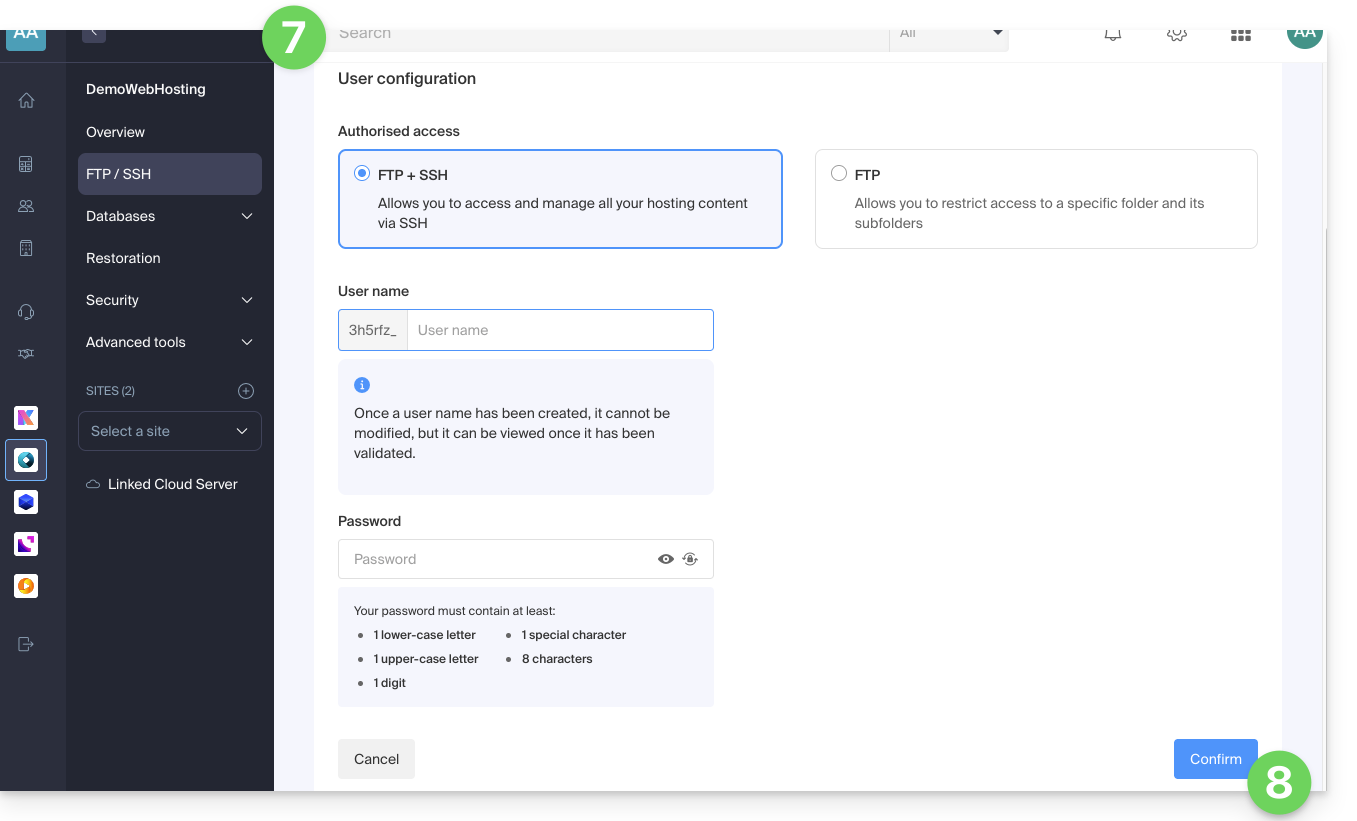
Configure an FTP software/client
Using an FTP software/client such as FileZilla or Cyberduck, you can manage files via FTP without limitations (background operation, resuming transfers after disconnection, bandwidth limitation, etc.).
Refer to this other guide if you are looking for information on configuring FTP software/client.
Link to this FAQ: https://faq.infomaniak.com/1982
Has this FAQ been helpful?
This guide explains how to migrate an old Infomaniak hosting account (old 60 GB plan) to the current offer.
Introduction
- Infomaniak's current hosting solutions are much more powerful, flexible, and secure than before.
- In any case, your current website remains visible to your visitors during the migration:
- You decide, within a one-month period, when you want to permanently switch to the version of the website that has been copied or rebuilt on the new servers.
- During this operation, the statistics are reset.
Migrate an old hosting plan to the current offer
Access the legacy web hosting:
- Click here to access the management of your product on the Infomaniak Manager (need help?).
- Click on the action menu ⋮ located to the right of the item in question.
- Click on Modify offer.
- If you do not see the "Change offer" button, make sure you are logged in with an account that has billing rights.
Then, carefully follow the guide that is best suited to your situation:
- Keep your current website (recommended)
- Clear your hosting content and create a new website (ideal for starting from scratch)
- Keep your current website and switch to a Cloud Server
Link to this FAQ: https://faq.infomaniak.com/1983
Has this FAQ been helpful?
This guide explains how to add an additional website to an existing Infomaniak hosting plan.
Introduction
- Hosting can be on a shared web hosting plan or on an Infomaniak Cloud Server.
- The additional website can be either:
- a second domain name (e.g.
domain2.xyz), - or a subdomain (e.g.
abc.domain.xyz) of a domain name you already own.
- a second domain name (e.g.
- In this multi-site/multi-domain management (virtual host), the total disk space and resources of your hosting are shared between your sites/subdomains.
Accessing site management
Prerequisites
- If the 20 website slots offered with the web hosting package are already in use, order additional websites.
To access a web hosting plan and add a website:
- Click here to access the management of your products in the Infomaniak Manager (need help?).
- Click directly on the name assigned to the product in question.
- Click on the blue Add button:

- Choose the optional content for the new site (A) or another specific installation, blank space, advanced technologies (Node.js for example) (B):
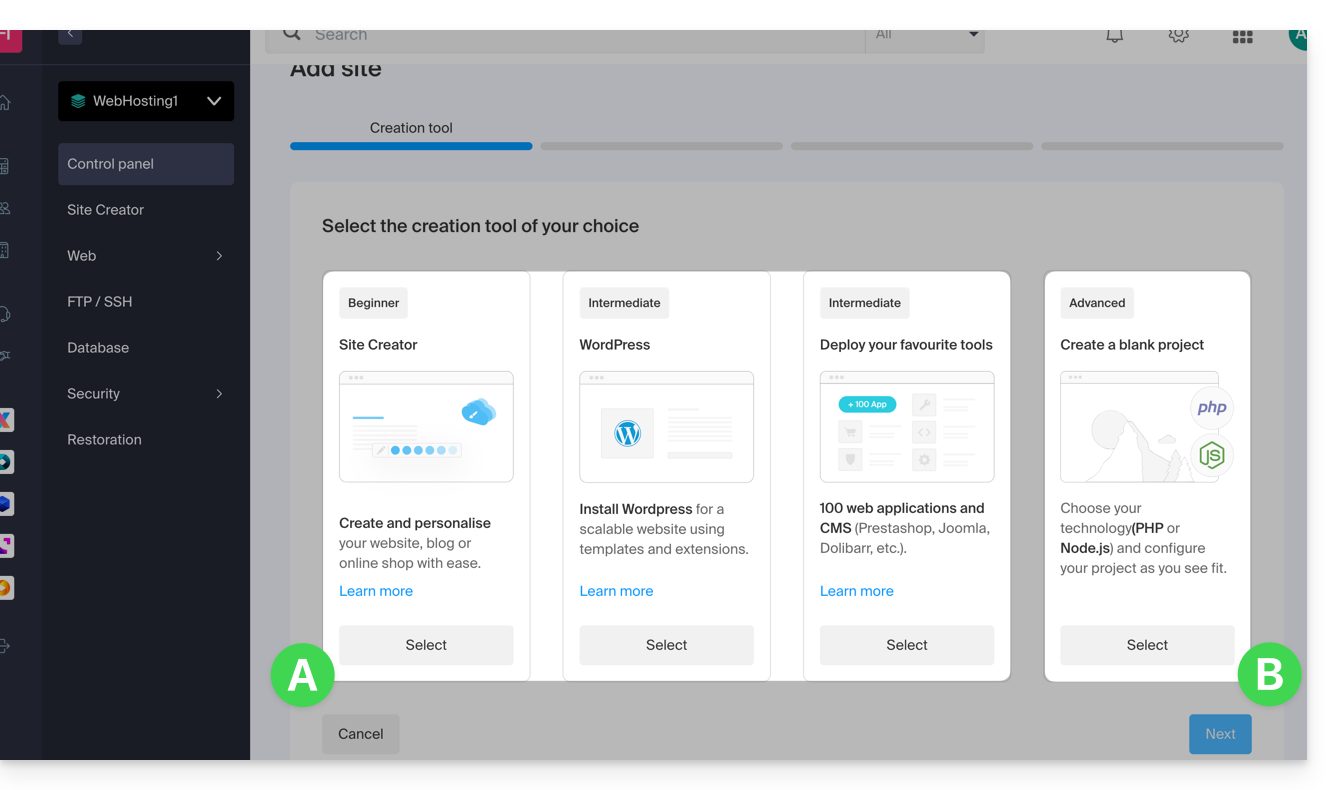
- Click on Next.
- Choose the type of domain to assign to this new site:
- an already acquired domain name
- a subdomain created from an already acquired domain name
- a domain name that is still available and to be ordered
- Enter the domain name (e.g.,
domain2.xyz) or the subdomain.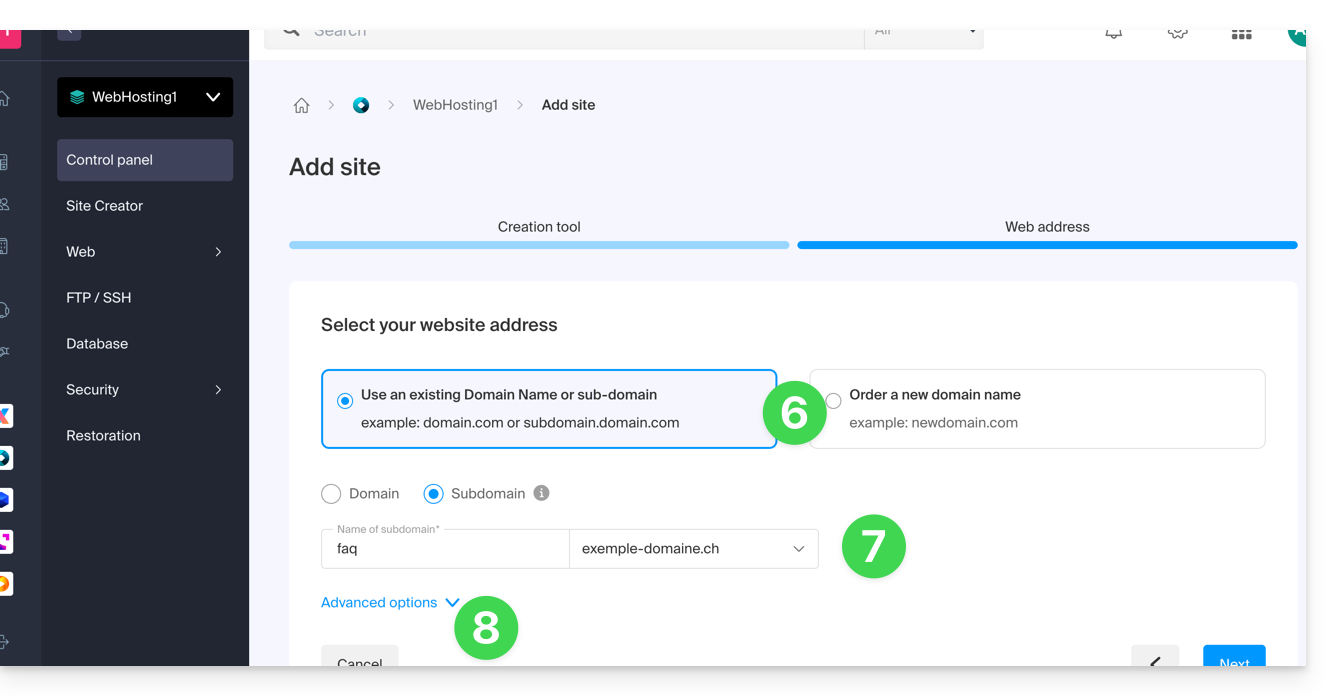
- Choose any desired advanced options, including:
- By default, the new site is added to the
/sites/domain2.xyzdirectory on your FTP server. - To manually define a different directory, check Define the location manually and enter the path and name.
- Create a new folder if necessary:
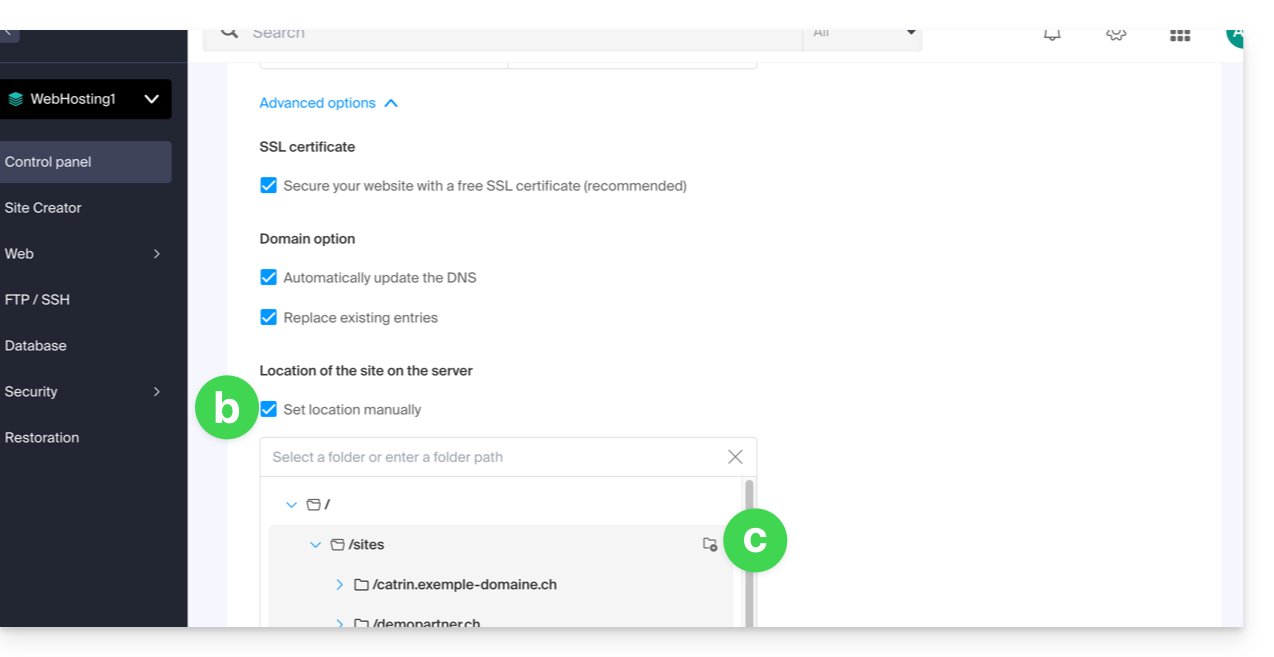
- By default, the new site is added to the
- Click on Continue.
If it is a subdomain, or if the domain name or its DNS zone is managed by Infomaniak, it is possible to automatically update the existing DNS entries. Otherwise, make the necessary changes with your registrar or transfer the domain name management to Infomaniak.
Link to this FAQ: https://faq.infomaniak.com/1988
Has this FAQ been helpful?