Knowledge base
1000 FAQs, 500 tutorials and instructional videos. Here, there are only solutions!
This guide explains how to save and export your contacts from the address books in the Infomaniak Contacts web app (online service ksuite.infomaniak.com/contacts).
Introduction
- It is not possible to export an Organization directory.
- The export generates a file of type vCard with the .vcf extension.
Export contacts
To select the contacts or address book to export:
- Click here to access the Infomaniak Web app Contacts (online service ksuite.infomaniak.com/contacts).
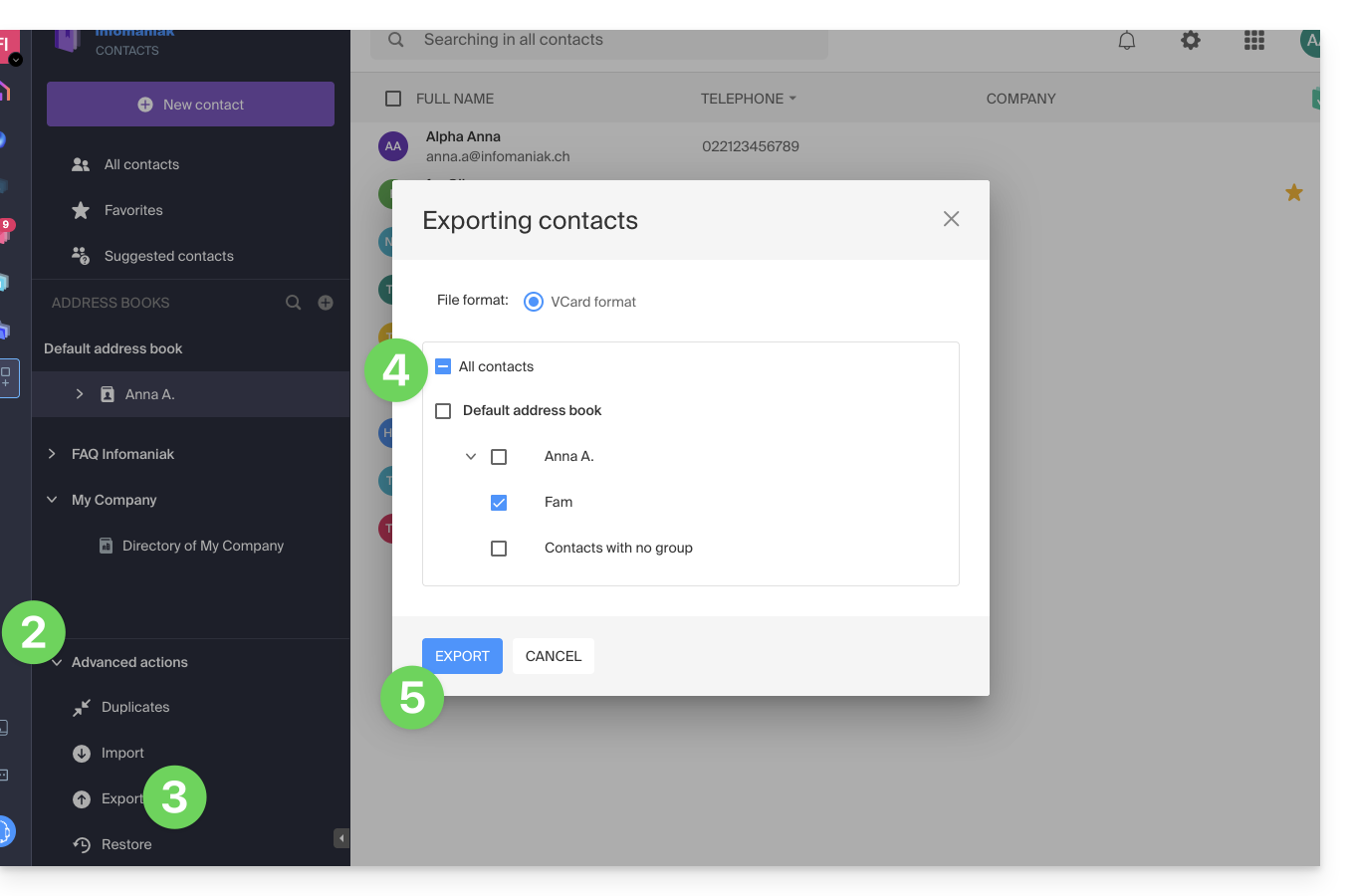
- Click on the chevron to expand the Advanced actions section.
- Click on the Export menu.
- Click on the address book to export.
- Click on the Export button:
- Choose the location on your device where you want to save the vCard file containing your contacts.
You can then open it in macOS Contacts or any compatible application.
Link to this FAQ: https://faq.infomaniak.com/2593
Has this FAQ been helpful?
This guide explains how to export a calendar in .ics format from Yahoo Mail so that you can easily import it into your Infomaniak tools.
Exporting the Yahoo Calendar
To retrieve your calendar:
- Log in to your Yahoo Mail account and access the calendar by clicking on the calendar icon in the right sidebar.
- Click on the Actions menu (represented by a gear icon) associated with your calendar, then choose Share….
- In the window that appears, select the calendar in question, then click Continue.
- Check the Generate links option.
- Click on the link that appears below the text.« For importing into a calendar application (ICS) » to download and save the
.icsfile to your computer.
If needed, please refer to this other guide.
Link to this FAQ: https://faq.infomaniak.com/2594
Has this FAQ been helpful?
This guide explains how to export your calendars and address books from Proton so that you can easily import them into your Infomaniak tools.
Exporting a calendar
To retrieve your events (usually in .ics format):
- Log in to your Proton Calendar account.
- Go to Settings (gear icon) then All settings.
- Select Calendars in the sidebar menu.
- Find the calendar in question and click on Export.
If needed, refer to this other guide.
Export an address book
To retrieve your contacts (in .vcf format):
- Access the Proton Contacts application.
- In the sidebar menu, simply click the Export contacts button.
For more details, please refer to this other guide.
Link to this FAQ: https://faq.infomaniak.com/2595
Has this FAQ been helpful?
This guide explains how to export an address book from Bluewin.
Exporting contacts
Consult this other guide specific to this topic, or the Swisscom FAQ.
Link to this FAQ: https://faq.infomaniak.com/2596
Has this FAQ been helpful?
This guide explains how to forward emails from a Gmail, Bluewin, Outlook, Proton, Yahoo, etc. address to your email address managed by Infomaniak.
Introduction
- By setting up automatic forwarding of all incoming emails to your previous email system, you can immediately start using your new Infomaniak email address while ensuring you don't miss any messages.
- By replying to your emails from your new Infomaniak address, your contacts will automatically use it to write to you in the future.
- You can also import the content from another Mail provider directly to your Infomaniak address.
- For further assistance, contact the provider on which you wish to activate message forwarding.
Specific guides
Consult the official guides based on your previous provider:
- Gmail
- iCloud
- Microsoft (Outlook / Hotmail / Live)
- Orange
- Proton Mail (please note, a paid plan is required)
- Sunrise:
- Click here to log in to Sunrise Mail.
- Click on Inbox.
- Click on Settings => Manage Inbox.
- Enter the corresponding email address under "Forwarding".
- Yahoo (note: requires Yahoo Mail Pro)
Bluewin
- Bluewin (see also below):
- Click here to log in to Bluewin.
- Click on Settings then Automatic forwarding.
- Click on Configure automatic forwarding.
- Follow the procedure to set up automatic redirection.
- Bluewin (alternative method):
- Click here to log in to MySwisscom.
- Click on the "More" menu, then "Settings":

- Then click on "Manage forwarding":

GMX
Click on these elements in order to set up a forwarding rule from GMX:
Link to this FAQ: https://faq.infomaniak.com/2598
Has this FAQ been helpful?
This guide explains how to create, save, and edit a collaborative Office file (text document, spreadsheet, presentation, etc.) on the web app kDrive (online service ksuite.infomaniak.com/kdrive) and on the mobile app kDrive (application for iOS/Android smartphones or tablets) using the Microsoft Office editor.
✘ UNAVAILABLE with
kSuite Free / kSuite Standard
my kSuite / my kSuite+ (ik.me, etik.com, ikmail.com)
kDrive Solo / kDrive Team
Introduction
- Microsoft Office Online integrated with kDrive is available in a single version only; therefore, it is not possible to change or enhance its features by modifying a Microsoft license. This standalone version is the only one offered by Microsoft for this type of integration, and no more comprehensive version is provided or available for this infrastructure.
- Technically, the integration of Office Online into kDrive is based on an infrastructure hosted in Infomaniak's own data centers, guaranteeing that documents never leave its sovereign environment and are never transmitted to Microsoft.
- Learn more in this other guide about the possibilities offered by the native editor on kDrive.
- To set this editor as the default, please refer to this other guide.
Integrating Microsoft Office with kDrive
Prerequisites
- You must have a Microsoft business account with Microsoft 365 licenses that allow you to make changes in Office Online (Business, Business Premium, ProPlus, E3, E4, or E5).
- If you are using a tablet with a screen size of more than 10 inches, you must have an O365 license.
- Maximum file size for integration:
.docx(< 100 MB).xlsx(< 100 MB).pptx(< 2 GB)
- Compatible Microsoft mobile apps:
- Android: Word | Excel | PowerPoint
- iOS: Word | Excel | PowerPoint
To edit Office files stored on kDrive directly with the dedicated Microsoft Online app:
- Click here to access the Infomaniak kDrive web app (online service ksuite.infomaniak.com/kdrive).
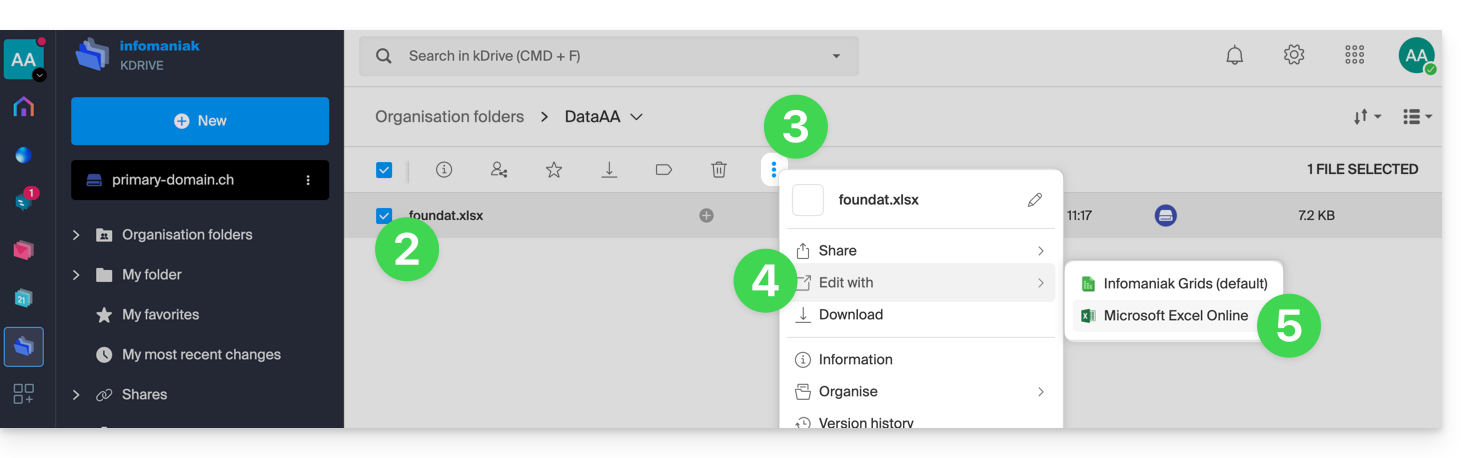
- Select the file to edit (or right-click on the file and then proceed to step 4).
- Click on the action menu ⋮ in the toolbar.
- Click on Edit with…
- Click on Microsoft Excel Online (or the Microsoft app corresponding to your document type):
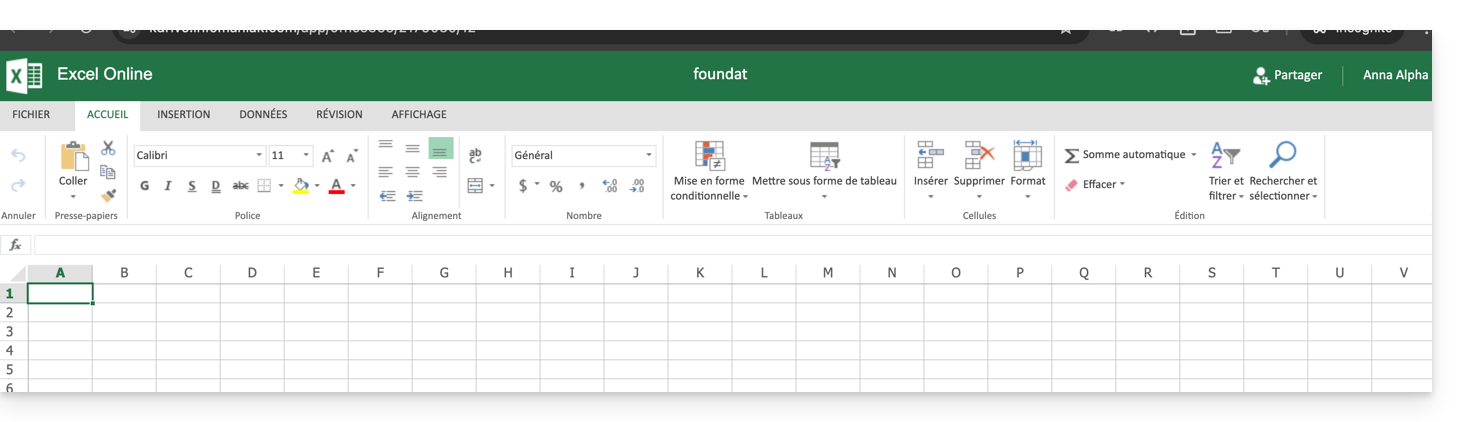
- Your document opens within the Microsoft Office Online editor:
Link to this FAQ: https://faq.infomaniak.com/2627
Has this FAQ been helpful?
This guide explains how to link a domain name to any kSuite offer Infomaniak.
Manage the kSuite domain
To manage your domains, start by logging in with your credentials (user account with the necessary permissions for the relevant product):
- Click here to access your kSuite management.
- If nothing is displayed after logging in, you may not be in the Organization to which your kSuite is linked (❓: help).
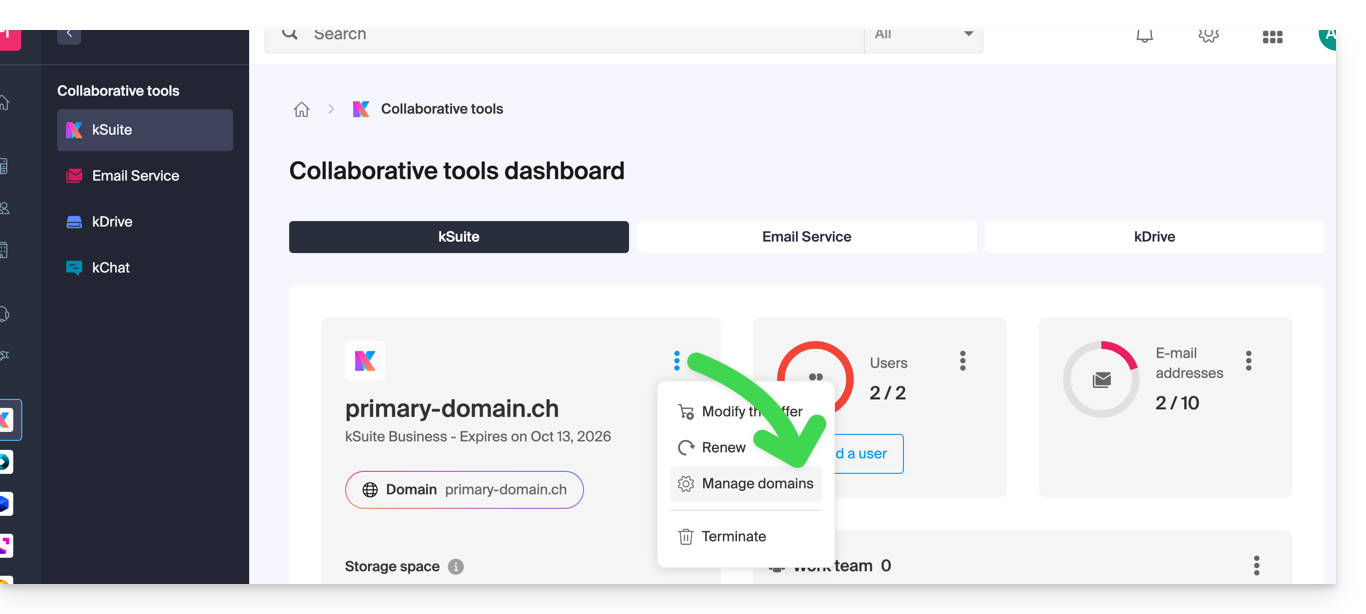
- If a domain is already linked, you can manage it by clicking on the action menu ⋮ to the right of the kSuite name, then Manage domains:
- If no domain is yet linked, you can add one by clicking on the button:
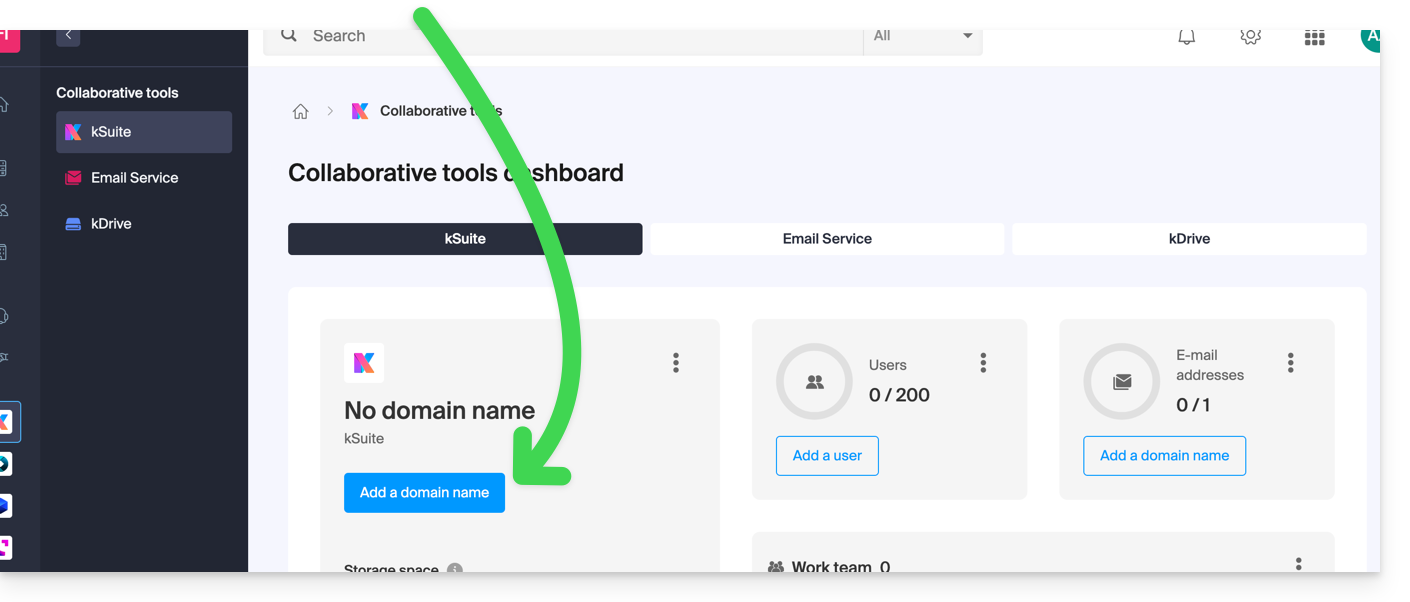
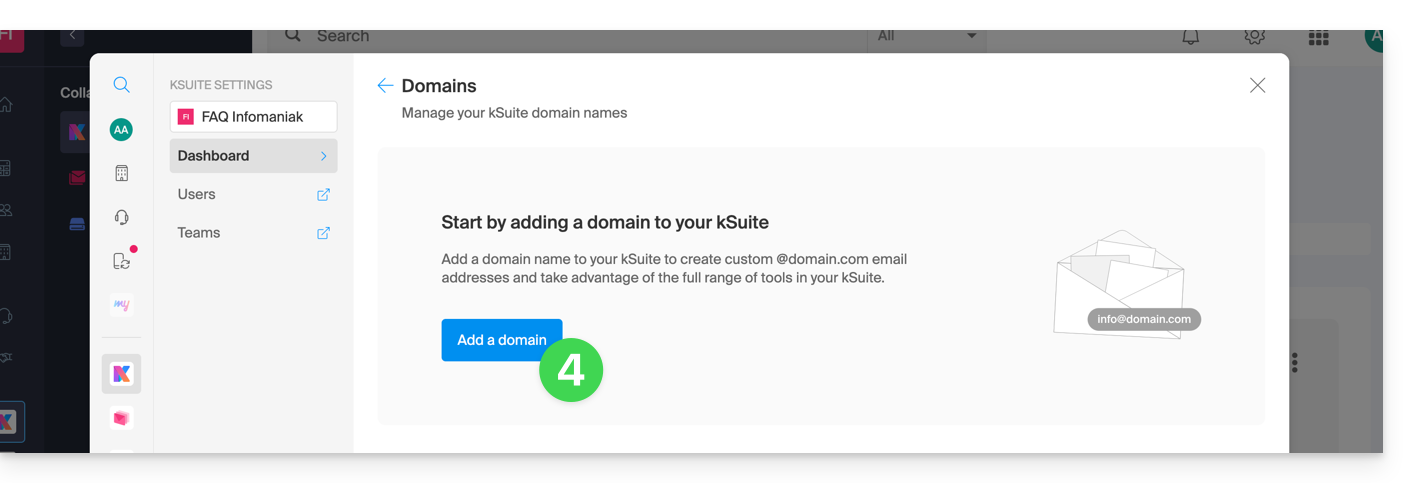
- Click the button to add a domain:
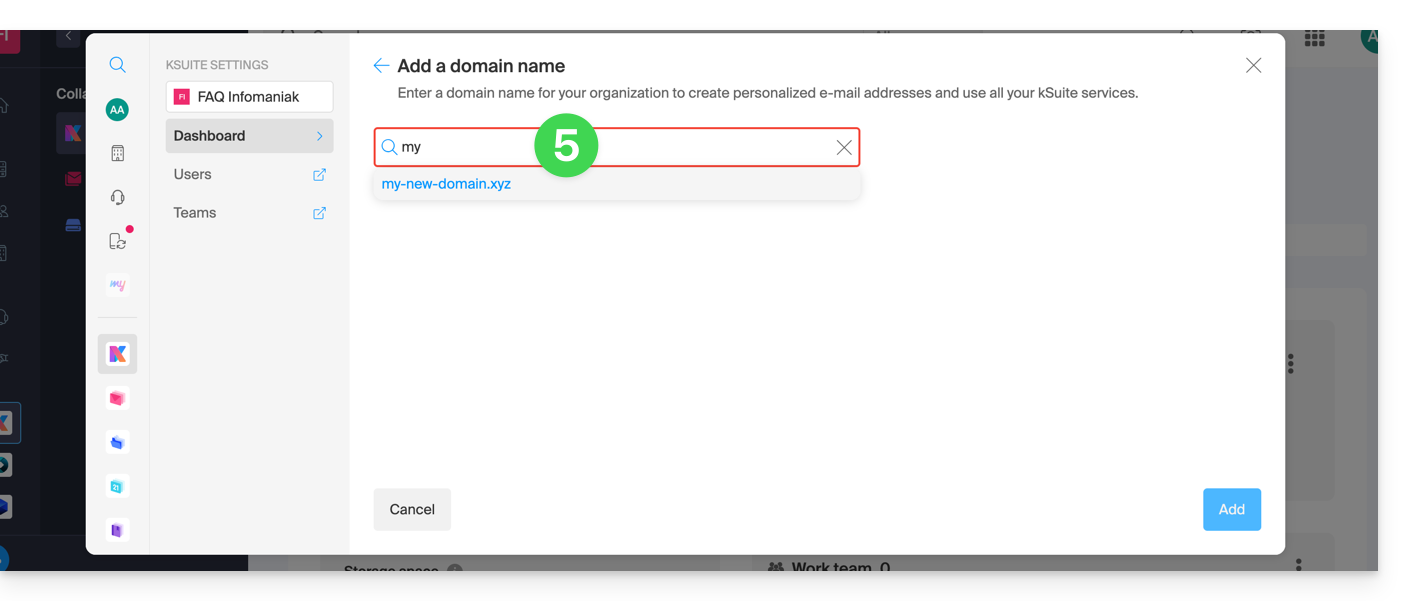
- Choose the domain to associate from among those in your Organization (still available, i.e., not associated with any service) or enter an external domain name:
- Depending on the status of your domain (also see the information below), you may need to perform some preliminary steps…
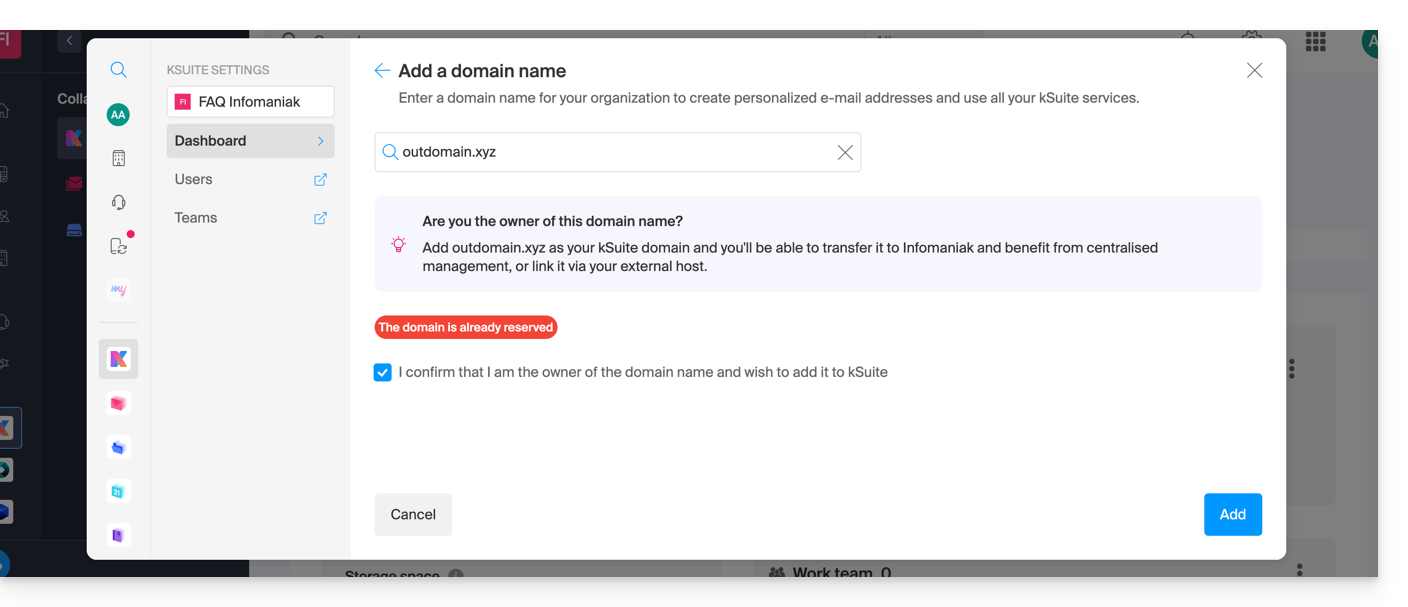
- … or even purchase a domain if necessary:
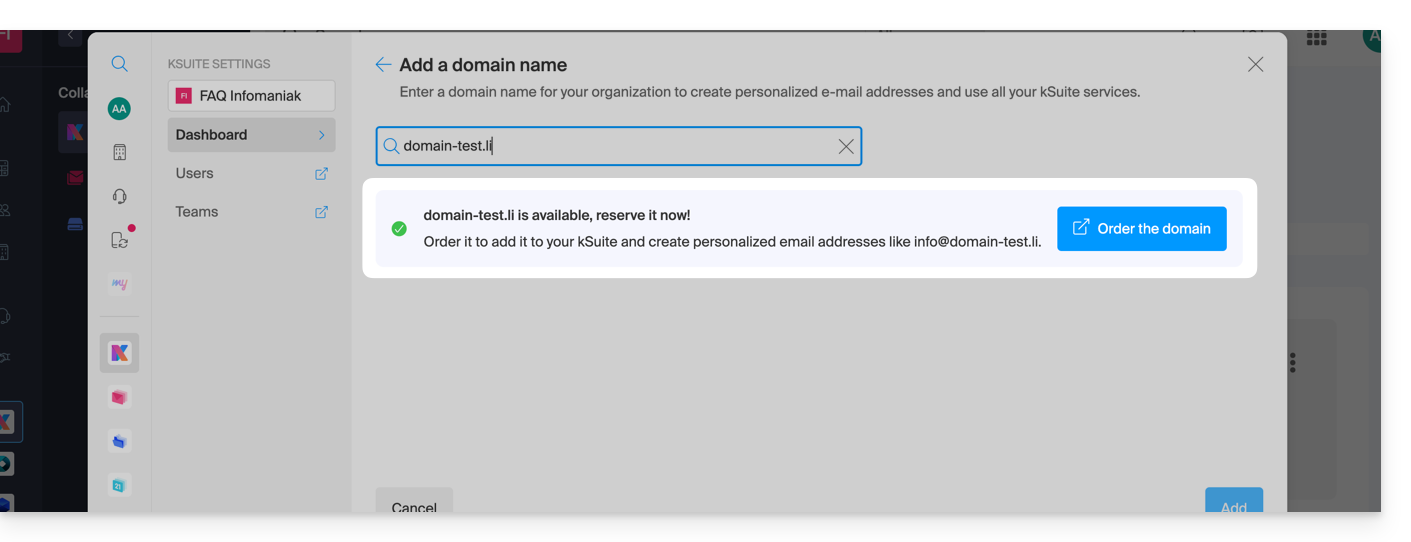
- Depending on the status of your domain (also see the information below), you may need to perform some preliminary steps…
If the domain name is located…
…with Infomaniak, within the same Organization
If your domain name is registered with Infomaniak and is in the same user account or Organization as your email, then there is nothing to do.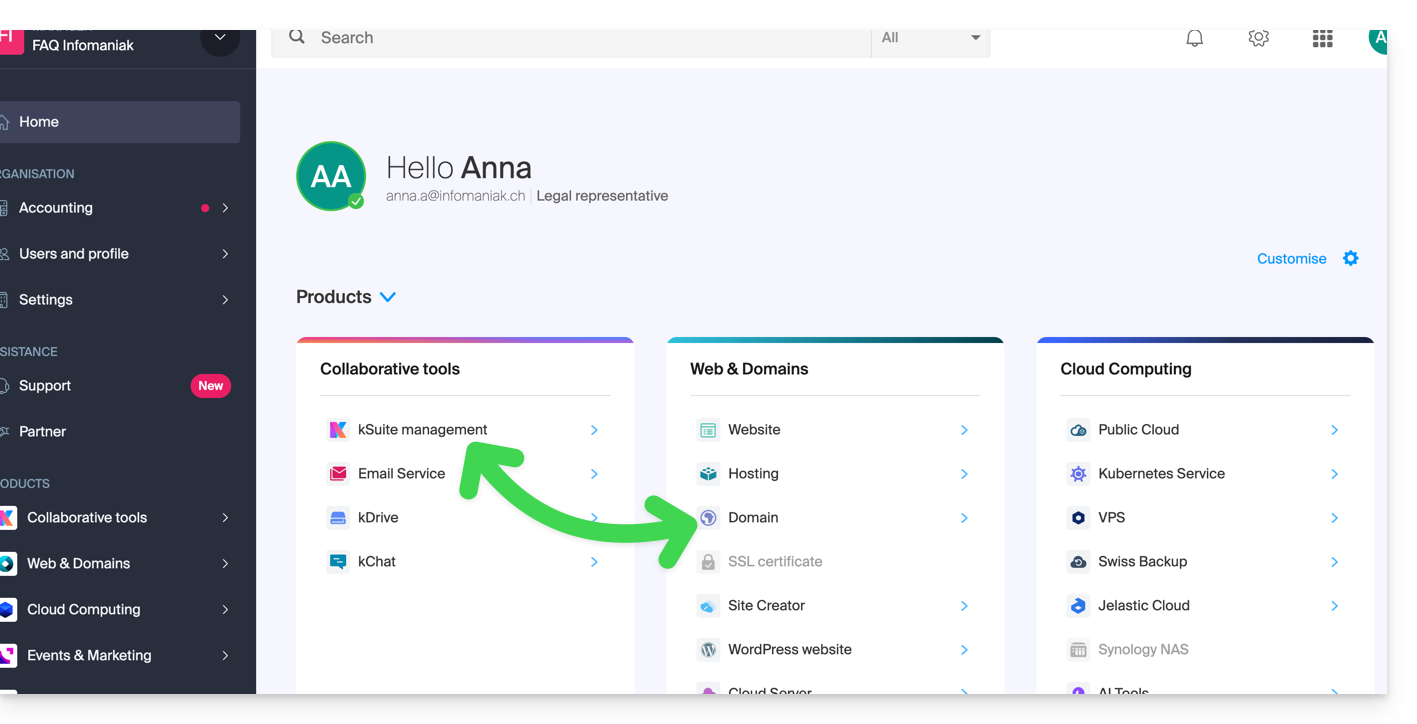
Simply add it to your kSuite: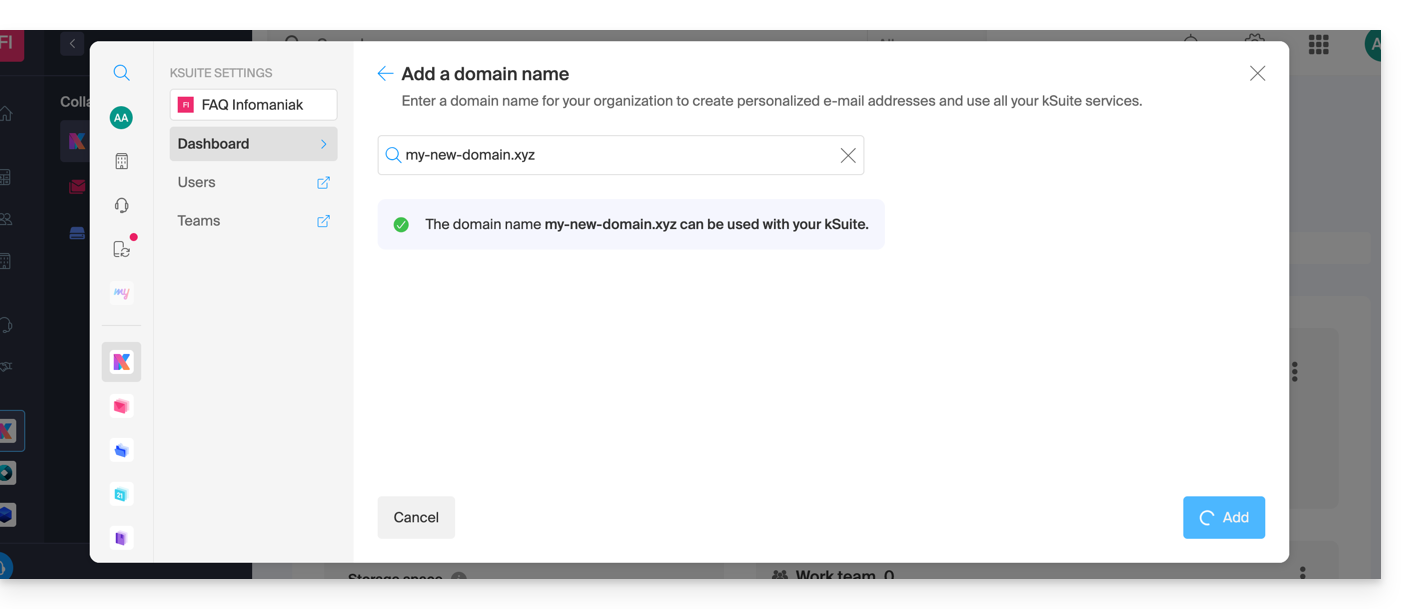
The domain will then be added and visible on the dashboard: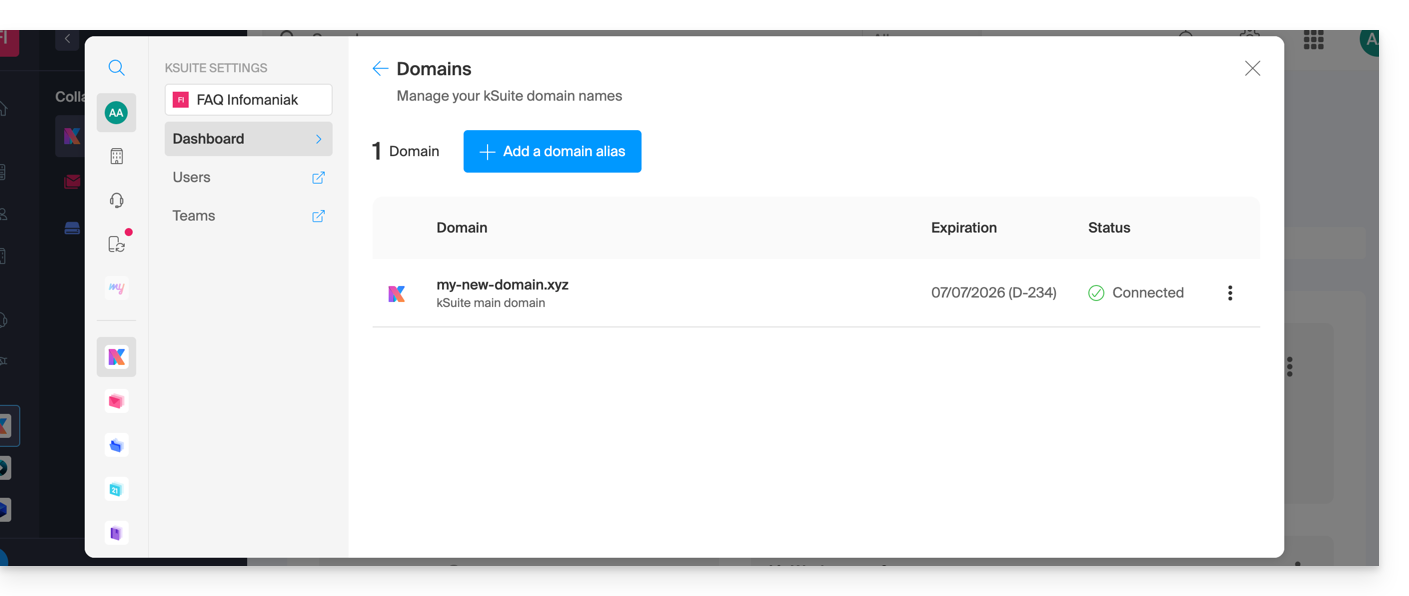
- Refer to this other guide to check and correct any potential configuration errors.
... with Infomaniak, even if you already have an Organization and it's linked to a Mail service or kDrive
No problem, you can convert your existing products into kSuite (❓: help).
… with Infomaniak, Different Organization
If your domain name is registered with Infomaniak but in a different user account or Organization, then:
- Edit its DNS zone (❓: help) by specifying the Infomaniak MX record (❓: help) + SPF (❓: help) & DKIM (❓: help).
- Any DNS addition/modification may take up to 48 hours to propagate (❓: help).
OU
- Move it within the same Organization (❓: help).
Generally, a message will notify you of this situation: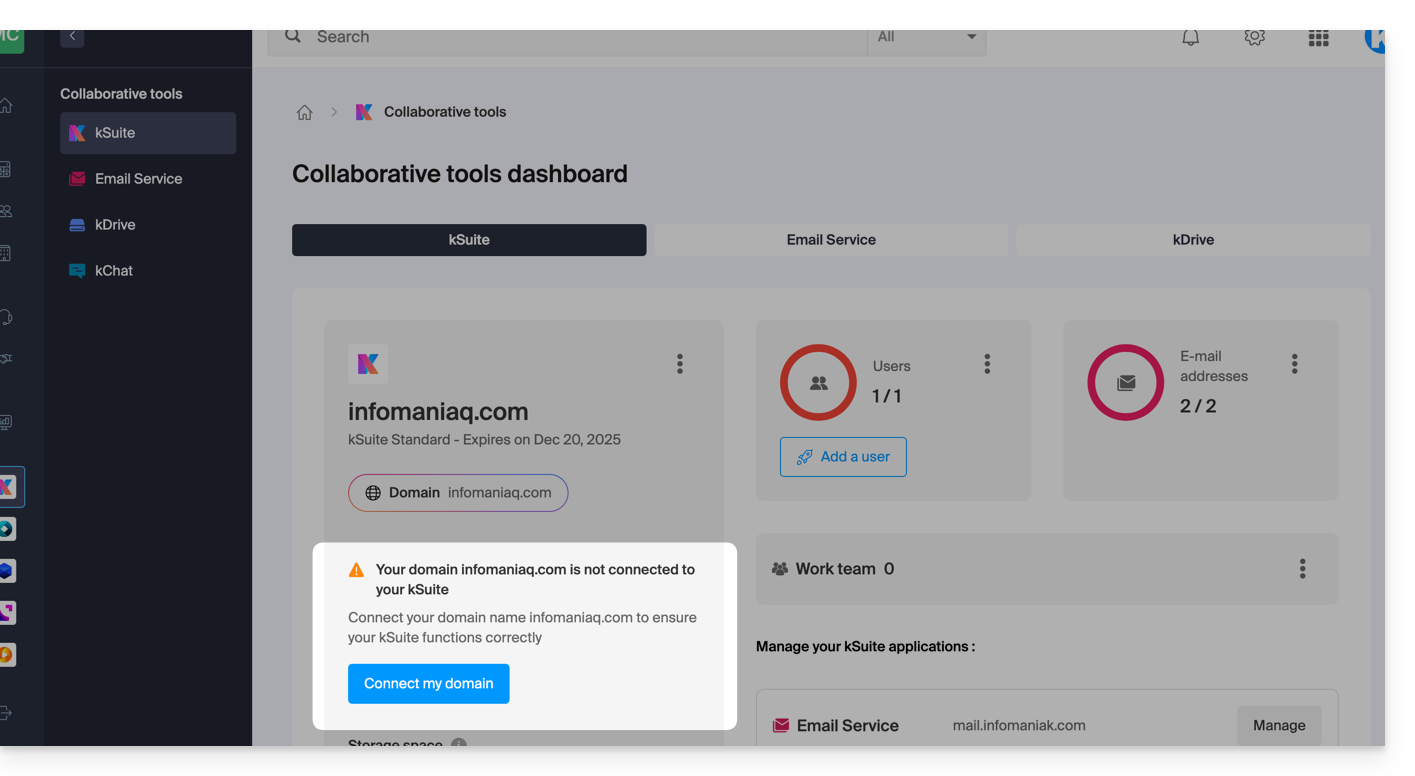
… and the technical information, which you should enter where the domain is located, will be provided: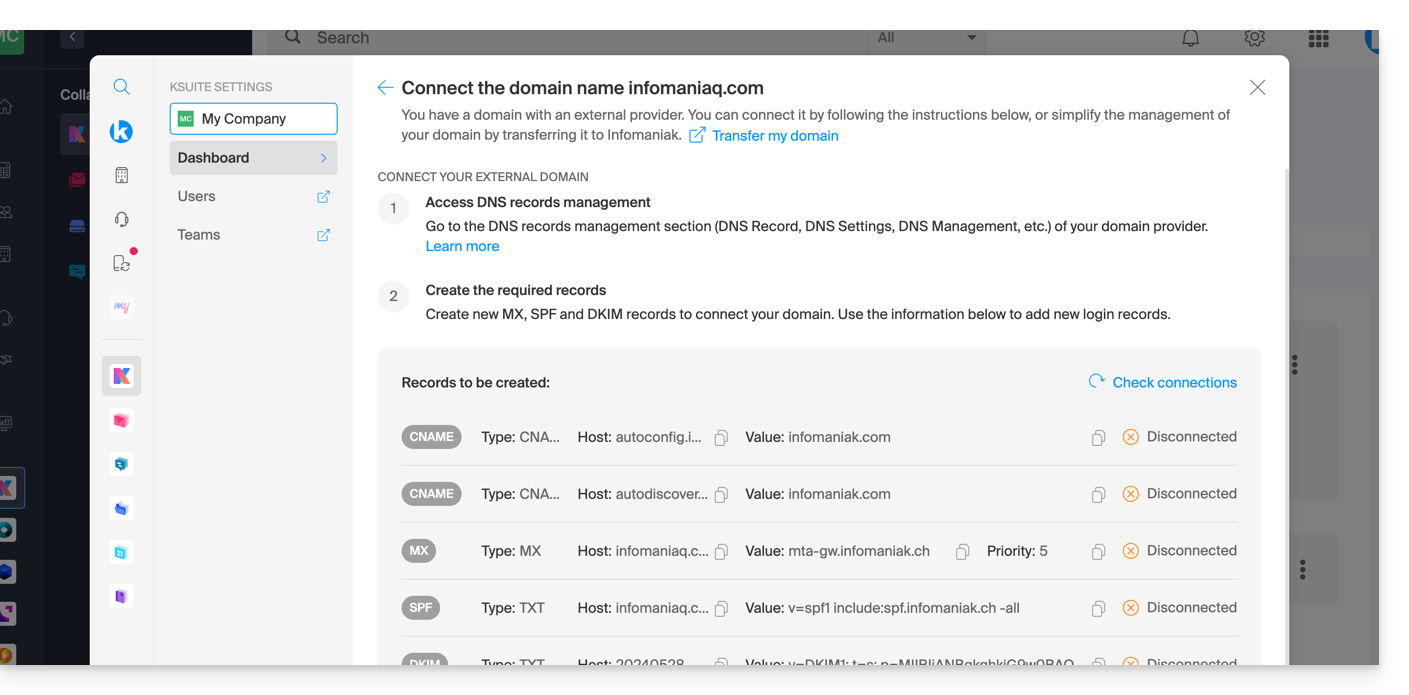
… with Infomaniak using external DNS
If your domain name uses DNS servers other than Infomaniak's, then:
- Edit its current DNS zone where it is hosted (if necessary, consult the documentation provided by your current provider) and specify Infomaniak's MX record (❓: help) + SPF (❓: help) & DKIM (❓: help).
- Any DNS addition or modification may take up to 48 hours to propagate (❓: help).
OU
- Change your current DNS settings and select the option to use Infomaniak's DNS servers.
- Any DNS addition or modification may take up to 48 hours to propagate (❓: help).
- Refer to this other guide to check and correct any potential configuration errors.
You will be notified (see the images above).
… elsewhere, with external DNS
If your domain name is registered with another registrar and uses DNS servers that are not Infomaniak's, then:
- Edit its current DNS zone where it is hosted (if necessary, consult the provider's help documentation) and specify Infomaniak's MX record (❓: help) + SPF (❓: help) & DKIM (❓: help).
- Any DNS addition or modification may take up to 48 hours to propagate (❓: help).
OU
- Change your current DNS settings (if necessary, consult the documentation provided by your provider) and specify Infomaniak's DNS servers; this requires having a DNS zone with Infomaniak (❓: help).
- Any DNS addition or modification may take up to 48 hours to propagate (❓: help).
- This DNS zone with Infomaniak will be configured correctly, but please refer to this other guide to check for and correct any potential configuration errors.
You will be notified (see the images above).
… elsewhere, but you bring it back
If your domain name is registered with another registrar and you want to transfer it to the same location as your Infomaniak email, then:
- Transfer the domain name (❓: help) to Infomaniak (it will be configured correctly, but please refer to this other guide to check for and correct any potential configuration errors).
Alternatively, consider ordering a new domain name (❓: help).
Link to this FAQ: https://faq.infomaniak.com/2629
Has this FAQ been helpful?
This guide explains how to have multiple domain names linked to an existing kSuite, by adding additional domain names to it.
Prerequisites
- Own the new domain name, and create it beforehand if necessary (❓: help).
- Review the instructions in this other guide and apply the instructions that correspond to your situation (this is to ensure that the domain name works when it is linked to your kSuite).
Add a domain name to kSuite
Once the new domain name is ready to be used alongside the old one, you need to add it to kSuite:
- Click here to access kSuite.
- If nothing appears after logging in, you may not be in the Organization to which your kSuite is linked (❓: help).
- Click on Settings in the top right corner.
- Click on kSuite in the left-hand menu.
- Click on Domains:
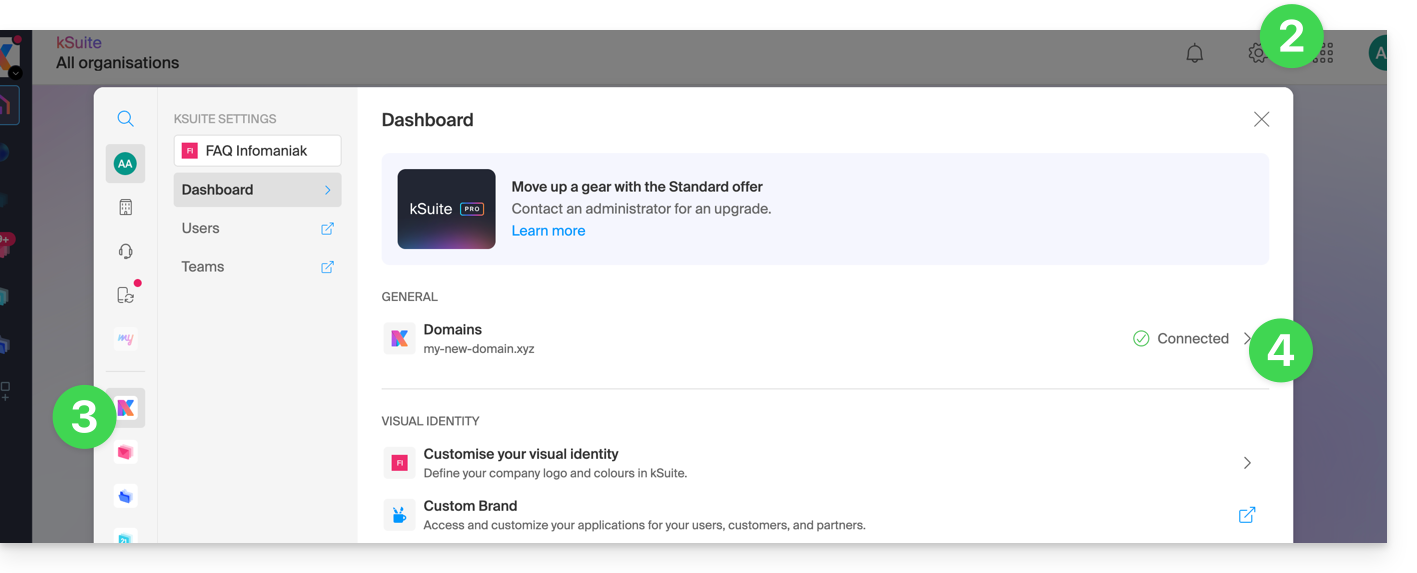
- Click the Add an alias domain button:

- Choose the domain to associate from among those in your Organization (still available, i.e., not associated with any service) or enter an external domain name (see prerequisites).
- Click the button to add the domain:
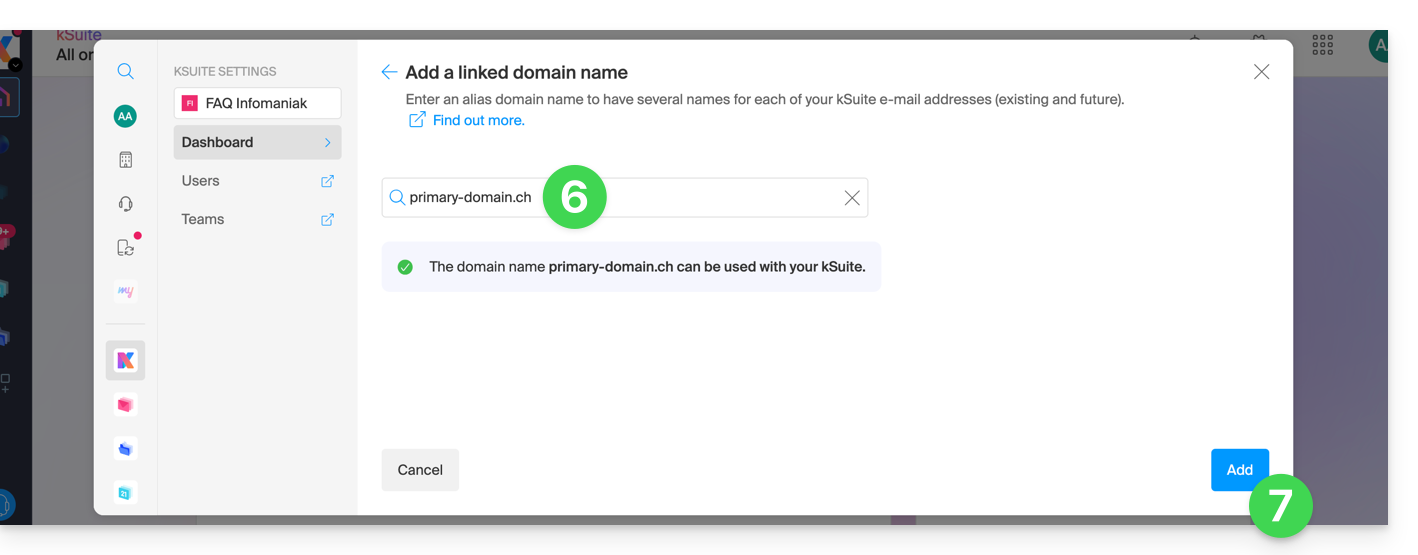
- The domain has been successfully linked:
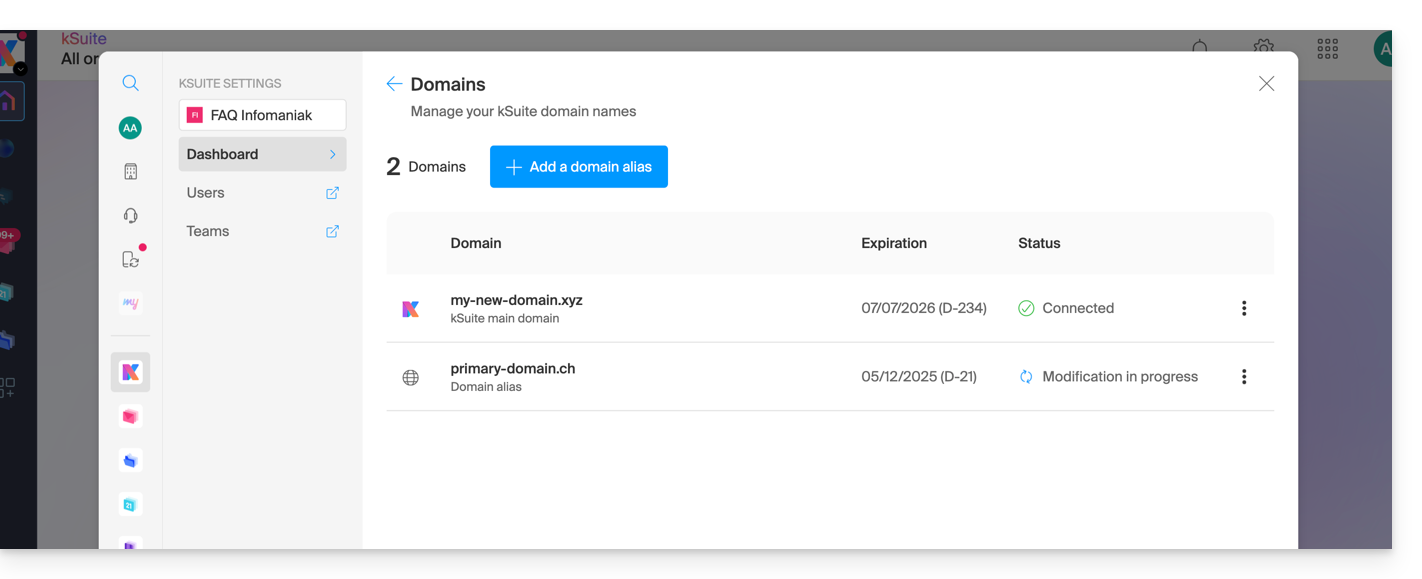
You can also consider swapping the additional domain name linked to kSuite with its main domain, in order to completely change the domain name of your kSuite (❓: help).
Link to this FAQ: https://faq.infomaniak.com/2640
Has this FAQ been helpful?
Infomaniak places a high priority on securing data through a comprehensive and diverse security approach. For whistleblowers, the company has implemented an internal system for reporting irregularities securely and anonymously, without fear of reprisal. This protection mechanism is available to all staff, which enhances transparency and accountability within the organization.
Processing times
Infomaniak demonstrates its commitment through concrete and effective measures to protect individuals who report irregularities. The company is committed to processing each report submitted via its abuse form within defined timeframes to ensure optimal responsiveness and maintain the trust of its users.
To guarantee efficient and transparent processing, Infomaniak applies a structured process with specific deadlines:
- Acknowledgement of receipt within 24 hours: the company acknowledges receipt of all reports within 24 hours of their submission. This confirms that the request has been received by the relevant teams.
- Preliminary assessment within 5 business days: the company carries out an initial assessment within 5 business days to determine the admissibility of the report and identify the necessary resources. This step helps to define the level of priority and direct the case to the specialized teams.
- In-depth analysis within 30 business days: when an investigation is necessary, Infomaniak conducts a detailed analysis within a maximum of 30 business days, depending on the complexity of the case. This period allows the security teams to perform technical checks, gather evidence, and assess the impact of the situation.
- Corrective actions within 60 business days: the company finalizes the analysis and implements the appropriate corrective measures within a maximum of 60 business days, when technically possible.
This final step includes implementing preventive measures, informing the parties concerned, and monitoring the recommendations to prevent any recurrence.
Infomaniak also undertakes to inform complainants of the outcome of their request.provided that a contact email address has been specified in the form.
You can also find more information in the blog post on this topic.
Link to this FAQ: https://faq.infomaniak.com/2641
Has this FAQ been helpful?
This guide details how data storage works for your various kSuite products.
Introduction
- The storage space used for data is:
- shared among the different users of your kSuite,
- and shared among certain products that comprise it (kDrive and kChat, for example).
- The total amount of storage space depends on your subscription and the number of users you choose:
- It corresponds to the maximum amount of storage space that can be used by all of your users.
- There is no quota per user.
Data from the Mail service is not counted towards the kSuite storage.
Increase or decrease the kSuite storage space
Do you need more space to store your kSuite data?
- Modify the plan and add users, or upgrade to a higher plan that includes more users.
- The more available users included in your plan, the more storage space you will have.
You can also free up storage space by permanently deleting files from kDrive or kChat.
It is not possible to:
- reduce the storage space,
- fall below a certain number of kSuite users, depending on the storage available and already used.
Link to this FAQ: https://faq.infomaniak.com/2680
Has this FAQ been helpful?
This guide helps you resolve login errors on Infomaniak mobile apps (kDrive, Mail, Euria, SwissTransfer, etc.) when the security message “Your device is not recognized as secure” appears on your device.
Why does this message appear?
This blocking mechanism relies on the official security protocols of operating systems (such as the Google Play Integrity API on Android). Infomaniak uses these standards to ensure that your data is not accessed on a device whose integrity or security may be compromised.
This situation generally occurs in the following cases:
- Using an unofficial operating system (Custom ROM / LineageOS).
- Device that is "rooted" or has an unlocked bootloader.
- Outdated or uncertified operating system version.
- Devices lacking official services (e.g., Huawei smartphones without Google services).
Immediate workaround
If your device is working properly but the message persists, you can force a new authentication to bypass the block:
- On the login screen of the relevant application, tap the down arrow icon next to your account or avatar.
- Select the "Log in with another account" option (even if it is the same account).
- Enter your credentials manually (Infomaniak email address and password).
This process allows you to ignore the old session token and validate access via updated, secure authentication.
Link to this FAQ: https://faq.infomaniak.com/2685
Has this FAQ been helpful?
This guide explains how to replace the primary domain name associated with a kSuite.
Introduction
- Changing the domain linked to kSuite is useful if your business name changes.
- This affects:
- Custom Brand (and therefore the custom URLs leading to your tools such as kDrive or Euria)
- Mail Service (and therefore your email addresses)
Modify the kSuite domain name
Prerequisites
- Own the new domain name (if necessary, create it beforehand).
- Consult the instructions in this other guide and apply the instructions that correspond to your situation (to ensure that the domain name works when it is linked to your kSuite).
- Add the domain name to kSuite.
Once the new domain name is ready to be used instead of the old one, start by logging in with your credentials (user with the necessary rights on the product in question):
- Click here to access kSuite.
- If nothing is displayed after logging in, you may not be in the Organization to which your kSuite is linked (❓: help).
- Click on Settings in the top right corner.
- Click on kSuite in the left-hand menu.
- Click on Domains:
- Click on the action menu ⋮ located to the right of the domain you want to use as the new primary domain.
- Click on Set as primary domain:
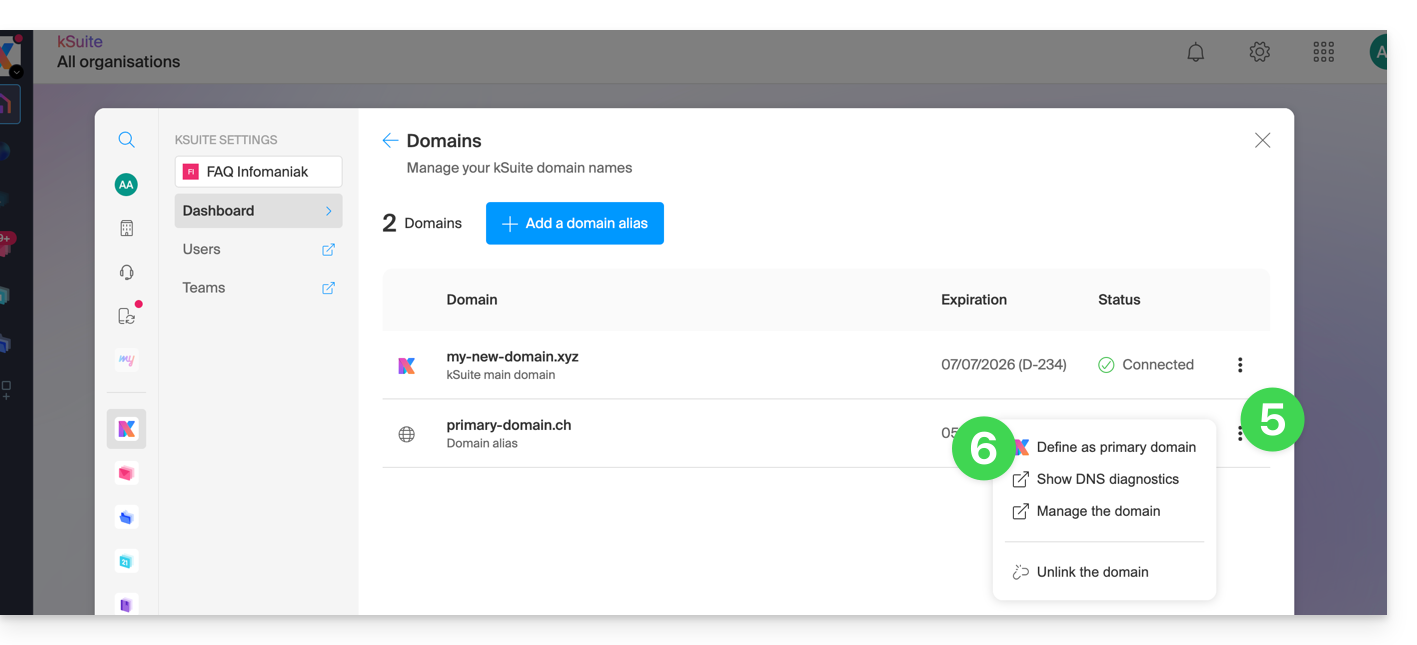
- Information is displayed, click the Continue button.
- Read the information on the screen and then confirm that you have read it.
- Click on the Continue button:

- Click on the Confirm button:
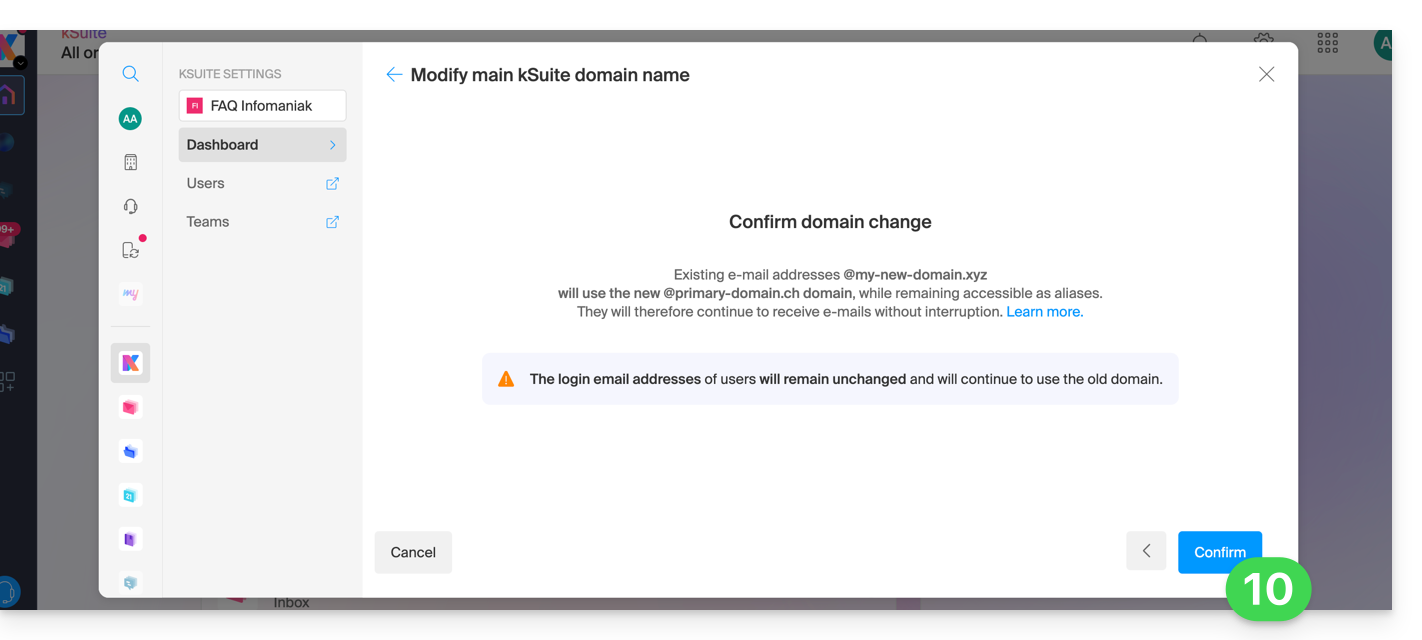
Impact on the Mail Service
By reversing the domain name of the kSuite as shown above, the Mail Service within kSuite is automatically updated. You will switch from: 
… to this:
Link to this FAQ: https://faq.infomaniak.com/2701
Has this FAQ been helpful?
This guide explains how to transfer to Infomaniak email addresses currently hosted by GMX, using an IMAP import tool.
Introduction
- This operation does not affect the data already present in the destination address, nor the data in the source address.
- The entire external mailbox will be imported.
- Once the import process has started, it is no longer possible to interrupt it.
- Any duplicates will be handled: identical content will only be copied once.
- Consult this other guide if you are looking for alternatives to this IMAP process.
Import your entire email history
1. GMX Prerequisites
- Enable the POP/IMAP/SMTP features that are disabled by default (need help?).
2. Infomaniak Prerequisites
- You must have a Mail Service on your Infomaniak Manager.
- Have a number of available addresses or adjust it if necessary.
- Make sure your email is properly secured
- Create one or more addresses on this Mail service.
- If you have many (10+) email addresses to create, please refer to this other guide regarding bulk creation.
- The destination email address must be linked to the user (= the Infomaniak account) you are using.
3. Import GMX email content into Infomaniak
- Click here to access the import tool (online service https://import-email.infomaniak.com).
- If necessary, log in to your Infomaniak account for the relevant organization; the import will be done to one of the email addresses associated with the Infomaniak Mail web interface (online service ksuite.infomaniak.com/mail) of the Infomaniak account you are using.
- Click on the IMAP import option.
- Click on one-time import.
- Fill in the field on the left with your source email address (the content of which will be copied):
username@gmx.chfor example
- Fill in the field on the right with the password for this same source email address (see prerequisites).
- If necessary, modify the Advanced Settings to specify an IMAP server address:
- Enter the IMAP server name
imap.gmx.ch(or .net, .com, etc. depending on your email address in point 4 above). - Leave the default port (993) and SSL enabled.
- Enter the IMAP server name
- Click on Confirm.
- If necessary, enter a second email address that you want to import at the same time.
- Choose the email address from which to import emails; the drop-down menu lists the email addresses currently associated with your Infomaniak Web Mail interface (online service ksuite.infomaniak.com/mail) of the Infomaniak account you are logged into.
- After selecting the desired destination address from the list, click the blue Import Emails button.
- The copy process has started. You can wait and view the result on the page once the import is complete, or close the window (the import will continue in the background, and you can track its progress - see below).
- A confirmation email will be automatically sent to all email addresses involved in the operation once the import is complete, indicating the number of messages copied.
- Tracking is available in the settings of the destination email address, and only on the web app Mail (online service ksuite.infomaniak.com/mail).
- Tracking allows you to view the import history for the address in question.
4. Adjust the application settings
Once you have taken the necessary steps to ensure that the domain name associated with your email account works with Infomaniak, modify the settings of the email software/clients you use so that they connect correctly to the Infomaniak servers: follow the configuration wizard.
Link to this FAQ: https://faq.infomaniak.com/2715
Has this FAQ been helpful?
This guide explains how to remove duplicate contacts in the address book of the Contacts web app from Infomaniak.
Remove duplicate contacts
To view existing duplicates in your Infomaniak address books and merge them (or hide them):
- Click here to access the Infomaniak Contacts web app (online service ksuite.infomaniak.com/contacts).
- Click on the chevron to expand the list of address books if necessary.
- Click on the action menu ⋮ to the right of the address book in question.
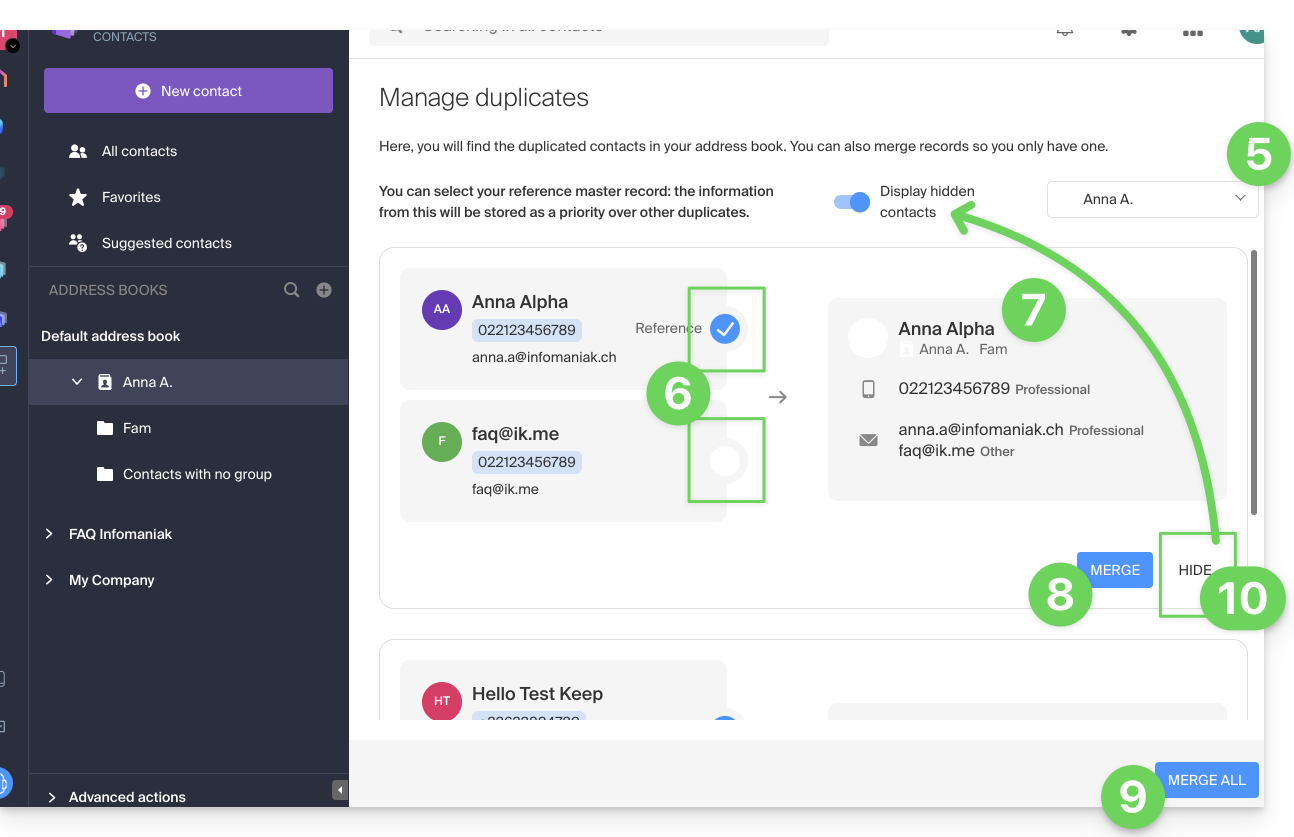
- Click on Manage duplicates:
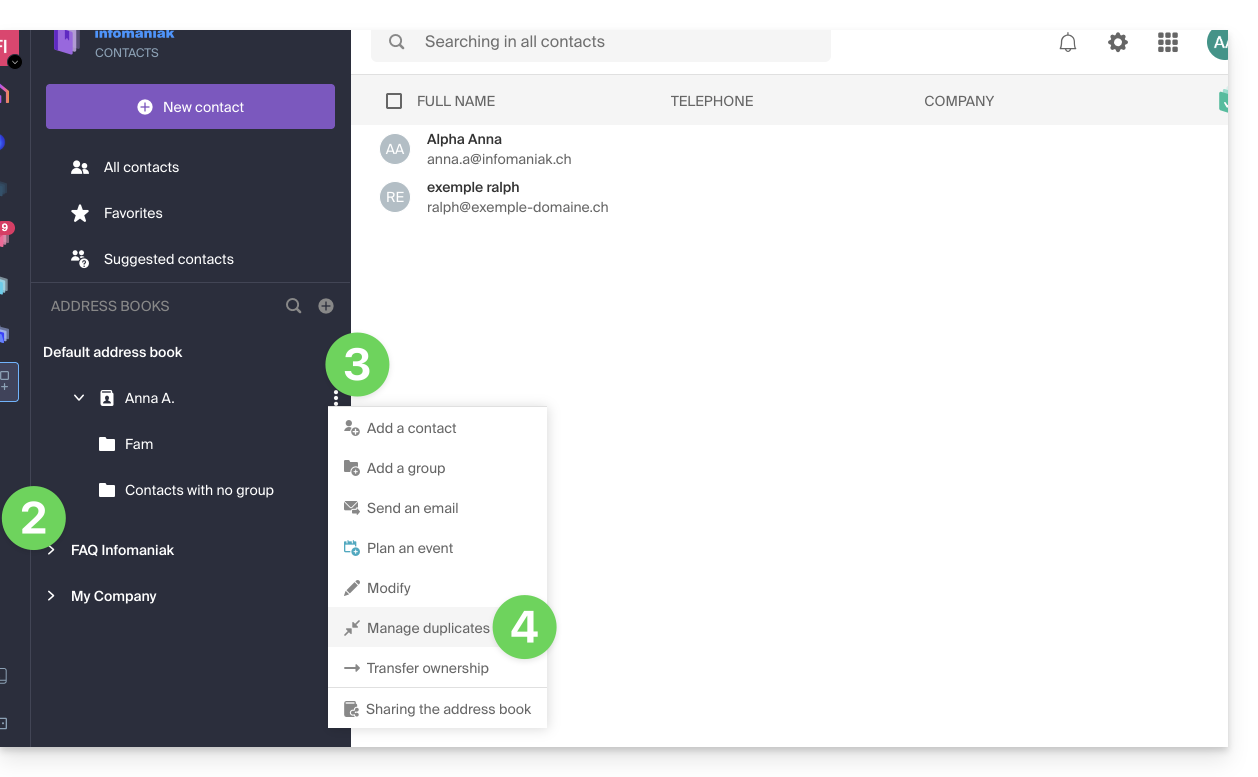
- If necessary, select the address book in which to search for duplicates.
- Click on the entry that should be the reference to keep; identical information is highlighted in blue.
- View and check the information from the duplicate entries that will be added to the reference entry (point 6 above):
- Click the blue Merge to process button to process duplicates one by one…
- … or click Merge All to process all duplicates.
- You can also hide a duplicate to avoid processing it, and review it later by clicking on the toggle switch at the top of the page:
Please note that you cannot undo this operation (refer to this other guide if you are looking for information on restoring address books).
Link to this FAQ: https://faq.infomaniak.com/2794
Has this FAQ been helpful?
This guide explains how to add, modify, and remove users from an Organization within the Infomaniak Manager.
Introduction
- Since you opened your account with Infomaniak, you have been part of at least one Organization.
- If you were the only one and it wasn't an invitation, an Organization was created in your name, and you automatically become its legal representative.
- Otherwise, you belong to the Organization that invited you (to join its kSuite, to manage a product, etc.).
- Only an owner/legal representative can make changes.
- Any collaborator who also has access to your Organization will not be able to make changes from their restricted account.
Add a new user
As a user of the Organization with sufficient rights, you can:
- add a new user.
- This can be a person who is completely external to Infomaniak,
- or someone who already has their own Infomaniak user account, which they can reuse if they wish by extending it to your Organization.
When adding a user, you can:
- specify their role within the Organization,
- the products they will have access to,
- as well as the administrative contact preferences.
Remove a user
As an organization user with sufficient rights, you can:
Modify a user's permissions/rights
As an organization user with sufficient rights, you can:
- modify another user's role,
- manage the products they have access to, and the more granular permissions if it's access to a mail address, for example,
- as well as the administrative contact preferences, whether they are your own or those of others.
Replace a legal representative
Tochange the legal representative of an Organization in the Manager, it is necessary to remove the user who has the role of legal representative, which means that a new legal representative must be appointed beforehand (in fact, it is impossible to remove a legal representative if there is no other legal representative for the Organization).
Manage users by group (work team)
You can organize the users of the Organization into groups.
Link to this FAQ: https://faq.infomaniak.com/2821
Has this FAQ been helpful?
This guide explains how to copy the content of one or more Infomaniak email addresses (all email messages, folders, subfolders, in short, the entire structure of your mailbox) to one or more of your existing addresses, also hosted with Infomaniak (regardless of the Mail service), thanks to the Infomaniak import tool!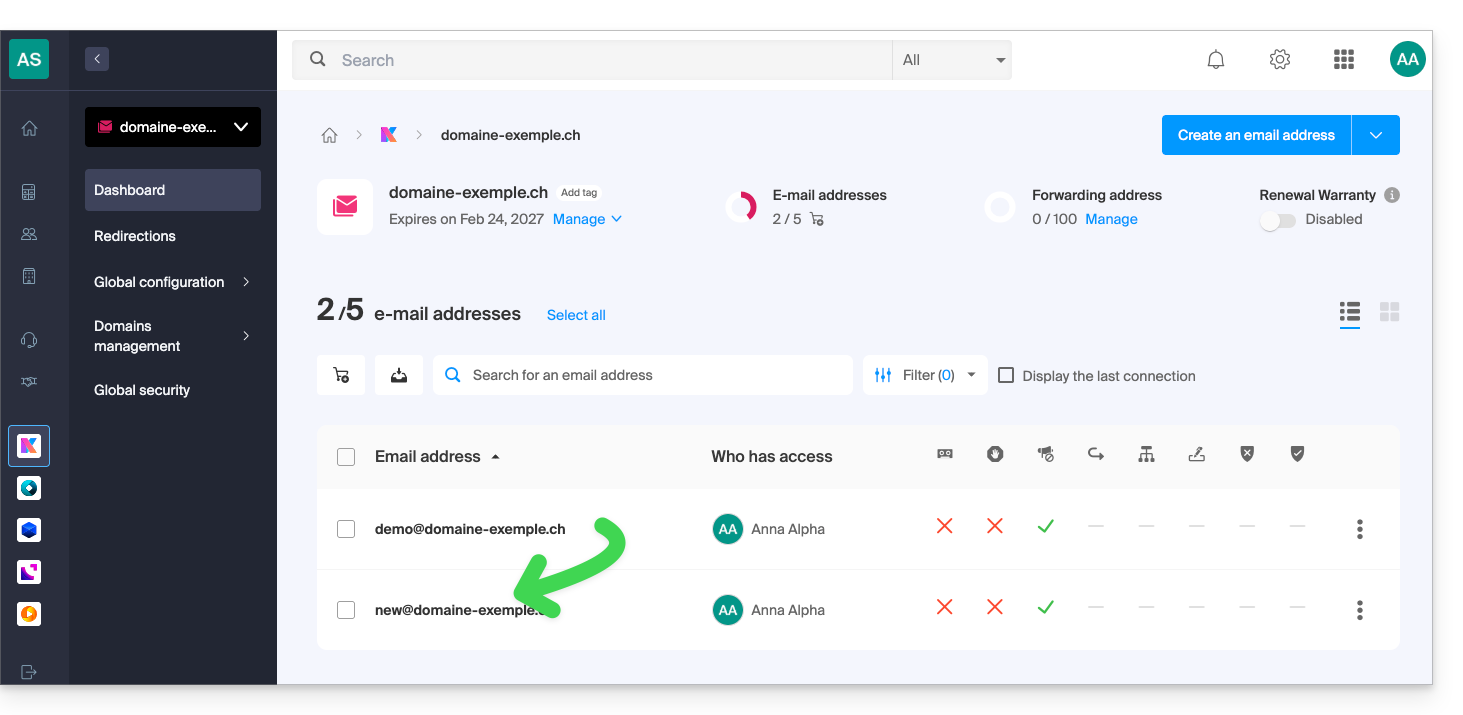
Introduction
- The operation does not affect either the data already present in the destination address or the data in the source address.
- The entire mailbox will be imported.
- Once the import process has started, it is no longer possible to interrupt it.
- Any duplicates will be handled: identical content will only be copied once.
Copy emails from one Infomaniak mailbox to another
Prerequisites
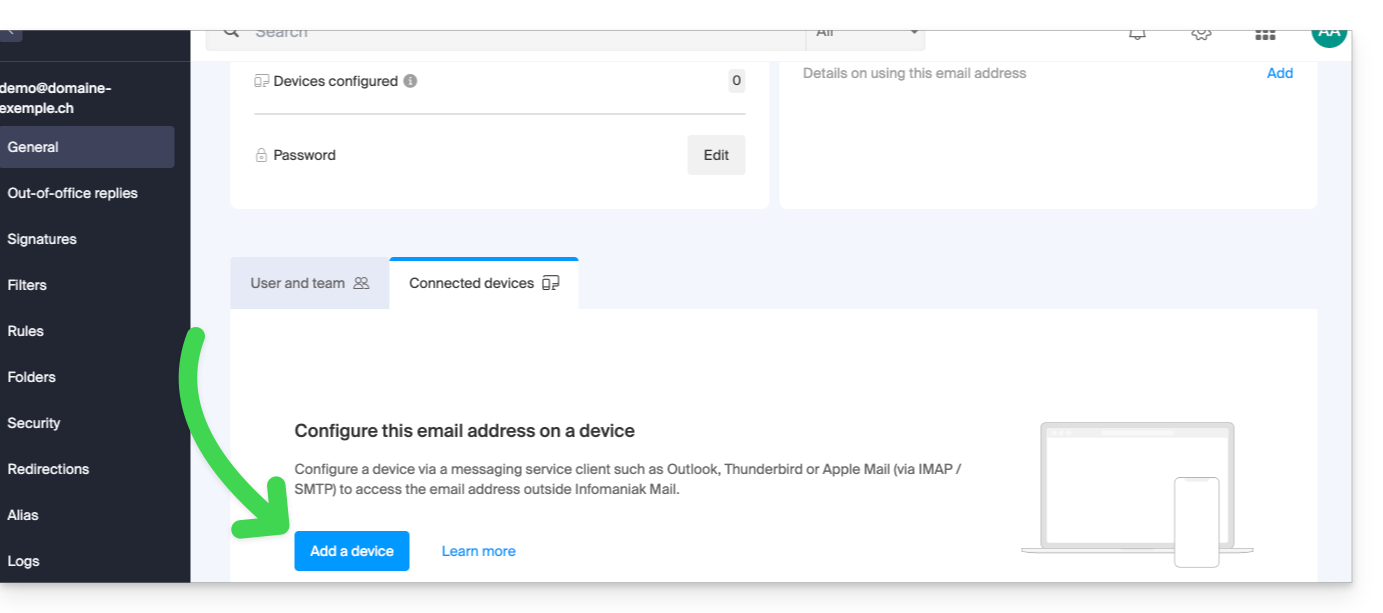
- Add a device password to the source address (the one from which the content must be retrieved):
- The password for logging in to the Infomaniak account with the same name is not the one expected.
- You need a password specific to the email address in question = a device password:
- The email address of the destination must be linked to the user (= the Infomaniak account) you are using.
Next, to import your email content:
- Click here to access the import tool (online service https://import-email.infomaniak.com).
- If necessary, log in to your Infomaniak account for the relevant organization; the import will be done to one of the email addresses associated with the Infomaniak Mail web interface (online service ksuite.infomaniak.com/mail) of the Infomaniak account you are using.
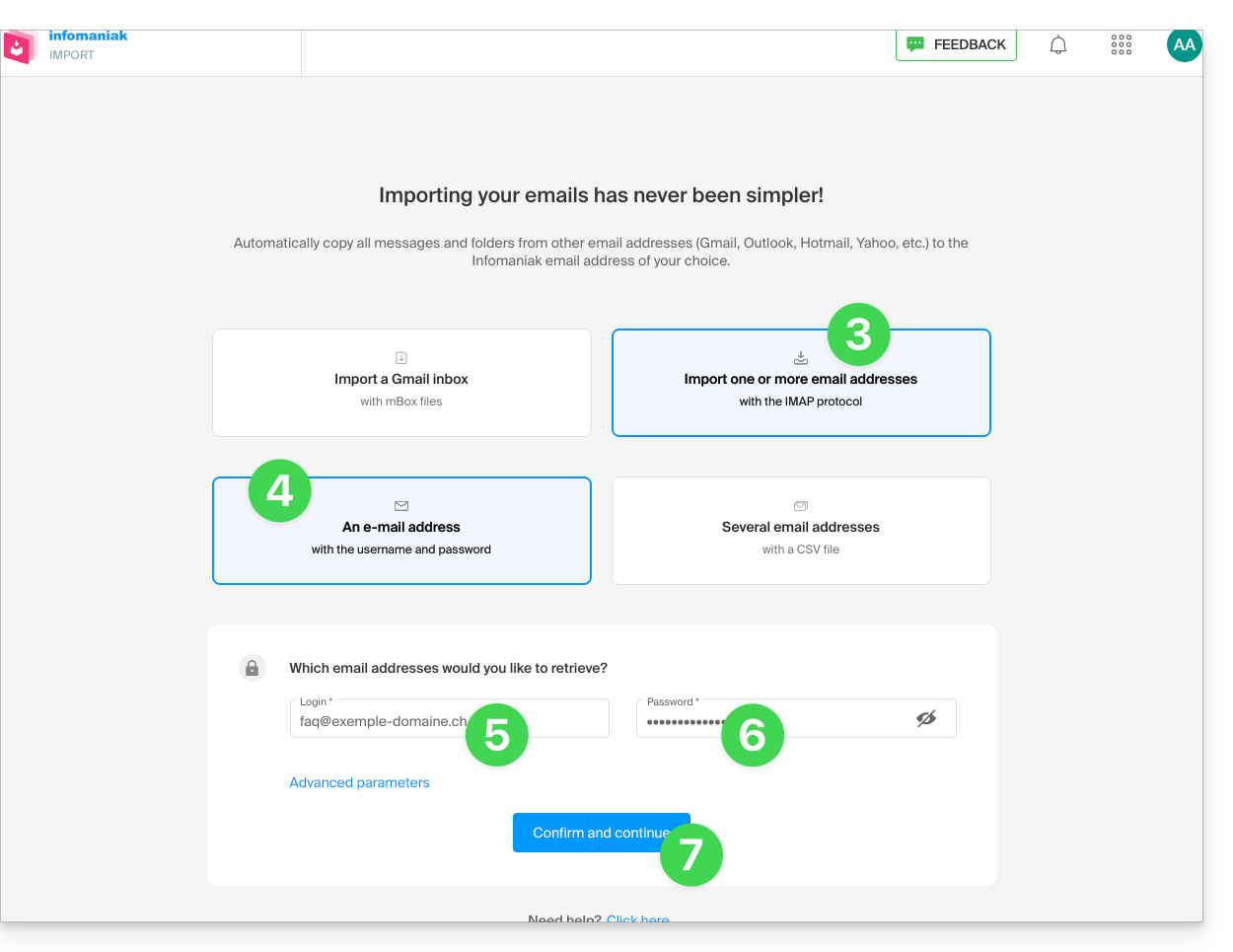
- Click on the IMAP import.
- Click on one-time import.
- Fill in the field on the left with your source email address (from which the content will be copied).
- Fill in the field on the right with the password for this same source email address (see prerequisites).
- Click on Confirm:
- If necessary, enter a second email address to be imported at the same time.
- Choose the email address to which the emails will be imported; the drop-down menu lists the email addresses currently associated with your Infomaniak Web Mail interface (online service ksuite.infomaniak.com/mail) of the Infomaniak account you are logged into.
- It is obviously impossible to copy emails to the same address as the source.
- After selecting the desired destination address from the list, click the blue Import Emails button:
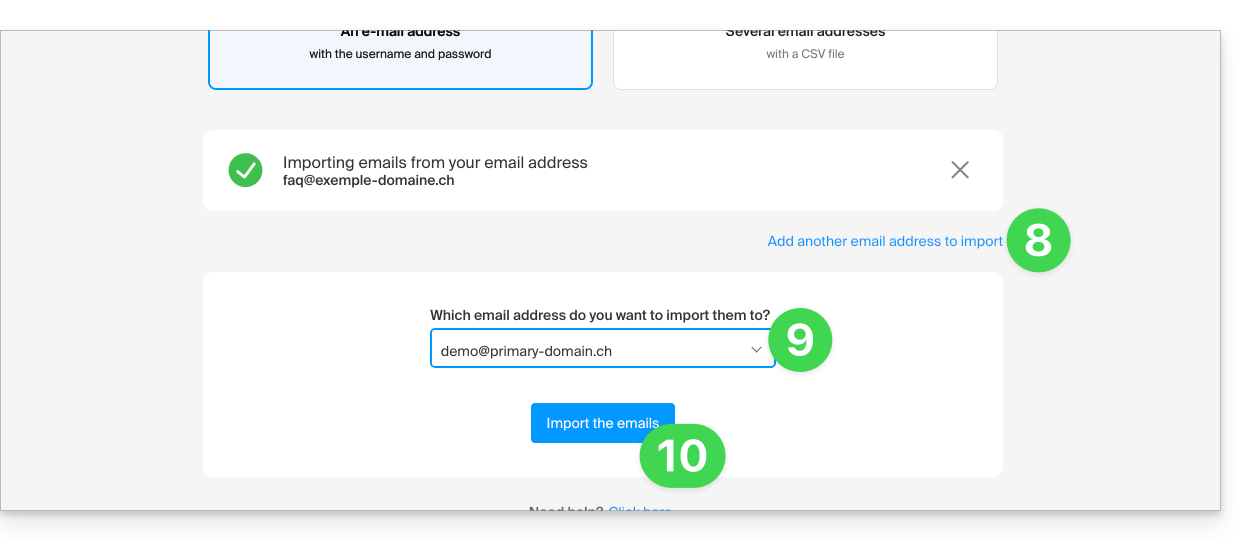
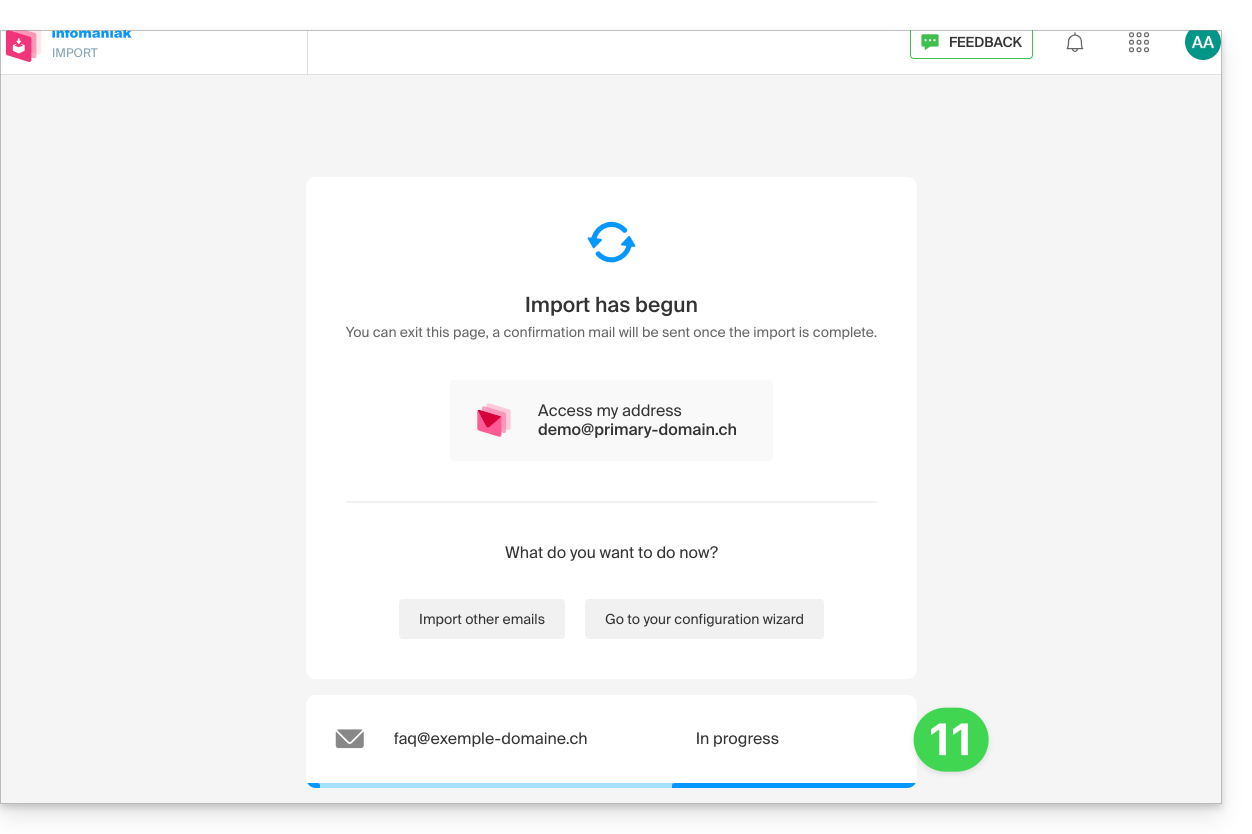
- The copy process begins. You can wait and see the result on the page once the import is complete, or close the window (the import continues in the background, and progress can be tracked - see below):
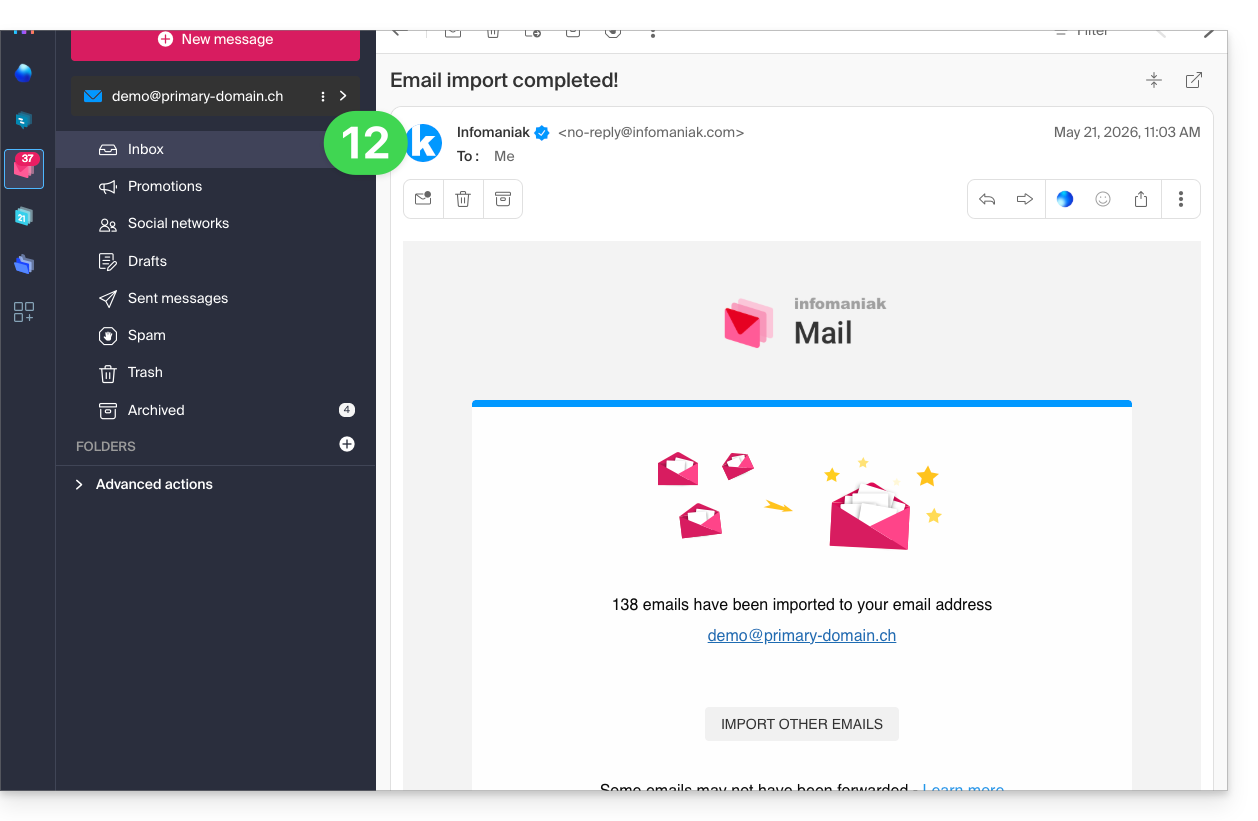
- A confirmation email will be automatically sent to all email addresses involved in the operation once the import is complete, indicating the number of messages copied:
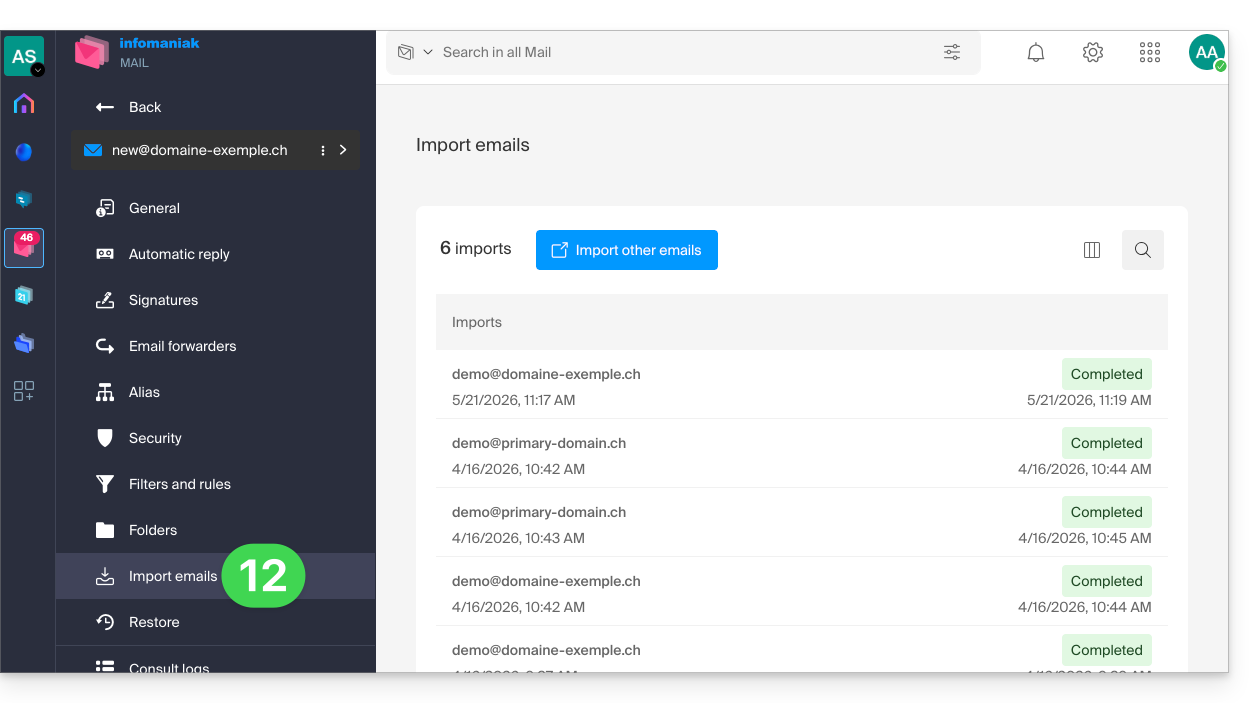
- Progress can be monitored in the settings of the destination email address, on the web app Mail (online service ksuite.infomaniak.com/mail) only:
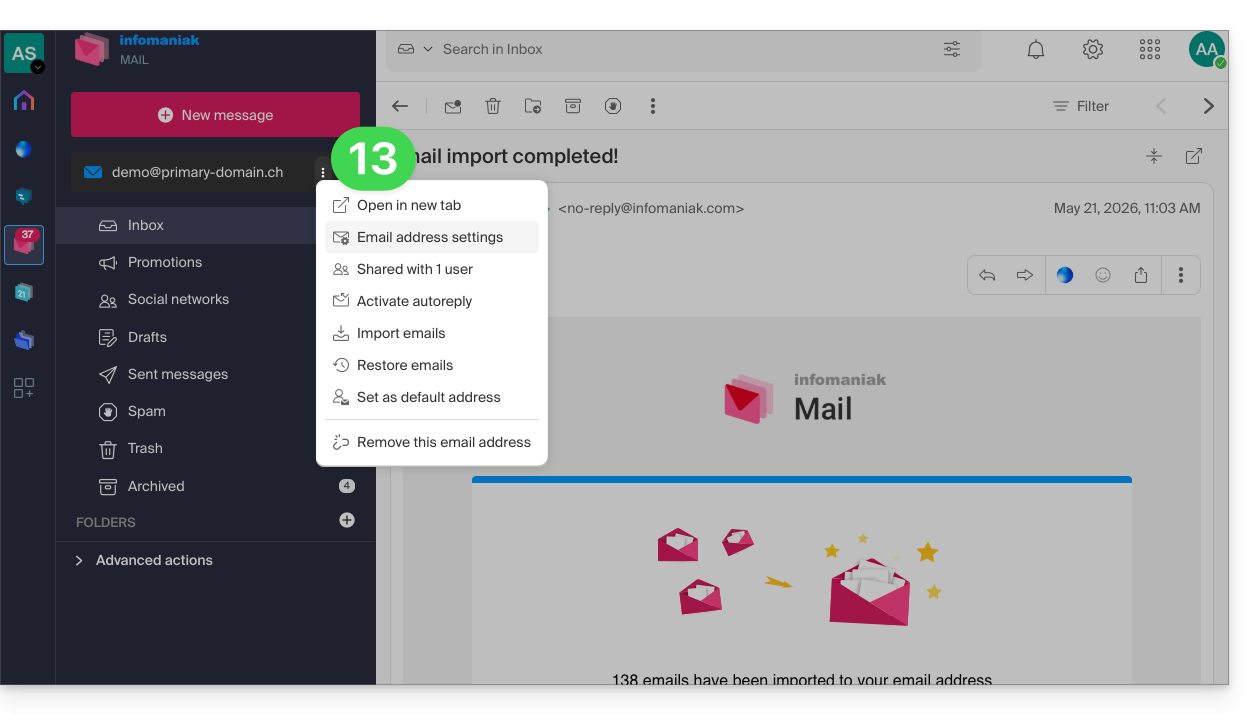
- The tracking feature allows you to view the import history for the address in question:
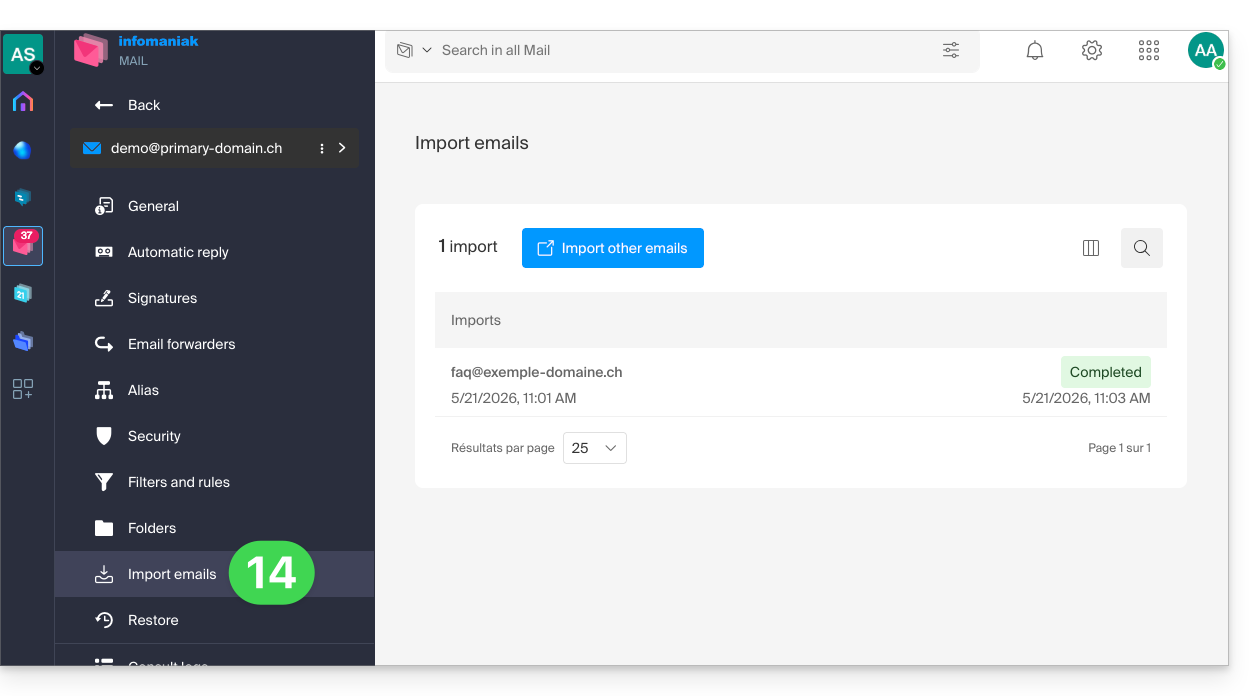
Copy the content from multiple Infomaniak addresses in bulk
Prerequisites
- Add a device password to each Infomaniak source address (the ones from which the content needs to be retrieved).
- The password for logging in to the Infomaniak account with the same name is not the one expected.
- You need a password specific to each email address = one device password per address.
- The destination email addresses must be linked to the user (= the Infomaniak account) you are using.
To import the content of multiple Infomaniak email addresses (maximum 25 at a time) to one or more destination email addresses:
- Click here to access the import tool (online service https://import-email.infomaniak.com).
- If necessary, log in to your Infomaniak account for the relevant organisation; the import will be done to one of the email addresses associated with the Infomaniak Mail web interface (online service ksuite.infomaniak.com/mail) of the Infomaniak account you are using.
- Click on IMAP import.
- Click on advanced mode: Import multiple email addresses from a CSV file (
.csvformat). - Download the example
CSVtemplate: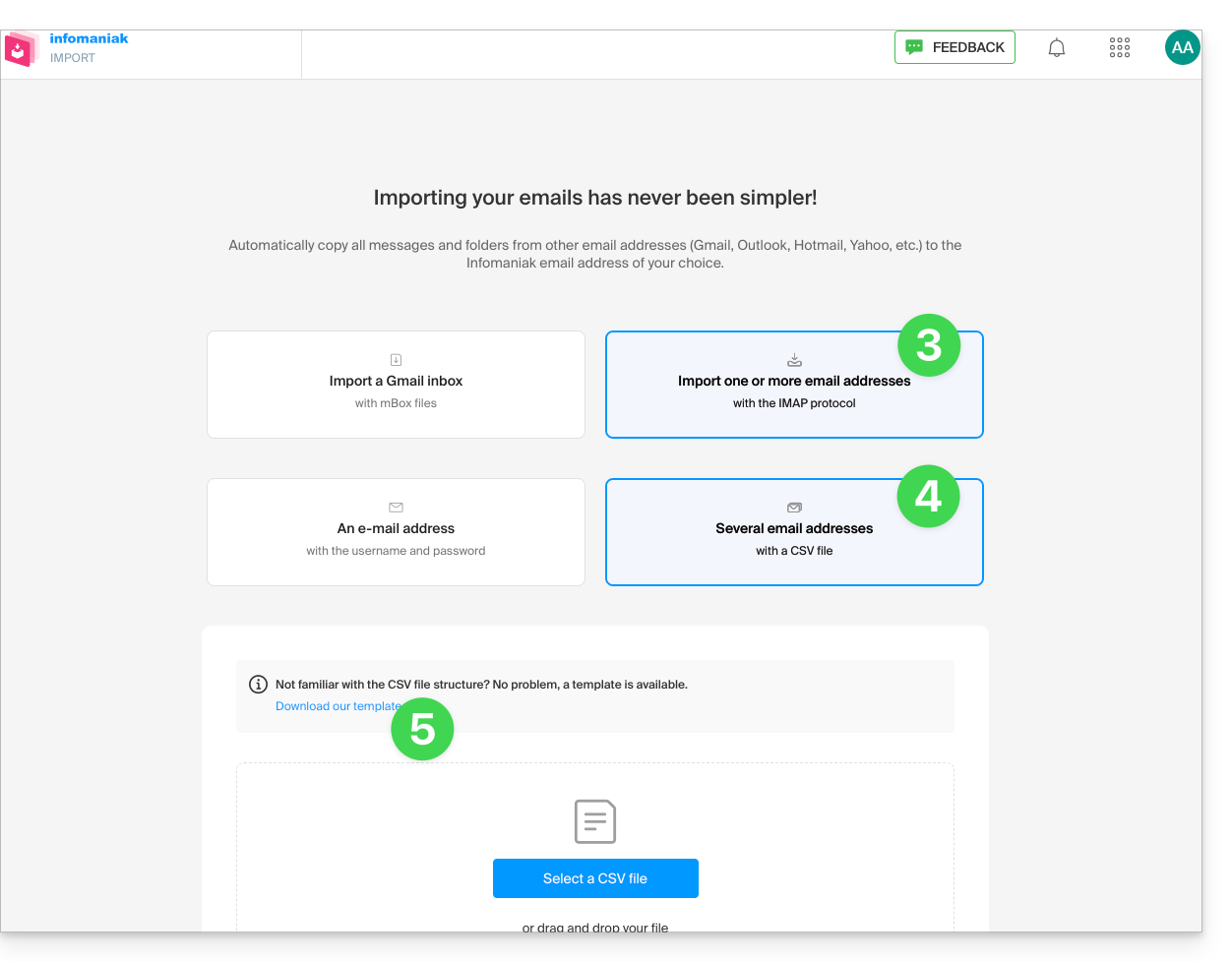
- The template has this format:
source-email@domain.com;sourcePassword;imap.source-host.com;sourcePort(993);sourceSsl(1or0);dest-email@domain.com - This means, in this case:
source email address;source email password;mail.infomaniak.com;993;1;destination email address, all without spaces (example below)
- The template has this format:
- Edit the
csvfile to create one with the correct information needed for the copy (see prerequisites):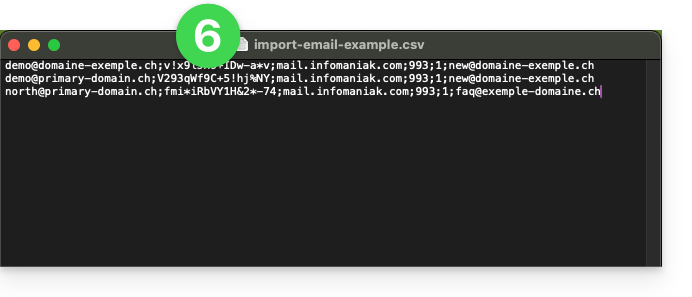
- Upload the file using the Select a CSV file button.
- Once the file has been uploaded to the tool's page, correct or ignore any errors; click on Import:
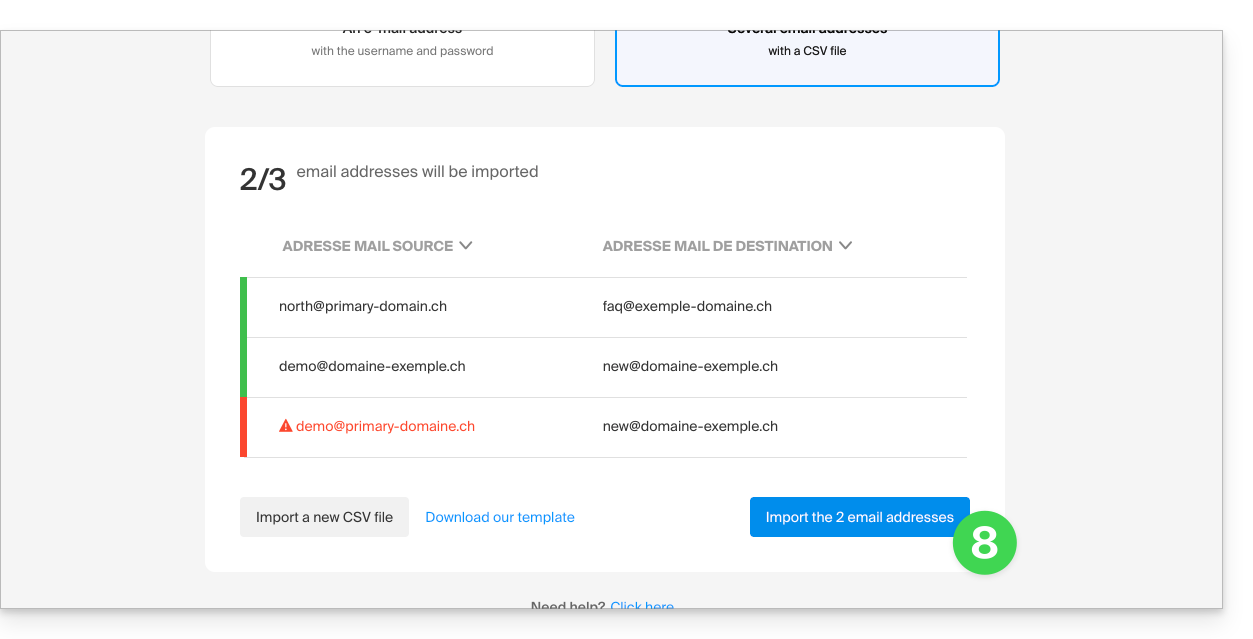
- The copy process has started. You can wait and view the result on the page once the import is complete, or close the window (the import will continue in the background, and you can track its progress - see below).
- A confirmation email will be automatically sent to all email addresses involved in the operation once the import is complete, indicating the number of messages copied.
- Tracking is available in the settings for the destination email addresses, on the web app Mail (online service ksuite.infomaniak.com/mail) only.
- Tracking allows you to view the import history:
Link to this FAQ: https://faq.infomaniak.com/2826
Has this FAQ been helpful?
This guide explains how to start an audio or video conversation between one or more users using kChat, Infomaniak's ethical and free video conferencing solution, kMeet.
Introduction
- The call feature in kChat is available on all Web (browser), mobile (iOS/Android), and desktop (macOS/Windows) versions.
Create a meeting between kChat users
To be able to chat in a virtual room using your device's microphone and webcam, simply press the Call button visible in any kChat conversation, private or public channel, via the application or directly in the browser: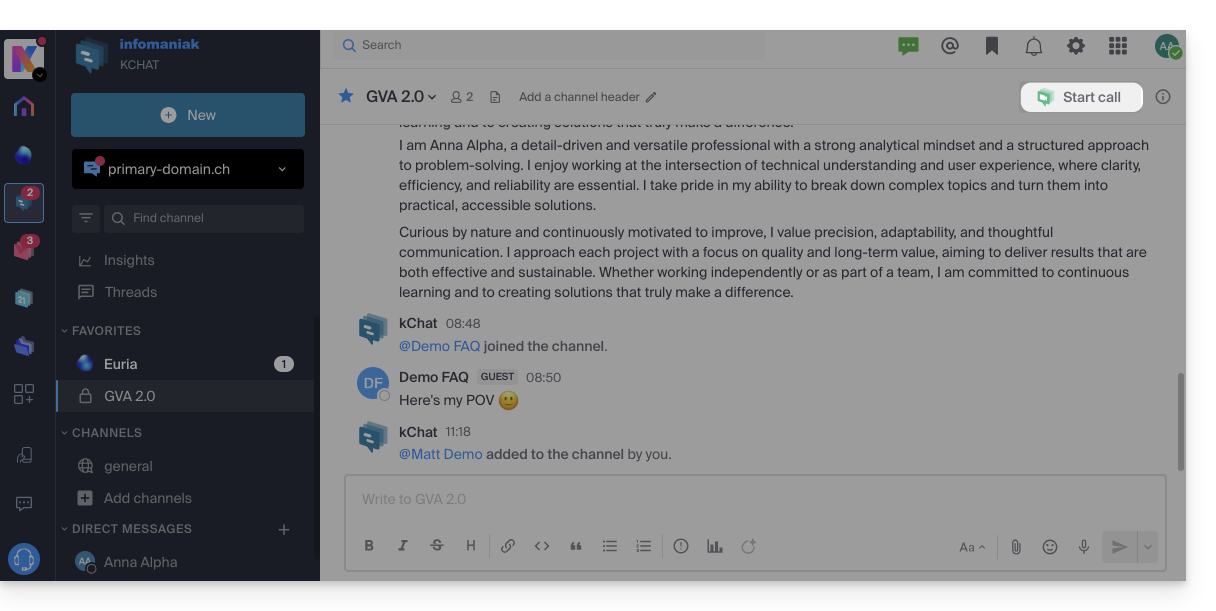
- Call a user directly if you are in a direct conversation with them, or start a call to all members of a channel if you start the meeting from the channel.
- Calling a user who is in “Do Not Disturb” mode will not trigger a ringtone or call notification on their device, but they will see the message in the conversation.
- The microphone is enabled by default when the call is answered, but the camera is not.
- View the meeting participants (who accepted, declined, or missed it) using avatars in the kChat message.
- Once the call has started, an emoji will appear in your kChat status to indicate that you are busy with the conversation.
- A message sent from the video conference (kMeet) will also be visible in the kChat conversation (and vice versa).
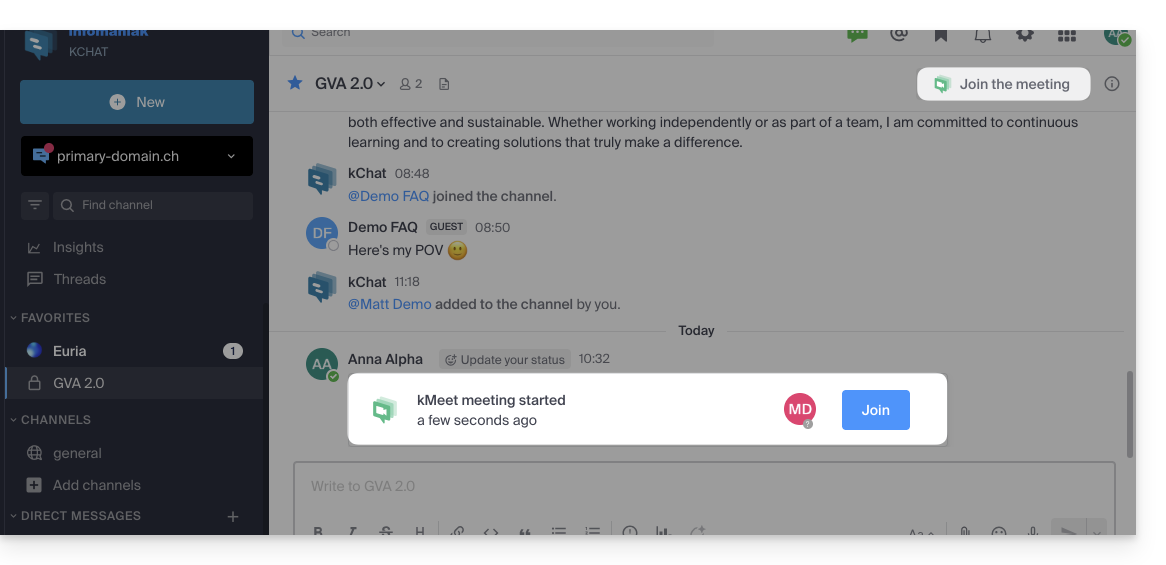
- Notifications regarding the start and end of the meeting are displayed automatically in the relevant kChat conversation thread:
Specifics for calls within channels
- The call will not ring for the call recipients, but they will see a message in kChat as well as a notification.
- A message (as a warning) will appear if you want to start a call in a channel with more than 7 users.
Refer to this other guide if you are looking for information about kMeet.
Link to this FAQ: https://faq.infomaniak.com/2827
Has this FAQ been helpful?
This guide will quickly introduce you to the essential functions of Euria, the artificial intelligence available to you within kSuite, which is particularly effective as a conversational agent on the kChat app.
Introduction
- Euria can help you perform all kinds of calculations, translations, provide information on various topics, and answer your questions.
- Please read this other guide about the model used and the responsibilities of each party.
- When a new user is added, they receive a message from Euria welcoming them.
- Please read this other guide about the possibilities of AI-powered summaries on kChat.
Add Euria to your kChat contacts
The bots currently available on kChat are already part of your contacts.
If you don't see them yet, click in the left-hand menu of kChat…
- … on the channel search (bots also appear as channels)
- … or on the + icon next to Direct Messages to search for the bot
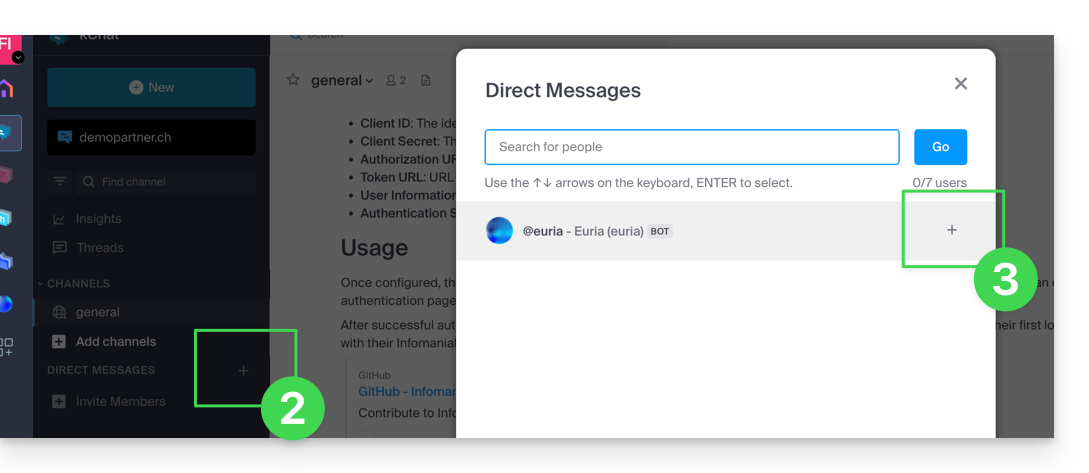
- Add the bots that are identified as such with the [bot] label, or search for the term bot or chat.
Do not create a group conversation between the bots and yourself, as this will not work. You need to create a private chat channel between each bot individually and yourself.
Simply write to it as if you were conversing with an acquaintance: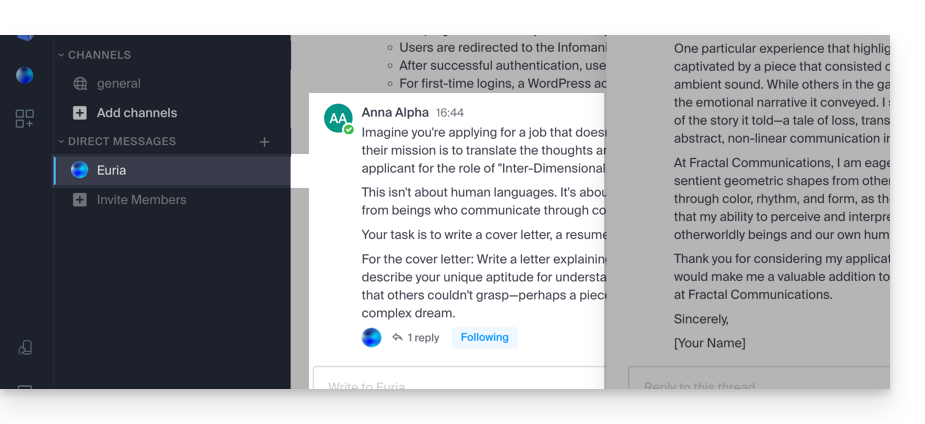
Link to this FAQ: https://faq.infomaniak.com/2840
Has this FAQ been helpful?
This guide explains how to add a completely external user to kChat.
Introduction
- A kChat administrator can invite a completely external user to your Organization who will not be counted as a user.
- However, this user will be invited to create an Infomaniak account if they do not already have one.
- To add a kChat user and grant them more permissions (they will be counted as a kSuite user), please refer to this other guide.
Invite a user to chat in a private channel
Prerequisites
- You must be a kChat administrator:
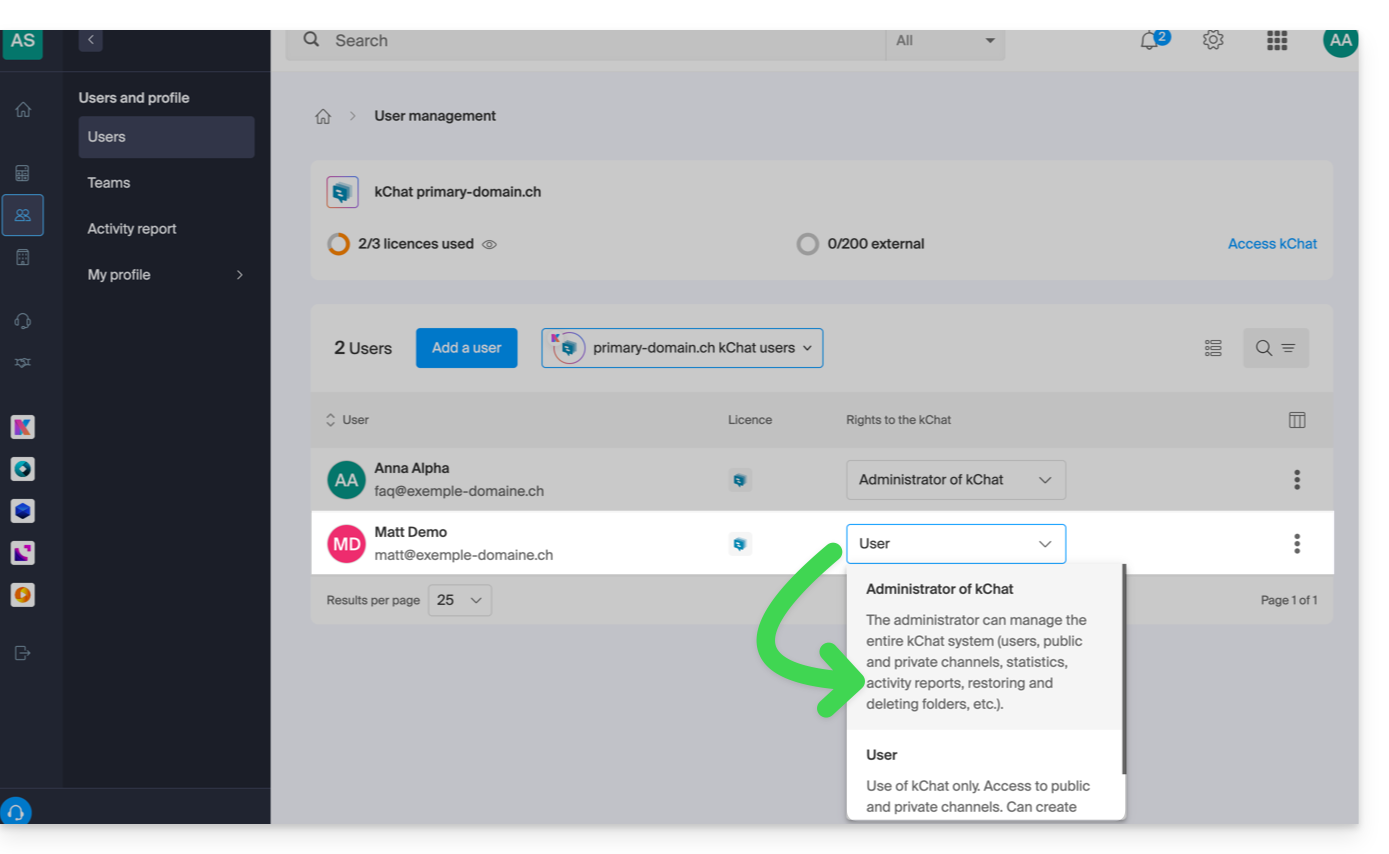
- The role within the Organization is irrelevant; being an Organization administrator in the Organization that contains the kSuite (and therefore kChat) is not required, and is not sufficient in any case:
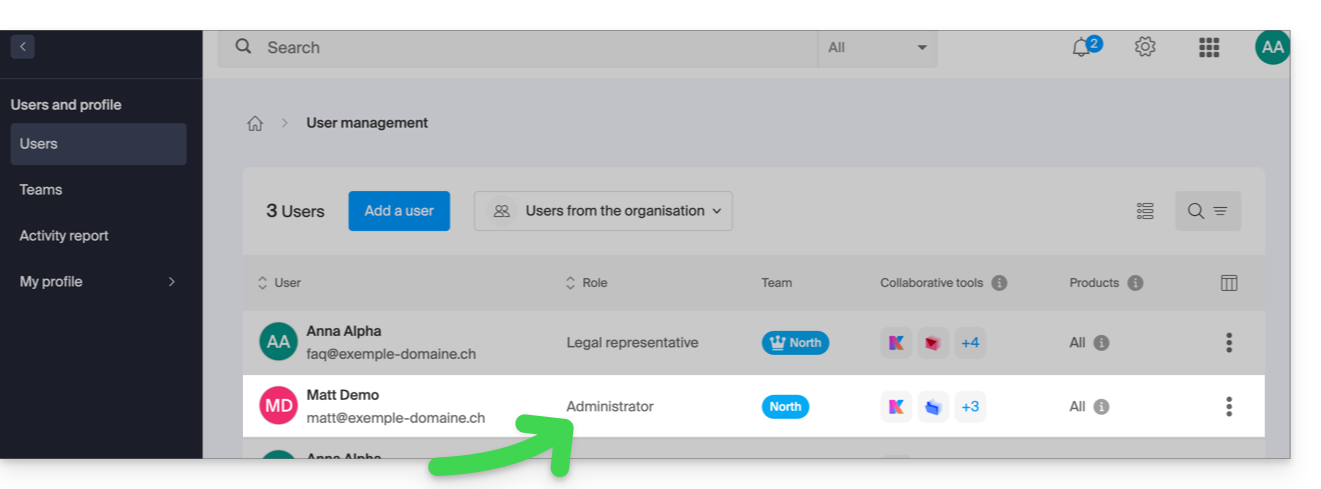
- The role within the Organization is irrelevant; being an Organization administrator in the Organization that contains the kSuite (and therefore kChat) is not required, and is not sufficient in any case:
Next, to send an invitation by email from kChat:
- Click here to access the kChat web app (online service ksuite.infomaniak.com/kchat) or open the kChat desktop app (desktop application on macOS / Windows / Linux).
- Click the button to Invite members:
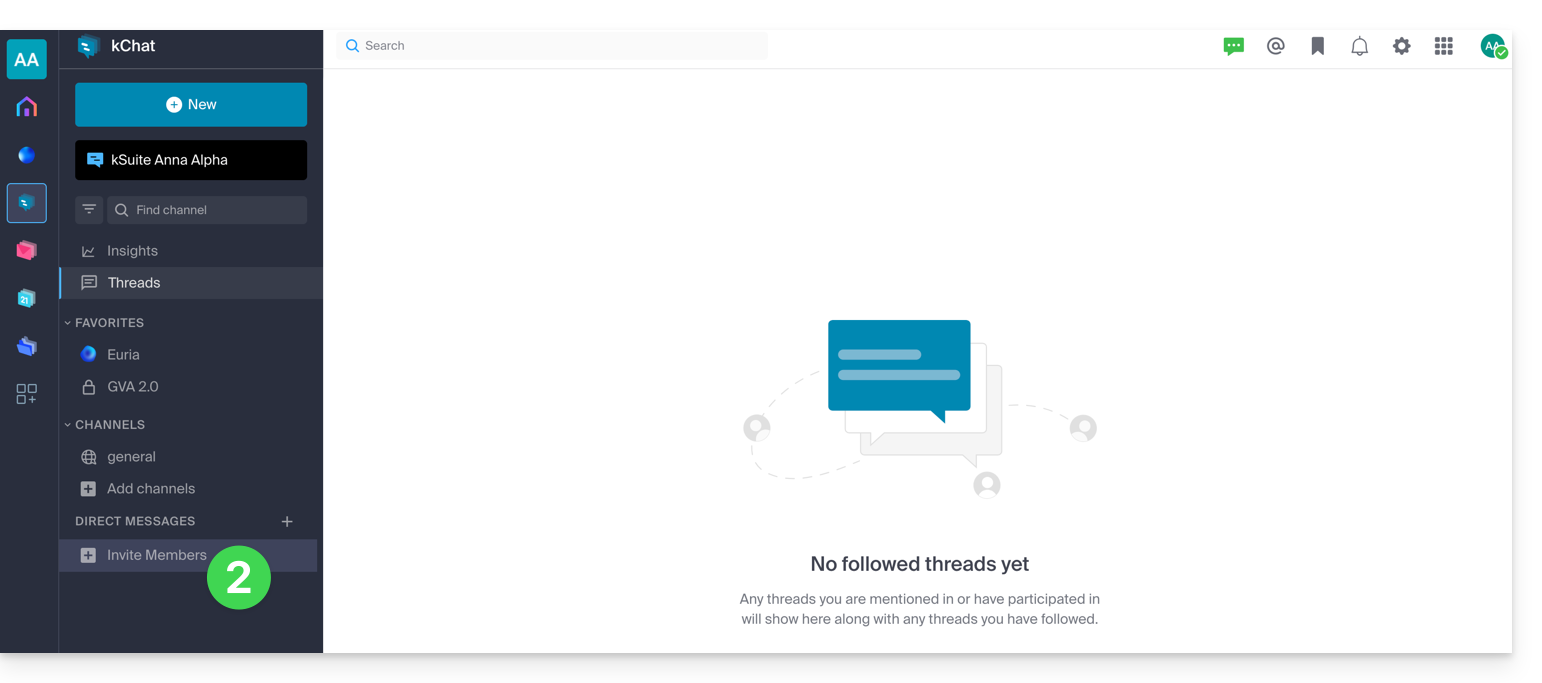
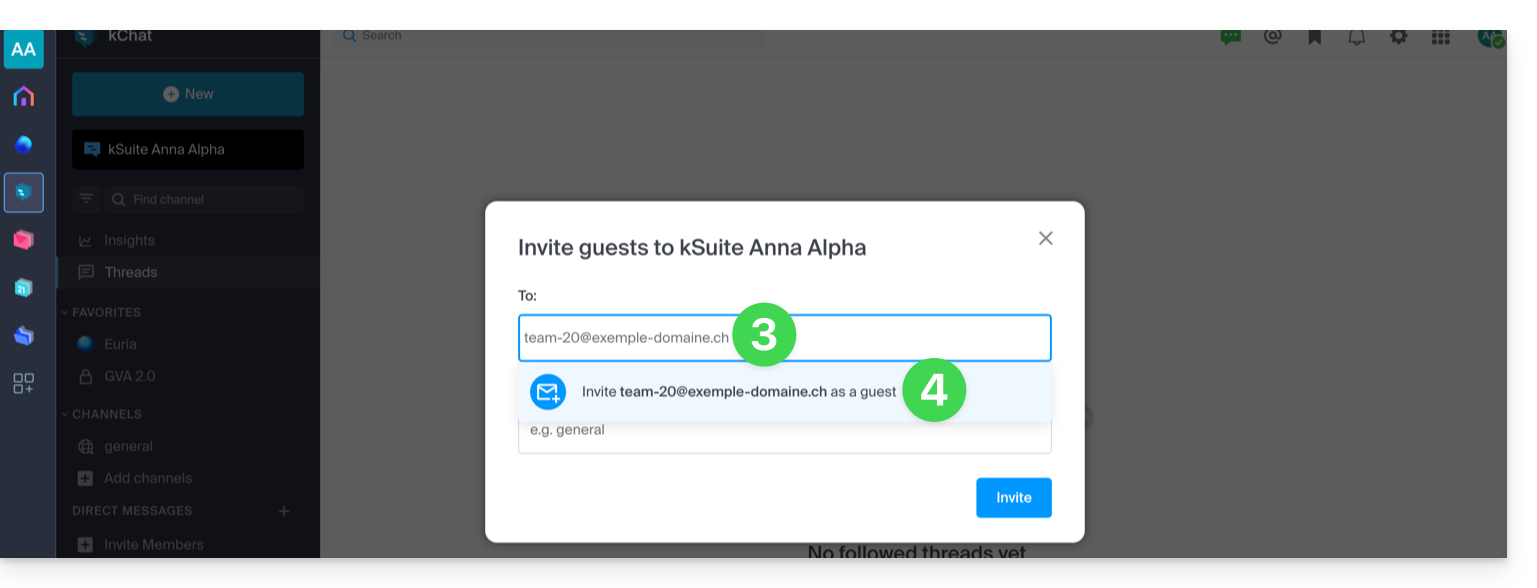
- Enter the email address of the person you want to invite.
- Click on their email address to add them as a guest:
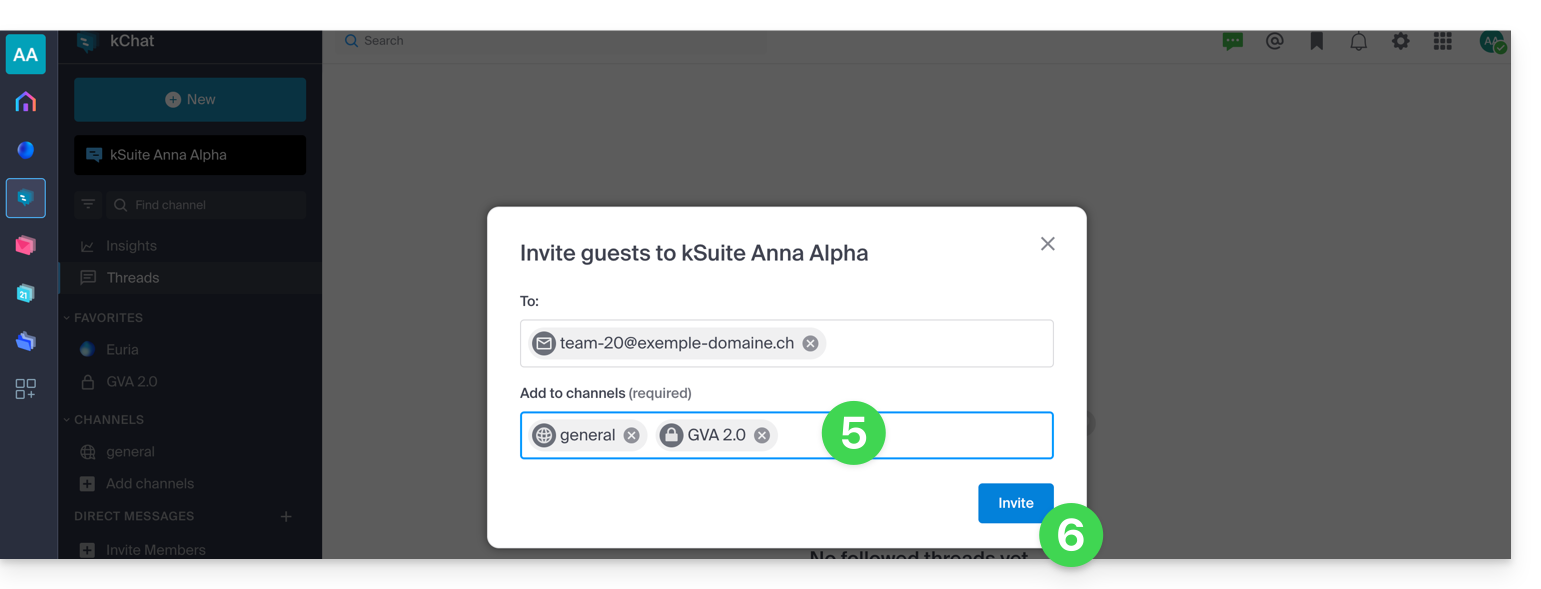
- Specify the channel(s) these people will have access to.
- Click the blue button to send the invitation:
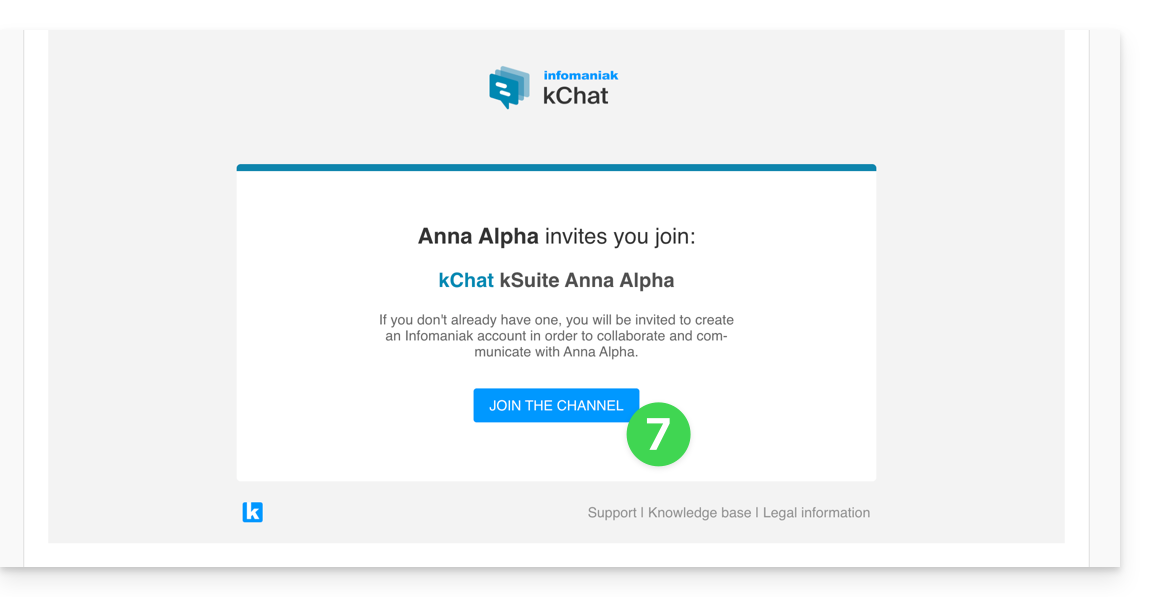
- The invited person receives an email with a link leading to the kChat interface and the channel shared with them:
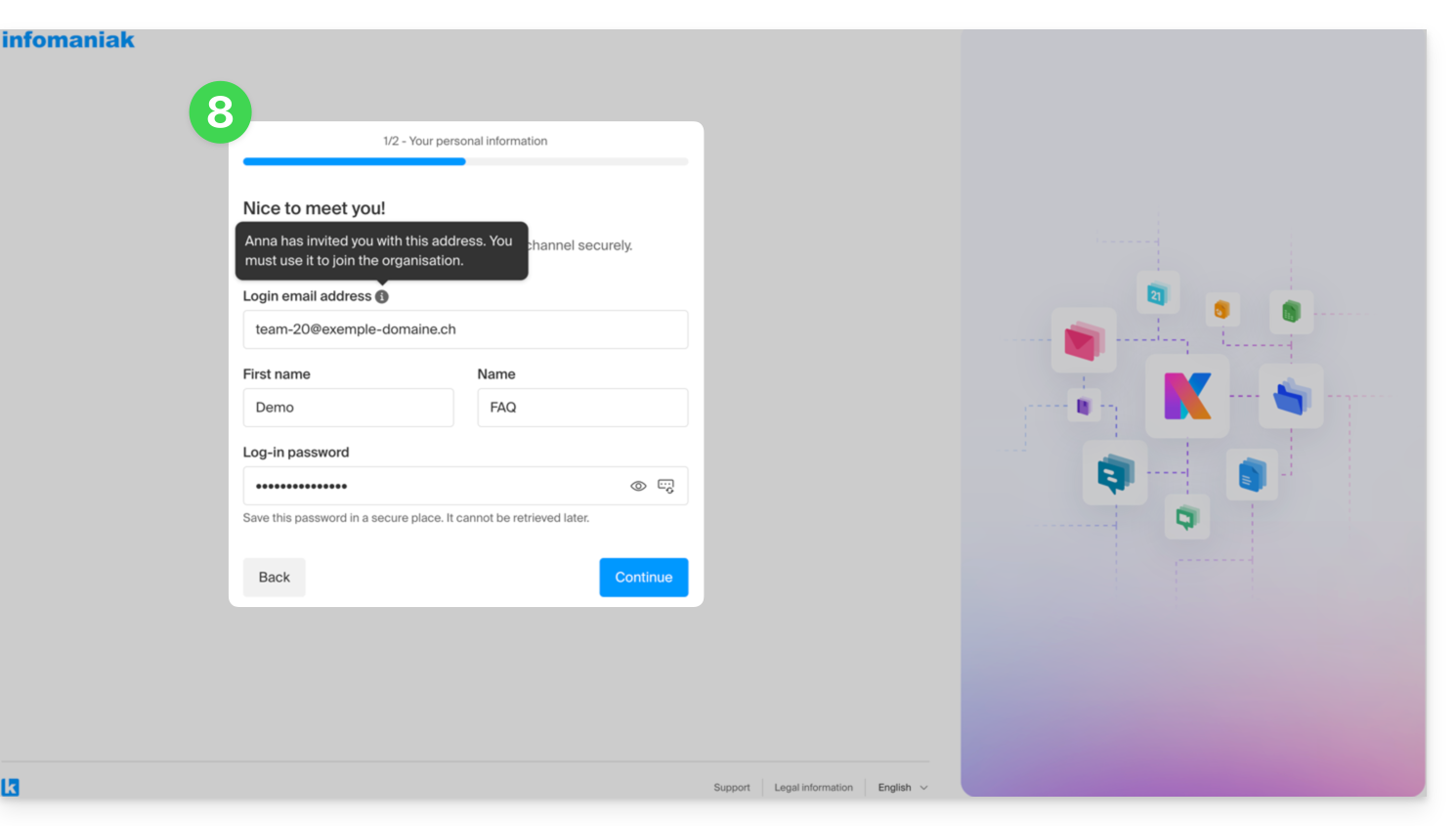
- Of course, there is a registration phase if the user does not yet have an Infomaniak account (during this time, the invited user is listed as pending on the kChat channel in question):
- Note that the user will not be listed as pending within kSuite or elsewhere because they are a restricted, external user; and until the registration is complete, the quota remains at 0 external users:
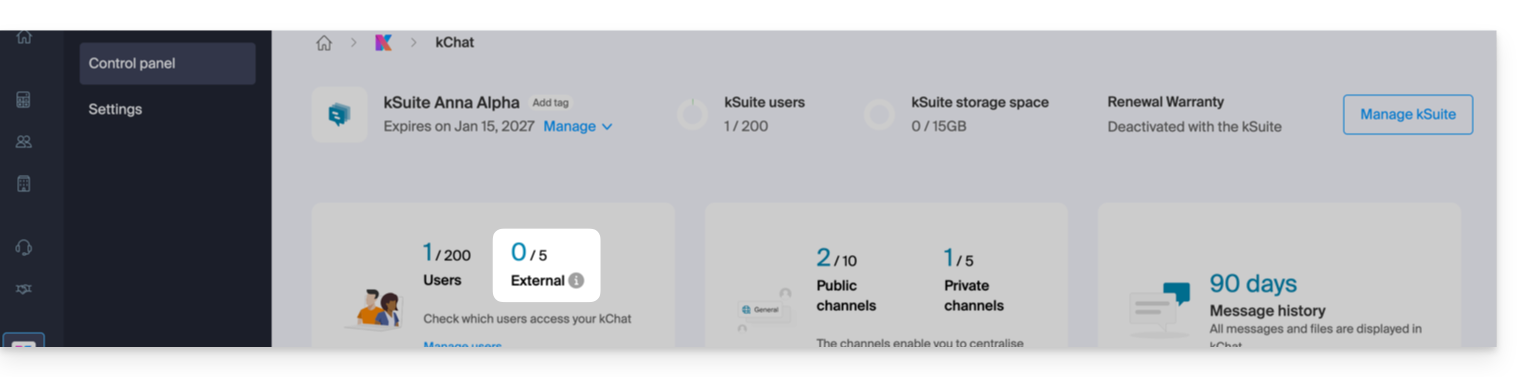
- Note that the user will not be listed as pending within kSuite or elsewhere because they are a restricted, external user; and until the registration is complete, the quota remains at 0 external users:
- Once the registration is complete, the guest can access kChat, a restricted version limited to the channels specified by the administrator when creating the invitation:
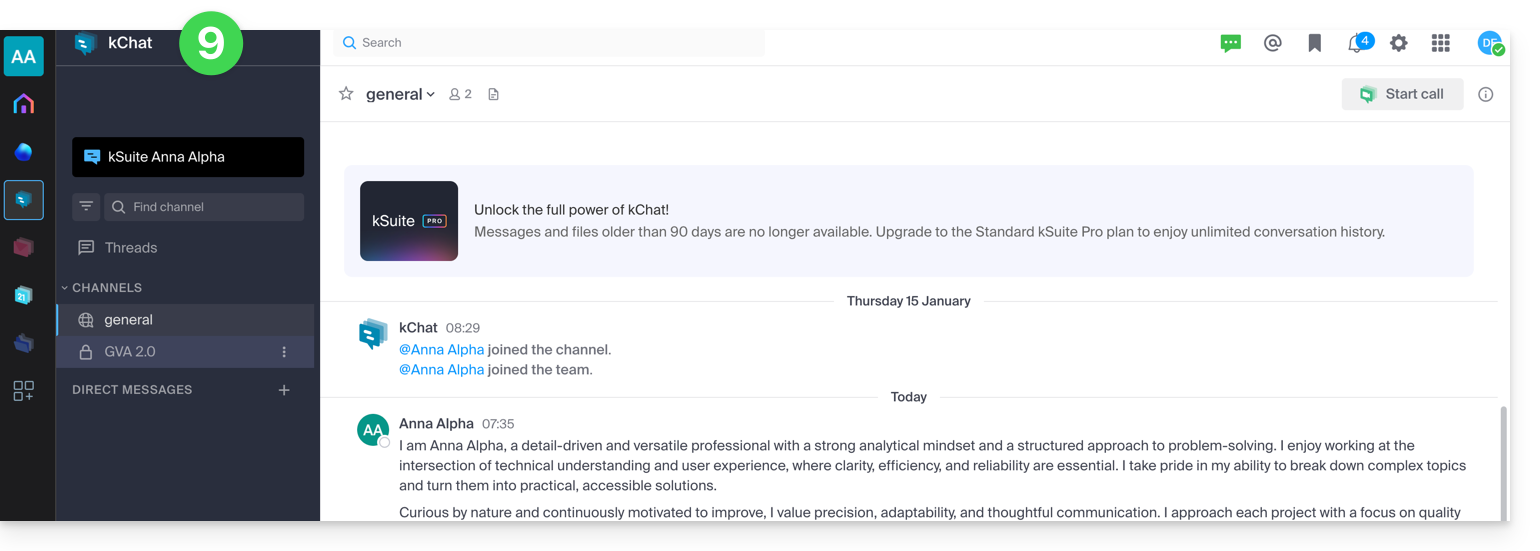
- He can start a private conversation with other users:
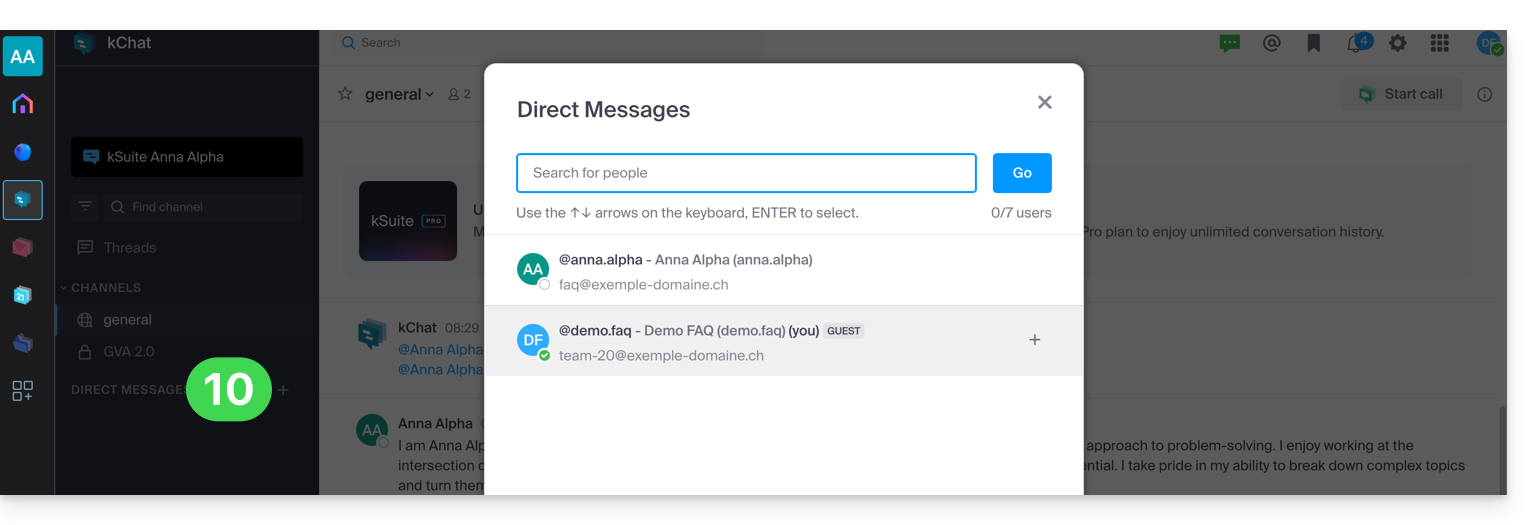
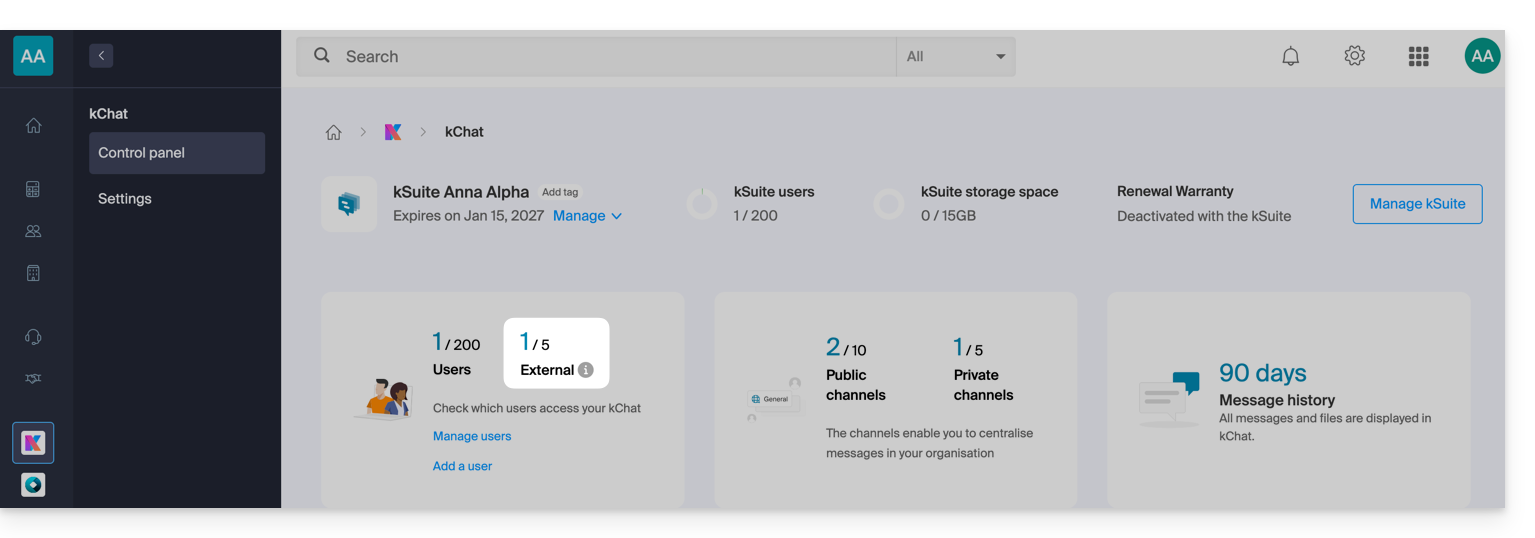
- From the administrator account, once the external user's registration is complete, you will see a notification of 1 external user on your dashboard:
- And now you can see on kChat that the user has access to your private channel:
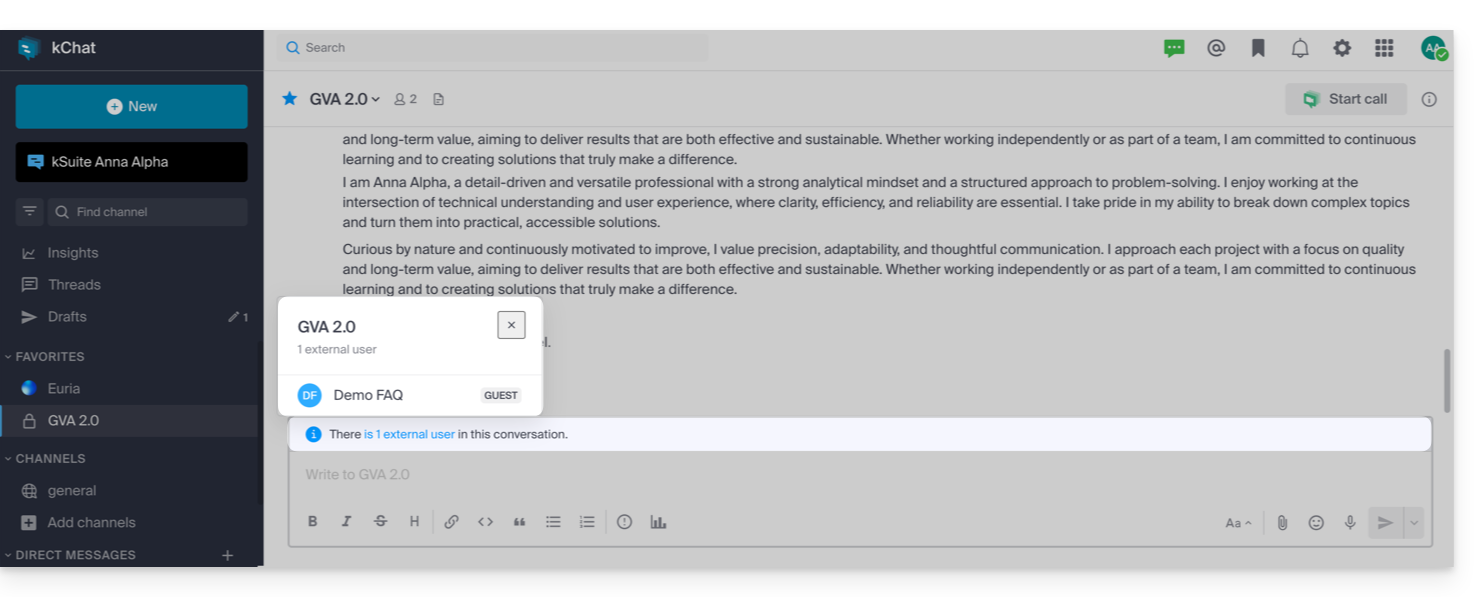
- From the administrator account, once the external user's registration is complete, you will see a notification of 1 external user on your dashboard:
Permissions for the guest user
Guests can…
- … pin messages to channels
- … use "slash commands" (with the exception of restricted commands such as inviting members, renaming channels, modifying headers, etc.)
- … mark a channel as favorite
- … mute a channel
- … update their profile
- … use different authentication methods than other users
- … use the kChat application: the guest can open the app (web, mobile, or desktop) whether they are already a member of a kChat or not; this operating principle is different from kDrive, for example.
Guests cannot…
- … discover public channels
- … join open groups
- … create direct messages or group messages with members who are not part of the same channel
- … invite people
In case of a problem
If you are an administrator of the Organization, but you still cannot invite a new user to kChat, check that you are indeed an administrator within kChat, as it is quite possible to be a simple user/collaborator, even if you are the only user with a license on kSuite, for example:
- Click here to access the management of the Organization's users in the Infomaniak Manager (need help?).
- Click on your username:
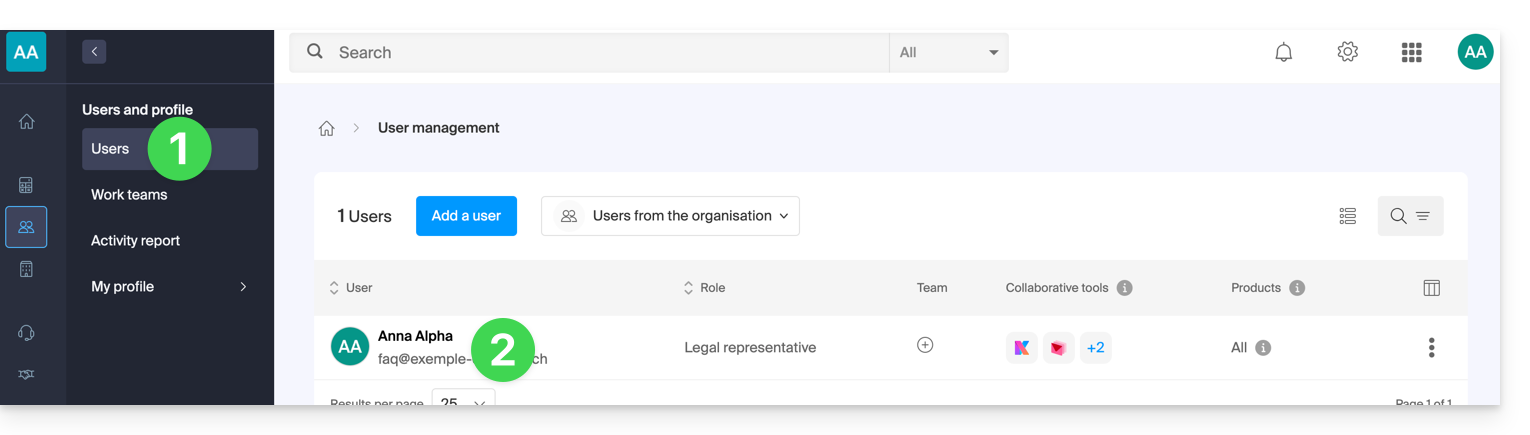
- Click on the chevron to expand the kSuite collaboration tools:
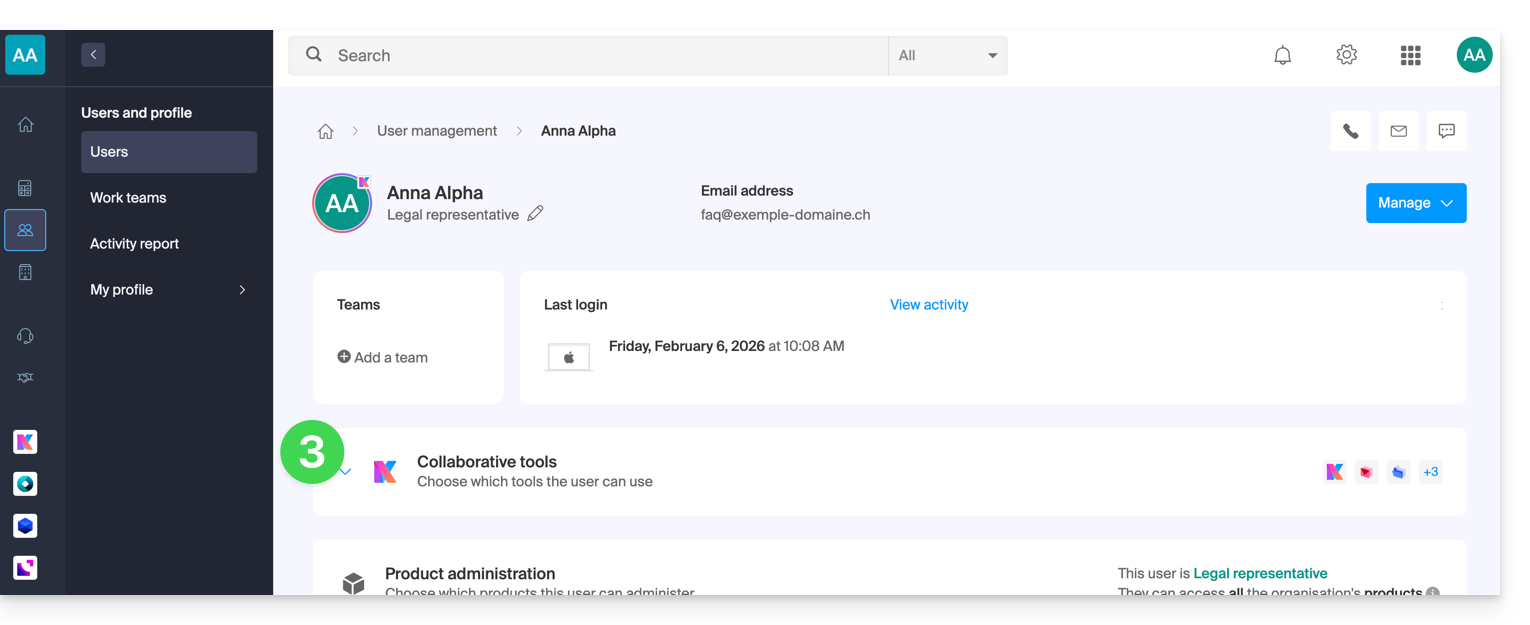
- Under kChat, change the role from user to administrator:
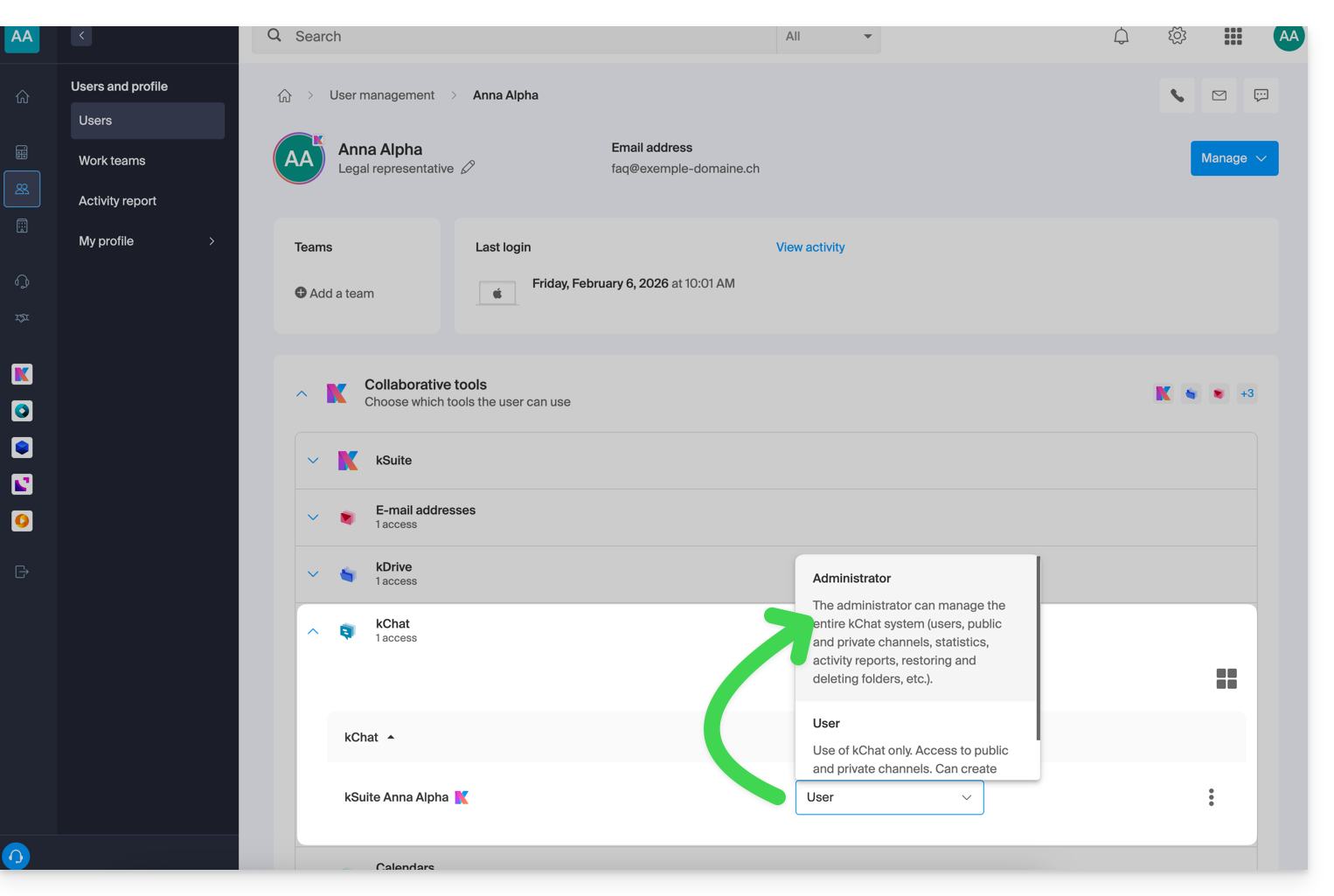
Link to this FAQ: https://faq.infomaniak.com/2846
Has this FAQ been helpful?
Infomaniak tools, such as the Web Mail app (online service ksuite.infomaniak.com/mail) or the Calendar, Contacts, kSuite interfaces, can be displayed in light mode or dark mode, including based on the settings of your current operating system:

Enable manual mode
To manually choose a dark or light display, without relying on a potentially different display setting on the operating system:
- Click here (or on the badge with your initials / avatar in the top right corner of the Infomaniak Manager) to "Manage my account":
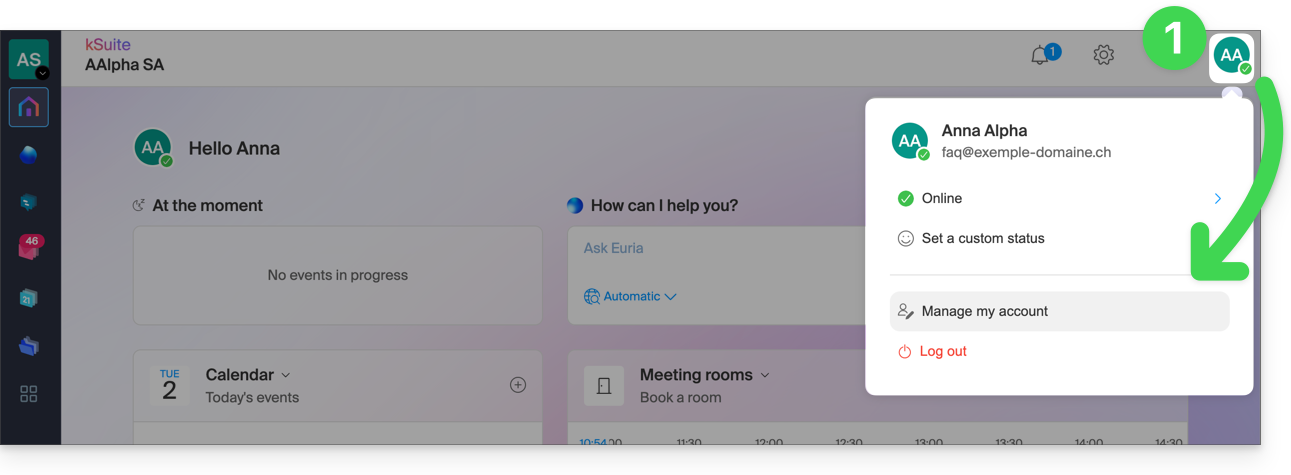
- Then, click on Appearance in the left-hand menu.
- Click on Light to apply the light mode:
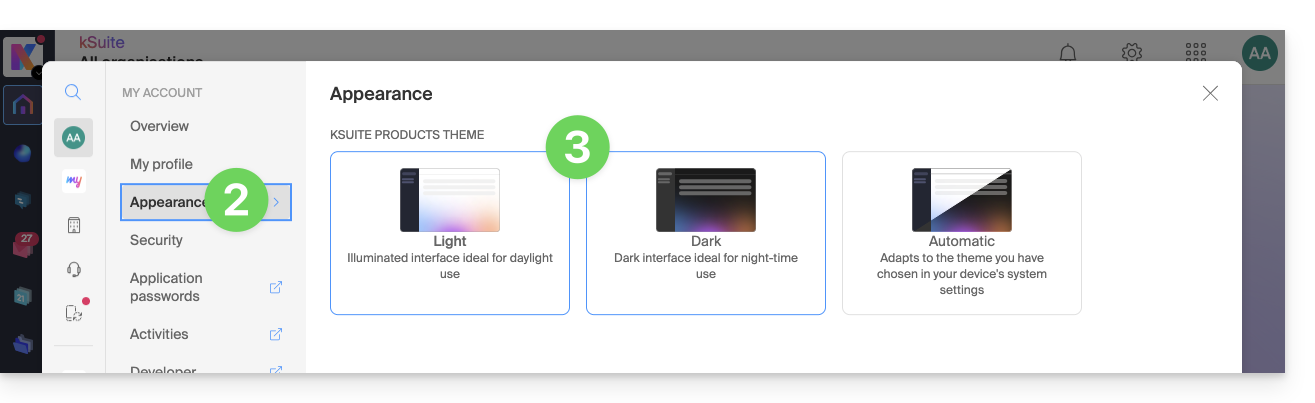
- Click on Dark to enable dark mode.
Enable automatic mode
Automatic mode is based on your operating system settings (macOS / Windows...):
- Click here or on the badge with your initials / avatar in the top right corner of the Infomaniak Manager to "Manage my account":
- Click on Appearance in the left-hand menu.
- Click on Automatic mode:
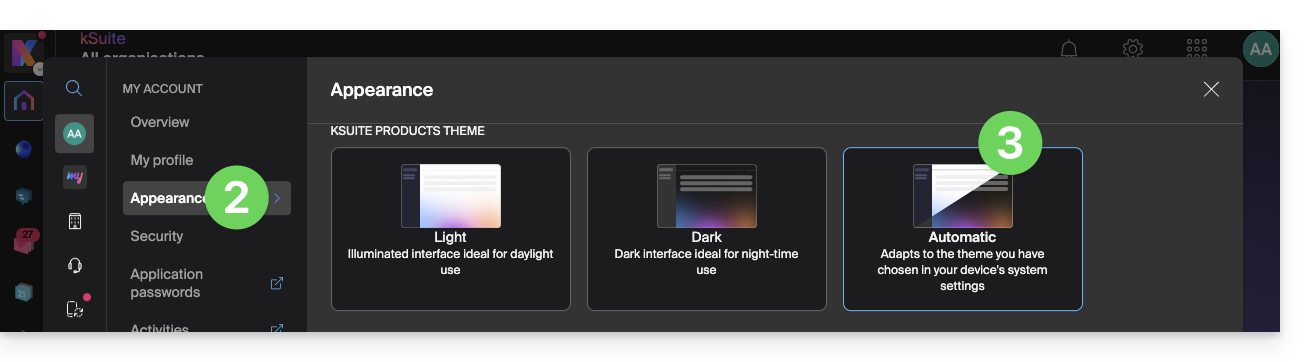
Then, if you want to change the light or dark theme on your computer, so that the automatic mode in the Manager takes your preferences into account…
… on macOS
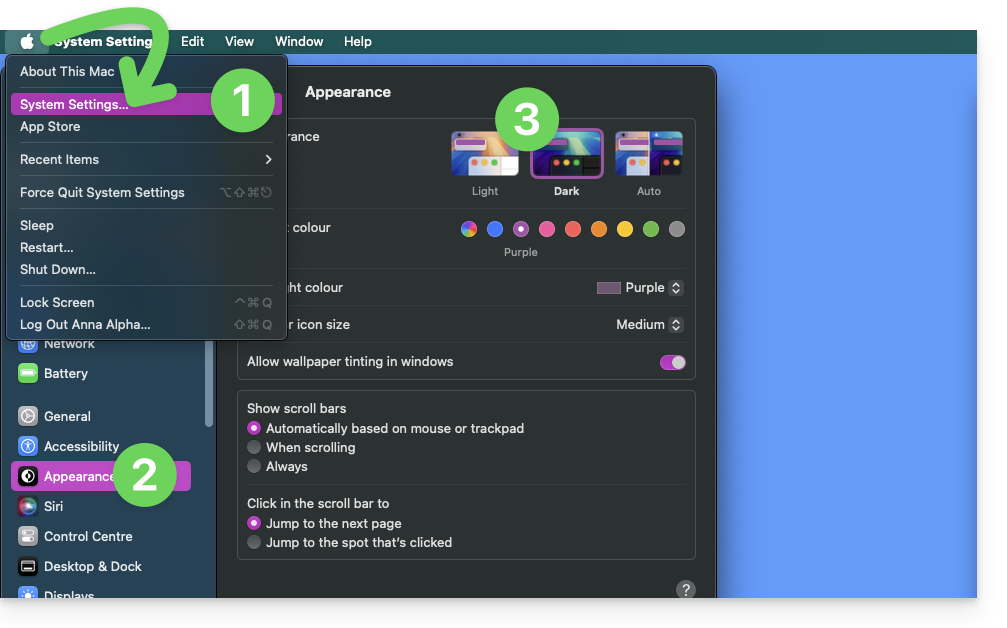
- Click on System Preferences…
- Click on Appearance.
- Choose the desired mode on the right:
… on Windows
- In the Start menu, open Settings > Personalization.
- Select Colors, then Choose your mode:
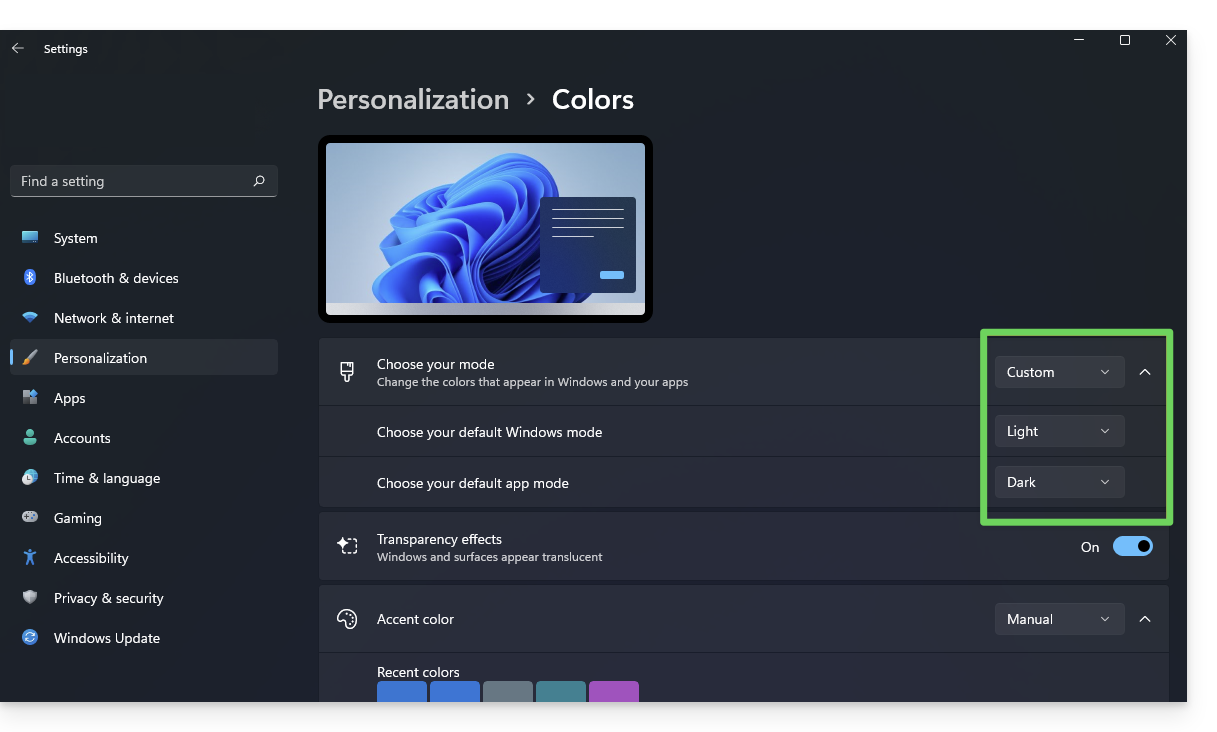
- You can choose between Light, Dark, or Custom.
- If you select Custom, you will have the option to choose a default Windows mode and a different default application mode.
And on mobile?
Dark mode is enabled on mobile devices for Infomaniak login and account creation pages; it automatically adapts to the mobile system's preferences, providing a consistent visual experience between mobile apps and login/account creation.
Link to this FAQ: https://faq.infomaniak.com/2870
Has this FAQ been helpful?