Knowledge base
1000 FAQs, 500 tutorials and instructional videos. Here, there are only solutions!
This guide explains how to import data from iCloud Drive or iCloud Photos to kDrive Infomaniak using rclone.
✘ UNAVAILABLE with
kSuite Free / kSuite Standard
my kSuite / my kSuite+ (ik.me, etik.com, ikmail.com)
Introduction
- This method is intended for experienced users who want to transfer iCloud data to kDrive without manually copying files one by one.
- rclone allows you to configure an iCloud Drive or iCloud Photos source, and then a kDrive destination via WebDAV.
- Accessing iCloud with rclone requires the usual Apple ID password and two-factor Apple authentication. Apple application passwords are not accepted for this configuration.
- iCloud authentication may need to be renewed periodically using
rclone reconnectorrclone config. - The
rclone copycommand copies files to kDrive without deleting them from the source iCloud.
1. Install rclone
rclone can be installed via the command line. On macOS, Linux, or BSD, open the Terminal application and run the following command:
sudo -v ; curl
{{URL_1}} | sudo bash
If necessary, consult the official rclone installation guide, especially for Windows or for a manual installation.
Once the installation is complete, verify that rclone is responding correctly:
rclone version
2. Configure the iCloud source in rclone
In Terminal, start the rclone configuration:
rclone config- Choose
nto create a new remote disk. Give this source an explicit name, for example:
iCloudDrive- Choose the
iclouddrivestorage type. - To import documents stored in iCloud Drive, keep the default
driveservice. - To import items from iCloud Photos, choose the
photosservice or create a second dedicated remote drive, for exampleiCloudPhotos. - Enter your Apple ID, which is usually an email address.
- Choose to enter your own password, then enter your usual Apple ID password.
- Answer
nto advanced configuration, unless you have a specific need. - Confirm the connection from your trusted Apple device, then enter the two-factor authentication code when rclone prompts you.
- When the summary is correct, answer
yto save the configuration.
Check that the iCloud source is accessible:
rclone lsd iCloudDrive:If you have configured a dedicated source for iCloud Photos, check it as well:
rclone lsd iCloudPhotos:
3. Configure the kDrive destination in rclone
kDrive must be configured in rclone as a WebDAV storage.
Restart the configuration if you are no longer in the rclone menu:
rclone config- Choose
nto create a new remote disk. Give the destination an explicit name, for example:
kDrive- Choose the
webdavstorage type. For the URL, enter the direct WebDAV access to your kDrive:
{{URL_3}};
- Replace
ID_KDRIVEwith your kDrive ID; refer to this other guide if needed.
- Replace
- For the WebDAV provider (
vendor), chooseother. - For the user (
user), enter the email address used to log in to the Infomaniak user account. - For the password, enter:
- an application password if two-factor authentication is enabled on the Infomaniak account;
- the password for the Infomaniak user account if two-factor authentication is not enabled.
- Leave the
bearer_tokenfield blank. - Answer
nto the advanced configuration prompt, unless you have a specific need. - If the summary is correct, answer
yto save the configuration.
The resulting configuration will look like this in the rclone configuration file:
[kDrive]
type = webdav
url = {{URL_6}}
vendor = other
user = user@example.com
pass = PASSWORD_STORED_BY_RCLONE
The password displayed in the rclone configuration file is not stored in plain text when the configuration is created using rclone config. If you modify this file manually, generate the value for the pass field using the rclone obscure command.
Verify that the kDrive destination is accessible:
rclone lsd kDrive:
4. Copy data from iCloud to kDrive
Do not use sudo for the copy commands if the rclone configuration was created with your usual user session. Otherwise, rclone may look for a different configuration and fail to find the previously created access credentials.
Before launching a full copy, list the available folders on the source:
rclone lsd iCloudDrive:It is recommended to perform a test without actual transfer using --dry-run:
rclone copy iCloudDrive:
kDrive:iCloudDrive --dry-run --progress
If the result is correct, start the copy:
rclone copy iCloudDrive:
kDrive:iCloudDrive --progress --transfers 4 --checkers 8 --retries 5
--low-level-retries 10 --log-level INFO --log-file
"$HOME/Desktop/rclone-kdrive-import.log"
This command copies the folders, subfolders, and files from the source iCloudDrive: to the iCloudDrive folder in your kDrive.
If the connection or computer is interrupted, restart the same command. rclone will resume the comparison and avoid copying files that are already present when their size and available information match.
To verify the consistency of the copied volume, you can compare the source and destination by size:
rclone check iCloudDrive:
kDrive:iCloudDrive --size-only --one-way --progress
Copy iCloud Photos
If you have configured a source dedicated to iCloud Photos, first list the available libraries and folders:
rclone lsd iCloudPhotos:Then, adjust the source path according to the directory structure displayed by rclone. Example:
rclone copy iCloudPhotos:
kDrive:iCloudPhotos --dry-run --progress
Then, start the copy if the test result is correct:
rclone copy iCloudPhotos:
kDrive:iCloudPhotos --progress --transfers 4 --checkers 8 --retries 5
--low-level-retries 10 --log-level INFO --log-file
"$HOME/Desktop/rclone-kdrive-photos.log"
5. Correct the dates of the photos if necessary
After exporting or copying photos, the system dates of the files may no longer match the original date the photos were taken. If the chronological display is not correct, you can correct the dates on a local copy of the files before sending them permanently to kDrive.
Always work on a local copy of the files before running a correction script. The script below does not run directly on a remote rclone source: it processes a folder located on your computer.
To prepare a local folder for correction, copy the photos, for example, into a temporary folder on your desktop:
rclone copy iCloudPhotos:
"$HOME/Desktop/iCloud-Photos" --progress
Next, install ExifTool from https://exiftool.org/index.html, then run the script below on macOS from the Terminal application.
The script searches for a date in the file's metadata, and then in its name. The corrected files are listed in DateFound.txt, and the files without a usable date are listed in DateError.txt, on the desktop.
The script to copy and paste:
/bin/bash <<'BASH'
#!/bin/bash
set -u
ROOT="$(osascript -e 'POSIX path of (choose folder with prompt "Select
the folder containing the files to update")')" || exit 0
DESKTOP="$HOME/Desktop"
LOG_FOUND="$DESKTOP/DateFound.txt"
LOG_ERROR="$DESKTOP/DateError.txt"
: > "$LOG_FOUND"
: > "$LOG_ERROR"
find_exiftool() {
    if command -v exiftool >/dev/null 2>&1; then
        command -v exiftool
        return 0
    fi
    if [ -x "/usr/local/bin/exiftool" ]; then
        printf '%s\n' "/usr/local/bin/exiftool"
        return 0
    fi
    if [ -x "/opt/homebrew/bin/exiftool" ]; then
        printf '%s\n' "/opt/homebrew/bin/exiftool"
        return 0
    fi
    return 1
}
EXIFTOOL="$(find_exiftool)" || {
    printf '%s\n' "ExifTool not found. Install it, then run the script
again." >> "$LOG_ERROR"
    printf '%s\n' "ExifTool not found. Check DateError.txt on the desktop."
    exit 1
}
if [ ! -d "$ROOT" ]; then
    printf 'Invalid folder: %s\n' "$ROOT" >> "$LOG_ERROR"
    printf '%s\n' "Invalid folder. Check DateError.txt on the desktop."
    exit 1
fi
get_exif_date() {
    "$EXIFTOOL" -s3 -d "%Y:%m:%d %H:%M:%S" -DateTimeOriginal
-CreateDate -MediaCreateDate -TrackCreateDate -CreationDate
-ModifyDate -- "$1" 2>/dev/null | awk '/^[0-9]{4}:[0-9]{2}:[0-9]{2}
[0-9]{2}:[0-9]{2}:[0-9]{2}/ { print substr($0, 1, 19); exit }'
}
get_name_date() {
    local name
    name="$(basename "$1")"
    if [[ "$name" =~
([12][0-9]{3})[-_]?([01][0-9])[-_]?([0-3][0-9])([_\
-]?([0-2][0-9])[-_\.]?([0-5][0-9])[-_\.]?([0-5][0-9]))? ]]; then
        local year="${BASH_REMATCH[1]}"
        local month="${BASH_REMATCH[2]}"
        local day="${BASH_REMATCH[3]}"
        local hour="12"
        local minute="00"
        local second="00"
        if [ -n "${BASH_REMATCH[5]:-}" ]; then
            hour="${BASH_REMATCH[5]}"
            minute="${BASH_REMATCH[6]}"
            second="${BASH_REMATCH[7]}"
        fi
        printf '%s:%s:%s %s:%s:%s\n' "$year" "$month" "$day" "$hour"
"$minute" "$second"
        return 0
    fi
    return 1
}
is_valid_date() {
    date -j -f "%Y:%m:%d %H:%M:%S" "$1" "+%Y:%m:%d %H:%M:%S"
 /dev/null 2>&1
 }
to_touch_date() {
    printf '%s' "$1" | sed -E 's/^([0-9]{4}):([0-9]{2}):([0-9]{2})
([0-9]{2}):([0-9]{2}):([0-9]{2})$/\1\2\3\4\5.\6/'
}
write_metadata() {
    local file="$1"
    local date_value="$2"
    "$EXIFTOOL" -overwrite_original "-DateTimeOriginal=$date_value"
"-CreateDate=$date_value" "-ModifyDate=$date_value" -- "$file"
 /dev/null 2>&1 || true
 }
process_file() {
    local file="$1"
    local date_value=""
    local source=""
    date_value="$(get_exif_date "$file")"
    if [ -n "$date_value" ]; then
        source="EXIF"
    else
        date_value="$(get_name_date "$file")"
        if [ -n "$date_value" ]; then
            source="file name"
        fi
    fi
    if [ -n "$date_value" ] && is_valid_date "$date_value"; then
        local touch_value
        touch_value="$(to_touch_date "$date_value")"
        if [ "$source" != "EXIF" ]; then
            write_metadata "$file" "$date_value"
        fi
        if touch -t "$touch_value" "$file" 2>/dev/null; then
            printf '%s | %s | %s\n' "$source" "$date_value" "$file"
  "$LOG_FOUND"
         else
            printf 'Unable to update file date: %s\n' "$file" >>
"$LOG_ERROR"
        fi
    else
        printf 'No valid date found: %s\n' "$file" >> "$LOG_ERROR"
    fi
}
while IFS= read -r -d '' file; do
    case "$file" in
        *.json|*_original) continue ;;
    esac
    process_file "$file"
done < <(find "$ROOT" -type f -print0)
printf '%s\n' "Done. Check DateFound.txt and DateError.txt on the desktop."
BASH
After correction, send the corrected local folder to kDrive:
rclone copy
"$HOME/Desktop/iCloud-Photos" kDrive:iCloudPhotos --progress
--transfers 4 --checkers 8 --retries 5 --low-level-retries
10
6. Accessing data from kDrive
Once the copy is complete, your data is accessible from the kDrive web app, the kDrive mobile apps, and devices synchronized with the kDrive desktop app.
If you are also using the kDrive desktop app, wait for the local synchronization to complete before moving or renaming the imported folders.
Link to this FAQ: https://faq.infomaniak.com/2515
Has this FAQ been helpful?
This guide explains how to create, save, and edit an Office file (text, spreadsheet, presentation, etc.) on the web app kDrive (online service ksuite.infomaniak.com/kdrive) and on the mobile app kDrive (application for smartphone or iOS/Android tablet).
Note for LibreOffice users: to avoid display or formatting issues on kDrive, always convert your LibreOffice files (ODF: .ods, .odt, .odp) to their Microsoft Office XML equivalents (.xlsx, .docx, .pptx) before editing them online.
Using the native editor
kDrive natively integrates the Docs, Grids, and Points applications, which allow you to create, edit, and collaborate online on Word .docx, Excel .xlsx, and PowerPoint .ppsx documents. This allows you to work with:
- text document
- spreadsheet
- presentation
- notes
- draw.io document for diagrams, schematics, and wireframes
A feature allows you to add a bookmark (a shortcut to your favorite section of your document, or the equivalent of a web page anchor) that you can easily share with your contacts. You can also easily notify a user in your Organization directly on the document.
Please refer to the guide on this topic.
Using Microsoft Office Online
Another editing solution is available to you (kDrive Pro or kSuite Business / Enterprise required): the Microsoft Office Online editor.
Consult the guide on this topic.
Define the default editor
✘ UNAVAILABLE with
kSuite Free / kSuite Standard
my kSuite / my kSuite+ (ik.me, etik.com, ikmail.com)
kDrive Solo / kDrive Team / kDrive Pro
To specify which editor should always be used by default to open your collaborative Office files (text documents, spreadsheets, presentations, etc.) from the two options presented above:
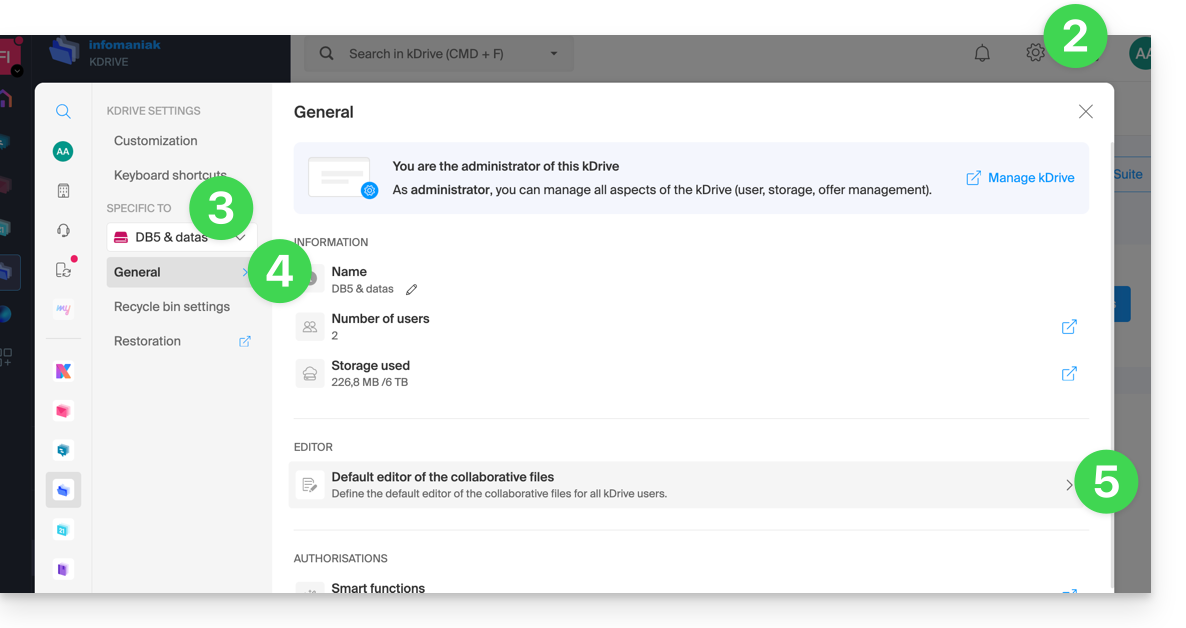
- Click here to access kDrive on your Infomaniak kSuite (❓: help).
- Click on Settings in the top right corner.
- Check or select the relevant kDrive from the dropdown menu in the left-hand menu.
- Click on General in the left-hand menu.
- Click on Default editor:
- Choose the default editor for the following file types:
.docx/.doc.xlsx/.xls.pptx/.ppt
Link to this FAQ: https://faq.infomaniak.com/2531
Has this FAQ been helpful?
This guide explains how to export your photos from Google Photos (https://photos.google.com/) and then import them into kDrive Infomaniak.
1. Exporting your Google Photos
To retrieve the photos stored in Google Photos on your computer, use Google Takeout. This service allows you to export all items or select only certain albums if you prefer to proceed in stages:
- Log in to Google Takeout.
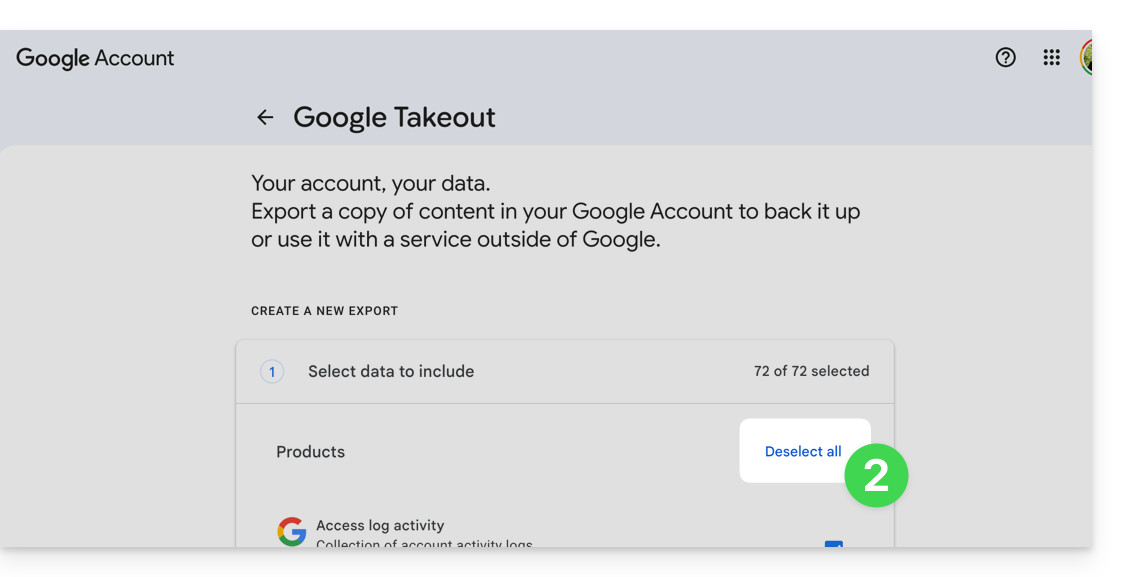
- Deselect all products to keep only Google Photos:
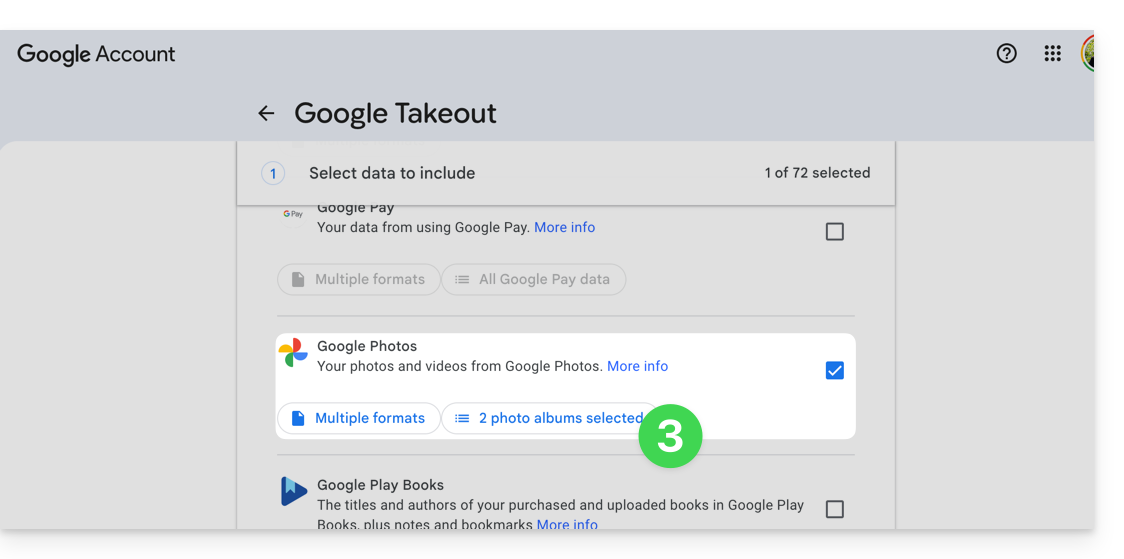
- If necessary, deselect the albums you do not want to export:
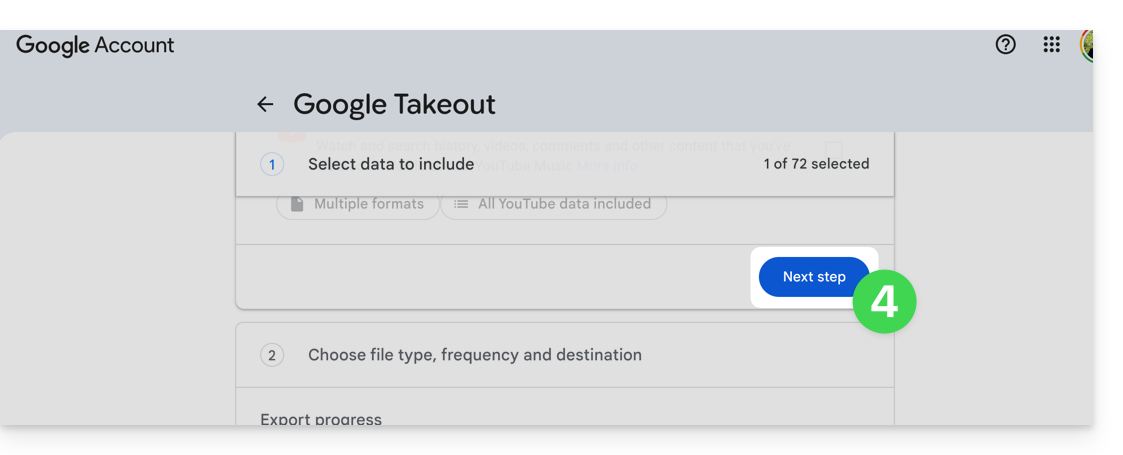
- Go to the next step at the bottom of the page:
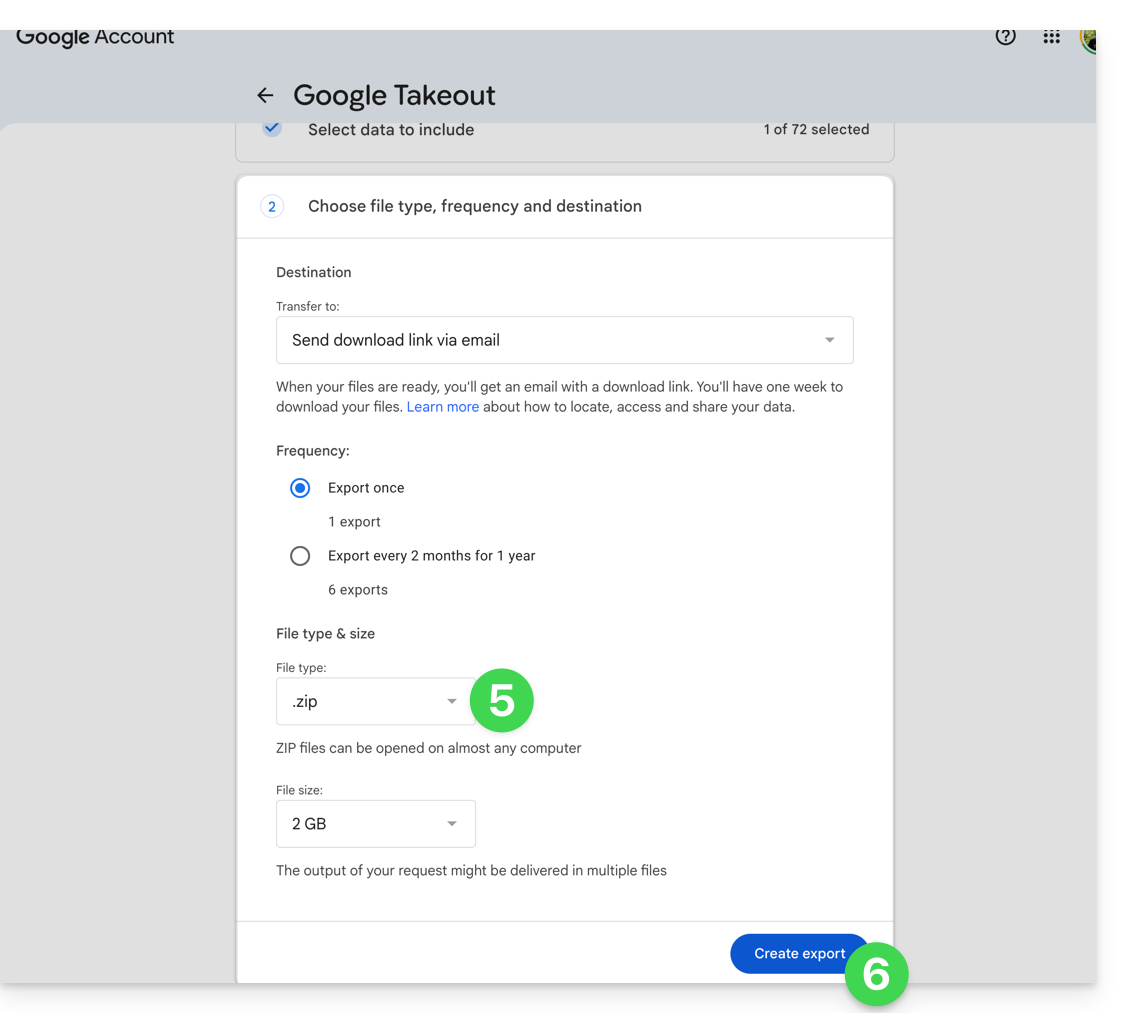
- Configure the export to ZIP format.
- Click the Create export button to start the export:
- Wait for the email containing the download links. Depending on the volume of data, preparing the export may take several hours or even days.
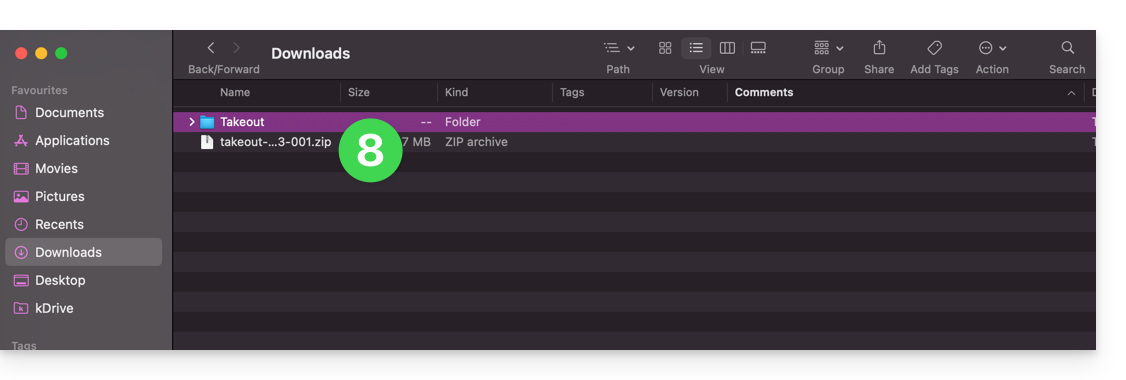
- Download the ZIP archives and then unzip them on your computer:
- If necessary, group the exported folders together before importing them into kDrive.
2. Correct the dates of the exported files
During an export, the system dates of the files may be replaced by the export date instead of the original capture date. If the chronological order of the photos is incorrect after the export, you can correct these dates before importing them into kDrive.
Before running a script, work on a copy of your exported files. Do not delete the .json files provided by Google Takeout before processing: they may contain the original date when it is not available in the file's EXIF metadata.
The scripts below search for a date in this order: file metadata, associated Google Takeout JSON file, and then the date present in the file name. Files without an exploitable date are listed in a DateError.txt file created on the desktop. The corrected files are listed in DateFound.txt.
To limit the risk of blocking on very large exports, process the files in batches of a few thousand items.
Correct the dates on macOS
- Download and install ExifTool from https://exiftool.org/index.html by choosing the macOS package.
- Open the Terminal application from the Applications > Utilities folder.
- Copy and paste the entire block below into Terminal, then validate if necessary with the Enter key.
- Select the folder containing the files exported from Google Takeout.
- Let the processing finish, then check the
DateFound.txtandDateError.txtfiles created on the desktop.
The script to copy and paste entirely:
/bin/bash <<'BASH'
#!/bin/bash
set -u

ROOT="$(osascript -e 'POSIX path of (choose folder with prompt "Select the folder containing the files to update")')" || exit 0

DESKTOP="$HOME/Desktop"
LOG_FOUND="$DESKTOP/DateFound.txt"
LOG_ERROR="$DESKTOP/DateError.txt"
: > "$LOG_FOUND"
: > "$LOG_ERROR"

find_exiftool() {
    if command -v exiftool >/dev/null 2>&1; then
        command -v exiftool
        return 0
    fi
    if [ -x "/usr/local/bin/exiftool" ]; then
        printf '%s\n' "/usr/local/bin/exiftool"
        return 0
    fi
    if [ -x "/opt/homebrew/bin/exiftool" ]; then
        printf '%s\n' "/opt/homebrew/bin/exiftool"
        return 0
    fi
    return 1
}

EXIFTOOL="$(find_exiftool)" || {
    printf '%s\n' "ExifTool not found. Install it, then run the script again." >> "$LOG_ERROR"
    printf '%s\n' "ExifTool not found. Check DateError.txt on the desktop."
    exit 1
}

if [ ! -d "$ROOT" ]; then
    printf 'Invalid folder: %s\n' "$ROOT" >> "$LOG_ERROR"
    printf '%s\n' "Invalid folder. Check DateError.txt on the desktop."
    exit 1
fi

get_exif_date() {
    "$EXIFTOOL" -s3 -d "%Y:%m:%d %H:%M:%S" -DateTimeOriginal -CreateDate -MediaCreateDate -TrackCreateDate -CreationDate -ModifyDate -- "$1" 2>/dev/null | awk '/^[0-9]{4}:[0-9]{2}:[0-9]{2} [0-9]{2}:[0-9]{2}:[0-9]{2}/ { print substr($0, 1, 19); exit }'
}

get_json_date() {
    local file="$1"
    local json=""
    if [ -f "$file.json" ]; then
        json="$file.json"
    elif [ -f "${file%.*}.json" ]; then
        json="${file%.*}.json"
    fi
    [ -z "$json" ] && return 1

    /usr/bin/perl -MTime::Piece -0777 -ne 'if (/"photoTakenTime"\s*:\s*\{.*?"timestamp"\s*:\s*"([0-9]+)"/s || /"creationTime"\s*:\s*\{.*?"timestamp"\s*:\s*"([0-9]+)"/s) { print localtime($1)->strftime("%Y:%m:%d %H:%M:%S"); }' "$json"
}

get_name_date() {
    local name
    name="$(basename "$1")"
    if [[ "$name" =~ ([12][0-9]{3})[-_]?([01][0-9])[-_]?([0-3][0-9])([_\ -]?([0-2][0-9])[-_\.]?([0-5][0-9])[-_\.]?([0-5][0-9]))? ]]; then
        local year="${BASH_REMATCH[1]}"
        local month="${BASH_REMATCH[2]}"
        local day="${BASH_REMATCH[3]}"
        local hour="12"
        local minute="00"
        local second="00"
        if [ -n "${BASH_REMATCH[5]:-}" ]; then
            hour="${BASH_REMATCH[5]}"
            minute="${BASH_REMATCH[6]}"
            second="${BASH_REMATCH[7]}"
        fi
        printf '%s:%s:%s %s:%s:%s\n' "$year" "$month" "$day" "$hour" "$minute" "$second"
        return 0
    fi
    return 1
}

is_valid_date() {
    date -j -f "%Y:%m:%d %H:%M:%S" "$1" "+%Y:%m:%d %H:%M:%S" >/dev/null 2>&1
}

to_touch_date() {
    printf '%s' "$1" | sed -E 's/^([0-9]{4}):([0-9]{2}):([0-9]{2}) ([0-9]{2}):([0-9]{2}):([0-9]{2})$/\1\2\3\4\5.\6/'
}

write_metadata() {
    local file="$1"
    local date_value="$2"
    "$EXIFTOOL" -overwrite_original "-DateTimeOriginal=$date_value" "-CreateDate=$date_value" "-ModifyDate=$date_value" -- "$file" >/dev/null 2>&1 || true
}

process_file() {
    local file="$1"
    local date_value=""
    local source=""

    date_value="$(get_exif_date "$file")"
    if [ -n "$date_value" ]; then
        source="EXIF"
    else
        date_value="$(get_json_date "$file")"
        if [ -n "$date_value" ]; then
            source="Google Takeout JSON"
        else
            date_value="$(get_name_date "$file")"
            if [ -n "$date_value" ]; then
                source="file name"
            fi
        fi
    fi

    if [ -n "$date_value" ] && is_valid_date "$date_value"; then
        local touch_value
        touch_value="$(to_touch_date "$date_value")"
        if [ "$source" != "EXIF" ]; then
            write_metadata "$file" "$date_value"
        fi
        if touch -t "$touch_value" "$file" 2>/dev/null; then
            printf '%s | %s | %s\n' "$source" "$date_value" "$file" >> "$LOG_FOUND"
        else
            printf 'Unable to update file date: %s\n' "$file" >> "$LOG_ERROR"
        fi
    else
        printf 'No valid date found: %s\n' "$file" >> "$LOG_ERROR"
    fi
}

while IFS= read -r -d '' file; do
    case "$file" in
        *.json|*_original) continue ;;
    esac
    process_file "$file"
done < <(find "$ROOT" -type f -print0)

printf '%s\n' "Done. Check DateFound.txt and DateError.txt on the desktop."
BASH
Correcting Dates on Windows
- Download ExifTool from https://exiftool.org/index.html by selecting the Windows executable.
- Place it in an accessible folder, for example
C:\ExifTool. - Rename the file
exiftool(-k).exetoexiftool.exe. - Verify that the full path is indeed
C:\ExifTool\exiftool.exe.- If you place ExifTool elsewhere, modify the first line of the configuration in the script below.
- Copy and paste the script below into Notepad.
- Save the file with the
.ps1extension, for exampleUpdateExifDates.ps1. - Right-click on the
.ps1file, then run it with PowerShell. - Select the folder containing the files exported from Google Takeout.
- Allow the process to complete, then check the
DateFound.txtandDateError.txtfiles created on the desktop.
If PowerShell blocks the execution of the script, open PowerShell and run the command Set-ExecutionPolicy RemoteSigned -Scope CurrentUser, then confirm the change when Windows prompts you.
The script to copy and paste in its entirety:
# === Configuration ===
$ExifToolPath = "C:\ExifTool\exiftool.exe"
$Desktop = [Environment]::GetFolderPath("Desktop")
$LogFound = Join-Path $Desktop "DateFound.txt"
$LogError = Join-Path $Desktop "DateError.txt"
Set-Content -Path $LogFound -Value ""
Set-Content -Path $LogError -Value ""

if (-not (Test-Path -LiteralPath $ExifToolPath)) {
    Add-Content -Path $LogError -Value "ExifTool not found: $ExifToolPath"
    Write-Host "ExifTool not found. Check the path in the script."
    exit
}

# === Folder selection dialog ===
Add-Type -AssemblyName System.Windows.Forms
$FolderBrowser = New-Object System.Windows.Forms.FolderBrowserDialog
$FolderBrowser.Description = "Select the folder to process"
if ($FolderBrowser.ShowDialog() -ne [System.Windows.Forms.DialogResult]::OK) { exit }
$Folder = $FolderBrowser.SelectedPath

function Get-DateFromExif {
    param ([string]$FilePath)

    $Tags = @("DateTimeOriginal", "CreateDate", "MediaCreateDate", "TrackCreateDate", "CreationDate", "ModifyDate")
    foreach ($Tag in $Tags) {
        $Value = (& $ExifToolPath "-$Tag" -s3 -d "%Y:%m:%d %H:%M:%S" -- "$FilePath" 2>$null | Select-Object -First 1)
        if ($Value -match '^(\d{4}):(\d{2}):(\d{2}) (\d{2}):(\d{2}):(\d{2})') {
            try {
                return [datetime]::ParseExact($Matches[0], "yyyy:MM:dd HH:mm:ss", [Globalization.CultureInfo]::InvariantCulture)
            } catch {}
        }
    }
    return $null
}

function Get-DateFromJson {
    param ([string]$FilePath)

    $JsonPaths = @("$FilePath.json", [System.IO.Path]::ChangeExtension($FilePath, ".json")) | Select-Object -Unique
    foreach ($JsonPath in $JsonPaths) {
        if (Test-Path -LiteralPath $JsonPath) {
            try {
                $Json = Get-Content -LiteralPath $JsonPath -Raw -ErrorAction Stop | ConvertFrom-Json -ErrorAction Stop
                $Timestamp = $null
                if ($Json.photoTakenTime -and $Json.photoTakenTime.timestamp) {
                    $Timestamp = [int64]$Json.photoTakenTime.timestamp
                } elseif ($Json.creationTime -and $Json.creationTime.timestamp) {
                    $Timestamp = [int64]$Json.creationTime.timestamp
                }

                if ($null -ne $Timestamp) {
                    return ([DateTimeOffset]::FromUnixTimeSeconds($Timestamp)).LocalDateTime
                }
            } catch {}
        }
    }
    return $null
}

function Get-DateFromFileName {
    param ([string]$FileName)

    if ($FileName -match '([12]\d{3})[-_]?(0[1-9]|1[0-2])[-_]?(0[1-9]|[12]\d|3[01])(?:[ _-]?([01]\d|2[0-3])[-_.]?([0-5]\d)[-_.]?([0-5]\d))?') {
        $Year = $Matches[1]
        $Month = $Matches[2]
        $Day = $Matches[3]
        $Hour = "12"
        $Minute = "00"
        $Second = "00"

        if ($Matches[4]) {
            $Hour = $Matches[4]
            $Minute = $Matches[5]
            $Second = $Matches[6]
        }

        $DateString = "$Year$Month$Day$Hour$Minute$Second"
        try {
            return [datetime]::ParseExact($DateString, "yyyyMMddHHmmss", [Globalization.CultureInfo]::InvariantCulture)
        } catch {}
    }
    return $null
}

function Write-Metadata {
    param (
        [string]$FilePath,
        [datetime]$DateValue
    )

    $ExifDate = $DateValue.ToString("yyyy:MM:dd HH:mm:ss", [Globalization.CultureInfo]::InvariantCulture)
    & $ExifToolPath -overwrite_original "-DateTimeOriginal=$ExifDate" "-CreateDate=$ExifDate" "-ModifyDate=$ExifDate" -- "$FilePath" 2>$null | Out-Null
}

function Set-FileDates {
    param (
        [string]$FilePath,
        [datetime]$DateValue
    )

    [System.IO.File]::SetCreationTime($FilePath, $DateValue)
    [System.IO.File]::SetLastWriteTime($FilePath, $DateValue)
    [System.IO.File]::SetLastAccessTime($FilePath, $DateValue)
}

Get-ChildItem -LiteralPath $Folder -Recurse -File | Where-Object {
    $_.Extension -ne ".json" -and $_.Name -notlike "*_original"
} | ForEach-Object {
    $File = $_
    $FilePath = $File.FullName
    $DateValue = Get-DateFromExif -FilePath $FilePath
    $Source = "EXIF"

    if (-not $DateValue) {
        $DateValue = Get-DateFromJson -FilePath $FilePath
        $Source = "Google Takeout JSON"
    }

    if (-not $DateValue) {
        $DateValue = Get-DateFromFileName -FileName $File.Name
        $Source = "file name"
    }

    if ($DateValue) {
        try {
            if ($Source -ne "EXIF") {
                Write-Metadata -FilePath $FilePath -DateValue $DateValue
            }
            Set-FileDates -FilePath $FilePath -DateValue $DateValue
            Add-Content -Path $LogFound -Value "$Source | $($DateValue.ToString('yyyy-MM-dd HH:mm:ss')) | $FilePath"
        } catch {
            Add-Content -Path $LogError -Value "Unable to update file date: $FilePath"
        }
    } else {
        Add-Content -Path $LogError -Value "No valid date found: $FilePath"
    }
}

[System.Windows.Forms.MessageBox]::Show("Done. Check DateFound.txt and DateError.txt on the desktop.")
3. Import Photos to kDrive
Do not change your passwords until the import or synchronization is complete.
Once your files are ready, you can import them from the kDrive web app if the number of files and your internet connection allow for uploading from the browser:
- Go to the Infomaniak kDrive web app at https://ksuite.infomaniak.com/kdrive.
- Open the location where the photos should be imported.
- Click on the New button in the top left corner.
- Click on Import a folder.
- Select the folder containing your photos on your computer.
- Wait for the import to finish. The activity log is displayed in the bottom right corner:
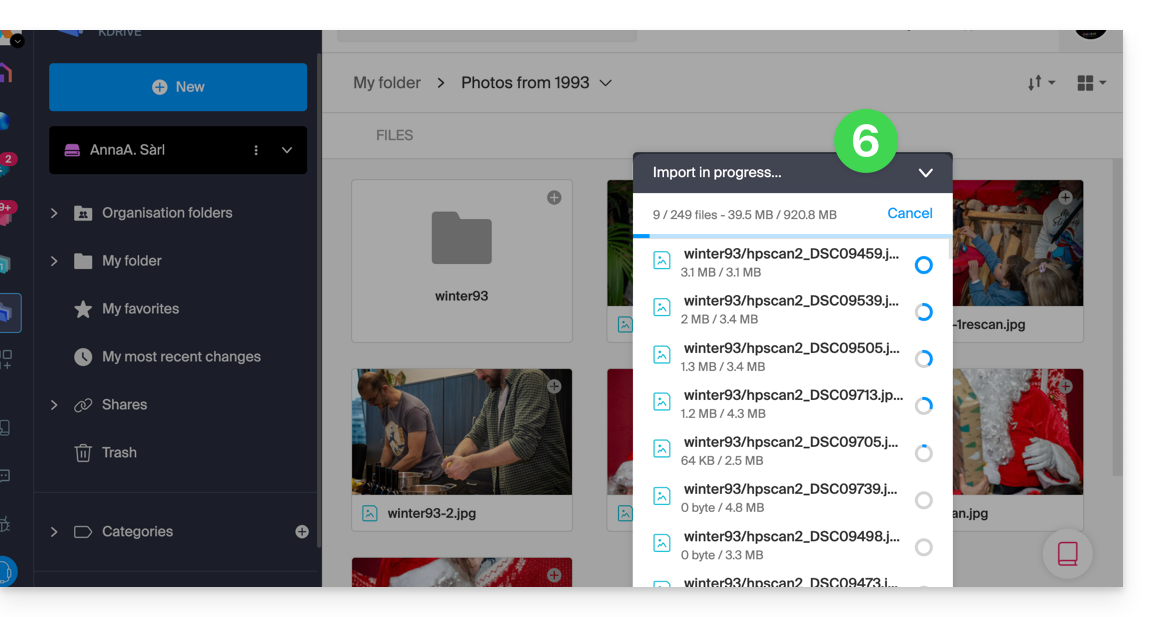
If you are using the kDrive desktop app, you can also place the folder containing your photos in the folder structure of your kDrive on your computer. The synchronization will then start automatically and the files will be sent to the Infomaniak servers.
4. Accessing photos from your devices
Once the import or synchronization is complete, your photos can be accessed from devices connected to your kDrive.
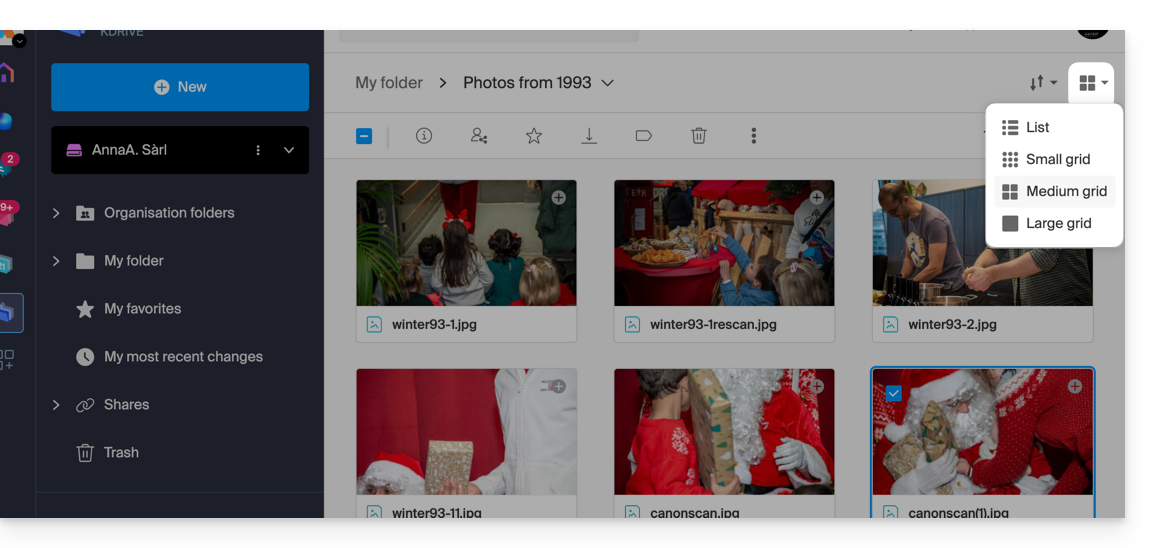
- In the kDrive web app, you can change the display to enlarge the thumbnails and browse your photos more easily:
Link to this FAQ: https://faq.infomaniak.com/2540
Has this FAQ been helpful?
This guide details the Lite Sync option in the desktop app kDrive v3.x (desktop application for Windows). The Lite Sync option is also available on macOS.
Introduction
- The Lite Sync feature saves space by virtually storing your kDrive files on your computer, only downloading them when necessary.
- Files are always accessible from the kDrive web app (online service ksuite.infomaniak.com/kdrive), but locally they are present in a "dehydrated" form, requiring a loading time to be fully accessible.
- This allows you to view, complete, and synchronize the content of kDrive without saturating the hard drive.
- The Lite Sync option always applies:
- to a specific kDrive (in the case where you synchronize several on the application).
- and to the entirety of the kDrive (or the entirety of an advanced synchronization).
- and via a specific kDrive app (another user of the same kDrive can make a different Lite Sync choice than you).
- If you encounter any issues, please refer to this other guide for more information.
Enable Lite Sync
Prerequisites & Scope of Use for Lite Sync
- Windows OS version ≥ 10 (21H2) — not available with Linux
- 64-bit processor (ARM64 compatible)
- File storage system using NTFS (FAT32 excluded)
The Lite Sync option can be enabled during the installation of version 3.x of the application (you will be prompted) or later:
- If necessary, click on the chevron in the notification area of your computer (at the bottom right on Windows, near the clock) to access the kDrive icon, as Windows hides application icons.
- Left-click on the app icon.
- Click on the action menu ⋮ to the right of the kDrive window.
- Select kDrive Settings.
- Click on the action menu ⋮ to the right of the current synchronization and the cloud symbol:
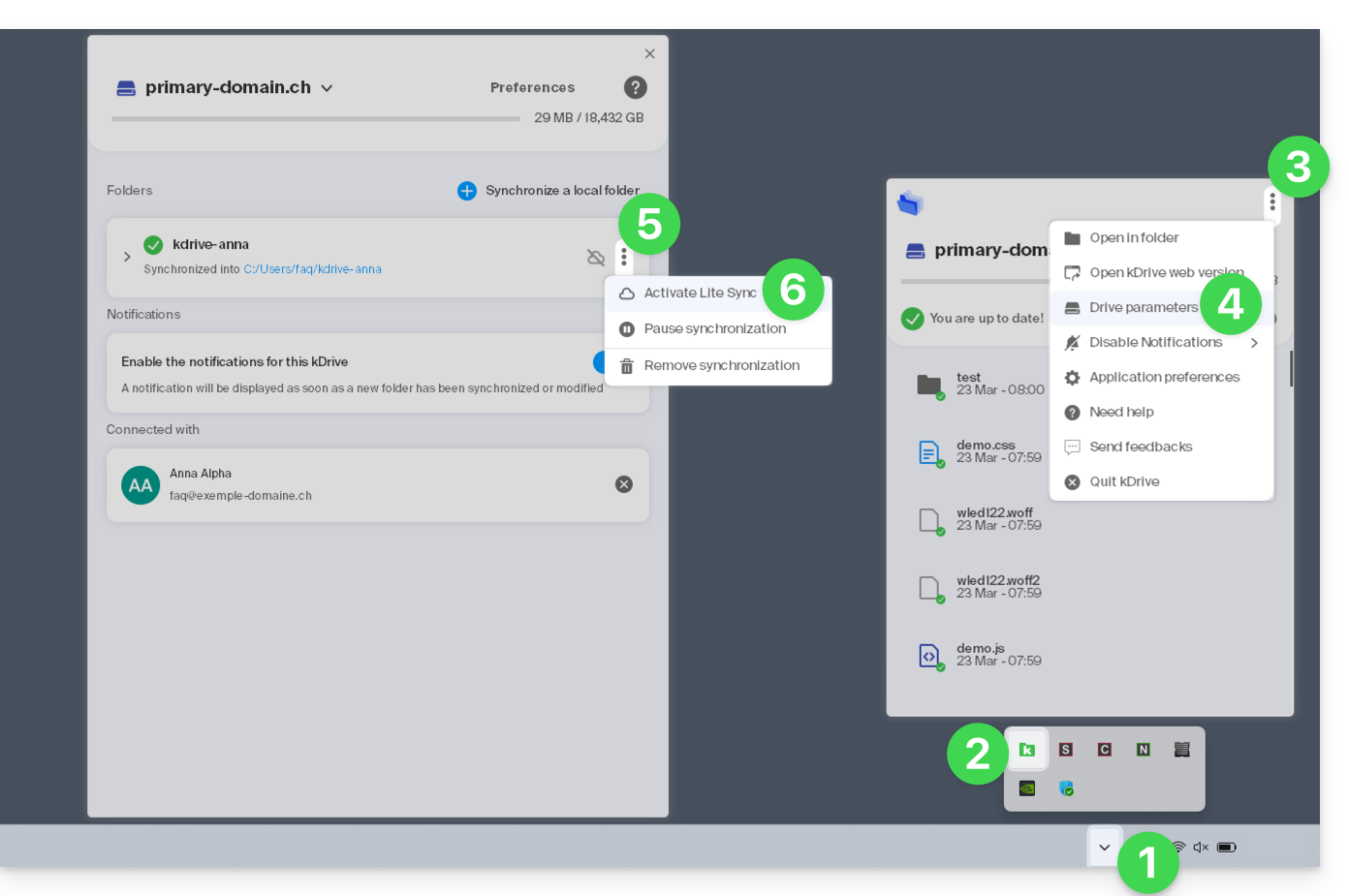
- Click on the menu item:
- If the cloud icon is crossed out, you can enable Lite Sync because it was not yet active (confirm).
- In the same place, you can disable Lite Sync if the cloud icon is not crossed out (see also at the end of this guide).
- Confirm the operation and wait for the message confirming the end of the operation.
Actions on synchronized data on the disk
Always keep on this device
Once Lite Sync is enabled (and the data on the disk becomes “virtual”), you can still make a folder and its subfolders, or only one or more files, available locally:
- In Windows File Explorer, navigate to a folder synchronized with kDrive and right-click.
- Select the Always keep on this device option under kDrive:
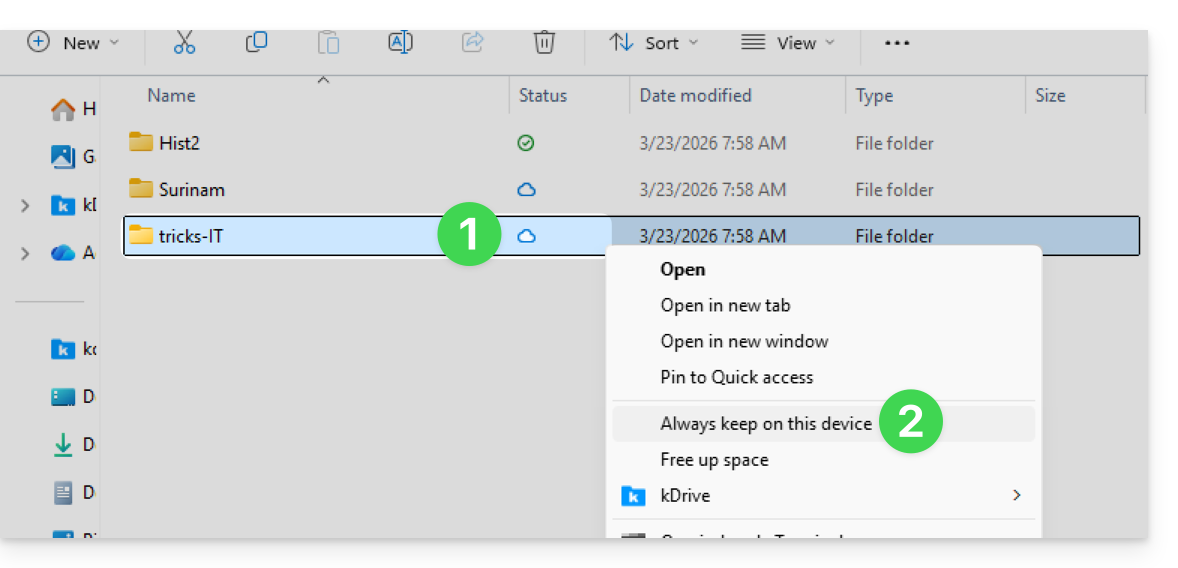
- The symbol visible on the icon of the files in question will change to indicate that the file is no longer "in the cloud" but is physically present on your disk.
Free up space
Conversely, once Lite Sync is activated, you can free up space, file by file or within a folder and its subfolders.
Please note: "free up space" is not applied by default to new files or folders added locally.
- From the Windows File Explorer, right-click on the folder or file in question.
- Select the Free up space option under kDrive:
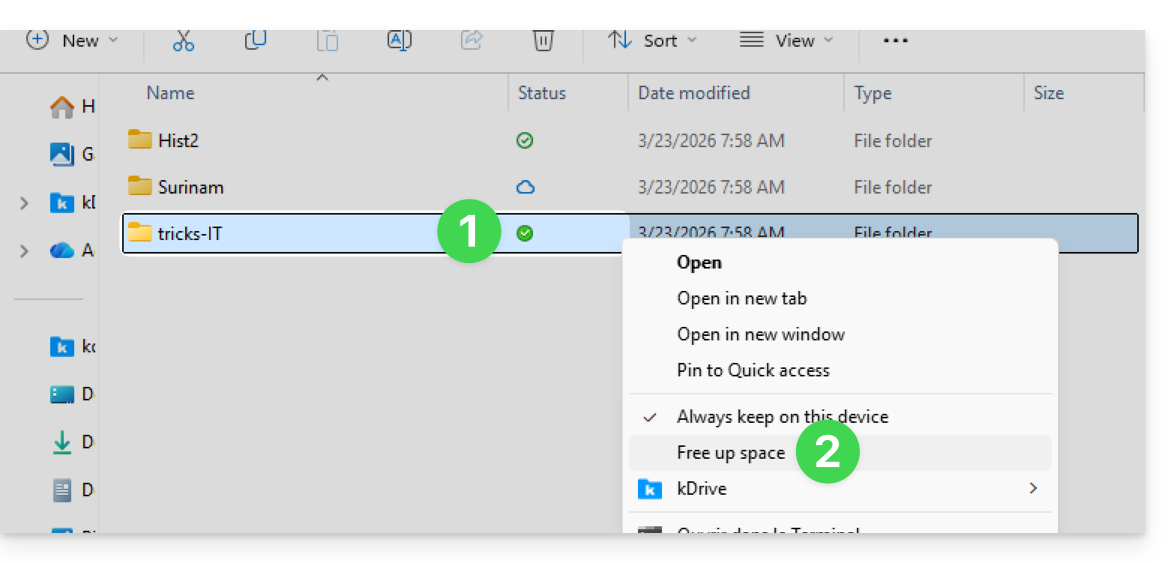
- The symbol visible on the icon of the files/folders concerned will change to indicate that the data is “in the cloud” and is no longer fully present on your disk:
- The Free up space action will free up storage space on your computer.
- The files will remain visible but will no longer be accessible without an internet connection.
Example of use (storage space required)
If you activate Lite Sync, the space used (900 GB for example) on the Infomaniak server will be freed up on your hard drive, but the reverse is also true (for example, 900 GB of free space is required on your hard drive if you activate the Lite Sync option later).
Therefore, it is recommended to keep the initial choice of whether or not to activate Lite Sync, and not to change it midway.
"Dehydration" of files
As explained in the introduction, a dehydrated file is a kDrive file whose complete version is not present on the hard drive; instead, a 1 KB "shortcut" is displayed. This is normal behavior when Lite Sync is enabled.
In some cases (for example, if you copy files from your hard drive while Lite Sync is enabled, and then start a new synchronization to a new kDrive), the application will block the import of this type of file. To resolve these errors, you can download the complete file from the web app kDrive (online service ksuite.infomaniak.com/kdrive).
Here are the status icons used in Windows Explorer and their explanations:
| Status Icons | Description |
|---|---|
| |
| |
| File temporarily downloaded by Windows (may be released by the OS). | |
| The progress circle indicates an action in progress or pending. | |
| Synchronization issue or Lite Sync (contact support). |
Disable the Lite Sync option
To do this, follow the steps at the top of this guide. When disabling LiteSync via the kDrive Settings, two scenarios may occur depending on the remaining space on the storage device of the device being used:
- If there is enough space on your computer, a message confirming the deactivation will appear; simply click Continue.
- If there is not enough space on your computer, a message will indicate the amount of space needed to disable Lite Sync; your kDrive synchronization will be paused until you free up space or select the files to synchronize.
Link to this FAQ: https://faq.infomaniak.com/2562
Has this FAQ been helpful?
This guide explains how to add background images and change the text color of the share links (❓: help) and the upload boxes (❓: help) in kDrive so that they match the graphic identity of your Organization.
✘ UNAVAILABLE with
kSuite Free
my kSuite / my kSuite+ (ik.me, etik.com, ikmail.com)
Introduction
- Any customization made from the share link is applied to the drop box (and vice versa).
- The customization of the upload folder will only be visible when you share its access via a sharing link. (❓: help).
- If Custom Brand (❓: help) is enabled on the Organization where kDrive is located, the customization is managed in the option's settings:
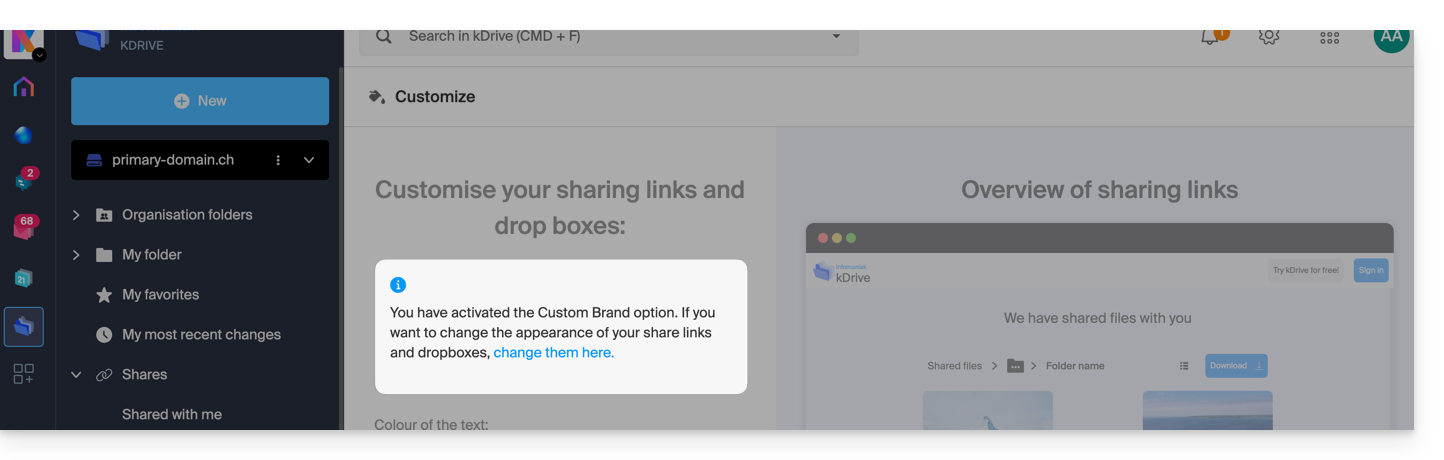
Customize sharing links & drop boxes
To access kDrive customization:
- Click here to access the Infomaniak kDrive web app (online service ksuite.infomaniak.com/kdrive).
- Click on the chevron to expand the Sharing section in the left-hand menu:
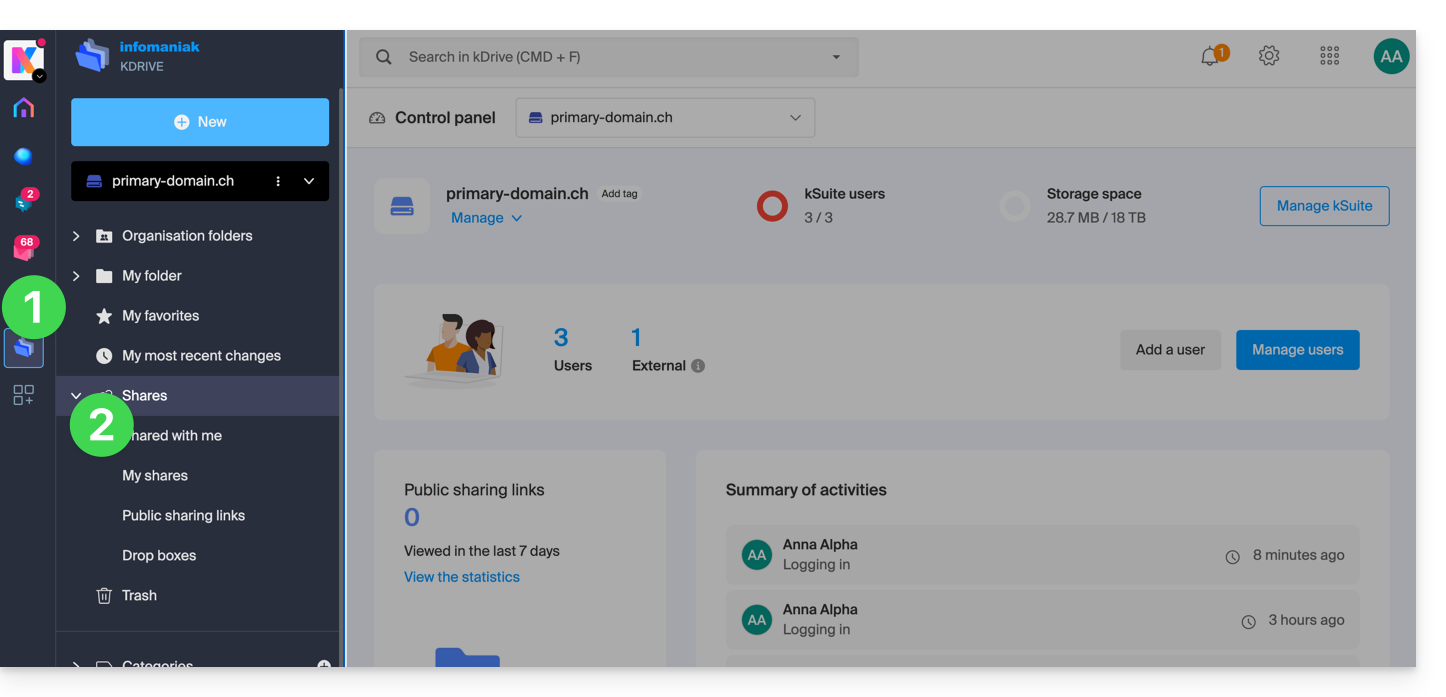
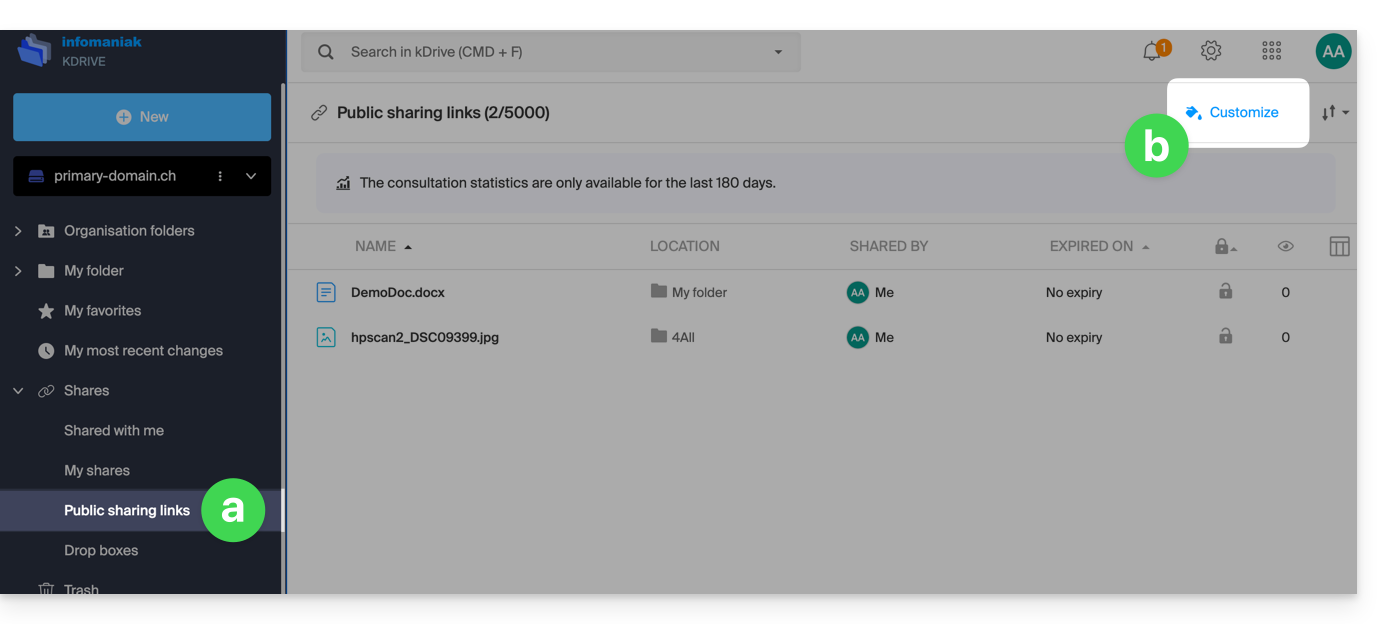
- Click on Public sharing links.
- Click on Customize:
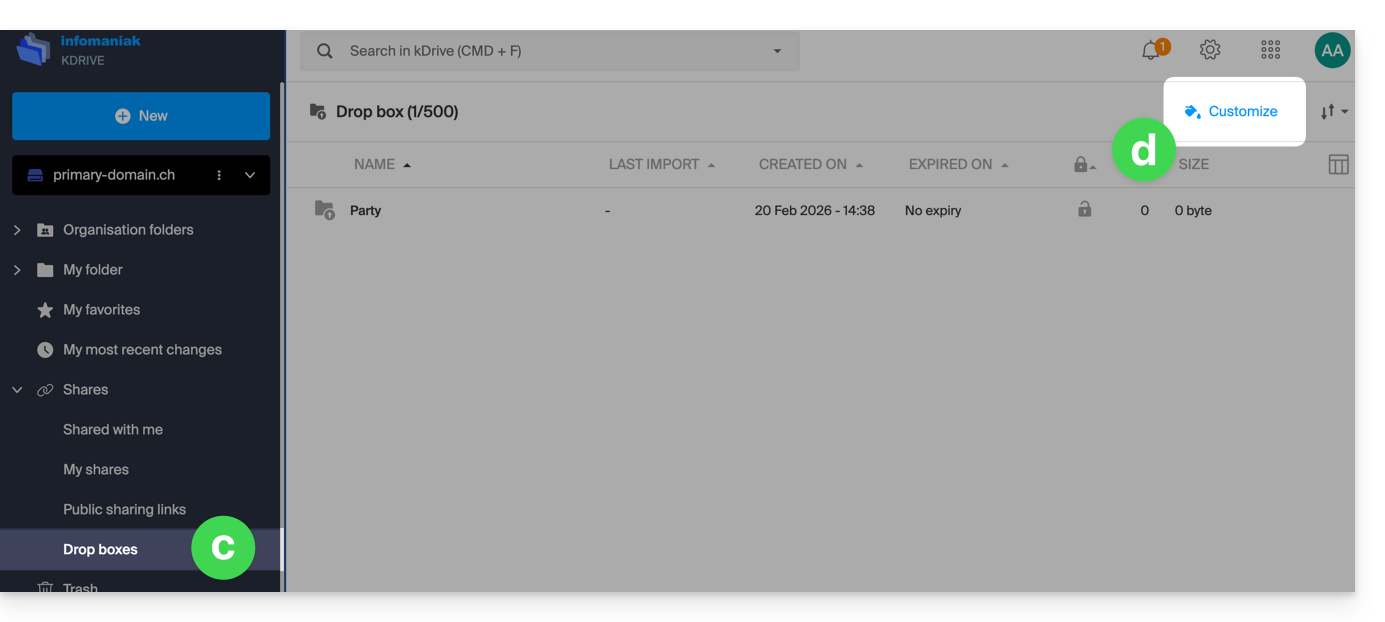
- The same principle applies if you click on Drop boxes.
- Click on Customize:
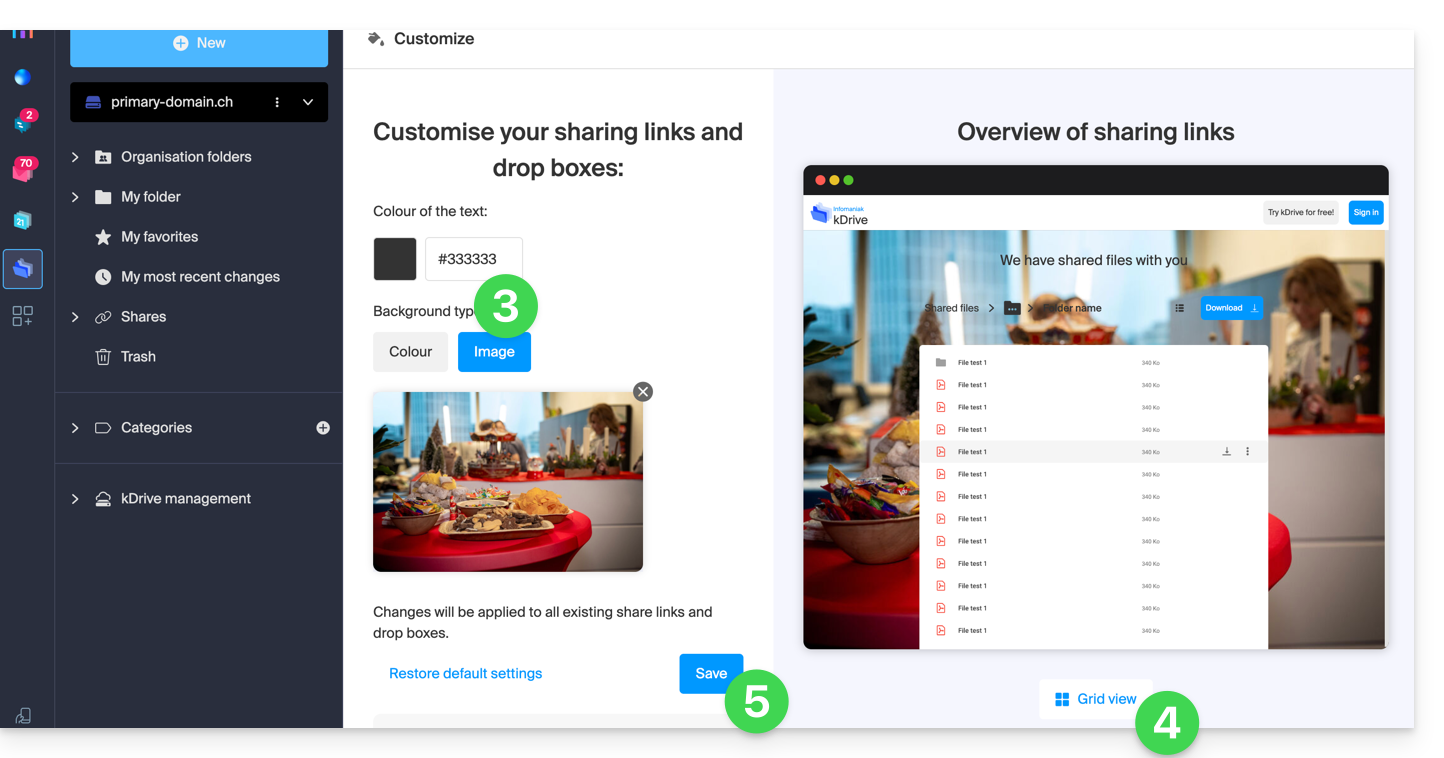
- Modify the text color and add an image (min. 100 KB; it must be located on kDrive) or a background color.
- Preview the effects on both display types.
- Click on Save:
Link to this FAQ: https://faq.infomaniak.com/2565
Has this FAQ been helpful?
This guide will quickly introduce you to the essential features of Euria, the artificial intelligence available within kSuite, which performs particularly well with the kDrive Infomaniak web app (online service ksuite.infomaniak.com/kdrive).
✘ UNAVAILABLE with
kSuite Free / kSuite Standard
my kSuite / my kSuite+ (ik.me, etik.com, ikmail.com)
kDrive Solo / kDrive Team / kDrive Pro
Use AI for your files on kDrive
Prerequisites
- You must be at least an Administrator of the Organization (❓: help).
- Enable Euria for all users of your kDrive: follow the wizard that appears when you log in to kDrive (❓: help).
- Read and understand this other guide about the model used and the responsibilities of each party.
To access Euria on kDrive:
- Click here to access the Infomaniak kDrive web app (online service ksuite.infomaniak.com/kdrive).
- Open a PDF document (Euria is also available with other text/code file types:
.md,.txt,.json,.php, etc.) or right-click on the file in question: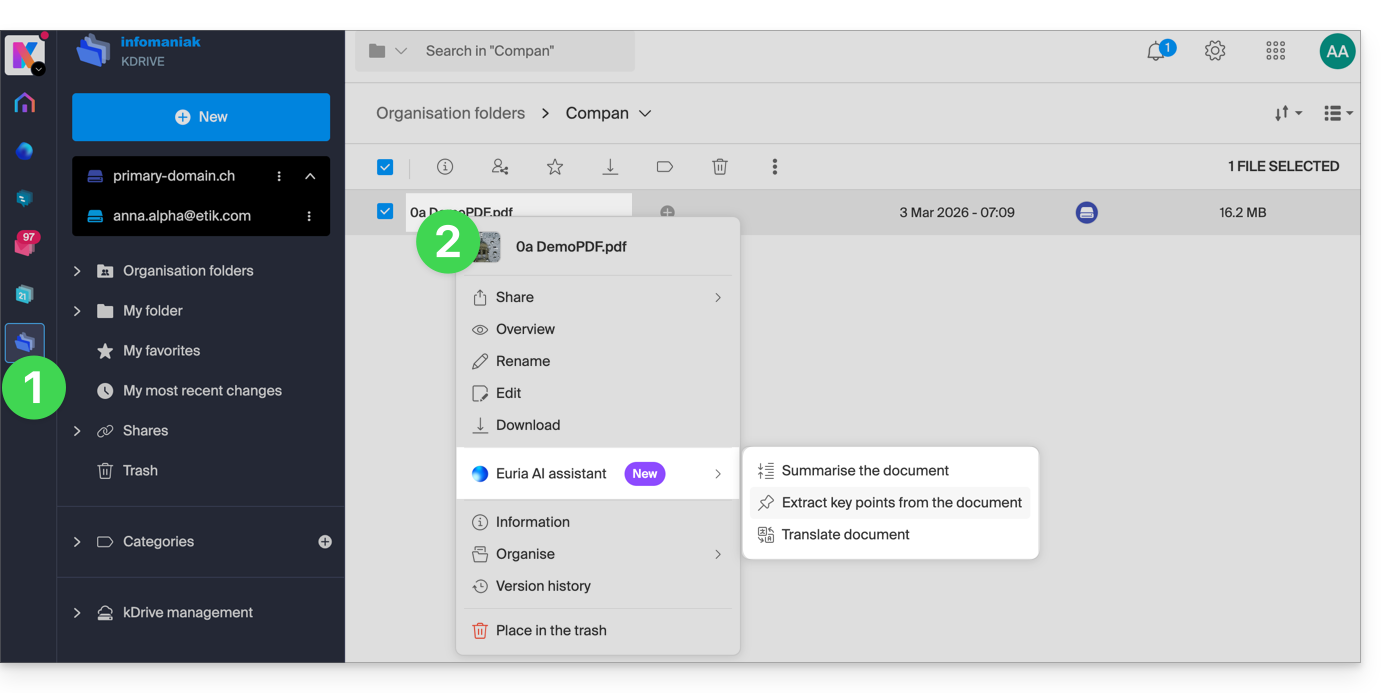
- Euria will open in a sidebar on the right; if you close it, Euria remains accessible via the round icon located in the upper right corner:
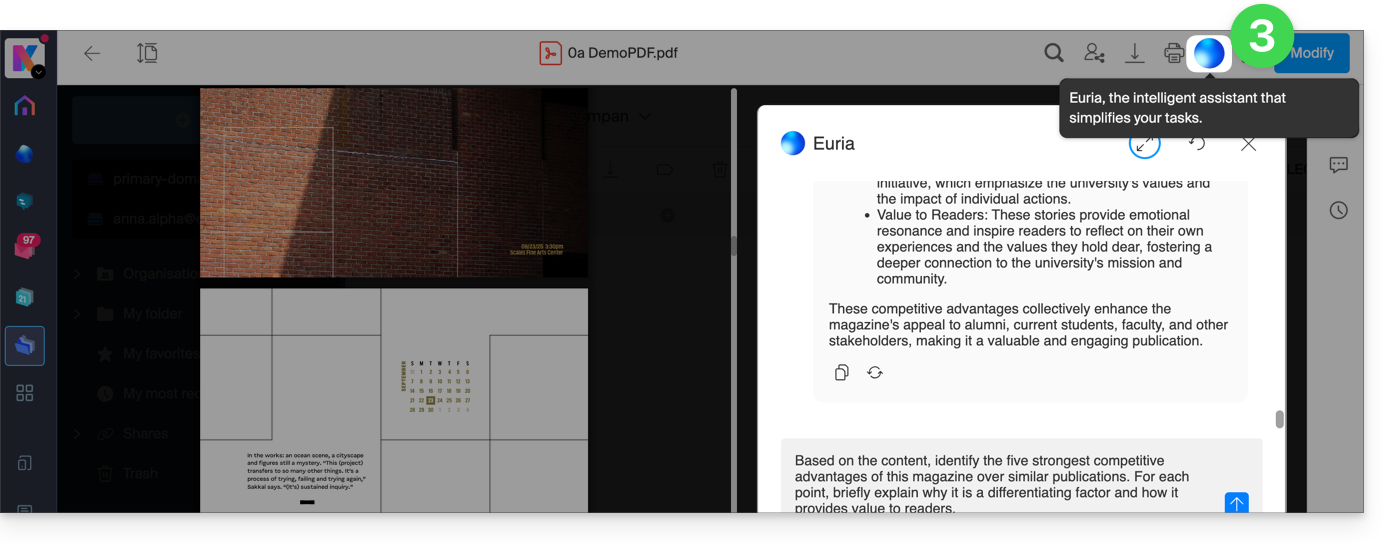
How can Euria help?
Euria helps you make the most of the document you have open (and only this one); it can, in particular:
- answer your questions about its content (details, statistics, changes)
- summarize the key points (or even simplify them, and even more so if you specify “for a 10-year-old”…)
- translate it
- provide metadata (size, creation or modification date)
- explain the terms or acronyms used
For example, if the document is a long company report on the past year, you can ask for the current size of the Development department, which projects are the highest priority, or the last date the document was modified…
Create an event for your calendar
With a document mentioning an appointment (e.g., a medical appointment), you can ask Euria to create a snippet of code that, once copied and pasted into an appropriate file, will allow you to add an event to your calendar. Example phrasing: “Create an event in ics format using the details of this appointment”.
Euria can also extract events from a more complex document: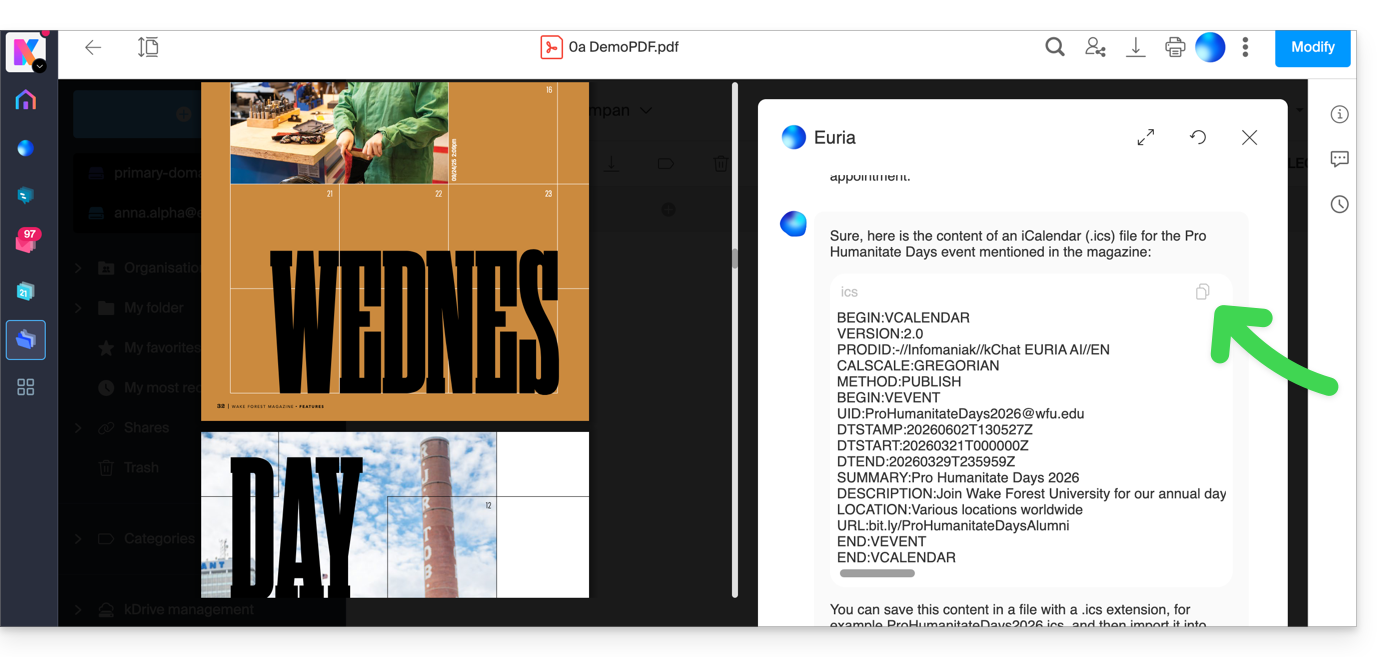
Euria will explain what it did (a VCALENDAR code) and what you need to do: create a new file with the .ics extension containing the code it generated, and open it on your computer to import it into your usual calendar app or import it into your kSuite calendar (❓: help)…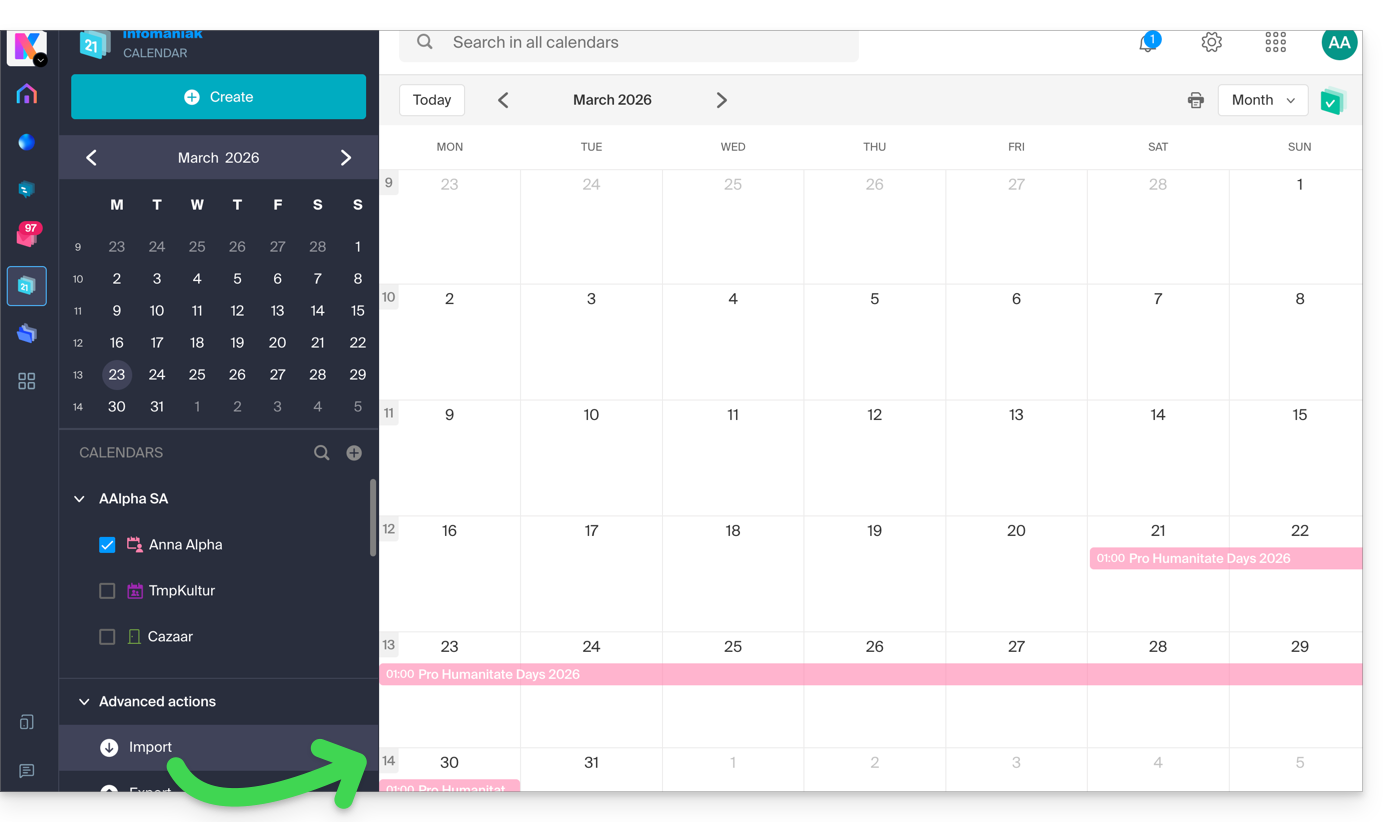
Create a character family tree
With a book stored on your kDrive, you can ask Euria to create a precise and complete family tree to show the relationships between all the characters. You will then obtain a list of names with their relationships.
But you can take the experience even further by then requesting a “Mermaid” diagram based on this list. Simply copy and paste the code provided by Euria into a tool like mermaid.live:
Analyze a survey, write a blog post
Based on a document of the type survey/report, you can ask Euria to write a new article in the tone you want and addressed to the desired target audience. Example: “Based on all of this, write a blog post with an engaging title and text of no more than 400 words, for a target audience of women aged 30 to 40.”.
But you can also ask it to find “what are the biases in this survey” or “what elements should be explored or verified in more detailEuria can thus help you adopt a critical perspective when reviewing a survey or report, by highlighting any potential shortcomings, exaggerations, or biases.
It can also rephrase the survey's conclusions for different audiences (professionals, teenagers, curious readers, etc.), suggest alternative angles for a related article, or even generate titles, introductions, or summaries according to the desired level of complexity.
The goal is to extract maximum editorial value from a single source content by diversifying the formats, tones, and perspectives.
Link to this FAQ: https://faq.infomaniak.com/2566
Has this FAQ been helpful?
This guide explains the operation of the blacklist in the kDrive desktop app (macOS / Windows / Linux) and in which cases certain local files or folders are no longer taken into account for synchronization.
Introduction
- A file or folder placed on the blacklist by the application has a suffix in its name in the form
_blacklisted.- This means that the application ignores this item during synchronization operations and it is therefore not transferred to kDrive Web.
- This marker remains active until the cause of the blocking has been resolved.
- If an excluded folder cannot be deleted locally, it may be automatically added to the blacklist.
- In this case, you can either delete it manually or re-enable its synchronization in the application settings.
- Once the problem is resolved (for example, after deleting a duplicate, correcting permissions, or reactivating an excluded folder), simply remove the
_blacklistedsuffix from the item's name so that it is included in the synchronization again. - These mechanisms ensure the stability of the synchronization process and prevent recurring errors related to inaccessible files, duplicates, or files incompatible with the file system.
Examples of blacklisting
In some cases, a local item can be blacklisted:
- Dehydrated placeholder (Lite Sync only): a placeholder file (not fully downloaded) is added to the blacklist to prevent it from being uploaded to kDrive Web.
- Existing creation on the remote drive: if the creation of a file or folder fails because an identical item already exists on kDrive Web, the local item is marked as blacklisted.
- Insufficient server-side permissions: when a file or folder is created locally but the backend refuses to propagate the changes (e.g., in Common documents), the local item is blacklisted.
- Folder excluded from synchronization: if a folder has been unchecked in the kDrive desktop interface, the application attempts to delete it locally if it is still present. If this fails, it is blacklisted.
Blacklisting can also occur due to incompatible file names: characters such as the tilde ~, the forward slash /, the backslash \, certain system files such as System Volume Information, or certain temporary or technical extensions (.idlk, .parms.db, .directory, ._*, etc.) (other examples).
Rename these items before restarting the synchronization.
Correct a blacklisted item
To identify them:
- Identification: The
_blacklistedsuffix in the file or folder name indicates that the item is being ignored by the synchronization process. - Resolution: Correct the cause of the blocking (e.g., access rights, an existing duplicate on kDrive Web, an exclusion setting, or a placeholder status), then rename the item to remove
_blacklistedif you want it to be synchronized again.
To avoid this:
- Check your access rights before creating or modifying files in shared spaces, organization folders, or Common documents.
- Avoid creating duplicates when creating or moving files between your computer and kDrive Web.
- Do not uncheck a folder in the desktop application if you continue to add items to it locally.
- With Lite Sync, download the entire file before editing it, rather than working on a dehydrated placeholder.
Link to this FAQ: https://faq.infomaniak.com/2570
Has this FAQ been helpful?
This guide details the Statistics section, which is accessible online to administrators of a kDrive.
✘ UNAVAILABLE with
my kSuite (ik.me, etik.com, ikmail.com)
kSuite Free: statistics for the last 7 days only
Access kDrive statistics
To view the page that details the various statistics for your kDrive:
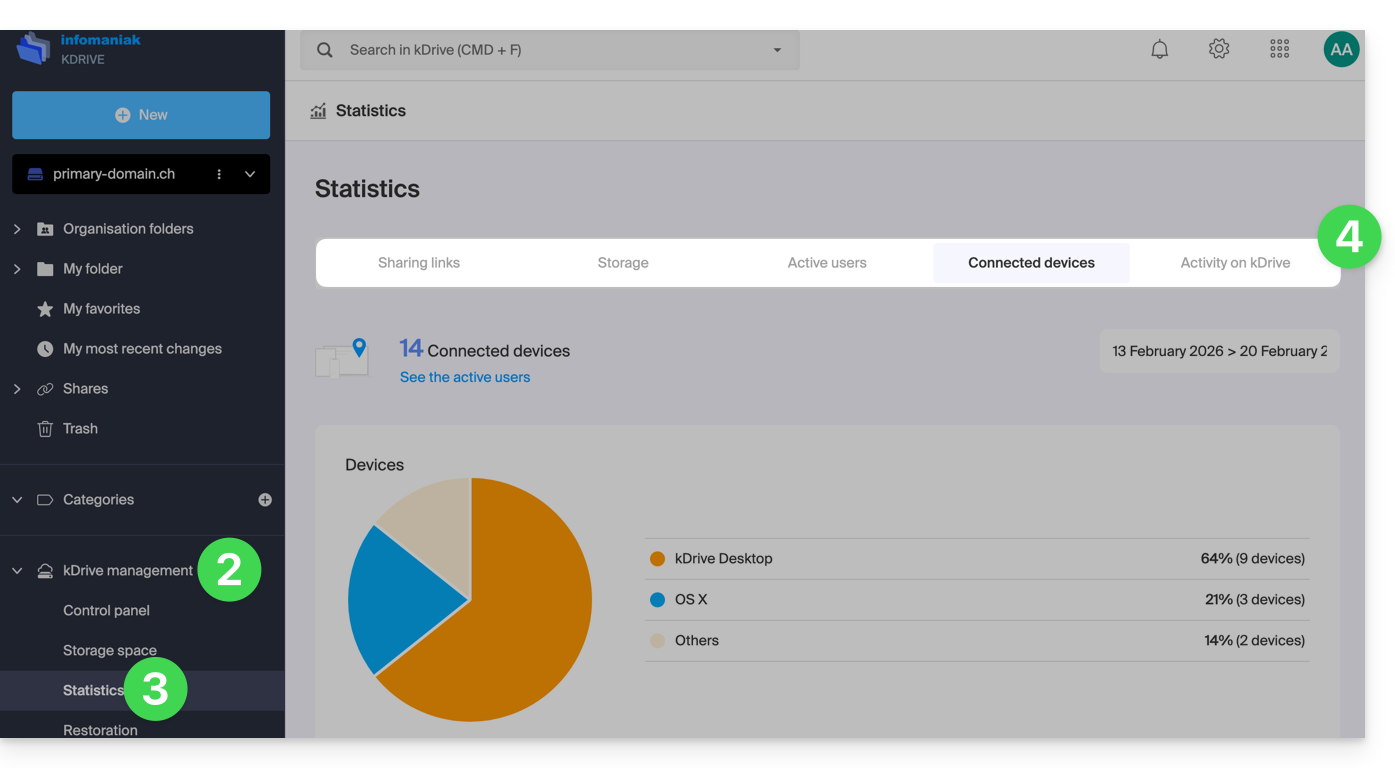
- Click here to access the Infomaniak kDrive web app (online service ksuite.infomaniak.com/kdrive).
- Click on kDrive Management in the left-hand menu.
- Click on Statistics.
- Choose the type of statistics to display:
Customize the display
Each screen of these statistics (Share links, kDrive activity, etc.) features icons and buttons: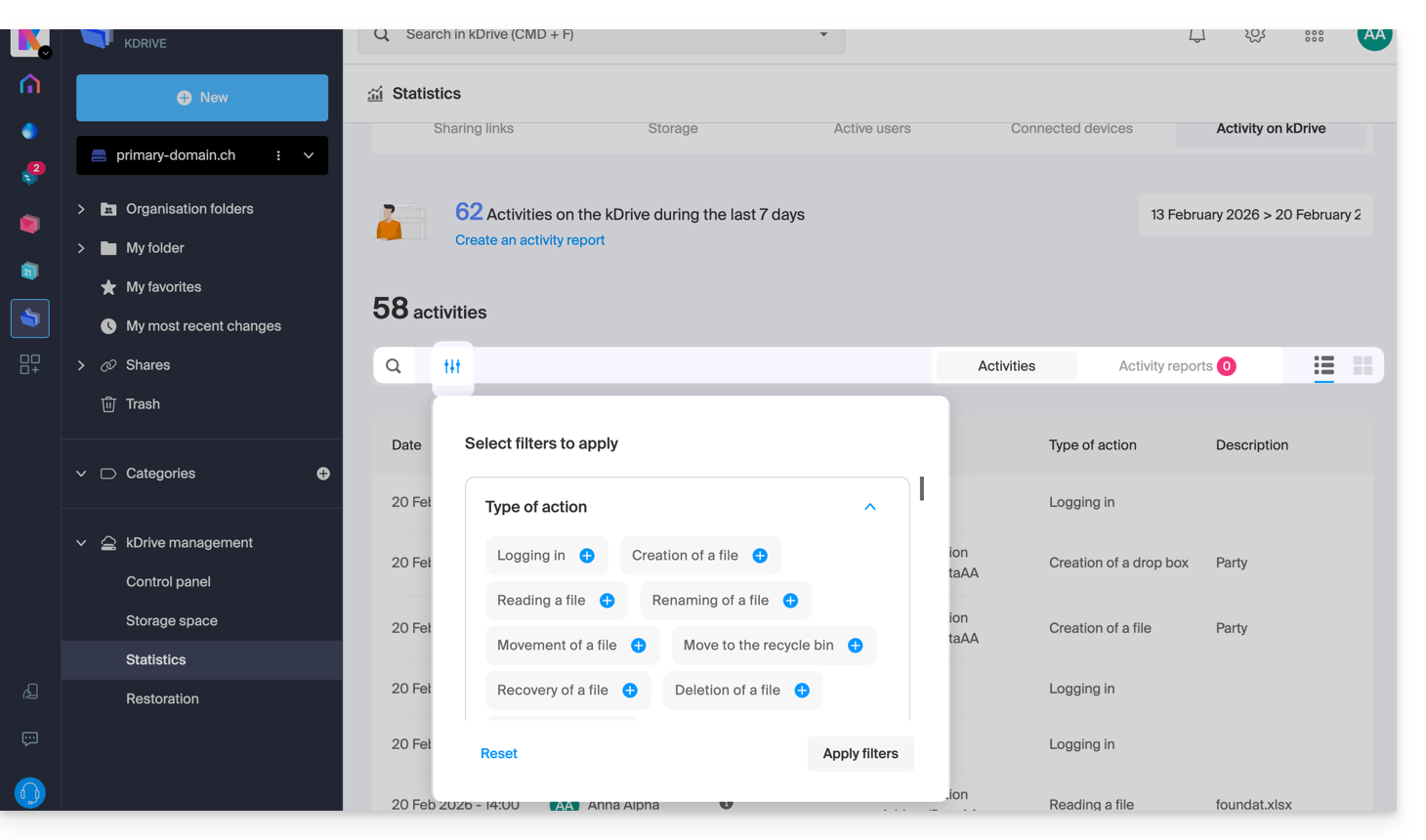
Clicking on it allows you to:
- perform a search for a term
- download a CSV file (
.csvformat) with the obtained data (see below) - filter items based on users, for example, or the number of views on the files, as well as the type of sharing (with or without a password and expiration date)
1. Share link stats
The creation of share links is listed in the left-hand menu of the kDrive web interface, but this statistics screen allows you to view the number of views for a file over a given period.
2. Storage statistics
This screen, which is updated every hour, allows you to view the space used by the various users, the total space, etc.
3. Active users
This screen shows the recently opened sessions (or sessions within the filtered period) by the users of your kDrive and their operating system.
4. Connected devices
This screen details the operating systems of the devices connected to your kDrive, with their representation in percentage: Windows X% (X devices); the same applies to macOS, Linux, Android, etc.
5. kDrive Activity
If you have any doubts about who did what on your shared space, whether it's updating a file, moving it to the trash, etc., this screen lets you know minute by minute what happened.
Create an activity report
With this information, you can create activity reports using the dedicated link at the top of the table. These reports can encompass one or more users and focus on one or more actions. You will receive the report by email within minutes and can download it in CSV format. Please note that the times mentioned may be in UTC 0 format.
Link to this FAQ: https://faq.infomaniak.com/2579
Has this FAQ been helpful?
This guide explains how to check and update the version of the desktop app kDrive (desktop application for macOS / Windows / Linux).
Accessing the installed version information…
… on macOS / Windows / Linux
To identify the version number of the kDrive application:
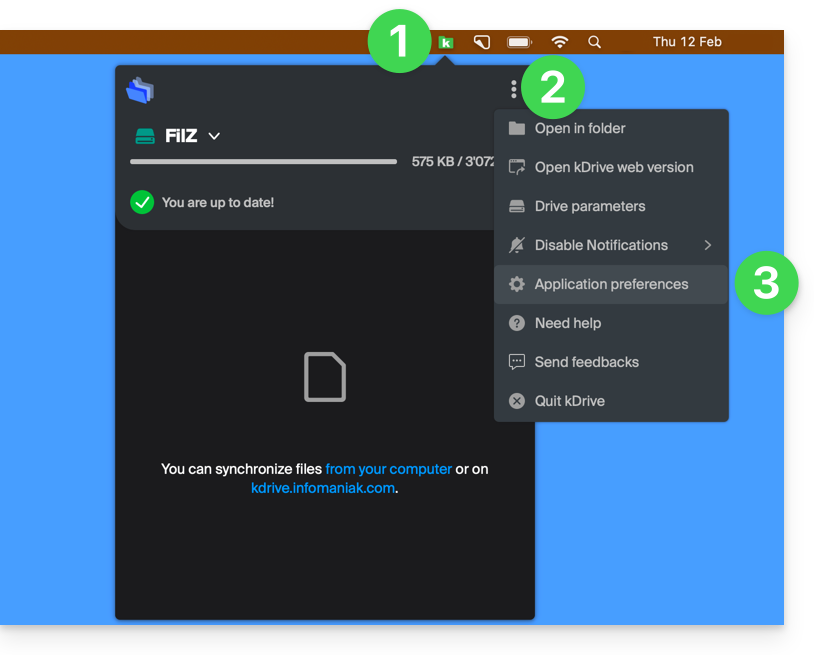
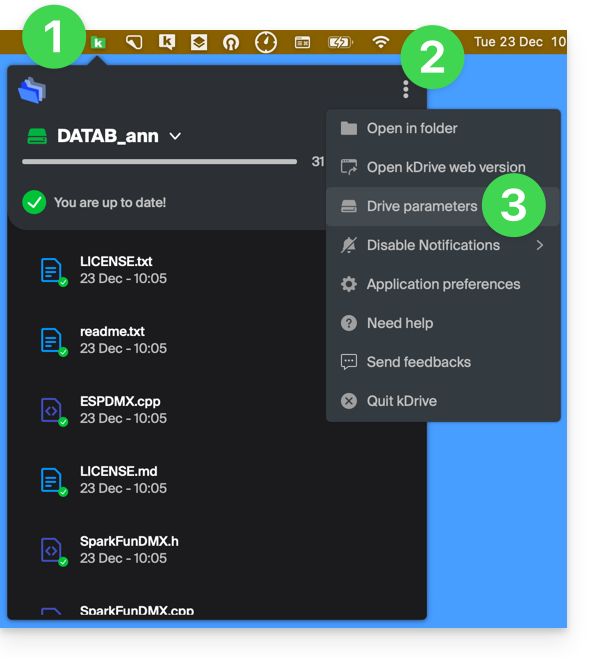
- Left-click the kDrive desktop app icon in your computer's notification area (top right on macOS, bottom right on Windows, and double-click in the taskbar on Linux).
- Click the ⋮ icon in the top right corner of the application, then click Preferences:
or directly on Preferences if the kDrive window is already open: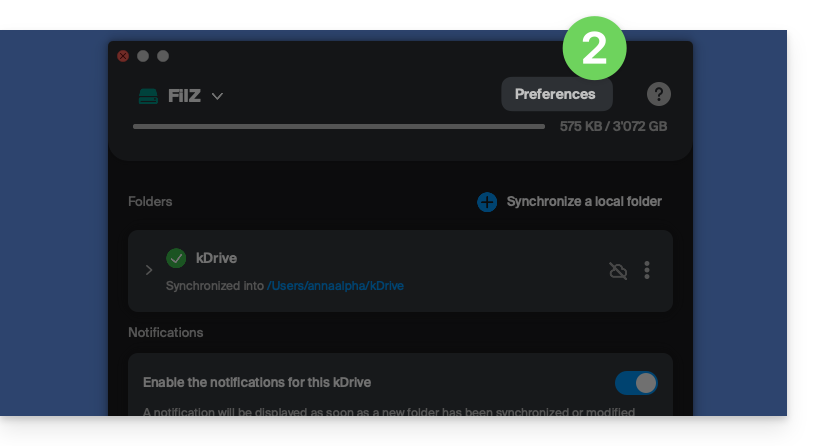
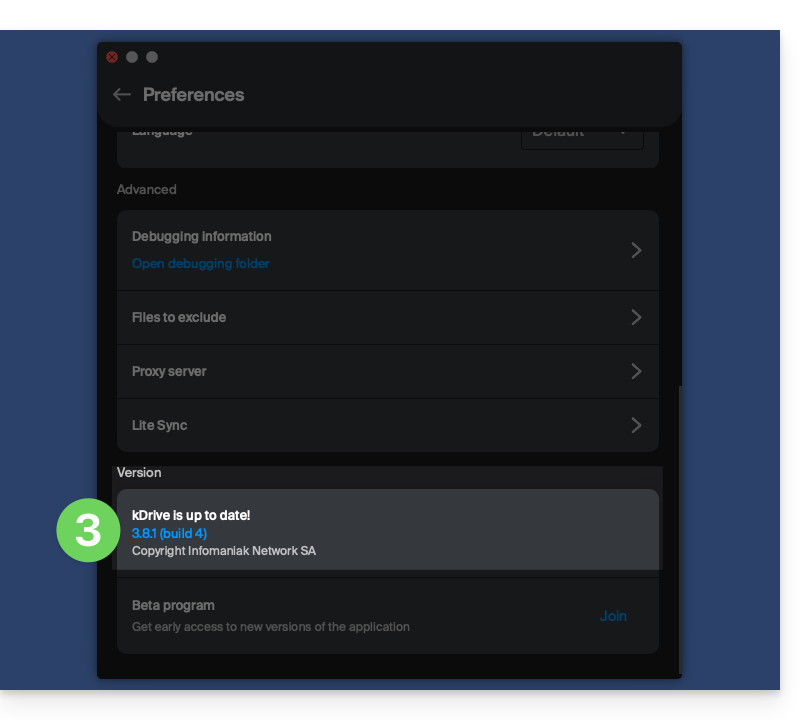
- Scroll to the bottom, and under the Version category, you will find the version currently installed on your computer:
Update the installed version
… on macOS / Windows
With each new version of the kDrive application offered by Infomaniak, a message will appear the first time the software is opened after a restart, or a few minutes later if it has not been restarted, offering the option to install the update automatically.
If this is not the case:
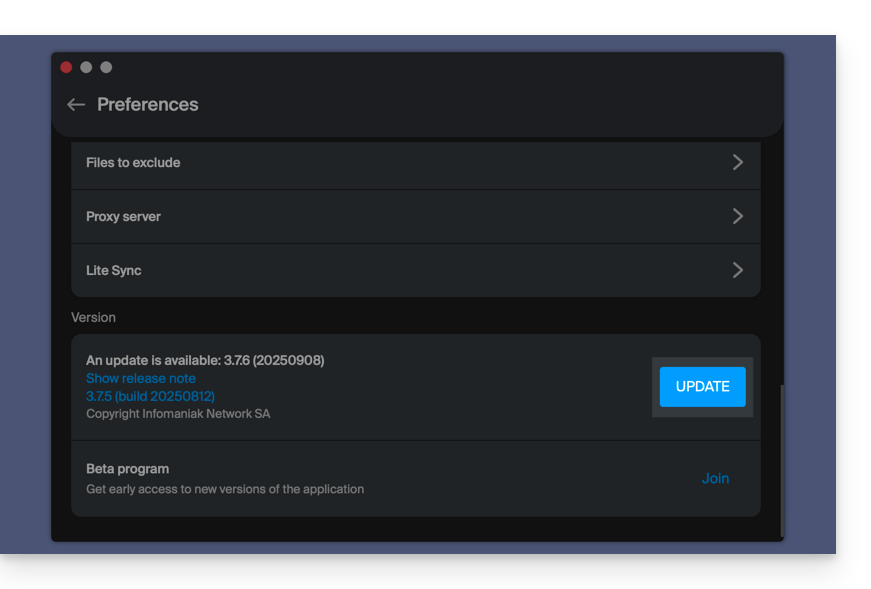
- Review the steps above and click on the button that displays the update:
If the button is missing or the app version is too old:
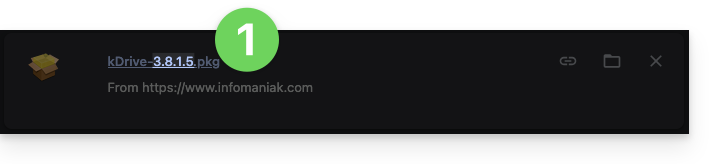
- Download the latest version from the official page (the latest version number is displayed in the file name):
- If this version number is newer than your current version, allow the download to complete.
- In the meantime, uninstall your application without touching the folder containing your synchronized files, and especially without moving it.
- Install the new version you downloaded.
Link to this FAQ: https://faq.infomaniak.com/2580
Has this FAQ been helpful?
This guide details the Lite Sync option in the desktop app kDrive v3.x (desktop application for macOS). The Lite Sync option is also available on Windows.
Introduction
- The Lite Sync feature saves space by virtually storing your kDrive files on your computer, only downloading them when necessary.
- Files are always accessible from the kDrive web app (online service ksuite.infomaniak.com/kdrive), but locally they are present in a "dehydrated" form, requiring a loading time to be fully accessible.
- This allows you to view, complete, and synchronize the content of kDrive without saturating the hard drive.
- The Lite Sync option always applies:
- to a specific kDrive (in the case where you synchronize several on the application).
- and to the entirety of the kDrive (or the entirety of an advanced synchronization).
- and via a specific kDrive app (another user of the same kDrive can make a different Lite Sync choice than yours).
- If you encounter any issues, please refer to this other guide for more information.
Enable Lite Sync
Prerequisites & scope of use for Lite Sync
- macOS version ≥ 10.15 — not available with Linux
- File storage system using NTFS / APFS (FAT32 excluded)
The Lite Sync option can be enabled during the installation of version 3.x of the application (you will be prompted) or later:
- Left-click on the app icon in the notification area of your computer (top right on macOS).
- Click on the action menu ⋮ to the right of the kDrive window.
- Select kDrive Settings:
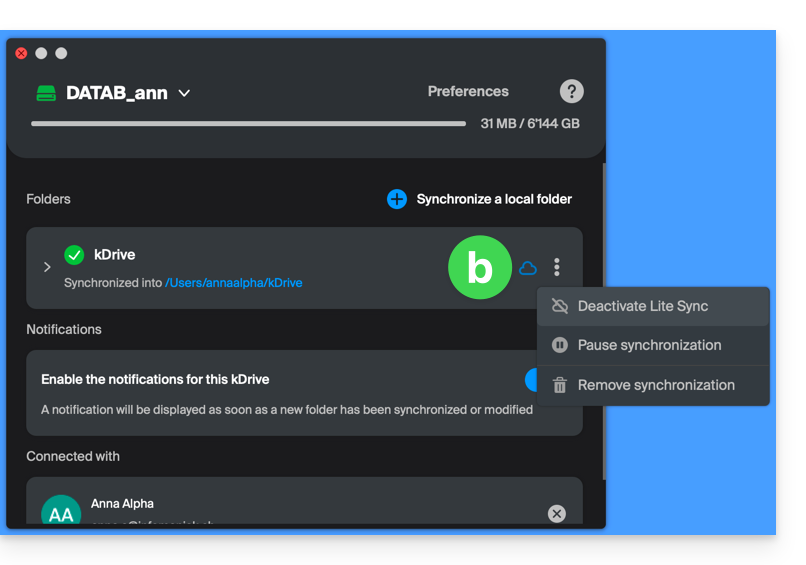
- Click on the action menu ⋮ to the right of the current synchronization and the cloud symbol:
- If the cloud is crossed out, you can enable Lite Sync because it was not yet active:
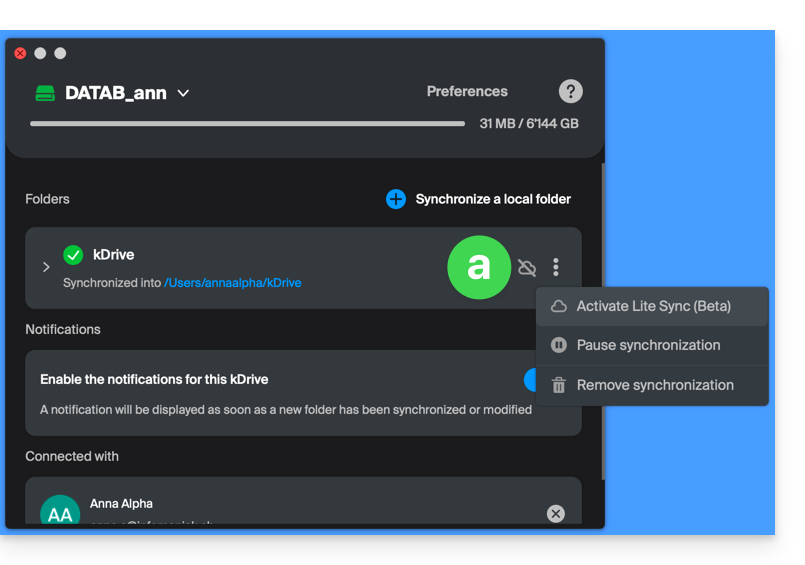
- In the same place, you can disable Lite Sync if the cloud was not crossed out (also see the end of this guide):
- If the cloud is crossed out, you can enable Lite Sync because it was not yet active:
Actions on synchronized data on the disk
Always keep on this device
Once Lite Sync is enabled (and the data on the disk becomes “virtual”), you can still make a folder and its subfolders, or only one or more files, available locally:
- In macOS Finder, navigate to a folder synchronized with kDrive and right-click.
- Select the Always make available locally option under kDrive:
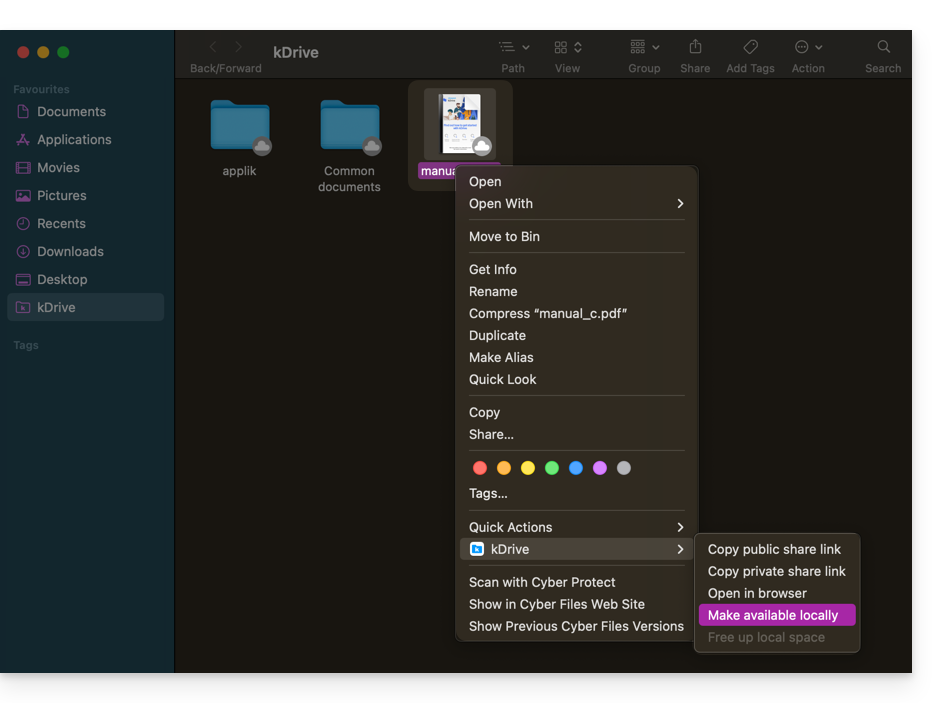
- The symbol visible on the icon of the files in question will change to indicate that the file is no longer "in the cloud" but is fully present on your disk:

Free up space
Conversely, once Lite Sync is activated, you can free up space, file by file or within a folder and its subfolders.
Please note: "free up space" is not applied by default to new files or folders added locally.
- In macOS Finder, navigate to a folder synchronized with kDrive and right-click.
- Select the free up local space option under kDrive:
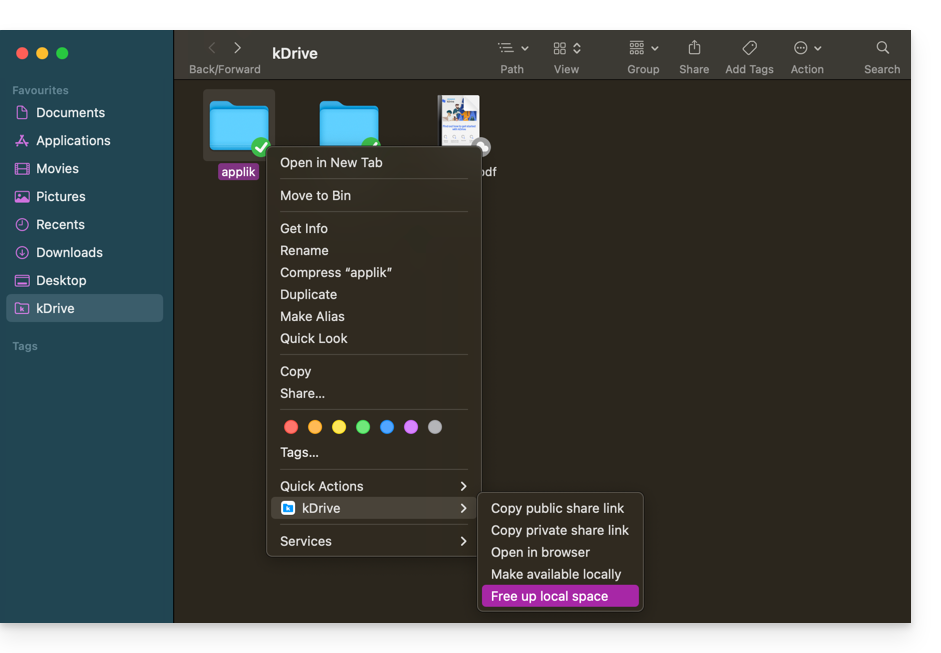
- The symbol visible on the icon of the files/folders concerned will change to indicate that the data is “in the cloud” and is no longer fully present on your disk:

- The Free up space action will free up storage space on your computer.
- The files will remain visible but will no longer be accessible without an internet connection.
Example of use (storage space required)
If you activate Lite Sync, the space used (900 GB, for example) on the Infomaniak server will be freed up on your hard drive, but the reverse is also true (for example, 900 GB of free space is required on your hard drive if you activate the Lite Sync option later).
Therefore, it is recommended to keep the initial choice of whether or not to activate Lite Sync, and not to change it midway.
"Dehydration" of files
As explained in the introduction, a dehydrated file is a kDrive file whose full version is not present on the hard drive; instead, a 1 KB "shortcut" is displayed, which is normal behavior when Lite Sync is enabled.
In some cases (for example, if you copy files from your hard drive while Lite Sync is enabled, and then start a new synchronization to a new kDrive), the application will block the import of this type of file. To resolve these errors, you can download the full file from the web app kDrive (online service ksuite.infomaniak.com/kdrive).
Here are the status icons used and their explanations:
| Status Icons | Description |
|---|---|
| |
| |
| kDrive is experiencing a synchronization conflict with the file/folder. | |
| An error occurred during the file/folder transfer, and the process was interrupted. | |
| The progress circle indicates an ongoing download. |
Disable the Lite Sync option
To do this, follow the steps at the top of this guide (especially point 4.b). When disabling LiteSync, two scenarios may occur depending on the remaining space on the storage device of the device used:
- If there is enough space on your computer, a message confirming the deactivation will appear; simply click on Continue.
- If there is not enough space on your computer, a message will indicate the amount of space needed to allow you to disable Lite Sync; the synchronization of your kDrive will be paused until you select the files to synchronize on your computer.
Link to this FAQ: https://faq.infomaniak.com/2608
Has this FAQ been helpful?
This guide explains how to create, save, and edit a collaborative Office file (text document, spreadsheet, presentation, etc.) on the web app kDrive (online service ksuite.infomaniak.com/kdrive) and on the mobile app kDrive (application for iOS/Android smartphones or tablets) using the Microsoft Office editor.
✘ UNAVAILABLE with
kSuite Free / kSuite Standard
my kSuite / my kSuite+ (ik.me, etik.com, ikmail.com)
kDrive Solo / kDrive Team
Introduction
- Microsoft Office Online integrated with kDrive is available in a single version only; therefore, it is not possible to change or enhance its features by modifying a Microsoft license. This standalone version is the only one offered by Microsoft for this type of integration, and no more comprehensive version is provided or available for this infrastructure.
- Technically, the integration of Office Online into kDrive is based on an infrastructure hosted in Infomaniak's own data centers, guaranteeing that documents never leave its sovereign environment and are never transmitted to Microsoft.
- Learn more in this other guide about the possibilities offered by the native editor on kDrive.
- To set this editor as the default, please refer to this other guide.
Integrating Microsoft Office with kDrive
Prerequisites
- You must have a Microsoft business account with Microsoft 365 licenses that allow you to make changes in Office Online (Business, Business Premium, ProPlus, E3, E4, or E5).
- If you are using a tablet with a screen size of more than 10 inches, you must have an O365 license.
- Maximum file size for integration:
.docx(< 100 MB).xlsx(< 100 MB).pptx(< 2 GB)
- Compatible Microsoft mobile apps:
- Android: Word | Excel | PowerPoint
- iOS: Word | Excel | PowerPoint
To edit Office files stored on kDrive directly with the dedicated Microsoft Online app:
- Click here to access the Infomaniak kDrive web app (online service ksuite.infomaniak.com/kdrive).
- Select the file to edit (or right-click on the file and then proceed to step 4).
- Click on the action menu ⋮ in the toolbar.
- Click on Edit with…
- Click on Microsoft Excel Online (or the Microsoft app corresponding to your document type):
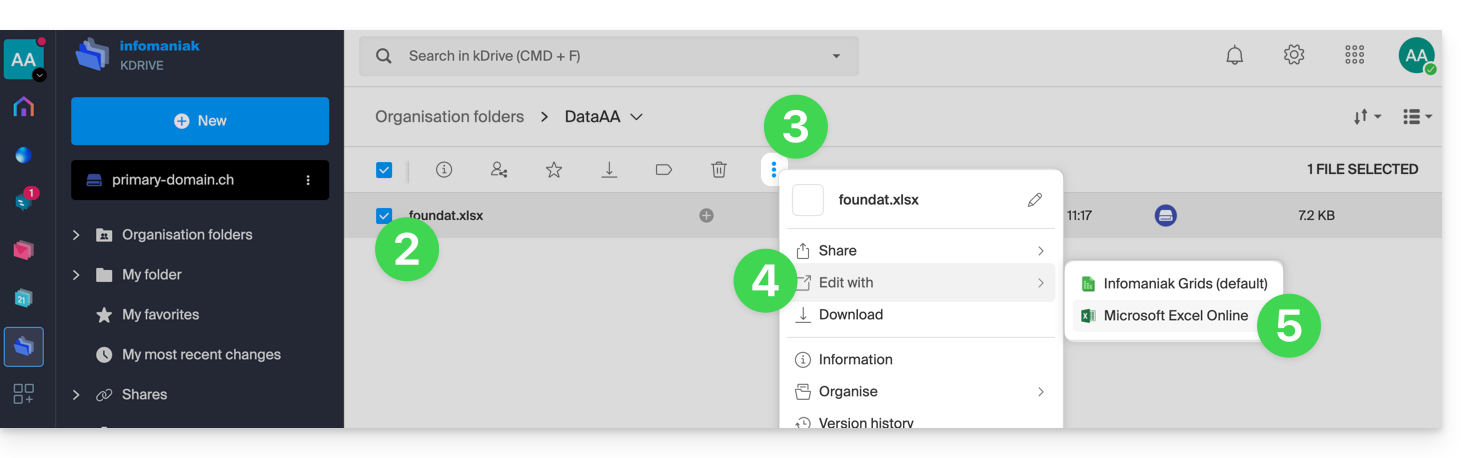
- Your document opens within the Microsoft Office Online editor:
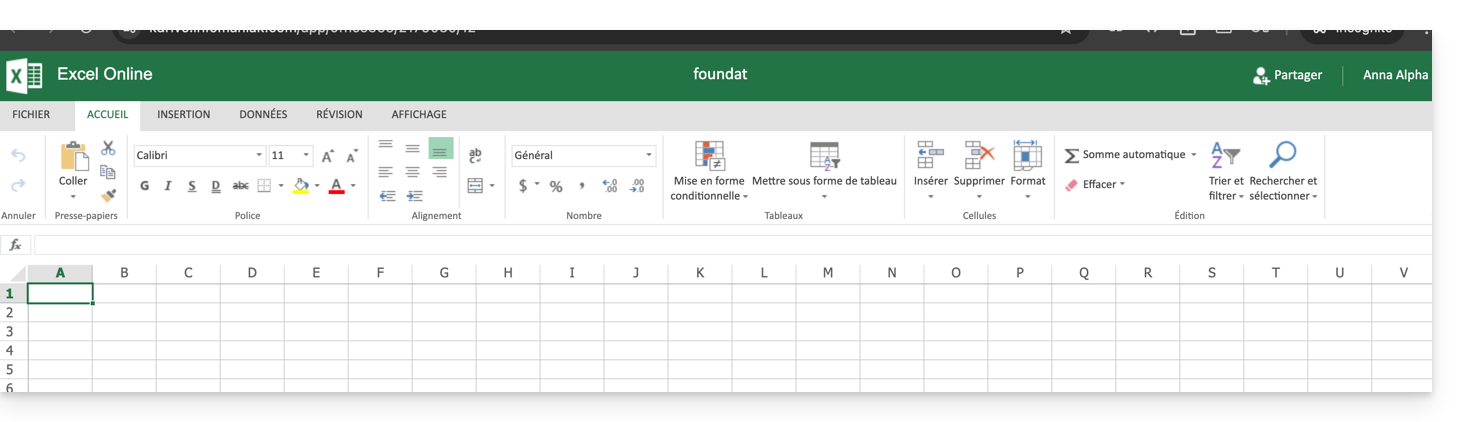
Link to this FAQ: https://faq.infomaniak.com/2627
Has this FAQ been helpful?
This guide explains how to add and customize the categories for your documents, to organize and classify your documents in the kDrive Infomaniak web app (online service ksuite.infomaniak.com/kdrive) and the kDrive mobile app (application for iOS/Android smartphones or tablets).
Introduction
- A category (or several at the same time) can be assigned to kDrive files and folders.
- Assigning a category is different from defining a color, which can also be assigned to folders and displayed in the web and mobile apps (only available with paid kDrive plans).
- However, there will be no synchronization of colors between a kDrive folder synchronized by the desktop app on macOS and the web or mobile app:

- However, there will be no synchronization of colors between a kDrive folder synchronized by the desktop app on macOS and the web or mobile app:
Add a category to a document…
Prerequisites
- The user must have sufficient rights, including at the level of category management permissions.
… on the kDrive Infomaniak web app
To assign a category to a file or folder in kDrive:
- Click here to access the Infomaniak kDrive web app (online service ksuite.infomaniak.com/kdrive).
- The kDrive file structure is displayed in the left-hand menu:
- Select the file(s).
- Click on the tag icon at the top of the table.
- Click on the category in which the file(s) should be classified:
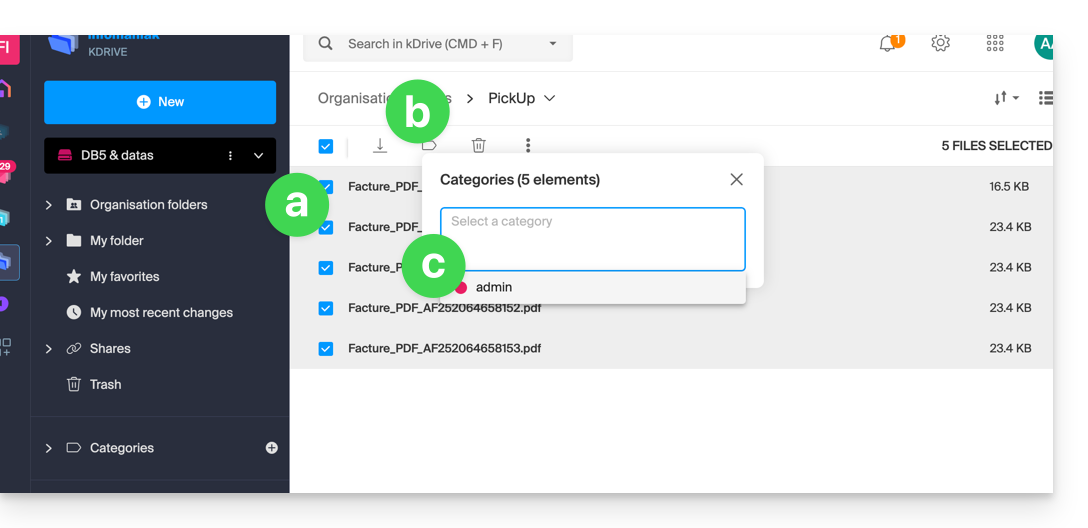
- You can also create a new category with the name of your choice:
- Select the file(s).
- Click on the tag icon at the top of the table.
- Enter the name of the category in which the file(s) should be classified.
- Click on the icon to create your category and be able to select it:
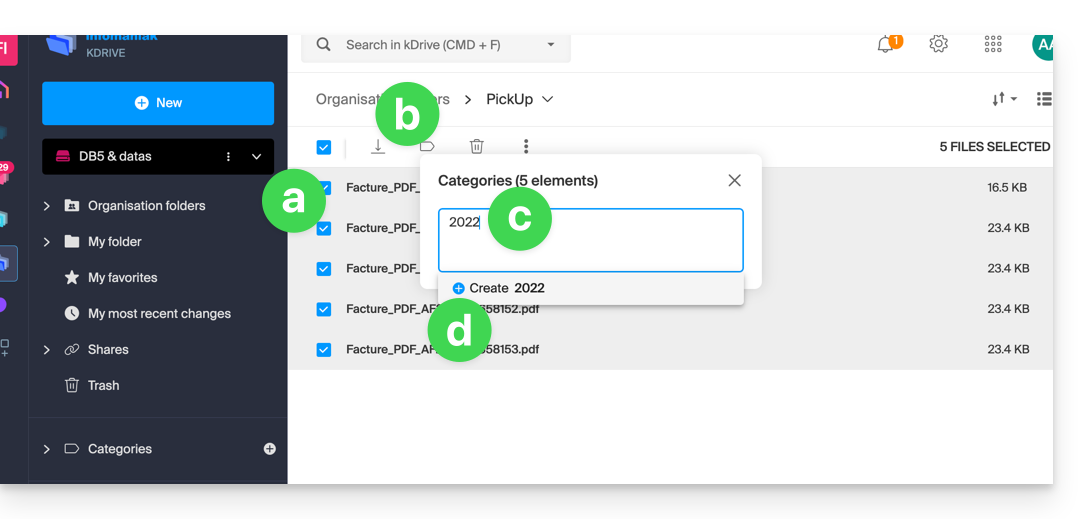
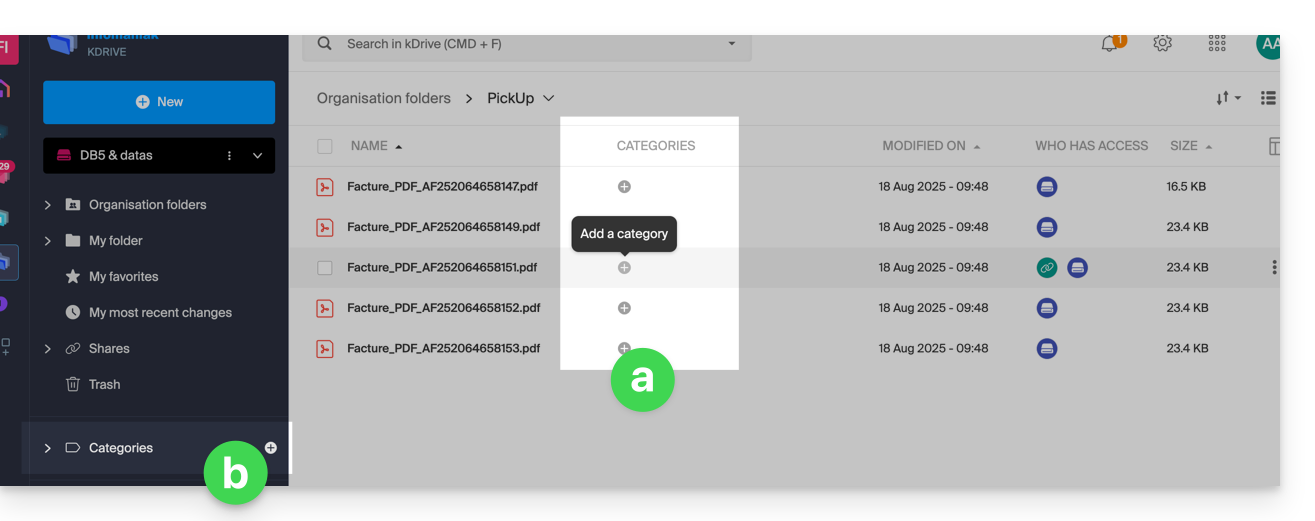
- You can also click on…
- … the icon in the CATEGORIES column of your file (the window must be large enough).
- … the icon in the left-hand menu:
…. on the kDrive mobile app
To assign a category to a kDrive file:
- Tap the action menu ⋮ located to the right of the item in question.
- Tap Manage categories.
- Tap the category or categories you want.
- Return to the content using the back arrow at the top left:

Sort your documents by category in…
… on the kDrive Infomaniak web app
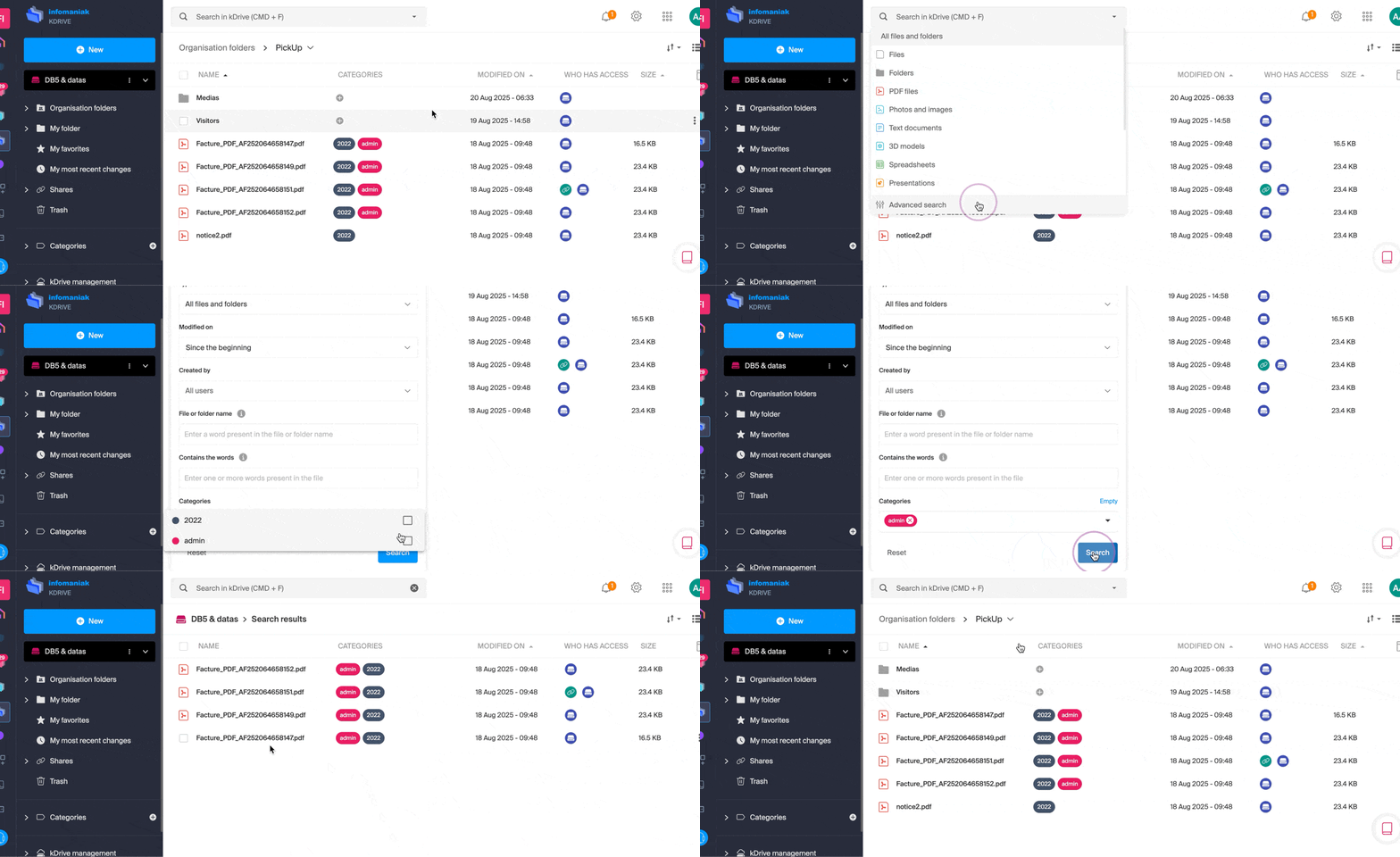
To display only the files from your kDrive that belong to a specific category:
Link to this FAQ: https://faq.infomaniak.com/2628
Has this FAQ been helpful?
This guide details the in-app purchase feature of the kDrive application for iOS.
Purchasing a kDrive subscription via the iOS app
You can subscribe to a kDrive Solo or Team plan directly from the iOS app via the Apple App Store.
This feature also introduces changes to the management of your subscription and billing for this product.
Once you choose to make purchases through in-app purchases…
- … Your subscription to kDrive will be managed directly by Apple (only the billing part; hosting your data remains, of course, Infomaniak's responsibility).
- … Infomaniak can no longer provide support for the billing aspect of kDrive; you will need to contact Apple support directly.
To understand the billing and management of your subscription with Apple, please refer to the following official Apple guides:
- Billing and subscriptions
- App billing
- View your purchase history in the App Store
- See what you were charged for
In summary
Managed by Infomaniak
- Hosting your data
- kDrive technical support
Managed by Apple
- Administrative support related to your kDrive subscription
- Invoice and payment method
Link to this FAQ: https://faq.infomaniak.com/2632
Has this FAQ been helpful?
This guide provides instructions for synchronizing kDrive with a VPS (or vice versa) via the WebDAV protocol, which can be found in the rClone application.
✘ UNAVAILABLE with
kSuite Free / kSuite Standard
my kSuite / my kSuite+ (ik.me, etik.com, ikmail.com)
Prerequisites
- You must have a VPS.
- Know your kDrive ID (kDrive ID).
Synchronize kDrive and VPS via rClone
This process allows you to retrieve files and folders from kDrive in real time and read, create, or modify these files from your VPS, while ensuring that they are synchronized again on the kDrive server. An rClone mount point can be created with a folder on your VPS to allow you to manage these kDrive files.
Refer to the rClone documentation if you are looking for information about the available options:
- Example rClone command:
rclone mount kdrive:/My_kDrive_Folder_Path /home/ubuntu/Target_Folder_Path --vfs-cache-mode full --vfs-cache-max-age 24h --vfs-cache-max-size 10G --cache-dir /home/ubuntu/rclone/cache --daemon --allow-other --dir-cache-time 1h --log-file /home/ubuntu/rclone/rclone.log --log-level INFO- The
--daemonattribute in this command allows you to run the synchronization in the background, because without it, this sync will end each time you disconnect from the VPS…
- Example rClone configuration file:
[kdrive] type = webdav url = {{URL_3}} vendor = other user = *** pass = ***- Server address:
https://IDkDrive.connect.kdrive.infomaniak.com(see prerequisites) - Username: the email address used to log in to your Infomaniak account
- Password: create an application password for this specific use.
Link to this FAQ: https://faq.infomaniak.com/2636
Has this FAQ been helpful?
This guide helps you resolve login errors on Infomaniak mobile apps (kDrive, Mail, Euria, SwissTransfer, etc.) when the security message “Your device is not recognized as secure” appears on your device.
Why does this message appear?
This blocking mechanism relies on the official security protocols of operating systems (such as the Google Play Integrity API on Android). Infomaniak uses these standards to ensure that your data is not accessed on a device whose integrity or security may be compromised.
This situation generally occurs in the following cases:
- Using an unofficial operating system (Custom ROM / LineageOS).
- Device that is "rooted" or has an unlocked bootloader.
- Outdated or uncertified operating system version.
- Devices lacking official services (e.g., Huawei smartphones without Google services).
Immediate workaround
If your device is working properly but the message persists, you can force a new authentication to bypass the block:
- On the login screen of the relevant application, tap the down arrow icon next to your account or avatar.
- Select the "Log in with another account" option (even if it is the same account).
- Enter your credentials manually (Infomaniak email address and password).
This process allows you to ignore the old session token and validate access via updated, secure authentication.
Link to this FAQ: https://faq.infomaniak.com/2685
Has this FAQ been helpful?
This guide explains how to transfer files from an iPhone to an Infomaniak kDrive.
Prerequisites
- Have a kDrive or kSuite plan.
- Install the kDrive mobile app (application for iOS smartphones or tablets).
Manually send data to kDrive iOS (iPhone, iPad)
To do this:
- Select the data you want to share on kDrive.
- Click on the share icon on your iPhone:
- Choose kDrive from the options provided:
- Select the kDrive and the backup location - if this is not suitable, tap it to change the storage folder:
- Choose another folder or create a new folder:
- Determine the type of folder to create (shared folder with kDrive users or personal & private folder):
- Name the folder, choose the desired sharing settings, then click the blue button to create the folder:
- Click on the newly created folder to select it as the location:
- Create a possible subfolder within it, or confirm the chosen location using the blue button:
- Press the blue button to start uploading your files to kDrive:
- You can track the progress of the transfer to kDrive:
- The upload is performed in the background:
Once the files have been uploaded, you can access them on all devices connected to kDrive…
- … instantly on the kDrive web app (online service ksuite.infomaniak.com/kdrive).
- … after downloading the list of these new files to the devices on which the desktop app kDrive (desktop application on macOS / Windows / Linux) is installed.
Link to this FAQ: https://faq.infomaniak.com/2796
Has this FAQ been helpful?
This guide explains how to troubleshoot errors related to the Lite Sync Windows extension in the desktop application kDrive v3.x.
Check if the extension is present
Before performing any operations, make sure that the extension is properly registered with the system:
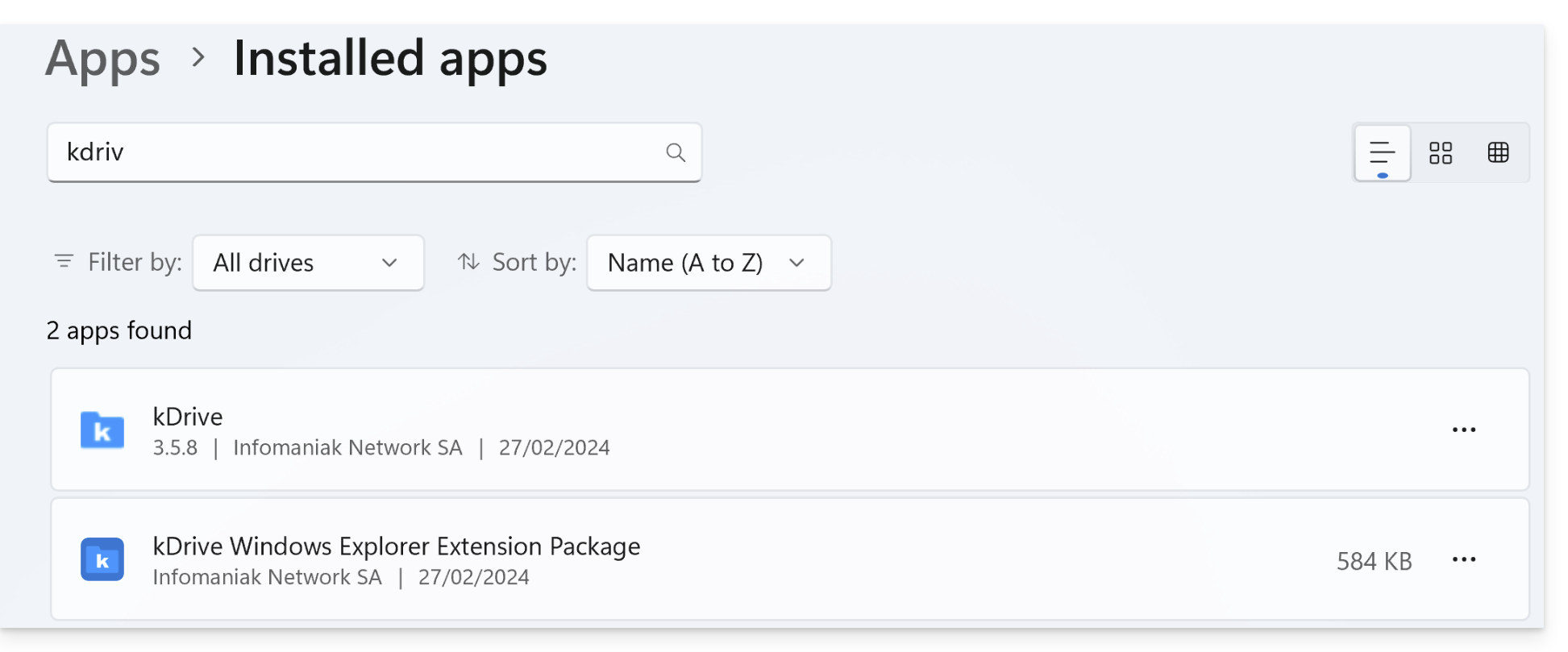
- Open the Settings in Windows.
- Go to the Applications section, then Installed applications.
- In the search bar, type "kDrive".
- Make sure that the kDrive Windows Explorer Extension Package appears in the list:
Error of type "Unable to start Lite Sync"
This error usually occurs when the Windows Explorer extension is missing or corrupted.
Manually reinstalling the extension
If the extension does not appear or is not working, you can install it manually without reinstalling kDrive:
- Close the kDrive application completely (make sure it is no longer in the notification area).
- Open your file explorer and navigate to the following folder:
C:\Programs\kDrive\shellext\AppX\ - Double-click the following file:
FileExplorerExtensionPackage_3.8.1.0_x64_arm64.msixbundle - A specific installation wizard for the extension will open. Follow the steps.
- Restart your computer to complete the integration.
If the problem persists
If, despite manual installation, the LiteSync option remains unavailable:
- Antivirus: check that your security software is not blocking processes located in
C:\Programs\kDrive\. - Conflicts: Some other cloud services (like OneDrive) may sometimes conflict with kDrive's icon extensions.
- Logs: If necessary, send the kDrive logs (in Debug mode) to Infomaniak support.
Link to this FAQ: https://faq.infomaniak.com/2804
Has this FAQ been helpful?
This guide explains how to resolve certain Lite Sync macOS errors that may occur with the desktop app kDrive v3.x (desktop application on macOS).
Synchronization blocked 1/10
Check if macOS permissions are enabled for kDrive and the Lite Sync extensions:
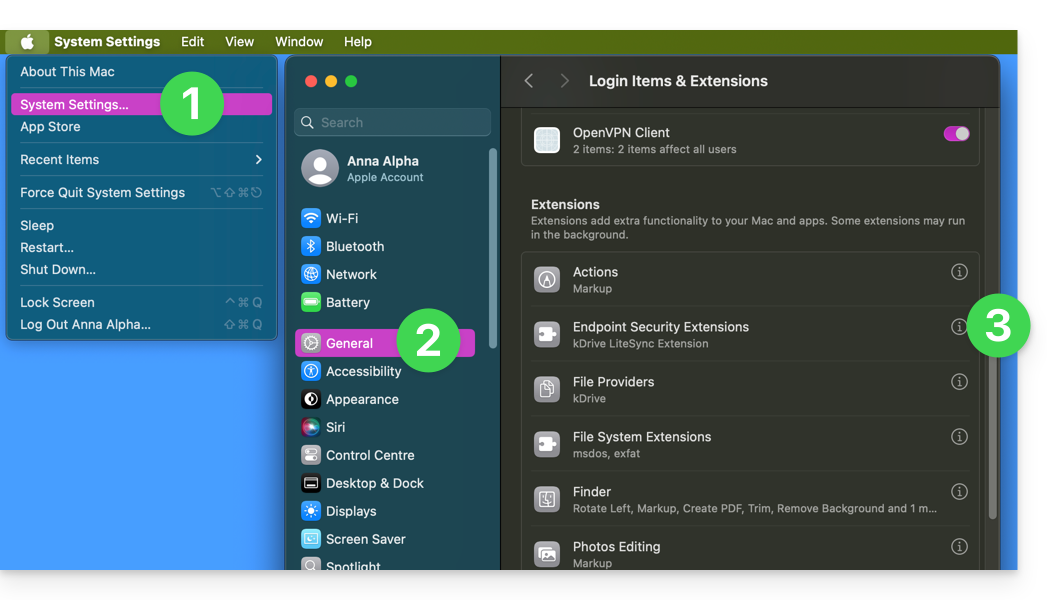
- Open the macOS settings.
- Under General, click on Opening and extensions.
- Scroll down to Endpoint Security Extensions :: kDrive LiteSync Extension:
- Make sure the permissions are enabled and confirm at the bottom:
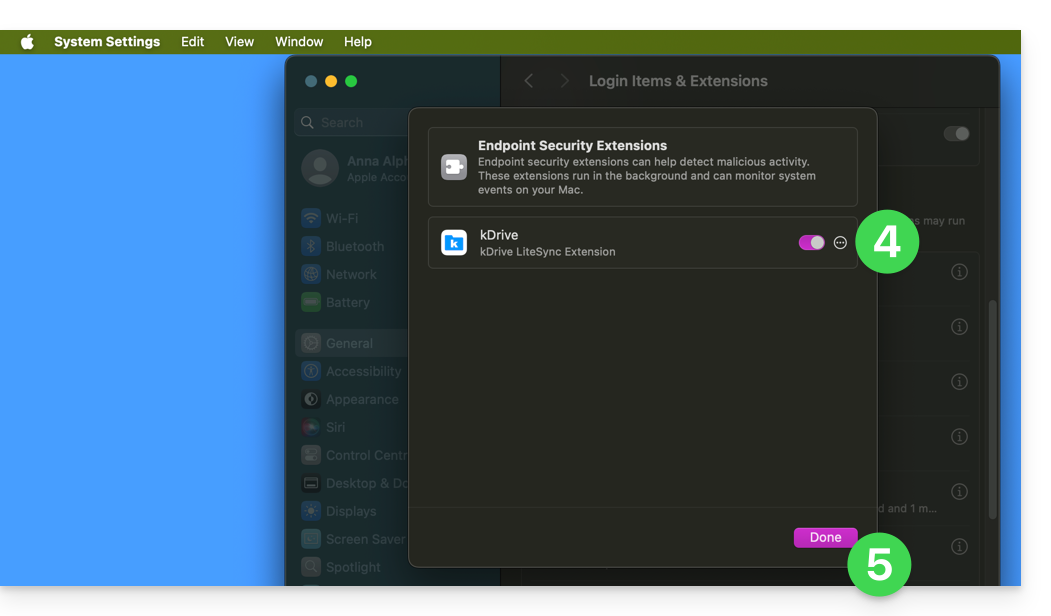
Take this opportunity to review the other kDrive settings to ensure that everything is properly activated.
Error: "Unable to start Lite Sync plugin"
To fix the "Unable to start Lite Sync plugin" error, which usually occurs when the Lite Sync extension is missing or does not have the necessary permissions…
…check that the extension is present.
From a Terminal application (command-line interface, CLI / Command Line Interface) on a macOS device:
% systemextensionsctl listThe result will be similar to:
1 extension(s)
--- com.apple.system_extension.endpoint_security
enabled active teamID bundleID (version) name [state]
* * 864VDCS2QY com.infomaniak.drive.desktopclient.LiteSyncExt (3.5.0/1) kDrive LiteSync Extension [activated enabled]
If the command result does not mention "kDrive LiteSync Extension", the extension is not present:
- Remove the synchronization and add it again.
If the command result does not have the status [activated enabled]:
- Enable the extension in System Settings / Privacy and Security.
… check the extension permissions
In System Settings / Privacy & Security / Full Disk Accessfor the macOS device: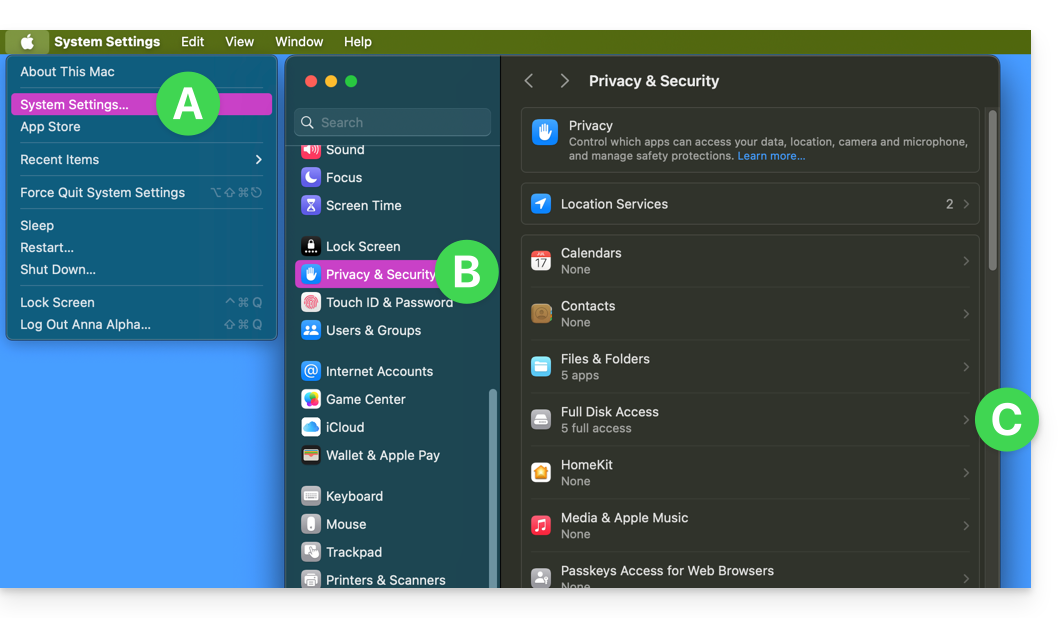
Grant full access to kDrive and the Lite Sync extensions: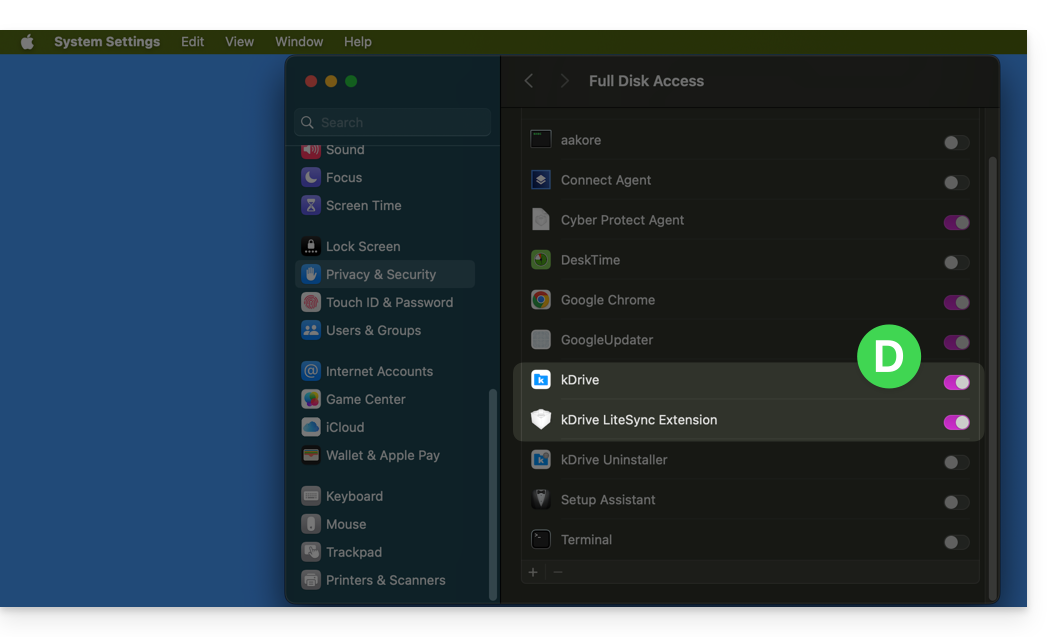
… verify the extension's functionality
From a Terminal:
% ps -ef | grep LiteSyncExtThe result will be similar to:
0 7434 1 0 1:02 ?? 0:25.42 /Library/SystemExtensions/6035BDE4-B7D6-477E-A6AB-C2281E3C7752/com.infomaniak.drive.desktopclient.LiteSyncExt.systemextension/Contents/MacOS/com.infomaniak.drive.desktopclient.LiteSyncExtIf the extension doesn't seem to be working, try the following:
- Restart the app.
- Restart the Mac.
- Remove/add the synchronization.
- Uninstall / reinstall the app.
If it still doesn't work
- If necessary, send the kDrive logs (in Debug mode) to Infomaniak support.
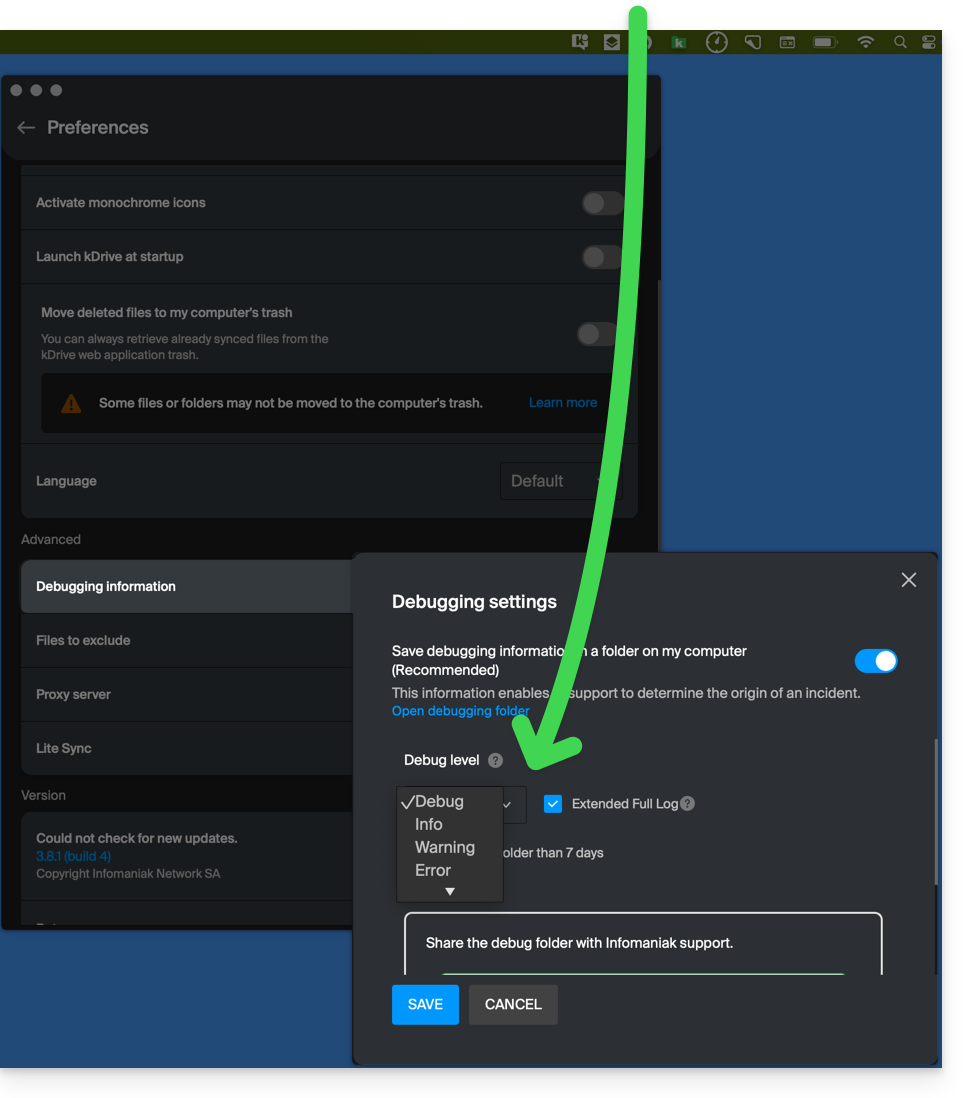
- Check in the Console if there is a crash report for the date of the last app startup, and if so, send it to Infomaniak:

Retrieve kDrive messages in the Console:
- Exit the app.
- In the Console, select the Mac, filter by
[KD], and click Start:
- Launch the app.
- Click in the message list, select all messages (Ctrl+A), copy them (Ctrl+C), and send them to Infomaniak.
Link to this FAQ: https://faq.infomaniak.com/2824
Has this FAQ been helpful?
This guide explains how to change the local location used by the desktop app kDrive (desktop application on macOS / Windows / Linux) in order to, for example, store the synchronized data on another hard drive when the first one chosen no longer has enough space.
Introduction
- Indeed, if the Lite Sync option is not enabled, all existing data on the kDrive web app (online service ksuite.infomaniak.com/kdrive) is also stored locally on the synchronized device and takes up storage space.
- Since the volume of data can be very large, you may need to store the data on a different hard drive than the one initially selected.
- Never move a folder used for kDrive synchronization(
/kdrive,/kdrive2, etc.) neither when the kDrive application is open nor when it is closed or uninstalled with the intention of being reinstalled.- If everything is synchronized, you must delete the folder and recreate it as explained below.
- If you proceed differently by using a folder that already contains your data, you risk encountering file conflicts.
Change the local directory used by kDrive
To define a new folder for kDrive synchronization when the first folder initially chosen should no longer be used, follow these steps:
- Make sure that all your data is synchronized and that it exists and is visible in the kDrive web app (online service ksuite.infomaniak.com/kdrive).
- If necessary, locate the folder currently used by the kDrive desktop app (click on Drive Settings from the application, then click on the blue URL displayed under Folders to open the local folder and identify its location):
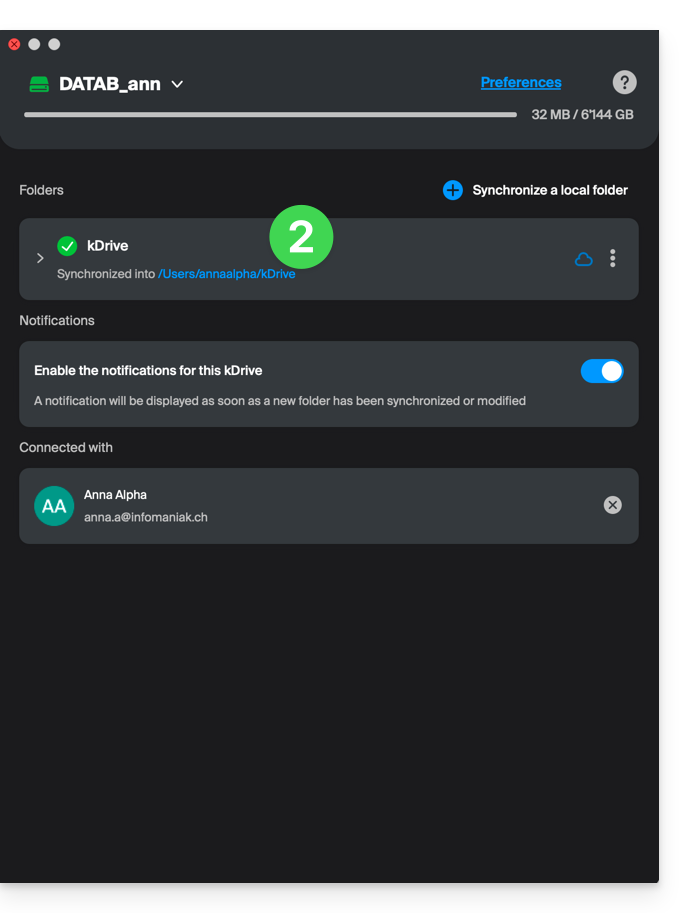
- Quit the kDrive desktop app on the device where you want to change the folder being used:
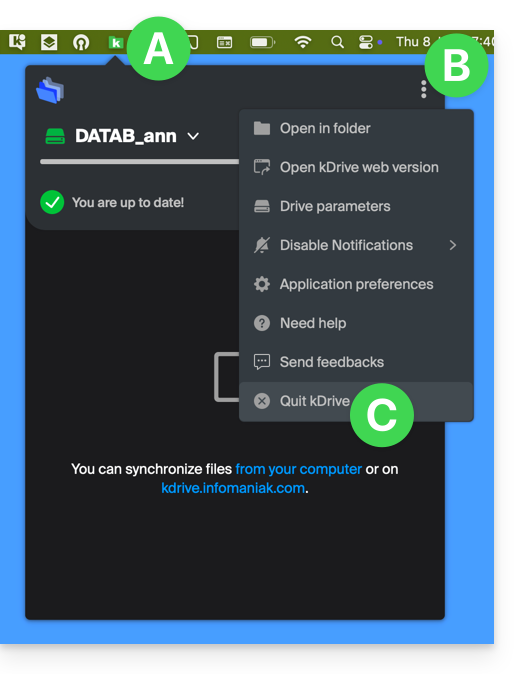
- Completely uninstall the kDrive desktop app by deleting all configuration/settings data, etc. — on macOS, use kDrive Uninstaller, which is located in the Applications/kDrive folder):
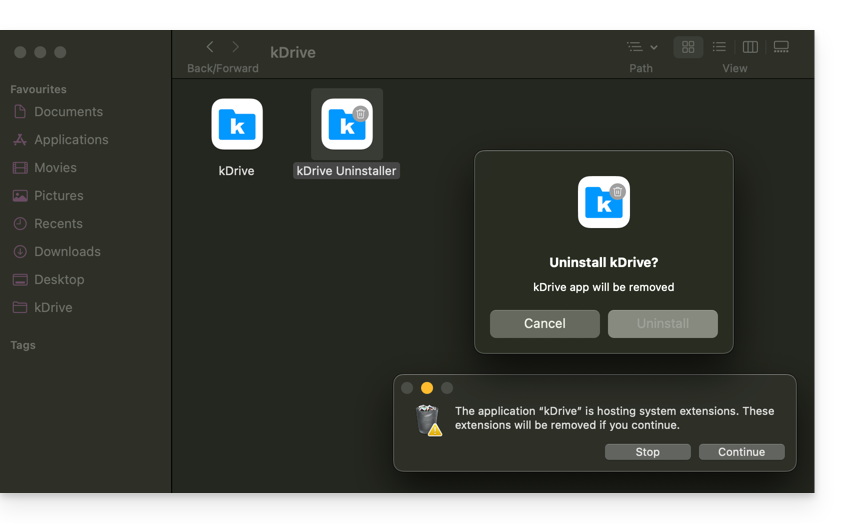
- Delete the
kDrivefolder (orkDrive2, etc., located in step 2). - Reinstall the kDrive desktop app, and when connected to your Infomaniak account, click the pencil ✎ icon at the folder selection step:
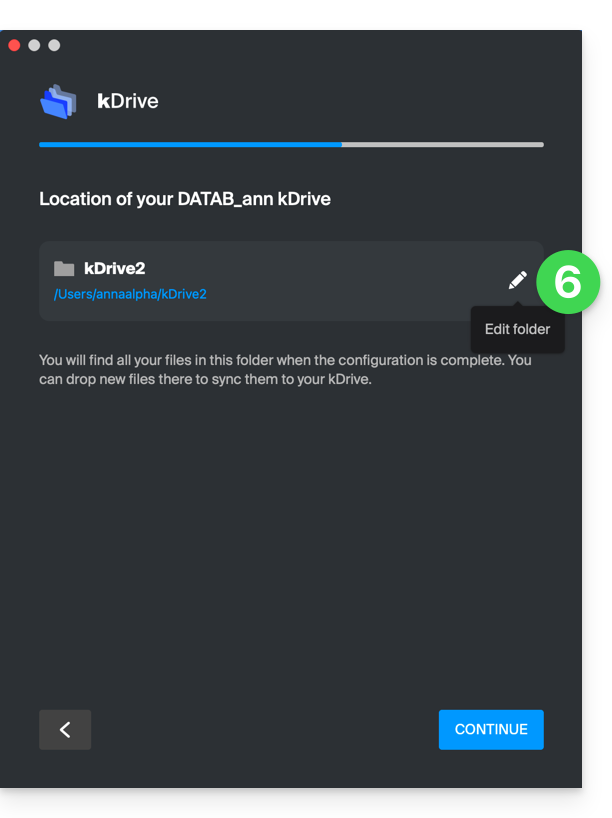
- Choose the new hard drive as the location for the new folder (name it as you wish):
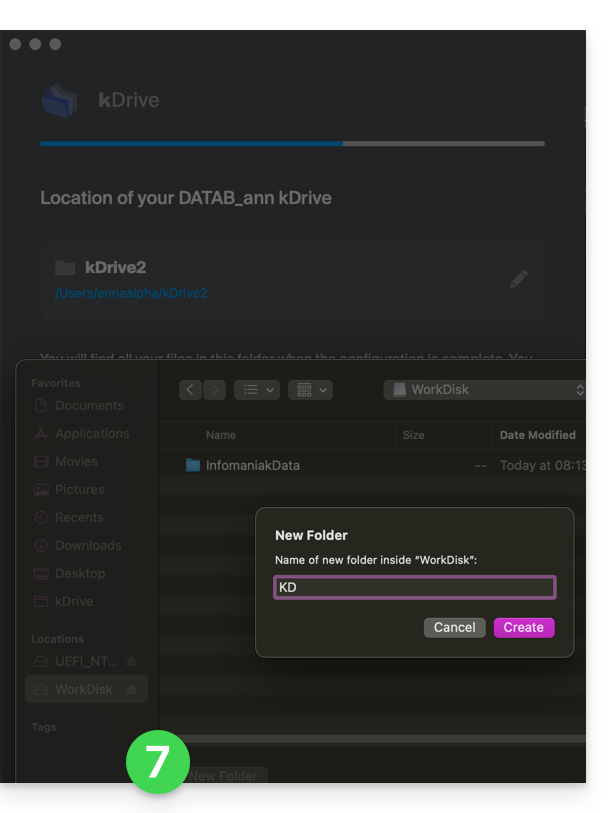
- Complete the configuration:
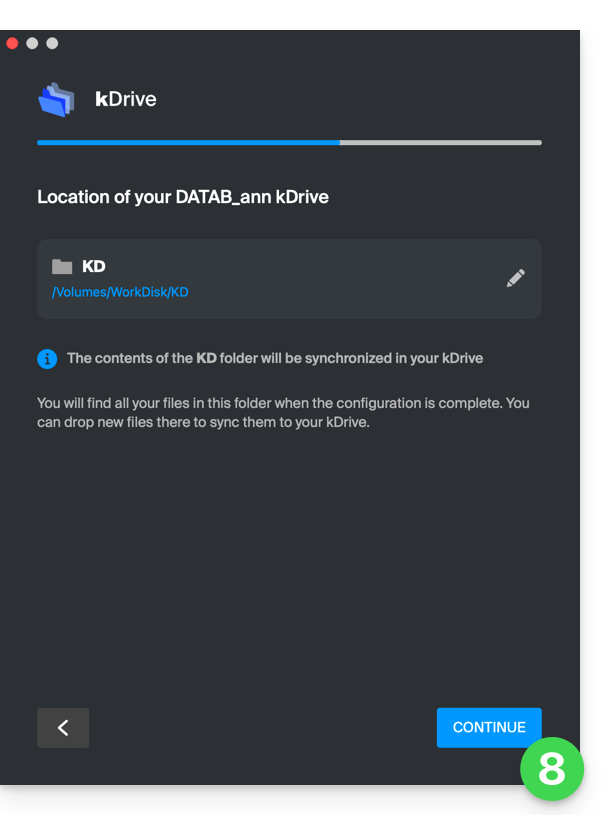
- The download of kDrive data stored on Infomaniak servers will begin and continue entirely in the background.
- Refer to this other guide to download only specific folders.
Link to this FAQ: https://faq.infomaniak.com/2856
Has this FAQ been helpful?
This guide explains how Infomaniak kDrive shares are displayed, depending on the type of share and the application used (Web or Desktop), including internal shares (between users of the same kDrive) and external shares (to users outside of kDrive).
Introduction
- Internal shares (between users of the same kDrive, point A below) are synchronizable on the desktop app.
- Shared folders appear in a “Shared” folder on the desktop app and can be enabled/disabled in the synchronization settings.
- Do not move or rename the “Shared” folders locally – this may break the synchronization.
- External shares (to users outside of kDrive, point B below) are not synchronizable on the desktop app.
- They have certain limitations.
A. Internal sharing (between users of the same kDrive)
It is possible to share files or folders from your personal folder with other users of your kDrive, without using the organization folders (shared folders). This allows you to precisely control access to your private data.
Steps for sharing a folder/file internally
- Click here to access kDrive in your Infomaniak kSuite (❓: help).
- In the kDrive web interface, one of the kDrive users right-clicks on the folder or file to be shared:
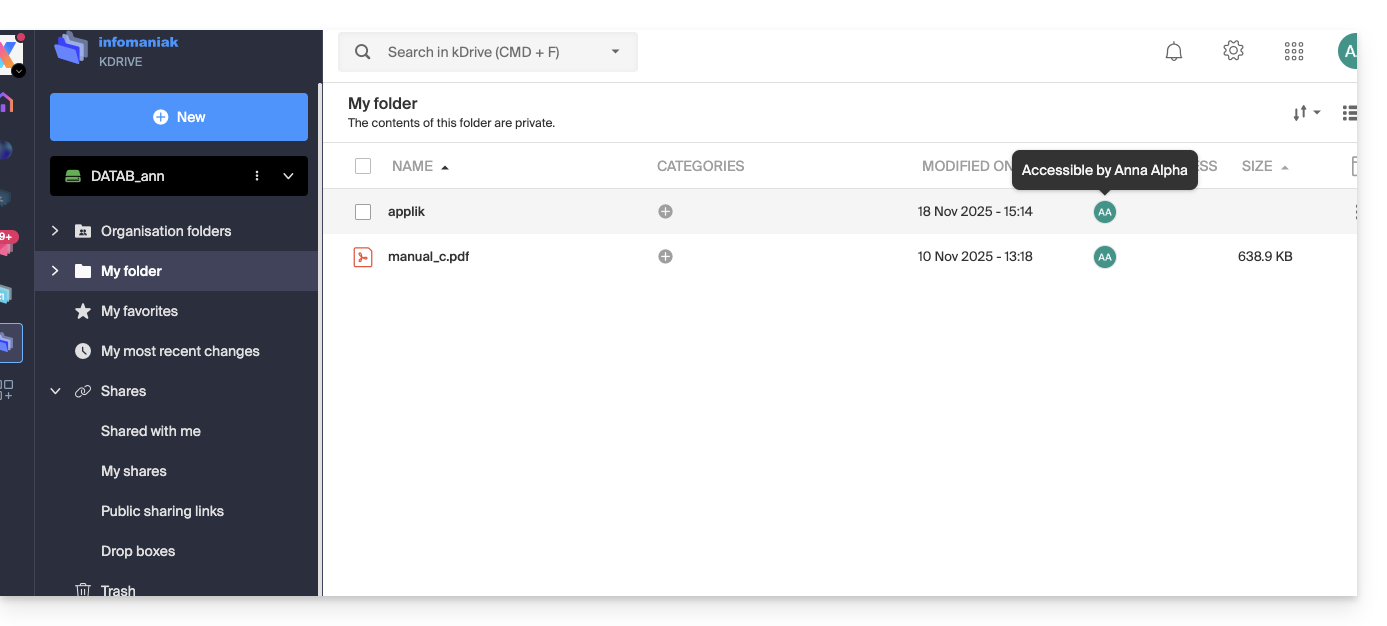
- Select “Share folder”:
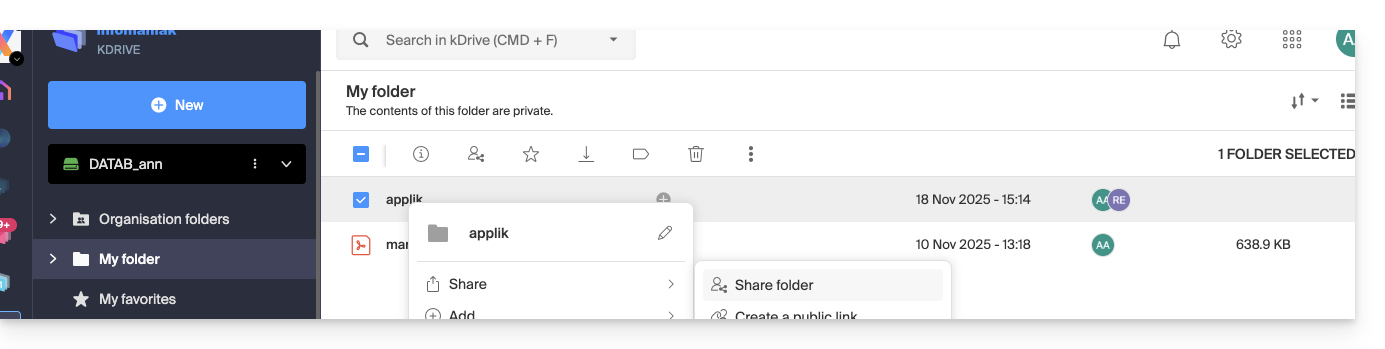
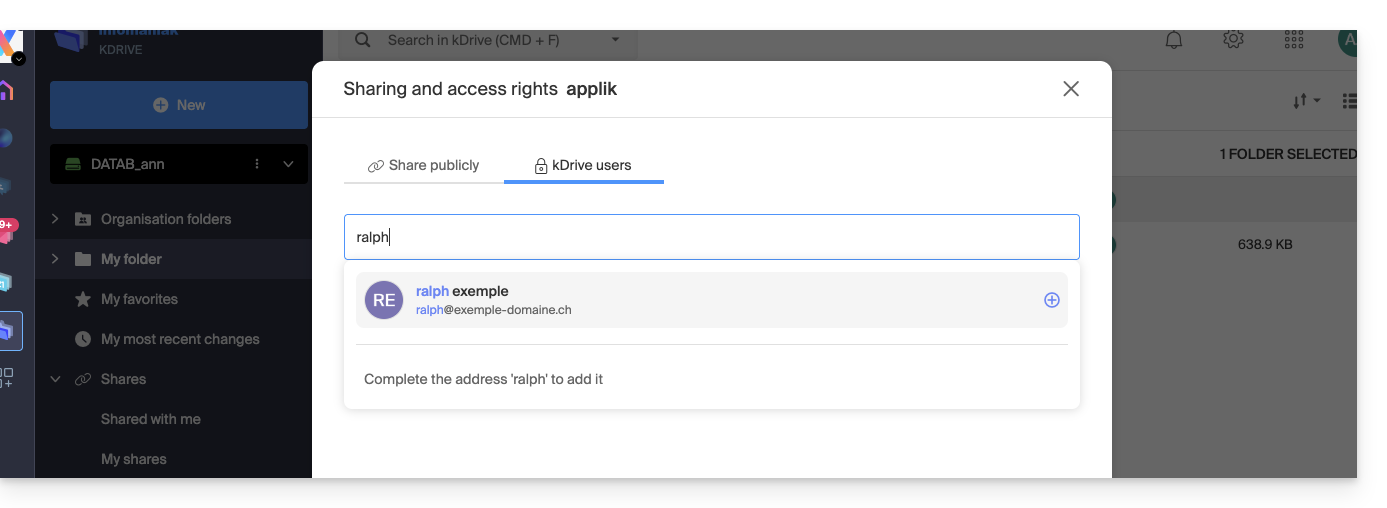
- In the “kDrive Users” tab, enter the name of another user of the same kDrive:
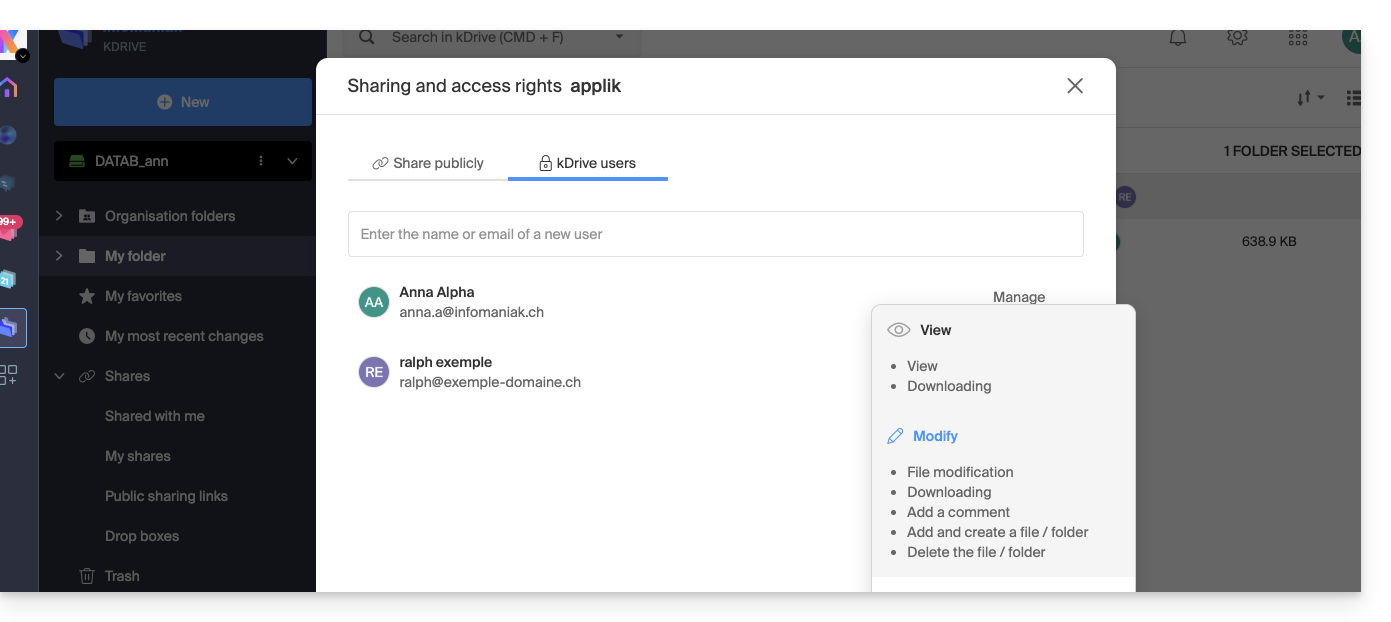
- Choose the permissions:
- Close the sharing window.
Behavior in the desktop app
When an internal share is performed as described above, a folder named “Shared” automatically appears in the local file structure of the desktop application for the user in question, here on macOS: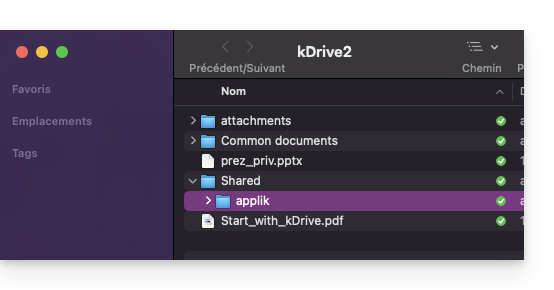
This folder contains all shared items and will therefore synchronized with any subsequent changesmade by the user who shared the data.
You can enable or disable synchronization for this folder from the desktop application settings by clicking on the chevron next to the name of the synchronization folder (kDrive2 in the example below) to expand the tree of synchronized files, and by deselecting the “Shared” folder (don't forget to save the changes):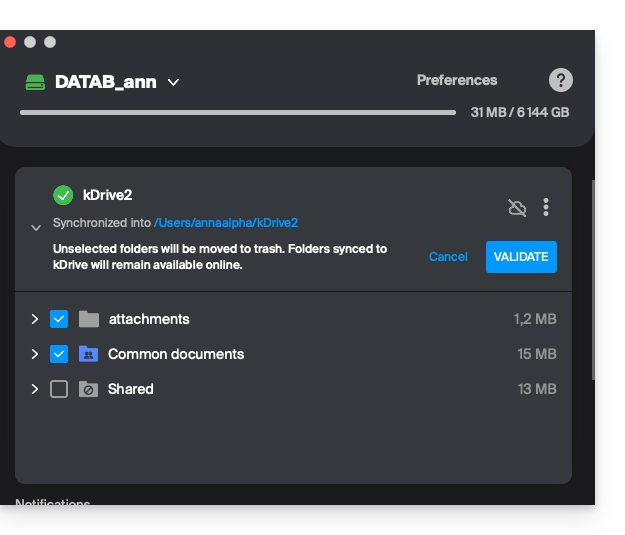
B. External sharing (with users outside the kDrive in question)
You can also share files or folders with people who are not part of your kDrive. These shares are called external shares.
Note: The external user must have an Infomaniak account (free or paid) to access the share. This is not a public link accessible to anyone.
Steps to share a folder/file externally
- Click here to access kDrive in your Infomaniak kSuite (❓: help).
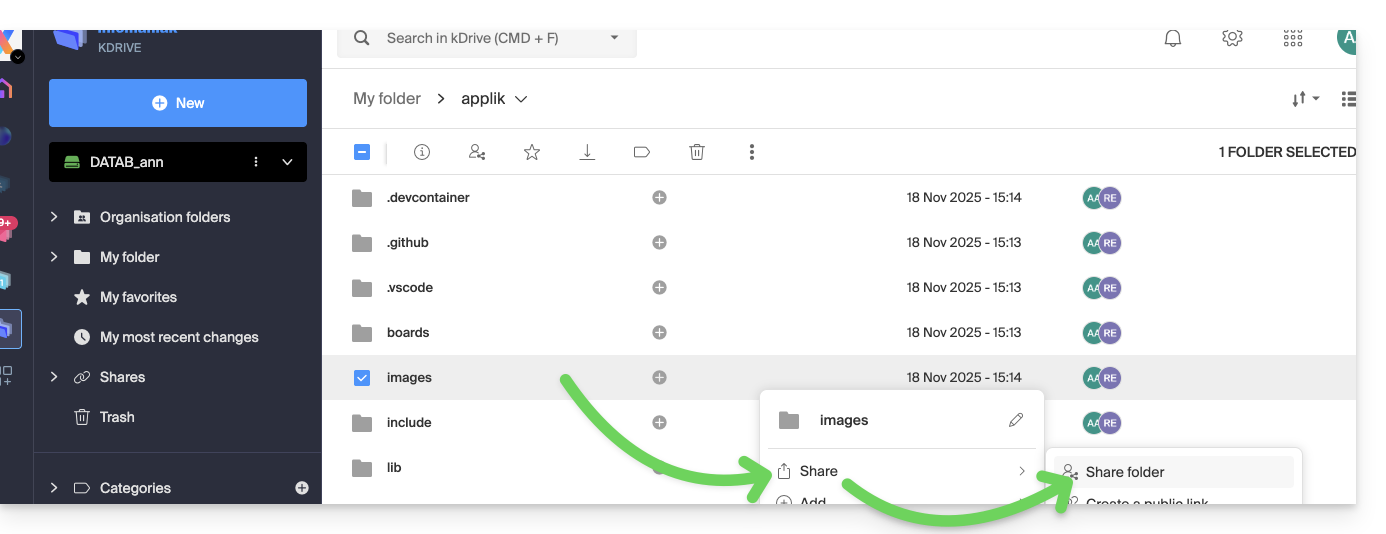
- In the kDrive web interface, one of the kDrive users right-clicks on the folder or file to be shared (for this example, a subfolder of a folder that has already been shared (as in point A above) will be shared; this has no impact).
- Select “Share folder”:
- In the “kDrive Users” tab, enter the email address of the external person (
faq@ik.mein this example):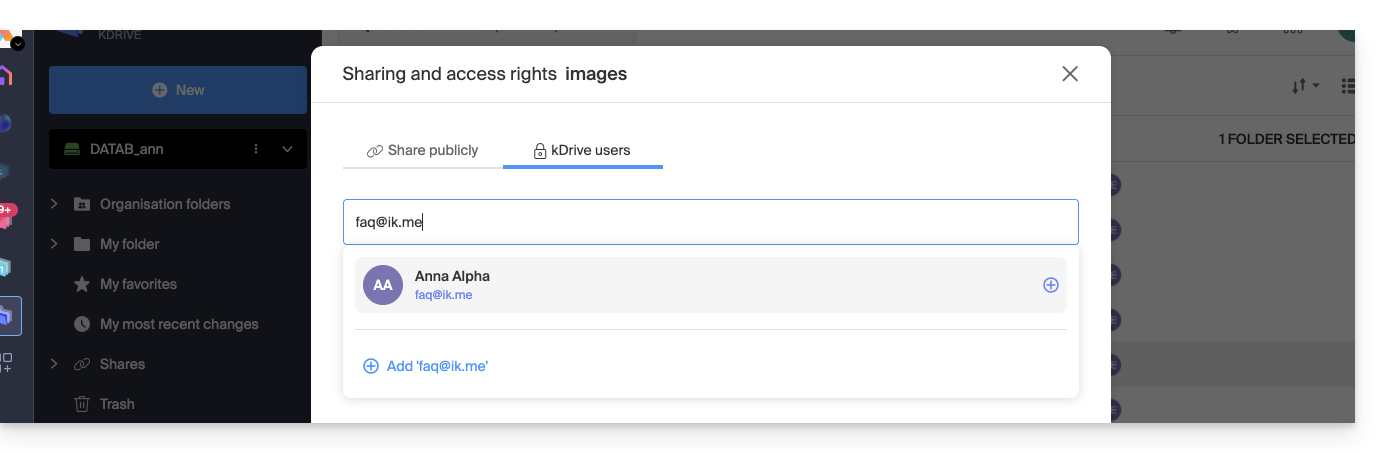
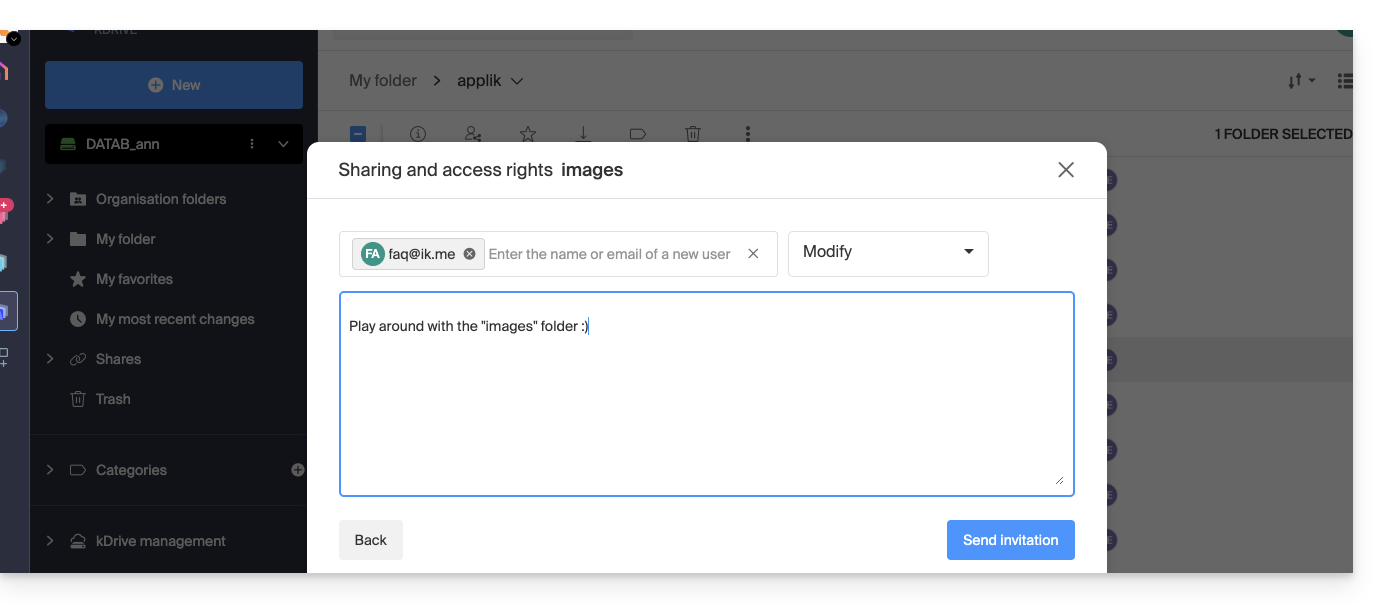
- Click on the email address to add it, choose the permissions for the user and an optional message, then click on the button in the bottom right corner:
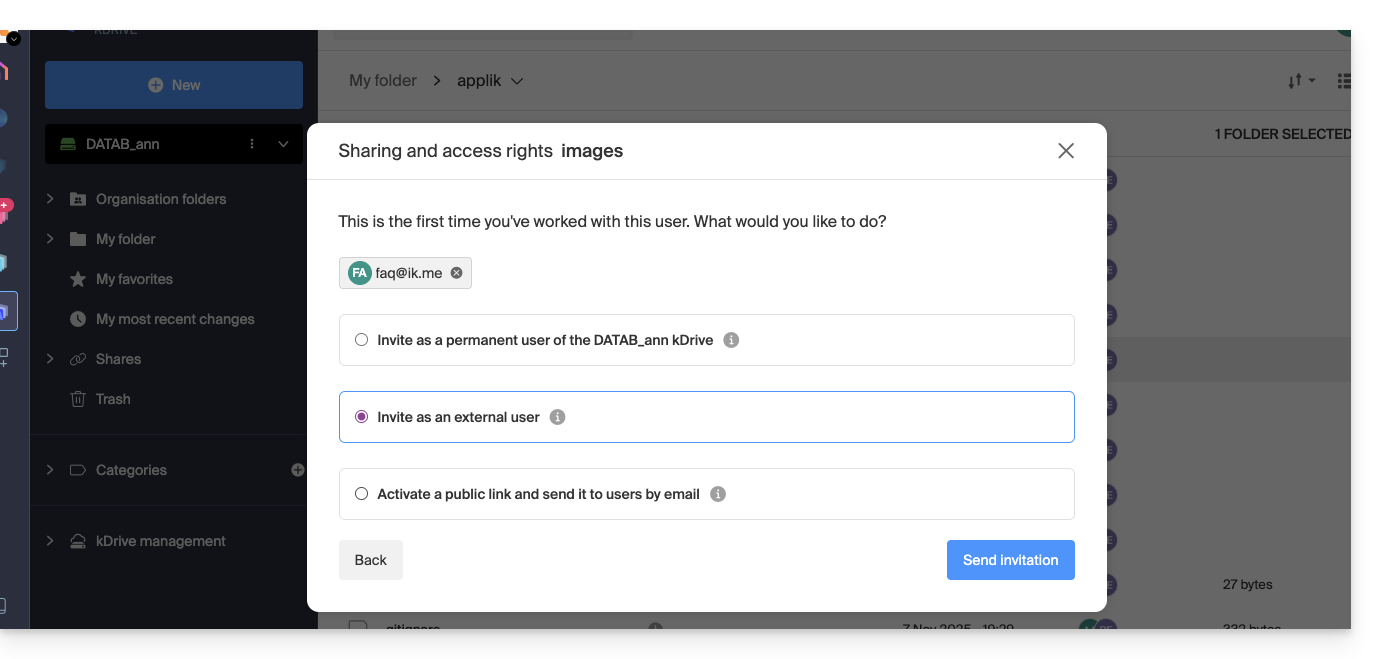
- Select “External user” and click the button in the bottom right corner to send the invitation:
- Close the sharing window.
Behavior in the web (and desktop) app
As long as the user does not view their emails, nothing will happen, and kDrive will not appear, either in the web app or the desktop app: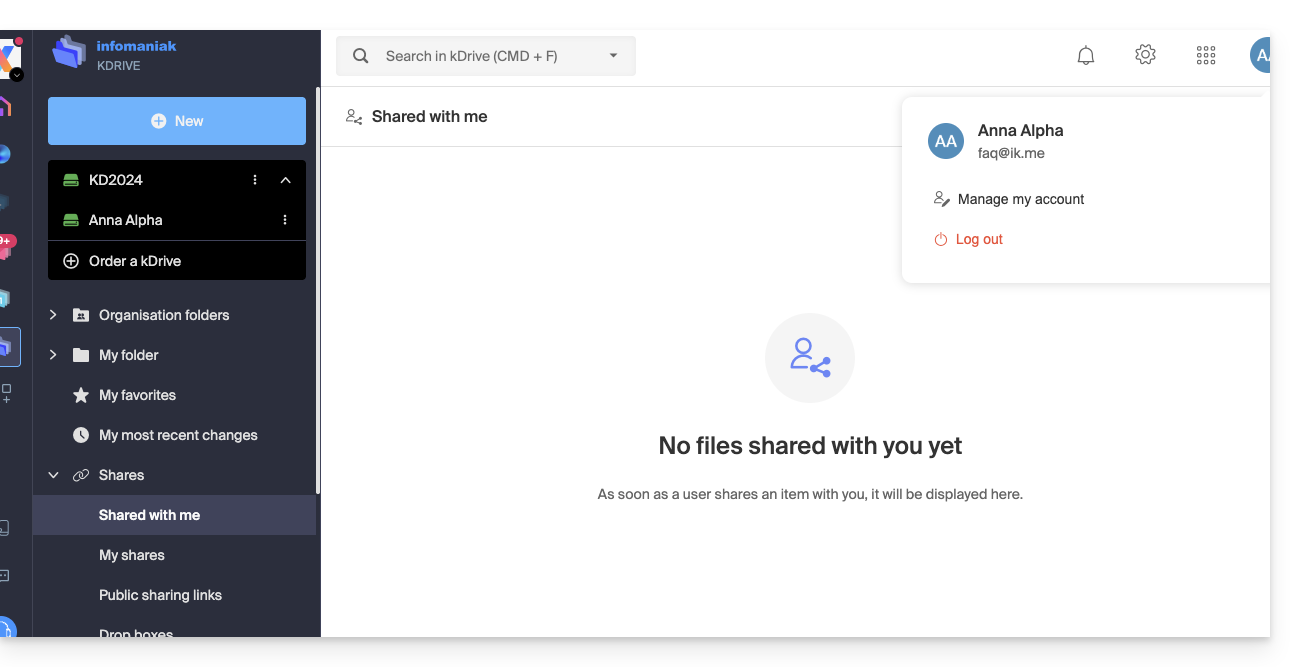
The user faq@ik.me, whose emails can be viewed as follows: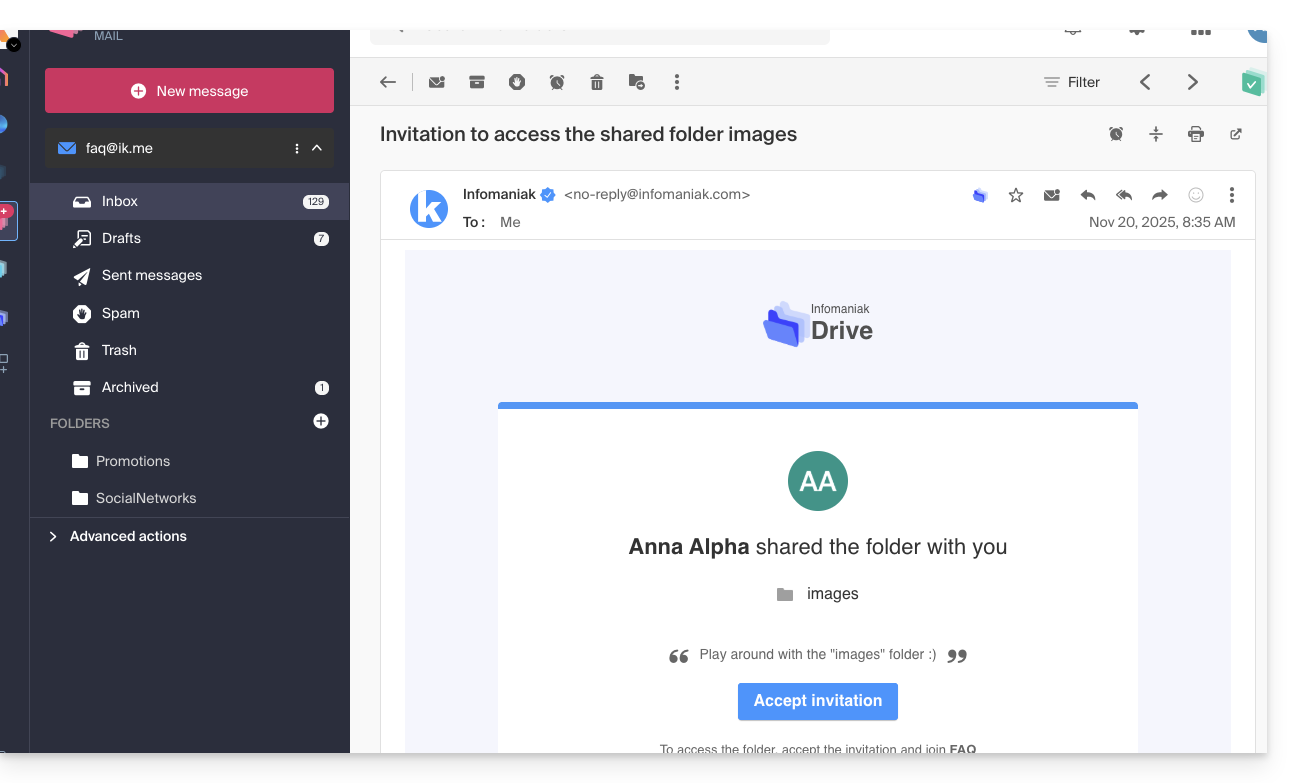
Once the sharing is accepted:
- The user is redirected to the shared data page within a restricted kDrive:
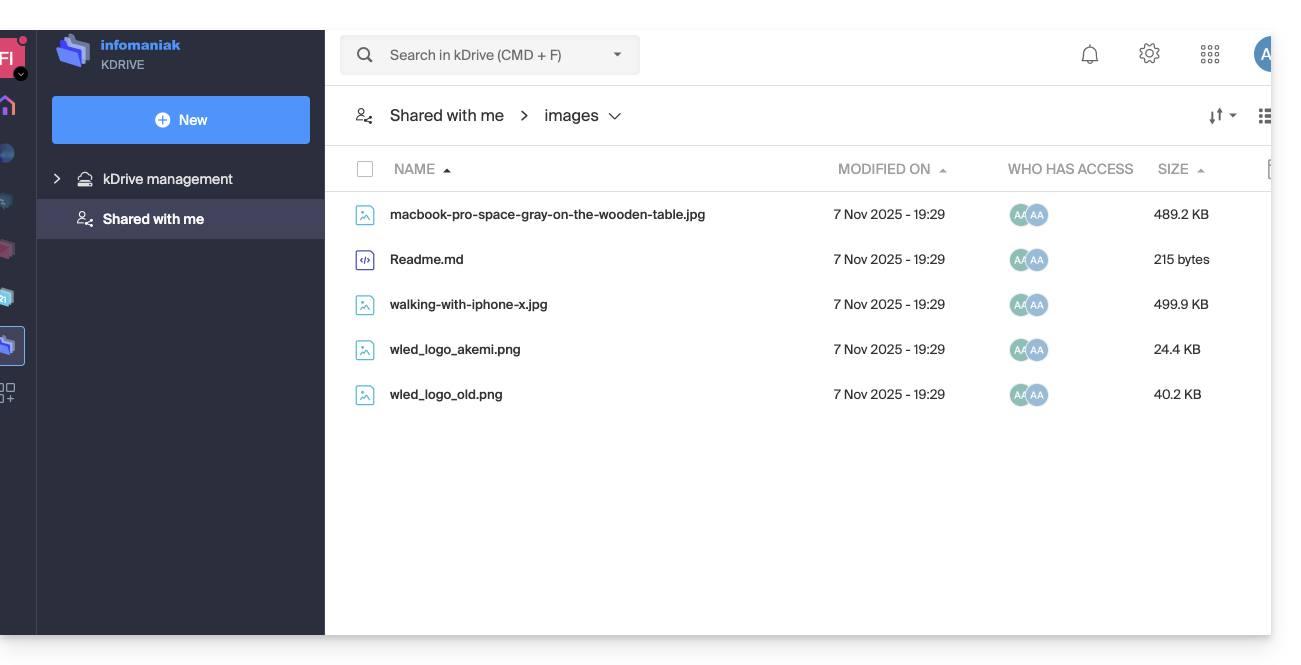
- To find it again later, it may be necessary to switch back to the relevant Organization to make the share reappear, as it is not necessarily linked to the kDrives of Organizations that the user already had access to.
- Then, the shared data will be visible in the “Shared with me” section:
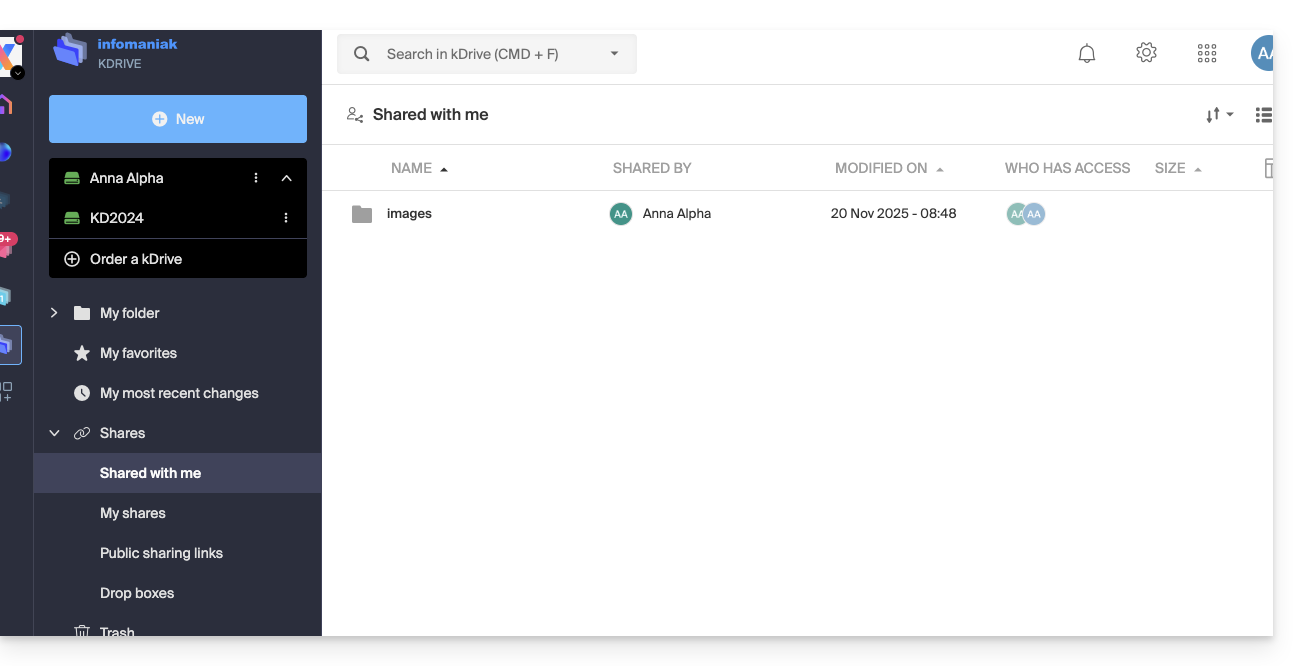
These external shares are NOT synchronizable via the desktop app. No “Shared” folder appears locally for these shares.
External users can only access files via the kDrive web interface (after logging into their Infomaniak account).
This ensures the security of data shared with third parties while limiting synchronization load on local devices.
Link to this FAQ: https://faq.infomaniak.com/2859
Has this FAQ been helpful?