Knowledge base
1000 FAQs, 500 tutorials and instructional videos. Here, there are only solutions!
This guide explains how to configure DNSSEC with Cloudflare for a domain registered with Infomaniak.
Prerequisites
- The domain's DNS zone must be managed by Cloudflare.
Configure DNSSEC in Cloudflare
To do this:
- Click here to access the Cloudflare console.
- Go to the DNS tab.
- Click on Enable DNSSEC.
- Keep the information you obtained handy:
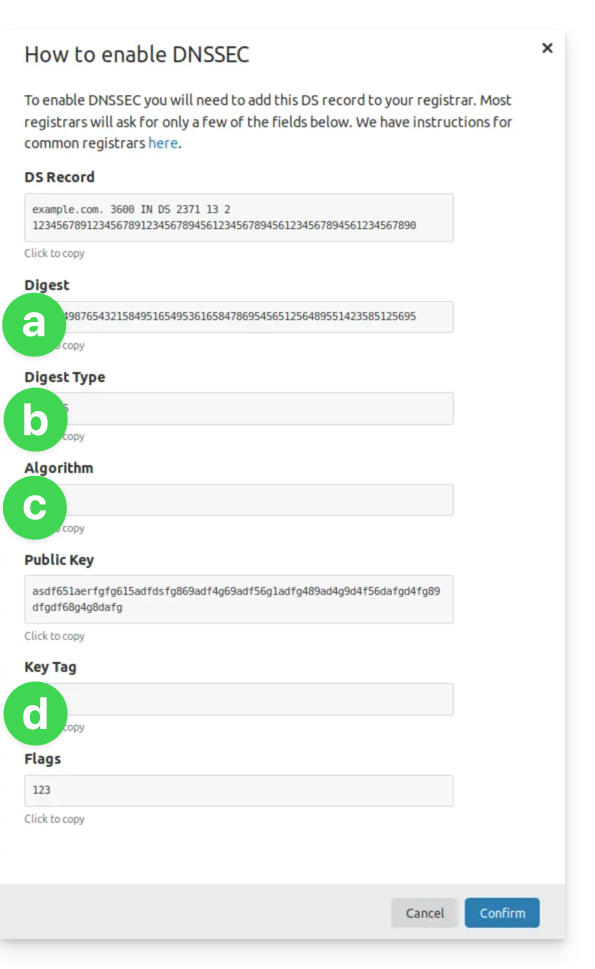
(see points 8 & 10 below)- The information under a will go under HASH
- The information under b will go under HASH TYPE
- The information under c will go under ALGORITHM
- The information under d will go under KEY
- Click here to access your domain management on the Infomaniak Manager.
- Click directly on the name assigned to the domain in question.
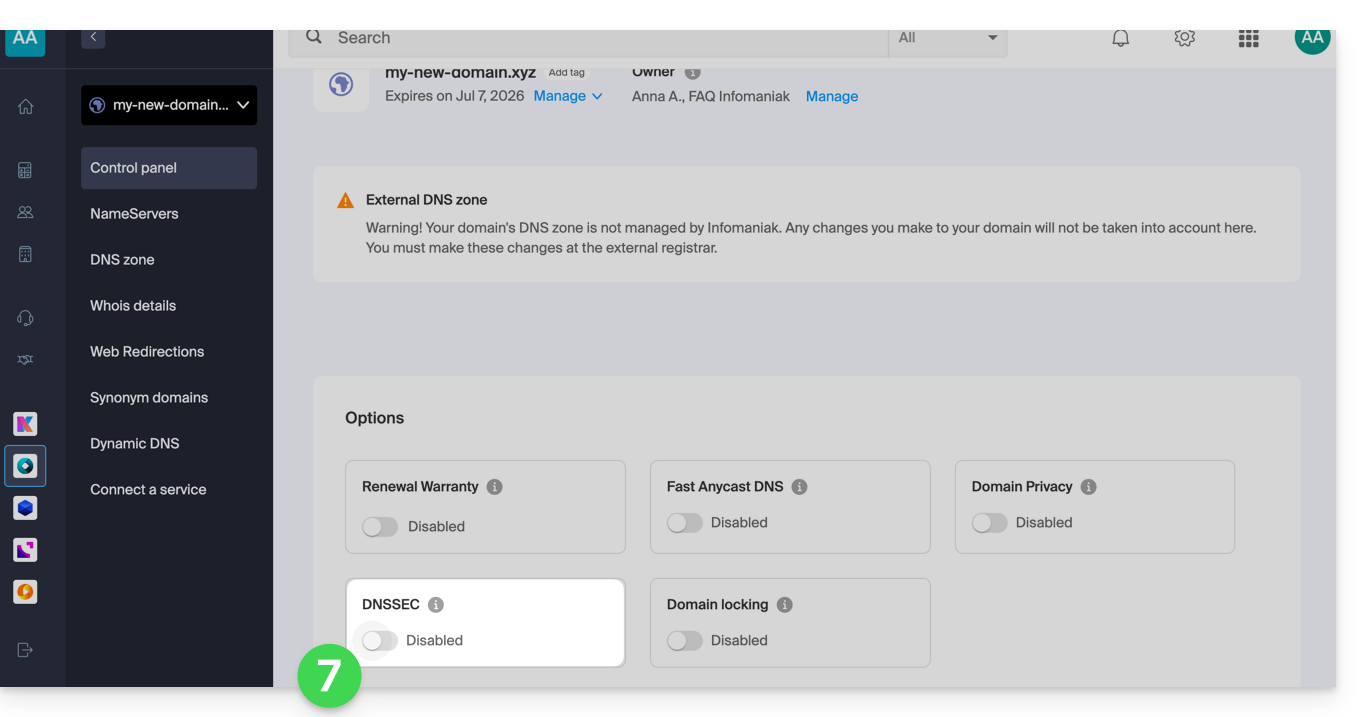
- Activate DNSSEC from the Dashboard:
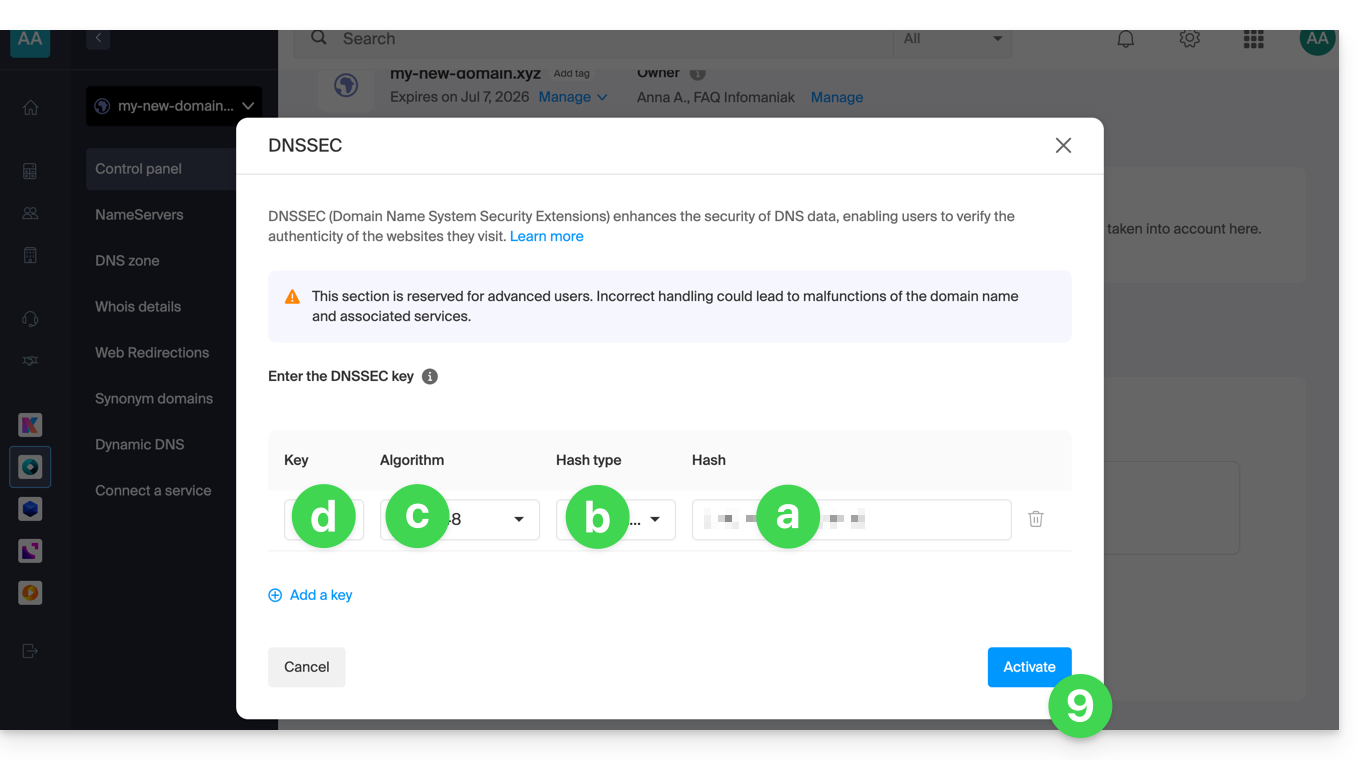
- In the window that appears, enter the requested information using the data provided by Cloudflare (see point 4 above):
- Hash = Digest
- Hash Type = Digest Type
- Algorithm = Algorithm
- Key = Key Tag
- Click on Activate:
- In the case of a domain with an extension
.eu, the required information may be significantly different (see point 4 above):- The information under FLAGS should be entered under FLAGS
- The information under PUBLIC KEY should be entered under PUBLIC KEY
Link to this FAQ: https://faq.infomaniak.com/2187
Has this FAQ been helpful?
This guide explains what DNSSEC is and how this protection enhances the security of Domains at Infomaniak and the traffic they generate.
Introduction
- Each URL corresponds to an IP address, and when an internet user enters the URL of your site into their web browser, they access a DNS server whose role is to redirect them to the IP address that corresponds to the domain entered (technically, this is called DNS resolution).
- When DNSSEC is not enabled on your domain name, a malicious person could detect a flaw in a DNS server and modify the correspondence between your domain name and the IP address of your site to the IP address of their choice. In such a case, the internet user who enters the URL of your site would then be redirected to another website that does not correspond to the content of your website.
- DNSSEC secures the authenticity of the response provided by the DNS server, thus guaranteeing that internet users are accessing the website they actually intend to visit.If a hacker were to attempt to modify the IP address of your domain name in a DNS server protected by DNSSEC during resolution, the latter would reject their requests because they would not be authenticated.
- DNSSEC is therefore an additional security measure for a website's SSL certificate, ensuring that the user is directed to the website corresponding to the entered URL, and the SSL certificate then encrypts the communication between the user's web browser and the website's web server.
Enable or disable DNSSEC
To find out about the availability of DNSSEC for a specific domain, please refer to the specifications of the extensions that concern you on this page (under Frequently Asked Questions by clicking on the relevant extension first).
DNSSEC is available and already enabled upon purchase for the vast majority of domain name extensions.
If necessary, DNSSEC can be activated in a few clicks for fully managed domain names at Infomaniak:
- Click here to access the management of your product on the Infomaniak Manager (need help?).
- Click directly on the name assigned to the product in question.
- Enable or disable DNSSEC from the domain's Dashboard:
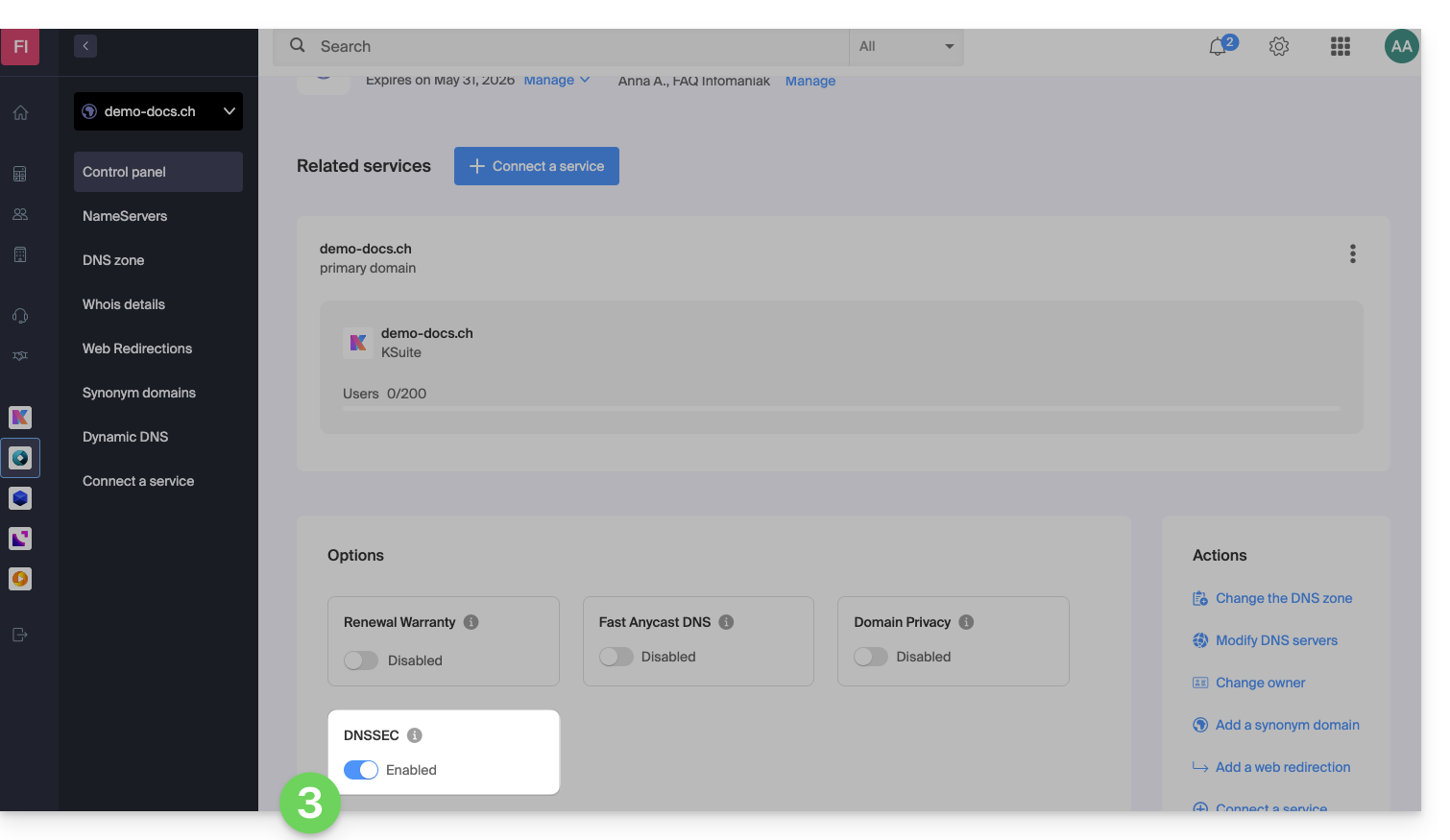
If the DNS zone for your domain is managed by another registrar, you will need to provide technical information provided by that registrar.If the information provided is incorrect, your domain name will no longer be accessible.. Therefore, it is recommended to transfer the complete management of your domain to Infomaniakbefore enabling DNSSEC if you are not familiar with these operations.
Check if DNSSEC is enabled
DNSSEC propagation to the registry may take several hours to complete.
Enter the domain name to check on this analysis site.
Specific guide
Link to this FAQ: https://faq.infomaniak.com/2208
Has this FAQ been helpful?
This guide explains how to link a domain name to an Infomaniak Web Hosting.
Where is your domain name located?…
… With Infomaniak, even for Organizations
If your domain name is registered with Infomaniak and is in the same user account or organization as your email, then there is nothing to do.
- Consult this other guide to check and correct any potential configuration errors.
… At Infomaniak, Different Organization
If your domain name is registered with Infomaniak but in a different user account or Organization, then:
- Edit its DNS zone by specifying the website's IP address as an A record.
- Any DNS addition/modification may take up to 48 hours to propagate.
OU
- Move it within the same Organization.
… With Infomaniak and external DNS
If your domain name uses DNS servers that are not Infomaniak's, then:
- Edit the current DNS zone where it is hosted (if necessary, consult the help documentation of the provider in question) and specify the site's IP address as an A record.
- Any DNS addition or modification may take up to 48 hours to propagate.
OU
- Change your current DNS settings and select the option to use Infomaniak's DNS servers.
- Any DNS addition or modification may take up to 48 hours to propagate.
- Refer to this other guide to check for and correct any potential configuration errors.
… Elsewhere with external DNS
If your domain name uses DNS servers that are not Infomaniak's, then:
- Edit the current DNS zone where it is located (if necessary, consult the documentation provided by your provider) and specify the website's IP address in the form of an A record.
- Any DNS addition or modification may take up to 48 hours to propagate.
OU
- Change the current DNS servers (if necessary, consult the documentation provided by your provider) and specify Infomaniak's DNS servers (this implies that you have a DNS zone with Infomaniak).
- Any DNS addition or modification may take up to 48 hours to propagate.
- This DNS zone with Infomaniak will be configured correctly, but please refer to this other guide to check for and correct any potential configuration errors.
… Elsewhere, but you are moving it here
If your domain name is registered with another registrar and you want to transfer it to the same location as your Infomaniak website, then:
- Transfer the domain name to Infomaniak (it will be configured correctly, but please refer to this other guide to check and correct any potential configuration errors).
- If the domain name is intended to be an alias for your main website, you need to add the alias to your website.
Link to this FAQ: https://faq.infomaniak.com/2025
Has this FAQ been helpful?
This guide explains how to link a domain name to an Infomaniak Mail Service.
If the domain name is located…
… with Infomaniak, same Organization
If your domain name is registered with Infomaniak and is in the same user account or Organization as your email, then there is nothing to do.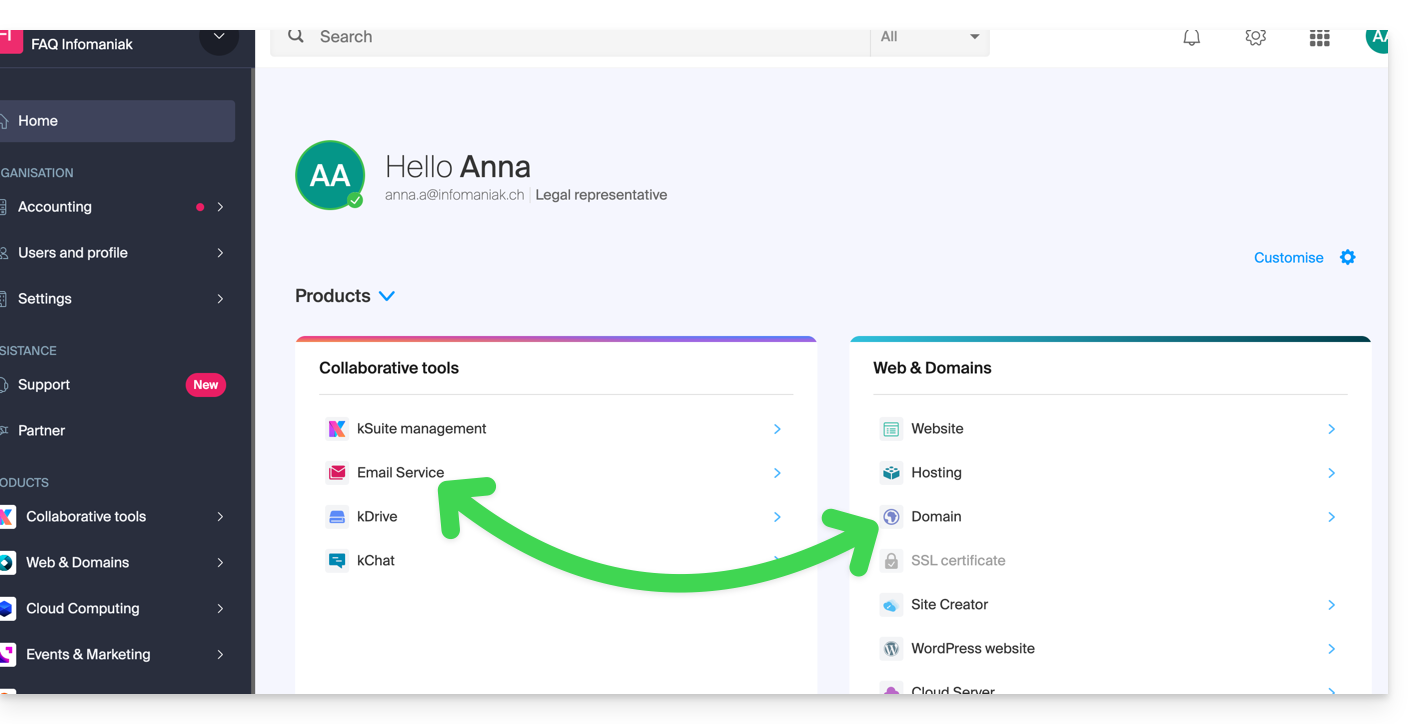
- Consult this other guide to check for and correct any configuration errors.
… with Infomaniak, different organization
If your domain name is registered with Infomaniak but in a different user account or Organization, then:
- Edit its DNS zone by specifying Infomaniak's MX record (+ SPF & DKIM).
- Any DNS addition/modification may take up to 48 hours to propagate.
OU
- Move it within the same Organization.
… with Infomaniak using external DNS
If your domain name uses DNS servers that are not Infomaniak's, then:
- Edit the current DNS zone where it is hosted (if necessary, consult the help documentation of the provider in question) and specify Infomaniak's MX record (+ SPF & DKIM).
- Any DNS addition/modification may take up to 48 hours to propagate.
OU
- Change your current DNS settings and select the option to use Infomaniak's DNS servers.
- Any DNS addition or modification may take up to 48 hours to propagate.
- Refer to this other guide to check for and correct any potential configuration errors.
… or with external DNS servers
If your domain name uses DNS servers that are not Infomaniak's, then:
- Edit the current DNS zone where it is located (if necessary, consult the documentation provided by your provider) and specify Infomaniak's MX record (+ SPF & DKIM).
- Any DNS addition/modification may take up to 48 hours to propagate.
OU
- Change the current DNS servers (if necessary, consult the documentation provided by your provider) and specify Infomaniak's DNS servers (this requires having a DNS zone with Infomaniak).
- Any DNS addition/modification may take up to 48 hours to propagate.
- This DNS zone with Infomaniak will be configured correctly, but please refer to this other guide to check for and correct any potential configuration errors.
… elsewhere, but you are moving it here
If your domain name is registered with another registrar and you would like to transfer it to the same location as your Infomaniak email, then:
- Transfer the domain name to Infomaniak (it will be configured correctly, but please refer to this other guide to check and correct any potential configuration errors).
Alternatively, consider ordering a new domain name if necessary.
Link to this FAQ: https://faq.infomaniak.com/1979
Has this FAQ been helpful?
This guide explains how to set up a zone delegation for a subdomain.
Prerequisites
- Own a domain name with Infomaniak or at least a DNS zone.
- Understand:
- how a domain and a DNS zone work before modifying the latter.
- that the DNS zone presented here is valid and used only if the name servers are those of Infomaniak.
- that any DNS addition/modification may take up to 48 hours to propagate.
Setting up a zone delegation
To do this:
- Click here to access the management of your product in the Infomaniak Manager (need help?).
- Click directly on the name assigned to the product in question.
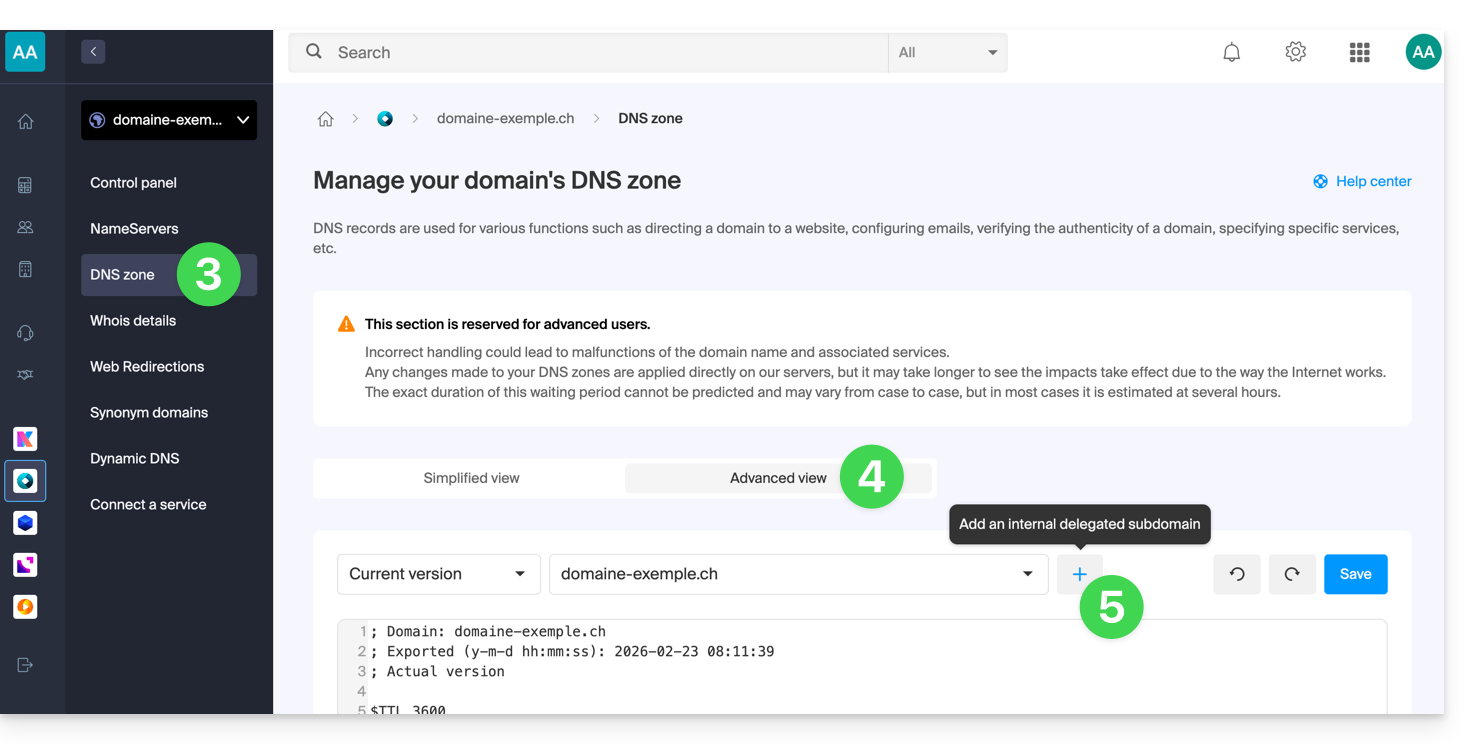
- Click on DNS Zone in the left-hand menu.
- Click on the Advanced View tab.
- Click on the + button:
- Enter the desired subdomain (e.g.,
testto obtaintest.domain.xyz) - You can now edit the DNS zone of the delegated subdomain.
Link to this FAQ: https://faq.infomaniak.com/2050
Has this FAQ been helpful?
This guide explains how to link a domain name to the kSuite Infomaniak offer.
Manage the kSuite domain
To get started:
- Click here to access your kSuite management interface in the Infomaniak Manager (need help?).
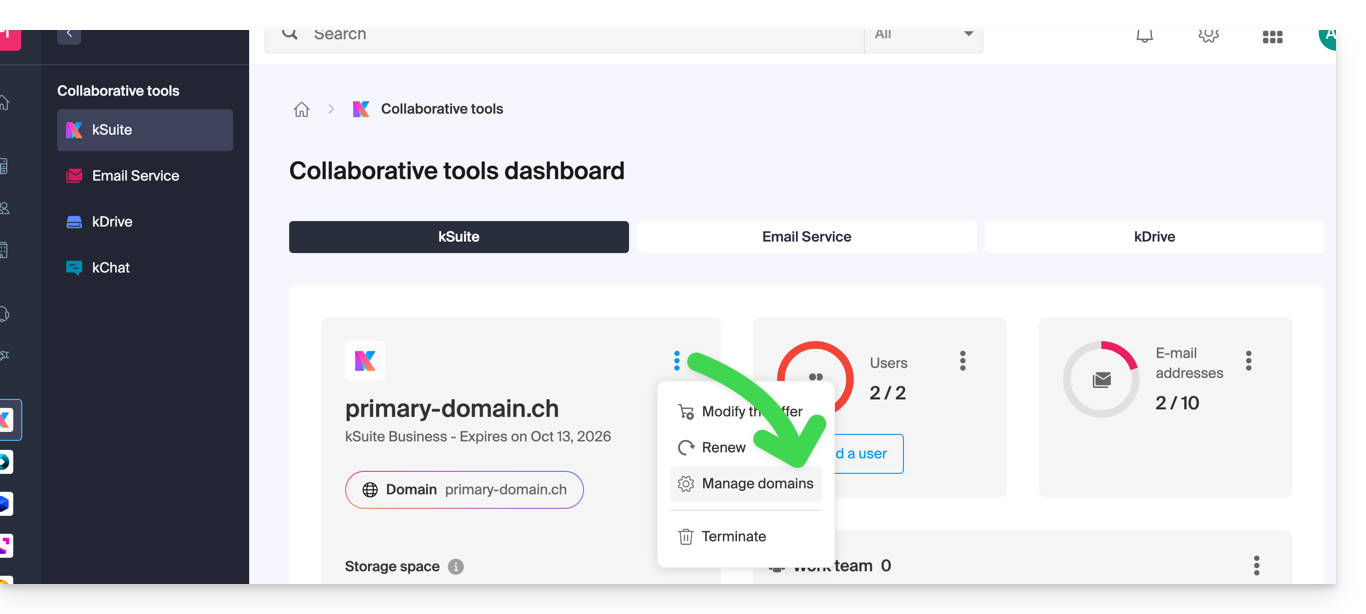
- If a domain is already linked, you can manage it by clicking on the action menu ⋮ to the right of the kSuite name, then Manage domains:
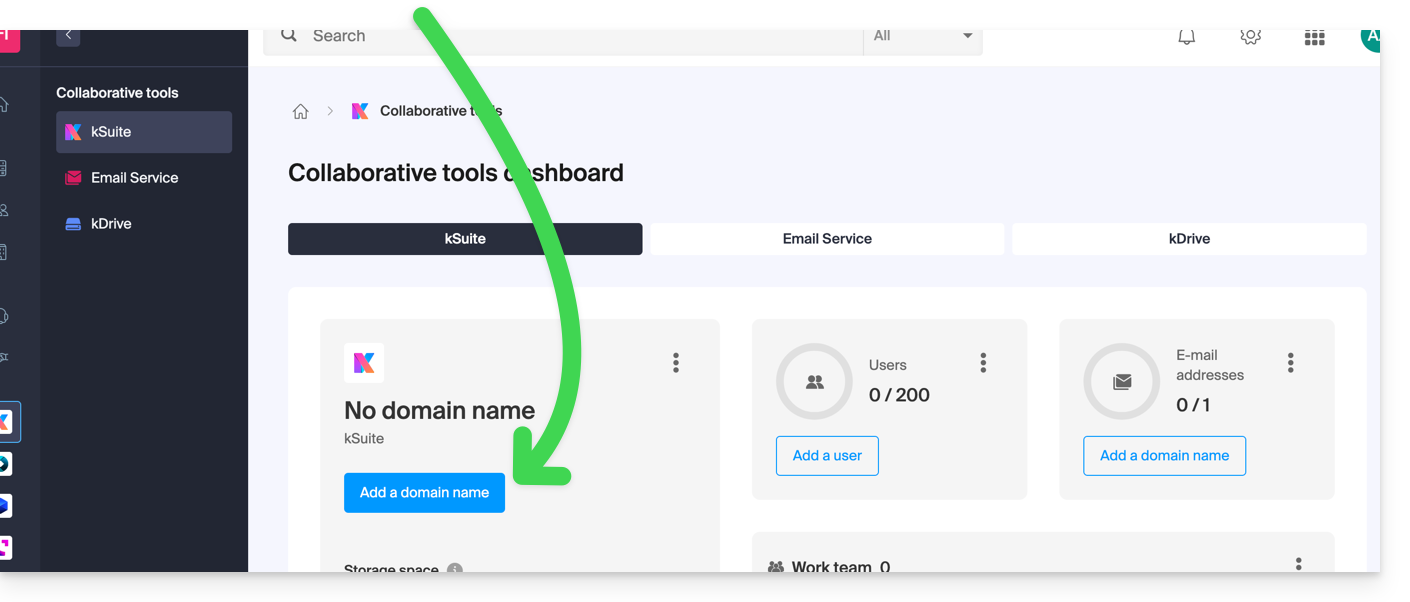
- If no domain is yet linked, you can add one by clicking on the button:
- Click the button to add a domain:
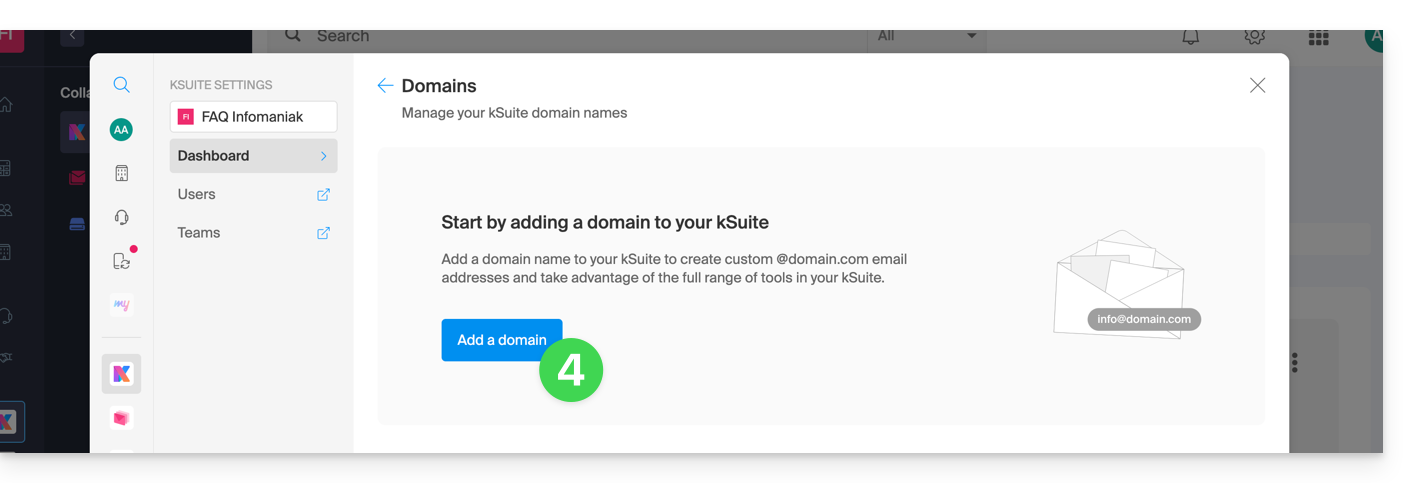
- Choose the domain to associate from among those in your Organization (still available, i.e., not associated with any service) or enter an external domain name:
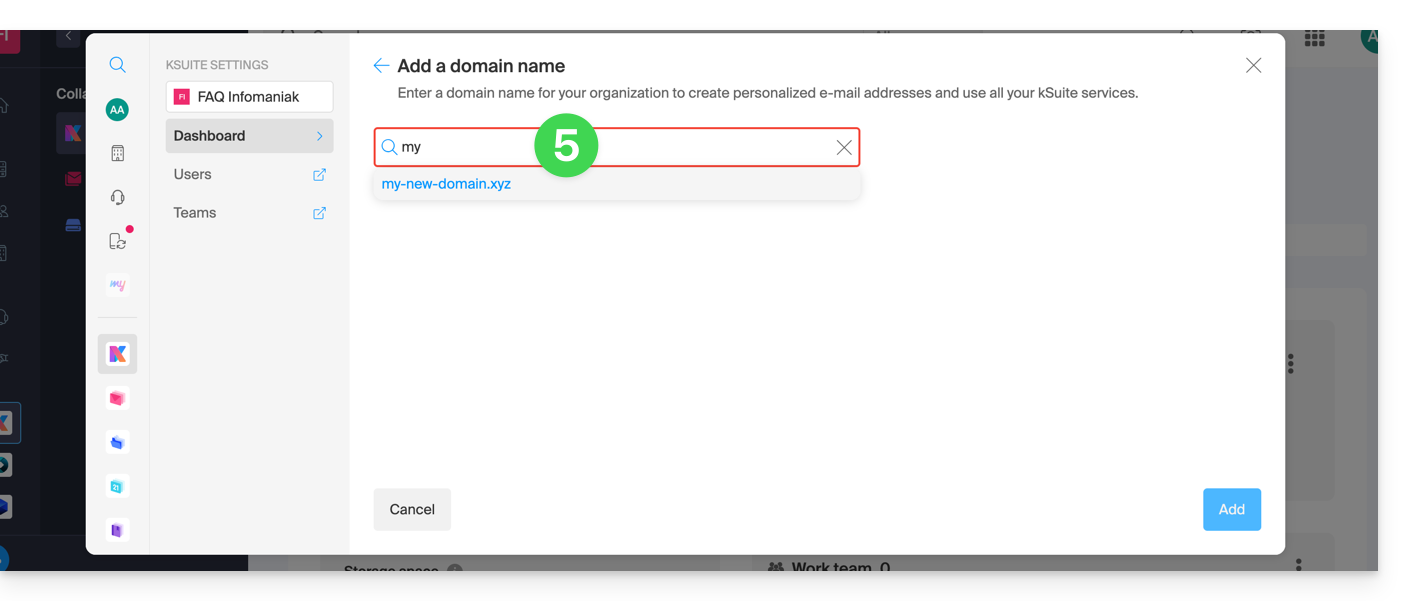
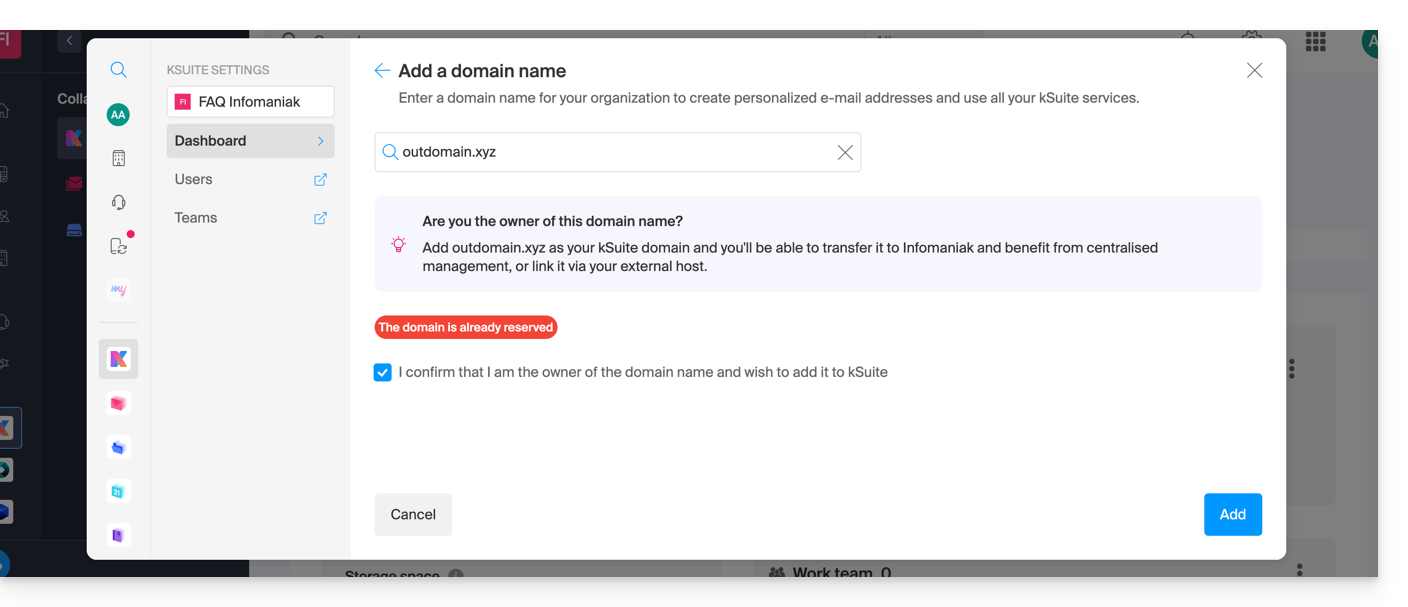
- Depending on the status of your domain (also see the information below), you may need to perform some preliminary steps…
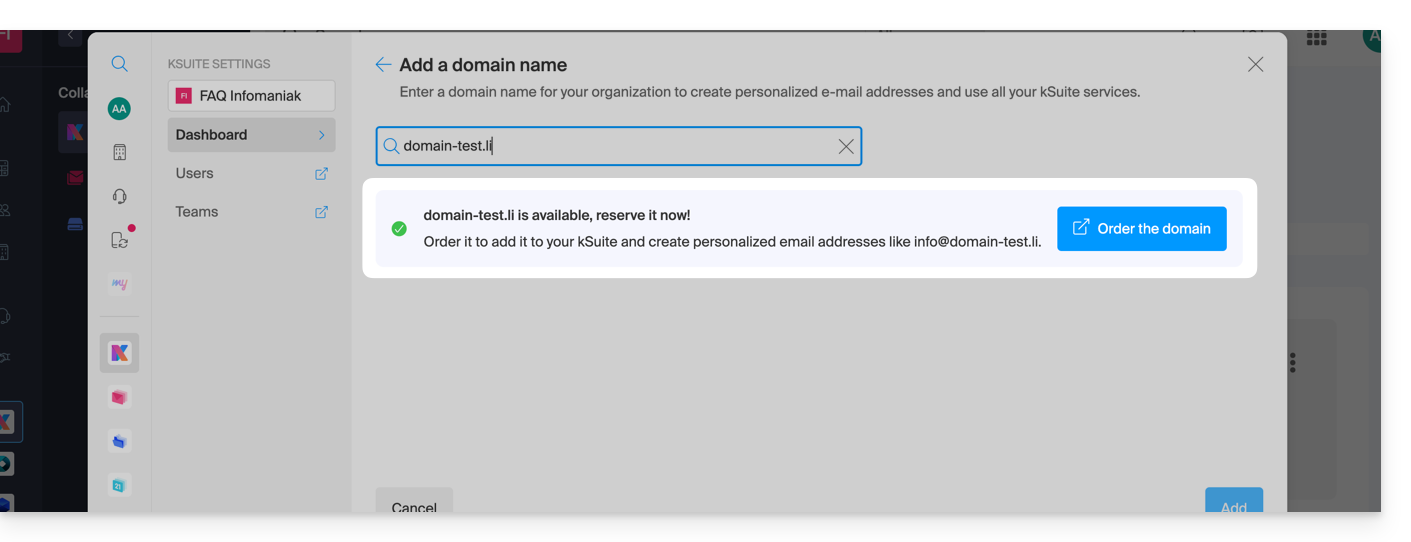
- … or even purchase a domain if necessary:
- Depending on the status of your domain (also see the information below), you may need to perform some preliminary steps…
If the domain name is located…
…with Infomaniak, within the same Organization
If your domain name is registered with Infomaniak and is in the same user account or Organization as your email, then there is nothing to do.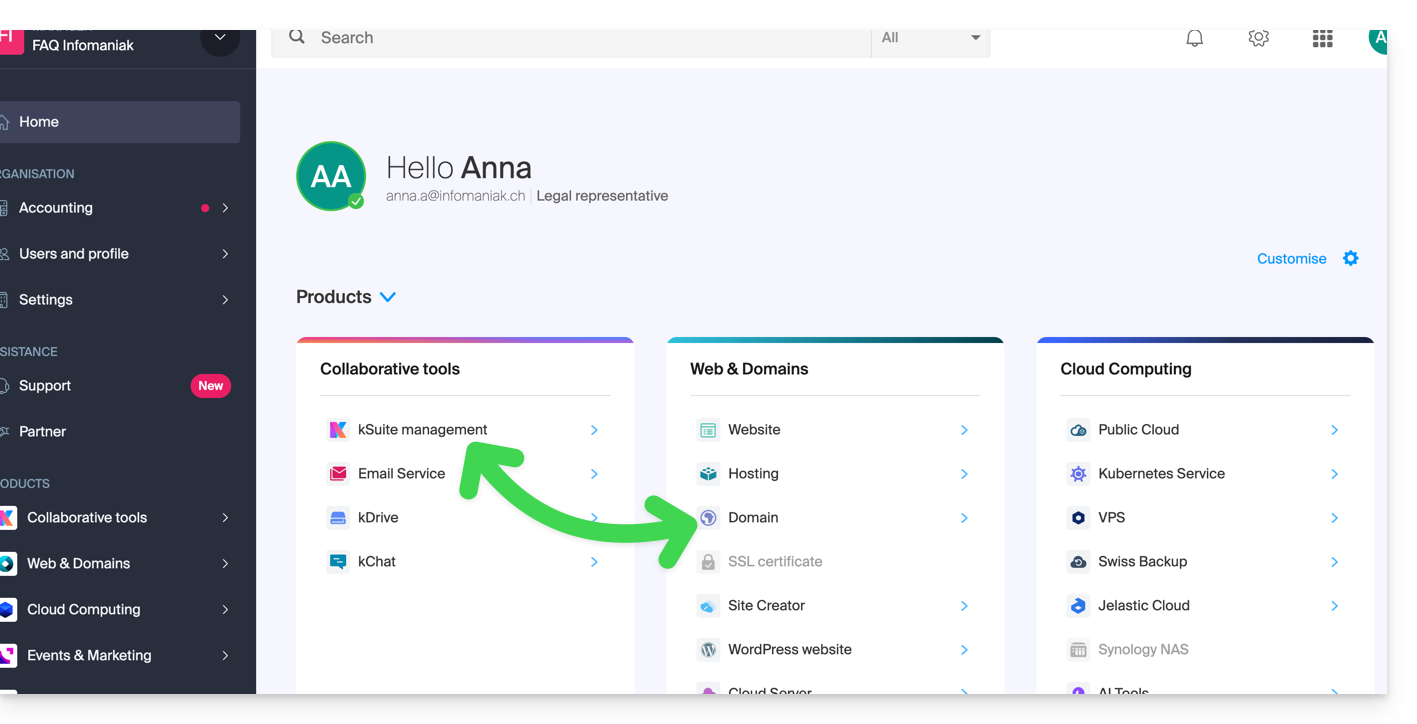
Simply add it to your kSuite: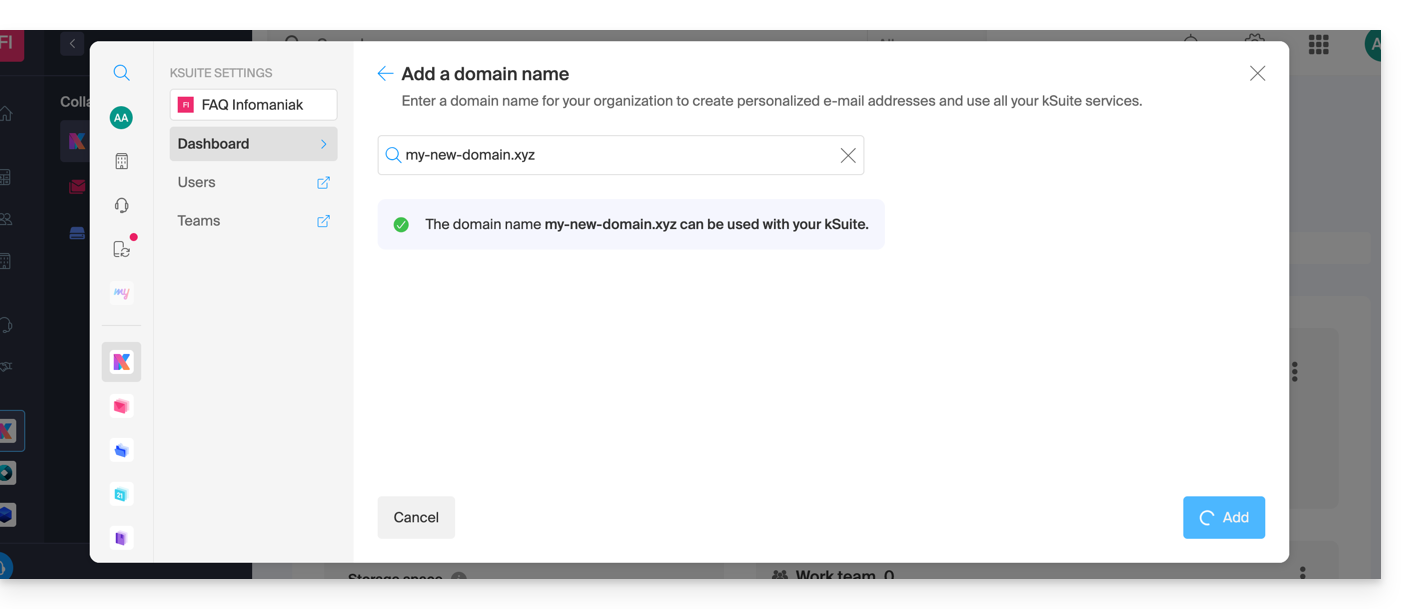
The domain will then be added and visible on the dashboard: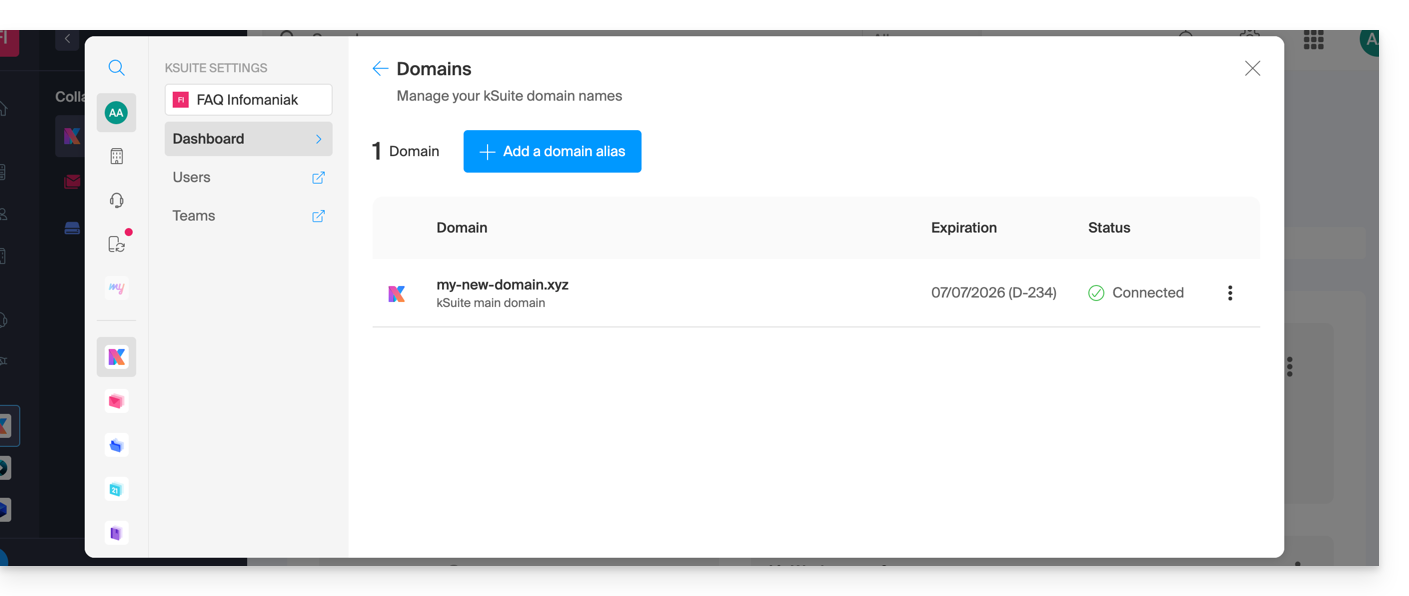
- Refer to this other guide to check and correct any potential configuration errors.
... with Infomaniak, even if you already have an Organization and are linked to a Mail Service or kDrive
No problem, you can convert your existing products to kSuite.
… with Infomaniak, Different Organization
If your domain name is registered with Infomaniak but in a different user account or Organization, then:
- Edit its DNS zone by specifying Infomaniak's MX record (+ SPF & DKIM).
- Any DNS addition/modification may take up to 48 hours to propagate.
OU
- Move it within the same Organization.
Generally, a message will notify you of this situation: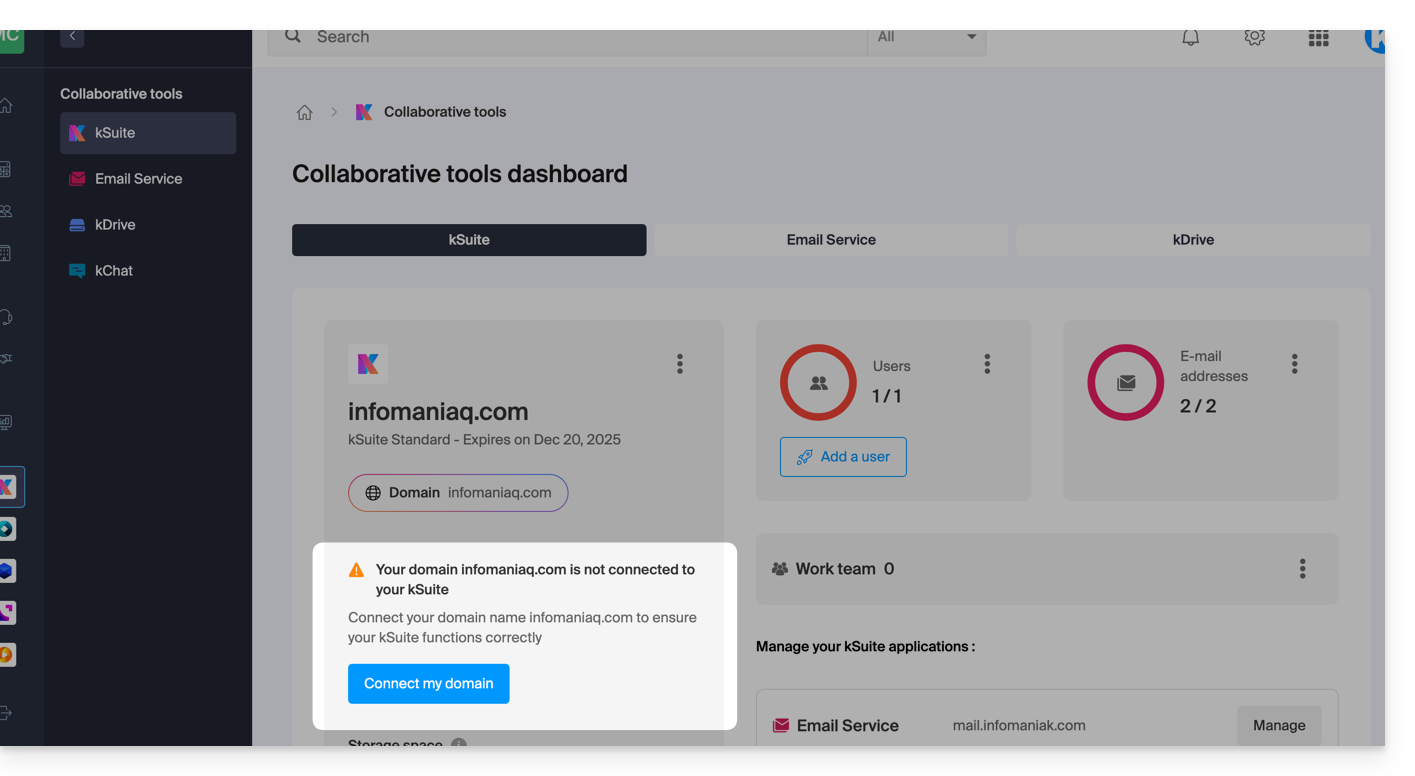
… and the technical information, which you should enter where the domain is located, will be provided: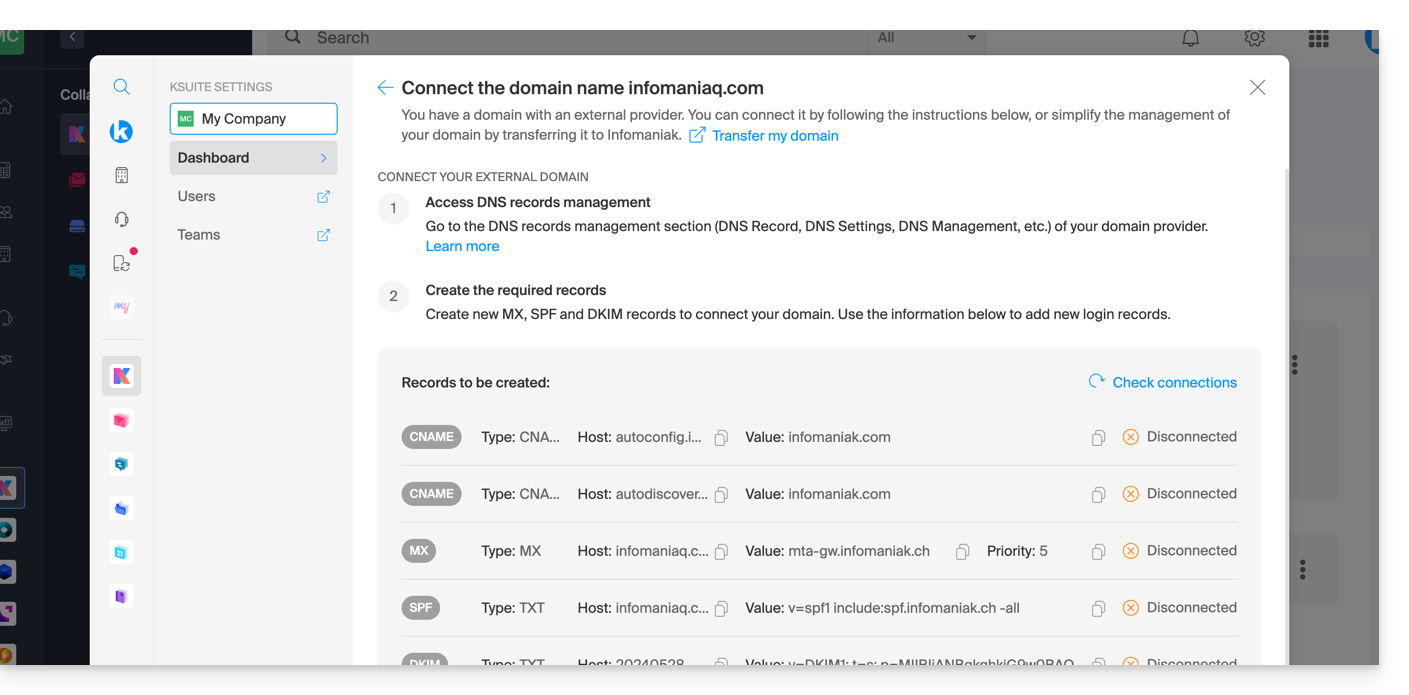
… with Infomaniak using external DNS
If your domain name uses DNS servers other than Infomaniak's, then:
- Edit the current DNS zone where it is hosted (if necessary, consult the help documentation of the provider in question) and specify Infomaniak's MX record (+ SPF & DKIM).
- Any DNS addition/modification may take up to 48 hours to propagate.
OU
- Change your current DNS settings and select the option to use Infomaniak's DNS servers.
- Any DNS addition or modification may take up to 48 hours to propagate.
- Refer to this other guide to check for and correct any potential configuration errors.
You will be notified (see the images above).
… elsewhere, with external DNS
If your domain name is registered with another registrar and uses DNS servers other than Infomaniak's, then:
- Edit the current DNS zone where it is hosted (if necessary, consult the provider's help documentation) and specify Infomaniak's MX record (+ SPF & DKIM).
- Any DNS addition or modification may take up to 48 hours to propagate.
OU
- Change your current DNS settings (if necessary, consult the documentation provided by your provider) and specify Infomaniak's DNS servers (this requires you to have a DNS zone with Infomaniak).
- Any DNS addition or modification may take up to 48 hours to propagate.
- This DNS zone with Infomaniak will be configured correctly, but please refer to this other guide to check for and correct any potential configuration errors.
You will be notified (see the images above).
… elsewhere, but you bring it back
If your domain name is registered with another registrar and you would like to transfer it to the same location as your Infomaniak email, then:
- Transfer the domain name to Infomaniak (it will be configured correctly, but please refer to this other guide to check and correct any potential configuration errors).
Alternatively, consider ordering a new domain name if necessary.
Link to this FAQ: https://faq.infomaniak.com/2629
Has this FAQ been helpful?
This guide explains how to access a Fritzbox connected to the internet with a dynamic IP address via a domain name.
Prerequisites
- Have a Box that allows you to configure a custom dynamic DNS provider.
- A dynamic DNS must have been created on the domain in question.
Connecting a Fritz!Box to a domain name
To do this:
- Open the Fritzbox management interface by enabling Advanced mode if necessary.
- Go to Internet then Access Authorization.
- Click on the Dynamic DNS tab:
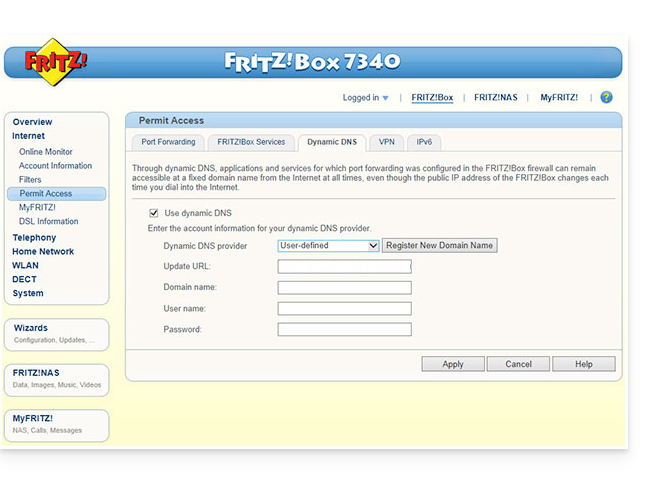
- Choose the provider: “Custom”.
- Fill in the following fields:
- Update URL (as displayed below, or replace
ipaddrwithip6addrif you want Fritzbox to replace the "placeholder" with the IPv6 address instead of the IPv4 address):https://infomaniak.com/nic/update?system=dyndns&hostname=<domain>&myip=<ipaddr> - Domain name: the "URL" configured in the Manager when adding the Dynamic DNS
- Username: the "ID" defined in the Manager when adding the Dynamic DNS
- Password: the "password" defined in the Manager when adding the Dynamic DNS
- Update URL (as displayed below, or replace
- Click Apply to complete.
Link to this FAQ: https://faq.infomaniak.com/2400
Has this FAQ been helpful?
This guide explains how to add or modify one or more TXT recordsin the DNS zone (of a domain name) managed in the Infomaniak Manager.
Introduction
- The
TXTrecord type allows you to insert readable text into the DNS zone of a domain name. - This is the method generally used to help prevent spam and to verify domain ownership (Google may ask you to do this before using some of their services: see this other guide for an example of adding a
TXTrecord to authenticate a domain).
Modify the DNS zone
To manage this type of record in a DNS zone:
- Click here to access your domain management in the Infomaniak Manager (need help?).
- Click directly on the name assigned to the domain in question.
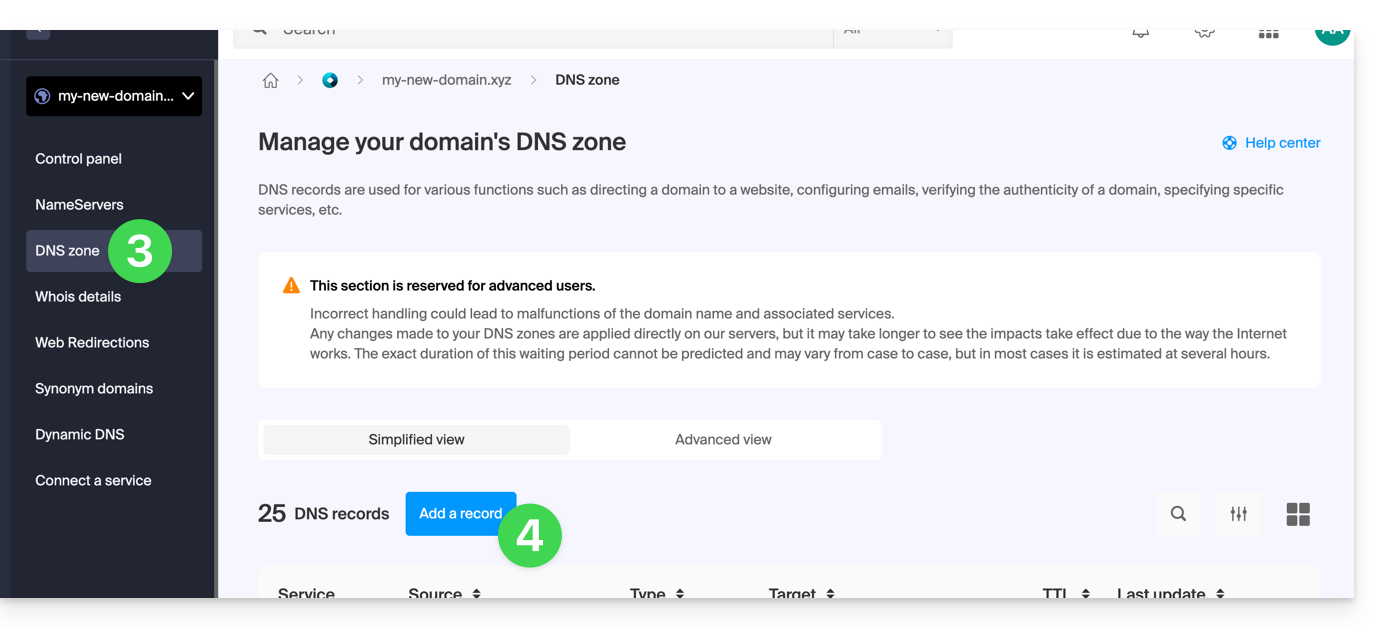
- Click on DNS Zone in the left-hand menu.
- Click the button to add a record:
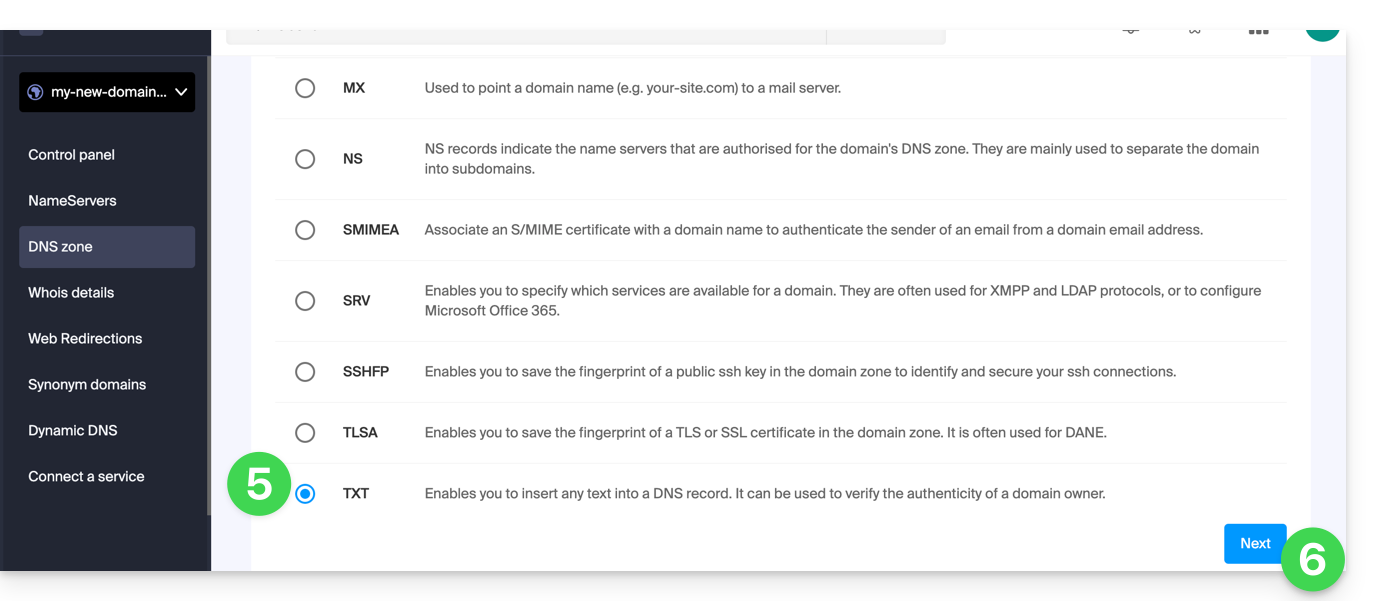
- Click the TXT radio button to add a record.
- Click the Next button:
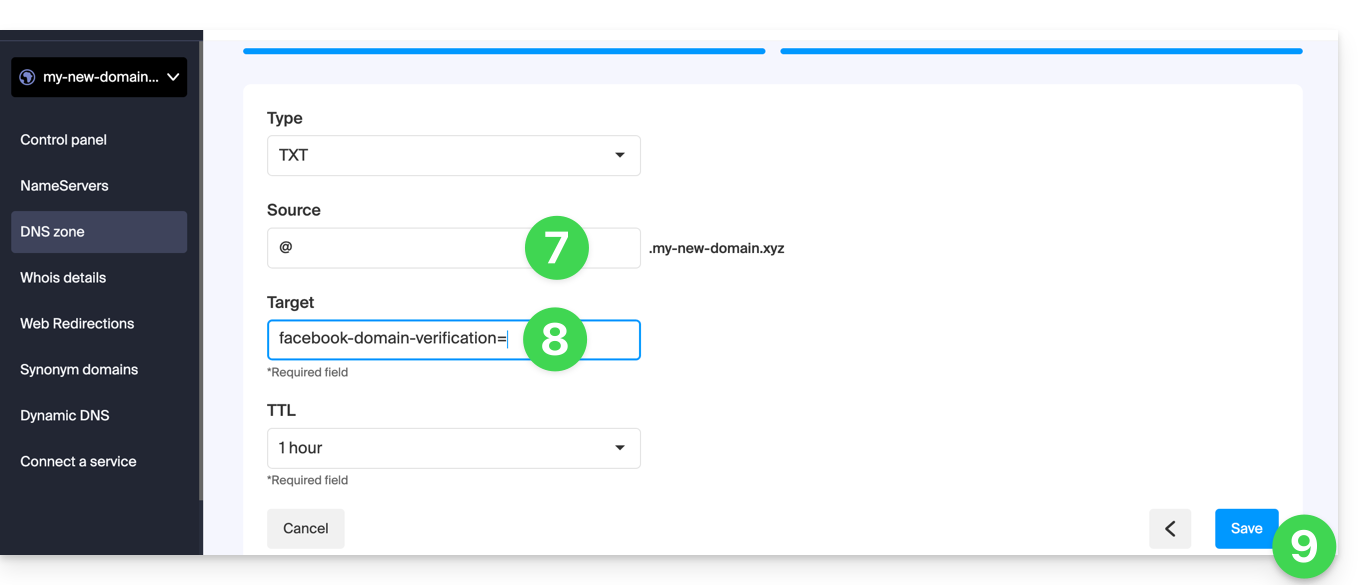
- Enter the TXT values required for your DNS zone.
- Leave the default value for the TTL.
- Click on the Save button:
Link to this FAQ: https://faq.infomaniak.com/2460
Has this FAQ been helpful?
This guide explains how to add or modify a DKIM record in a DNS zone (domain name/subdomain) managed in the Infomaniak Manager.
Introduction
- The DKIM (Domain Keys Identified Mail) protocol authenticates your emails with a unique digital signature.
- It guarantees that your messages have not been altered during their transmission and certifies the sender's identity, thus preventing spoofing by spammers.
- DKIM is enabled by default for all Mail Services whose DNS zone is managed with Infomaniak.
- All your emails are automatically signed, whether they are sent from the Mail Infomaniak app or the email software/client of your choice.
Check DKIM registration
If you have a Mail service with Infomaniak, the easiest way is to go to the Global Security tool to easily check and correct certain problematic records.
And when your domain name is managed elsewhere, you will find the DKIM record to add to the DNS zone: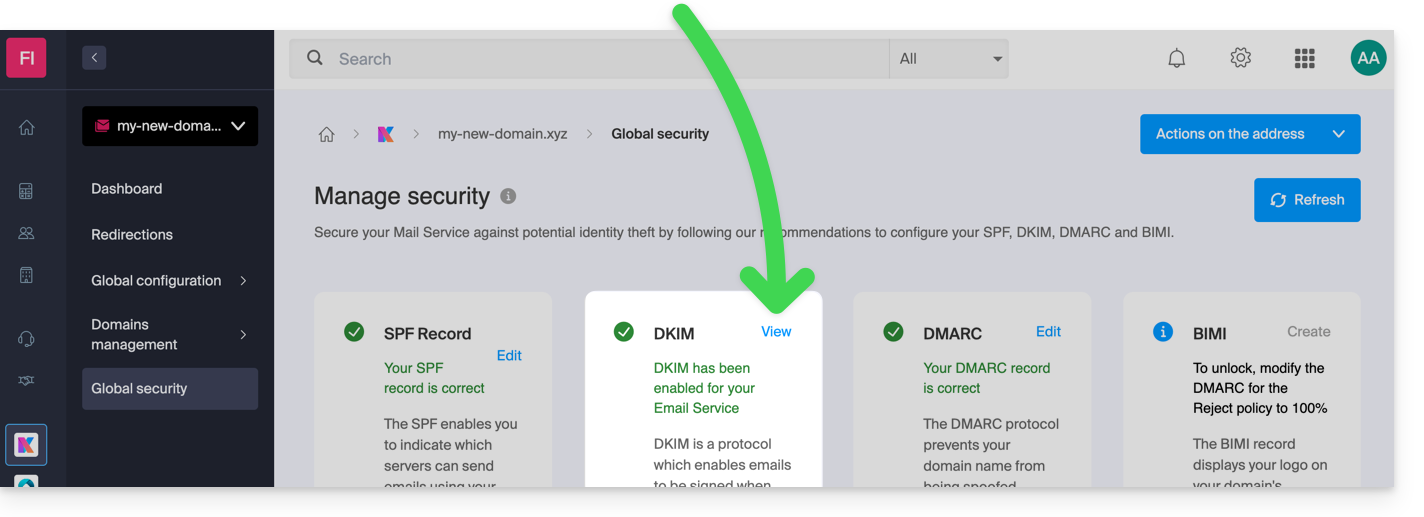
Manually modify the DNS zone (not recommended)
To manage this type of record in a DNS zone:
- Click here to access your domain management in the Infomaniak Manager (need help?).
- Click directly on the name assigned to the domain in question.
- Click on DNS Zone in the left-hand menu.
- Click the button to add a record:
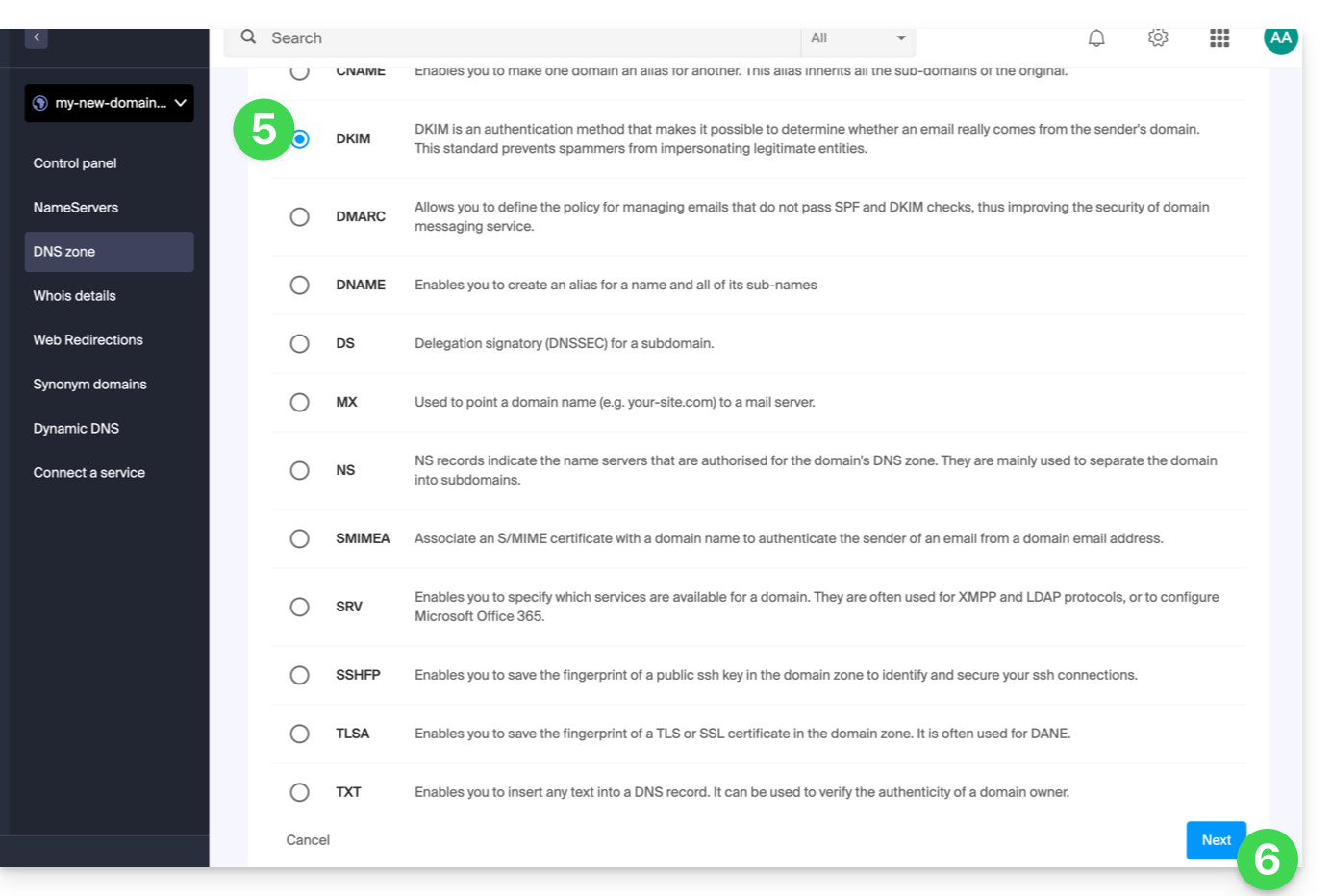
- Click the DKIM radio button to add a record.
- Click the Next button:
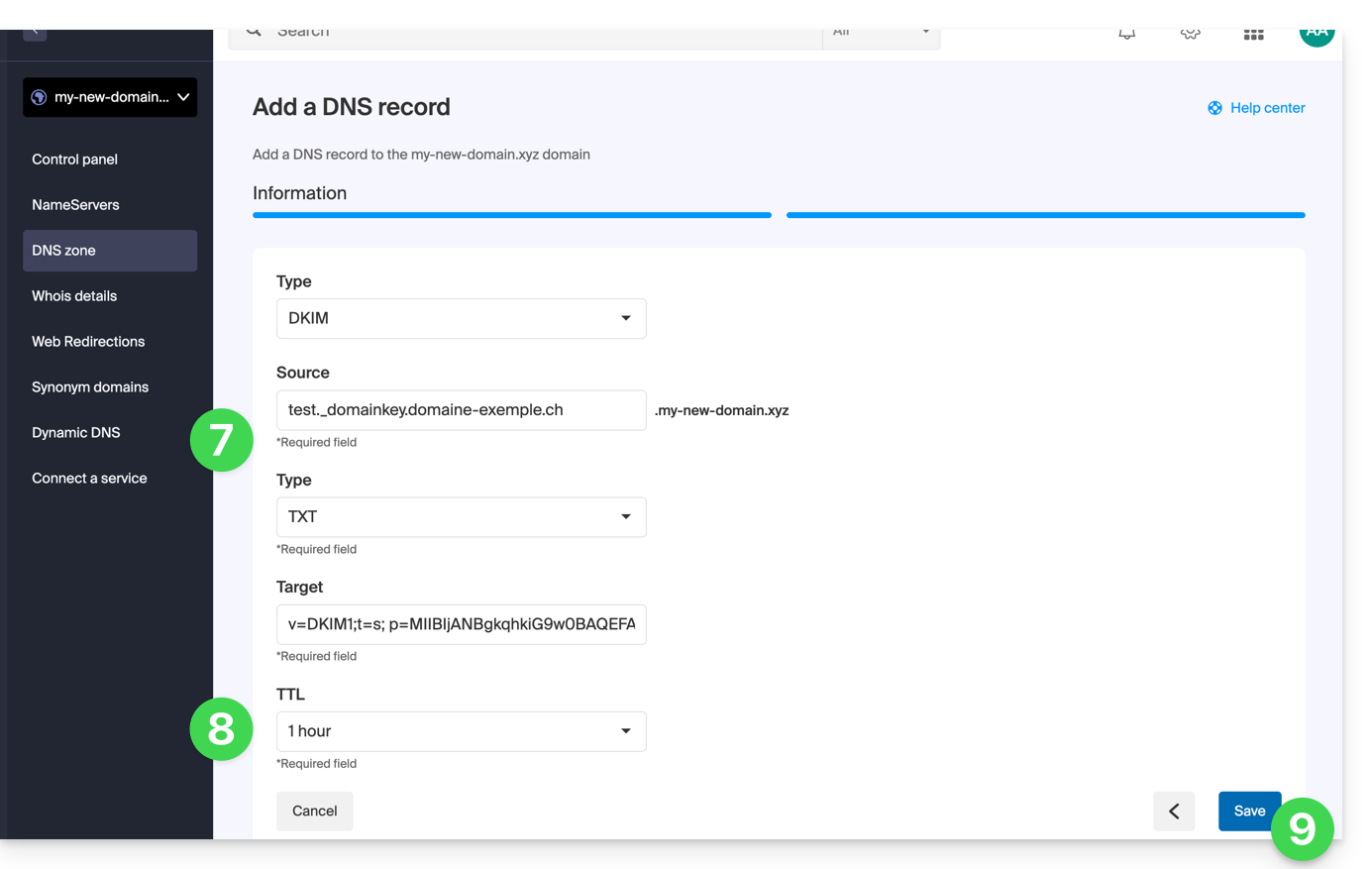
- Enter the DKIM values required for your DNS zone.
- Leave the default value for the TTL.
- Click on the Save button:
Add multiple DKIM records
You can have multiple DKIM records on your domain/subdomainwithout any limit, unlike DMARC or SPF, as long as your DNS host allows it.
If you use multiple third-party email providers, such as the Odoo ERP, it is necessary to add a DKIM for Odoo in addition to the one for Infomaniak.
Use unique DKIM selectors to avoid conflicts with existing records.
Link to this FAQ: https://faq.infomaniak.com/841
Has this FAQ been helpful?
This guide explains how to add or modify one or more SRV records in the DNS zone (of a domain name) managed in the Infomaniak Manager.
Introduction
- This type of record indicates which services are available for a domain.
- They are often used for XMPP, LDAP protocols, or to configure Microsoft Office 365.
Modify the DNS zone
To manage this type of record in a DNS zone:
- Click here to access your domain management in the Infomaniak Manager (need help?).
- Click directly on the name assigned to the domain in question.
- Click on DNS Zone in the left-hand menu.
- Click the button to add a record:
- Click the SRV radio button to add a record.
- Click the Next button:
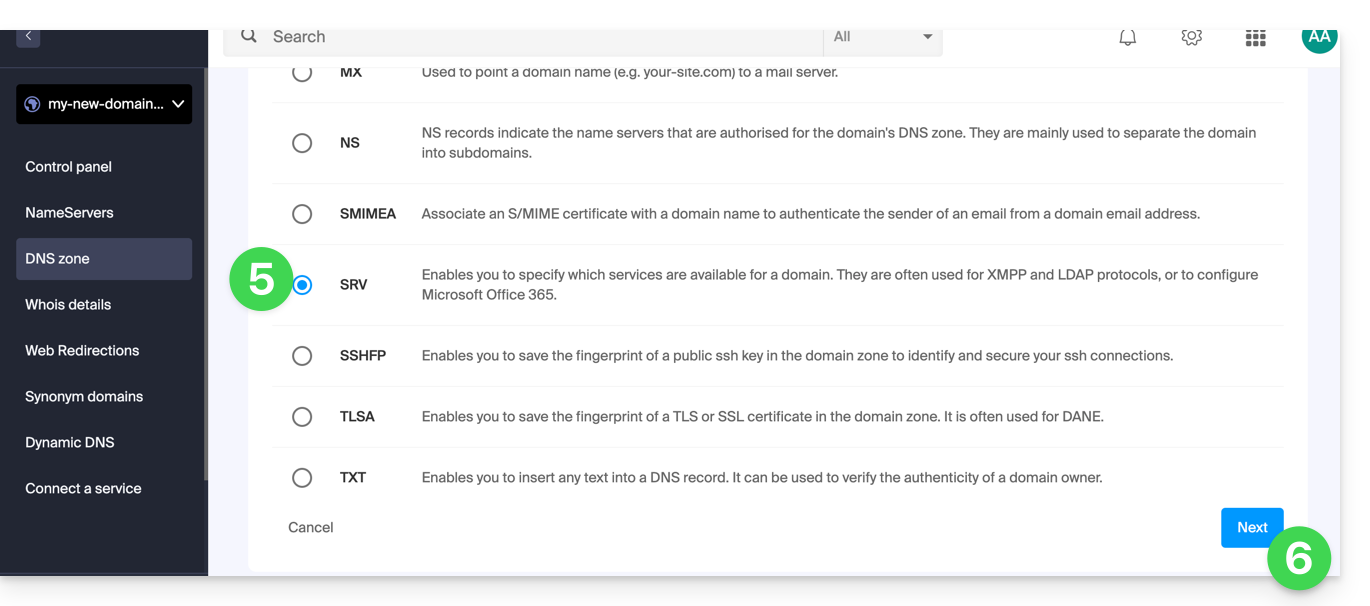
- Enter the values for the SRV record required for your DNS zone (the
._tcp.domain…is already entered). - Leave the default value for the TTL.
- Click the Save button:
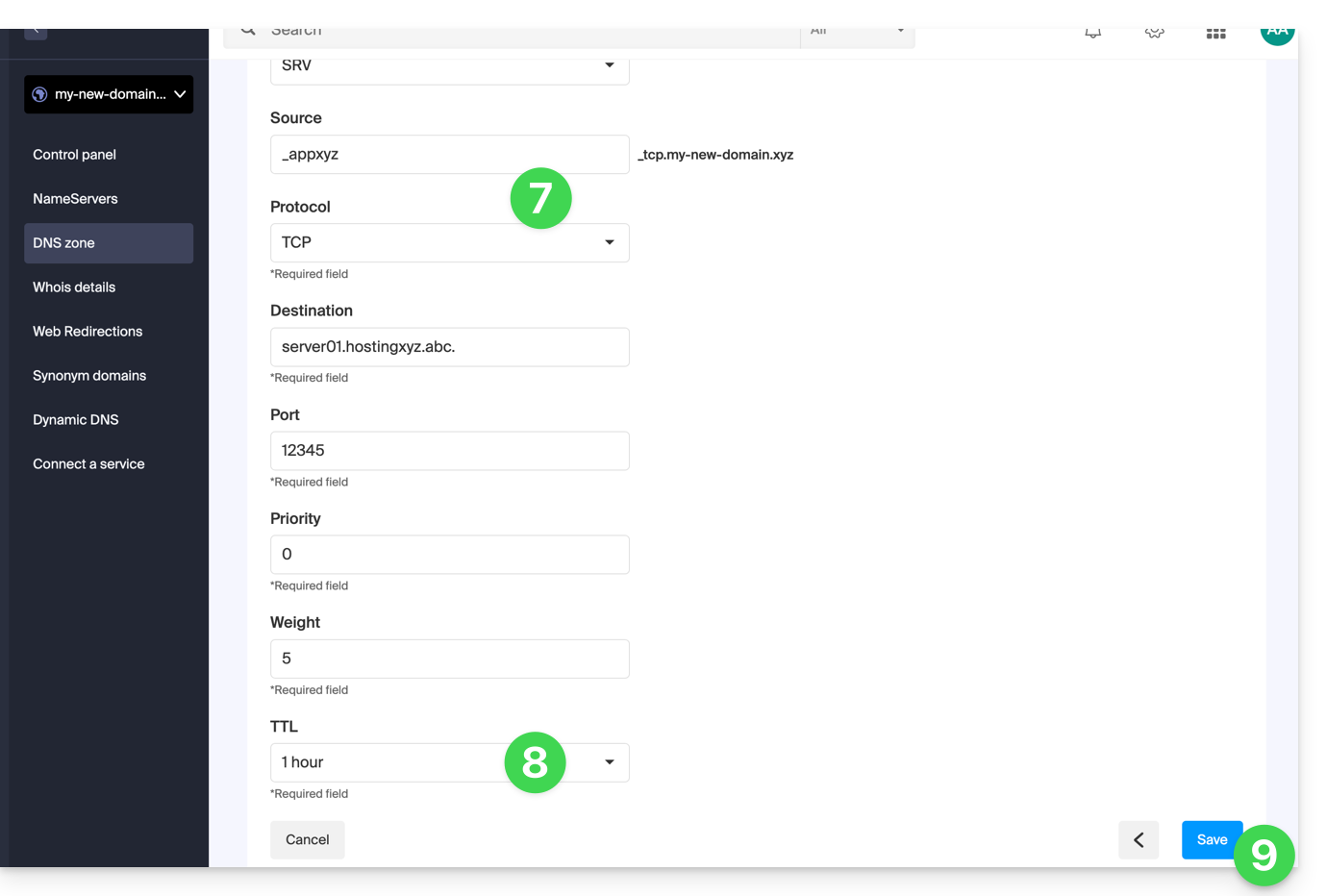
Verify that the complete SRV record has been added correctly in the records table: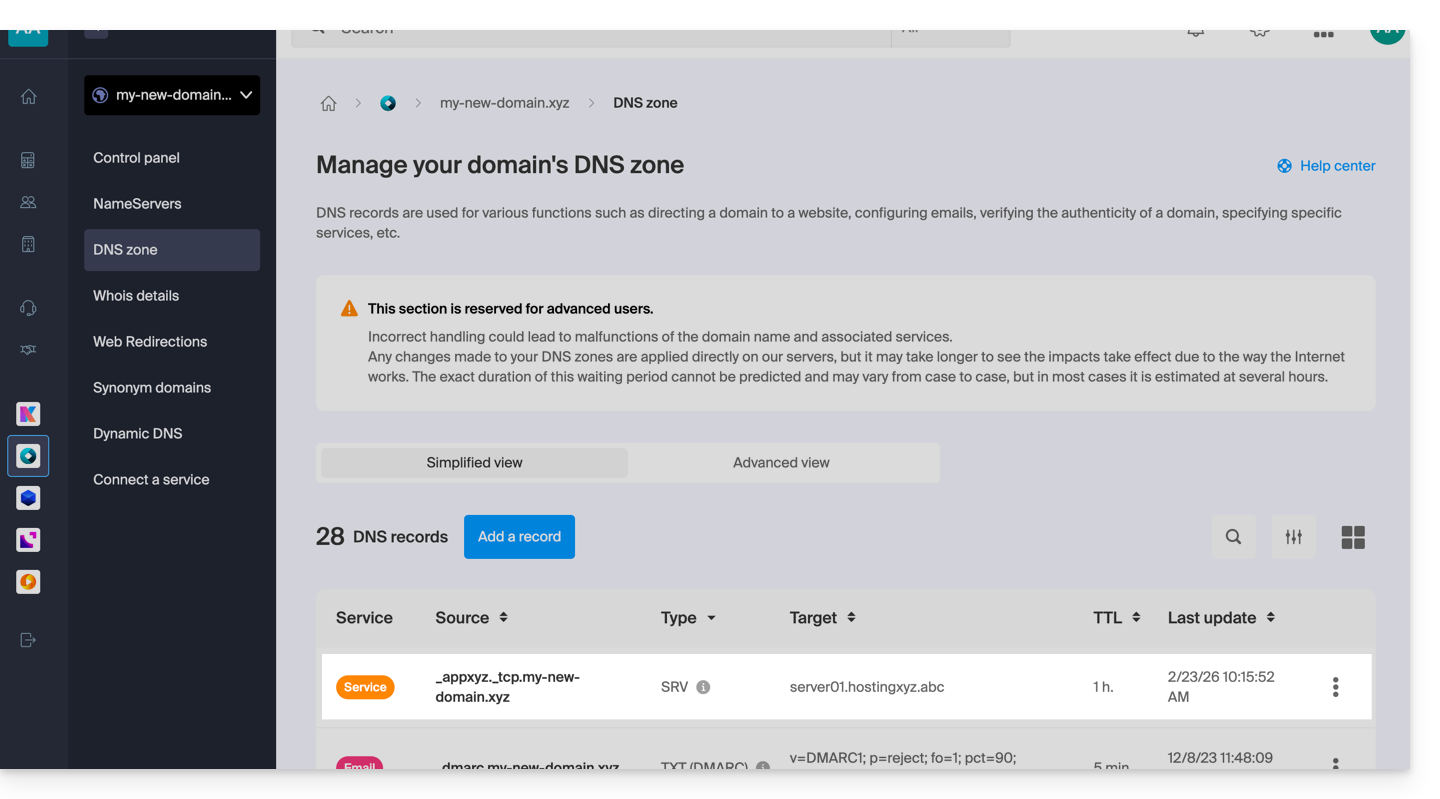
Link to this FAQ: https://faq.infomaniak.com/110
Has this FAQ been helpful?
This guide explains how to access your Swisscom Internet Box, which is connected to the internet with a dynamic IP address, via a domain name.
Prerequisites
- You must have a box that allows you to configure a custom dynamic DNS provider.
- A dynamic DNS must have been created on the domain in question.
Link your Swisscom Internet Box to a domain name
To do this:
- Log in to the Swisscom Box administration interface (e.g.,
http://192.168.1.1). - Enable the expert view (toggle button at the bottom left).
- Click on Network.
- Click on the DynDNS tab.
- Check the box to Enable DynDNS.
- Select
Infomaniakfrom the dropdown menu. - Fill in the following fields:
- Hostname: the URL configured in the Manager when adding the Dynamic DNS
- Username: the ID defined in the Manager when adding the Dynamic DNS
- Password: the password defined in the Manager when adding the Dynamic DNS
If the box indicates that port forwarding is not possible because you do not have a public IP address, contact Swisscom to have them disable the CGnat. Refer to this guide for more information.
Link to this FAQ: https://faq.infomaniak.com/2498
Has this FAQ been helpful?
This guide explains how to access a Sunrise Internet Box connected to the internet with a dynamic IP address via a domain name.
Prerequisites
- Have a box that allows you to configure a custom dynamic DNS provider.
- A dynamic DNS must have been created on the domain in question.
Linking a Sunrise Internet Box to a domain name
There are different models of Sunrise Internet Box. Here is an example:
- Log in to the Sunrise Box administration interface (e.g.,
http://192.168.1.1). - Enable expert mode (button in the top right corner).
- Go to DynDNS (top left):

- Click on the DynDNS tab.
- Enable the Dynamic DNS client.
- Choose the “Custom” provider:

- Fill in the following fields:
- Username = the identifier defined in the Manager when adding the Dynamic DNS
- Password = the password defined in the Manager when adding the Dynamic DNS
- Hostname = the URL configured in the Manager when adding the Dynamic DNS
- Below, fill in the following fields:

- Server:
infomaniak.com - Port:
443 - Request (copy and paste as is):
https://infomaniak.com/nic/update?hostname=[DOMAIN]&myip=[IP]&username=[USERNAME]&password=[PASSWORD] - Update interval (seconds):
300 - Retry interval (seconds):
30 - Max. attempts:
3
- Server:
The interface may be presented in this form, but the principle remains the same: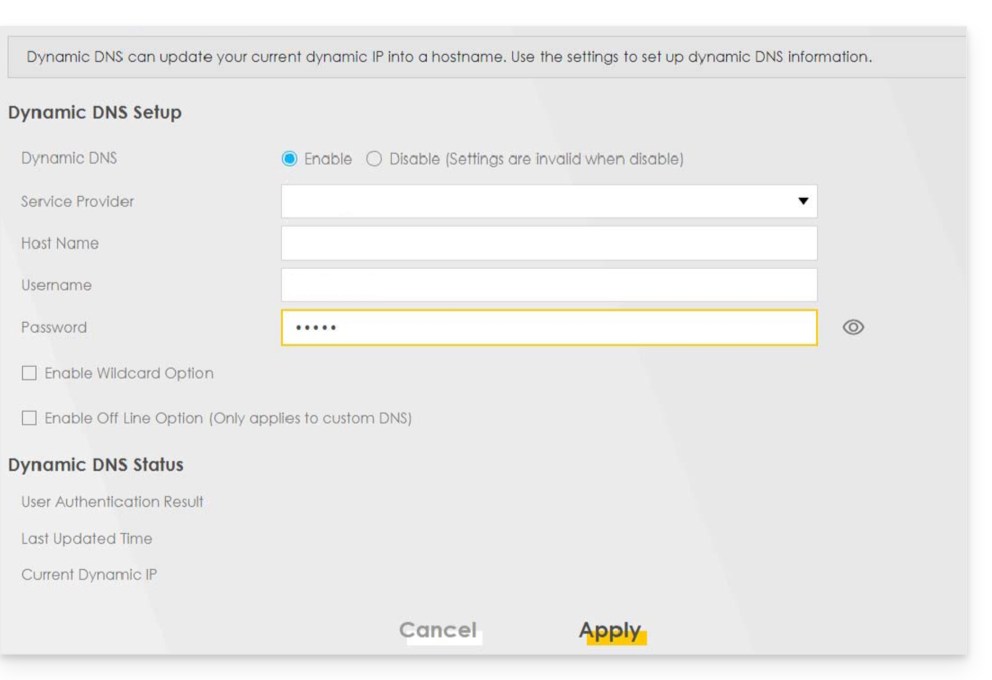
Other routers
The same principle applies to a Omada SDN solution from TP-Link; the Update-URL is https://infomaniak.com/nic/update?hostname=[DOMAIN]&myip=[IP]&username=[USERNAME]&password=[PASSWORD]:
And for other models (such as Zyxel USG Flex or ax7501-B1, for example), fill in the fields using the data below:
- Enable DDNS Profile: enable
- DDNS Type:
User custom - HTTPS: enable
- Username: the identifier defined in the Infomaniak Manager when adding the Dynamic DNS (help)
- Password: the password defined in the Infomaniak Manager when adding the Dynamic DNS (help)
- Domain Name: hostname with the domain
- Primary Binding Address > Interface : any
- Backup Binding Address > Interface : none
- DYNDNS Server: infomaniak.com
- URL (copy and paste as is): /nic/update?password=password (point 5 above) &username=username (point 4 above) &hostname=DomainName
- example
/nic/update?password=abcd1234&username=admin&hostname=abc.domain.xyz
- example
Link to this FAQ: https://faq.infomaniak.com/2378
Has this FAQ been helpful?
This guide explains how to add or modify an MX record in the DNS zone of a domain name managed from the Infomaniak Manager.
Introduction
- An MX record tells mail servers to which server/provider to forward messages addressed to your domain name.
- Changes made in the Infomaniak Manager are only applied if the domain name uses the corresponding DNS zone.
- Any DNS addition/modification may take up to 48 hours to propagate; during this period, some messages may still be routed according to the old configuration.
MX records for Infomaniak email
Infomaniak automatically configures the necessary MX record when the domain name and Mail service are created within the same organization in the Infomaniak Manager.
If your configuration requires manually adding the MX record to direct incoming messages to Infomaniak, enter the following values:
- Host / Source: leave this field blank to apply the record to the main domain
- Target:
mta-gw.infomaniak.ch - Priority:
5
The target must be entered as a hostname, without https://, without an email address, and without any additional path.
Variant specific to certain DNS interfaces
Some interfaces, notably Gandi's, require a period at the end of the target to indicate that it is a fully qualified domain name. In this case, enter:
mta-gw.infomaniak.ch.
If a different MX record is used or if multiple MX records are configured, Infomaniak cannot guarantee that messages will be received correctly.
Edit the DNS zone
To add an MX record to the DNS zone:
- Click here to access the domain management section in the Infomaniak Manager (need help?).
- Click directly on the name assigned to the domain in question.
- Click on DNS Zone in the left-hand menu.
- Click on the button to add a record:
- Select the MX record type.
- Click on the Next button:
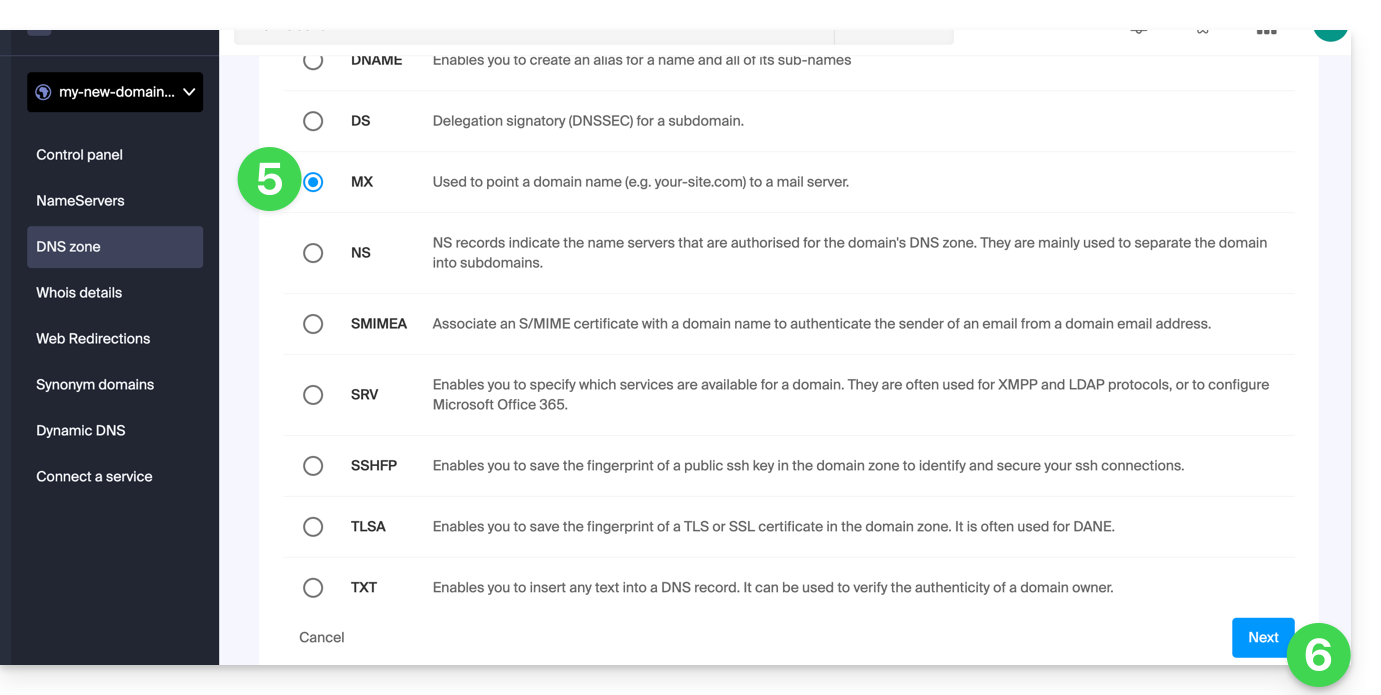
- Enter the requested values:
- for the main domain's email, leave the Host or Source field blank
- enter the name of the email server provided by your provider in the Target field
- enter the priority indicated by this provider
- Keep the default value for TTL, unless your email provider specifies otherwise.
- Click on the Save button:
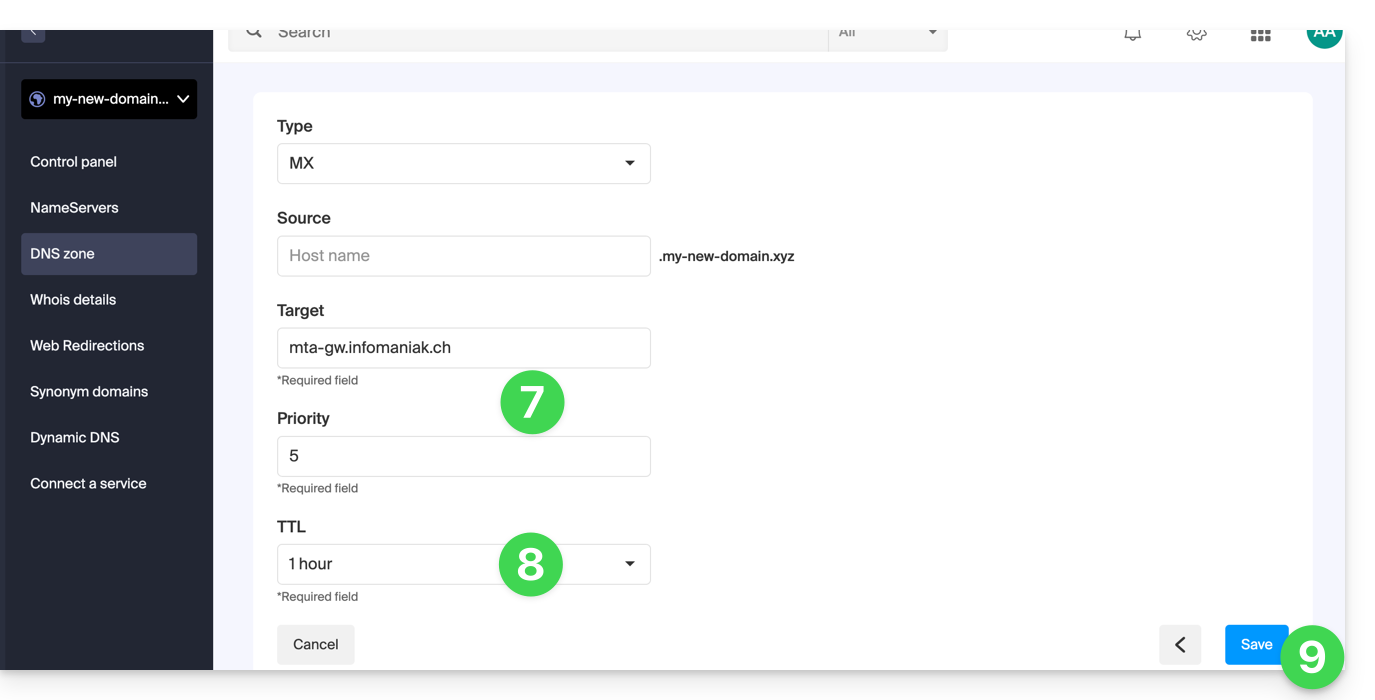
Once saved, the MX record will appear in the DNS zone table: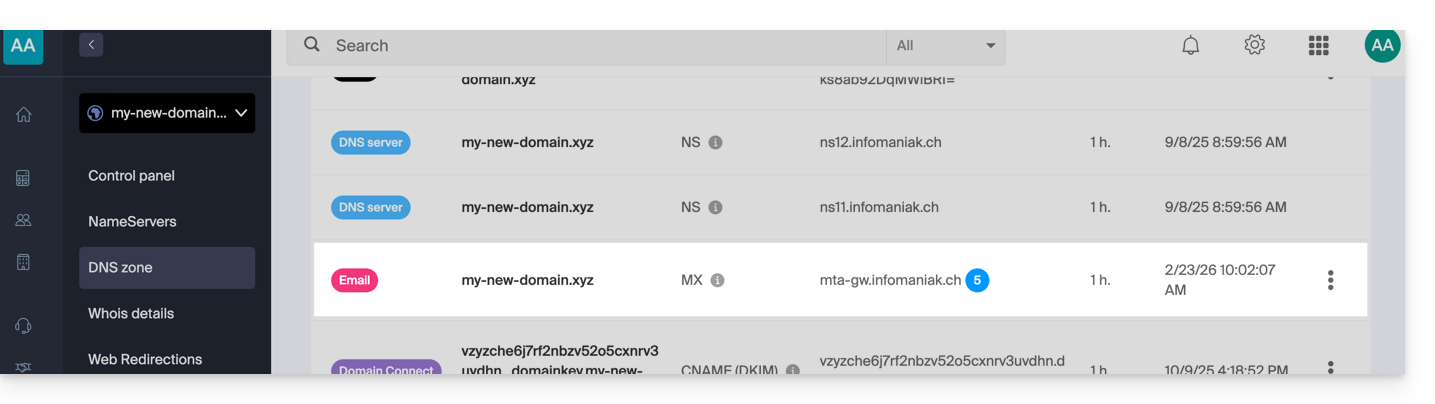
To send messages using Infomaniak's email service, the domain name must also have a correctly configured SPF record.
Learn more
Link to this FAQ: https://faq.infomaniak.com/2110
Has this FAQ been helpful?
This guide explains how to access a NAS Qnap connected to the internet with a dynamic IP address via a domain name.
Prerequisites
- Have a Qnap NAS connected to the internet with a dynamic IP address.
- A dynamic DNS must have been created on the domain in question.
Linking a Qnap NAS to a domain name
To do this:
- Open the Qnap NAS management interface.
- Go to Network & Virtual Switch:

- Click on Add under Access Services > DDNS:

- Enter the following information:

- DDNS Server: Custom
- Profile Name:
Infomaniak(or whatever you want) - Username: the ID defined in the Manager when adding the Dynamic DNS
- Password: the password defined in the Manager when adding the Dynamic DNS
- Hostname: the URL configured in the Manager when adding the Dynamic DNS
- URL:
https://infomaniak.com/nic/update?hostname=%HOST%&myip=%IP%
- Click on Apply.
From this point on, the dynamic IP address of your NAS will be automatically synchronized with your domain name.
Link to this FAQ: https://faq.infomaniak.com/2377
Has this FAQ been helpful?
This guide explains how to add or modify one or more A and AAAA type records in the DNS zone (of a domain name) managed in the Infomaniak Manager.
Introduction
- This type of record allows you to point a domain name to a static IP address (usually a server), type A for IPv4 and AAAA for IPv6.
- This is the method generally used to redirect your domain name to the IP address of the web server hosting your website. Moreover, this type of record is used automatically to link your domain name with your website if they are in the same location and within the same Infomaniak organization.
- You should only modify this type of record if you have a specific configuration to implement (e.g., pointing a subdomain to an external application).
Modify the DNS zone
To manage this type of record in a DNS zone:
- Click here to access your domain management in the Infomaniak Manager (need help?).
- Click directly on the name assigned to the domain in question.
- Click on DNS Zone in the left-hand menu.
- Click the button to add a record:
- Click the A or AAAA radio button to add a record.
- Click on the Next button:
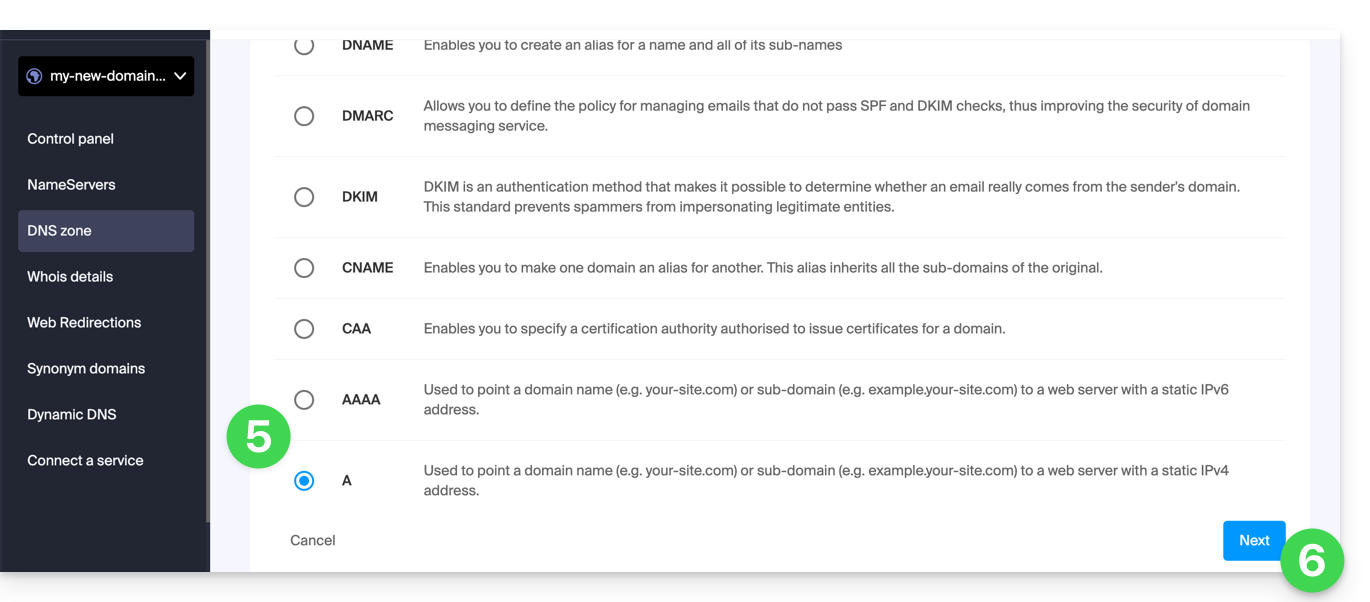
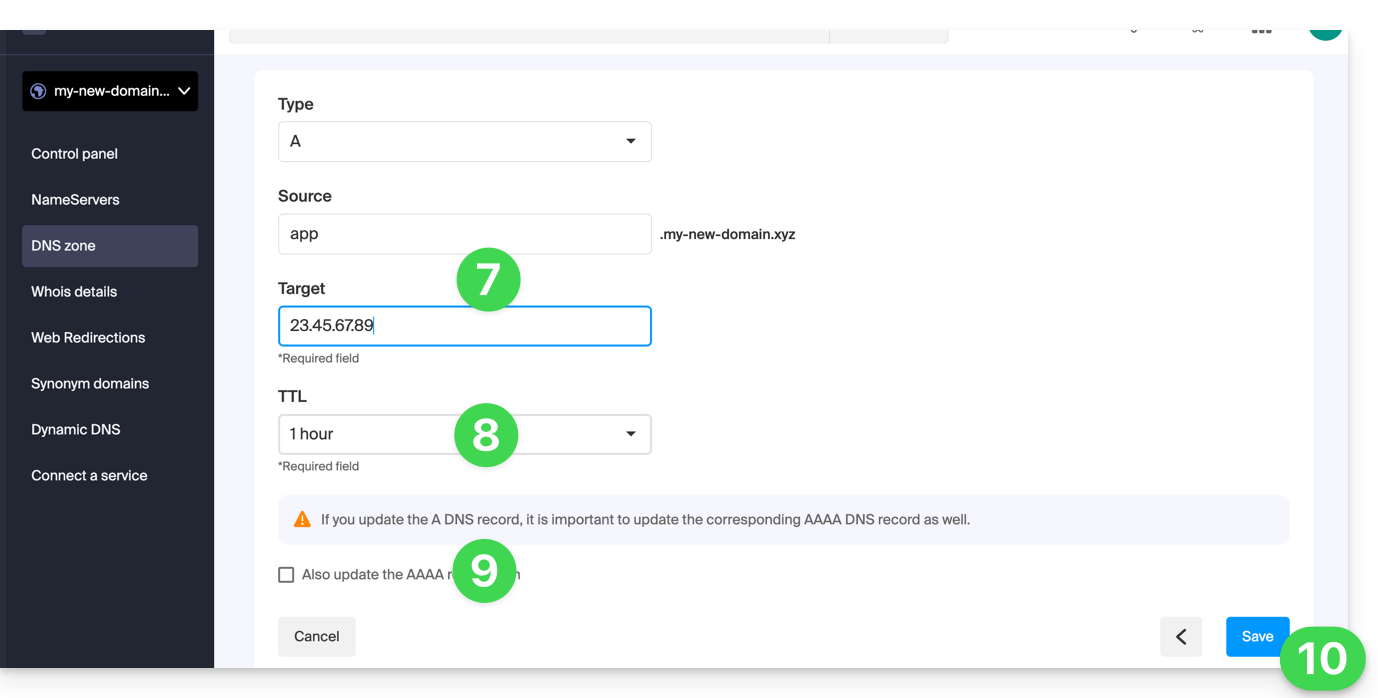
- Enter the values required for your DNS zone.
- Leave the default value for the TTL.
- If necessary, you can request an adjustment to the AAAA record by activating the checkbox, which will allow you to specify an IPv6 address at the same time.
- Click on the Save button:
Link to this FAQ: https://faq.infomaniak.com/2088
Has this FAQ been helpful?
This guide details the different states in which a domain name can be.
Common statuses
"Active" or "OK"
The domain name is declared in the DNS, the domain name is active and unlocked. All administrative and/or technical operations are possible.
"Registrar-Lock / Registry-Lock" or "clientTransferProhibited"
The domain name is declared in the DNS. The domain name is active and locked to protect it, especially against unauthorized transfer requests.
Statuses requiring action or monitoring
"Registrar-Hold / Registry-Hold"
This status is applied when the domain has expired (not renewed). The only possible action is to renew it. Administrative and/or technical operations are not possible.
"RedemptionPeriod"
This status occurs if the domain has not been renewed. Please refer to this other guide if you are looking for information on this topic.
"PendingRestore"
This status appears during a restoration request. The registrar has 7 days to communicate all the necessary information to the registry for its restoration.
"PendingDelete"
This status follows the RedemptionPeriod status after 30 days if no restoration request has been made. The name will be deleted for a period of 15 days before reverting to the public domain.
In the case of a .fr domain extension
"Active"
The domain name is registered in the DNS (fully operational).
"Frozen"
The domain name is declared in the DNS, but no administrative or technical operations are possible. Possible causes: see article 6.1 of the AFNIC charter.
"Blocked"
The domain name is no longer declared in the DNS; it is no longer functional, and no administrative and/or technical operations are possible. Possible causes: see article 6.2 of the AFNIC charter.
Link to this FAQ: https://faq.infomaniak.com/1826
Has this FAQ been helpful?
This guide explains how to access your Jeedom home automation box (which is located behind a dynamic IP address provided by your ISP) with a domain name at Infomaniak via the free DynDNS option.
Introduction
- The integration you install acts as a messenger: it continuously monitors the IP address of your local network.
- As soon as it detects that your ISP has changed your IP address, it instantly sends a signal to Infomaniak.
- Infomaniak then updates your domain name (e.g.,
jee.domain.xyz) so that it points to the new IP address.
Linking Jeedom to a domain name
Prerequisites
- You must have a Jeedom installation (e.g., on a Raspberry Pi 5) connected to the Internet with a dynamic IP address.
- A dynamic DNS must have been created on the domain in question.
Then:
- Install the official and free DynDNS plugin on your Jeedom application from the Market.
- Activate the plugin as usual.
- Configure a new device by selecting Infomaniak from the list of services:
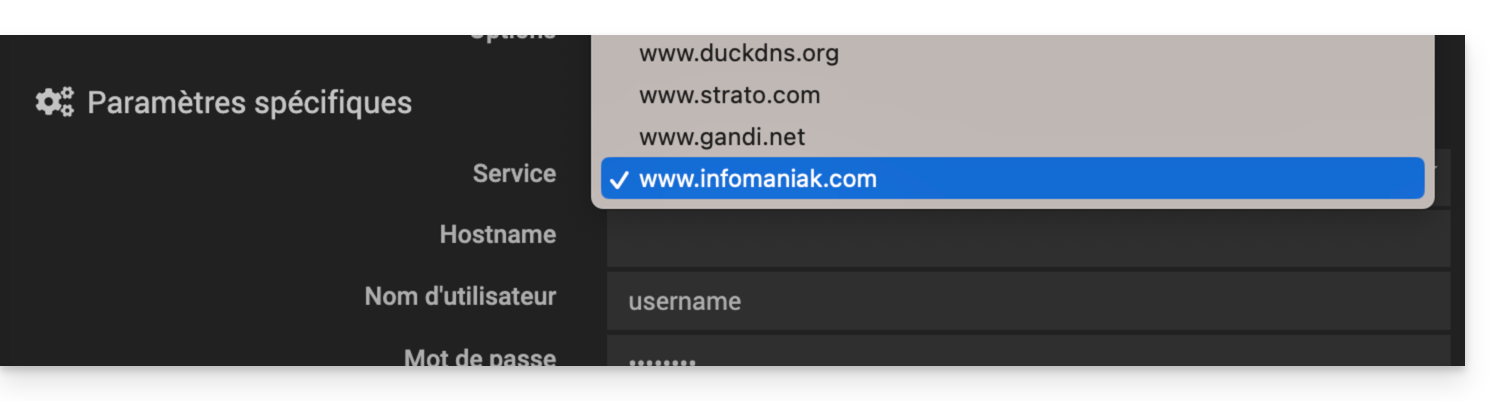
- Hostname: the URL configured in the Manager when adding the Dynamic DNS
- Username: the ID defined in the Manager when adding the Dynamic DNS
- Password: the password defined in the Manager when adding the Dynamic DNS
Jeedom will check the external IP address every 15 minutes. If it has changed, the DNS will be updated. This way, your domain name will continuously point to your home automation installation, even if your Internet Service Provider changes your public IP address.
Also, please refer to the official plugin documentation.
Link to this FAQ: https://faq.infomaniak.com/1913
Has this FAQ been helpful?
This guide explains which DKIM to add to secure Infomaniak email if it is based on a domain name whose DNS records are managed by Cloudflare.
Introduction
- If you manage your emails with Infomaniak, as well as the domain name associated with them, but DNS management is handled by Cloudflare, then you need to add the DKIM on the Cloudflare interface.
Add a DKIM on Cloudflare
Prerequisites
- Consult this other guide to learn how to display the DKIM record for your Infomaniak email account.
- Display the DKIM record so you can copy and paste it. Example:
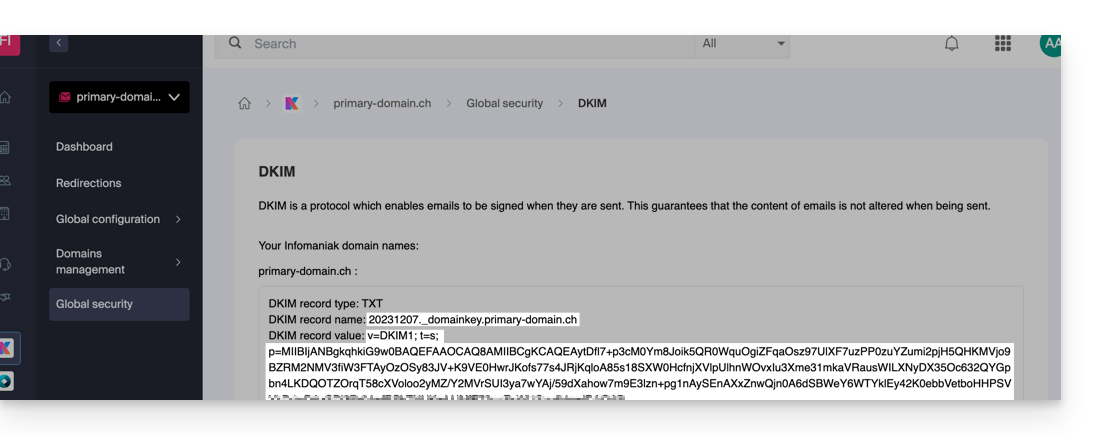
Then, follow the procedure below to correctly enable DKIM, thereby improving the security and deliverability of emails for the domain in question:
- Click here to access your Cloudflare account.
- Select the domain in question.
- In the DNS section, find and delete any existing NS records for "
_domainkey" that point to Infomaniak. - Click the Add record button to open the input form.
- Fill in the fields using the data obtained from the Infomaniak Manager, following the standard configuration for a DKIM record of type TXT:
| Cloudflare Field | Value to Enter | Important Notes |
|---|---|---|
| Type | TXT (text) | Choose the standard type for DKIM keys. |
| Name (Host) | The DKIM selector (e.g. 20240112) | Enter only the selector, as Cloudflare will automatically add the domain name and the ._domainkey suffix for you. Refer to the Cloudflare documentation if needed. |
| Content (Value) | The public key (the long string) | Paste the entire DKIM public key provided (the part after p=) |
| TTL | Auto | Leave the default value for optimal management by Cloudflare. |
Make sure the Proxy Status (cloud) is set to DNS Only (grayed out) for email authentication records.
Backup and Propagation
After carefully verifying the accuracy of the Selector and Public Key, click the Save button. This will validate the addition of your DKIM record to the Cloudflare DNS zone.
Any DNS addition or modification may take up to 48 hours to propagate.
Once this period has elapsed, you can use online verification tools to confirm that the DKIM record has been published and is valid. This validation ensures that your Infomaniak emails will be correctly signed and that their deliverability will be optimal.
Link to this FAQ: https://faq.infomaniak.com/1619
Has this FAQ been helpful?
This guide explains how to add or modify one or more records of type CNAME and DNAME in the DNS zone (of a domain name) managed in the Infomaniak Manager.
Introduction
- The
CNAMErecord type allows you to point a subdomain to a website address.- This is the method generally used to make the
wwwsubdomain work with your site, or to redirect a subdomain to a folder on the web server where your website is hosted.
- This is the method generally used to make the
- The
DNAMErecord type, for "delegation name", is particularly useful when reorganizing domains or for smooth transitions of part of your infrastructure to another, while preserving the hierarchical structure of the subdomains.- A
DNAMEcreates an alias for an entire domain and all its subdomains.
- A
- Unlike a
CNAME, which only applies to a single, specific hostname, aDNAMEautomatically redirects all subdomains. For example:- A
DNAMEforabc.site1.compointing tosite2.comwill automatically linkxyz.abc.site1.comtoxyz.site2.com,new.login.abc.site1.comtonew.login.site2.com, and so on.
- A
- ⚠ A
DNAMErecord cannot be used at the root zone of a domain (likesite1.comdirectly). It is generally used on a subdomain. If you want to redirect the main domain itself, you will need to use other types of records, such as anA,AAAA, orCNAME(with some restrictions for the latter).
Modify the DNS zone
To manage this type of record in a DNS zone:
- Click here to access your domain management in the Infomaniak Manager (need help?).
- Click directly on the name assigned to the domain in question.
- Click on DNS Zone in the left-hand menu.
- Click the button to add a record:
- Click the corresponding radio button to add a record.
- Click the Next button:
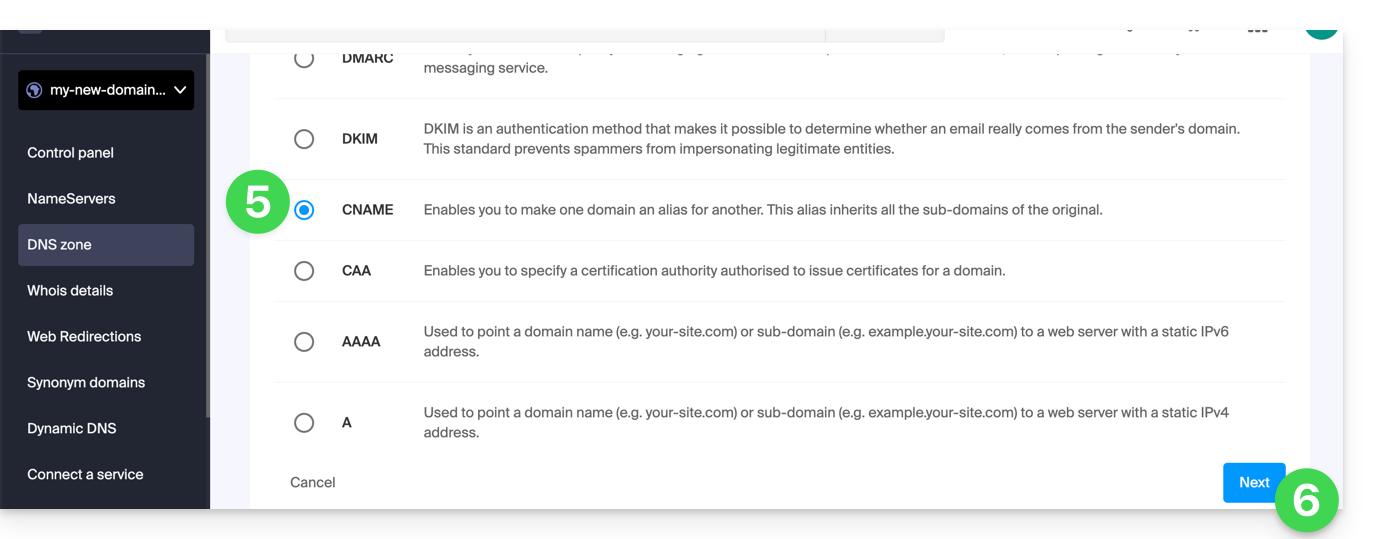
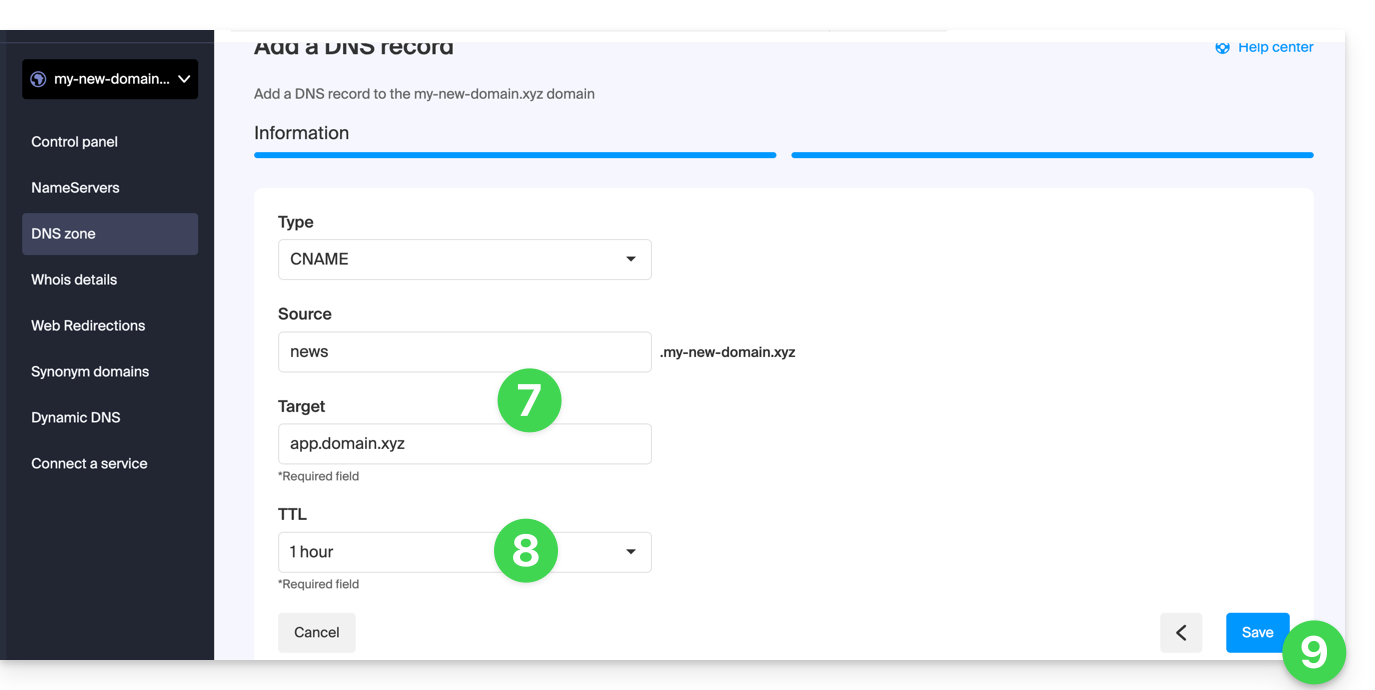
- Enter the values required for your DNS zone.
- Leave the default value for the TTL.
- Click on the Save button:
Link to this FAQ: https://faq.infomaniak.com/2033
Has this FAQ been helpful?
You have reached this page because a web redirection on your domain is incorrectly configured. Infomaniak is unable to identify the correct path for this redirection, so you are being redirected to this page to help you correct the situation.
DNS Zone Check
To restore the functionality of your redirection, you must first remove any traces of a previously misconfigured redirection:
- Access your DNS zone.
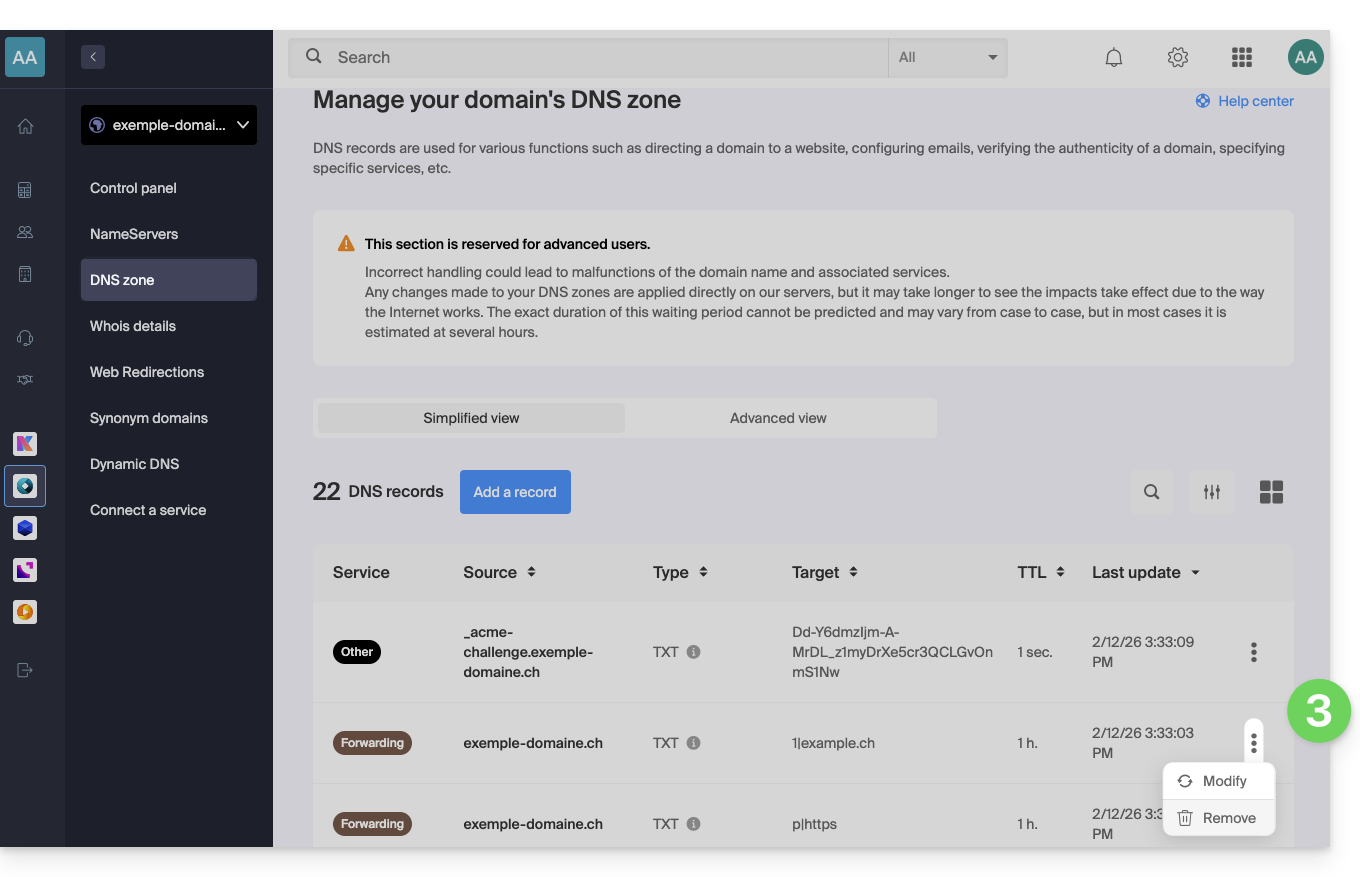
- Delete the relevant records (refer to the list below) that correspond to your redirection.
- Click on the action menu ⋮ to the right of the DNS entry in question and select Delete:
- You probably won't find all the records listed, and that's perfectly normal.
- Any addition/modification may take up to 48 hours to propagate.
- Recreate the web redirection.
List of records to check and delete
DNS records can be of the following types:
A, which point toxx.xx.xx.xx(only numbers)AAAArecords that point to an IP addressxxxx:xxxx:x:x::x(a combination of numbers and letters).TXTrecords whose string resembles "(number)|(URL)"- for example,
1|infomaniak.comif your redirection points to infomaniak.com
- for example,
TXTwhere the string resembles "(letter)|(text)"- for example
t|Text,d|Textork|Text
- for example
Link to this FAQ: https://faq.infomaniak.com/2506
Has this FAQ been helpful?