Knowledge base
1000 FAQs, 500 tutorials and instructional videos. Here, there are only solutions!
This guide explains how to transfer to Infomaniak data (Web, Mail, Domain, and even Cloud) currently hosted elsewhereYou remain the owner of your data, with no loss or interruption!
Introduction
- By consolidating your domain names, websites, and email addresses with Infomaniak, you simplify the management of your invoices and services.
- Furthermore, your domains will be automatically linked to your website and email address.
- You will not need to manually configure the DNS settings for your domains with another registrar.
Specific guides
Click on the link corresponding to your current hosting provider:
- Swisscom: complete guide to migrating Web, Mail, and domain name data
Guides for any other hosting provider
To avoid interrupting your website and email services and prevent data loss when importing your existing data, migrate your services in the order indicated:
Import Web data (any PHP, HTML, etc. website)
- For WordPress specifically, please refer to this other guide…
- For WordPress specifically, please refer to this other guide…
Copy Mail data (addresses and mailbox content, etc.) to kSuite or a simple Mail Service
Transfer the domain name (domain management, DNS zone, etc.)
You can also transfer other types of data to Infomaniak servers:
- Dropbox, Google Drive, etc. content: refer to this other guide
- Data on Synology or QNAP NAS: please refer to this other guide
Link to this FAQ: https://faq.infomaniak.com/2057
Has this FAQ been helpful?
Thank you for entrusting Infomaniak with the management of your domain names.
This guide will help you quickly use the essential features of your new product.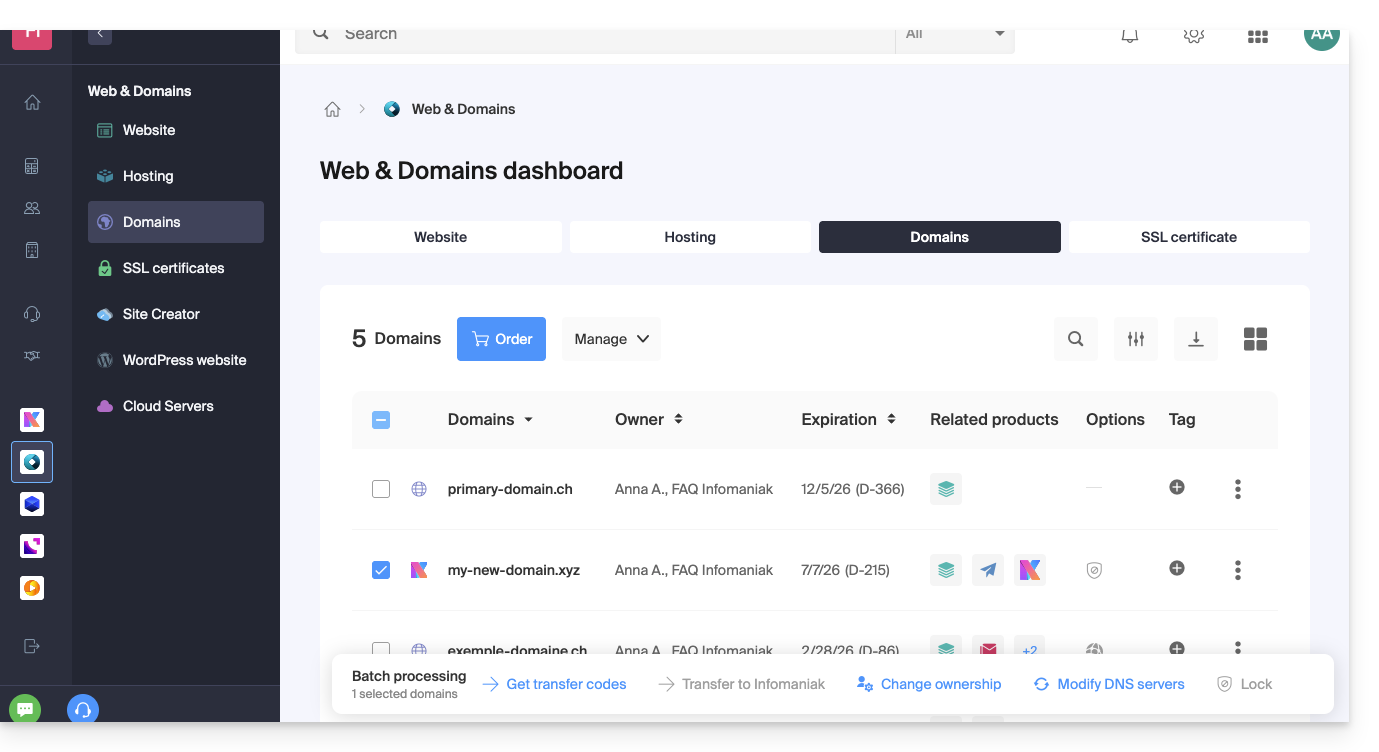
Some important guides
Administrative
- Protect your personal information in WHOIS
- Protect your domain against theft and loss
- Modify the domain name contact information
- Who owns a domain name?
- Using the free services (mail and Web 10 MB) associated with a domain managed by Infomaniak
- Transfer another domain name to Infomaniak
Techniques
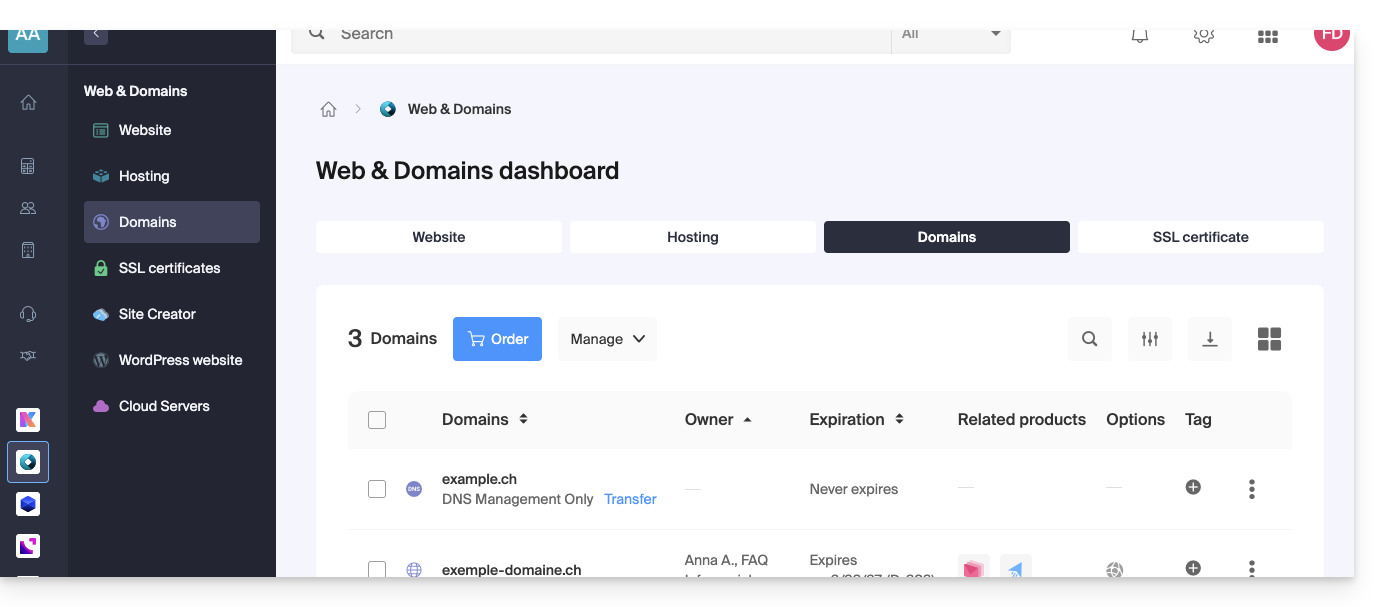
- Edit the records (A, MX, Web, Mail, etc.) of a domain registered with Infomaniakfor example, to connect to a hosting service not managed by Infomaniak
- Modify DNS servers
- Redirect traffic
- Configure DynDNS
- Link a domain name to the Mail Service
- Link an additional domain name to the Mail Service
- Unlink a domain linked to the Mail Service
- Link a domain name to an Infomaniak Web Hosting
- Link an additional domain name to a website
- Unlink a domain linked to the website
- Link a domain name to your Infomaniak Synology NAS
- Link a domain name to Wix
- Link a domain name to Site Creator
- Link a domain name to the Newsletter
- Link an Infomaniak domain name to an external service
Otherwise, find the topic you are looking for among the other FAQs.
Click here to share feedback or a suggestion about an Infomaniak product.
Link to this FAQ: https://faq.infomaniak.com/2003
Has this FAQ been helpful?
Thank you for choosing Infomaniak to host your website.
Introduction
- Web hosting is a storage space available on a computer, also known as a "server," connected to the Internet and managed by a web hosting provider, Infomaniak.
- This storage space, made available to professionals and individuals, is used to install websites or other types of tools (CRM, extranet, intranet, etc.) that need to be accessible via the Internet.
- These guides will help you quickly learn how to use the essential features of your new product, your web hosting, which can host multiple websites.
Where to start?
- Create a WordPress website
- Build the site with Site Creator
- Install a web application (ownCloud, Joomla, Typo3, Drupal, phpBB, Simple Machines Forum, Magento, Prestashop, …)
- Manage your FTP accounts/users
- Manage and publish files on your hosting via Web FTP
- Manage your MySQL databases
- Add a website or subdomain to your hosting (multisite/multi-domain)including a Node.js website
- Link another domain name to an existing website (domain alias)
- Preview your website even if your domain name does not yet point to Infomaniak's servers
IMPORTANT: the domain name…
For a website to be visible to the public on the Internet, it must be associated with a domain name!
Is your domain name not managed by Infomaniak? Or is it in a different Organization than the one for your web hosting? Then, please refer to this other guide to configure the DNS or "A records" in order to link the domain name to your web hosting.
In case of a problem
To resolve an issue, please consult the Web Hosting Knowledge Base before contacting Infomaniak support.
Click here to share feedback or a suggestion about an Infomaniak product.
Link to this FAQ: https://faq.infomaniak.com/2004
Has this FAQ been helpful?
This guide shows you how to use the Newsletter tool offered by Infomaniak to create and send newsletters, i.e., recurring messages to multiple recipients.
Why use Newsletter instead of a Mail Service
A newsletter is a periodic communication tool sent by email to a specific group of subscribers. It generally aims to inform, share news, updates, or relevant content on a specific topic, and to maintain a relationship with a targeted audience.
Newsletters can contain articles, announcements, promotions, links to recent content, upcoming events, and sometimes exclusive offers for subscribers. The main objective is to provide interesting and relevant content to encourage engagement and maintain subscriber interest.
Infomaniak Newsletter allows you to schedule and send newsletters to a list of email recipients who are waiting for your messages. This allows you to effectively and personally distribute email marketing campaigns and maintain regular and relevant communication with your customers and subscribers.
The features include creating templates, managing the subscriber list, and analyzing performance, all of which are not directly possible with a traditional Mail service. Furthermore,the tool has its own interface, independent within your browser, and completely separate fromMailInfomaniak does not require a messaging application. Cela signifie que si vous possédez déjà des contacts à qui vous souhaitez écrire avec leur accord, il faudra au préalable les importer sur l'outil.
Prerequisites
- You must own a domain name on which you will activate the Newsletter:
- Access to its DNS zone if the domain name is not hosted with Infomaniak.
- Create a new domain name if necessary.
- Have credits for the Newsletter service to enable sending (1 credit = 1 newsletter sent to 1 subscriber).
You must have the explicit consent of your recipients via the double opt-in model. Sending spam and using purchased/rented address lists is prohibited. The owners of the domain name used for sending newsletters are legally responsible, and violation of the terms and conditions may result in account suspension.
Enable the Newsletter tool
To enable the Newsletter tool for the first time:
- Click here to access your product management in the Infomaniak Manager (need help?).
- Click on START FOR FREE to subscribe to the Newsletter offer.
- Enter the domain name that will be used (and which you must own - see prerequisites).
- Click the blue button to Confirm.
- Start using the tool - or consult this other guide if you encounter any issues or if the screen prompts you to configure additional settings.
Accessing the Newsletter Tool
To access the Newsletter once it has been activated:
- Click here to access the management interface for your product in the Infomaniak Manager (need help?).
- Click on the domain name in question in the table that appears:
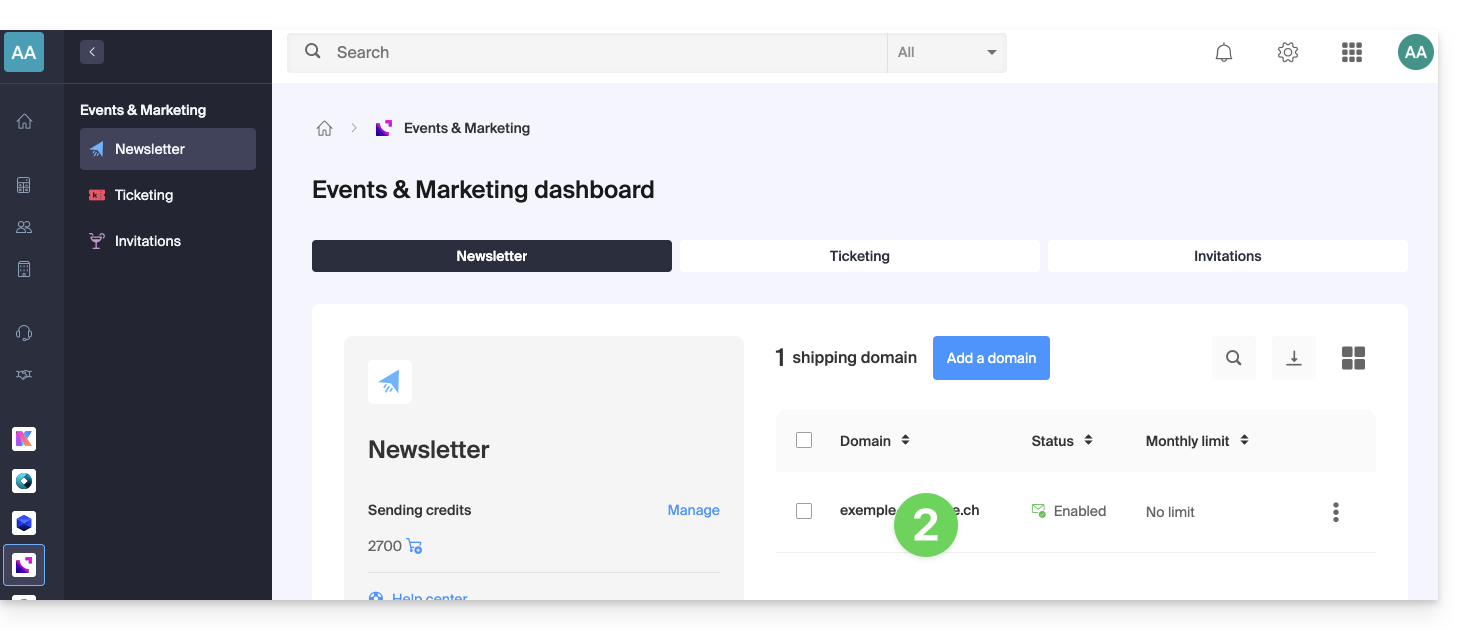
Learn more about the tool
- Import contacts
- Create and send a newsletter
- Newsletter credits
- Newsletter subscription form
- Double opt-in to avoid being flagged as a spammer
- Resend a newsletter to specific types of subscribers
- Variables to personalize your content
- Use the Newsletter API
See all Newsletter FAQs; click here to share feedback or suggestions about an Infomaniak product.
Link to this FAQ: https://faq.infomaniak.com/2163
Has this FAQ been helpful?
This guide explains how to configure a dynamic DNS record (Dynamic DNS, DDNS) for a domain name whose DNS zone is managed by Infomaniak. This free alternative to Dyn and DynHost is very useful if you want to access devices connected to the Internet from outside, even if their IP address is dynamic (e.g., a NAS, a surveillance camera, an Internet/home automation router/box, etc.).
Prerequisites
- The DNS zone for the domain name must be managed with Infomaniak.
- If necessary, transfer your domains to Infomaniak.
- Your device or application must support dynamic DNS records.
Specific guides
The following guides explain how to link a domain name with:
- … a Synology NAS
- … a Qnap NAS
- … Zyxel / Sunrise Internet Box / TP-Link solutions
- … a UniFI device
- … Swisscom Internet Box
- … Fritzbox
- … Jeedom
- … Linux via ddclient
- … potentially everything thanks to the API
Add a dynamic DNS
To create a dynamic DNS for your domain:
- Click here to access your domain management in the Infomaniak Manager (need help?).
- Click directly on the name assigned to the domain in question.
- Click on Dynamic DNS in the left-hand menu.
- Click on the blue Add a Dynamic DNS button.
- Enter the required information:
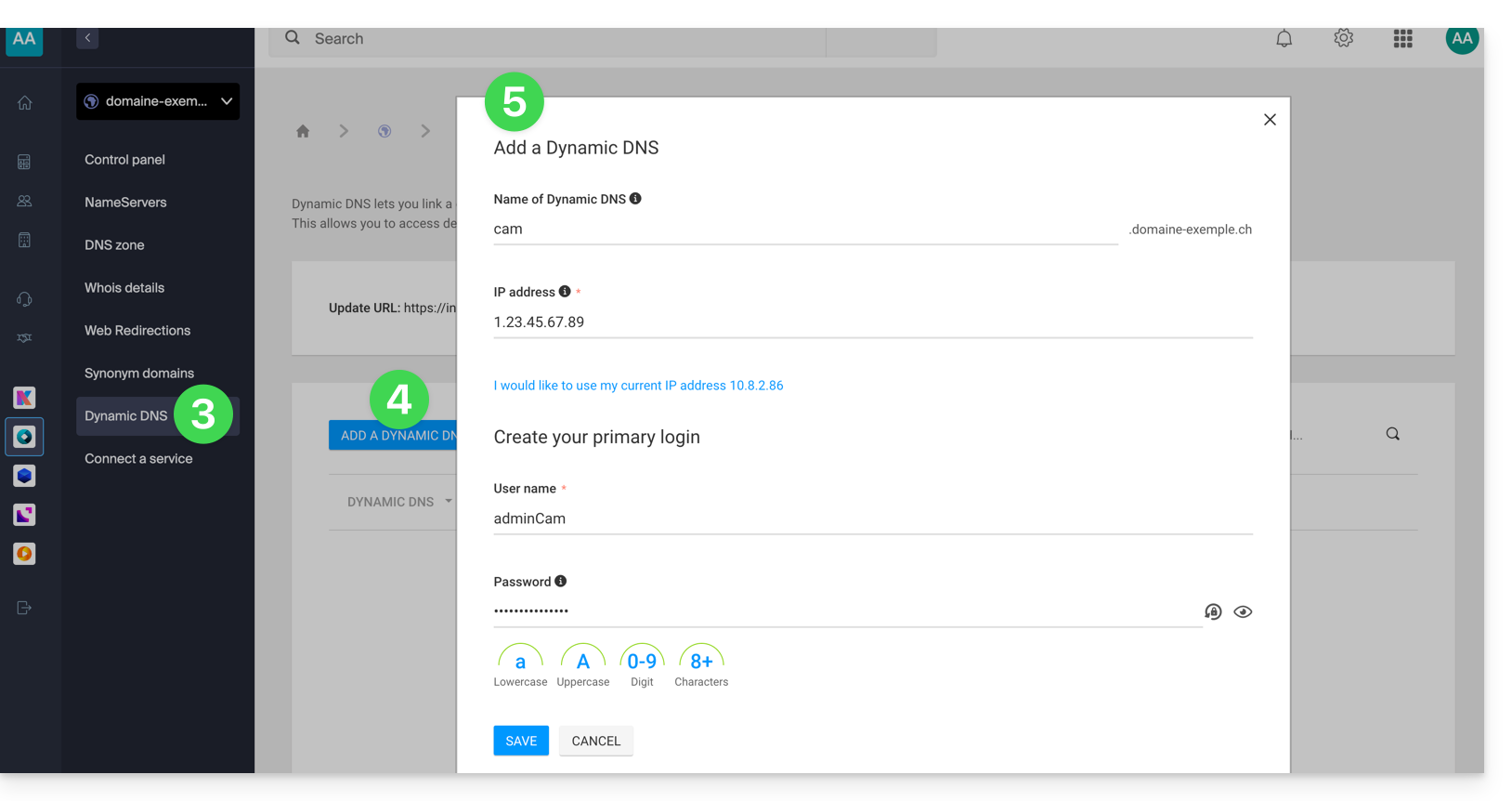
- Choose the desired subdomain or leave the Dynamic DNS Name field blank to use the main domain.
- Enter an IP address; this will then be dynamically updated by your device/app.
- Define an ID / password pair (uppercase, lowercase + numbers, no special characters); the latter must be entered in the configuration of your device/app.
Link to this FAQ: https://faq.infomaniak.com/2357
Has this FAQ been helpful?
This guide details the entire procedure for transferring a domain name from your current provider to Infomaniak.
Introduction
- Validity and registration date: ensure that the domain was created or transferred at least 60 days ago and that the email addresses associated with the owner's profile are valid.
- Expiration: during a transfer, no already paid period is lost; the domain's expiration date will be automatically extended by one year.
- DNS Backup: If you plan to keep some services (Web, Mail, etc.) with another provider after the transfer, note your current DNS records (A, MX, TXT, CNAME) beforehand.
- External vs. Internal Transfer: This involves having Infomaniak manage your domain instead of your current registrar (this is not a transfer of ownership between two accounts with the same provider).
- Terminology: The terms
EPP,AuthCode,AuthInfo, "transfer code", and "authorization code" all refer to the same alphanumeric key used to validate the transfer of a domain between registrars.
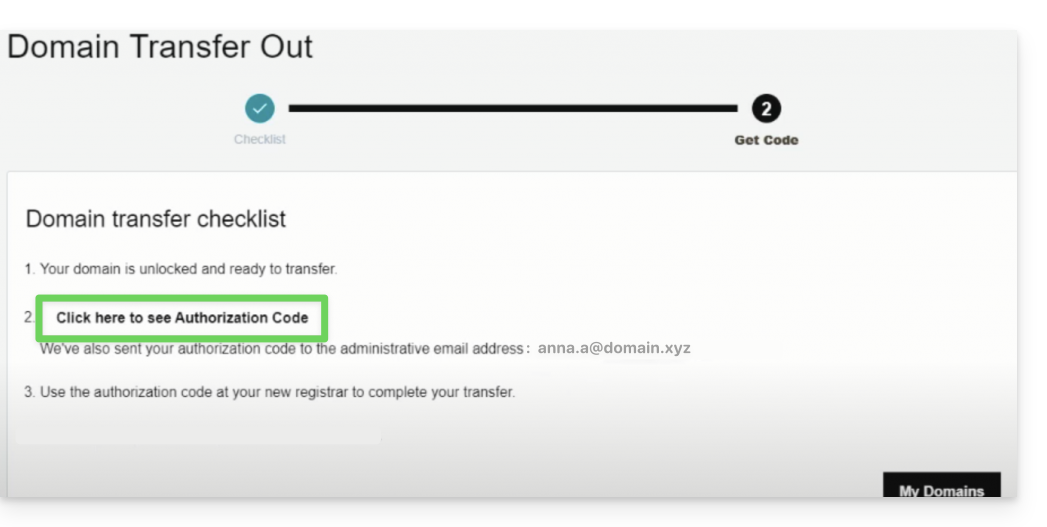
1. Obtain the authorization code (AuthCode)
Log in to your current provider's customer account to retrieve the authorization code. Also, remember to disable transfer protection if it is enabled.
2. Start the transfer with Infomaniak
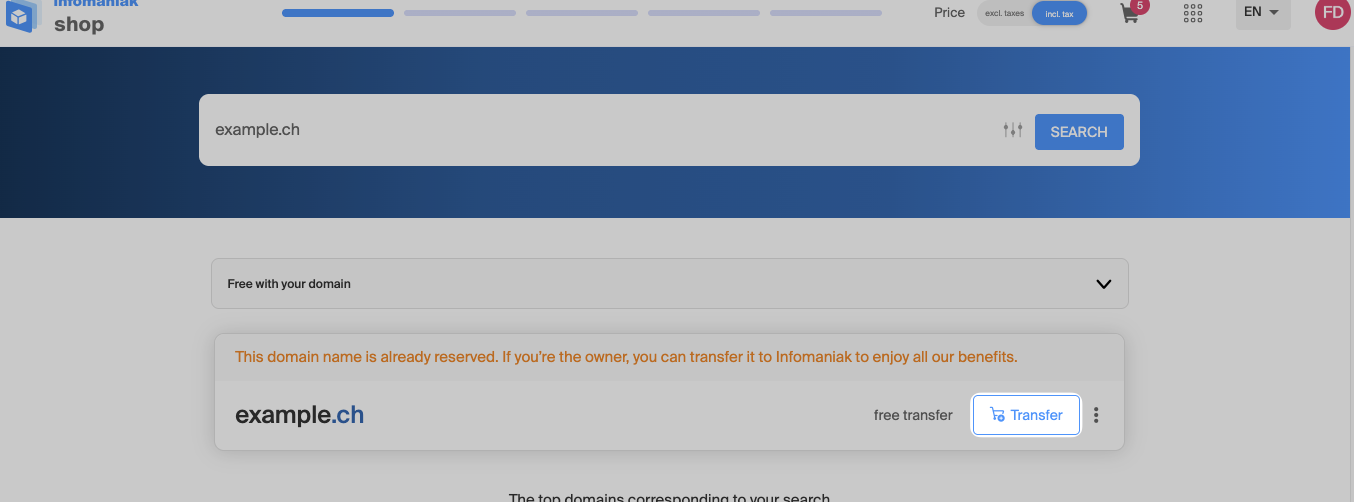
Go to the Infomaniak domain transfer page, find your domain name, and then click the button to start the process.
3. Configure the options and DNS management
Enter the details of the owner. At this stage, configure the toggle switch related to DNS management:
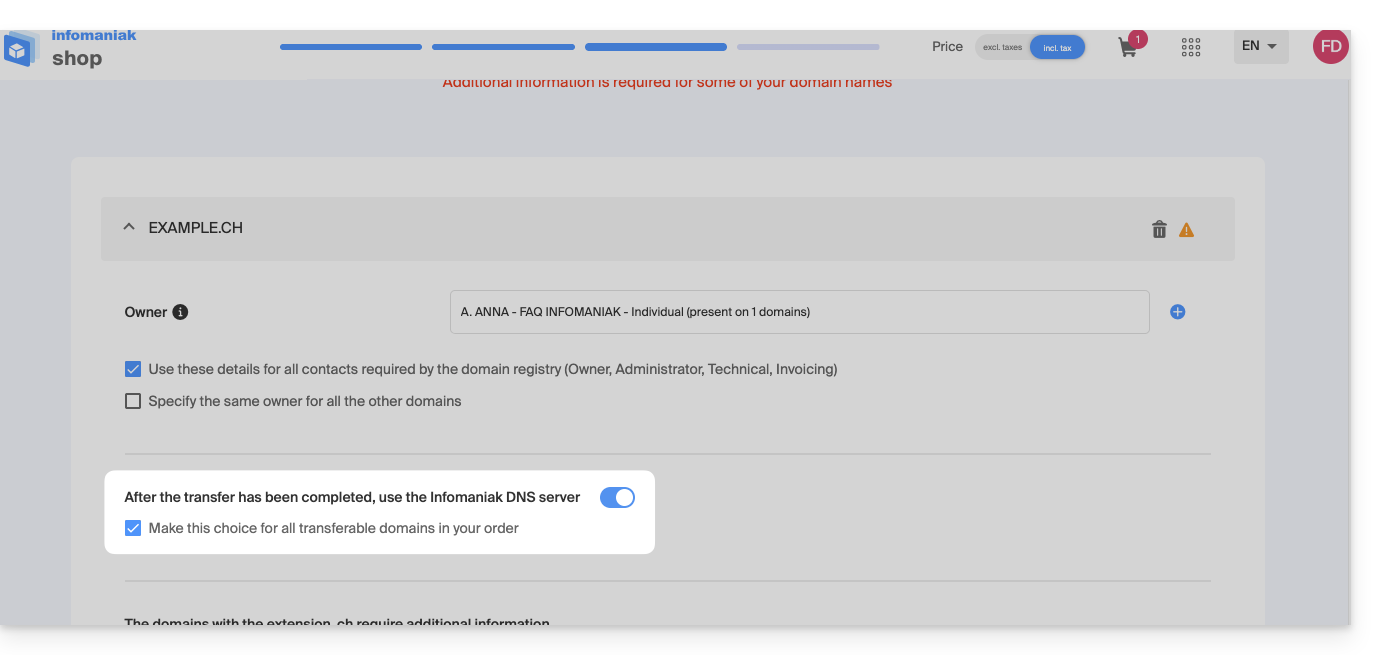
Leave the switch activated if…
- All your services (hosting, emails) are already with Infomaniak (or if you are already using the DNS servers
ns11.infomaniak.comandns12.infomaniak.com). - No product or service is linked to this domain name.
Disable the button if…
- Some services (website, email account) remain hosted elsewhere than with Infomaniak. In this case, be sure to keep your current DNS settings and verify beforehand that your DNS zone is still available with your previous registrar.
Note: If you are unsure about your current DNS settings, perform a search on the Infomaniak WHOIS service.
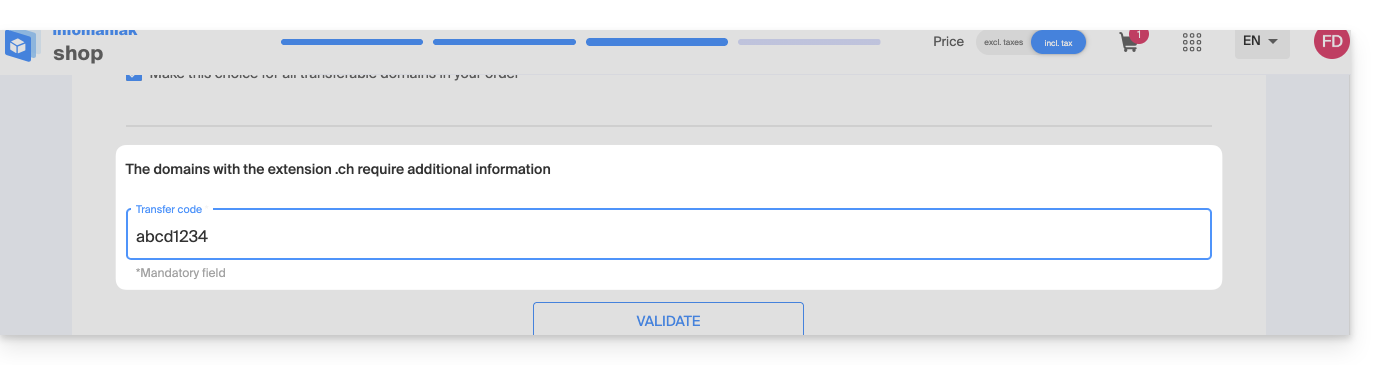
4. Enter the authorization code
Paste the AuthCode / EPP code retrieved in step 1 into the field provided, validate the code, and then click Next.
5. Adjust the order and confirm
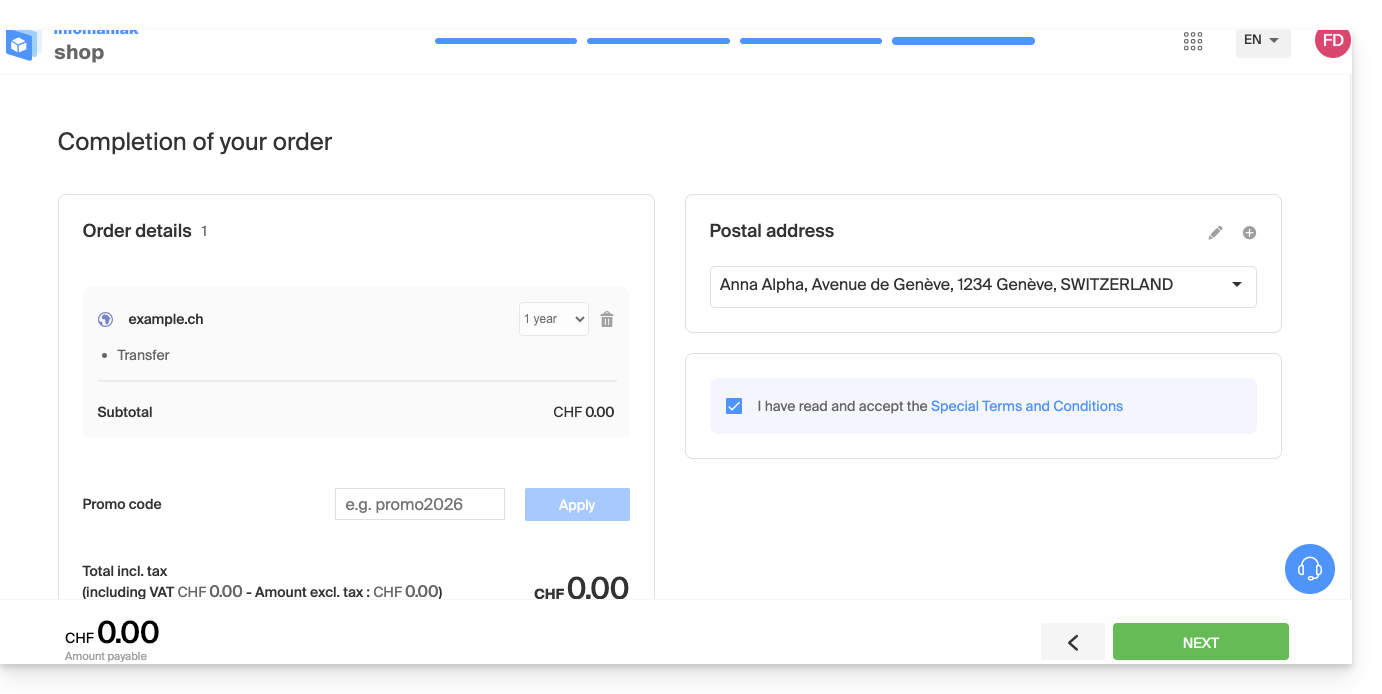
This final step allows you to adjust your renewal preferences and pay any applicable transfer fees (depending on the domain extension).
Accept the terms and conditions, then click Next to complete the order.
6. Monitor the transfer from the Manager
Access your Infomaniak Manager to monitor the transfer progress. If any issues or blockages occur, an automated email will provide instructions on how to proceed.
Batch transfer
To transfer multiple domains simultaneously:
- Use the Infomaniak batch transfer assistant.
- Enter the list of domains and their respective authorization codes, or import a file in
.csvor.xlsxformat (2 columns, up to 300 lines).
Timelines and DNS propagation
- Transfer duration:
- Variable depending on the extension's registry (e.g., up to 8 days for a
.FRdomain, as defined by Afnic) and the responsiveness of your previous registrar in releasing the domain.- See details by extension on our pricing page.
- Variable depending on the extension's registry (e.g., up to 8 days for a
- DNS propagation:
- Any DNS zone changes require a propagation time of up to 24 hours.
- During the transfer:
- The DNS zone cannot be modified while the transfer procedure is in progress.
To also transfer your web hosting or email accounts, consult the service migration guide or discover the assisted migration service. If needed, Infomaniak support is at your disposal.
Link to this FAQ: https://faq.infomaniak.com/447
Has this FAQ been helpful?
This guide is for you if you receive the The web host does not exist error when visiting a website address on an Infomaniak Web Hosting service.
Introduction
- This type of error most often occurs because your domain name is not correctly linked to your website (your domain name probably points to the wrong IP address or is incorrectly configured).
- Example: a domain
abc.xyzthat is incorrectly configured and points to an IPv4 address for a Starter hosting plan, and to an IPv6 address for a shared hosting plan…
- Example: a domain
Troubleshooting Domain - Website Linking Issues
To get your website back online:
- Check the DNS zone of your domain name, especially its A records.
- Correct them if necessary by indicating the IP address of your hosting.
- Any DNS addition/modification may take up to 48 hours to propagate.
To do this, the easiest way is to use the Infomaniak DNS Diagnostic tool to automatically correct the settings, by grouping the products into the same Organisation if necessary.
Link to this FAQ: https://faq.infomaniak.com/1213
Has this FAQ been helpful?
This guide is for users who own a domain name on the Infomaniak infrastructure and are experiencing a DMARC issue when using certain Google tools such as Meet or Calendar.
Troubleshooting a DMARC error
To ensure compatibility between your domain name configuration (which has a DMARC policy of type reject) and the use of certain Google services, it is necessary to add the corresponding SPF record:
- Before:
v=spf1 include:spf.infomaniak.ch -all - After:
v=spf1 include:spf.infomaniak.ch include:_spf.google.com -all
To edit the SPF record currently configured in the DNS zone of your domain name:
- Click here to access your domain management in the Infomaniak Manager (need help?).
- Click directly on the name assigned to the domain in question.
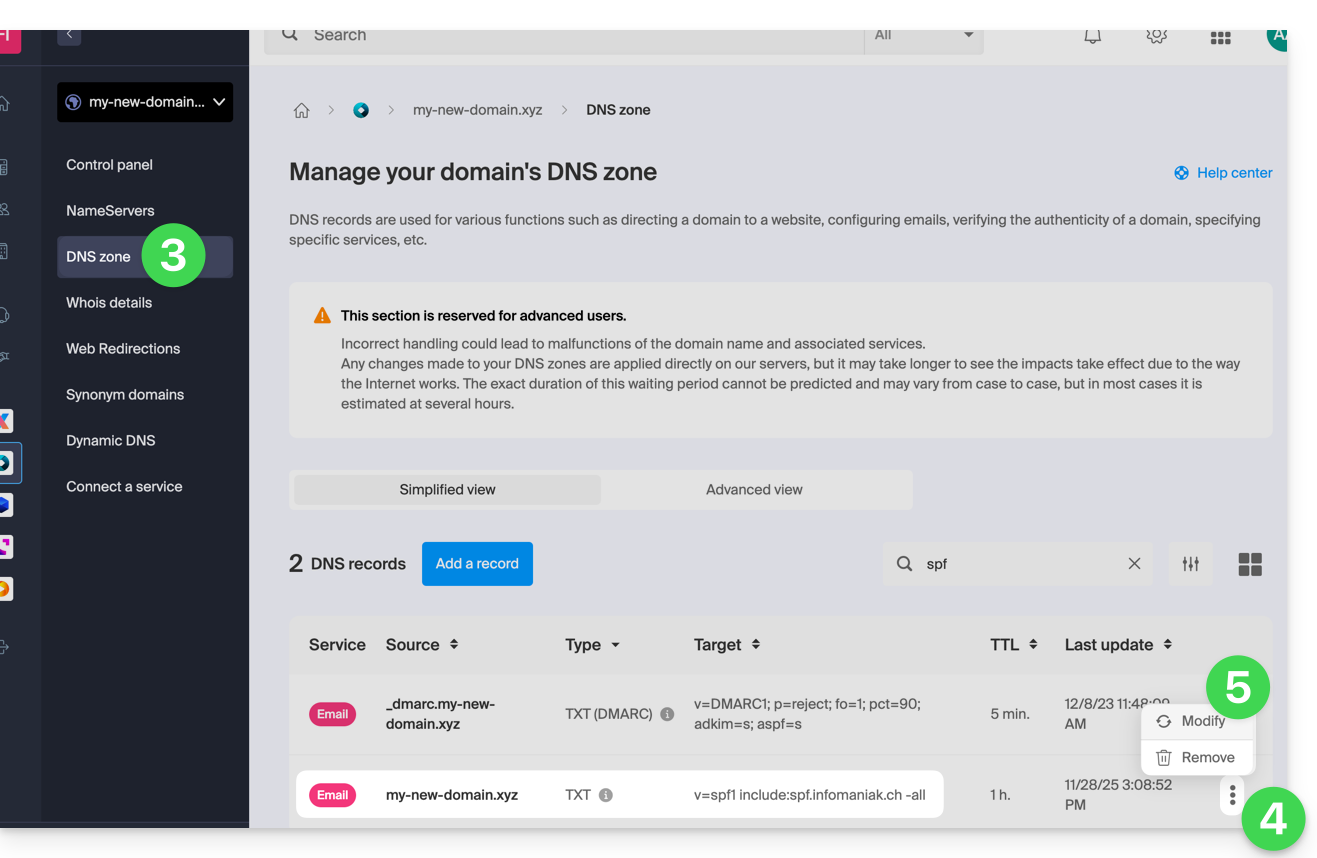
- Click on DNS Zone in the left-hand menu.
- Click on the action menu ⋮ located to the right of the TXT record containing the relevant SPF value.
- Click on Edit:
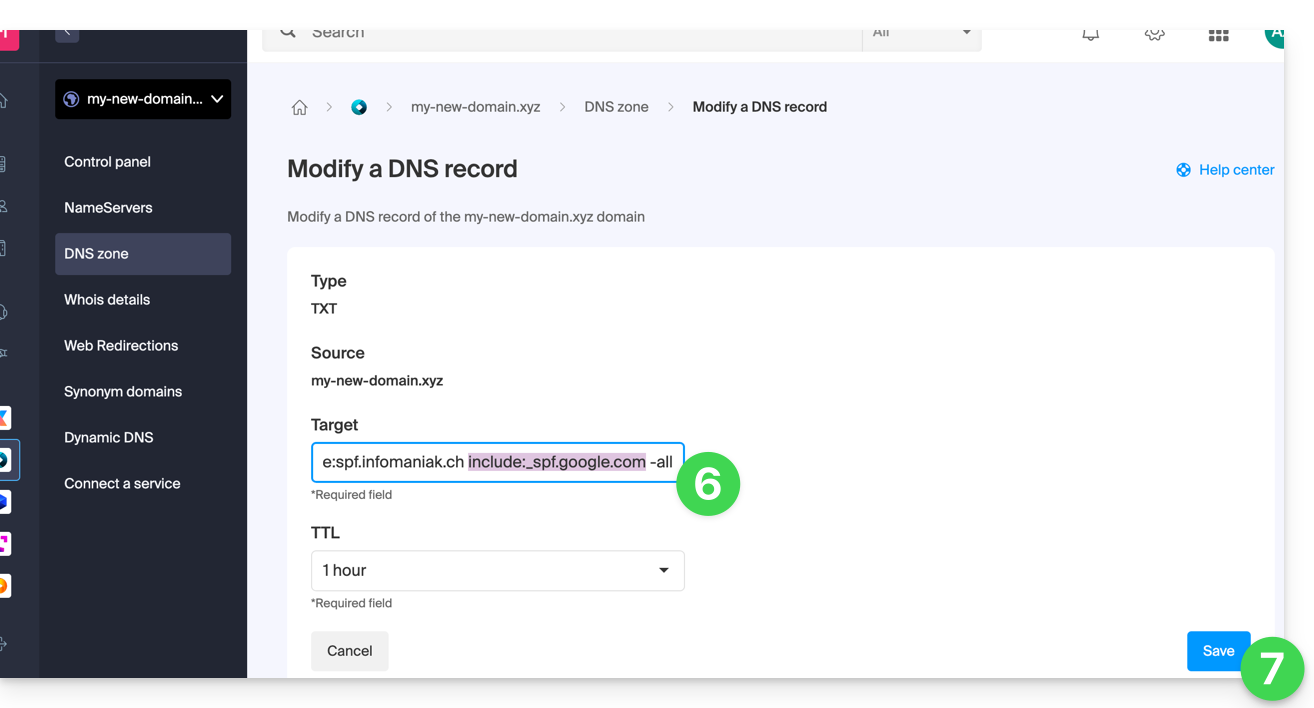
- Edit the field by adding
include:_spf.google.comon the same line after the existing include Infomaniak, and before the final-all. - Click on the Save button:
Any DNS addition or modification may take up to 48 hours to propagate.
Please refer to this Google documentation if you need information on configuring Google's SPF.
Link to this FAQ: https://faq.infomaniak.com/1641
Has this FAQ been helpful?
This guide explains how to link a domain name managed by Infomaniak to a Wix hosting plan.
Introduction
- A website created on Wix cannot be exported so that its content can be hosted on third-party servers, such as those of Infomaniak.
- It is therefore recommended to create the website directly with Infomaniak using Site Creator or WordPress.
Connect Wix to your domain name with Infomaniak
Prerequisites
- Obtain the 2 DNS servers provided by Wix (in the format
ns0.wixdns.netandns1.wixdns.net, for example).
To link a website hosted on Wix with a domain name hosted on Infomaniak:
- Click here to access your domain management in the Infomaniak Manager (need help?).
- Click directly on the name assigned to the domain in question.
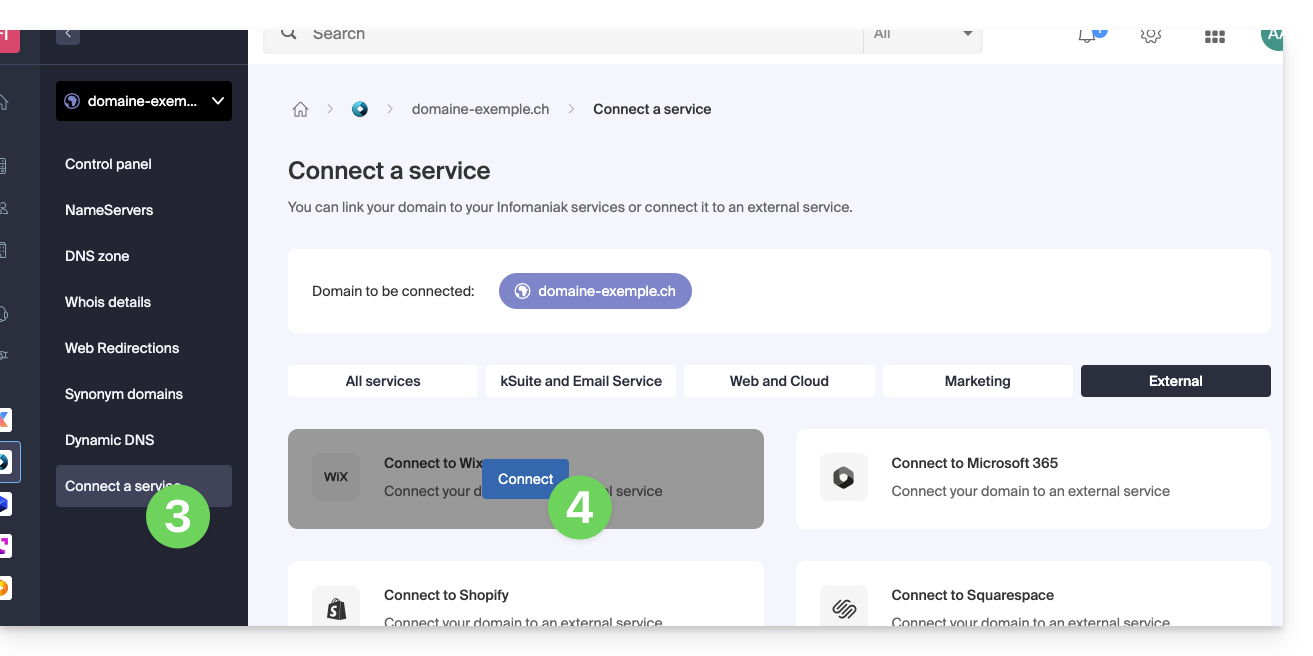
- Click on Connect a service in the left-hand menu.
- Click on the blue Connect button on the WIX tile:
- Enter the 2 Wix DNS servers (see the prerequisite above).
- Click the Next button:
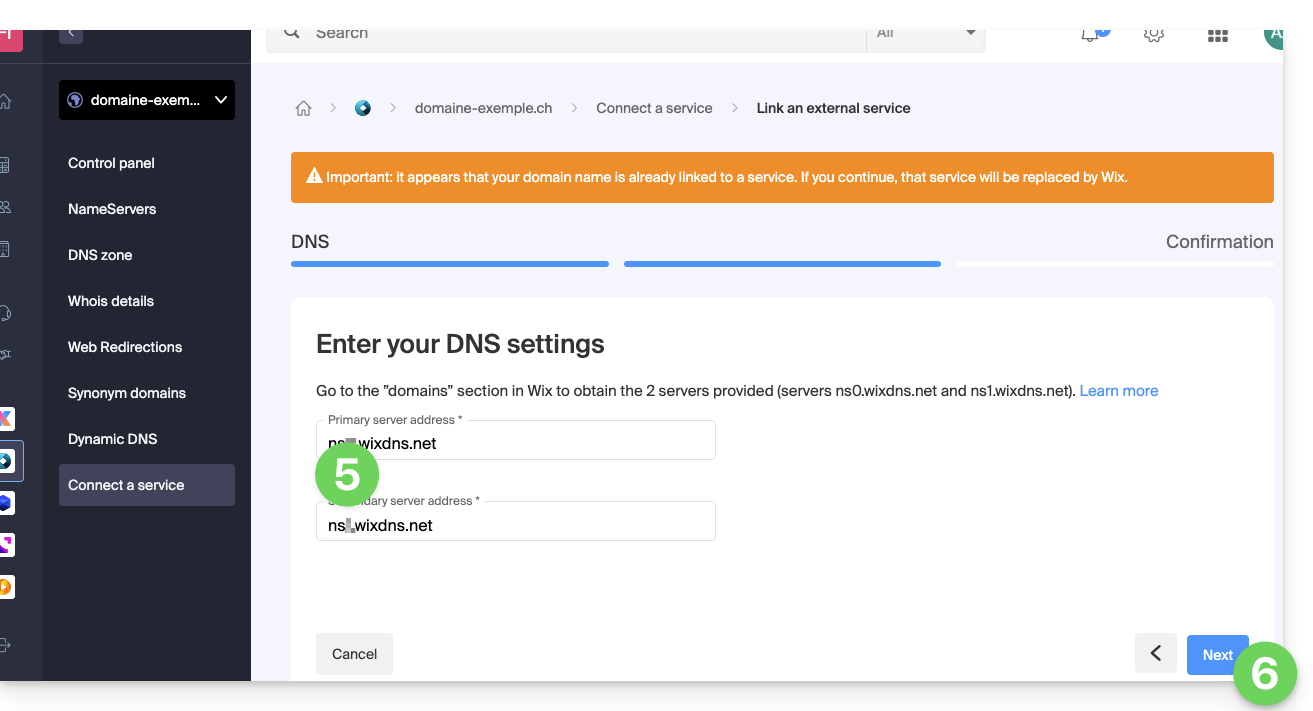
Your domain name will point to Wix servers within a few hours, and all web and email traffic will now be routed to Wix.
If necessary, you should inform Wix that the email service is managed by Infomaniak (please refer to this other guide for more information).
Link to this FAQ: https://faq.infomaniak.com/2067
Has this FAQ been helpful?
This guide explains how to connect a domain name managed with Infomaniak to an external service.
Specific guides
Click on the link corresponding to the external service you wish to connect to your domain nameregistered with Infomaniak:
- Wix
- Shopify
- Google Sites
- dynamic devices such as a NAS, an Internet box, or a smart home device, etc.
Guide for any other external service
To connect your domain name to any other external service such as Odoo, Microsoft 365, or Squarespace, follow the procedures below:
- Click here to access the management of your product on the Infomaniak Manager (need help?)
- Click directly on the name assigned to the product in question.
- Click on Connect a service in the left-hand menu.
- Click the blue Connect button on the tile corresponding to your external service and follow the procedure:
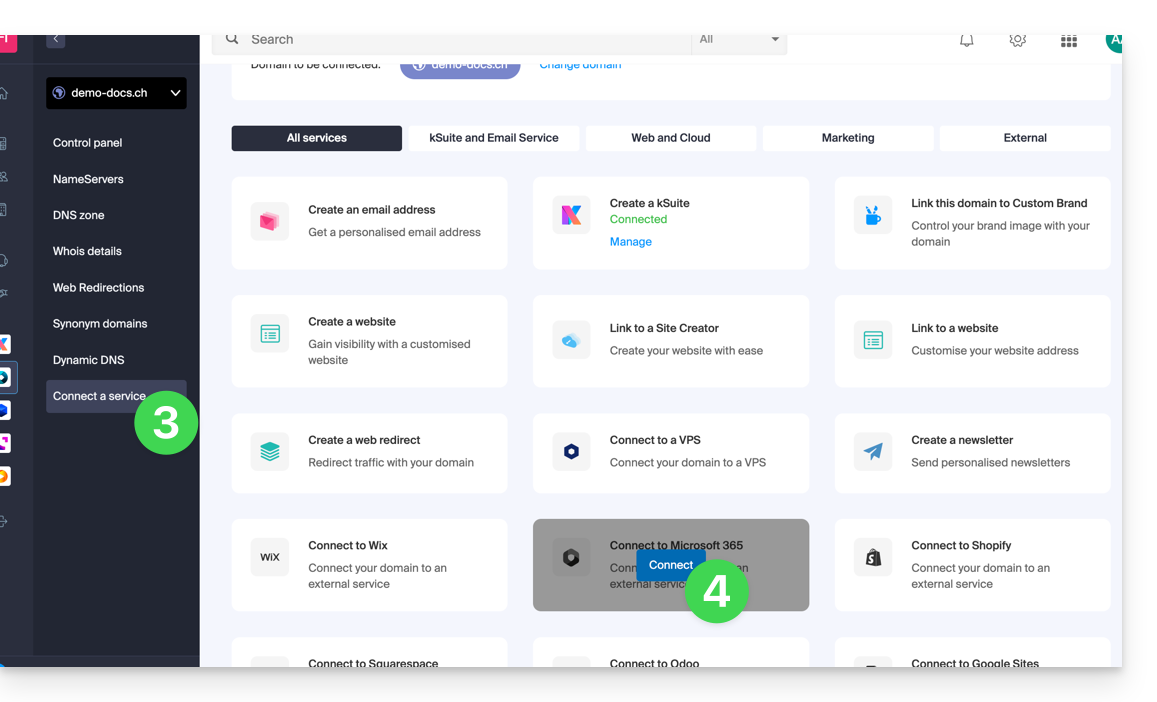
If the external service you want to connect is not in the list, you will need to manually change some of the technical information for your domain name:
- Refer to this other guide to modify all DNS records if that is what you were asked to do…
- … or this other guide if you only need to modify specific DNS records (for example, the MX record if you need to link your domain to an external email service).
Link to this FAQ: https://faq.infomaniak.com/718
Has this FAQ been helpful?
This guide explains how to redirect a domain name directly to another, or how to automatically send visitors to your website to another page address (internal or external URL).
Introduction
- To redirect traffic, you will need to take action…
- … either on the domain name itself (it must be hosted by Infomaniak and its DNS must also be Infomaniak's),
- … or on the code present in your pages (e.g., .htaccess page, homepage, etc.) if you have a website.
Acting on the domain name
Via Web Redirection Tool
The tool available in the Manager allows you to easily manage your domain name (or subdomain) and redirect it to the internet address of your choice.
via DNS modifications or A record updates
Change the DNS of the domain name or modify its A/AAAA records to redirect web traffic to another provider.
Modify the page code…
… by inserting HTML code
Insert this line of code between the <head> and </head> tags of your homepage (usually named index.html):
<meta http-equiv="refresh" content="5;url=INSERT-HERE-NEW-URL">Replace 5 with the desired wait time in seconds (0 for immediate execution).
The Google search engine indicates that it is preferable to use a 301 redirect on the server-side (see below). The W3C also advises against using it.
… via PHP code to be inserted
If the website page has a .php extension, insert this function call at the very top of the file:
header("refresh: 5; url=INSERT-HERE-NEW-PAGE-URL");
```
… via the .htaccess file
… via fichier .htaccess
To redirect all traffic to your site (regardless of the page being accessed) to another address, insert the following into the .htaccess file at the root of your site:
RewriteEngine On
RewriteRule ^(.*)$ INSERT-HERE-NEW-URL/$1 [R=301]
To target the page that should be redirected:
Redirect permanent /old_page.html insert destination URL hereRedirectpermanent, Redirect permanent, and Redirect 301 are equivalent commands.
The following is another example of redirecting a sub-section to the homepage (this directive has the advantage of working with "deep links" unlike a permanent redirect):
RewriteEngine on
RewriteRule "old/path/url" "/" [L]
Refer to this other guide for more information.
Link to this FAQ: https://faq.infomaniak.com/79
Has this FAQ been helpful?
This guide will help you if you receive error emails that mention SPF when sending emails to gmail, microsoft, or similar addresses.
Are all your services with Infomaniak?
The Global Security tool informs you of any configuration inconsistencies regarding your Infomaniak Mail Service.
Are some of your services located elsewhere?
To resolve an email sending issue when your email is managed by Infomaniak and your website is hosted with another provider (such as Wix, for example), and in this situation, the DNS zone of the domain name is managed elsewhere, please refer to this other guide.
Link to this FAQ: https://faq.infomaniak.com/237
Has this FAQ been helpful?
This guide helps you troubleshoot configuration errors if you are experiencing difficulties linking your domain name to Site Creator.
Common issues and solutions
Identify the current status of your domain to apply the appropriate solution:
| Domain name status | Recommended solution |
|---|---|
| Managed by another provider (external) | Order a DNS zone or transfer the domain to Infomaniak |
| Already associated with a website or defined as an alias (synonym) | Delete the existing website or detach the domain |
| Currently using a dedicated IP address | Uninstall the dedicated IP |
| Protected by an SSL certificate (Self-signed, DV or EV) | Uninstall the certificate |
| Insufficient permissions on the hosting | Modify access rights |
Link to this FAQ: https://faq.infomaniak.com/1956
Has this FAQ been helpful?
This guide explains how to easily set up a redirect for your domain name managed with Infomaniak.
Introduction
- A web redirection allows you to redirect a domain name or subdomain to the internet address of your choice.
- This procedure is only valid if the DNS of the domain is managed by Infomaniak and if Custom Brand is not activated.
- Any addition/modification may take up to 48 hours to propagate.
- If necessary, create a redirection for your domain with and without the www (
domain.xyzandwww.domain.xyz).
Redirect a domain to the URL of your choice
To do this:
- Click here to access the management interface for your product in the Infomaniak Manager (need help?).
- Click directly on the name assigned to the product in question.
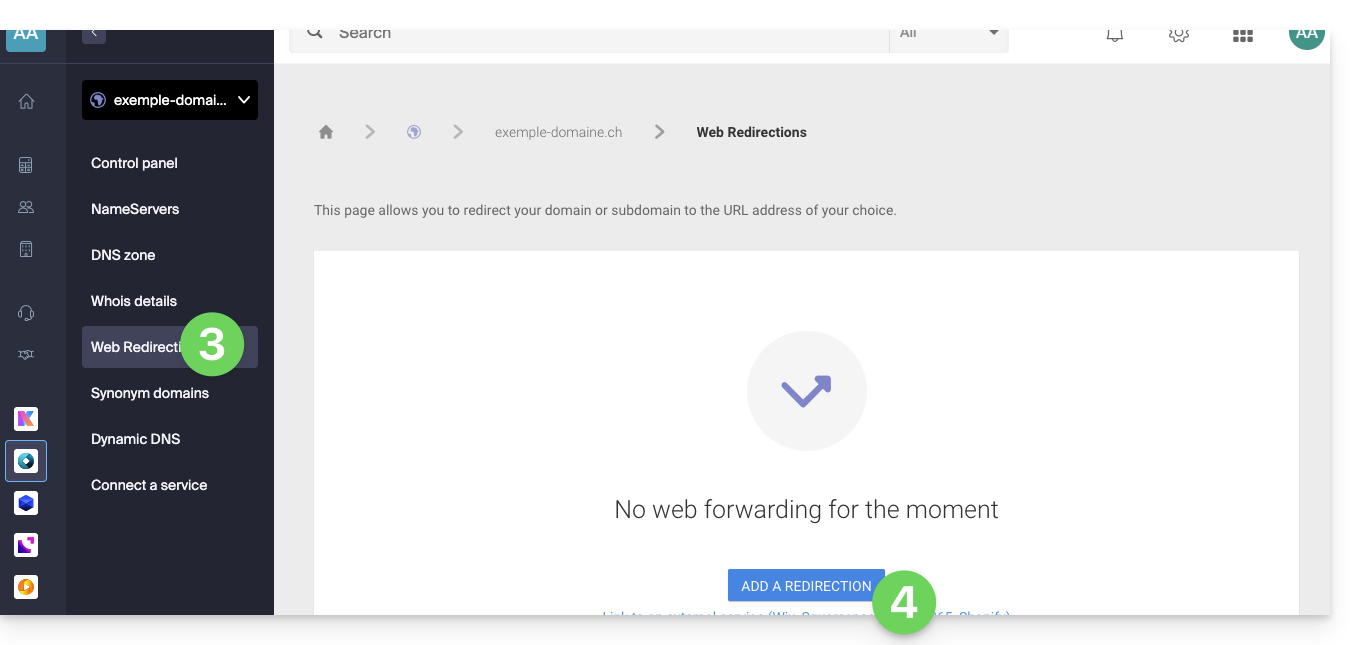
- Click on Web Redirections in the left-hand menu.
- Click on the Add a redirection button:
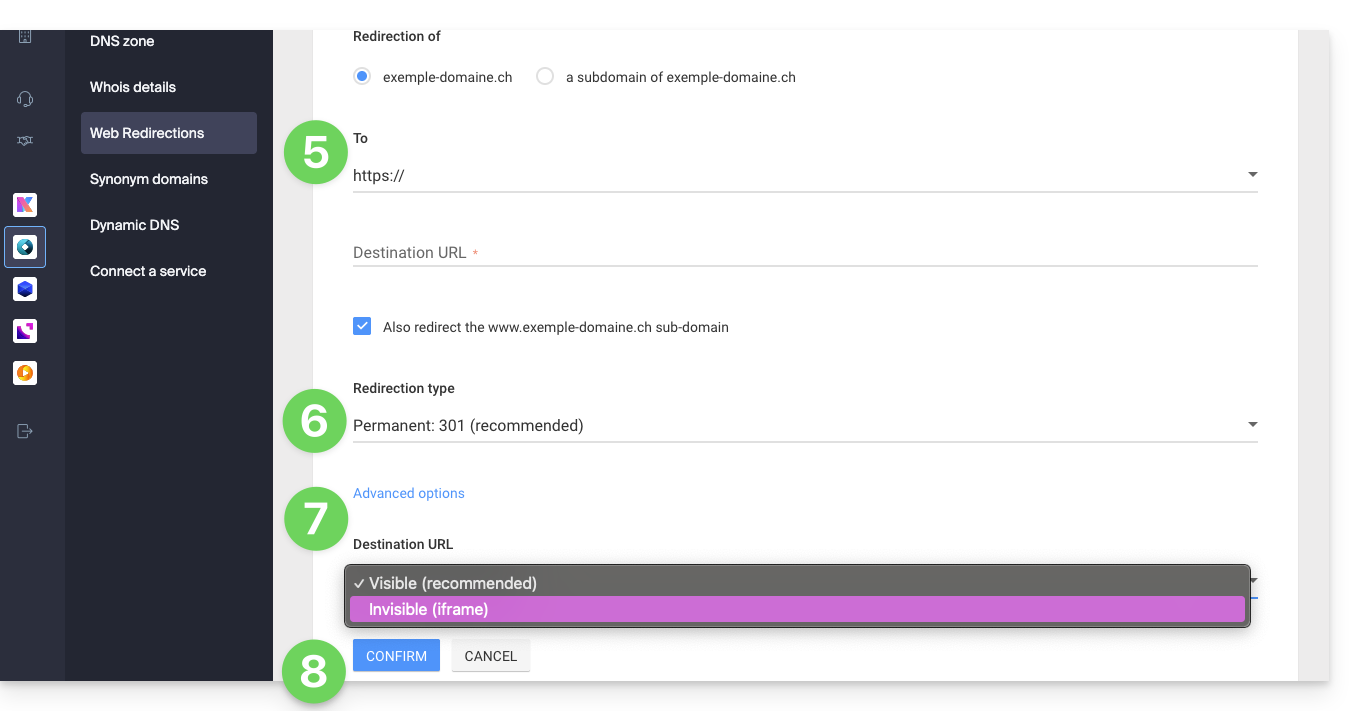
- Enter the destination address (under To).
- Choose between a 301 or 302 redirect.
- The advanced options allow you to specify a redirect in the form of an iframe (invisible, but not recommended).
- Click the button to Confirm:
Link to this FAQ: https://faq.infomaniak.com/2092
Has this FAQ been helpful?
This guide will help you quickly use the essential functions of your new Cloud Server.
Install an application
- Create a WordPress website
- Install a web application (ownCloud, Joomla, Typo3, Drupal, phpBB, Simple Machines Forum, Magento, Prestashop, …)
- Install applications/technologies on Cloud Server (Fast Installer)
Configure the server
- Manage your MySQL databases
- Manage MySQL limits
- Manage your FTP accounts/users
- Manage and publish files on your hosting via FTP
- Modify resources and configuration
Manage websites and domains
If your domain name is not managed by Infomaniak or your hosting is not managed in the same user account as your domain name, please refer to this other guide to configure the DNS or records to link the domain name to your hosting. Also:
- Migrate a shared web hosting to a Cloud Server
- Add a website or subdomain to your hosting (multisite)
- Preview your website even if your domain name does not yet point to Infomaniak's servers
If you encounter any issues, please consult the knowledge base before contacting Infomaniak support.
Link to this FAQ: https://faq.infomaniak.com/2006
Has this FAQ been helpful?
Thank you for choosing to customize your account with Custom Brand!
Introduction
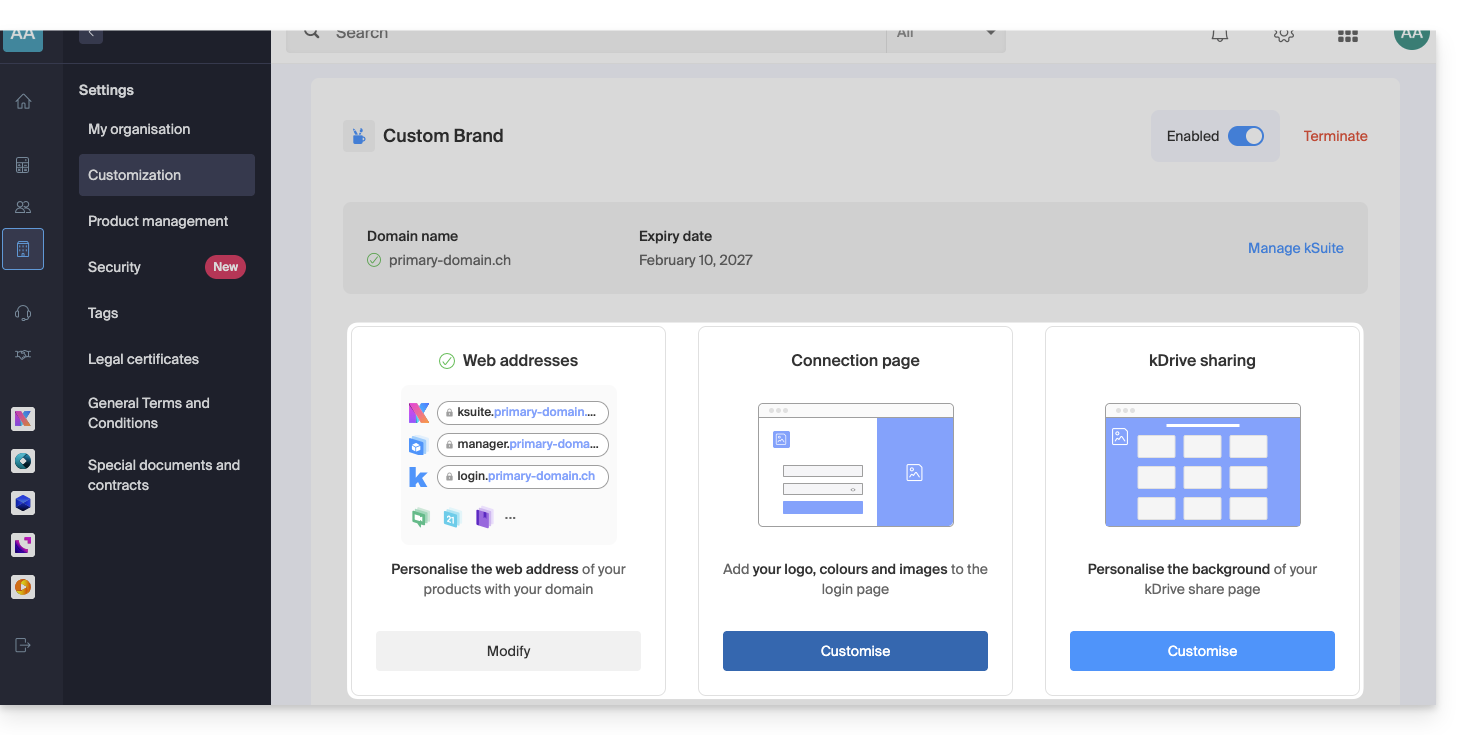
- Available as an option with any Infomaniak plan or already included with kSuite Enterprise, discover this customization tool to make your web addresses unique, add a logo, or add an image slideshow to your Infomaniak organization login page.
- The Web Redirection tool will no longer be usable on your domain after Custom Brand is activated on it.
Custom Brand Customization Guides
Prerequisites
- Own a domain name with Infomaniak (transfer it if necessary).
- Its extension must be among those supported by Custom Brand.
- Note that this also works with a subdomain.
- Configure the domain to use Infomaniak's DNS servers.
Next, to use Custom Brand: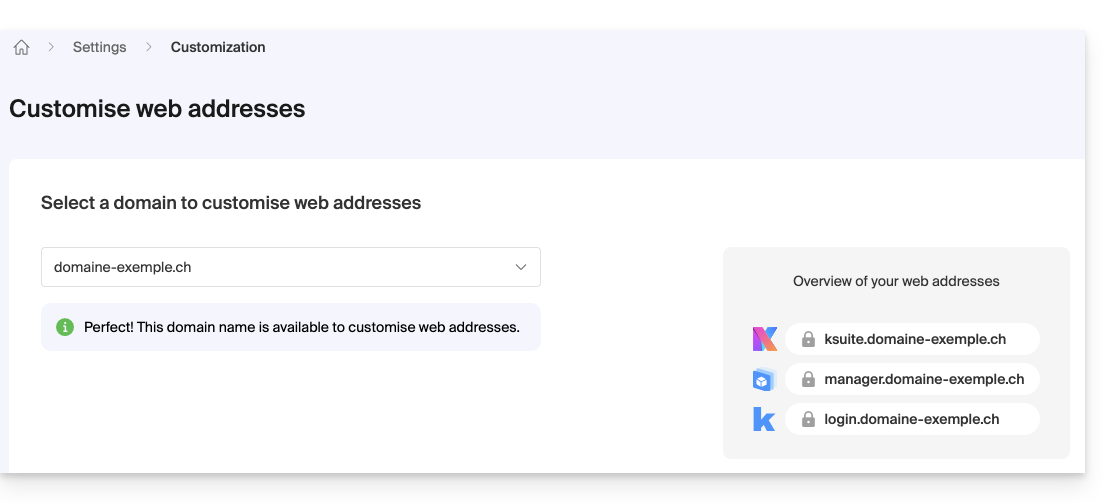
- Getting started with Custom Brand: customize URLs & the interface
- Troubleshooting:
Customize your web addresses with your domain
| Access to… | without Custom Brand | with Custom Brand |
|---|---|---|
| kSuite | ksuite.infomaniak.com | ksuite.domain.xyz |
| Manager | manager.infomaniak.com | manager.domain.xyz |
| e-mails (Mail) | mail.infomaniak.com | mail.domain.xyz |
| calendars | calendar.infomaniak.com | calendar.domain.xyz |
| contacts | contacts.infomaniak.com | contacts.domain.xyz |
| kDrive | kdrive.infomaniak.com | kdrive.domain.xyz |
| kMeet video conferences | kmeet.infomaniak.com | kmeet.domain.xyz |
| Euria | euria.infomaniak.com | euria.domain.xyz |
Customize your Organization's interface
The following interface options can be modified from the kSuite settings: :
- Add your logo to your Organization's interface.
- Added a 3-image panorama to the login page.
- Changed the text and button color on the login page.
- Customization of kDrive sharing (see this other guide).
Link to this FAQ: https://faq.infomaniak.com/2465
Has this FAQ been helpful?
This guide presents Infomaniak's Public Cloud offering, an Infrastructure as a Service (IaaS) solution based on OpenStack that provides the resources you need to develop your projects.
Introduction
- Infomaniak's Public Cloud, a platform powered by the open-source OpenStack technology, offers virtual instances with several performance profiles:
- IOPS-optimized instances
- RAM-optimized instances
- Instances with the latest generation GPUs
- Range of tools available:
- Object storage (compatible with S3)
- Managed Kubernetes service
- Managed databases
- Load balancers
- DNS management
- Private network services
- Numerous integrations, including:
- A unified API
- A Terraform/OpenTofu connector
- An Ansible collection
- The infrastructure is available in multiple regions in Switzerland, with several availability zones.
Getting started
- The Infomaniak Public Cloud user guide provides numerous tutorials, step-by-step guides, and best practices.
- You can also access all Public Cloud FAQs, including:
- The list of scheduled maintenance and current issues can be found at https://status.infomaniak.cloud/.
- Discover the Public Cloud presentation (replay of the Infomaniak 2022 Webinar):
Pricing
Community forum & Feedback
- Click here to share feedback or suggestions about an Infomaniak product.
- Access the Reddit page created to facilitate technical discussions with the user community.
Link to this FAQ: https://faq.infomaniak.com/2601
Has this FAQ been helpful?
This guide explains how to obtain your email address(es) from the Swiss hosting provider Infomaniak.
Introduction
- With the exception of certain free offers, an email address at Infomaniak is always created within a Mail Service.
- This Mail Service is based on a personalized domain name that must exist and be configured for the email to work.
- Example: if you want the address
jean.dupont@domain.xyz, you need to:- Own the domain name “
domain.xyz”. - Obtain a Mail Service for “
domain.xyz”. - Create the email address “
jean.dupont”.
- Own the domain name “
- All of this is offered and requested during the ordering process on infomaniak.com, preceded by the creation of a mandatory user account (for which you will need to provide your personal email address, or an existing address in any case).
- If your domain name is already registered with an external registrar, you may need to enter the correct MX record in the DNS zone.
Ordering email addresses for a custom domain
Before or after your registration:
- Read this other guide to choose the email plan that best suits your needs and follow the process to start using the services.
- Once the Mail Service is ordered, you can create the email addresses and then, if necessary, the associated passwords.
Once the Mail Service is activated
- Create your email addresses.
- Configure your emails on your computer and devices.
- Synchronize your contacts & calendars on your devices.
- Migrate your content (including content from another provider).
Add an Additional Mail Service
To add a new Mail Service (in order to obtain new addresses on another domain):
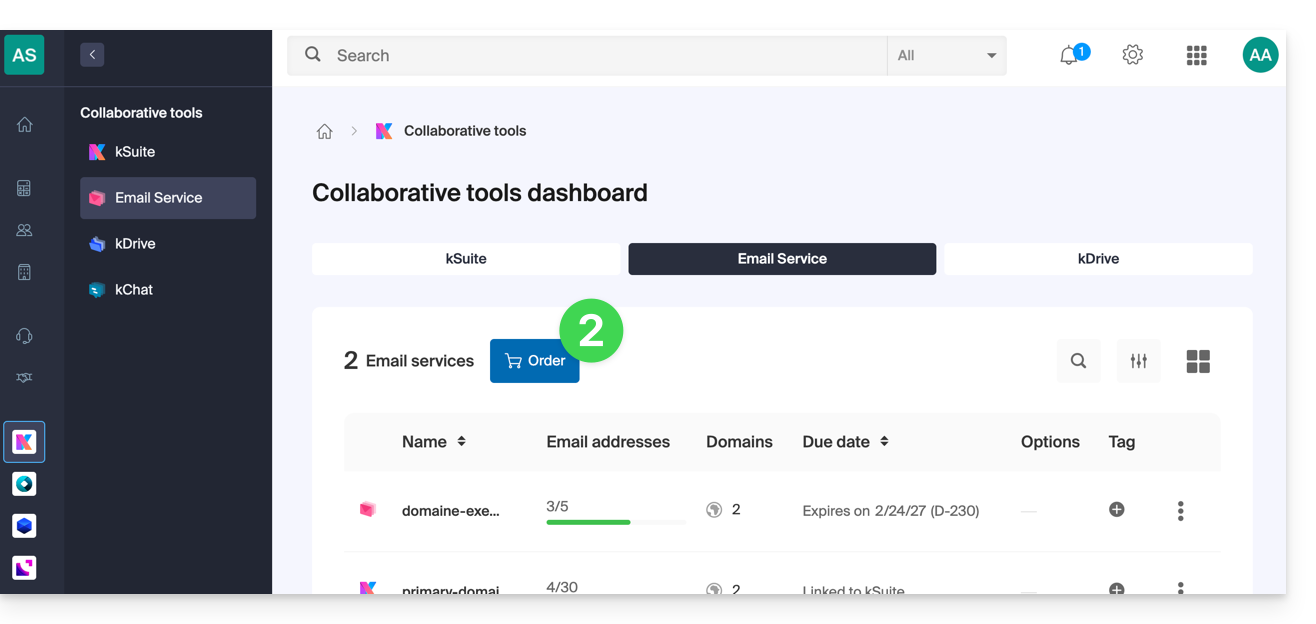
- Click here to access the management of your product on the Infomaniak Manager (need help?).
- Click on the Order button above the table that appears:
Increase the Number of Available Email Addresses on an Existing Mail Service
To increase the quota of available email addresses if necessary, please refer to this other guide.
Link to this FAQ: https://faq.infomaniak.com/1944
Has this FAQ been helpful?
This guide helps you identify and correct most email errors encountered after sending an email to a recipient. Refer to this other guide if you are looking for information about errors encountered when setting up an email address in a software/email client.
Introduction
- Generally, an error message related to email occurs due to…
- … an incorrect configuration of the domain name used with your email,
- … a problem with your recipient's (email provider).
- In all cases, a delivery failure report (Mailer Daemon or Mail Delivery Subsystem) containing the explanation is sent to the sender.
Find and identify the email error
When your message fails to reach the recipient, an initial failure report (Temporary Delivery Failure Report) is sent, indicating that the server will attempt to resend your message several times.
A final non-delivery report (Final Delivery Failure Report or Undeliverable Mail) issued by the recipient's server is sent to the sender (via the Infomaniak mail server, which is why Infomaniak is mentioned at the beginning of most error messages you may receive) to inform them that the email could not be delivered even after several attempts.
The notification always contains the reason for the failure. Example below:
This is the mail system at host smtp-1-1234.mail.infomaniak.ch.
I'm sorry to have to inform you that your message could not be delivered to one or more recipients. It's attached below.
For further assistance, please send mail to postmaster.
If you do so, please include this problem report. You can delete your own text from the attached returned message.
The mail system anna.a@abc.xyz: host mxbw-abc-xyz.abc-ab12.abc.ch[123.456.789.00] said: 550 5.1.1
anna.a@abc.xyz recipient rejected, account administratively disabled (in reply to RCPT TO command)
Therefore, here, the address of your correspondent is visibly suspended by their email provider (account administratively disabled).
Sometimes, you need to look for the reason behind the error message you received within its attachments (often a plain text file). Example:
Reporting-MTA: dns; mxbw.abc.ch [123.456.789.00]
Received-From-MTA: dns; smtp-1-1234.mail.infomaniak.ch [12.345.678.99]
Arrival-Date: Tue, 01 Aug 2023 15:49:22 +0200
Final-recipient: rfc822; anna.a@abc.xyz
Diagnostic-Code: smtp; 552 RCPT TO:anna.a@abc.xyz Mailbox disk quota exceeded
Last-attempt-Date: Tue, 01 Aug 2023 15:49:22 +0200Here, the mailbox of your external contact at Infomaniak appears to be full (Mailbox disk quota exceeded).
Most common cases
SPF Failure
The SPF (Sender Policy Framework) record is not configured correctly:
Subject: Delivery Status Notification (Failure)
From: Mail Delivery System mailer-daemon@domain.xyz
To: Anna.A anna.a@abc.xyz
This is an automatically generated Delivery Status Notification.
Delivery to the following recipient failed due to SPF failure:
anna.a@abc.xyz
Technical details of SPF failure:
The sender's domain domain.xyz does not have a valid SPF record. Please contact your email administrator to correct the SPF configuration.Solution: check the configuration of your domain name, and in particular the SPF record if your website is hosted on Wix or another provider.
Unknown User
The email address specified in the message is invalid or does not exist:
Subject: Delivery Status Notification (Failure)
From: Mail Delivery System mailer-daemon@domain.xyz
To: Anna.A anna.a@abc.xyz
This is an automatically generated Delivery Status Notification.
Delivery to the following recipient failed permanently:
anna.a@abc.xyz
Technical details of permanent failure:
The email address does not exist. Please check the recipient's email address and try again.Solution: carefully check the recipient's email address and correct it if necessary; ensure that you are using a valid email address for the recipient.
Temporary Failure
The recipient's mail server is experiencing temporary issues or is unavailable.
Solution: Wait a while, then try sending the message again later. If the problem persists, contact the recipient's technical support for assistance.
Blocked by SPAM Filter (or Content Rejected)
The recipient's mail server blocked the message due to anti-spam filtering rules:
Subject: Delivery Status Notification (Failure)
From: Mail Delivery System mailer-daemon@domain.xyz
To: Anna.A anna.a@domain.xyz
This is an automatically generated Delivery Status Notification.
Delivery to the following recipient failed due to the message being rejected as spam:
anna.a@domain.xyz
Technical details of delivery failure:
The content of the message triggered the spam filters of the recipient's email server. Please review the message content and try again.Solution: check if your message contains elements that may be considered spam (keywords, suspicious links, etc.). Contact the recipient to verify if the message was filtered into the spam folder.
Refer to this other guide about outgoing spam and this other guide about incoming spam.
Bad Reputation
The recipient's mail server blocked the message due to anti-spam filtering rules:
gmail-smtp-in.l.google.com said: 550-5.7.1
Our system has detected that this message is likely suspicious due to the very low reputation of the sending domain.
To best protect our users from spam, the message has been blocked.
Please visit {{URL_5}} for more information.Solution: check the reputation of the domain and determine if one of your email addresses has recently been unintentionally used for malicious purposes.
Domain Not Found (or DNS Error)
The recipient's domain name could not be resolved or does not exist.
Solution: check the spelling of the recipient's domain and correct it if necessary; ensure that the domain name and DNS are valid and active.
Mailbox Full
The recipient's inbox is full, preventing new messages from being received.
Solution: Inform the recipient of the situation and ask them to free up space by deleting emails or archiving items.
This cannot happen with email addresses managed by Infomaniak, as they do not have a storage size limit.
Part of their network is on our block list
If the error message (usually displayed after sending an email from an online tool hosted on the server where your website is located, such as an order confirmation from PrestaShop or another online store you manage) contains the following:
host hotmail-com.olc.protection.outlook.com[104.47.30.97] said: 550 5.7.1
Unfortunately, messages from [89.123.456.789] weren't sent. Please contact your Internet service provider since part of their network is on our block list.Solution: change the email sending method. The sending is unauthenticated and originates from the server with a specific IP address, which is apparently blocked by the recipient for some reason (Infomaniak does not intervene to request unblocking). Therefore, you need to configure the online tool to perform authenticated sending.
Less frequent errors
Deferred - Delayed
The error message Deferred - Delayed - Warning: message still undelivered after 4 hours, Will keep trying until message is 3 days old means that the Infomaniak mail server tried to connect to your recipient's mail server to send the message, but for an undetermined reason, it was unable to do so. This error message specifies that the Infomaniak server will continue to try to send your message during the period specified in the error message. If, after this period, the message has still not been delivered, you will receive a final error message indicating that your message could not be delivered and that your recipient did not receive it.
Greylisting Delay
This Greylisting Delay error occurs when the recipient's mail server uses a technique called "greylisting," which Infomaniak also uses. This technique imposes a temporary delay during the first attempt to deliver a message from an unknown sender. The Mailer Daemon may send an error report indicating that the delivery was delayed due to greylisting. The error may also mention banned sender. You should retry your sending attempt a few minutes/hours later.
Malware message rejected
This Malware message rejected error occurs when the message contains an attachment, a link to a storage site such as Dropbox, or dynamic content, including in the "forwarded" part of the message (in the case of a message forward, for example). Try resending the message from the Infomaniak Mail web app (online service ksuite.infomaniak.com/mail) instead of a messaging application, and remove any content that may be causing this error.
Message Size Exceeded / File Too Large
These Message Size Exceeded / File Too Large errors occur when the size of the message (or attachments) exceeds the limit allowed by the recipient's email server. The Mailer Daemon will return an error report indicating that delivery failed due to the message size exceeding the limit.
Rate Limit Exceeded
This Rate Limit Exceeded error occurs when the sender has exceeded the frequency or volume limit allowed by the recipient's email server. Email servers may impose limits to prevent spam or system overload.
Sender denied: auth guards failed
Please refer to this other guide if you encounter the Sender denied: auth guards failed error.
The message contains a unicode character in a disallowed header
This error, The message contains a unicode character in a disallowed header, may appear if you have inserted a special character, such as a heart ♥, in the body of the email, the subject, or especially in the full name. The risk of rejection by providers is very high: it is best to keep the use of signs, characters, and fonts as simple as possible.
Link to this FAQ: https://faq.infomaniak.com/858
Has this FAQ been helpful?
This guide explains which protocols and ports can be used with Infomaniak's email services (including the Mail Service).
Recommended ports and settings for client configuration
When prompted during the configuration of software/email client (Outlook, Thunderbird, mobile, etc.), use the following settings:
| IMAPs - Incoming Traffic (Recommended) | SMTP - Outgoing Traffic (Option 1: standard IETF) | SMTPs - Outgoing Traffic (Option 2: Implicit encryption) | |
|---|---|---|---|
| Ports | 993 | 587 | 465 |
| Security Mechanism | SSL / TLS (implicit) | STARTTLS (explicit) | SSL / TLS (implicit) |
| Server Name | mail.infomaniak.com | ||
| Authentication | Required (username = full email address) | ||
Technical note: Port 587 with STARTTLS is the IETF standard practice for secure email submission. Port 465 is a secure alternative using implicit encryption.
If you specify other settings or disable encryption, email errors may occur.
Other supported ports (non-encrypted or for backward compatibility)
- port
143(Standard port for IMAP reception - unencrypted, use 993) - port
110(Standard port for POP3 reception - unencrypted, use 995) - port
995(Secure port for POP3s reception - secure POP3 option) - port
25(Standard port for server-to-server transfer - can support STARTTLS for submission, but 587 is the standard for clients). - STARTTLS authentication is supported on unencrypted ports (143, 110, 25) to enable TLS encryption.
- SMTP authentication is supported (LOGIN or PLAIN methods).
Using the API and Securing Transfers
The Infomaniak API does not offer any connection to the email service, as IMAP and SMTP are the "APIs". Use a library (such as Python: email.examples and imaplib) that uses IMAP and SMTP.
To display emails from PHP:imap_open("{mail.infomaniak.com:993/imap/ssl}", $email, $password);
The MTA-STS mechanism is not implemented or verified; Infomaniak uses DANE (DNS-based Authentication of Named Entities) instead to guarantee an encrypted connection between servers when the following conditions are met:
- The client sends an email to a domain that has configured DANE.
- The client receives an email from an SMTP server that uses DANE.
- In all other cases (in the absence of DANE), the encrypted connection remains opportunistic.
Link to this FAQ: https://faq.infomaniak.com/468
Has this FAQ been helpful?