Knowledge base
1000 FAQs, 500 tutorials and instructional videos. Here, there are only solutions!
This guide explains how to copy the content of one or more external email addresses to Infomaniak (all email messages, folders, subfolders, in short, the entire structure of your third-party email account) to one of your existing Infomaniak addresses (regardless of the Mail service), thanks to the MBOX import tool offered by Infomaniak.
Introduction
- This is the ideal procedure when switching hosting providers or restoring old messages that are still stored elsewhere.
- Once the import process has started, it is no longer possible to interrupt it.
- Any potential duplicates are handled: identical content will only be copied once.
Import an mBox archive to Infomaniak
Prerequisites
- You must have an archive of your previous email account in the
.mboxformat.- For Gmail: go to Google Takeout (need help?)
- Have a Mail service on your Infomaniak Manager.
- Have a available address quota or adjust it beforehand if necessary.
- Make sure your email is properly secured
- Create one or more addresses on this Mail service.
- If you have many (10+) email addresses to create, please refer to this other guide on bulk creation.
- The destination email address must be linked to the user (= the Infomaniak account) you are using.
Next, to import the email content:
- Click here to access the import tool (online service https://import-email.infomaniak.com).
- If necessary, log in to your Infomaniak account for the relevant organisation; the import will be done to one of the email addresses associated with the Infomaniak Mail web interface (online service ksuite.infomaniak.com/mail) of the Infomaniak account you are using.
- Click on mBox file import.
- Choose the email address to which you want to import the emails; the drop-down menu lists the email addresses currently associated with your Infomaniak Web Mail interface (online service ksuite.infomaniak.com/mail) for the Infomaniak account you are logged into.
- Click on Confirm:
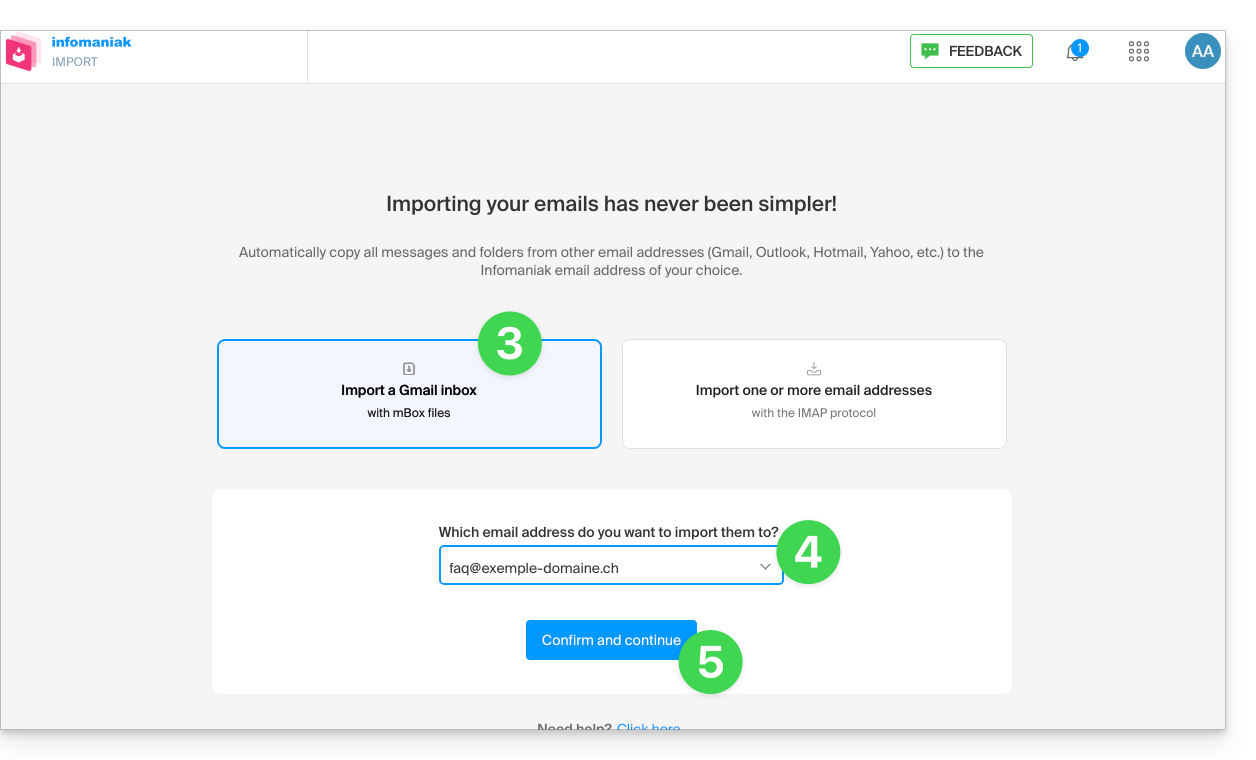
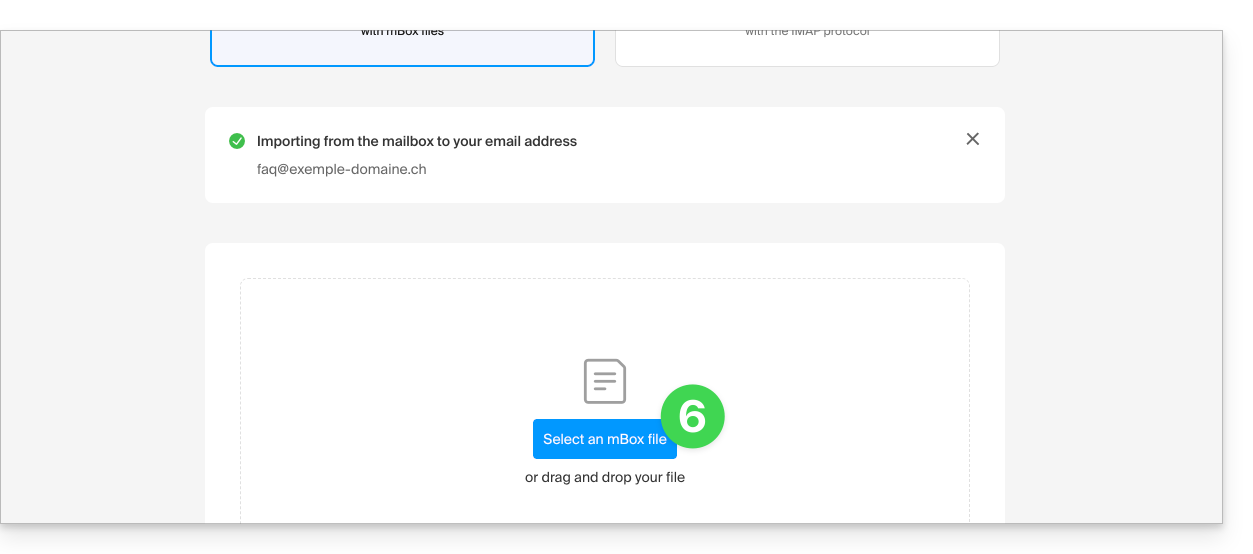
- Click on the button to select the mBox archive on your hard drive:
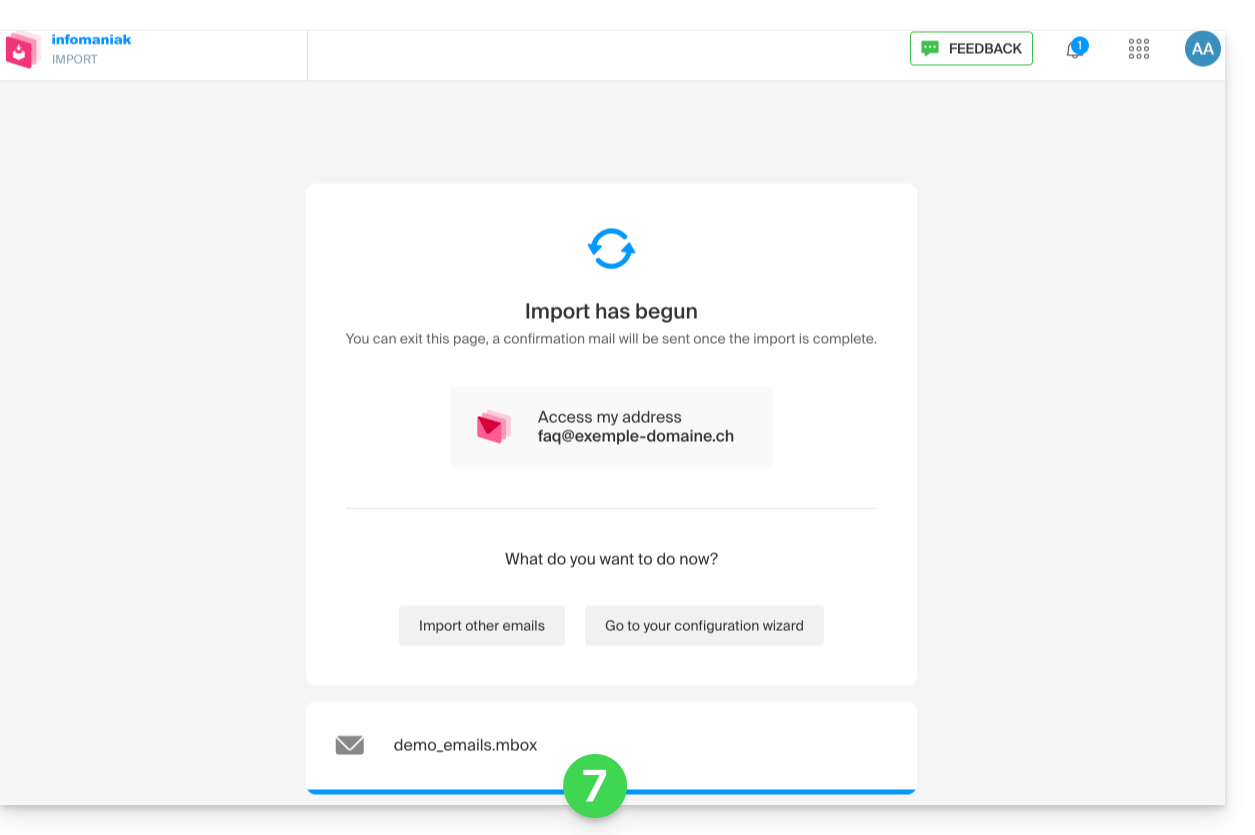
- The import process has started. You can wait and view the results on the page once the import is complete, or close the window (the import will continue in the background, and you can track its progress - see below):
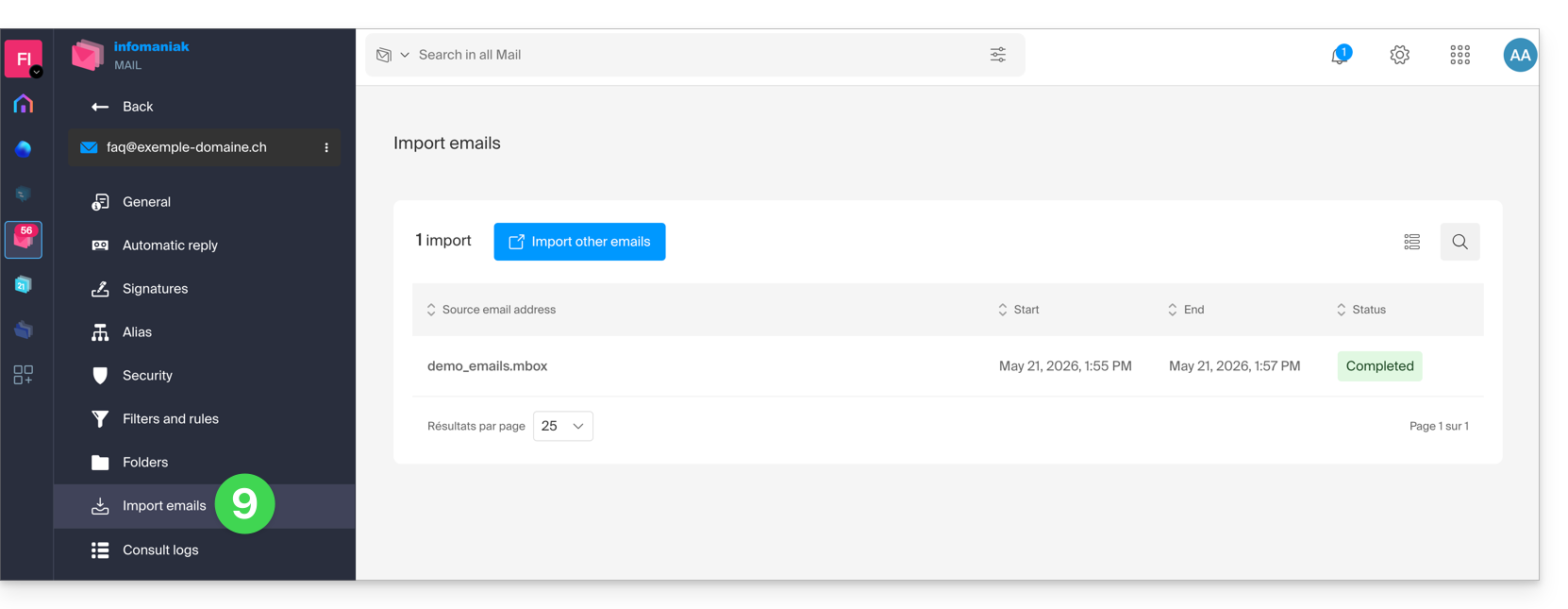
- You can track the progress in the settings for the destination email address, on the web app Mail (online service ksuite.infomaniak.com/mail) only.
- The tracking feature allows you to view the import history for the address in question:
Link to this FAQ: https://faq.infomaniak.com/2207
Has this FAQ been helpful?
This guide explains how to save email attachments from the Infomaniak Mail web app (online service ksuite.infomaniak.com/mail).
Introduction
- You can save all the files attached to a message in a single click, in a
.ziparchive on your computer, or within your kDrive, etc. - Other guides detail how to:
Save the attachment from the Web Mail app
To export the attached files received by email:
- Click here to access the Infomaniak Mail web app (online service ksuite.infomaniak.com/mail).
- Go to the email message containing the attachments you want to save.
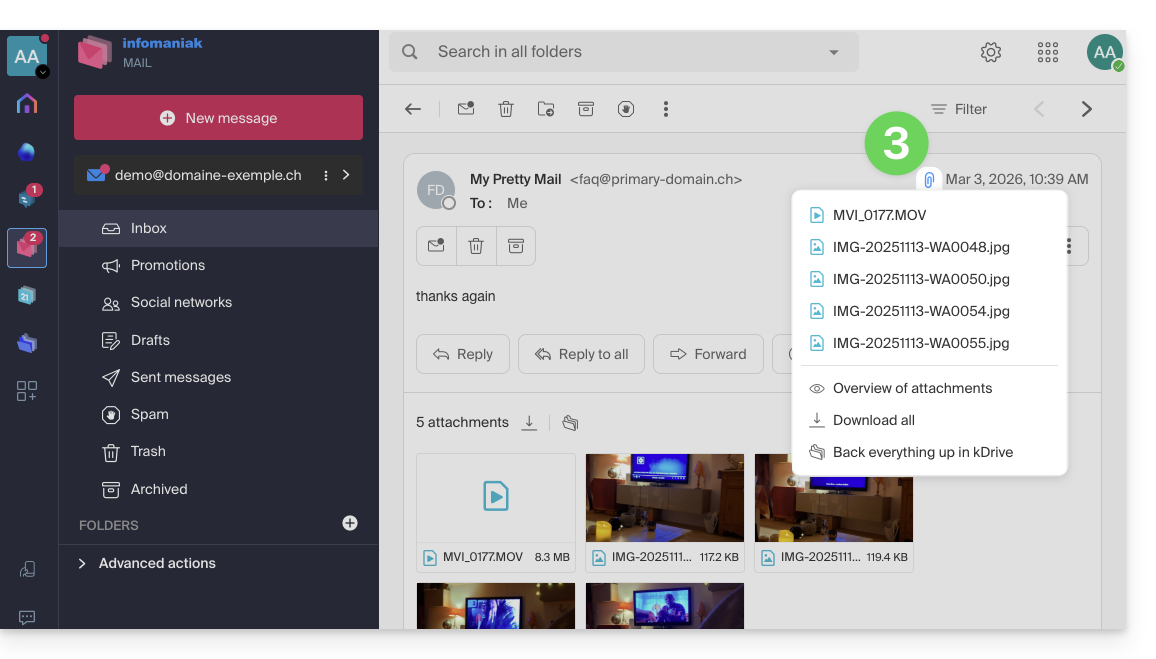
- Click on the paperclip icon to access the options for saving and previewing the content:
- … or directly above the attached files to start the download or save to kDrive:
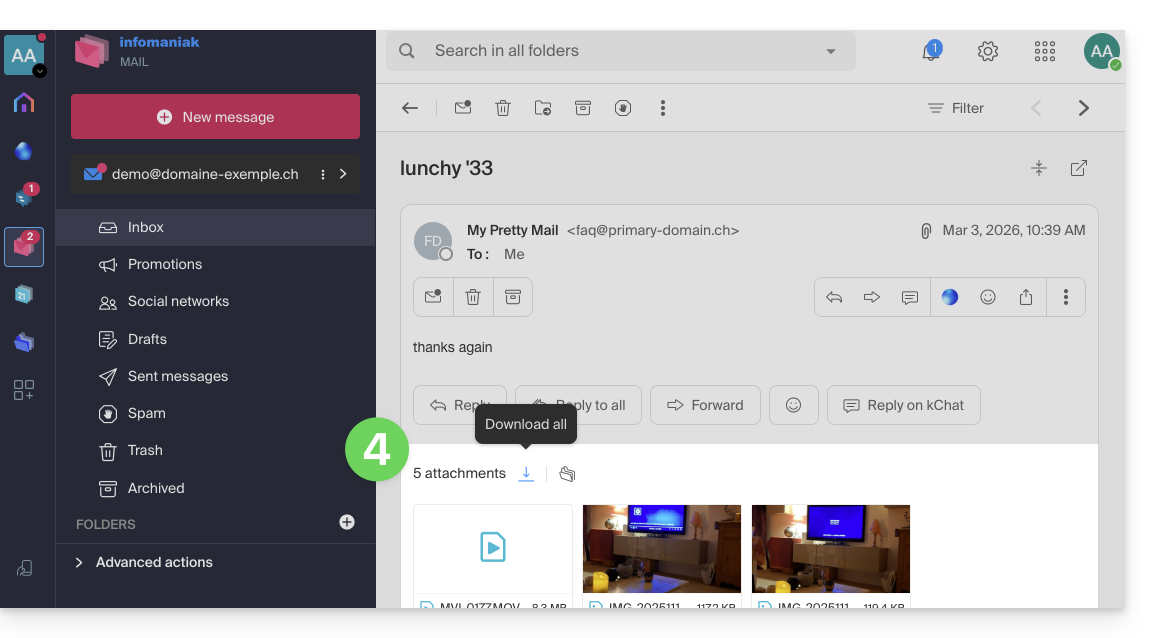
- Download all creates a
ziparchive to download to your device. - Save all to kDrive allows you to choose the kDrive (from those to which you are linked by your Organization) and the desired location on it to save the files:
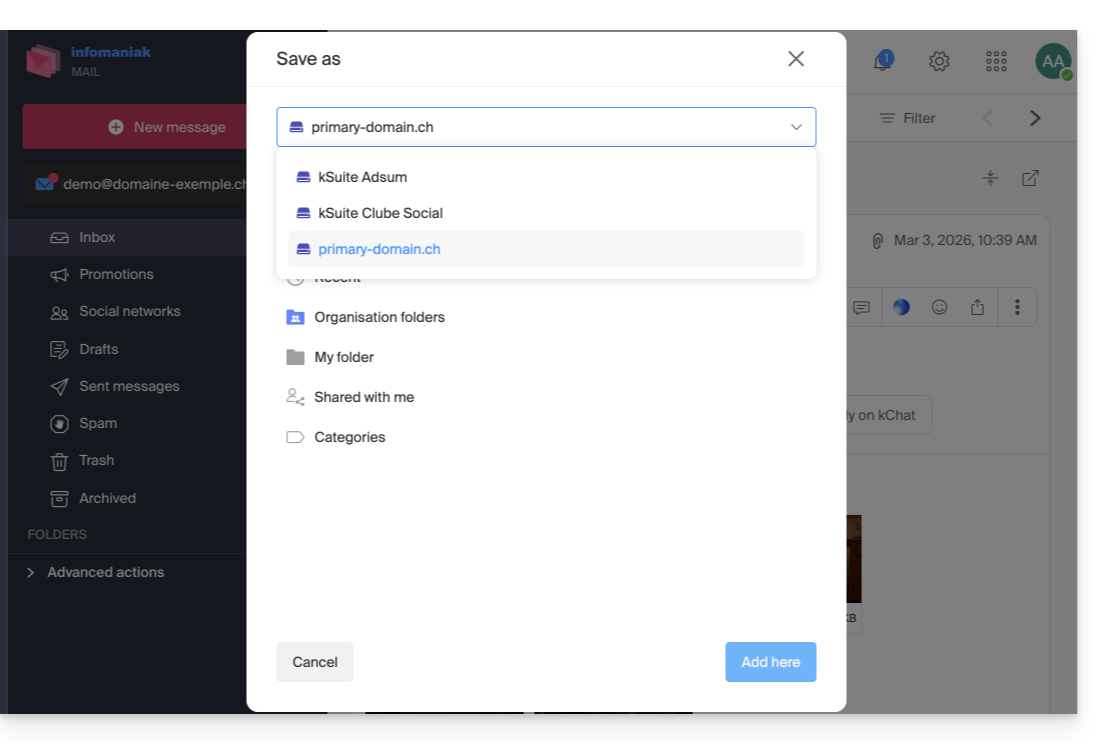
- Download all creates a
Link to this FAQ: https://faq.infomaniak.com/2309
Has this FAQ been helpful?
This guide explains how to delete an Infomaniak account (i.e., a user account), which means removing your access to the Manager and/or the Mail web app at ksuite.infomaniak.com/mail.
Introduction
- This operation will result in the immediate deletion of your calendars and address books.
- All access to the Manager using this ID will be lost.
- This operation does not delete the email addresses accessed from the account in question (except for certain free offers, but in this case, this is specified before the deletion operation).
- If the account you are using is the only account within an Organization, you must first delete the Organization or appoint someone else in order to delete your account.
Delete an Infomaniak / Mail account
To access the user profile section:
- Click here to access the My profile menu in the Infomaniak Manager.
- Click on the trash can to the right of your name to delete your account and data:
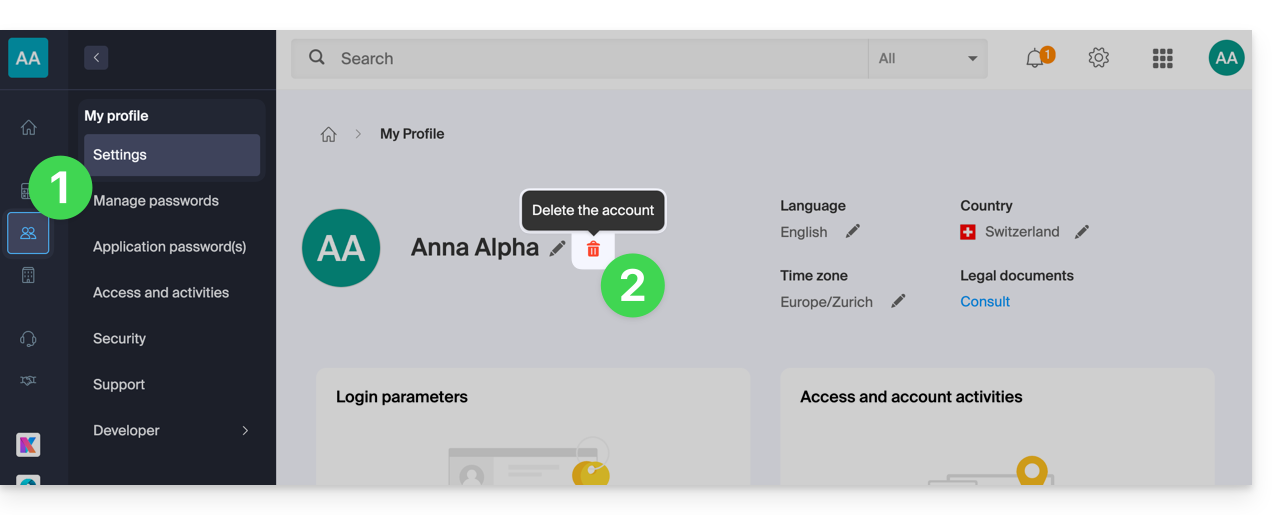
- Enter your login password one last time, and the Infomaniak account will be deleted.
Link to this FAQ: https://faq.infomaniak.com/2333
Has this FAQ been helpful?
This guide explains how to obtain information about…
- … the connections made to the Infomaniak Manager using your Infomaniak account login credentials,
- … the activities performed within the Manager by your Infomaniak account.
The same type of logs, but concerning the entire Organization, is available to administrators: refer to this other guide.
Get the Infomaniak account login log
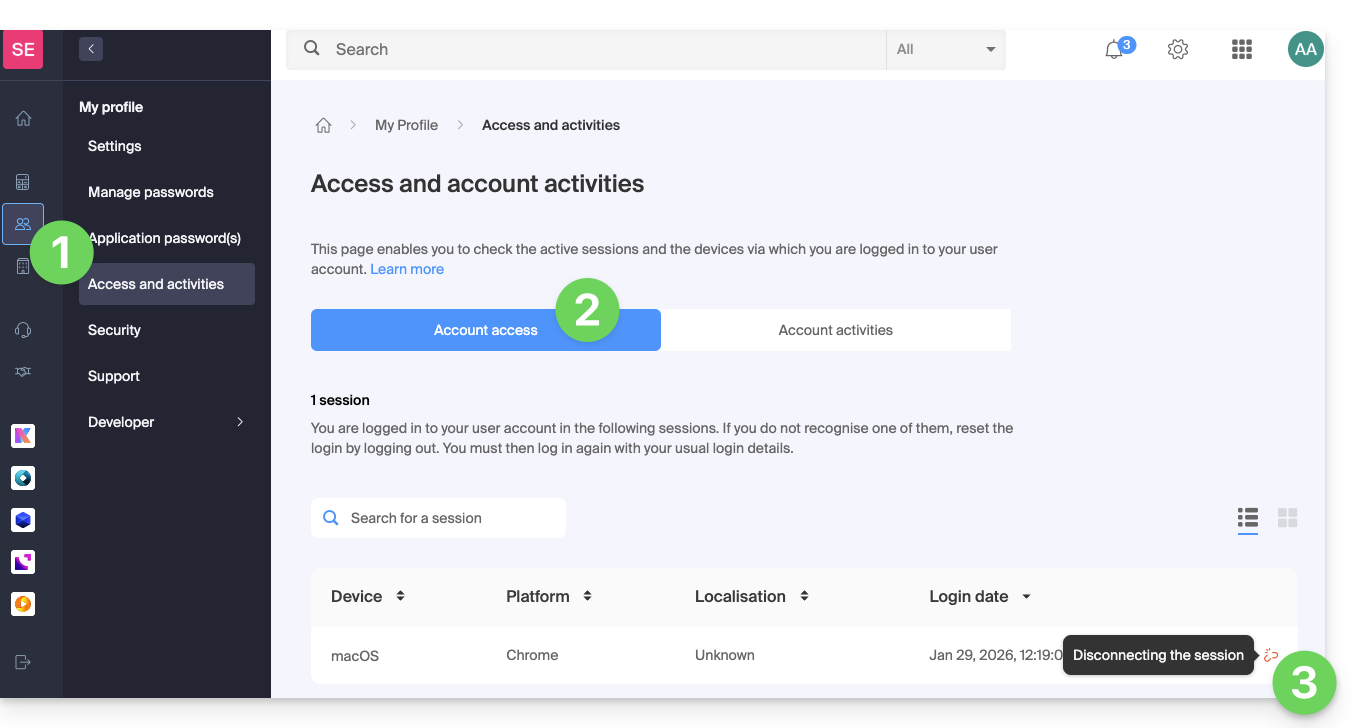
To view a login log (active sessions) for the Infomaniak Managerusing your Infomaniak account login:
- Click here to access the summary of accesses to the Infomaniak Manager using your Infomaniak account.
- From the Account Access tab, view the list of devices connected to your Infomaniak account.
- You can end an open session by clicking on the icon at the far right of the name of the device connected to your account, which will disconnect it.:
Be notified of successful or unsuccessful logins
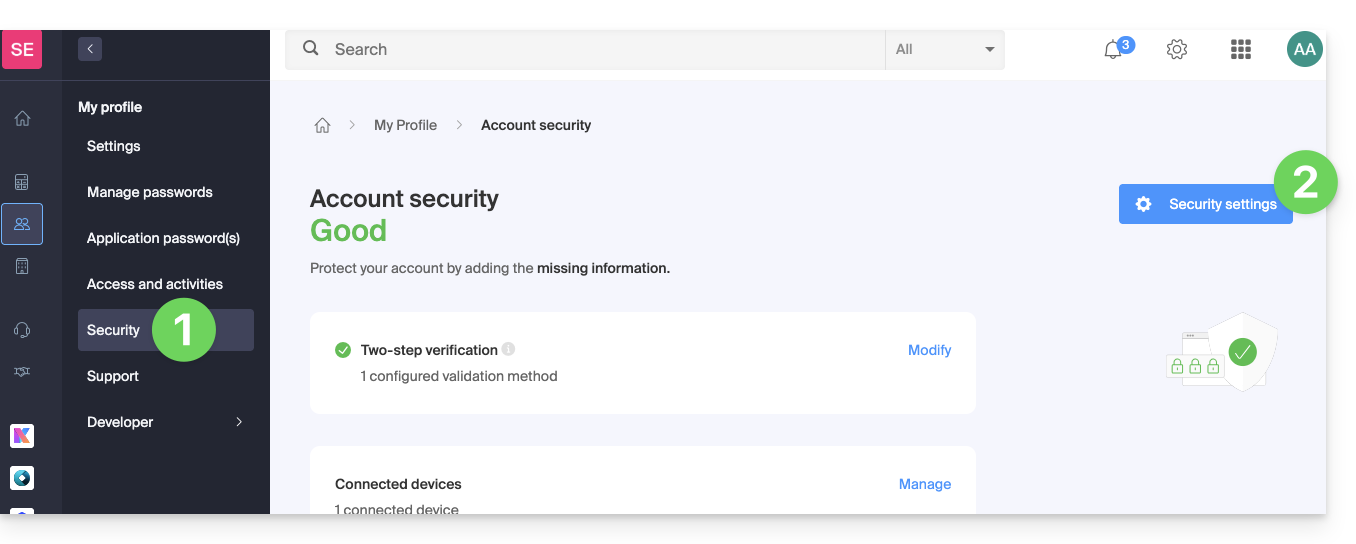
To be notified by email when you log in or attempt to log in to your Infomaniak account:
- Click here to access the security summary for your account in the Infomaniak Manager.
- Click on Security settings:
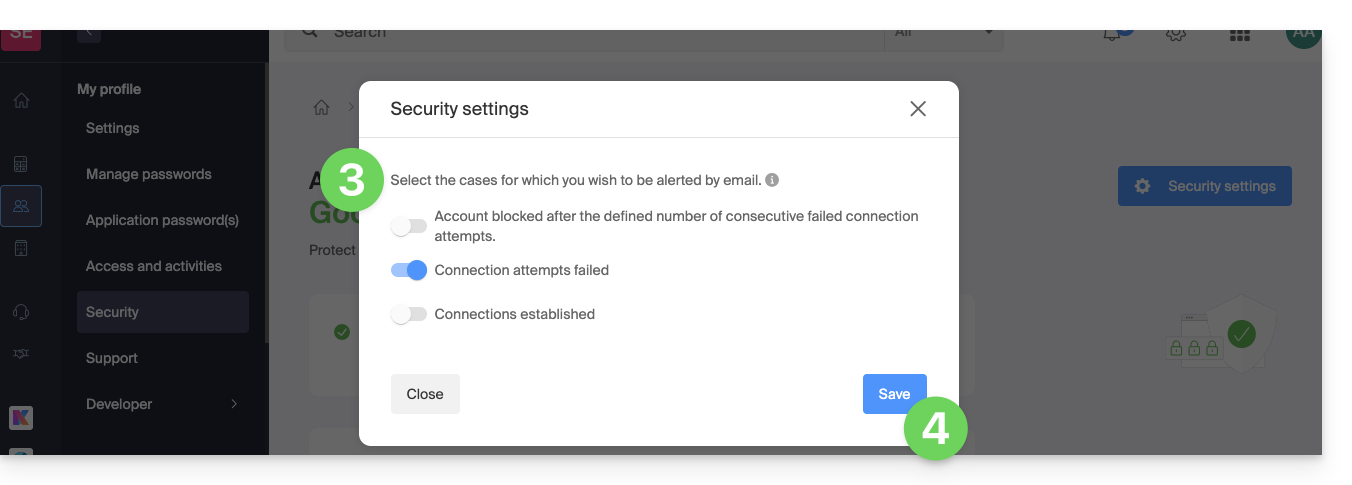
- Select the cases for which you want to receive email alerts (notification upon successful login, or only in case of failed login).
- Click to Save your changes:
In the same section, you can specify the minimum number of unsuccessful attempts after which your Infomaniak account will be locked: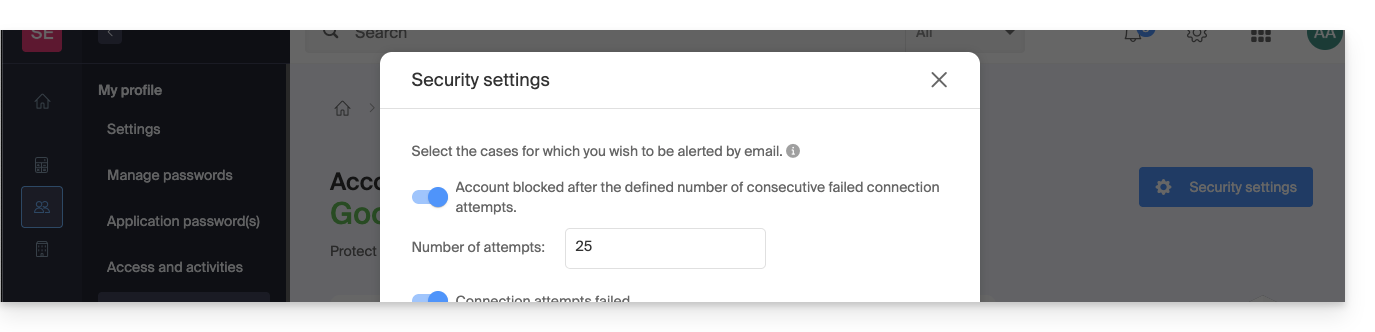
Once locked, the account can be unlocked by an administrator of the Organization or via a secure form.
Get the user account activity log
To view recent activities performed within the Manager by your Infomaniak account:
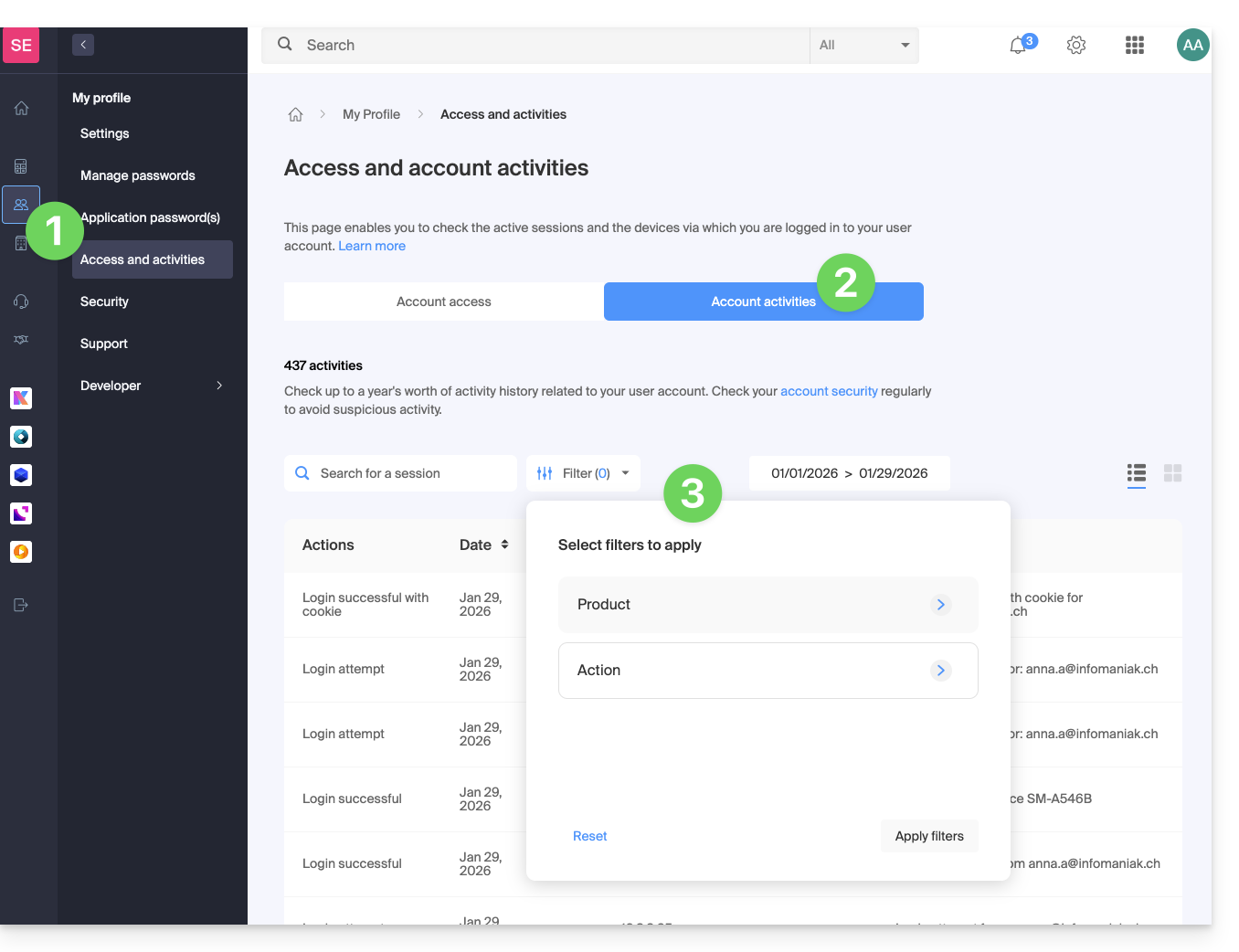
- Click here to access the summary of your account activity in the Infomaniak Manager.
- From the Account Activity tab, view the latest activities and actions on your Infomaniak account.
- Log search and filtering options are available: date, product, or action type:
Link to this FAQ: https://faq.infomaniak.com/2339
Has this FAQ been helpful?
This guide details the size limits (message size and disk space) implemented for Infomaniak's email services and provides instructions on how to check your storage usage.
Introduction
- Maximum storage space in gigabytes (GB):
- kSuite Free = 20
- kSuite Standard = unlimited
- kSuite Business = unlimited
- kSuite Enterprise = unlimited
- my kSuite = 20
- my kSuite+ = unlimited
- Mail Service Starter = 20
- Mail Service Premium = unlimited
- Other limitations:
Email Size and Number Limits
Regarding the emails themselves and their attachments:
- The maximum size of an email, both when sending and receiving, is 210763776 bytes, or exactly 201 MB.
- This includes the header and body (text, HTML, attachments, etc.), regardless of the method used to send the email.
- Note that an attachment can be encoded in base64, so its size in the email is not necessarily the same as its size on disk.
- With the Infomaniak Mail web app (online service ksuite.infomaniak.com/mail), the size limit for attachments is 25 MB.
- Beyond this limit, and up to a maximum of 3 GB, a SwissTransfer link is generated and integrated into your message: the data is stored in Switzerland in Infomaniak's Cloud, and your recipients can use this link to easily download the attachments during a predefined period.
- Beyond 3 GB (and up to 50 GB), it is recommended to use SwissTransfer directly for your sends.
- The number of messages in the respective storage space is not limited.
- However, it is not recommended to keep more than 4,000 to 5,000 messages per folder (slowing down message indexing).
- It is therefore advisable to move your messages to subfolders, which also makes it easier to view them; you can do this manually or set up automatic sorting rules (❓: help).
Email retention time limit
Retention period:
- There is no time limit for message storagein the inbox or in subfolders, except for an email that is deleted, or reported as spam, or moved manually/automatically to the "Trash" or "Spam" folder (or one of its equivalent names such as "Deleted Items", "Erased Messages", "Junk Mail", including spellings in another language, such as "Junk" - non-exhaustive list)... In this case, the email is automatically deleted after 30 days with no possibility of recovery.
Therefore, never use a folder named, for example, Trash or Infected to store and keep important messages.
- Backups performed by Infomaniak have a retention period (❓: help).
Display the total size from the Infomaniak Web Mail app
To do this:
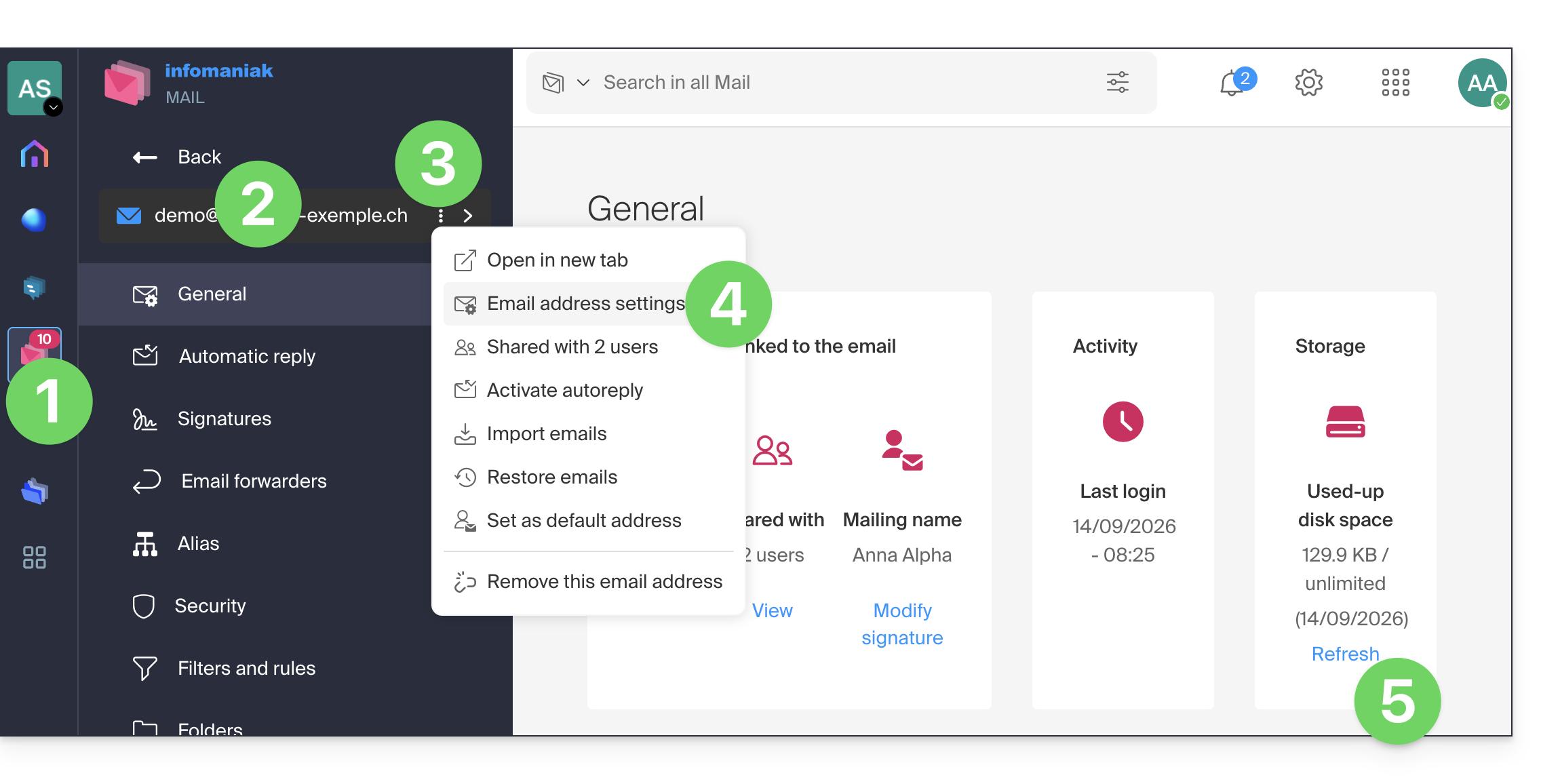
- Click here to access the Infomaniak Mail web app (online service ksuite.infomaniak.com/mail).
- Check or select the relevant email address from the dropdown menu in the left-hand menu.
- Click on the action menu ⋮ to the right of the item in question in the table that appears.
- Click on Mail address settings.
- Click on Refresh in the Storage box to display the mailbox size:
Still having a problem?
If your recipient's email address is not hosted with Infomaniak, you may receive an error message (❓: help) when sending the email. This message may take various forms, such as Recipient address rejected: 5.2.2 Over quota 554 5.0.0 Service unavailable.
This may indicate that your recipient's mailbox is full and they can no longer receive emails, or that the email you are trying to send is too large.
In this case, you should contact your correspondent and ask them to empty/reduce the size of their inbox or to tell you the maximum size of messages you can send them.
Link to this FAQ: https://faq.infomaniak.com/2351
Has this FAQ been helpful?
This guide explains how to connect the desktop app Outlook 2019 (desktop application on Windows) to an email address hosted by Infomaniak.
Add the email address to the application
Prerequisites
- Create the email address (❓: help my kSuite | Mail Service/kSuite).
- Create a device password (❓: help my kSuite | Mail/kSuite Service).
- Verify that the domain is configured correctly (❓: help).
To configure the email application:
- Open the application.
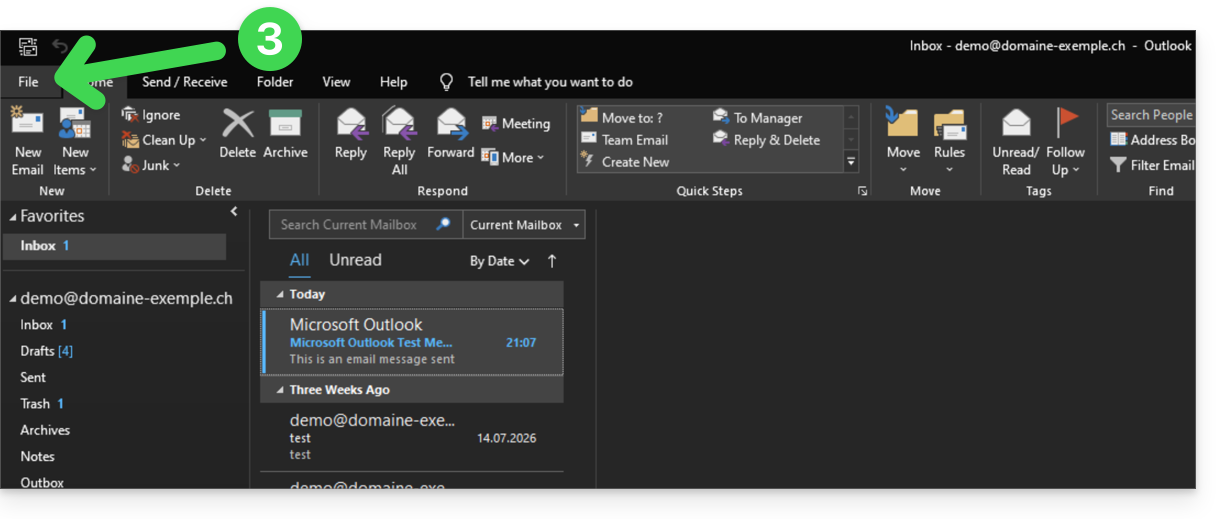
- If the wizard starts automatically, go to step 5.
- If the wizard does not start automatically, click on the File menu:
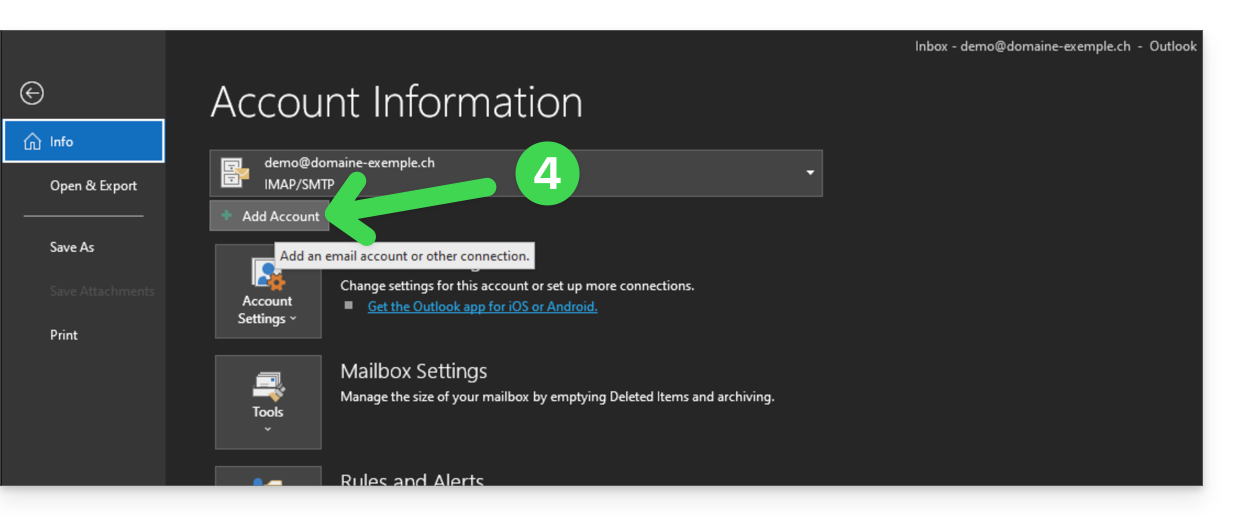
- Click on Add account:
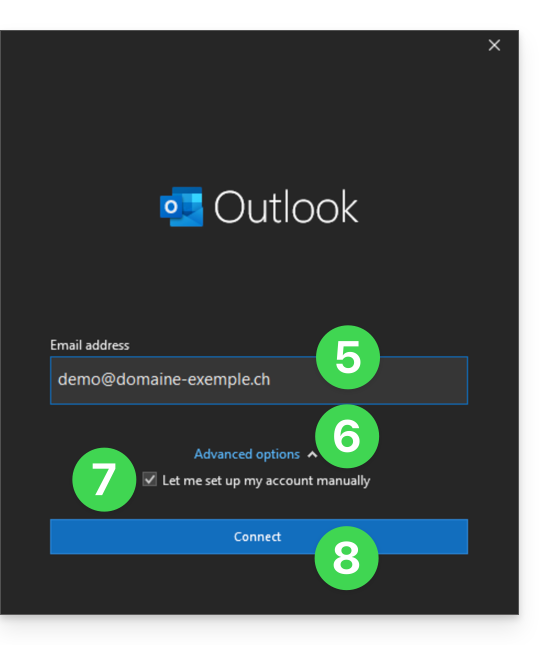
- Enter the email address to connect.
- Click on the chevron Advanced options.
- Activate the checkbox to configure your account manually.
- Click on the Connect button:
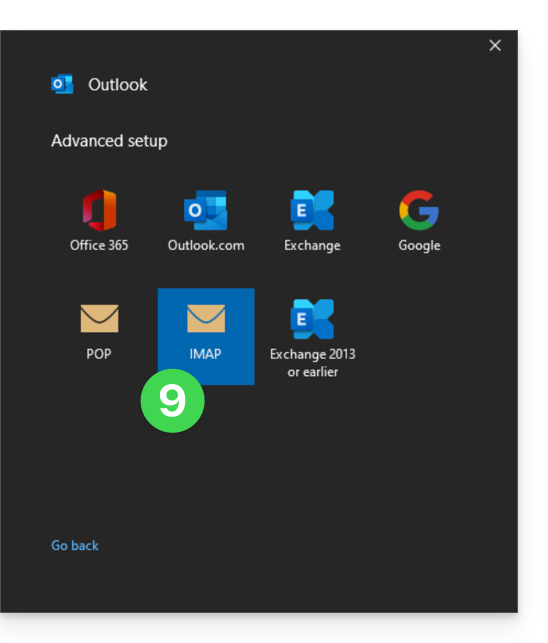
- Click on IMAP:
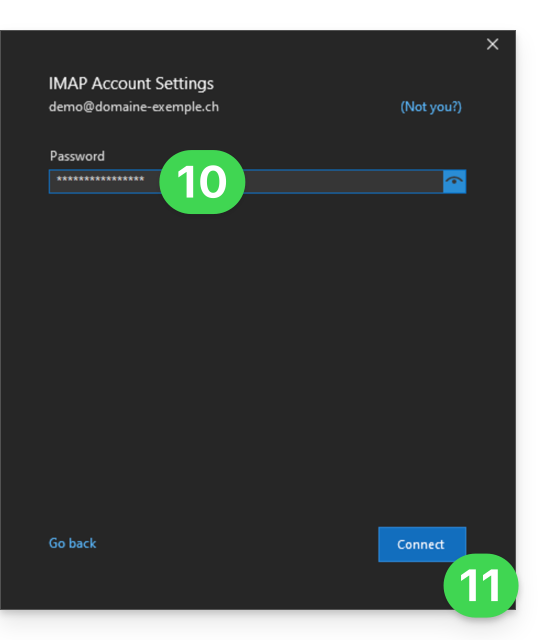
- Enter the password for the email address you want to connect (❓: help).
- Click the blue Connect button:
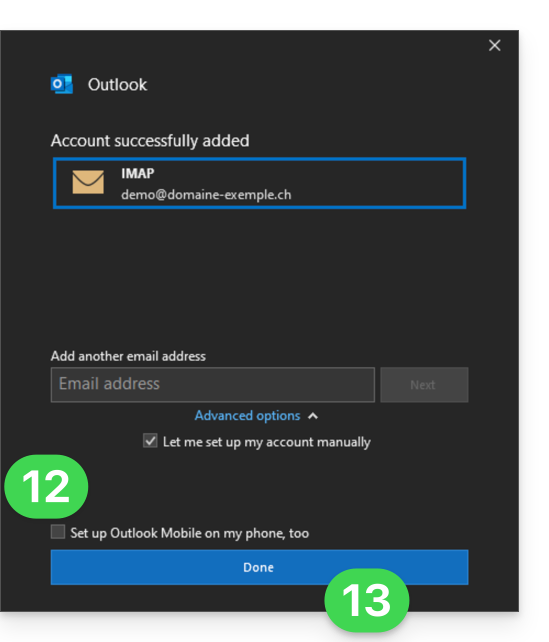
- Uncheck the additional settings box for mobile devices, if necessary.
- Click the blue Finish button:
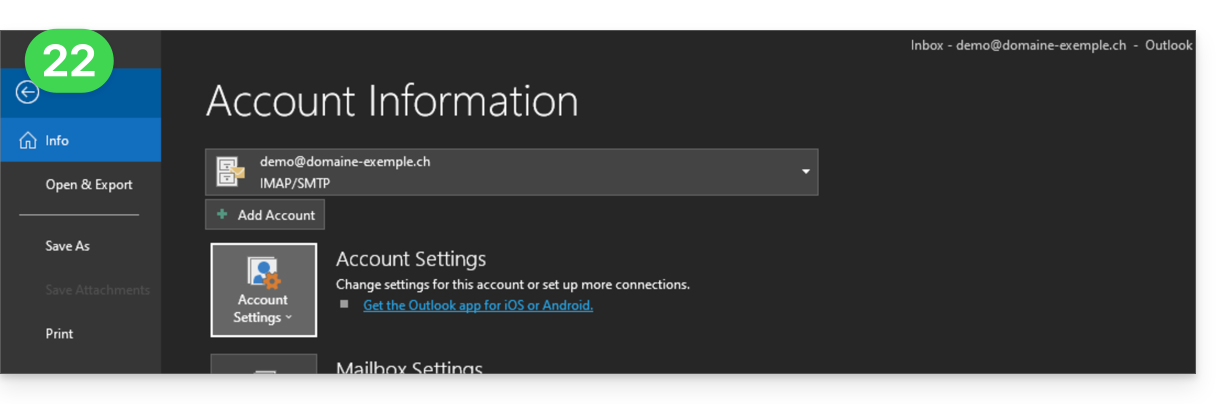
- Stay in or return to the File menu.
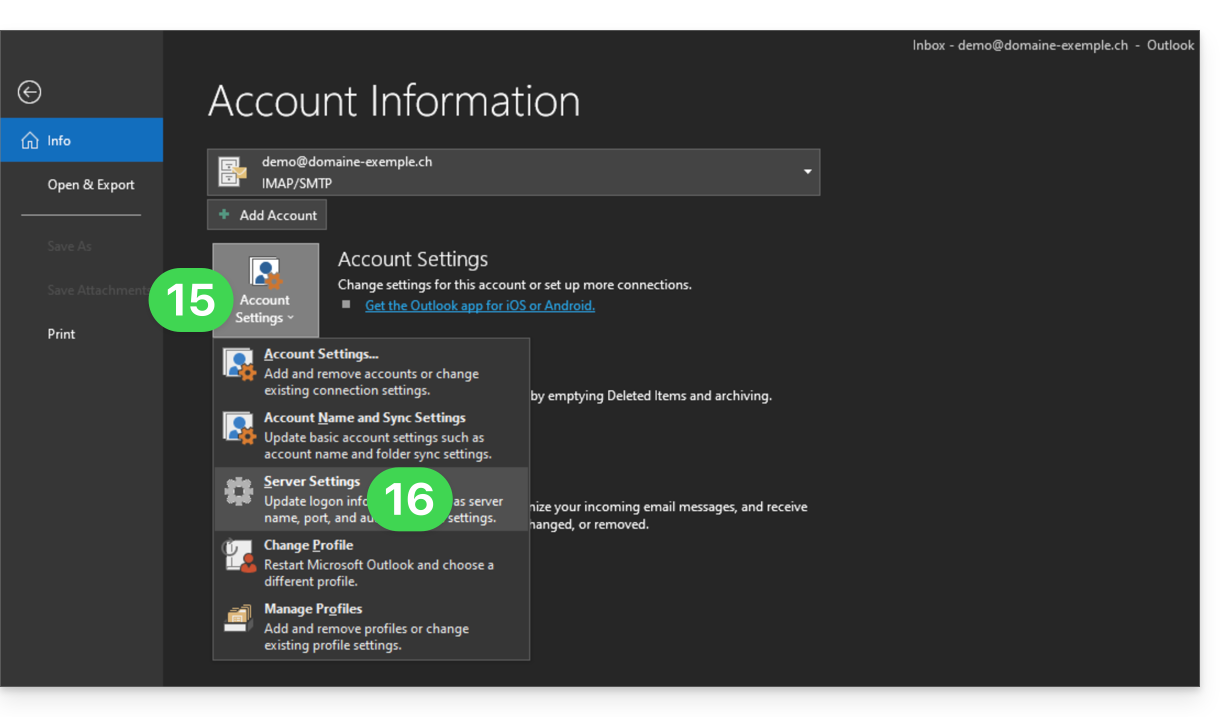
- Click on Account Settings to correct certain information that was added automatically but is incorrect.
- Click on Server Settings:
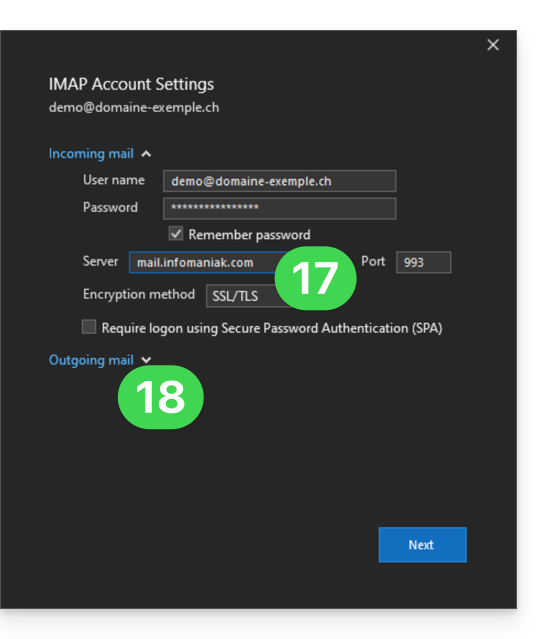
- Check and complete any missing information (❓: help).
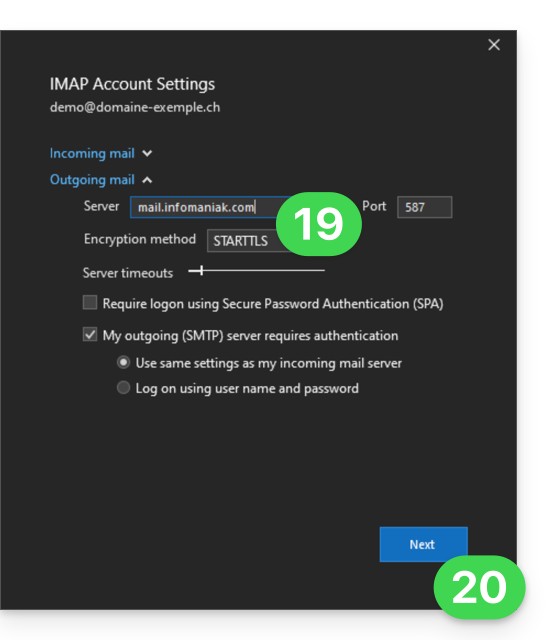
- Click on the downward-pointing chevron Outgoing Mail:
- Check and complete any missing information (❓: help).
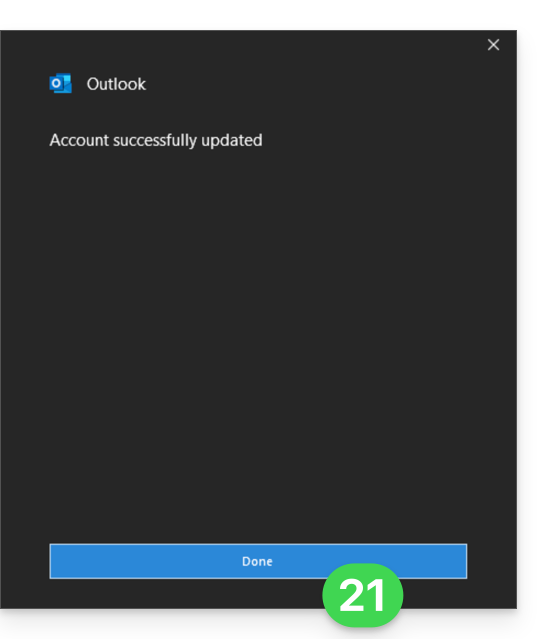
- Click on Next:
- Click on Finish:
- Go back to the home page; your email address is now correctly configured in the application:
Recommended settings
- Incoming IMAP server =
mail.infomaniak.com - IMAP port =
993(with SSL) - Outgoing SMTP server =
mail.infomaniak.com - SMTP port & encryption protocol and command/method to activate this protocol:
587+ STARTTLS - Username = the complete email address (❓: help)
- Password = the password generated for the email address you want to access (❓: help my kSuite | Mail Service/kSuite).
- Mandatory authentication for sending emails:
- Enable this in the SMTP settings of your application.
- Check "use the same settings as the incoming server" or, depending on the software/email client, enter a username (i.e., the complete email address) and the generated password.
Refer to this other guide if you are looking for information about other compatible email ports and protocols (SSL / TLS, for example).
In case of a problem
Make sure the Mail service is configured optimally (❓: help).
You do not need to contact Infomaniak Support if your email address works correctly outside the application. The most common error involves using an incorrect password. The troubleshooting guides will help you resolve any potential issues:
- Refer to the solutions provided in this other guide regarding email in general.
- This other guide is specifically about Outlook.
… and if your Outlook is no longer working after a change of your email password, please refer to this other guide.
Link to this FAQ: https://faq.infomaniak.com/2354
Has this FAQ been helpful?
This guide explains how to change the password for your Infomaniak account (= user account) in the Manager, the administration interface for your Infomaniak products.
Introduction
- This password also allows you to log in to kSuite and the various iOS/Android applications such as kDrive, Infomaniak Mail, etc. (learn more)but it is not the password for your email address!
- If you cannot log in, you will not be able to change your password; please refer to this other guide in that case.
Change your Infomaniak account password
To change the password for your Infomaniak account:
- Click here to access your settings management (Infomaniak Manager).
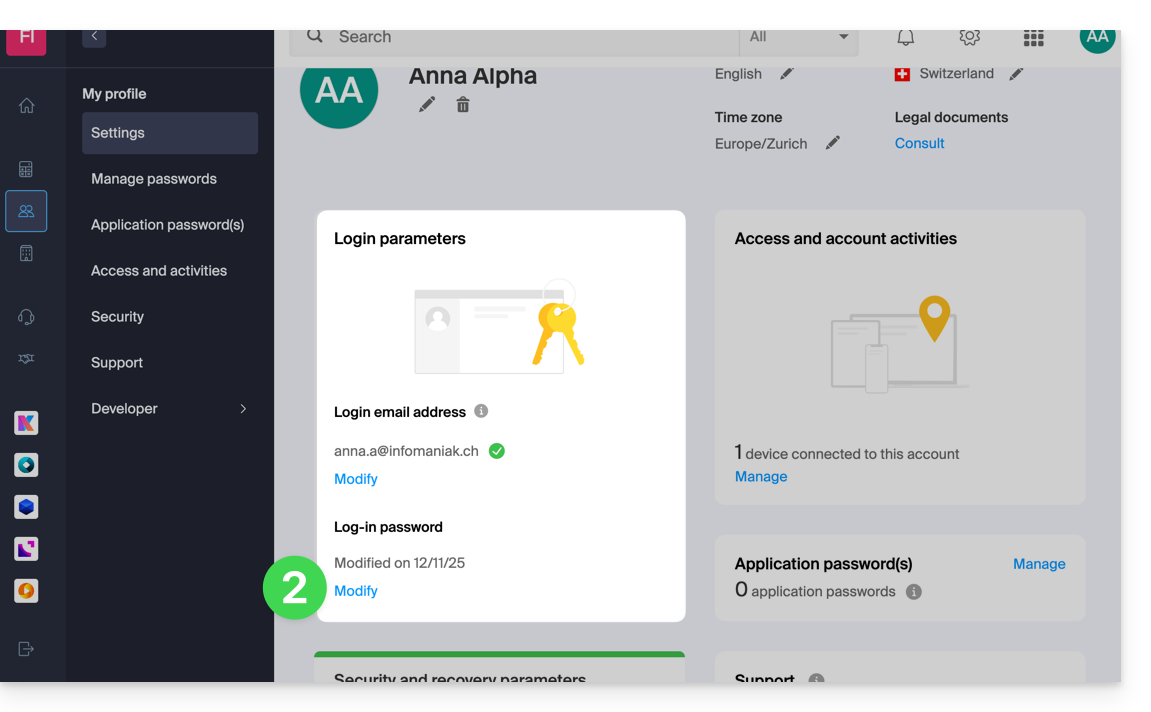
- Click on Edit from the Login settings box under Login password:
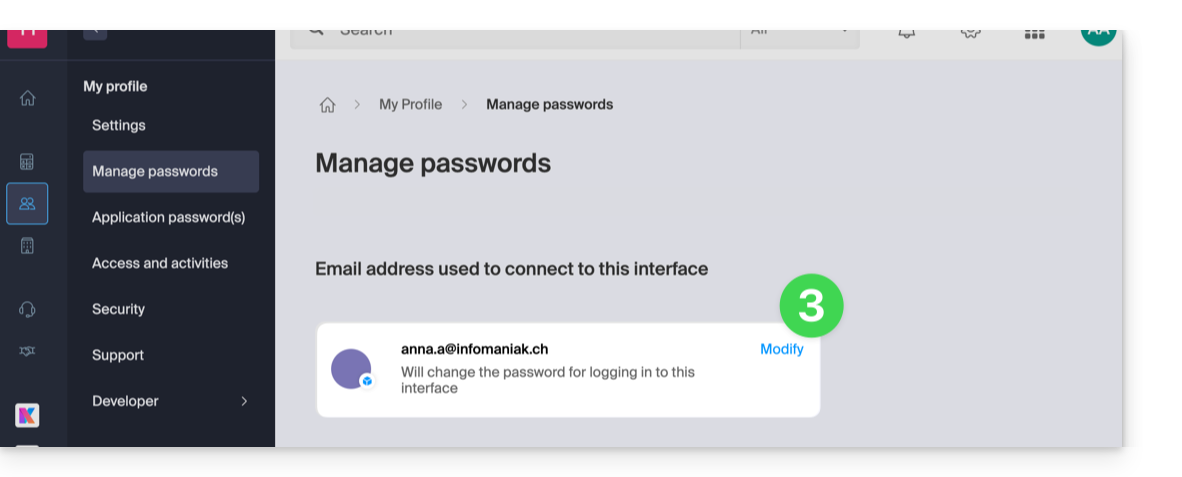
- Click on Edit:
- Enter your current login password and the new password you want.
- Click Save.
Link to this FAQ: https://faq.infomaniak.com/2359
Has this FAQ been helpful?
This guide details the various options available in the incoming email filtering tool (based on sorting rules) of Mail Infomaniak.
Introduction
- Refer to this other guide if you are looking for information on setting up sorting filters in your Infomaniak email.
Discover the possible conditions
The meaning of these different conditions and criteria currently in place is detailed below:
From
Allows you to filter messages based on the sender (and decide what to do with emails that always come from the same person or even the same domain, for example).
A
Allows you to filter messages based on the recipient (if you receive an email that is always addressed to a specific primary recipient, for example benevoles@domain.xyz).
Cc
Allows you to filter messages based on the recipient mentioned in the Cc field (who therefore receives the email as a copy in addition to the main recipient).
Subject
Allows you to filter messages based on the message subject.
Reply-to
Allows you to filter messages by examining the content of the reply-to field (specific condition - example).
Size
Allows you to filter messages based on their size.
Message content
Allows you to filter messages based on specific words found in the body of the incoming message.
Email type
Allows you to filter messages based on the x-infomaniak-type header, the value of which can be ham, spam, transactional, and bounce.
If you use the condition "email type = advertising, social networks", the selected action will be performed before the ad filtering, if the latter is enabled.
Link to this FAQ: https://faq.infomaniak.com/2360
Has this FAQ been helpful?
This guide explains how to connect the Apple Mail iOS mobile app (iPhone, iPad, etc.) to an email address hosted by Infomaniak.
Introduction
- Instead of the manual configuration below, it is recommended to use the .mobileconfig configuration profiles (❓: help) provided by Apple or the Infomaniak Mail app (iOS) to benefit from a Push-based update method.
Manually add the email address to the application
Prerequisites
- Create the email address (❓: help my kSuite | Mail Service/kSuite).
- Create a device password (❓: help my kSuite | Mail/kSuite Service).
- Verify that the domain is configured correctly (❓: help).
To configure the email application:
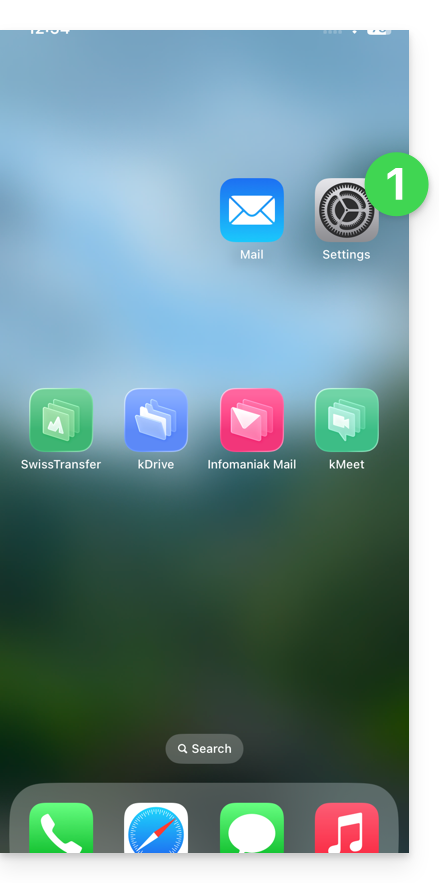
- Open the Settings on your iPhone:
- Tap Apps:
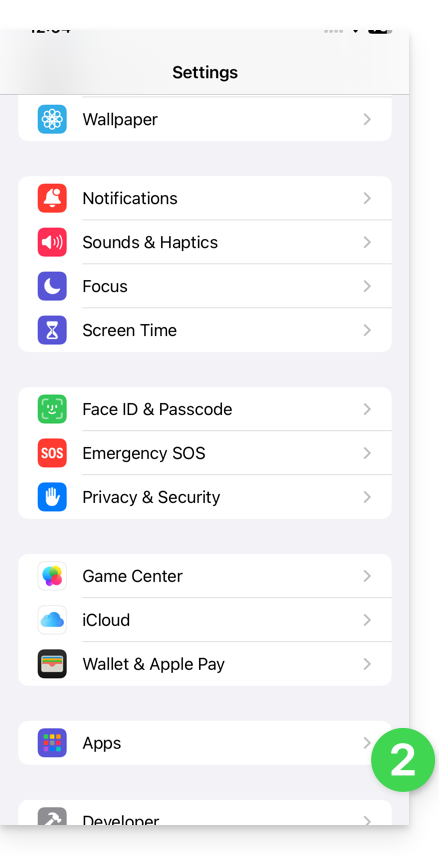
- In Apps, tap Mail:
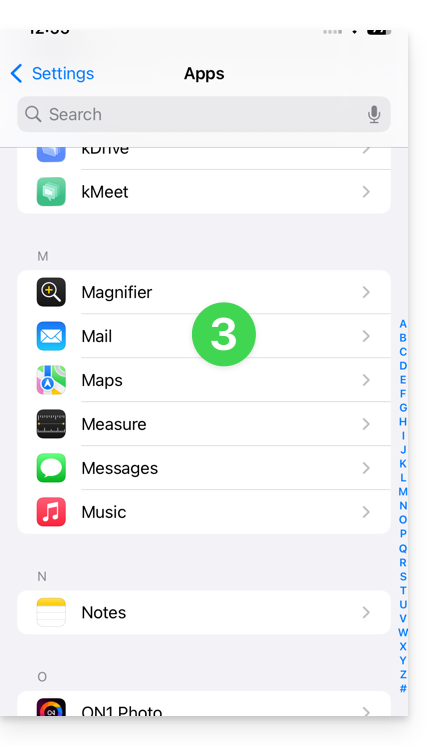
- Tap Mail Accounts:
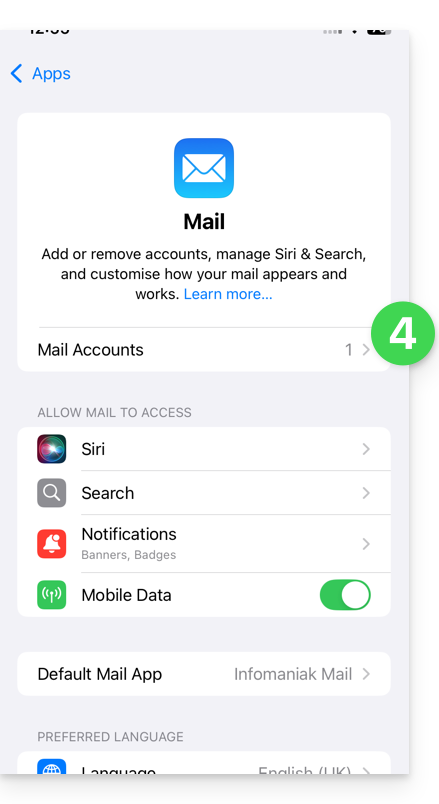
- Tap to add an account:
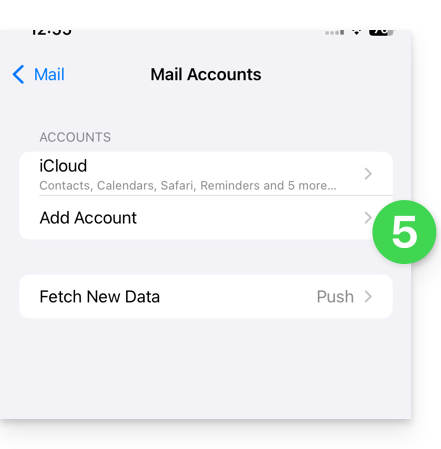
- Tap Another account:
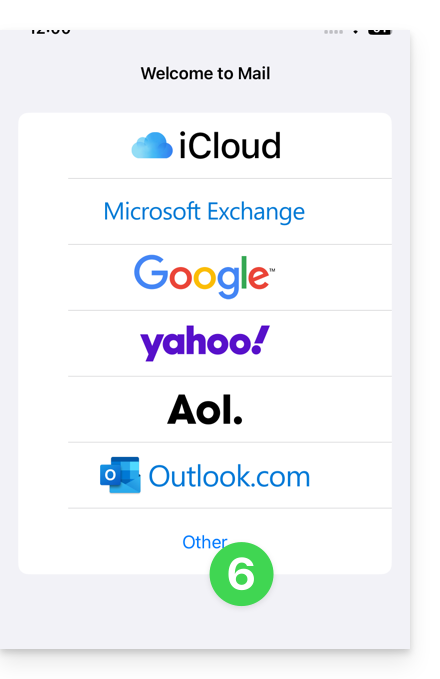
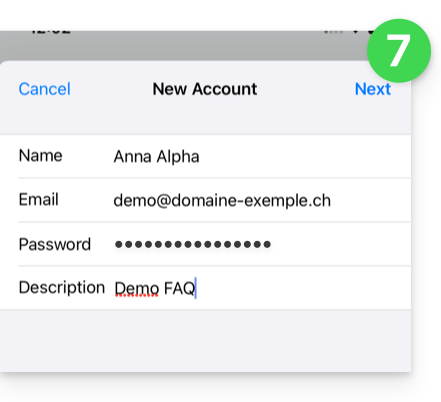
- Enter the email address and password for the account you want to add (see prerequisites), then tap Next:
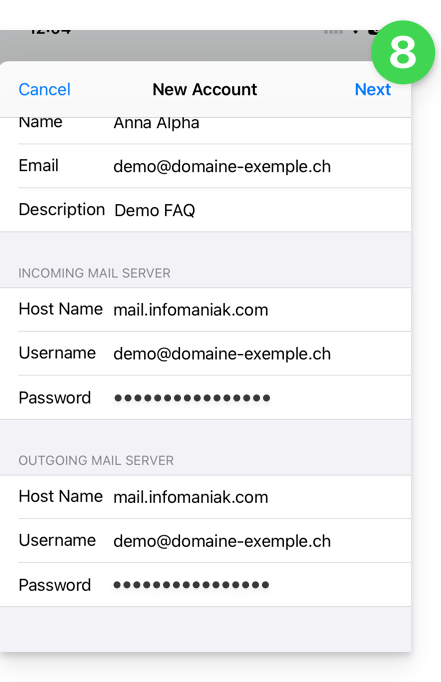
- Check and complete any missing information (❓: help), then click Next:
- The app indicates that some fields are optional, but they are not!
- The IMAP verification must be performed correctly (do not click on POP)
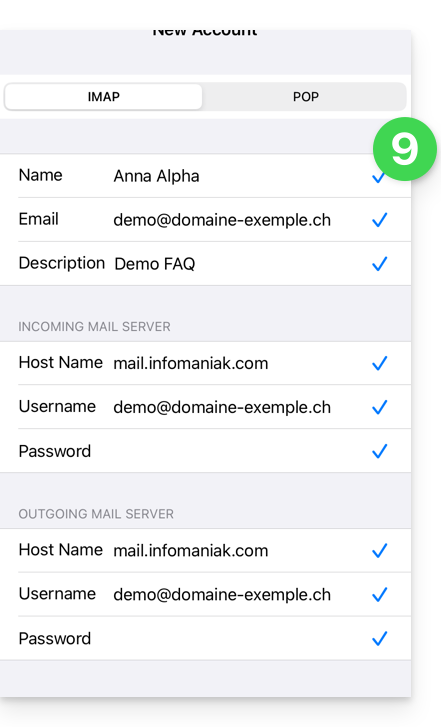
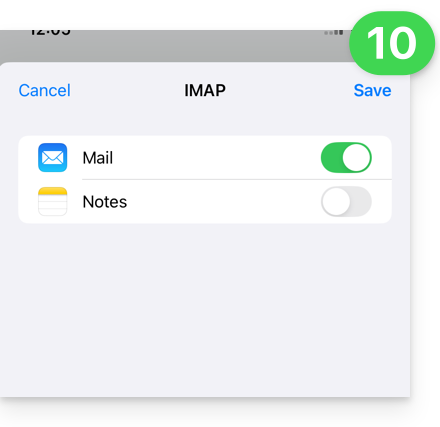
- Enable email and save the configuration in the top right corner:
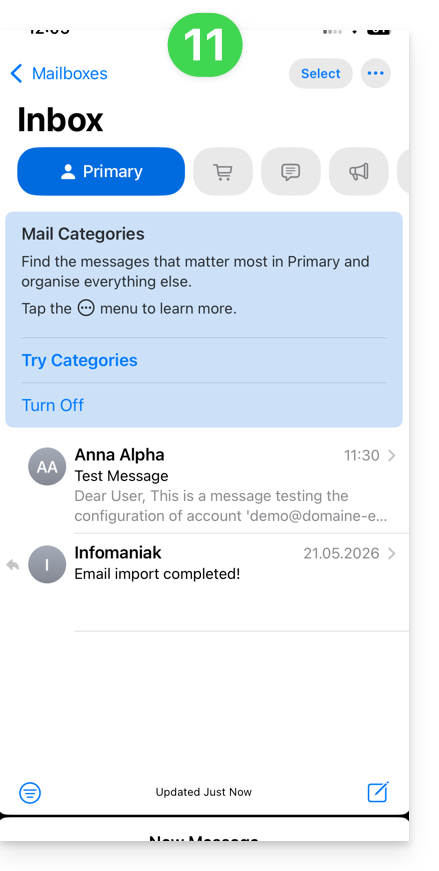
- Done, your email address is now configured in the application:
Recommended settings
- Incoming IMAP server =
mail.infomaniak.com - IMAP port =
993(with SSL) - Outgoing SMTP server =
mail.infomaniak.com - SMTP port & encryption protocol and command/method to enable this protocol:
587+ STARTTLS - Username = the complete email address & (❓: help)
- Password = the password generated for the email address you want to access (❓: help my kSuite | Mail/kSuite Service).
- Mandatory authentication for sending emails:
- Activate it in the SMTP settings of your application.
- Check "use the same settings as the incoming server" or, depending on the software/email client, enter a username (= complete email address) and the generated password.
Refer to this other guide if you are looking for information about other email ports and protocols that are supported (SSL/TLS, for example).
In case of a problem
Ensure that the Mail service is configured optimally (❓: help).
It is not necessary to contact Infomaniak Support if your email address works correctly outside the application. The most common error concerns the use of an incorrect password. The troubleshooting guides will help you resolve any potential issues:
- Refer to the solutions provided in this other guide regarding email in general.
- Delete any existing Apple configuration profilesrelated to your Infomaniak email account before restarting the configuration.
And if your Apple Mail no longer works for sending emails (e.g., the SMTP server is disconnected or missing) or after a change of email password, please refer to this other guide.
Link to this FAQ: https://faq.infomaniak.com/2369
Has this FAQ been helpful?
This guide explains how to regain access to Infomaniak tools (manager.infomaniak.com and Mail / ksuite.infomaniak.com) if you have forgotten your password or your Infomaniak account login ID.
Introduction
- To log in to an Organization that manages one or more Infomaniak products, go to manager.infomaniak.com and enter the following information:
- A login email address (the identifier for your Infomaniak account).
- The password you chose when you registered.
- An additional code if 2FA (two-factor authentication) is enabled.
- If you can log in to the platform but are missing a password for one of your email addresses, please refer to this other guide.
- If the issue is more related to a problem with the login form display, especially on a mobile device, please refer to this other guide on the subject.
You have forgotten...
... the Infomaniak account password
If you forget this password, follow the reset procedure:
- Click here to reset your password.
- Enter the email address you use to log in to your Infomaniak account.
- Choose the desired recovery option or follow the identity verification procedure by clicking on “You have no available options”.
... the email address used to log in to your Infomaniak account
When you registered, you provided a phone number; you can use it to find the email address used to log in to your Infomaniak accountusing your phone number:
- Click here to recover your email address for logging into your Infomaniak account.
- Enter your mobile phone number.
- Enter (if necessary) your recovery email address.
Two scenarios are then possible:
- The system manages to identify your account: choose how you want to receive your Infomaniak account login credentials.
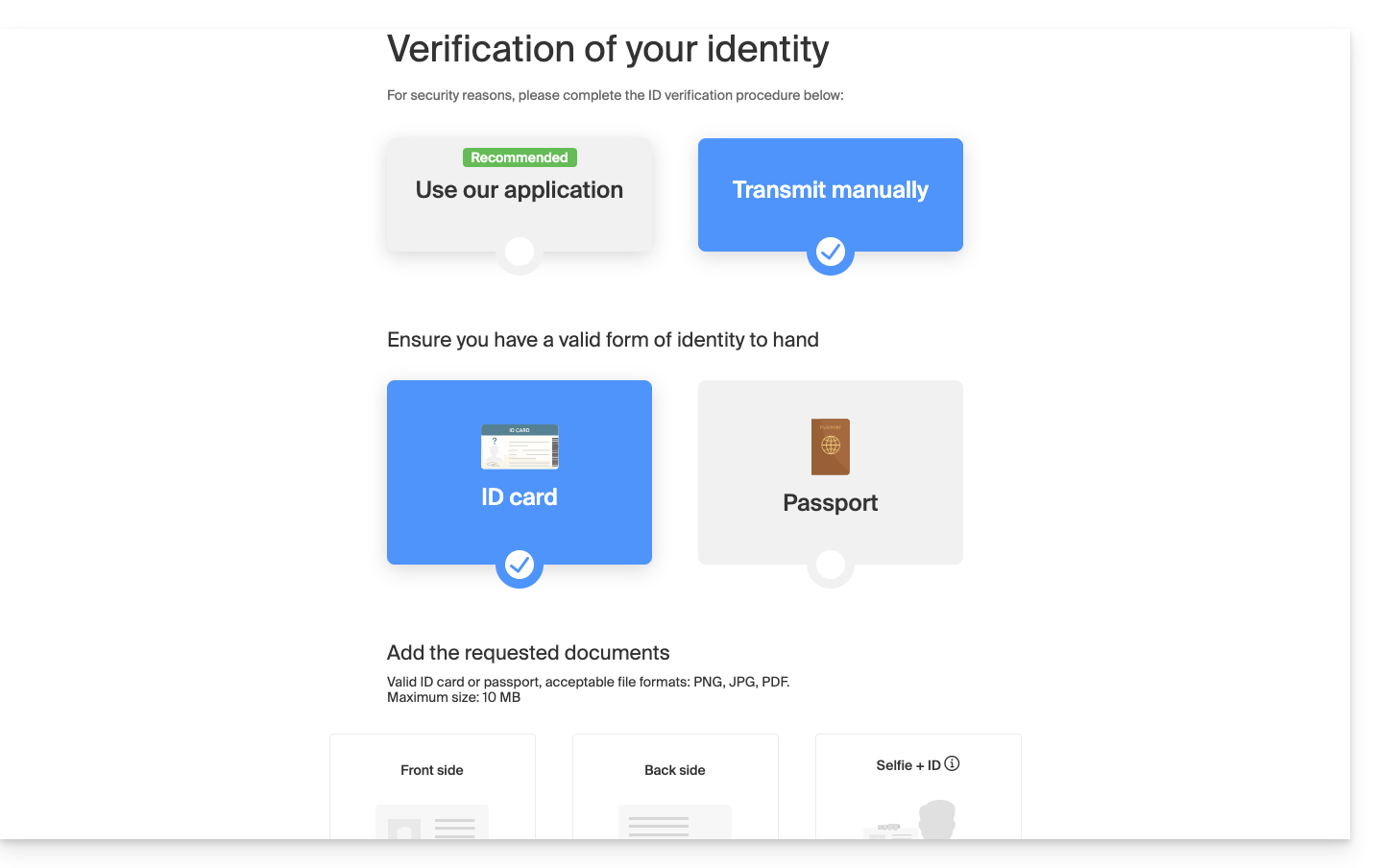
- If not, follow the on-screen wizard to manually verify your identity or via kCheck:
What if the email address no longer exists?
If you have an Infomaniak account where the login ID is in the format toto123@yahoo.com, there is no problem if the email address toto123@yahoo.com is deleted or is no longer valid. Simply log in one last time to the Infomaniak Manager with this ID toto123@yahoo.com and consult this other guide to change your email address for logging into your Infomaniak account.
However, if the email address used as the login ID is hosted by Infomaniak (for example, anna789@assoziation.ch) and an administrator deletes the email address in question or cancels the Mail Service “assoziation.ch”, the situation is different: you will automatically receive an email to the secondary address and an SMS to the mobile phone number specified in your Infomaniak account: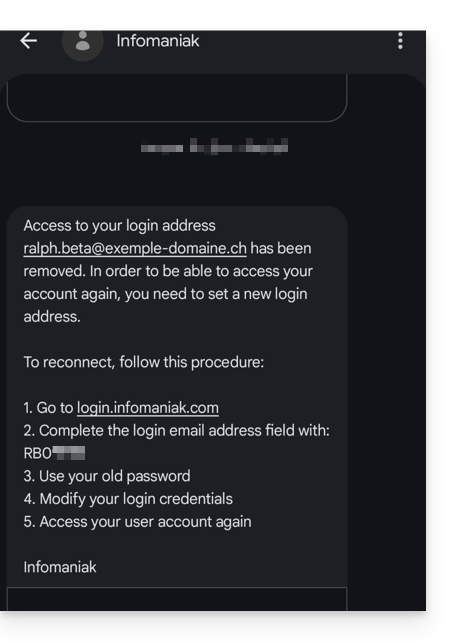
This situation can also occur in a specific email service management scenario.
To regain access to their Infomaniak account now that access is no longer possible with the old email address, the Infomaniak account user must go to the address mentioned in the SMS:
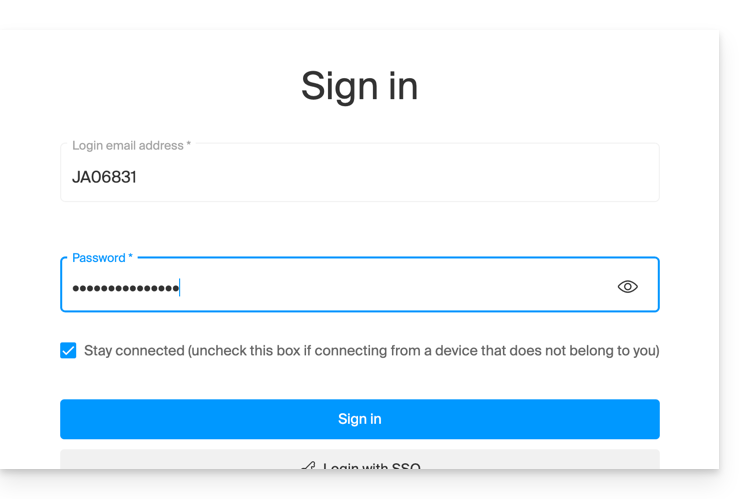
- Click here to access the login page.
- Enter the username specified in the SMS (usually the initials of your account followed by a series of numbers).
- Enter your usual password (it has not changed):
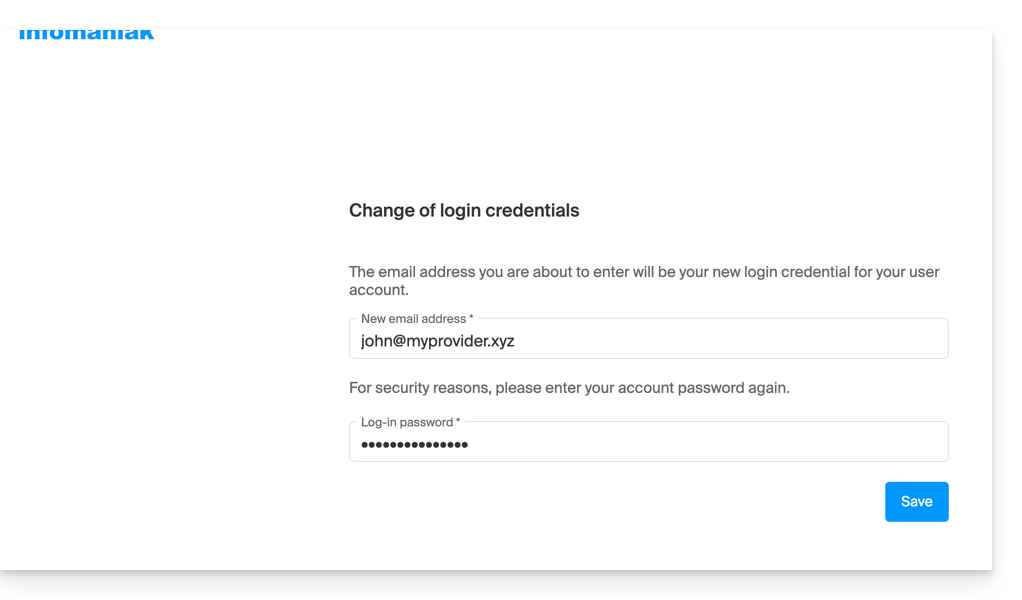
- Enter the new information requested:
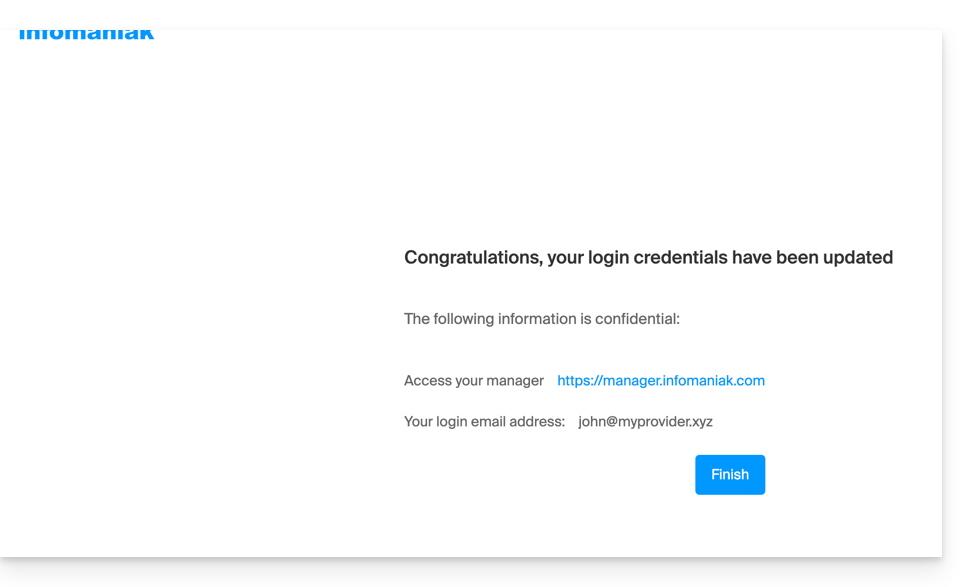
- You will be logged back into your account:
Link to this FAQ: https://faq.infomaniak.com/2415
Has this FAQ been helpful?
This guide concerns the kCheck mobile app (application for iOS/Android smartphones or tablets), created to simplify identity verification procedures and enhance the security of your Infomaniak account.
Introduction
- For security reasons, in order to guarantee the identity of the person making a specific request to Infomaniak, an identity verification procedure may be triggered in the following cases (non-exhaustive list):
- forgotten Infomaniak account password (user account)
- forgotten login email address
- deactivation of two-factor authentication (2FA)
- unlocking an Infomaniak account
- during the first payment of revenue for the Ticketing product
- when ordering a product (suspicion of spam or fraud, brand name, etc.)
- This application allows you to securely transfer the requested information.
- Infomaniak respects your privacy: the information transmitted via the kCheck application will be kept until your request is fully processed; in any case, it will be automatically deleted after 72 hours if this request is not processed.
Starting the identity verification
Prerequisites
- A QR code or a link provided by Infomaniak.
- The kCheck mobile app installed on your device: iOS (iPhone, etc.) or Android.
- An Internet connection on the mobile device.
You can then have your identity verified with kCheck:
- Launch the kCheck app on your mobile device.
- Tap Start.
- Tap Scan a QR code.
- Point your device's camera at the provided QR code.
- Enter your mobile phone number.
- Enter the confirmation code you receive.
- Allow geolocation (required to continue).
- Select the type of ID you have (ID card or passport).
- Follow the steps to photograph your ID.
- Take a selfie (of yourself) with your ID in your hand in front of you.
Your documents will then be securely transmitted to Infomaniak support. These requests are processed with priority and have an average response time of 2 hours during business hours.
If your order is blocked...
For security reasons, some orders may be automatically blocked.
When your order is placed, an email is sent to the email address associated with your Infomaniak Manager account. This email contains the procedure for unblocking your order. If you cannot find it, you can request that it be resent from your Manager by clicking Resend the procedure from the red banner informing you of the block.
Prerequisites
- Open the email containing the unblocking procedure.
- The kCheck mobile app installed on your device: iOS (iPhone, etc.) or Android.
- An internet connection on your mobile device.
You can then start the unlocking process with kCheck:
- Launch the kCheck app on your mobile device.
- Tap Start.
- Tap Scan a QR code.
- Scan the QR code in the email.
- Follow the unlocking procedure until the end.
Special cases
- If you do not take any action within 10 days, the order will be automatically cancelled and the full amount will be refunded to the payment method used.
- If you do not have a mobile device to follow this procedure, contact Infomaniak support.
Link to this FAQ: https://faq.infomaniak.com/2418
Has this FAQ been helpful?
This guide explains how to access your emails hosted by Infomaniak.
Guides for Infomaniak email
Click here to open the Infomaniak assistant and configure synchronization on macOS, Windows, Linux, Android, and iOS for the most common email software/clients (Outlook, Microsoft 365, Thunderbird, Apple Mail, eM Client, etc.). It will not only provide you with the recommended settings but also allow you to create the IMAP/SMTP password required for your configuration.
Alternatively, use directly the email service in a web browser via the Infomaniak Mail web app (online service ksuite.infomaniak.com/mail) and/or download the Infomaniak Mail mobile app (application for iOS/Android smartphones or tablets).
Here are also guides for specific manual procedures:
| OS | Application to synchronize |
|---|---|
| Outlook New / Microsoft 365 MSO / 2019 (Windows) | |
| Outlook Microsoft 365 MSO (macOS) | |
| Apple Mail (configuration profile for macOS) | |
| Apple Mail (configuration profile for iOS: iPhone, iPad, etc.) | |
| Mail (Android: Huawei, Samsung, Sony, etc.) | |
| Outlook (iOS + Android) | |
| Gmail (iOS + Android) | |
| Mozilla Thunderbird |
For synchronizing your contacts & calendars, please refer to this other guide.
Recommended IMAP settings
Username = the complete email address (❓: help)
Password = the password generated for the email address you want to access (❓: help my kSuite | Mail Service/kSuite).
Incoming IMAP server = mail.infomaniak.com
IMAP port = 993 (with SSL)
Recommended SMTP settings
Username = the complete email address (❓: help)
Password = the password generated for the email address you want to access (❓: help my kSuite | Mail Service/kSuite).
Outgoing SMTP server = mail.infomaniak.com
SMTP port & encryption protocol and command/method to enable this protocol:
- Prioritize port
587+ STARTTLS: this is the official technical standard and the most compatible method with the majority of modern systems for authenticated submission. - Tolerate port
465+ SSL/TLS only as a compatibility option or alternative, specifying that this is implicit encryption, but that 587 remains the recommended choice.
Mandatory authentication for sending emails:
- It is activated in the SMTP settings of your application.
- Check "use the same settings as the incoming serverEnter your username (i.e., your full email address) and password, or as required by your email software/client.
In case of problems
Please check the following points:
- Make sure the Mail service is configured optimally (❓: help).
- Consult this other guide if you encounter errors, to check the essential points!
- Consult this other guide if you are looking for information about other email ports and protocols that are compatible.
- POP3 protocol not recommended (POP server = mail.infomaniak.com and POP port = 995 with SSL).
Change a mail password
Email passwords can be multiple, are unrelated to your Infomaniak login password, and can no longer be retrieved after their initial display. Therefore, you must (re)create them whenever you need them, specifying the device (computer, mobile, etc.) and/or the user concerned, so that you can manage them separately when you need to manage a specific connection.
Manage passwords:
Apply the new email password
If you have deleted an existing password to create a new one,You will need to update your applications & devices that used this password:
- Apple Mail (macOS / iOS)❓: help
- Android Mail / Gmail (various versions)❓: help
- Microsoft Outlook (various versions)❓: help
- Mozilla Thunderbird❓: help
You are not yet managing your emails with Infomaniak ❓: help
Link to this FAQ: https://faq.infomaniak.com/2427
Has this FAQ been helpful?
This guide explains how to connect Microsoft 365 to an email address hosted by Infomaniak.
Introduction
- Infomaniak email addresses cannot be added directly to Outlook online from a browser using a personal Microsoft account.
- Indeed, Microsoft no longer allows adding an external address via IMAP on
outlook.live.com. - Only the Microsoft mailbox linked to the connected account (address
@outlook.fr,@outlook.com,@hotmail…) can be displayed there. - “Microsoft 365” is primarily the subscription; Microsoft has removed the function for connected accounts in Outlook.com, and the equivalent function of Outlook on the web has also been removed.
- Indeed, Microsoft no longer allows adding an external address via IMAP on
- To view an Infomaniak address with Outlook, you must install the Outlook app or use a different software/IMAP-compatible email client.
Get the Outlook 365 app
To do this:
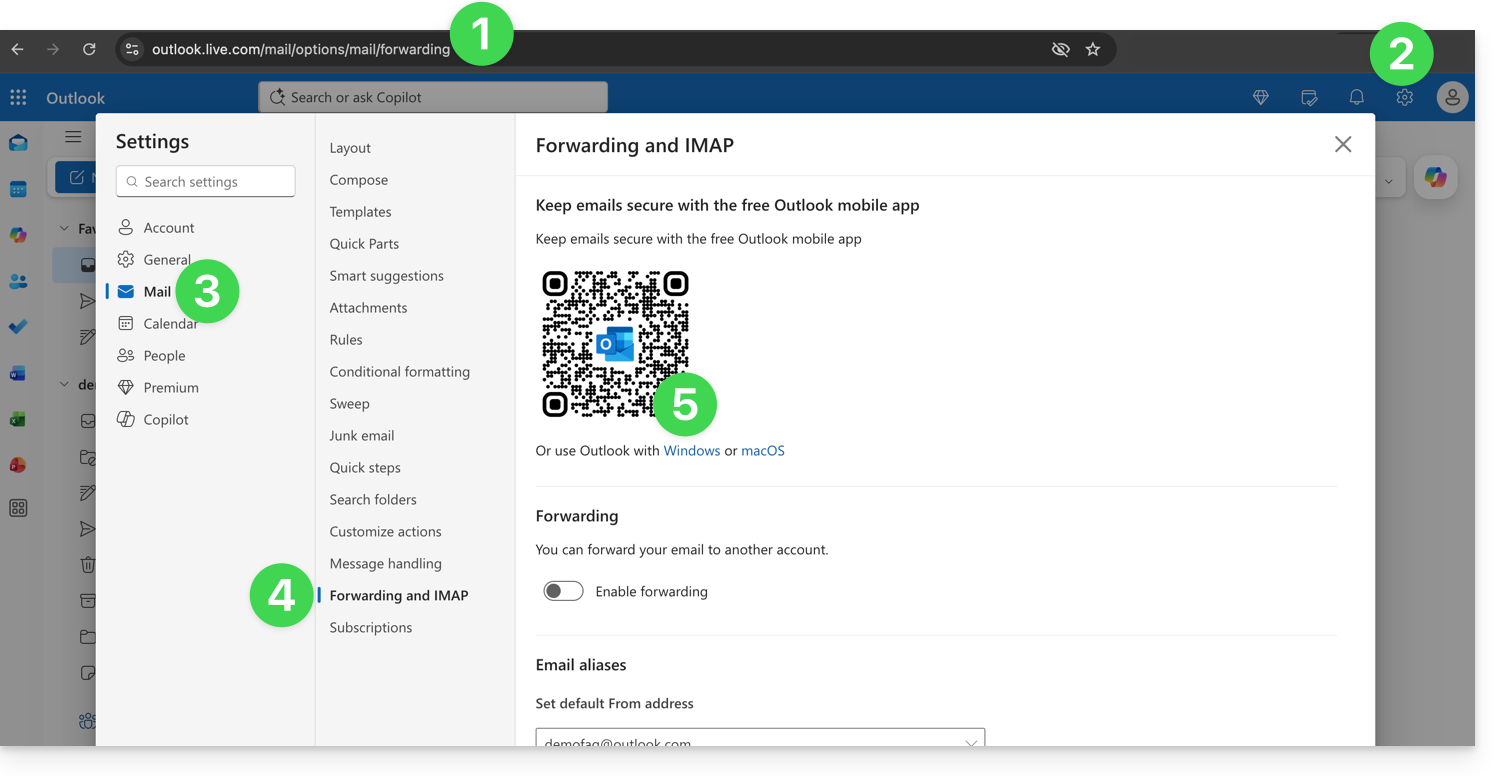
- Log in to https://outlook.live.com/mail/options/mail/forwarding with your personal Microsoft account.
- Click on the Settings icon in the upper right corner of the interface.
- Click on Mail in the left-hand menu.
- Click on Forwarding and IMAP in the secondary menu.
- Download the Outlook application in the version corresponding to your device type:
Add the email address to the Outlook 365 app
On macOS, please refer to this other guide.
On Windows, refer to this other guide, and on mobile (iOS / Android), refer to this other guide.
Link to this FAQ: https://faq.infomaniak.com/2428
Has this FAQ been helpful?
This guide explains how to connect the eM Client desktop app (desktop application on macOS / Windows) to an email address hosted by Infomaniak.
Add the email address to the application
Prerequisites
- Create the email address (❓: help my kSuite | Mail Service/kSuite).
- Create a device password (❓: help my kSuite | Mail/kSuite Service).
- Verify that the domain is configured correctly (❓: help).
To configure the email application:
- Open the application and click on Accounts:
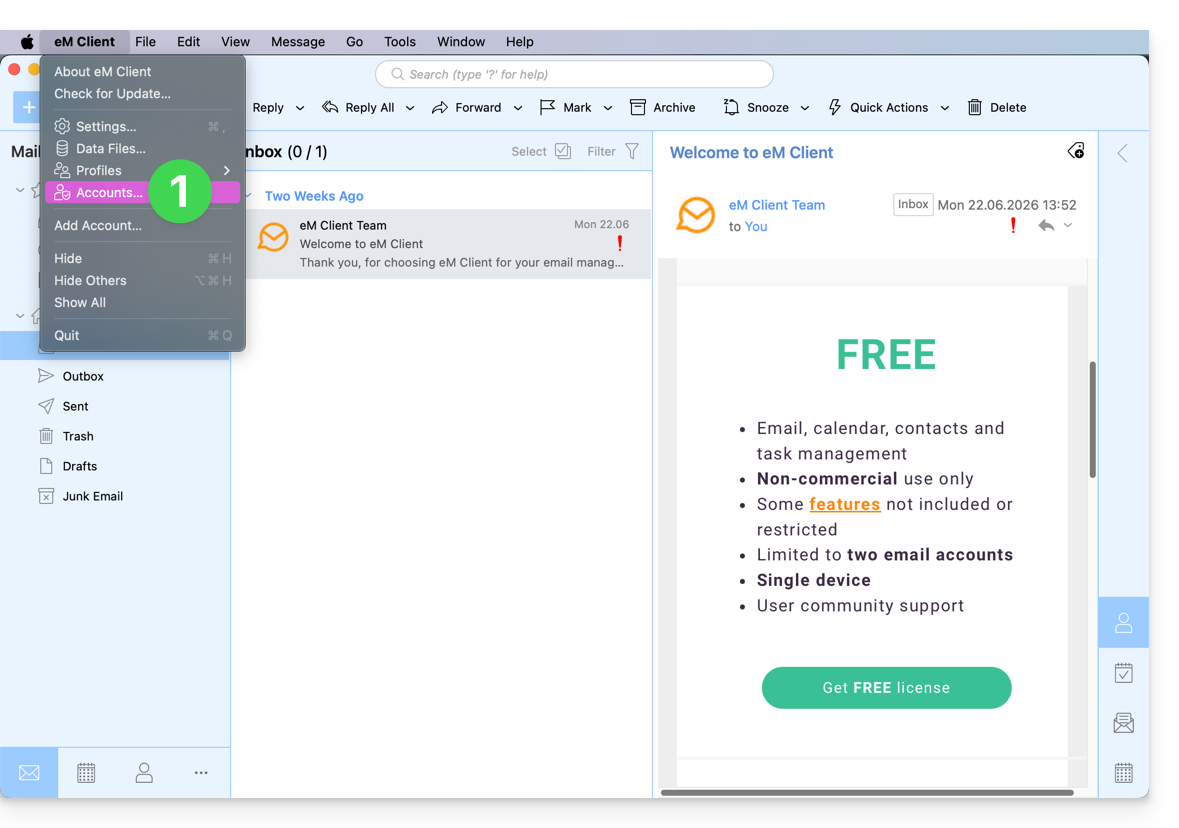
- Click on Add an account:
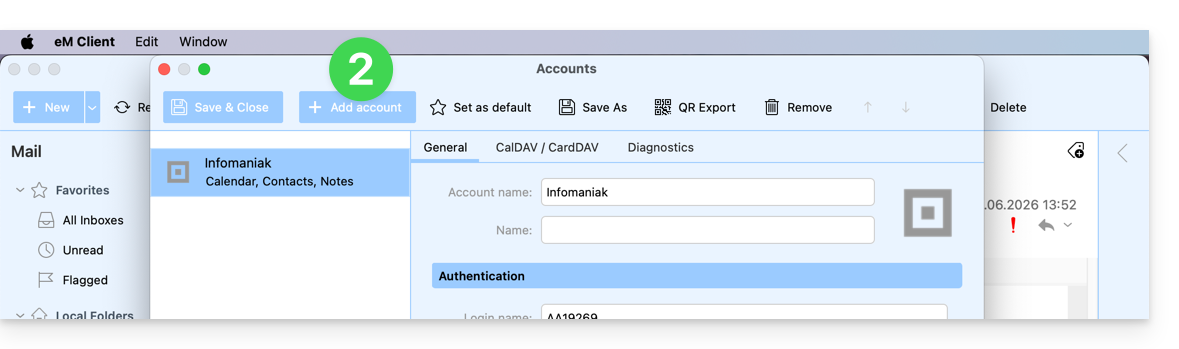
- Enter the email address to be linked, then click the Start button next to the field:
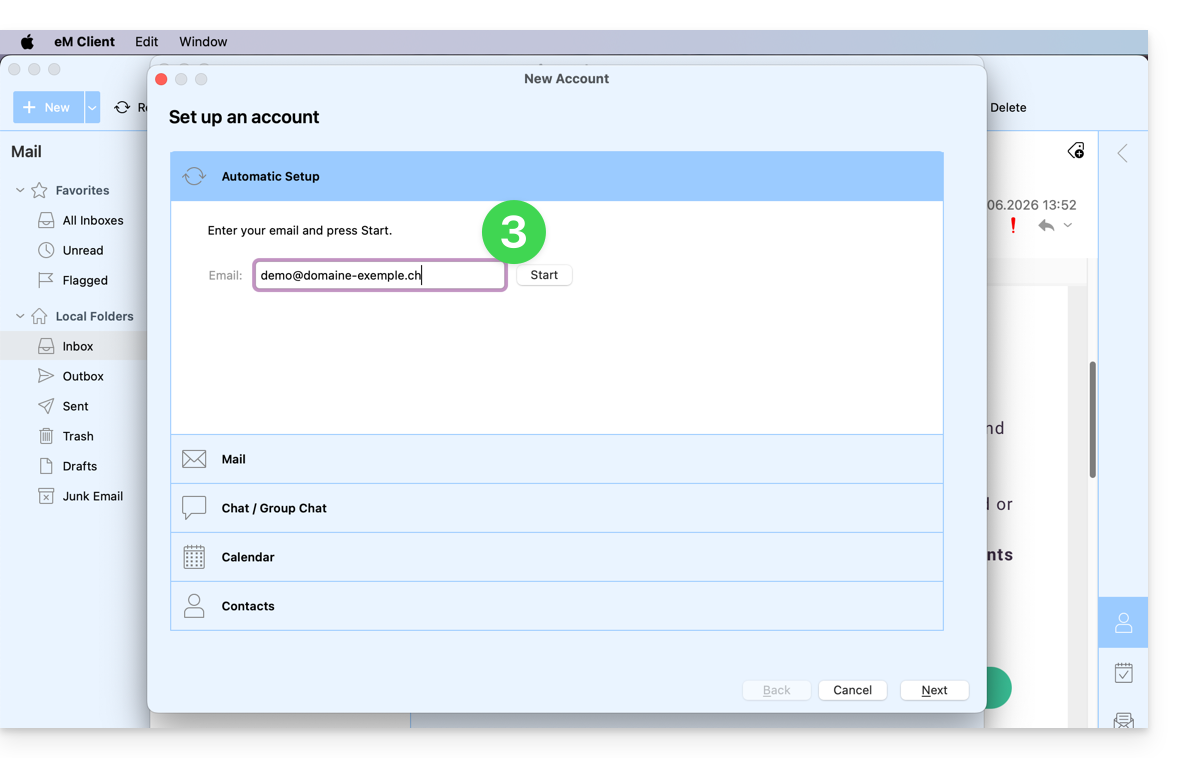
- Click the button to manually enter the settings:
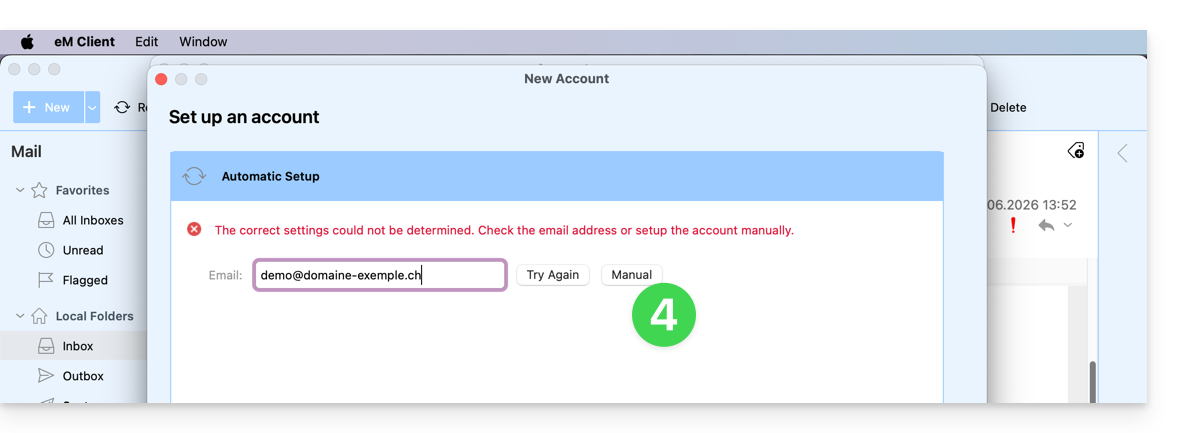
- Check the incoming server and complete any missing information (❓: help), then click Next:
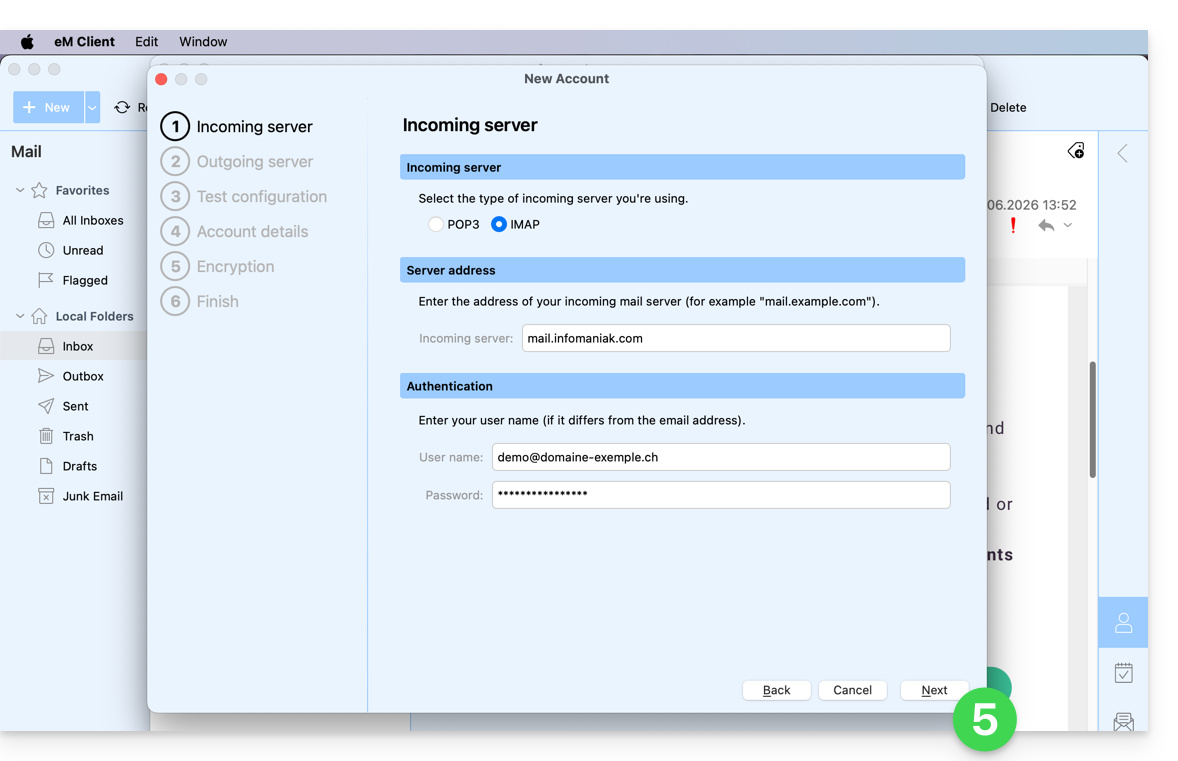
- Do the same for the outgoing server:
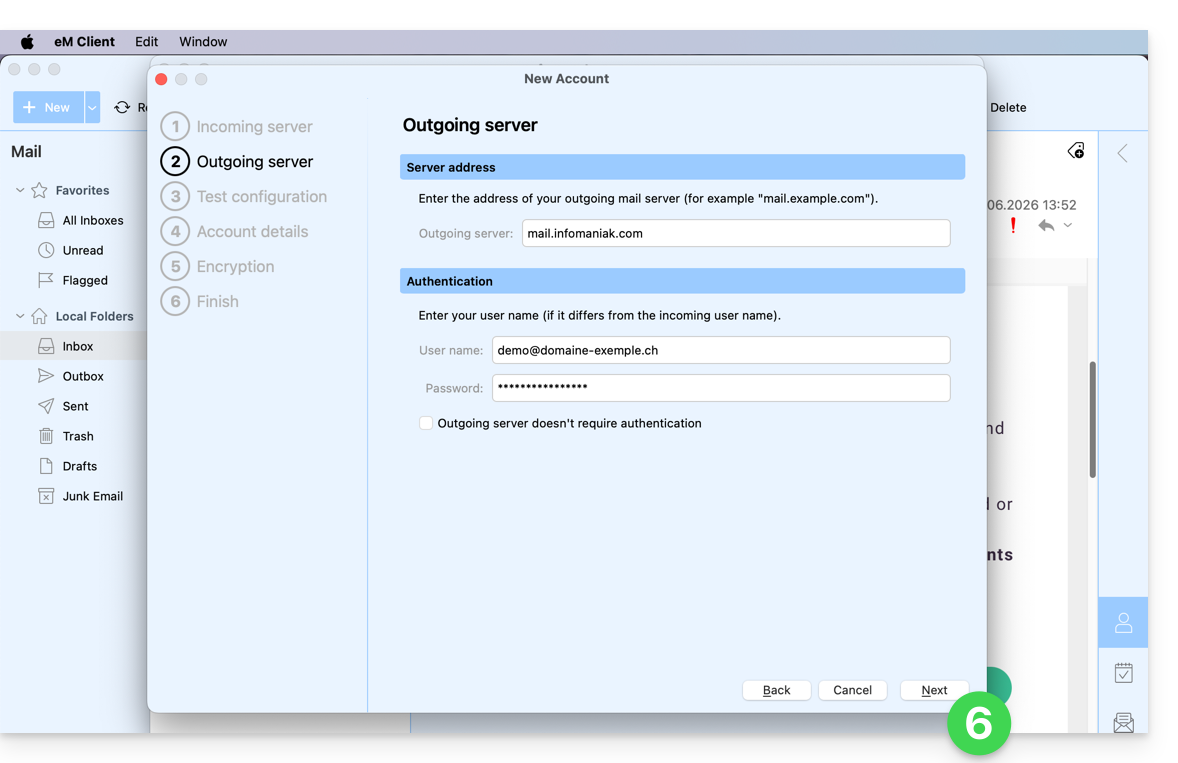
- Once the test indicators are green, click Next:
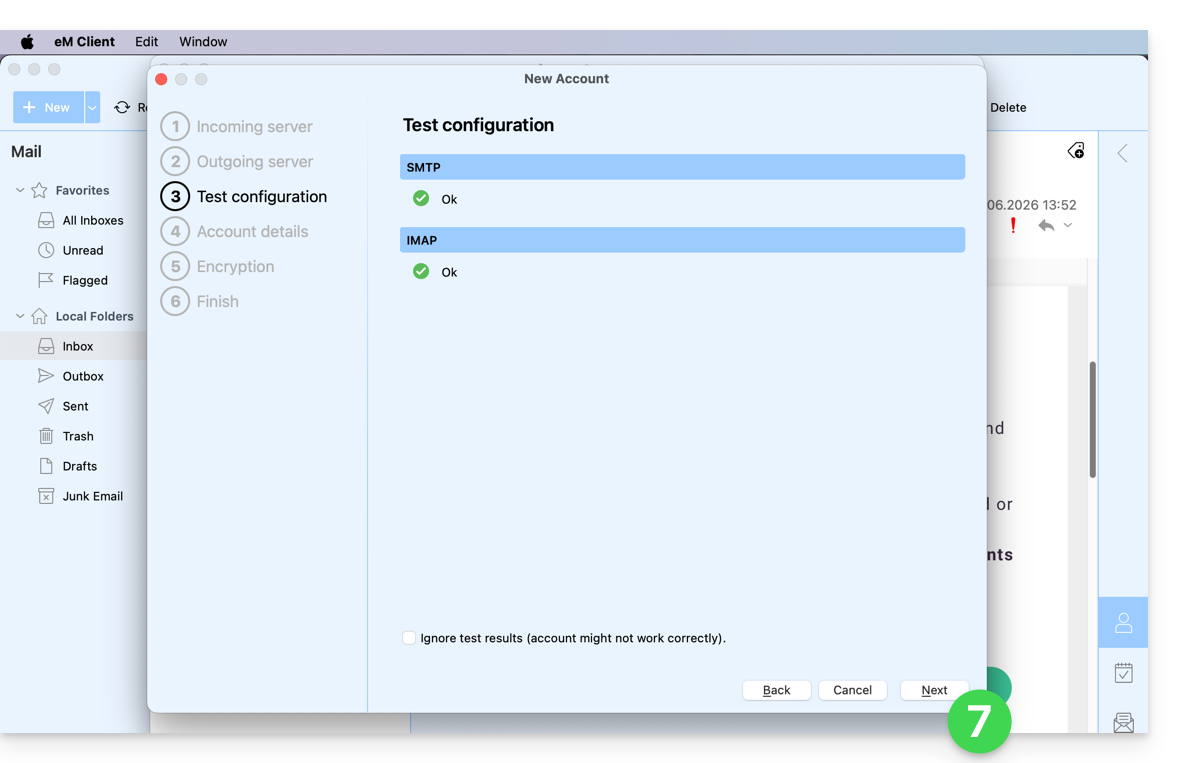
- Complete the missing information and then click Next:
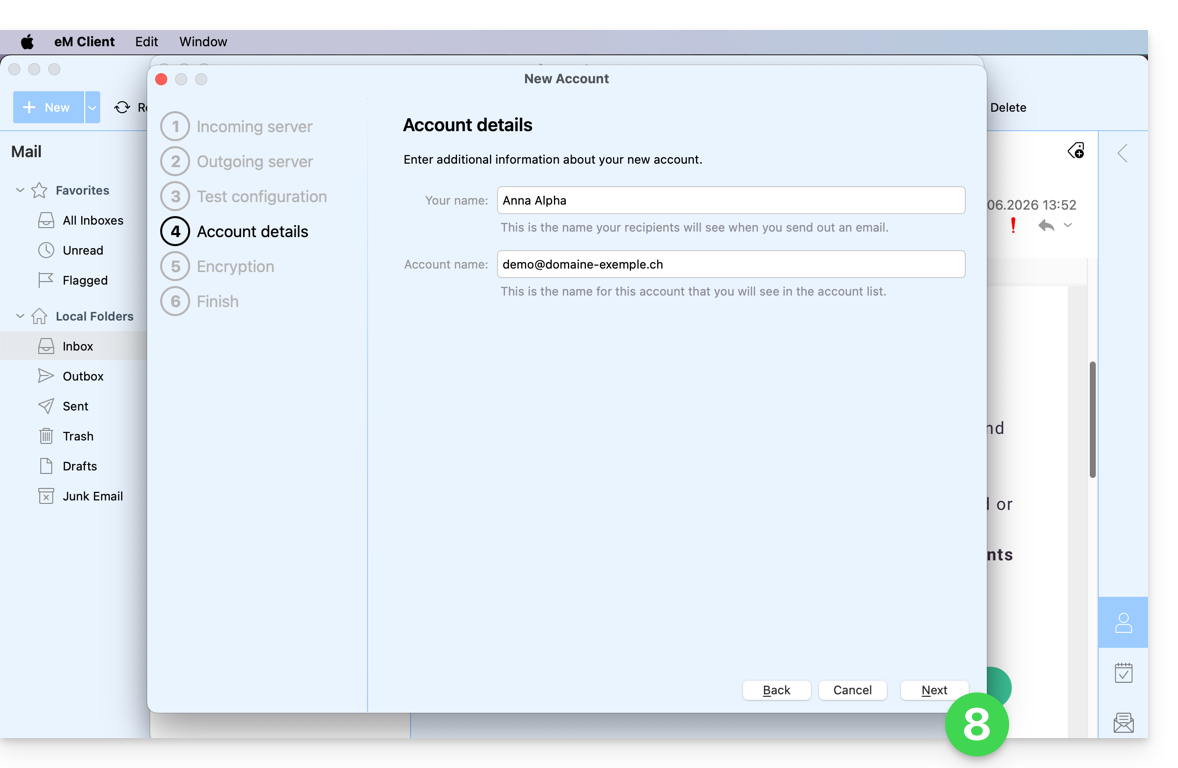
- Skip this step without adding extra security:
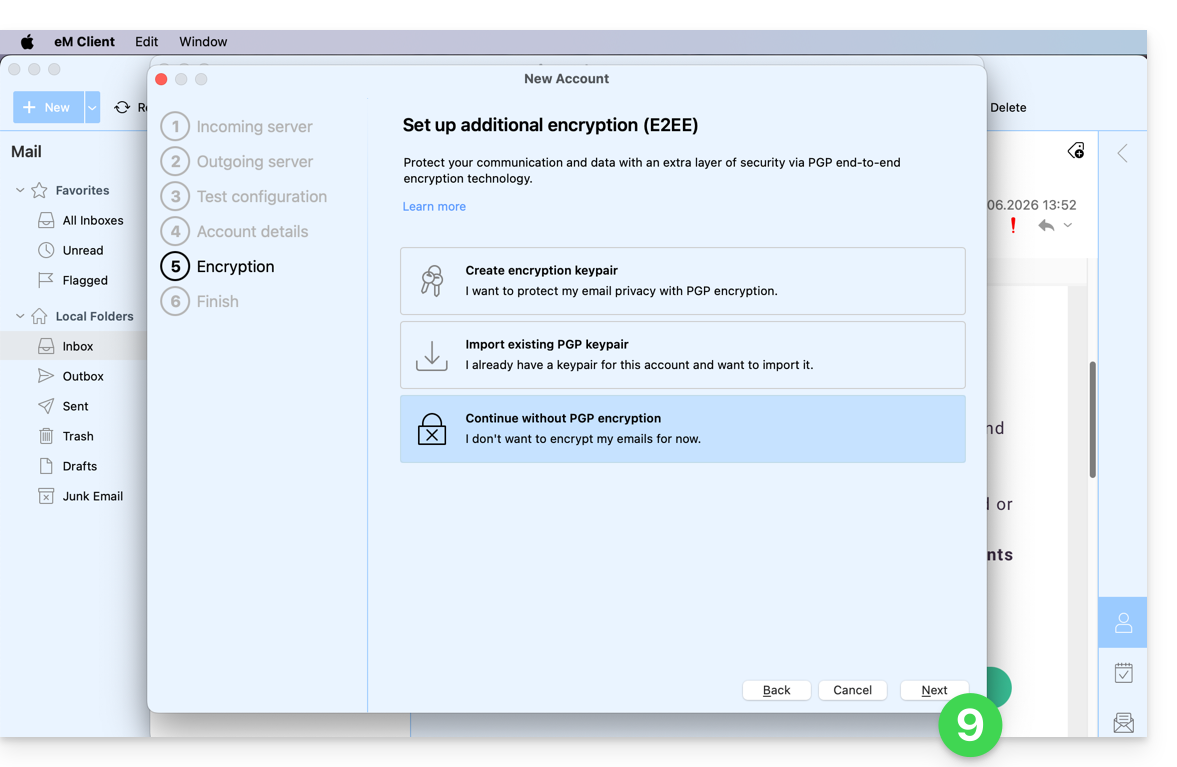
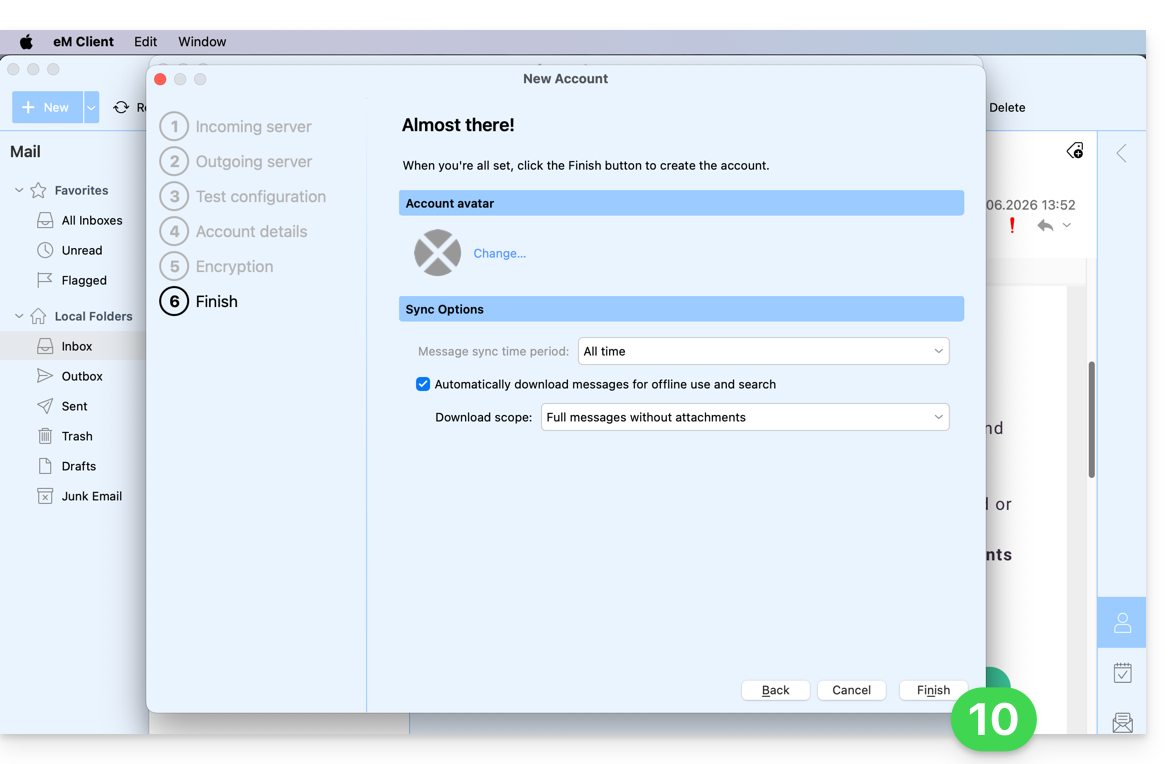
- Set your preferences and tap Finish:
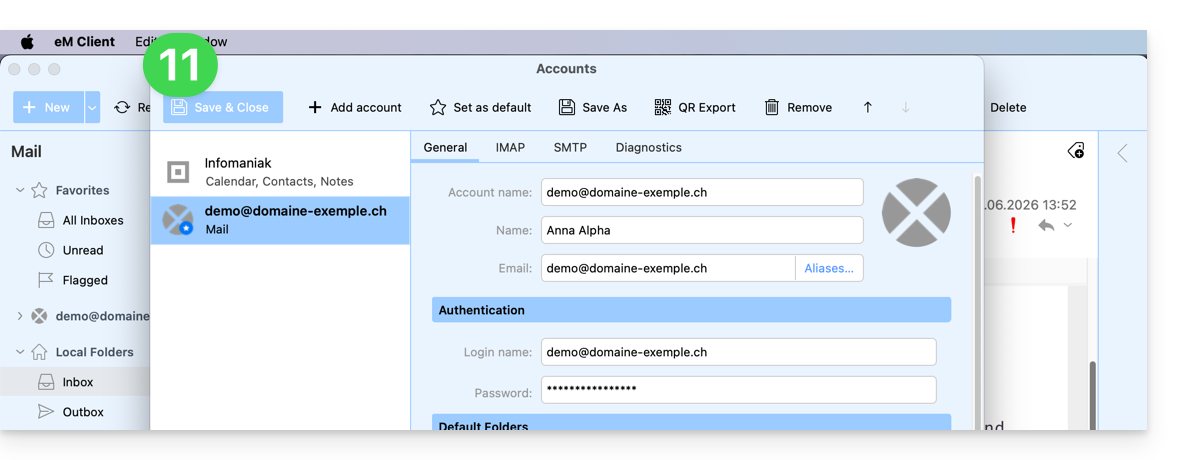
- Save the account addition:
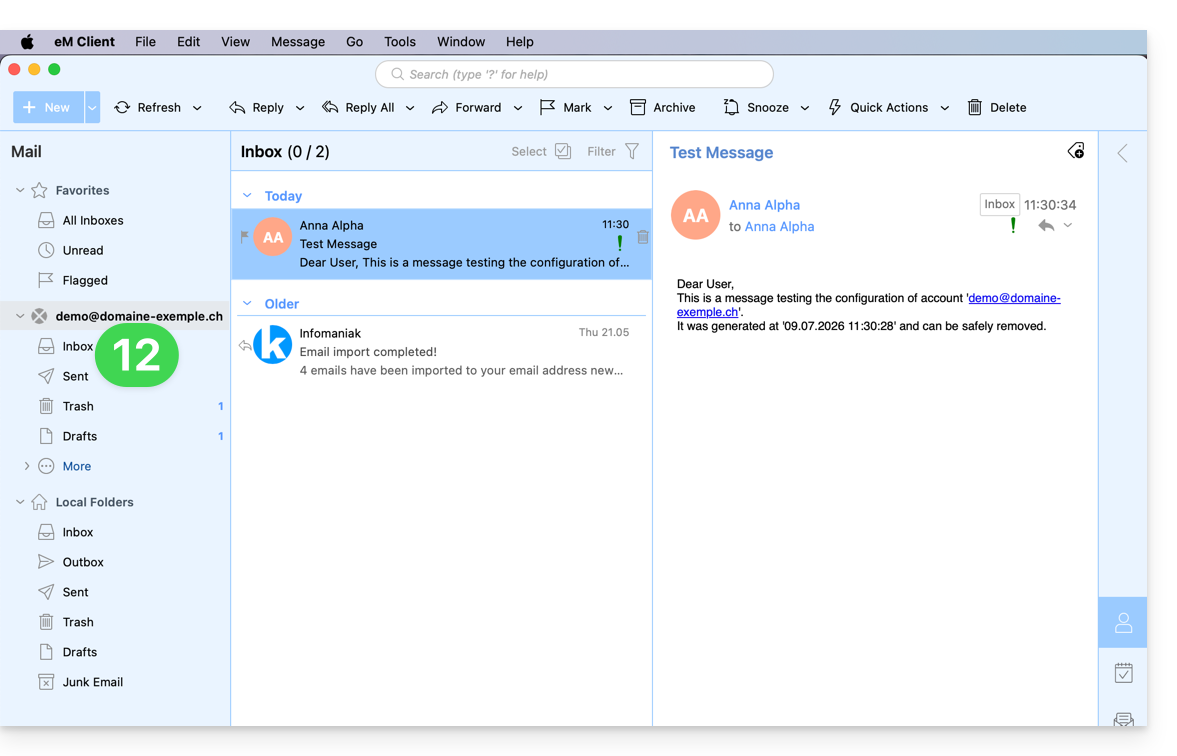
- Your email address is now configured in the application:
Recommended settings
- Incoming IMAP server =
mail.infomaniak.com - IMAP port =
993(with SSL) - Outgoing SMTP server =
mail.infomaniak.com - SMTP port & encryption protocol and command/method to activate this protocol:
587+ STARTTLS - Username = the complete email address (❓: help)
- Password = the password generated for the email address you want to access (❓: help my kSuite | Mail Service/kSuite).
- Mandatory authentication for sending emails:
- Enable this in the SMTP settings of your application.
- Check "use the same settings as the incoming server" or, depending on the software/email client, enter a username (i.e., the complete email address) and the generated password.
Refer to this other guide if you are looking for information about other compatible email ports and protocols (SSL / TLS, for example).
In case of a problem
Check that the Mail service is configured optimally (❓: help).
You do not need to contact Infomaniak Support if your email address works correctly outside the application. The most common error is using an incorrect password. Please refer to the solutions provided in this other guide regarding email in general.
Link to this FAQ: https://faq.infomaniak.com/2429
Has this FAQ been helpful?
This guide explains how to connect the desktop app Thunderbird (desktop application on macOS / Windows / Linux) to an email address hosted by Infomaniak.
Add the email address to the application
Prerequisites
- Create the email address (❓: help my kSuite | Mail Service/kSuite).
- Create a device password (❓: help my kSuite | Mail/kSuite Service).
- Verify that the domain is configured correctly (❓: help).
To configure the email application:
- Download the latest desktop version of Thunderbird (❓: help).
- Open the application.
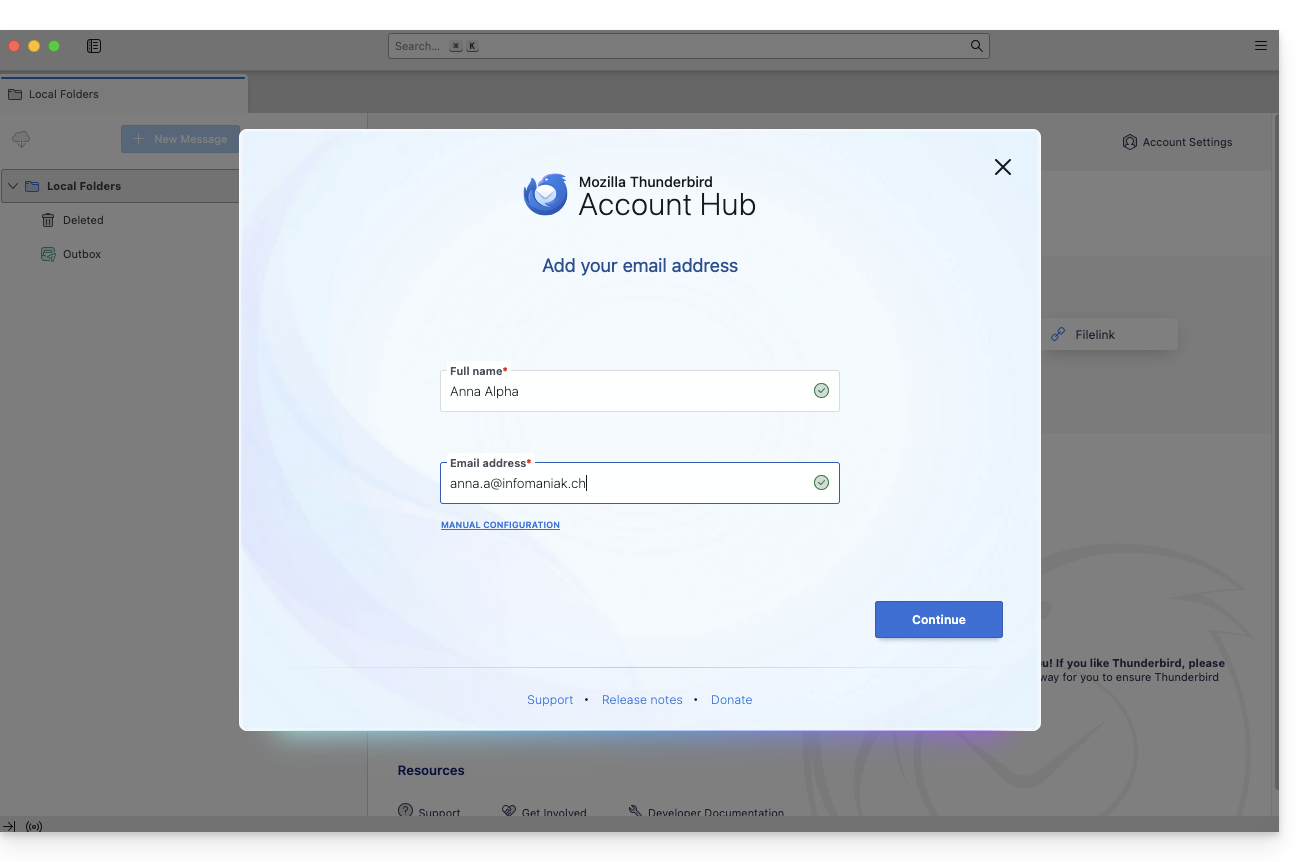
- Enter your account information and click Continue:
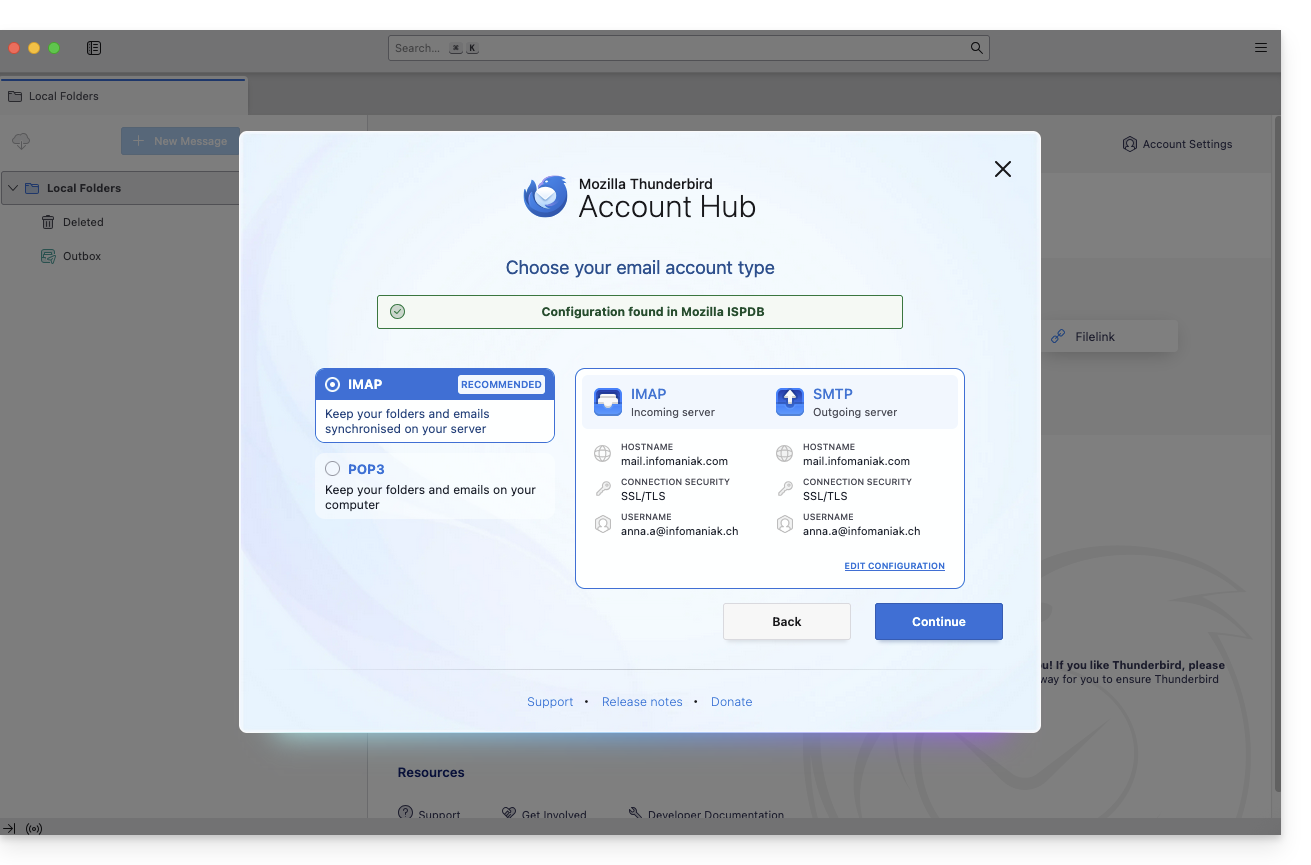
- Keep IMAP selected and click Continue:
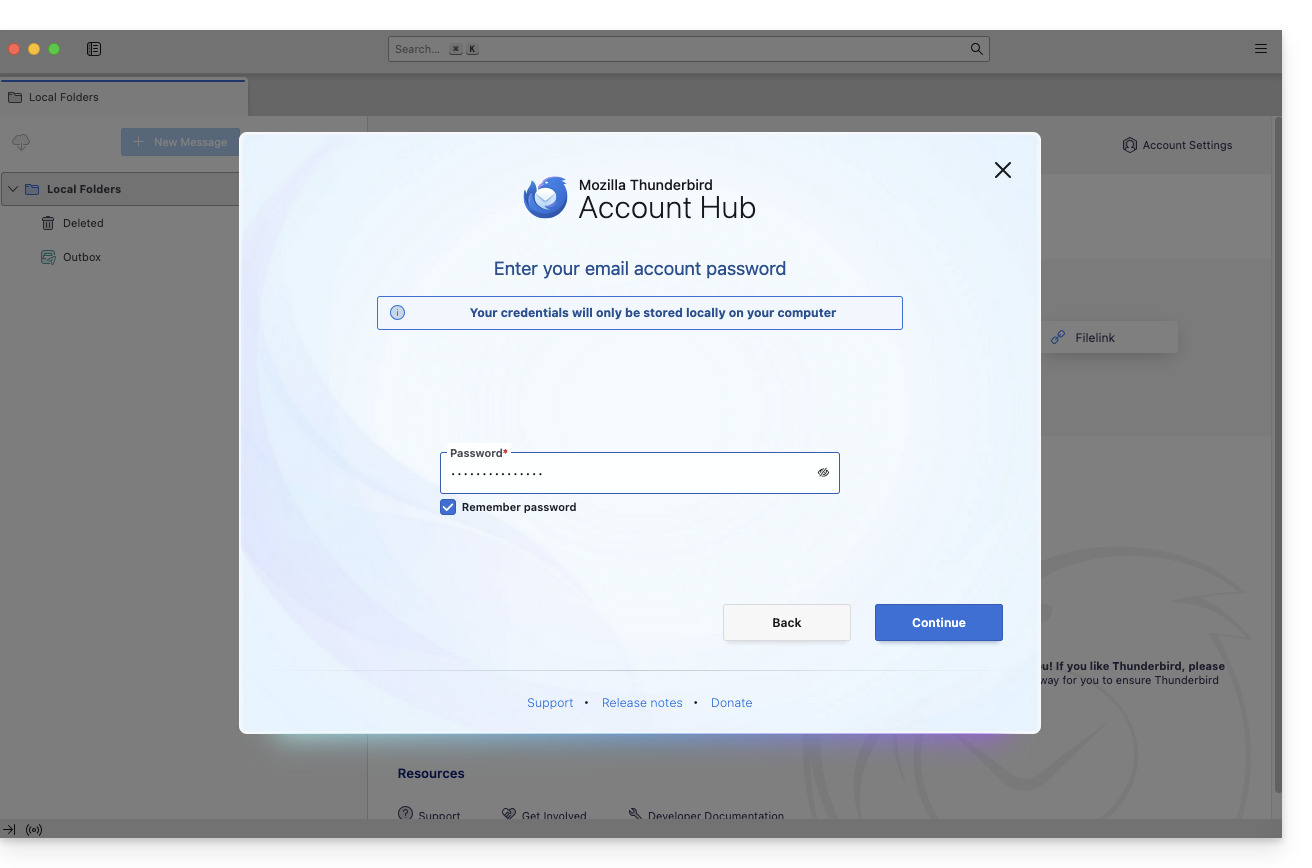
- Enter your password and click Continue:
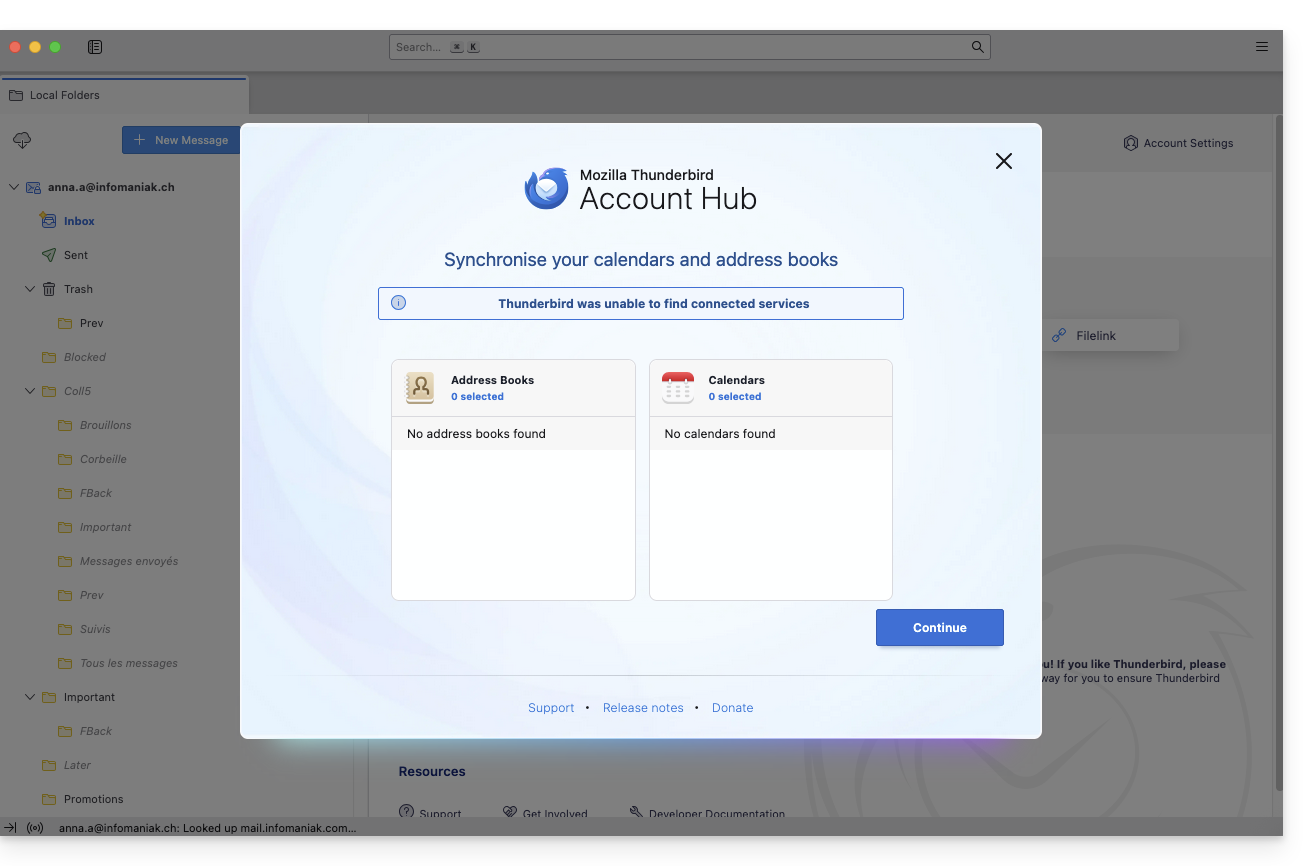
- Click on Continue:
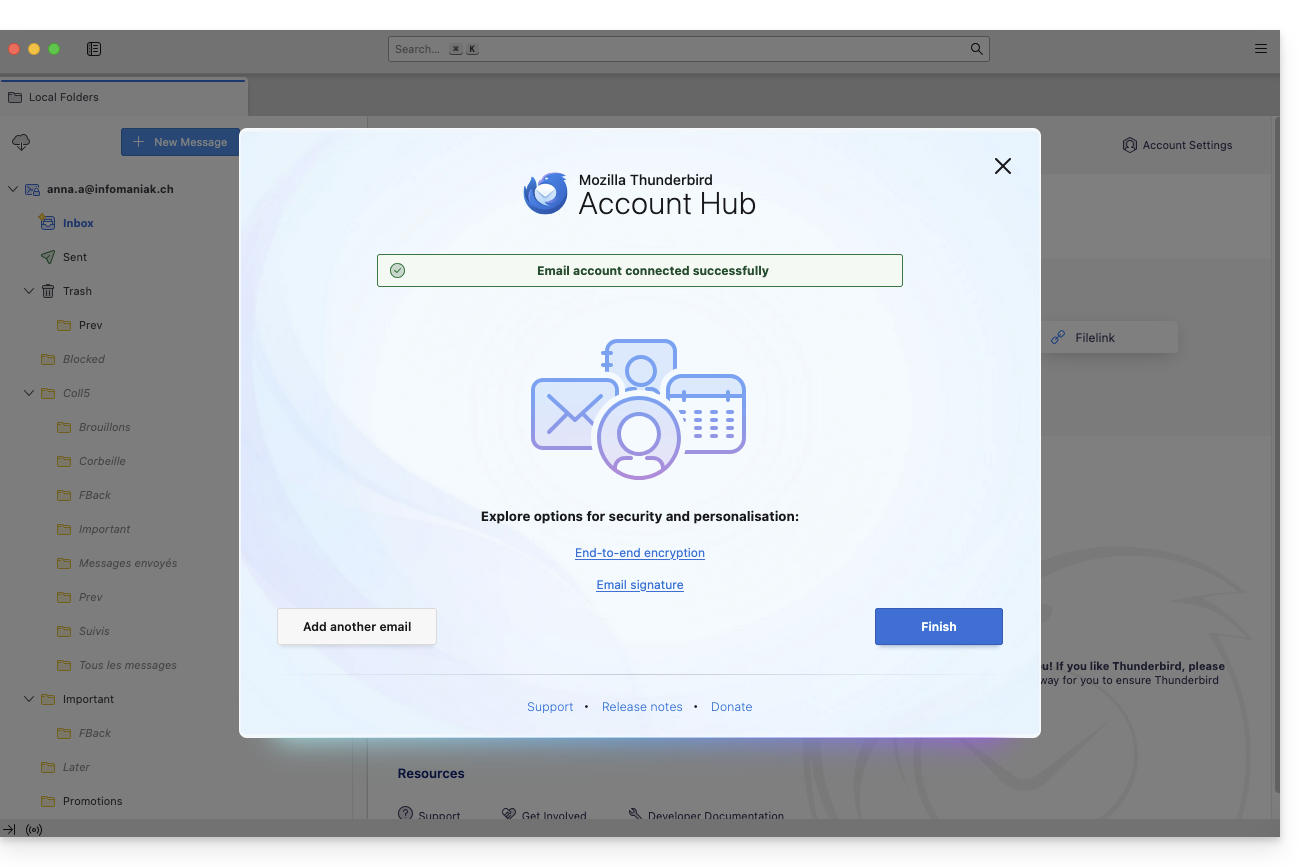
- Your registration summary is displayed. Click on Finish to add the address (or configure other services from there):
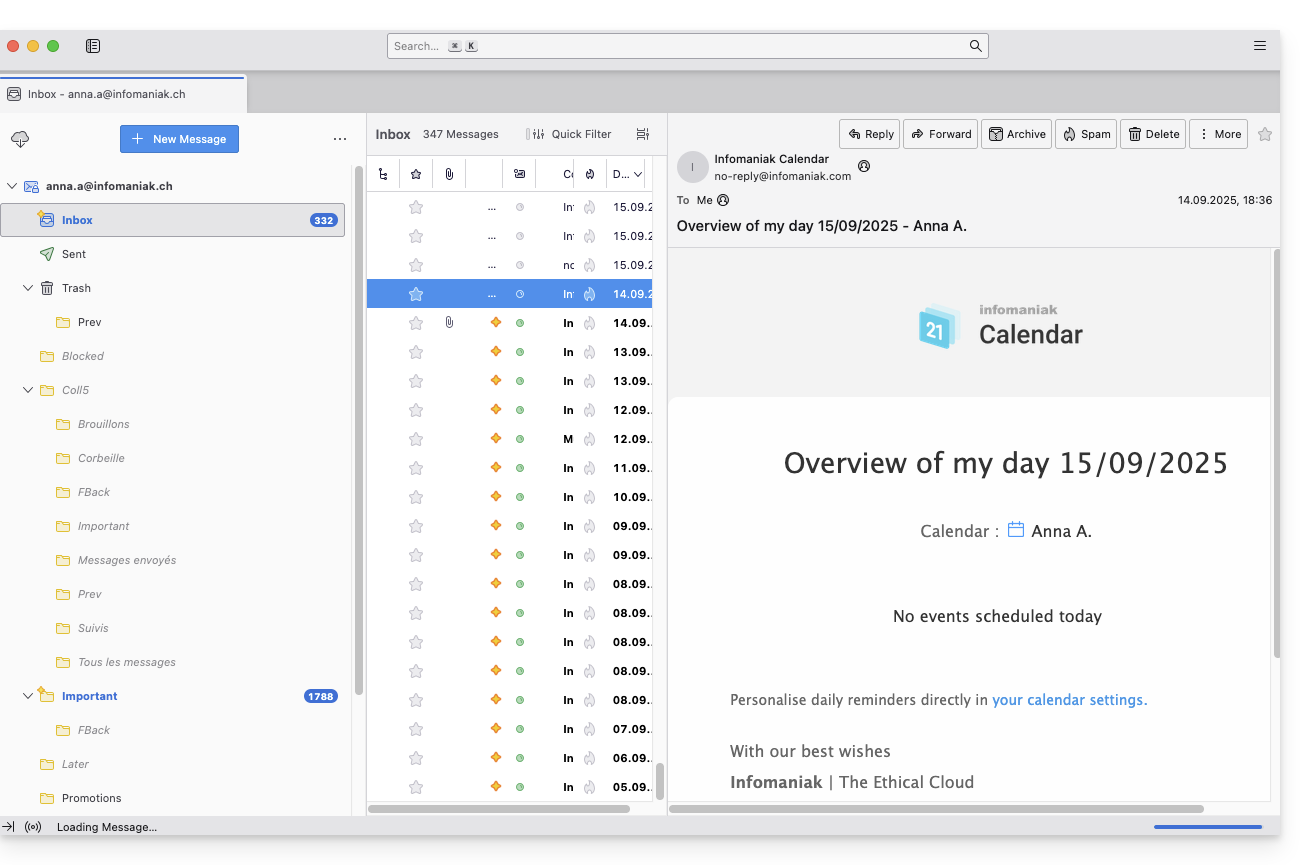
- Your email address is now configured in the application:
Recommended settings
- Incoming IMAP server =
mail.infomaniak.com - IMAP port =
993(with SSL) - Outgoing SMTP server =
mail.infomaniak.com - SMTP port & encryption protocol and command/method to activate this protocol:
587+ STARTTLS - Username = the complete email address (❓: help)
- Password = the password generated for the email address you want to access (❓: help my kSuite | Mail Service/kSuite).
- Mandatory authentication for sending emails:
- Enable this in the SMTP settings of your application.
- Check "use the same settings as the incoming server" or, depending on the software/email client, enter a username (i.e., the complete email address) and the generated password.
Refer to this other guide if you are looking for information about other compatible email ports and protocols (SSL / TLS, for example).
In case of a problem
Check that the Mail service is configured optimally (❓: help).
You do not need to contact Infomaniak Support if your email address works correctly outside the application. The most common error involves using an incorrect password. The troubleshooting guides will help you resolve any potential issues:
- Refer to the solutions provided in this other guide regarding email in general.
- This other guide is specifically about Thunderbird.
… and if Thunderbird is no longer working after a change of your email password, please refer to this other guide.
Link to this FAQ: https://faq.infomaniak.com/2430
Has this FAQ been helpful?
This guide explains how to connect the native Android messaging app to an email address hosted by Infomaniak.
Introduction
- Instead of the manual configuration below, it is recommended to use the Infomaniak Mail app (iOS / Android) to benefit from Infomaniak's security features.
Manually add the email address to the application
Prerequisites
- Create the email address (❓: help my kSuite | Mail Service/kSuite).
- Create a device password (❓: help my kSuite | Mail/kSuite Service).
- Verify that the domain is configured correctly (❓: help).
To configure the email application:
- Open the native email application on your device.
- Click on Add account.
- Select Other as the address type.
- Enter your email address.
- Select the Personal IMAP type.
- Check and complete any missing information (❓: help).
- Complete the process.
- There you go, your email address is now configured in your device's application.
Recommended settings
- Incoming IMAP server =
mail.infomaniak.com - IMAP port =
993(with SSL) - Outgoing SMTP server =
mail.infomaniak.com - SMTP port & encryption protocol and command/method to activate this protocol:
587+ STARTTLS - Username = the complete email address (❓: help)
- Password = the password generated for the email address you want to access (❓: my kSuite | Mail Service/kSuite).
- Mandatory authentication for sending emails:
- Enable this in the SMTP settings of your application.
- Check "use the same settings as the incoming server" or, depending on the software/email client, re-enter a username (= complete email address) and the generated password.
Refer to this other guide if you are looking for information about other compatible email ports and protocols (SSL / TLS for example).
In case of a problem
Check that the Mail service is configured optimally (❓: help).
You do not need to contact Infomaniak Support if your email address works correctly outside the application. The most common error involves using an incorrect password. The troubleshooting guides will help you resolve any potential issues:
- Refer to the solutions provided in this other guide regarding email in general.
- … and if your application no longer works for sending emails (e.g., SMTP server disconnected or unavailable) or after a change of email password, please refer to this other guide.
Link to this FAQ: https://faq.infomaniak.com/2433
Has this FAQ been helpful?
This guide explains how to connect the desktop app New Outlook (desktop application for Windows, replacing Windows Mail) to an email address hosted by Infomaniak.
Introduction
- Although the emails themselves remain stored on the Infomaniak server, the experience in New Outlook is highly integrated with the Microsoft cloud:
- Some of your account information may be used by Microsoft for centralized management and a better synchronization experience.
- If you want to have full and local control over your emails, consider using third-party email software/clients (such as Thunderbird, for example) that allow for more direct storage (❓: help).
Add the email address to the application
Prerequisites
- Create the email address (❓: help my kSuite | Mail Service/kSuite).
- Create a device password (❓: help my kSuite | Mail/kSuite Service).
- Verify that the domain is configured correctly (❓: help).
The password created for the email address must meet the criteria detailed at the bottom of this guide.
To configure the email application:
- Open the application.
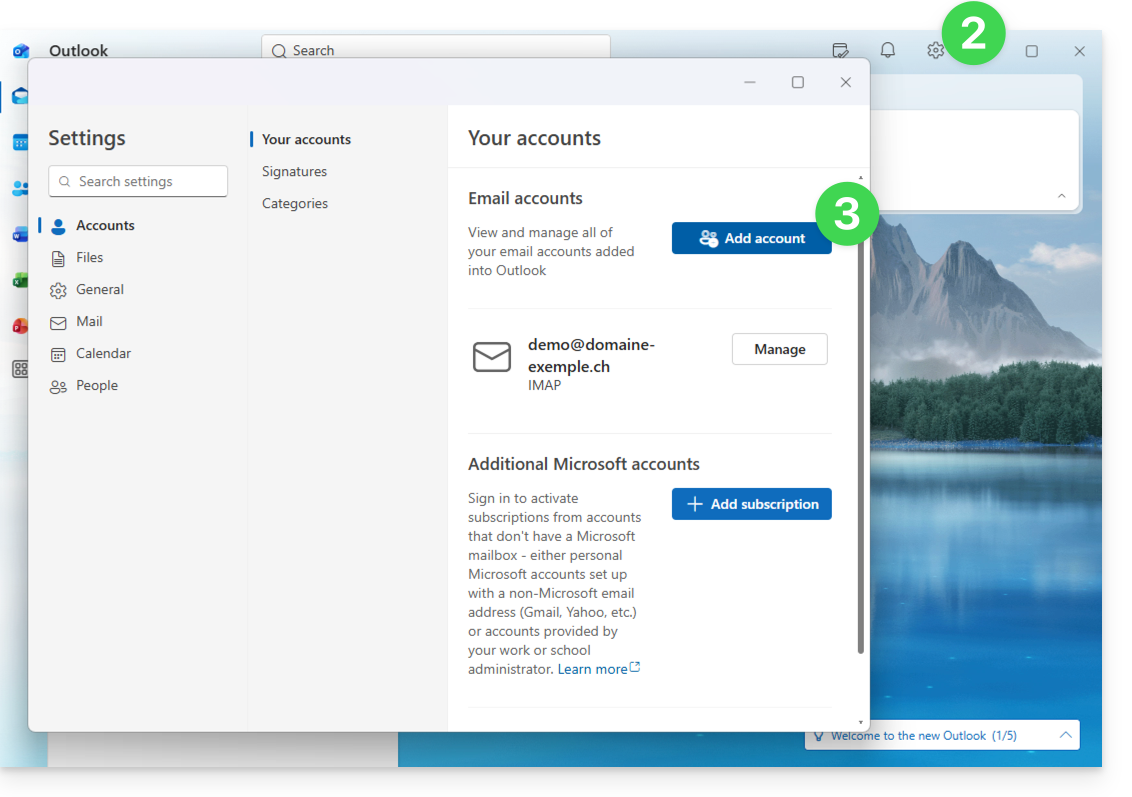
- If necessary, click on the gear icon in the top right corner (otherwise, skip to step 4).
- Click on Add an account:
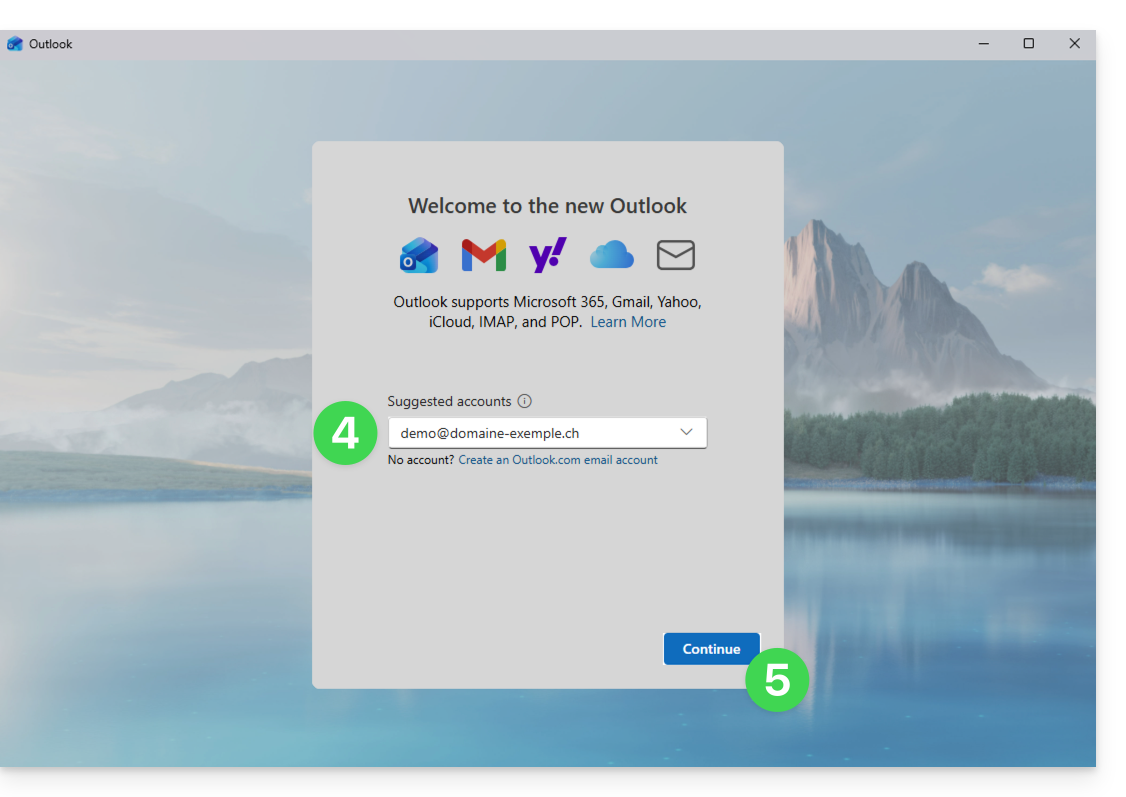
- Enter the email address to associate.
- Click on Continue:
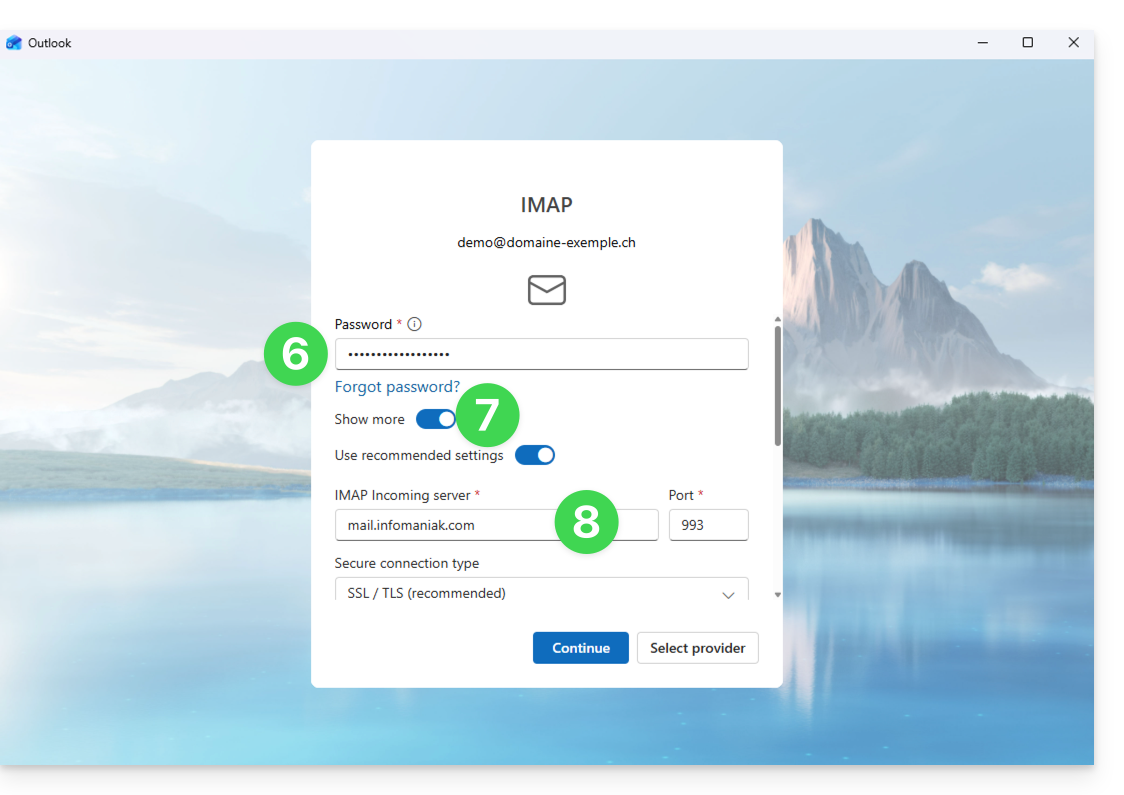
- Enter the password for the email address (❓: help).
- Click on the View more button.
- Check and complete any missing information (❓: help):
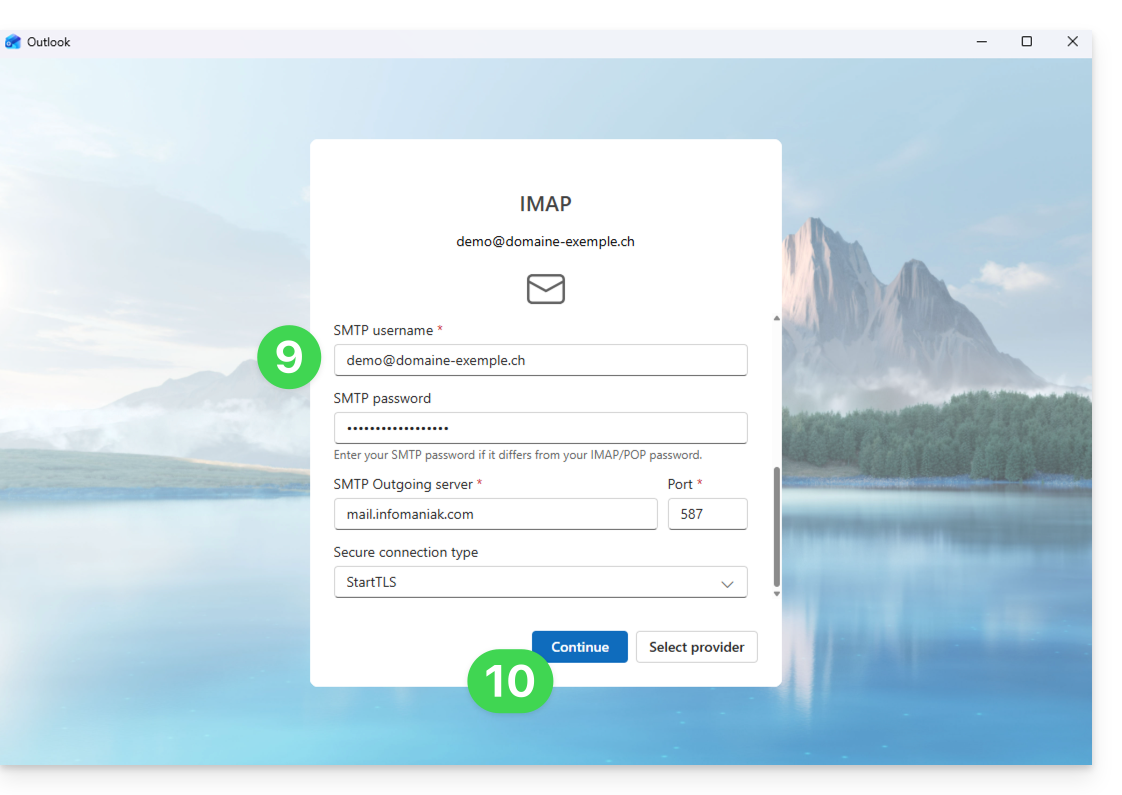
- Scroll down to the bottom of the page, then check and complete any missing information (❓: help).
- Click Continue:
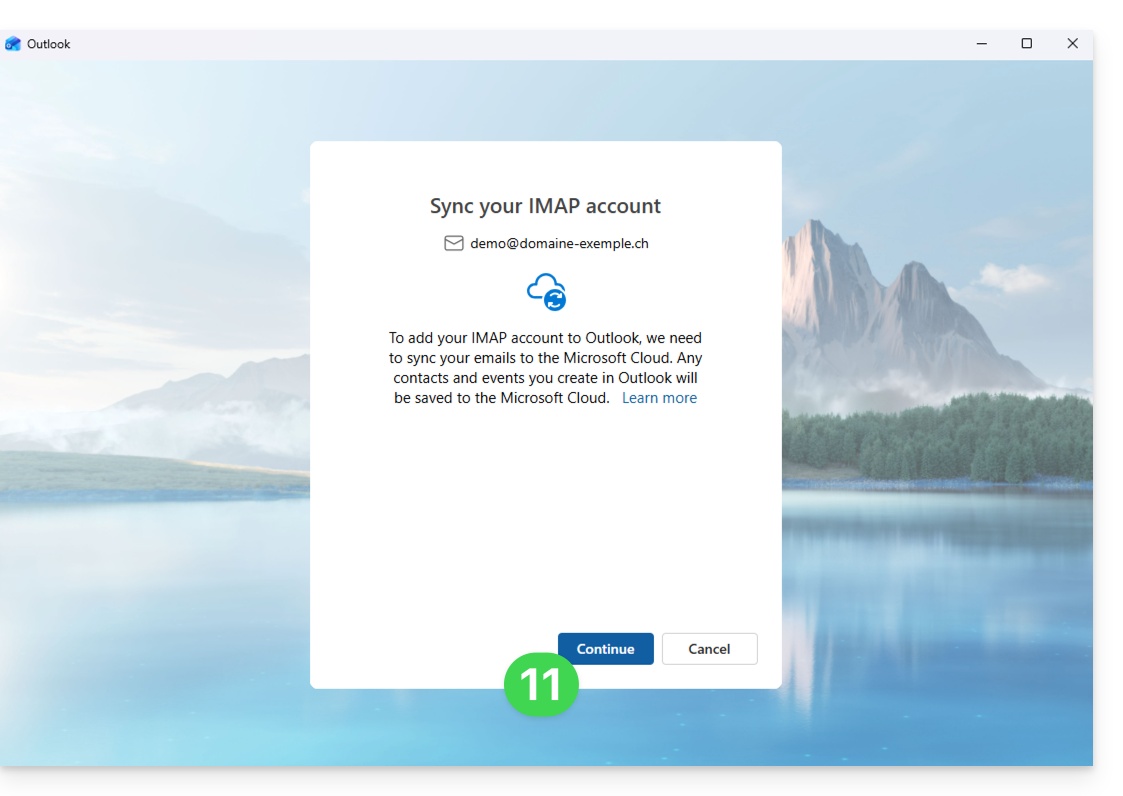
- Read and go through the various Microsoft information windows:
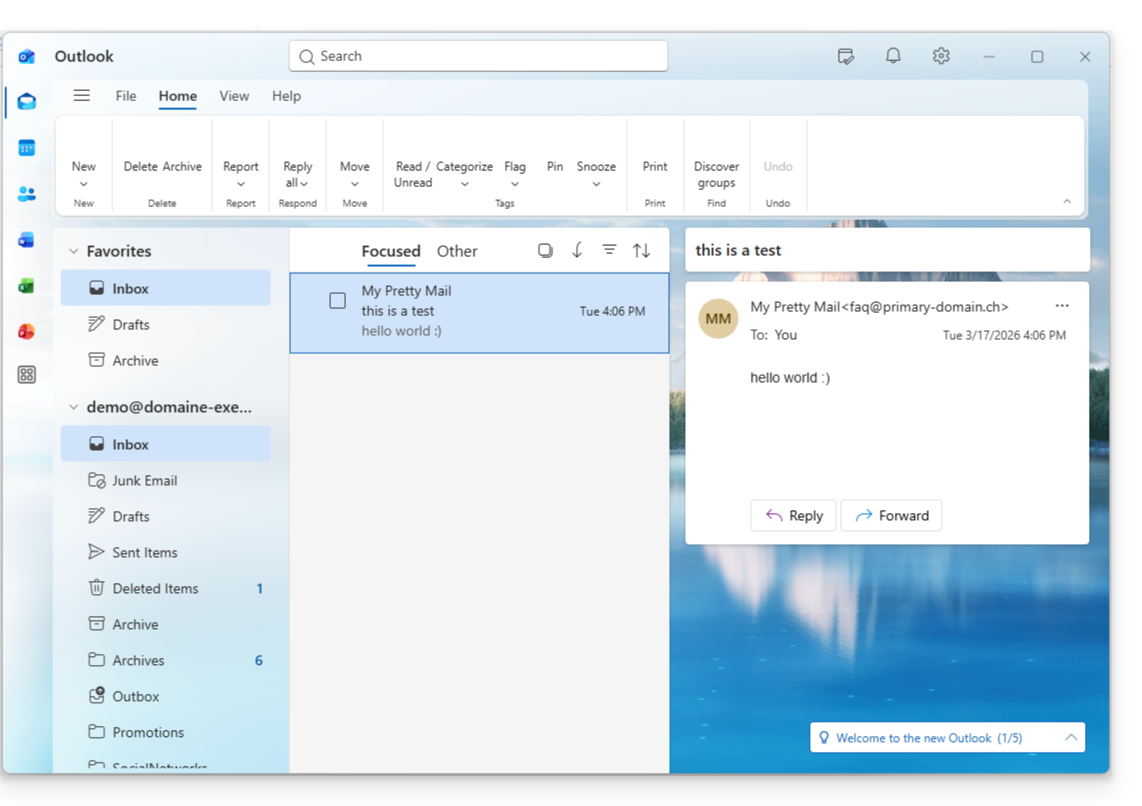
- That's it, your email address is now configured in the application:
Recommended settings
- Incoming IMAP server =
mail.infomaniak.com - IMAP port =
993(with SSL) - Outgoing SMTP server =
mail.infomaniak.com - SMTP port & encryption protocol and command/method to activate this protocol:
587+ STARTTLS - Username = the complete email address & (❓: help)
- Password = the password generated for the email address you want to access (see prerequisites).
- Authentication required for sending emails:
- Enable this in the SMTP settings of your application.
- Check "use the same settings as the incoming server" or, depending on the software/email client, enter a username (= the complete email address) and the generated password.
Refer to this other guide if you are looking for information about other email ports and protocols that are supported (SSL/TLS, for example).
In case of a problem
A solution that seems to work is the combination of these 2 situations:
- Being logged in to your Windows session with a Microsoft account (not just a local account).
- Added the email address used to log in to Windows to this version of Outlook.
Also, create a new password (❓: help) by letting it be generated randomly, but also ensuring that it meets the criteria imposed by Microsoft:
| Allowed characters |
|
| Forbidden characters |
|
| Password length | 16 characters MAXIMUM |
Make sure the Mail service is configured optimally (❓: help).
The troubleshooting guides will help you resolve any potential issues:
- Consult the solutions provided in this other guide regarding email in general.
- This other guide focuses specifically on Outlook.
… and if your Outlook is no longer working after a change of email password, please refer to this other guide.
Link to this FAQ: https://faq.infomaniak.com/2434
Has this FAQ been helpful?
This guide explains how to connect the Apple Mail desktop app on macOS (MacBook Pro, Neo, etc.) to an email address hosted by Infomaniak.
Introduction
- Instead of the manual configuration below, it is recommended to use the .mobileconfig configuration profiles provided by Apple (❓: help).
Manually add the email address to the application
Prerequisites
- Create the email address (❓: help my kSuite | Mail Service/kSuite).
- Create a device password (❓: help my kSuite | Mail/kSuite Service).
- Verify that the domain is configured correctly (❓: help).
To configure the email application:
- Open the application.
- If you have already configured an address, click on the Mail menu and then Add account:
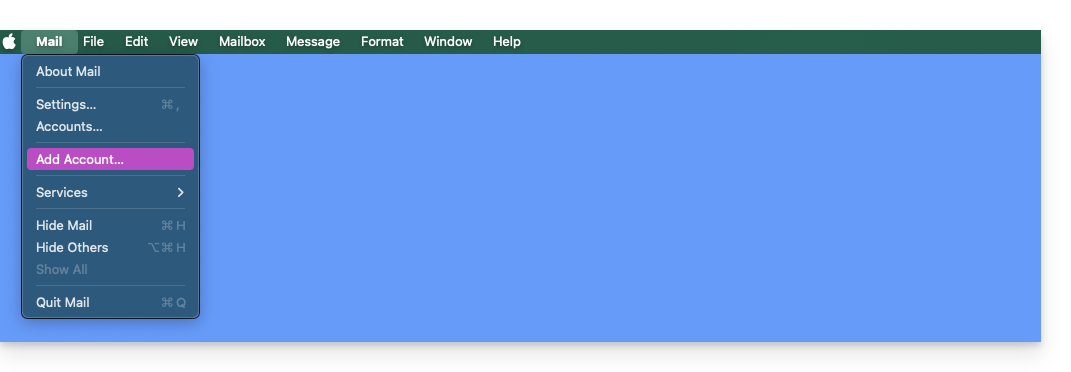
- If you have already configured an address, click on the Mail menu and then Add account:
- Click on Other account.
- Click on Continue:
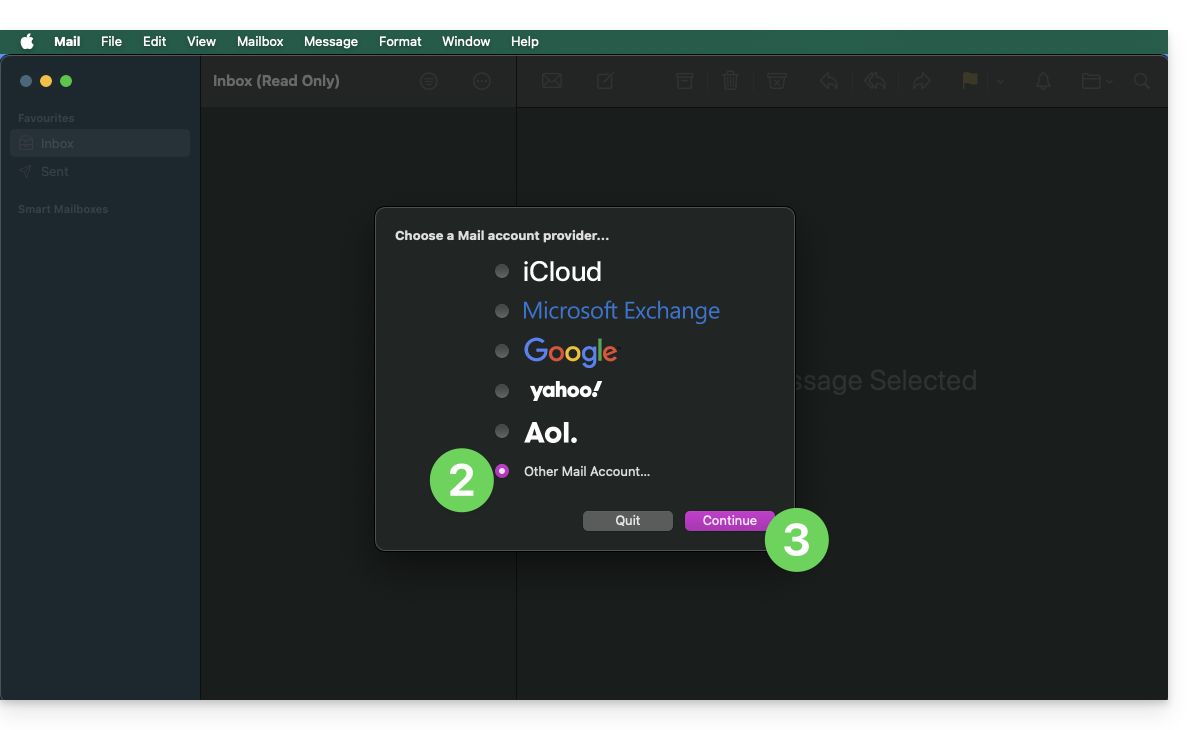
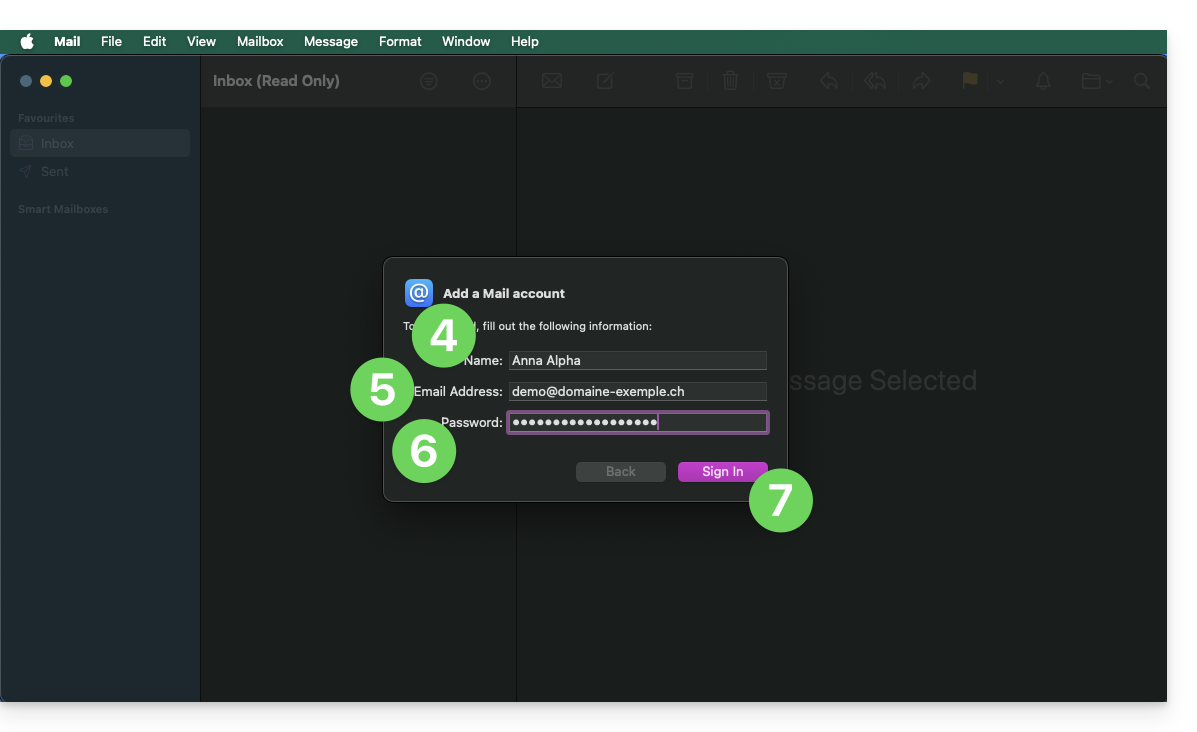
- Enter the account name.
- Enter the email address to associate.
- Paste the email account password generated in the Infomaniak Manager (❓: help).
- Click the blue Connect button:
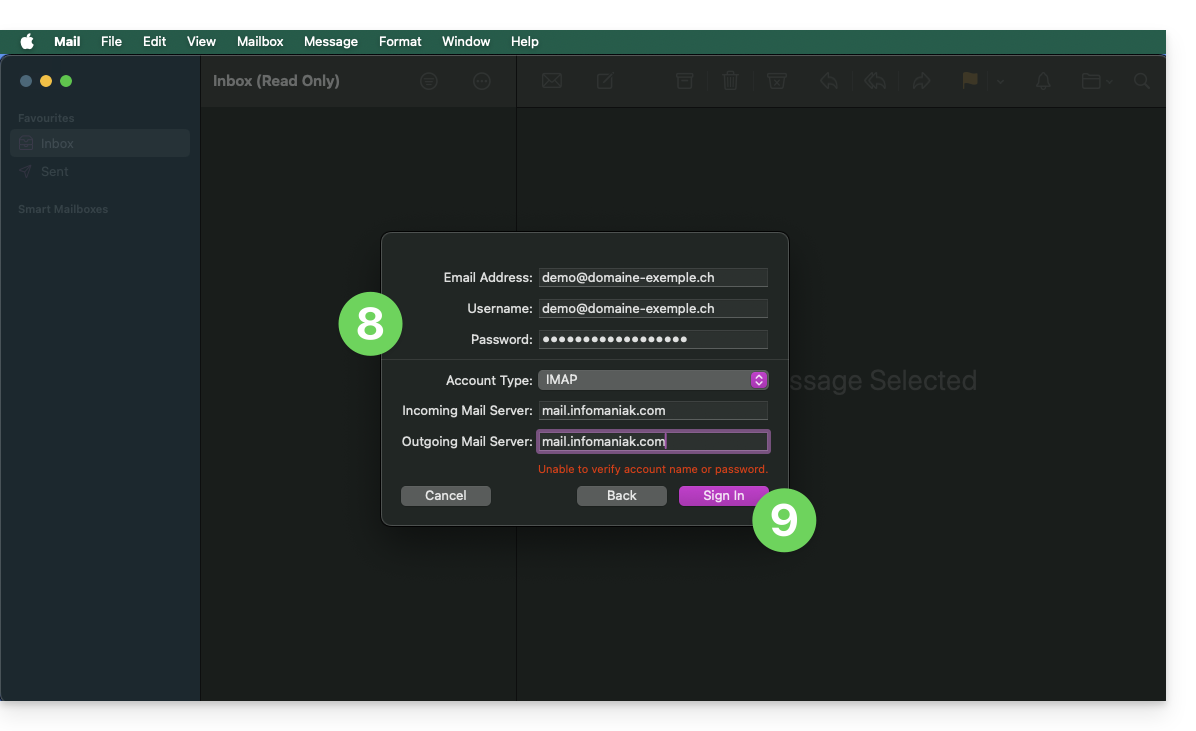
- Check and complete any missing information (❓: help).
- Click on Log in:
- Tap the button to confirm:
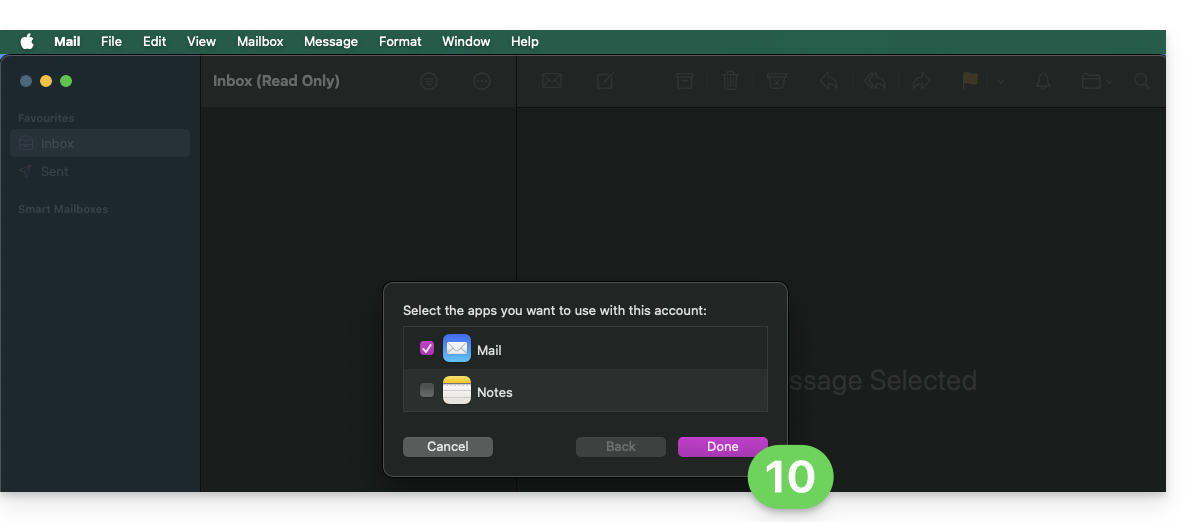
- Done, your email address is now configured in the application:
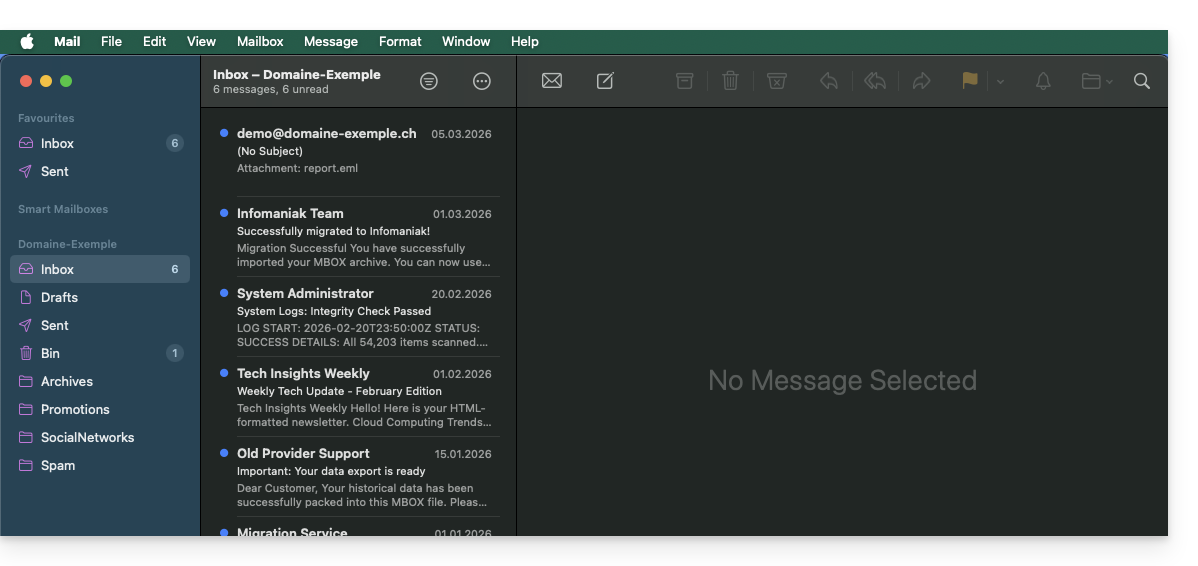
Recommended settings
- Incoming IMAP server =
mail.infomaniak.com - IMAP port =
993(with SSL) - Outgoing SMTP server =
mail.infomaniak.com - SMTP port & encryption protocol and command/method to activate this protocol:
587+ STARTTLS - Username = the complete email address & (❓: help)
- Password: the password generated for the email address you want to access (❓: help my kSuite | Mail/kSuite Service).
- Authentication required for sending emails:
- Enable this in the SMTP settings of your application.
- Check "use the same settings as the incoming server" or, depending on the software/email client, enter a username (the complete email address) and the generated password.
Refer to this other guide if you are looking for information about other email ports and protocols that are supported (SSL/TLS, for example).
In case of a problem
You do not need to contact Infomaniak Support if your email address works correctly outside the application. The most common error is using an incorrect password. The tool provided within Apple Mail can help you identify this: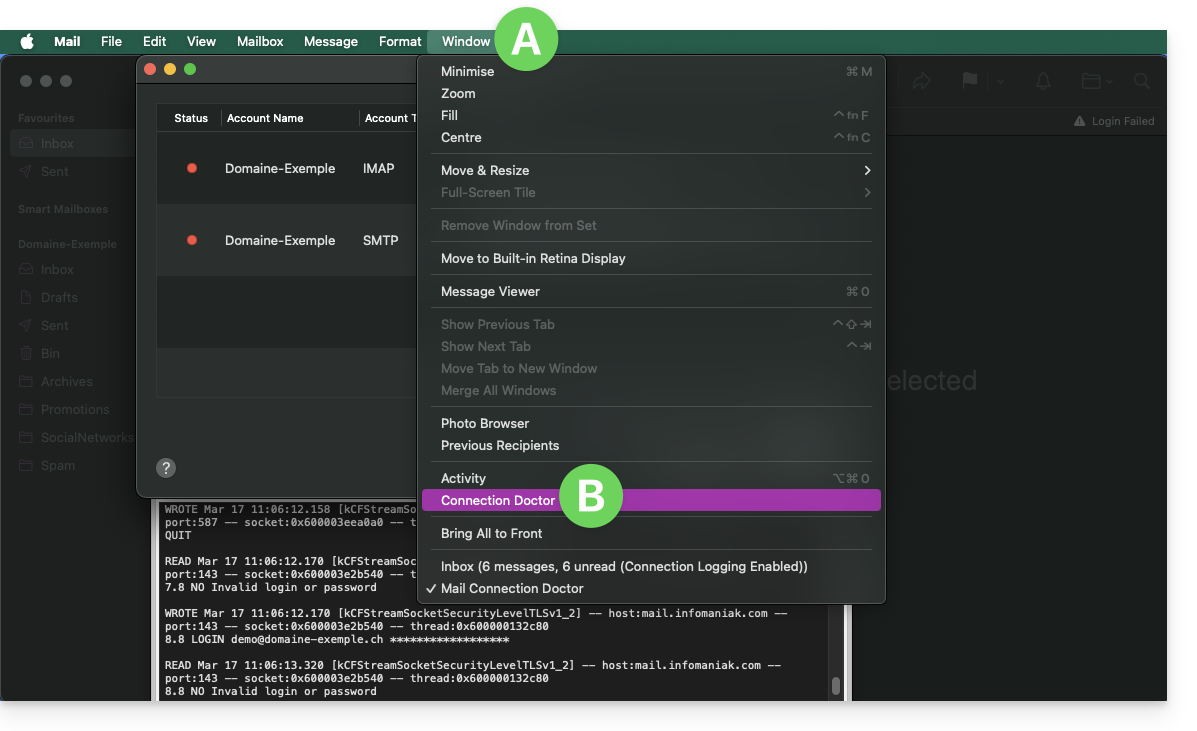
Create a new password from the Mail Service (❓: help) and restart the configuration of your account in the email application.
The troubleshooting guides will help you resolve any potential issues:
- Consult the solutions provided in this other guide regarding email in general.
- Delete any existing Apple configuration profiles (❓: help) related to your Infomaniak email before restarting the configuration.
And if your Apple Mail is no longer working after a change of email password, please refer to this other guide.
Link to this FAQ: https://faq.infomaniak.com/2442
Has this FAQ been helpful?
This guide explains how to configure and customize the overall display of the Infomaniak Mail web app (online service ksuite.infomaniak.com/mail) using various options.
Introduction
- The general settings affect all email addresses currently associated with your account in the Mail app.
- They are specific to your user and do not affect other users (even within the same Organization, for example).
- The same email address accessed via the Mail app by another user will have its own settings, independently of yours.
Accessing the general settings
To do this:
- Click here to access the Infomaniak Mail web app (online service ksuite.infomaniak.com/mail).
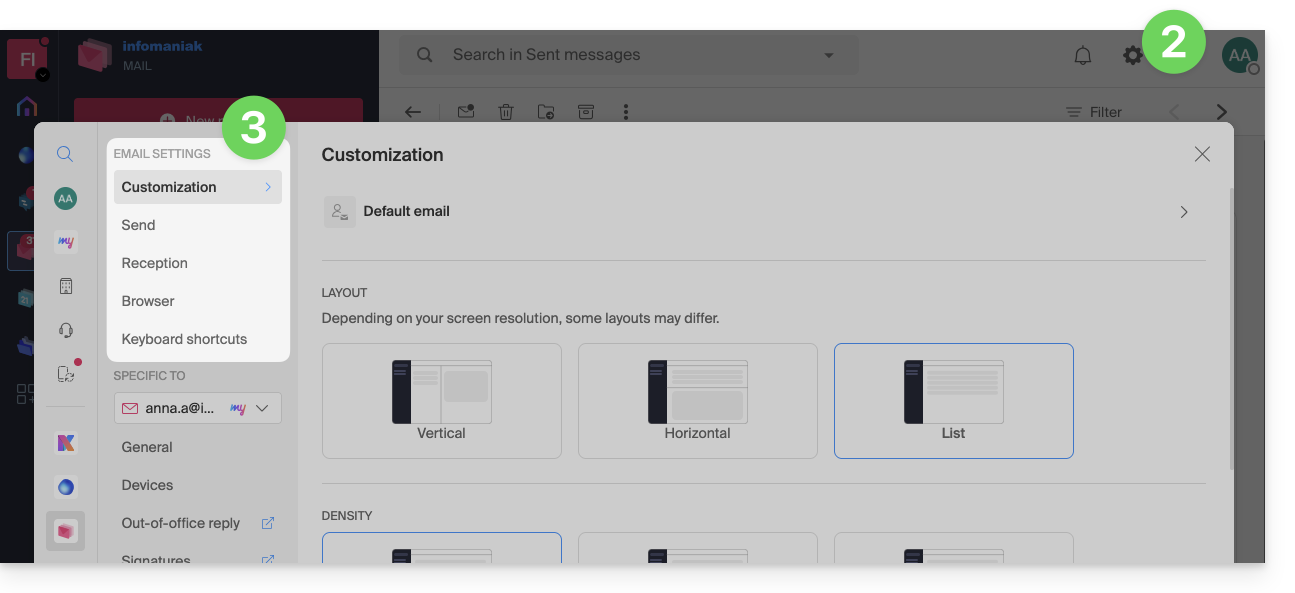
- Click on the Settings icon in the top right corner of the interface.
- Navigate through the various generic menus on the left:
To manage the light / dark theme of the interface: refer to this other guide on the subject.
Customization: Default email address
This section allows you to choose which email address, among all your associated addresses, should be considered the primary address and open by default when accessing the Infomaniak Mail web app (online service ksuite.infomaniak.com/mail):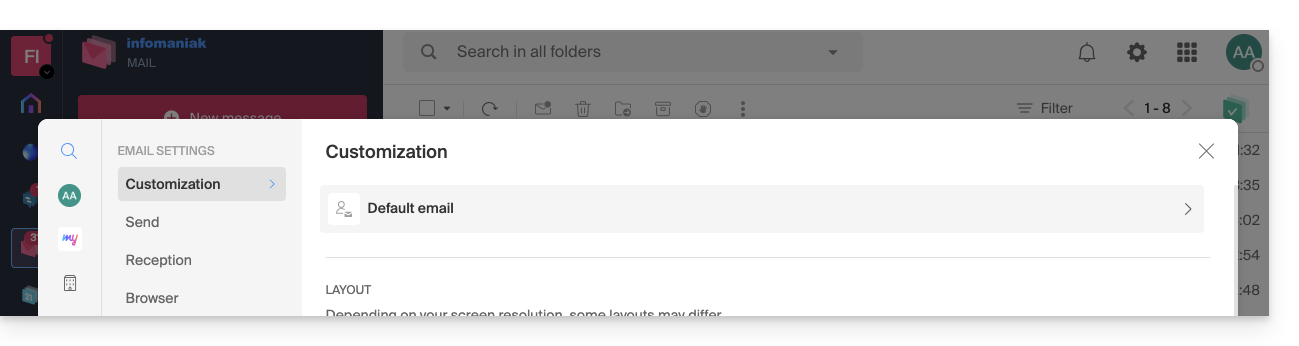
Customization: Change the display density of your inbox
You can change the layout of your inbox, so that it is divided into several parts displaying your emails, or simply in a list version. The density setting allows you to group or space out your emails: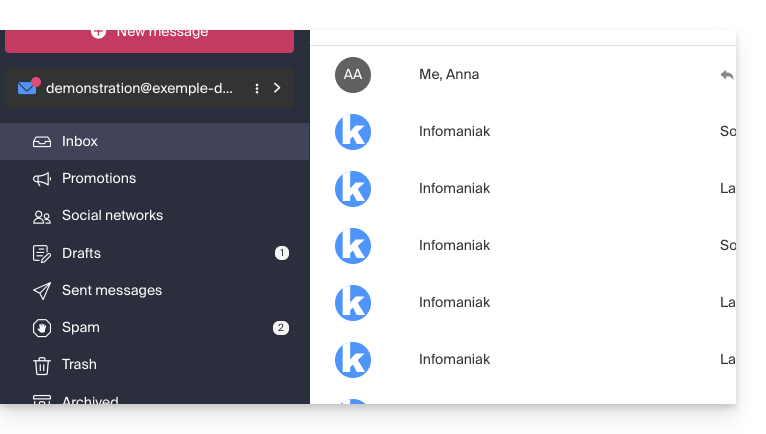
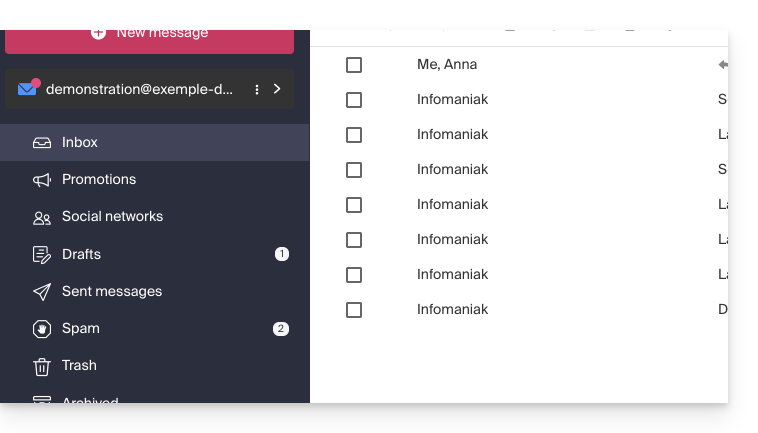
Customization: Manage the buttons displayed on an email page
This section allows you to choose the icons that will be displayed on the email reading window, allowing you to take quick action instead of navigating through a drop-down menu: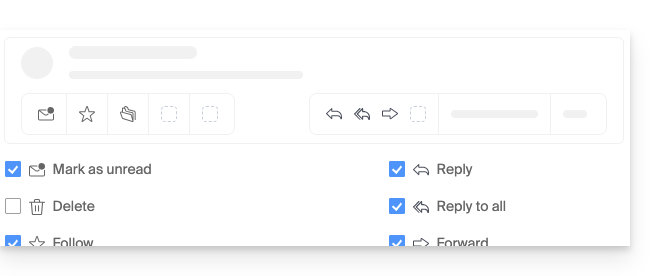
- Mark as unread
- Delete
- Follow
- Translate
- Remind me later
- Schedule an event
- Report as spam
- Upload to kDrive
- Archive
- Reply
- Reply to all
- Forward
- Reply on kChat
Customization: manage the buttons displayed on hover over an email list
This section allows you to choose the icons that will be displayed when you hover over an email in a list (e-mails from the inbox, for example):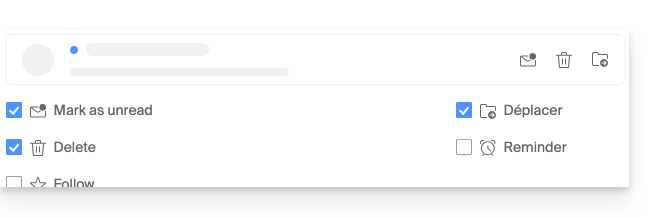
- Mark as unread
- Delete
- Follow
- Move
- Remind me later
Customization: Manage the buttons displayed when text is selected
This section allows you to choose the actions to display when text is selected:
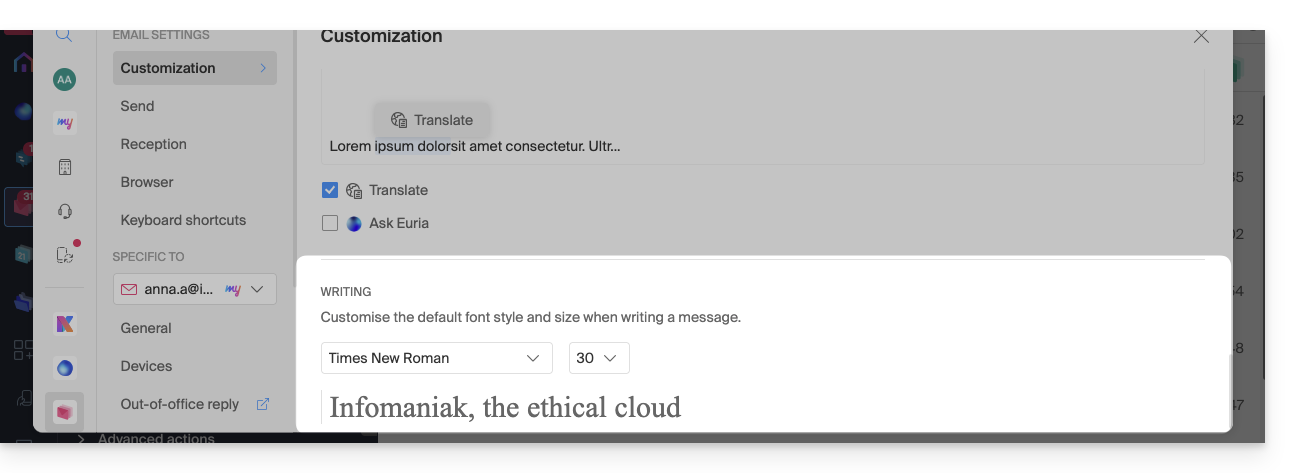
Customization: Define the default font for all your new messages
- Choose the desired font and text size for all new messages you create:
Sending: cancellation deadline for sending
Sending: forward emails in the message body or as an attachment
Sending: include the original message when replying
Sending: always write in a full-screen window
Activate the toggle switch to the right of the “Write emails in full screen” item to always write in a large window instead of the usual lower right-hand panel.
Sending: request a read receipt
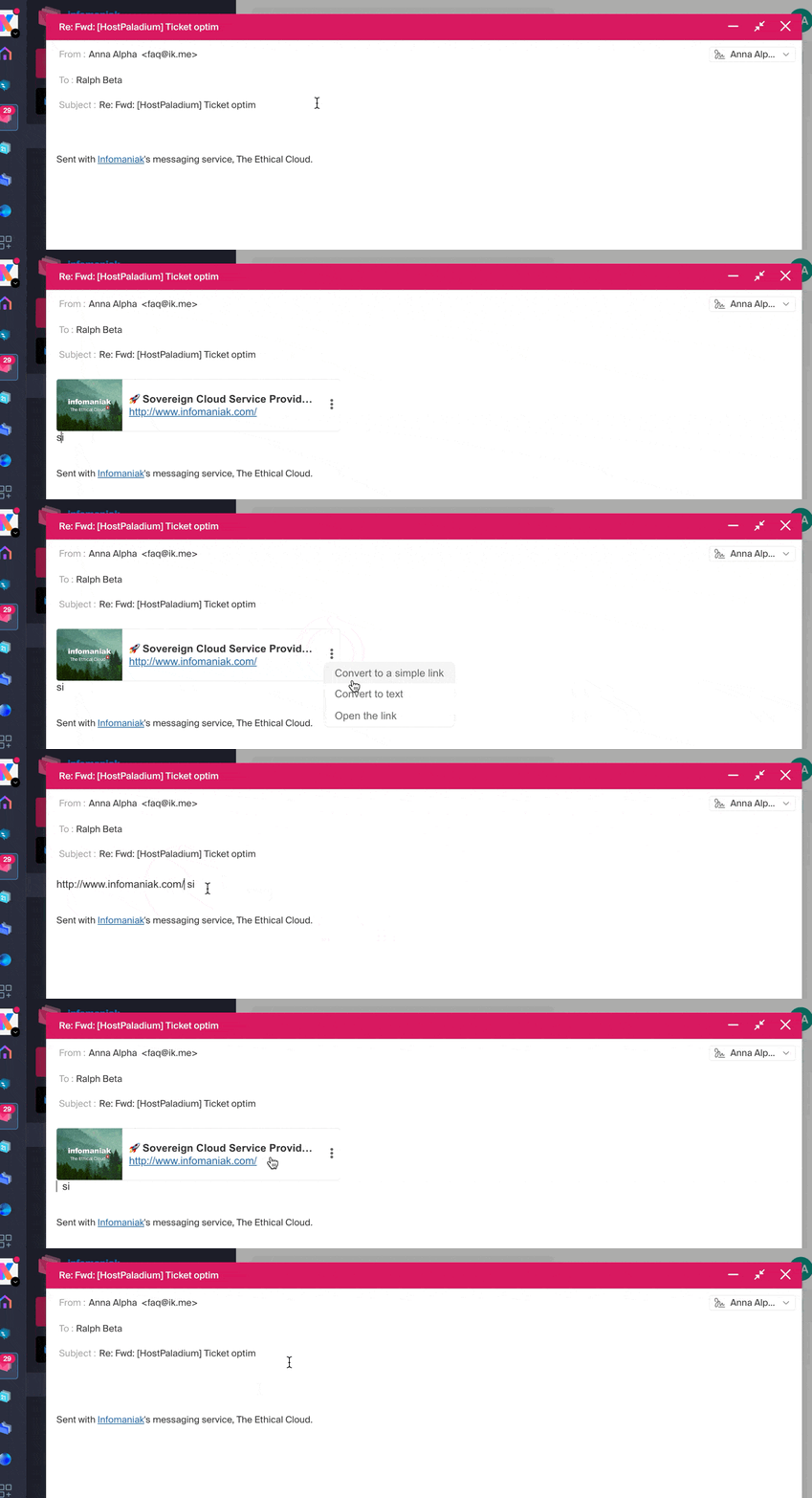
Sending: include a preview of website links
To enable or disable link previews (a feature that automatically generates a visual box (with title, description, and image) when you insert a URL into an email), activate the toggle switch to the right of the “Include website link previews” item.
Once enabled, here is the result when composing content with a URL:
Inbox: Message display mode
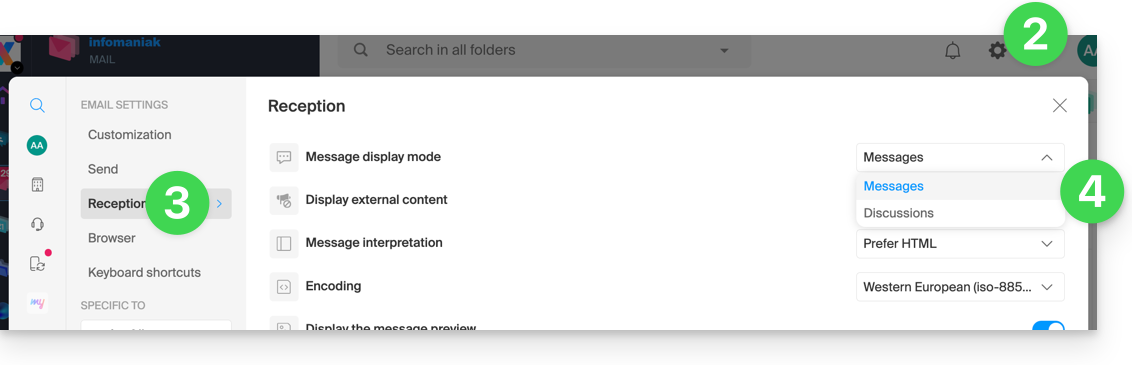
This mode allows you to group your emails by subject/sender, i.e., group received emails based on the topic of the discussion. This makes the inbox display cleaner and makes it easier to follow messages from the different participants in the conversation:
- Click here to access the Infomaniak Mail web app (online service ksuite.infomaniak.com/mail).
- Click on the Settings icon in the top right corner of the interface.
- Click on Inbox in the left-hand menu.
- Choose a Message display mode:
When Conversation mode is not enabled, you read your emails one by one:
When it is enabled, you read the different messages in the same window, chronologically, one after the other:
In your inbox, you can directly see the number of emails contained in a single conversation:
Incoming: Display external content
This section allows you to choose whether to automatically display all external content within an incoming email that you are reading, or whether you prefer to hide it and only display it on demand: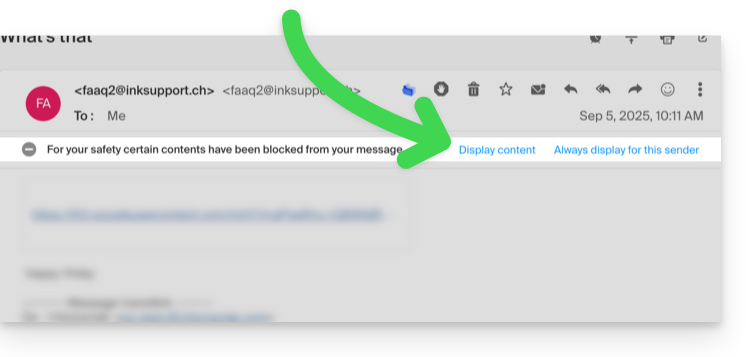
Reception: Interpreting messages
This section allows you to define the display priority for a received message: either in its simplified plain text version or in its enhanced HTML version (this setting only takes effect when both formats are present in the email; if only one version is available, it will be displayed by default).
Incoming: Encoding
This section allows you to modify the encoding of received messages (it is recommended to leave Unicode (utf-8) selected).
Inbox: Display message previews
This section allows you to show or hide the first few words of the email in all message lists (e.g., the inbox). For example, with the preview enabled, the beginning of the message is visible on the same line next to its subject: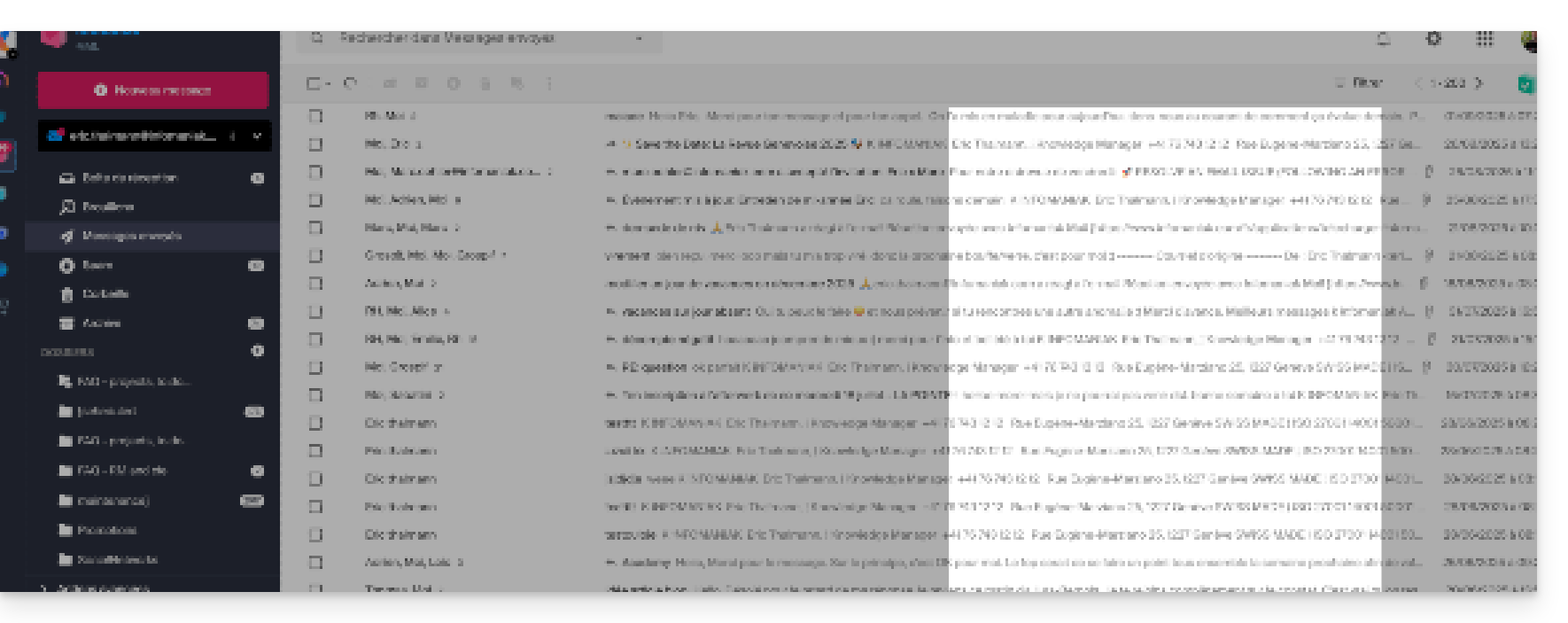
If the preview is hidden, only the subject of each email is displayed: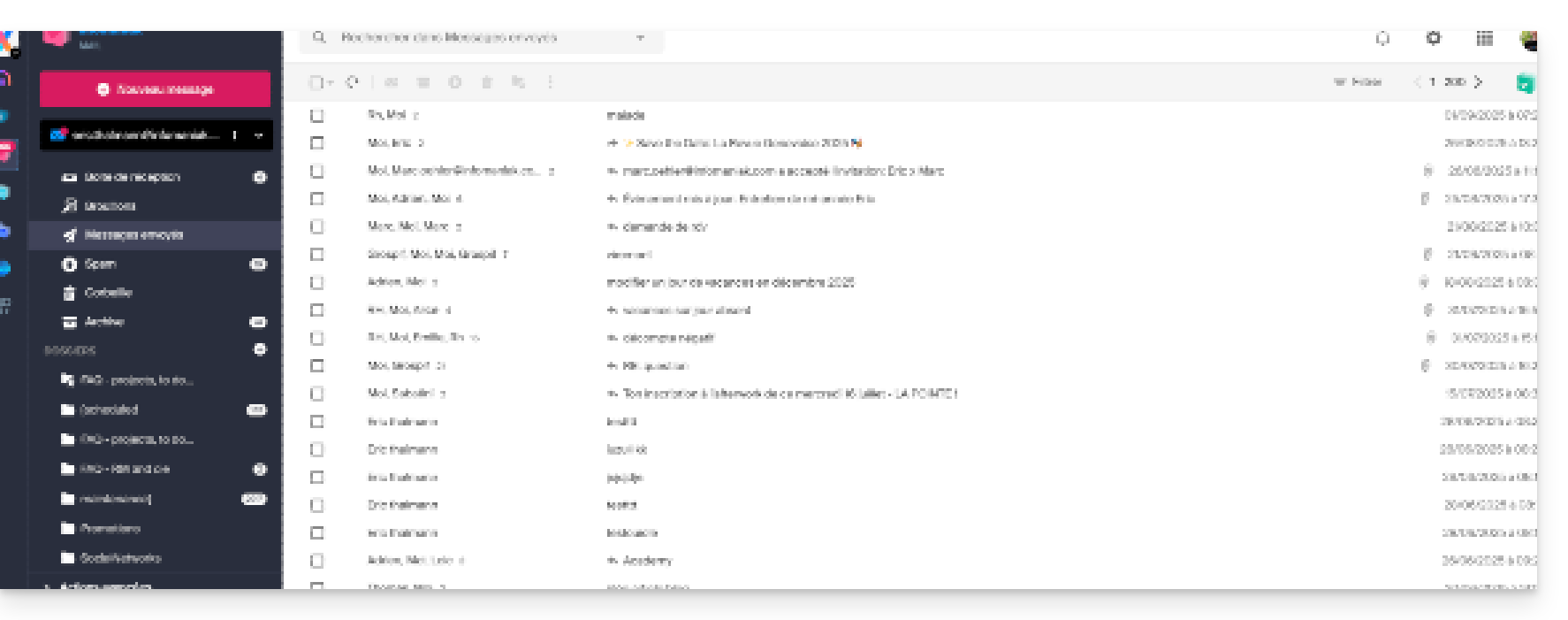
Note for users of the Infomaniak Newsletter service: you can manage the content that will be displayed when the preview is enabled, by filling in the required information as indicated in section 1.4 of this other guide.
Receiving: Mark an email as read…
This section allows you to choose after how much reading time a message should be considered as read(immediately, after 3 seconds, or 5, or 20, or never).
Reception: When a message is archived or deleted…
This section allows you to choose the action to be performed after an email is archived or deleted: open the next message, or the previous one, or return to the message list.
Reception: number of emails displayed on a single page
Choose the number of items to display to increase or decrease the number of emails displayed on a single page, up to a maximum of 200 items.
Browser: set Infomaniak as the default email provider
Browser: email address in a new tab
Browser: message receipt notification
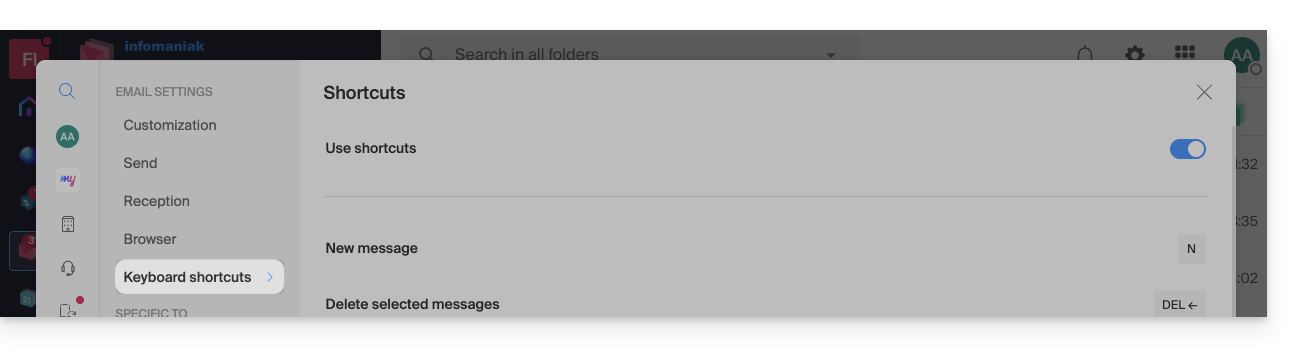
Keyboard shortcuts
Modify settings specific to email addresses
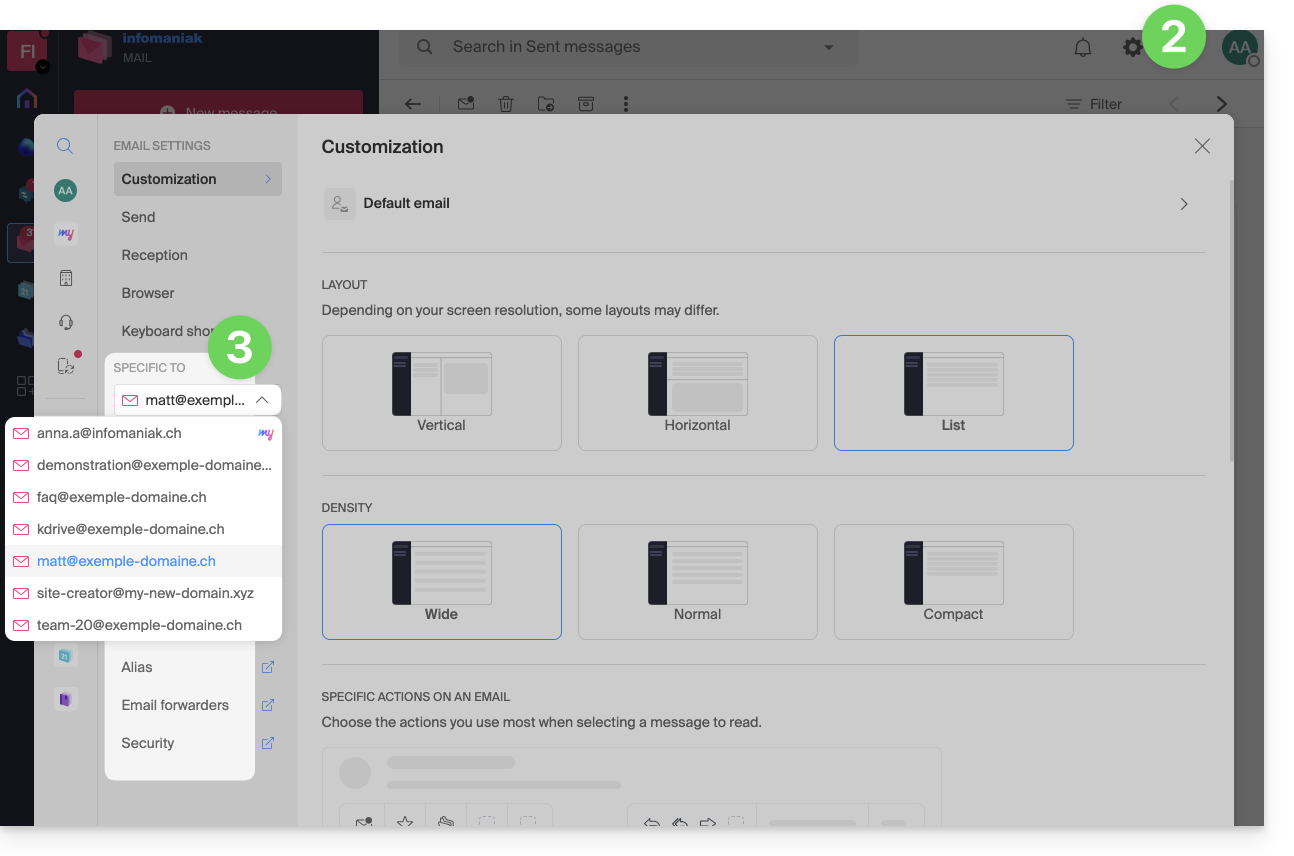
To access the signature, alias, and other settings specific to each of your Infomaniak email addresses:
- Click here to access the Mail web app (online service ksuite.infomaniak.com/mail).
- Click on the Settings icon in the top right corner of the interface.
- Check or select the relevant email address in the drop-down menu in the left-hand menu:
- Click on the various items in the secondary left-hand menuto configure your email address:
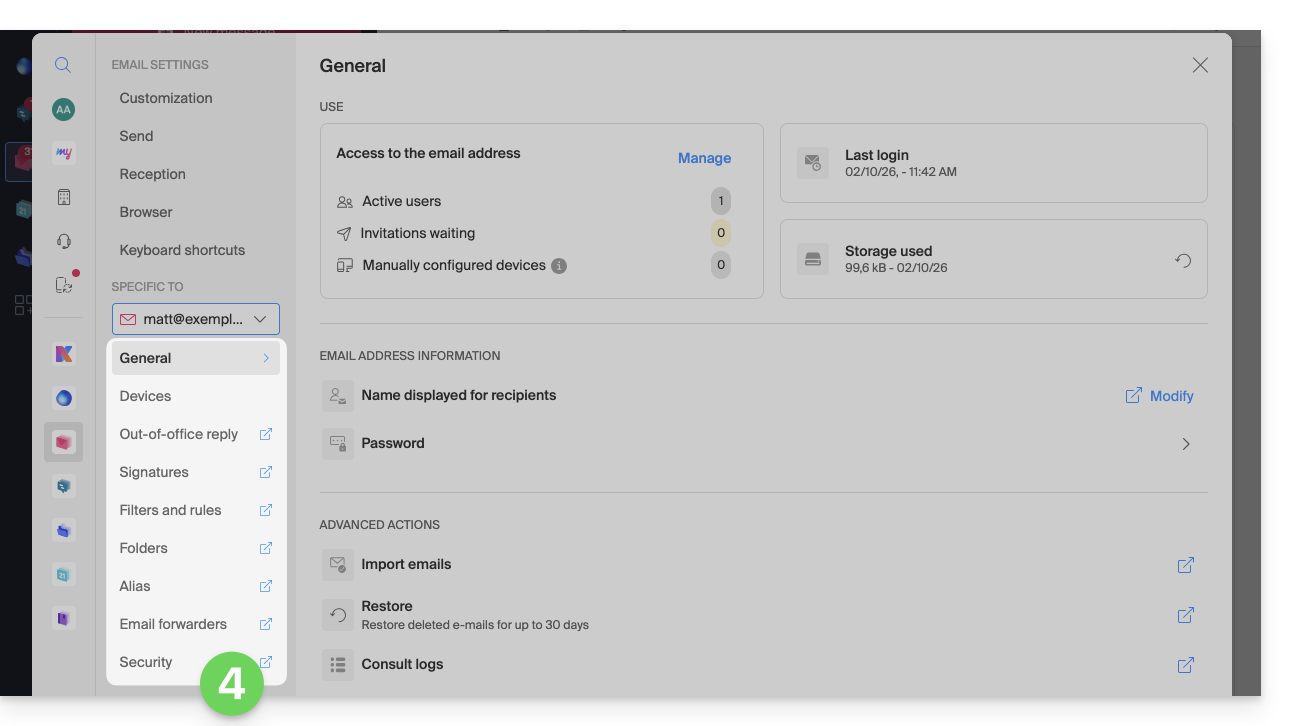
Feel free to browse the FAQ to find the corresponding guides.
Link to this FAQ: https://faq.infomaniak.com/2481
Has this FAQ been helpful?
This guide explains how to check the storage space of your free Infomaniak my kSuite email offer and how to free up space.
Introduction
- The storage space for my kSuite emails is limited to a maximum of 20 GB (paid Infomaniak Mail plans (including my kSuite+) offer unlimited disk space).
- If you reach this limit, you will no longer be able to receive new emails; in this case, you will need to free up some space.
Display the total storage space used
To do this:
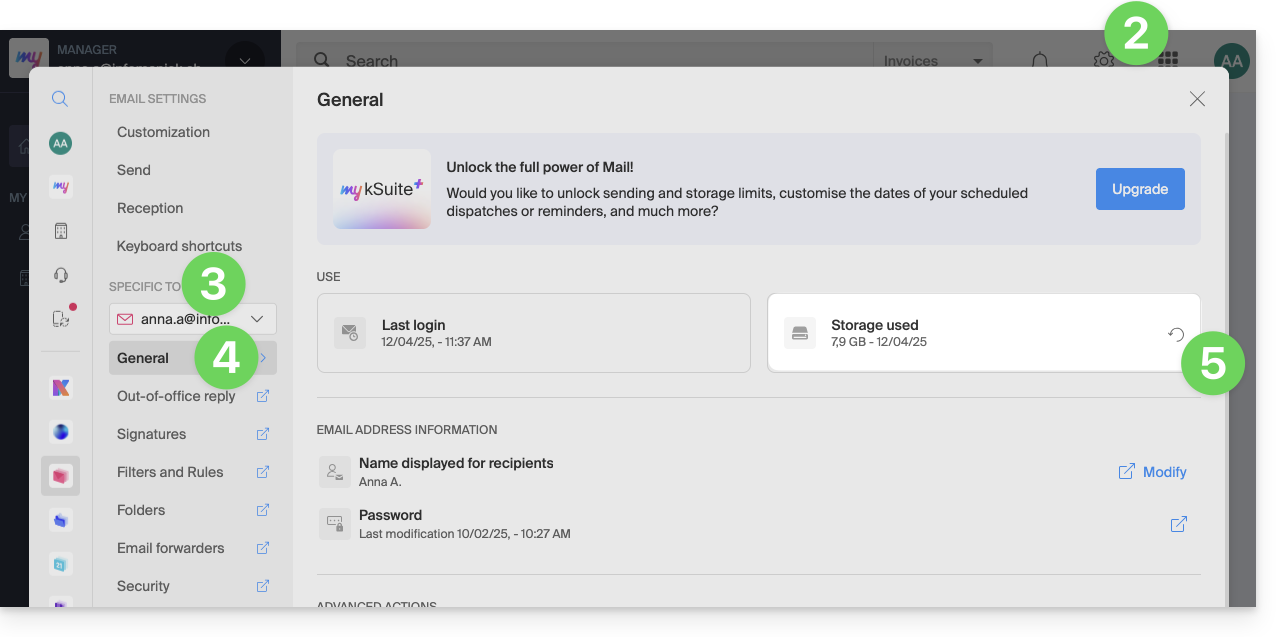
- Click here to access the Infomaniak Mail web app (online service ksuite.infomaniak.com/mail).
- Click on the Settings icon in the top right corner.
- Check or select the relevant email address from the dropdown menu in the left-hand sidebar.
- Click on General below.
- Click the button to refresh the disk space:
Free up storage space
When your mailbox is full, it is crucial to free up space so you can continue to receive messages. Here are some effective solutions to achieve this:
1. Delete non-essential emails
- Search for the largest messages. Delete messages with unnecessary attachments or download them to your computer before deleting the emails.
- Sort your emails by date and delete those that are too old or that you no longer need.
- After deleting emails, remember to empty the trash to actually free up space.
- Unsubscribe from newsletters and mailing lists that you no longer read to avoid receiving unnecessary emails in the future.
2. Use an email management application
- There are applications like Clean Email, Unroll.me, or Mailstrom that can help you quickly and efficiently clean up your inbox (however, be sure to check the terms of use and privacy policies of these applications).
3. Increase storage capacity
- Paid Infomaniak Mail plans (including my kSuite+) include unlimited disk space.
Link to this FAQ: https://faq.infomaniak.com/2484
Has this FAQ been helpful?