Knowledge base
1000 FAQs, 500 tutorials and instructional videos. Here, there are only solutions!
Manage the my kSuite signature on the Infomaniak Web Mail app
This guide details the Signature section present in the emails you send from the Infomaniak Web app Mail (online service ksuite.infomaniak.com/mail) of my kSuite.
Preamble
- It is not possible to remove the automatic addition of the Infomaniak mention in the lower part of your my kSuite emails.
- It is possible to delete the Infomaniak mention automatically inserted when drafting a new message.
- It is also possible to add your contact details or any indication of your choice in the signature that is automatically inserted with each new message.
- If necessary, my kSuite+ offers more flexibility.
Manage email signatures
To add your name or any indication above the Infomaniak mention present at the bottom of each of your messages:
- Click here to access the Infomaniak Web app Mail (online service ksuite.infomaniak.com/mail).
- Click on New message, the composition window opens with an integrated pre-written signature that cannot be removed or modified without a change in the offer (my kSuite+).
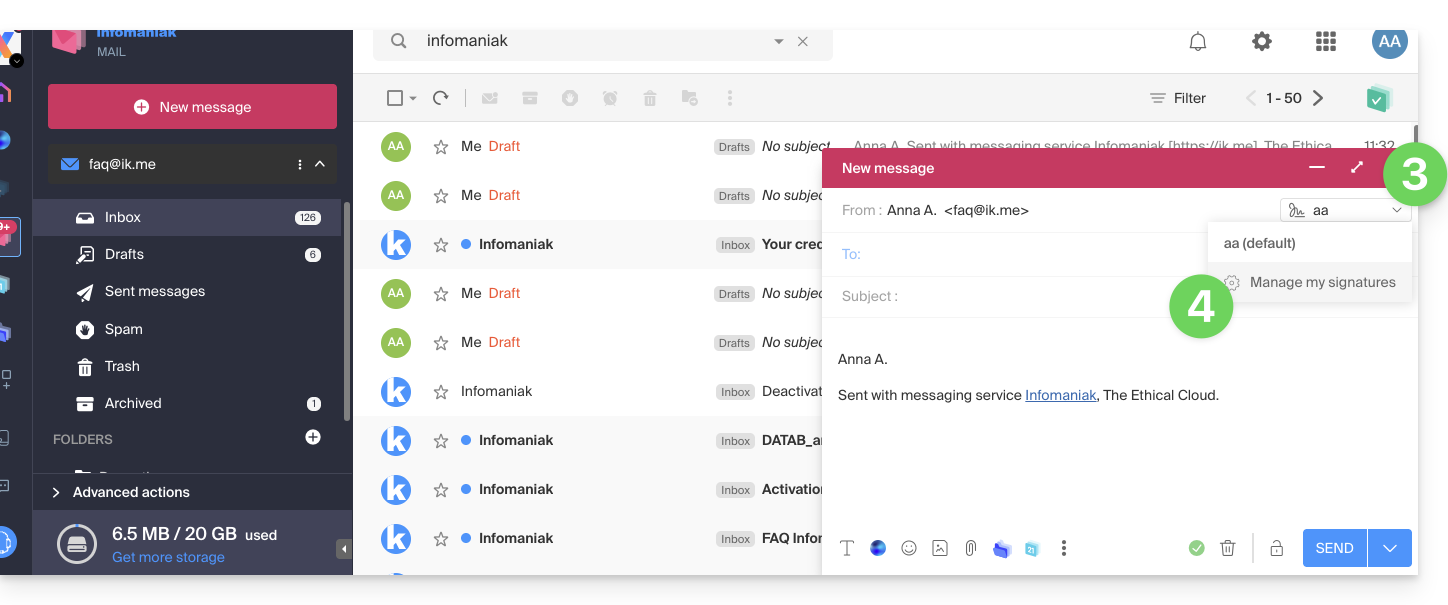
- Click on the chevron to the right of the signature selection menu.
- Click on Manage my signatures:
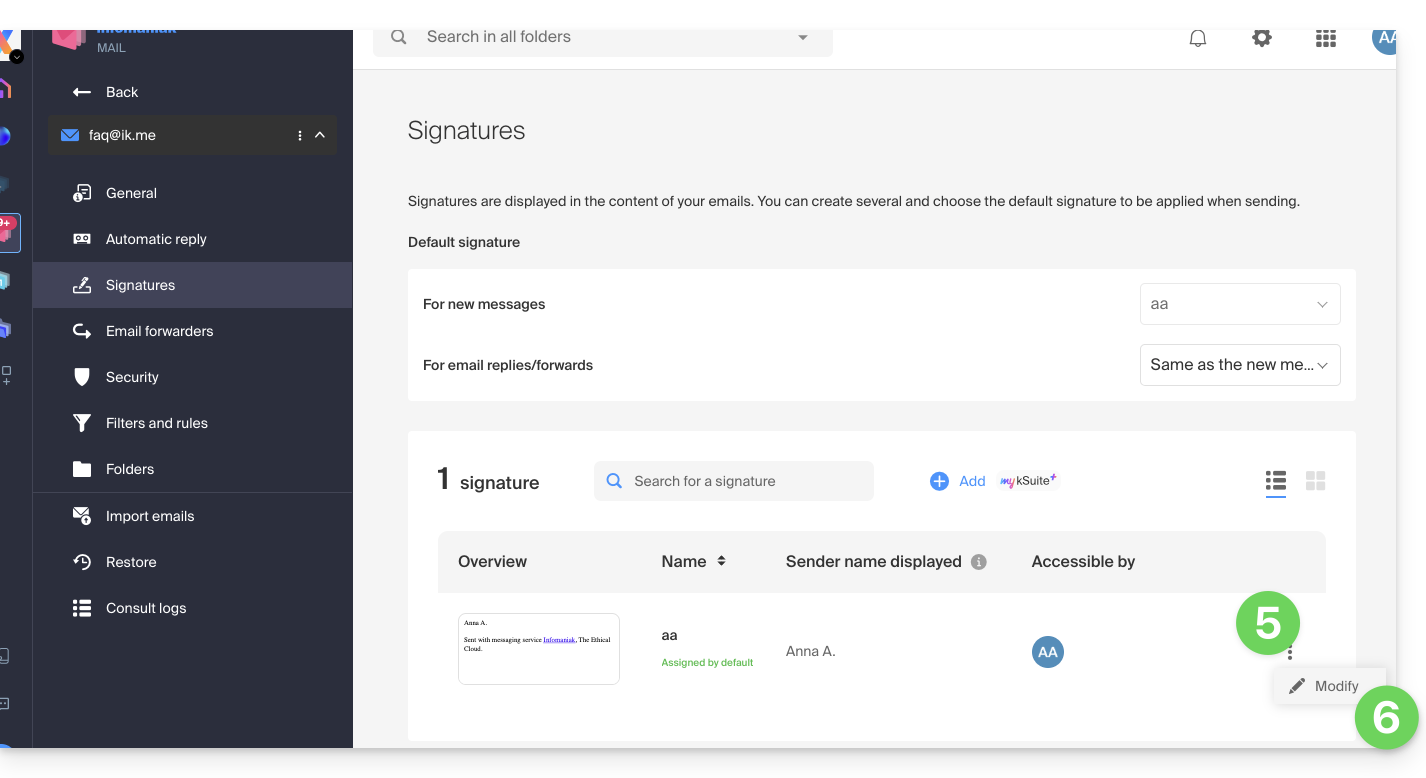
- Click on the action menu ⋮ located to the right of the signature in question.
- Click on Edit:
- Enter a name for your custom signature.
- Enter the name you want to display for your message when it reaches the inbox of your correspondents.
- Enter the content of your signature (formatted text, image, etc.).
- Manage advanced settings if necessary (signature position).
- Click on the button to save:

There you go, every new message you draft will contain your new signature in addition to the mandatory Infomaniak mention, and you can remove it if necessary by hovering over it: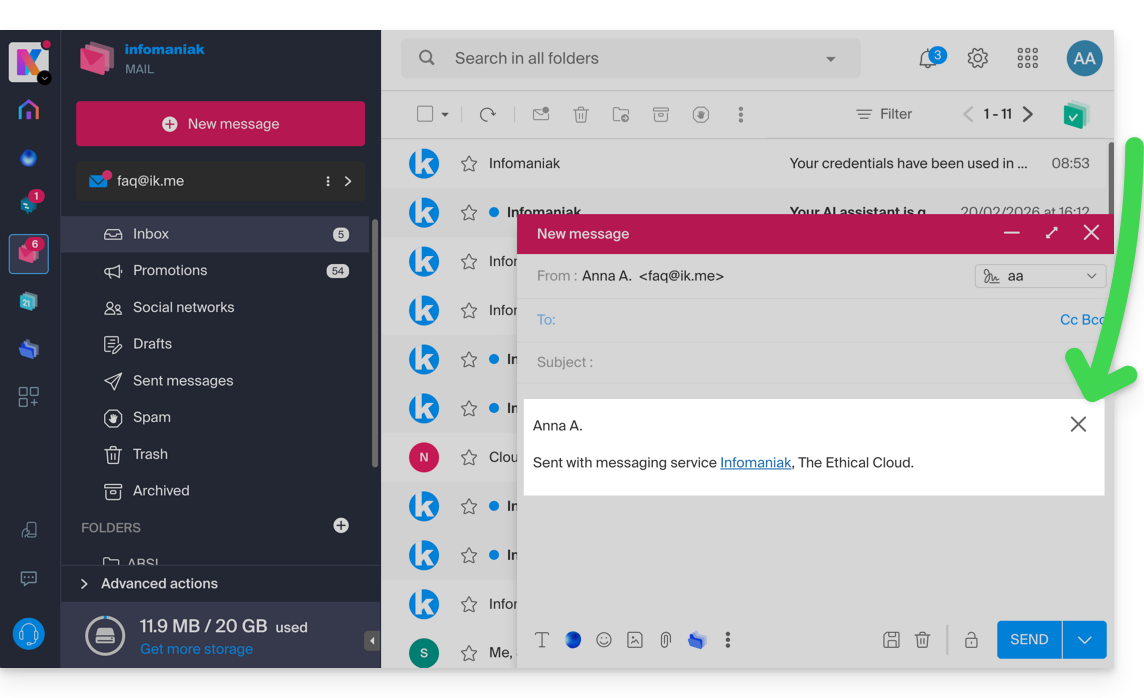
Link to this FAQ: https://faq.infomaniak.com/2538
Has this FAQ been helpful?