Knowledge base
1000 FAQs, 500 tutorials and instructional videos. Here, there are only solutions!
Ticketing: Customize the pass design
This guide explains how to configure the appearance of a pass (as part of the Infomaniak ticketing system). These parameters will be available once step 1 is completed:
- Define the type during creation (subscription, ticket pack, etc.) as well as the basic information and parameters
- Associate events with passes
- Configure the visual and information related to the pass (below)
- Define and collect information from subscribers who will be linked to the passes
3. Set up a visual for the passes
To do this:
- Click here to access the management of your product on the Infomaniak Manager (need help?).
- Click directly on the name assigned to the ticketing concerned by the event.
- Click on Programming in the left sidebar menu.
- Click on Pass in the left sidebar menu.
- Click on the name of the pass concerned.
- Click on the tab Pass appearance:

For PVC format passes
PVC format passes have a format that allows visitors to use them in digital format on their phone and the organizer to print them on a PVC card using a printer available for rent: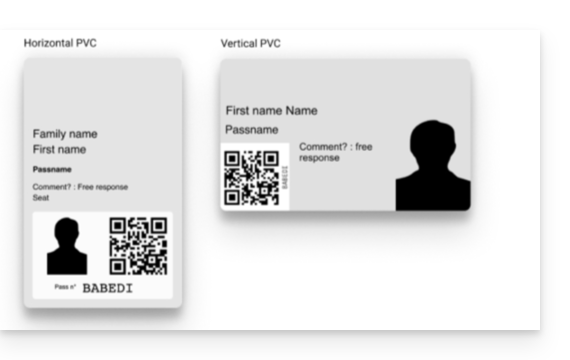
When selecting the visual, you will need to choose between vertical and horizontal mode. It will then be possible to choose the elements to display on the pass, as well as a background image:
For phone/paper format passes
For phone/paper formats, the visitor can use the digital version directly on their phone or choose to download the PDF version to print on an A4 sheet: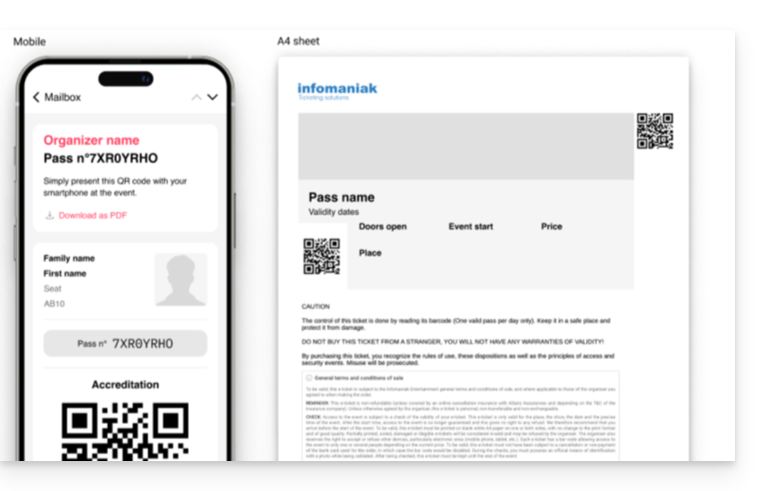
There will be no configuration to be done for the digital version, but it is possible to assign a ticket template. To configure a ticket visual, refer to this other guide.

The next step is to define and collect information from subscribers who will be linked to the passes.
Link to this FAQ: https://faq.infomaniak.com/2830
Has this FAQ been helpful?