Knowledge base
1000 FAQs, 500 tutorials and instructional videos. Here, there are only solutions!
Ticketing: managing an event
This guide explains how to manage an event (within the framework of the Infomaniak ticketing system).
Access the event page
To do this:
- Click here to access the management of your product on the Infomaniak Manager (need help?).
- Click directly on the name assigned to the ticketing concerned by the event.
- Click on Programming in the left sidebar menu.
- Click on Event in the left sidebar menu.
- Click on the name of the event concerned:

The overview
The overview allows you to see an overall preview of your event: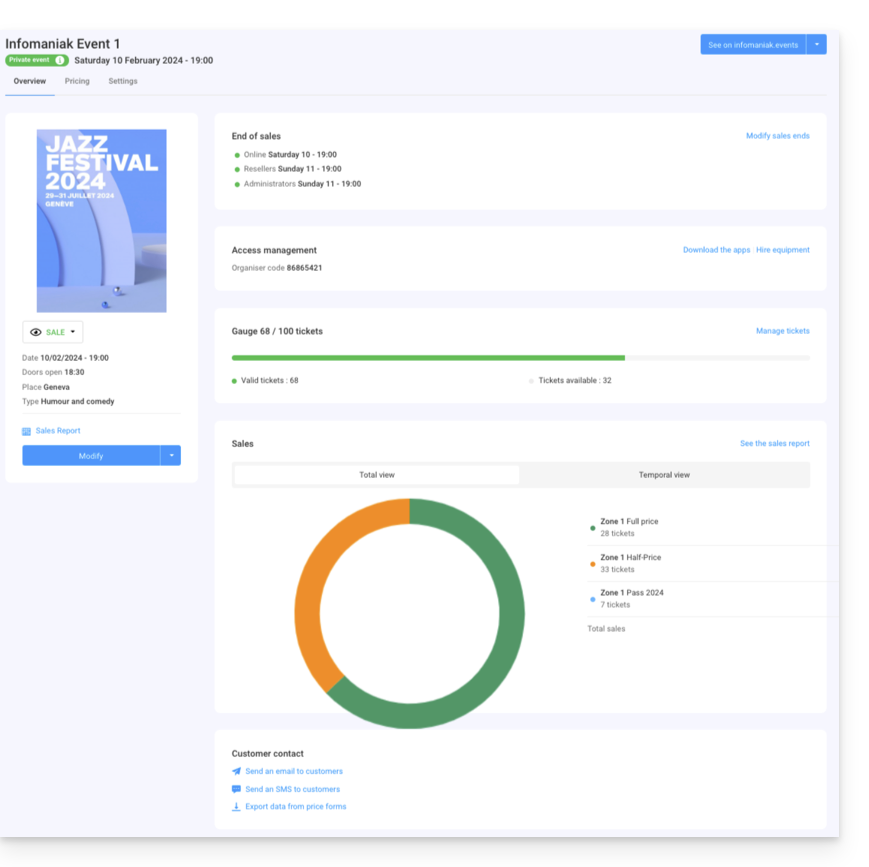
- On the left, the information and status of the event. You can change the visibility of the event, access the sales report, and make changes to the event:

- The end-of-sales information and access codes for ticket control are located at the top of the right column:

- A graph summarizing the number of tickets sold and revenue by rate allows you to track your sales:

- The options related to the event's customers are located at the bottom of the page. These allow you to contact customers who have purchased tickets for this event and export the results of the forms they may have filled out:

- The button at the top right allows you to view the online version of the event on your ticketing system and, if you decide to integrate the event on your site, access the integration options:

Differences in case of multi-date events
If your event has multiple performances, the information will be broken down according to the page you are viewing. You will find:
- On the main page, the general information and parameters applicable to all dates.
- On the pages for each date or performance, you will find the information for that date or performance.
Manage rates, ticket templates, and sales closing times
You can switch to these options in the tabs at the top of the event page:
Link to this FAQ: https://faq.infomaniak.com/2857
Has this FAQ been helpful?