Knowledge base
1000 FAQs, 500 tutorials and instructional videos. Here, there are only solutions!
This guide details the possible interactions between Infomaniak's Site Creator and social networks.
Specify the URLs of your different social profiles
Prerequisites
- Access Site Creator:
- Click here to access the management interface for your product on the Infomaniak Manager (need help?).
- Click directly on the name assigned to the Site Creator in question.
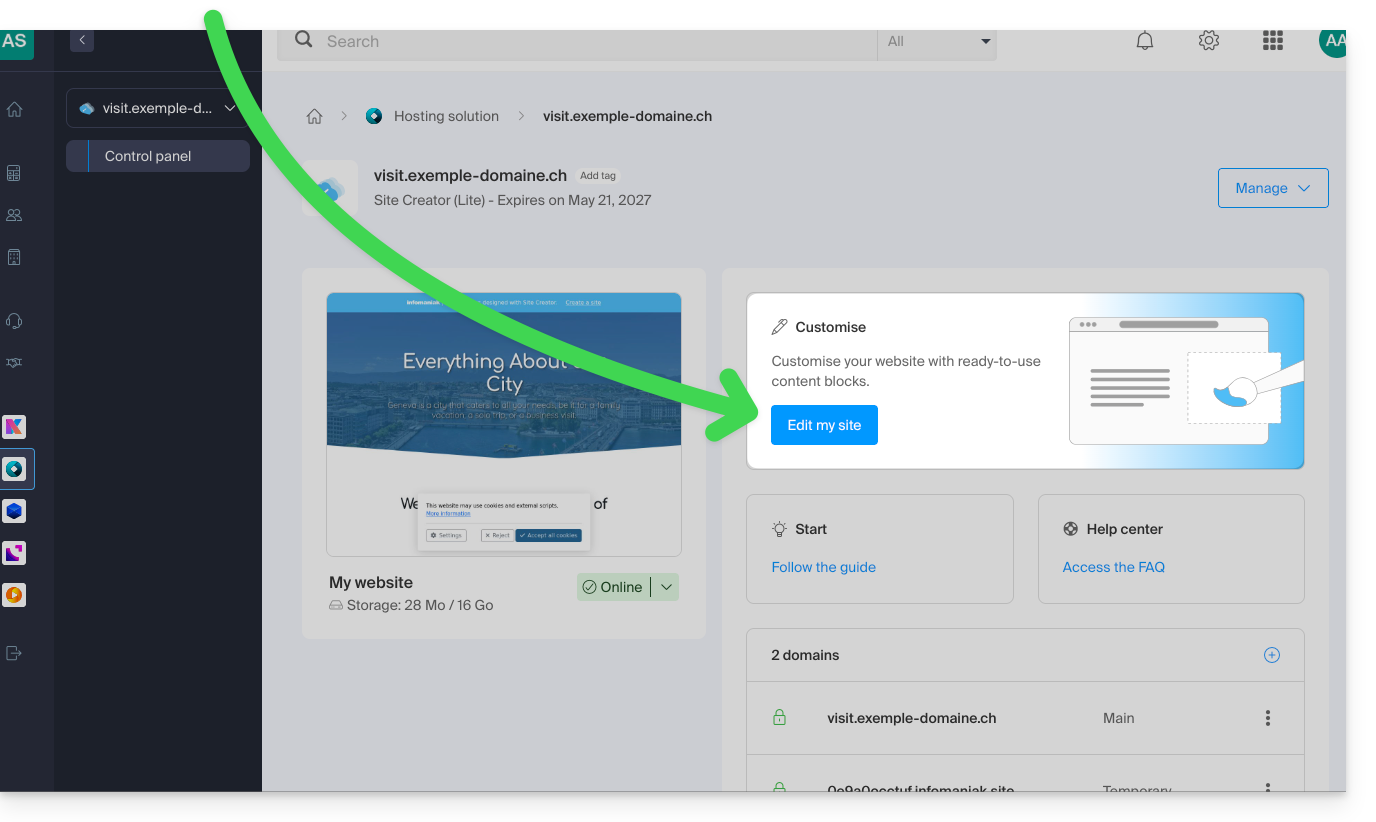
- Click on the Edit my site button to launch the editor:
To allow visitors to click on the links to your social networks:
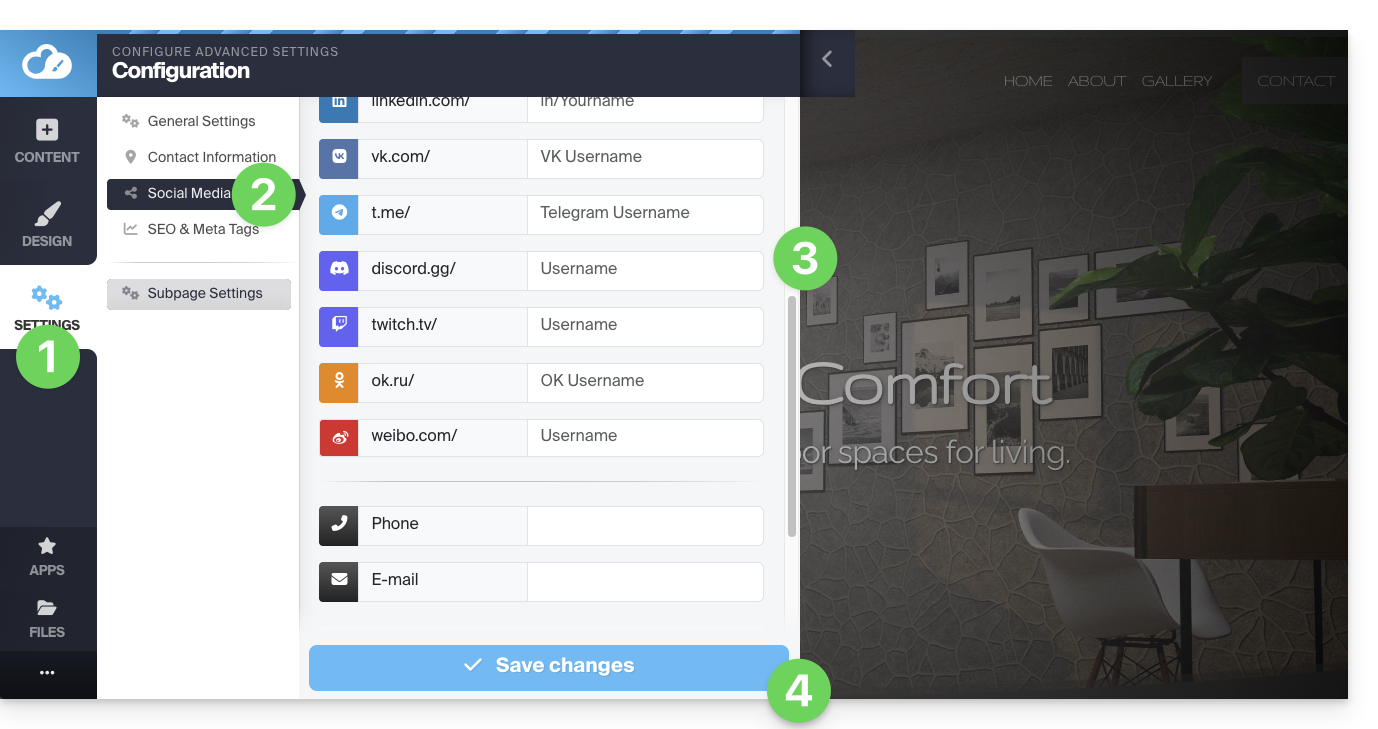
- Click on the Settings button in the left-hand menu.
- Click on Social Media.
- Enter the addresses of your various social media profiles (TikTok, Instagram, etc.), including a phone number and email address if you wish.
- Save the changes at the bottom of the page:
Add the icons for your profiles
Add icons for your social media accounts to the footer or header of your website:
- Click on the Settings button in the left-hand menu.
- Click on Social Media.
At the bottom, you can specify where you want the icons corresponding to the profiles you completed above to appear: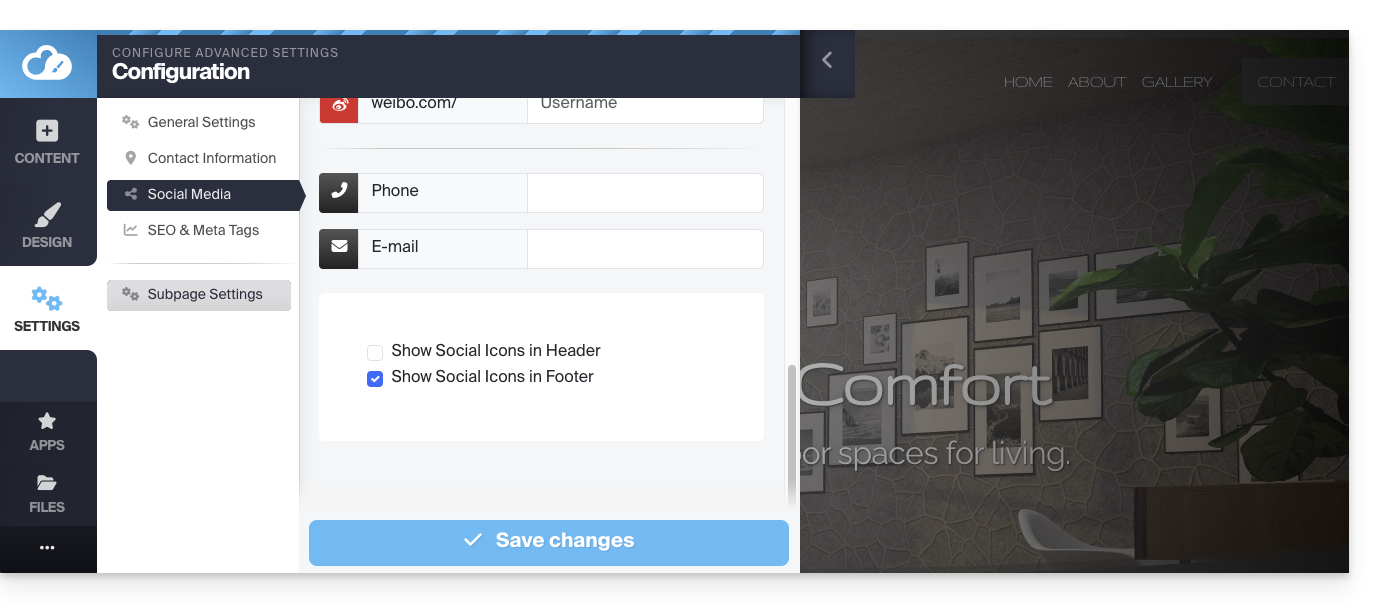
Save the changes at the bottom of the page.
Add a social sharing block
Among the blocks that you can add to a page, one block offers a row of buttons that allow visitors to easily subscribe to your various social media accounts: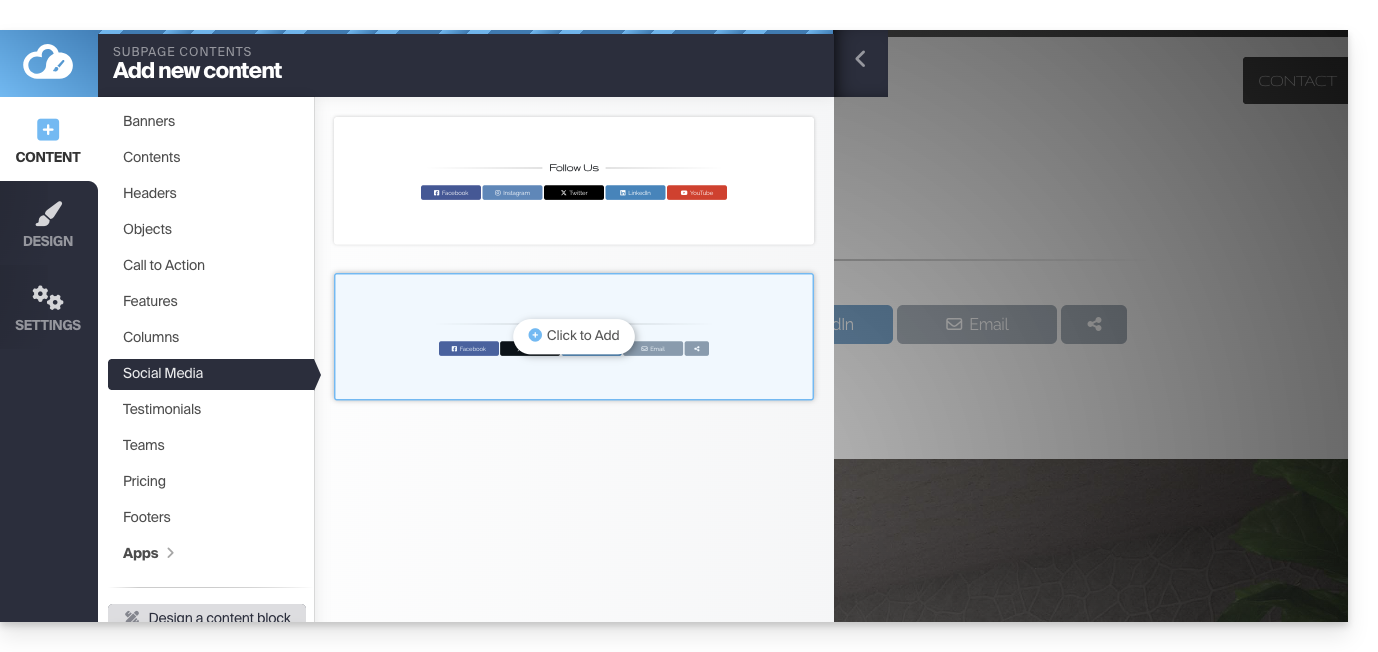
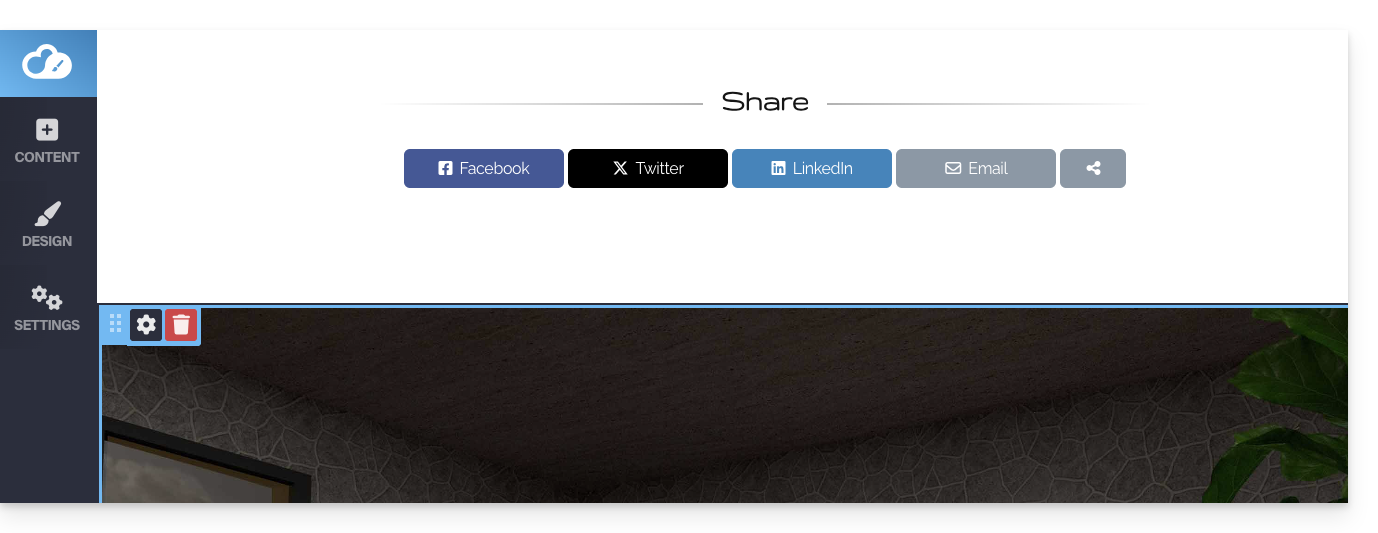
A second type of block offers a row of buttons that allow visitors to share the page on the main social media platforms:
Get the website QR code
To get the QR code for your website:
- Click on the Settings button in the left-hand menu.
- Click on the QR code icon at the very top:
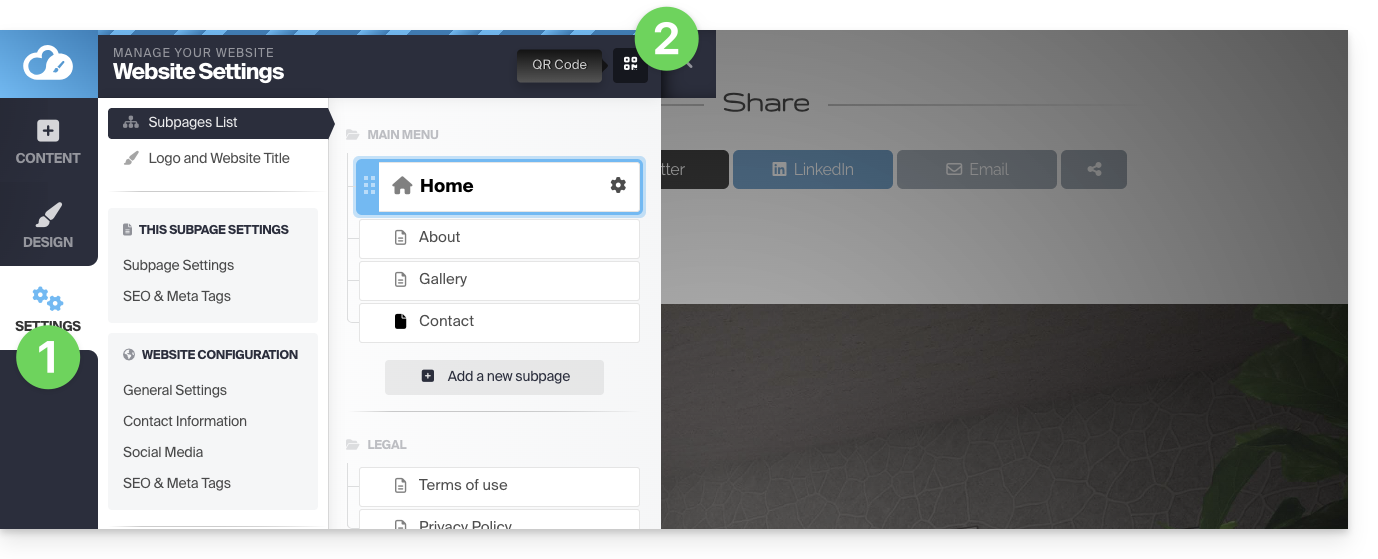
You can download the QR code corresponding to the address of your homepage. This way, a user who scans your QR code can easily access your site.
Change the social sharing OG image
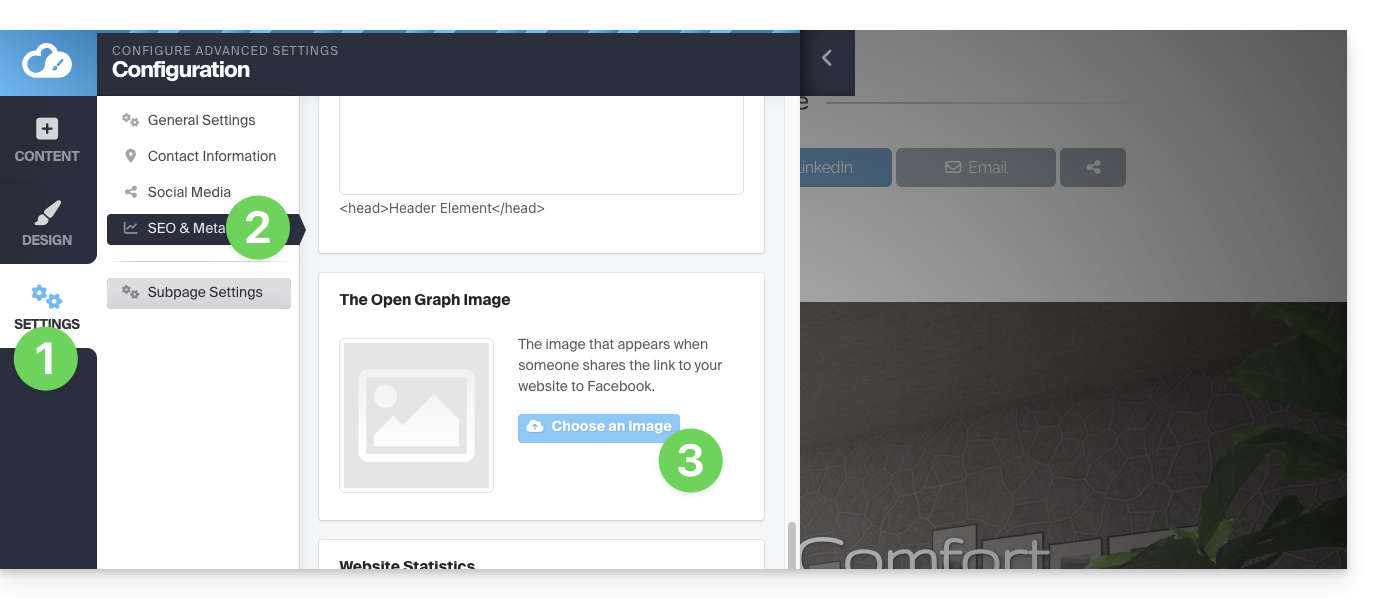
When you share a link to your website on social media, a thumbnail (Og:image for the OpenGraph image) is often automatically associated with it:
- Click on the Settings button in the left-hand menu.
- Click on SEO and metadata under General settings.
- Scroll down to Open Graph and choose the image:
Link to this FAQ: https://faq.infomaniak.com/2712
Has this FAQ been helpful?
This guide explains how to change the language of the Site Creator interface and how to manage the translations of your pages.
Prerequisites
- Access Site Creator:
- Click here to access the management interface for your product on the Infomaniak Manager (need help?).
- Click directly on the name assigned to the Site Creator in question.
- Click on the Edit my site button to launch the editor:
Change the interface language
To change the language of Site Creator:
- Click on the Settings button in the left-hand menu.
- Click on General Settings.
- Change the Site Creator language:
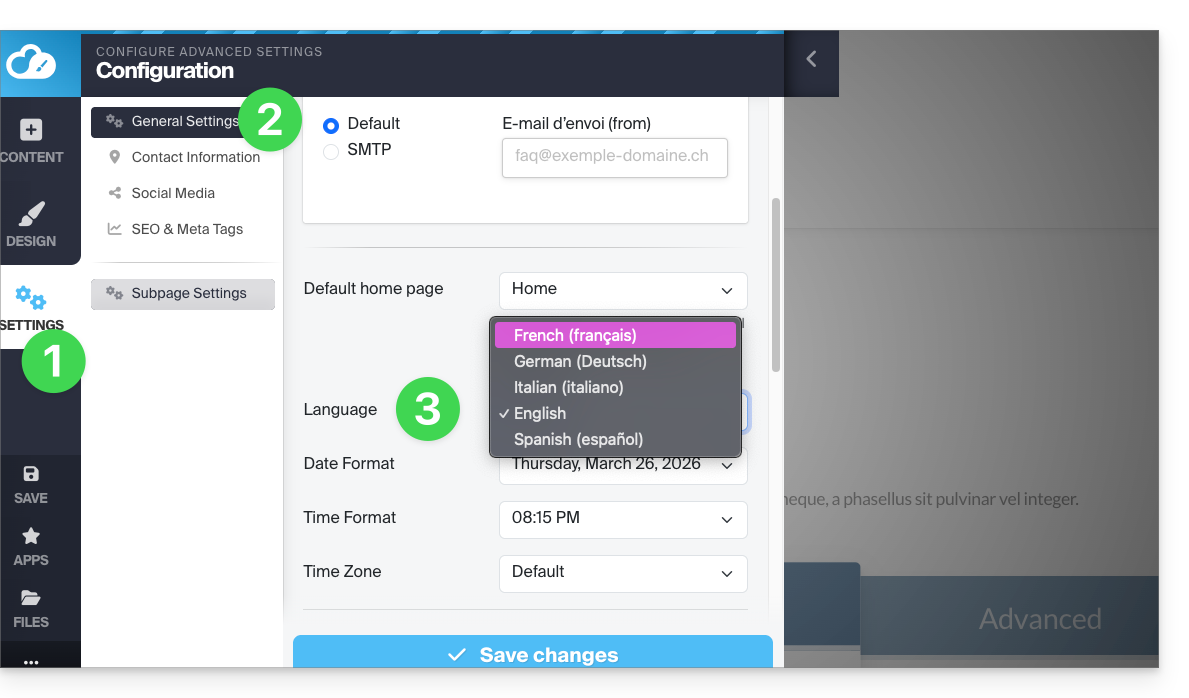
A drop-down menu allows you to change the language of the Site Creator editor interface (this will also translate some elements accessible to visitors, such as the Search button in the search bar, etc.); the available languages are German, French, Spanish, Italian, and English.
Remember to save your changes at the bottom of the page.
Offer your site in multiple languages
Automatic and on-the-fly translations of all your pages
To enable automatic translation of your website:
- Click on the Applications button in the left-hand menu.
- Click on the Translations module:
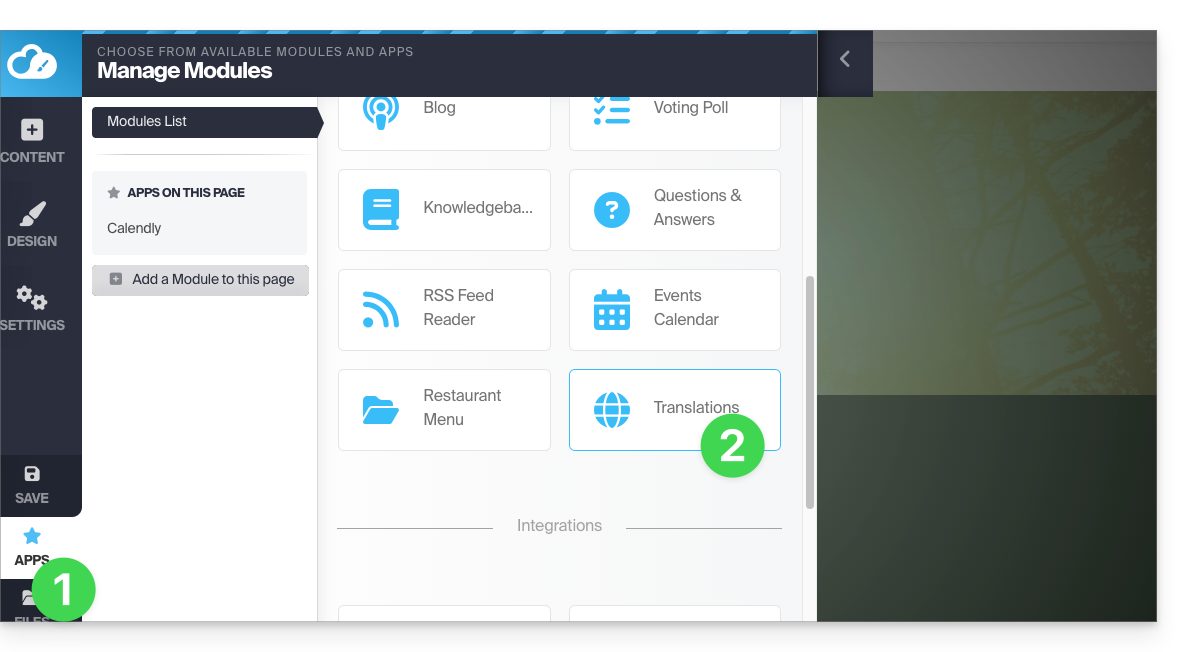
You can add or remove the languages in which your site will be offered to visitors: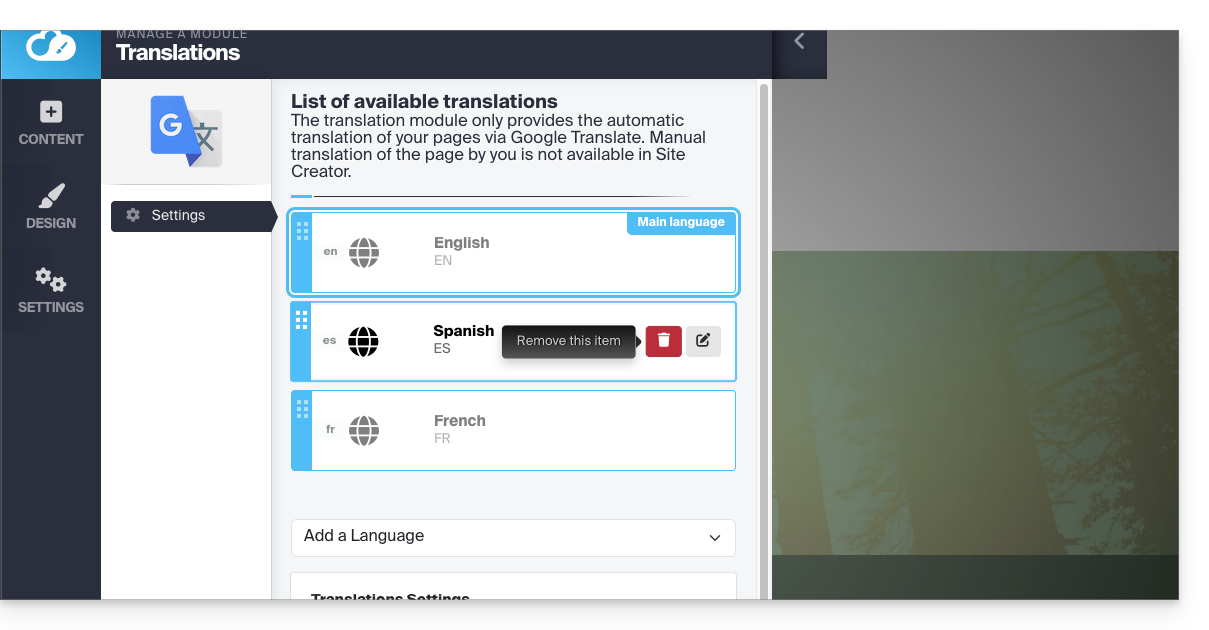
Using the mouse, move the languages into the desired order, which will affect the language selection dropdown menu (see below).
This menu can be enabled in the lower part of the translation module configuration page: 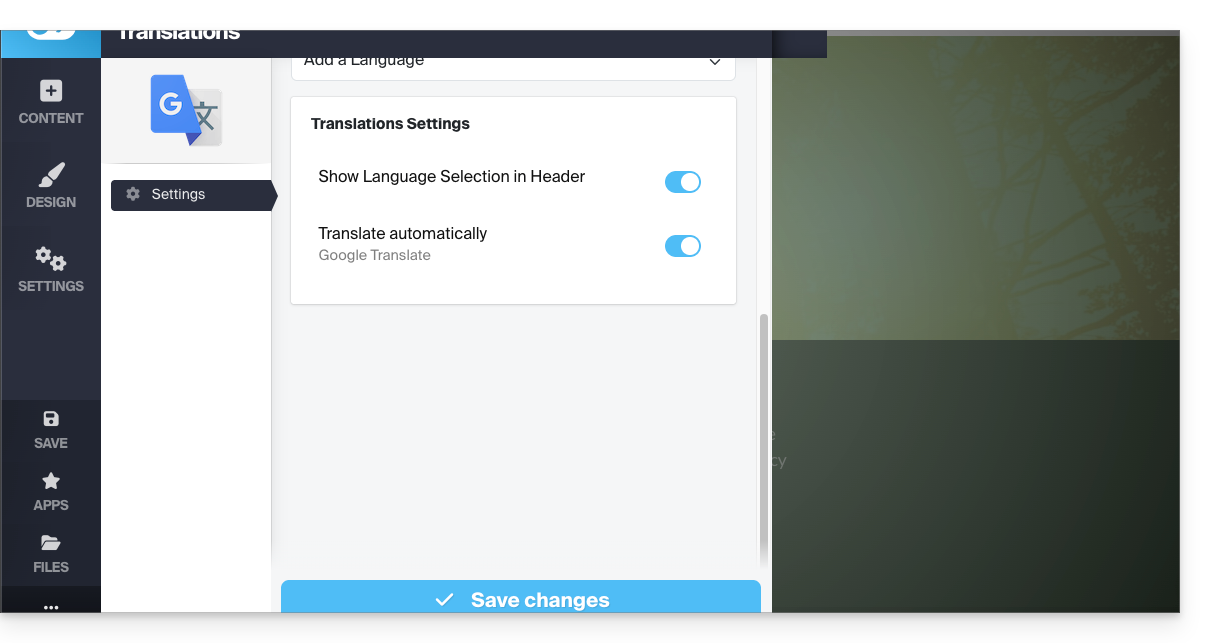
Once the languages have been defined and arranged in the top section (remember to save your changes at the bottom of the page), activate the menu to allow visitors to choose their preferred language from a drop-down menu at the top of the page: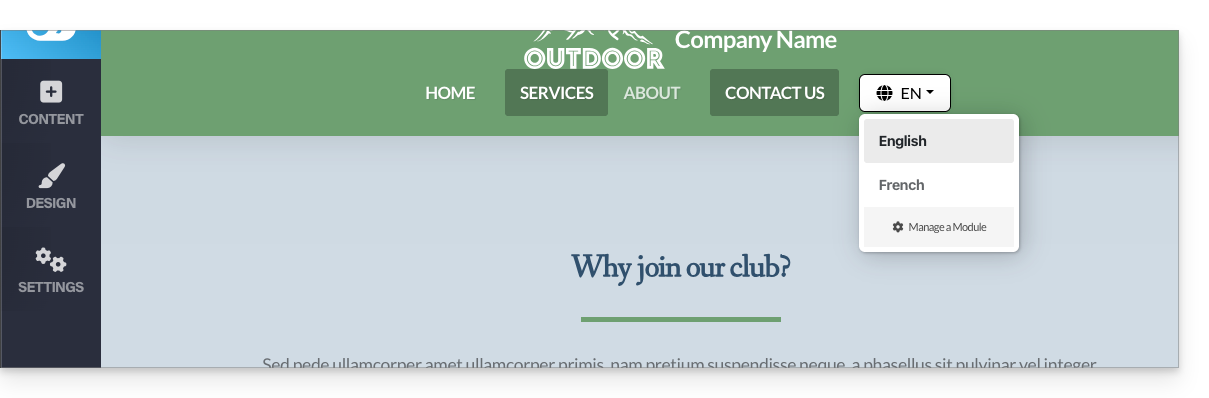
Manually translated page
It is possible to provide a manually prepared page (unique per language) to which the visitor will be redirected when they choose a language different from the main language via the language selection dropdown menu (see above).
To do this, edit the desired language by clicking on the pencil ✎ icon, then click on the second radio button next to the field that allows you to specify the URL of your translated page: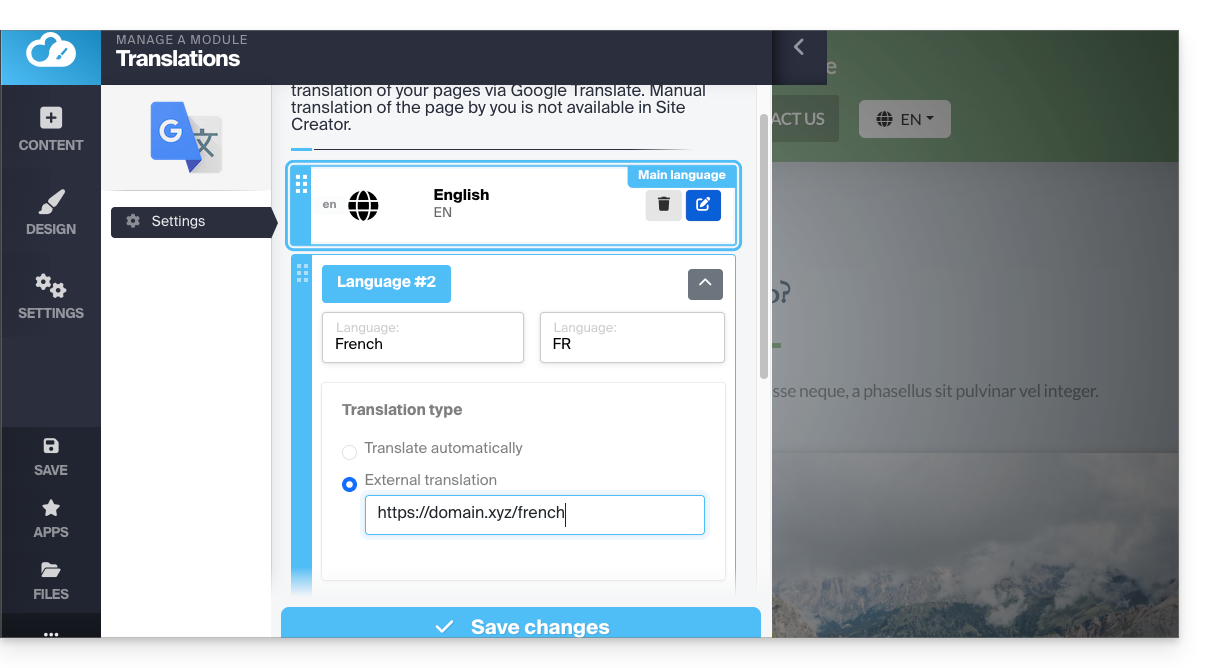
You can therefore create a page for each language in advance. Finally, it is recommended to hide this type of page from your main menu: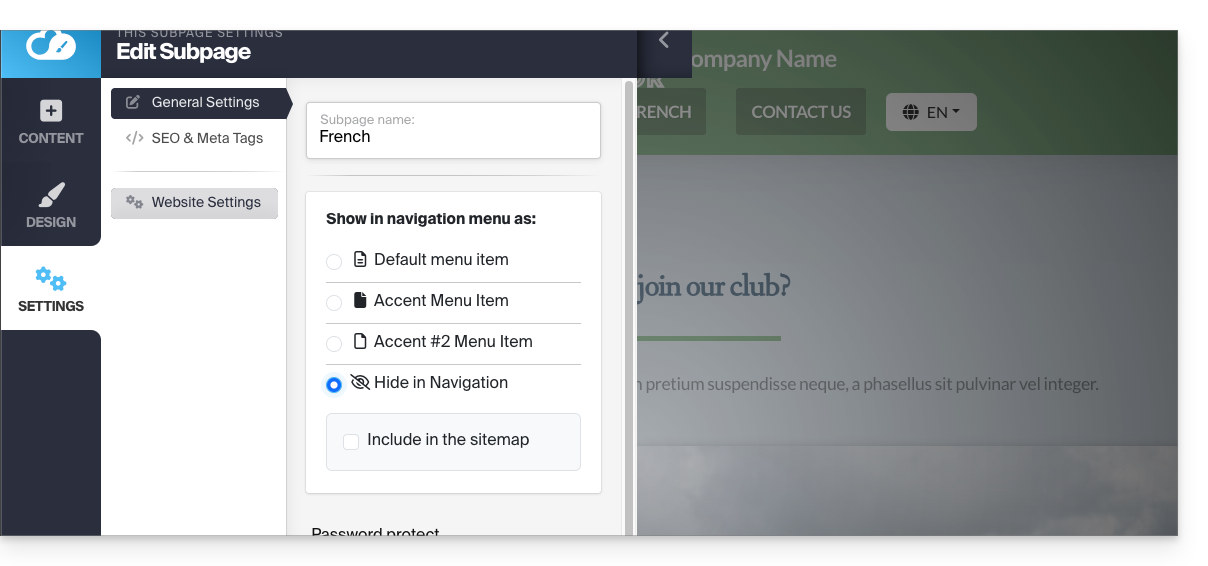
Link to this FAQ: https://faq.infomaniak.com/2713
Has this FAQ been helpful?
This guide is intended for users of the Infomaniak Site Creator tool who wish to allow visitors to perform a text search within the site's content.
Prerequisites
- Access Site Creator:
- Click here to access the management of your product on the Infomaniak Manager (need help?).
- Click directly on the name assigned to the Site Creator in question.
- Click on the Edit my site button to launch the editor:
Add a search bar to Site Creator
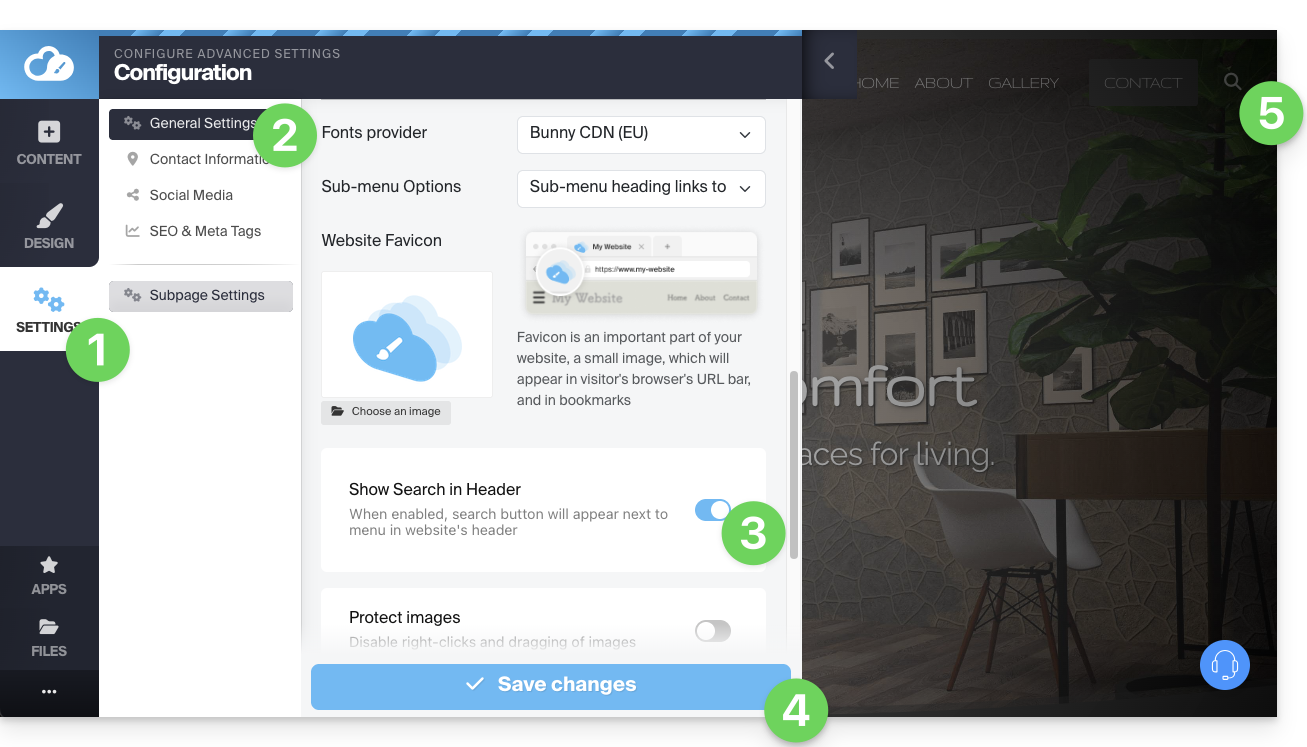
To allow visitors to search for content on your website created with Site Creator, you need to enable the search bar:
- Click on the Settings button in the left-hand menu.
- Click on General Settings.
- Enable the search option.
- Save the changes at the bottom of the page.
- View the new search location on your homepage:
- A magnifying glass icon will be added to the header of your site, and the search bar will appear when you click on it:
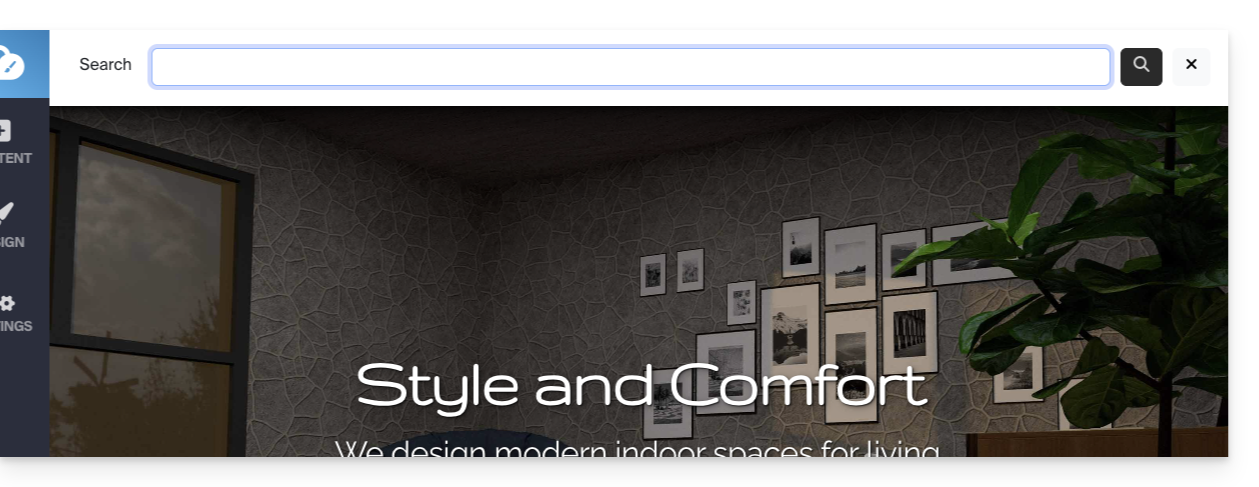
- A magnifying glass icon will be added to the header of your site, and the search bar will appear when you click on it:
Link to this FAQ: https://faq.infomaniak.com/2714
Has this FAQ been helpful?
This guide explains how to customize the source code, modify the CSS, or change the HEAD or BODY section of a website created with Infomaniak's Site Creator.
Prerequisites
- Access Site Creator:
- Click here to access the management of your product on the Infomaniak Manager (need help?).
- Click directly on the name assigned to the Site Creator in question.
- Click on the Edit my site button to launch the editor:
Add custom code
Once in Site Creator:
- Click on Design in the left-hand menu.
- Click on More settings.
- Click on Custom code at the bottom:
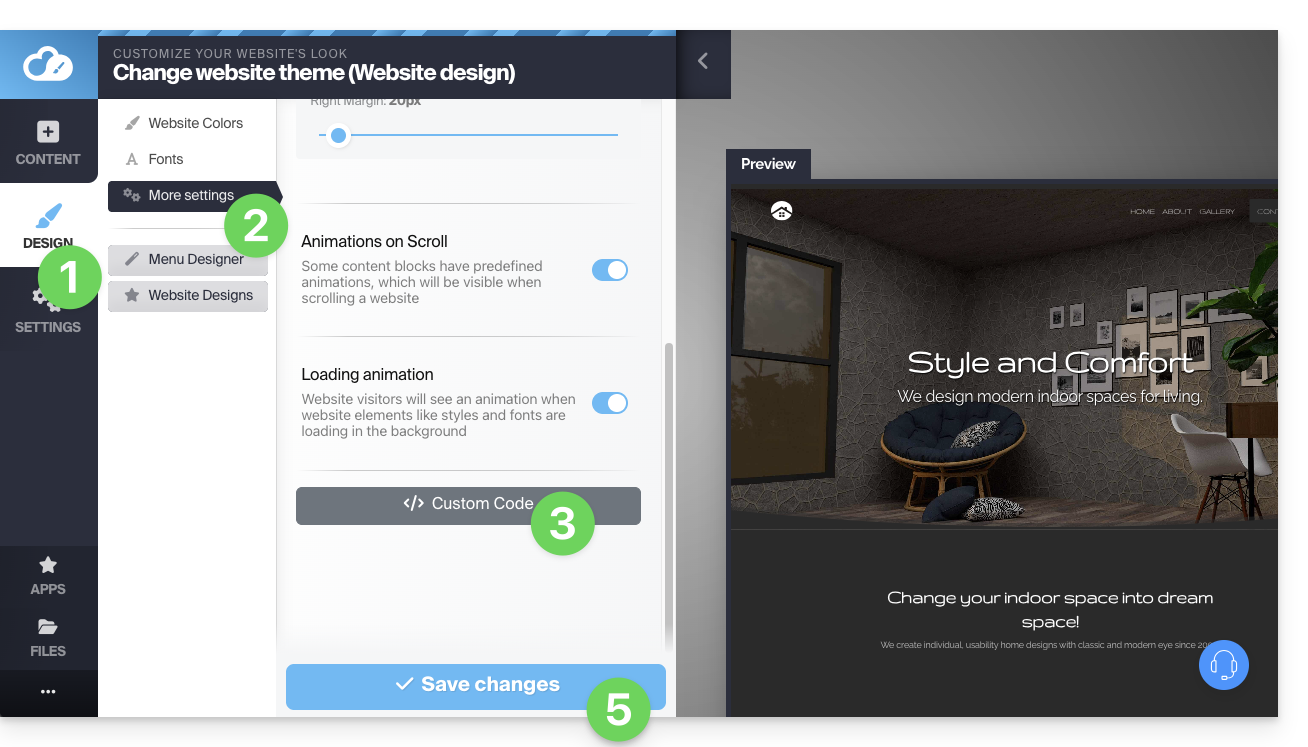
- Enter custom HTML, JavaScript (with its script tags) or CSS (with its style tags) - see below for some examples.
- Save the changes at the bottom of the page.
Metadata in HEAD & BODY
To add JavaScript code or any other code to the HEAD or BODY section of your website's source code:
- Click on Settings in the left-hand menu.
- Click on SEO & Metadata in the Website Configuration section:
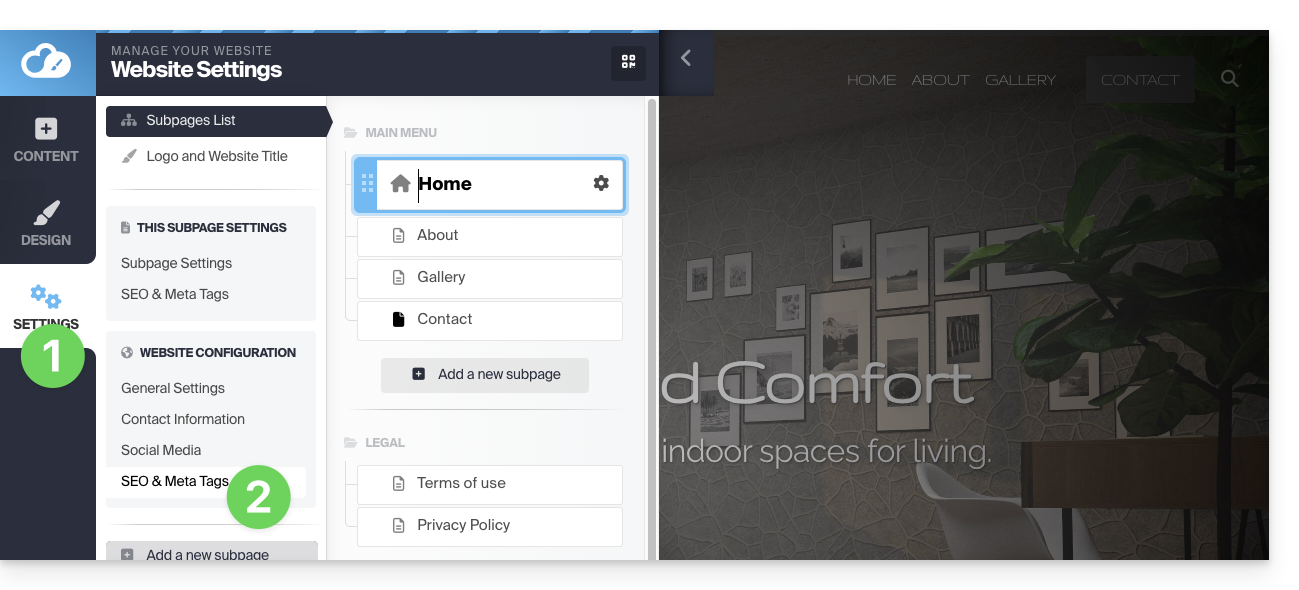
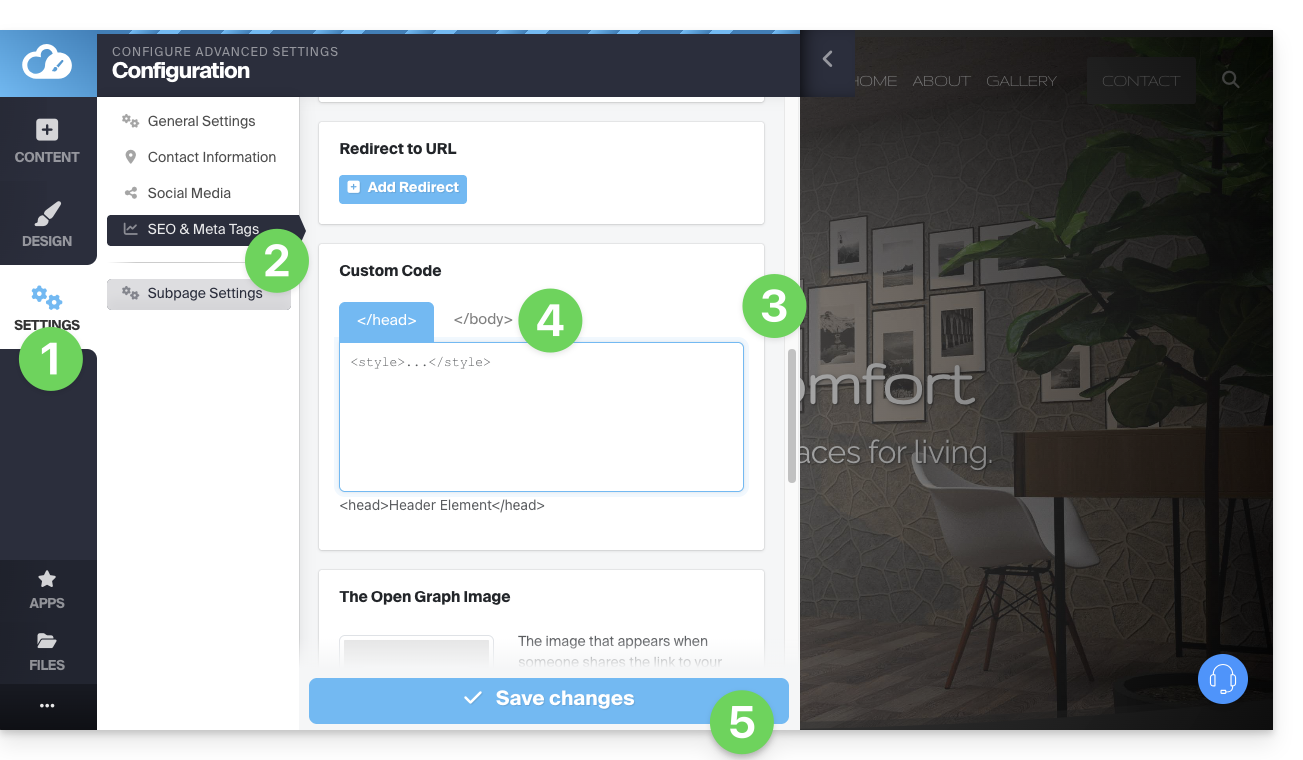
- Scroll down to Custom code.
- Choose to add the code under the HEAD or BODY tabs.
- Save the changes at the bottom of the page:
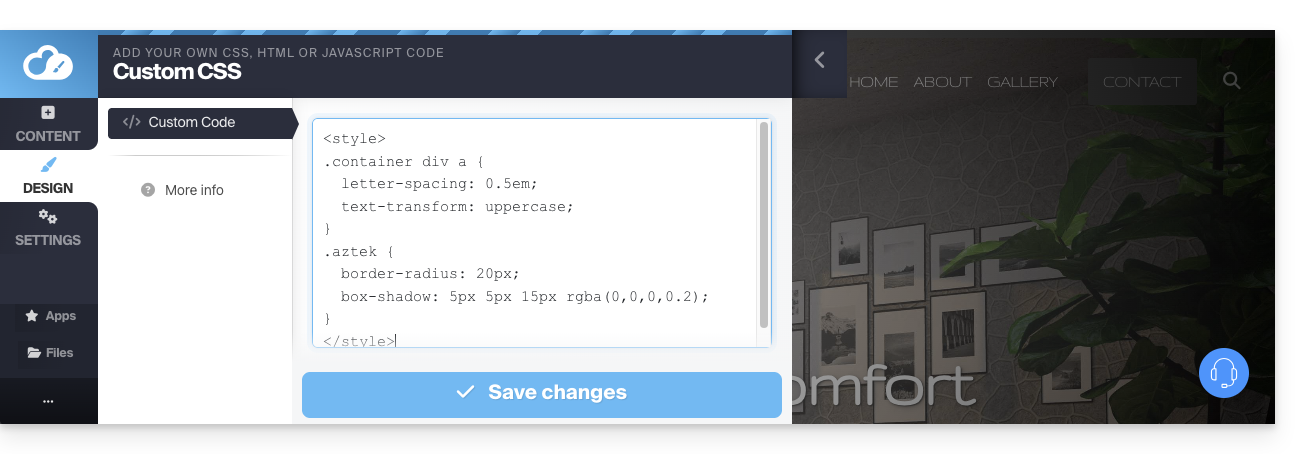
CSS Customization Examples
These examples provide a starting point for advanced customization of the website pages. However, there is a risk that, depending on the changes made, you may no longer be able to access the editor itself, which would force you to start over from scratch.
It is strongly recommended that you never insert tags such as html, head, or body, as these could conflict with the application's source code.
Customize the website background
To set the image of your choice (which you can upload to the file library) as the page background and customize its display:
- Go to point 3, which is visible in the first image at the top of this guide.
- Insert the
<style>code to indicate that you want to modify the CSS code. - then
body {to indicate that you want to modify the page body and the "{" to open the space where you can insert the commands, - then
background-image: url("../data/files/fond01.jpg");with the exact path and name of the image uploaded to the library, without forgetting the semicolon to be able to insert the next command. background-repeat: repeat;to repeat the inserted image.background-attachment: fixed;to ensure that the background image remains fixed even when the visitor scrolls down or up to read the content.}to close the previously opened insertion space.</style>to indicate that the code ends here.
Increase the spacing between the letters of all links on the site
To increase the spacing (significantly) between the letters in clickable words (links):
- Go to point 3, which is visible in the first image at the top of this guide.
- Insert the code (if it is not already present)
<style>to indicate that you want to modify the CSS code. - then
.container div a {to indicate that you want to modify the page blocks, and more specifically the links ("a"), and the "{" to open the space where you can insert the commands, - then
letter-spacing:1em;by decreasing the value (0.9emfor example), without forgetting the semicolon so you can insert the next command or finish. }to close the previously opened insertion space.</style>to indicate that the code ends here.
Check out these other CSS code examples to insert on your website.
Link to this FAQ: https://faq.infomaniak.com/2716
Has this FAQ been helpful?
This guide concerns the "Applications" (or "modules", “extensions”) available in Infomaniak Site Creator depending on the version you have, to create a showcase website, a blog, or a 100% customizable online store, without any technical knowledge.
Different Applications
In addition to the content blocks offering various pre-formatted layouts, you can also insert blocks in the form of modules, each with a specific function:
- Video
- Audio player
- Image slider / slideshow
- File download
- Location on map
- Survey
- Knowledge base
- Questions and answers
- Calendar
- Calendly
- Subpage menu
- Sitemap
- Add to Google
- Custom HTML code
- Contact form
- Blog
- Shop
- RSS feed reader
- Restaurant menu
- Google Analytics
Insert a module on a page
To insert a module:
- Click here to access the management of your product on the Infomaniak Manager (need help?).
- Click directly on the name assigned to the Site Creator in question.
- Click on the Edit my site button to launch the editor:
Once in Site Creator:
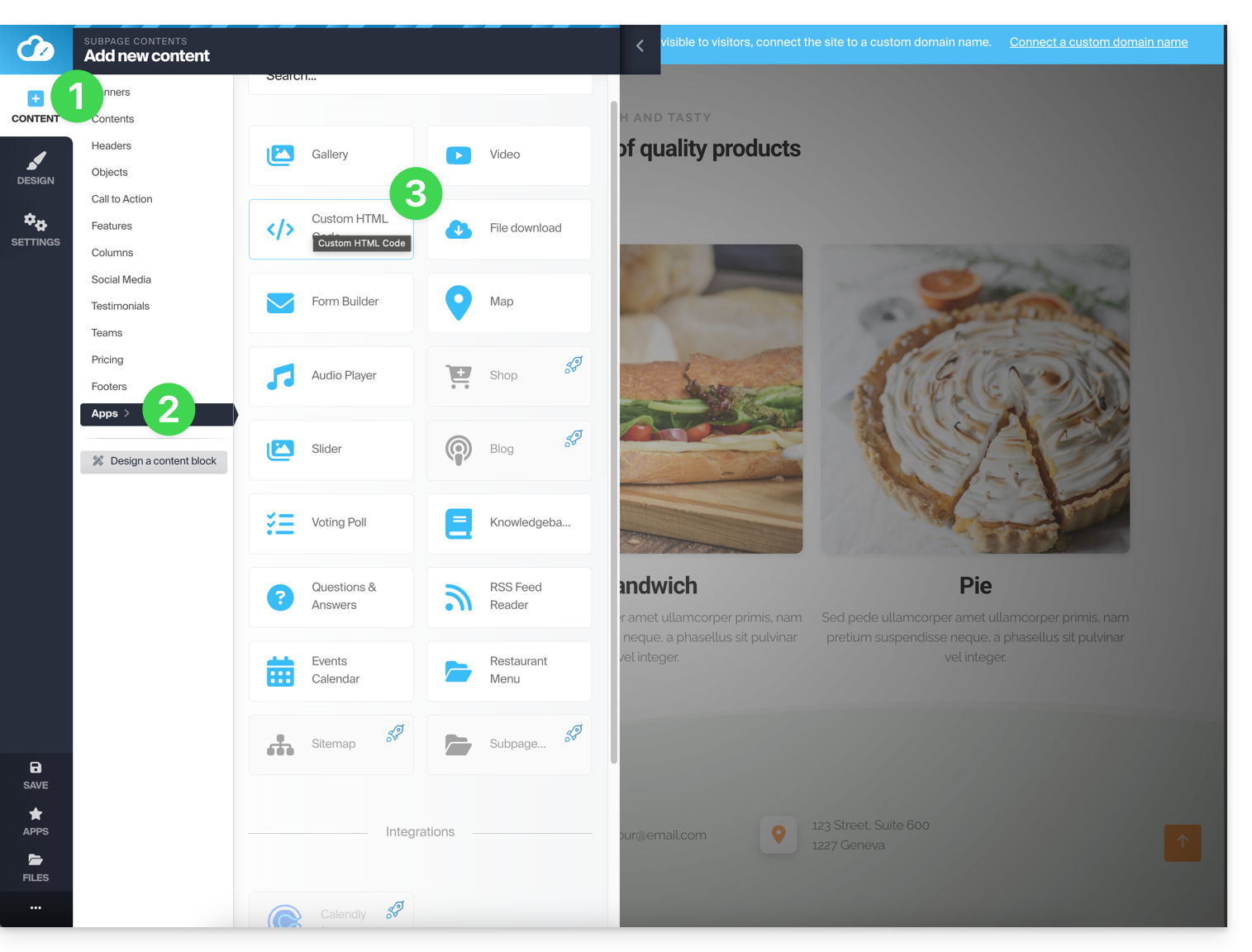
- Click on the Content button in the left-hand menu.
- Click on Applications at the bottom, and the available content will be displayed on the right.
- Click on one of these applications to insert it into the page:
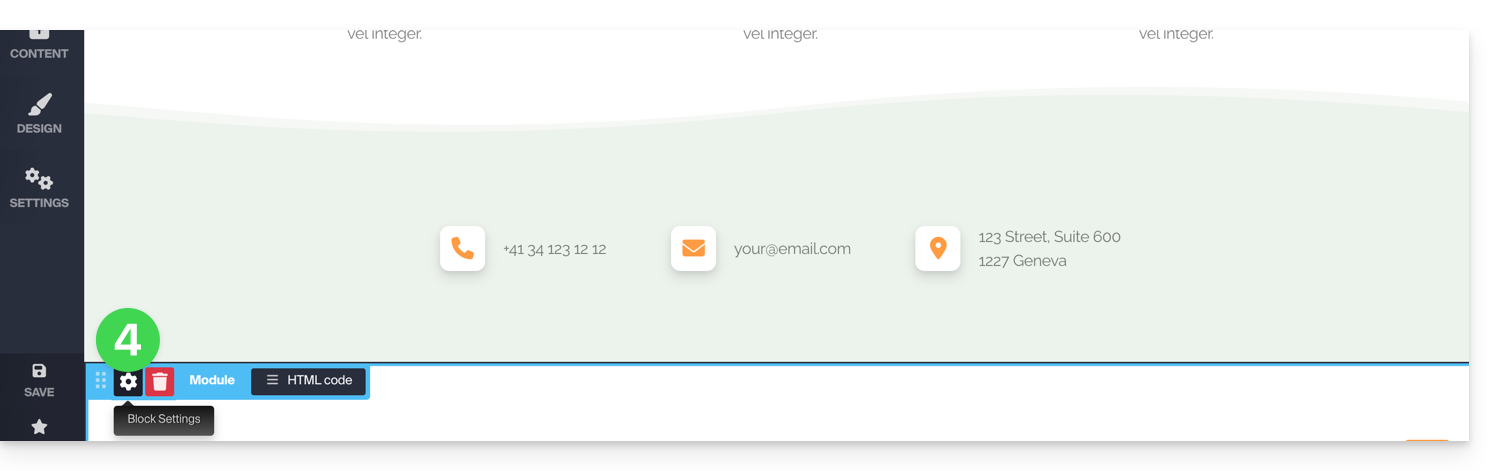
- Once inserted, hover over the module (or the block itself, depending on the module) to access its settings:
Multiple module or missing module
If you delete one of your modules (such as the one for creating a survey) that you have already configured and want to revert the changes, click Cancel immediately:
or
You can also reinsert the module, which should revert to its previous settings.
You cannot insert multiple modules of the same type to customize them independently.
Other integrations & widgets
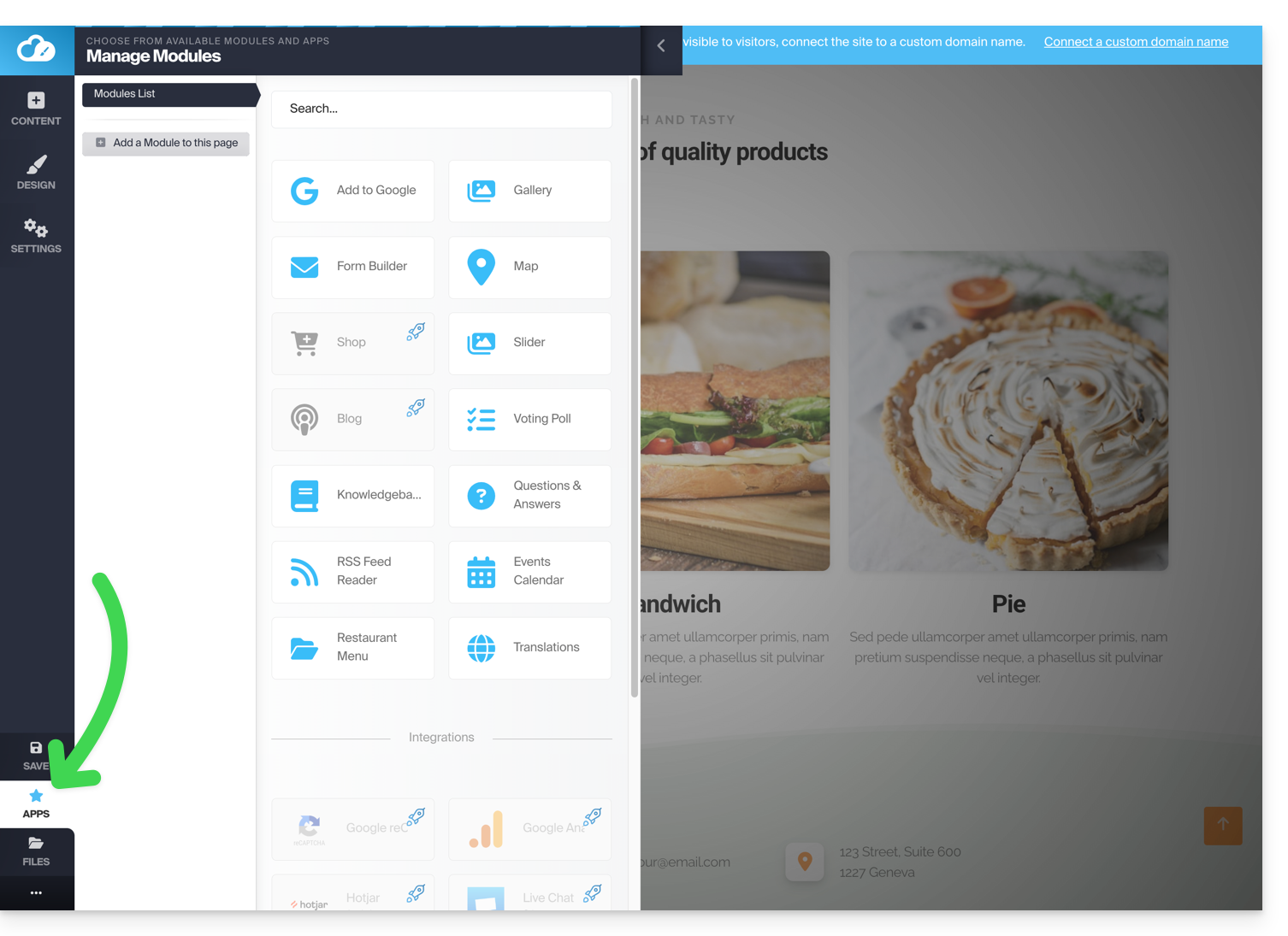
Click on the APPLICATIONS button in the left sidebar of Site Creator:
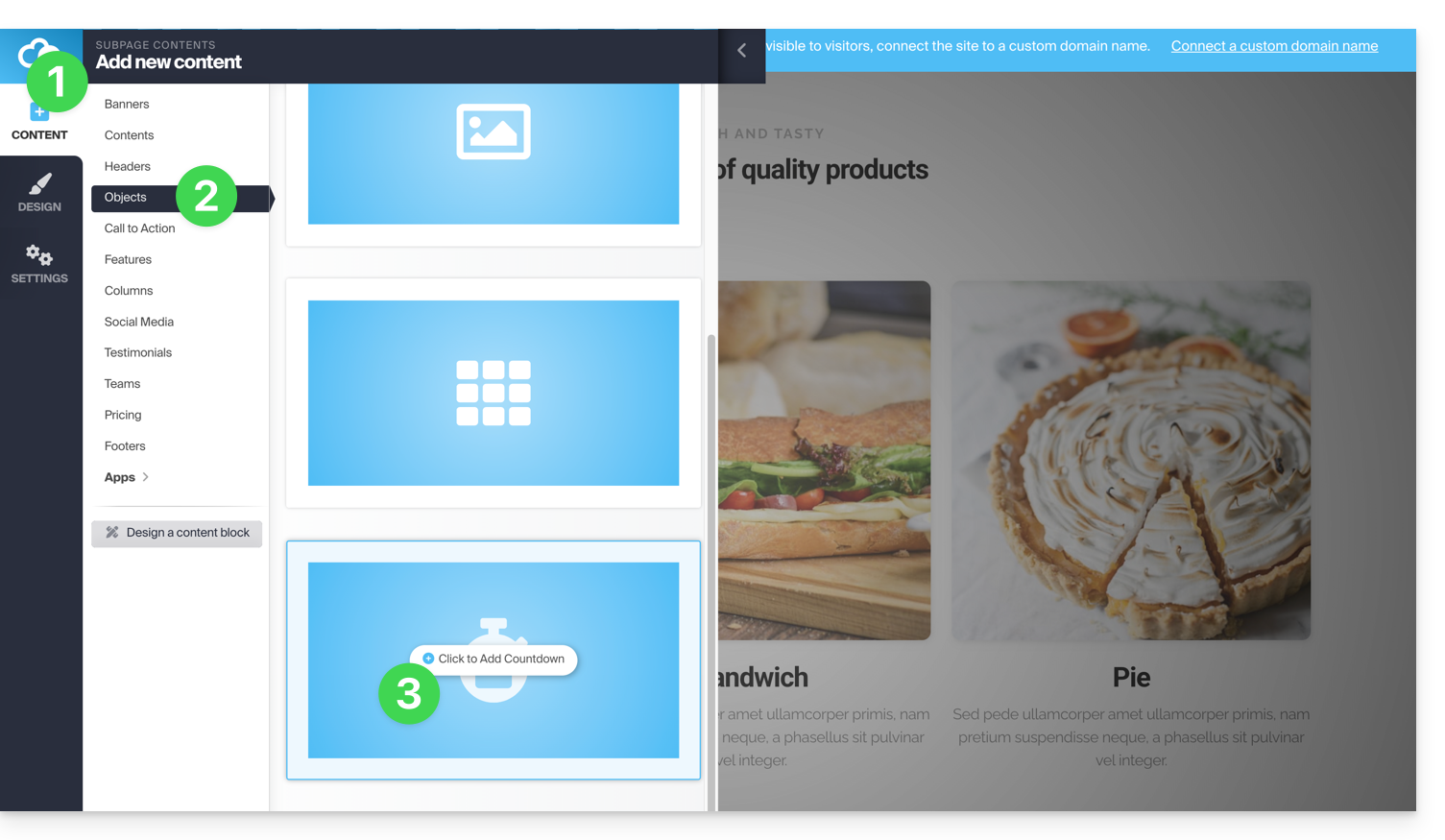
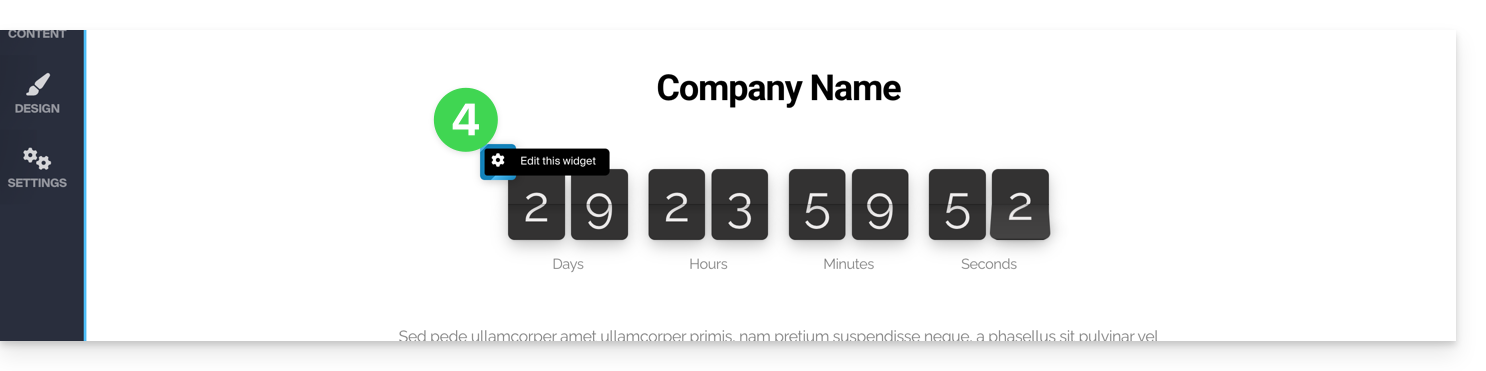
To add a counter to display a countdown:
- In the left-hand menu, click on the Content button.
- Click on Objects in the list, and the available content will be displayed on the right.
- Click on one of these objects to insert it on the page:
- Once inserted, hover over the module to access its settings:
Link to this FAQ: https://faq.infomaniak.com/2717
Has this FAQ been helpful?
This guide explains how to add and customize a button on your Site Creator page in Infomaniak, including a fixed button that allows you to return to the top of the page.
Prerequisites
- Access Site Creator:
- Click here to access the management of your product on the Infomaniak Manager (need help?).
- Click directly on the name assigned to the Site Creator in question.
- Click on the Edit my site button to launch the editor:
Add a link in the form of a button
To add a button (which links to the URL of your choice when clicked):
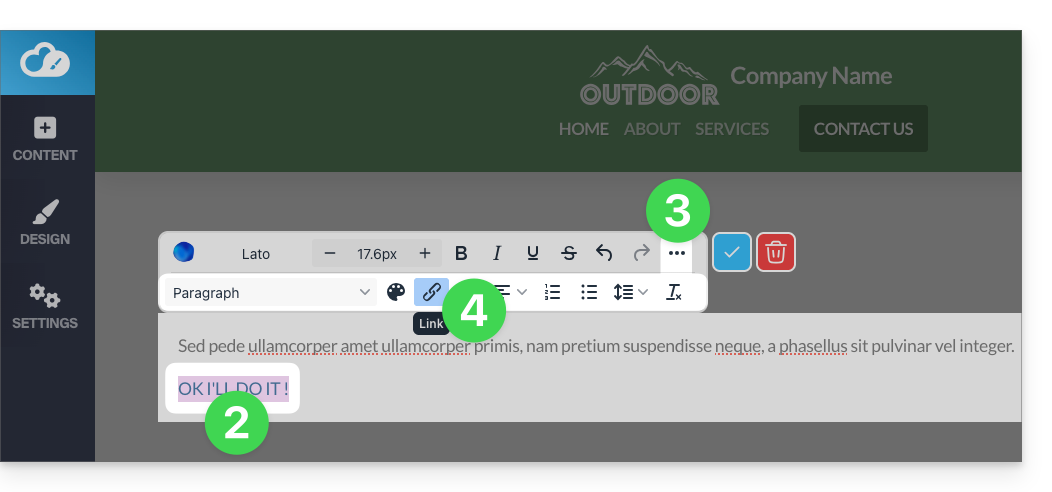
- Write the text for the button.
- Select the text.
- Tap the ••• button to the right of the toolbar to access additional options.
- Then, click on the chain icon to open the section where you can specify the link type and associated options:
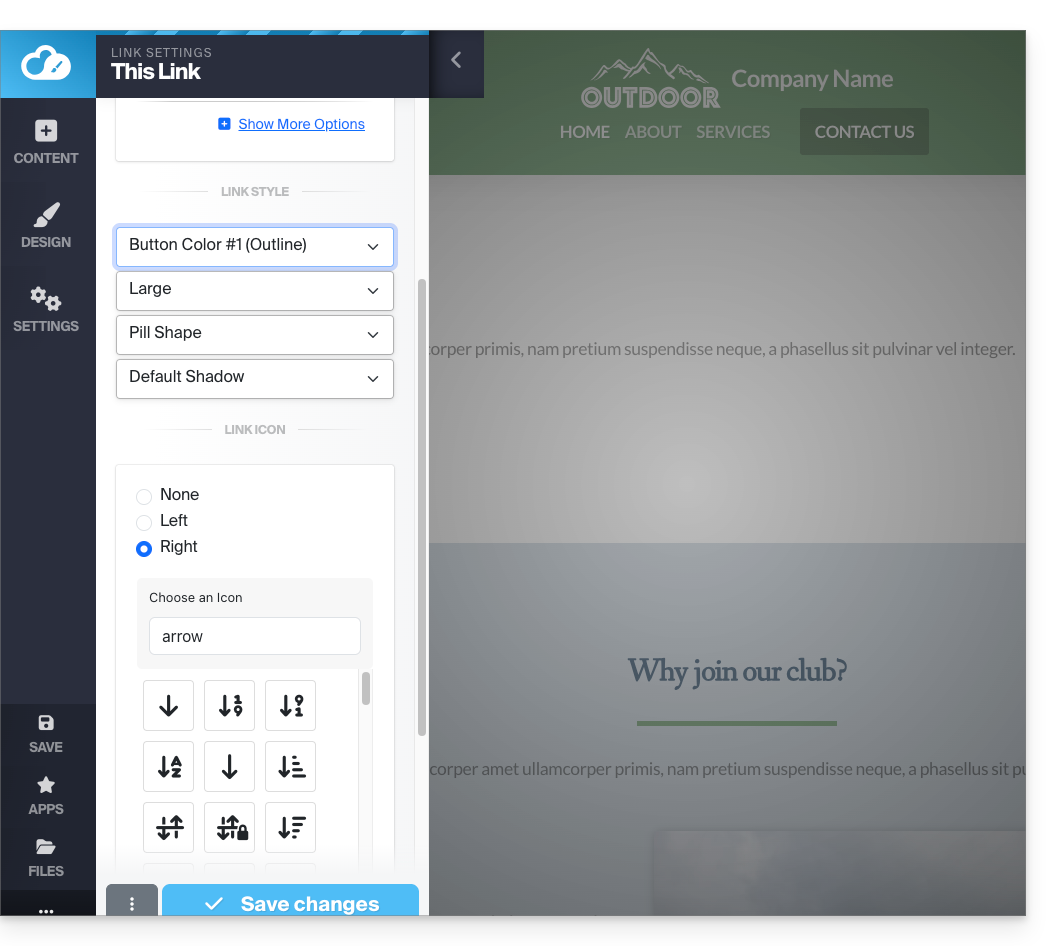
- Configure the destination page and the button's appearance.
- Save the changes at the bottom of the tab:
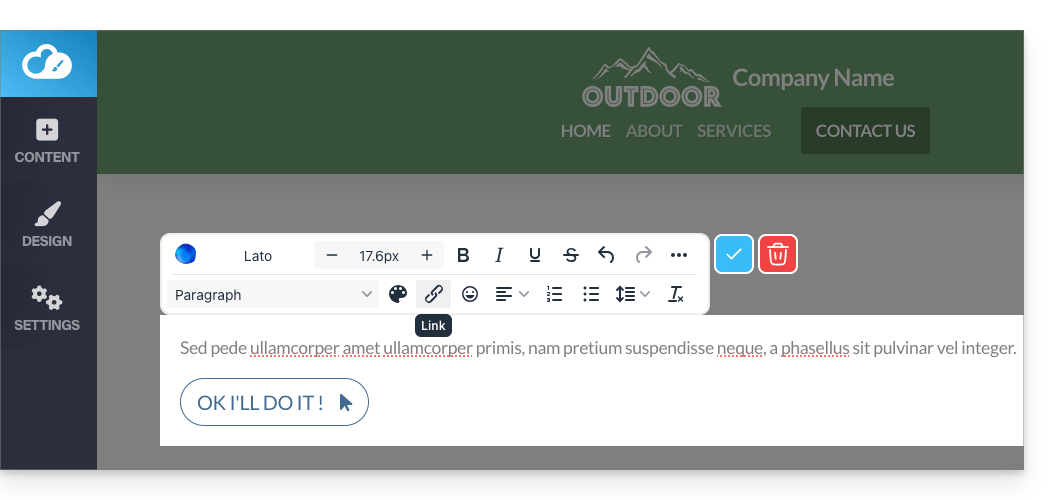
- View the button on your page.
- Click the button to return to the editor if needed:
Add a “Back to top” button
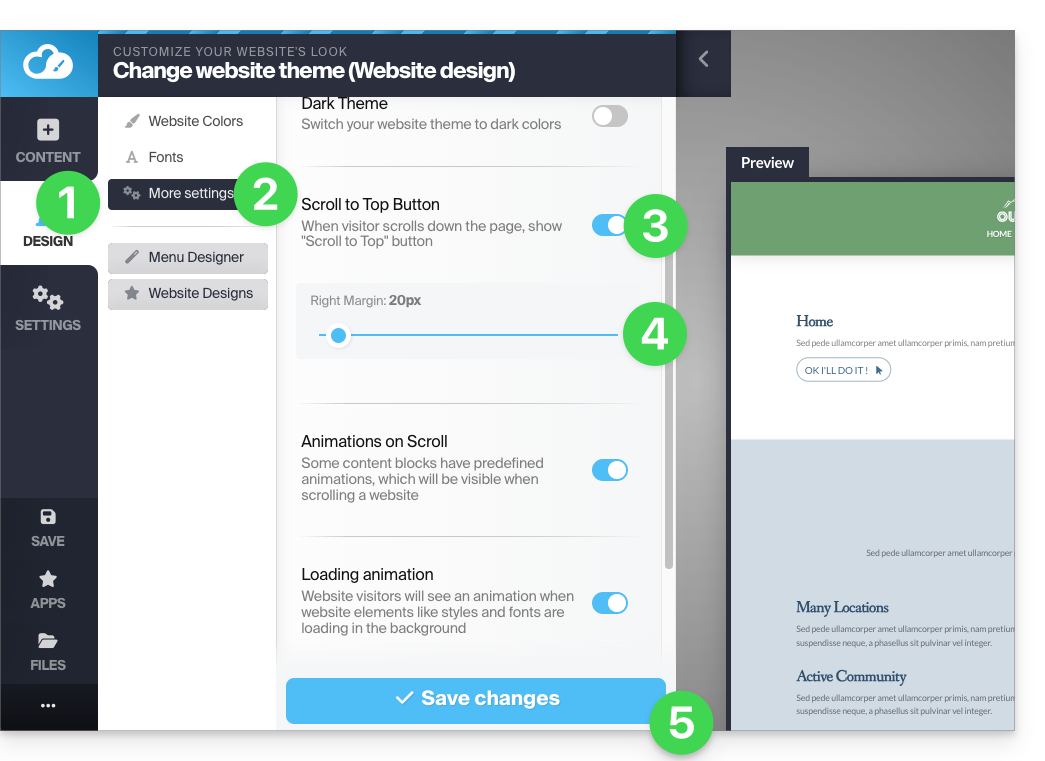
To add and customize a button that takes the visitor back to the top of your Site Creator page as soon as the page scrolls:
- Click on the Design button in the left-hand menu.
- Click on More settings.
- Enable the option to display the back button at the top.
- Adjust the spacing from the right edge.
- Save the changes at the bottom of the page:
Refresh the page if necessary to see the change: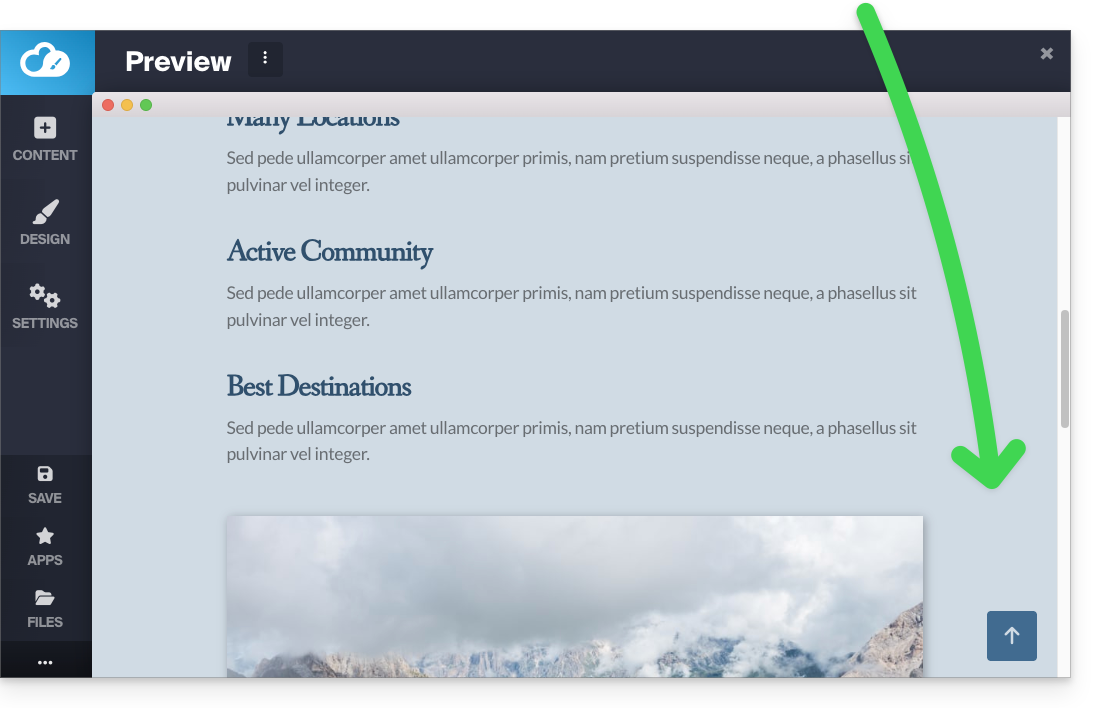
Refer to this other guide for an alternative solution.
Link to this FAQ: https://faq.infomaniak.com/2718
Has this FAQ been helpful?
This guide helps you customize a website created with Infomaniak's Site Creator.
To customize the homepage or page types of your website, refer to this other guide.
Prerequisites
- Access Site Creator:
- Click here to access the management of your product on the Infomaniak Manager (need help?).
- Click directly on the name assigned to the Site Creator in question.
- Click on the Edit my site button to start the editor:
Change the website colors
To manage themes, colors, and fonts in Site Creator:
- Click on the Design button in the left-hand menu.
- Click on Website Colors:
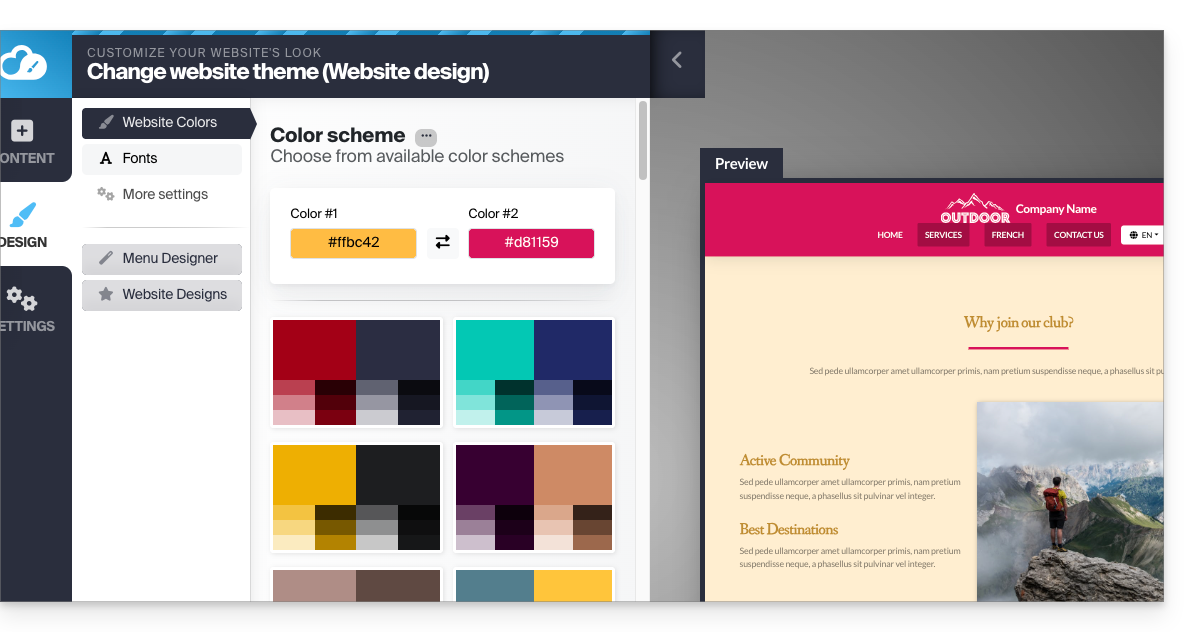
You can choose from the available color palettes or create your own custom color scheme.
Below, you'll find more specific settings where you can specify which elements a color should be applied to: 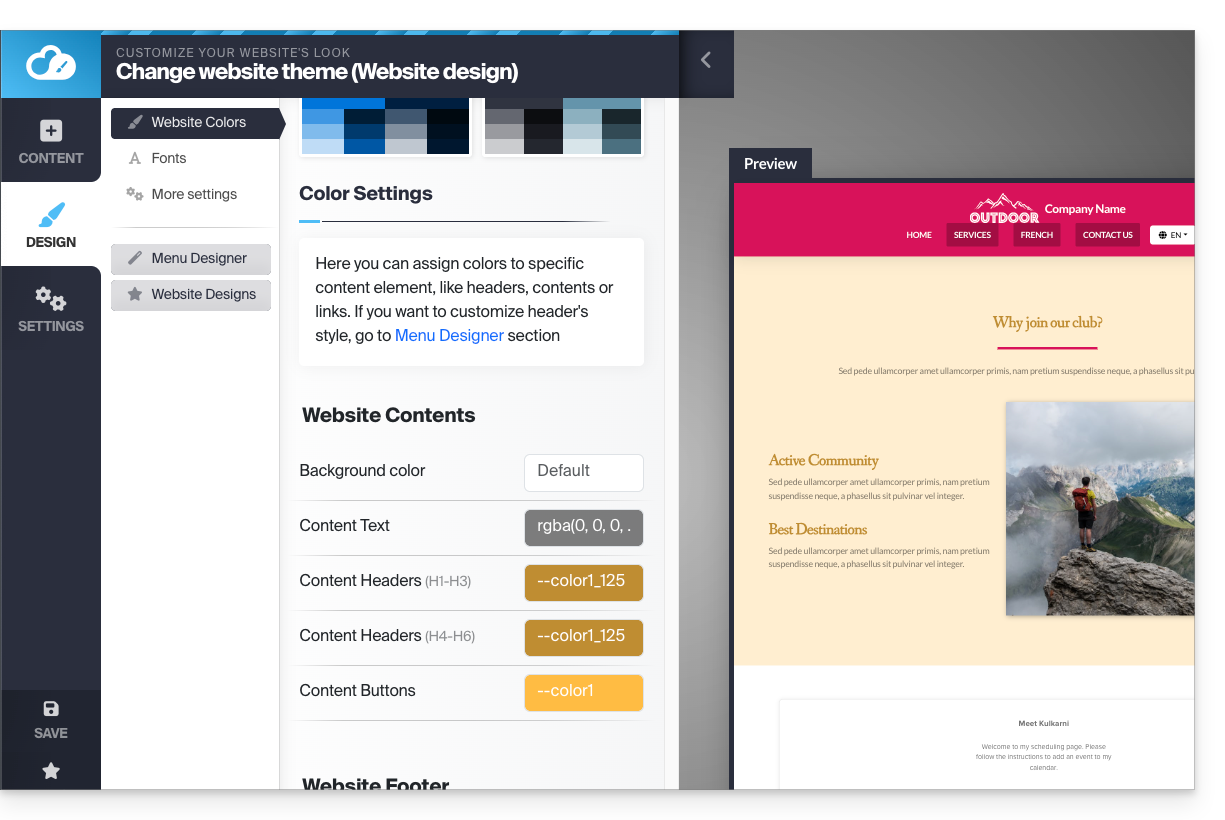
Manage the background (image/color) of blocks
On your website's editing page, hover over a block and click the gear icon to access the settings: 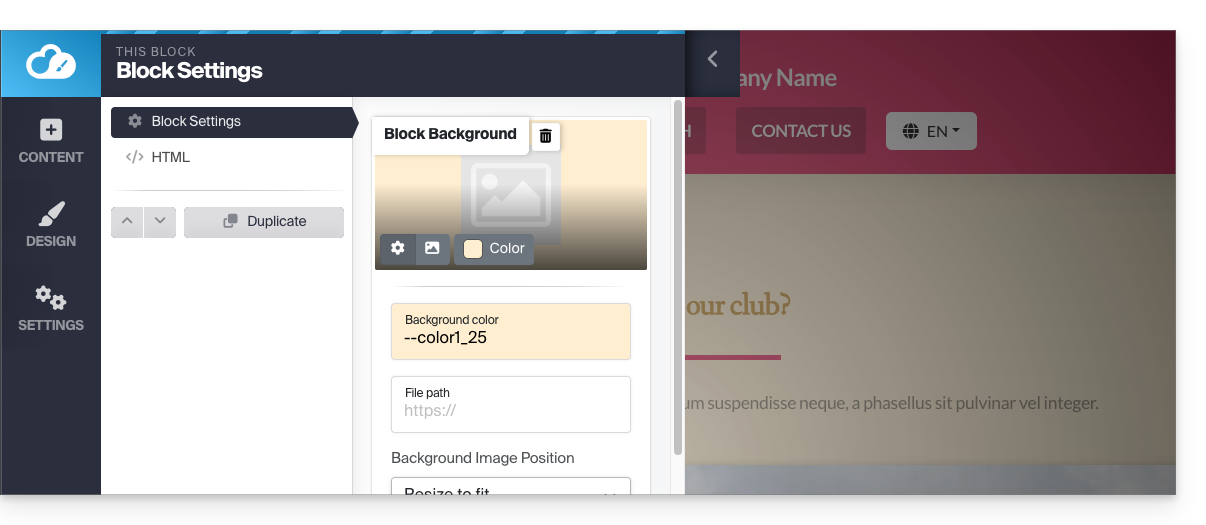
Upload a website template
You can modify the overall design of your website by changing its theme, and by deciding what should be overwritten or not on the current site when making the change:
- Click on the Design button in the left-hand menu.
- Click on Theme selection:
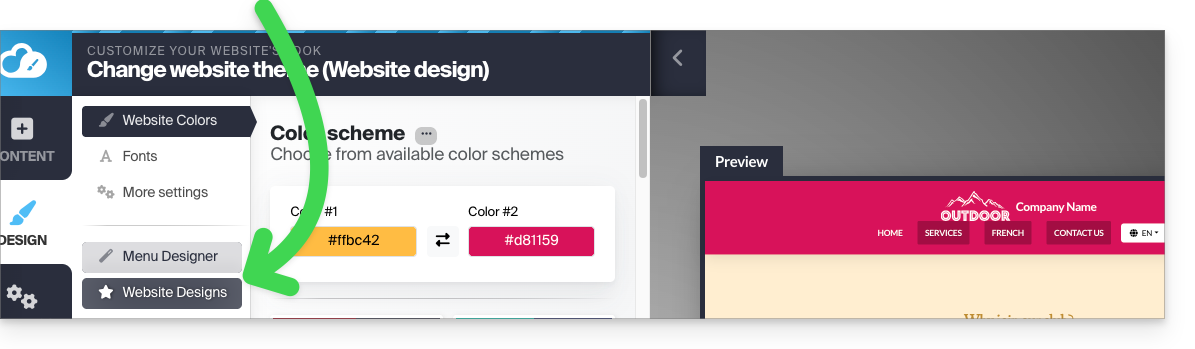
This is where you can choose from the available website themes: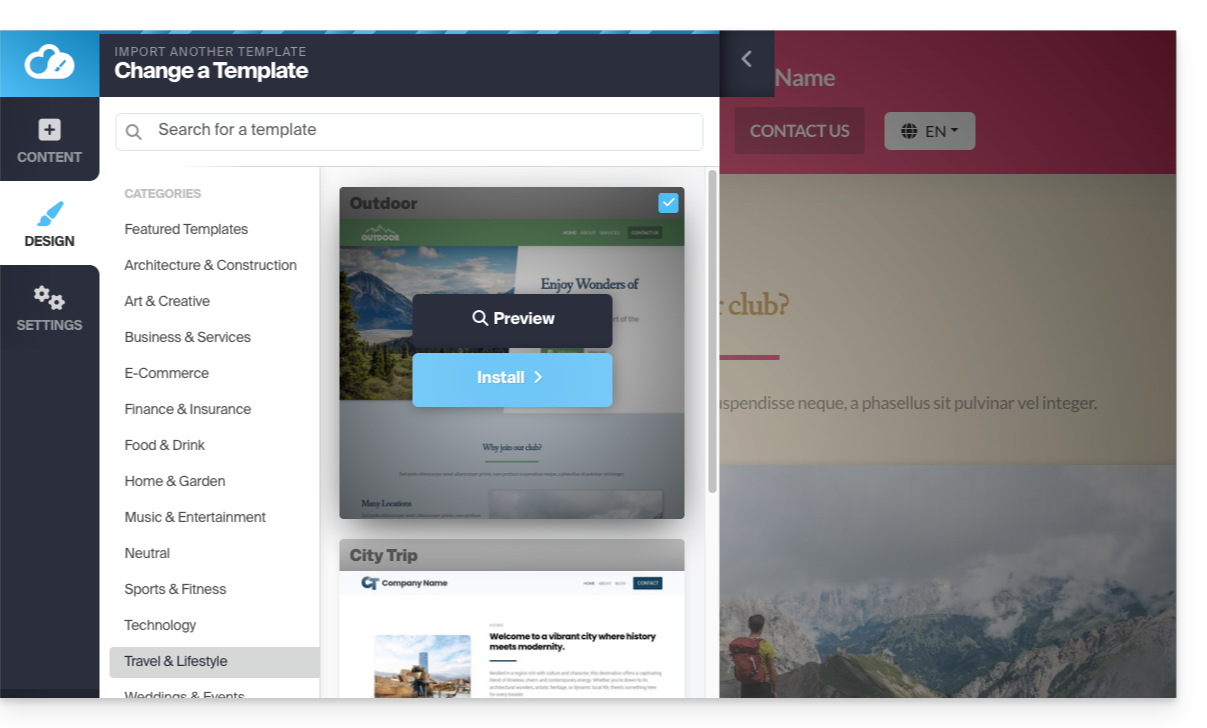
Once you have found your new theme, click on Install, and then you can choose which parts of the new template you want to import (by default, only the colors, fonts, or menu style) to avoid overwriting the content of your website.
If your website is new, you can choose more options during import.
Change the website fonts
To do this:
- Click on the Design button in the left-hand menu.
- Click on Fonts:
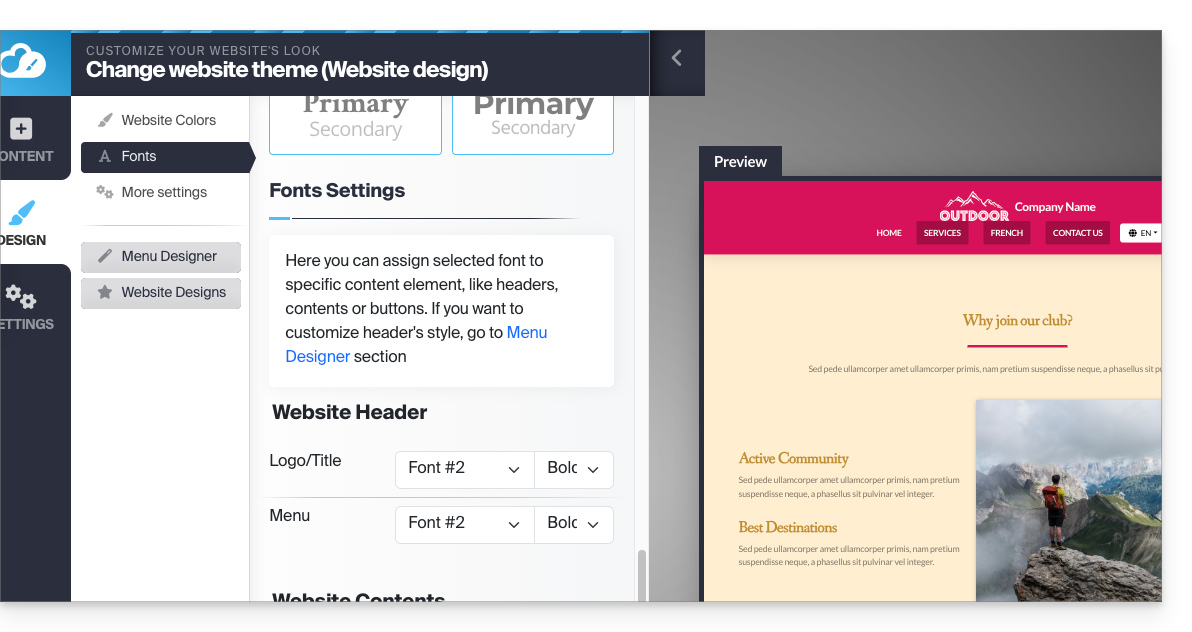
You can easily change the main fonts of the website; the first font is used for headings, and the second font is used for the content.
Below, you will find more specific settings where you can specify which elements a font should be applied to.
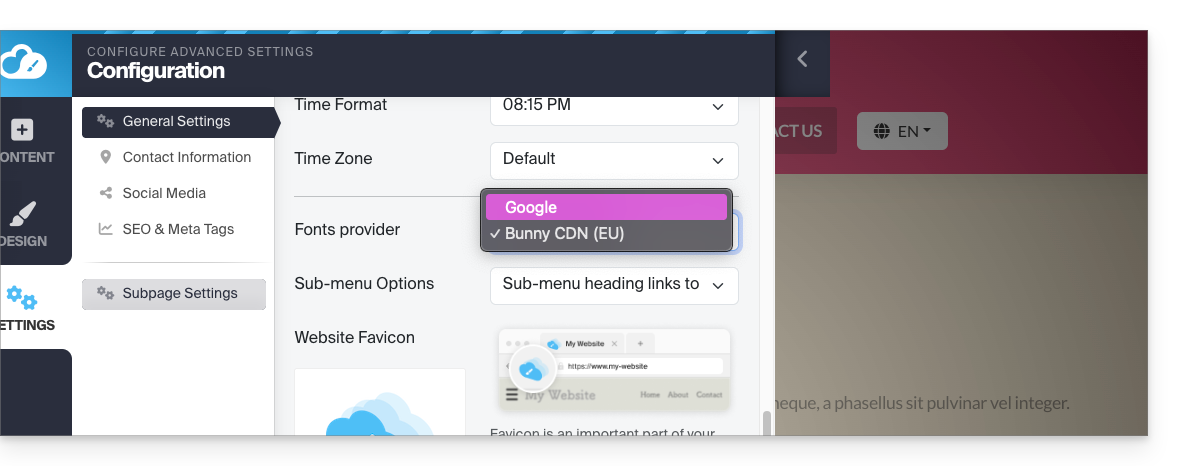
It is not possible to import or add a custom font.but you can change the provider (the font list will be the same) for privacy reasons, for example:
- Click on Settings in the left-hand menu.
- Click on General Settings
- Choose the font provider:
Troubleshooting Missing/Invisible Text
If you believe your text block has disappeared or is invisible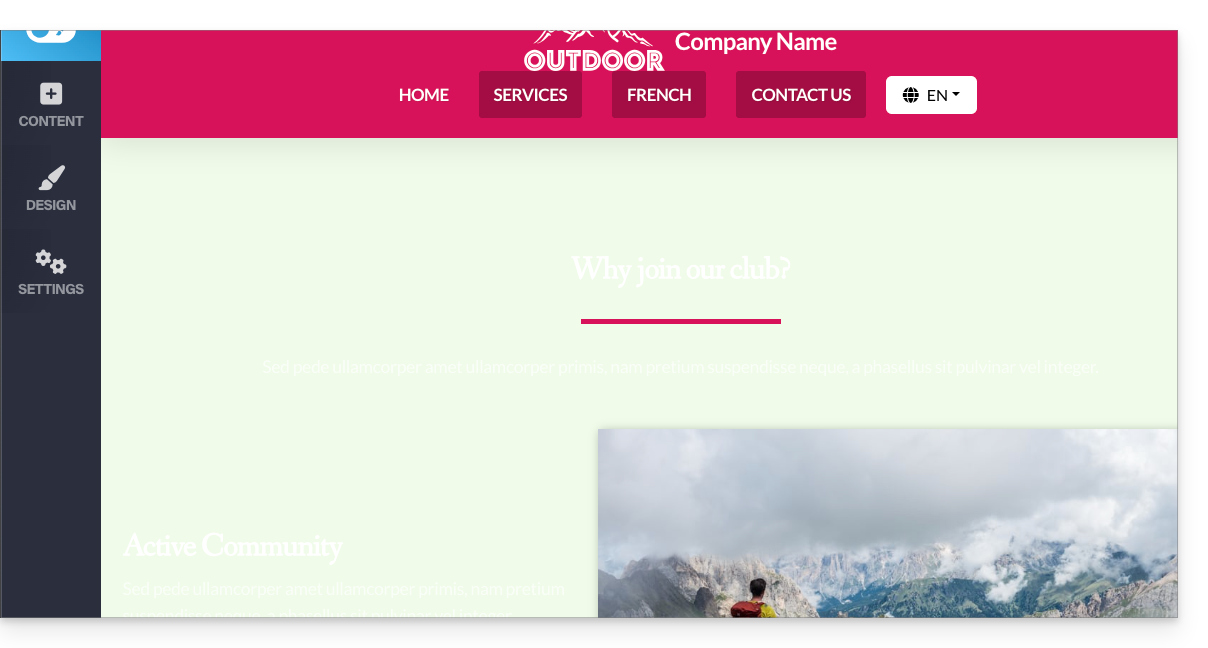
then select all the content on the website (ctrl + a or cmd + a on Mac); if you see that your content is there, it probably means that the block settings are configured for a dark background: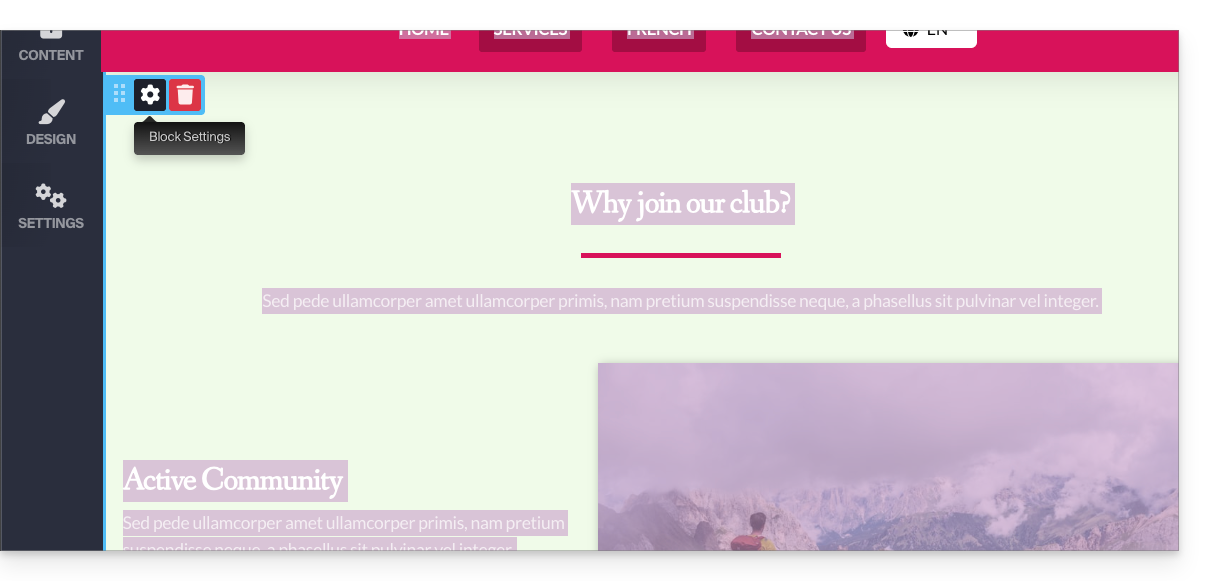
In this case, go to the block settings and make sure that the "Dark background" option is not checked. This should resolve the issue: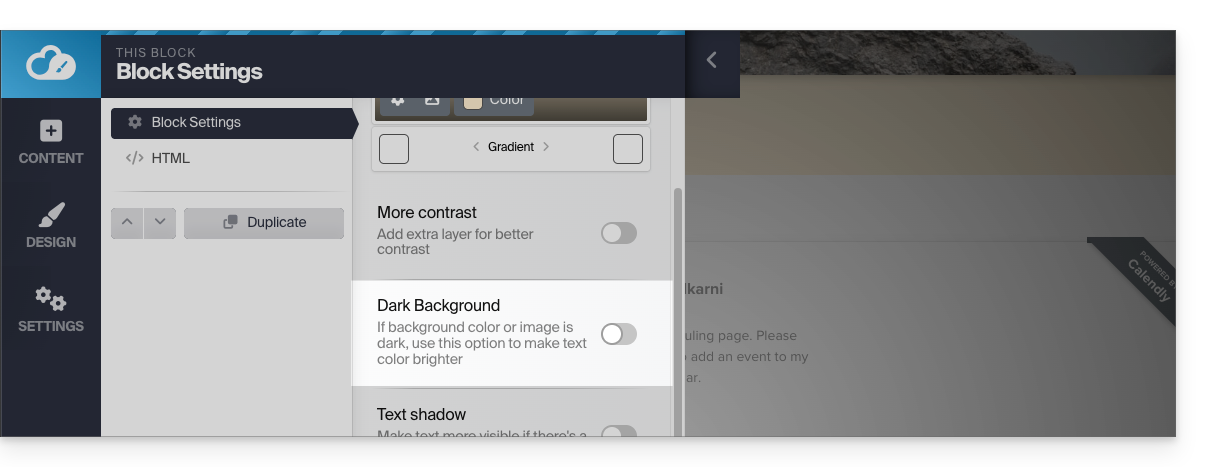
Link to this FAQ: https://faq.infomaniak.com/2719
Has this FAQ been helpful?
This guide explains how to manage the logo, header, and footer sections in Infomaniak's Site Creator.
Prerequisites
- Access Site Creator:
- Click here to access the management of your product on the Infomaniak Manager (need help?).
- Click directly on the name assigned to the Site Creator in question.
- Click on the Edit my site button to launch the editor:
Add a website logo
Once in Site Creator:
- Click on the Settings button in the left sidebar.
- Click on Logo / title.
- Upload an image and choose whether the site name should also be displayed next to it.
- Save the changes:
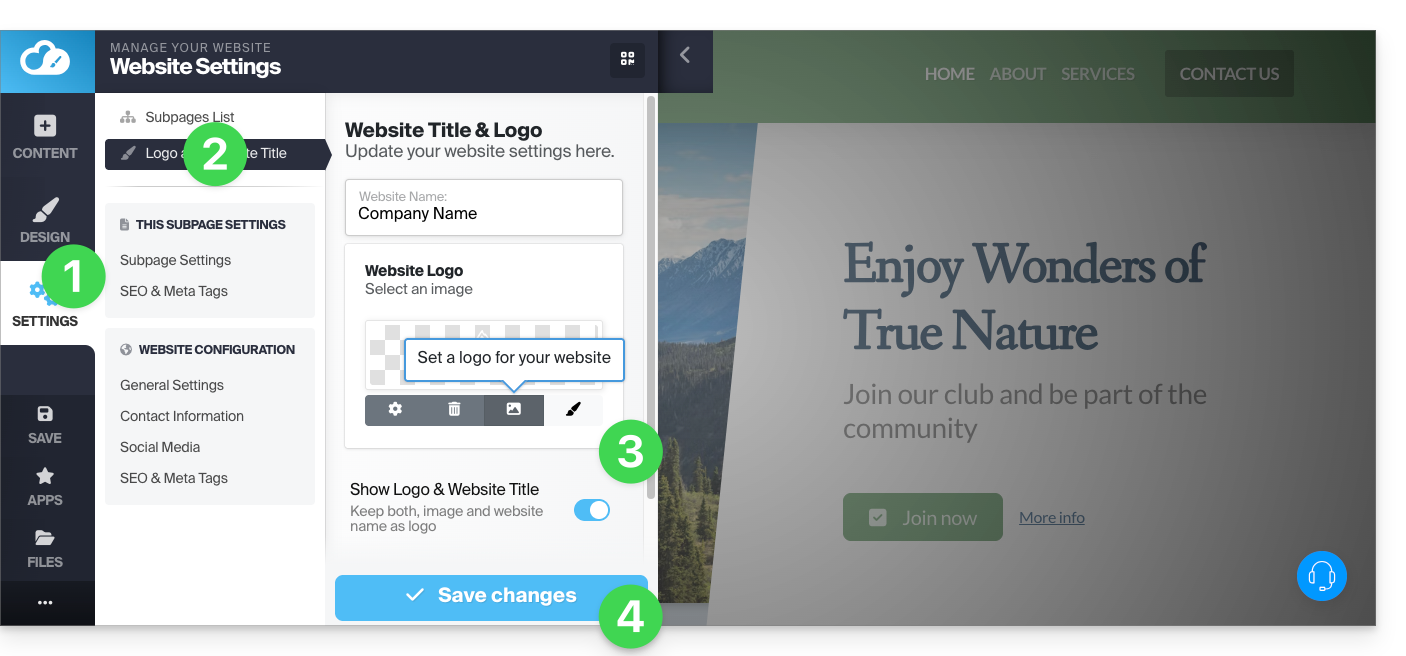
Logo settings
- Click on the Design button in the left sidebar.
- Click on Menu Designer.
- Click on Title/logo.
- Then adjust spacing and colors.
- Save the changes:
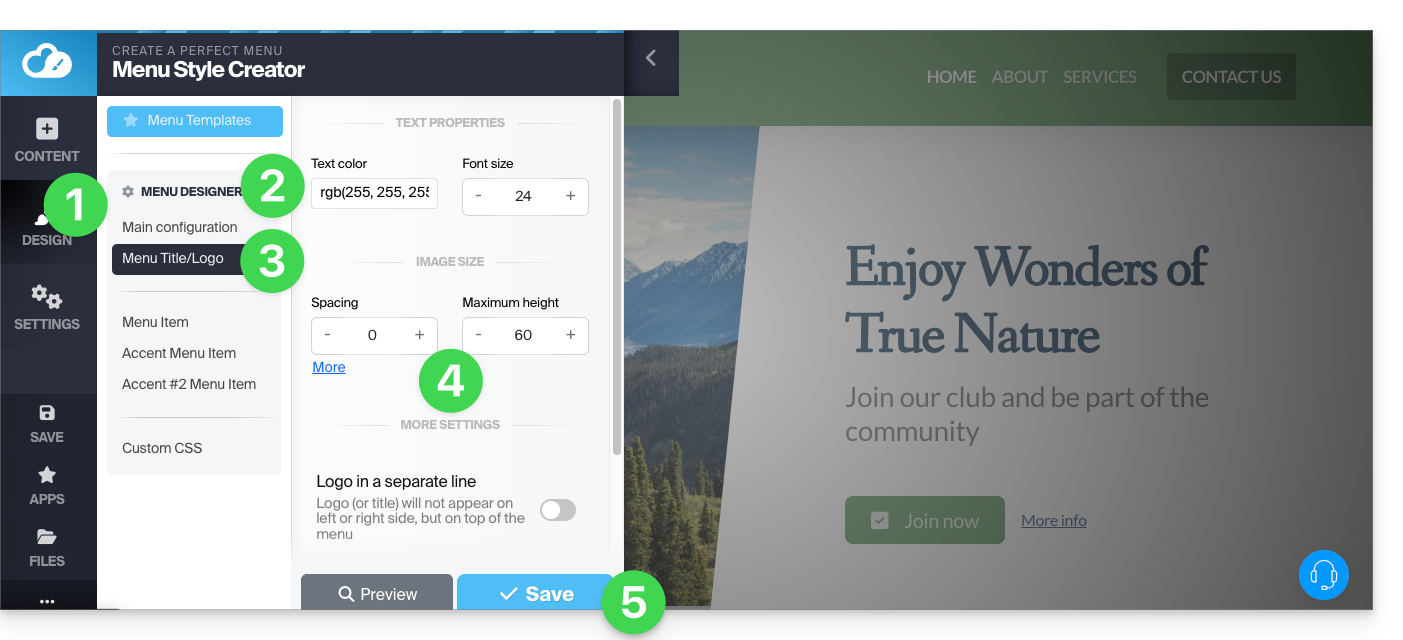
Display the logo in the center
In the same location as above (you can also access it by hovering over the header and its logo),activate the option to display the logo on a separate line, which will center the site's logo: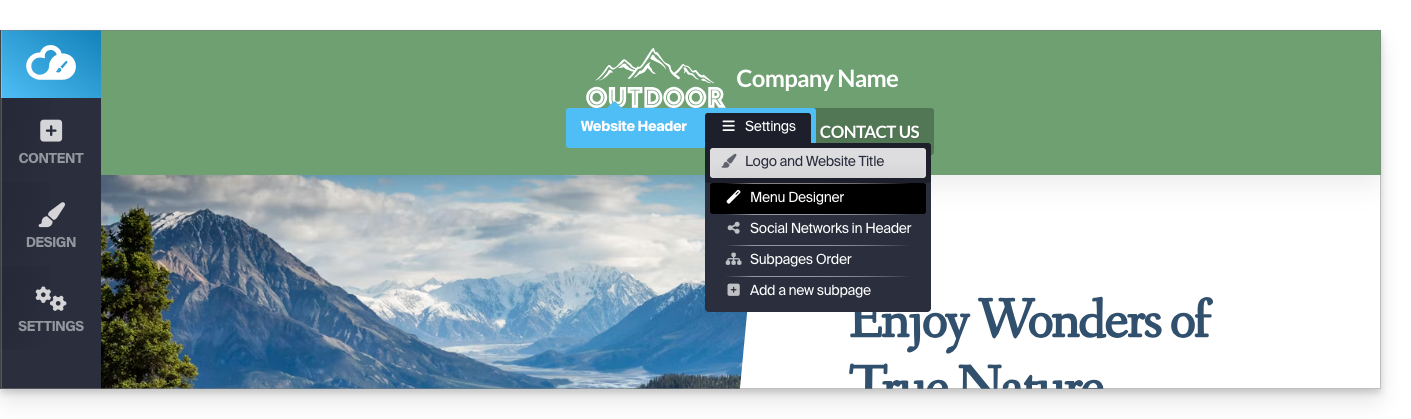
Hide the logo (and header and footer)
To create a page without a logo that also has no header (and therefore no menu displayed) or footer, you need to define it as a Homepage (i.e., a "Landing page"; note that this does not change the order of the pages) using a button located here:
- Click on the Settings button in the left sidebar.
- Click on Page List.
- Hover over a page in the existing tree and click on the gear icon that appears on hover.
- Activate the "Homepage" option at the bottom to hide headers and footers:
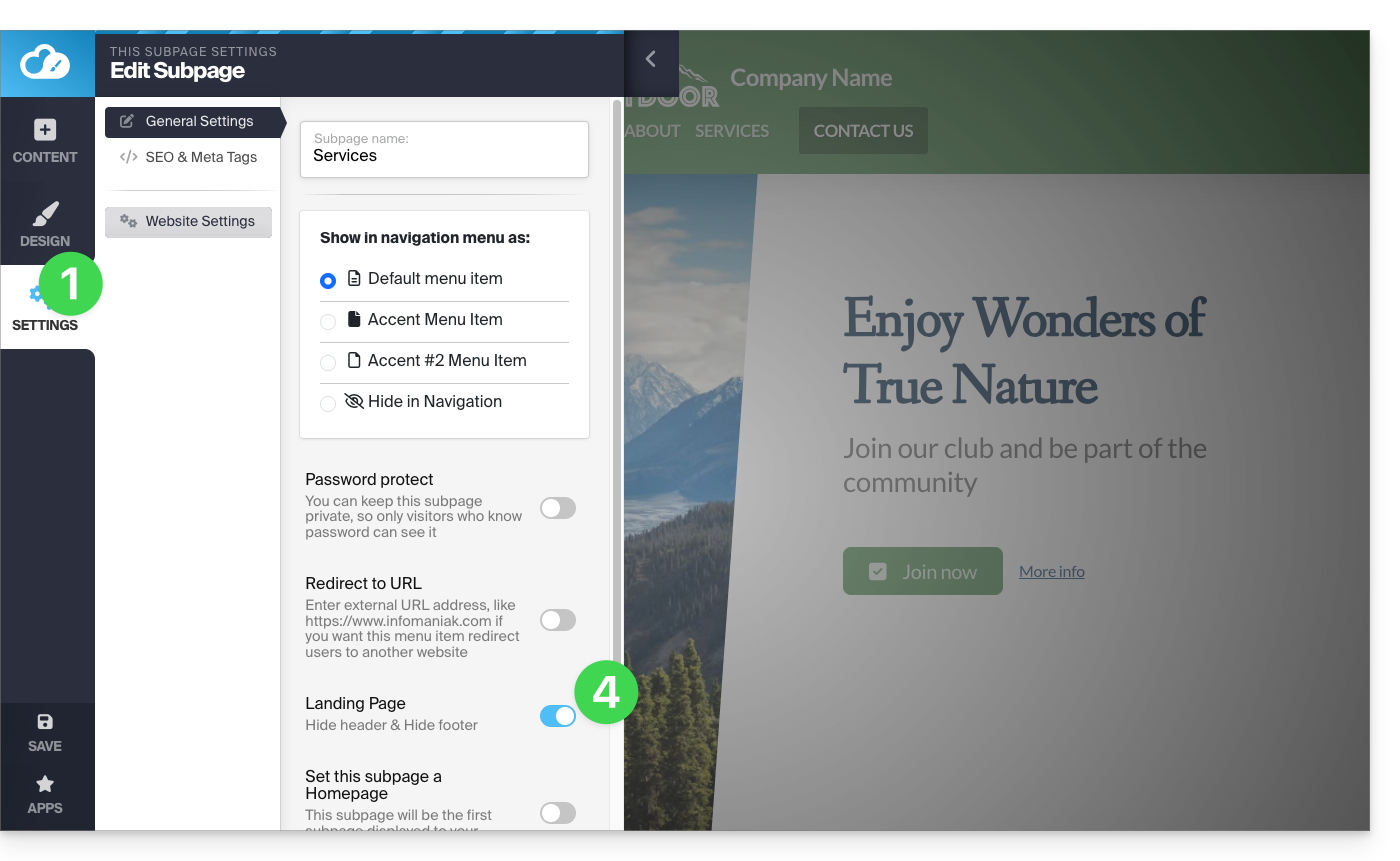
Link to this FAQ: https://faq.infomaniak.com/2720
Has this FAQ been helpful?
This guide explains how to modify certain details of a website created with Infomaniak's Site Creator.
Prerequisites
- Access Site Creator:
- Click here to access the management of your product on the Infomaniak Manager (need help?).
- Click directly on the name assigned to the Site Creator in question.
- Click on the Edit my site button to launch the editor:
Change the website name
Click on the Settings button in the left sidebar, then on Site Title: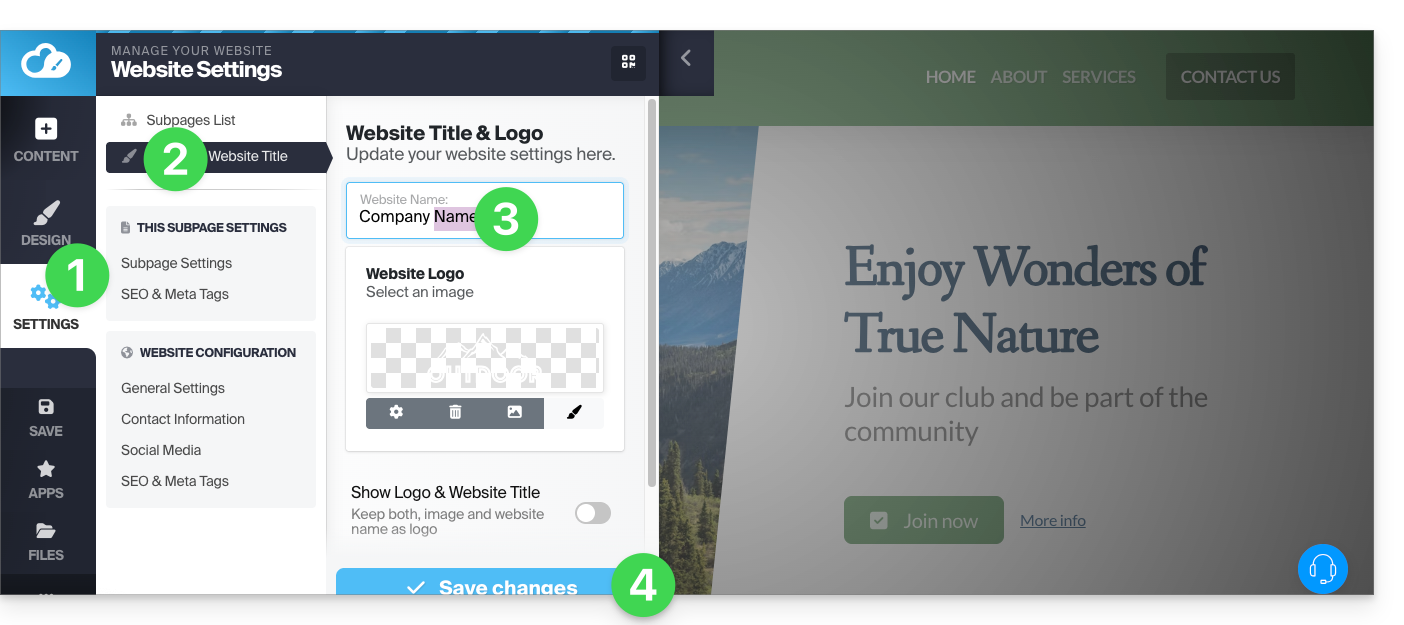
Company Details
Click on the Settings button in the left sidebar, then on Contact details under Website configuration: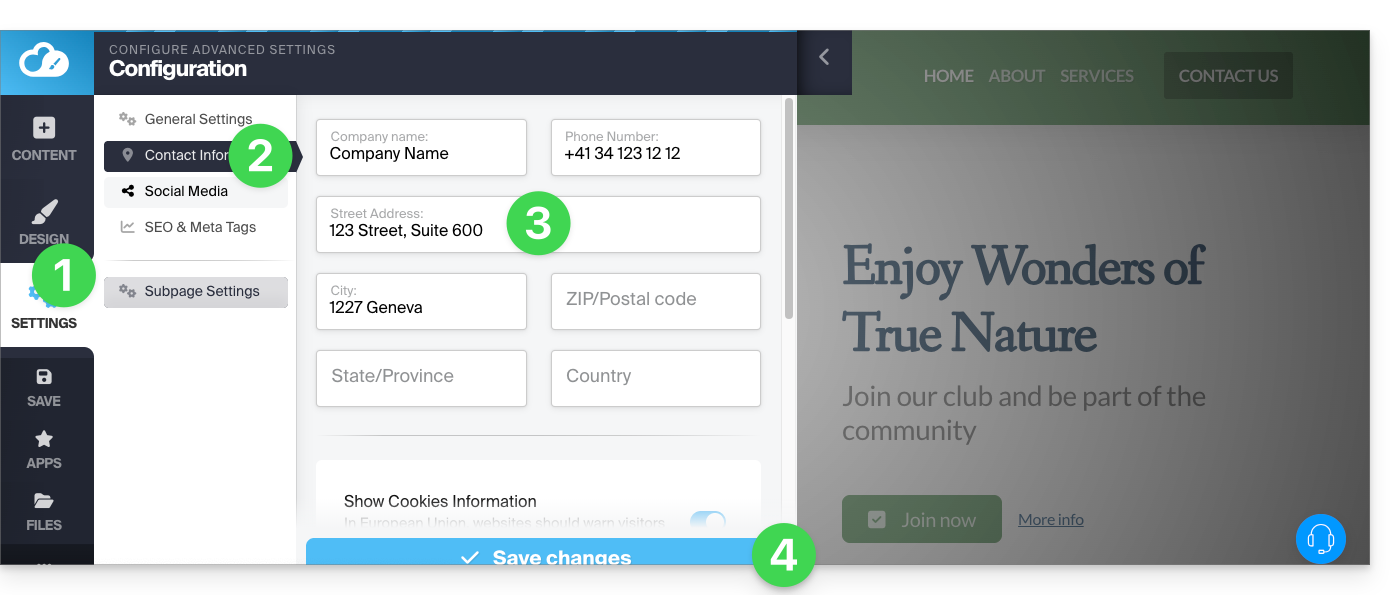
Link to this FAQ: https://faq.infomaniak.com/2721
Has this FAQ been helpful?
This guide explains how to set up the icon displayed in the favorites bar of a web browser, the favicon, within Infomaniak's Site Creator.
Introduction
- Microsoft recommends the following formats for its browsers:
16 x 16,32 x 32and48 x 48. - Apple, on the other hand, recommends that the favicon size be
180 x 180.
Define the Site Creator favicon
Prerequisites
- Access Site Creator:
- Click here to access the management interface for your product in the Infomaniak Manager (need help?).
- Click directly on the name assigned to the Site Creator in question.
- Click on the Edit my site button to launch the editor:
To define a new favicon:
- Click on the Settings button in the left-hand menu.
- Click on General Settings:
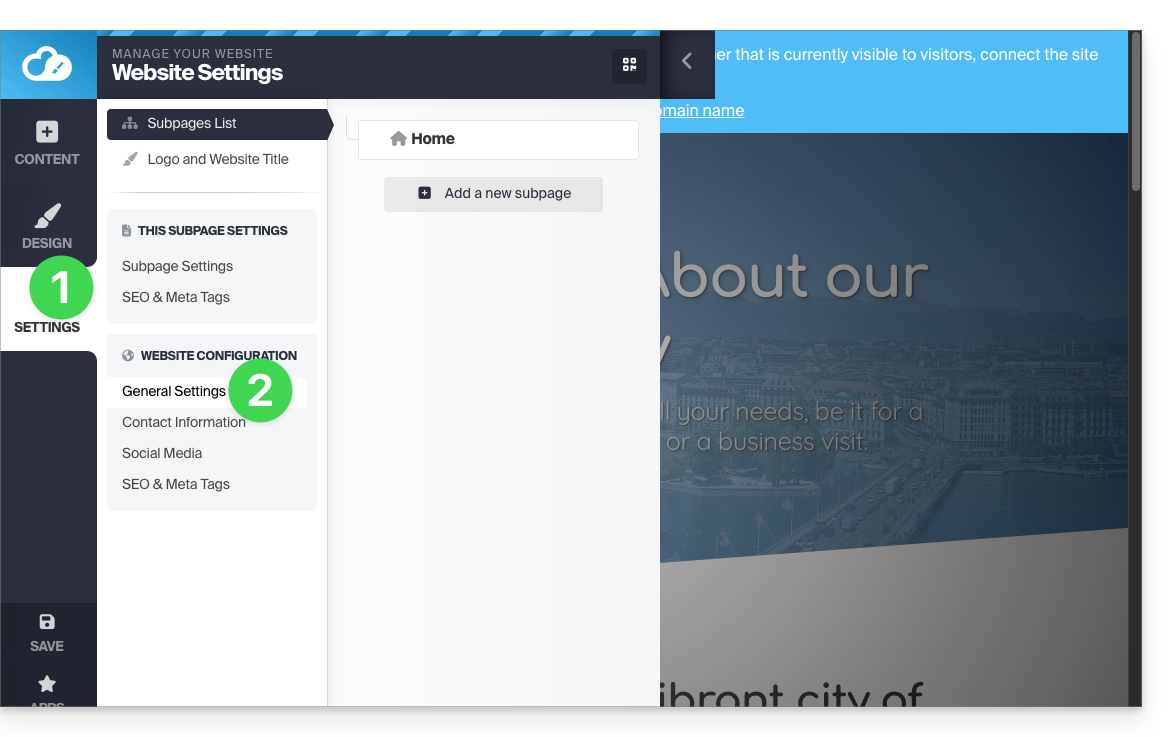
- Scroll down to the Favicon section and click to choose an image:
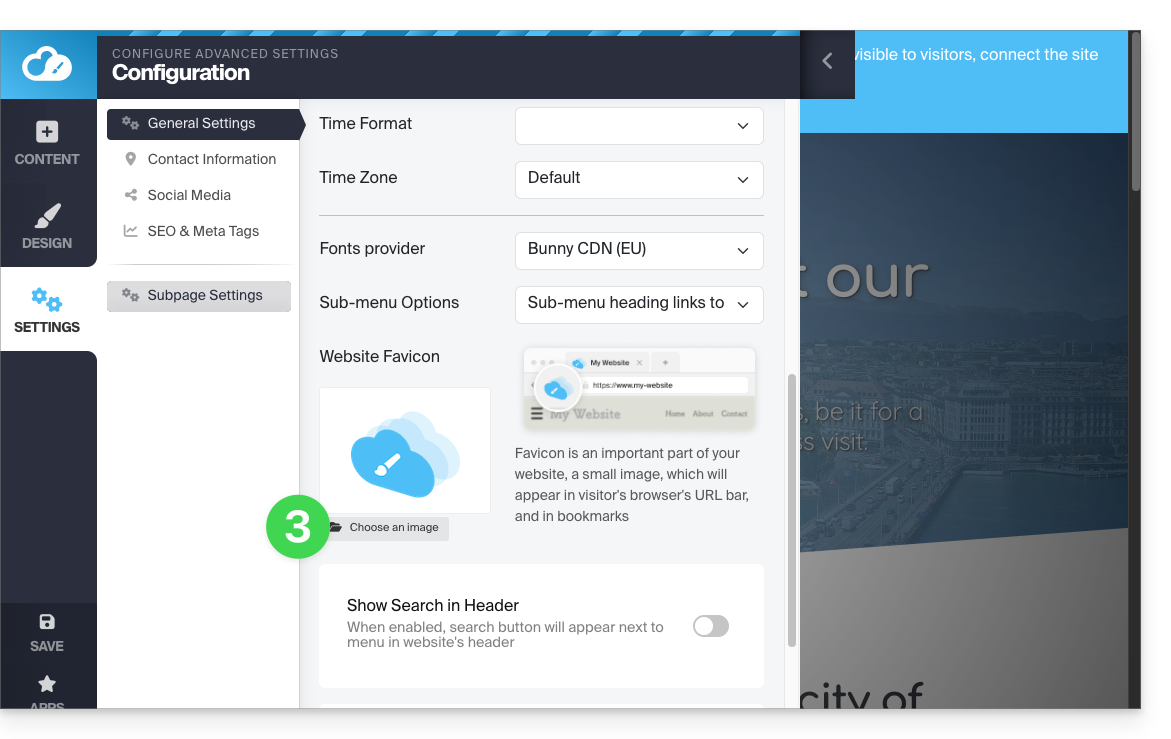
- Import/select the favicon from your hard drive:
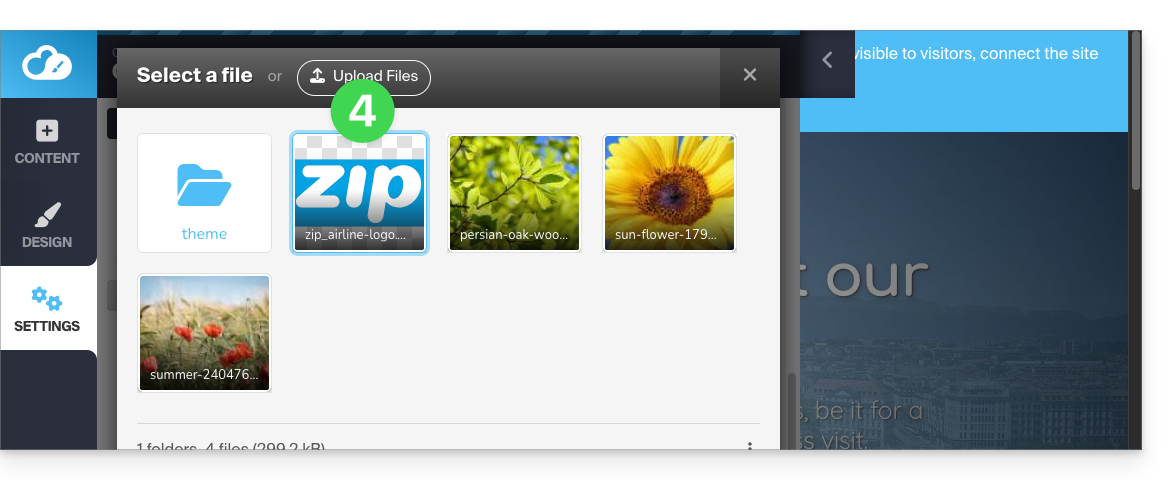
- Save the changes at the bottom of the page:
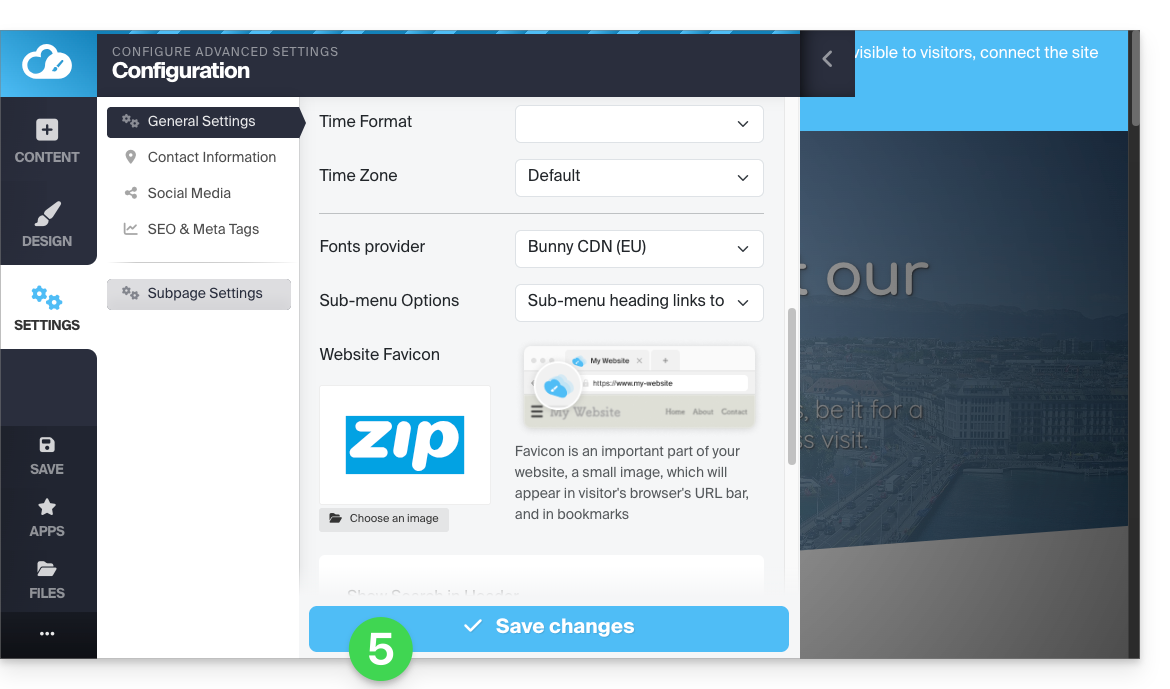
- Preview the result in your browser (if necessary, in a new private browsing window, for example):
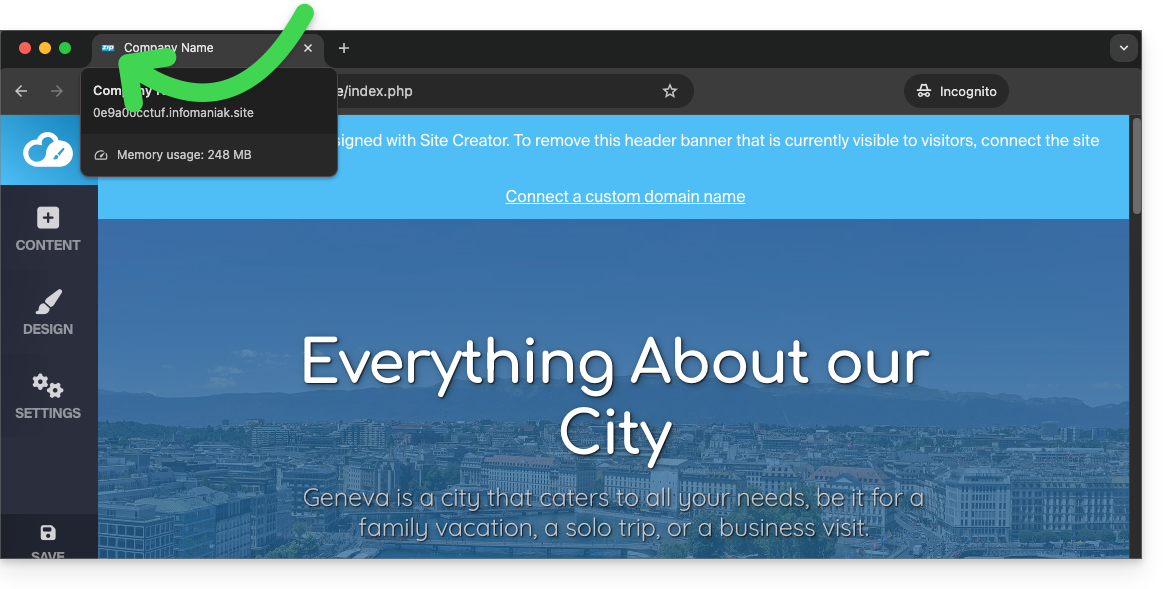
Link to this FAQ: https://faq.infomaniak.com/2723
Has this FAQ been helpful?
This guide explains how to add and configure a contact form on your website created with Site Creator Infomaniak.
Create a custom contact form
Prerequisites
- Access Site Creator:
- Click here to access the management of your product on the Infomaniak Manager (need help?).
- Click directly on the name assigned to the Site Creator in question.
- Click on the Edit my site button to start the editor:
You can create one or more forms to allow your visitors to write a message, register for an event, or fill out any kind of online form, with or without attachments:
- Click on the Content button in the left-hand menu.
- Click on Applications at the bottom of the list.
- Click on Form Builder:
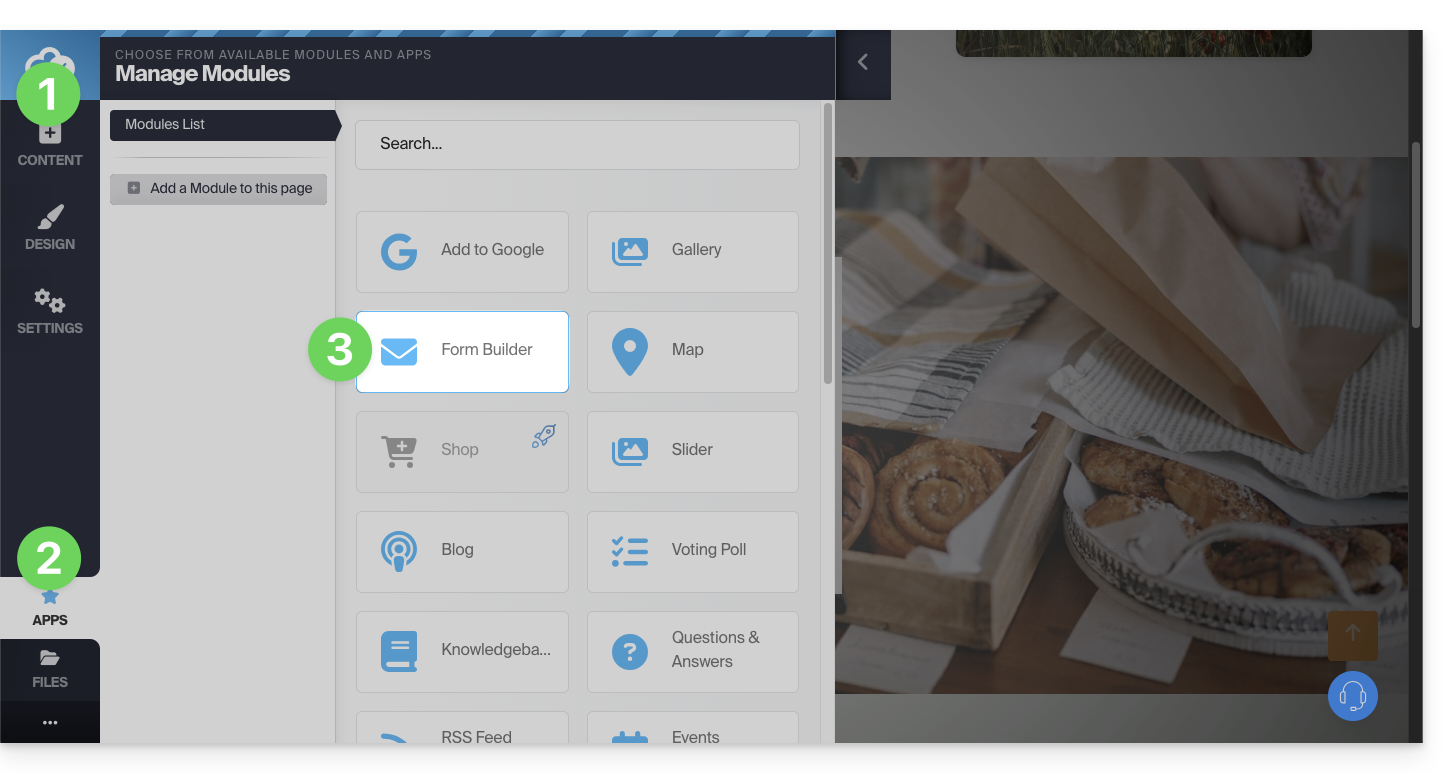
- Build your form using the elements on the left.
- Save at the bottom of the page:
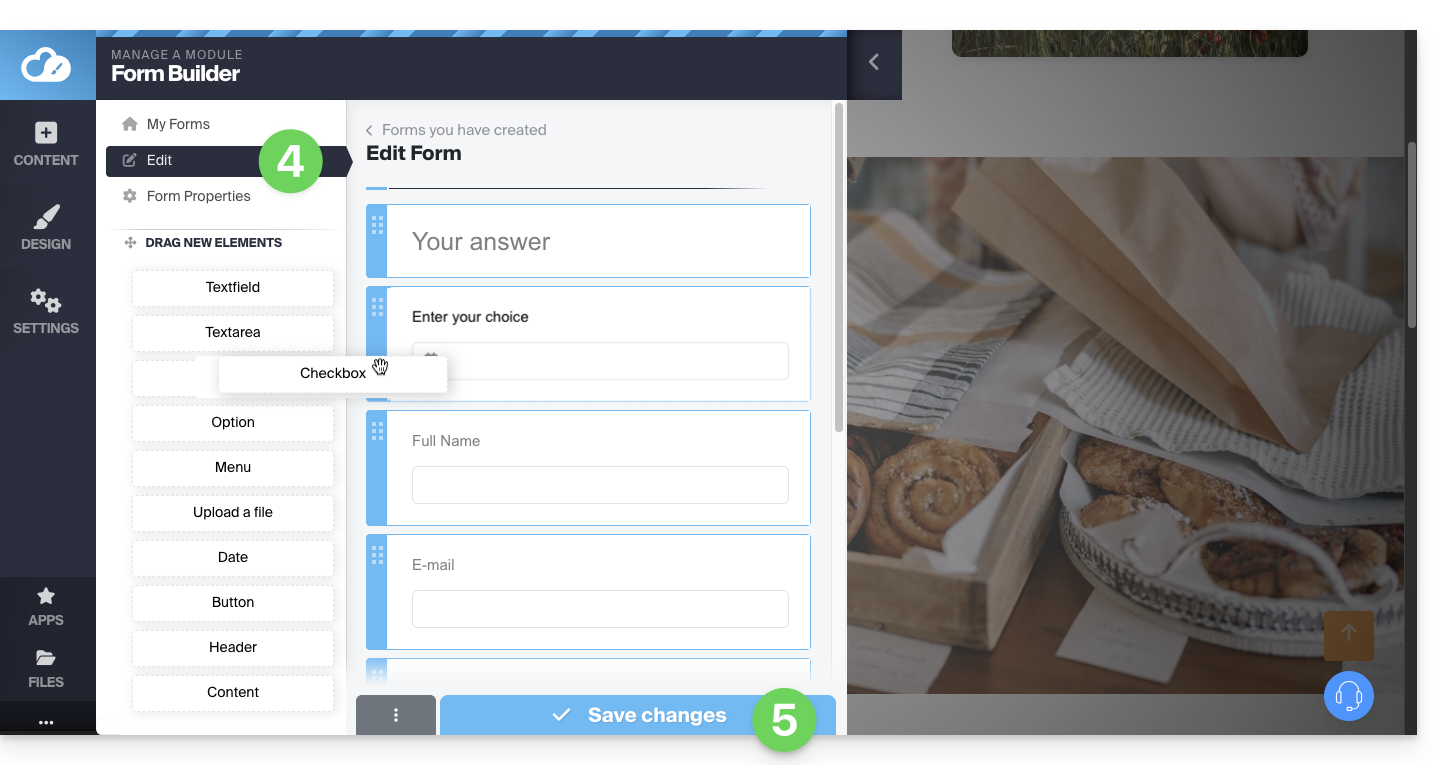
Once the first form has been created, you can insert it by clicking on at the location of your choice and selecting it: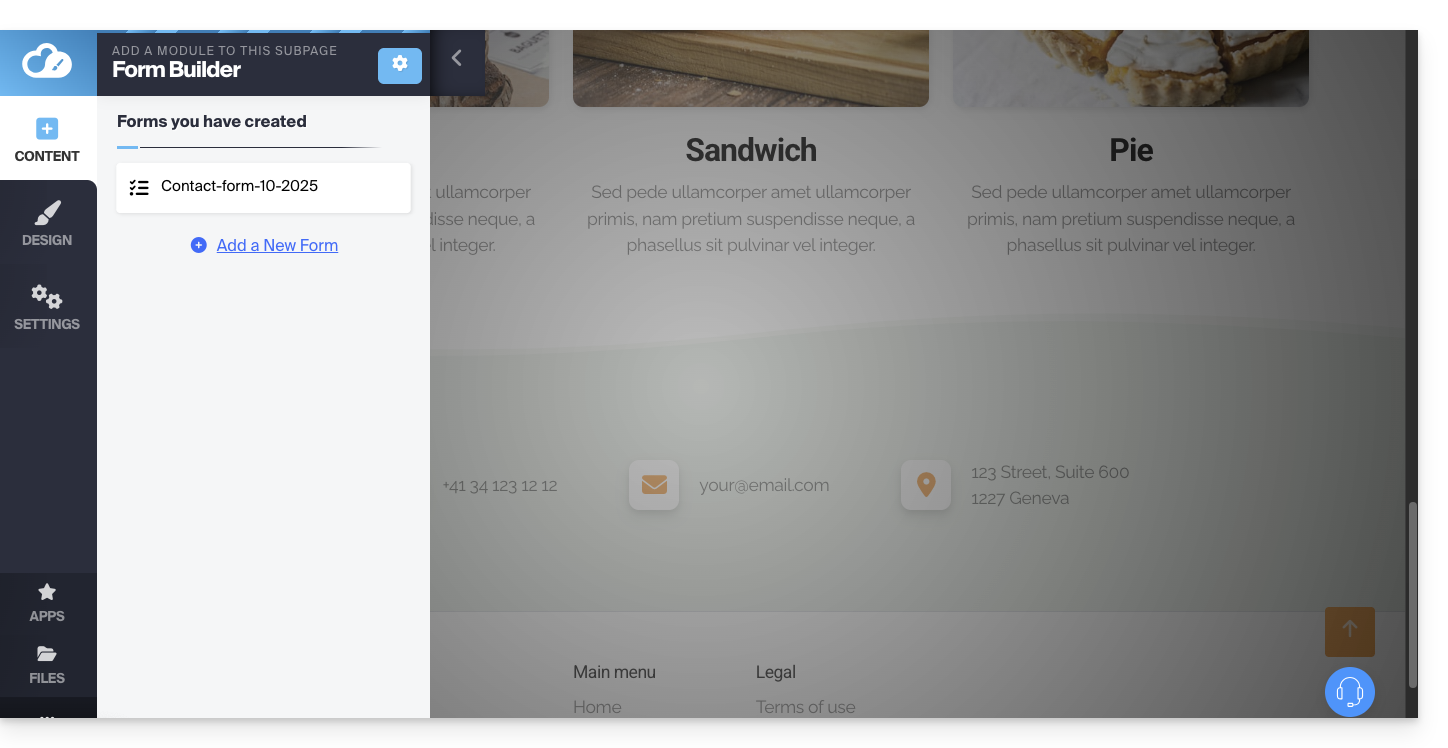
The created form will be inserted on your page: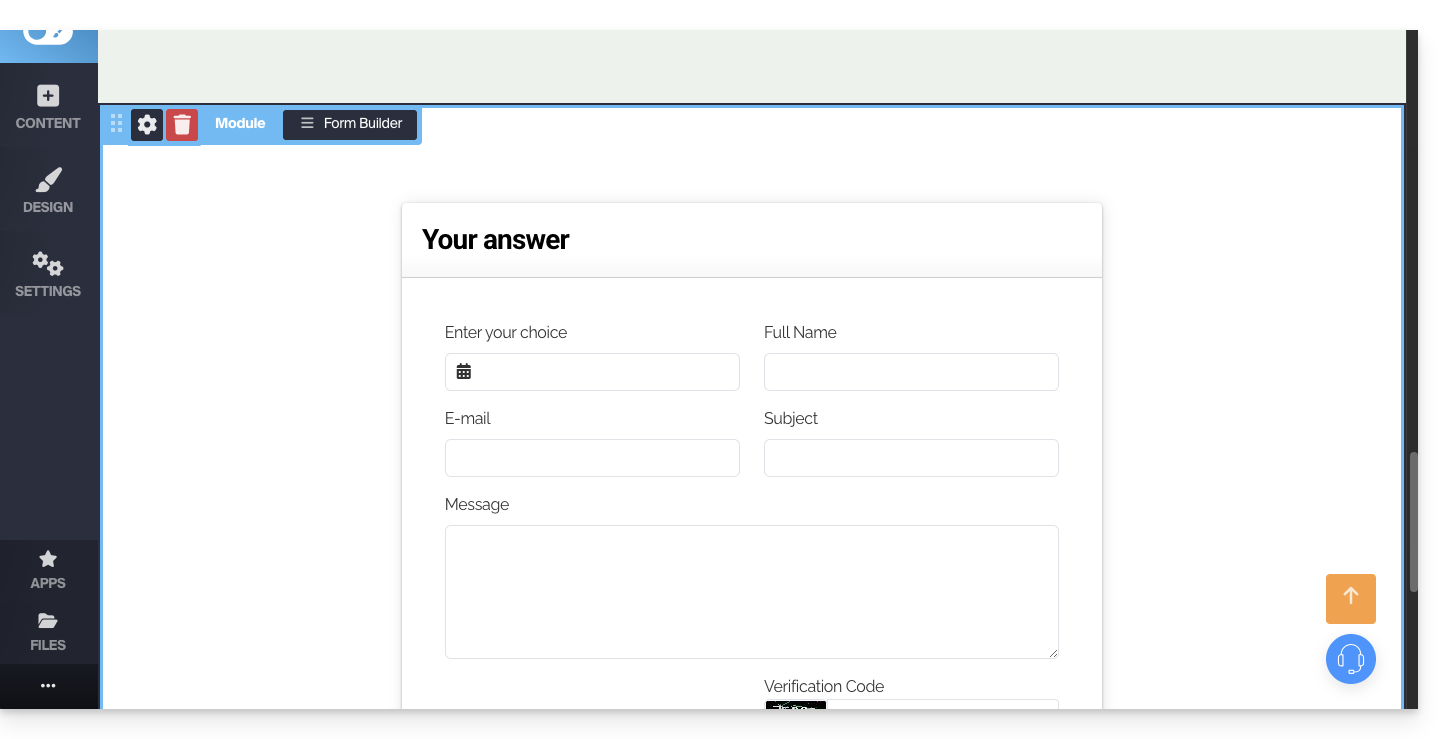
Contact Form Settings
You can customize the thank-you message, the optional redirection page after submission, the email address used, add a CAPTCHA (recommended), etc.
To do this, hover over the module to access its settings: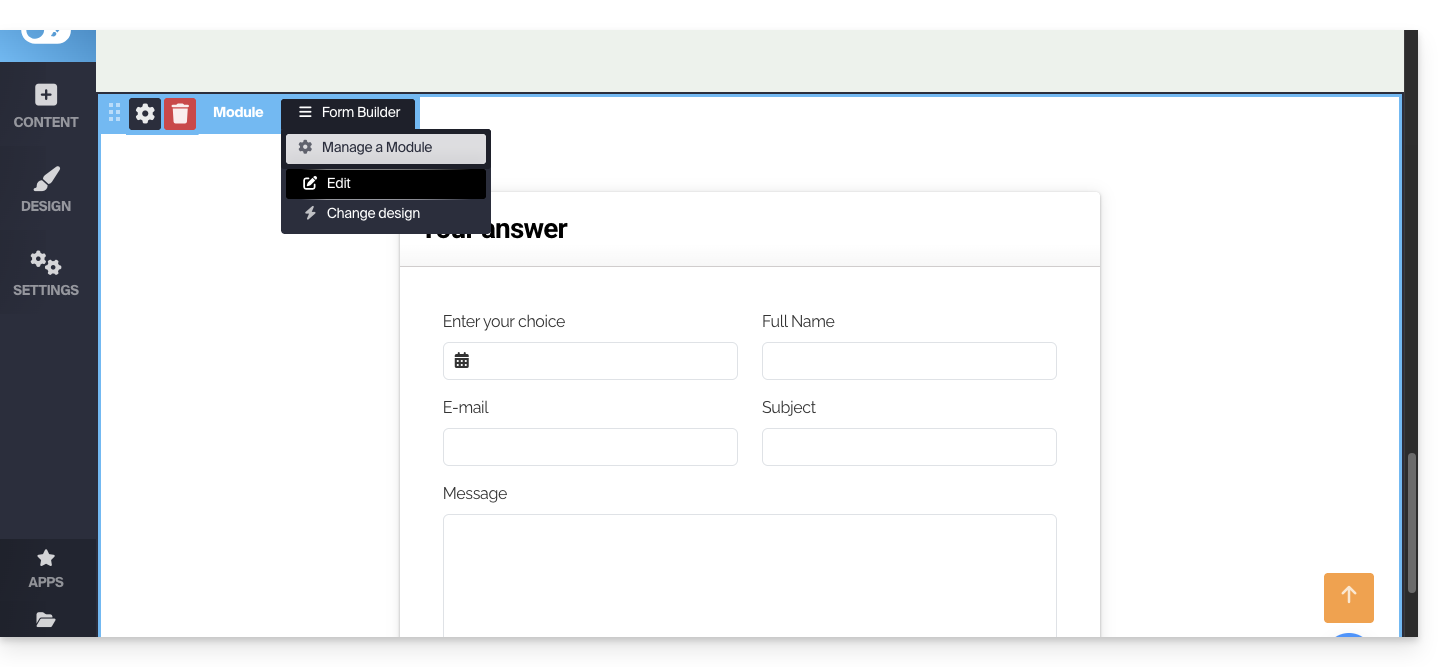
If necessary, click on the form you want to edit, then on Form Properties: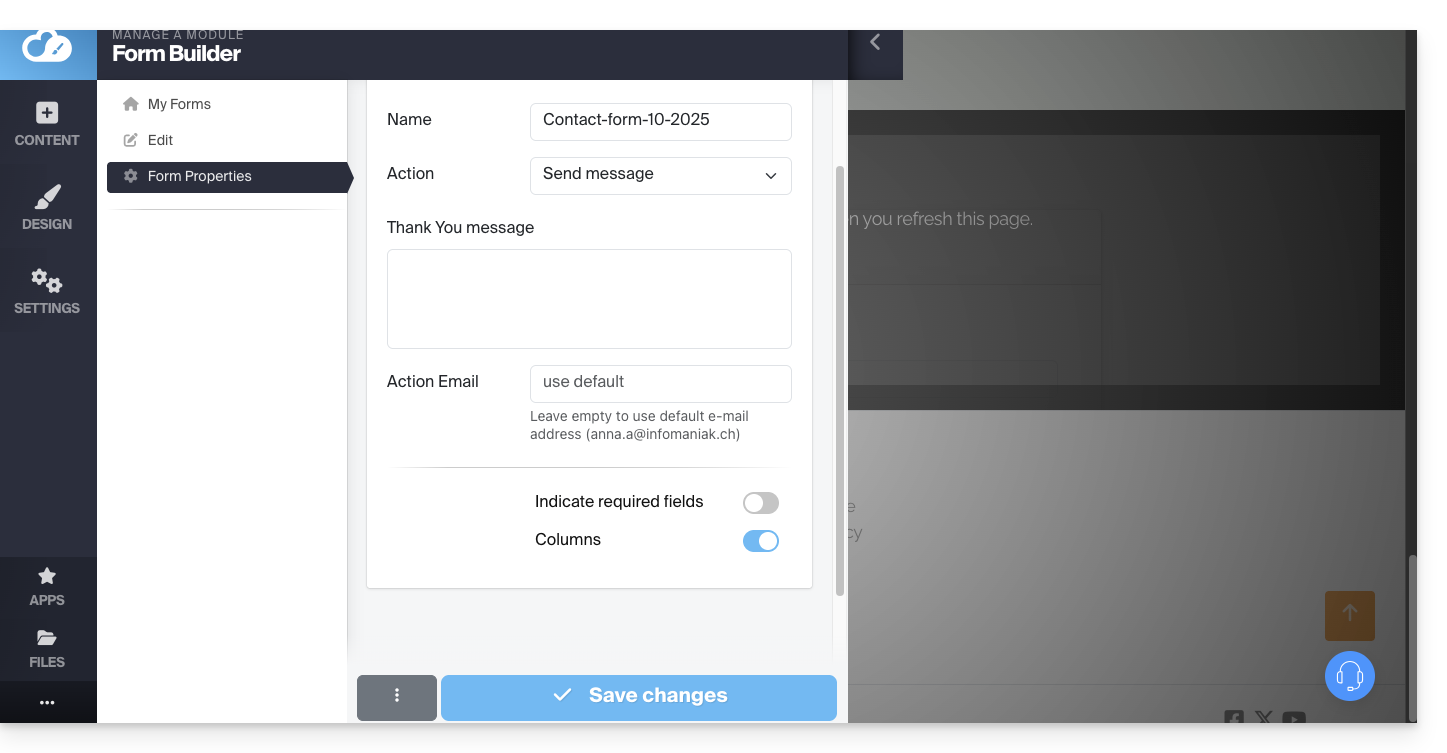
It is recommended to change the default sending method.
You can also delete the form you created so that it is no longer offered:
Please note that you can also insert an Infomaniak newsletter signup form on Site Creator.
Link to this FAQ: https://faq.infomaniak.com/2724
Has this FAQ been helpful?
This guide explains how to create galleries with your photos in Infomaniak's Site Creator.
Create a photo gallery
Prerequisites
- Access Site Creator:
- Click here to access the management of your product on the Infomaniak Manager (need help?).
- Click directly on the name assigned to the Site Creator in question.
- Click on the Edit my site button to start the editor:
Once in Site Creator:
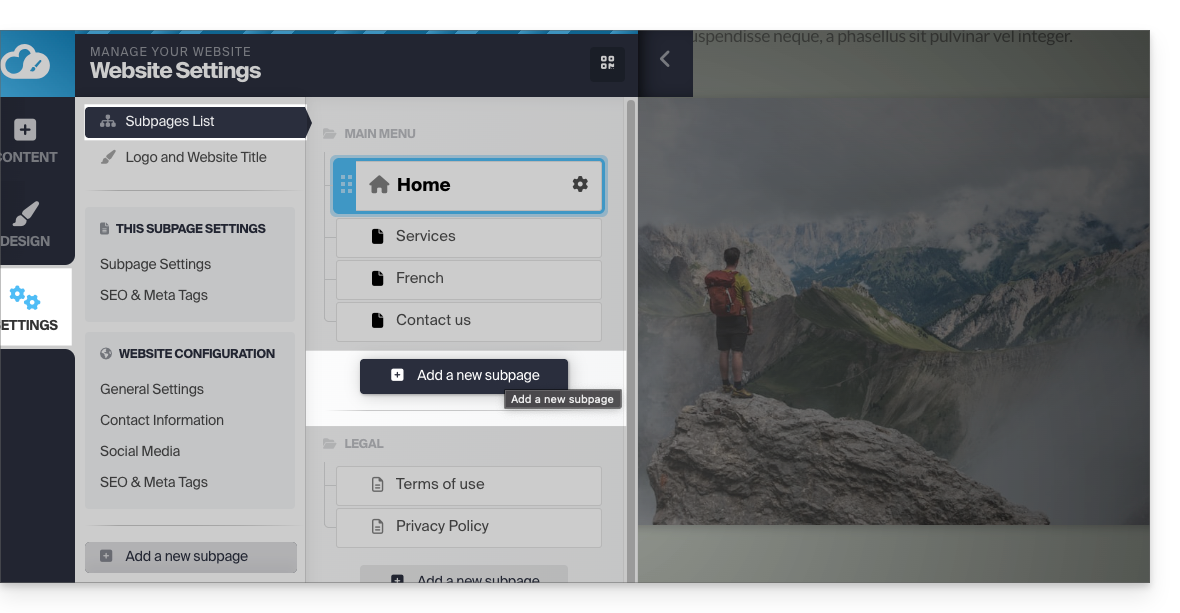
- Click on the Settings button in the left-hand menu; the list of your pages will appear.
- Click on the Add page button below the existing tree:
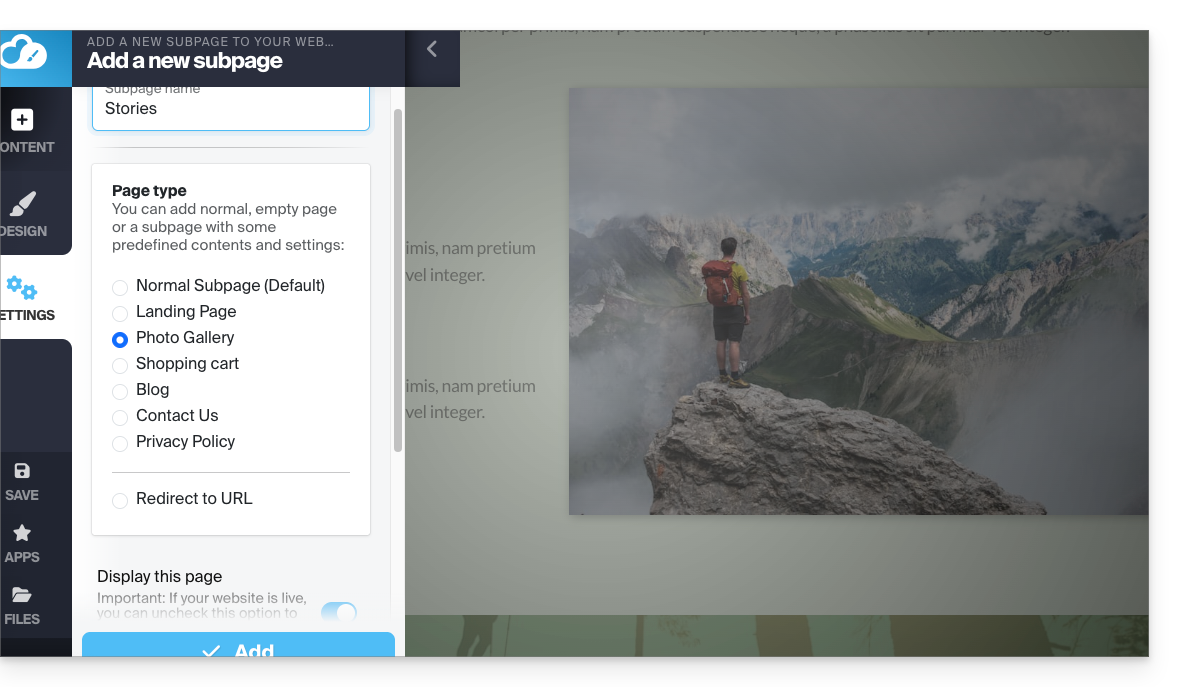
- Enable Show more options to choose the PHOTO GALLERY page type:
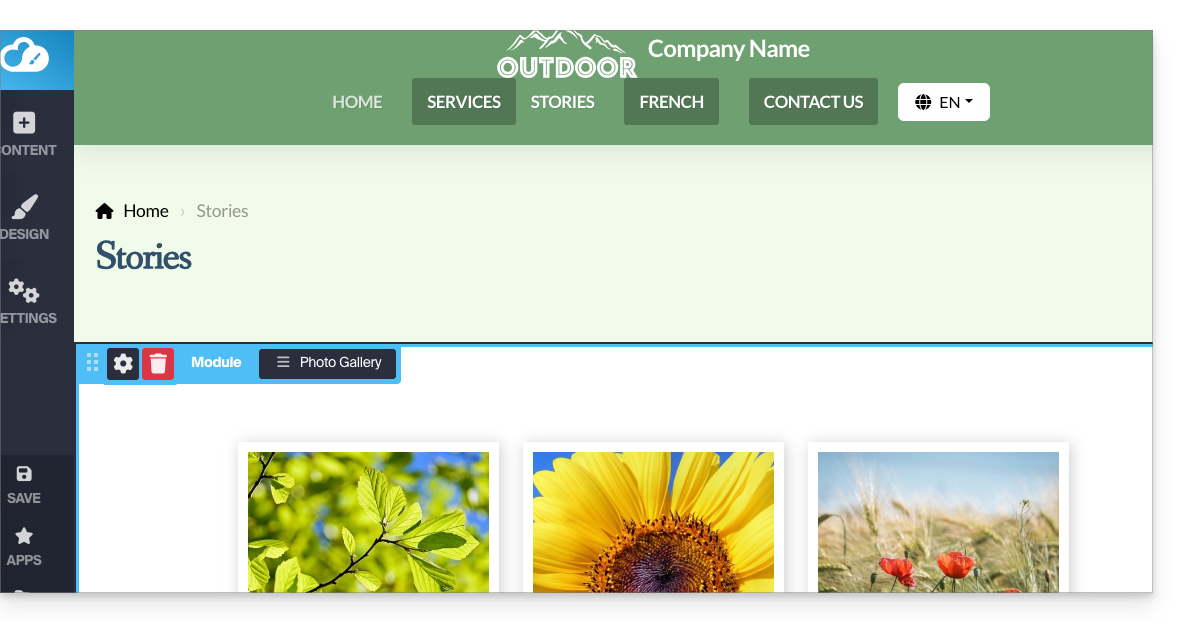
- Confirm, the new page with the photo gallery module will be displayed on the screen:
Configure the photo gallery
To do this:
- Hover over the module to access the gallery settings.
- Click on Edit:
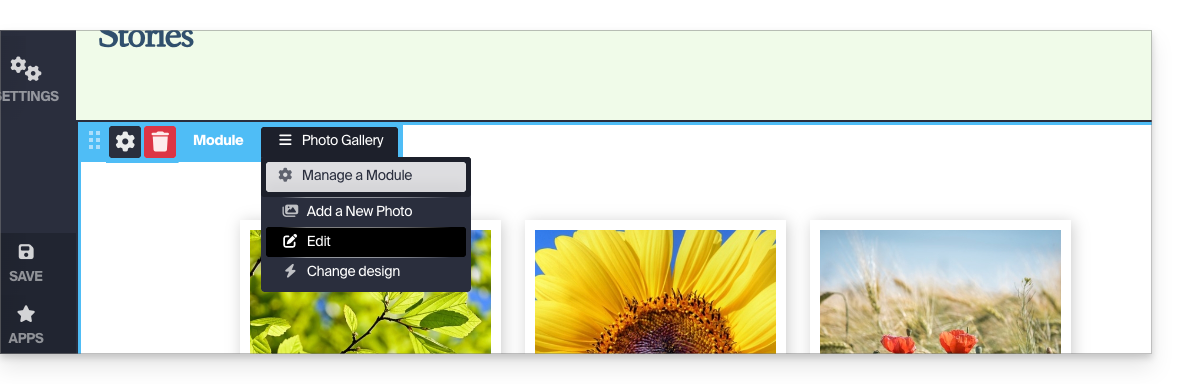
Photo albums
You can create additional photo galleries for your different albums: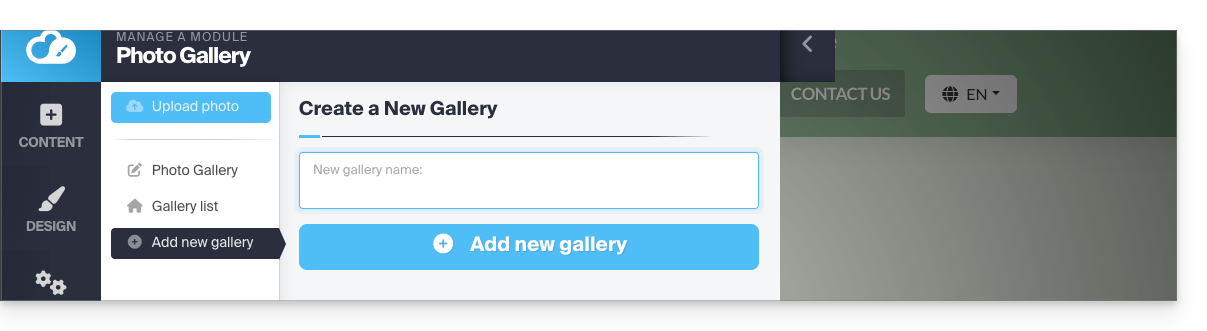
Change the order of the photos
When your gallery is created, each new photo you upload from your computer is added to the end of the photo list. You can easily change this order by dragging the photos with your mouse when editing a gallery: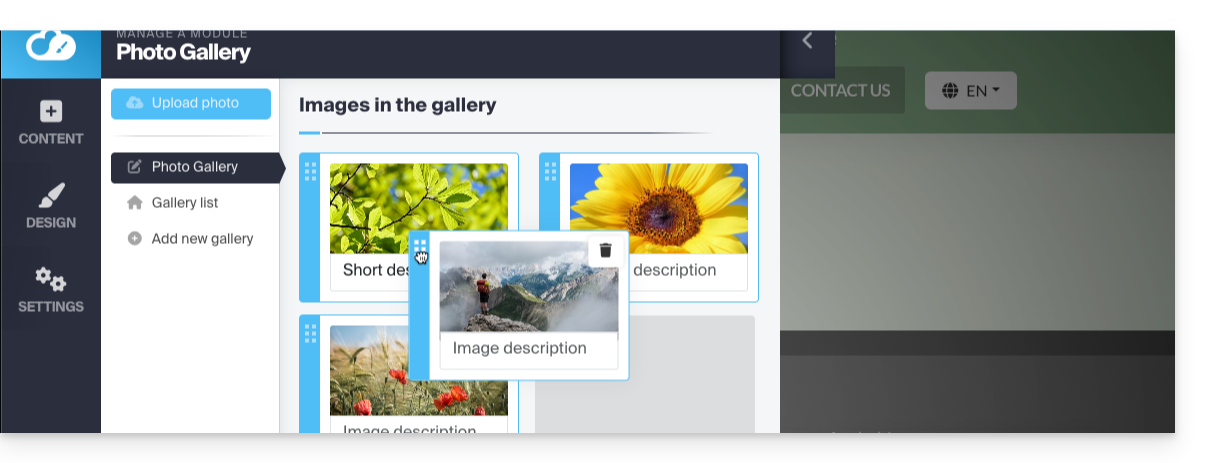
In addition, you can add a description to any of your photos. Under each image, you will notice the "Image description" field. Start typing your description there and press the green button to save the changes: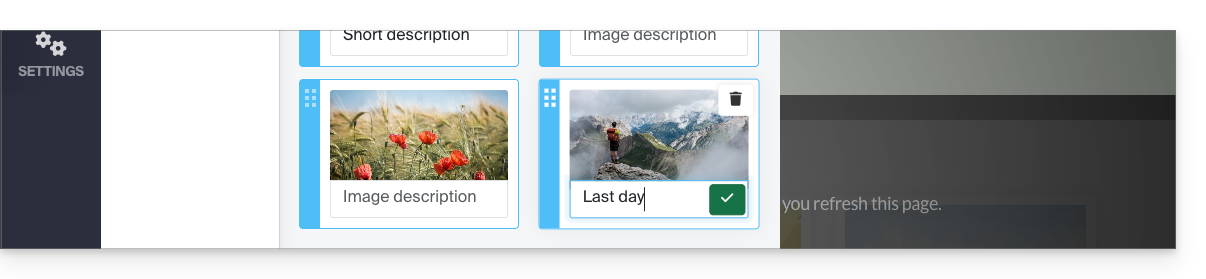
Add an image carousel widget
To configure one or more dynamic slider widgets, on which one or more photos will scroll horizontally (completely separate from the photo galleries described above):
- Click on the Applications button in the left-hand menu.
- Click on Slider:
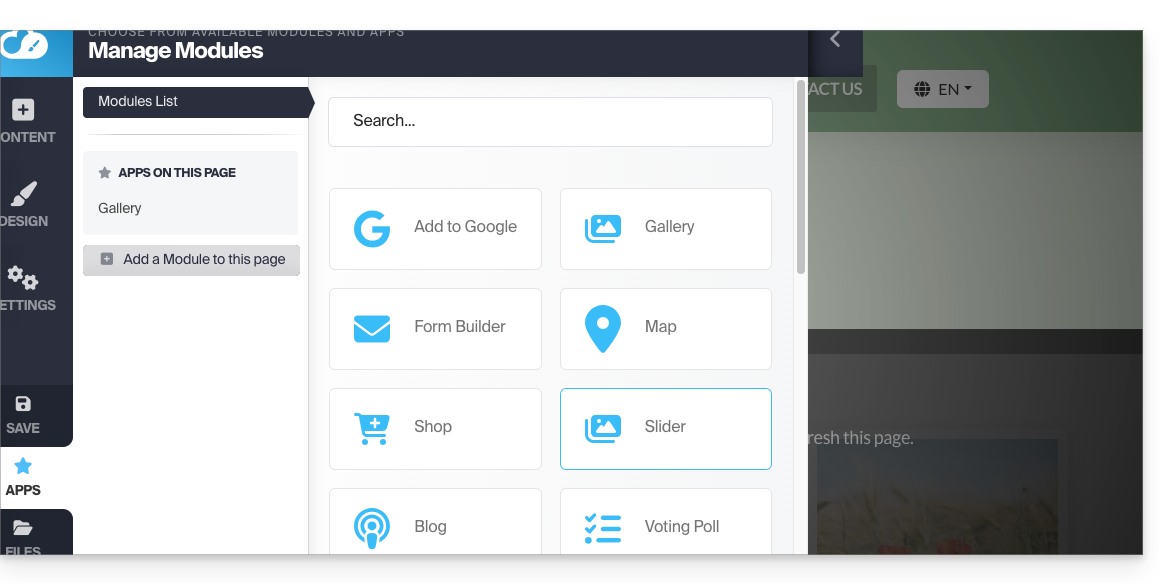
- Configure the widget according to your preferences.
- Insert the configured widget in the desired location by clicking on Content, then Apps, and choosing Slider:
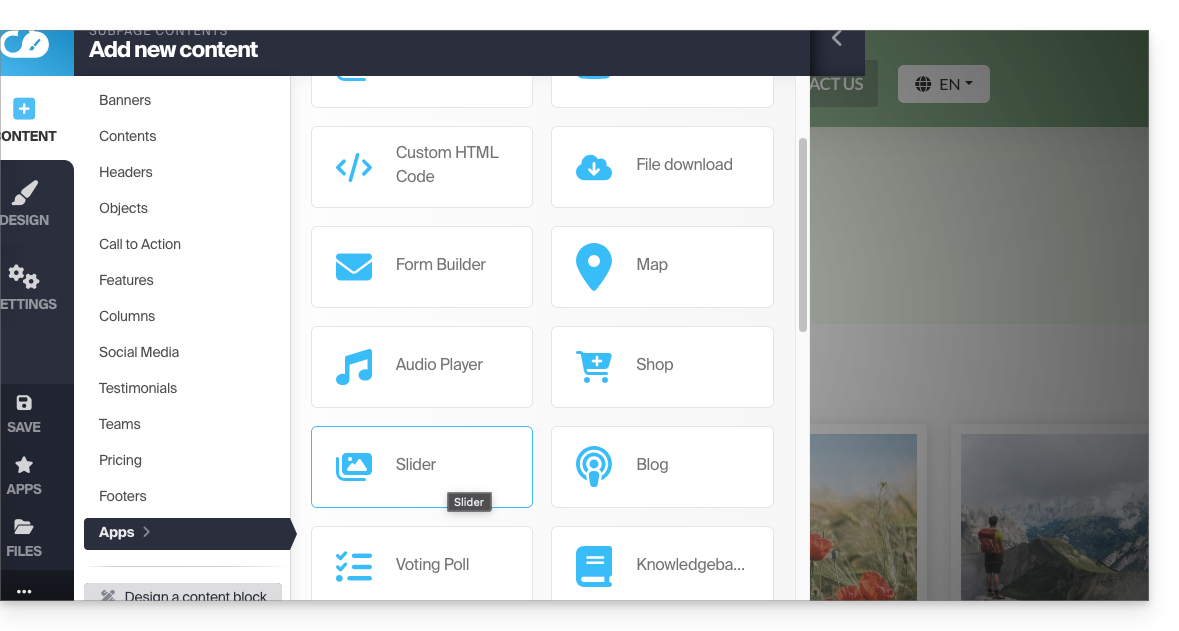
- Select the slider you created to insert it on the page:
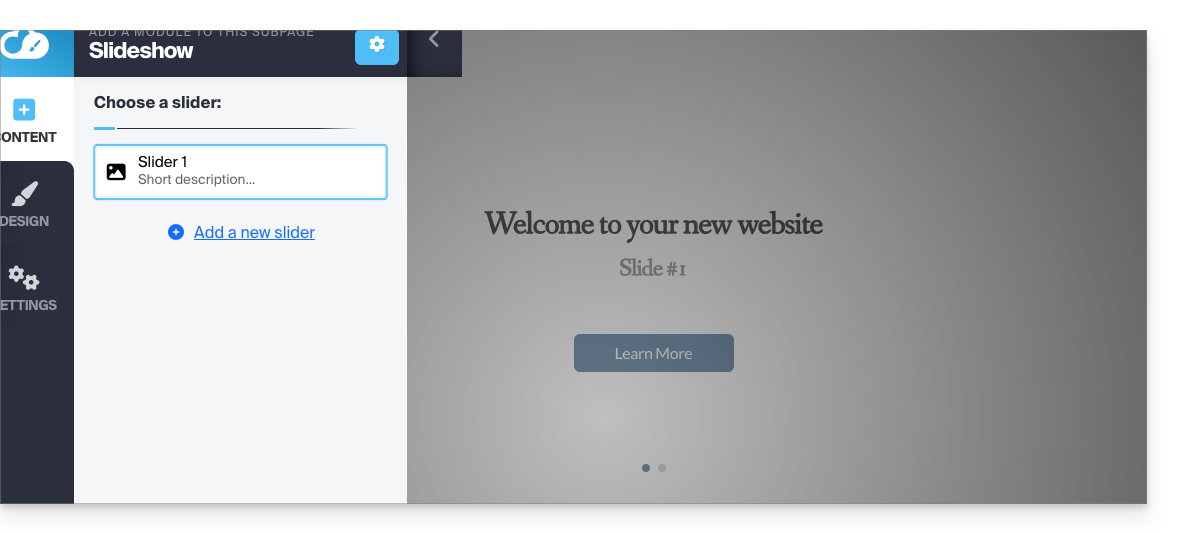
Link to this FAQ: https://faq.infomaniak.com/2725
Has this FAQ been helpful?
This guide explains how to add and configure a blog module on your website created with Site Creator Infomaniak.
Introduction
- There is no feature to manage multiple users in the Blog section (or in Site Creator).
- Several users from the same Organization who have access to Site Creator (e.g., through their web hosting access permissions) can publish on the blog, but the author's identity will remain the same for all.
- There is no way to write and save entire blog pages in "draft" mode.
Start a blog on Site Creator
Prerequisites
- Access Site Creator:
- Click here to access the management of your product on the Infomaniak Manager (need help?).
- Click directly on the name assigned to the Site Creator in question.
- Click on the Edit my site button to launch the editor:
Once in Site Creator, on the page where you want to insert your future blog posts:
- Click on the + button located below an already inserted block:
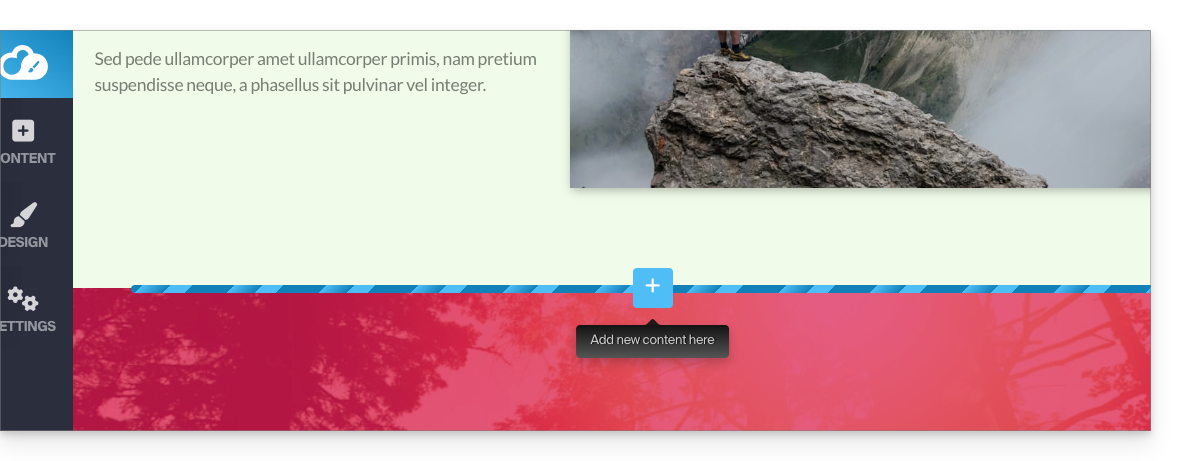
- Click on Applications (in the Content tab that opened when you clicked to add the visual block).
- Click on the Blog module:
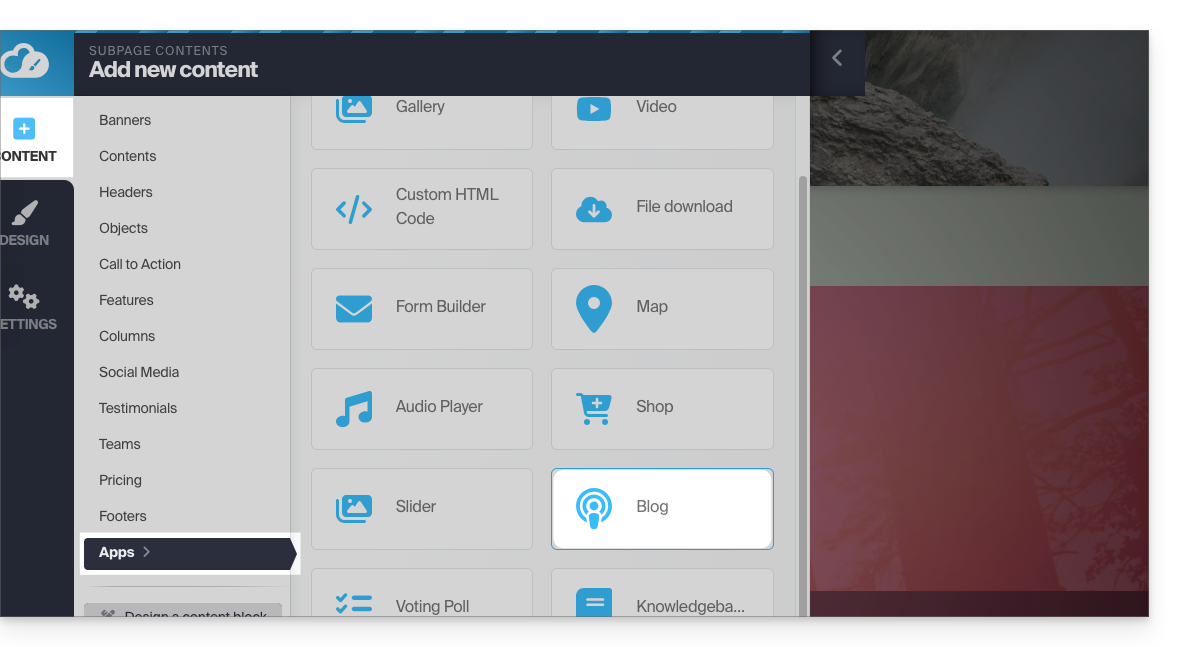
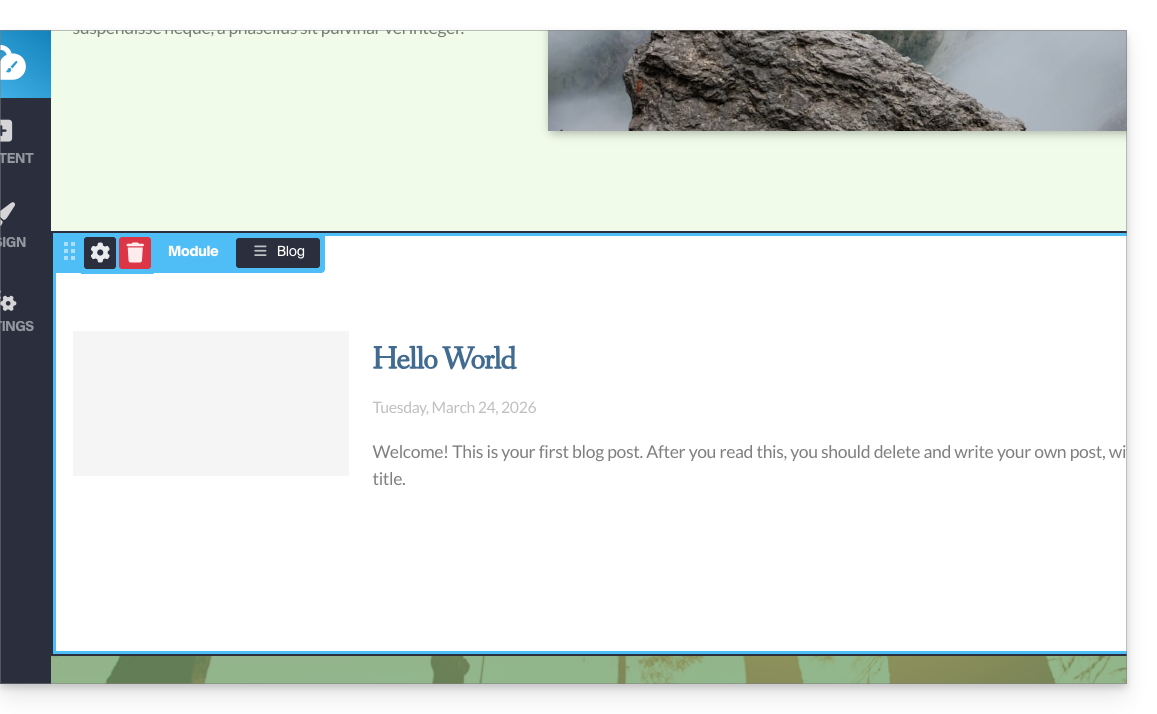
- If this is the first time you are inserting this module, you will see the following visual block with an example of a first published article (go to point 4 below):
- If you have already tested the Blog module and removed it from your pages, you will see this:
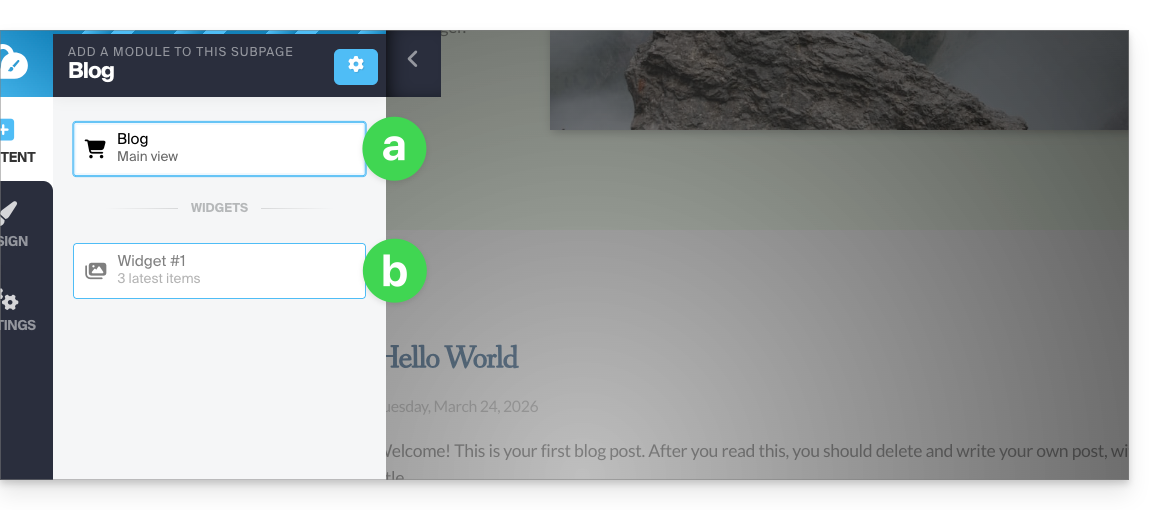
- Press the top option to insert the main block.
- Press the second option to display a block with the 3 most recent published articles only if you have already inserted a main block elsewhere on the site.
- If this is the first time you are inserting this module, you will see the following visual block with an example of a first published article (go to point 4 below):
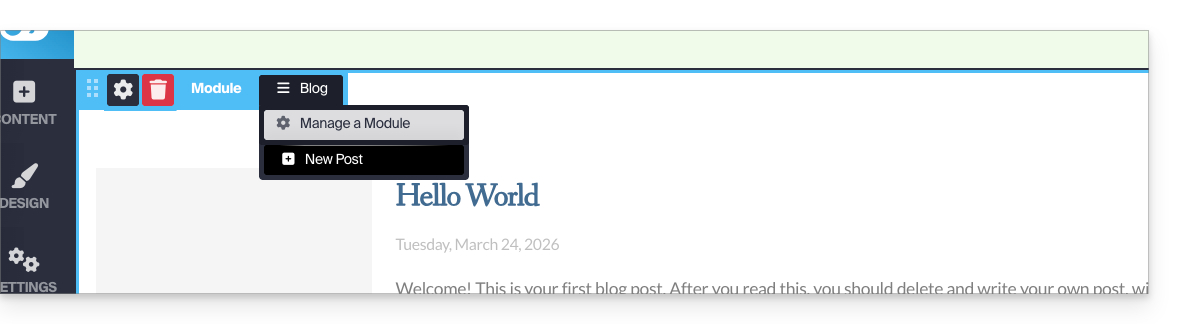
- Once the Blog module is inserted, hover over the block and click on the menu button with three horizontal lines ☰ Blog and then on New article to insert a blank article:
Publish content using artificial intelligence
To write content and, if necessary, improve your drafts, you can use the Euria artificial intelligence, as is the case on the rest of the Site Creator pages. Learn more in this other guide about the model used by the writing assistant and the responsibilities of each party:
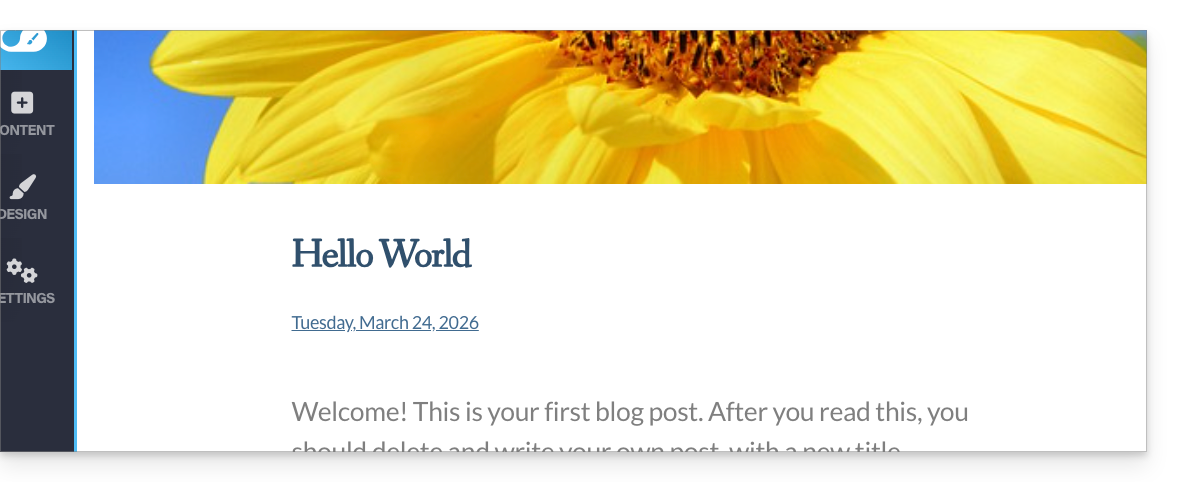
- Choose an image for the banner, enter a title, an optional subtitle, and the body of the article with different formatting options:
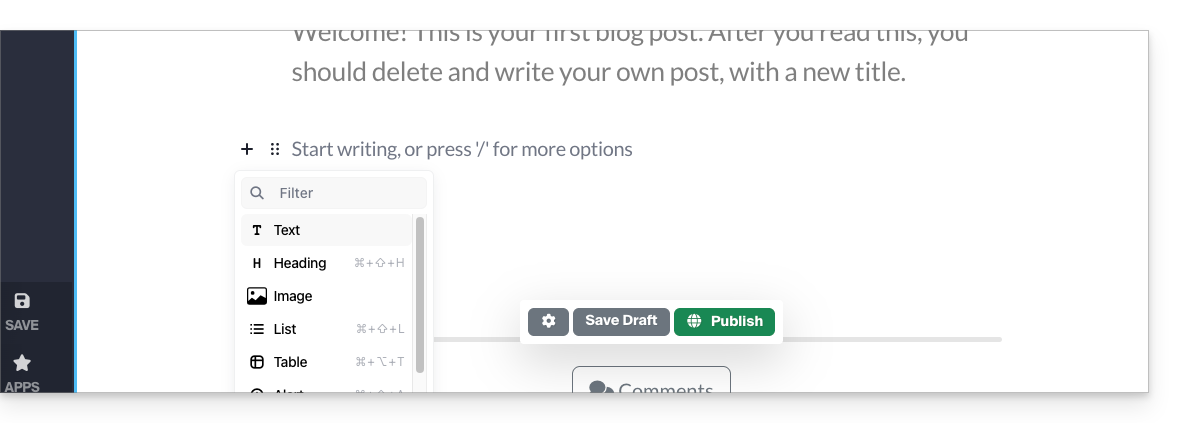
- Press the + sign next to the article text or use the Tab key on your keyboard:
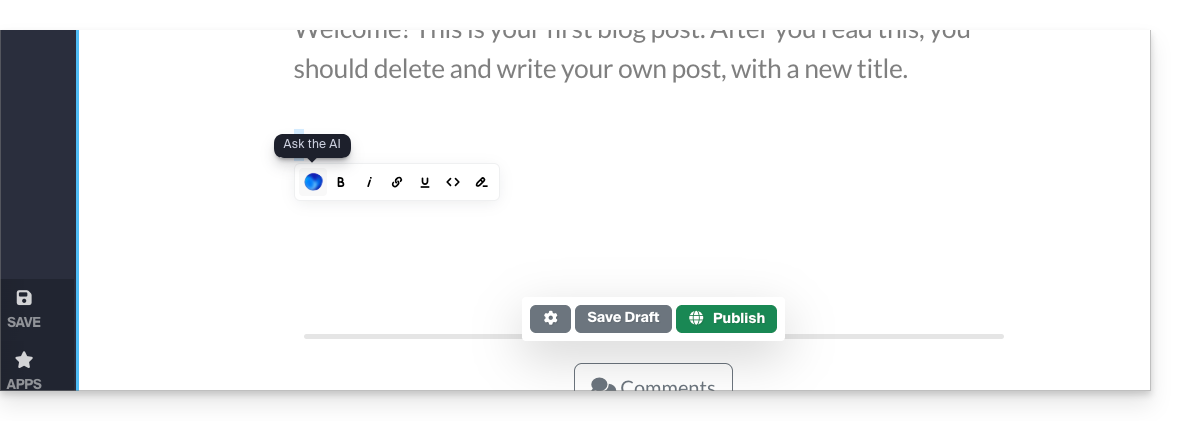
- Select the content, then click on it to display a text formatting toolbar.
- From this toolbar, access the AI-powered features (translation, rewriting, correction, etc.):
- Publish by clicking the Publish button (or save the draft for later).
Edit the blog
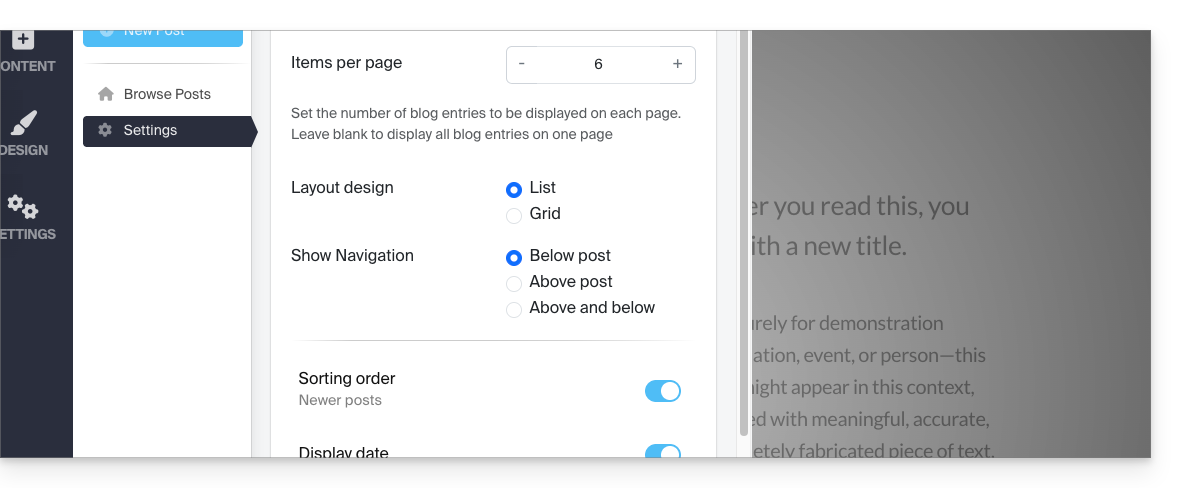
To enable comments, email notifications, list view, and sorting, etc.:
- Click on Applications in the left-hand menu.
- Click on Blog.
- Click on Settings and adjust your preferences, remembering to save at the bottom of the page:
Edit blog posts
No matter where you are on your site, simply go to the Applications menu in the bottom left corner, then click on Blog: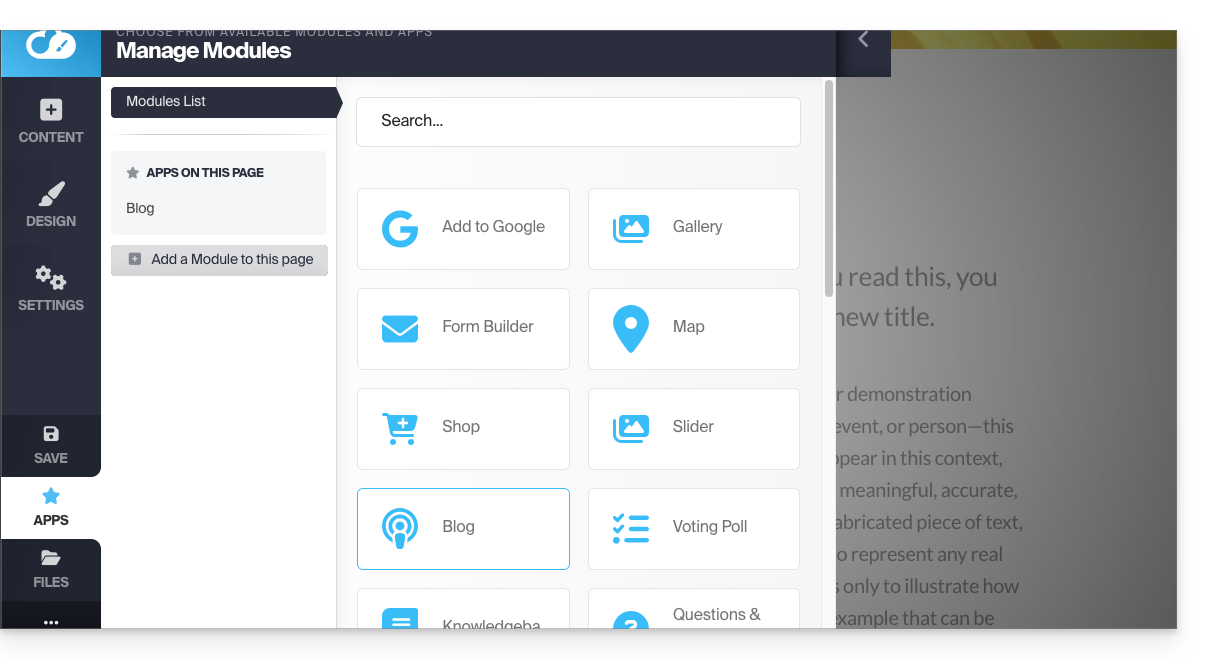
To edit the content of your article, click on Browse articles in the left-hand menu, then hover over and click on the pencil icon ✎: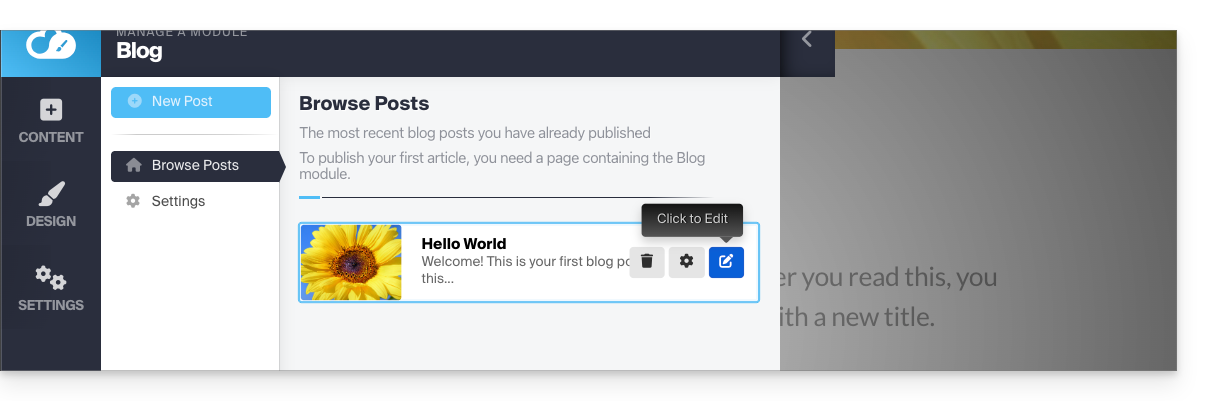
To configure (see below) one of the articles, hover over and click on the gear icon: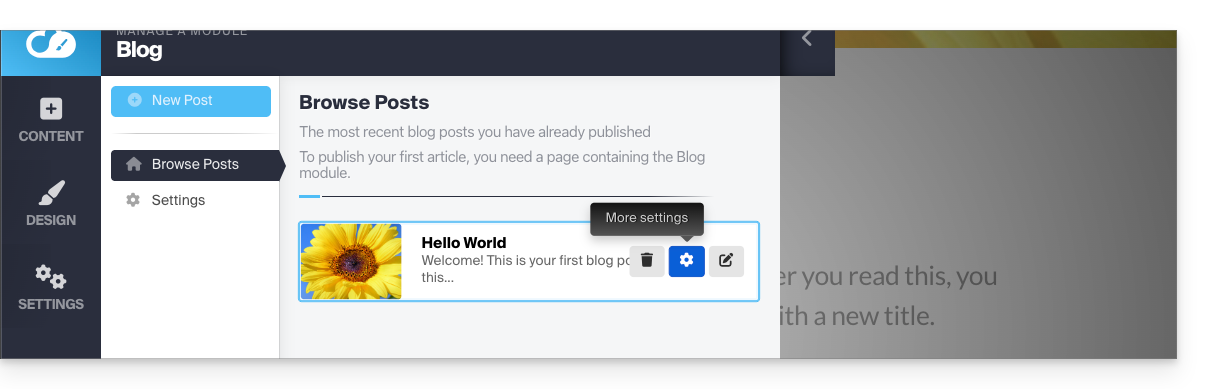
Label, archive, or set an expiration date for an article
A blog post can be removed from your list of posts by setting an expiration date or by archiving it immediately. It is also possible to add a tag that will be clickable for the visitor, making it easier to navigate through the posts: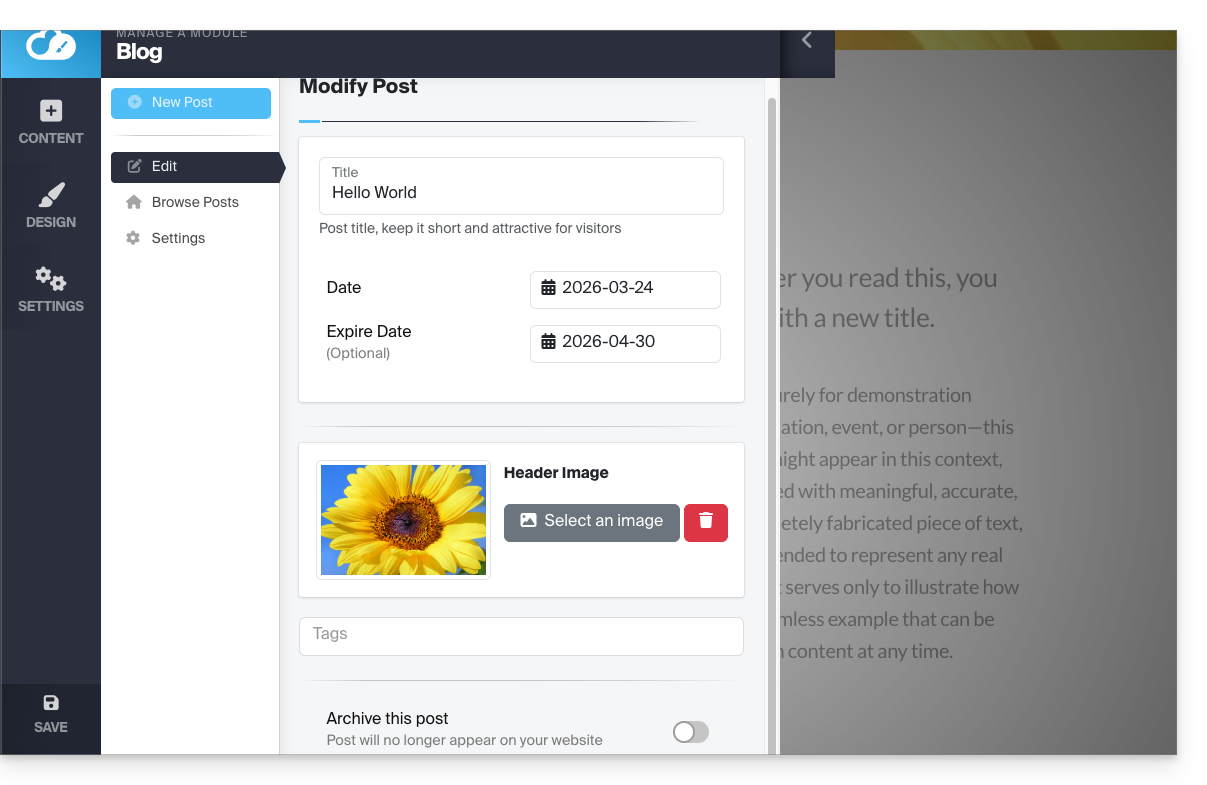
Don't forget to save the changes at the bottom of the page.
Article dates
By default, new blog posts will be added with the current date, but you can change it:
- Hover over and click on the date link (directly on the post):
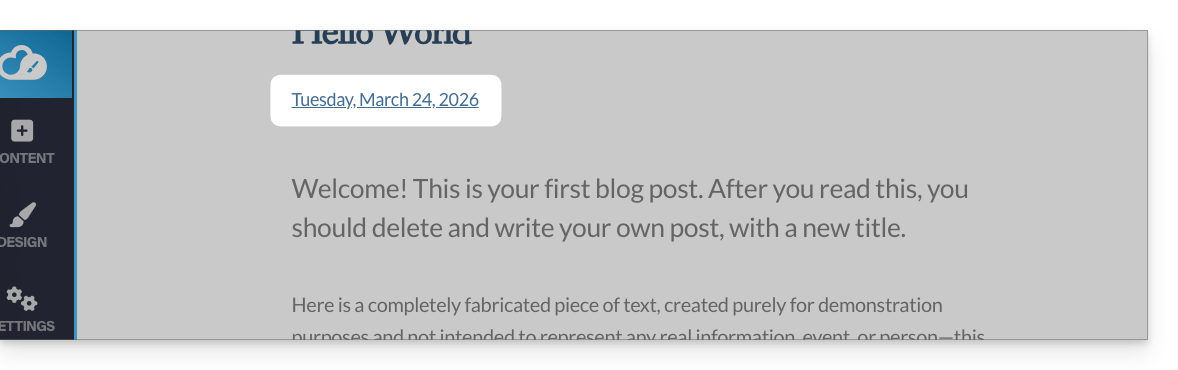
- Choose a new date.
Link to this FAQ: https://faq.infomaniak.com/2726
Has this FAQ been helpful?
This guide for Infomaniak's Site Creator covers the topic of browser cookies.
Introduction
- By default, when your website is new, no cookies should be stored on your visitors' devices, and there are no tracking features for advertising or marketing.
- As a website administrator, some data is stored in your own cookies (such as information indicating that you are a website administrator).
- If you add applications/modules integrated into your website, cookies may be used; for example, with the Survey Form: if you add a survey module to your website, it will use cookies when the website visitor votes (to remember that they have already voted).
Notification for the visitor
Prerequisites
- Access Site Creator:
- Click here to access the management of your product on the Infomaniak Manager (need help?).
- Click directly on the name assigned to the Site Creator in question.
- Click on the Edit my site button to start the editor:
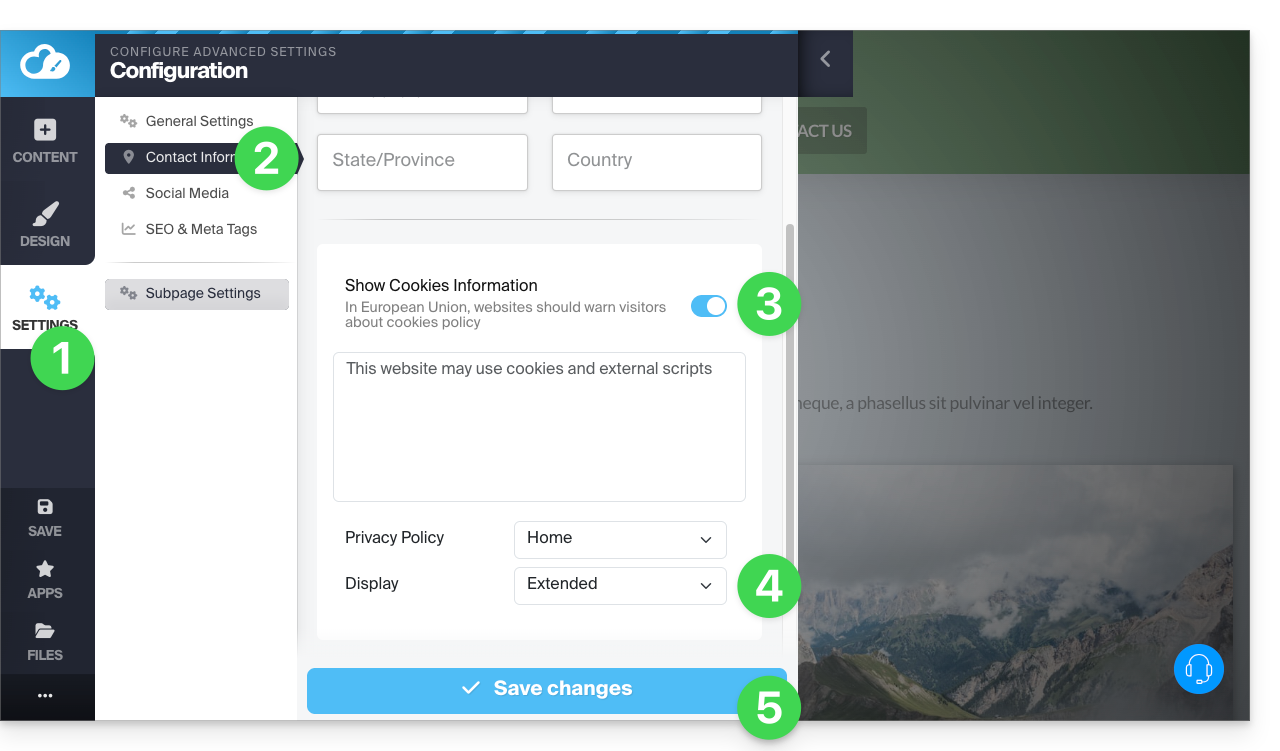
You can enable a cookie consent message that will appear in a small pop-up window at the bottom of the screenfor all new visitors to your site:
- Click on the Settings button in the left-hand menu.
- Click on Contact Information under Website Configuration.
- Enable the cookie information option to configure the brief message and the URL for additional information.
- Set the type of extended display (or not) (see below).
- Save the changes at the bottom of the page:
Additional settings
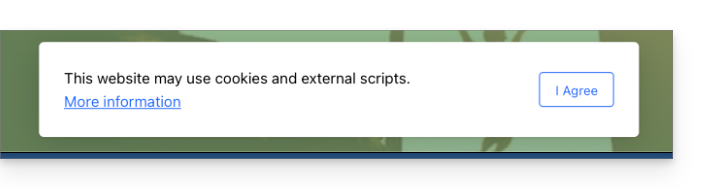
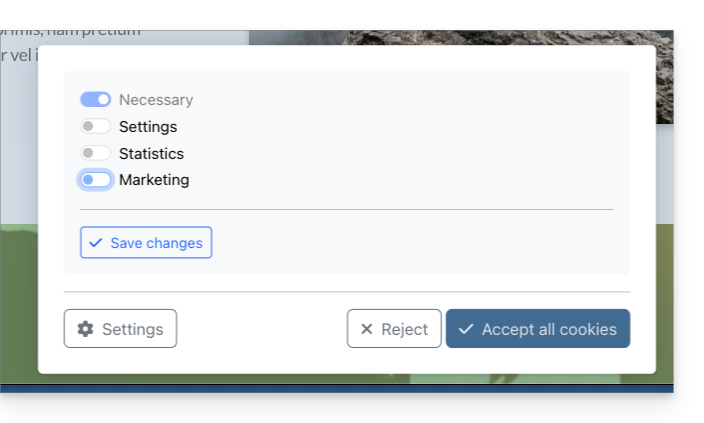
The consent message can be set to default or extended when you click on Display. The result is as follows:
- default:
- extended:
Link to this FAQ: https://faq.infomaniak.com/2727
Has this FAQ been helpful?
This guide explains how to avoid directly publishing changes to a page in Infomaniak's Site Creator.
Introduction
- Draft mode prevents the following changes from being published:
- Adding a new content block via the Content menu
- Visual or textual modifications to a content block
- Deletion of a content block
- Draft mode does not apply to:
- Global design changes, via the Design menu (colors, fonts, etc.)
- Content modifications related to applications (question/answer, e-commerce, etc.)
- Modifications of global settings, via the Settings menu (Pages, languages, etc.)
- Subpages of the page you are unpublishing
1. Back up without publishing
Prerequisites
- Access Site Creator:
- Click here to access the management of your product on the Infomaniak Manager (need help?).
- Click directly on the name assigned to the Site Creator in question.
- Click on the Edit my site button to start the editor:
You can switch a page to draft mode to make text changes or other content changes that will not be visible live, until you decide to switch the site back to live publishing mode:
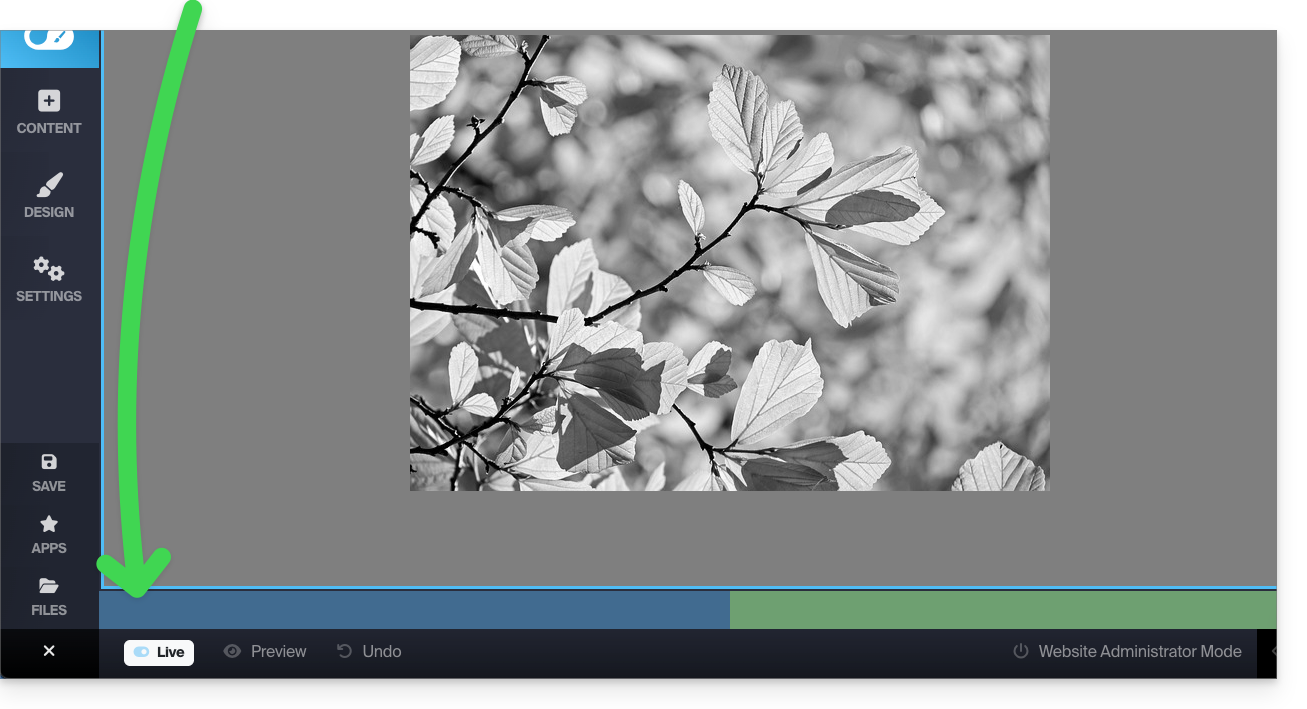
- Click on the ... button at the very bottom of the left-hand menu to expand the publishing and preview options.
- Click on Live to switch to Unpublished mode:
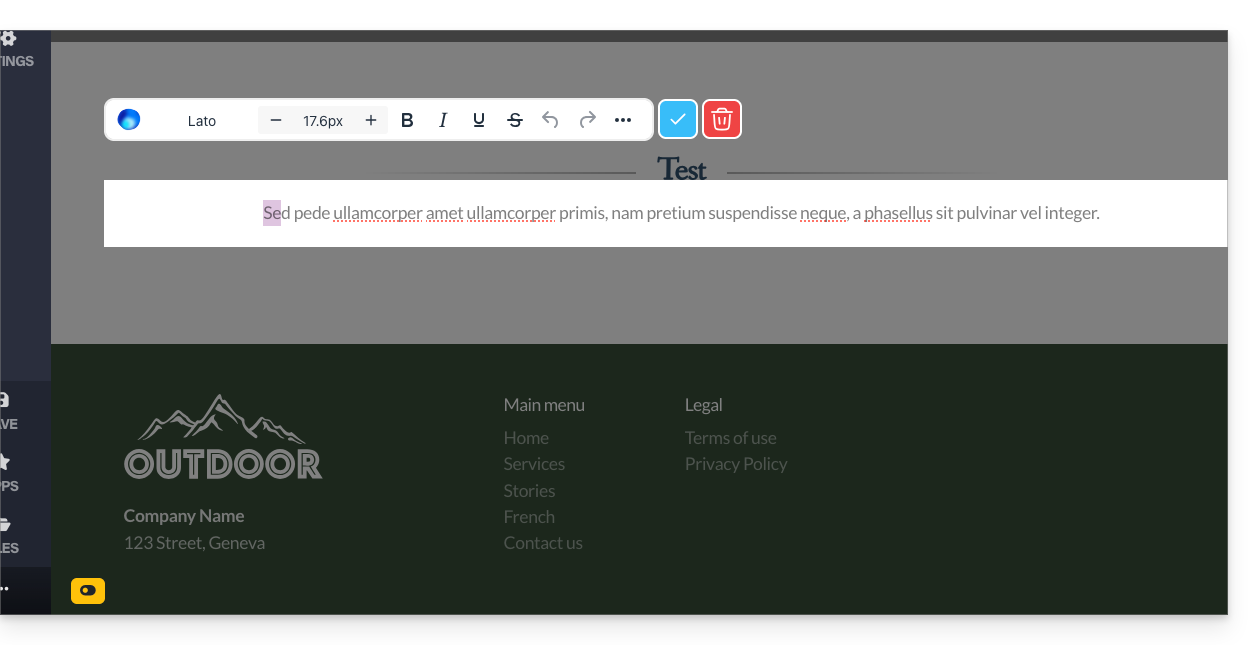
- Now, the yellow mode displayed at the bottom indicates that all your changes (on this page only) will not be displayed live (unlike Live mode) because they will not be automatically published:

- Changes will be saved in a draft even if you leave the page or the editor…
- In draft mode, you can work on the page, add text, save it, leave, come back to continue editing, and this work will not be published until you explicitly decide (see below):
- Depending on the changes made (e.g., adding a content block), remember to edit the text to validate your changes and save them.
- To check and confirm that your current changes are not being published as you make them, simply go to your site's address from another browser page in incognito mode, for example.
2. Publish the changes or delete the draft
You can exit Draft mode to revert to instant publishing:
- When the Draft mode is active, click on the yellow button in Draft mode to display a settings panel:
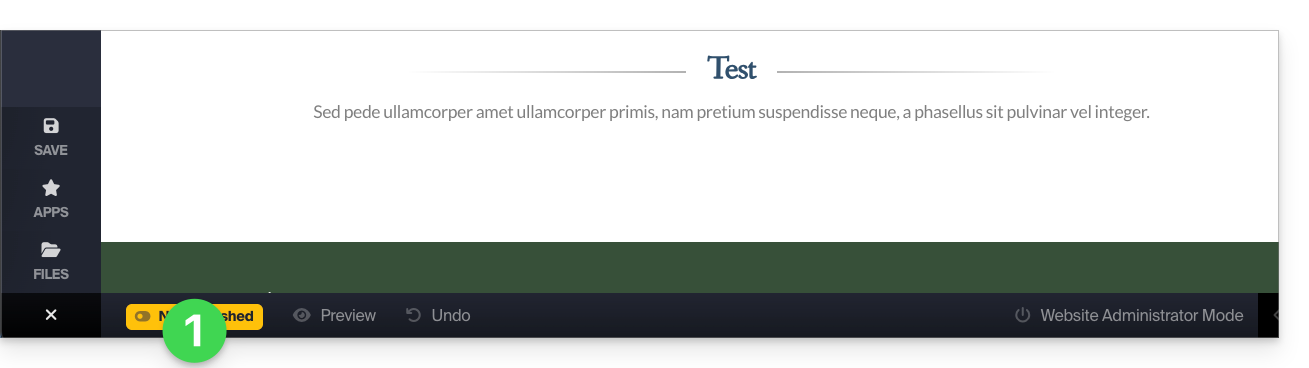
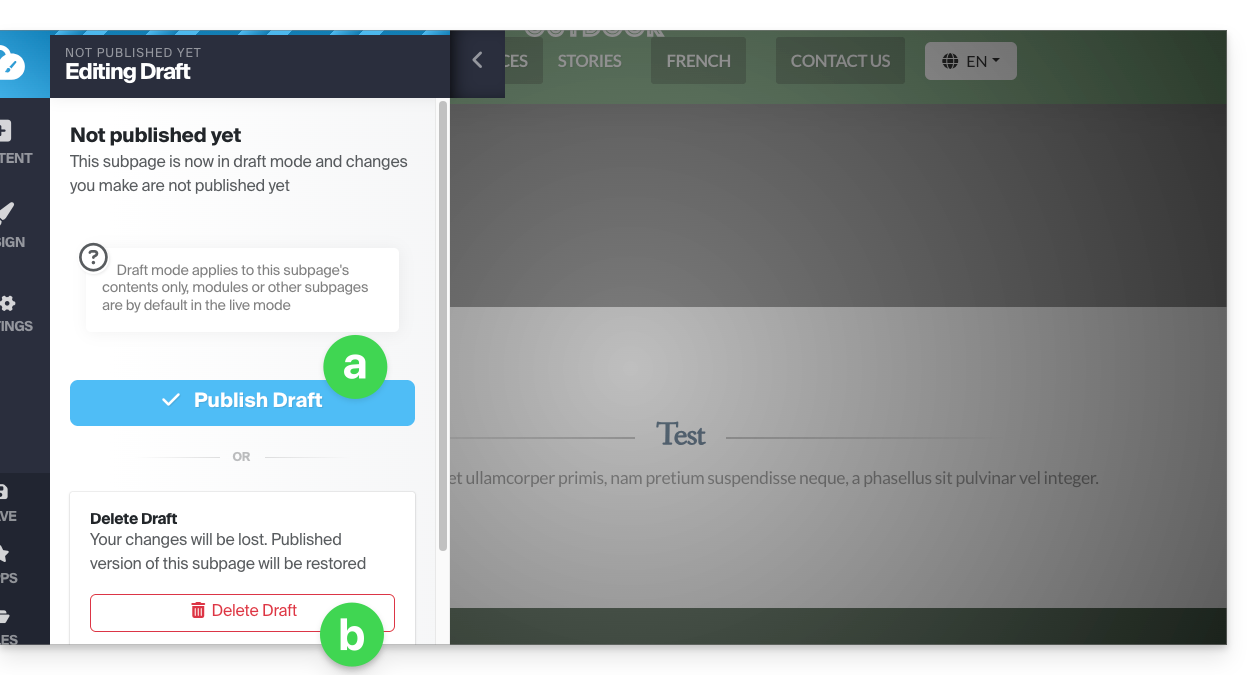
- The settings panel opens so you can:
- publish your changes,
- or delete the current draft and revert to the page's initial state:
Example
- With the Live mode (visible at the bottom of the screen), any modification is immediately visible to the page's visitors.
- With the Unpublished / Draft mode (identifiable by a yellow symbol at the bottom of pages in this mode), your changes are not visible in real time.
- Leave the page to work on another page; the mode reverts to the default mode, i.e., the Live mode, because the page is different, and the mode only applies to the selected pages.
- Go back to the draft page; a symbol at the bottom of the page always indicates that draft mode is enabled.
- Click on it to choose whether to publish or delete the changes and revert the page to its state before your draft modifications.
Link to this FAQ: https://faq.infomaniak.com/2728
Has this FAQ been helpful?
This guide details how to use media in Infomaniak's Site Creator.
Please note that it is also possible to insert other elements, such as Infomaniak newsletter subscription form.
Prerequisites
- Access Site Creator:
- Click here to access the management of your product on the Infomaniak Manager (need help?).
- Click directly on the name assigned to the Site Creator in question.
- Click on the Edit my site button to launch the editor:
Add an image
Media is managed in the file library:
- Add a new content block:
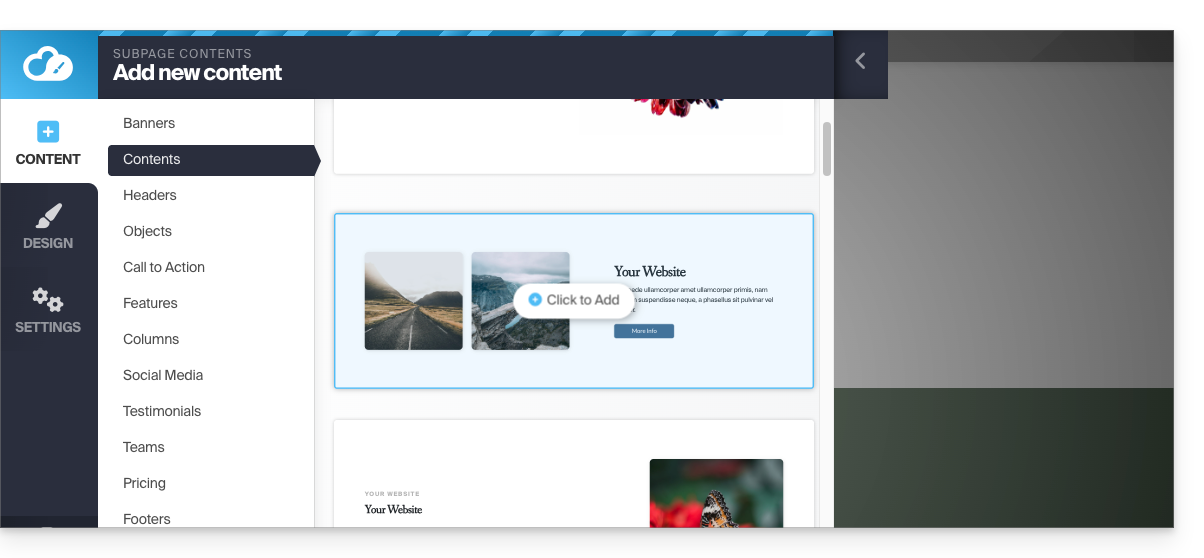
- The media can then be replaced or supplemented:
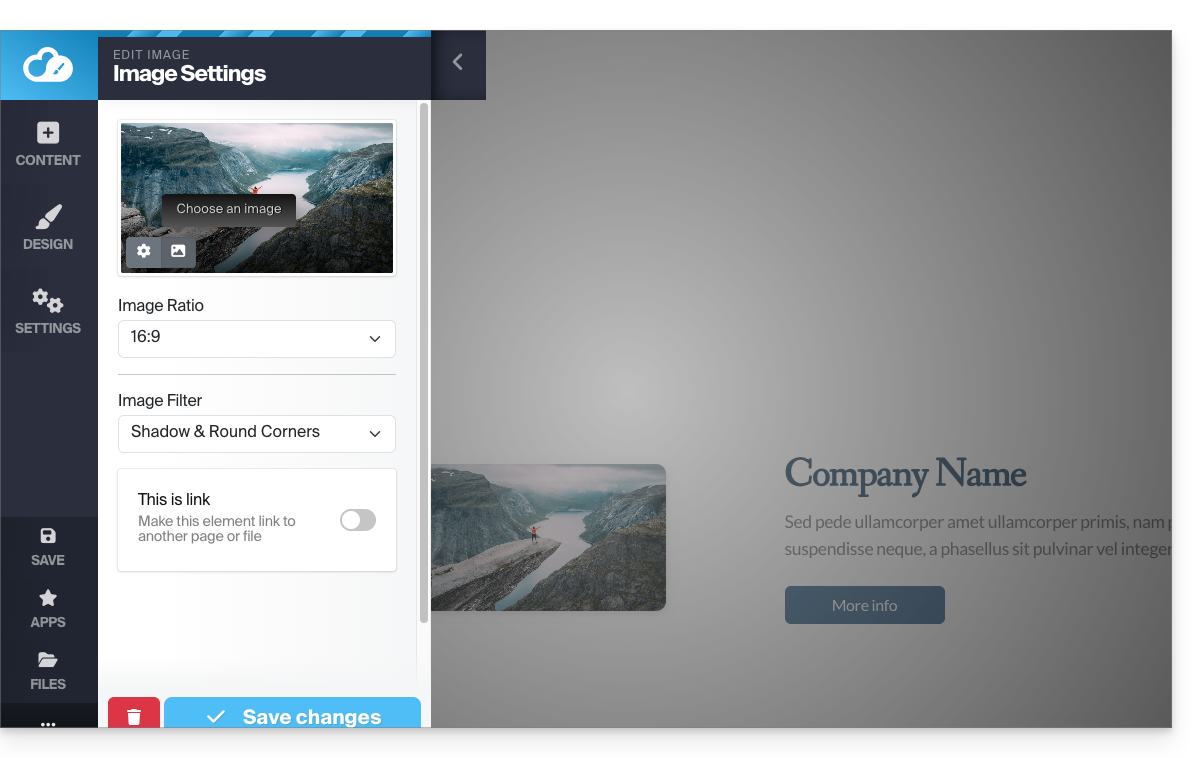
But also:
- Click on the Content button in the left-hand menu.
- Click on Objects in the list to insert a single image.
- Click on the IMAGE block on the right:
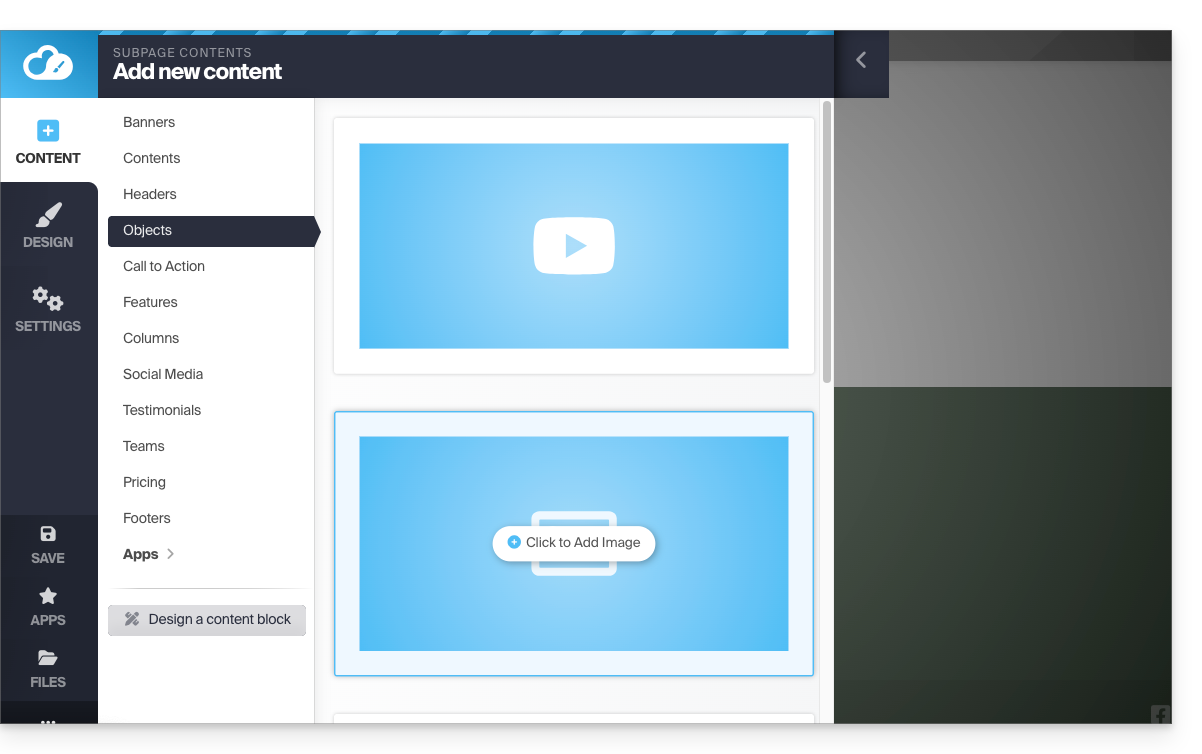
- Once the image has been added, you can also make it a clickable link or change its size in the image editor:
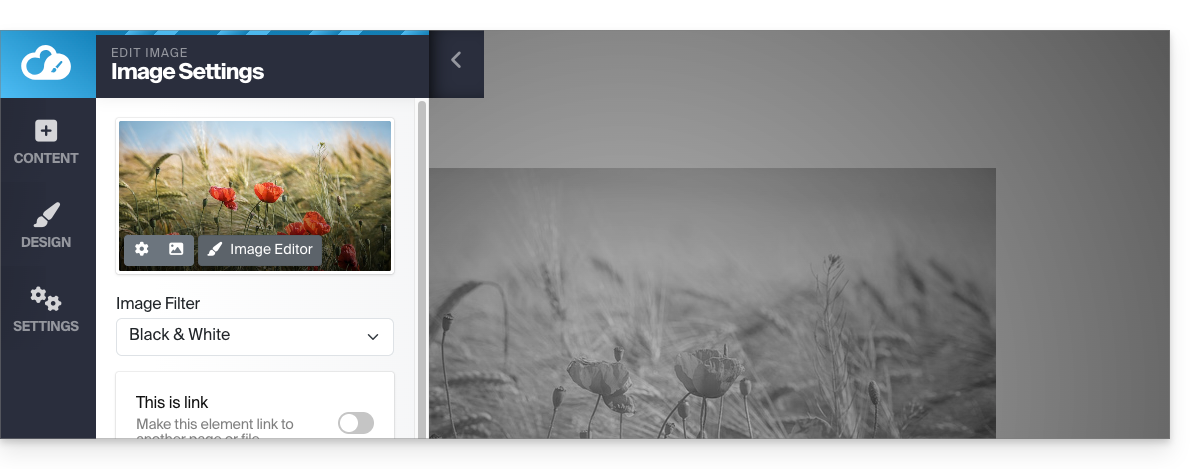
You can also add images as a Photo Gallery module.
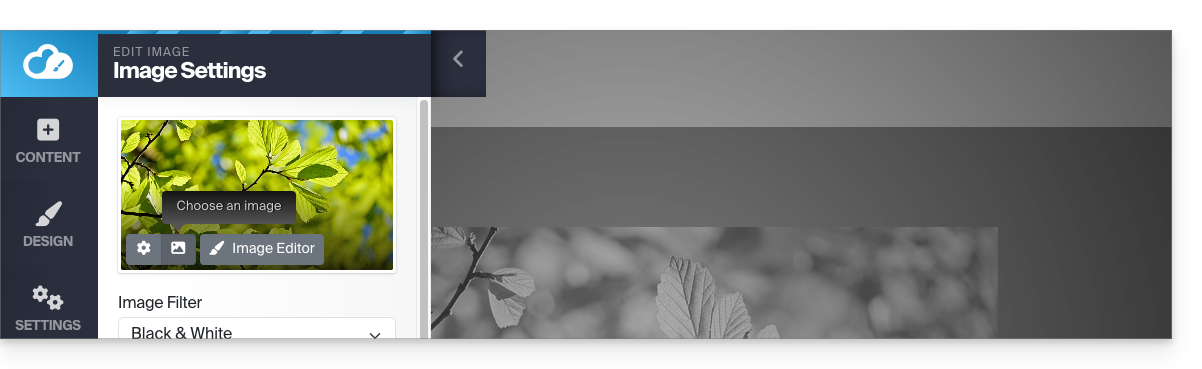
Change image
To replace an inserted image, which will retain the characteristics of the previous one:
- Click on an image to edit it.
- Click on the Picture frame button on the image thumbnail to select a new image that will replace the previous one:
Add a video
To add a video:
- Click on the Content button in the left-hand menu.
- Click on Objects in the list.
- Click on the VIDEO block on the right to insert a full-width video:
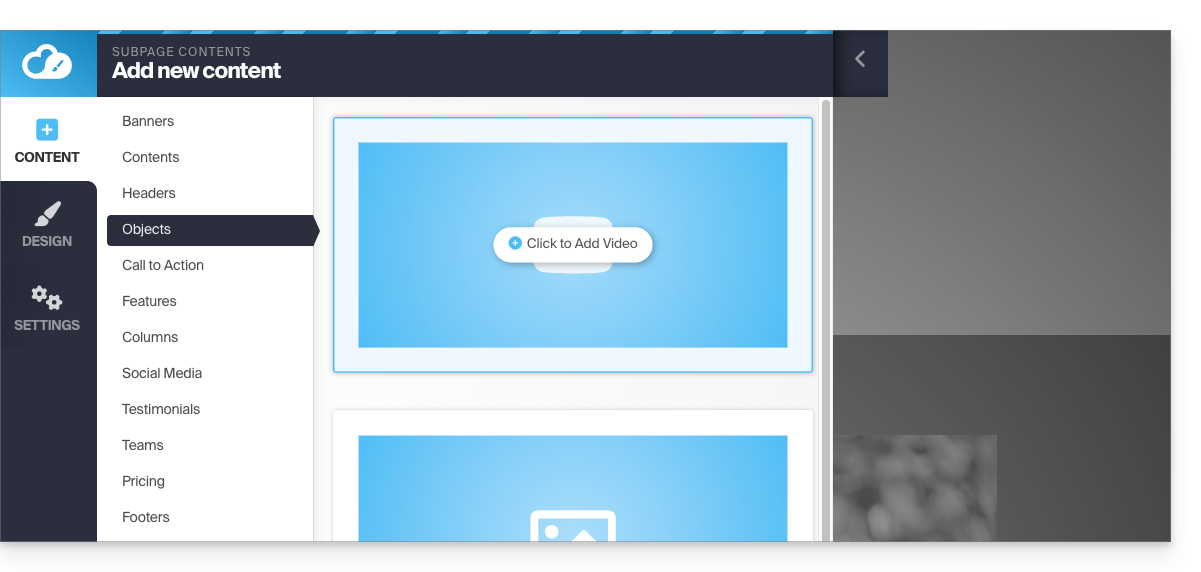
You can also apply a link to an image using a YouTube video as the URL: this will automatically create a PLAY-type icon that, when clicked, will open the video in a lightbox window.
Add an audio file
To add an audio file:
- Click on the Content button in the left-hand menu.
- Click on Applications at the bottom.
- The available content is displayed on the right.
- Click on the audio player to insert it into the page and select the files:
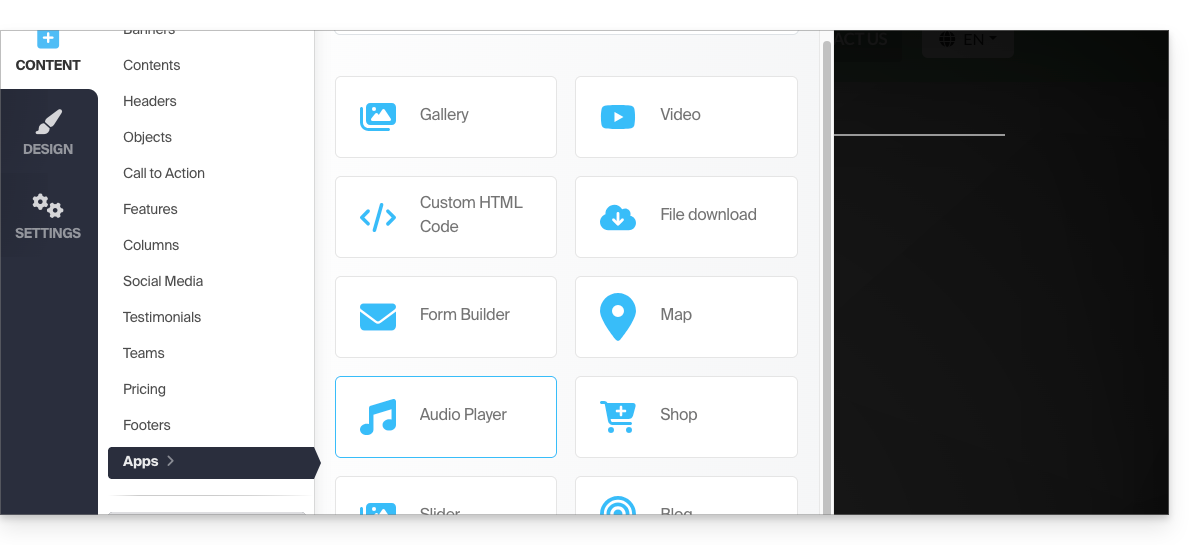
You can customize it further using the HTML editor.
Add a file to download
To easily offer a file for download:
- Click on the Content button in the left-hand menu.
- Click on Applications at the bottom.
- The available content is displayed on the right.
- Click on the File Download widget to insert it into the page:
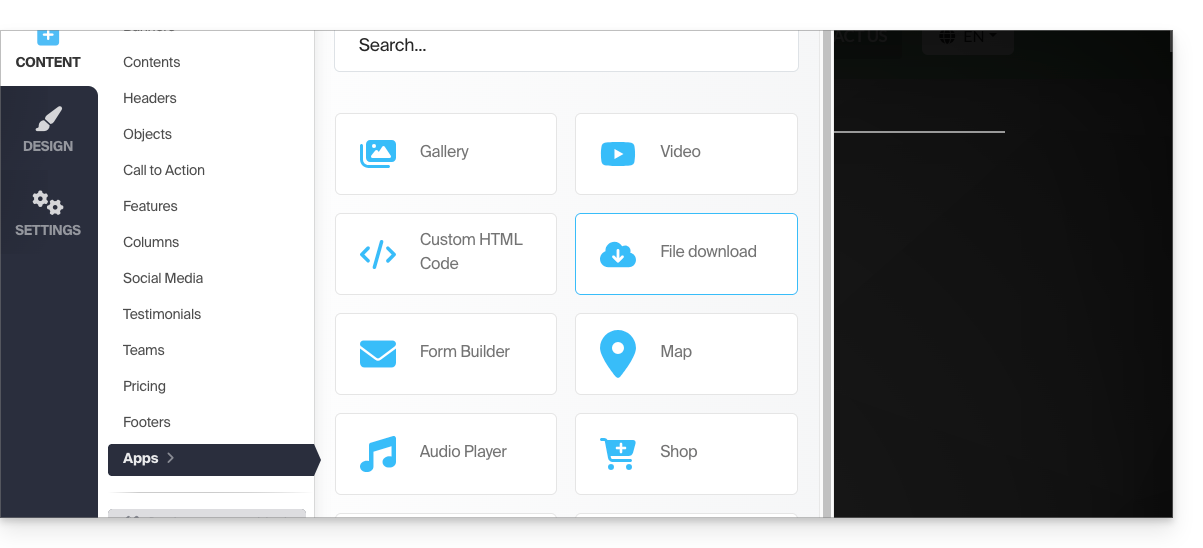
- Select the file from the library that your visitors will be able to download.
Link to this FAQ: https://faq.infomaniak.com/2729
Has this FAQ been helpful?
This tutorial explains how to create navigation menus for your website built with Site Creator from Infomaniak, as well as how to configure their content, styles, and settings.
Prerequisites
- Access Site Creator:
- Click here to access the management of your product on the Infomaniak Manager (need help?).
- Click directly on the name assigned to the Site Creator in question.
- Click on the Edit my site button to launch the editor:
The different navigation menus
The different pages that make up your site can be accessed within one or more navigation menus:
- Click on the Settings button in the left-hand menu.
- By default, the list of your pages appears, organized into 2 main categories: MAIN MENU and LEGAL:
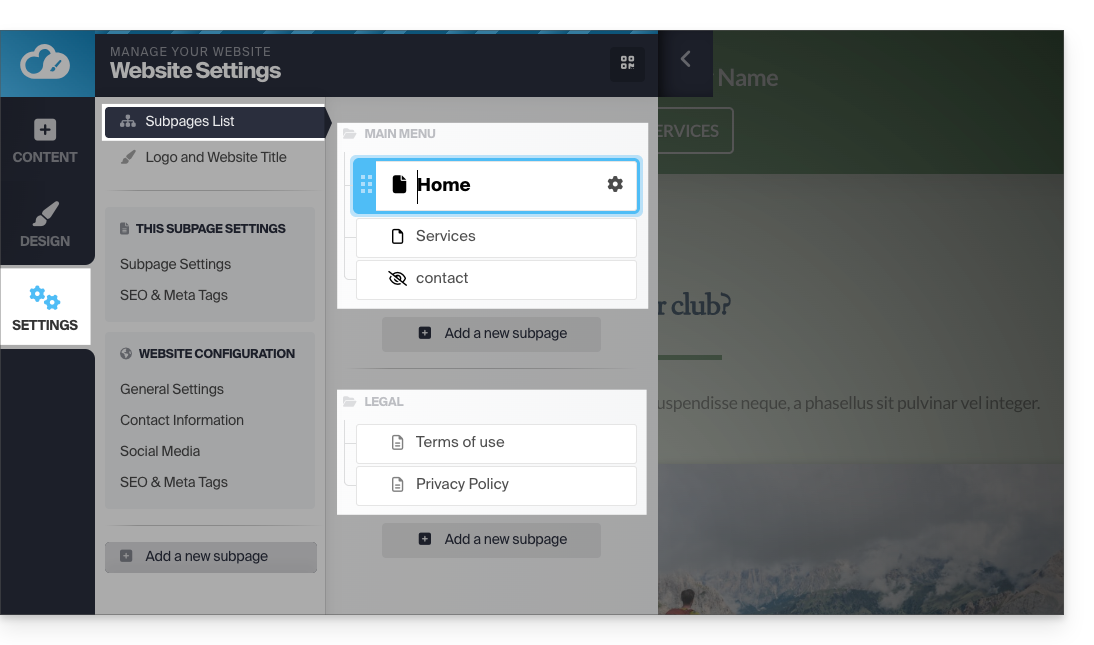
But you can add more.
These menus, along with the pages they contain, are then used in different places on your site, depending on the theme chosen:
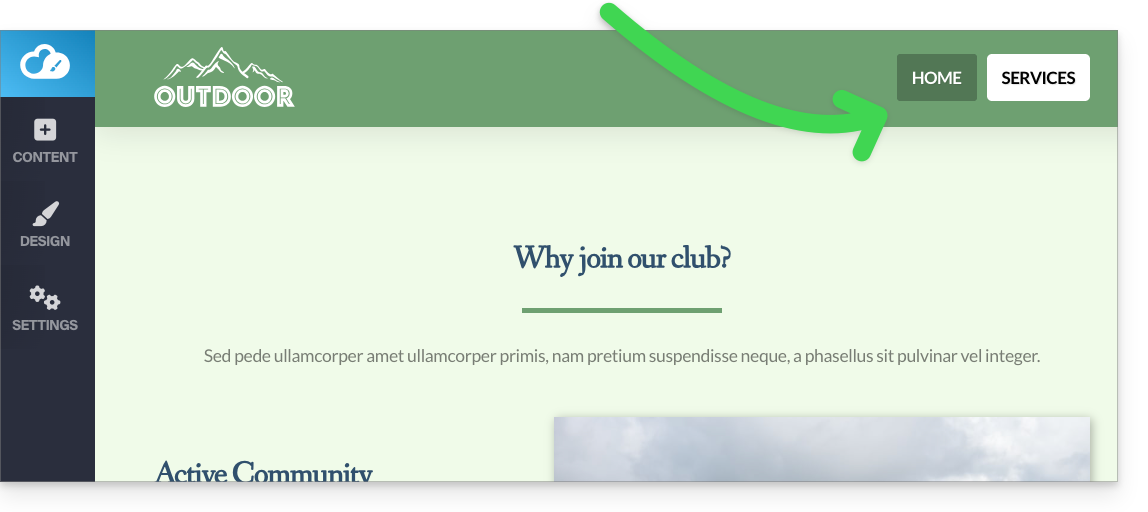
- You will often find the main menu placed at the top of the page:
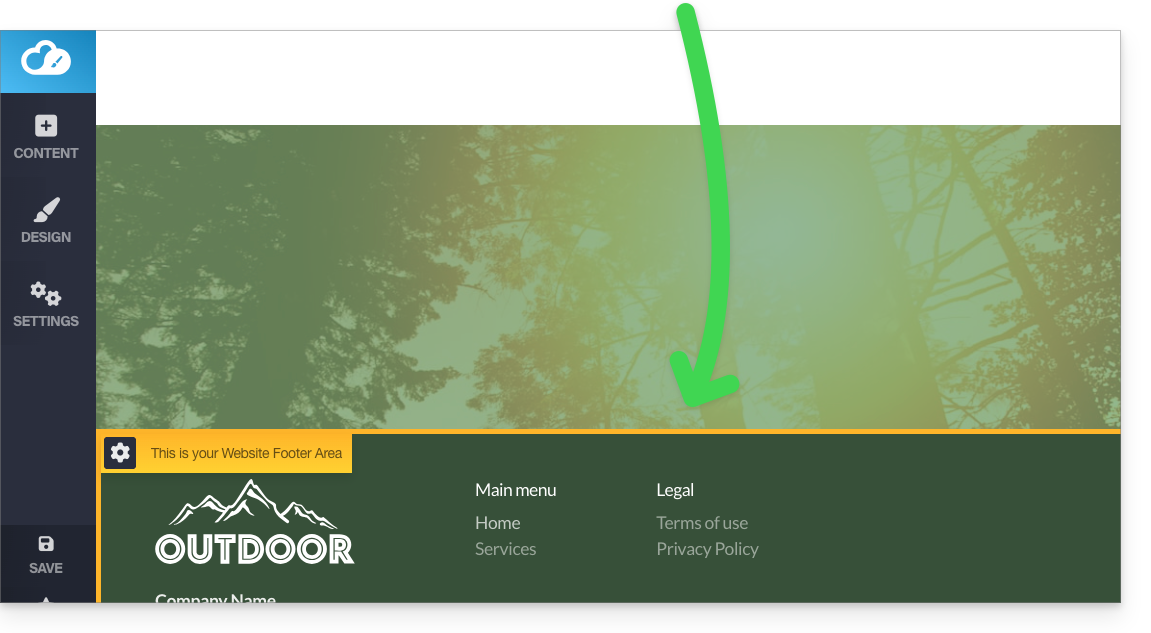
- and the other menus will be automatically displayed in the footer:
Manage menus
Add a new menu
To do this:
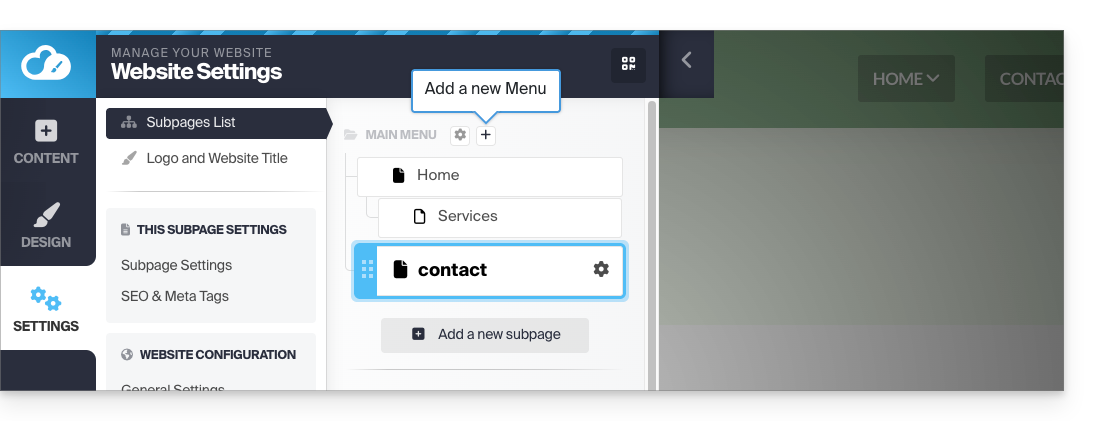
- Click on the Settings button in the left-hand menu.
- Hover over a menu title in the existing tree.
- Click on the "+" icon that appears when you hover:
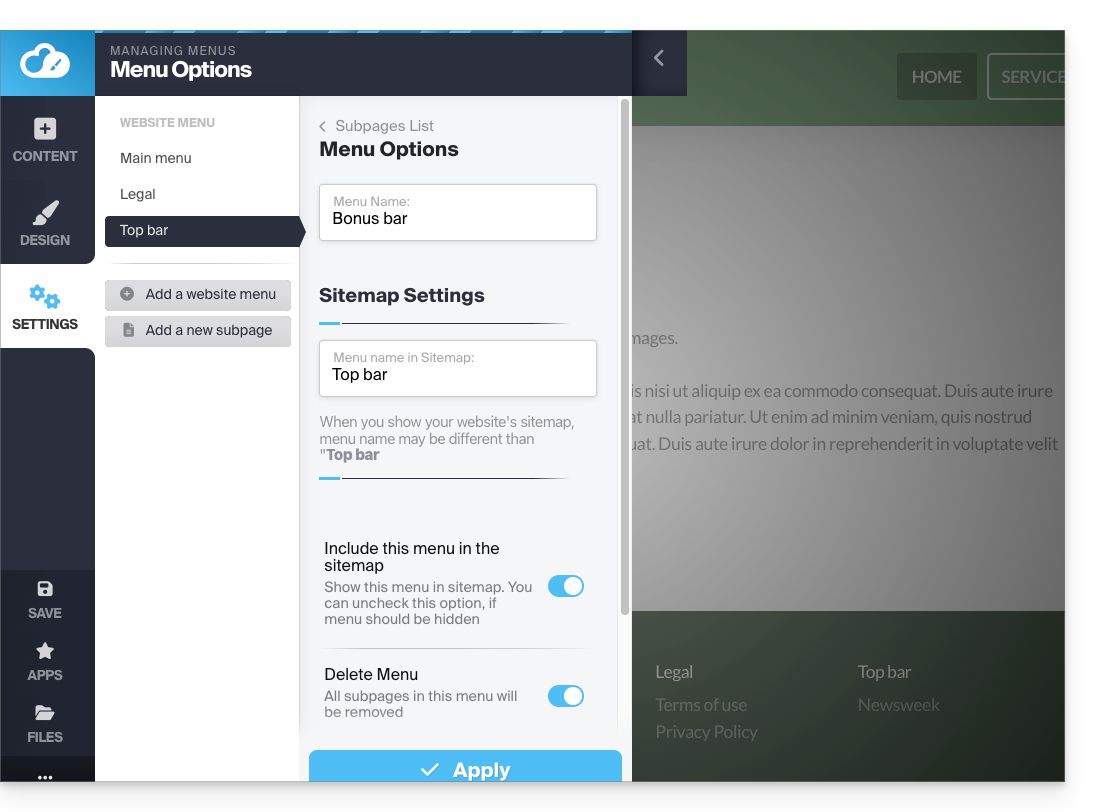
You can manage the presence of the menu in the sitemap or delete it (along with all its pages):
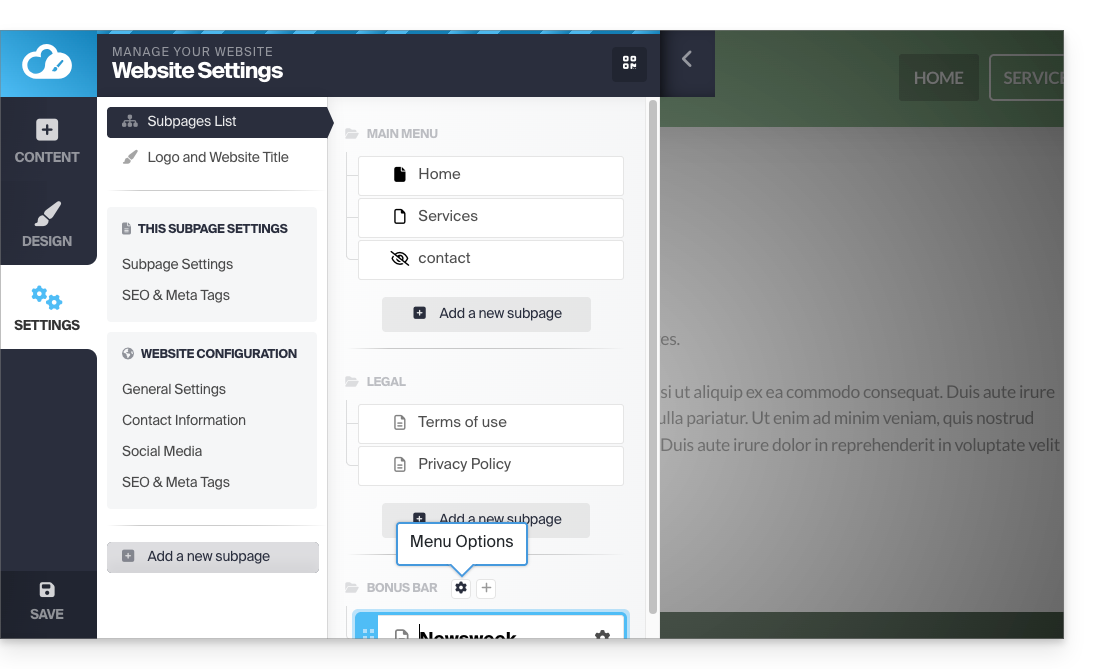
- Click on the Settings button in the left-hand menu.
- Hover over a menu title in the existing tree and click on the gear icon that appears when you hover:
- Choose the desired settings and validate at the bottom of the page:
Refer to this other guide to prevent any menu from appearing at all.
Create a sub-item in a menu
To do this:
- Click on the Settings button in the left-hand menu.
- The list of your pages appears.
- Using your mouse, move a page slightly to the right, under another page:
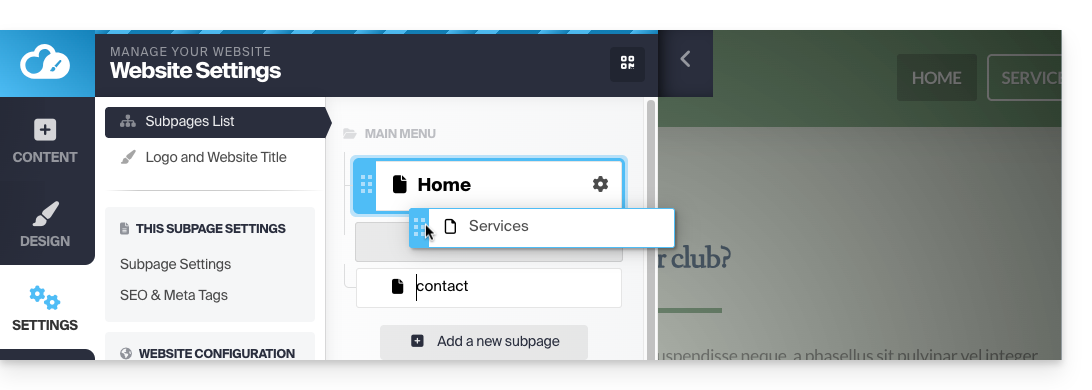
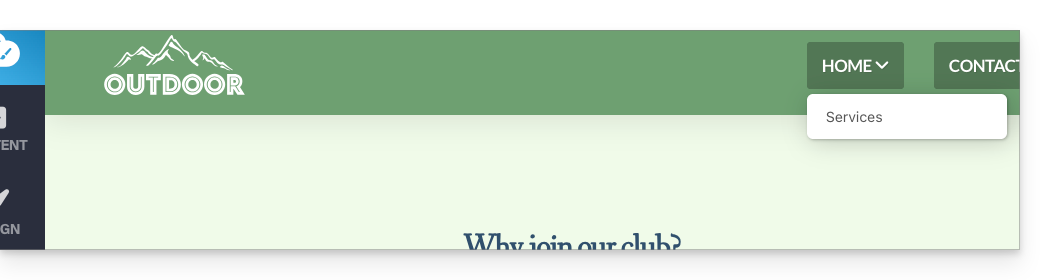
- It will become a sub-page, and your website menu will display the tree structure you have created:
- Also, take note of the tip below…
- It will become a sub-page, and your website menu will display the tree structure you have created:
Menu title that is not clickable
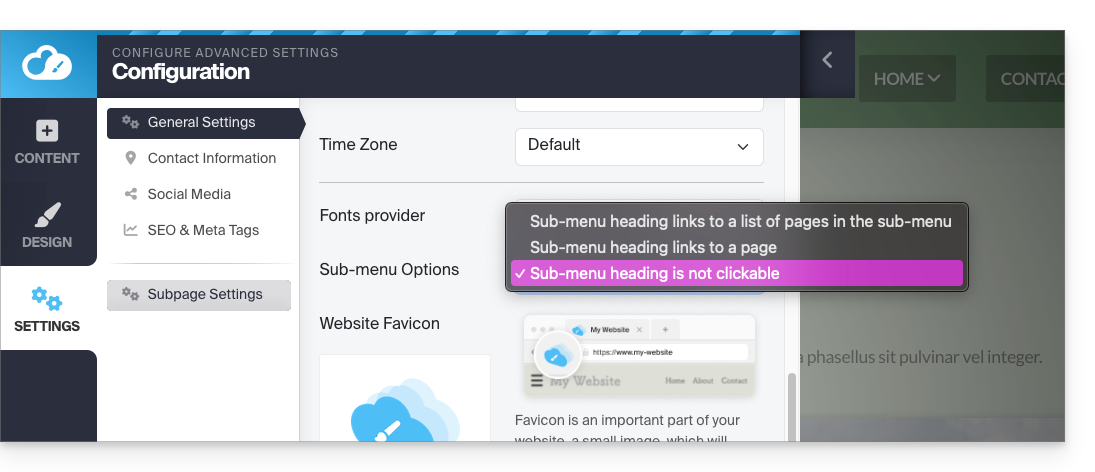
If necessary, choose to not make the very first item of a menu with sub-menu items clickable (as configured above):
Please note that changing this setting, while the Home item in your menu has a sub-menu, will disable the ability to edit the website from the home page when you view the page.
- Click on the Settings button in the left-hand menu.
- Click on General Settings to modify this setting under Sub-menu Options:
Menu item containing a link to another website
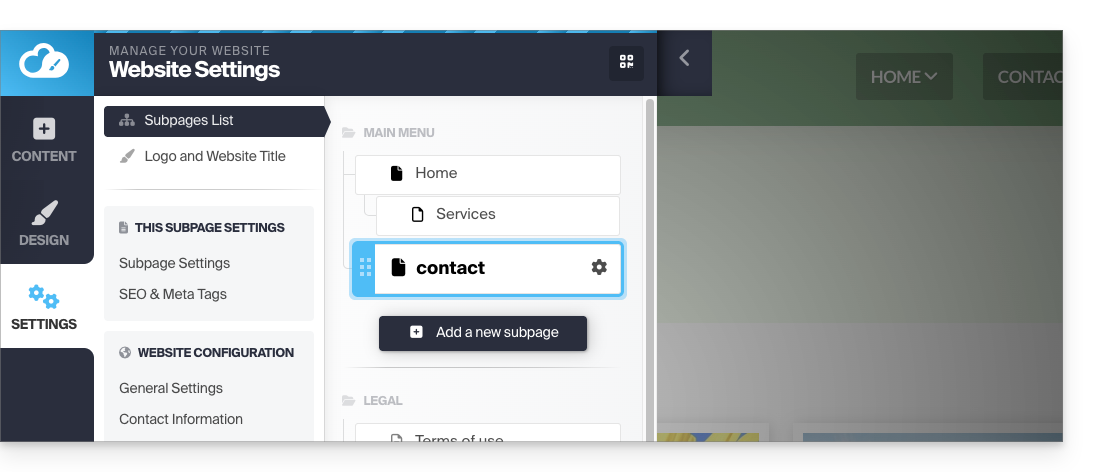
To do this:
- Click on the Settings button in the left-hand menu.
- The list of your pages will appear.
- Click on the Add Page button below the existing tree:
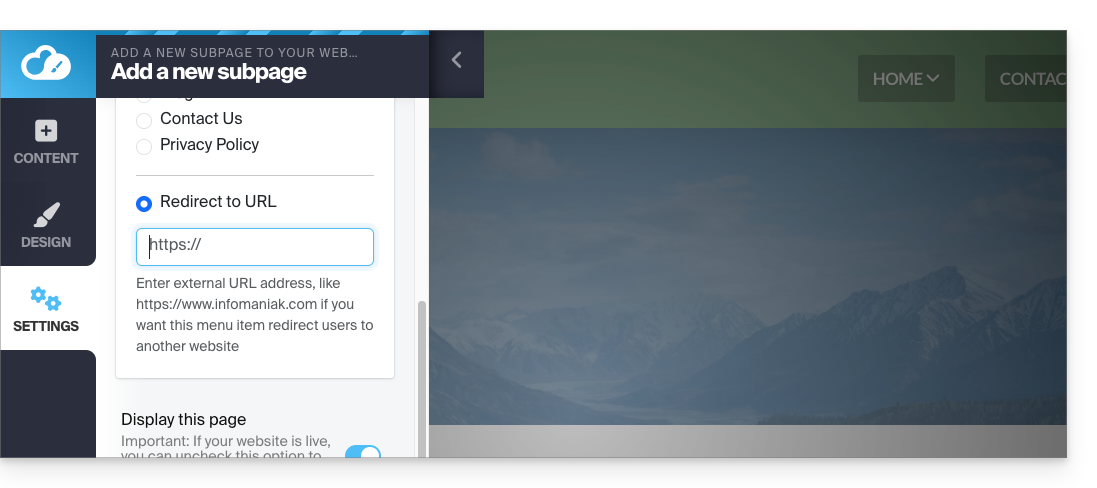
- Enter a page name and click on Show more options.
- Choose the URL redirection to specify the destination when clicked:
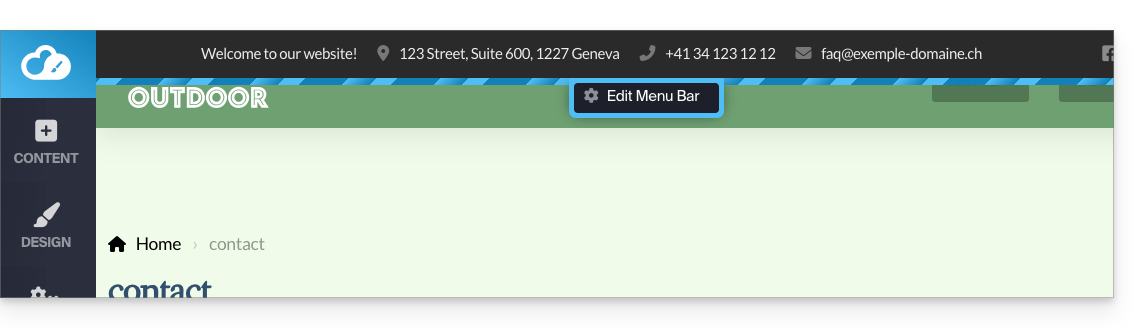
Additional top menu
To display a "menu bar" at the very top of your page:
- Click on the Design button in the left-hand menu.
- Click on More settings.
- Enable the Header menu bar:
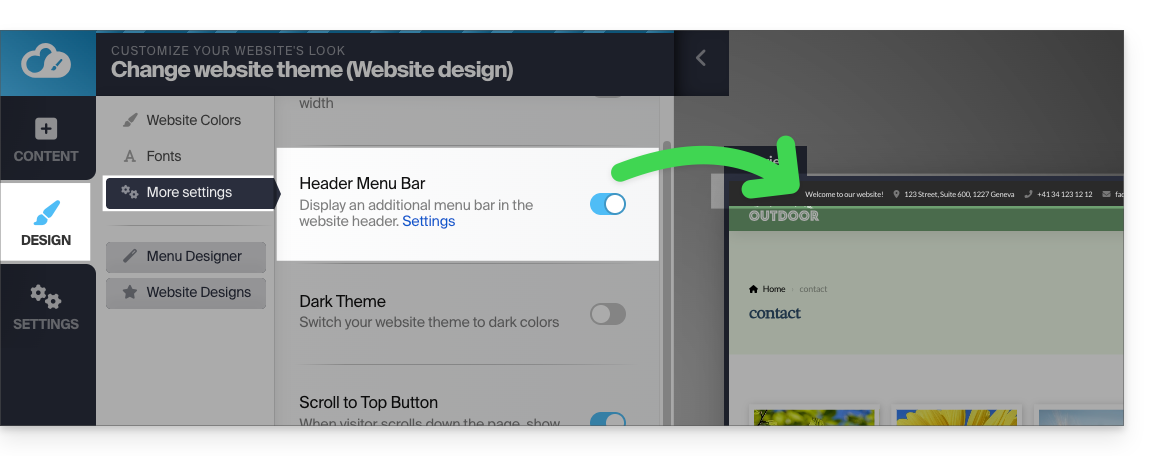
- Once enabled, you can customize it using the Settings link in the same place:
Menu styles
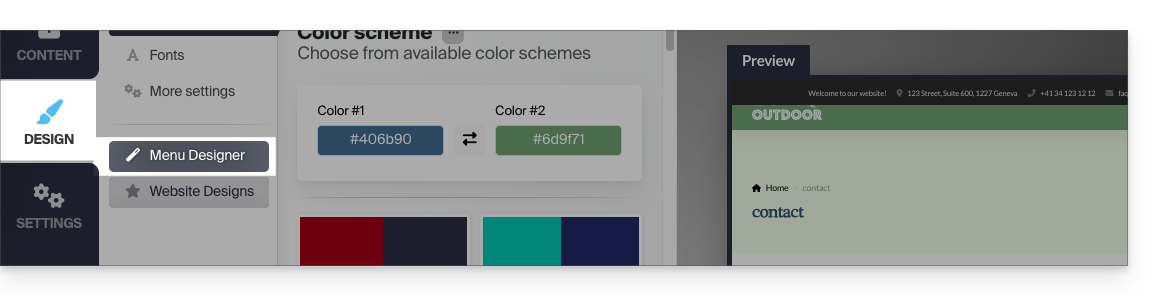
To manage the different menu styles:
- Click on the Design button in the left-hand menu.
- Click on Menu editor:
- Then click on Configuration:
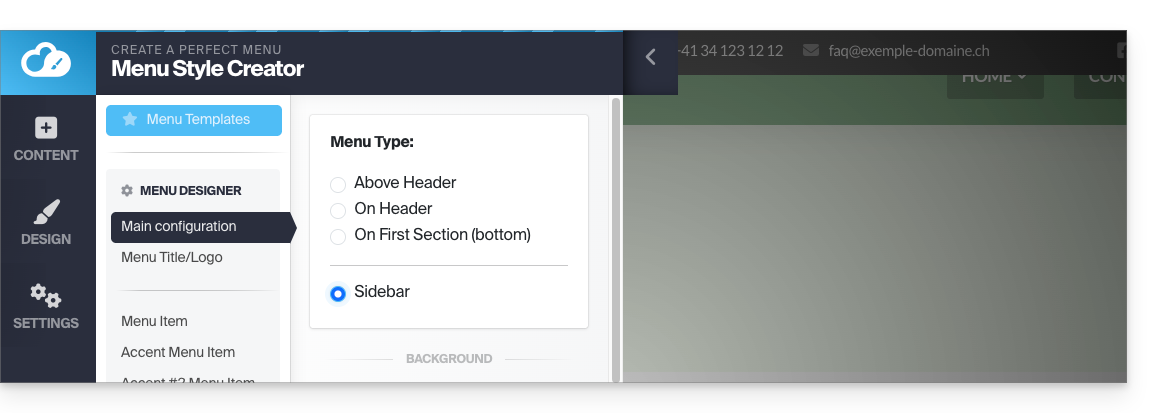
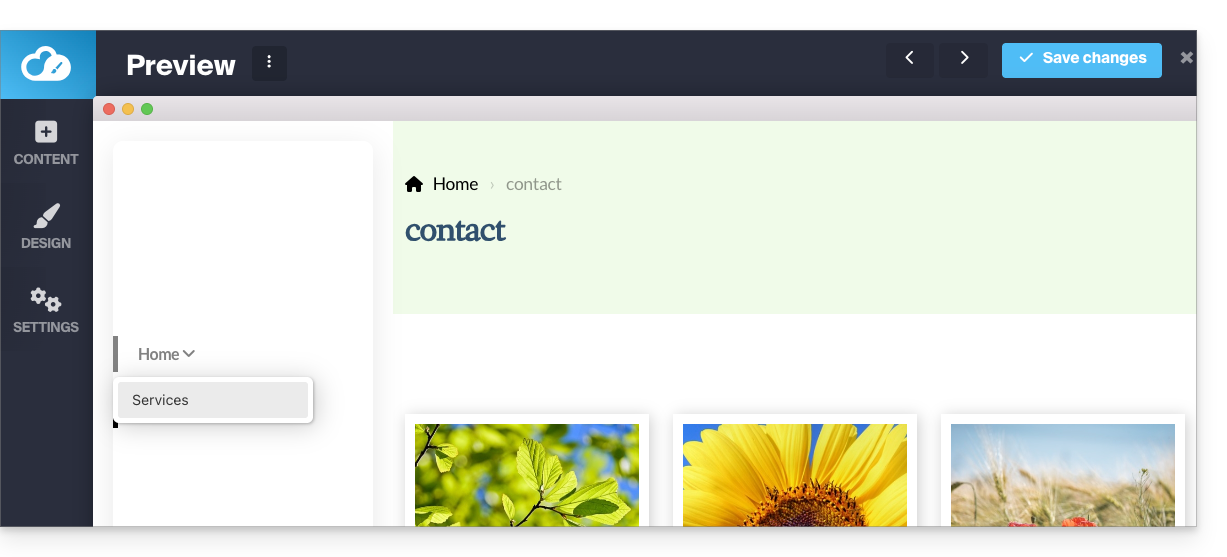
- You can then decide on the location of your menus (on the left of the page or at the top, fixed or mobile, "hamburger ☰" type menu on the right or normal, etc.):
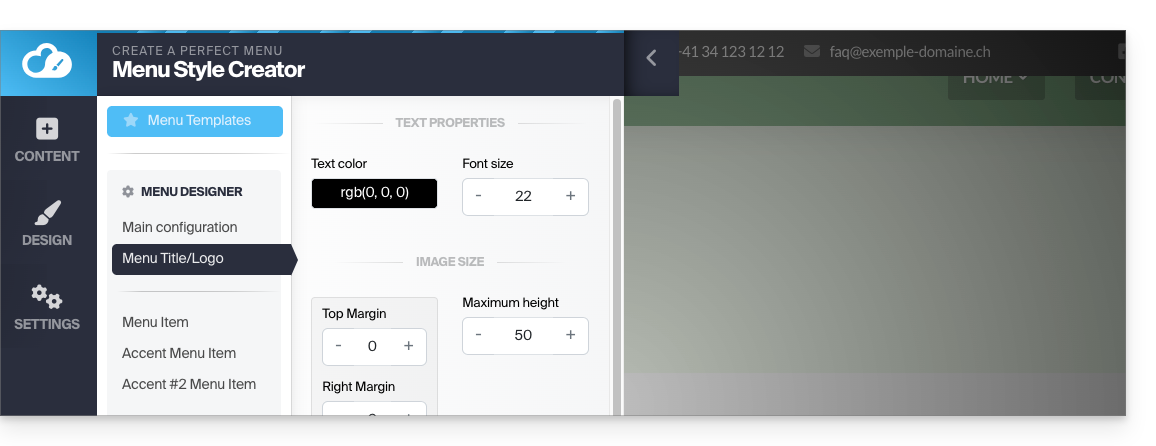
Change the color of the "hamburger" menu (☰)
If this menu button with three horizontal lines ☰ appears, for example, white on white on a mobile device:
- Click on the Design button in the left-hand menu.
- Click on Menu Editor.
- Click on Menu title / logo.
- Adjust the text color:
Adopt a new menu theme
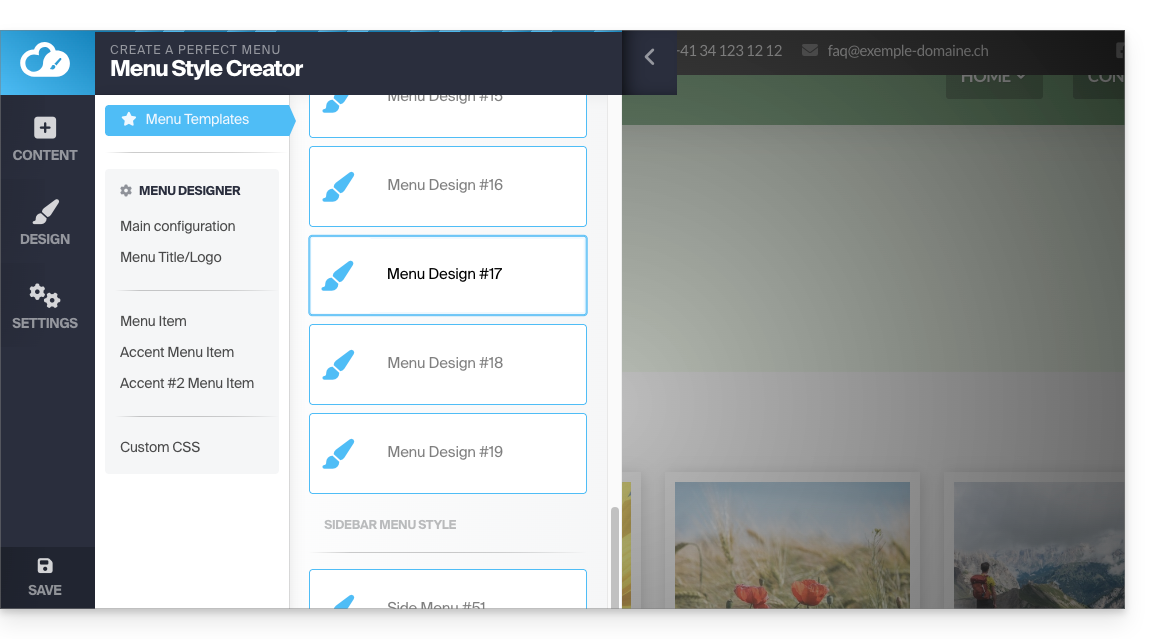
Completely change the predefined style using the themes at the very top of the submenu:
- Click on Menu Templates (still under Design, then Menu Editor):
Fixed menu
Most of the menus will move with the page content.
- The menu disappears when you scroll down the page:
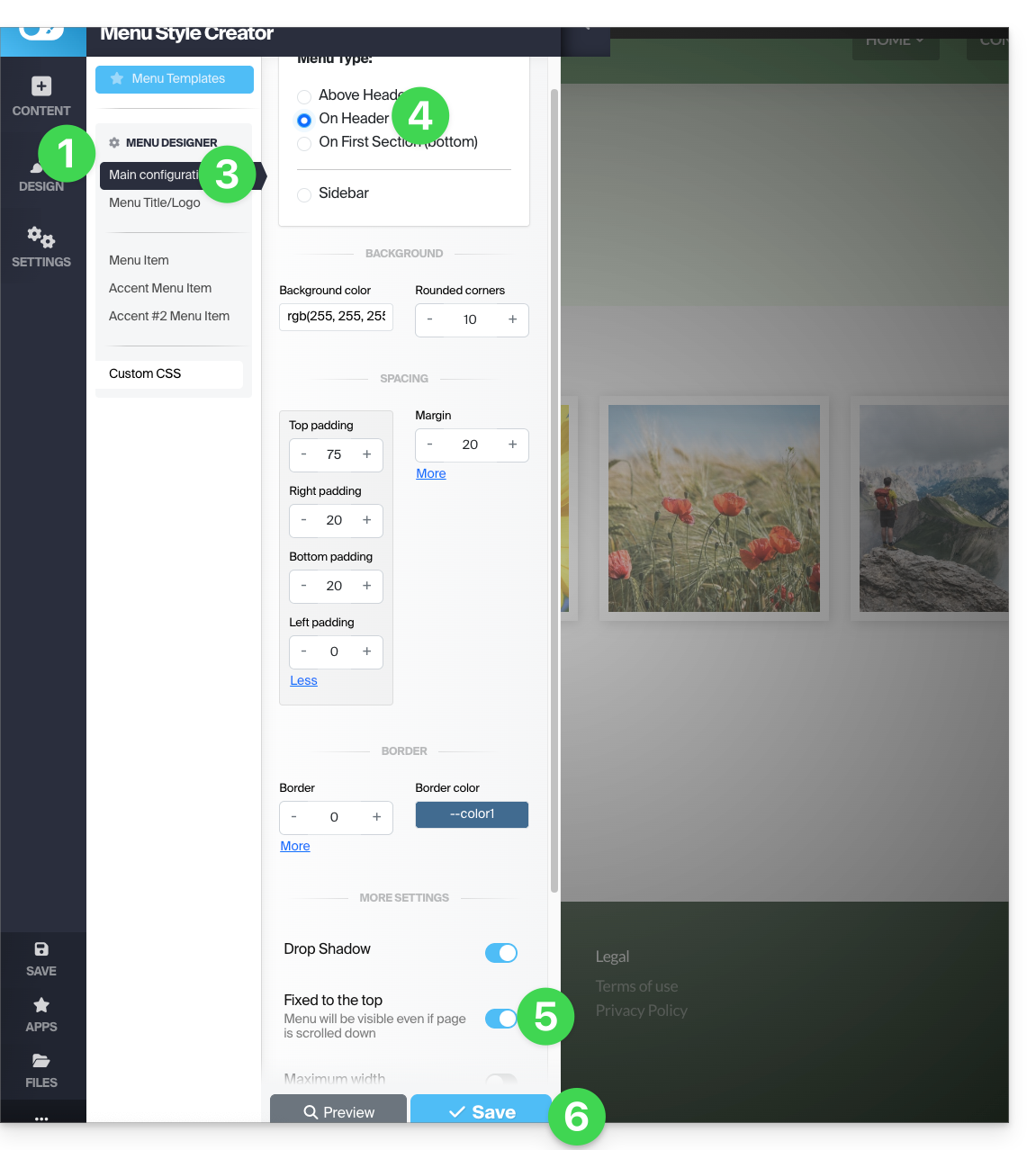
- You can define a menu that will always be fixed to the top edge (with different visual options):
To enable or disable the fixed menu:
- Click on Design.
- Click on Menu Editor.
- Click on Main configuration.
- Choose In the header in the Menu type box.
- The toggle switch Fixed to the top appears further down, and you can enable it.
- Click on Save:
Some menu templates (such as #3 and #16) directly apply the optimal settings for a fixed menu.
Insert your menus into the page body
A Subpage Menu module allows you to insert your menus and submenus anywhere on your page:
- Add the element from Apps:
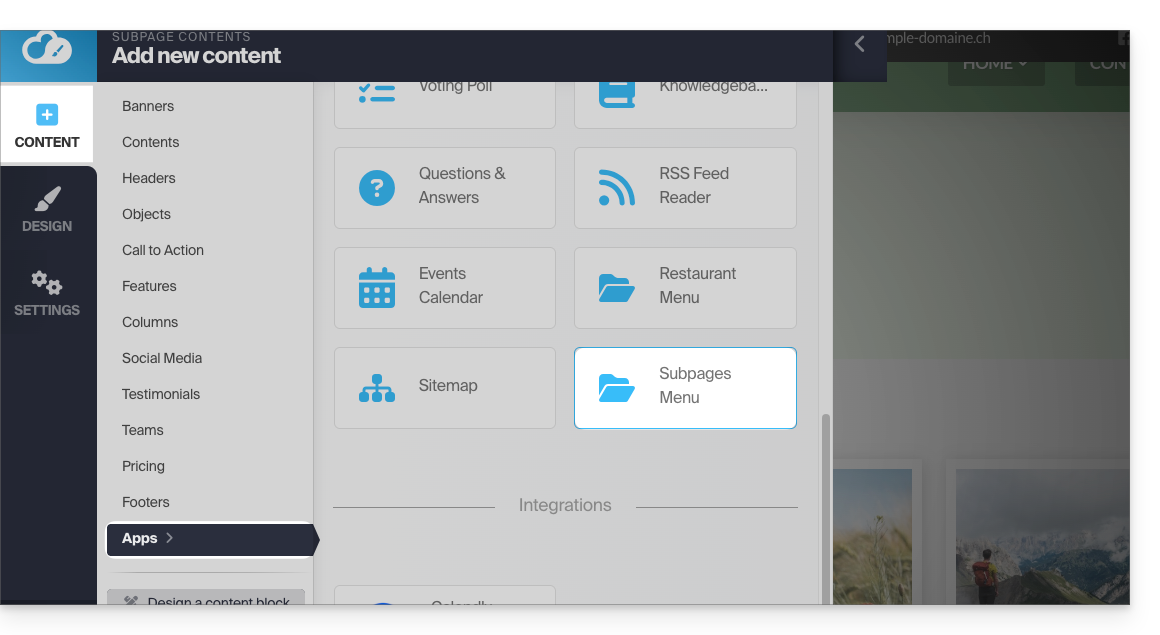
The sitemap module displays all menus and all your pages in a single block.
Define the page URL
By default, if your page name is Contact, the URL to access it will be www.domain.xyz/contact.
If you later change the page name to Hello, the URL will be www.domain.xyz/hello.
To define the custom URL for the page you are on:
- Click the Settings button in the left-hand menu.
- Click SEO & Metadata (under Settings for this subpage).
- The first field at the top allows you to define the page address. Any spaces will be converted into hyphens, and special characters, accents, symbols, etc. should be avoided:
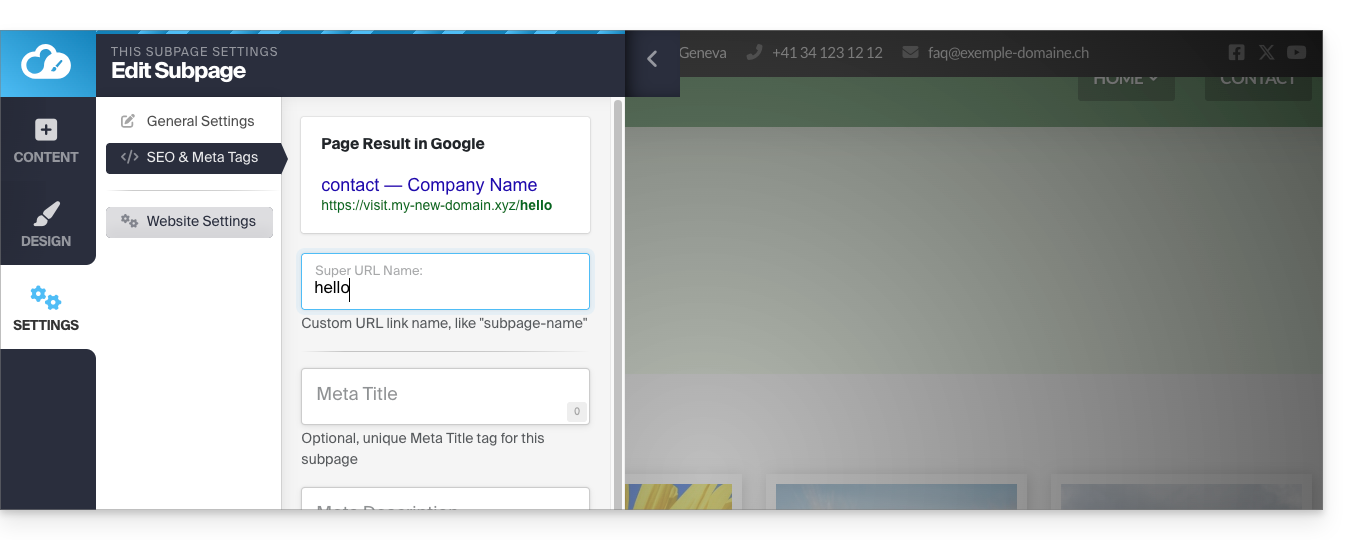
If URL changes are saved while creating the site and a menu already contains a link to the page in question, it will be updated dynamically.
Link to this FAQ: https://faq.infomaniak.com/2730
Has this FAQ been helpful?
This guide concerns the undo function in Infomaniak's Site Creator.
Introduction
- No backup/restore is possible from the Infomaniak Manager.
- For example, if you delete a content block and want to restore it, you can undo up to the last 20 operations in Site Creator.
Cancel an operation
Prerequisites
- Access Site Creator:
- Click here to access the management of your product on the Infomaniak Manager (need help?).
- Click directly on the name assigned to the Site Creator in question.
- Click on the Edit my site button to launch the editor:
Once in Site Creator:
- Click on the … button at the very bottom of the Site Creator's left-hand menu to expand the cancellation options.
- Click on Cancel and confirm the restoration (the arrows next to it allow you to "navigate" through the latest backups):
Link to this FAQ: https://faq.infomaniak.com/2731
Has this FAQ been helpful?
This guide explains how to temporarily take a website created with Infomaniak's Site Creator offline.
Introduction
- Public visibility: the maintenance page will only be displayed to your visitors!
- No translation is available at this time; the maintenance page will be displayed only in French.
- Administrator access: by remaining logged in to the editor, you retain full access to your site, allowing you to view and modify it via Site Creator.
Put Site Creator in maintenance mode
To temporarily disable Site Creator:
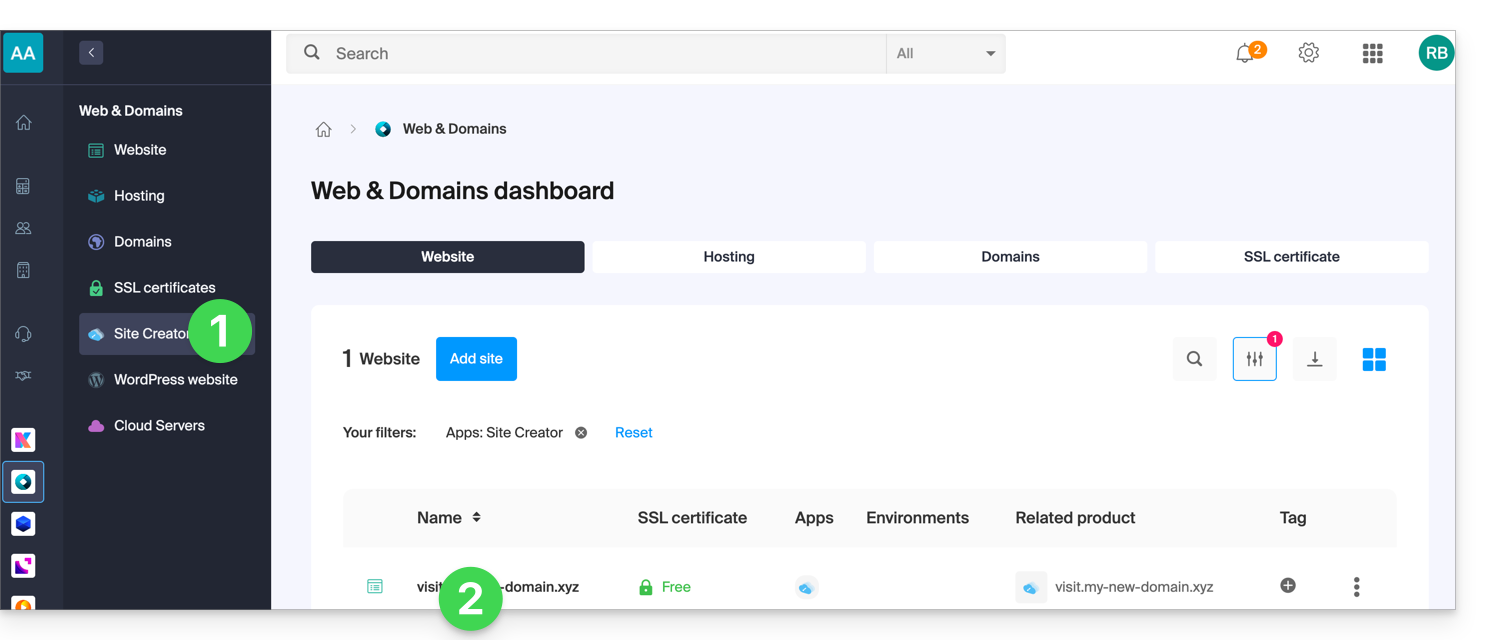
- Click here to access your website management in the Infomaniak Manager (need help?).
- Click directly on the name assigned to the website in question:
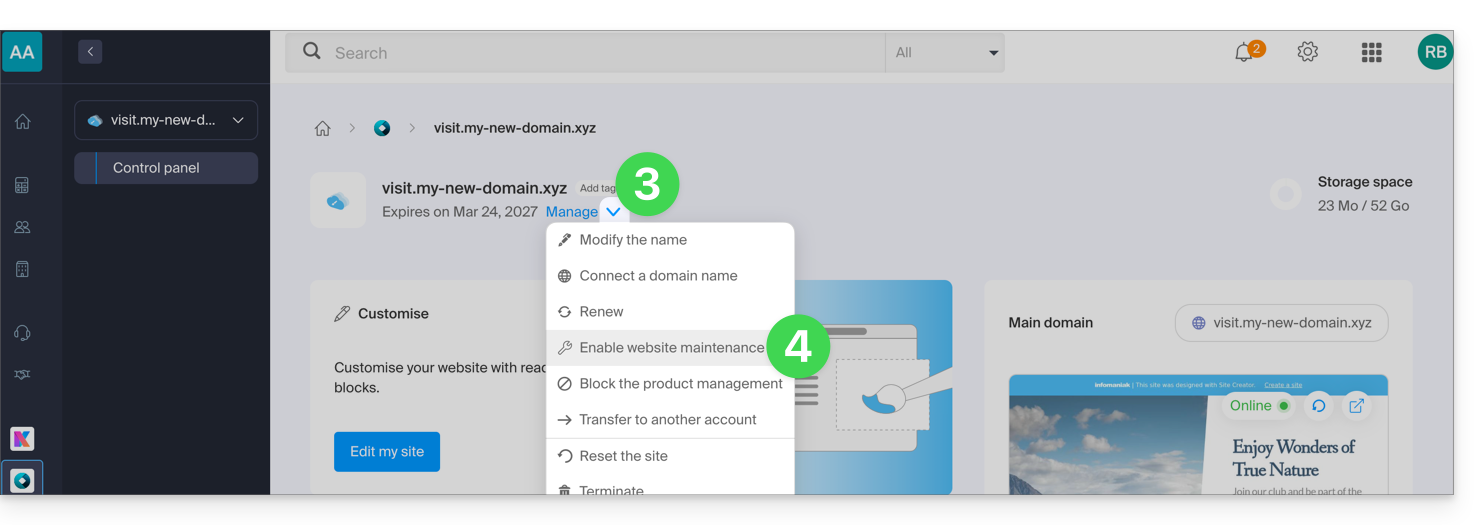
- Click on Manage at the top of the page.
- Click on Enable maintenance:
- Confirm the operation.
Disable the maintenance page
To bring the site back online for its visitors:
- Repeat the operation above; the menu allows you to disable maintenance mode:
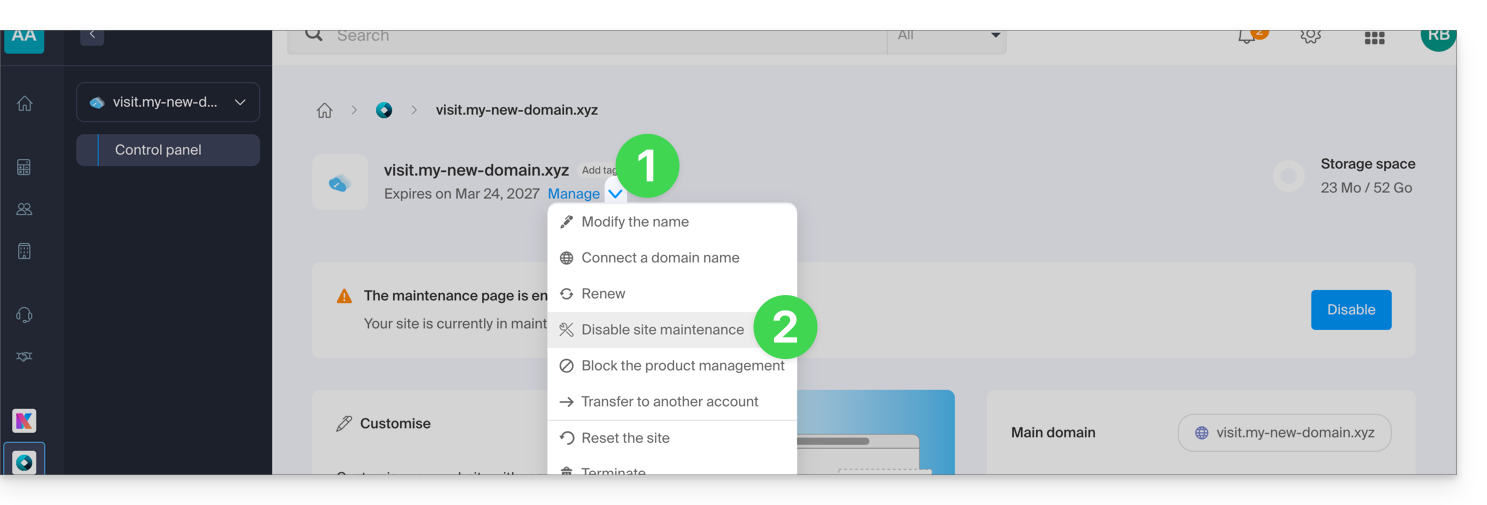
You can also disable maintenance mode from the management page and from the preview block of your site: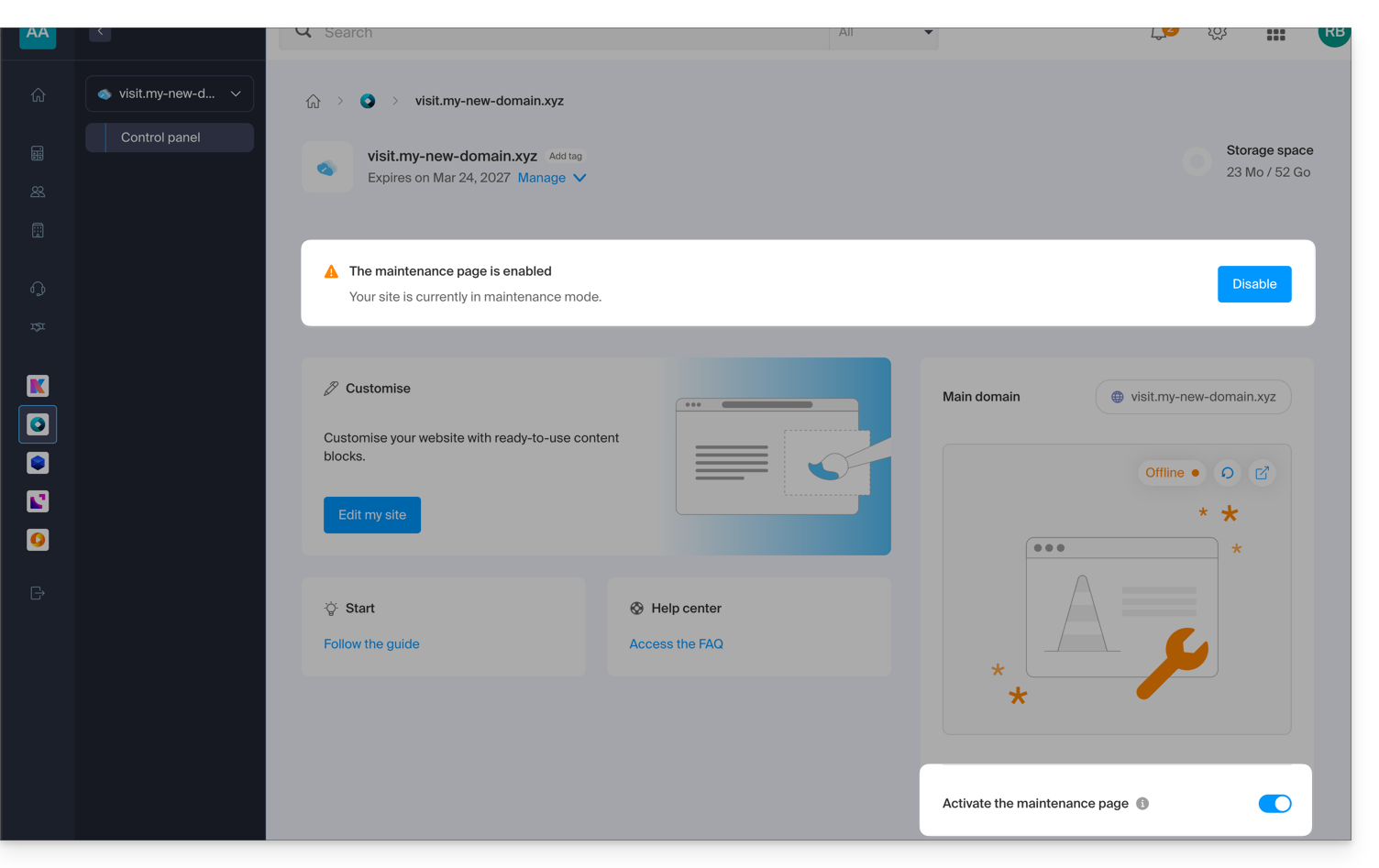
Link to this FAQ: https://faq.infomaniak.com/2735
Has this FAQ been helpful?
This guide explains how to connect a website created with Infomaniak's Site Creator to a domain name.
Prerequisites
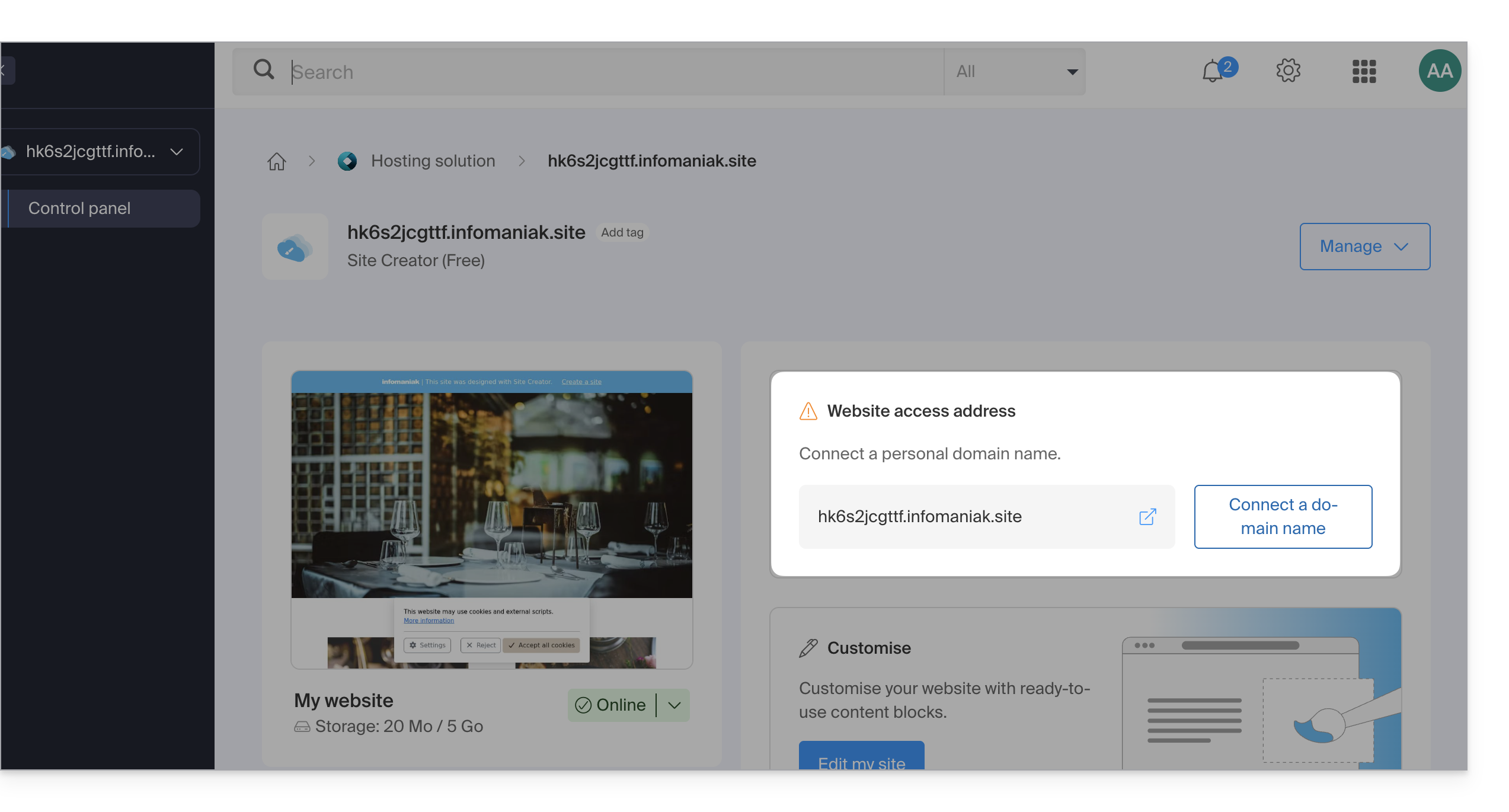
- The Site Creator Free offer allows you to access the site using an address in the format
123xyz.infomaniak.site…- To connect a custom domain name, you must first upgrade to a higher plan:
- To connect a custom domain name, you must first upgrade to a higher plan:
- The Site Creator Lite and Pro plans offer a free domain name for 1 year from the following extensions:
.ch,.com,.fr,.org,.co.uk,.be,.de,.eu,.it,.es - If you want to use an existing domain, it must be located within the same Organization.
- Make sure you have previously completed the initial setup by selecting a theme:
- Once this step is complete, you can access the Site Creator dashboard and connect your domain name.
Connect Site Creator to a domain name
To connect Site Creator (excluding the Free plan) to a domain name:
- Click here to access your website management in the Infomaniak Manager (need help?).
- Click directly on the name assigned to the website in question:
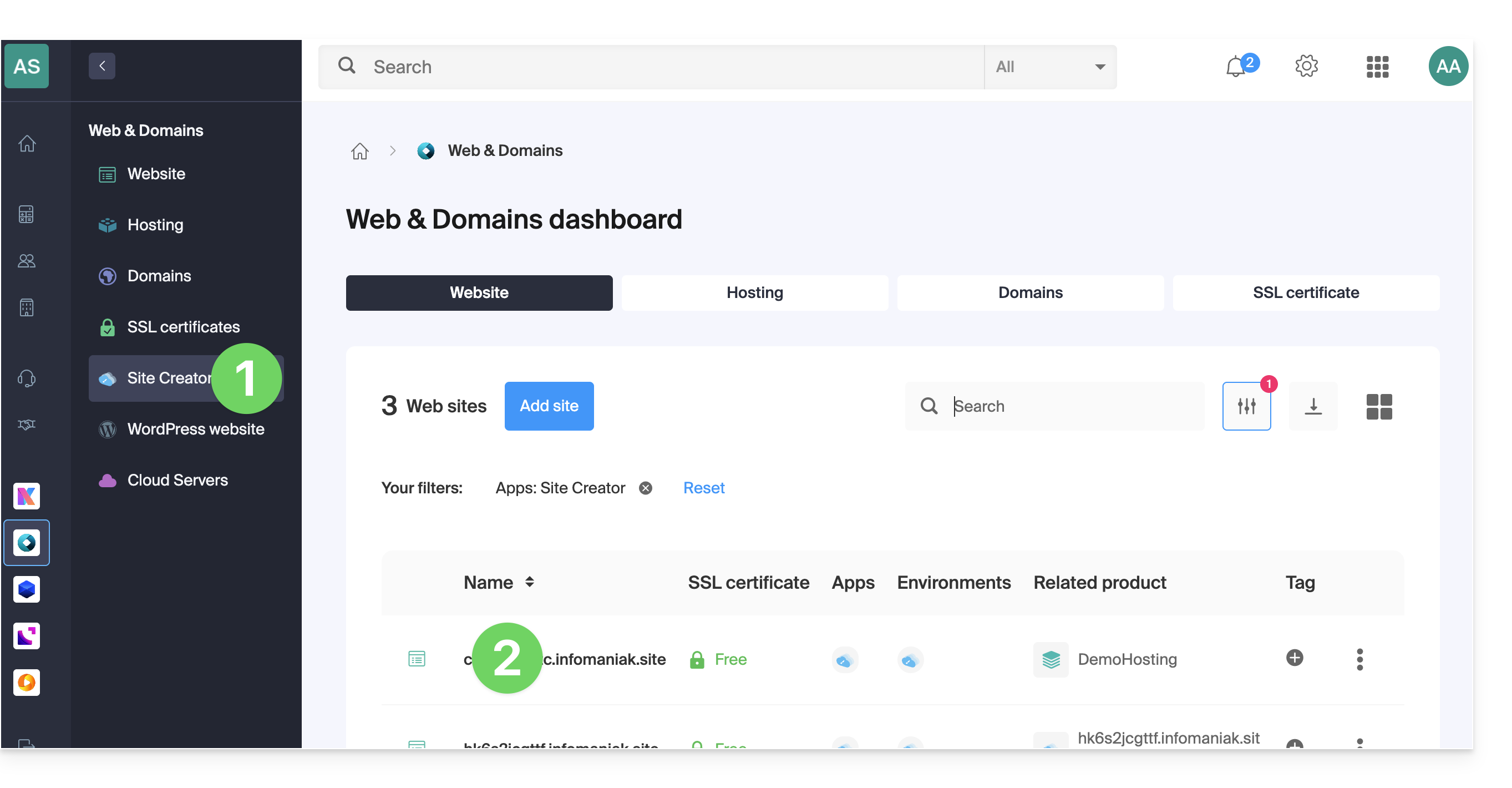
- Click on Connect my site to a domain to start the configuration wizard:
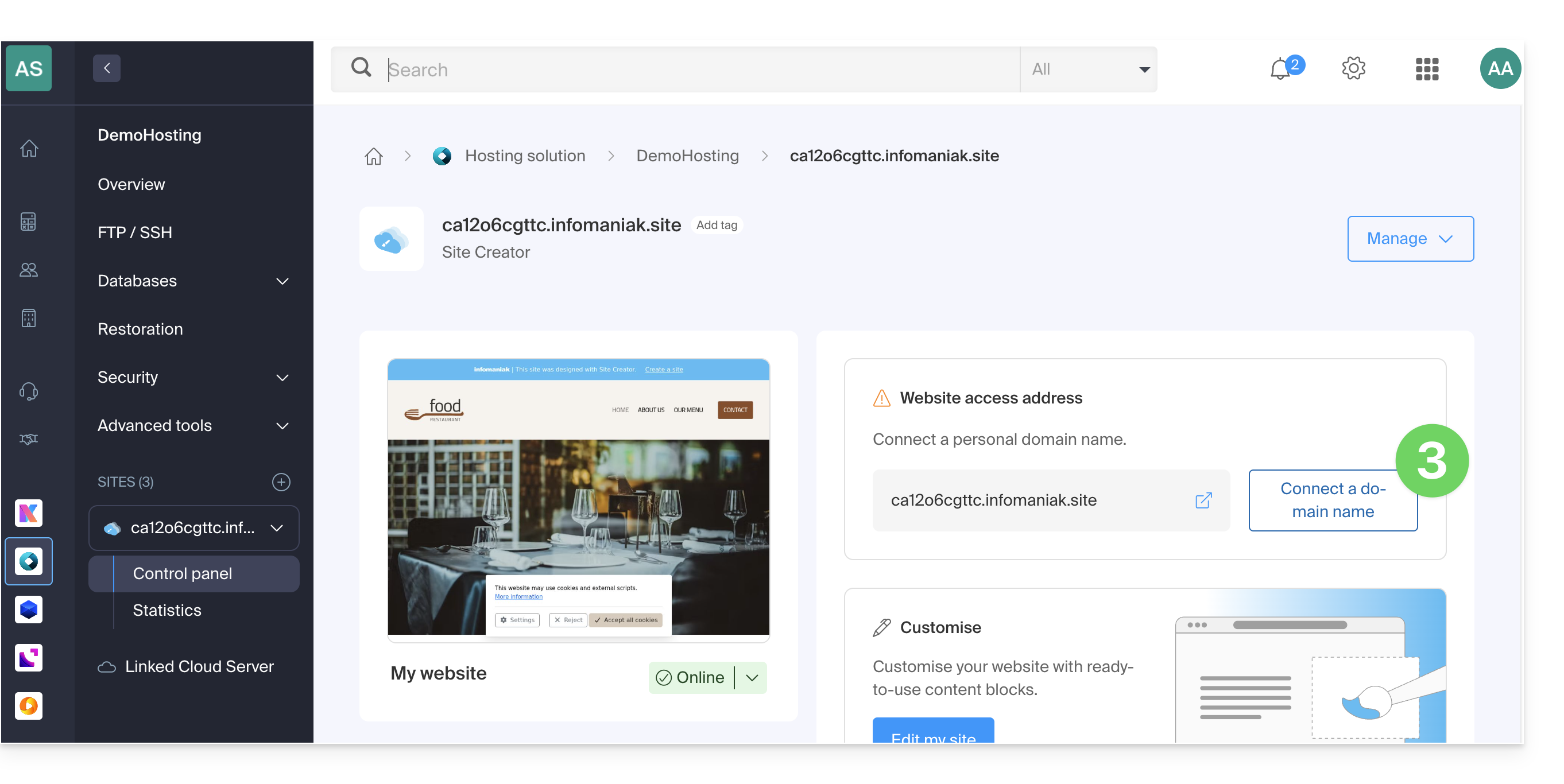
- The wizard offers you the option to create a new domain name or use an existing one:
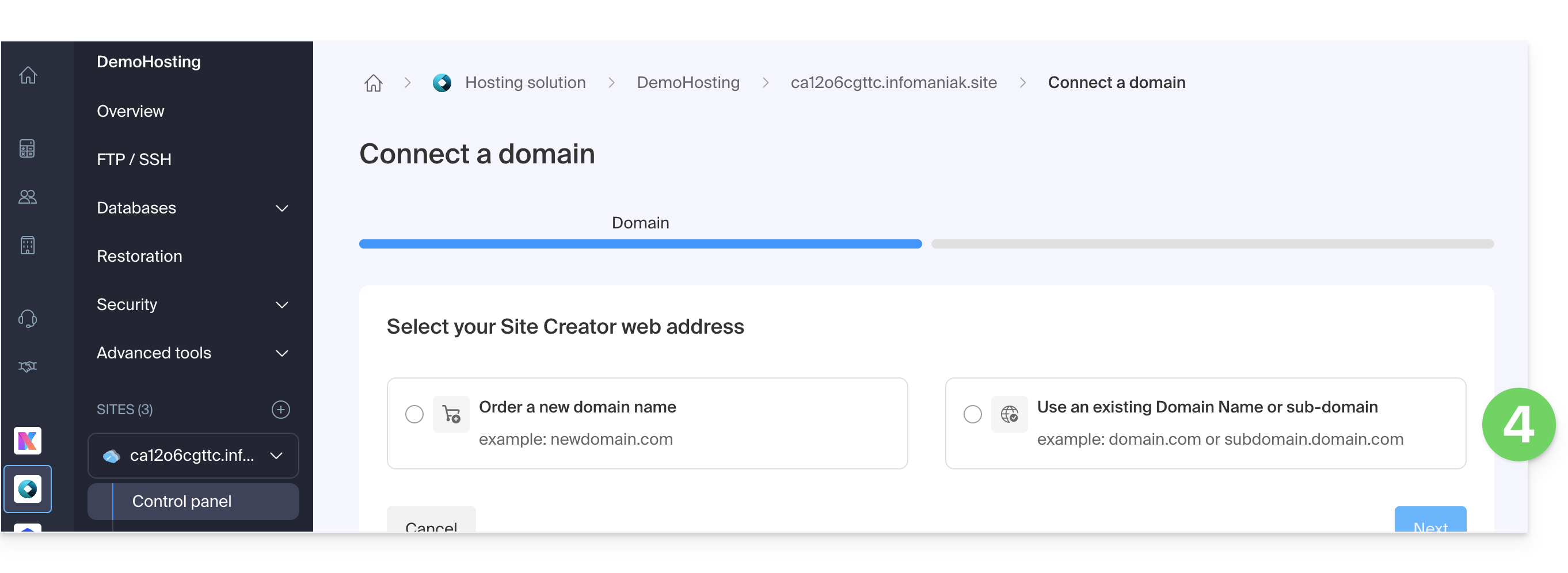
- If you create a new domain name at this time, you will need to return to this configuration wizard once the process is complete.
- If you choose to attach a domain from those already existing in your Organization, the wizard will offer you a list of domains, and a subdomain can be created at this time:
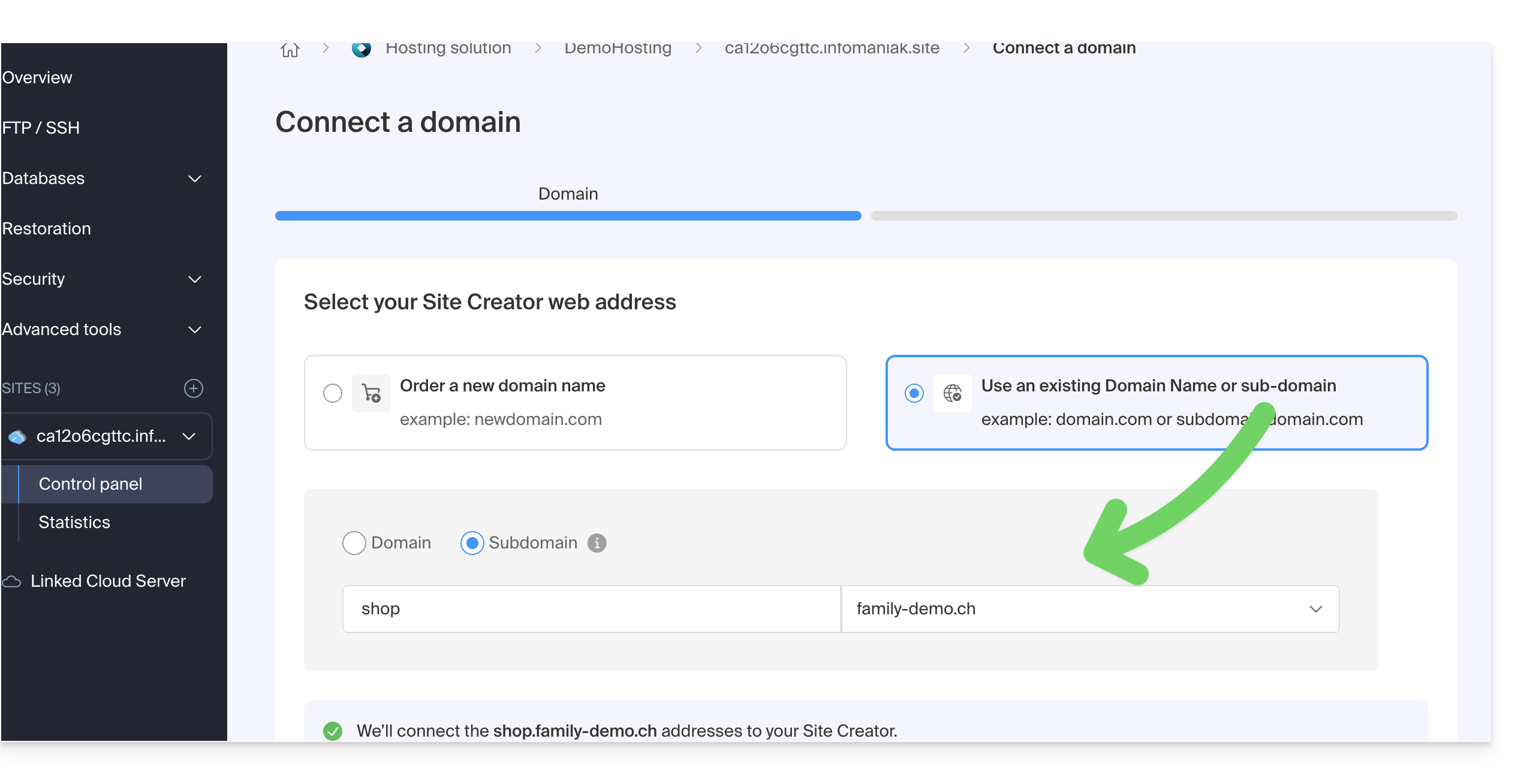
- Click on the Next button:
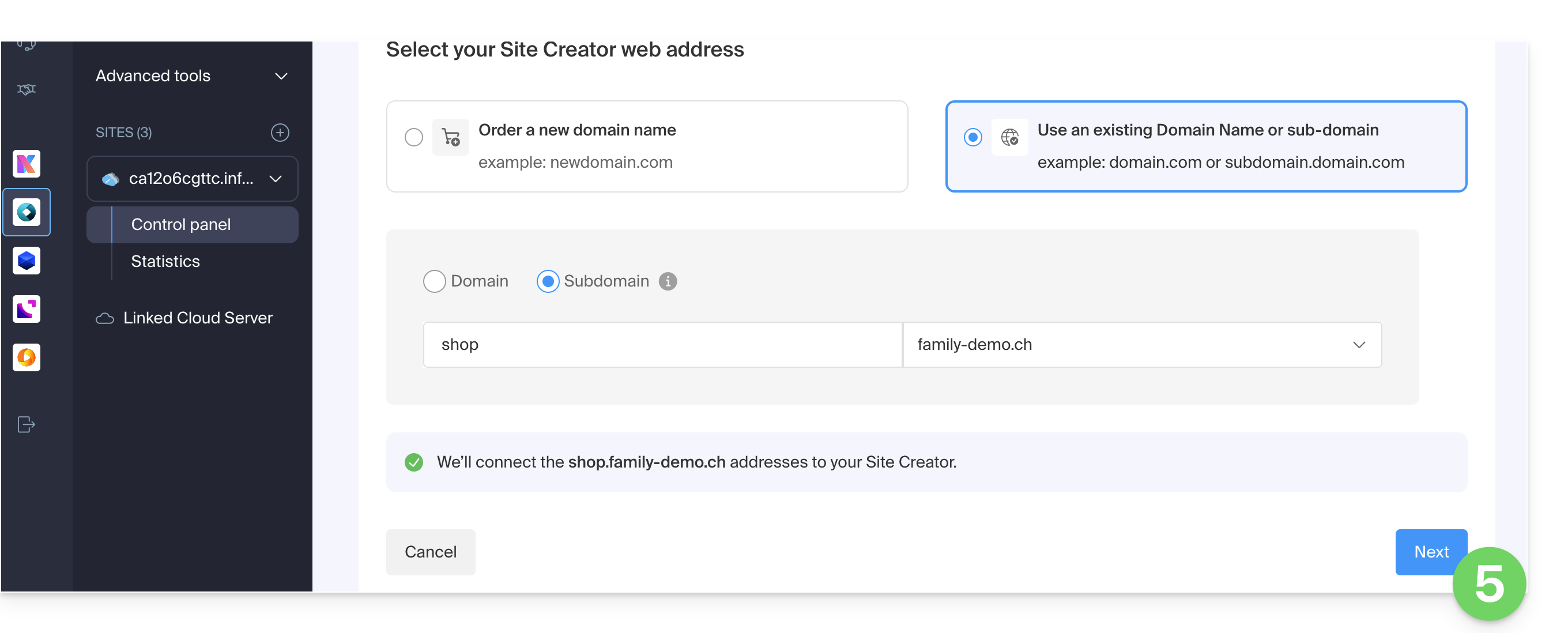
- Check the address you have chosen, then click on the button to Confirm:
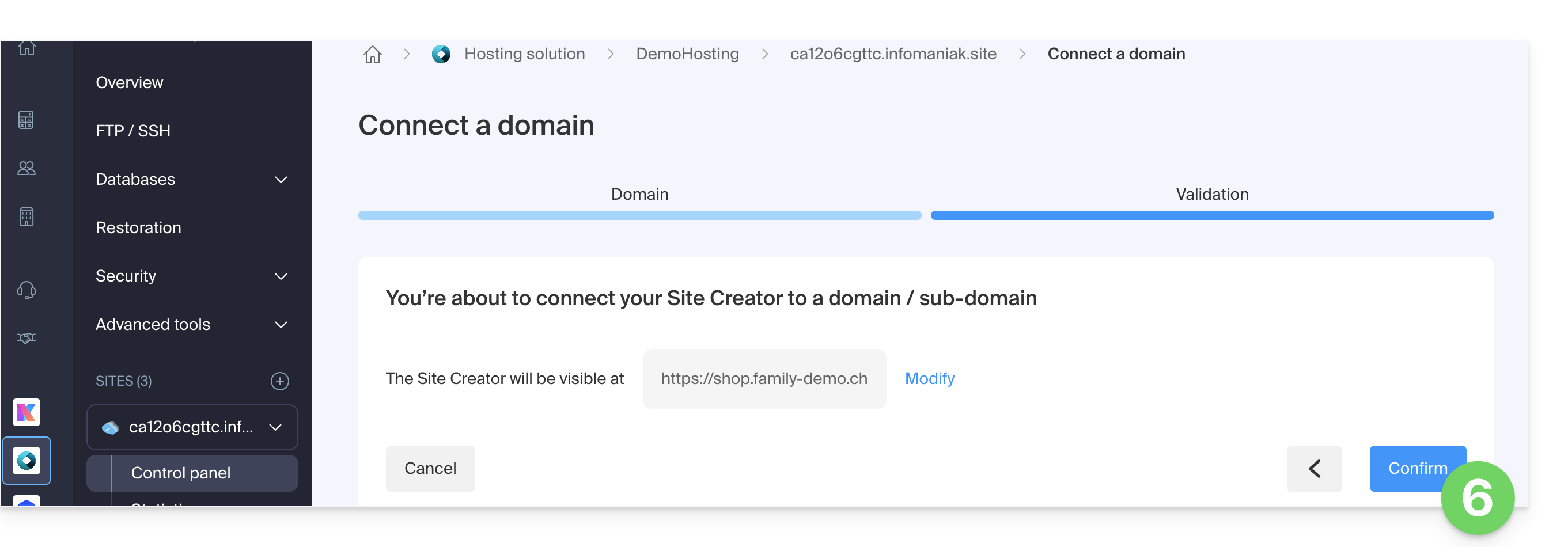
Some domain names cannot be connected to Site Creator; the assistant will notify you of any potential issues. Consult this other guide to understand and resolve these issues.
Manage Site Creator domain(s)
To manage the domain name(s) used with Site Creator:
- Click here to access your site management in the Infomaniak Manager (need help?).
- Click directly on the name assigned to the site in question:
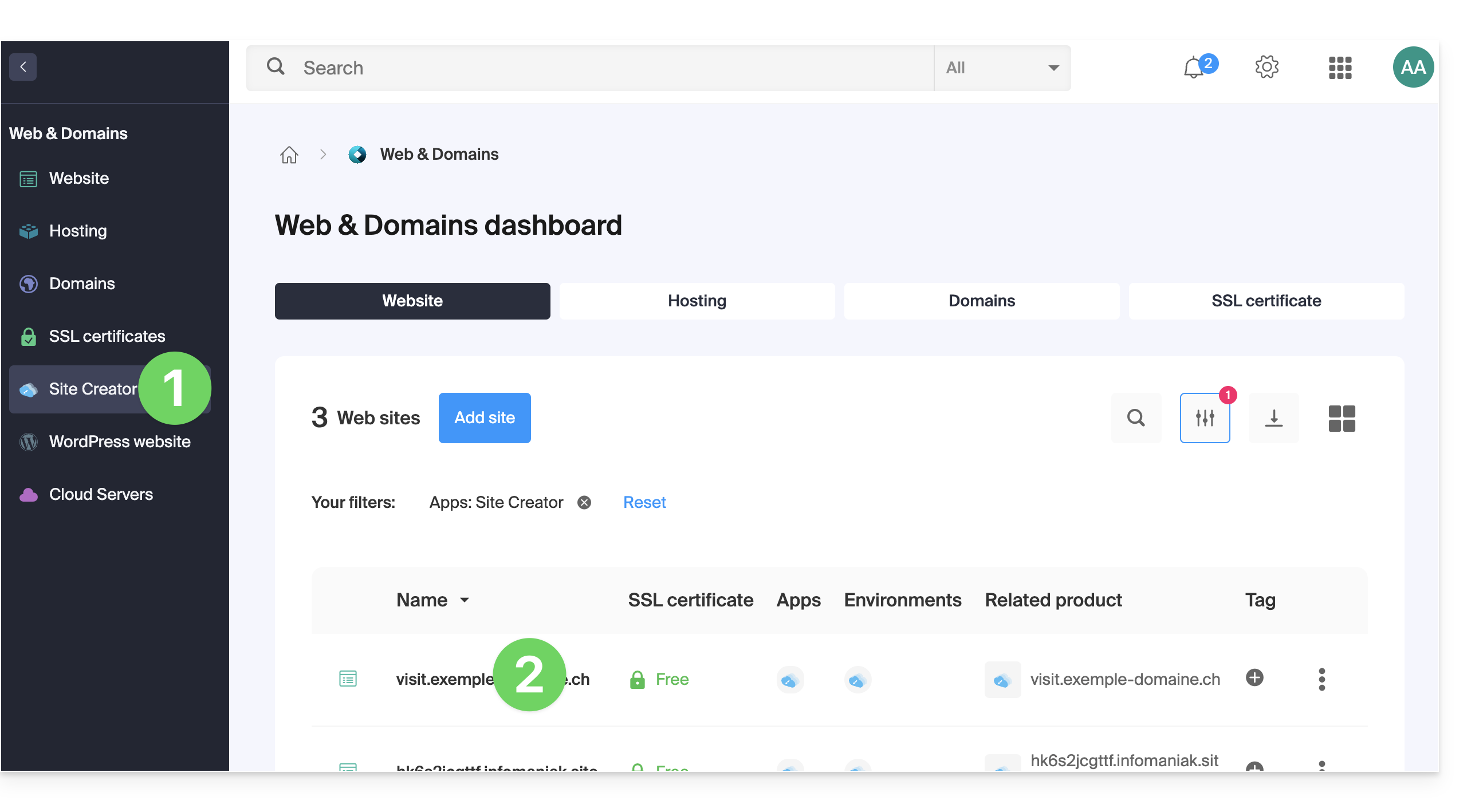
At the top of the page, any messages regarding Site Creator and domain-related issues will be displayed.
Below, you can manage your domains, if you have any: 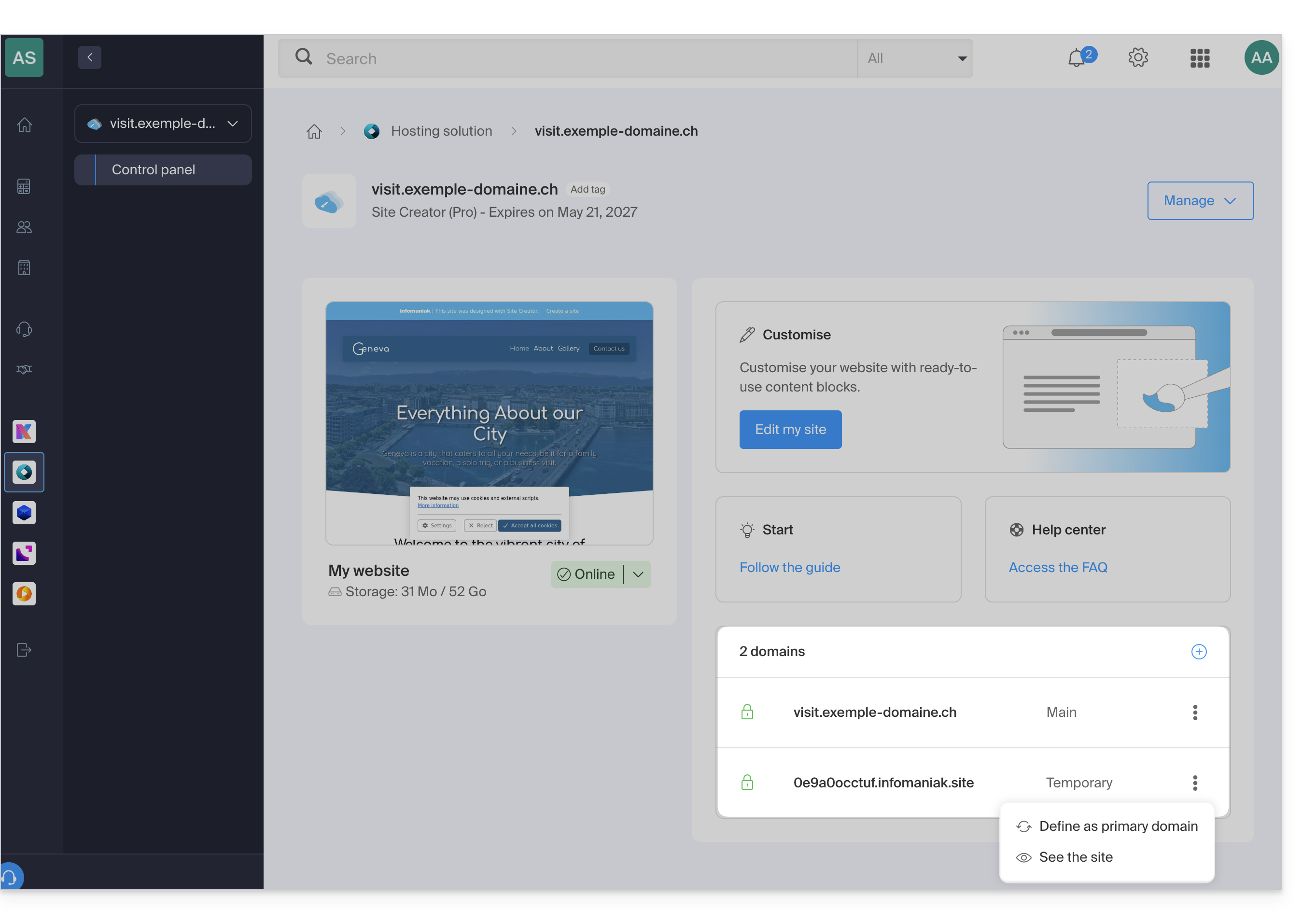
Temporary domain, provisional address, preview URL…
Several domain names can be linked to Site Creator, deleted, or interchanged and reversed as needed.
Click on to add a domain (or subdomain) to the current list, or click on the action menu ⋮ on the right to manage the domain in question: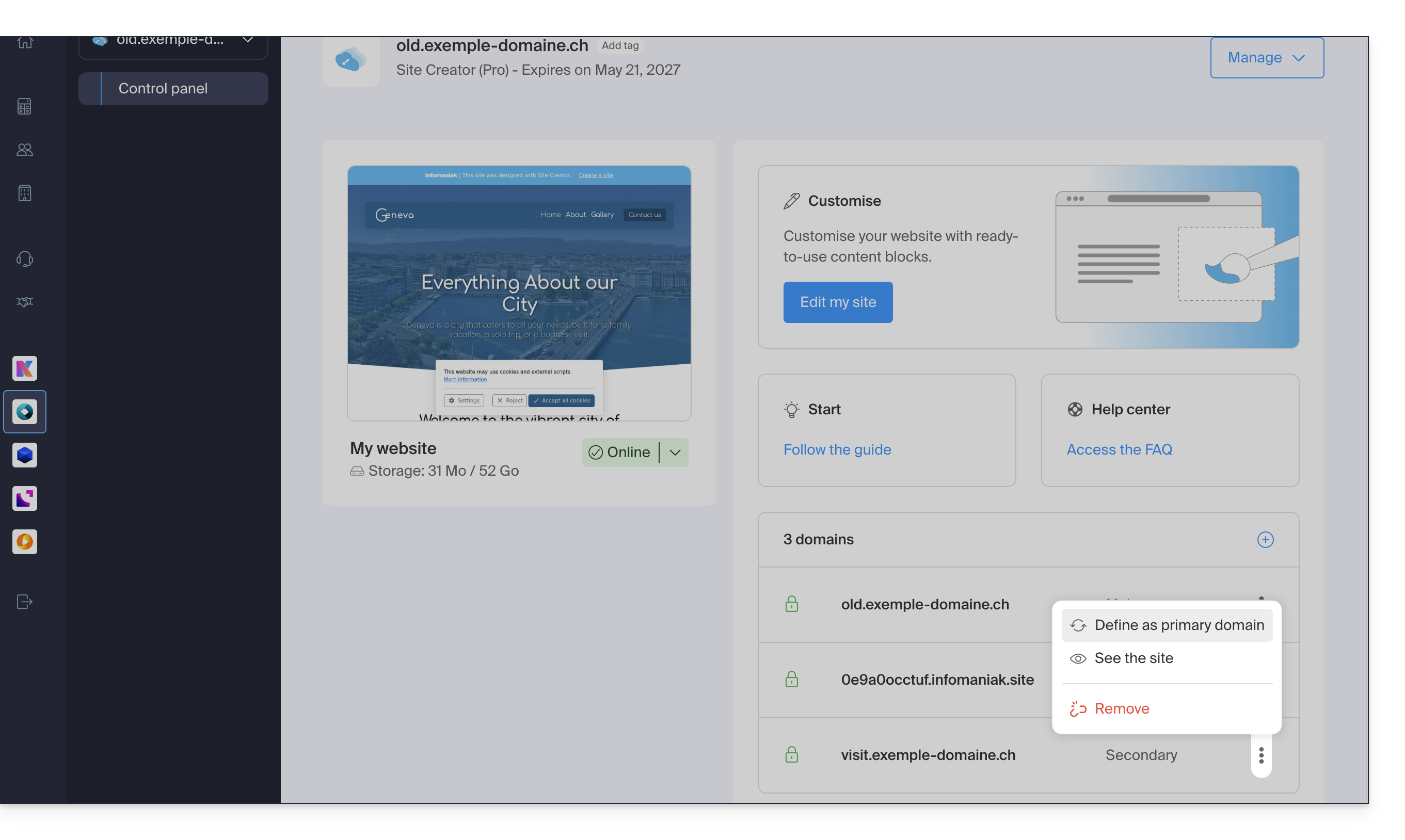
However, the preview URL, of the type 123xyz.infomaniak.site and distinct in the Site Creator domain list, can never be deleted for your site to function correctly.
Link to this FAQ: https://faq.infomaniak.com/2736
Has this FAQ been helpful?