Knowledge base
1000 FAQs, 500 tutorials and instructional videos. Here, there are only solutions!
Manage anchors in Site Creator
This guide concerns Site Creator and the possibility of creating links to anchors.
Introduction
- An anchor in web design is a hyperlink that points to a specific position on a web page, whether it's on the same page or a different page.
- When a user clicks on an anchor link, they are redirected to the specified location (in principle, an invisible indicator placed in the source code) on the page.
- Anchors are useful for allowing users to quickly navigate to specific sections of a web page or even another page.
- They improve the user experience by providing an efficient way to find and access precise information.
Anchor Example
An anchor is located (invisibly) at the end of the FAQ. It is named "end", therefore the following link simply contains the target #end, and without any other indication, a web browser will search for this term in the code of the current page and direct the user to it: click here to reach it!
Create this type of link on Site Creator
Usually, to create an HTML anchor, here's how to proceed:
- Identify the location on your page where you want to create an anchor (text section, image, or any other element).
- Use the
<a>tag with thehrefattribute to specify the anchor target:- if the target is on the same page, simply use the ID of the element (see point 3 below)
<a href="#chapter1">Go to chapter 1</a> - if the target is on another page, specify the full URL of the page, followed by the ID of the target element (see point 3 below)
<a href="page2.html#chapter1">Go to chapter 1 on page 2</a>
- if the target is on the same page, simply use the ID of the element (see point 3 below)
- In the section of your page where you want users to be redirected, add an element with the corresponding ID:
<div id="chapter1"> </div>
When users click on the "Go to chapter 1" link, the page will automatically scroll to the section with the ID "chapter1". If the target is on another page, they will be redirected to that page, and the anchor will work in the same way.
With Site Creator, point 3 above is not "free": each block already has its ID (or hashtag) which you will need to specify (or modify beforehand - see point 3 below) in order to link to it.
Find the reference of the destination block
Access Site Creator:
- Click here to access your product management in the Infomaniak Manager (need help?).
- Click directly on the name assigned to the Site Creator in question.
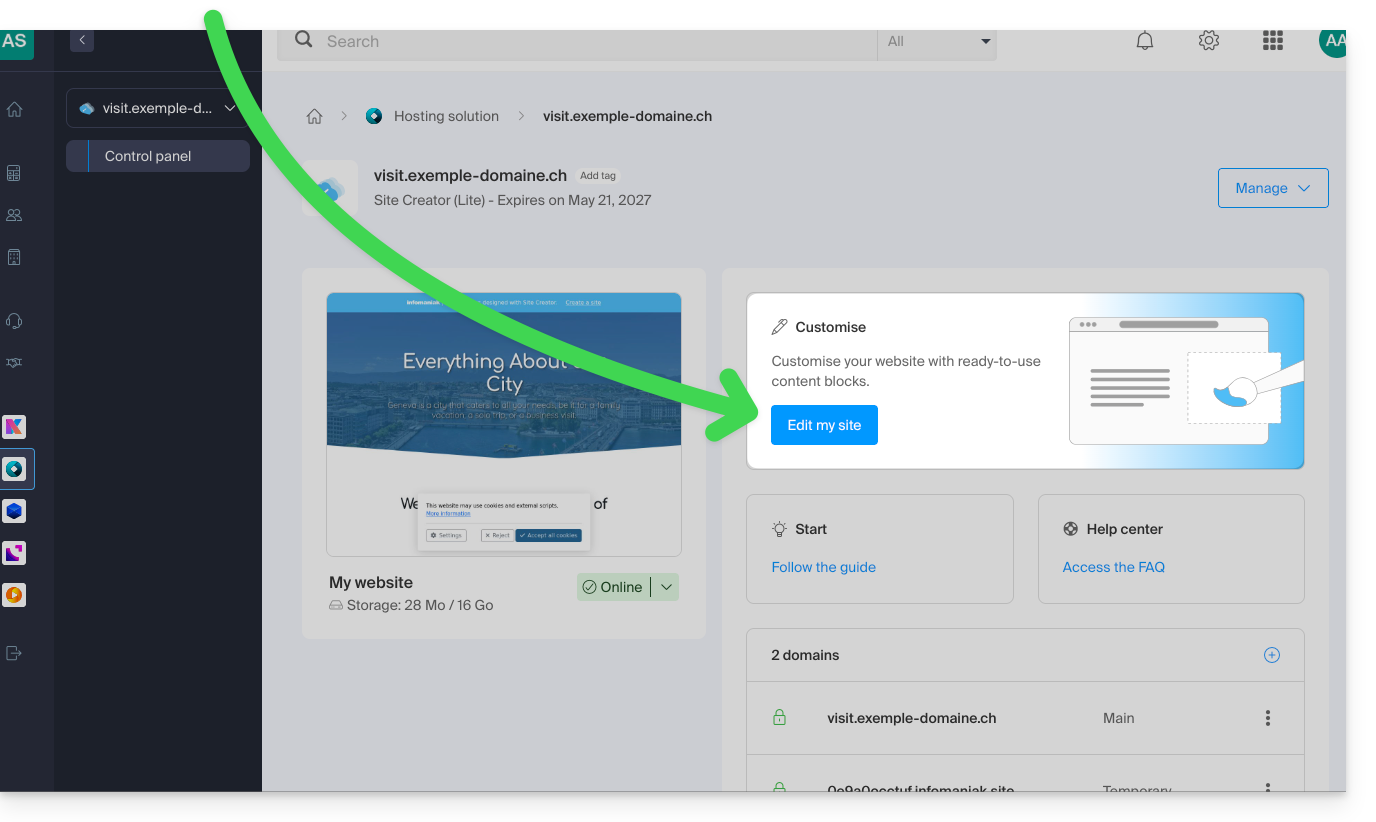
- Click on the Edit my site button to launch the editor:
Once in Site Creator:
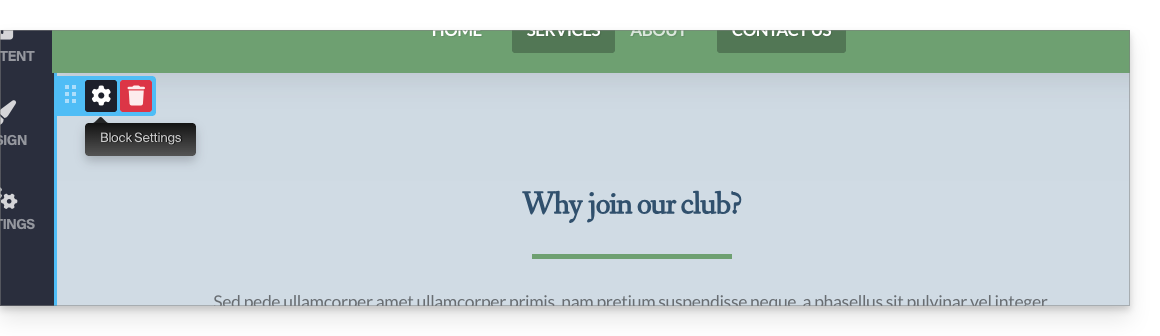
- Hover over the content block you want to modify and click on the gear icon:
- Scroll to the bottom of the settings to find the ID of the block in question:
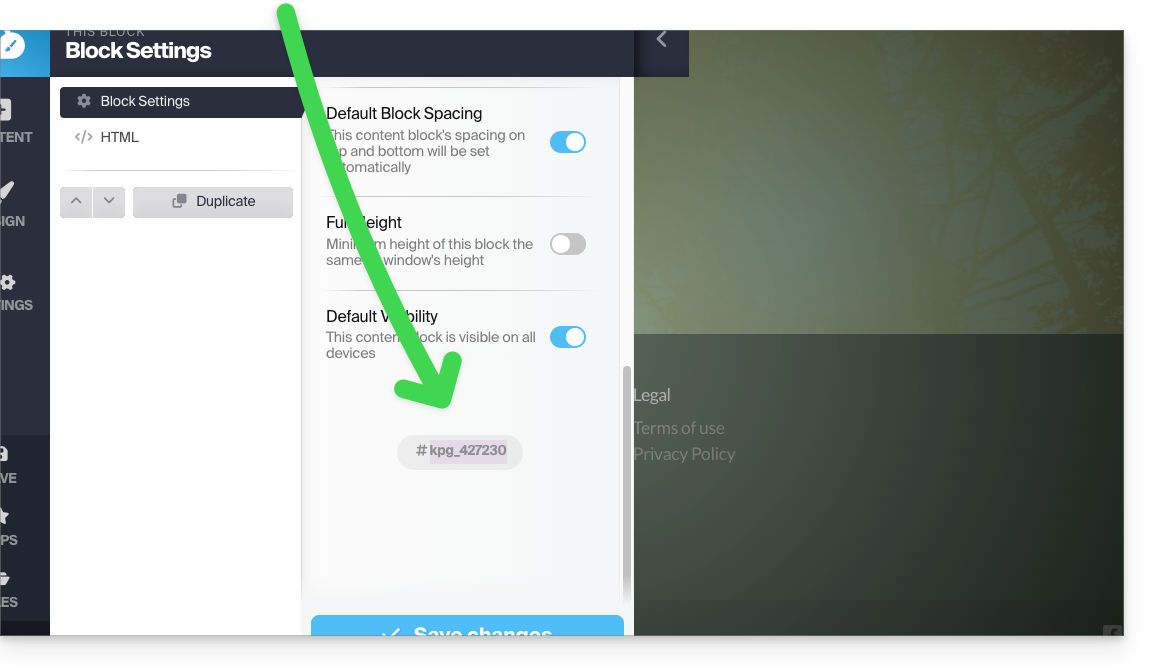
- Double-click on the field displaying the ID to specify your own title instead of the random ID:

Create a link to the block reference
To add a link to text in Site Creator, with the destination being the block located further down on the same page:
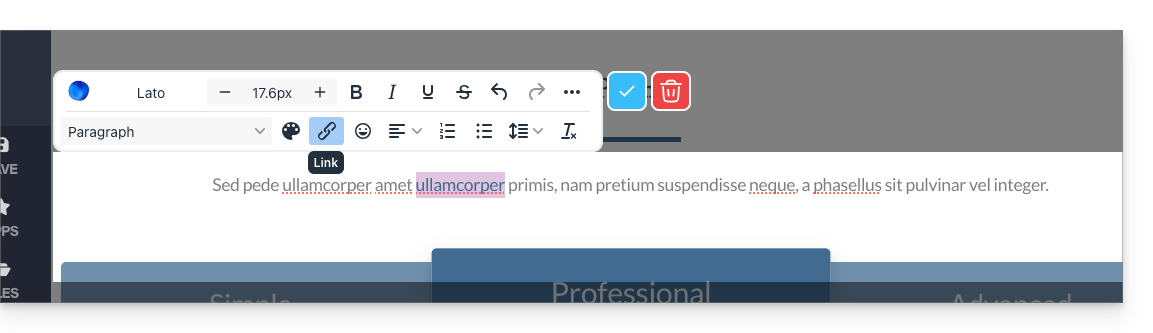
- Select some text.
- Then click on the link icon:
- In the advanced options, choose the "Section" type to create a link to a part of the same page by selecting the block reference obtained above:
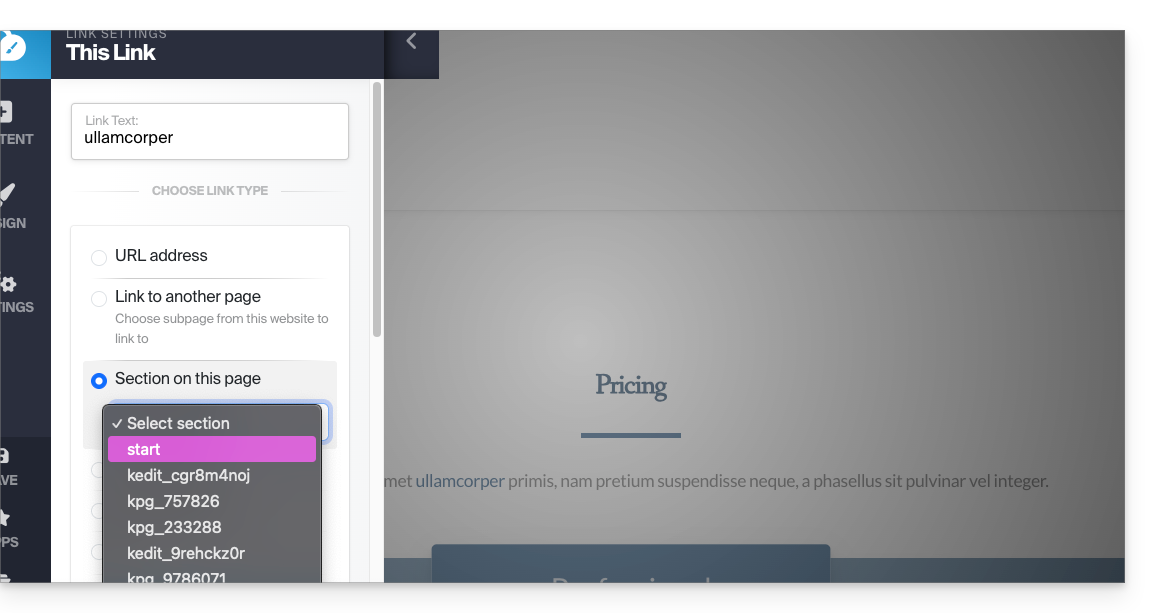
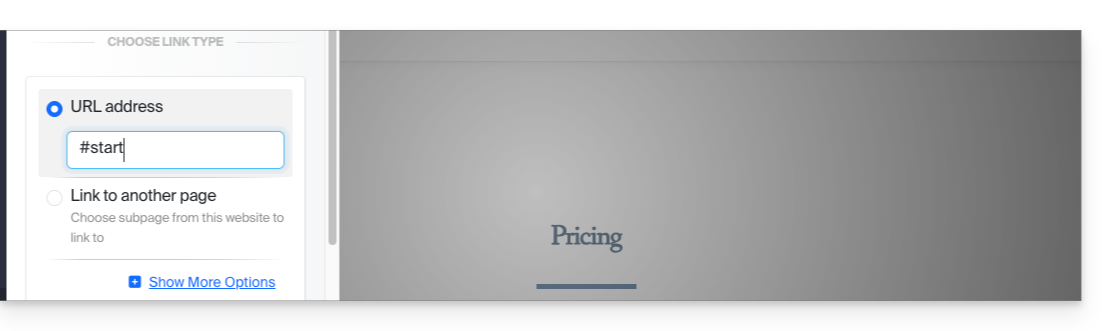
Other possibilities:- Add the link with the hash symbol (link to the same page):
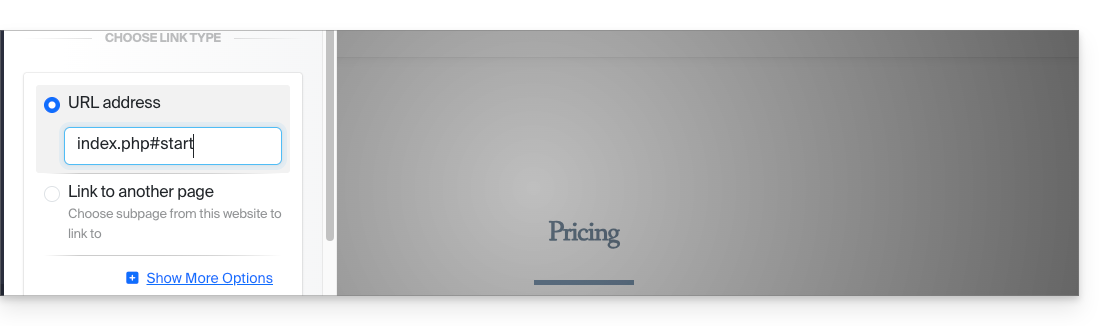
- Add the page name followed by the ID (useful if you place the link to another page on the site):
- Add the link with the hash symbol (link to the same page):
END OF PAGE (and anchor placed on this element) - click here to go back to the anchor located at the beginning of the page…
Link to this FAQ: https://faq.infomaniak.com/2837
Has this FAQ been helpful?