Knowledge base
1000 FAQs, 500 tutorials and instructional videos. Here, there are only solutions!
Using an Additional Site Creator App
This guide covers the "Applications" (or "modules", "extensions") available in Site Creator Infomaniak depending on the version you have, to create a showcase site, a blog, or an online store that is 100% customizable, without any technical knowledge.
Different Applications
In addition to the content blocks offering different preformatted layouts, you can also insert blocks in the form of modules, each with a specific function:
- Video
- Audio player
- Image slider / slideshow
- File download
- Location on map
- Poll
- Knowledge base
- Questions and answers
- Calendar
- Calendly
- Sub-page menu
- Site map (sitemap)
- Add to Google
- Custom HTML code
- Contact form
- Blog
- Shop
- RSS feed reader
- Restaurant menu
Insert a module on a page
To insert a module:
- Click here to access the management of your product on the Infomaniak Manager (need help?).
- Click directly on the name assigned to the Site Creator concerned.
- Click on the Edit my site button to start the editor:

Once in Site Creator:
- Click on the Content button in the left sidebar.
- Click on Applications at the bottom and the content available is displayed on the right.
- Click on one of these applications to insert it into the page:
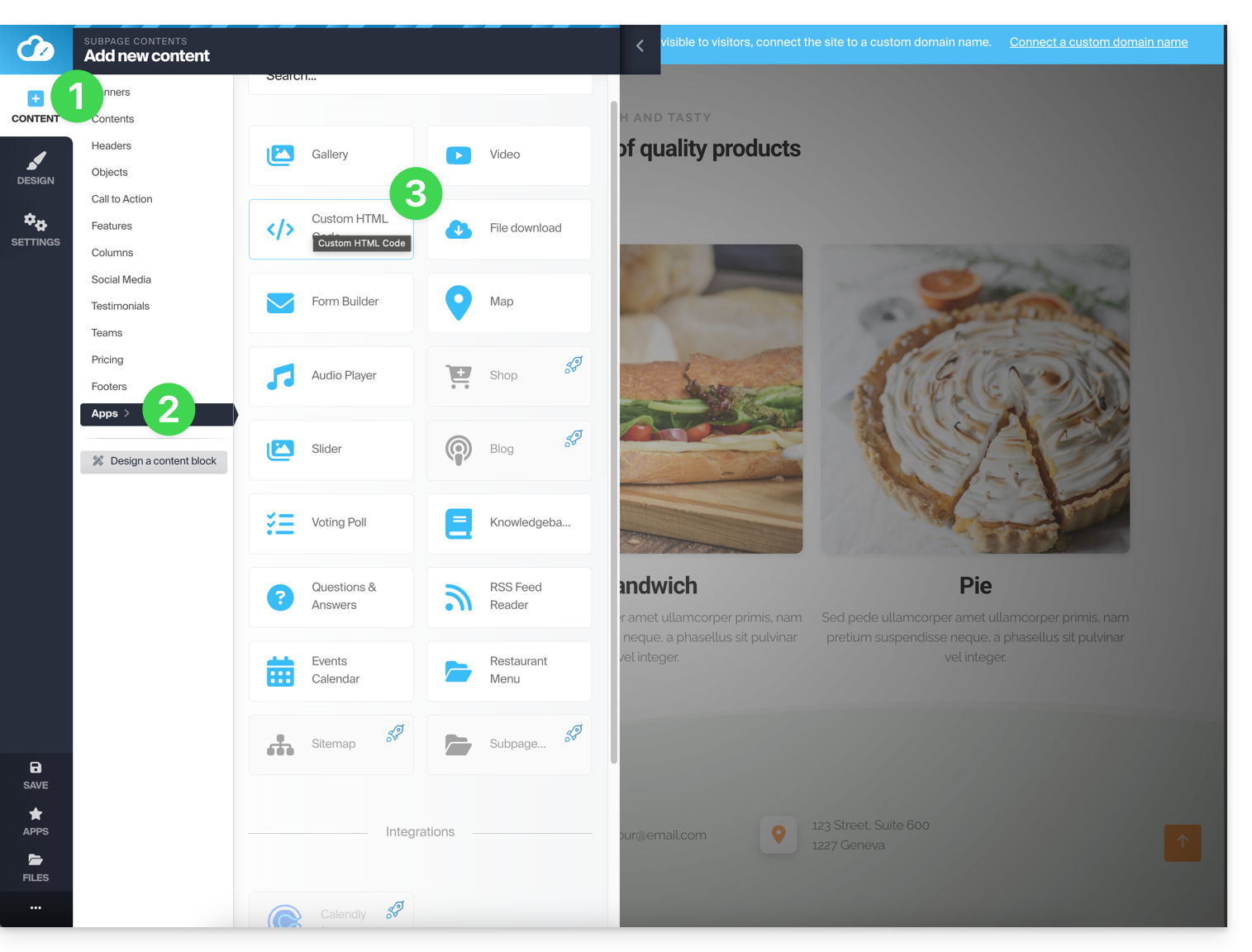
- Once inserted, hover over the module (or the block itself depending on the module) to access its settings:
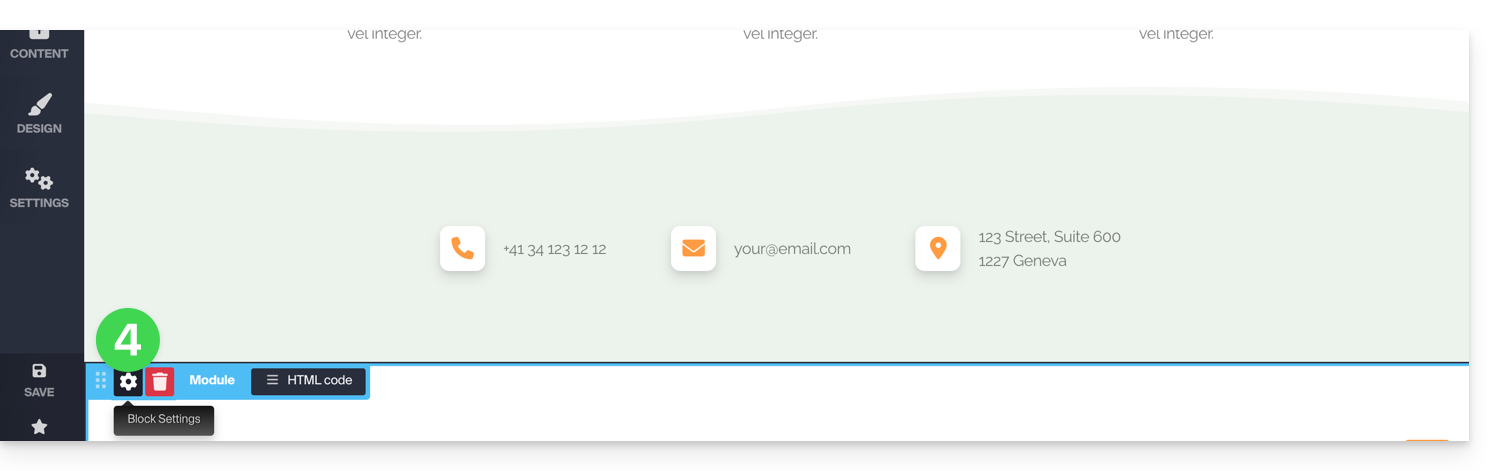
Multiple module or missing module
If you delete one of your modules (such as the one for creating a survey) that is already configured and want to undo, press Undo immediately:
or
You can also reinsert the module, which should return with its previous settings.
You cannot insert multiple modules of the same type to customize them independently of each other.
Other integrations & widgets
Click on the APPLICATIONS button in the left sidebar of Site Creator: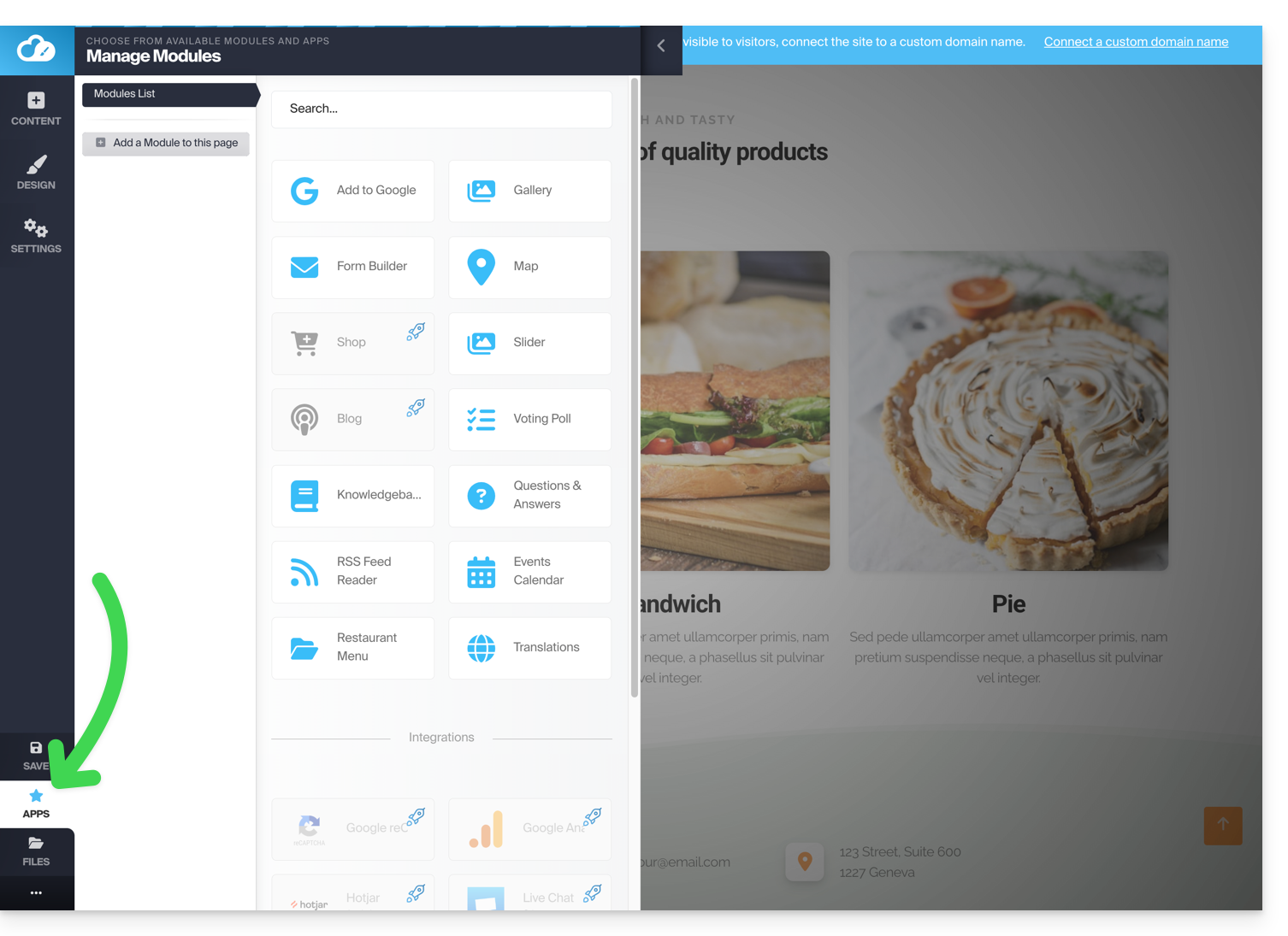
Example: insert a countdown
To add a counter that displays a countdown:
- In the left sidebar, click on the Content button.
- Click on Objects in the list and the available content is displayed on the right.
- Click on one of these objects to insert it on the page:
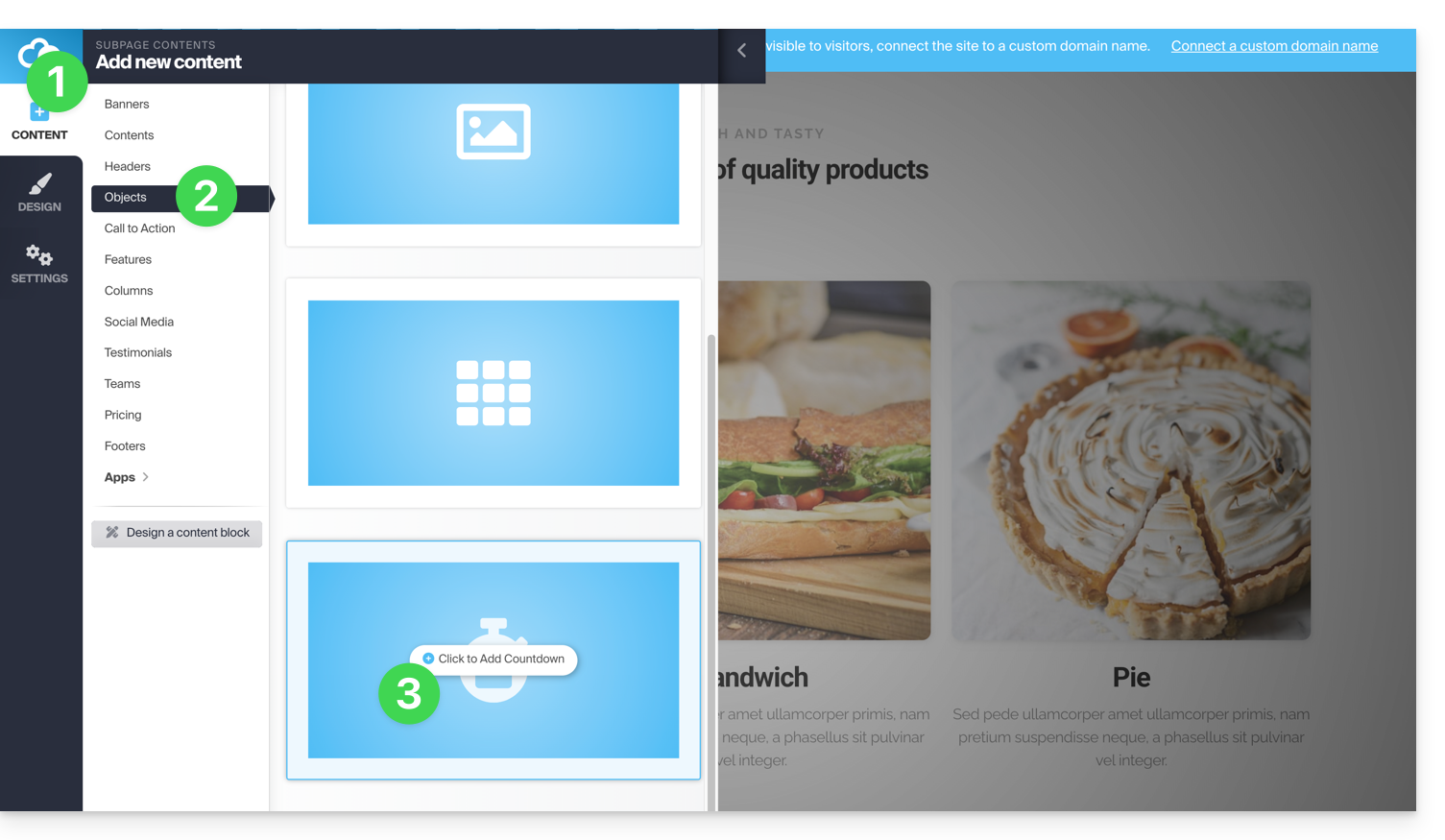
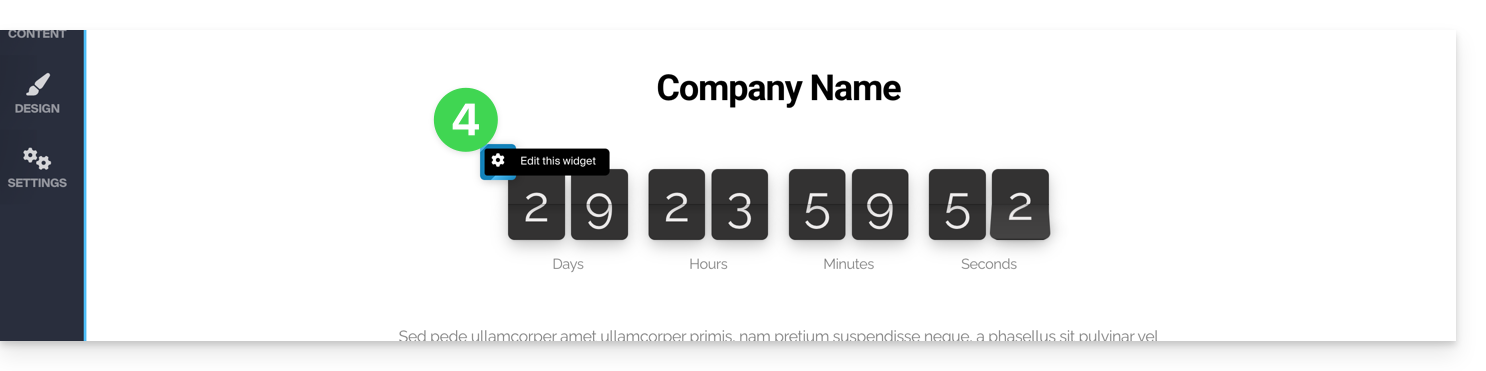
- Once inserted, hover over the module to access its settings:
Link to this FAQ:
Has this FAQ been helpful?