Knowledge base
1000 FAQs, 500 tutorials and instructional videos. Here, there are only solutions!
Customize the website on Site Creator
This guide helps you customize a website created with Infomaniak's Site Creator.
To customize the homepage or page types of your site, refer to this other guide.
Prerequisites
- Accessing Site Creator:
- Click here to access the management of your product on the Infomaniak Manager (need help?).
- Click directly on the name assigned to the Site Creator in question.
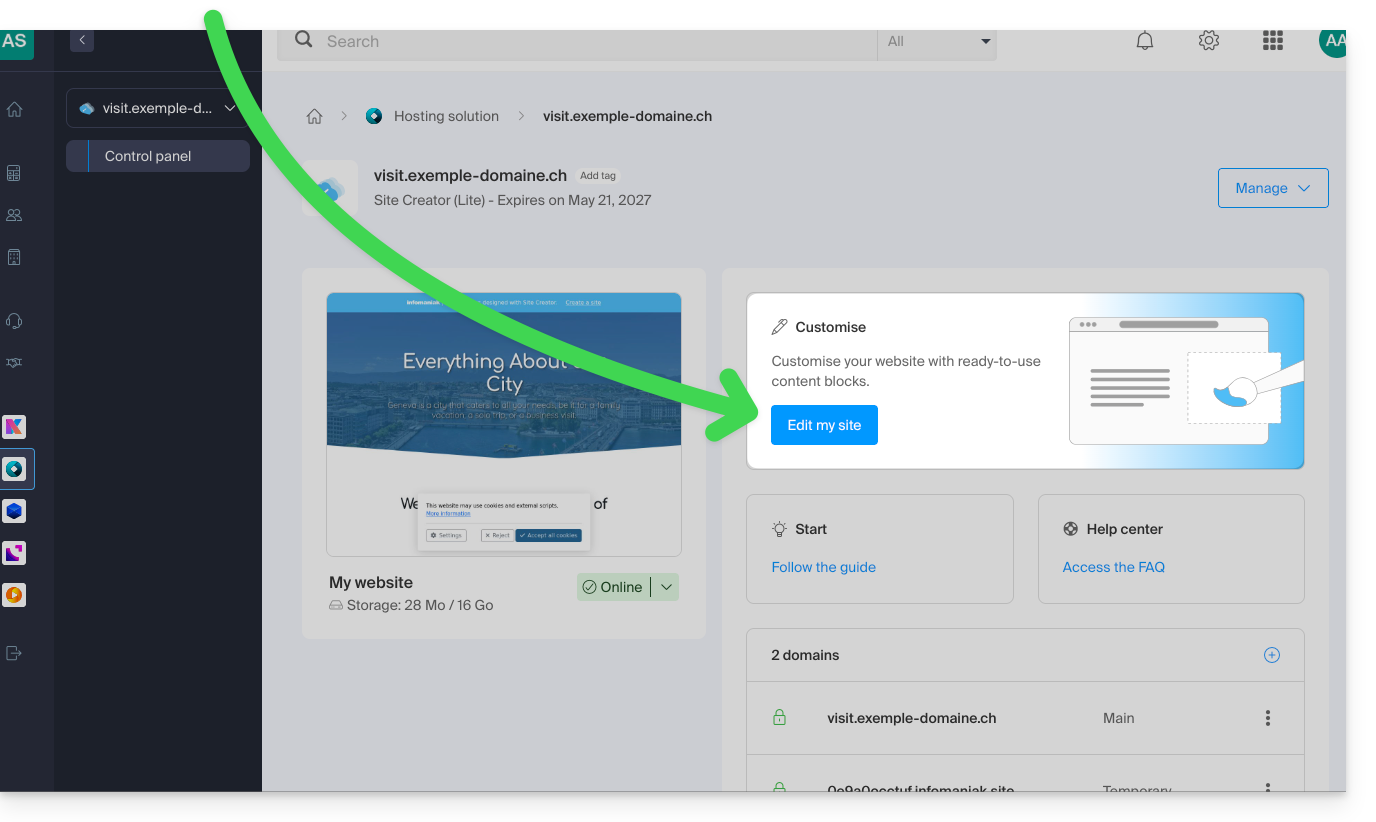
- Click on the Edit my site button to start the editor:
Changing the site colors
To manage themes, colors, and fonts in Site Creator:
- Click on the Design button in the left-hand menu.
- Click on Site Colors:
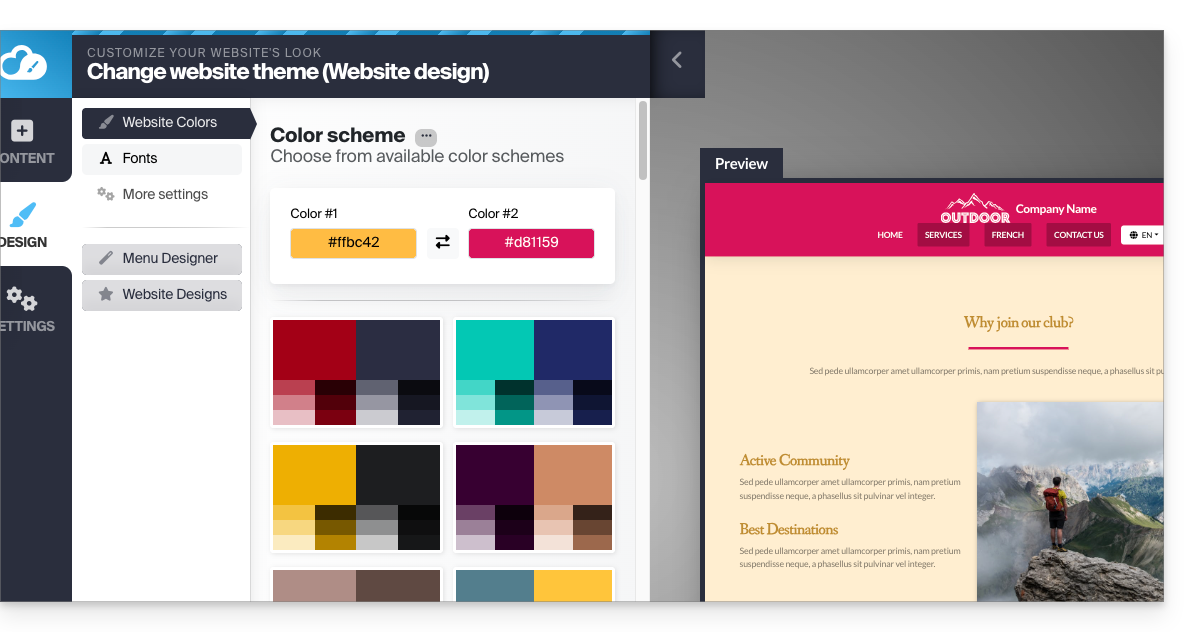
You can choose from the available color palettes or create your own custom color scheme.
Below, there are more specific settings where you can specify to which elements a color should be applied: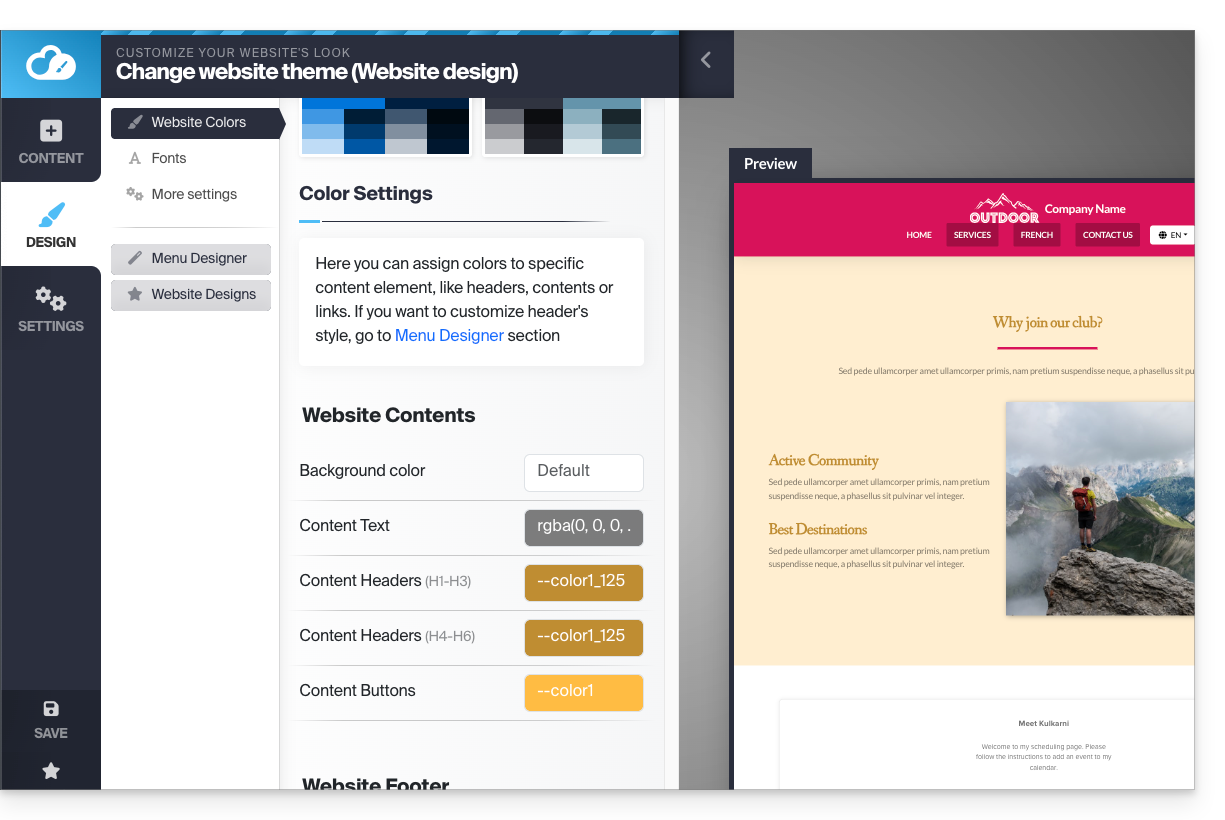
Managing the background (image / color) of blocks
On your website's edit page, hover over a block and click the gear icon to access the settings: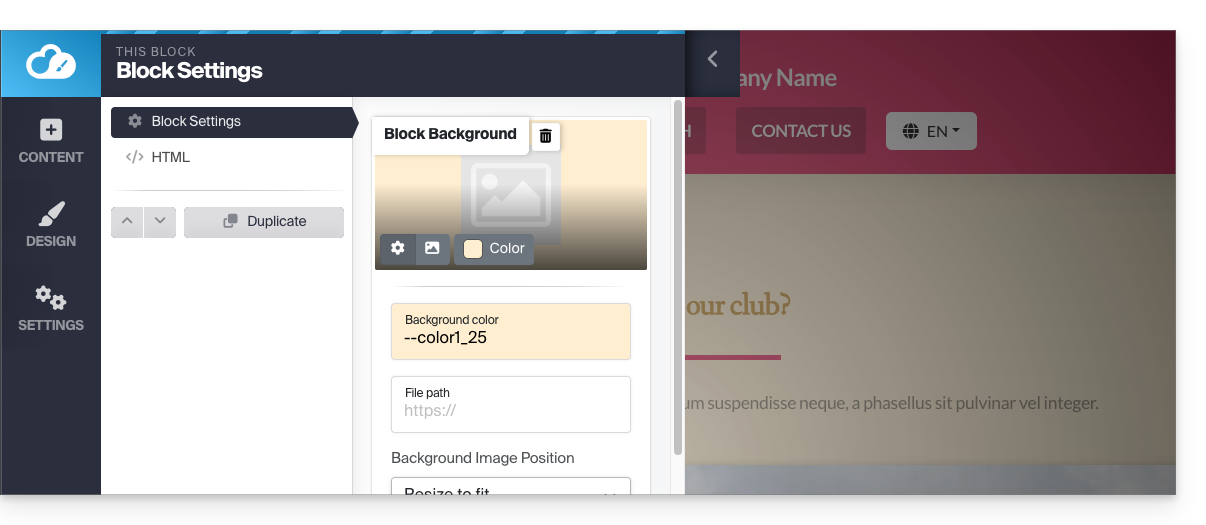
Load a Website Template
You can modify the complete design of your website by changing its theme, and by deciding what should be overwritten or not on the current site when making the change:
- Click the Design button in the left-hand menu.
- Click Theme Selection:
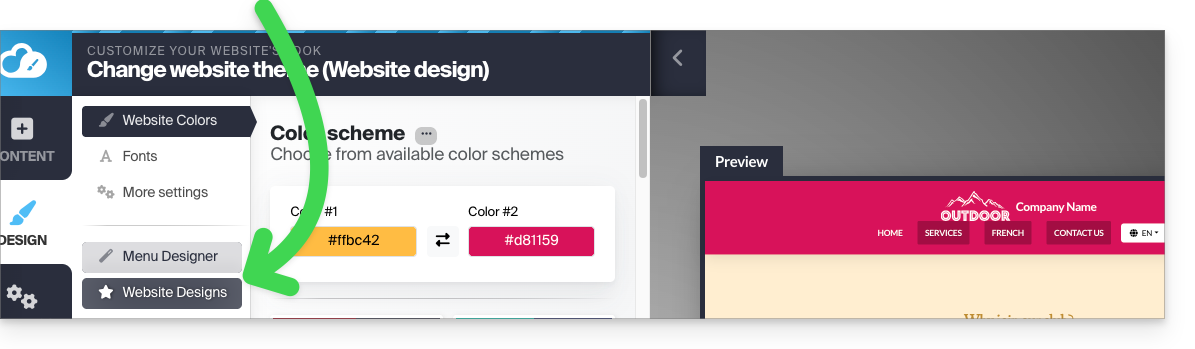
This is where you can choose from the available website themes: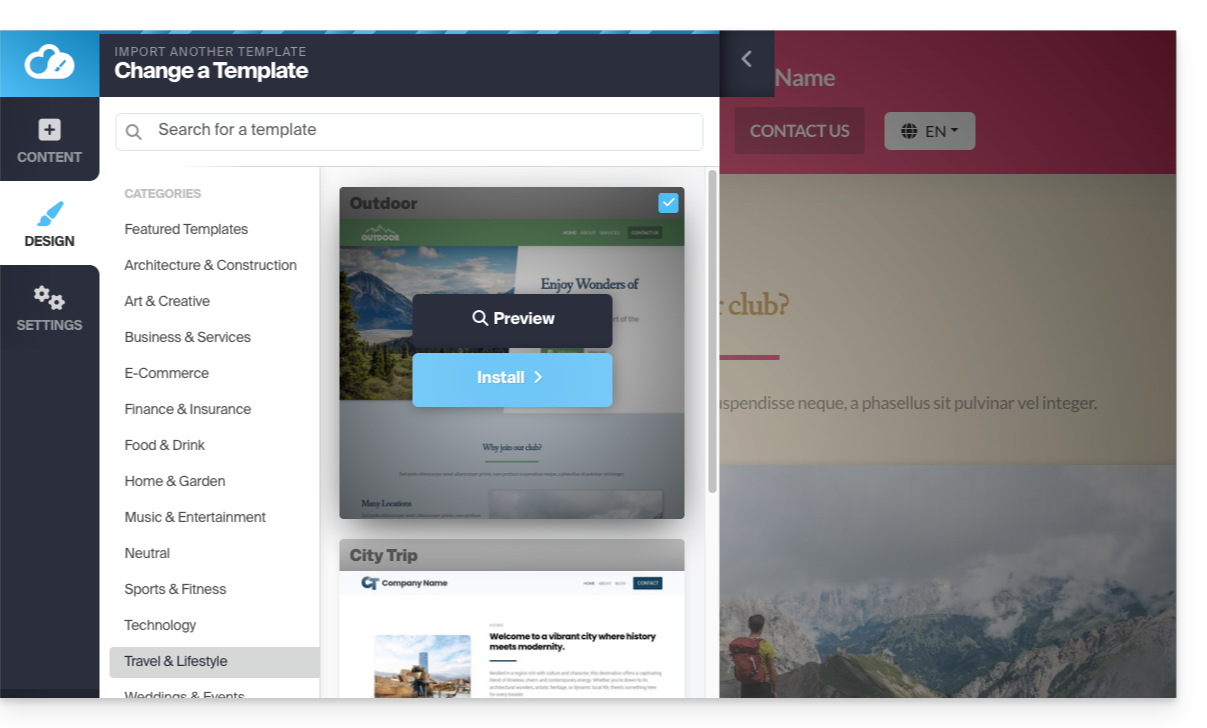
Once you have found your new theme, click Install, and then you can choose which parts of the new template you want to import (by default, only the colors, fonts, or menu style) to avoid overwriting the content of your website.
If your website is new, you can choose more options during import.
Change Website Fonts
To do this:
- Click the Design button in the left-hand menu.
- Click Fonts:
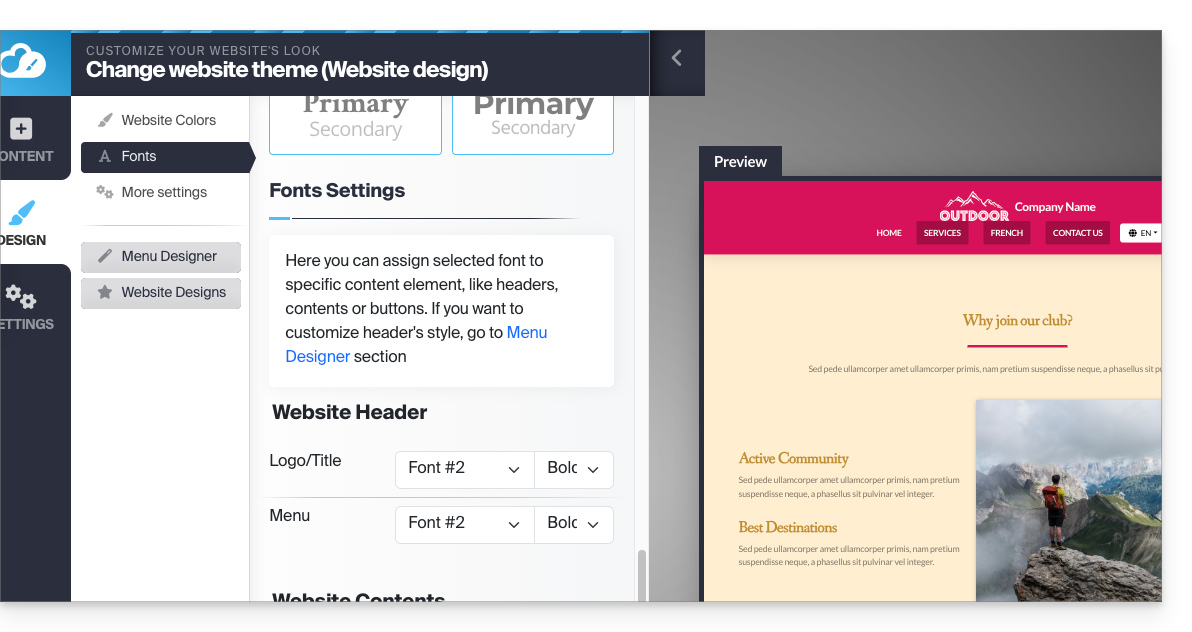
You can easily change the main fonts of the website; the first font is used for headings, and the second font is used for the content.
Below, there are more specific settings where you can specify to which elements a font should be applied.
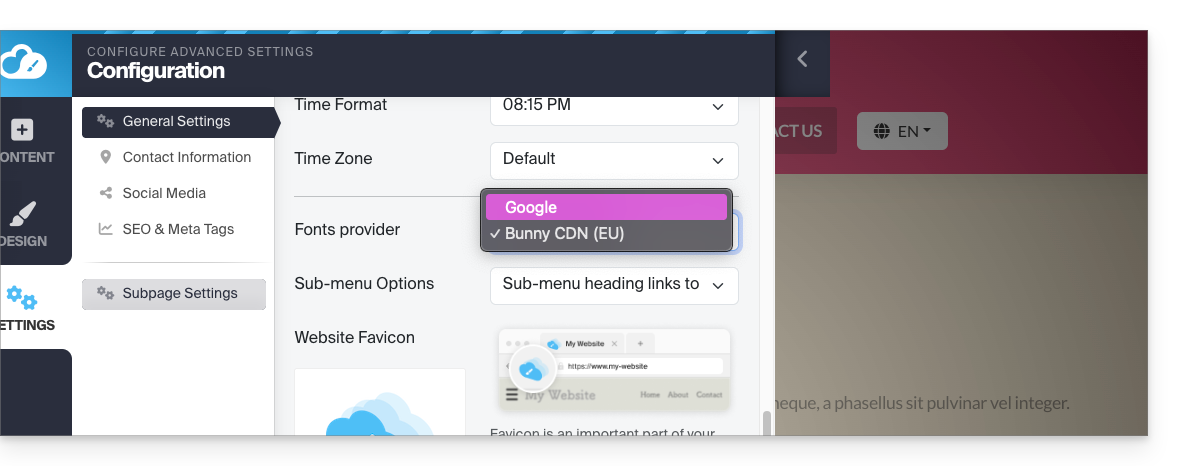
It is not possible to import or add a custom font, but you can change the provider (the font list will be the same) for privacy reasons, for example:
- Click on Settings in the left-hand menu.
- Click on General settings
- Choose the font provider:
Troubleshooting missing/invisible text
If you feel that your text block has disappeared or is invisible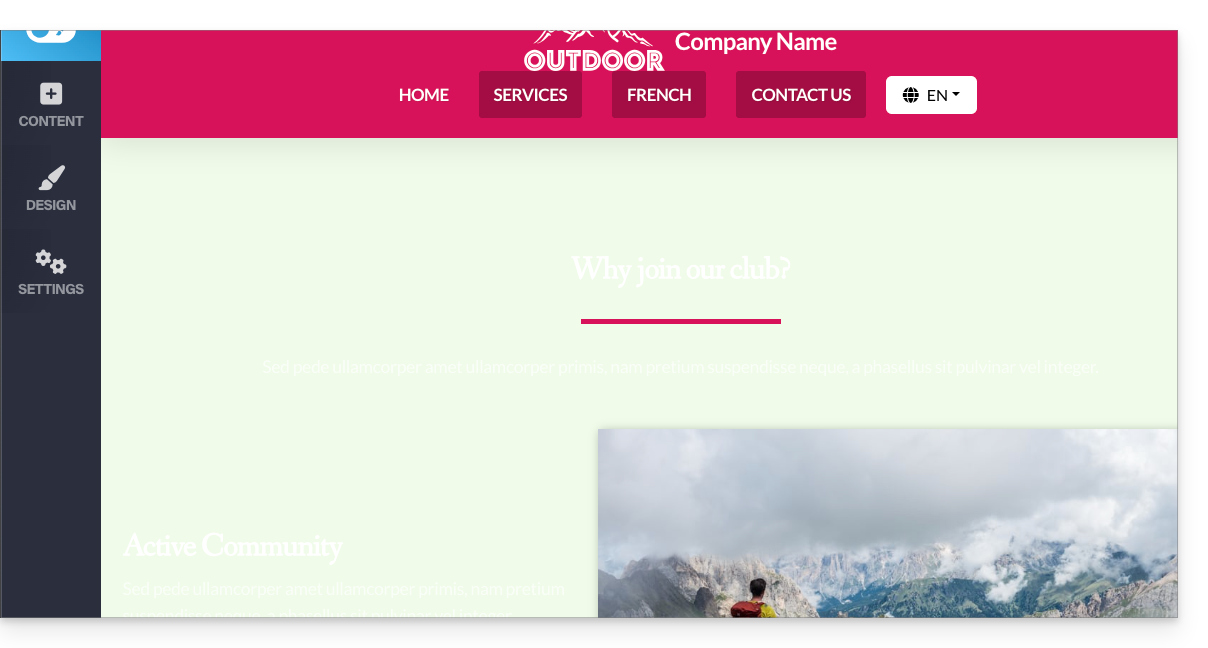
then select all the content of the website (ctrl + a or cmd + a on Mac); if you see that your content is there, it probably means that the block settings are set to a dark background: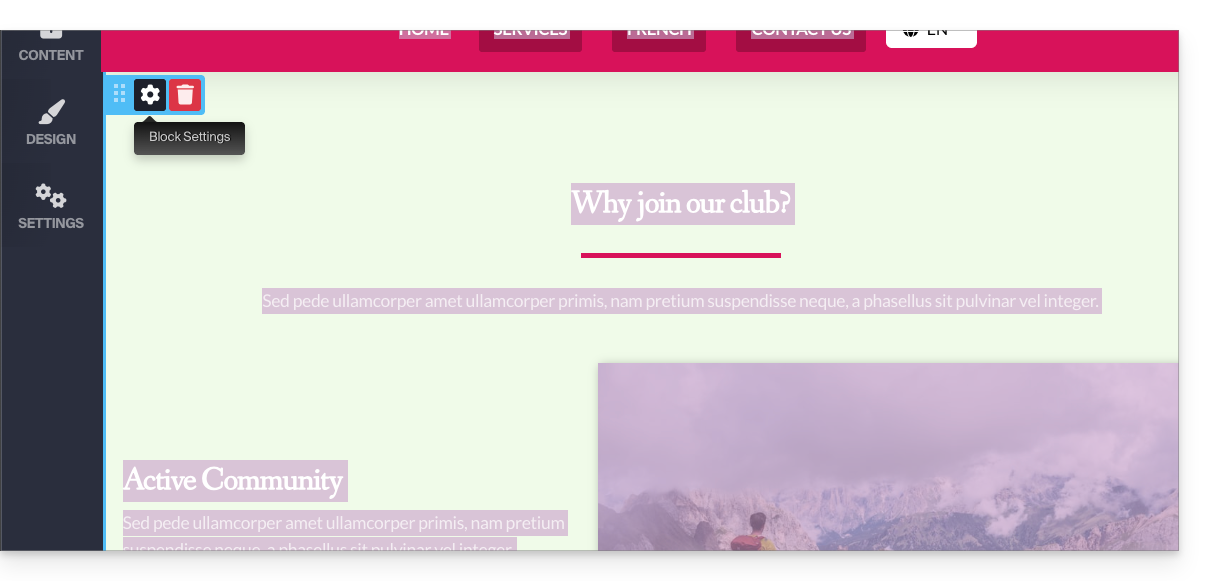
In this case, go to the block settings and make sure that the "Dark background" option is not checked. This should solve the problem: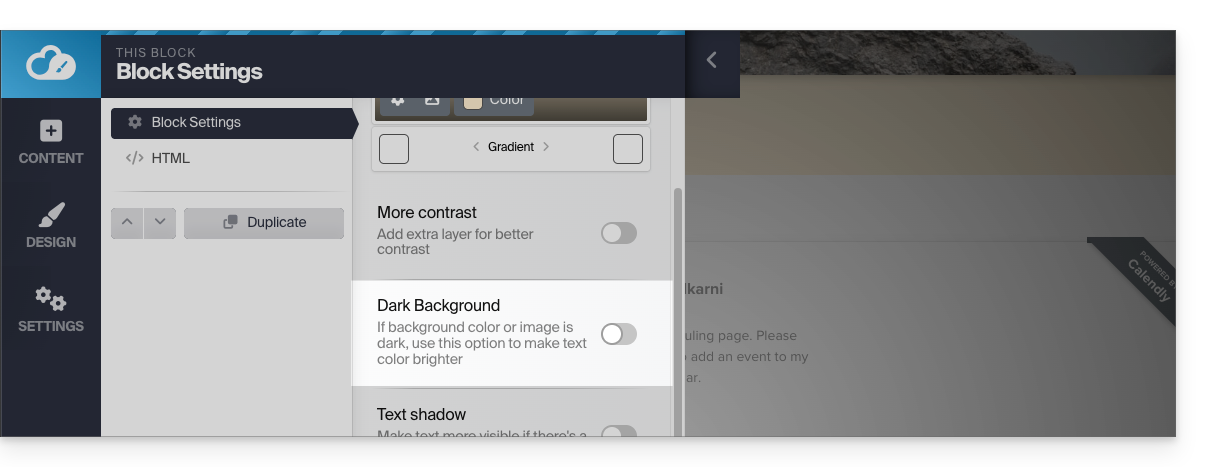
Link to this FAQ: https://faq.infomaniak.com/2719
Has this FAQ been helpful?