Knowledge base
1000 FAQs, 500 tutorials and instructional videos. Here, there are only solutions!
This guide explains how to insert an external RSS feed onto an Infomaniak Site Creator page.
Site Creator does not offer RSS feeds to be integrated externally, including with its Blog module.
Display an RSS feed (external) on Site Creator
Prerequisites
- Access Site Creator:
- Click here to access the management of your product on the Infomaniak Manager (need help?).
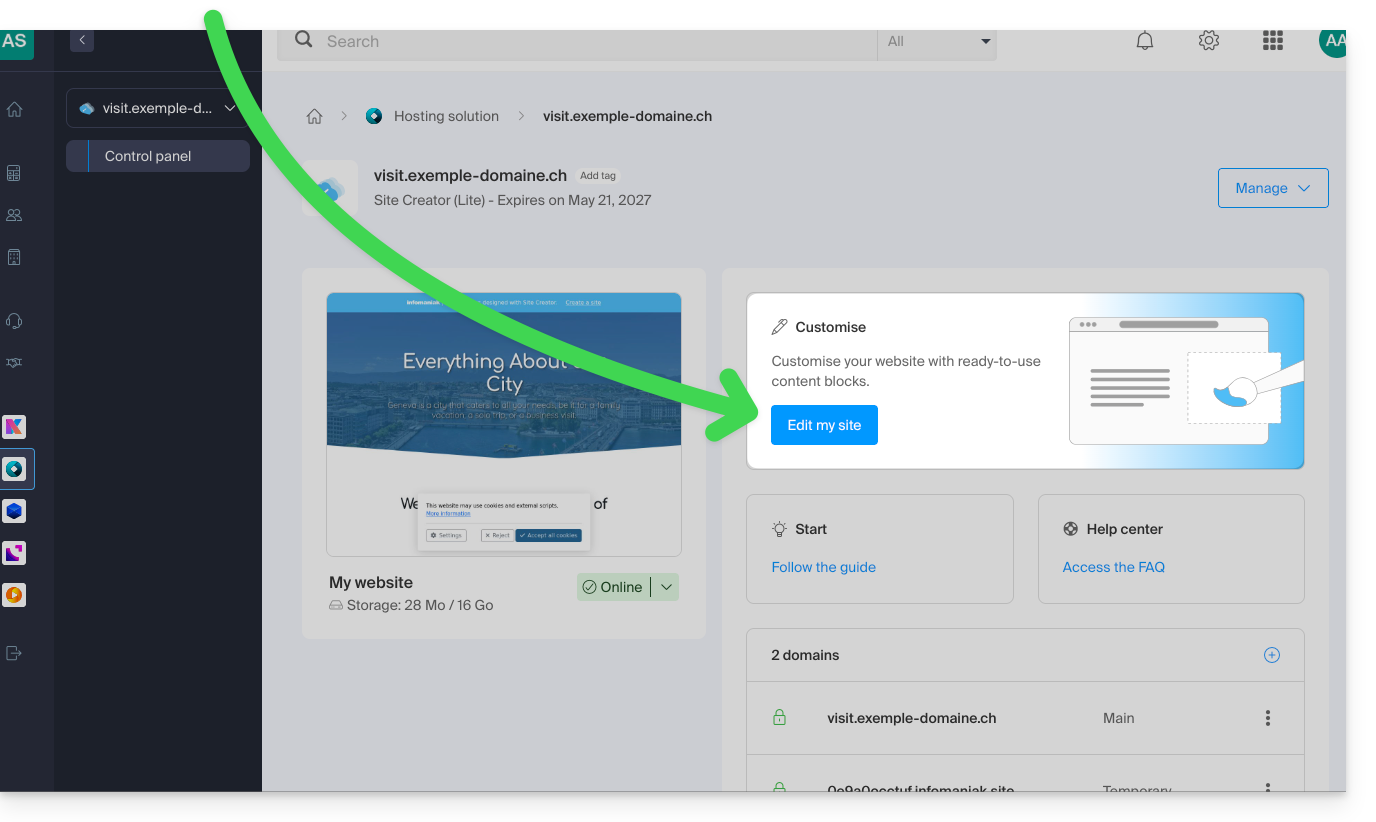
- Click directly on the name assigned to the Site Creator in question.
- Click on the Edit my site button to launch the editor:
Once in Site Creator, on the page where you want to insert your future blog posts:
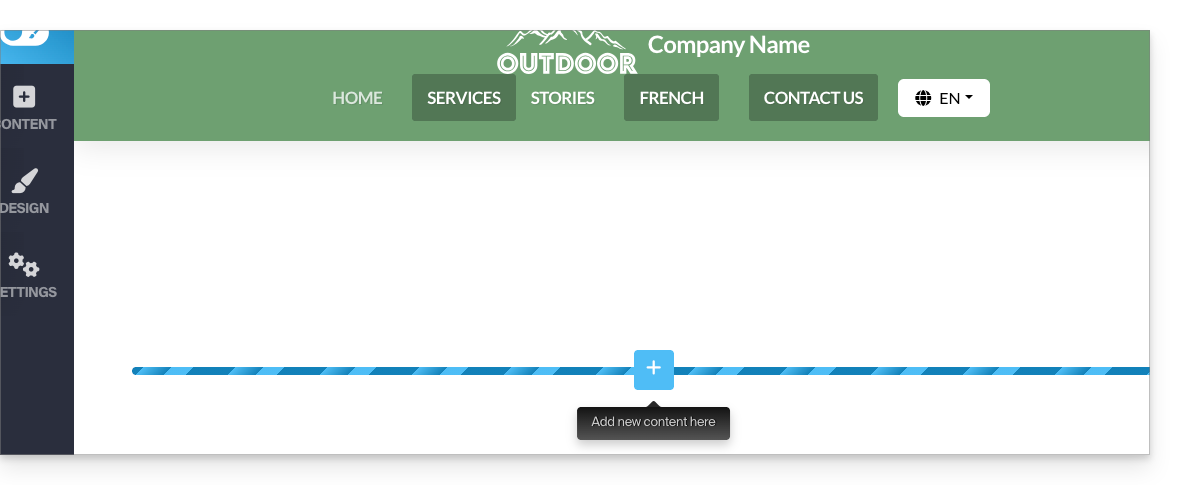
- Click on the + button located below an already inserted block:
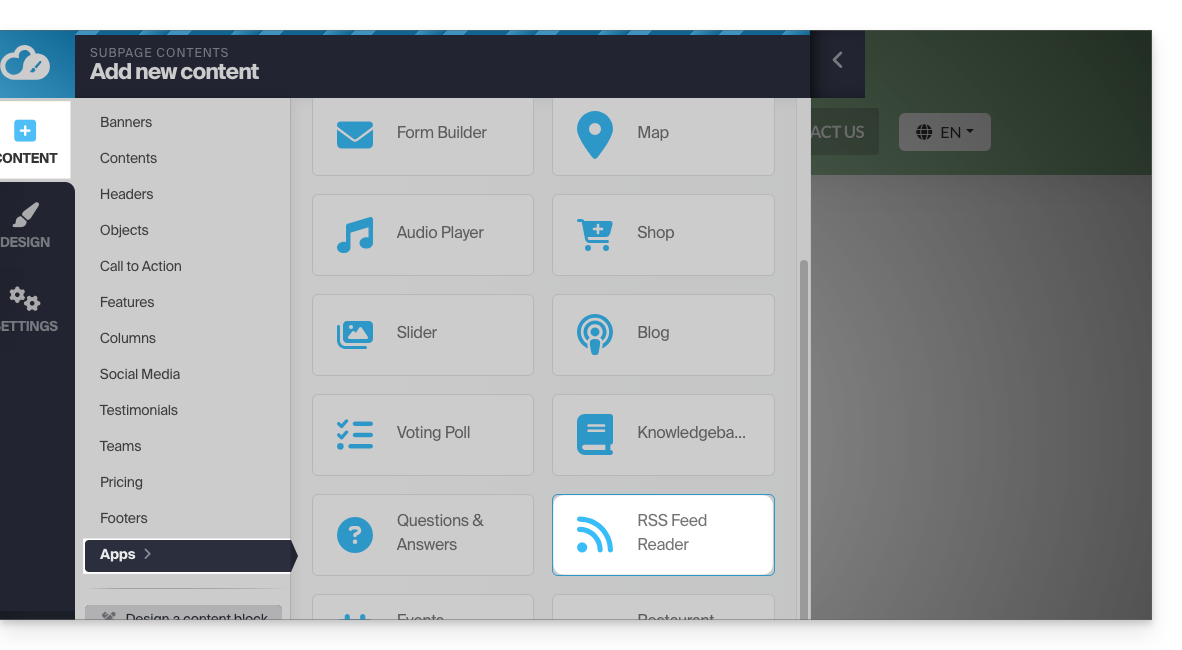
- Click on Applications (in the Content tab that opened when you clicked to add the visual block).
- Click on the RSS Feed module:
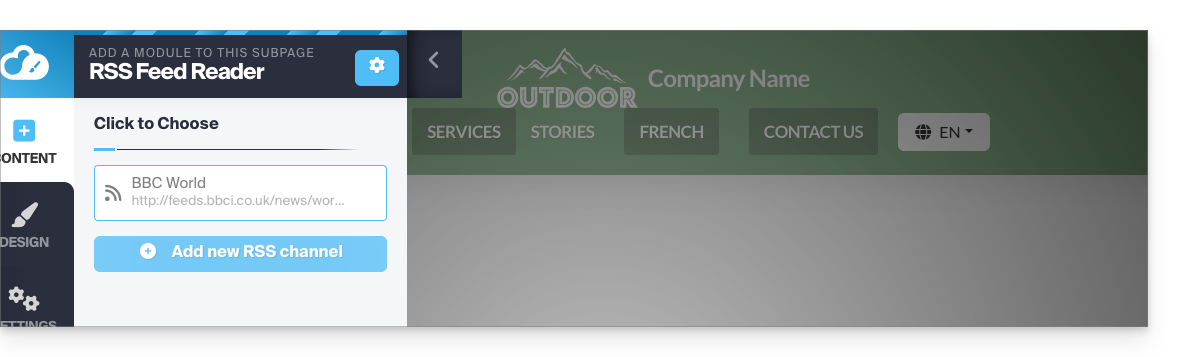
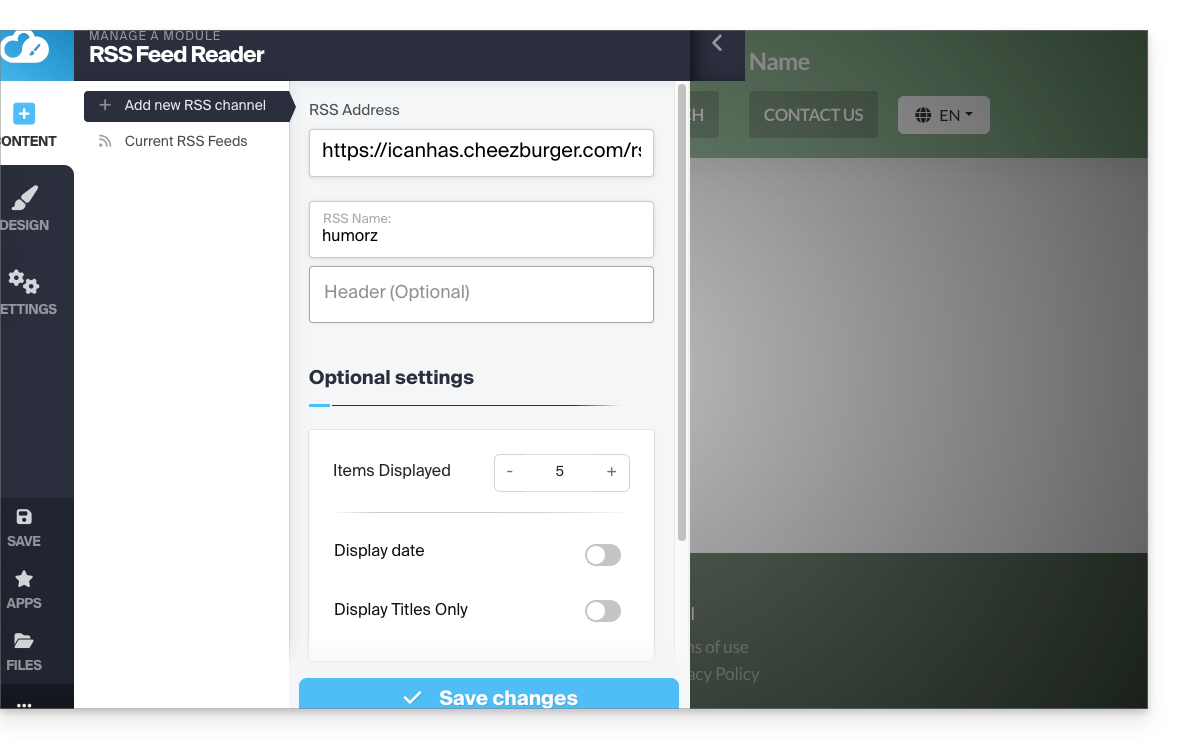
- Click to add a new feed:
- Enter the details of the desired feed and save:
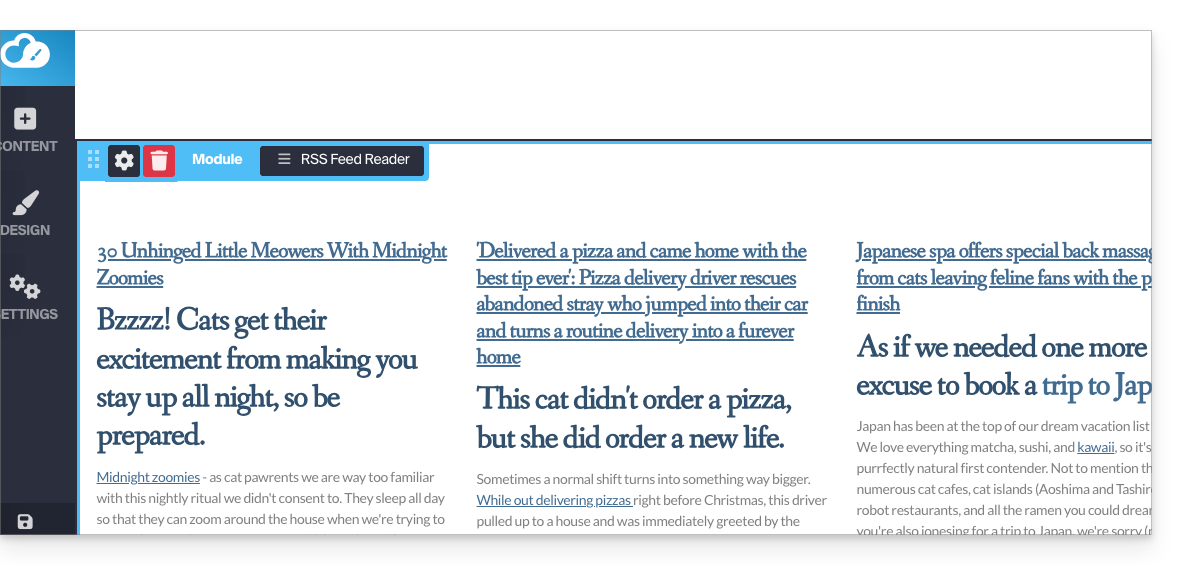
- The dynamic feed integrates into your page and will be automatically updated as new posts are published:
Link to this FAQ: https://faq.infomaniak.com/2793
Has this FAQ been helpful?
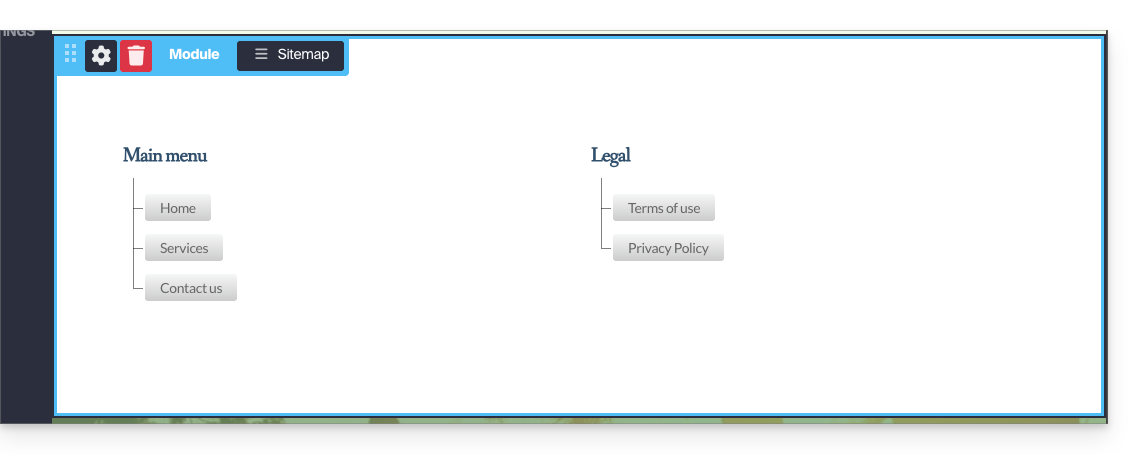
The Sitemap module allows you todisplay the structure of your current website content in your Site Creator: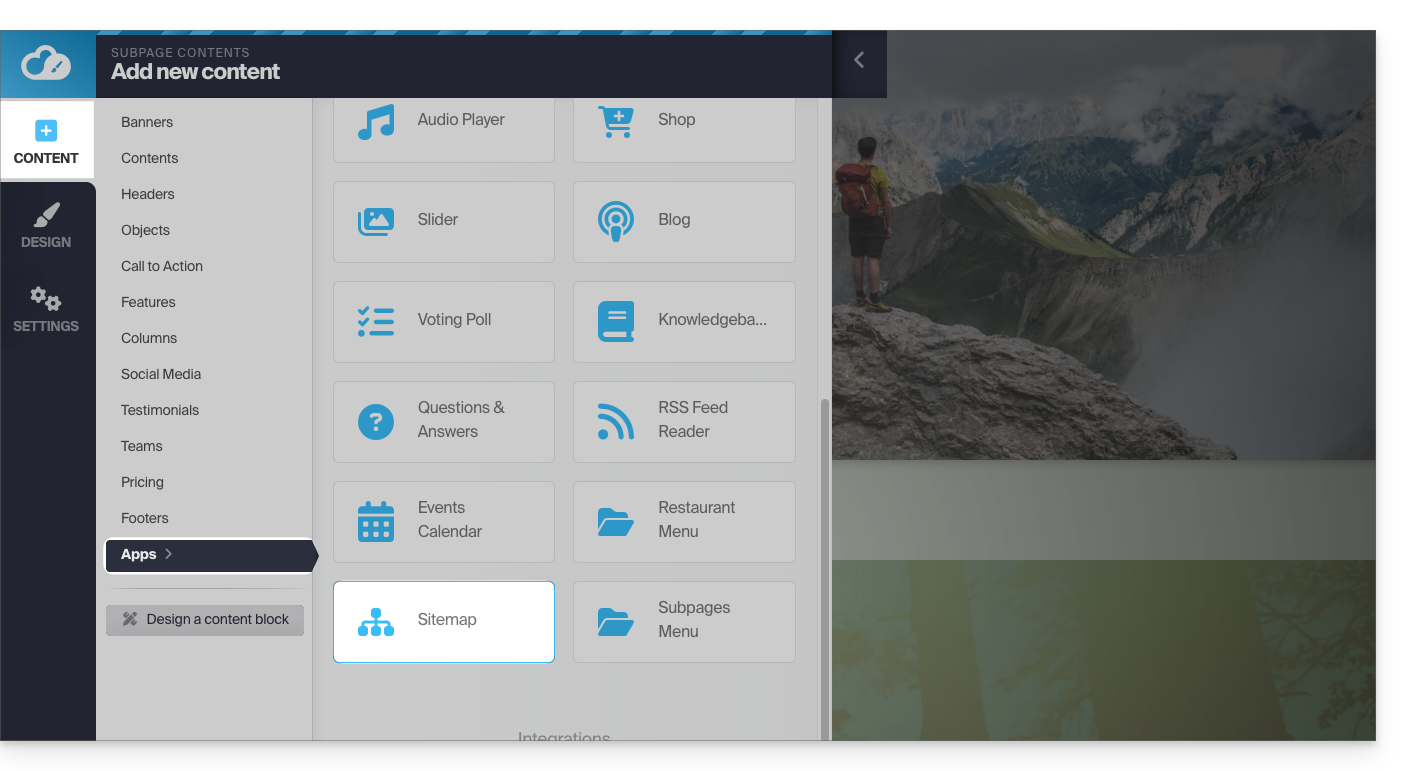
- The sitemap will not include your hidden pages:
Remember to submit the sitemap to Google.
Link to this FAQ: https://faq.infomaniak.com/2818
Has this FAQ been helpful?
This guide concerns Site Creator and the possibility of creating links to anchors.
Introduction
- An anchor in web design is a hyperlink that points to a specific position on a web page, whether it's on the same page or a different page.
- When a user clicks on an anchor link, they are redirected to the specified location (in principle, an invisible indicator placed in the source code) on the page.
- Anchors are useful for allowing users to quickly navigate to specific sections of a web page or even another page.
- They improve the user experience by providing an efficient way to find and access precise information.
Anchor Example
An anchor is located (invisibly) at the end of the FAQ. It is named "end", therefore the following link simply contains the target #end, and without any other indication, a web browser will search for this term in the code of the current page and direct the user to it: click here to reach it!
Create this type of link on Site Creator
Usually, to create an HTML anchor, here's how to proceed:
- Identify the location on your page where you want to create an anchor (text section, image, or any other element).
- Use the
<a>tag with thehrefattribute to specify the anchor target:- if the target is on the same page, simply use the ID of the element (see point 3 below)
<a href="#chapter1">Go to chapter 1</a> - if the target is on another page, specify the full URL of the page, followed by the ID of the target element (see point 3 below)
<a href="page2.html#chapter1">Go to chapter 1 on page 2</a>
- if the target is on the same page, simply use the ID of the element (see point 3 below)
- In the section of your page where you want users to be redirected, add an element with the corresponding ID:
<div id="chapter1"> </div>
When users click on the "Go to chapter 1" link, the page will automatically scroll to the section with the ID "chapter1". If the target is on another page, they will be redirected to that page, and the anchor will work in the same way.
With Site Creator, point 3 above is not "free": each block already has its ID (or hashtag) which you will need to specify (or modify beforehand - see point 3 below) in order to link to it.
Find the reference of the destination block
Access Site Creator:
- Click here to access your product management in the Infomaniak Manager (need help?).
- Click directly on the name assigned to the Site Creator in question.
- Click on the Edit my site button to launch the editor:
Once in Site Creator:
- Hover over the content block you want to modify and click on the gear icon:
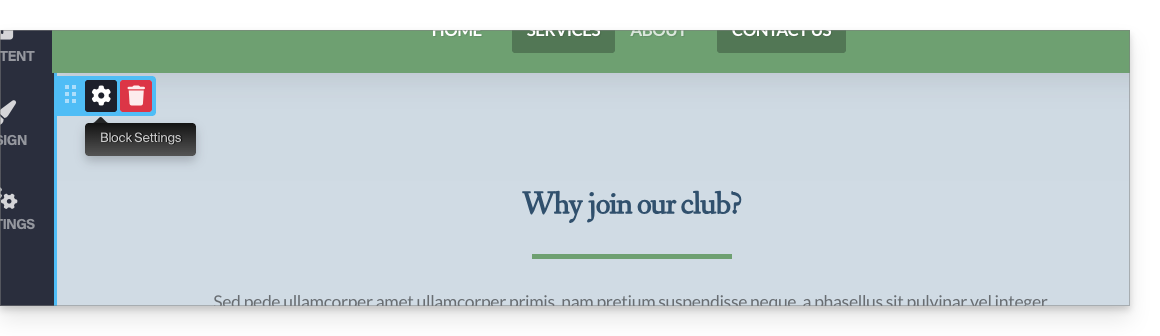
- Scroll to the bottom of the settings to find the ID of the block in question:
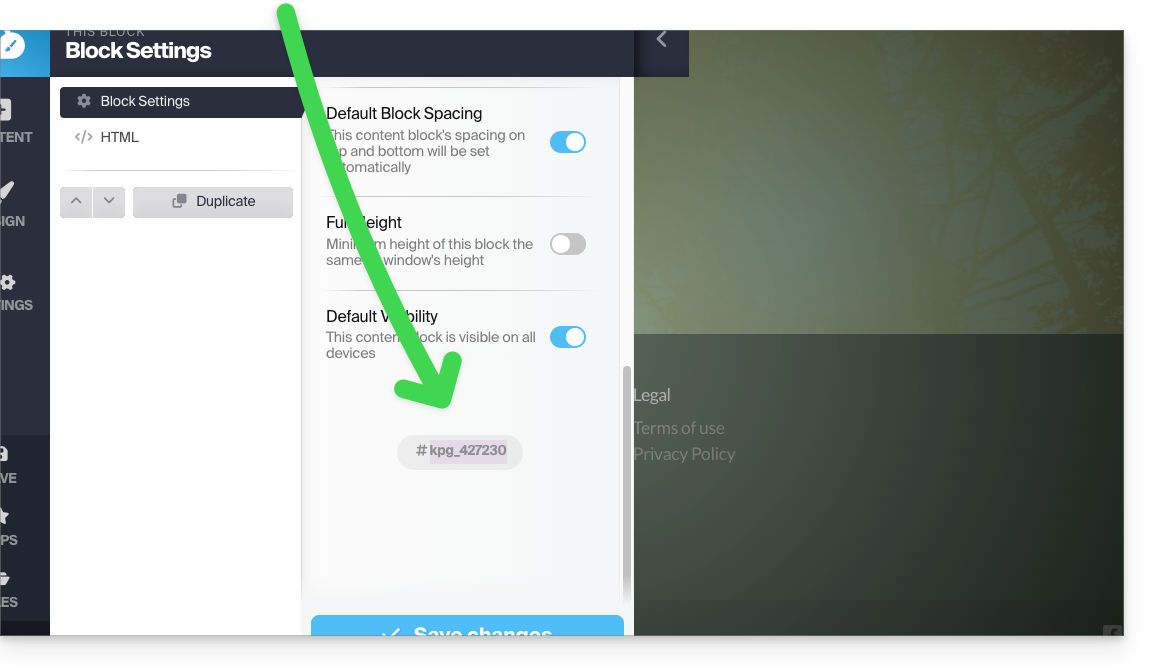
- Double-click on the field displaying the ID to specify your own title instead of the random ID:

Create a link to the block reference
To add a link to text in Site Creator, with the destination being the block located further down on the same page:
- Select some text.
- Then click on the link icon:
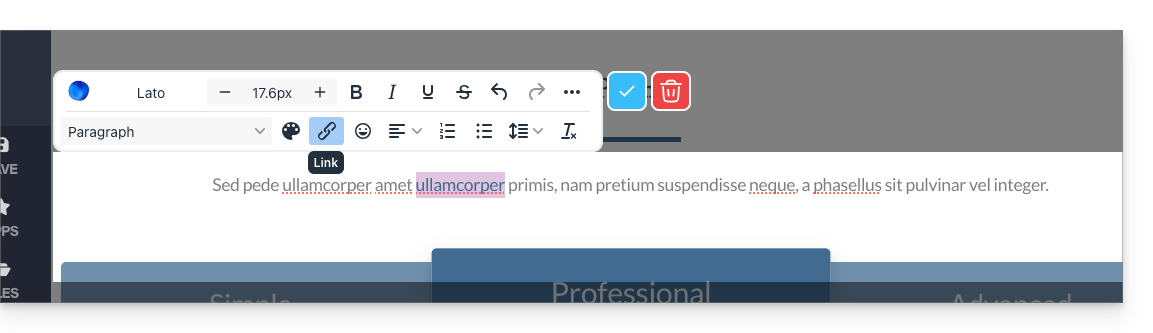
- In the advanced options, choose the "Section" type to create a link to a part of the same page by selecting the block reference obtained above:
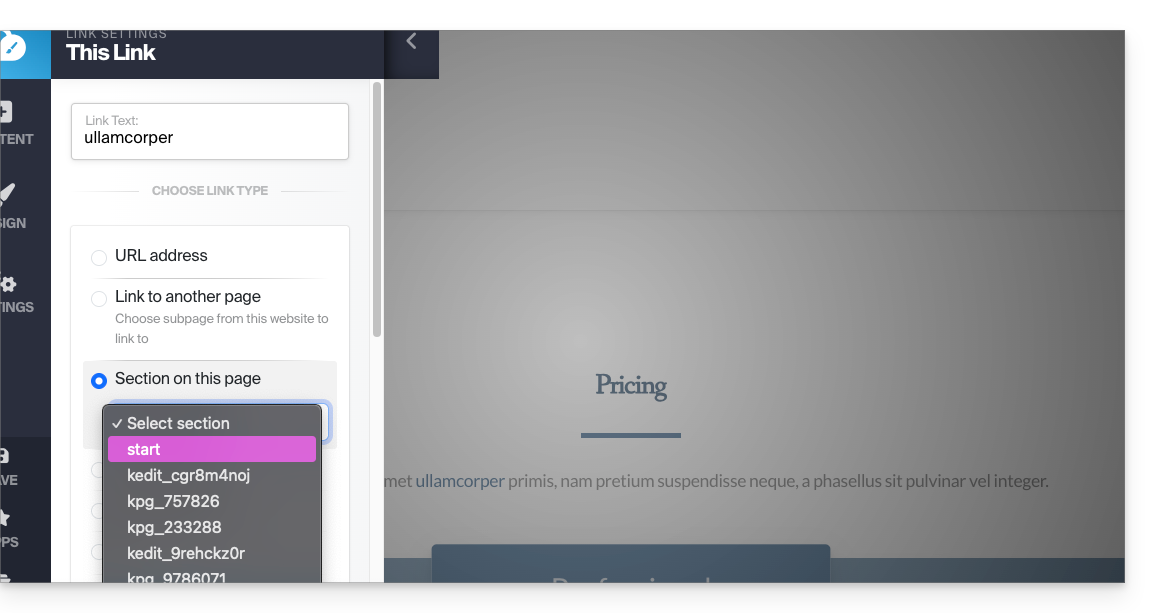
Other possibilities:- Add the link with the hash symbol (link to the same page):
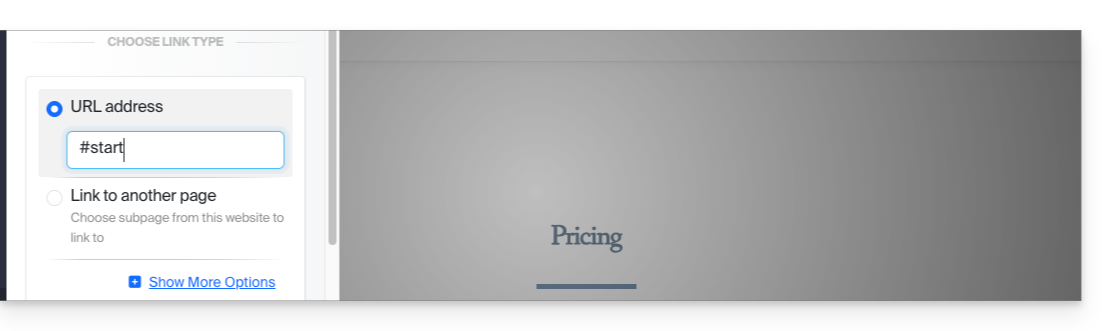
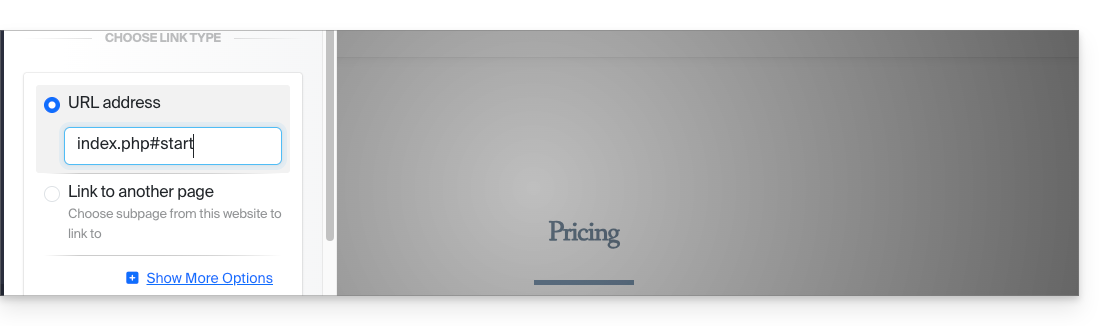
- Add the page name followed by the ID (useful if you place the link to another page on the site):
- Add the link with the hash symbol (link to the same page):
END OF PAGE (and anchor placed on this element) - click here to go back to the anchor located at the beginning of the page…
Link to this FAQ: https://faq.infomaniak.com/2837
Has this FAQ been helpful?
This guide explains how to customize and configure the online store module in Site Creator.
Setting up a store in Site Creator
Prerequisites
- Access Site Creator:
- Click here to access the management interface for your product on the Infomaniak Manager (need help?).
- Click directly on the name assigned to the Site Creator in question.
- Click on the Edit my site button to launch the editor:
To manage the general settings of the e-commerce system (currency, taxes, etc.) after adding the module:
- Hover over the added store module on your page.
- Click on Settings.
Once you are in Settings, several sub-menus appear on the left, allowing you to configure other parameters:
⚠️ All amounts entered must be in US format, using a period for decimals, i.e., XX.XX
Payment methods
Stripe and Mollie are external payment providers, and they charge fees for each purchase. These fees are independent of Infomaniak's services. For more information on the associated fees, please refer to the respective pricing policies of these providers.
To use the services of Stripe and Mollie, you must have a SIRET number in France or an IDE in Switzerland. In addition, you must have a valid company registered in the commercial register of your country to use the services of Stripe and Mollie.
Delivery Methods
You can create multiple delivery methods:
These will then be offered during the checkout process:
Among the parameters for creating a shipping method:
- pricing (including free shipping from a certain amount)
- eligible countries
- shipping costs based on weight
- delivery times

Four email templates are predefined and cannot be deleted. They cover all email communication related to an order, both for the customer and for the store manager.
You can customize existing messages and add new ones (and then delete these additional messages if necessary):
- Choose when the email should be sent (or simply disable the message to keep it without using it):
- new order email (to notify you)
- order processed email (customizable)
- delivery note in PDF format (customizable)
- invoice also generated and available in PDF format on your Stripe/Paypal/Mollie account
- Variables can be inserted into each field to maximize text customization using the elements contained in the command and the information provided by the buyer:
Store homepage
- Display of product categories, if any
- Presentation of random products
- etc.
Product Management
To manage products, add new ones, or delete existing ones:
- Hover over the module in the upper left corner.
- Click on Products.
You will find the first 3 example products:
Rearrange your products by dragging and dropping them.
Click on a product to adjust its details and the category it should be in (see below). You can, for example:
- create attributes (e.g., color) to offer the same product in multiple versions/price points
- define whether the product should be digital (virtual), for example a PDF, ZIP, or MP3 file, and therefore downloadable after purchase
At the bottom of the product sheet editor, find other products from your list to link them and offer them to the visitor.
At the very bottom of the product editor window, choose to hide the product from your visitors if necessary.
To finish and return to the product list, save the changes using the button at the bottom.
Delete or duplicate a product
On the product editing page, click at the bottom on the action menu next to the save button to choose whether to delete the product or duplicate it.
Stock / inventory management
In the same action menu, manage inventory directly on the list of your products (to edit inventory in bulk).
However, each product page allows you to edit the inventory and also enter the SKU (stock keeping unit) and its barcode (ISBN).
Product Categories
Your products can be organized within Categories and sub-categories, which will then be displayed according to the design of your website.
Click on Categories in the sub-menu on the left-hand side of the store administration panel, under Products.
Define an image to illustrate your category.
Hide a category if needed (this does not hide the products it contains).
Promo code
A promo code allows you to apply a discount (in % or currency) to an order.
Click on the Promo Code submenu on the left side of the store administration panel, under Products.
You can specify:
- its expiration date
- its possible minimum amount
- its name (e.g., "Special Christmas Discount")
- its format ("JOYEUXNOEL")
Export the list of your products
Export your product list to a CSV file (.csv format) using the action menu located in the top right corner of your product list.
Order Management
To manage placed and pending orders:
- Hover over the module in the top left corner.
- Click on Settings.
- Click in the Orders submenu on the left side of the store's administration panel.
Export your order list
Export your order list to a CSV file (.csv format) using the Download button located to the right of the order search bar.
Customer Management
To manage customers (a customer provides personal information when placing an order):
- Hover over the module in the upper left corner.
- Click on Settings.
- In the left-hand panel of the store's administration area, click on Customers in the submenu.
Export your customer list
Export your customer list to a CSV file (.csv format) using the Download button located to the right of the customer search bar.
Link to this FAQ: https://faq.infomaniak.com/2842
Has this FAQ been helpful?
This guide details the limitations of Infomaniak's Site Creator.
Site Creator Limitations
Access the description of the Site Creator Free, Lite and Pro plansto compare the limits based on your plan.
In summary, Site Creator is available…
- … with every paid web hosting plan (❓: help): the offer is equivalent to a Site Creator Pro without the included domain name,
- … or as a standalone product (❓: help): standalone is available in 3 versions: Free, Lite, and Pro, and in this case, no other specific offer is required.
Content
- The maximum number of pages that can be created, as indicated on the sales page, includes any legal pages you may use (❓: help).
- With the Pro version, there is no limit to the number of pages or store items that can be added using Site Creator.
- The remaining available disk space, depending on your plan, is specified on your dashboard:
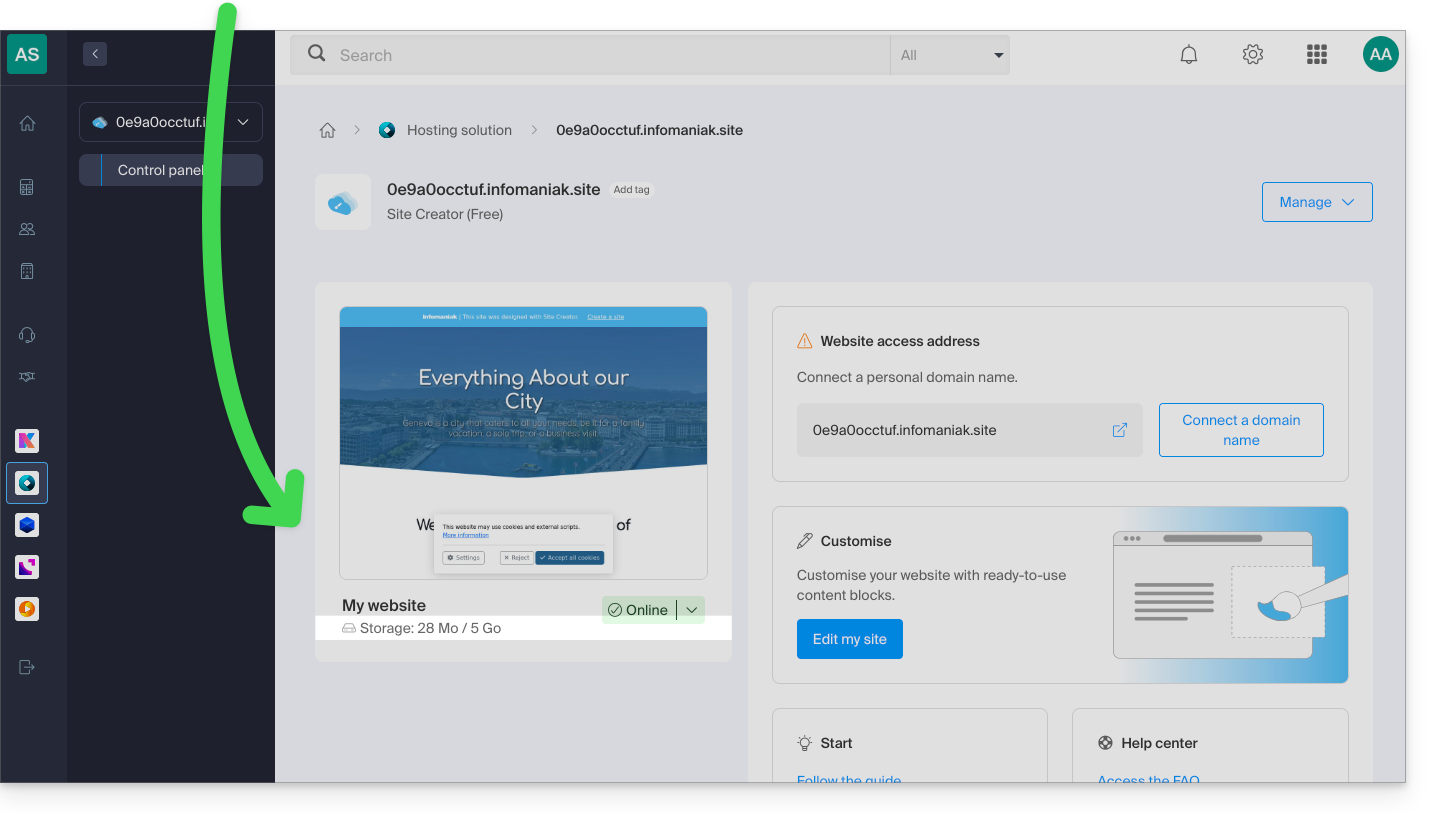
FTP Management
- You cannot access your website files on the server, either via FTP or by any means other than the manager provided in the Infomaniak Manager.
Website Export
- It is not possible to import or export the website (to another hosting provider or hosting, for example).
- Themes or modules cannot be exported or imported.
Compatibility of a WordPress theme/extension and Site Creator
WordPress and Site Creator are two completely different website creation tools, and unfortunately, it is not possible to use the components of one with the other.
Link to this FAQ: https://faq.infomaniak.com/2860
Has this FAQ been helpful?
This guide explains how to redirect visitors arriving on non-existent pages (e.g., old pages from a previous website) when your website is currently managed with Infomaniak's Site Creator.
Prerequisites
- Know the web address (URL) of the page that is no longer available.
- Access Site Creator:
- Click here to access the management of your product on the Infomaniak Manager (need help?).
- Click directly on the name assigned to the Site Creator in question.
- Click on the Edit my site button to launch the editor:
Redirect visitors to the new Site Creator page
In the left-hand menu of Site Creator:
- Click on Settings.
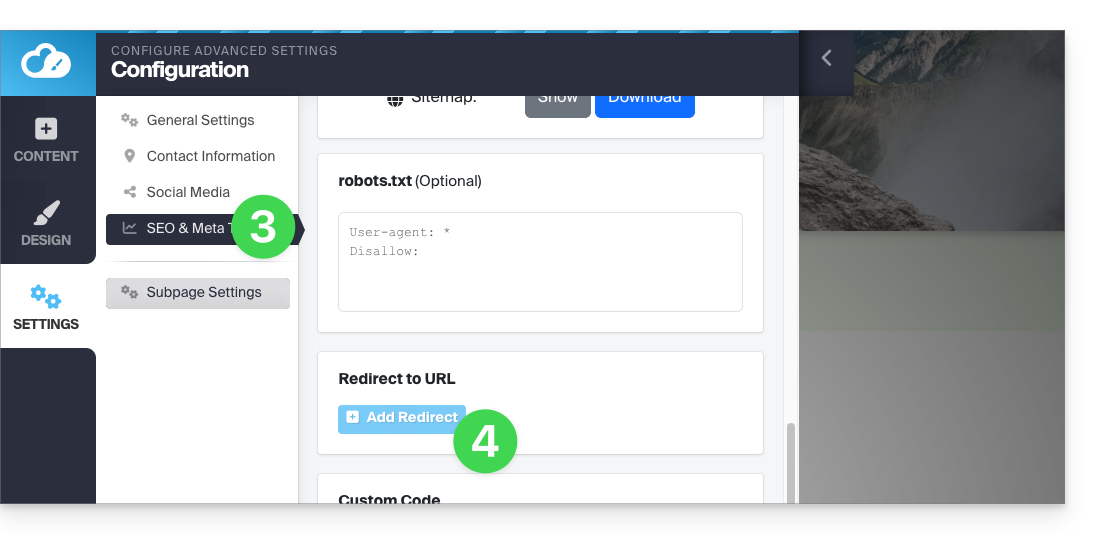
- Click on General settings:
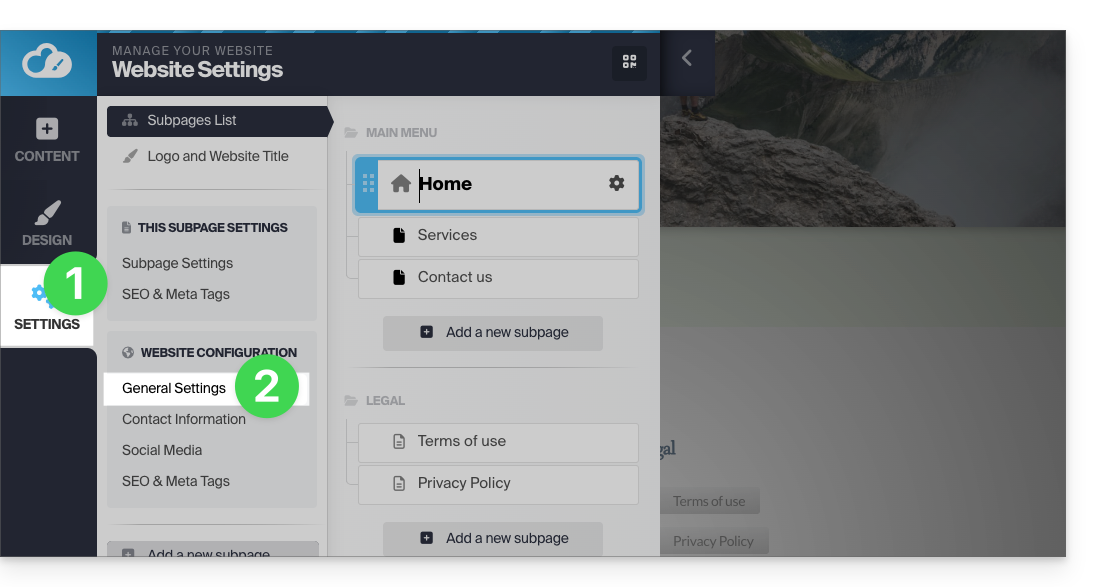
- Click on SEO & Meta Tags.
- Click on Add a redirection:
- Enter the address of the old page (without your site name) under Redirection.
- Enter the address of the new page (or
/to redirect the visitor to the root of your site, i.e., the homepage). - Back up using the blue button at the bottom of the page:
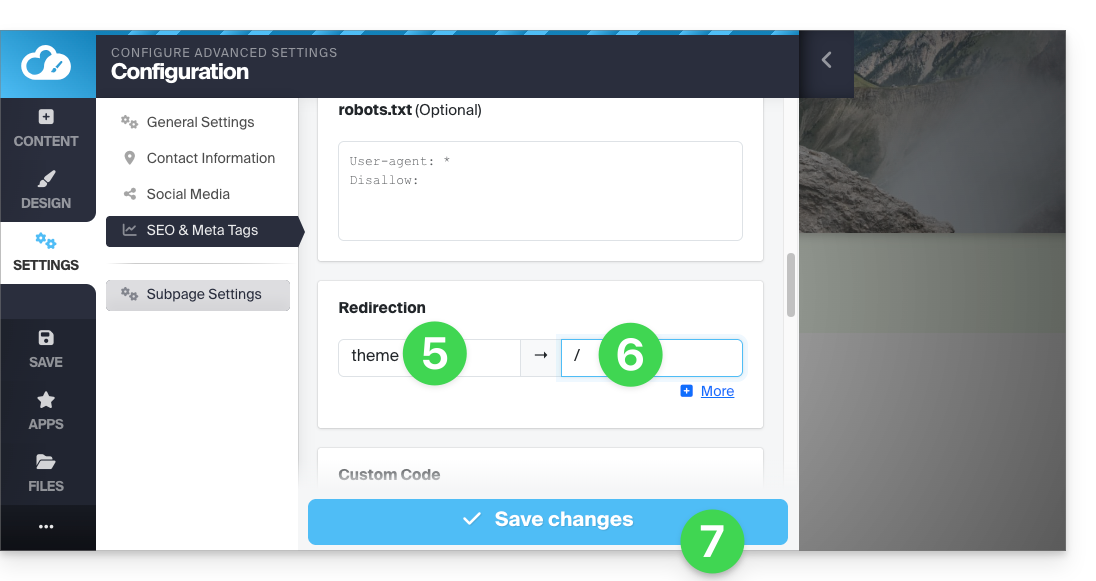
For example:
- Your previous website contained a contact page at the address
domainxyz.com/company/contact.html. - Now your contact page is located at
domainxyz.com/about. - You must therefore enter
company/contact.htmlin the field on the left… - … and
aboutin the field on the right so that visitors who still arrive at the old address (due to outdated search engine indexing or clicking on a bookmark, for example) are automatically redirected to the new page.
An alternative method is to add a new Site Creator page with the name of your old page, then specify a redirect to the URL of your choice, and make it invisible using the toggle switch located below the redirect field: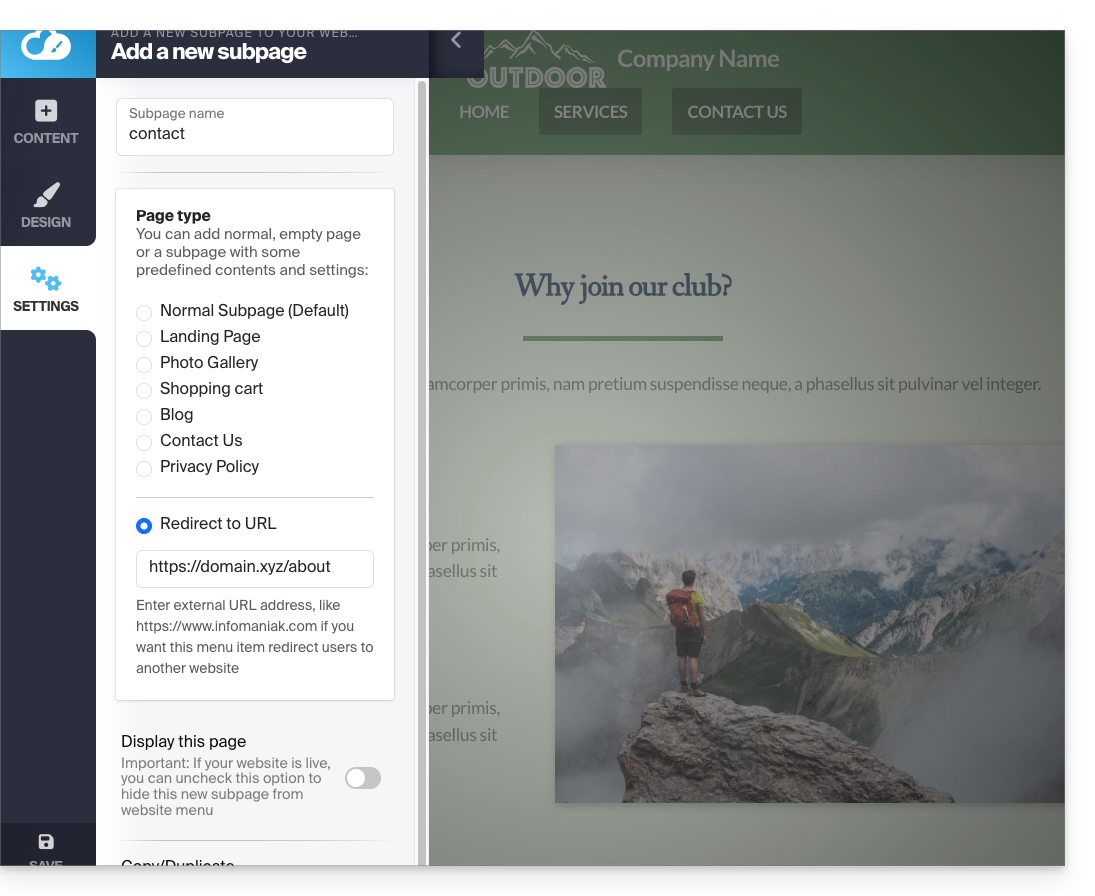
Link to this FAQ: https://faq.infomaniak.com/2875
Has this FAQ been helpful?
This guide explains how to manage the forms used to subscribe to the Newsletter that you manage on Infomaniak.
Prerequisites
- Have access to the Newsletter product.
- Have created at least one subscription form.
Copy the code needed to integrate the form
To access your Newsletter forms and obtain the integration code:
- Click here to access the management interface for your product in the Infomaniak Manager (need help?).
- Click directly on the domain name assigned to the product in question.
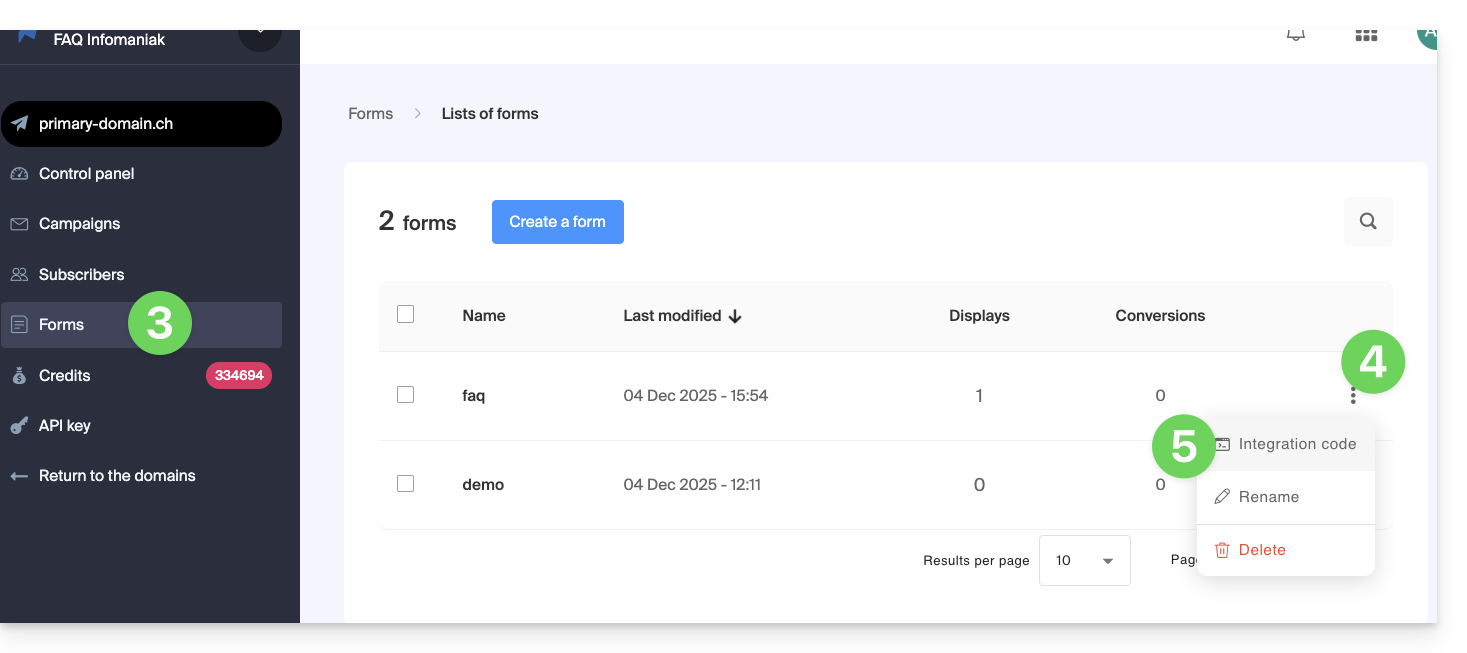
- Click on Forms in the left-hand menu.
- Click on the action menu ⋮ to the right of the item in question in the table that appears.
- Click on Embed Code:
- Choose between the JAVASCRIPT and HTML tabs to obtain one of the two types of code useful for inserting your form on your pages, and click on the blue button to copy the code to the clipboard:
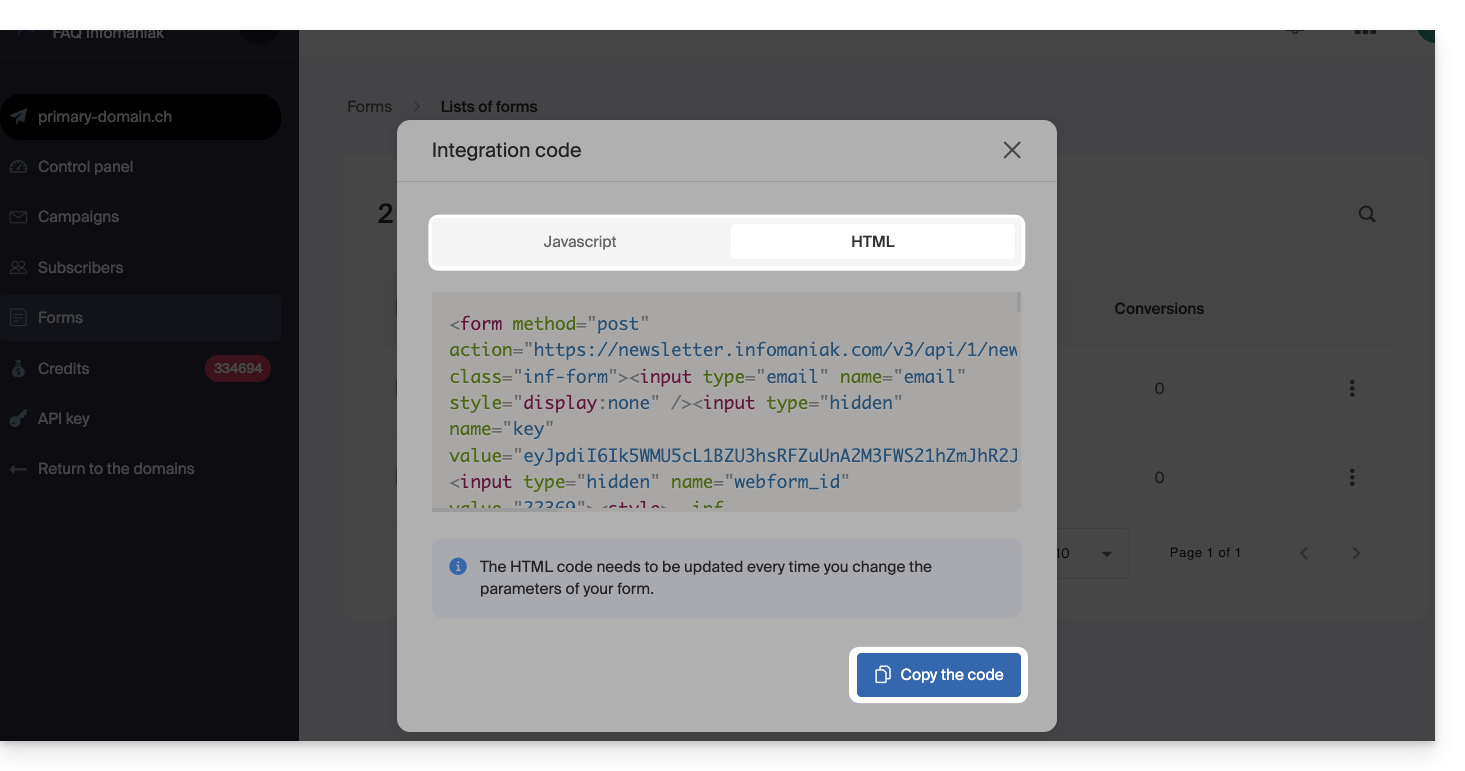
The HTML code needs to be updated each time you change the settings of your form (you will therefore need to re-insert the HTML code if you make changes in the form editor
Insert the form on a website…
You can insert the same form in different locations. You can also create multiple forms (to populate different contact groups, for example). Obviously, a newsletter is only sent once per contact, even if that contact is present in different lists/groups:
… with WordPress
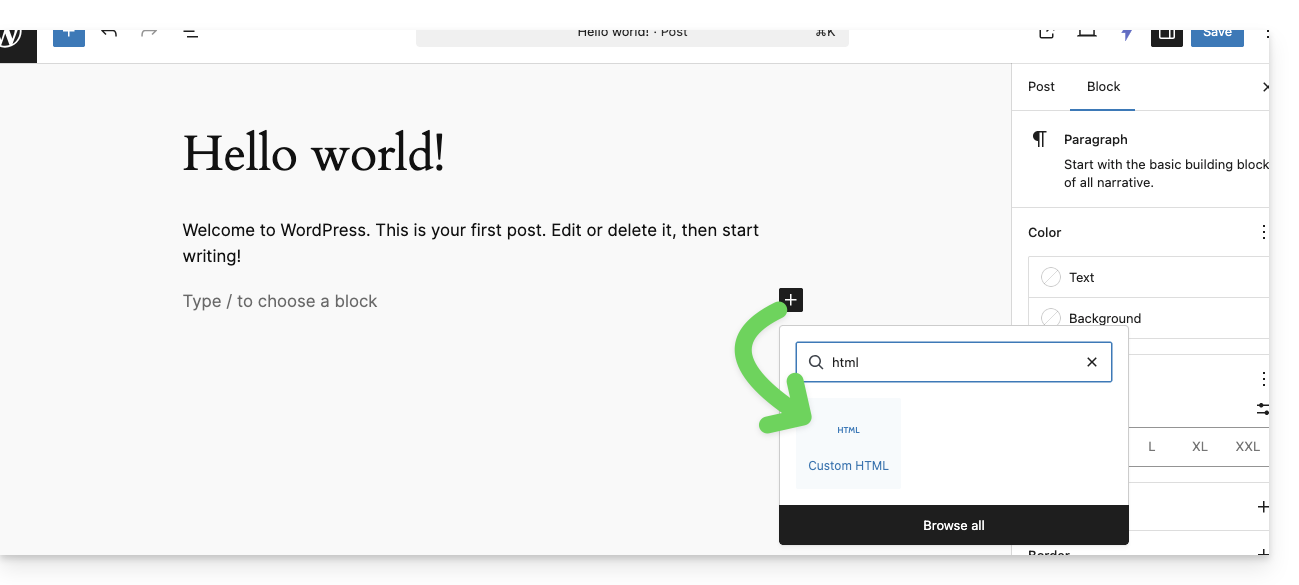
- Insert a new HTML block at the desired location:
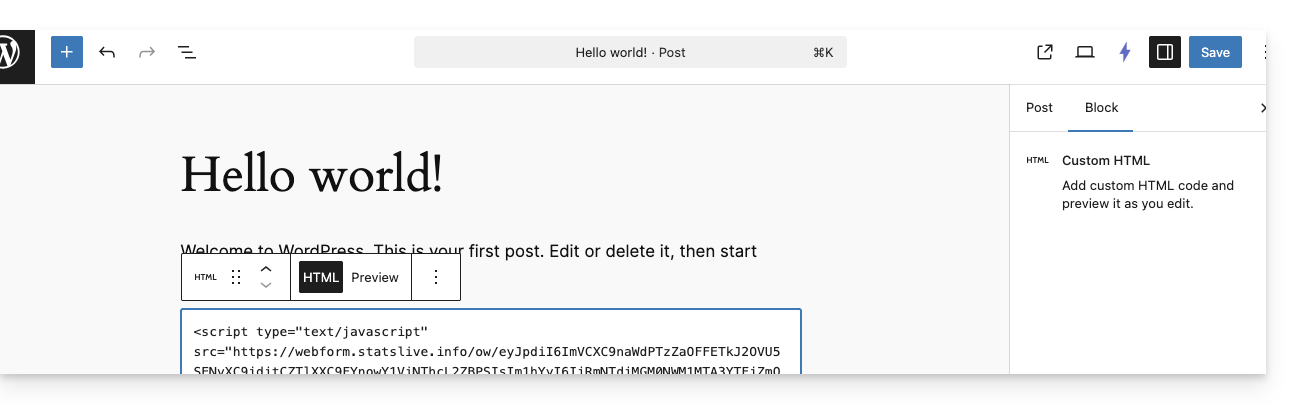
- Paste the HTML or JAVASCRIPT code obtained in step 6 above and save:
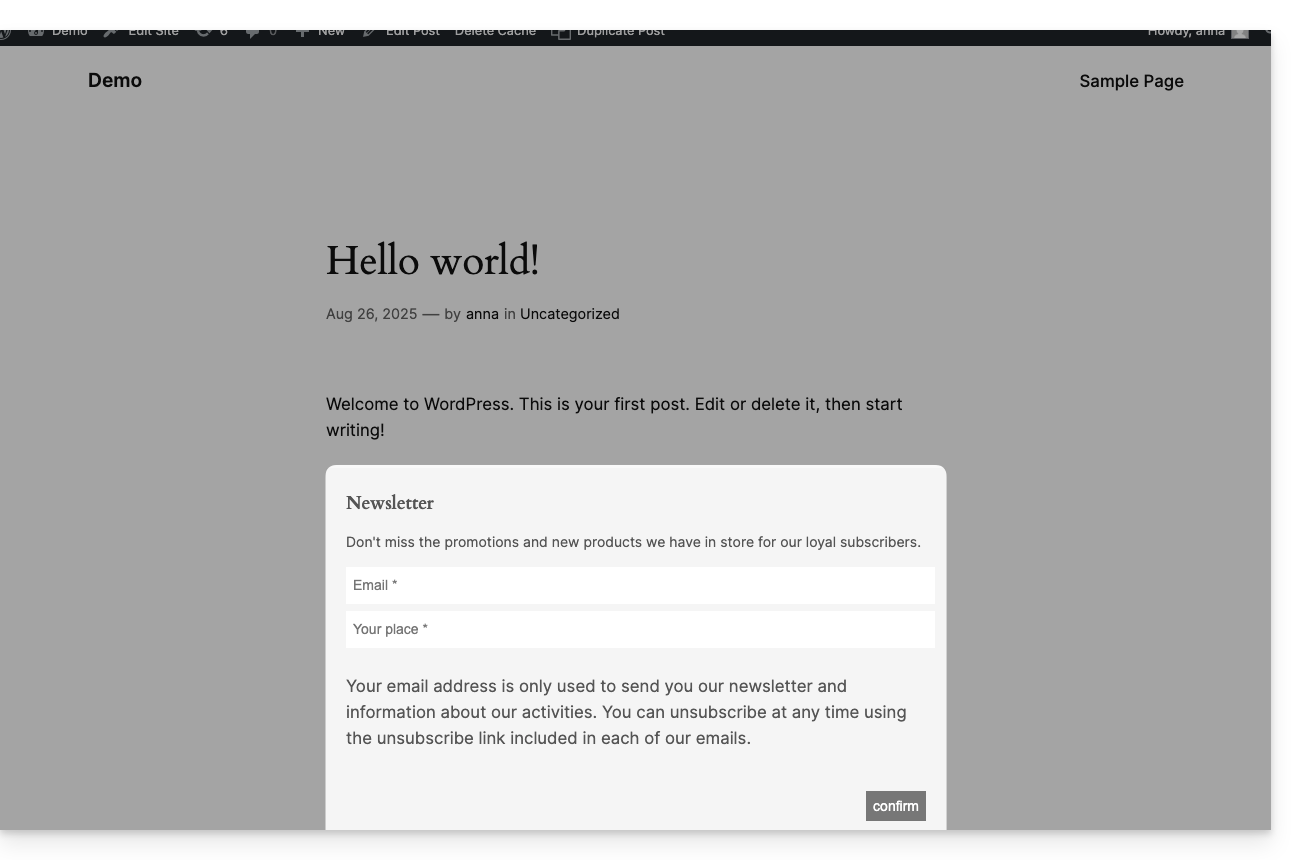
- The form configured previously will be displayed on your site:
… with Infomaniak Site Creator
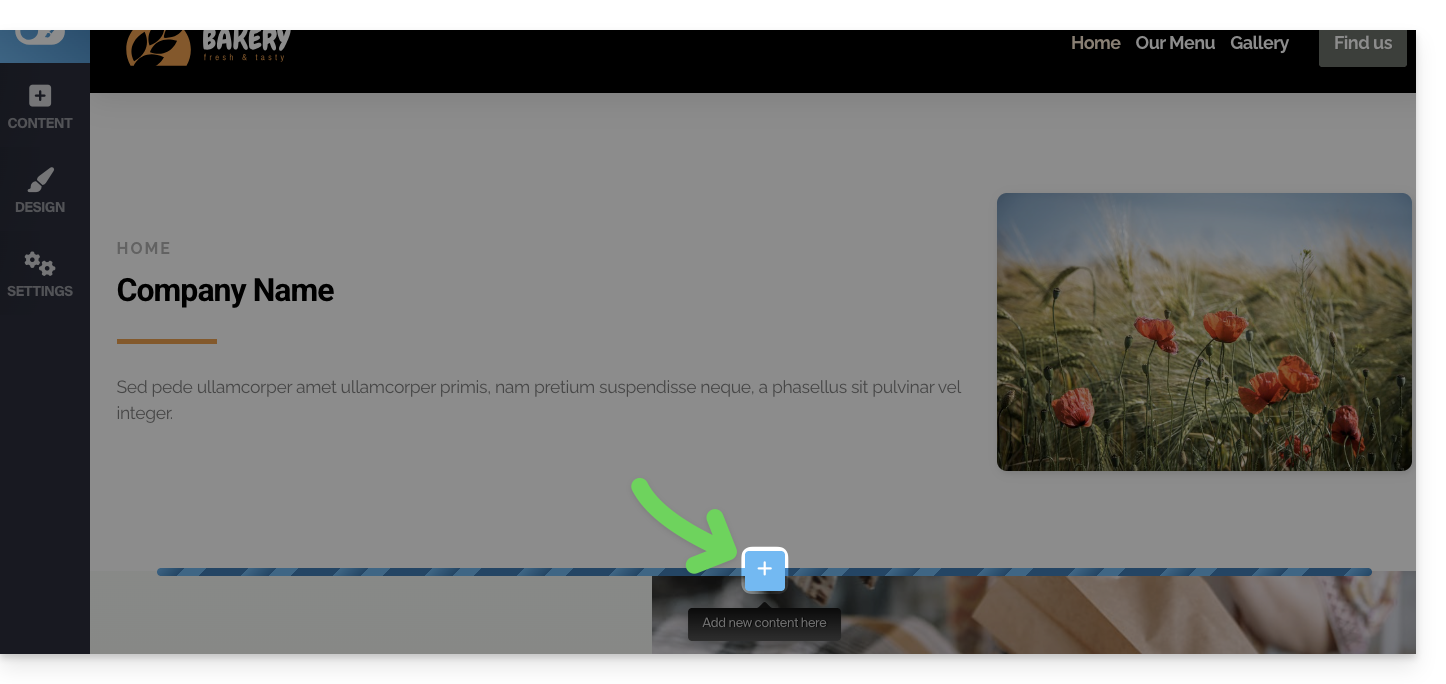
- Hover over the desired location on the page to display a PLUS button, allowing you to add a block:
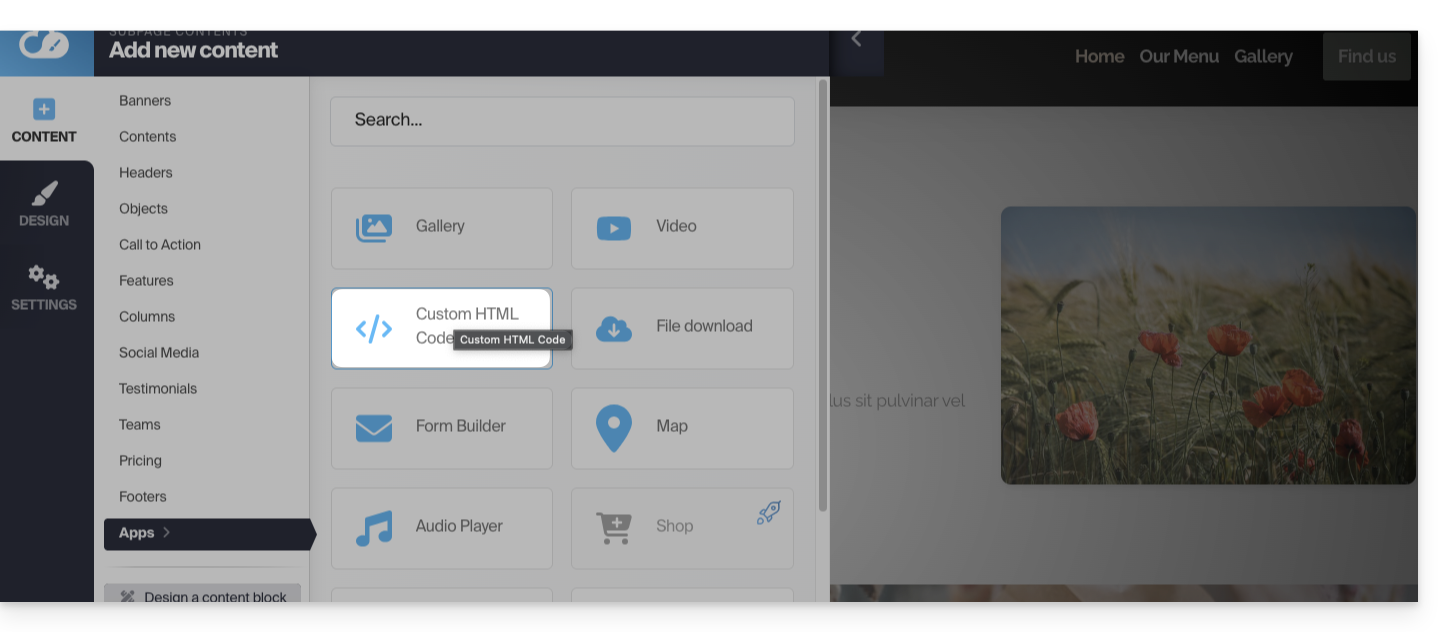
- Click the MORE button to choose a custom HTML code block:
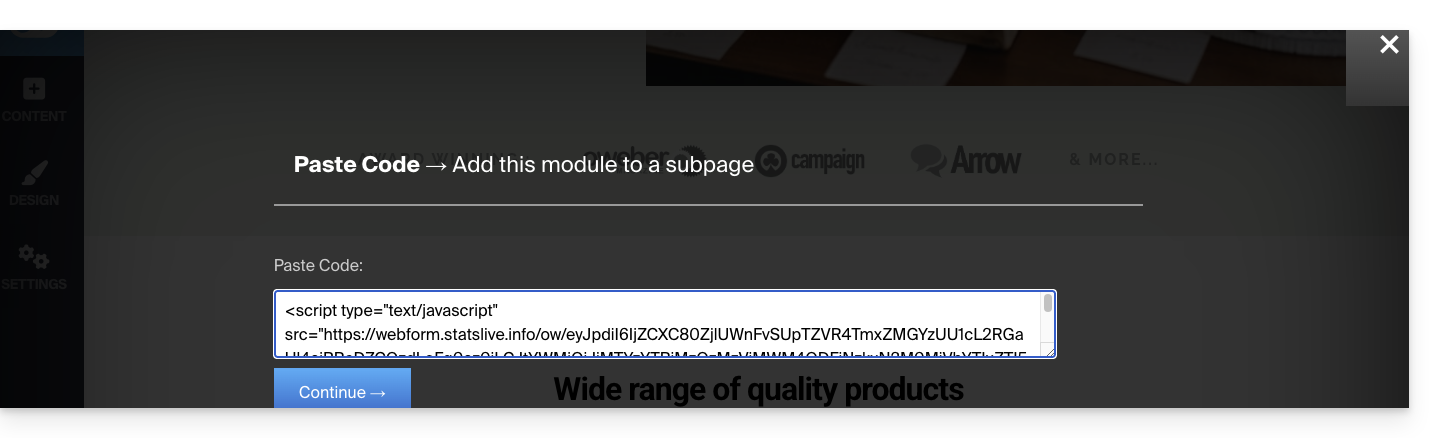
- Paste the HTML or JAVASCRIPT code obtained in step 6 above and click the button to Continue:
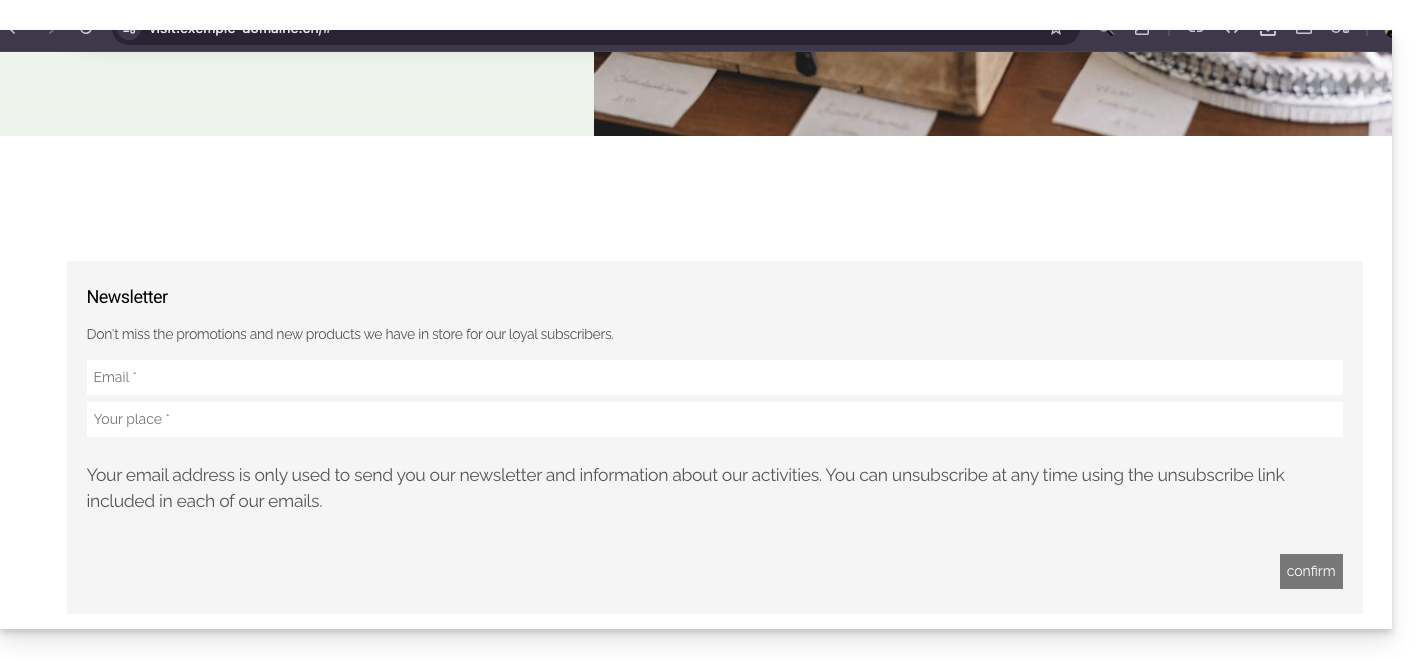
- The form is displayed as a preview on your editing page and will be visible to your visitors:
Link to this FAQ: https://faq.infomaniak.com/2878
Has this FAQ been helpful?
This guide explains how to view the statistics on the number of visitors who accessed your Site Creator Pro.
✘ UNAVAILABLE with
Site Creator Free / Lite
Introduction
- If you are using a Site Creator developed within an Infomaniak web hosting plan (non-standalone Site Creator), you can directly view its statistics (❓: help).
Accessing Visit Statistics
Prerequisites
- Access Site Creator:
- Click here to access the management of your product on the Infomaniak Manager (❓: help).
- Click directly on the name assigned to the Site Creator in question.
- Click on the Edit my site button to launch the editor:
Once in Site Creator Pro:
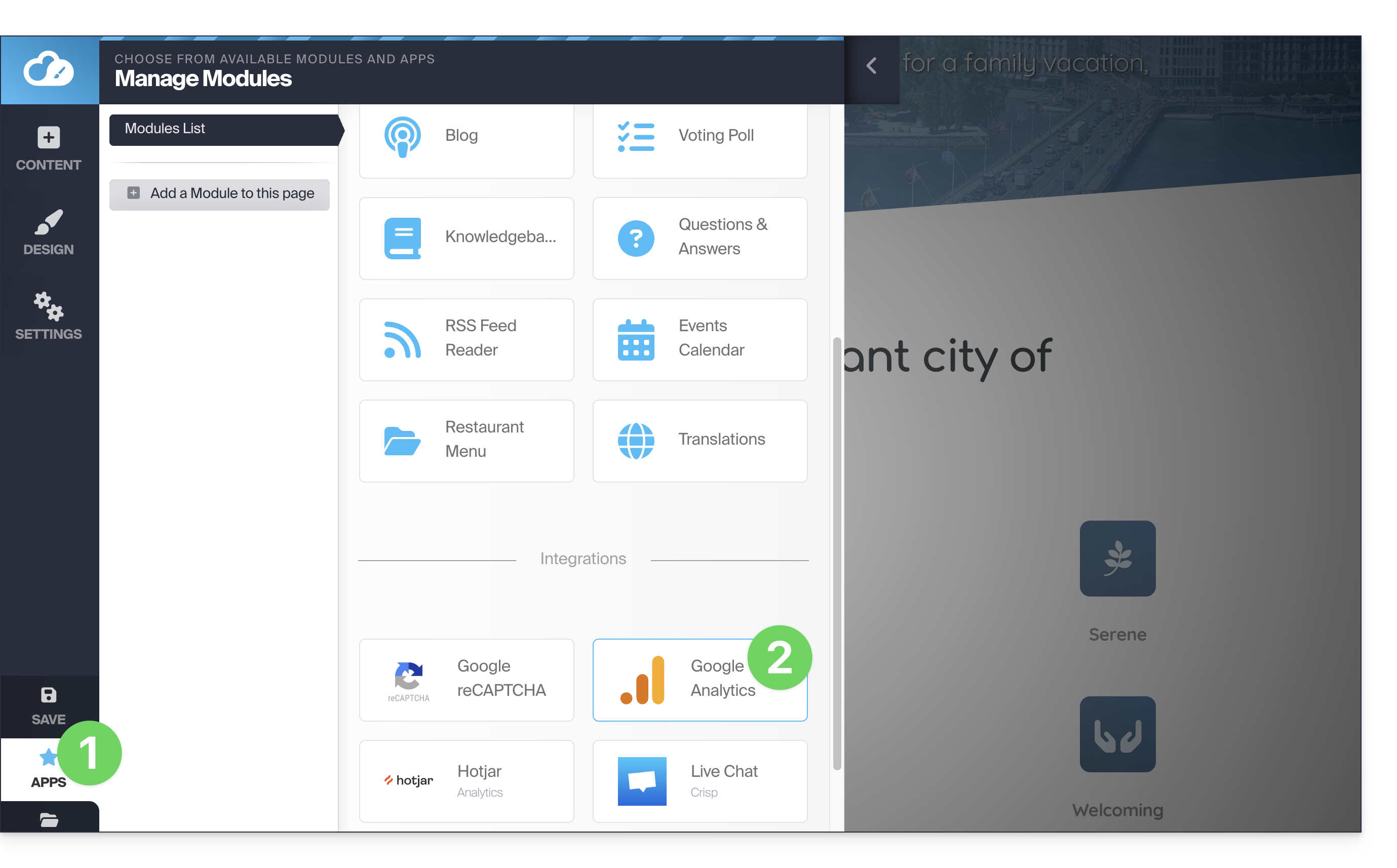
- Click on Applications.
- Click on the Google Analytics module:
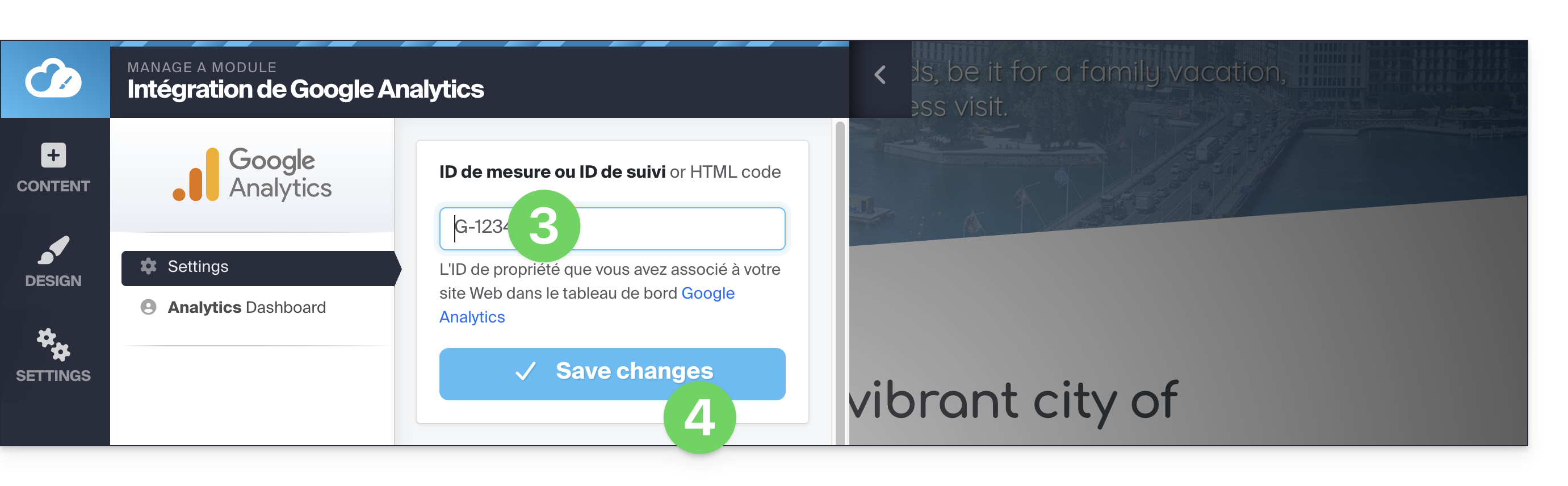
- Enter your Google Analytics measurement ID (format
G-XXXXXXXXXX): - Save:
Link to this FAQ: https://faq.infomaniak.com/2926
Has this FAQ been helpful?