Knowledge base
1000 FAQs, 500 tutorials and instructional videos. Here, there are only solutions!
This guide explains how to transfer to Infomaniak email addresses currently hosted by Google (Workspace with a custom domain or @gmail address), using an IMAP import tool.
Introduction
- Consult this other guide if you are looking for an alternative to this IMAP process: it is indeed possible to perform a Google Takeout export and then an mBox import on our infrastructure.
- This operation does not affect either the data already present on the destination address or the data from the source address.
- The entire external mailbox will be imported.
- Once the import process has started, it is no longer possible to interrupt it.
- Any potential duplicates are handled: identical content will only be copied once.
Import your entire email history
Infomaniak Requirements
- You must have a Mail Service on your Infomaniak Manager.
- Have a number of available addresses or adjust it if necessary.
- Make sure that the email is properly secured
- Create one or more addresses on this Mail service.
- If you have many (10+) email addresses to create, please refer to this other guide regarding bulk creation.
- The destination email address must be linked to the user (= the Infomaniak account) you are using.
Import Gmail email content to Infomaniak
- Click here to access the import tool (online service https://import-email.infomaniak.com).
- If necessary, log in to your Infomaniak account for the relevant organization; the import will be done to one of the email addresses associated with the Infomaniak Mail web interface (online service ksuite.infomaniak.com/mail) of the Infomaniak account you are using.
- Click on the import via IMAP.
- Click on one-time import.
- Fill in the field on the left with your source email address (from which the content will be copied).
- Click on the "Sign in with Google" button that appears:
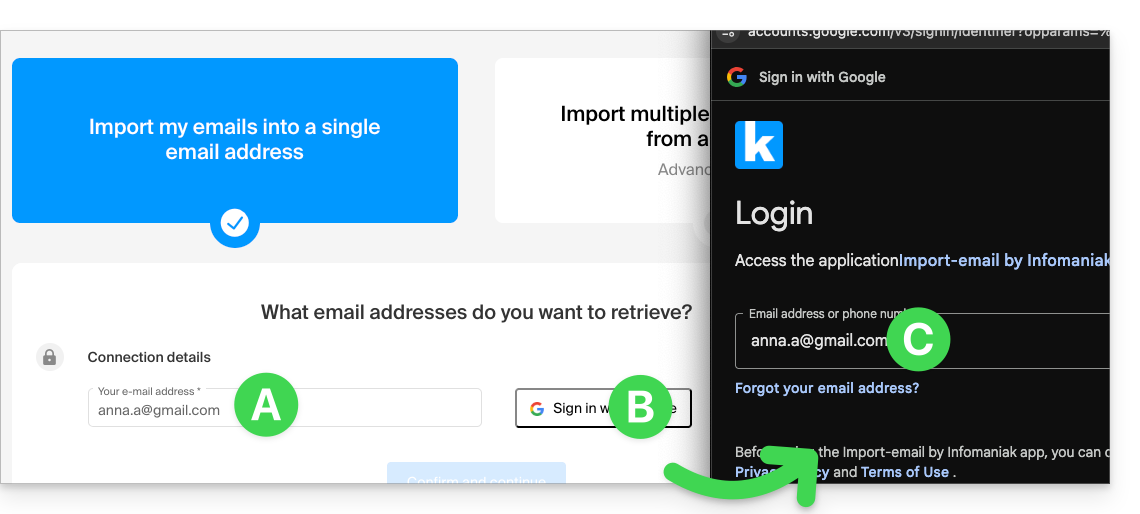
- Make sure you are signing in to the Google account that you want to use for email migration.
- Confirm that you authorize the Infomaniak tool to connect to your account (automatic process).
- Once you confirm the pop-up, choose the email address to which you want to import the emails; the drop-down menu lists the email addresses currently associated with your Infomaniak Web Mail interface (online service ksuite.infomaniak.com/mail) for the Infomaniak account you are logged into.
- After selecting the desired destination address from the list, click the blue Import Emails button.
- The copy process has started. You can wait and view the result on the page once the import is complete, or close the window (the import will continue in the background, and progress can be tracked - see below).
- A confirmation email will be automatically sent to all email addresses involved in the operation once the import is complete, indicating the number of messages copied.
- Tracking is available in the settings of the destination email address, and only on the web app Mail (online service ksuite.infomaniak.com/mail).
- Tracking allows you to view the import history for the address in question.
Adjust application settings
Once you have taken the necessary steps to ensure that the domain name associated with your email account works with Infomaniak, modify the settings of the email software/clients you use so that they connect correctly to the Infomaniak servers: follow the configuration wizard.
Labels and data volume
The storage space displayed in Infomaniak may not match the space shown in Gmail, particularly due to the different way labels are managed. Indeed, these labels, which are present in Gmail, will be converted into folders on the Infomaniak servers (the same principle applies as when retrieve mail using an IMAP email client/software such as Thunderbird):
Therefore, an email tagged in multiple Gmail folders may be counted multiple times during migration, which explains why an account displaying, for example, 6 GB in Gmail may occupy 18 GB once transferred to Infomaniak servers.
Please be patient when importing a large volume of emails; Gmail and Microsoft imports are intentionally slowed down (e.g., 1 GB/day bandwidth for Google) to avoid rejections from their end.
Link to this FAQ: https://faq.infomaniak.com/1785
Has this FAQ been helpful?
This guide explains how to connect the desktop app Outlook 2013 (desktop application on Windows) to an email address hosted by Infomaniak.
Add the email address to the application
Prerequisites
- Create the email address (❓: help my kSuite | Mail Service/kSuite).
- Create a device password (❓: help my kSuite | Mail/kSuite Service).
- Verify that the domain is configured correctly (❓: help).
To configure the email application:
- Open the application.
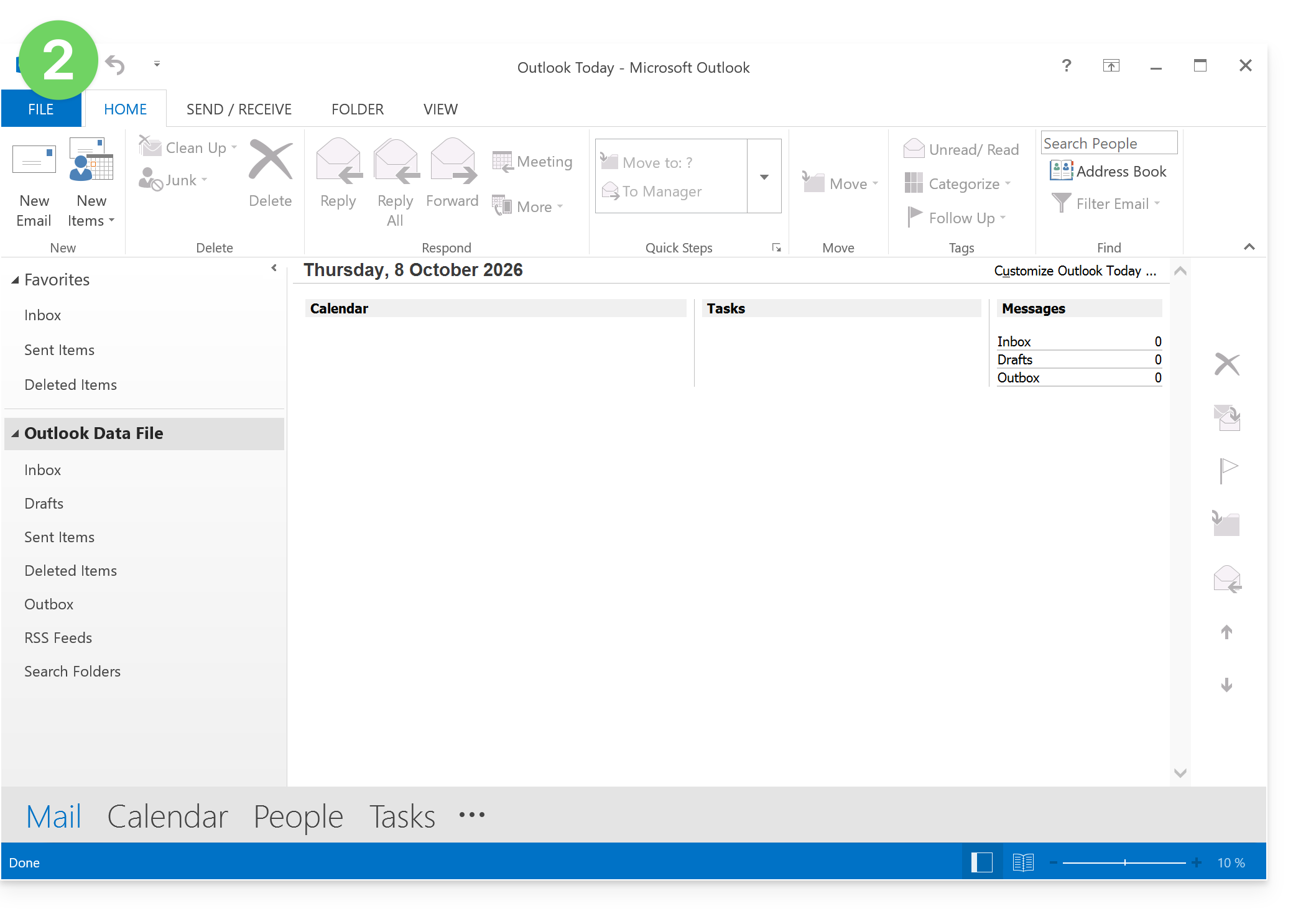
- Click on the File menu:
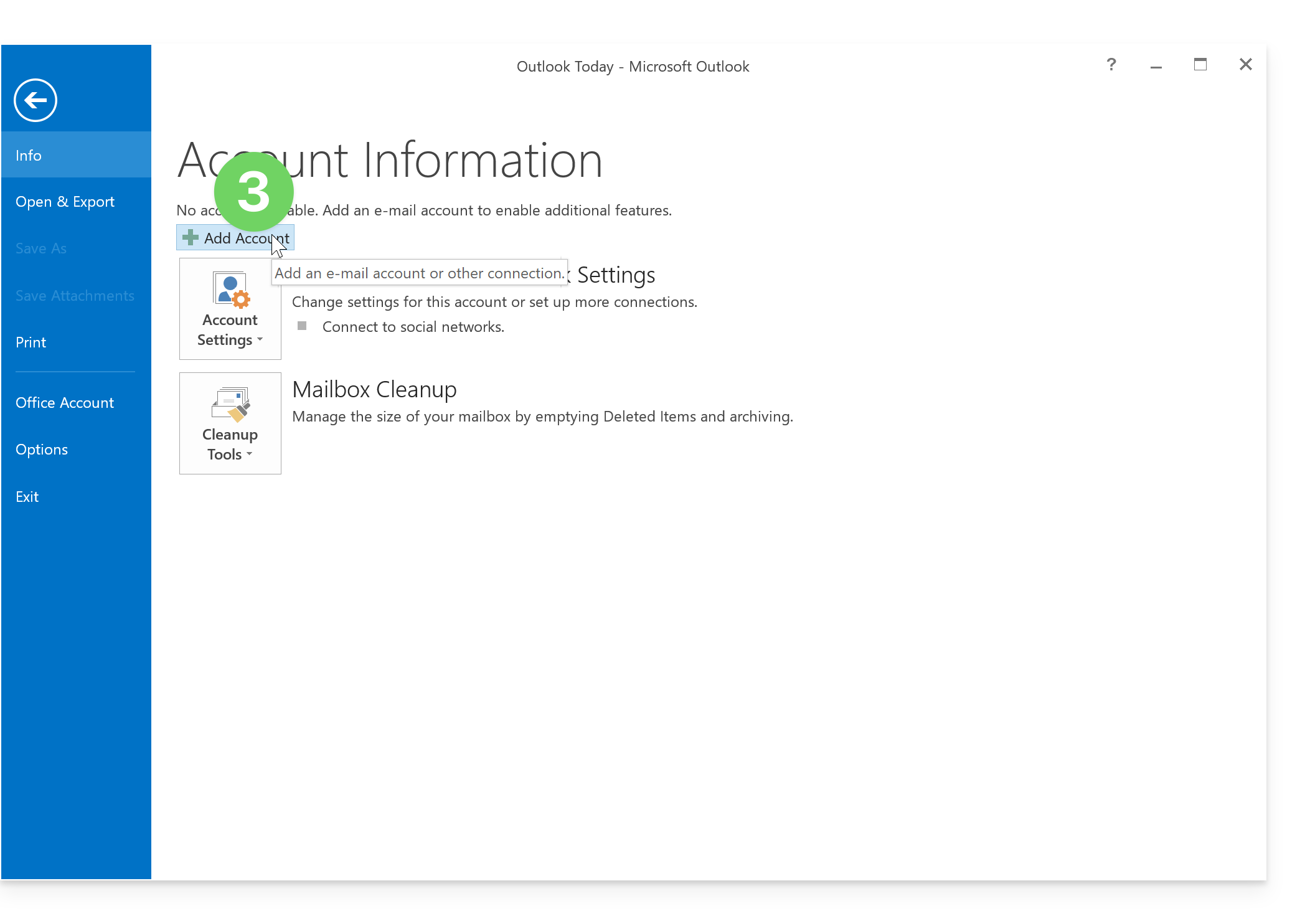
- Click on Add an account:
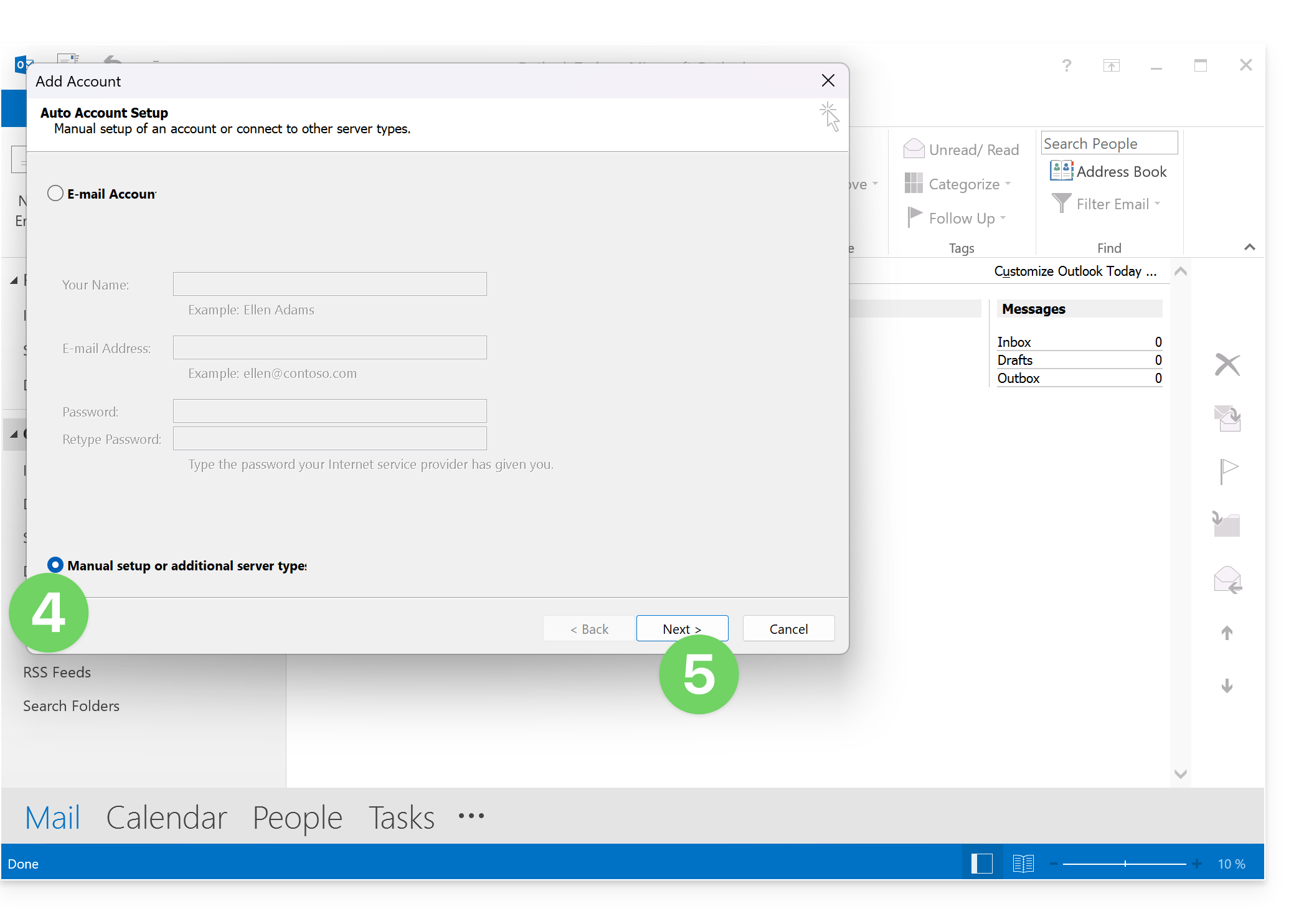
- Click on Manual configuration.
- Click on Next:
- Click on POP / IMAP.
- Click on Next:
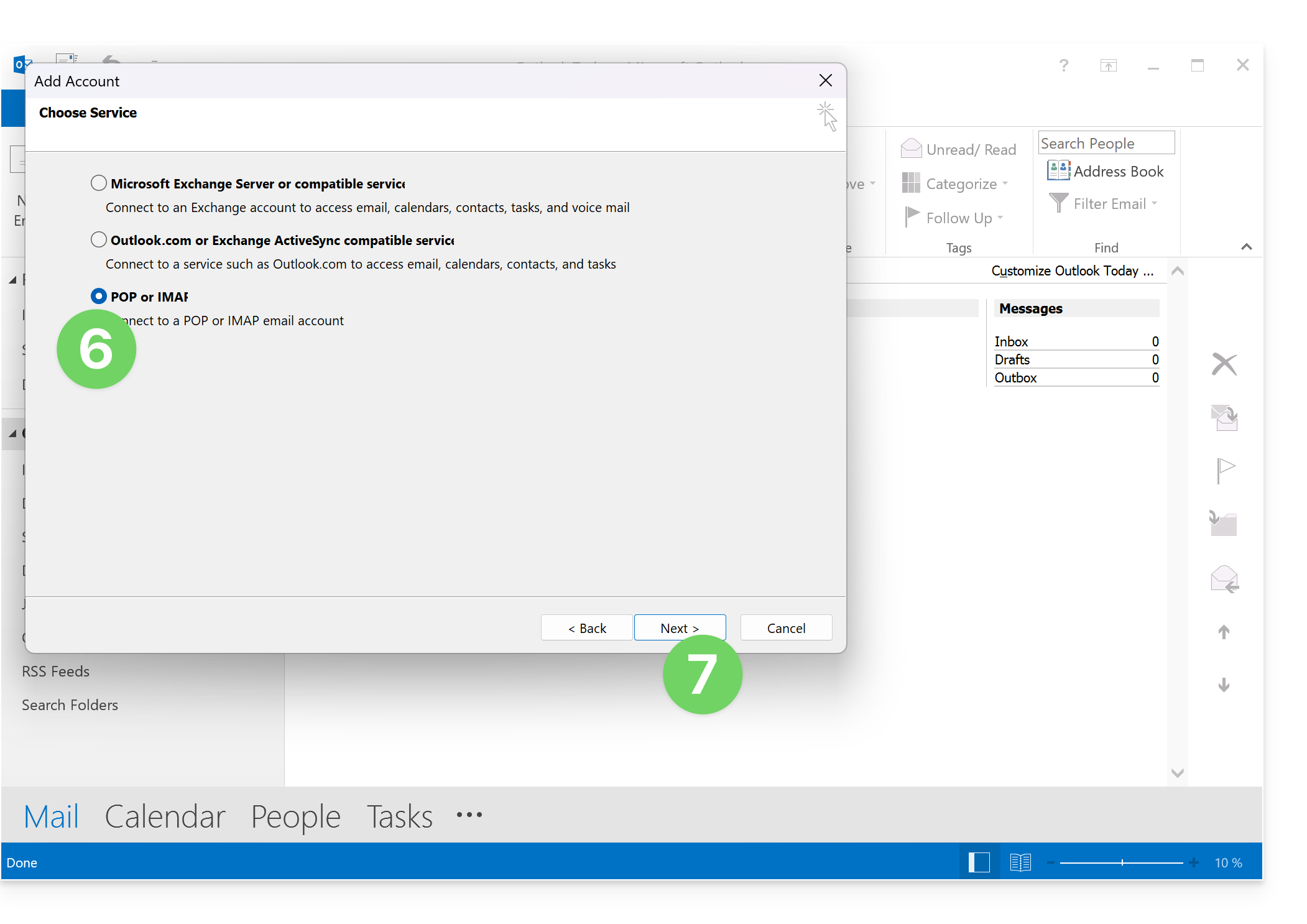
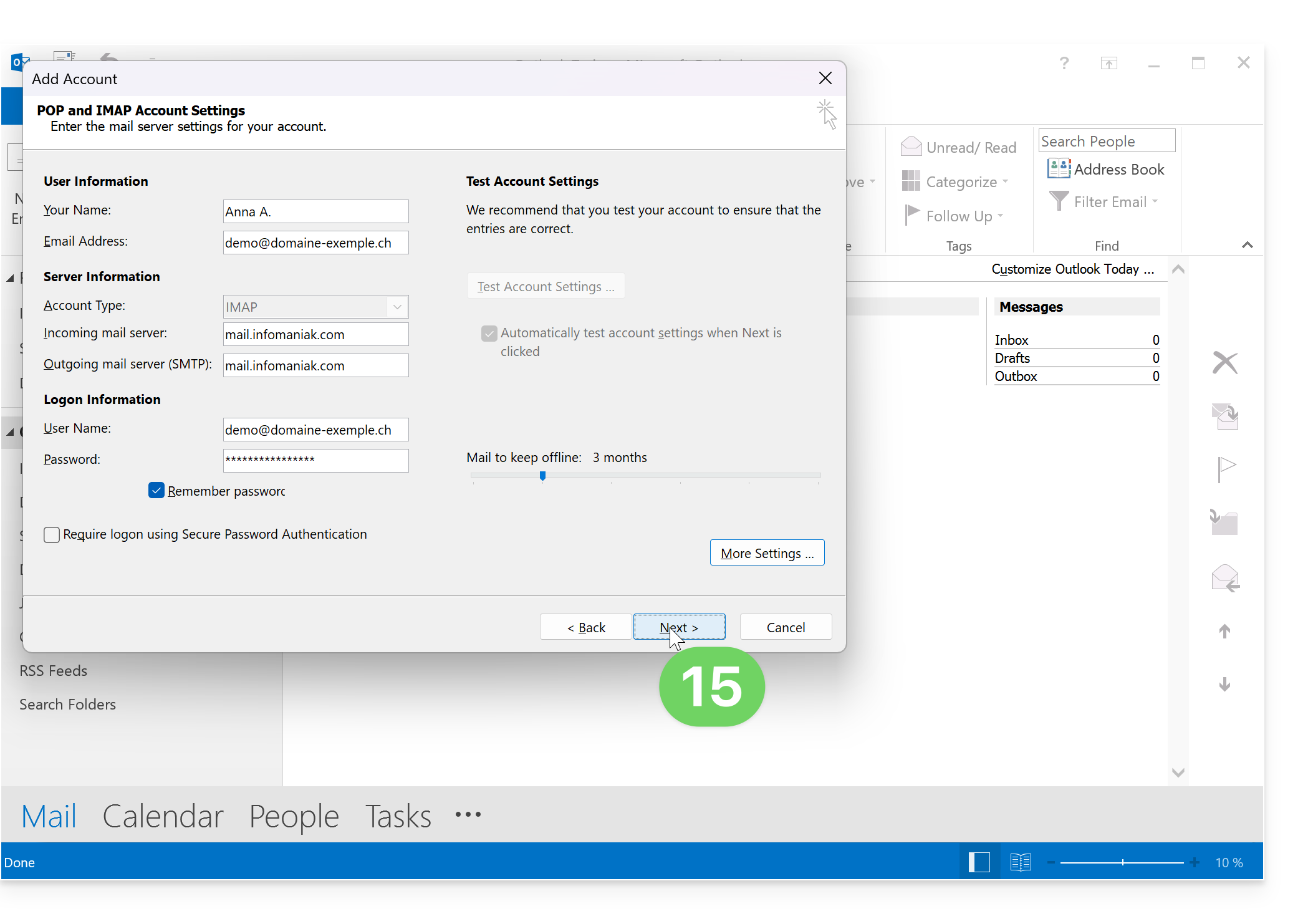
- Check and complete any missing information (❓: help).
- Click on Additional settings:
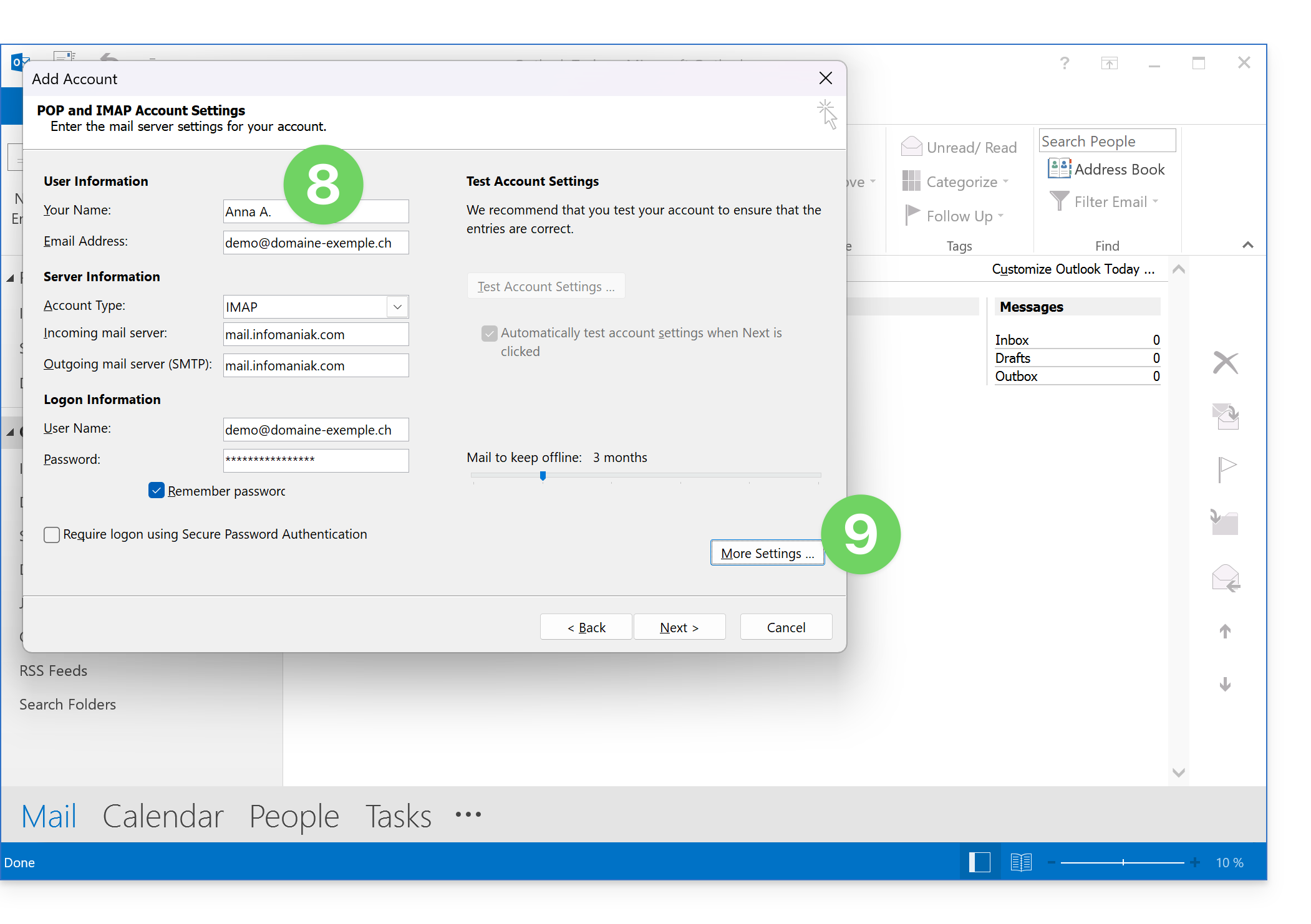
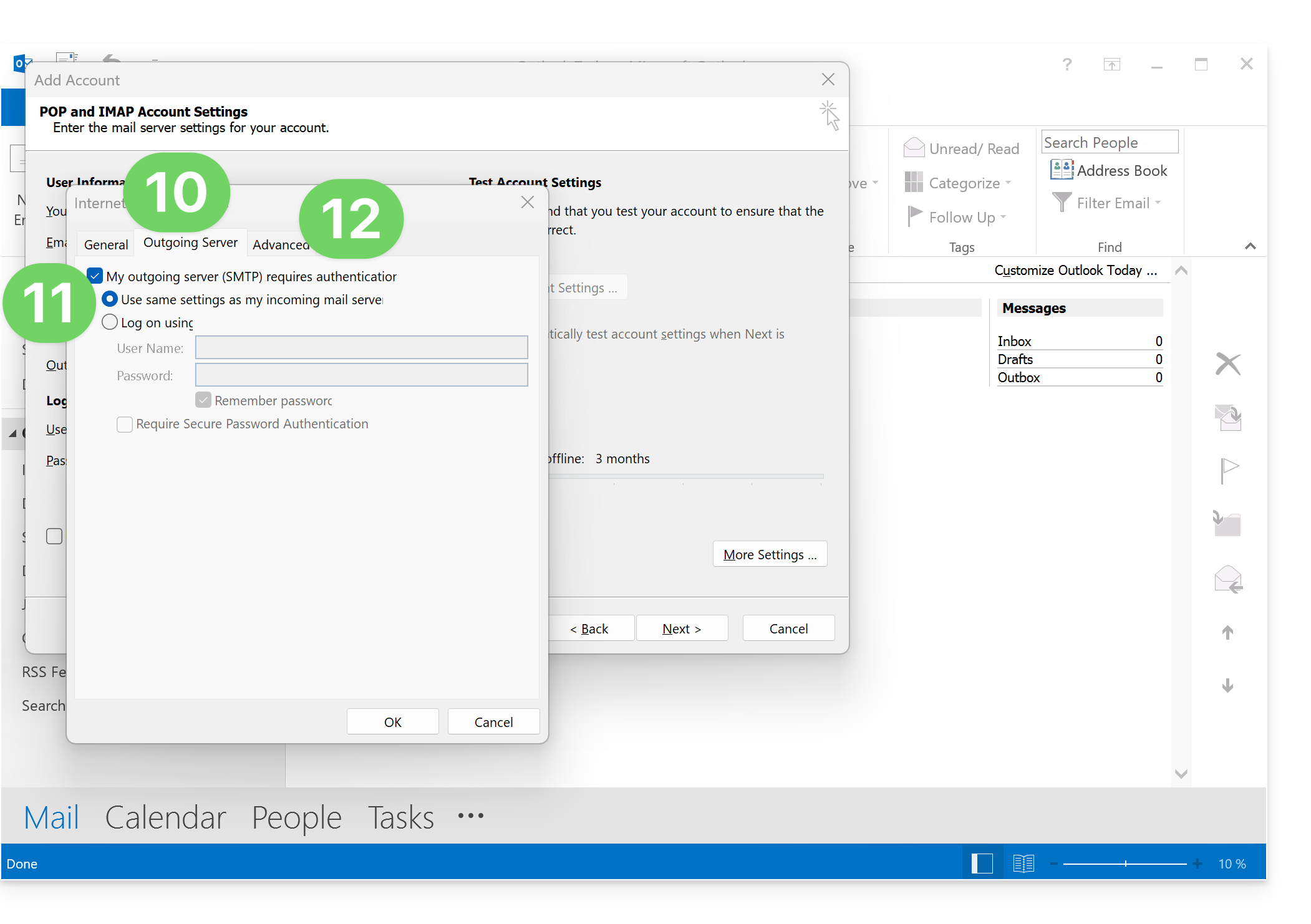
- Click on the Outgoing server tab.
- Click on My outgoing server requires authentication.
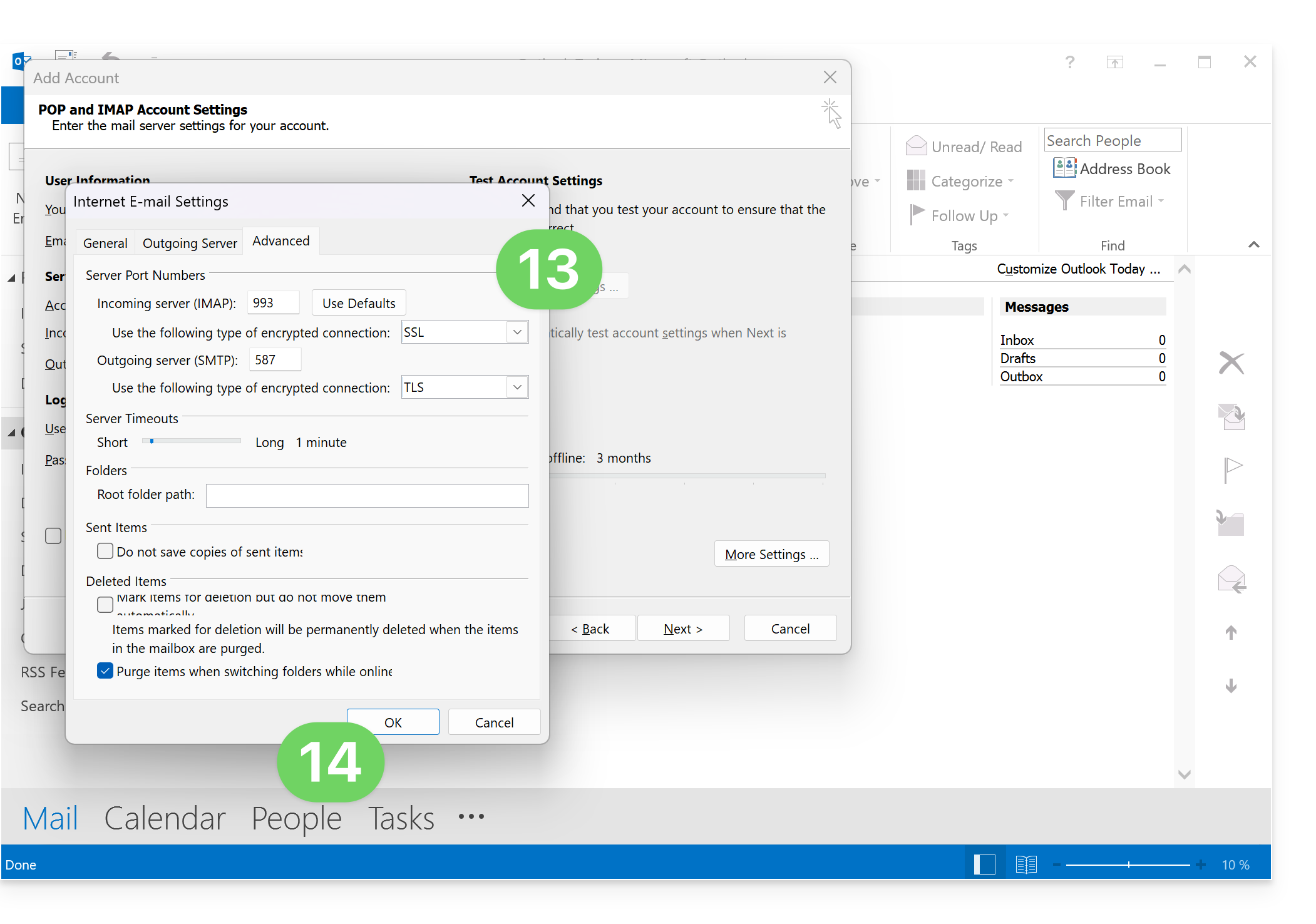
- Click on the Advanced tab:
- Replace the port number with the correct information and enable SSL.
- Click OK:
- Click on Next:
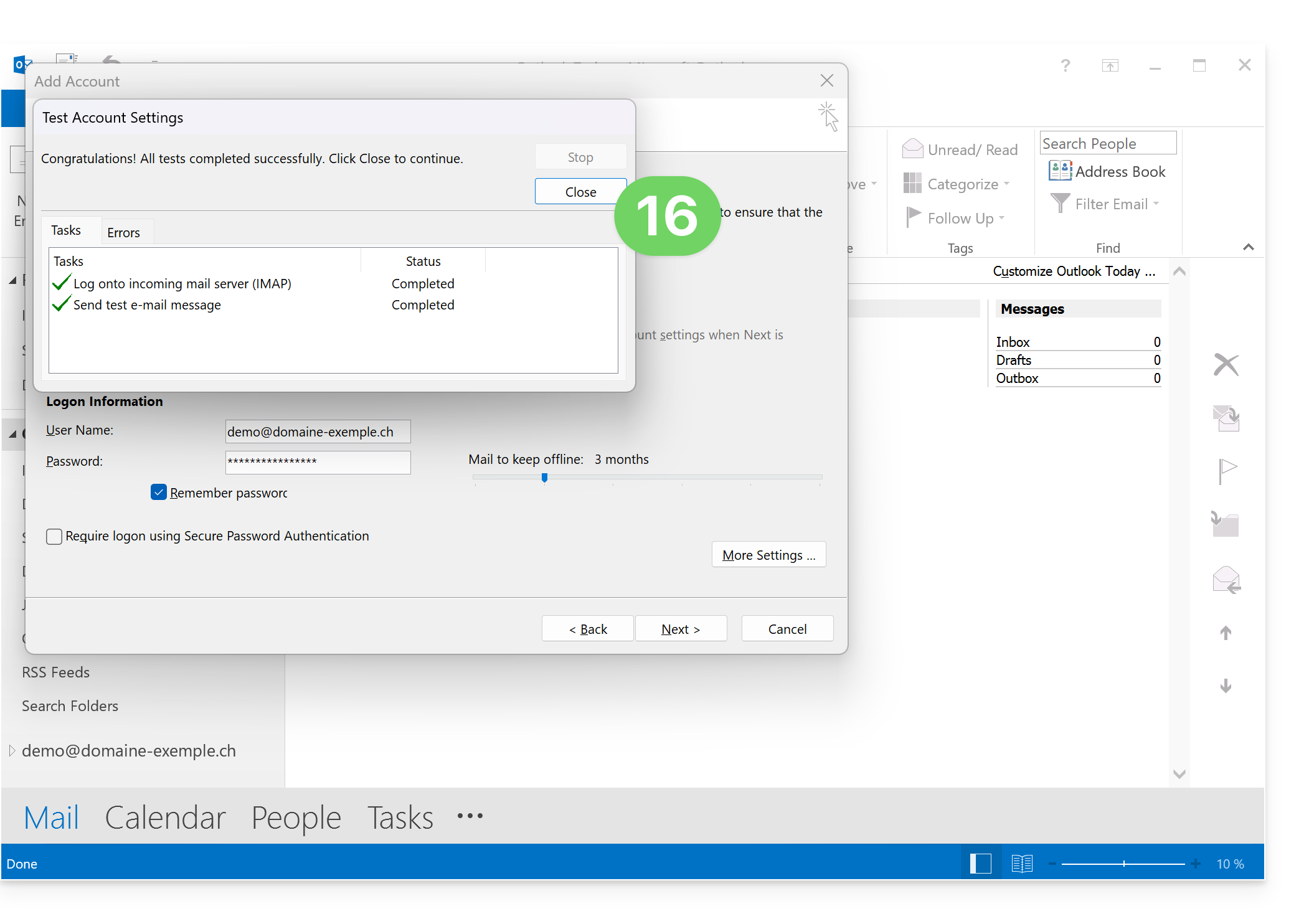
- Click on Close:
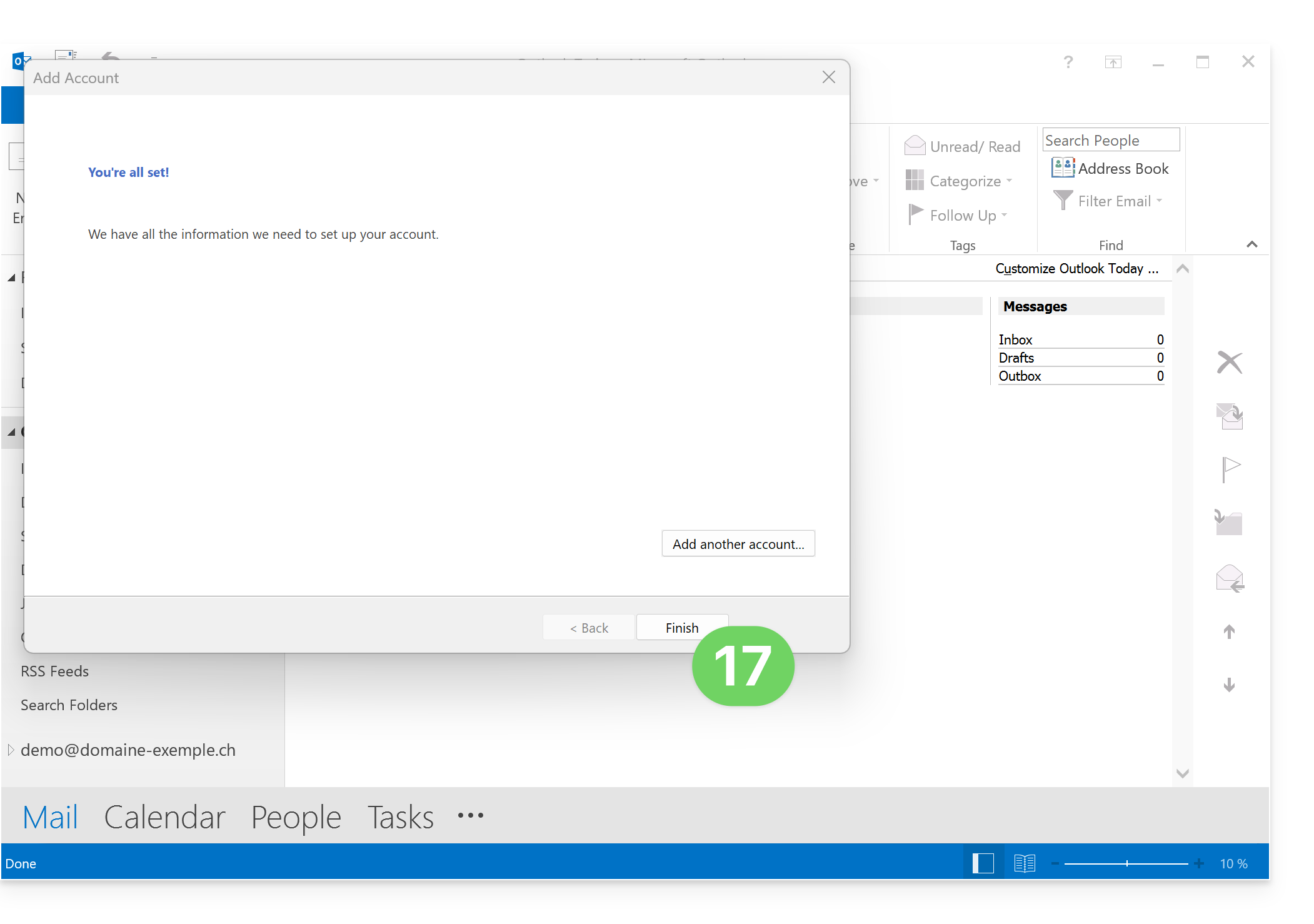
- Click on Finish:
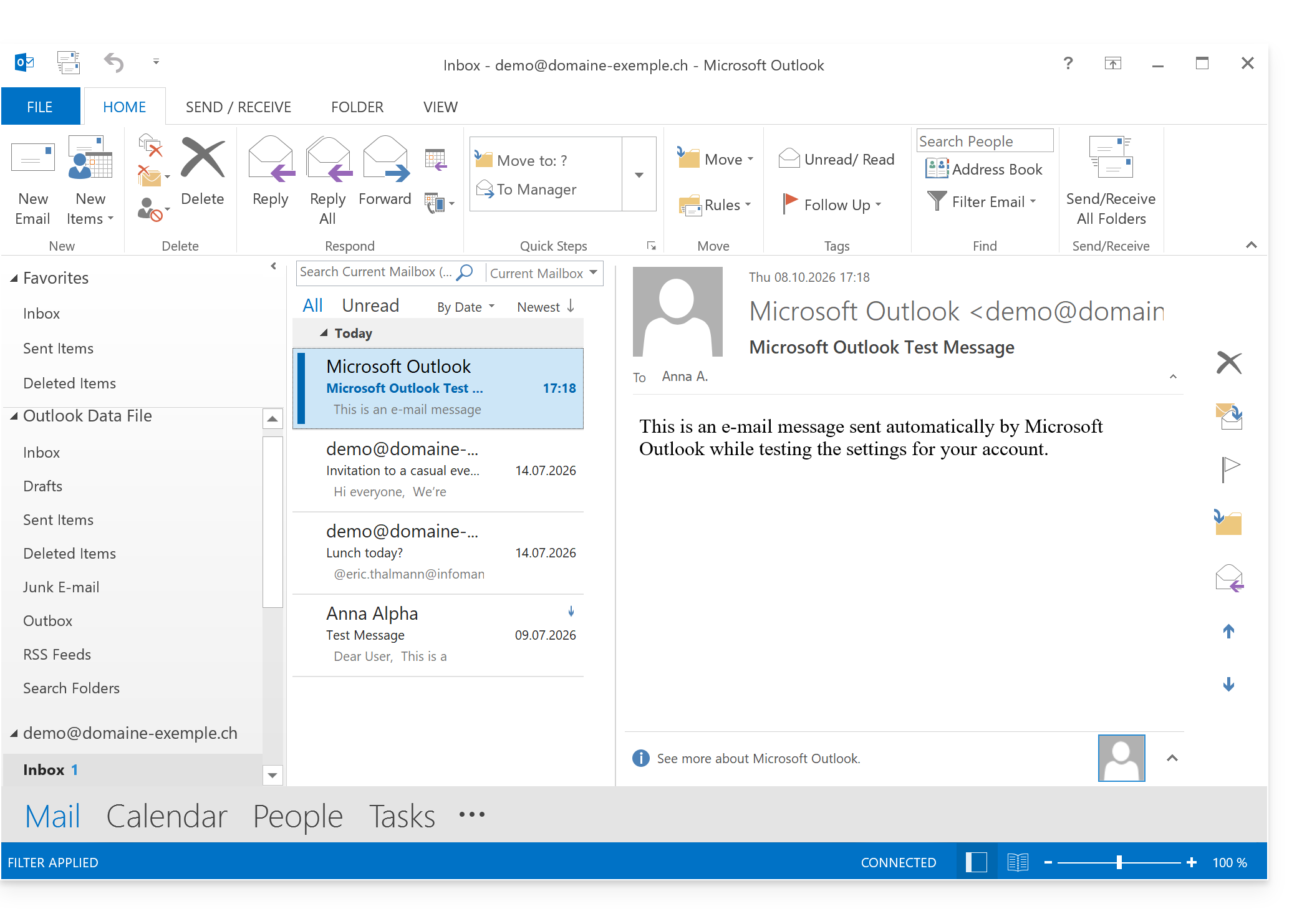
- That's it, your email address is now configured in the application:
Recommended settings
- Incoming IMAP server =
mail.infomaniak.com - IMAP port =
993(with SSL) - Outgoing SMTP server =
mail.infomaniak.com - SMTP port & encryption protocol and command/method to activate this protocol:
587+ STARTTLS - Username = the complete email address & (❓: help).
- Password = the password generated for the email address you want to access (❓: help my kSuite | Mail/kSuite Service).
- Mandatory authentication for sending emails:
- Enable it in the SMTP settings of your application.
- Check "use the same settings as the incoming server" or, depending on the software/email client, enter a username (= complete email address) and the generated password.
Refer to this other guide if you are looking for information about other email ports and protocols that are supported (SSL / TLS, for example).
In case of a problem
Ensure that the Mail service is configured optimally (❓: help).
It is not necessary to contact Infomaniak Support if your email address works correctly outside the application. The most common error concerns the use of an incorrect password. The troubleshooting guides will help you resolve any potential issues:
- Consult the solutions provided in this other guide regarding email in general.
- This other guide focuses specifically on Outlook.
… and if your Outlook is no longer working after a change of email password, please refer to this other guide.
Link to this FAQ: https://faq.infomaniak.com/1796
Has this FAQ been helpful?
This guide explains how to manage and modify user permissions (assigning an additional password, setting up an alias, etc. – see below for the complete list) for an Infomaniak user, so that they can manage more or fewer configuration elements in the Infomaniak Mail web app (online service ksuite.infomaniak.com/mail).
Introduction
- The email address is first created within a Mail Service and can then be used within one or more Infomaniak Mail interfaces by one or more users.
- The creator (or manager) of the address may want to limit the possible actions for one or the other of the users who will use the email address.
- This granular permission management can be done when creating an address or later, and you can also define what the default permissions should be, which will always be applied.
List of user mail permissions
When you view the users with access to a specific email addresswithin a Mail service, a column allows you to quickly identify the type of permissions granted to the user: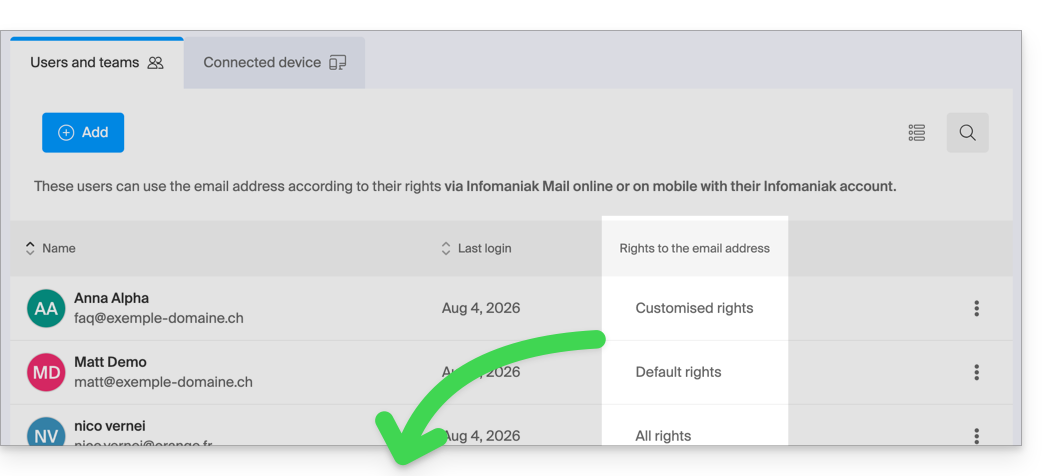
“All rights” is displayed when the user has all possible permissions.
“Default rights” is displayed when the permissions are identical to those specified in the global configuration.
“Custom rights” is displayed as soon as the permissions are not all granted and are different from the default template (global configuration).
Click on the indication to access the user's permission management, detailed below:
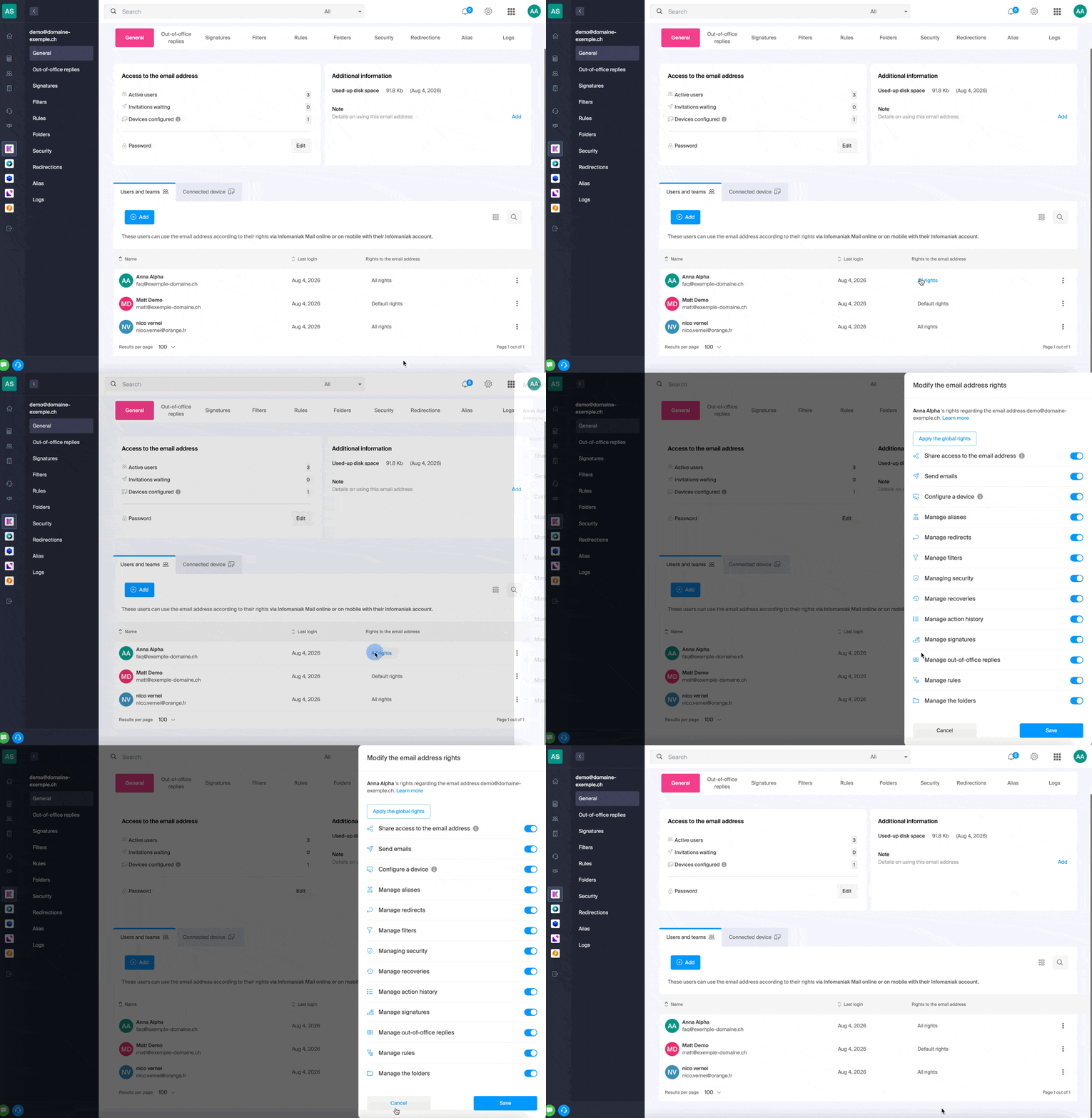
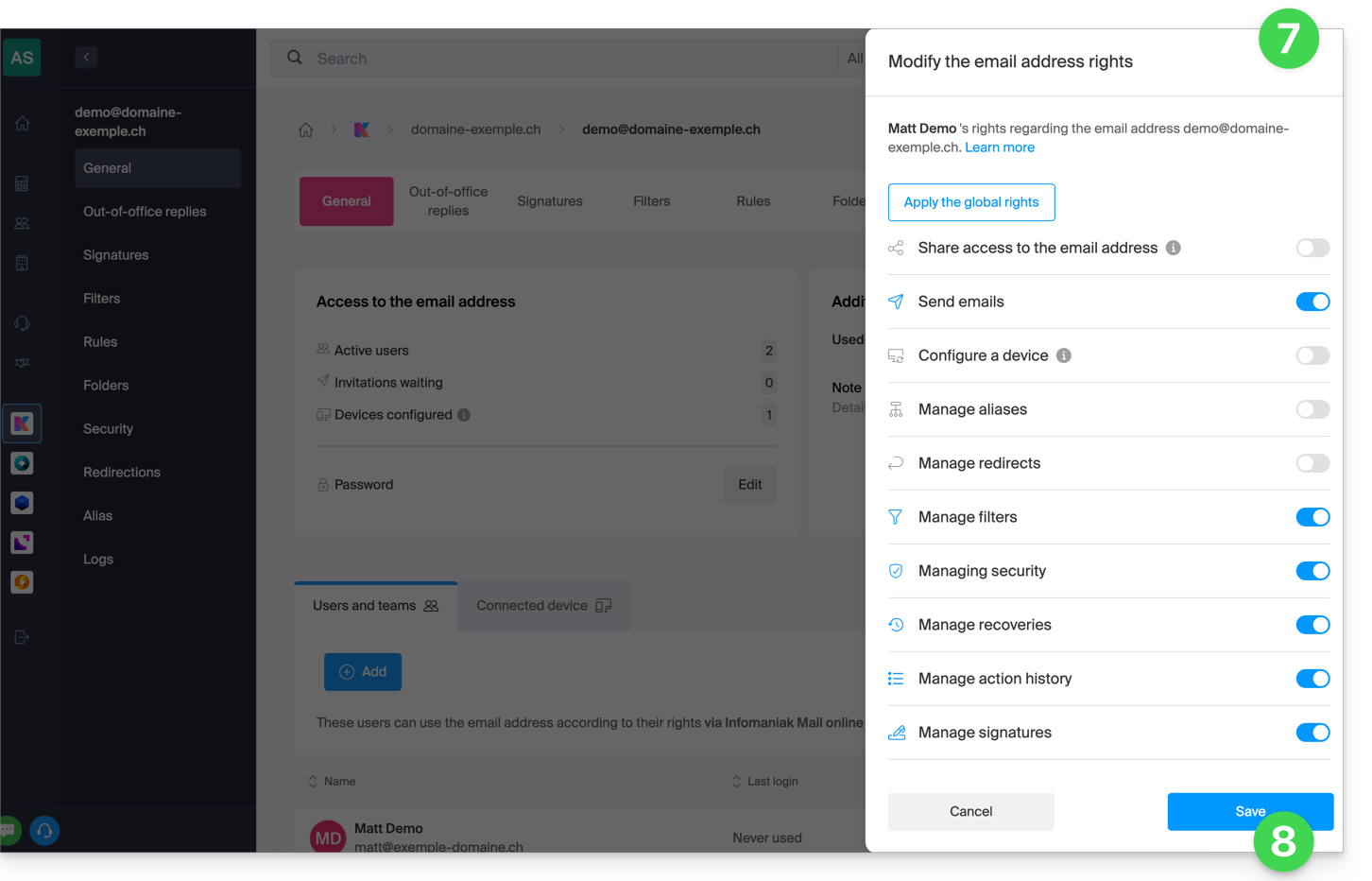
Simply click on the corresponding toggle switch to enable or disable the specific permission. Here is the list:
| Type / Icon | Description of the permission granted to the user |
|---|---|
| Share access to the email address | Manage users (ability to delegate mail access to another user in the Organisation) |
| Configure a device | Manage devices (ability to create a dedicated password) |
| Manage voicemail | Create an automatic reply (e.g., configure an out-of-office message) |
| Manage signatures | Add signatures and manage reply email addresses |
| Manage forwarding | Forward emails to one or more other addresses |
| Manage aliases | Create variations of your email address (by changing what comes before the @) |
| Manage the action history | Access the logs for the email address |
| Manage restores | Access backups and restores |
| Manage filters | Access SPAM and other filters |
| Manage rules | Automatically sort and categorize new incoming emails |
| Manage folders | Customize IMAP folders |
| Manage security | Manage blocked and approved addresses |
| Manage email sending | Enable sending emails (allow global SMTP) |
Manage permissions granted to a user
You may be asked for your Infomaniak account login password to make changes to permissions.
… from the Mail Service
- Click here to access the Mail Service management in your Infomaniak Manager (❓: help).
- Click on the name of the Mail Service in question.
- Click on the email address in question in the table that appears.
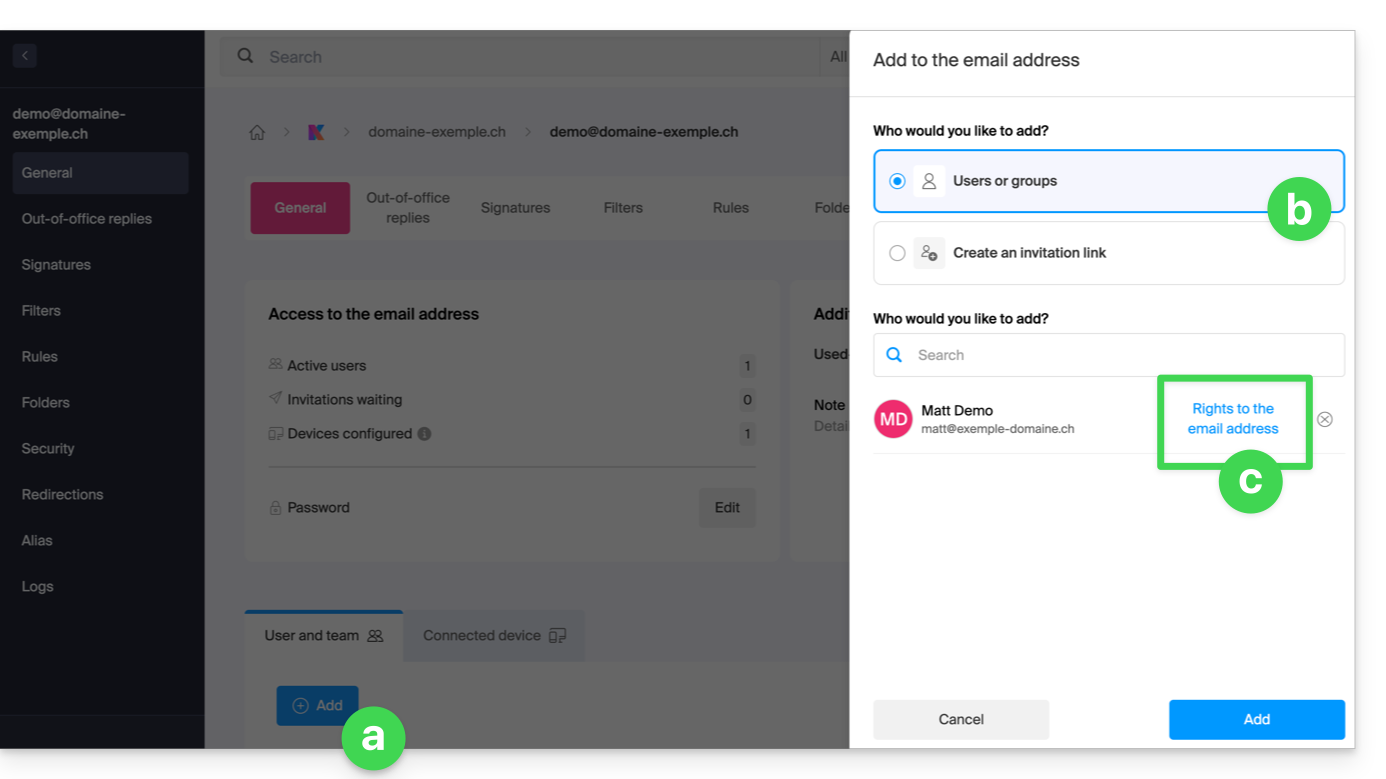
- There are several ways to modify the permissions of an email address:
- When adding a user to an email address:
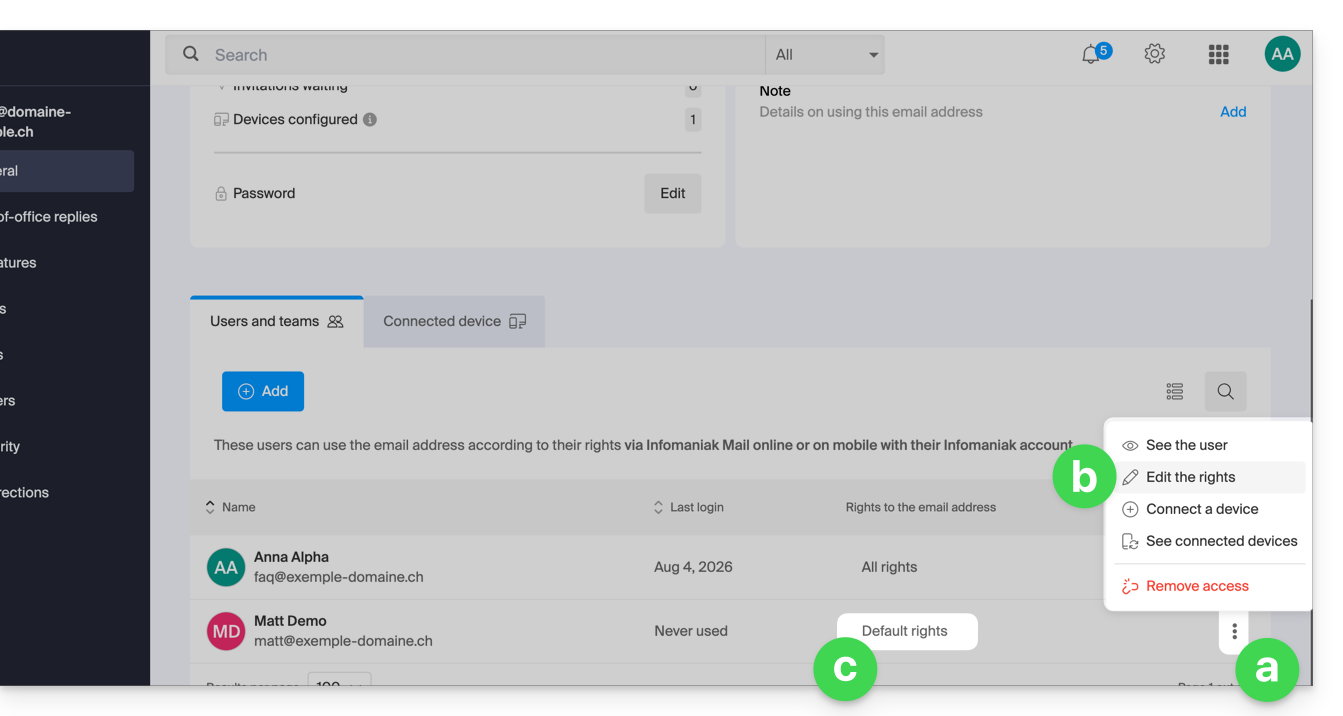
- Once the user has been added:
- Click on the action menu ⋮ located to the right of the user's name for the email address.
- Select ✎ Edit permissions.
- Or click directly on the indication regarding their permissions:
- When adding a user to an email address:
… from the Manager (user management)
- Click here to access user management in the Infomaniak Manager (need help?).
- Click on the relevant user in the table that appears.
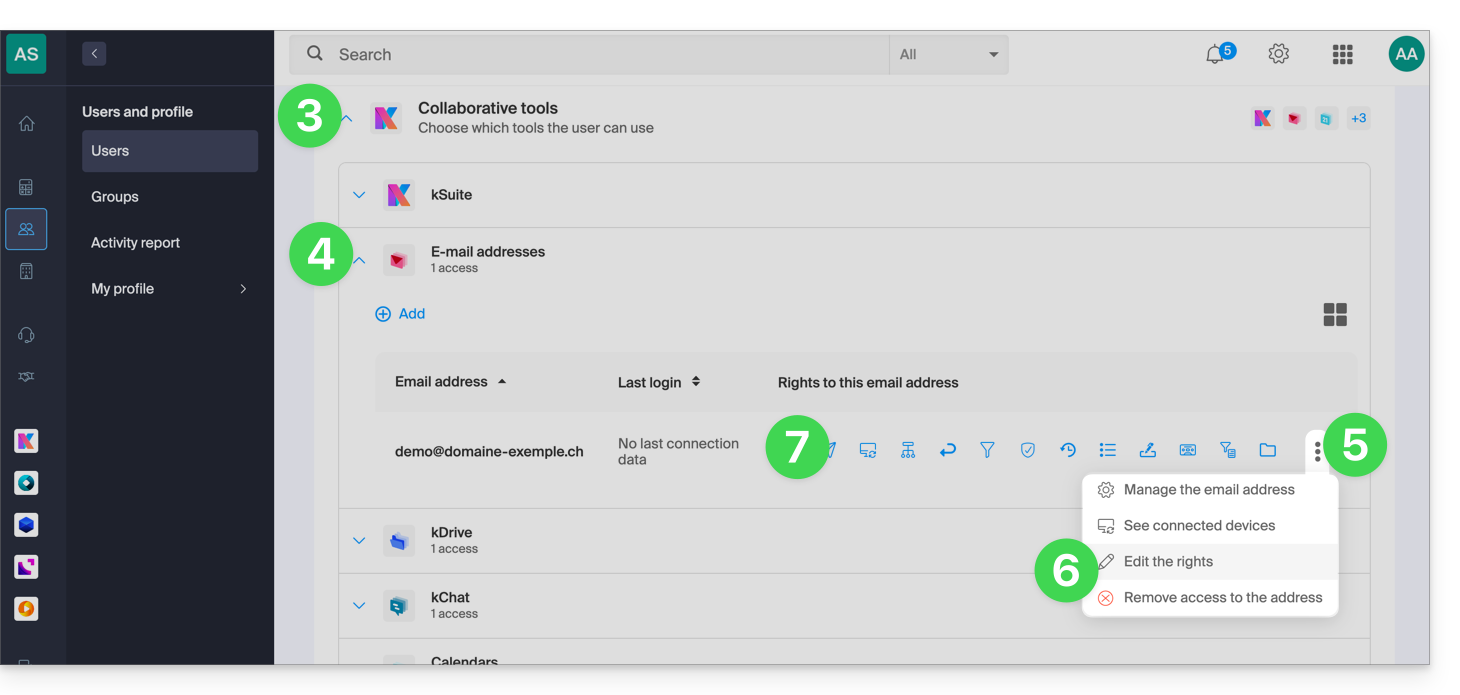
- Expand the collaborative tools section by clicking on the chevron .
- Expand the section displaying the email addresses accessible to the user by clicking on the chevron .
- Click on the action menu ⋮ located to the right of the email address in question.
- Select Edit permissions.
- Or click directly on the icons visible in the table:
… from the Web Mail app
- Click here to access your emails on your Infomaniak kSuite (❓: help).
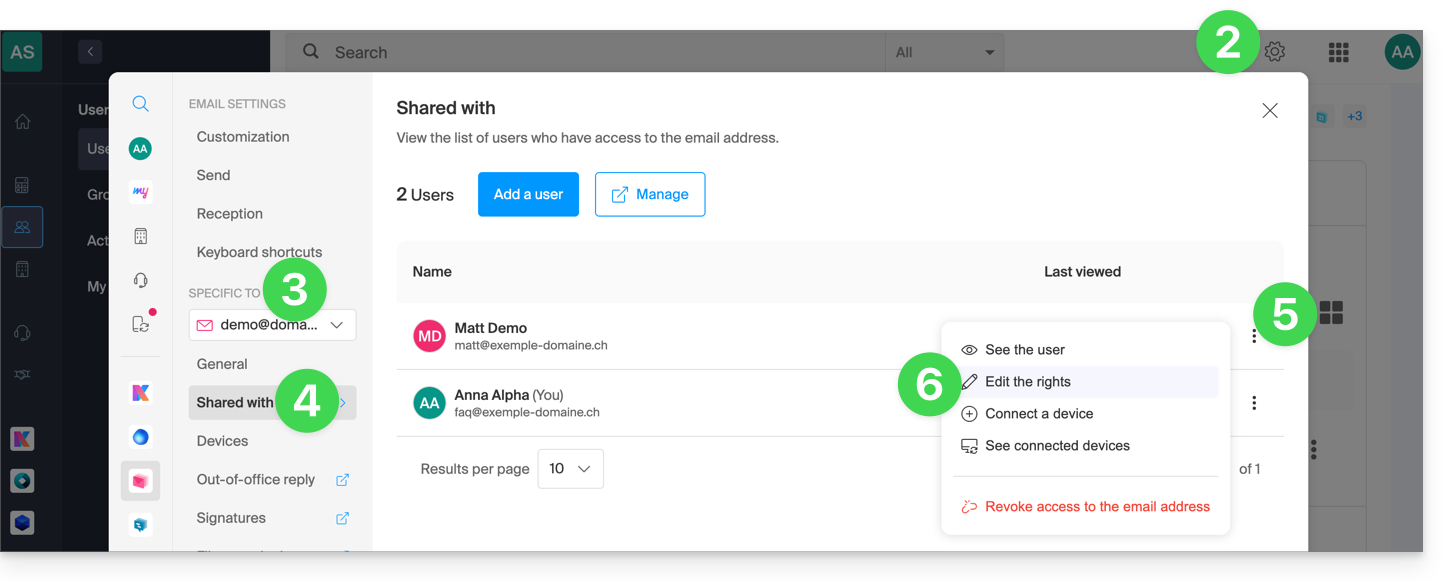
- Click on Settings in the top right corner.
- Check or select the relevant email address from the dropdown menu in the left sidebar.
- Click on Shared with.
- Click on the action menu ⋮ located to the right of the email address user name.
- Select ✎ Edit permissions:
- You will be redirected to the settings for your email address in the Mail service, and more specifically to the permissions section for the user in question.
- Adjust the permissions and save at the bottom of the page:
Result for the user
The user whose permissions are revoked will no longer see certain corresponding menus in their email address settings.
For certain features, even if the menu is still accessible, some buttons will be inoperative or grayed out: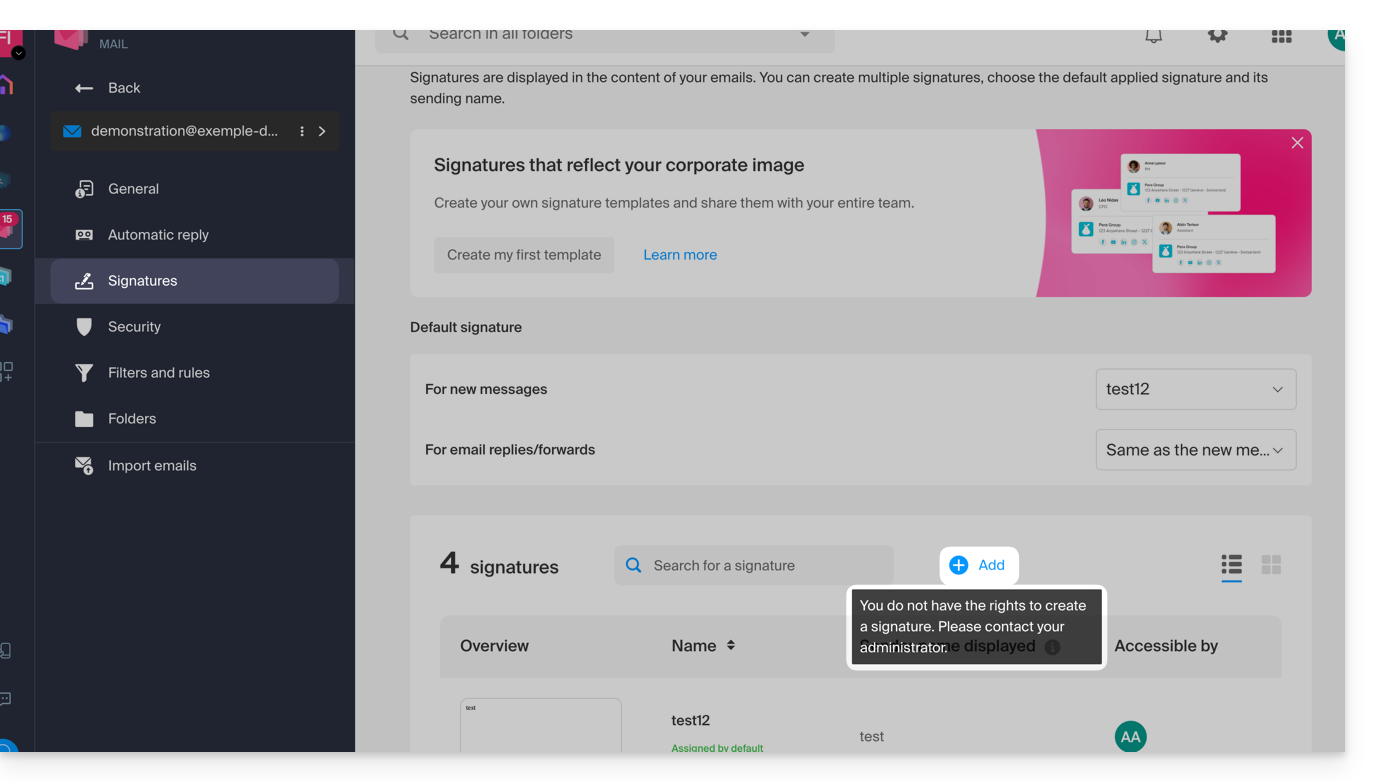
Link to this FAQ: https://faq.infomaniak.com/1811
Has this FAQ been helpful?
This guide explains how to troubleshoot access or usage issues with kDrive on Windows and macOS when third-party software may be interfering with your synchronization.
Introduction
- The kDrive application may sometimes encounter interaction issues with Windows or macOS firewalls, as well as with certain antivirus, VPN, or cleanup solutions, which can lead to file synchronization difficulties, prevent PDFs from opening on the web, or make it impossible to use Lite Sync mode (on-demand files).
- It is necessary toallow kDrive within these applications and add the following three essential components to the whitelist:
kdrive.exe(orkdrive.appon macOS)kdrive_client.exe- The domain
*.infomaniakusercontent.com
- If you are experiencing a synchronization issue and missing folders, please refer to this other guide.
Avast
To do this:
- Open the Avast interface.
- Go to Menu > Settings.
- Under the General tab, click on Exceptions.
- Click on Add an exception and enter the domain:
https://*.infomaniakusercontent.com/* - Go to the File paths tab to add the kDrive executables (
kdrive.exe,kdrive_client.exeorkdrive.app).
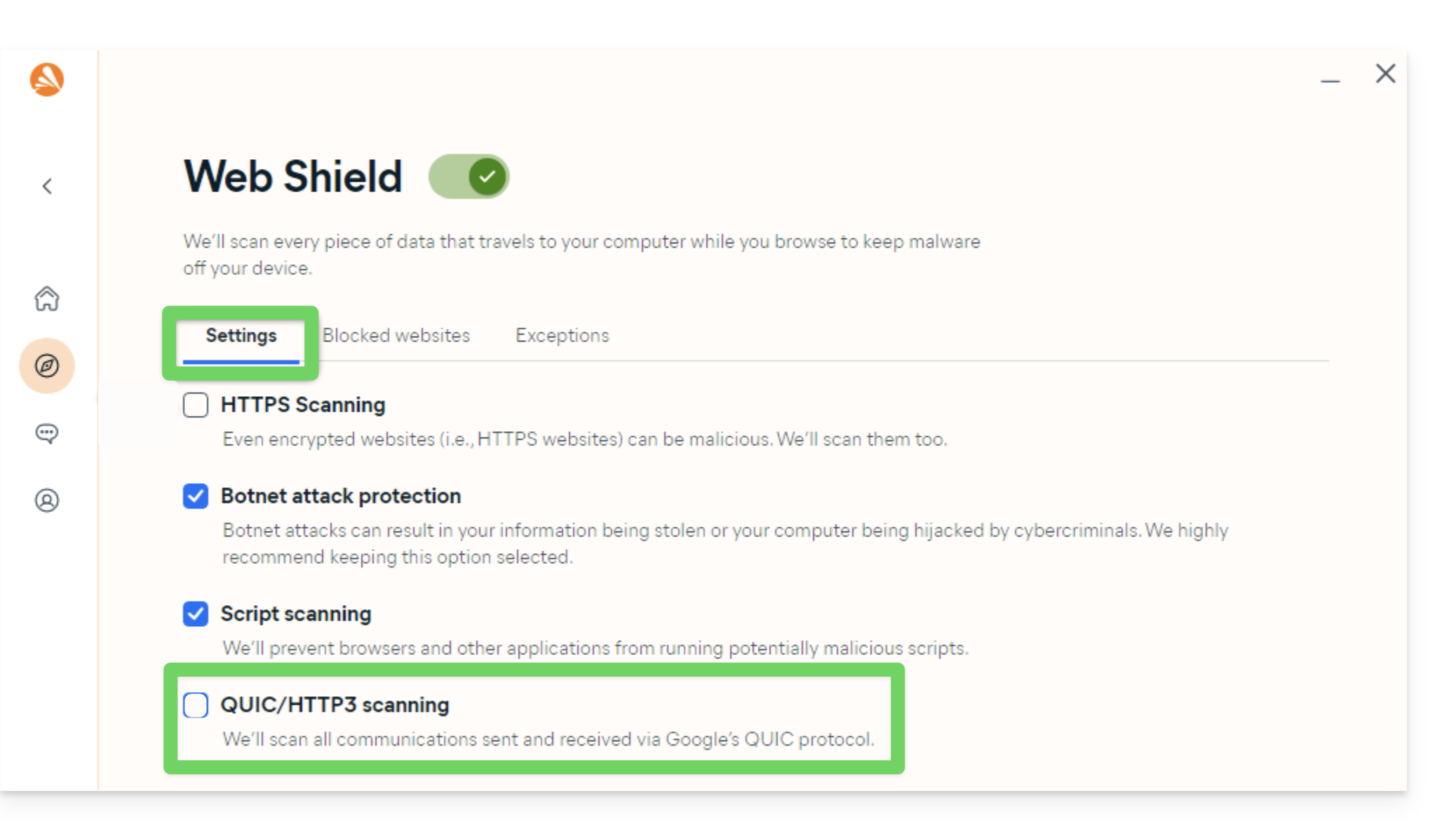
An additional action is recommended on Avast to prevent any blocking (especially when opening PDFs):
- Disable QUIC/HTTP3 scanning (refer to the official documentation under the Windows PC tab):
AVG
Refer to the official AVG documentation.
- Open AVG Antivirus.
- Go to Menu > Settings > General > Exceptions.
- Click on Add an exception and enter the domain
https://*.infomaniakusercontent.com/*. - Also, add the paths to the kDrive executables (
kdrive.exeandkdrive_client.exeorkdrive.app).
Avira
Consult the official Avira documentation.
- Right-click on the Avira icon and temporarily disable the protection.
- Go to Settings > PC Protection > Scan > Exceptions.
- Add the kDrive executable files (
kdrive.exe,kdrive_client.exe, orkdrive.app). - Repeat the operation in Real-time Protection > Exceptions.
- In the Web Protection section, add the domain
*.infomaniakusercontent.comto the list of allowed URLs.
Bitdefender
Consult the official Bitdefender documentation.
- Open Bitdefender and go to Protection > Online Threat Prevention > Settings.
- Click on Manage exceptions and add the domain
*.infomaniakusercontent.com(check the online prevention option). - If you are using the TrafficLight browser extension, also add this domain to its whitelist.
- To exclude kDrive executable files (
kdrive.exe,kdrive_client.exe, orkdrive.app), go to Protection > Antivirus > Settings > Manage exceptions.
CCleaner
Refer to the official CCleaner documentation.
- Open CCleaner and go to Options > Exclude.
- Click Add and select the kDrive executable files (
kdrive.exe,kdrive_client.exe) or the global installation folder to prevent any cache deletion or process interruption.
CleanMyMac
Refer to the official CleanMyMac (MacPaw) documentation.
- Open CleanMyMac.
- In the analysis results screen, hold down the Ctrl key and click on the items related to kDrive (
kdrive.app). - Select Add to exclusion list.
ESET
Refer to the official ESET documentation.
- Open ESET and press F5 (Advanced settings).
- Go to Antivirus > Exclusions and click Add to insert the paths to the kDrive executables (
kdrive.exe,kdrive_client.exe, orkdrive.app). - Go to Web & Messaging > Web Access Protection > URL Management and add
*.infomaniakusercontent.comto the list of allowed addresses.
Kaspersky
Refer to the official Kaspersky documentation.
- Open Kaspersky and go to Settings > Exclusions and threat management.
- Add the kDrive executable files (
kdrive.exe,kdrive_client.exe, orkdrive.app) to the list of trusted applications. - To resolve web access issues, exclude the
kdrive.infomaniak.comand*.infomaniakusercontent.comdomains from the scan:
- If you experience persistent issues with secure SSL/TLS connections, uncheck the following box:

macOS (firewall)
Refer to the official Apple documentation (macOS Firewall).
- Open System Settings (or System Preferences).
- Click on Privacy and Security.
- Select Firewall.
- Click on the Firewall Options button (enter your administrator password if prompted).
- Click on the Add Application (+) button.
- Select the kDrive application (
kdrive.app) to allow incoming connections. - Click Add, then click OK.
Malwarebytes
Refer to the official Malwarebytes documentation.
- Open Malwarebytes and go to Settings > Allowlist (Exclusions).
- Click Add to Allowlist.
- Select Exclude a file or folder and specify
kdrive.exe,kdrive_client.exe(orkdrive.app). - Select Exclude a website and enter the domain
*.infomaniakusercontent.com.
McAfee
Please refer to the official McAfee documentation.
- Open McAfee and go to Settings (gear icon) > Real-Time Scanning.
- Under Excluded Files, add the kDrive executable files (
kdrive.exeandkdrive_client.exeorkdrive.app). - In the Firewall / Web Protection section, add the domain
*.infomaniakusercontent.comto the list of allowed web addresses.
NordVPN
Consult the official NordVPN documentation (Threat Protection).
- Open NordVPN.
- Access the Pro Threat Protection feature (
Threat Protection). - Check the list of blocked files or activities to authorize the kDrive application (
kdrive.exe,kdrive_client.exeorkdrive.app). - Add the domain
*.infomaniakusercontent.comto the list of authorized domains in the Anti-Threat Protection settings. - If the active VPN interferes with local synchronization, configure Split Tunneling to exclude the kDrive application from the VPN tunnel.
Norton
Refer to the official Norton documentation.
- Open Norton and go to Settings > Antivirus > Scans and risks.
- In Exclusions / Low Risks, configure the "URLs to exclude from the scan" and add
*.infomaniakusercontent.com. - To exclude executable files (
kdrive.exe,kdrive_client.exe, orkdrive.app), configure the Security Scan Exclusions and Auto-Protect Exclusions sections.
Windows (firewall)
Learn about the official Microsoft documentation (Windows Firewall).
- Open the Start menu and click on Settings.
- In the search field, enter Firewall.
- Click on Allow an app through Windows Firewall.
- Click on the Edit settings button.
- Check the boxes next to the kDrive applications (
kdrive.exeandkdrive_client.exe). If they are not in the list, click on Allow another application... to browse and add them. - Check the boxes under the network types (Private and Public) and then click OK.
Windows Defender
Consult the official Microsoft documentation (Windows Security).
- Open Windows Security from the notification area or the Start menu.
- Select Virus & threat protection.
- Under *Virus & threat protection settings*, click Manage settings.
- Scroll down to Exclusions and click Add or remove exclusions.
- Click on Add an exclusion and select the files or folders from kDrive (
kdrive.exeandkdrive_client.exe).
Link to this FAQ: https://faq.infomaniak.com/1822
Has this FAQ been helpful?
This guide explains how to use the meeting scheduling assistant in the Infomaniak Calendar web app (online service ksuite.infomaniak.com/calendar) to schedule a meeting between several users.
Introduction
- Scheduling is limited to 7 days with the following plans:
- kSuite Free
- my kSuite (ik.me, etik.com, ikmail.com)
- Mail Starter service
- You can also access the feature while reading an email.
- To easily create and configure a new event, refer to this other guide.
- To instead suggest a meeting to several guests who can then vote, refer to this other guide.
Schedule a meeting for later
To create a new shared event using the scheduling assistant:
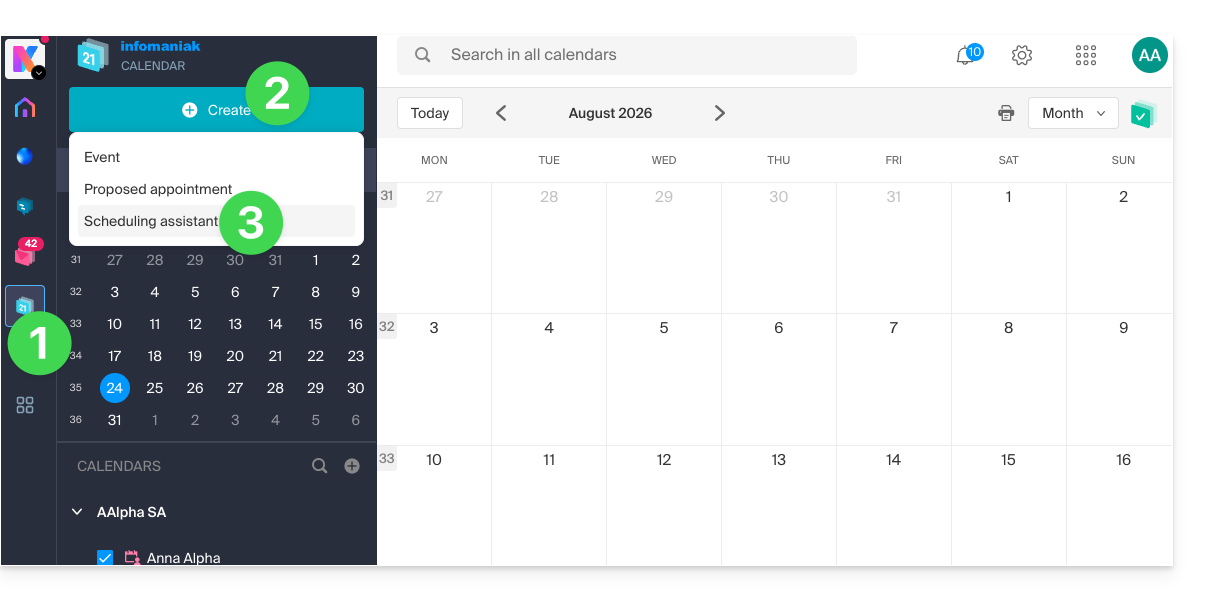
- Click here to access the Infomaniak Calendar web app (online service ksuite.infomaniak.com/calendar).
- Click the Create button in the upper left corner.
- Click on Scheduling Assistant:
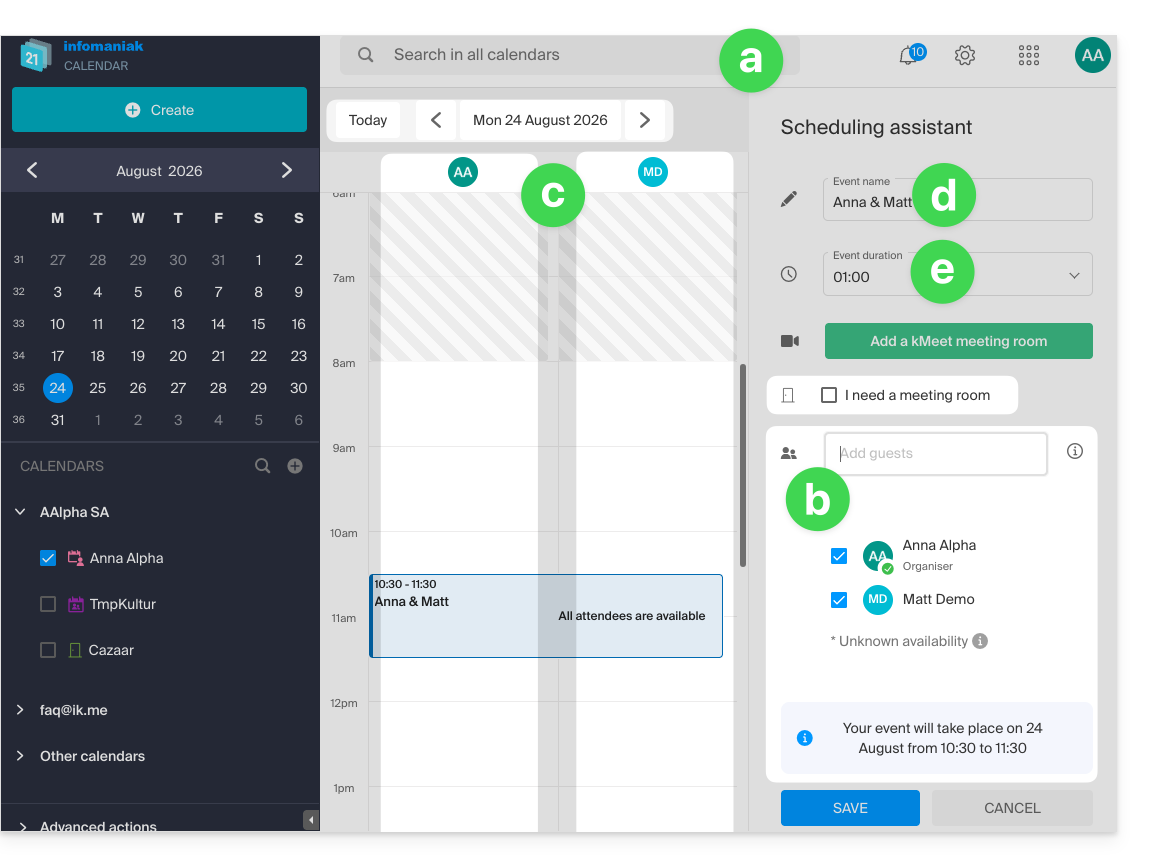
- The assistant appears on the right side of the screen, while the left side allows you to choose the day of the event.
- The principle, when you add one or more participants, is to automatically find the best time to schedule a meeting between several users in the Organization.
- Participants can be added, up to a maximum of 25.
- To do this, each person's availability (based on their schedule and the settings defined in the calendar preferences) is displayed in columns, including a column for the availability of a meeting room if available (an available room is automatically selected on the right, but it can be changed).
- The meeting title is automatically generated, but it can be modified.
- The duration of the event (and its position within the day) can be modified, including on the left side using the mouse cursor:
- Save your preferences using the button at the bottom of the page to create the event and the invitations.
Link to this FAQ: https://faq.infomaniak.com/1862
Has this FAQ been helpful?
This guide explains how to copy data within the kDrive desktop app (desktop application on macOS / Windows / Linux) from one kDrive to which your Infomaniak user has access to another kDrive to which the same Infomaniak user has access.
Introduction
- To be able to use multiple Organizations, you must have been added to them and have been granted access to the respective kDrives.
- For example, if the user
abc@domain.xyzhas a kDrive called "ABC" within their Organization "ABC" and is invited to the Organization "VWX", which grants them access to the kDrive "VWX", they will see 2 kDrives on ksuite.infomaniak.com/kdrive and will be able to send data from one to the other in one click.
- For example, if the user
- Without being a user of multiple Organizations, it is also possible to copy data, but only by importing the entire kDrive, without being able to choose specific data: to import all the data contained on another of your kDrives at once, refer to this other guide and choose kDrive at step 7.
Copy data between multiple kDrives
To copy a folder or file to another kDrive that you have access to from the same user account:
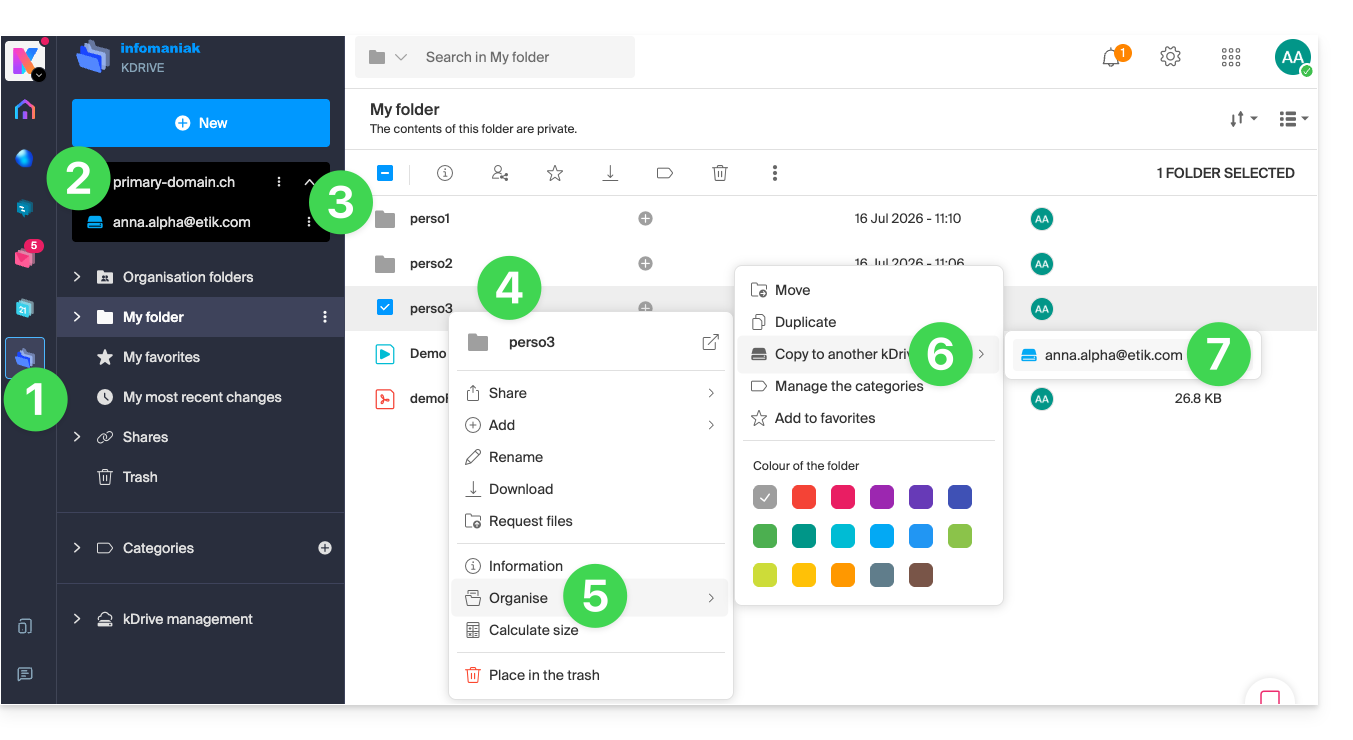
- Click here to access the Infomaniak kDrive web app (online service ksuite.infomaniak.com/kdrive).
- Check or select the relevant kDrive from the dropdown menu in the left-hand menu.
- If necessary, select the other kDrive from which you want to copy files.
- Right-click or click on the action menu ⋮ to the right of the folder or file you want to copy to the other kDrive.
- Click on Organize.
- Click on Copy to another kDrive.
- Choose the kDrive in question from the list displayed in this same drop-down menu:
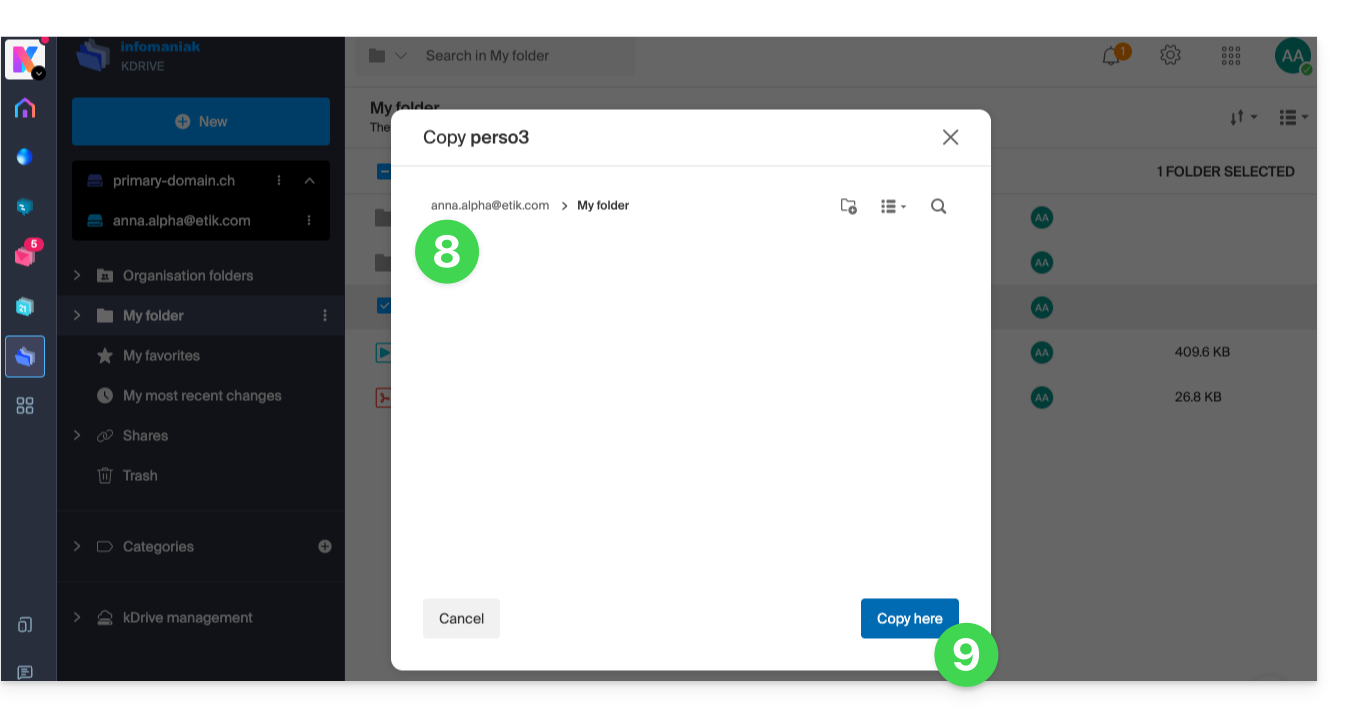
- Choose the destination location (knowing that the shared folder ("Organization Folders") cannot receive files or folders at its root, but you can create a subfolder using the appropriate icon if the user has the necessary permissions).
- Click the blue button to start the copy process:
The copy process is not instantaneous; please wait several minutes!
Link to this FAQ: https://faq.infomaniak.com/1908
Has this FAQ been helpful?
This guide explains how to enable two-factor authentication to secure your Infomaniak account login (and therefore access to kSuite tools, hosting, etc.).
Introduction
- This two-step verification, also known as multi-factor/two-factor authentication (2FA), protects access to your Infomaniak account by:
- your chosen password
- and a second identity verification method, such as a code obtained on your mobile device.
- If a malicious person were to decipher or steal your password, they would still need a validation code that only the legitimate user can obtain on their mobile device.
- Refer to this other guide if you are an administrator of an Organization and want to enforce 2FA for all users who have not yet activated it.
- You do not need to contact Infomaniak, as we do not have any of your codes or passwords.
- For any assistance regarding 2FA, please refer to this other guide.
Enable two-factor authentication
To increase the security level of your Infomaniak account:
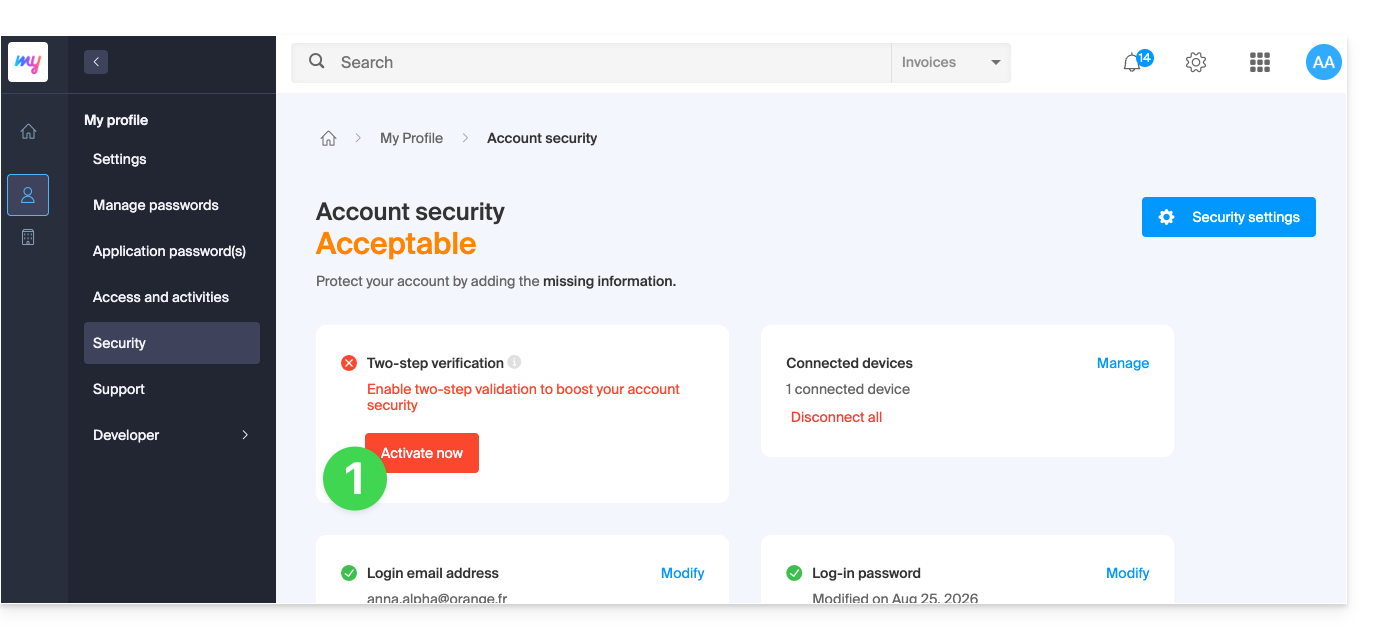
- Click here to log in and access the two-factor authentication management in the Infomaniak Manager:
- Once logged in, you can choose a 2FA method:
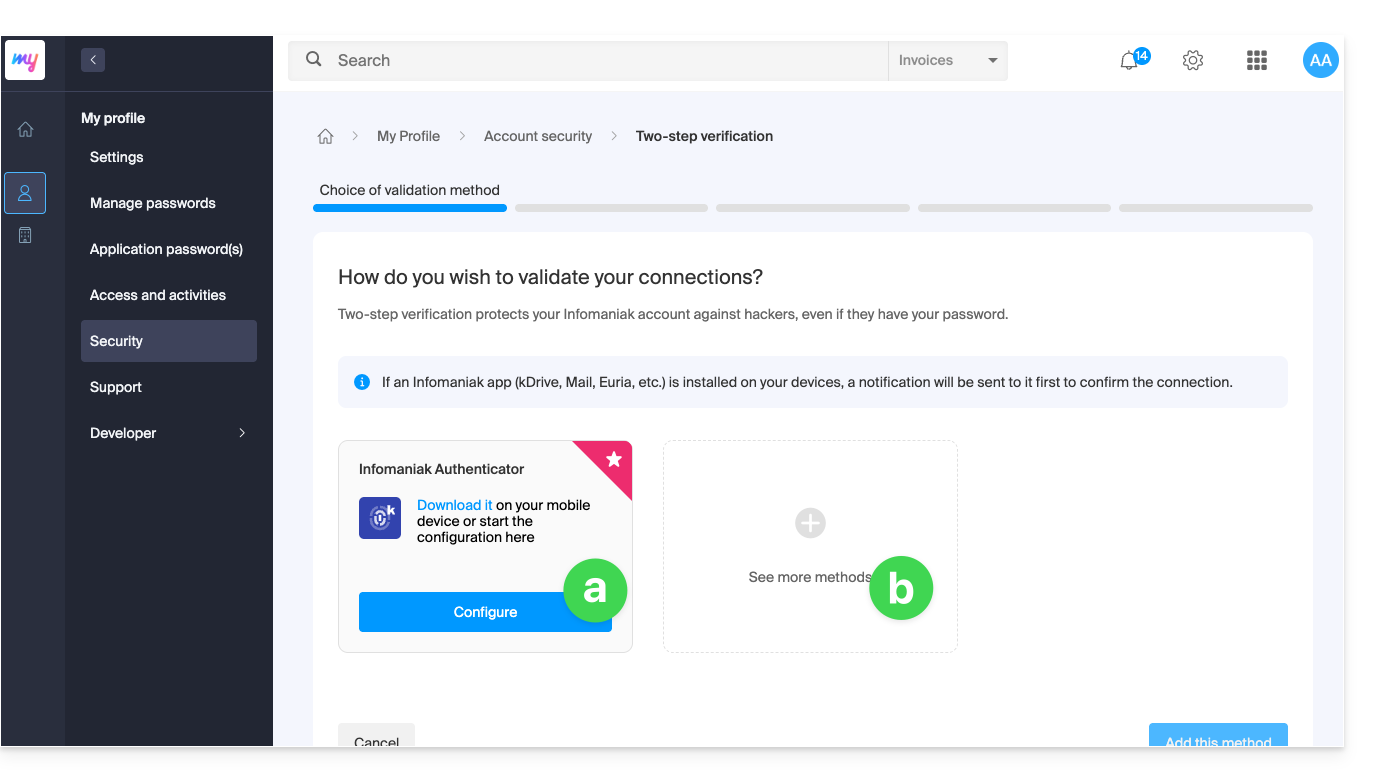
- the Infomaniak Authenticator app for iOS / Android devices (refer to this other guide for more information),
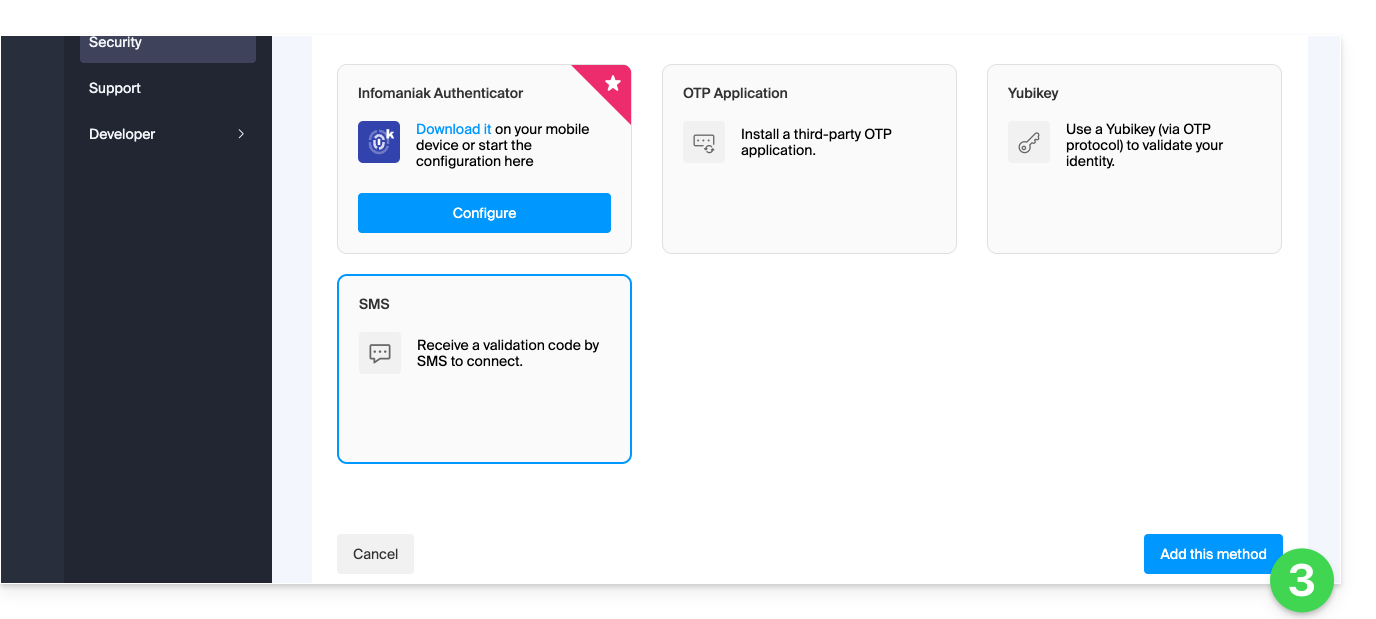
- another method from the following:
- any OTP application (such as Authy, for example) to obtain a one-time use code,
- YubiKey (from Yubico); refer to this other guide for more information,
- SMS (only for CH / FR / BE / DE countries) to obtain a one-time use code.
- Click the button to configure the selected alternative method:
- Follow the on-screen instructions to complete the configuration.
Be mindful of existing synchronizations
Once two-factor authentication is enabled, some synchronization tools, such as those using CardDAV or CalDAV protocols, require an application password to replace the previous password and continue connecting directly at regular intervals.
Email services are not affected because the IMAP, POP, and SMTP protocols work with device passwords, which remain the same before and after enabling a two-factor authentication method.
Change the default option or remove one
If you have enabled multiple verification methods (SMS, OTP app, etc.), you can specify which one will be offered by default each time you log in.
Please note, however, that the main, default method will remain the one used for validation within the installed Infomaniak app (Mail, kChat, kDrive, etc.) on your devices.
- Click here to log in and access the two-factor authentication management interface in the Infomaniak Manager.
- Click the button to set it as the default.
- Click the trash can to remove the selected method and prevent it from being offered again (this only works if another method exists):
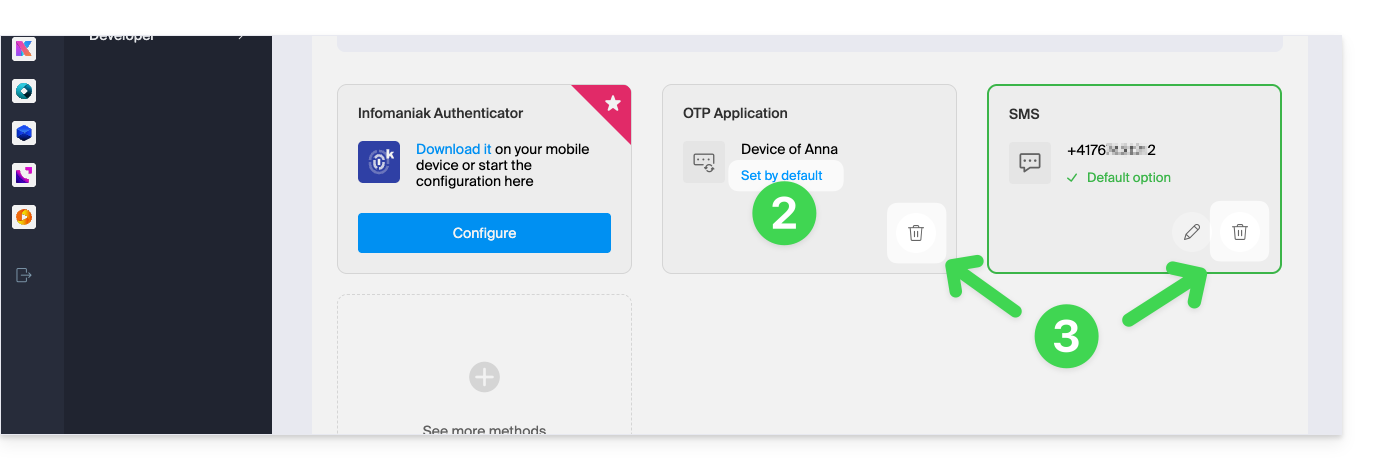
To completely disable 2FA, please refer to this other guide.
Require authentication each time the browser is opened
To prevent cookies from being saved when browser windows are closed, and therefore require authentication each time you access the Infomaniak Manager when you restart the browser…
… on Chrome
In the Google Chrome settings (chrome://settings/content/siteData – paste this into the address bar, or consult the official documentation), specify the address [*.]infomaniak.com: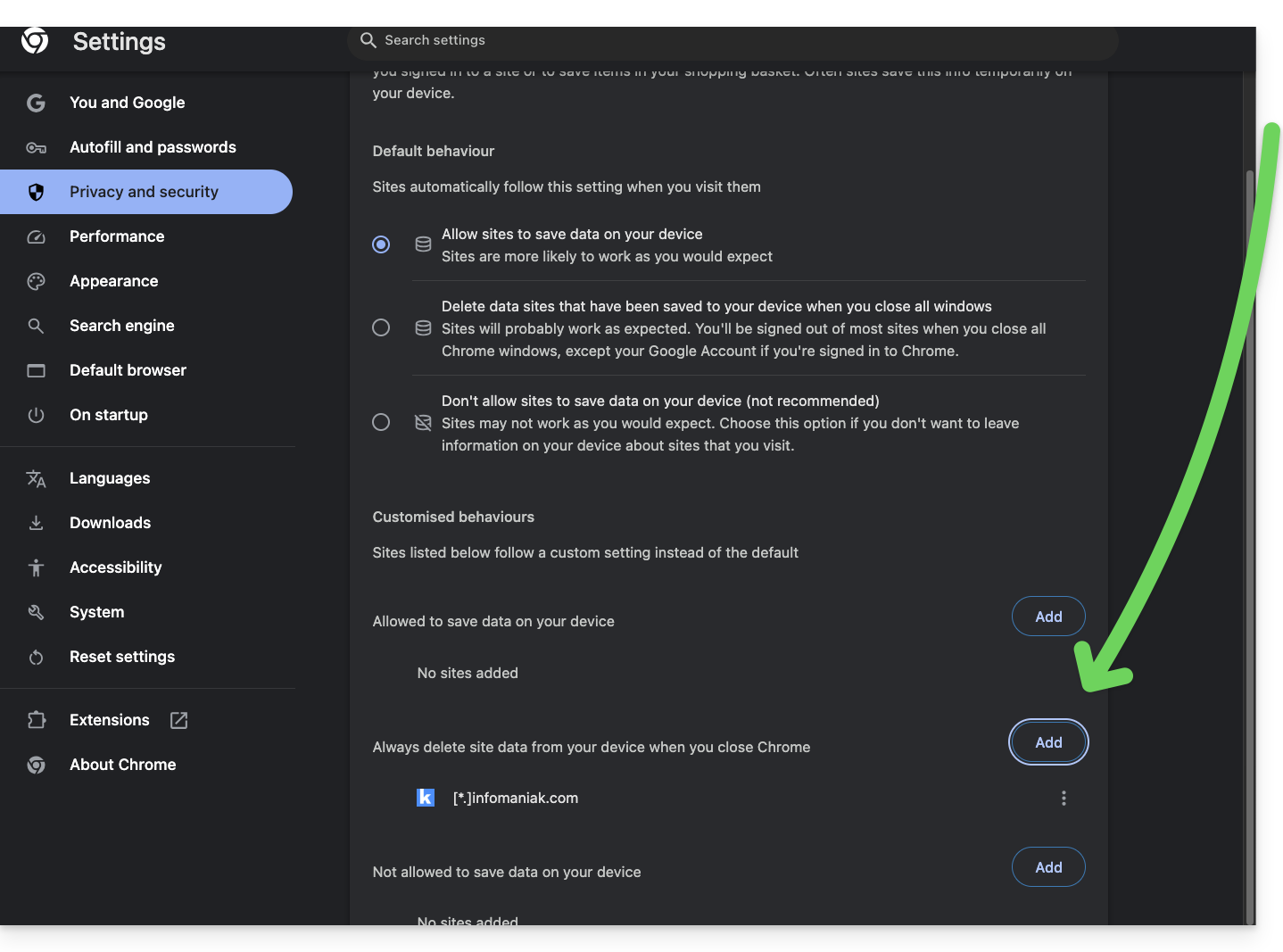
Link to this FAQ: https://faq.infomaniak.com/1940
Has this FAQ been helpful?
This guide explains how to import a calendar into the Infomaniak Calendar web app (online service ksuite.infomaniak.com/calendar).
Introduction
- Consult this other guide if you only want to display an Infomaniak calendar in read-only mode on Google Calendar (web & mobile app).
- Consult this other guide if you prefer to edit events in the calendar from both sides, but only on the mobile version of the Google Calendar app.
- You can also import tasks into the dedicated section of the calendar.
Import a calendar via a URL
You can display an existing calendar managed externally in Calendar. It will be automatically updated every hour via the URL you specify.
Please note that this is not a calendar synchronization, but a read-only, one-way display that is updated regularly.
To do this:
- Click here to access the Infomaniak Calendar web app (online service ksuite.infomaniak.com/calendar).
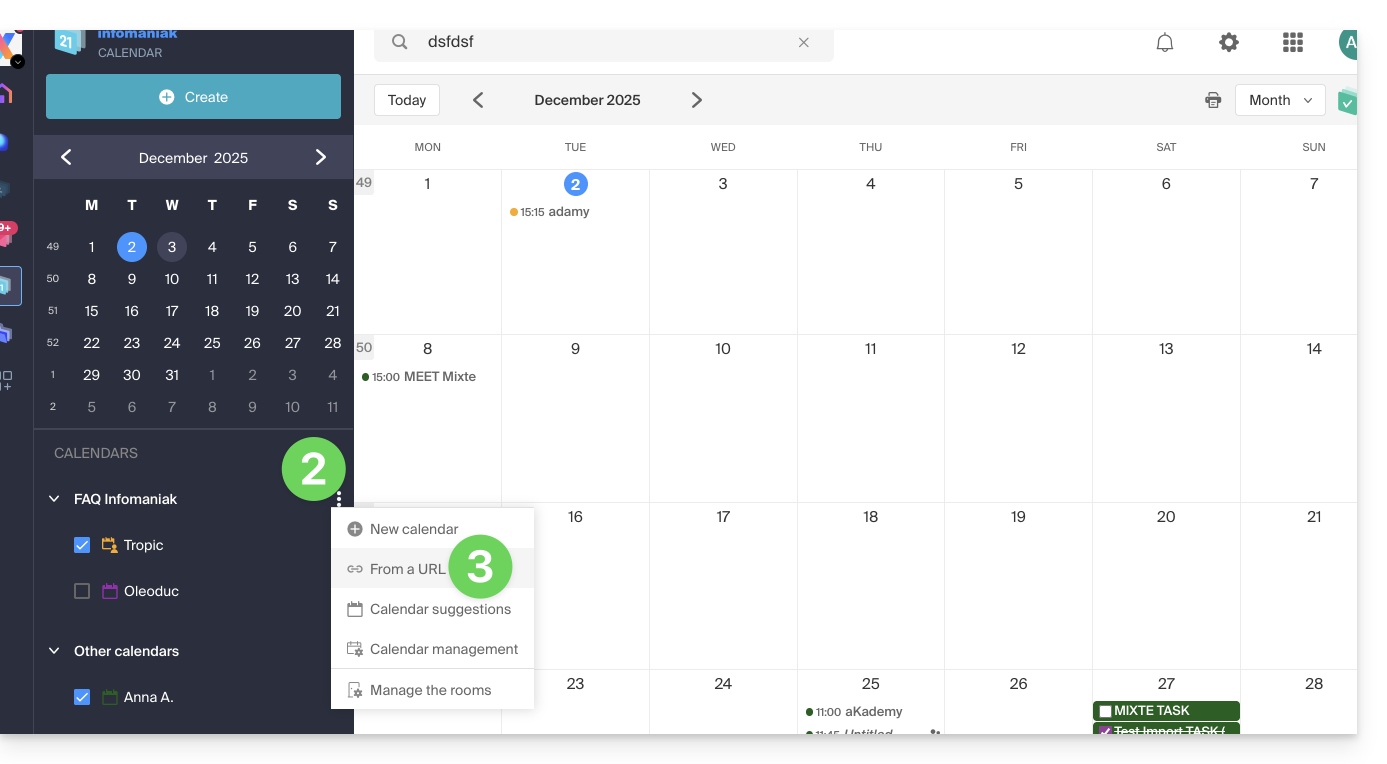
- Click on in the left-hand menu.
- Click on "From a URL":
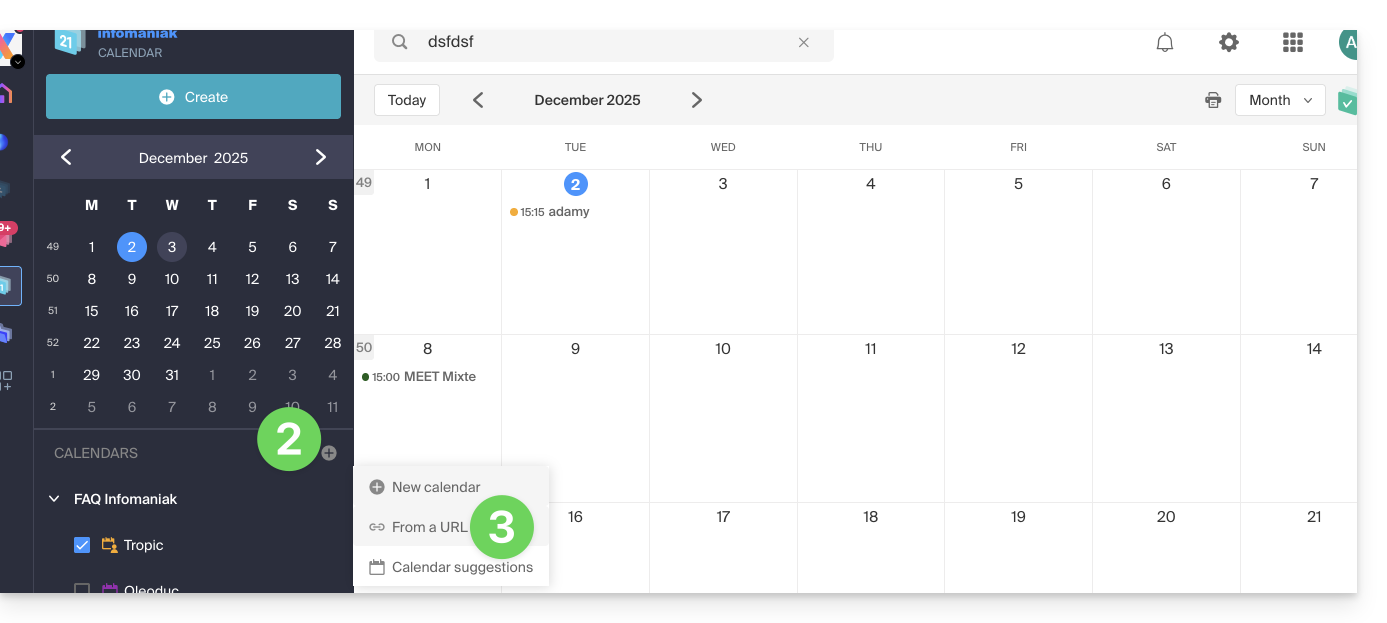
- Enter the URL of the calendar to import.
- Check the I want to subscribe to this calendar box.
- If necessary, select the Organization in which the calendar will be imported.
- Click on Import calendar:
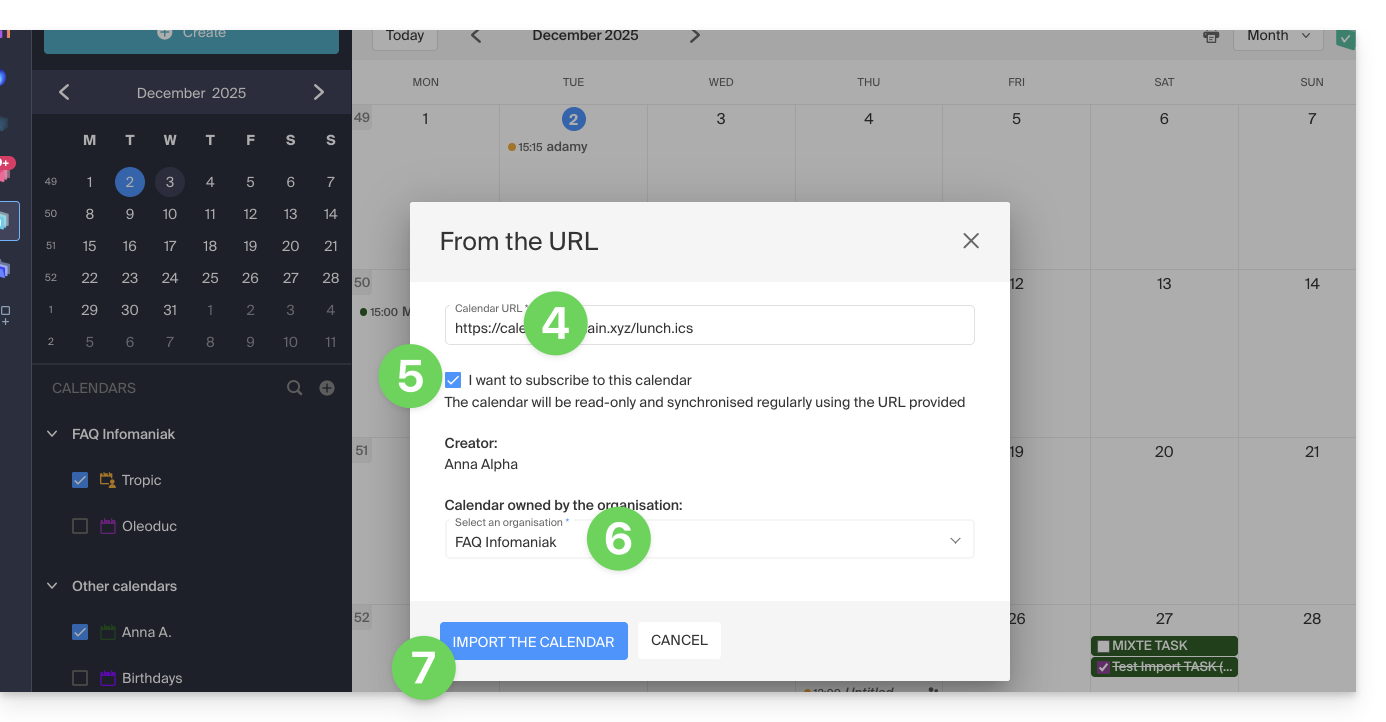
You can also go directly through one of the Organizations you belong to:
- Click here to access the Infomaniak Calendar web app (online service ksuite.infomaniak.com/calendar).
- Click on the action menu ⋮ to the right of the Organization in the table that appears.
- Click on "From a URL":
Link a Google calendar using its "secret" URL
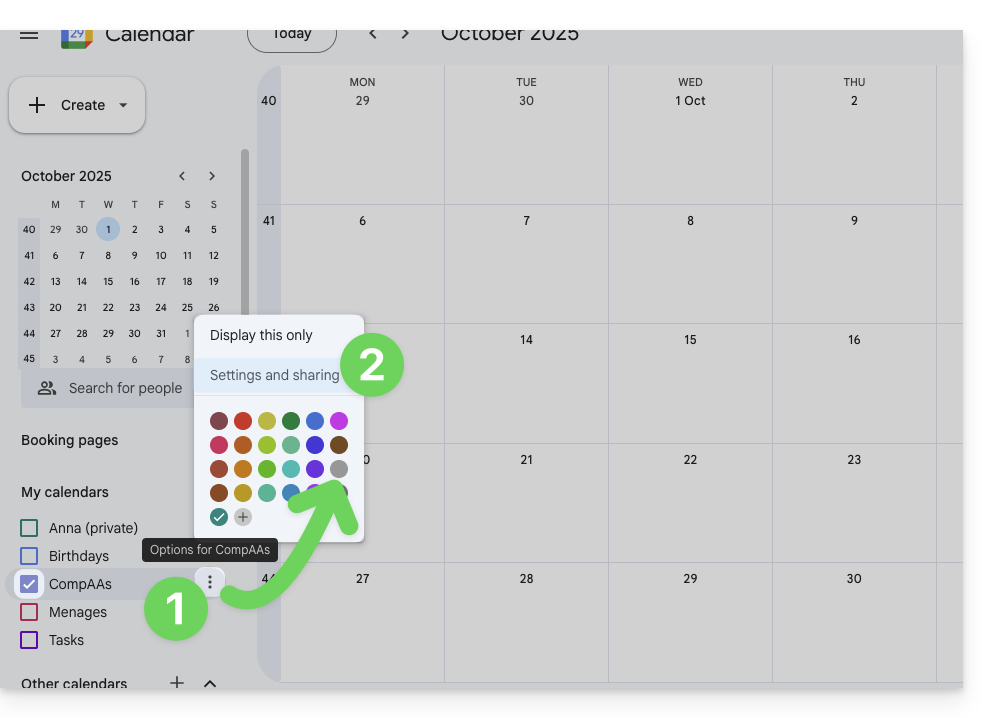
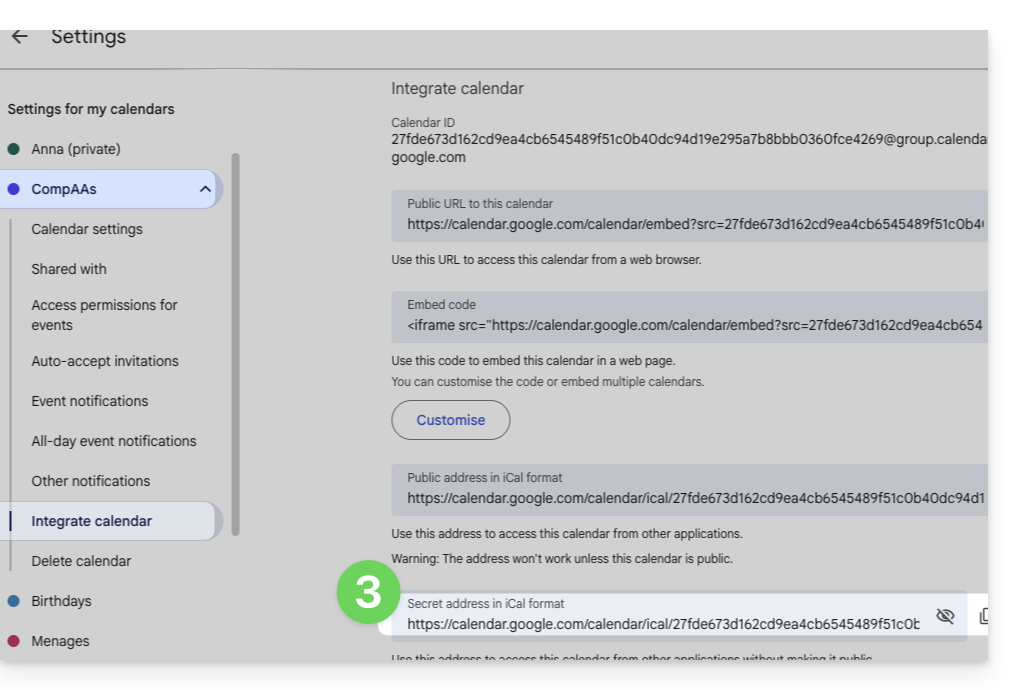
The "secret" URL of a Google calendar, which you can paste in step 3 above, can be found in the Google calendar settings:
- Click on the action menu ⋮ to the right of the Google Calendar in question.
- Click on Settings and sharing:
- Scroll down the page until you find the secret iCal URL and click on the icons to view and/or copy the URL:
- Paste the URL according to the procedure in step 3 of the previous chapter above.
Please note that this is not a calendar synchronization, but rather a read-only, one-way feed that is updated regularly.
The calendar will be visible and will regularly display any updates made, but it will not be possible to edit it directly from the Infomaniak interface; this is a "one-way synchronization" with Google.
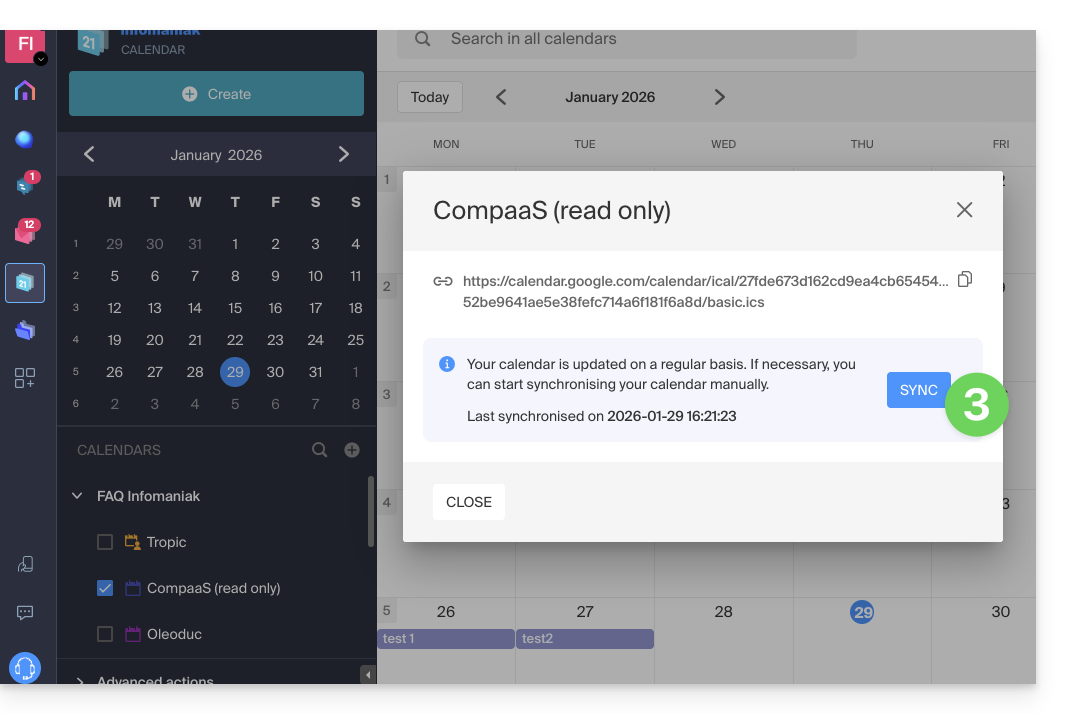
You can, however, force synchronization to immediately display any new events or changes:
- Click on the action menu ⋮ to the right of the imported calendar on Infomaniak.
- Click on Display information:
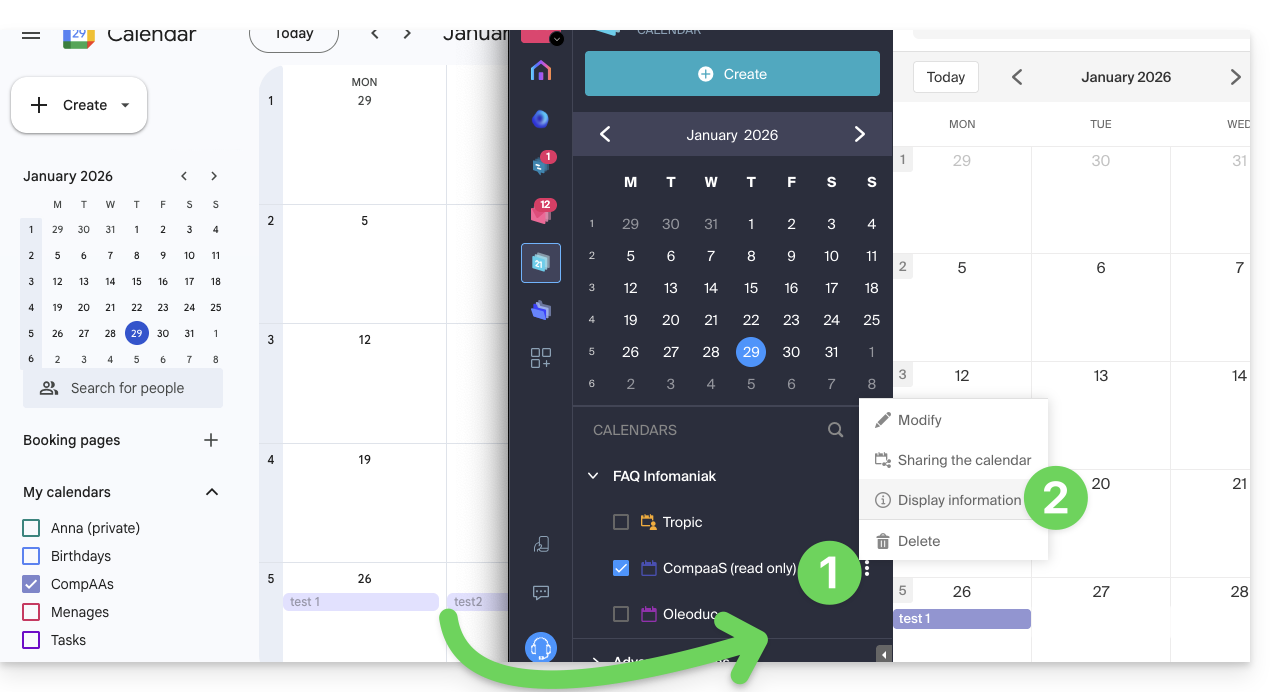
- Click on the SYNC button to synchronize the imported content, then wait a few seconds:
Import events via an .ics file
To access the Advanced actions for importing, exporting, and restoring calendars:
- Click here to access the Infomaniak Web app Calendar (online service ksuite.infomaniak.com/calendar).
- Click on Advanced actions in the left-hand menu.
- Click on Import.
- Upload the
.icsfile corresponding to the export performed from your previous provider: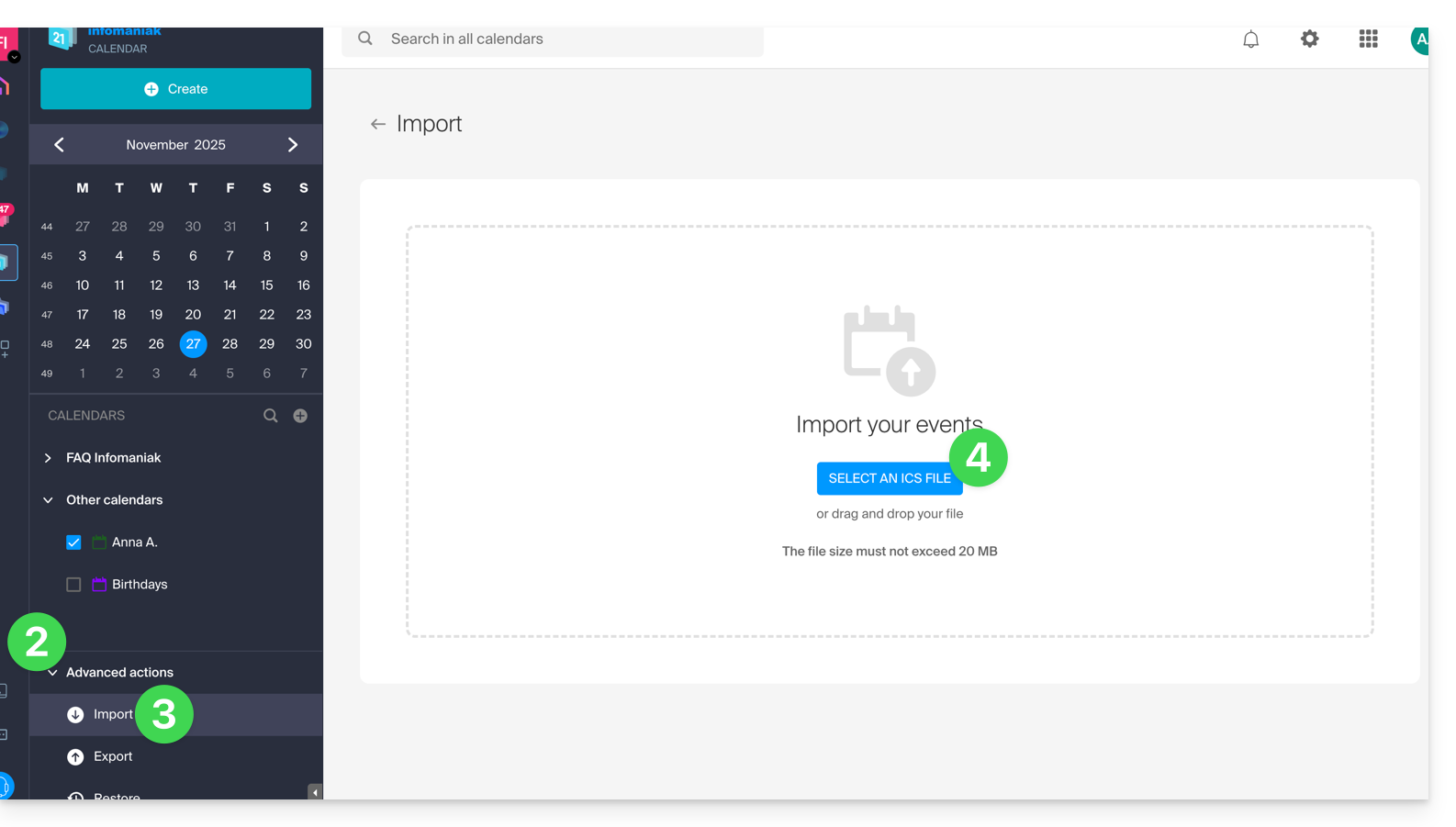
You can choose which existing calendar to import the events into, or create a new calendar (tasks are also imported if the .ics file contains them).
Please note that this is not a calendar synchronization, but a one-time, one-way import.
Export data from your previous provider
Here are some specific guides provided for reference to export the calendar from a third-party provider, which will allow you to re-import this data into Infomaniak:
- Apple Mail
- Gmail
- Outlook (section Publish > ICS link)
- Yahoo
- Proton
- Thunderbird
Refer to this other guide to import other data.
Link to this FAQ: https://faq.infomaniak.com/1943
Has this FAQ been helpful?
This guide explains how to print a calendar from the Infomaniak web app Calendar (online service ksuite.infomaniak.com/calendar).
Printing the content of a calendar
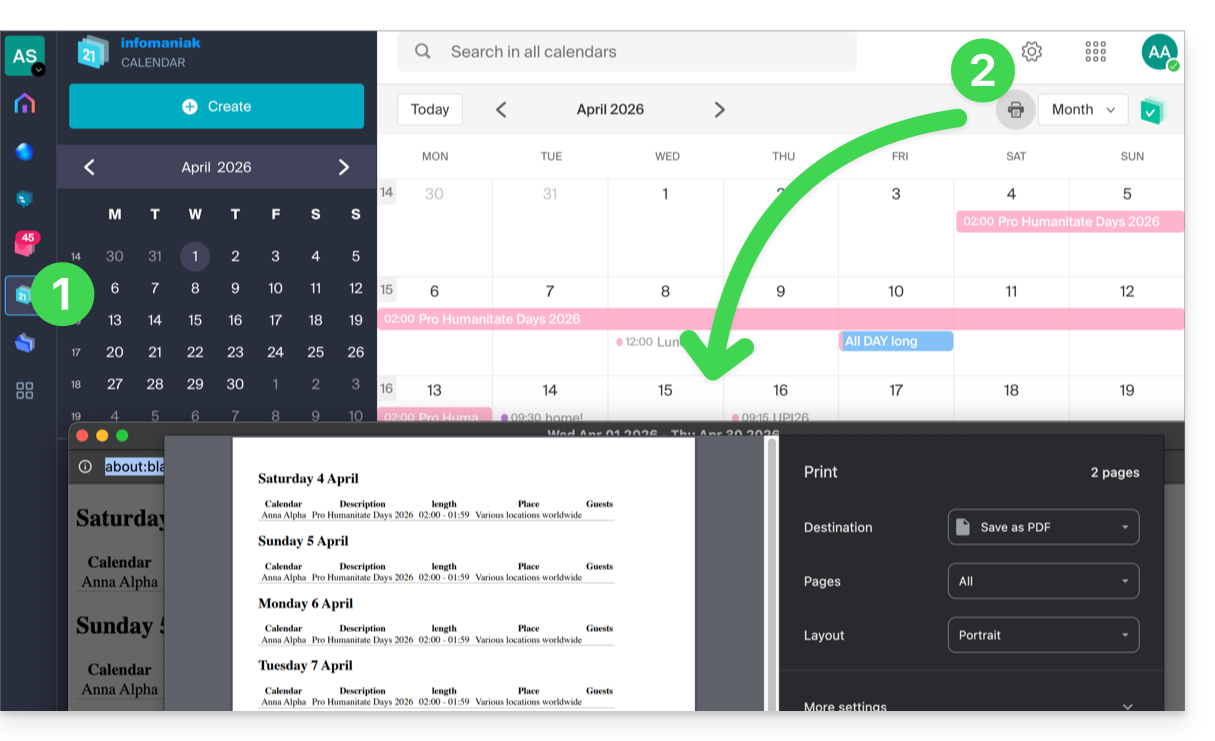
If you only use your browser's print function with Calendar, you will print the interface and not necessarily the calendar content. To print the list of your schedule (regardless of the display mode usually selected):
- Click here to access the Infomaniak Calendar web app (online service ksuite.infomaniak.com/calendar).
- Click on the printer icon located in the top right corner:
Link to this FAQ: https://faq.infomaniak.com/1949
Has this FAQ been helpful?
This guide explains how to import tasks into the dedicated section of the Infomaniak web app Calendar (online service ksuite.infomaniak.com/all/calendar/tasks).
Introduction
- The
.icsfile is a standard container (RFC 5545), and within this file, you will find “components”:VEVENT(Event): this is what you see on the calendar grid, with a notion of occupied time (start timeDTSTARTand end timeDTENDor duration).VTODO(Task): this is an action to be performed, often with a due date (DUE), but not necessarily a duration, and a binary status (done or not done).
- Therefore, when importing a
.icsfile into the Infomaniak Calendar app, the system imports the data into the calendar and its “Tasks” section based on their type.
Import tasks
If you have an .ics file to import:
- Click here to access the Infomaniak Web app Calendar (online service ksuite.infomaniak.com/calendar).
- Click on the chevron to expand the Advanced actions section.
- Click on Import.
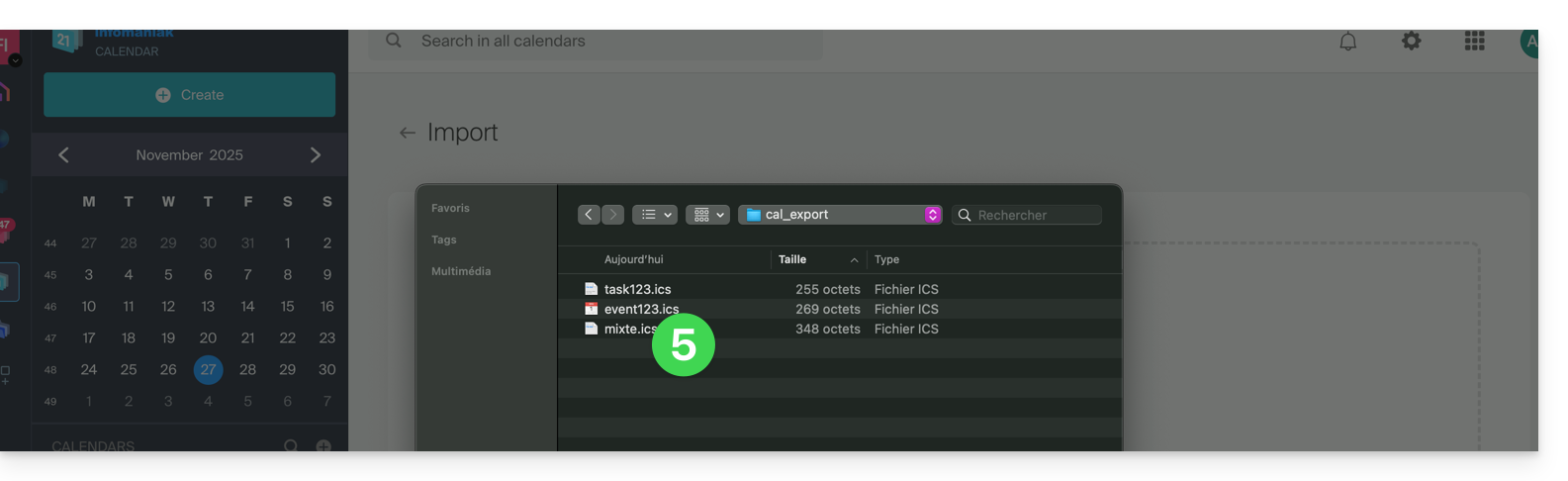
- Click on the button to select an ICS file (20 MB max):
- Select the file containing the tasks (and/or events):
- Choose the calendar in which to import the data (or create a new calendar for this purpose).
- Click the button to start the import:
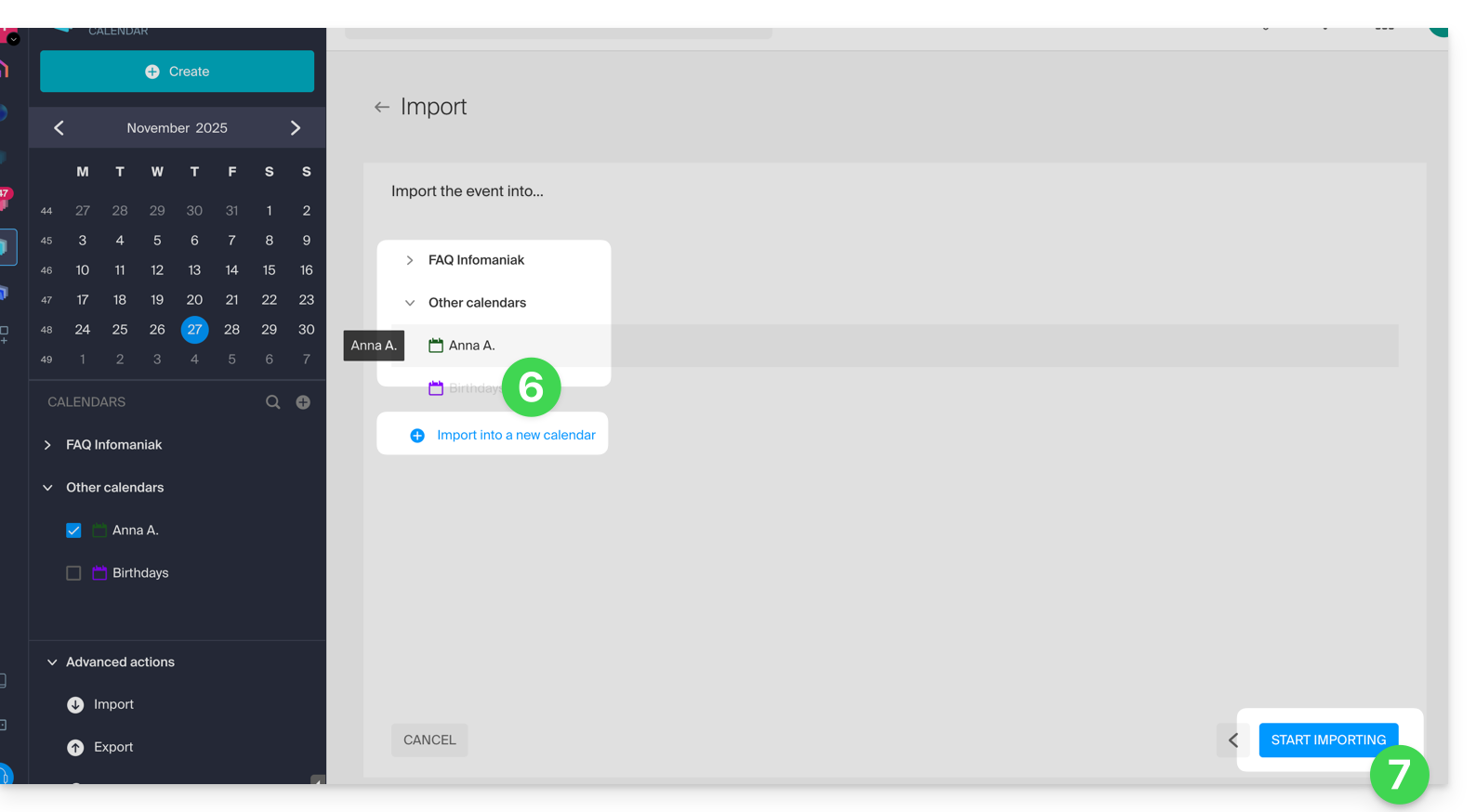
- If the
.icsfile contained tasks, you will find them in the Tasks section (and any events present in the file will be displayed on the calendar):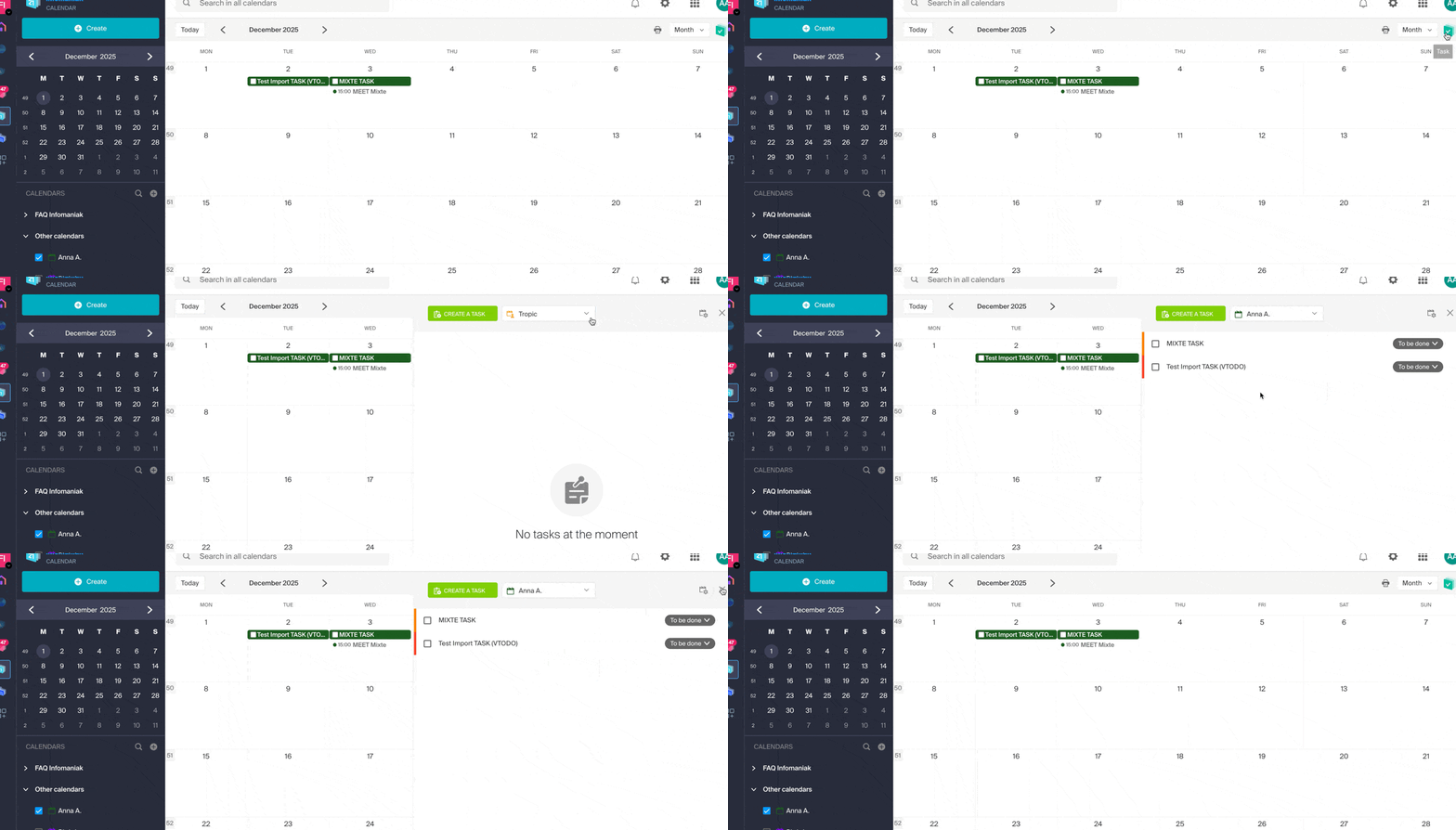
Link to this FAQ: https://faq.infomaniak.com/1974
Has this FAQ been helpful?
This guide explains how to add a domain alias to a domain name.
Introduction
- A synonym domain is a domain name that can serve as a secondary name for another domain (❓: help).
- When a synonym domain is added, it automatically inherits the content of the DNS zone of the main domain (including
MX,A, etc. records), as well as its Web and Mail hosting. - Alternatively, you can also add a (domain) alias to a website (❓: help) or add a (domain) alias to a Mail Service (❓: help).
Add a synonym domain to a domain
Prerequisites
- The domain name for the future alias or its DNS zone management…
- … must be registered with Infomaniak,
- … must be configured with Infomaniak’s DNS servers (❓: help),
- … must not yet be linked to any product.
- The domain name on which the alias will be placed…
- … must not be associated with the Newsletter product from Infomaniak.
To access your domain names:
- Click here to access the domain management section in your Infomaniak Manager (❓: help).
- Click on the name of the main domain in question.
- Click on Synonymous domains in the left-hand menu.
- Choose to add a synonym.
- Click on Next:
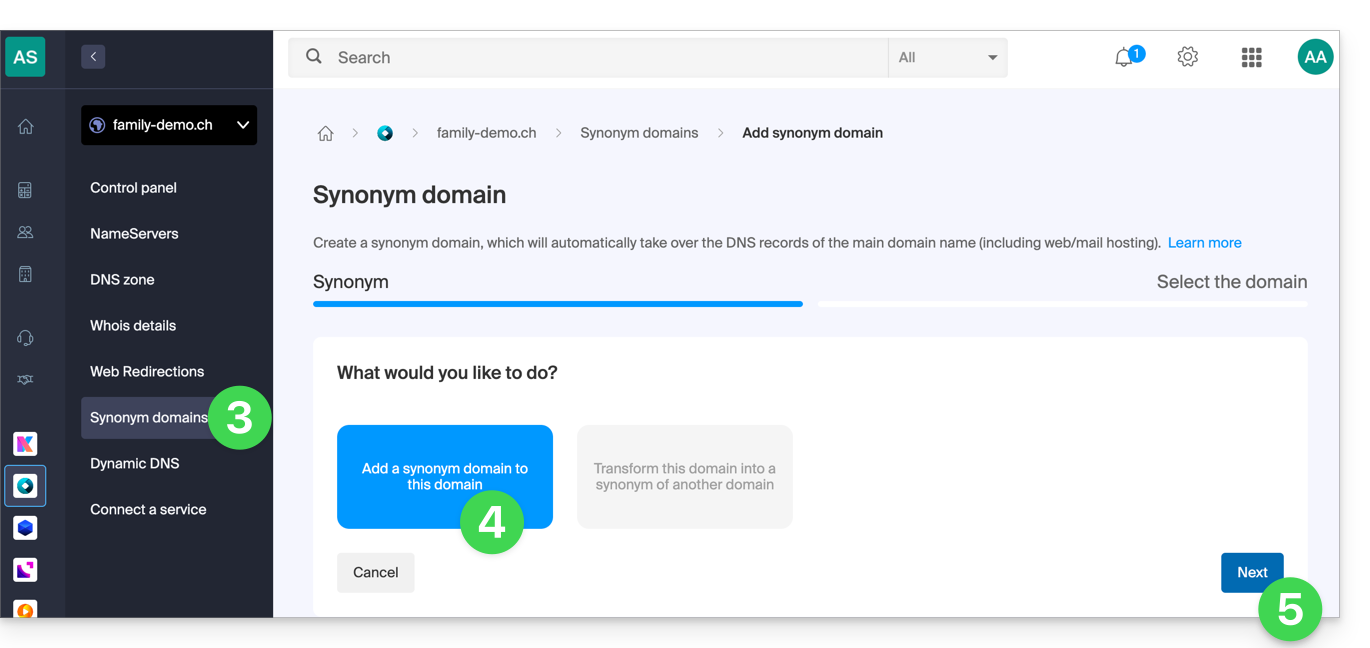
- Choose an existing domain within this Organization, or order a new domain in advance (❓: help).
- Click the button to Confirm:
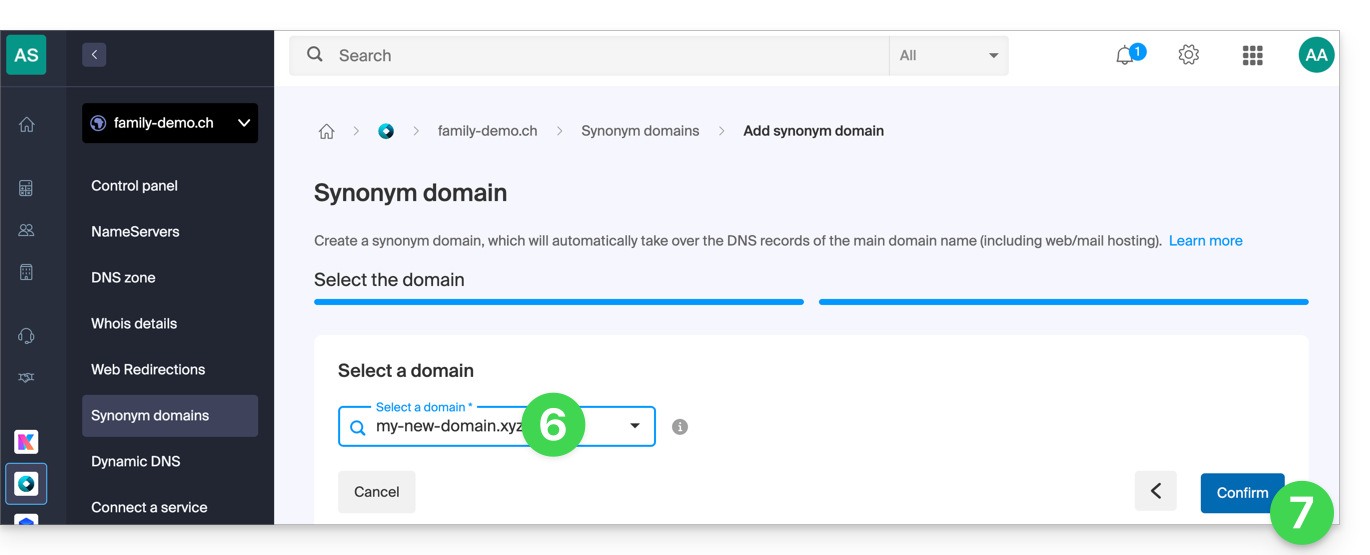
- That's it:
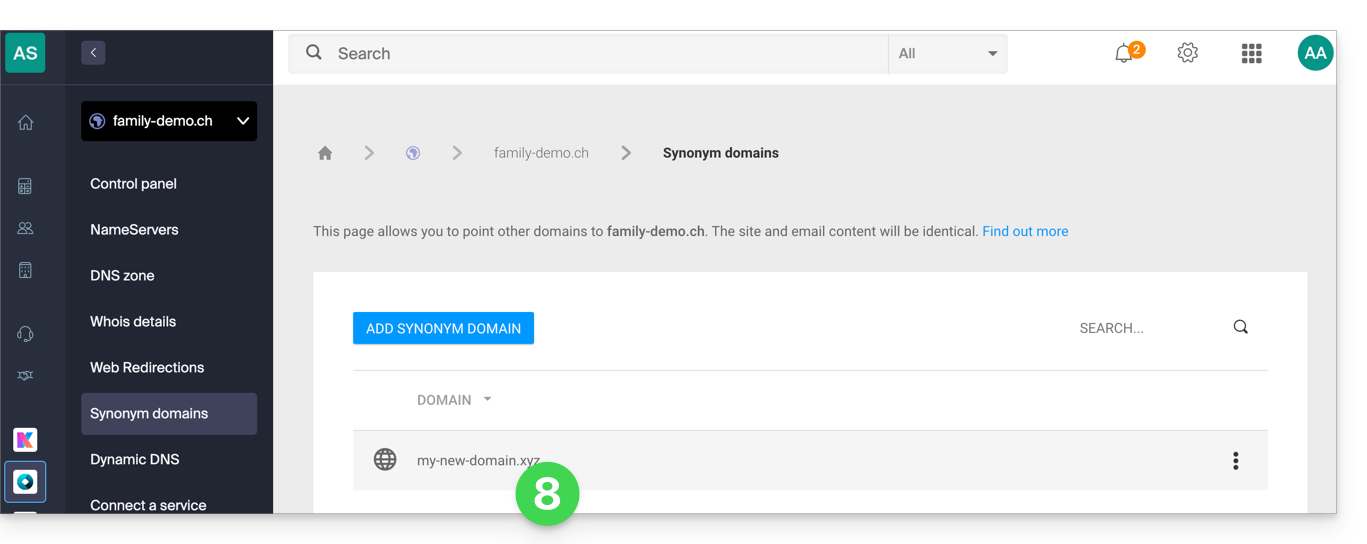
Refer to this other guide if you are looking for information on how to unlink a domain name alias.
Link to this FAQ: https://faq.infomaniak.com/1999
Has this FAQ been helpful?
The easiest way to manage your emails is to use the Infomaniak Mail web app (online service ksuite.infomaniak.com/mail).
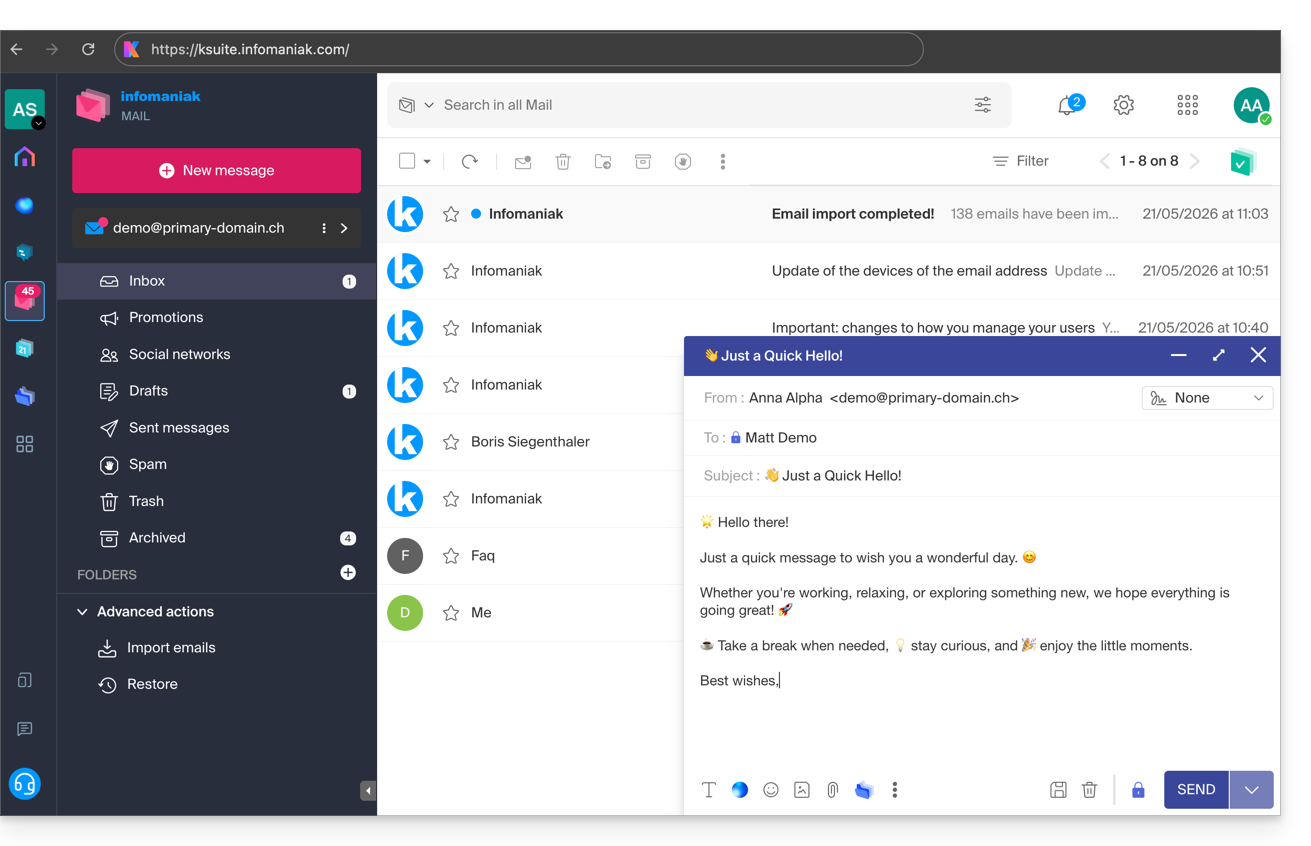
This interface offers many advantages:
- No software to install or configure.
- Share emails with other users.
- Unified management of all your Infomaniak email addresses.
- Professional inbound and outbound anti-spam and antivirus filter.
- Automatic sorting of incoming messages (filters).
- Sending large attachments.
- Continuously saved.
- kDrive sharing.
- Secure and respects your privacy, hosted in Switzerland by a neutral and independent company.
A mobile app (Infomaniak Mail, application for iOS/Android smartphones or tablets) is available here.
How to get started with Infomaniak Mail?
Whether on ksuite.infomaniak.com/mail or in the Infomaniak Mail app, it is essential to Log in with your Infomaniak account ID and password. This will NOT work if you enter an email address and password directly. Understand the difference
- Click here to access your emails on your Infomaniak kSuite (❓: help).
- If necessary, associate the email addresses to be managed with Infomaniak Mail.
What would you like to do next?
Link to this FAQ: https://faq.infomaniak.com/2008
Has this FAQ been helpful?
This guide explains how to transfer an Infomaniak product from one Organization to another.
Introduction
- You can move almost all products subscribed to with Infomaniak to a different Infomaniak Manager interface than the one the product is currently on; this is therefore an internal transfer, from Organization to Organization.
- kSuite cannot be transferred.
- Users who currently have access to the selected products will not be transferred (and may therefore no longer have access to the products).
- Regarding kDrive: users who currently have access to kDrive will be integrated into the new Organization.
- They will retain their access and their kDrive permissions, but any management rights they may have had on the product itself will be lost.
- Groups (formerly "work teams") are also not moved, and any rights managed via Groups will also be lost.
- If your user has access to multiple Organizations, it is even easier to move the product of your choice to one of them.
- The invoices for the selected products will not be transferred.
- This operation will not cause any interruption.
Generate a transfer link
Prerequisites
- You must be at least an Administrator of the Organization (❓: help).
To transfer a product:
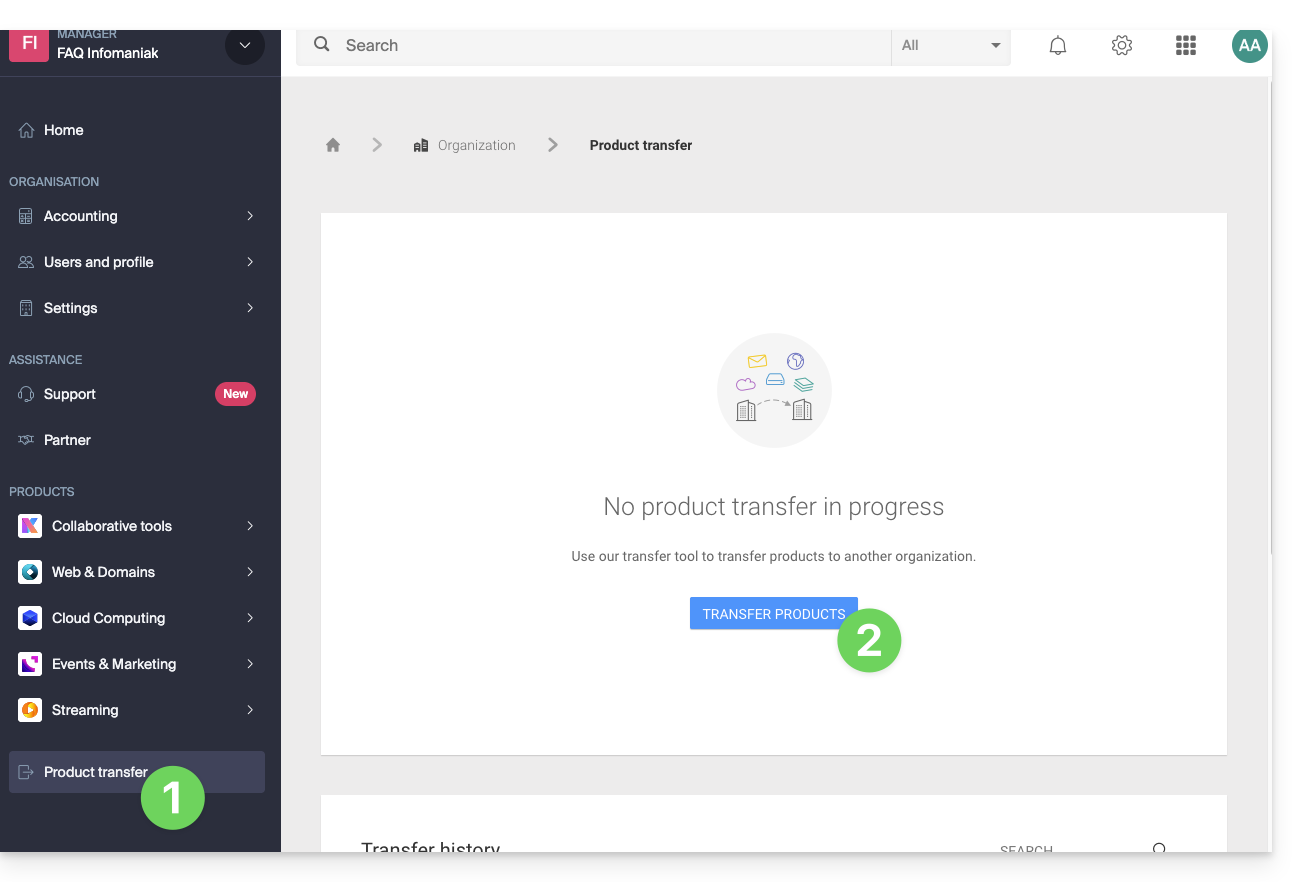
- Click here to access the product transfer management section in your Infomaniak Manager (❓: help).
- Click on the Transfer products button:
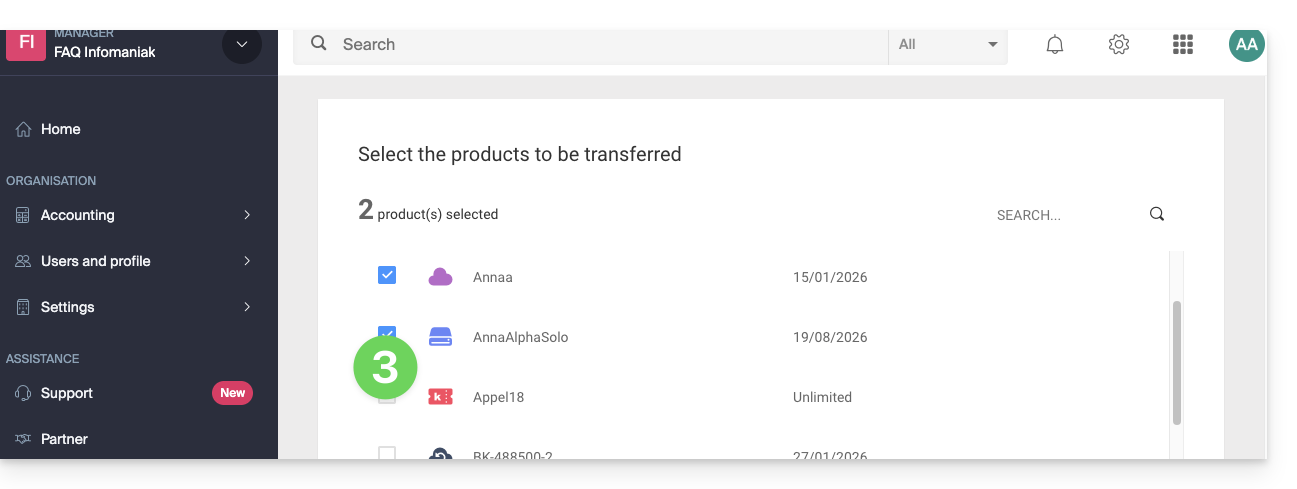
- Check the box next to the product(s) you want to move:
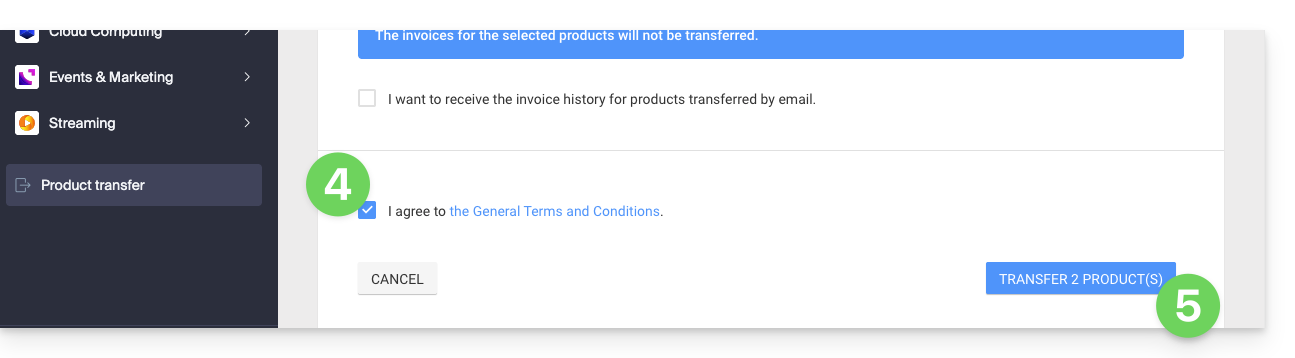
- Read and accept the terms and conditions.
- Click on the Transfer button:
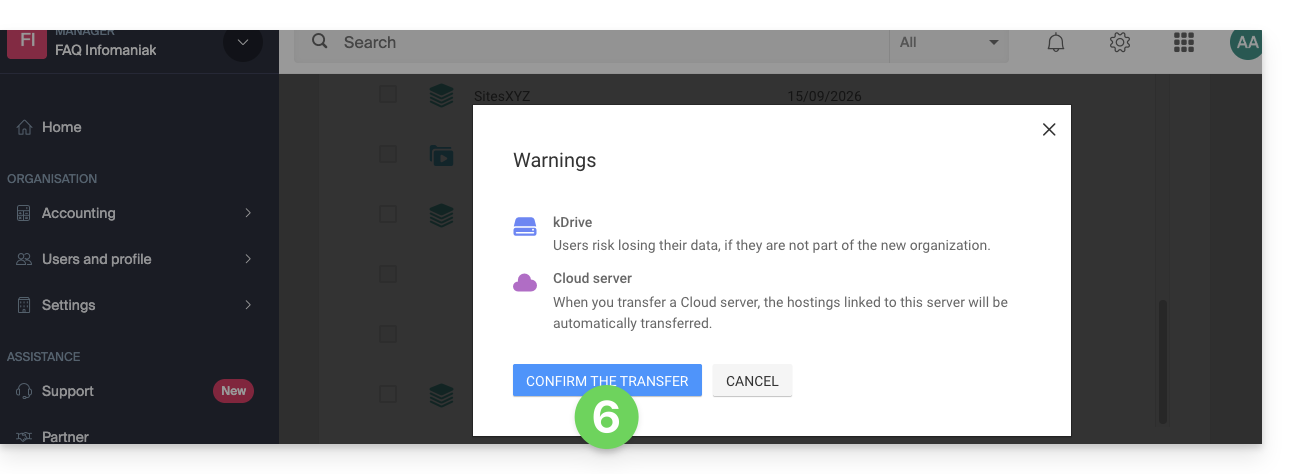
- Read and acknowledge any warnings:
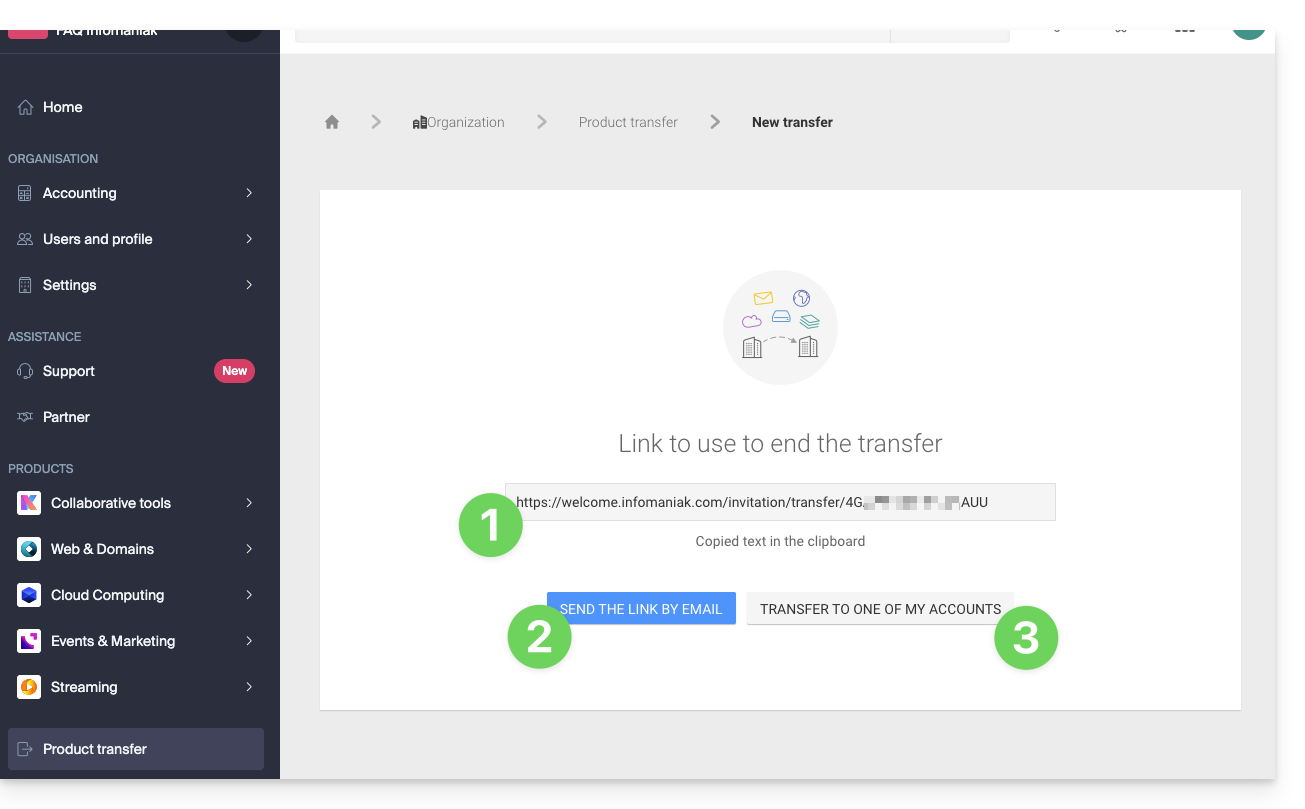
The transfer has started. You can now, optionally:
- Copy the transfer link…
- or send it to the email address of your choice…
- or directly select one of the Organizations to which your user is linked, and the selected product will be transferred there:
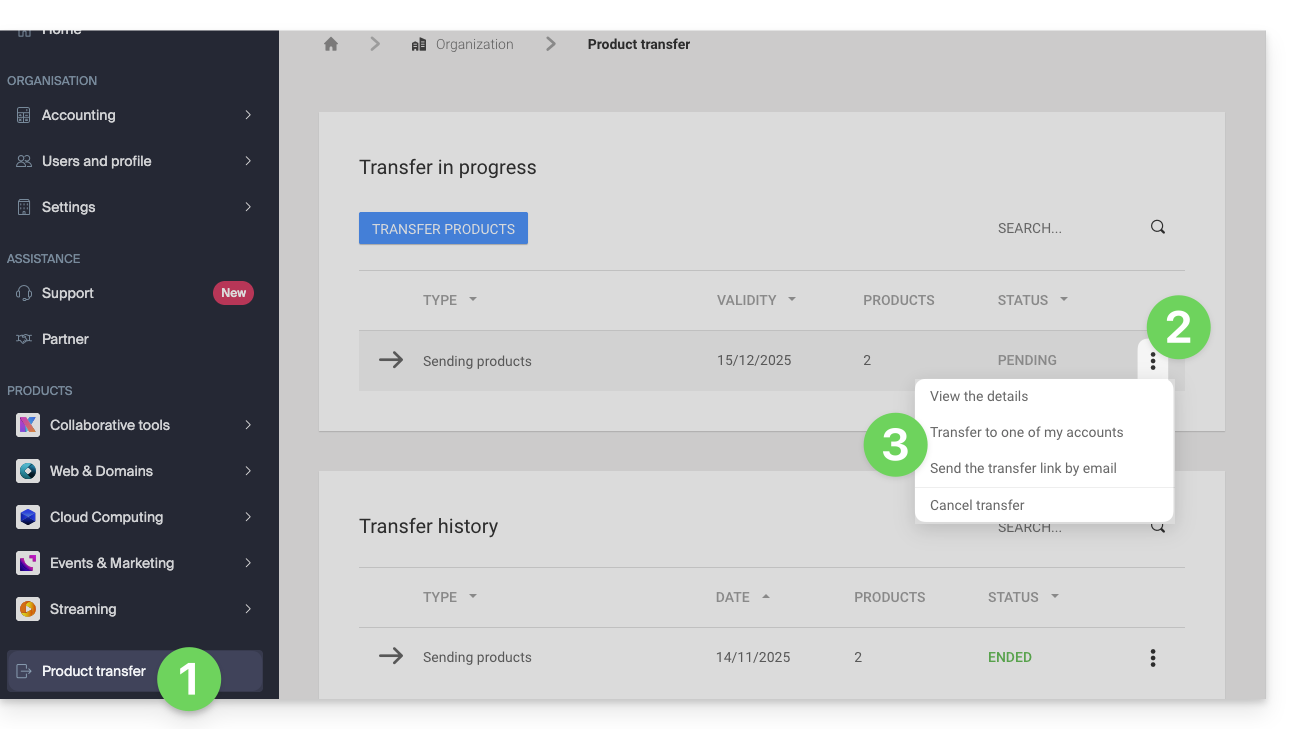
At any time, you can return to the product transfer page to find the options listed above:
Please refer to this other guide regarding Jelastic Cloud.
Receive the product
Once a product transfer has been initiated by a user…
1. Access the organization that will receive the product
- Click here to access the Infomaniak Manager.The organization that will receive the product(s)(❓: help).
2. Execute the link obtained
- Click on the link obtained in the first step above.
- You can also simply paste it into a browser while logged into the appropriate Infomaniak account.
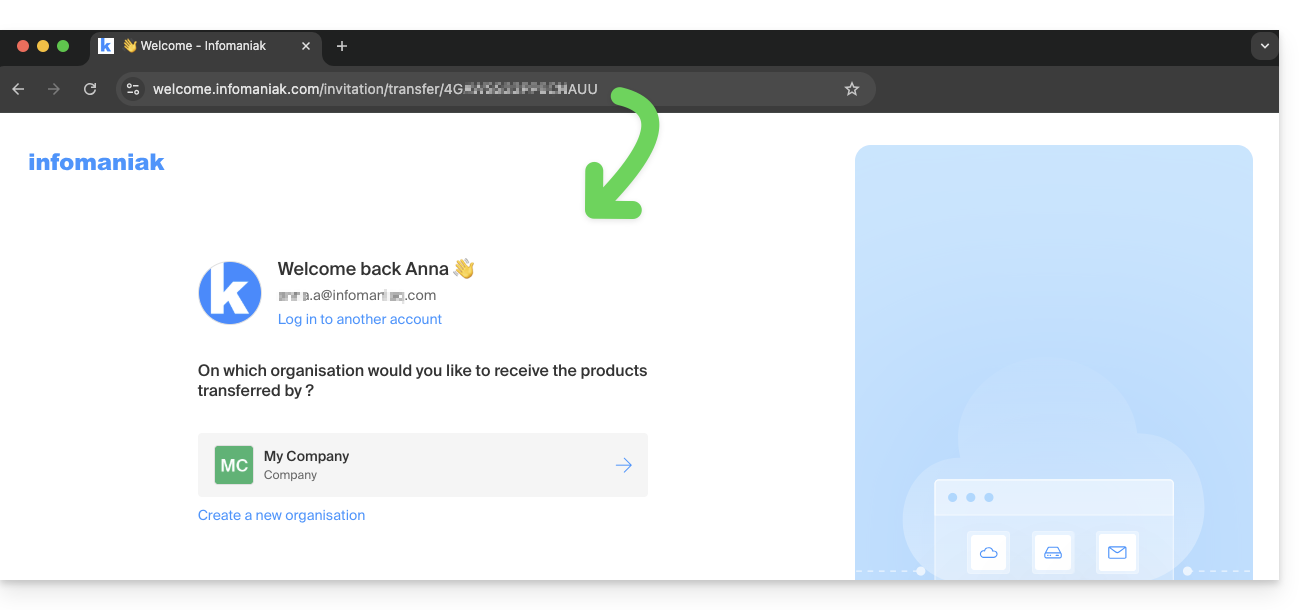
3. Confirm the product transfer
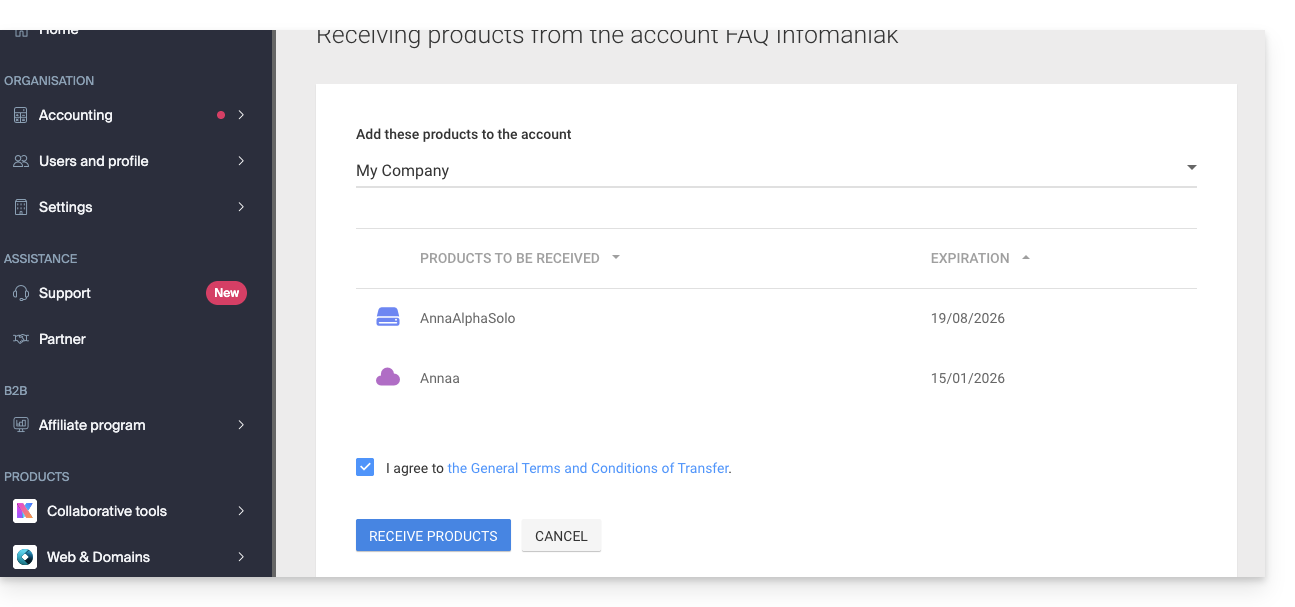
- If necessary, select the destination Organization using the drop-down menu.
- Read and accept the terms and conditions.
- Click on the Receive product button (if the button is not clickable, make sure you have selected the Organization):
View your current or completed transfers at any time by clicking the icon at the bottom of the left-hand menu.Manager Infomaniak: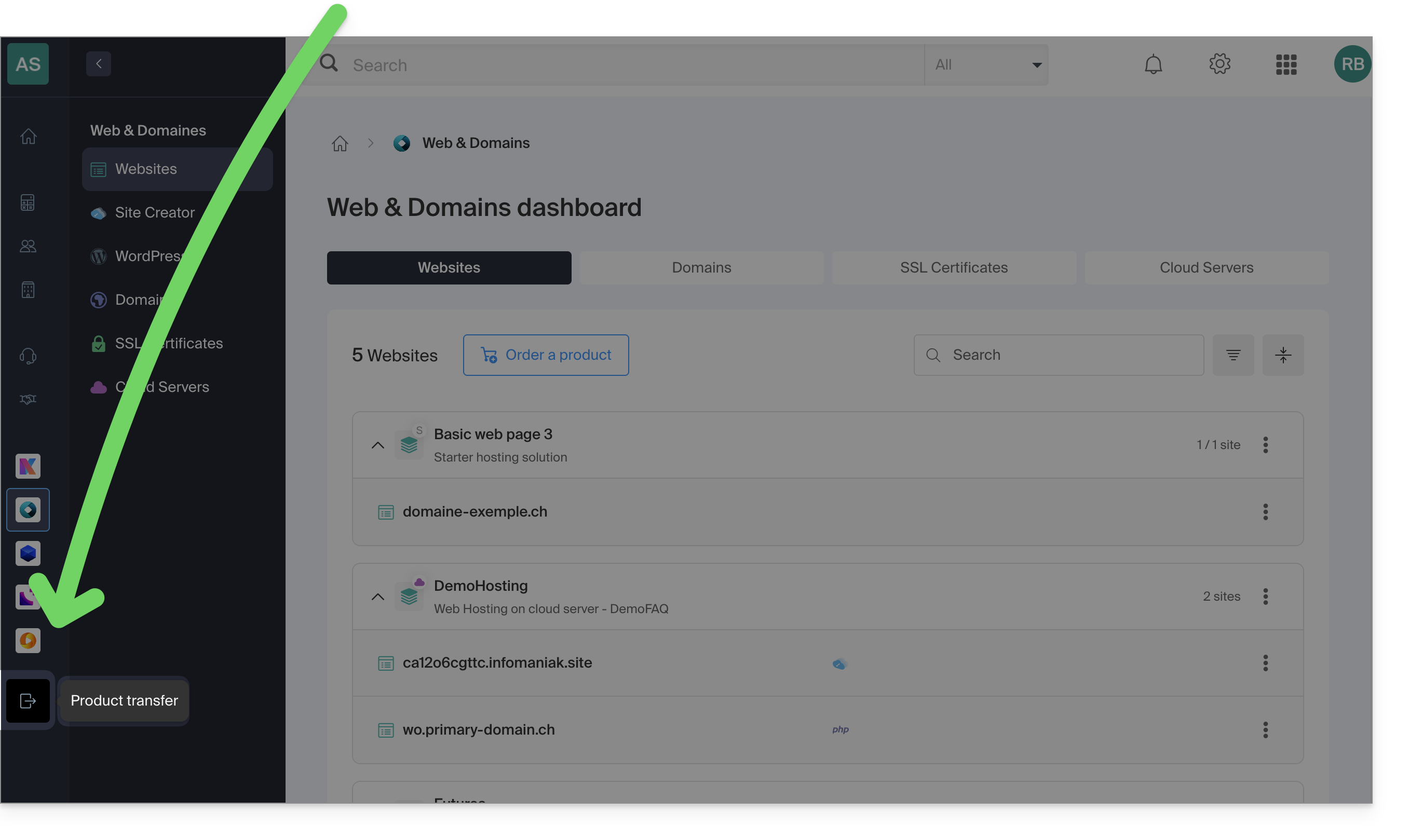
Link to this FAQ: https://faq.infomaniak.com/2024
Has this FAQ been helpful?
This guide explains how to generate a summary of an online meeting organized with kMeet, Infomaniak's ethical and free video conferencing solution.
Get a kMeet meeting report
Prerequisites
- You must have a paid kDrive account (standalone or as part of a kSuite, my kSuite+, etc. plan).
- Do not create a video conference encrypted with a custom key.
To enable the meeting minutes feature for your video conferences:
- Start kMeet via kmeet.infomaniak.com or from one of the apps for desktop and mobile devices.
- Click on the ◉ Start recording icon (refer to this other guide for more information).
- Enable the summary.
- Log in to your Infomaniak account:
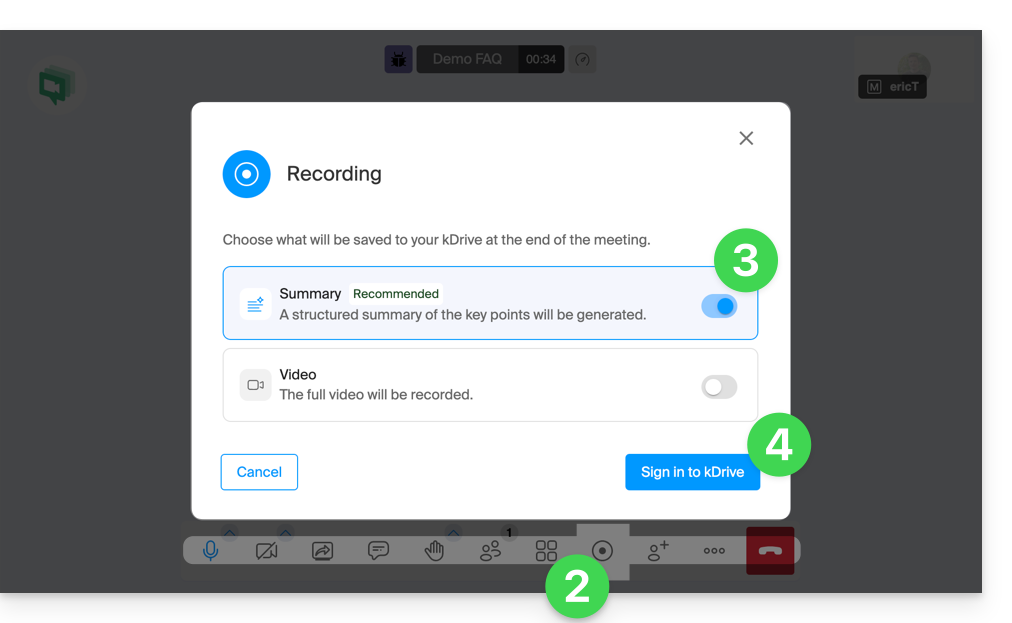
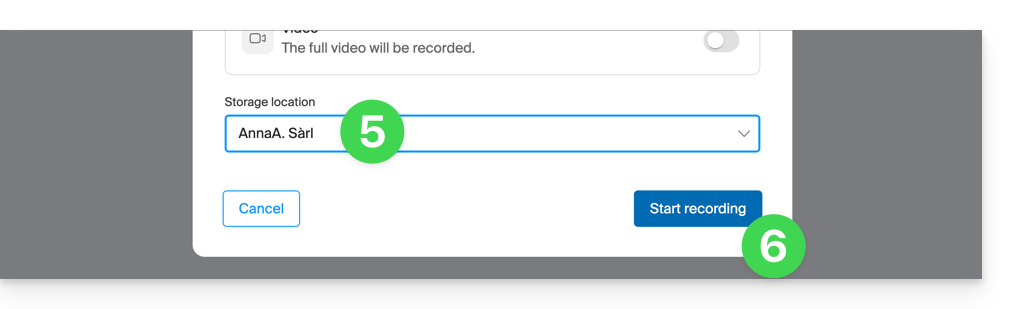
- Select a kDrive to save the video conference to.
- Then, click the button to start the recording:
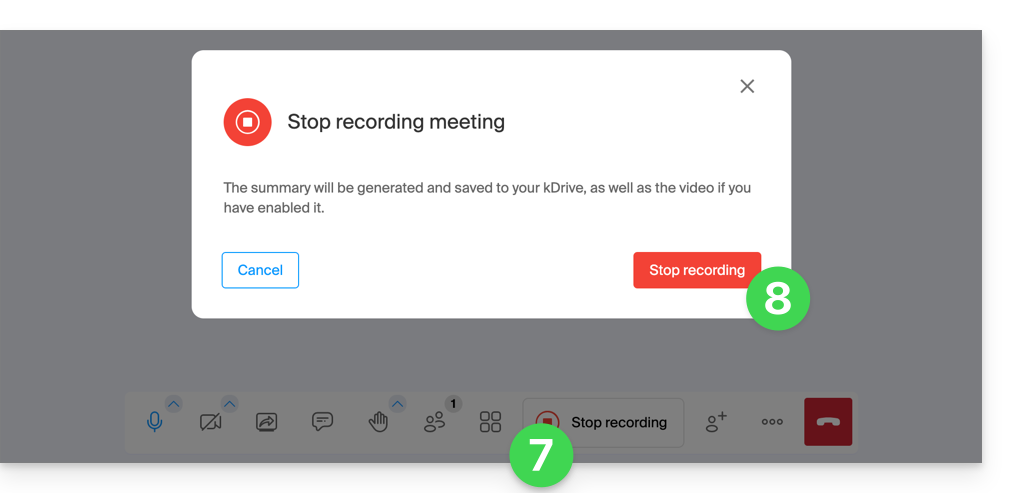
- To stop the video recording, click Stop recording.
- Confirm:
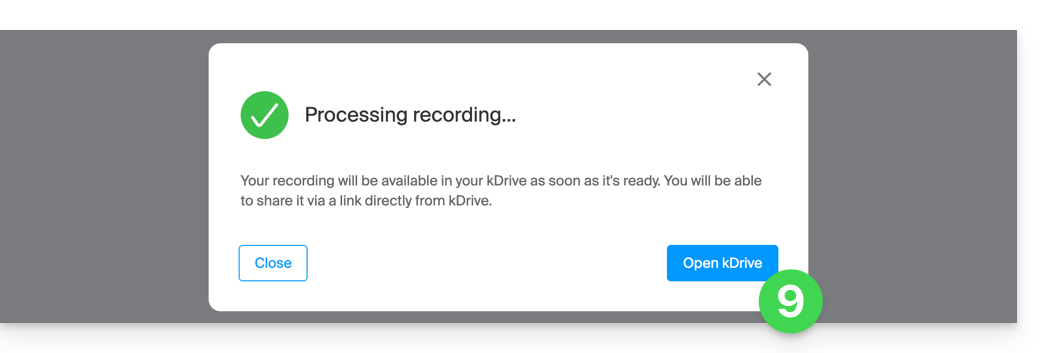
- Choose whether you want to go to the location of the record on kDrive:
- The report is available at the root of the chosen kDrive, in text format
.md; you can view it directly on kDrive.
This summary of your conversation will be written in the language that was most frequently used during the recorded discussion.
Link to this FAQ: https://faq.infomaniak.com/2035
Has this FAQ been helpful?
This guide explains how to synchronise Microsoft Outlook* Windows contacts & calendars (only Office 365, 2024, 2021, 2019, 2016, 2013, 2010, 2007 versions) with the contacts & calendars hosted by Infomaniak, using an extension for Outlook available on caldavsynchronizer.org.
* The free versions of Outlook (New Outlook) and the macOS version cannot install an extension; they are therefore unfortunately incompatible with Infomaniak data!
Introduction
- There is a paid alternative for Windows, Evo Collaborator, which offers a pre-configured profile for Infomaniak.
Configure Outlook CalDav Synchronizer
Outlook CalDav Synchronizer allows you to synchronise contacts & calendars via CalDAV and CardDAV protocols, including multiple (non-shared) calendars:
- Download CalDav Synchronizer for Outlook.
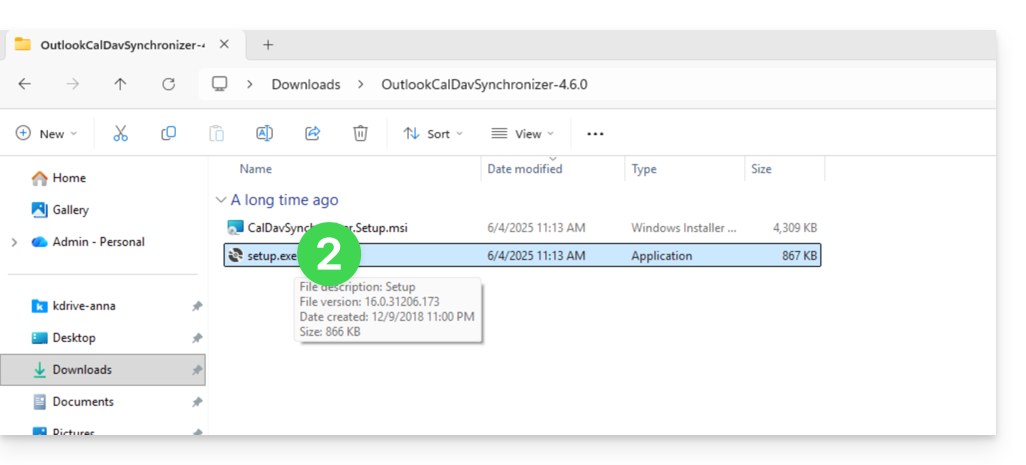
- Close Outlook and launch the installation of the plugin downloaded above:
- Once the plugin is installed, open Outlook and click on the new CalDav Synchronizer tab.
- Click on Synchronisation Profiles.
- Click on the + icon to create a first profile (for the calendar or contacts – you will need to create a second profile later to synchronize both):
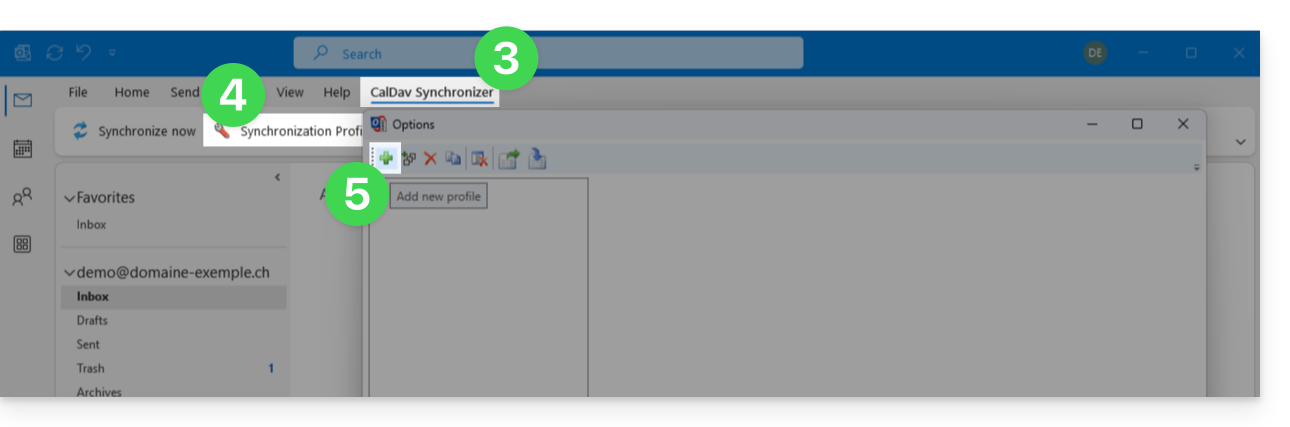
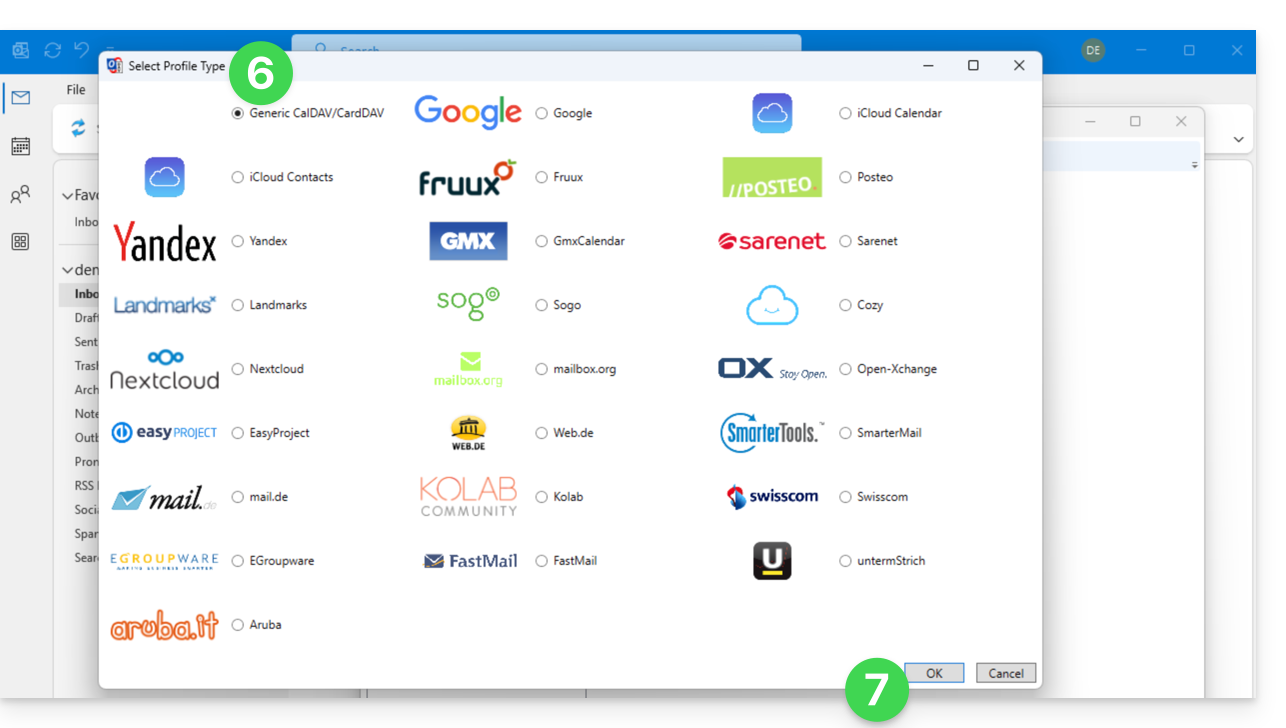
- Choose a generic profile type (first radio button).
- Click on the OK button:
- Enter a profile name (e.g., the name of the Infomaniak calendar or address book you want to synchronize).
- Check the synchronization box.
- Click on the [ ▪ ▪ ▪ ] button:
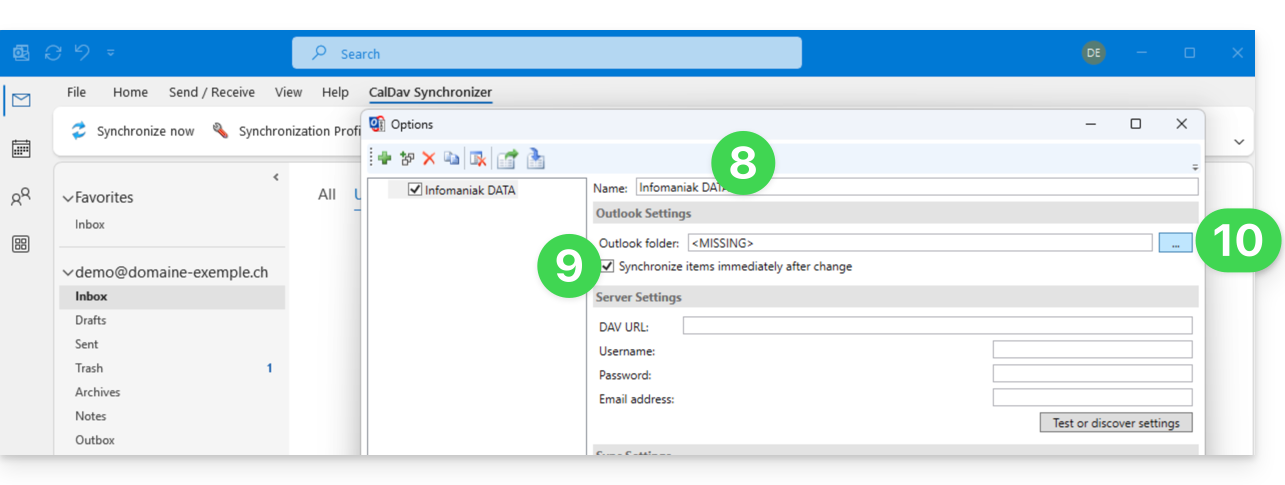
- Click on the New… button:
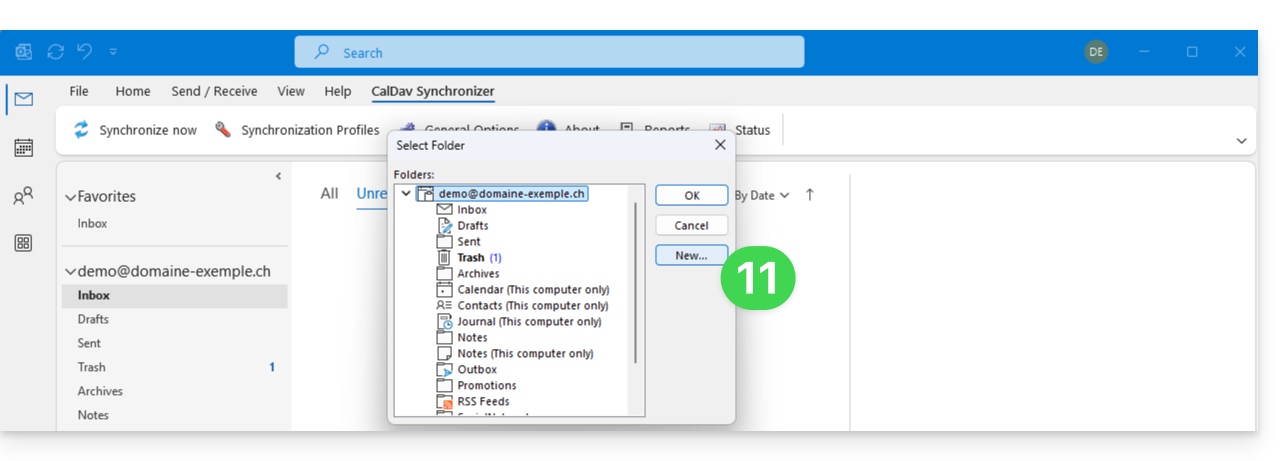
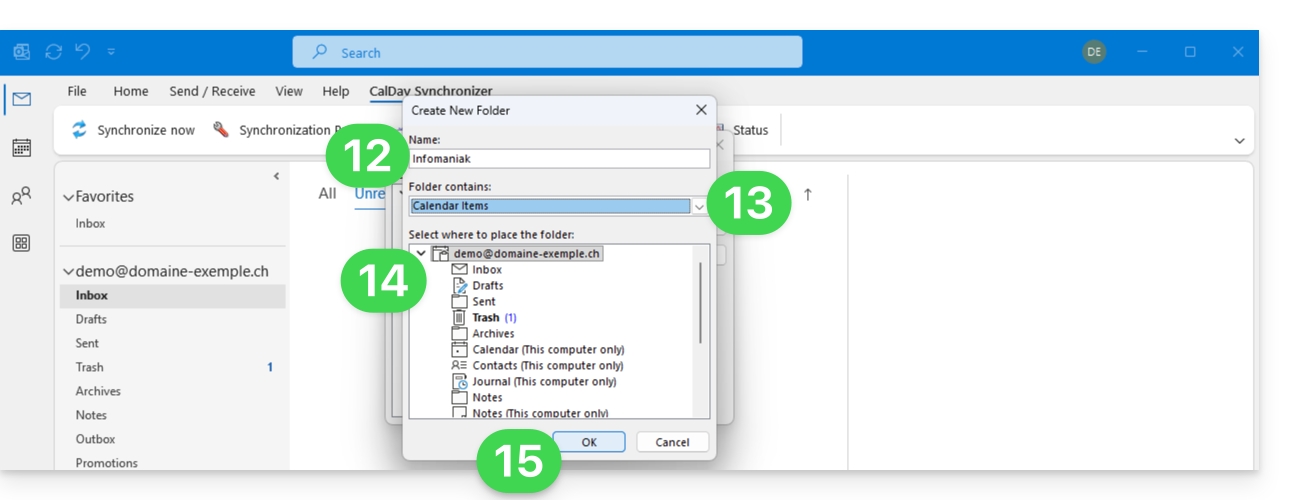
- Enter a name for the new folder.
- Choose the type of items the folder will contain (Calendar or Contacts).
- Click on the parent folder to create the folder within its structure.
- Confirm with the OK button:
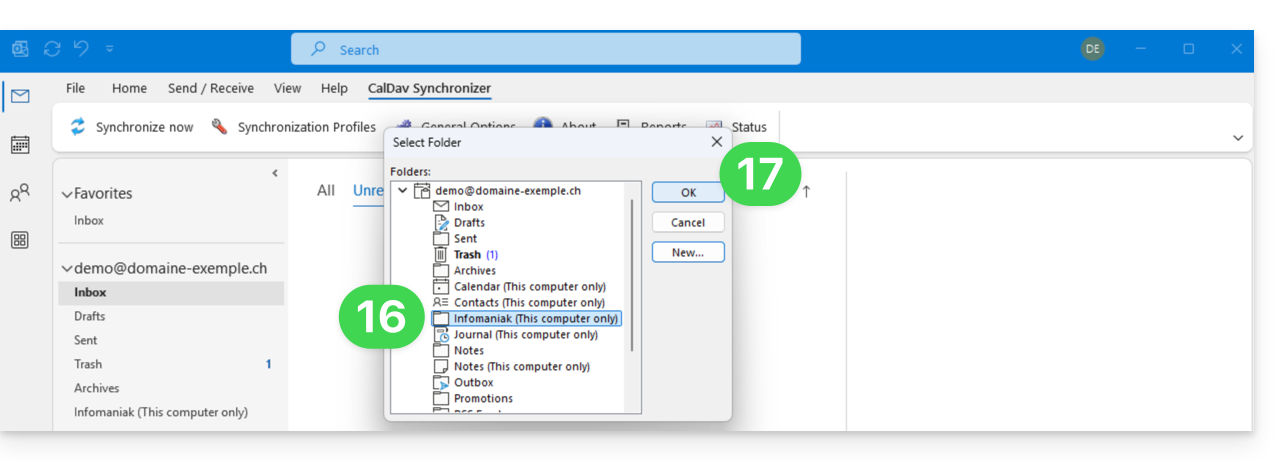
- Select the newly created folder from the list.
- Confirm with OK:
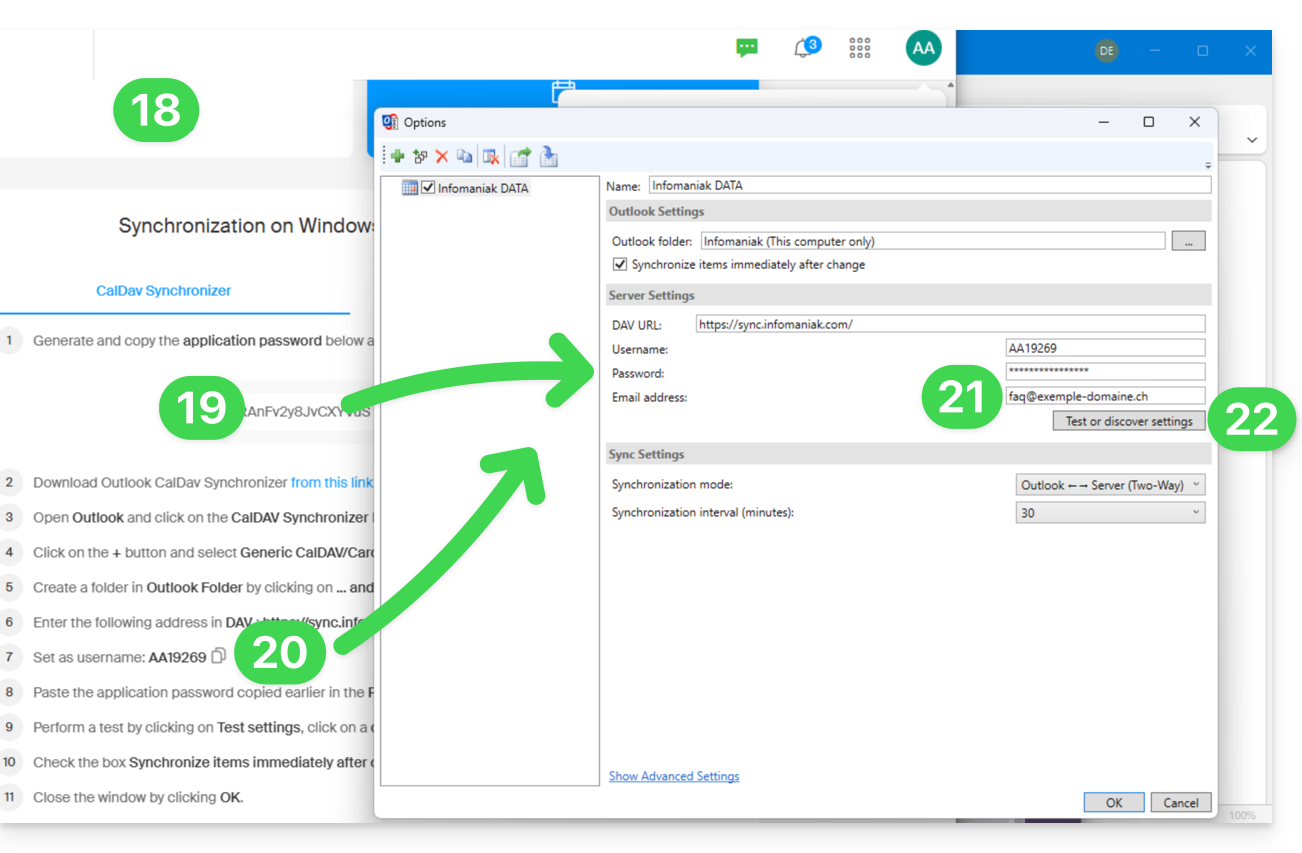
- Open the wizard https://config.infomaniak.com/ to obtain the information regarding synchronization with Outlook.
- Click the button to generate an application password (this allows you to bypass the 2FA for your user account for synchronization purposes only).
- Copy the information (password, URL, and username) obtained from config.infomaniak.com.
- Enter your email address, which is the address of your Infomaniak account.
- Click the button to Test the settings:
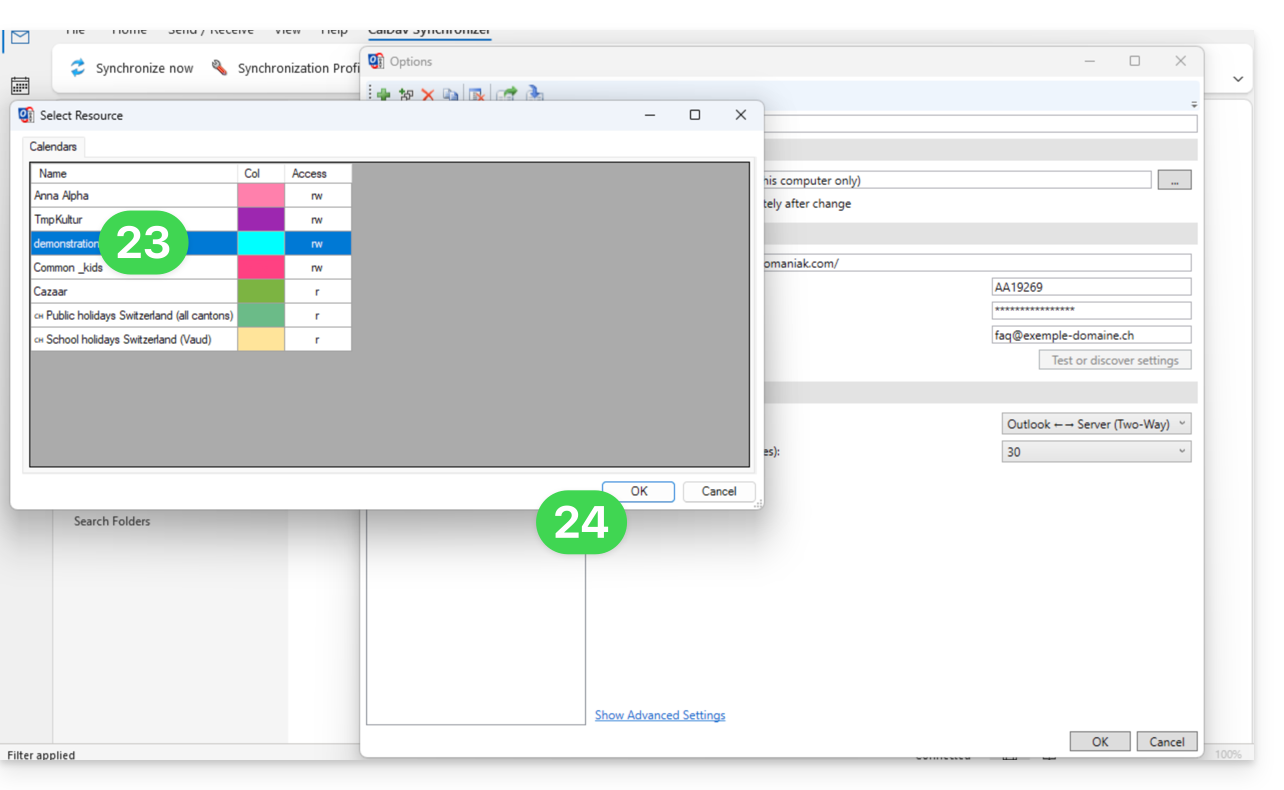
- In the window that opens, choose the Infomaniak calendar to synchronize.
- Click the OK button:
- Additional information may then appear automatically in some fields.
- Save a second profile if necessary (in this case, start again from step 5).
- Finish by clicking OK at the bottom right:
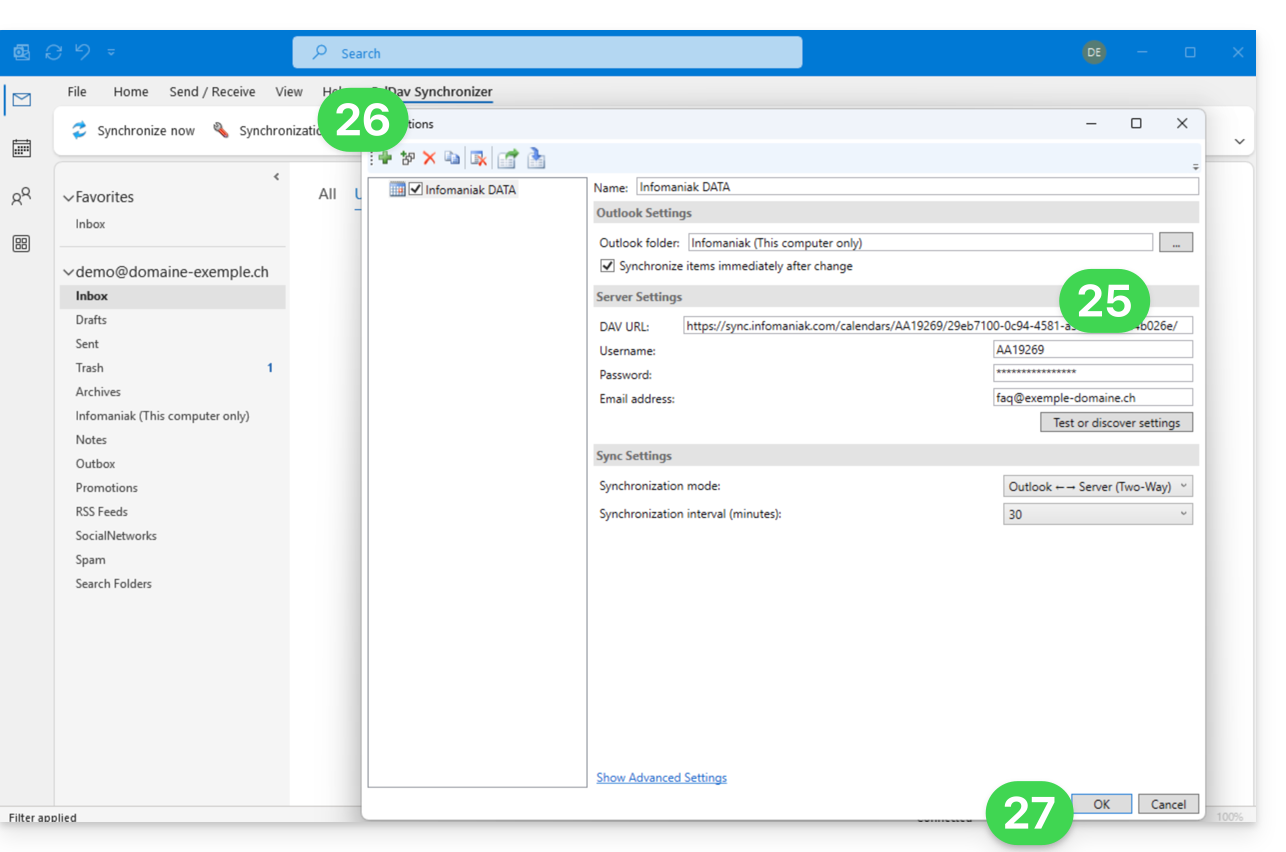
- A restart of Outlook may be required to update the added information, which will then be visible in the interface:
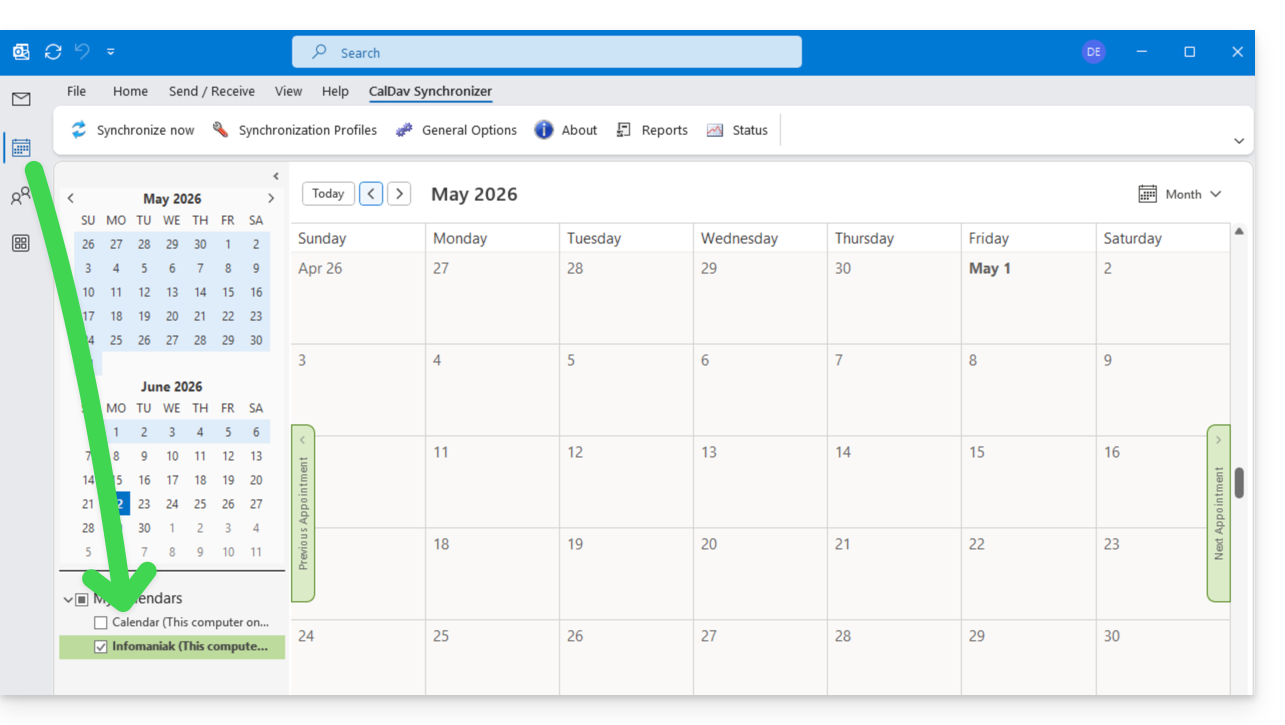
Resolving duplicate events
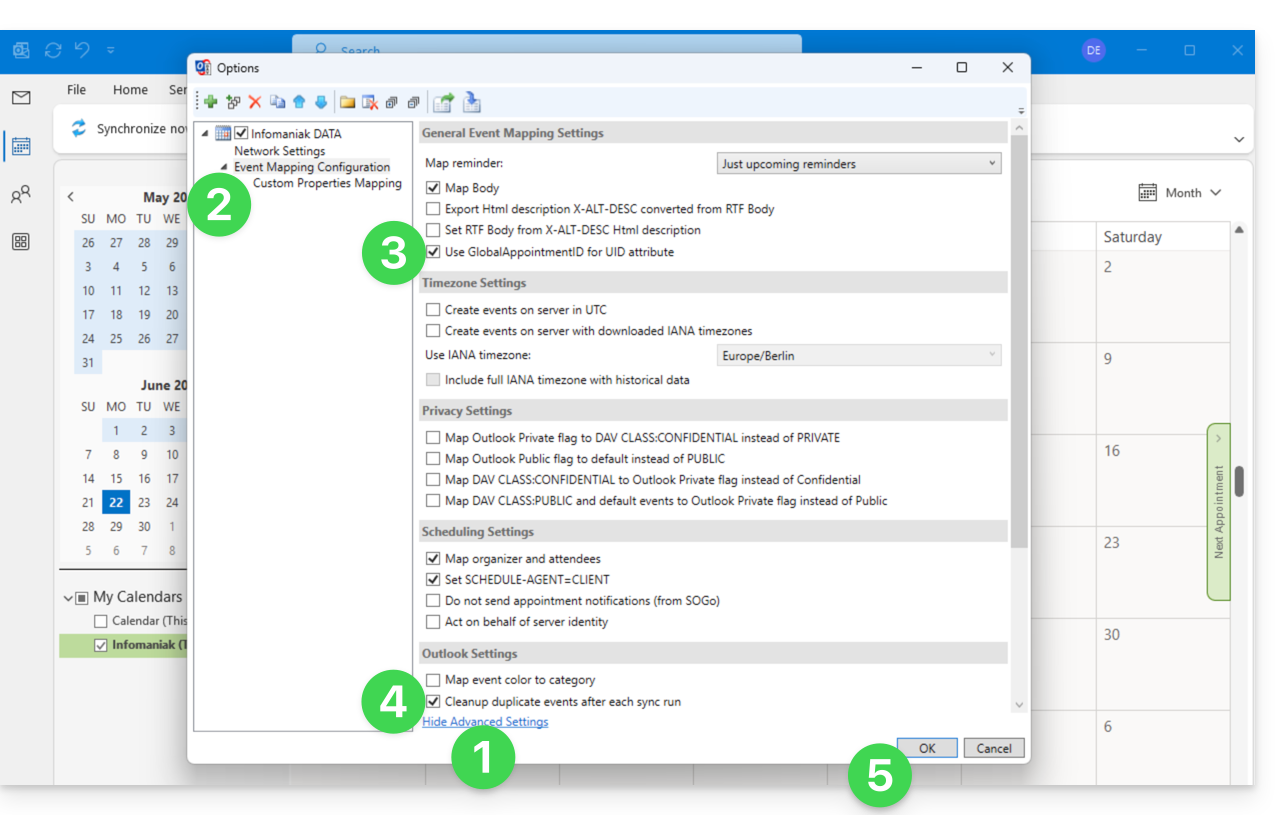
If you notice duplicate events in your Outlook calendar that are not duplicated on ksuite.infomaniak.com/calendar, apply these settings:
- Click to Show Advanced Settings.
- Click on Event Mapping Configuration.
- Check the box Use GlobalAppointmentID for UID attribute.
- Check the Cleanup duplicate events box.
- Save the changes by clicking the OK button:
This removal of duplicate events, and therefore potentially duplicate invitations, may result in a notification of event rejection being sent to the organizer; however, this does not affect the participant's initial choice.
For advanced macOS users
There is an alternative for Outlook / Exchange on macOS, via the ews-caldav-sync Python script:
- Unlike an ICS file import provided by Outlook Web, which only includes the last few weeks of events, the script will import all calendar events, including recurring events, without importing tasks.
- Synchronization via this script is one-way, from Microsoft Exchange to the CalDAV server. It is recommended to run it at regular intervals.
Link to this FAQ: https://faq.infomaniak.com/2045
Has this FAQ been helpful?
This guide explains how to configure the synchronization of calendars and contacts Infomaniak with the desktop app Mozilla Thunderbird (desktop application on macOS / Windows / Linux).
Obtain the advanced URL
Prerequisites
- Obtain your synchronization details provided by the Infomaniak synchronization assistant:
- account address:
https://sync.infomaniak.com - username: for example
AB12345 - application password if two-factor authentication is enabled or your Infomaniak account password if you have not enabled 2FA
- account address:
To obtain a more detailed synchronization URL, which is generally required for synchronization with Thunderbird:
- Open the synchronization wizard for Infomaniak.
- Click on the blue Select a device link:
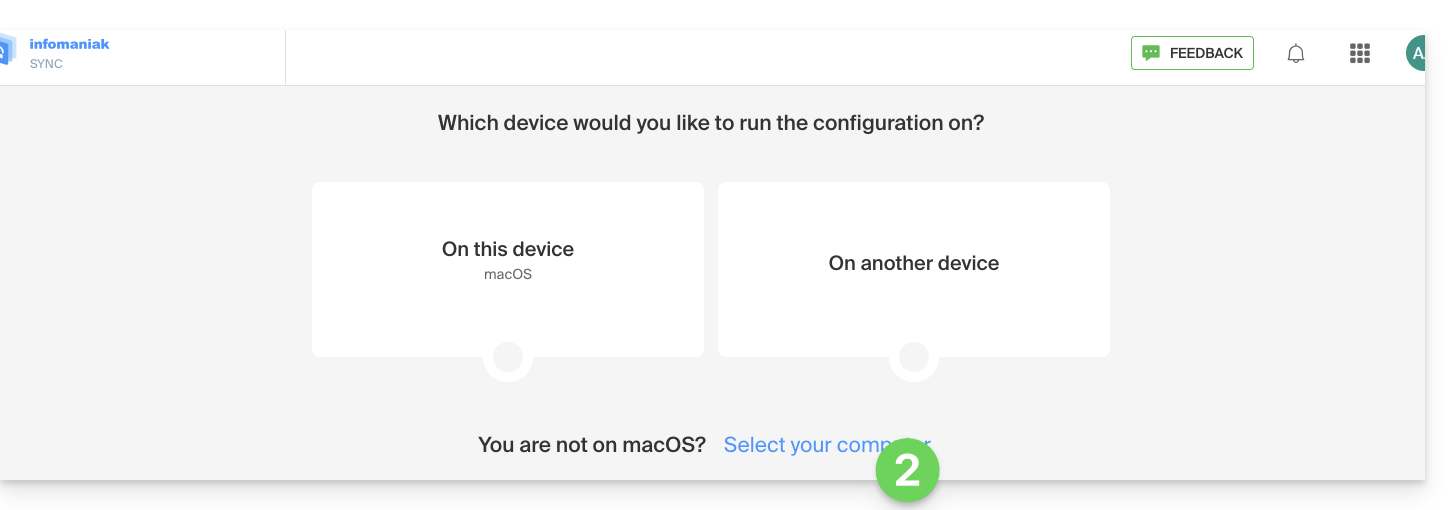
- Choose a GNU/Linux type synchronization.
- Note the complete synchronization URL displayed in step 4 of the wizard:

Synchronize calendars and address books
Connect to a CardDAV address book
With the latest versions of Thunderbird, synchronizing your Infomaniak calendars and address books is now available.immediately after configuring your email addresswithin the software: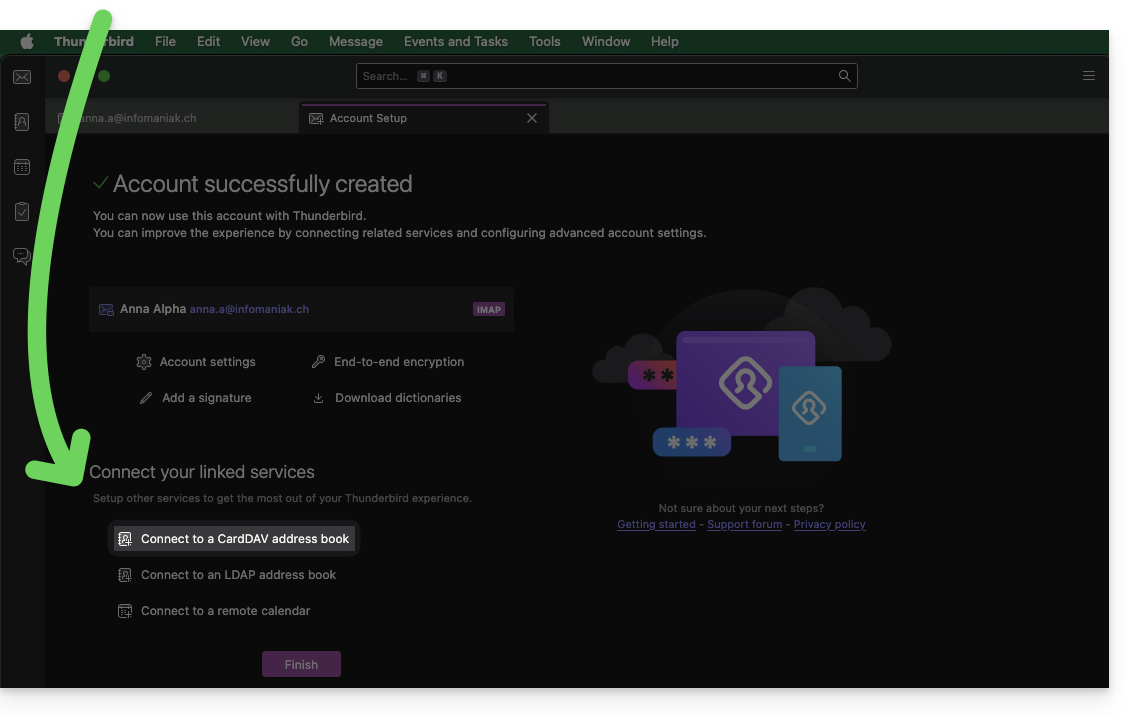
Click on it; the configuration will start:
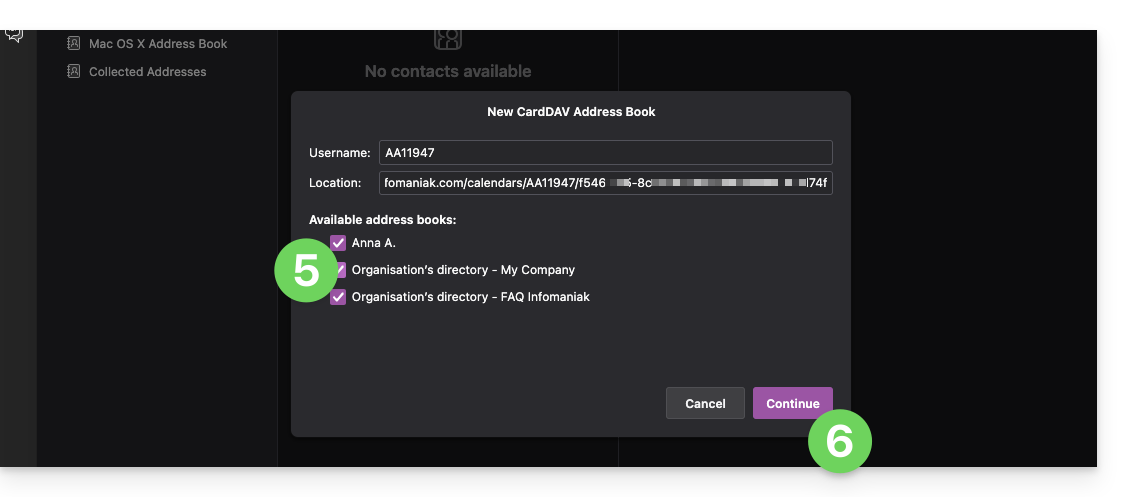
- Enter the short username and the advanced URL (see above).
- Click Continue.
- Thunderbird will then ask for the password (see above).
- Tap OK:

- Once authentication is complete, the application will display the address books associated with your Infomaniak account; choose which ones to synchronize.
- Tap Continue to complete:
Connect to a remote calendar
Add a new calendar in Thunderbird:
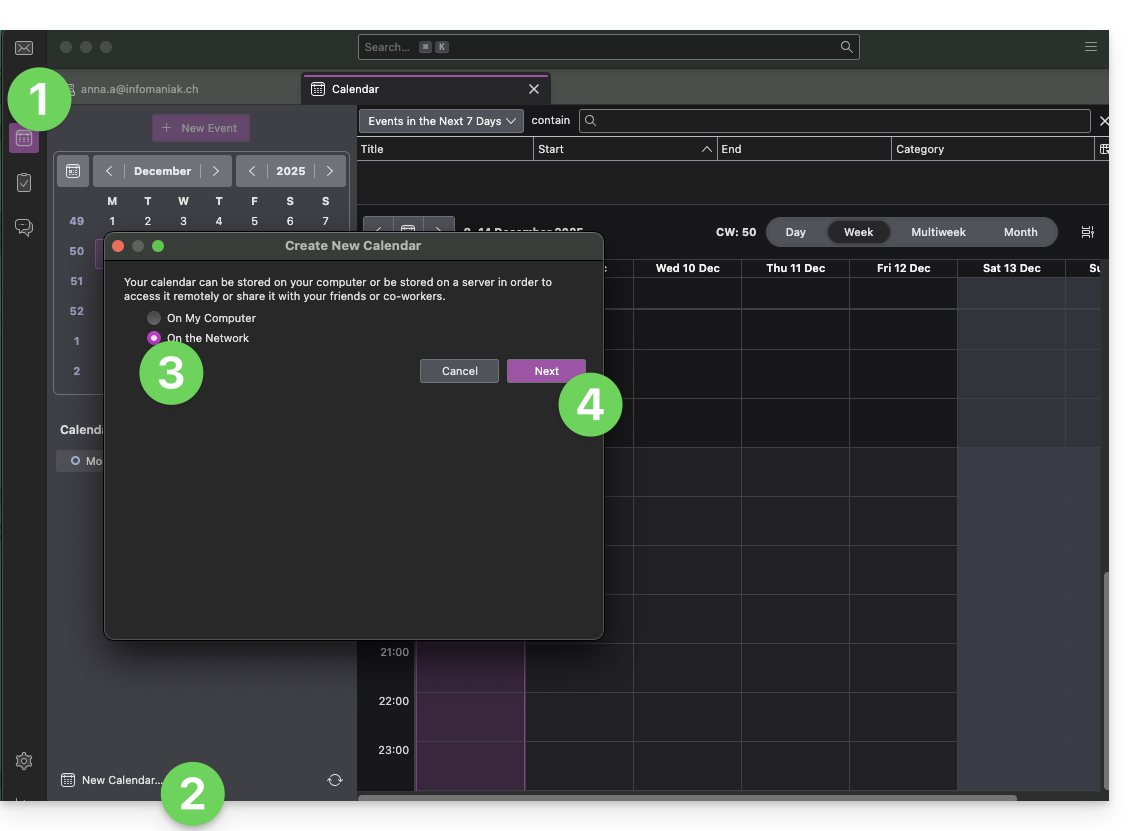
- If necessary, switch to Calendars.
- Click on New Calendar…
- Choose On the network.
- Click on Next:
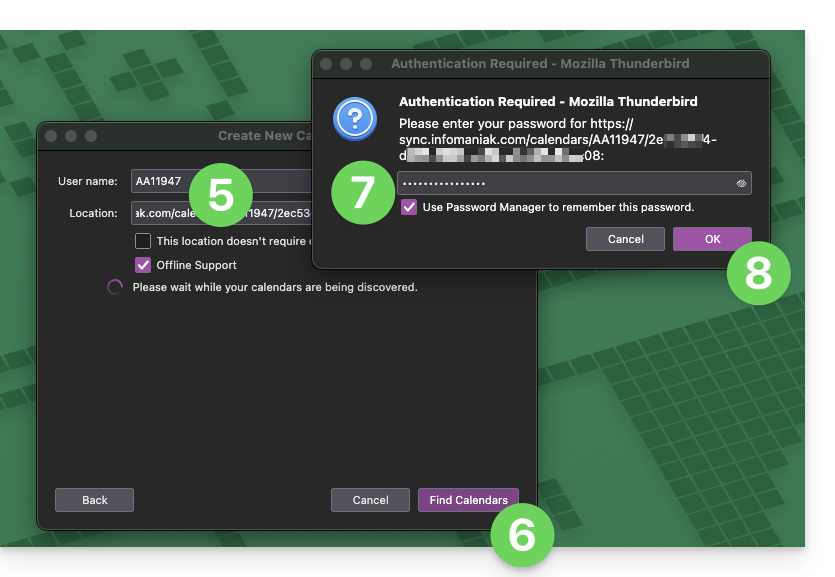
- Enter the short username and the advanced URL (see above).
- Click the button to find the associated Calendars.
- Thunderbird will then ask for the password (see above).
- Tap OK:
- Once authentication is complete, the application will display the calendars associated with your Infomaniak account; choose which calendars to synchronize.
- You can manage advanced properties of your calendars in Thunderbird if needed.
- Click the Subscribe button to complete the process:
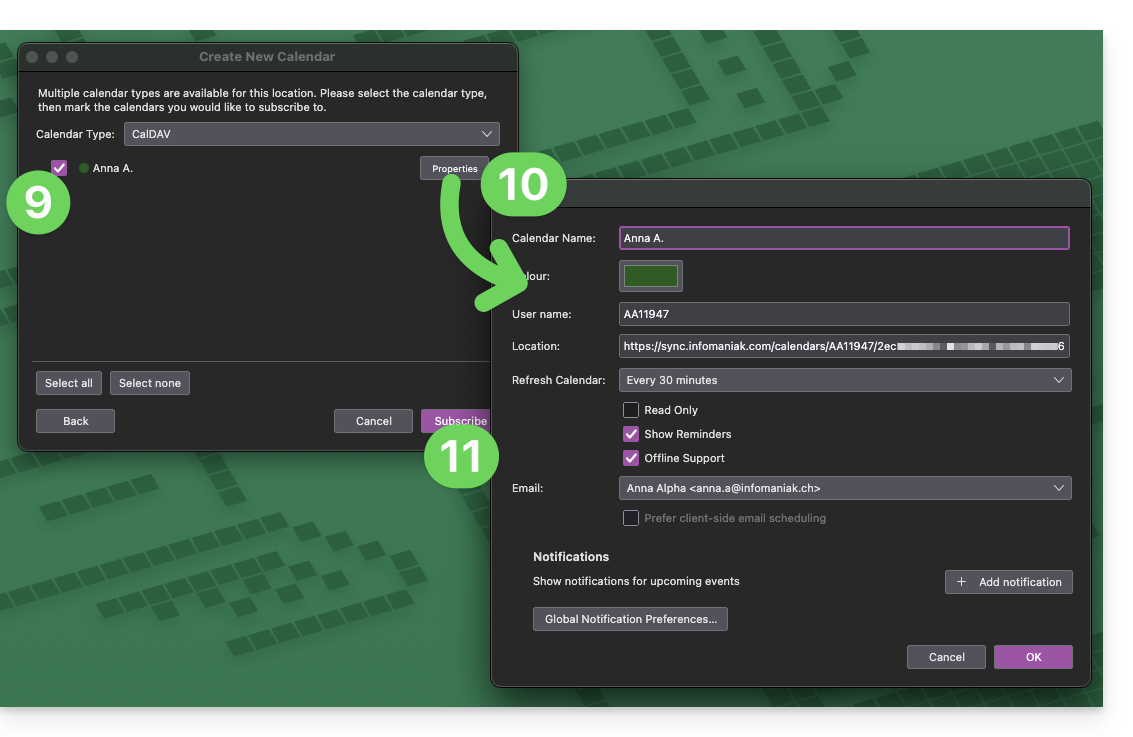
Refer to this other guide if you need to troubleshoot a configuration issue with Thunderbird (email, contacts, calendars)…
Link to this FAQ: https://faq.infomaniak.com/2046
Has this FAQ been helpful?
This guide explains how to synchronize your eM Client contacts & calendars with the contacts & calendars hosted by Infomaniak.
Introduction
- Infomaniak contacts & calendars are linked to your Infomaniak account; when you log in to ksuite.infomaniak.com/contacts or /calendar, you will likely need to perform two-factor authentication (2FA) during login.
- In this case, an application password is required to establish synchronization between your device and Infomaniak tools.
- But don't worry, creating such a password is offered as part of the configuration wizard.
Synchronize contacts & calendars (eM Client 10 macOS)
Prerequisites
- Obtain your synchronization information provided by the Infomaniak synchronization wizard:
- account address:
https://sync.infomaniak.com - username: for example
AB12345 - application password if two-factor authentication is enabled or the password for your Infomaniak user account if you have not enabled 2FA
- account address:
Then:
- Open eM Client.
- Click on the eM Client Menu.
- Click on Add account:
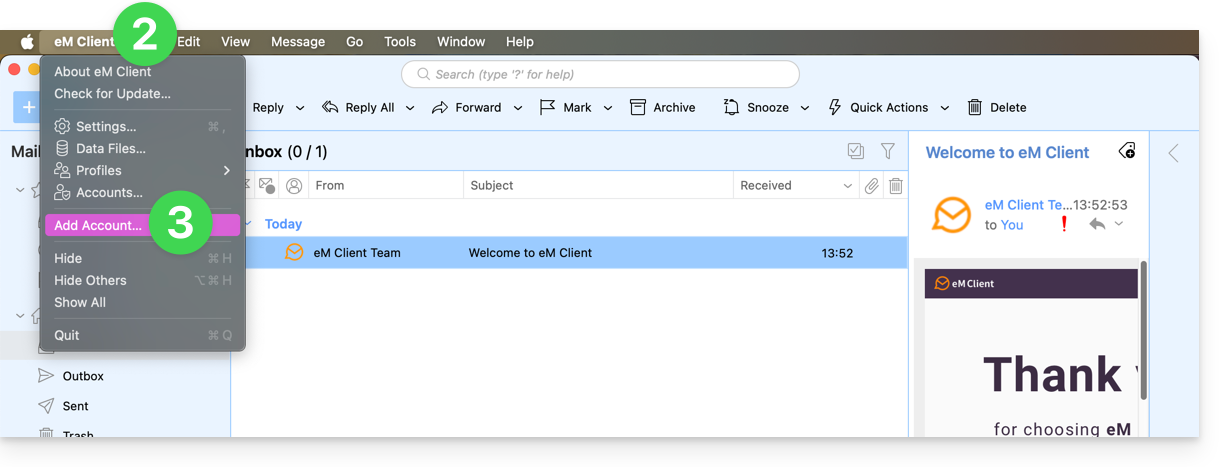
- Click on Calendar.
- Click on CalDAV.
- Click on Next:
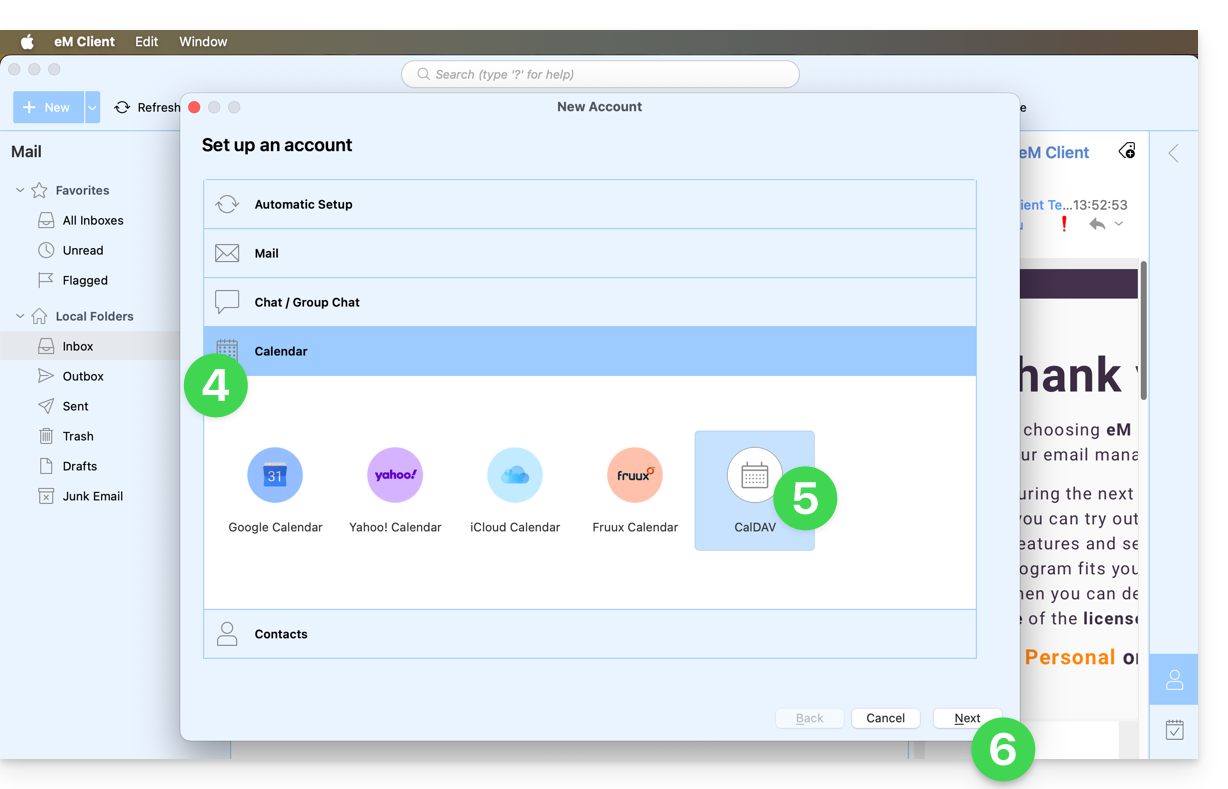
- Enter the information obtained from the configuration wizard (see prerequisites).
- Click on Next:
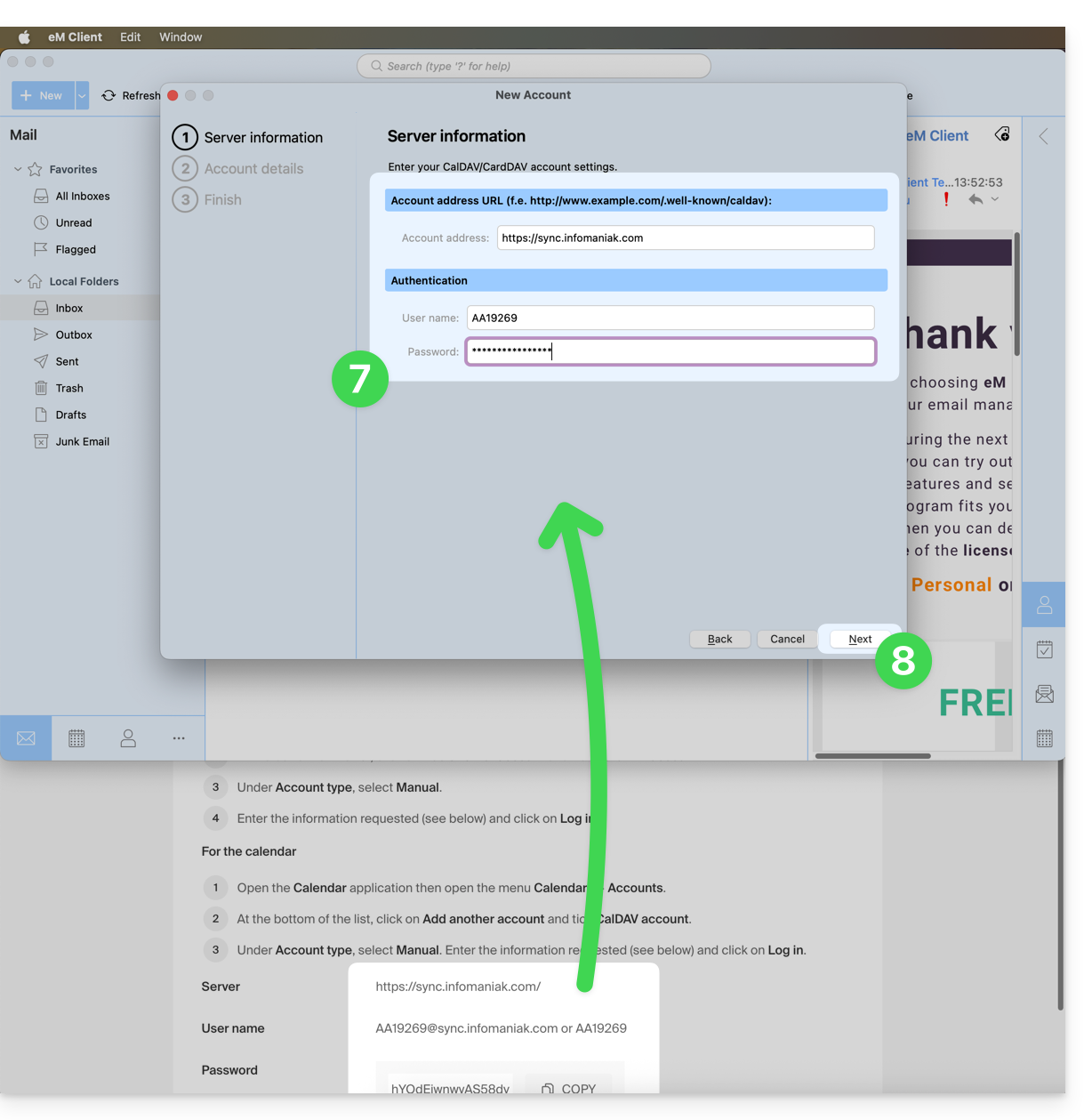
- Choose a name for the account (e.g., infomaniak) and complete the process.
- The information retrieved and synchronized with Infomaniak will be displayed in the Calendar section:
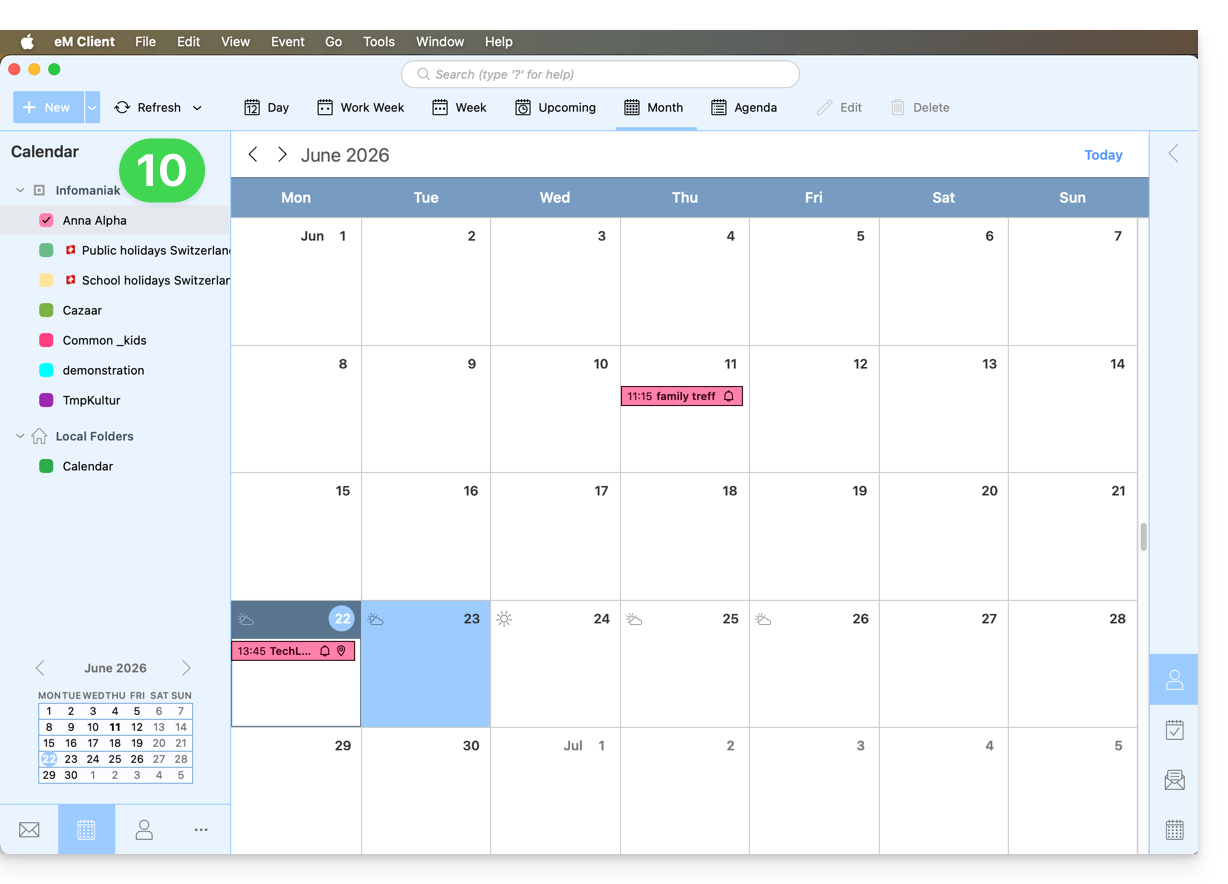
You can start with the Contacts section if you wish, but in any case, a CalDAV procedure also configures CardDAV, and vice versa: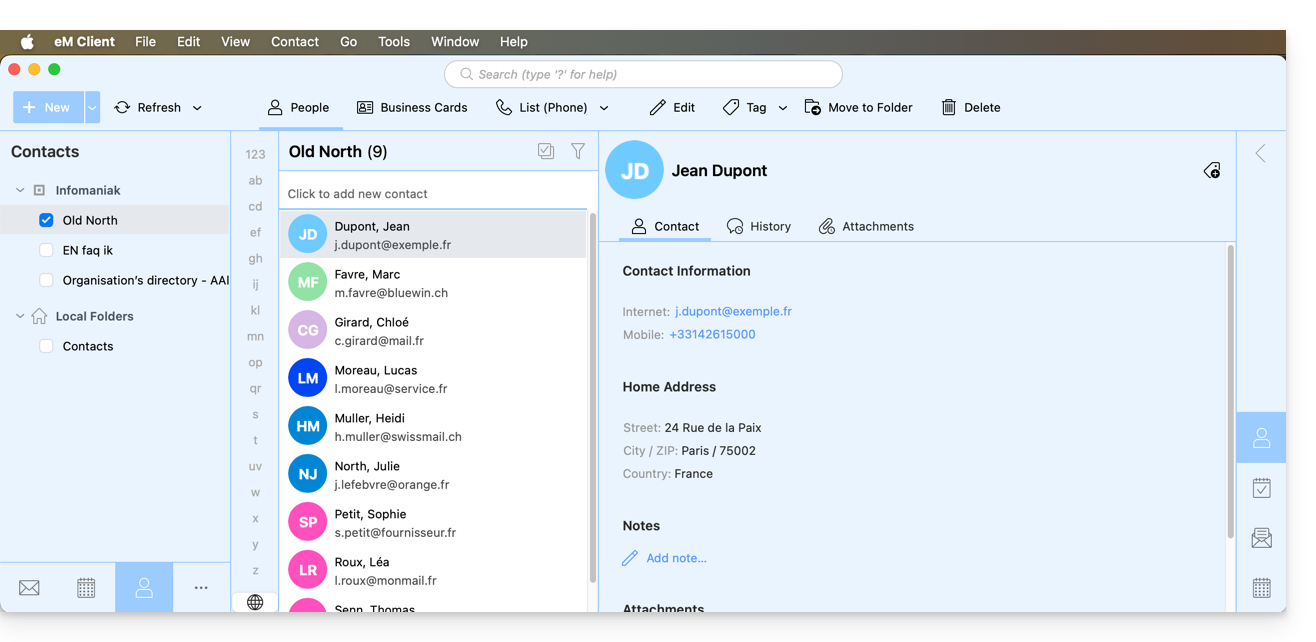
Link to this FAQ: https://faq.infomaniak.com/2047
Has this FAQ been helpful?
This guide explains how to delete an email address from the Infomaniak Mail Service.
Delete one or more email addresses
Prerequisites
- You must have a Mail Service on your Infomaniak Manager (❓: help).
- You must be at least an Administrator of the Organization (❓: help).
Removing an email address or terminating a user account is done via the Mail Service dashboard. This action will unlink related services and requires careful consideration regarding the preservation of existing data. To remove an email address (its content will be permanently deleted):
- Click here to access the Mail Service management in your Infomaniak Manager (❓: help).
- Click on the name of the Mail Service in question.
Once you are on the email address management page: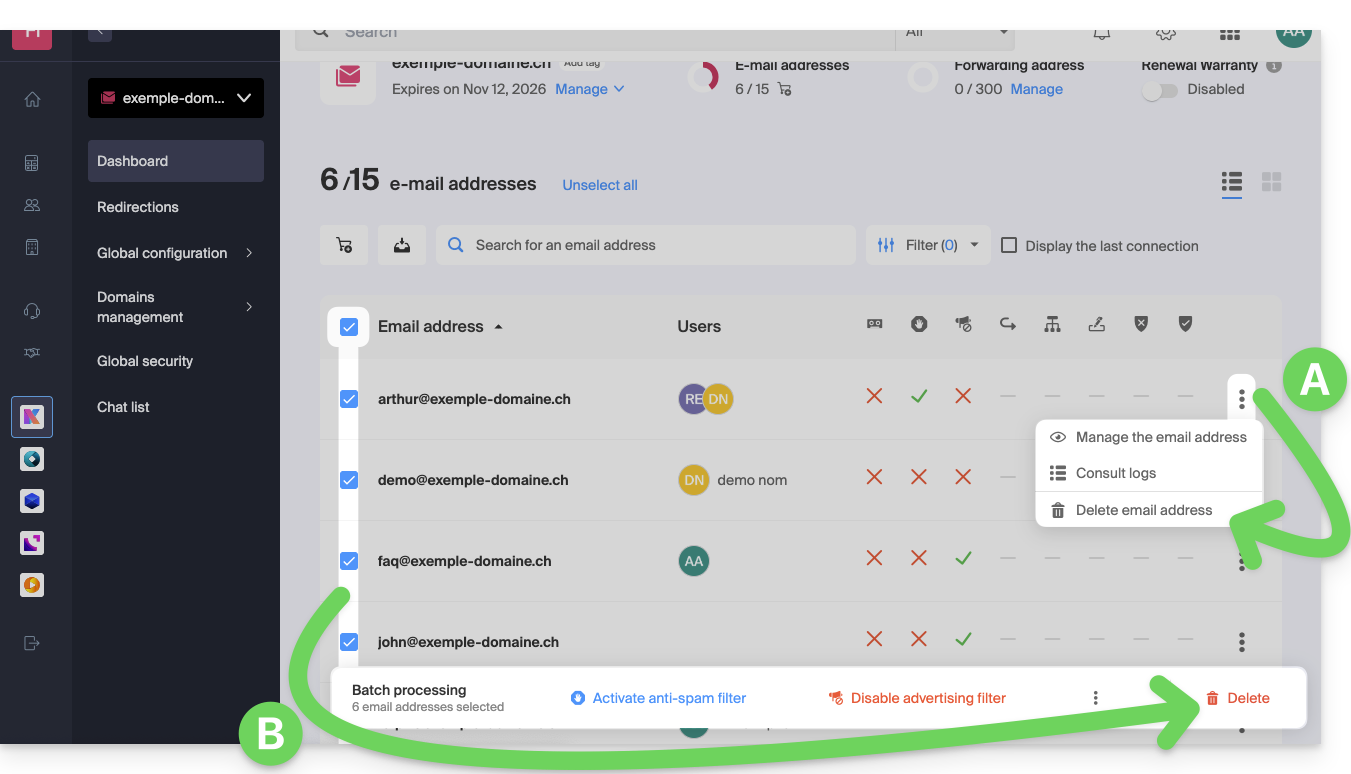
A. Delete addresses one by one
- Click on the action menu ⋮ located to the right of the item in question.
- Choose to delete the email address.
B. Delete multiple addresses at once
- Select the addresses to delete by checking the boxes to the left of each line.
- Click on Delete at the bottom of the screen.
Link to this FAQ: https://faq.infomaniak.com/2066
Has this FAQ been helpful?
This guide explains how to transfer to Infomaniak email addresses currently hosted by Orange (France), using an IMAP import tool.
Introduction
- This operation does not affect the data already present in the destination address, nor the data in the source address.
- The entire external mailbox will be imported.
- Once the import process has started, it is no longer possible to interrupt it.
- Any duplicates will be handled: identical content will only be copied once.
- Consult this other guide if you are looking for alternatives to this IMAP process.
Import your entire email history
1. Orange Prerequisites
- Enable the POP/IMAP/SMTP features that are disabled by default (need help?).
2. Infomaniak Prerequisites
- You must have a Mail Service in your Infomaniak Manager.
- Have a number of available addresses or adjust it if necessary.
- Make sure your email is properly secured
- Create one or more addresses on this Mail service.
- If you have many (10+) email addresses to create, please refer to this other guide regarding bulk creation.
- The destination email address must be linked to the user (= the Infomaniak account) you are using.
3. Import your Orange email content to Infomaniak
- Click here to access the import tool (online service https://import-email.infomaniak.com).
- If necessary, log in to your Infomaniak account for the relevant organization; the import will be done to one of the email addresses associated with the Infomaniak Mail web interface (online service ksuite.infomaniak.com/mail) of the Infomaniak account you are using.
- Click on the IMAP import.
- Click on one-time import.
- Fill in the field on the left with your source email address (the content of which will be copied):
username@orange.frfor example
- Fill in the field on the right with the password for this same source email address (see prerequisites).
- If necessary, modify the Advanced Settings to specify an IMAP server address:
- Enter the IMAP server name
imap.orange.fr. - Leave the default port (993) and SSL enabled.
- Enter the IMAP server name
- Click on Confirm.
- If necessary, enter a second email address to be imported at the same time.
- Choose the email address from which to import emails; the drop-down menu lists the email addresses currently associated with your Infomaniak Web Mail interface (online service ksuite.infomaniak.com/mail) of the Infomaniak account you are logged into.
- After selecting the desired destination address from the list, click the blue Import emails button.
- The copy process has started. You can wait and view the results on the page once the import is complete, or close the window (the import will continue in the background, and progress can be tracked - see below).
- A confirmation email will be automatically sent to all email addresses involved in the operation once the import is complete, indicating the number of messages copied.
- Tracking is available in the settings of the destination email address, and only on the web app Mail (online service ksuite.infomaniak.com/mail).
- Tracking allows you to view the import history for the address in question.
4. Adjust the application settings
Once you have taken the necessary steps to ensure that the domain name associated with your email account works with Infomaniak, modify the settings of the email software/clients you use so that they connect correctly to the Infomaniak servers: follow the configuration wizard.
Link to this FAQ: https://faq.infomaniak.com/2090
Has this FAQ been helpful?
This guide provides instructions on how to obtain one or more Infomaniak invoices before and after payment, and how to view, download, and print all or part of the invoice history for your accounting purposes.
Introduction
- Final invoices can only be printed after they have been paid.
- If necessary, a personalized message can be easily added to your billing documents: see this other guide.
Accessing the invoice history
Prerequisites
- You must have at least the right to manage accounting (❓: help):
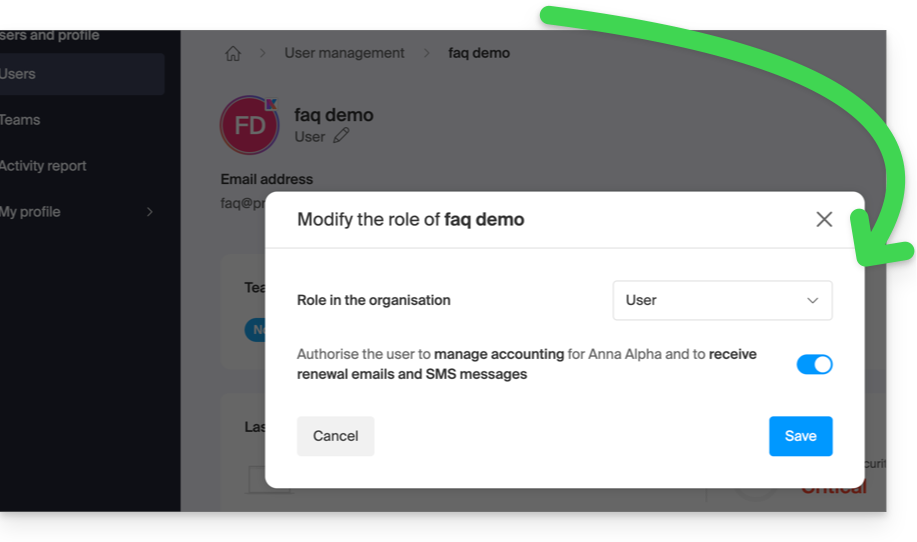
To go to the billing documents page:
- Click here to access the invoice history in the Infomaniak Manager:
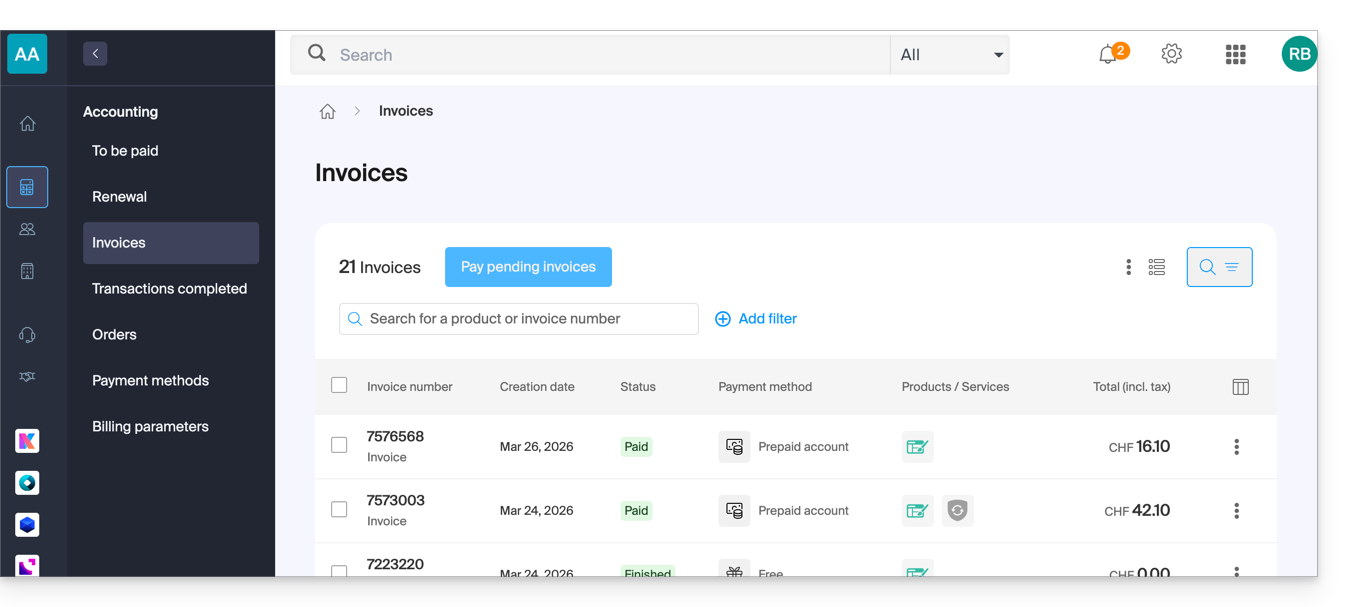
- The table automatically displays the most recent billing documents.
- The top section allows you to filter documents based on the Paid, Reimbursed, etc. status, and based on the desired period (start and end date):
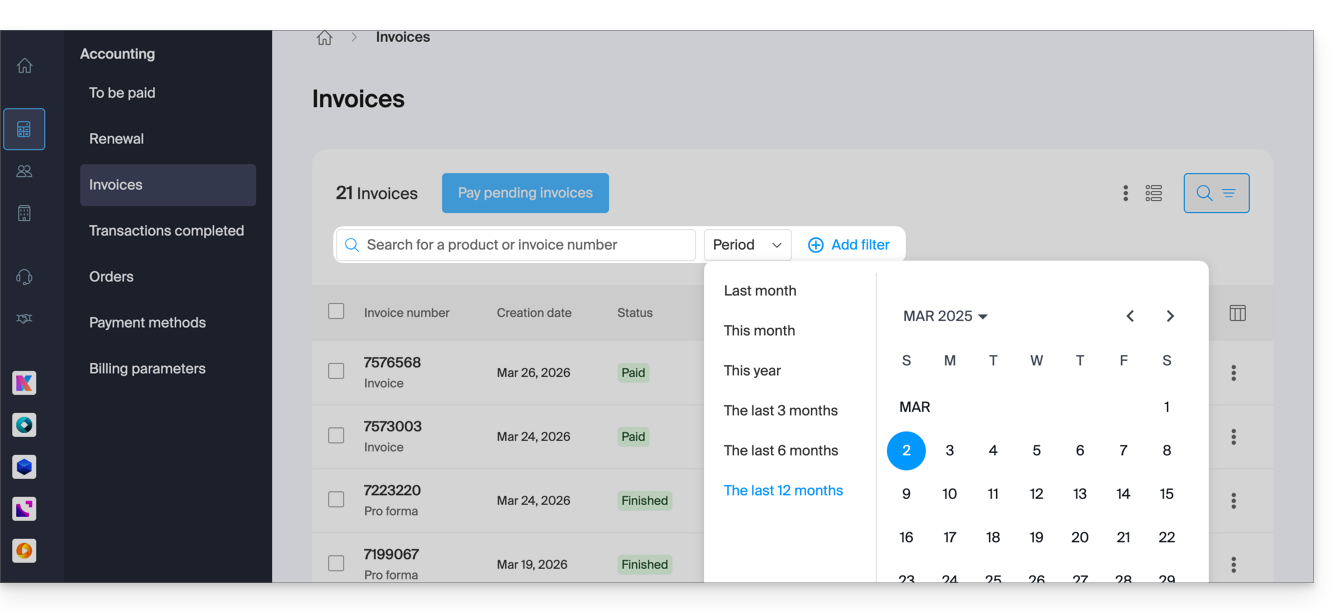
Print/export a billing document
To view one of these documents in PDF format and then save it to your device or print it with your printer:
- On the same page, click on the invoice in question in the table that appears:
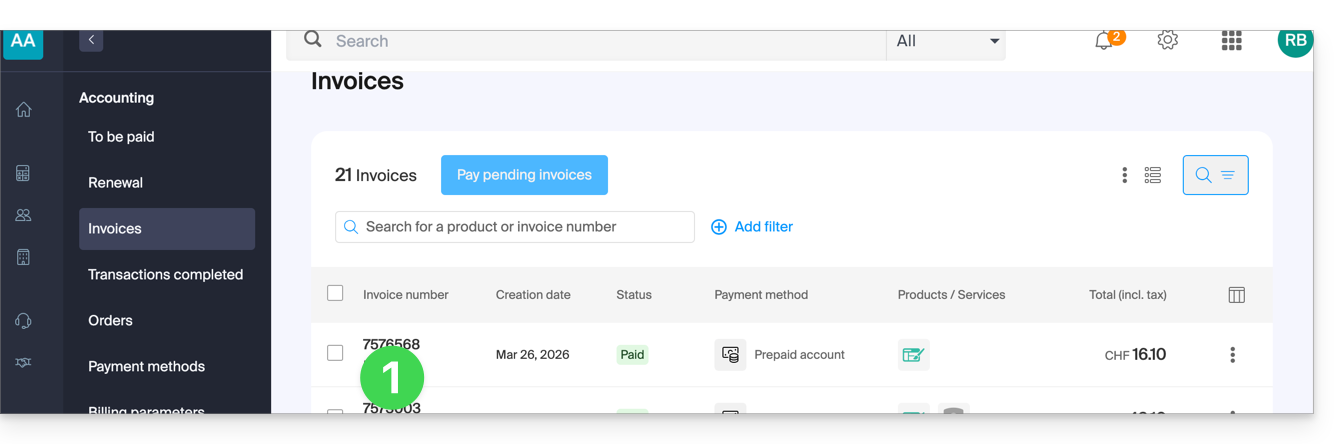
- Click the Download button or the chevron for more options:
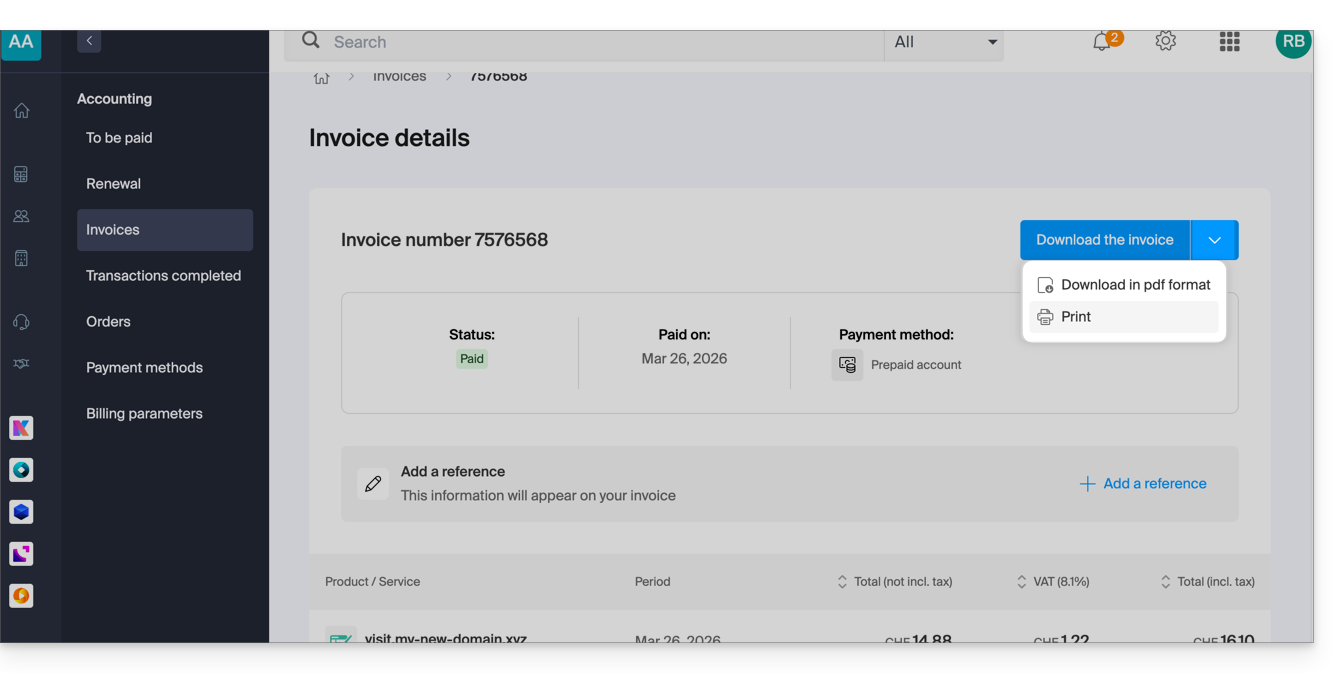
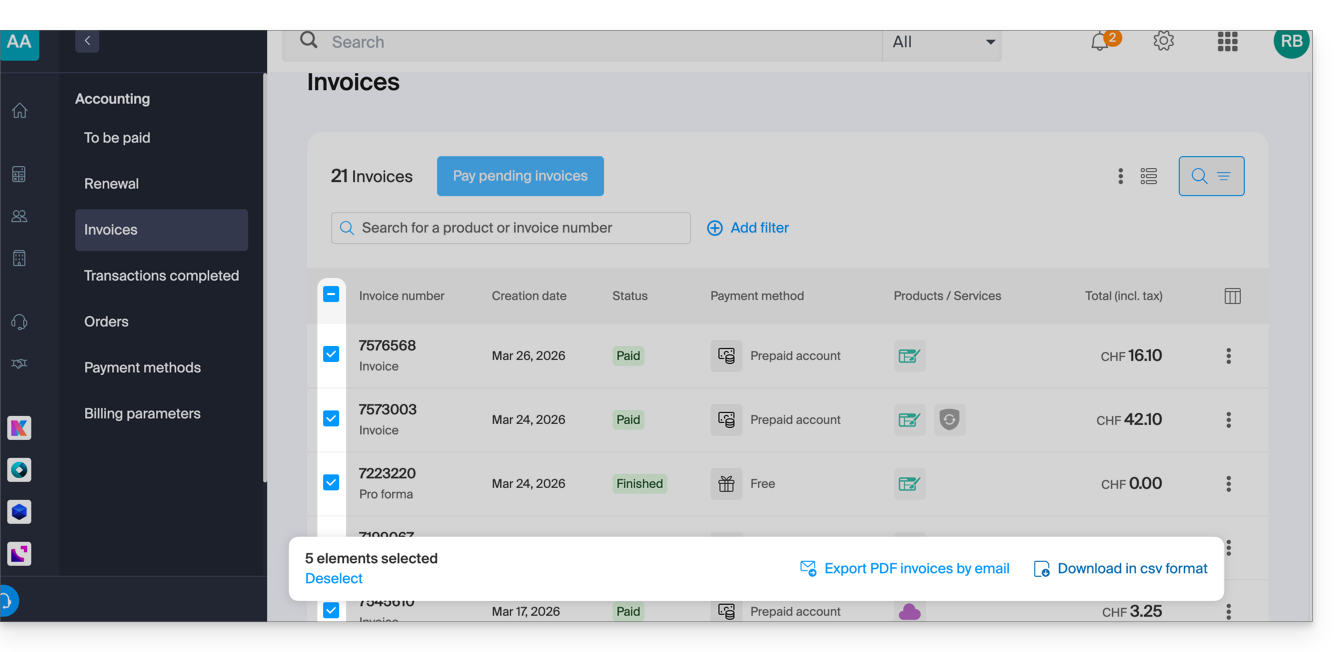
Export a set of billing documents
To download a set of documents in a CSV file in .csv format, or to receive them by email:
- On the same page, filter the documents based on the Paid, Reimbursed, etc. status, and based on the desired period (start and end dates).
- Click on the button at the bottom, depending on the type of export you want:
Receive the (next) PDF invoice by email
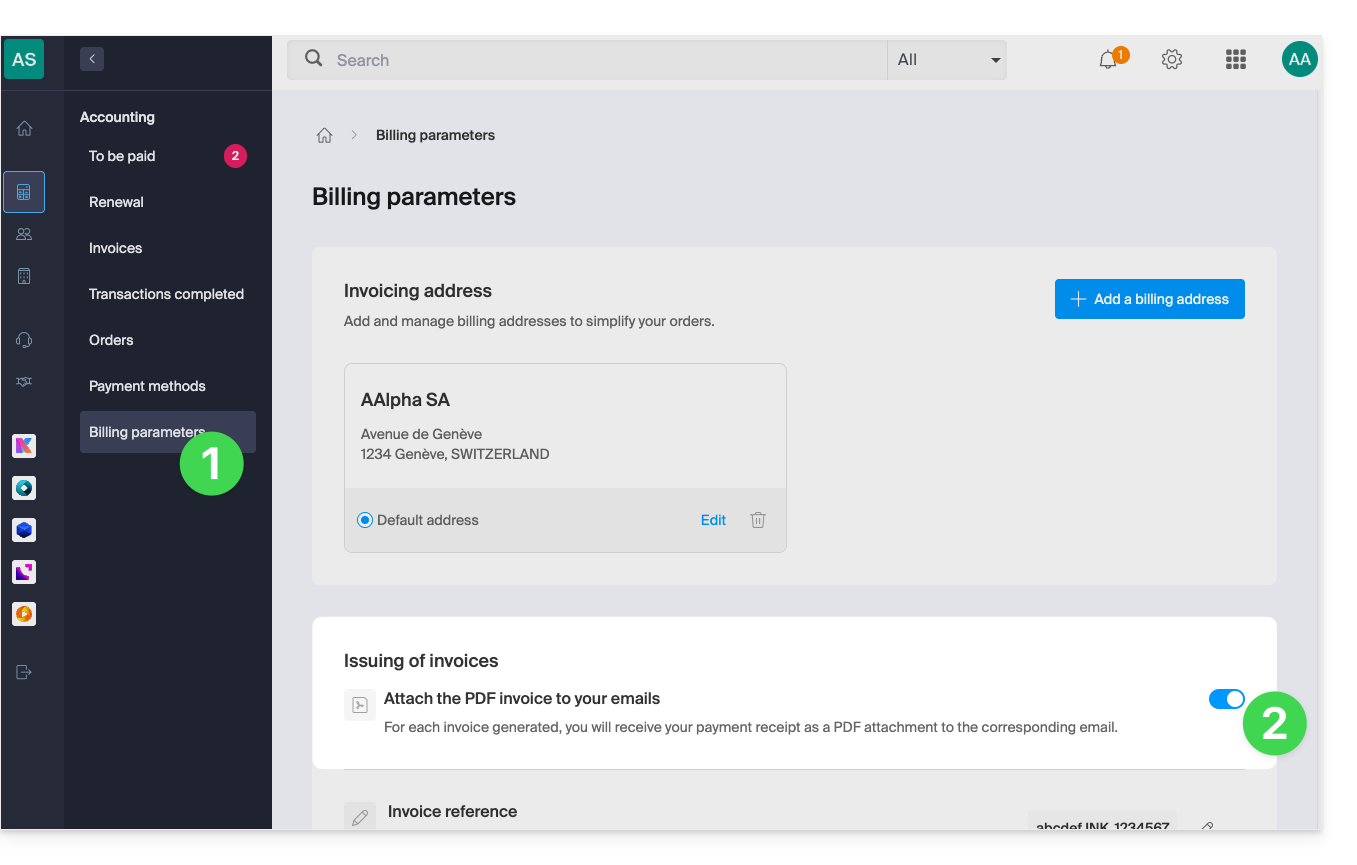
To ensure that the invoice is always attached in PDF format with each renewal email:
- Click here to access the configuration/accounting page in the Infomaniak Manager (need help?).
- Access requires authentication with a user who has sufficient rights.
- On this page, enable or disable the addition of PDF invoices:
Your preferences are automatically saved as soon as a change is made on the page.
Print a Pro Forma Invoice
Pro Forma invoices do not have any legal, judicial, tax, or accounting value:
- Click here to access payment management in the Infomaniak Manager.
- Select the relevant products.
- Click on Generate a Pro Forma Invoice at the bottom of the table.
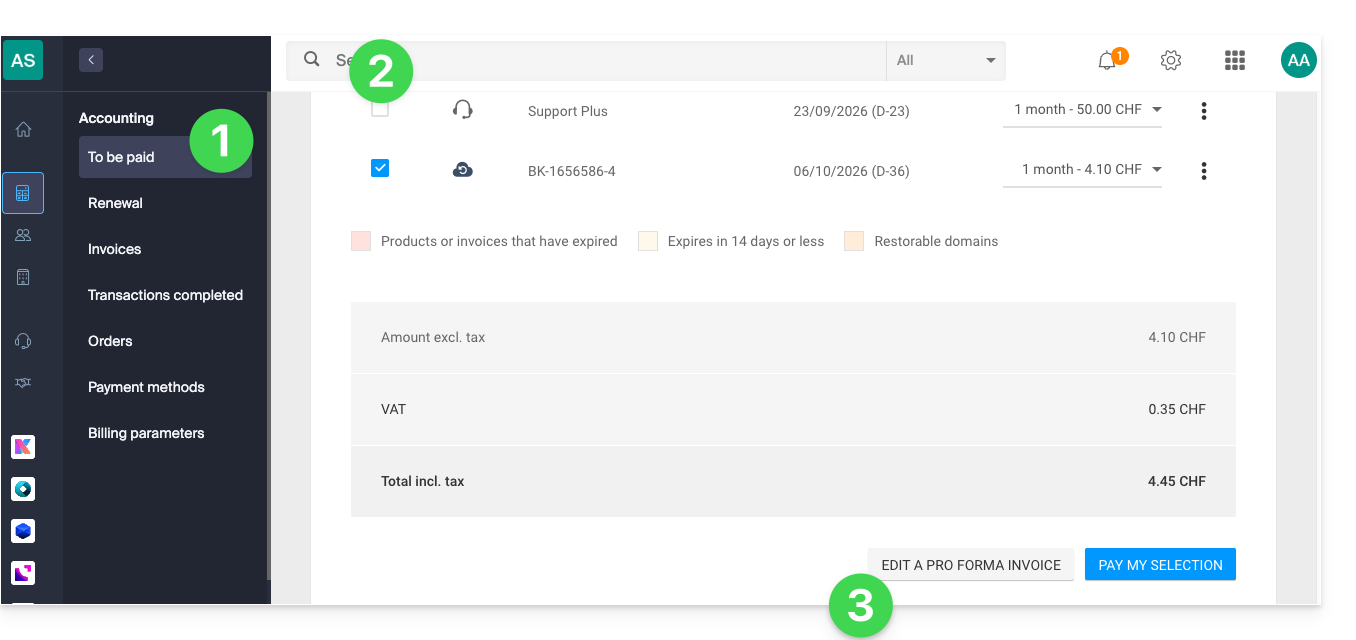
- Once displayed, you can then download the Pro Forma Invoice.
Link to this FAQ: https://faq.infomaniak.com/2091
Has this FAQ been helpful?