Knowledge base
1000 FAQs, 500 tutorials and instructional videos. Here, there are only solutions!
Sync Thunderbird Contacts & Calendars (desktop app) with CardDAV/CalDAV
This guide explains how to configure the synchronization of calendars and contacts Infomaniak with the desktop app Mozilla Thunderbird (desktop application on macOS / Windows / Linux).
Obtain the advanced URL
Prerequisites
- Obtain your synchronization details provided by the Infomaniak synchronization assistant:
- account address:
https://sync.infomaniak.com - username: for example
AB12345 - application password if two-factor authentication is enabled or your Infomaniak account password if you have not enabled 2FA
- account address:
To obtain a more detailed synchronization URL, which is generally required for synchronization with Thunderbird:
- Open the synchronization wizard for Infomaniak.
- Click on the blue Select a device link:
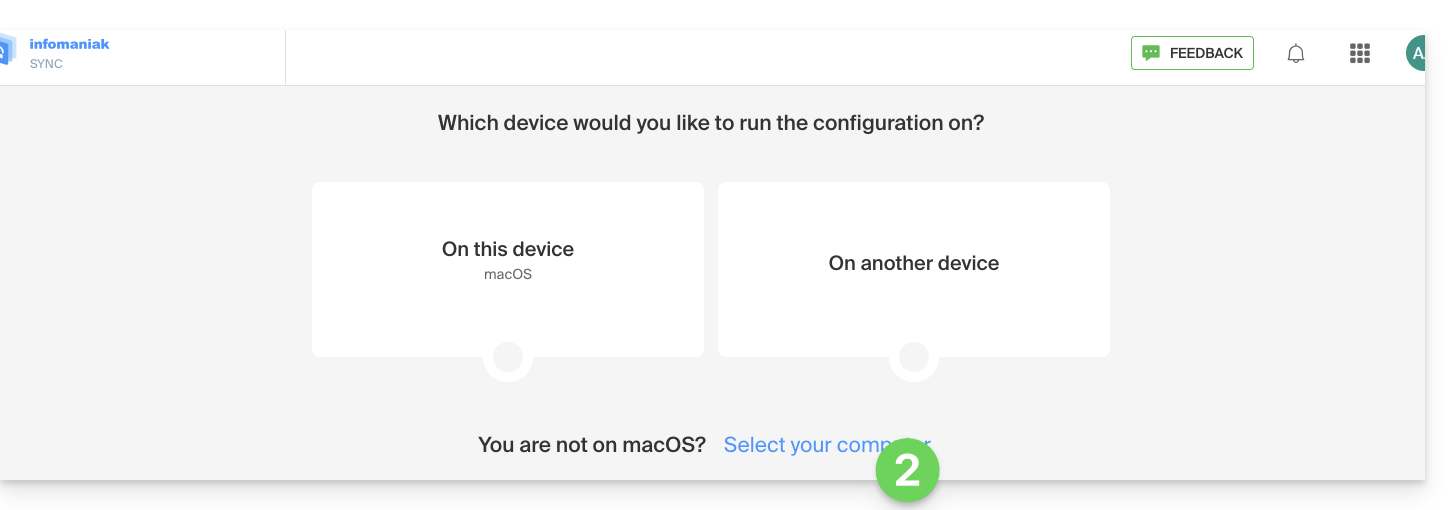
- Choose a GNU/Linux type synchronization.
- Note the complete synchronization URL displayed in step 4 of the wizard:

Synchronize calendars and address books
Connect to a CardDAV address book
With the latest versions of Thunderbird, synchronizing your Infomaniak calendars and address books is now available.immediately after configuring your email addresswithin the software: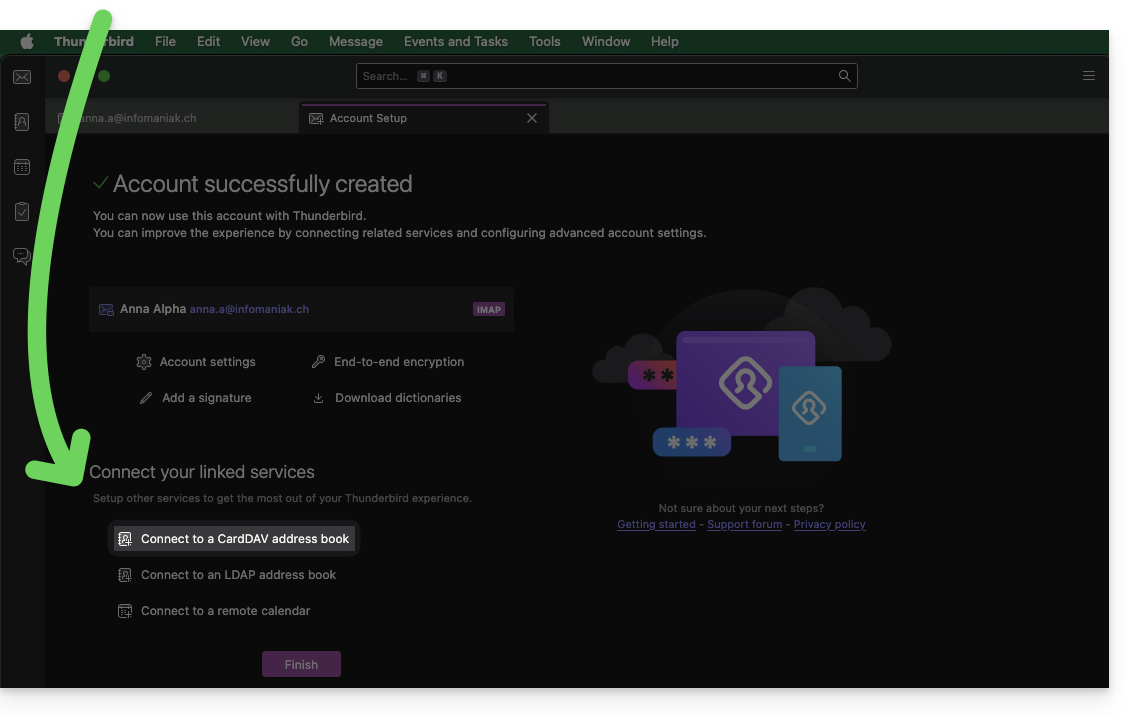
Click on it; the configuration will start:
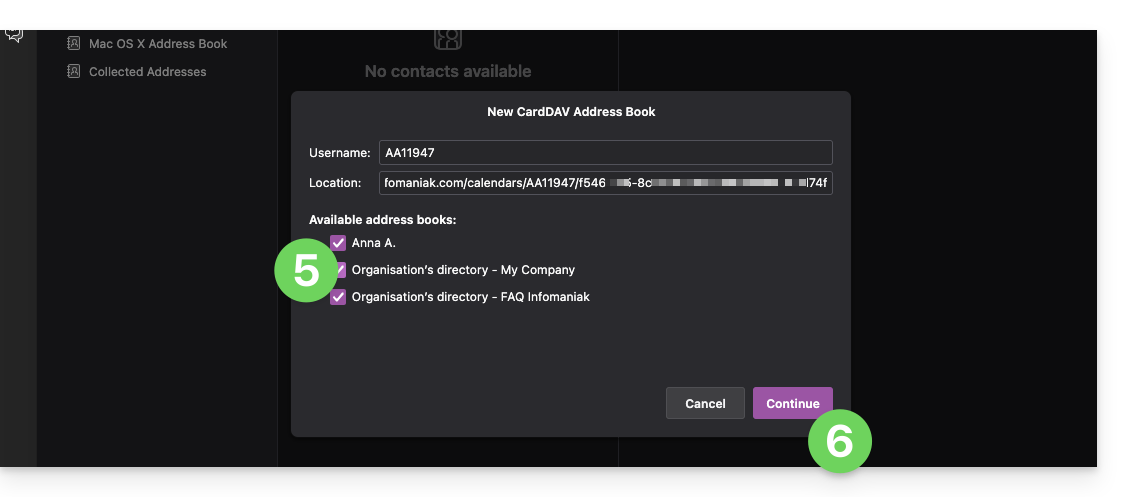
- Enter the short username and the advanced URL (see above).
- Click Continue.
- Thunderbird will then ask for the password (see above).
- Tap OK:

- Once authentication is complete, the application will display the address books associated with your Infomaniak account; choose which ones to synchronize.
- Tap Continue to complete:
Connect to a remote calendar
Add a new calendar in Thunderbird:
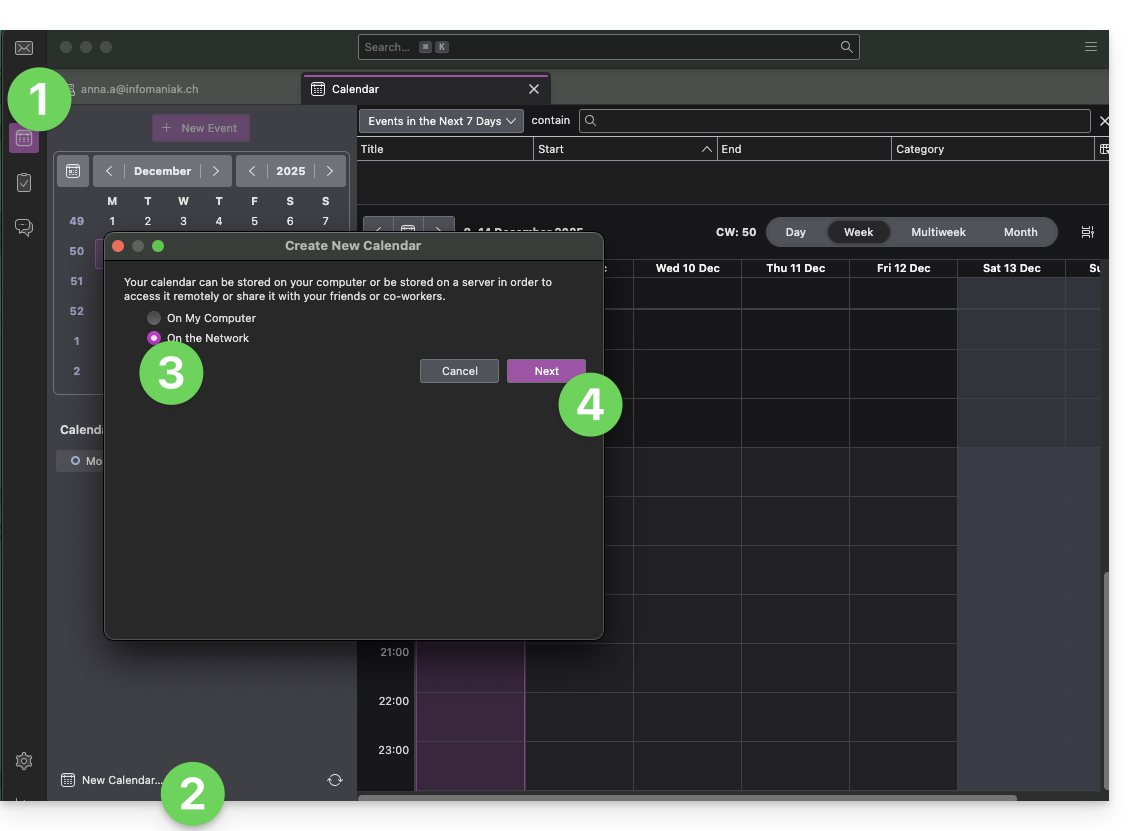
- If necessary, switch to Calendars.
- Click on New Calendar…
- Choose On the network.
- Click on Next:
- Enter the short username and the advanced URL (see above).
- Click the button to find the associated Calendars.
- Thunderbird will then ask for the password (see above).
- Tap OK:
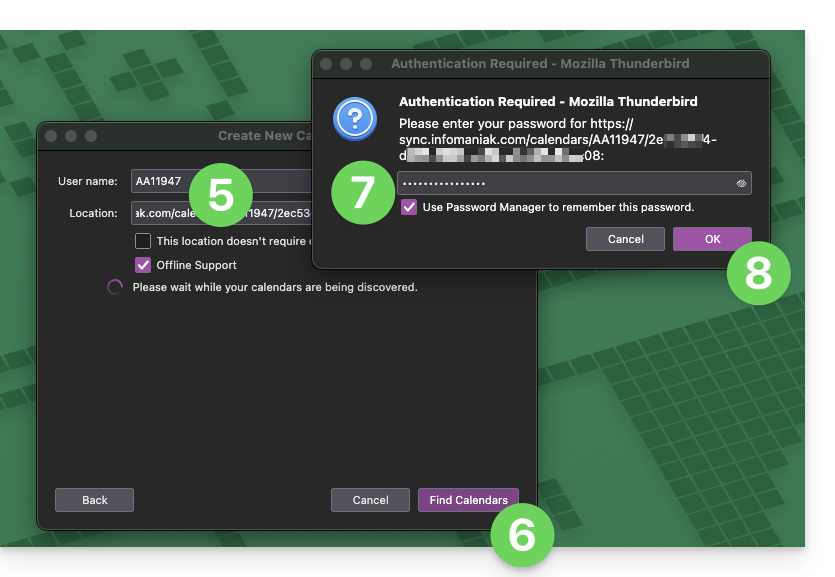
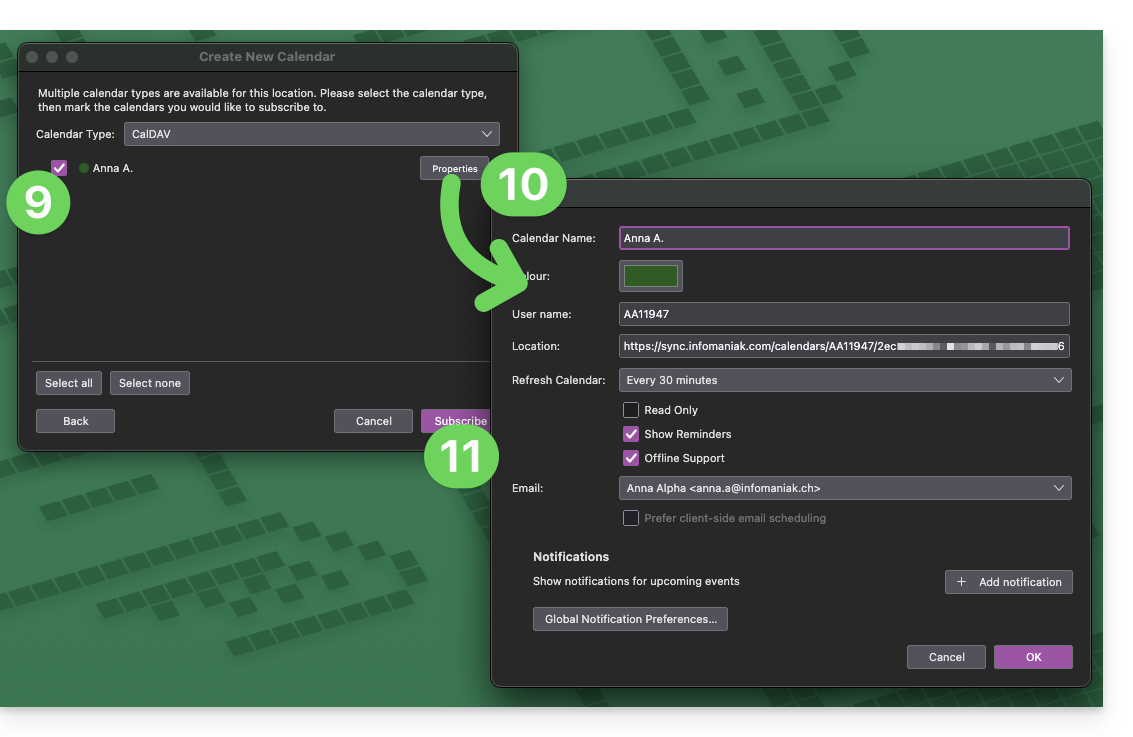
- Once authentication is complete, the application will display the calendars associated with your Infomaniak account; choose which calendars to synchronize.
- You can manage advanced properties of your calendars in Thunderbird if needed.
- Click the Subscribe button to complete the process:
Refer to this other guide if you need to troubleshoot a configuration issue with Thunderbird (email, contacts, calendars)…
Link to this FAQ: https://faq.infomaniak.com/2046
Has this FAQ been helpful?