Knowledge base
1000 FAQs, 500 tutorials and instructional videos. Here, there are only solutions!
Create an event reminder using a webhook with Infomaniak Calendar
This guide explains how to receive event reminders from the Infomaniak Web app Calendar (online service ksuite.infomaniak.com/calendar) on a messaging system like kChat, so you can be notified in the chat thread of your choice when an event is approaching.
Introduction
- The kSuite Free plan is limited to 1 webhook.
Link the kChat webhook to Calendar
Prerequisites
- Create an incoming webhook on the kChat app to obtain a URL of the type
https://your-server-kchat.xyz/hooks/xxx-key-generated-xxx: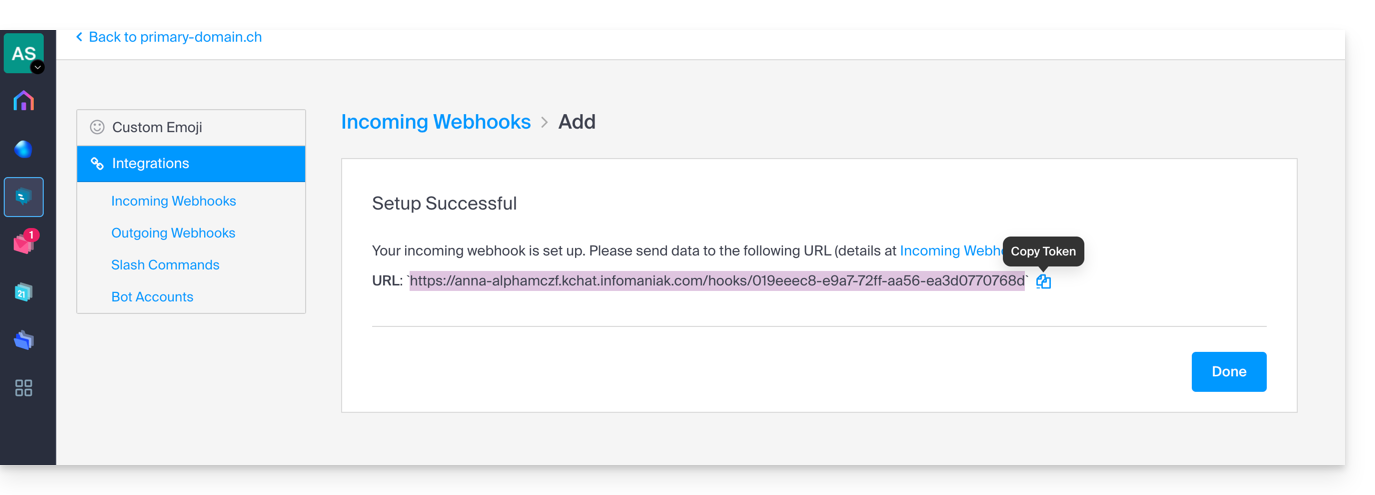
Next, to add the webhook for your chat system to the Calendar app:
- Click here to access the Infomaniak web Calendar app (online service ksuite.infomaniak.com/calendar).
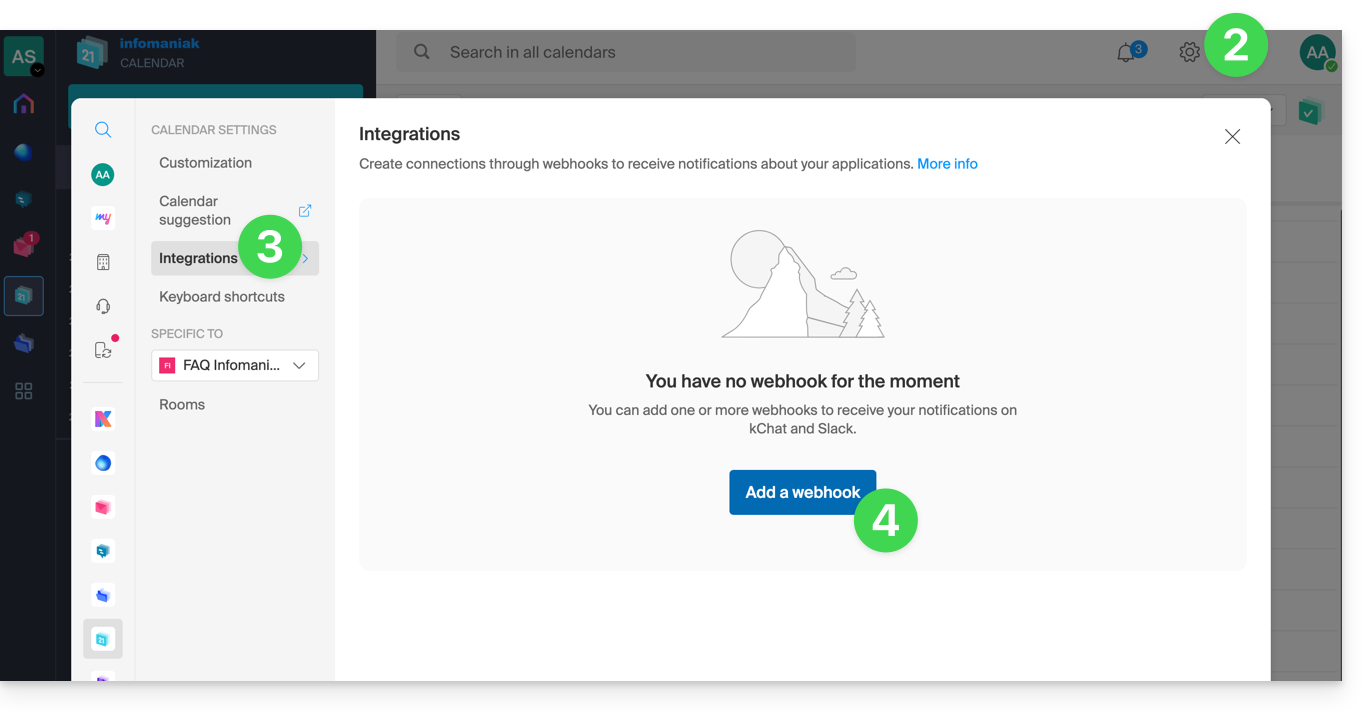
- Click on Settings in the top right corner.
- Click on Integrations in the left-hand menu.
- Click on the Add a webhook button:
- Define:
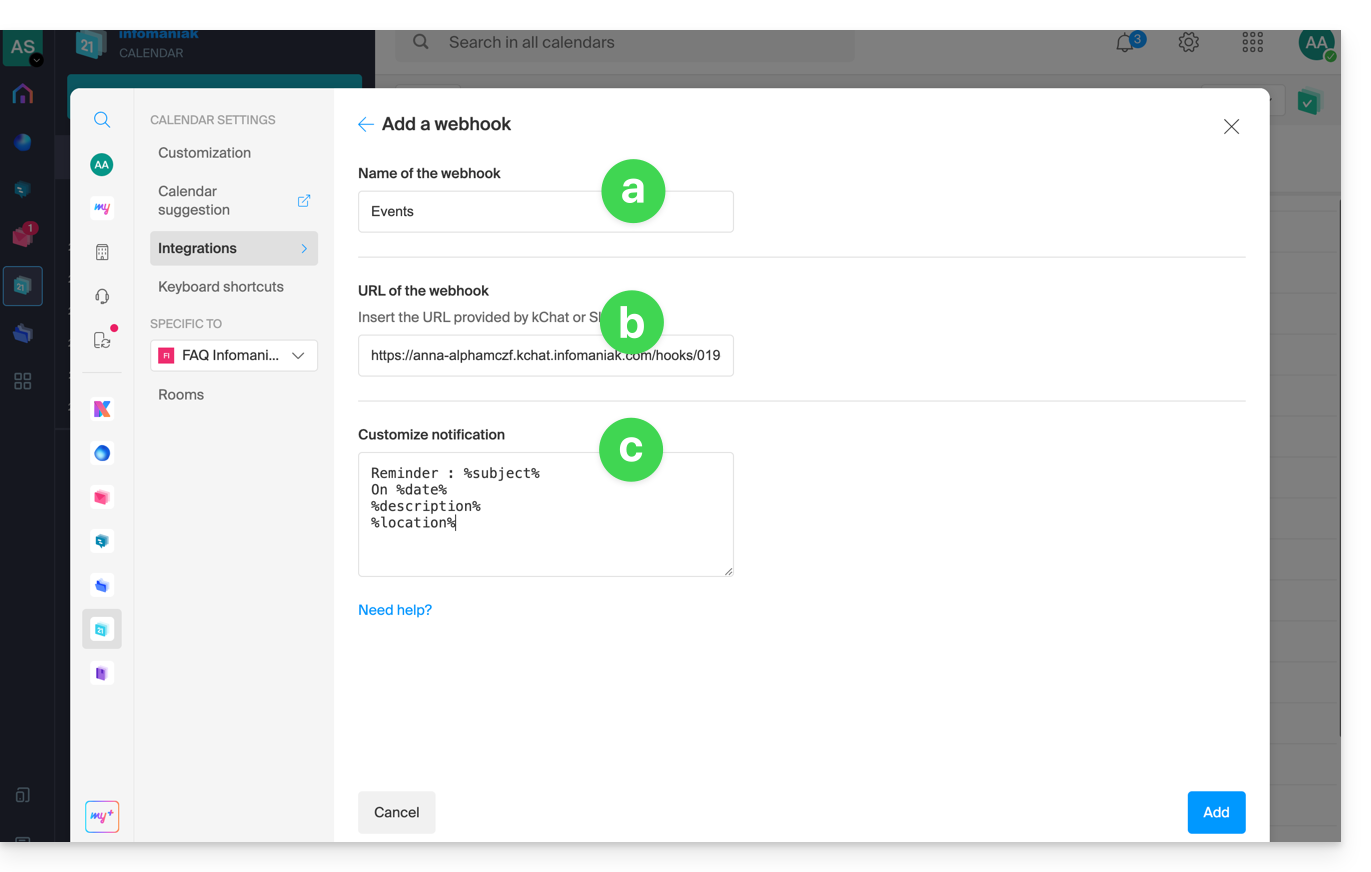
- A name to easily identify the webhook when adding reminders.
- The webhook URL (obtained from your chat system).
- The elements (automatically taken from your event and/or added manually here) and their layout in the message that will be sent:
- Insert %subject% to include the event subject.
- Insert %date% to include the event date.
- Insert %description% to include the event description.
- Insert %location% to include the event location, if applicable.
- Click the button to Add the configured item and see it created:
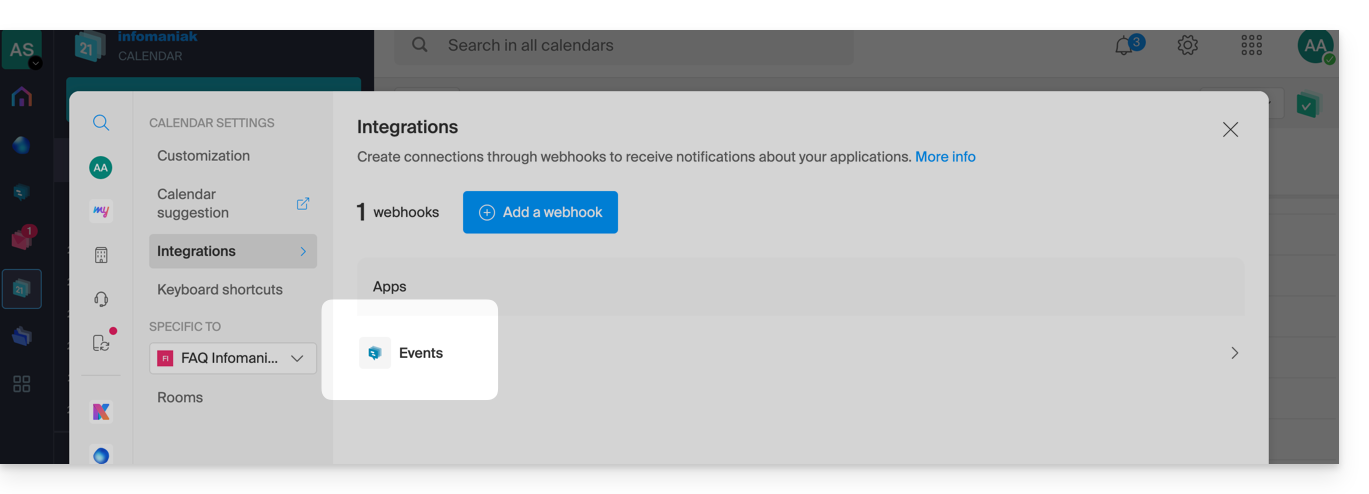
Create an event with chat reminder
Now that Calendar is linked to your messaging system account, you can choose to be notified in a chat when you add a reminder to an event:
- Click here to access the Infomaniak Calendar web app (online service ksuite.infomaniak.com/calendar).
- Click the Create button in the top left corner.
- Click on Event:
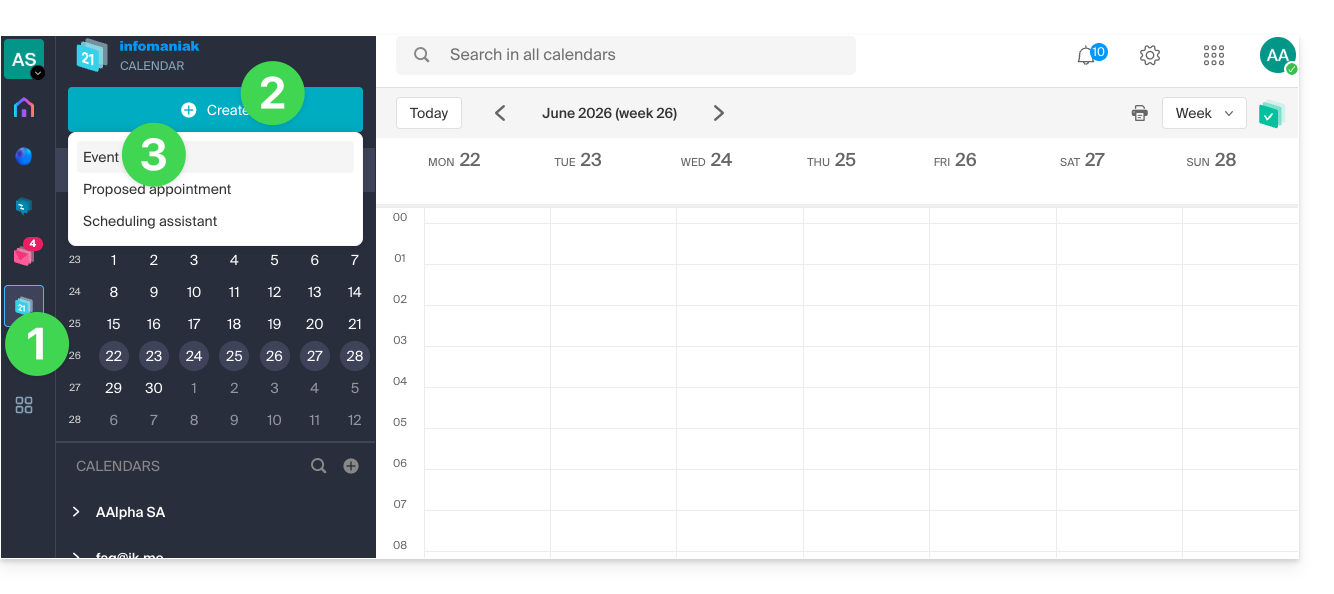
- You can also click on an existing event in the calendar to edit it.
- Enter the event details.
- Click on Add reminder to configure it:
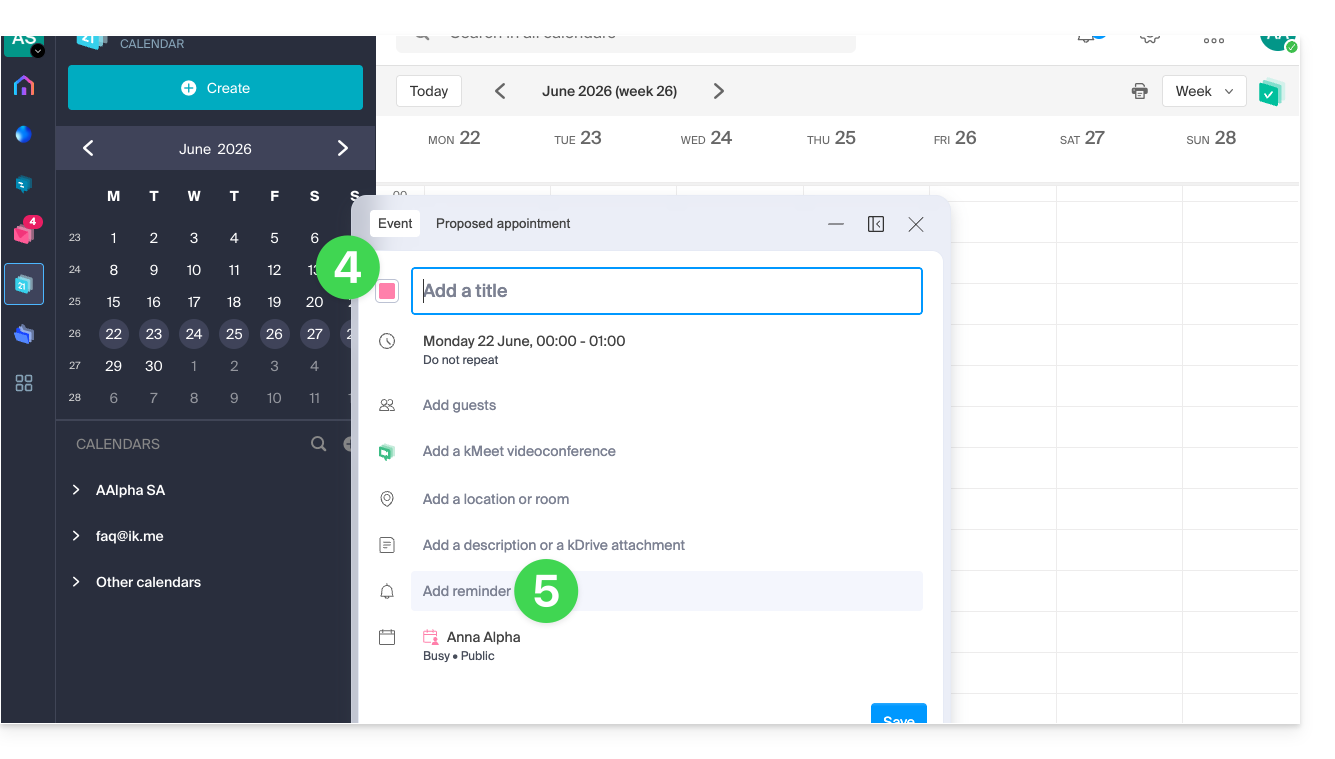
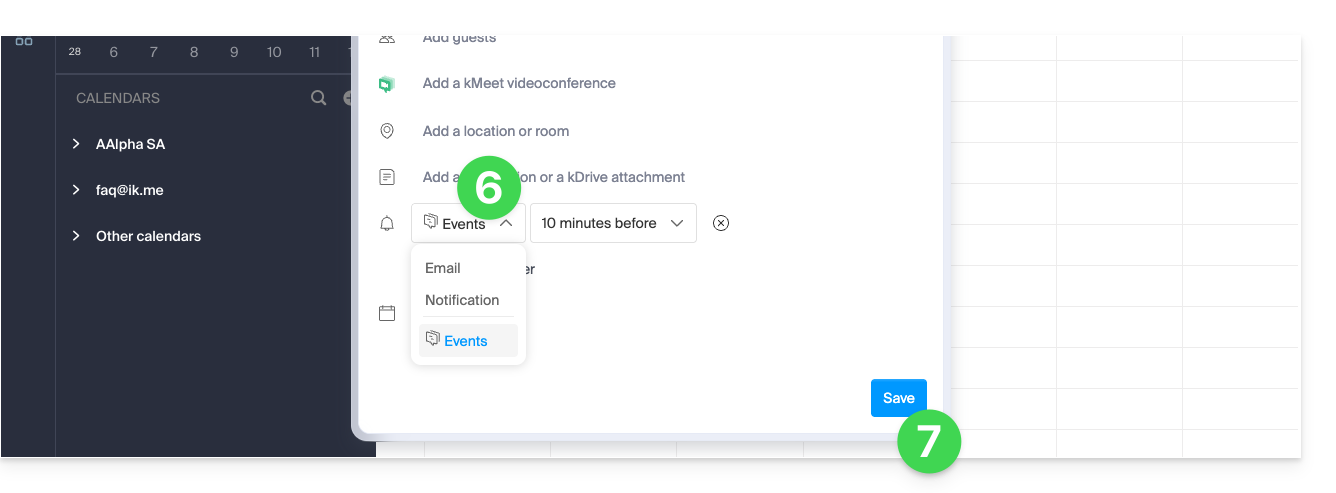
- In the dropdown menu for reminder types, select the webhook you configured (according to the name given in step 5a above).
- Save the event at the bottom of the page:
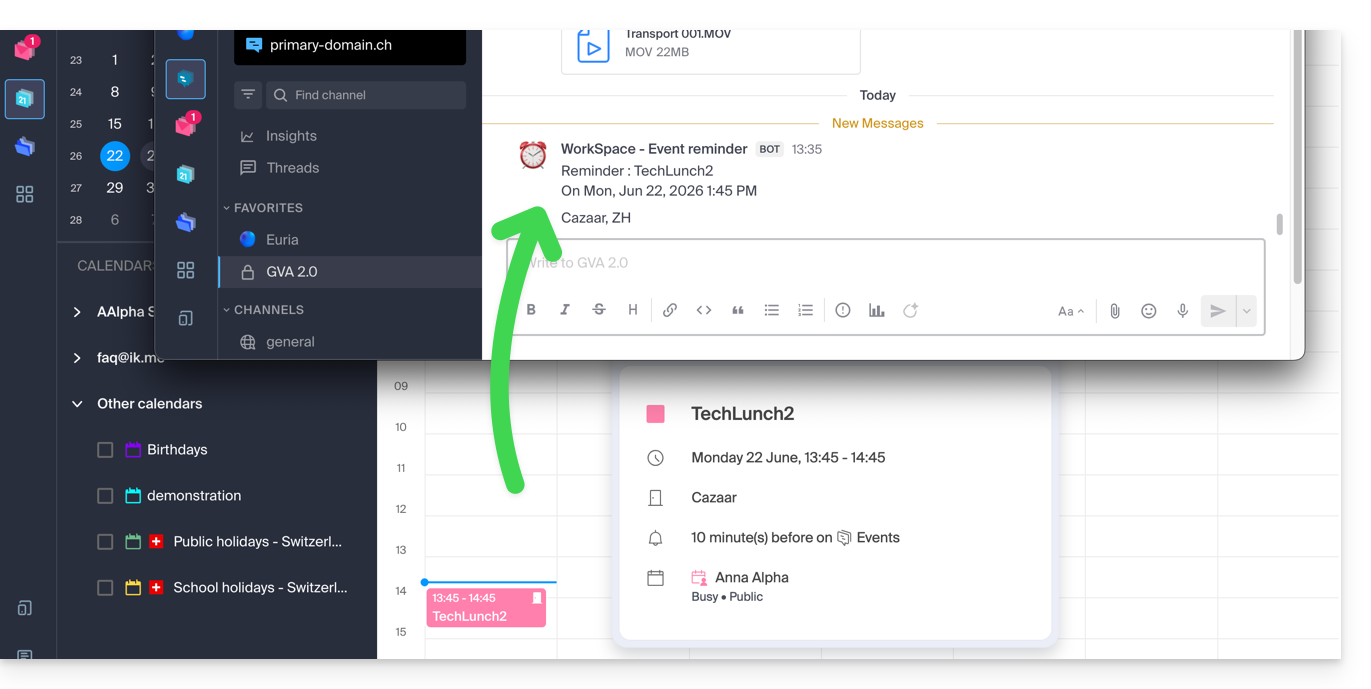
- When the reminder time arrives, a message (in the format configured in point 5c above) is sent to the event's recipient on the channel configured in the webhook (see prerequisites):
And on other messaging systems?
Slack
- Click here to access the Slack WebHooks.
- Choose the discussion thread where your reminders will appear (e.g. @slackbot or #general):
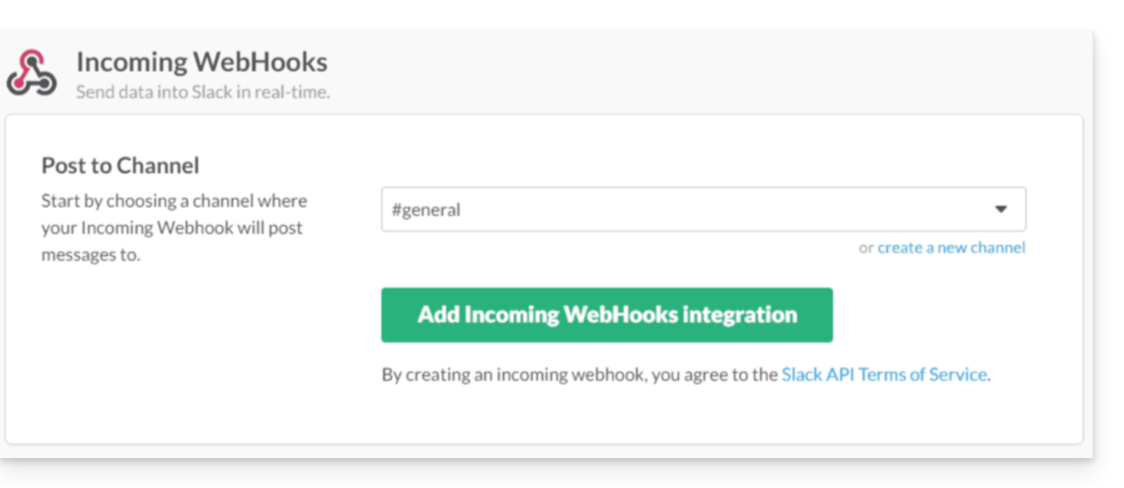
- Save to obtain the webhook URL.
Create additional webhooks to define reminders in other threads.
You can freely use Slack's formatting options in your notifications. Example in French:
N'oubliez pas de %subject% pour le %date%.
À prendre avec le jour J : %description%.
Lieu de l'event : %location%
Link to this FAQ: https://faq.infomaniak.com/2244
Has this FAQ been helpful?