Knowledge base
1000 FAQs, 500 tutorials and instructional videos. Here, there are only solutions!
Sync eM Client Contacts & Calendars (desktop app) with CardDAV/CalDAV
This guide explains how to synchronize your eM Client contacts & calendars with the contacts & calendars hosted by Infomaniak.
Introduction
- Infomaniak contacts & calendars are linked to your Infomaniak account; when you log in to ksuite.infomaniak.com/contacts or /calendar, you will likely need to perform two-factor authentication (2FA) during login.
- In this case, an application password is required to establish synchronization between your device and Infomaniak tools.
- But don't worry, creating such a password is offered as part of the configuration wizard.
Synchronize contacts & calendars (eM Client 10 macOS)
Prerequisites
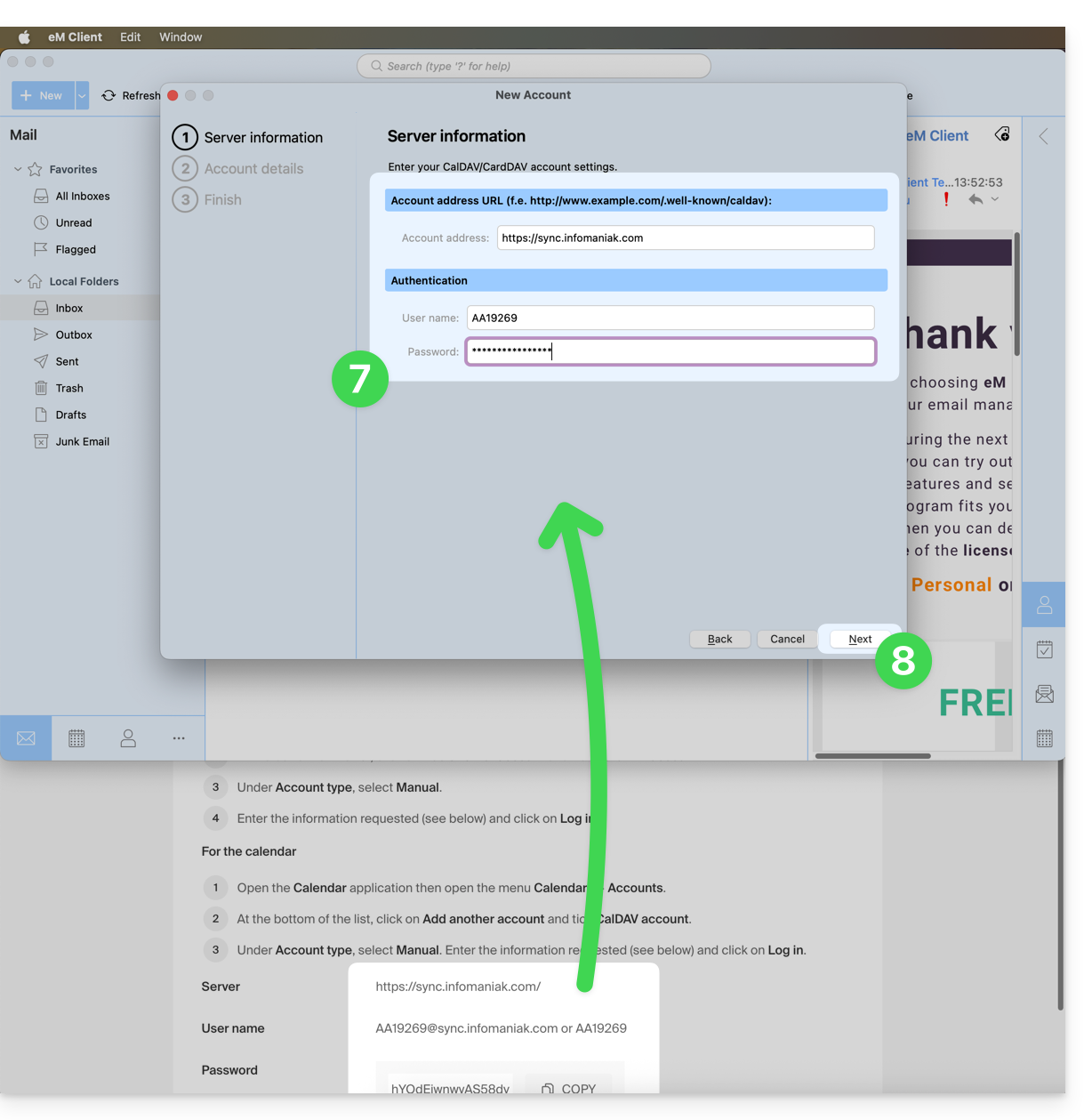
- Obtain your synchronization information provided by the Infomaniak synchronization wizard:
- account address:
https://sync.infomaniak.com - username: for example
AB12345 - application password if two-factor authentication is enabled or the password for your Infomaniak user account if you have not enabled 2FA
- account address:
Then:
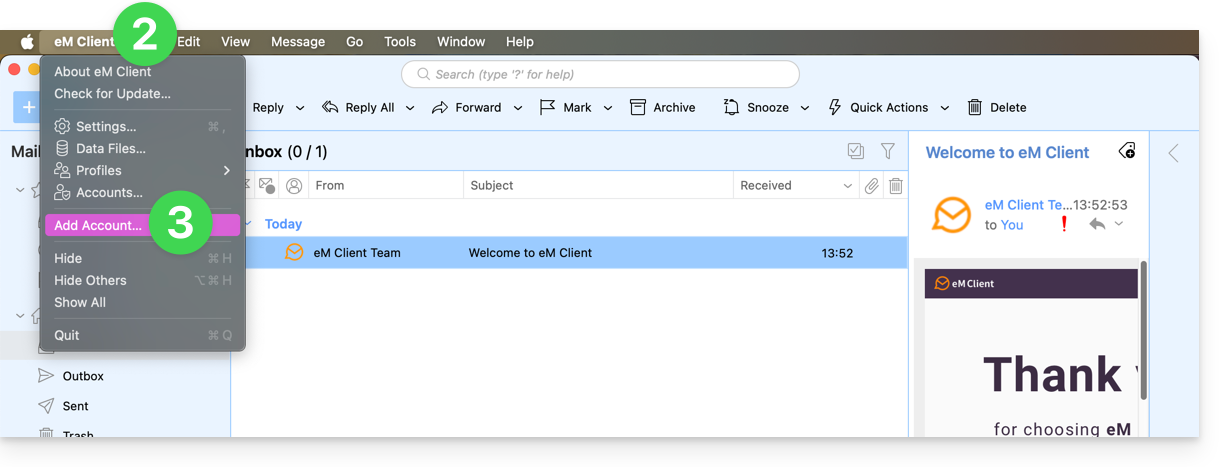
- Open eM Client.
- Click on the eM Client Menu.
- Click on Add account:
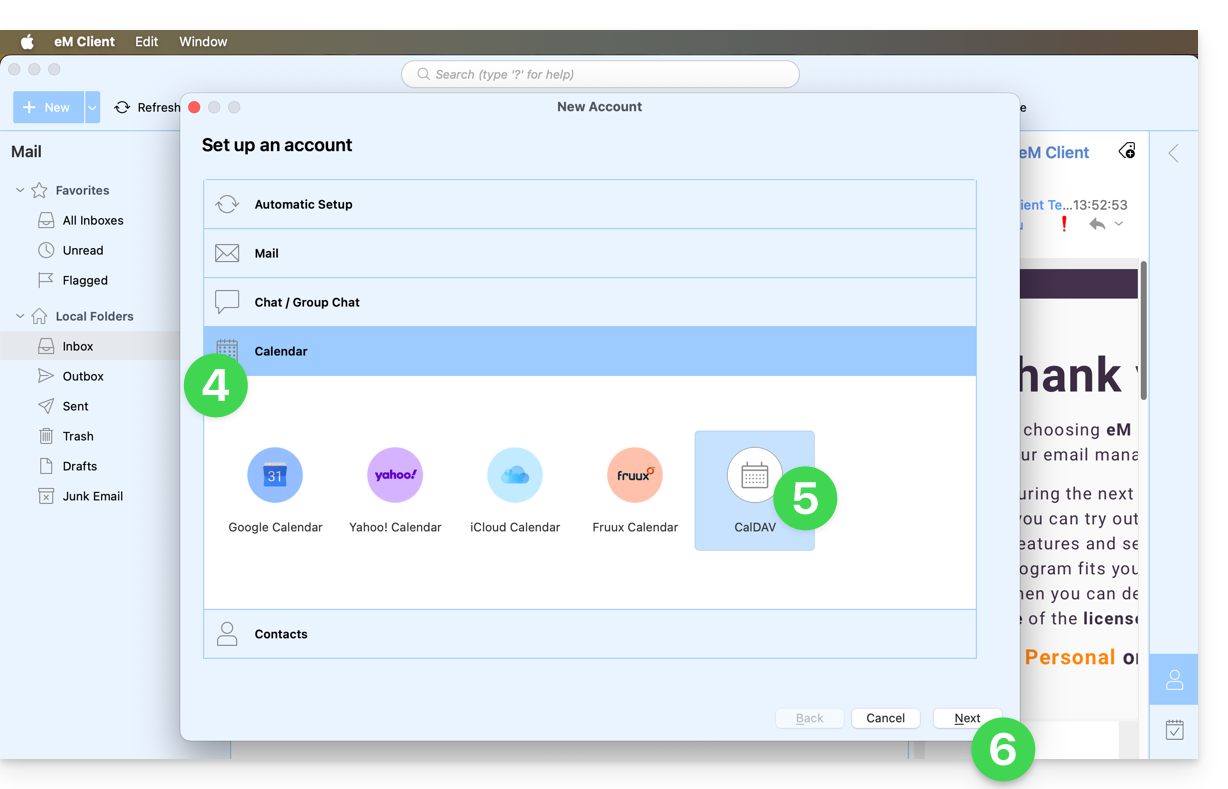
- Click on Calendar.
- Click on CalDAV.
- Click on Next:
- Enter the information obtained from the configuration wizard (see prerequisites).
- Click on Next:
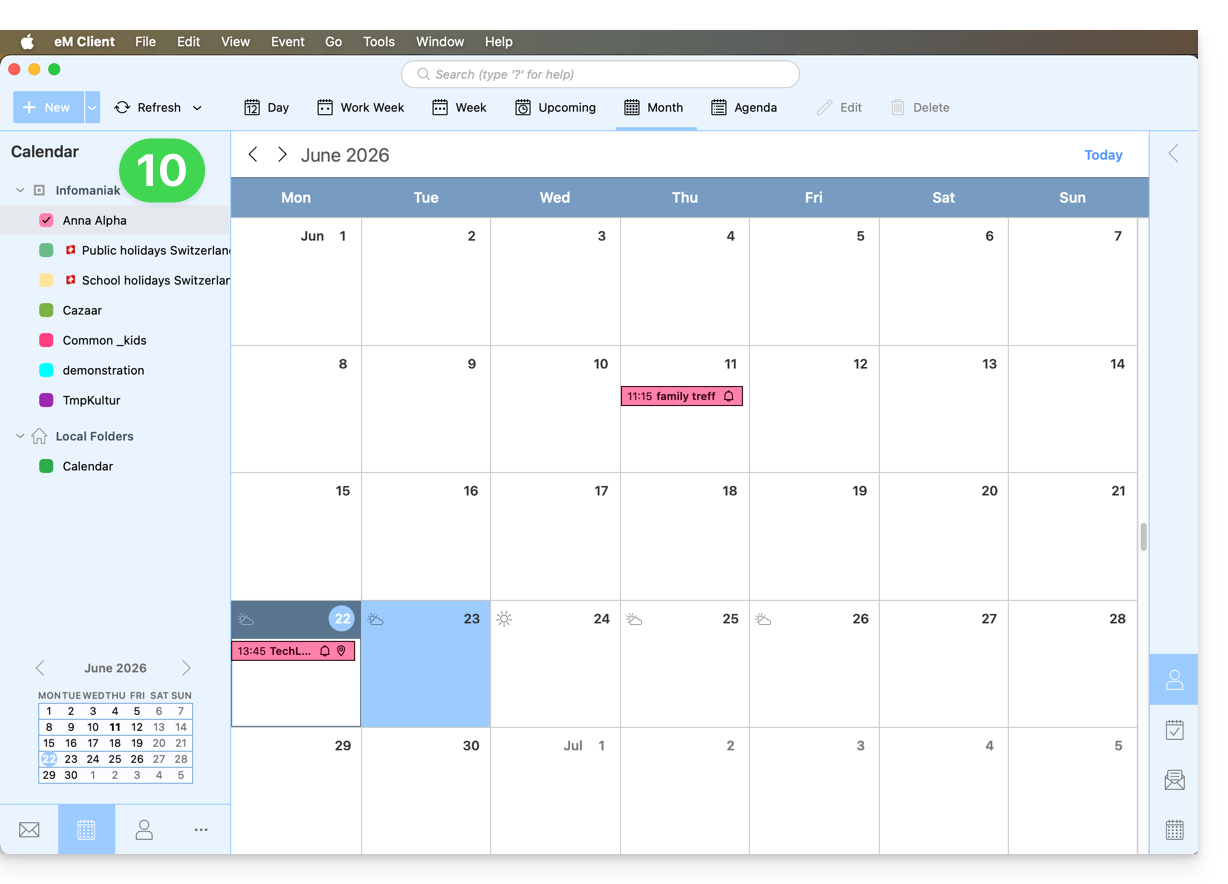
- Choose a name for the account (e.g., infomaniak) and complete the process.
- The information retrieved and synchronized with Infomaniak will be displayed in the Calendar section:
You can start with the Contacts section if you wish, but in any case, a CalDAV procedure also configures CardDAV, and vice versa: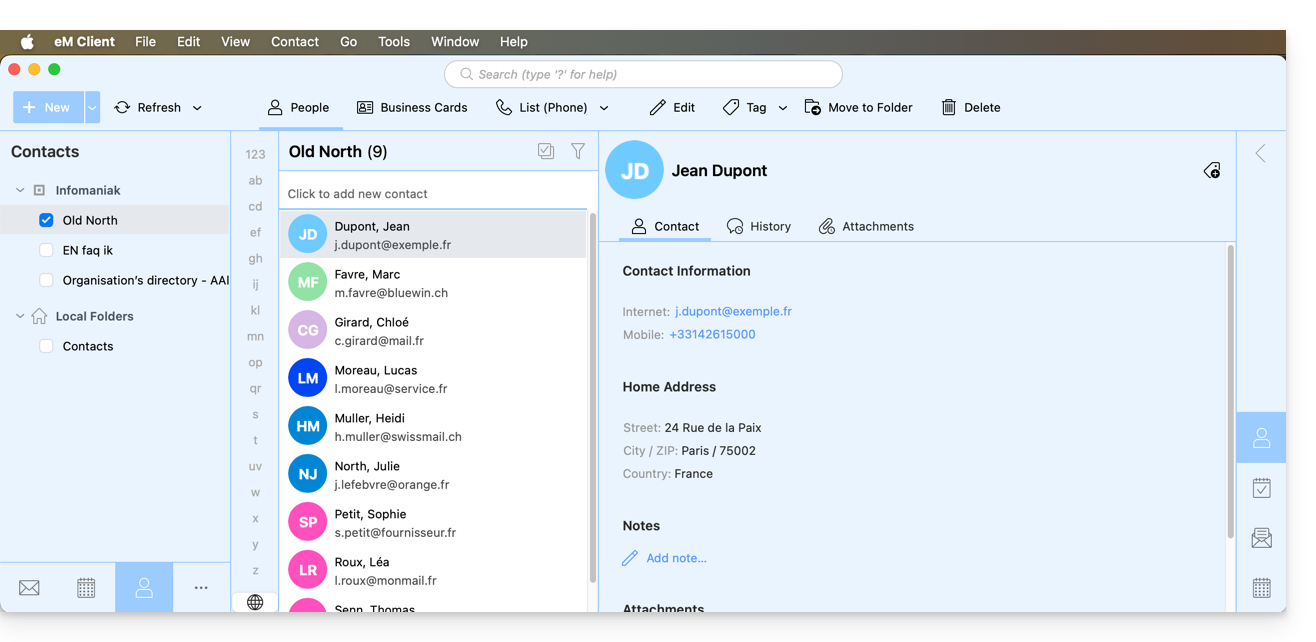
Link to this FAQ: https://faq.infomaniak.com/2047
Has this FAQ been helpful?