Knowledge base
1000 FAQs, 500 tutorials and instructional videos. Here, there are only solutions!
This guide explains how to link a domain name managed by Infomaniak to a Wix hosting plan.
Introduction
- A website created on Wix cannot be exported so that its content can be hosted on third-party servers, such as those of Infomaniak.
- It is therefore recommended to create the website directly with Infomaniak using Site Creator or WordPress.
Connect Wix to your domain name with Infomaniak
Prerequisites
- Obtain the 2 DNS servers provided by Wix (in the format
ns0.wixdns.netandns1.wixdns.net, for example).
To link a website hosted on Wix with a domain name hosted on Infomaniak:
- Click here to access your domain management in the Infomaniak Manager (need help?).
- Click directly on the name assigned to the domain in question.
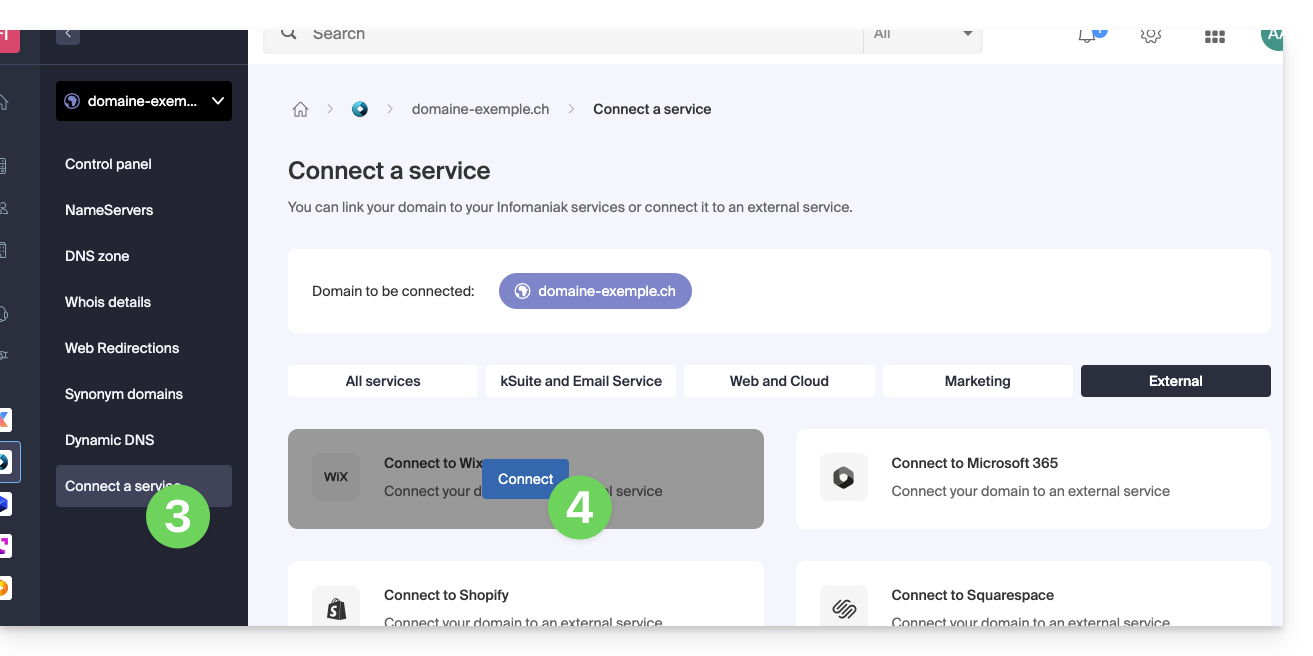
- Click on Connect a service in the left-hand menu.
- Click on the blue Connect button on the WIX tile:
- Enter the 2 Wix DNS servers (see the prerequisite above).
- Click the Next button:
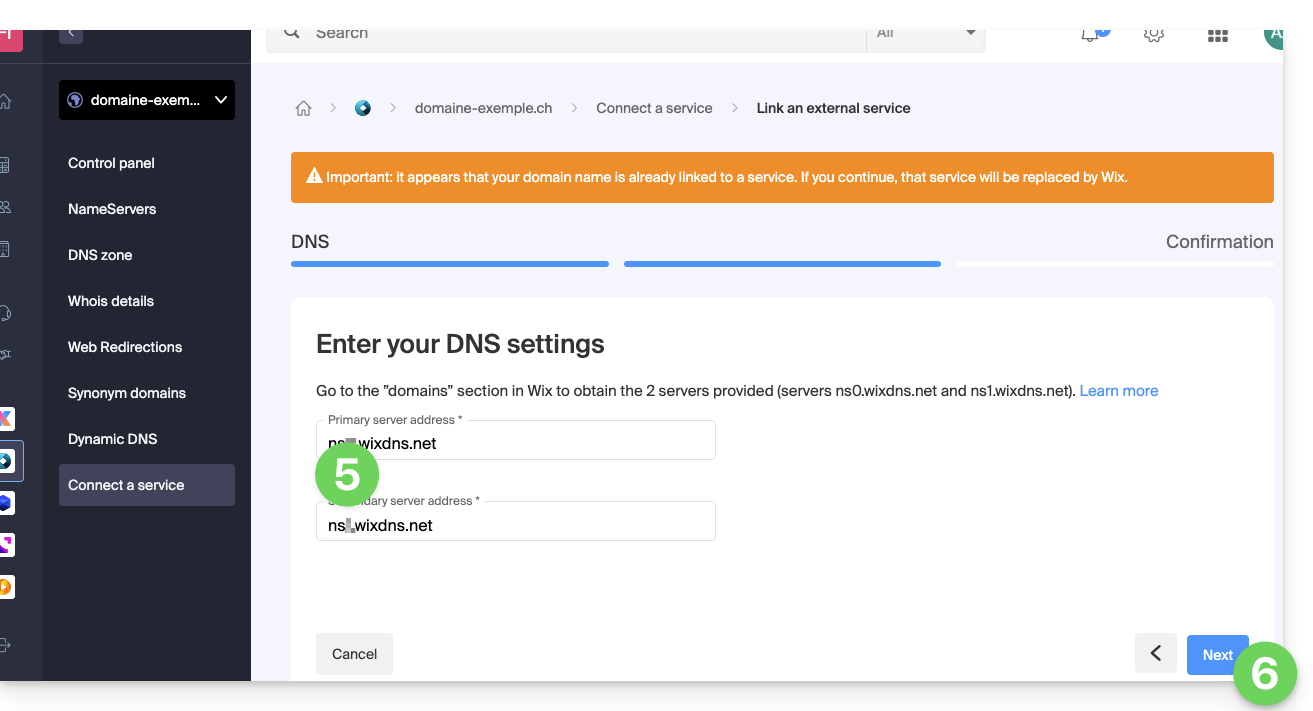
Your domain name will point to Wix servers within a few hours, and all web and email traffic will now be routed to Wix.
If necessary, you should inform Wix that the email service is managed by Infomaniak (please refer to this other guide for more information).
Link to this FAQ: https://faq.infomaniak.com/2067
Has this FAQ been helpful?
This guide explains how toreplace the primary domain name associated with a website(excluding Starter hosting) hosted on Infomaniak, in case you wish to change the name of your business or modify the spelling.
Introduction
- It is not possible to simply change the spelling of the domain name in question.
- You must own the new domain name and install it in place of the current one by performing a swap (see below).
- After making changes to the domain name, it may be necessary to adapt the website content.
- You can also rename your Web Hosting product in the Infomaniak Manager, but changing the name of a hosting plan has absolutely no impact on website URLs.
- During this operation, the statistics are reset.
Change the domain name of the website
Prerequisites
- Prepare the new domain name (if necessary, you need to purchase it).
- Install a valid SSL certificate, otherwise the redirection will not be offered.
- If the desired change is more of a "subdomain" to "main domain" type (e.g.,
dev.domain.xyz→domain.xyz), then please refer to this other guide.
Next, to replace the domain name assigned to the website with a different domain name:
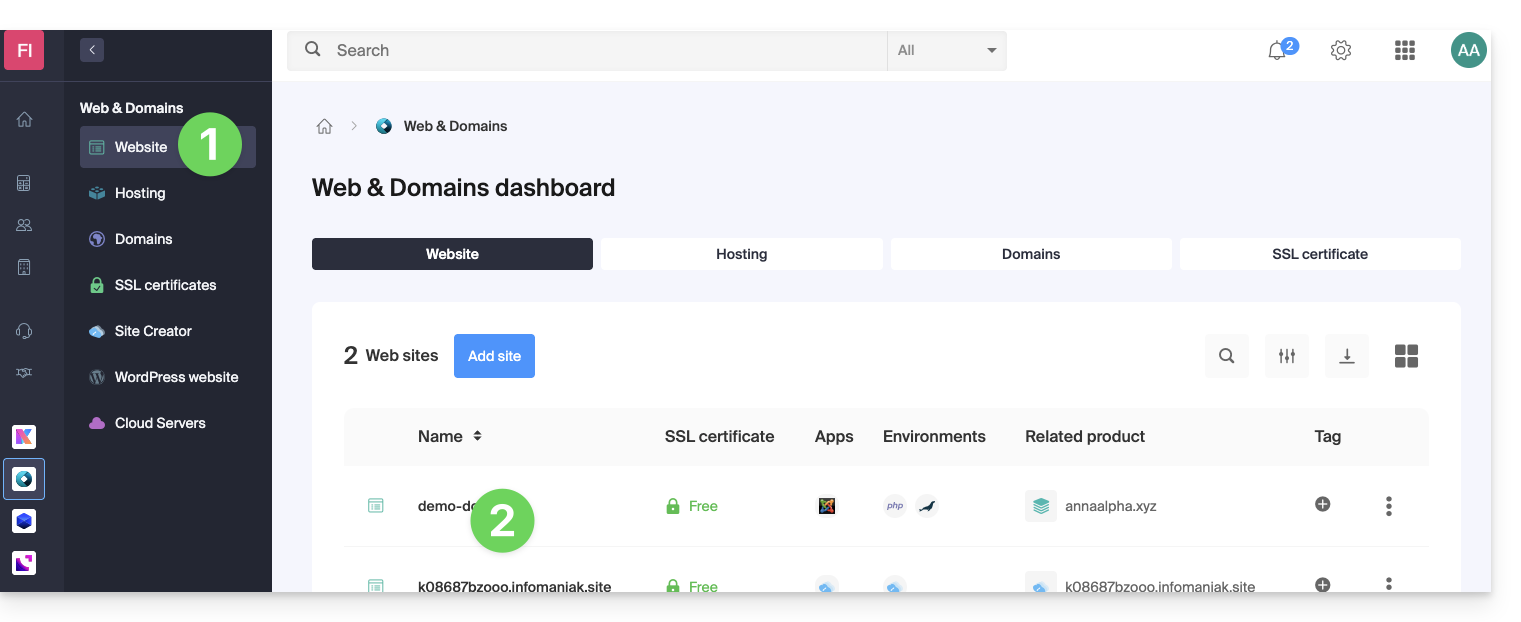
- Click here to access your website management interface in the Infomaniak Manager (need help?).
- Click directly on the name assigned to the site in question:
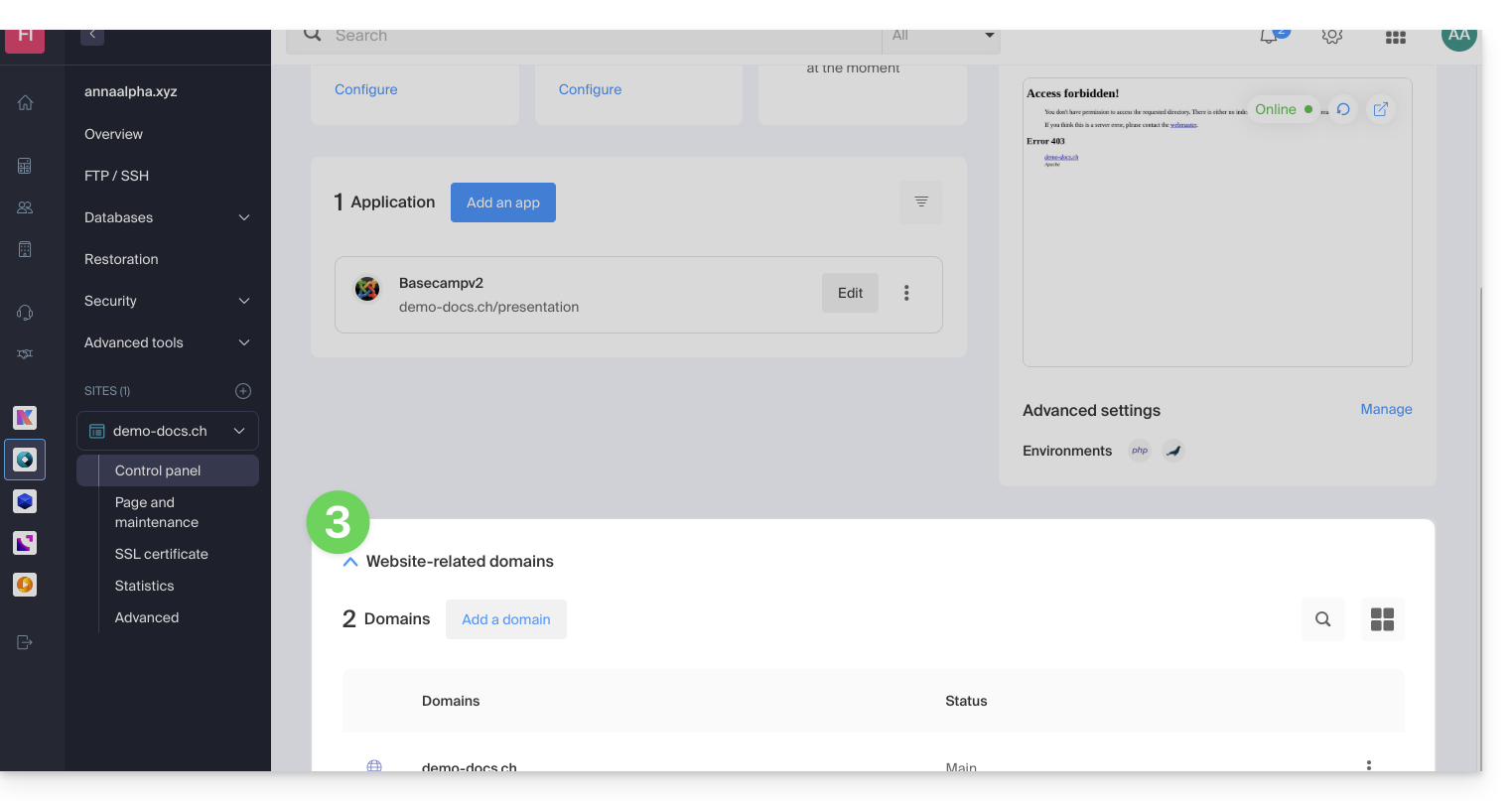
- Then, click on the down arrow to expand the Domains section of this site:
- Refer to this other guide (especially its Prerequisites) to link the new domain name to your site:
- This new domain linked will replace the current main domain name after the switch you will perform below.
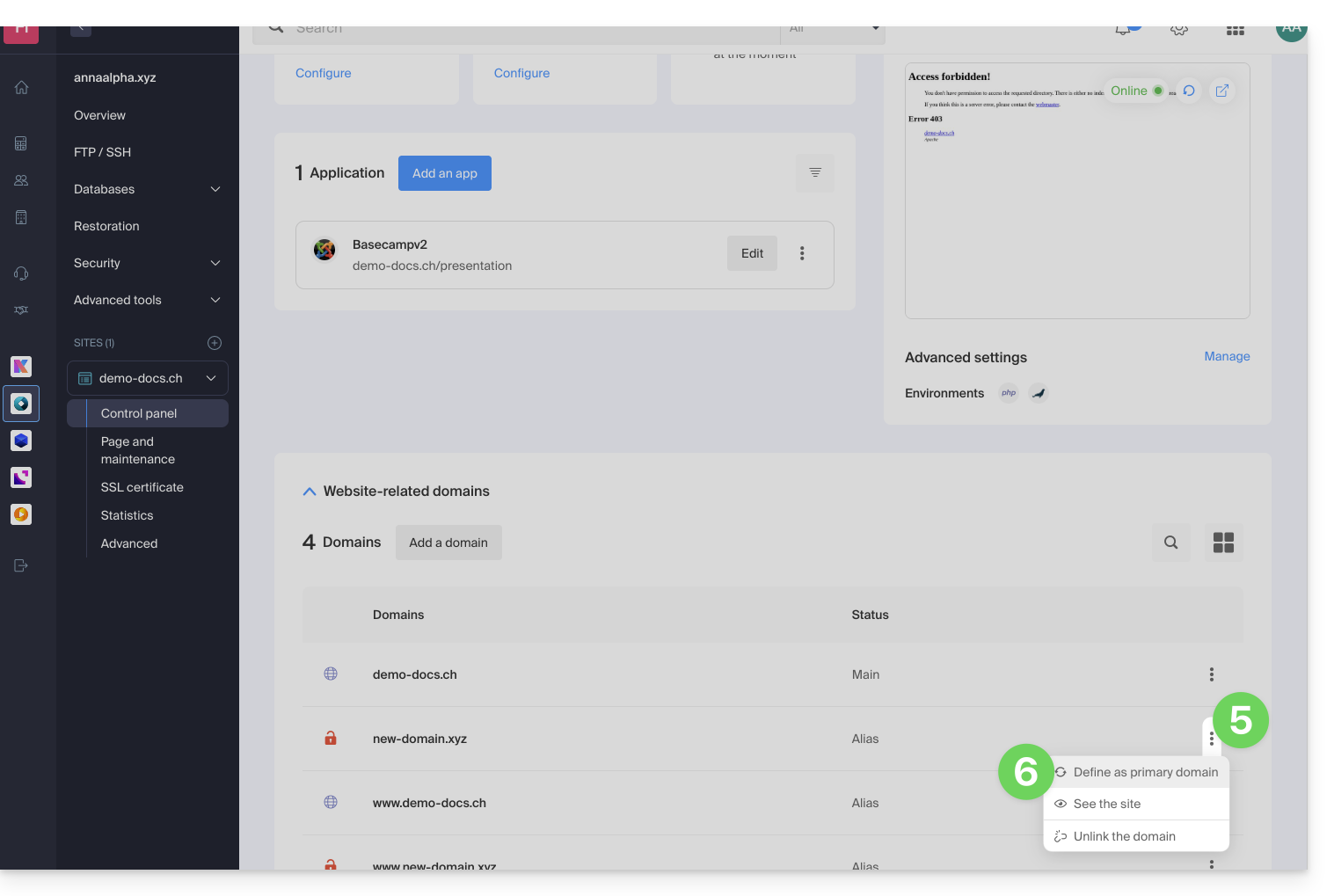
- Once the new domain name is linked to your site, click on the action menu ⋮ to the right of it.
- Choose Set as primary domain:
- If necessary, delete the old domain name and its variants that have become alias domains (and are no longer primary domains).
If you are using an SSL certificate, you will need to update it so that it includes the added aliases.
If you are using the dedicated IP option, you must uninstall it and then reinstall it after the switch you are going to perform.
Adapt the website content to the new name
In some cases,The web application used to develop the site needs to undergo some adjustmentsto function with the new domain name. Click on the link corresponding to your site's development to adapt the content:
Link to this FAQ: https://faq.infomaniak.com/2070
Has this FAQ been helpful?
This guide explains how to obtain the authorization code (EPP code) for a domain name managed by Infomaniak, allowing you to transfer the management of a domain to another registrar.
Introduction
- The terms "
EPP", "AuthCode", "AuthInfo", "transfer code", and "authorization code" all refer to alphanumeric sequences specific to the domain, the main purpose of which is to verify the owner's authorization before a transfer between registrars. - Consult the main guide regarding domain name transfer procedures.
- The authorization code is always and only sent to the email address of the owner registered in the WHOIS of the domain.
Get the authorization code for a domain
To obtain the transfer authorization code:
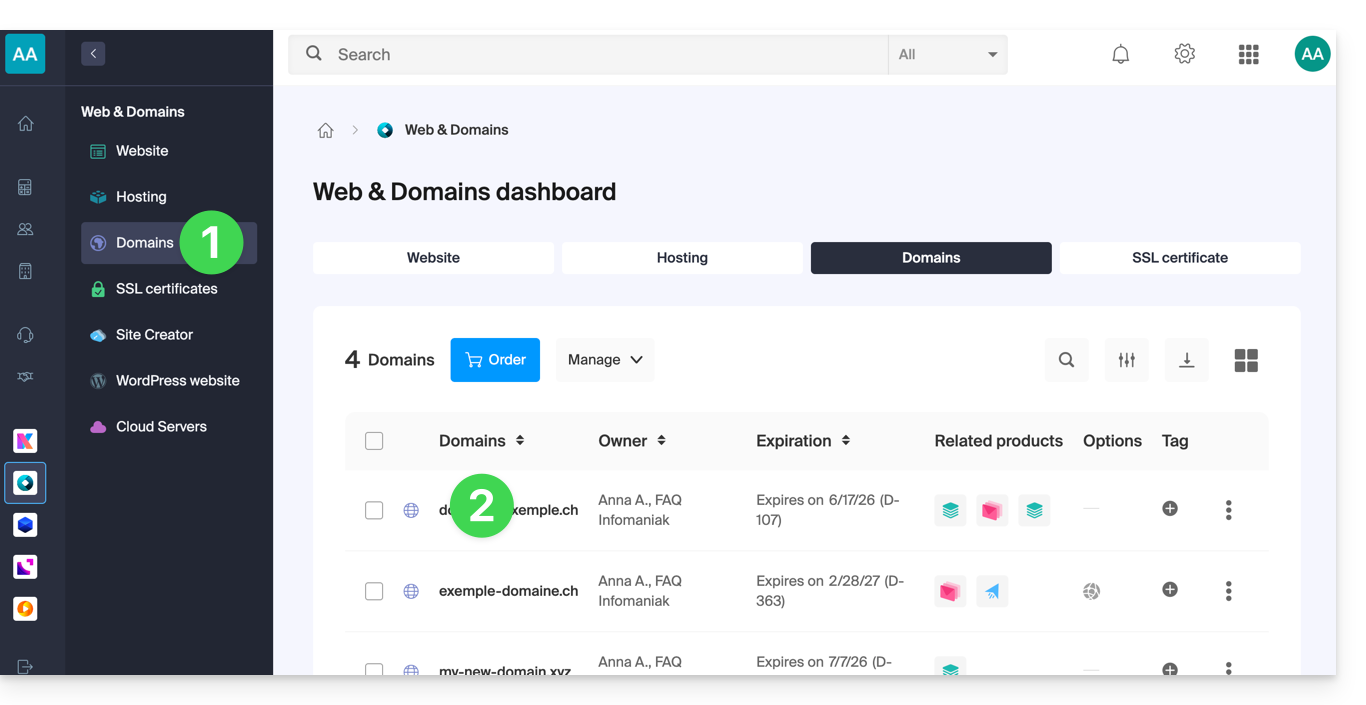
- Click here to access your domain management interface in the Infomaniak Manager (need help?).
- Click directly on the name assigned to the domain in question:
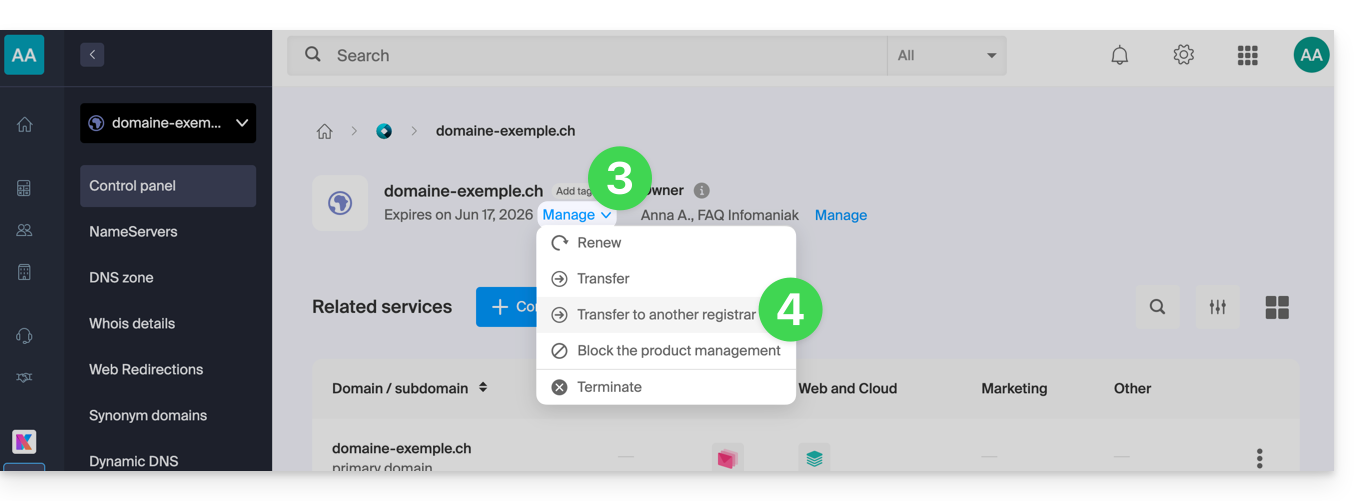
- Click on the Manage button .
- Click on Transfer to another registrar:
- If necessary, to authorize the transfer:
- Click to disable the Domain Privacy option.
- Click to Unlock this domain.
- Click the button to Continue:
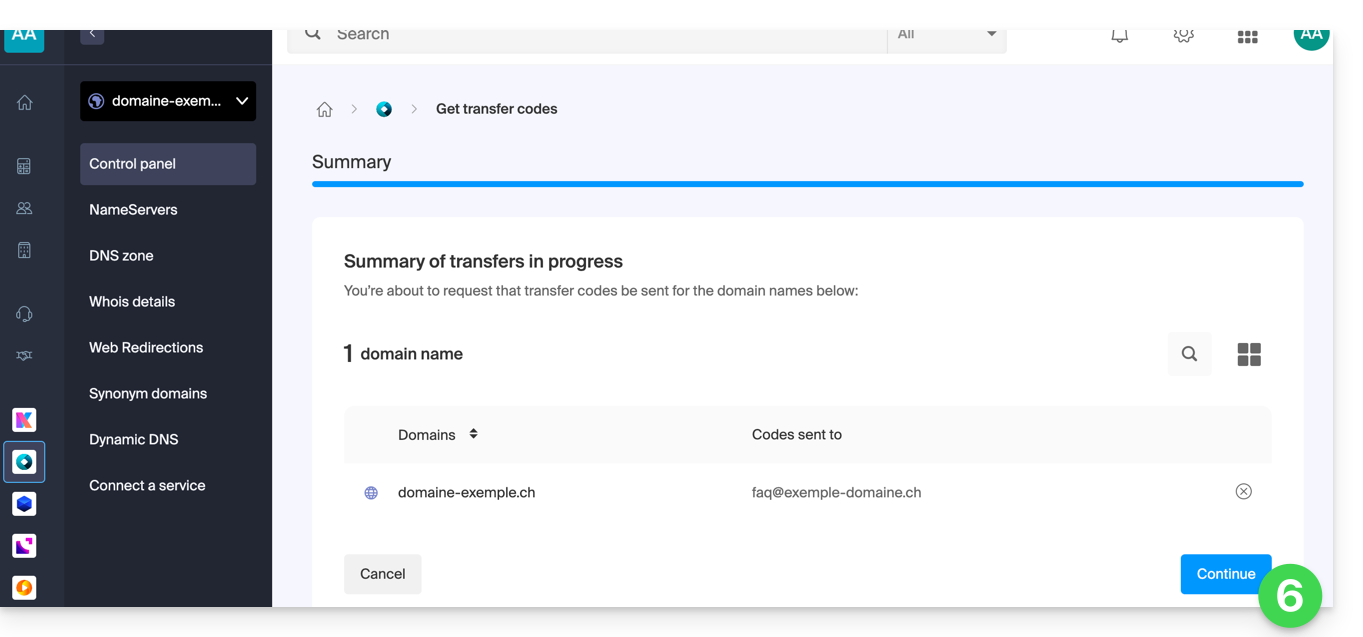
- The code is sent by email to the contact address (see the introduction above).
To resend the code, repeat the procedure from the beginning.
Specific features of certain extensions
What's next?
Once you have entered the authorization code with the third-party provider and the outgoing transfer has started, Infomaniak no longer intervenes.
Contact your new registrar to find out the transfer time during which the domain name will still be visible in your Infomaniak interface.Infomaniak cannot, unfortunately, intervene in any operation that would allow for accelerating the outgoing transfer..
Link to this FAQ: https://faq.infomaniak.com/2075
Has this FAQ been helpful?
This guide explains how to add or modify one or more A and AAAA type records in the DNS zone (of a domain name) managed in the Infomaniak Manager.
Introduction
- This type of record allows you to point a domain name to a static IP address (usually a server), type A for IPv4 and AAAA for IPv6.
- This is the method generally used to redirect your domain name to the IP address of the web server hosting your website. Moreover, this type of record is used automatically to link your domain name with your website if they are in the same location and within the same Infomaniak organization.
- You should only modify this type of record if you have a specific configuration to implement (e.g., pointing a subdomain to an external application).
Modify the DNS zone
To manage this type of record in a DNS zone:
- Click here to access your domain management in the Infomaniak Manager (need help?).
- Click directly on the name assigned to the domain in question.
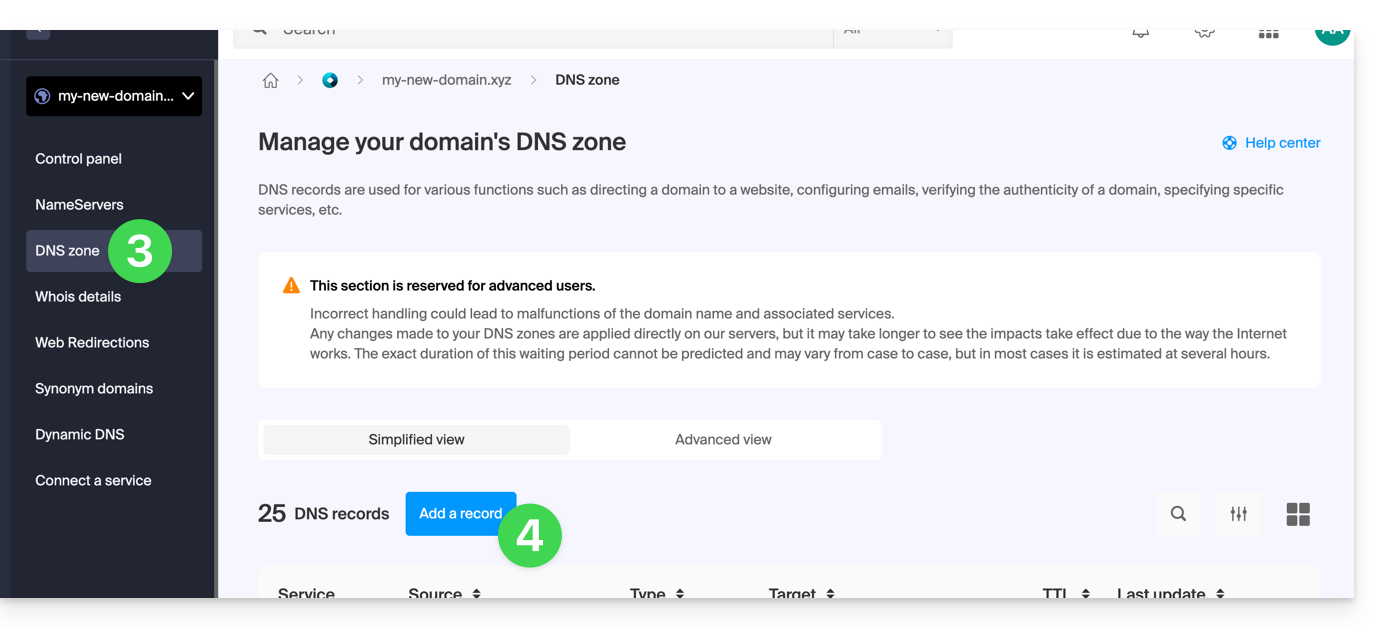
- Click on DNS Zone in the left-hand menu.
- Click the button to add a record:
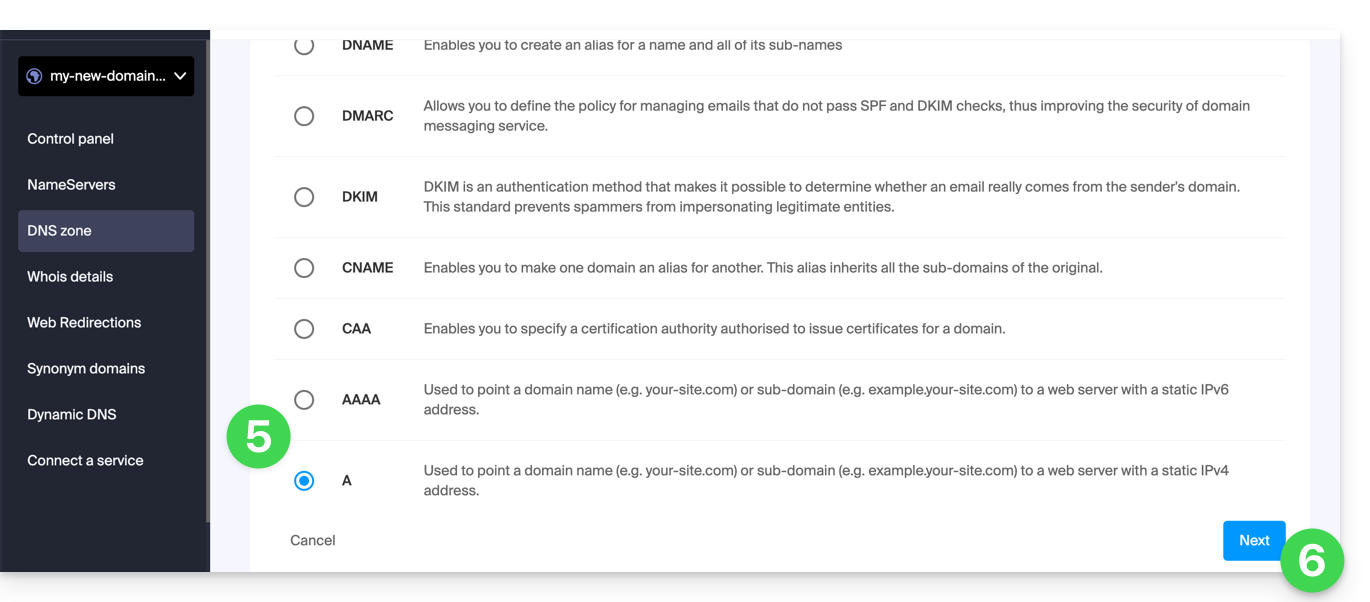
- Click the A or AAAA radio button to add a record.
- Click on the Next button:
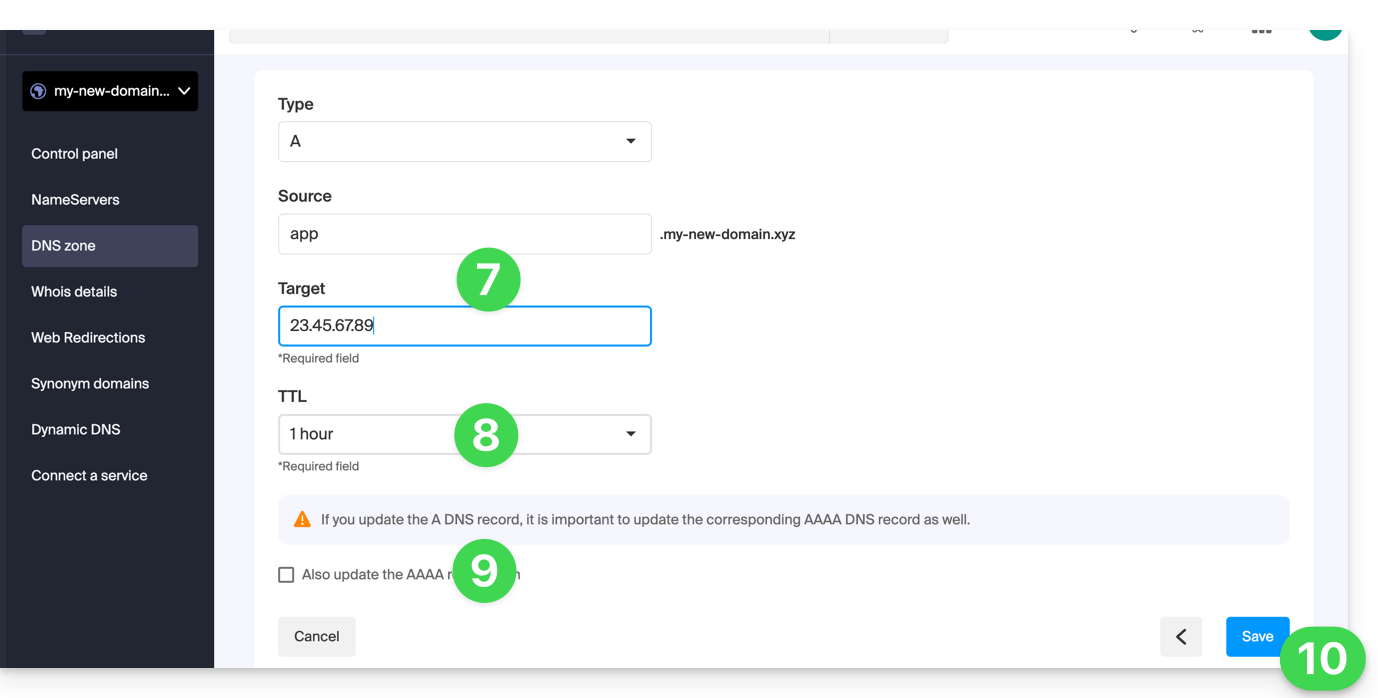
- Enter the values required for your DNS zone.
- Leave the default value for the TTL.
- If necessary, you can request an adjustment to the AAAA record by activating the checkbox, which will allow you to specify an IPv6 address at the same time.
- Click on the Save button:
Link to this FAQ: https://faq.infomaniak.com/2088
Has this FAQ been helpful?
This guide explains how to easily set up a redirect for your domain name managed with Infomaniak.
Introduction
- A web redirection allows you to redirect a domain name or subdomain to the internet address of your choice.
- This procedure is only valid if the DNS of the domain is managed by Infomaniak and if Custom Brand is not activated.
- Any addition/modification may take up to 48 hours to propagate.
- If necessary, create a redirection for your domain with and without the www (
domain.xyzandwww.domain.xyz).
Redirect a domain to the URL of your choice
To do this:
- Click here to access the management interface for your product in the Infomaniak Manager (need help?).
- Click directly on the name assigned to the product in question.
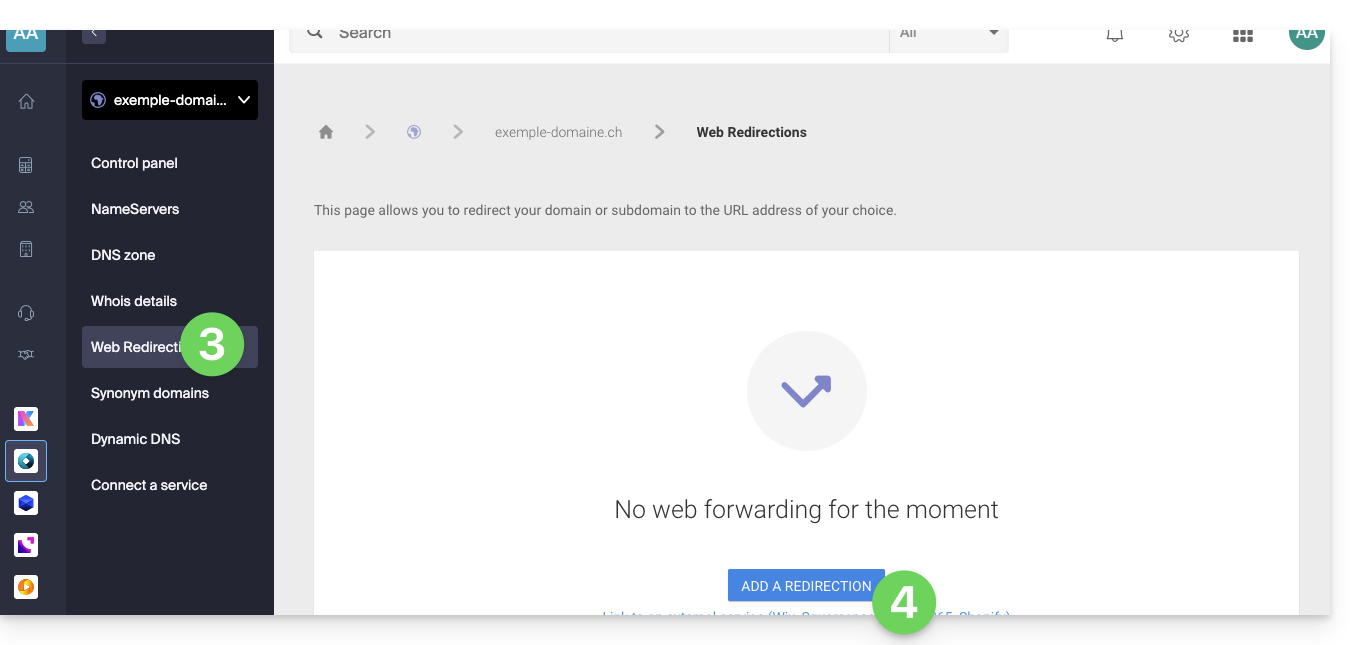
- Click on Web Redirections in the left-hand menu.
- Click on the Add a redirection button:
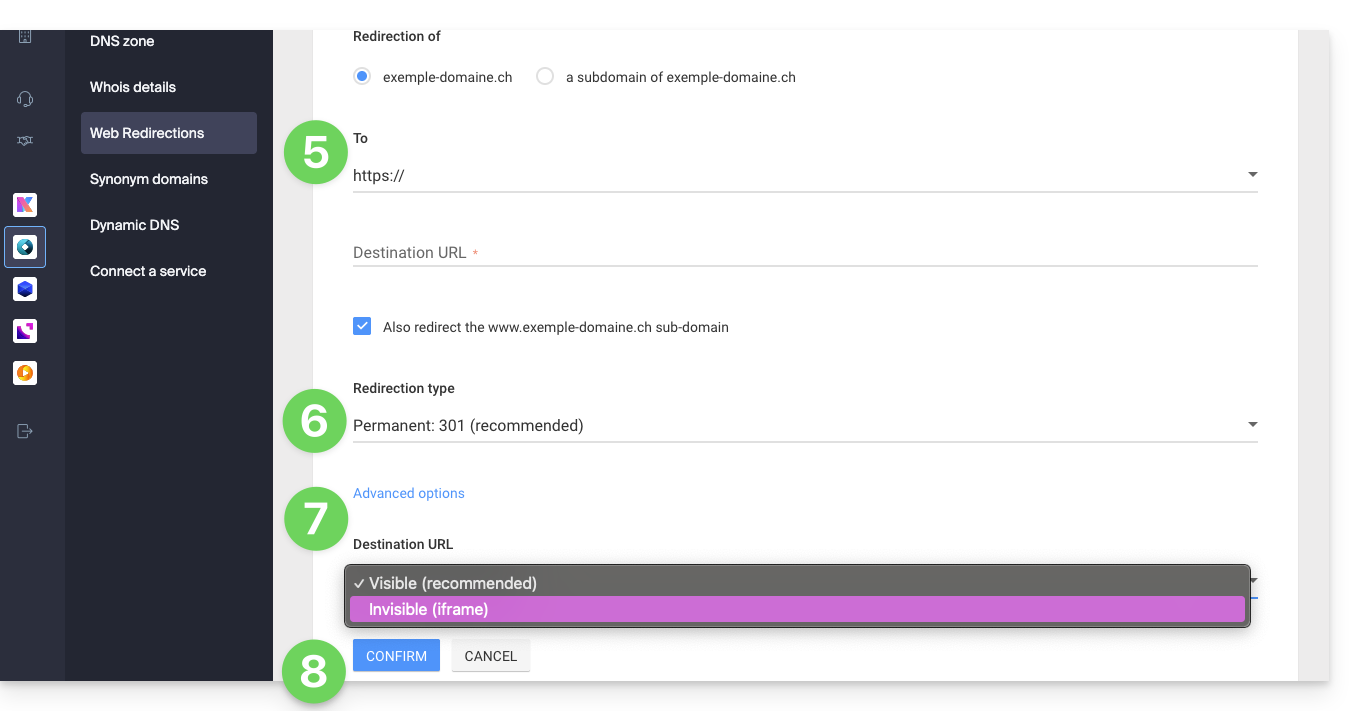
- Enter the destination address (under To).
- Choose between a 301 or 302 redirect.
- The advanced options allow you to specify a redirect in the form of an iframe (invisible, but not recommended).
- Click the button to Confirm:
Link to this FAQ: https://faq.infomaniak.com/2092
Has this FAQ been helpful?
This guide explains how to have multiple domain names (everything that comes after the at symbol @ in your email address) for an existing Mail Service by adding related domain names to it.
Introduction
- Email addresses (existing and future) are automatically valid with all linked domains.
- To completely change and reverse the domain names of a Mail Service, please refer to this other guide.
- If you would prefer to modify the part of your email address that comes before the at symbol
@, please refer to this other guide. - Please also note that you can rename your product in the Infomaniak Manager, but changing the name of a Mail Service has absolutely no effect on its addresses; you need to modify the domain name.
Add a Domain Name to the Mail Service
Prerequisites
- Own the new domain name (if necessary, you may need to create it beforehand).
- Review the instructions in this other guide and apply the instructions that correspond to your situation (to ensure that the domain name works when it is linked to your Mail service).
Once the new domain name is ready to be used alongside the old one, you need to add it to the Mail service:
- Click here to access the management of your product in the Infomaniak Manager (need help?).
- Click directly on the name assigned to the product in question.
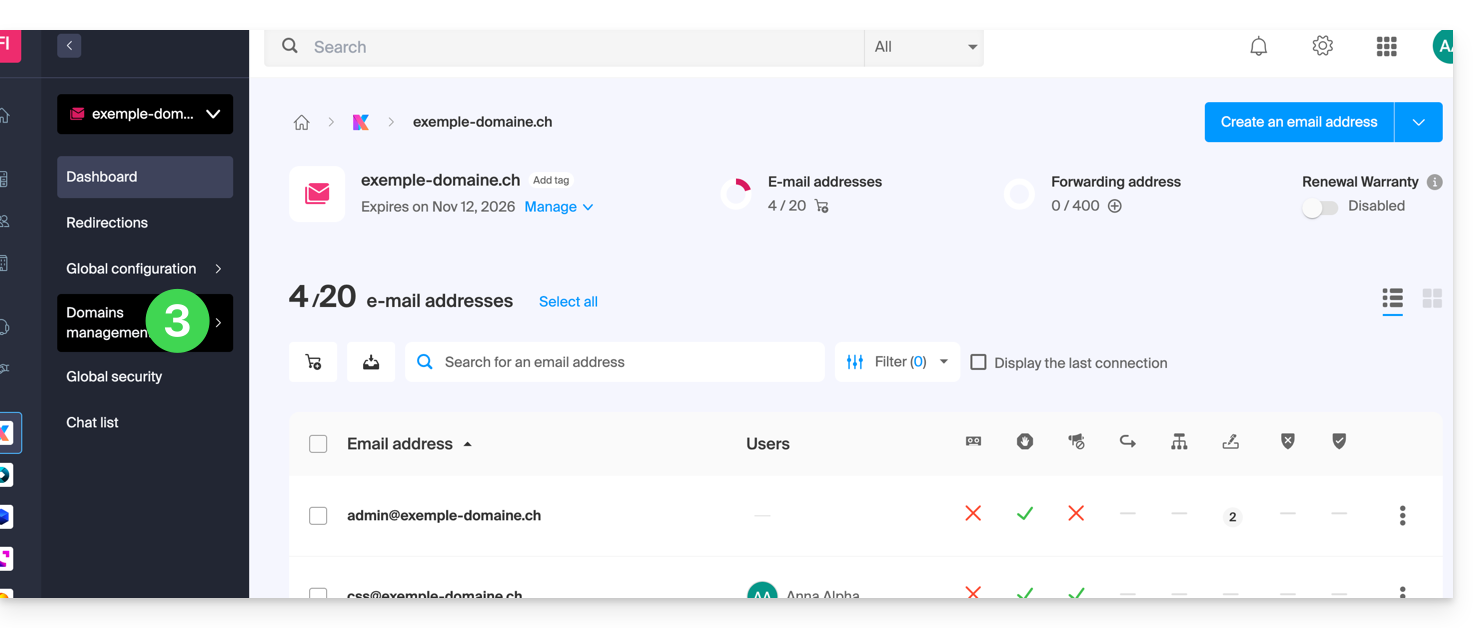
- Click on Domain Management in the left-hand menu:
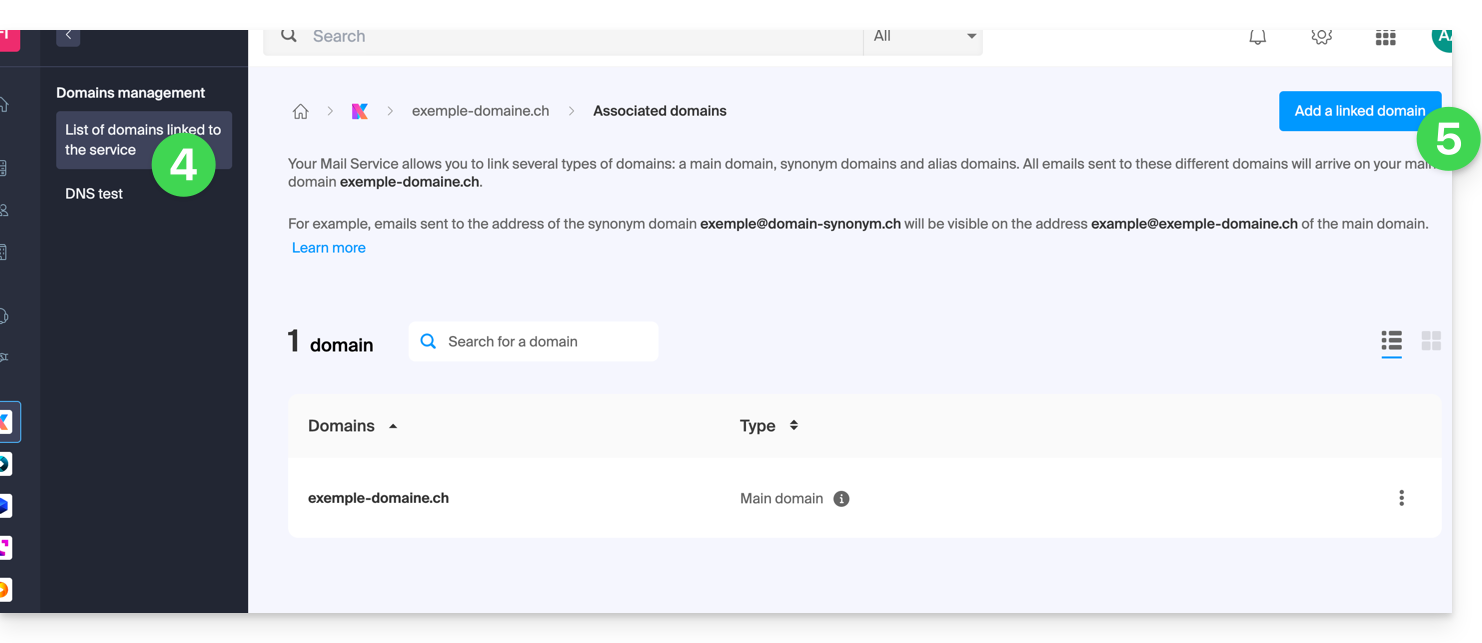
- Click on List of domains linked to the service in the left-hand menu.
- Click the blue Add a linked domain button:
- It is possible to…
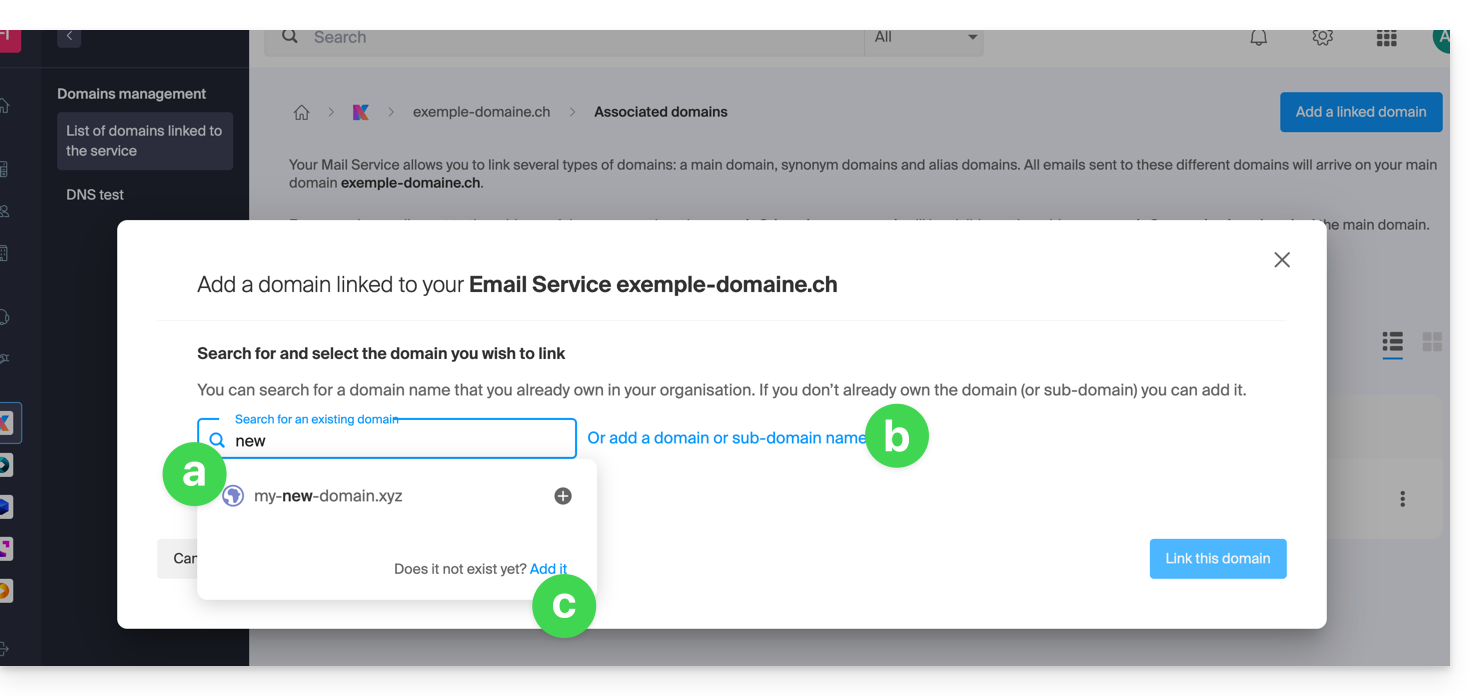
- … Search for an existing domain within the organization you are connected to; this will automatically link and update the DNS zone of the added domain.
- … Add a domain name or subdomain to manually specify the domain name or subdomain to use (ideal if the domain name is located elsewhere).
- … Buy a new domain name.
a: The domain exists at the Organization level
- Click on the proposed domain name.
- Click on the blue Link this domain button:
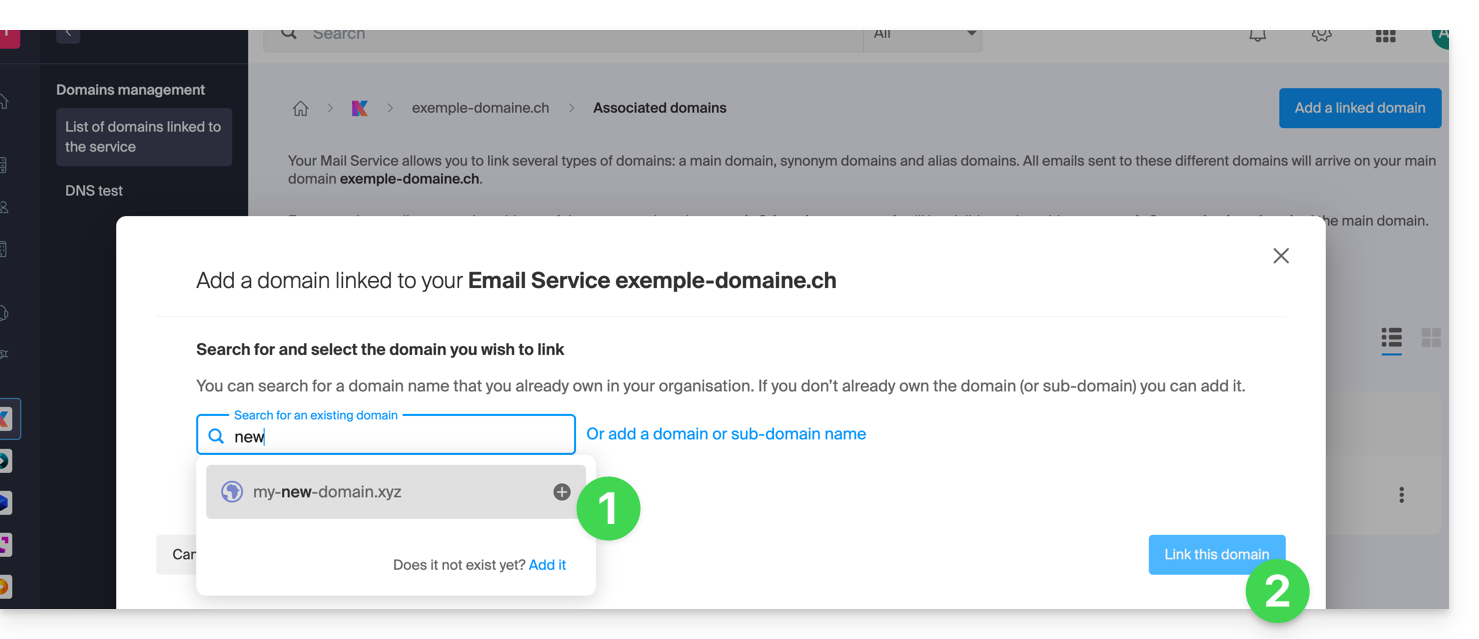
It's done: the Mail service now responds to a second domain name: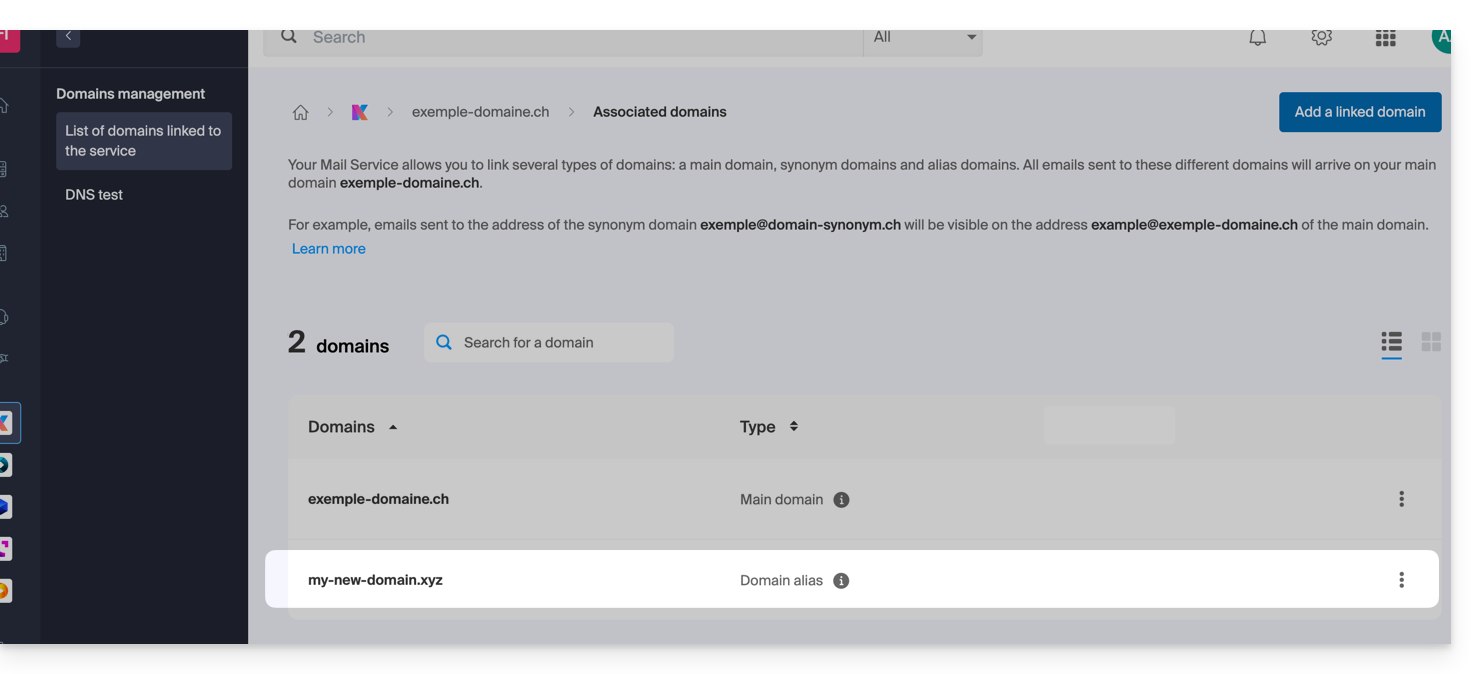
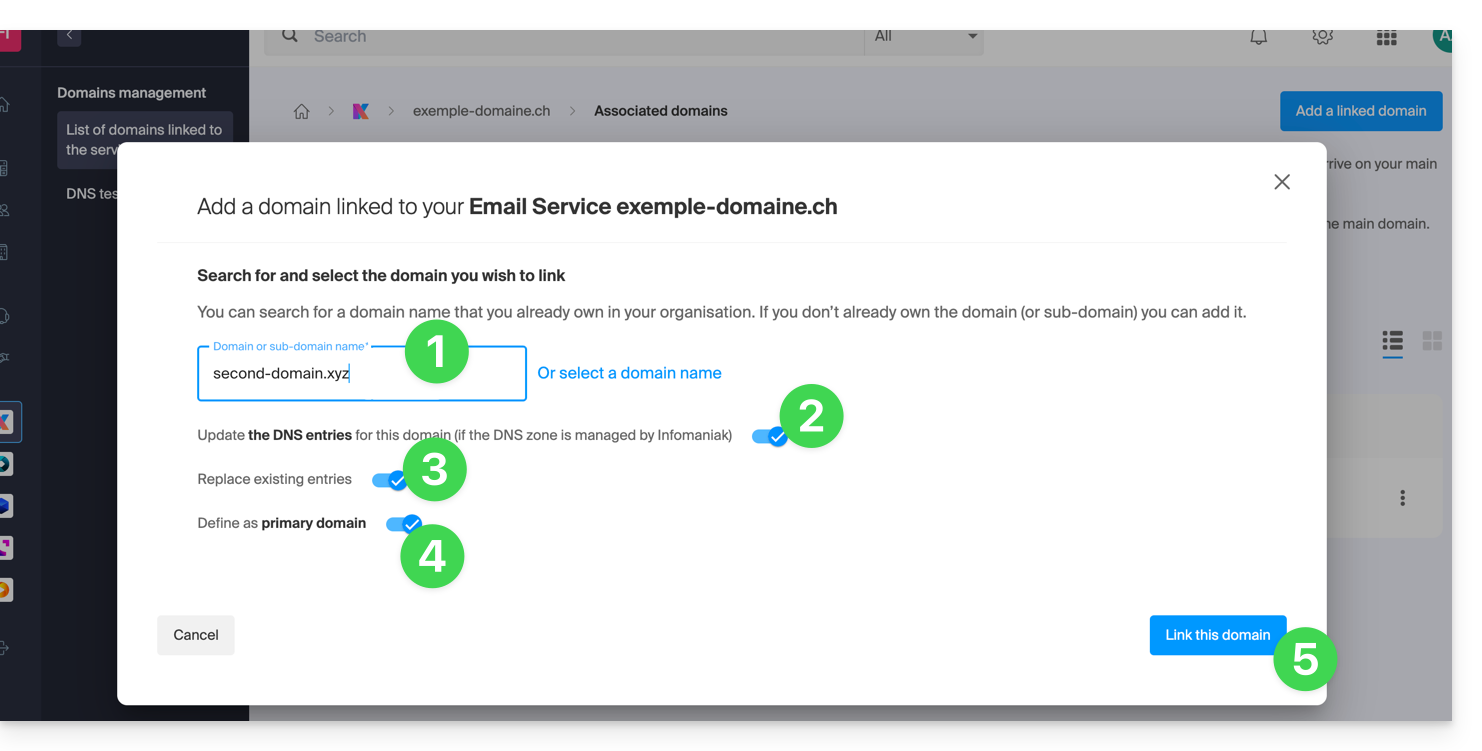
b: The domain exists but is registered elsewhere (another organization, another registrar...).
- Enter the domain name to add.
- Enable DNS record updates (if the domain name's status allows, the domain name's DNS zone will be updated automatically).
- If the above point 2 is active, then enable the replacement of any existing entries.
- Only enable domain name reversal if you want to define this new domain name as the primary one (this is mainly an administrative rather than a technical matter).
- Click on the blue Link this domain button:
Example of use
The email address contact@une-super-entreprise-familiale.com is a long email address. The synonymous domain contact@usef.com is shorter and easier to remember.
By adding the "usef.com" domain to the "une-super-entreprise-familiale.com" Mail service, you authorize all messages sent to contact@usef.com (the associated domain) will be among the messages received by the address contact@une-super-entreprise-familiale.com.
Link to this FAQ: https://faq.infomaniak.com/2097
Has this FAQ been helpful?
This guide explains what a web hosting provider like Infomaniak is, and specifies its role, scope, and the limits of its technical support.
Infomaniak, a hosting provider since 1996
According to Wikipedia, a web host is a company that provides Internet hosting for computer systems for individuals or entities who do not wish to do so themselves.
Infomaniak also offers:
- … decades of experience in hosting and high-performance online solutions.
- … over a million users in Switzerland and Europe trusting us with the management of their critical data.
- … a company certified according to ISO 27001, 9001, 14001, 50001 standards and committed to sustainable digital practices.
- … 100% Swiss-made technological expertise with data hosted in Switzerland in its own data centers.
- … a comprehensive knowledge base and a customer support service available to assist you.
Responsibilities and scope of intervention
As a hosting provider, Infomaniak installs, secures, and keeps the server infrastructure up to dateis constantly improving its management interfaces (Manager) and helping its customers to make the most of the tools provided. Infomaniak strives to offer solutions that are accessible to everyone; however, human support for free products is inherently limited in order to guarantee the sustainability of these services.
For security and privacy reasons,No assistance will be provided without formal identificationof the person requesting it.
Support is exclusively for Organization administrators. End customers or users with a contract through a Reseller Partner must first contact their administrator or dedicated service provider.
Scope of technical support
Technical support does not provide assistance for:
- Development and programming: debugging websites, correcting source code, personal scripts (PHP, JS, etc.)
- API usage and integration.
- Application maintenance and webmastering: troubleshooting, updates, or content management for third-party applications (e.g., CMS such as WordPress, email clients such as Outlook, etc.).
- On-site and customized support: remote access, configuration of your own hardware, complex manual installations or migrations.
However, our support team will be happy to assist you with:
- Infrastructure and Manager: resolving incidents related to the network, hardware, or Infomaniak management interfaces.
- Using Infomaniak services: clarifying configuration processes and providing assistance with using our native features.
- Documentation: we will guide you to the relevant resources and technical guides to help you become self-sufficient.
A Premium support service and a migration service are available for more specific needs.
Find external support
For assistance with the content of your website, its programming, or the advanced organization of your email accounts, use the Infomaniak bidding platform, which lists over 1000 verified professionals, or consult the directory.
Link to this FAQ: https://faq.infomaniak.com/2103
Has this FAQ been helpful?
This guide explains how to link a domain name to the Synology NAS that you are renting from Infomaniak.
Associate an existing domain
To connect your existing domain name to your Synology, which is registered with Infomaniak:
- Click here to access the management interface for your product on the Infomaniak Manager (need help?).
- Click directly on the name assigned to the Synology in question.
- Click on Related domains in the left-hand menu.
- Click on Link a domain name (in the Associated domains section):
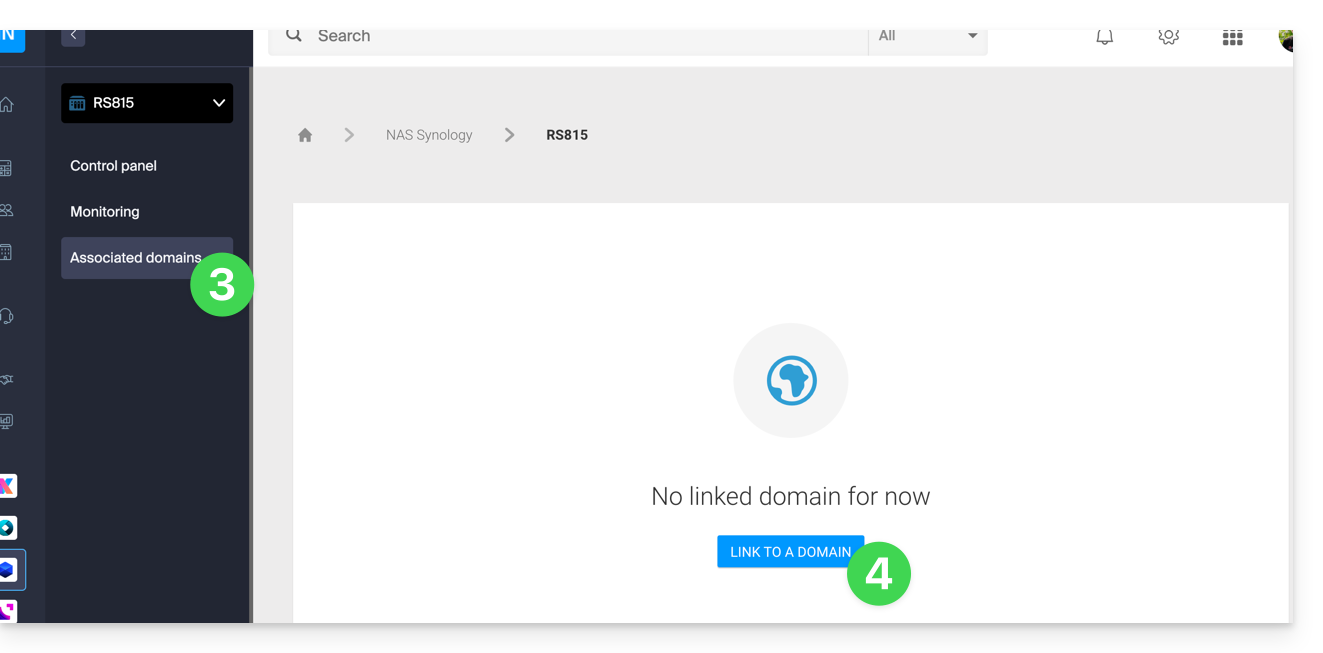
- Enter a subdomain, if applicable.
- Choose one of the domain names registered under your Organization.
- Click the button to Confirm:
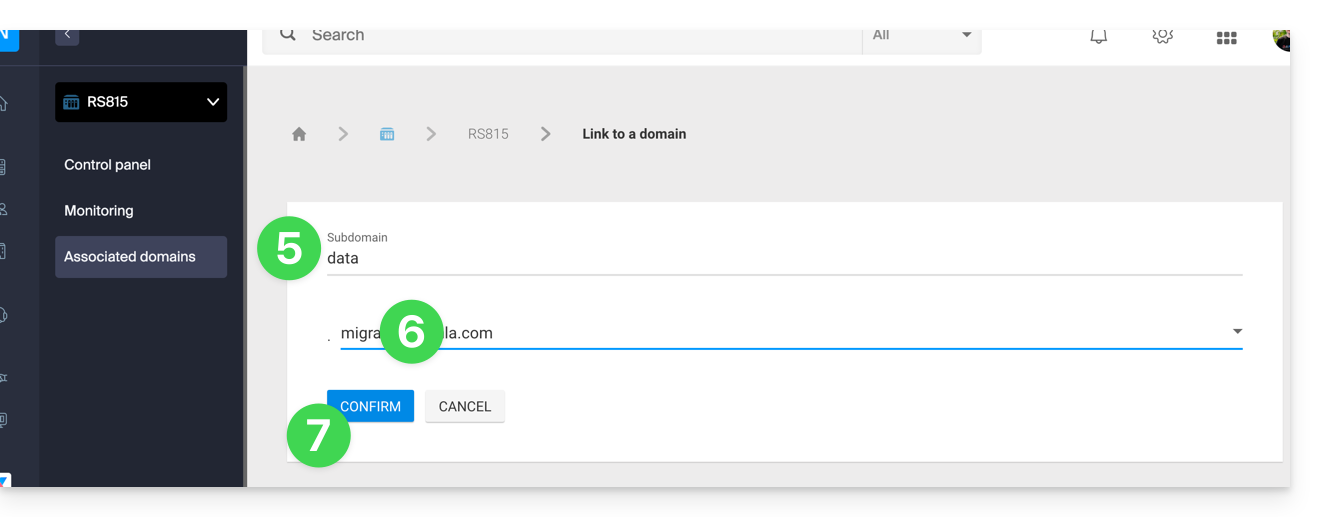
- The domain is associated with the device; to remove the association, click on the action menu ⋮ to the right of the item in question in the table that appears.
- Click on Disassociate the domain and confirm:
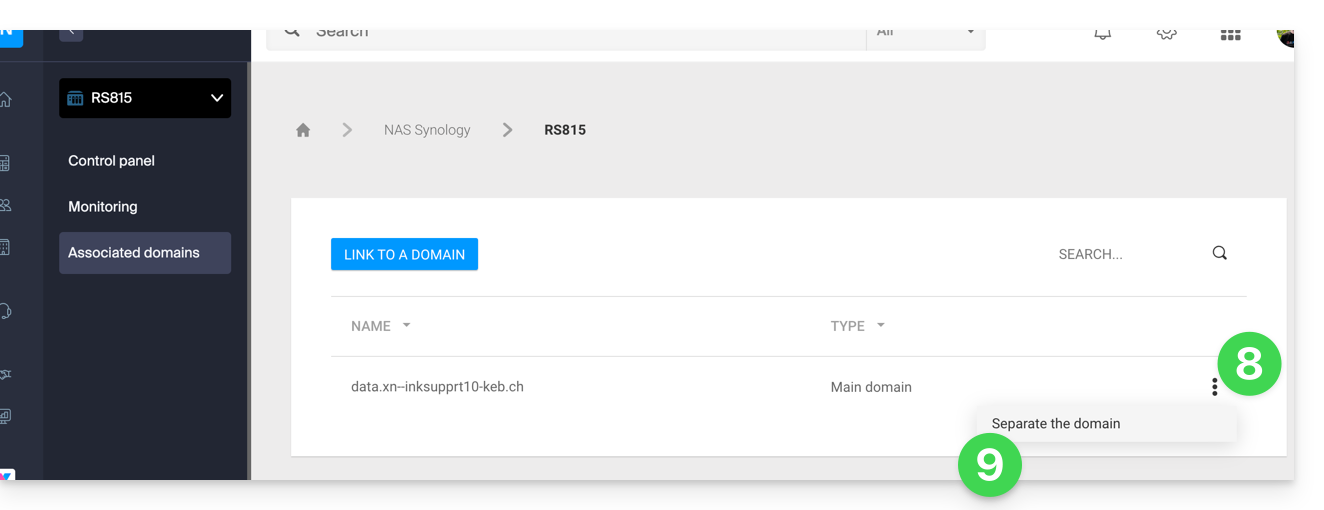
Link to this FAQ: https://faq.infomaniak.com/2106
Has this FAQ been helpful?
This guide explains how to add or modify an MX record in the DNS zone of a domain name managed from the Infomaniak Manager.
Introduction
- An MX record tells mail servers to which server/provider to forward messages addressed to your domain name.
- Changes made in the Infomaniak Manager are only applied if the domain name uses the corresponding DNS zone.
- Any DNS addition/modification may take up to 48 hours to propagate; during this period, some messages may still be routed according to the old configuration.
MX records for Infomaniak email
Infomaniak automatically configures the necessary MX record when the domain name and Mail service are created within the same organization in the Infomaniak Manager.
If your configuration requires manually adding the MX record to direct incoming messages to Infomaniak, enter the following values:
- Host / Source: leave this field blank to apply the record to the main domain
- Target:
mta-gw.infomaniak.ch - Priority:
5
The target must be entered as a hostname, without https://, without an email address, and without any additional path.
Variant specific to certain DNS interfaces
Some interfaces, notably Gandi's, require a period at the end of the target to indicate that it is a fully qualified domain name. In this case, enter:
mta-gw.infomaniak.ch.
If a different MX record is used or if multiple MX records are configured, Infomaniak cannot guarantee that messages will be received correctly.
Edit the DNS zone
To add an MX record to the DNS zone:
- Click here to access the domain management section in the Infomaniak Manager (need help?).
- Click directly on the name assigned to the domain in question.
- Click on DNS Zone in the left-hand menu.
- Click on the button to add a record:
- Select the MX record type.
- Click on the Next button:
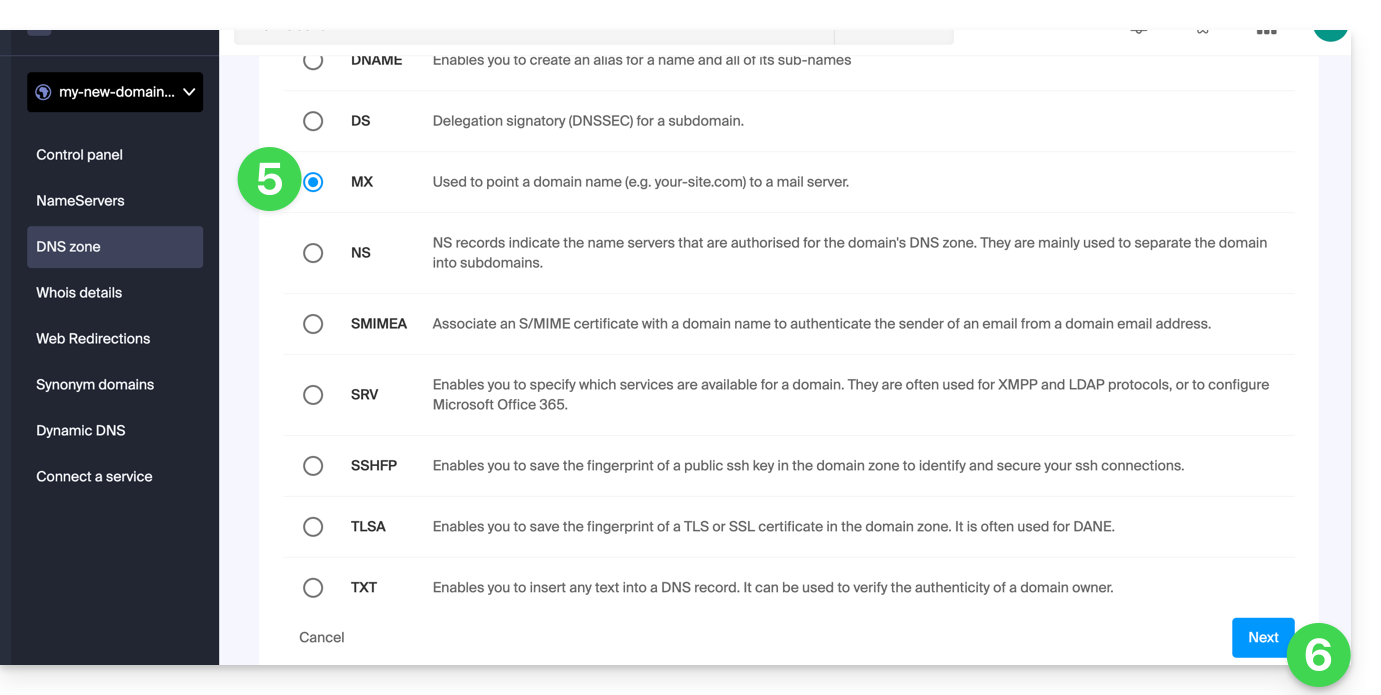
- Enter the requested values:
- for the main domain's email, leave the Host or Source field blank
- enter the name of the email server provided by your provider in the Target field
- enter the priority indicated by this provider
- Keep the default value for TTL, unless your email provider specifies otherwise.
- Click on the Save button:
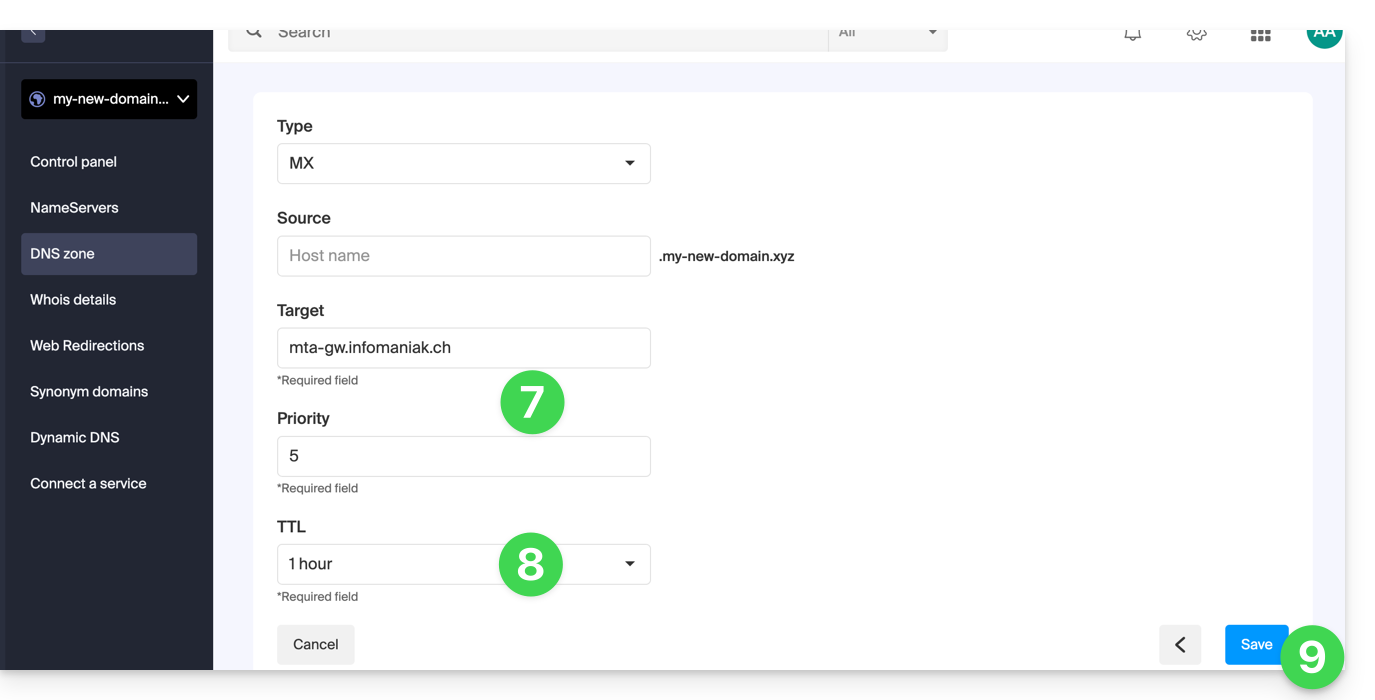
Once saved, the MX record will appear in the DNS zone table: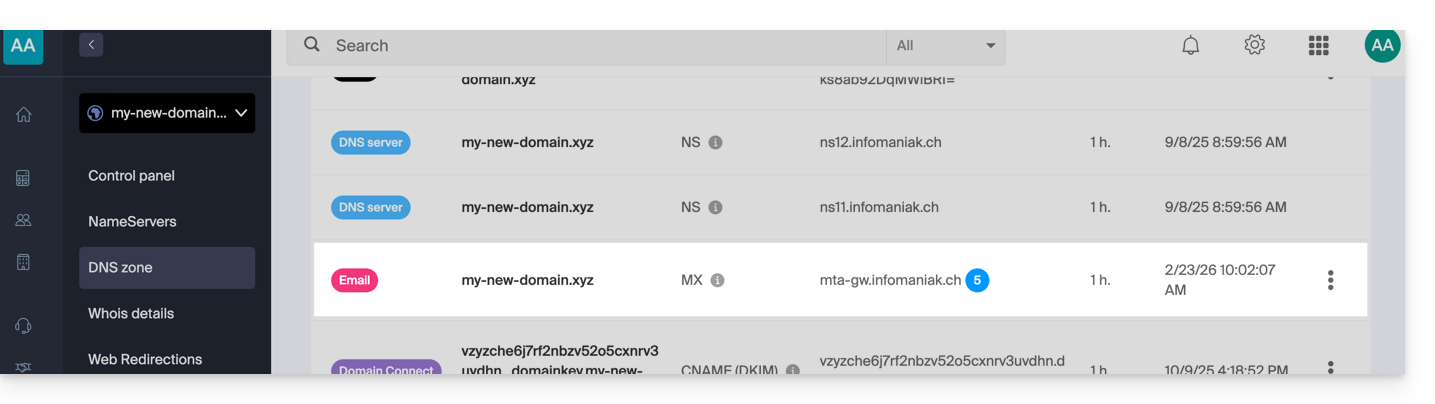
To send messages using Infomaniak's email service, the domain name must also have a correctly configured SPF record.
Learn more
Link to this FAQ: https://faq.infomaniak.com/2110
Has this FAQ been helpful?
This guide explains how to upgrade a free Web Starter plan to a paid plan with more features, such as shared Web Hosting or Web Hosting on a Cloud Server.
Introduction
- When you purchase a domain name from Infomaniak, you can add 1 free email address and 10 MB of basic web space.
- With just a few clicks, you can upgrade this plan to enjoy a richer experience.
Modify the Starter plan - basic web page
To upgrade this free plan:
- Click here to access the management of your hosting on the Infomaniak Manager (need help?).
- Click on the action menu ⋮ located to the right of the item in question.
- Click on Modify plan:
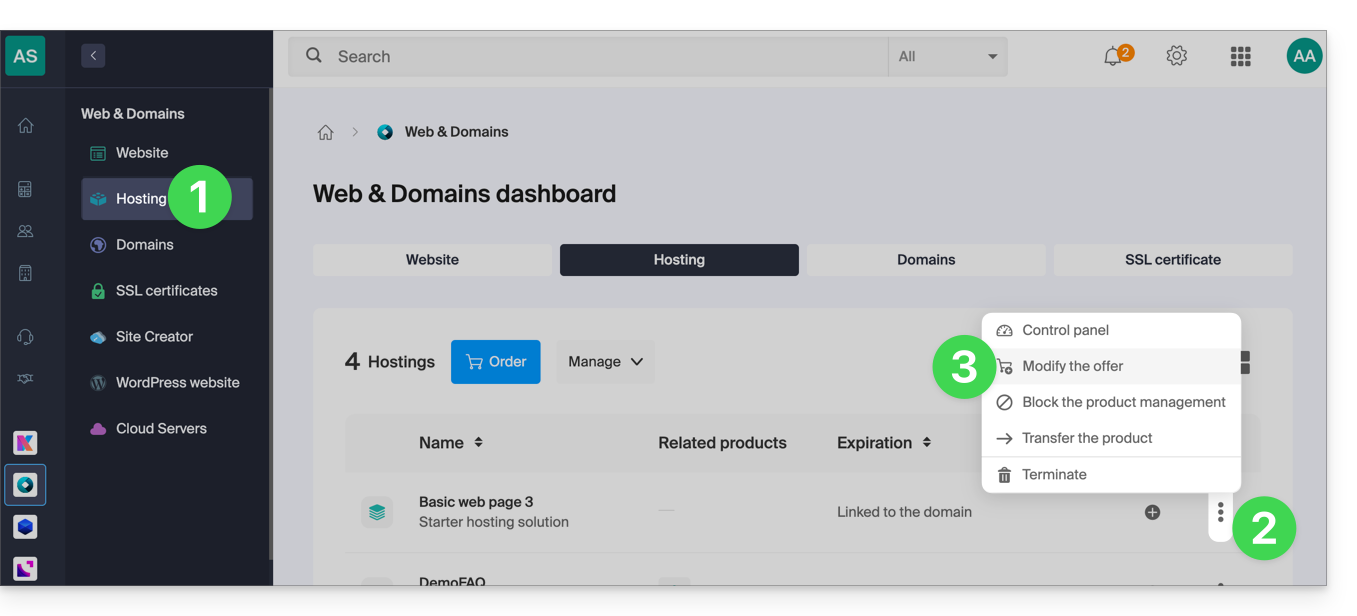
- Follow the wizard to choose the new type of hosting, and pay to complete the plan change.
Link to this FAQ: https://faq.infomaniak.com/2111
Has this FAQ been helpful?
This guide explains how to convert a free Mail Starter plan to a more comprehensive and enhanced plan, such as kSuite Free or other kSuite Pro plans.
Introduction
- When you purchase a domain name from Infomaniak, you get1 free email address and 10 MB of basic web space: this is the Starter plan.
- With just a few clicks, you can upgrade these plans to remove the limits and enjoy an enhanced experience.
- To help you identify the Mail plan that best suits your needs, please refer to this other guide.
Upgrade the Starter plan - Free Mail service
To upgrade the Starter plan:
- Click here to access your product management in the Infomaniak Manager (need help?).
- Click on the action menu ⋮ located to the right of the item in question.
- Click on Modify offer:
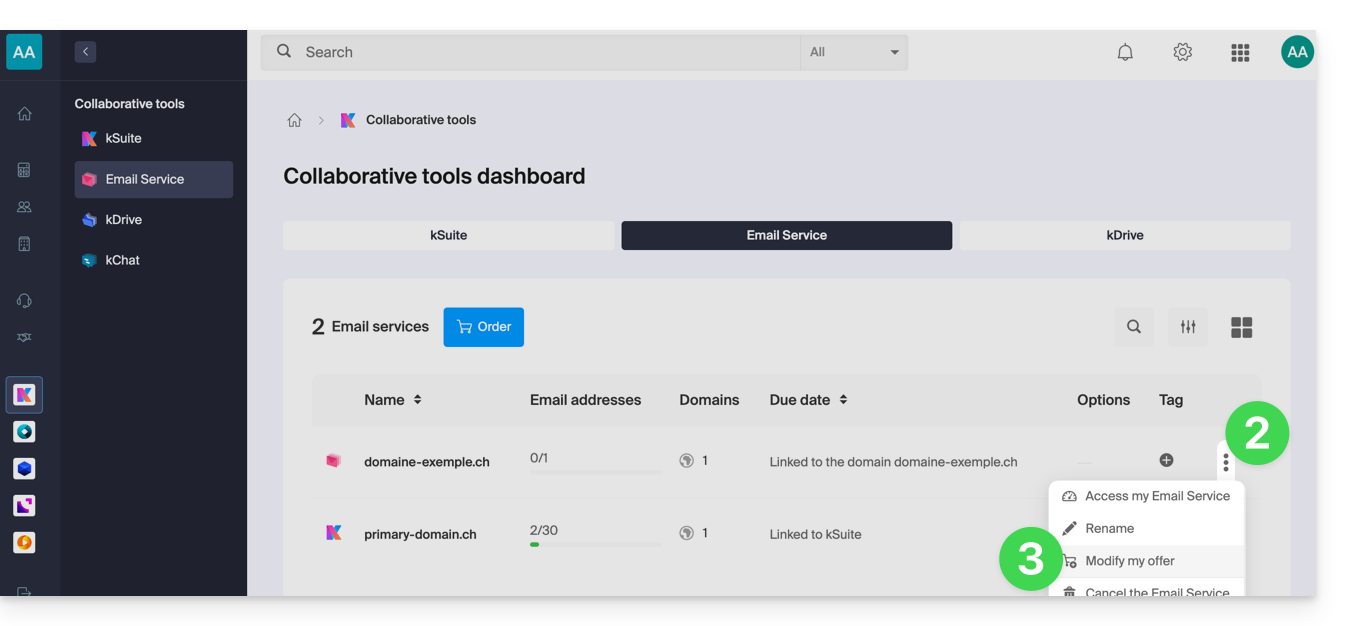
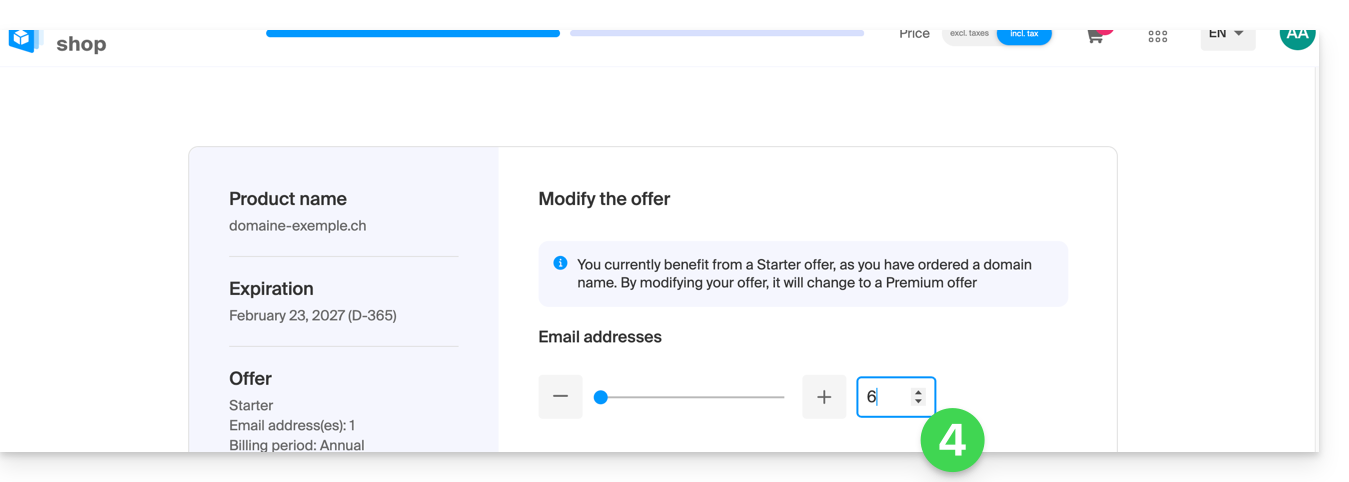
- Adjust if necessarythe number of email addresses to add to the Mail Serviceusing the order assistant, which will allow you to complete the upgrade until the end:
Link to this FAQ: https://faq.infomaniak.com/2112
Has this FAQ been helpful?
This guide presents the DNS Diagnostic tool, which allows you to verify the relationships between…
- DOMAIN NAME at Infomaniak
and - MAIL SERVICE with Infomaniak
… are correct, so that Mail traffic is directed to the right place.
Introduction
- To verify, the tool checks the MX records, SPF, etc.
- This allows you to detect and correct certain Mail issues, particularly if they are related to DNS (technical information that essentially determines where certain Mail traffic should be directed) by taking action at the domain level.
- Automatic correction is only possible when the domain name is present in the same Organization as the product to which it should be linked.
- If this is not the case, then the correction will have to be done manually.
Troubleshooting DNS issues
To access the DNS diagnostics for your domain name:
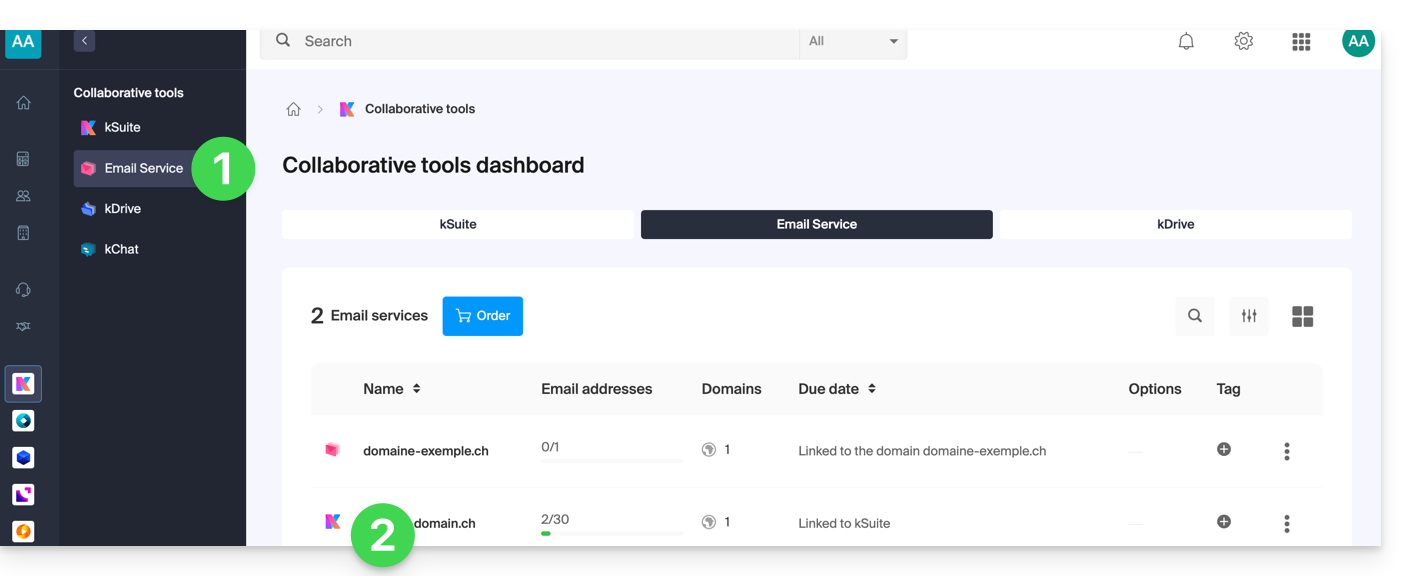
- Click here to access the management of your Mail Service in the Infomaniak Manager (need help?).
- Click directly on the name assigned to the product in question:
- Click on Domain Management in the left-hand menu:
- Click on DNS Diagnostics in the left-hand menu.
- Click the button if necessary to refresh the information, which should then be displayed in green.
- If DNS issues are detected, a red display in the table indicates this:
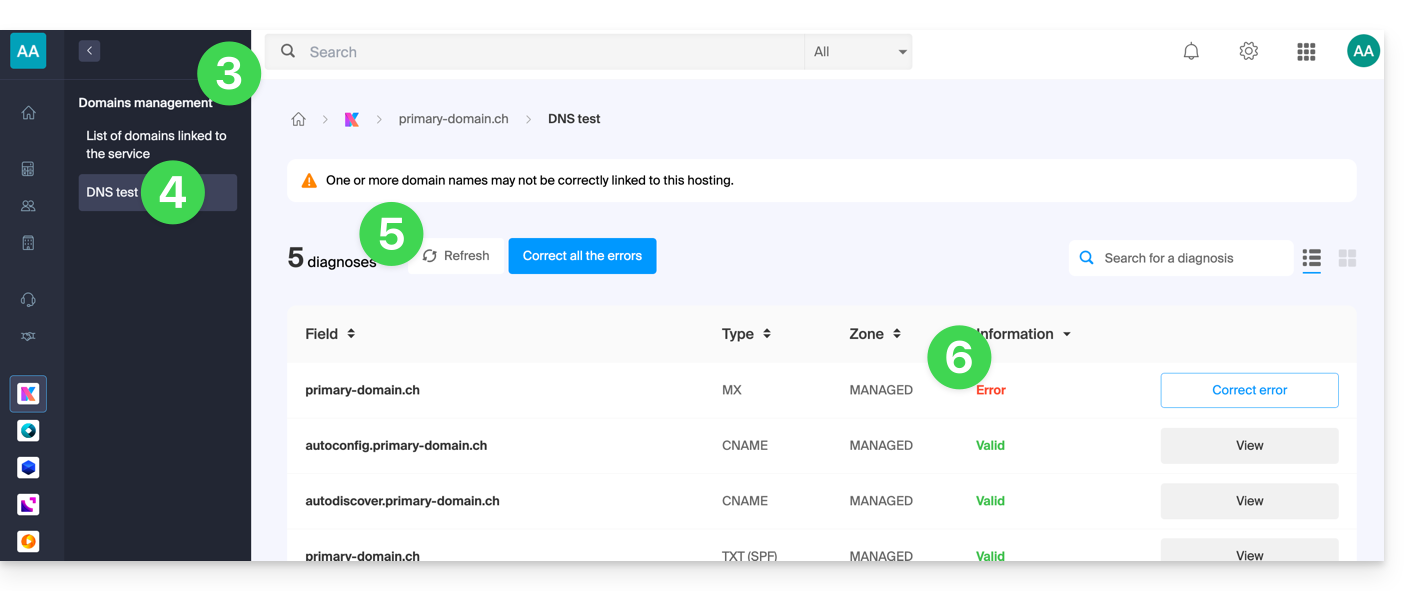
- Correct each error individually by clicking the button to the right of the item in question…
- … or correct all errors at once using the button above the table.
Refer to this other guide regarding the same automatic verification process, but for Web Hosting.
And if necessary, consult the security diagnostic related to email.
Link to this FAQ: https://faq.infomaniak.com/2124
Has this FAQ been helpful?
This guide details the administrative steps for transferring the management of a domain with the .de extension to another registrar other than Infomaniak.
Transfer a .de domain to another registrar
As long as the administrator contact listed in the WHOIS information for the domain to be transferred does not include an address located in Germany, it will not be possible to request the transfer code. Please refer to this other guide to modify the contact details.
Alternatively, you can delete the domain name, in which case you must…
- … or contact Infomaniak support (by providing the email address mentioned in the WHOIS contact details) and request its deletion.
- … or wait for the domain to expire, after which it will be transferred to DENIC, which you can then contact to request its permanent deletion.
Link to this FAQ: https://faq.infomaniak.com/2148
Has this FAQ been helpful?
This guide explains how to replace, within an Infomaniak Web Hosting account, the address of a site currently using a subdomain (https://dev.domain.xyz) with the main domain (https://domain.xyz).
Introduction
- The operations in brief:
- Start with a site created and accessible via the main domain URL
dev.domain.xyz. - Add an alias
domain.xyzto it. - Reverse the two types (the main domain becomes an alias, and the alias becomes the main domain).
- Remove the old name
dev.domain.xyz.
- Start with a site created and accessible via the main domain URL
- Note that the site's location remains in the original folder on the server; the name of this location may be in the form
/sites/dev.domain.xyz, but this has absolutely no impact on the site in production. - Also, please refer to the last chapter of this other guide.
Reverse a linked domain
Here are the detailed steps to switch from a site with a subdomain-type address to a direct address (here, dev.domain-example.ch becomes domain-example.ch):
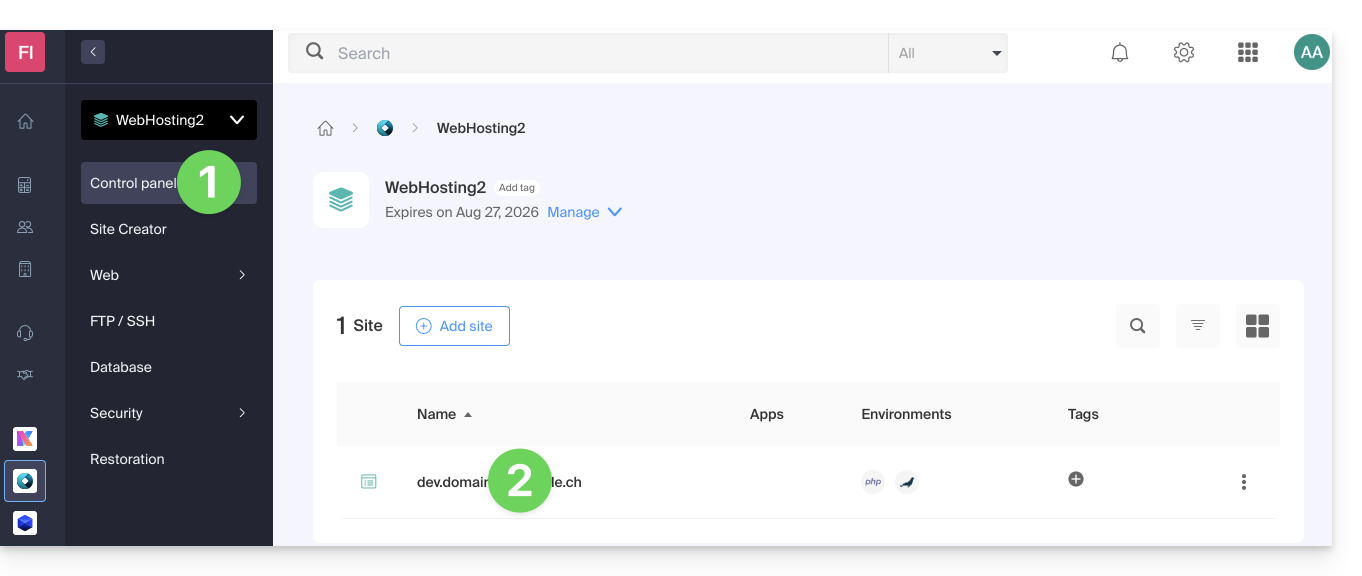
- Click here to access the management of your site on the Infomaniak Manager (need help?).
- Click directly on the name assigned to the site in question:
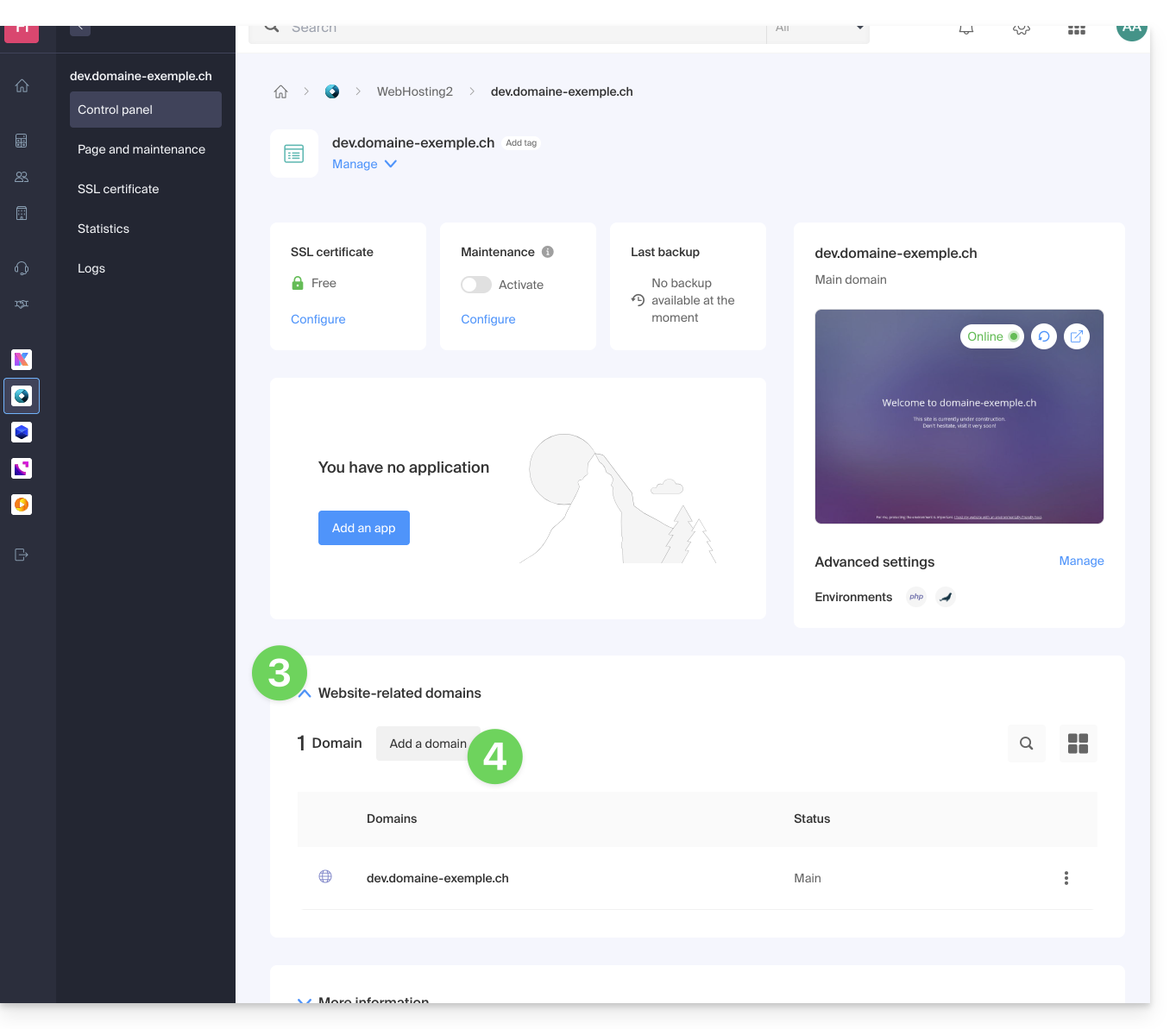
- Then, click on the chevron to expand the Domains section of this site:
- Click on the Add a domain button:
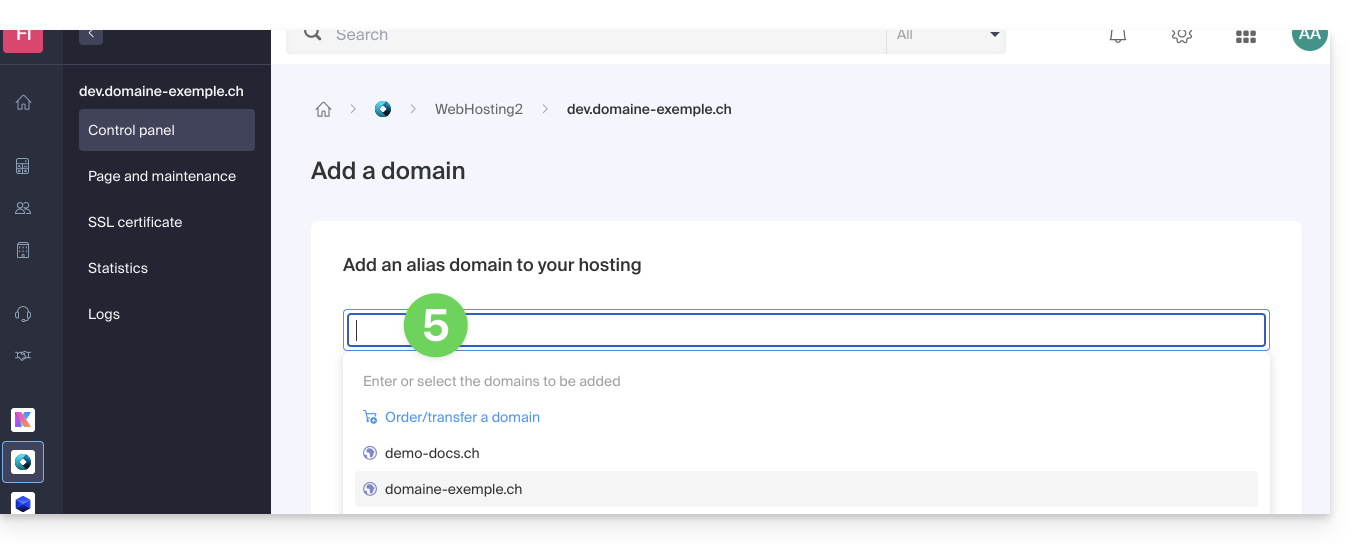
- Add the new desired name (if the domain name to be added is on the same Organization, it will be suggested in the list; otherwise, enter its spelling):
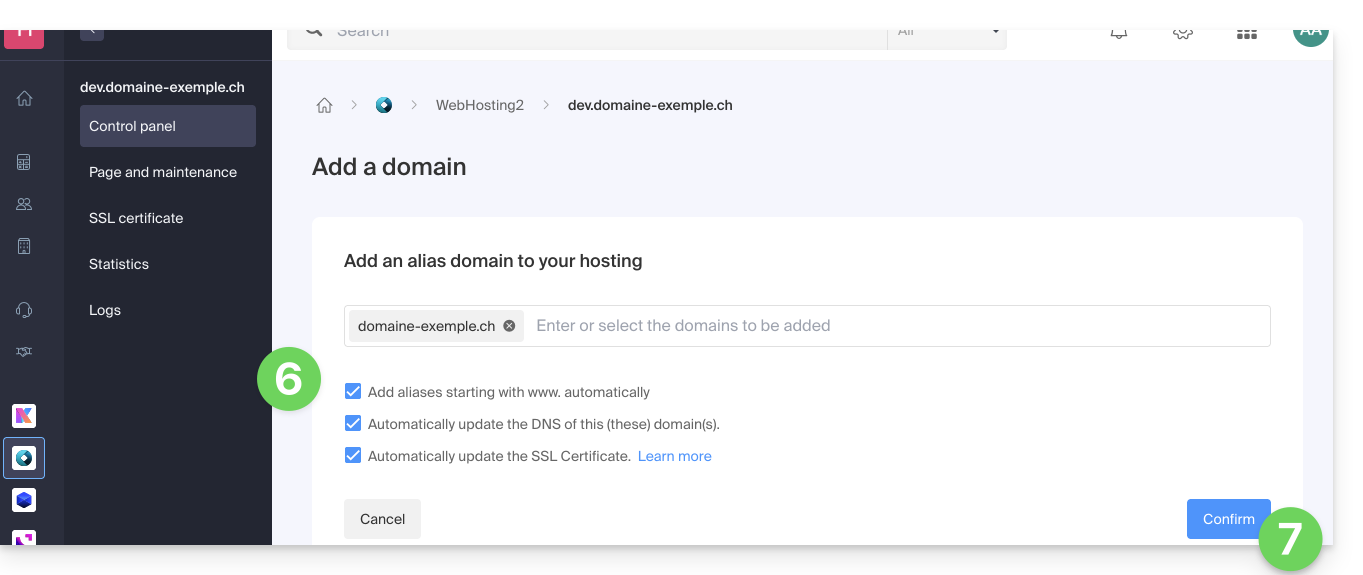
- Activate or deactivate the checkboxes:
- If the added domain is not in the form of a subdomain, you can request to automatically add the
wwwversion of the domain. - Automatically update (if possible) the DNS records of the added domains.
- Automatically update related SSL certificates (if possible).
- If the added domain is not in the form of a subdomain, you can request to automatically add the
- Click on the button to Confirm and wait:
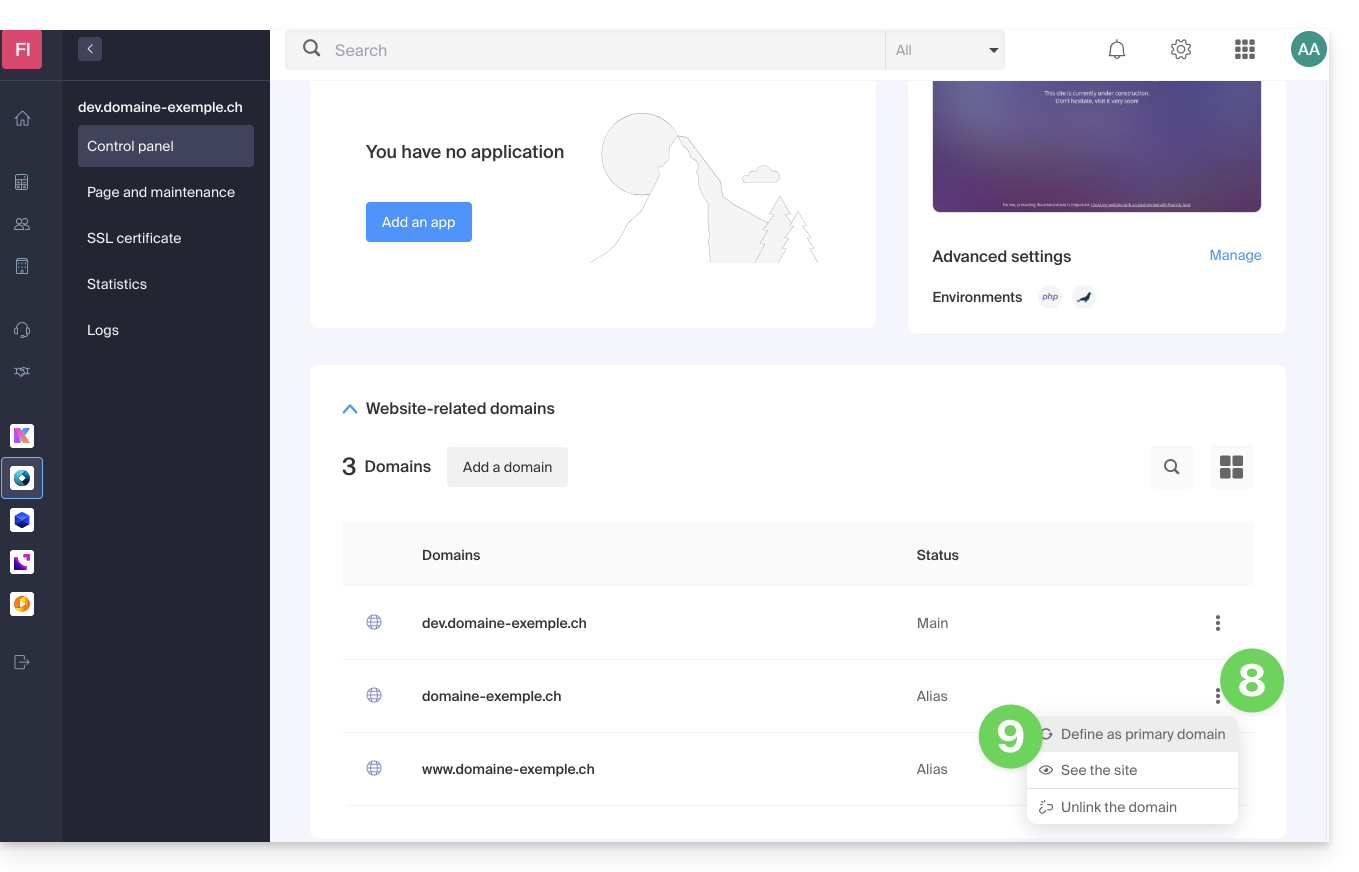
- Once the addition is complete, click on the action menu ⋮ located to the right of the domain that has just been added and that you want to set as the primary domain:
- Choose to define the item as the primary domain:
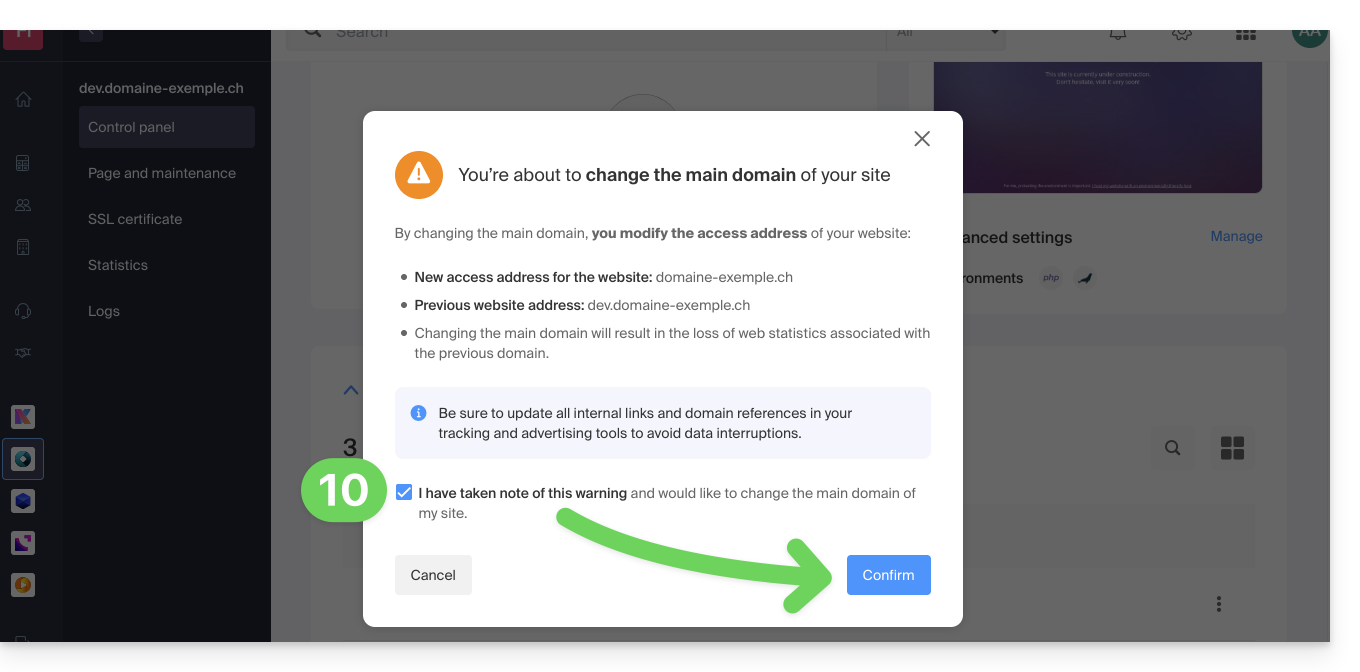
- Validate the operation to proceed with the domain switch:
Link to this FAQ: https://faq.infomaniak.com/2160
Has this FAQ been helpful?
This guide explains how to link a domain name managed by Infomaniak to a Shopify hosting plan.
Introduction
- A website created on Shopify cannot be exported to be hosted on third-party servers, such as those of Infomaniak.
- It is therefore recommended to create the website directly with Infomaniak using Site Creator or WordPress.
Linking Shopify to your domain name at Infomaniak
To link a website on Shopify with a domain name at Infomaniak:
- Click here to access the management of your domain in the Infomaniak Manager (need help?).
- Click directly on the name assigned to the domain in question.
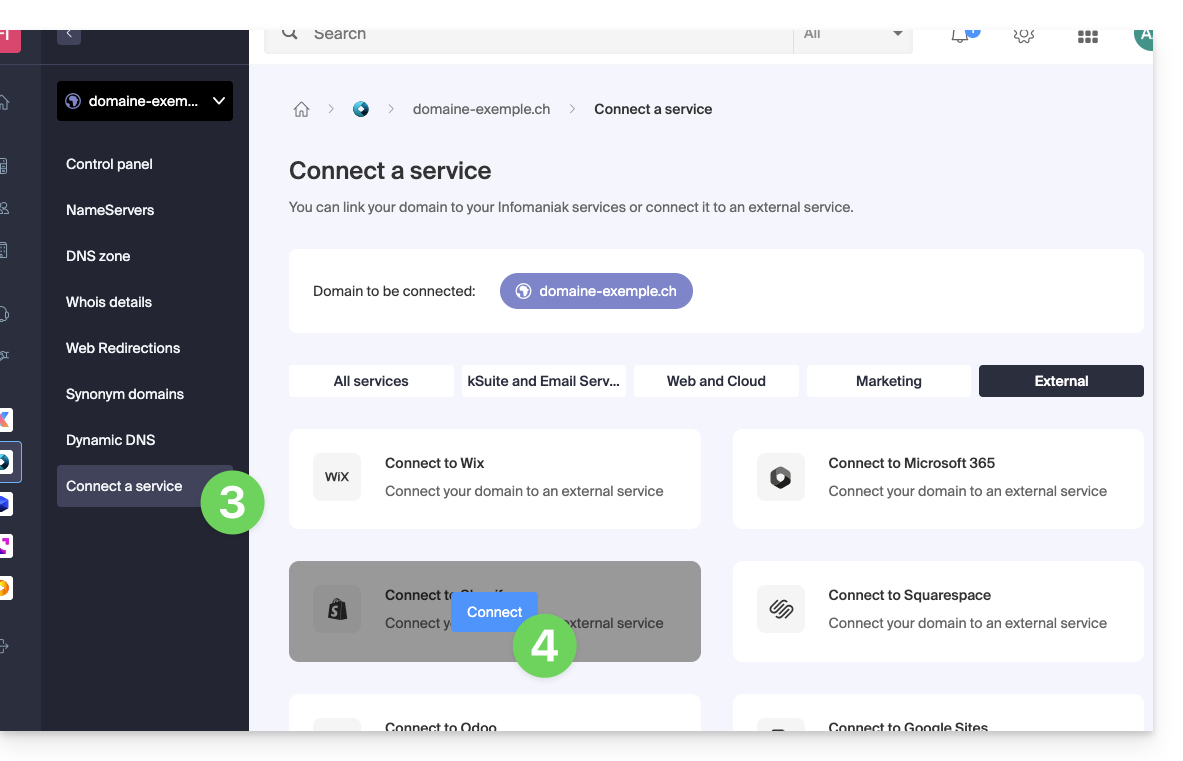
- Click on Connect a service in the left-hand menu.
- Click on the blue Connect button on the Shopify tile:
- The A records will be replaced with a record with the value
23.227.38.65. - The CNAME record "www" will be modified to have the value
shops.myshopify.com.
- The A records will be replaced with a record with the value
- Click on the Next button.
Web traffic will point to the Shopify servers a few hours later.
The mail configuration is not affected by these two DNS changes.
Link to this FAQ: https://faq.infomaniak.com/2164
Has this FAQ been helpful?
This guide explains how to configure DNSSEC with Cloudflare for a domain registered with Infomaniak.
Prerequisites
- The domain's DNS zone must be managed by Cloudflare.
Configure DNSSEC in Cloudflare
To do this:
- Click here to access the Cloudflare console.
- Go to the DNS tab.
- Click on Enable DNSSEC.
- Keep the information you obtained handy:
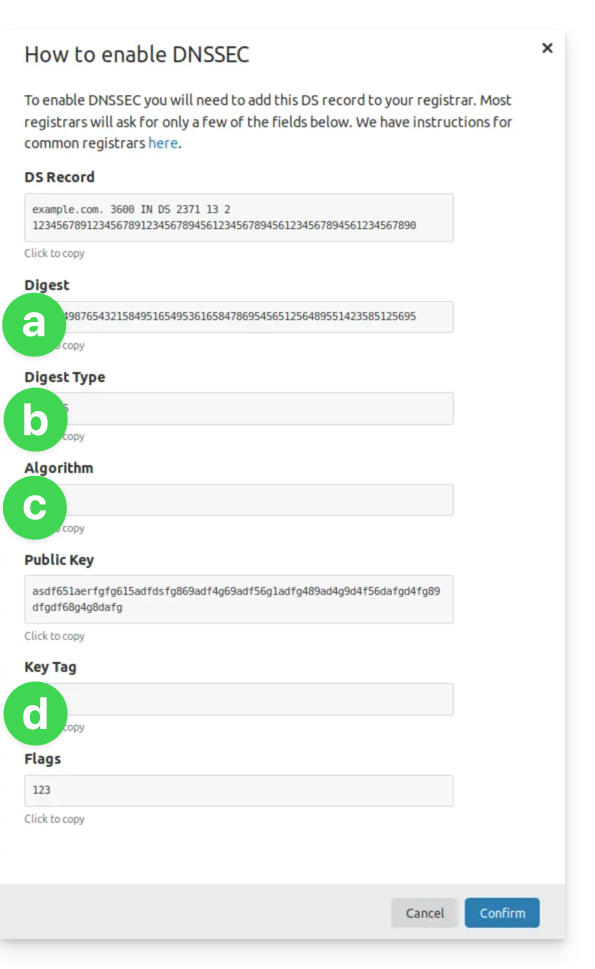
(see points 8 & 10 below)- The information under a will go under HASH
- The information under b will go under HASH TYPE
- The information under c will go under ALGORITHM
- The information under d will go under KEY
- Click here to access your domain management on the Infomaniak Manager.
- Click directly on the name assigned to the domain in question.
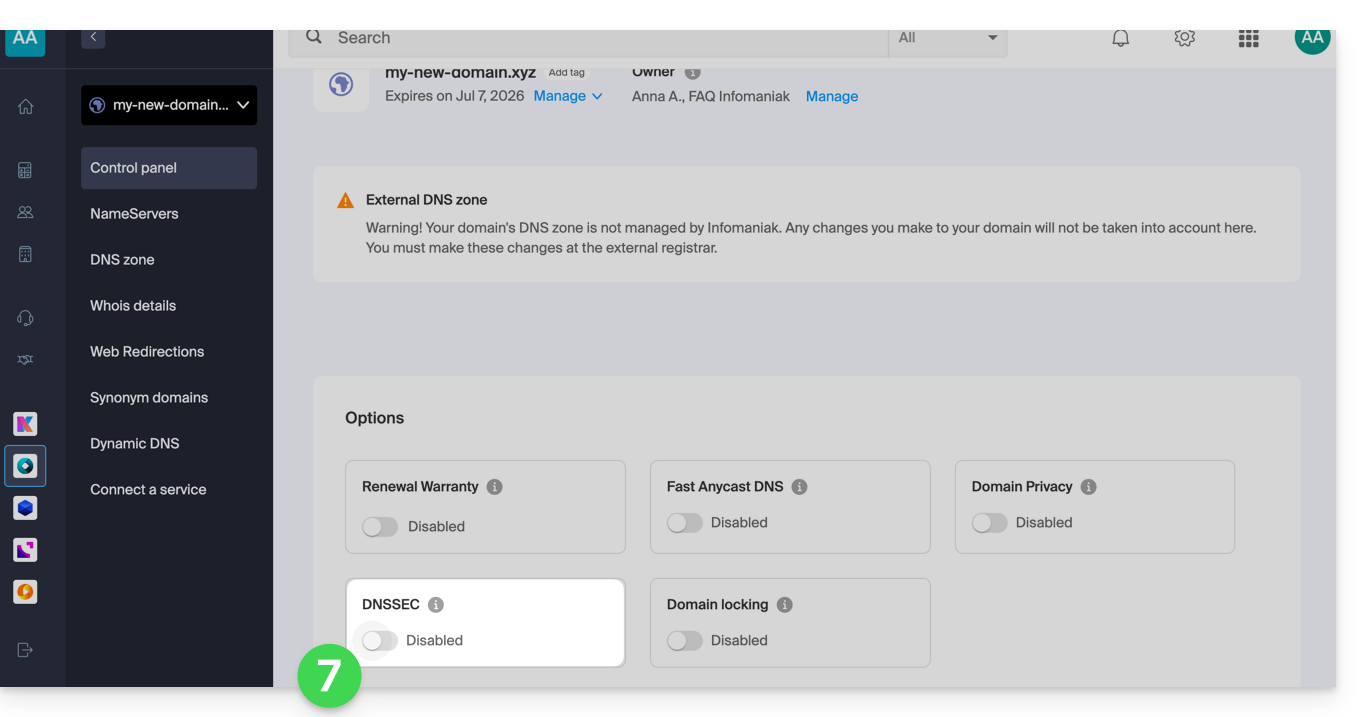
- Activate DNSSEC from the Dashboard:
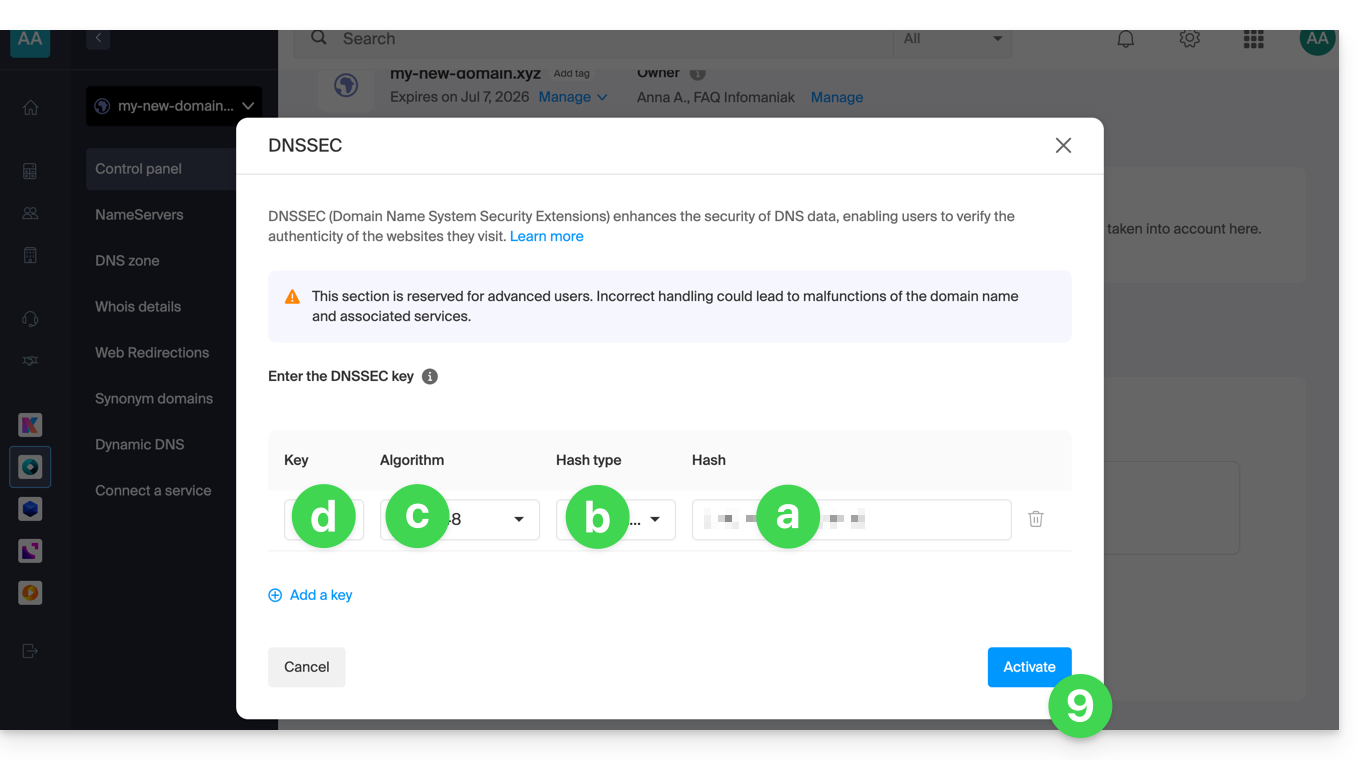
- In the window that appears, enter the requested information using the data provided by Cloudflare (see point 4 above):
- Hash = Digest
- Hash Type = Digest Type
- Algorithm = Algorithm
- Key = Key Tag
- Click on Activate:
- In the case of a domain with an extension
.eu, the required information may be significantly different (see point 4 above):- The information under FLAGS should be entered under FLAGS
- The information under PUBLIC KEY should be entered under PUBLIC KEY
Link to this FAQ: https://faq.infomaniak.com/2187
Has this FAQ been helpful?
This guide explains how to add or modify one or more SPF records in a DNS zone (of a domain name) managed in the Infomaniak Manager.
Introduction
- If your domain name is registered with Infomaniak, your email is managed by Infomaniak, but your website is hosted with another provider (Wix, for example), you are probably managing the DNS zone (and therefore the SPF) with that other provider: please refer to this other guide for more information.
Understanding SPF records
The SPF (Sender Policy Framework) record type is a standard for verifying the sender's domain name in an email and aims to reduce SPAM. It is used to indicate which server is authorized or not to send emails for a domain. If the SPF check fails for an email, it means that the email was not sent from an authorized server/IP address by the domain administrator. The email is then considered spam.
Strict SPF -all: rejecting unauthorized emails
Infomaniak automatically installs this type of record when creating an Email Service on your domain (strict SPF):
v=spf1 include:spf.infomaniak.ch -allThus, the recipient server of the email you send will evaluate that any email not coming from Infomaniak servers will be rejected. This prevents malicious individuals from spoofing email addresses from your domain.
Soft SPF ?all: tolerance for some emails
You can choose to modify the SPF to a more flexible model:
v=spf1 include:spf.infomaniak.ch ?allIn this case, the recipient server of the email you are sending will evaluate, according to its own rules, whether it accepts emails not originating from Infomaniak servers.
In summary:
?: the receiving server accepts the message even if the sender is not listed in the SPF~: the receiving server generally accepts the message if it is not listed in the SPF but identifies it as suspicious-: the receiving server rejects the message if it is not listed in the SPF (recommended)
Add an SPF via a TXT record
There are 2 ways to manage SPF.
If you have a Mail service with Infomaniak, the easiest way is to go to the Global Security tool to manage the SPF: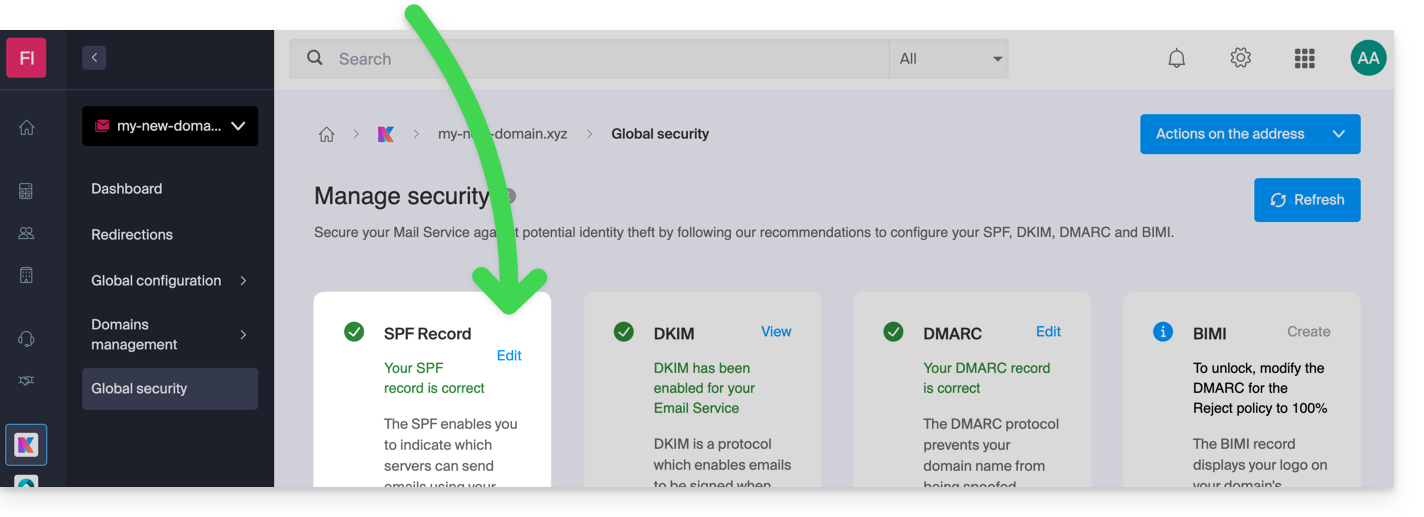
But since the SPF record is a type of DNS record of type TXT, you can also manage it from the DNS zone of the domain name:
- Click here to access the management of your domain on the Infomaniak Manager (need help?).
- Click directly on the name assigned to the domain in question.
- Click on DNS Zone in the left-hand menu.
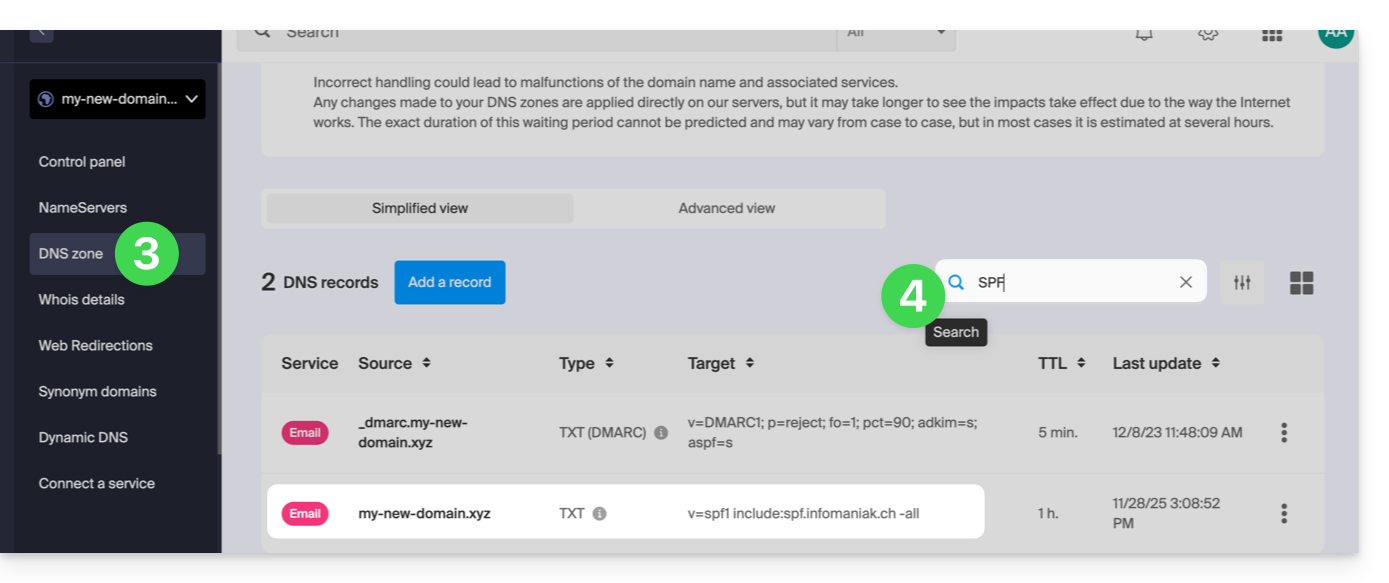
- Check in the table that there is not already a TXT record with a value mentioning SPF, as shown here:
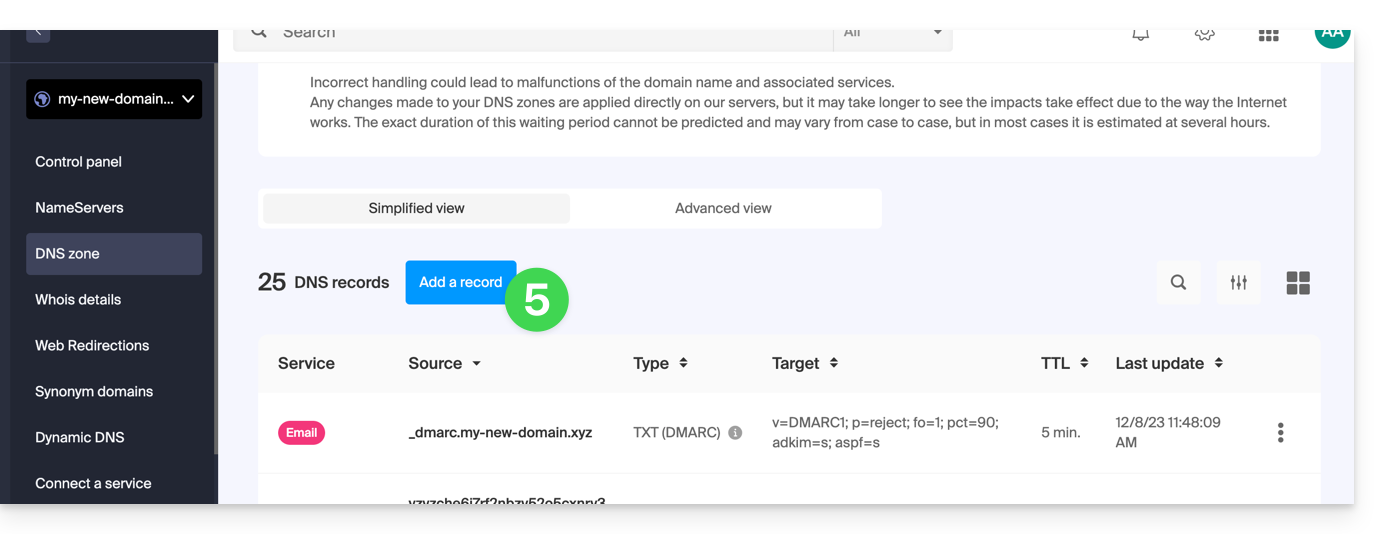
- Click the button to add a record (you will receive an error if you try to add a TXT record with an SPF value when one already exists in the zone):
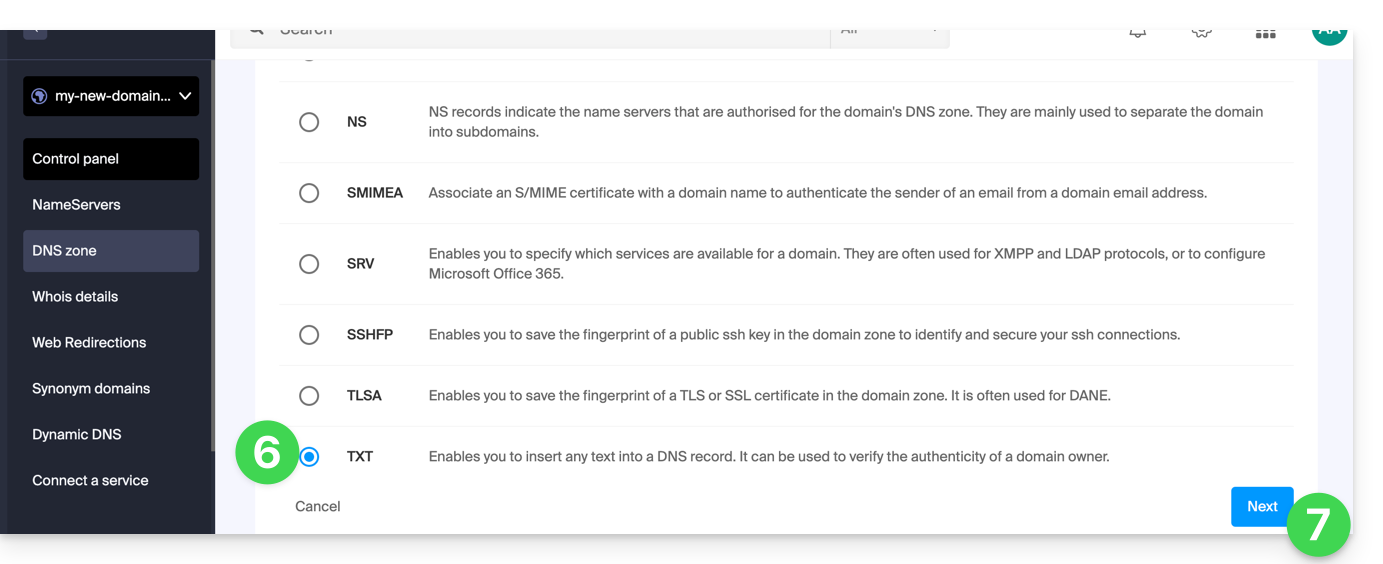
- Click the TXT radio button to add a record.
- Click the Next button:
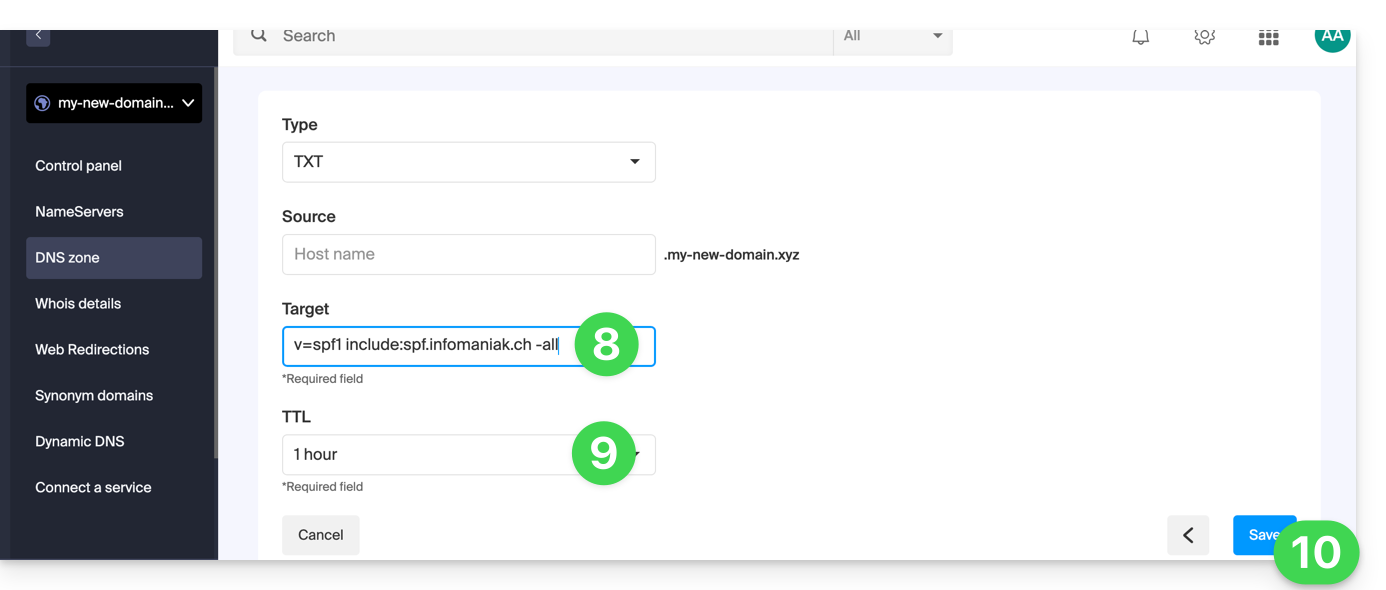
- Enter the SPF value required for your DNS zone.
- Leave the default value for the TTL.
- Click the Save button:
Adding Multiple SPF Records
If you use other email providers in addition to Infomaniak, you need to obtain their SPF records and then merge them with Infomaniak's SPF record using a specific syntax.
Having multiple separate SPF records will cause errors. It is essential to combine multiple SPF records into a single TXT record!
Example of 3 SPF records to merge:
- Infomaniak's:
v=spf1 include:spf.infomaniak.ch -all - Two secondary providers:
v=spf1 include:the-second-domain.xyz ?allv=spf1 include:the-other-domain.xyz ~all
... the final SPF record to be inserted into your DNS zone should be in the following format:
v=spf1 include:spf.infomaniak.ch include:the-second-domain.xyz include:the-other-domain.xyz -allRemove any other SPF entries from the DNS zone of your domain! Any DNS addition/modification may take up to 48 hours to propagate.
Limits on the Number of SPF Records
Multiple SPF records are limited to a maximum of 10 inclusions.
The Infomaniak SPF record generally already includes 4 entries:
include:relay.mail.infomaniak.chinclude:app.mail.infomaniak.chinclude:newsletter.infomaniak.cominclude:amazonses.com
Check the SPF record(s)
The Global Security tool in the Infomaniak Manager allows you to easily check and correct any problematic records.
If you encounter a problem, it is recommended to analyze your domain name on MxToolbox to check if your SPF record contains syntax errors, too many inclusions, or other issues that could lead to an error: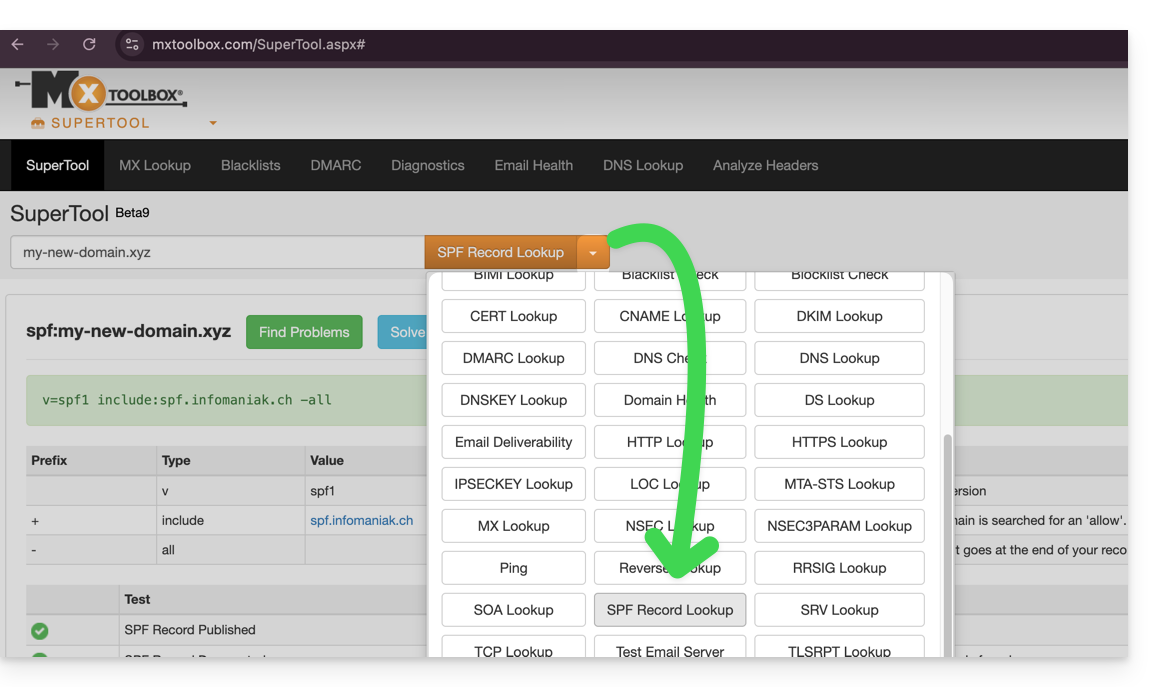
… or directly at https://mxtoolbox.com/spf.aspx.
Link to this FAQ: https://faq.infomaniak.com/2199
Has this FAQ been helpful?
This guide explains what DNSSEC is and how this protection enhances the security of Domains at Infomaniak and the traffic they generate.
Introduction
- Each URL corresponds to an IP address, and when an internet user enters the URL of your site into their web browser, they access a DNS server whose role is to redirect them to the IP address that corresponds to the domain entered (technically, this is called DNS resolution).
- When DNSSEC is not enabled on your domain name, a malicious person could detect a flaw in a DNS server and modify the correspondence between your domain name and the IP address of your site to the IP address of their choice. In such a case, the internet user who enters the URL of your site would then be redirected to another website that does not correspond to the content of your website.
- DNSSEC secures the authenticity of the response provided by the DNS server, thus guaranteeing that internet users are accessing the website they actually intend to visit.If a hacker were to attempt to modify the IP address of your domain name in a DNS server protected by DNSSEC during resolution, the latter would reject their requests because they would not be authenticated.
- DNSSEC is therefore an additional security measure for a website's SSL certificate, ensuring that the user is directed to the website corresponding to the entered URL, and the SSL certificate then encrypts the communication between the user's web browser and the website's web server.
Enable or disable DNSSEC
To find out about the availability of DNSSEC for a specific domain, please refer to the specifications of the extensions that concern you on this page (under Frequently Asked Questions by clicking on the relevant extension first).
DNSSEC is available and already enabled upon purchase for the vast majority of domain name extensions.
If necessary, DNSSEC can be activated in a few clicks for fully managed domain names at Infomaniak:
- Click here to access the management of your product on the Infomaniak Manager (need help?).
- Click directly on the name assigned to the product in question.
- Enable or disable DNSSEC from the domain's Dashboard:
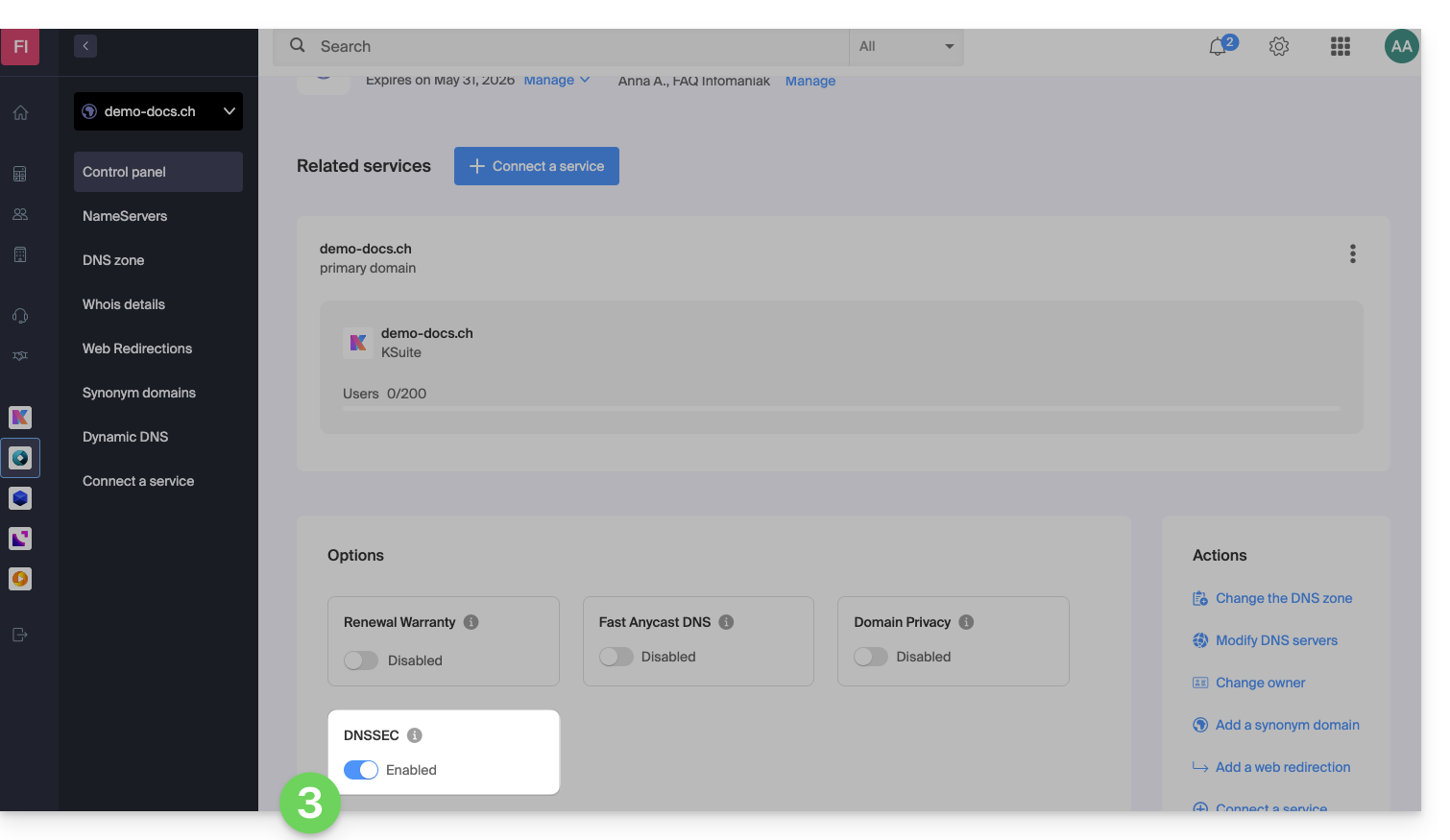
If the DNS zone for your domain is managed by another registrar, you will need to provide technical information provided by that registrar.If the information provided is incorrect, your domain name will no longer be accessible.. Therefore, it is recommended to transfer the complete management of your domain to Infomaniakbefore enabling DNSSEC if you are not familiar with these operations.
Check if DNSSEC is enabled
DNSSEC propagation to the registry may take several hours to complete.
Enter the domain name to check on this analysis site.
Specific guide
Link to this FAQ: https://faq.infomaniak.com/2208
Has this FAQ been helpful?
If your domain is important for your business, thenRenewal Warranty is the guarantee that you will never lose it. As a leading registrar, Infomaniak deals daily with customers who have failed to renew their domain on time. Their website and email addresses are no longer accessible, and this often represents a significant loss for their business.
Infomaniak also offers the option to protect your personal information in the WHOIS database with Domain Privacy.
It is easy and costly to lose a domain
A domain name is registered for a specific period, after which it must be renewed to retain ownership. When a domain is not renewed, it enters a redemption period and then becomes a public domain, awaiting a new owner.
The redemption period is a grace period during which it is still possible to take action to retain ownership of your domain. However, this last resort measure has significant consequences and incurs fees. At best, it results in the interruption of your website and email addresses for many hours while your domain name is urgently removed from redemption.
In the worst-case scenario, if there is no intention to reactivate the domain name, it will be lost.
Renewal Warranty: the guarantee that you will never lose a domain again
With this guarantee, Infomaniak undertakes to renew your domain if necessary (payment method blocked, renewal emails not received, prolonged absence, etc.) and will contact you personally by email, SMS, phone, and postal mail to ensure that you can keep it.
Renewal Warranty is a unique solution designed to protect you from the unintentional expiration of your domains. You remain the sole owner of your domains and are free to stop Renewal Warranty or cancel your domains whenever you decide.
Enable Renewal Warranty on an existing domain
Refer to this other guide to enable the option in just a few clicks.
Link to this FAQ: https://faq.infomaniak.com/2235
Has this FAQ been helpful?
With Domain Privacy, Infomaniak allows you to protect the confidentiality of your personal information (name, email address, postal address, and phone number) and effectively protect yourself against SPAM.
Introduction
- ICANN-accredited registrars are required to publish the contact details of a domain owner in the public WHOIS directory, which lists all registered domains and is primarily used to:
- verify the availability of domain names
- check for trademark infringements
- contact the domain owner in case of legal issues
- For customers concerned about the privacy of their personal data and who do not wish to publicly display their email address, phone number, and postal address in the WHOIS directory, Domain Privacy allows these actual contact details to be hidden.
- Thanks to this protection, WHOIS searches for your domain will not return your personal information, but the information of the partner Domain Privacy Trustee SA:
- You are protected against SPAM: marketing companies and individuals cannot use your personal data.
- You remain the full owner of your domain.
- It is still possible to contact you via a secure form that protects your identity.
- Discover the domain name extensions supported by Domain Privacy
Enable Domain Privacy on an existing domain
Domain Privacy can be enabled in just a few seconds:
- Click here to access your domain management in the Infomaniak Manager (need help?).
- Click directly on the name assigned to the domain in question.
- Activate Domain Privacy from the dashboard:
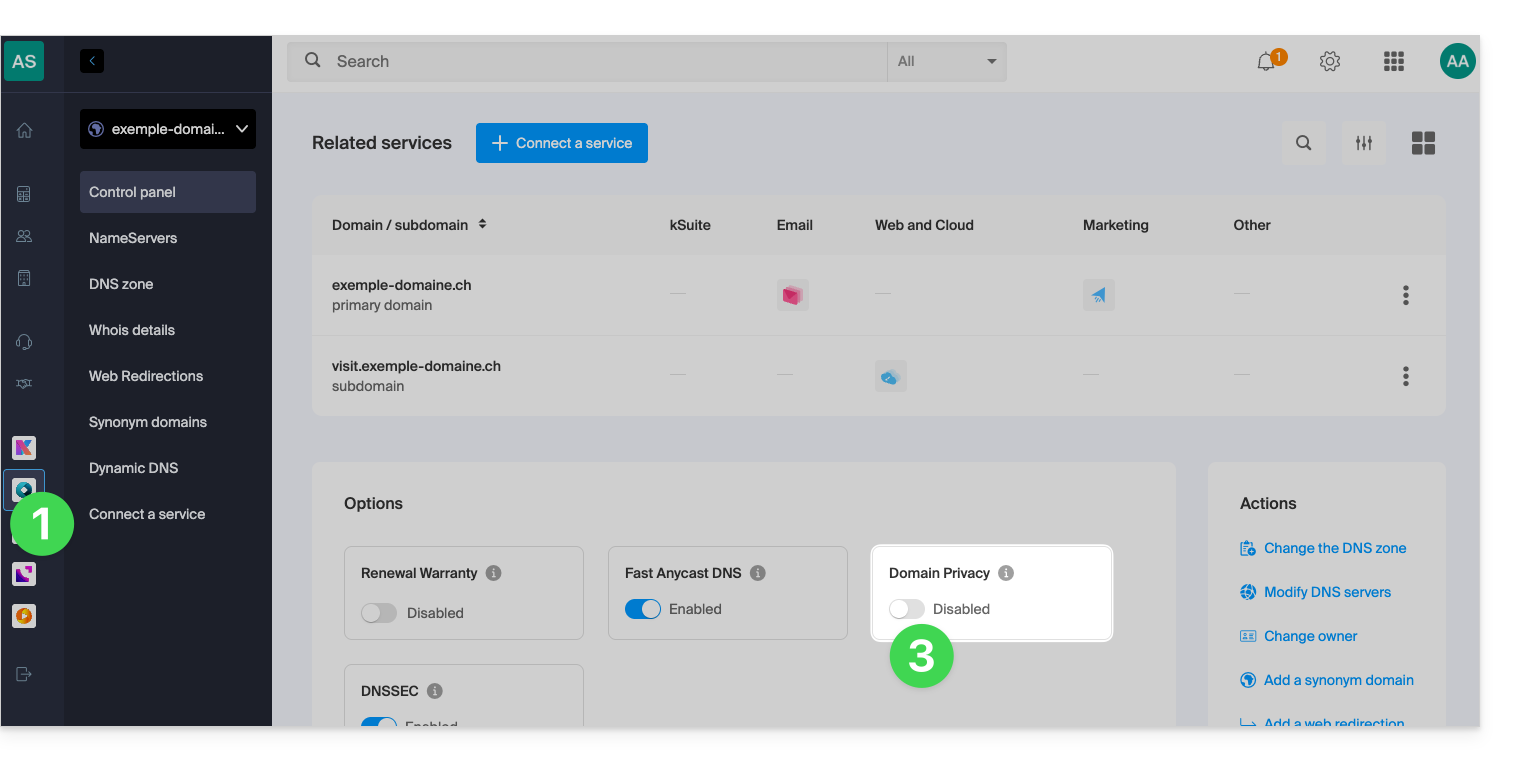
Infomaniak also offers the option to guarantee the renewal of your domains with Renewal Warranty: this guarantee is designed to ensure that you do not lose domains that are important for the proper functioning of your business.
Link to this FAQ: https://faq.infomaniak.com/2237
Has this FAQ been helpful?