Knowledge base
1000 FAQs, 500 tutorials and instructional videos. Here, there are only solutions!
This guide explains how to modify the dates and times of sales closures within the Infomaniak ticketing system.
Sales end parameters
You can modify the date and time of closure at each level independently: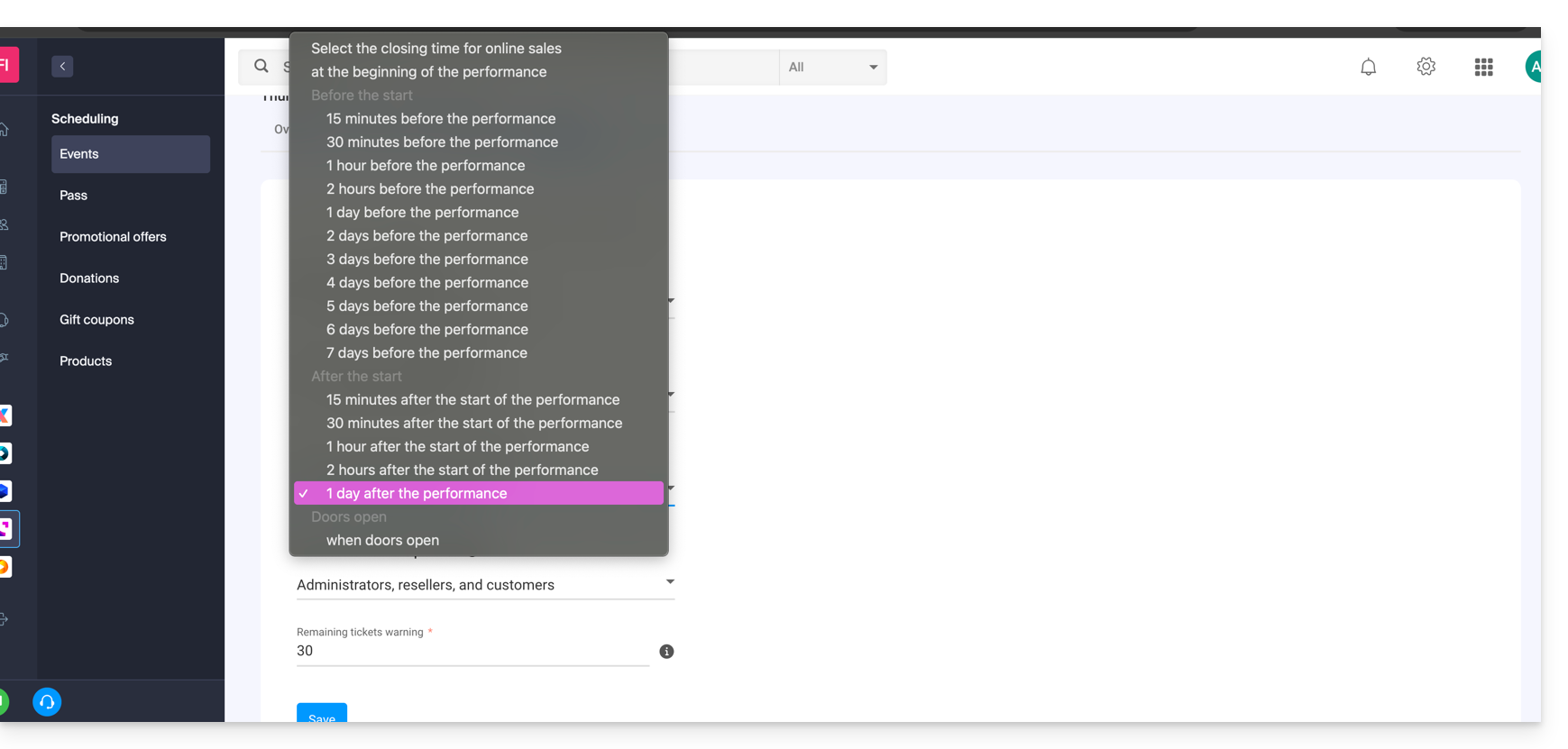
- End of online sales
- Allows you to close the event sales from your online ticketing system and on the Infomaniak portal. People will no longer be able to order tickets online for this event from a website.
- End of Reseller Counter Sales
- Defines when people with restricted access to the counter only will stop their sales from the counter on the manager or tablet.
- End of Administrator Counter Sales
- For administrators conducting sales from the Counter accessible from the manager or tablet.
Setting up sales end parameters
These parameters can be set when creating an event, during the third step of the procedure by activating the option Modify sales closure: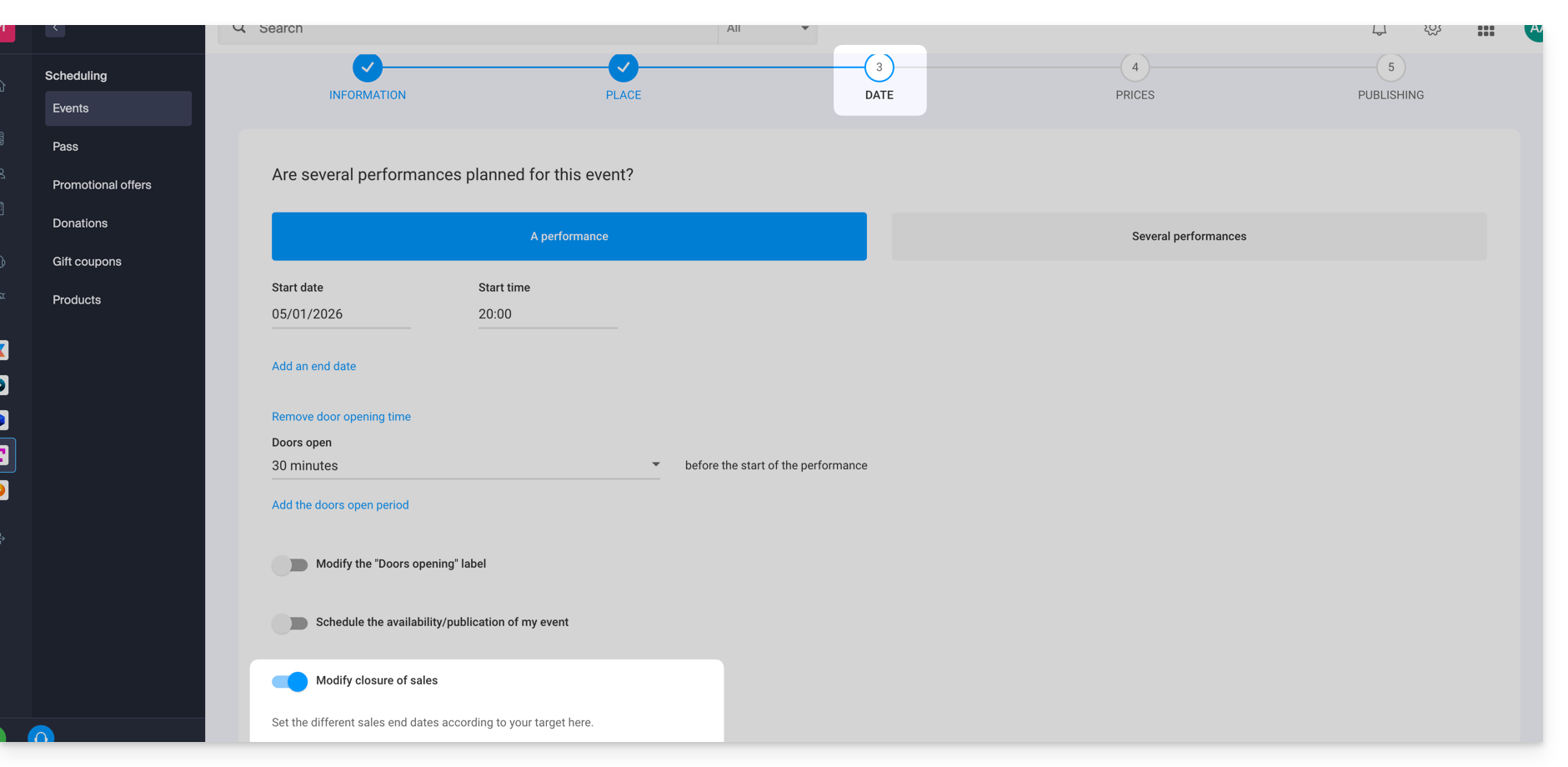
They can be edited at the event level once it is created by going to the Settings tab: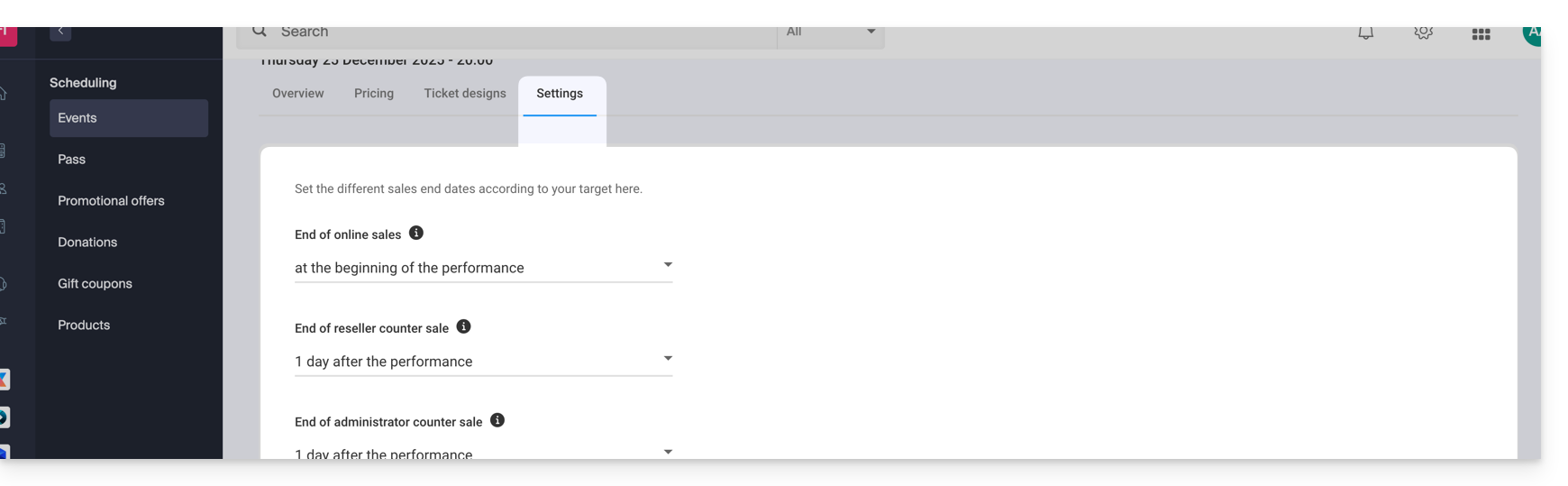
For multi-date events
The Settings tab is located at each performance. However, it is possible to modify the end of sales for multiple dates at once by using the actions on multiple dates:
- Go to the Dates tab of your event.
- Switch to list mode:

- Select the dates you want to configure.
- Click on Actions and Modify performance parameters:

Link to this FAQ: https://faq.infomaniak.com/1326
Has this FAQ been helpful?
This guide explains how to view your monthly statements (within the Infomaniak ticketing system), print the corresponding accounting documents, configure your bank account to receive your payments, and, if necessary, request an exceptional advance payment.
Introduction
- At the beginning of each month, the Infomaniak ticketing system generates a report summarizing the online sales from the previous month.
- This report takes into account all sales made, less any applicable commissions.
- The net amount is automatically transferred to your bank account during the first week of the month, regardless of the event status.
Add and select a bank account
Before any payment is made, you must specify a bank account from the Infomaniak Payments menu in the Accounting section of your ticketing system.
Once the account has been added, you must select it at the top of the page in the Settings dropdown menu.
Warning: For security reasons, a bank account that has already been used for a payment (amount different from 0 in the Invoices column) can no longer be modified.
View and print an invoice
To view or download a monthly statement in PDF format:
- Click here to access the management interface for your product in the Infomaniak Manager (need help?).
- Click directly on the name assigned to the relevant ticketing system.
- Click on Accounting in the left-hand menu.
- In the Processed and archived payments section, select the desired report (overall or detailed).
- Click on Print or Download PDF.
Printing the statement is only possible when the monthly period has been archived.
Request a down payment
If needed, you can request an advance payment (maximum once per week and until the 25th of the month):
- Processing time: the request will be processed within 2 business days.
- Fees: a CHF 5 administrative fee applies.
- Condition: advance payment requests are suspended 5 days before the end of the month.
Link to this FAQ: https://faq.infomaniak.com/1331
Has this FAQ been helpful?
This guide explains how to set up donations (as part of the Infomaniak ticketing system).
Introduction
- By offering donations, you provide customers with the opportunity to support your organization or event.
- Online donations will be subject to a commission to cover banking fees.
- Donation campaigns can have the status active or inactive, but will remain visible in all cases at the checkout, along with the gift cards.
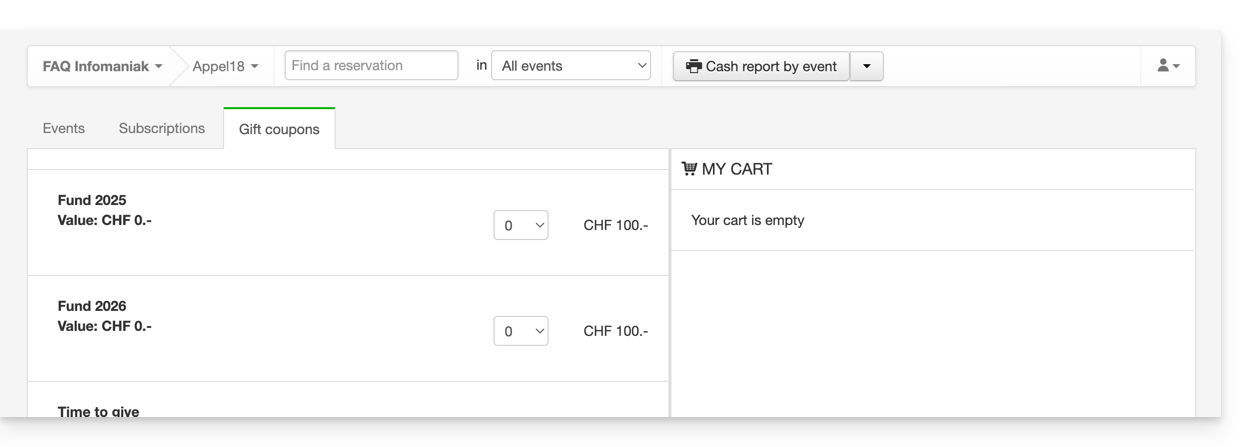
Setting up donations
To do this:
- Click here to access the management interface for your product in the Infomaniak Manager (need help?).
- Click directly on the name assigned to the ticketing system for the event.
- Click on Schedule in the left-hand menu.
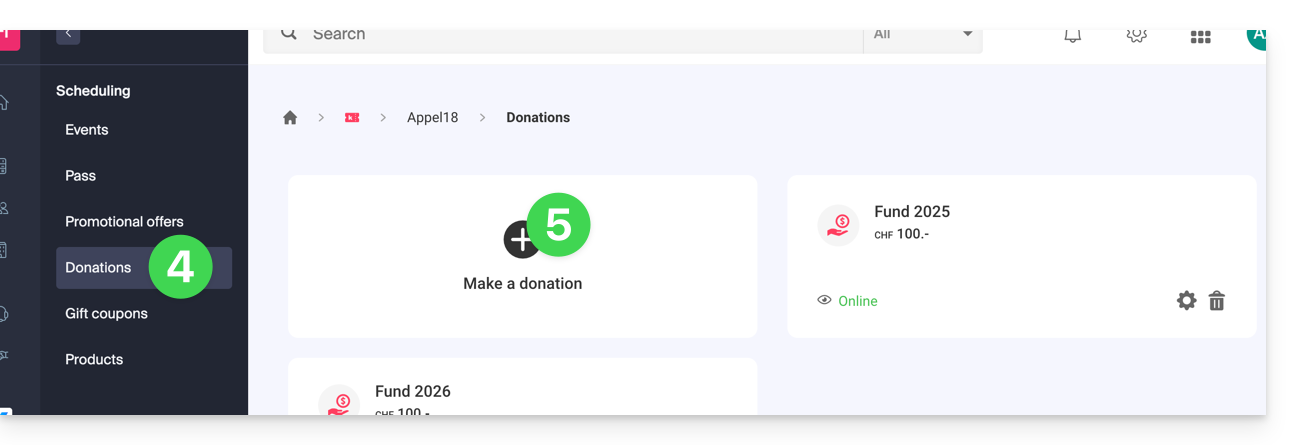
- Click on Donations in the left-hand menu.
- Click on Add a donation:
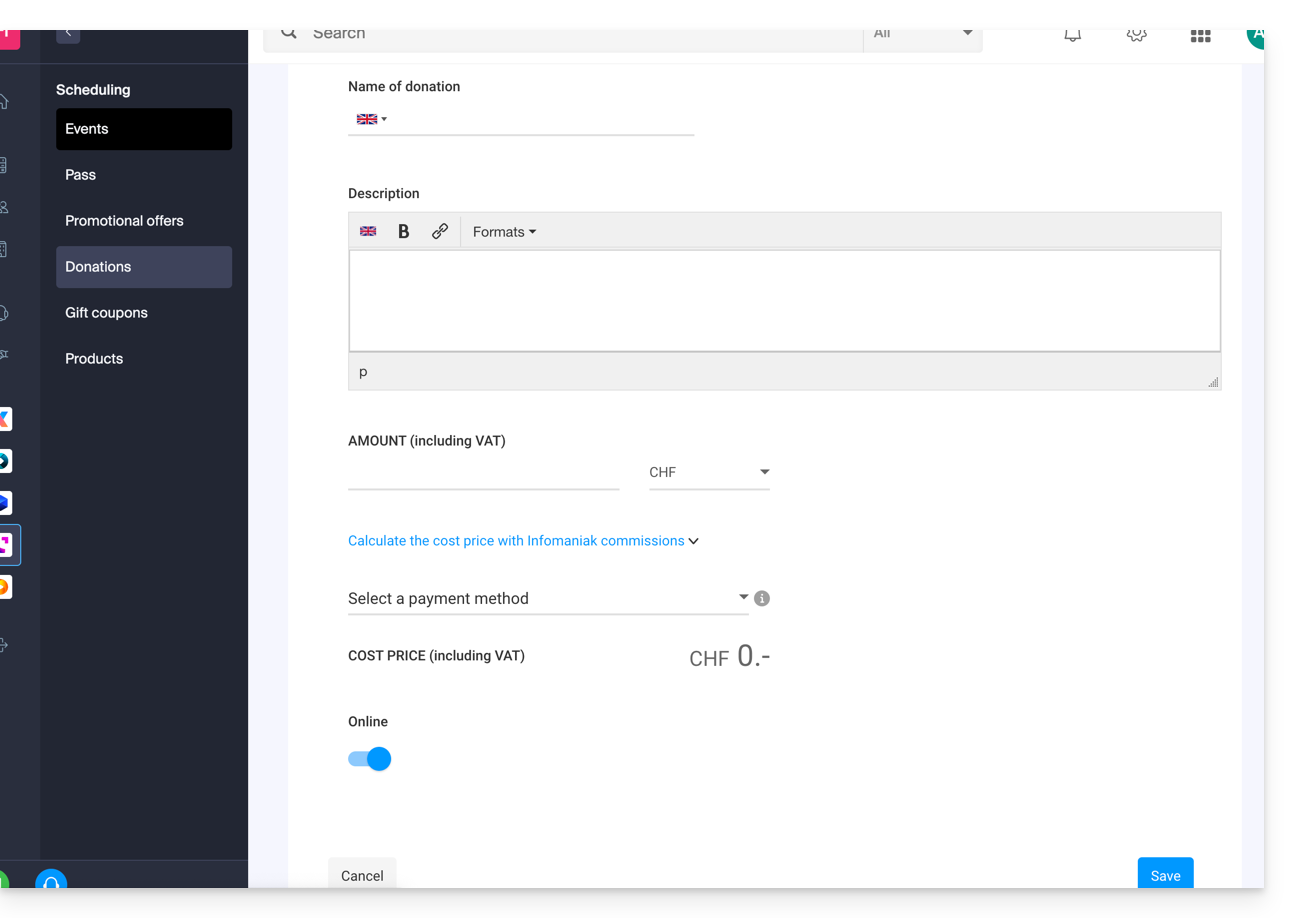
- Fill in the fields in the wizard, then click the Save button at the bottom of the page:
Link to this FAQ: https://faq.infomaniak.com/1367
Has this FAQ been helpful?
This guide details the integration tool for your ticketing system (as part of the Infomaniak ticketing system) to best promote your events.
Introduction
- You only need a few clicks to configure all the options for your online store and publish it to start making sales.
- No need to update links for each season or edition of your event: keep the same link and simply update the content within it.
If you have them, your old ticketing URLs will continue to work and will automatically redirect to your new online store. However, it is recommended to migrate to this new tool for any new season or edition of your events.
Manage the presentation of your online events
To access the online ticketing options:
- Click here to access the management of your product on the Infomaniak Manager (need help?).
- Click directly on the name of the ticket office in question.
- Click on Ticket Office Portal in the left-hand menu:
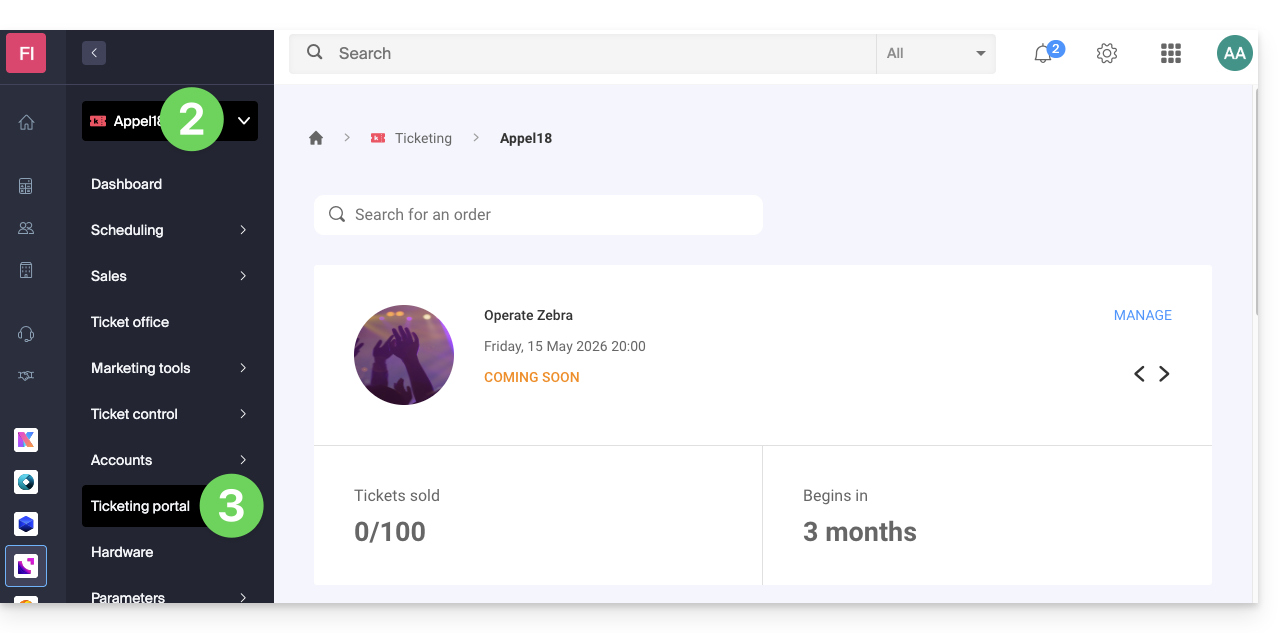
- Click on Online Store in the left-hand menu:
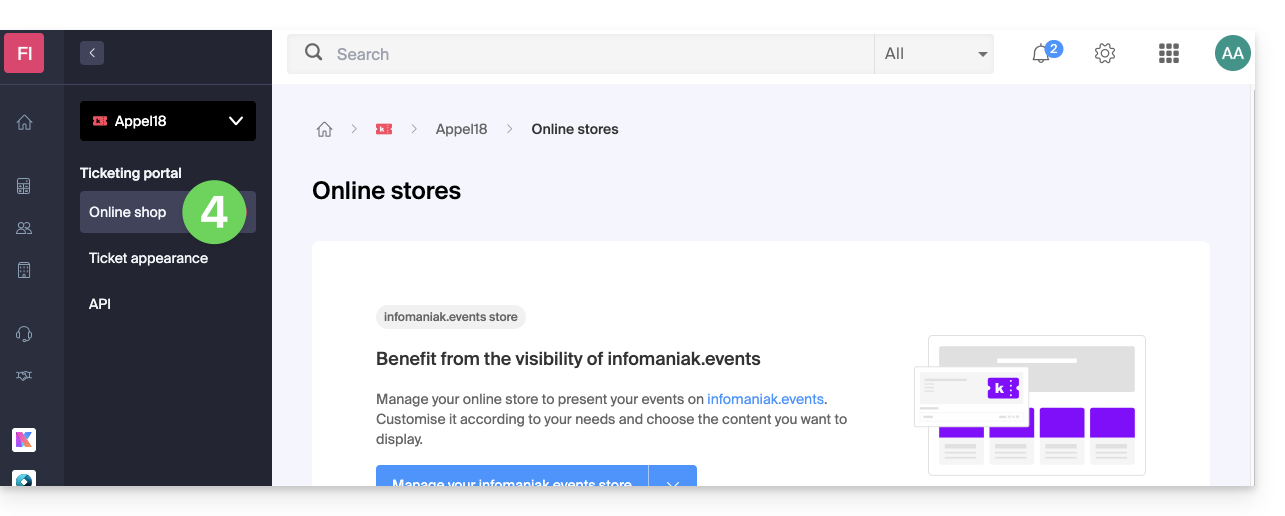
You will be taken to the online store page of the Ticketing Portal: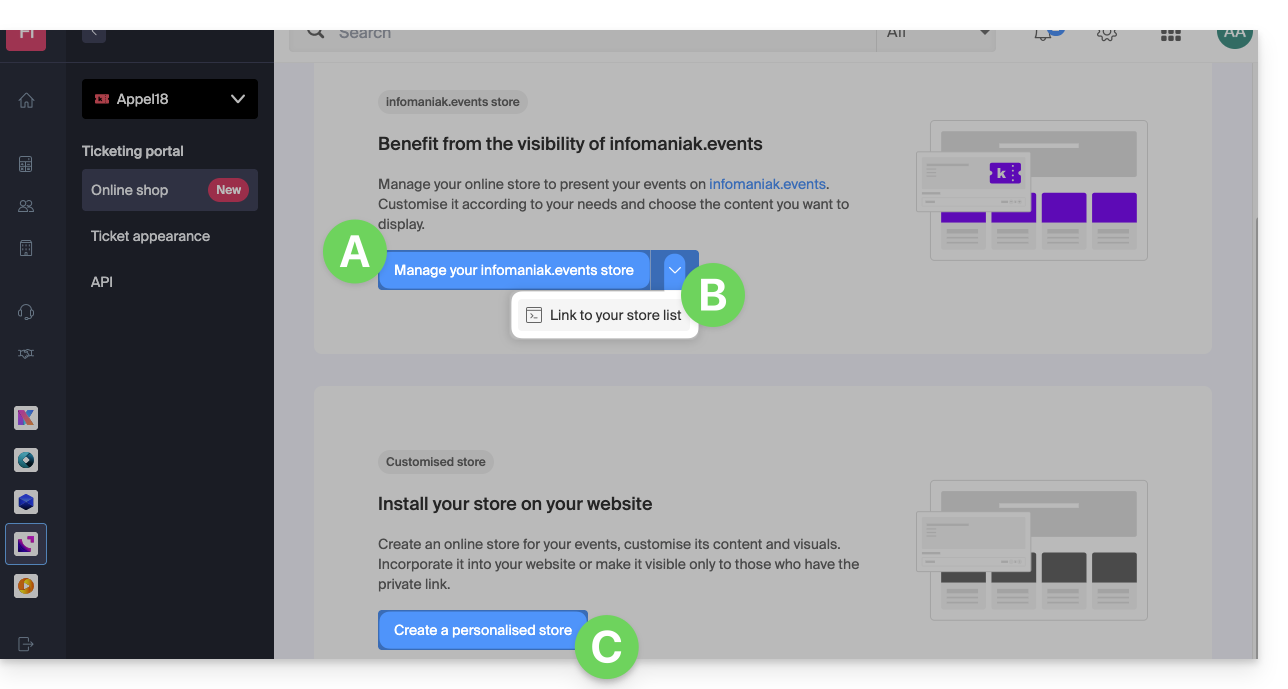
A. Create a store visible on infomaniak.events
- Make your events visible in the Infomaniak event portal search.
- Allow traditional search engines to index your events.
- Customize the appearance of your ticketing platform's main storefront.
B. Combine your multiple ticketing systems
- Access a page that brings together all of your Organization's "infomaniak.events" stores.
C. Create a custom store
- Create stores tailored to your specific needs (e.g., for integration on your pages).
- Add HTML/JavaScript or CSS scripts (for advanced users/developers).
Link to this FAQ: https://faq.infomaniak.com/1563
Has this FAQ been helpful?
This guide explains how to configure the visual displayed on the screen of the device scanning tickets during an event (as part of the Infomaniak ticketing system).
Preamble
- Infomaniak offers an app for ticket control.
- It is possible to set a specific icon that will be displayed on the device screen when scanning a ticket.
- If the ticket is valid and an icon is set, the scanner will display the chosen icon on a green background.
Set up the scan validation icon
The choice of visual is configured in the advanced settings of a rate:
- Click here to access the management of your product on the Infomaniak Manager (need help?).
- Click directly on the name assigned to the ticketing related to the event.
- Click on Scheduling in the left sidebar.
- Click on Events in the left sidebar.
- Click on the relevant event.
- Click on the Pricing tab.
- If the event has multiple dates, this section is replaced by “Dates” which opens a calendar.
- Click on the date in the calendar to access the pricing…
- Click on the action menu ⋮ located to the right of the price (first expand the Zone using the chevron if necessary).
- Click on Edit:

- Then click on the chevron to expand the advanced settings.
- Enable the option Set a visual for the scan app.
- Select the icon name.
- Click the Confirm button:

Result on the scan device
Here is an example of the display when validating a correctly registered ticket:
Link to this FAQ: https://faq.infomaniak.com/1572
Has this FAQ been helpful?
This guide explains how to process sales from an organizer account, as well as on-site sales (within the Infomaniak ticketing system). For example, if you want to print free tickets, invitations, VIP tickets, or paid tickets, you can place an order from the point of sale and generate these tickets.
Accessing the point of sale
To do this:
- Click here to access the management interface for your product on the Infomaniak Manager (need help?).
- Click directly on the name assigned to the ticket office for the event.
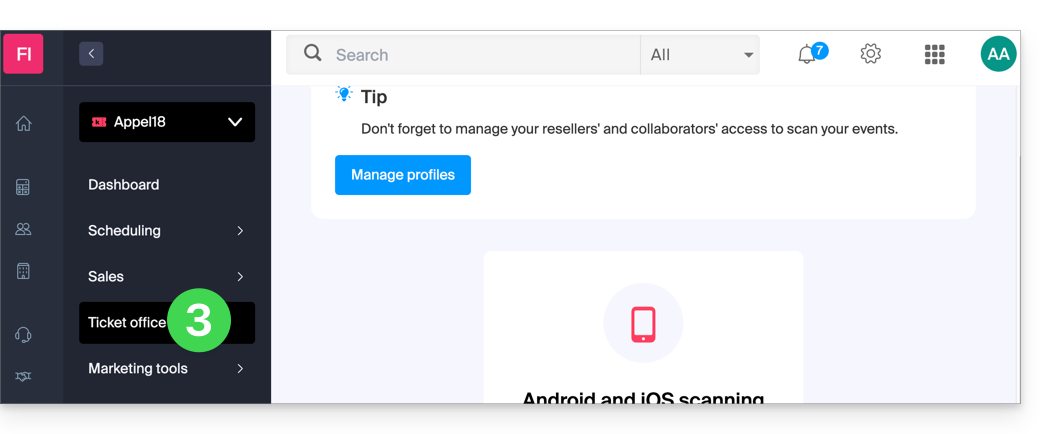
- Click on Ticket Office in the left-hand menu:
Create a new order from the control panel
To do this:
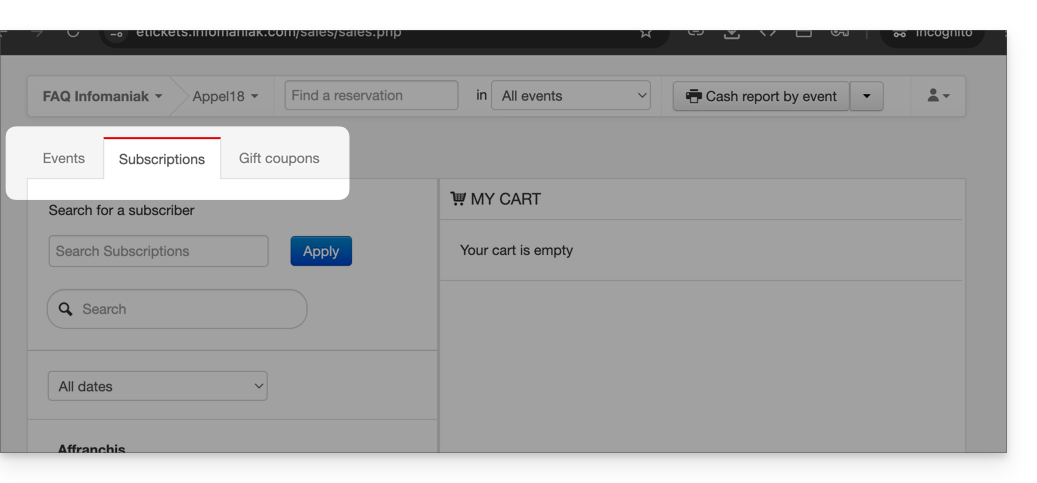
- Choose whether the sale concerns an event, a pass, or a gift voucher:
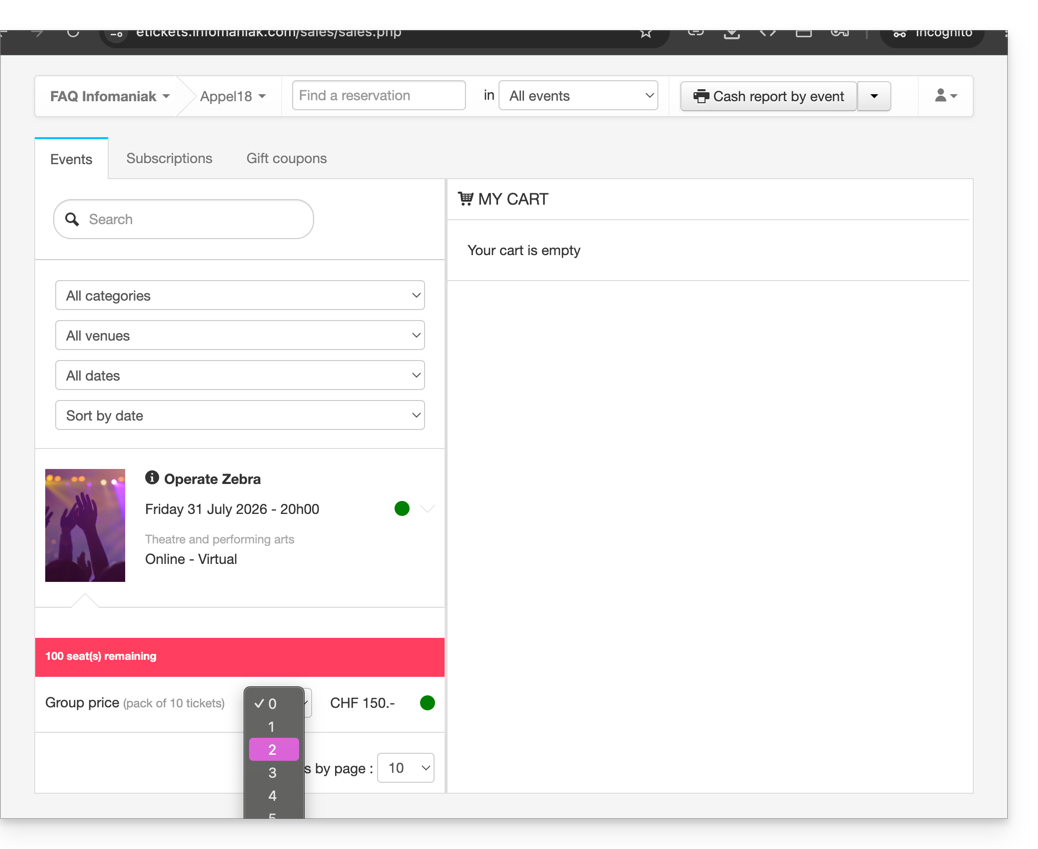
- Choose the desired event or item, as well as the number of tickets to add to the cart:
- Define the settings in the shopping cart, such as the seating arrangement, form information per price, and the use of a promotional code or gift voucher:
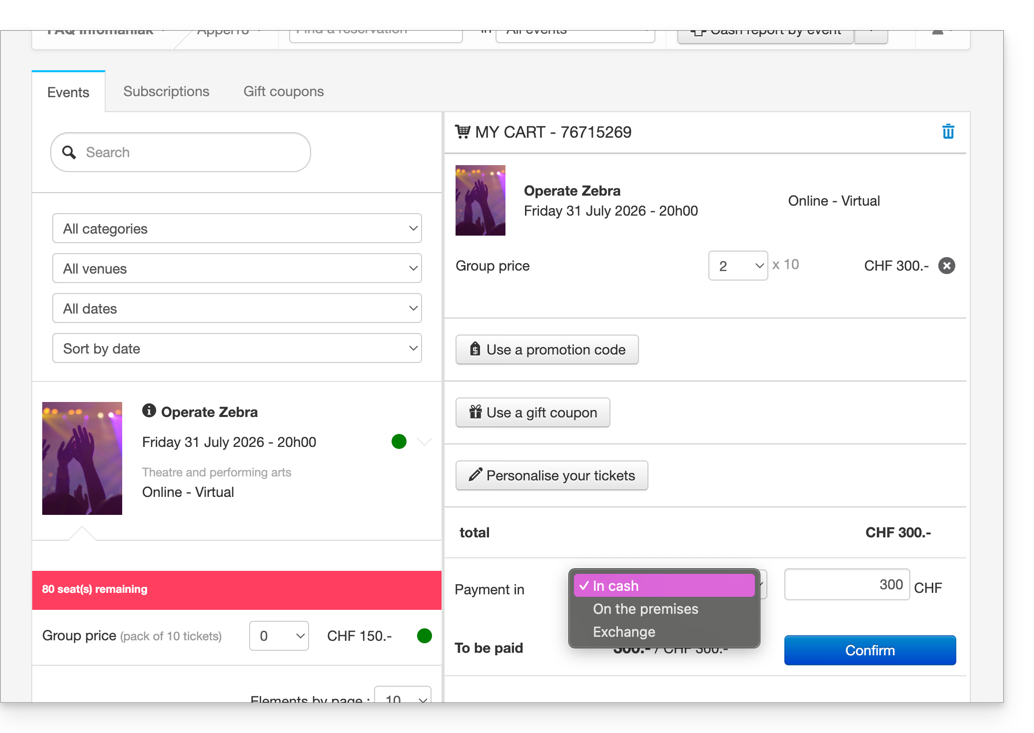
- It is possible to customize the information displayed on the tickets to be printed at this time.
- Define a payment method; for a free ticket, such as for an invitation, you must choose the Free/Invitation payment method.
- Once the information has been entered, Validate the order.
Associate the order with a customer
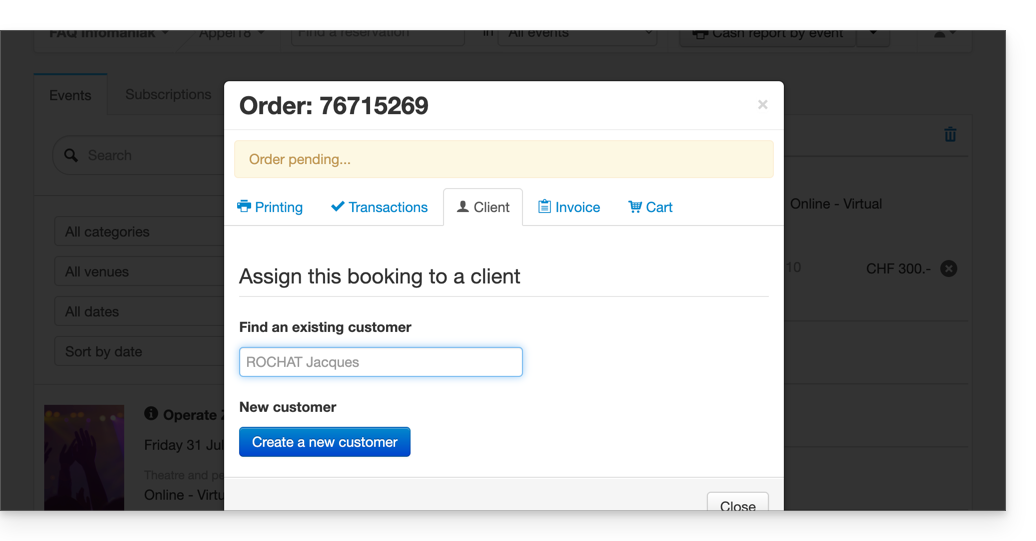
In the checkout, assigning an order to a customer is optional. It is therefore necessary to provide this information if you wish to be able to find an order using the customer's name or email address, send the tickets by email, or display the customer's first and last name on the ticket.
To do this, click on the Client tab and search for an existing client or create a new client record.
If the sale concerns a pass, and an email address is associated with the pass, the client will be suggested directly.
Print or send the tickets
You can print or send the tickets by email. To do this, go to the corresponding tab and choose the type of printing or email sending.
Other uses for the ticket office
The ticket office can also be used for other important operations, such as exchanging tickets or validating reservations; please refer to this other guide.
Link to this FAQ: https://faq.infomaniak.com/1574
Has this FAQ been helpful?
This guide explains how to access the tickets page and the ticket reports (within the framework of the ticketing system Infomaniak).
Access the tickets page
To do this:
- Click here to access the management of your product on the Infomaniak Manager (need help?).
- Click directly on the name assigned to the ticketing system related to the event.
- Click on Sales in the left sidebar.
- Click on Tickets in the left sidebar:

The Tickets page allows you to view tickets for a single event or a set of events and see at a glance the following information:
- The summary of your ticket list (total number of tickets, including those to be paid, refunded, canceled)
- The number of tickets scanned
- The number of attendees
- The zone, the price and the seat of the participant
- The ticket status
- The ticket order number
Actions on tickets (print, export, …)
When one or more tickets are selected, it is possible to perform the following actions:
- Print in the desired format (print@home, pre-printed, thermal, show, cinema)
- Cancel tickets (only if they are free)
- Scan / Unscan (resets the participant's entry)
- Export tickets/passes in
CSVformat
Search options
Many filters are at your disposal to refine your ticket searches, such as:
- By setting a date range for the order
- By setting a scan date range
- By selecting the sales channel (client shop, reseller/Administrator)
- By choosing the ticket type (regular or pass ticket)
- By choosing the order status of the ticket
- By selecting a price
The results of these searches can be exported in CSV format via the Export button:
Link to this FAQ: https://faq.infomaniak.com/1578
Has this FAQ been helpful?
This guide explains how to assign a seating plan to events (as part of the Infomaniak ticketing system).
Preamble
- The seating plan allows participants to select their seats via an interactive interface.
- This feature allows them to precisely visualize the location of their seats in relation to the stage or field before finalizing their reservation.
Requesting a Seating Plan
To use a seating plan for an event of your choice, you need to create the seating plan and assign it to the customer account associated with the ticketing system.
To do this, please contact Infomaniak support and send the following information:
- The name of the venue or room.
- The address of the venue or room.
- A file with the seating plan (pdf, excel, csv, etc. format) with the row and seat numbers.
- The account where the ticketing system is located.
The seating plan will be created and assigned to your Infomaniak account.
Price
The assignment of the seating plan costs CHF / EUR 200.-. The invoice will be sent to the address indicated on the Infomaniak account.
Link a Seating Plan to an Event
Once the seating plan is created and assigned to your account, you need to select it on the event where you want to use it.
- Click here to access the management of your product on the Infomaniak Manager (need help?).
- Click directly on the name assigned to the ticketing system concerned by the event.
- Click on Programming in the left sidebar menu.
- Click on Events in the left sidebar menu.
- Create an event or go to an existing event and click on Manage and Modify to find the venue menu.
- Choose the desired room layout:

Once the room layout is selected, the quota of seats for the event will be automatically adjusted according to the number of seats on the room layout.
Refer to this other guide to configure the room layout once it has been activated.
Link to this FAQ: https://faq.infomaniak.com/1580
Has this FAQ been helpful?
This guide explains how to add users as resellers so they can sell tickets for your events (as part of the Infomaniak ticketing system).
Introduction
- If you have points of sale, partners, or simply cash registers at the entrance to the event, you can give them reseller access.
- This will allow you to grant them sales rights from the ticket office.
Add a reseller
To do this:
- Click here to access user management in the Infomaniak Manager (need help?).
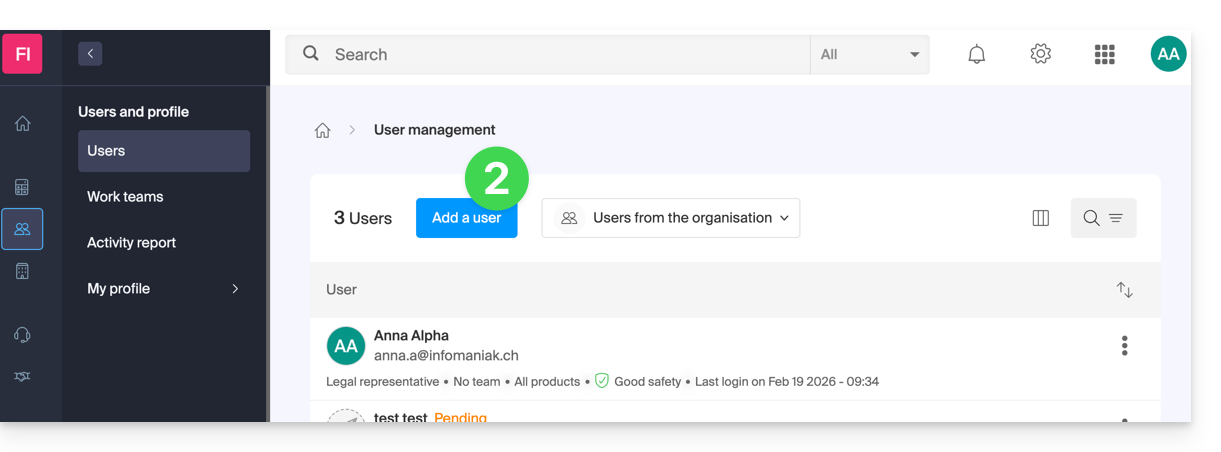
- Click on the Add user button at the top:
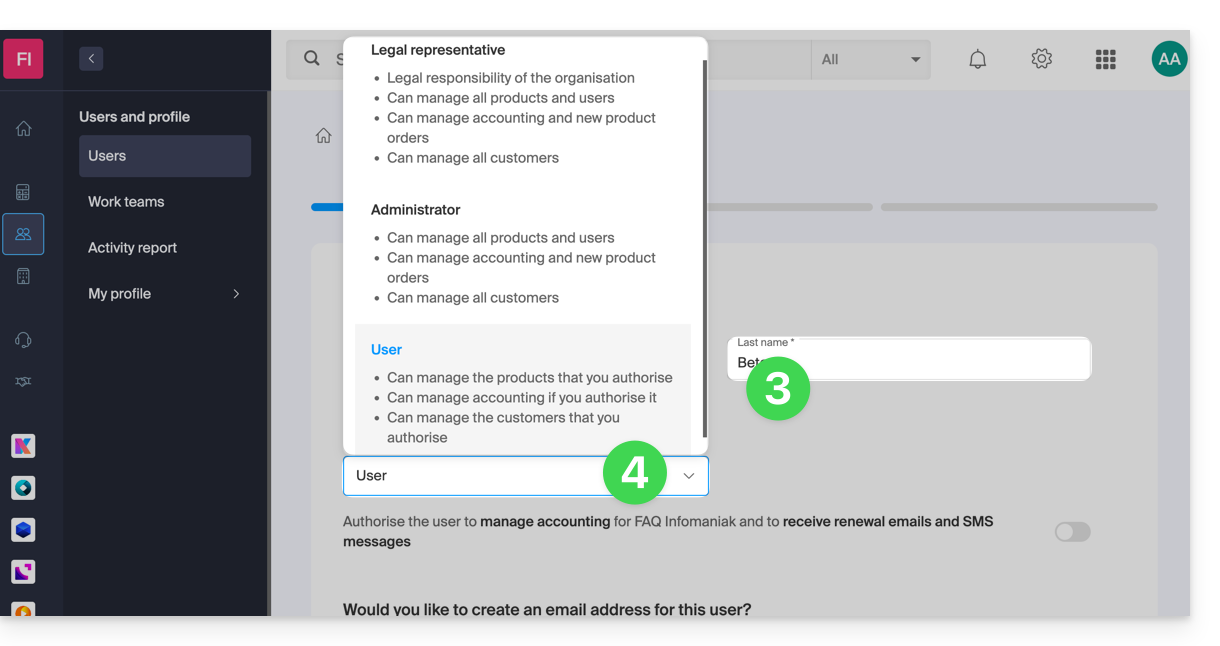
- Enter the user's details.
- Select User as the role:
- Proceed to the next step (selecting a workgroup, if applicable) and complete the invitation.
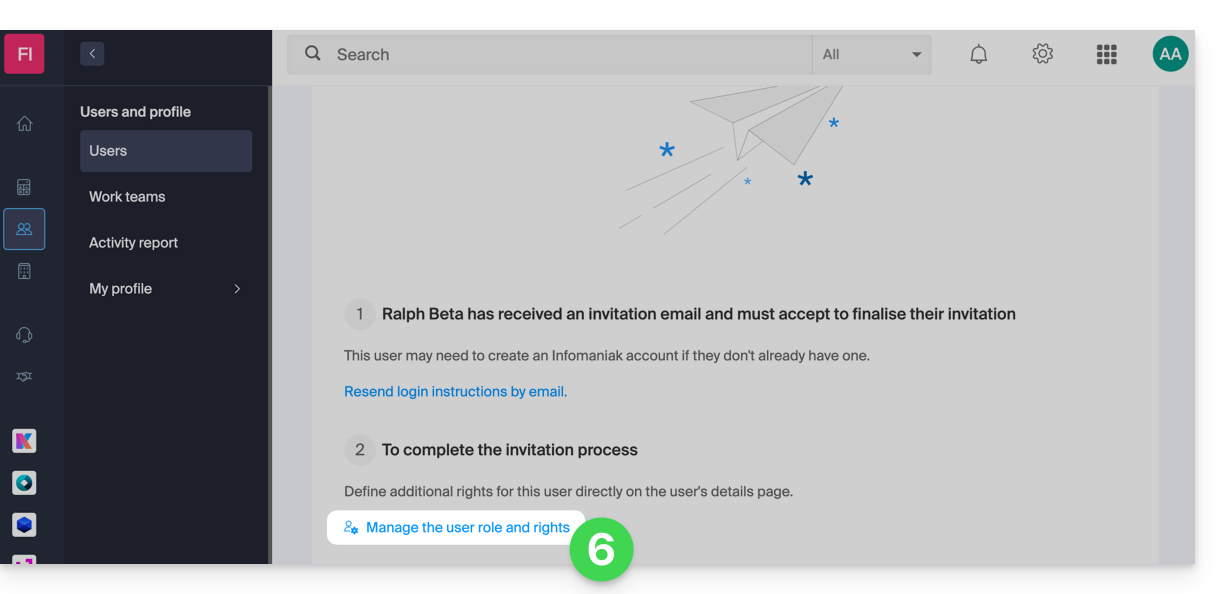
- Click to choose the access permissions for the products:
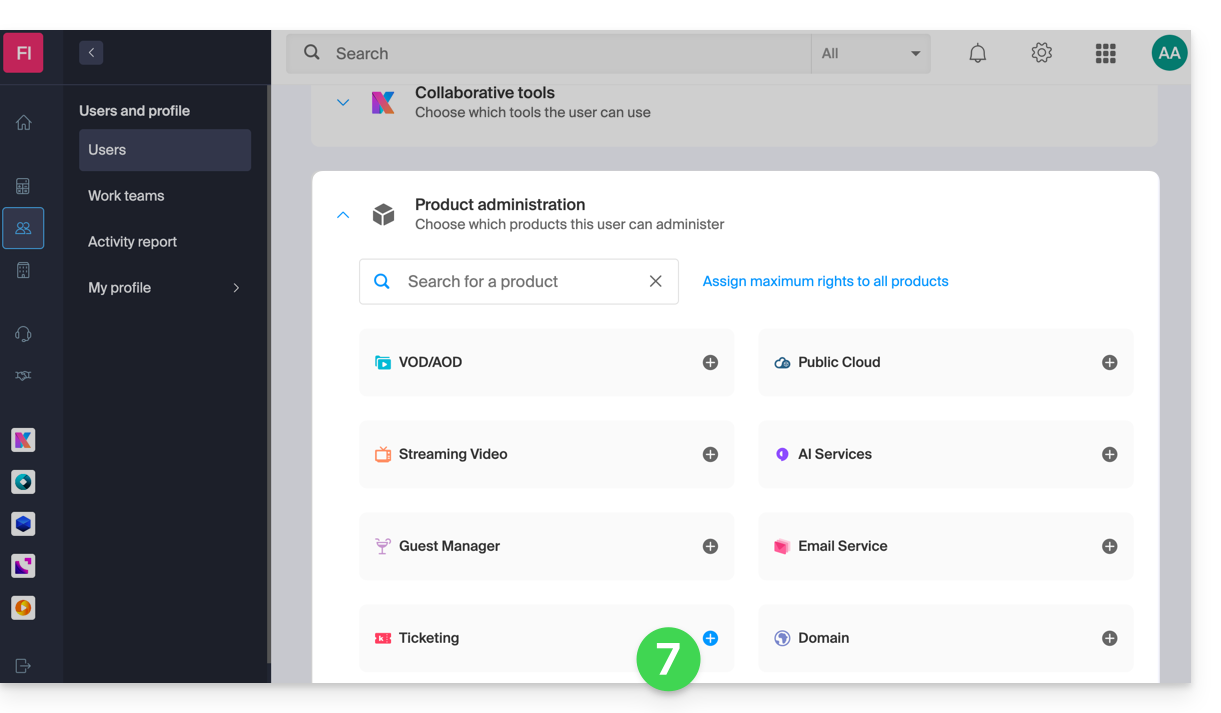
- Expand the product administration section and click on Ticketing:
- A side panel will open – select the boxes to grant access to the relevant ticketing systems:
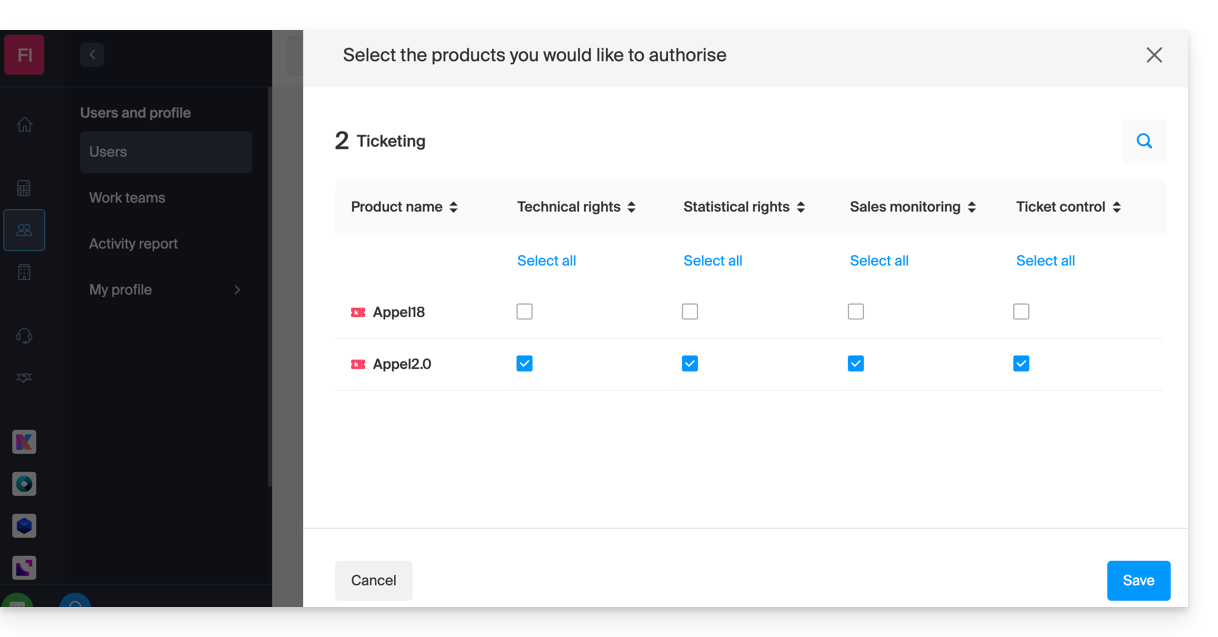
- Save your selection.
Details of user rights and access
1. Administrators
- Account owner (legally responsible for the account)
- Group administrator
- Billing administrator
- Accounting
2. Users
- Administrative — no rights assigned
3. Technical
- Programming Management
- Customers
- Mailing
- Customer export
- Promotional code (code generation)
- Shop/ticket design
- Ticketing integration
- Settings
4. Statistics
- Sales details
5. Ticket validation
- Ticket validation
6. Ticket sales
- Ticket sales
- Sales outlets
- Customers (excluding Mailing, export, and promo code management)
- Membership card management
7. Staff Management
- Staff
Next step
You can now create profiles to specify reseller access permissions…
Link to this FAQ: https://faq.infomaniak.com/1581
Has this FAQ been helpful?
Here are the different ticket formats available for on-site sales (as part of the Infomaniak ticketing system).
Printing with a thermal printer
- Show Format: 82 x 203.2 mm

- Cinema Format: 101.6 x 76.2 mm

Using digital tickets
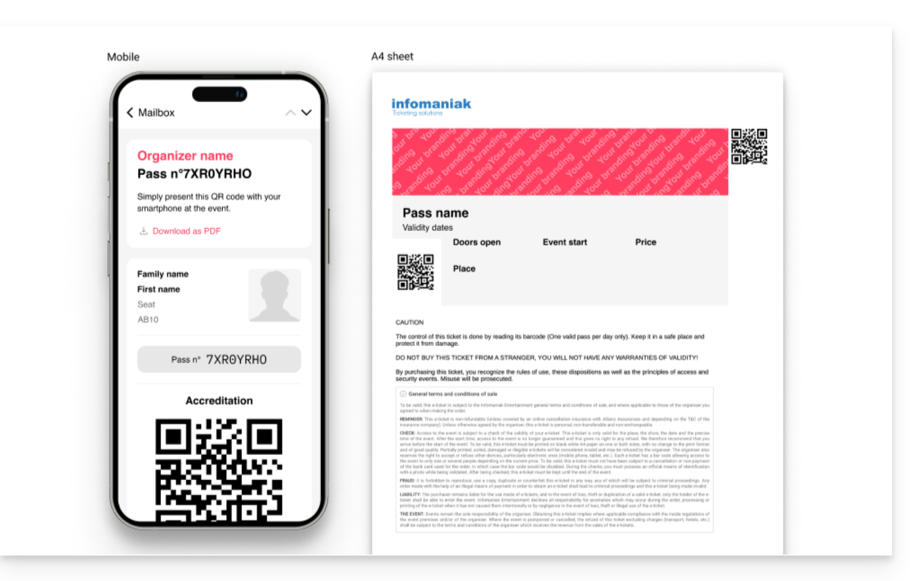
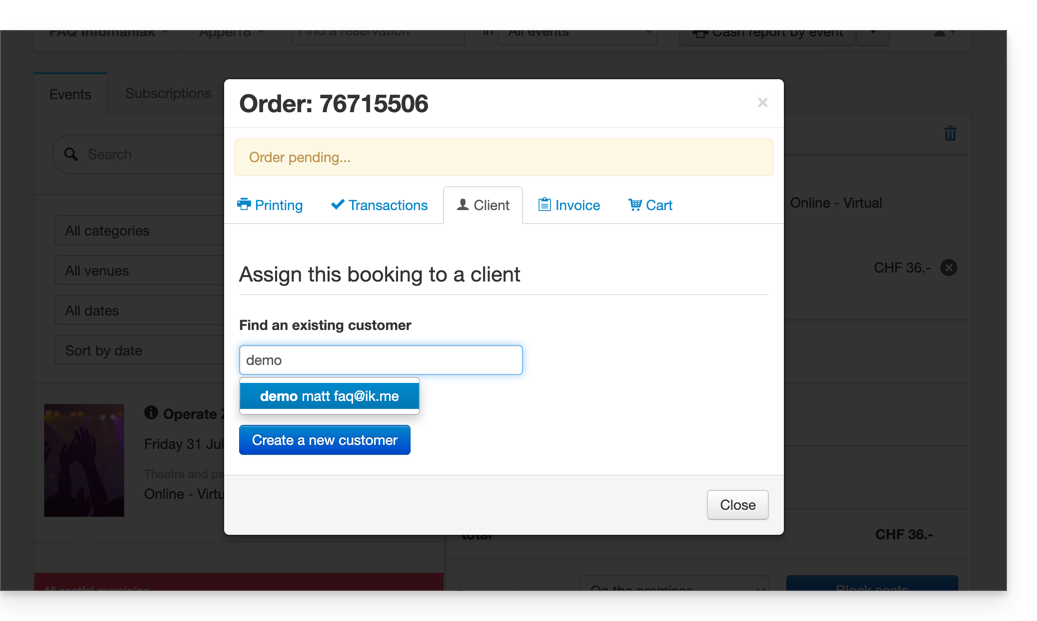
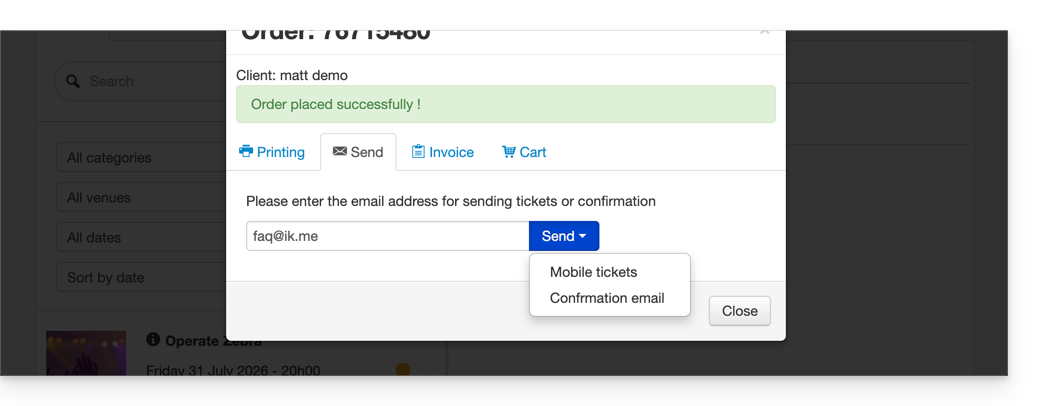
You can also send the digital tickets directly to the customer's email address.
- To do this, simply link a customer profile when finalizing the order:
- Then, the option to send tickets will appear directly in the order confirmation window:
Link to this FAQ: https://faq.infomaniak.com/1583
Has this FAQ been helpful?
This guide provides a checklist of important points to verify before launching a ticket sale (as part of the Infomaniak ticketing system) to best promote your events to the public.
Go through the checklist
Here is a list of the most important elements to check before publishing a ticketing system for your event.
The ticketing system must be visible (point 7b below) to perform the checks related to visibility in the shop. It can be visible and in test mode (point 7a) to prevent it from being published publicly.
- Has a bank account been added in the Accounting > Infomaniak Payments menu?
- Has the integration link been retrieved and integrated?
- Note: the integration link has its own settings that allow you to show/hide events in the "Content" submenu.
- Make sure that the events you are interested in are set to "Active" (only if the "manually choose the items to display" setting is enabled).
- Are the Prices, Zones, and Events set to Visible mode? To check:
- Event: Settings > Event > green/orange/red text with an eye symbol below the event.
- Zone: Settings > Event > Pricing > eye symbol to the right of each zone.
- Prices: as with the zones, but open the zones to view the prices they contain.
- Are the desired payment methods (Sales > Payment methods) enabled?
- Is the organizer's information up to date (Settings > Ticketing settings > Organizer contact information)?
- An email address is required, and a reachable phone number is strongly recommended.
- Is the VAT defined correctly?
- Are the passes/subscriptions okay? (Schedule > Passes)
- Do they include all the events they provide access to?
- Are their capacities and prices correct?
- Are they visible in the store? (eye symbol to the left of each pass in the list)
- In the Settings > Ticketing Settings menu:
- Disable test/demo mode.
- Enable ticketing.
Also, refer to the getting started guide to gain a better understanding of the possibilities offered by your ticketing tool.
Link to this FAQ: https://faq.infomaniak.com/1585
Has this FAQ been helpful?
This guide explains how to configure the floor plan when it has been activated for an event (as part of the Infomaniak ticketing system).
Prerequisites
- Own and have activated a floor plan for the event in question.
- Have activated and created at least one pricing zone.
Apply zones to the floor plan
To access event pricing from the ticketing system:
- Click here to access your product management on the Infomaniak Manager (need help?).
- Click directly on the name assigned to the ticketing system concerned by the event.
- Click on Programming in the left sidebar.
- Click on Events in the left sidebar.
- Click on the event in question.
- Click on the Pricing tab.
- If the event has multiple dates, this section is replaced by “Dates” which opens a calendar.
- Click on the calendar date to join the pricing…
Once in this menu, it is necessary to have at least one zone activated:
- Click on the action menu ⋮ located to the right of the zone in question.
- Make sure the box “Zone with numbered seats” is activated:

- A seat symbol must be next to the zone name in the pricing list.
- Then click on the “Manage floor plan” button above the zones to open the floor plan management menu:

The logic here is to assign a zone to each seat, row, or section according to the needs of the event.
For example, below, a green zone and a red zone are distinguished. To assign seats to a zone:
- Select the seats by hovering over all the seats, or to select the entire row, click on its number.
- Click on each seat to configure, a black circle surrounds them indicating that they are selected.
- It is possible to click on the name of each row (A, B, C) to select all the seats in the row, and even to click on the name of the section (here, right, left, middle) to select all the seats in the section.
- Then click on the area to link to the selected seats.
- In the Zones menu that appears in the lower half of the page, click on the zone to assign.
- The background of the selected seats will change to the color of the zone.
- Repeat the operation for each remaining zone to assign.
Block online sales for a seat/row/section
By default, all seats are available for online sale.
To block the online sale of certain seats, configure the restrictions directly in the seating plan:
- To block the sales of certain particular seats, open the seating plan management menu as explained above, and select (black circle) the seats/rows/sections.
- Instead of selecting the zones in the bottom menu, choose the type of Access:
- No restriction = default state, customers can purchase the seat
- Reserved for organizers = Only people with Admin status on the organization can purchase the ticket from the ticket office
- Reserved for resellers = Resellers can make the purchase from the ticket office (normal users/collaborators on the organizer with sales rights)
The section visible at the bottom named “Reserve” is no longer used and can be ignored.
Once the plan is configured, the seats can be put on sale. Make sure to assign a price to each zone.
See who a specific seat is assigned to
To obtain information related to seat assignments and identify the people who have reserved or occupied each seat according to the seating plan, you can use the seating plan management menu which displays purchased seats with an orange fill.
If you click on the seat, the order information is displayed, and a link to the customer record is provided: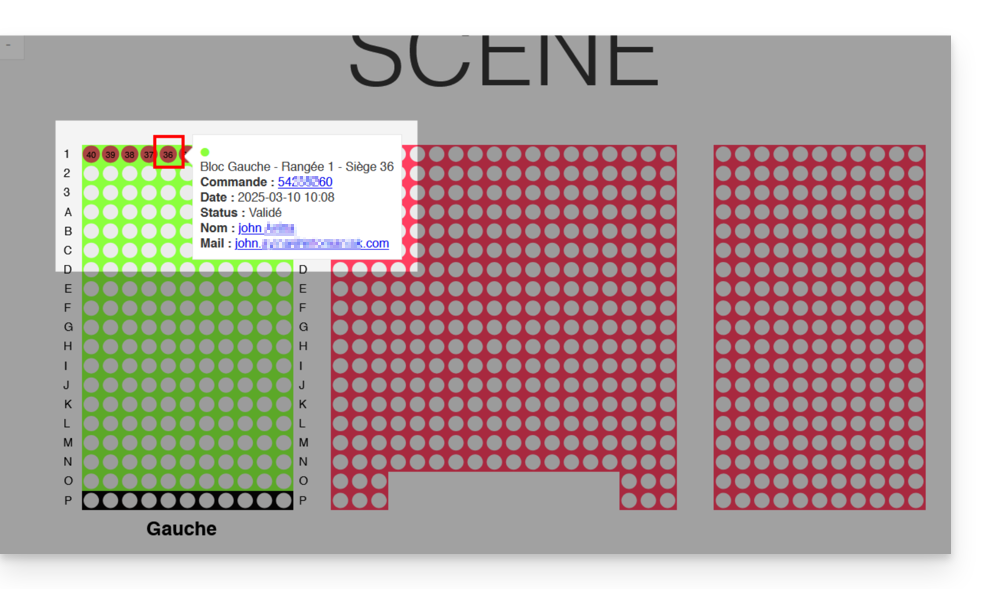
Link to this FAQ: https://faq.infomaniak.com/1586
Has this FAQ been helpful?
This guide explains how to modify the access rights to products for a user in your Organization on the Infomaniak Manager.
Introduction
- Since you opened your account with Infomaniak, you have been part of at least one Organization (❓: help).
- If you were the only user and it wasn't an invitation, an Organization was created in your name, and you automatically become its legal representative.
- Otherwise, you belong to the Organization that invited you (to join its kSuite, to manage a product, etc.).
- It is possible to change a user's role within your Organization (❓: help).
- You can then define whether a user…
- … is part of your Organization and whether they should become:
- Legal Representative
- Administrator
- Collaborator (this section is detailed below…)
- … is external to your Organization (limited rights):
- External users are not included in calendar and address book sharing with the entire Organization.
- … is part of your Organization and whether they should become:
Who can access what…
Prerequisites
- First, switch to the desired Organization if you cannot find the expected list of users (❓: help).
- Be at least an Administrator of the Organization (❓: help).
- Haveadded a user as a collaborator (❓: help).
The guide below explains how to manage access to products for collaborators and external users. Indeed, a legal representative or an Administrator always has access to all existing products within the Organization, as displayed in the Infomaniak Manager.
To modify a user's product access within the Organization:
- Click here to access user management in the Infomaniak Manager (❓: help).
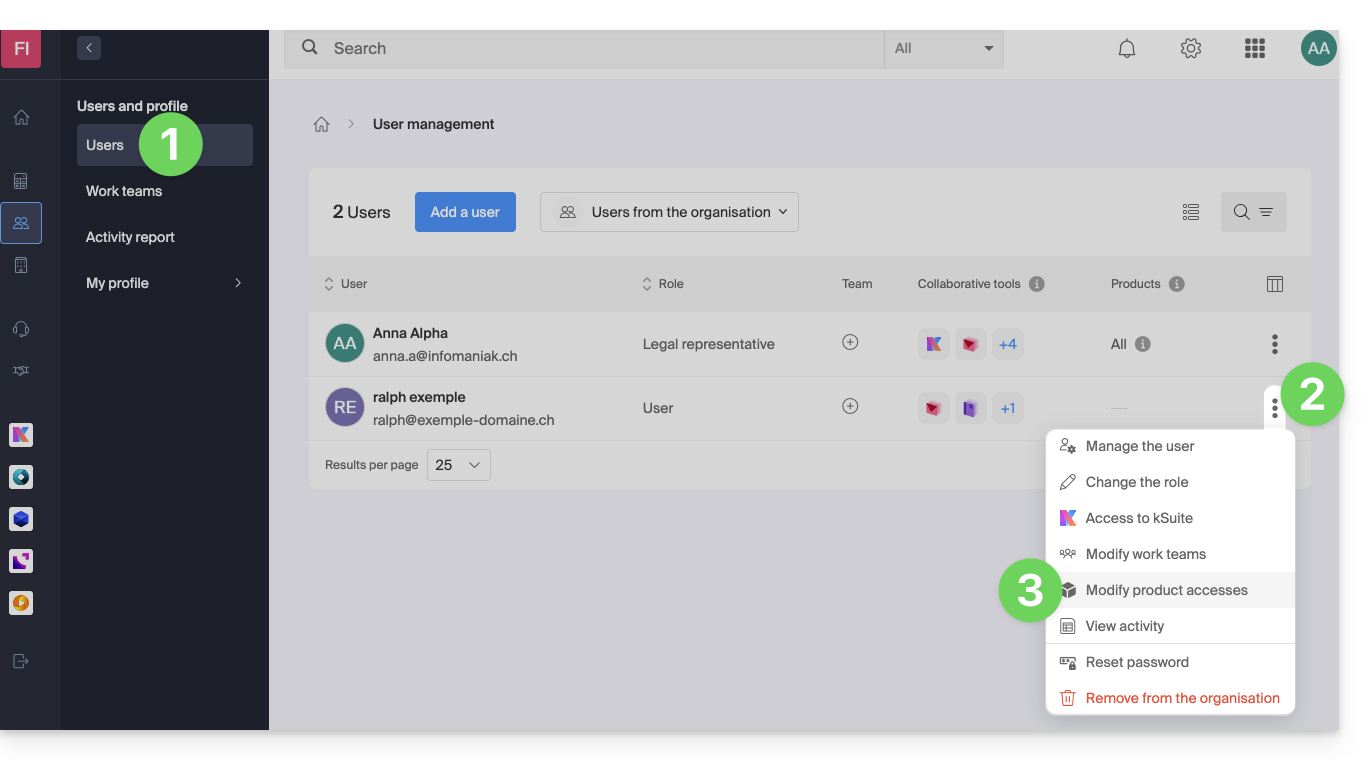
- Click on the action menu ⋮ located to the right of the user in question.
- Click on Modify product access:
- You can grant access to everything with maximum permissions in one click.
- Otherwise, click on the product category you want to grant access to.
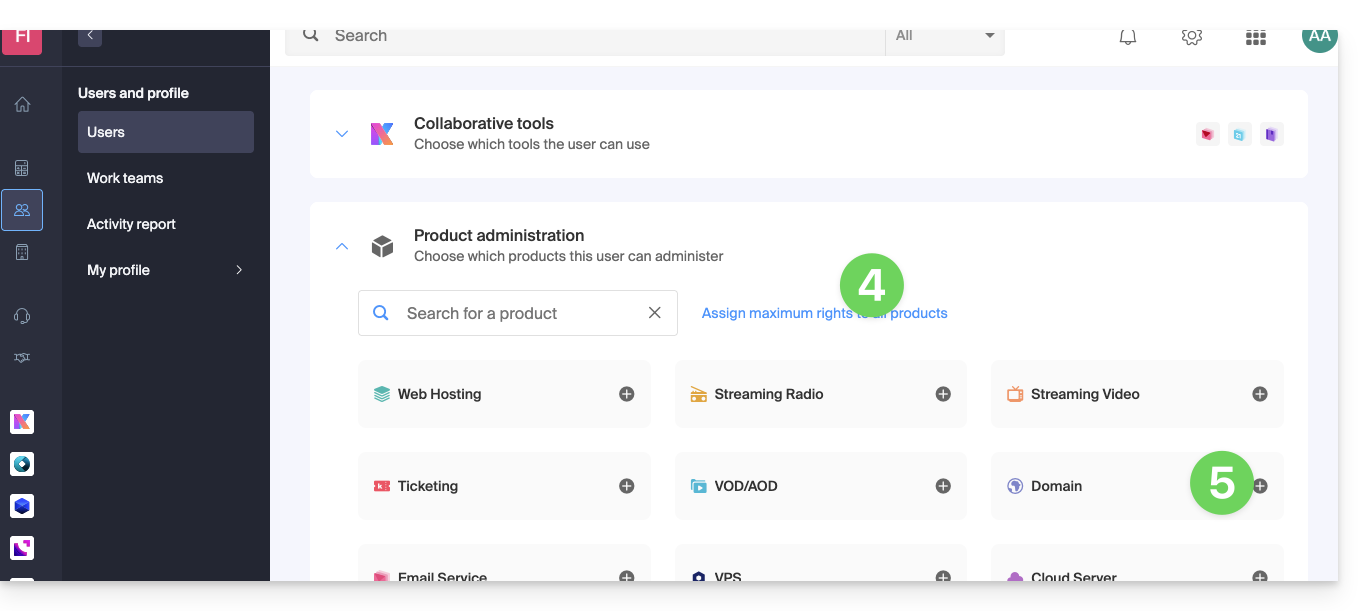
- Select the product(s) you need.
- If you have selected multiple products, decide whether a future additional product should automatically be visible to the user (and with what type of permissions❓: help).
- Click the Save button:
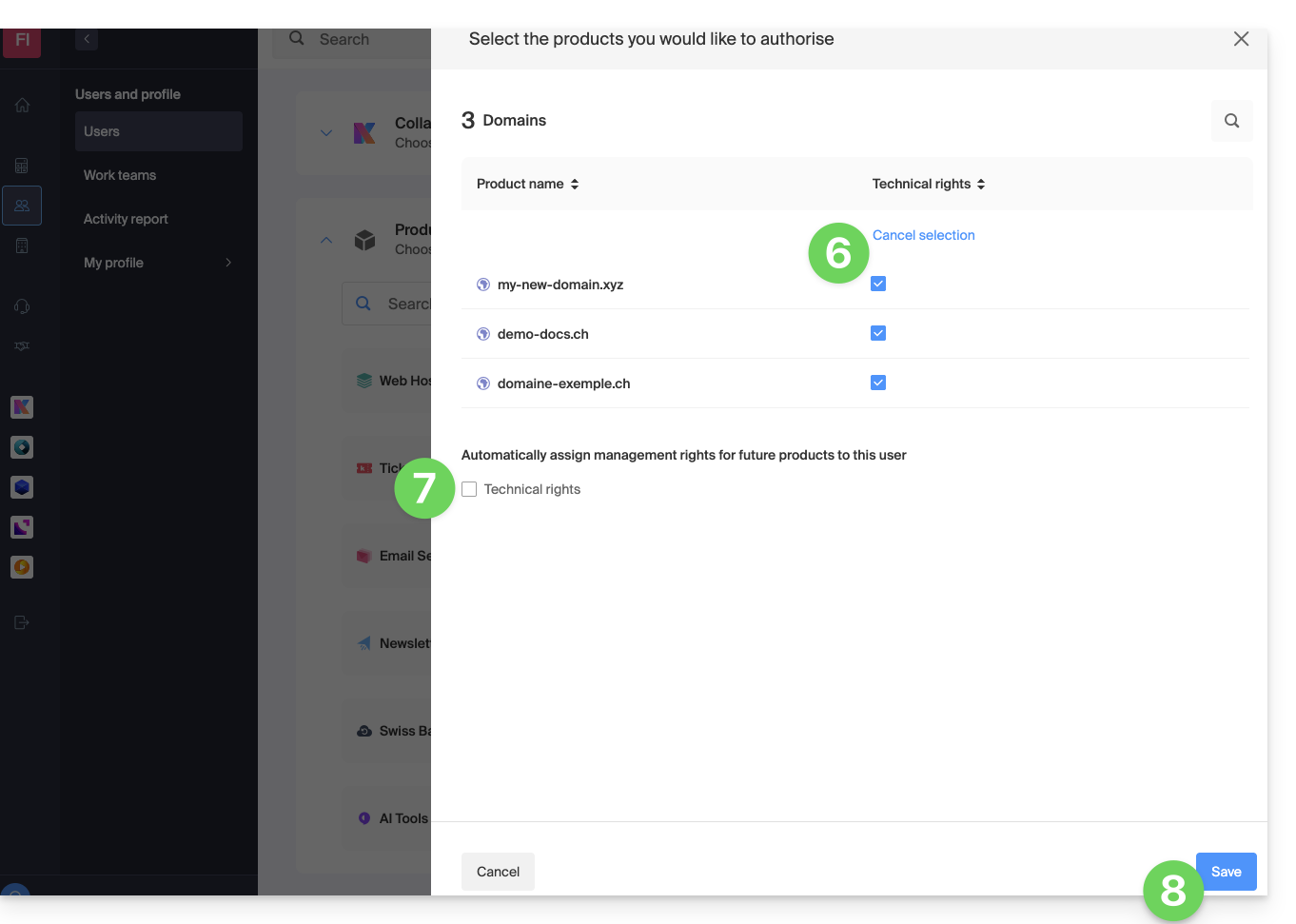
- Permissions are granted immediately.
- Click on the pencil ✎ icon to modify the permissions:
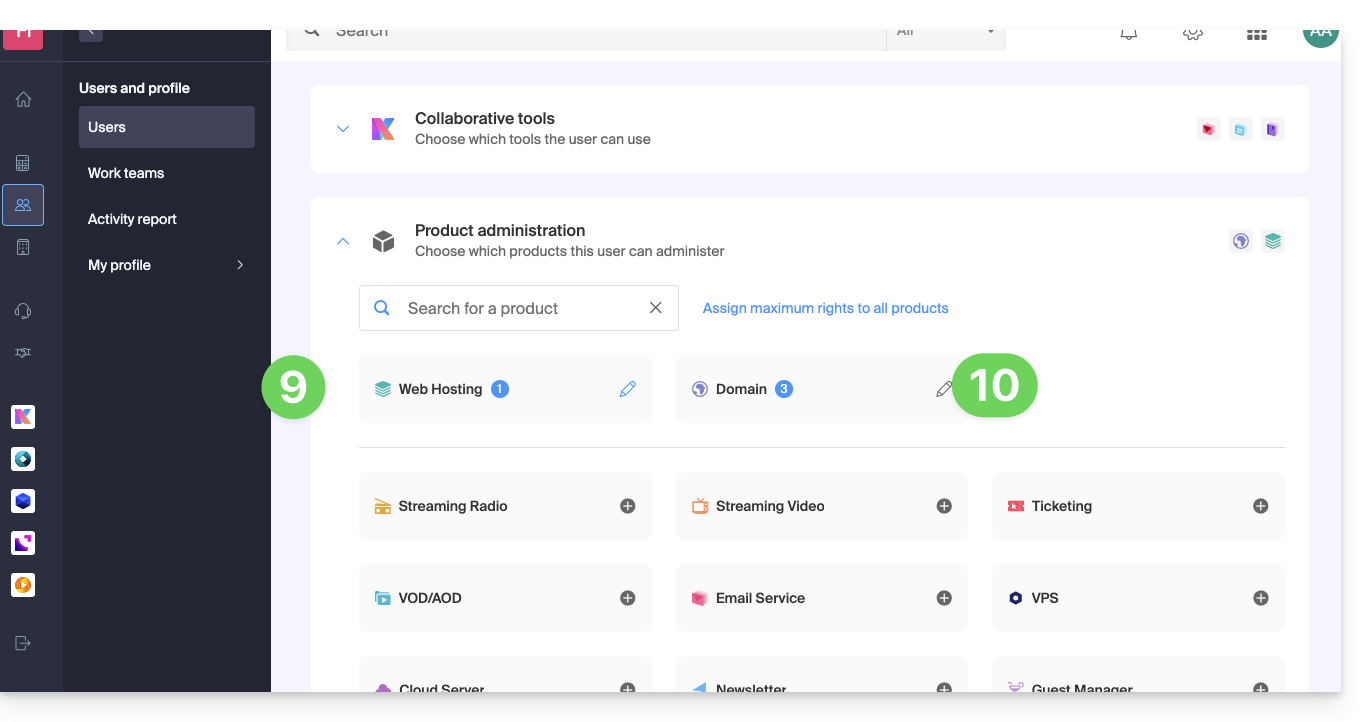
- If you need to grant access to multiple products, start again from step 5.
Using the service / Managing the service
Please note that in the product table, it is important to distinguish between access to the products (e.g., kDrive within kSuite) and access to product management: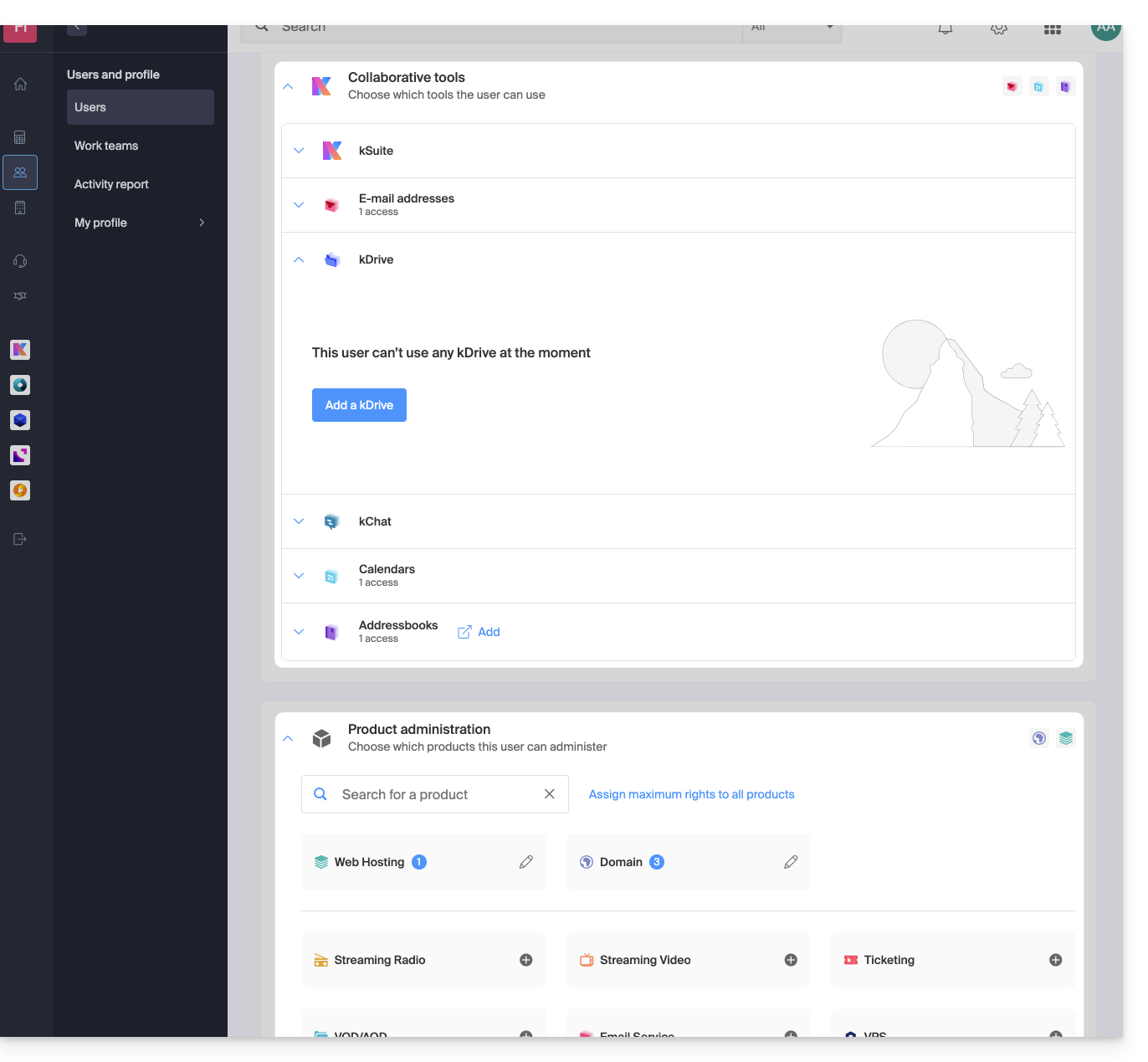
It is possible to authorize a user to use kDrive (e.g., create a PDF) without granting them management rights for the kDrive service (they will not be able to change the plan, invite a new user, cancel, etc.).
Technical rights / Statistical rights
With certain services like kDrive, it is possible to grant a collaborator TECHNICAL and/or STATISTICAL rights (adds access to the dashboard, sharing links, storage statistics, active users, connected devices, activity on the kDrive):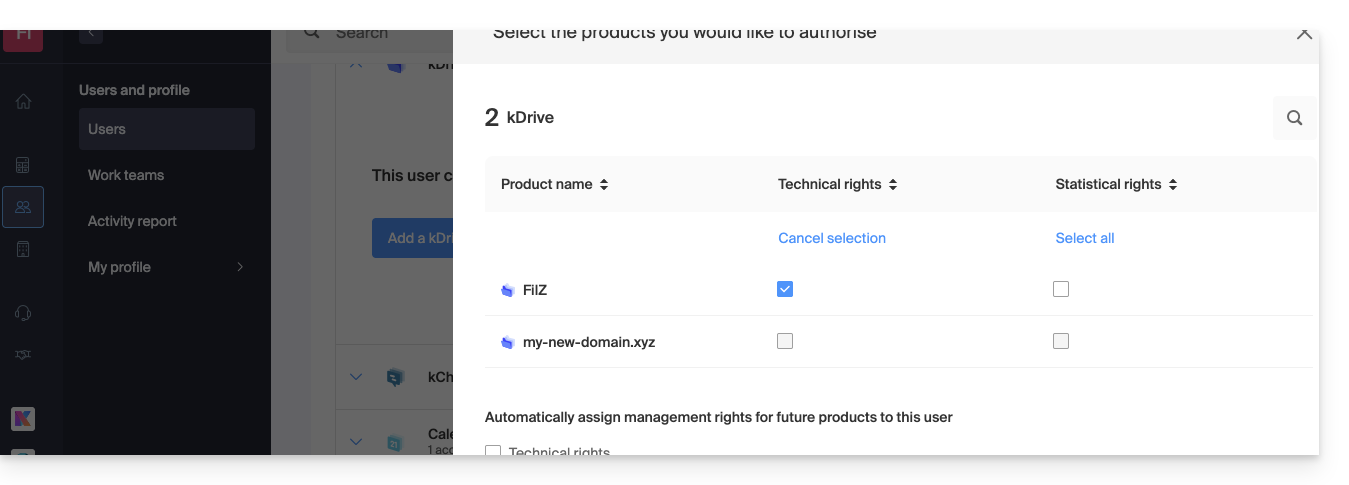
Other services, such as domain names, do not have a STATISTICS section: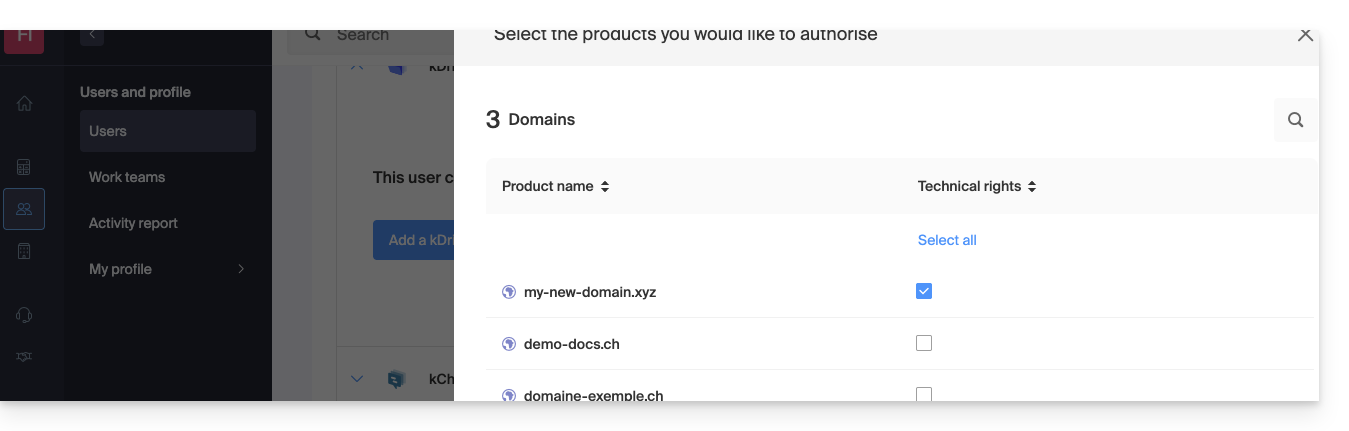
Some specific services, such as ticketing, allow for even more detailed permissions: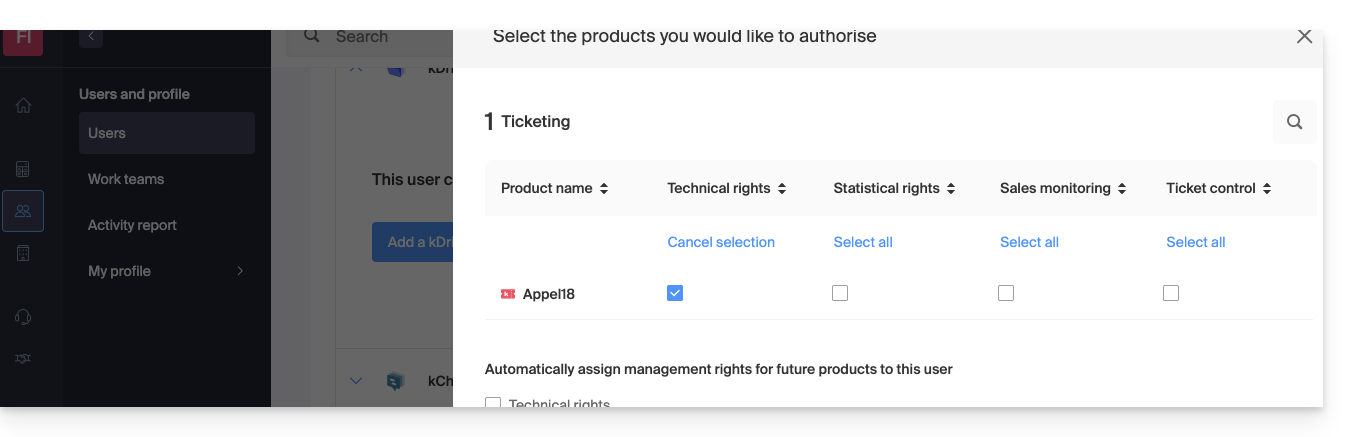
Easy Access: Groups
To simplify the process of adding access rights to a product within your Organization, there are Groups (❓: help). These allow you to create teams that are linked to Infomaniak products with the desired rights, which is very useful for granting a new member of your Organization access to the products they will need in their daily work.
Link to this FAQ: https://faq.infomaniak.com/1610
Has this FAQ been helpful?
This guide explains how to duplicate an event, within the Infomaniak ticketing system, either as a one-time event or as a recurring event.
Introduction
- If necessary, please refer to this other guide regarding the duplication of an event on a second ticketing system.
Duplicate an event
To duplicate an event, season, or previous edition, for example:
- Click here to access the management interface for your product in the Infomaniak Manager (need help?).
- Click directly on the name assigned to the event listing containing the event you want to duplicate.
- Click on Scheduling in the left-hand menu.
- Click on Events in the left-hand menu.
- Click on the action menu ⋮ located to the right of the event to be duplicated.
- Click on Duplicate:

- In the window that opens, choose whether to duplicate the event once or recurrently (multiple times):
- Recurrent duplication allows you to duplicate the event throughout the period by selecting the days (Monday to Sunday) on which you want the event to be duplicated.
- If necessary, specify the new name of the event, the new dates, and any other display settings for your event.
- Click on Confirm to start the duplication.
Once the duplication is complete, refresh the page and then determine whether the events should be visible to customers or hidden from customers and/or resellers, or complete for customers and/or resellers. You can also duplicate the seats in the case of numbered rooms.
Link to this FAQ: https://faq.infomaniak.com/1627
Has this FAQ been helpful?
This guide explains how to import tickets generated by another provider or external reseller for your event into the Infomaniak ticketing system.
Prerequisites
- Importing third-party tickets requires that the event has already been created in your Infomaniak ticketing system.
- You also need a list of tickets in a CSV file, including the barcode field that will be printed on the ticket.
Accessing the import options
To do this:
- Click here to access the management of your product in the Infomaniak Manager (need help?).
- Click directly on the name assigned to the ticketing system for the event.
- Click on Ticket Management in the left-hand menu.
- Click on Import Distributor in the left-hand menu:
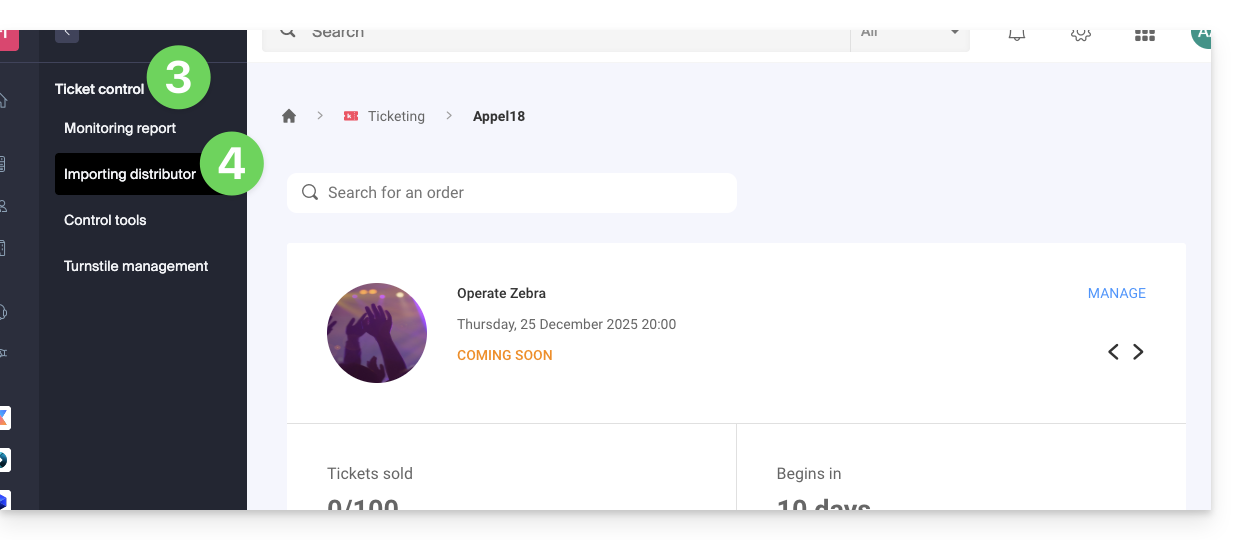
Import the CSV file
To do this:
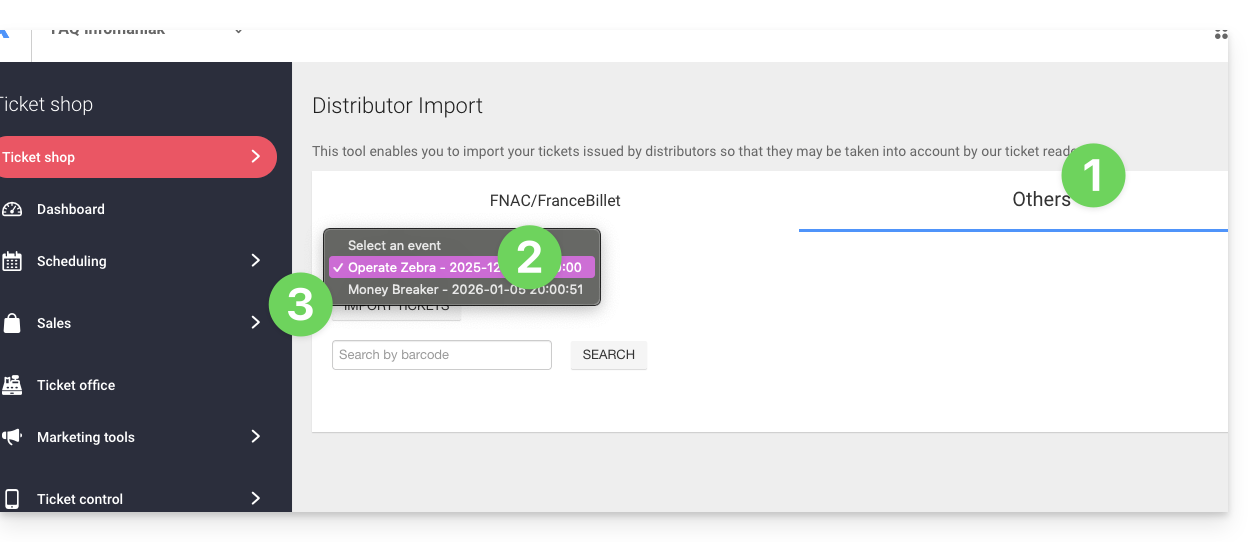
- Click on the FNAC/FranceBillet or Other tab, depending on the reseller.
- Choose an event for which to import tickets.
- Click on Import tickets:
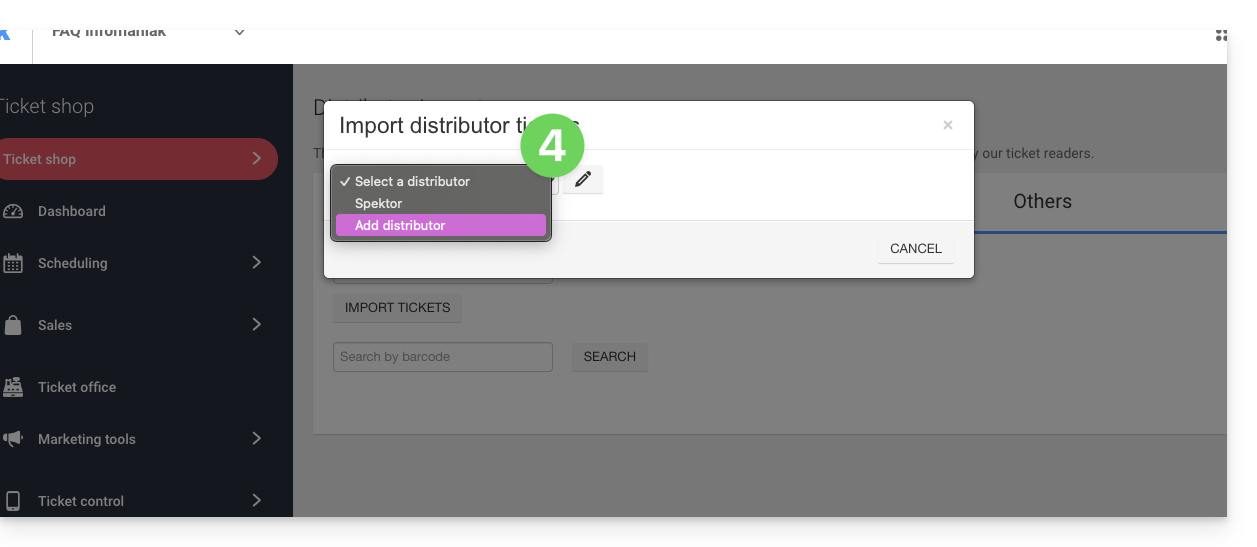
- Choose an existing distributor from the drop-down menu, or create one:
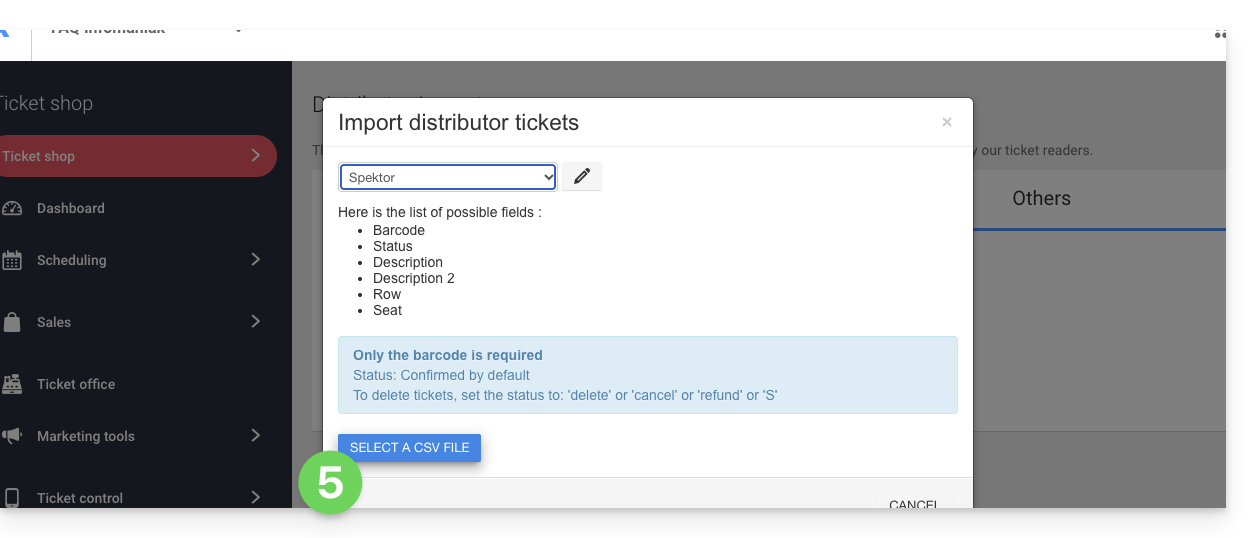
- Click on the Choose a CSV file button and upload the CSV file provided by the distributor:
- Select the rows to import. Warning:
- Check the first and last rows of the imported data.
- These may contain headers or blank lines that could cause an error during import.
- Use the options at the top of the page to define the number of first and last rows to ignore:

- Match the columns to the information to be imported.
- The ticket barcode is the only mandatory field.
- If you are importing tickets from another Infomaniak ticketing system, select column 8, which contains the QR code (in the format 2000000000A^0^100000000):

- Check the imported information and validate:
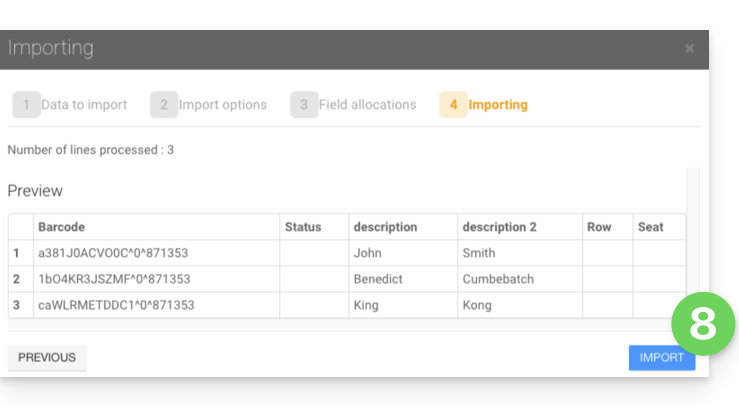
- The imported tickets will appear in a table at the bottom of the page:
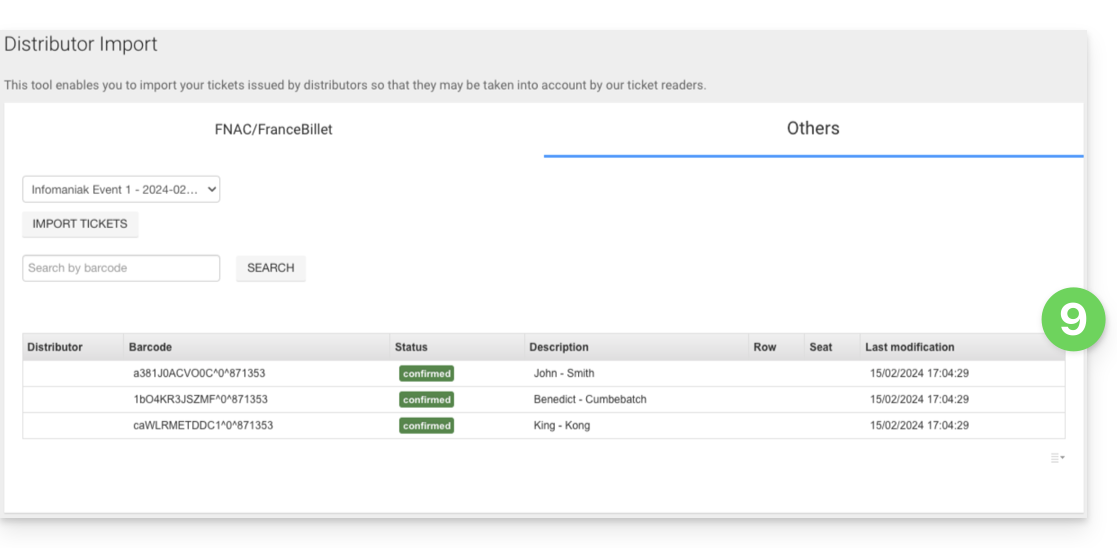
Managing Imported Tickets
Once the tickets have been imported, they can be scanned using the ticket control application (available on iOS and Android).
They will also be counted in the FNAC or Other column in the control report tool, which is available from the left-hand menu: Ticket Control, Control Report:
Link to this FAQ: https://faq.infomaniak.com/1705
Has this FAQ been helpful?
This guide explains how commissions are applied to your sales (within the Infomaniak ticketing system).
Free tickets
Infomaniak does not charge any commission on the sale of free tickets.
- If the price of your tickets is CHF 0 or € 0, you will not pay anything on the sale of these tickets.
- Please note: it is the value of the ticket that counts, not the payment method.
- A paid ticket validated with the free/invitation payment method is therefore not considered a free ticket.
- To create a free pricing plan for your guests, please refer to this other guide.
Paid tickets
Infomaniak’s fees for paid tickets are made up of 3 parts:
- A fixed fee that remains constant regardless of the ticket price or payment method.
- A percentage-based commission on the ticket price, applied to all online sales.
- Bank fees for online transactions, which vary depending on the payment method used.
| Online sales | In-store sales | |||||||||
|---|---|---|---|---|---|---|---|---|---|---|
| Total fee | ||||||||||
| Bank charges (variable depending on the payment method) | ||||||||||
| Infomaniak Commission (percentage of the ticket price) | Total Commission | |||||||||
| Infomaniak Commission (fixed) | Infomaniak Commission (fixed) | |||||||||
For the complete list of commission rates, please refer to the pricing page on the sales page.
How are commissions paid?
- Infomaniak commissions will be calculated automatically when the monthly statement is generated.
- They will be deducted from the monthly sales amount if the balance is sufficient.
- An invoice will be sent to you if the balance is insufficient.
Link to this FAQ: https://faq.infomaniak.com/1746
Has this FAQ been helpful?
This guide explains how to use the group pricing feature (within the Infomaniak ticketing system).
Introduction
- This pricing allows visitors to purchase multiple tickets in a single click.
- This option is particularly useful for families, school groups, or special group offers.
- Although the buyer makes only one purchase, the group rate combines several tickets into a single purchase.
- Several tickets will therefore be issued, and each member of the group can then present their own ticket at the event.
Manage the bundled pricing for your event
To do this:
- Click here to access the management of your product in the Infomaniak Manager (need help?).
- Click directly on the name assigned to the ticketing system for the event.
- Click on Scheduling in the left-hand menu.
- Click on Events in the left-hand menu.
- Click directly on the event name.
- Then, click on the Pricing tab.
- Click on Add a price:
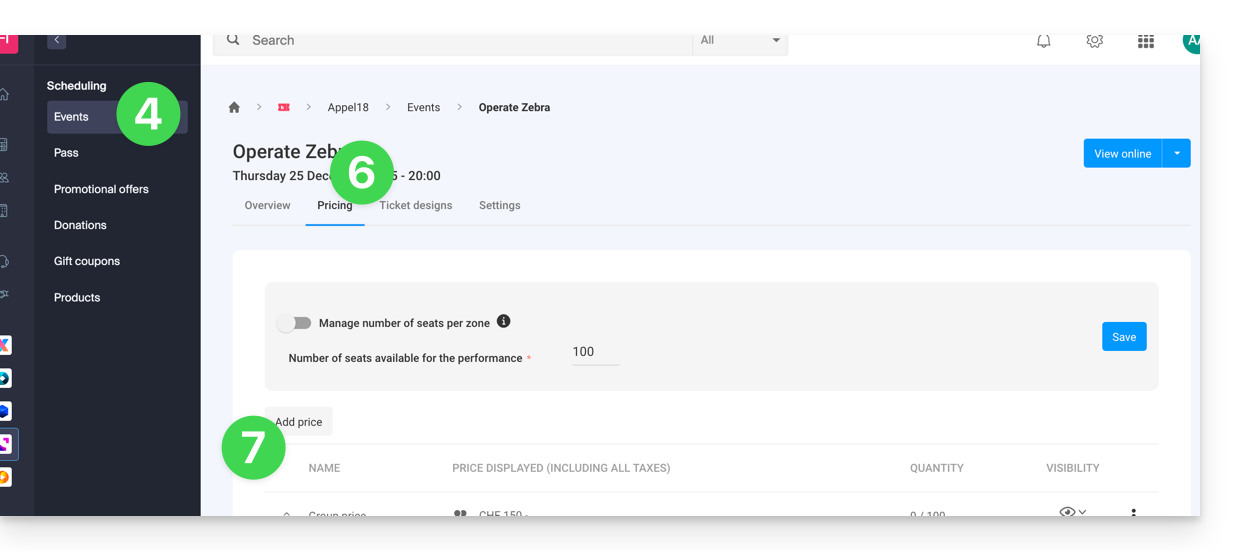
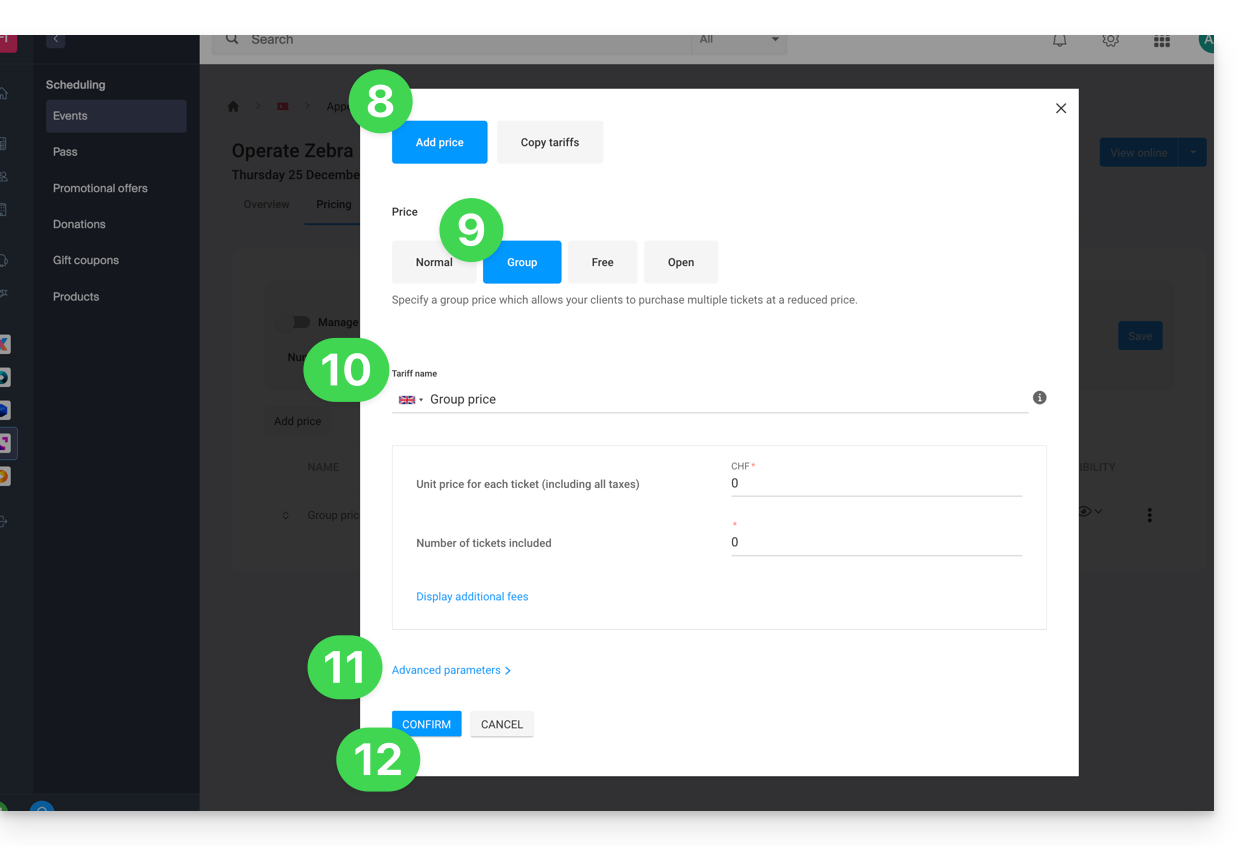
- Choose to Add a price.
- Choose the group rate.
- Specify:
- the name
- the number of tickets included in the rate
- the price of each individual ticket (the price of the group rate will be equal to the individual price multiplied by the number of tickets)
- Enable any available advanced settings.
- Click Confirm:
The display of pricing varies depending on the type of event: for a multi-date event, it is managed via an action menu on the "Edit" button, while for a single-date event, it appears directly in the "Pricing" tab at the top of the page.
Link to this FAQ: https://faq.infomaniak.com/2533
Has this FAQ been helpful?
This guide explains how to create events with multiple dates (within the Infomaniak ticketing system).
Create a multi-date event
To do this:
- Click here to access your product management interface in the Infomaniak Manager (need help?).
- Click directly on the name of the relevant ticketing system.
- Click on Programming in the left-hand menu.
- Click on Events in the left-hand menu.
- Click on the Add event button.
- In the Date and Location step, you can select the Multiple occurrences option:
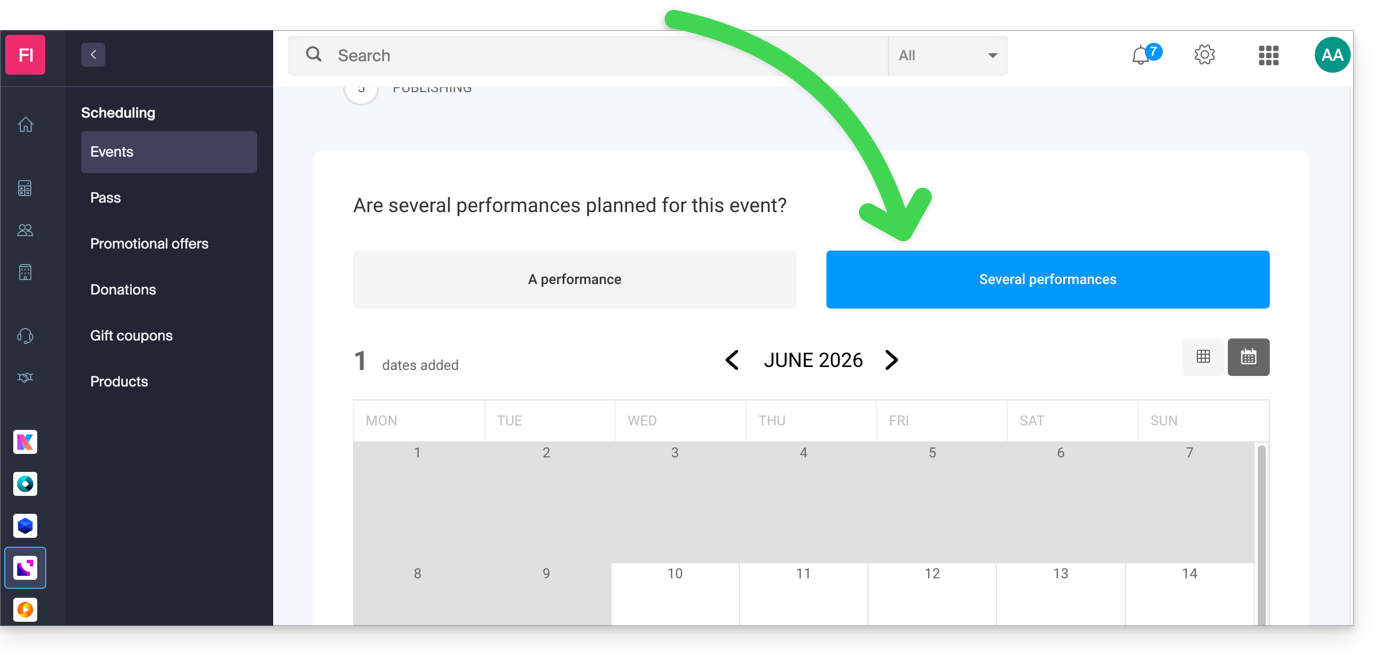
- An interface displaying a calendar appears; choose the start date of the event.
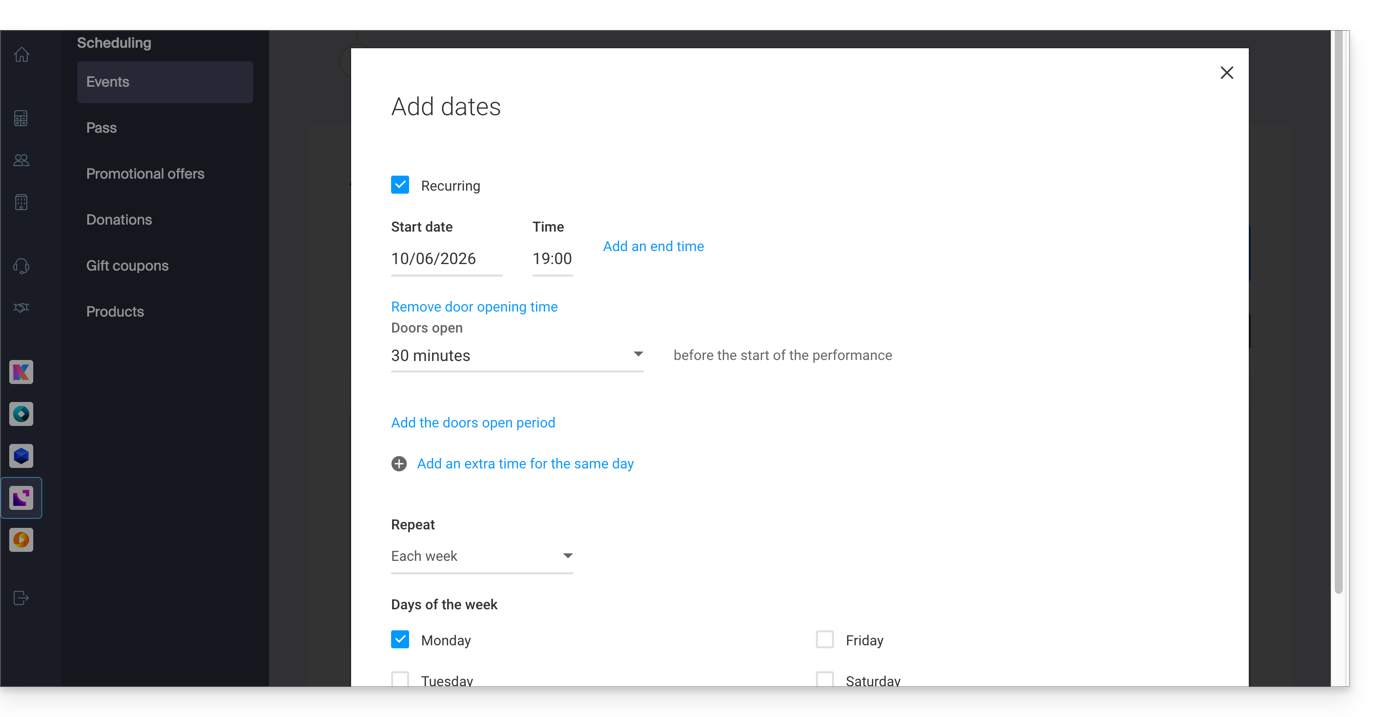
- You can specify whether the event lasts for several days, weeks, or months, or whether it recurs several times in the same day:
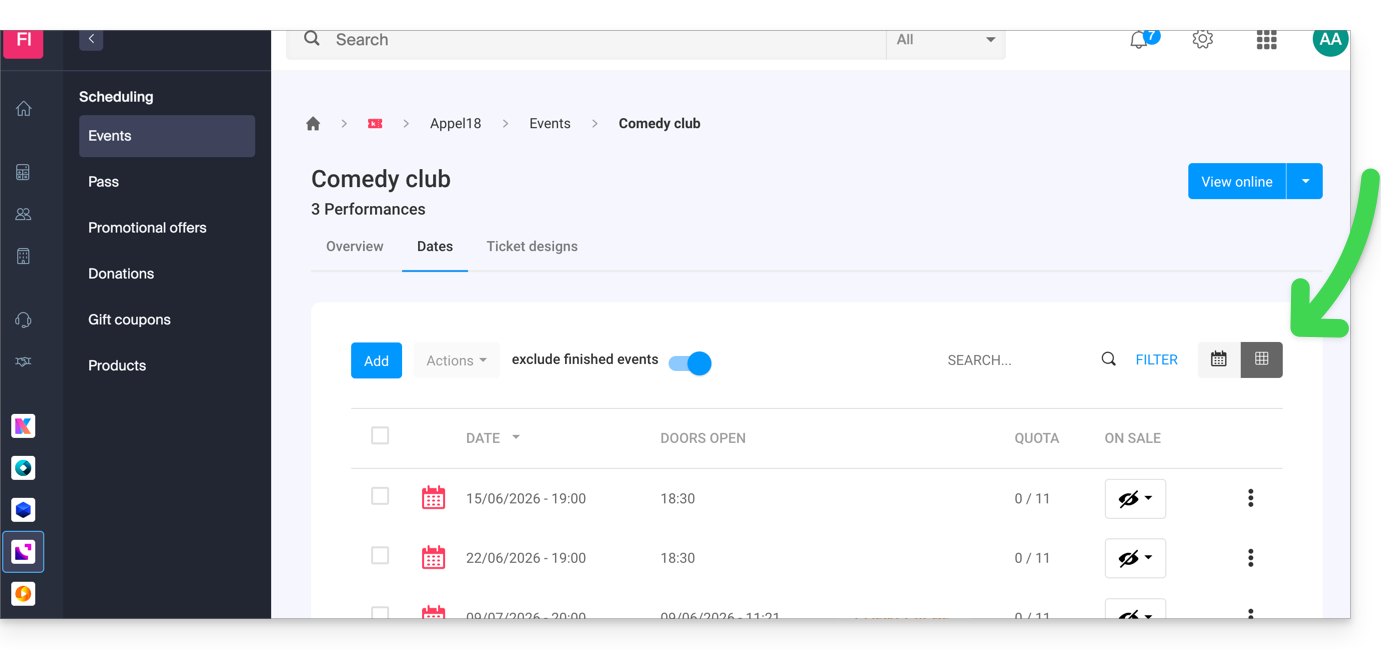
- Once the event is created and open for sale, you can track the progress of orders for each date using a List view:
Link to this FAQ: https://faq.infomaniak.com/2574
Has this FAQ been helpful?
This guide explains how the payment deadline before order cancellation works (within the Infomaniak ticketing system).
Prerequisites
- This feature is only offered for orders using the ‘Invoice payment’ payment method.
- By default, the due date is 30 days after the order. A reminder will be automatically sent 10 days and 20 days after the order date. On the 30th day, the order will be cancelled, and an email will be sent to the customer to inform them of the cancellation of their order.
Configure the order cancellation deadline
When tickets for one of your events are purchased using the ‘Invoice payment’ payment method, you can configure a rule to set a deadline before the order is automatically cancelled.
- Click here to access the management interface for your product in the Infomaniak Manager (need help?).
- Click directly on the name assigned to the ticketing system for the event.
- Click on Sales in the left-hand menu.
- Click on Payment methods in the left-hand menu.
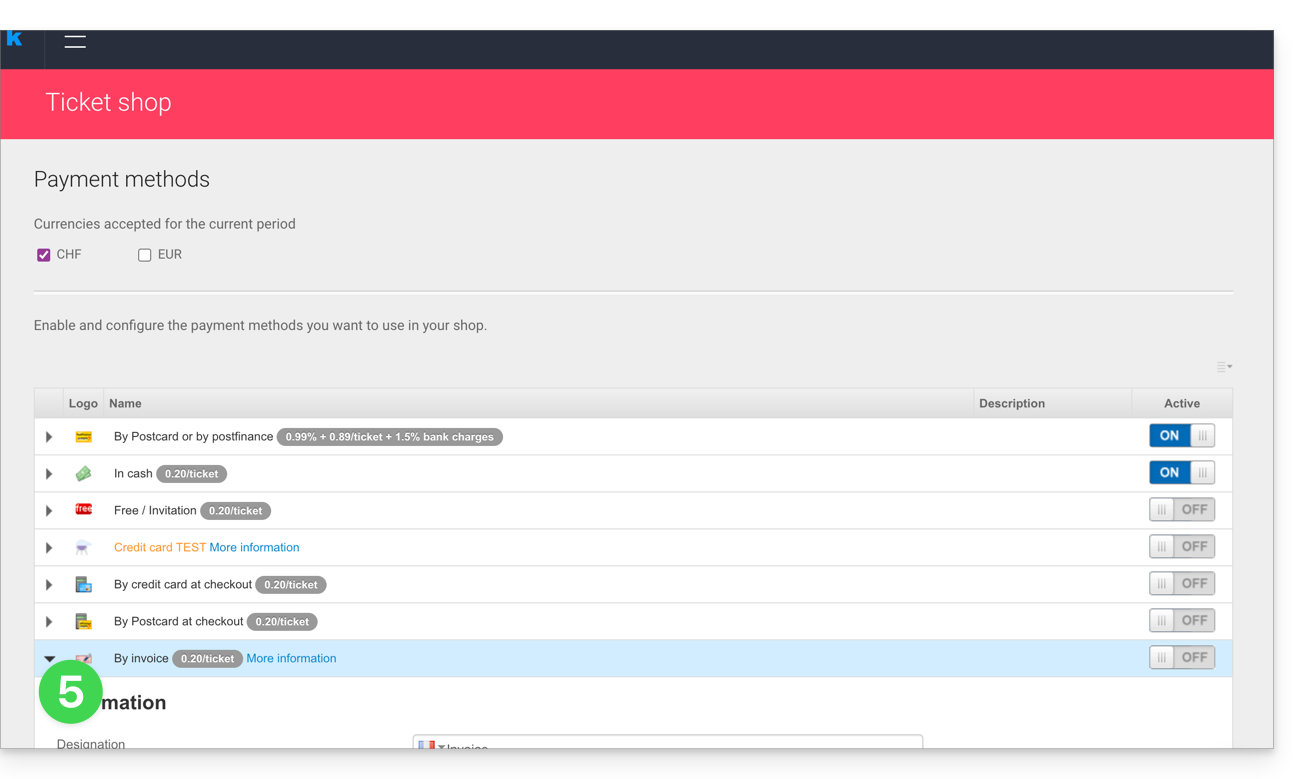
- Click on the ⏵ icon to expand the settings for the “Invoice” item:
- Define the availability period for this payment method, the number of days before a payment request is sent to the customer again, and the number of reminders:
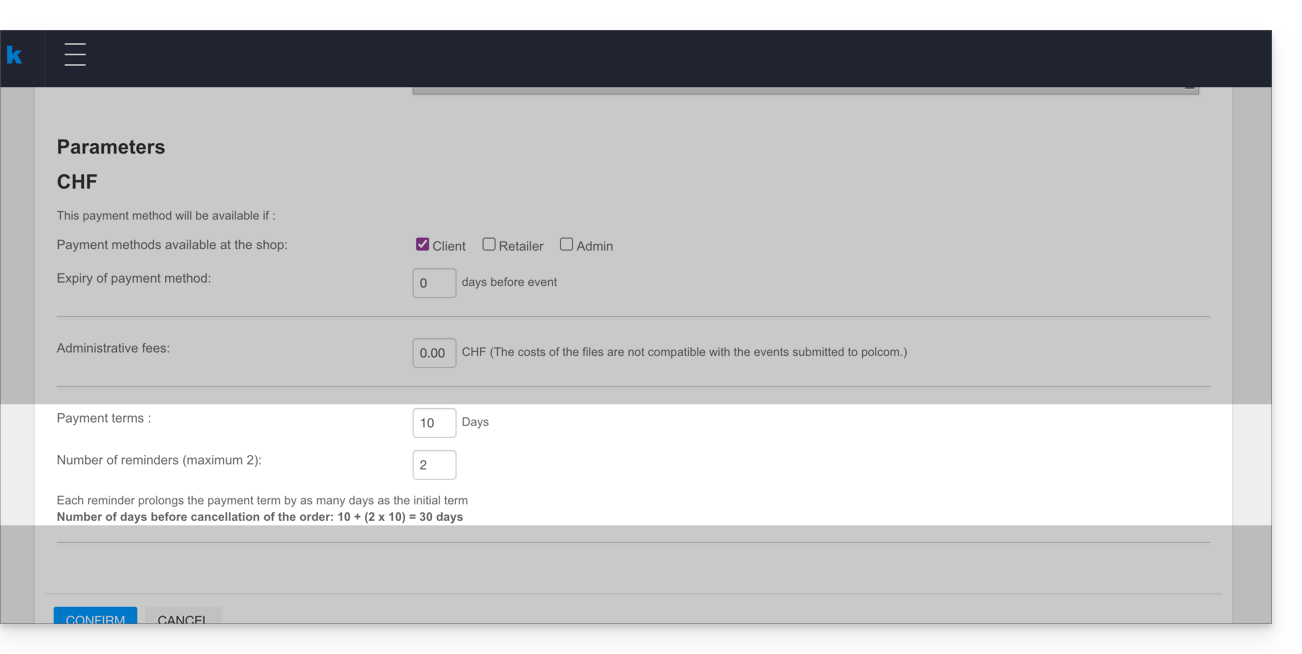
Each reminder extends the payment deadline by the same number of days as the initial deadline. The order is automatically cancelled at the end of the reminder period, which is calculated as follows:
- Number of days before the first reminder + (number of reminders multiplied by the number of days before the first reminder).
- In the example above, this results in: 5 + (2x5) = 15, meaning the cancellation will take effect 15 days after the first reminder.
Link to this FAQ: https://faq.infomaniak.com/2597
Has this FAQ been helpful?
This guide explains how to create an event (within the framework of the Infomaniak ticketing system) that will be broadcast via the Infomaniak streaming service.
Prerequisites
- Have an Infomaniak ticketing system to create the event.
- Have an Infomaniak video streaming service to broadcast the event. Are you unsure about your monthly bandwidth needs?
Stream your event
A dedicated page has been set up to ensure that only people who have purchased a ticket to your event will have access to the event.
Creating a virtual event
To do this:
- Click here to access the management of your product on the Infomaniak Manager (need help?).
- Click directly on the name assigned to the ticketing system concerned by the event.
- Click on Programming in the left sidebar menu.
- Click on Events in the left sidebar menu.
- Click on the Add an event button.
- Enter the information related to your event.
- At the Location step, choose: No location or Virtual, then select: Broadcast the event live (livestreaming) and choose the streaming feed to broadcast your event:

Modifying an already created event
You can modify or add a location to an already created event, for example, to offer it for streaming:
- Click here to access the management of your product on the Infomaniak Manager (need help?).
- Click directly on the name assigned to the ticketing system concerned by the event.
- Click on Programming in the left sidebar menu.
- Click on Events in the left sidebar menu.
- Click on the event concerned.
- Click on the blue Modify button.
- At the Location step, choose: No location or Virtual, then select: Broadcast the event live (livestreaming) and choose the streaming feed to broadcast your event.
- To activate the seats for livestreaming, you will need to:
- Either click on the action menu ⋮ located to the right of the current rate, click on Modify and check the box: Live event (livestream) in addition to the box On-site event
- Or click on Add a zone, check the box: Live event (livestream) and indicate the number of seats available for livestreaming

- Click on Save.
The quantity of seats will influence the consumption of your Streaming Video offer. You can estimate the consumption based on the hours of broadcasting, the quality, and the number of viewers with the calculator. If you exceed your monthly consumption, the excess will be billed at CHF 0.20 per GB.
Link to this FAQ: https://faq.infomaniak.com/2600
Has this FAQ been helpful?