Knowledge base
1000 FAQs, 500 tutorials and instructional videos. Here, there are only solutions!
This guide explains how to update the password for a mail address on your device after you have changed it from an Infomaniak Mail Service.
Introduction
- There may be a master password in place; refer to the official Mozilla help for more information.
Accessing the password menu
To do this:
- Open the Thunderbird email client.
- Click on the menu icon in the top right corner.
- Click on Preferences:
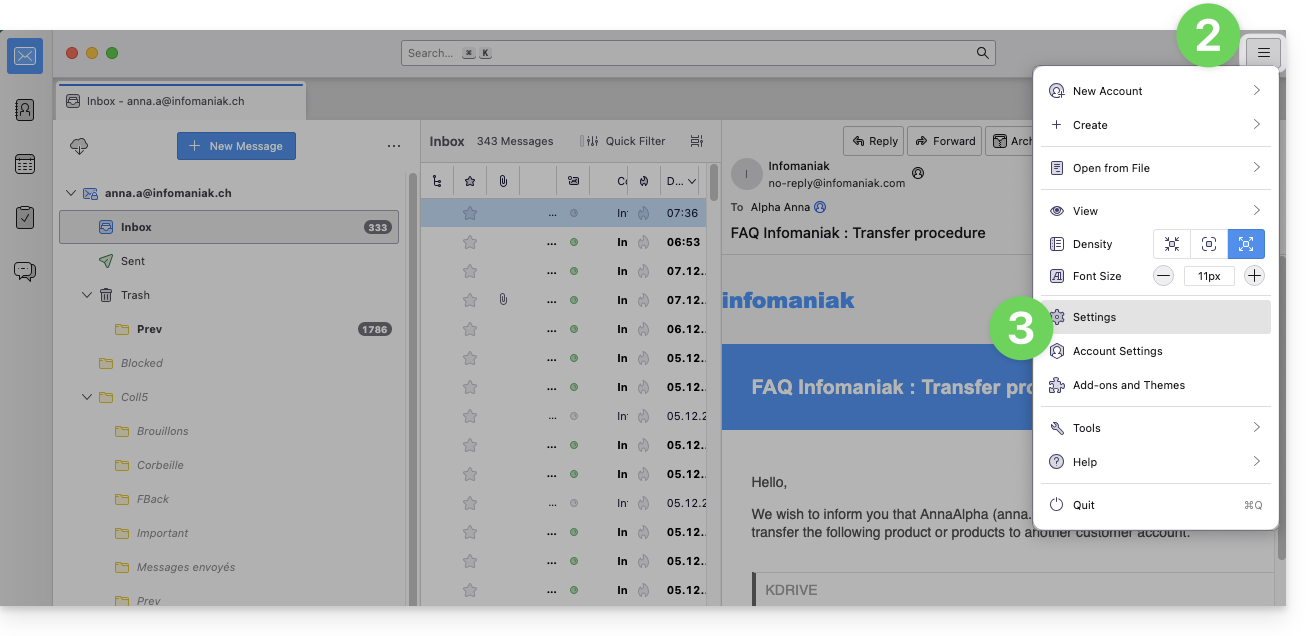
- Click on Privacy & Security in the left-hand menu.
- Click on Saved Passwords:
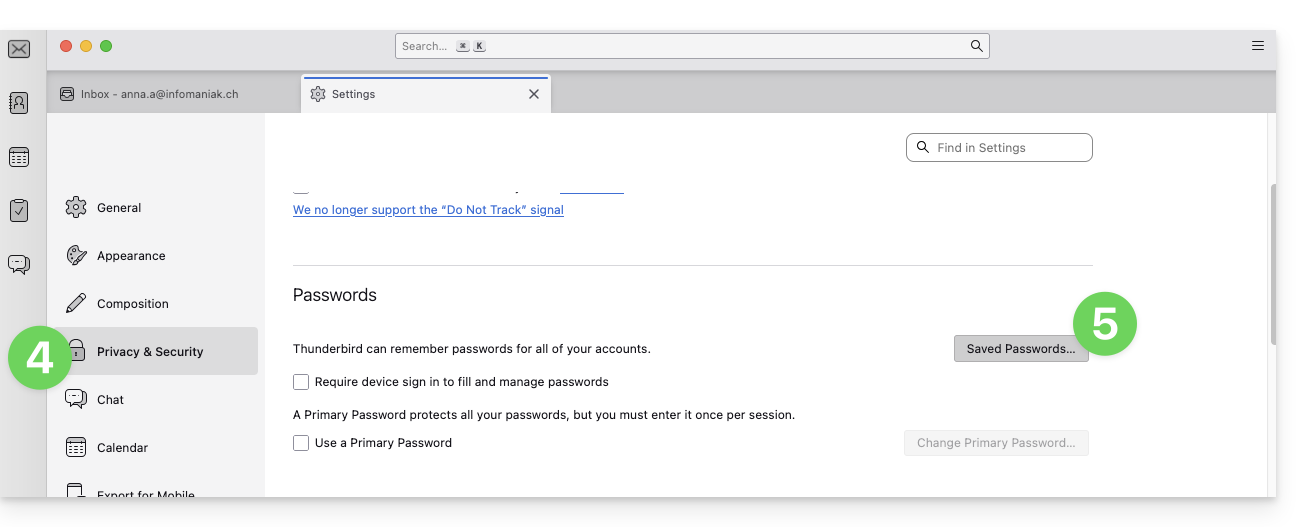
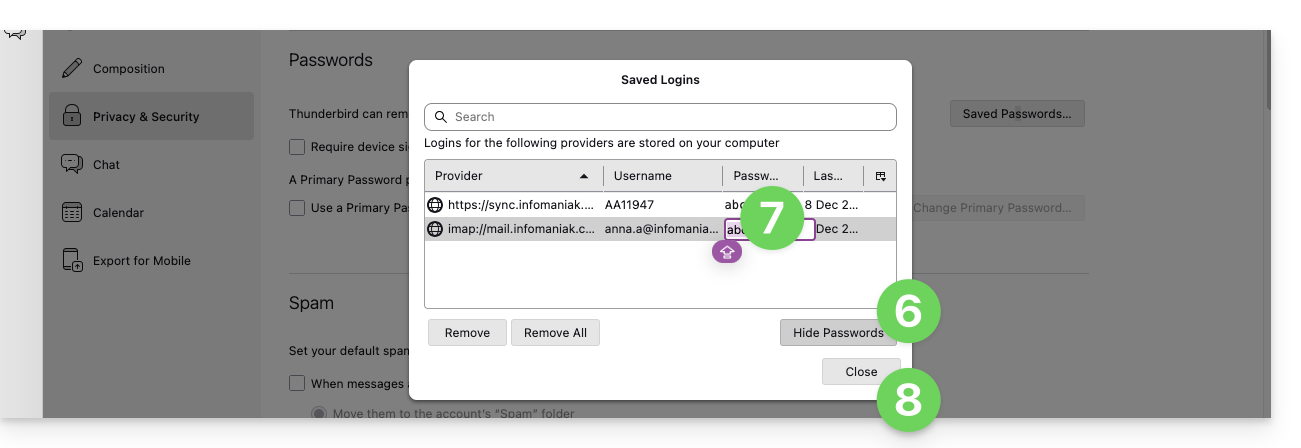
- Click on Show passwords in the bottom right corner.
- Double-click on the password associated with the email address (IMAP and possibly SMTP if necessary), and enter the new password:
Link to this FAQ: https://faq.infomaniak.com/2553
Has this FAQ been helpful?
This guide explains how to connect the desktop app Thunderbird (desktop application on macOS / Windows / Linux) to an email address hosted by Infomaniak.
Add the email address to the application
Prerequisites
- Create the email address (❓: help my kSuite | Mail Service/kSuite).
- Create a device password (❓: help my kSuite | Mail/kSuite Service).
- Verify that the domain is configured correctly (❓: help).
To configure the email application:
- Download the latest desktop version of Thunderbird (❓: help).
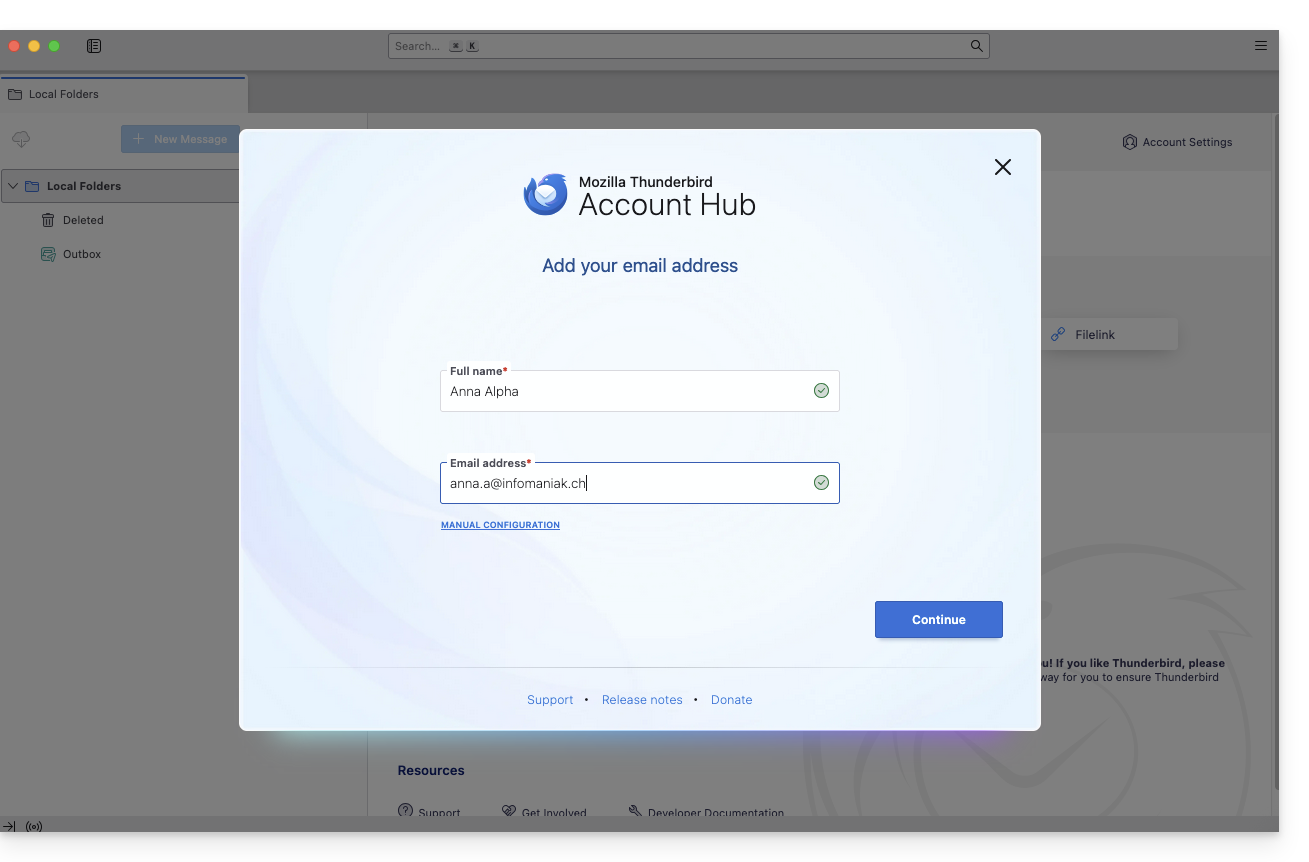
- Open the application.
- Enter your account information and click Continue:
- Keep IMAP selected and click Continue:
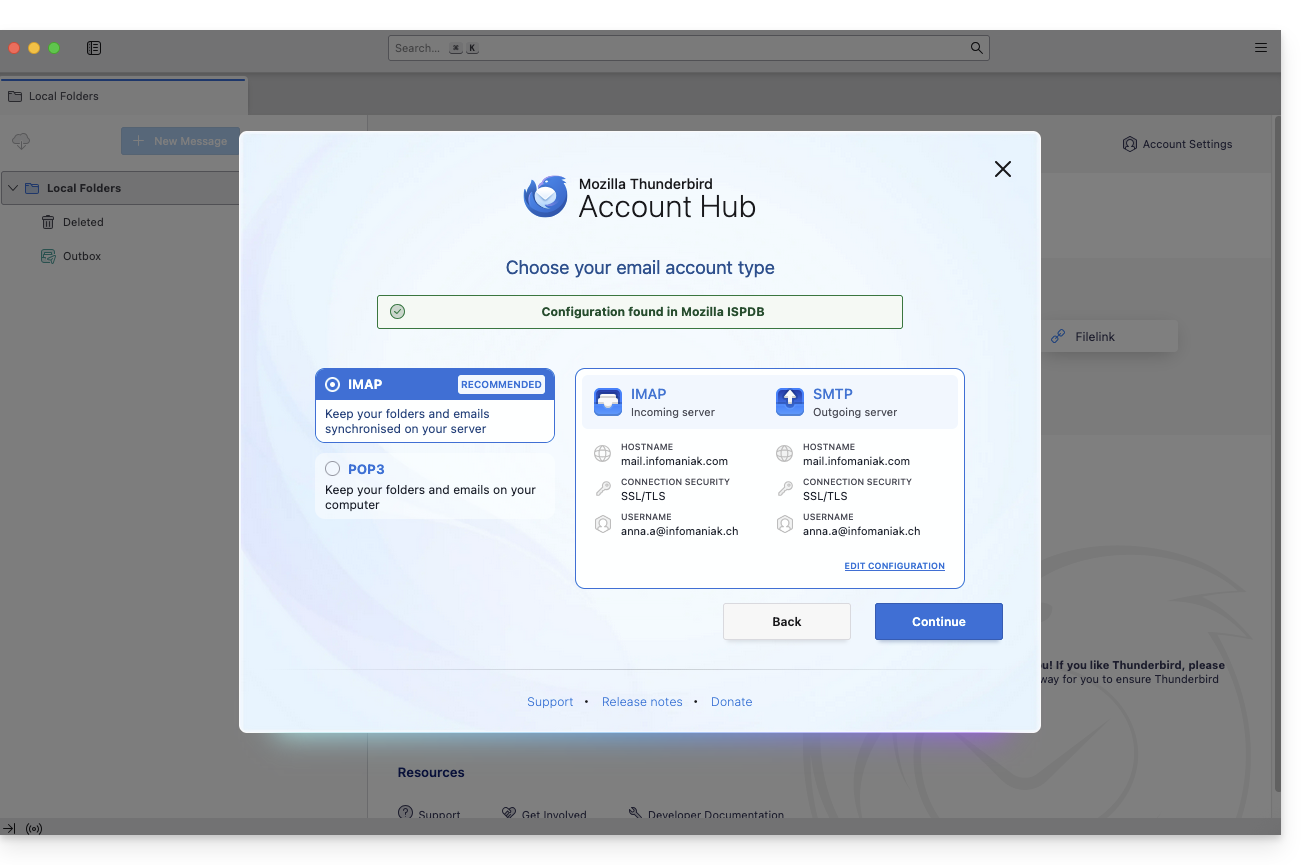
- Enter your password and click Continue:
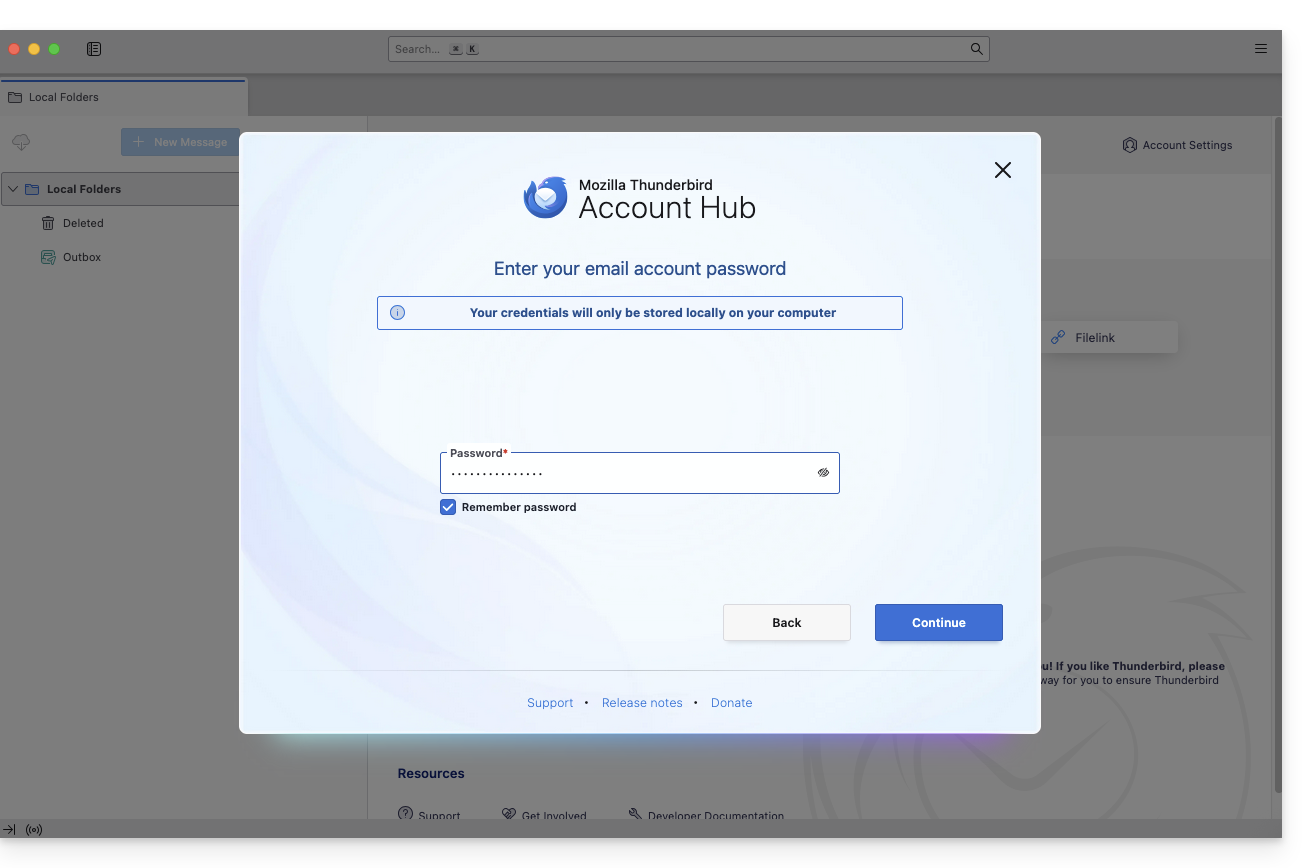
- Click on Continue:
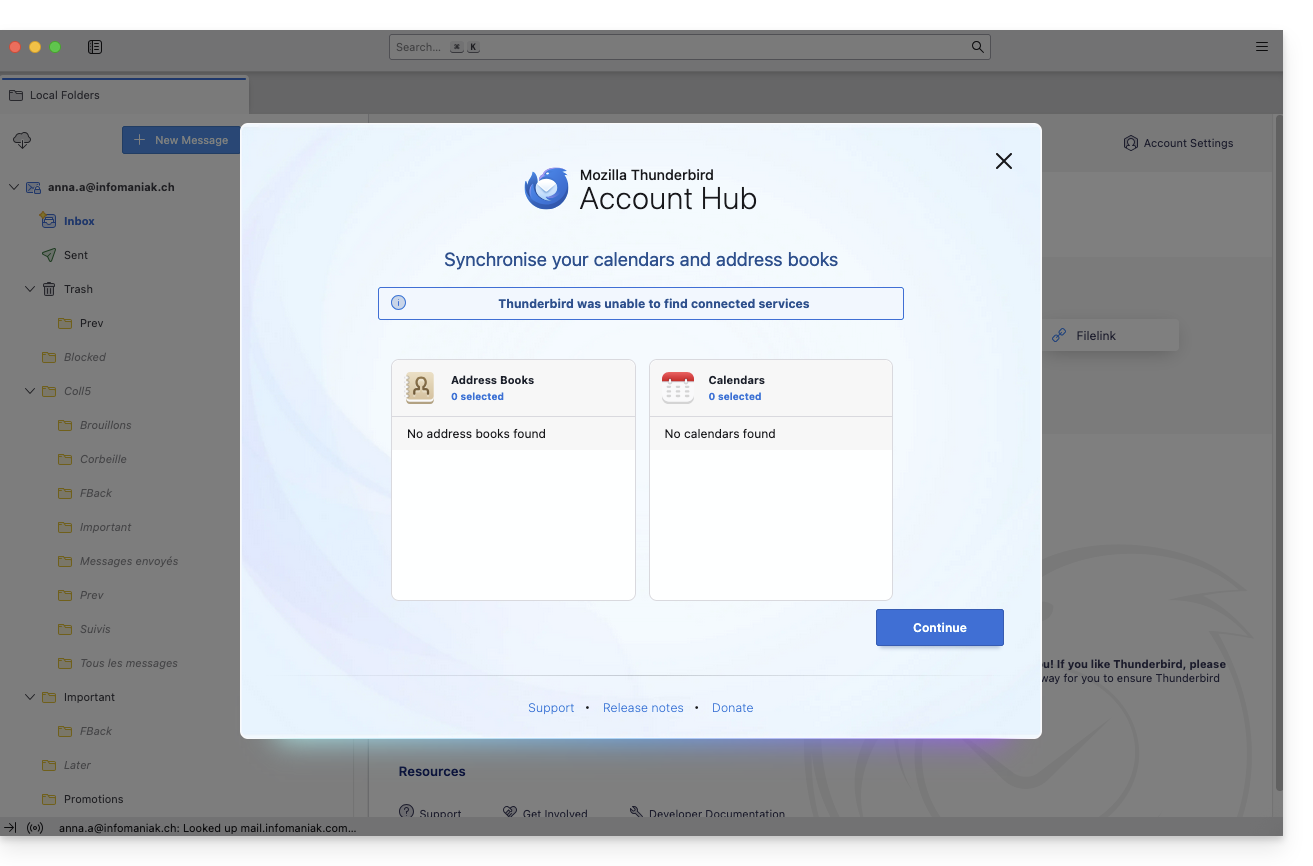
- Your registration summary is displayed. Click on Finish to add the address (or configure other services from there):
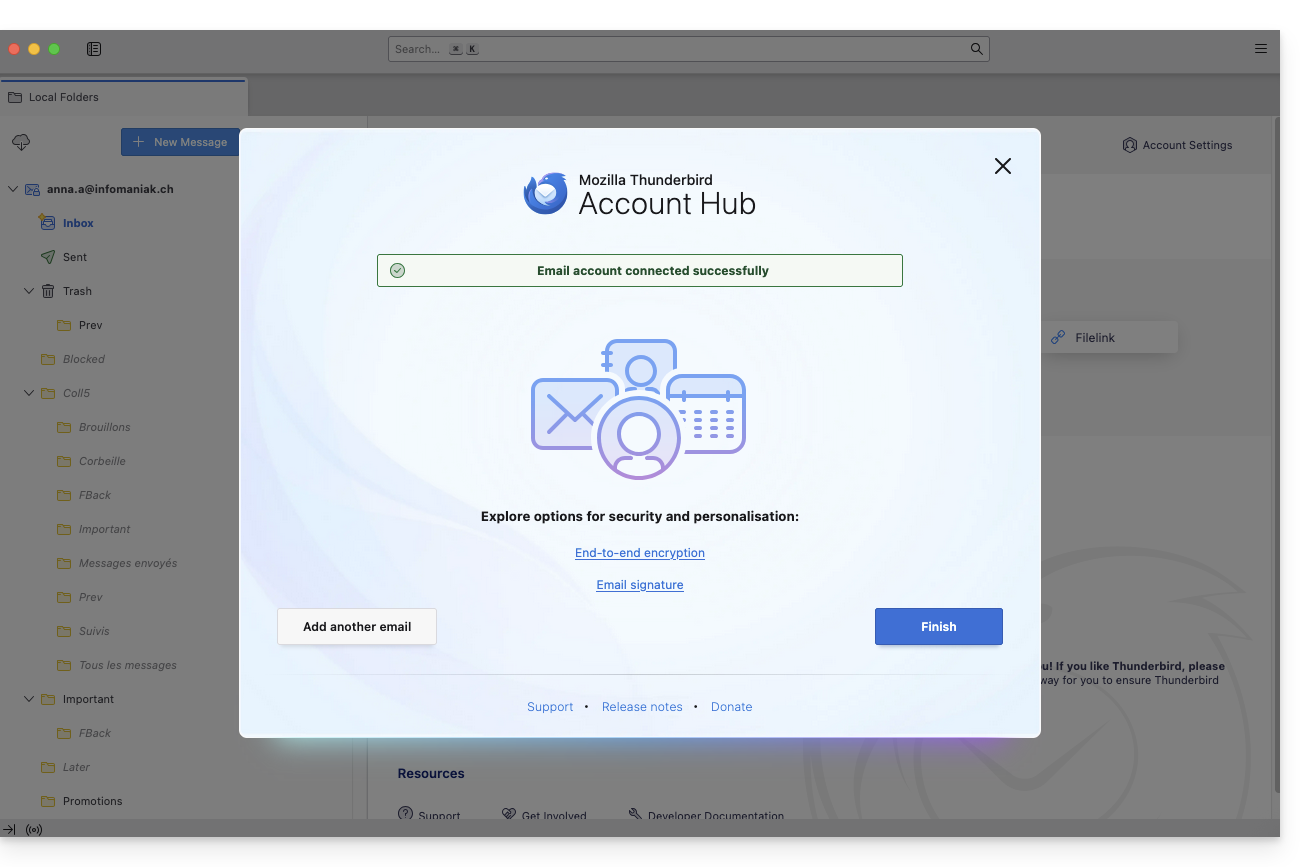
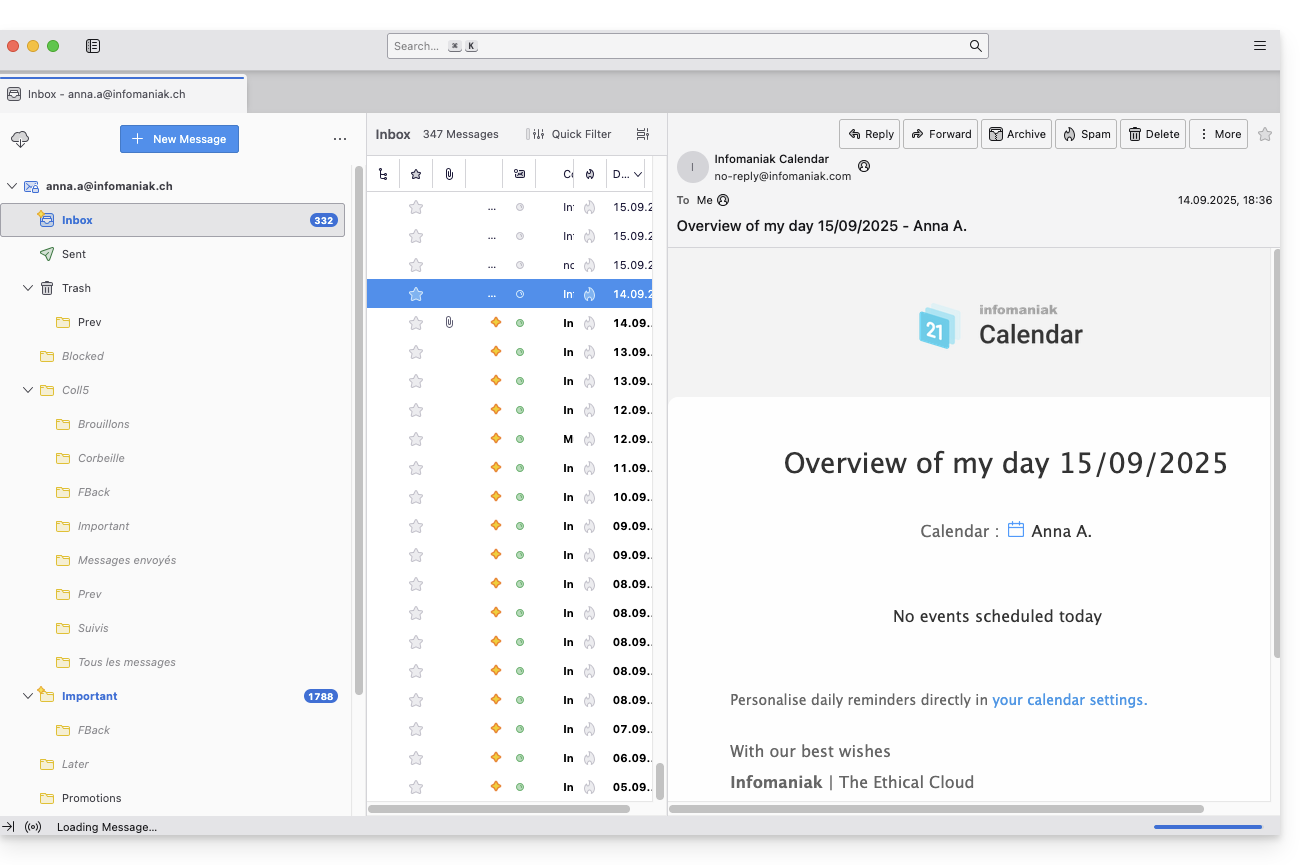
- Your email address is now configured in the application:
Recommended settings
- Incoming IMAP server =
mail.infomaniak.com - IMAP port =
993(with SSL) - Outgoing SMTP server =
mail.infomaniak.com - SMTP port & encryption protocol and command/method to activate this protocol:
587+ STARTTLS - Username = the complete email address (❓: help)
- Password = the password generated for the email address you want to access (❓: help my kSuite | Mail Service/kSuite).
- Mandatory authentication for sending emails:
- Enable this in the SMTP settings of your application.
- Check "use the same settings as the incoming server" or, depending on the software/email client, enter a username (i.e., the complete email address) and the generated password.
Refer to this other guide if you are looking for information about other compatible email ports and protocols (SSL / TLS, for example).
In case of a problem
Check that the Mail service is configured optimally (❓: help).
You do not need to contact Infomaniak Support if your email address works correctly outside the application. The most common error involves using an incorrect password. The troubleshooting guides will help you resolve any potential issues:
- Refer to the solutions provided in this other guide regarding email in general.
- This other guide is specifically about Thunderbird.
… and if Thunderbird is no longer working after a change of your email password, please refer to this other guide.
Link to this FAQ: https://faq.infomaniak.com/2430
Has this FAQ been helpful?
Are you no longer able to send or receive emails? Are you experiencing synchronization errors with your contacts & calendars? Follow the instructions in this guide to delete the problematic accounts and reconfigure them correctly.
Introduction
- Only follow these instructions to delete a mail account configured in IMAP (and not in POP3). Learn more
Delete the email address
To do this:
- Open Thunderbird.
- Right-click on the email address you want to delete and select Settings.
- Go to Account Management.
- Select Delete account and click Delete
- Refer to this other guide to properly reconfigure the email address
Delete contacts (in CardBook)
Now everything is integrated into Thunderbird, but if you still have an older version (which you should definitely update):
- Open Thunderbird.
- In CardBook, select the contact profile to delete.
- Click on the menu button with three horizontal lines ☰ in the top left corner of the interface, then click on Address Book and Delete Address Book.
- Confirm by clicking on OK.
- Refer to this other guide to reconfigure synchronization.
Delete the calendar (in Lightning)
Now everything is integrated into Thunderbird, but if you still have an older version (which you will need to update):
- Open Thunderbird.
- In Lightning, select the calendar profile you want to delete.
- Right-click on the calendar and select Unsubscribe from calendar.
- Confirm by clicking OK.
- Refer to this other guide to reconfigure synchronization.
Link to this FAQ: https://faq.infomaniak.com/2444
Has this FAQ been helpful?
This guide explains how to configure the synchronization of calendars and contacts Infomaniak with the desktop app Mozilla Thunderbird (desktop application on macOS / Windows / Linux).
Obtain the advanced URL
Prerequisites
- Obtain your synchronization details provided by the Infomaniak synchronization assistant:
- account address:
https://sync.infomaniak.com - username: for example
AB12345 - application password if two-factor authentication is enabled or your Infomaniak account password if you have not enabled 2FA
- account address:
To obtain a more detailed synchronization URL, which is generally required for synchronization with Thunderbird:
- Open the synchronization wizard for Infomaniak.
- Click on the blue Select a device link:
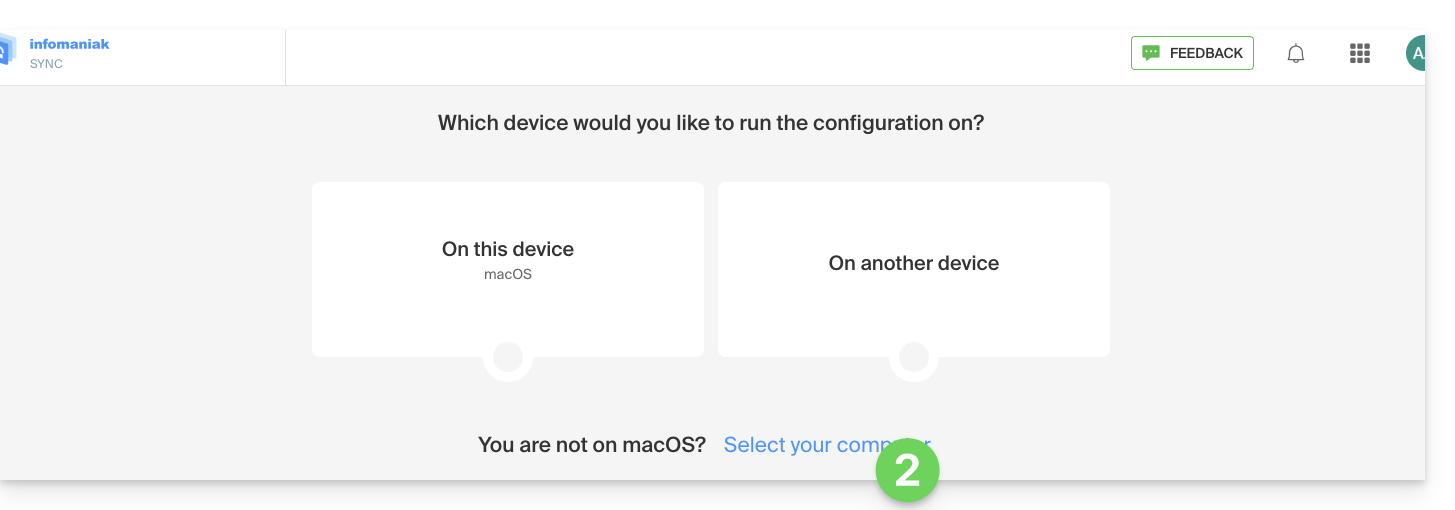
- Choose a GNU/Linux type synchronization.
- Note the complete synchronization URL displayed in step 4 of the wizard:

Synchronize calendars and address books
Connect to a CardDAV address book
With the latest versions of Thunderbird, synchronizing your Infomaniak calendars and address books is now available.immediately after configuring your email addresswithin the software: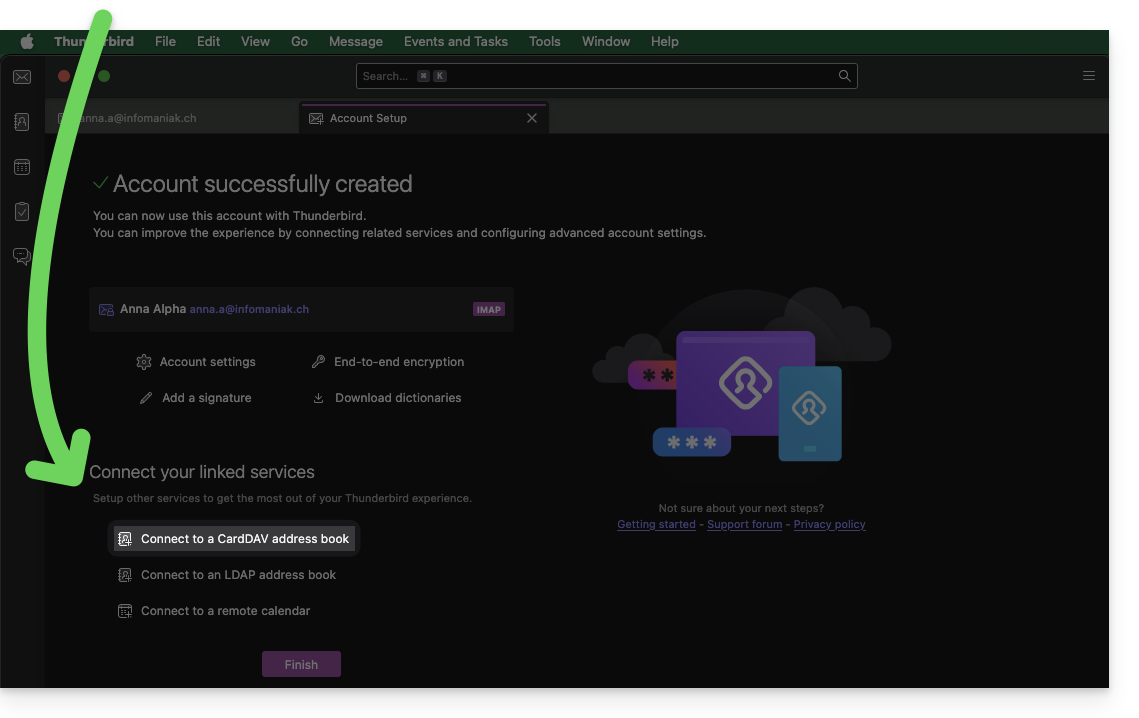
Click on it; the configuration will start:
- Enter the short username and the advanced URL (see above).
- Click Continue.
- Thunderbird will then ask for the password (see above).
- Tap OK:

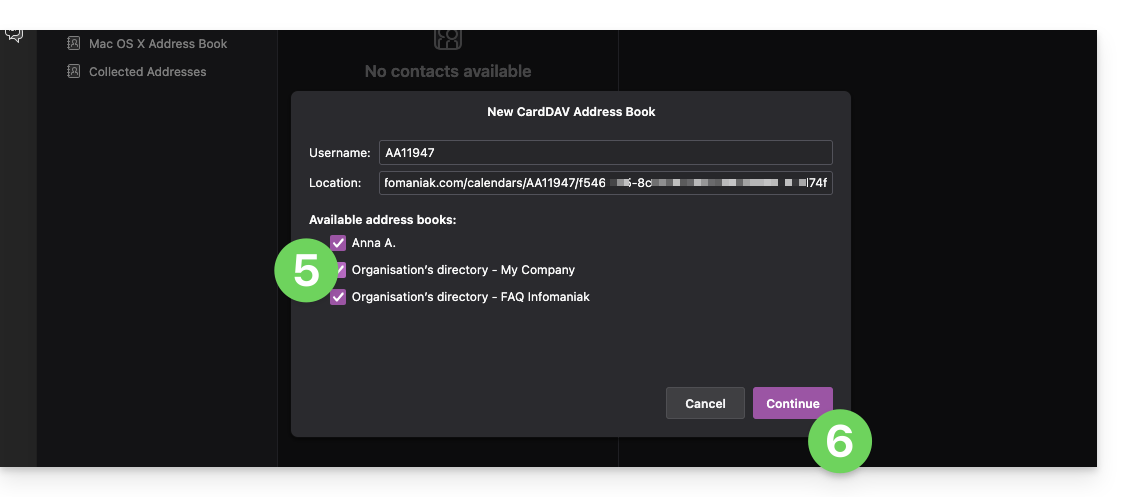
- Once authentication is complete, the application will display the address books associated with your Infomaniak account; choose which ones to synchronize.
- Tap Continue to complete:
Connect to a remote calendar
Add a new calendar in Thunderbird:
- If necessary, switch to Calendars.
- Click on New Calendar…
- Choose On the network.
- Click on Next:
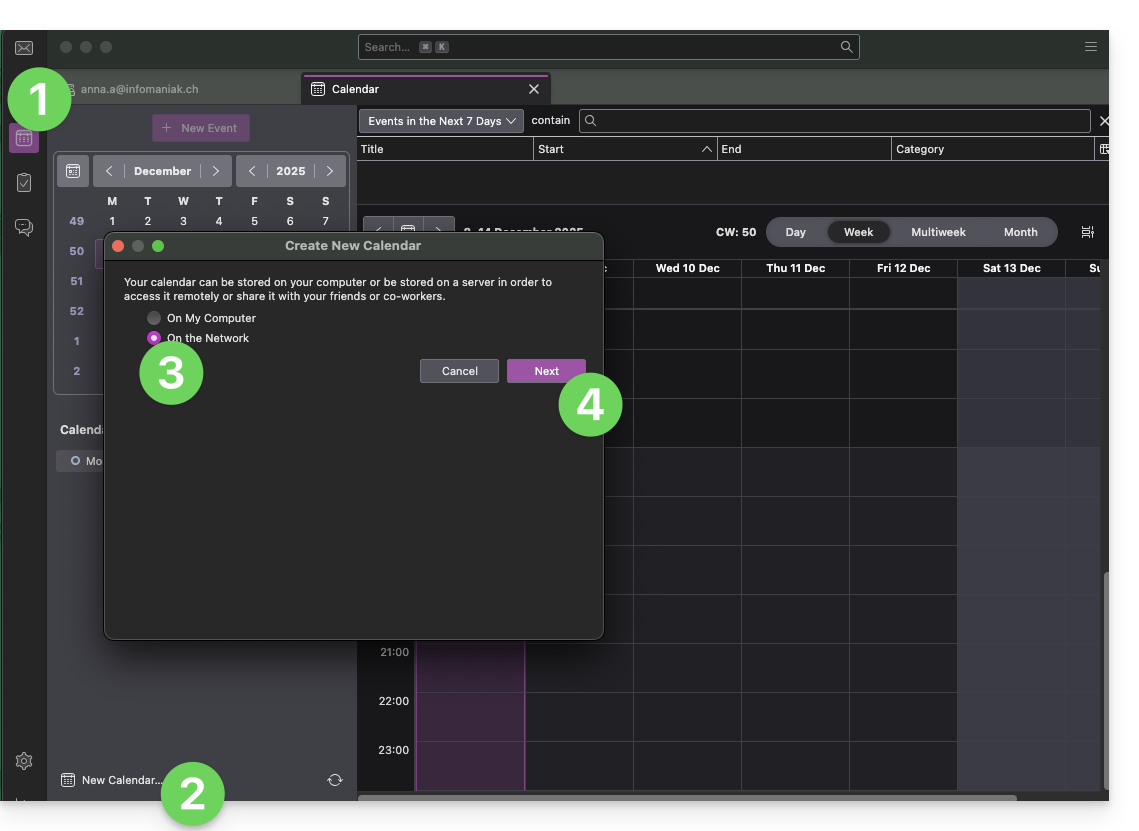
- Enter the short username and the advanced URL (see above).
- Click the button to find the associated Calendars.
- Thunderbird will then ask for the password (see above).
- Tap OK:
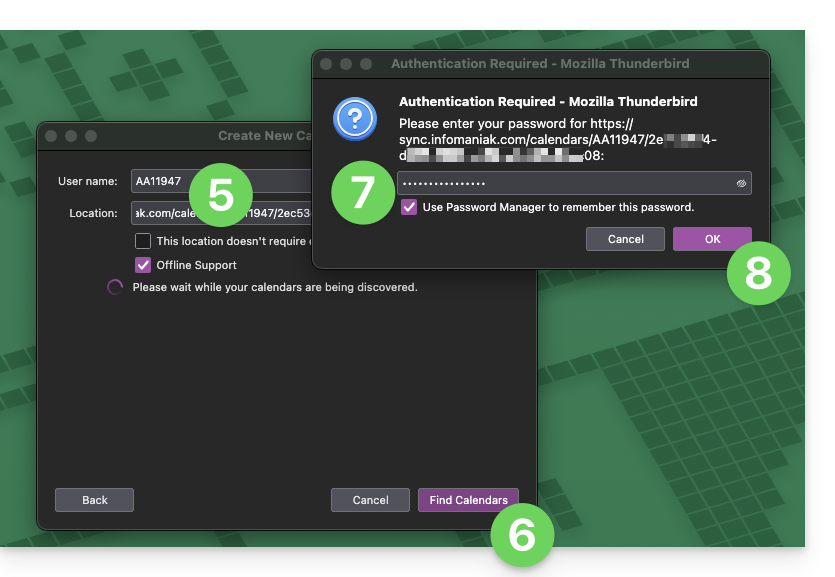
- Once authentication is complete, the application will display the calendars associated with your Infomaniak account; choose which calendars to synchronize.
- You can manage advanced properties of your calendars in Thunderbird if needed.
- Click the Subscribe button to complete the process:
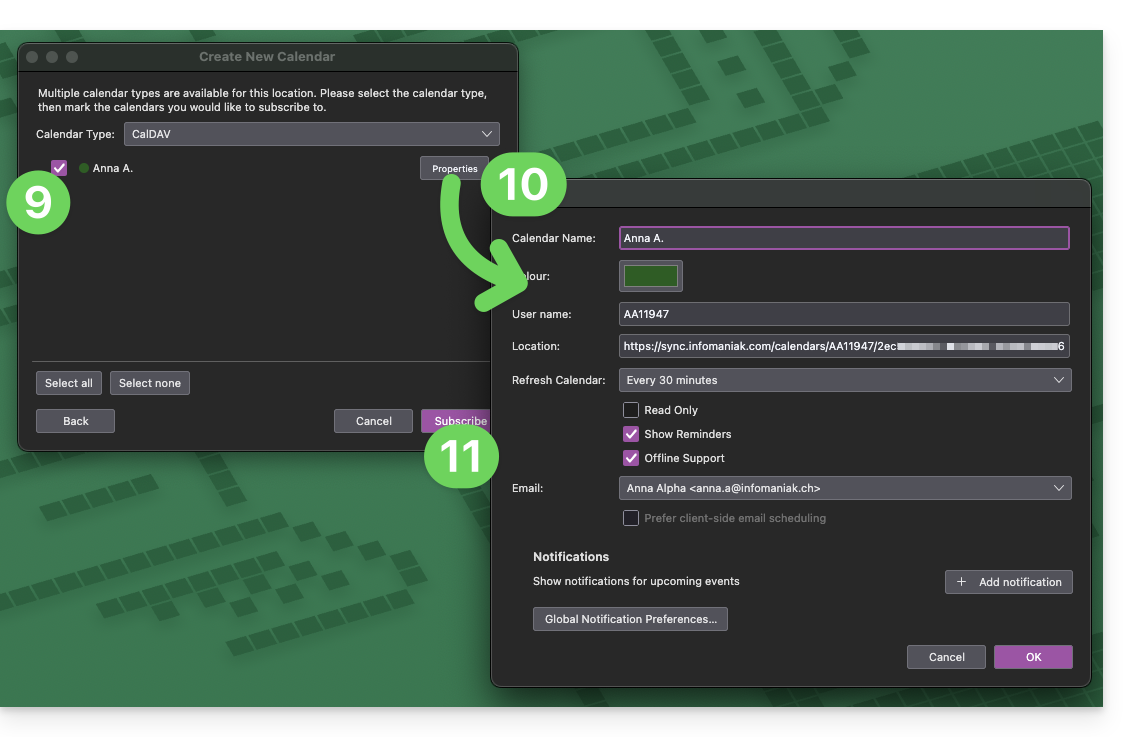
Refer to this other guide if you need to troubleshoot a configuration issue with Thunderbird (email, contacts, calendars)…
Link to this FAQ: https://faq.infomaniak.com/2046
Has this FAQ been helpful?
This guide explains how to access your e-mails hosted by Infomaniak.
Guides for Infomaniak Mail
Click here to open the Infomaniak wizard and configure synchronization on macOS, Windows, Linux, Android, and iOS for common email software/clients (Outlook, Microsoft 365, Thunderbird, Apple Mail, eM Client, etc.). It will allow you not only to obtain the recommended settings but also to create the IMAP/SMTP password required for your configuration.
Alternatively, use directly the email in a browser such as Brave, Chrome, Edge, Firefox, Opera, Safari… using the Infomaniak Mail web app (online service ksuite.infomaniak.com/mail) and/or download the Infomaniak Mail mobile app (application for iOS/Android smartphones or tablets).
Here are also guides for specific manual procedures:
| OS | Application to synchronize |
|---|---|
| Outlook New / Microsoft 365 MSO / 2019 (Windows) | |
| Outlook Microsoft 365 MSO (macOS) | |
| Apple Mail (configuration profile for macOS) | |
| Apple Mail (configuration profile for iOS: iPhone, iPad, etc.) | |
| Mail (Android: Huawei, Samsung, Sony, etc.) | |
| Outlook (iOS + Android) | |
| Gmail (iOS + Android) | |
| Mozilla Thunderbird |
For synchronizing your contacts & calendars, please refer to this other guide.
Recommended IMAP settings
Username = the complete email address (❓: help)
Password = the password generated for the email address you want to access (❓: help my kSuite | Mail/kSuite Service).
Incoming IMAP server = mail.infomaniak.com
IMAP port = 993 + SSL
Recommended SMTP settings
Username = the complete email address (❓: help)
Password = the password generated for the email address you want to access (❓: help my kSuite | Mail Service/kSuite).
Outgoing SMTP server = mail.infomaniak.com
SMTP port & encryption protocol and command/method to activate this protocol:
- Prioritize port
587+ STARTTLS: this is the official technical standard and the most compatible method with the majority of modern systems for authenticated submission. - Tolerate port
465+ SSL/TLS only as a compatibility option or alternative, specifying that this is implicit encryption, but that 587 remains the recommended choice.
Mandatory authentication for sending emails:
- It is activated in the SMTP settings of your application.
- Check "use the same settings as the incoming serverEnter your username (i.e., your full email address) and password, or as required by your email software/client.
In case of problems
Please check the following points:
- Make sure the Mail service is configured optimally (❓: help).
- Consult this other guide if you encounter errors, to check the essential points!
- Consult this other guide if you are looking for information about other email ports and protocols that are compatible.
- POP3 protocol not recommended (POP server = mail.infomaniak.com and POP port = 995 with SSL).
Change a mail password
Email passwords can be multiple, are unrelated to your Infomaniak login password, and can no longer be retrieved after their initial display. Therefore, you must (re)create them whenever you need them, specifying the device (computer, mobile, etc.) and/or the user concerned, so that you can manage them separately when you need to manage a specific connection.
Manage passwords:
Apply the new email password
If you have deleted an existing password to create a new one,You will need to update your applications & devices that used this password:
- Apple Mail (macOS / iOS)❓: help
- Android Mail / Gmail (various versions)❓: help
- Microsoft Outlook (various versions)❓: help
- Mozilla Thunderbird❓: help
You are not yet managing your emails with Infomaniak ❓: help
Link to this FAQ: https://faq.infomaniak.com/2427
Has this FAQ been helpful?
This guide explains how to access your Infomaniak address books and Infomaniak calendars from your devices.
Refer to this other guide if you are looking for information on synchronizing your emails.
Introduction
- The web app Contacts (management of your Infomaniak address books for all your professional and personal contacts) and the web app Calendar (management of your Infomaniak calendars for all your events and appointments) can be synchronized so that their content (hosted on Infomaniak servers) appears on your personal devices.
- If your current contacts and calendars are not yet managed within these Infomaniak applications, you will need to import your data beforehand so that synchronization can function properly.
- The suggested calendars can also be synchronized with your mobile and desktop devices.
- The birthday calendar (a calendar that displays the birthdays of your contacts when the date is entered in their address book entry) is only visible through the web app and cannot be synchronized with CalDAV tools.
Synchronize contacts & calendars (CardDAV/CalDAV)
Click here to open the Infomaniak wizard, which allows you to configure the synchronization of your devices (macOS, Windows, Linux, Android, iOS) and common software (Outlook, Microsoft 365, Thunderbird, Apple Mail, eM Client, etc.).
Specific guides
| OS | Application to synchronize |
| Outlook via CalDav Synchronizer (Windows) | |
| Contacts & Calendars (macOS) | |
| Contacts & Calendars (iOS: iPhone, iPad, etc.) | |
| Contacts & Calendars via kSync (Android: Huawei, Samsung, Sony, etc.) | |
| Google Calendar via kSync | |
| Mozilla Thunderbird |
You can alsoturn the Infomaniak Calendar or Contacts web app into an application to use on your device.
Link to this FAQ: https://faq.infomaniak.com/2432
Has this FAQ been helpful?
This guide explains how to, from a Mail service, reset or delete the passwords for a mail addressto disconnect a third-party application such as Outlook or Thunderbird.
Other access and management options are presented in the main guide.
Introduction
- Changing the password for an email address is equivalent to changing the IMAP / SMTP password:
- As soon as the password is changed, you must update your settings on Outlook, iPhone, etc. (❓: help) with the new password (this is your responsibility).
- If you cannot log in to Manager or Mail / kSuite, you will not be able to manage the passwords for any of your email addresses (❓: help).
Remove a password / device
Prerequisites
- You must have at least the right to manage the Mail service in question (❓: help).
To disconnect any current IMAP/POP/SMTP connections using a password generated in this interface, you can revoke a device, or even delete all existing configurations with a single click (this does not remove the address from Infomaniak Mail apps; to do this, you need to manage the users of the email address —❓: help):
- Click here to access the Mail Service management section in your Infomaniak Manager (❓: help).
- Click on the name of the Mail Service in question.
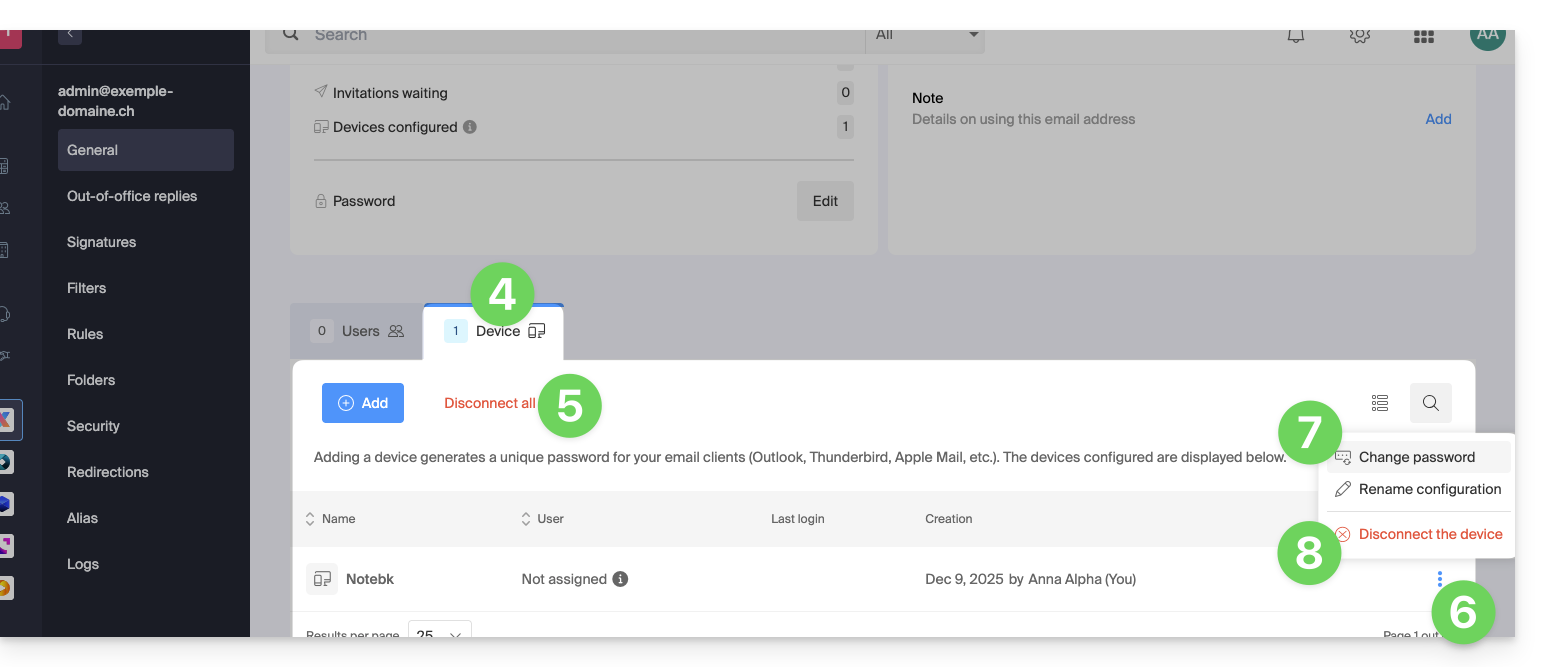
- Click on the email address in question in the table:
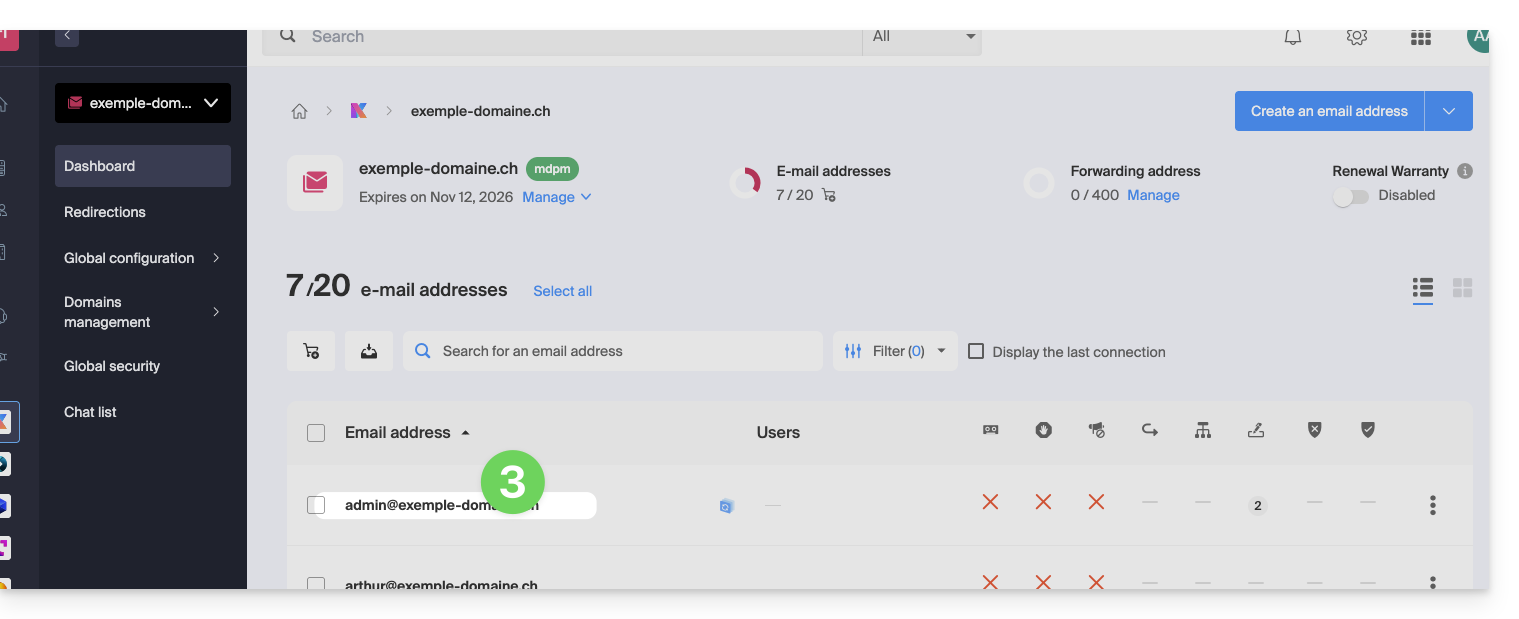
- Click on the Devices tab.
- Click on the red link to disconnect all registered devices (confirmation is required).
- Click on the action menu ⋮ located to the right of the device in question.
- Click on “Change password” to disconnect the current connection but allow the device to reconnect with a new password directly.
- Click on “Disconnect device” to remove it from the list and delete the corresponding connection:
What is a “generic” password?
Some email addresses may display a specific indication in the Devices section: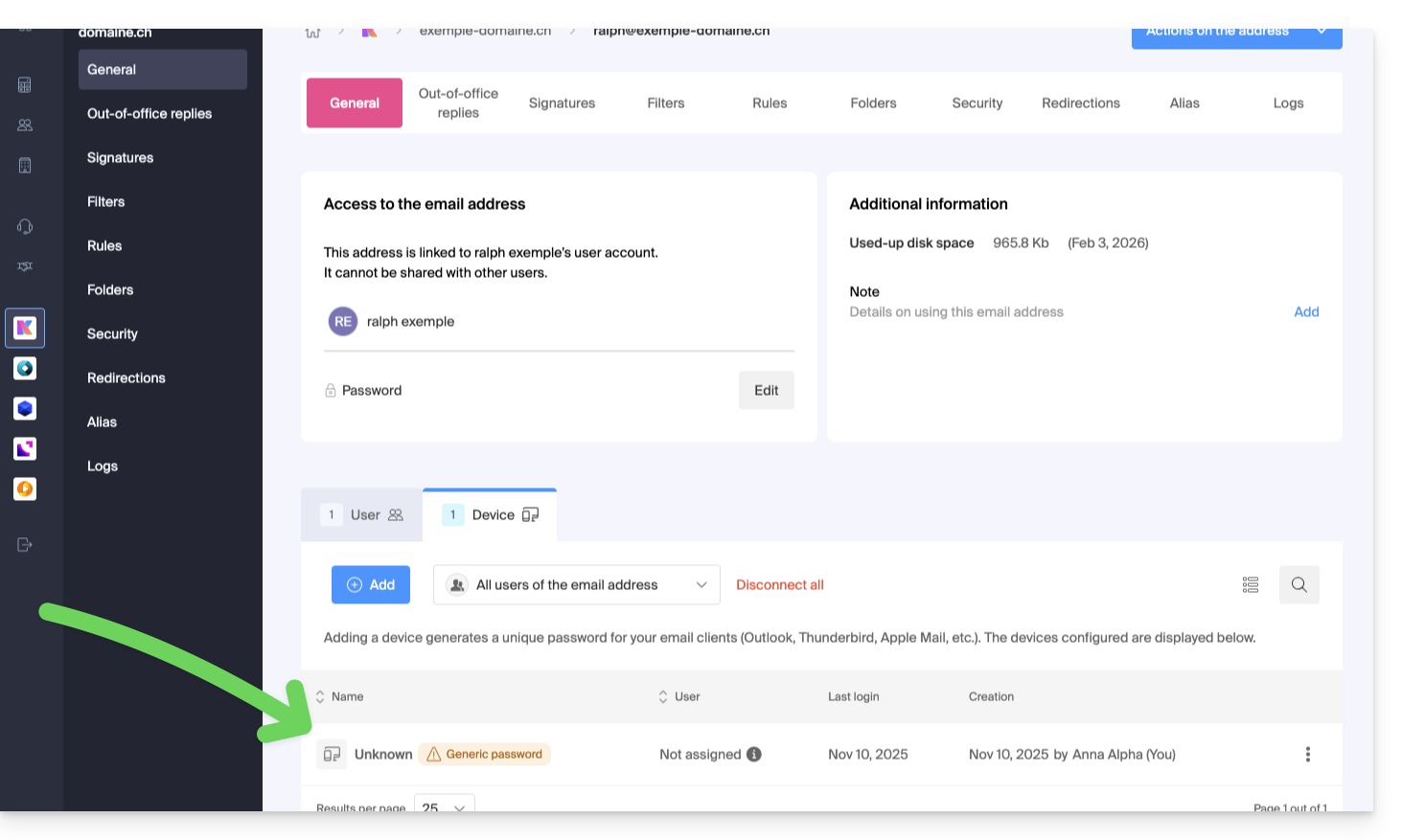
If this is the case, don't worry; it means that the address has a password assigned to it when it was created (prior to 2026). This password remains valid, but like other passwords, it cannot be displayed.And unlike other passwords, this one cannot be reset (the option is grayed out, disabled):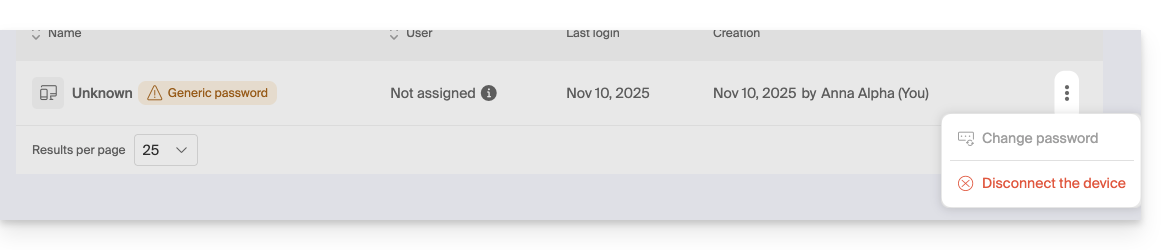
In this case, you can easily add an additional password (❓: help).
Link to this FAQ: https://faq.infomaniak.com/1736
Has this FAQ been helpful?
This guide details the two main types of identifiers. They are distinct, even if the address format may be identical.
Infomaniak Account vs. Email Address
Here is a summary of these 2 types of identifier:
| Type of identifier | Usage | Where to use it | Associated password |
|---|---|---|---|
| Infomaniak account (login ID) | Access all of your Infomaniak services. | Connect to: | Password set during user account creation. ⚠️ Different from the password for your email addresses. |
| Email address hosted with Infomaniak | Send and receive emails. | Connect via SMTP/IMAP…
| Password specific to each email address (there may be several). ⚠️ Different from your Infomaniak account password. |
What to do if you have connection problems?
There is no need to contact Infomaniak Support (which does not have access to any of your passwords)...
- Having an issue with your Infomaniak account? Reset your account password.
- Having trouble with your email address? Reset your email password.
Explanation
- As with many other online services, you registered with Infomaniak using a personal email address.
- This personal email address serves as your login ID when you want to access Infomaniak services.
- This login ID has its own password (defined when creating your Infomaniak user account – your personal email address, see above).
There is no connection between…
- … this username/password combination described in points 1/2/3 above…
- … and the email addresses you created or obtained from Infomaniak.
A link may exist if the address is identical (for example, you registered with the email address toto@abc.xyz and you also manage this same email address with Infomaniak), but even in this case, the password will most likely be different – once for the login ID toto@abc.xyz and once for the email address toto@abc.xyz.
Other login IDs?
Acquiring other Infomaniak products involves obtaining other credentials, such as those required for FTP, MySQL, SSH connections, etc., but these credentials are entirely independent of the two types described above.
Link to this FAQ: https://faq.infomaniak.com/1980
Has this FAQ been helpful?
This guide explains which protocols and ports can be used with Infomaniak's email services (including the Mail Service).
Recommended ports and settings for client configuration
When prompted during the configuration of software/email client (Outlook, Thunderbird, mobile, etc.), use the settings below.
Settings common to all accounts
- Server name:
mail.infomaniak.com - Authentication: required (username = full email address)
| Protocol / Usage | Port | Security mechanism |
|---|---|---|
| IMAPs – incoming traffic (recommended) | 993 | SSL / TLS (implicit) |
| SMTP – outbound traffic (option 1: standard IETF) | 587 | STARTTLS (explicit) |
| SMTPs – outgoing traffic (option 2: implicit encryption) | 465 | SSL / TLS (implicit) |
Technical note: port 587 with STARTTLS is the IETF standard practice for secure email submission. Port 465 is a secure alternative using implicit encryption.
If you specify other settings or disable encryption, email errors may occur.
Other supported ports (unencrypted or for backward compatibility)
Alternative ports:
- Port
143: standard port for IMAP reception (unencrypted, use993instead). - Port
110: standard port for POP3 reception (unencrypted, use995instead). - Port
995: secure port for POP3s reception (secure POP3 option). - Port
25: standard port for server-to-server transfer (can support STARTTLS for submission, but port587remains the standard for clients).
Authentication and encryption compatibility:
- STARTTLS authentication is supported on unencrypted ports (
143,110,25) to enable TLS encryption. - SMTP authentication is supported via the LOGIN or PLAIN methods.
Using the API and securing transfers
The Infomaniak API does not offer direct connections to the email service, as IMAP and SMTP already serve as interfaces ("APIs"). To interact with the email service programmatically, use a dedicated library (for example, in Python: email.examples and imaplib).
Example of how to display emails from PHP:imap_open("{mail.infomaniak.com:993/imap/ssl}", $email, $password);
The MTA-STS mechanism is not implemented or verified; Infomaniak uses DANE (DNS-based Authentication of Named Entities) instead to guarantee an encrypted connection between servers when the following conditions are met:
- The client sends an email to a domain that has configured DANE.
- The client receives an email from an SMTP server that uses DANE.
In all other cases (in the absence of DANE), the encrypted connection remains opportunistic.
Link to this FAQ: https://faq.infomaniak.com/468
Has this FAQ been helpful?
This guide helps you identify and resolve issues related to setting up and using a DMARC policy. If you use Google, please refer to this dedicated guide.
Prerequisites
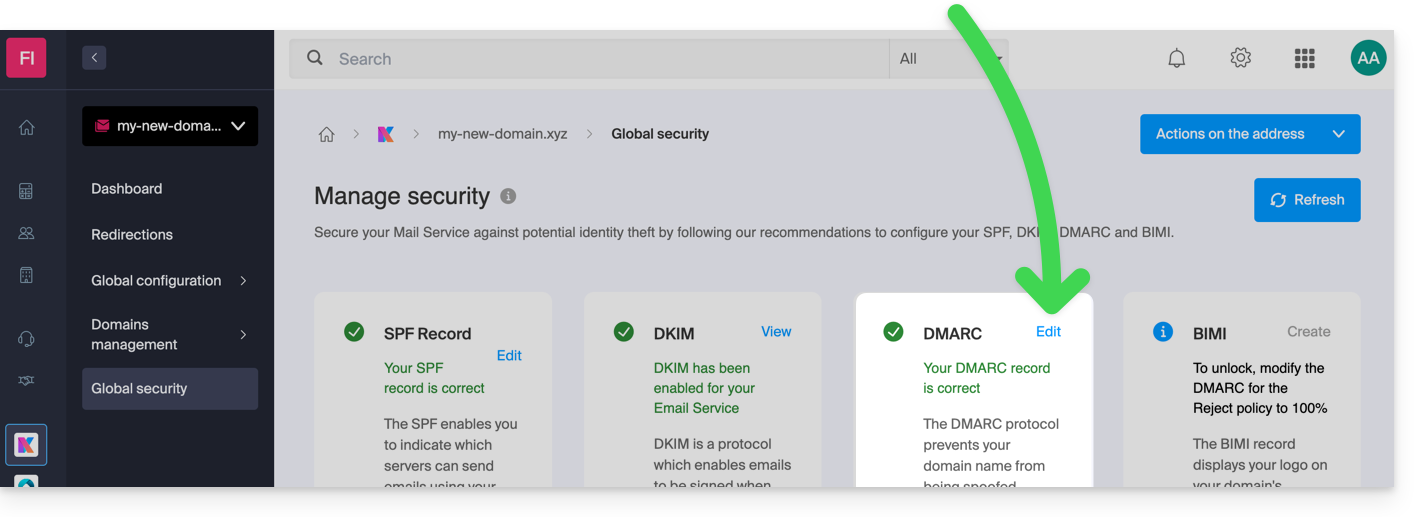
- Check the overall security of your Mail Service (❓: help) to ensure that SPF and DKIM are green, i.e. enabled and correctly aligned for your domain.
- Add the third element in the same location: DMARC:
"Message lacks SPF/DKIM/DMARC Auth Records" rejection
Providers like Microsoft have strengthened their security requirements for incoming messages. If your domain does not have a DMARC record, your emails will be rejected with the error Message rejected: Message lacks SPF/DKIM/DMARC Auth Records (AS9031519)…
Thanks to the Global Security feature available in your Mail service, easily add a DMARC record to your domain's DNS zone (❓: help).
General DMARC errors or rejections
...related to an email that does not use any SPF or DKIM mechanism
DMARC requires that at least one of the two mechanisms (SPF or DKIM) be valid and aligned with the sender's visible domain. If you send an email from your Infomaniak address via the SMTP server of another provider, the check may fail.
To resolve this issue:
- Check the overall security (❓: help) of your Mail service.
- Use Infomaniak's official SMTP servers for sending emails (❓: help).
- If you are using an external service, configure SPF and DKIM correctly for that service.
...related to an incorrect DNS DMARC entry
The DMARC record must be unique and published on the subdomain _dmarc.
- Syntax error: check the semicolons and tags (e.g.
v=DMARC1; p=none;). - Multiple records: a domain should only have one TXT DMARC record.
Test your configuration with a dedicated tool like MXToolbox (❓: help) or DMARC Advisor (❓: help).
...during an email redirection (SPF error)
When an email is redirected without the SRS (Sender Rewriting Scheme) mechanism, the SPF check may fail on the destination server.
At Infomaniak: All redirects automatically include the SRS protocol to rewrite the envelope address and preserve the validity of the transmission. If you are redirecting from another hosting provider to Infomaniak, ensure that the original provider manages SRS.
Special cases and best practices
I'm sending emails from my Infomaniak address, but I'm receiving a "Reject DMARC" error.
- Check the overall security (❓: help) of your Mail service.
- Perform a test send from the Infomaniak Mail app.
- If this method works, the problem lies in the SMTP settings of your email software (Outlook, Thunderbird, mobile): check your server settings (❓: help).
Messages from a new domain are ending up in spam
A new domain lacks reputation history (❓: help). First, send a moderate volume of legitimate messages and ensure that SPF, DKIM, and DMARC are perfectly configured to build your domain's reputation with providers.
I want to receive an email, but the external sender is experiencing a DMARC error.
The blocking is due to the sender's domain configuration. You cannot fix this from your Infomaniak inbox. Ask the sender to forward the complete error message to their own administrator or email hosting provider.
Link to this FAQ: https://faq.infomaniak.com/1704
Has this FAQ been helpful?
This guide helps you identify and correct errors encountered when using your software or email client(Microsoft Outlook, Mozilla Thunderbird, Apple Mail, etc.).
For an error returned after sending (delivery errors of the type Mailer Daemon or Mail Delivery Subsystem, please refer to this other guide.
1. Configuration and essential settings
Unique server name
Enter mail.infomaniak.com exclusively for the incoming (IMAP) and outgoing (SMTP) servers.
Network ports
Configure the recommended incoming and outgoing port numbers.
Email address password
Enter the password for your email address. It is different from the password for your Infomaniak customer account (if necessary, you can add or change the password for your email address). Pay particular attention to the special character $.
SMTP Authentication
Enable authentication in the sending settings of your software. Enter your complete email address as the username and its password.
Valid email address
Make sure that the address used has actually been created in your Manager (or defined as an alias).
Protocol selection
Use the same protocol on all your devices. Do not mix POP3 and IMAP for the same mailbox, as these two protocols do not work well together.
2. Recommended troubleshooting steps
Check the configuration
Compare your current settings with the recommended settings for your software, especially if you have just changed your password.
Try a different network
Try retrieving your emails from a different internet connection (Wi-Fi, 4G/5G hotspot, etc.).
Temporarily disable security applications
Briefly disable your antivirus, firewall, or VPN. If the email service works again, contact the software vendor.
Check your password entry
Enter your password in plain text in a text editor. Depending on your keyboard layout (AZERTY / QWERTY), the A key may correspond to the letter Z and the Q key to the letter A.
Restart the email software
Close and restart your application before attempting another Send / Receive operation. Some software requires a restart to apply the new settings.
Compose a new test message
Do not reuse an existing draft. A message saved in the Drafts folder before you modified your settings may retain the old, problematic configuration.
3. Troubleshooting common errors
Errors of the type 0x800... (Outlook)
Refer to the guide to resolving 0x800 errors.
Certificate error (SSL / TLS)
Consult the dedicated guide on certificate errors.
550 5.7.1 relaying denied or Proper authentication required errors
Read the guide on relay and authentication errors.
535 5.7.0 authentication failed error
Please refer to the guide on authentication failure.
Timeouts and Port 25 Blocking
Observed messages: "573 Antispam: Authenticated connection not possible. Please use port 587 instead of port 25.", "An operation on the server timed out" or "the timeout period has expired" (errors 421, 573, etc.).
Solution: Never specify port 25 as the SMTP port, as most Internet Service Providers (ISPs) block it. To send emails without being blocked, use the recommended ports (such as port 587 or 465).
Link to this FAQ: https://faq.infomaniak.com/2218
Has this FAQ been helpful?
This guide explains how to create and manage the passwords for an email address from within the Mail service, allowing you to access it using a third-party application such as Outlook or Thunderbird.
Other access and management options are presented in the main guide. If you are a my kSuite user, please refer to this other guide.
Prerequisites
- Order a Mail service from Infomaniak (❓: help).
- You must have at least the right to manage the Mail service in question (❓: help).
- Create one or more addresses on this Mail service (❓: help).
Generate an email address password
To add a password to the example address demonstration@exemple-domaine.ch:
- Enter your Infomaniak account login ID and password on the page https://manager.infomaniak.com/:
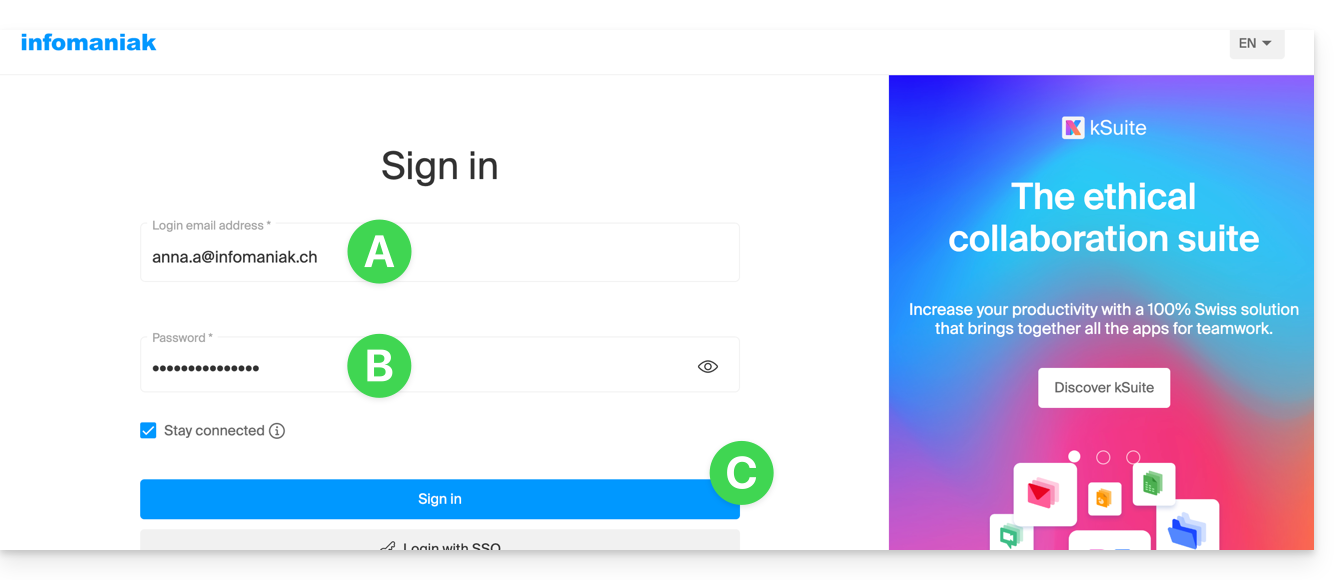
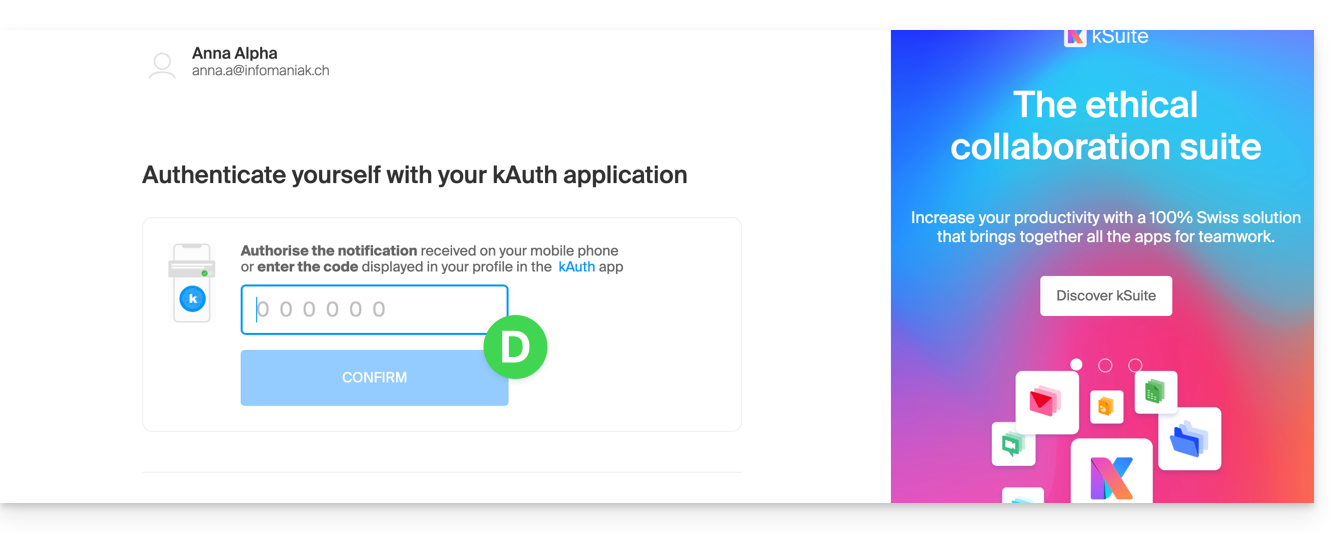
- Confirm the login on the Manager using the 2FA (two-factor authentication) method you initially set up:
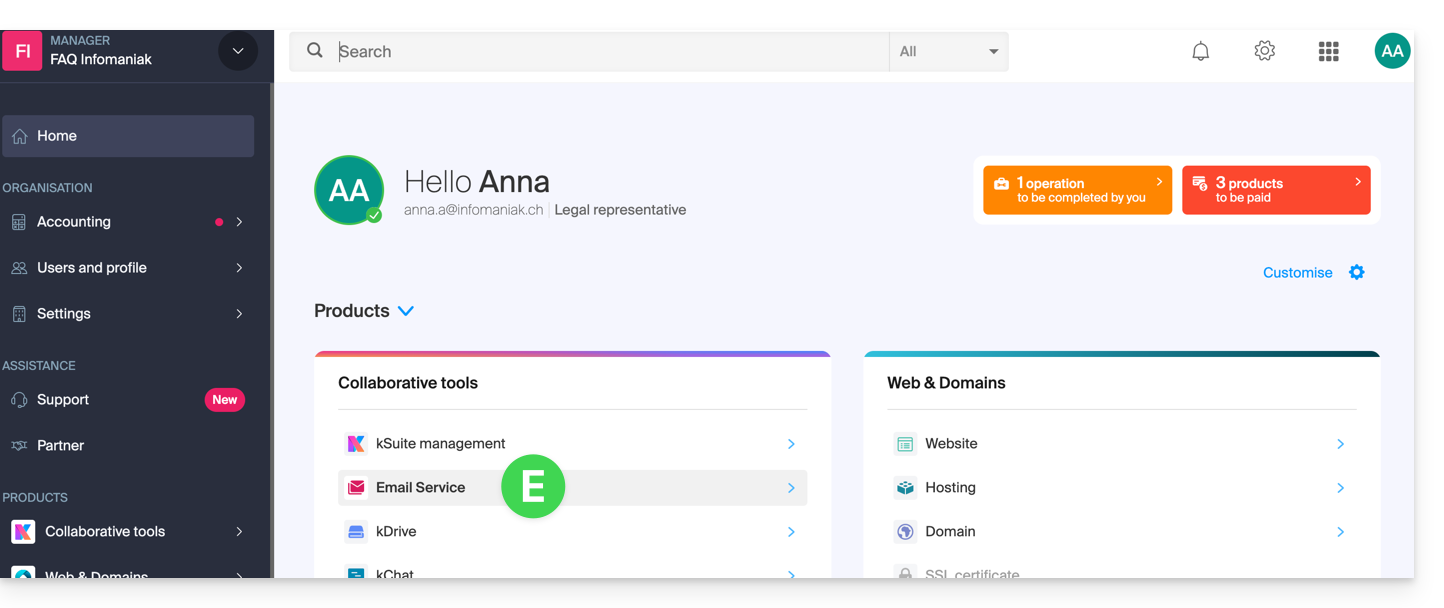
- Once on the dashboard, click on Mail Service:
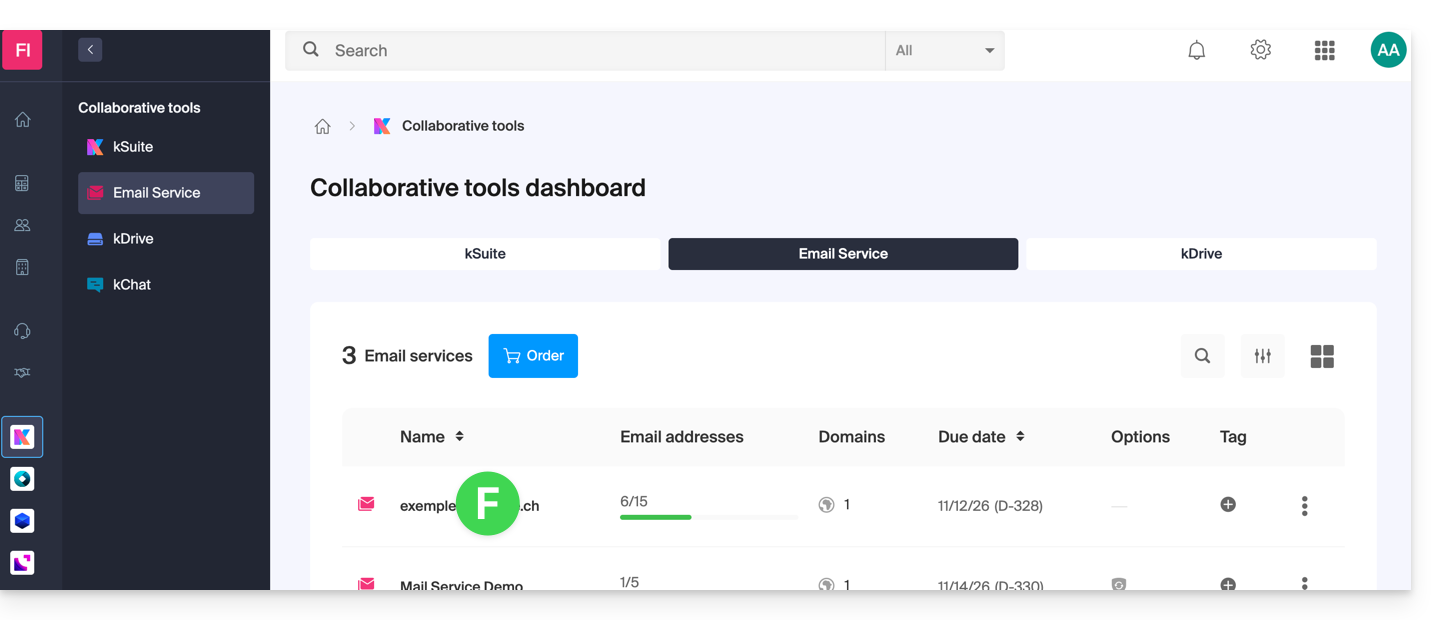
- Once on your Mail Services page, click on the name / domain name to which the email address in question belongs:
- Once you are on the Mail service to which the address belongs, click on the email address in question:
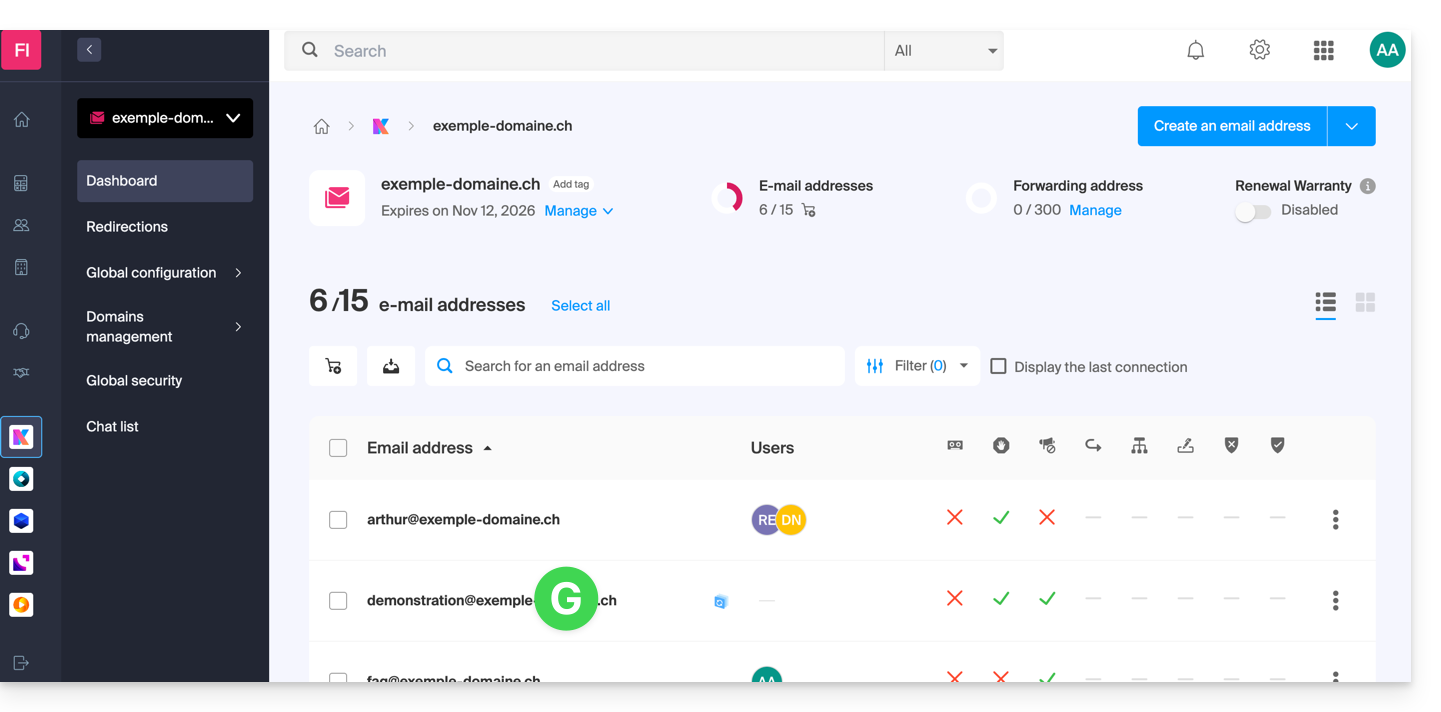
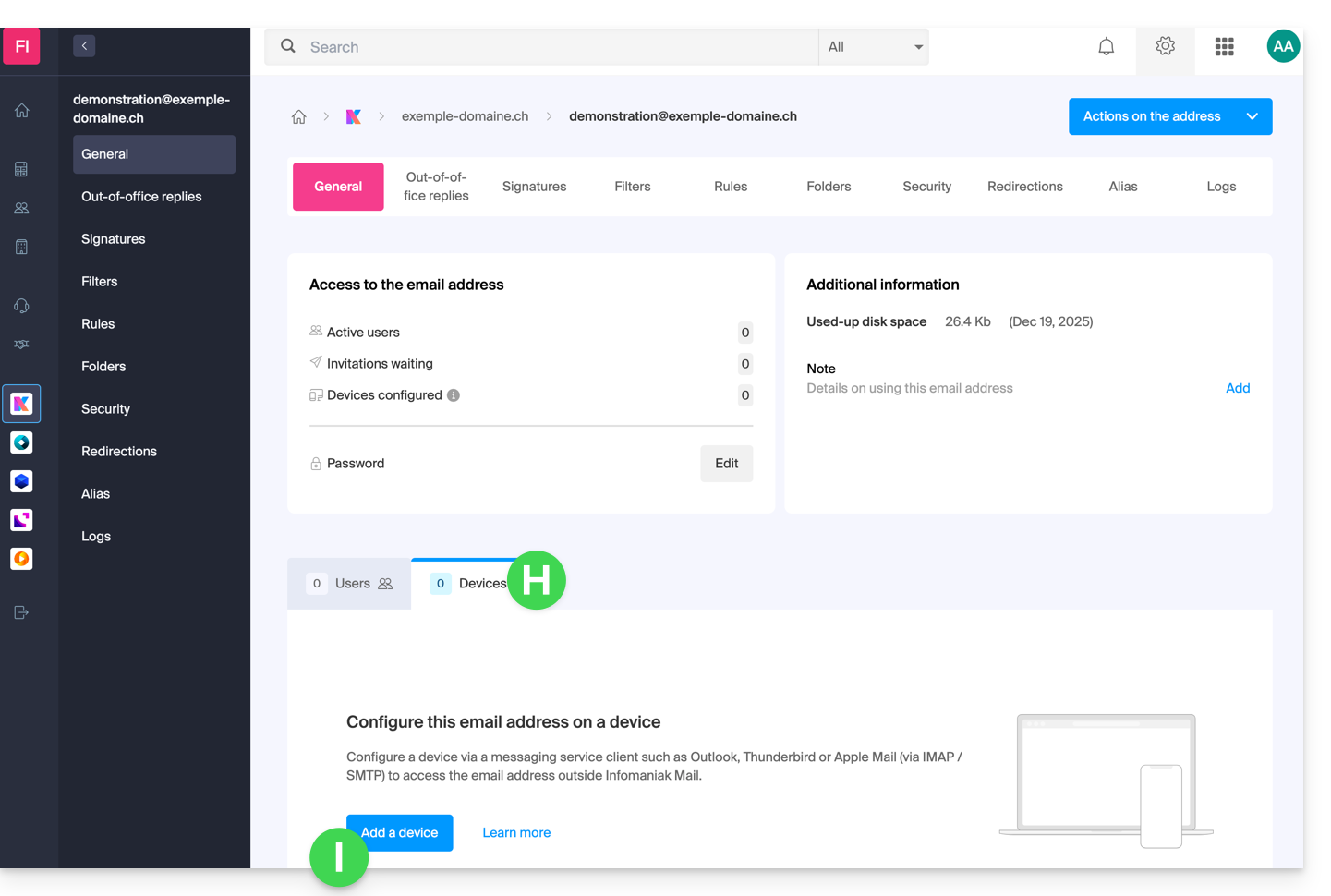
- Once you are on the email address in question, click on the Devices tab, then click on Add a device:
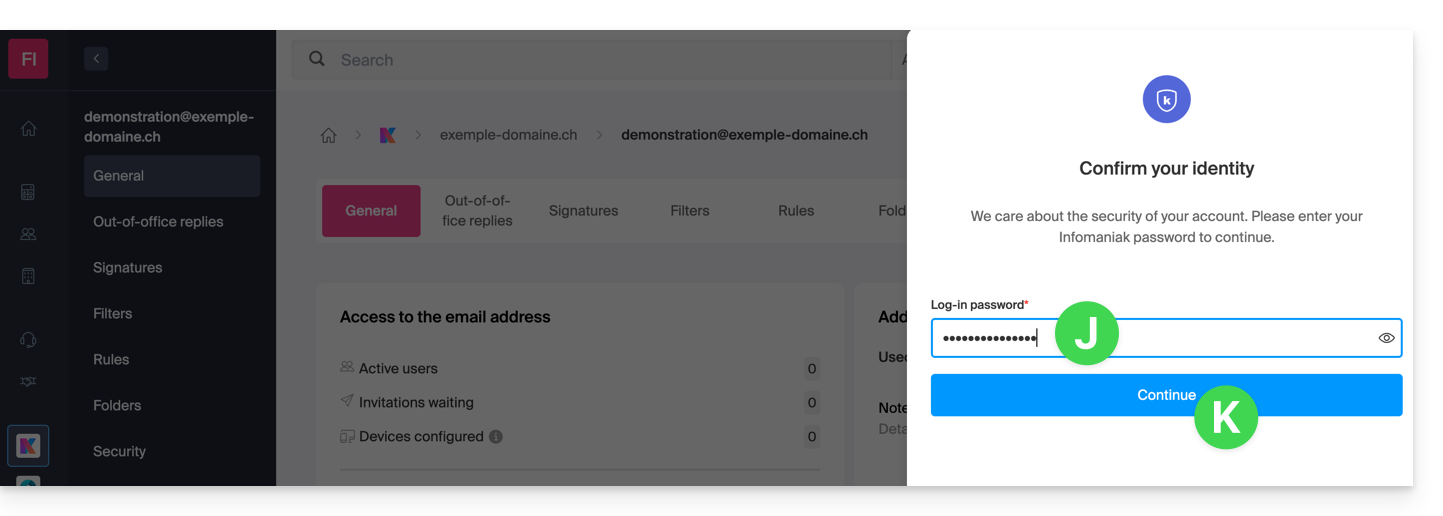
- At this stage, you may need to re-enter your login password (the one from step B above):
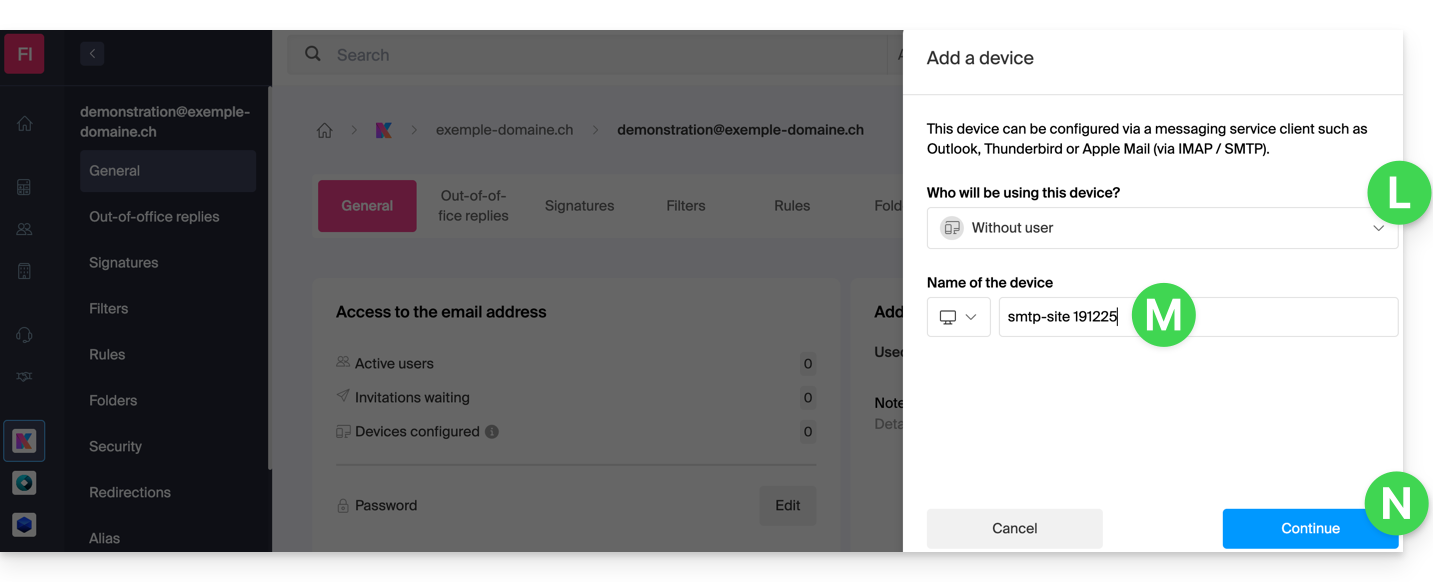
- Then, choose not to specify a particular user ("No user").
- Specifying a user, however, allows you to link any SMTP restriction for that user (❓: help) to their connected devices, in addition to simply removing their sending rights within the Infomaniak ecosystem.
- Enter a descriptive name that will help you identify the reason why you created this device(here, the user needs a password to be able to send emails from a website, and they add the current date as useful information):
- There you go: the new password is displayed, and you can change the characters (minimum 16) if necessary.Please note that it will not be possible to display it again later.).
- Save it at the bottom of the page to use it as you see fit:
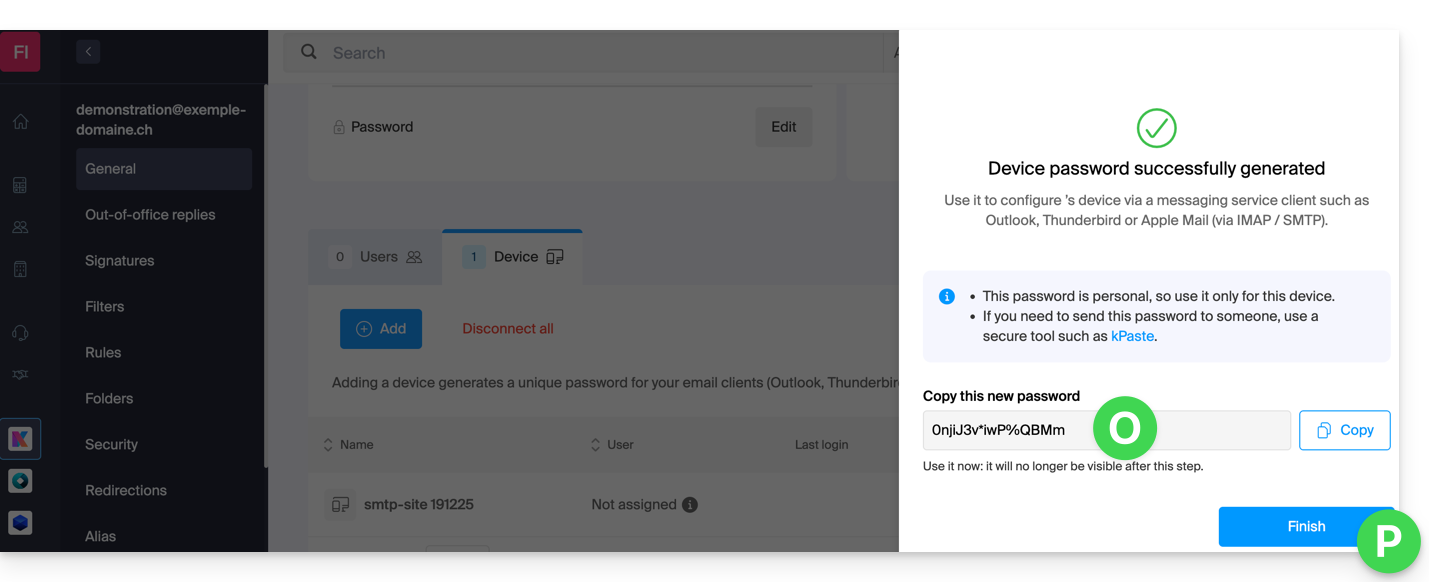
Did you click the “Finish” button (above, “P”) without noting the password? No problem, you can modify or regenerate a new one!
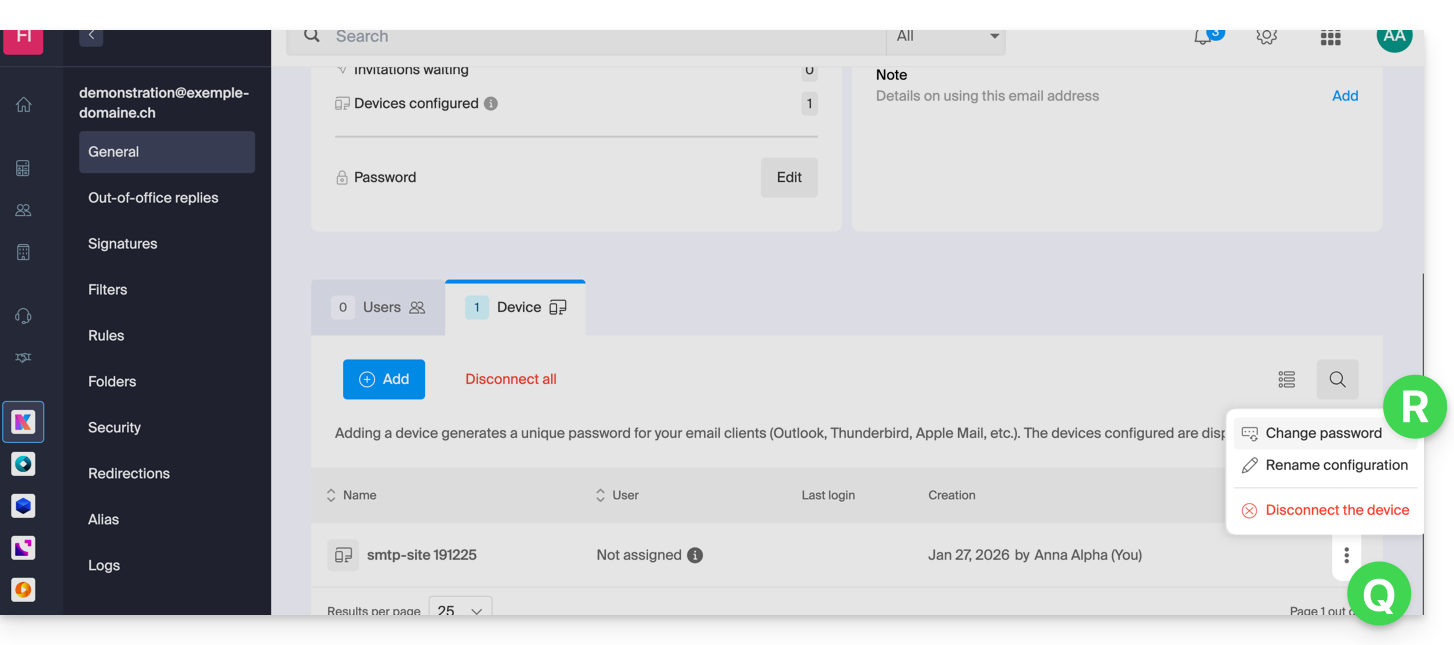
- Click on the action menu ⋮ located to the right of the device you just created and click on Change password:
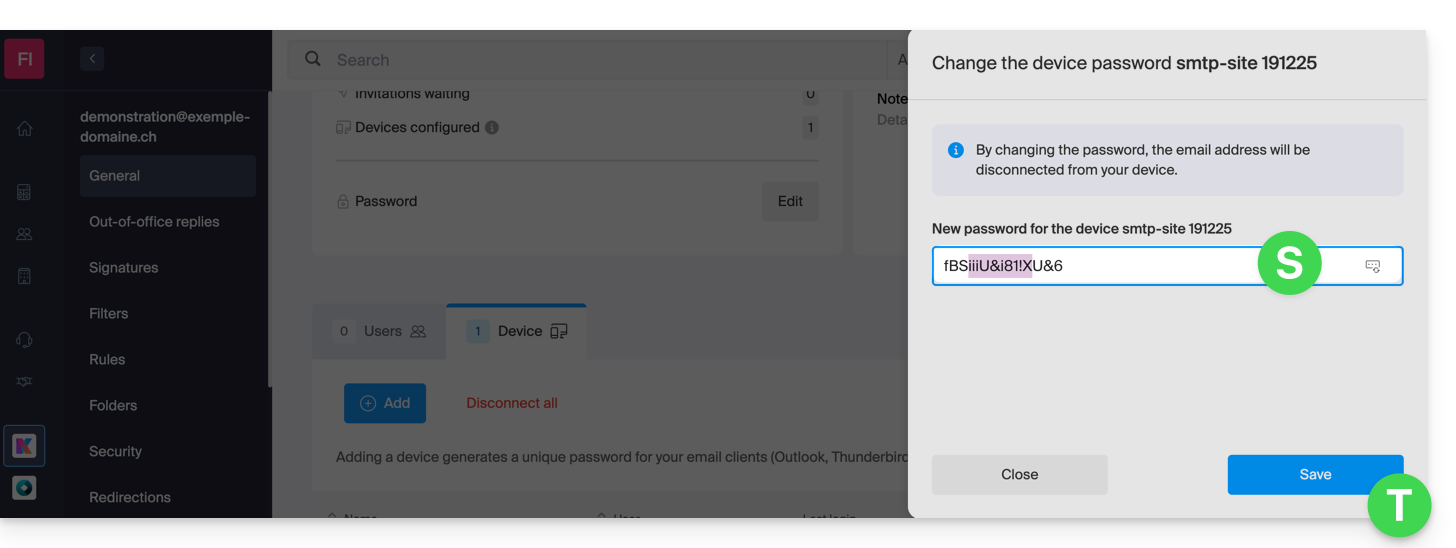
- Click the button on the far right of the field to generate a new random password and/or enter the secure characters you want to use (minimum 16) for the new password, then click the button to save the change:
- The new password, which replaces the old one, is now displayed permanently. You can enter it on your device(s) to replace the previous password (note that it will not be possible to display it again later).
Do you need a password for a secondary, temporary user? No problem, generate a second one!
- Click the button to Add a new additional device:
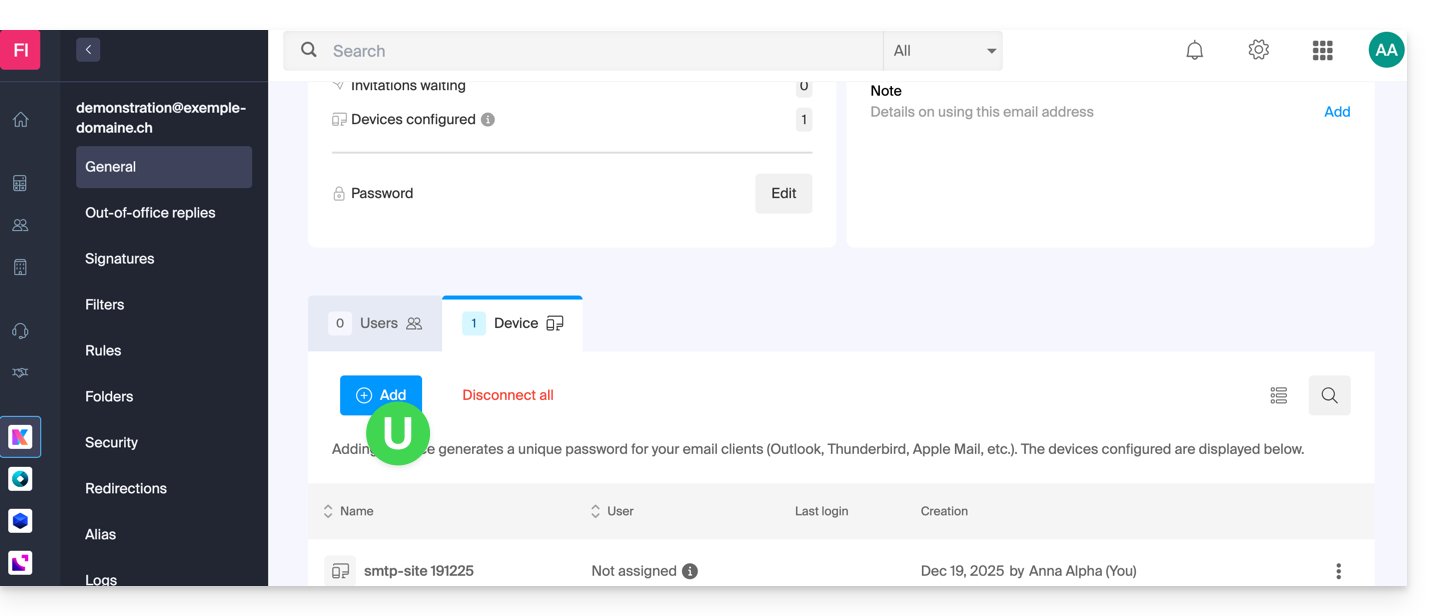
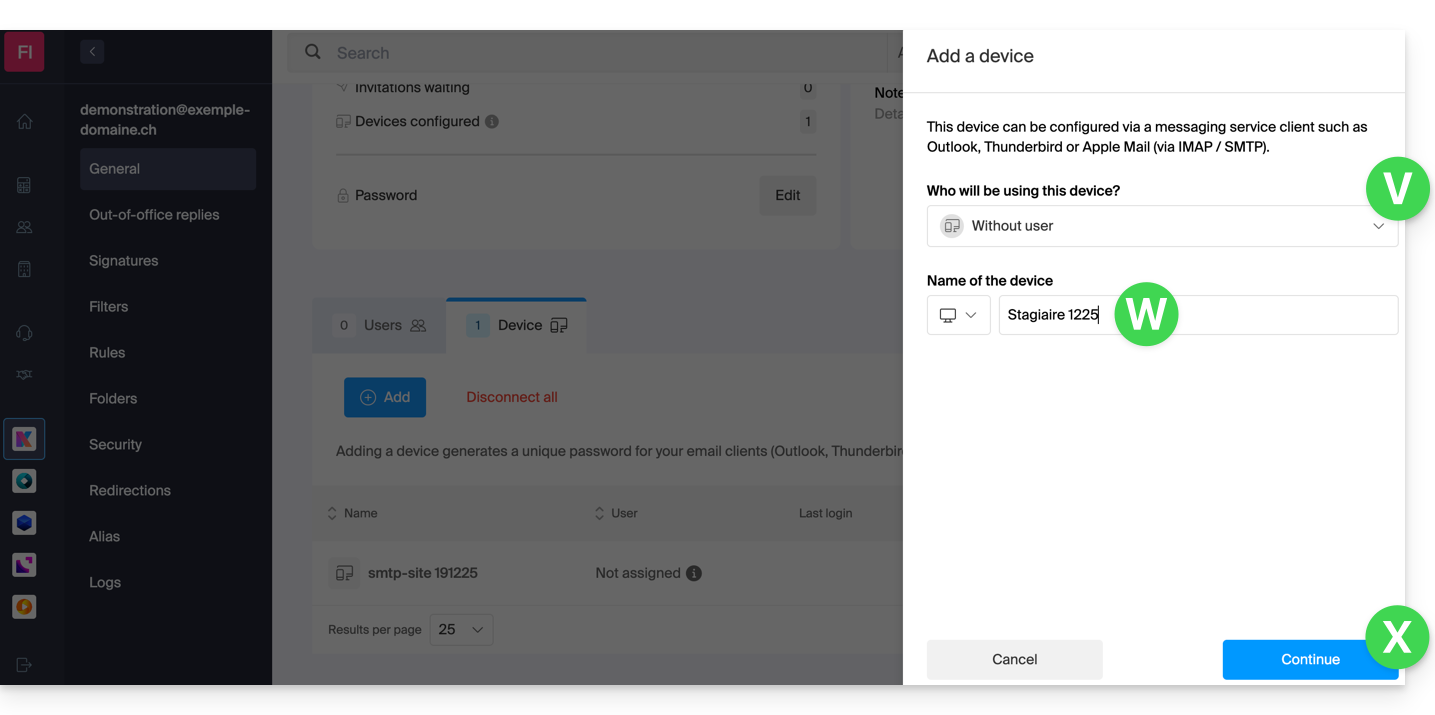
- Then, choose not to specify a particular user, and enter a name that will allow you to identify the reason why you created this device (here, the user needs a password for a one-week intern):
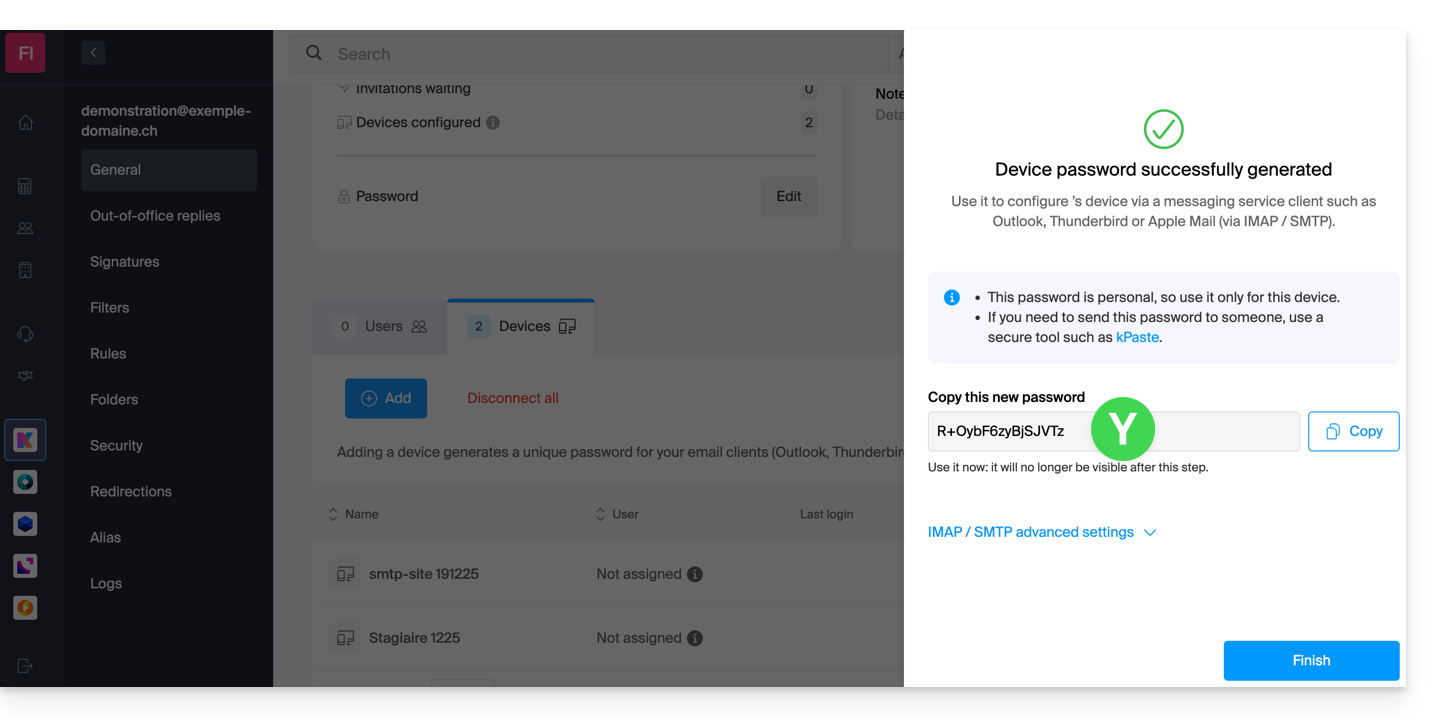
- The password is now displayed, and you can use it for your intended purpose (please note that it will not be possible to display it again; however, as before, it will of course be possible to modify it or generate a new one):
Alternative: create a password for a user
Instead of creating a password yourself and then having to communicate it to the user, you can directly allow a user with fewer permissions than you to obtain the password for the device they need:
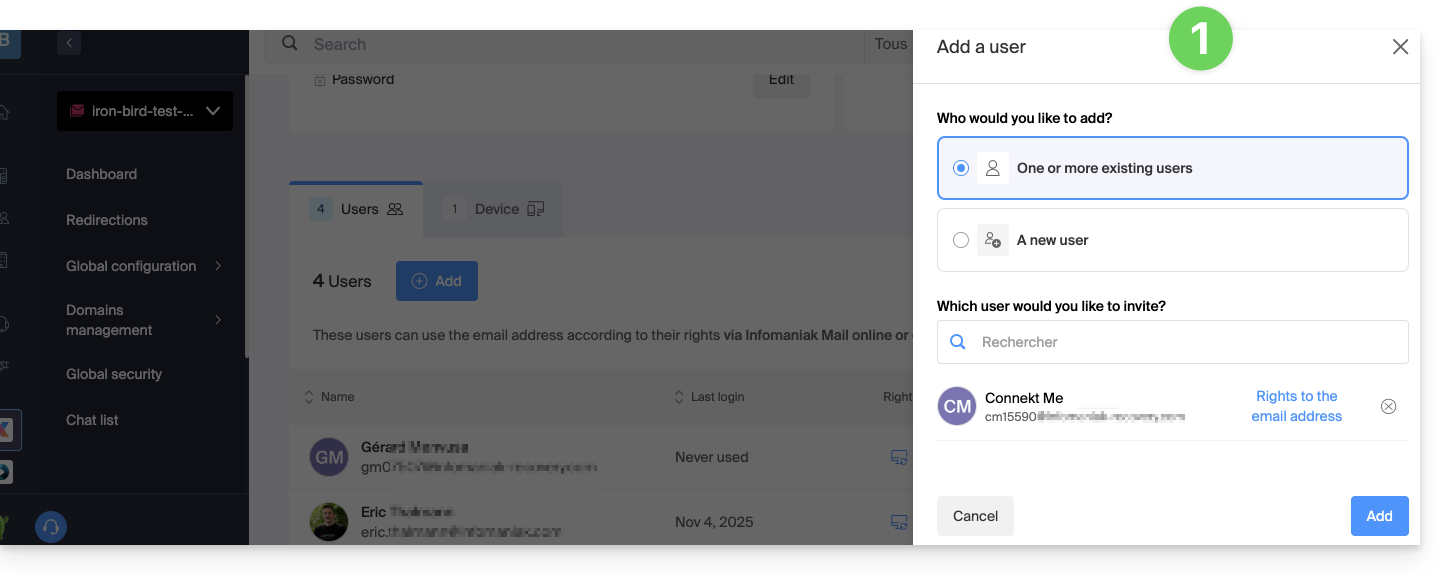
- Add the new user (whether they already exist in the Organization or not) (❓: help):
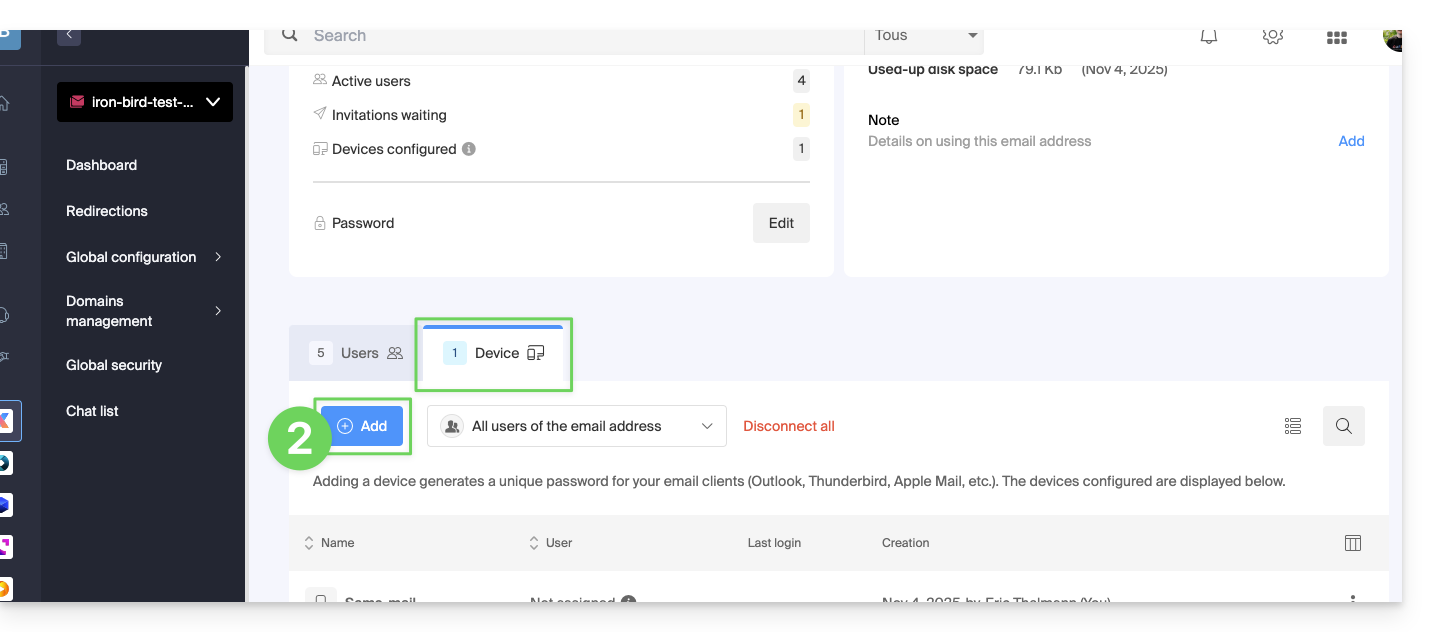
- Once the user has been added, switch to the devices tab to add a new device:
- If necessary, enter the password to log in to your Infomaniak account, then select the user created in step 1.
- Click on the first option to send a configuration assistant to the user's device.
- Click on the Continue button:
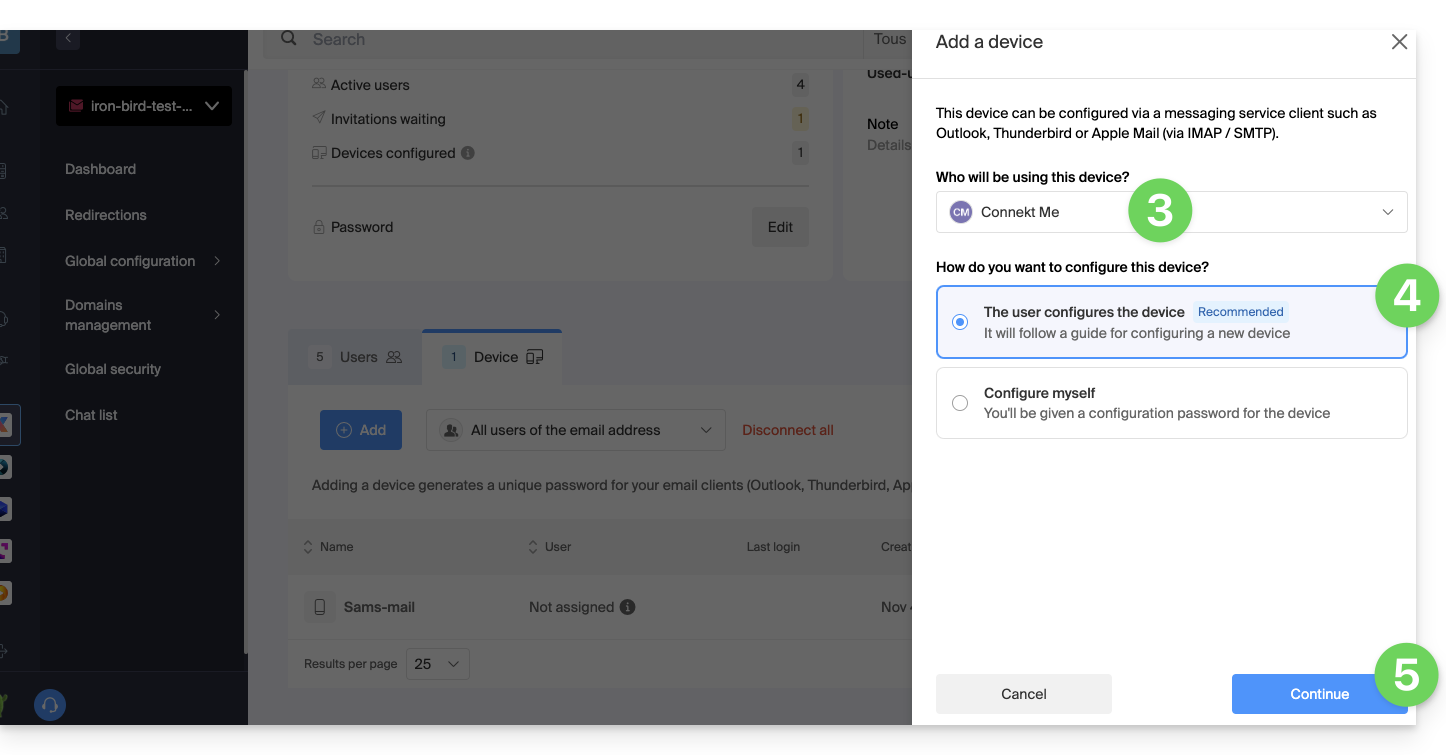
- Copy the invitation link, which is valid for 30 days, and send it to the user.
- If necessary, send the invitation to the user's email address:
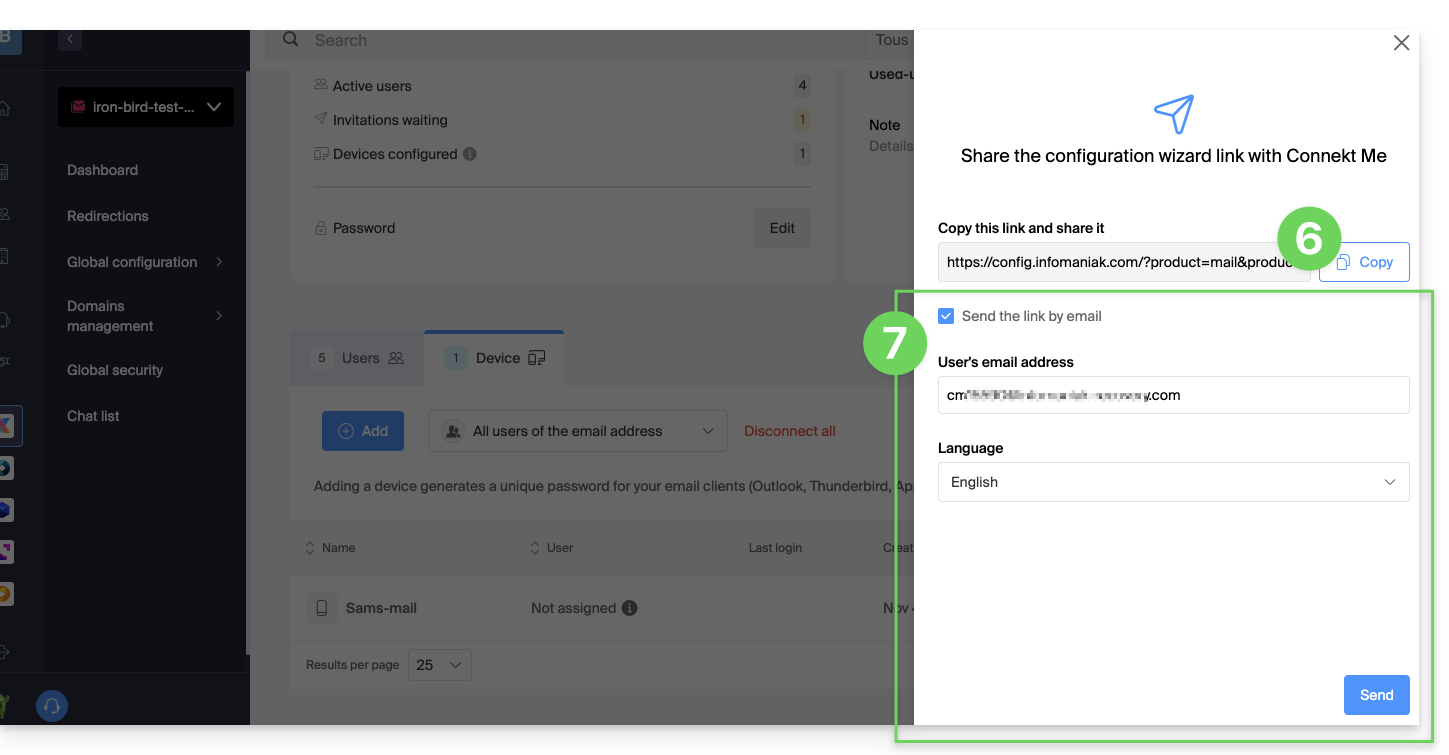
In step 4 above, you can also choose to generate a password:
- The password you created will be displayed; you can modify it one last time, copy it, and store it securely (e.g., in a password manager); it will no longer be possible to display it afterward.
Modify or remove an existing password
When access is no longer needed, revoke only the password in question (❓: help): other access to the email address remains active.
Link to this FAQ: https://faq.infomaniak.com/1321
Has this FAQ been helpful?
This guide explains how to display the folders in your Infomaniak email account using an email client, via the IMAP protocol.
Introduction
- The various default folders are created by Mail Infomaniak during the very first connection to the interface.
- Therefore, some IMAP email software/clients may not display any folders if no connection has been made beforehand in Mail.
- Even if they are present in Mail, some folders may not appear in your email software/clientconfigured in IMAP.
Force synchronization of IMAP folders…
… on Microsoft Outlook
In some cases, after configuring an Infomaniak address in the Outlook email client, certain folders may not appear. In this case, it is necessary to check the synchronization with subscribed folders in Outlook:
- Start the Outlook software on your computer.
- Under your Infomaniak email address, without selecting it first, right-click on the inbox folder.
- Select IMAP Folders from the menu that appears:

- If the IMAP Folders item is not present, deselect the address beforehand.
- If the IMAP Folders item is not present, deselect the address beforehand.
- Disable the
Only display subscribed folders when displaying the hierarchy in Outlookoption by unchecking the box: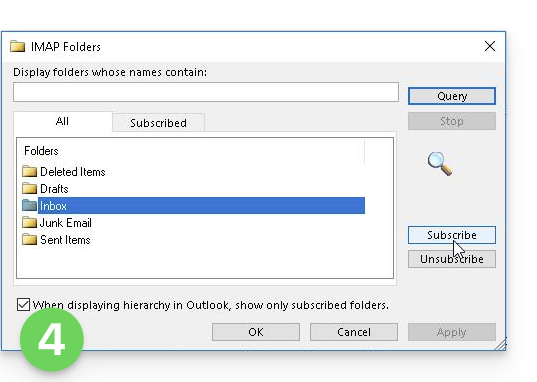
- Click Apply.
Depending on the version, the menu may be located here: 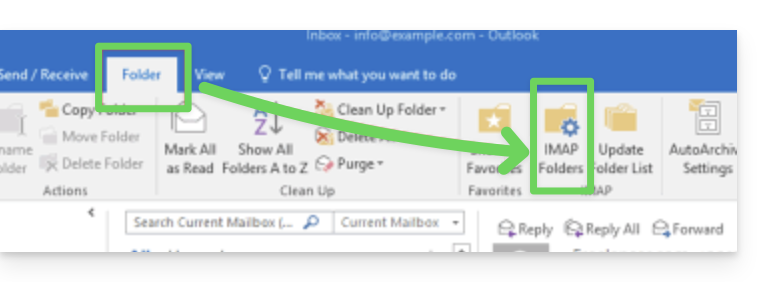
or here: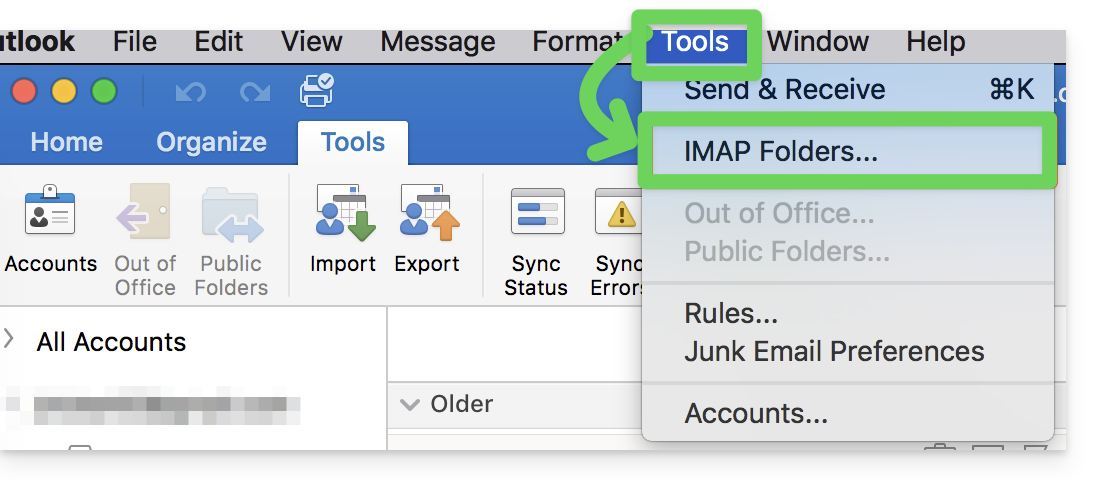
…on Thunderbird
In some cases, after configuring an Infomaniak address in the Thunderbird email client, certain folders may not appear. In this case, you need to manually check these folders from the subscription menu in Thunderbird:
- Start the Thunderbird software on your computer.
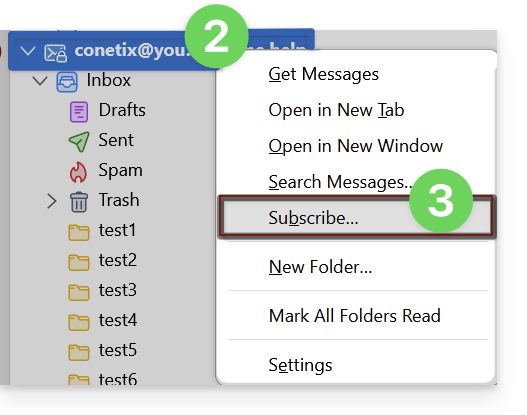
- Right-click on the Infomaniak address in question.
- Select the Subscribe menu:
- Check the missing folders.
- Click OK to confirm your selection.
… elsewhere
In your usual email software/client, find the term "IMAP folders" and/or "subscribe", "IMAP subscription", etc.
Modify synchronized folders
Refer to this other guide to change the location of certain default folders.
Link to this FAQ: https://faq.infomaniak.com/2586
Has this FAQ been helpful?
This guide explains how to sort emails currently present in your Infomaniak inbox or in subfolders, in order to quickly delete specific messages that follow the same structure, classify messages based on their subject or sender, etc.
Introduction
- Unlike the guide Sort incoming emails according to certain criteriaWhile the Infomaniak interface allows you to set up filters that will apply to all future incoming messages, the free Thunderbird software allows you to apply sorting rules to messages that have already arrived and are already present in an email account.
Quickly sort an email account using IMAP
To do this:
- Install and then open Thunderbird.
- Configure your Infomaniak email within the application.
- Open the Tools menu and click on Filters:

- Check the selected address and click on New...

- Configure the filter according to your preferences (here, the rule is that all messages with "ER" in the subject will be moved to the trash):

- Click on OK to return to the list of your filters, then click on Run now:

- The result is immediately visible, as the messages are moved to the trash and disappear from the window.
Link to this FAQ: https://faq.infomaniak.com/2799
Has this FAQ been helpful?
This guide explains how to download an email from the Infomaniak Mail web app (online service ksuite.infomaniak.com/mail) to obtain a .eml file on your hard drive, which is compatible with all email software/clients.
This operation cannot be performed on the Infomaniak Mail mobile app (application for iOS/Android smartphones or tablets), but please refer to the alternatives provided at the end of this guide.
Download an email
To save an email from the Infomaniak Mail web app (online service ksuite.infomaniak.com/mail):
- Click here to access your emails on your Infomaniak kSuite (❓: help).
- Open the message to download.
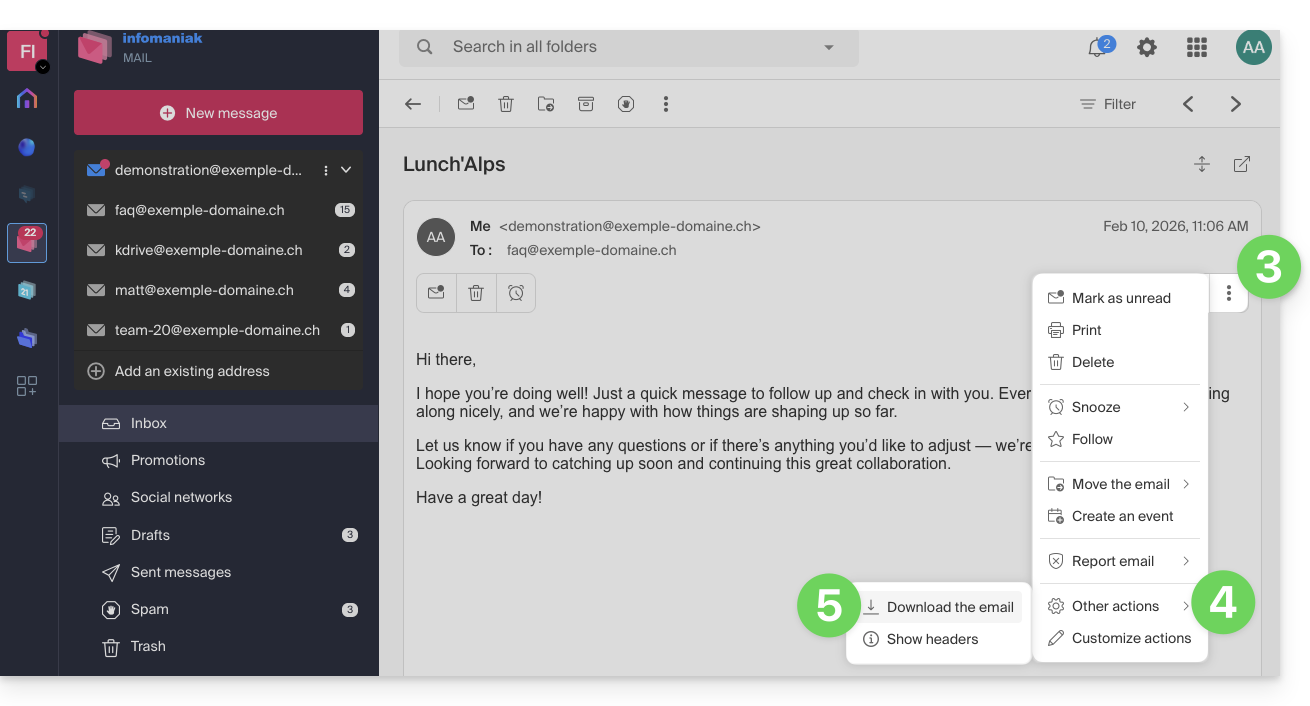
- Click on the action menu ⋮ to the right of the open email.
- Click on More actions.
- Select Download:
4 alternatives
- The Save As... function in an email client such as Thunderbird allows you to achieve the same result:
- Open the Thunderbird software.
- In the inbox, right-click on the message you want to save.
- Choose the location to save the
.emlfile.
- To print the message and choose PDF from the available printers, please refer to this other guide.
- To download the message to kDrive, please refer to this other guide.
- To share it publicly using a simple link, please refer to this other guide.
Link to this FAQ: https://faq.infomaniak.com/1718
Has this FAQ been helpful?
This guide explains how to export the content of an email address hosted by Infomaniak.
Introduction
- Infomaniak does not offer an export function (e.g., for
PSTfiles). - Infomaniak stores your emails for the entire duration of your contract, and depending on your plan, with integrated backups without size limits for normal use of a shared service, in accordance with Art. 1 of the Mail Service's specific terms and conditions.
- The manual export option below works on Windows: this allows you to back up your emails into a single archive that can be easily restored.
Manual Export
To export all messages contained in your email address hosted by Infomaniak:
- Install the free Thunderbird application.
- Configure the relevant email address using IMAP (to include subfolders).
- Make sure that all the desired content is present (synchronize the mailbox from the beginning - not just the last 30 days, for example).
Then…
- … or you can install the free BackupThunderbird application, which allows you to create an archive (encrypted if necessary) and restore it later…
- … or you can simply display Windows' hidden files, then find and back up this profile folder
C:\Users{USER}\AppData\Roaming\Thunderbird\Profiles{PROFIL_USER}\
because it contains all your email messages.
Download emails locally
Another solution (not recommended) could be to configure an email software/client by choosing to receive messages using the POP3 protocol, which will download the messages locally and only affect the inbox.
Link to this FAQ: https://faq.infomaniak.com/1167
Has this FAQ been helpful?
This guide explains how to update the password for an email address on your device after you have changed it from the Infomaniak Mail Service.
Enter the new password on Android
Gmail App (Android)
- Open the Gmail app.
- Tap the ☰ menu, then tap Settings.
- Select the relevant Infomaniak account.
- Tap Server settings.
- Enter the new password in the settings for the incoming and outgoing servers.
- See Google's official documentation.
Samsung Email
- Open the Samsung Email app.
- Tap the ☰ menu, then tap the settings icon .
- Select the relevant Infomaniak account.
- Tap Server settings.
- Enter the new password for the incoming and outgoing servers, then save.
- If the password cannot be changed, delete the account from the app, then add it again with the new password.
- See Samsung's official documentation.
Microsoft Outlook for Android
- Open the Outlook app after changing the email address password.
- When the synchronization error appears, enter the new password.
- If no prompt appears or synchronization fails, delete the account from Outlook, then add it again by selecting IMAP.
- View the official Microsoft documentation.
Thunderbird for Android
- Open Thunderbird.
- Tap the ☰ menu, then tap the settings icon .
- Select the Infomaniak account in question.
- Open Receiving messages, then Incoming server, and enter the new password.
- Open Sending messages, then Outgoing server, and enter the new password as well.
- View the official Mozilla documentation.
BlueMail
- Open BlueMail.
- Go to Settings, then Account settings.
- Select the Infomaniak account in question.
- Tap Update password.
- Enter the new password, then validate.
- View the official BlueMail documentation.
Link to this FAQ: https://faq.infomaniak.com/2554
Has this FAQ been helpful?
This guide helps you resolve the email error “The server you are connected to is using a certificate that cannot be verified”.
1. Cause of the error
This error message appears in your software or email client (Microsoft Outlook, Apple Mail, Mozilla Thunderbird, etc.) when the configured server name does not match the SSL certificate that secures the connection.
If you have entered a custom server name (e.g., one composed of the domain name you purchased) such as mail.domaine.xyz while also enabling secure connection (SSL/TLS), your software will detect a conflict because the SSL certificate on the server is only issued for the domaininfomaniak.com.
2. Solution and configuration to apply
To correct this error and ensure a secure connection without certificate warnings, you need to update your email client settings.
Use the official server name
Enter mail.infomaniak.com exclusively as the server name for both receiving and sending emails:
- Incoming server (IMAP or POP):
mail.infomaniak.com - Outgoing server (SMTP):
mail.infomaniak.com
For all detailed settings (port numbers and encryption types), please refer to this other guide on configuring an email client.
Link to this FAQ: https://faq.infomaniak.com/521
Has this FAQ been helpful?
This guide explains how to import contacts into the address books of the Infomaniak Web app Contacts (online service ksuite.infomaniak.com/contacts).
Introduction
- An assistant facilitates the import of contacts from various sources, such as Outlook, macOS address books, Thunderbird, Gmail, etc.
- Import can be done using a file in
VCARDorCSVformat. - The file must not exceed 50 MB and must not contain more than 10,000 lines.
Import contacts
To do this:
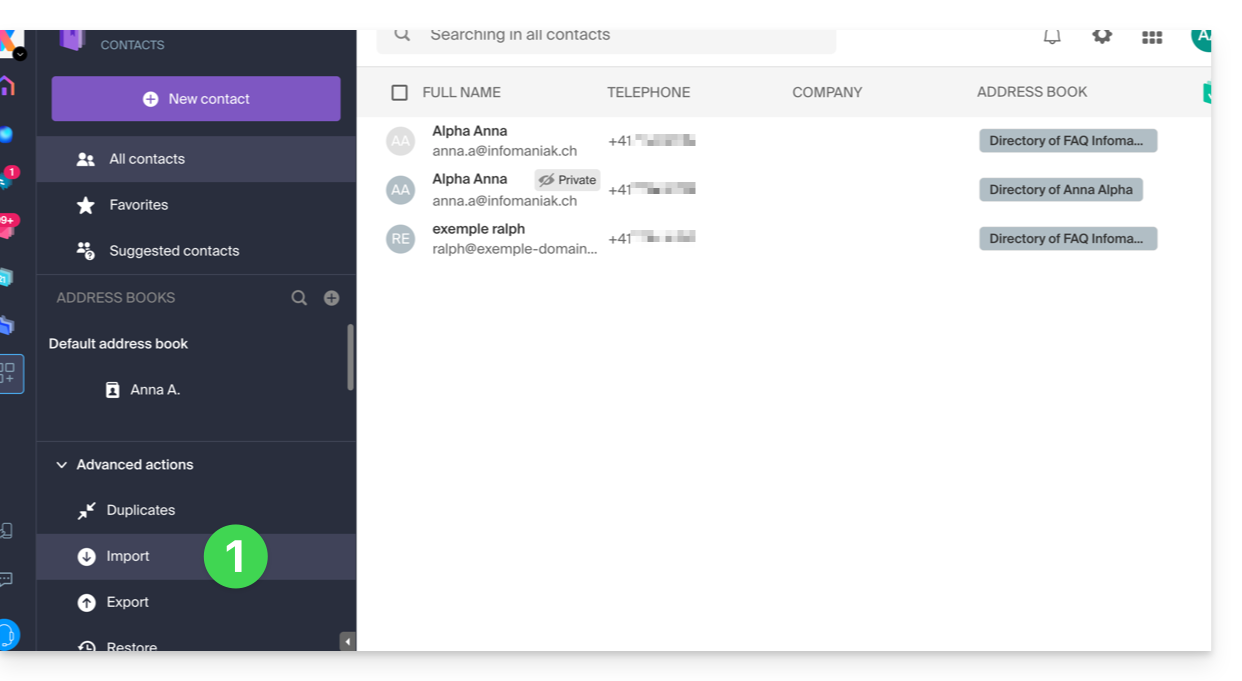
- Click here to access the Import section of the Infomaniak Web app Contacts (online service ksuite.infomaniak.com/contacts):
- Click on the blue Select a VCARD or CSV file button:
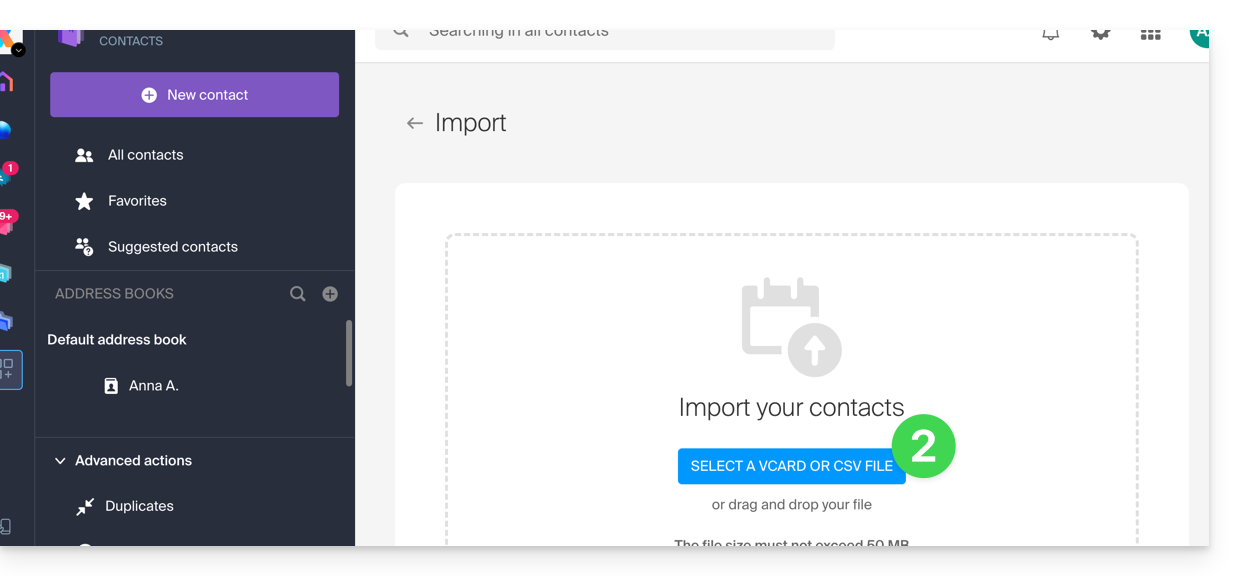
Import from a vCard (.vcf) file
The content of a contacts export in vCard format looks like this:
BEGIN:VCARD
VERSION:3.0
FN:John Smith
N:Smith;John;;;
EMAIL;TYPE=INTERNET:john.smith@example.com
TEL;TYPE=CELL:+41791234567
ORG:Example Ltd
END:VCARD
BEGIN:VCARD
VERSION:3.0
FN:Jane Miller
N:Miller;Jane;;;
EMAIL;TYPE=INTERNET:jane.miller@example.com
ORG:Freelance
END:VCARD
...
When you select your .vcf file in the import tool, here are the next steps:
- The assistant indicates the number of contacts detected in your file.
- Choose an address book (or create a new one) to store your contacts.
- Click the button to start the import:
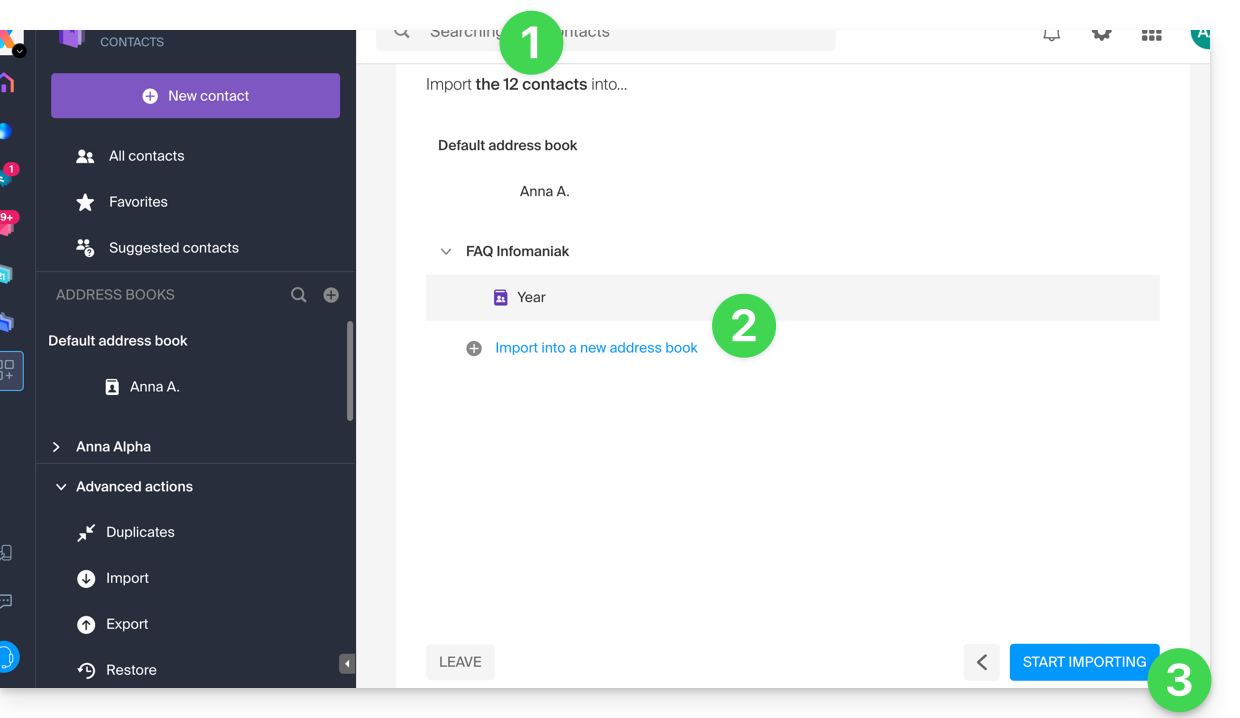
Import from a CSV file (.csv)
The content of a contacts export in CSV format looks like this:
Name,First name,Email,Phone,Organization,Notes
Smith,John,john.smith@example.com,+41791234567,Example Ltd,VIP customer
Miller,Jane,jane.miller@example.com,,Freelance,
Brown,Mark,,+41792345678,,Former colleague
Taylor,Sarah,sarah.taylor@example.com,+41793456789,City Hall,
Wilson,Lucas,lucas.wilson@example.com,,,Quote request in March
Moore,Elise,,+41794567890,BioShop,
Walker,Thomas,thomas.walker@example.com,+41795678901,InnoTech,Python expert
Young,Julie,julie.young@example.com,,,
...
When you select your .csv file in the import tool, here are the next steps:
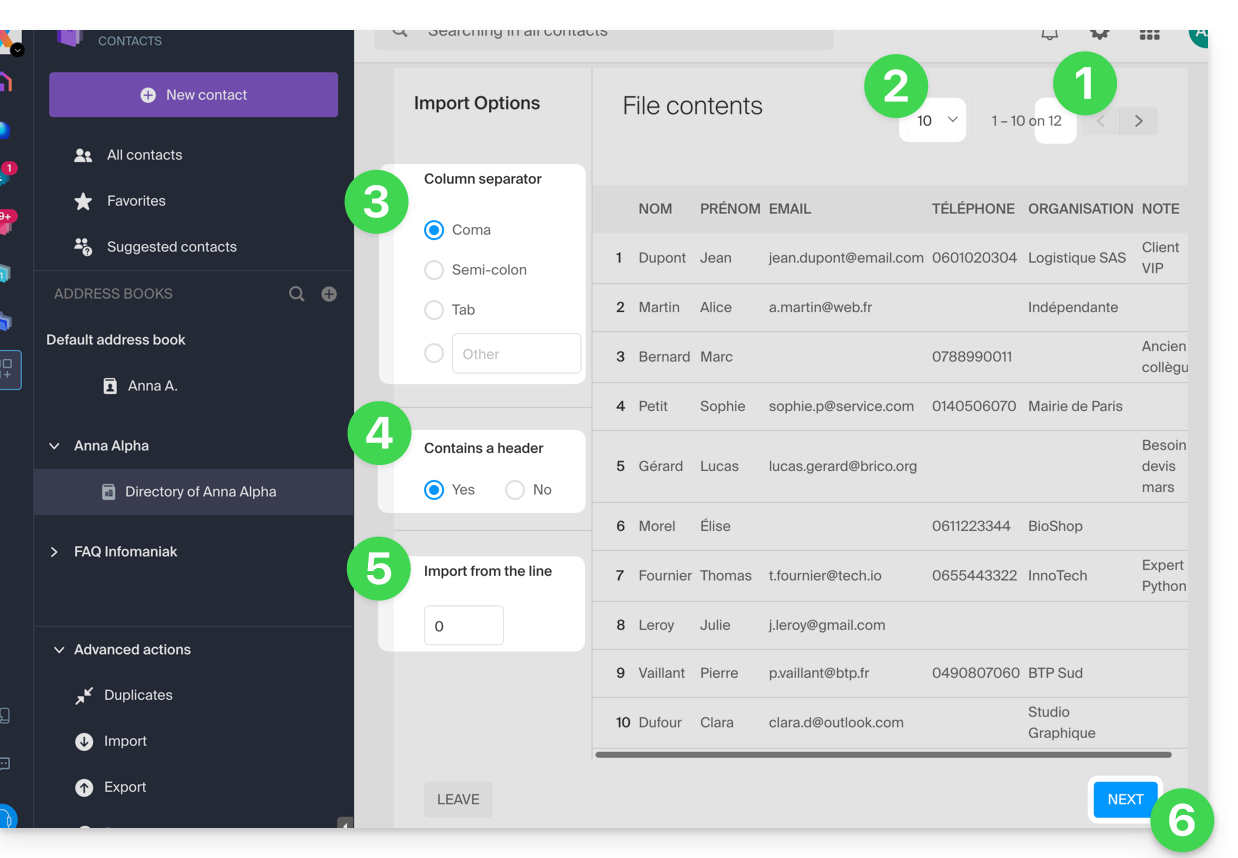
- The assistant indicates the number of contacts detected in your file.
- You can increase the number of contacts displayed per page, which allows you to better preview them in their entirety if needed.
- Choose the separator used to delimit the information in your text file.
- Specify whether the file containsFirst row without contact information (only column headers).
- Specify if you want to import contacts starting from a specific row.
- Click the button to continue:
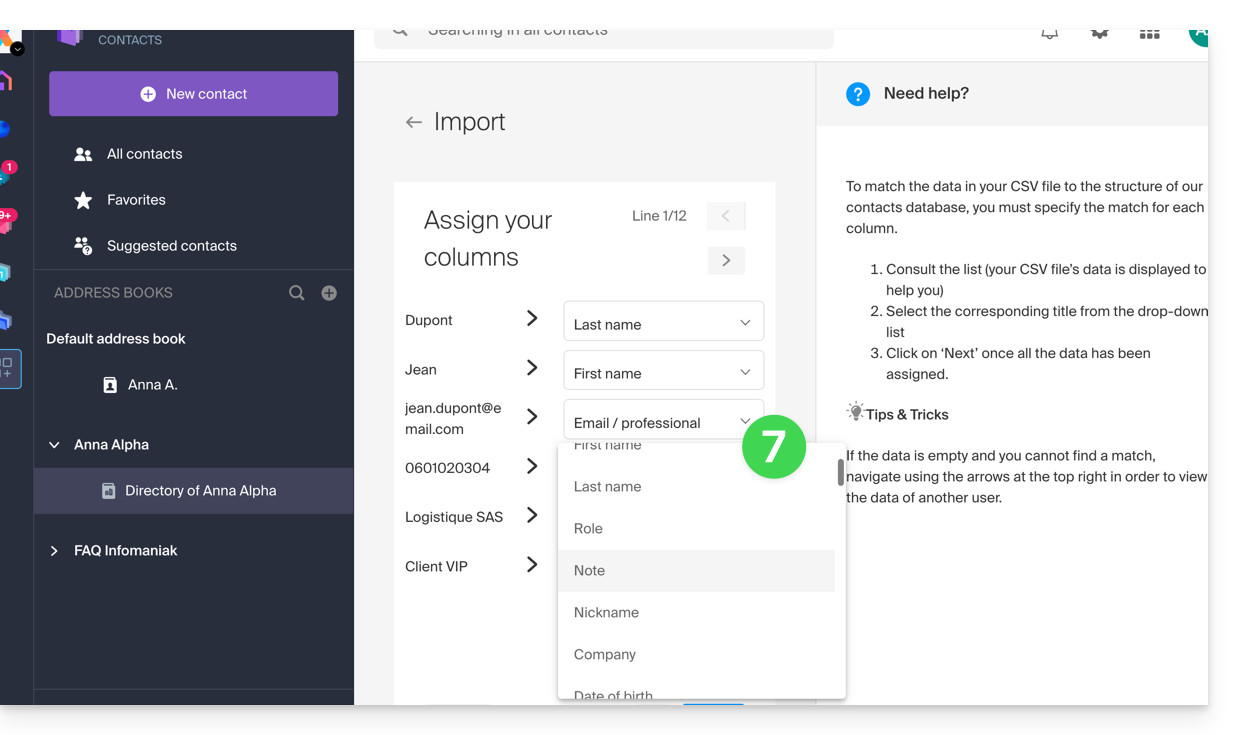
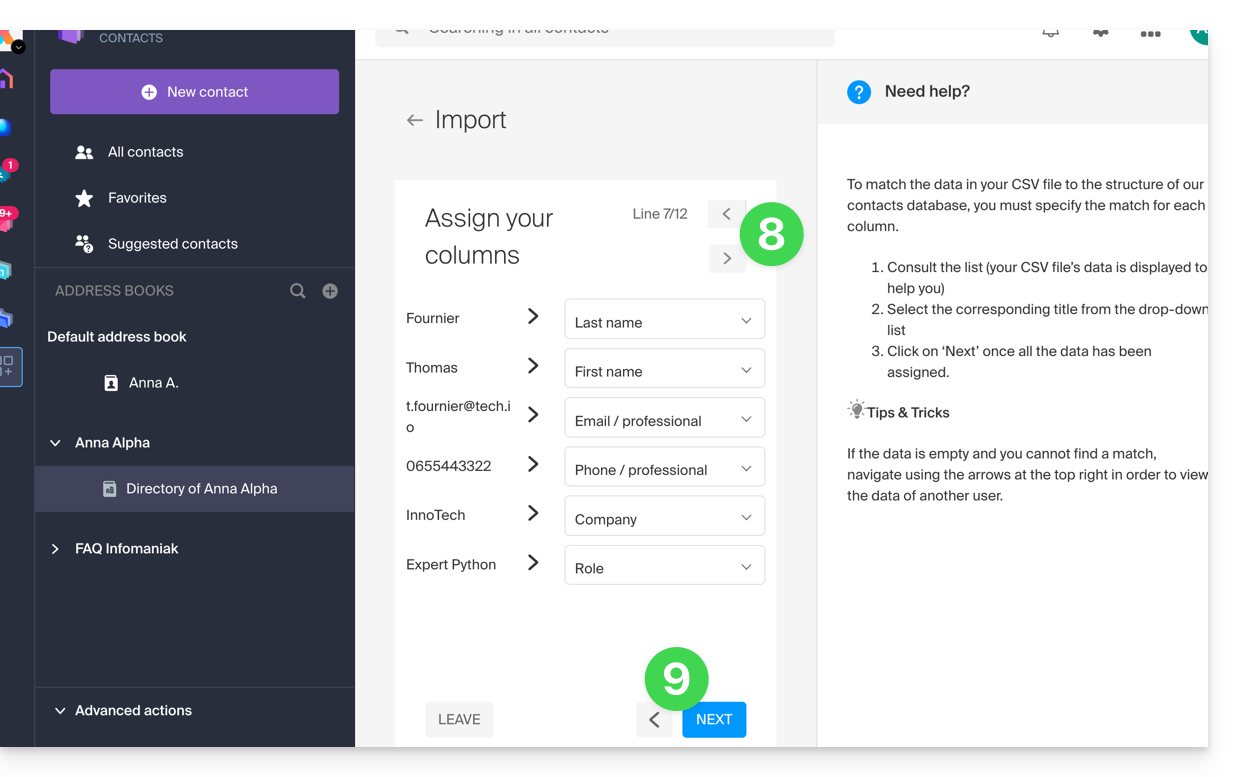
- Assign the information detected in the file to each contact using the available fields in your address book:
- Browse the contacts to import and specify any additional fields if necessary.
- Go back to check the impact of your changes, then click the button to continue:
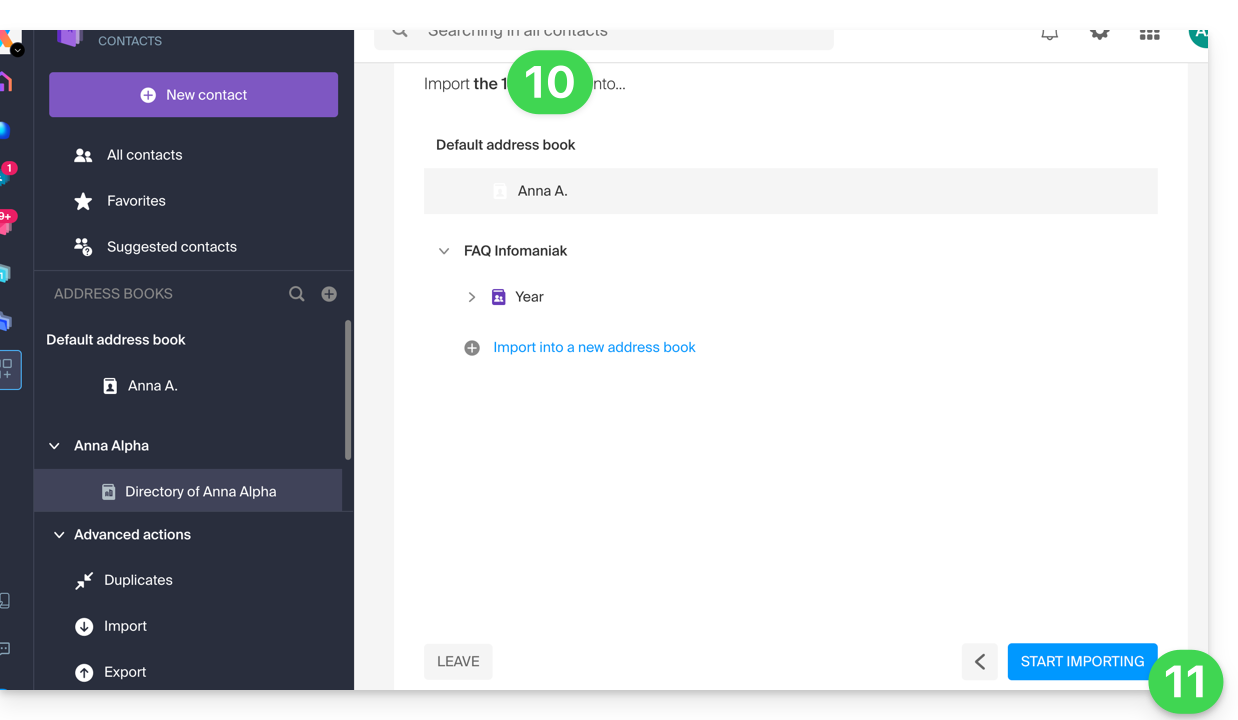
- Choose the address book (or create a new one) to store your contacts.
- Click the button to start the import:
Imported contacts
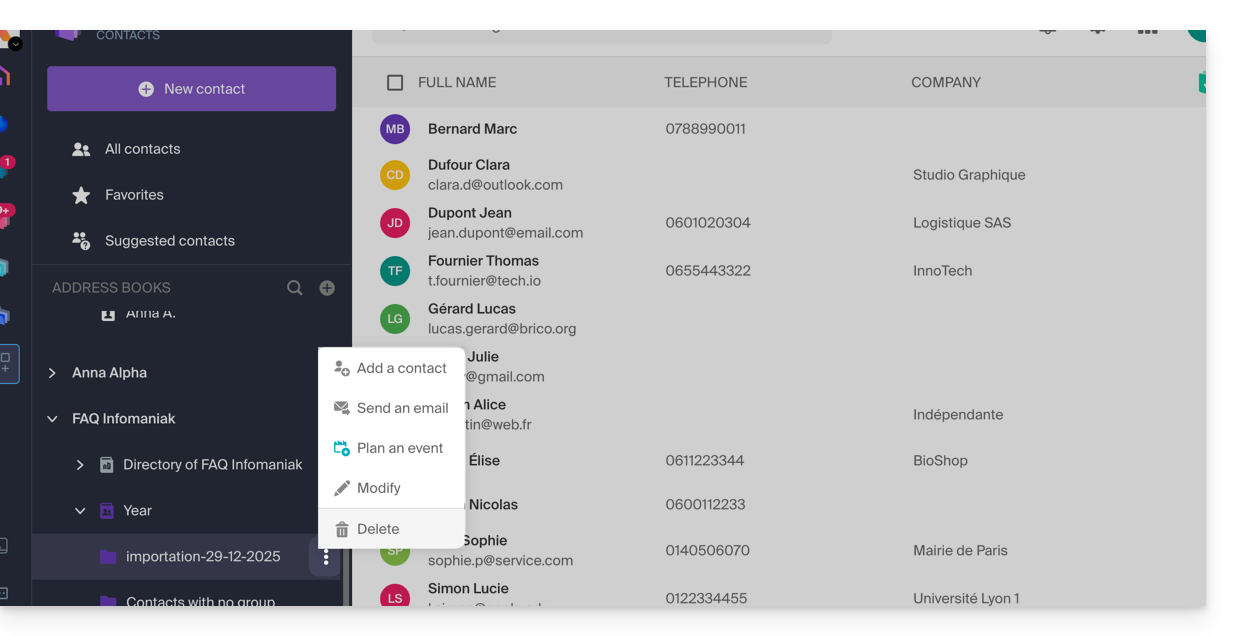
The contacts are imported into the specified location, within a group. If necessary, you can delete this folder, which was created for this purpose (this will not delete the contacts unless you enable this option when deleting the folder):
- Click on the action menu ⋮ located to the right of the name of the group created with the import date.
- Click on Delete:
In case of a problem
- Complete the contact details:
- A contact containing only the first and last name may be ignored by the system for security reasons.
- Make sure that at least one additional piece of information is present (email address or phone number).
- Check the header of your (CSV) file:
- The columns must be clearly named (e.g., "Name", "First Name", "Email").
- If the headers are missing or incorrect, the system will not be able to read the data.
- Data format:
- Check that phone numbers do not contain unusual special characters and that email addresses are spelled correctly (presence of the
@and the period).
- Check that phone numbers do not contain unusual special characters and that email addresses are spelled correctly (presence of the
- File encoding:
- For optimal results, save your CSV file in UTF-8 format; this ensures that accents and special characters are displayed correctly.
If you need to export them from...
... Outlook (older version)
- From your Outlook software, go to your address book.
- Select the contacts to export.
- In Actions, click Transfer as vCard.
- Send the email containing the vCard.
- Retrieve the email in the Infomaniak Mail web app (online service ksuite.infomaniak.com/mail).
- Click on Add all contacts.
... macOS (or refer to this other guide)
- In your Contacts application, go to File and select Export.
- Choose Export vCard.
- Save your vCard file to your computer.
... Thunderbird (or refer to this other guide)
- From your Thunderbird software, go to Window and select Address Book.
- In Tools, select Export.
- In the save options, choose Comma-separated as the format.
- Save your CSV file.
... Gmail (or refer to this other guide)
- From your Gmail interface, go to the Contacts section.
- Click the Export button.
- Select vCard format.
- Save your vCard file to your computer.
... Office 365 (or consult this other guide)
- From your Outlook software, go to the Contacts section.
- Click on Manage and choose Export.
- Save your CSV file to your computer.
... Yahoo Mail: refer to this other guide
... Proton Mail: check out this other guide
... Bluewin: check out this other guide
Refer to this other guide to import other data.
Link to this FAQ: https://faq.infomaniak.com/1599
Has this FAQ been helpful?
This guide explains how to make one of your calendars public from the Infomaniak Calendar web app (online service ksuite.infomaniak.com/calendar).
Introduction
- You will obtain a specific URL for your calendar in the format
.icsthat Calendar (formerly iCal Apple), Calendrier (formerly iCalendar Microsoft), Thunderbird (formerly Lightning Mozilla), or even Google Calendar can recognize to display your calendar: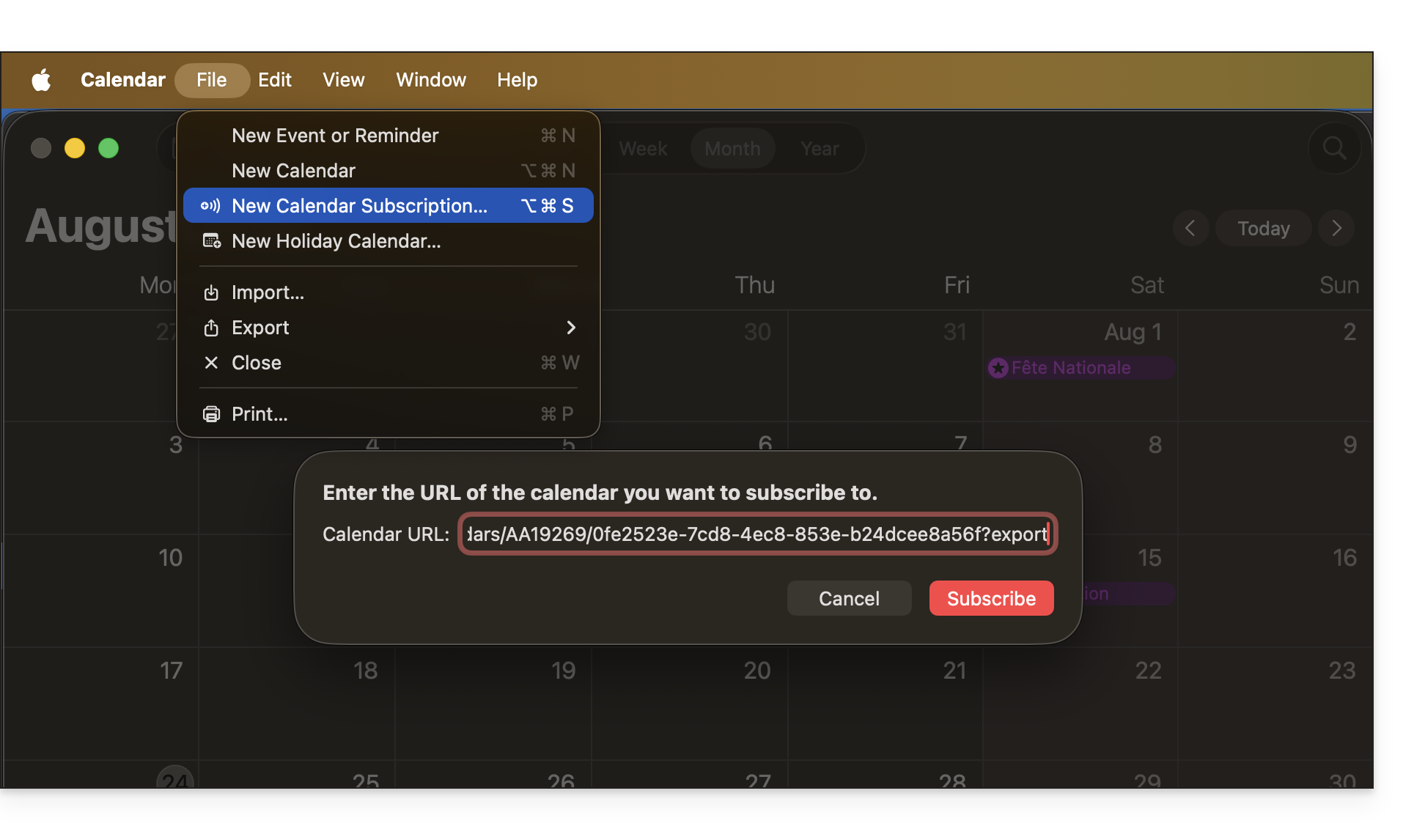
- The data contained in the shared calendar will no longer be private but will only be available in read-only mode to users who "subscribe" to it.
- The frequency of the incremental updates performed by the application that subscribes to your calendar's URL must be defined within that application.
- PHP scripts (not provided) can also be used to parse such files, allowing you, for example, to include events on a website.
- Refer to this other guide to configure the synchronization of your calendars, or this other guide to share a calendar with your colleagues with different permissions.
Enable public sharing of an Infomaniak calendar
To share a calendar publicly:
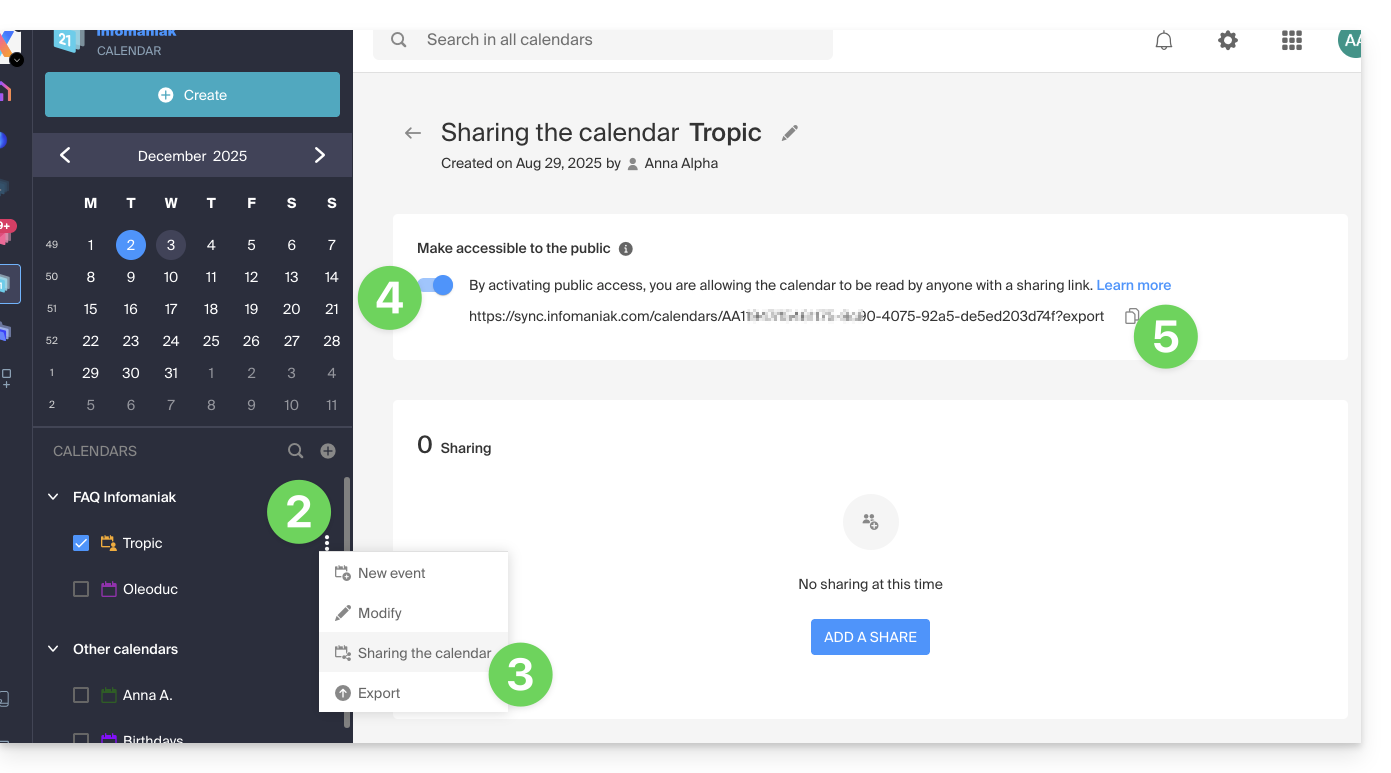
- Click here to access the Infomaniak Calendar web app (online service ksuite.infomaniak.com/calendar).
- Click on the action menu ⋮ to the right of a calendar.
- Click on Share calendar.
- Activate the toggle switch for public sharing.
- Click the icon to copy the address to the clipboard:
- You can always remove public access from this sharing page (see point 4 above):
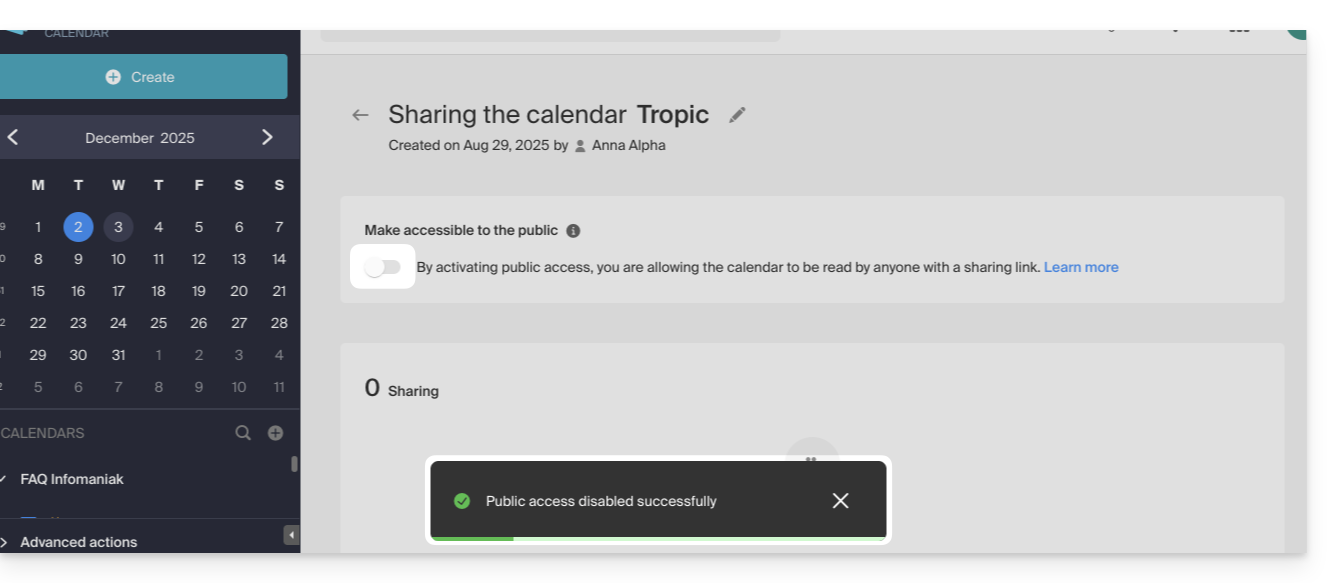
- You can always remove public access from this sharing page (see point 4 above):
Link to this FAQ: https://faq.infomaniak.com/1763
Has this FAQ been helpful?