Knowledge base
1000 FAQs, 500 tutorials and instructional videos. Here, there are only solutions!
This guide presents Jelastic Cloud which is the result of close collaboration between Infomaniak and the company Jelastic (Virtuozzo).
Infomaniak
Infomaniak provides the infrastructure, support, and ensures the performance, security, and reliability of the solution. Its infrastructure always guarantees the availability and fluidity of applications, responding to traffic spikes and automatically reducing resource consumption during low periods. This flexibility optimizes the cost/performance ratio by only billing the resources actually used.
With this Cloud service, computing resources adapt to demand fluctuations while maintaining budget control. All data is managed in Switzerland in Infomaniak's data centers, with support available in five languages.
Jelastic
Jelastic handles maintenance, software development, and provides the software part of the product.
Founded in 2011, Jelastic automates the creation, resizing, clustering, and security updates of traditional and native Cloud applications. It also supports Java, PHP, Ruby, Node.js, Python, .NET, Go environments, as well as Docker clusters.
Link to this FAQ:
Has this FAQ been helpful?
This guide concerns the collaboration of users on Jelastic Cloud environments, which is not offered directly in the current Jelastic infrastructure.
Grant access to other users
The solutions proposed so that other users can access your Jelastic environment depend on the type of access desired:
First scenario
You want to share access to the Jelastic dashboard (note that the user to whom these rights are assigned will have access to all environments present on the Jelastic Cloud dashboard).
For this operation, you need to assign rights to the product directly when creating the user. Rights as a collaborator are sufficient.
Second scenario
You want to share rights on a single environment; however, this action is not possible as it stands because collaboration is disabled for security reasons.
You can transfer an environment to the desired person, provided that they have a Jelastic Cloud in the same billing group (e.g., EUR or CHF billing). To perform this action, you need to change the owner of the environment (action possible directly from the Jelastic dashboard and in the environment configuration tab).
Also refer to this other guide.
Link to this FAQ:
Has this FAQ been helpful?
This guide explains how to change the password of your Jelastic Cloud console.
Change the password
To access the administration interface of your Jelastic Cloud server:
- Click here to access the management of your product on the Infomaniak Manager (need help?).
- Click on Modify under Jelastic Password:
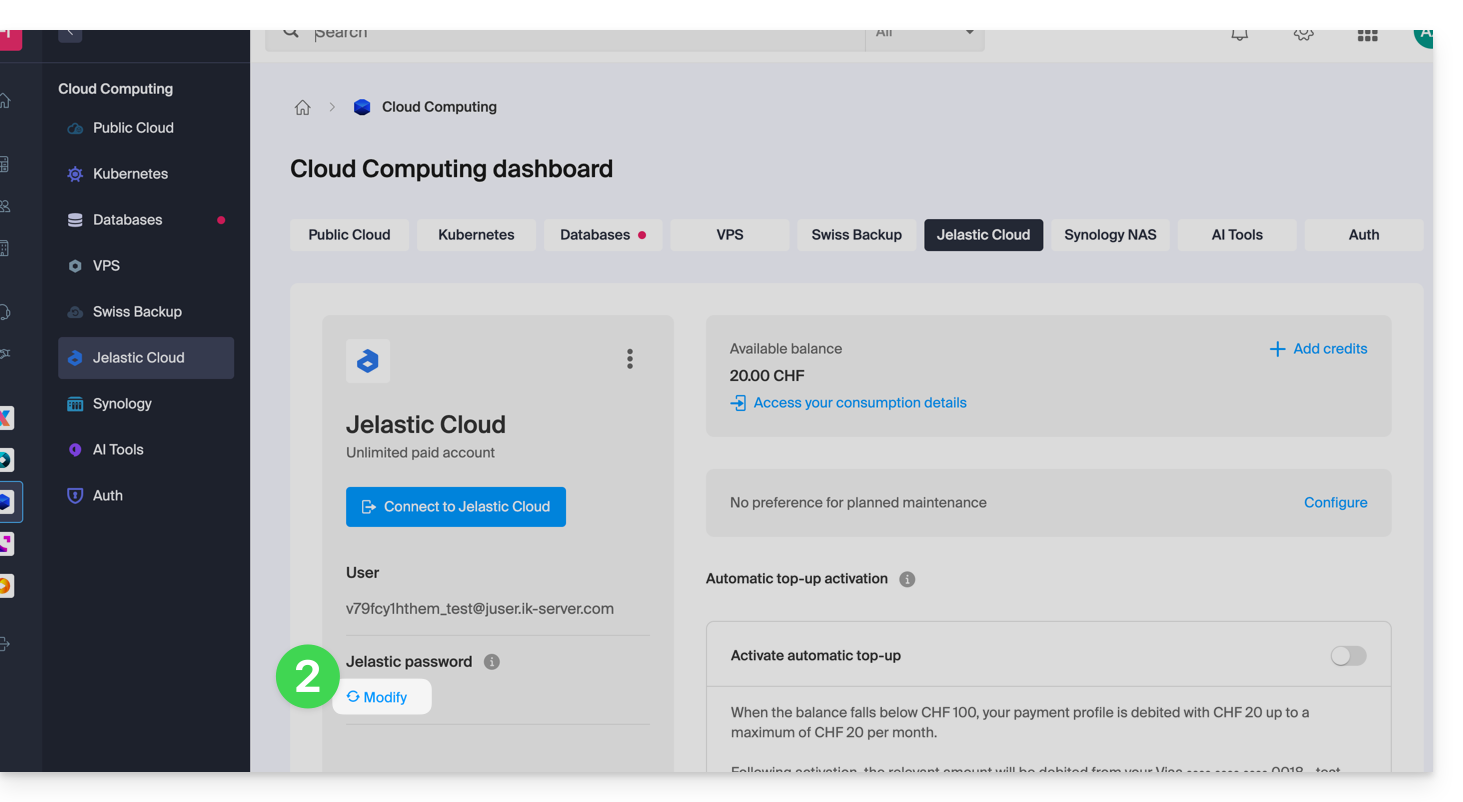
- Choose a new password.
- You can now access the console with this new password and your username (e.g., XXXYYYZZZ@juser.ik-server.com).
Lost with your passwords?
You should not confuse the password of your Infomaniak account with the one that allows you to manage your Jelastic Cloud:
- Your Infomaniak account allows you to manage your Infomaniak products on manager.infomaniak.com
- The Jelastic Cloud / Virtuozzo console allows you to administer your server app.jpc.infomaniak.com, for example
Link to this FAQ:
Has this FAQ been helpful?
This guide details the different Infomaniak extensions available in the Jelastic Cloud marketplace.
Preamble
- Refer to this Infomaniak article on the subject.
Install an extension from Marketplace
To do this:
- Log in to the Jelastic Cloud Dashboard of your server.
- Go to Marketplace.
- Search for and install the desired extension:
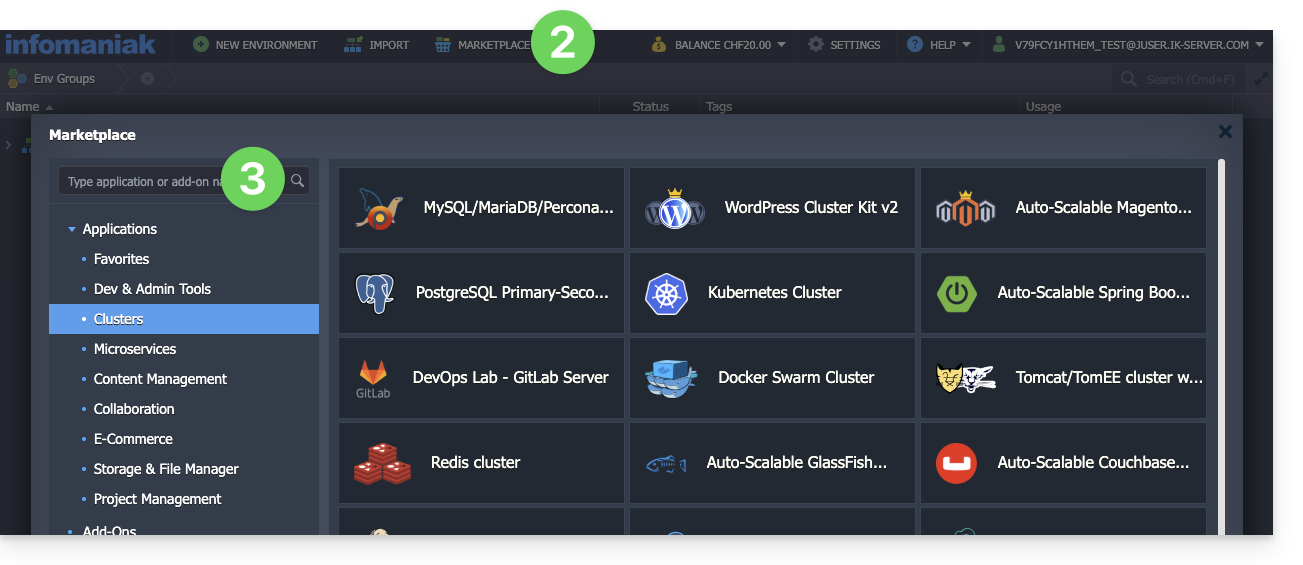
List of Jelastic Cloud extensions
- CPU Calculator simplifies the estimation of the power you need in vCPU.
- BitNinja protects your chosen Jelastic Cloud environment against the most common threats with one click.
- Swiss Backup automates the backup of the folders and environments of your choice. The plugin allows you to configure the frequency and retention policy of backups.
- ClamAV is an antivirus for on-demand scanning of your chosen containers. Useful for checking for the presence of malware, mining, or viruses.
- Grafana and Prometheus allow you to collect useful metrics from your containers and visualize them in modern dashboards in Grafana.
- Zabbix Server simplifies the deployment of a fully customizable alert system.
- SSH Direct Access facilitates access to your containers without going through the Jelastic public gateway. Ideal for having a backup access to your servers.
Link to this FAQ:
Has this FAQ been helpful?
This guide details how to transfer an Infomaniak Jelastic Cloud environment from one account to another.
Preamble
- If necessary, local partners referenced by Infomaniak can handle these procedures: launch a free call for tenders; they handle everything, freeing you from technical details.
- You can also refer to the official Jelastic documentation (in English only).
Transfer procedure
Prerequisites
- An environment can be transferred from any type of Jelastic Cloud account (trial, beta, deactivated, etc.); however, it is essential that the transfer recipient has a paid account.
- Also ensure that the destination account has not reached:
- the maximum number of cloudlets per container
- the maximum number of compute nodes available for an environment
- the maximum number of environments on the account
- Use the user email address of the destination account, which is found under the user section in the Jelastic dashboard of the destination account:

To perform the transfer:
- Log in to your Jelastic Cloud platform (you are leaving the Infomaniak Manager).
- Click the Settings button next to the environment to be transferred:

- From the Settings menu, select the Change Owner option.
- Enter the email address of the destination account, then click Send:

- If the destination account exists and meets the transfer criteria, a notification indicating the sending of the request will appear.
- An icon will appear in front of the environment to be transferred until the transfer request is accepted by the new owner.
- Once the transfer request is accepted, the environment is removed from your account.
It is possible to cancel the transfer procedure from the menu Settings, Change Owner, cancel the transfer request.
Once the transfer is complete, it is possible to cancel the Jelastic product from your account, all credits still available at the time of cancellation will be automatically transferred to your Infomaniak prepaid account.
Link to this FAQ:
Has this FAQ been helpful?
Thank you for choosing Infomaniak to create your PaaS!
This guide helps you quickly use the main features of your new product Jelastic Cloud.
Frequently Asked Questions
- Introduction to Jelastic
- Containers and nodes: how they work
- Jelastic billing and Cloudlets operation
- Technologies compatible with Jelastic Cloud
- Create a VPS with Jelastic Cloud
- Methods for deploying an application
- Differences between Jelastic Cloud and a VPS
- Resources available according to account type
Consult all FAQs on Jelastic Cloud.
Technical resources
Consult the official Jelastic documentation (in English) for more technical details:
- Deploying applications in a cluster (WordPress, Magento, etc.)
- Creating an environment
- Deploying applications or code
- Configuring servers (Java, PHP, Ruby, etc.)
- Linking a domain name
- Adding a public IP address
- Monitoring application statistics
- SSH access to your environment
- Managing resource consumption alerts
- Dynamic resizing: horizontal and vertical
- Installing packages without root access with Yum Packages Installer
For any questions or difficulties, do not hesitate to contact Infomaniak support.
Link to this FAQ:
Has this FAQ been helpful?
This guide explains how to obtain a custom SSL certificate that you can use with Jelastic Cloud from Infomaniak.
Custom SSL certificates are only available with a paid account.
SSL documentation
Refer to these guides:
- It is quite possible to purchase an SSL certificate from Infomaniak in order to install it on Jelastic Cloud afterwards.
- Integrated with Jelastic Cloud, you will also find a valid certificate for domains
xxx.jcloud.ik-server.com. - Let's Encrypt certificates can also be obtained for free and for any domain.
- It is possible to obtain a paid certificate, for any domain.
- For testing purposes, you can also set up a self-signed certificate.
Link to this FAQ:
Has this FAQ been helpful?
This guide provides recommendations to follow in case of a 502 error with Jelastic Cloud Infomaniak.
Recommendations in case of a 502 error
Check these points:
- Check the URL entered in the address bar of your web browser.
- From your Jelastic console, click on the environment concerned, then on the icon "Open in browser":

- Check that the environment is not stopped or paused.
If the problem persists:
- Check that the SSL certificate is active.
- Check the proper functioning of the called application.
If these recommendations do not resolve the issue, contact Infomaniak support.
Link to this FAQ:
Has this FAQ been helpful?
This guide explains how to activate the automatic credit top-up for Jelastic Cloud.
Preamble
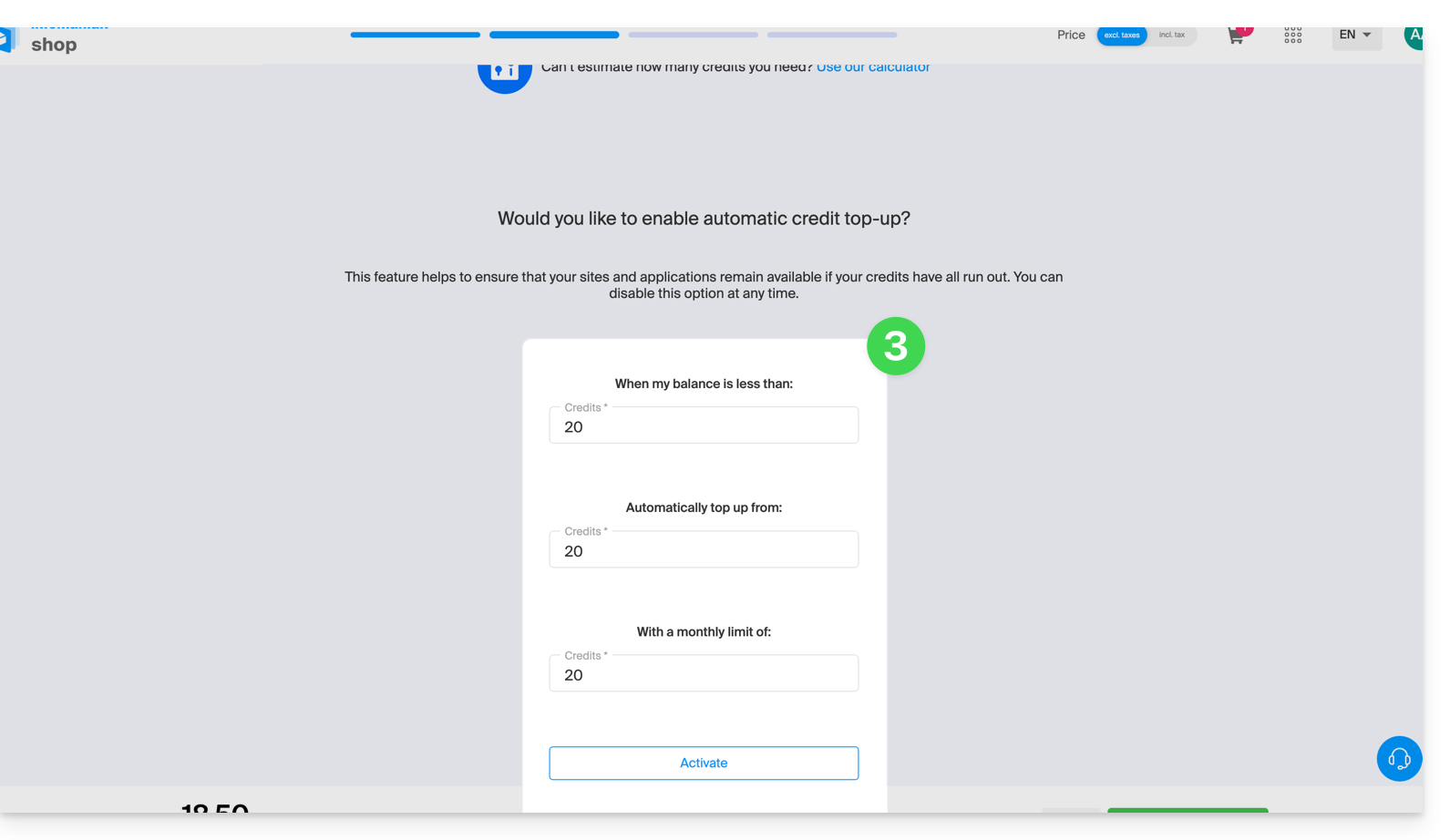
- Top-up allows the balance to be automatically updated as soon as it falls below the defined limit.
- Email tracking can be activated.
Define a payment profile
To access Jelastic Cloud:
- Click here to access the management of your product on the Infomaniak Manager (need help?).
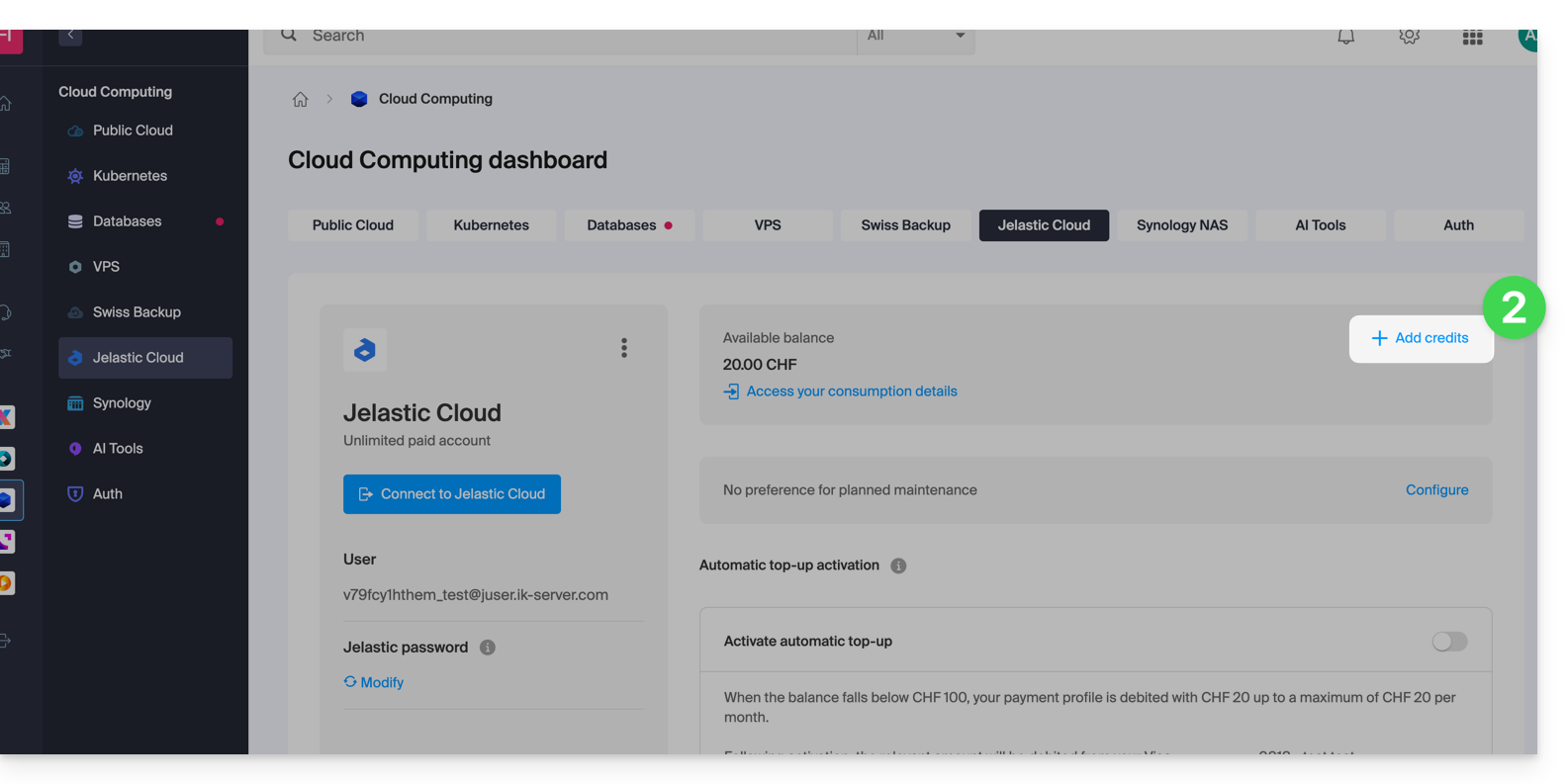
- Click on the button to add credits:
- From the Infomaniak Shop that opens, activate automatic top-up by purchasing credit in the usual way:
Link to this FAQ:
Has this FAQ been helpful?
This guide concerns Jelastic Cloud which allows you to create pre-configured containers for Java, PHP, Ruby, Node.js, Python, and Go with just one click. You can also deploy any custom Docker container in the Cloud.
Preamble
- In the context of Jelastic, a container or node refers to an isolation and execution unit in which your applications are deployed and executed, while benefiting from the resources provided by the node on which they are placed.
- This allows for efficient management of applications and optimization of resources according to the needs of your project.
Container
In Jelastic, a container is a virtual execution environment that isolates your applications and their dependencies from the rest of the system. It can be a Docker container or another type of container supported by Jelastic.
Each container acts as a separate unit, meaning you can run multiple applications in different containers without them interfering with each other.
Node
A node is a virtual or physical server instance on which one or more containers can be deployed. In other words, a node is a virtual or physical machine that provides the resources (such as CPU, memory, storage, etc.) necessary to run your applications.
Jelastic automatically distributes containers across different nodes based on load and available resources to ensure optimal performance and high availability.
Link to this FAQ:
Has this FAQ been helpful?