Knowledge base
1000 FAQs, 500 tutorials and instructional videos. Here, there are only solutions!
This guide explains how to edit the email notifications and alerts for the Acronis Agent used to back up your devices with Swiss Backup.
Enable/disable alerts and notifications
To access the management interface:
- Click here to access the Acronis Console using the credentials obtained after adding the device (need help?).
- Click on Account Management in the left-hand menu:
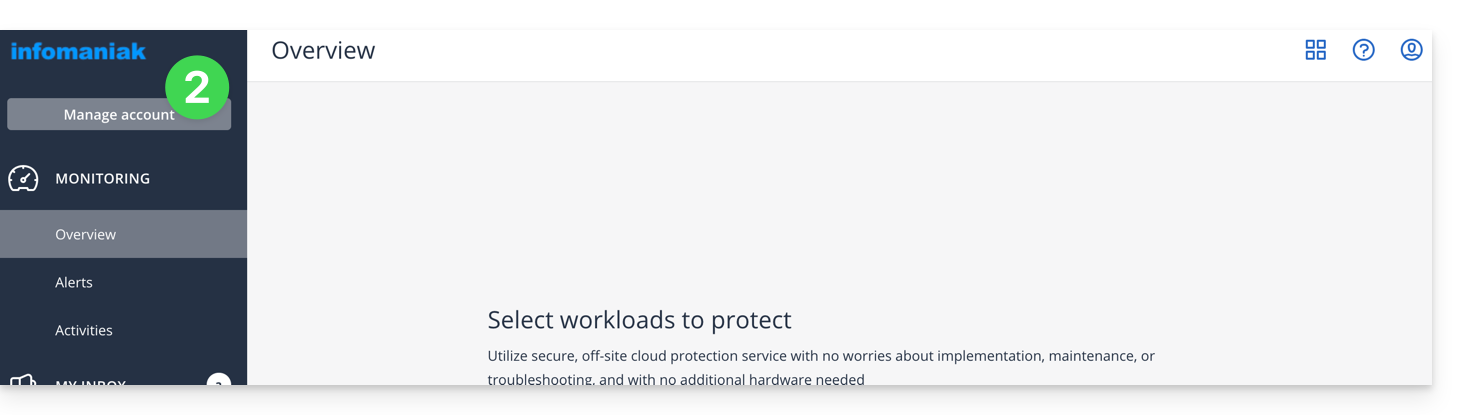
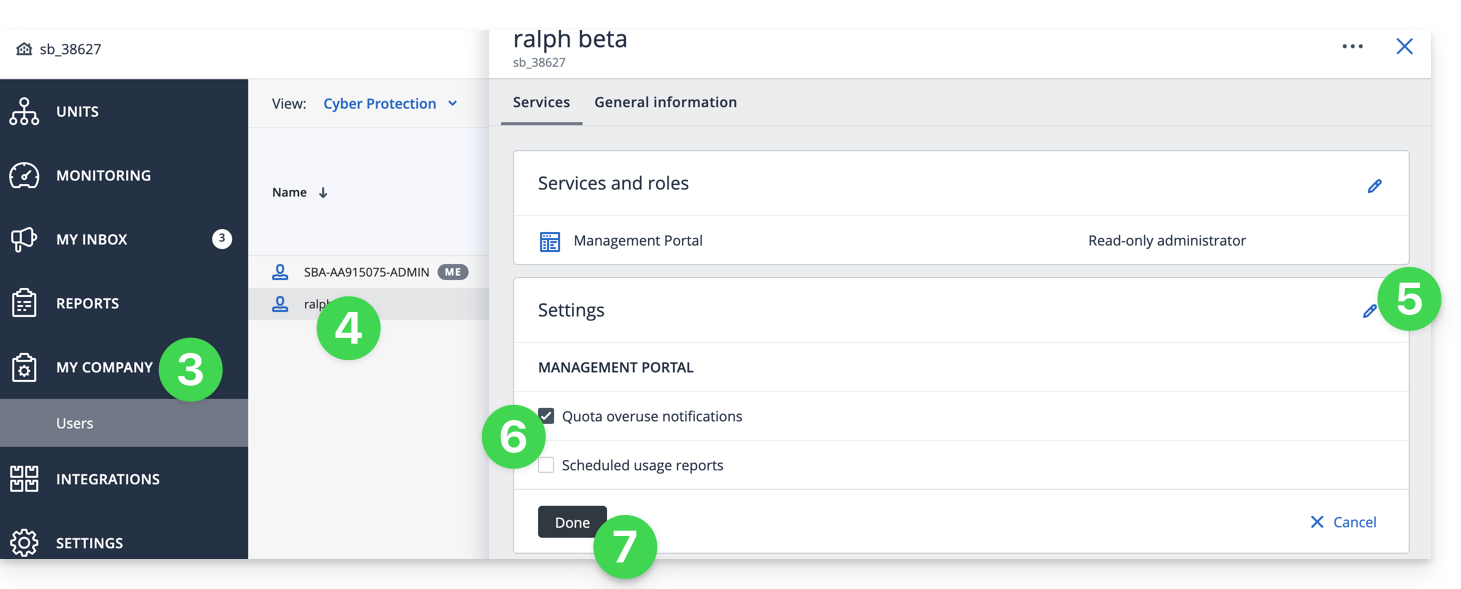
- Click on My Company.
- Click on the relevant user in the table that appears.
- Click on the pencil ✎ icon in the settings block.
- Enable or disable the desired notifications.
- Click Save to save the changes:
Change the notification email address
To change the email address that receives notifications:
- Click here to access the Acronis Console using the credentials obtained after adding the device (need help?).
- Click on Account Management in the left-hand menu:
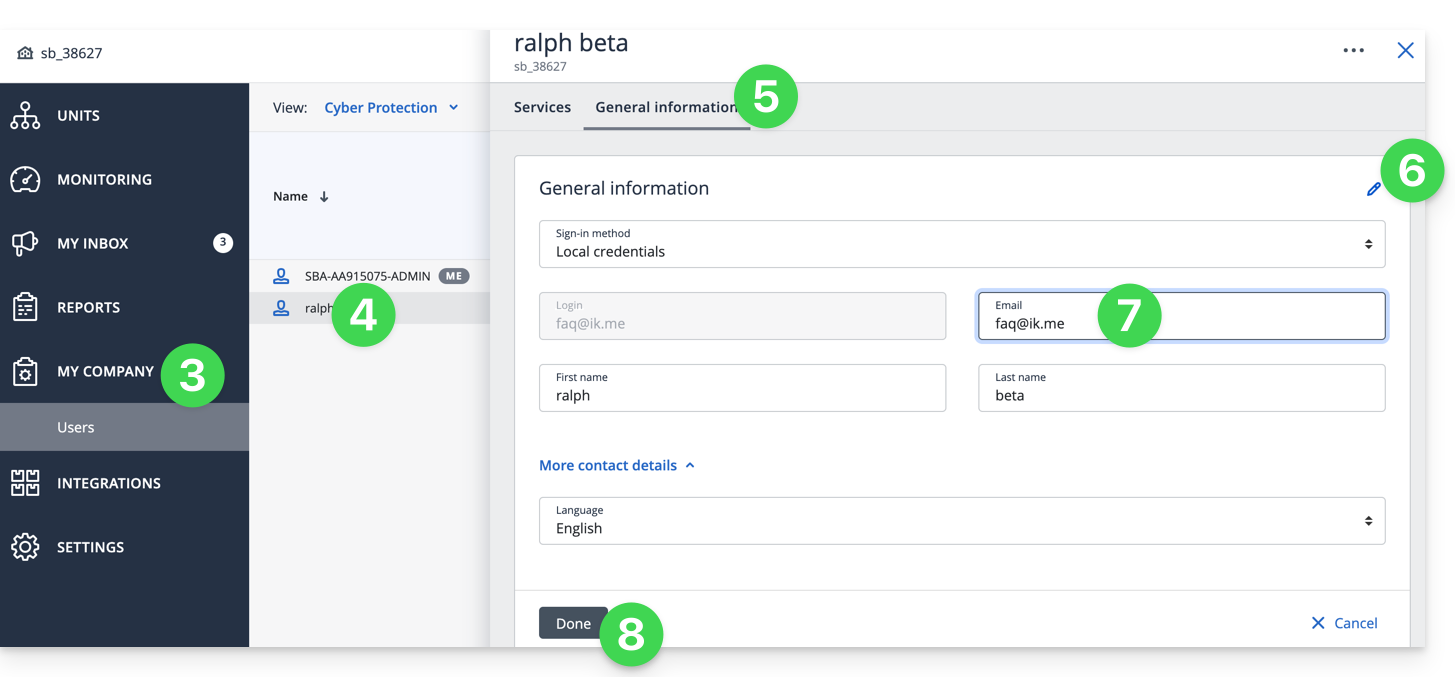
- Click on My company.
- Click on the relevant user in the table that appears.
- Click on the General Information tab in the top right corner.
- Click on the pencil ✎ icon.
- Edit the email address.
- Click Save to save the changes:
Generate ad hoc reports
Refer to this other guide if you are looking for information on managing ad hoc reports (customizing them, or allowing multiple people to receive them).
Link to this FAQ: https://faq.infomaniak.com/2292
Has this FAQ been helpful?
This guide explains how to change the language of the Acronis dashboard and the language of the email notifications from the Acronis Agent used to back up your devices with Swiss Backup.
Manage Acronis language settings
To change the language displayed by Acronis:
- Click here to access the Acronis Console using the credentials obtained after adding the device (need help?).
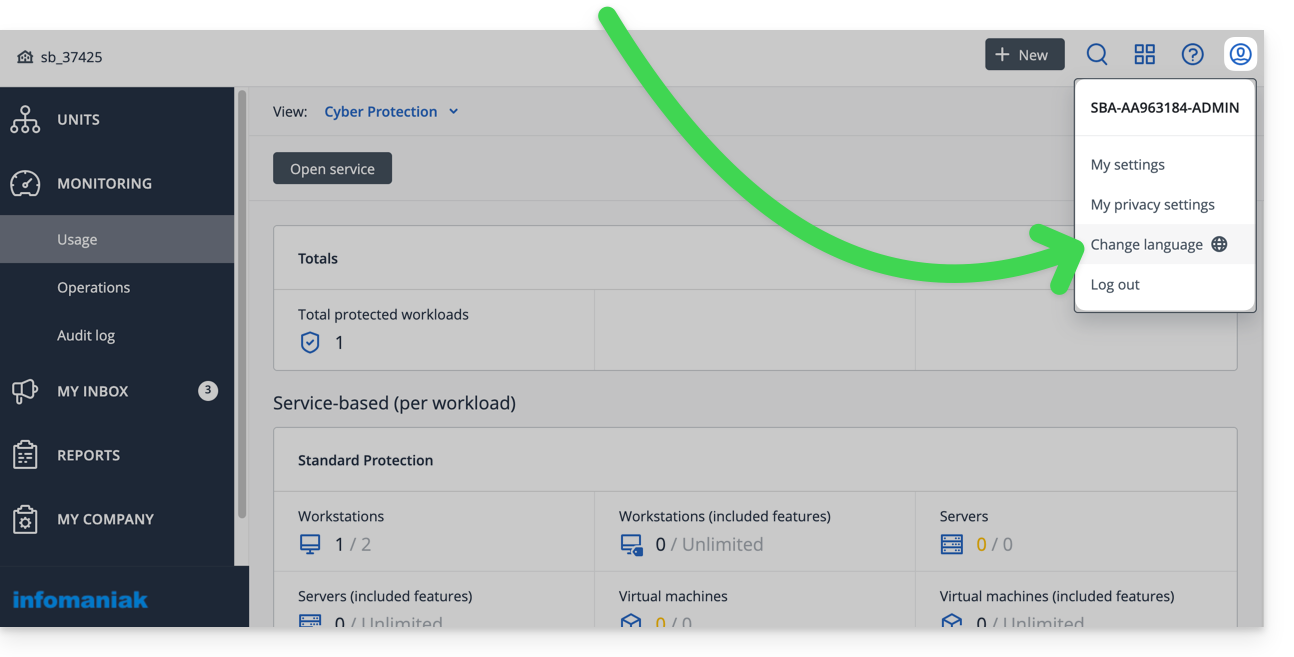
- Click on the user icon at the top right.
- Click on Change language:
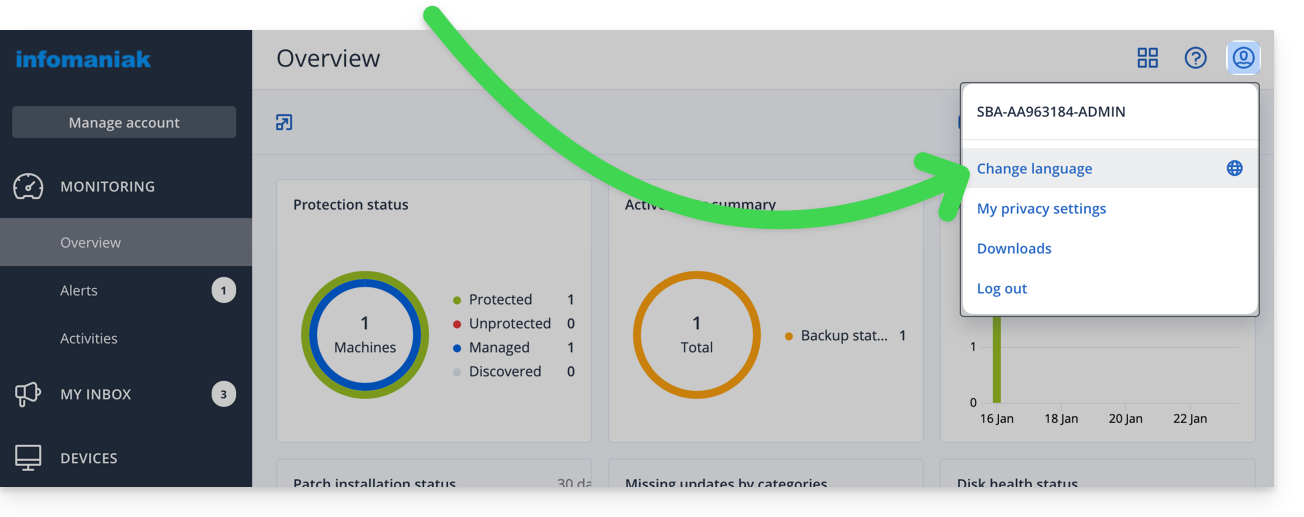
- You can also access this menu from the Acronis account management section:
- Click on the desired language.
Manage settings per user
You can change the language of emails/alerts/ notifications for your different clients/users (e.g., one speaks English and the other speaks French) - this does not change the language of the interface itself - by going to the Acronis account management section and then following the order A, B, C…: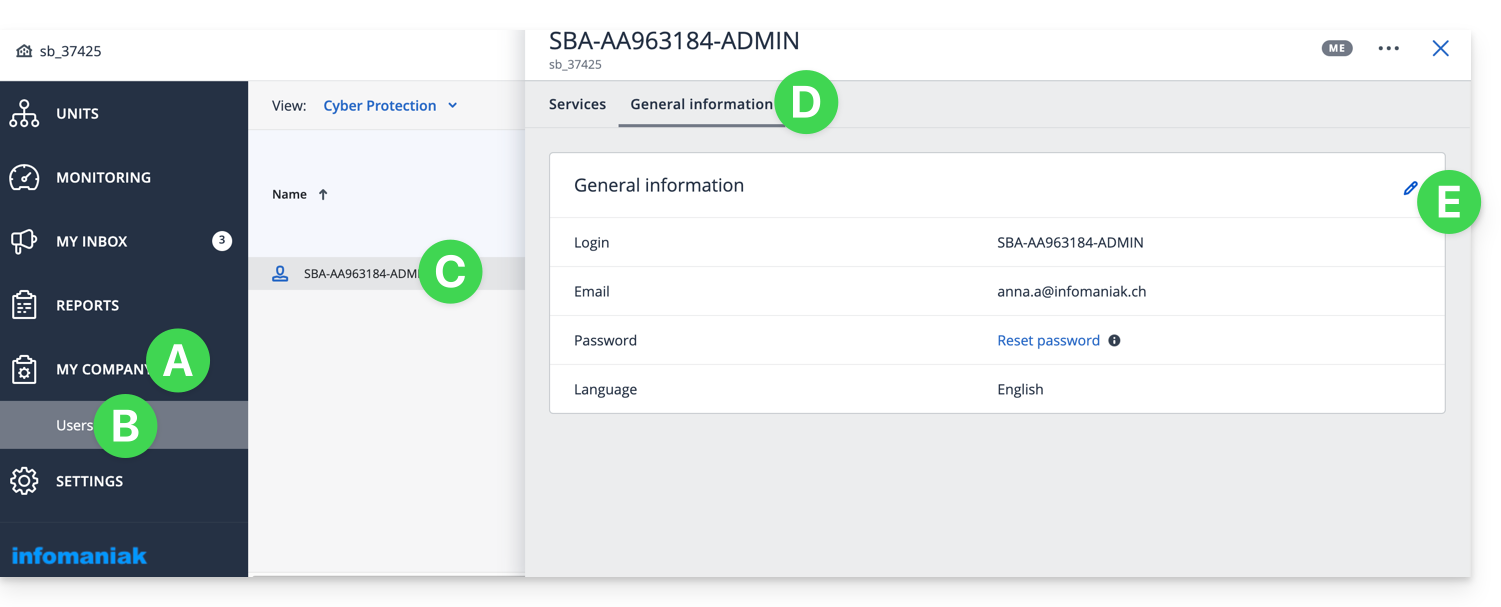
Link to this FAQ: https://faq.infomaniak.com/2293
Has this FAQ been helpful?
This guide details how to back up an Android device (Samsung, Huawei, OnePlus, etc.) using Acronis on Swiss Backup Infomaniak, the backup solution in an independent Swiss cloud.
Introduction
- What you can back up:
- Contacts & Calendars
- Photos (the original size and format of your photos are preserved)
- Videos
- It is also possible to back up other types of data.
Configure Backup
Prerequisites
- Own an Infomaniak Swiss Backup space with an available device quota (minimum 1) for Mobile:
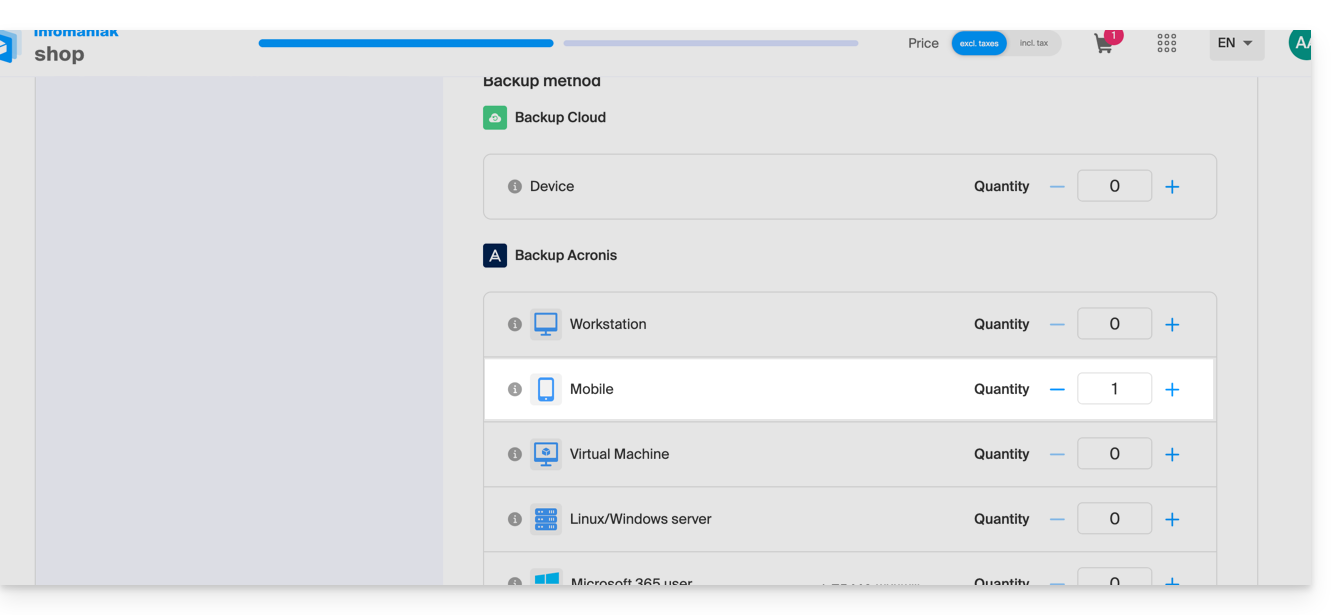
- If necessary, increase the device quota according to your needs.
- Add the device to the Infomaniak Manager to receive the login credentials.
- Consult the Acronis documentation on this topic.
To configure mobile backup on Android with Acronis:
- Download and install the Acronis Cyber Protect application from the Google Play Store.
- Open the Cyber Protect mobile app by logging in to the Acronis Agent with the credentials obtained after adding the device (need help?).
- Click on Back up and choose the data to back up.
- Click Validate to start the data backup.
Link to this FAQ: https://faq.infomaniak.com/2294
Has this FAQ been helpful?
This guide details how to back up an Apple iOS device (iPhone, iPad, etc.) using Acronis on Swiss Backup, the backup solution in a Swiss independent cloud.
Introduction
- What you can back up:
- Contacts & Calendars
- Photos (the original size and format of your photos are preserved)
- Videos
- It is also possible to back up other types of data.
Configure Backup
Prerequisites
- Own an Infomaniak Swiss Backup space with an available device quota (minimum 1) for Mobile:
- If necessary, increase the device quota according to your needs.
- Add the device to the Infomaniak Manager to receive the login credentials.
- Consult the Acronis documentation on this topic.
To configure mobile backup on Android with Acronis:
- Download and install the Acronis Cyber Protect application (not Acronis Mobile) from the App Store.
- Open the application by logging in to the Acronis Agent using the credentials obtained after adding the device (need help?).
- Click Back up and choose the data to back up.
- Click Confirm to start the data backup.
Link to this FAQ: https://faq.infomaniak.com/2295
Has this FAQ been helpful?
This guide explains how to retrieve specific files or folders/directories from a backup created with Acronis and Swiss Backup, Infomaniak's Swiss backup solution.
Preamble
- The online view from the Acronis console allows you to view a file or folder with a maximum size of 100MB; beyond that, it is imperative to download the file or folder in order to view it.
- Also refer to the Acronis documentation on this subject.
Restore specific data
To do this:
- Click here to access the Acronis Console with the credentials obtained after adding the device (need help?).
- Click on the device concerned from the All devices menu on the left.
- Click on Restore from the menu that appears on the right.
- Click on Restore files / folders.
- Select the files to restore.
- Click on Restore.
Link to this FAQ: https://faq.infomaniak.com/2296
Has this FAQ been helpful?
This guide explains how to completely uninstall the Acronis Backup Agent for Swiss Backup on Apple devices.
You can also consult the Acronis documentation on this topic.
Remove Backup Agent from macOS
To uninstall Cyber Protect:
- Click here to access the Acronis Console using the credentials obtained after adding the device (need help?).
- Click on the user icon in the top right corner.
- Click on Downloads:
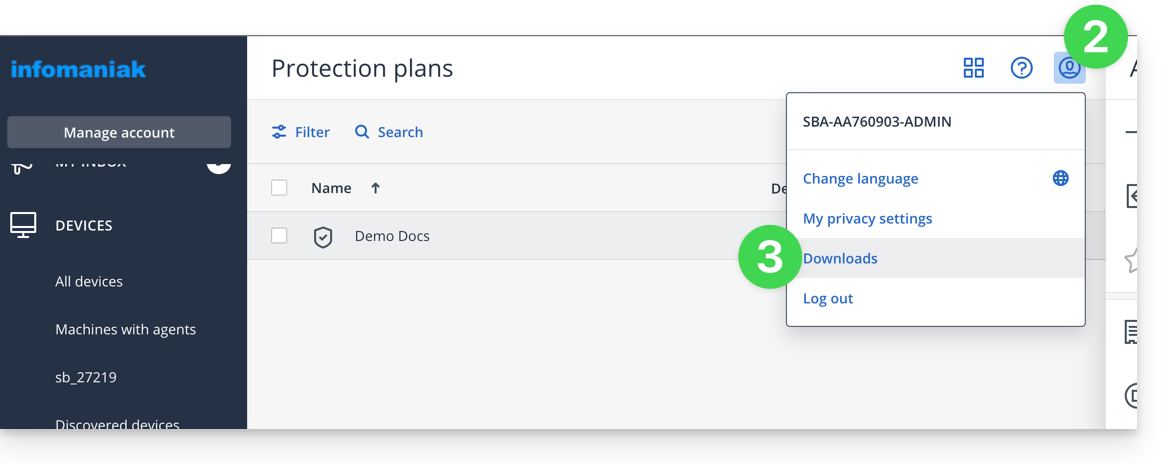
- Choose the client that is suitable for your device.
- Open the
.dmgfile once it has been downloaded. - Double-click on Uninstall:
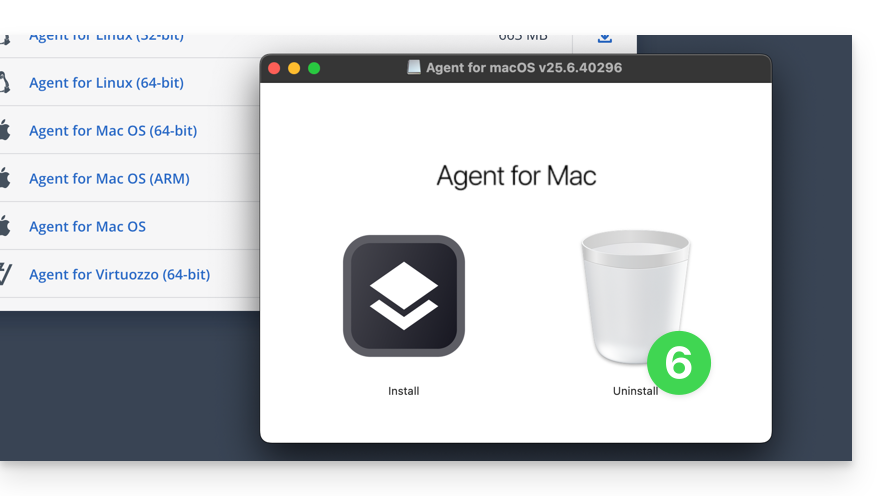
- Confirm the application launch if necessary.
- Confirm the application uninstallation if necessary.
- Wait until the uninstallation is complete.
Link to this FAQ: https://faq.infomaniak.com/2311
Has this FAQ been helpful?
This guide details how to back up a QNAP NAS using rClone or HBS via the OpenStack Swift protocol on Swiss Backup, the backup solution in an independent Swiss cloud.
Connection via rClone
Prerequisites
- Have an Infomaniak Swiss Backup space with available device quota (minimum 1) for a Cloud backup.
- Add 1 device of type Cloud to obtain the OpenStack Swift settings.
- Install the rClone application (https://www.qnapclub.eu/en/qpkg/330) or HBS (https://www.qnap.com/en/software/hybrid-backup-sync) on the QNAP.
To configure a new backup:
- Copy the content below into the
rclone.conffile in the user's.config/rclonedirectory (e.g.,/share/homes/backupuser/.config/rclone/rclone.conf). - Check the configuration with "
rclone config". - Start the copy process with the command "
rclone sync /share/to/sync Infomaniak:default".
Replace SBI-XXXXXXXX and "passwd" with the information specific to your device (refer to this other guide):
[sb_project_SBI-XXXXXXXX]
type = swift
user = SBI-XXXXXXXX
key = passwd
auth (1) = {{URL_8}}
domain = default
tenant = sb_project_SBI-XXXXXXXX
tenant_domain = default
region = RegionOne
storage_url =
auth_version =
Connecting via HBS (Hybrid Backup Sync)
To configure a new backup:
- Open HBS and go to Backup & Restore, then click on Create new Backup job.
- Select the NAS folder to back up, then click Next.
- Choose OpenStack Swift, then enter the information as indicated below:
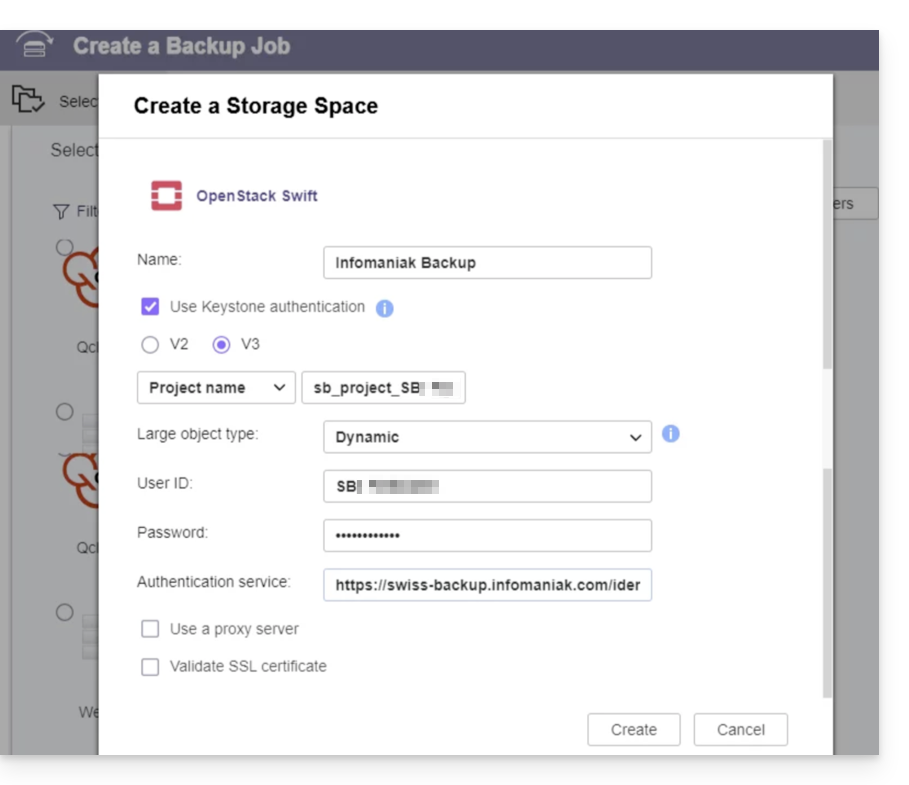
- Name: give a name to the backup
- Select “
Use Keystone Infrastructure” - Select “
V3” - Project name:
sb_project_SBI-XXXXXXXX(replaceSBI-XXXXXXXXwith your own ID, same below) - User ID:
SBI-XXXXXXXX - Password: the one generated on Swiss Backup
- Authentication service (1):
https://swiss-backup.infomaniak.com/identity/v3
- Click on Create.
- Region name:
RegionOne - Bucket name:
default - Multipart Size: leave as
128MB - Click on Select.
- Click on default under the destination and then click on OK.
- Give the task a name.
- Then, configure the desired settings, such as the backup frequency and bandwidth limitation.
- Click on Create.
(1) The indication "//swiss-backup02", "//swiss-backup03" etc. changes depending on the cluster number indicated in the Manager under Cloud storage information in the "Location" section; and if your Swiss Backup device was created before October 2020, you will need to use https://swiss-backup.infomaniak.com/identity/v3.
Link to this FAQ: https://faq.infomaniak.com/2319
Has this FAQ been helpful?
This guide explains how to find a solution if you are running a Swiss Backup but it fails with a connection error. It is necessary to check what may be blocking the connection…
Antivirus
In some cases, security programs such as antivirus software or other security suites block the functionality of the Acronis Agent.
To resolve the issue, add the program folders and executables to the whitelist:
- Windows: https://kb.acronis.com/content/36429#Windows3
- macOS: https://kb.acronis.com/content/36429#macOS4
- Linux: https://kb.acronis.com/content/36429#Linux5
Closed ports
Please consult the documentation on the ports that must be open or not used by another processand automatically check the ports using the CVT utility from Acronis:
- Windows / Linux: https://kb.acronis.com/content/47678
- macOS: from a
Terminalapplication (command-line interface,CLI), run the following command:
echo 0 | nc eu5-cloud.acronis.com 443 >/dev/null && echo "eu5-cloud.acronis.com 443: OK"; echo 0 | nc eu5-cloud.acronis.com 7790 >/dev/null && echo "eu5-cloud.acronis.com 7790: OK"; echo 0 | nc swift01-acronis.cloud.infomaniak.ch 44445 >/dev/null && echo "swift01-acronis.cloud.infomaniak.ch 44445: OK"; echo 0 | nc eu5-baas.acronis.com 8443 > /dev/null && echo "eu5-baas.acronis.com 8443: OK"Link to this FAQ: https://faq.infomaniak.com/2328
Has this FAQ been helpful?
This guide details how to manually back up data using the Mountain Duck application (macOS / Windows) via the OpenStack Swift protocol on Swiss Backup, the backup solution in a Swiss independent cloud.
Introduction
- Mountain Duck allows file synchronization as an alternative to Dropbox (for this use, it is also recommended to use kDrive).
Configure Mountain Duck with Swiss Backup
Prerequisites
- Have an Swiss Backup Infomaniak account with an available device quota (minimum 1) for a Cloud backup.
- Add 1 device of type Cloud to obtain the OpenStack Swift parameters.
- Download and install Mountain Duck (macOS / Windows).
To configure a new backup:
- Open Mountain Duck.
- In the application preferences, find and add the necessary profiles:
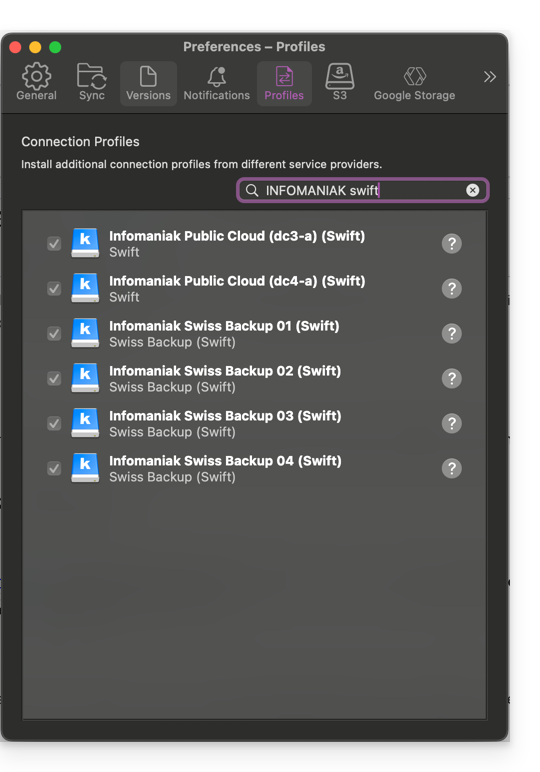
- Create a New connection.
- Select the corresponding profile from the list of proposed profiles (according to the information specific to your device — refer to this other guide).
- Enter the information specific to your device in the fields (based on the information specific to your device – refer to this other guide) by combining Project:Domain:Username:
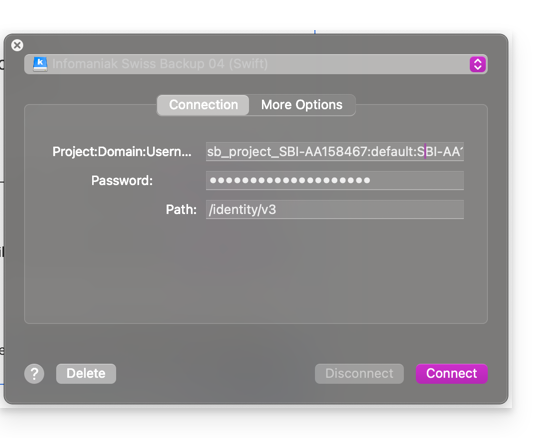
- Click Connect.
Link to this FAQ: https://faq.infomaniak.com/2337
Has this FAQ been helpful?
This guide details how to back up a Synology NAS using the Hyper Backup application via the OpenStack Swift protocol on Swiss Backup, the backup solution in an independent Swiss cloud.
Preamble
- In the event of a disaster, it is possible to order a Synology directly from Infomaniak. You can then restore your data easily using the Hyper Backup tool, thus ensuring the continuity and security of your information.
- It is also possible to use Cloud Sync: refer to this other guide.
- The various services offered by Infomaniak are all compatible with the corresponding standard protocols (S3/Swift for storage, for example). Therefore, if you encounter a problem with third-party software, contact its publisher or a Partner and refer to the support policy as well as Article 11.9 of the Infomaniak T&Cs.
Configure Hyper Backup for Synology NAS
Prerequisites
- Have a Swiss Backup space from Infomaniak with an available device quota (minimum 1) for a Cloud backup.
- Add 1 device of type Cloud to obtain the OpenStack Swift parameters.
To configure a new backup:
- Log in to the administration interface of your Synology NAS (DSM).
- If necessary, install the Hyper Backup application from the Package Center:

- Open the Hyper Backup application.
- Click on the to add a new Cloud provider.
- Choose OpenStack Swift from the list of providers:

- Fill in the fields according to the information specific to your device (refer to this other guide) and modify the drop-down menus if necessary as shown below:

Warning: make sure to specify “name” in the drop-down menus shown above, as these usually indicate “id” by default…
- Choose the volumes and applications to back up:

- Define the frequency of the backup and check the box to enable encryption (keep the encryption key safe so you can use your backup if necessary):

- Backup rotation allows you to avoid overloading your backup location by limiting the maximum number of backups to keep:

If you have insufficient backup quota on Hyper Backup or if you want to delete the historical versions of backup data, refer to this other guide.
Restore / view backups
To restore / view your backups:
- You can use any Swift compatible Keystone V3 client, for example Cyberduck.
- If your backups are in a
.hbkformat (Synology proprietary format)…- … and you no longer have a NAS, download the
.hbkfile and use their software Hyper Backup Explorer. - Refer to their official guide to restore on another Synology NAS.
- … and you no longer have a NAS, download the
Link to this FAQ: https://faq.infomaniak.com/2341
Has this FAQ been helpful?
This guide details how to back up a computer running the Linux distribution of your choiceusing Acronis on Swiss Backup, the backup solution in a Swiss independent cloud.
It is also possible to back up (Cloud Backup) a Linux server using rClone.
Prerequisites
- Check the Linux versions supported by the Acronis Agent; use
uname -rto find out your kernel version.- Refer to this other guide regarding AlmaLinux 9.
- Own an Swiss Backup Infomaniak space with an available device quota (minimum 1) for a VM or Linux/Windows server:
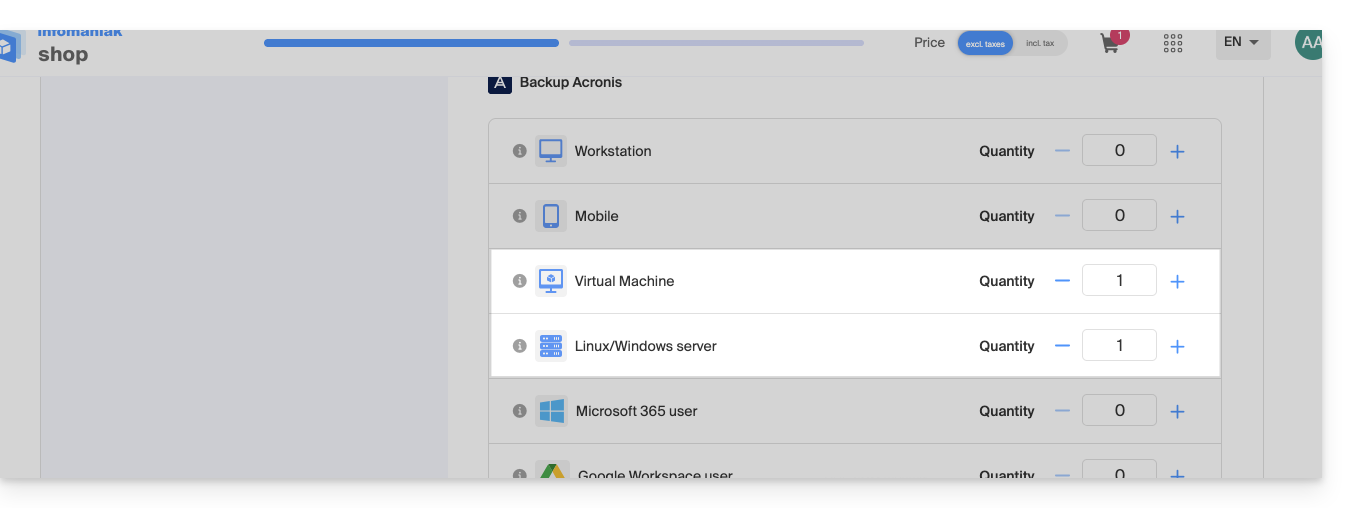
- If necessary, increase the device quota according to your needs.
- Add the device to the Infomaniak Manager to receive the login credentials.
Differences between devices
Choose Virtual Machine:
- Virtual machine hosted on a hypervisor environment (e.g. VMware, Hyper-V, Scale Computing HC3 or Virtuozzo).
- VPS server or virtual machine in an Infomaniak Public Cloud environment:
- These environments are based on virtualization technologies, and the license is designed to cover this type of configuration.
- The physical host that hosts the virtual machines must be covered by a single license, and this license includes all VMs present on that host.
- Hypervisor cluster with multiple hosts (each host requires a VM license).
Choose Linux Server:
- A physical machine or an individual virtual machine running on Linux (server operating system).
- A server-type machine (whether hosted locally or in the cloud, without a complex virtualization environment, and without a hypervisor like VMware or Hyper-V to manage virtual machines on this device).
- Each license covers a single physical or virtual machine.
- A physical server at your location or in a colocation facility.
Configure the backup
To install the Acronis Cyber Protect 15 agent on a Debian system using only the command line, without a graphical interface:
1. System update
Before installing anything, it is recommended to update the list of available packages.
sudo apt updateYou can view the list of available updates without installing them:
apt list --upgradablePartial update (optional)
If you only want to update specific packages:
sudo apt install package_name_1 package_name_2Complete system update (optional)
To apply all available updates:
sudo apt upgrade -y
2. Installing the required dependencies
The following packages are required for the Acronis agent to function correctly:
sudo apt install -y rpm gcc linux-image-$(uname -r) linux-headers-$(uname -r)
3. Downloading the Acronis agent
Download the official installer for the Acronis Cyber Protect 15 agent for Linux (full version):
wget "{{URL_8}}" -O acronis_agent.bin
4. Installing the agent
Make the file executable and start the installation:
chmod +x acronis_agent.bin

sudo ./acronis_agent.bin
The installation starts in interactive mode.
5. Registering the agent
At the end of the installation, a message will appear asking you to register the agent.
You will be provided with a registration code, such as:
Go to {{URL_9}}

Enter the code: AB12-CD34
Open the provided URL from another device with a browser (computer, tablet, or phone) and enter the displayed code to complete the registration.
Then, create a backup plan.
Link to this FAQ: https://faq.infomaniak.com/2342
Has this FAQ been helpful?
This guide details how to back up the files and directories of your choice using the Duplicati application via the OpenStack Swift protocol on Swiss Backup, the backup solution in a Swiss independent cloud.
Install the Duplicati software
To do this:
- Go to the Duplicati website: https://www.duplicati.com/
- Click on the "Download Duplicati" button.
- Choose the version corresponding to your operating system or Linux distribution.
- Start the program installation; you can keep the default settings.
Configure the Duplicati software
Prerequisites
- Have an Swiss Backup Infomaniak account with an available device quota (minimum 1) for a Cloud backup.
- Add 1 device of type Cloud to obtain the OpenStack Swift parameters.
Then:
- After installation, a web page should have opened; if not, go to
http://localhost:8200. - Click on Add Backup and then select Configure a new backup.
- Give a name and optionally a description to your backup plan.
- Enable or disable encryption and create an encryption passphrase if needed.
- In Storage Type, select Openstack Object Storage / Swift.
- Replace
SBI-XXXXXXXXand "passwd" with the information specific to your device (refer to this other guide):
Bucket Name:default
OpenStack AuthURI:https://swiss-backupXX.infomaniak.com/identity/v3(XX = check your Swiss Backup Manager account and replace with the exact URL)
Keystone API Version:V3
Domain Name:default
Username:SBI-XXXXXXXX
Password: your password
Identity Name:sb_project_SBI-XXXXXXXXXX
API Key: leave blank
Container Region: leave blank - Click on Test Connection and verify that your credentials are correct, then click on Next.
- Replace
- Select the folders to back up and click on Next.
- Define your backup preferences.
- It is recommended to leave the Remote Volume Size option at its default value.
- Choose your preference regarding data retention.
- The Smart Backup Retention option is recommended - a backup will then be kept for each of the last 7 days, each of the last 4 weeks, and each of the last 12 months.
- Click on Save.
- You will be redirected to the home page; you can start a backup immediately by clicking on Start Now next to the name of your backup, or wait for the next scheduled backup.
Restore a device with Duplicati
To do this:
- Open a web browser and go to http://localhost:8200.
- Click on the "Restore" menu on the left.
- If Duplicati is not configured to access your Swiss Backup storage space, see above.
- Choose the location from which you want to restore data.
- Choose the date of the data to be restored from the Restore from dropdown menu…
- You can also use the search field if you want to restore a specific file/folder.
- Select the data to be restored in the tree structure.
- Choose the location for restoring the data:
- Original location restores the data to where it was during the backup.
- Choose location allows you to restore data to a different folder than the original.
- Choose whether you want to keep or not the files that already exist on your machine in case of conflict, or rename the files with their last modification date.
- Click on Restore and wait for the process to finish.
Troubleshooting a 502 bad gateway or 401 unauthorized error
With Windows 10, connections to the Infomaniak Swift server are made using TLS1.2, while with Windows 11, this is done using TLS1.3, which generates errors. If the choice is restricted to TLS 1.2, then everything works fine.
To do this:
- Add the advanced option for allowed SSL versions:

- and select Tls 1 2:

Link to this FAQ: https://faq.infomaniak.com/2355
Has this FAQ been helpful?
This guide explains how to install the Acronis Agent on macOS for Swiss Backup, even if the Gatekeeper application attempts to block the installation and causes the error “Unable to open install.pkg because Apple cannot verify that it does not contain malicious software”.
Allow Acronis in Gatekeeper
To do this:
- Open the
install.pkgfile from Acronis so that the error message appears. - Go to System Preferences (in the Apple menu).
- Choose Security and privacy, then the General tab if necessary.
- A text will appear about
install.pkg; click Open anyway. - Confirm your decision to open the file by clicking the appropriate button.
Link to this FAQ: https://faq.infomaniak.com/2402
Has this FAQ been helpful?
This guide details how to back up the data from your folders and nodes in Jelastic Cloud via the OpenStack Swift protocol to Swiss Backup, the backup solution in an independent Swiss cloud.
Introduction
- To back up data, an extension for Virtuozzo (Jelastic Cloud) is available in the node's add-ons.
- Learn more about the extension (add-on) on Github.
Configure the Swiss Backup extension on Jelastic Cloud
Prerequisites
- Use Jelastic Cloud (at least one Jelastic environment must be active with the extension installed for your backups to be visible).
- Own an Swiss Backup Infomaniak space with an available device quota (minimum 1) for a Cloud backup.
- Add 1 device of type Cloud to obtain the OpenStack Swift settings.
To add the useful extension to Swiss Backup on Jelastic Cloud:
- Log in to the Jelastic Cloud Dashboard of your server.
- Go to the addons section:
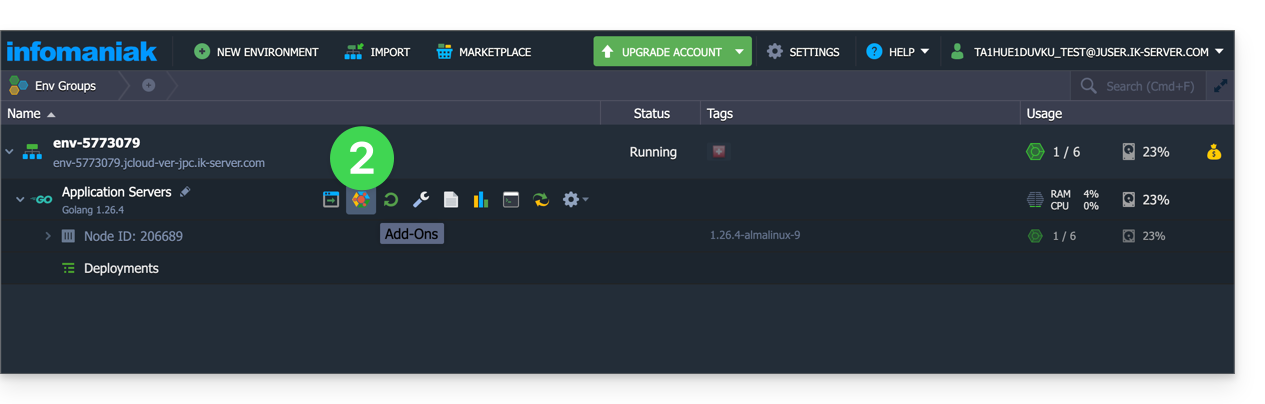
- Search for and install the Backup / Restoration extension:
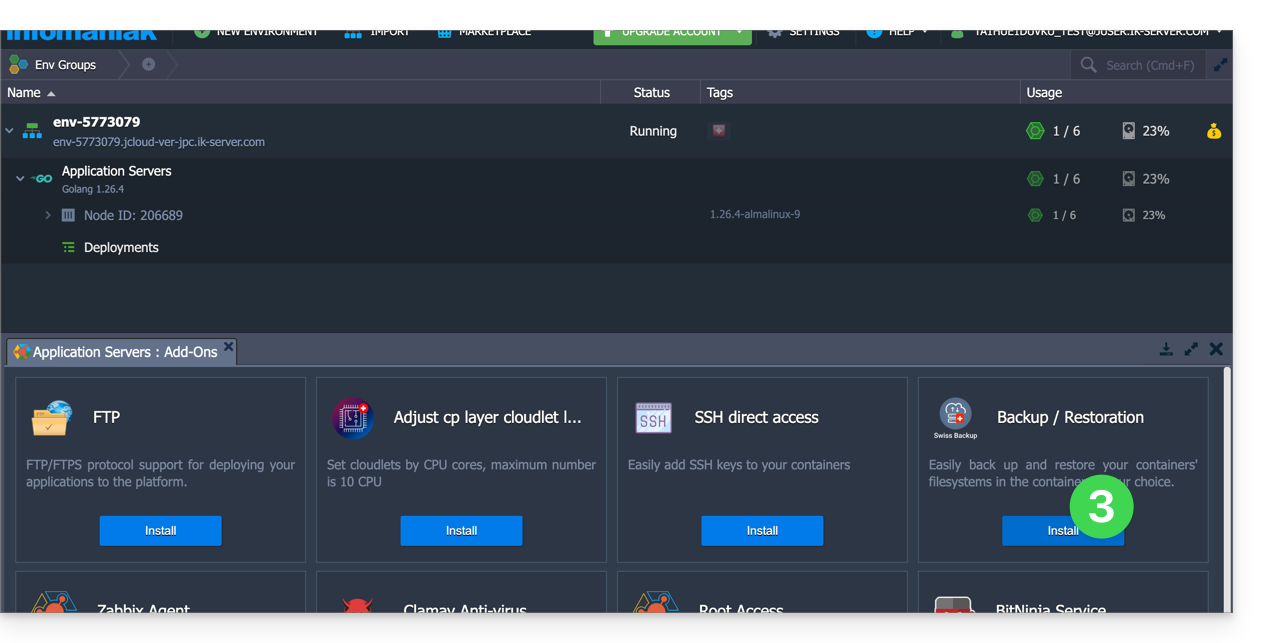
Two types of backup are then possible and are detailed below:
- Back up specific folders.
- Create a snapshot of an entire node.
Back up specific folders
To back up specific directories:
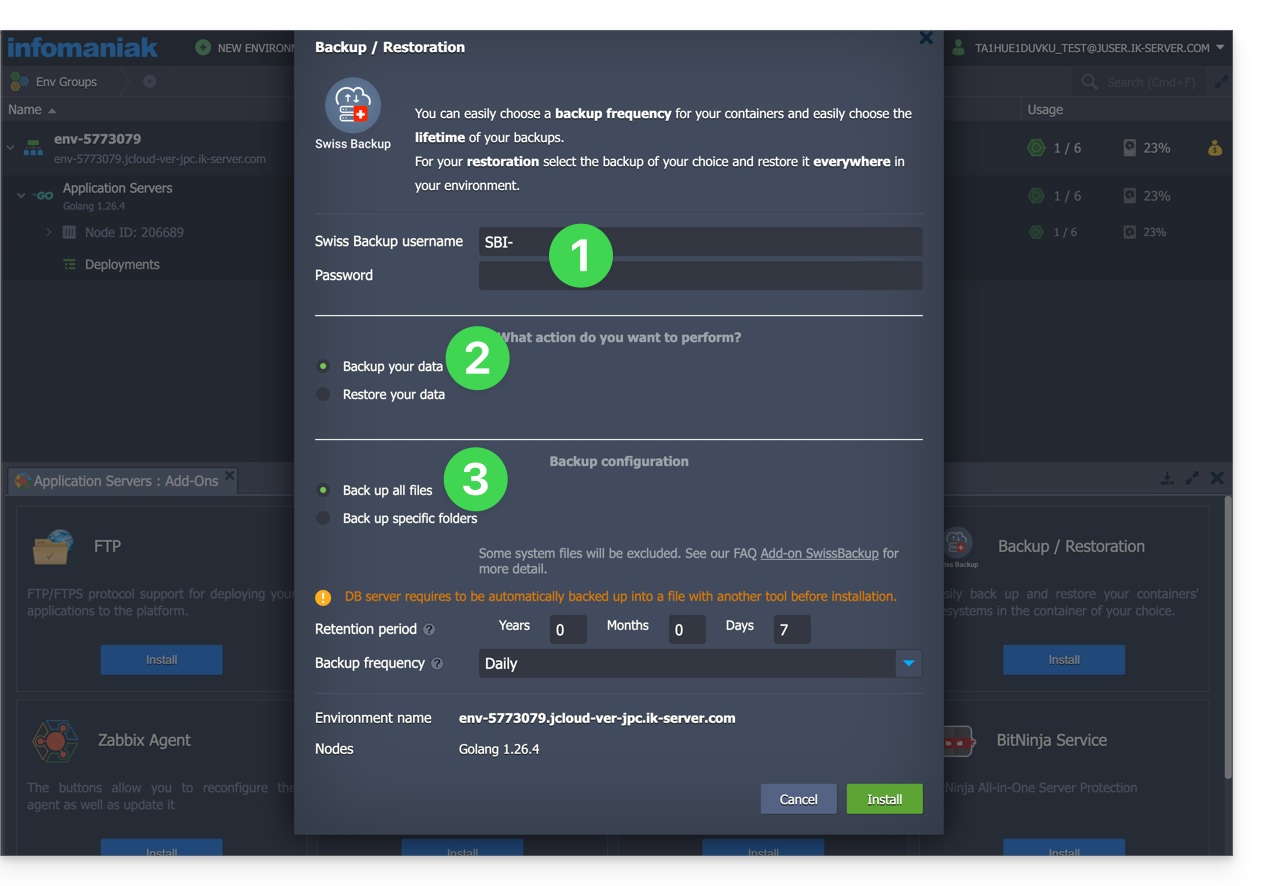
- Enter the username and password according to the information specific to your device.
- Check Backup your data.
- Check Backup specific folders
- Enter the absolute path of the folders to be backed up in the Folders to backup field; you can specify multiple folders by separating each path with a comma, for example:
/root/admin/, /home/user1/, /jelastic/containers/(in this example, 3 folders have been specified)...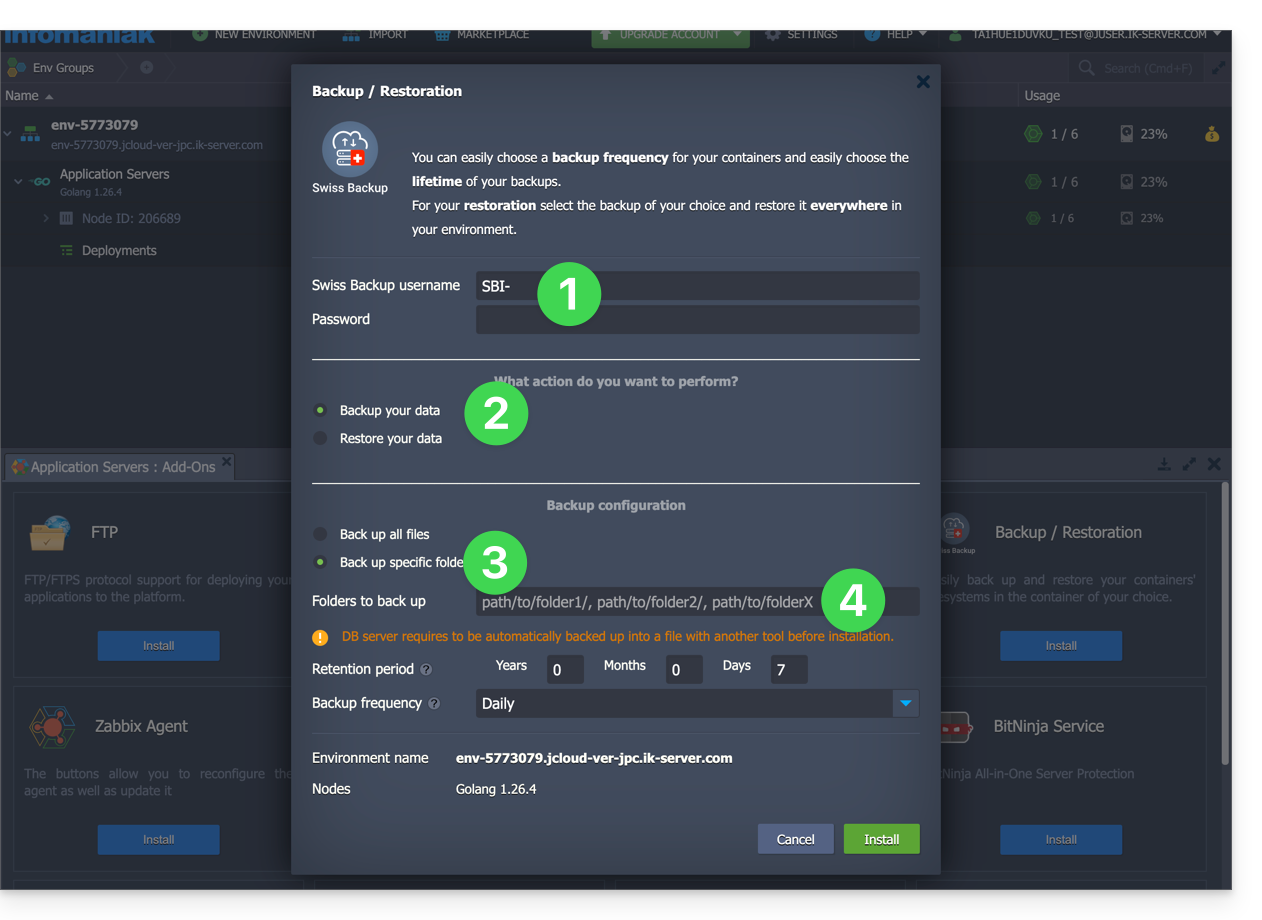
Next, you need to define the frequency of the backups (see below).
Back up an entire node
To back up an entire node:
- Enter the username and password for your Swift device on Swiss Backup.
- Check Backup your data.
- Check Backup all files to back up the entire file system of a node; some files are automatically excluded:
- the
/dev,/proc,/sys,/rundirectories - file systems that are not mounted as part of the root partition, including virtual file systems
- the
Next, you need to define the frequency of the backups.
Define the backup frequency and retention policy
Two options are available for performing the backup:
- daily (at 8 PM UTC)
- every hour (at the beginning of the hour, e.g., at 1 PM, 2 PM, etc.)
You can define the retention period for your backups in years, months, days, and hours. To keep your backups indefinitely, simply set the parameters to 0.
For example, if you perform backups every hour and set a retention policy to 1 year, 2 months, 4 days, 2 hours, this means that each backup will be available for a period of 1 year, 2 months, 4 days, 2 hours (=10322 backups). Note that backups are deleted every Sunday at 10:30 PM (UTC).
Warning: Do not set all parameters to 0, as permanent backups may lead to backup failures.
Recommended limits:
- Year: 1
- Month: 12
- Days: 99
For an hourly backup (every hour), a maximum retention period of one month is recommended. Beyond this value, some backups may fail.
Restore backups
Restore data from a node
- Log in to the Jelastic Dashboard of your server.
- You will probably need to reinstall (restart) the add-on from the Marketplace:
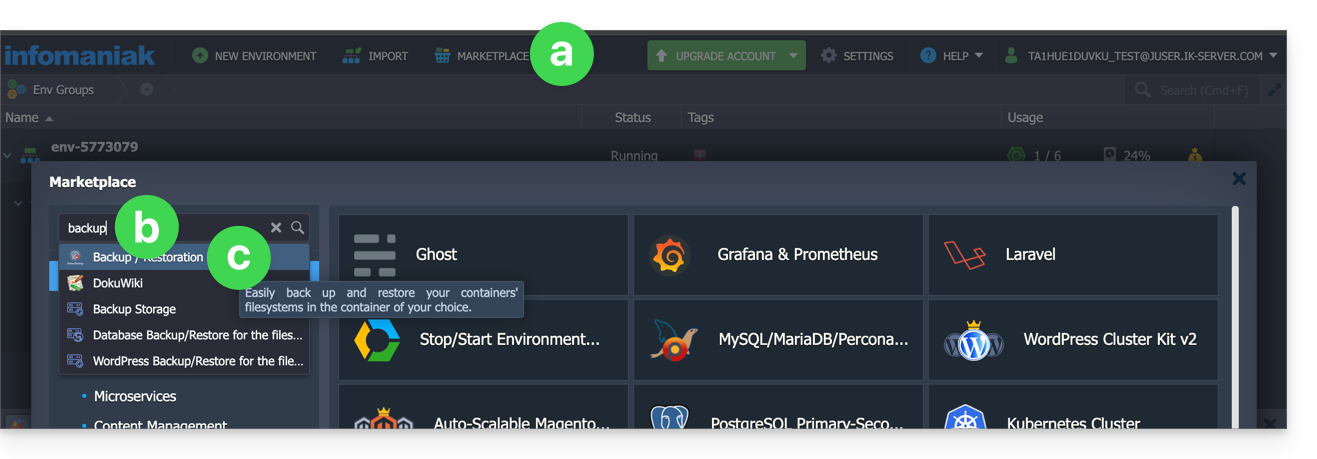
- Click on Marketplace.
- Search for “backup”…
- Click on the "Backup / Restoration" add-on:
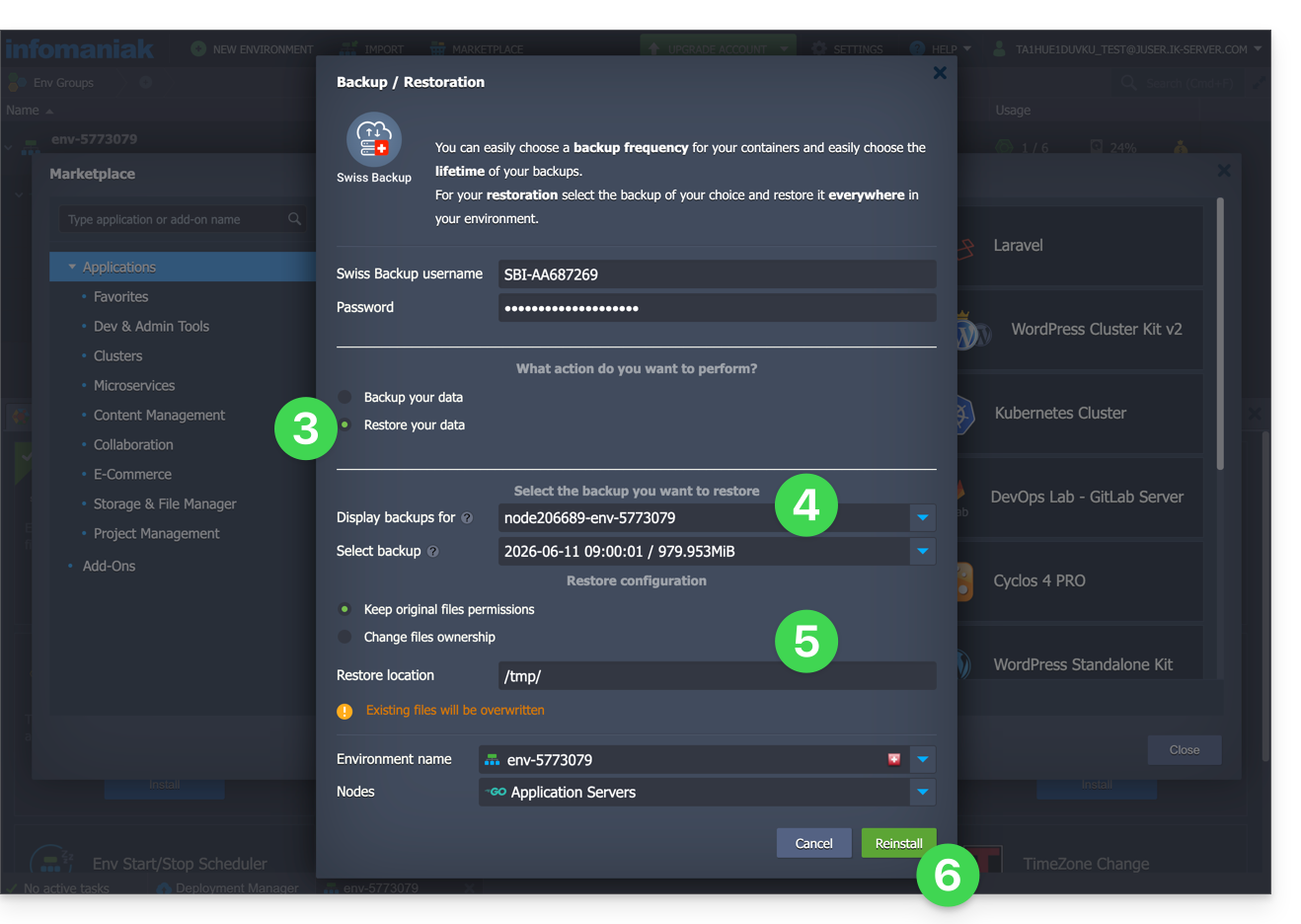
- Once the extension has been added and the username and password for your Swift device on Swiss Backup have been entered, check Restore your data.
- Select the node that contains the backup to be restored.
- Select the backup to restore and the folder to restore it to.
- Click on the Restore button:
Restore specific folders from a snapshot (CLI)
Each backup corresponds to a unique ID. You can include and exclude folders from your snapshots during a restore. To view your snapshots:
. /home/.config/swissbackup/openrc.shrestic snapshots
- Use
--excludeand--includeto restrict the restore to a subset of files in the snapshot; for example, to restore a single file:restore 79766175 --target /tmp/restore-work --include /work/foo
There are case-insensitive variants of --exclude and --include called --iexclude and --iinclude. These options behave in the same way but ignore the case of the paths.
Modify the backup configuration
To do this:
- Log in to the Jelastic Dashboard of your server.
- Once the extension has been added and the username and password for your Swift device on Swiss Backup have been entered, modify the configuration as desired.
The backup schedule is defined by a cron job, and backups are performed using the restic tool.
To manually modify the backup schedule (CLI), as the root user, run the crontab -l command to display the current schedule:
- the line containing
retention-all.shcorresponds to the backup task - the line containing
purge.shcorresponds to the backup retention task
Example:

Modify the schedule using the crontab -e command.
You can modify the line containing the retention-all.sh or retention.sh script; these scripts are responsible for launching your backups. Please note: the cron jobs have been designed to avoid conflicts between backups and multiple deletions. Be mindful of the time required for backups and deletions…
- Learn more about cron jobs: crontab.guru
- Learn more about restic: restic.net
Manually delete backups (CLI)
To do this:
- Source the configuration file:
. /home/.config/swissbackup/openrc.sh - Display available backups:
restic snapshots - Delete the desired backup:
restic forget IdBackup --prune - Delete all backups of a file except the most recent one:
restic forget --tag folders --keep-last 1 --prune

Delete the backup schedule
This button allows you to delete the schedule for your backup: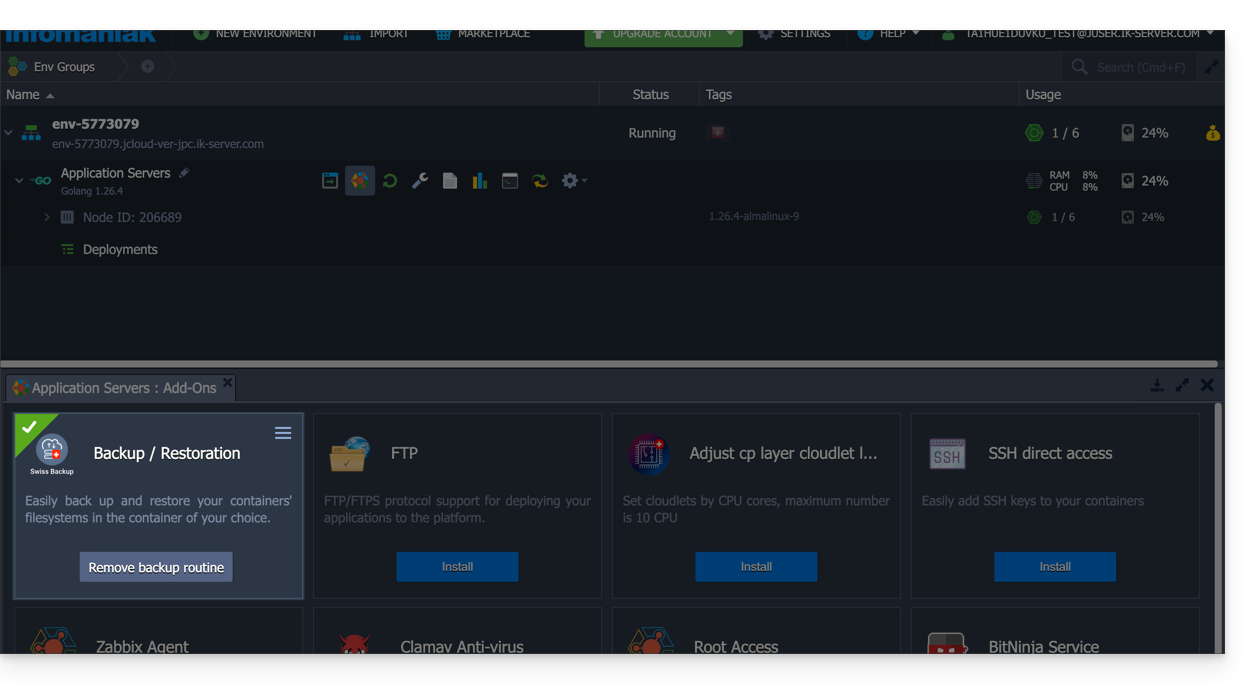
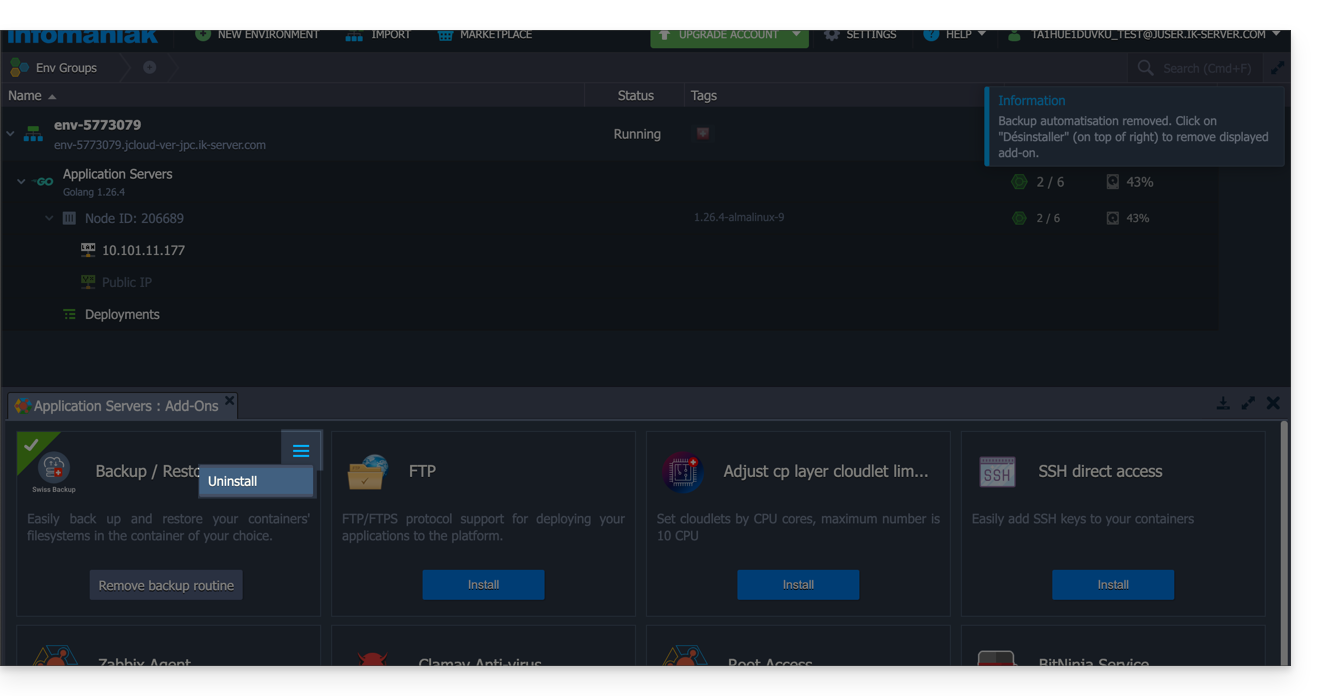
Uninstall the Swiss Backup extension
You must delete the backup schedule (see above) before you can delete the Swiss Backup extension:
Link to this FAQ: https://faq.infomaniak.com/2420
Has this FAQ been helpful?
This guide explains how to customize the resources (CPU and bandwidth) used by the Acronis software to back up your computer with Swiss Backup.
Introduction
- This procedure is particularly useful if your internet connection or computer becomes slow while backups are in progress.
- Also, refer to the Acronis documentation on this topic.
- Warning: by limiting the resources allocated to your backups, the latter may take longer to complete.
Customize the resources dedicated to backups
To access the Acronis management interface:
- Click here to access the Acronis Console using the credentials obtained after adding the device (need help?).
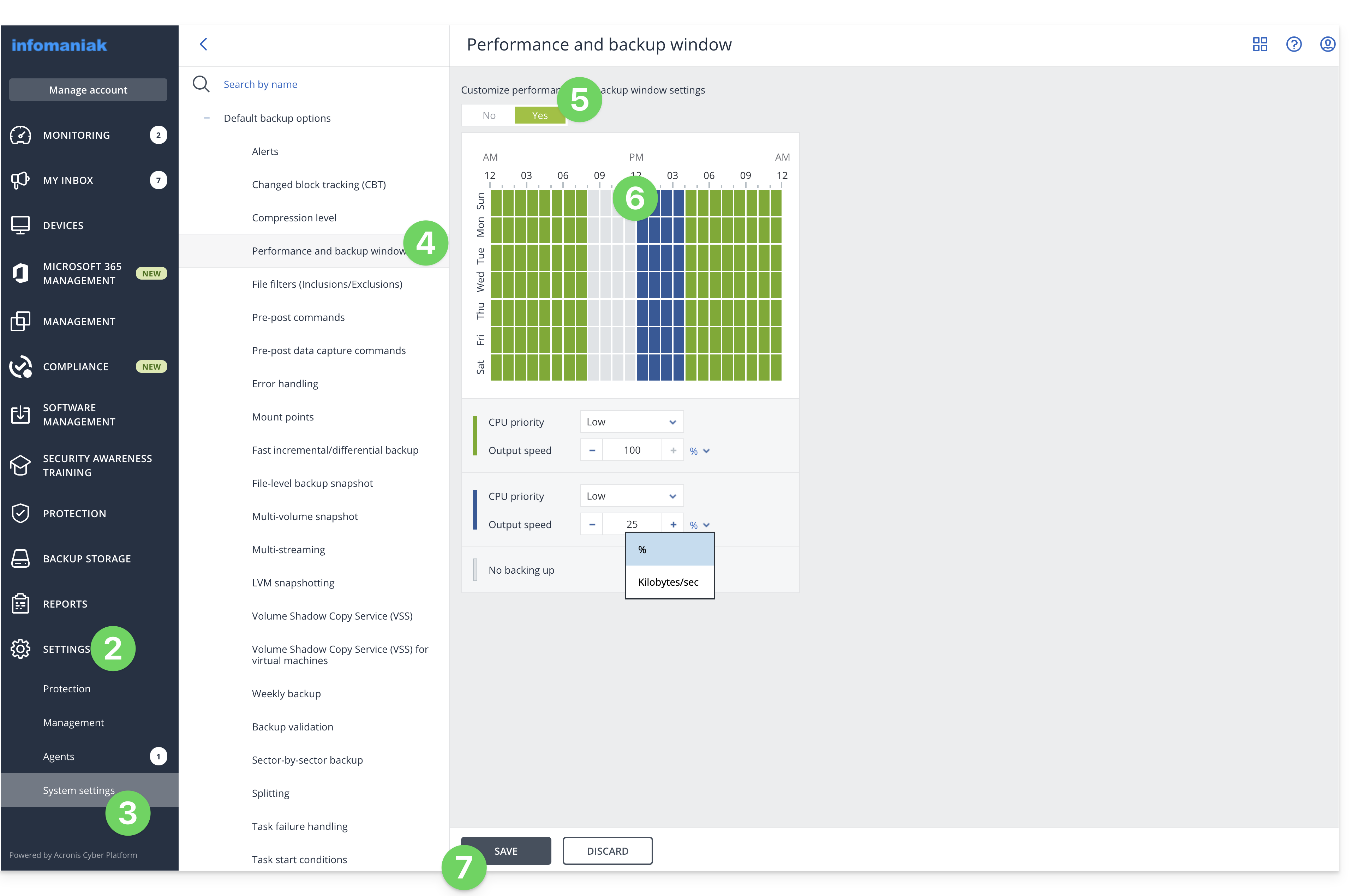
- Click on Settings in the left-hand menu.
- Click on System settings in the left-hand menu.
- Click on Performance and backup schedule.
- Click on YES to enable performance customization.
- Define the resources dedicated to Acronis:
- CPU priority: allows you to limit the power allocated to your backups.
- Output speed: allows you to limit the bandwidth allocated to your backups; on macOS, enter this parameter in KB/second because the percentage value is only taken into account under Windows.
- Define a time slot during which the resources will be lower: this allows you to allocate all resources to your backups when you are not using your computer, for example, reduced resources from 6 PM to 6 AM, while Acronis can use all the resources during the night.
- Click on Save:
Link to this FAQ: https://faq.infomaniak.com/2425
Has this FAQ been helpful?
This guide details how to get started with Swiss Backup (an open-source backup solution compatible with Openstack Swift, S3, SFTP, etc.), the backup solution in a Swiss independent cloud.
Introduction
- The free Cloud backup allows you to back up your computer using one of the following methods:
- The 3 guides above show how to add a device for each of these 3 backup types.
- It is not possible to use all 3 protocols at the same time; one must be chosen when creating the slot.
- To remove a device, please refer to this other guide.
- For information on the main connection settings, please refer to this other guide.
Specific guides
Below are detailed guides:
| Data saved | Tool / OS | Protocol |
|---|---|---|
| files, folders | CyberDuck | Swift |
| files, folders | CyberDuck | SFTP |
| files, folders | CyberDuck | S3 |
| files, folders | Filezilla | SFTP |
| files, folders | MSP360 (formerly CloudBerry) | S3 |
| files, folders | MSP360 (formerly CloudBerry) | S3 |
| WordPress | UpdraftPlus | S3 |
| Nextcloud | Swift | |
| Qnap NAS | rClone / HBS | Swift |
| Synology NAS | Hyper Backup | Swift |
| Synology NAS | Cloud Sync | Swift |
| Jelastic Cloud | Swift | |
| web hosting | Restic | Swift |
| macOS / Windows / Linux | Duplicati | Swift |
| Linux server | rClone | Swift |
| Mountain Duck | Swift |
Link to this FAQ: https://faq.infomaniak.com/2543
Has this FAQ been helpful?
This guide explains how to create a new device (Cloud backup via OpenStack Swift) on Swiss Backup, the backup solution in a Swiss independent cloud.
Prerequisites
- Order an Infomaniak Swiss Backup space.
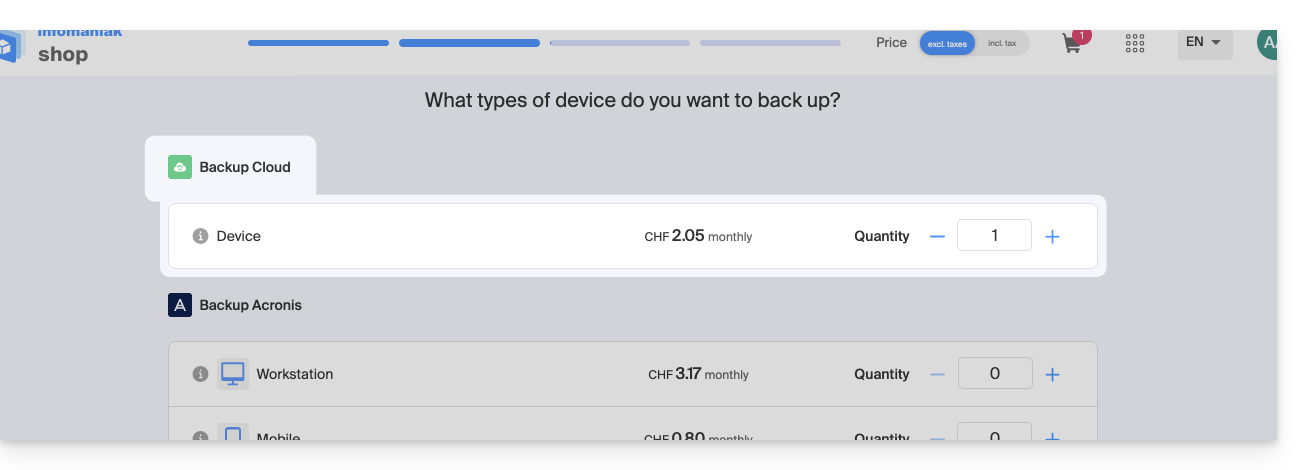
- During the order process, define the available quota for device(s) to be backed up using the Cloud backup type (minimum 1):
- If necessary, increase the device quota according to your needs.
Add a device (for OpenStack Swift connection)
To access Swiss Backup and configure a new backup:
- Click here to access your product management interface on the Infomaniak Manager (need help?).
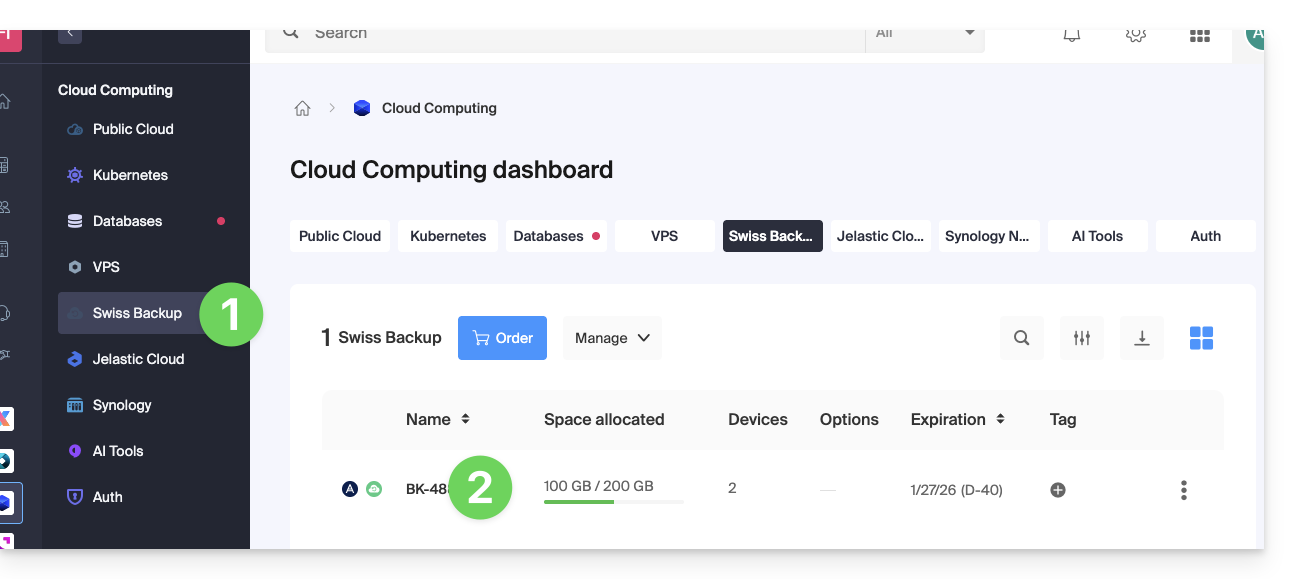
- Click directly on the name assigned to the product in question:
- Click on the blue Manage my devices button (in the Cloud storage space section):
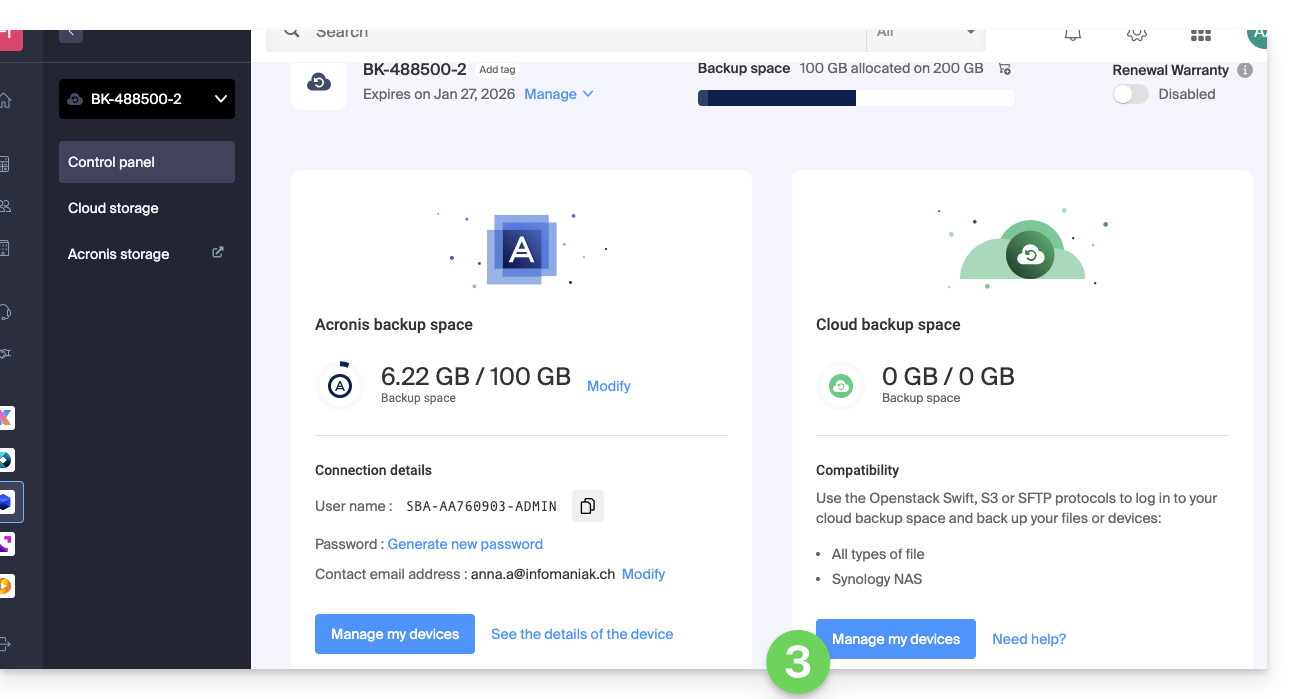
- Click on the blue Add device button:
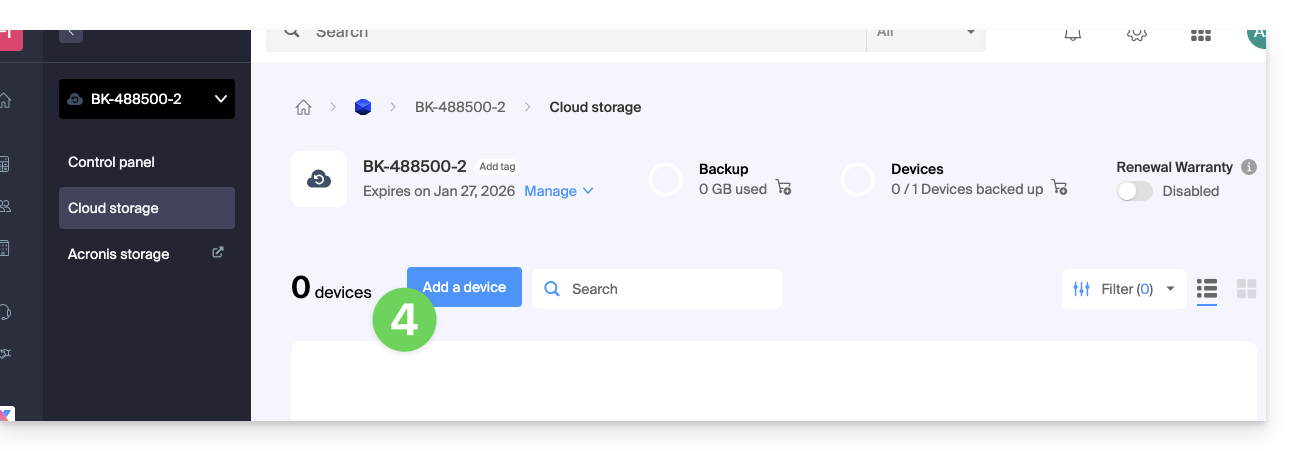
- Choose the Swift backup type/protocol.
- Click the blue Continue button:
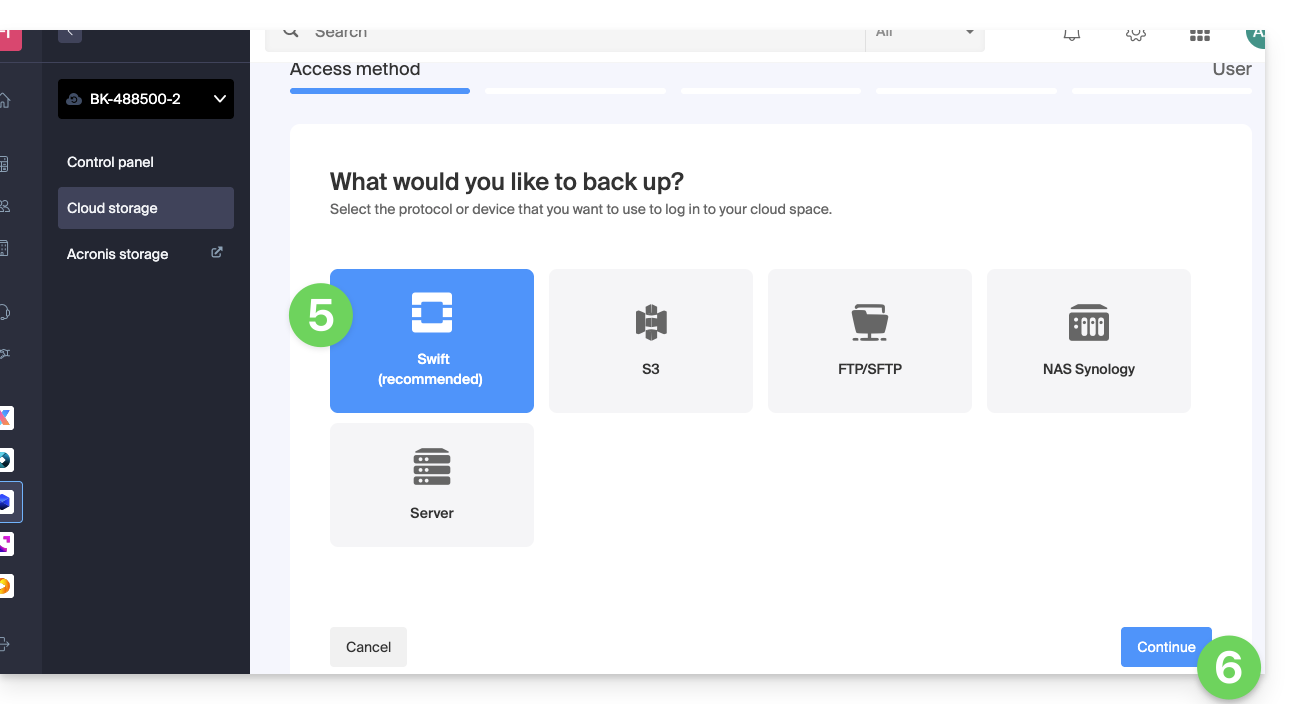
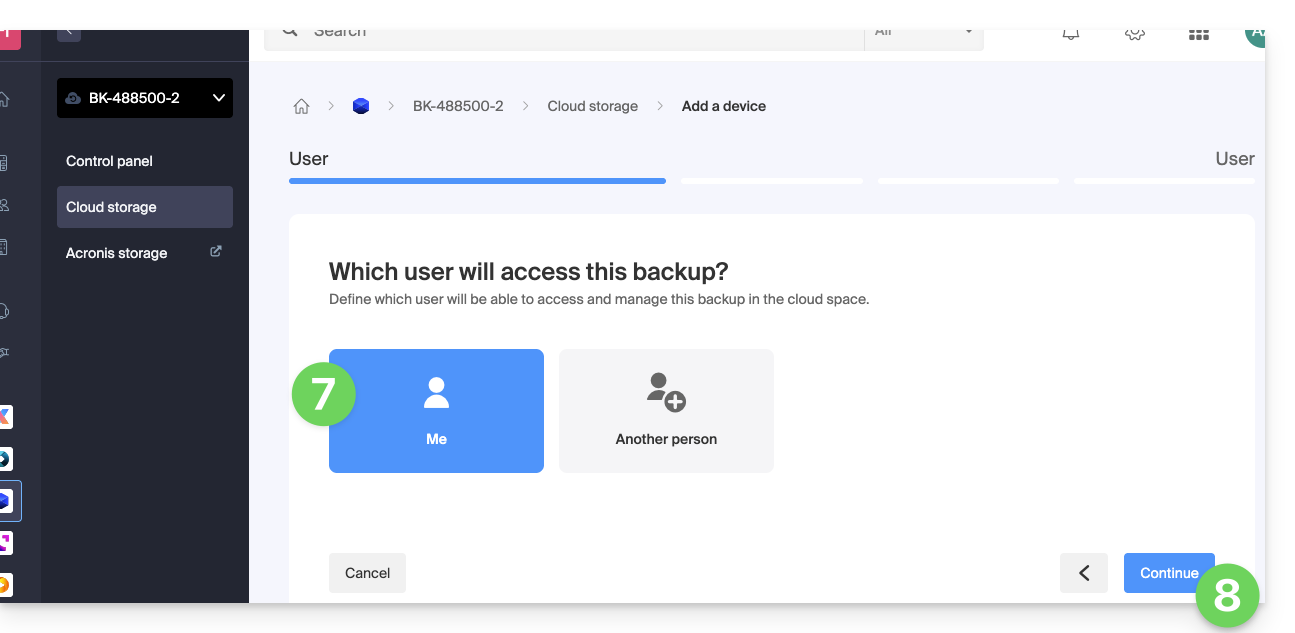
- Choose the user who will receive the login information (if necessary, choose a user different from your own and provide the person's contact details in the next step).
- Click the blue Continue button:
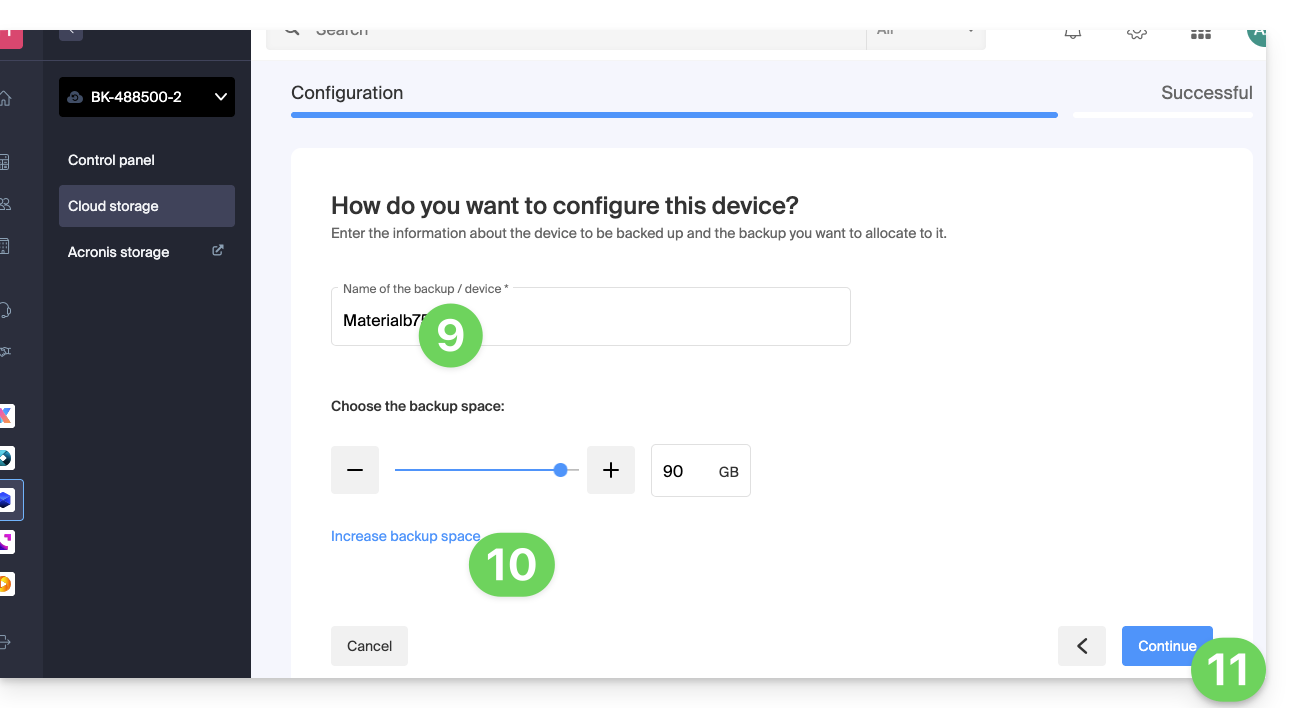
- Give the backup a name.
- Define the maximum disk space that this backup space should represent, based on the total volume of the Swiss Backup plan you have subscribed to, and increase the total size if necessary using the blue link.
- Click the blue Continue button:
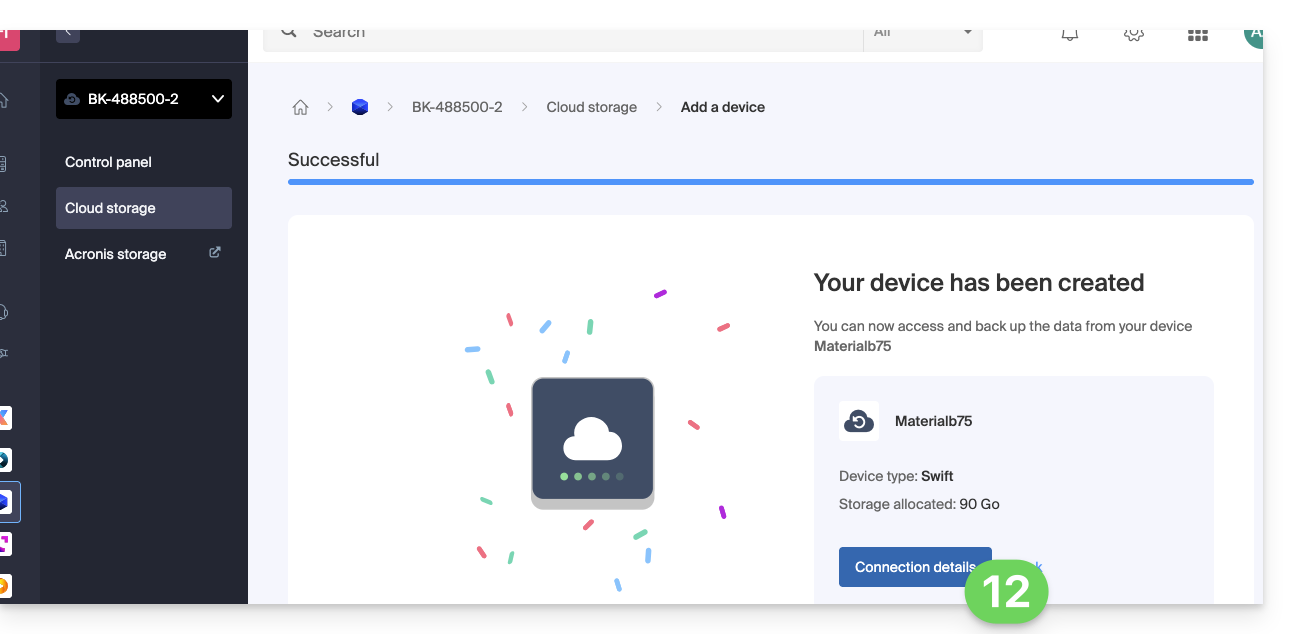
- Click on the blue button to display the connection details:
- This section includes the number representing the location, which is useful for completing some of the information you will need to provide when configuring your backup application.
- This section provides an example of a backup method, made easier by downloading a configuration profile.
- This section provides all the connection information.
- The location or host server name.
- The password (to be generated using the blue link, which will open the wizard in a browser popup, or via the link received by email), as well as other additional information, such as the
Tenant, for certain backup applications: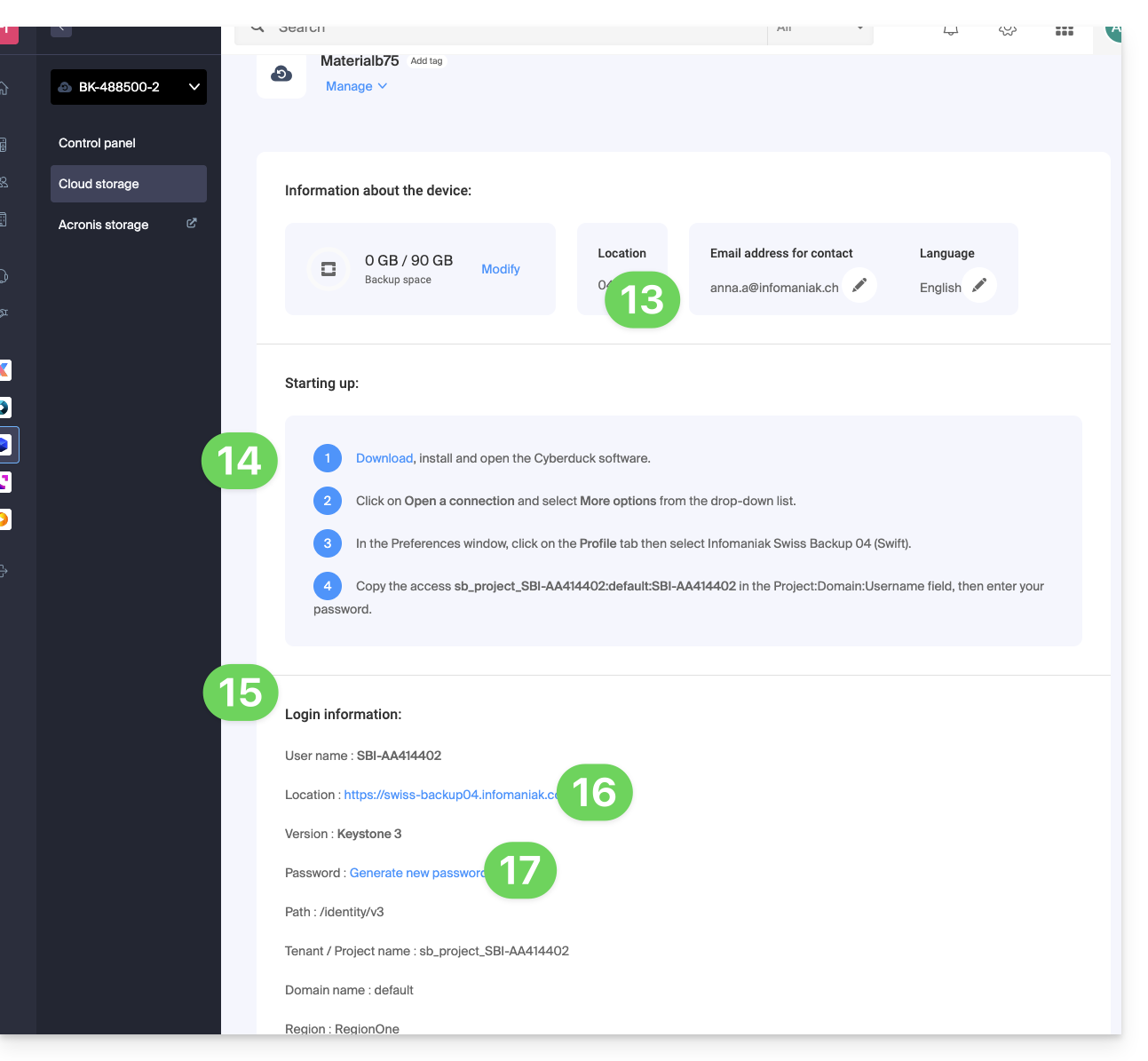
What's next?
Once the device has been added to the Swiss Backup interface within the Infomaniak Manager, you can configure your preferred application to start your Cloud backups using the protocol mentioned in this guide.
Link to this FAQ: https://faq.infomaniak.com/2544
Has this FAQ been helpful?
This guide explains how to create a new device (Cloud backup via FTP / SFTP) on Swiss Backup, the cloud backup solution in an independent Swiss cloud.
Prerequisites
- Order an Infomaniak Swiss Backup space.
- During the order process, define the available quota for device(s) to be backed up using the Cloud backup type (minimum 1):
- If necessary, increase the device quota according to your needs.
- Note: for a file transfer from an FTP/SFTP connection to be successful, the file size must not exceed 10 TB.
- It is recommended to check and adjust the timeout settings of your FTP software/client if necessary.
Add a device (for FTP/SFTP connection)
To access Swiss Backup and configure a new backup:
- Click here to access the management interface for your product in the Infomaniak Manager (need help?).
- Click directly on the name assigned to the product in question:
- Click on the blue Manage my devices button (in the Cloud storage space section):
- Click on the blue Add a device button:
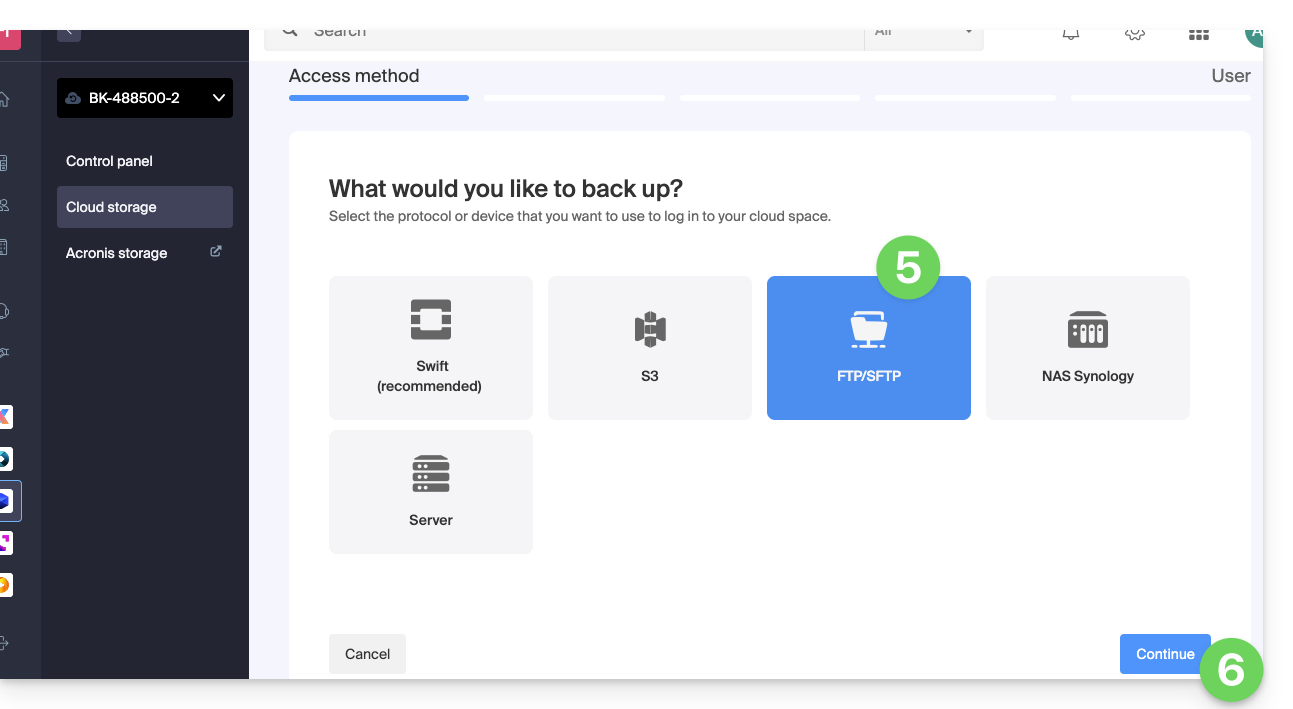
- Choose the type/protocol for the free backup: FTP/SFTP.
- Click on the blue Continue button:
- Choose the user who will receive the login information (if necessary, choose a different user than yourself and provide the person's contact details in the next step).
- Click the blue Continue button:
- Give the backup a name.
- Define the maximum disk space that this backup space should represent, based on the total volume of the Swiss Backup plan you have subscribed to, and increase the total size if necessary using the blue link.
- Click the blue Continue button:
- Click the blue button to display the login details:
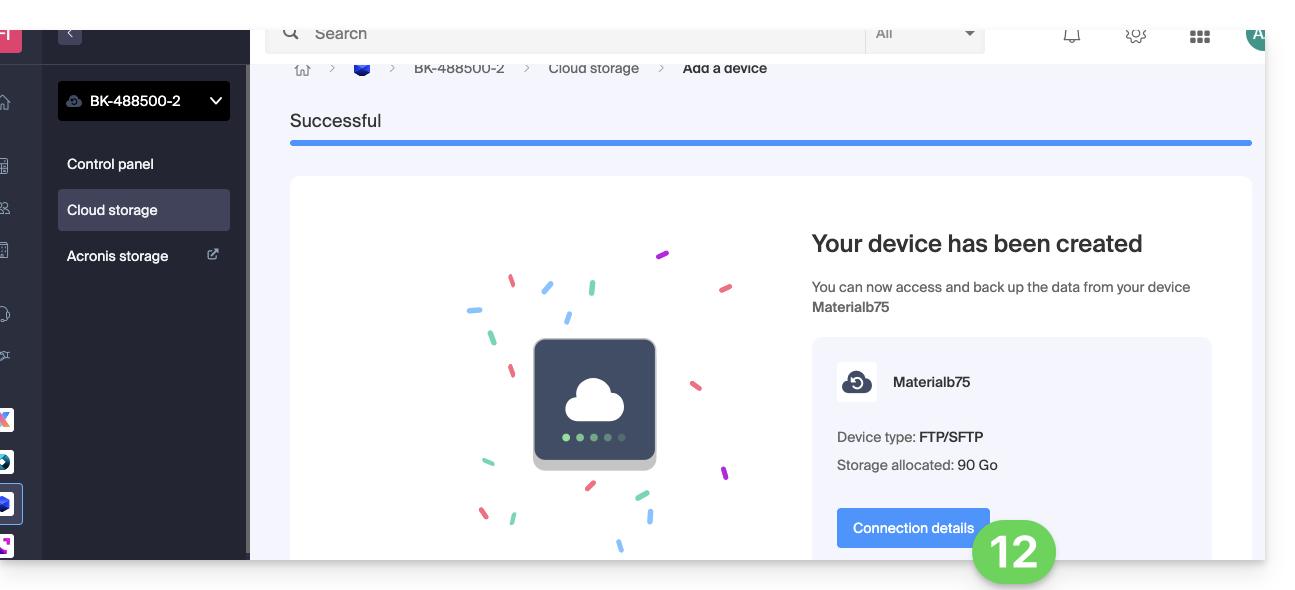
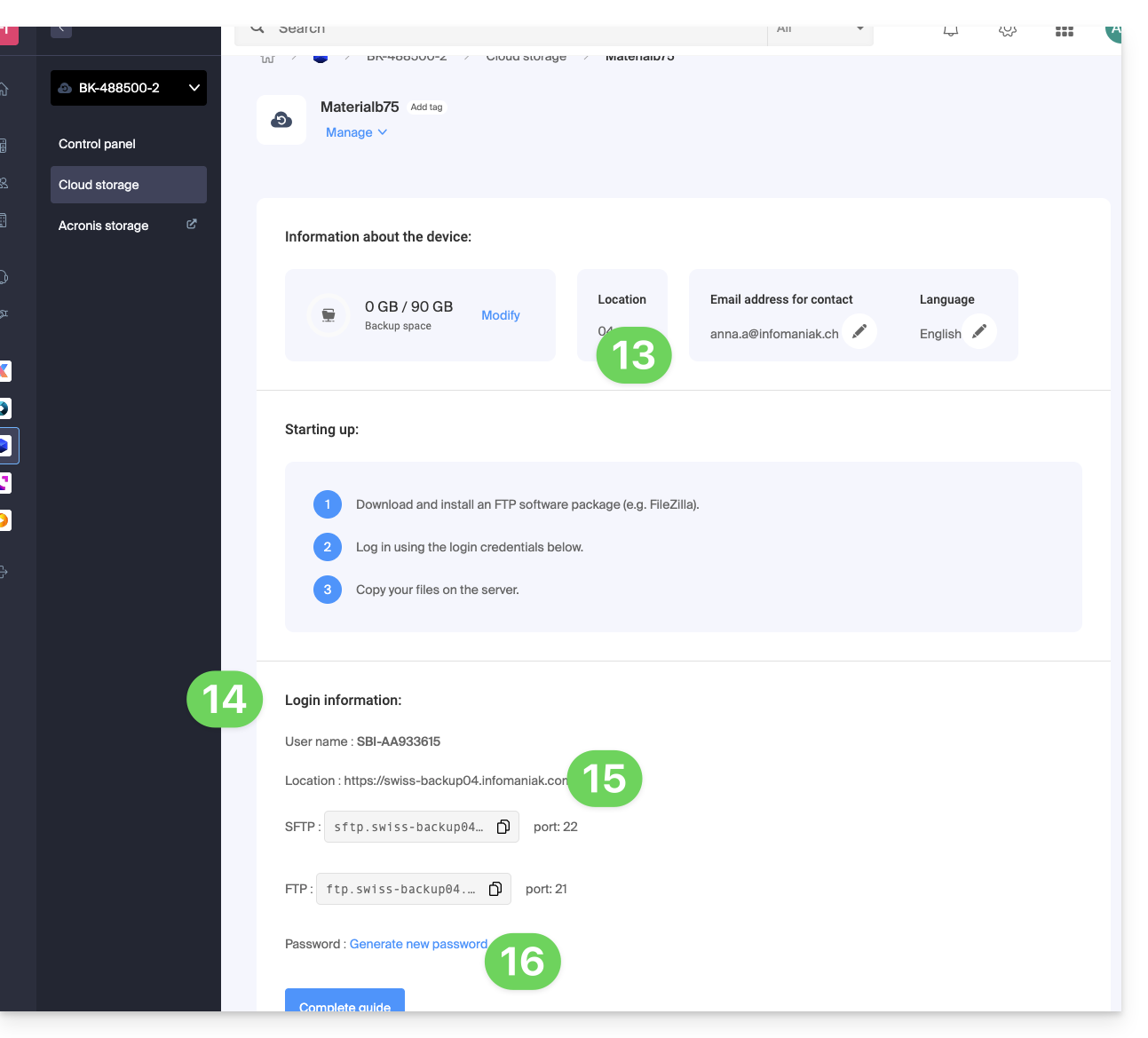
- This section includes the number representing the location, which is useful for completing some of the information you will need to provide when configuring your backup application.
- This section provides all the connection information.
- The location or host server name for the SFTP and FTP connection below, along with the port number (default ports for these protocols).
- The password (to be generated using the blue link, which will open the wizard in a browser popup, or via the link received by email):
What's next?
Once the device has been added to the Swiss Backup interface within the Infomaniak Manager, you can configure the application of your choice to start your Cloud backups using the protocol mentioned in this guide.
Link to this FAQ: https://faq.infomaniak.com/2545
Has this FAQ been helpful?
This guide explains how to create a new device (Cloud backup via S3 Compatible) on Swiss Backup, the backup solution in a Swiss independent cloud.
Prerequisites
- Order an Infomaniak Swiss Backup space.
- During the order process, define the available quota for device(s) to be backed up using the Cloud backup type (minimum 1):
- If necessary, increase the device quota according to your needs.
Add a device (for S3 connection)
To access Swiss Backup and configure a new backup:
- Click here to access your product management interface on the Infomaniak Manager (need help?).
- Click directly on the name assigned to the product in question:
- Click on the blue Manage my devices button (in the Cloud storage space section):
- Click on the blue Add device button:
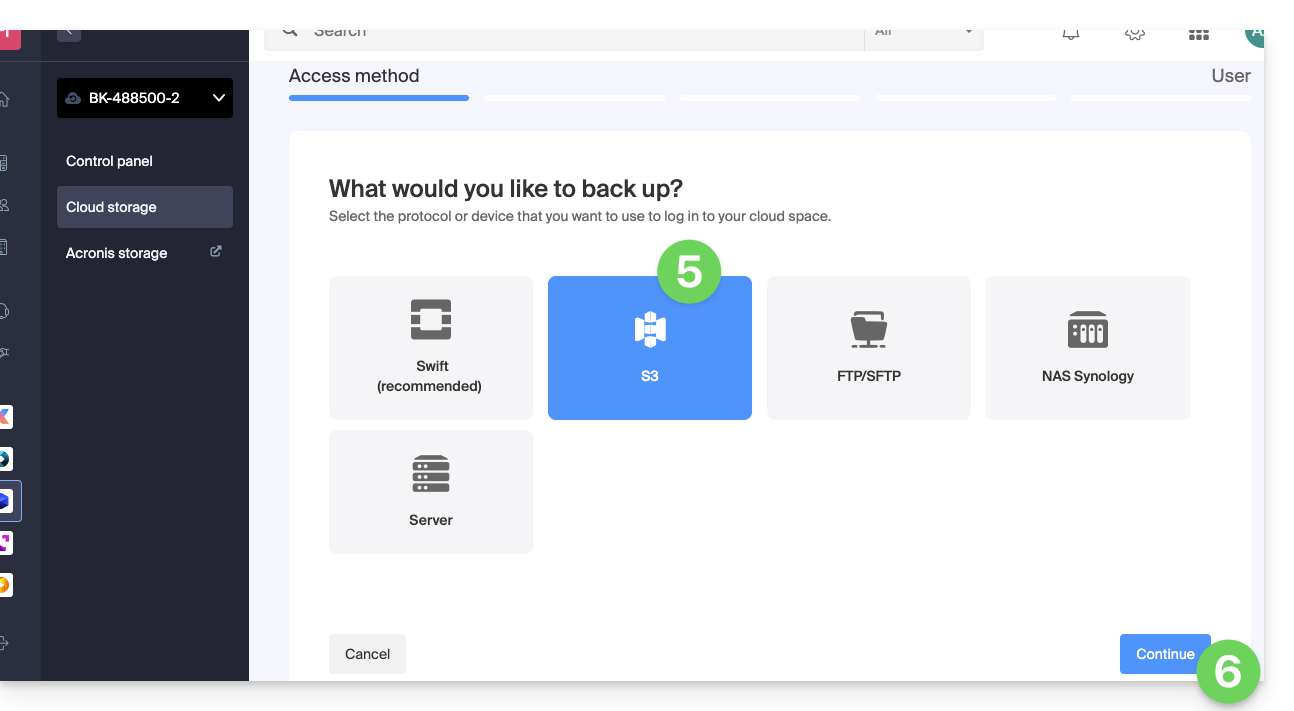
- Choose the S3 backup type/protocol.
- Click the blue Continue button:
- Choose the user who will receive the login information (if necessary, choose a user different from your own and specify the person's contact details in the next step).
- Click the blue Continue button:
- Give the backup a name.
- Define the maximum disk space that this backup space should represent, based on the total volume of the Swiss Backup plan you have subscribed to, and increase the total size if necessary using the blue link.
- Click the blue Continue button:
- Click on the blue button to display the connection details:
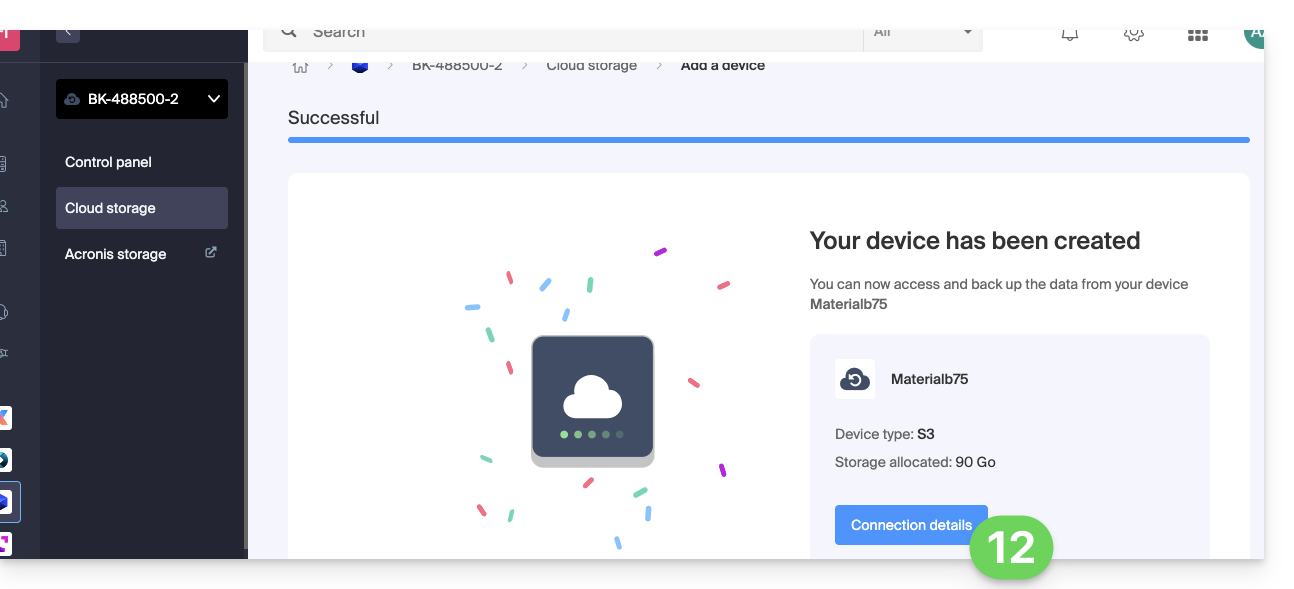
- This section includes the number representing the location, which is useful for completing some of the information you will need to provide when configuring your backup application.
- This section provides all the login information.
- The password (to be generated using the blue link, which will open the wizard in a browser popup, or via the link received by email) consists of an "
Endpoint", an "Access Key", and a "Secret Key":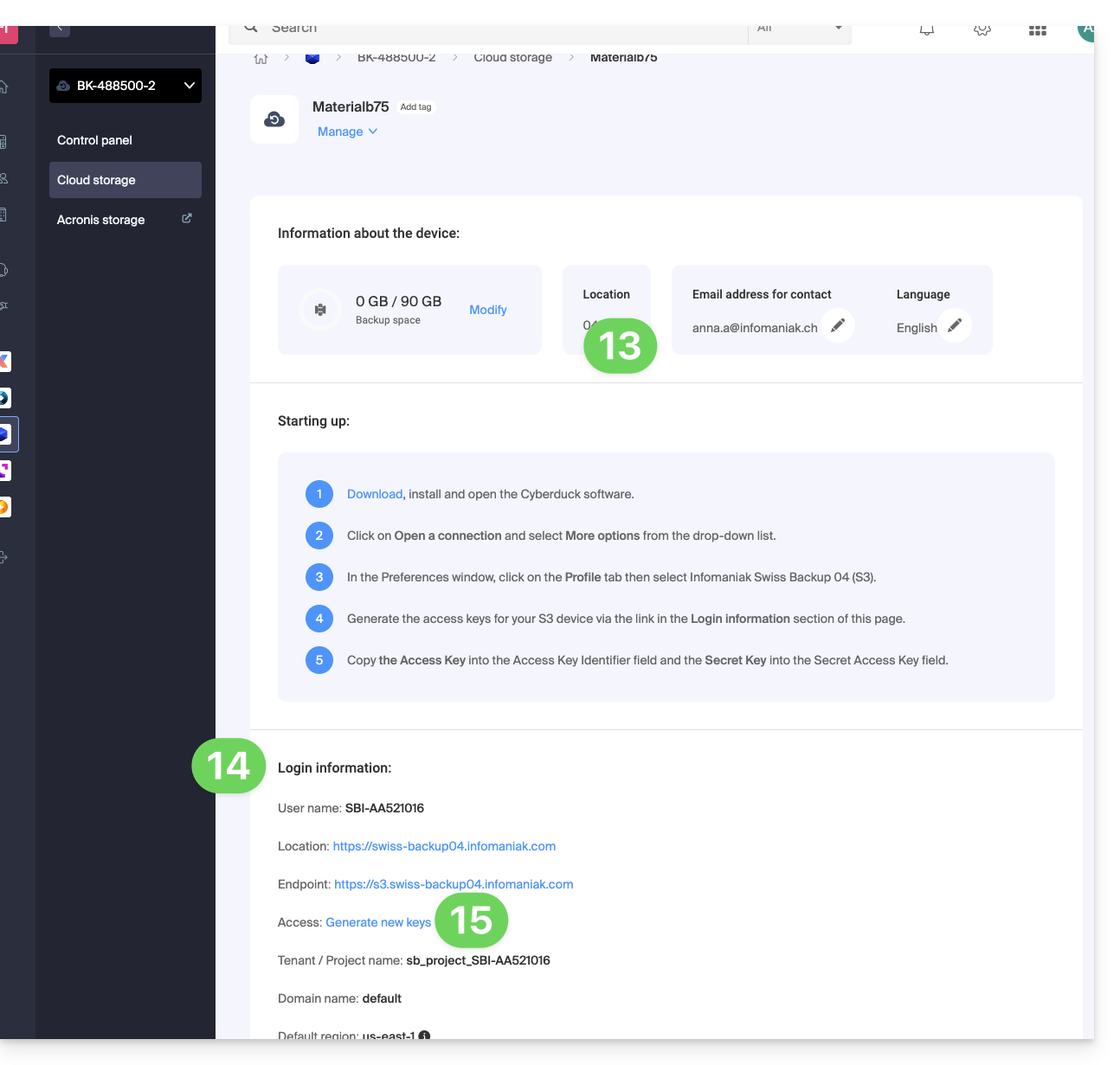
What's next?
Once the device has been added to the Swiss Backup interface within the Infomaniak Manager, you can configure the application of your choice to start your Cloud backups using the protocol mentioned in this guide.
Link to this FAQ: https://faq.infomaniak.com/2546
Has this FAQ been helpful?
This guide details how to manually back up data using the FileZilla application (macOS / Windows / Linux) via the SFTP protocol to Swiss Backup, the backup solution in a Swiss independent cloud.
Introduction
Configure FileZilla
Prerequisites
- Have an Swiss Backup Infomaniak account with an available device quota (minimum 1) for a Cloud backup.
- Add 1 device of type Cloud to obtain the SFTP parameters.
- Download and install FileZilla (macOS / Windows / Linux).
To configure a new backup:
- Fill in the fields according to the information specific to your device (refer to this other guide):
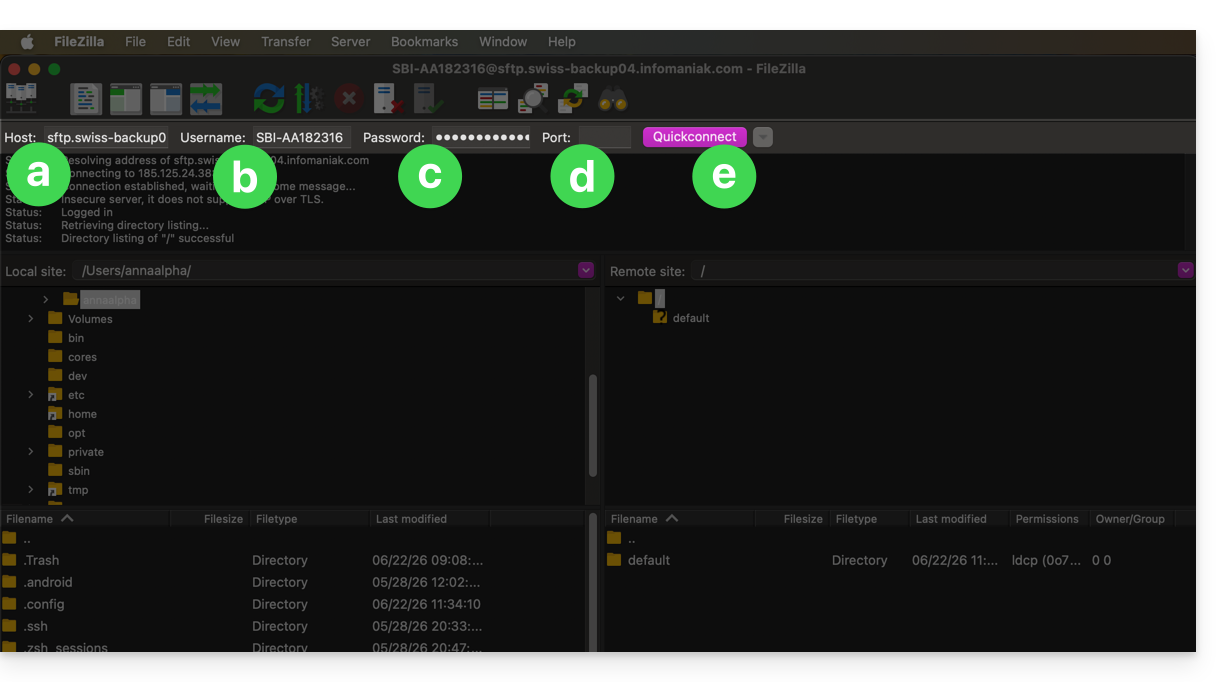
- Host:
sftp.swiss-backup02.infomaniak.com - Username: Swiss Backup device name (e.g.
SBI-MS0020) - Password: Password generated via the email received after creating the Swiss Backup device
- Port:
22 - Click on Connect
- Host:
FileZilla also allows you to configure connections so that you don't have to re-enter your login credentials:
- Click on the Site manager icon.
- Click on New site:
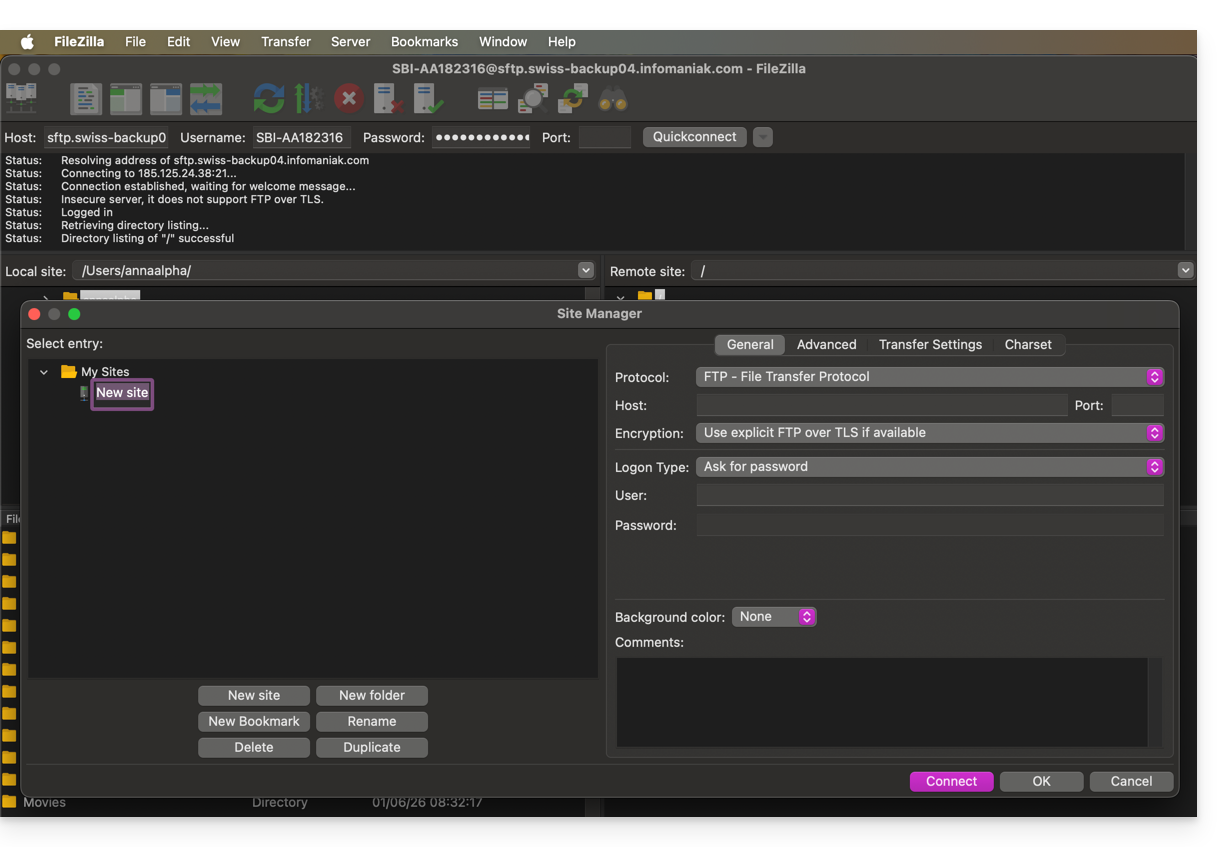
- Fill in the fields according to the information specific to your device.
The SFTP connection is recommended to ensure that data is transmitted securely.
- Cliquez sur l'icône Site manager.
- Cliquez sur Nouveau site:
- Renseignez les champs selon les informations propres à votre appareil.
La connexion SFTP est recommandée pour que les données soit transmises de façon sécurisées.
Link to this FAQ: https://faq.infomaniak.com/2547
Has this FAQ been helpful?