Knowledge base
1000 FAQs, 500 tutorials and instructional videos. Here, there are only solutions!
This guide details how to manually back up data using the Cyberduck application (macOS / Windows) via the SFTP protocol on Swiss Backup, the backup solution in a Swiss independent cloud.
Introduction
Configure Cyberduck
Prerequisites
- Have an Swiss Backup Infomaniak account with available device quota (minimum 1) for a Cloud backup.
- Add a Cloud device to obtain the SFTP settings.
- Download and install Cyberduck (macOS / Windows).
To configure a new backup:
- Open the Cyberduck application.
- Click on Open Connection:
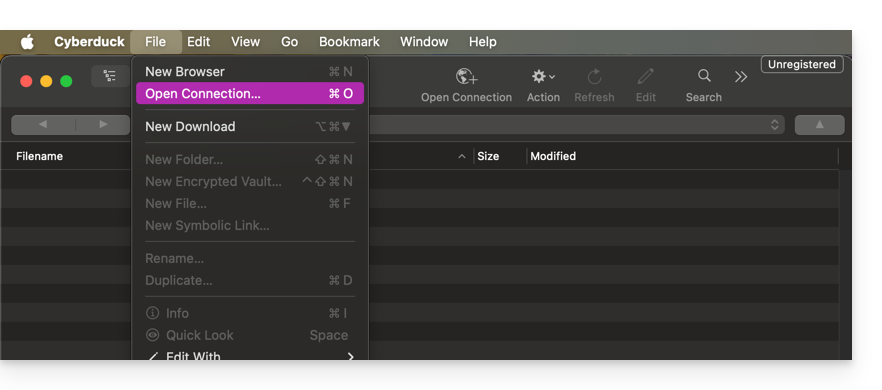
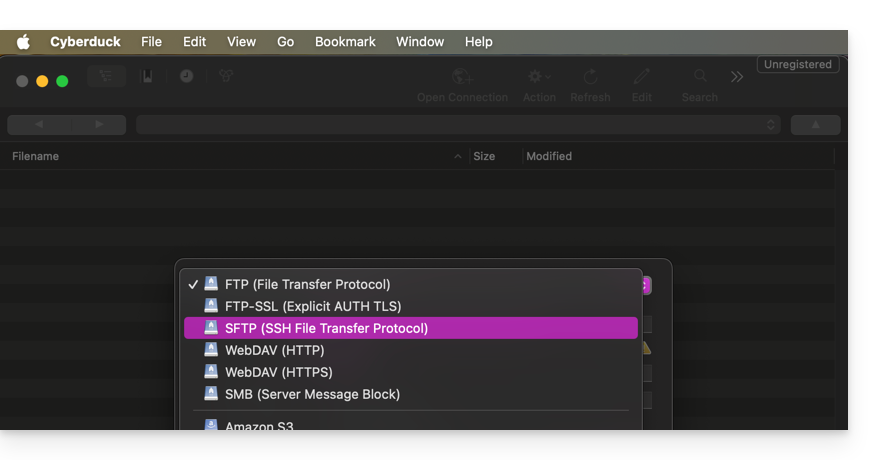
- Choose the corresponding protocol:
- Enter the information specific to your device (refer to this other guide):
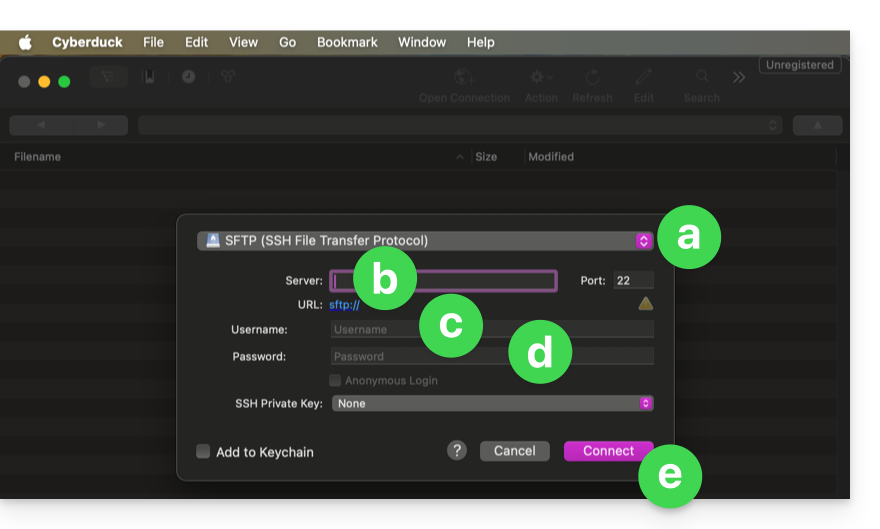
- In the drop-down menu, select:
SFTP(SSH File Transfer Protocol). - Server:
sftp.swiss-backup02.infomaniak.com - Username: the name of your Swiss Backup device (e.g.
SBI-MS0020). - Password: the password generated in the email you received after creating your Swiss Backup device.
- Click on Connect.
- In the drop-down menu, select:
Cyberduck allows you to create bookmarks, which are pre-configured access points for easy connection to the FTP storage later. Once the bookmark is created, you can double-click it to connect to the FTP storage.
Link to this FAQ: https://faq.infomaniak.com/2548
Has this FAQ been helpful?
This guide details how to manually back up data using the MSP360 (formerly CloudBerry Windows) application via the S3 Compatible protocol on Swiss Backup, the backup solution in a Swiss independent cloud.
Introduction
- You can also use FileZilla (SFTP): refer to this other guide.
Configure MSP360/CloudBerry
Prerequisites
- Have an Infomaniak Swiss Backup space with an available device quota (minimum 1) for a Cloud backup.
- Add 1 device of type Cloud to obtain the S3 Compatible settings.
- Download and install MSP360 (Windows).
To configure a new backup:
- Click on the CloudBerry icon in the top left corner.
- Choose Add Storage Account:

- Select S3 compatible:

- Enter the information specific to your device in the fields (refer to this other guide):

Display name= choose a name for the storage.AccessKeyandSecretKey= the access keys generated from the email you received from Infomaniak after creating the storage space.Service point= https://s3.swiss-backup02.infomaniak.comBucket name= default
- Click OK.
Link to this FAQ: https://faq.infomaniak.com/2549
Has this FAQ been helpful?
This guide details how to manually back up data using the MSP360 (formerly CloudBerry macOS) application via the S3 Compatible protocol on Swiss Backup, the backup solution in a Swiss independent cloud.
Introduction
- You can also use FileZilla (SFTP): refer to this other guide.
Configure MSP360/CloudBerry
Prerequisites
- Have an Swiss Backup Infomaniak account with available device quota (minimum 1) for a Cloud backup.
- Add 1 device of type Cloud to obtain the S3 Compatible settings.
- Download and install MSP360 (macOS).
To configure a new backup:
- Go to Settings:

- Choose an S3 Compatible storage from the list below:

- Enter the information according to your device's specific details (refer to this other guide):

Display Name: the name of this storage space in the application.AccessKeyandSecretKey: the access keys generated from the email received from Infomaniak after creating the storage space.Endpoint(or server URL):https://s3.swiss-backup02.infomaniak.com- The value of "bucket" remains at its default setting.
- Confirm by clicking OK.
Link to this FAQ: https://faq.infomaniak.com/2550
Has this FAQ been helpful?
This guide explains how to prepare your server and install the Acronis Backup Agent for Swiss Backup on AlmaLinux 9.
Install the Acronis CyberProtect Agent
1. System requirements
- Use an account with root privileges.
- Internet access required for uploads and downloads.
- Available disk space: approximately 2 GB.
2. System Preparation
Switch to the root user:
# Switch to root user
sudo -i
Update the DNF metadata cache:
# Refresh DNF metadata cache
dnf -y makecache
Check the current kernel and GCC versions:
# Check current kernel and GCC version
cat /proc/version
If the kernel version does not match the available kernel-devel package, an update will be necessary in the next step.
Install the build tool (make):
# Install make utility
dnf install -y make
# Verify installation
make -v | head -n 1
Install the GCC compiler:
# Install GCC compiler
dnf install -y gcc
# Verify version (should match the one in /proc/version)
gcc -dumpfullversion
Install the latest kernel and its headers (kernel-devel):
# List available versions
dnf list kernel kernel-devel --showduplicates | sort -r
# Install latest kernel and headers
dnf install -y kernel kernel-devel
Restart the server to load the new kernel:
# Reboot the system
systemctl reboot
After the restart, reconnect and switch back to root (
sudo -i).Confirm that all required tools are present:
# Final environment check
uname -r
rpm -qa | grep ^kernel-devel
make -v | head -n 1
gcc -dumpfullversion
perl -v | head -n 2
3. Downloading the installer
Install wget if necessary:
# Install wget dnf install -y wget- Get the download URL:
- Log in to https://acronis.infomaniak.com.
- Go to Terminals → All terminals.
- Click on Add and select Linux.
- Copy the complete URL containing your token.
Download the binary to your server:
# Download the installer using your URL
wget -O CyberProtect_AgentForLinux_x86_64.bin "metre_ici_URL_obtenue_avant"
Make the file executable:
# Set execution permissions
chmod +x CyberProtect_AgentForLinux_x86_64.bin
4. Installing the agent
Start the installation:
# Run the installation script ./CyberProtect_AgentForLinux_x86_64.bin- Use the Tab key to navigate and Enter to confirm in the text interface.
- Select Install.
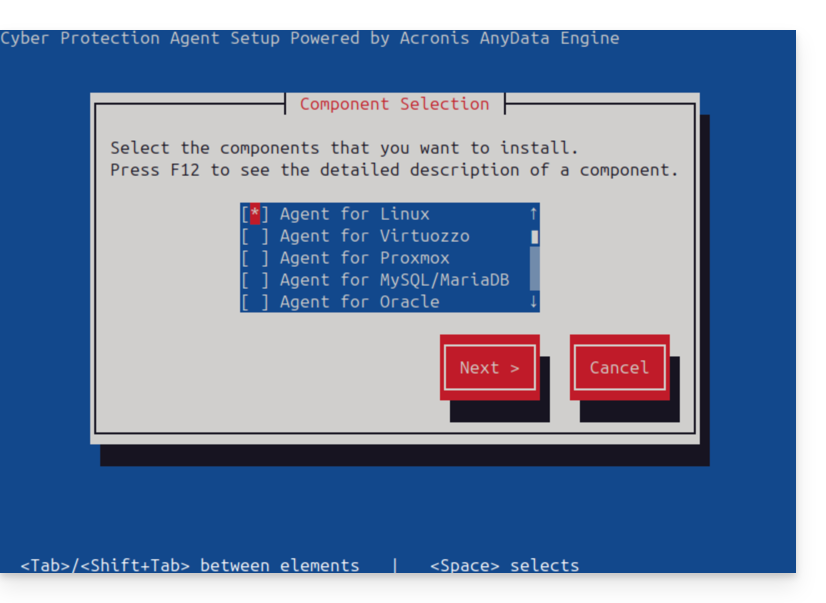
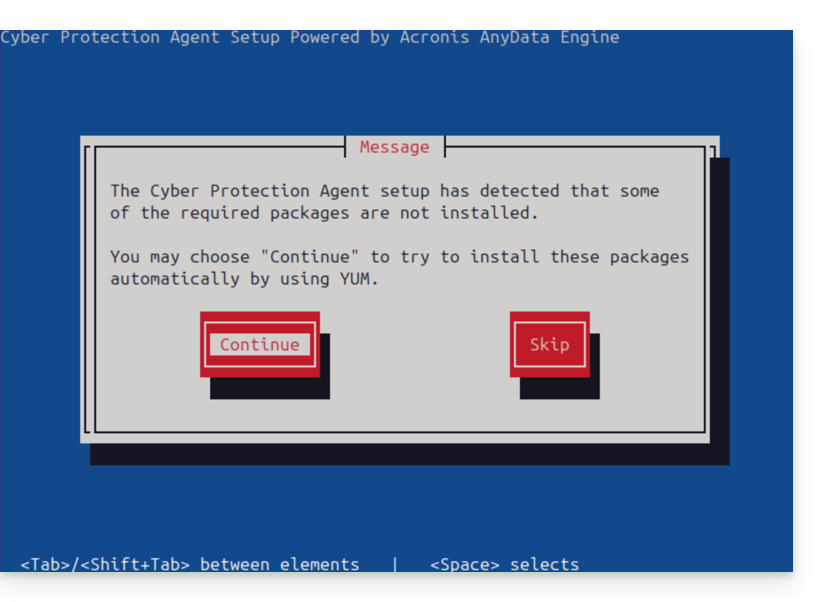
- Accept the automatic installation of any missing dependencies via YUM.
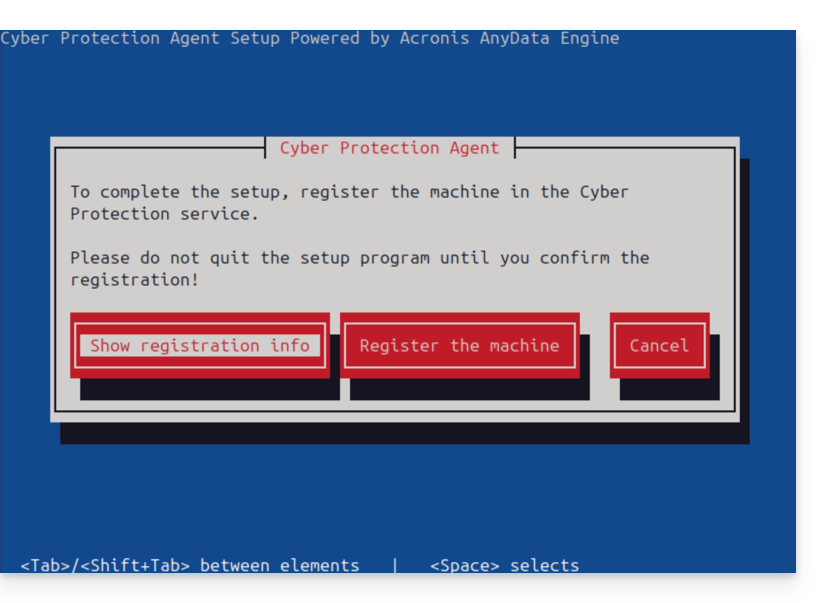
- At the end of the process, select Display registration information.
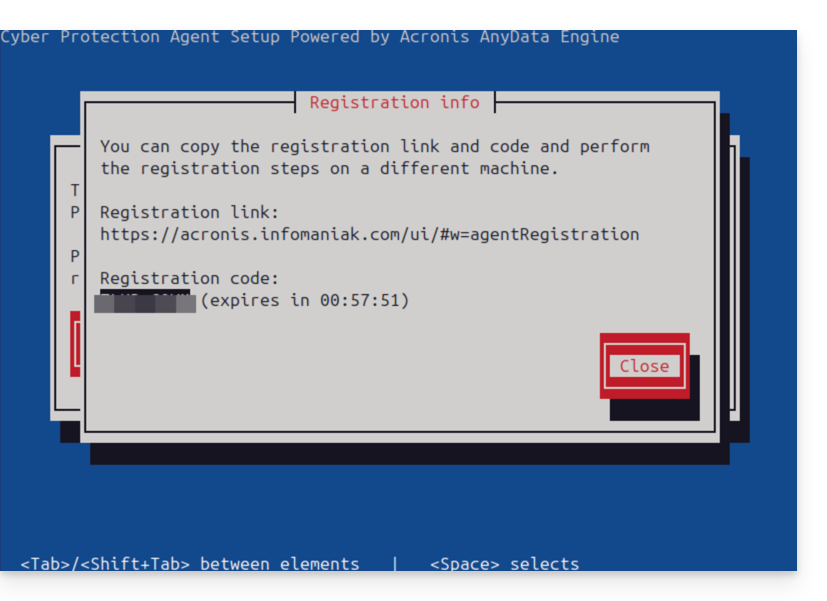
- Carefully note the Registration Code displayed (e.g., ABCD-1234).
5. Registration on the Acronis console
- Go back to your Acronis console (browser).
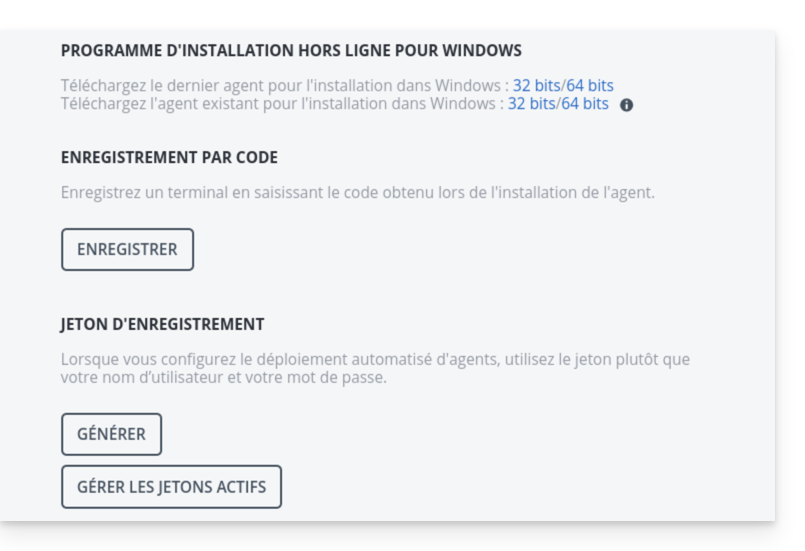
- Click on Add, then at the very bottom of the list, choose Registration by code.
- Enter the code obtained from the server and click Validate.
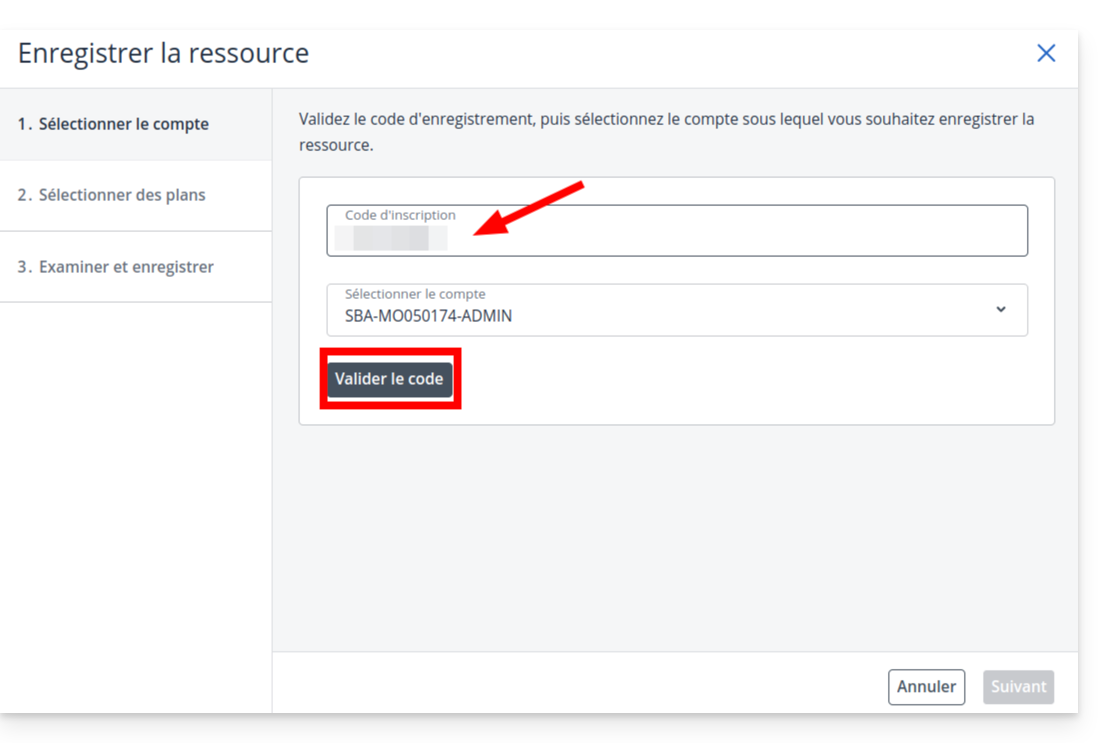
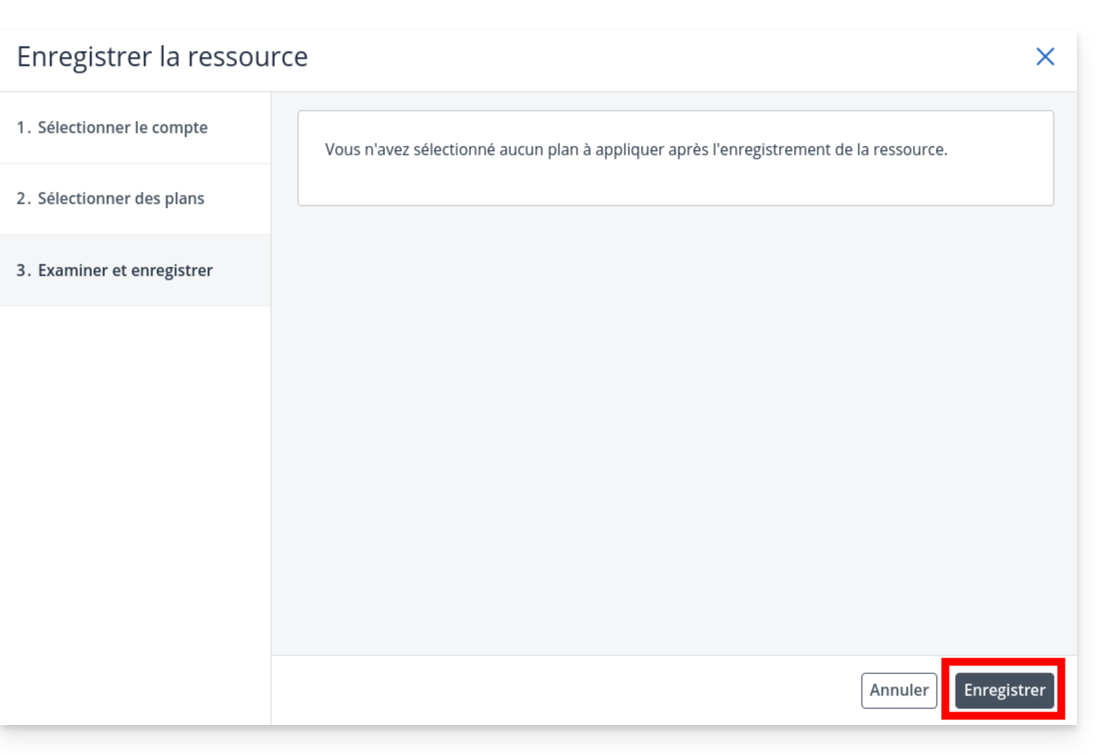
- Important: On the plan selection screen, click on the drop-down menu.
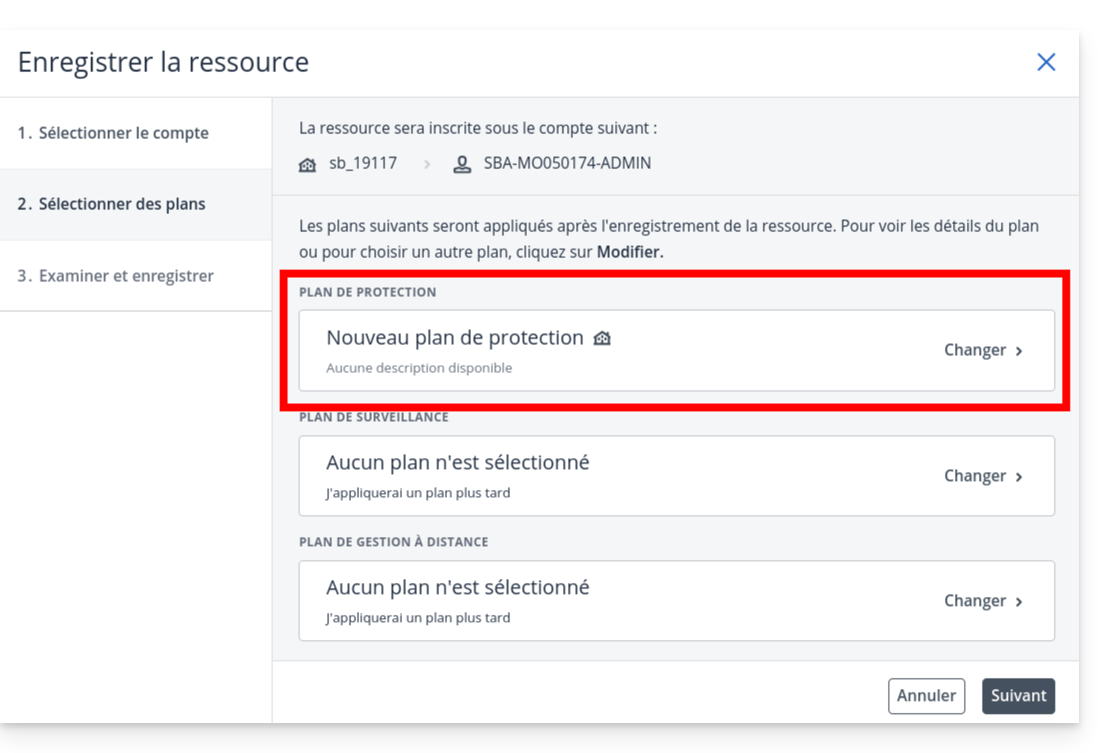
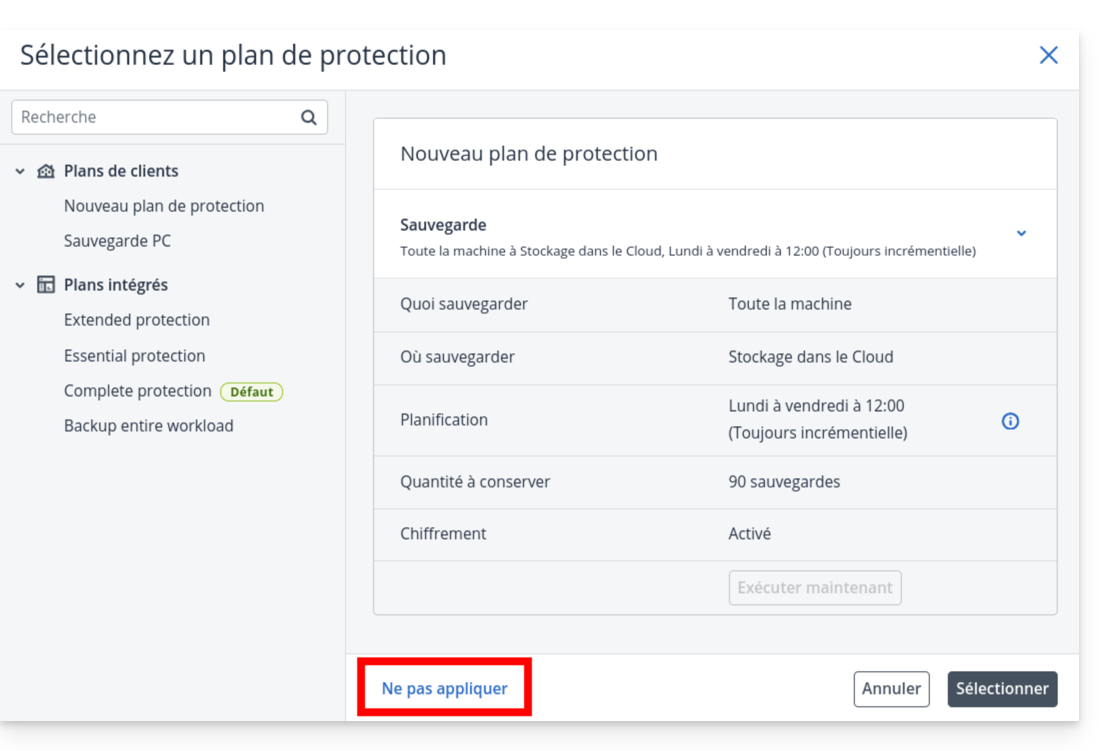
- and choose Do not apply.
- Click on Next
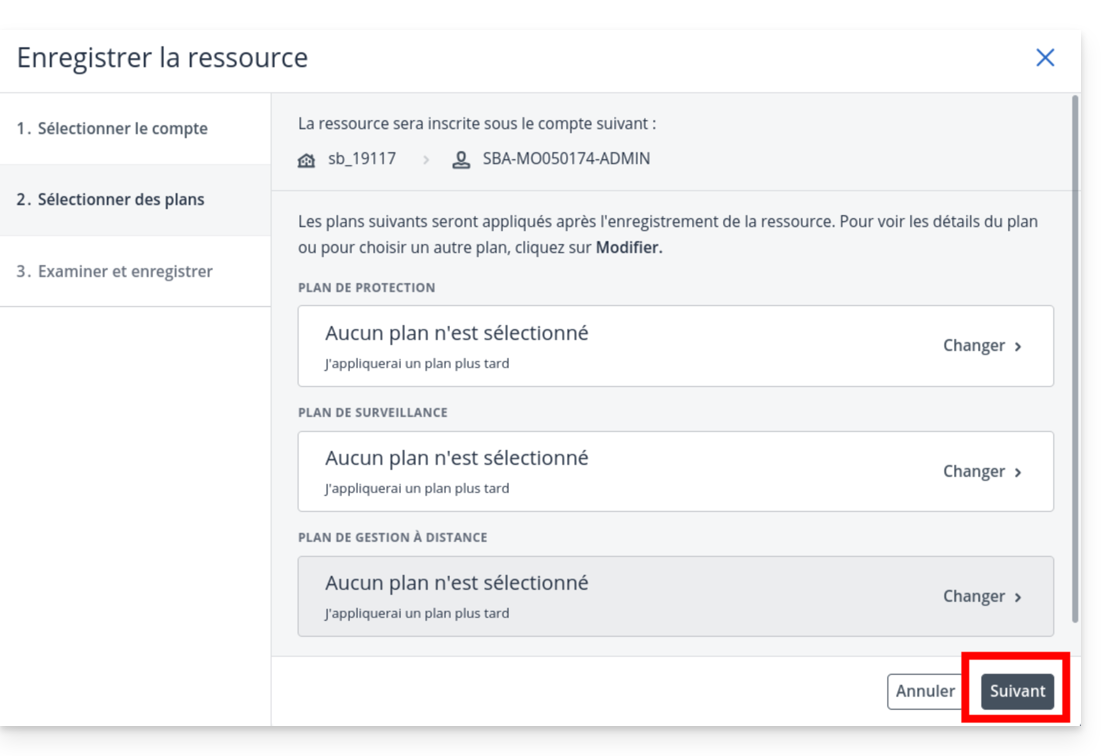
- then click on Save.
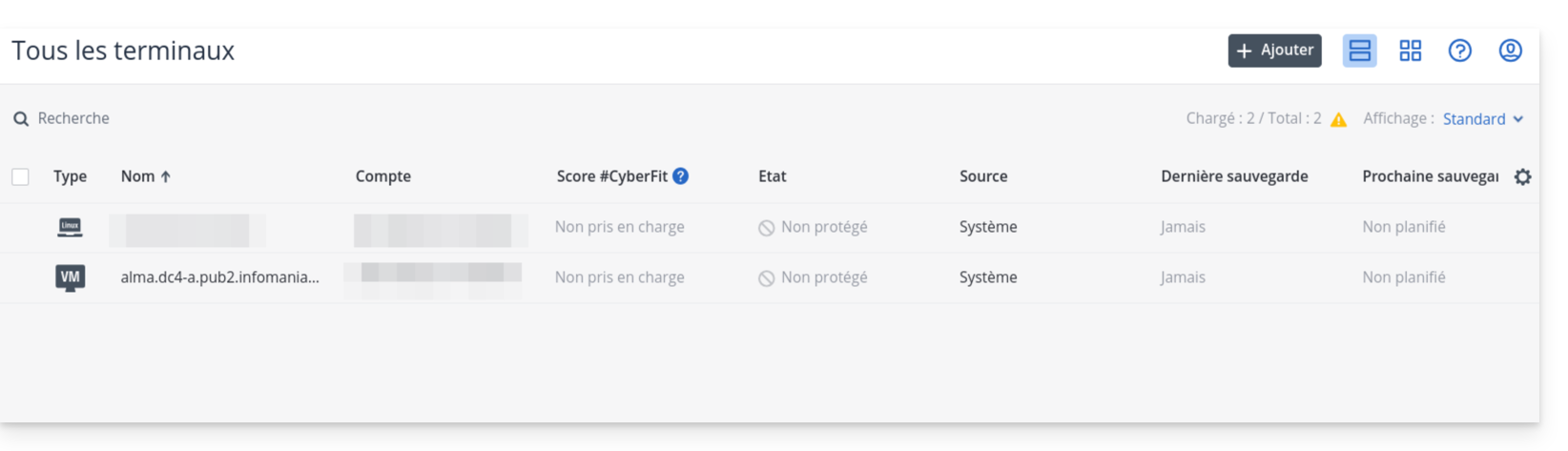
- Check that your server appears in the list of devices after a few seconds.
6. Creating the protection plan
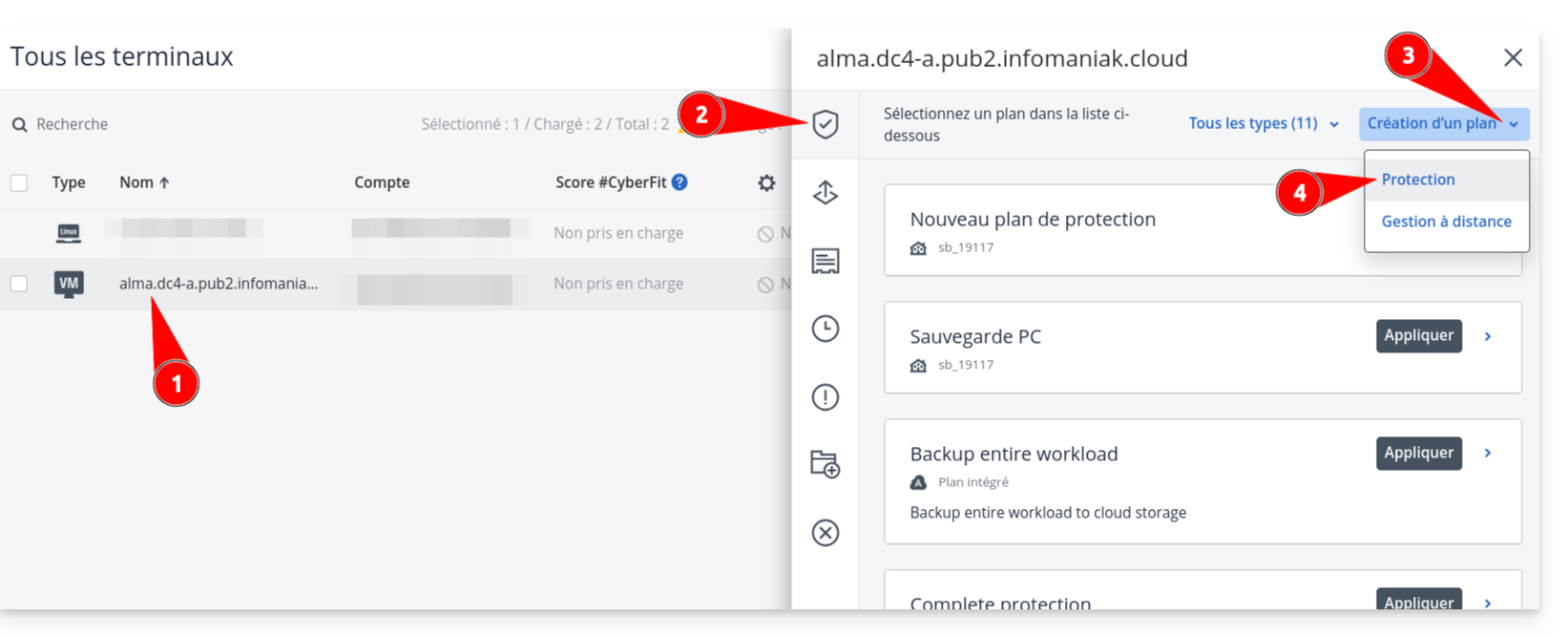
- Click on your server's name in the list, then click the Protect button.
- Choose Create a plan → Protection.
- Define your backup settings (frequency, retention, destination).
- Warning: If you enable encryption, keep the password in a safe place. Without it, your backups will be unusable.
- Check the configuration and click Create.
Link to this FAQ: https://faq.infomaniak.com/2555
Has this FAQ been helpful?
This guide covers managing Swiss Backup users for Acronis backups.
Swiss Backup Administrator
Your SBA-XXXX-ADMIN account, obtained after configuring Swiss Backup in the Infomaniak Manager, has default access to all licenses, devices, locations, and the entire available quota:
- Click here to access the Acronis Console using the credentials obtained after adding the device (need help?).
- On the home page, an administrator account will always see the management button, which will not be the case with a limited account:
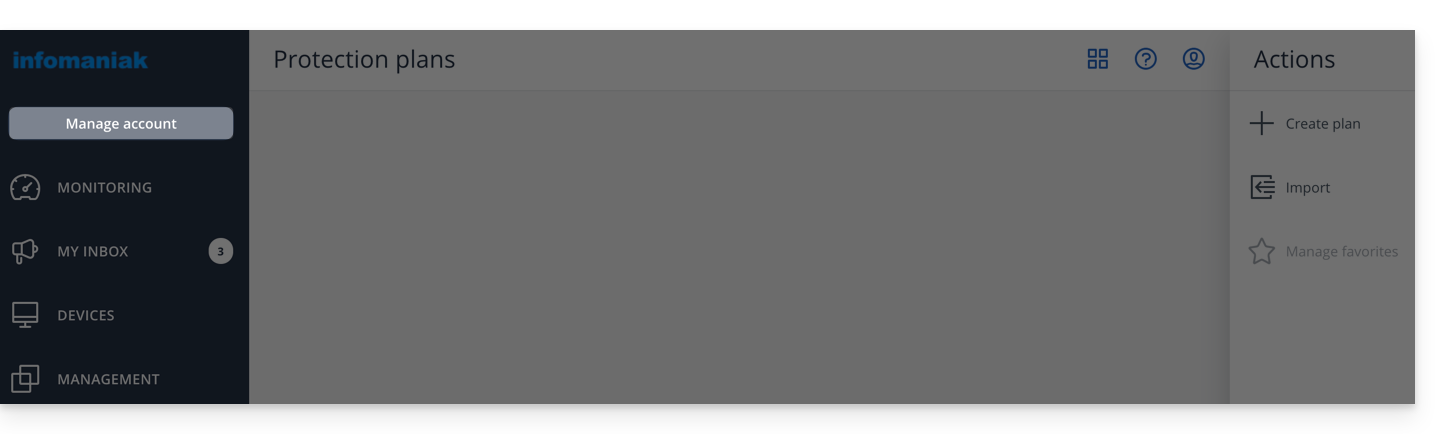
- This provides access to the section reserved for admin accounts (or “company” / “business owner” depending on the terms displayed on the acronis.infomaniak.com platform):
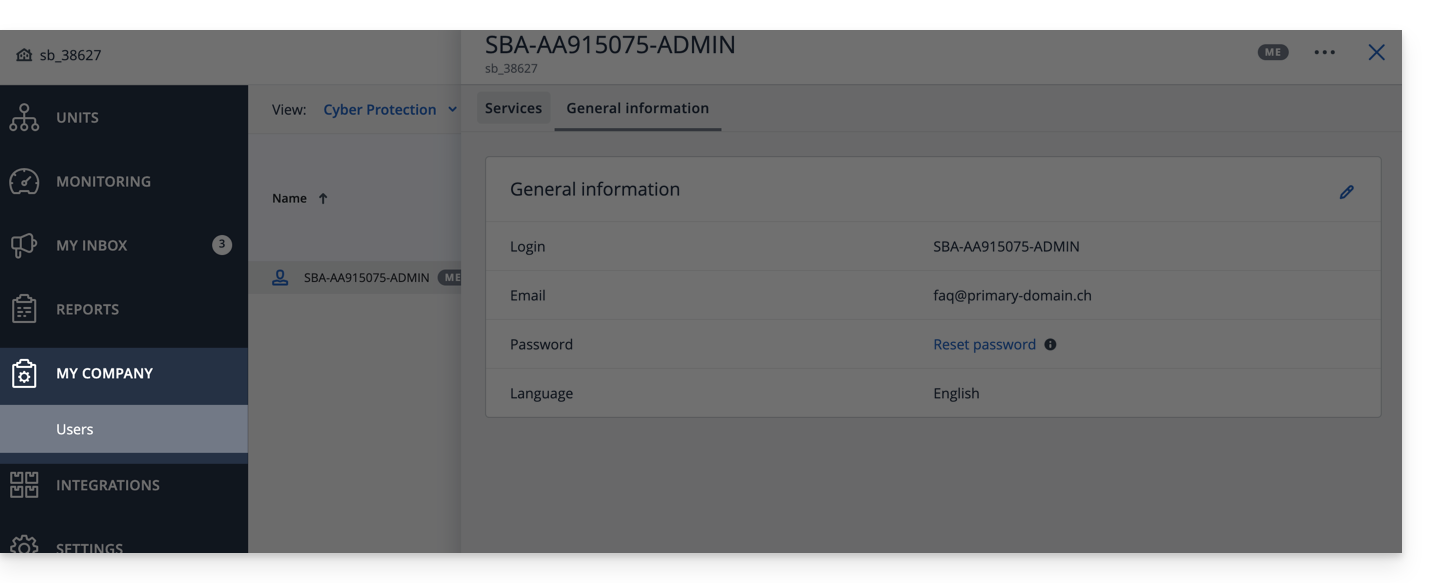
If you have purchased 2 licenses/devices and your total storage quota is 1 TB for Acronis (for example):
- 1 Mobile
- 1 Server
Your SBA-XXXX-ADMIN account can back up 1 mobile device and 1 server; the storage quota for the 2 devices will be shared, but limited to 1 TB.
In the Acronis interface, you will see an "unlimited" quota, but this remains limited to the options you have chosen in the Swiss Backup Manager.
For better management of storage quotas and service quotas (licenses), create users in Acronis. This allows you to:
Add a user
There are two types of user accounts: administrator accounts and user accounts (see the Acronis help for more information). Only an administrator account can add/remove users:
- Click here to access the Acronis Console using the credentials obtained after adding the device (need help?).
- Click on Manage account in the left sidebar.
- Click on Company representatives.
- Click on the Users button.
- Click on the +New button at the top of the page.
- Enter the information (see Acronis help for more information).
Delete a user
Warning:
- Deleting the device is irreversible, and all saved data will be deleted from Infomaniak's servers.
- The machines associated with this user will be unregistered.
- All protection plans will be revoked from all machines associated with this user.
To delete the account:
- Click here to access the Acronis Console with an Admin account.
- Click on Manage account in the left sidebar.
- Click on Company representatives (as in this example).
- Click on the action menu ⋮ to the right of the user in question in the table that appears.
- Disable the account.
- Once the account is deactivated, delete the account (from step 5 above).
Link device and user
Example
1 TB Storage
Licenses: 2 Mobile, 1 Server, 1 VM
- SBA-XXXX-ADMIN (limited to the default Infomaniak Manager quotas)
- User1 (storage quota: 800 GB, service quota: 1 Mobile, 1 Server)
- User2 (storage quota: 200 GB, service quota: 1 Mobile, 1 VM)
To link a device to a user,download and install the Acronis agent on the device in questionthen confirm the registration with the correct account (SBA-XXXX-ADMIN, user1, or user2):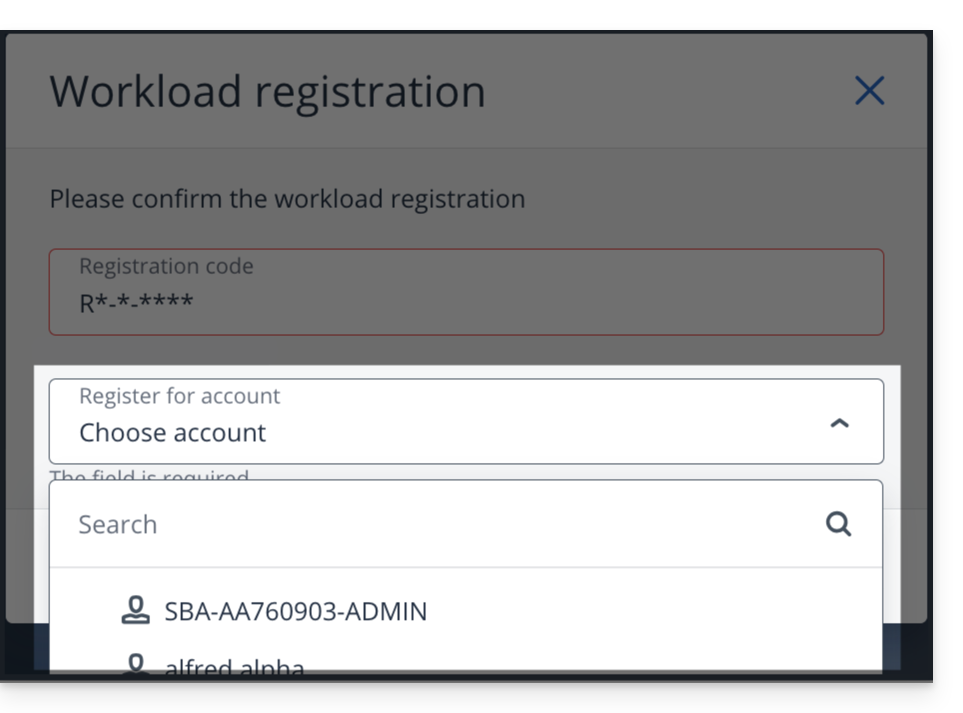
To resolve registration issues, please refer to this other guide.
Link to this FAQ: https://faq.infomaniak.com/2573
Has this FAQ been helpful?
This guide explains how to install the Acronis Backup Agent for Swiss Backup on Apple Macs equipped with M1, M2... processors, using an ARM architecture rather than the x86 architecture usually used.
Refer to this other guide if you are looking for information about uninstalling.
Install the ARM-specific Acronis Agent
To access the Acronis management interface:
- Click here to access the Acronis Console using the credentials obtained after adding the device (need help?).
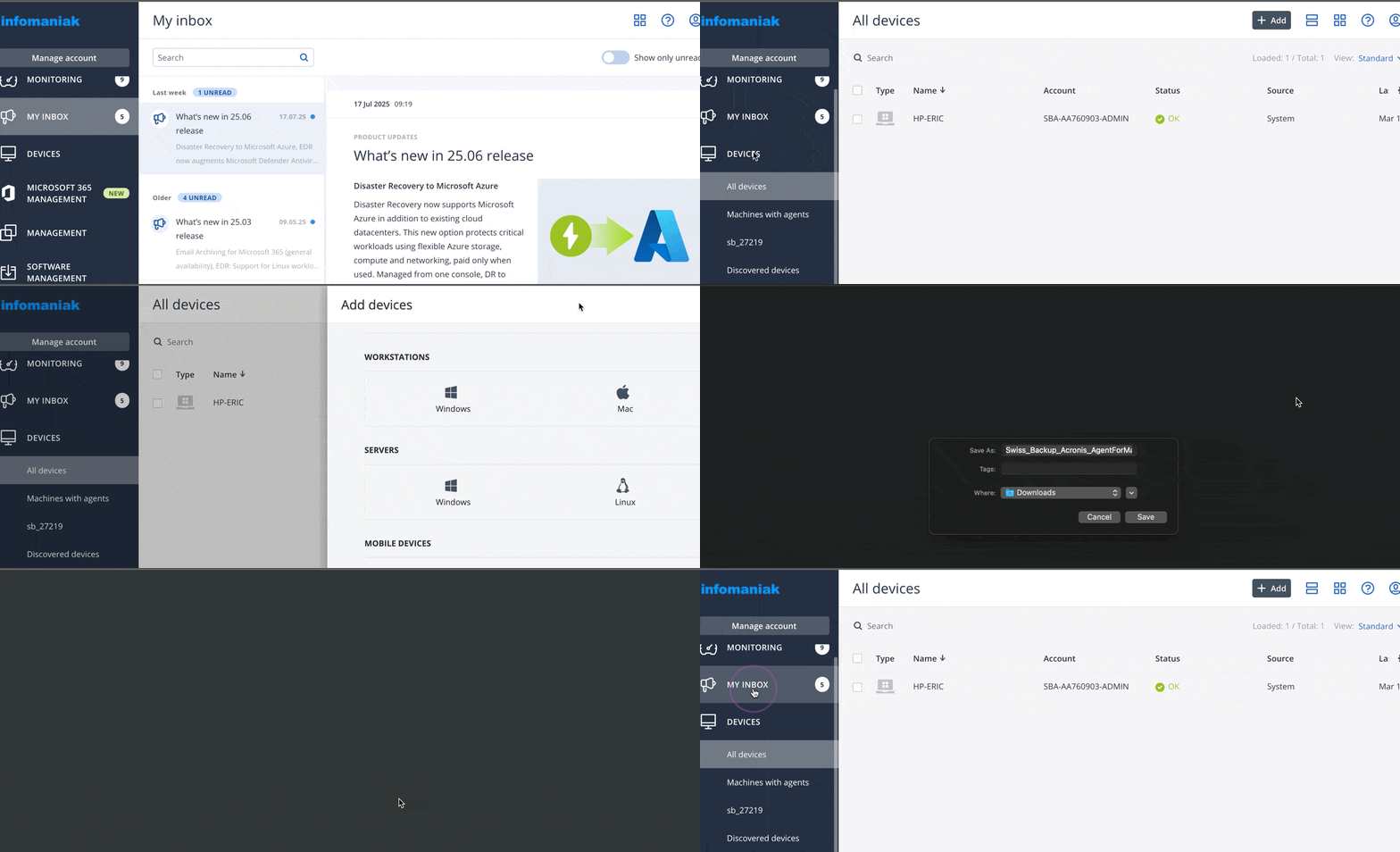
- Click on the user icon in the top right corner.
- Click on Downloads:
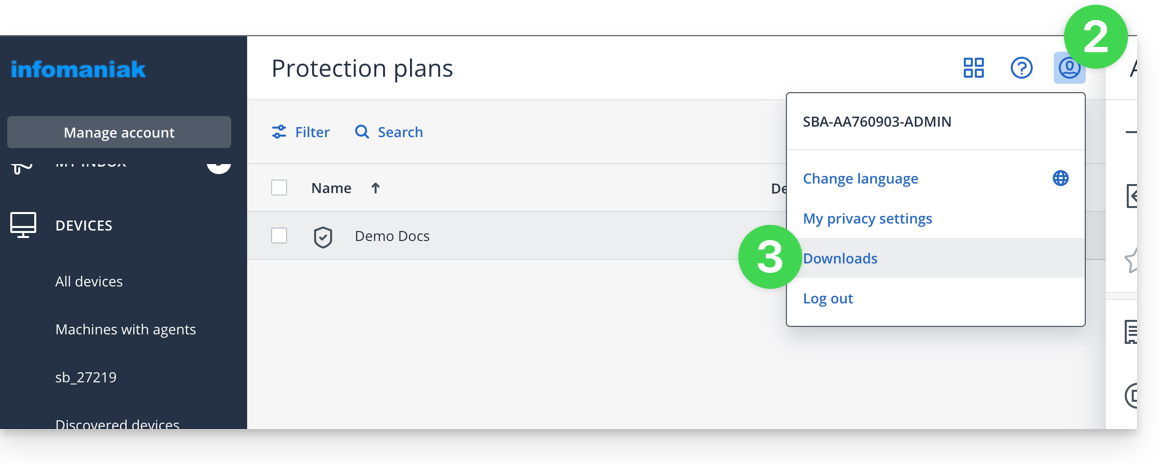
- Choose the client that is suitable for your device:
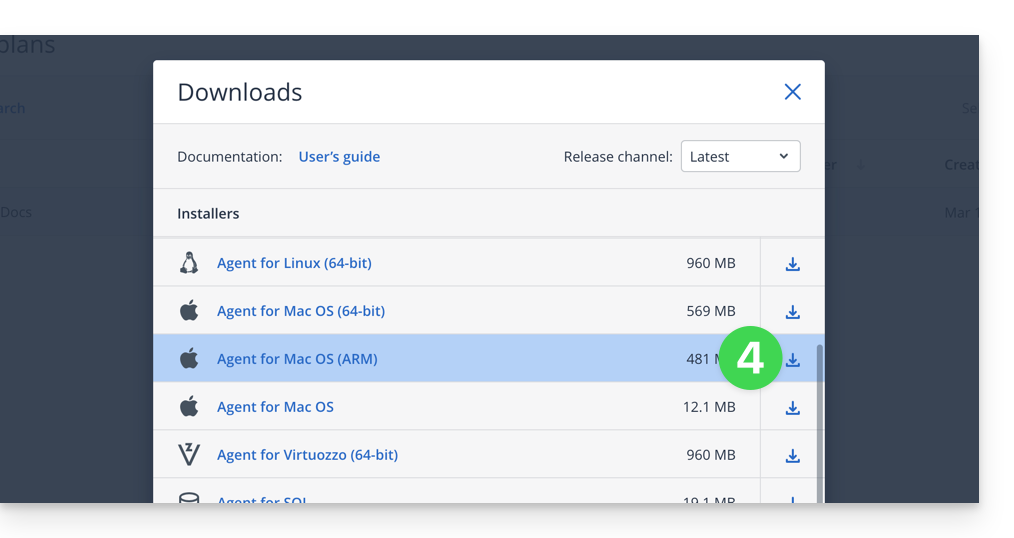
Attention
If you choose the version available from the left-hand menu, it will not be compatible:
- Do not follow the method below because the resulting version will not be correct (Intel version):
Link to this FAQ: https://faq.infomaniak.com/2583
Has this FAQ been helpful?
This guide explains the procedure for changing a Swiss Backup plan, the secure backup solution in an independent Swiss cloud.
Change your Swiss Backup plan
To access the modification options for your Swiss Backup plan, follow these steps:
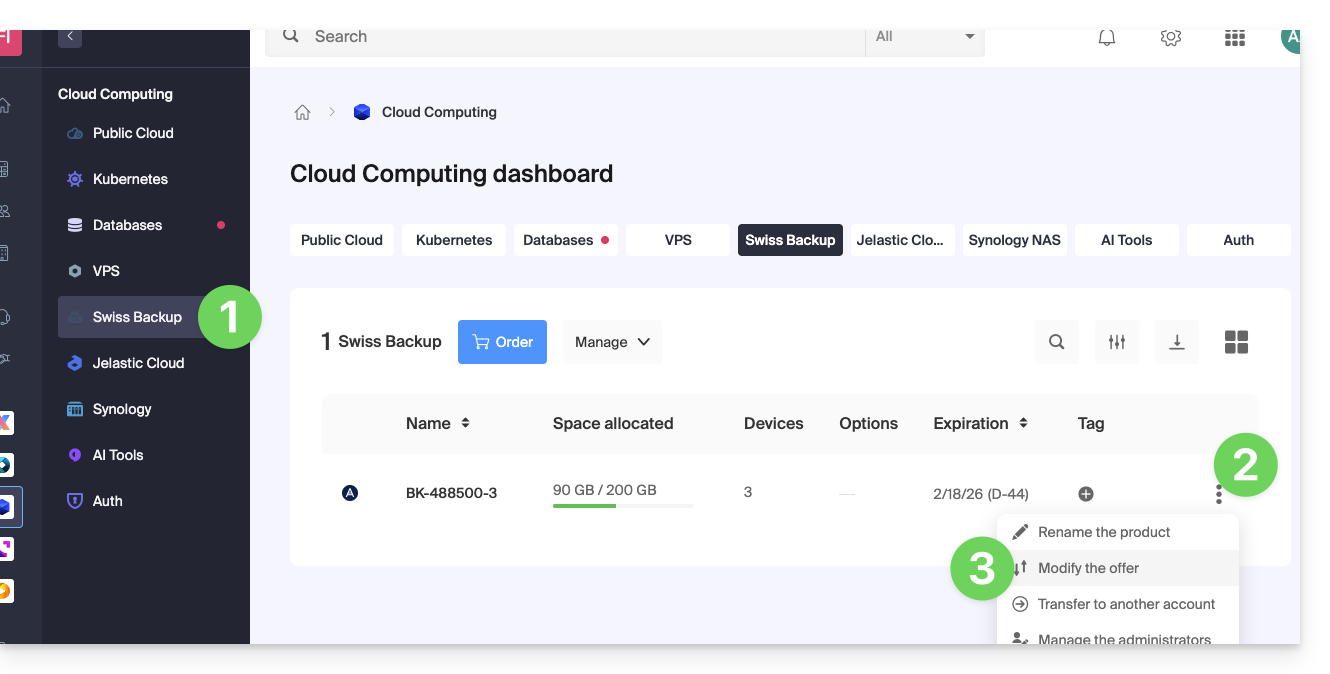
- Click here to open the management interface for your product in the Infomaniak Manager (need help?).
- In the list of your products, click on the action menu ⋮ located to the right of your Swiss Backup space name.
- Select Modify plan:
- Adjust the settings of your plan according to your needs by modifying:
- the storage space
- the number of devices
- the number of virtual machines via Acronis
- the number of Linux/Windows servers via Acronis
- etc.
- Click on Next and proceed with the payment to validate the change.
You can also manage your plan directly from the product dashboard: 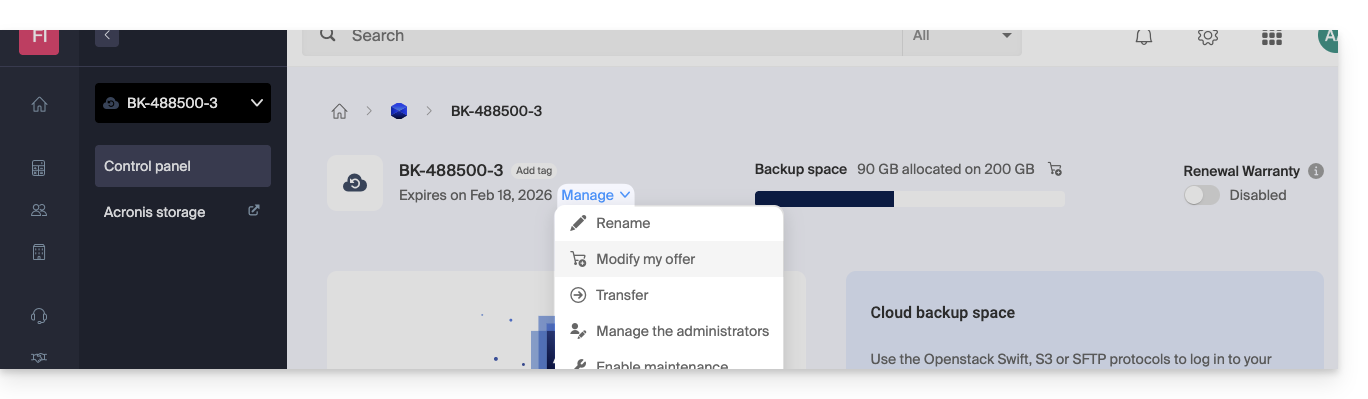
Examples of plan modifications
Initially, the user wanted to:
- back up an iOS/Android mobile device with Acronis
- and have a free Cloud-based backup accessible via SFTP or a similar method.
He now wants:
- back up two devices via Acronis (always the mobile device and a Windows computer), without keeping the free backup.
It modifies the quotas: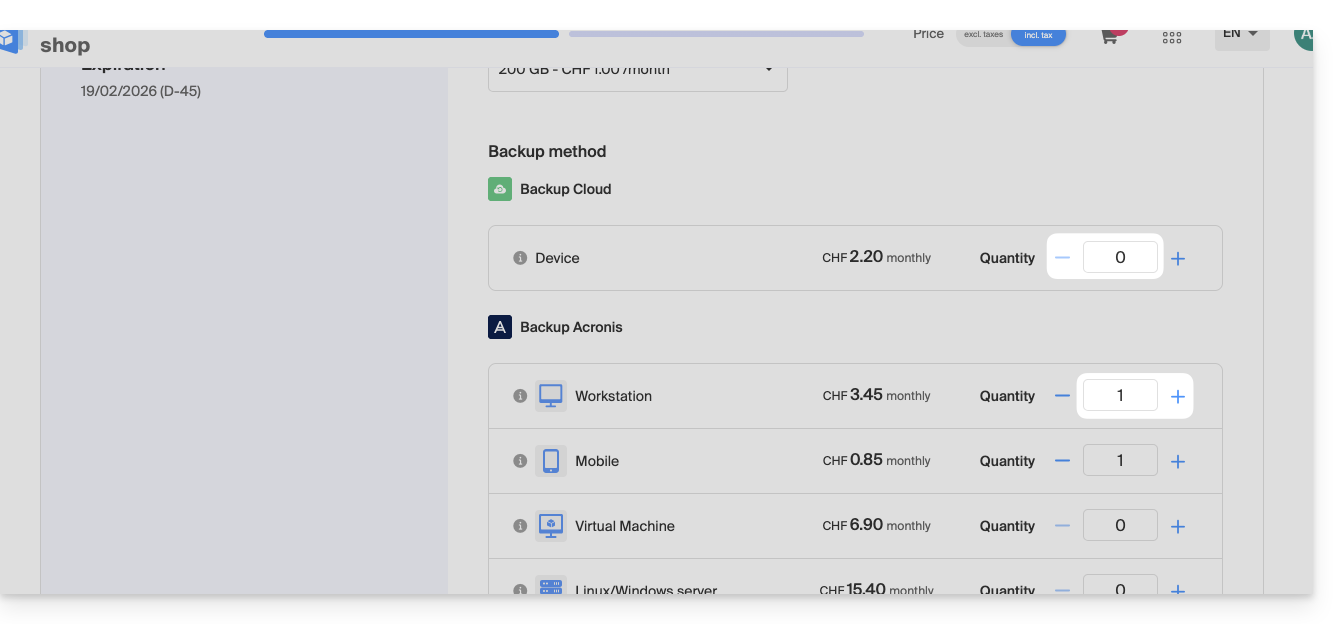
All that remains is to validate the payment to apply the change.
Warning:
To remove a device type that you no longer want to use, that device must first be deleted from your Acronis console, which means that the quota displayed on the plan modification page must be zero.
For example, if you want to remove a website backup, you must first delete it from your Acronis dashboard.
Indeed, to completely modify the offer (for example, to keep only a single backup of a Windows computer), the command cannot be completed until the following message appears:
“The number of licenses selected is less than the current usage of your product.”
This message appears when you try to reduce the quantity of a type of backup that is still active to zero.
In this case, proceed as follows:
- Click here to access the Acronis console using the credentials obtained when adding the device (need help?).
- Remove the device in question from the “Devices” menu.
- Wait about ten minutes for the quotas to update.
The quota for your devices displayed in the Infomaniak Manager should then be set to zero. You can then change the plan without encountering any blocking errors.
Link to this FAQ: https://faq.infomaniak.com/2624
Has this FAQ been helpful?
This guide explains how to remove a device (of the Cloud backup type) on Swiss Backup, the Swiss independent cloud backup solution.
Remove a device (Swift, S3, etc.)
To access Swiss Backup and remove one of the backup locations:
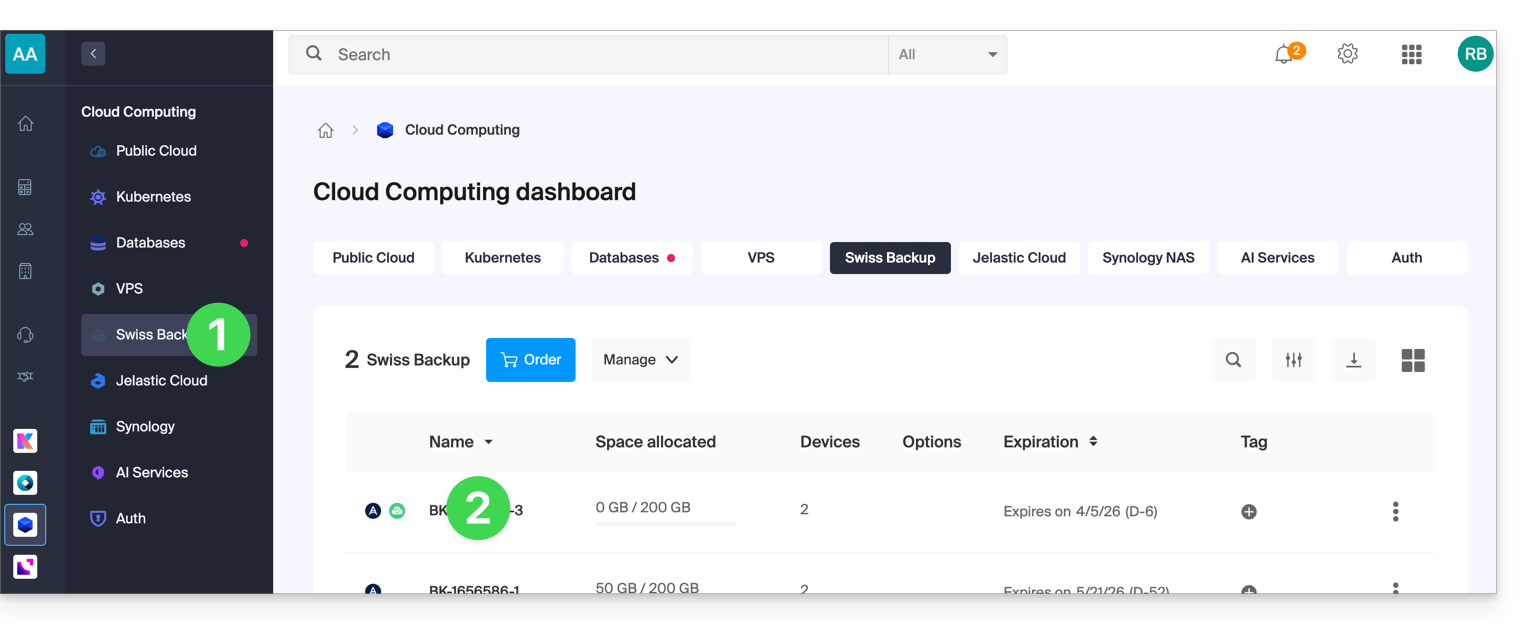
- Click here to access your product management interface on the Infomaniak Manager (need help?).
- Click directly on the name assigned to the product in question:
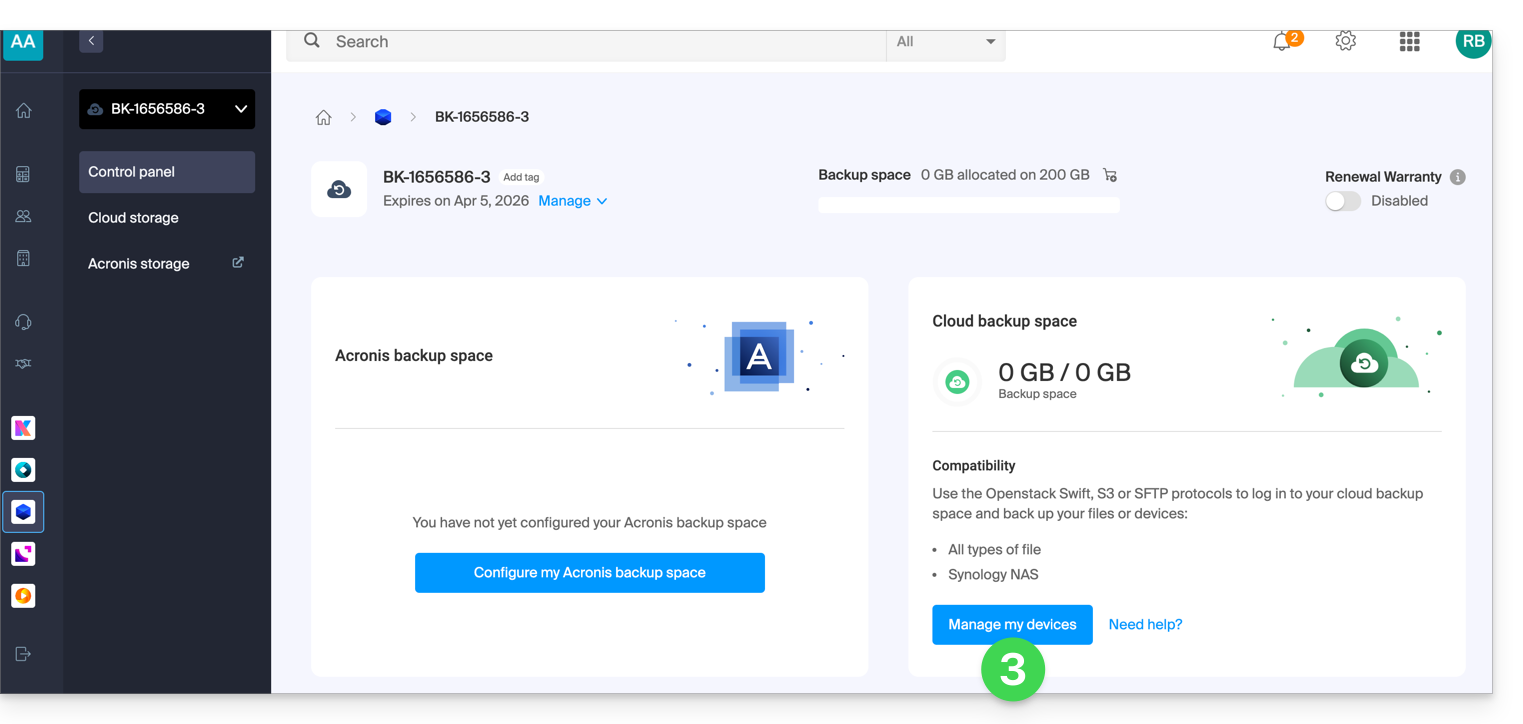
- Click on the blue Manage my devices button (in the Cloud storage space section):
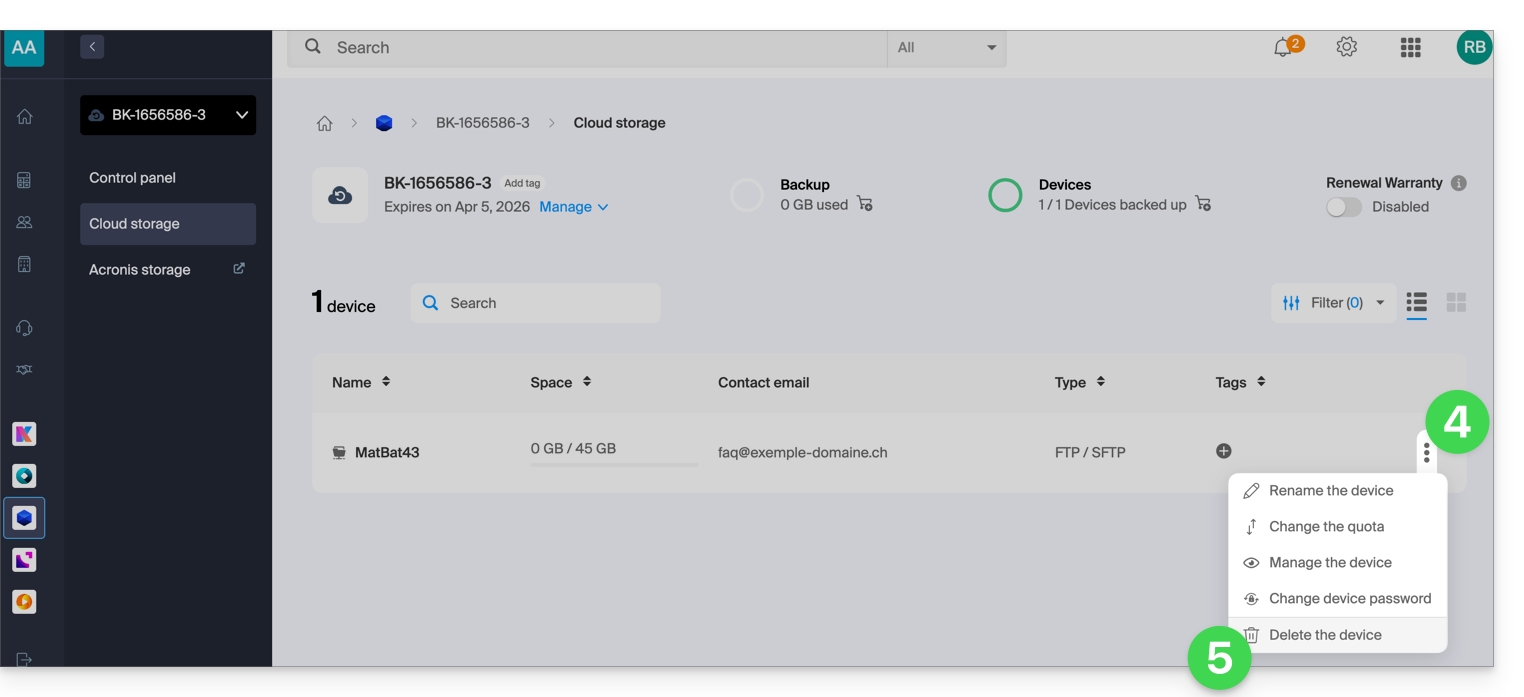
- Click on the action menu ⋮ to the right of the item in question in the table that appears.
- Click on Remove device:
- Confirm the deletion by entering your Manager login password and activating the confirmation box.
Deleting the device is irreversible, and all saved data will be deleted from Infomaniak's servers, with no possibility of recovery.
To choose a new device on Swiss Backup, please refer to this other guide.
Link to this FAQ: https://faq.infomaniak.com/2625
Has this FAQ been helpful?
This guide concerns immutable storage, an essential security feature that protects your backups against accidental or malicious deletion, including ransomware attacks.
Introduction
- Immutable Storage is a setting that makes the data in your Acronis backups unmodifiable and undeletable for a period of time that you define.
- Once the retention period is active, no action (deletion or modification) can be performed on this data until it expires.
Configuration and Use
This feature is managed directly through Backup Plans in the Acronis Cyber Protect management console.
Refer to theAcronis documentation for detailed steps on how to enable the immutability option in your backup plan.
Limitation on other protocols (Swift and S3)
Immutability is not available on other Swiss Backup storage protocols, such as Swift and S3. This limitation is due to technical constraints inherent in the Swift OpenStack protocol used by these storage systems.
Link to this FAQ: https://faq.infomaniak.com/2763
Has this FAQ been helpful?
This guide covers backing up Microsoft OneDrive to Swiss Backup, the backup solution in a Swiss independent cloud.
Introduction
- Acronis (and other backup software) cannot back up OneDrive files that are only in the cloud.
- Microsoft's Files On-Demand feature creates NTFS reparse points instead of the actual files on the disk, which causes an error during the backup.
Disable Files On-Demand
It is possible to work around this issue by forcing OneDrive to download all files locally, then restarting the backup:
- Click on the OneDrive icon in the notification area (taskbar).
- Open Settings > Synchronization and Backup tab (or Settings, depending on the version).
- Disable the Files On-Demand option.
- Wait for the files to finish downloading to your device.
- Restart the backup from Swiss Backup.
Warning: This operation requires sufficient local disk space to store all of your OneDrive files.
Alternative solutions
Link to this FAQ: https://faq.infomaniak.com/2764
Has this FAQ been helpful?
To restore a Swiss Backup backup to a virtual machine, please refer to the Acronis documentation on this topic:
Link to this FAQ: https://faq.infomaniak.com/2765
Has this FAQ been helpful?
This guide details how to obtain the configuration information for Swiss Backup(a free backup solution based on Openstack Swift, S3, SFTP, etc.) and explains the differences between the passwords available to you.
Login information (Cloud backup)
Accessing Information
To access information related to your free backup, which is of the Openstack Swift, S3, SFTP type, etc.:
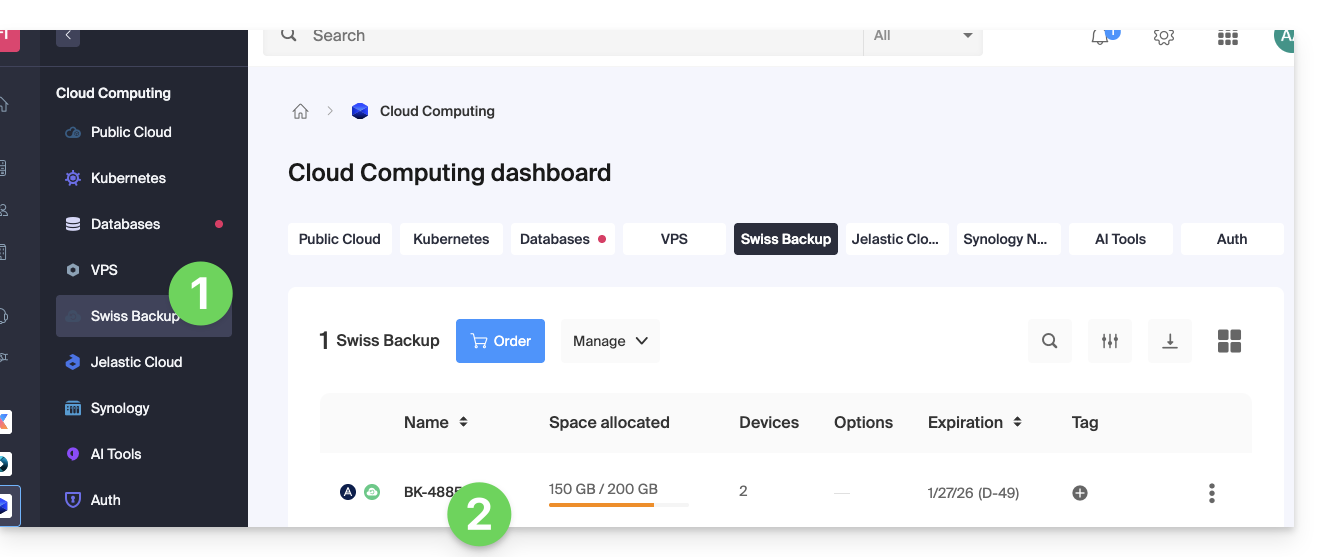
- Click here to access the management interface for your product in the Infomaniak Manager (need help?).
- Click directly on the name assigned to the product in question:
- Click on the blue Manage my devices button (in the Cloud storage space section):
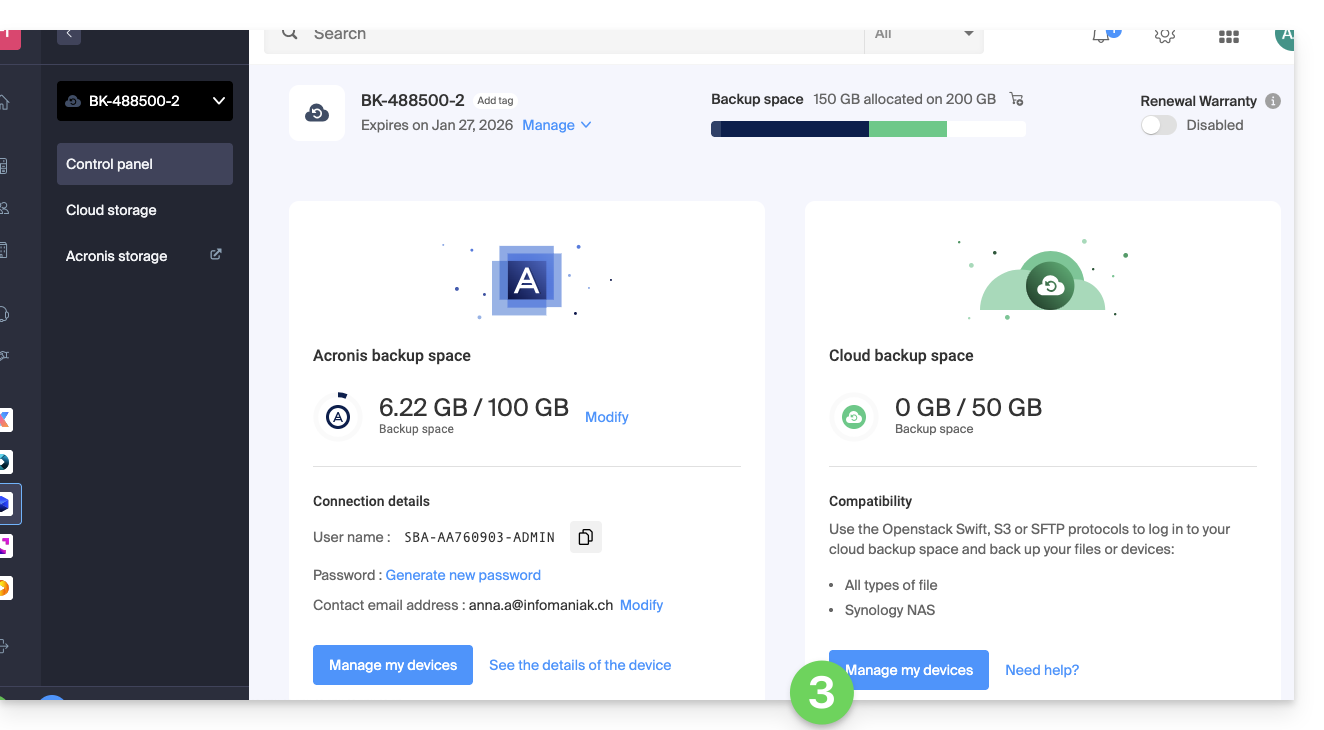
- Click on the name of the item in question in the table that appears:
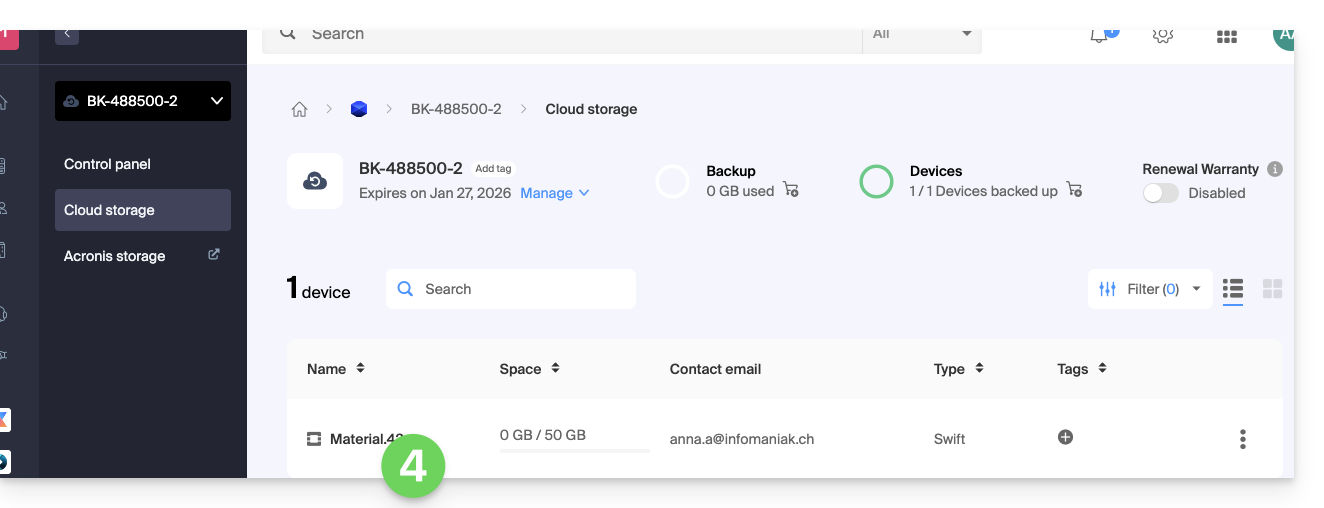
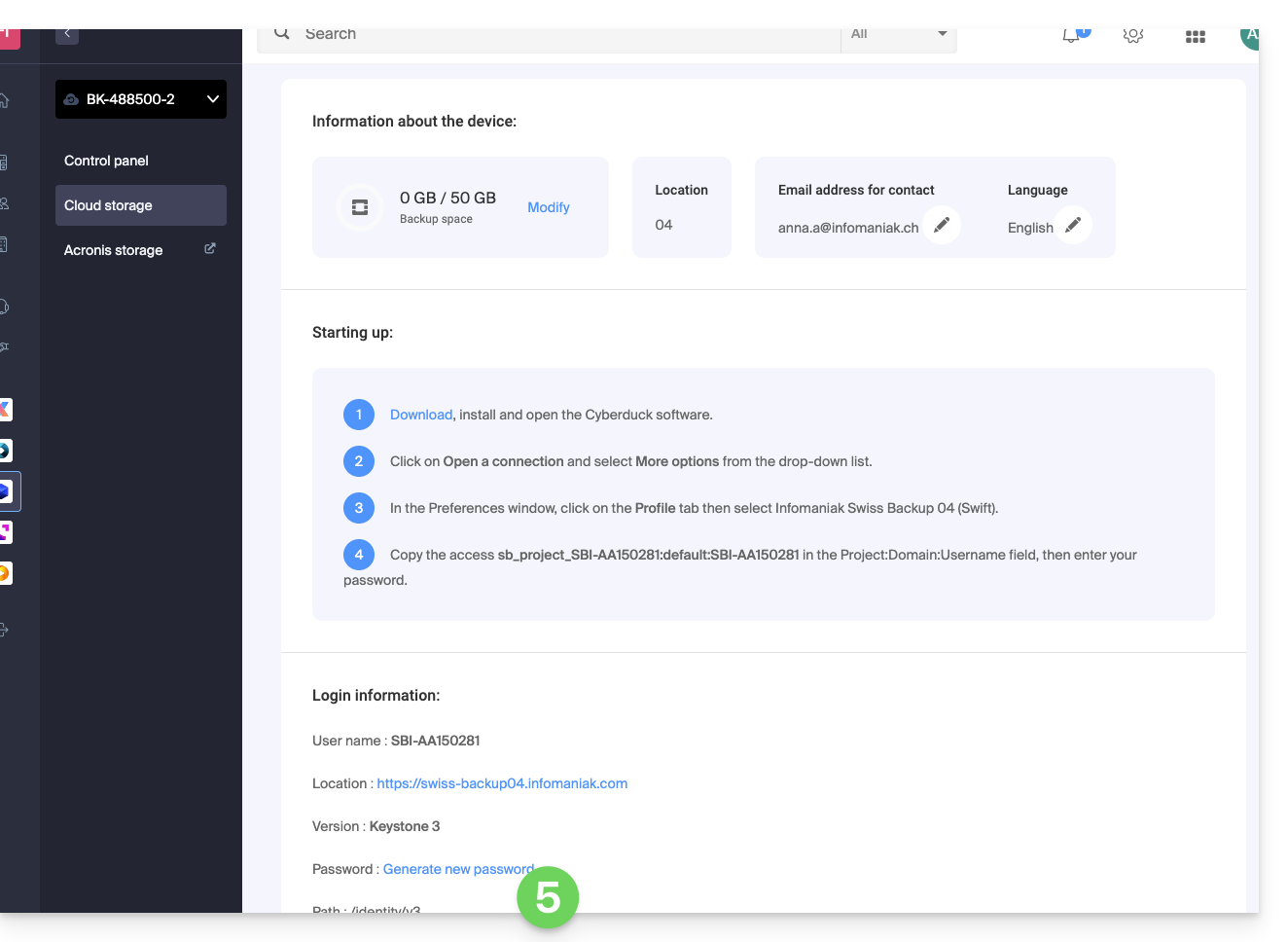
- The various information related to your device is displayed at the bottom of the page...
The various connection details (Swift, S3, etc.)
This information varies depending on the type of device chosen (Swift, SFTP, etc.), but it generally includes:
| requested information | content to be specified |
|---|---|
| username / login ID | usually in the format SBI-AB123456 |
| location | https://swiss-backup01.infomaniak.com or swiss-backup02... 03... etc. |
| version number | Keystone 3 |
| a password / access keys | ***** (see below for how to manage it) |
| path | /identity/v3 |
| Tenant / project name / project | most of the time in the form sb_project_ followed by the username, for example sb_project_SBI-AB123456 |
| domain name / domain | usually enter default |
| region | RegionOne |
| bucket | most of the time, enter default or /default |
| identity endpoint | most of the time, the location followed by the path (see above), for example swiss-backup01.infomaniak.com/identity/v3 |
Different passwords
Infomaniak Account
To access the Swiss Backup (Acronis or Cloud storage) product management, you need to log in to the Infomaniak Manager: please refer to this other guide for more information.
Cloud Backup - regenerating the login password
In order to establish a Swift / S3 / FTP/SFTP / etc. connection, a password must be generated the first time when creating a device on the Swiss Backup interface and activating the ID.
It is not possible to display a previously generated password. If you have forgotten it, you must generate a new one:
- Click here to access the management interface for your product in the Infomaniak Manager (need help?).
- Click directly on the name assigned to the product in question.
- Click on the blue Manage my devices button (in the Cloud storage space section):
- Click on the name of the item in question in the table that appears:
- Click on Generate a new password or access keys and follow the wizard:
Acronis Backup
To establish a connection with Acronis, a password for this type of backup is generated when creating a device in the Swiss Backup interface and activating the ID. There is also an encryption password.
Link to this FAQ: https://faq.infomaniak.com/2766
Has this FAQ been helpful?
This guide explains how to back up WordPress data to a Swiss Backup backup space, the backup solution in an independent Swiss cloud.
Introduction
- If the backups offered by Infomaniak no longer meet your availability or security requirements, or if your website is hosted elsewhere, your data can be backed up via an S3 Compatible connection on Infomaniak's servers, ensuring that you don't lose any data.
Install and configure the UpdraftPlus extension
Prerequisites
- Have an Swiss Backup Infomaniak account with available device quota (minimum 1) for an iCloud backup.
- Add 1 device of type Cloud to obtain the S3 Compatible settings.
Then:
- Add the WordPress plugin UpdraftPlus, which offers WordPress data backup to S3-compatible storage.
- Click on Settings then UpdraftPlus Backups:
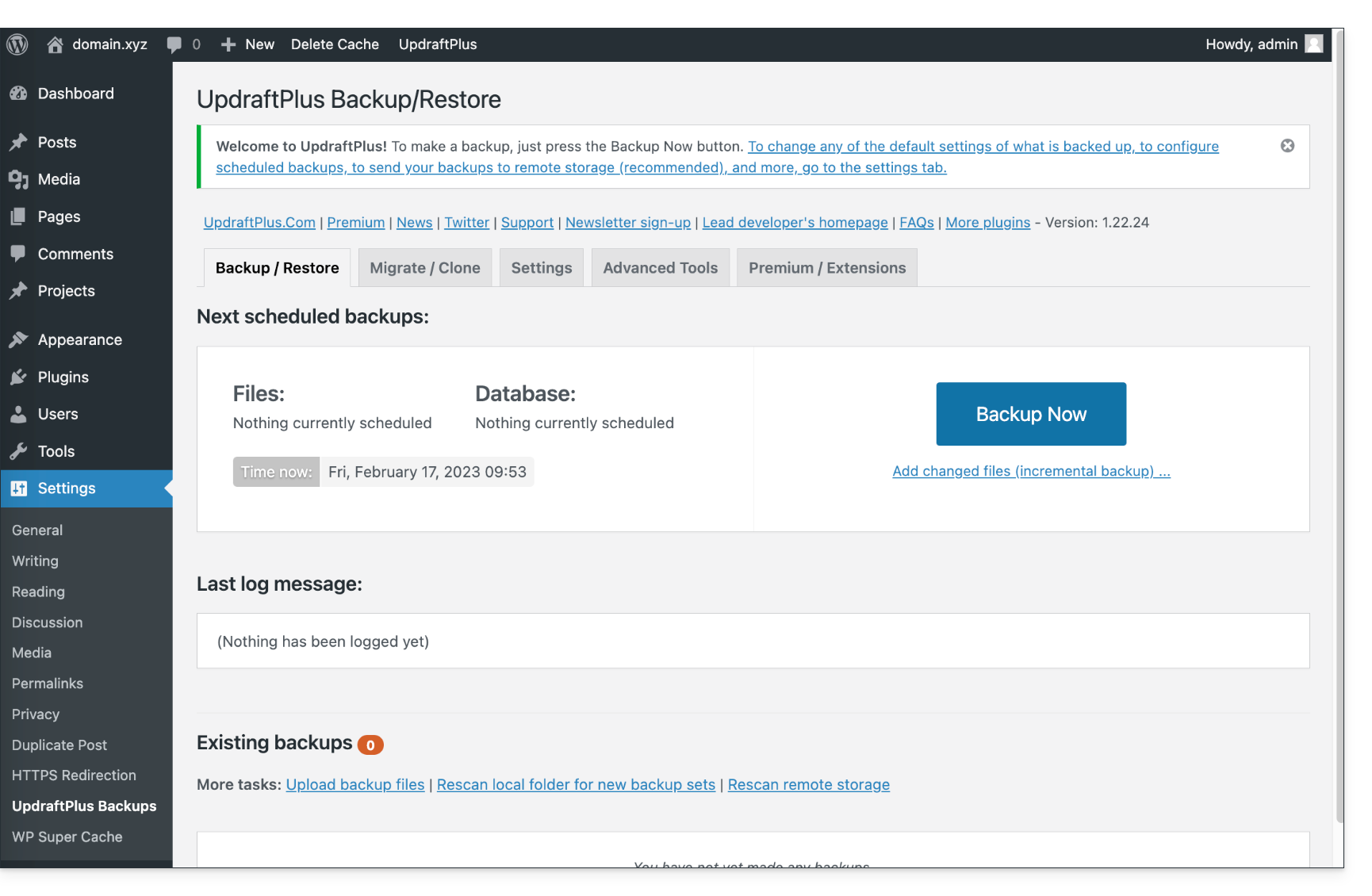
- Click on Settings then S3-Compatible (Generic):
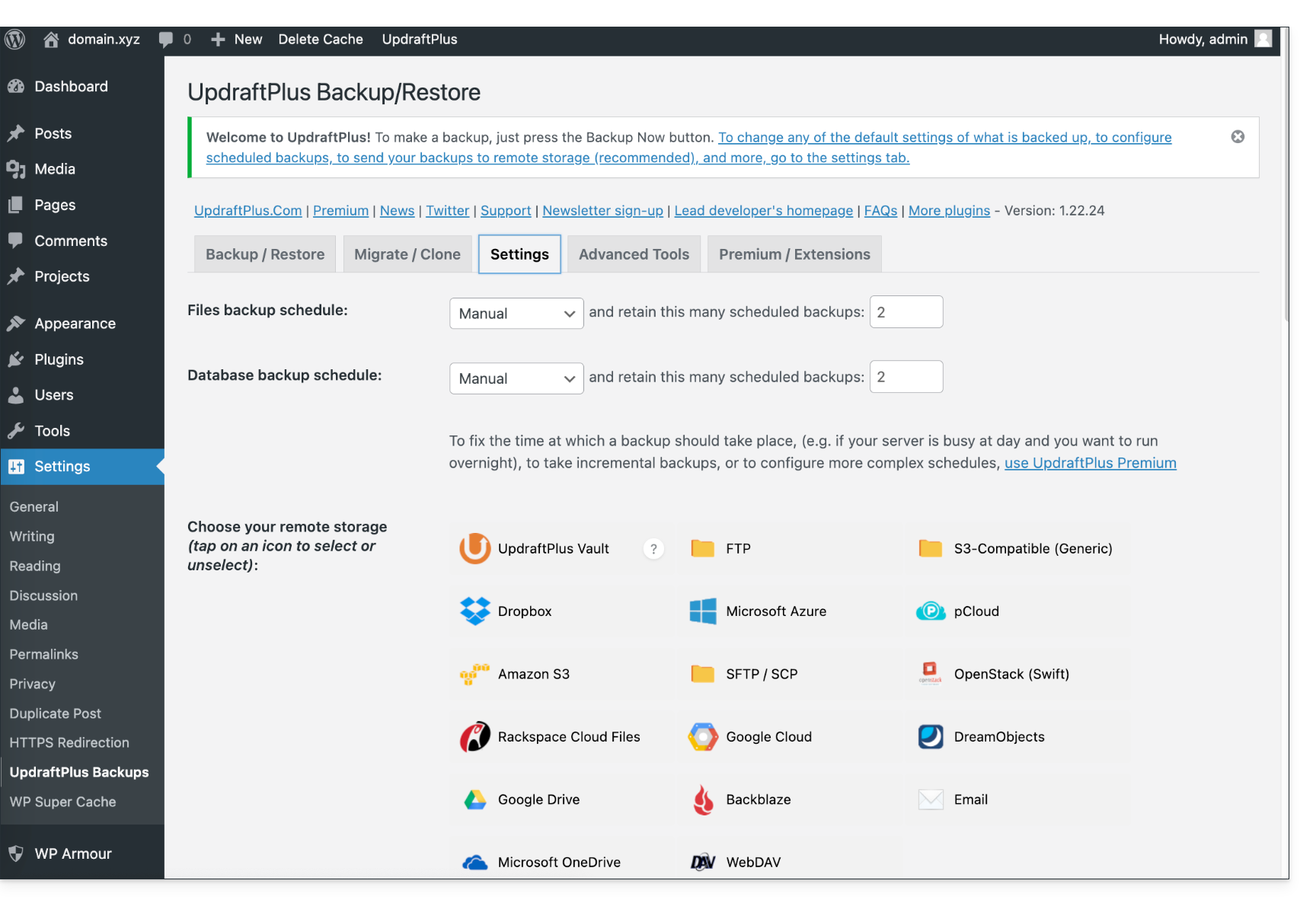
- Further down, fill in the fields according to the information specific to your device.
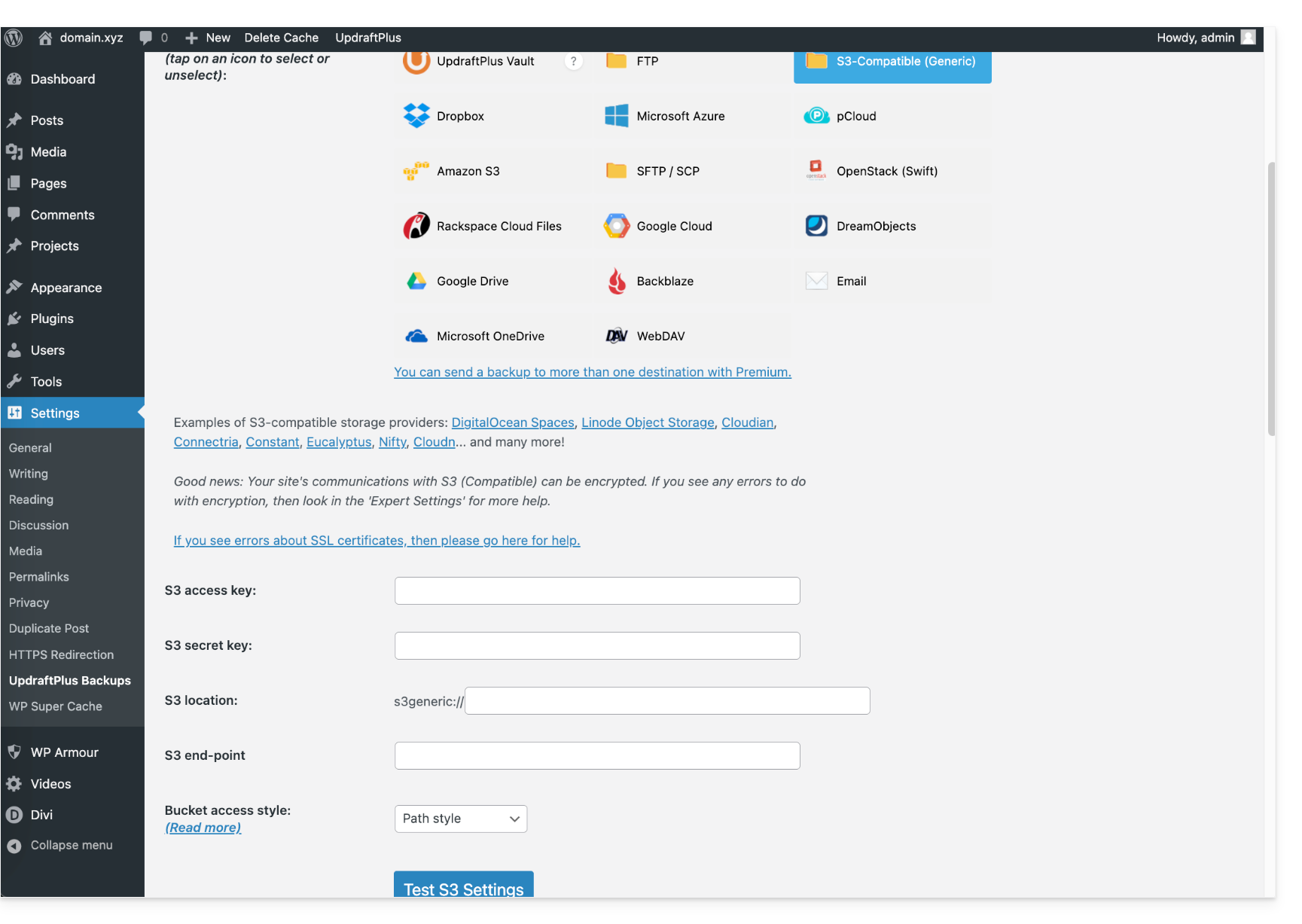
- Here is the type of information you need to have and that you must specify in the various fields to create the connection:
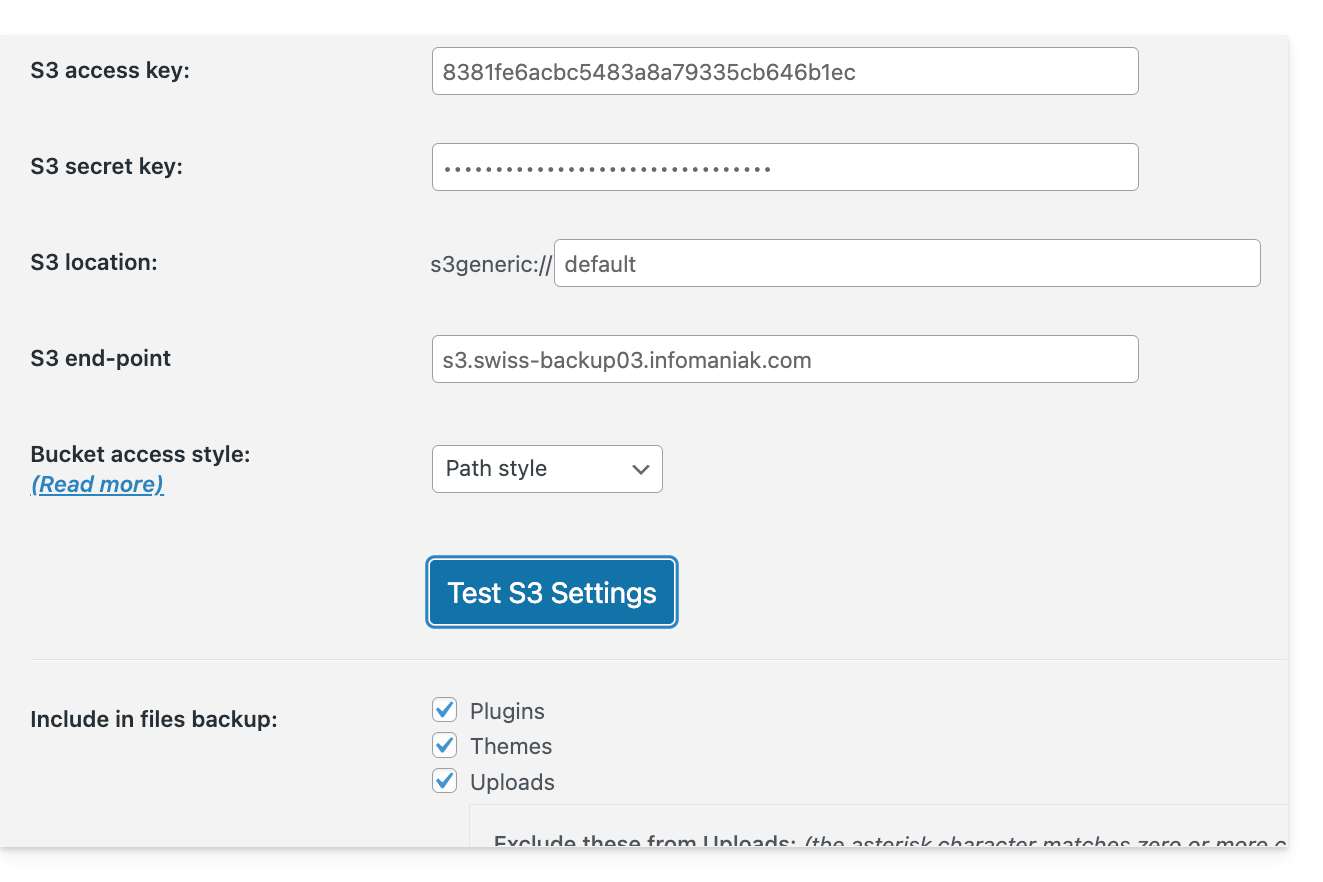
You can then schedule your backups at regular intervals.
Download the backup manually
Your backups made via UpdraftPlus - S3 can be retrieved using an S3-compatible client, such as Cyberduck.
Restore an UpdraftPlus backup
Please refer to this official guide in English.
Link to this FAQ: https://faq.infomaniak.com/2767
Has this FAQ been helpful?
As an Infomaniak Partner, it is recommended to manage your Swiss Backup clients within a single Acronis account/access, and to define groups/units on the Acronis console.
It is not possible to migrate end clients or end client backups between 2 Swiss Backup accounts.
Link to this FAQ: https://faq.infomaniak.com/2768
Has this FAQ been helpful?
This guide details how to manually back up data using the Cyberduck application (macOS / Windows) via the S3 Compatible protocol on Swiss Backup, the backup solution in a Swiss independent cloud.
Introduction
Configuring Cyberduck
Prerequisites
- Have an Swiss Backup Infomaniak account with an available device quota (minimum 1) for a Cloud backup.
- Add 1 device of type Cloud to obtain the S3 Compatible parameters.
- Download and install Cyberduck (macOS / Windows).
- Consult the official documentation https://docs.cyberduck.io/protocols/openstack/infomaniak/.
To configure a new backup:
- Open the Cyberduck application.
- Click on Open Connection:
- Click on the dropdown menu and choose More Options:
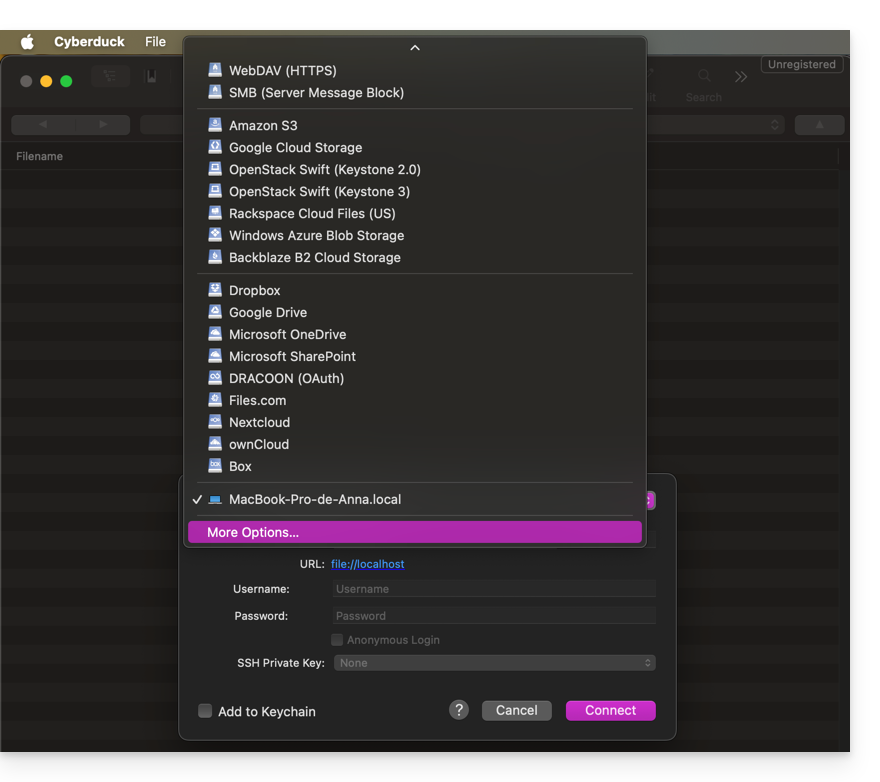
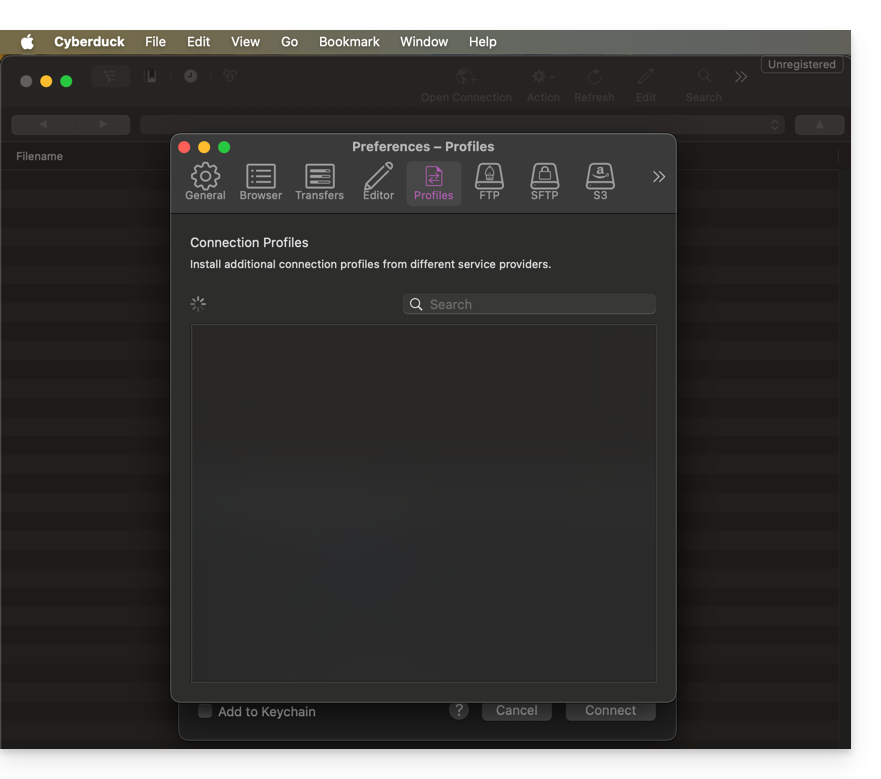
- Wait for the additional profiles to load:
- Search for and select the profiles corresponding to Infomaniak S3:
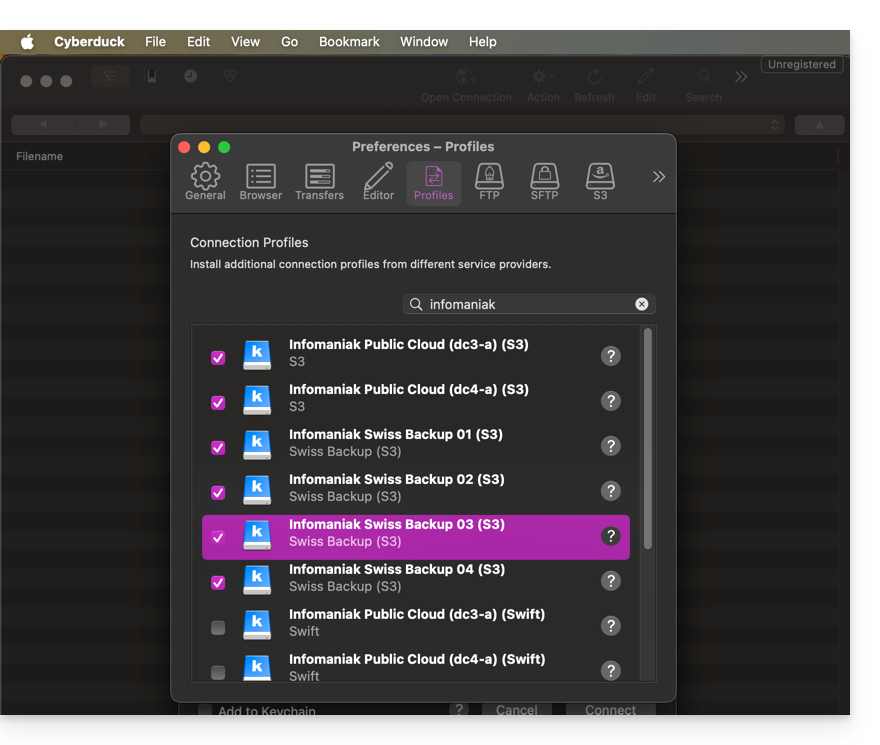
- If necessary, check your cluster number, which is indicated in the Manager under Cloud storage information in the "Location" section.
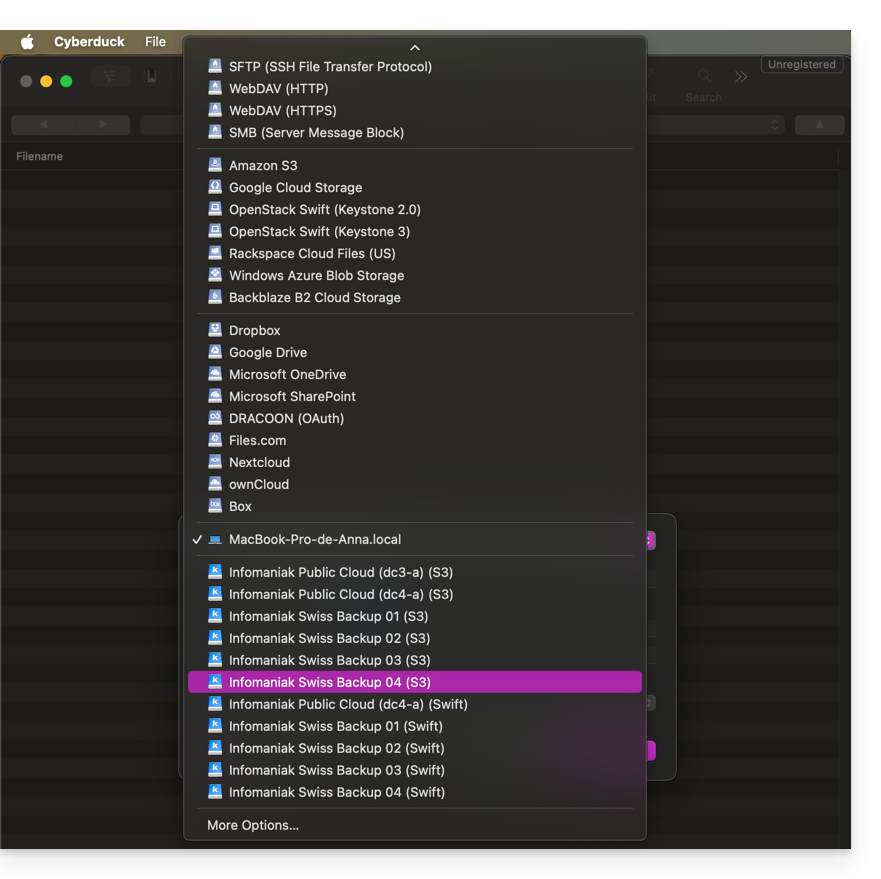
- Close the window and restart Cyberduck if the profiles do not appear in the drop-down menu in step 3 above.
- Choose the corresponding profile:
- Fill in the fields according to the information specific to your device:
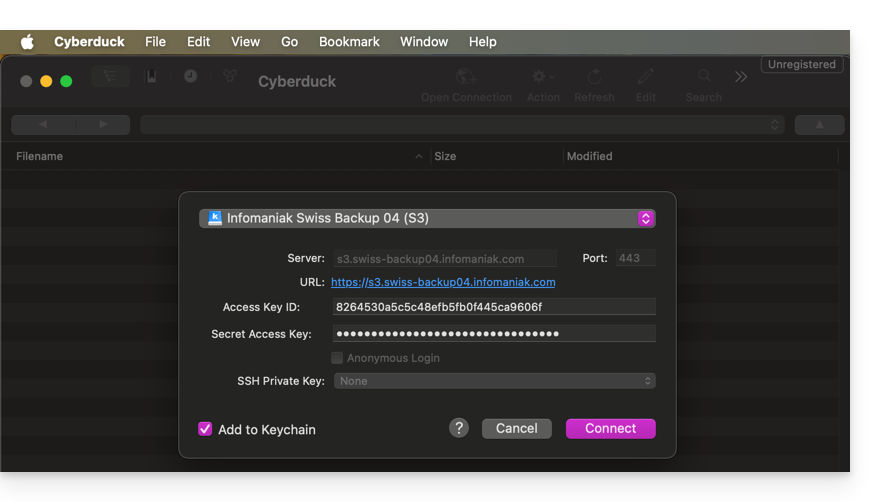
- Click the Connect button to establish the S3 connection.
Link to this FAQ: https://faq.infomaniak.com/2795
Has this FAQ been helpful?
This guide details how to back up a Google Workspace account (Gmail, Google Drive, Google Calendar, …)using Acronis on Swiss Backup, the backup solution in a Swiss independent cloud.
It is also possible to back up other types of data.
Prerequisites
- Have an Swiss Backup Infomaniak account with an available device quota (minimum 1) for a Google Workspace backup (1 license per Workspace user to be backed up):
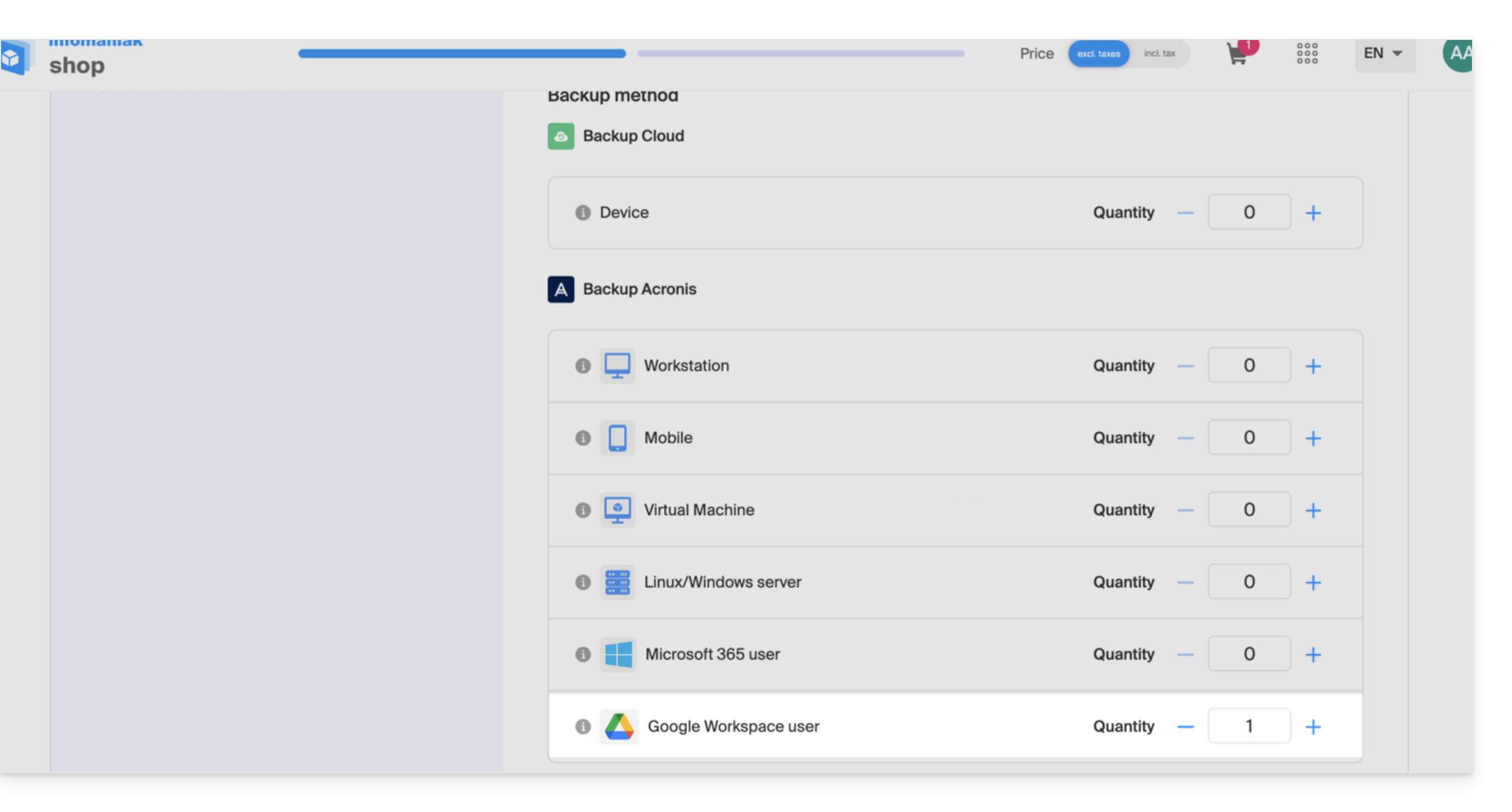
- If necessary, increase the device quota according to your needs.
- Add the device to the Infomaniak Manager to receive the login credentials.
- Create a new project on Google Cloud Platform (console.cloud.google.com) as a super administrator:
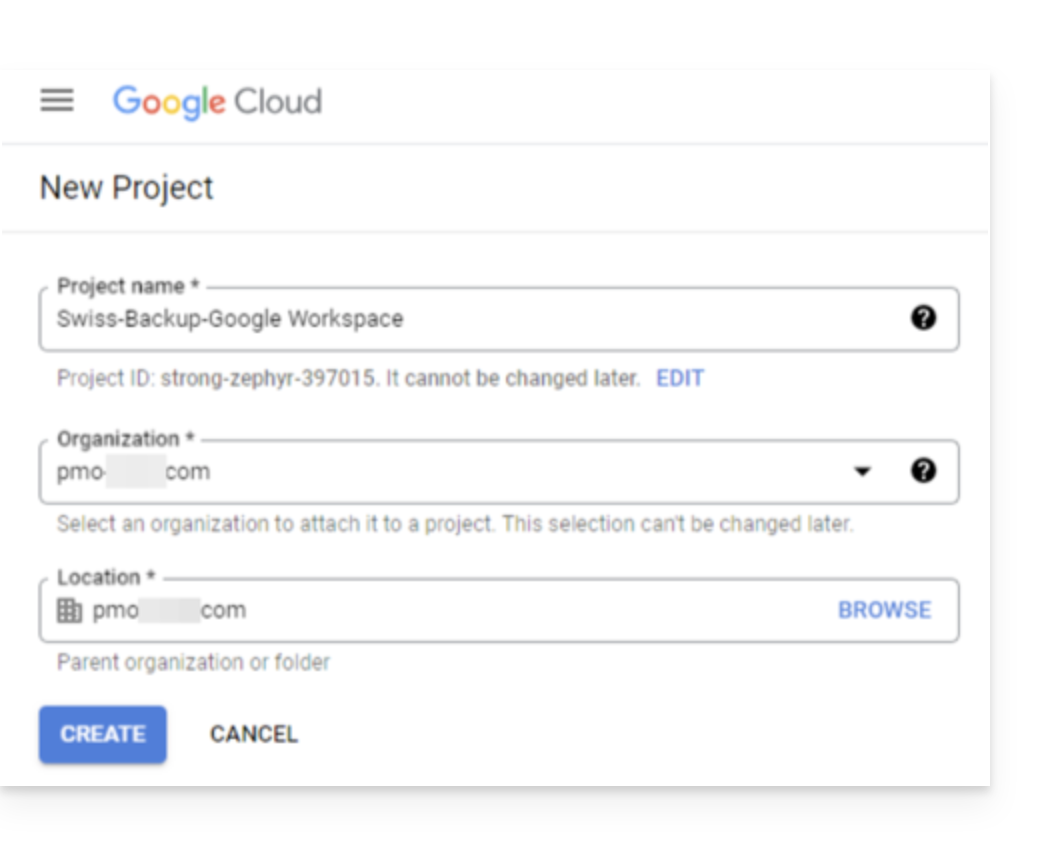
- Consult the Acronis documentation on this topic:
- Allow 20 to 30 minutes to configure everything.
Allow Acronis to access Google Cloud Platform
In the Google Cloud Platform console:
- Select your new project.
- In the navigation menu, select APIs & Services > Enabled APIs & Services:
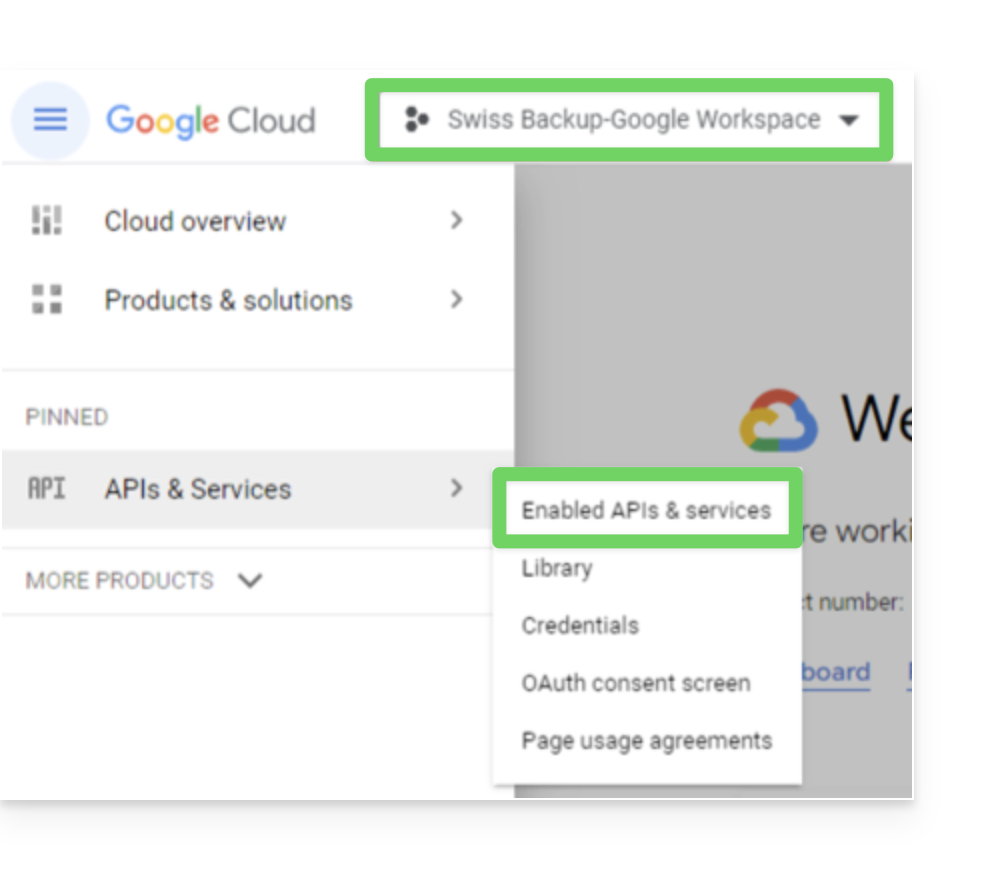
- Disable all APIs that are enabled by default in this project, one by one:
- Scroll down to the Enabled APIs and services page.
- Click on the name of an enabled API.
- On the API/Service details page that opens, click on Disable and confirm:
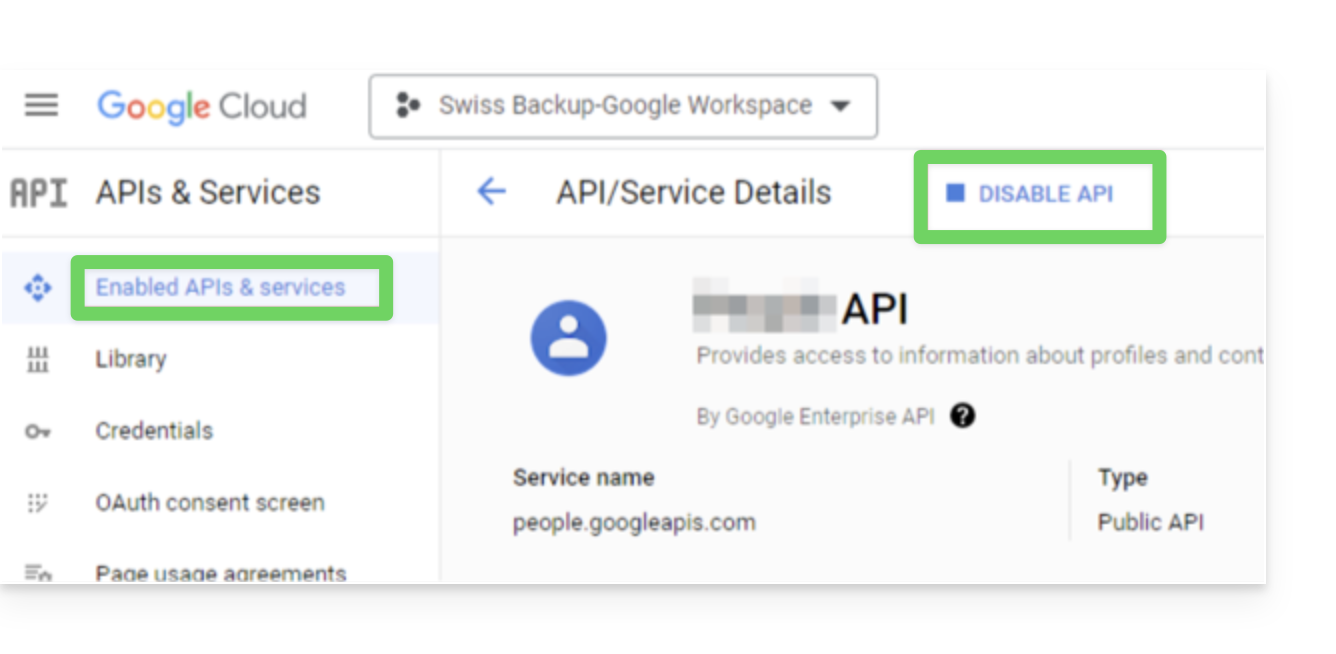
- Go back to the previous page and repeat the process for the next API.
- From the navigation menu, select APIs and services > Library.
- In the API library, enable the following APIs one by one, using the search bar to find the required APIs:
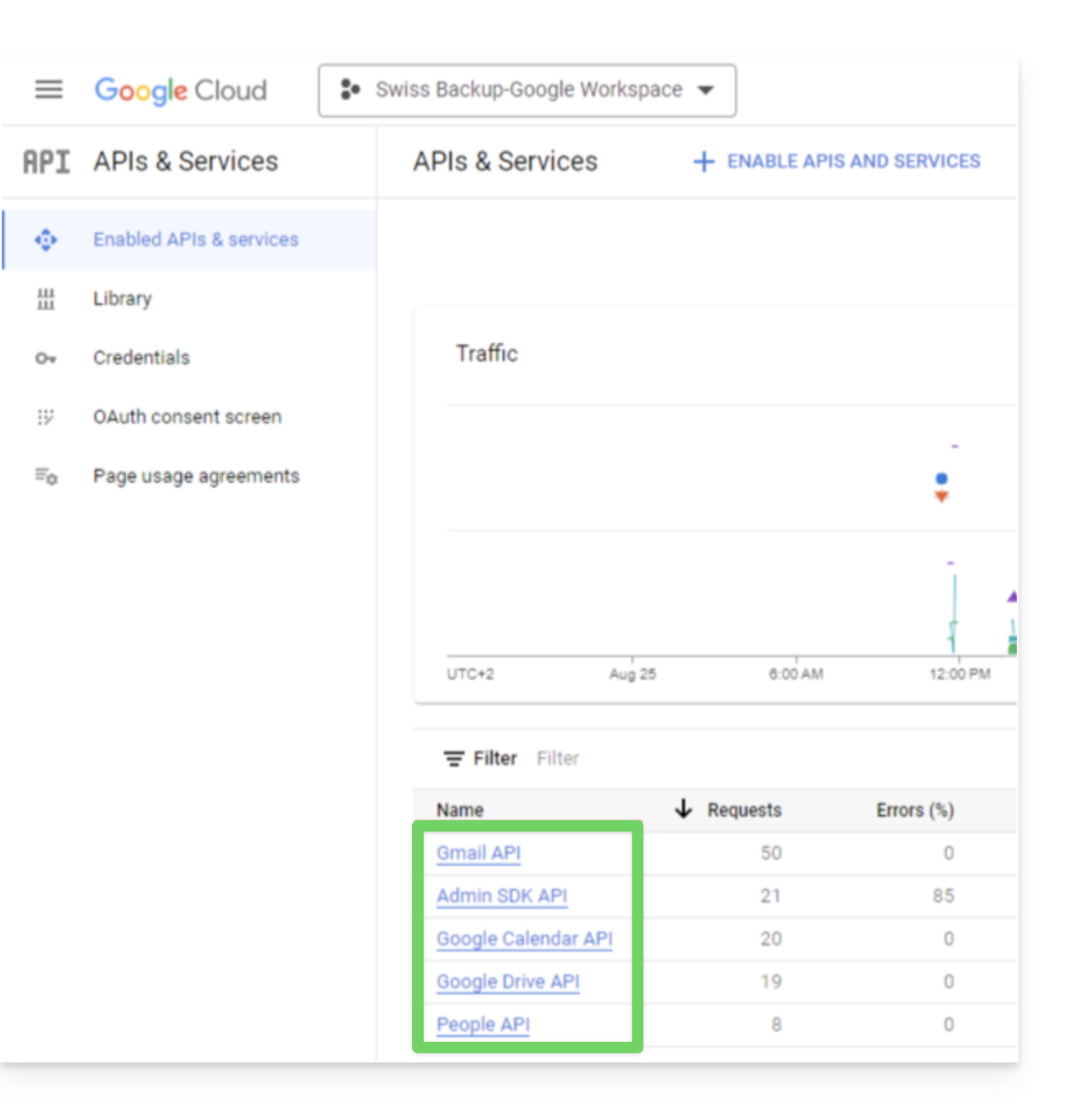
- Gmail API
- Google Drive API
- Admin SDK
- Google Calendar API
- Google People API
- Click on its name then click on Enable.
- To search for the next API, go back to step 5.
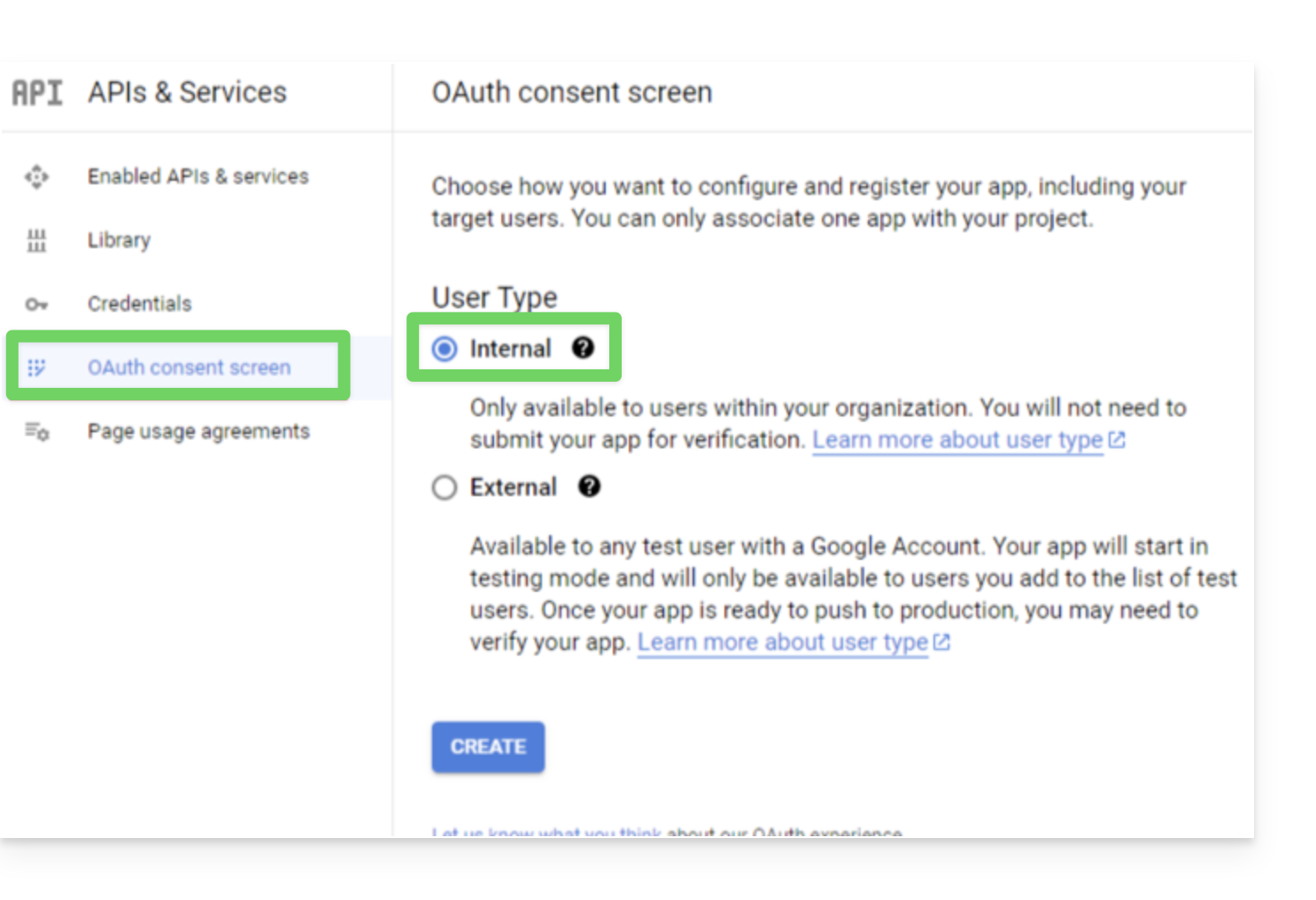
- From the Google Cloud Platform navigation menu, select APIs & Services > OAuth consent screen.
- In the window that opens, select Internal for the user type, then click Create:
- In the Name field for the application, enter a name for your application.
- In the User support email field, enter the super administrator's email address.
- In the Developer contact information field, enter the super administrator's email address.
- Leave all other fields blank, then click Save and continue.
- On the Scopes page, click Save and continue without making any changes.
- On the Summary page, check your settings and then click Back to Dashboard.
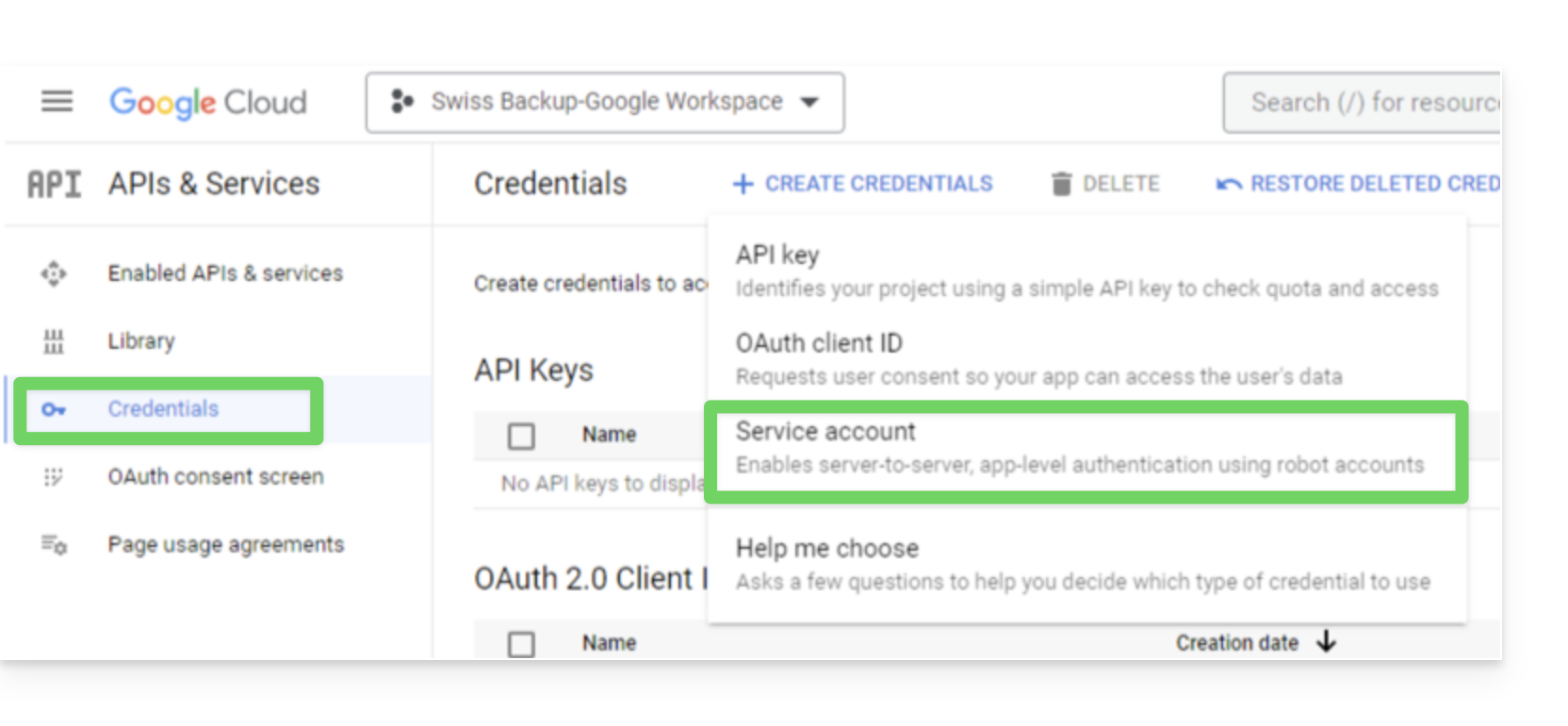
- In the Google Cloud Platform navigation menu, select Credentials > Service account.
- Click on Create a service account:
- Specify a name, a description, and click on Create and continue:
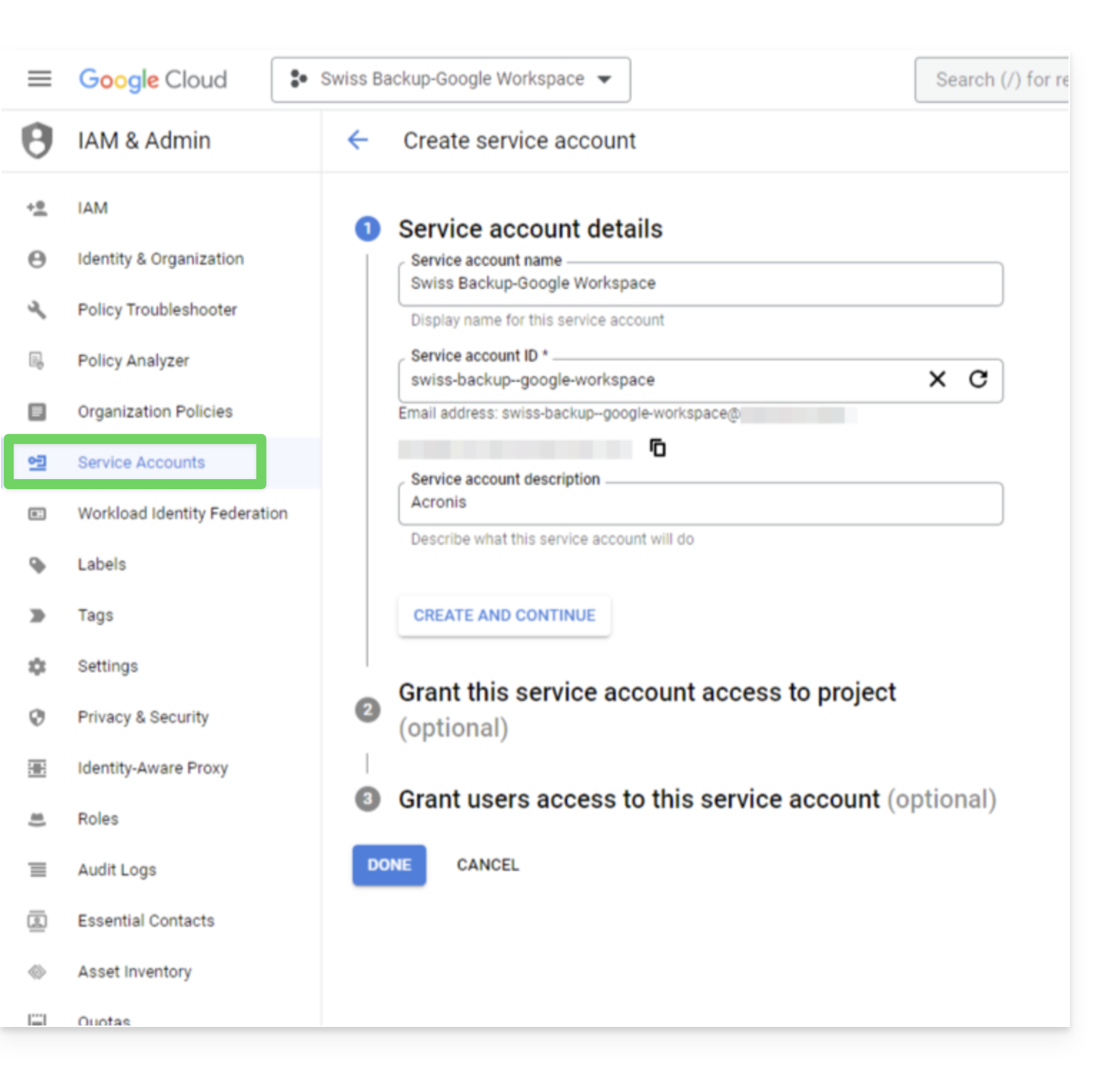
- Do not modify the steps Grant this service account access to the project and Grant users access to this service account.
- Click on Done; the Service accounts page will open.
- Select the new service account, then under Actions, click on Manage keys.
- Under Keys, click Add a key > Create a new key, then select the JSON key type:
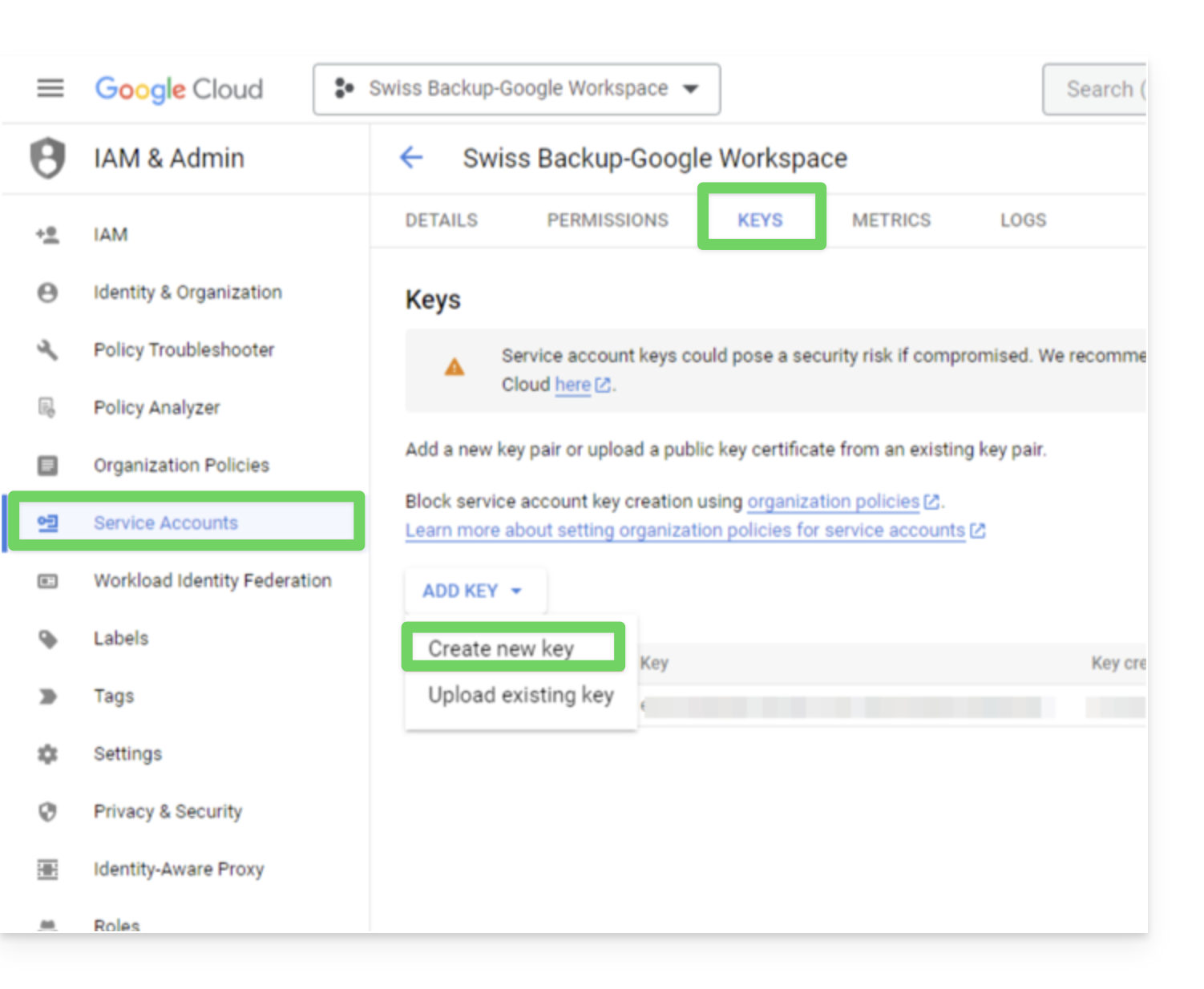
- Click Create; a JSON file containing the service account's private key is automatically downloaded to your computer: keep this file in a safe place as you will need it to add your Google Workspace organization to the Cyber Protection service as described below in this guide.
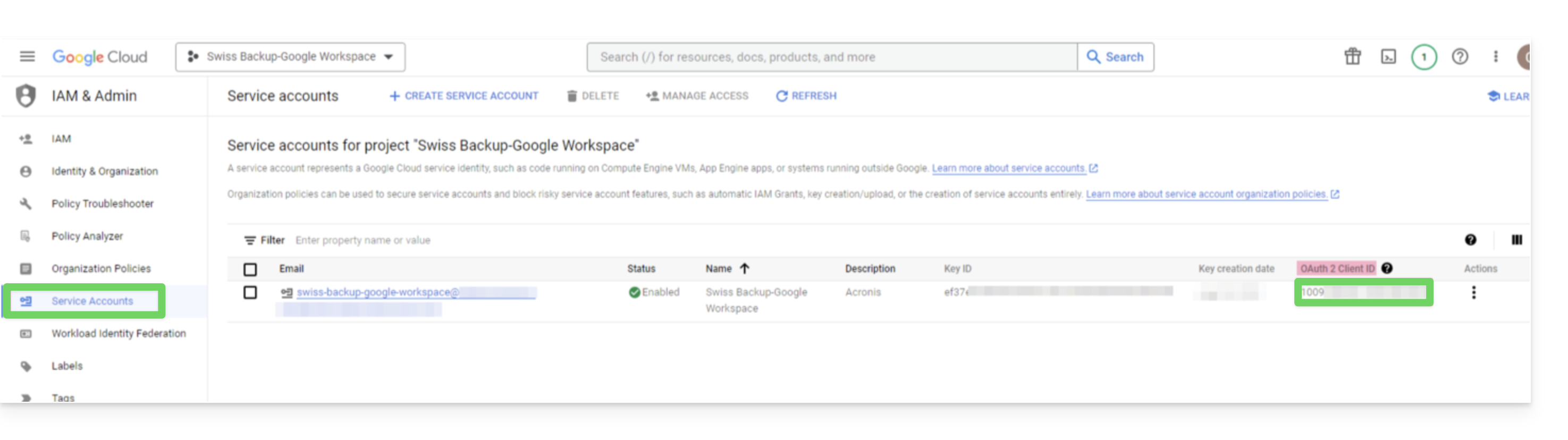
- In the Google Cloud Platform navigation menu, select Credentials > Service account.
- In the list, find the service account you created, then copy its client ID, which is displayed in the OAuth 2.0 Client ID column:
- Click here to access the Google admin interface as a super administrator.
- In the navigation menu, selectSecurity > Access and data control > API controls:
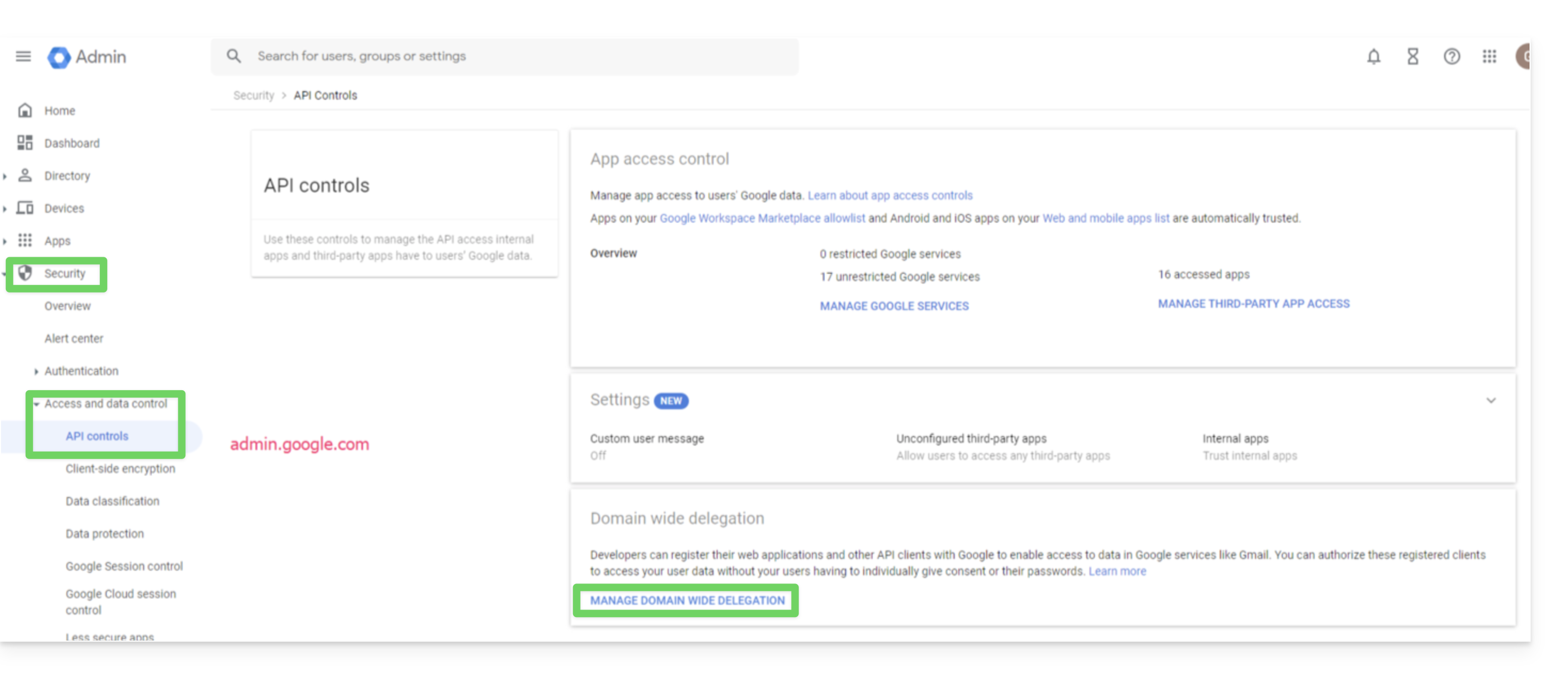
- Scroll down the API controls page, then under Domain-wide delegation, click on Manage domain-wide delegation; the Domain-wide delegation page will open.
- On this page, click on Add:
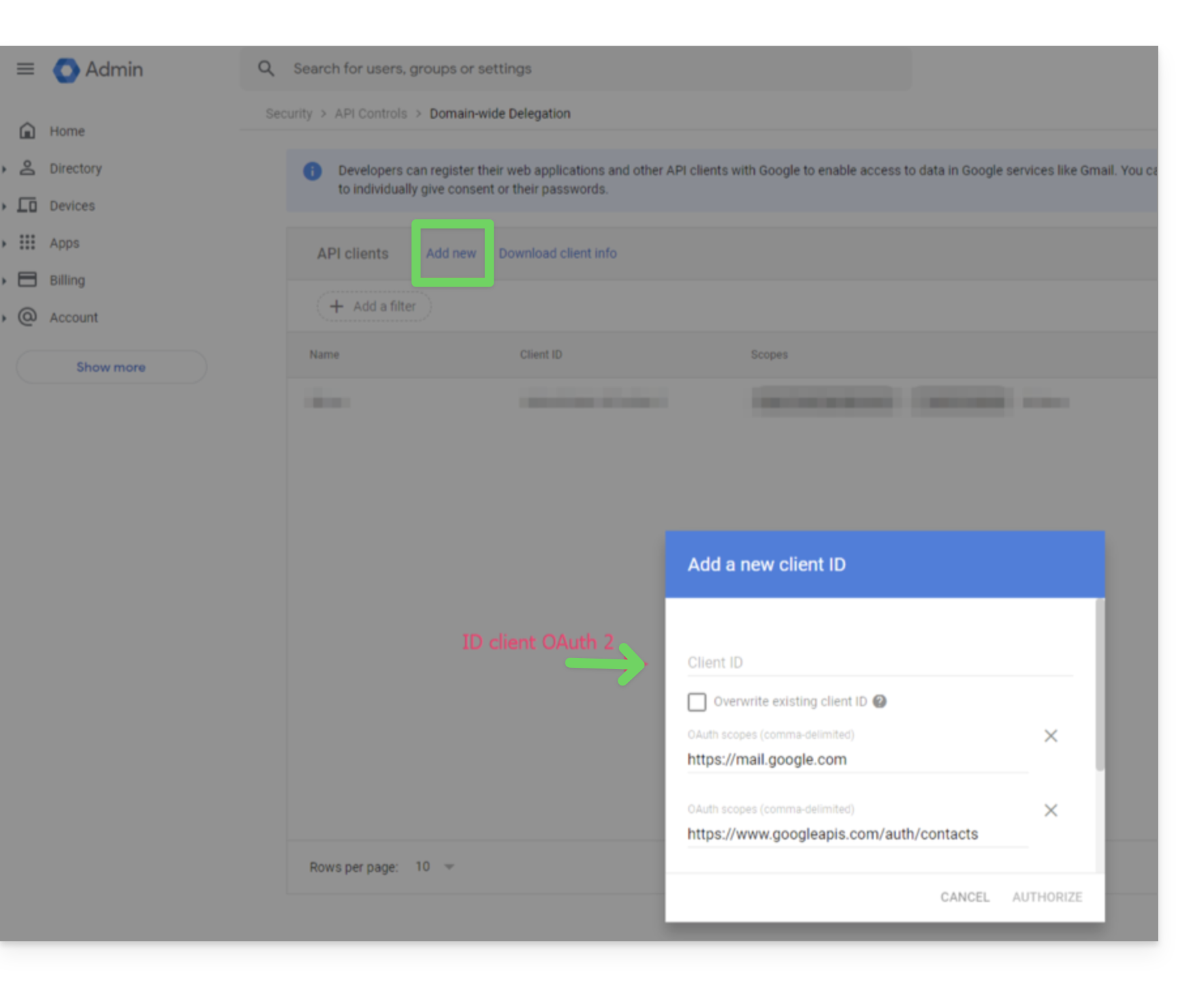
- The Add a new client ID window opens.
- In the Client ID field, enter the client ID for your service account.
- In the OAuth scopes field, add the following scopes:
- https://mail.google.com
- https://www.googleapis.com/auth/contacts
- https://www.googleapis.com/auth/calendar
- https://www.googleapis.com/auth/admin.directory.user.readonly
- https://www.googleapis.com/auth/admin.directory.domain.readonly
- https://www.googleapis.com/auth/drive
- https://www.googleapis.com/auth/gmail.modify
- Click on Allow.
Your new Google Cloud project can now access the data in your Google Workspace account.
Creating the backup space
To configure the backup of your Google Workspace with Acronis:
- Click here to access the Acronis Console using the credentials obtained after adding the device (need help?).
- Click the "Add device" button to add a Google Workspace device:
- Enter the address of a super administrator for your Google Workspace account (it doesn't matter if two-step verification is enabled for the super administrator's email account).
- Find the JSON file that contains the private key for the service account you created in your Google Cloud project (or paste the file's content as text).
- Click on Confirm:
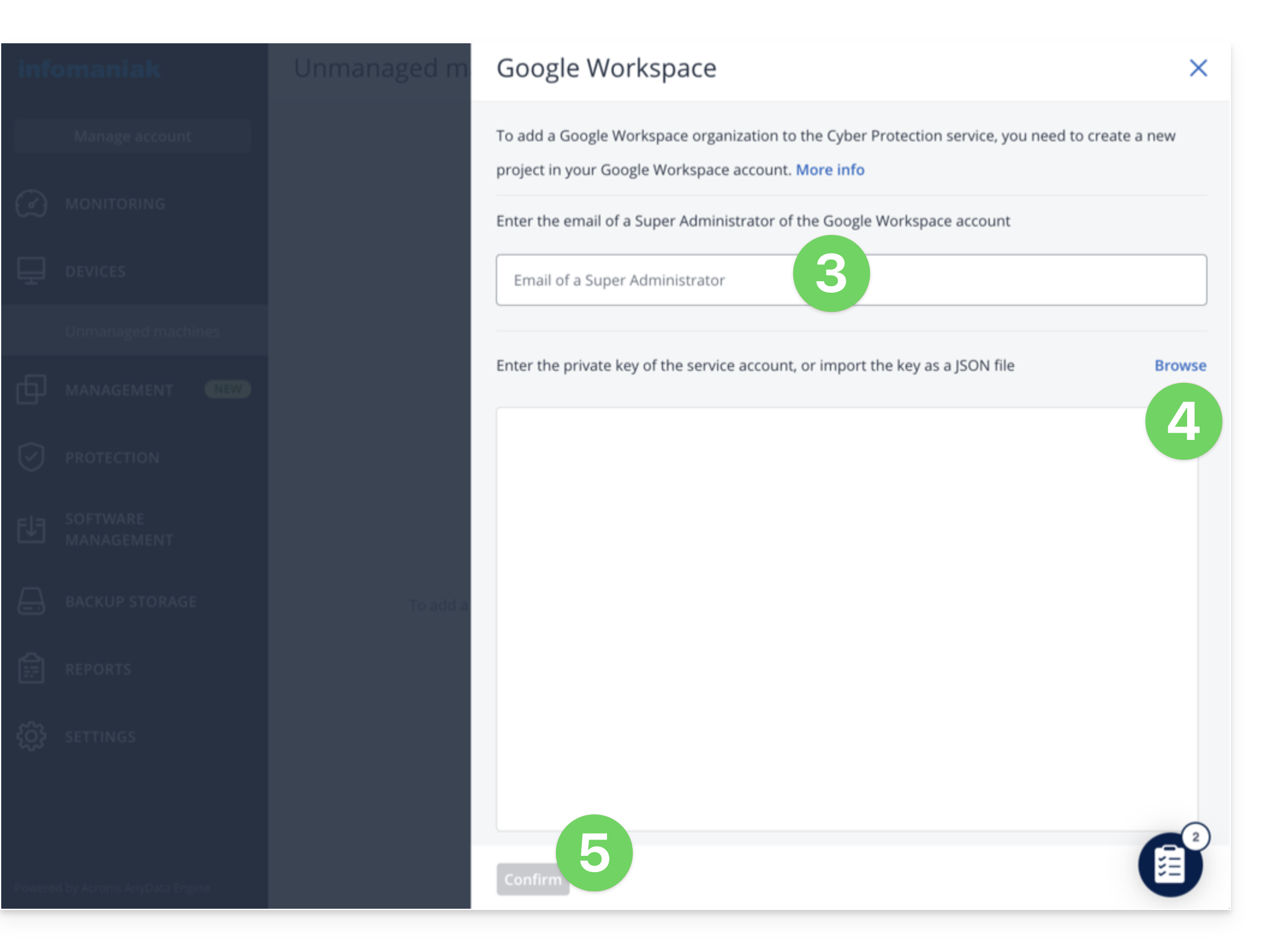
Your Google Workspace organization will then appear under the Devices tab in the service console: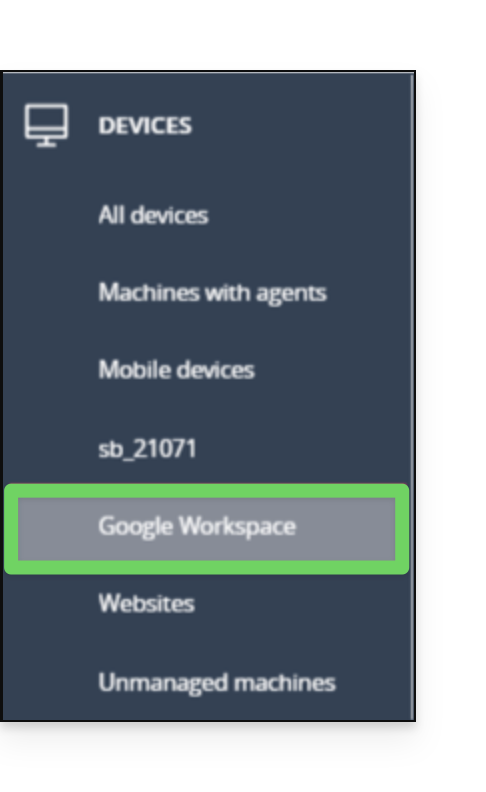
Link to this FAQ: https://faq.infomaniak.com/2805
Has this FAQ been helpful?
This guide details how to back up a Microsoft 365 workspace using Acronis on Swiss Backup, the backup solution in an independent Swiss cloud.
Introduction
- What you can back up:
- Office
- OneDrive
- Exchange
- Teams
- SharePoint
- Emails
- By default, OneNote notebooks are included in backups of OneDrive files, Microsoft Teams, and SharePoint sites.
- It is also possible to back up other types of data.
Adding a Microsoft 365 organization
Prerequisites
- Own an Swiss Backup Infomaniak space with an available device quota (minimum 1) for a Acronis Microsoft 365 backup (1 license per Office 365 user (seat) to be backed up):
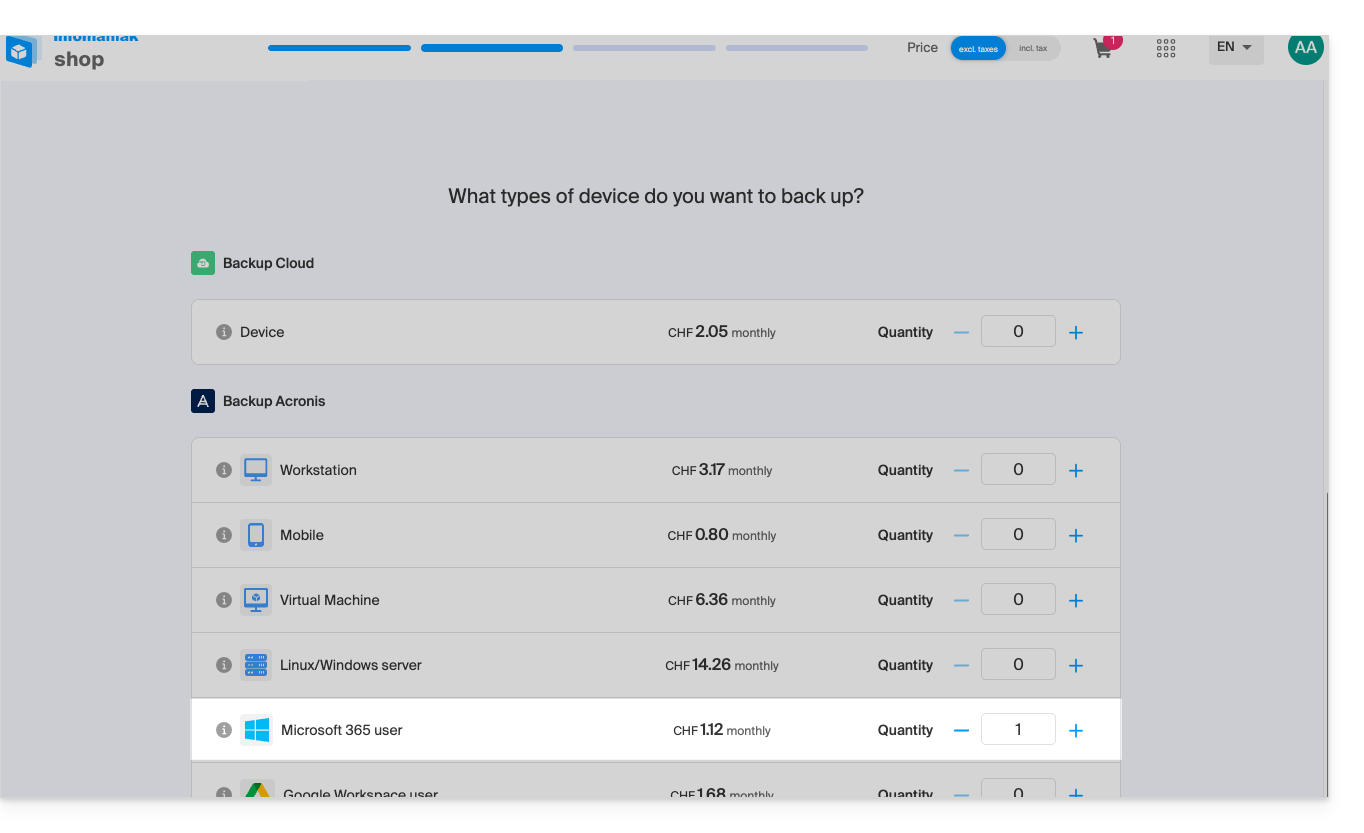
- If necessary, increase the device quota according to your needs.
- Add the device to the Infomaniak Manager to receive the login credentials.
- Your account must have global administrator privileges in Microsoft 365.
- Refer to the Acronis documentation for more information.
An administrator can add one or more Microsoft 365 organizations to a Swiss Backup account.
To add a Microsoft 365 organization:
- Click here to access the Acronis Console using the credentials obtained after adding the device (need help?).
- Click the "Add device" button to add a Microsoft 365 Business device:
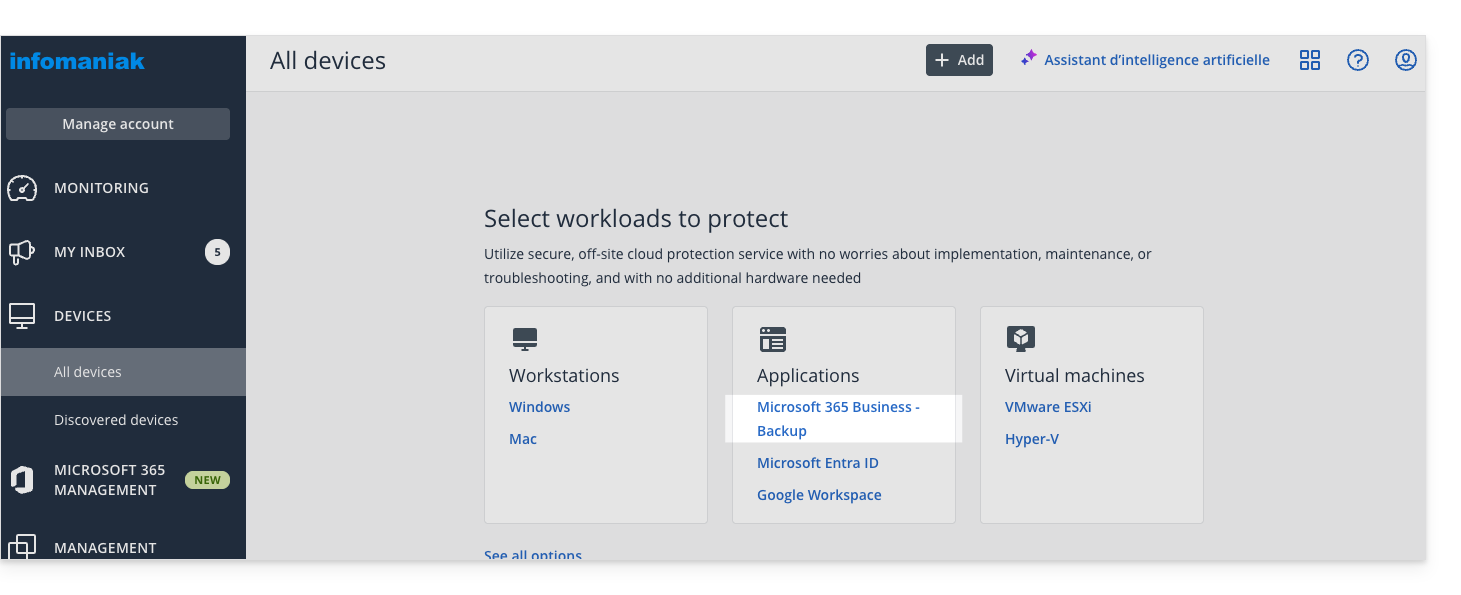
- The software redirects you to the Microsoft 365 login page:
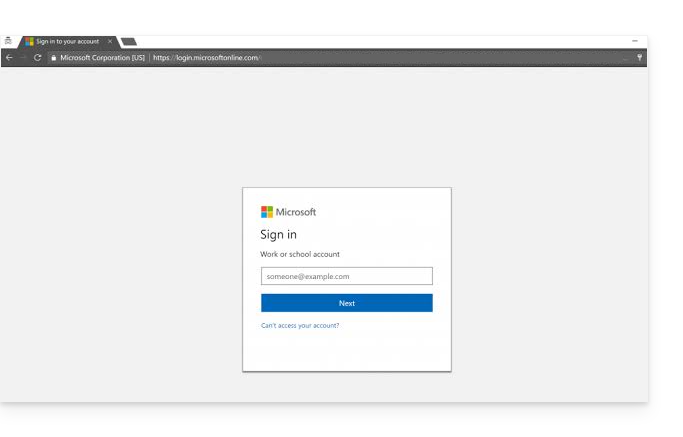
- Log in using the credentials of the Microsoft 365 global administrator.
- Microsoft 365 displays a list of the permissions required to back up and restore your organization's data:
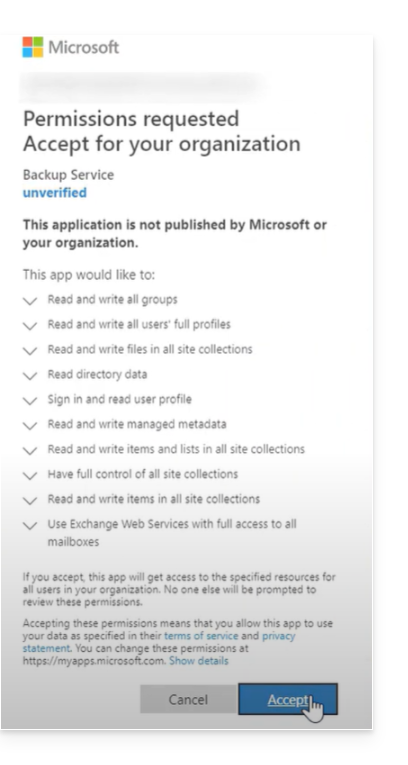
- Confirm that you are granting these permissions to the Cyber Protect service.
The Cloud agent does not connect to Microsoft 365. The agent obtains the necessary permissions directly from Microsoft 365. You only need to confirm the granting of these permissions once, while logged in as a global administrator. The agent does not store your account credentials and does not use them to perform backups and restores. Changing the password for this account, or disabling or deleting this account in Microsoft 365, will not affect the operation of the agent.
Your Microsoft 365 organization will then appear under the Devices tab in the Cyber Protect console: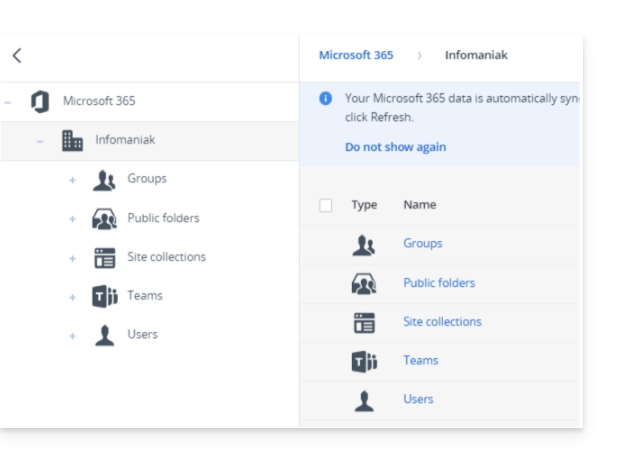
Backup/Synchronization Frequency
The Cloud agent synchronizes with Microsoft 365 every 24 hours, starting from the moment the organization is added to the Cyber Protection service. If you add or remove a user, group, or site, this change will not be immediately visible in the Cyber Protect console.
Immediate synchronization
To synchronize the changes immediately, select the organization on the Microsoft 365 page, then click Refresh.
If you have applied a protection plan to the All users, All groups, or All sites group, newly added items will only be included in the backup once the synchronization has been completed.
In case of slowdowns
If the Microsoft 365 Cloud-to-Cloud (C2C) backup or restore tasks are running slower than expected and taking a long time to complete, please refer to this other guide to temporarily disable the throttling of the Exchange Web Services API in order to improve performance when restoring Microsoft 365 items.
Deleted items
In accordance with Microsoft's policy, when a user, group, or site is deleted from the Microsoft 365 graphical interface, it remains available for a few days via the API. During this period, the deleted item is inactive (grayed out) in the Cyber Protect console and is not backed up.
When the deleted item is no longer available via the API, it will disappear from the Cyber Protect console. Its backups (if any) can be found under Backup Storage > Cloud Application Backups.
Learn more
Link to this FAQ: https://faq.infomaniak.com/2825
Has this FAQ been helpful?
This guide explains how to delete a Swiss Backup using Acronis, and the different scenarios you may encounter when deleting it. Also, refer to this other Acronis guide on the subject.
Prerequisites
- At least one device must be registered (and online) with the same credentials used to create the backup:
- For example, if the goal is to delete a backup created by
SBA-XXXX-ADMIN, but no device is online, simply download Acronis to another device and register it with the same user: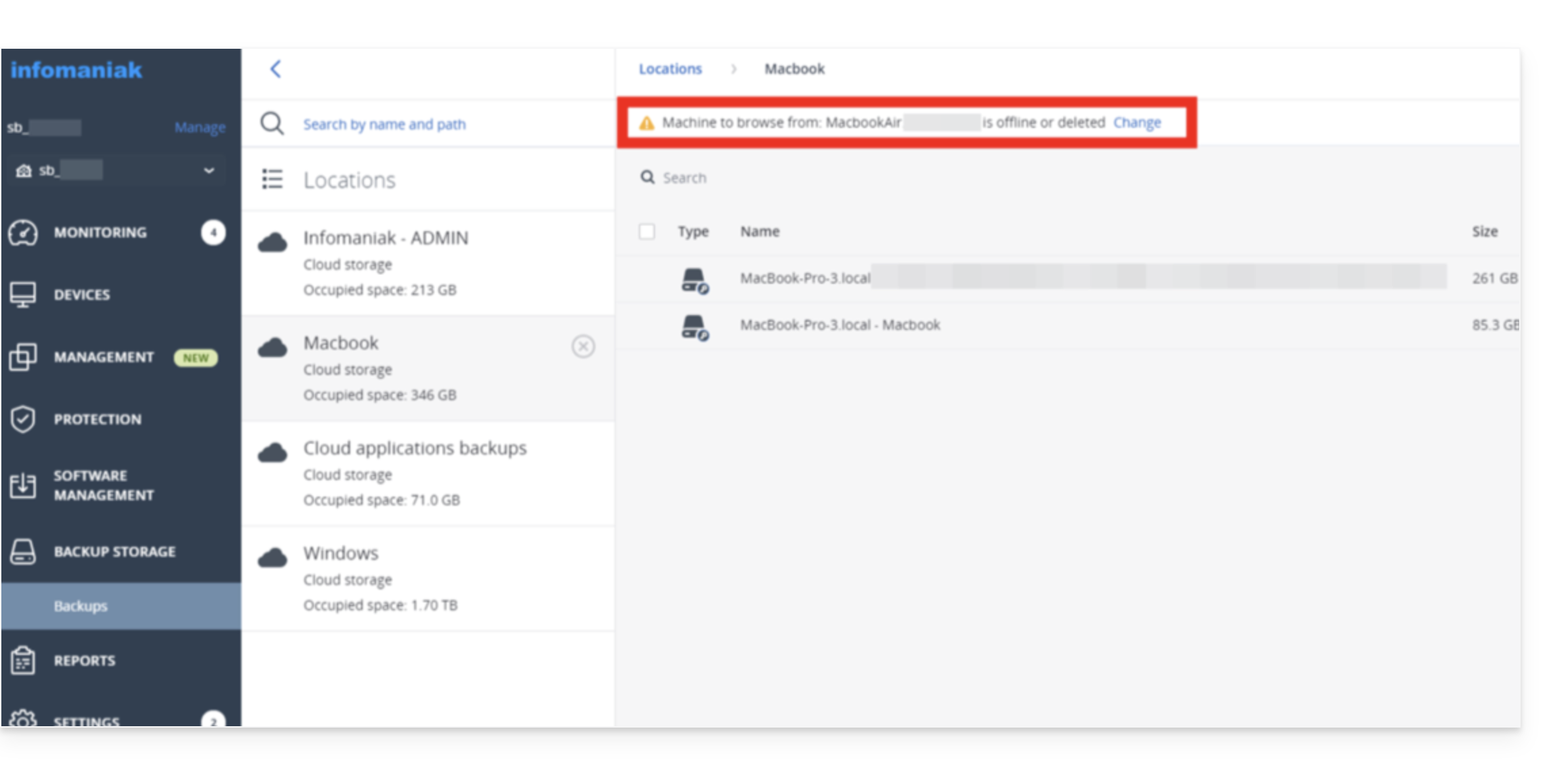
- For example, if the goal is to delete a backup created by
- Deletion requires free space:
- Please consider increasing your user's quota (❓: help). Once the deletion is complete, you can return the quota to the agreed-upon level:
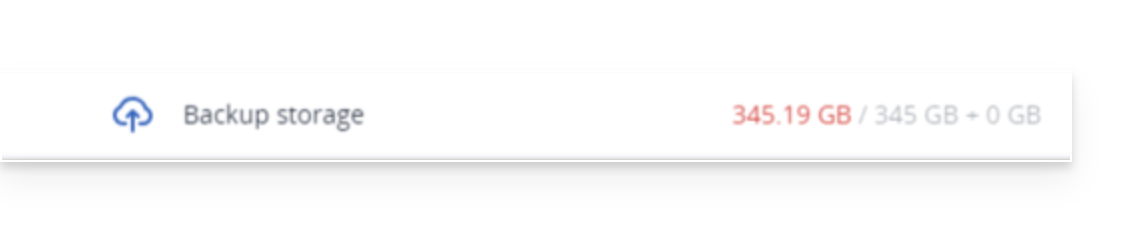
- Please consider increasing your user's quota (❓: help). Once the deletion is complete, you can return the quota to the agreed-upon level:
- Refresh the storage:
- If a deletion was recently performed, please be patient; the deletion may take some time depending on the size of the archive to be deleted. If the storage space used has not changed, refresh the backup location:
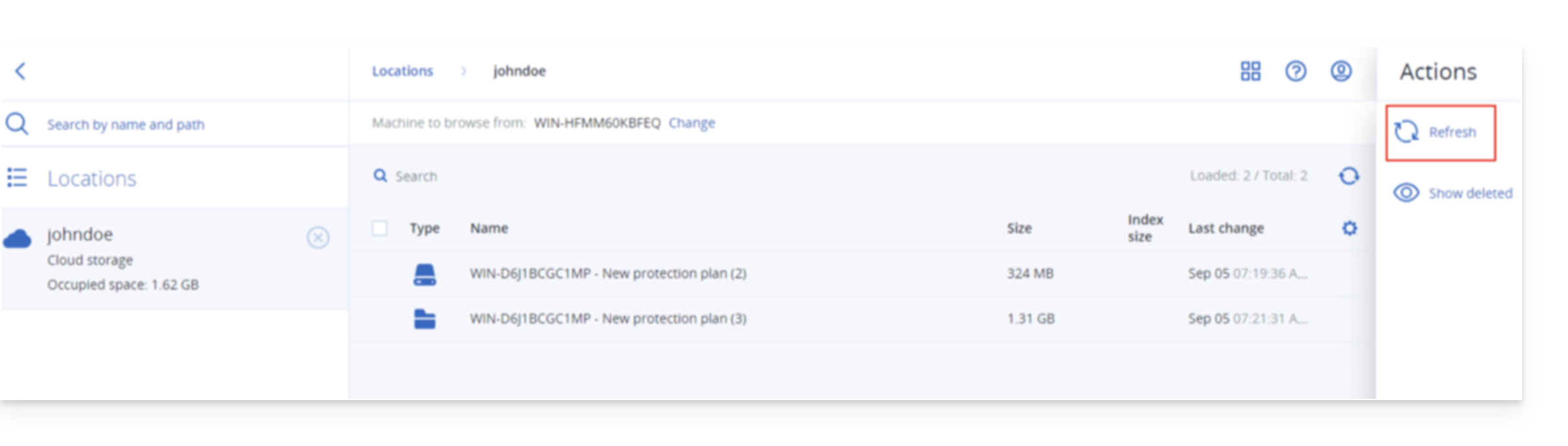
- If a deletion was recently performed, please be patient; the deletion may take some time depending on the size of the archive to be deleted. If the storage space used has not changed, refresh the backup location:
Delete an Acronis backup
To do this:
- Log in to the Backup Storage on the Cyber Protect console.
- Select the location from which you want to delete the backups.
- Select the backup archive from which you want to delete the backups.
Delete the entire backup archive
- Click Delete.
- Deleting a backup archive deletes all backups within that archive.
Delete a specific backup within the backup archive
- Click on View backups.
- Select the backup (restore point) that you want to delete.
- Click on Actions > Delete:
- When deleting a backup archive, check the box and then click Delete to confirm your decision.
- When deleting a specific backup, click Delete to confirm your decision.
Delete all backups associated with a user
- Even if no device is online, you can Disable > Delete it (❓: help).
Delete incomplete backups (if any)
- Refer to this other guide for detailed instructions.
Certificate
If the storage quota/deletion issue persists even after increasing the storage quota for the user in question, it is recommended to reinstall Acronis.
When Acronis is completely uninstalled, it removes the certificate that may be causing this bug.
To remove the certificate manually, without uninstalling Acronis:
Link to this FAQ: https://faq.infomaniak.com/2877
Has this FAQ been helpful?
This guide will help you if your SFTP software/client suddenly displays a request to accept a new fingerprint when using the Swiss Backup service from Infomaniak.
SFTP Software/Client Alert
If your SFTP software suddenly displays a message asking you to accept a new fingerprint, this is not necessarily a security issue. This request may occur following planned technical changes to Infomaniak's infrastructure (if you have received an email about this).
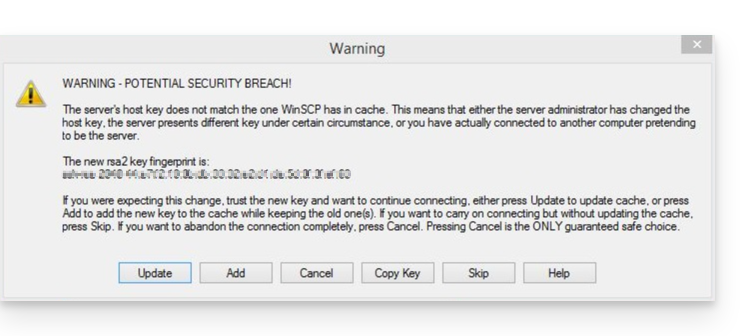
Indeed, as part of the evolution of its services, Infomaniak has recently changed the SFTP gateway used to access hosted files. These changes involve the deployment of new SSH keys on the server side. For security reasons,SFTP software/clients systematically compare the server's key with the one they have in memory..
If a difference is detected, even if legitimate, they will alert you and ask for confirmation. Therefore, it is normal for an alert to appear and for you to be asked to approve a new fingerprint.
Check if necessary
You can check the new official SSH key fingerprints for Infomaniak below. If they match what is displayed in your software, you can accept them with confidence:
4096 SHA256:p4QkBc70lkIpDZpjJAZ4VbPEIaOv54lWxd/DRCMfwgg sftp.swiss-backup.infomaniak.com (RSA)
4096 MD5:a3:6b:fa:7c:0e:22:da:42:ca:82:c7:cc:7e:1f:0a:4a sftp.swiss-backup.infomaniak.com (RSA)
4096 SHA256:gMiEH8oVwWhq8ByQWQP8xMEVy3URi2omZNSMCc0n8z0 sftp.swiss-backup02.infomaniak.com (RSA)
4096 MD5:d2:1a:11:9a:06:4c:55:98:df:38:cd:70:be:08:dd:ca sftp.swiss-backup02.infomaniak.com (RSA)4096 SHA256:EcQDR+VNUCbK1Zz/eDoa295c0+7JGQD7EP6n+ro5G0U sftp.swiss-backup03.infomaniak.com (RSA)
4096 MD5:bf:5e:92:f7:ed:81:de:84:9e:43:48:f3:1a:9c:3e:8d sftp.swiss-backup03.infomaniak.com (RSA)4096 SHA256:xRU5RakUZ/yJYg3CDi9JiSRymodbPgM4S3FXvVHqK2s sftp.swiss-backup04.infomaniak.com (RSA)
4096 MD5:16:ce:56:02:c3:ab:80:7b:31:99:a6:cd:a8:00:0e:79 sftp.swiss-backup04.infomaniak.com (RSA)This change has no impact on the security of your data. If you use scripts or automated software for your transfers or backups, remember to check that they properly take this new fingerprint into account.
Link to this FAQ: https://faq.infomaniak.com/2889
Has this FAQ been helpful?