Knowledge base
1000 FAQs, 500 tutorials and instructional videos. Here, there are only solutions!
Back up data with Cyberduck on Swiss Backup (SFTP)
This guide details how to manually back up data using the Cyberduck application (macOS / Windows) via the SFTP protocol on Swiss Backup, the backup solution in a Swiss independent cloud.
Introduction
Configure Cyberduck
Prerequisites
- Have an Swiss Backup Infomaniak account with available device quota (minimum 1) for a Cloud backup.
- Add a Cloud device to obtain the SFTP settings.
- Download and install Cyberduck (macOS / Windows).
To configure a new backup:
- Open the Cyberduck application.
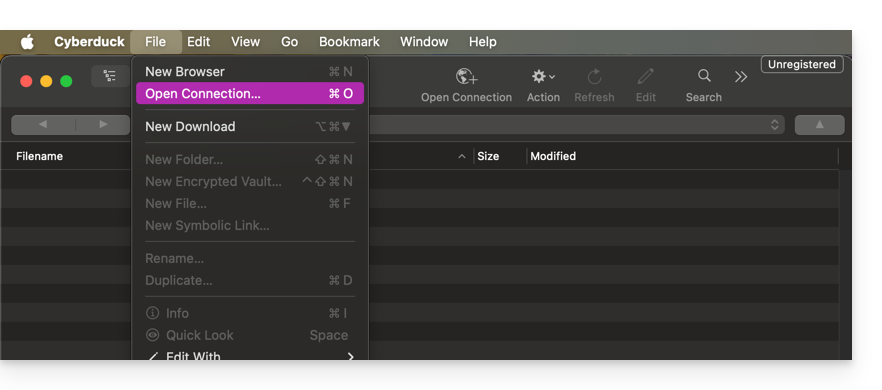
- Click on Open Connection:
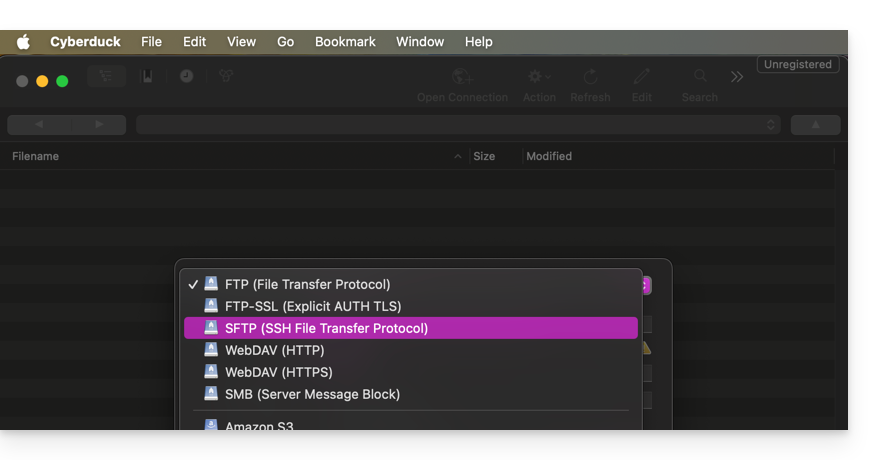
- Choose the corresponding protocol:
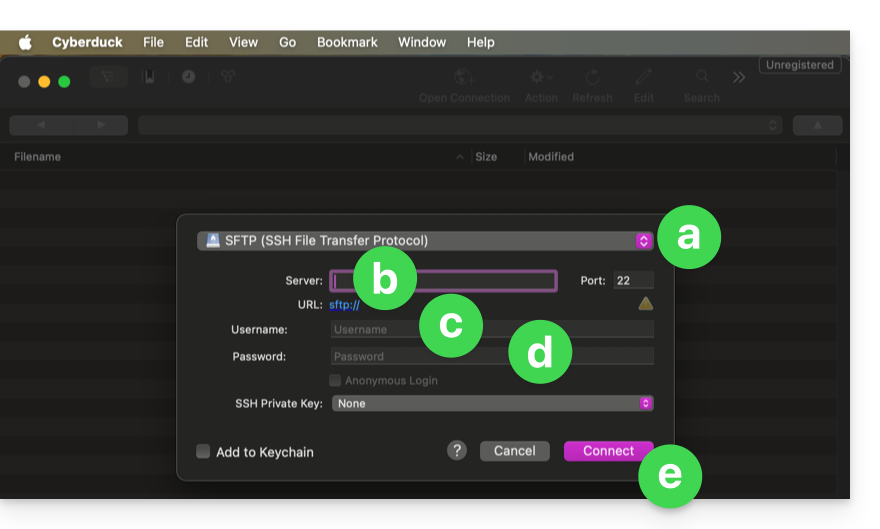
- Enter the information specific to your device (refer to this other guide):
- In the drop-down menu, select:
SFTP(SSH File Transfer Protocol). - Server:
sftp.swiss-backup02.infomaniak.com - Username: the name of your Swiss Backup device (e.g.
SBI-MS0020). - Password: the password generated in the email you received after creating your Swiss Backup device.
- Click on Connect.
- In the drop-down menu, select:
Cyberduck allows you to create bookmarks, which are pre-configured access points for easy connection to the FTP storage later. Once the bookmark is created, you can double-click it to connect to the FTP storage.
Link to this FAQ: https://faq.infomaniak.com/2548
Has this FAQ been helpful?