Knowledge base
1000 FAQs, 500 tutorials and instructional videos. Here, there are only solutions!
Import data to kDrive from another kDrive
Update 10/13/2026
This guide explains how to copy data within the kDrive desktop app (desktop application on macOS / Windows / Linux) from one kDrive to which your Infomaniak user has access to another kDrive to which the same Infomaniak user has access.
Introduction
- To be able to use multiple Organizations, you must have been added to them and have been granted access to the respective kDrives.
- For example, if the user
abc@domain.xyzhas a kDrive called "ABC" within their Organization "ABC" and is invited to the Organization "VWX", which grants them access to the kDrive "VWX", they will see 2 kDrives on ksuite.infomaniak.com/kdrive and will be able to send data from one to the other in one click.
- For example, if the user
- Without being a user of multiple Organizations, it is also possible to copy data, but only by importing the entire kDrive, without being able to choose specific data: to import all the data contained on another of your kDrives at once, refer to this other guide and choose kDrive at step 7.
Copy data between multiple kDrives
To copy a folder or file to another kDrive that you have access to from the same user account:
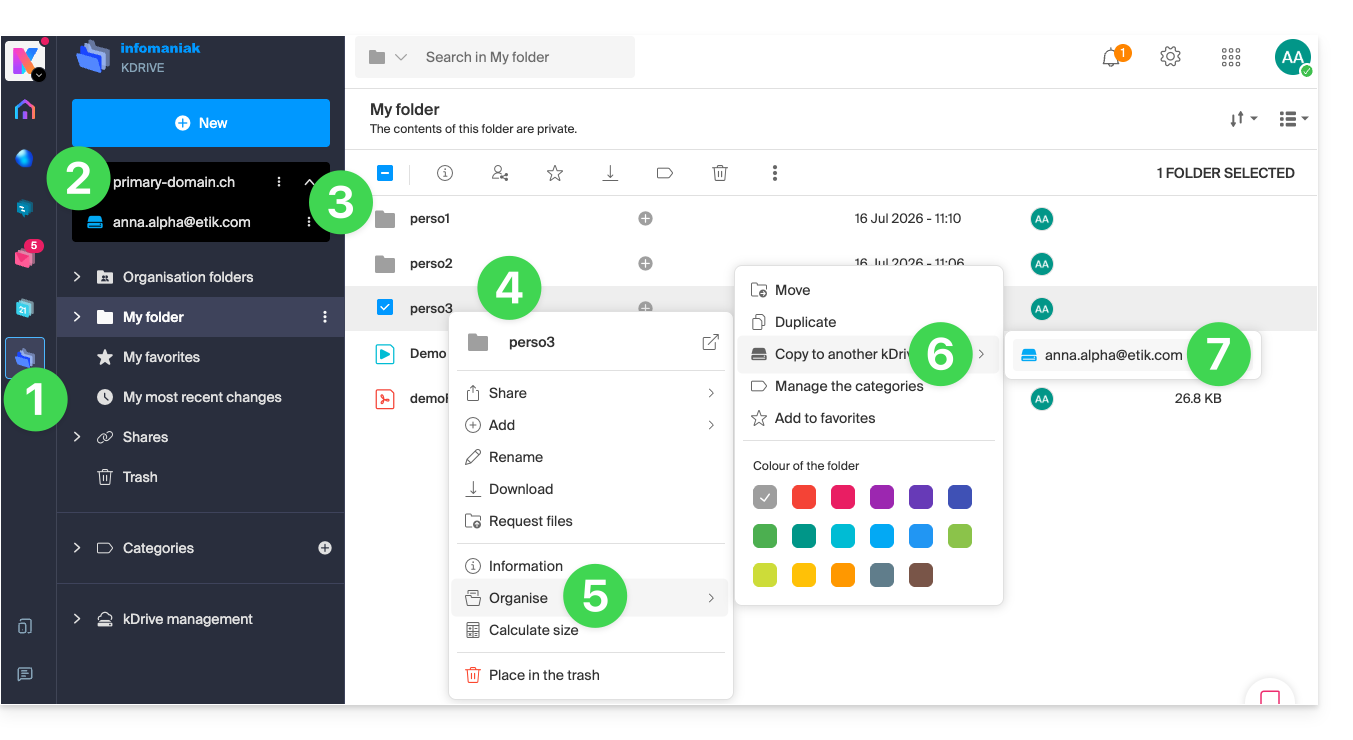
- Click here to access the Infomaniak kDrive web app (online service ksuite.infomaniak.com/kdrive).
- Check or select the relevant kDrive from the dropdown menu in the left-hand menu.
- If necessary, select the other kDrive from which you want to copy files.
- Right-click or click on the action menu ⋮ to the right of the folder or file you want to copy to the other kDrive.
- Click on Organize.
- Click on Copy to another kDrive.
- Choose the kDrive in question from the list displayed in this same drop-down menu:
- Choose the destination location (knowing that the shared folder ("Organization Folders") cannot receive files or folders at its root, but you can create a subfolder using the appropriate icon if the user has the necessary permissions).
- Click the blue button to start the copy process:
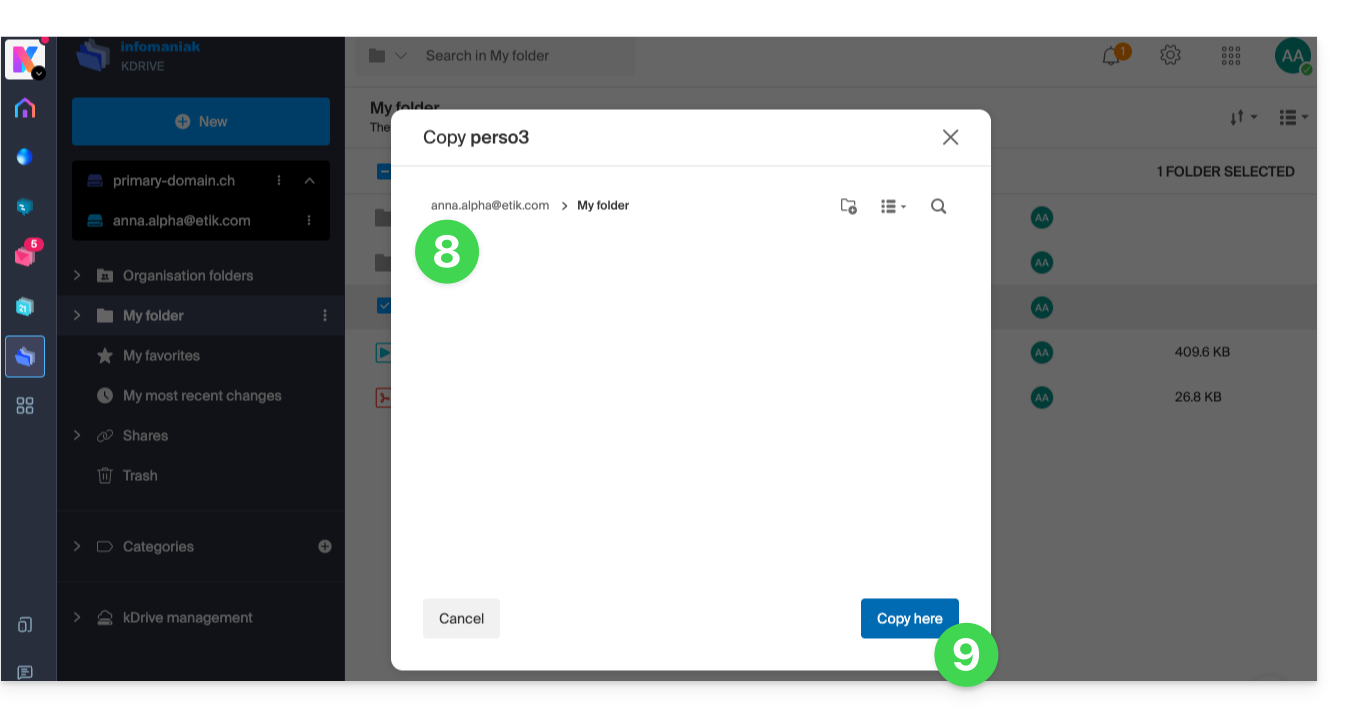
The copy process is not instantaneous; please wait several minutes!
Link to this FAQ: https://faq.infomaniak.com/1908
Has this FAQ been helpful?