Knowledge base
1000 FAQs, 500 tutorials and instructional videos. Here, there are only solutions!
Import a calendar into Infomaniak Calendar
This guide explains how to import a calendar into the Infomaniak Calendar web app (online service ksuite.infomaniak.com/calendar).
Introduction
- Consult this other guide if you only want to display an Infomaniak calendar in read-only mode on Google Calendar (web & mobile app).
- Consult this other guide if you prefer to edit events in the calendar from both sides, but only on the mobile version of the Google Calendar app.
- You can also import tasks into the dedicated section of the calendar.
Import a calendar via a URL
You can display an existing calendar managed externally in Calendar. It will be automatically updated every hour via the URL you specify.
Please note that this is not a calendar synchronization, but a read-only, one-way display that is updated regularly.
To do this:
- Click here to access the Infomaniak Calendar web app (online service ksuite.infomaniak.com/calendar).
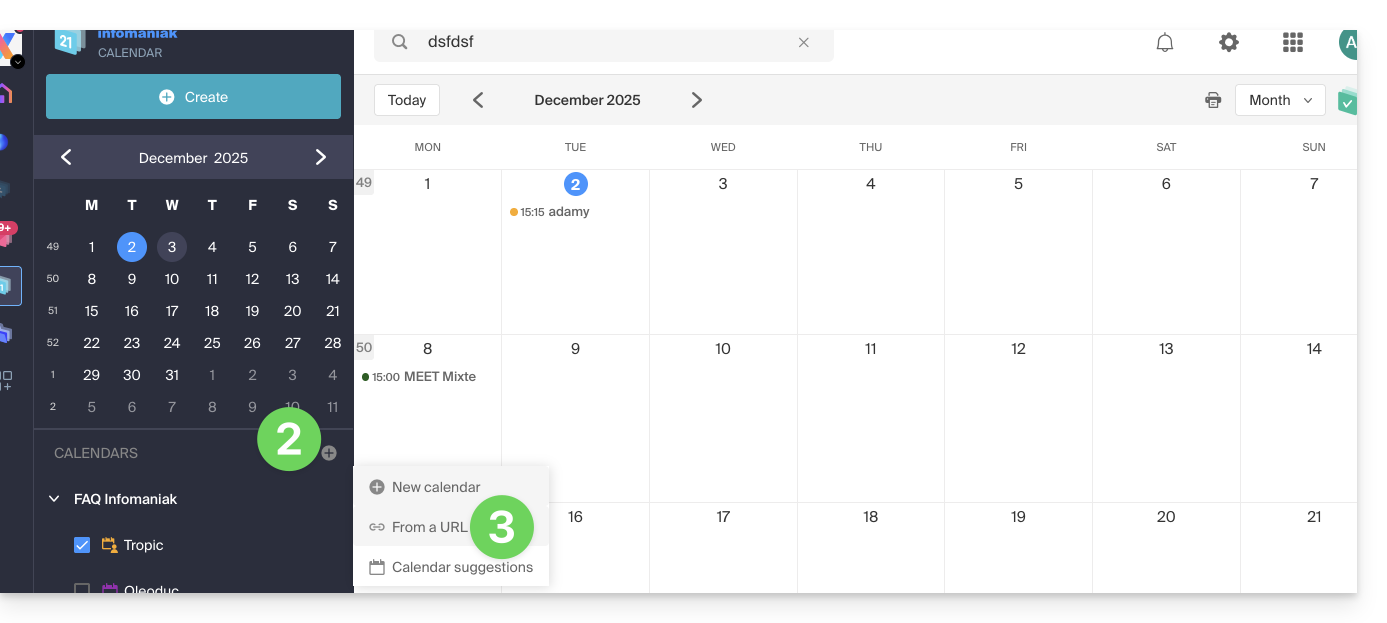
- Click on in the left-hand menu.
- Click on "From a URL":
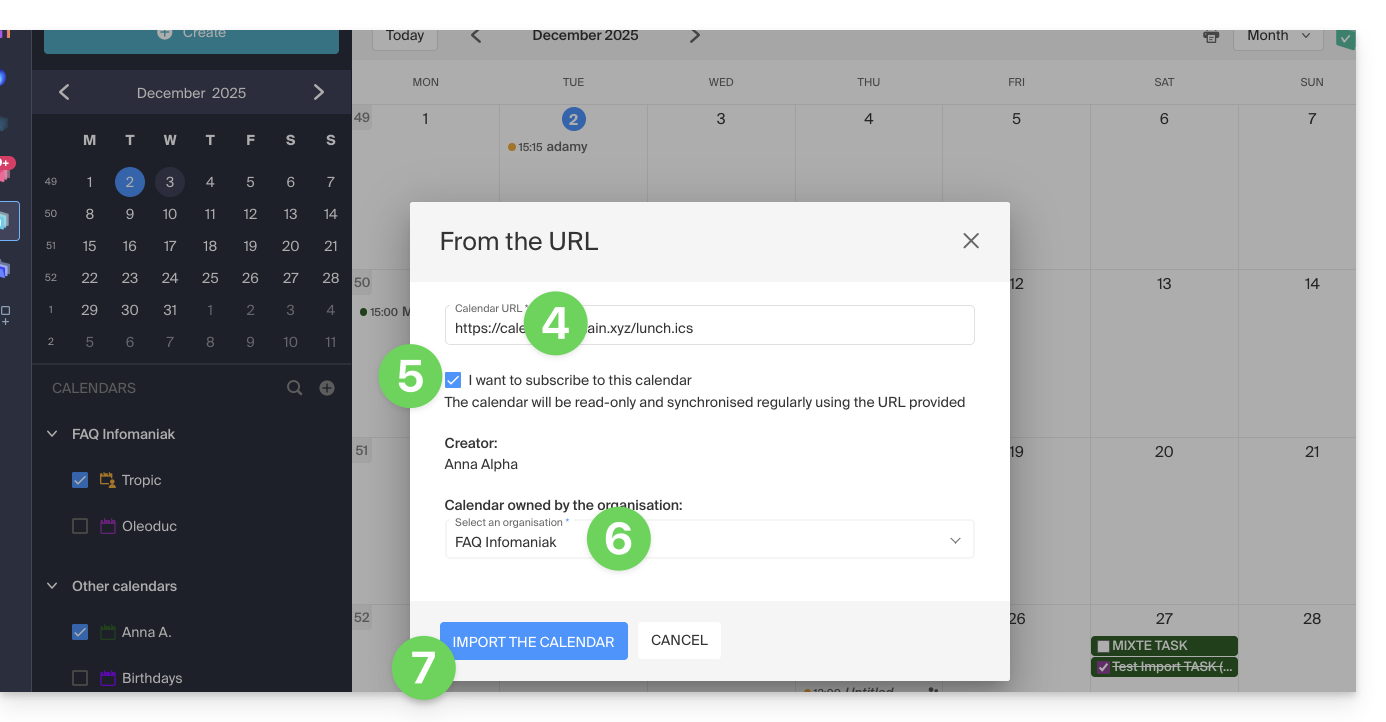
- Enter the URL of the calendar to import.
- Check the I want to subscribe to this calendar box.
- If necessary, select the Organization in which the calendar will be imported.
- Click on Import calendar:
You can also go directly through one of the Organizations you belong to:
- Click here to access the Infomaniak Calendar web app (online service ksuite.infomaniak.com/calendar).
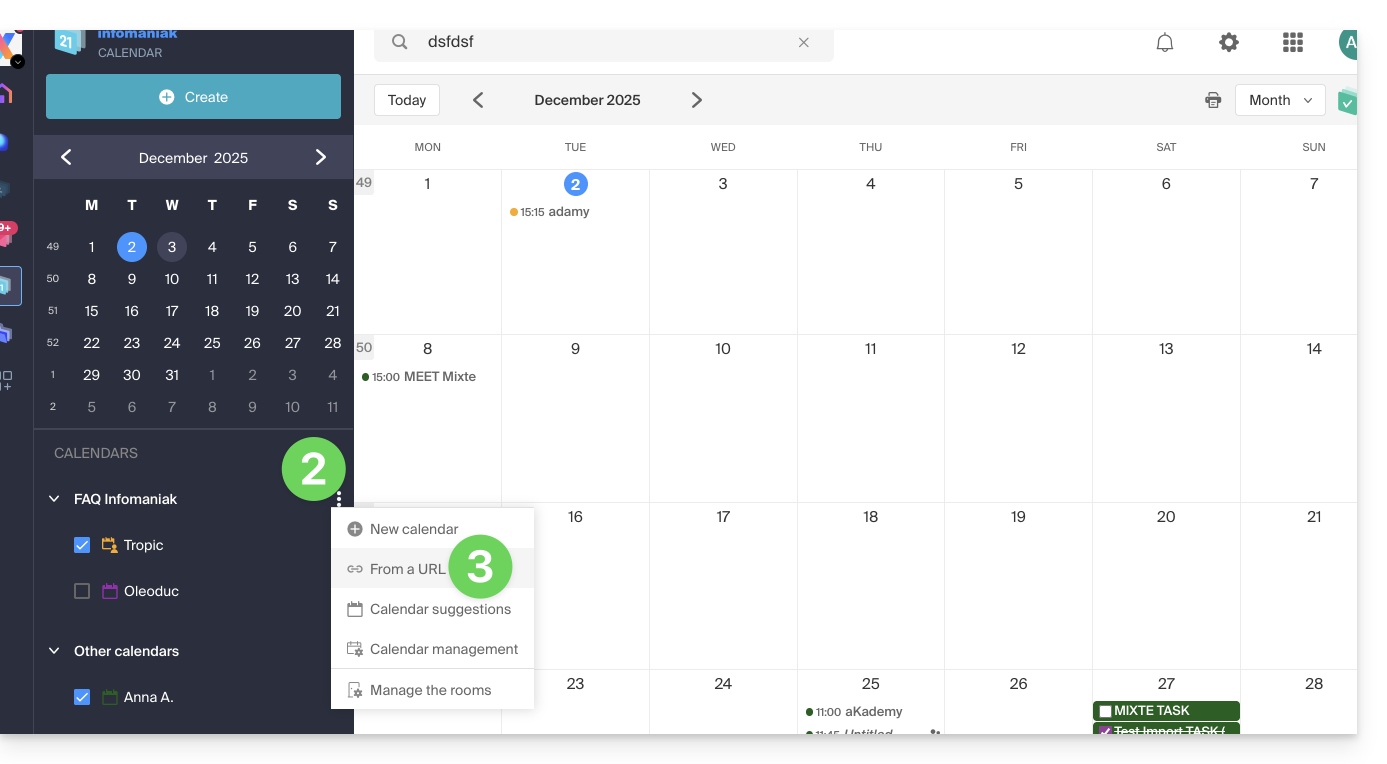
- Click on the action menu ⋮ to the right of the Organization in the table that appears.
- Click on "From a URL":
Link a Google calendar using its "secret" URL
The "secret" URL of a Google calendar, which you can paste in step 3 above, can be found in the Google calendar settings:
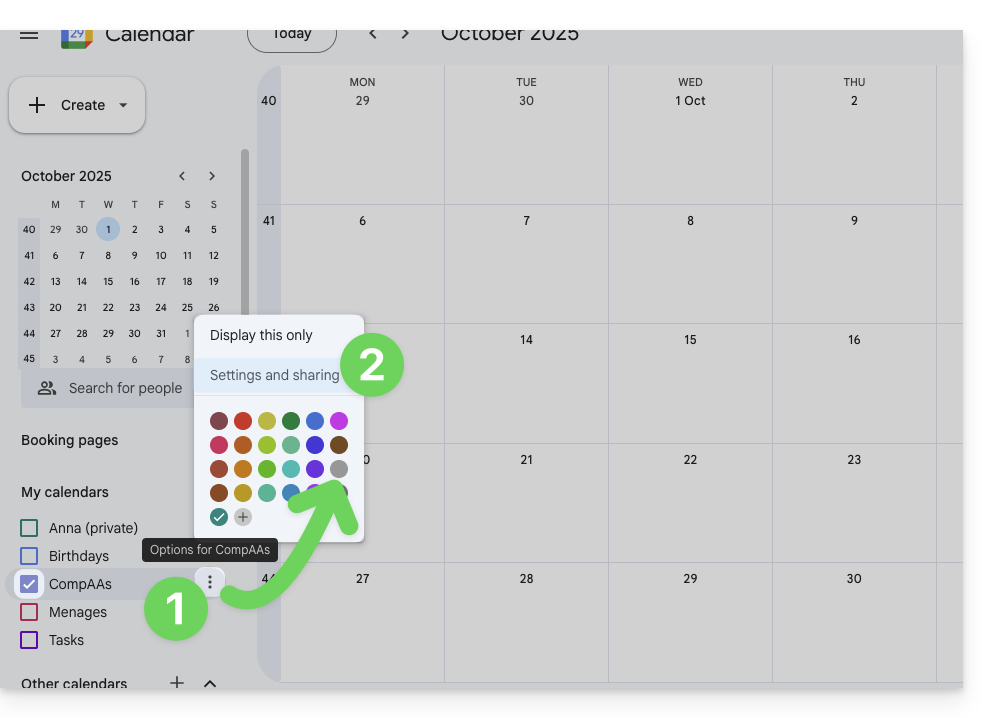
- Click on the action menu ⋮ to the right of the Google Calendar in question.
- Click on Settings and sharing:
- Scroll down the page until you find the secret iCal URL and click on the icons to view and/or copy the URL:
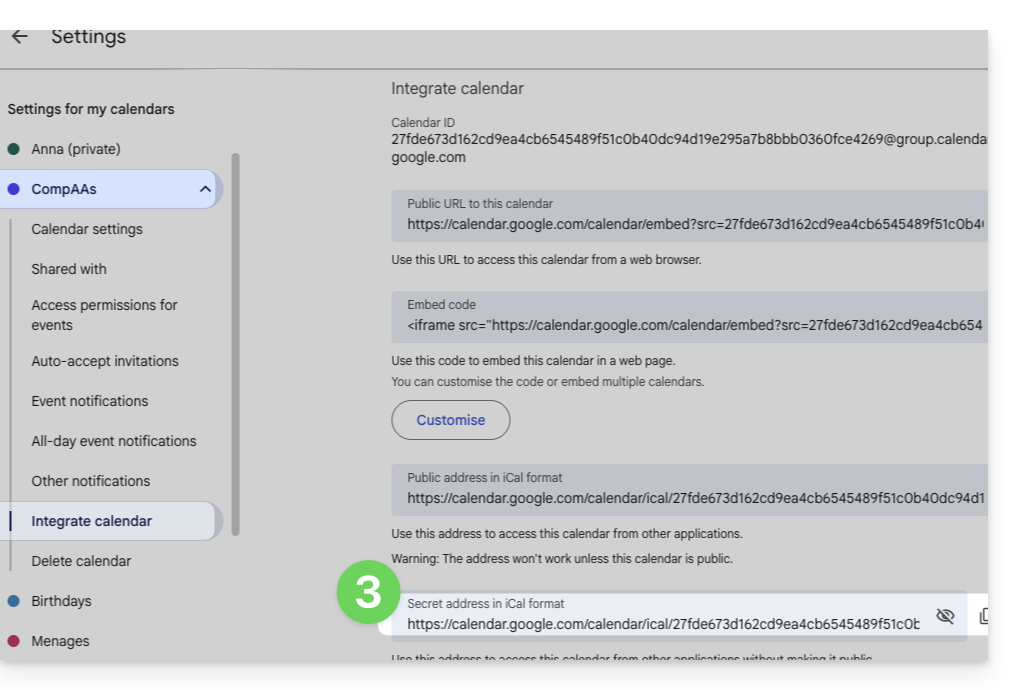
- Paste the URL according to the procedure in step 3 of the previous chapter above.
Please note that this is not a calendar synchronization, but rather a read-only, one-way feed that is updated regularly.
The calendar will be visible and will regularly display any updates made, but it will not be possible to edit it directly from the Infomaniak interface; this is a "one-way synchronization" with Google.
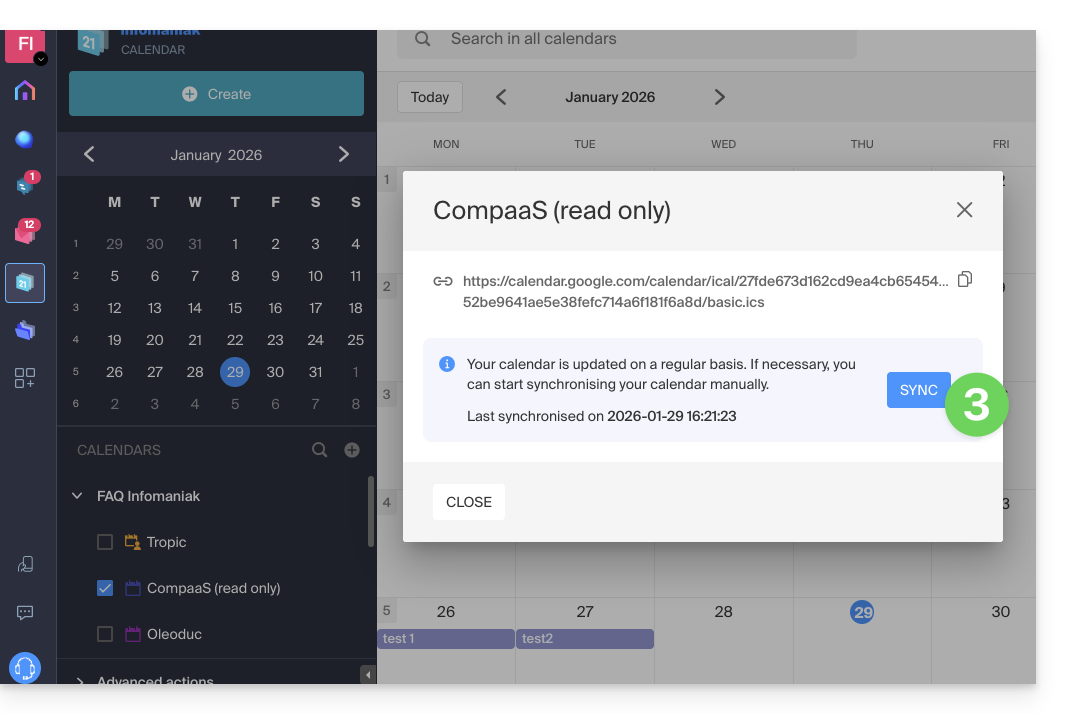
You can, however, force synchronization to immediately display any new events or changes:
- Click on the action menu ⋮ to the right of the imported calendar on Infomaniak.
- Click on Display information:
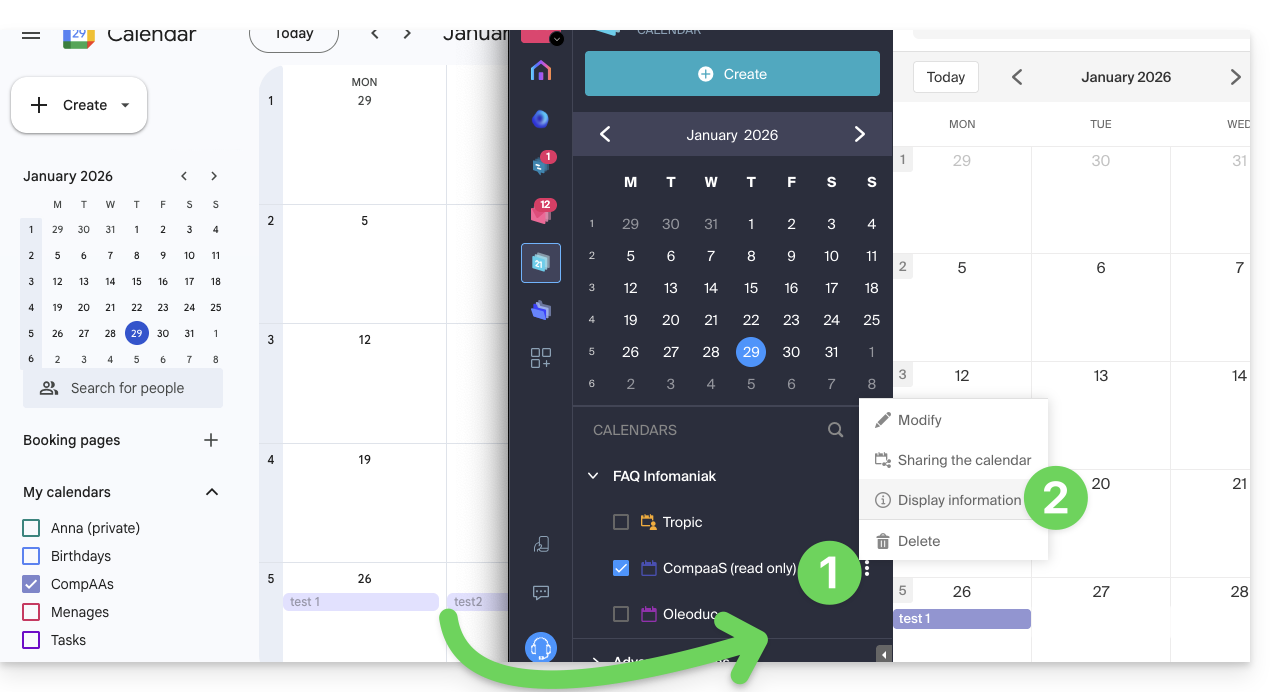
- Click on the SYNC button to synchronize the imported content, then wait a few seconds:
Import events via an .ics file
To access the Advanced actions for importing, exporting, and restoring calendars:
- Click here to access the Infomaniak Web app Calendar (online service ksuite.infomaniak.com/calendar).
- Click on Advanced actions in the left-hand menu.
- Click on Import.
- Upload the
.icsfile corresponding to the export performed from your previous provider: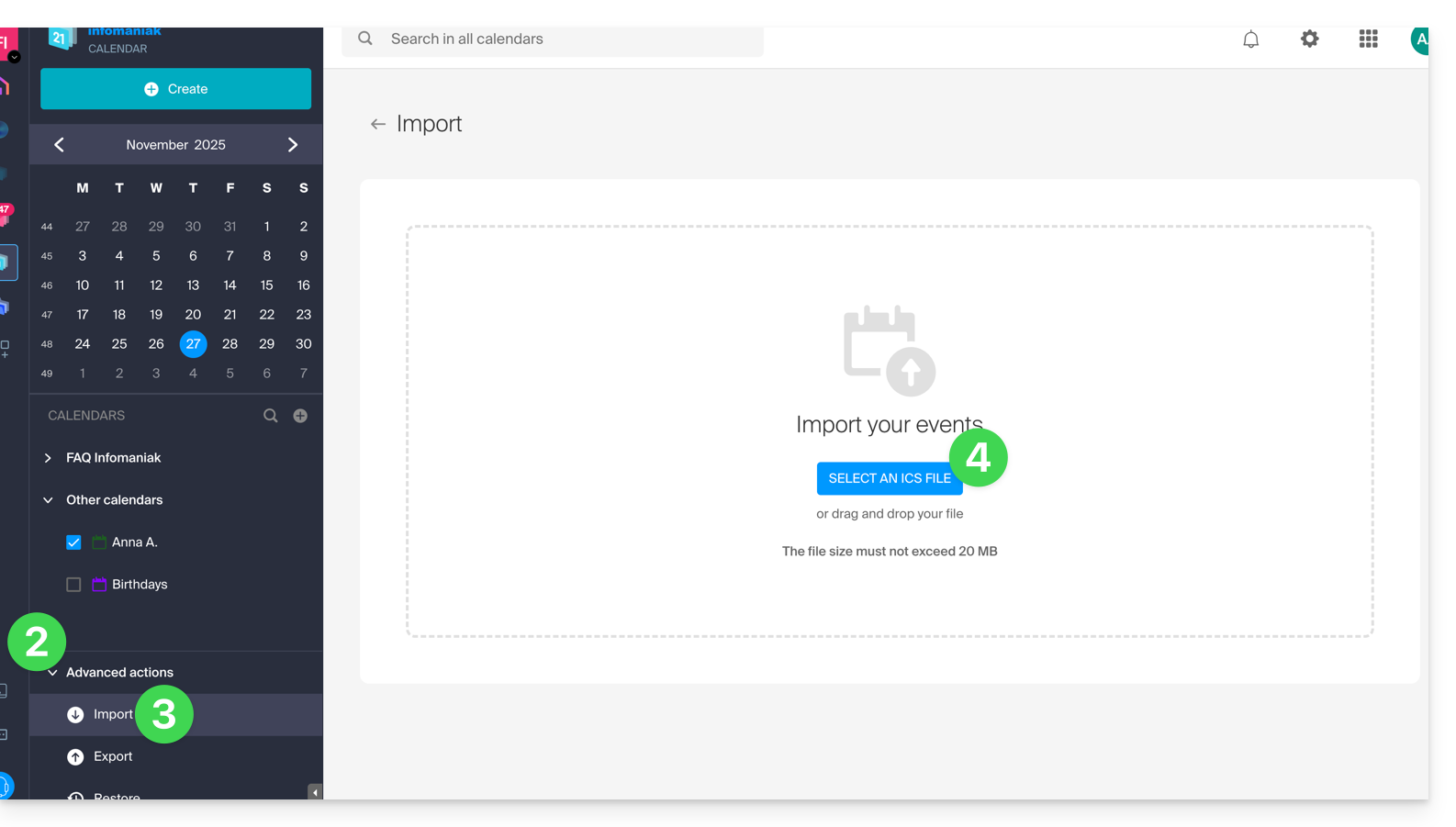
You can choose which existing calendar to import the events into, or create a new calendar (tasks are also imported if the .ics file contains them).
Please note that this is not a calendar synchronization, but a one-time, one-way import.
Export data from your previous provider
Here are some specific guides provided for reference to export the calendar from a third-party provider, which will allow you to re-import this data into Infomaniak:
- Apple Mail
- Gmail
- Outlook (section Publish > ICS link)
- Yahoo
- Proton
- Thunderbird
Refer to this other guide to import other data.
Link to this FAQ: https://faq.infomaniak.com/1943
Has this FAQ been helpful?