Knowledge base
1000 FAQs, 500 tutorials and instructional videos. Here, there are only solutions!
This guide explains how to report a phishing attemptwhich you would be a victim of.
Preamble
- Phishing is a fraud and scam attempt aimed at fraudulently obtaining sensitive information.
- Generally, the victim receives a message in their inbox that appears to be from Infomaniak, their bank, or a trusted organization, indicating that a problem has occurred with their account or in their daily life:
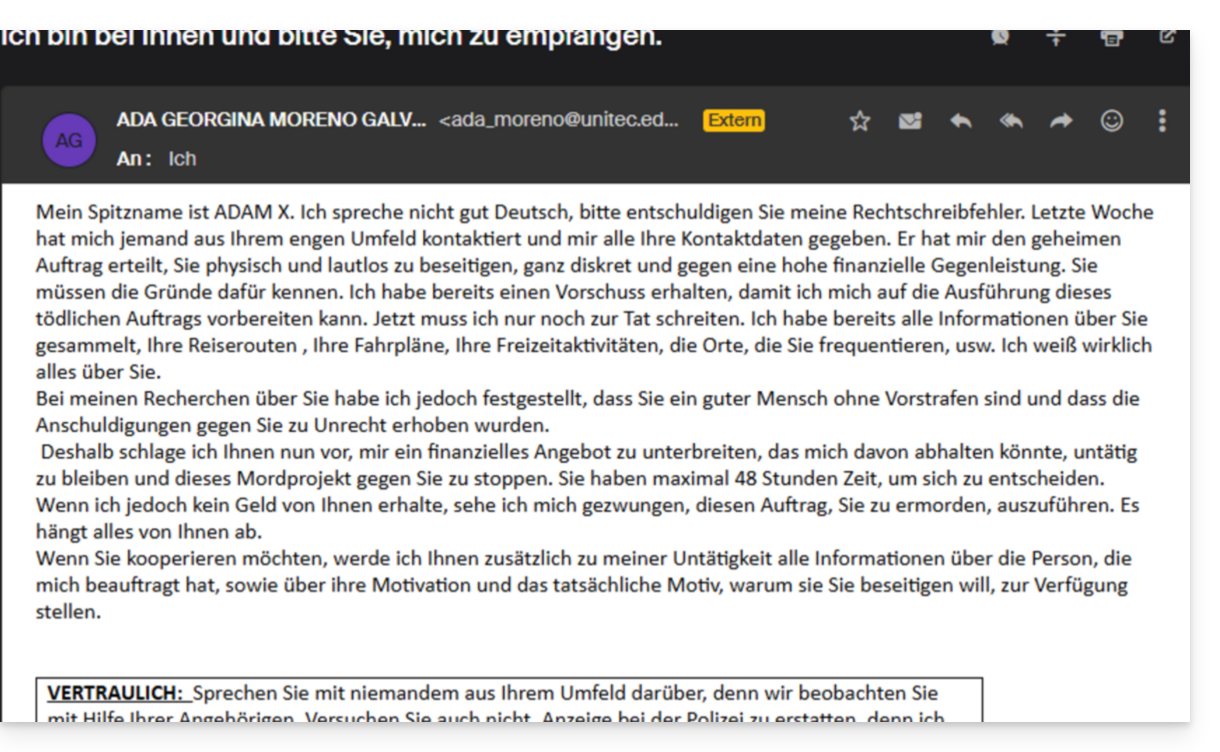
- The purpose of this identity theft is usually to get the user to voluntarily visit a page and provide private information that will then be used for various purposes, mainly financial ones.
- If it is not a “pretending to be something it is not”, but if it is simply an unsolicited advertising message, it is best to report it as Spam.
Report a Phishing Email
Prerequisites
- Check that the spam filter is active.
- For added security, enable the external email warning.
If you find an email of this type directly in your inbox, you can take action to reduce the number of these messages and eventually eliminate them from email systems:
- Click here to access the Infomaniak Mail web app (online service ksuite.infomaniak.com/mail).
- Open the phishing message.
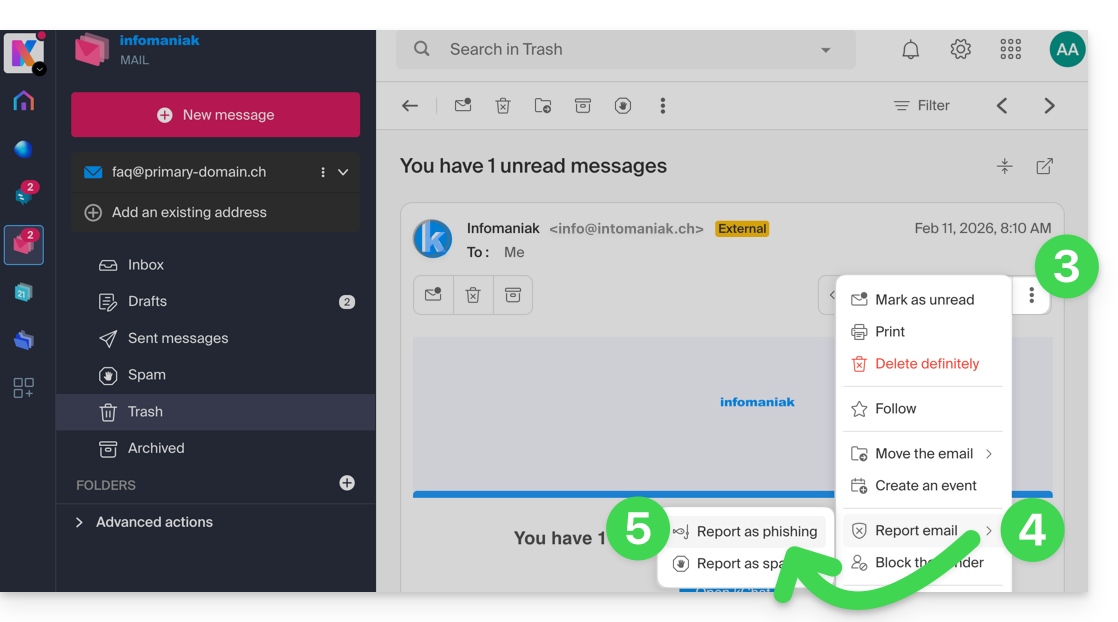
- Click on the action menu ⋮ on the right.
- Click on Report message.
- From the menu that appears, select Report as phishing:
- Confirm sending for processing.
- Delete the email.
Once you have clicked on Report as phishing, an email is automatically sent to Infomaniak with all the information needed to process the scam report.
In the event of a more serious problem (when the message is directly addressed to you by someone you know or a contact, and it is not a mass mailing), it is recommended to contact an organization such as report.ncsc.admin.ch.
Link to this FAQ: https://faq.infomaniak.com/1172
Has this FAQ been helpful?
This guide explains how to create a template for the signature tool for all your email accounts in the Infomaniak Mail web app (online service ksuite.infomaniak.com/mail).
Introduction
- A template allows you to create the basic structure of a tool that can then be used by multiple users of the same Infomaniak Mail service, and can even be customized according to the person who will be using it.
- In the case of a signature template, the template creator defines the signature's style and chooses the elements that must be included. The end user can then complete certain details of their signature from their Mail interface.
- You can also hide a template so that it is no longer used.
Choose the signature template type
To start creating a template:
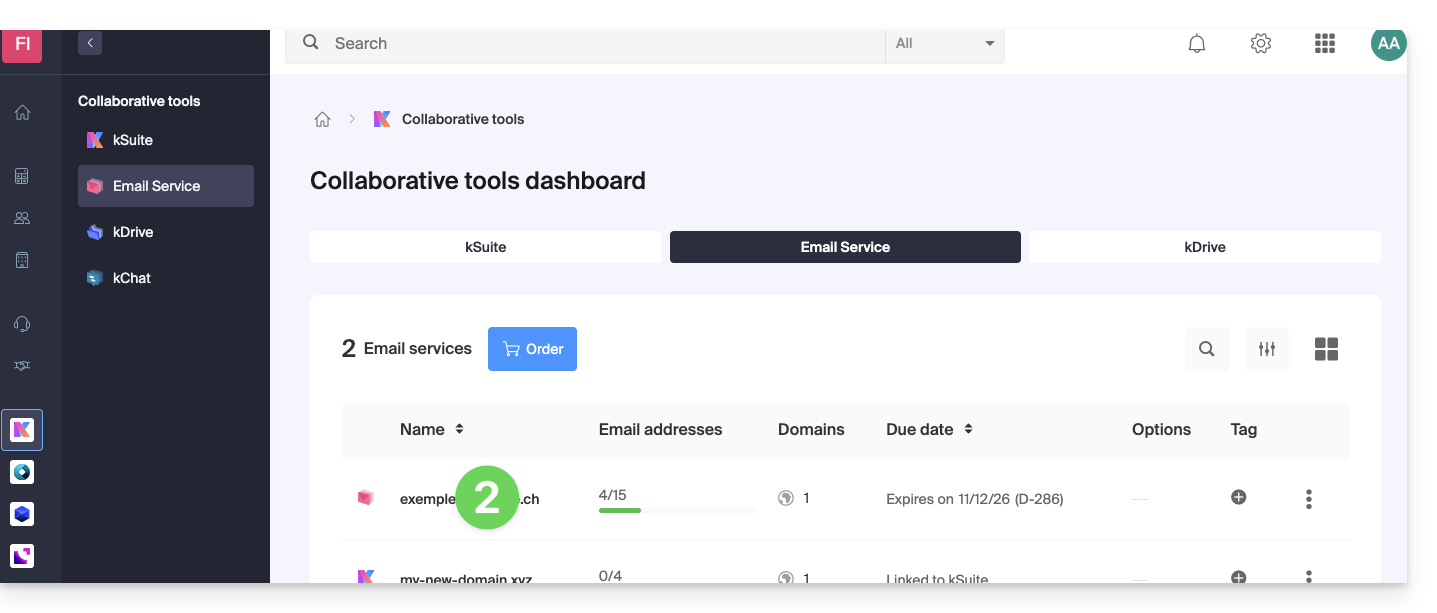
- Click here to access the management interface for your product in the Infomaniak Manager (need help?).
- Click directly on the name assigned to the product in question:
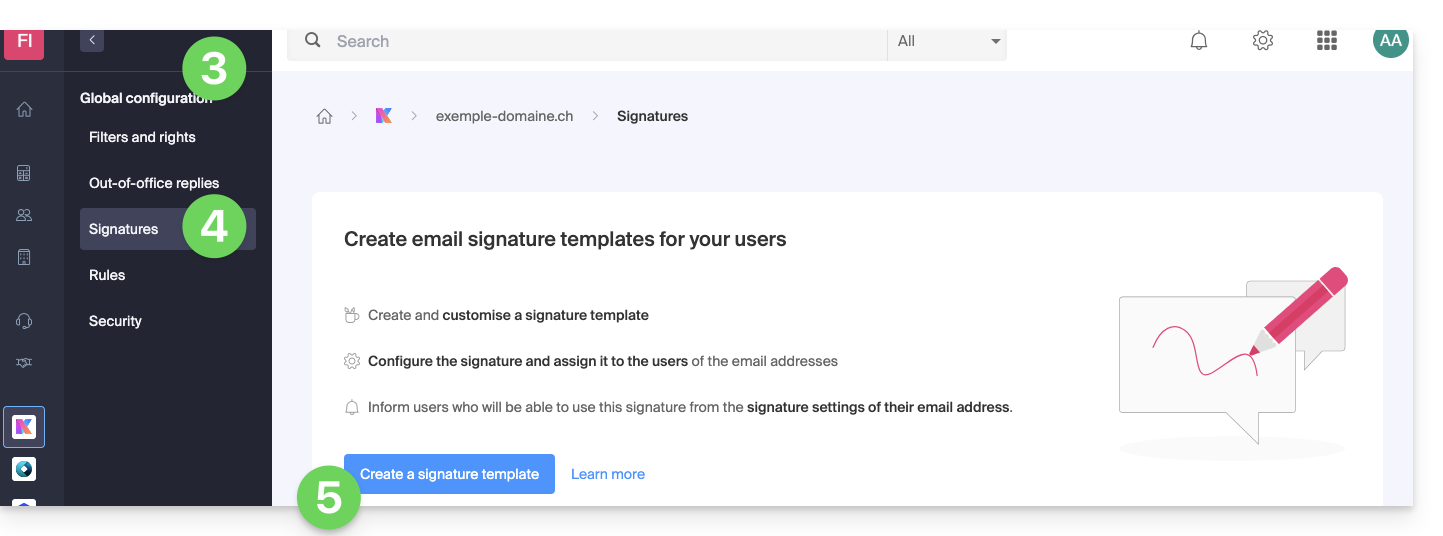
- Click on Global Configuration in the left-hand menu.
- Click on the Signature tab.
- Click on Add a signature template:
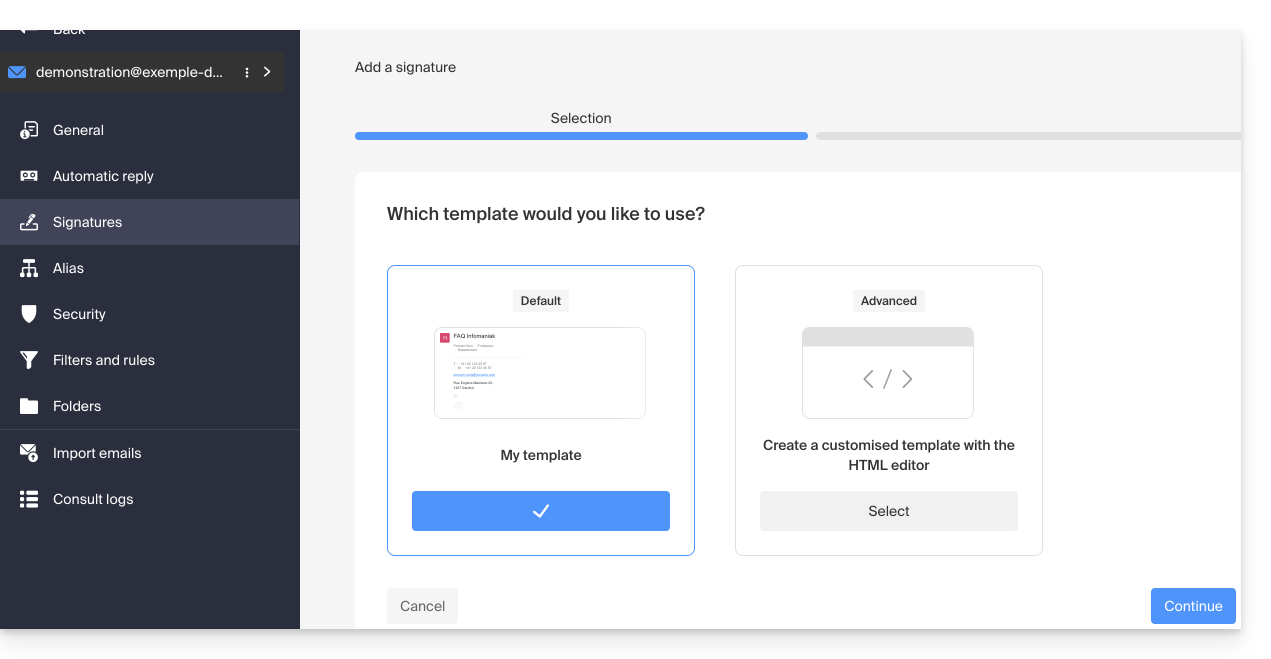
- Select the type of template (details below) and click the Continue (
d) button to access the template: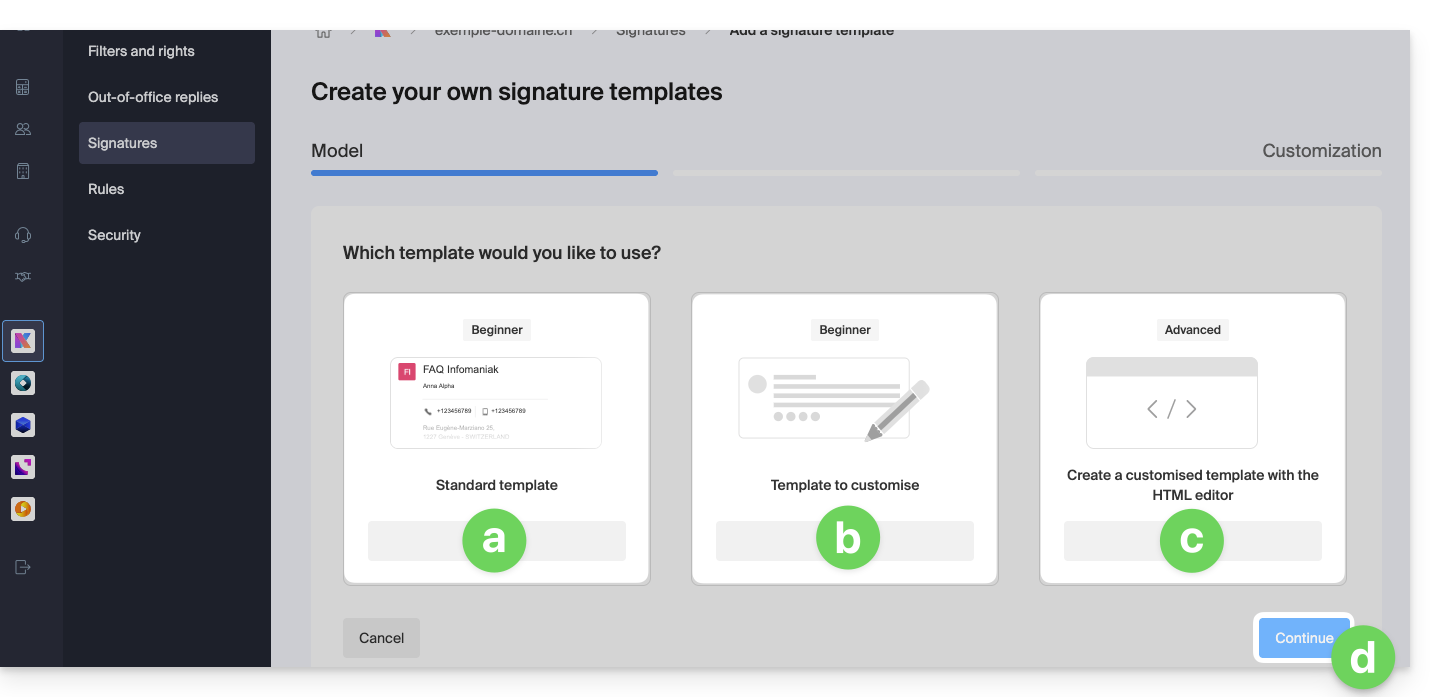
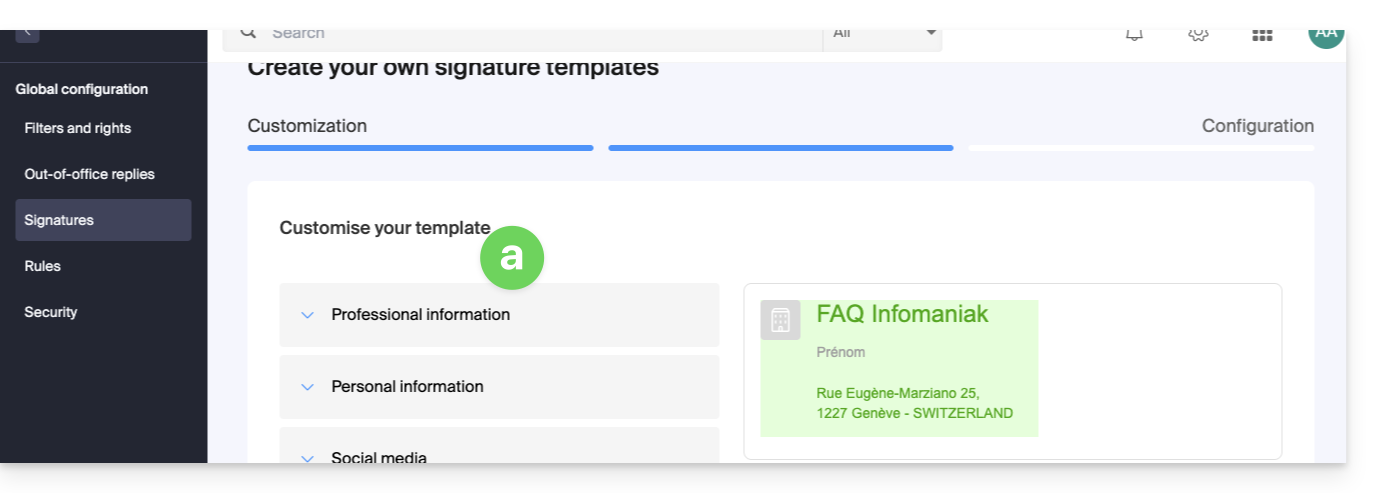
- Allows you to configure the signature block with the usual information; the elements are detailed further down in this guide:
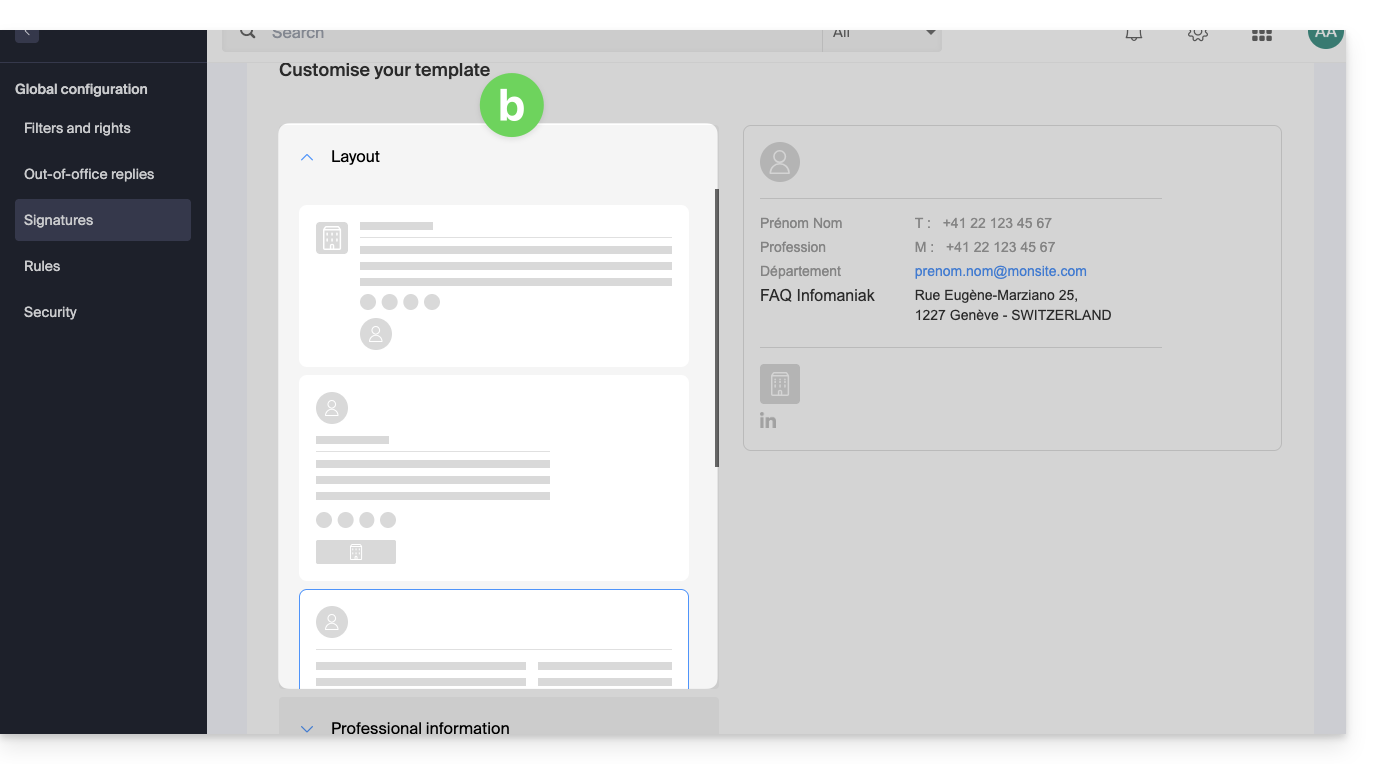
- Allows you to configure the signature block with the usual information and the layout of the elements can be modified using predefined settings; the elements are detailed further down in this guide:
- Allows you to configure the signature block starting from a blank block, and the information can be inserted as variables:
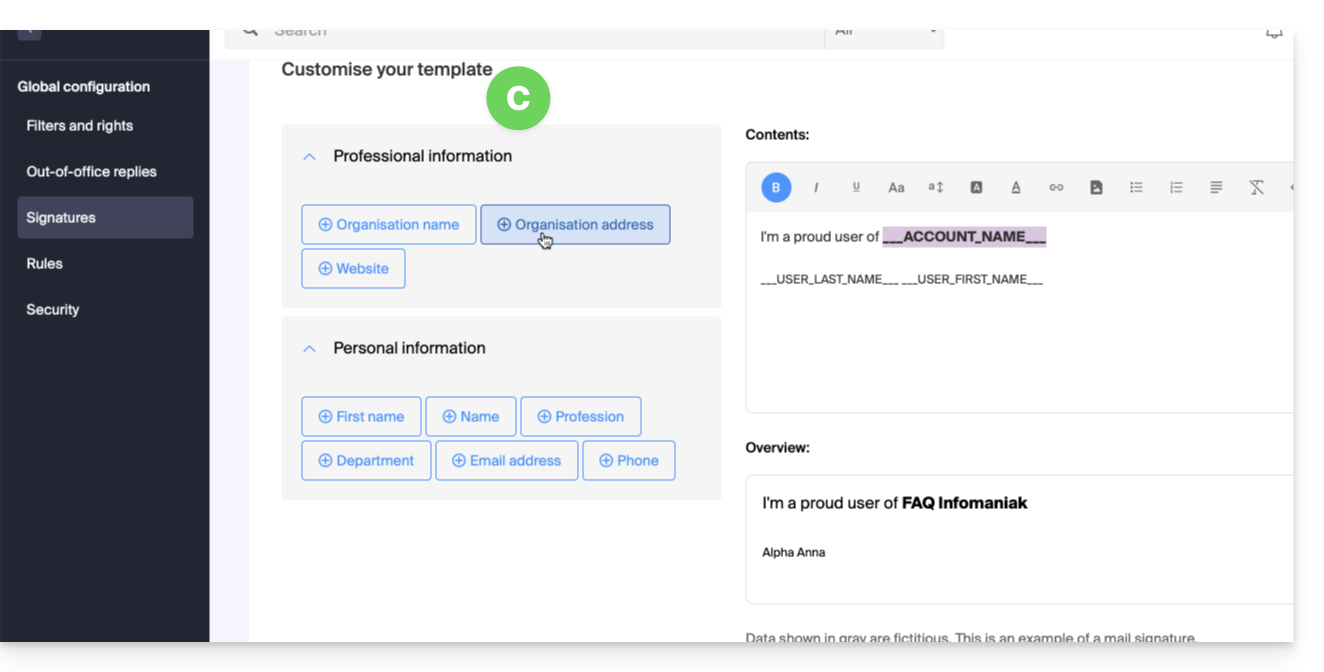
- In this mode, it is also possible to work directly with the HTML code:
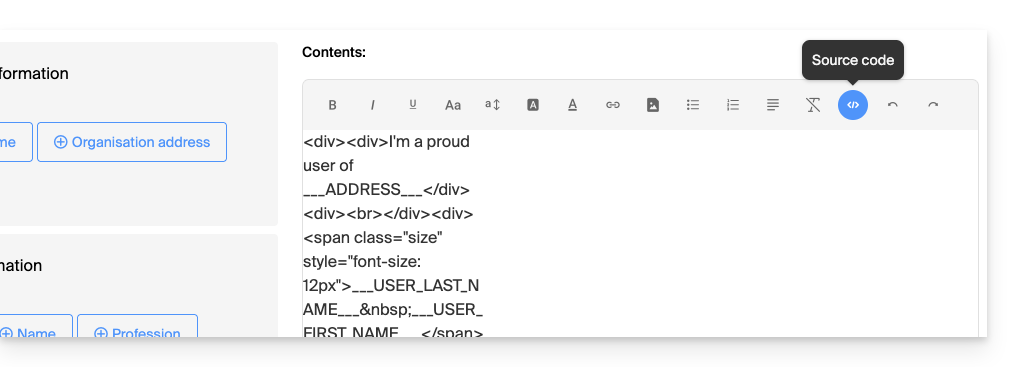
- In this mode, it is also possible to work directly with the HTML code:
- Allows you to configure the signature block with the usual information; the elements are detailed further down in this guide:
Configure the signature base
Depending on the selected template:
- Define the fields to keep and insert using the checkboxes.
- Configure the display preferences for certain information, such as the order
First Name - Last Name. - Some fields can be:
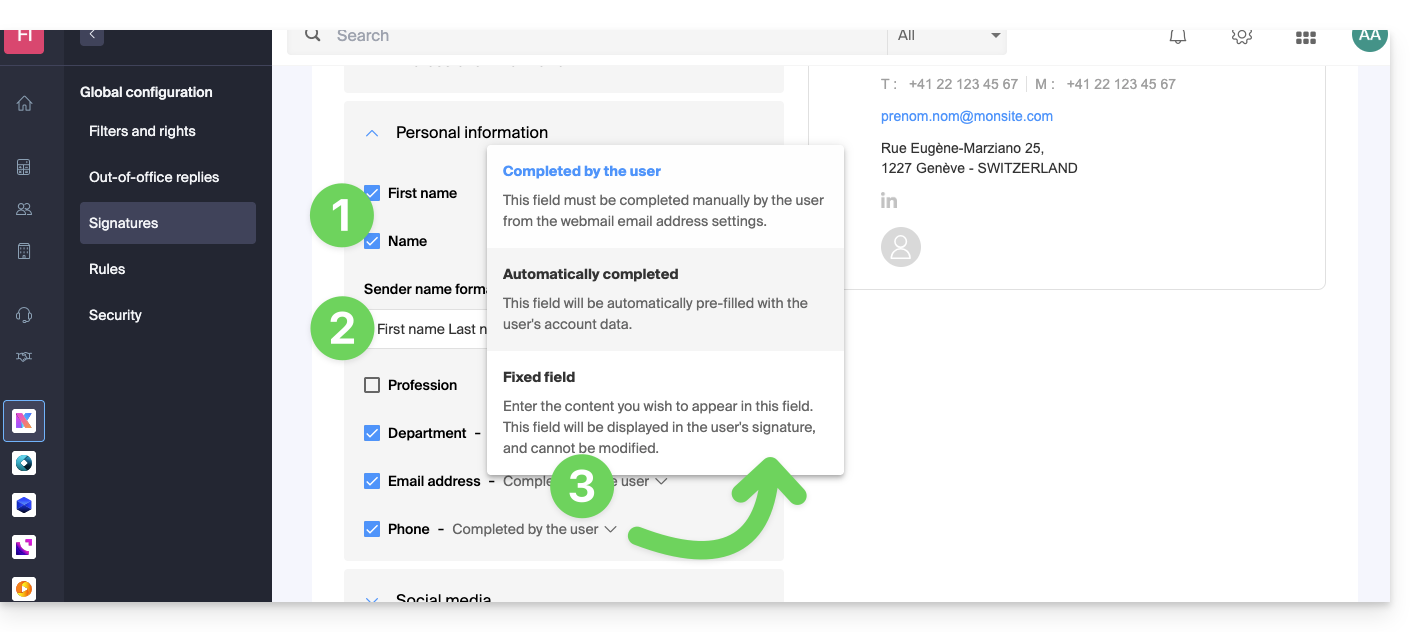
- completed by the user in their Mail app settings,
- automatically completed based on the information in their Infomaniak account,
- defined here and will therefore be fixed and common to all users.
- Click on the Continue button at the bottom of the page.
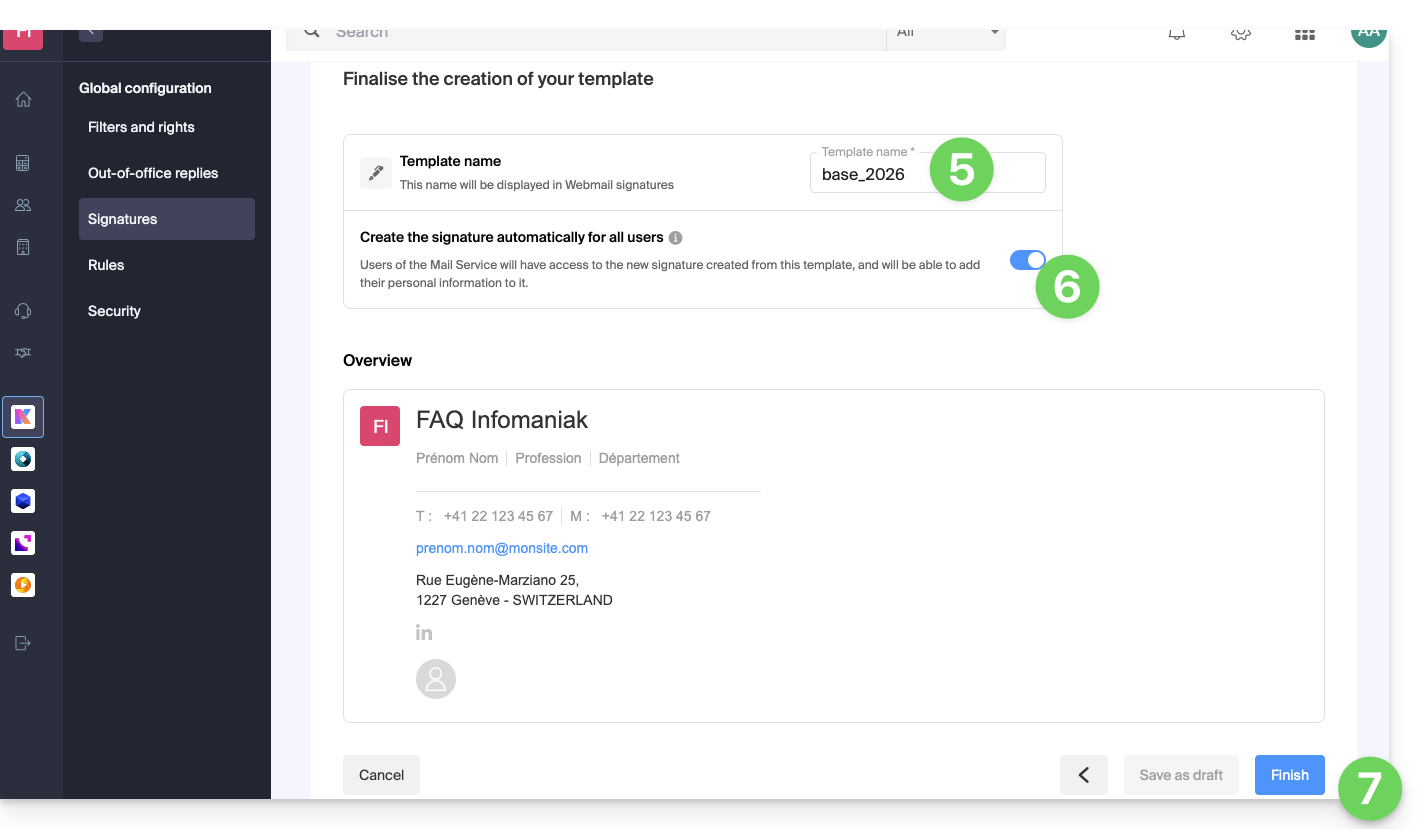
- Give the template a name.
- Decide whether this template should be accessible and applied to users of existing addresses on the Mail Service.
- Click the blue Finish button or save as a draft:
An email is sent to users affected by the creation of this template, inviting them to go to the signature management section to complete the information if necessary.
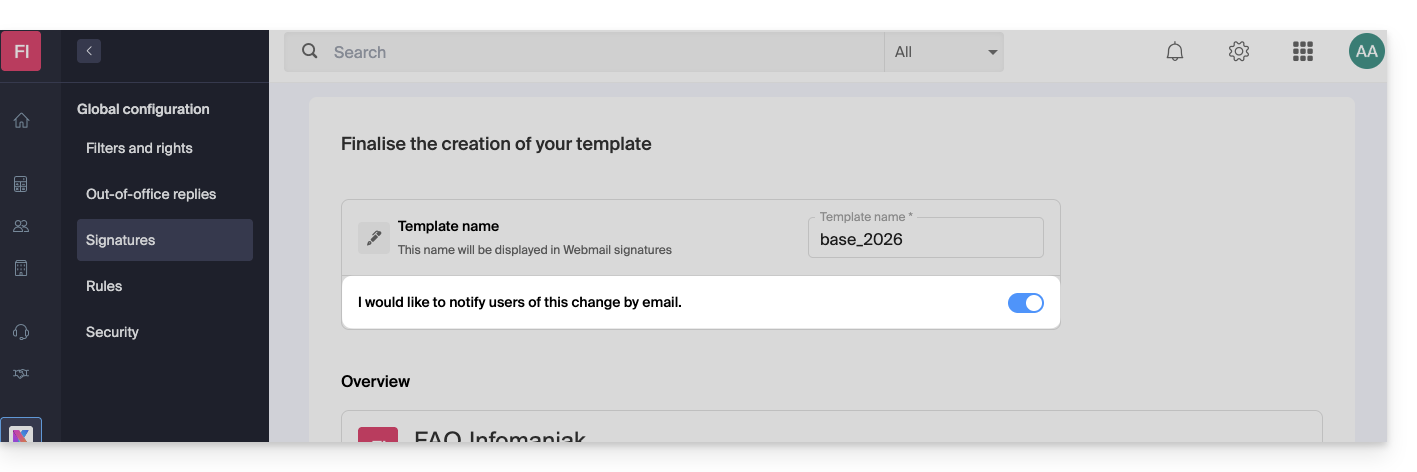
- When editing a signature template, you can decide whether or not to notify users of the changes that have been made:
Complete the information used in the signature
Depending on the template used, the end-user can add their personal information in the Mail app to ensure the signature is displayed completely: 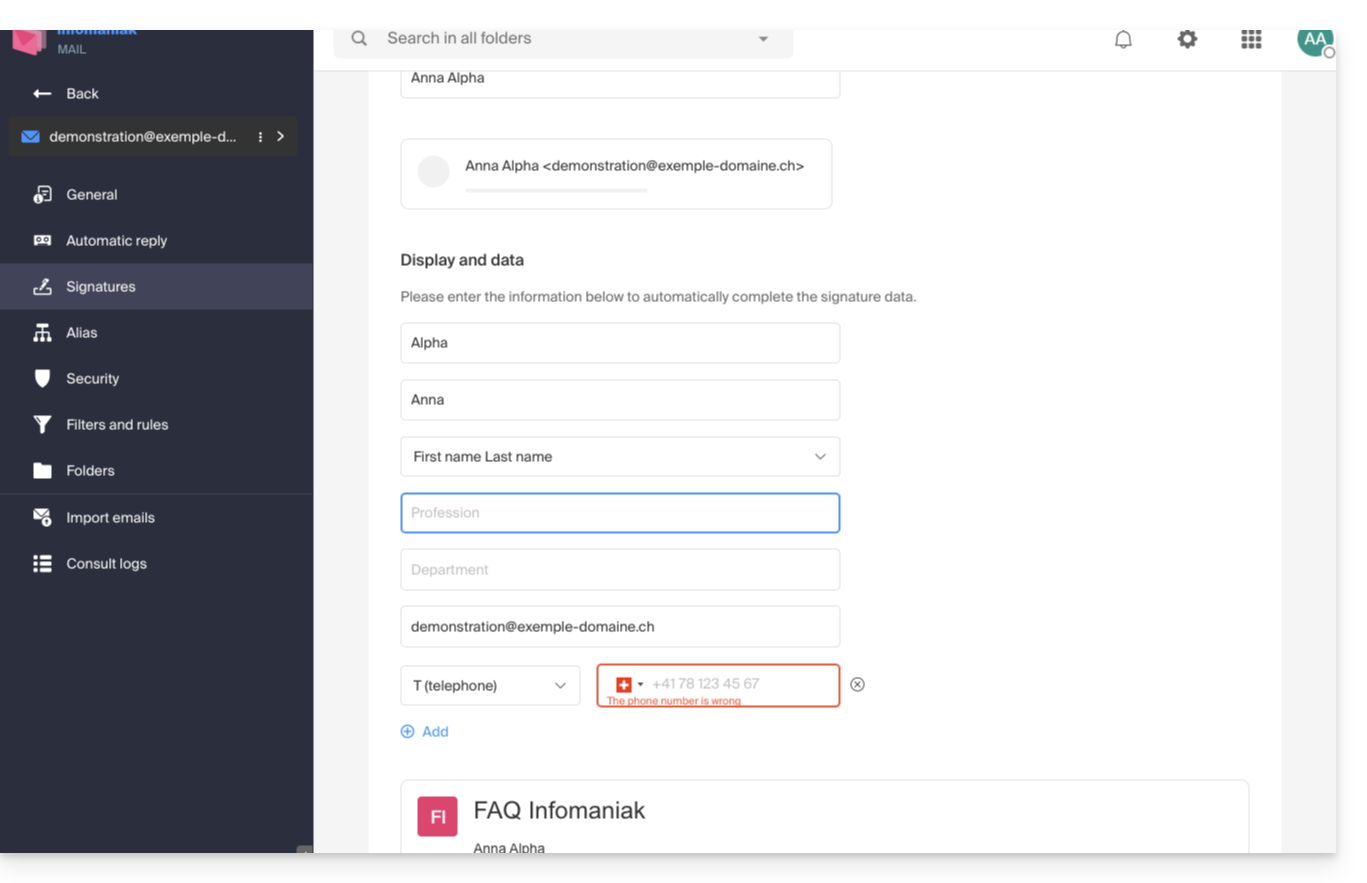
Apply signatures to users from this template
From the Signatures section of the Global Configuration, click on the action menu ⋮ located to the right of the signature template: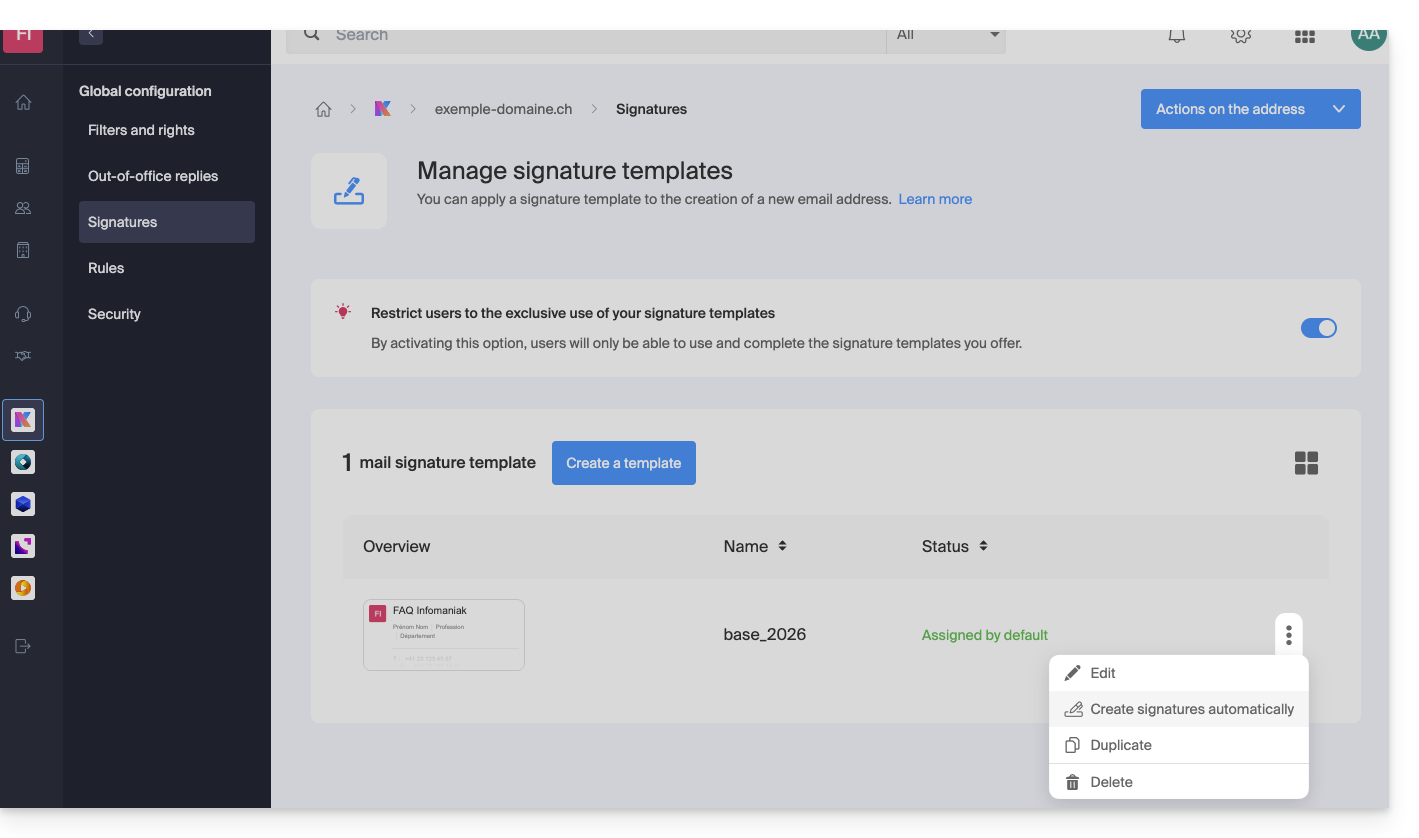
You can edit the signature, duplicate it to create a different signature for certain people based on this template, and delete it.
Another option allows you to create signatures for the different users using the email addresses of the domain:
- They will be notified by email that a new signature is available.
- For shared email addresses, if you want a generic signature that uses this template, without it being associated with a specific user, you must configure it yourself from the Infomaniak Web Mail app or the Mail Service.
Mail service users will then be able to…
- … use the new signature created from this template
- … add their personal information
Enforce this template for new signatures
In the Signatures section of the Global Configuration, activate the toggle switch to prevent users of the Mail Service from creating a custom signature: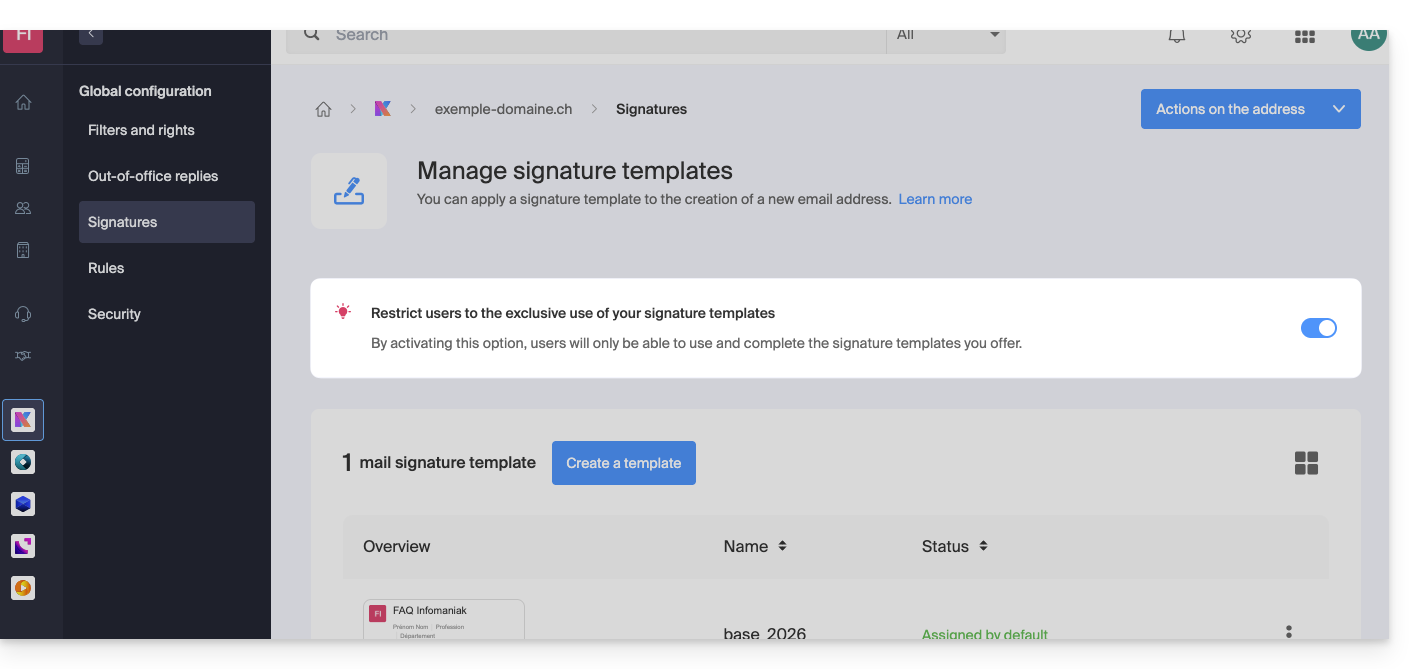
- The template created previously will then serve as the basis for any new signature created by the user:
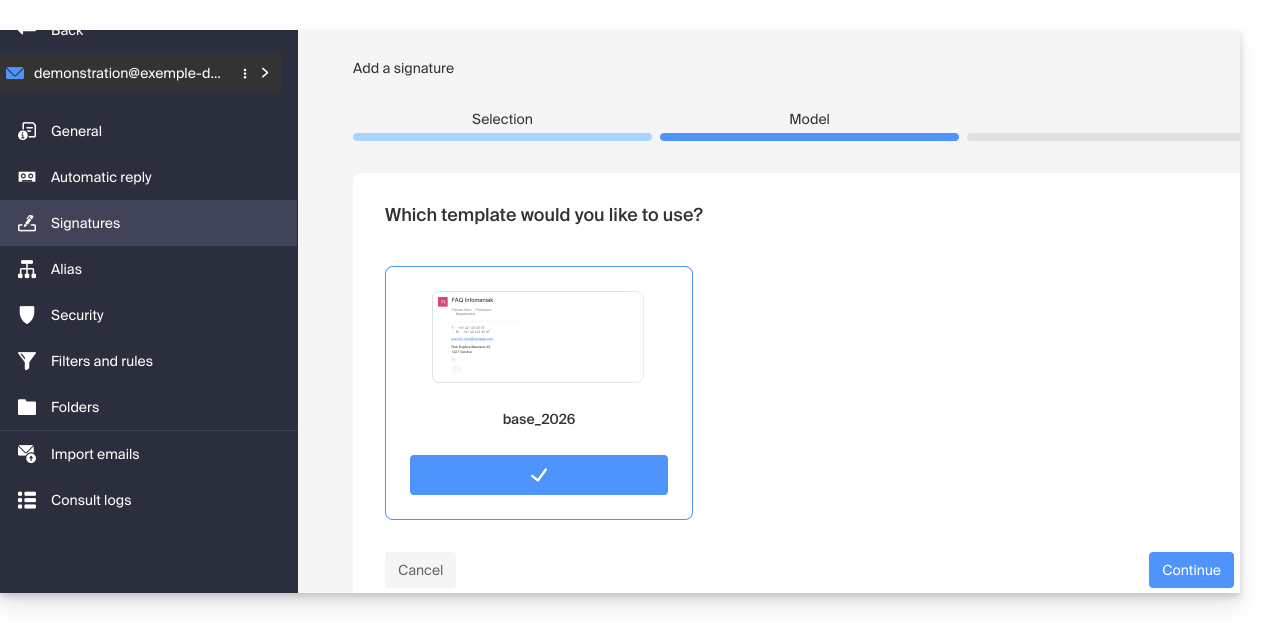
- If the option is disabled, the choice is left to the user:
Enable a template on an existing email address
You need an existing template to activate it for one or more email addresses. This can be useful when the template is created after the addresses already exist:
- Click here to access the management of your product on the Infomaniak Manager (need help?).
- Click directly on the name assigned to the product in question.
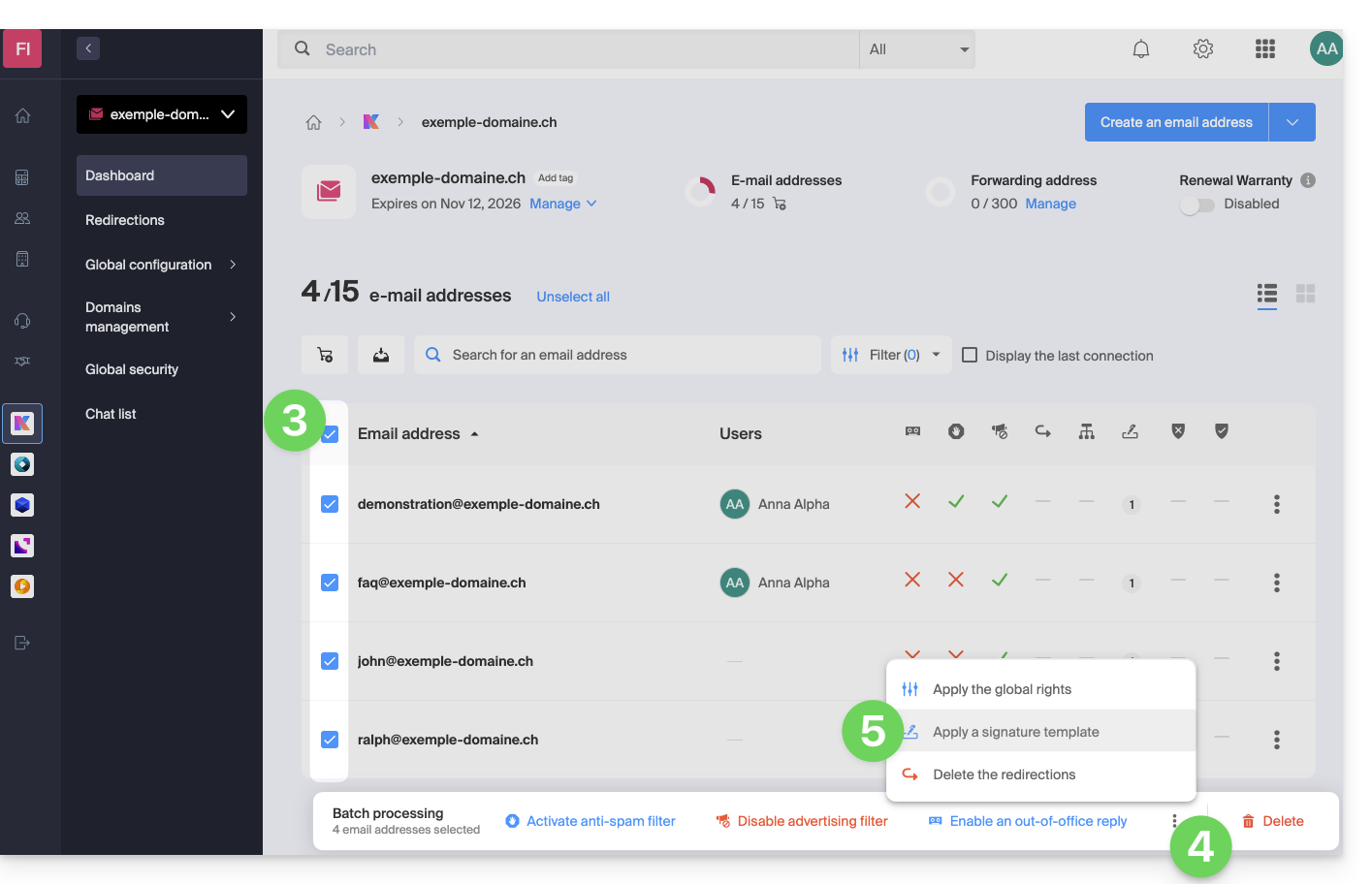
- Click on the boxes to select one or more email addresses in the table that appears.
- Click on the action menu ⋮ at the bottom of the page.
- Click on Apply a signature template:
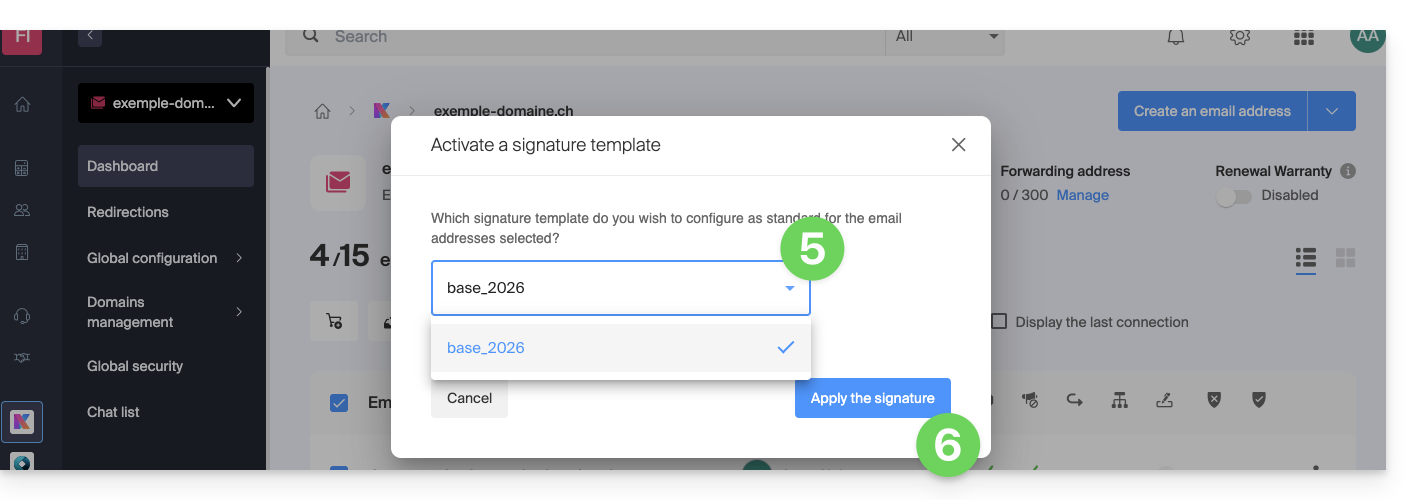
- Select the template of your choice.
- Click on the Activate button:
Link to this FAQ: https://faq.infomaniak.com/1189
Has this FAQ been helpful?
This guide explains how to recover lost emails, especially after accidental deletion.
✘ NOT AVAILABLE with
kSuite Free
my kSuite (ik.me, etik.com, ikmail.com)
Mail Starter service
By upgrading one of these free plans, it will be possible to restore the backup for up to 30 days.
Introduction
- Infomaniak backs up each email address once a day (usually early in the morning).
- You can then restore your mailbox to its exact state at the time of the backup.
- RECOVERED ITEMS:
- Emails that no longer exist at the time of the restoration request (but were present at the time of the backup) will be restored to their original location.
- Some settings (auto-reply and forwarding in particular) will be restored if they have changed in the meantime.
- ITEMS NOT RECOVERED:
- Emails that have been moved (subfolders, trash): they still exist in your account and must be searched for.
- The restoration does not include the calendar or the address book.
- Messages that were not present at the time of the daily backup (see POP3 chapter); example:
- Restoration requested at 10 a.m. (5 a.m. backup) for an email that arrived at 8 a.m. and was deleted at 9:30 a.m.: it will not be recovered because it was not yet present during the 5 a.m. backup.
- UNCHANGED ITEMS:
- Emails received, created, or stored between the backup date and the restoration execution remain in your inbox.
- Please refer to this other guide for information on the message retention limits.
Restore from the Infomaniak Web Mail app
Prerequisites
- Ensure that the deletion occurred less than 30 days ago (or within the timeframe included with your plan - see above).
- Have permission to manage backups: if you were invited tothe Infomaniak Mail web app (online service ksuite.infomaniak.com/mail) to manage your address, the Mail service administrator may have removed this permission from their admin account.
To restore emails:
- Click here to access the Infomaniak Mail web app (online service ksuite.infomaniak.com/mail).
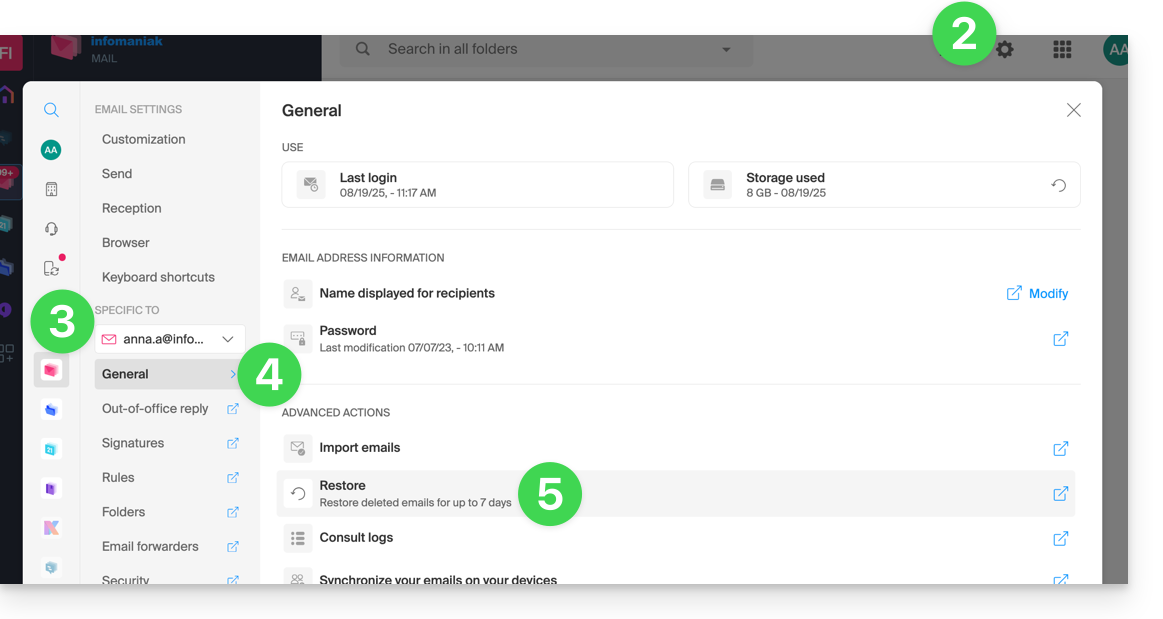
- Click on the Settings icon in the top right corner.
- Check or select the relevant email address from the dropdown menu in the left sidebar.
- Click on General.
- Click on Restore:
- Choose a Restore date.
- Click on Restore emails:
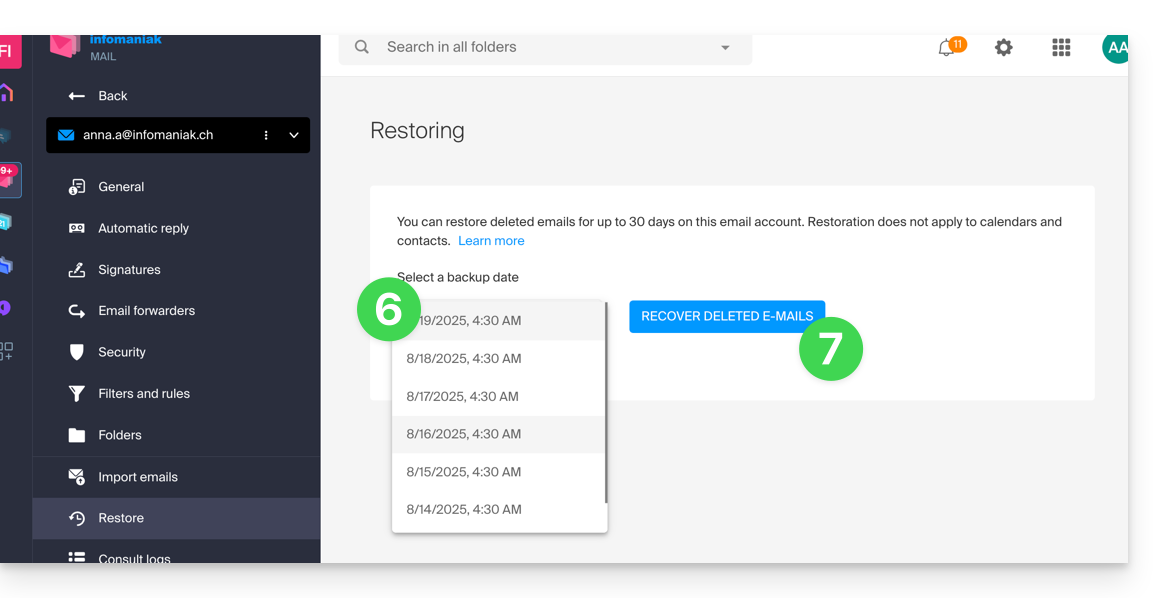
- Once the restoration is complete, an email notification is sent.
Restore from the Mail Service
Prerequisites
- Be an Administrator or Legal Representative within the Organization that manages the Mail Service.
- Ensure that the deletion occurred less than 30 days ago (or within the timeframe included with your plan - see above).
To restore emails from a Mail Service:
- Click here to access your product management interface in the Infomaniak Manager (need help?).
- Click directly on the name assigned to the product in question.
- Click on the email address in the table that appears.
- Click on the Address actions button at the very top right.
- Click on Restore emails:
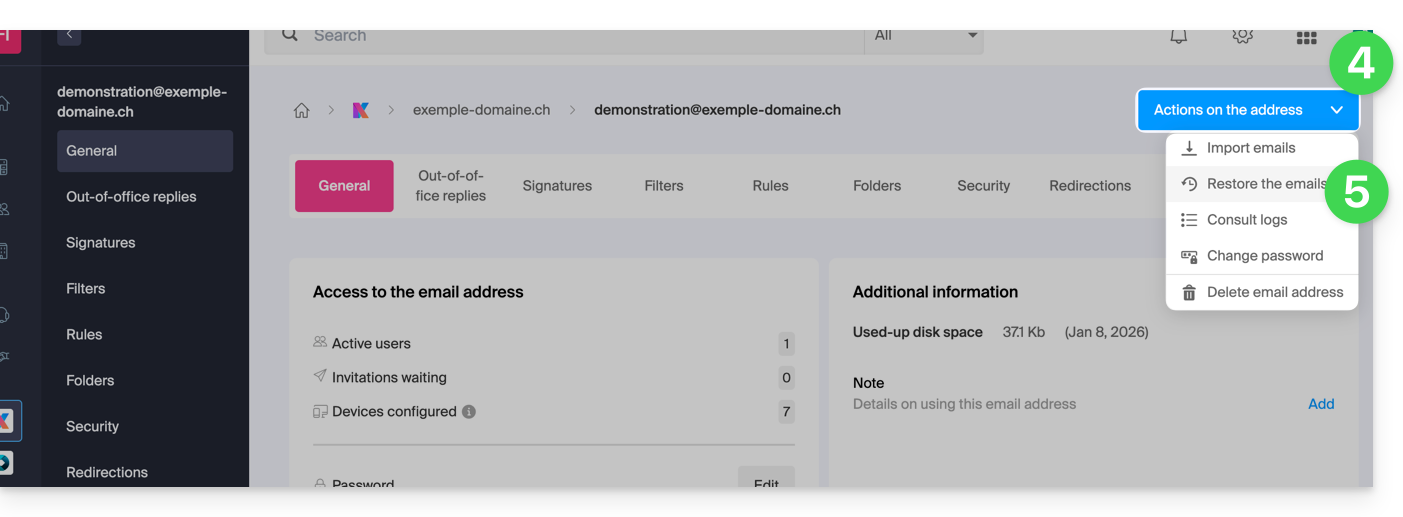
- Choose a Restore date.
- Click on Restore emails.
- Once the restoration is complete, you will receive a notification email.
E-mails placed in the trash
Unless otherwise configured, a deleted email is moved to the trash, and it is only after a period of several days or weeks that the trash is automatically emptied (it can also be emptied with a click by the user). Therefore, during a restoration operation:
- Emails currently in the trash will remain as they are, regardless of the restoration date.
- Emails deleted from the trash will be restored to their original location, where they were located when they were deleted (whether in the inbox folders or in the trash).
Emails placed in unconventional folders
If you intentionally store your messages in folders with unusual names (for example, folders named Junk or Spam), please read the important information in this other guide.
Email client configured with POP3
If you usually access your email using an email client such as Outlook, and this client is configured with the POP/POP3 protocol, you will not be able to restore everything. This is because the backup is performed once a day and only saves the messages that were in your Infomaniak inbox at the time of the backup; the same applies to your other folders (e.g., Sent Messages) present in the POP3 application: these are not synchronized with Infomaniak and are therefore not backed up. In the future, you should therefore prefer the IMAP protocol in your email client.
Link to this FAQ: https://faq.infomaniak.com/1203
Has this FAQ been helpful?
This guide explains how to use the Gmail mobile app (application for iOS/Android smartphones or tablets) to access an email address hosted by Infomaniak.
Introduction
- Instead of the manual configuration below, it is recommended to use the Infomaniak Mail app (iOS / Android) to benefit from Infomaniak's security features.
Using the Gmail mobile app for Infomaniak
Prerequisites
- Create the email address (❓: my kSuite | Mail Service/kSuite).
- Create a device password (❓: my kSuite | Mail/kSuite Service).
- Verify that the domain is configured correctly (❓: Mail/kSuite Service).
To add your Infomaniak email address via IMAP to your Gmail mobile app (official guide):
- Go to Gmail Settings.
- Tap Add account.
- Choose Other:
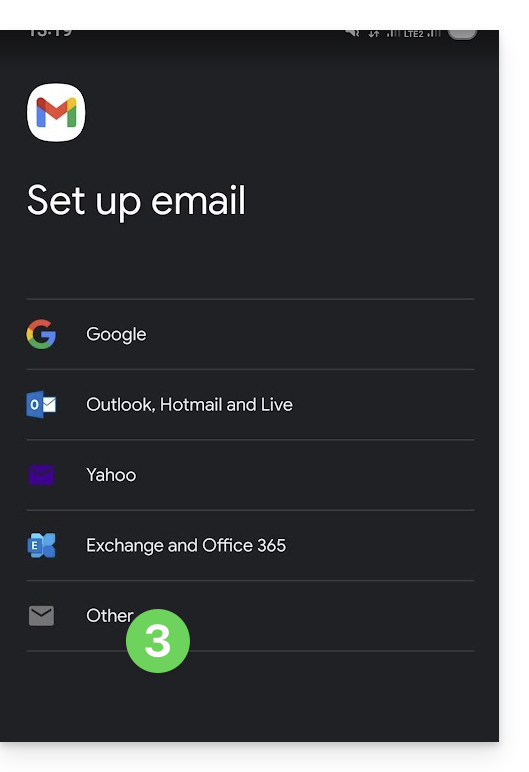
- Enter the email address you wish to use.
- Choose the IMAP account type.
- Enter the password (see prerequisites) for the email address:
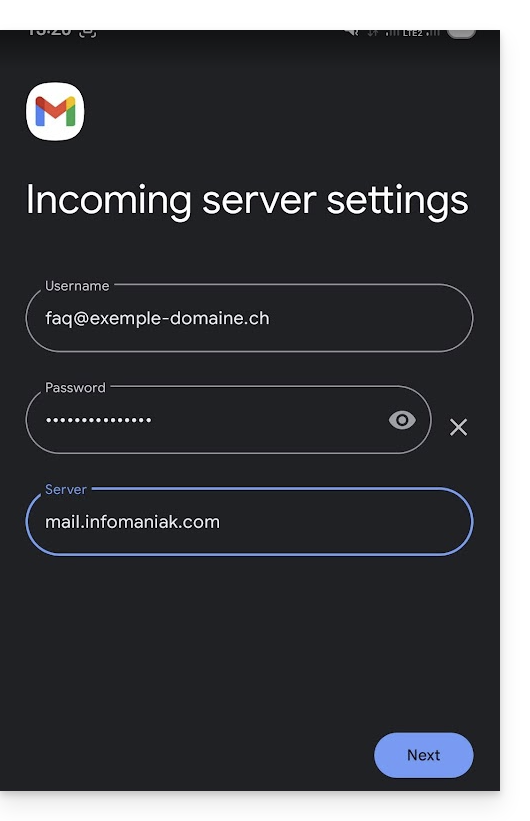
- Use the server name
mail.infomaniak.comfor:- Incoming IMAP server (receiving)
- Outgoing SMTP server (sending)
- Finish adding the address.
Link to this FAQ: https://faq.infomaniak.com/1208
Has this FAQ been helpful?
This guide details the settings required to configure email sending (scan-to-mail / scan-to-email) from a printer, scanner, or any other device (Hewlett-Packard, Xerox, Canon, Epson, Brothers, etc.) connected via an Infomaniak email account.
Introduction
- Your device must support SMTP authentication.
- Anonymous sending is not allowed.
- Manually configure your emails, contacts & calendars on your devices
SMTP Configuration Settings
Use the following settings in your device's configuration interface:
- Outgoing server (SMTP):
mail.infomaniak.com - Port and Security:
465(SSL/TLS) or587(STARTTLS) - Authentication: required /
yes - Username: the complete email address (e.g.
scan@domain.xyz) - Password: the password created for this email address
In case of problems
If the connection fails, check that port 465 or 587 is not blocked by your local network's firewall.
Also, test the connection by temporarily disabling encryption (port 25 or 587 without SSL), although this is strongly discouraged for security reasons.
Link to this FAQ: https://faq.infomaniak.com/1236
Has this FAQ been helpful?
This guide concerns outgoing spam from Infomaniak infrastructure and helps you identify and resolve the possible causes when an email sent from an address hosted by Infomaniak arrives in the recipient's Spam (junk mail) folder.
Important: Infomaniak cannot directly influence how other providers classify a message as spam; solutions must be sought with the administrators of the receiving server in question.
Using Email Properly
Infomaniak implements enhanced measures to ensure the security and deliverability of emails. By also following the best practices below, you significantly reduce the risk of your messages being considered unwanted.
1. Use a Valid Email Address
- Verify that your email address and the associated domain are correct and valid.
- Check the security settings of your domain name (SPF, DKIM, DMARC).
- If you change a setting, wait approximately 24 hours before retesting the sending.
2. Avoid Suspicious Content
- Avoid words, phrases, or presentations that are frequently associated with spam (abusive promotions, generic phrases, overly complex layout, etc.).
- Do not include insecure, truncated, or poorly formatted links.
- Personalize your messages (e.g., by mentioning the recipient's name) to enhance their credibility.
- Do not attach suspicious or excessively large files; instead, use a service like SwissTransfer.
3. Test Sending from the Infomaniak Web Mail App
- If you are using a third-party email software/client, try sending the message from the Infomaniak Mail web app (ksuite.infomaniak.com/mail).
- Compare the results to identify whether the problem comes from your email software/client or a configuration setting.
4. Monitor your domain's reputation
- If your email address uses a custom domain (e.g.,
@your-domain.xyz), a poor domain reputation can affect the deliverability of your messages. - Analyze and correct the possible causes (old bulk sends, incorrect configuration, reports, etc.).
- The time elapsed since the domain creation date can play a role.
5. Obtain recipient consent
- Only write to recipients who know you or are expecting your message.
- For group or regular sends, use a voluntary subscription (opt-in) system.
- For information or marketing campaigns, prefer the Infomaniak Newsletter solution.
6. Optimize sending frequency and volume
- Avoid sending a large number of identical messages to many recipients simultaneously.
- Respect a reasonable sending frequency to avoid being identified as a suspicious sender.
7. Be added to the Infomaniak whitelist
- If your emails are classified as spam by a recipient also hosted by Infomaniak, they can add your address to their whitelist.
- This action ensures that you receive your messages, but it does not replace the need to investigate the root causes that initially led to the messages being classified as spam.
Link to this FAQ: https://faq.infomaniak.com/1243
Has this FAQ been helpful?
This guide offers several solutions for quickly deleting a large number of emails within an email address hosted by Infomaniak. Please note that the size of your mailbox is not limited.
Deleting emails in bulk…
… from the Infomaniak Web Mail app
- Click here to access the Infomaniak Web Mail app (online service ksuite.infomaniak.com/mail).
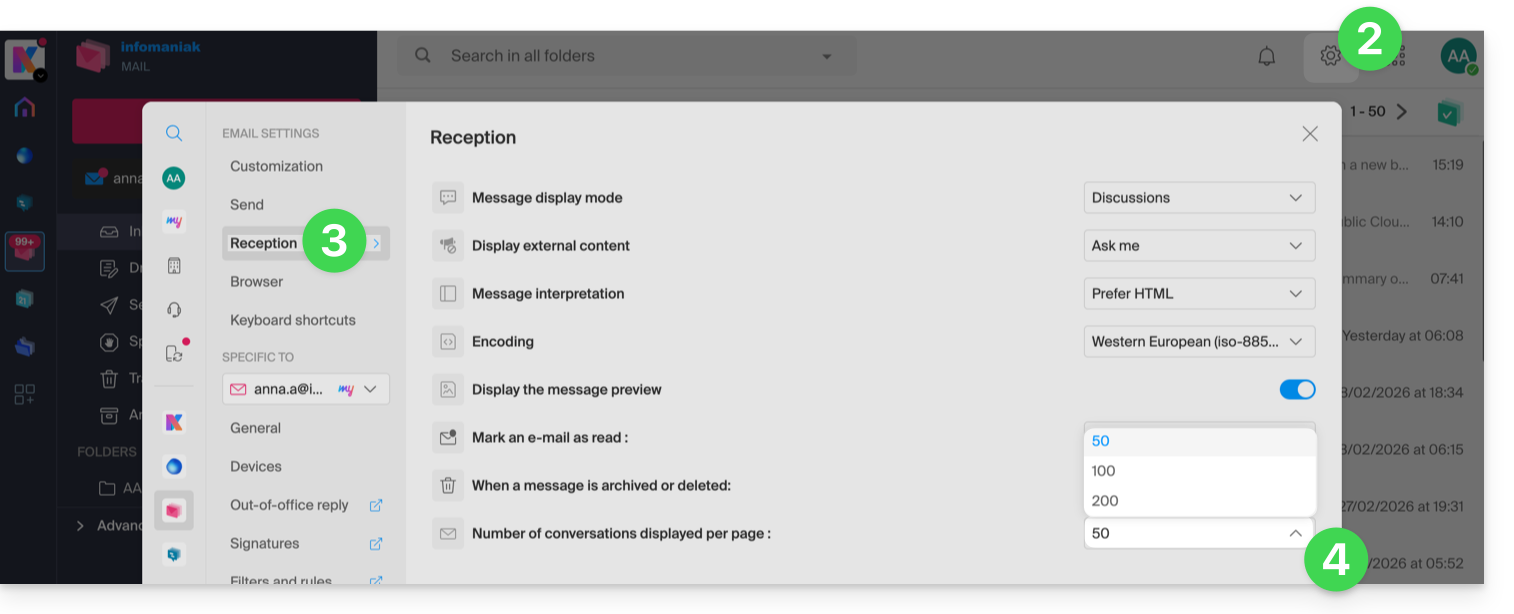
- Click on the Settings icon in the top right corner of the interface.
- Click on Reception.
- Display the maximum number of items loaded at once:
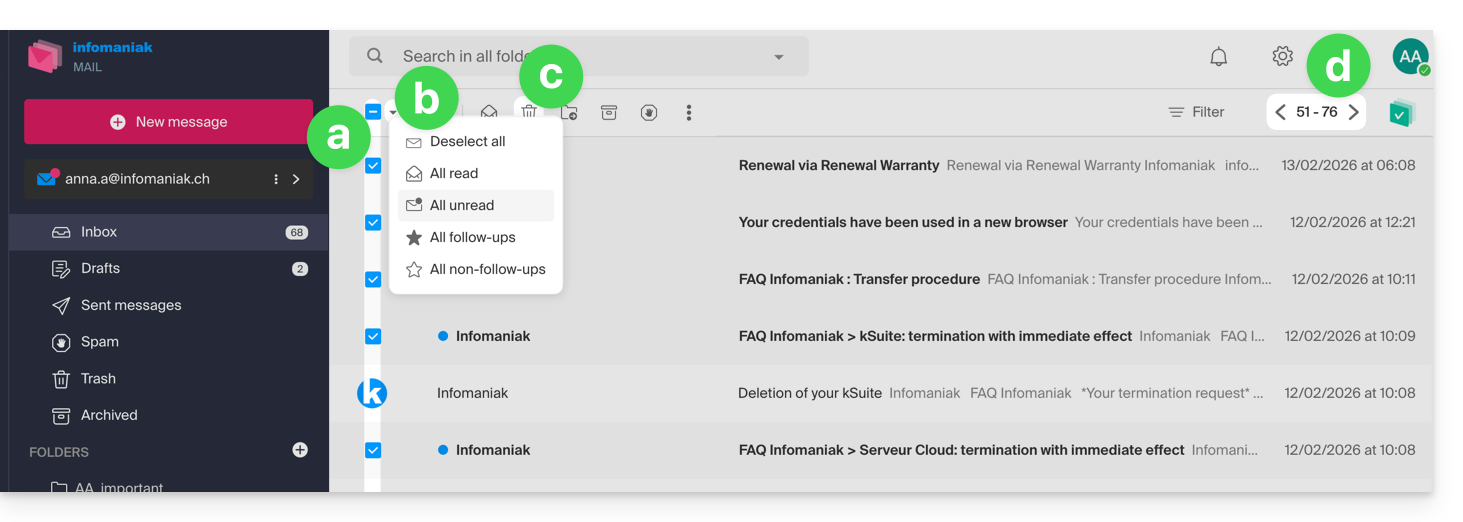
- To empty the inbox:
- Select all items visible on the screen.
- A more precise selection is possible.
- Click on the Trash icon to send them to the trash.
- Repeat this process on all pages:
- Besides the inbox, folders can be emptied in a few clicks:
- Click on the action menu ⋮ to the right of the folder in question.
- Click on Empty the folder:
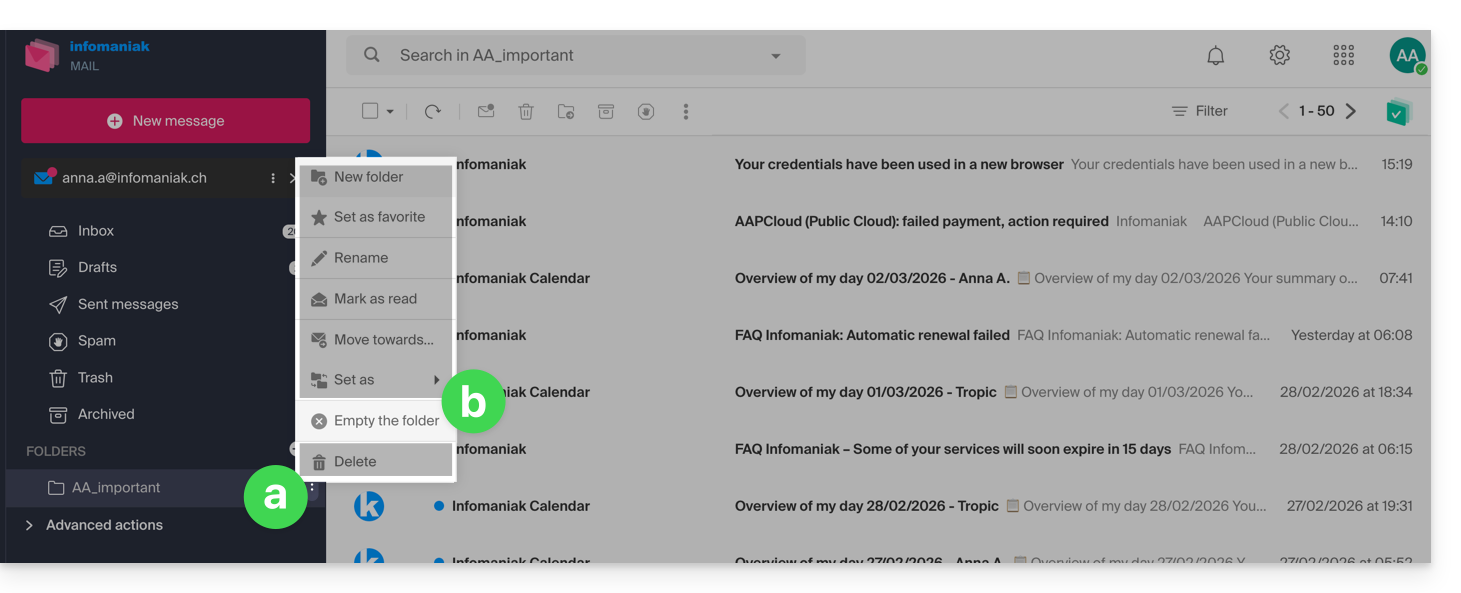
- Please note that emails are deleted without going through the trash, as if you were deleting the folder itself — only a restore can allow for possible recovery.
You can also delete the email address within a Mail Service, and then recreate it. It will then be completely empty.
… using an IMAP email client/program
A reliable solution is to configure the email address in an IMAP email client/program, which will allow you to select all messages (without pagination…) and therefore delete them easily and quickly:
- Install Thunderbird (or any other email app on your device).
- Add your email address by entering its password.
- Wait for the inbox to load.
- Select all messages.
- Click on Delete.
- That's it, you can now remove the application if you wish.
Special case: crossed-out messages
To permanently delete any crossed-out emails that may appear in your email software/client or on Mail Infomaniak: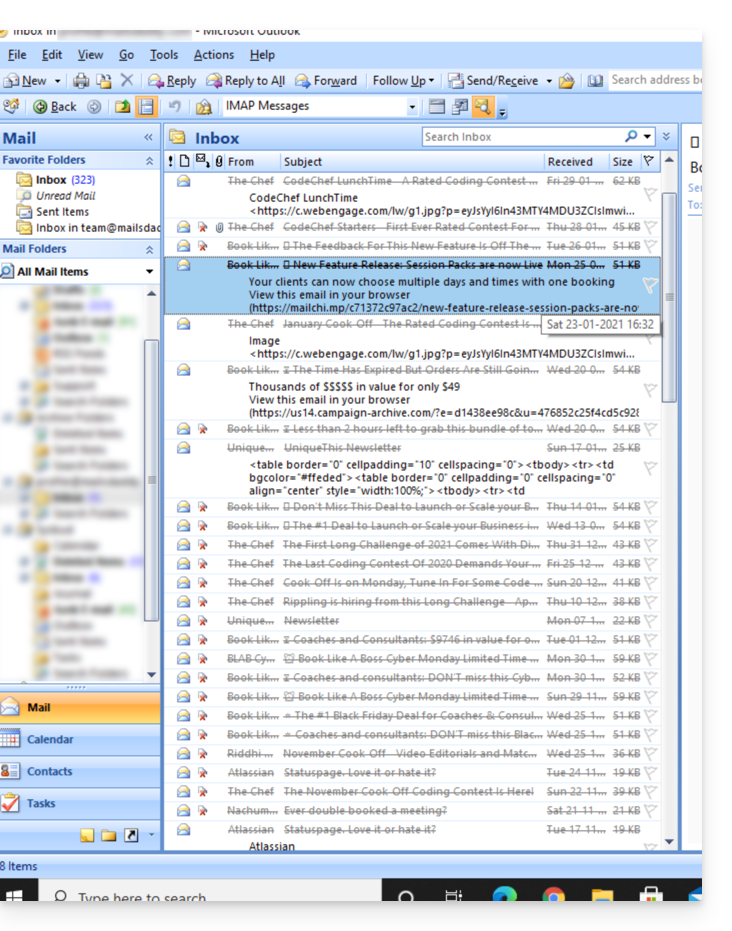
- Microsoft Outlook
- Go to the Edit menu -> Clear Deleted Messages (in English, you should have a Purge menu)
- Apple Mail
- Go to the Mail menu -> Clear Deleted Items
They will then also disappear from the Infomaniak Mail interface.
Link to this FAQ: https://faq.infomaniak.com/1247
Has this FAQ been helpful?
This guide will help you better understand the specific issues that may arise when displaying emails when using different email applications and Infomaniak's Mail apps.
Introduction
- It may happen that inconsistencies occur when displaying a list of emails within a folder (e.g., the Sent Messages folder), and the messages sorted and considered the most recent by one device are not the same as those displayed when using another tool.
Understanding Unique Identifiers (UIDs)
UIDs (Unique Identifiers) are unique identifiers assigned to each message in an IMAP mailbox. They are used to uniquely identify each message, regardless of changes made to the folders or the messages themselves. UIDs are particularly useful for managing and synchronizing emails across multiple IMAP email clients:
- Each email is assigned a unique UID when it is created in a mailbox; this UID never changes in principle as long as the email exists, even if its content or metadata is modified.
- UIDs are generally sequential, meaning that newer messages typically have higher UIDs.
- When synchronizing emails, IMAP email clients can use UIDs to determine which messages are new, modified, or deleted since the last synchronization; this enables efficient email management without having to download and compare all messages.
- Depending on the tool used, to display them in the order they were received, messages can be sorted by their date of receipt or by UID.
Do not confuse with:
Message Sequence Number(used for temporary operations based on the current position of the messages)…Message-ID (RFC 5322)(used to uniquely identify messages across different servers and email software/clients)…X-Message-Id(server-specific and used for internal tracking purposes)...Thread-IndexandThread-Topic(used by Microsoft applications for tracking conversation threads)...
IMAP applications and the Infomaniak Mail app
The issue may appear in this form at the server command level:
758 - date.sent: 2017-10-11 23:15:26 (+0100)
757 - date.sent: 2017-10-11 15:00:55 (+0100)
756 - date.sent: 2017-10-11 14:39:28 (+0100)
(...)
742 - date.sent: 2018-01-17 00:40:21 (+0000)
741 - date.sent: 2018-01-17 00:30:33 (+0000)
740 - date.sent: 2018-01-17 00:26:07 (+0000)
(...)
51 - date.sent: 2022-10-07 16:39:16 (+0100)
50 - date.sent: 2023-06-13 10:15:00 (+0100)
49 - date.sent: 2023-06-07 12:11:35 (+0100)
Here, we observe that emails dating from 2017 have a higher UID (758, 757, ...) than emails with a more recent date in 2023. The UIDs must have been reassigned for one reason or another during the lifetime of this email account (moves, copies, imports, etc.).
Depending on how the email tool sorts the emails, a message from 2017 may appear among the recent messages, while the message from 2018 will not be loaded immediately. This is particularly true for the Mail Infomaniak app, which only loads a series of emails at a time based on the UID (this is likely to change).
Therefore, to resolve any potential inconsistencies, it is recommended to use an IMAP email client such as Thunderbird on a computer. This will allow you to quickly and efficiently sort all messages in a specific folder, based on the email date, as the application will display all messages present on the Infomaniak server.
Link to this FAQ: https://faq.infomaniak.com/1276
Has this FAQ been helpful?
This guide helps you protect the reputation of your domain name, to maintain the trust of internet users and service providers in your website or business, thereby facilitating the proper functioning of your email service.
Web reputation
There are different types of online reputation, including personal reputation, corporate reputation, and domain reputation.
Domain reputation is essentially a score that determines how email systems decide what to allow into users' inboxes. In essence, your domain reputation is a measure of the health and legitimacy of your domain. This reputation can be influenced by the security of your email and website.
For example, a domain's reputation may decrease if…
- … the website accessible at the domain's address is hacked, leading to the mass sending of fraudulent emails,
- … the domain's email service is being used to send unsolicited spam.
If your domain's reputation remains poor, your emails may be marked as spam and may not reach their intended recipients. This can harm email deliverability (see this other guide in English for more information).
Improve your domain reputation
By following these tips, you can improve your domain's reputation and, for example, boost all your email marketing efforts:
- Set up and verify SPF, DKIM, and DMARC records to help protect your domain against spoofing attacks.
- Check your domain's reputation using tools such as Google Postmaster Tools, Sender Score, Microsoft SNDS, McAfee, or Talos Intelligence, and identify any potential issues.
- Only send emails to users who have chosen to subscribe!
- Get trusted links or backlinks…
Refer to this other guide about RBLs.
Link to this FAQ: https://faq.infomaniak.com/1314
Has this FAQ been helpful?
This guide explains how to connect the Apple Mail desktop app on macOS (MacBook Pro, Neo, etc.) to an email address hosted by Infomaniak.
Introduction
- Your macOS computer will be automatically configured using Apple-compatible .mobileconfig configuration profiles, unlike a manual configuration.
- It is possible to delete a configuration profile once it has been installed (scroll to the bottom of this page for instructions).
Install a configuration profile
Prerequisites
- Create the email address within my kSuite or a Mail Service / kSuite.
- Check that the Mail Service is configured optimally.
You can download the profile from the device in question or send it from another device (if you already have an email address that works correctly, for example):
- Click here to access the Infomaniak configuration tool (online service https://config.infomaniak.com) — log in to your Infomaniak account on the Organization where your email address is managed, if necessary.
- Choose to install the profile on this device.
- Choose to synchronize emails.
- Choose the email address to configure in Apple Mail (from the ones you have access to).
- Create a new device:
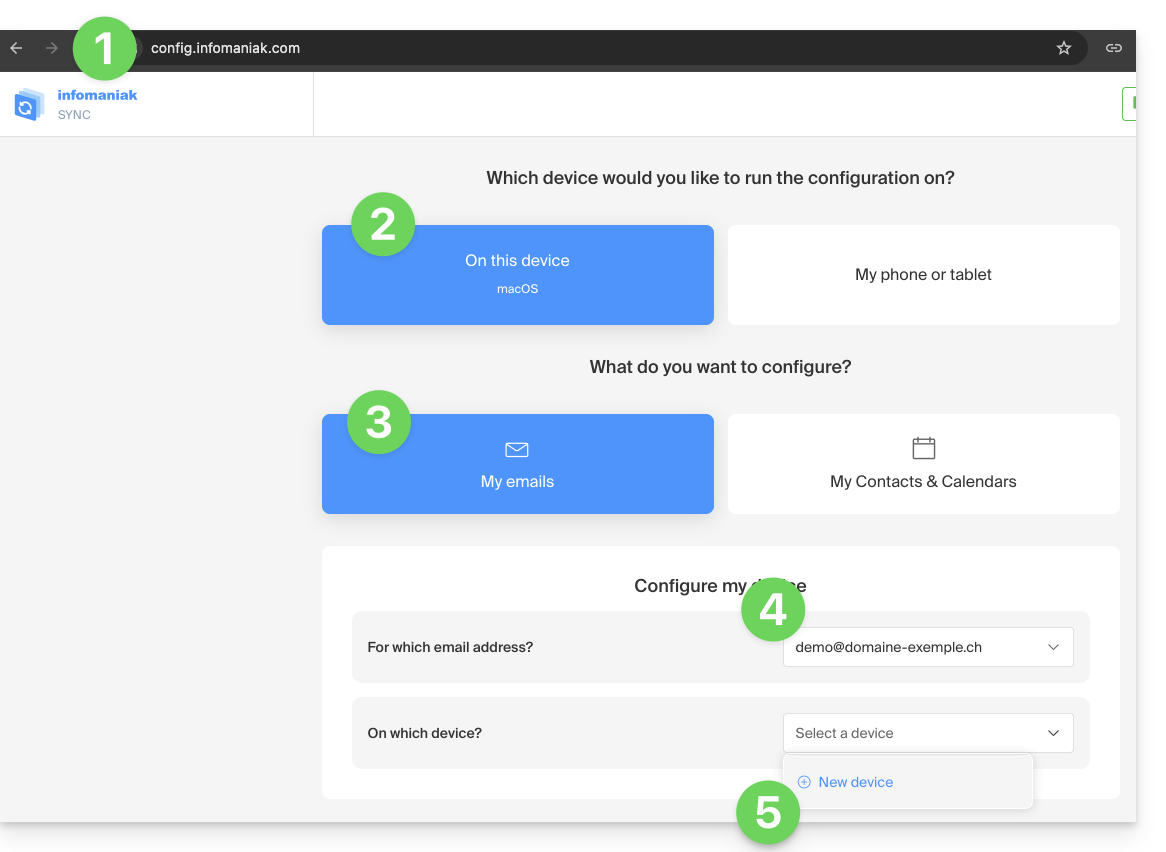
- Enter a descriptive name for the new device.
- Click the button to download the profile (you can also send it by email using the link on the right):
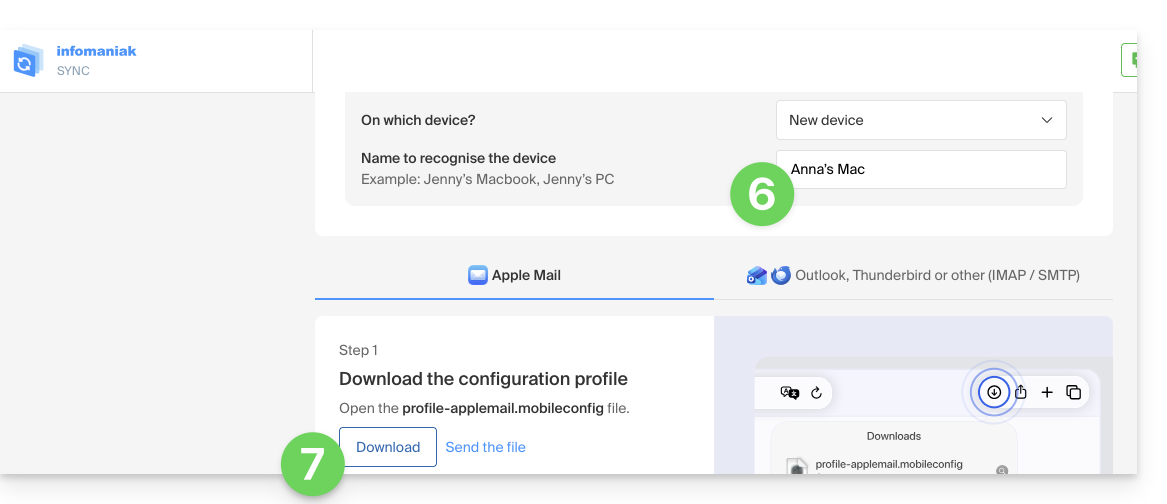
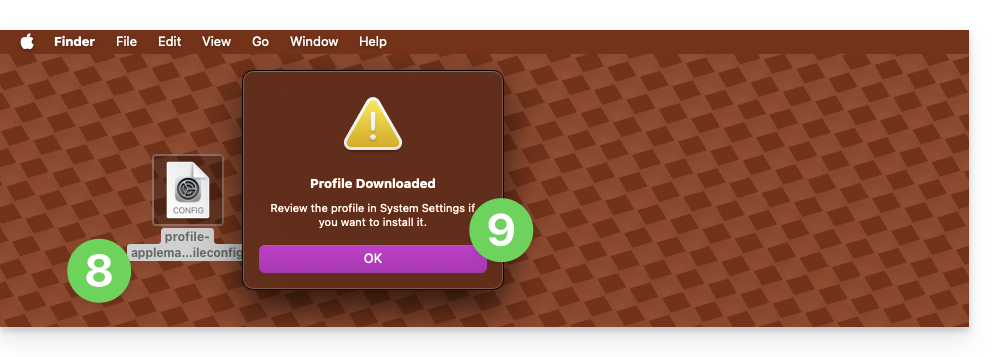
- Once the
profile-applemail.mobileconfigfile is on your computer, double-click it to open and run it. - Click OK:
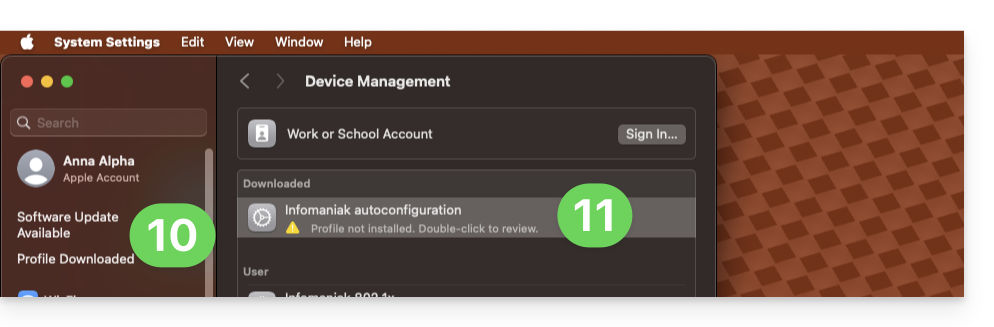
- Open the computer’s System Settings.
- Click on Downloaded Profile in the sidebar, then double-click the new profile to apply it:
- If you have an older version of macOS or cannot find the profile, search for “profile” in the settings, or consult the official documentation by changing the version of your system at the top of the page if necessary.
- Click on Install…:
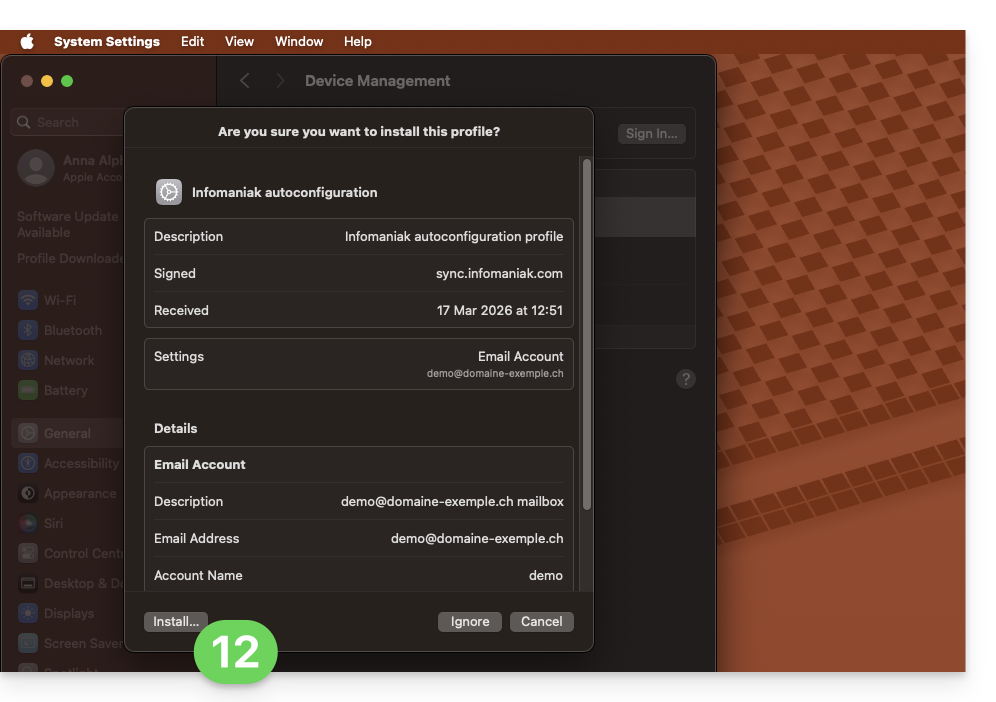
- A password will then be requested…
- either you know it because you have already created it in the Devices section of the Mail Service:
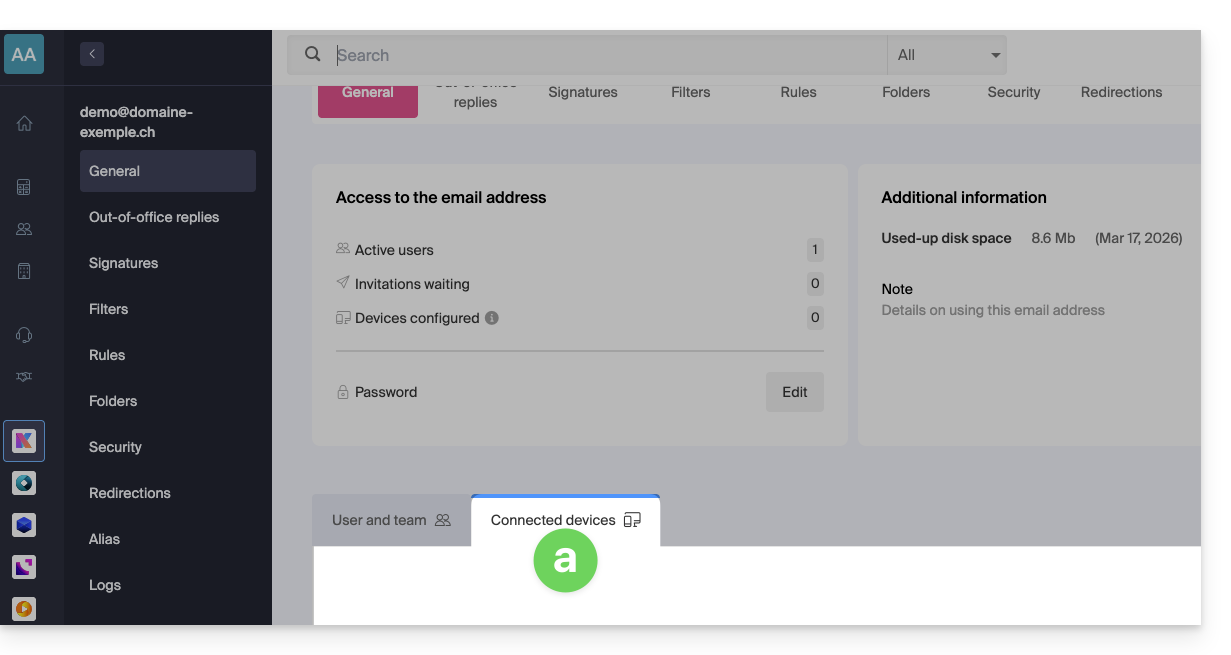
- or you can copy the new password that is located further down on the assistant page
config.infomaniak.comthat was opened previously: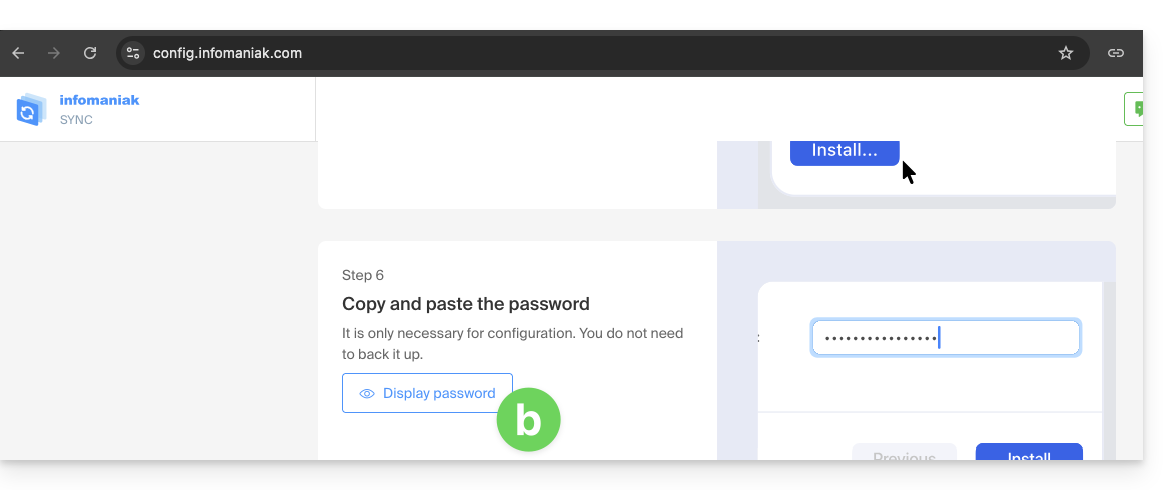
- Before the email address password is displayed, your Infomaniak account password may be requested for security reasons:
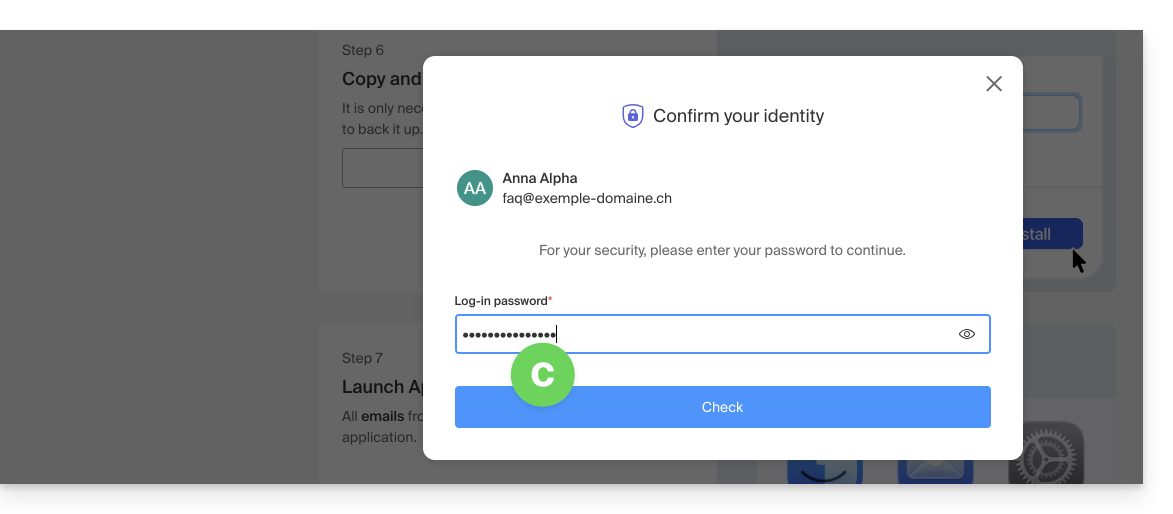
- There you go, the randomly generated password is displayed, simply copy it:
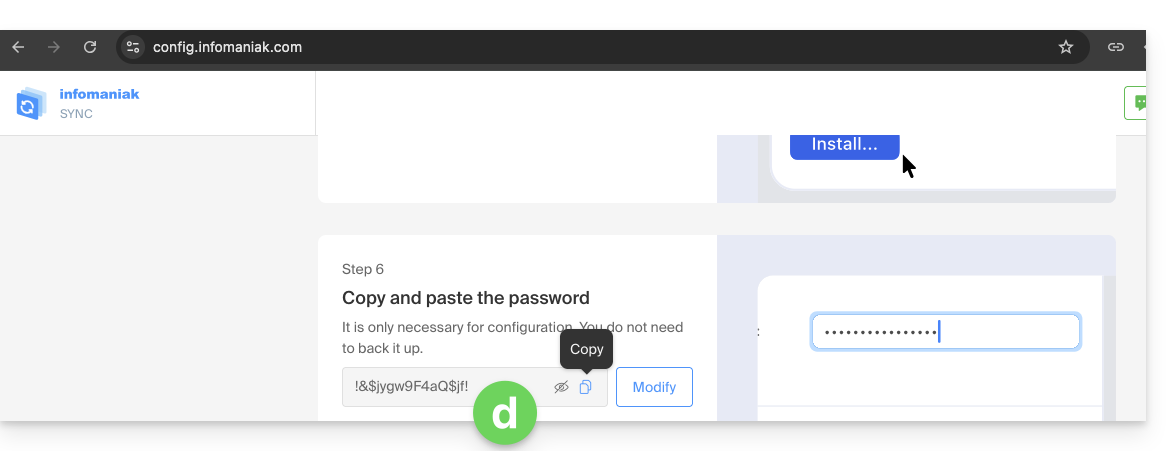
- either you know it because you have already created it in the Devices section of the Mail Service:
- Paste the password into the macOS window.
- Click Install to start installing the profile:
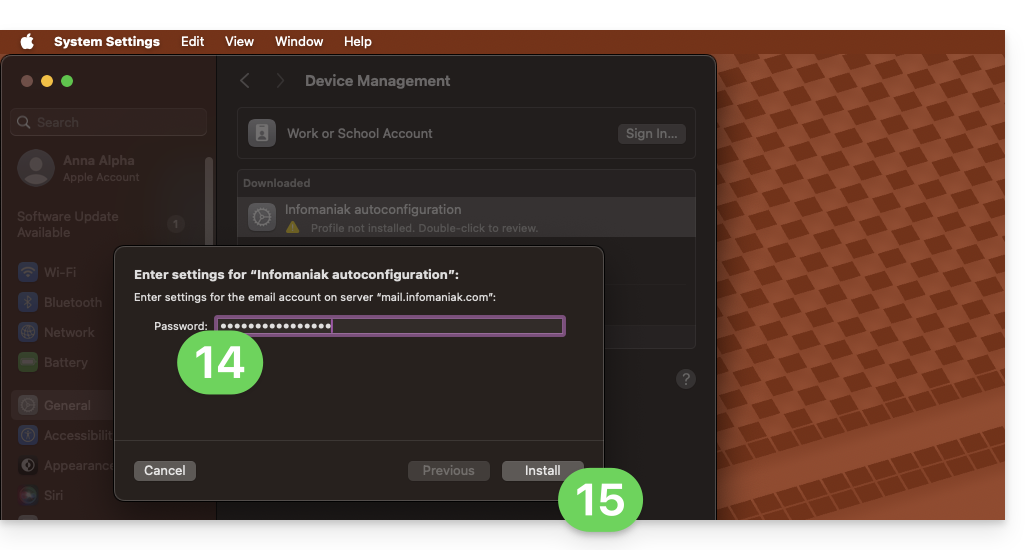
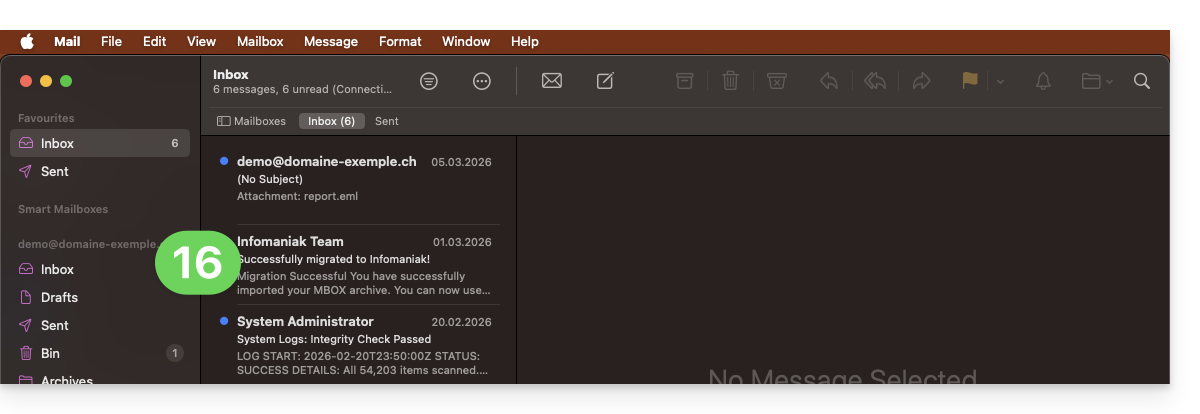
- That's it, your email address is now configured in the Apple Mail application, which you can open and manage:
Remove an IMAP account
Refer to the "Stop using an account" chapter. If necessary, change the version of your system at the top of the page*. (Note: Do not delete a POP-configured account without saving your messages beforehand).
Delete an Apple profile
Refer to the official documentation by changing the version of your system at the top of the page * if necessary.
*Why is it necessary to select the guide version that exactly matches your macOS / iOS system version?Apple introduces subtle changes with each new version of its system, for example, a path in iOS 15…
… becomes this in iOS 18…
Link to this FAQ: https://faq.infomaniak.com/1316
Has this FAQ been helpful?
This guide explains how to connect the Apple Mail iOS app (iPhone, iPad, etc.) to an email address hosted by Infomaniak.
Introduction
- Your iOS device will be automatically configured using .mobileconfig configuration profiles compatible with Apple, unlike a manual configuration.
- It is possible to delete a configuration profile once it has been installed (scroll to the bottom of this page for instructions).
Install a configuration profile
Prerequisites
- Create the email address within my kSuite or a Mail Service / kSuite.
- Verify that the Mail Service is configured optimally.
Then:
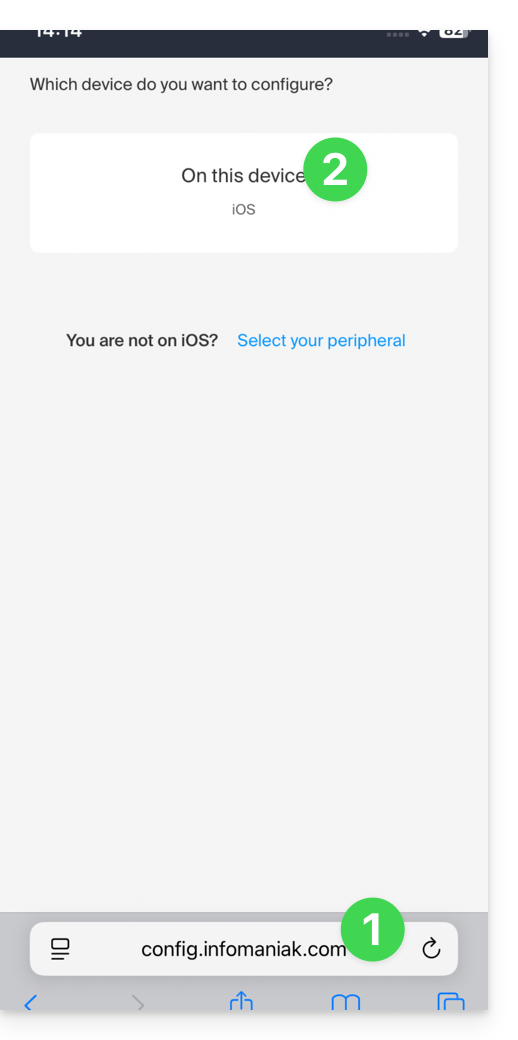
- Click here to access the Infomaniak configuration tool (online service https://config.infomaniak.com) — log in if necessary to your Infomaniak account for the Organization where your email address is managed.
- Choose to install the profile on this iOS device:
- Choose to synchronize emails:
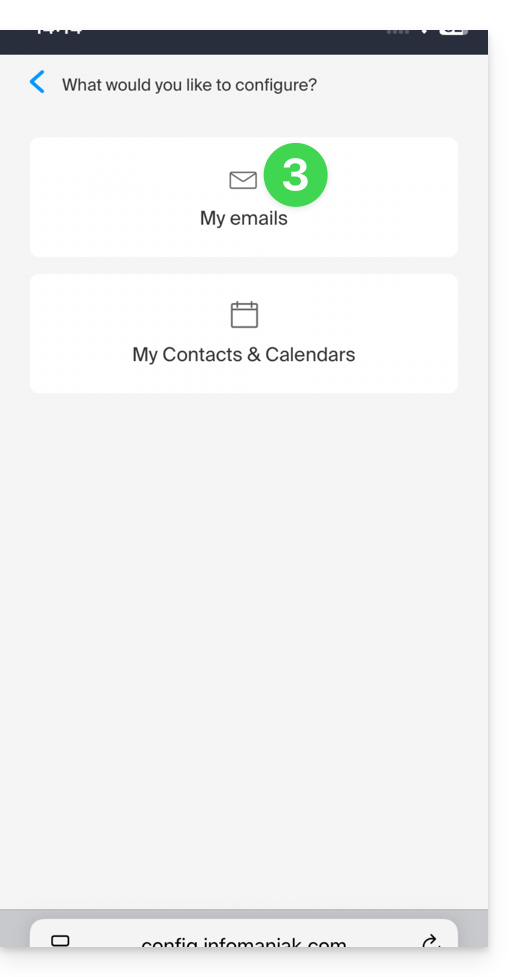
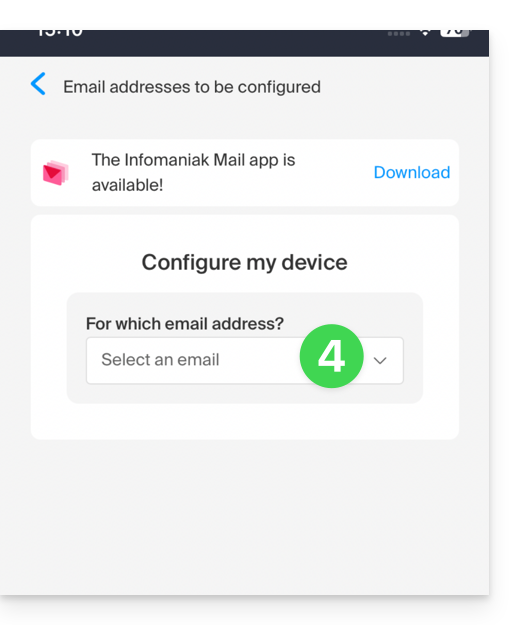
- Choose the email address (from those already linked to your current user) that should be synchronized on your device:
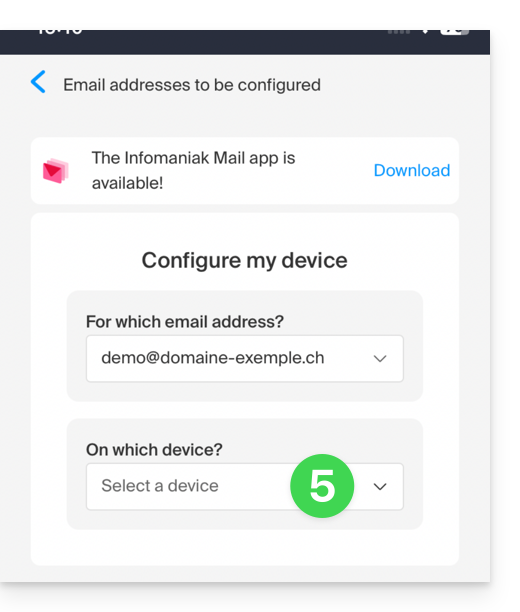
- Choose from the list of devices to enable synchronization on a new device (the one you are using):
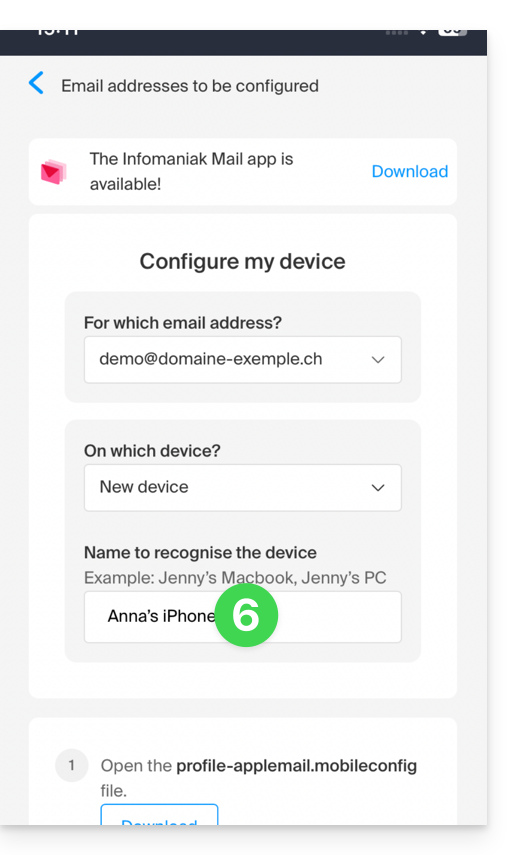
- The device name, which is purely descriptive, is adjusted accordingly, but you can modify it if necessary:
- Scroll down in the wizard and generate a password dedicated to email synchronization:
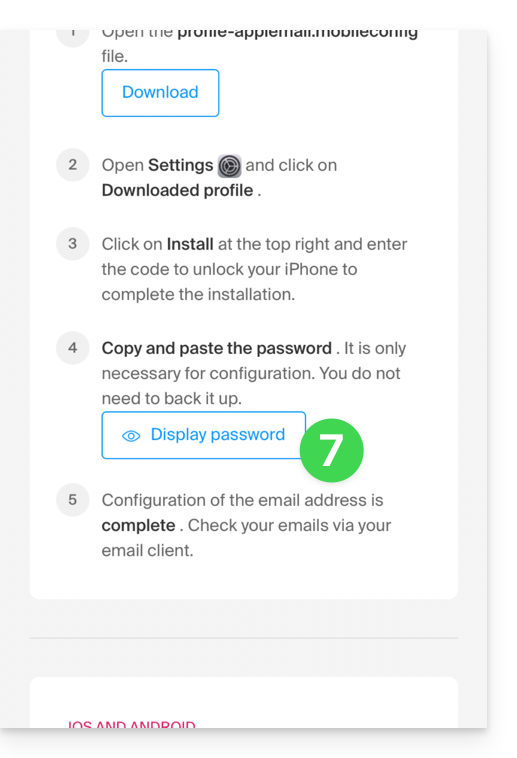
- Copy the generated password (you will be asked for it when installing the Apple profile).
- Download the Apple profile:
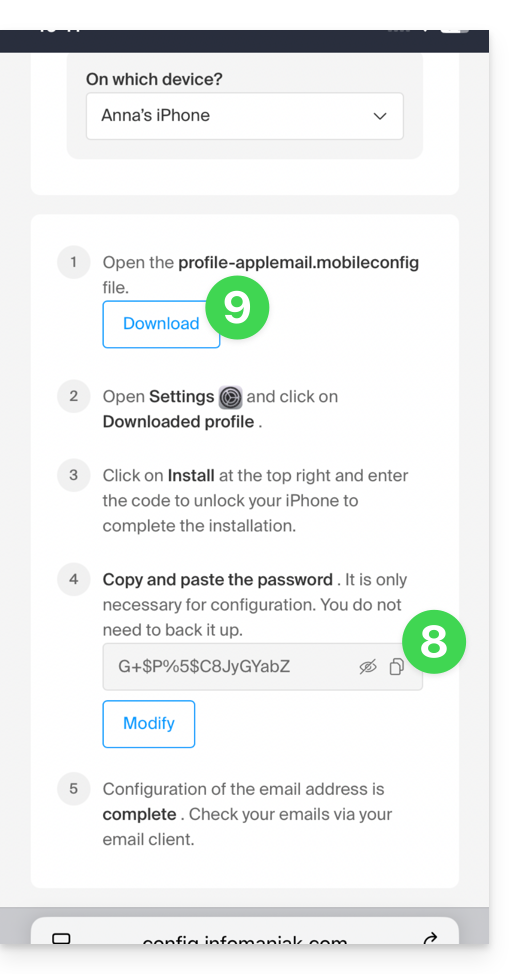
- Allow the download on the device:
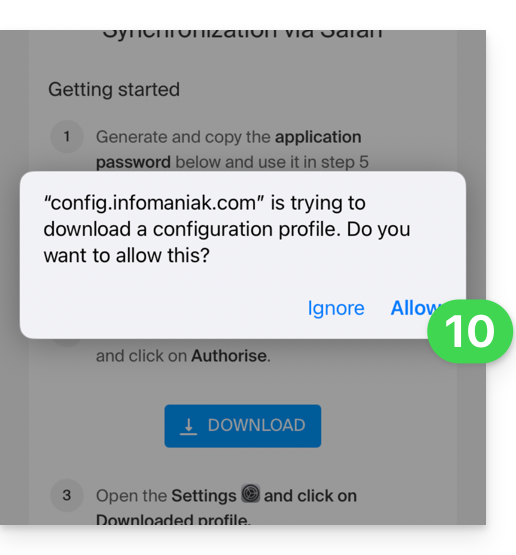
- Tap to close the message:
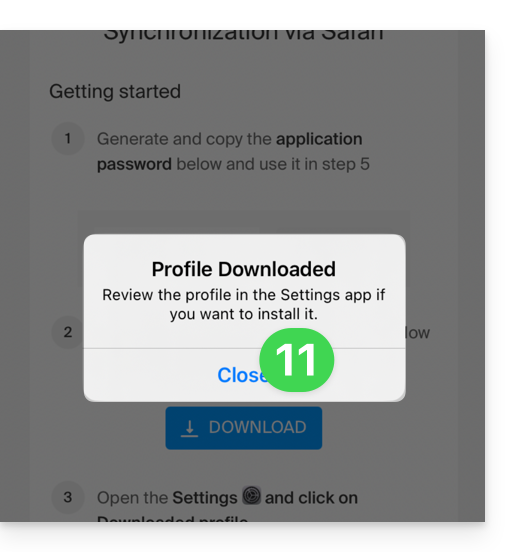
- Open the settings of your iOS device and tap on the banner at the top that informs you that a new profile has been downloaded:
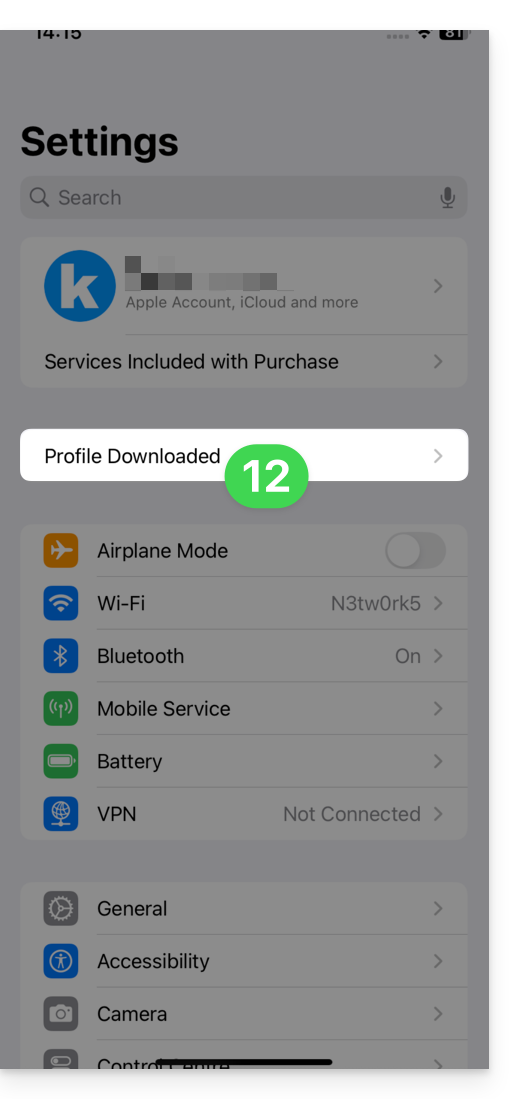
- Tap Install:
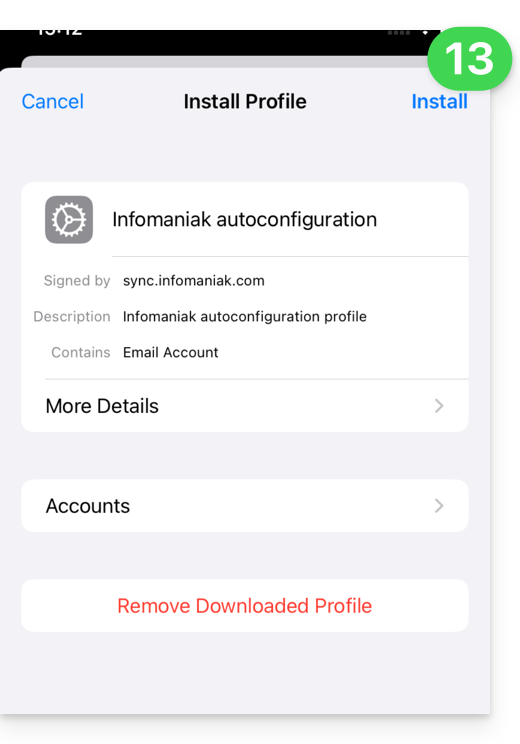
- Enter the code for your iOS device, as if you were unlocking it:
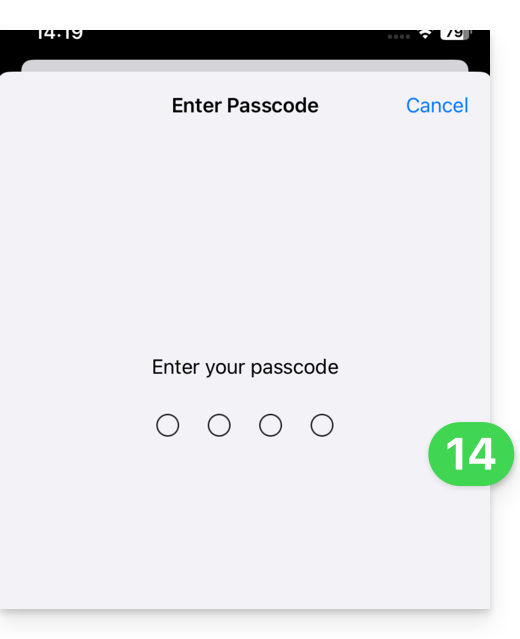
- Tap Install:
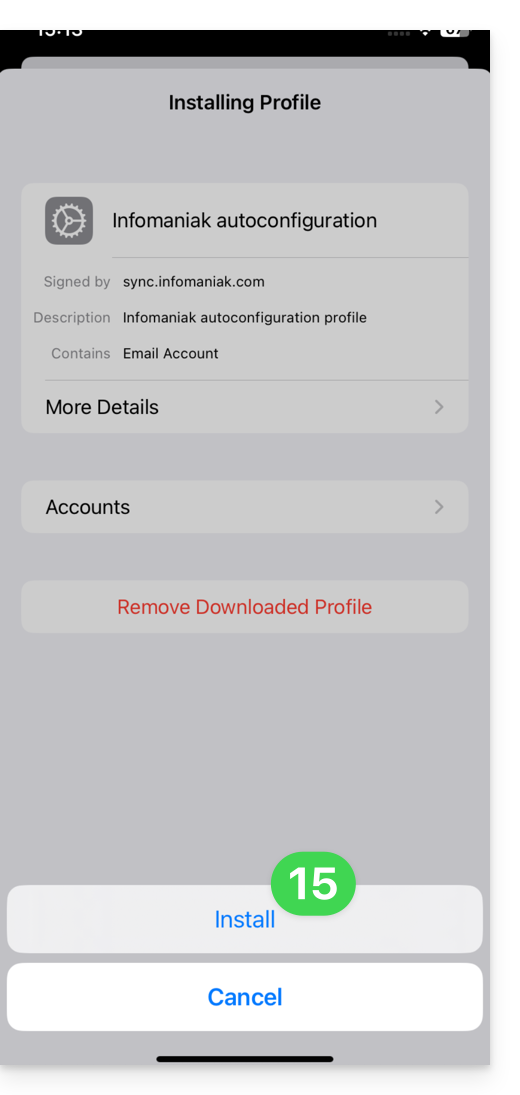
- Enter (or paste) the device password that you copied in step 8 above:
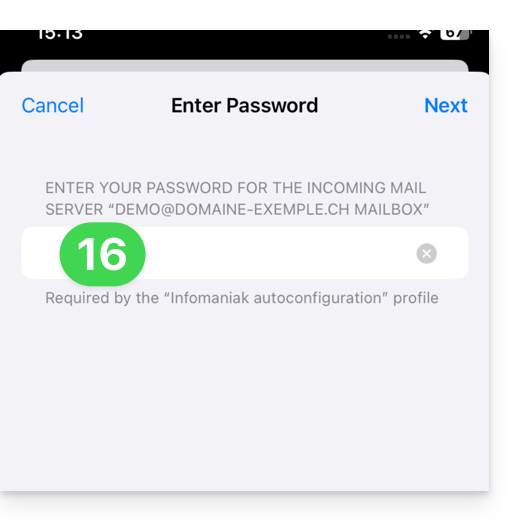
- When the message appears at the top, it's done:
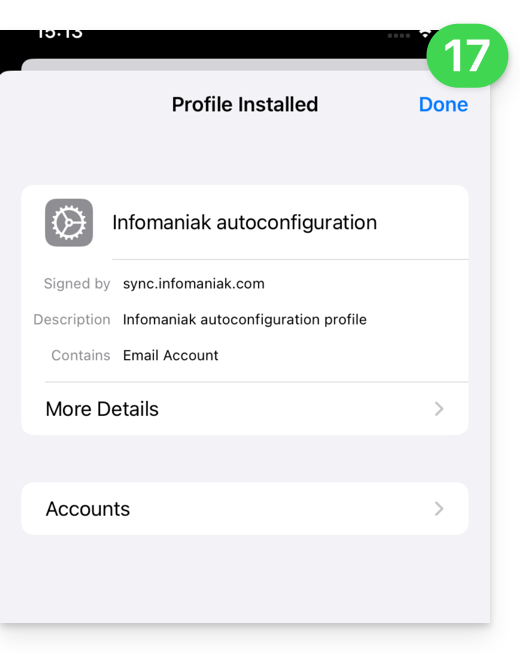
If your Apple Mail iOS app was already open, you need to restart it. You will then see the information added by the synchronization: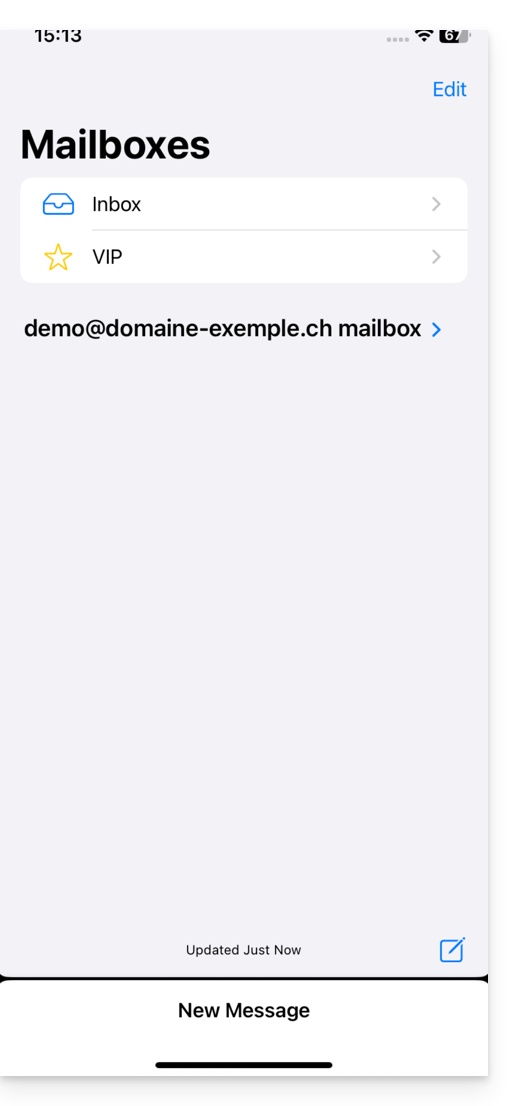
Remove an Apple profile
Refer to the official documentation, changing the version of your system at the top of the page * if necessary.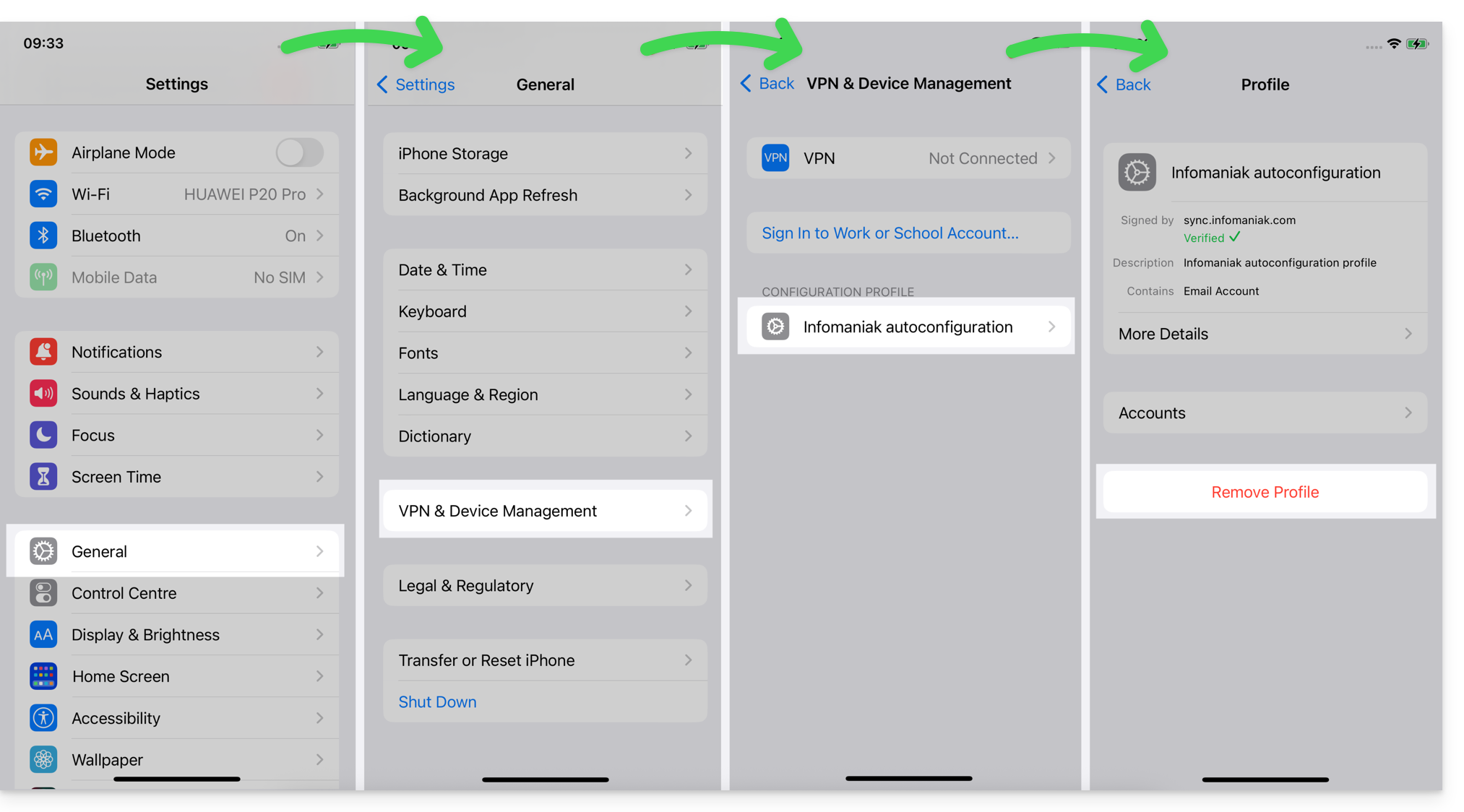
*Why is it necessary to choose the guide version that exactly matches your macOS/iOS system version? Apple introduces subtle changes with each new version of its system. For example, a path on iOS 15…
… becomes this on iOS 18…
Link to this FAQ: https://faq.infomaniak.com/1319
Has this FAQ been helpful?
This guide explains how to create and manage the passwords for an email address from within the Mail service, so that you can access it using a third-party application, such as Outlook or Thunderbird.
Other access and management options are presented in the main guide. If you are a my kSuite user, please refer to this other guide.
Prerequisites
- Order a Mail Service from Infomaniak.
- Create one or more addresses on this Mail service.
- Have at least the right to manage the Mail service in question (or be Administrator / Legal Representative within the Organization).
Generate an email address password
To add a password to the example address demonstration@exemple-domaine.ch:
- Enter your Infomaniak account login ID and password on the page https://manager.infomaniak.com/:
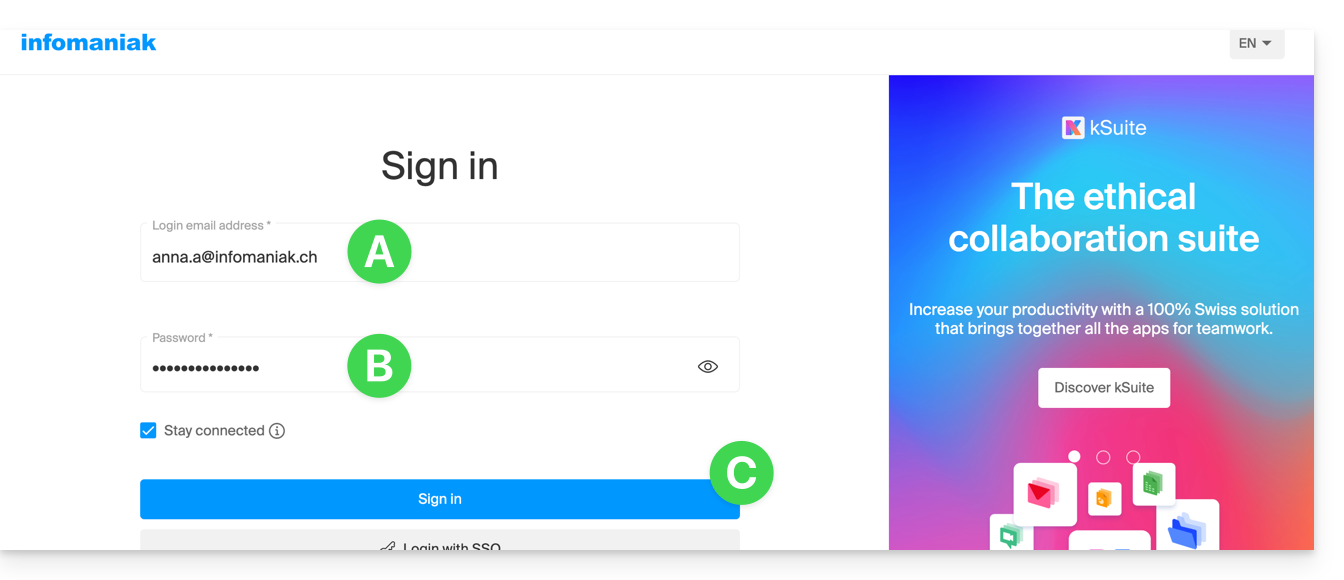
- Confirm the login on the Manager using the 2FA (two-factor authentication) method that you initially set up:
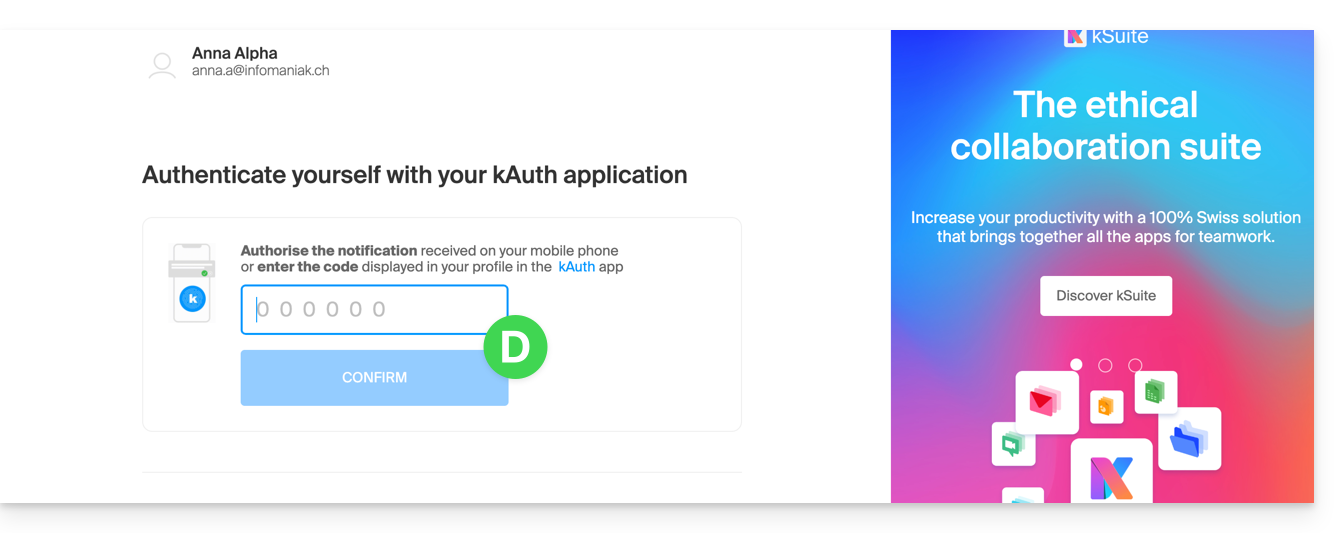
- Once on the dashboard, click on Mail Service:
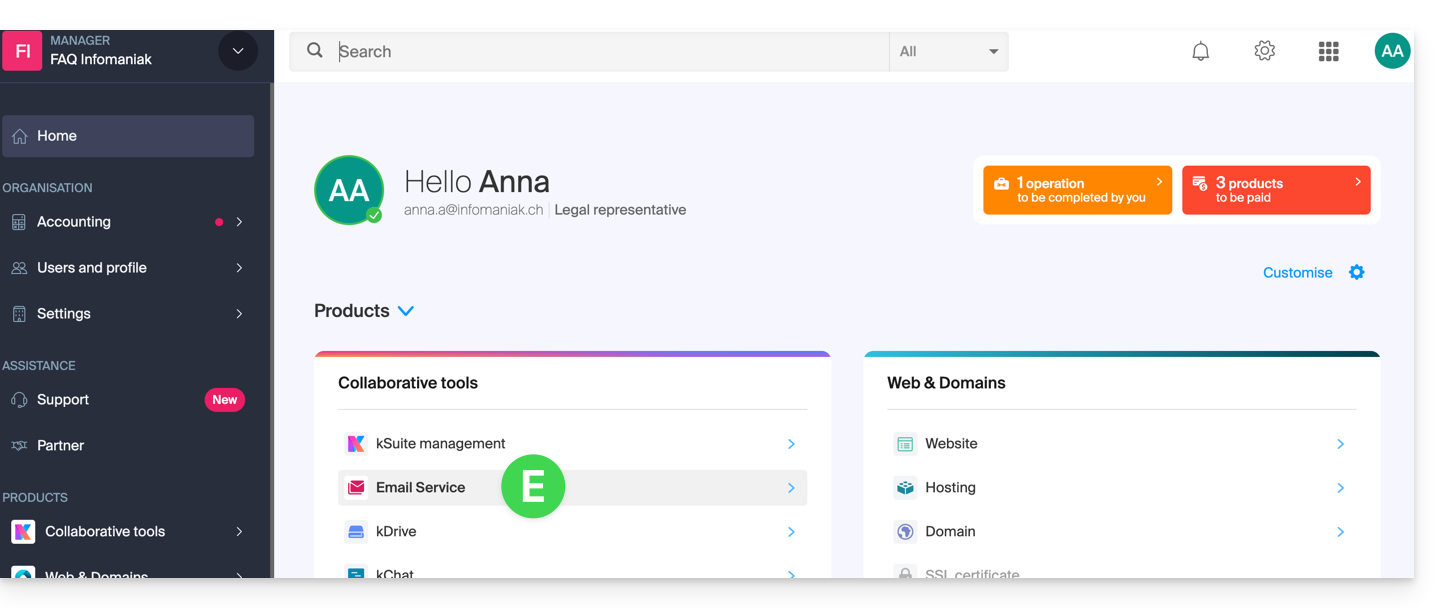
- Once on your Mail Services page, click on the name / domain name to which the email address in question belongs:
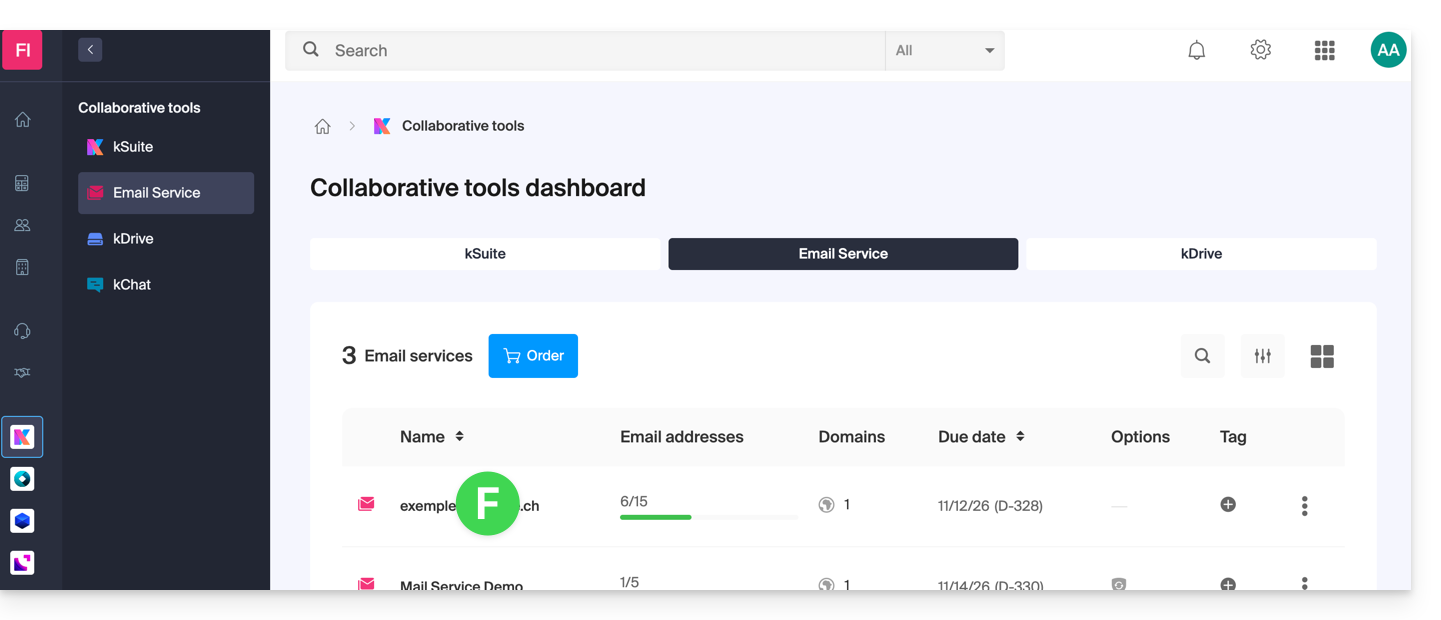
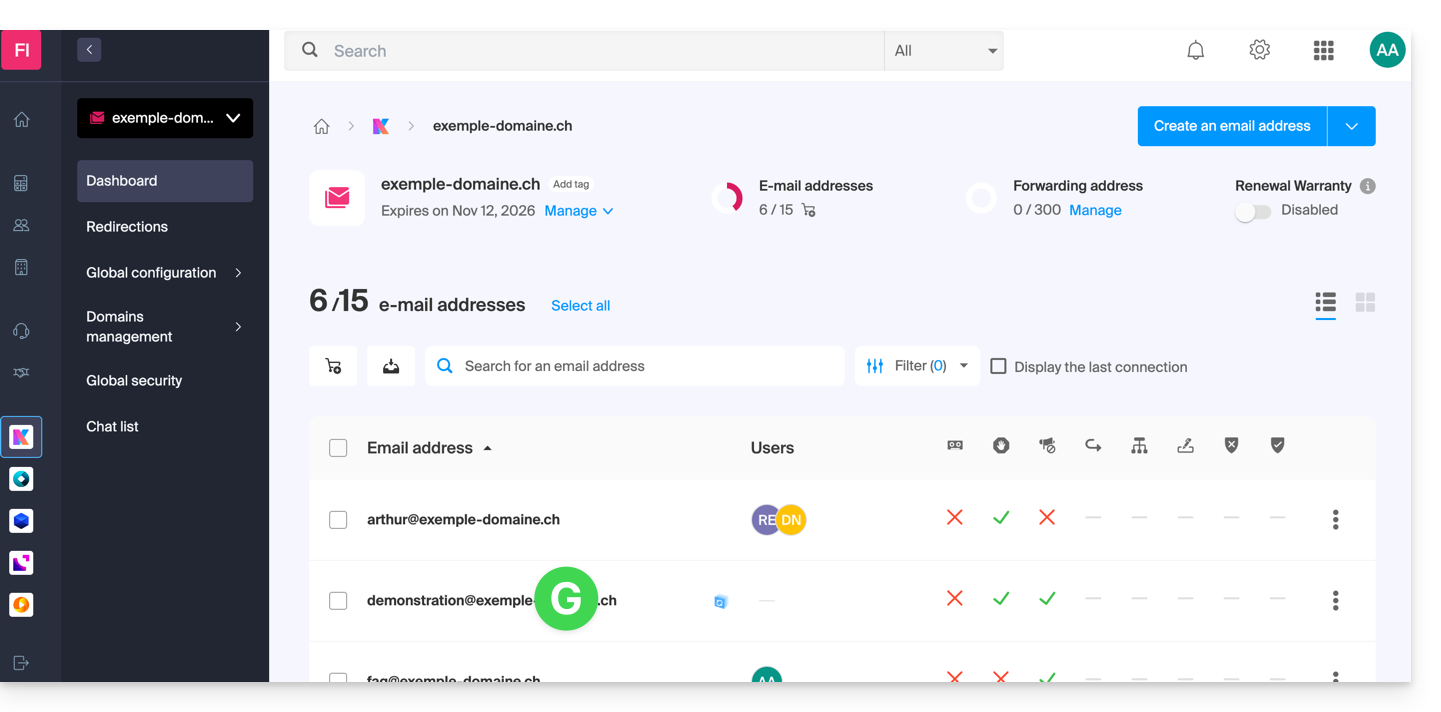
- Once you are on the Mail service to which the address belongs, click on the email address in question:
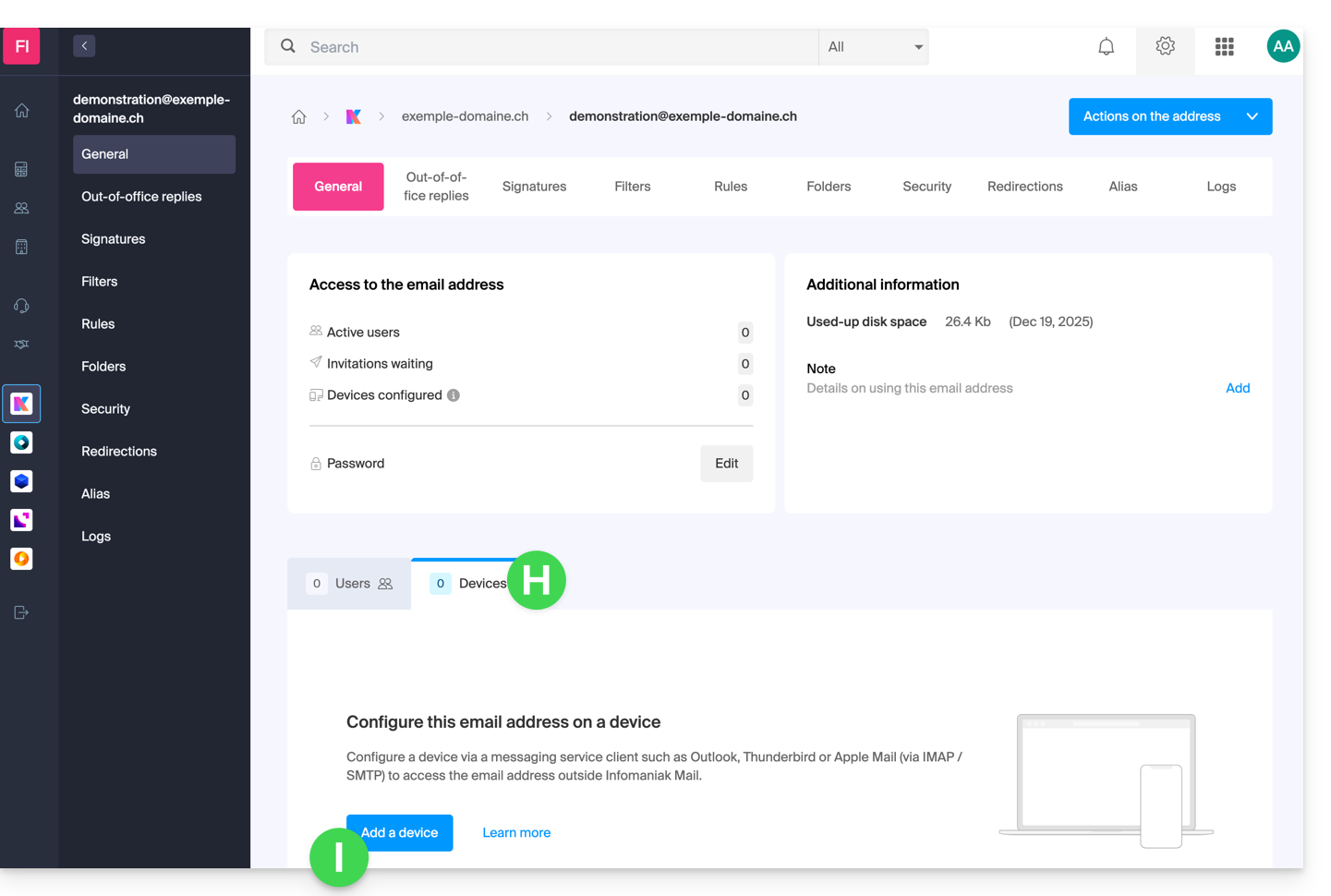
- Once you are on the email address in question, click on the Devices tab, then click on Add a device:
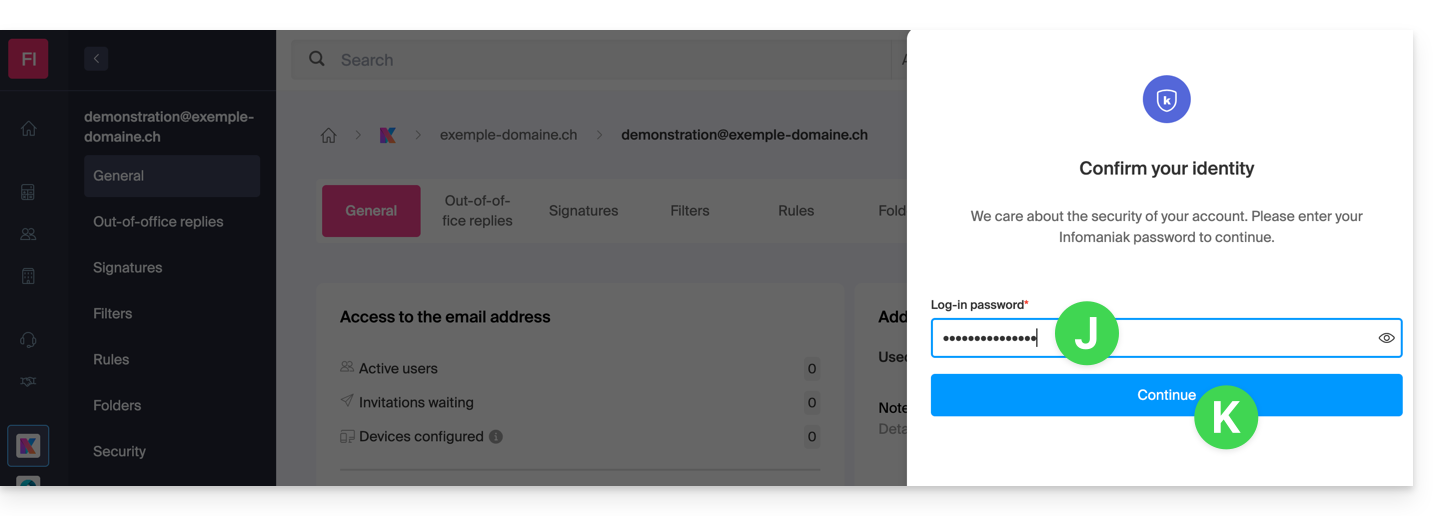
- At this stage, it may be necessary to re-enter the login password (the one from step B above):
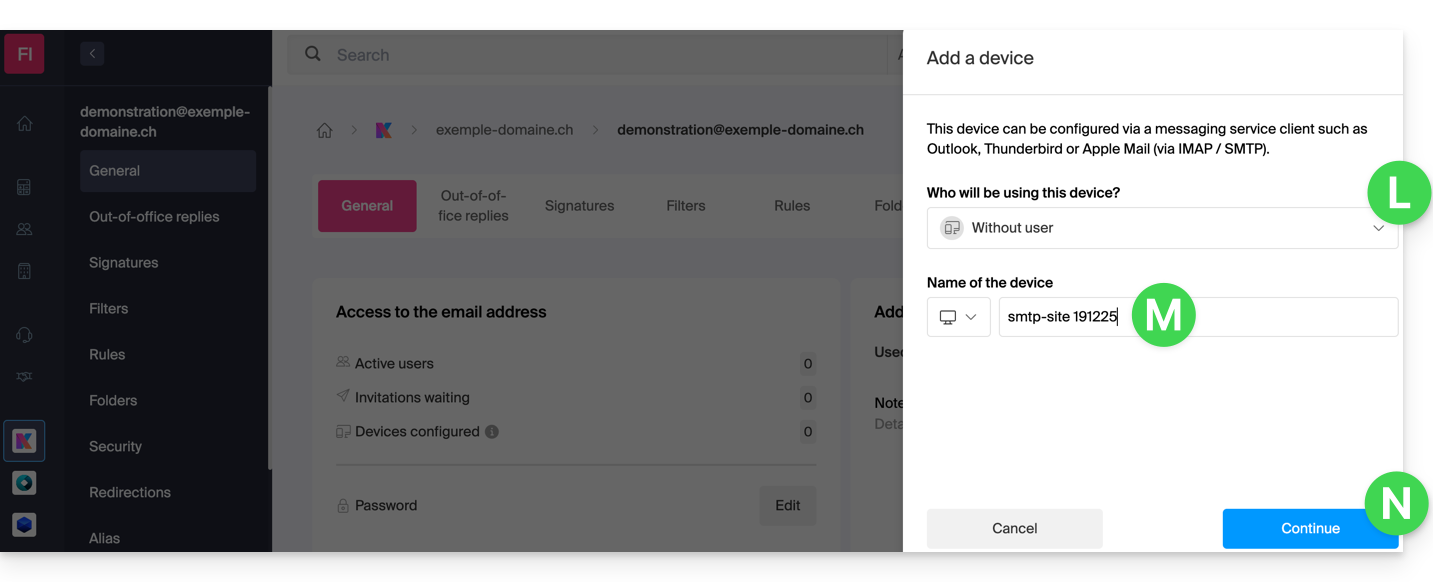
- Then, choose not to specify a particular user ("No user").
- Specifying a user, however, allows you to link any potential SMTP restriction for that user to their connected devices, in addition to simply removing their sending rights within the Infomaniak ecosystem.
- Enter a descriptive name that will help you identify the reason why you created this device(here, the user needs a password to be able to send emails from a website, and they add the current date as useful information):
- There you go: the new password is displayed, and you can change the characters (minimum 16) if necessary.Please note that it will not be possible to display it again later.).
- Save it at the bottom of the page to use it as you see fit:
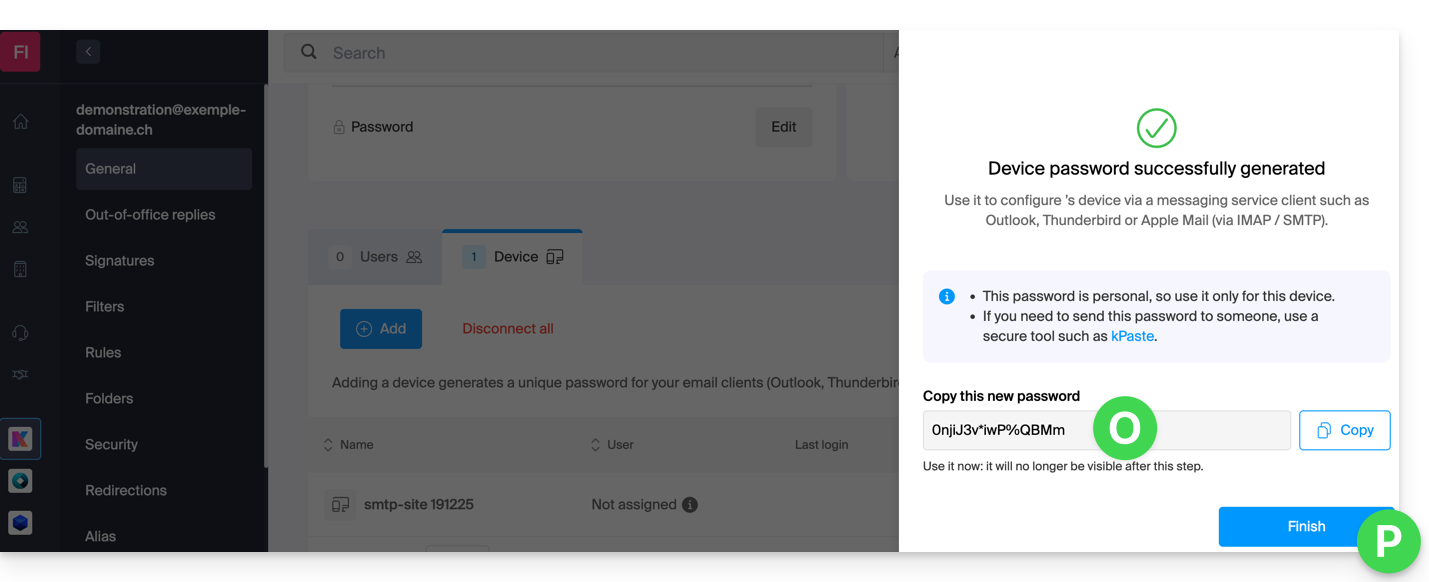
Did you click the “Finish” button (above, “P”) without noting the password? No problem, you can modify or regenerate a new one!
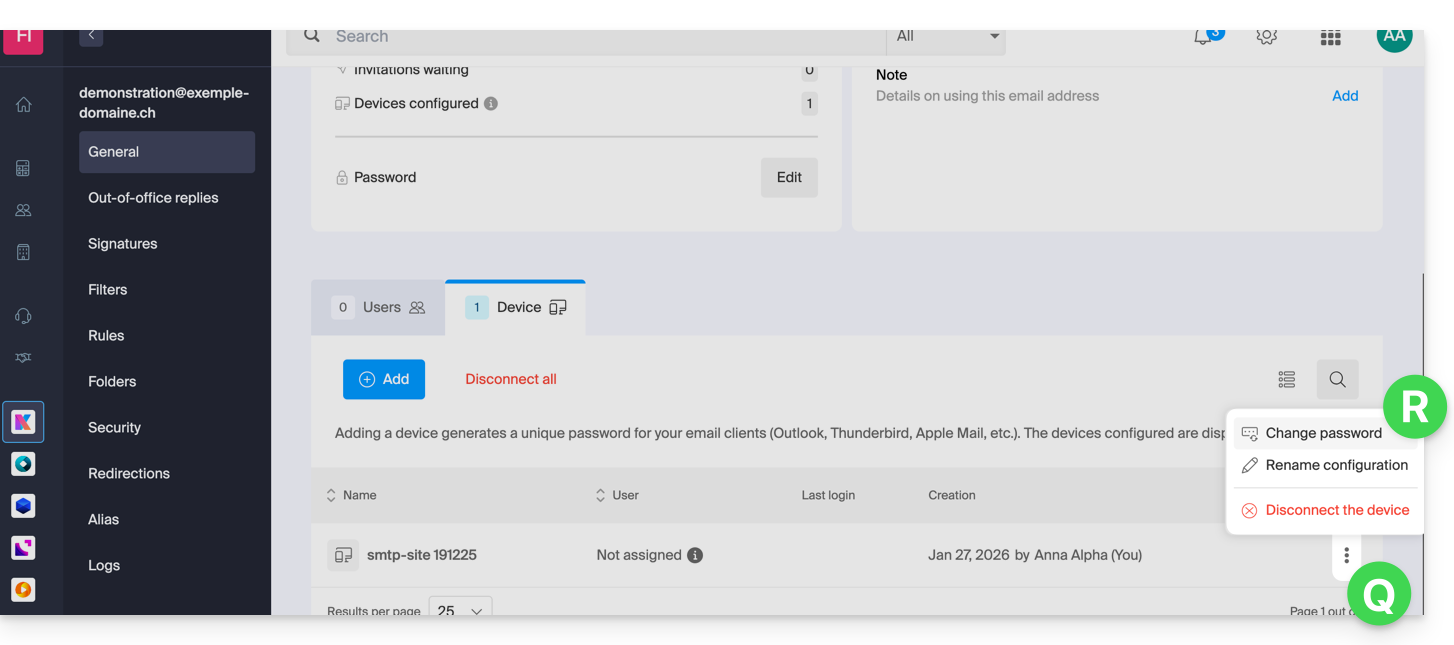
- Click on the action menu ⋮ located to the right of the device you just created and click on Change password:
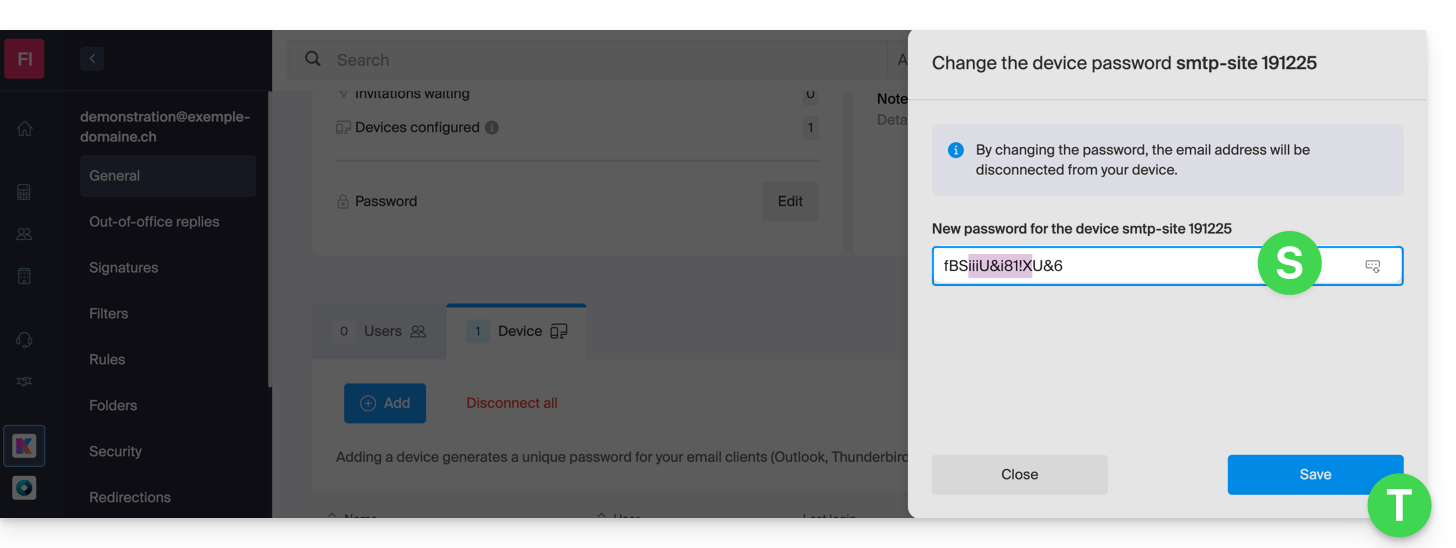
- Click the button on the far right of the field to generate a new random password and/or enter the secure characters you want to use (minimum 16) for the new password, then click the button to save the change:
- The new password, which replaces the old one, is now displayed permanently. You can enter it on your device(s) to replace the previous password (note that it will not be possible to display it again later).
Do you need a password for a secondary, temporary user? No problem, generate a second one!
- Click the button to Add a new additional device:
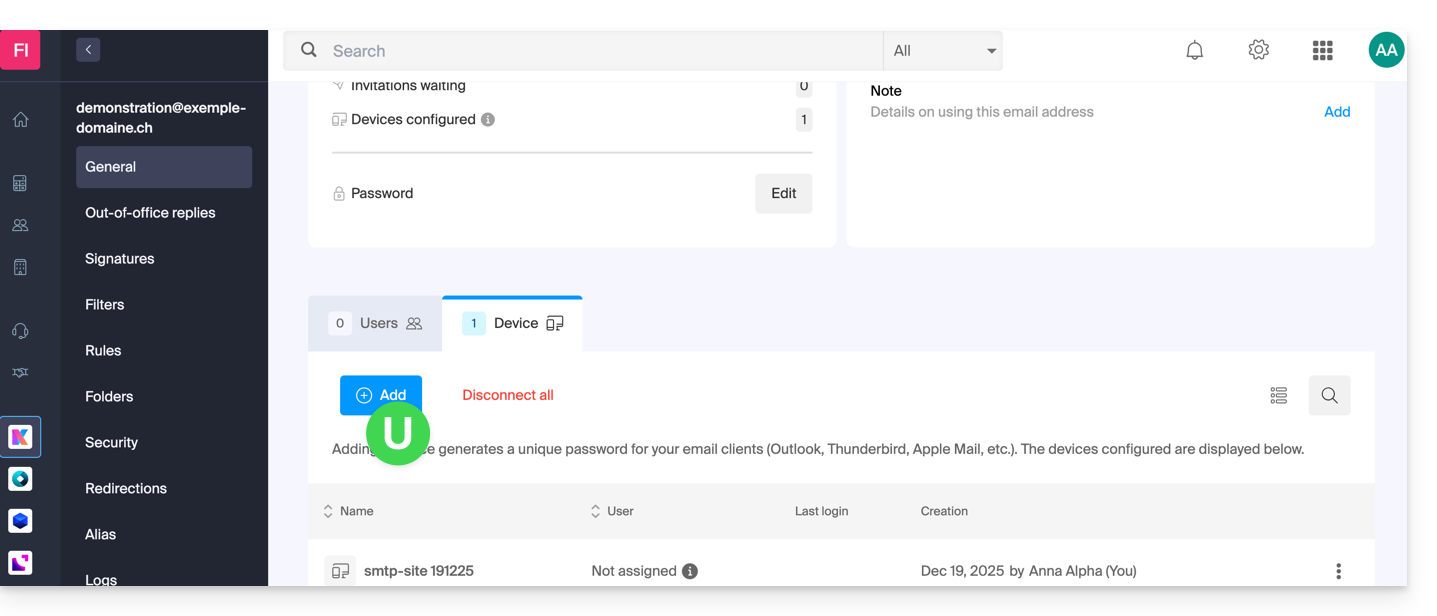
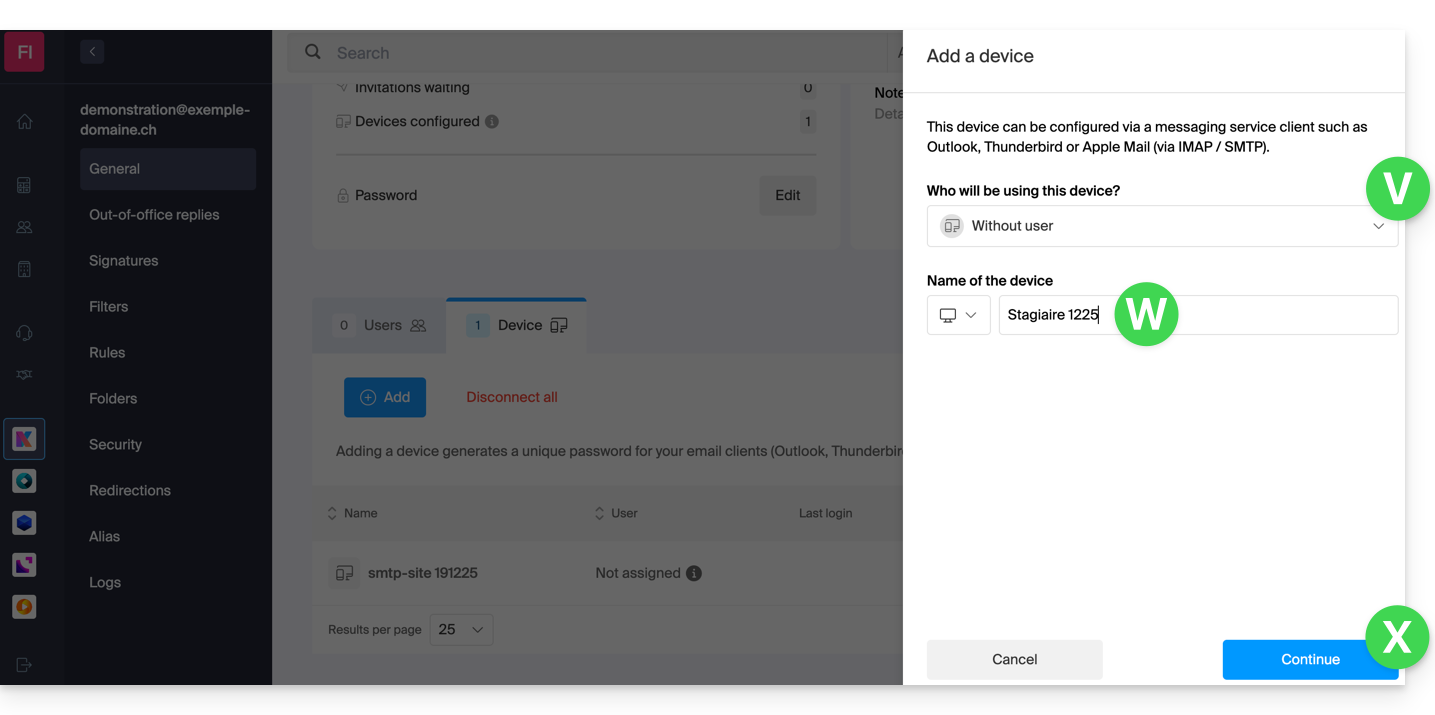
- Then, choose not to specify a particular user, and enter a name that will allow you to identify the reason why you created this device (here, the user needs a password for a one-week intern):
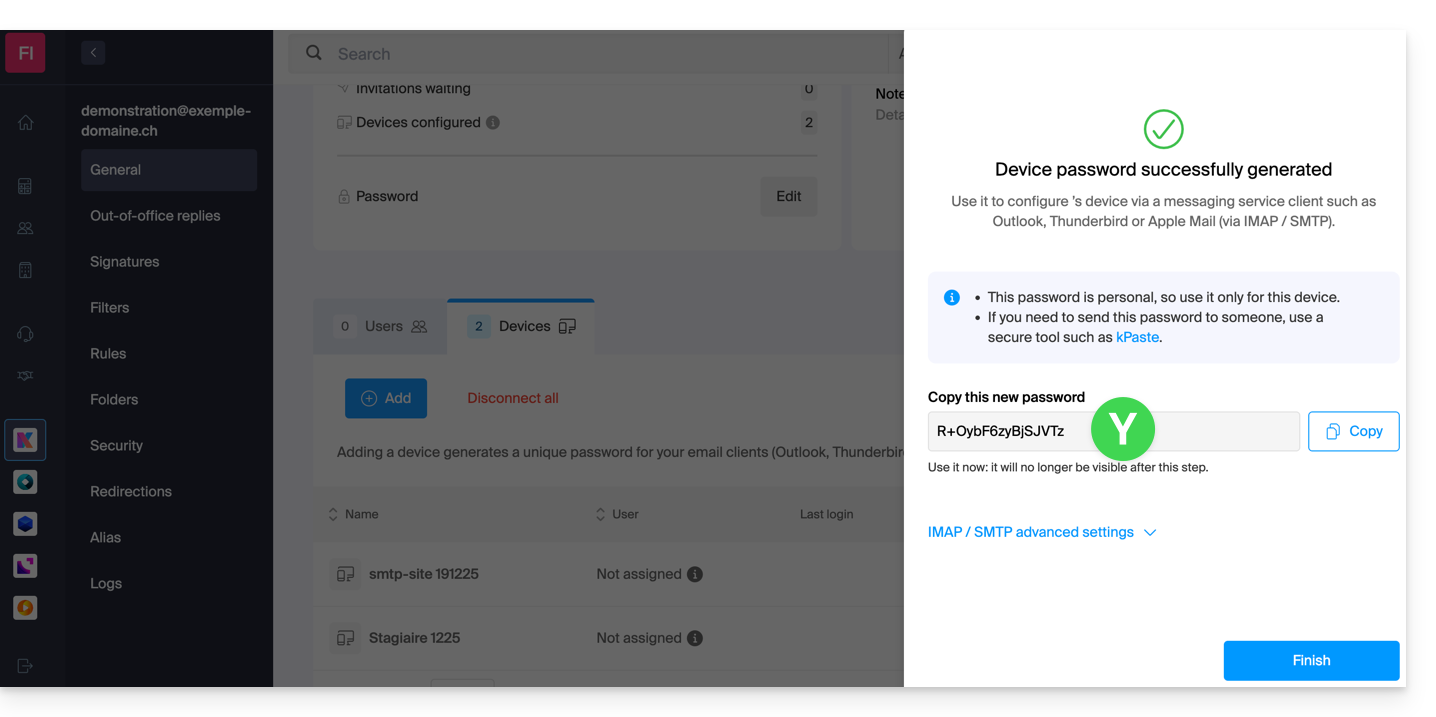
- The password is now displayed; you can use it for your intended purpose (please note that it will not be possible to display it again; however, as before, it will of course be possible to modify it or generate a new one):
Alternative: create a password for a user
Instead of creating a password yourself and then having to communicate it to the user, you can directly allow a user with fewer permissions than you to obtain the password for the device they need:
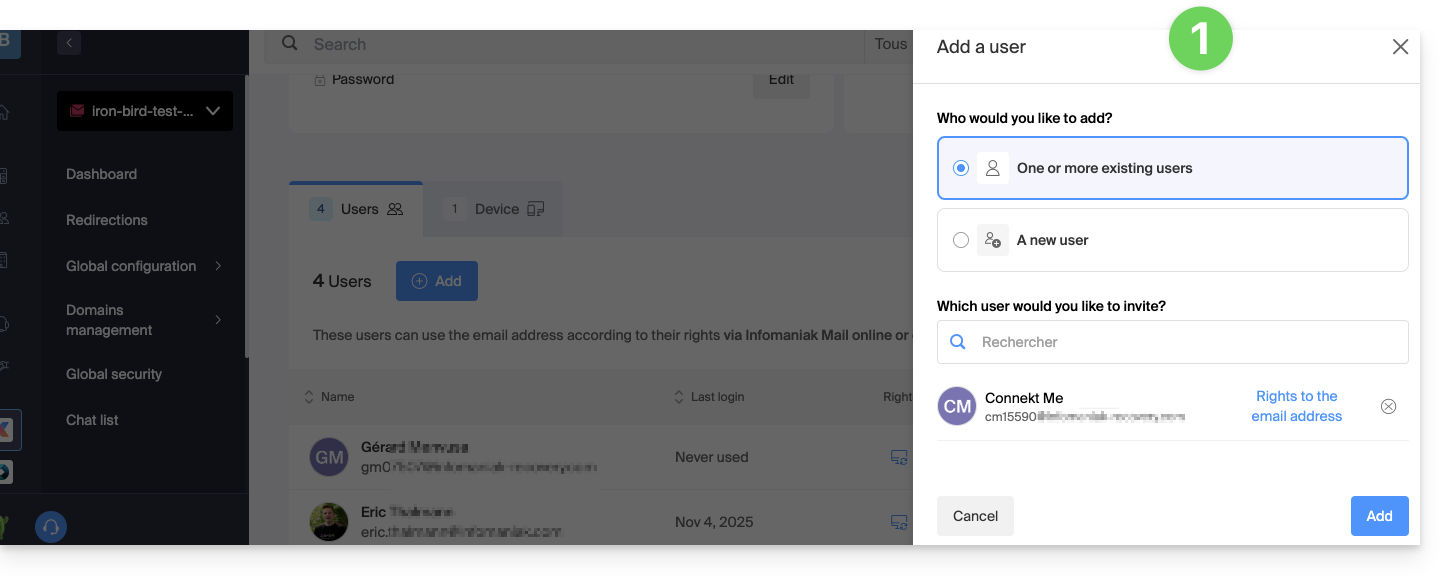
- Add the new user (whether they already exist in the Organization or not) as described in this other guide:
- Once the user has been added, switch to the devices tab to add a new device:
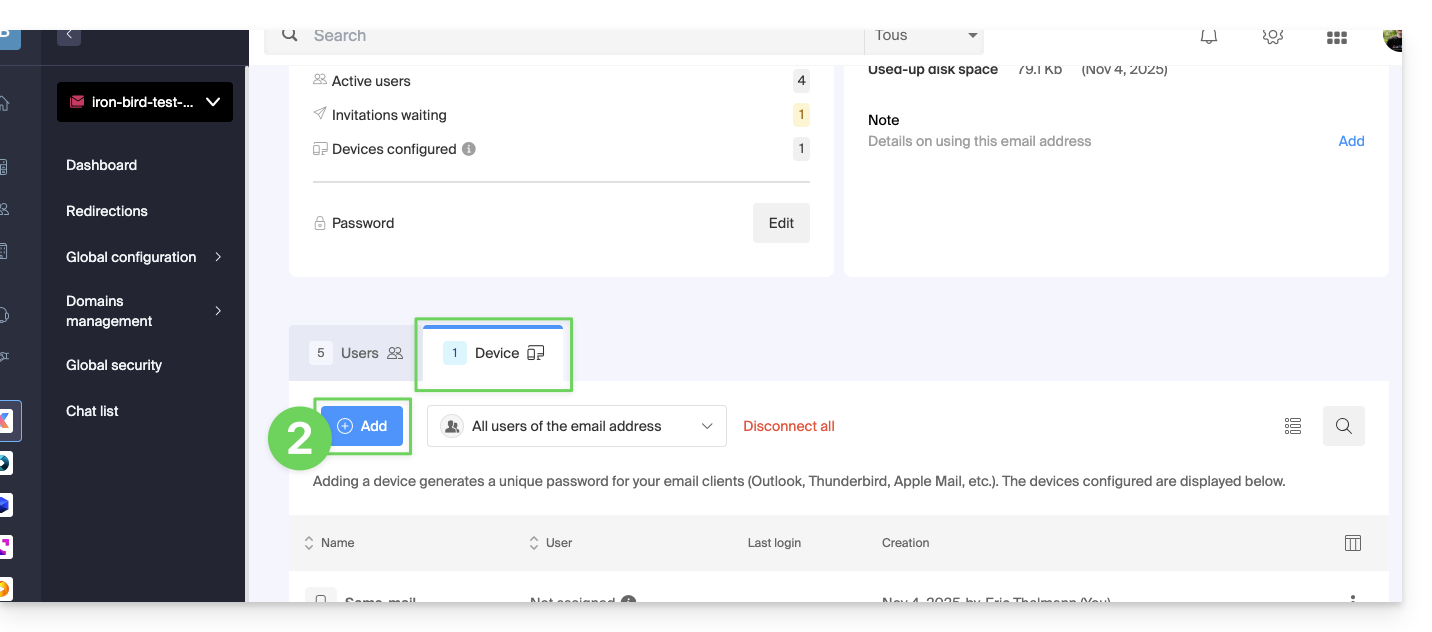
- If necessary, enter the password to log in to your Infomaniak account, then select the user created in step 1.
- Click on the first option to send a configuration assistant for the user's device.
- Click on the Continue button:
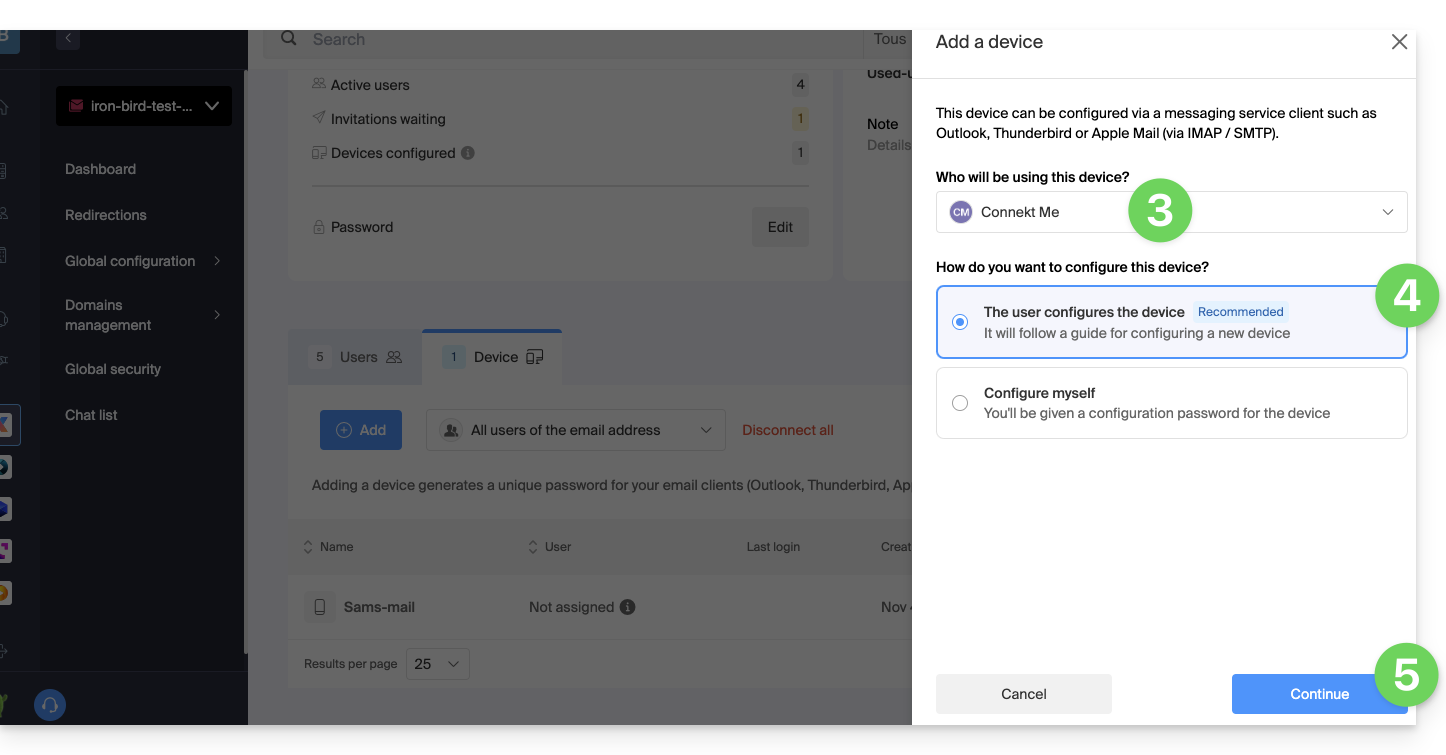
- Copy the invitation link, which is valid for 30 days, and send it to the user.
- If necessary, send the invitation to the user's email address:
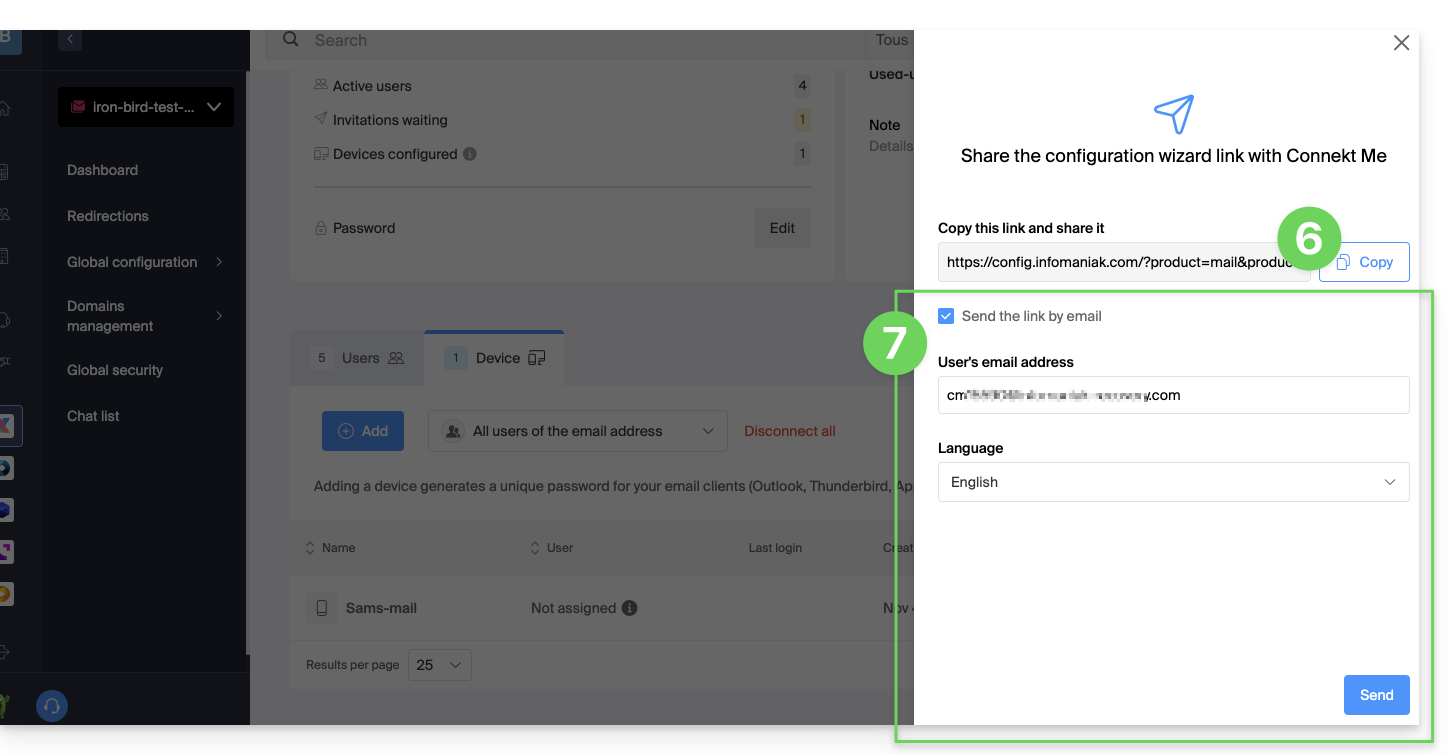
In step 4 above, you can also choose to generate a password:
- The password you created will be displayed; you can modify it one last time, copy it, and store it securely (e.g., in a password manager); it will no longer be possible to display it afterward.
Modify or remove an existing password
When access is no longer needed, revoke only the password in question: other access to the email address will remain active.
Link to this FAQ: https://faq.infomaniak.com/1321
Has this FAQ been helpful?
This guide explains how RBLs work, the questionable policies of some of them, and how to resolve any potential email blocking issues.
Introduction
- RBLs (Realtime Blackhole List) or DNSBL (Black List DNS) are lists containing addresses/IP addresses/provider names/servers that are known to be major sources of spam.
- These are often large, general blacklists used to identify messages considered undesirable and the senders of those messages, and are maintained by certain providers (smtpcheck, uceprotect: non-exhaustive list)…
Adding the email address to the RBL
When an email address is identified as belonging to an unwanted sender, it is blocked to prevent the receipt of unsolicited messages. A block in the RBL does not expire. Addresses will be listed indefinitely.
If you receive a message indicating that your email address is blocked by an RBL, it means that Infomaniak's security system has detected suspicious or undesirable activity associated with that email address. This may include sending large numbers of unsolicited messages, participating in phishing campaigns, or other malicious behavior.
Resolving an email block (RBL)…
… if the error message mentions your address and RBL
If you receive error messages like the following:
anna.a@domain.xyz is RBL blacklisted - http://chk.me/rbl
If you encounter this issue when sending an email and believe it is a false positive, contact Infomaniak support.
To prevent your email address from being blocked by the RBL blocking system in the future, follow these best practices for email usage:
- Do not send unsolicited messages or mass messages to unknown recipients.
- Regularly sort the list of recipients used.
- Do not participate in phishing or cybercrime activities.
- Ensure the highest level of security where your emails are used:
- strong password
- up-to-date software
- up-to-date operating system (iOS, Android, Windows, macOS, etc.)
- up-to-date configuration of the associated domain
… if the error mentions an organization such as Sorbs or Barracuda
If you receive errors such as
554 5.7.1 Client host blocked using sorbs
or similar:
- Follow the procedure outlined by the organization in question (for example, http://www.barracudacentral.org) to have your address removed from the list.
- Temporarily change your internet service provider or connection method – Wi-Fi vs. 4G/5G – to send your messages.
- Inform your recipient and their email provider to take the necessary steps and/or stop using an unreliable RBL.
- Please wait a few hours and try again.
Fewer and fewer professionals (ISPs, hosting providers, etc.) are using service providers such as Backscatterer / UCEPROTECT, whose primary purpose is financial gain. There are many other very effective lists, such as ABUSIX or SPAMCOP, which are well-maintained and whose real goal is to fight spam, one of Infomaniak's priorities.
Link to this FAQ: https://faq.infomaniak.com/1333
Has this FAQ been helpful?
This guide presents the security model that allows you to assign users to an email address or dedicate a different password to it for each device or software that needs to access it.
Introduction
- No password is set when creating a mail address.
- If you remain within the Infomaniak ecosystem, i.e., you only use the Infomaniak Mail web app (online service ksuite.infomaniak.com/mail) and/or the Infomaniak Mail mobile app (application for iOS/Android smartphones or tablets), you do not need to manage a password because everything is configured using the concept of a user, i.e., an Infomaniak account (which has a password):
- A mail address can be viewed/used on these Infomaniak Mail apps without a password other than the one that already allows access to your Infomaniak account, simply after you have been invited.
- You only need to authorize your own account or invite an acquaintance to be a user of the mail address.
- Otherwise, outside of this ecosystem, you simply create a password (or several) for your devices (Outlook, iPhone, CRM, etc.) according to your needs:
- Each password can be revoked individually, without affecting other users or devices linked to this address.
- It is not possible to display a previously created password; simply create a new one!
Add a user
= Allow a person to view the email address in the Infomaniak Mail interface
To allow a user (including yourself) to view the email address in Infomaniak without needing a password other than their own (the password for their Infomaniak account):
- From the Mail Service dashboard:
- add the email address to your Infomaniak Mail apps so you can use the address,
- or decide which other external user should have access to the address in their Infomaniak Mail apps,
- or remove a user's access: the other accesses to the email address will remain active.
- You can manage authorized users directly from the Mail web app (any user of an email address on Infomaniak can view the list of other users who have access).
Add a device
= Add a password to allow someone to access the address on a device (Outlook, iPhone, CRM, etc.)
To allow a user (including yourself) to view the email address in IMAP and send messages via SMTP (both protocols require a password):
- From the Mail Service dashboard:
- You can manage connected devices directly from the Mail web app.
Link to this FAQ: https://faq.infomaniak.com/1344
Has this FAQ been helpful?
This guide concerns the notifications that you can receive with the Infomaniak Mail mobile app (application for iOS/Android smartphones or tablets).
Receive notifications based on a specific email address
The Infomaniak Mail mobile app allows you to manage multiple email addresses, and you can choose to receive notifications for only some of your email addresses and not others.
To access the notification settings in the app, please refer to this other guide.
Troubleshooting…
… on iOS
In the settings of the Infomaniak Mail mobile app, check that notifications are enabled for the email address in question: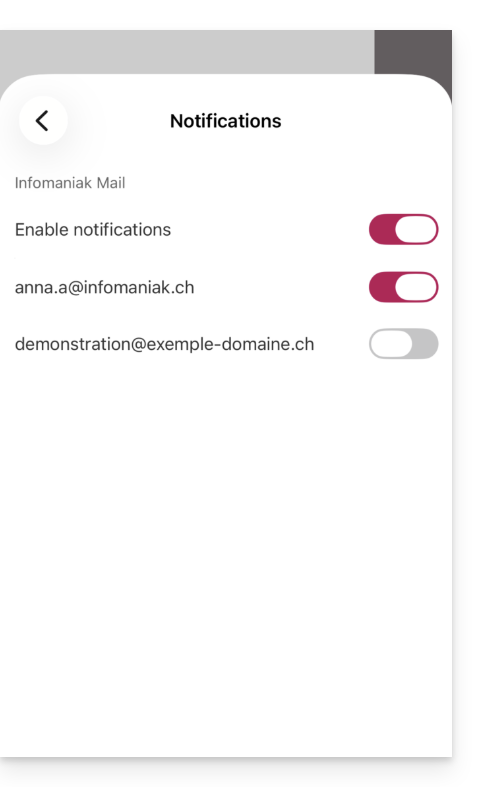
… on Android
On Android devices, especially Samsung devices with One UI 6.1 and later, the system settings screen for notifications no longer allows you to specify which of your email addresses should trigger a notification by default: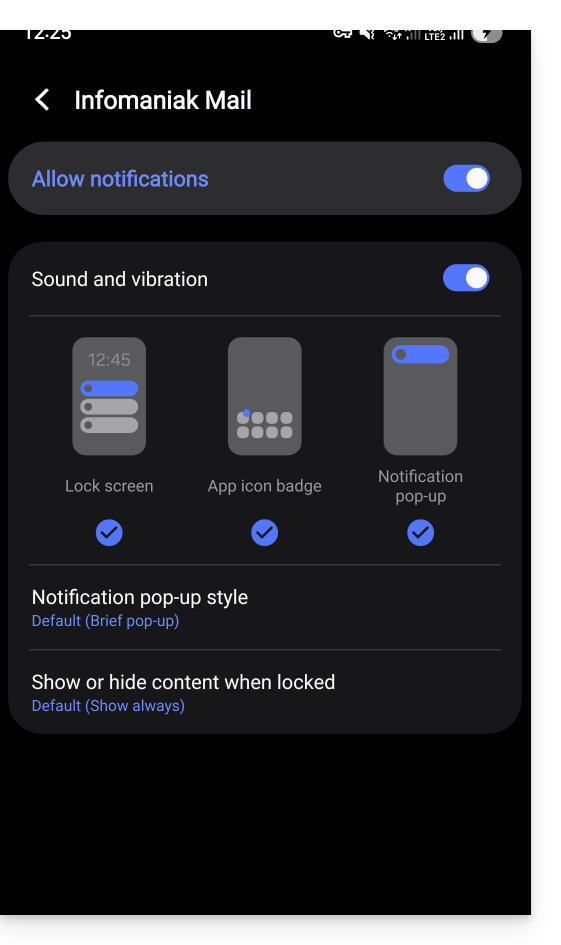
The solution is to enable this from the main Android notifications page by clicking on “Advanced settings” at the bottom of the window…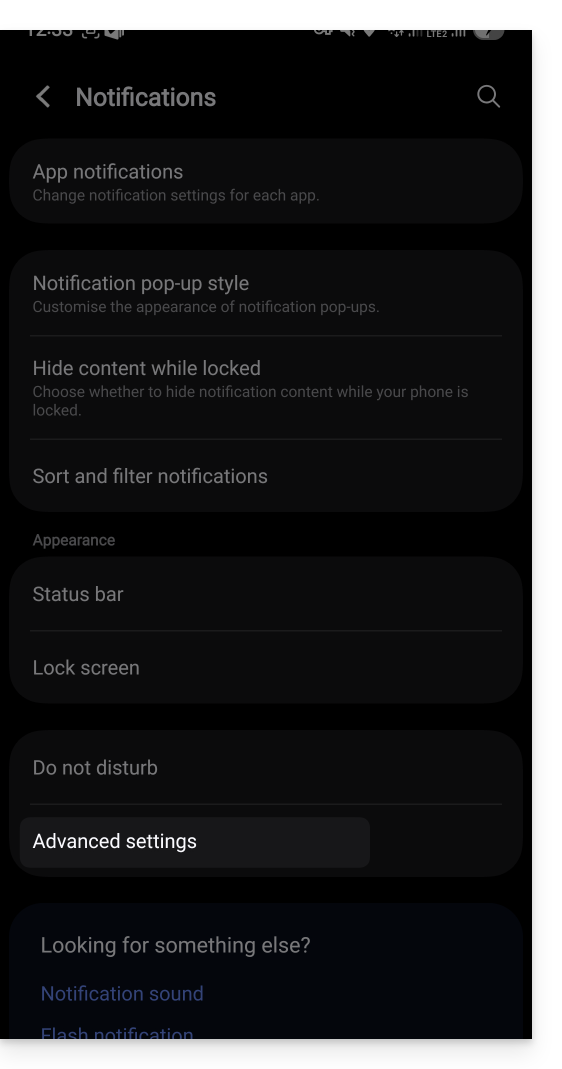
… the “Manage notification categories for each application” option: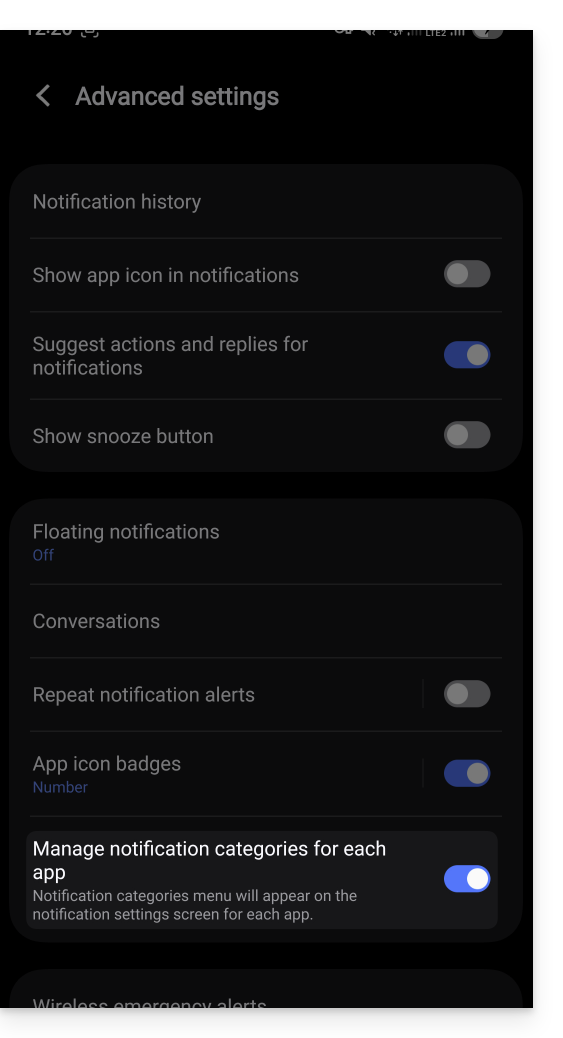
Then, go back to the Infomaniak app’s notification page and you can tap on “Notification categories”…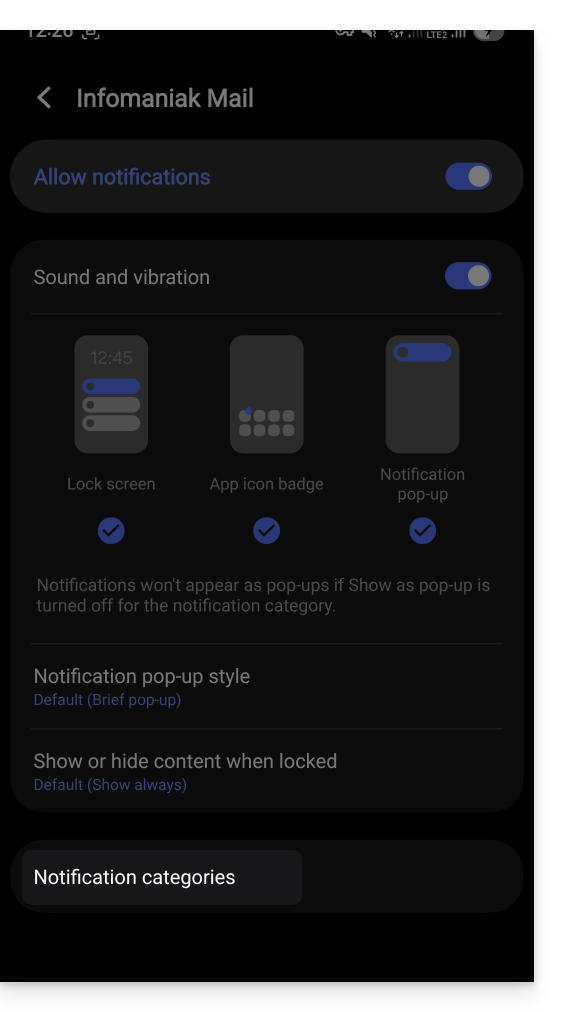
… to restore the option to choose specific notifications per email address: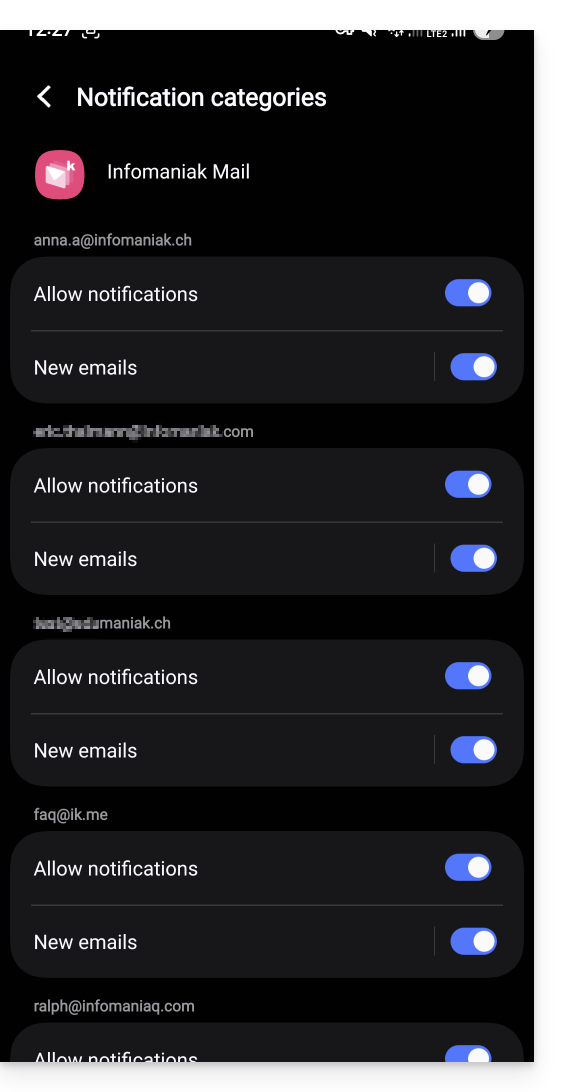
Receive all notifications
If you have enabled notifications for the app on your mobile device, you will receive a notification for each new message that arrives.
Troubleshooting…
If you see a new message arriving in your inbox, but it hasn't triggered any notifications on your device, there may be several reasons.
- Start by opening the application to make sure it's working, and update it if necessary.
- Open another application or turn off the device screen (if the Infomaniak Mail application is open, in the foreground, and the screen is on, the device may not send any notifications).
- Send a new test message to your email address to trigger a notification.
- Is the test message in your inbox? Indeed, a message that goes to spam or another folder may not trigger any notifications.
… on Android
- Have you waited several tens of minutes? Indeed, quick notifications (like push notifications) require going through a Google service to function, but some devices that do not use Google services (like Fairphone) may experience notifications arriving at much longer intervals.
Link to this FAQ: https://faq.infomaniak.com/1364
Has this FAQ been helpful?
This guide explains how to remove an user's access to an email address within the Infomaniak ecosystem, from within a Mail service. This means that the user will only be able to access the email address using the Mail Infomaniak web app (online service ksuite.infomaniak.com/mail) and/or the Infomaniak Mail mobile app (application for iOS/Android smartphones or tablets).
Other methods for managing access (e.g., using a password) are described in the main guide; also, refer to this other guide if necessary.Block an entire Mail service for all users.
Prerequisites
- You must have at least the right to manage the Mail Service in question (or be an Administrator / Legal Representative within the Organization).
Managing and removing a user from the Mail Service
The current mail access management model allows each user within an Organization to connect independently and securely to the same mail address, without sharing a global password.
If a user should no longer have access to a mail address and its content, simply remove it from the interface:
- Click here to access the management of your Mail Service in the Infomaniak Manager (need help?).
- Click directly on the name assigned to the product in question:
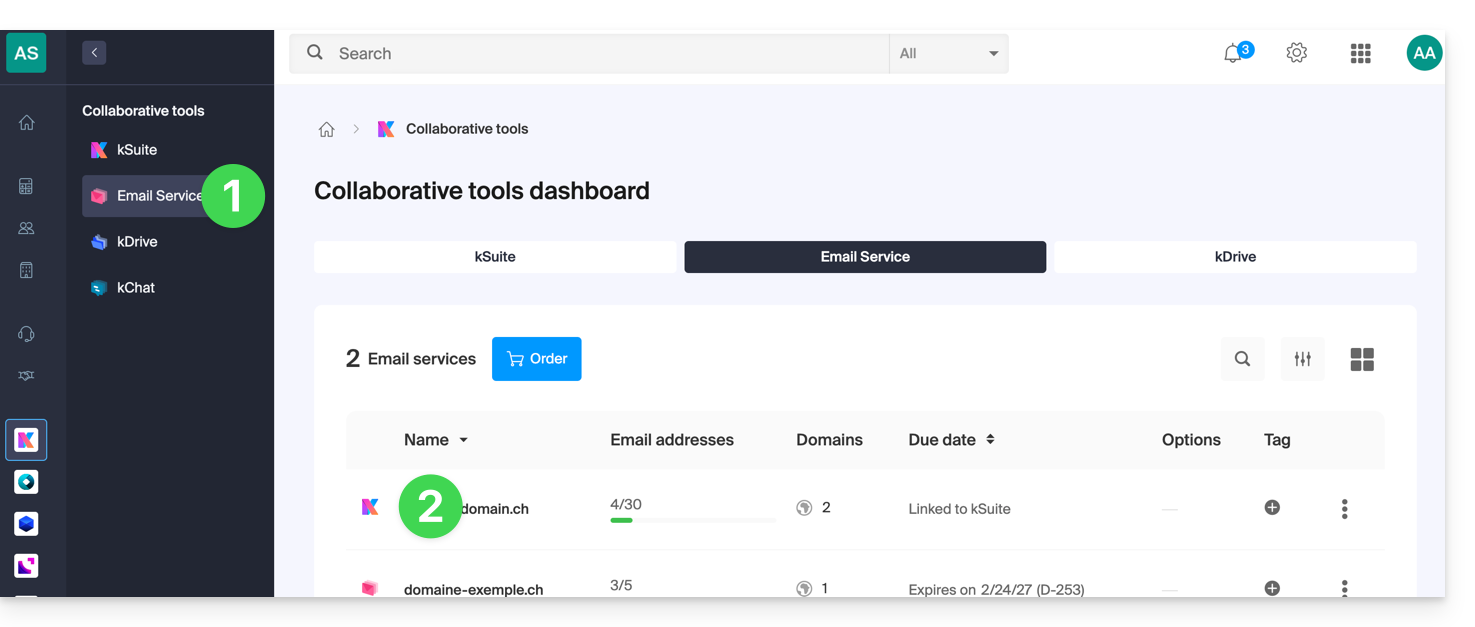
- Click on the email address in question in the table that appears:
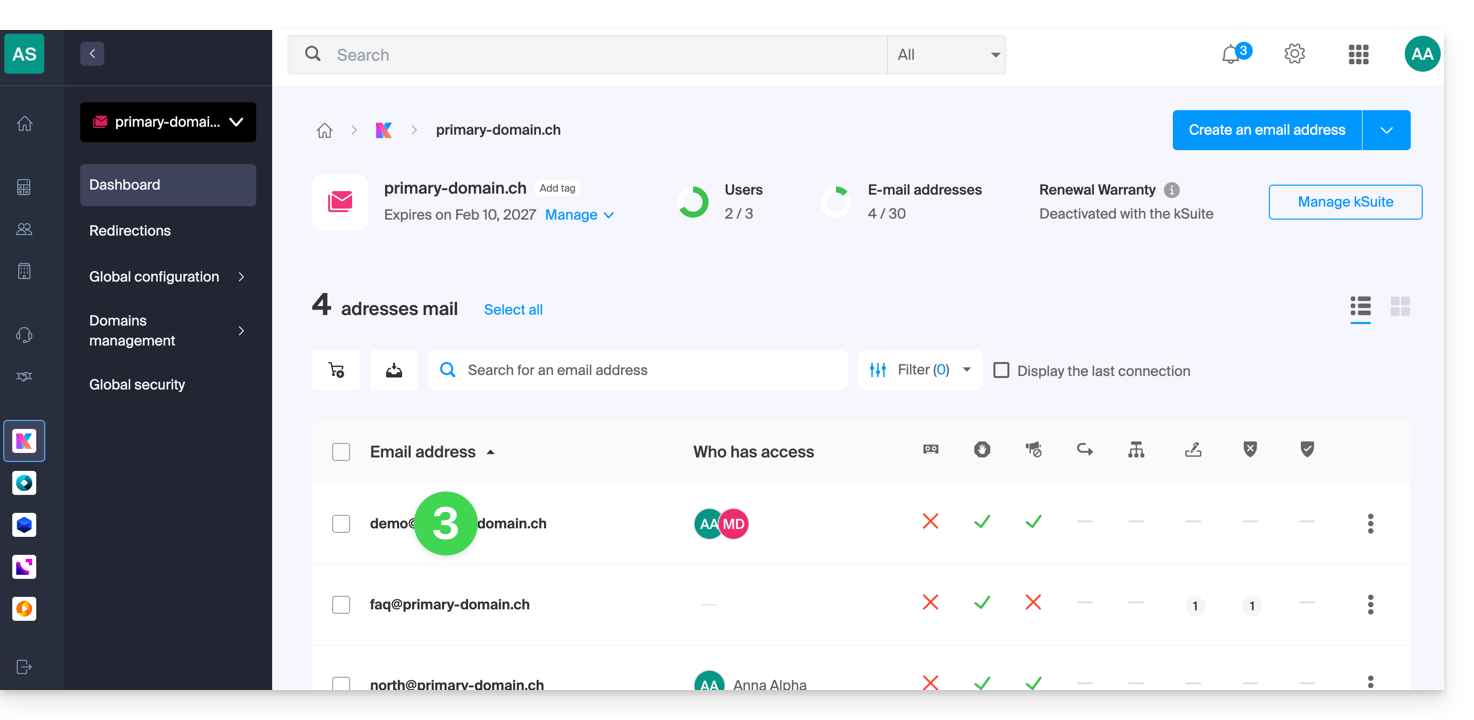
- On the list of users who currently have access to the address in question, click on the action menu ⋮ to the right of the user in question.
- Choose to remove their access to the email address:
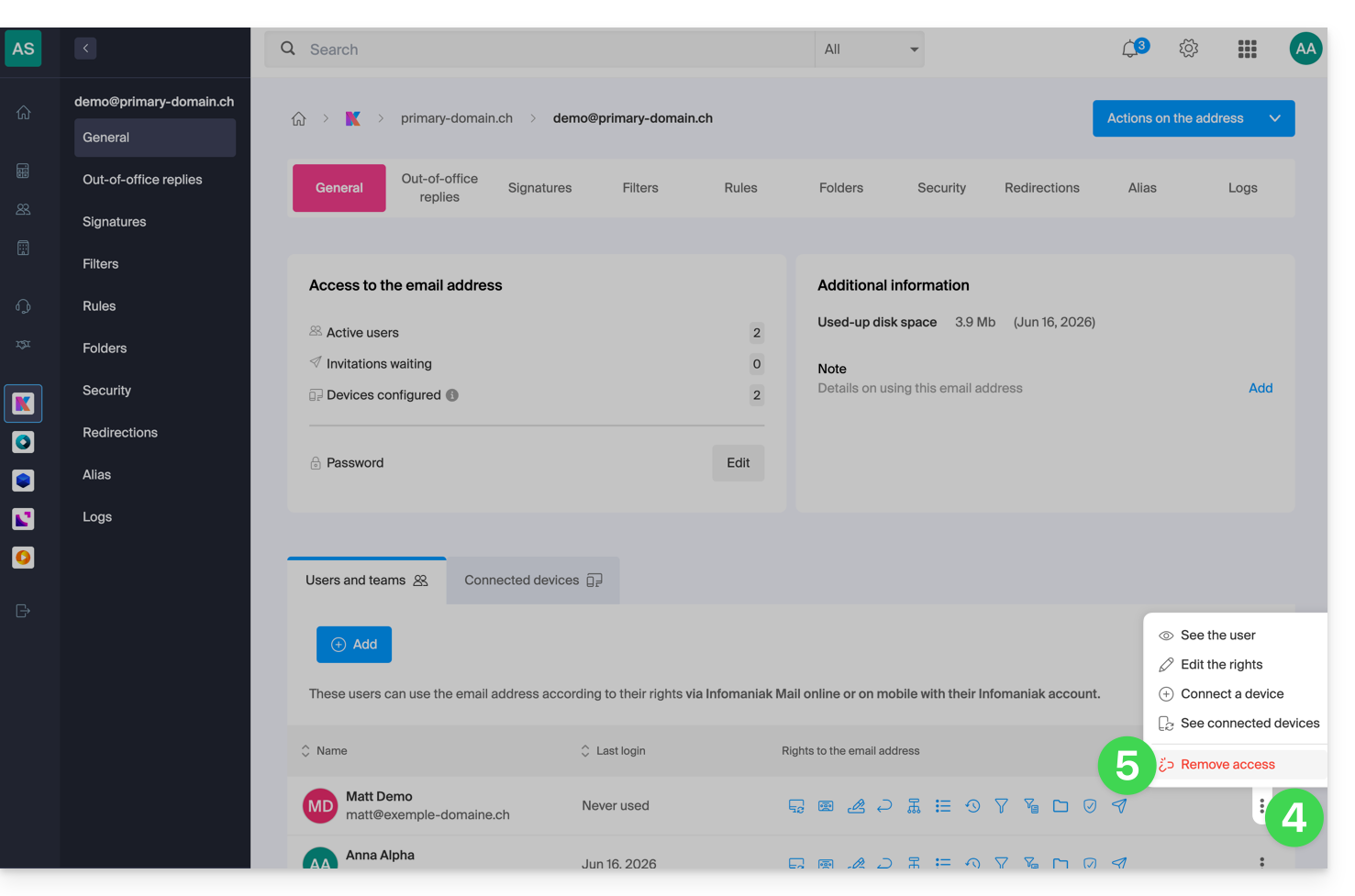
- Confirm the action: all access to the email address will be terminated, and it will no longer be possible to view it.
Link to this FAQ: https://faq.infomaniak.com/1371
Has this FAQ been helpful?
This guide explains how, from a Mail service, to allow a person to access an email address within the Infomaniak ecosystem, i.e., by using only the Infomaniak Mail web app (online service ksuite.infomaniak.com/mail) and/or the Infomaniak Mail mobile app (application for iOS/Android smartphones or tablets), without creating a specific password for the address.
Other access and management options are presented in the main guide.
Prerequisites
- Order a Mail Service from Infomaniak.
- Create one or more addresses on this Mail service.
- Have at least the right to manage the Mail service in question (or be Administrator / Legal Representative within the Organization).
Invite a user to use an email address from the Mail service
To allow an existing user to access the email address you want to share:
- Click here to access the management of your Mail Service in the Infomaniak Manager (need help?).
- Click directly on the name assigned to the product in question.
- Click on the email address in the table that appears:
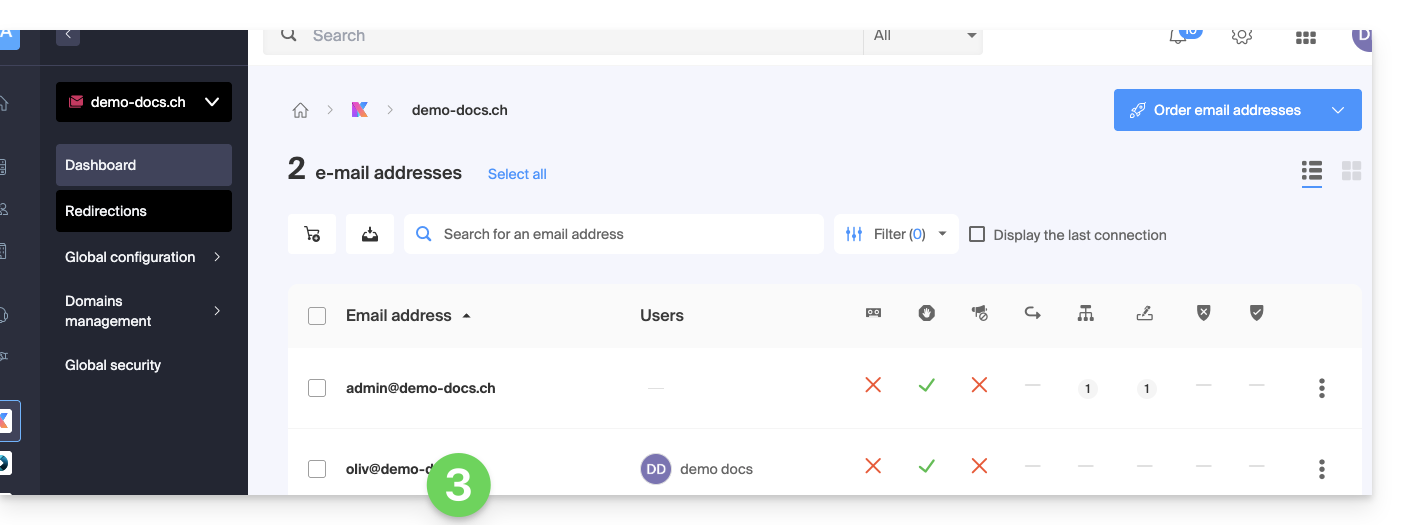
- Click on Add above the table of users who currently have access to the email address in Mail:
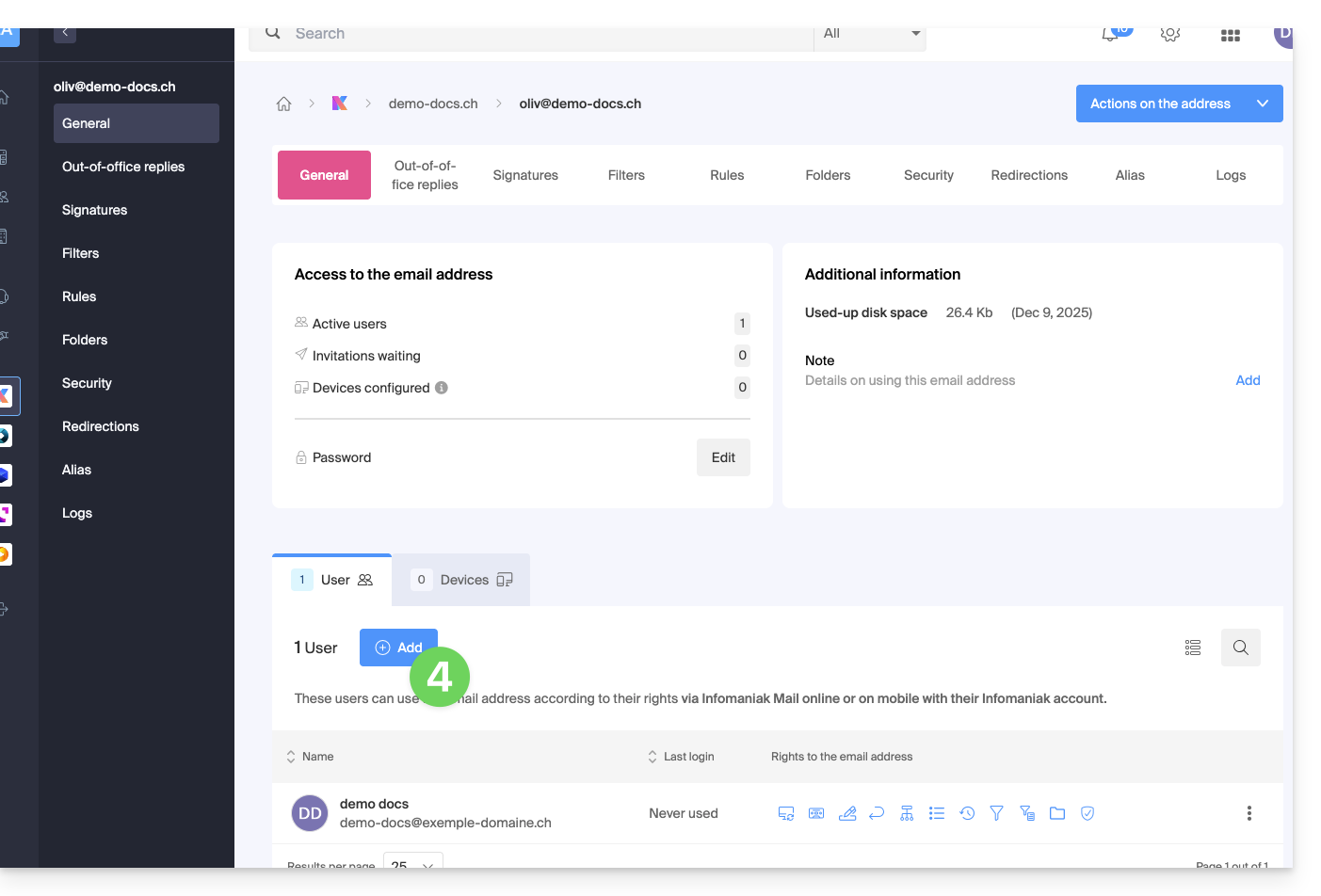
- Enter the password to log in to your Infomaniak account if prompted.
- Choose (a) one of the existing users within your Organization or (b) an external user:
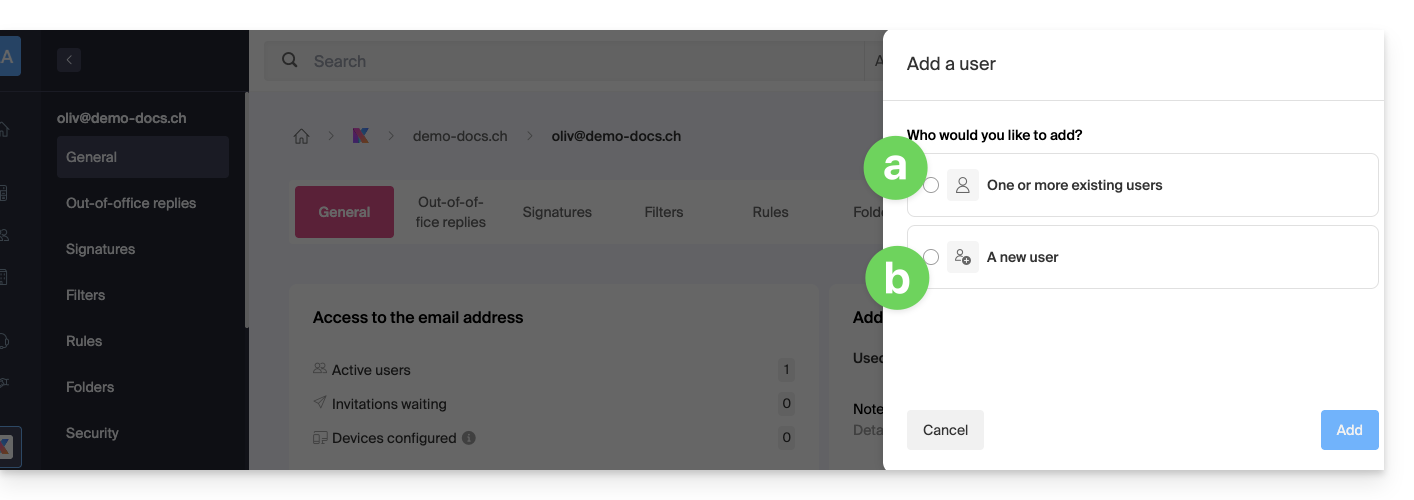
Option [a]: Existing user in the Organization
When the third party who needs access to the email is already part of the Organization, it's very simple:
- The email address in question will automatically be visible and accessible to the selected user on the Infomaniak Mail web app (online service ksuite.infomaniak.com/mail) with the specified permissions.
- Click the button to Add the user:
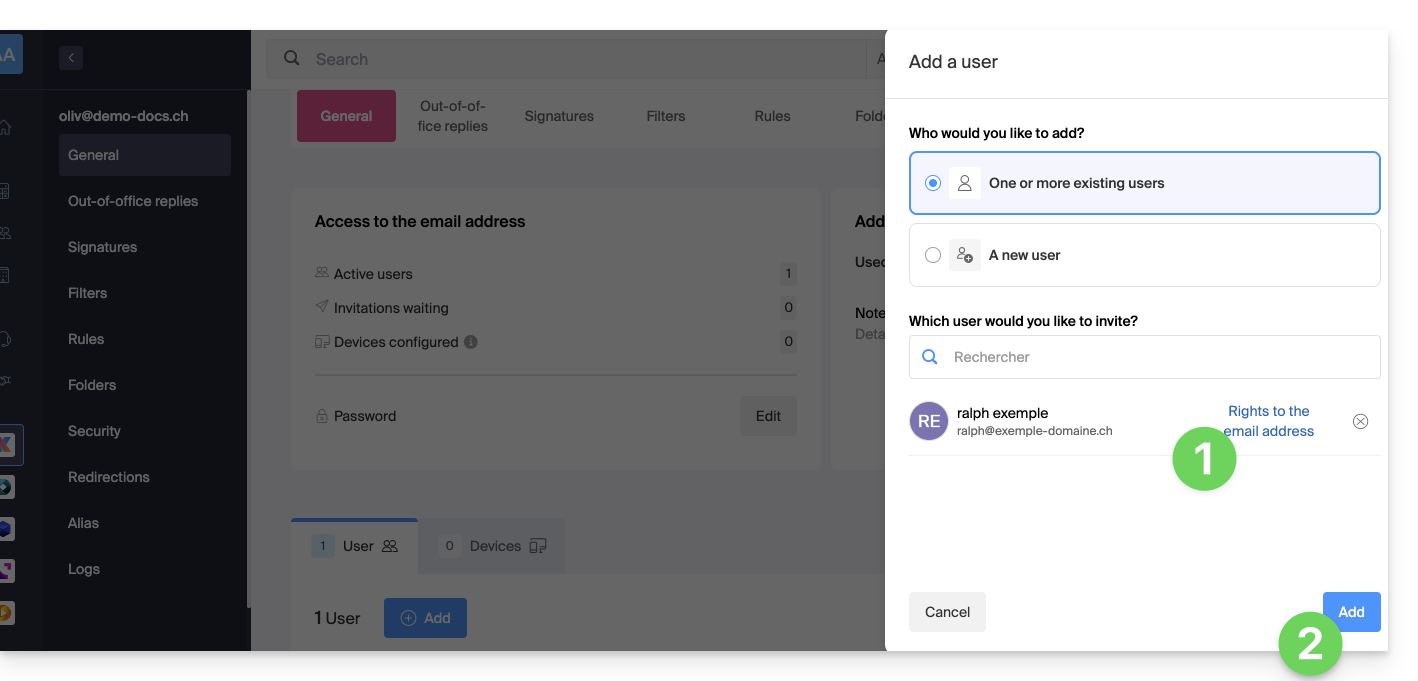
- After adding the user, you can still restrict their access by clicking on the icons corresponding to the permissions…
- …or even remove their access to the email address:
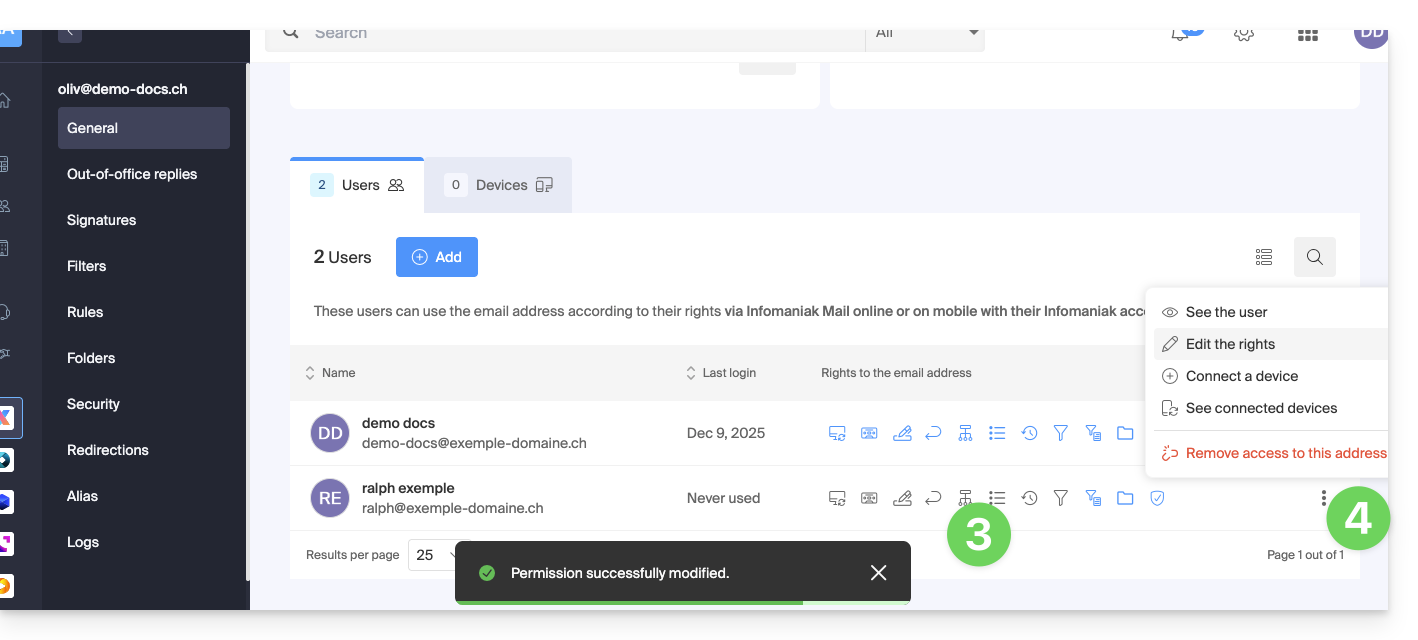
The user in question does indeed have access to the email address in question: 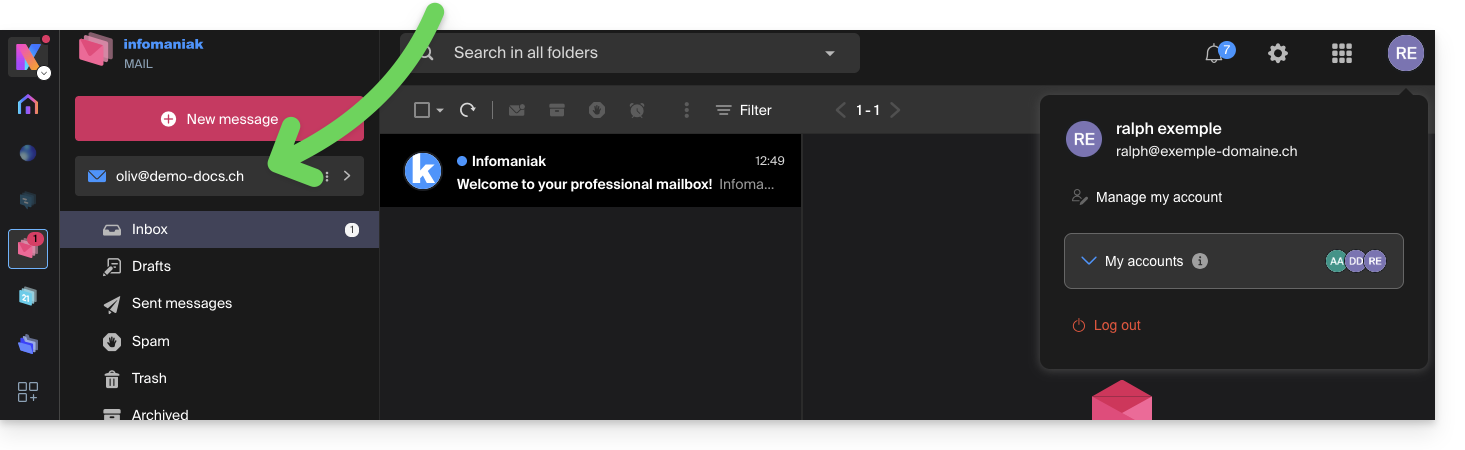
Option [b]: User external to the Organization
If the third party is not at all affiliated with the Organization, either because they are not yet familiar with Infomaniak, or because they have their own Organization:
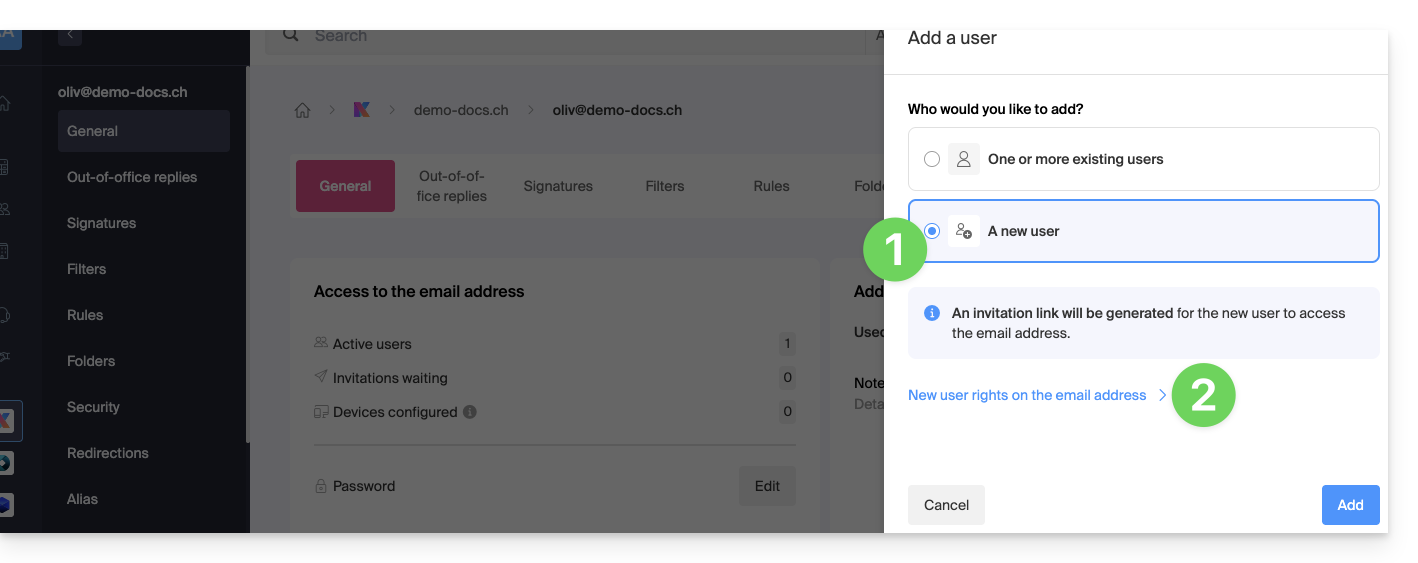
- Click on the radio button to select the new user option.
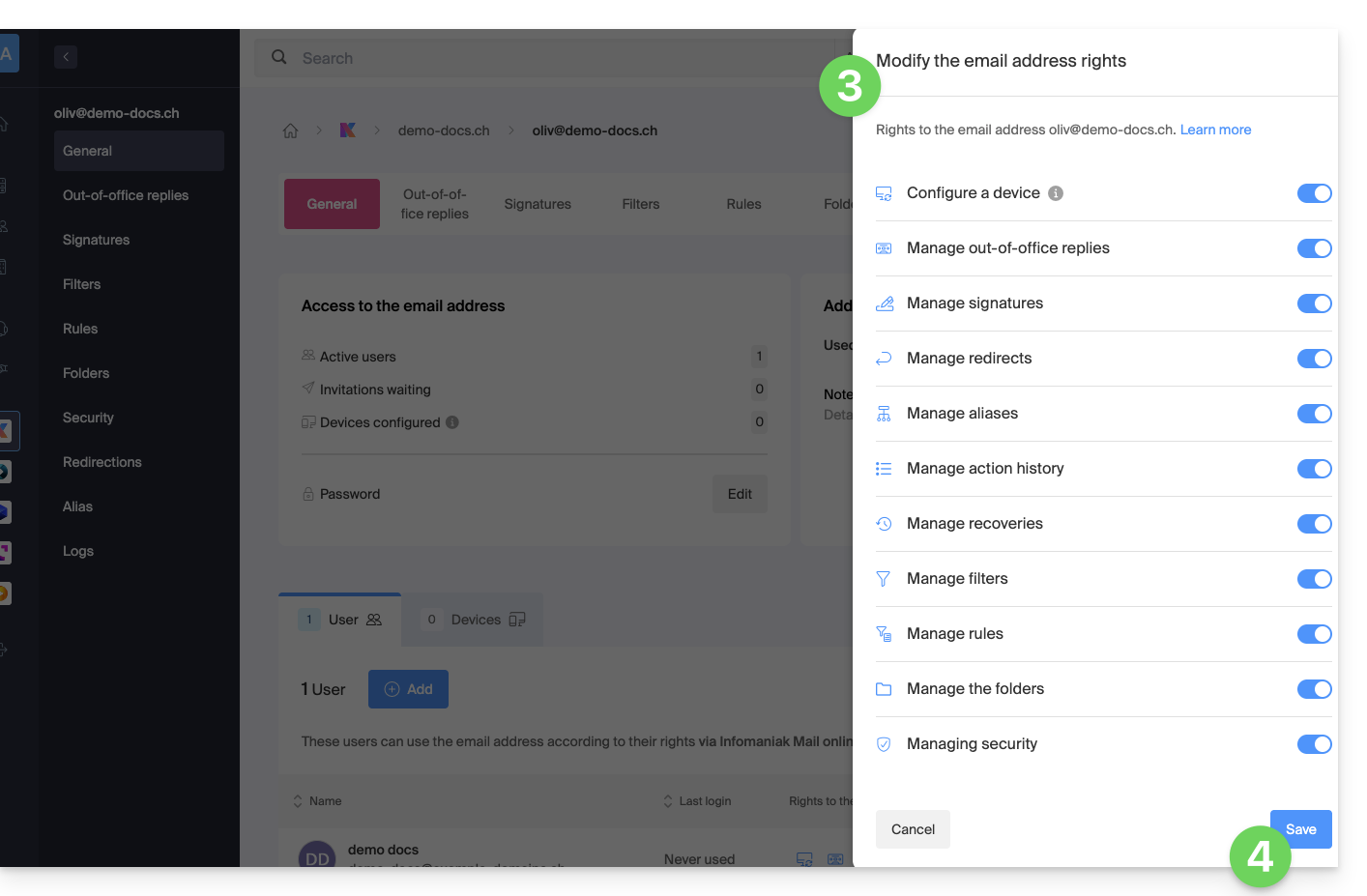
- Click to configure the user's permissions:
- If necessary, modify the permissions granted to the user for the email address in question.
- Save the changes:
- Click the button to Add the user:
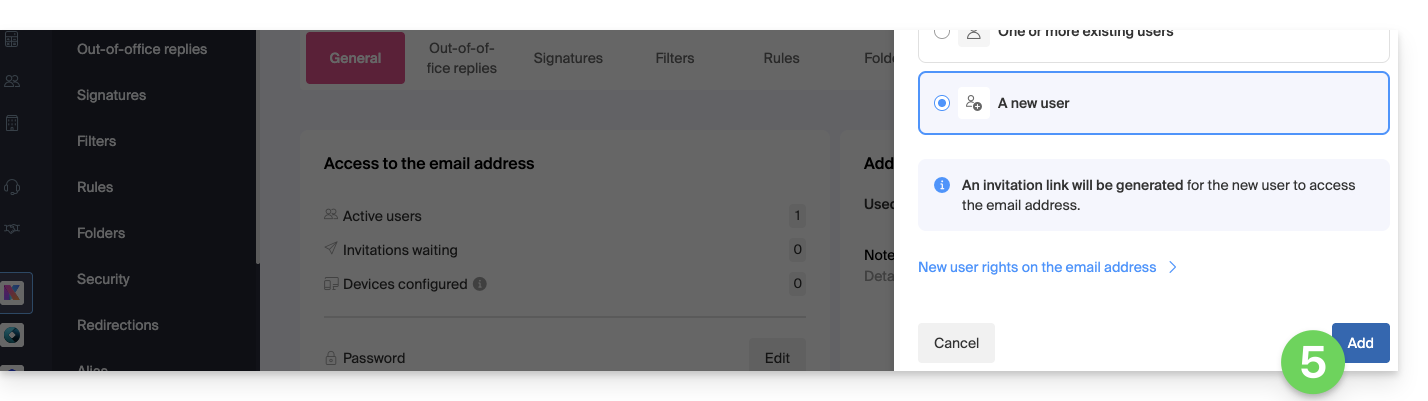
- The invitation is created (in the form of a URL, such as
https://welcome.infomaniak.com/iw/abcdef-12345..…), and the user simply needs to click on the link (see below) to add the email address to their Infomaniak Mail account. - It is possible to send the invitation by email:
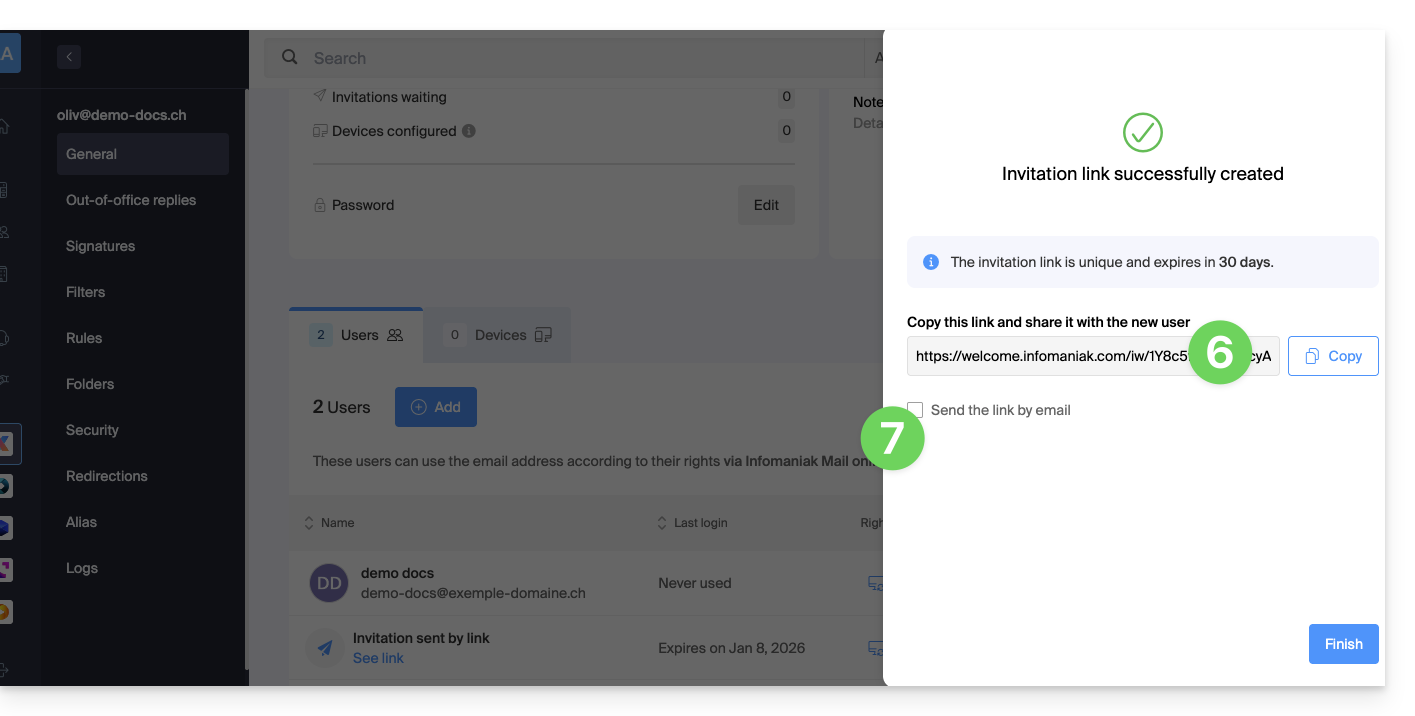
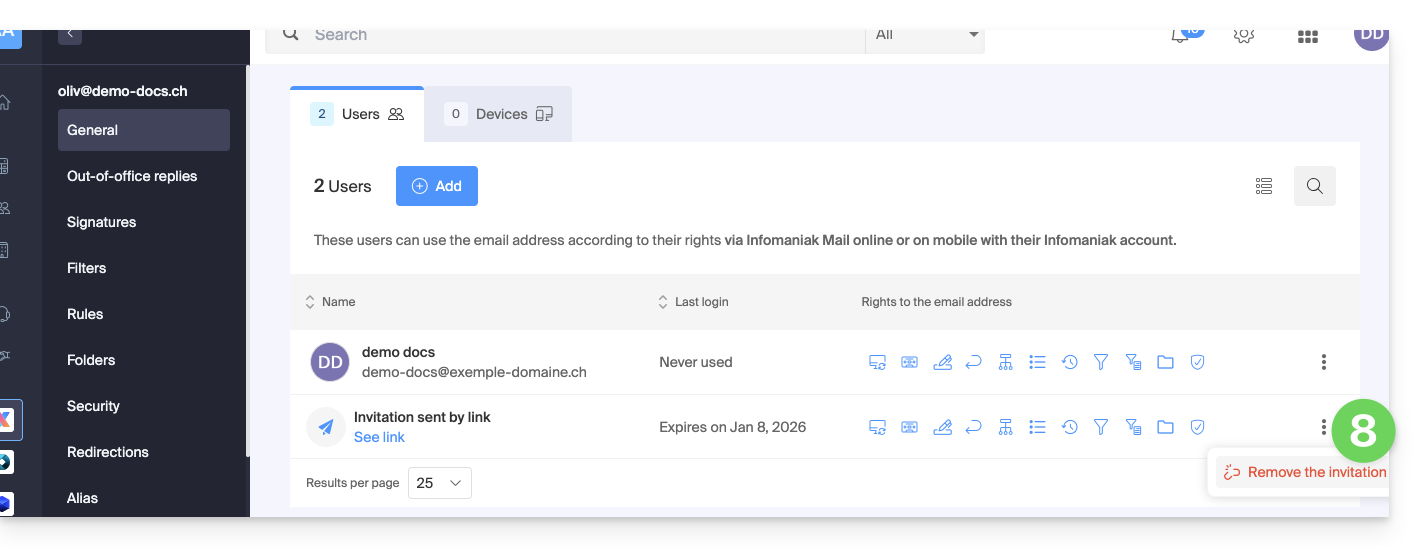
- The invitation is visible in the user tab of the email address, and it can be deleted at any time:
If the third party is already using the Infomaniak Web Mail app…
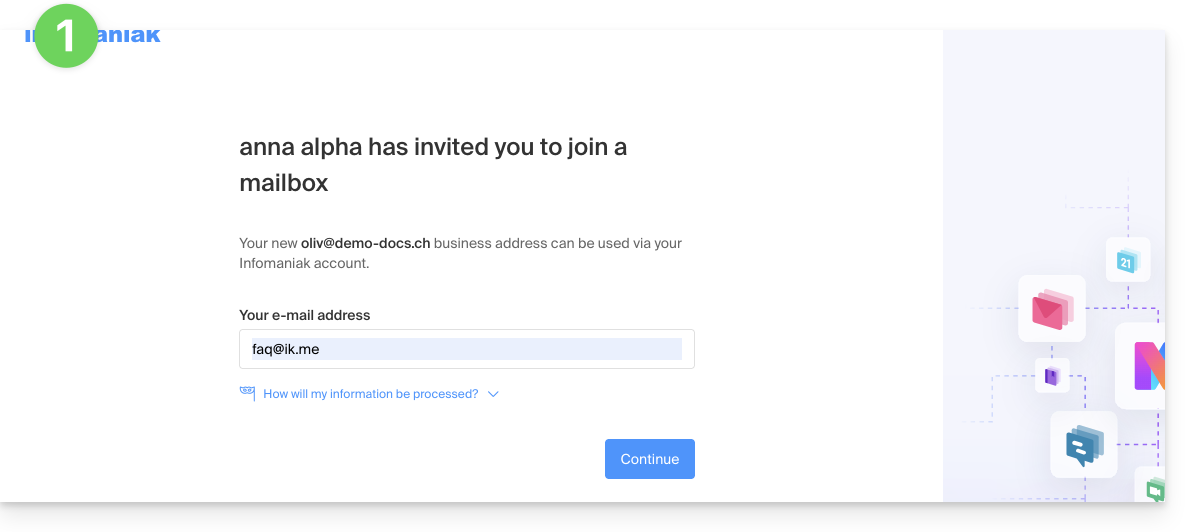
The user (third party) clicks on the invitation link while logged in to their Infomaniak account…
- … or if they log in to their account after clicking on the invitation link:
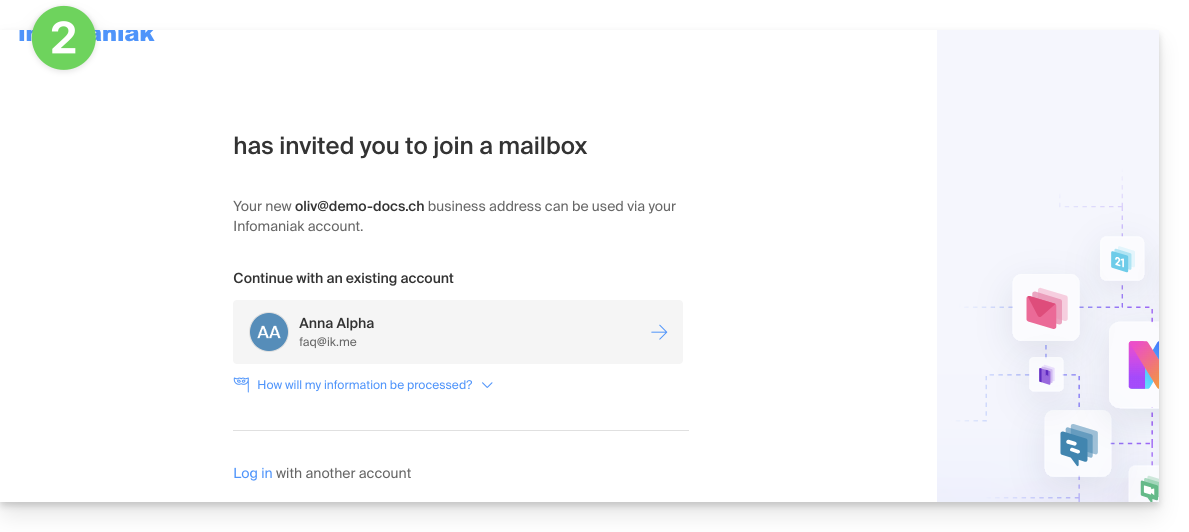
- If necessary, the user can still change accounts before associating the address if needed:
- The user in question can access the email address in question once they have chosen the organization:
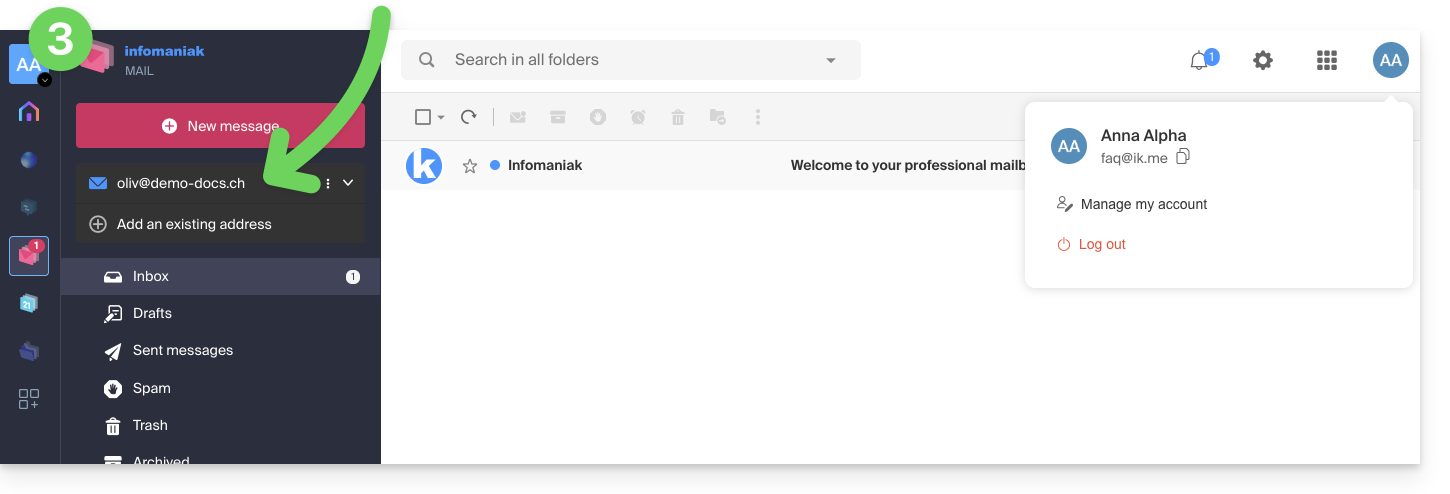
If the third party is not yet using Infomaniak…
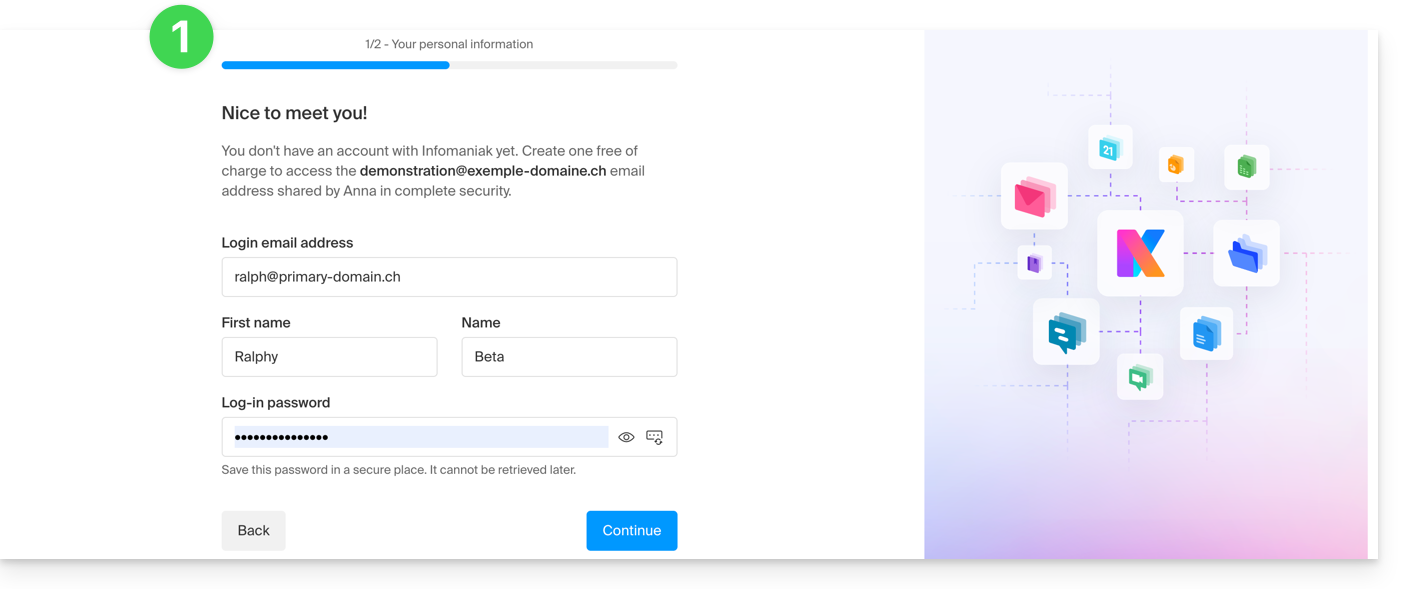
After clicking on the invitation link received and entering their email address, the third party will be prompted to create an Infomaniak account:
- She will need to enter her contact details and create a password to log in to her Infomaniak account:
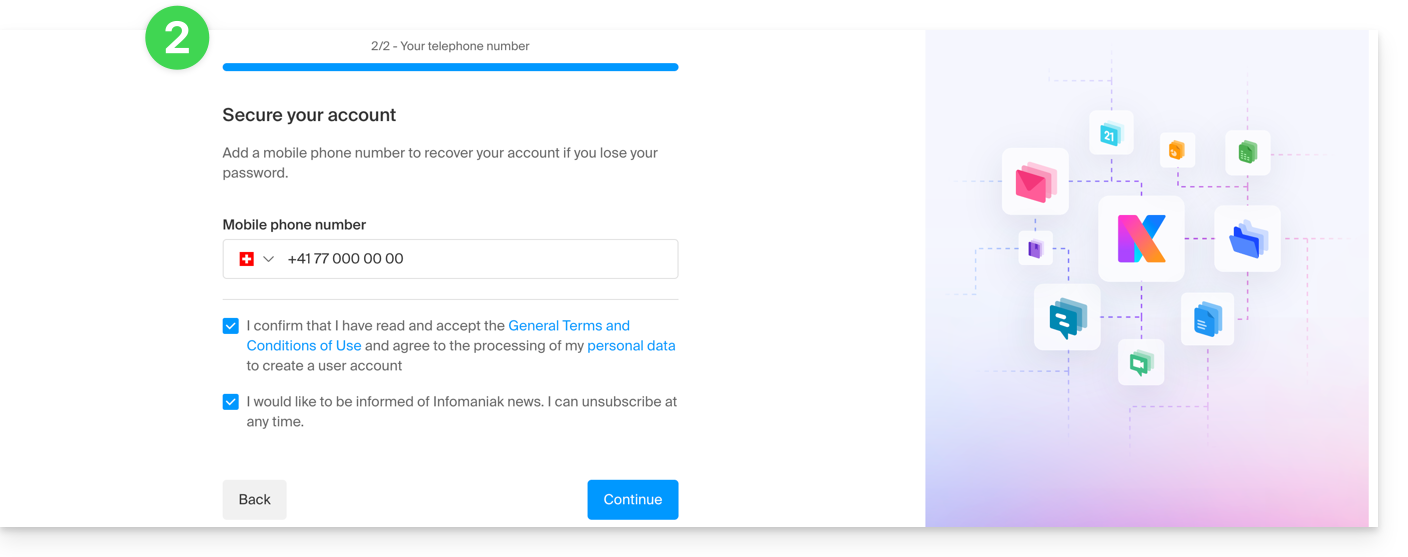
- She will need to provide a phone number and accept the terms and conditions:
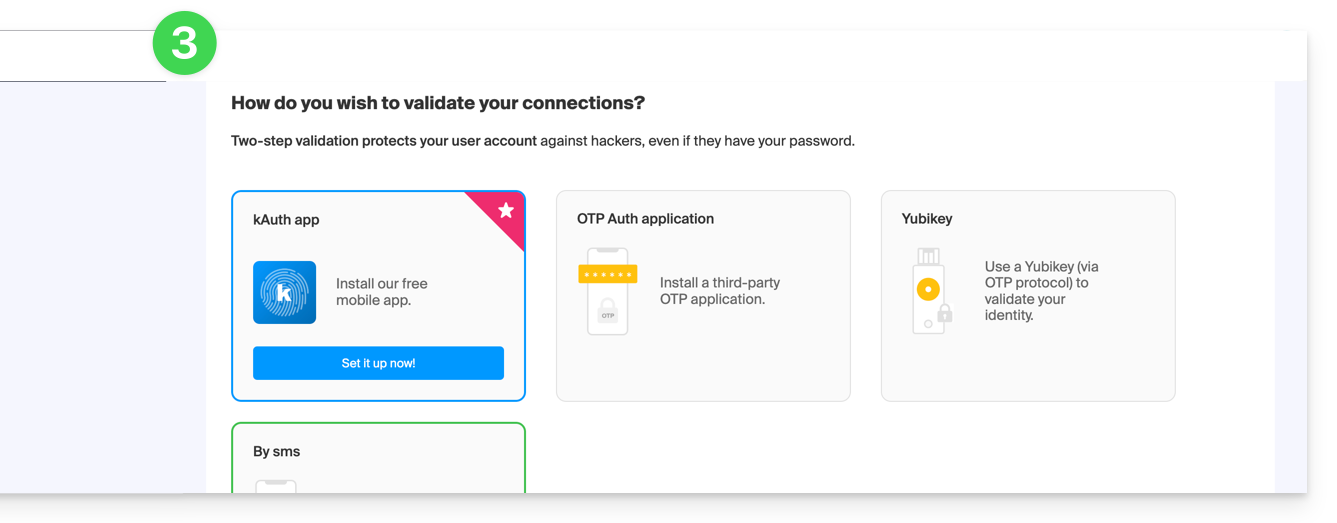
- She will need to add a two-factor authentication (2FA) method to secure access to her Infomaniak account:
- Once the 2FA method has been added, that's it: the user is redirected to the Mail Infomaniak web app, which will display the email address to which the invitation link referred:
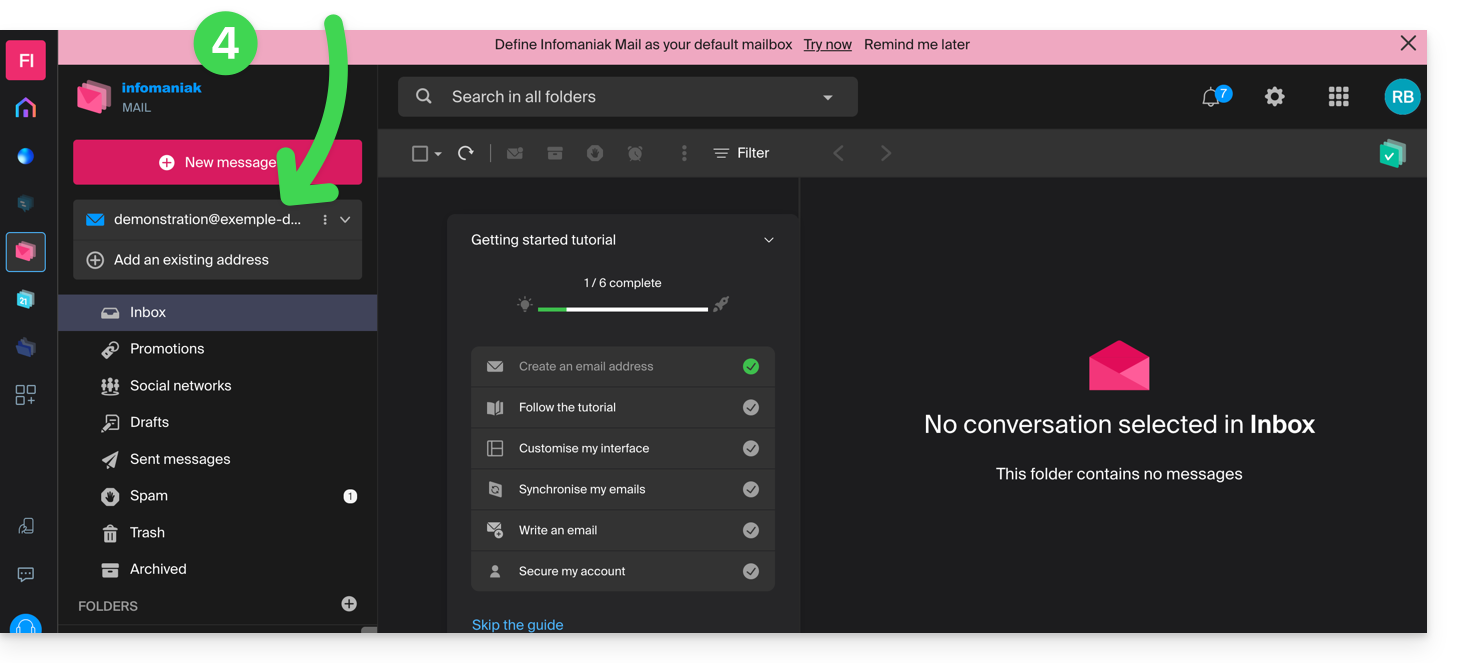
In case of a problem
If the Invite button is not visible or remains grayed out, check that:
- your user account has sufficient permissions to manage the product in question
- the email address in question does not yet exist as a login ID for an Infomaniak Organization
- the table below the button does not mention a user with an email address identical to the email address in question.
Example: you want to invite someone to view the address anna.a@domain.xyz, but the button is grayed out because a user anna.a@domain.xyz is listed in the table.
Solution: to be able to invite a new user to view the address in question (or if a message indicates that it is not possible to proceed further for security reasons), please refer to this other guide.
If the user cannot access the address
When a user is added, the email address is automatically added to their Mail Infomaniak apps: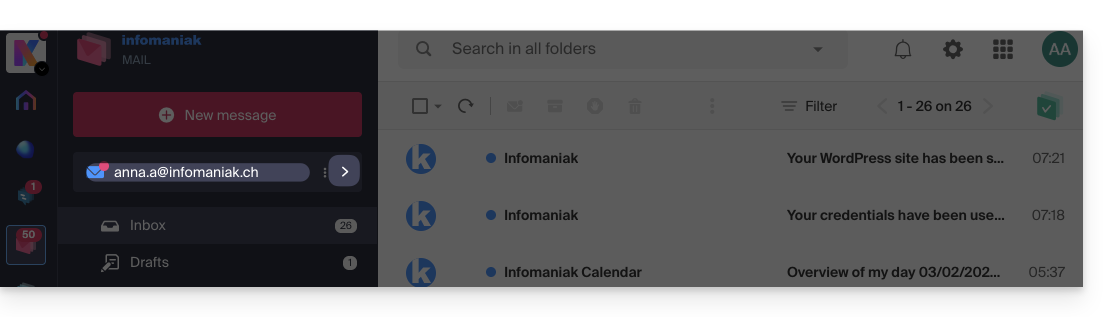
They can switch between their addresses at any time via the chevron located in the upper left corner of the screen: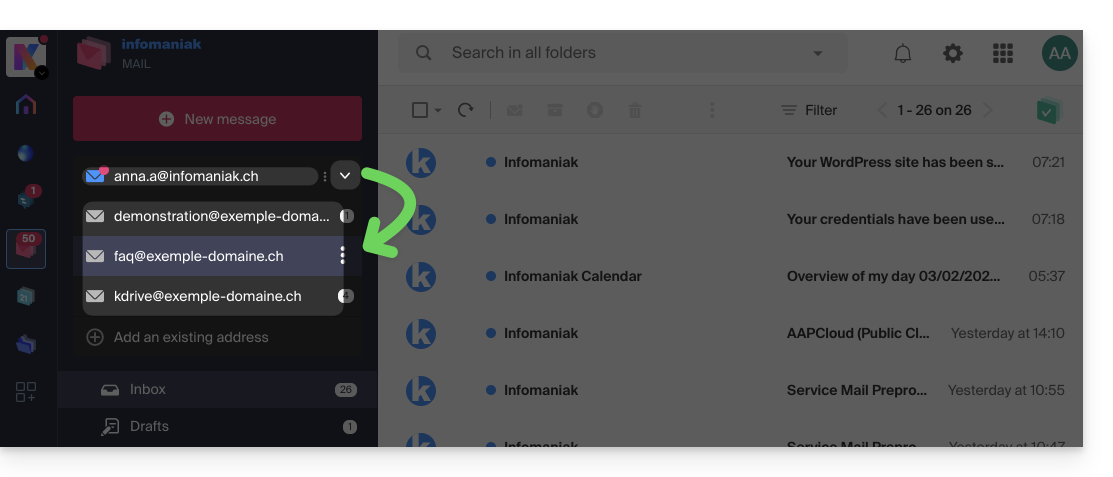
It can also switch between the various Organizations to which its Infomaniak account belongs, in order to access other addresses for other Mail Services (refer to this other guide).
If the address associated with the invitation does not appear, try refreshing the browser page (Command ⌘ + R on macOS and Ctrl + F5 on Windows).
Link to this FAQ: https://faq.infomaniak.com/1478
Has this FAQ been helpful?
This guide is about the DMARC policy and the optional security reports sent by email, which can be enabled or disabled upon request.
Optional DMARC reports
DMARC reports are optional and provide the following information:
- Third-party senders or servers that send emails on behalf of your domain.
- The percentage of messages originating from your domain that successfully pass the DMARC verification process.
- The servers or services that send emails failing DMARC verification.
- The DMARC actions performed by the receiving server for unauthenticated messages from your domain (none, quarantine, or reject).
When reports indicate that most emails pass DMARC checks successfully, it is recommended to strengthen your DMARC settings by enforcing stricter measures. This will enhance the protection of your domain against spoofing.
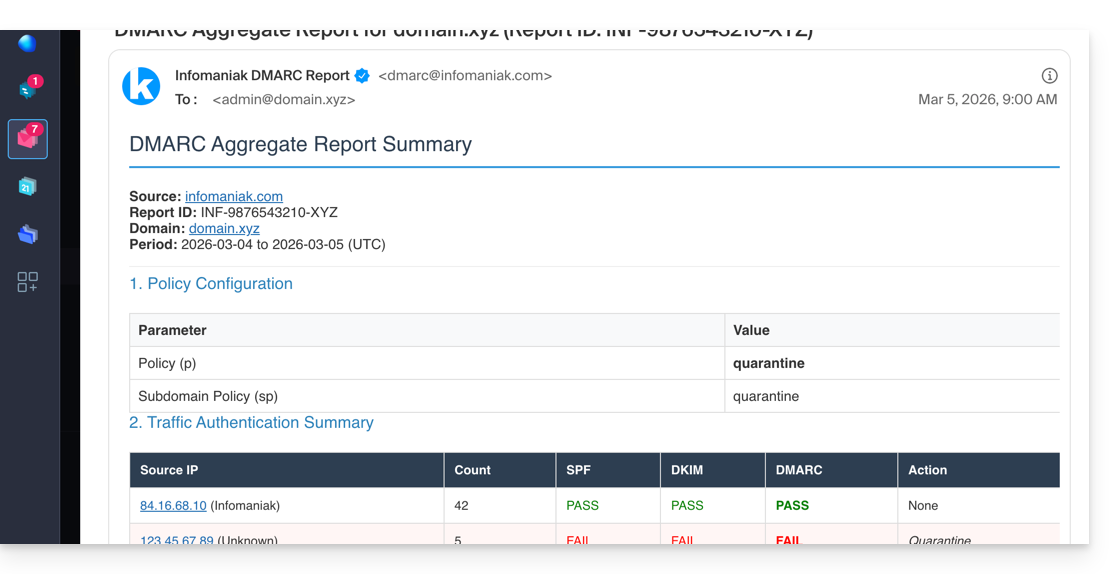
The written report is delivered as a ZIP archive containing the report in XML format. It is sent by email to the address you specify in the configuration and will come from dmarc@infomaniak.com or other providers such as Microsoft, Google, Yahoo, etc.: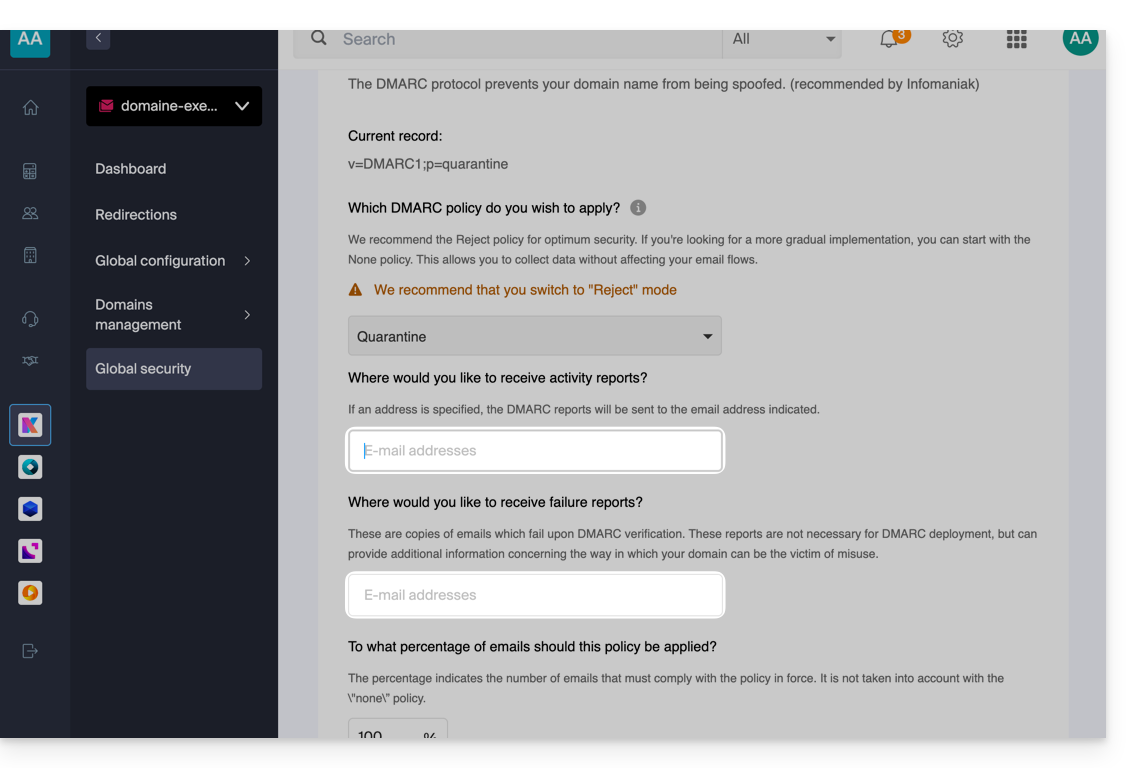
It is also possible to receive copies of the problematic emails.
Analyze a DMARC report
Infomaniak is unable toanalyze your DMARC reports and records. nor are we able to comment on the validity or compliance of these, as this is entirely your responsibility.
It is recommended to use an external service to analyze a DMARC report, such as https://dmarcadvisor.com/dmarc-analyzer/.
Disable a DMARC report…
… from a Mail Service
To disable the sending of a DMARC report if you still have a Mail Service (otherwise, see below):
- Click here to access the management of your product on the Infomaniak Manager (need help?).
- Click directly on the name assigned to the product in question.
- Click on Global Security in the left-hand menu.
- Click on Edit (in the DMARC section).
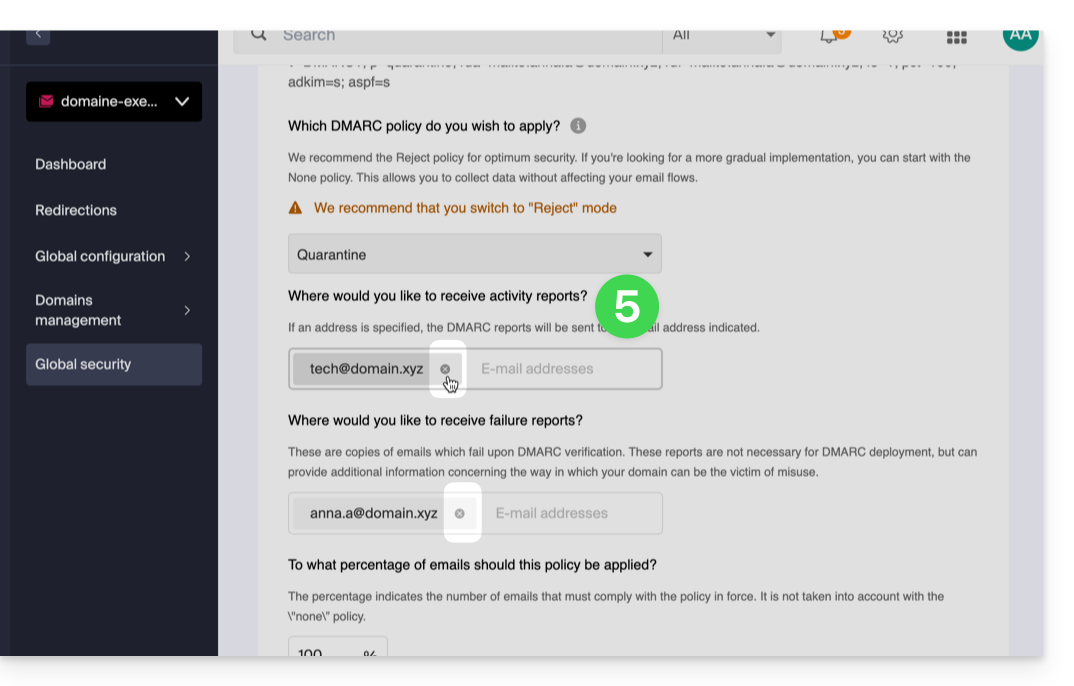
- Remove the saved addresses and validate at the bottom of the page to Apply the changes:
… from a domain's DNS zone
If the Mail service is no longer active but you continue to receive email reports, you need to take action directly on the domain name and delete the dmarc record.of its DNS zone (or simply edit it to completely remove the two rua
The difference between RUA and RUF
It is important to understand what you are disabling by removing ruf:
- RUA (Aggregate): a daily summary (explained above); it provides statistics: "Yesterday, 50 emails were successfully processed, and 10 failed."
- RUF (Forensic/Failure): an email sent instantly as soon as a single message fails the DMARC tests; it often contains the original content of the email (subject, message body).
Link to this FAQ: https://faq.infomaniak.com/1498
Has this FAQ been helpful?
This guide explains how to resolve the error “Recipient abc@domaine.xyz was rejected by the server, because relaying is not permitted,” which may occur if your email address is not configured correctly in your email software/client.
How to resolve the error?
From an Apple device (Mac, iPhone, iPad, etc.)
The easiest way is to delete the email account in question and then use the configuration tool to reinstall it.
Please refer to the official help to learn how to delete the email account on your Mac.
Then, reinstall your email using an Apple synchronization profile.
Important: Before deleting the email account, make sure it is configured using IMAP and not POP. Refer to this other guide to switch the account from POP to IMAP.
From any other software/email client
Refer to this other guide by following the instructions corresponding to the version closest to the one you have.
Link to this FAQ: https://faq.infomaniak.com/1545
Has this FAQ been helpful?
This guide explains how, from a Mail service, you can access a mail address on the Infomaniak ecosystem (using your login credentials for your Infomaniak account) by using only the Infomaniak Mail web app (online service ksuite.infomaniak.com/mail) and/or the Infomaniak Mail mobile app (application for iOS/Android smartphones or tablets), without creating a specific password for the address.
Other access and management options are presented in the main guide.
Prerequisites
- Order a Mail Service from Infomaniak.
- Create one or more addresses on this Mail service.
- Have at least the right to manage the Mail service in question (or be Administrator / Legal Representative within the Organization).
Accessing an email address
To use the existing email address demonstration@exemple-domaine.ch:
- Enter your Infomaniak account login ID and password on the page https://manager.infomaniak.com/:
- Confirm the login on the Manager using the 2FA (two-factor authentication) method that you initially set up:
- Once on the dashboard, click on Mail Service:
- Once on your Mail Services page, click on the name / domain name to which the email address in question belongs:
- Once you are on the Mail service to which the address belongs, click on the email address in question:
- Once you are on the email address in question, click on the Add user button:
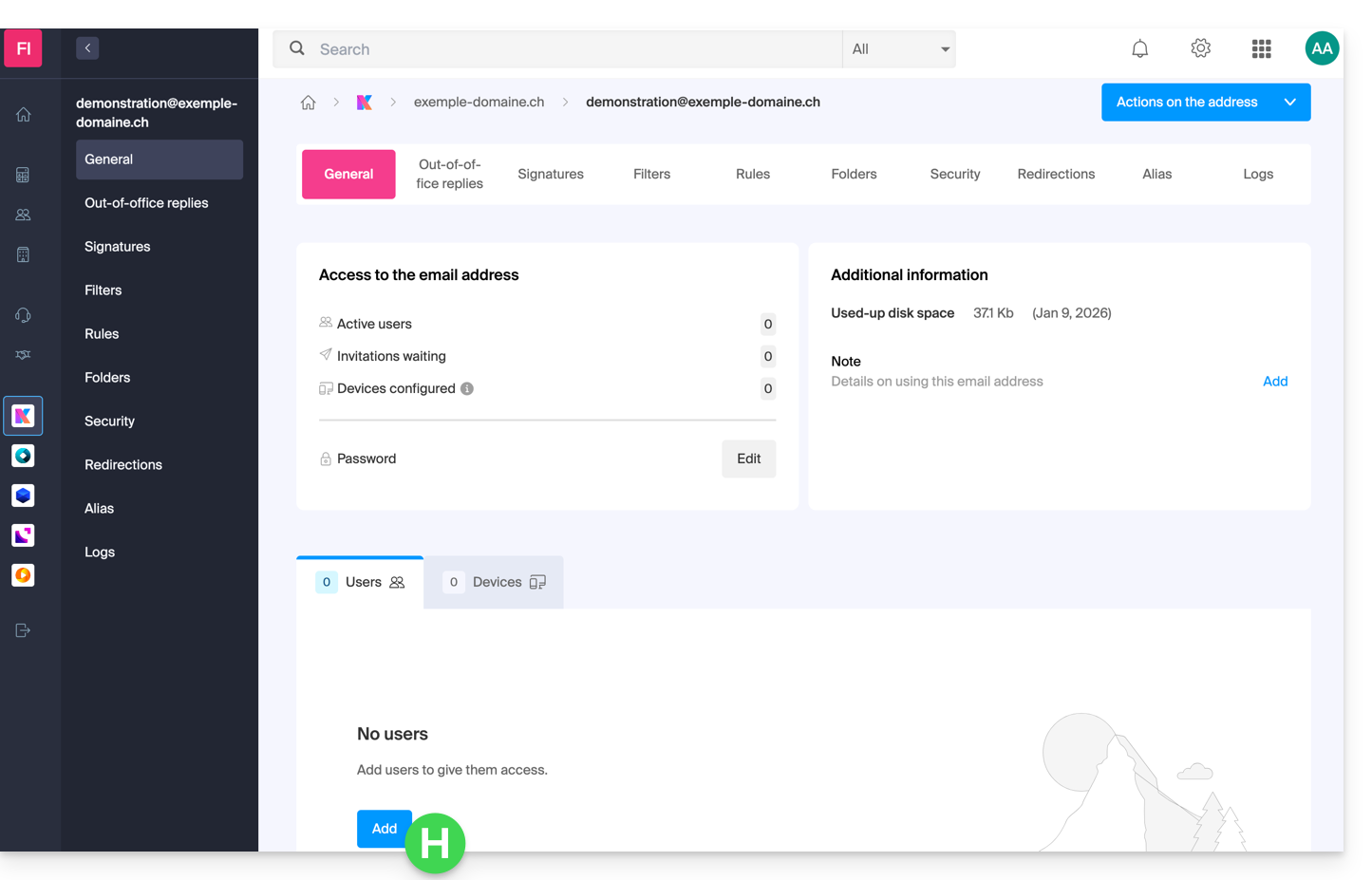
- At this stage, it may be necessary to re-enter the login password (the one from point B above):
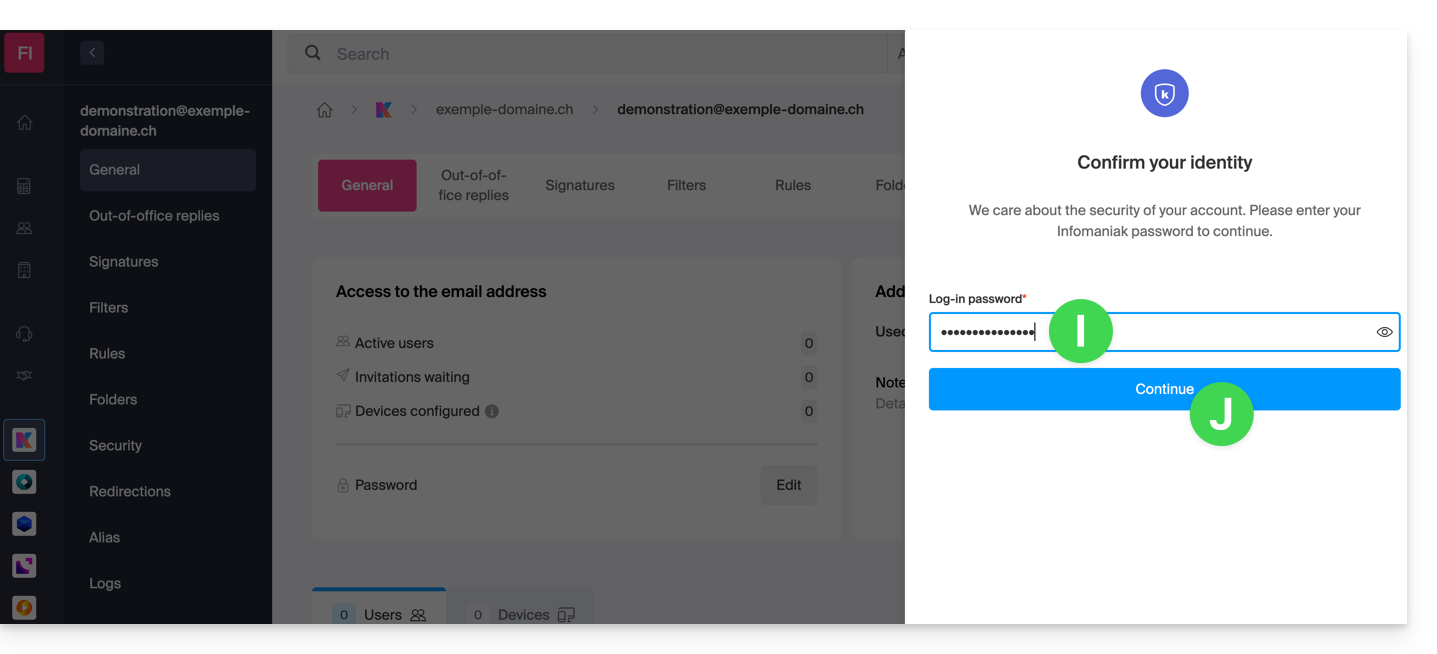
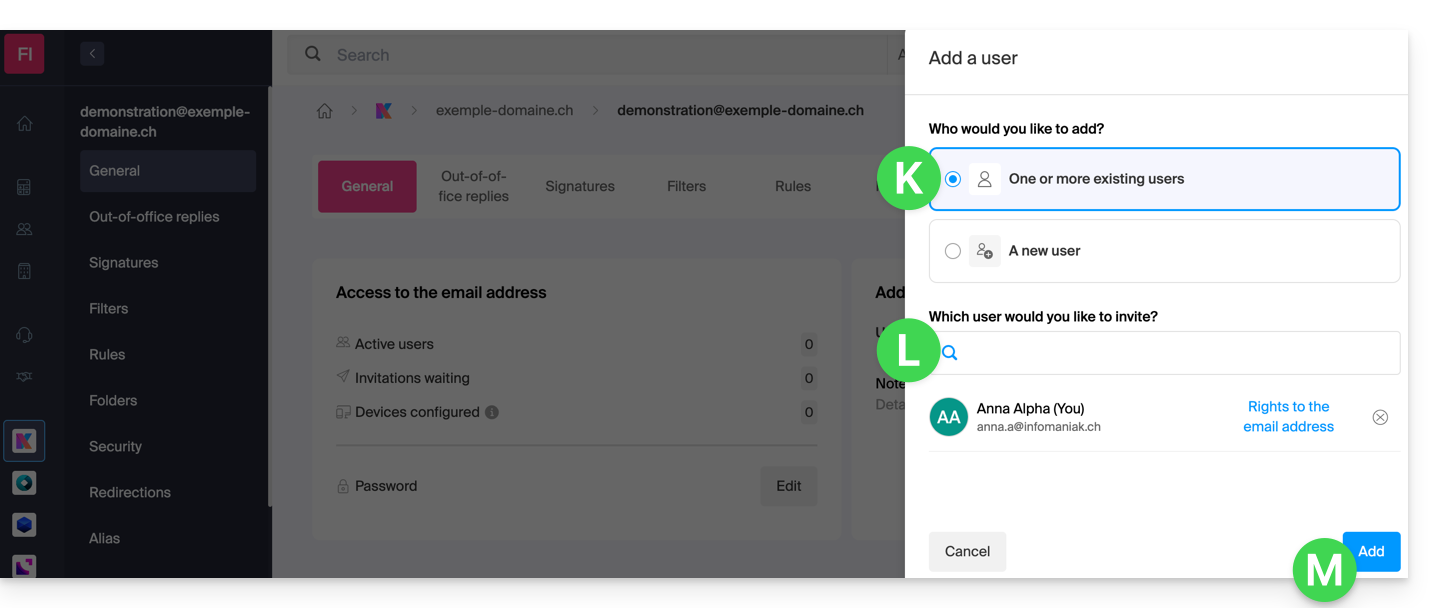
- Then, choose the option to add an existing user, then click on the field below, which will display the list of users in the Organization you are connected to, and click on your username (your login ID for your Infomaniak account). Confirm the addition using the button in the bottom right corner:
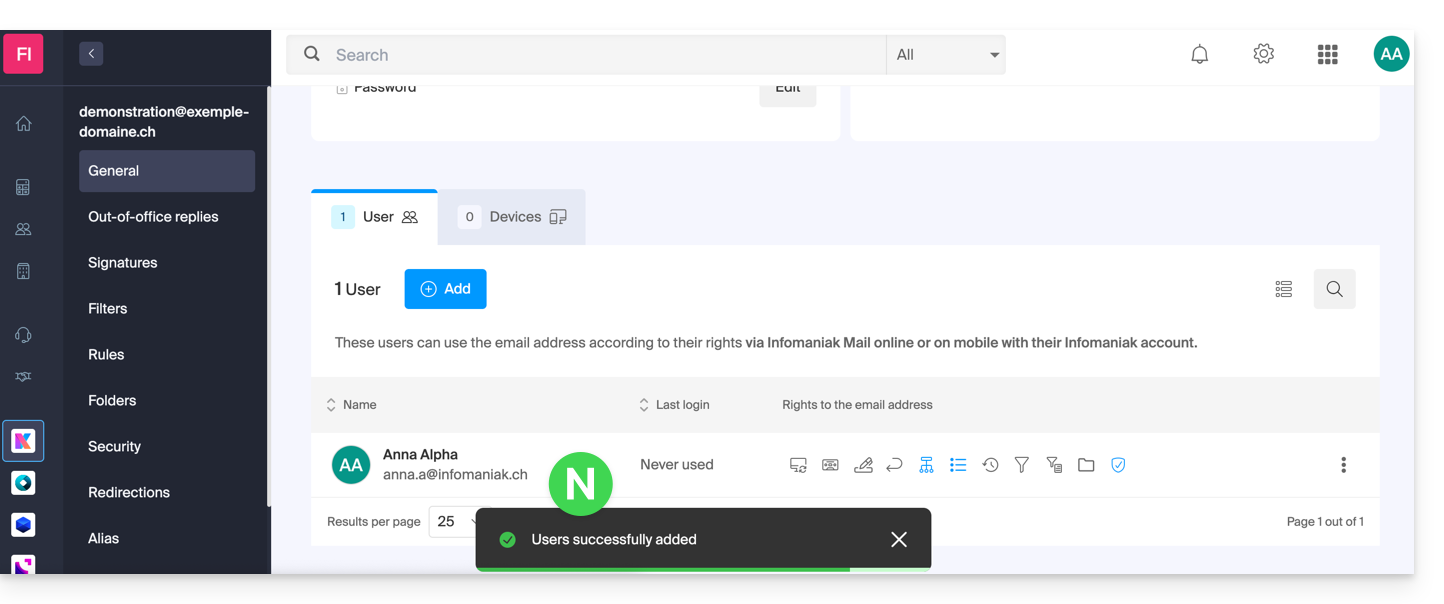
- Done, your user has been added:
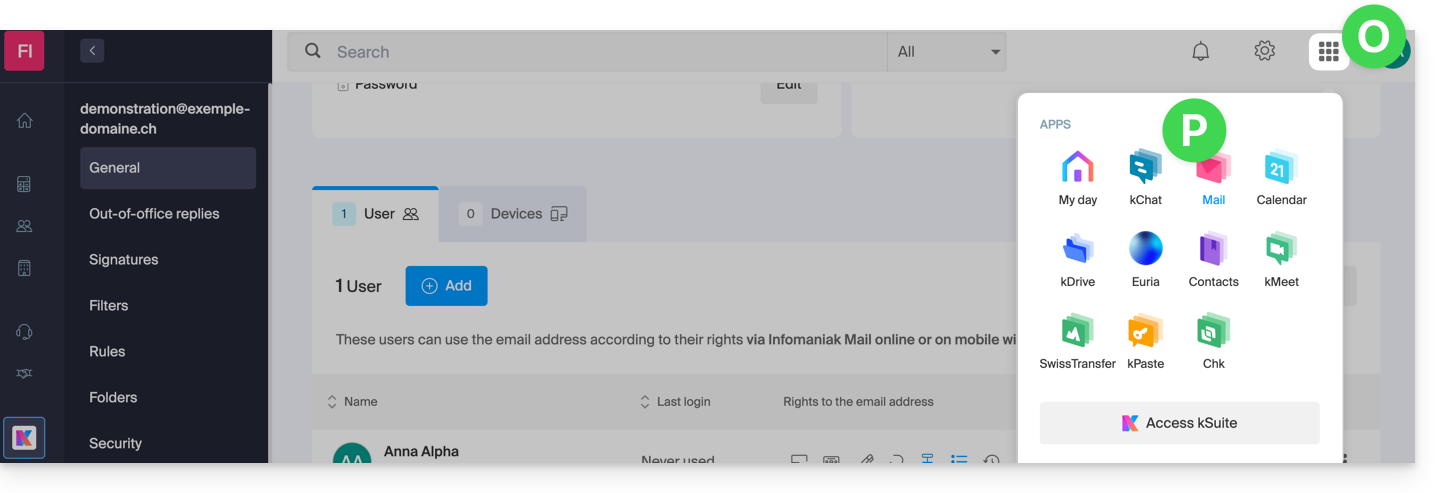
- Next, click on the icon at the top of the screen to open the kSuite tools, and then click on the Mail Infomaniak web app:
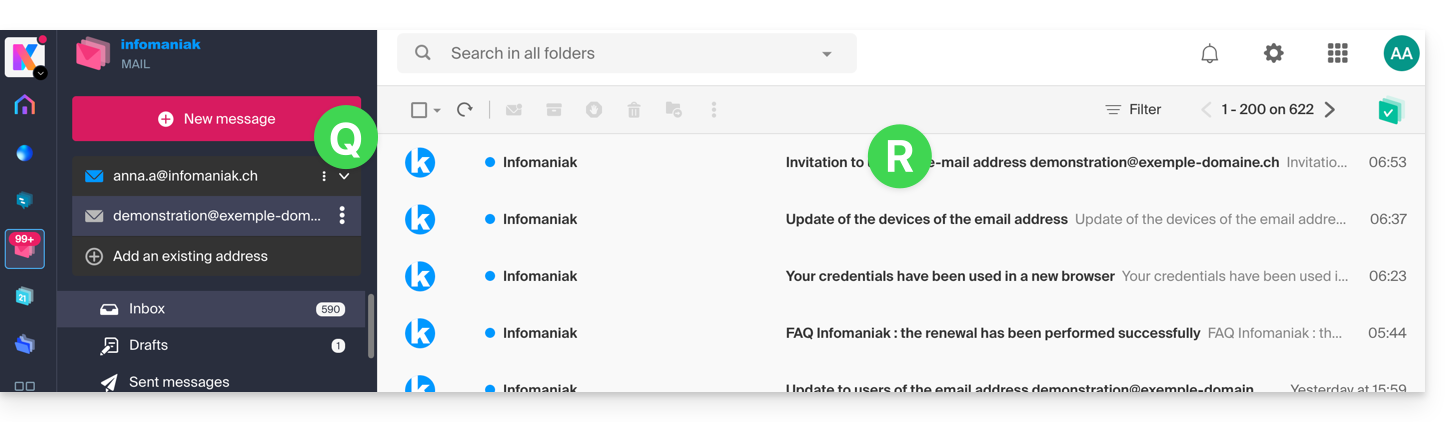
- The email address has been successfully added to the Mail web app (click on the down arrow if necessary to expand the address menu and access it). An informational email has been sent to the user (you in this case) to notify them of the operation:
When your user ID is added as a user with access to the email address, the mailbox is automatically added to your Infomaniak Mail apps:
You can switch between your addresses at any time using the chevron located in the top left corner of the screen:
If the address is not displayed, try refreshing the browser page (Command ⌘ + R on macOS and Ctrl + F5 on Windows).
Link to this FAQ: https://faq.infomaniak.com/1547
Has this FAQ been helpful?