Knowledge base
1000 FAQs, 500 tutorials and instructional videos. Here, there are only solutions!
This guide explains how to set up a DMARC policy for your email hosted by Infomaniak, an essential step to prevent potential email delivery issues.
Introduction
- The DMARC (Domain-based Message Authentication, Reporting, and Conformance) protocol enhances the security of your domain by relying on SPF and DKIM checks.
- It tells recipient servers how to handle emails that fail these authenticity tests, with three protection policies (None, Quarantine, Reject) detailed below.
- If authentication fails, the recipient may send you a DMARC report; this data is essential for identifying configuration errors or stopping phishing attempts using your domain name.
DMARC policy and acceptance rate
For the actions that can be taken on recipient servers when a suspicious message is detected, 3 policies (p = policy) exist and can be refined with a percentage (pct):
None: The email is delivered normally (observation mode)
With "p=none", no emails are rejected or placed in quarantine based on DMARC verification. However, the reception percentage can be used to collect data on unauthenticated emails, indicating how many of these emails should be subject to the DMARC policy. For example, "p=none; pct=10" means that 10% of unauthenticated emails will be subject to the DMARC policy, while the remaining 90% will be accepted.
Quarantine: The email is sent to spam
With "p=quarantine", unauthenticated emails can be placed in quarantine, but the percentage of reception determines the proportion actually subject to this policy. For example, "p=quarantine; pct=50" means that 50% of unauthenticated emails will be placed in quarantine, while the remaining 50% will be accepted.
Reject: The email is simply blocked/deleted
With "p=reject", unauthenticated emails are rejected. The percentage of reception determines the proportion of unauthenticated emails that will actually be rejected. For example, "p=reject; pct=20" means that 20% of unauthenticated emails will be rejected, while the remaining 80% will be accepted.
Create a DMARC record
There are 2 ways to manage DMARC.
If you have a Mail service with Infomaniak, the easiest way is to go to the Global Security tool to manage your DMARC security policy and reports: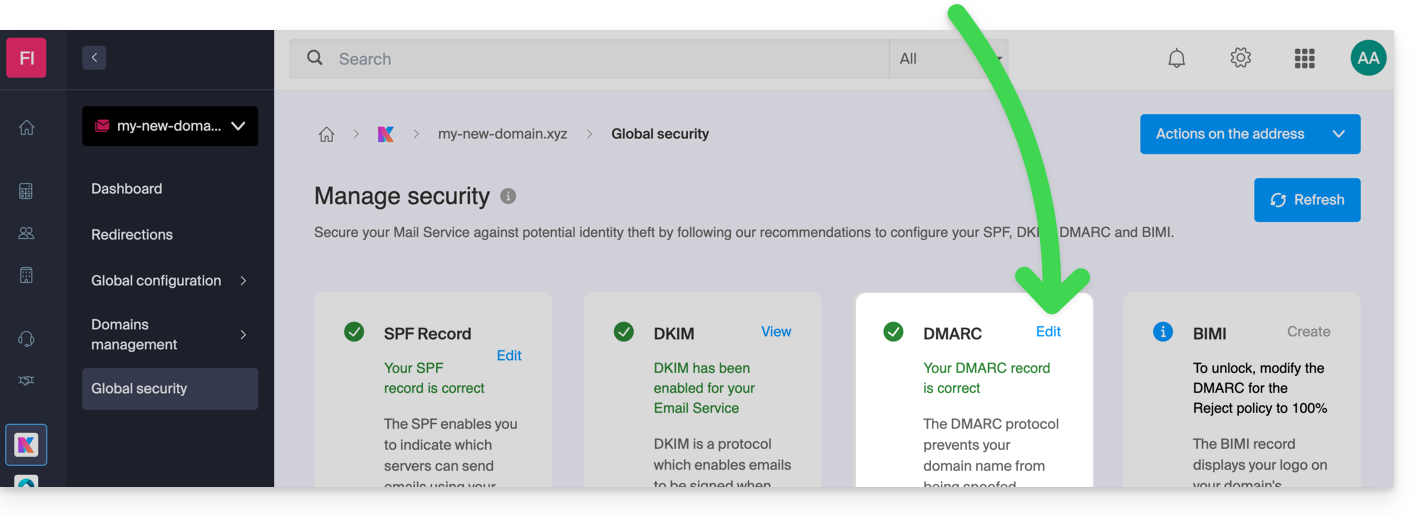
Since a DMARC record is a type of DNS record, generally of the TXT type, you can also manage it from the domain name's DNS zone:
- Click here to access the management of your domain on the Infomaniak Manager (need help?).
- Click directly on the name assigned to the domain in question.
- Click on DNS Zone in the left-hand menu.
- Click the button to add a record:
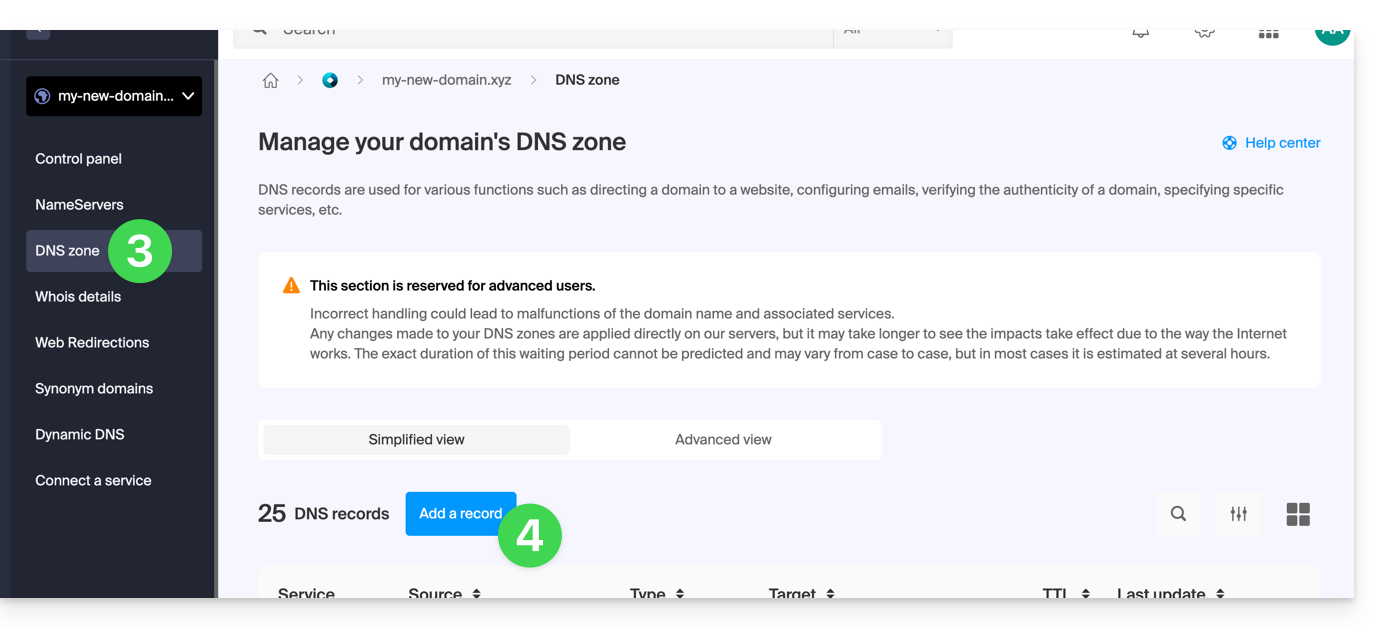
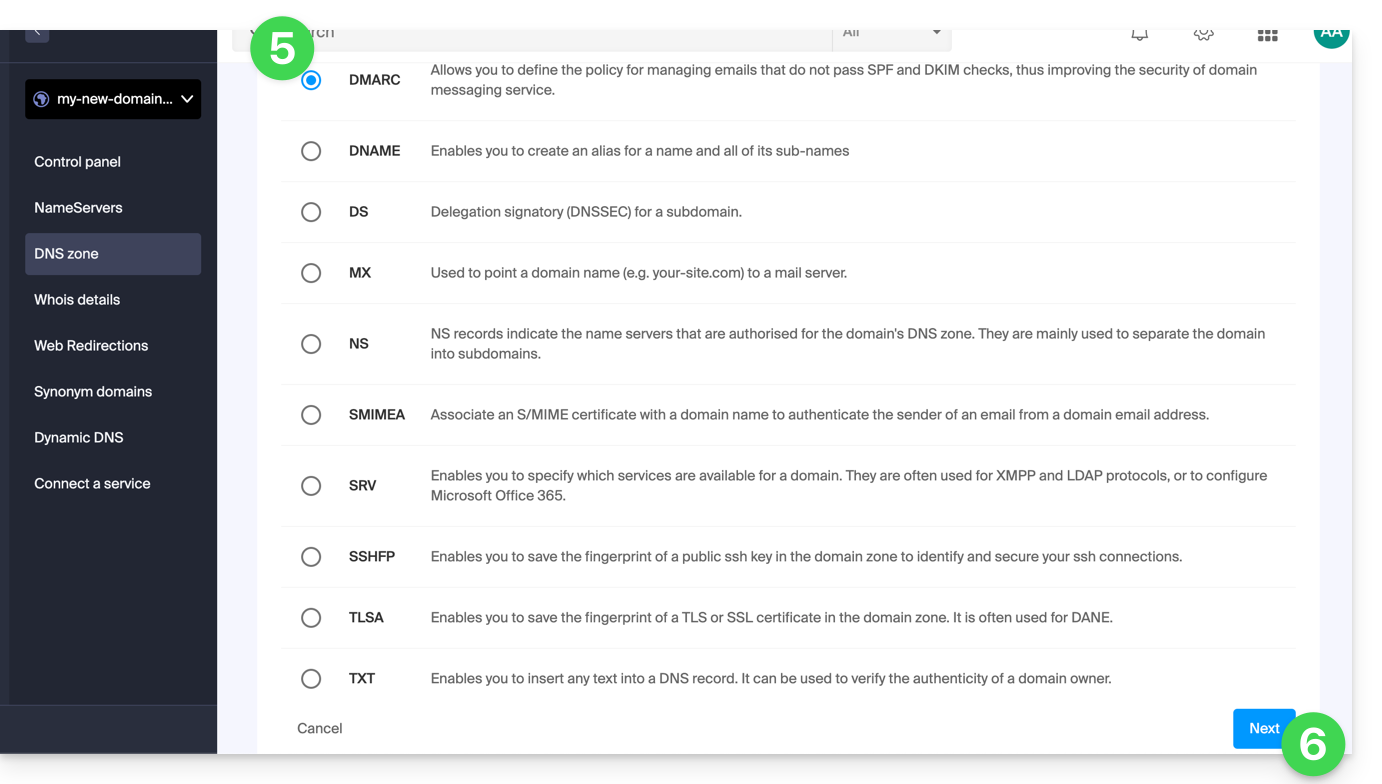
- Click the DMARC radio button to add a record.
- Click on the Next button:
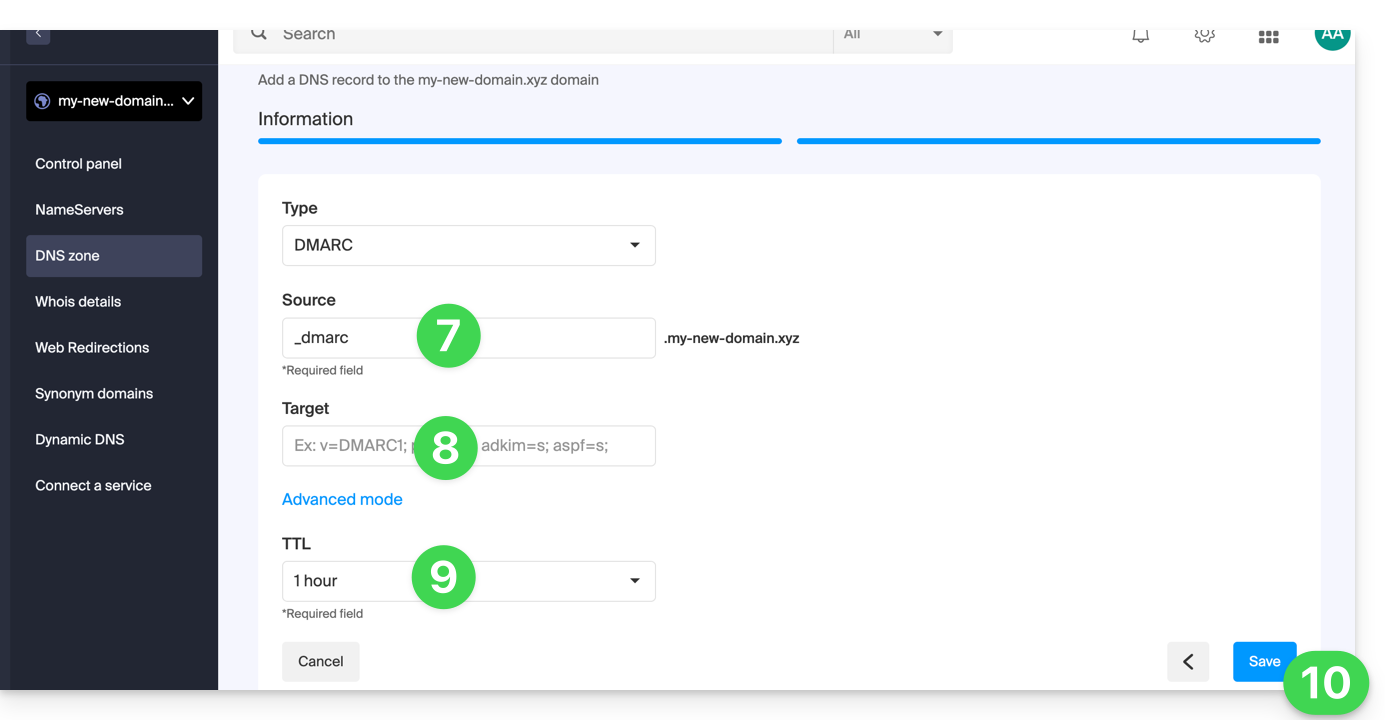
- Leave (or add if necessary) the
_dmarcvalue in the Source field. The Target field must contain the parameters you want to use, separated by
;:Tag Name Purpose Example v Protocol version v=DMARC1pct Percentage of messages subject to filtering pct=20ruf Reporting URI for forensic reports ruf=mailto:authfail@domain.xyzrua Reporting URI for aggregate reports rua=mailto:aggrep@domain.xyzp Policy for the organizational domain p=quarantinesp Policy for subdomains of the organizational domain sp=rejectadkim Alignment mode for DKIM adkim=saspf Alignment mode for SPF aspf=rwhich can result in, for example,
v=DMARC1;p=reject;pct=100;rua=mailto:postmaster@dmarcdomain.com(source)- Leave the default value for the TTL.
- Click the Save button:
Any DNS addition/modification may take up to 48 hours to propagate.
Link to this FAQ: https://faq.infomaniak.com/1552
Has this FAQ been helpful?
This guide explains how the Infomaniak Mail mobile app (application for iOS/Android smartphones or tablets) works when it is first opened after installation and during subsequent logins.
Starting the configuration wizard
When you open the app for the first time, a step-by-step assistant will guide you through choosing a theme (pink or blue accent color), which you can also change later: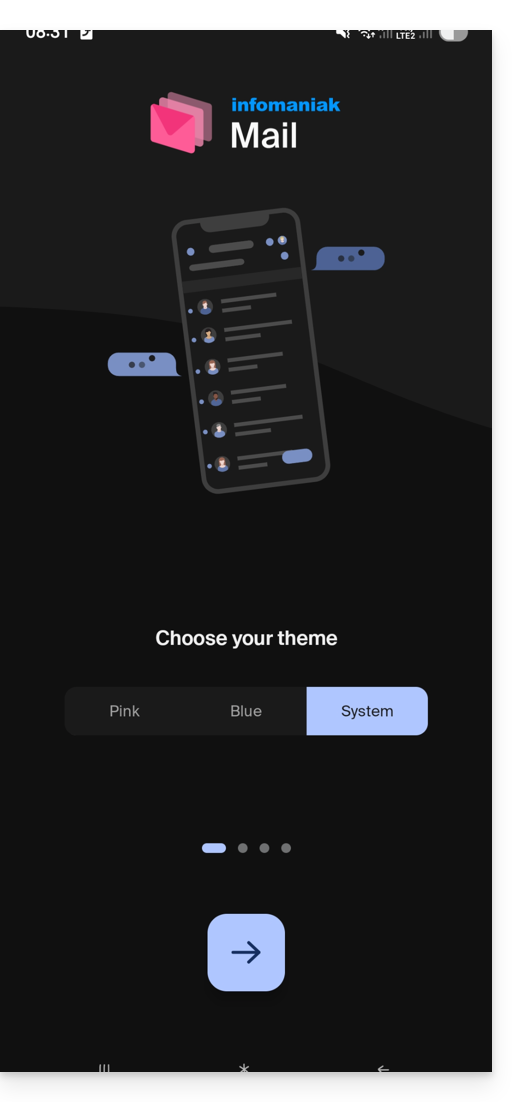
It also shows you the main ergonomic functions available with the application (long press, swipe).
In the last step, you can…
- … create an account, which means getting a new, free email address…
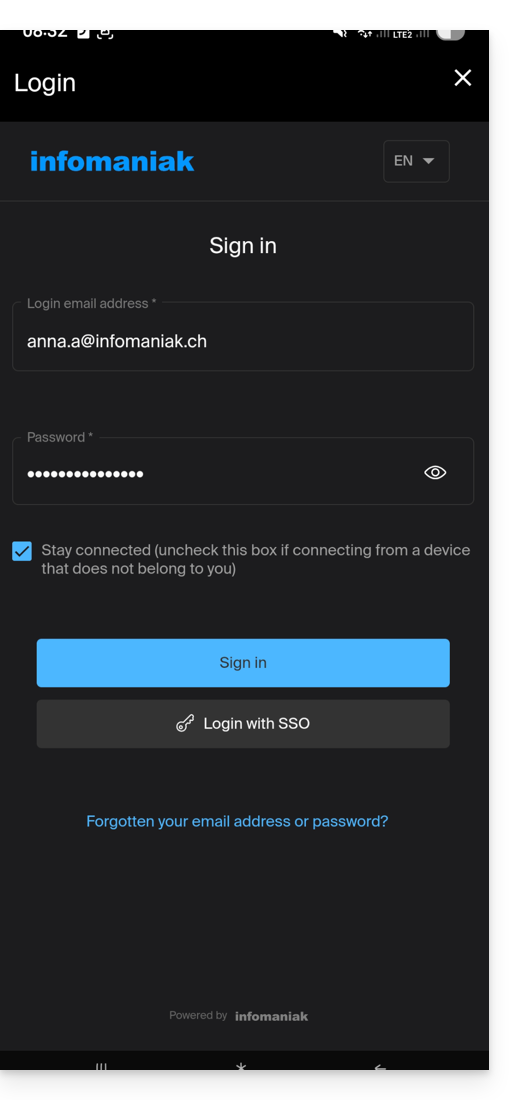
- … or simply log in to your Infomaniak account using your usual credentials(your email address for logging into Infomaniak):
Multiple email addresses
Once logged in, after completing two-factor authentication (2FA), you still need to authorize access to your device's contacts and notifications: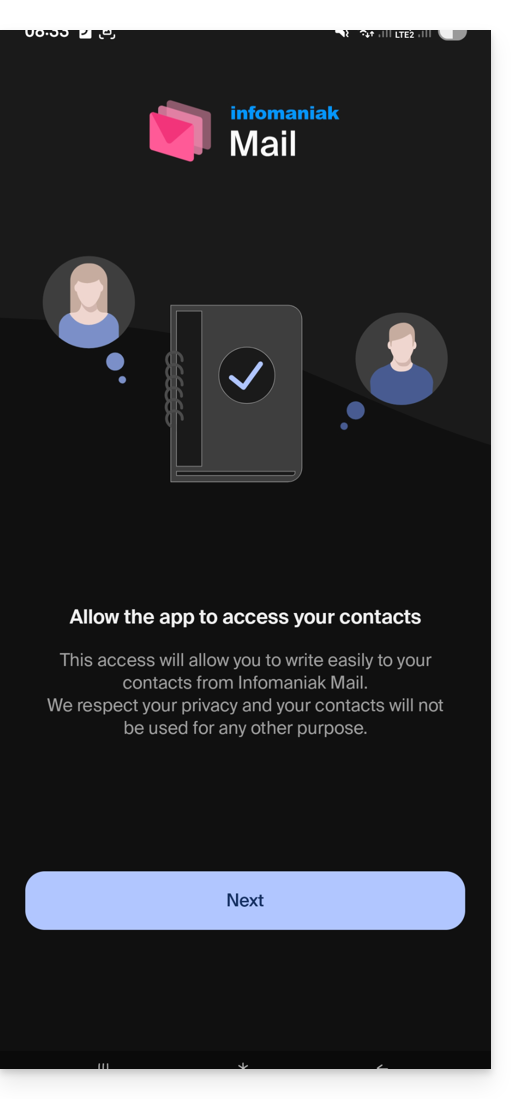
You will then find all email addresses already linked to Infomaniak Mailthat you used to access via your web browser at ksuite.infomaniak.com/mail.
You can switch between addresses…
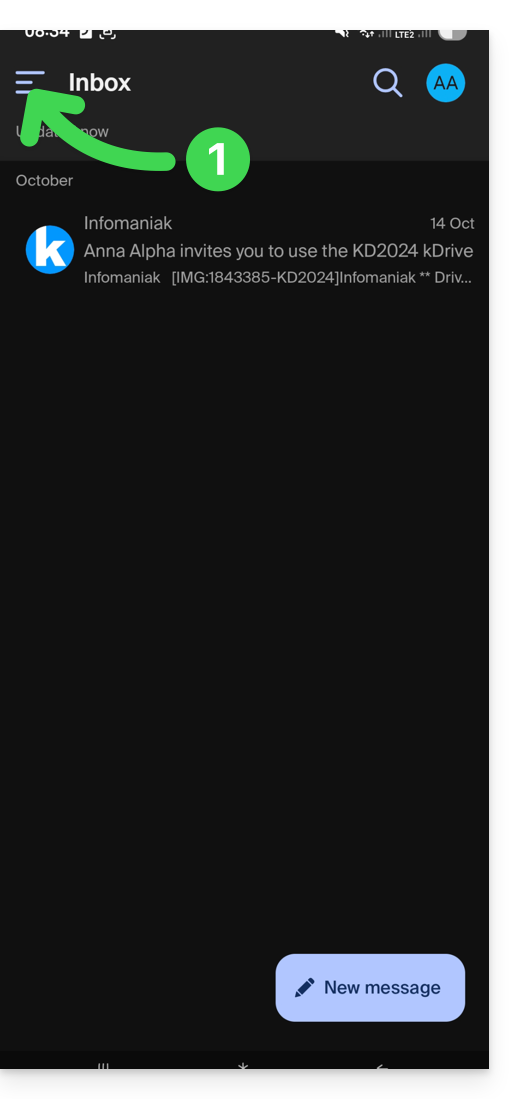
- … by tapping the icon in the top left corner of your inbox:
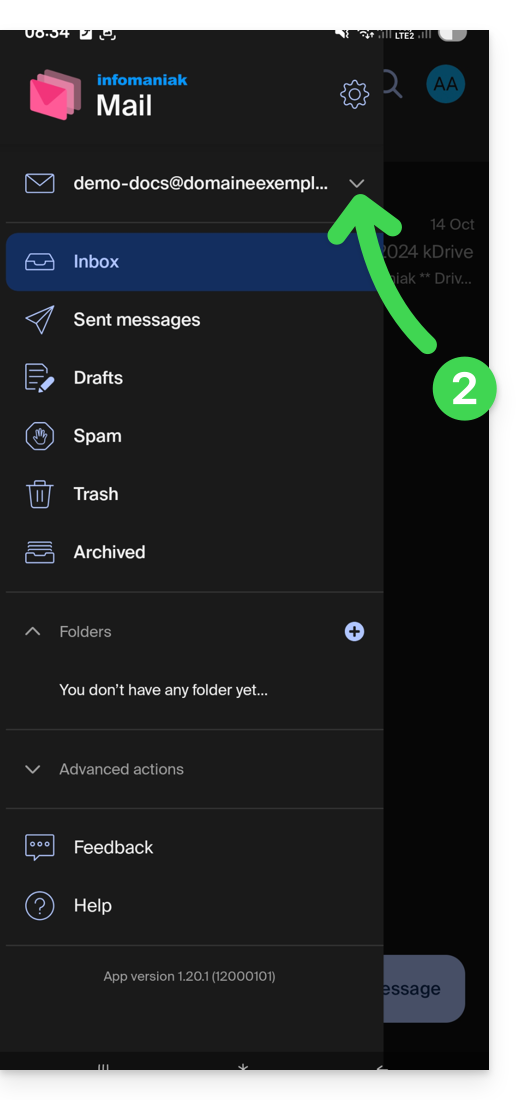
- … then click on the downward-pointing chevron to the right of your email address:
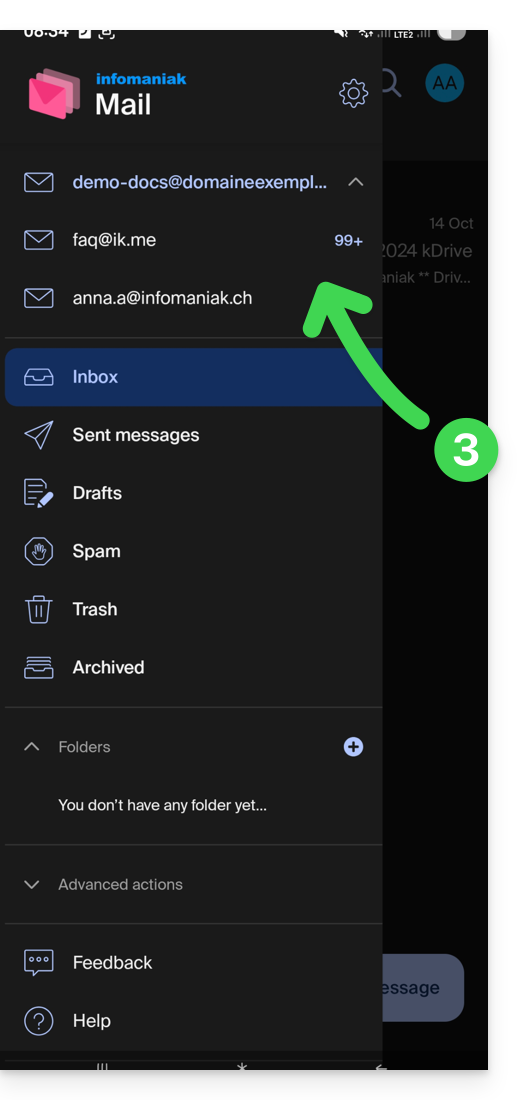
- … then click on the address you want to view:
To add another one, please refer to this other guide.
To remove one, please refer to this other guide.
Multiple Infomaniak Accounts
Imagine that in addition to your personal Infomaniak account with your favorite email addresses, your employer provides you with login credentials for a user account with different company email addresses within this professional account…
To add an additional Infomaniak account:
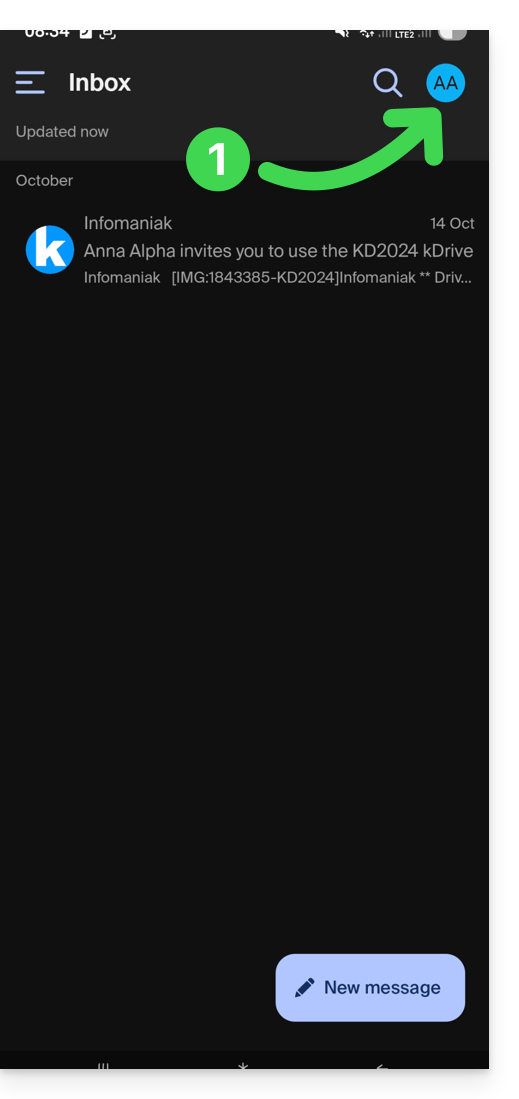
- Tap the top right of the inbox:
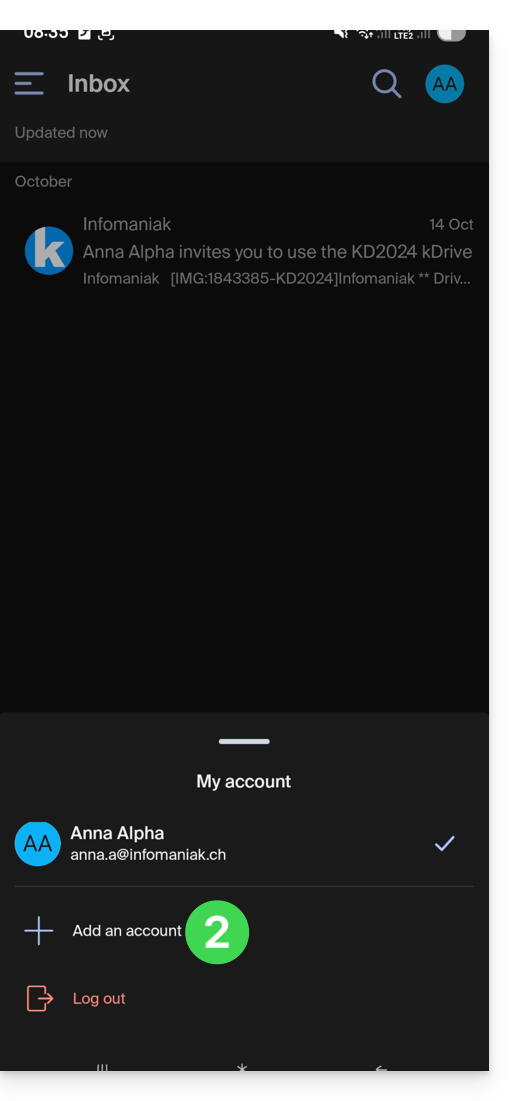
- Tap Add account to connect to the desired Infomaniak user account:
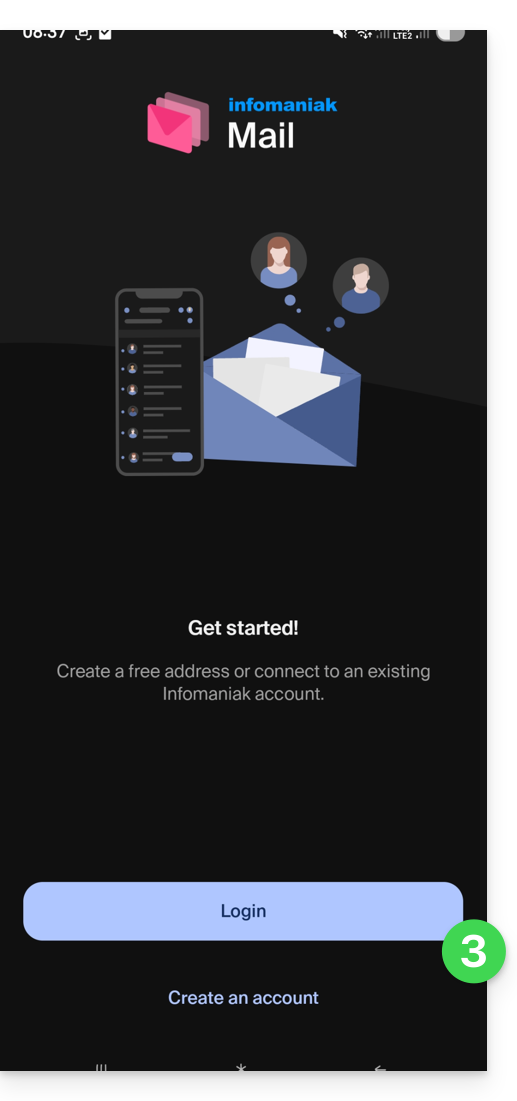
- Tap the button to enter the login details for your Infomaniak account:
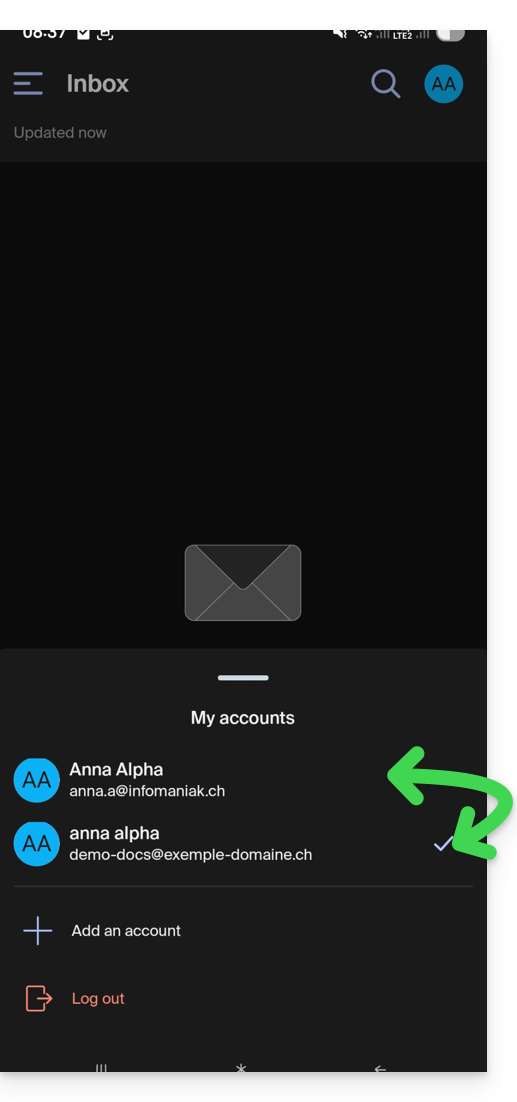
To easily switch between user accounts:
- Click on either of the associated user accounts to view the email addresses associated with those accounts:
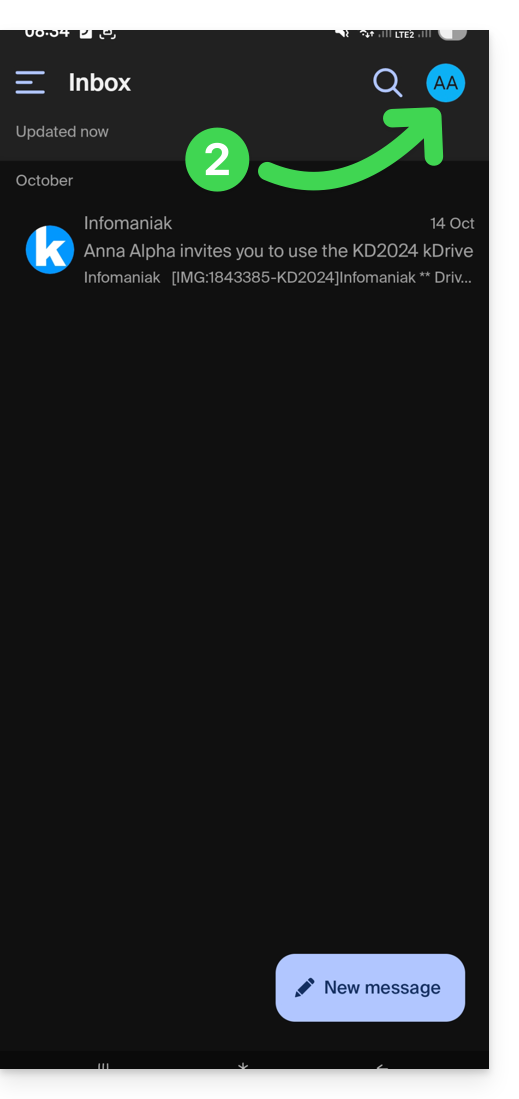
To detach an Infomaniak account linked in the application and no longer be able to view the email addresses associated with that account, simply…
- … access it one last time.
- … then tap the user menu in the top right corner:
- … then log out at the bottom of the screen:
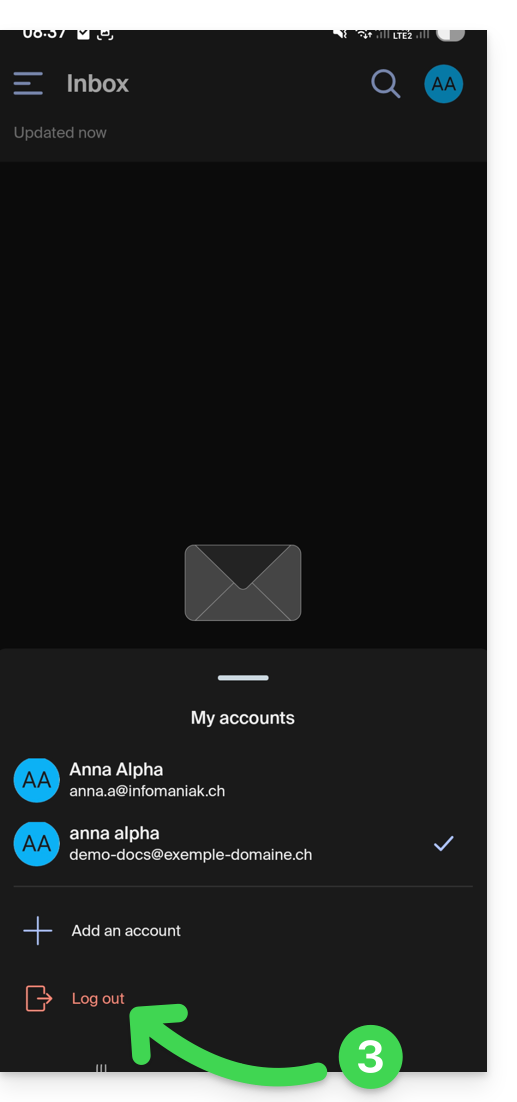
You will be automatically redirected to one of the remaining accounts.
Link to this FAQ: https://faq.infomaniak.com/1553
Has this FAQ been helpful?
This guide details the reasons why an email cannot be sent and instead returns a Sender denied: auth guards failed error.
Why is there an error when sending?
When you send emails from an address like abc@domain.xyz via Infomaniak, it may happen that these messages are rejected by some recipients (like outlook.com) or end up in spam.
This is not an error on Infomaniak's part, but a security measure related to how your domain name is configured. Indeed, each domain name has a protection system called SPF (Sender Policy Framework). This system indicates which servers are authorized to send emails for that domain. If your domain does not explicitly authorize Infomaniak's servers, emails sent from these servers may be blocked or considered suspicious.
Infomaniak is now strengthening its controls and directly rejecting emails that do not comply with SPF rules, to prevent your emails from being rejected or considered spam by your recipients, or that the servers are misused.
This means that if your domain does not correctly declare Infomaniak's servers, you will receive the error that led you here.
How to fix the issue?
To fix this problem, you need to modify the DNS configuration of your domain, i.e., the technical settings that define how your domain works on the Internet. You need to add or update a TXT record called SPF.
Refer to this other guide to find possible solutions and ensure your emails are sent correctly.
These simple adjustments will allow email services like Outlook, Gmail, or Yahoo to recognize that Infomaniak's servers are authorized to send emails for your domain, which will significantly improve the deliverability of your messages.
Any DNS addition/modification may take up to 48 hours to propagate.
Link to this FAQ: https://faq.infomaniak.com/1571
Has this FAQ been helpful?
This guide for the Infomaniak Mail web app (online service ksuite.infomaniak.com/mail) or the Infomaniak Mail mobile app (application for iOS/Android smartphones or tablets) explains how to enable encryption for emails sent from the Infomaniak web and mobile services.
Introduction
- When encryption is enabled, emails and attachments are encrypted as soon as they are received on Infomaniak servers, using the public keys of the senders and recipients.
- Each email address generates a key the first time it is used, which is stored securely in Infomaniak's data centers.
- The keys are based on elliptic-curve cryptography (ECC) and use the OpenPGP standard.
- They are themselves encrypted in AES-256-GCM with automatic decryption via Infomaniak authentication.
- In search results, only the subject of encrypted messages will be visible, while their content will remain secure during storage.
Enable email encryption…
… from the Infomaniak Web Mail app
To automatically encrypt a message sent to an email address:
- Click here to access the Infomaniak Mail web app (online service ksuite.infomaniak.com/mail).
- Compose a new message as usual.
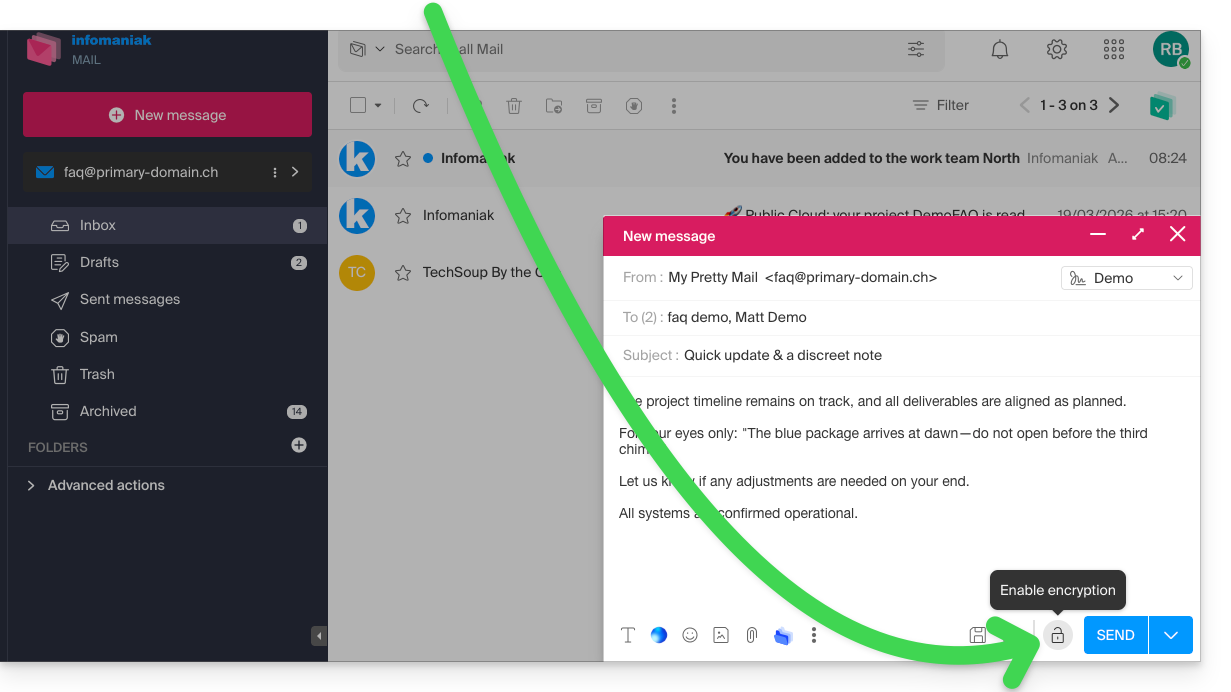
- Click on the lock icon to the left of the Send button to enable encryption:
- Confirm the action if a confirmation window appears.
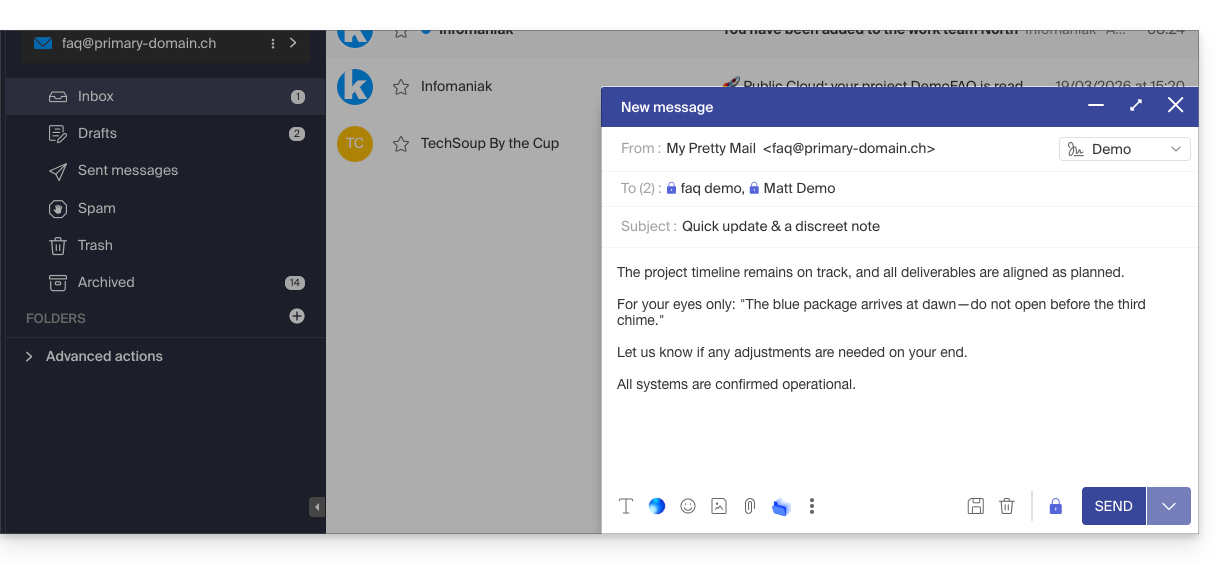
- The icon now represents a closed padlock, and the overall color has been changed:
- Click the Send button.
This action must be performed each time you send a new email.
A. Recipient whose email is managed with Infomaniak
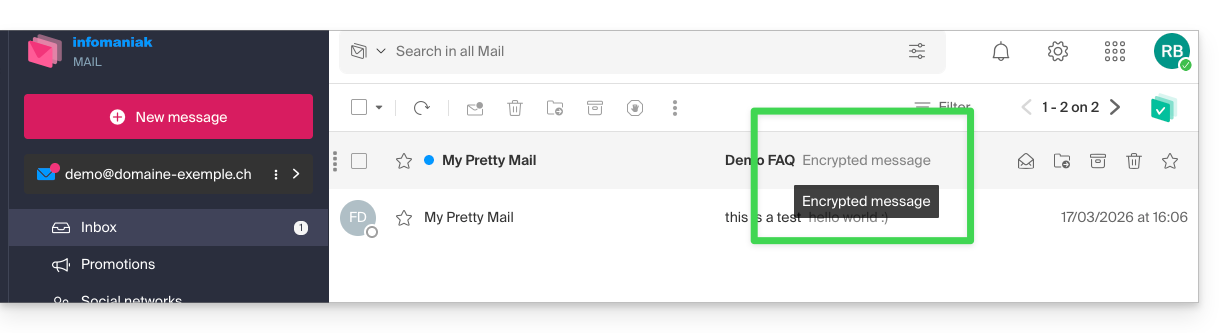
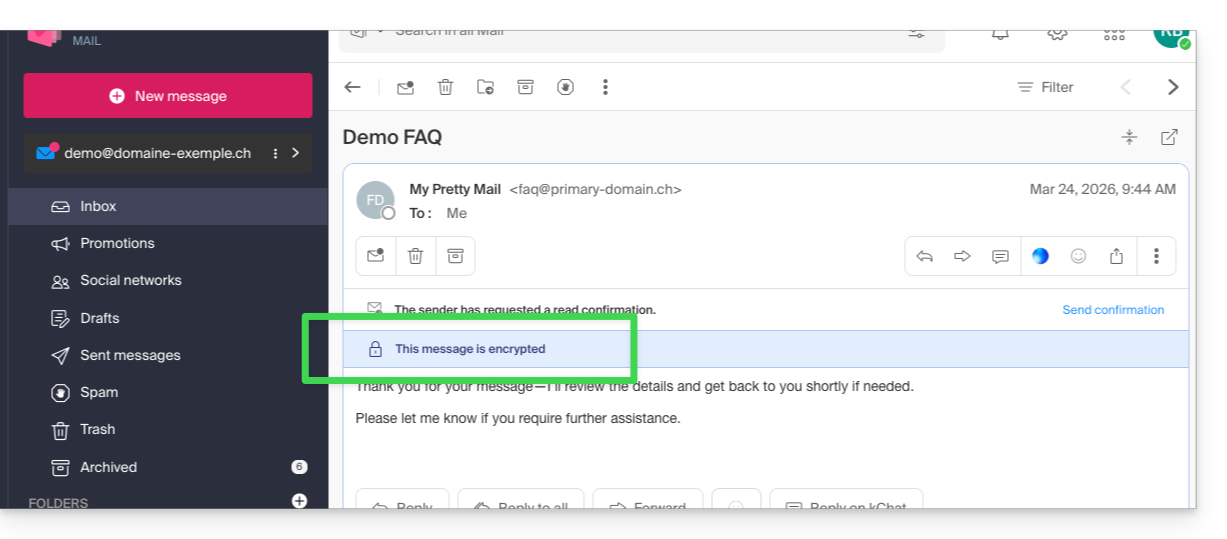
If the recipient of the encrypted email has an email address managed with Infomaniak, the encryption process is completely transparent for both the sender and the recipient. A notification will indicate that the message is encrypted…
- … in the recipient's inbox:
- … when opening the received message:
- … and in the folder containing messages sent by the sender:
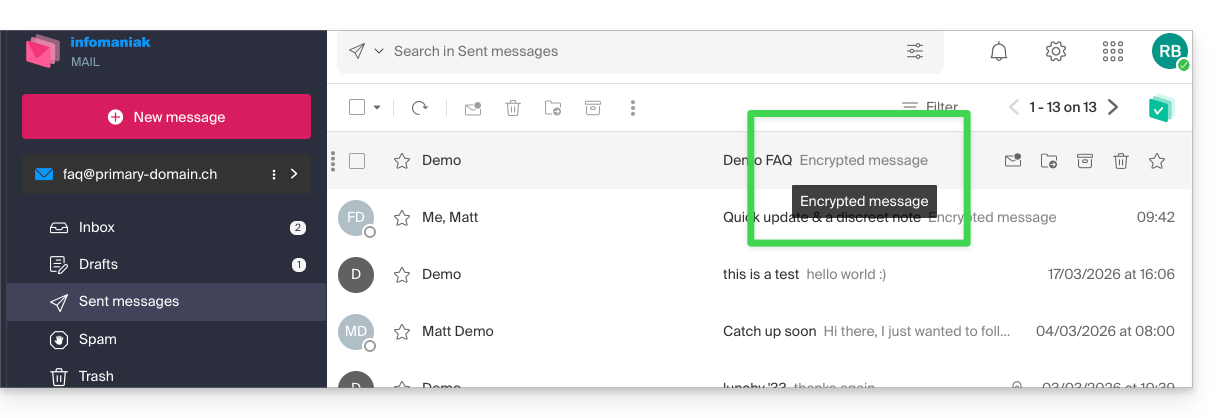
B. External recipient
If the recipient of the encrypted email has an email address managed outside of Infomaniak's services, encryption is still possible, but it requires setting a password:
- Click here to access the Infomaniak Mail app (online service ksuite.infomaniak.com/mail).
- Compose a new message as usual, but address it to an email address outside of Infomaniak.
- Click on the lock icon to the left of the Send button to enable encryption.
- A modal window will open, allowing you to create a password:
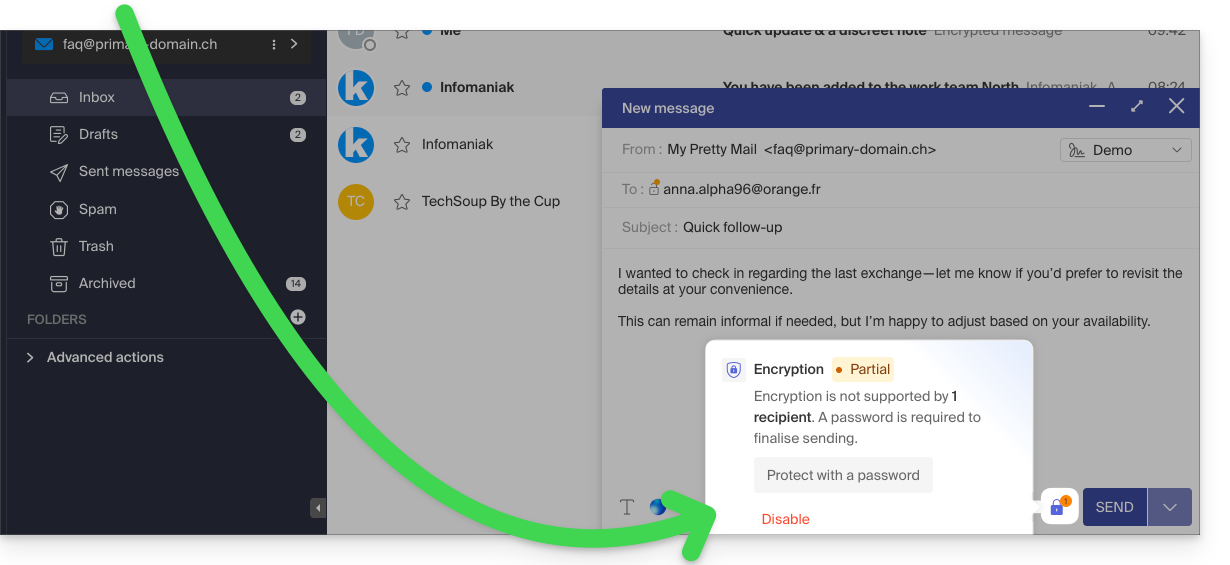
- Enter a password and copy it to send it to the recipient using your own means (kPaste for example) (you can agree on a password in advance so that the recipient is already informed):
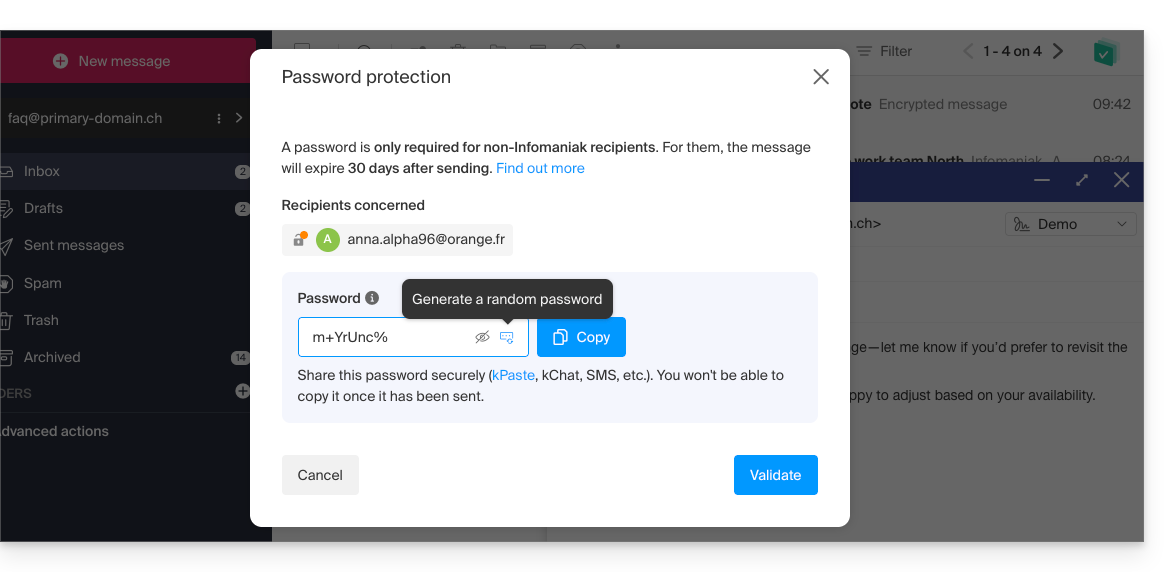
- Enter a password and copy it to send it to the recipient using your own means (kPaste for example) (you can agree on a password in advance so that the recipient is already informed):
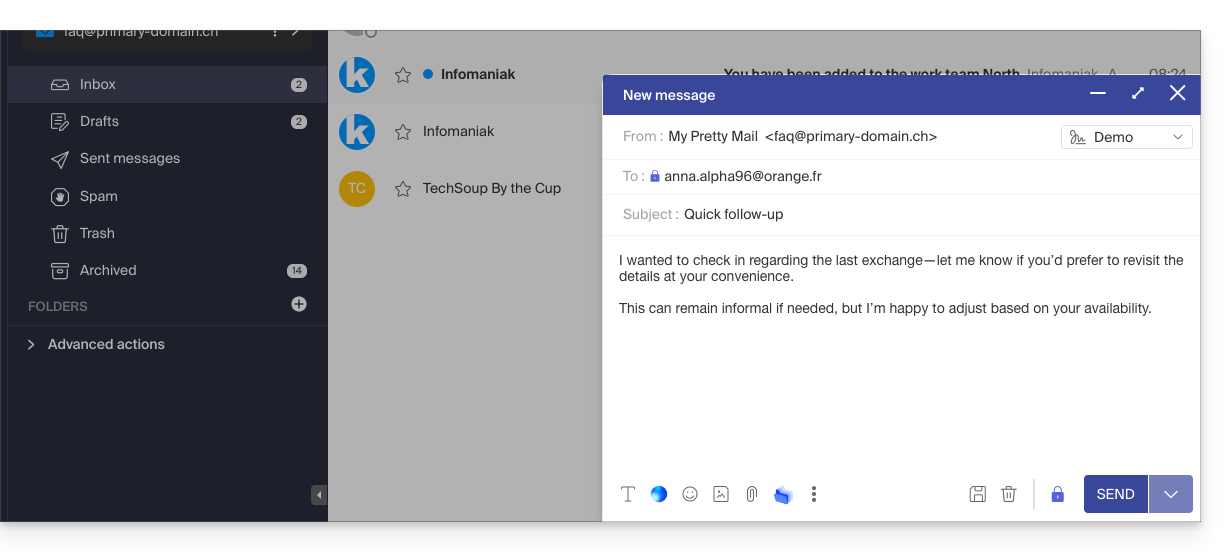
- The icon now represents a closed padlock without the orange chip, and you can send the email as usual:
- Recipients will then receive a message informing them that an encrypted email is waiting for them:
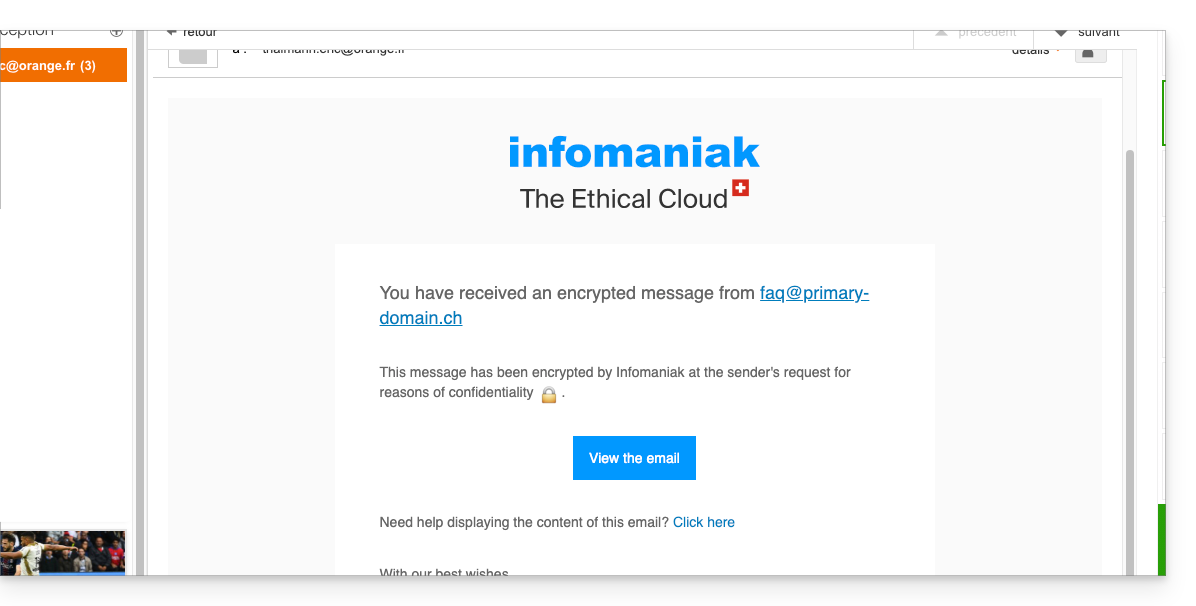
- By clicking on the provided button, they will be redirected to a secure web page where the password must be entered.
- Once the password has been validated, the encrypted message can be viewed on the same page, valid for 30 days.
… from the Infomaniak Mail mobile app
To automatically encrypt a message sent to an email address:
- Open the Infomaniak Mail mobile app (application for iOS/Android smartphones or tablets).
- Compose a new message as usual.
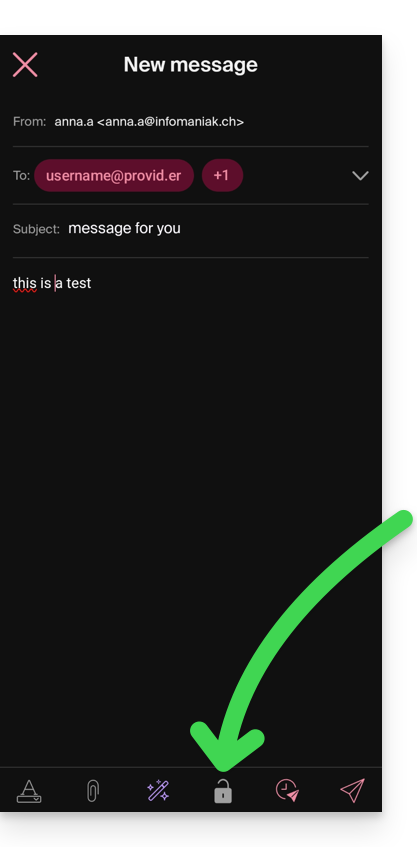
- Click the lock icon at the bottom of the composition window to enable encryption:
A. Recipient whose email is managed with Infomaniak
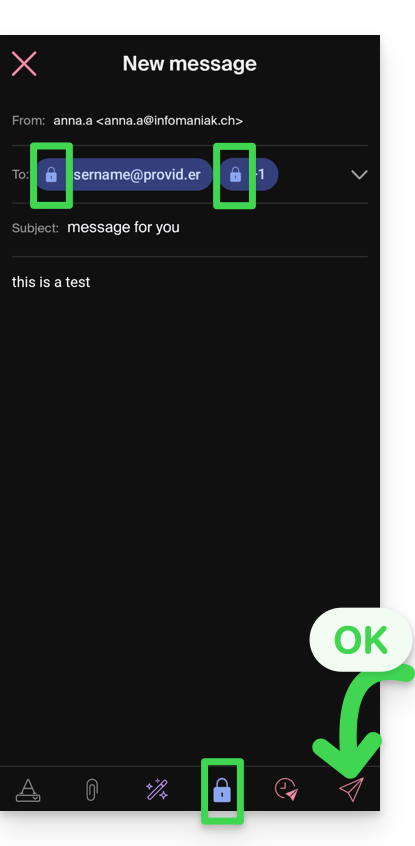
If the recipient of the encrypted email has an email address managed with Infomaniak, the encryption process is completely transparent for both the sender and the recipient:
- Closed padlock icons are displayed on the screen.
- Tap the send icon:
B. External recipient
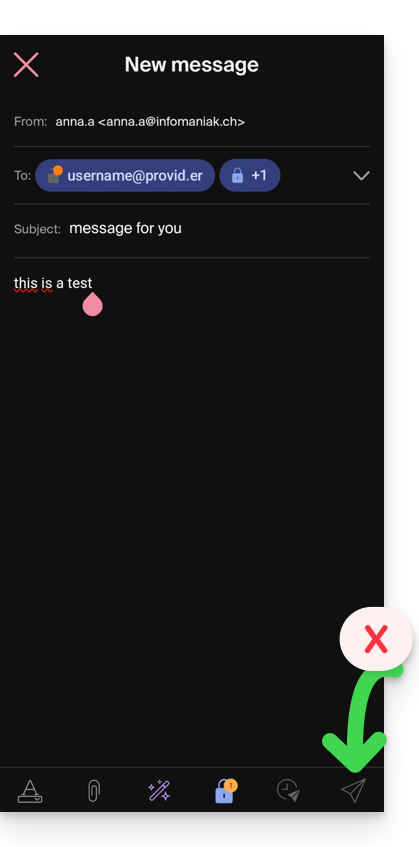
If the recipient of the encrypted email has an email address managed outside of Infomaniak services, encryption is still possible, but it requires setting a password:
- Sending will not be possible because the send icon will remain grayed out and symbols will appear on the locks:
- Tap the padlock icon.
- A modal window will open, allowing you to create a password.
- Use the suggested password or enter a new password and copy it to send it to the recipient using your own means (e.g., kPaste). You can agree on a password in advance so that the recipient is already informed.
- Press the cross in the upper left corner if you have finished managing the password.
- The sending process can now be performed in encrypted mode:
Link to this FAQ: https://faq.infomaniak.com/1582
Has this FAQ been helpful?
This guide explains how to report spam or declare a false positive if spam messages slip through the cracks in an Infomaniak Mail Service, or conversely, if a valid email has been incorrectly classified as spam; you can take action in just a few clicks.
Report spam
Prerequisites
- Make sure the spam filter is active.
Next, to automatically move an email from your inbox to the Spam folder if it has bypassed the anti-spam filter:
- Click here to access the Infomaniak Mail web app (online service ksuite.infomaniak.com/mail).
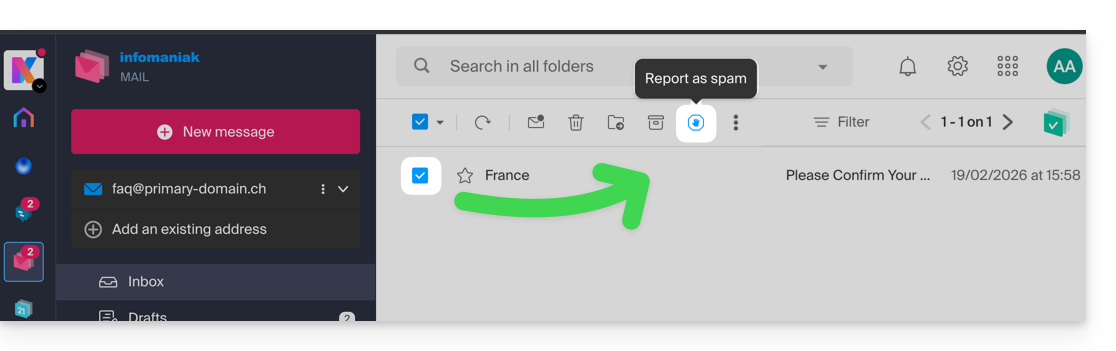
- Select the message in your inbox and then click on the Spam icon in the toolbar:
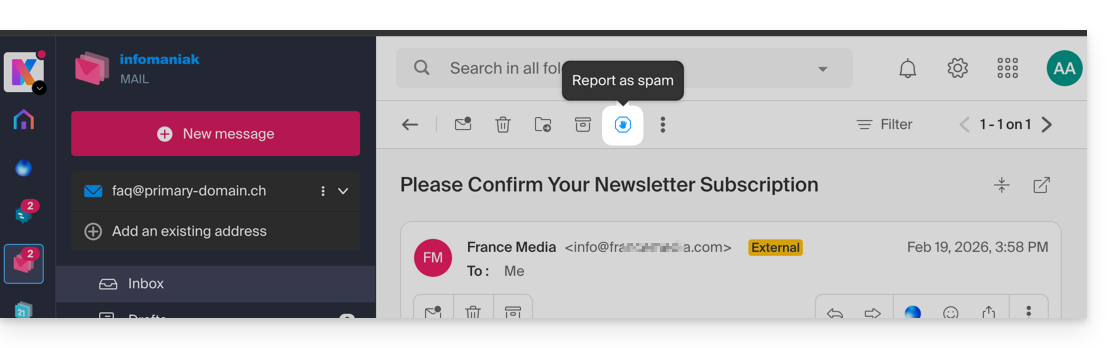
- You can also open it and report it as Spam later:
- Another option: open it and click on the action menu ⋮ on the right:
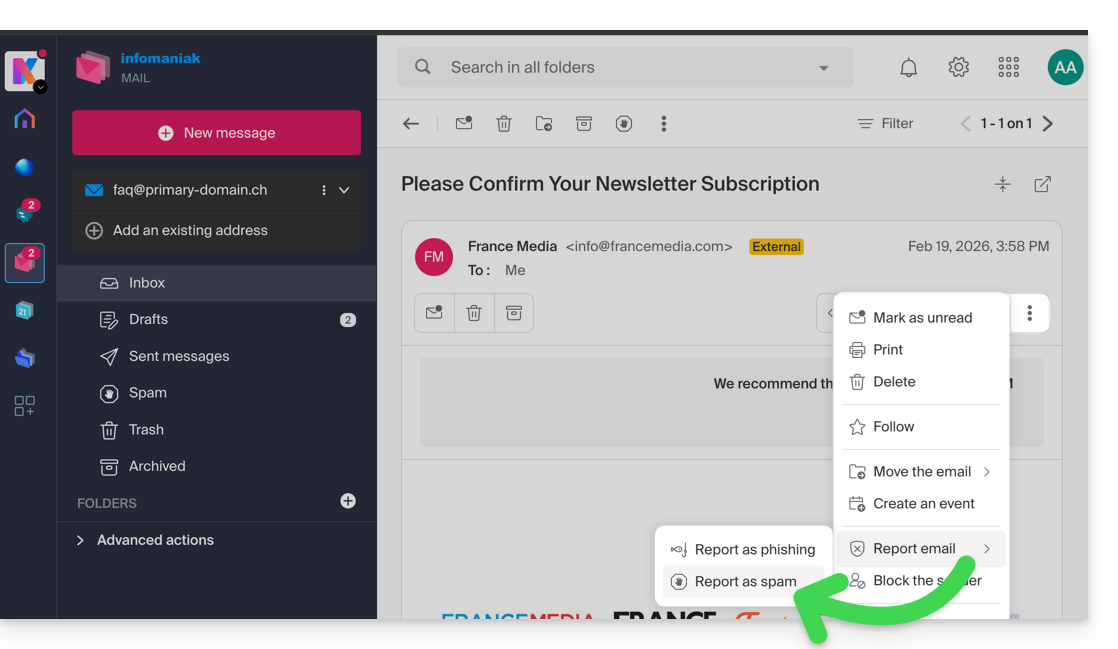
Once you have clicked on Report as spam:
- the email is moved to the Spam folder (or to the manually defined folder)
- the sender's address is added to the blocked users list
- the filter is refined for better performance over time.
Report a false positive
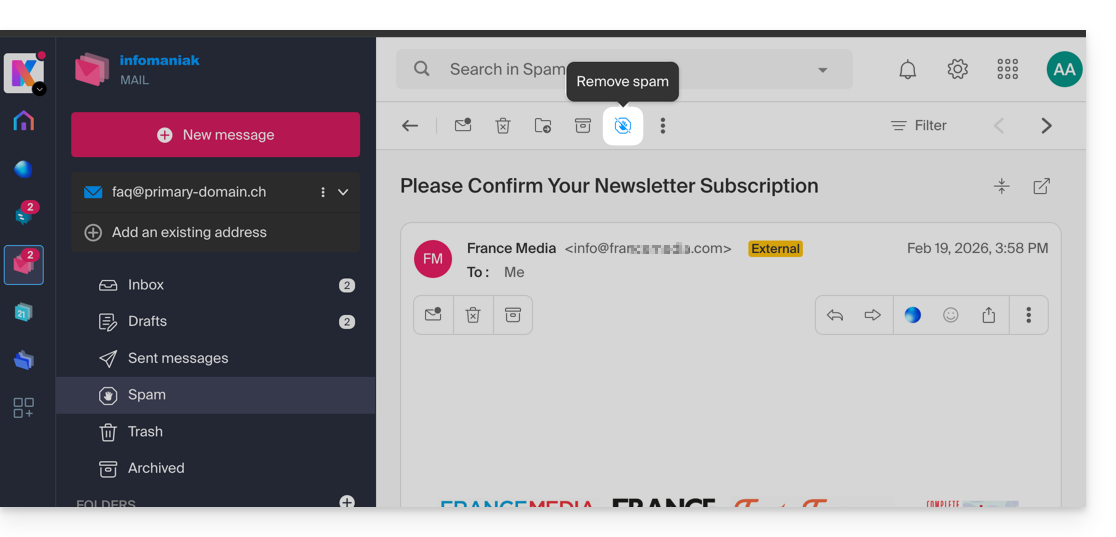
Conversely, if you take action on an email that is incorrectly identified as spam (false positive) by clicking on the "This is not spam" icon:
- The email is moved to the inbox…
- The sender's address is added to the list of authorized users…
- This also affects the filter and its criteria.
Link to this FAQ: https://faq.infomaniak.com/1592
Has this FAQ been helpful?
This guide explains how to manage Soft Bounce and Hard Bounce errors that can occur when sending emails, particularly when using the Infomaniak Newsletter.
Hard Bounce
A hard bounce is an email that cannot be delivered for permanent reasons.
- email sent to a non-existent address
- recipient's email domain which is not a valid domain
- recipient's server that does not accept emails
- etc.
Soft Bounce
A soft bounce is an error message indicating that the email was not delivered to its recipient and corresponds to a temporary delivery issue: the email address is valid, and the sender can resend the email.
Several reasons can explain a soft bounce, meaning that the recipient's server is temporarily refusing the email:
- the recipient's inbox is full: due to insufficient storage capacity, the recipient no longer receives messages
- an issue occurs with the recipient's mail server: the server is temporarily unavailable or down, or the user has unintentionally configured filters that prevent the receipt of certain messages
- when the email content, especially its attached files, is too large, the delivery problem occurs during sending.
Unless the recipient has permanently abandoned their inbox without deleting their account, a soft bounce is a temporary problem.
Example of the Infomaniak Newsletter tool after a sending with a good score of 0% “Permanent bounces” and 0.31% “Temporary bounces”: 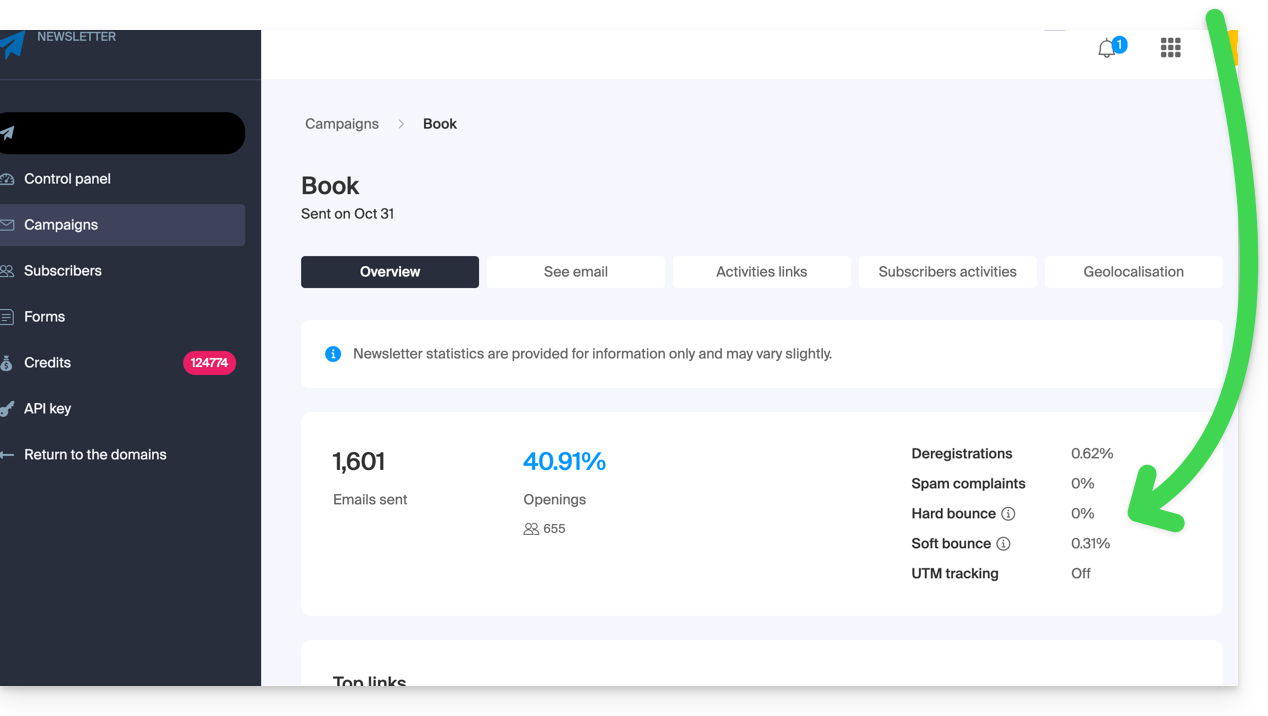
Also, refer to this other guide.
Link to this FAQ: https://faq.infomaniak.com/1605
Has this FAQ been helpful?
This guide details the specific rules to follow when using a password containing the “dollar” character $ to send an email via the Infomaniak SMTP in a script (PowerShell, Python, etc.).
Introduction
- If you receive an authentication error (e.g.,
auth failed,invalid login or password) when sending an email via SMTP, even though the password is correct and works in software like Outlook, the problem may be due to how the$character is handled in your script or configuration file. - To ensure reliable execution of your SMTP scripts, it is strongly recommended to avoid using any special characters with syntactic meaning, especially
$, in the passwords used in scripts and configuration files. - The problem may also occur when connecting to databases.
Rules to follow
The $ character is a special symbol in many languages and environments. When used in a password within a script or configuration file, it may be incorrectly interpreted as a variable or control character.
Here are some common cases where you should not use the $ character in a password:
- PowerShell:
$is used to declare variables. A password containing$may cause syntax errors or be truncated. - Bash / Shell (Linux):
$is also a variable prefix. It may trigger unexpected substitutions. - YAML files (e.g., Home Assistant, GitHub Actions, Docker Compose):
$can be interpreted as an environment variable. .env,.inifiles, or other configuration files: the tools that read these files may attempt to interpret the variables.- Commands or URLs with authentication: a password containing
$may be incorrectly encoded or fail during parsing.
To correct or prevent this type of error:
- Avoid using the
$character in passwords intended for use in scripts or automated systems. - If you absolutely must use it, always enclose the password string correctly according to the language:
- In PowerShell: use single quotes
'password$Test'if possible. - In Python: ensure that the string is properly enclosed in single or double quotes, without interpretation.
- In Bash: escape the
$with a backslash\$.
- In PowerShell: use single quotes
Link to this FAQ: https://faq.infomaniak.com/1608
Has this FAQ been helpful?
This guide explains how to modify the access rights to products for a user in your Organization on the Infomaniak Manager.
Introduction
- Since you opened your account with Infomaniak, you have been part of at least one Organization.
- If you were the only user and it wasn't an invitation, an Organization was created in your name, and you automatically become its legal representative.
- Otherwise, you belong to the Organization that invited you (to join its kSuite, to manage a product, etc.).
- You can change a user's role within your Organization.
- You can then define whether a user…
- … is part of your Organization and whether they should become:
- Legal Representative
- Administrator
- Collaborator (this section is detailed below…)
- … is external to your Organization (limited rights):
- External users are not included in calendar and address book sharing with the entire Organization.
- … is part of your Organization and whether they should become:
Who can access what…
Prerequisites
- Switch to the desired Organization beforehand if you cannot find the expected list of users.
- Be an Administrator or Legal Representative within the Organization.
- Have added a user as a collaborator.
The guide below explains how to manage access to products for collaborators and external users. Indeed, a legal representative or an Administrator always has access to all existing products within the Organization, as displayed in the Infomaniak Manager.
To modify a user's product access within the Organization:
- Click here to access user management in the Infomaniak Manager (need help?).
- Click on the action menu ⋮ located to the right of the user in question.
- Click on Modify product access:
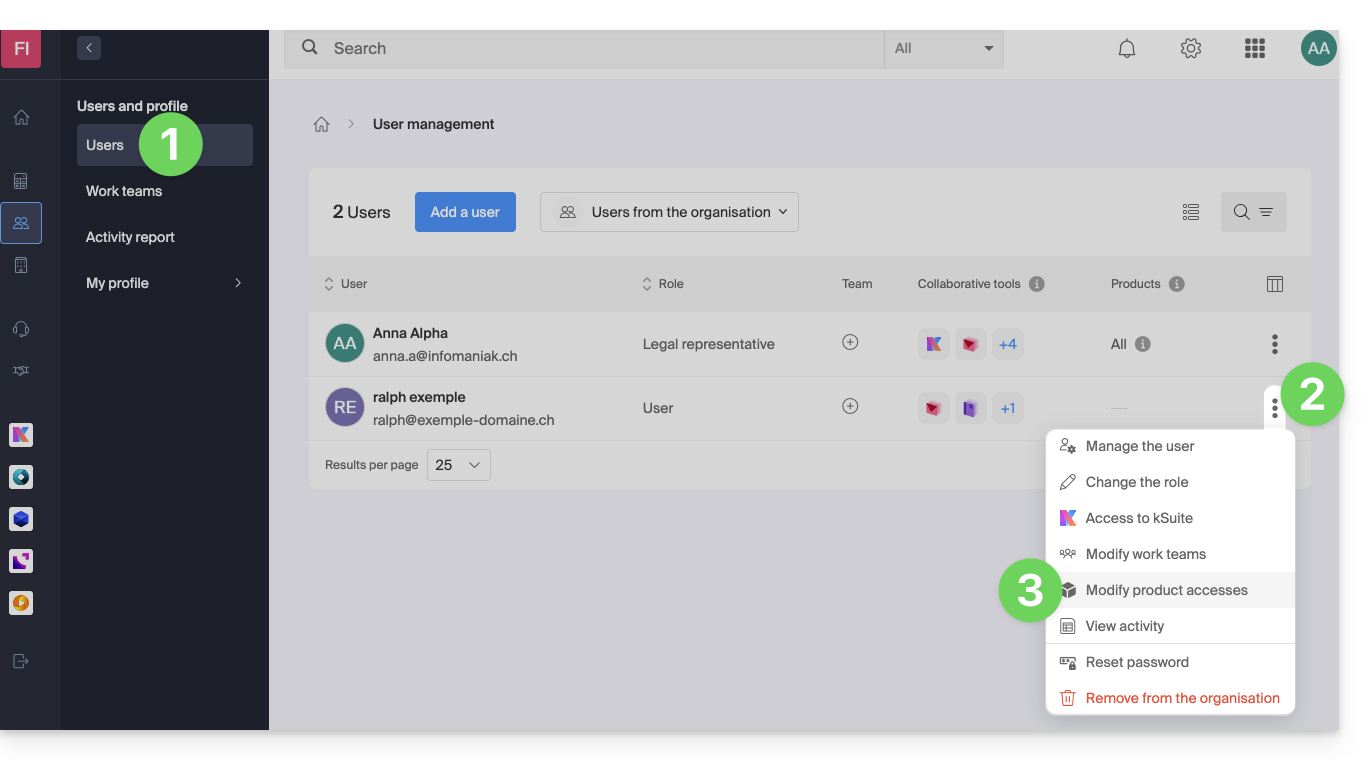
- You can grant access to everything with maximum permissions in one click.
- Alternatively, click on the product category you want to grant access to.
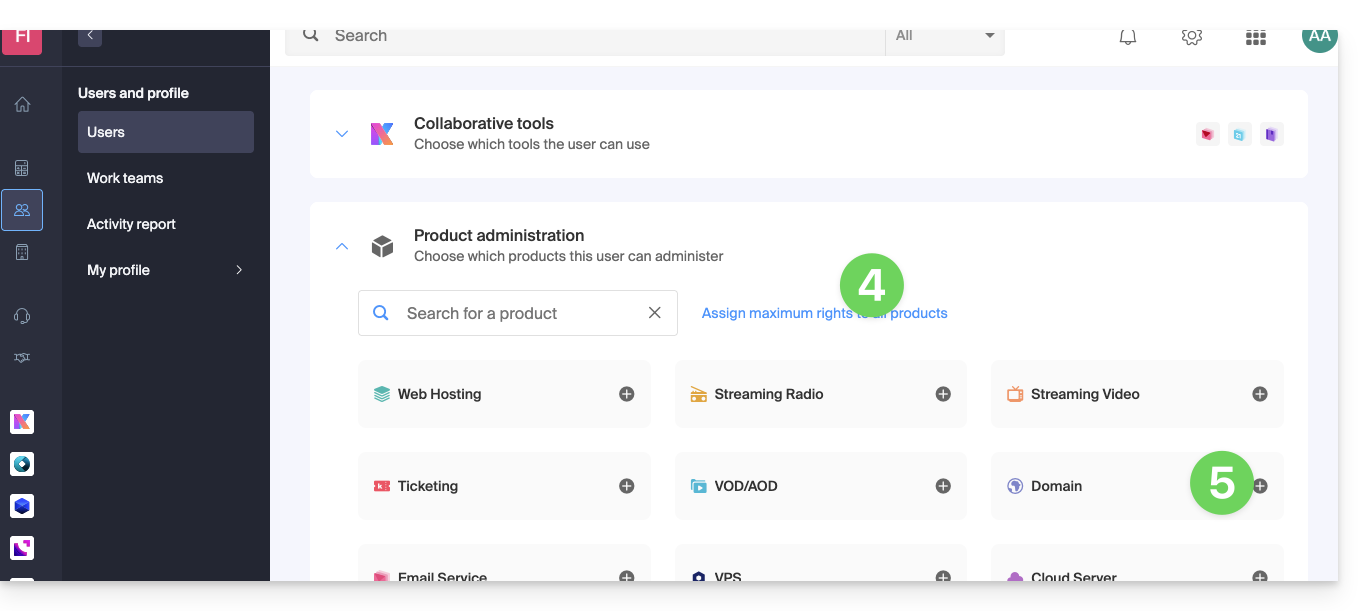
- Select the product(s) you need.
- If you have selected multiple products, decide whether a future additional product should automatically be visible to the user (and with what type of permissions).
- Click on the Save button:
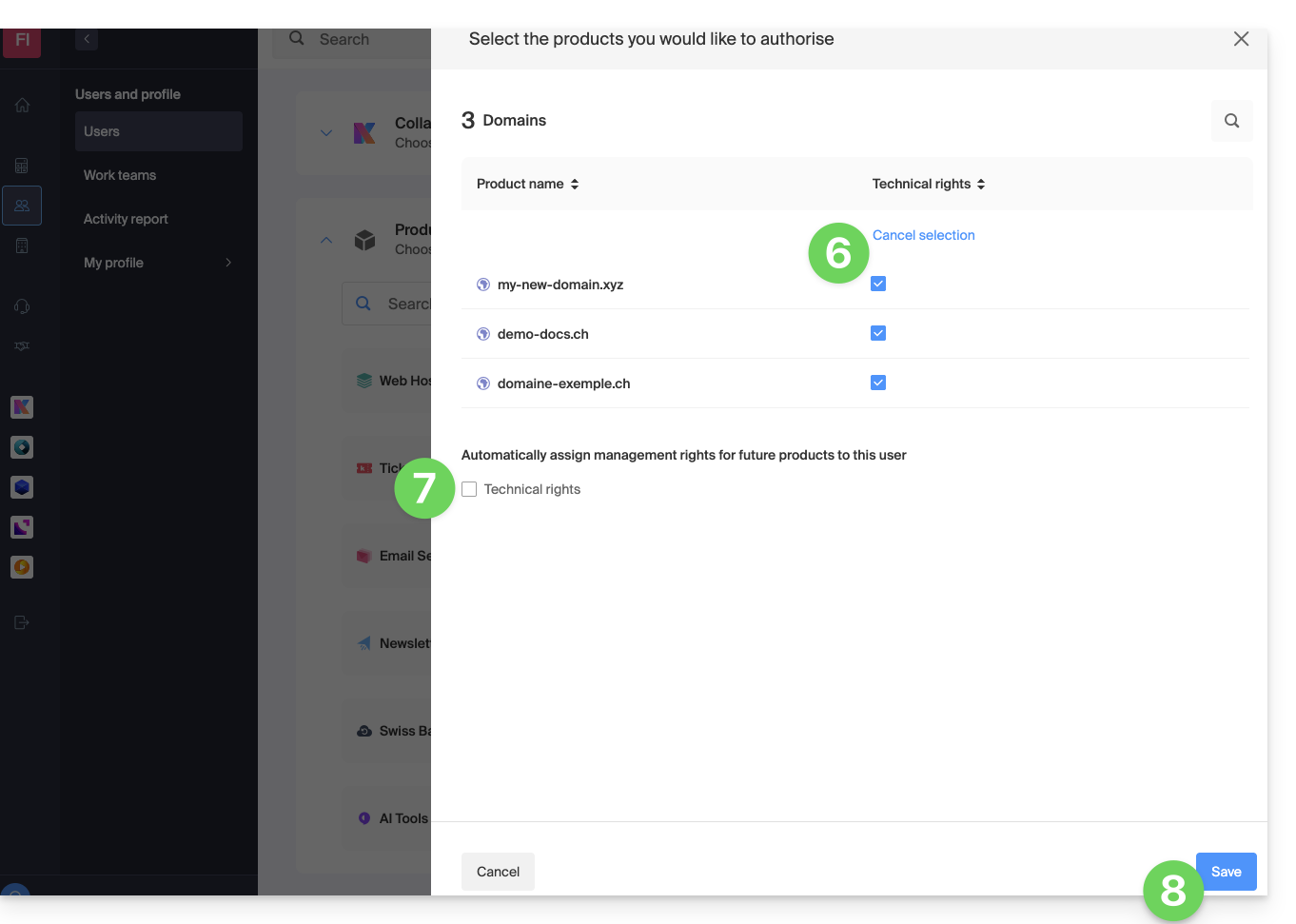
- Permissions are granted immediately.
- Click on the pencil ✎ icon to modify the permissions:
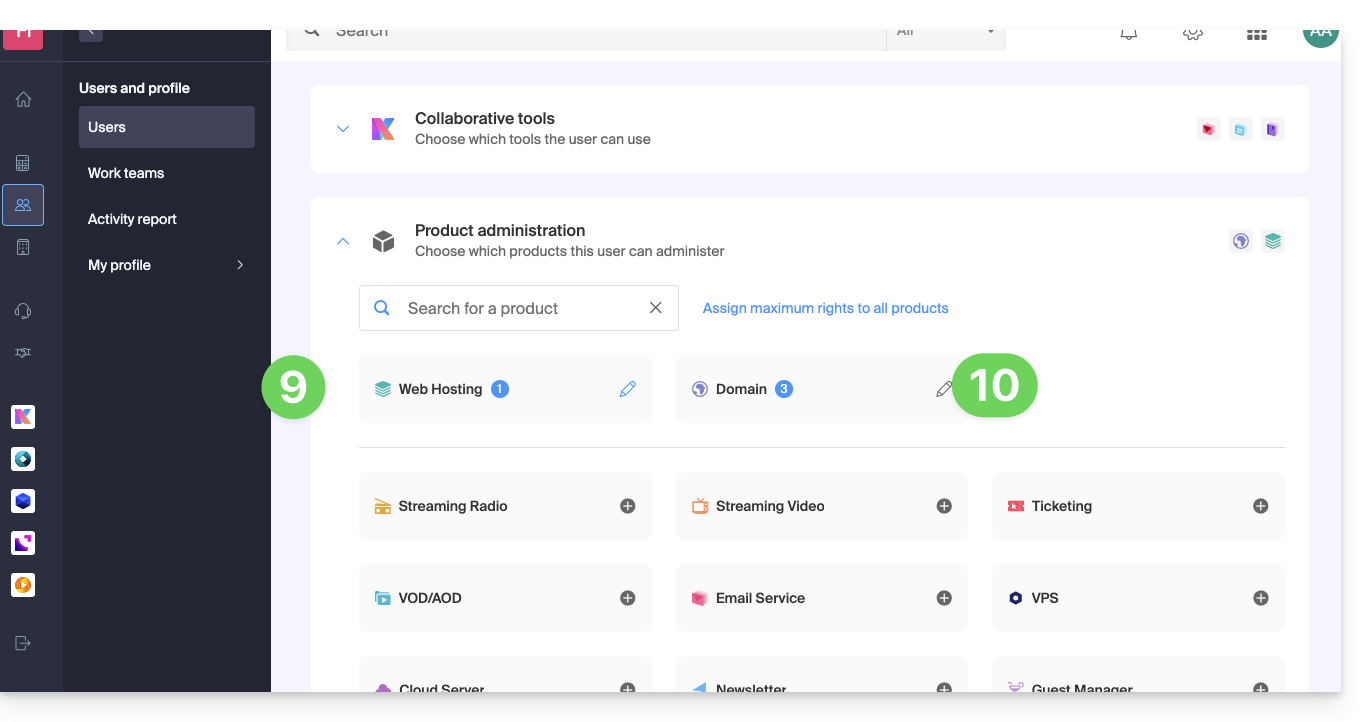
- If you need to grant access to multiple products, start again from step 5.
Using the service / Managing the service
Please note that in the product table, it is important to distinguish between access to the products (e.g., kDrive within kSuite) and access to product management: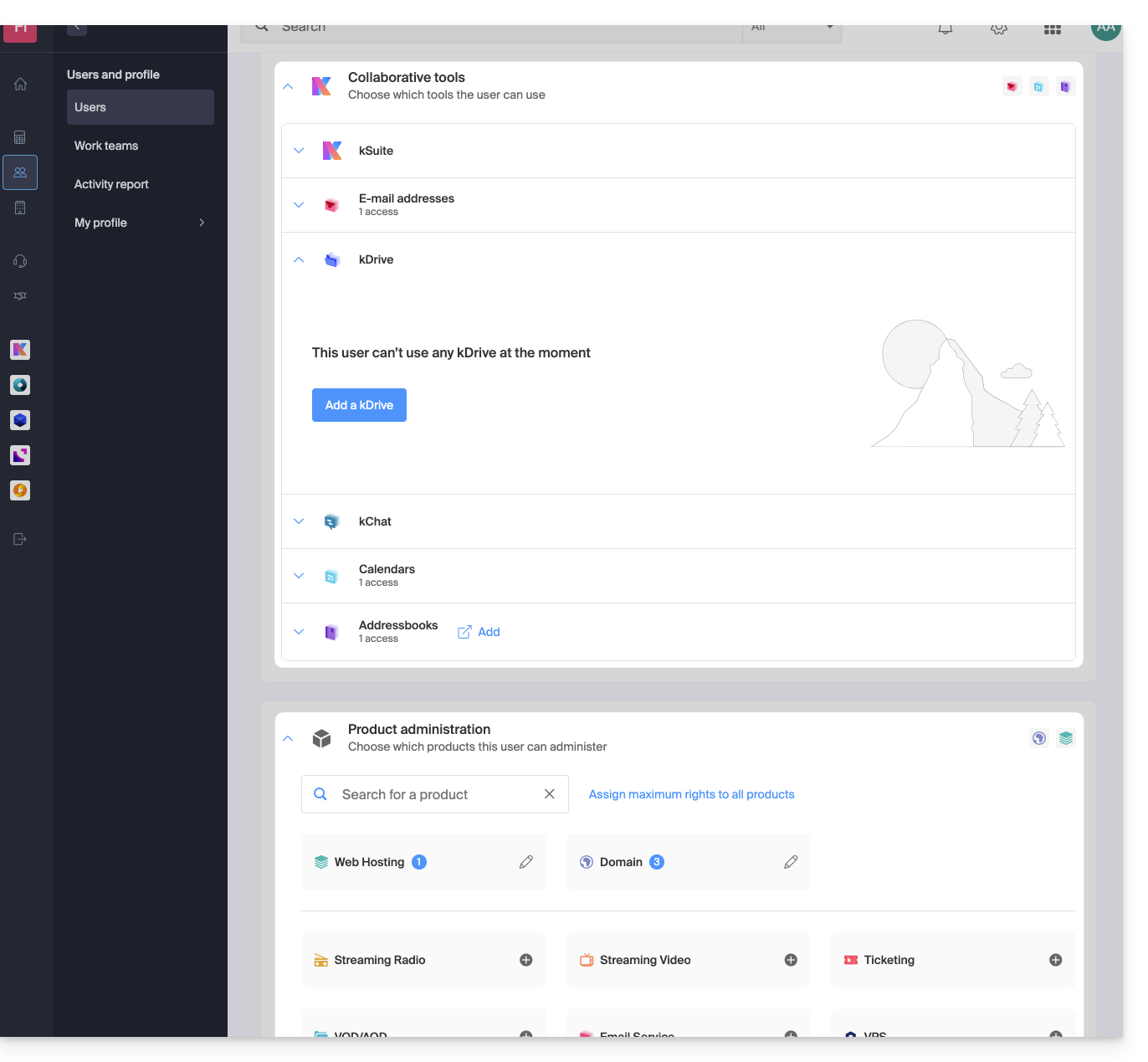
It is possible to authorize a user to use kDrive (they will be able to create a PDF, for example) without granting them management rights for the kDrive service (they will not be able to change the plan, invite a new user, cancel the service, etc.).
Technical Rights / Statistical Rights
With certain services like kDrive, it is possible to grant a collaborator TECHNICAL and/or STATISTICAL rights (adds access to the dashboard, sharing links, storage statistics, active users, connected devices, activity on the kDrive):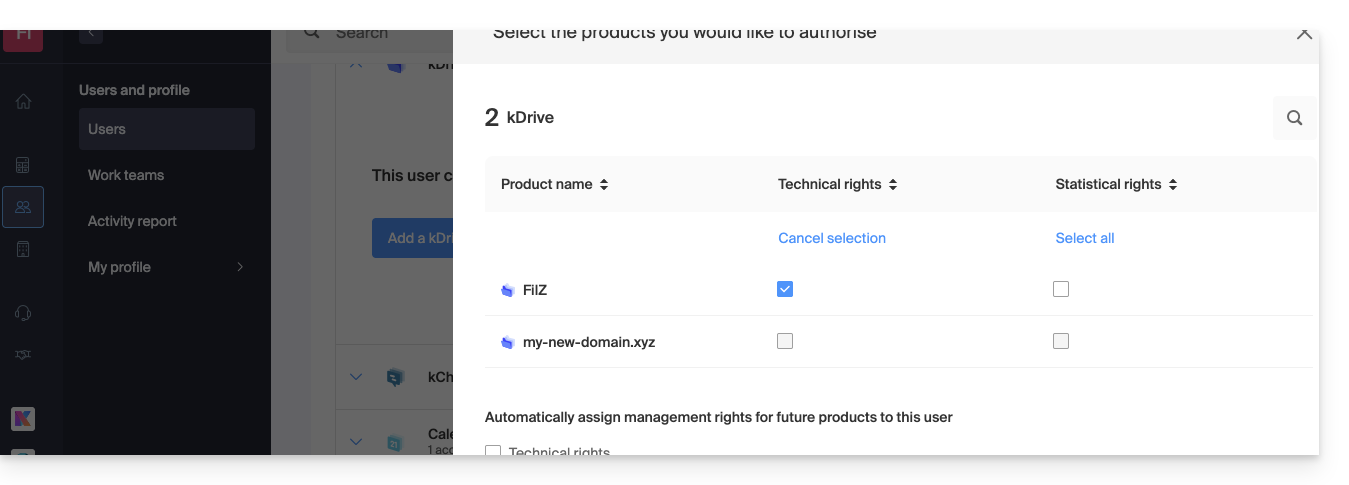
Other services, such as domain names, do not have a STATISTICS section: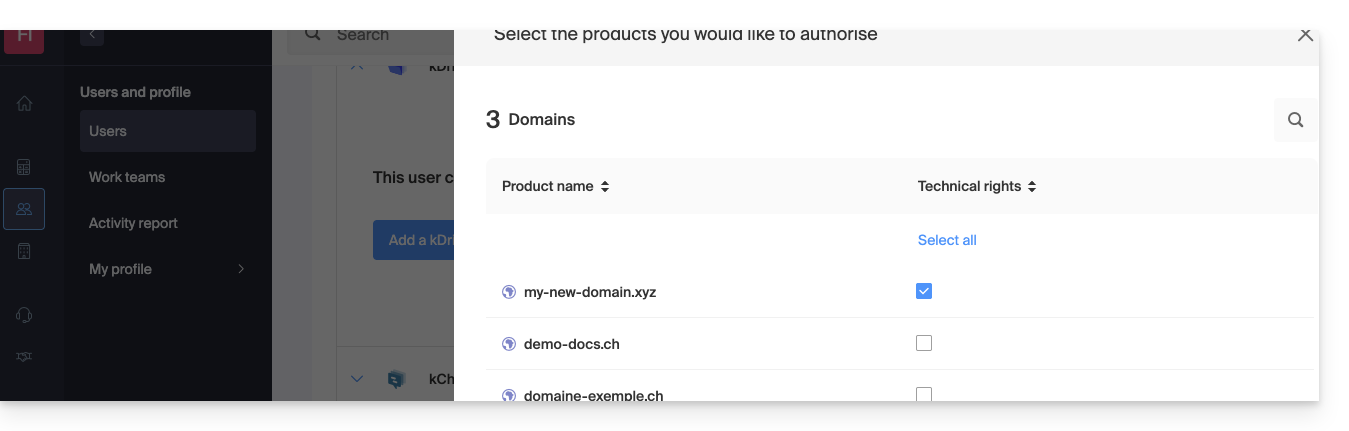
Some specific services, such as ticketing, allow for even more detailed permissions: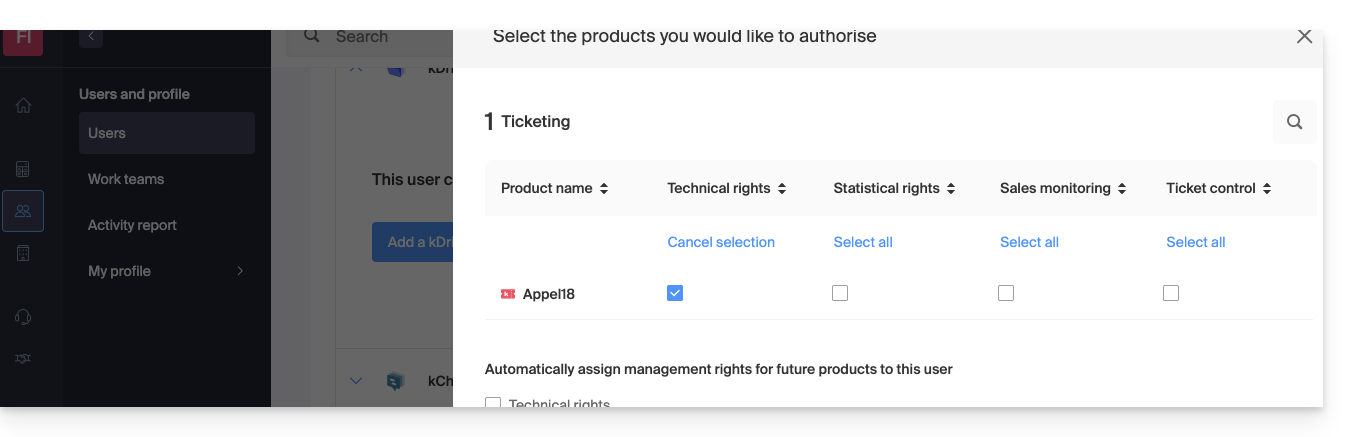
Easy Access: Groups
To simplify the process of adding access rights to a product within your Organization, there are Groups. These allow you to create teams that are linked to Infomaniak products with the desired rights, which is very useful for granting a new member of your Organization access to the products they will need in their daily work.
Link to this FAQ: https://faq.infomaniak.com/1610
Has this FAQ been helpful?
This guide explains which DKIM to add to secure Infomaniak email if it is based on a domain name whose DNS records are managed by Cloudflare.
Introduction
- If you manage your emails with Infomaniak, as well as the domain name associated with them, but DNS management is handled by Cloudflare, then you need to add the DKIM on the Cloudflare interface.
Add a DKIM on Cloudflare
Prerequisites
- Consult this other guide to learn how to display the DKIM record for your Infomaniak email account.
- Display the DKIM record so you can copy and paste it. Example:
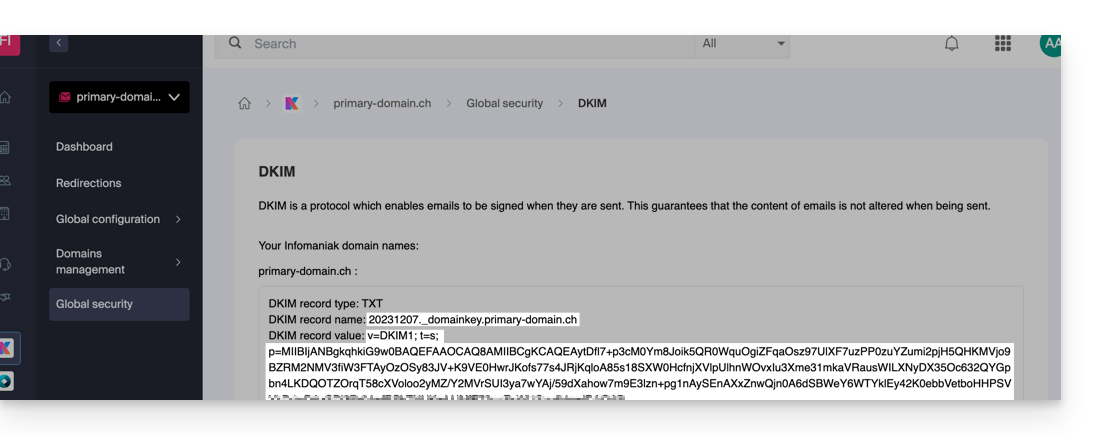
Then, follow the procedure below to correctly enable DKIM, thereby improving the security and deliverability of emails for the domain in question:
- Click here to access your Cloudflare account.
- Select the domain in question.
- In the DNS section, find and delete any existing NS records for "
_domainkey" that point to Infomaniak. - Click the Add record button to open the input form.
- Fill in the fields using the data obtained from the Infomaniak Manager, following the standard configuration for a DKIM record of type TXT:
| Cloudflare Field | Value to Enter | Important Notes |
|---|---|---|
| Type | TXT (text) | Choose the standard type for DKIM keys. |
| Name (Host) | The DKIM selector (e.g. 20240112) | Enter only the selector, as Cloudflare will automatically add the domain name and the ._domainkey suffix for you. Refer to the Cloudflare documentation if needed. |
| Content (Value) | The public key (the long string) | Paste the entire DKIM public key provided (the part after p=) |
| TTL | Auto | Leave the default value for optimal management by Cloudflare. |
Make sure the Proxy Status (cloud) is set to DNS Only (grayed out) for email authentication records.
Backup and Propagation
After carefully verifying the accuracy of the Selector and Public Key, click the Save button. This will validate the addition of your DKIM record to the Cloudflare DNS zone.
Any DNS addition or modification may take up to 48 hours to propagate.
Once this period has elapsed, you can use online verification tools to confirm that the DKIM record has been published and is valid. This validation ensures that your Infomaniak emails will be correctly signed and that their deliverability will be optimal.
Link to this FAQ: https://faq.infomaniak.com/1619
Has this FAQ been helpful?
This guide is for users who own a domain name on the Infomaniak infrastructure and are experiencing a DMARC issue when using certain Google tools such as Meet or Calendar.
Troubleshooting a DMARC error
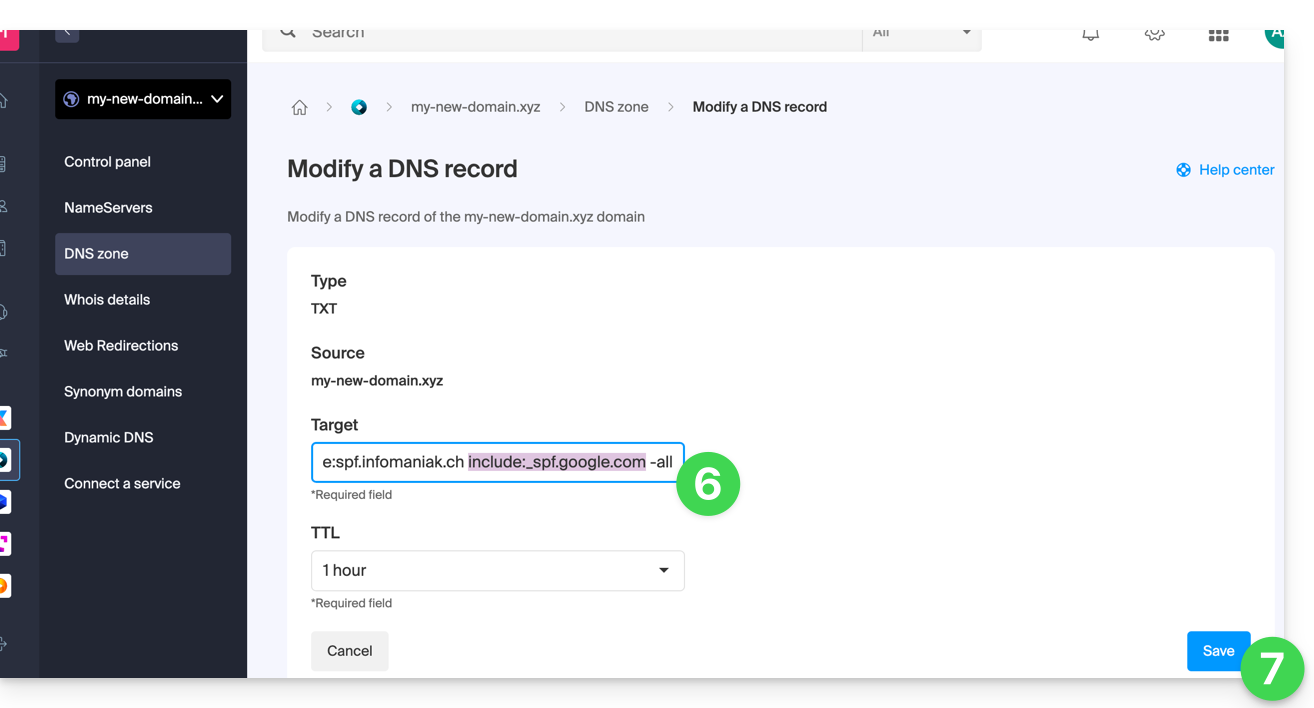
To ensure compatibility between your domain name configuration (which has a DMARC policy of type reject) and the use of certain Google services, it is necessary to add the corresponding SPF record:
- Before:
v=spf1 include:spf.infomaniak.ch -all - After:
v=spf1 include:spf.infomaniak.ch include:_spf.google.com -all
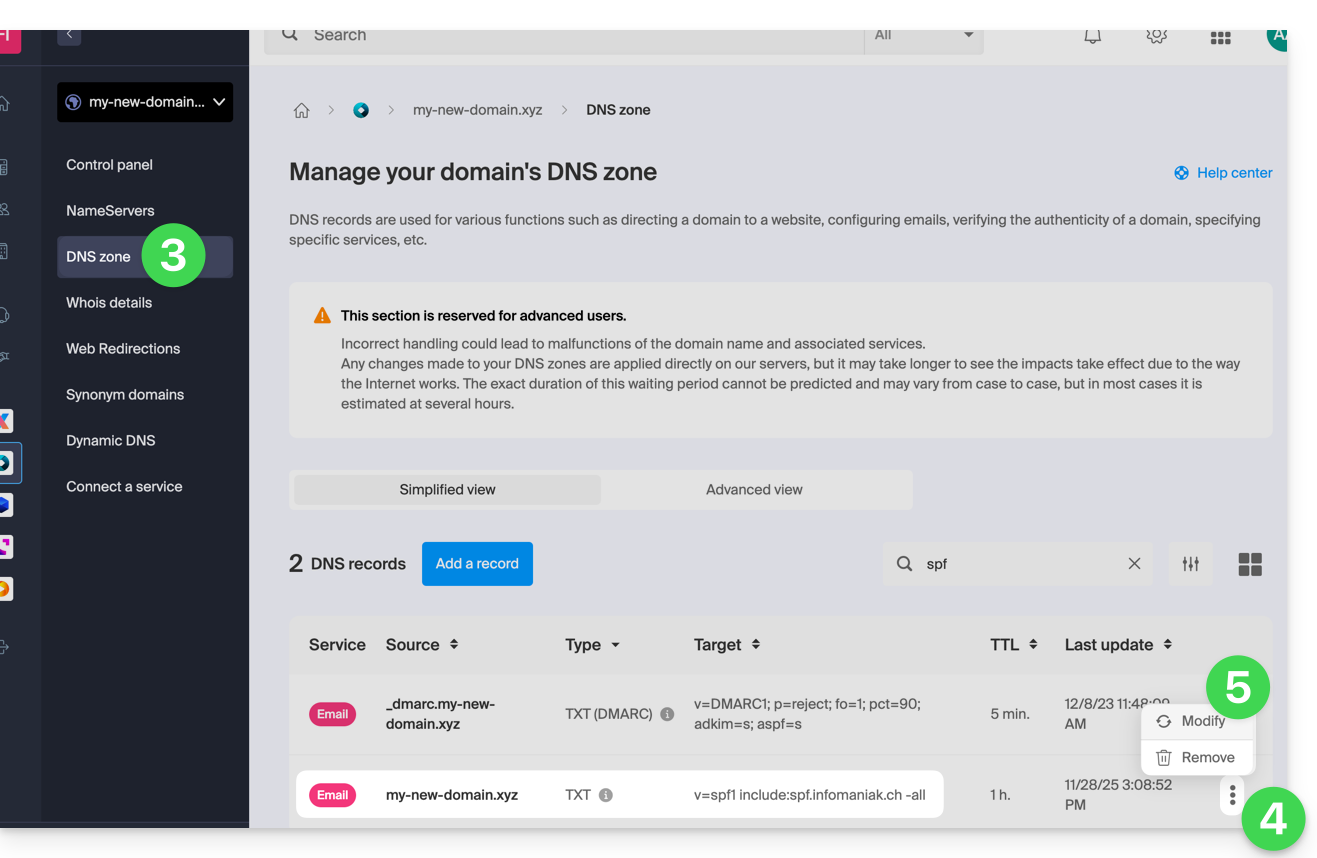
To edit the SPF record currently configured in the DNS zone of your domain name:
- Click here to access your domain management in the Infomaniak Manager (need help?).
- Click directly on the name assigned to the domain in question.
- Click on DNS Zone in the left-hand menu.
- Click on the action menu ⋮ located to the right of the TXT record containing the relevant SPF value.
- Click on Edit:
- Edit the field by adding
include:_spf.google.comon the same line after the existing include Infomaniak, and before the final-all. - Click on the Save button:
Any DNS addition or modification may take up to 48 hours to propagate.
Please refer to this Google documentation if you need information on configuring Google's SPF.
Link to this FAQ: https://faq.infomaniak.com/1641
Has this FAQ been helpful?
This guide details the rules for sending bulk emails with Infomaniak to avoid being classified as spam, in accordance with Swiss federal laws and the Infomaniak Terms of Service.
Obtaining consent (double opt-in)
Double opt-in is the only method to protect yourself against complaints.
For the subscription to be valid, the user must:
- Originate from a form dedicated to a specific topic.
- Be confirmed by the recipient via a validation link sent by email.
- Be tracked by the system (IP address and date are recorded).
How to stay compliant?
- Use a contact form with double opt-in to build your lists.
- Always keep the IP address and registration date of each subscriber.
- Always include a visible unsubscribe link at the bottom of each email.
Spam complaint management
In the event of a complaint, Infomaniak may temporarily suspend sending.
- If you provide proof of registration (IP address and date): the complaint will be dismissed.
- Without proof of registration: the complaint is deemed justified. Infomaniak may then suspend the email address, the domain, or terminate the contract in the event of a recurrence.
Link to this FAQ: https://faq.infomaniak.com/1667
Has this FAQ been helpful?
This guide explains how to suspend the administrative management of a product so that no user in the Organization can use it within the Infomaniak Manager. It is also possible to block a user from your Organization without deleting them.
Introduction
- By blocking the management of a product:
- Only administrators and the legal representative will be able to unblock it.
- Users with limited rights (collaborators and clients) who have access to this product will no longer be able to manage it.
- An email is sent to the users of the Organization.
Block a product
Prerequisites
- Be an Administrator or Legal Representative within the Organization (users with limited rights (collaborators and clients) who have access to this product will not be able to do so).
To block or unblock certain products for the entire Organization:
- Click here to access product management in the Infomaniak Manager (need help?).
- Access the service you wish to block.
- Click on the action menu ⋮ located to the right of the item in question.
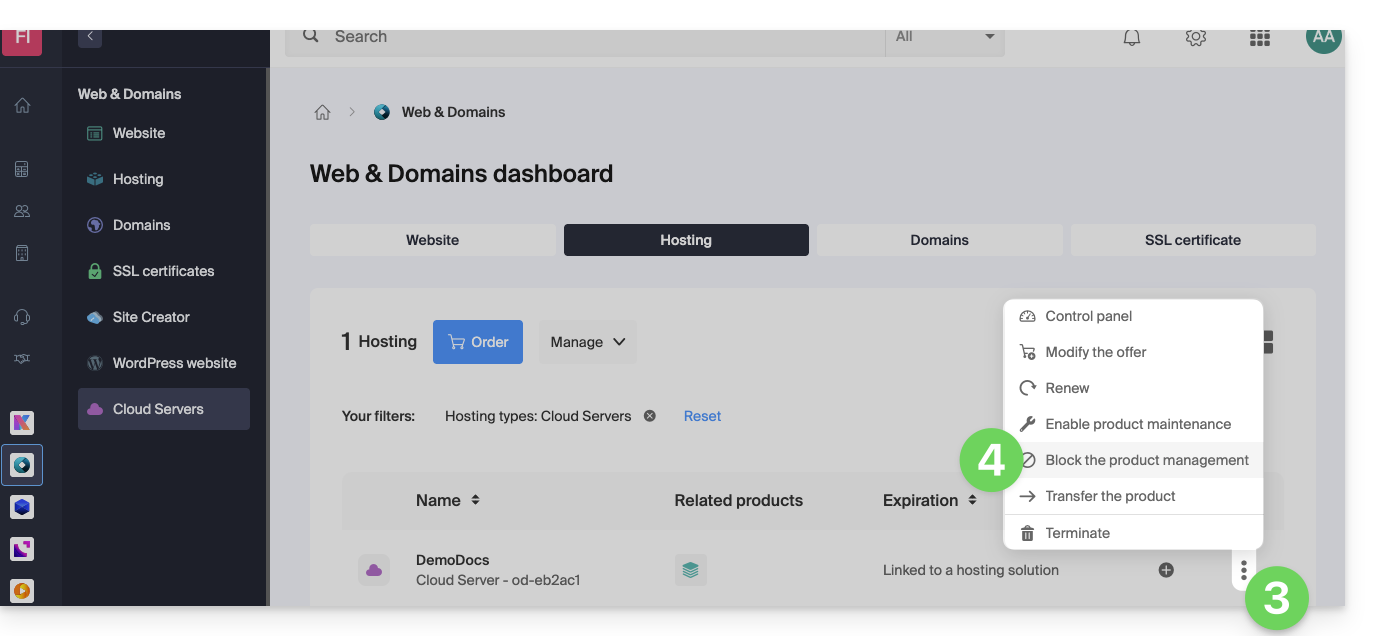
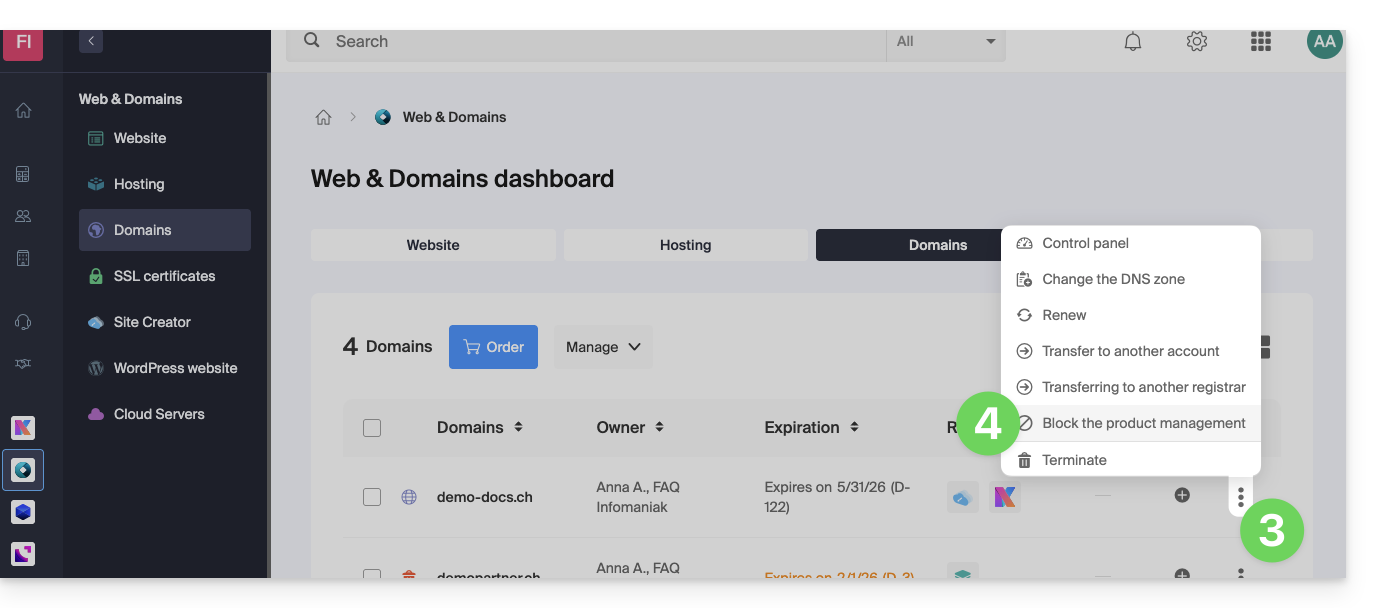
- Click on Block product management:
- Example 1, Cloud Server:
- Example 2, domain name:
- Example 1, Cloud Server:
- Confirm the suspension.
Suspend emails
A Mail Service cannot be blocked in the manner indicated above, but it can be put into maintenance mode.
Prerequisites
- Be an administrator or legal representative; users with limited rights (collaborators and clients) who have access to this product will not be able to do so.
To suspend email addresses:
- Click here to access the management interface for your product in the Infomaniak Manager (need help?).
- Click directly on the name assigned to the product in question.
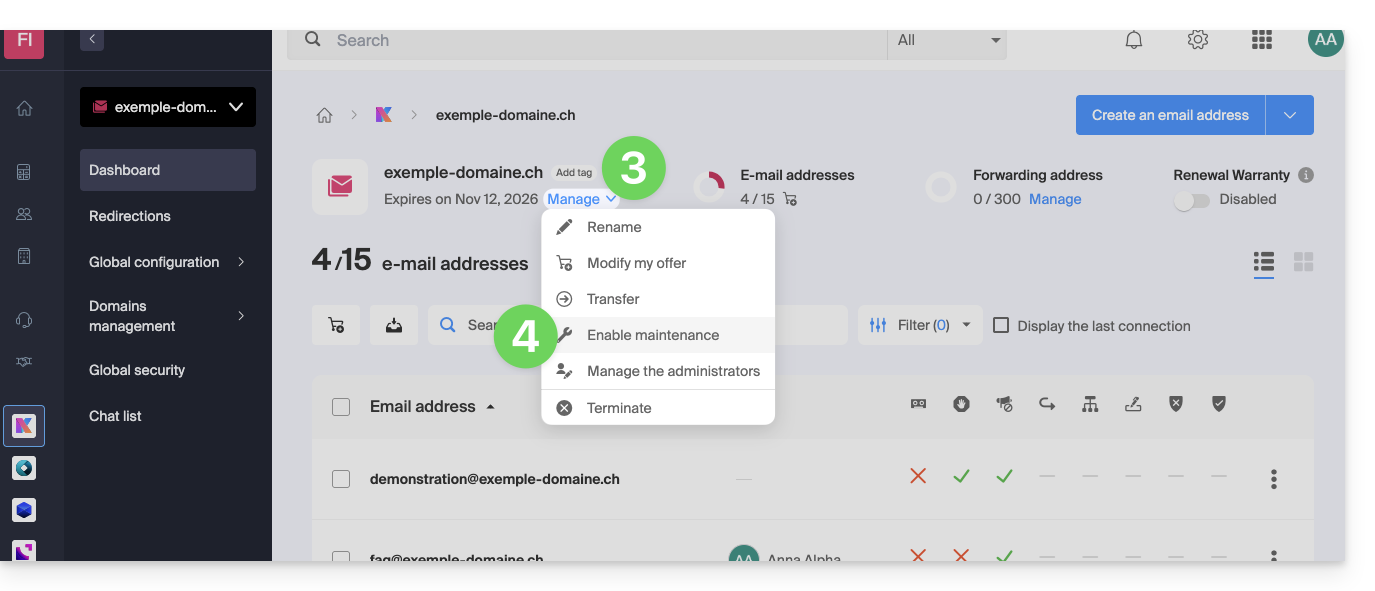
- Click on Manage.
- Click on Enable maintenance:
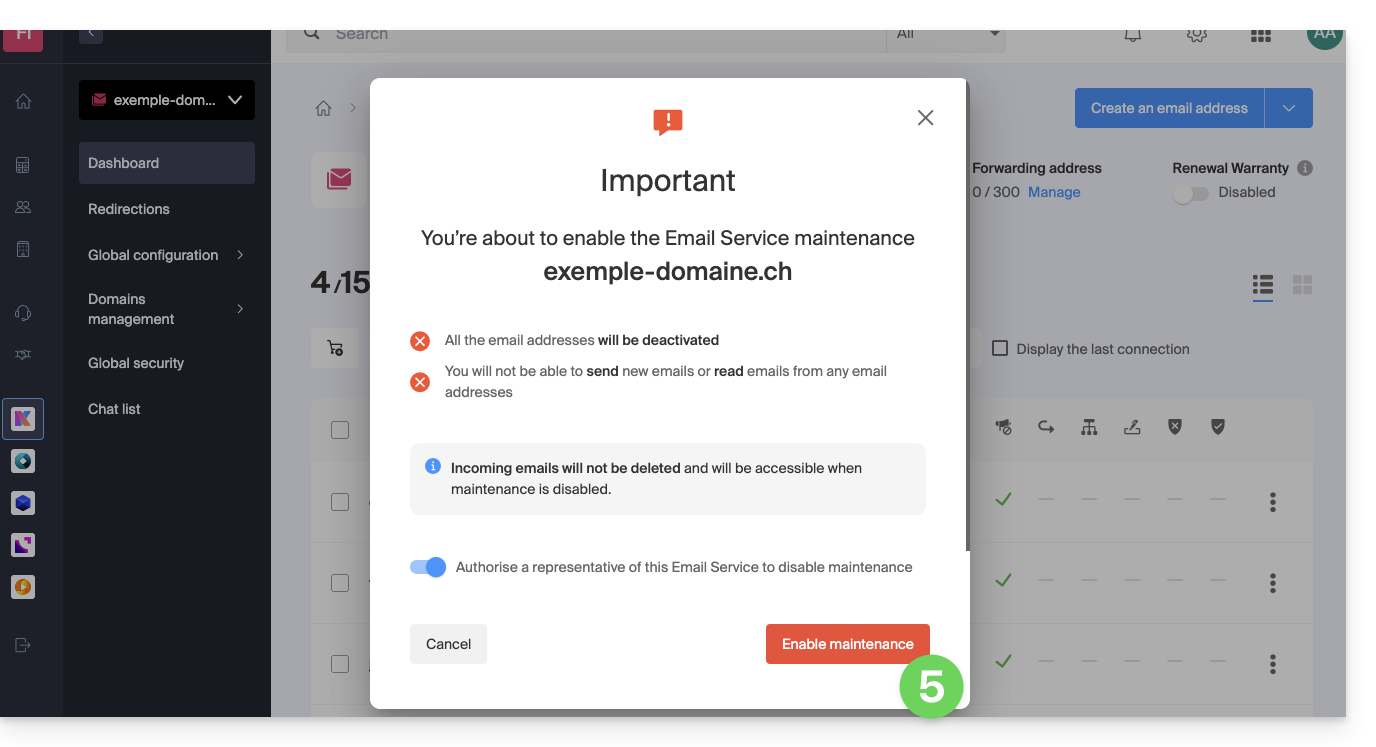
- Confirm the suspension of email address usage by clicking the red button (receiving emails is not interrupted, but viewing them is impossible):
Block a user from the Organization
To quickly block a user from the Organization in case of a security incident, log in to your user management as an Administrator or Legal Representative of the Organization:
- Click here to access user management in the Infomaniak Manager (need help?).
- Click on the user in question:
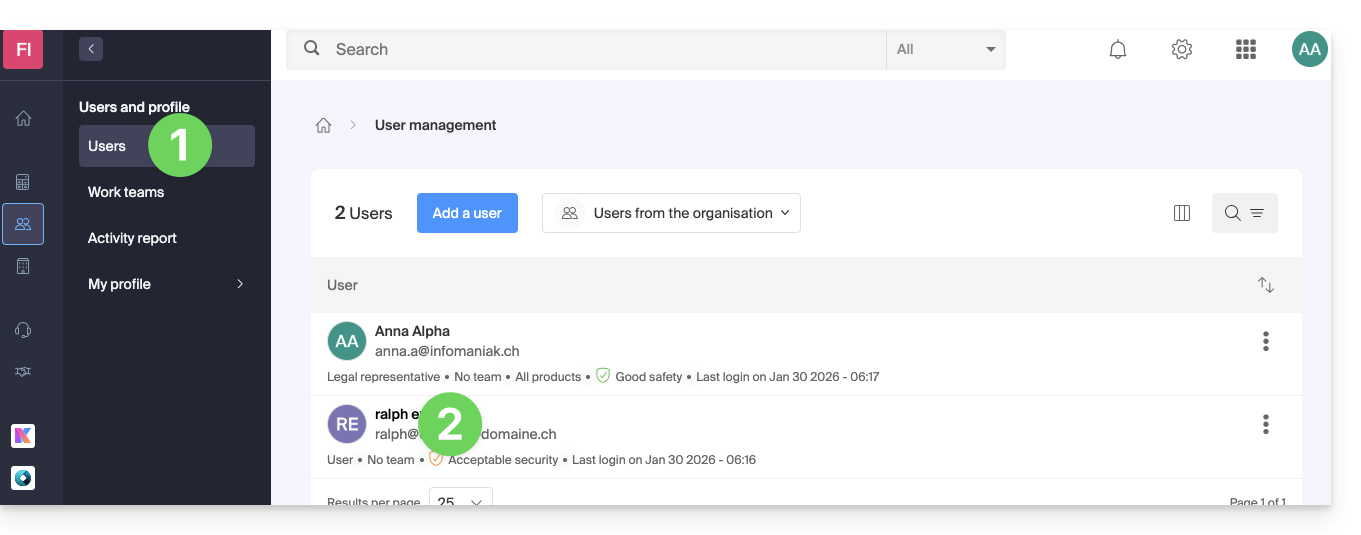
- Using the Manage button at the top of the page, you can remove the user from the Organization (which also removes their various management access rights to the products they had access to).
- Further down, you can manage in more detail the products that the user should be able to access:
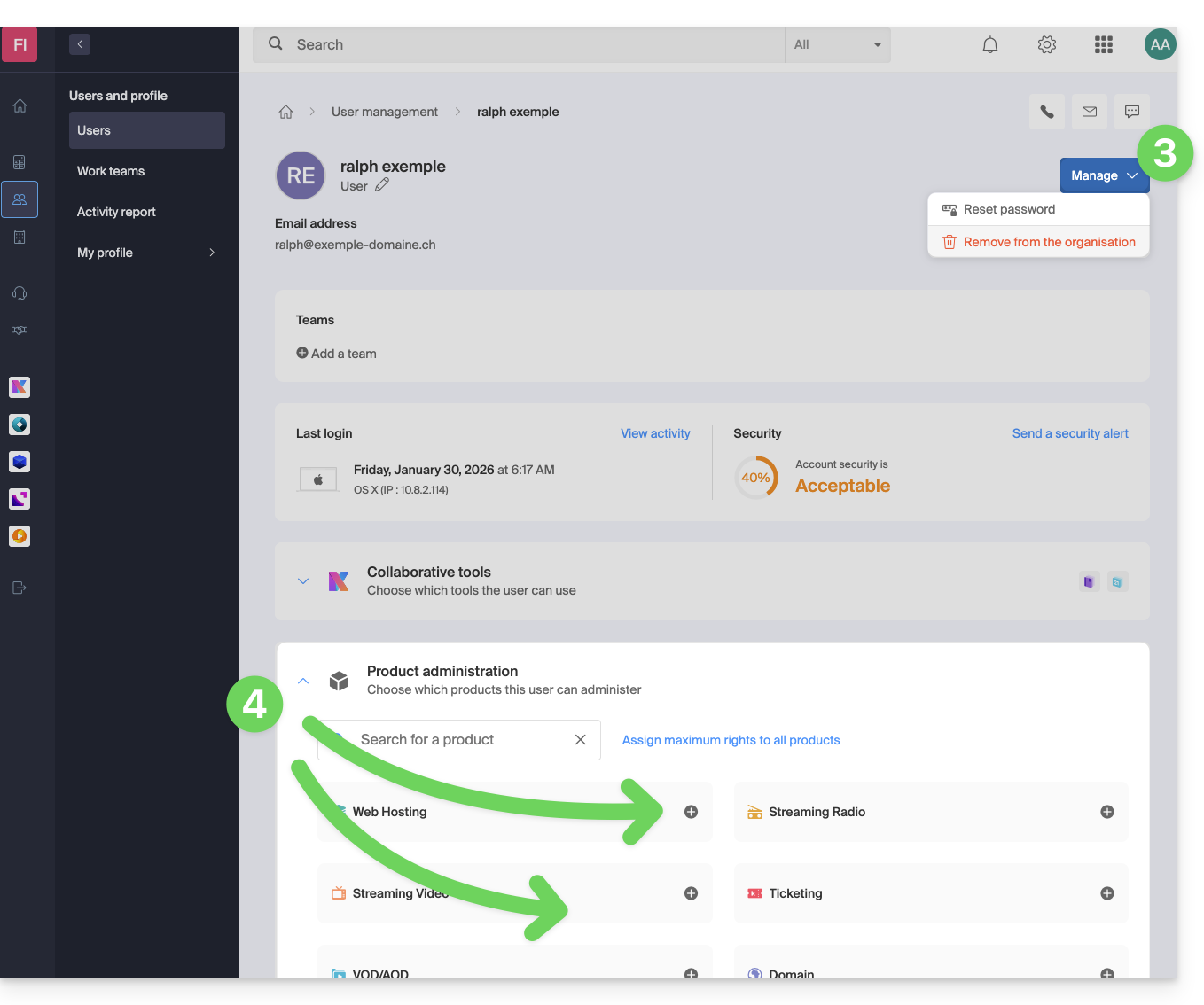
Thus, critical services such as the Manager interface for your Organization, the kDrive web app, and the Mail web app can become inaccessible to this user.
Depending on the situation, also consult these links to block other services such as email (IMAP / SMTP) or Web services.
To avoid blocking the user yourself, but instead provide them with instructions on how to secure their account, consult this other guide.
Link to this FAQ: https://faq.infomaniak.com/1689
Has this FAQ been helpful?
This guide explains how to transfer to Infomaniak email addresses currently hosted by Swisscom, using an IMAP import tool.
Introduction
- The operation does not affect either the data already present at the destination address or the data at the source address.
- The entire external mailbox will be imported.
- Once the import process has started, it is no longer possible to interrupt it.
- Any duplicates will be handled: identical content will only be copied once.
- Refer to this other guide if you are looking for alternatives to this IMAP process.
Import Bluewin email content into Infomaniak
Infomaniak Requirements
- You must have a Mail Service on your Infomaniak Manager.
- Have a number of available addresses or adjust it if necessary.
- Make sure that the email is properly secured
- Create one or more addresses on this Mail service.
- If you have many (10+) email addresses to create, please refer to this other guide regarding bulk creation.
- The destination email address must be linked to the user (= the Infomaniak account) you are using.
Next, to import your email content:
- Click here to access the import tool (online service https://import-email.infomaniak.com).
- If necessary, log in to your Infomaniak account for the relevant organization; the import will be done to one of the email addresses associated with the Infomaniak Mail web interface (online service ksuite.infomaniak.com/mail) of the Infomaniak account you are using.
- Click on the import via IMAP.
- Click on single import.
- Fill in the field on the left with your source email address (from which the content will be copied).
- Fill in the field on the right with the password for this same source email address (see prerequisites).
- Click Confirm.
- If necessary, enter a second email address to be imported at the same time.
- Choose the email address from which to import emails; the drop-down menu lists the email addresses currently associated with your Infomaniak Web Mail interface (online service ksuite.infomaniak.com/mail) for the Infomaniak account you are logged into.
- After selecting the desired destination address from the list, click the blue Import Emails button.
- The copy process begins. You can wait and see the result on the page once the import is complete, or close the window (the import continues in the background, and progress can be tracked - see below).
- A confirmation email will be automatically sent to all email addresses involved in the operation once the import is complete, indicating the number of messages copied.
- A progress tracker is available in the settings of the destination email address, on the Mail web app (online service ksuite.infomaniak.com/mail) only.
- The tracking feature allows you to view the import history for the specified address.
Import all your contacts
To continue using your address book, you need to export your contacts from Bluewin:
- Log in to your Bluewin interface.
- Click on Contacts.
- Click on the Settings icon in the toolbar.
- Click on Export contacts.
- Save the
contacts.csvfile to your device.
Next, you need to import them:
- Log in to your Infomaniak Address Book.
- Click on Advanced actions at the bottom left.
- Click on Import.
- Select your
.csvfile that you downloaded in step 5 above. - Click Next and start the import.
Forward emails to Infomaniak
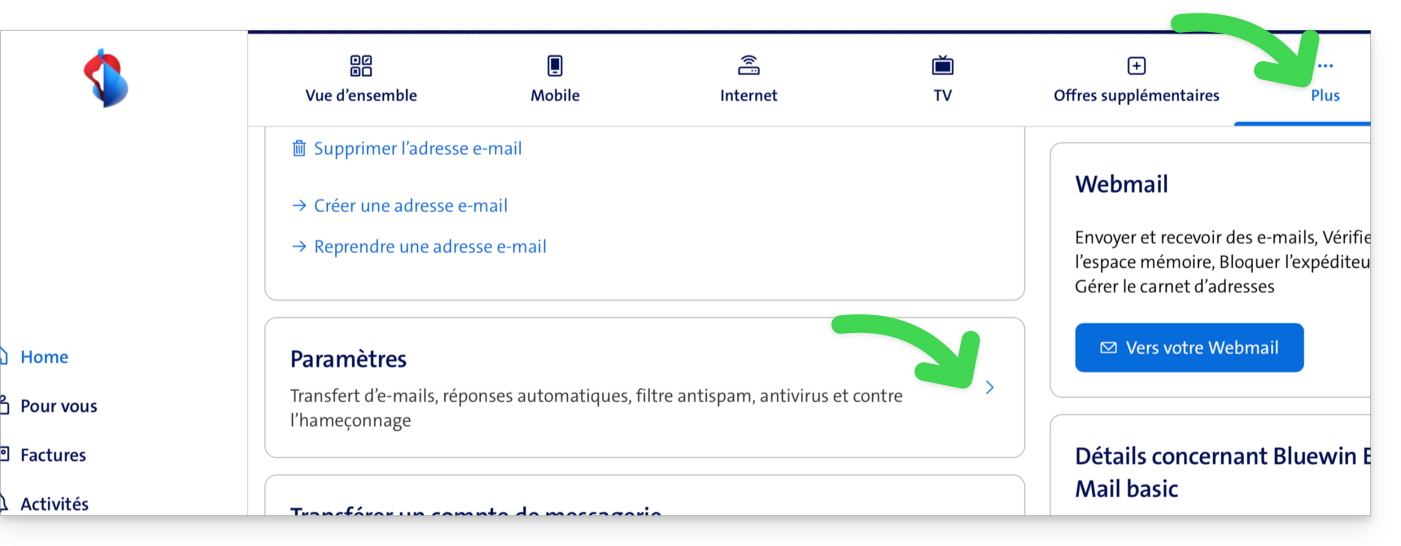
If your Bluewin address will remain active for some time, you can set up a message forwarding rule. This will automatically redirect incoming messages to your new Infomaniak address:
- Log in to “MySwisscom”, click on the "More" box, then “Settings”:
- Then click on “Manage transfers”:
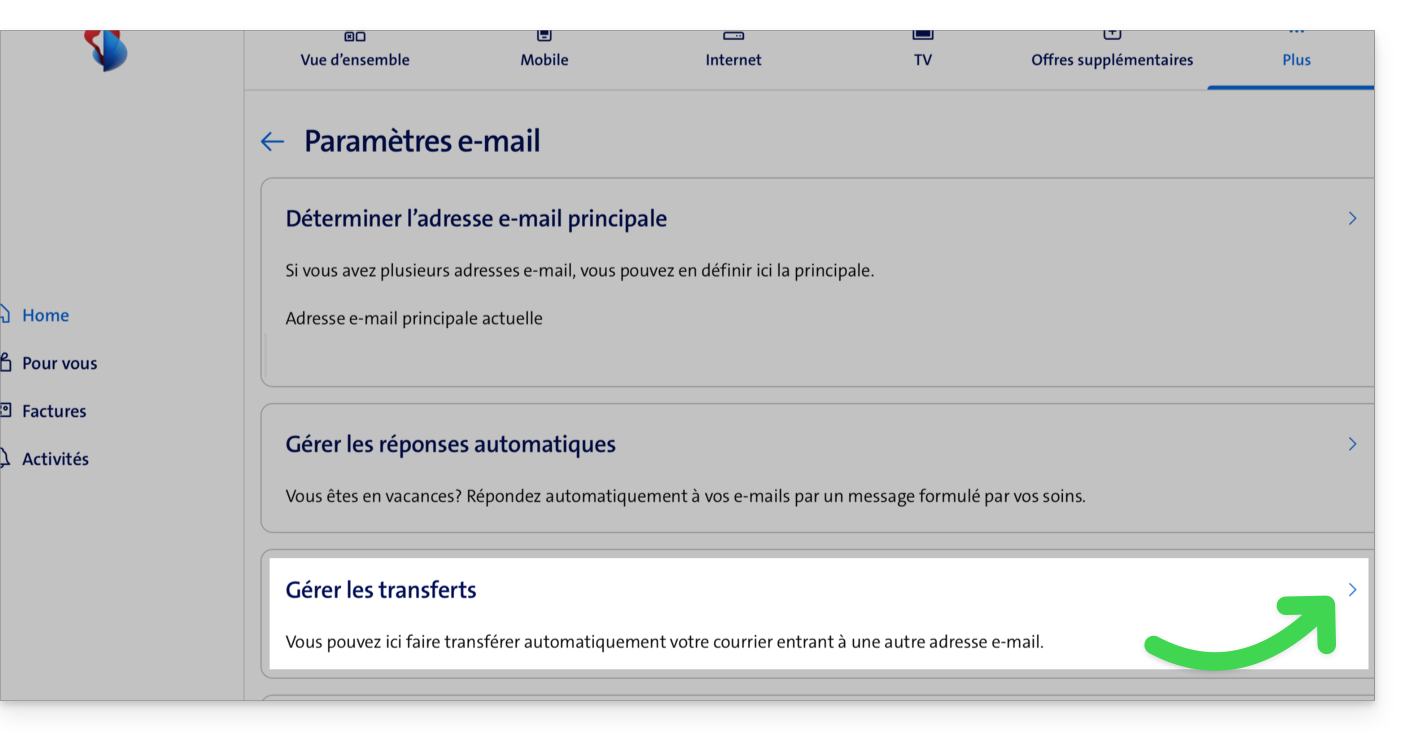
- Specify the email address created with Infomaniak as the destination for all your future incoming emails.
Link to this FAQ: https://faq.infomaniak.com/1693
Has this FAQ been helpful?
This guide concerns the configuration of the mobile app Infomaniak Mail (application for iOS/Android smartphones or tablets).
The language of the application is based on the language of your device on which the Infomaniak Mail mobile app is installed, and not on the language set in your user account.
Accessing the application settings
To open the settings of the Infomaniak Mail mobile app (application for iOS/Android smartphones or tablets) on your device:
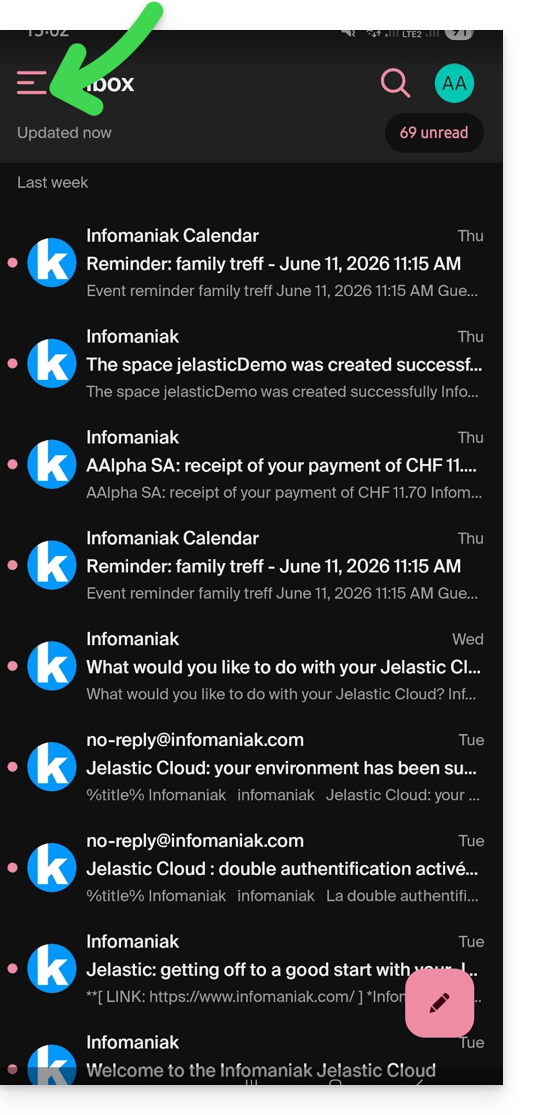
- Tap the top left of your inbox:
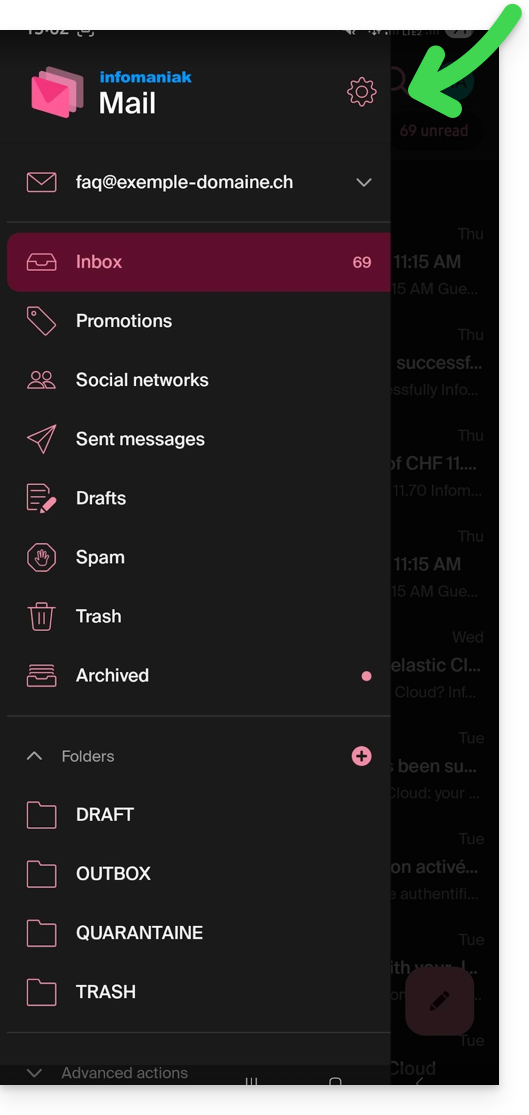
- Click on the Settings icon in the top right of the panel that opens:
- You can manage the settings from the screen that appears:
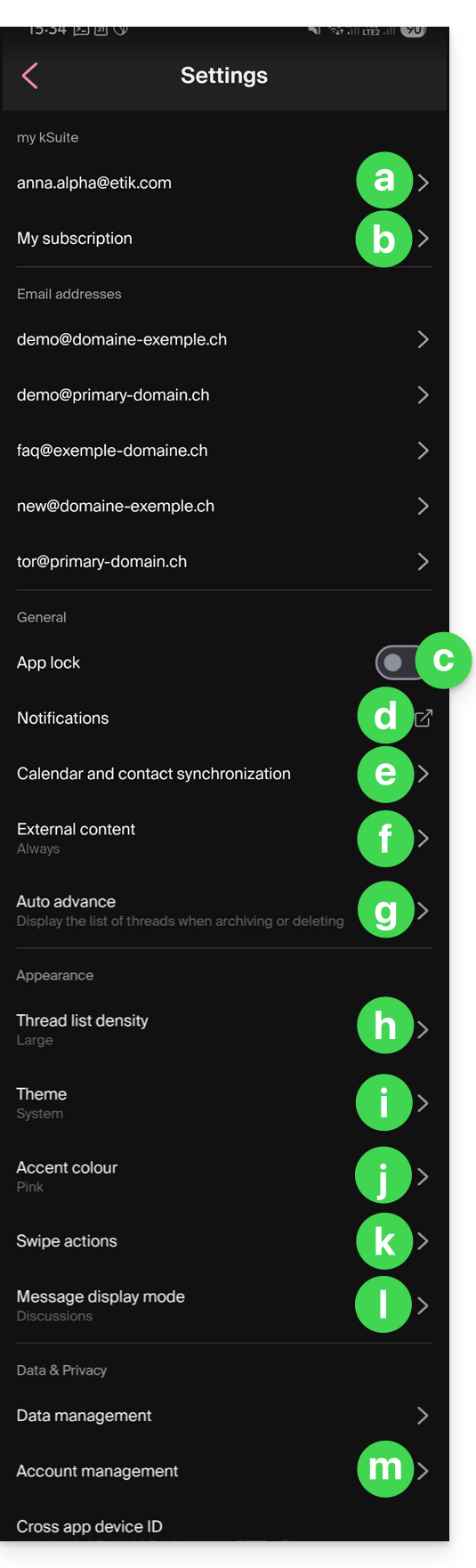
a. Signature selection
If you have multiple email addresses linked to your account, tap on the email address for which you want to change the signature. Then, choose a different signature from the configured signatures.
On iOS, you can also manage your read receipt requests.
b. my kSuite only
Provides information about the current subscription. Example: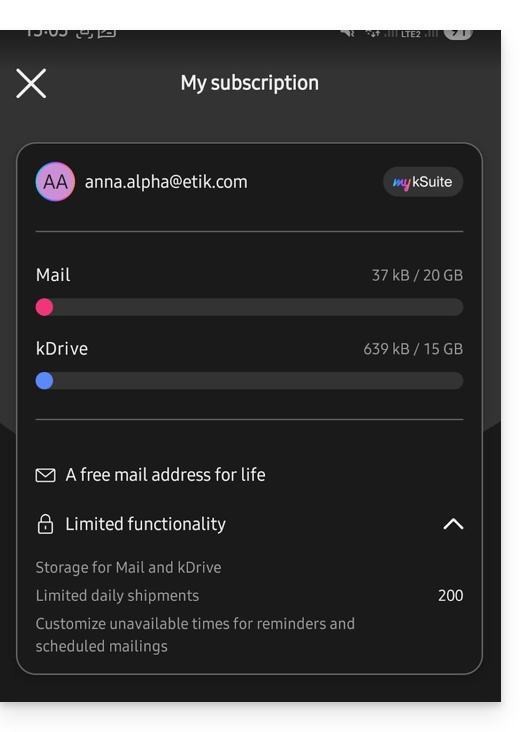
c. App Lock
This option allows you to protect the app using one of your device's lock methods. This ensures that you remain logged into your Infomaniak account, but prevents unauthorized access to Infomaniak Mail when the app is no longer in the list of open applications.
If your device has a fingerprint reader, you can use this method to enable the lock. The same applies to Face ID on iOS.
When you reopen the application, authentication will be required.
d. Device notifications
You can configure notifications for each of the email addresses linked in the application.
e. Contact & calendar synchronization
This synchronization is currently managed externally; please refer to the https://config.infomaniak.com/ wizard.
f. External content
This section allows you to choose whether to automatically display all external content present in an incoming email that you are reading, or whether you prefer to hide it and only display it on demand.
g. Automatic advance
This section allows you to choose the action to be performed after an email is archived or deleted: open the next message, or the previous one, or return to the message list.
h. Conversion list density
The display mode can be compact, normal, or wide.
i. Theme
The theme allows you to choose between a dark mode display or, conversely, a light display with black text on a white background. This display can also be defined based on the device's theme, allowing it to adopt any system setting that changes the display based on the time of day.
j. Accent color
The accent color is either blue or pink.
k. Swipe actions
Swipe actions allow you to define which operation Infomaniak Mail should perform if you swipe your finger on a message in the list from right to left or from left to right (including the “long swipe” on iOS):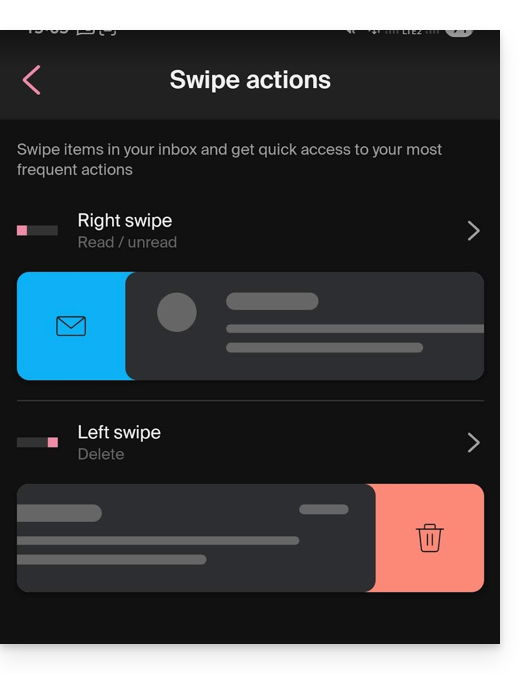
The available actions are:
- delete the message (it will be moved to the trash)
- archive the message (it will be moved to an archive folder)
- mark it as read or unread
- move the message (and in this case, the list of folders will appear after a scan)
- favorites (to enable tracking of the message)
- report as spam
- quick actions menu (also accessible from the message view, offering options to write a reply, forward, delete, print, etc.)
You can also choose "none" to avoid operations that may not be desirable if your device is not suitable for scanning: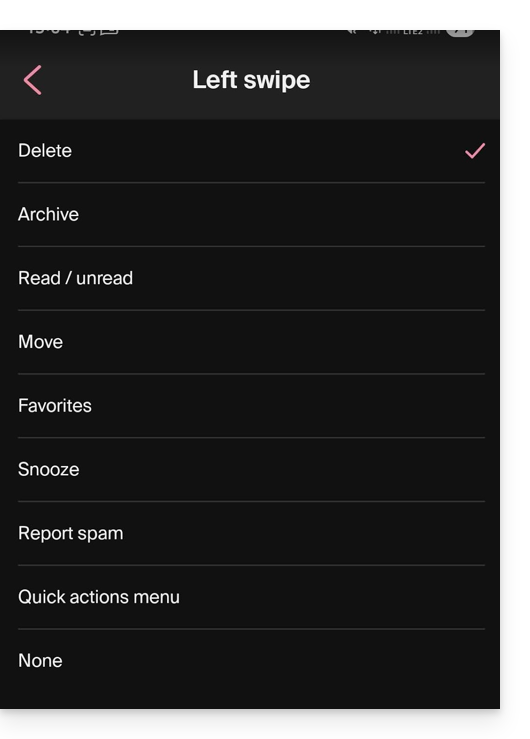
l. Message display mode
Choose between displaying messages individually or using “thread”/“conversation” mode, which groups your emails by topic/sender. This means emails received are grouped according to the subject of the discussion, making the inbox display cleaner and easier to follow the messages from the different participants in the conversation:
m. Account management
Allows you to delete your Infomaniak account (after confirming that you have read the important warning). Also, please refer to this other guide: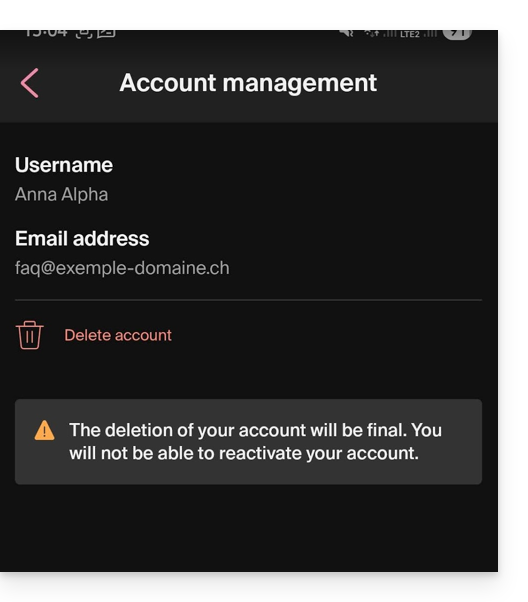
Link to this FAQ: https://faq.infomaniak.com/1696
Has this FAQ been helpful?
This guide explains how to create and automatically add a signature to messages sent from the Infomaniak Mail web app (online service ksuite.infomaniak.com/mail).
Refer to this other guide regarding the limitations of the my kSuite offer.
Introduction
- The signature will also be visible when you send emails from the Infomaniak Mail app (iOS / Android).
- It will not be present when using another sending method (such as Outlook, for example).
- It is also not added to the messages in the auto-reply; it is necessary to add one directly in the out-of-office message.
- One or more signatures can be added from Mail and from the Manager, where all the addresses of a Mail Service are managed; choose which signature to use when sending an email.
Access signatures from the Infomaniak Web Mail app
Prerequisites
- You must have permission to manage signatures: if you were invited tothe Infomaniak Mail web app (online service ksuite.infomaniak.com/mail) to manage your address, the Mail Service administrator may have removed this permission from their admin account.
To access signature management:
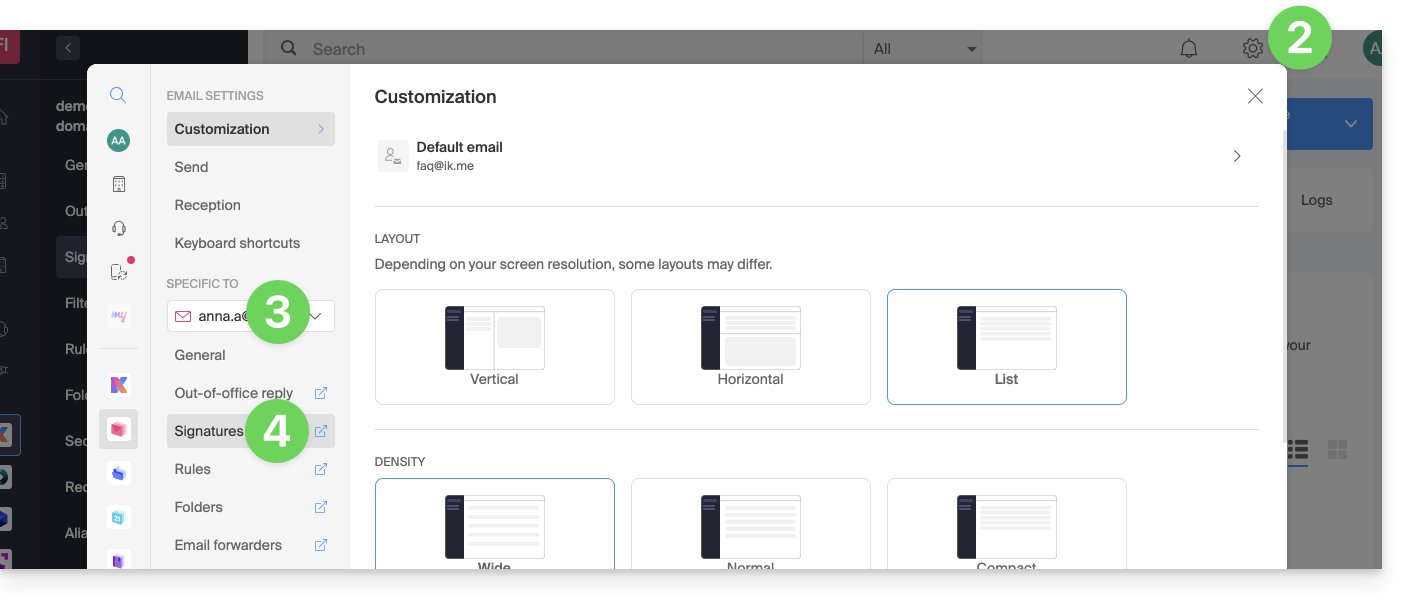
- Click here to access the Infomaniak Mail web app (online service ksuite.infomaniak.com/mail).
- Click on the Settings icon in the top right corner of the interface.
- Check or select the relevant email address from the dropdown menu in the left-hand sidebar.
- Click on Signatures:
Accessing signatures from Mail Service
To access Mail Service and manage signatures:
- Click here to access your product management in the Infomaniak Manager (need help?).
- Click directly on the name assigned to the product in question.
- Click on the relevant email address in the table that appears.
- Click on Signatures in the left-hand menu:
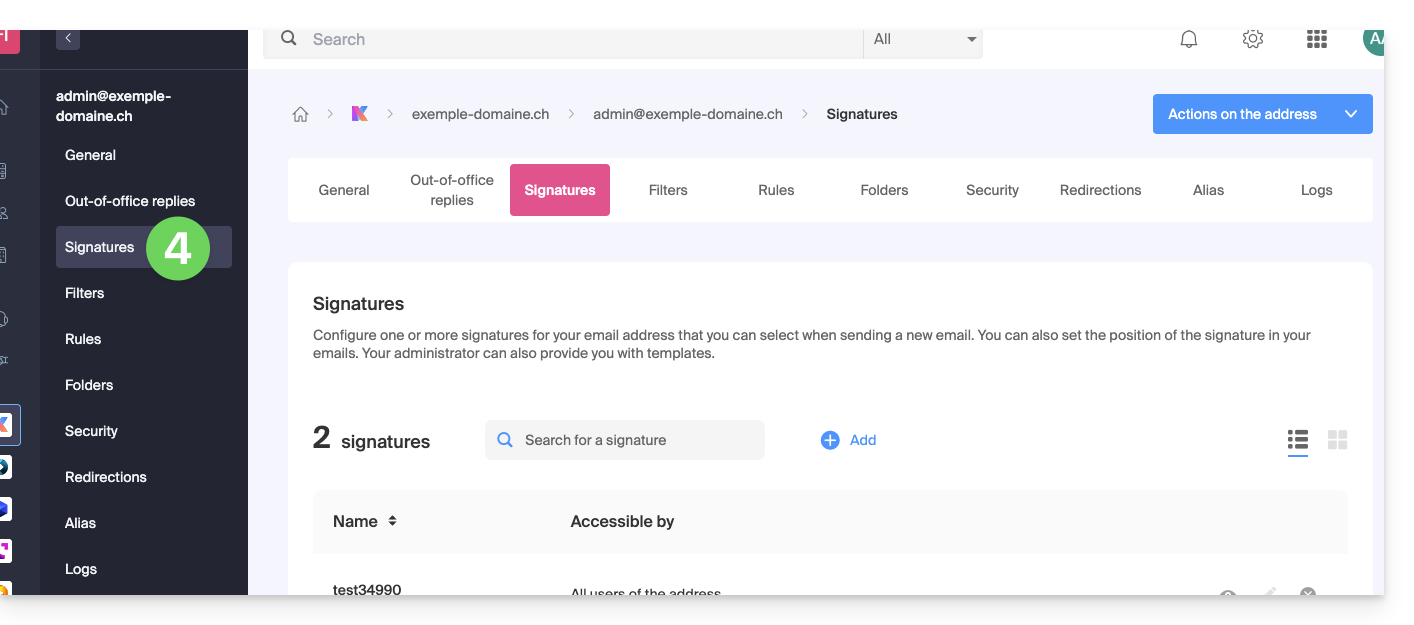
Create and edit your signature
You have two options:
- Click on Add to create a new signature.
- Click on the pencil icon ✎ next to an existing signature to edit it.
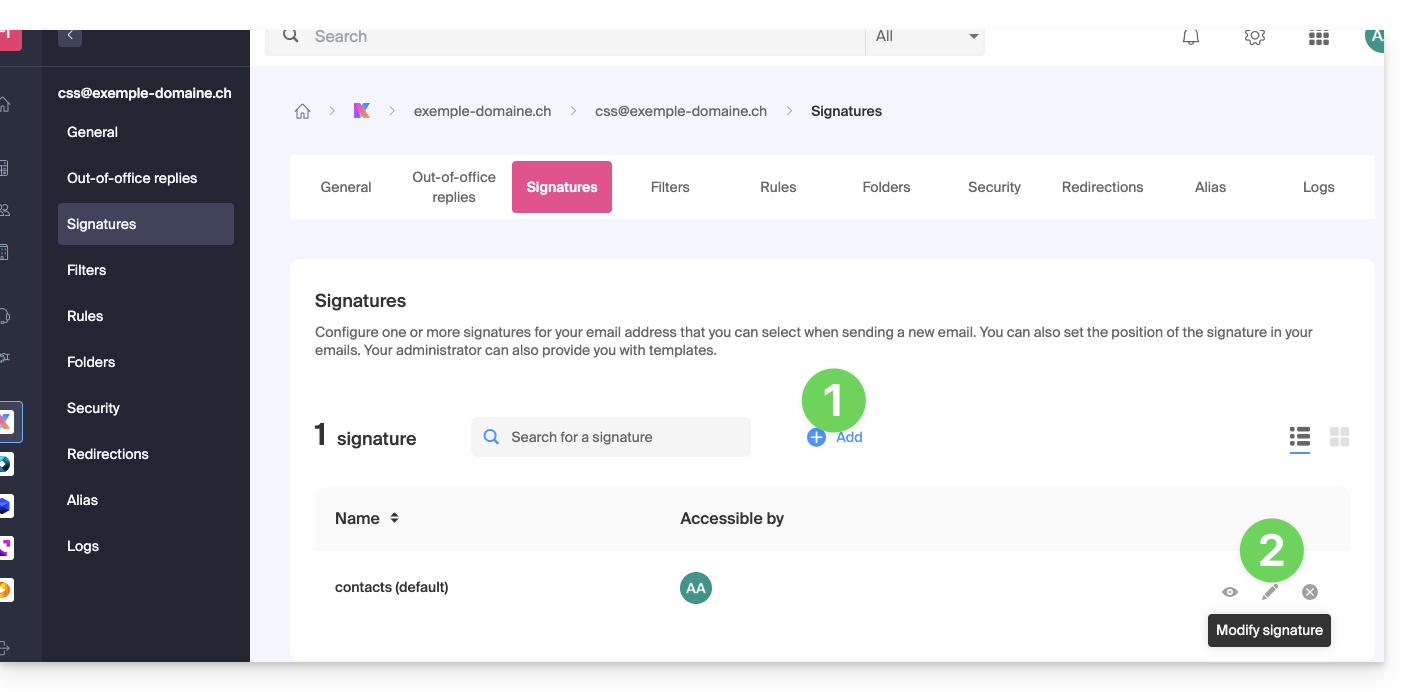
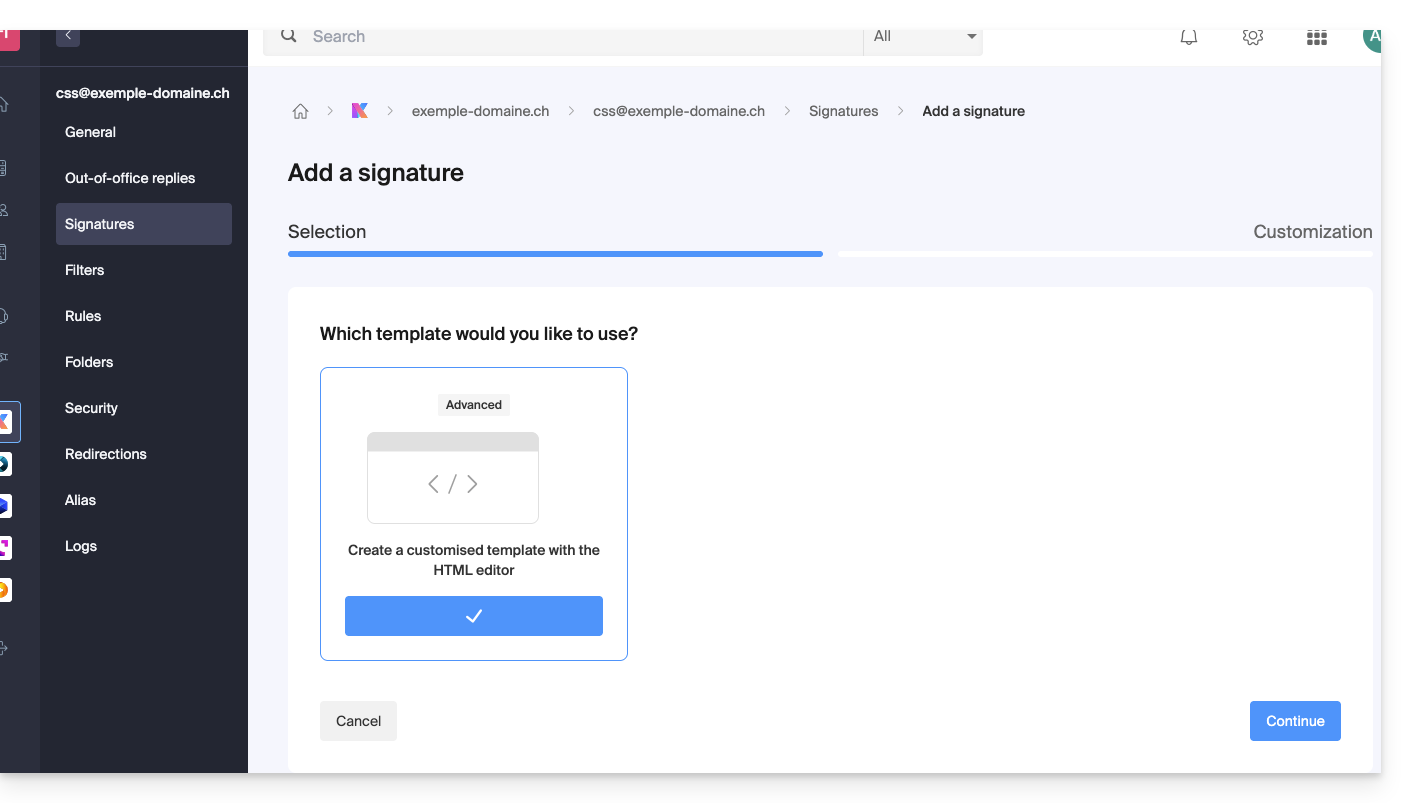
Next:
- Choose an existing template or create a new one:
- Give your signature a name.
- Specify a name for your identity (it will be displayed next to your email address in messages received by your contacts).
- Create the signature content in the designated area (see below for formatting options).
- Choose whether or not to share the signature with all users of the Mail address.
- Click on Advanced Settings to choose where to insert your signature: before the message (i.e., at the top of the page) or after the message (i.e., as a signature).
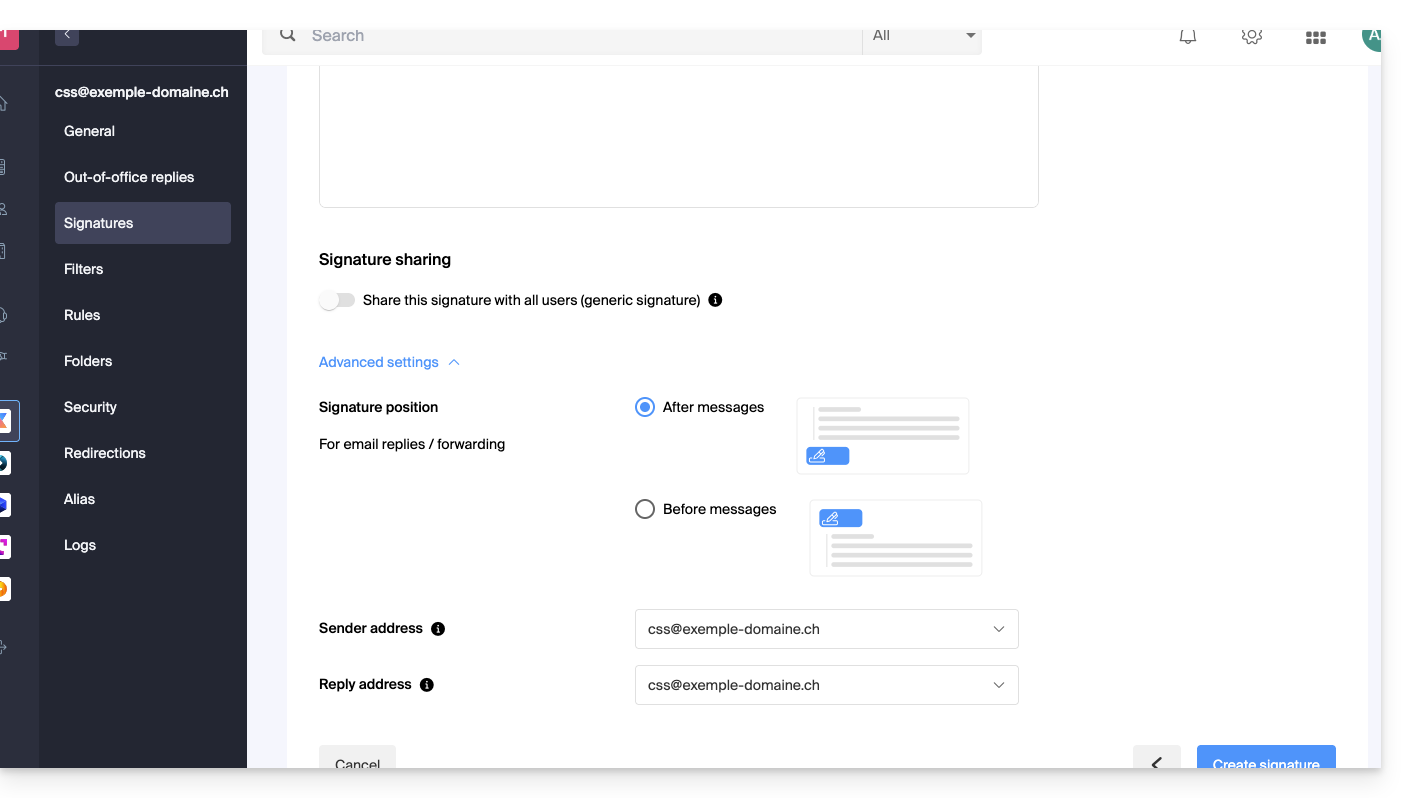
- Refer to this other guide regarding the selection of sending/reply addresses.
- Click on the Create signature button.
Signature formatting
You can use an image, edit the HTML source code, and format your text using a set of tools.
To avoid excessive line breaks, use the Shift key in conjunction with the Enter key on your keyboard, which will have the same effect as the HTML tag <br>, causing a line break instead of a new paragraph.
Define a default signature
To choose the signature to be used by default under certain conditions:
- Click here to access your signatures in the Infomaniak Mail web app.
- Check or select the relevant email address in the dropdown menu on the left-hand sidebar.
- Choose the signature that will be inserted by default when composing:
- a new message
- a reply / forward
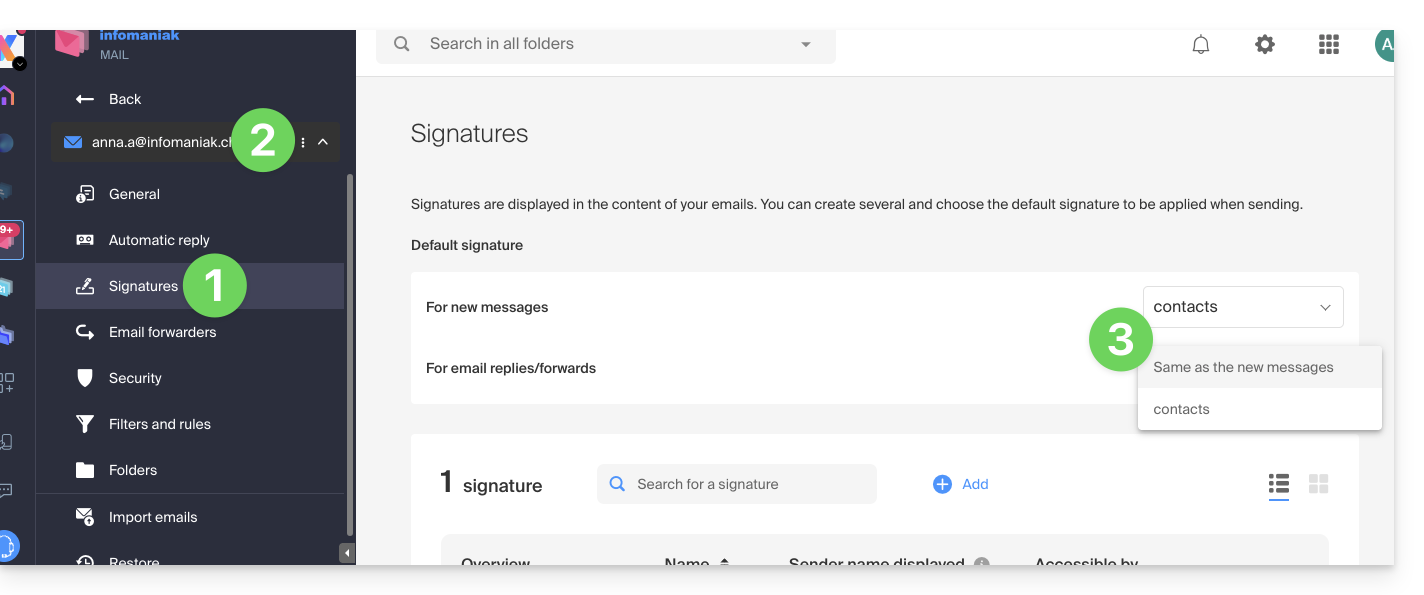
By defining a default signature, it will be automatically displayed in the body of the email when composing. You will still have the option to change the signature.
There is one case where the default signature will not be the one automatically inserted by default when composing a message: please refer to point 10 of this other guide.
Select or remove the signature while composing
When you start writing a new message:
- The signature is inserted automatically.
- If multiple signatures exist, you can choose a different identity via the drop-down menu.
- You can also quickly access the signature settings via the button in the toolbar:
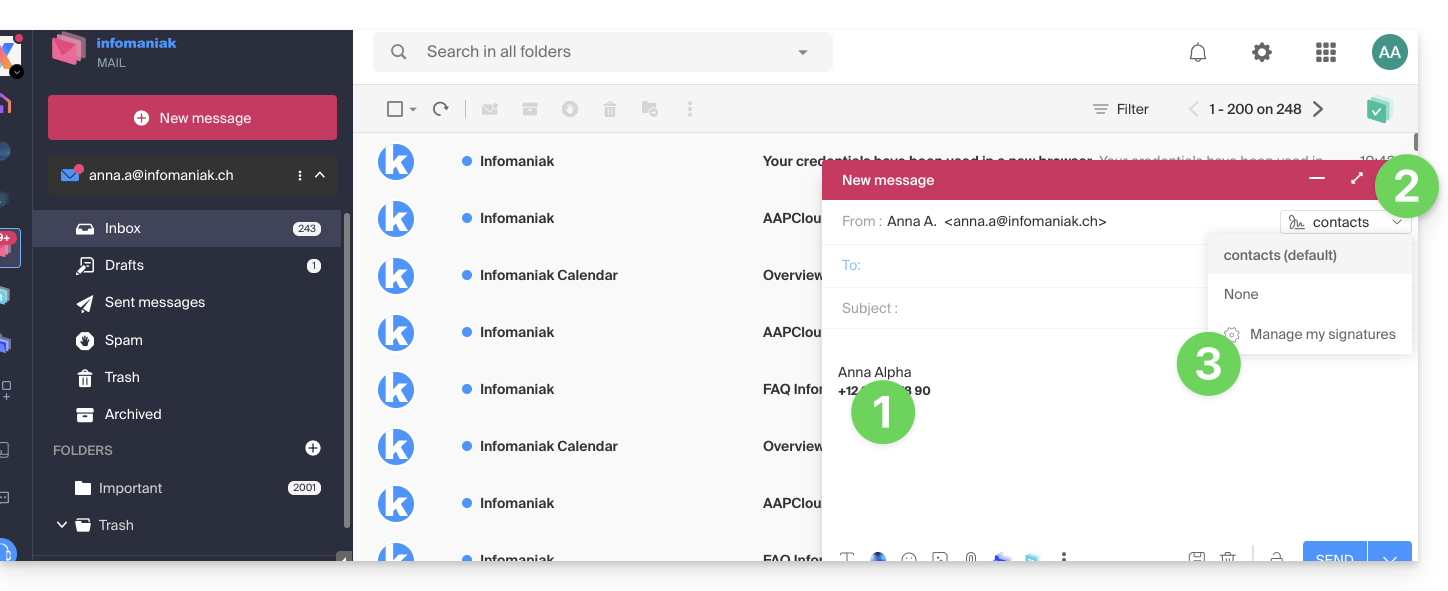
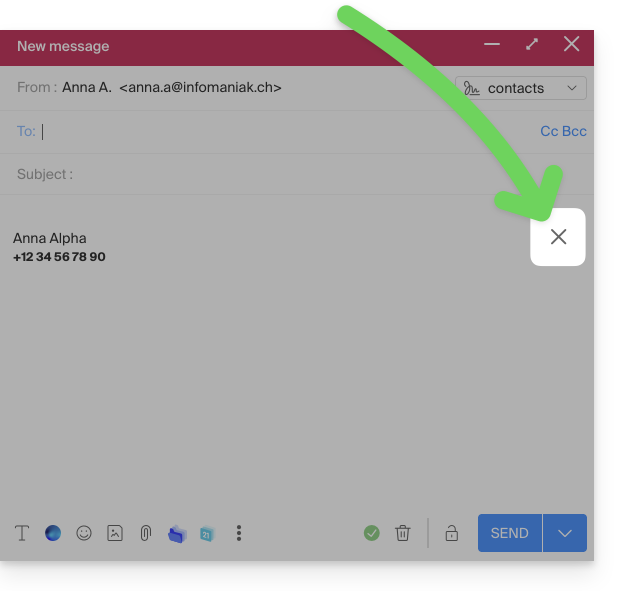
- You can remove the signature by hovering over it and clicking on the cross:
Associated addresses (multiple possible)
When a signature is based on a template (whether it was created from a template provided by Infomaniak or generated with the advanced editor):
- users do not have access to the signature content during editing,
- they can enter dynamic values such as the sender's name or personal data that may be requested, such as occupation or phone number,
- they can also modify the advanced settings of the signature (such as its position in a reply/forward), but to date, this setting is common to all users of the signature (1)
When a signature is created directly, without using a template:
- if the signature is created from a predefined template:
- the behavior is the same as in the previous point, i.e., a signature created from a template
- if the signature was created using the advanced editor:
- users have access to the signature content in edit mode, but be aware that this content is shared; if Morgane modifies the content, Vanessa will have the same content once she has reloaded her Infomaniak Mail interface,
- only the sender's name is specific to the user, and there are no dynamic values in this case,
- the advanced settings follow the same principle as in other cases: they are common to all users
In all cases, assigning a default signature to a mailbox is done at the user level. For example, within the same mailbox, the signature chosen by default by Morgane is independent of the one chosen by Vanessa.
Go further with templates
Refer to this other guide if you want to learn how to define custom templates that can be applied when creating a new email address on your Mail service, for example, or in bulk to all addresses in your domain.
Delete a signature
Users of the email address on the Mail web app receive an email each time a signature is deleted.
Link to this FAQ: https://faq.infomaniak.com/1700
Has this FAQ been helpful?
This guide helps you troubleshoot various issues related to setting up and using a DMARC policy with your email service.
Refer to this other guide if you encounter a DMARC problem specifically when using Google services.
DMARC error or rejection...
...during a redirection, even though the initial destination address received the message (SPF error)
Email redirection without SRS generating an SPF error
Imagine that you have configured an email redirection from the address "user@example2.com" to the address "user@yourdomain3.com", without using the SRS mechanism. When a message is sent to "user@example2.com", it is received by the first email server and then automatically forwarded to "user@yourdomain3.com". Example:
- sender: john.doe@gmahoo1.com
- initial recipient: user@example2.com
- final destination: user@yourdomain3.com
In simplified terms: when John sends an email to "user@example2.com", the "example2.com" email server redirects it to "user@yourdomain3.com". The destination server therefore receives the message from the "example2.com" servers, while the sender's envelope address still indicates "john.doe@gmahoo1.com".
In detail: during the redirection, the recipient's envelope address is replaced with "user@yourdomain3.com", but the sender's envelope address remains "john.doe@gmahoo1.com". The sender's address visible in the message also remains unchanged.
The SPF check may then fail because the "example2.com" servers are not normally authorized by the SPF record of "gmahoo1.com" to send messages for that domain.
An SPF error, however, does not always result in a DMARC failure. DMARC only fails if no valid SPF or DKIM mechanism is aligned with the domain of the sender's visible address. If the original DKIM signature is missing, invalid, or not aligned, the DMARC policy of the sending domain may then cause the message to be quarantined or rejected.
To prevent SPF from failing solely due to redirection, the provider performing the redirection must support the SRS mechanism.
How redirections work at Infomaniak
When an email received by an Infomaniak address is redirected to another address, Infomaniak uses SRS to rewrite the sender's envelope address. The sender's address visible to the recipient remains unchanged.
This rewriting allows the destination server to verify that the Infomaniak server performing the redirection is authorized to use the new envelope address. SRS does not modify the original DKIM signature and does not, on its own, guarantee DMARC validation. In the context of a redirection, DMARC can be validated, in particular, if the original DKIM signature remains valid and aligned.
...related to an incorrect DNS entry
The DMARC record must be published as a single TXT record on the "_dmarc" subdomain of the domain in question.
Malformed DMARC Record: if the DMARC record is not correctly formatted, it may be considered invalid. Check the syntax, semicolons, tags used, and their values.
Invalid DMARC Policy: the value of the main "p" tag must be "none", "quarantine", or "reject". Any other value renders the DMARC policy invalid.
Multiple DMARC records: a domain should only have one TXT DMARC record. If multiple records are published on the "_dmarc" subdomain, the configuration is considered invalid, and the policy cannot be applied correctly.
Combine all necessary DMARC settings into a single TXT record.
Check your current DMARC entry using a dedicated tool, such as the ones below:
...related to an email that fails to validate any aligned SPF or DKIM mechanism
DMARC does not require both SPF and DKIM to be valid. DMARC verification succeeds as long as at least one of these two mechanisms is valid and aligned with the sender's address domain.
A DMARC error or rejection can therefore occur when neither SPF nor DKIM validates a domain aligned with the sender's domain.
This can happen, for example, if you send an email with your Infomaniak address using the SMTP server of another provider. The server used may not be authorized by your domain's SPF record and may not apply a valid DKIM signature for that same domain.
To resolve this issue:
- Check the overall security of the Mail Service,
- use Infomaniak's SMTP servers to send messages from an Infomaniak address,
- if you are using an external sending service, configure your domain with that provider so that it properly supports SPF, DKIM, and their DMARC alignment.
Messages from a newly created domain are arriving in the spam folder
This behavior does not necessarily indicate a DMARC error. A newly created domain has little or no sending history, and its reputation is therefore not yet established with the various email providers.
Start by sending a small volume of legitimate messages to consenting recipients, then gradually increase the number of sends. Also, make sure that SPF, DKIM, and DMARC are configured correctly and avoid sudden or large-scale sends.
Sending messages to yourself can help test the configuration and mark a message as legitimate in the recipient's inbox. However, this is not enough to establish a general reputation with other email providers.
Successful SPF, DKIM, and DMARC checks do not guarantee that messages will be delivered to the inbox. Providers also take into account the reputation of the domain and sending servers, the volume of messages, their content, and the recipients' reactions.
I'm sending an email from my Infomaniak address and I'm receiving a "Reject DMARC" error message.
To resolve this issue:
- Check the overall security of the Mail Service,
- perform a test send from the Webmail mail.infomaniak.com,
- check the server settings of the software or email client, including the SMTP server used and the authentication of the sending address.
If the message is sent correctly from the Webmail, the problem is likely due to the configuration of the email software or the external SMTP server used for sending.
I'm sending an email from an external address (Microsoft, Google, Yahoo, Orange, etc.) and Infomaniak rejects it with a DMARC error.
The message probably does not comply with the DMARC policy published by the sender's domain. This may mean that SPF and DKIM have failed or that they are not aligned with the visible sender address.
To resolve this issue:
- Check with the sending address provider that messages are being sent in accordance with their recommendations.
- Forward the complete error message to the sending domain provider or administrator so they can check the SPF, DKIM, and DMARC configurations.
I want to receive an email on my Infomaniak address, but the sender is receiving a DMARC error
The message was blocked because it did not comply with the DMARC policy published by the sender's domain. The configuration of the recipient Infomaniak account does not allow for correcting an authentication error originating from the sender's domain.
To resolve this issue:
- Ask the sender to forward the complete error message to their email provider or domain administrator so that the SPF, DKIM, and DMARC configurations can be checked.
- If the Infomaniak address forwards messages to another address, also check at which stage of the redirection the rejection is generated.
Link to this FAQ: https://faq.infomaniak.com/1704
Has this FAQ been helpful?
This guide explains how to download an email from the Infomaniak Mail web app (online service ksuite.infomaniak.com/mail) to obtain a .eml file on your hard drive, which is compatible with all email software/clients.
This operation cannot be performed on the Infomaniak Mail mobile app (application for iOS/Android smartphones or tablets), but please refer to the alternatives provided at the end of this guide.
Download an email
To save an email from the Infomaniak Mail web app (online service ksuite.infomaniak.com/mail):
- Click here to access the Infomaniak Mail web app (online service ksuite.infomaniak.com/mail).
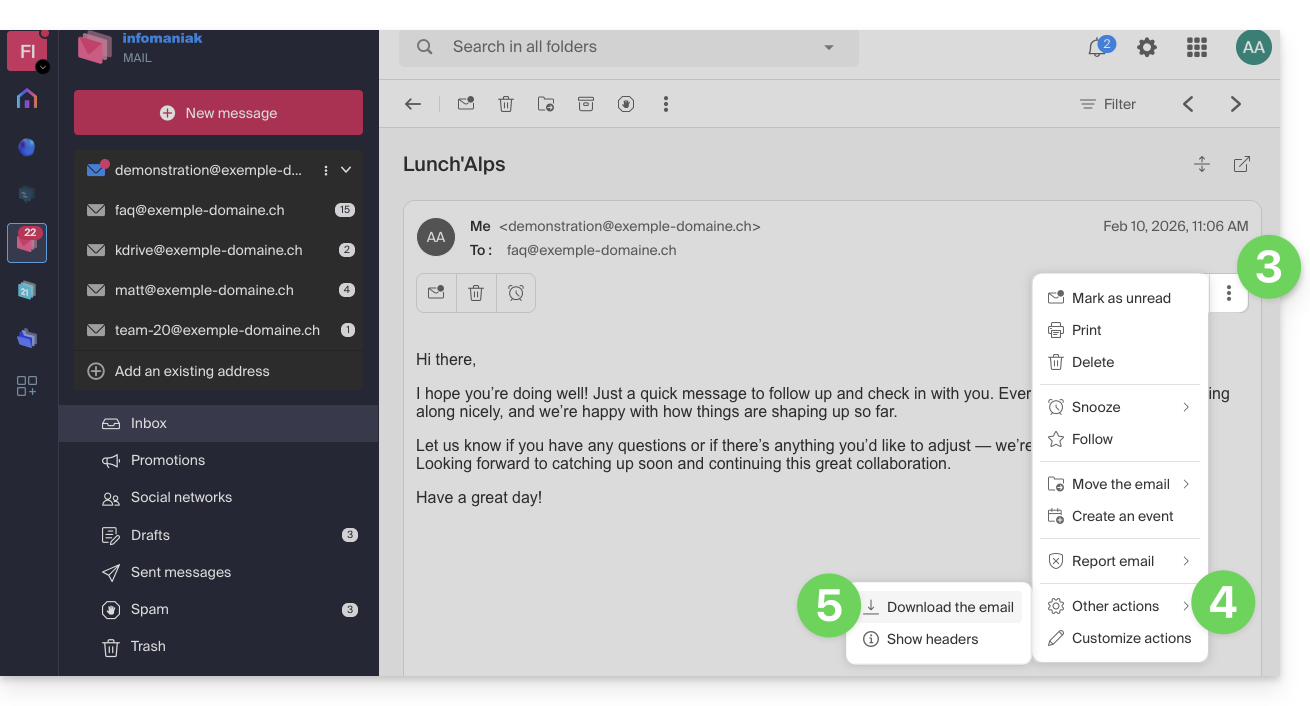
- Open the message to download.
- Click on the action menu ⋮ to the right of the open email.
- Click on More actions.
- Select Download:
4 alternatives
- The Save As... function in an email client such as Thunderbird allows you to achieve the same result:
- Open the Thunderbird software.
- In the inbox, right-click on the message you want to save.
- Choose the location to save the
.emlfile.
- To print the message and choose PDF from the available printers, please refer to this other guide.
- To download the message to kDrive, please refer to this other guide.
- To share it publicly using a simple link, please refer to this other guide.
Link to this FAQ: https://faq.infomaniak.com/1718
Has this FAQ been helpful?
This guide explains how to create sorting rules (in Standard mode) to automatically categorize your incoming emails on Infomaniak based on certain conditions.
Introduction
- These rules enable the following automated actions:
- Delete or move messages from email addresses that you no longer want to receive.
- Forward emails from a specific email address to your partner so that you both receive them.
- Copy messages containing a specific keyword to a folder.
- etc.
- Unlike sorting rules available in email software/clients (Microsoft Outlook, Mozilla Thunderbird, Apple Mail...), these rules will act directly on the server of your email accounts, even before the IMAP connection.
- You can use it as a template for all the addresses in your Mail Service.
- Warning: the rules are evaluated one after the other: if an email meets the conditions of several rules, each of them will be executed.
- For example, a message from Amazon with the subject line containing "Advertisement" could be processed by two different rules.
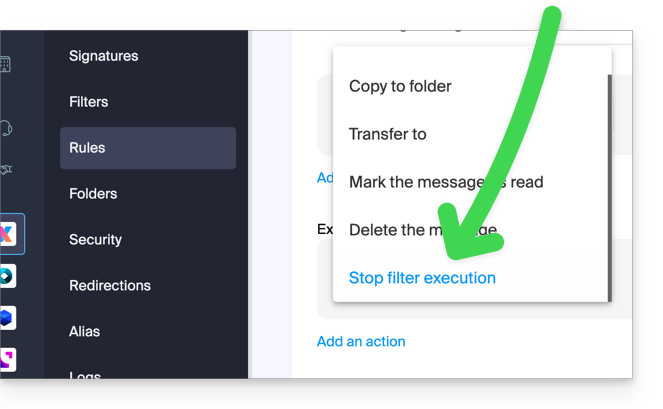
- To prevent the same email from being processed multiple times, add the action "Stop filter execution" to the end of the rule that should not be followed by subsequent rules:
- Depending on your plan, there is an advanced mode for creating sorting rules using a dedicated language.
Accessing rules from the Infomaniak Web Mail app
Prerequisites
- You must have permission to manage rules: if you were invited tothe Infomaniak Web Mail app (online service ksuite.infomaniak.com/mail) to manage your address, the Mail Service administrator may have removed this permission from their admin account.
- To view the categorized messages, you will need to use the IMAP protocol or only Infomaniak Mail (because the POP protocol only retrieves messages that are in your main inbox).
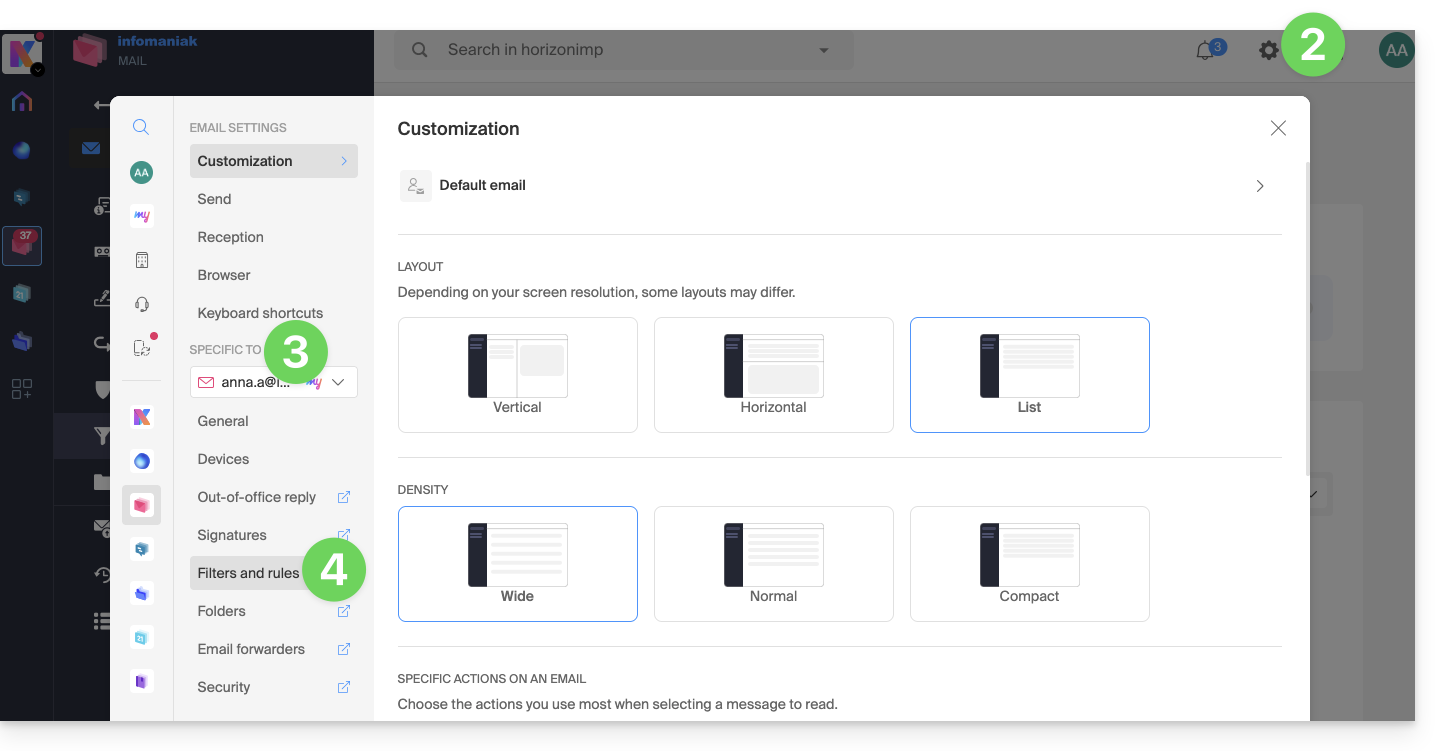
To access the sorting filters for your Infomaniak email:
- Click here to access the Infomaniak Mail web app (online service ksuite.infomaniak.com/mail).
- Click on the Settings icon in the top right corner.
- Check or select the relevant email address from the drop-down menu.
- Click on Filters and rules:
Define a rule based on a received email
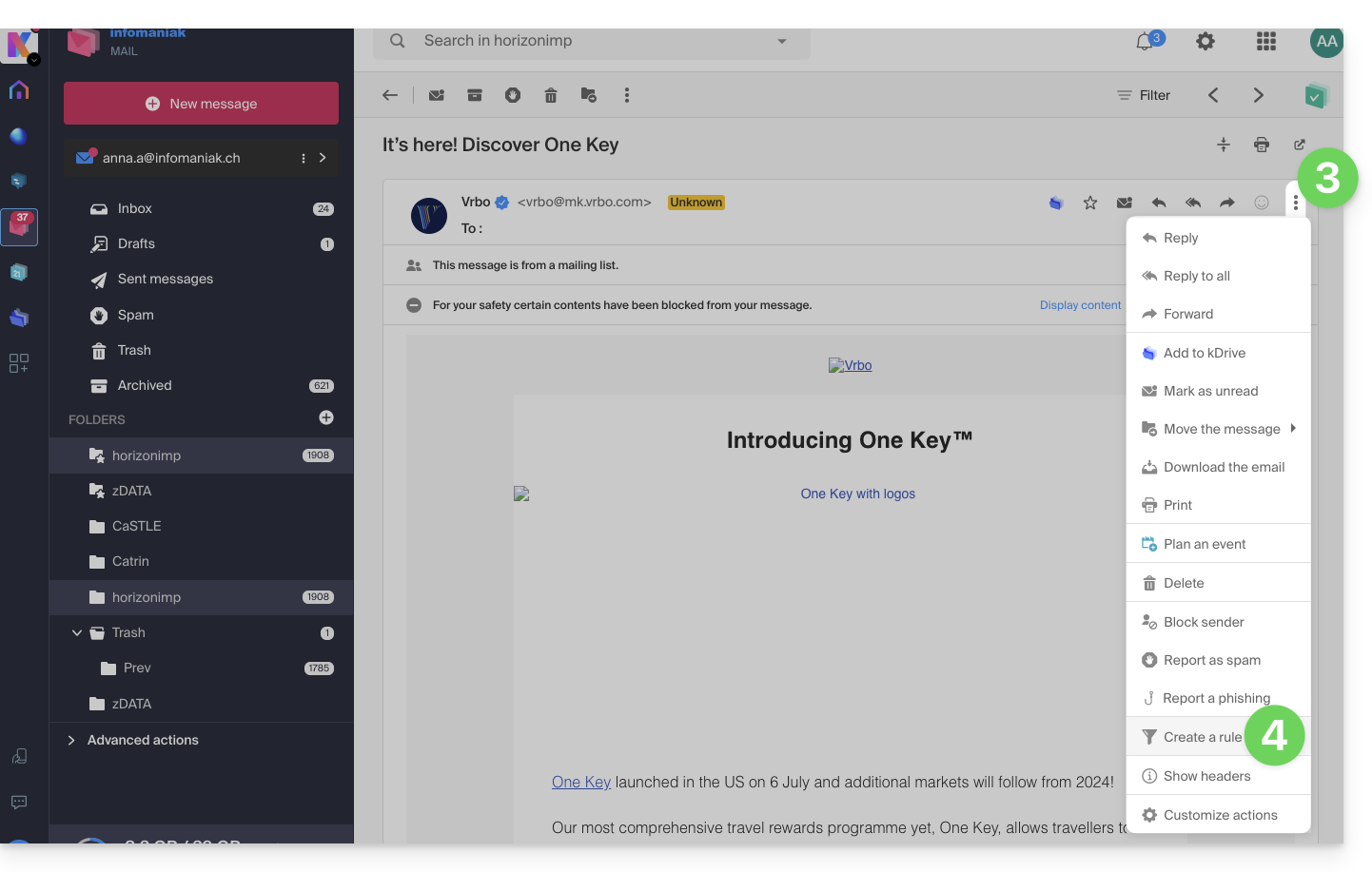
You can also create a rule directly from the email you received:
- Click here to access the Infomaniak Mail web app (online service ksuite.infomaniak.com/mail).
- Open the message from the sender in question.
- Click on the action menu ⋮ in the upper right corner of the open message.
- Choose Create a ruleto open the creation wizard, which will be pre-filled with the message details:
Accessing Rules from a Mail Service
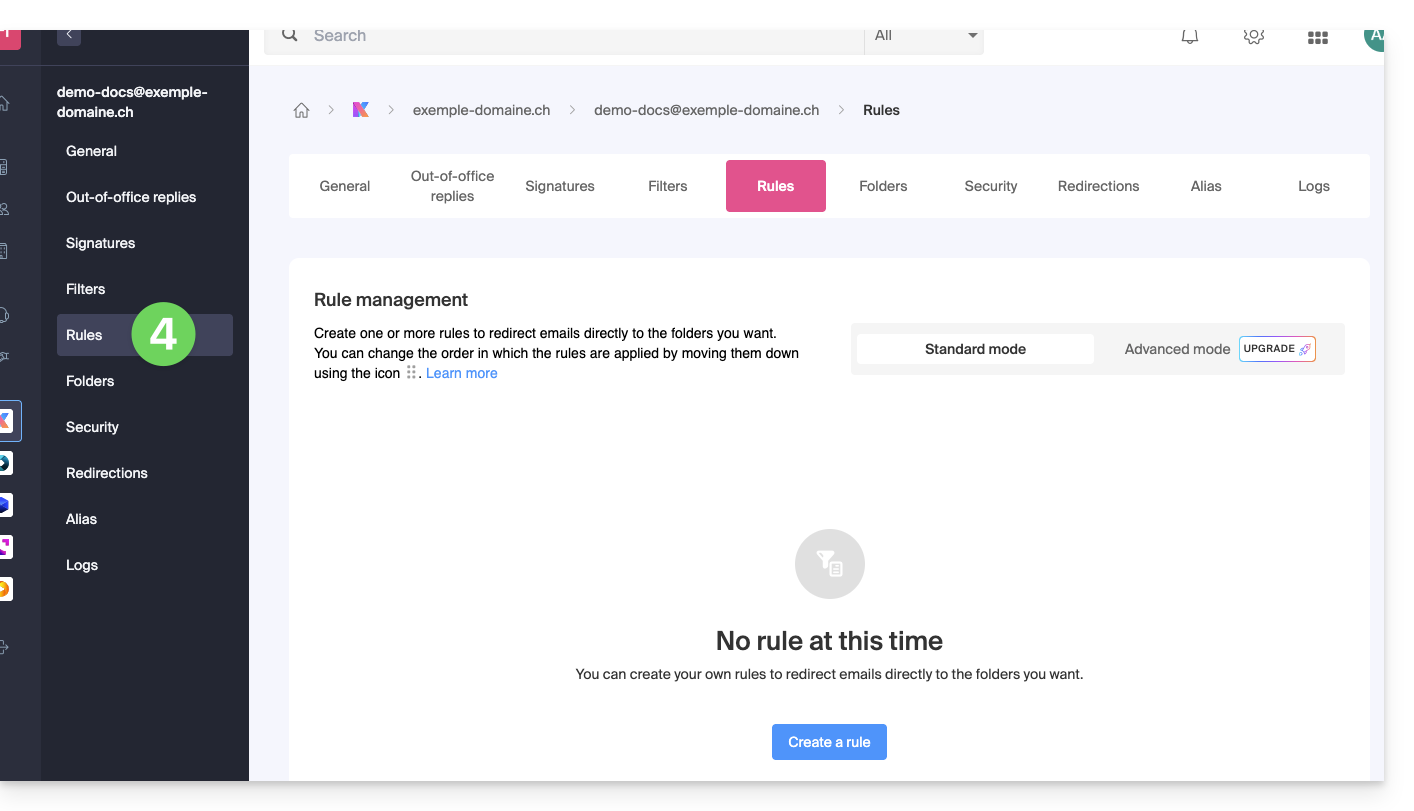
To access the sorting filters for your Infomaniak email:
- Click here to access the management of your product in the Infomaniak Manager (need help?).
- Click directly on the name assigned to the product in question.
- Click on the email address in the table that appears.
- Click on the Rules tab in the left-hand menu (or top bar):
Create a new rule in Standard mode
- Click on the Add a rule button in Standard mode to create a new rule using a wizard/creation form:

- The different conditions available for sorting filters are presented in this other guide.
- Once a filter has been created, click Continue to activate it.
Add, duplicate, or modify a rule in Standard mode
If sorting filters already exist, the button to add one is located at the top right of the table: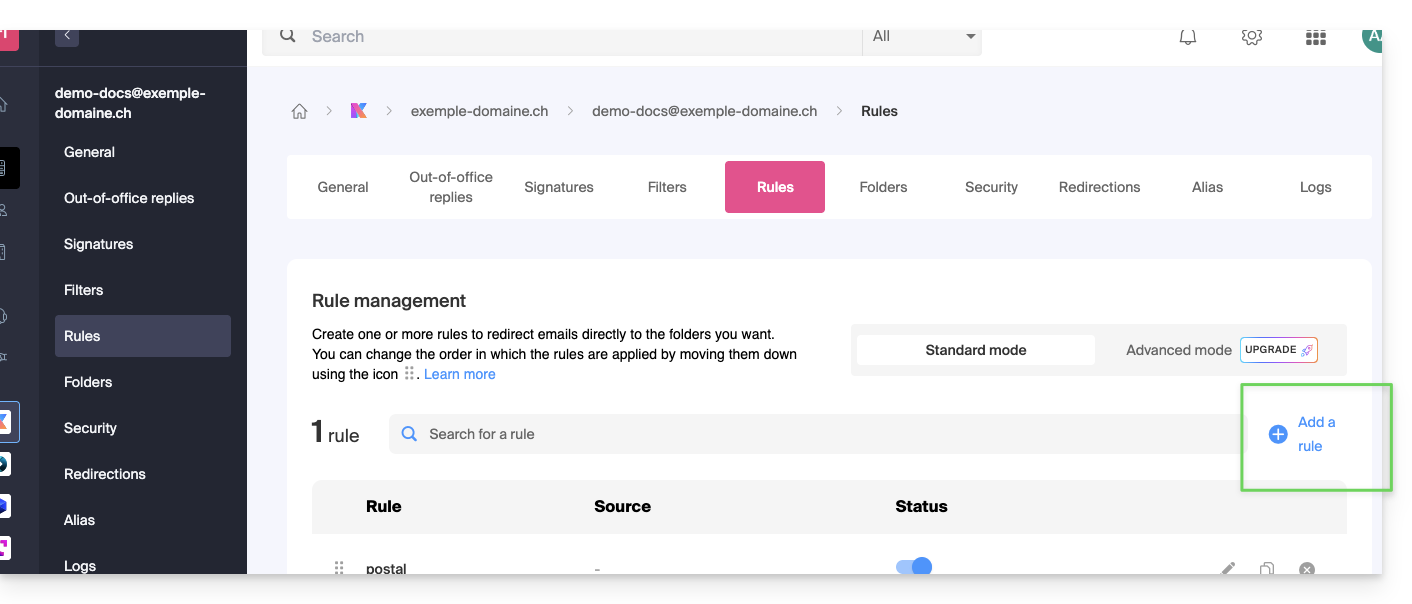
You can modify these settings at any time by clicking on the pencil ✎ icon to the right of the item in question.
You can also duplicate an existing rule to rework it as a copy without affecting the original: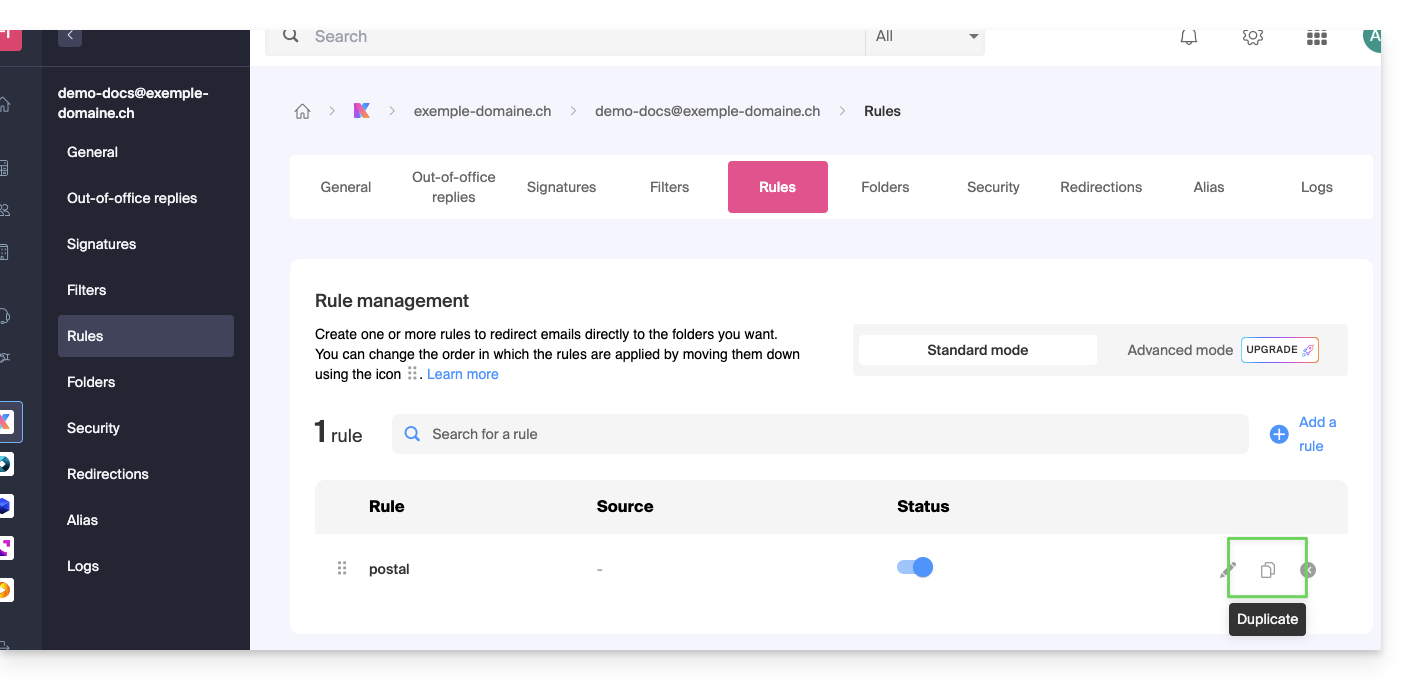
Link to this FAQ: https://faq.infomaniak.com/1729
Has this FAQ been helpful?
This guide details what you can search for in the Infomaniak Mail web app (online service ksuite.infomaniak.com/mail) or other kSuite services. For searching in kDrive, please refer to this other guide.
Search for an email
On ksuite.infomaniak.com/mail, type the term you want to find in the search bar at the top of the page.
The search will be performed within the email address mentioned in the left sidebar(to search across multiple email addresses at once, use an IMAP email client to which you connect your different addresses):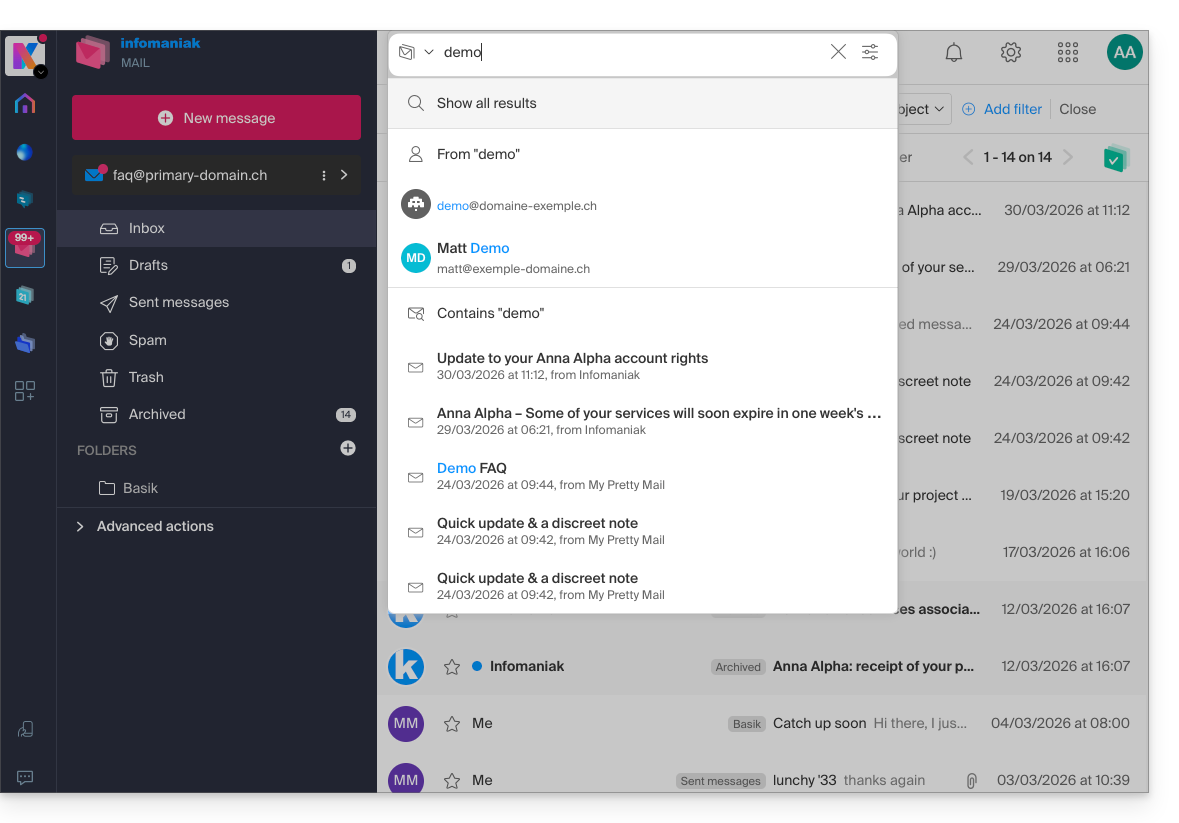
Advanced search is accessible to the right of the search field at the top of your Mail: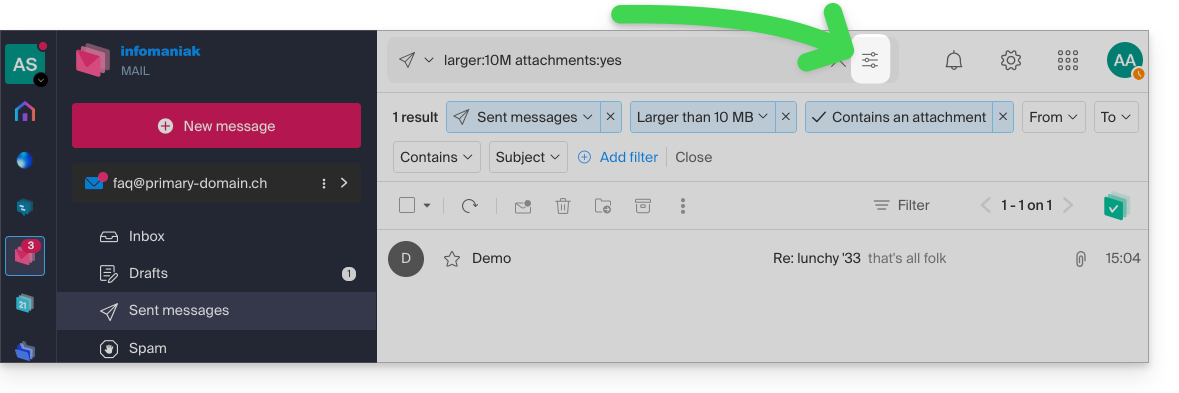
You can search for content…
- either in the body of the message,
- either in its subject,
- or among its senders/recipients…
You can also filter the search by message size and by whether or not it contains an attachment.
Regarding the scope of the searches:
- The content of encrypted emails is not indexed (except for the email subject).
- The content of attachments, as well as their name, is not indexed: therefore, it is not possible to find an email by searching for the name of the file that was attached to it.
- The "Search all emails" function does not include the Trash or Spam folder:
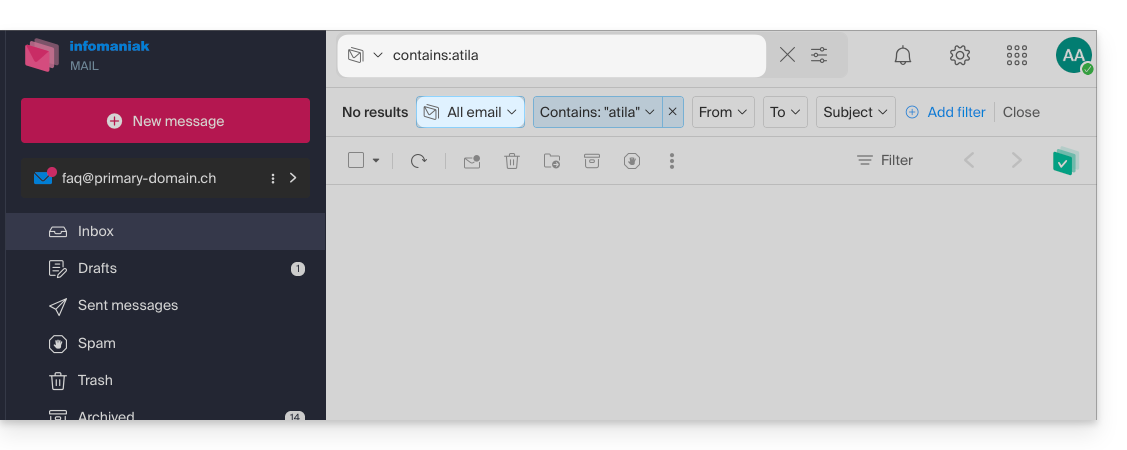
- If a global search returns no results, the email may be in one of these two folders.
- You will then need to go specifically to the Trash or Spam folder to perform the search there, or launch the search by selecting one of these two items:
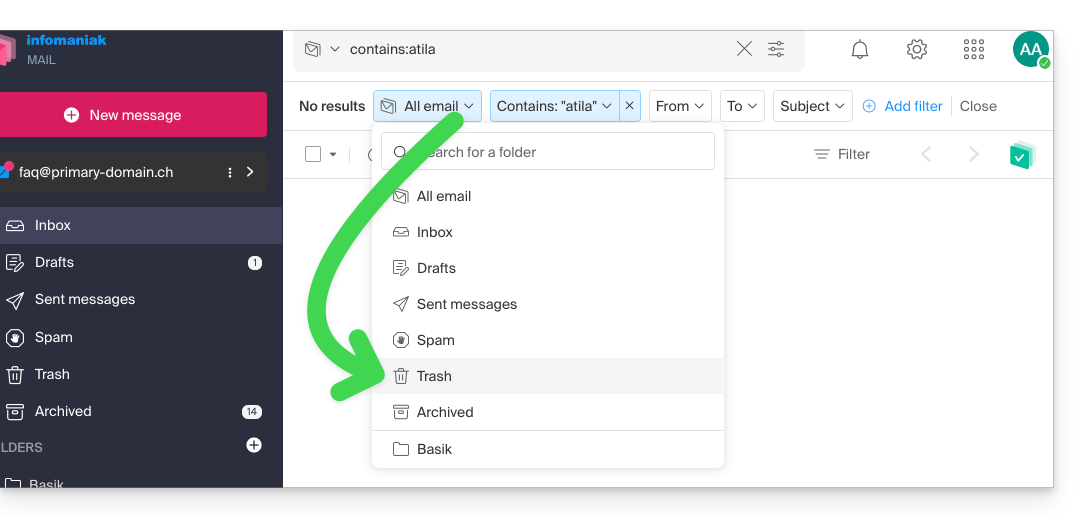
- Any items found will then be displayed:
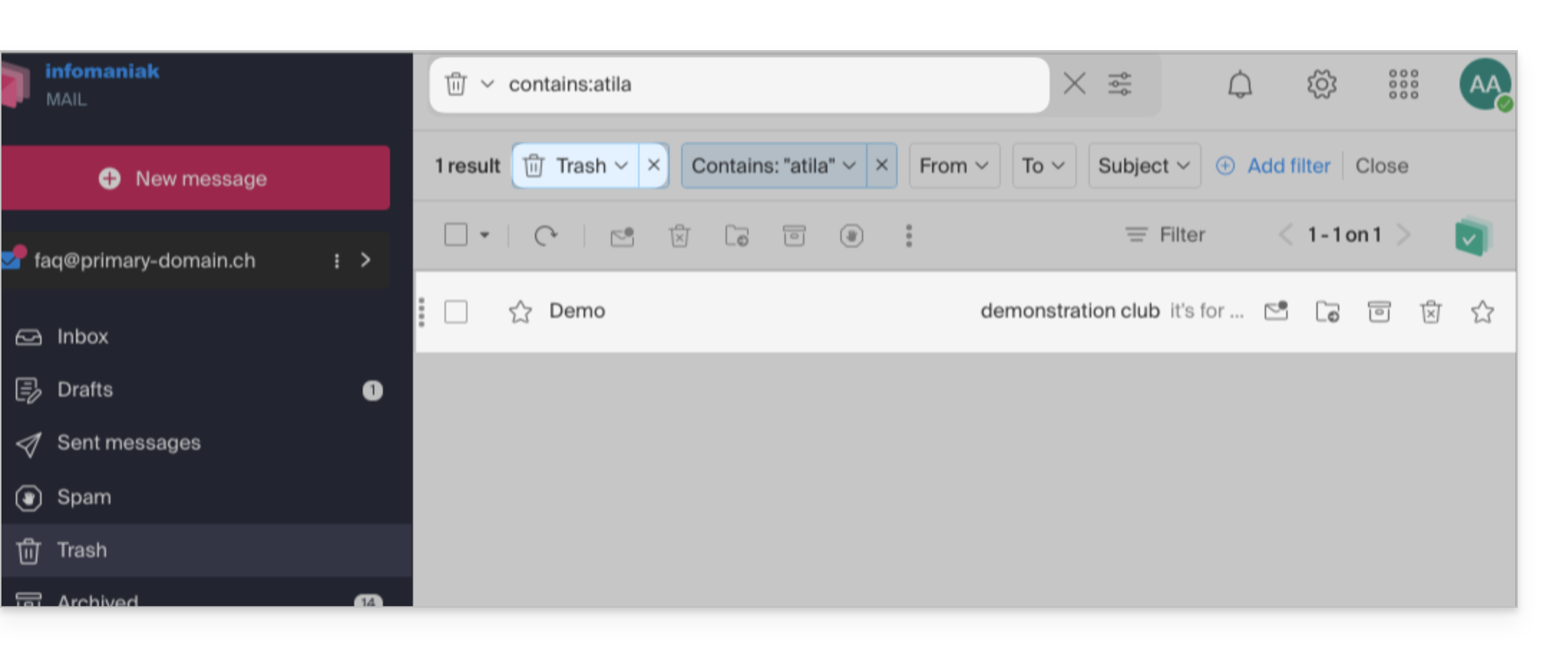
- Similarly, when you want to find a message in a specific folder, it is best to first go to that folder from the left-hand menu, and then launch a search.
To search for traces of an email or to see its activity, you can also search in the logs of an email address.
Email search with a software/email client
To find out how your specific email application performs searches, consult its documentation. For example, desktop apps like Thunderbird and Outlook can synchronize messages locally and perform local searches, while other applications may prefer searching on the IMAP server. In this case, the software/email client sends a search command to the server, which then searches through all messages stored on the server and returns the results to the software/email client.
Search for a contact
The search is performed automatically across all your address books, groups, and contacts, using the search field at the top of the ksuite.infomaniak.com/contacts interface: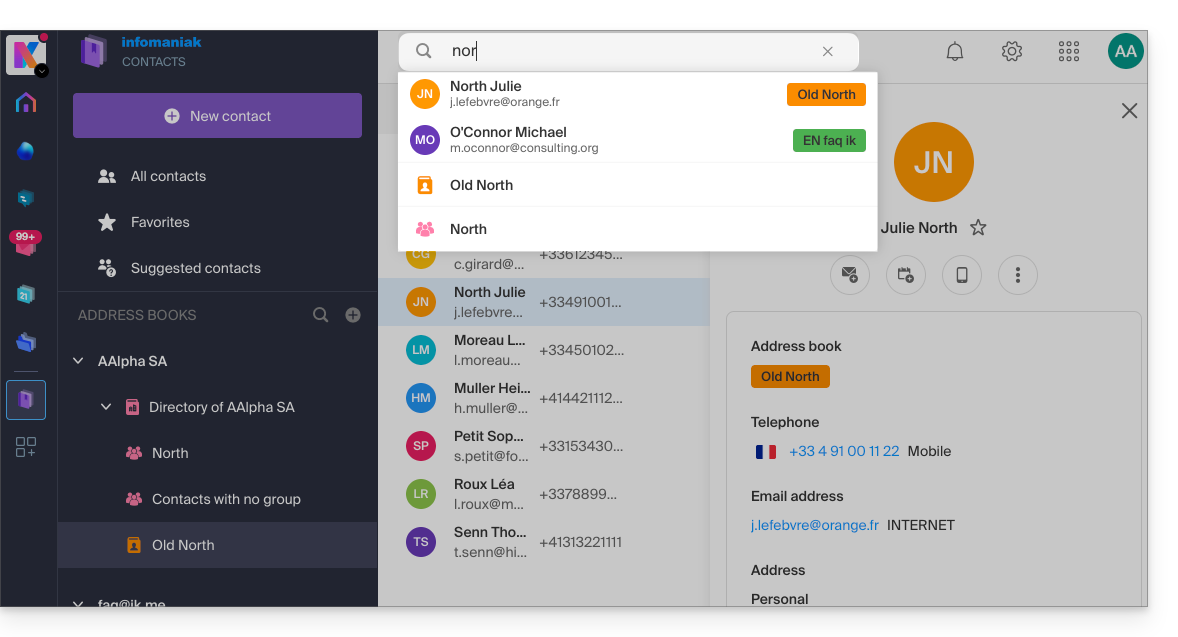
Search for an event
Searching for an item on ksuite.infomaniak.com/calendar is performed automatically across all your calendars, events, rooms, including within the description of these items and the people associated with them (if you click on a contact, you will see the events you have in common with that contact):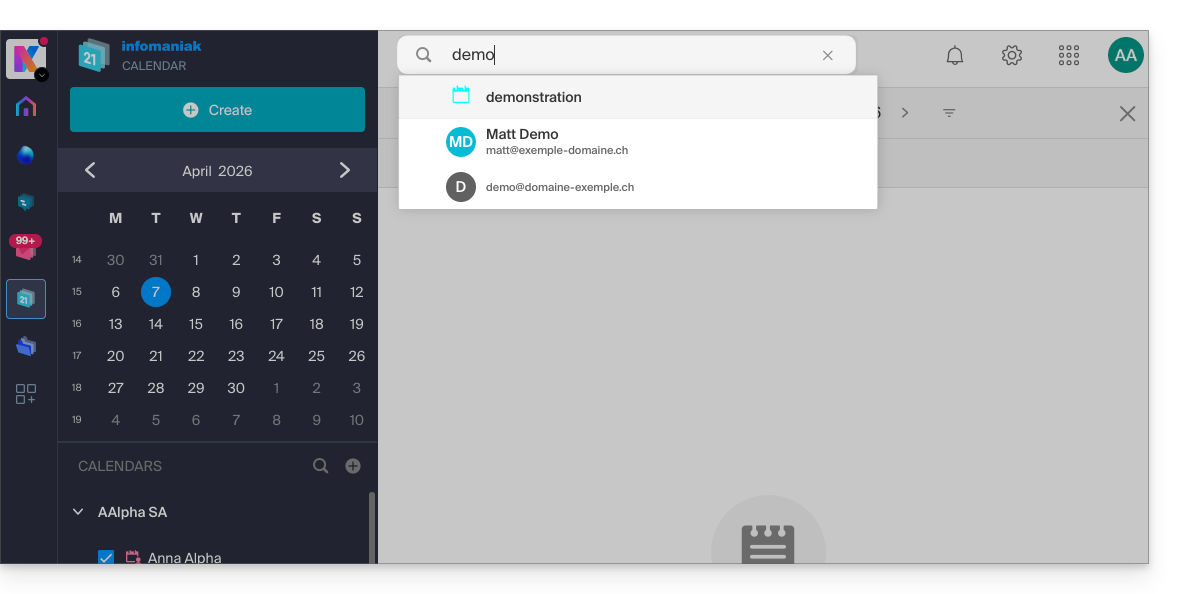
Link to this FAQ: https://faq.infomaniak.com/1733
Has this FAQ been helpful?
This guide explains how to, from a Mail service, reset or delete the passwords for a mail addressto disconnect a third-party application such as Outlook or Thunderbird.
Other access and management options are presented in the main guide.
Introduction
- Changing the password for an email address is equivalent to changing the IMAP / SMTP password:
- As soon as the password is changed, you must update your software (Outlook, etc.), mobile devices (iPhone), etc. with the new password (this is your responsibility).
- If you cannot log in to the Manager or Mail / kSuite, you will not be able to manage the passwords for any of your email addresses: please refer to this other guide in this case.
Remove a password / device
Prerequisites
- You must have at least the right to manage the Mail Service in question (or be an Administrator / Legal Representative within the Organization).
To disconnect any existing IMAP/POP/SMTP connections using a password generated in this interface (this will not remove the address from Infomaniak Mail apps – you need to manage the users of the email address for that), you can revoke a device or even delete all existing configurations with a single click:
- Click here to access the management interface for your product in the Infomaniak Manager (need help?).
- Click on the name of the product in question.
- Click on the email address in question in the table:
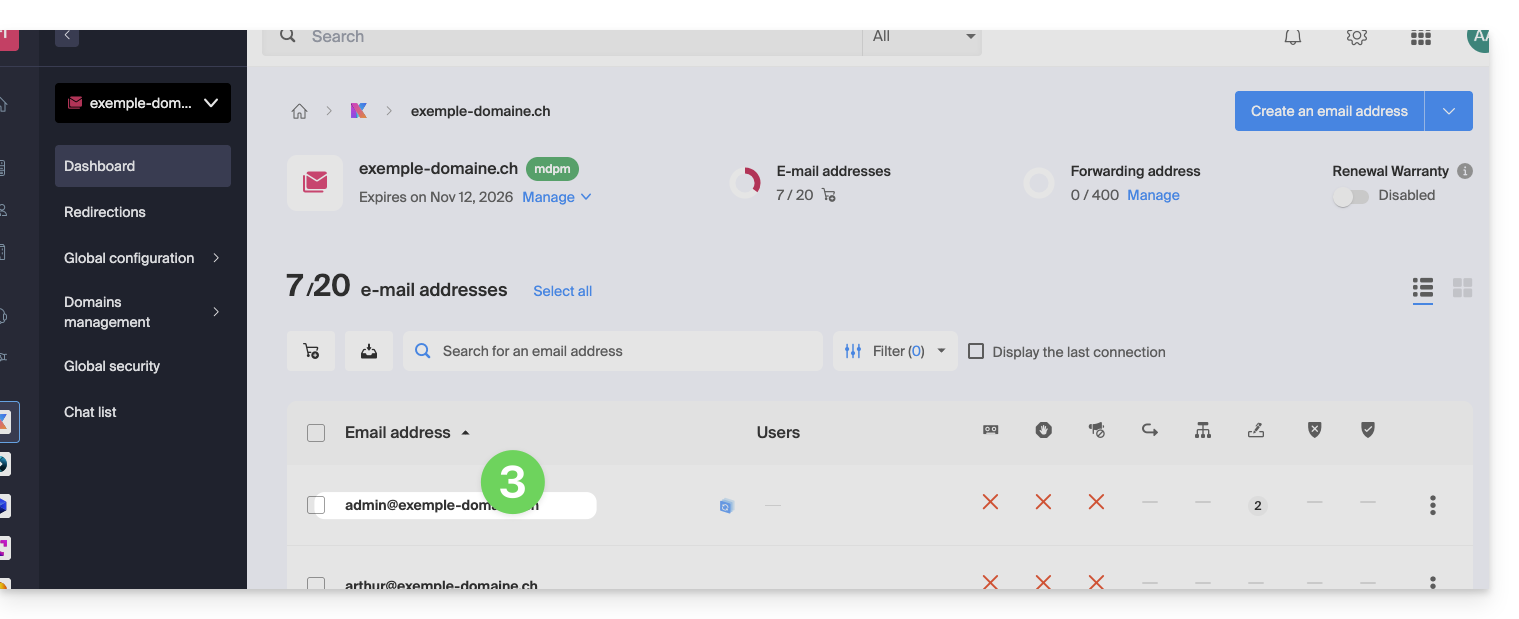
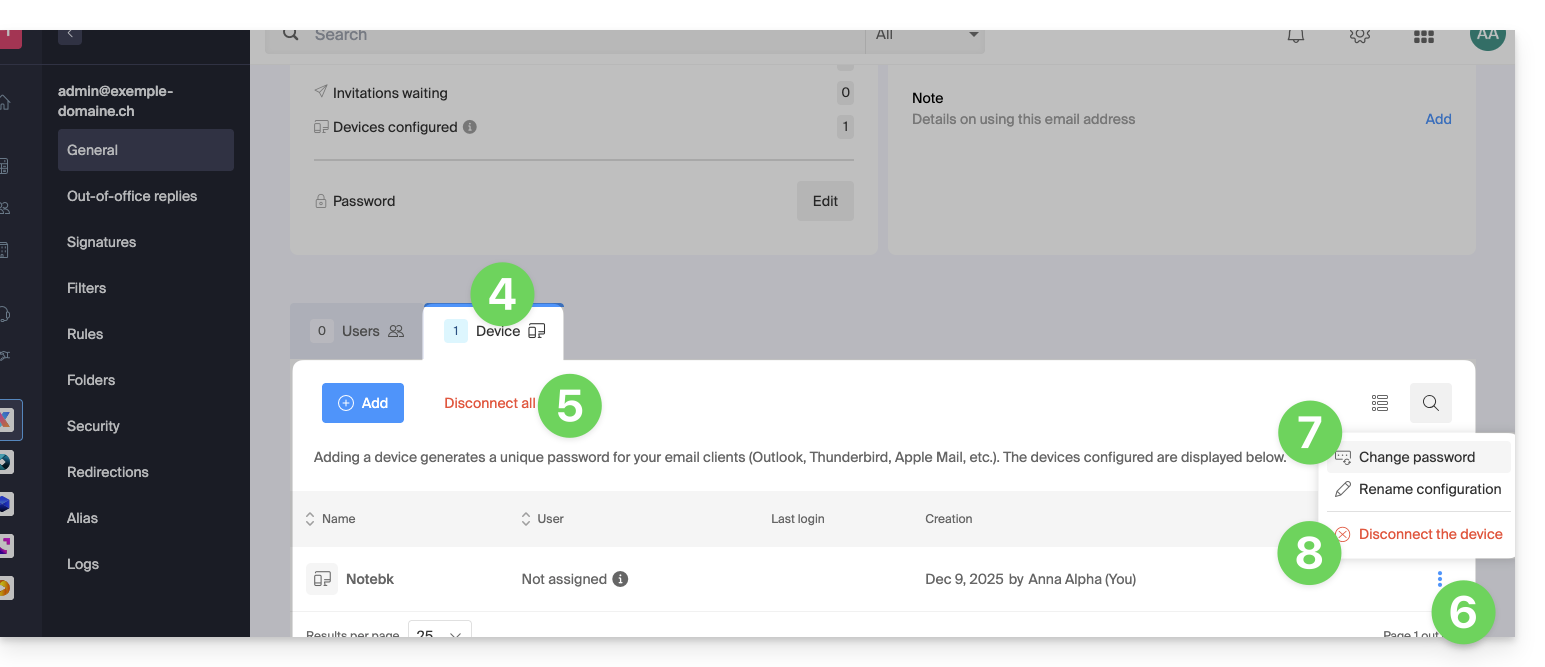
- Click on the Devices tab.
- Click on the red link to disconnect all registered devices (confirmation is required).
- Click on the action menu ⋮ located to the right of the device in question.
- Click on “Change password” to disconnect the current connection but allow the device to reconnect with a new password directly.
- Click on “Disconnect device” to remove it from the list and delete the corresponding connection:
What is a “generic” password?
Some email addresses may display a specific indication in the Devices section: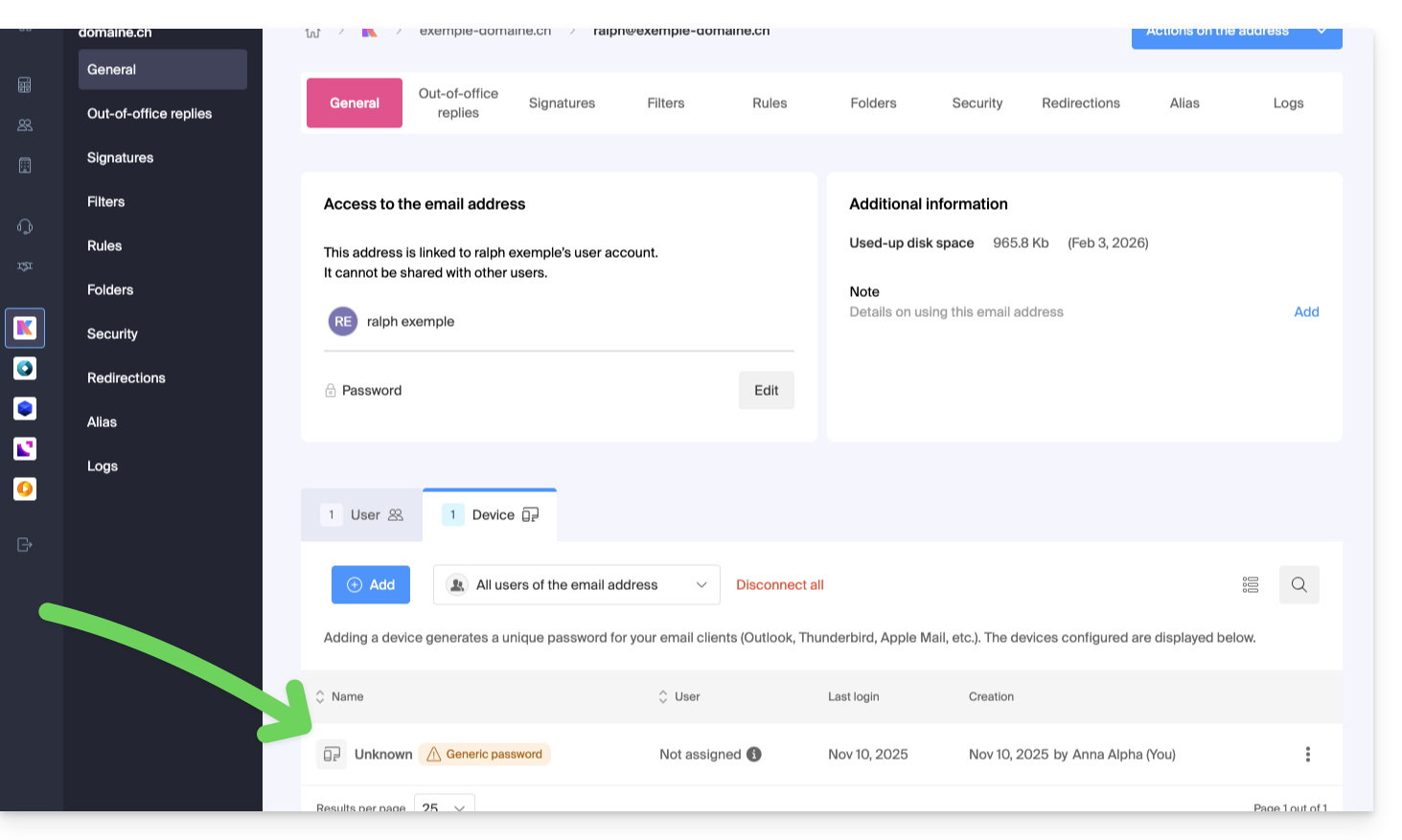
If this is the case, don't worry; it means that the address has a password assigned to it when it was created (prior to 2026). This password remains valid, but like other passwords, it cannot be displayed.And unlike other passwords, this one cannot be reset (the option is grayed out, disabled):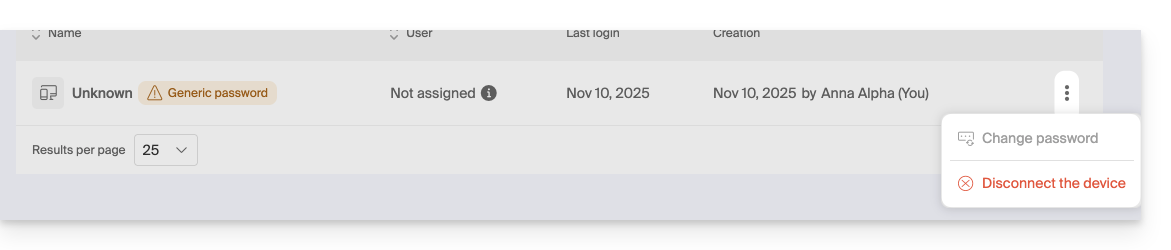
In this case, you can easily add an additional password.
Link to this FAQ: https://faq.infomaniak.com/1736
Has this FAQ been helpful?