Knowledge base
1000 FAQs, 500 tutorials and instructional videos. Here, there are only solutions!
Add yourself as a mail address user from the Mail service
This guide explains how, from a Mail Service, you can access a mail address on the Infomaniak ecosystem (using only the Mail web app from Infomaniak – online service ksuite.infomaniak.com/mail and/or the Infomaniak Mail mobile app – application for iOS/Android smartphones or tablets) with your Infomaniak account login credentials, without creating a specific password for the address.
Other access and management options are presented in the main guide.
Prerequisites
- Order a Mail Service from Infomaniak.
- Create one or more addresses on this Mail Service.
- Have at least the right to manage the Mail Service in question (or be an Administrator / Legal Representative within the Organization).
Accessing a mail address yourself
To use the existing mail address demonstration@exemple-domaine.ch:
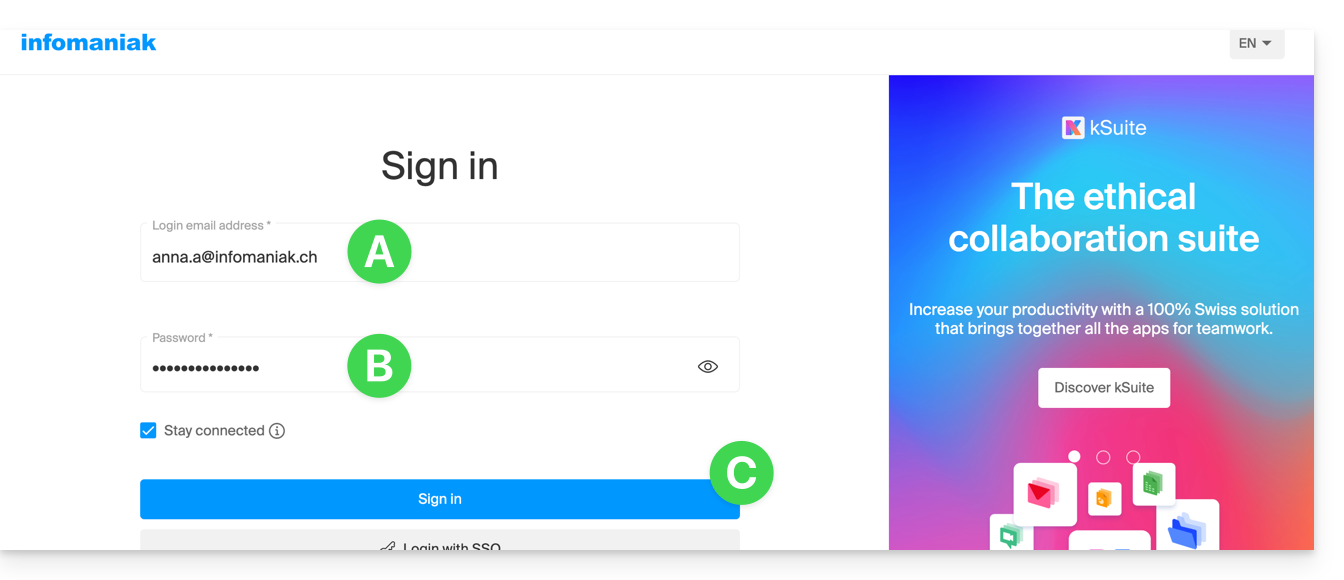
- Enter your Infomaniak account login credentials and password on the https://manager.infomaniak.com/ page:
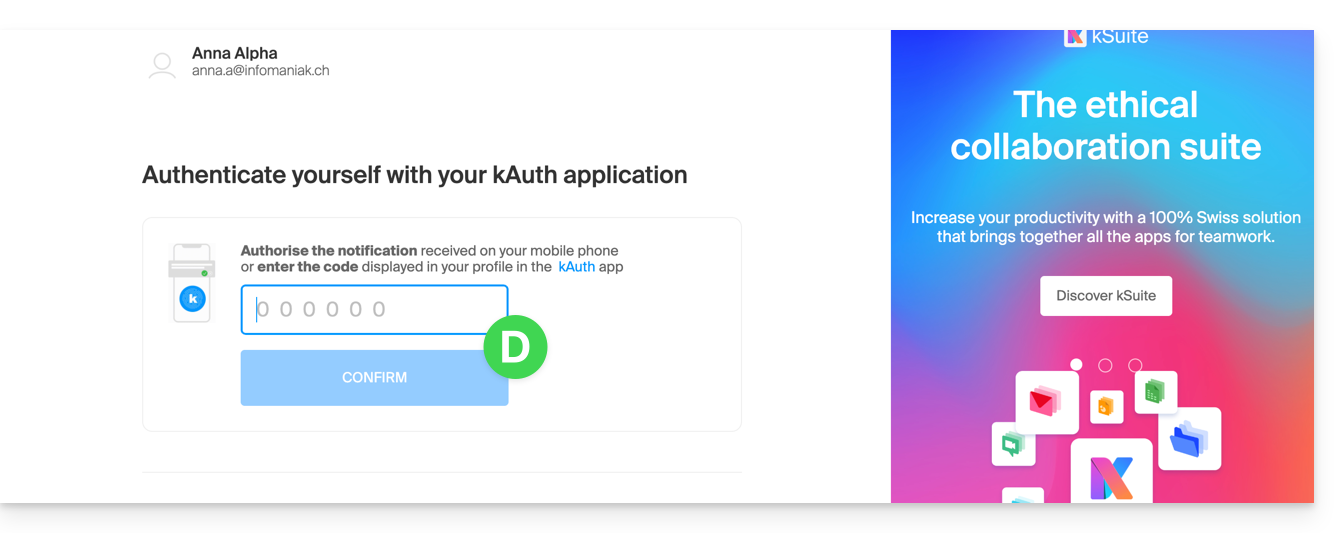
- Confirm your login on the Manager using the 2FA (two-factor authentication) method that you initially defined:
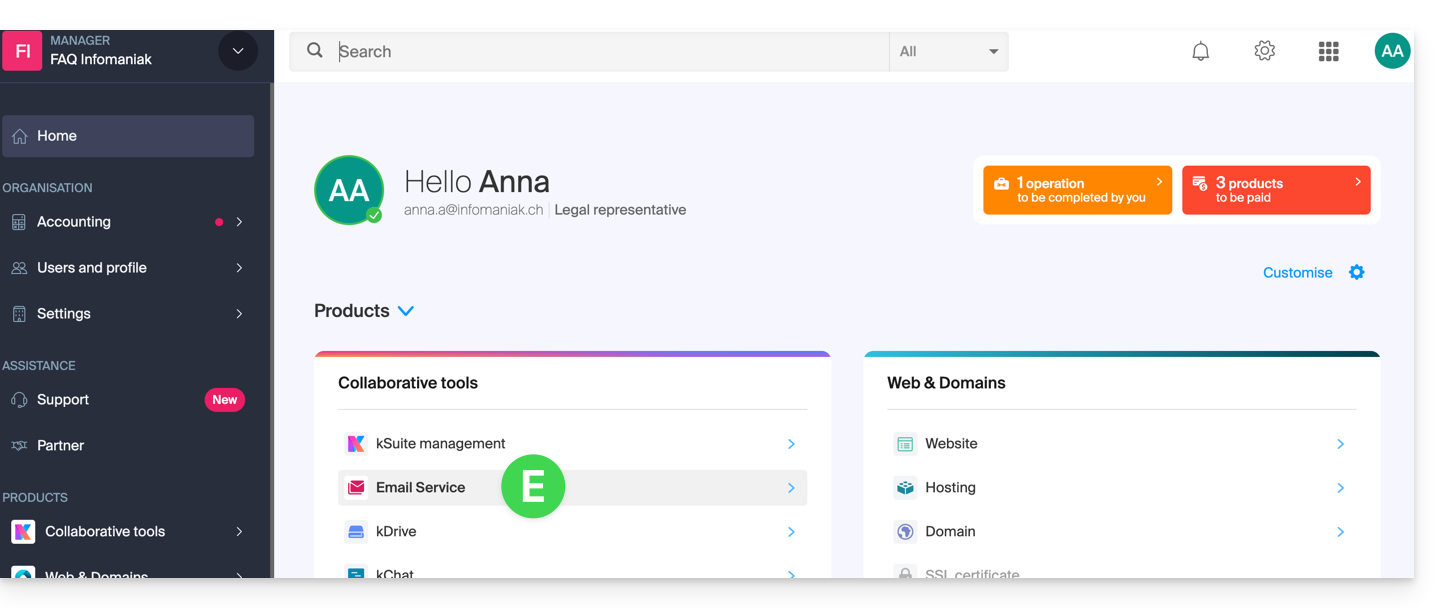
- Once on the dashboard, click on Mail Service:
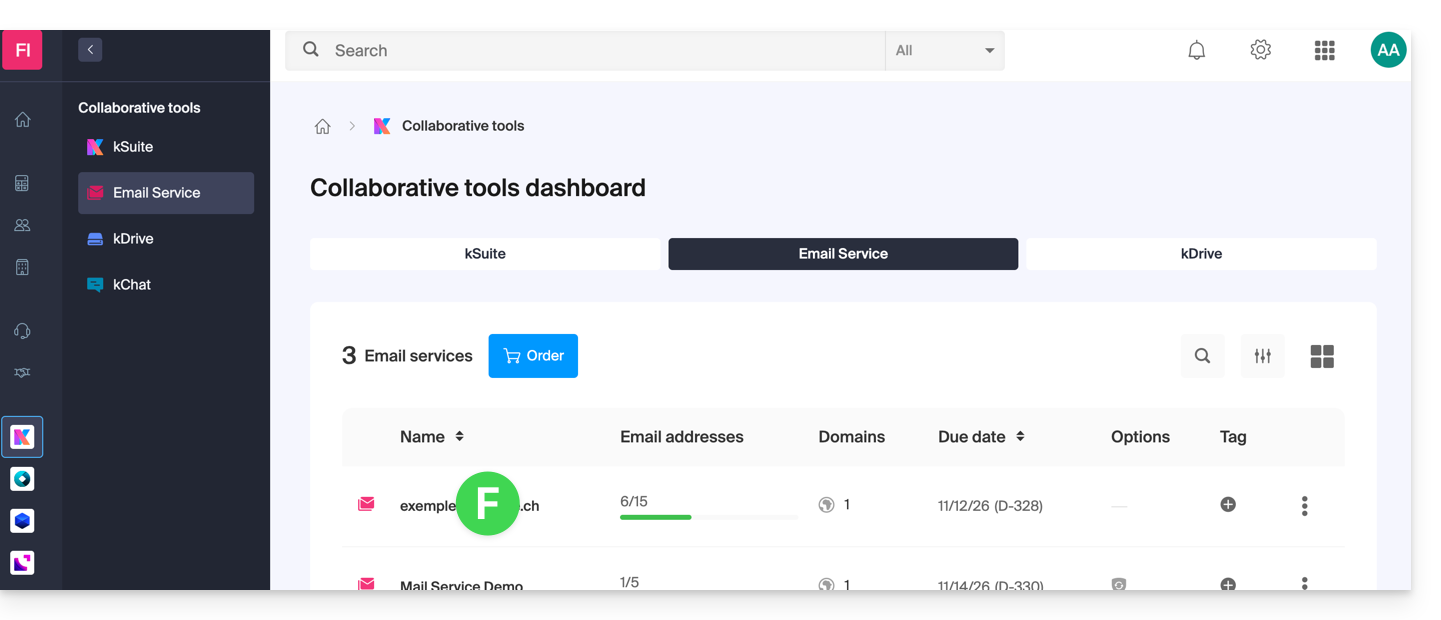
- Once on your Mail Services, click on the name / domain name to which the email address in question belongs:
- Once on the Mail Service to which the address belongs, click on the email address in question:
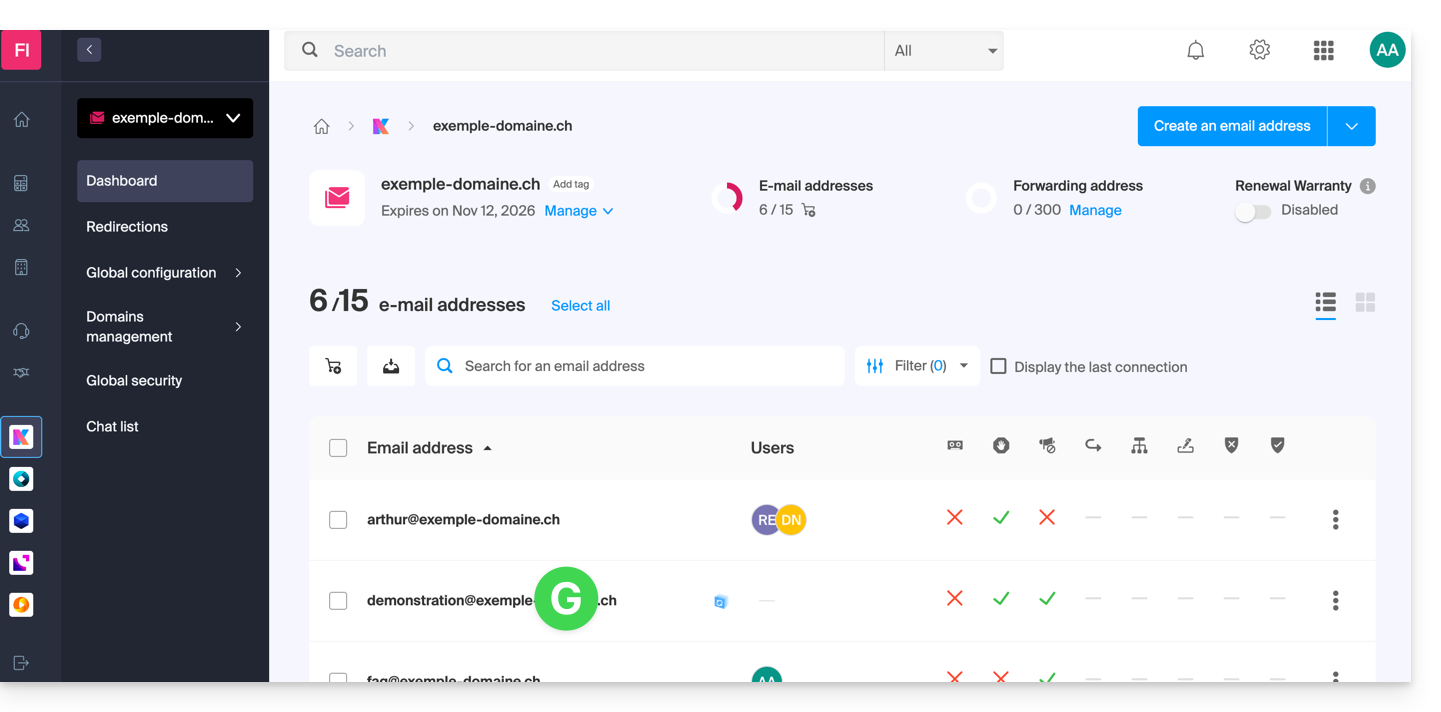
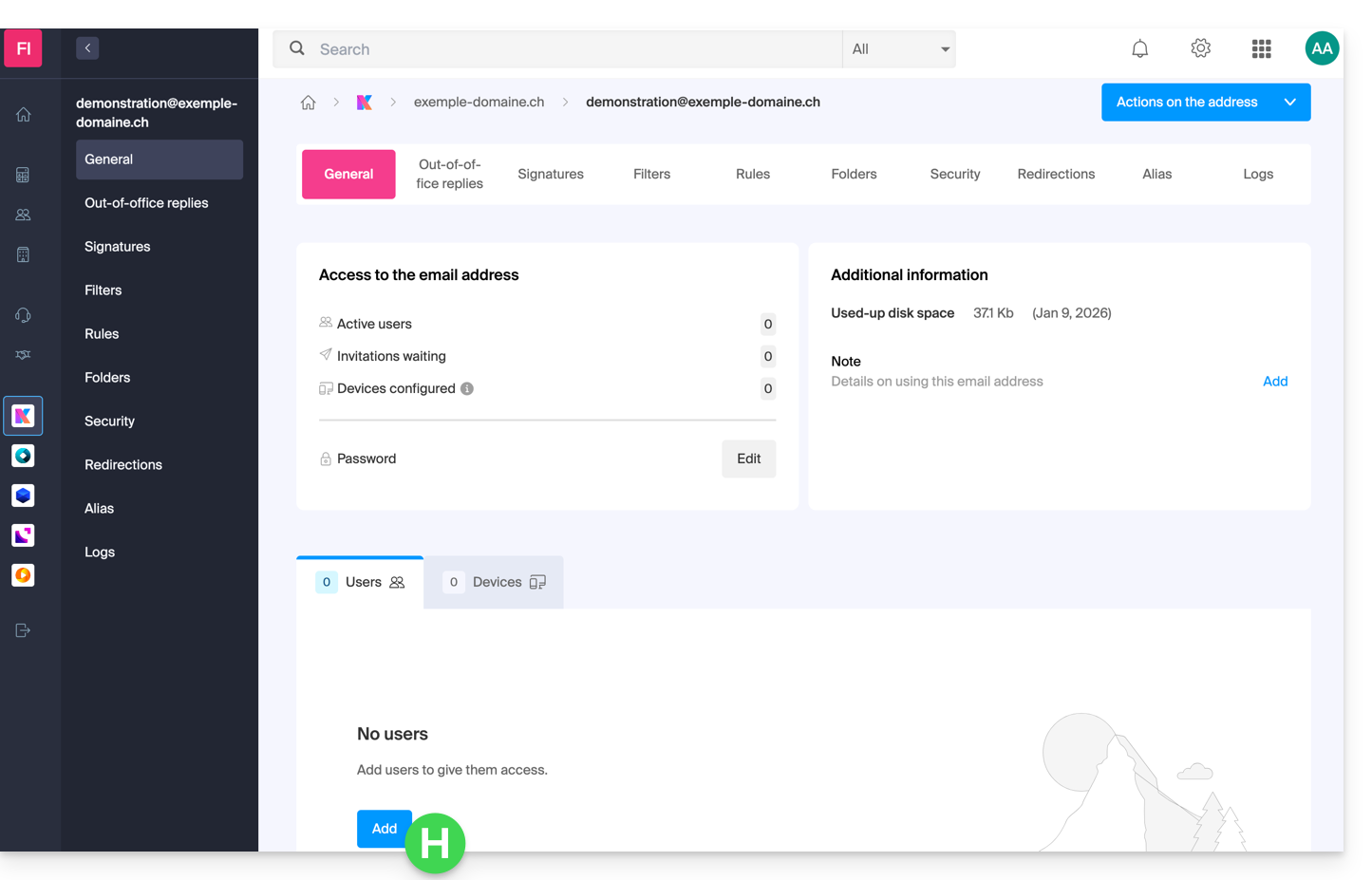
- Once on the email address in question, click on the Add user button:
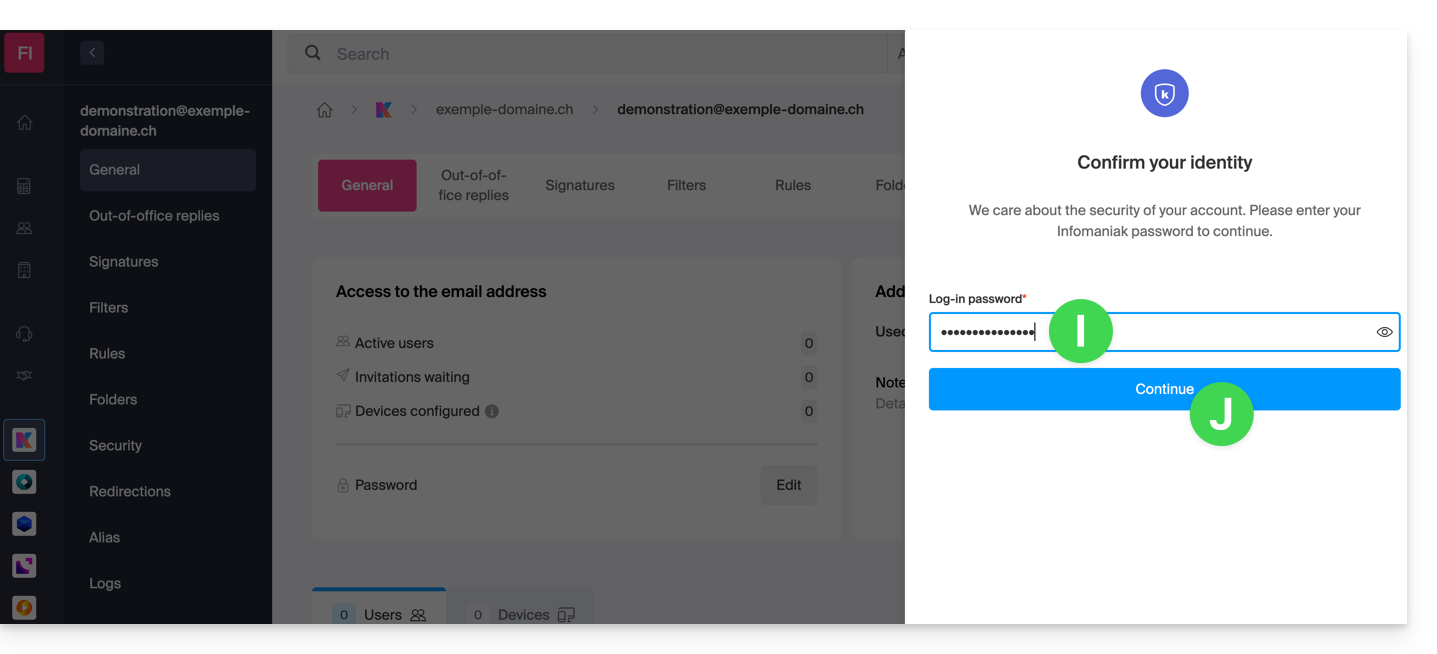
- At this stage, it may be necessary to re-enter your login password (the one from step B above):
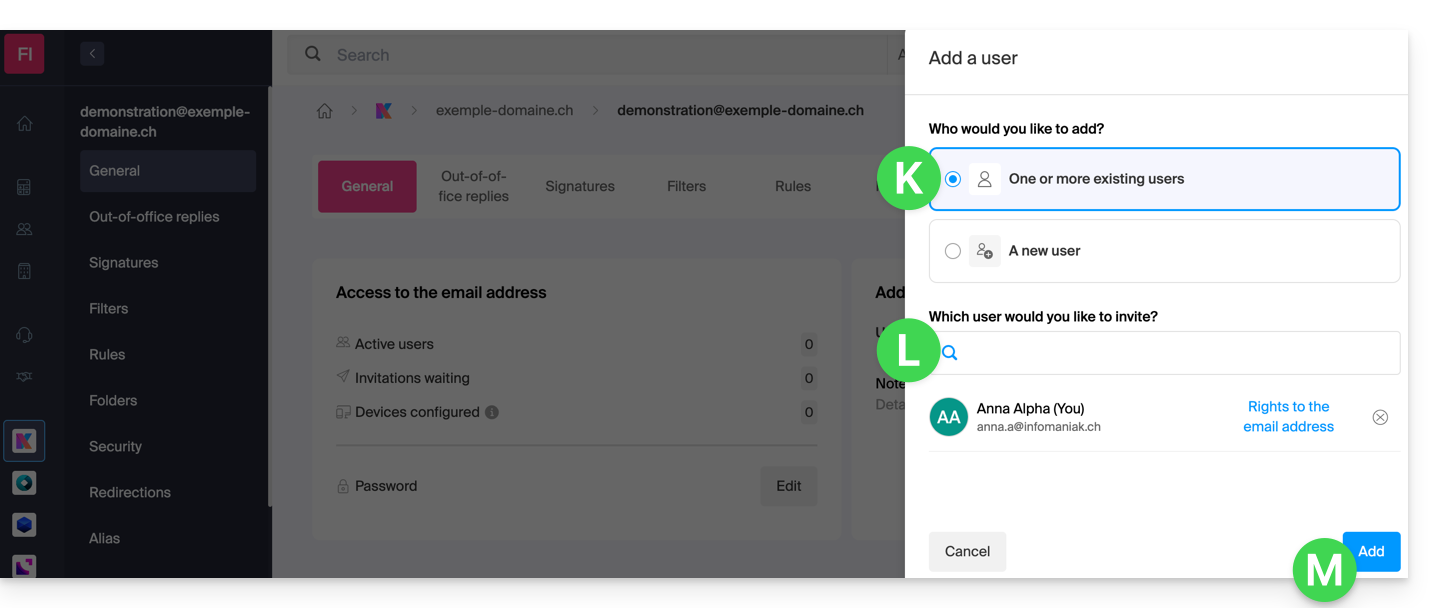
- Then, choose the option to add an existing user, then click on the field below, which will display the list of users in the Organization to which you are connected, and click on your user (your login ID for the Infomaniak account). Confirm the addition with the button at the bottom right:
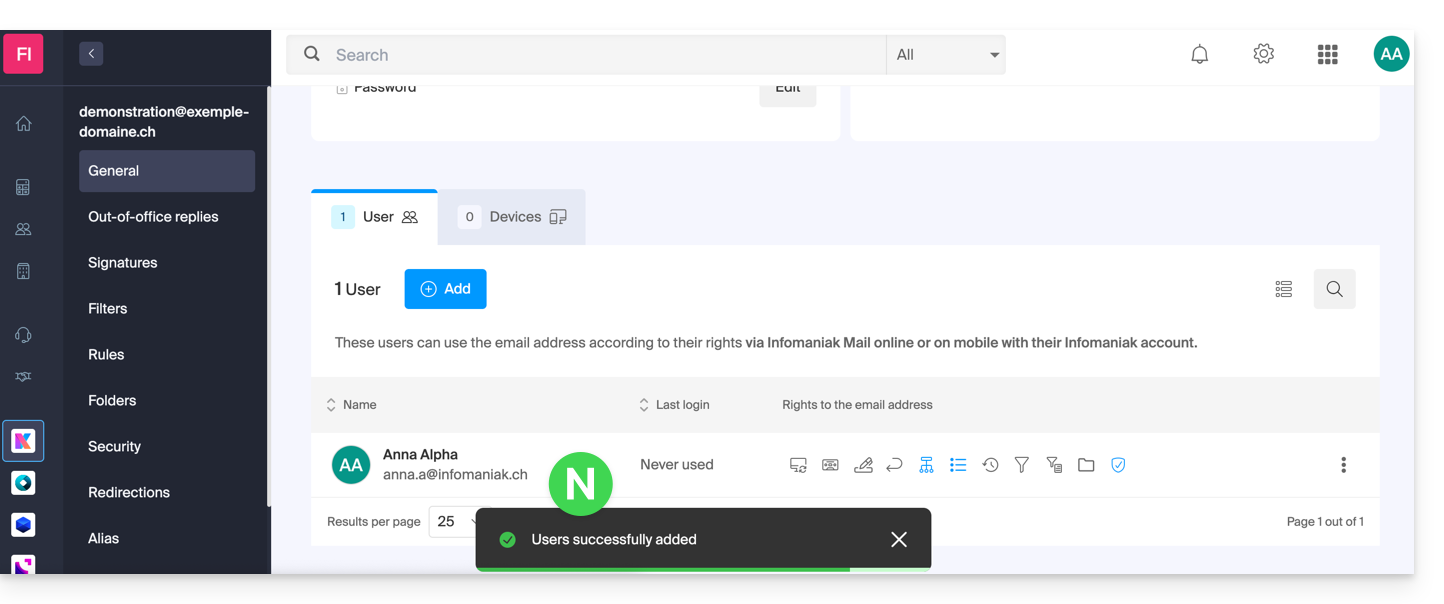
- Done, your user has been added:
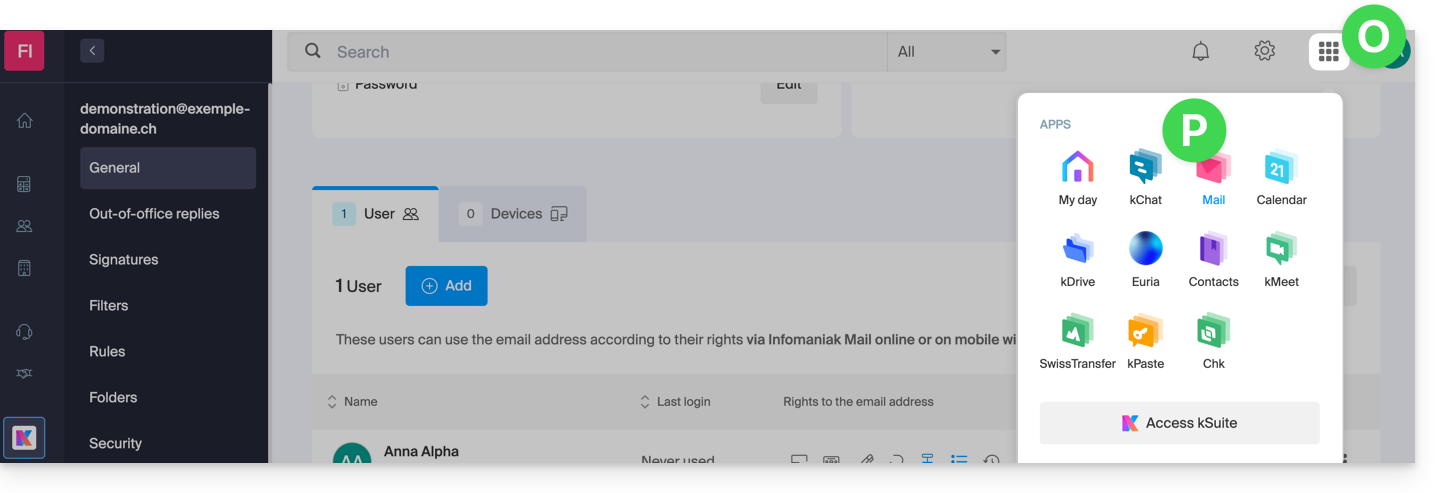
- Next, click on the icon at the top of the screen to open the kSuite tools, and then click on the Mail Infomaniak web app:
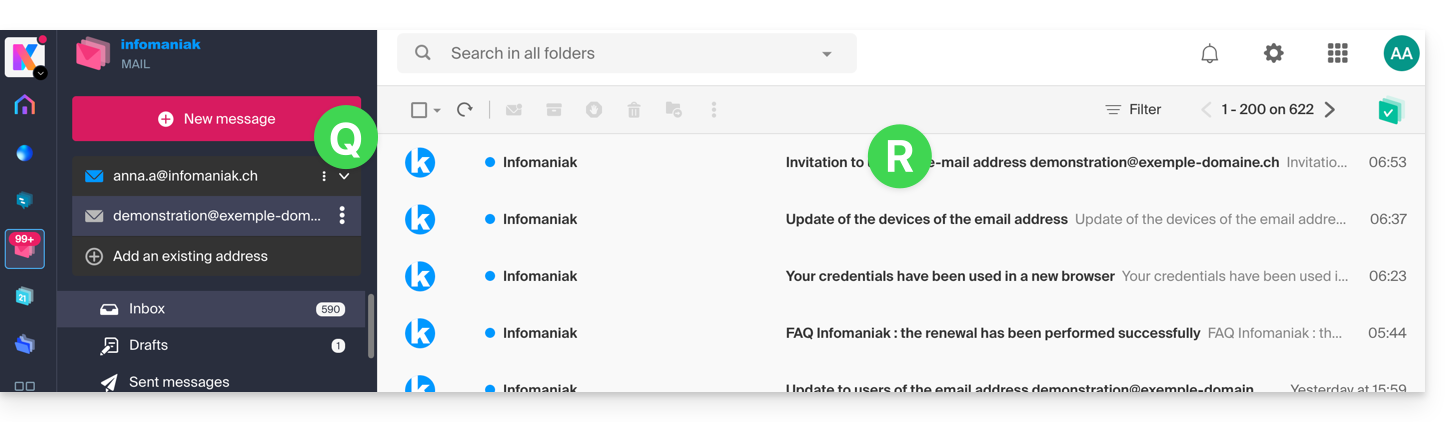
- The email address has been successfully added to the Mail web app (if necessary, click on the chevron to expand the address menu and access it). An informational email has been sent to the user (you in this case) to notify them of the operation:
When your ID is added as a user with access to the email address, the mailbox is automatically added to your Mail Infomaniak apps: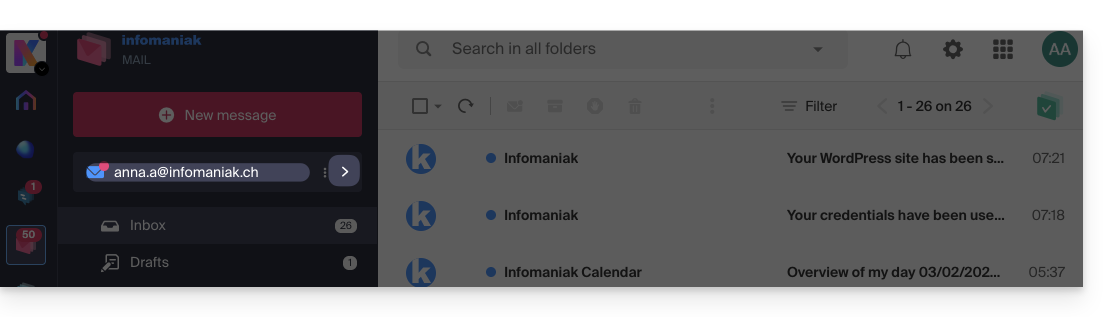
You can switch between your addresses at any time via the chevron located at the top left of the screen: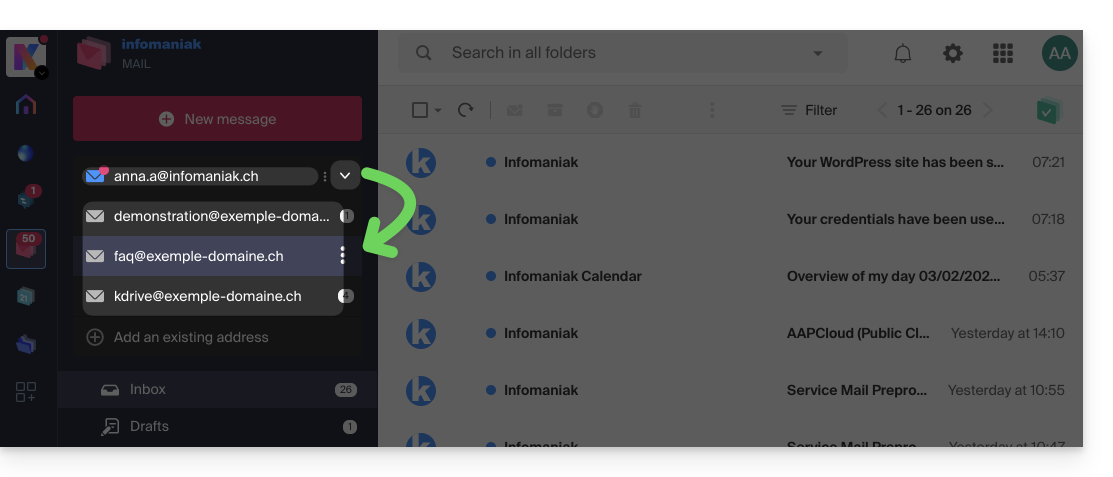
To do this, you may sometimes need to first choose to display all Organizations from the top left: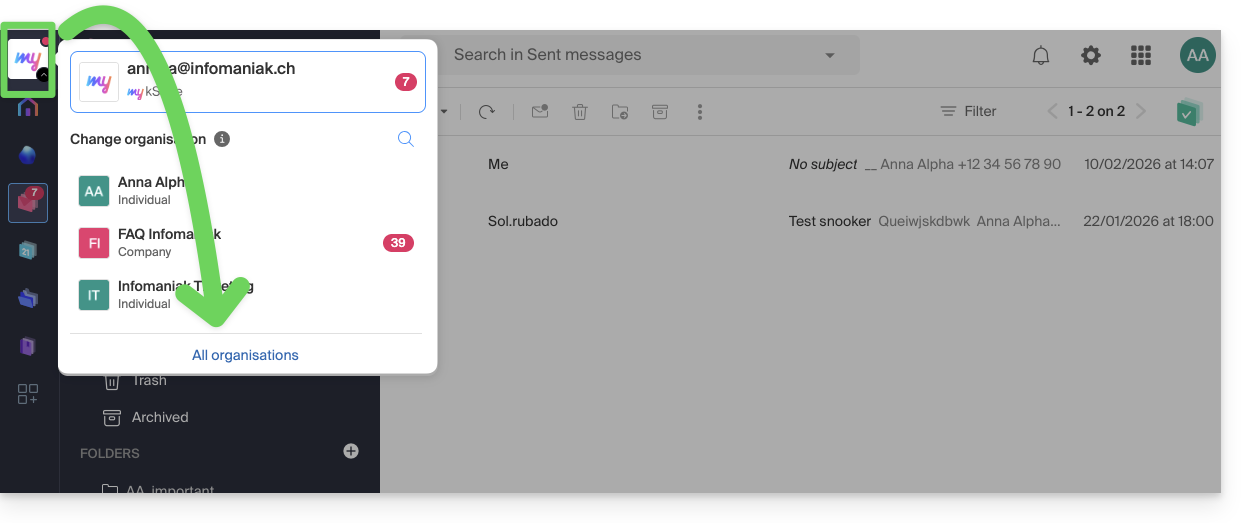
If the address still doesn't appear, try refreshing the browser page (Command ⌘ + R on macOS and Ctrl + F5 on Windows).
Link to this FAQ: https://faq.infomaniak.com/1547
Has this FAQ been helpful?