Knowledge base
1000 FAQs, 500 tutorials and instructional videos. Here, there are only solutions!
Remove the user from an email address
This guide explains how to manage users of an existing email address.
Prerequisites
- Order a Mail Service from Infomaniak.
- Create one or more addresses on this Mail Service.
- Be Administrator or Legal Representative within the Organization.
Managing and removing a user
The current model for managing mail access allows each user of an Organization to connect independently and securely to the same email address, without sharing a global password.
In the case of one or more existing users already in the Organization, the added email address can automatically be added to their Infomaniak Mail interface.
If a user should no longer have access to an email address and its content, simply remove them from the interface, but there are 2 possibilities:
- Click here to access the management of your product on the Infomaniak Manager (need help?).
- Click directly on the name assigned to the product concerned.
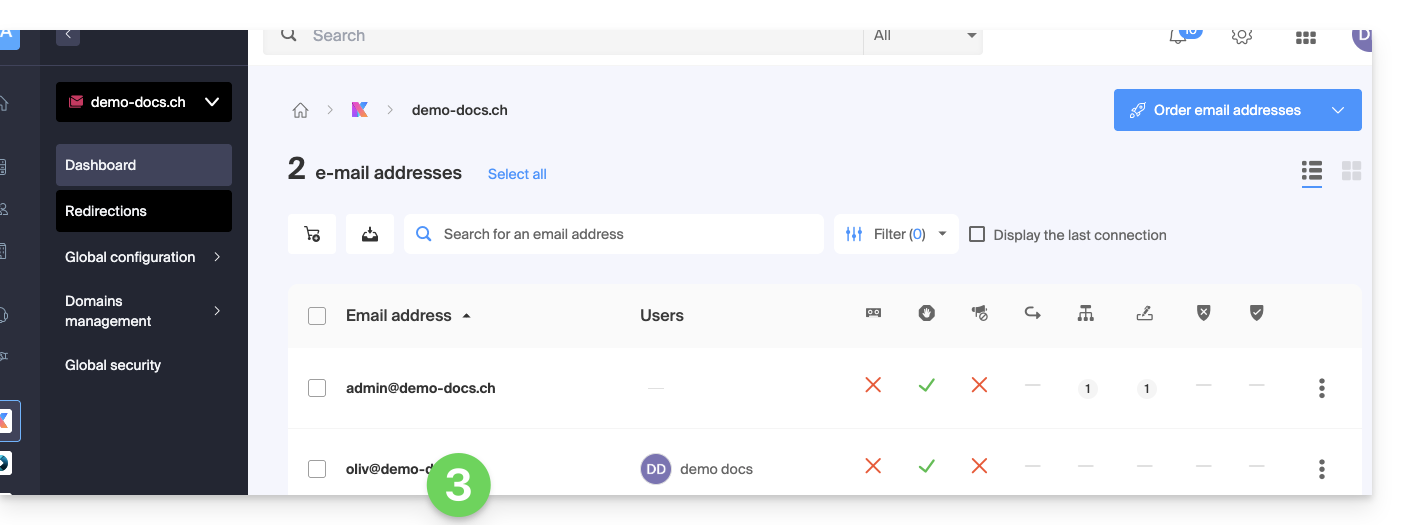
- Click on the email address concerned in the table that appears:
- On the table of users currently accessing the concerned address, click on the action menu ⋮ to the right of the concerned user.
- Choose whether you want to disconnect all of the user's devices: they will no longer have access to the email address on messaging software/clients but will continue to have access to the address on the Infomaniak app (Web, mobile…).
- You can choose to remove all of their access to the address, and they will never be able to access it again.
If you know that the user is using messaging software/client (but not listed among the users) you can also revoke a specific device without affecting other accesses/passwords/users.
Also refer if necessary to this other guide to block a complete Mail Service to all users.
Link to this FAQ: https://faq.infomaniak.com/1371
Has this FAQ been helpful?