Knowledge base
1000 FAQs, 500 tutorials and instructional videos. Here, there are only solutions!
This guide details the use of DELIMITER to create MySQL functions on Infomaniak's Cloud Server.
Introduction
- When creating functions or stored procedures in MySQL, it is crucial to understand the role of delimiters.
- The correct use of delimiters is essential to avoid syntax errors that can occur due to the presence of multiple SQL statements in a single function or procedure definition.
Understanding the Delimiter
A delimiter is a character or sequence of characters used to separate SQL statements in a script. By default, MySQL uses the semicolon (;) as the delimiter. However, when creating functions, stored procedures, or triggers that contain multiple SQL statements, it is necessary to temporarily change the delimiter to avoid syntax errors.
When you create a function, procedure, or trigger, you often need to use multiple SQL statements within the BEGIN...END block. Since the semicolon (;) is also used to terminate these internal statements, MySQL might interpret the first semicolon as the end of the function definition, which would result in a syntax error. To avoid this problem, you need to change the delimiter during the function definition.
Create a simple function using custom delimiters
Before defining the function, you must tell MySQL that you will be using a different delimiter. In the example below, $$ is used as the new delimiter:
DELIMITER $$With the new delimiter in place, you can now define your function. The CREATE FUNCTION includes the function body, where you can use internal SQL statements separated by semicolons without any issues:
CREATE FUNCTION hello_world()
RETURNS TEXT
LANGUAGE SQL
BEGIN
RETURN 'Hello World';
END;
$$
In this example:
CREATE FUNCTION hello_world(): declares the beginning of the definition of thehello_worldfunction.RETURNS TEXT: specifies the data type that the function returns.LANGUAGE SQL: indicates that the language used for the function is SQL.BEGIN ... END: encapsulates the function's code. Inside, the semicolon is used to separate SQL statements.RETURN 'Hello World';: SQL statement that returns the stringHello World.
After defining the function, reset the delimiter to its default state (the semicolon). This allows you to continue executing the usual SQL instructions in your subsequent scripts:
DELIMITER ;Link to this FAQ: https://faq.infomaniak.com/1150
Has this FAQ been helpful?
This guide explains how to view the activity logs for files on your Infomaniak hosting server.
FTP space activity logs
To view the activity logs for your FTP space, contact Infomaniak support and request FTP logs. You will need to authenticate using the credentials for managing your web hosting.
The log is only updated if there has been FTP activity.
Help with reading logs: http://www.castaglia.org/proftpd/doc/xferlog.html
Link to this FAQ: https://faq.infomaniak.com/1177
Has this FAQ been helpful?
The CGID module for Apache has been disabled on shared web hosting plansfrom Infomaniak.
If necessary, you should consider upgrading to a Cloud Server if you are currently using shared web hosting. This can be done seamlessly: refer to this other guide for more information.
Link to this FAQ: https://faq.infomaniak.com/1248
Has this FAQ been helpful?
This guide explains how to increase the max_children value on Cloud Server to increase the number of simultaneous PHP processes that can be used by your site. This will be very useful for resolving issues with infinite page loading on your site.
Introduction
- By default, on all hosting plans, the
max_childrenlimit is set to 20.- While it is possible to increase this value from the Infomaniak Manager, the
max_childrenlimit is automatically adjusted based on your Cloud Server configuration. - To increase this limit on shared hosting, migrate to a Cloud Server.
- While it is possible to increase this value from the Infomaniak Manager, the
- To understand how to calculate the most appropriate
max_childrenvalue, refer to this article.
Increase the max_children value
Prerequisites
- Make sure you have enough resources on the Cloud server.
- Ensure that all of the Cloud server's resources are not being used; if they are fully utilized, increasing the
max_childrenvalue will have no effect (Modify Cloud Server Resources). - Check the resource monitoring for your server. If the resources of your server are reached, it will be necessarycheck the optimization of your processes and website before considering increasing the
max_childrenvalue. - Check the PHP error logs in the
/ik-logsdirectory (master process PHP logs - file name: php-fpm.log) to see if the "max_children" limit has been exceeded... example of an error:[05-Jul-2024 09:08:58] WARNING: [pool www.infomaniak.ch] server reached max_children setting (20), consider raising it
To access the management of the PHP / Apache settings for the site for which you need to increase the max_children value on a Cloud Server, please refer to this other guide.
You will be able to…
- … choose a new value for
max_children: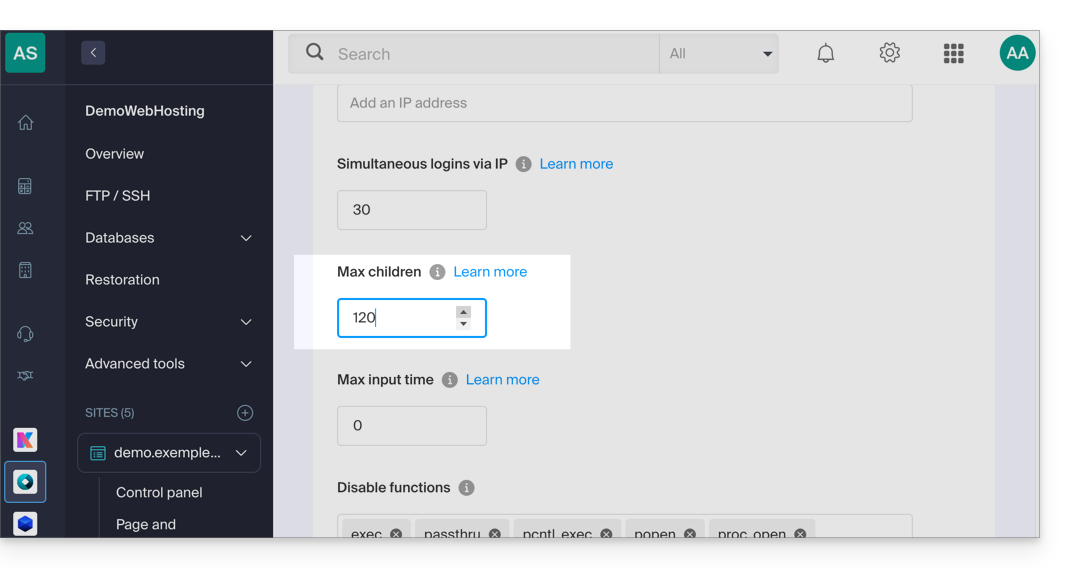
Don't forget to save the changes at the bottom of the page.
Limits based on the server
Limit the max_children based on the Cloud Server's resources:
| Cloud Server Configuration | max_children |
|---|---|
| 2 CPU / 6 GB RAM | 20 |
| 4 CPU / 12 GB RAM | 40 |
| 6 CPU / 18 GB RAM | 60 |
| 8 CPU / 24 GB RAM | 80 |
| 12 CPU / 36 GB RAM | 120 |
| 16 CPU / 48 GB RAM | 160 |
| 24 CPU / 72 GB RAM | 240 |
| 32 CPU / 96 or 128 GB RAM | 320 |
Link to this FAQ: https://faq.infomaniak.com/1270
Has this FAQ been helpful?
This guide is for you if you want to perform vulnerability tests on your website/server hosted by Infomaniak.
Allowed and restricted
You are free to perform vulnerability tests (SQL injection, XSS, etc.), intrusion tests, or penetration tests (pentests) on your Infomaniak hosting only under the following conditions:
- between 9 AM and 5 PM CET
- from Monday to Friday
- with the minimum attack package, regardless of the software used (e.g. AppScan)
- without ever launching any DoS or DDoS attacks (Denial of Service)
- by respecting the Infomaniak Terms of Service, in particular the shared service framework
Any misuse may result in early termination by Infomaniak.
Link to this FAQ: https://faq.infomaniak.com/1271
Has this FAQ been helpful?
This guide details the use of Perl or Python scripts on Infomaniak hosting and the management of their modules.
Prerequisites
- Shared Web Hosting: the CGI module is no longer available; therefore, running Perl and Python scripts is not supported.
- It is necessary to migrate to a Cloud Server.
- Managed Cloud Servers: to benefit from the latest technologies, it is possible to upgrade your Cloud Server.
Web Configuration (Apache/CGI)
To run Python or Perl scripts via Apache on a Cloud Server, the interpretation of files with the .py and .pl extensions is not enabled by default.
Using your FTP software/client or the Web FTP, add and adapt the following directive to the .htaccess file located in the folder containing your scripts:
AddHandler cgi-script .pl .cgi .py
Options +ExecCGI
Installing additional modules
On a Cloud Server, you have the option to install third-party libraries that are not included by default.
Python
- Installation is done via
PIP, which is a package manager used to install and manage packages written in Python. - Infomaniak offers
PIPandPIP3via the Fast Installer tool. - Once PIP is installed, you can install Python modules by specifying
--userwhen running the command. For example: pip3 install mysql-connector-python --user
Perl
- Perl modules can also be added via SSH (console). They need to be installed in the user directory, and their full path must be defined within the scripts.
Important technical information
- Interpreter path:
/usr/bin/python - Extensions: Scripts must have the
.pl,.cgi, or.pyextension. - Limitations: The
mod_pythonmodule is not supported.
Troubleshooting (CGIWrap)
If you encounter the following error when uploading an image:
CGIWrap Error: Execution of this script not permitted
Request Data:Extra Path Info: /dossier/.../image.PL.12.34.gif
The server interprets the file as a script because it contains ".PL" (or .PY) in its name. Solution: Simply rename the file to remove this extension (example: image-12-34.gif).
Link to this FAQ: https://faq.infomaniak.com/1307
Has this FAQ been helpful?
This guide will help you if, for example, you want to deploy a package like pymysql and it requires a Python version higher than the default version offered on your hosting.
Introduction
- Anaconda is a free and open-source distribution of the Python and R programming languages; it aims to simplify package management and deployment.
- It is recommended to use Miniconda (a lightweight version of conda); it installs in your user space, avoiding any conflicts with the system Python and not requiring administrator privileges.
- Refer to the official documentation.
1. Download the installer
For example, the Linux 64-bit version for Python 3.11.
2. Verify integrity (SHA256 hash)
2. Contrôler l'intégrité (Hash SHA256)
user@server:~$ sha256sum Miniconda3-py311_23.10.0-1-Linux-x86_64.sh 6c714a33ea348303f909194246990422e698889417d74b9714856b3e9a7e6c3a Miniconda3-py311_23.10.0-1-Linux-x86_64.sh3. Start the installation
3. Lancer l'installation
The -b argument enables a silent installation. By default, Miniconda will be installed in ~/miniconda3.
user@server:~$ bash Miniconda3-py311_23.10.0-1-Linux-x86_64.sh -b
PREFIX=/home/clients/your_client_hash/miniconda3
Unpacking payload ...
Collecting package metadata (current_repodata.json): done
Solving environment: done
Executing transaction: done
installation finished.
4. Initialize and activate Conda
To use conda immediately and with each SSH connection:
user@server:~$ ~/miniconda3/bin/conda init bash
no change     /home/clients/your_client_hash/miniconda3/condabin/conda
...
modified      /home/clients/your_client_hash/.bashrc

user@server:~$ source ~/.bashrc
5. Install a package (example: pymysql)
Once activated, the prefix (base) appears before your command prompt. You can then install your tools without using sudo or --user.
(base) user@server:~$ python -V
Python 3.11.5

(base) user@server:~$ pip install pymysql
Collecting pymysql
  Downloading PyMySQL-1.1.0-py3-none-any.whl (44 kB)
Installing collected packages: pymysql
Successfully installed pymysql-1.1.0
Link to this FAQ: https://faq.infomaniak.com/1362
Has this FAQ been helpful?
This guide concerns the support for secure hashing functions (including SHA-256) by Infomaniak servers, as well as the emphasis on the security of SSL/TLS certificates using CSRs generated with SHA-256.
SHA-256 Hashing Algorithm
The cryptographic hash function SHA-1 is supported, and Infomaniak servers also support the SHA-256 function, which is particularly useful for Paypal and SaferPay (SIX).
CSRs (certificate signing requests) are in SHA-256 and not in SHA-1.
Link to this FAQ: https://faq.infomaniak.com/1441
Has this FAQ been helpful?
This guide explains how to create a backup of a Cloud VPS in the form of a snapshot.
Introduction
- A snapshot is like a photo of your Cloud VPS at a specific point in time, containing everything on your server, including your operating system, applications, data, etc.
- Snapshots can be used in particular for…
- … protecting your Cloud VPS in case of a problem: if you encounter a problem with your Cloud VPS, you can restore a snapshot to return to a previous state.
- … testing changes without risk: before making significant changes to your Cloud VPS, you can create a snapshot so that you can revert if necessary.
- You benefit from a free snapshot to back up your entire server in a dedicated space; if needed, it is possible to order additional space or delete a snapshot to create a new one.
- Two types of backup are possible:
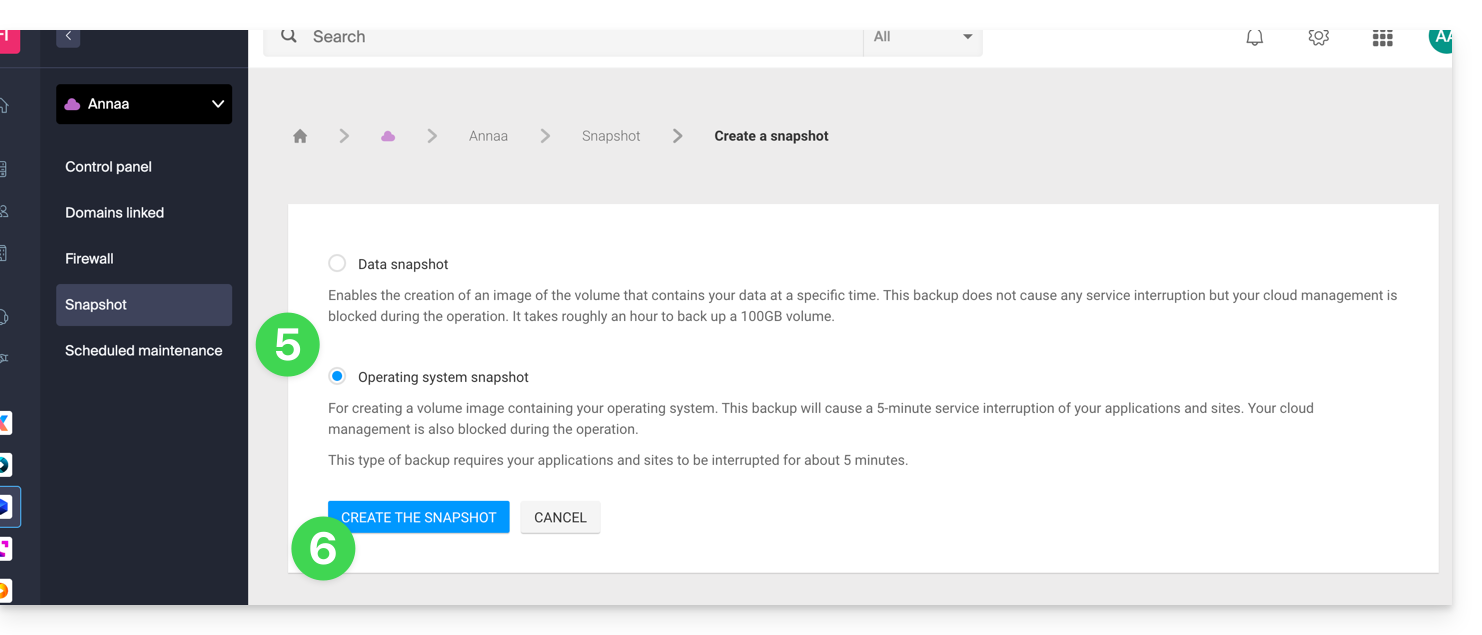
- Snapshot of the data: allows you to create an image of the volume that contains your data (not available for Windows distributions).
- Snapshot of the operating system: allows you to create an image of the volume that contains your operating system. This type of backup involves a brief interruption of a few minutes for your applications and websites.
- It is recommended to create snapshots regularly, for example once a week or once a month; this will allow you to have a history of your Cloud VPS and to be able to revert to a previous state in case of a problem.
- It is obviously possible to restore the state of the Cloud VPS using the snapshot created previously.
Create a snapshot
To do this:
- Click here to access the management interface for your product in the Infomaniak Manager (need help?).
- Click directly on the name assigned to the product in question.
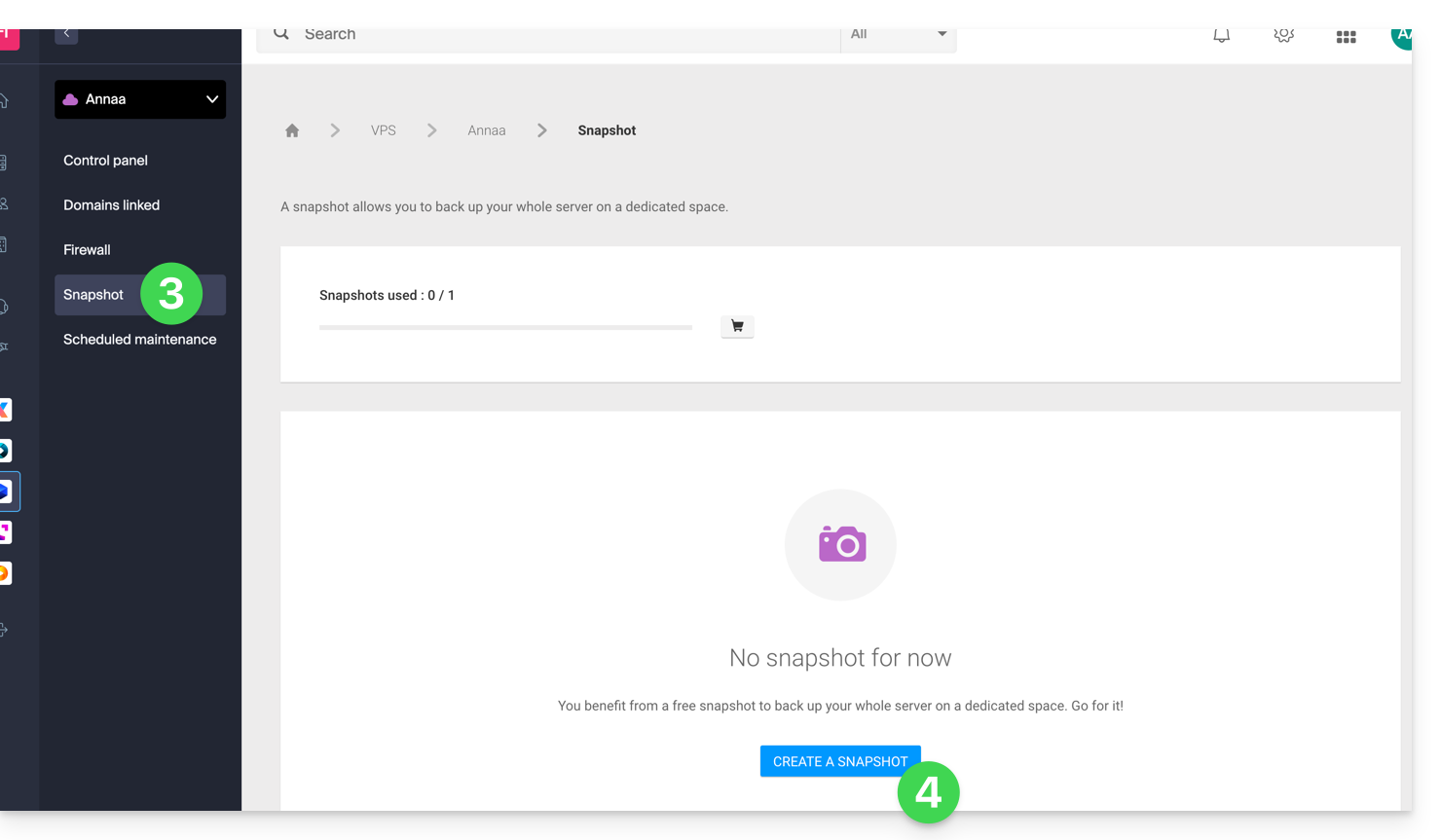
- Click on Snapshot in the left-hand menu.
- Click on the blue Create a snapshot button:
- Choose the type of snapshot to create (data or operating system).
- Click the blue button to start creating the snapshot:
- An email is sent when the snapshot is generated.
Delete a snapshot
To do this:
- Click here to access your product management interface in the Infomaniak Manager (need help?).
- Click directly on the name assigned to the product in question.
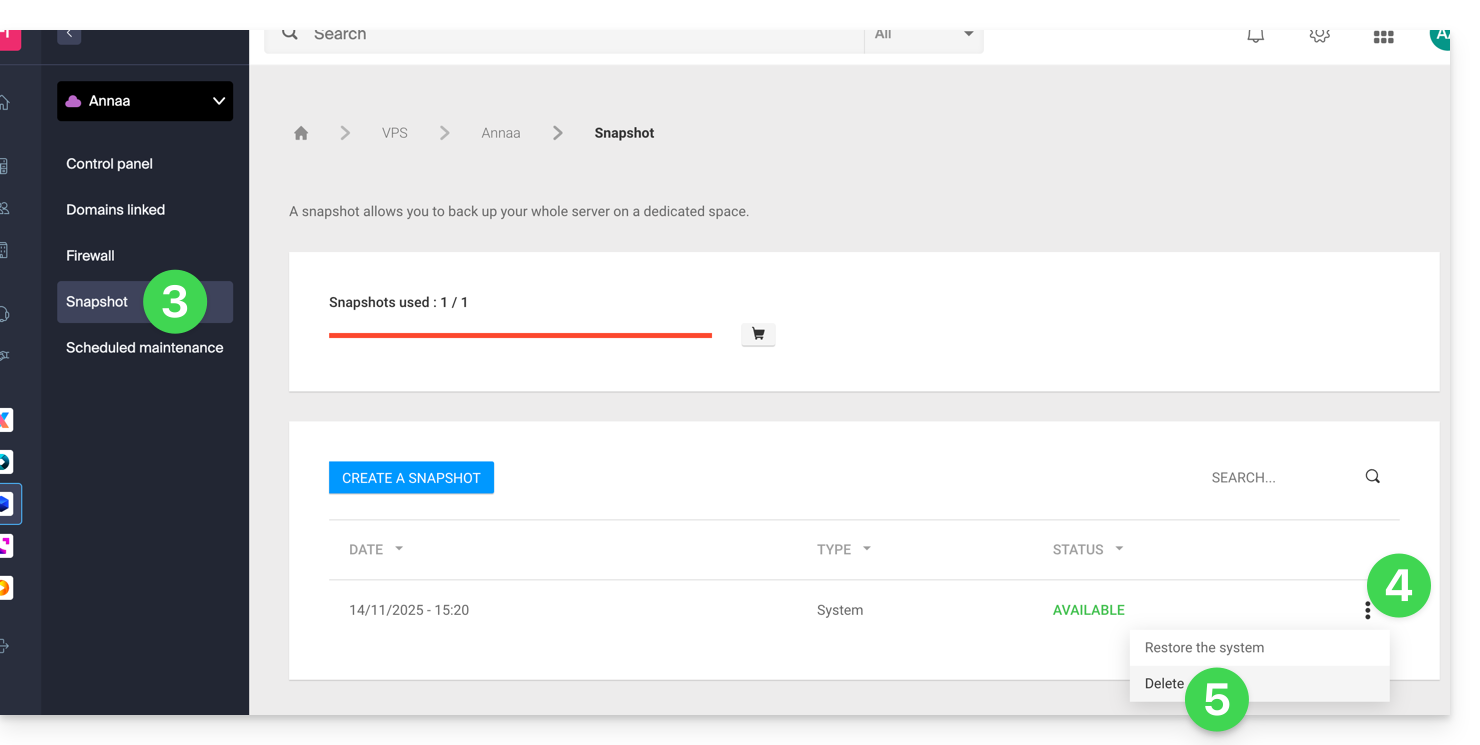
- Click on Snapshot in the left-hand menu.
- Click on the action menu ⋮ to the right of the item in question in the table that appears.
- Click on Delete:
Order additional snapshots
To do this:
- Click here to access the management interface for your product in the Infomaniak Manager (need help?).
- Click directly on the name assigned to the product in question.
- Click on Snapshot in the left-hand menu.
- Click on the shopping cart icon:
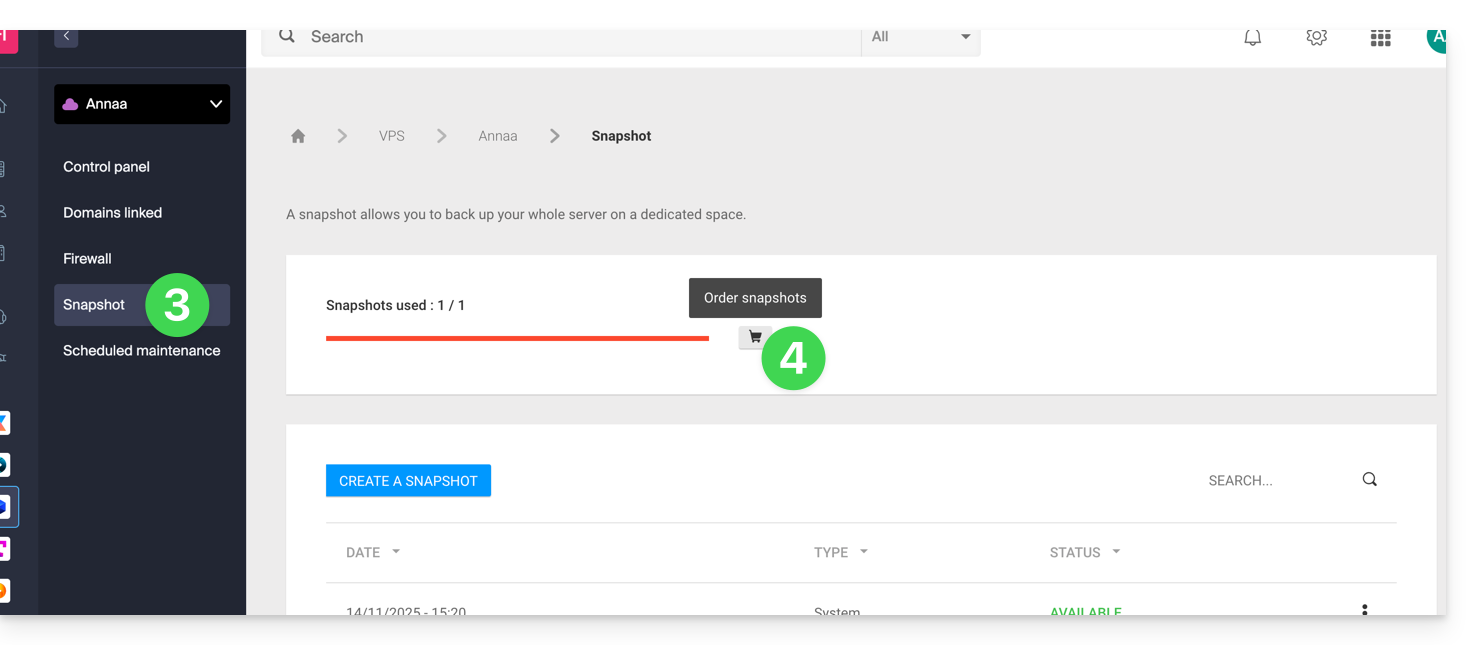
- Follow the instructions to complete the order.
It is not possible to order an additional snapshot if a snapshot is currently in progress.
Link to this FAQ: https://faq.infomaniak.com/1495
Has this FAQ been helpful?
This guide explains how to display the IP address of a website on your Web Hosting.
Introduction
- The IPv4 address is generally the same for each website on the hosting (unless you have acquired a dedicated IP address).
Display your website's IP address
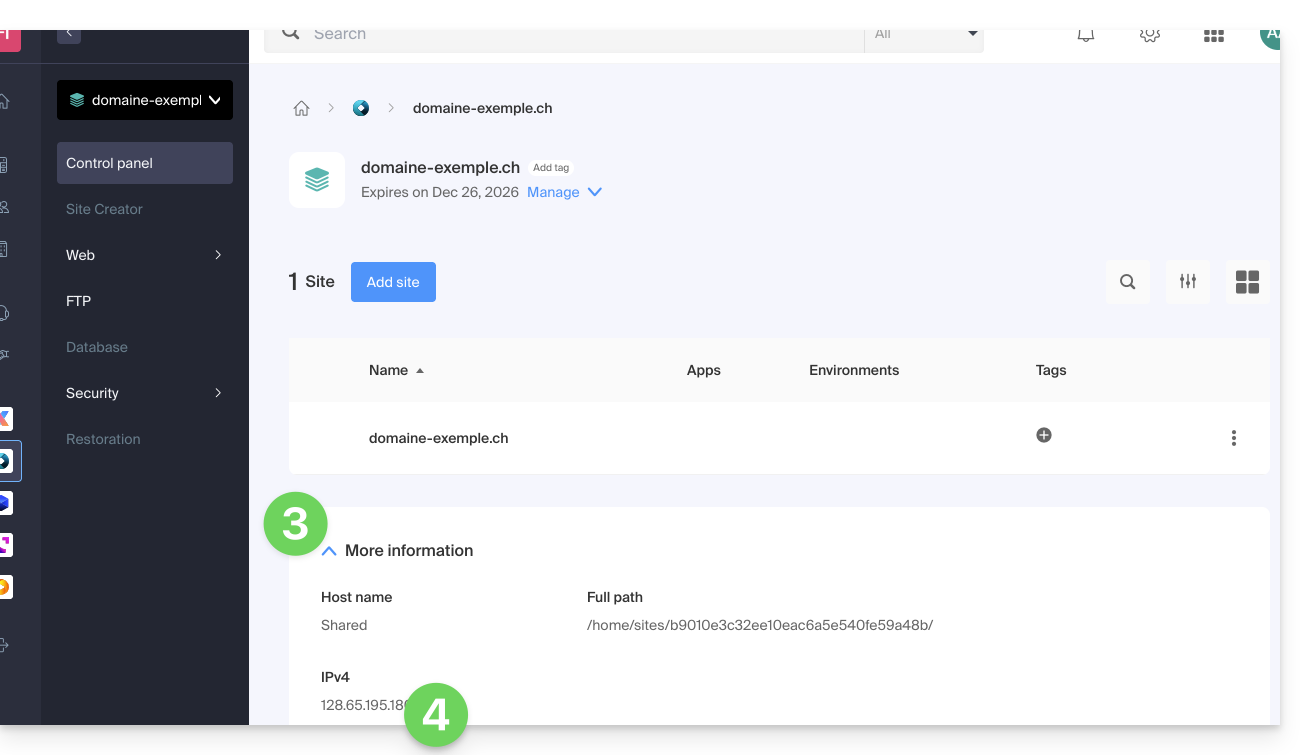
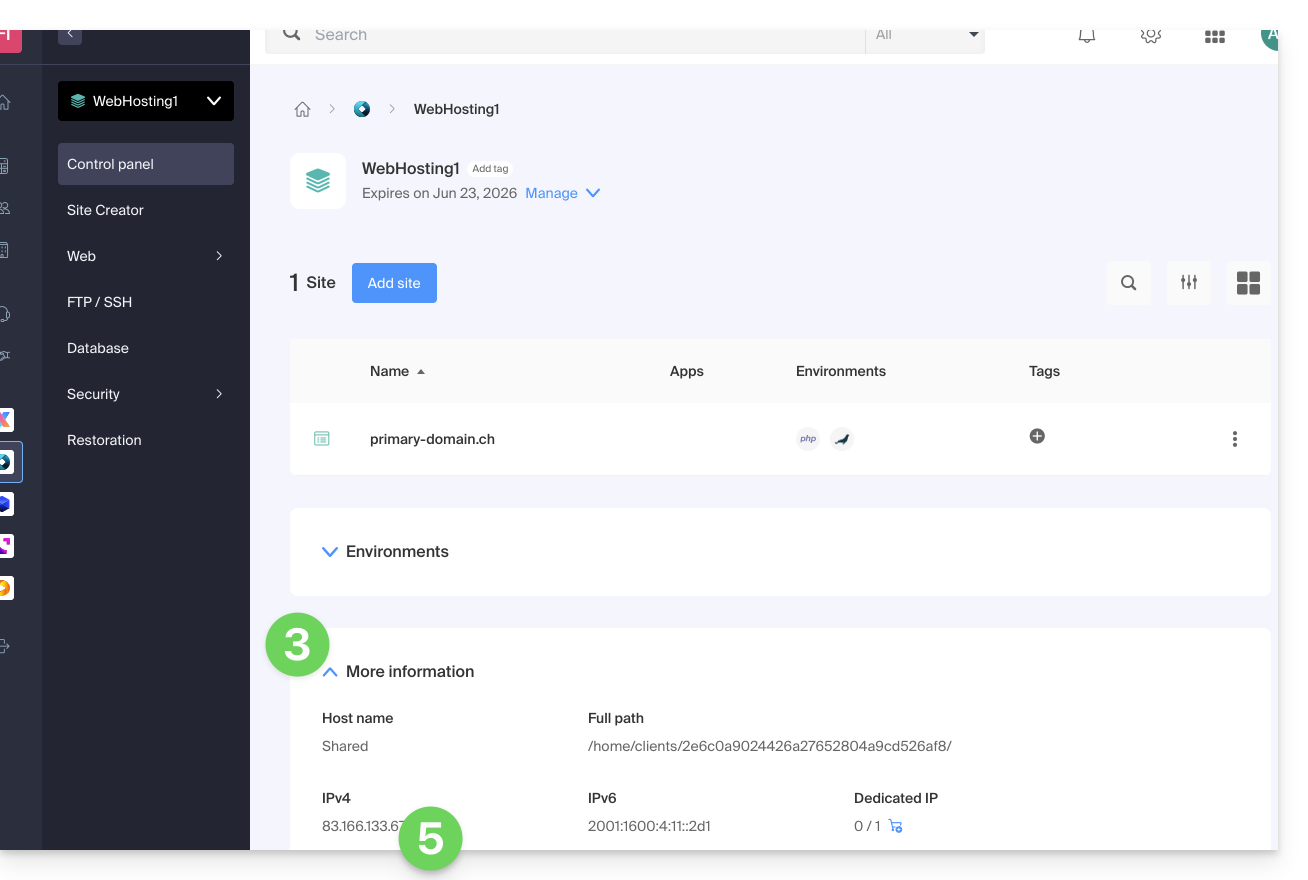
The IP address is specified on the hosting management page (Starter or containing multiple sites):
- Click here to access the hosting & site management section in your Infomaniak Manager (❓: help).
- Click on the name of the website in question.
- Then, click on the down arrow to expand the Information section for this hosting.
- The IPv4 address is displayed on the page:
- The IPv6 address is also displayed for paid hosting plans:
Link to this FAQ: https://faq.infomaniak.com/1500
Has this FAQ been helpful?
This guide details the "502 Bad Gateway" errors that you may encounter when visiting a website.
Introduction
- The 502 Bad Gateway error occurs when the server acting as a gateway between the browser and the origin web server receives an invalid response.
- This error can be caused by an overloaded web server, communication issues between a CDN and the web hosting server, or a misconfigured proxy server.
- Sometimes, the error may be caused by an incorrect entry in the DNS server.
Troubleshooting steps
To resolve the 502 Bad Gateway error, it is often necessary to proceed by elimination:
- Check if it is not a temporary server overload: simply reload the page after a few minutes and the error should disappear.
- Clear your browser's cache.
- Try using a different browser.
Link to this FAQ: https://faq.infomaniak.com/1509
Has this FAQ been helpful?
This guide details the specifics related to managing MongoDB on your managed Cloud Server, particularly regarding the version lifecycle.
Introduction
- Any new installation of the application deploys MongoDB version 7.0 (or higher) by default.
Upgrading from version 6 to 7
It is not possible to perform an automatic upgrade from version 6 to version 7 directly from your interface.
You have two options:
- Order a new Cloud Server: it will natively include version 7, and you can then migrate your data to it.
- Reinstall the application: uninstall and then reinstall MongoDB on the current server.
Uninstalling the application will delete all of your MongoDB data. Furthermore, it will no longer be possible to reinstall version 6 after this operation.
Backups and responsibility
As an administrator, you are fully responsible for managing and ensuring the integrity of your data.
Before performing any operation (including reinstallation):
- Perform your own backups and exports (dumps) of your databases.
- Plan for the manual import of your data once the new version is active.
Link to this FAQ: https://faq.infomaniak.com/1558
Has this FAQ been helpful?
This guide explains what you need to determine as a website visitor if you encounter a 403 error in order to resolve this issue.
What is a 403 error?
The HTTP 403 error code generally means that the server is denying the client access to a resource.
When does this error occur?
The user is not authenticated: the server requires the user to identify themselves to access the resource. This may be the case for private pages that require authentication, for example.
The user is authenticated but does not have the necessary permissions: the server recognizes the user but does not allow them to access the requested resource due to permission or role restrictions. This cause of the 403 error may be due to incorrect permissions on a folder or file. For a folder, the error message is of the type "403 Forbidden", for a file, "failed to open stream: Permission denied". In this case, you should check that the permissions for your folders/files are correct, i.e., at least 644 for a file and 755 for a folder. See this other guide.
The user's IP address is blocked or restricted: the server may block access to a specific IP address for security reasons, to protect against attacks, etc. See this other guide.
The requested resource does not exist on the server: in this case, the server returns a 403 error instead of a 404 error to prevent the disclosure of confidential information. If you are trying to access your homepage or a part of your site by entering an address like www.domain.xyz or www.domain.xyz/folder/, make sure that there is indeed a homepage named "index.html, .htm, or .php" placed in the correct location (at the root of your FTP space, in the /web directory, or in the /folder/ directory). Refer to this other guide.
Also, check that there are no uppercase letters in the file name; all file and folder names must be in lowercase, without accents or spaces.
Script-related error: if you were running a script, filling out a form, or uploading a file and you receive this type of message:
Accès interdit!
Vous n'avez pas le droit d'accéder à l'objet demandé.
Soit celui-ci est protégé, soit il ne peut être lu par le serveur.
Si vous pensez qu'il s'agit d'une erreur du serveur, veuillez contacter le gestionnaire du site.
Error 403
the cause may be a filter that prevents the unwanted use of scripts by spammers. Indeed, the Infomaniak antivirus blocks file uploads via scripts or via FTP. This means that when a hacker sends a file identified as a virus via a form, an insecure script, or via FTP, its installation is directly blocked, the file is not uploaded to the server, and the upload generates a 403 error.
In the event of a false positive, contact Infomaniak support, providing the URL of the page where you are encountering this error message, in order to accurately diagnose the cause of the problem.
However, there are many other cases in which you may receive a "403 forbidden" message for a variety of reasons (PHP, perl scripts, mod_security, .htaccess, ...).
Link to this FAQ: https://faq.infomaniak.com/1609
Has this FAQ been helpful?
This guide helps you resolve issues related to special characters (accents, emojis, etc.) that are not displayed correctly or appear as symbols like ??, often due to incorrect encoding when connecting to MySQL.
Introduction
- By default, MySQL uses
UTF-8. - Recent MySQL servers are generally configured to use
UTF-8orUTF-8MB4by default.- This is suitable for most cases, especially for international languages and emojis.
- Also, refer to this other guide to learn how to avoid causing encoding issues with non-European characters and emojis in your developments.
Define the default MySQL / MariaDB charset (Cloud Server)
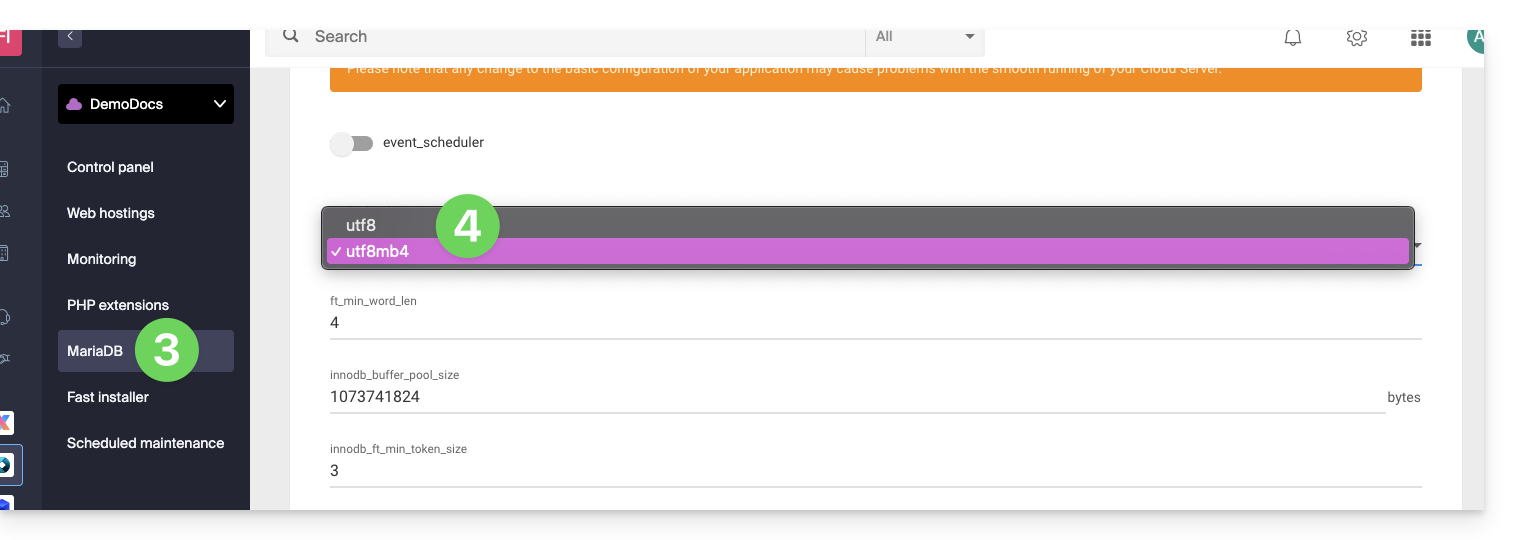
With an Infomaniak Cloud Server, it is possible to define the default charset (utf8 or utf8mb4):
- Click here to access the management of your product on the Infomaniak Manager (need help?).
- Click directly on the name assigned to the product in question.
- Click on MariaDB in the left-hand menu.
- Choose the default character set:
- If you have not yet migrated to MariaDB, the principle is the same.
- Save your changes at the bottom of the page.
Force a specific encoding (e.g., latin1)
If you need to work with a database in latin1 (ISO-8859-1), you must explicitly align the encoding when connecting, depending on your environment.
For current offers, place the following code in a user.ini file located in the root directory of your hosting:
mysql.connect_charset = "latin1"
mysqli.connect_charset = "latin1"
pdo_mysql.connect_charset = "latin1"
or in PHP (MySQL API):
mysql_query("SET CHARACTER SET latin1");
For older hosting plans, force the MySQL connection to use latin1 via the .htaccess file located in the root directory of your hosting:
php_value mysql.connect_charset latin1
php_value mysqli.connect_charset latin1
php_value pdo_mysql.connect_charset latin1
Link to this FAQ: https://faq.infomaniak.com/1611
Has this FAQ been helpful?
This guide explains how to access automatic backups and restore a specific file from a website on an Infomaniak hosting account.
Restore specific files or folders
To do this:
- Access the FTP server via Web FTP (need help?).
- Go to the
/backupsfolder. - Select the files and/or folders to restore.
- Click the Copy button:
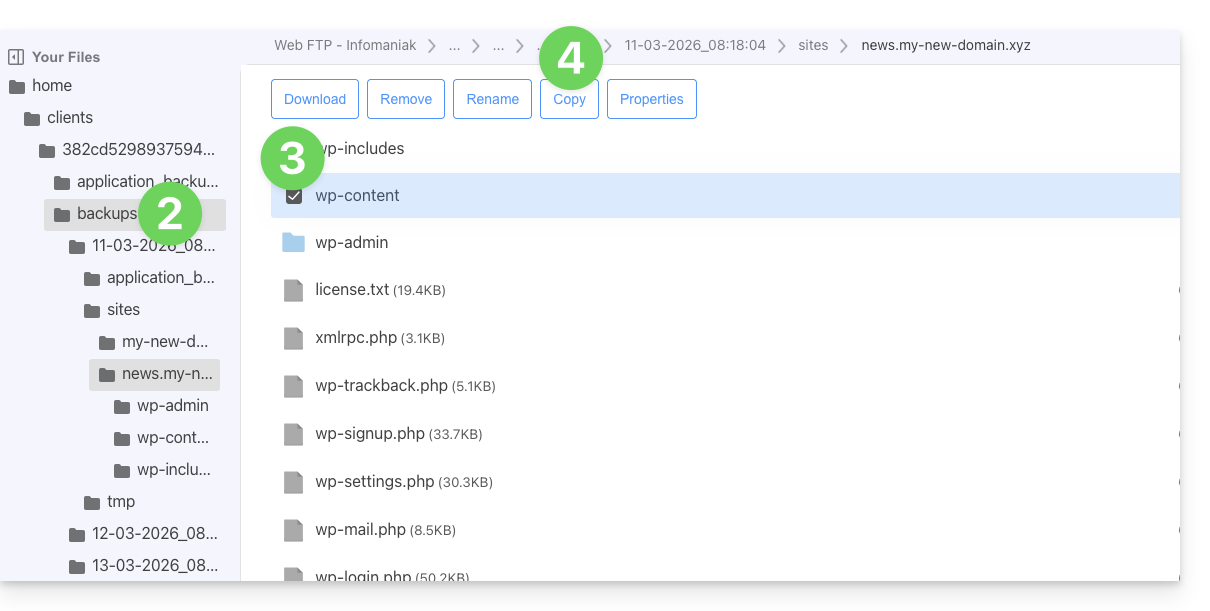
- Select the location to which to copy/restore the data (existing data will be replaced by the selected data).
Link to this FAQ: https://faq.infomaniak.com/1655
Has this FAQ been helpful?
This guide concerns MySQL/MariaDB and more specifically index and query analysis with Web Hosting.
Slowlog for long queries
The MySQL slow log is enabled on all MySQL servers and groups together queries that take more than 5 seconds* to execute. If your queries are well-structured, you will never see these files. Otherwise, check them regularly to correct any potential issues and ensure your site functions properly.
Contact Infomaniak support in writing to obtain them (except for older v1 hosting plans - older packages), which can be accessed directly from the Web FTP, one level above /web in the /logs directory).
What about the logs?
No MySQL logs are created (except for slow logs) because the MySQL servers could not handle the load of millions of simultaneous logs. If needed, Infomaniak can activate this MySQL log for 5 minutes to allow you to analyze them with EXPLAIN and determine useful indexes, for example. To do this, contact Infomaniak support in writing.
* of elapsed time. And regarding locks, the documentation provides the following clarification: "The time to acquire the initial locks is not counted as execution time"
Link to this FAQ: https://faq.infomaniak.com/1676
Has this FAQ been helpful?
This guide details Infomaniak's Managed Cloud Server offering and Infomaniak's VPS offering, which are intended for different uses.
Introduction
- Infomaniak offers two advanced hosting solutions:
- the Managed Cloud Server, which allows you to create multiple hosting accounts (FTP/SSH spaces) on which you can add your websites (Apache vhosts),
- and the VPS (Virtual Private Server), which offers complete administrative freedom and meets different needs.
Managed Cloud Server
The Cloud Server allows you to overcome the limitations of shared hosting. You can create and distribute your websites as you wish, define the root directory for each site, and adjust parameters such as memory_limit and max_execution_time.
Integrated tools are provided: cron jobs, Site Creator, simplified WordPress installation, and access and error logs. It is also possible to add specific Apache modules or install a caching system.
The software environment is managed by Infomaniak (FastCGI, PHP-FPM). You do not have complete freedom to configure the server (no arbitrary software installation), but some specific programs can be installed.
VPS (unmanaged)
The VPS gives you complete control over the server, but you are responsible for its management. Infomaniak manages the hardware and installs the version of Linux or Windows that you selected when placing your order. Infomaniak does not perform any software-related operations: you administer the system, install, and configure the software.
You can restart the server via the Infomaniak Manager. A snapshot system is available (except for the VPS Lite offer).
Video content and alternatives
If your project mainly involves a large volume of videos, it is often preferable to separate video streaming from the main hosting. Combined with shared hosting, the Infomaniak VOD/AOD service allows you to efficiently store and stream videos, handle traffic spikes, and obtain detailed viewing statistics.
Migration between Cloud Server and VPS
There is no automated migration solution between a managed Cloud Server and a VPS.To switch from one plan to another, you must cancel the product you no longer use and order the new plan. Infomaniak will refund any new server upon request if the cancellation occurs within 30 days of the order.
Link to this FAQ: https://faq.infomaniak.com/1730
Has this FAQ been helpful?
This guide explains how to view and modify the configuration settings of MySQL / MariaDB on a Cloud Server. These settings allow you to adjust the behavior, performance, and certain features of the service, including resource limits.
Introduction
MySQLis installed on a Dedicated Cloud Server: resources are not shared with other customers.- Only one
MySQLorMariaDBinstance is present per Cloud Server. - The number and size of databases depend solely on the available disk space and resources.
- For very large volumes of non-relational data, MongoDB is recommended.
Configurable MySQL / MariaDB parameters
The following list presents the main variables that you can customize in your MySQL / MariaDB instance:
| Name | Description | Value |
|---|---|---|
bulk_insert_buffer_size | Buffer size for bulk insert operations | 8M |
default_charset | Defines the default character set for the database | utf8mb4 |
declare_explicit_defaults_for_timestamp | Allows you to explicitly declare default values for timestamp columns. | "" |
declare_innodb_autoextend_increment | Increment used for automatic extension of the InnoDB tablespace | "" |
declare_key_buffer | Key buffer size for MyISAM tables | "" |
event_scheduler | Enable or disable the MariaDB event scheduler (allows you to run scheduled tasks on the server side) | OFF |
ft_max_word_len | Maximum word length for full-text search | Undefined |
ft_min_word_len | Minimum word length for full-text search | 3 |
innodb_additional_mem_pool_size | Size of the additional memory pool for InnoDB | "" |
innodb_buffer_pool_size | Size of the InnoDB buffer pool (storage of data and indexes) | "" |
innodb_flush_log_at_trx_commit | Frequency of writing InnoDB logs to disk | "" |
innodb_large_prefix | Enable large prefix for InnoDB indexes | |
innodb_lock_wait_timeout | Maximum wait time for obtaining InnoDB locks | "" |
innodb_log_buffer_size | InnoDB log buffer size | "" |
innodb_log_file_size | Size of InnoDB log files | "" |
innodb_ft_min_token_size | Minimum token size for full-text search | Undefined |
innodb_ft_max_token_size | Maximum token size for full-text search | Undefined |
join_buffer_size | Join buffer size for queries | 1M |
key_buffer_size | Key buffer size for MyISAM tables | 4M |
lc_time_names | Defines the language used for the month and day name format. | Undefined |
local_infile | Enables or disables local file loading | 0 |
log_bin_enabled | Enables or disables binary transaction logging | true |
max_allowed_packet | Maximum size of allowed network packets | Unlimited |
max_connect_errors | Maximum number of connection errors before blocking | 10 |
max_connections | Maximum number of simultaneous connections | Undefined |
max_heap_table_size | Maximum size of tables in memory | 8M |
max_user_connections | Maximum number of simultaneous connections per user | 38 |
myisam_max_sort_file_size | Maximum size of the temporary file used for sorting MyISAM tables | 2G |
myisam_sort_buffer_size | Sort buffer size for MyISAM tables | 16M |
myisamrecover | Automatic recovery options for MyISAM tables | myisam-recover-options |
query_cache_enabled | Enable or disable the query cache | |
query_cache_limit | Maximum size of results stored in the query cache | 256K |
query_cache_size | Total size of the query cache | 64M |
query_cache_type | Cache type used for requests | 0 |
read_buffer_size | Sequential read buffer size | 2M |
read_rnd_buffer_size | Random read buffer size | 2M |
table_open_cache | Number of tables the server can keep open simultaneously | 256 |
thread_cache_size | Thread cache size | 1 |
thread_concurrency | Number of concurrent threads (0 = unlimited) | 0 |
thread_stack | Stack size per thread | 256K |
timeouts | Wait timeouts (wait_timeout and interactive_timeout) | 30 |
tmp_table_size | Maximum size of temporary tables in memory | 8M |
tmpdir | Temporary directory used for temporary files | "/home/nfs-clients/.mysql_tmp" |
Any undefined parameter will retain its default value.
Modify MySQL / MariaDB parameters
To modify your instance's configuration:
- Click here to access your product's management interface in the Infomaniak Manager (need help?).
- Select the name of the Cloud Server in question.
- Click on MySQL / MariaDB in the sidebar menu.
- Edit the desired settings and then save your changes.
Link to this FAQ: https://faq.infomaniak.com/1813
Has this FAQ been helpful?
This guide explains how to change the management password for WordPress or any other Web Application (Joomla, Drupal, Typo3, PrestaShop, ownCloud, etc.) installed using the Infomaniak tools included in the paid Web Hosting plans.
Introduction
- Some applications also allow you to change a user's password directly from their dedicated interface:
- Example: WordPress (manage users, names, passwords, roles, etc.).
Change the password for a web app
To change the password for accessing the administration panel of your web application, follow these steps:
- Click here to access the hosting & website management section in your Infomaniak Manager (❓: help).
- Click on the name of the website in question.
- Click on the action menu ⋮ located to the right of the relevant Web Application.
- Click on Settings in the application:
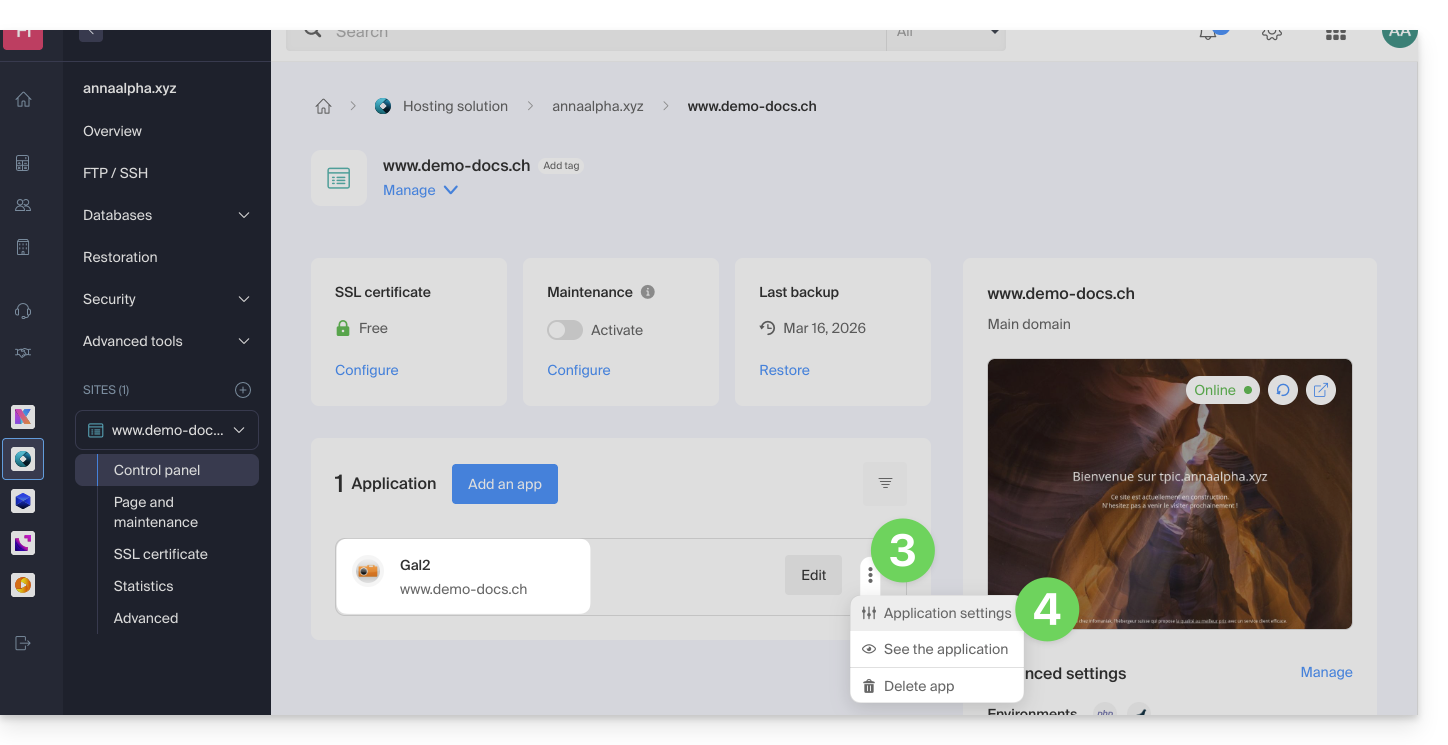
- Click on Edit to the right of the Application:
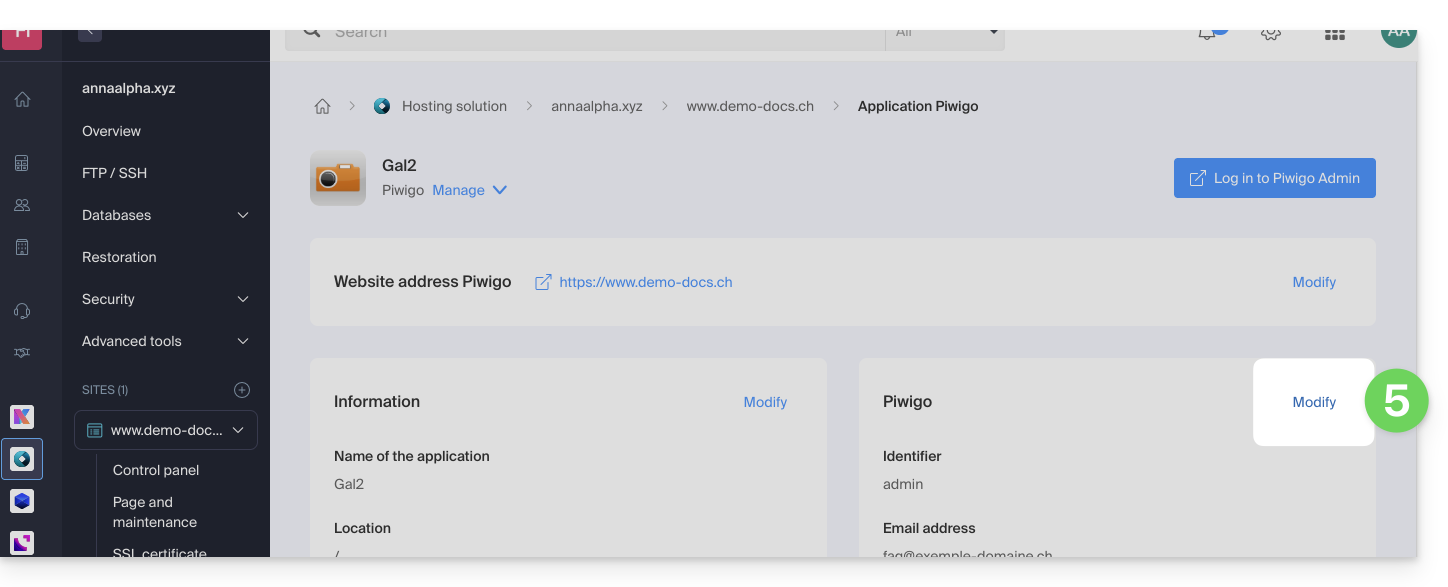
- Under Password, enter the new password (for logging in with the ID shown above).
- Click the Save button at the bottom of the page:
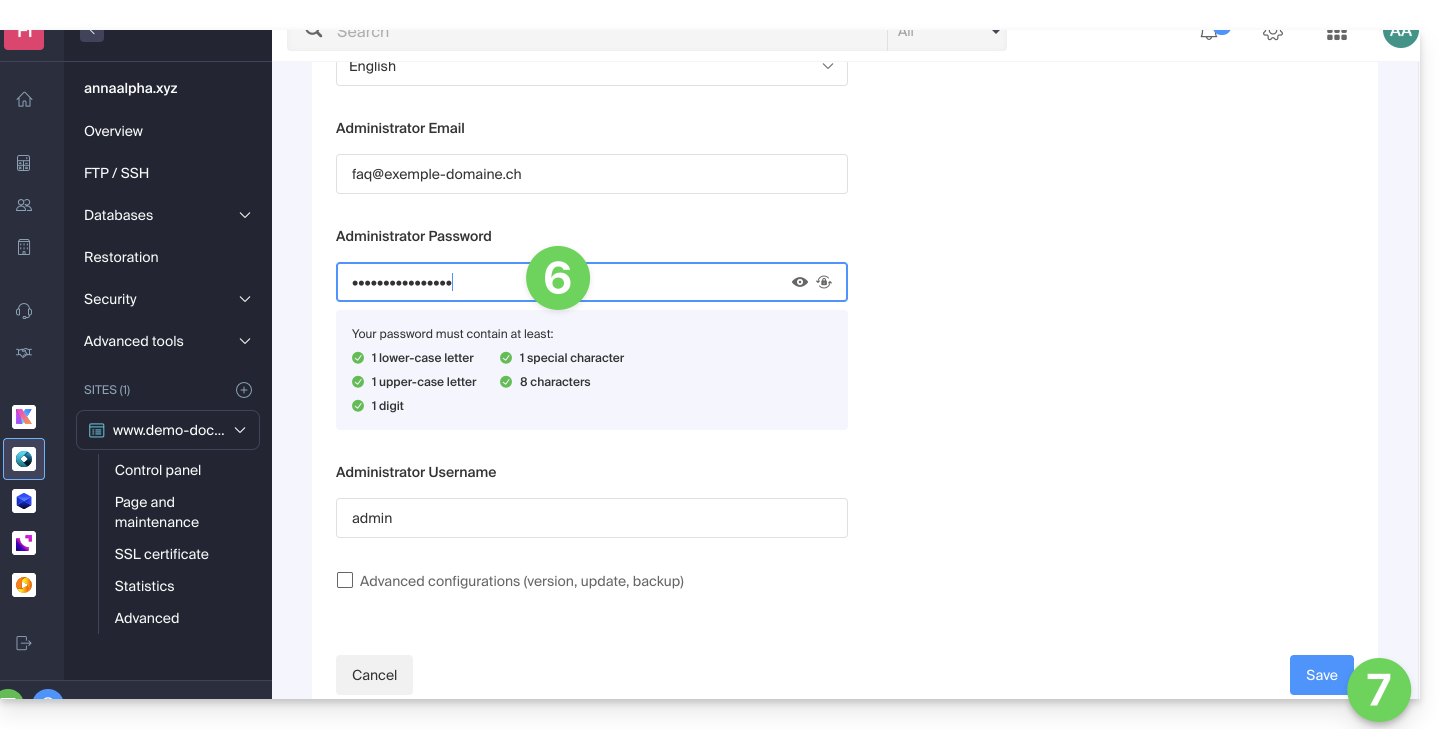
Link to this FAQ: https://faq.infomaniak.com/1848
Has this FAQ been helpful?
The user and the "cloud base - ini" process are used within the Infomaniak Cloud VPS / VPS Lite infrastructure (for example, when the instance is rebuilt). Learn more
Link to this FAQ: https://faq.infomaniak.com/1910
Has this FAQ been helpful?