Knowledge base
1000 FAQs, 500 tutorials and instructional videos. Here, there are only solutions!
This guide explains how to view and download Apache logs for Web Hosting, which are useful for analyzing PHP errors or diagnosing certain application behaviors.
Introduction
- Access and error logs are kept for at least 7 days.
- Once the retention period has elapsed, older entries cannot be restored, even upon request.
- You can also find these files directly on the server via SSH/FTP in the
ik-logsfolder at the root of your hosting.
Accessing access and error logs
To view these logs:
- Click here to access the hosting & website management section in your Infomaniak Manager (❓: help).
- Click on the name of the website in question.
- Click on Advanced in the left sidebar.
- Click on Logs in the left sidebar.
- Click on Errors or Access to view the error log or access log.
- Select a period if necessary.
- Click on the icon to view the details.
- Click on Send by email to immediately receive all entries by email at your user address.
- Click to export the data in
.logformat: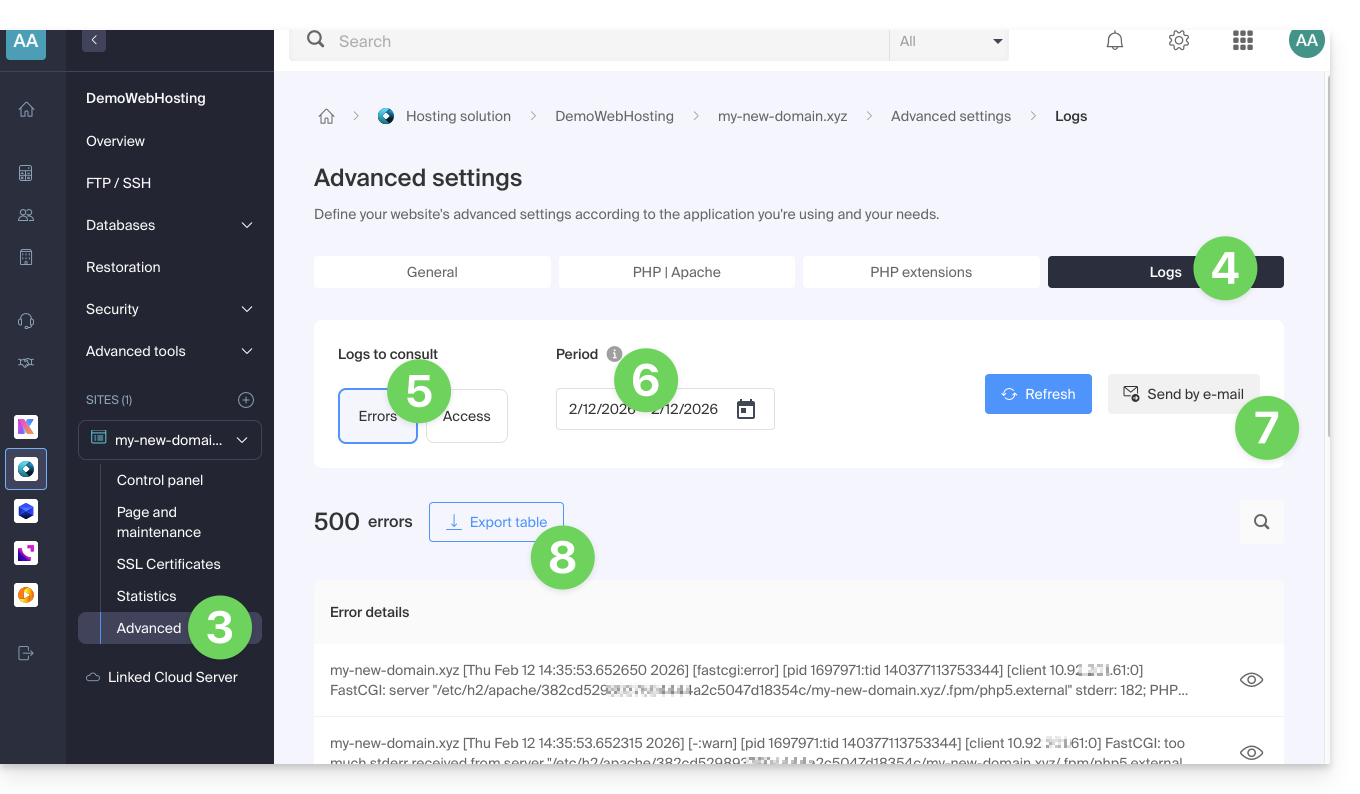
Identify the most active IP addresses in the access logs
To do this, connect to the server via SSH (need help?).
The command to execute via SSH is as follows:
cat ik-logs/access.log | awk '{ print $2}' | sort -n | uniq -c | sort -n | tail -n 20Link to this FAQ: https://faq.infomaniak.com/1926
Has this FAQ been helpful?
This guide lists the supported operating systems (Linux distributions) that can be installed when ordering a Cloud VPS / VPS Lite.
Regarding Windows, please refer to this other guide.
Prerequisites
- Create a password for your user after logging in for the first time with the private key, especially to be able to troubleshoot your server by connecting via the VNC console in case of a problem.
Linux distributions natively supported
Debian
If you are familiar with Debian, then this type of server would be an excellent choice, an alternative to CentOS, which is presented below. The Debian editions are very stable, especially since "Buster" or more recently "Bookworm" (Debian 12). Learn more
Ubuntu
If you are familiar with the desktop version of Ubuntu, you may want to have it on your server. Learn more
FreeBSD
The core code of FreeBSD has been continuously developed, improved, and optimized for over thirty years. It is developed and maintained by a large team of people. FreeBSD offers advanced networking features, enhanced security, and high-level performance. Learn more
openSUSE
This distribution is ideal for beginners, experienced users, and tech enthusiasts – in short, it's suitable for everyone! Learn more
CentOS
CentOS is the most popular distribution for a web server and therefore has a lot of support, whether on the community forum or anywhere on the web. CentOS editions are very stable and designed for long-term use. Learn more
Other Linux distributions
Infomaniak regularly adds new Linux distributions:
- Fedora
- rancherOS
- ArchLinux
- AlmaLinux
- RockyLinux
Specific distribution / disk image
Only official images can be installed, and Infomaniak does not install any operating system from disk images of the ISO type. If you wish to install a specific distribution, you can do so by importing the image to Public Cloud.
Link to this FAQ: https://faq.infomaniak.com/1933
Has this FAQ been helpful?
This guide explains how to connect via SSH to a Web Hosting or a Cloud Server.
Connecting via SSH…
… via a web browser
- Click here to access the hosting & website management section in your Infomaniak Manager (❓: help).
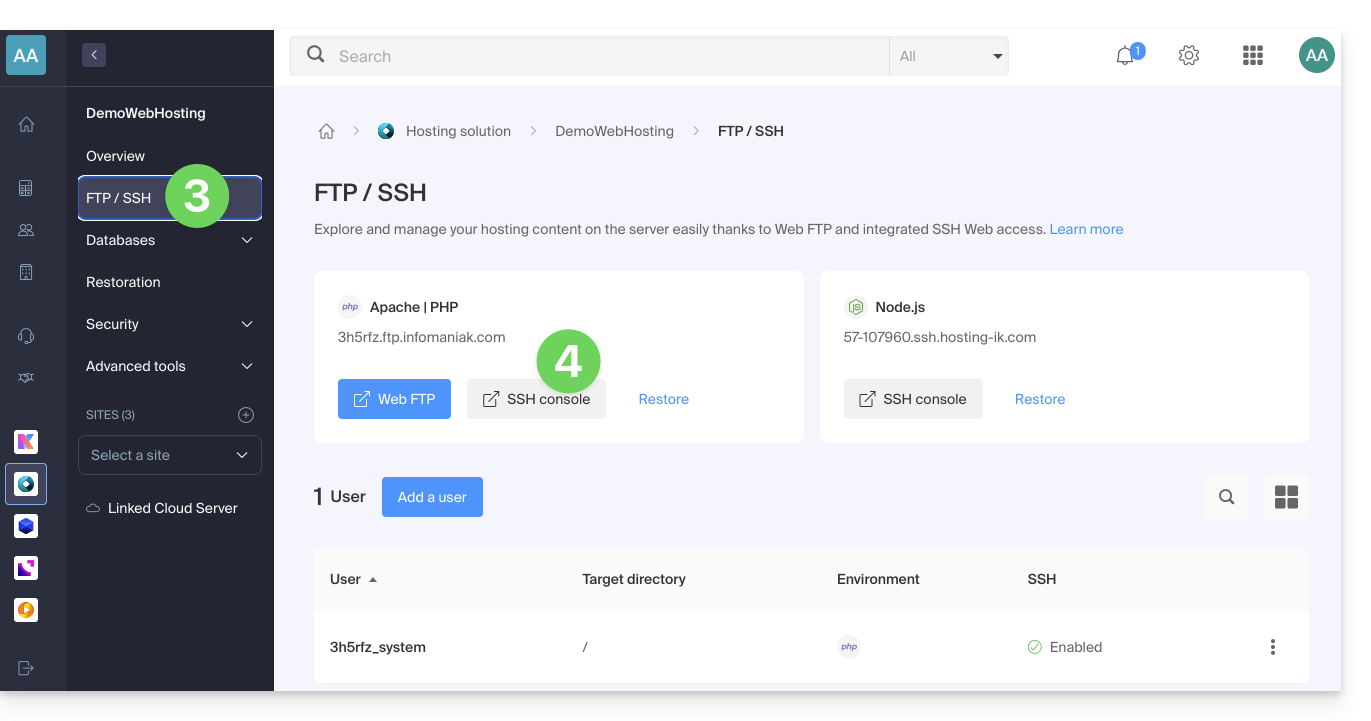
- Click on the name of the relevant hosting.
- Click on FTP / SSH in the left-hand menu.
- Click on the SSH Console button:
… via the terminal or an application
To connect via SSH, use the following commands from a Terminal application (command-line interface, CLI) on your device, for example:
- Terminal (an application already integrated into macOS and Linux)
- PuTTY (Windows) (❓: help)
Then, enter the following command:
ssh username@serverusernameis the username for the FTP account (❓: help)serveris the host server (e.g. xxxx.ftp.infomaniak.com)
To find out which command is available and to know the path to use, run the "whereis" command:
$ whereis mysql
mysql: /opt/mysql/bin/mysql
Link to this FAQ: https://faq.infomaniak.com/1941
Has this FAQ been helpful?
This guide explains how to add a new domain name to a website on Infomaniak.
Introduction
- When you add a new domain name to a website, it is referred to as a linked domain, but also as an alias.
- An alias domain in this case is an additional domain name, also linked to an existing website.
- To make the website
domain.xyzaccessible with a completely different domain name, such asprivate.abc, you need to addprivate.abcas an alias for the website. - Second example, to make the website
domain.xyzalso accessible withwww.domain.xyz, you need to add it as an alias to the domaindomain.xyz. In this example,domain.xyzis the parent website of the aliaswww.domain.xyz. In general, thewwwalias is already added automatically and is present…
- To make the website
Add an alias to an existing website
Prerequisites
- If the domain name (intended to become an alias) or its DNS zone is managed by Infomaniak, everything is fine. If not:
- The A record of the domain name must point to Infomaniak.
- To simplify things, you can entrust the domain management to Infomaniak.
- The future alias must not already be an alias; if it is, you will need to unlink it from the current site beforehand (the same applies if it is a synonym).
To add an additional domain that will be linked to your website:
- Click here to access the hosting & website management section in your Infomaniak Manager (❓: help).
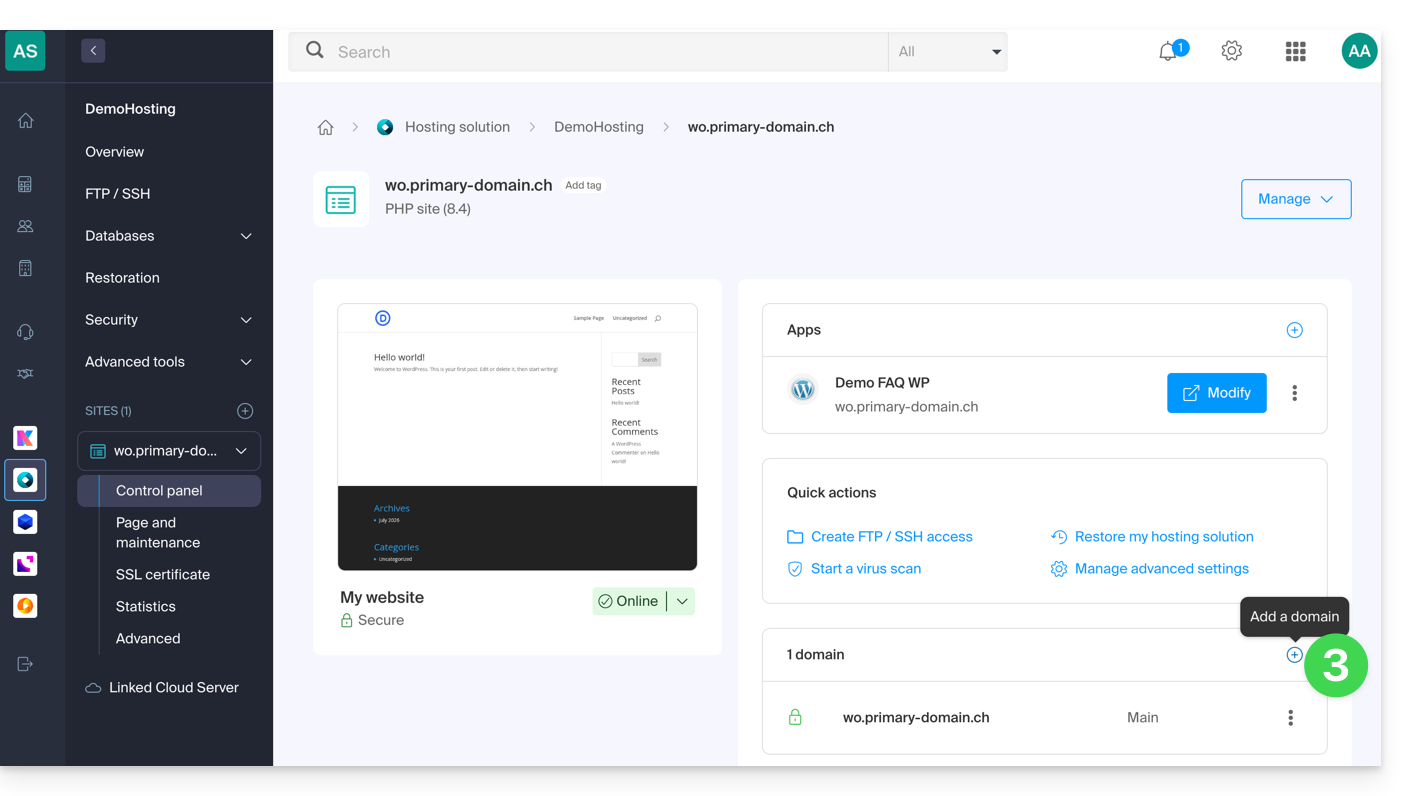
- Click on the name of the website in question.
- Then, click on the Add a domain button:
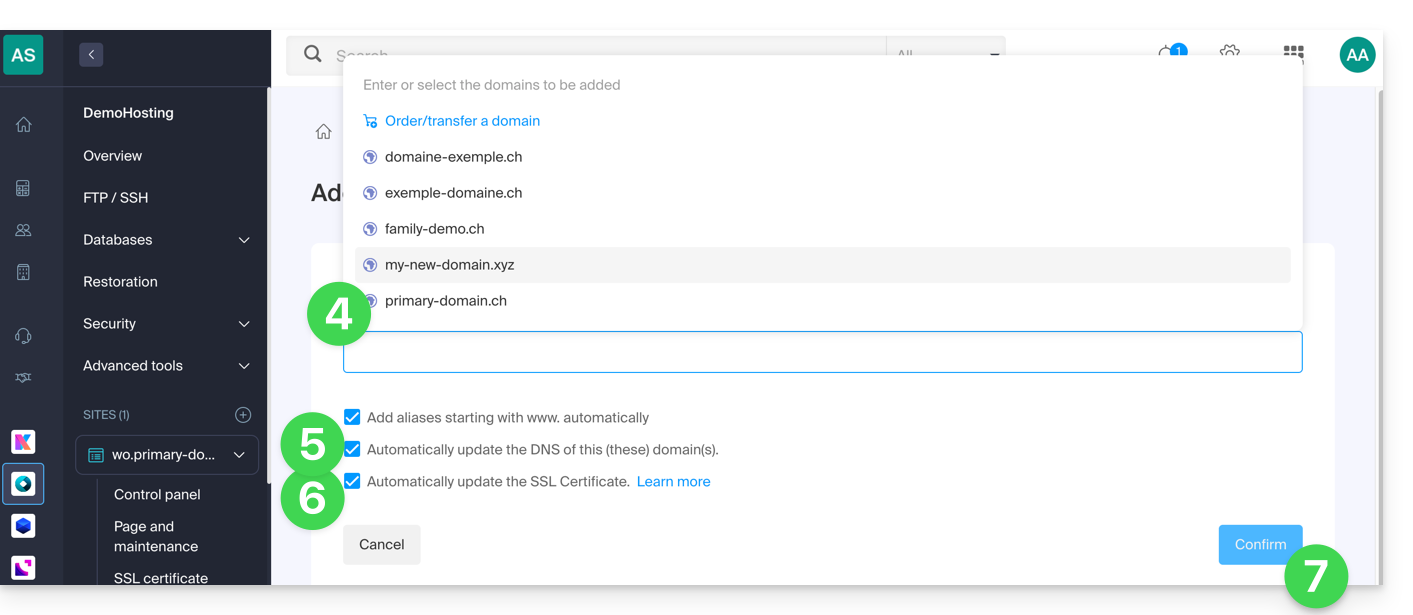
- Enter the domain name(s) to add, separating them with the Enter key.
- If the alias or its DNS zone is managed by Infomaniak, it is possible to automatically update the DNS entries. Otherwise, make any necessary changes with your registrar.transfer the domain name management to Infomaniak.
- If you have an SSL certificate such as Let's Encrypt, you can request to update it here to include the new names.
- Click on Confirm to complete the process:
- The domains associated with the site are updated:
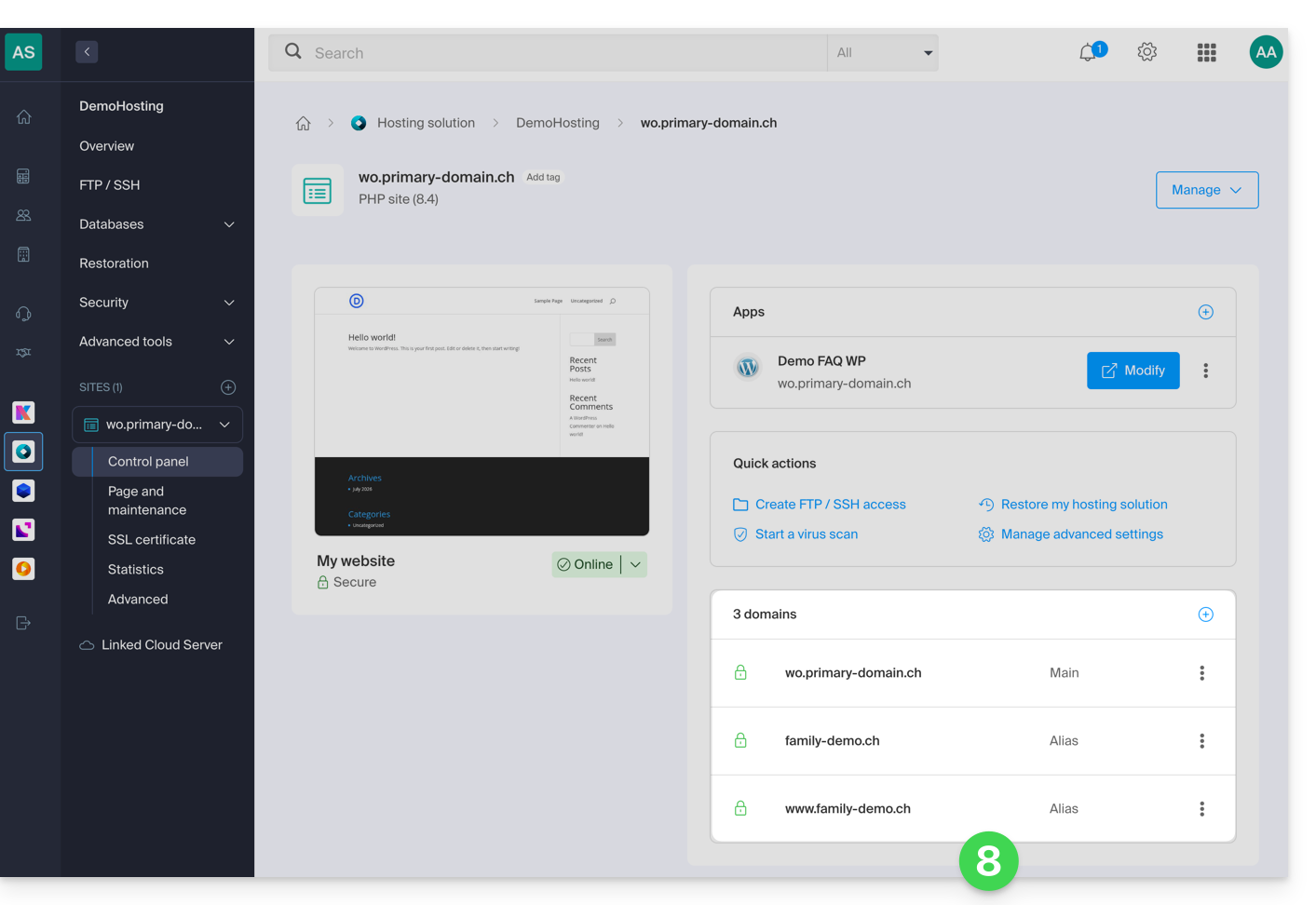
To define the alias as the primary domain, please refer to this other guide.
Link to this FAQ: https://faq.infomaniak.com/1946
Has this FAQ been helpful?
This guide explains how to host multiple websites on the same platform, both from a technical and administrative perspective.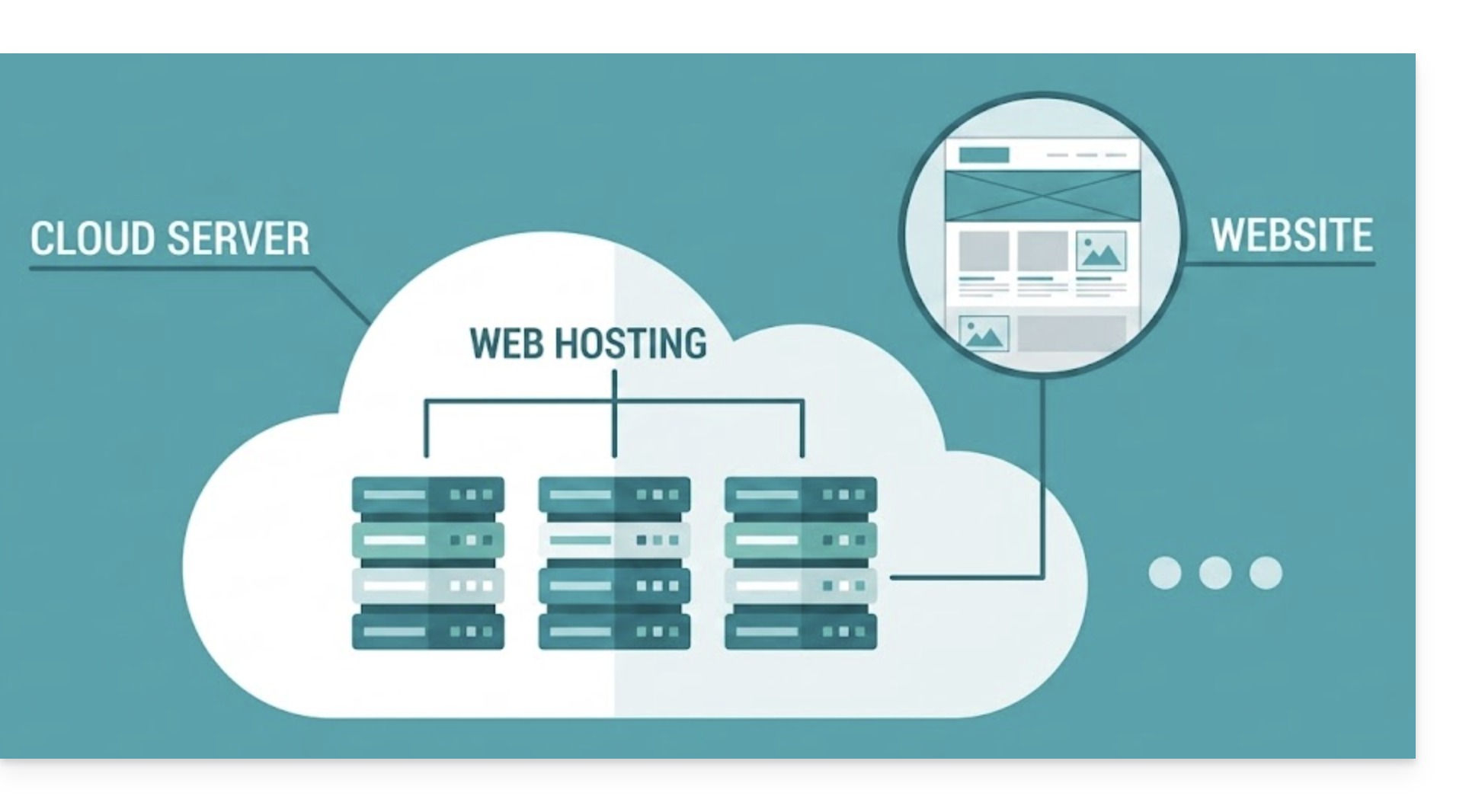
Technical operation
A web hosting plan can host multiple websites:
- In this case, the resources of this hosting plan (disk space, databases, memory, etc.) are shared among all the websites hosted on it.
With a Cloud Server, you have access to a larger infrastructure:
- For example, a standard offer may include 5 hosting accounts and allow you to create up to 20 websites. You are free to distribute these 20 websites across your 5 hosting accounts as needed.
Access Management
In the Infomaniak Manager, access rights apply to the hosting service as a whole:
- It is not possible to limit a user's access to a specific website: if they are invited to a hosting account, they will have access to all the websites it contains.
However, to restrict access to a single site, you can use these alternatives:
- On the server: create an FTP user and limit its access to the specific folder of the website.
- On the website itself: manage permissions and access directly from the website creation system (for example, with WordPress role management).
Link to this FAQ: https://faq.infomaniak.com/1947
Has this FAQ been helpful?
Supervisor is not offered directly because systemd is recommended, better integrated with Debian, and available in Fast installer.
If you still need to install it, contact Infomaniak support in writing.
Link to this FAQ: https://faq.infomaniak.com/1963
Has this FAQ been helpful?
This guide details the procedure for establishing your first SSH connection to an Infomaniak Cloud VPS or VPS Lite.
Connecting via Windows (PuTTY)
On Windows, the recommended tool is PuTTY.
Your private key must be converted to the .ppk format to work.
Step A: Conversion with PuTTYgen
- Launch PuTTYgen.
- Click on Load to upload your current private key.
- Click on Save private key to generate your
.ppkfile.
Step B: Configuring PuTTY
- In Session, enter the server's IP address in "Host Name".
- In Connection > SSH > Auth, click Browse to upload your
.ppkfile. - Click Open.
- A window will open: enter your username.
Connecting via a Unix terminal (macOS and Linux)
Use your system's native SSH client by opening a terminal.
The syntax is as follows:
ssh -i [key_path] [user]@[server]
Parameter details
[key_path]: Path to your private key file (generated or imported during the command).[user]: Username (see the table of distributions below).[server]: IPv4 address of your VPS, available in the Manager.
Note on permissions: if you get an error like "UNPROTECTED PRIVATE KEY FILE", secure your key with the following command: chmod 400 [key_path]
Default user list
Use the identifier corresponding to the Linux distribution installed on your server:
| Linux Distribution | Default User |
|---|---|
| Ubuntu | ubuntu |
| Debian 8 and later | debian |
| Debian 7 and earlier versions | root |
| AlmaLinux | almalinux |
| Arch Linux | arch |
| CentOS | cloud-user |
| Fedora | fedora |
| FreeBSD | freebsd |
| OpenBSD | openbsd |
| openSUSE Leap 15 | opensuse |
| openSUSE 16 | sles |
| openSUSE 42 / SLES | root |
| RancherOS | rancher |
| Rocky Linux | rocky |
Note: The user is always the one defined by default by the distribution's publisher.
Switching to Administrator (Root) Mode
For security reasons, the initial connection is not made directly as root.
To obtain full system privileges, run:
sudo -iThis command loads the complete root user environment (system variables and home directory).
Link to this FAQ: https://faq.infomaniak.com/1973
Has this FAQ been helpful?
This guide explains how to add a MySQL/MariaDB database, create or modify users, and how to find all the necessary settings to configure your scripts and CMS on a Web Hosting service.
Managing Databases
To access the database management page for your hosting:
- Click here to access your hosting management on the Infomaniak Manager (need help?).
- Click directly on the name assigned to the hosting in question.
- Click on Databases (or MariaDB if necessary) in the left-hand menu to access the Databases and Users menu:
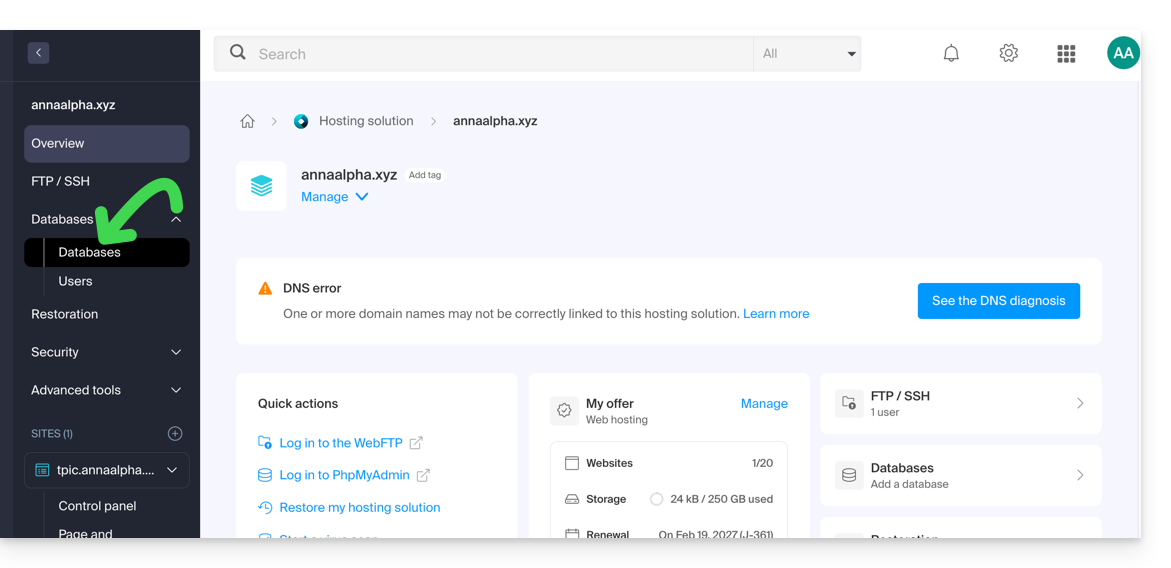
Databases
Under the Databases tab, you can:
- Create a MySQL/MariaDB database by clicking the Add a database button.
- Import, export, or restore a MySQL database by clicking the chevron to the right of the Add button.
Users
Under the Users tab, you can: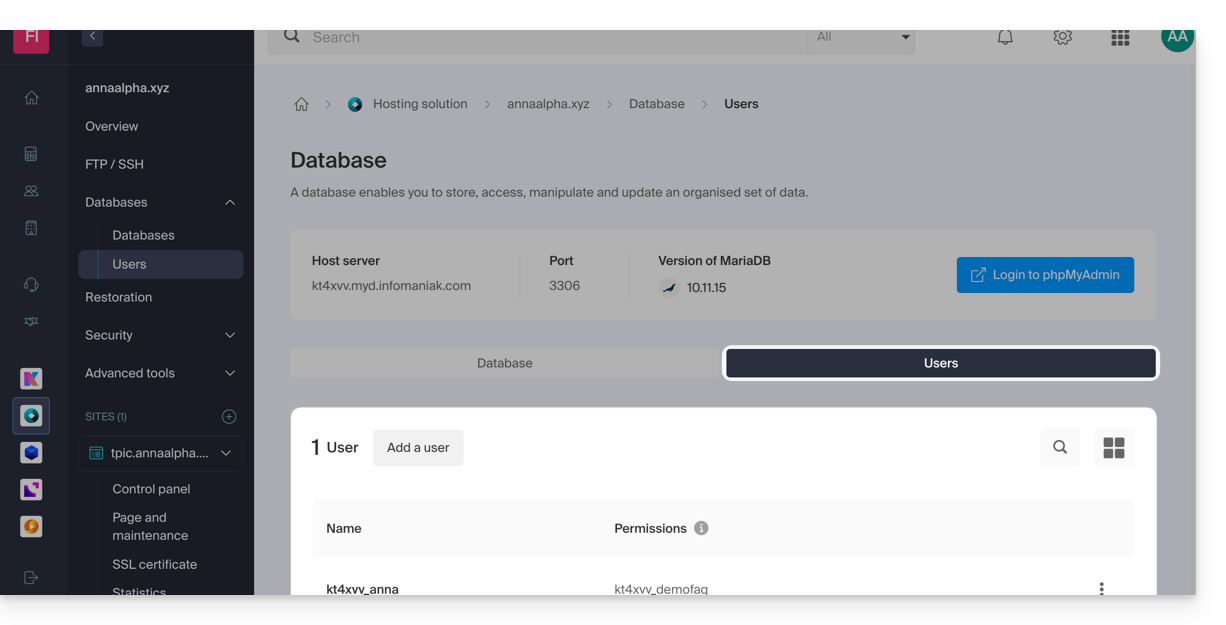
- Create a MySQL/MariaDB database user by clicking the Add User button.
Configuration information
You will also find the information required to configure CMS or web applications here:
- The name of a database (e.g.
XXXX_dbname) - The username of a database (e.g.
XXXX_username) - The password for the database username (the one you chose when creating the MySQL/MariaDB user reset it if you have forgotten it
- The MySQL/MariaDB server for the databases / the hostname (e.g.
XXXX.myd.infomaniak.com) with its version (e.g. 5.7)
User rights, shared servers & Cloud
- With read permissions: “SELECT”
- With write permissions: "INSERT, UPDATE, DELETE, CREATE TEMPORARY TABLES, LOCK TABLES"
- With admin rights: "CREATE, DROP, INDEX, ALTER, CREATE VIEW, SHOW VIEW, REFERENCES"
- + "CREATE ROUTINE, ALTER ROUTINE, EXECUTE, TRIGGER, EVENT" only on Cloud Server (please refer to this other guide for more information)
- With no rights: the database will not appear in phpMyAdmin for the user.
Databases for Web Applications
- Check out this other guide about WordPress.
- Read this other guide about Joomla.
Link to this FAQ: https://faq.infomaniak.com/1981
Has this FAQ been helpful?
This guide explains how to add an additional website to an existing Infomaniak hosting plan.
Introduction
- Hosting can be on a shared web hosting plan or on an Infomaniak Cloud Server.
- The additional website can be either:
- a second domain name (e.g.
domain2.xyz), - or a subdomain (e.g.
abc.domain.xyz) of a domain name you already own.
- a second domain name (e.g.
- In this multi-site/multi-domain management (virtual host), the total disk space and resources of your hosting are shared between your sites/subdomains.
Accessing site management
Prerequisites
- If the 20 website slots offered with the web hosting package are already in use, order additional websites.
To access a web hosting plan and add a website:
- Click here to access the management of your products in the Infomaniak Manager (need help?).
- Click directly on the name assigned to the product in question.
- Click on the blue Add button:

- Choose the optional content for the new site (A) or another specific installation, blank space, advanced technologies (Node.js for example) (B):
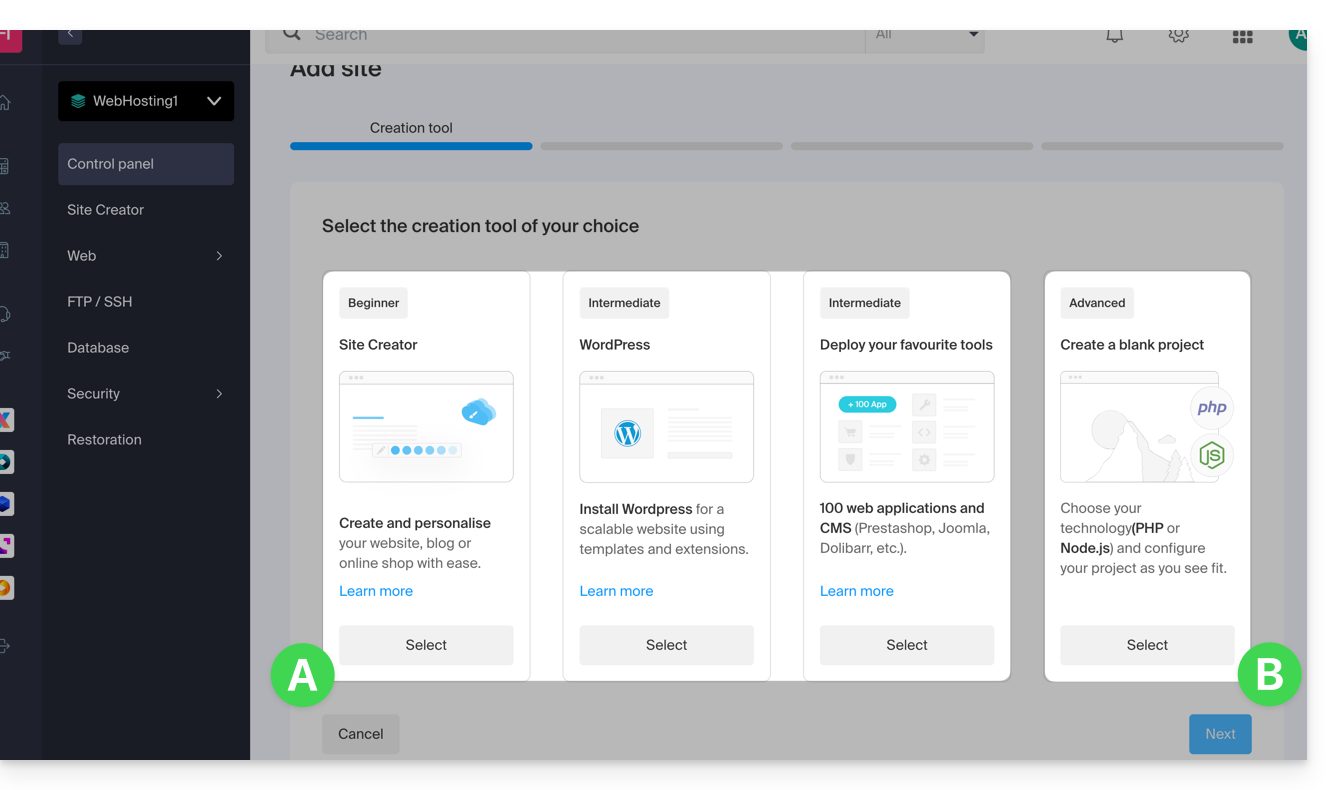
- Click on Next.
- Choose the type of domain to assign to this new site:
- an already acquired domain name
- a subdomain created from an already acquired domain name
- a domain name that is still available and to be ordered
- Enter the domain name (e.g.,
domain2.xyz) or the subdomain.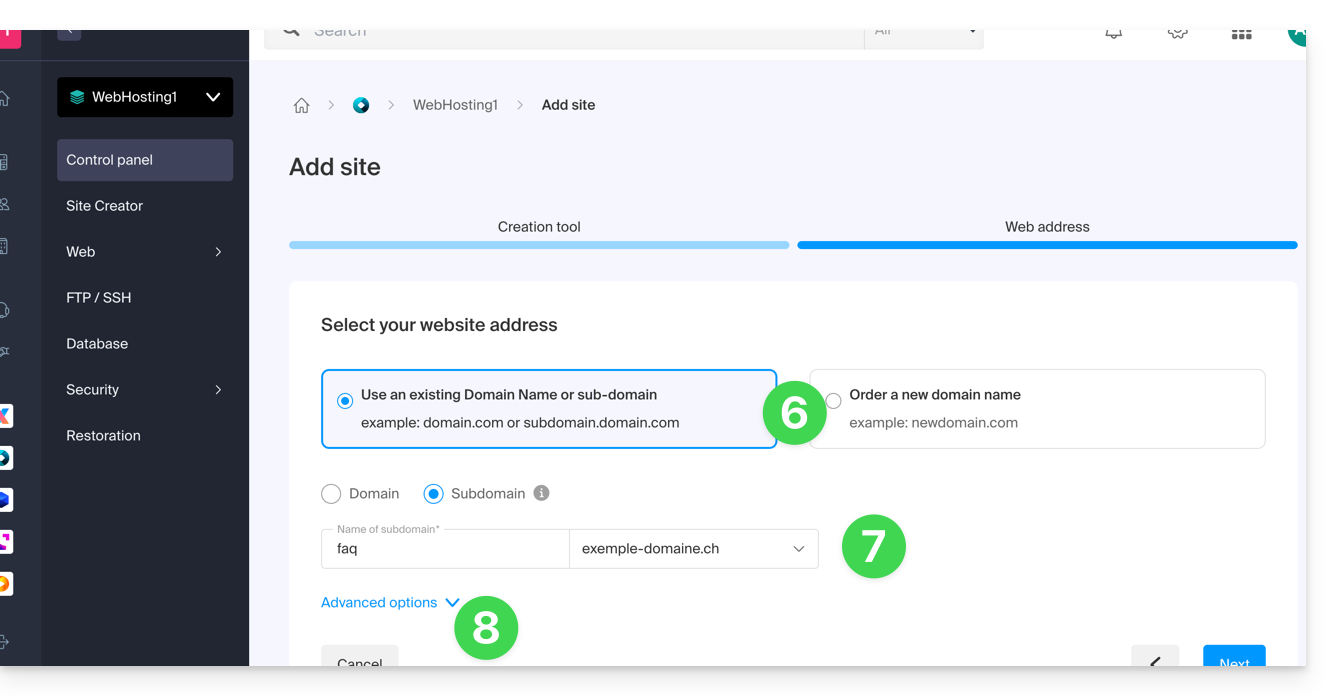
- Choose any desired advanced options, including:
- By default, the new site is added to the
/sites/domain2.xyzdirectory on your FTP server. - To manually define a different directory, check Define the location manually and enter the path and name.
- Create a new folder if necessary:
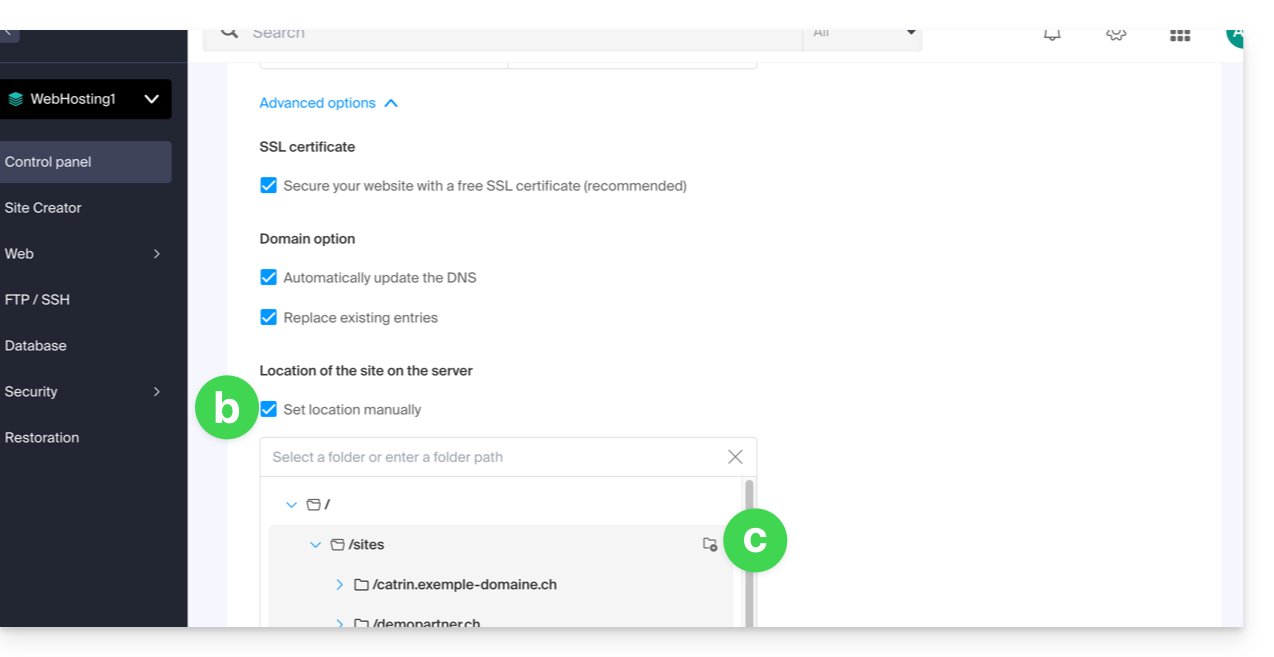
- By default, the new site is added to the
- Click on Continue.
If it is a subdomain, or if the domain name or its DNS zone is managed by Infomaniak, it is possible to automatically update the existing DNS entries. Otherwise, make the necessary changes with your registrar or transfer the domain name management to Infomaniak.
Link to this FAQ: https://faq.infomaniak.com/1988
Has this FAQ been helpful?
This guide explains how to find out the operating system version of your Web Hosting server.
Introduction
- Even if Debian or a package seems outdated, the versions displayed do not contain any vulnerabilities:
- Infomaniak keeps them up to date through regular internal patches on all components and systems used.
- The versions are chosen for their stability and then reinforced with security measures that standard tests do not detect.
- If you or your clients identify a flaw in an Infomaniak product, please submit a POC. Although rare, these cases are handled quickly.
- Data security is the responsibility of the user: Infomaniak cannot be held responsible for poor management or use of access credentials.
Which OS is running on my website?
To find out the version:
- Connect to the server via SSH (need help?).
Run the following command:
lsb_release -aYou will receive information of this type:
Distributor ID: Debian
Description: Debian GNU/Linux 7.9 (wheezy)
Release: 7.9
Codename: wheezy
Link to this FAQ: https://faq.infomaniak.com/1995
Has this FAQ been helpful?
This guide explains how to remove an alias domain from an Infomaniak web hosting account. The main domain name of the website will then no longer be linked to any other domain name.
This allows you to subsequently create a new web hosting or separate site for the detached domain name.
Prerequisites
- If previously associated, unlink the synonym domain from the main domain.
Remove the alias domain
To remove an alias domain name from your website:
- Click here to access the hosting & website management section in your Infomaniak Manager (❓: help).
- Click on the name of the site in question.
- Click on the action menu ⋮ to the right of the domain to be removed.
- Choose Unlink:
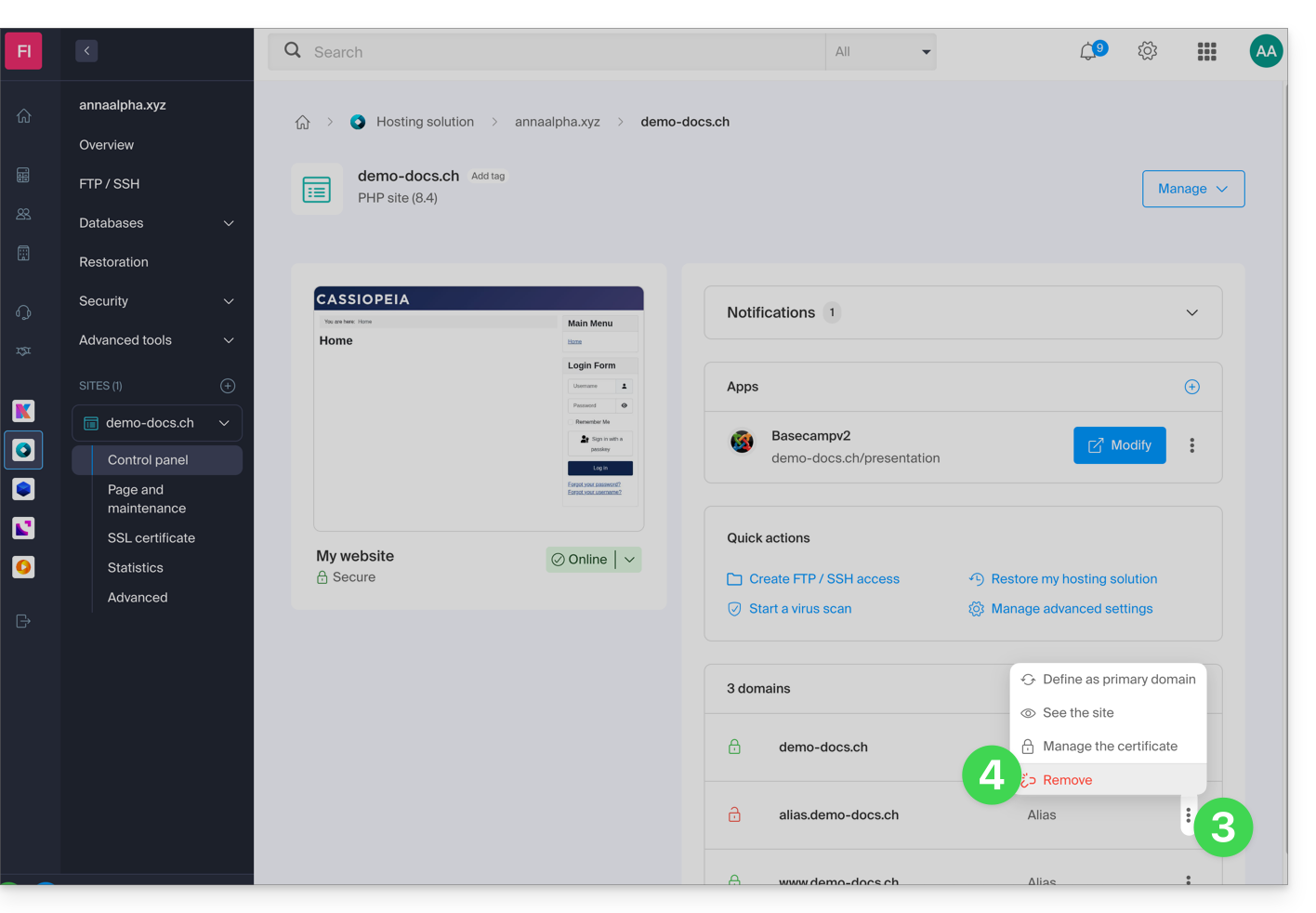
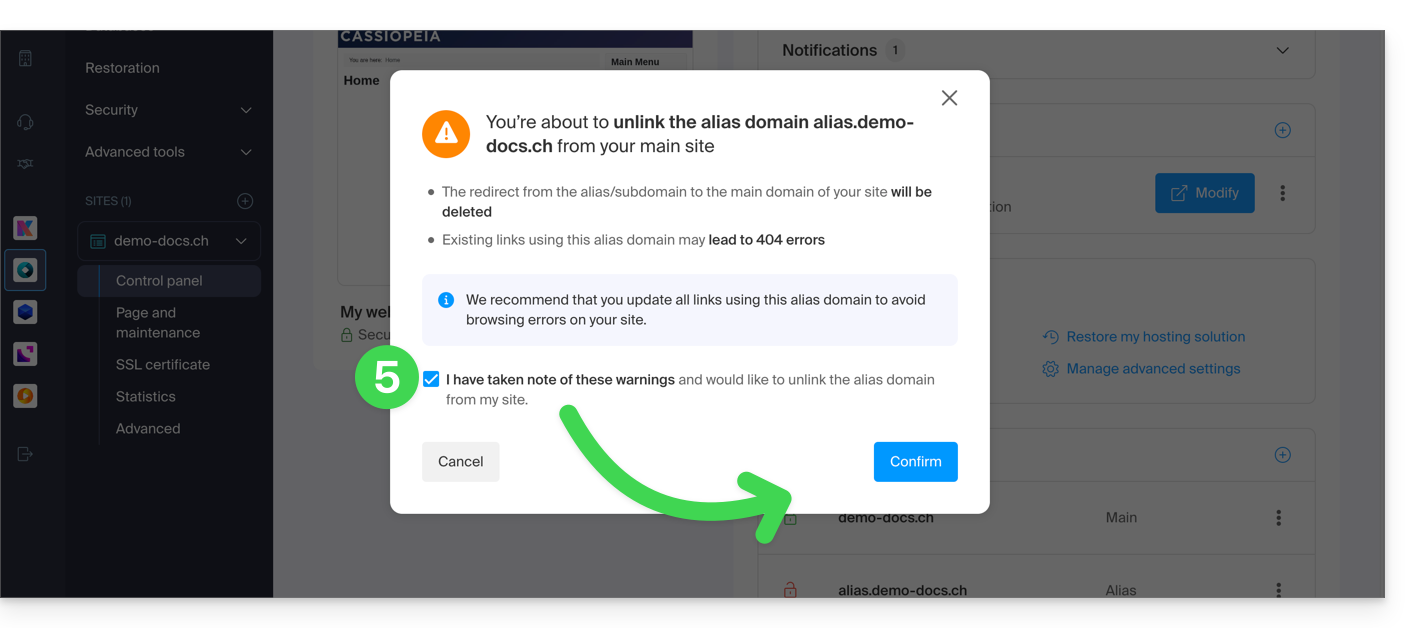
- Confirm the alias deletion:
Link to this FAQ: https://faq.infomaniak.com/1997
Has this FAQ been helpful?
This guide will help you quickly use the essential functions of your new Cloud Server.
Install an application
- Create a WordPress website
- Install a web application (ownCloud, Joomla, Typo3, Drupal, phpBB, Simple Machines Forum, Magento, Prestashop, …)
- Install applications/technologies on Cloud Server (Fast Installer)
Configure the server
- Manage your MySQL databases
- Manage MySQL limits
- Manage your FTP accounts/users
- Manage and publish files on your hosting via FTP
- Modify resources and configuration
Manage websites and domains
If your domain name is not managed by Infomaniak or your hosting is not managed in the same user account as your domain name, please refer to this other guide to configure the DNS or records to link the domain name to your hosting. Also:
- Migrate a shared web hosting to a Cloud Server
- Add a website or subdomain to your hosting (multisite)
- Preview your website even if your domain name does not yet point to Infomaniak's servers
If you encounter any issues, please consult the knowledge base before contacting Infomaniak support.
Link to this FAQ: https://faq.infomaniak.com/2006
Has this FAQ been helpful?
This guide contains essential resources to help you get started with your Cloud VPS or VPS Lite offered by Infomaniak.
Introduction
UEFIandSecure bootsupport is not planned for the Cloud VPS / VPS Lite offering.- It is not possible to migrate a
vmdkfile so that it can run on OpenStack becauseKVMis used for virtualization. - In case of a problem, consult the knowledge base.
- Contact Infomaniak support for questions concerning only the hardware part of the VPS.
Getting started with a Cloud VPS / VPS Lite Linux
Getting started with a Cloud VPS / VPS Lite Windows
Which version (Cloud or Lite) should I choose for the VPS?
- The configurations (vCPU / RAM / disk space) vary depending on the VPS offers, starting with 1 vCPU at very competitive prices.
- Make your choice according to your needs.
- Upgrading from a VPS Lite to a VPS Cloud is not yet possible automatically, and reducing a subscribed offer is not possible.
- Refer to this other guide if you wish to migrate from VPS Lite to VPS Cloud (the migration is irreversible).
- The same Linux distributions & Windows versions are offered (Windows is not available on the smallest configurations).
- Only the official images of the operating systems are installed, without any security software such as fail2ban pre-installed.
- However, the firewall is configurable from the Manager, and a VPS also benefits from anti-DDoS protection.
- Regarding port opening, refer to this other guide.
- On VPS Lite, the bandwidth is limited to 500 Mbit/s, and the guaranteed SLA + snapshots are not available.
Link to this FAQ: https://faq.infomaniak.com/2007
Has this FAQ been helpful?
This guide explains how to create a PTR record on the dedicated IPs of VPS Cloud / VPS Lite.
Introduction
- A PTR (Pointer Record) is a type of DNS record used to resolve IP addresses to domain names.
- The PTR record is used to associate an IP address with a domain name or subdomain.
- This is the opposite of an A record, which is used to resolve domain names into IP addresses.
Create a PTR record for the IP address of your Cloud VPS / VPS Lite
Prerequisites
- Make sure your domain or subdomain points to the IP address (v4 or v6) of your Cloud VPS / VPS Lite server.
- You can do this by creating an A record for your domain or by modifying the existing record to point to the IP address of your Cloud VPS / VPS Lite.
- Make sure your domain name points to the IP address of your Cloud VPS / VPS Lite (see 1).
- Note the IP address of your Cloud VPS / VPS Lite server (you can find this IP address in your server management dashboard or by using a command-line command such as "
ifconfig" or "ipconfig" depending on the operating system you are using).
Next, to create a PTR record for your dedicated IP address:
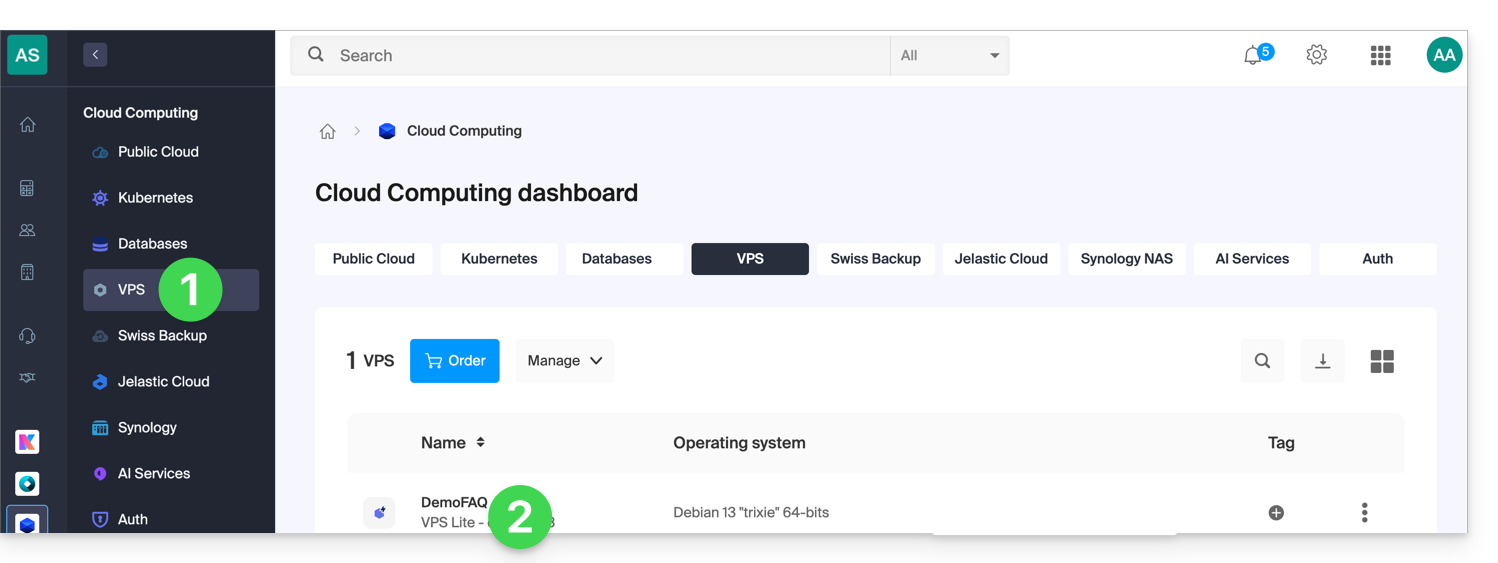
- Click here to access the management of your VPS in the Infomaniak Manager (need help?).
- Click directly on the name assigned to the VPS in question:
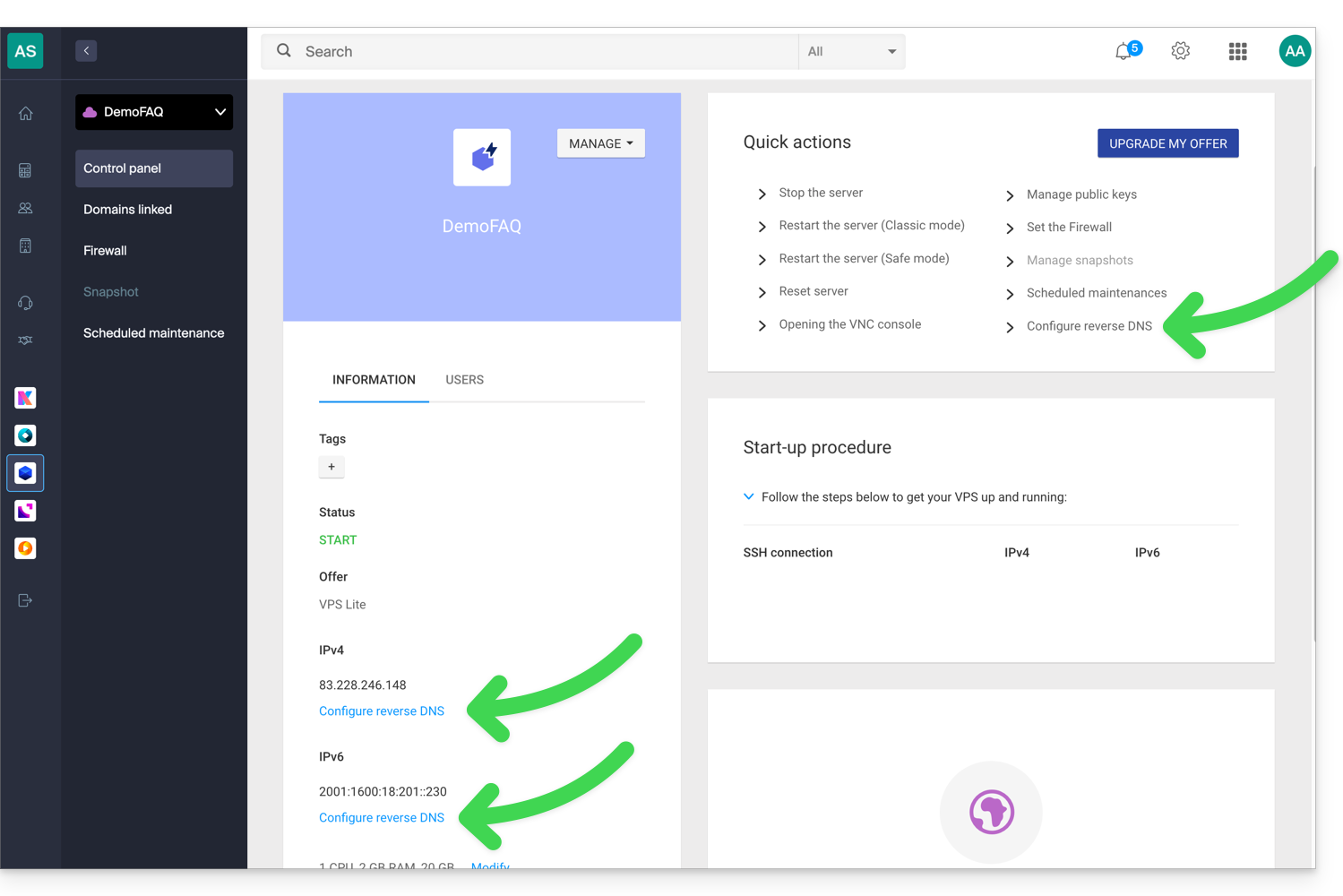
- Click on the appropriate quick action or directly on the menu items at the server's IP address level:
- Enter the desired information and save.
- Once the PTR record is created, use an online verification tool to ensure that the PTR record points to your domain or subdomain.
Link to this FAQ: https://faq.infomaniak.com/2012
Has this FAQ been helpful?
This guide explains how to use MySQL on Infomaniak hosting, in particular how stored procedures work.
Introduction
- “Stored procedures” and “stored routines” are not available on a shared web hosting plan.
Understanding stored procedures and routines
If stored procedures are essential to your project and you are currently using shared hosting, it is advisable to consider a VPS or a dedicated server, which offer more control and resources.
Stored procedures are an effective way to automate tasks and integrate business logic directly into the database. This allows for more efficient and easier-to-maintain applications.
On a Cloud Server, as long as the user has administrator rights on the relevant MySQL database, they have the necessary permissions to execute SQL statements, including the EXECUTE command, which is used to launch stored procedures that are already present in the database.
The user also has the required privileges to create new stored procedures.A stored procedure is created using a specific SQL syntax that defines the instructions to be executed, followed by saving it in the database.
Example
DELIMITER //
CREATE PROCEDURE GetUserCount()
BEGIN
    SELECT COUNT(*) AS total_users FROM users;
    -- Returns the total number of users in the table
END //
DELIMITER ;

-- Execute the stored procedure
CALL GetUserCount();
Link to this FAQ: https://faq.infomaniak.com/2014
Has this FAQ been helpful?
This guide explains the differences between Infomaniak's web hosting plans to help you choose the best solution based on your IT needs.
If you are looking to host your email, please refer to this other guide.
1. Site Creator
Standalone plans, independent of a hosting solution such as the one presented in point 3.
Site Creator is a ready-to-use solution that allows you to easily create a showcase website, a blog, or an e-commerce store without any specific technical skills. Offered as a standalone solution (without requiring traditional web hosting), it is available in several plans to suit your needs:
- Site Creator Free: a free version to test and customize a web page with basic features
- Site Creator Lite: ideal for publishing a showcase website or blog (up to 6 web pages, 15 GB of disk space, and a free domain name for 1 year)
- Site Creator Pro: the complete solution for online stores (unlimited pages, 50 GB of disk space, e-commerce features with payment and inventory management, free domain name for 1 year)
Learn more about the Site Creator plans and compare features.
2. Web Hosting Starter
Simple and free web hosting
The Starter web hosting plan is offered free of charge with every domain name registered with Infomaniak. It offers 10 MB of disk space to create a website (basic pages in HTML only - no PHP, no database) even without specific knowledge, thanks to the Welcome Page tool.
- Register or transfer a domain name to Infomaniak
- Learn more about the benefits included with a domain name
3. Shared Web Hosting
The flagship offer for creating your websites
These web hosting solutions are shared hosting offers (websites will be hosted on servers whose resources are shared with other customers). To guarantee the reliability of these shared services, Infomaniak servers use, on average, only 40% of the CPU power and are equipped with professional, latest-generation SSD disks.
Web hosting offers a minimum of 250 GB of disk space and allows you to manage multiple websites with multiple domain names. This offer includes all the technologies usually used to create professional websites: PHP, MySQL, FTP and SSH access, SSL certificates and easy installation of WordPress or common CMS, etc. It is also possible to add a Node.js site and/or Site Creator.
Please note that without any type of hosting, it is also possible to obtain and use Site Creator in a “standalone” mode. Refer to this other guide.
3. Cloud Server
Professional Web Hosting
With a Cloud Server,the resources allocated to you are not shared with other customersand you can customize the hardware and software configuration of your server according to your needs. A Cloud Server also allows you to use components that are not available on shared web hosting (Node.js, mongoDB, Sol, FFMPEG, etc.).
- A Cloud Server allows you to easily manage your server via the same administration interface as your web hosting – you manage websites in the same way.
- A VPS allows you to manage your server 100% independently with the Windows version or the Linux distribution of your choice (
Debian,Ubuntu,openSUSE, ...) – solid technical skills are required to use a VPS, including VPS Lite.
4. Public Cloud (et Kubernetes Service)
Open, reliable, and secure IaaS solution
For Infomaniak, this is the infrastructure that powers kDrive, Swiss Backup, and Webmail, services used by several million users. But Public Cloud is accessible to everyone and provides the resources you need to develop your projects.
With our custom and tailored offers, you'll have no trouble managing your development budget. No setup fees. No minimum amount. Cancel anytime. You only pay for the resources you actually use with Public Cloud at the end of each month, the same applies to Kubernetes Service.
5. Jelastic Cloud
Custom web hosting with the technologies of your choice
Jelastic Cloud allows you to create custom development environments with the technologies of your choice (PHP, Java, Docker, Ruby, etc.). It is a flexible cloud offering:
- Horizontal and vertical resizing of resources.
- Payment based on actual resource consumption.
- Easy customization of your infrastructure (redundancy, IP, SSL, load balancing, etc.).
Link to this FAQ: https://faq.infomaniak.com/2019
Has this FAQ been helpful?
This guide explains how to modify your current Cloud Server Infomaniak plan.
Modifying Resources and Configuration
The basic Cloud Server plan includes 5 hosting accounts and 20 websites. To add an additional hosting account or modify the server configuration to increase CPU/RAM :
- Click here to access the management of your product in the Infomaniak Manager (need help?).
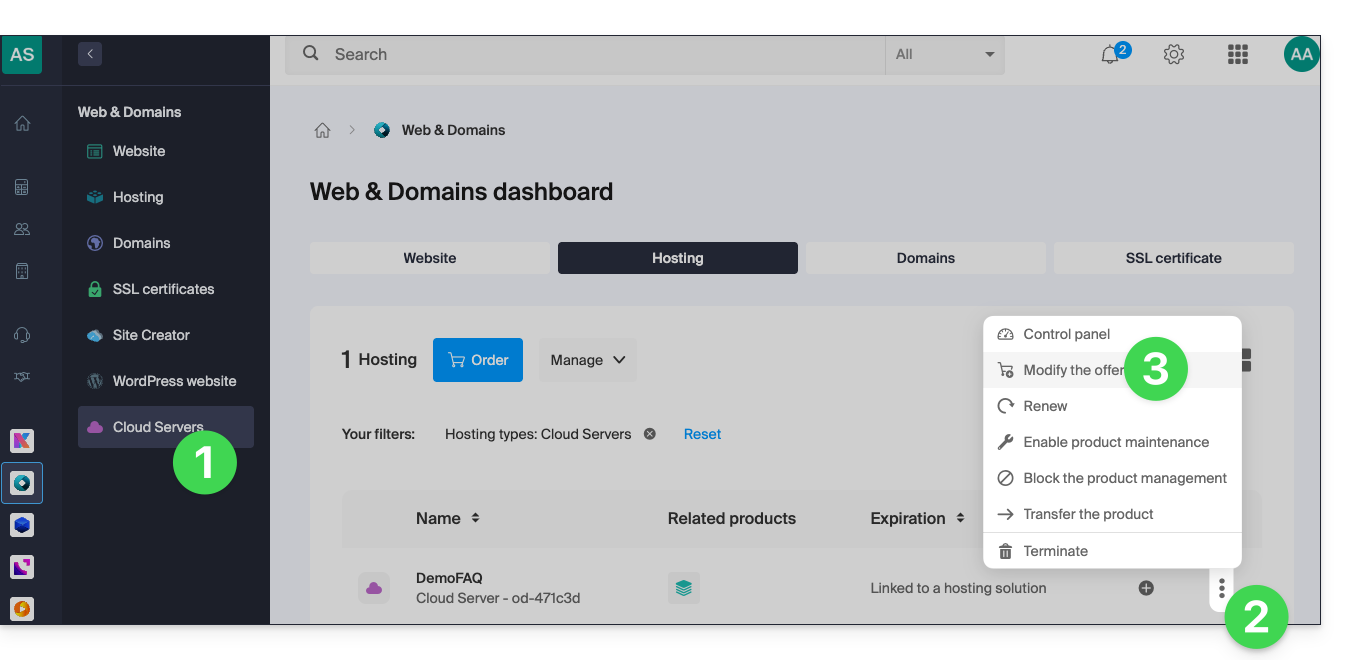
- Click on the action menu ⋮ located to the right of the item in question.
- Click on Modify offer:
- Make the desired adjustments and complete the process.
To reduce the size of the entire Cloud Server's disk space:
- Order a new server with the desired new storage (contact support to order the new server free of charge while you complete the steps below).
- Move the hosting from the old server to the new one.
- Cancel the old server.
Refer to this other guide to modify the disk space of a hosting plan.
Increase the process limit
Under Linux, the number of processes that a user or system can create simultaneously is limited. These limits prevent processes from consuming excessive resources and affecting the overall stability of the system.
Process limits are managed by the Linux kernel and can be viewed and modified using specific commands and configuration files. You can request an increase in the limits (contact Infomaniak support, specifying a time slot for the operation, as there will be a few minutes of interruption).
Link to this FAQ: https://faq.infomaniak.com/2022
Has this FAQ been helpful?
This guide explains how to…
- …generate a
CSRand private key to request a third-party certificate from a certificate authority (CA), - … import this certificate for your Infomaniak site, using the
CRTfile obtained from theCA.
Introduction
- Although Infomaniak offers all the SSL certificates you might need…
- free Let's Encrypt certificates for personal websites (only possible with websites hosted at Infomaniak),
- DV certificates from Sectigo for professional/personal websites that are not registered in the commercial register,
- EV certificates from Sectigo for companies registered in the commercial register,
- … it is also possible to install an SSL certificate obtained elsewhere (intermediate certificate from a certification authority of your choice), custom or self-signed certificates.
1. Generate a CSR (Certificate Signing Request)
A CSR (Certificate Signing Request or Certificate Signing Request) is an encoded file containing the information needed to request an SSL/TLS certificate.
It must be generated on your end to ensure that the private key remains under your control, using OpenSSL, for example.
Adapt and run the following command from a Terminal application (command-line interface, CLI) on your device:
openssl req -utf8 -nodes -sha256 -newkey rsa:2048 -keyout domain.xyz.key -out domain.xyz.csr -addext "subjectAltName = DNS:domain.xyz, DNS:www.domain.xyz"
Explanation
newkey rsa:2048: Generates a new 2048-bit RSA key.keyout domain.xyz.key: Specifies the file where the private key will be saved.out domain.xyz.csr: Specifies the file where the CSR will be saved.addext “subjectAltName = ...”: Adds additional domains via theSAN (Subject Alternative Name)extension, which is necessary to include all desired domains in the certificate (the main domain domain.xyz + any other associated domain or subdomain, such as www.domain.xyz).
After generation, you can check the content of the CSR with the following command:
openssl req -in domain.xyz.csr -noout -textThis ensures that all domains listed in subjectAltName are correctly included.
Once the CSR is generated, you can submit it to the certificate authority (CA) to obtain your SSL/TLS certificate.
2. Import the external certificate
Once validated, the CA provides you with a certificate (domain.xyz.crt) and sometimes an intermediate certificate (ca_bundle.crt).
To access SSL certificate management:
- Click here to access the hosting & website management section in your Infomaniak Manager (❓: help).
- Click on the name of the website in question.
- Click on SSL Certificates in the left-hand menu.
- Click on the blue Install a certificate button:
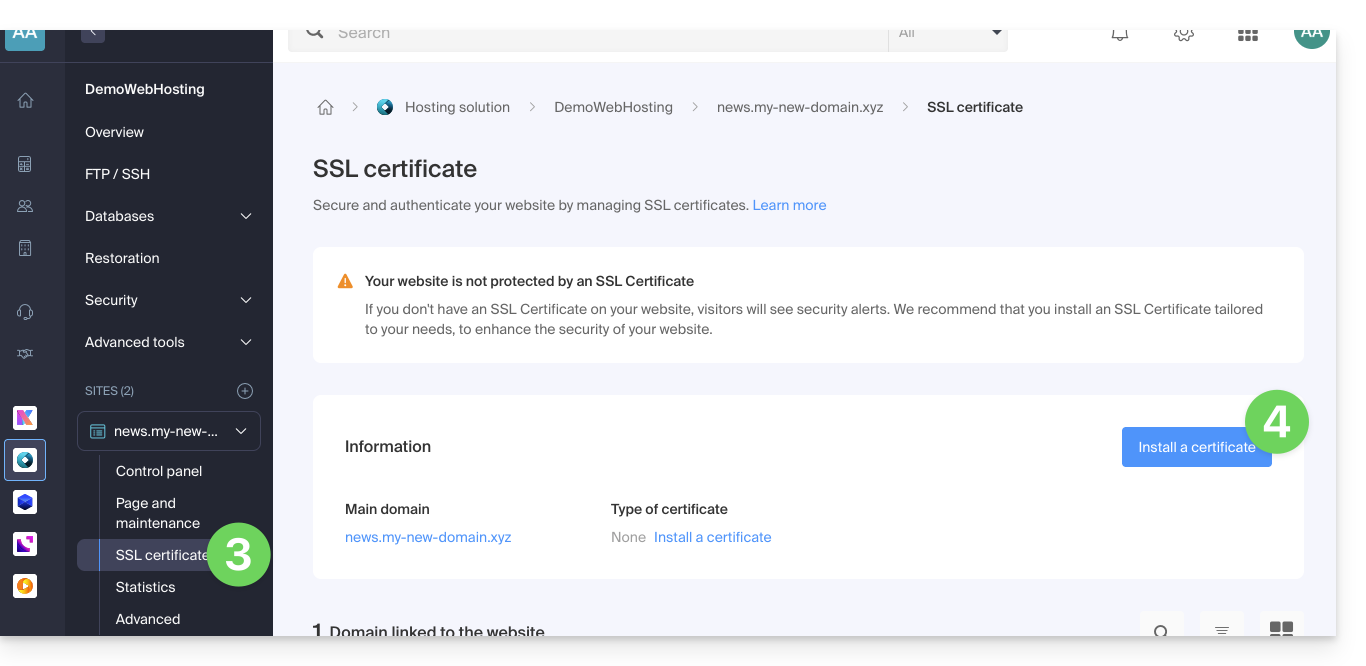
- Choose the custom certificate.
- Click on the Next button:
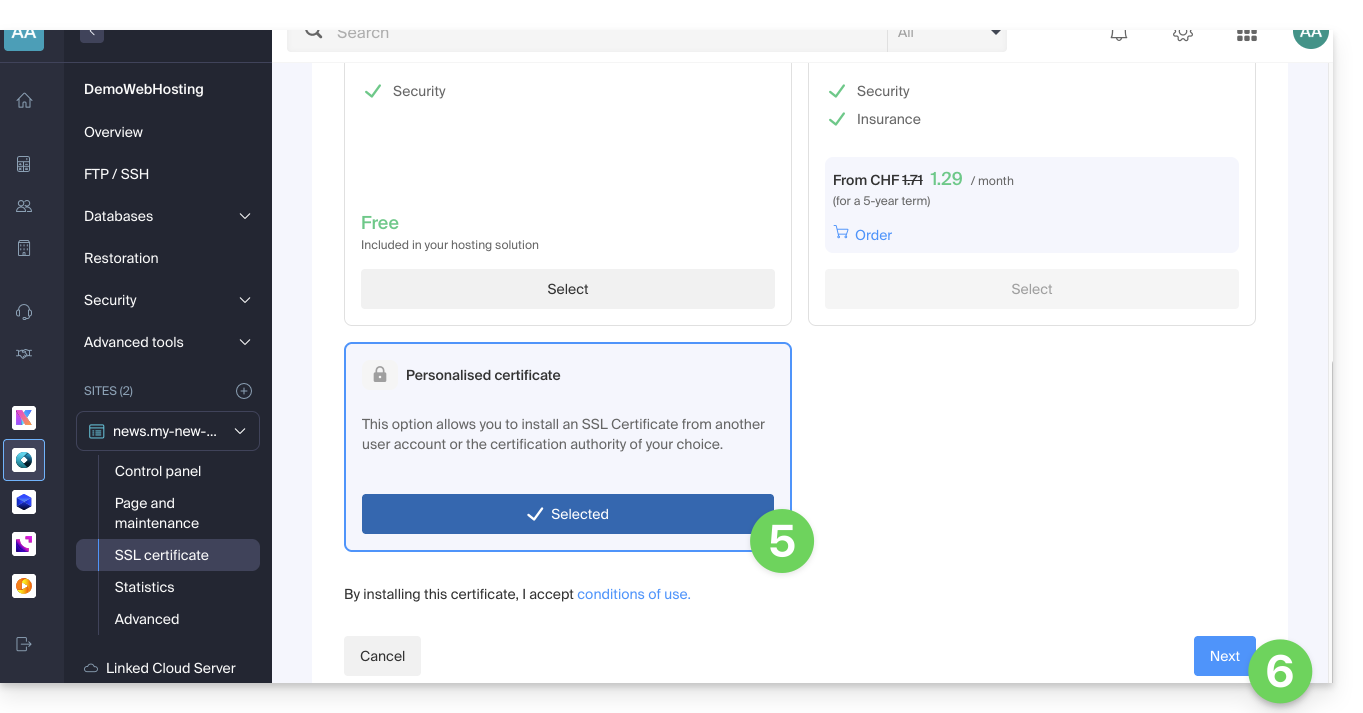
- Import your certificate and private key, either by importing the
.crtand.keyfiles or by copying and pasting. - Click on Complete:
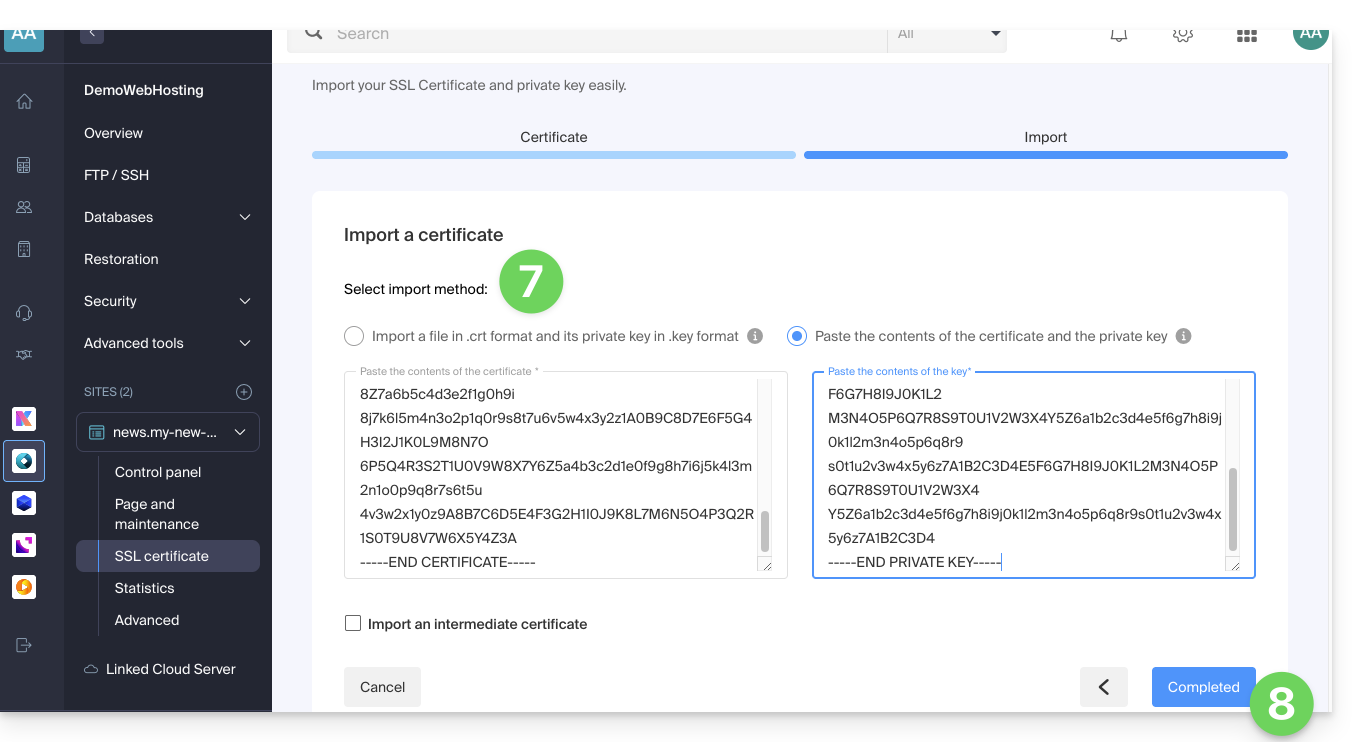
Alternative command to generate a self-signed certificate (optional)
If you want a local certificate only for testing purposes or without going through a CA (not recommended for production), you can use this command:
openssl req -x509 -nodes -days 365 -newkey rsa:2048 -keyout domain.xyz.key -out domain.xyz.crt -addext “subjectAltName = DNS:domain.xyz, DNS:www.domain.xyz”This generates both a self-signed certificate (domain.xyz.crt) and a private key (domain.xyz.key). However, self-signed certificates are not recognized as valid by browsers or public systems. They are only suitable for internal or development environments.
Import an intermediate certificate
When adding a custom SSL certificate, you can import the intermediate certificate (by importing the .crt file or by copying and pasting the data provided by the certification authority):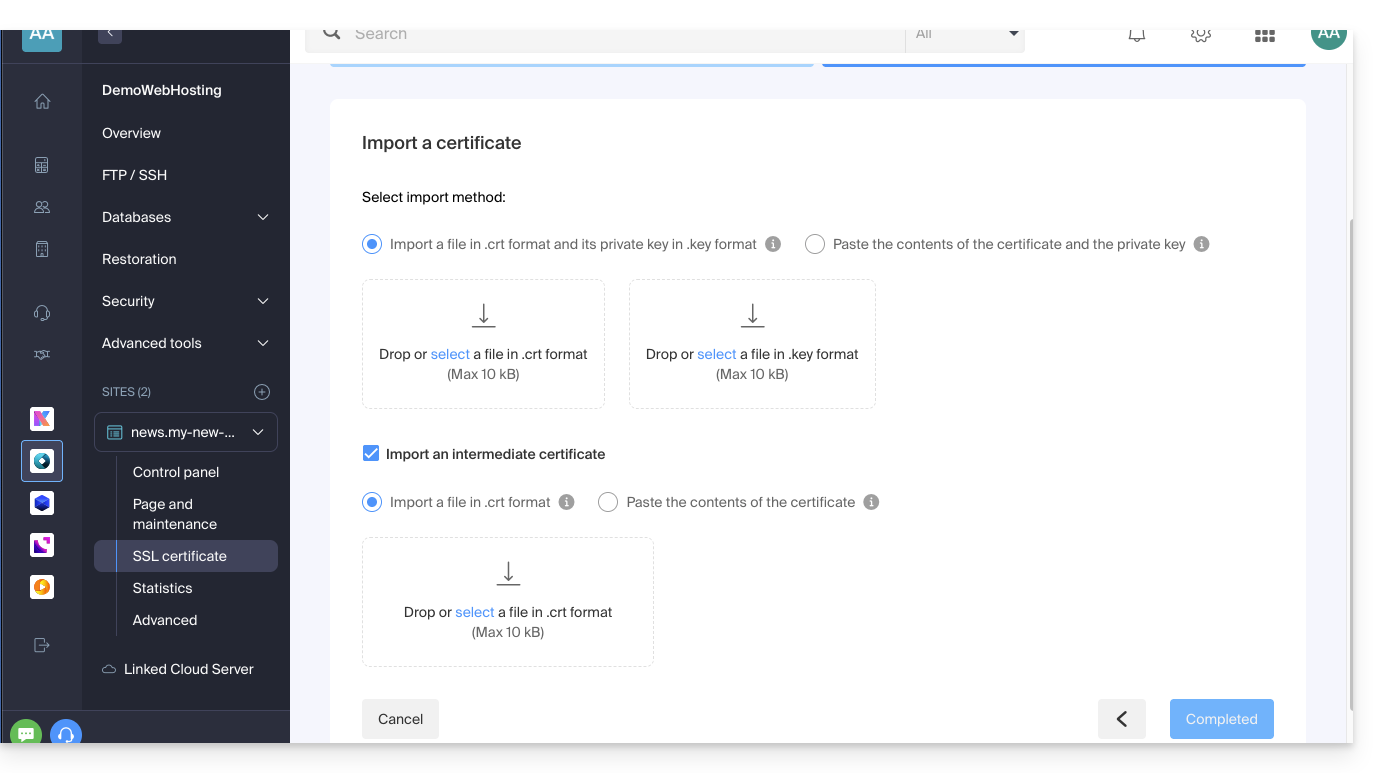
Link to this FAQ: https://faq.infomaniak.com/2027
Has this FAQ been helpful?
This guide explains how to deploy Node.js with a Cloud Server to ensure you always have the environment needed to compile or build modern frontends (React, Vue, etc.). However, it is recommended to use the integrated node.js solution.
Introduction
- Node.js is a free, open-source JavaScript software platform geared towards network applications that need to be scalable, a simple and effective solution for integrating frontend tools into any server stack.
Node.js= the official name of the language/environment.NodeJS= the "technical" or simplified name in certain contexts (often for practical reasons, there is no real technical difference).
Install Node.js
Prerequisites
- Install NVM on your Cloud Server.
- Please note that Node.js version 18 is not compatible with older Cloud Servers; perform a migration beforehand!
Install the stable version of Node.js
nvm install stableInstall the latest version
nvm install nodeInstall an older version (not recommended)
nvm install 17List available versions
nvm ls-remoteInstall a specific version
nvm install <version>Change the Node.js version and set version 6.3.1 (or another version) as the default
nvm alias default 6.3.1Use a specific version of Node.js in the current shell
nvm use <version>Check the currently used Node.js version
node -v
Source
To set up NVM, go to the WebSSH console of your Cloud Server.
Locate the .profile file
source ~/.profileRun the following command to verify the NVM installation
nvm
Configure Node as a service
To configure Node as a service, using a "systemd-user service" is recommended.
Redirect traffic to a specific port
Refer to this other guide for information on redirecting traffic to a specific port and dedicated IPs.
Link to this FAQ: https://faq.infomaniak.com/2052
Has this FAQ been helpful?
This guide explains how to change the PHP version available for the websites on your Infomaniak Web Hosting.
Introduction
- It is possible to upgrade from an older, potentially vulnerable PHP version to a newer version, but you will no longer be able to revert to that vulnerable versionfor security reasons.
- The change is effective immediately and permanently.
- Refer to this other guide if you are looking for information on configuring the PHP version used in SSH.
- You may need to update your hosting beforehand to access the latest PHP versions offered by Infomaniak.
Change the PHP version used for a website
You can easily change the PHP version used for an entire website:
- Click here to access the hosting & website management section in your Infomaniak Manager (❓: help).
- Click on the name of the product in question.
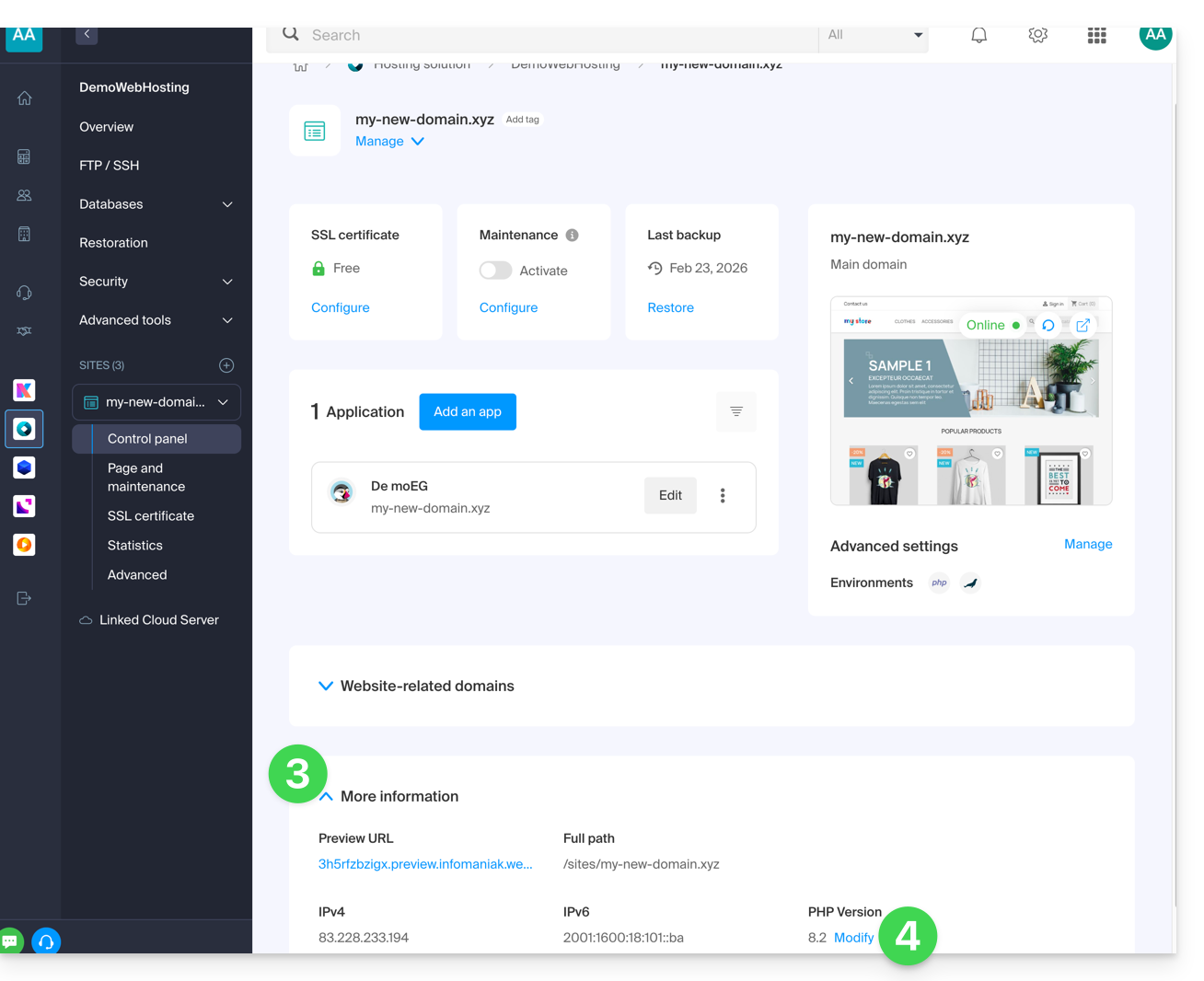
- Click on More information.
- Click on Edit:
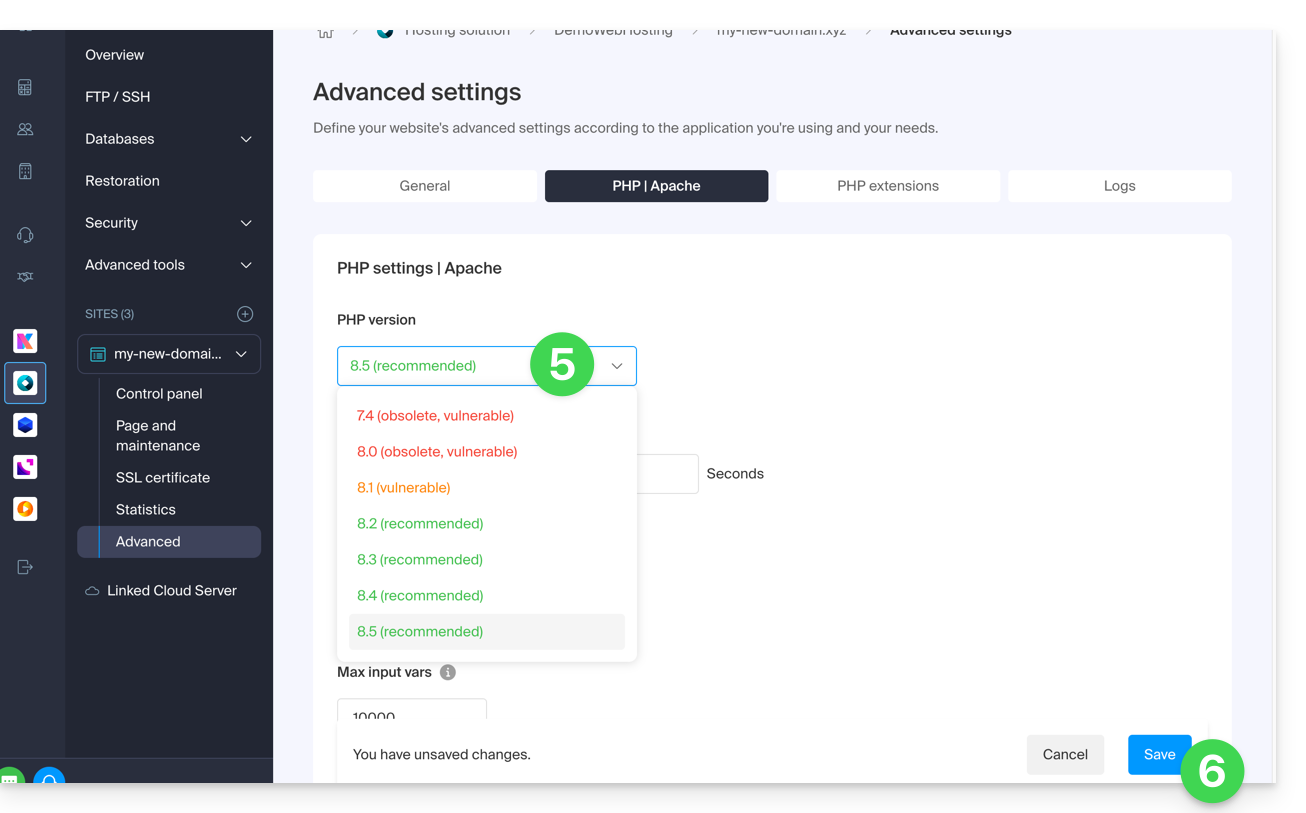
- Choose the desired PHP version.
- Click on Save at the bottom of the page to save the change:
Link to this FAQ: https://faq.infomaniak.com/2053
Has this FAQ been helpful?