Knowledge base
1000 FAQs, 500 tutorials and instructional videos. Here, there are only solutions!
Thank you for choosing kDrive, the independent and privacy-respecting solution for collaborating, sharing, and accessing your data from all your devices. Your data is encrypted, permanently backed up, and exclusively hosted in Switzerland.
Collaborative storage on a 100% Swiss Made cloud
Getting Started
- Synchronize kDrive across different devices
- Manage the kDrive Lite Sync option (macOS)
- Manage the Lite Sync option for kDrive (Windows)
- Install kDrive on Linux
- kDrive folders (personal, shared, common)
- Manage kDrive folders to be synced to your device
- Manage the folders on your device to be synchronized with kDrive
- Edit an Office file type on kDrive (Word, Excel, PowerPoint) or plain text
- Working with kDrive: basic operations
- Manage kDrive storage space
- Search for data on kDrive
Share your data
- Manage kDrive dropboxes
- Customize kDrive shares and uploads
- Share data from kDrive (web interface)
- Example of internal/external sharing
- Share data via email from kDrive (web interface)
Filling up your kDrive
- Import external data into kDrive
- Import data to kDrive (iOS) or automatically import only iPhone photos
- Import photos to kDrive (Android)
- Import data to kDrive without the kDrive app
- Access kDrive files locally and online
- Scan documents with kDrive (iOS / Android)
For multiple users
- Manage a kDrive user's permissions
- Manage access permissions for folders and subfolders
- Manage kDrive users
- Manage multiple kDrives (iOS / Android)
- Manage multiple kDrive accounts (macOS / Windows)
- Copy specific data between kDrive accounts you have access to
Go further with kDrive
- Modify an existing kDrive plan
- Manage kDrive categories to organize your data
- Save a kMeet meeting to kDrive
- Export email attachments from Mail
- Export an email to kDrive
- Add an attachment to an event in Calendar
For advanced users
In case of a problem
- Troubleshoot a kDrive blocking issue (antivirus, firewall, etc.)
- Resolve a kDrive sync conflict
- Troubleshoot a kDrive synchronization issue
- Troubleshoot a kDrive issue on an Android device (don't kill my app)
- Troubleshoot a Lite Sync plugin error on macOS
- Clear your browser cache
- Clear the cache of the kDrive mobile app
- kDrive application version (macOS / Windows / Linux)
- Restore a kDrive file to its previous version
- Restore a deleted kDrive file
- Force kDrive to synchronize certain special files
- Allow access to your products / Complete a support request
- Show kDrive debugging information
Learn more about kDrive
Have a question or feedback?
- Contact Infomaniak support
- Click here to share feedback or suggestions about an Infomaniak product.
Link to this FAQ: https://faq.infomaniak.com/2366
Has this FAQ been helpful?
This guide explains how to access your e-mails hosted by Infomaniak.
Guides for Infomaniak Mail
Click here to open the Infomaniak wizard and configure synchronization on macOS, Windows, Linux, Android, and iOS for common email software/clients (Outlook, Microsoft 365, Thunderbird, Apple Mail, eM Client, etc.). It will allow you not only to obtain the recommended settings but also to create the IMAP/SMTP password required for your configuration.
Alternatively, use directly the email in a browser such as Brave, Chrome, Edge, Firefox, Opera, Safari… using the Infomaniak Mail web app (online service ksuite.infomaniak.com/mail) and/or download the Infomaniak Mail mobile app (application for iOS/Android smartphones or tablets).
Here are also guides for specific manual procedures:
| OS | Application to synchronize |
|---|---|
| Outlook New / Microsoft 365 MSO / 2019 (Windows) | |
| Outlook Microsoft 365 MSO (macOS) | |
| Apple Mail (configuration profile for macOS) | |
| Apple Mail (configuration profile for iOS: iPhone, iPad, etc.) | |
| Mail (Android: Huawei, Samsung, Sony, etc.) | |
| Outlook (iOS + Android) | |
| Gmail (iOS + Android) | |
| Mozilla Thunderbird |
For synchronizing your contacts & calendars, please refer to this other guide.
Recommended IMAP settings
Username = the complete email address (❓: help)
Password = the password generated for the email address you want to access (❓: help my kSuite | Mail/kSuite Service).
Incoming IMAP server = mail.infomaniak.com
IMAP port = 993 (with SSL)
Recommended SMTP settings
Username = the complete email address (❓: help)
Password = the password generated for the email address you want to access (❓: help my kSuite | Mail/kSuite Service).
Outgoing SMTP server = mail.infomaniak.com
SMTP port & encryption protocol and command/method to activate this protocol:
- Prioritize port
587+ STARTTLS: this is the official technical standard and the most compatible method with the majority of modern systems for authenticated submission. - Tolerate port
465+ SSL/TLS only as a compatibility option or alternative, specifying that this is implicit encryption, but that 587 remains the recommended choice.
Mandatory authentication for sending emails:
- It is activated in the SMTP settings of your application.
- Check "use the same settings as the incoming serverEnter your username (i.e., your full email address) and password, or as required by your email software/client.
In case of problems
Please check the following points:
- Make sure the Mail service is configured optimally (❓: help).
- Consult this other guide if you encounter any errors, to check the essential points!
- Consult this other guide if you are looking for information about other email ports and protocols that are compatible.
- POP3 protocol not recommended (POP server = mail.infomaniak.com and POP port = 995 with SSL).
Change a mail password
Email passwords can be multiple, are unrelated to your Infomaniak login password, and can no longer be retrieved after their initial display. Therefore, you must (re)create them whenever you need them, specifying the device (computer, mobile, etc.) and/or the user concerned, so that you can manage them separately when you need to manage a specific connection.
Manage passwords:
Apply the new email password
If you have deleted an existing password to create a new one,You will need to update your applications & devices that used this password:
- Apple Mail (macOS / iOS)❓: help
- Android Mail / Gmail (various versions)❓: help
- Microsoft Outlook (various versions)❓: help
- Mozilla Thunderbird❓: help
You are not yet managing your emails with Infomaniak ❓: help
Link to this FAQ: https://faq.infomaniak.com/2427
Has this FAQ been helpful?
This guide explains how to recover lost emails, especially after accidental deletion.
✘ NOT AVAILABLE with
kSuite Free
my kSuite (ik.me, etik.com, ikmail.com)
Mail Starter service
By upgrading one of these free plans, it will be possible to restore the backup for up to 30 days.
Introduction
- Infomaniak backs up each email address once a day (usually early in the morning).
- This allows you to restore your mailbox to its exact state at the time of the backup.
- RECOVERED ITEMS:
- ITEMS NOT RECOVERED:
- Emails moved (subfolders, trash): they still exist in your account and must be searched for (❓: help).
- The restoration does not include the calendar (❓: help) or the address book (❓: help).
- Messages that were not present at the time of the daily backup (see POP3 chapter); example:
- Restoration requested at 10 a.m. (5 a.m. backup) for an email that arrived at 8 a.m. and was deleted at 9:30 a.m.: it will not be recovered because it was not yet present during the 5 a.m. backup.
- UNALTERED ELEMENTS:
- Emails received, created, or stored between the backup date and the restoration execution remain in your inbox.
- Please refer to this other guide regarding the message retention limits.
Restore from the Infomaniak Web Mail app
Prerequisites
- Ensure that the deletion occurred less than 30 days ago (or within the timeframe included with your plan - see above).
- Have permission to manage backups: it is possible that the Mail Service administrator hasremoved this permission from their admin account
- Click here to access your emails on your Infomaniak kSuite (❓: help).
- Click on Settings in the top right corner.
- Check or select the relevant email address from the dropdown menu in the left sidebar.
- Click on General.
- Click on Restore:
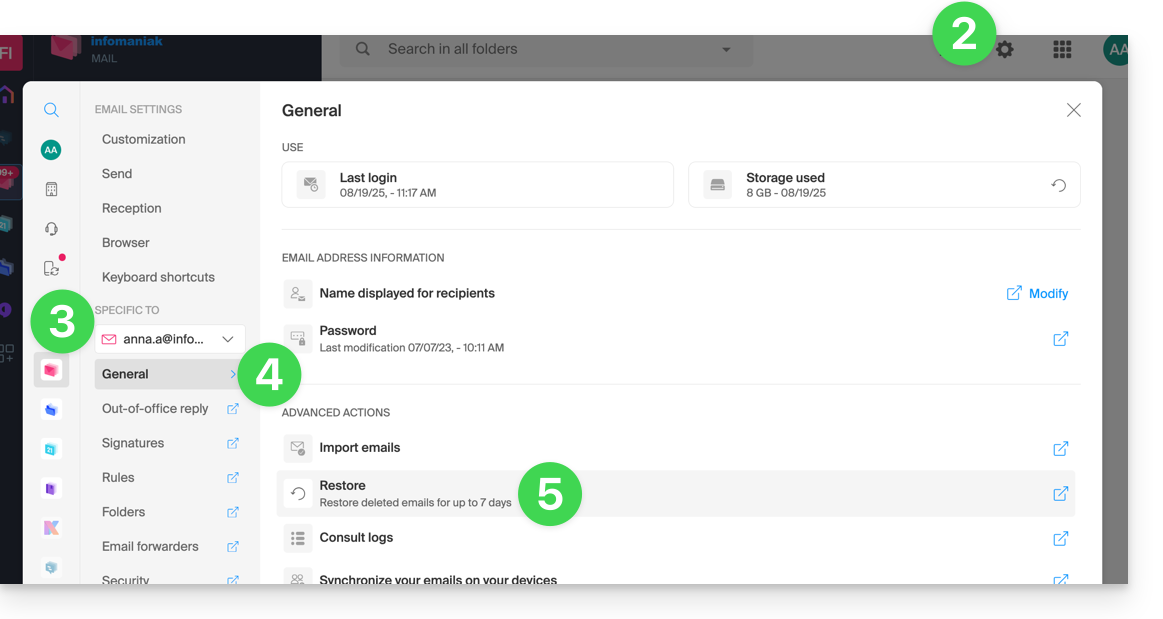
- Choose a Restore date.
- Click on Restore emails:
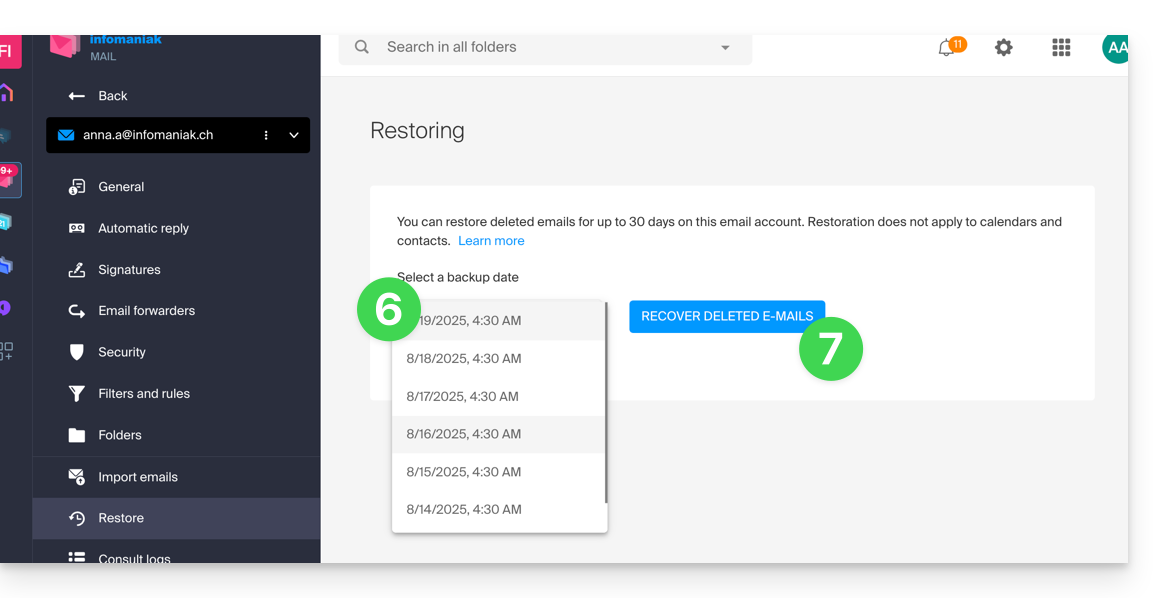
- Once the restoration is complete, an informational email is sent.
Restore from Mail Service
Prerequisites
- You must be at least an Administrator of the Organization (❓: help).
- Ensure that the deletion occurred less than 30 days ago (or within the timeframe included with your plan - see above).
To restore emails from a Mail Service:
- Click here to access the Mail Service management in your Infomaniak Manager (❓: help).
- Click on the name of the Mail Service in question.
- Click on the email address in question in the table that appears.
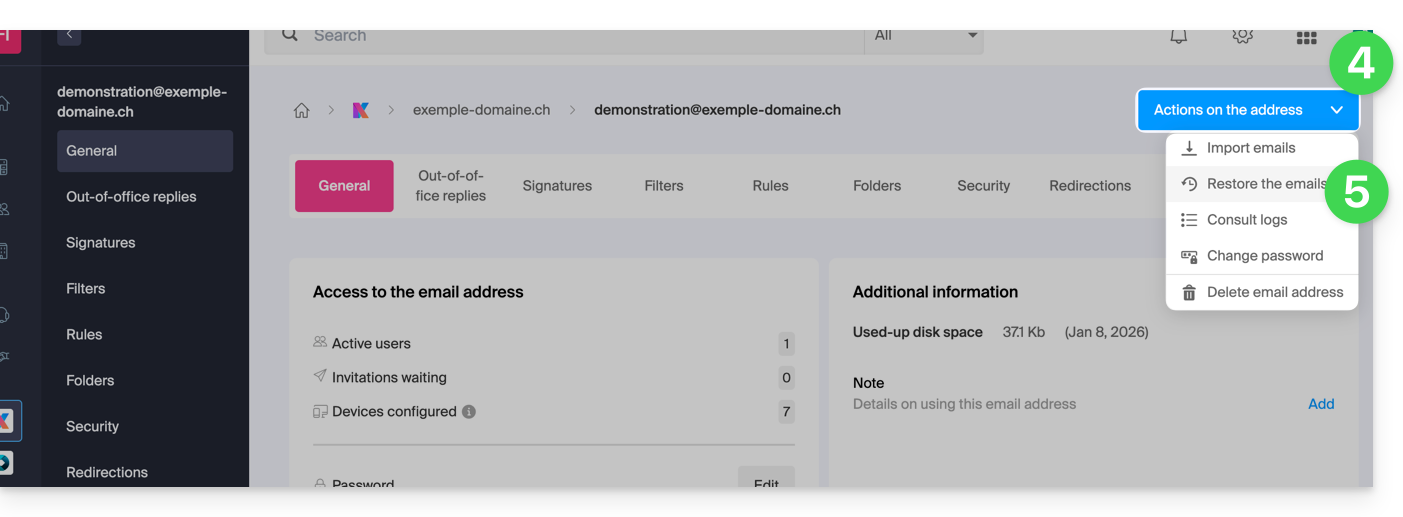
- Click on the Address actions button at the very top right.
- Click on Restore emails:
- Choose a Restore date.
- Click on Restore emails.
- Once the restoration is complete, you will receive a notification email.
Emails placed in the trash
Unless otherwise configured, a deleted email is moved to the trash folder, and it is only after a period of several days or weeks that the trash folder is automatically emptied (it can also be emptied with a click by the user). Therefore, during a restoration operation:
- Emails currently in the trash folder will remain as they are, regardless of the restoration date.
- Emails deleted from the trash will be restored to their original location, where they were located when they were deleted (whether in the inbox folders or in the trash).
Emails placed in non-standard folders
If you intentionally store your messages in folders with unusual names (for example, folders named Junk or Spam), please read the important information in this other guide.
Email client configured with POP3
If you usually check your email using an email client such as Outlook, and it is configured with the POP / POP3 protocol, you will not be able to restore everything, as the backup is performed once a day and only saves the messages that were in your Infomaniak inbox at the time of the backup; the same applies to your other folders (Sent Messages, for example) present in the POP3 application: these are not synchronized with Infomaniak and are therefore not backed up; in the future, you should therefore prefer the IMAP protocol in your email client (❓: help).
Link to this FAQ: https://faq.infomaniak.com/1203
Has this FAQ been helpful?
This guide explains how to contact and authorize Infomaniak Support to access your online productsand especially regarding their content, and provide useful details when submitting a support request.
Contact Infomaniak Support
Certain email addresses, such as support@infomaniak.com, are not intended to receive direct support requests.
Messages sent to these addresses are not processed by our teams and do not allow us to track your request.
To ensure proper handling, each request must be submitted solely through the support center:
- This system generates a ticket, automatically routes the request to the relevant department, and ensures complete follow-up until it is resolved.
- Once the request is registered, communication can then continue directly via email with support.
Before contacting support, we also recommend consulting the knowledge base, which contains many guides and answers to frequently asked questions.
Allow Support to access a type of content
Infomaniak Support may ask you to grant temporary access to a portion of your content; this helps save time in diagnosing the issue by avoiding unnecessary back-and-forth communication:
- This access is strictly limited to the context of the analysis and is used solely to identify the cause of the problem:
- Only Infomaniak employees directly handling your support request will have access.
- Access is only granted from Infomaniak's controlled facilities.
- In accordance with Infomaniak's privacy policy, your data will never be used for any other purpose:
- You can revoke this access at any time.
- Otherwise, it will automatically expire after 7 days.
To allow Infomaniak to access a specific part of your services (granting access to one piece of content never grants access to others; each authorization is specific and independent):
- Click here to access access management in the Infomaniak Manager.
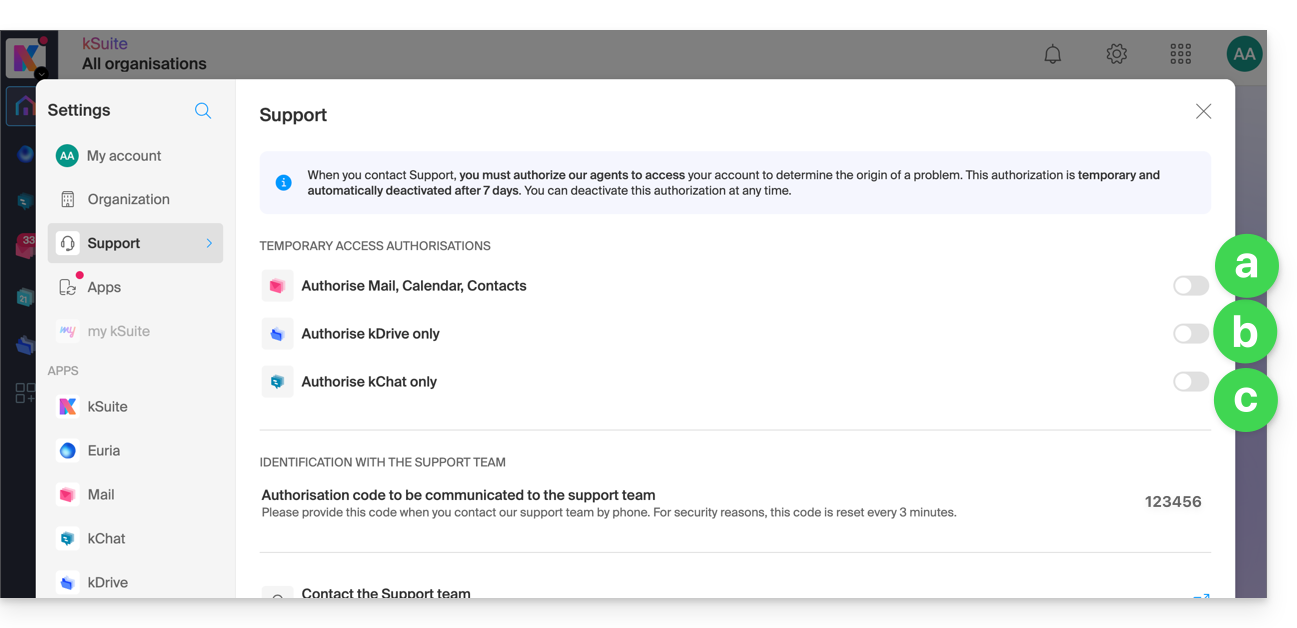
- Click on the toggle switch to allow access to the content of…
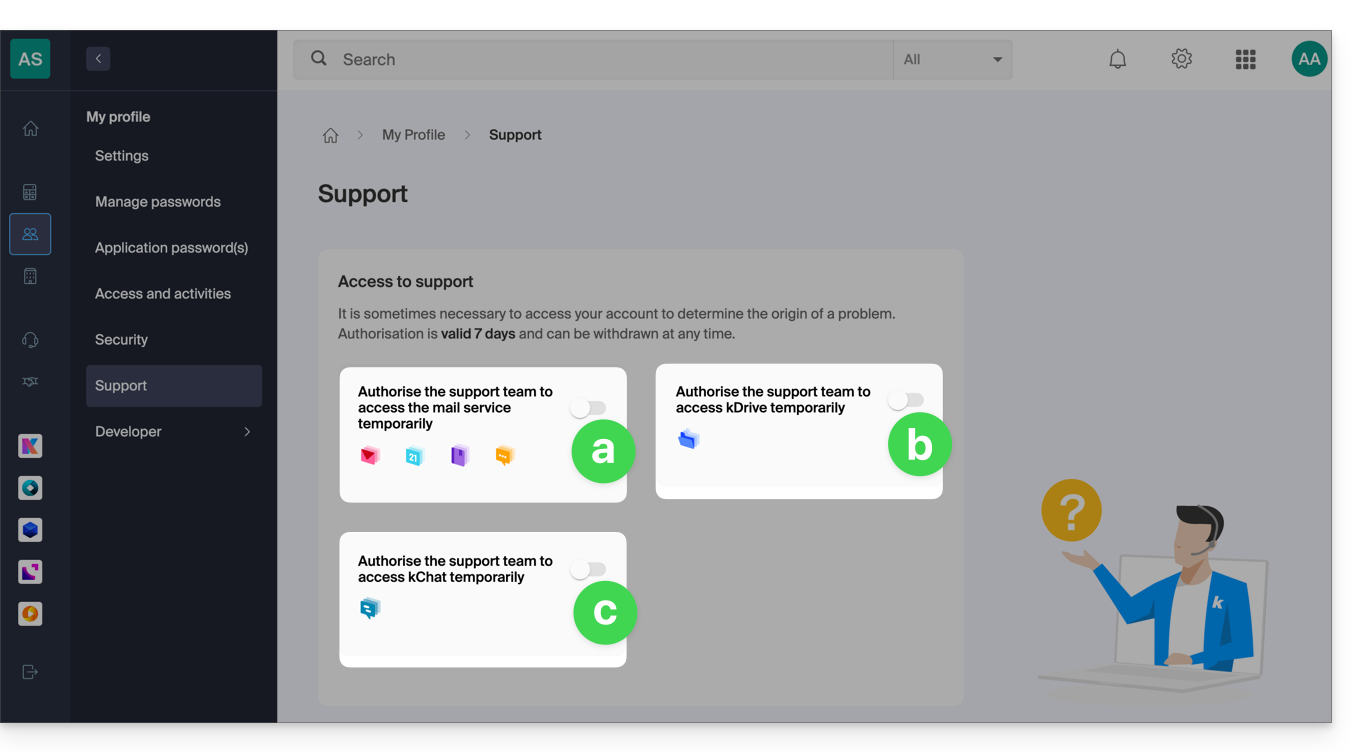
- … email addresses linked to the Mail web app from Infomaniak (online service ksuite.infomaniak.com/mail) + contacts & calendars,
- … folders from one or more existing kDrive accounts within the Organizations that the current user belongs to,
- … discussions from one or more existing kChat products within the Organizations that the current user belongs to.
With kSuite, you can also do this by clicking here or proceed as follows to achieve this:
- Click on Settings in the top right corner.
- Click on Support in the left-hand menu:
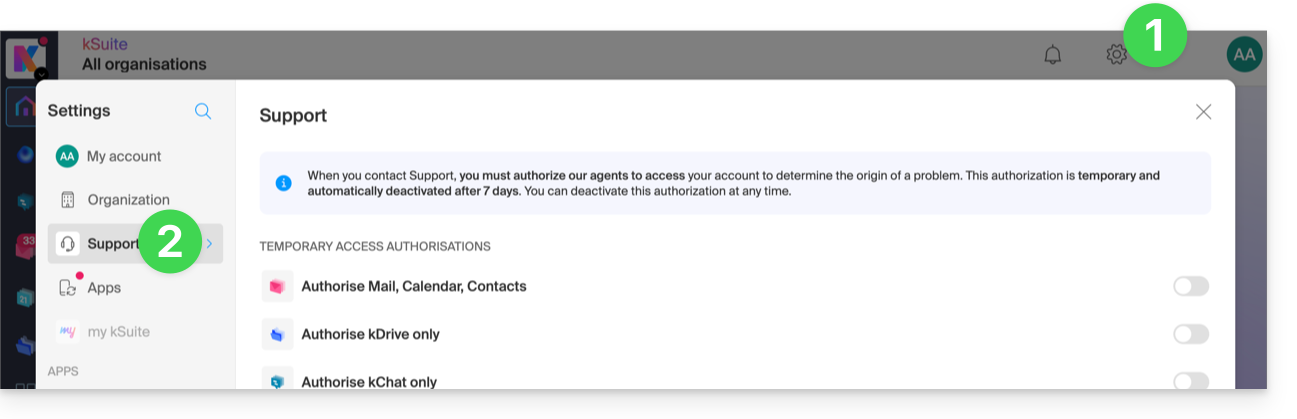
- Click on the toggle switch to allow access to the content of…
You can also easily share a single, specific email.
Taking Screenshots
… on Windows
Microsoft offers a software pre-installed that is dedicated to taking screenshots. But to take them manually:
- Display what you want/need to show on the screen.
- Press the PRINTSCREEN key on your keyboard once (or
PRTSCR,IMPR. ECRAN, etc.). - In Microsoft Word (or similar), go to "Edit" -> "Paste" to place your image on the page.
- Save your file.
- Repeat steps 1 to 5 as many times as the number of screenshots you want.
… on macOS
- Press the "
CMD" + "shift" (the upward-pointing arrow — Shift) + "3" keys simultaneously. - Each time you press these keys, an image file is created on your computer's desktop.
… on iOS (iPhone, iPad...)
- Simultaneously press the "
Power" + "Home" buttons (the only two physical buttons). - Then, retrieve the screenshots in the "Photos" app on your device.
… on Android (e.g. Samsung, LG or Huawei)
- Simultaneously press the “Volume Down” button (on the side) and the lock button.
- The captured image is automatically saved in a Screenshots folder in the gallery.
Copy the content of an alert window
… on Windows
To copy and paste an error message displayed in a Windows “popup” window as text, simply press the CTRL + C key on your keyboard to copy the message to the clipboard. You can then paste it (CTRL + V) into the body of the message you are sending.
Accessing the browser's JavaScript console
… on Windows
Chrome, Firefox, and Safari: enter the key combination CTRL + SHIFT + i
Edge: press the F12 key
… on macOS
Chrome: enter the key combination ⌘ + ⌥ + J
Safari: enter the key combination ⌘ + ⌥ + C
- Then, click on the icon with a crossed circle or similar to reset the log.
- Display the page of your website that is experiencing the issue.
- The console tab displays JavaScript errors and online resources that could not be found.
Link to this FAQ: https://faq.infomaniak.com/913
Has this FAQ been helpful?
This guide explains how to export a calendar in .ics format from Yahoo Mail so that you can easily import it into your Infomaniak tools.
Exporting the Yahoo Calendar
To retrieve your calendar:
- Log in to your Yahoo Mail account and access the calendar by clicking on the calendar icon in the right sidebar.
- Click on the Actions menu (represented by a gear icon) associated with your calendar, then choose Share….
- In the window that appears, select the calendar in question, then click Continue.
- Check the Generate links option.
- Click on the link that appears below the text.« For importing into a calendar application (ICS) » to download and save the
.icsfile to your computer.
If needed, please refer to this other guide.
Link to this FAQ: https://faq.infomaniak.com/2594
Has this FAQ been helpful?
This guide explains how to export your calendars and address books from Proton so that you can easily import them into your Infomaniak tools.
Exporting a calendar
To retrieve your events (usually in .ics format):
- Log in to your Proton Calendar account.
- Go to Settings (gear icon) then All settings.
- Select Calendars in the sidebar menu.
- Find the calendar in question and click on Export.
If needed, refer to this other guide.
Export an address book
To retrieve your contacts (in .vcf format):
- Access the Proton Contacts application.
- In the sidebar menu, simply click the Export contacts button.
For more details, please refer to this other guide.
Link to this FAQ: https://faq.infomaniak.com/2595
Has this FAQ been helpful?
This guide explains how to display a calendar with the dates of public holidays for the canton or country of your choice in the Infomaniak web app Calendar (online service ksuite.infomaniak.com/calendar).
Introduction
- These suggested calendars can be synchronized with your mobile and desktop devices.
- The birthday calendar (the calendar that displays the birthdays of your contacts when the date is entered in their address book entry) is only visible through the Infomaniak Calendar web app (online service ksuite.infomaniak.com/calendar) and cannot be synchronized with CalDAV tools.
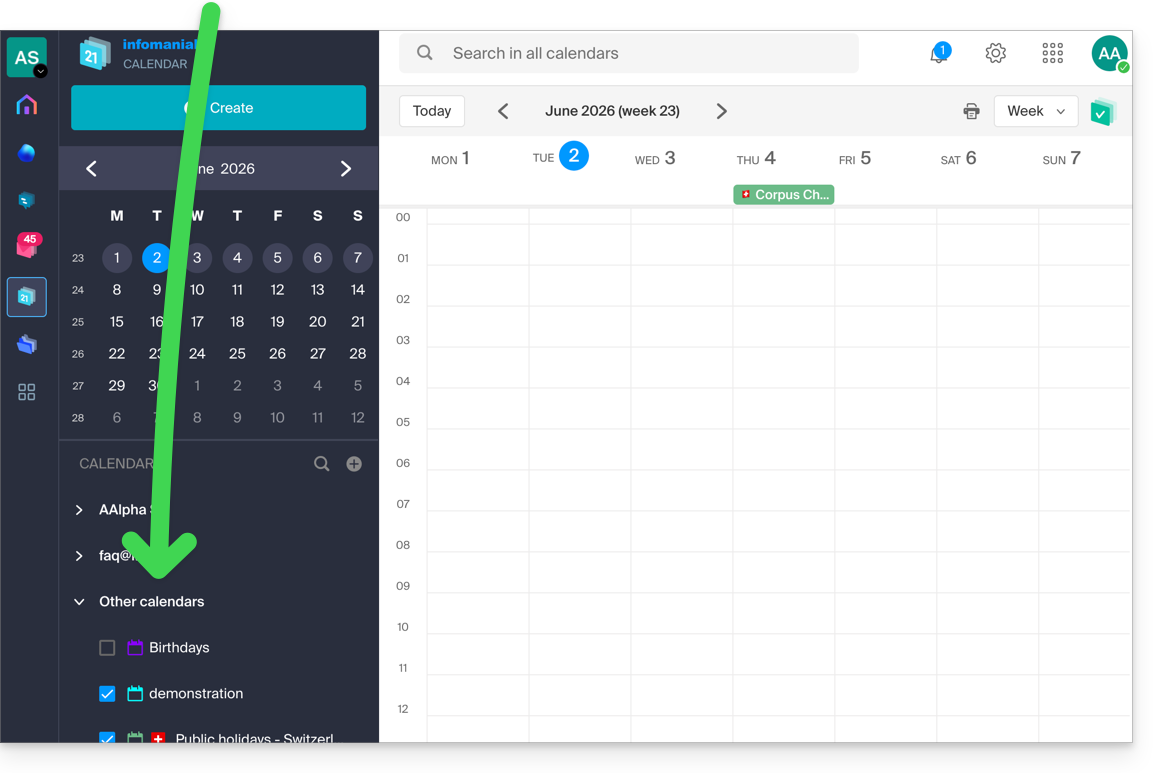
Display additional official calendars
To add the public holidays or school holidays calendar:
- Click here to access the Infomaniak web app Calendar (online service ksuite.infomaniak.com/calendar).
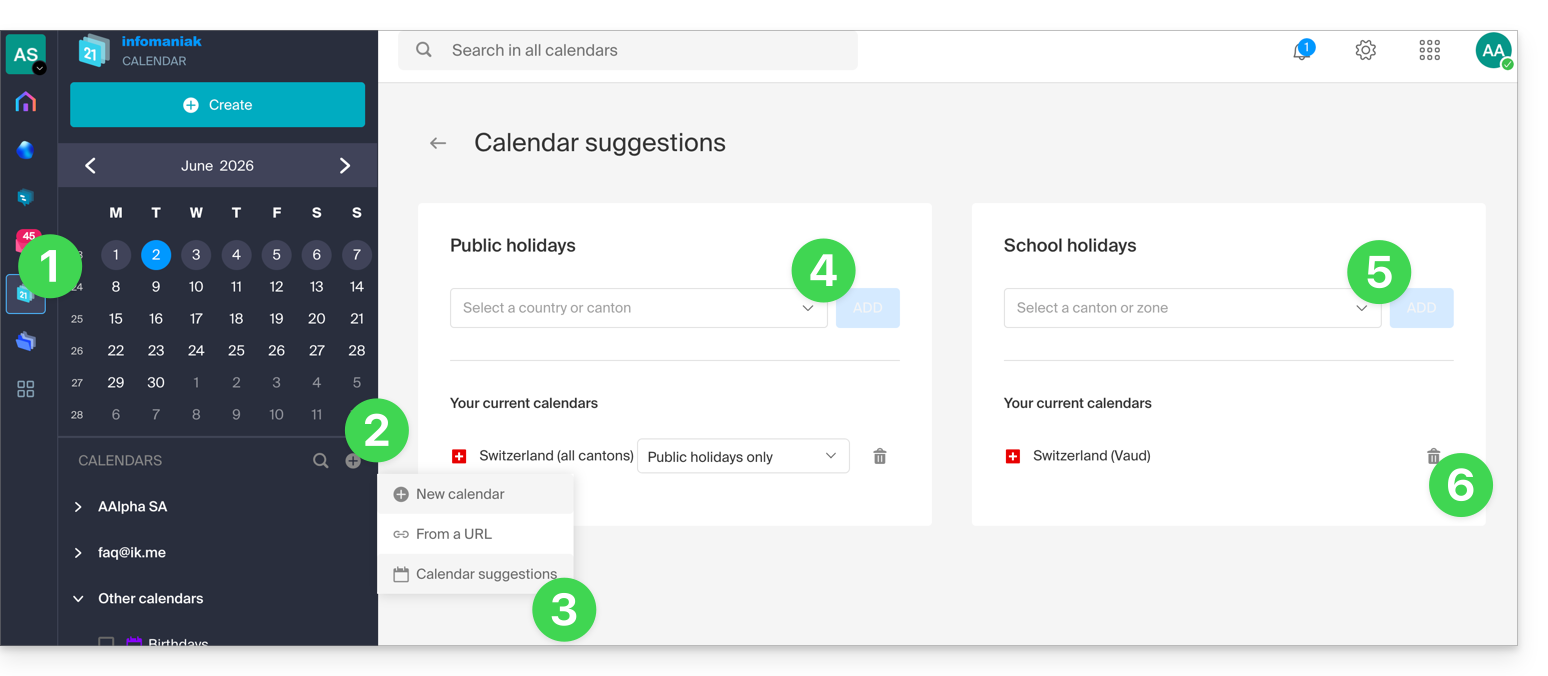
- Click on the button in the left-hand menu.
- Click on Suggested calendars.
- Choose from the calendars of national holidays (by canton or country).
- You can also add the official calendar of national school holidays (France, Switzerland, etc.).
- Once added, you can also remove them here:
Link to this FAQ: https://faq.infomaniak.com/566
Has this FAQ been helpful?
This guide explains how to force a synchronization of your Infomaniak contacts & calendars when they are synchronized using the kSync app on your Android device.
Introduction
- The kSync app only synchronizes the contacts & calendars that are selected in the application.
- If you add calendars/agendas later from Calendar or address books from Contacts, you will need to add them to the synchronization in the kSync application.
Add a calendar / address book to synchronization
To force synchronization if necessary:
- Open the kSync mobile app on your Android device and tap on the relevant synchronized account.
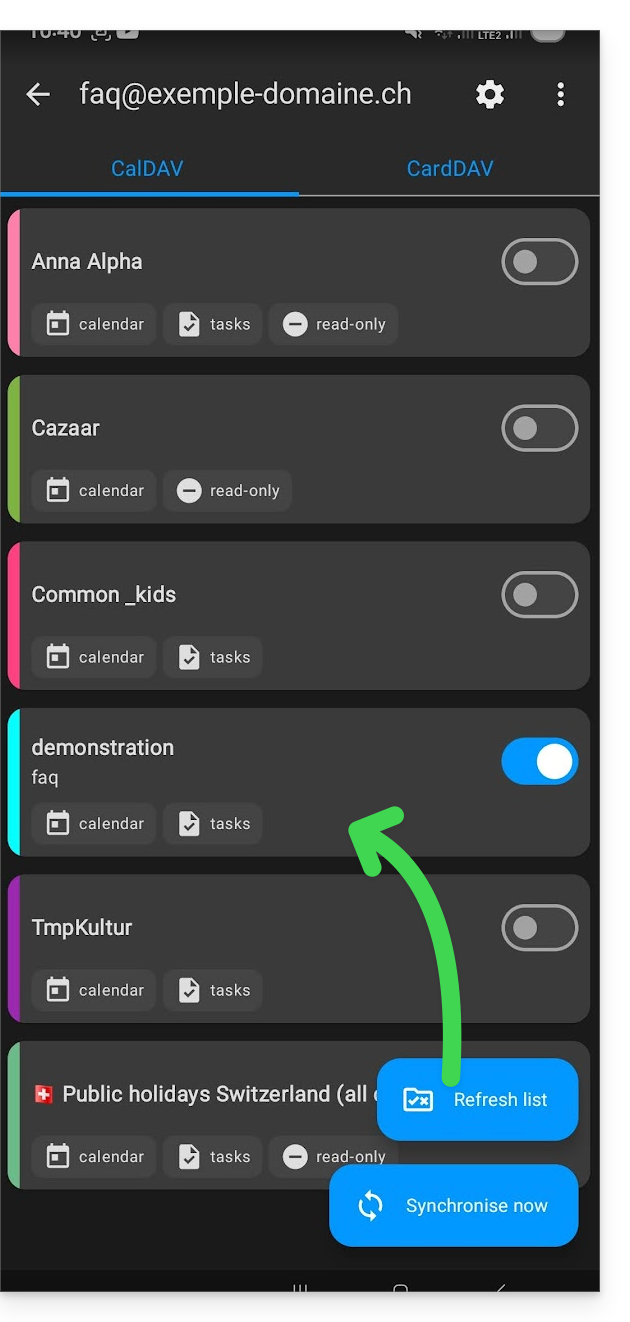
- Tap Refresh list to update the address books / calendars:
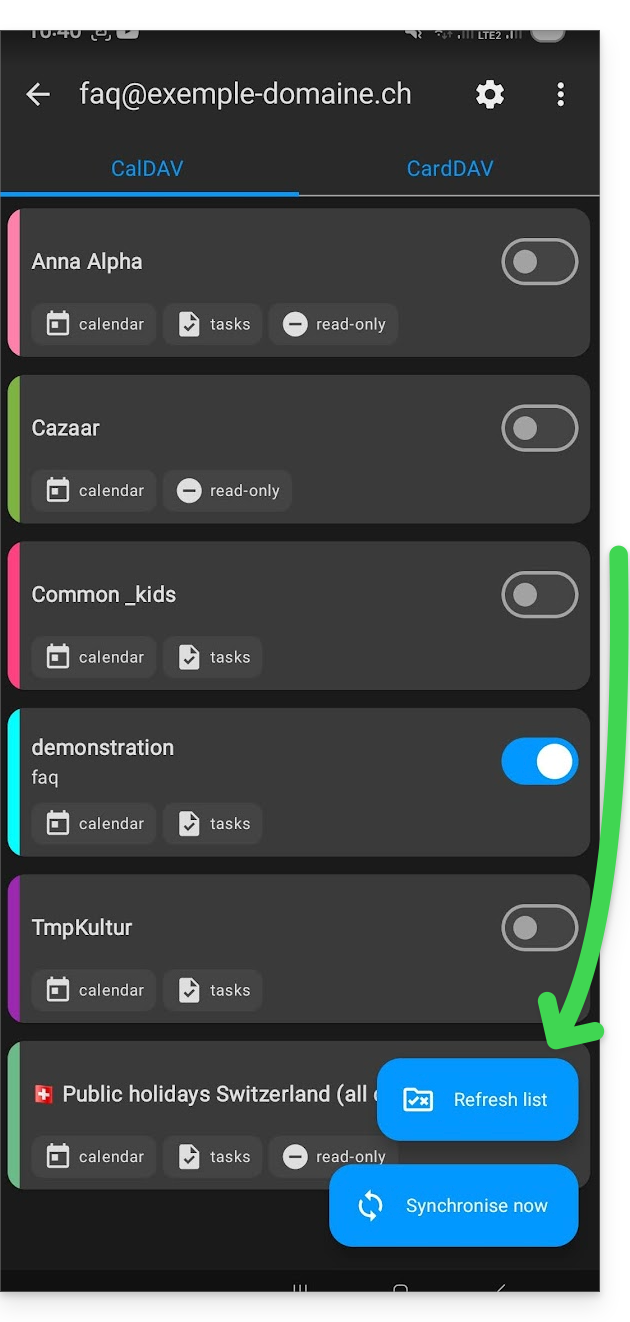
The new notebooks and calendars appear in the list. Configure the ones you want to synchronize.
Link to this FAQ: https://faq.infomaniak.com/2300
Has this FAQ been helpful?
This guide explains how to recover events, tasks, unavailable time slots, and deleted time slots from one of your calendars in the Infomaniak Calendar web app (online service ksuite.infomaniak.com/calendar for managing your events and appointments).
✘ NOT AVAILABLE with
kSuite Free
my kSuite (ik.me, etik.com, ikmail.com)
Mail Starter service
By upgrading one of these free plans, you will be able to restore backups for up to 30 days.
Calendar/Agenda Restoration
Backup Retention Period
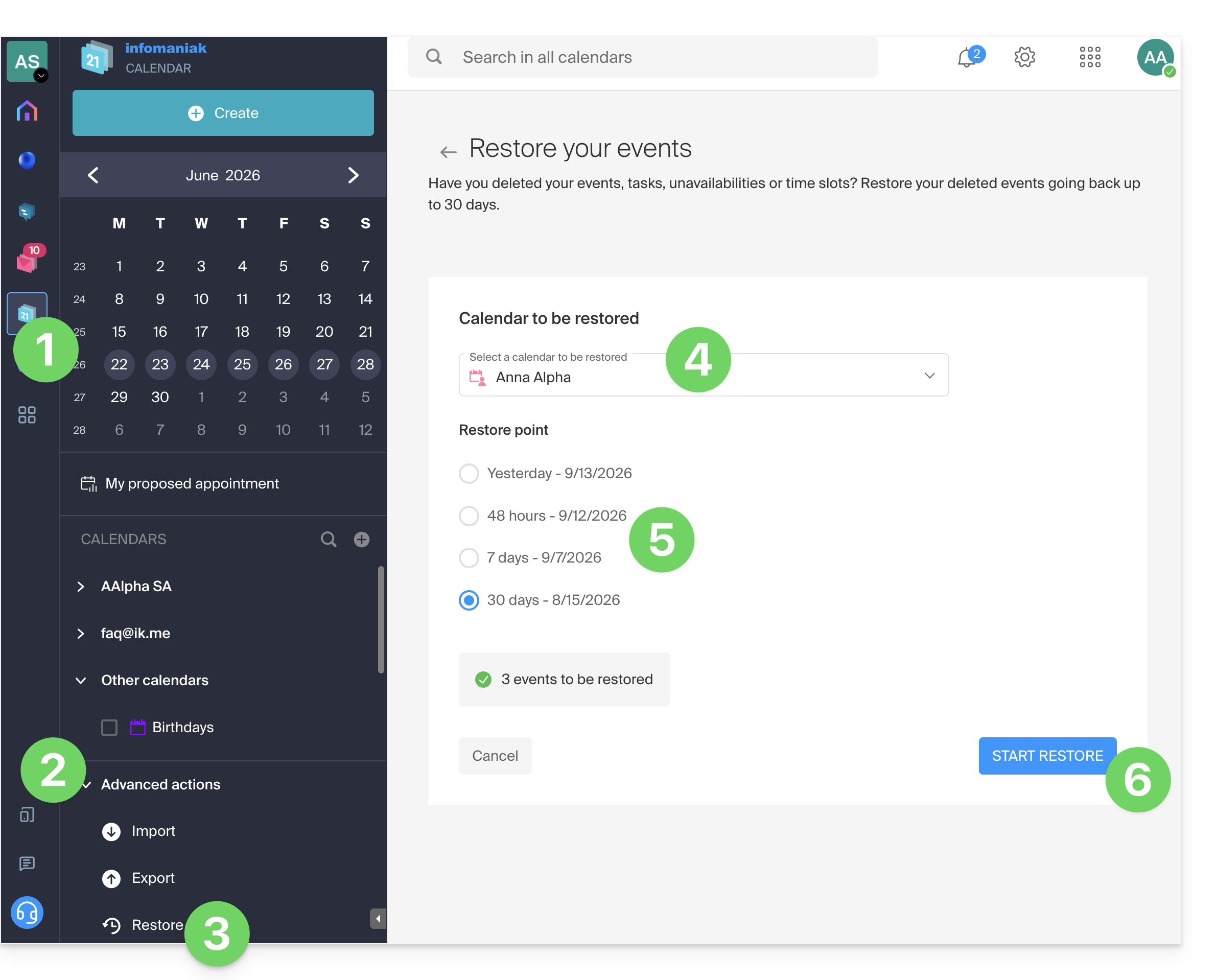
Restore points are created every day. Once a backup of your calendar's complete state has been created, Infomaniak makes it available to you for 30 days. If events can be restored, you can revert to the point from 24 hours, 48 hours, 7 days, and 30 days ago:
- Click here to access the Infomaniak Calendar web app (online service ksuite.infomaniak.com/calendar).
- Click on Advanced actions from the left-hand menu.
- Select Restore.
- Choose the calendar to restore.
- Choose the desired version (1/2/7/30 days).
- Start the restoration using the button at the bottom of the page, which is activated if events can be restored:
Link to this FAQ: https://faq.infomaniak.com/1688
Has this FAQ been helpful?
This guide explains how to add a new recurring event to a calendar in the Infomaniak Web app Calendar (online service ksuite.infomaniak.com/calendar).
Introduction
- To easily create and configure a new event, refer to this other guide.
- It is possible to modify (move/delete) a single instance of a recurring event in the Infomaniak calendar without affecting the entire series, allowing you to adjust the time, participants, location, or duration of a specific meeting while preserving the original configuration for all other instances.
Add a recurring event
To add an event that will be repeated in the future:
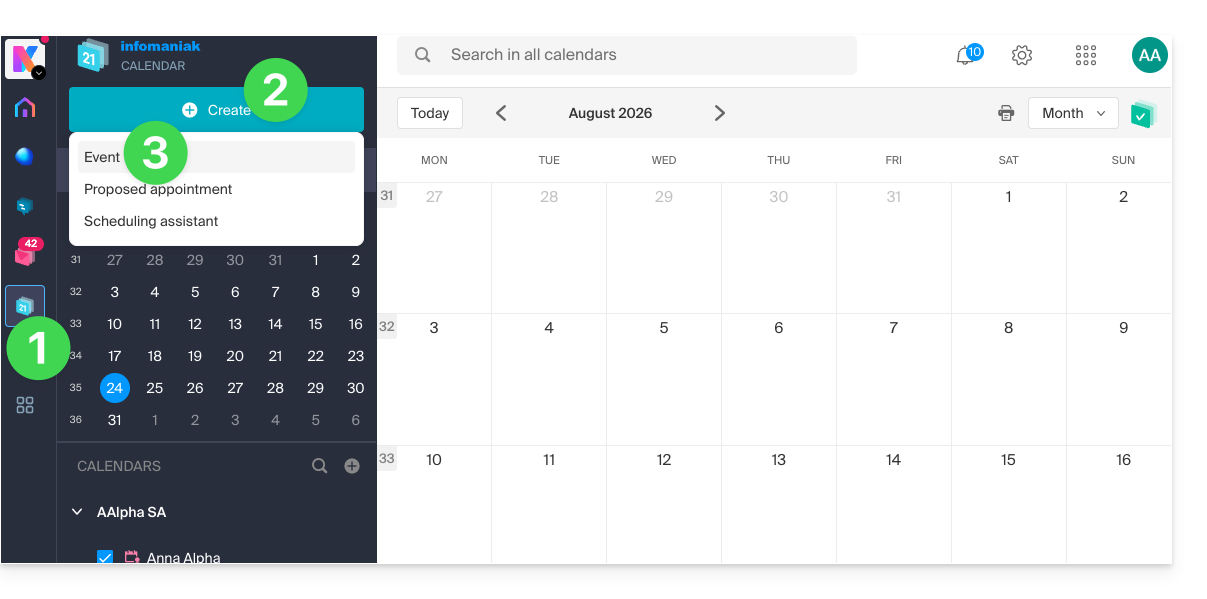
- Click here to access the Infomaniak Calendar web app (online service ksuite.infomaniak.com/calendar).
- Click the Create button in the upper left corner.
- Click on Event:
- Enter the event details.
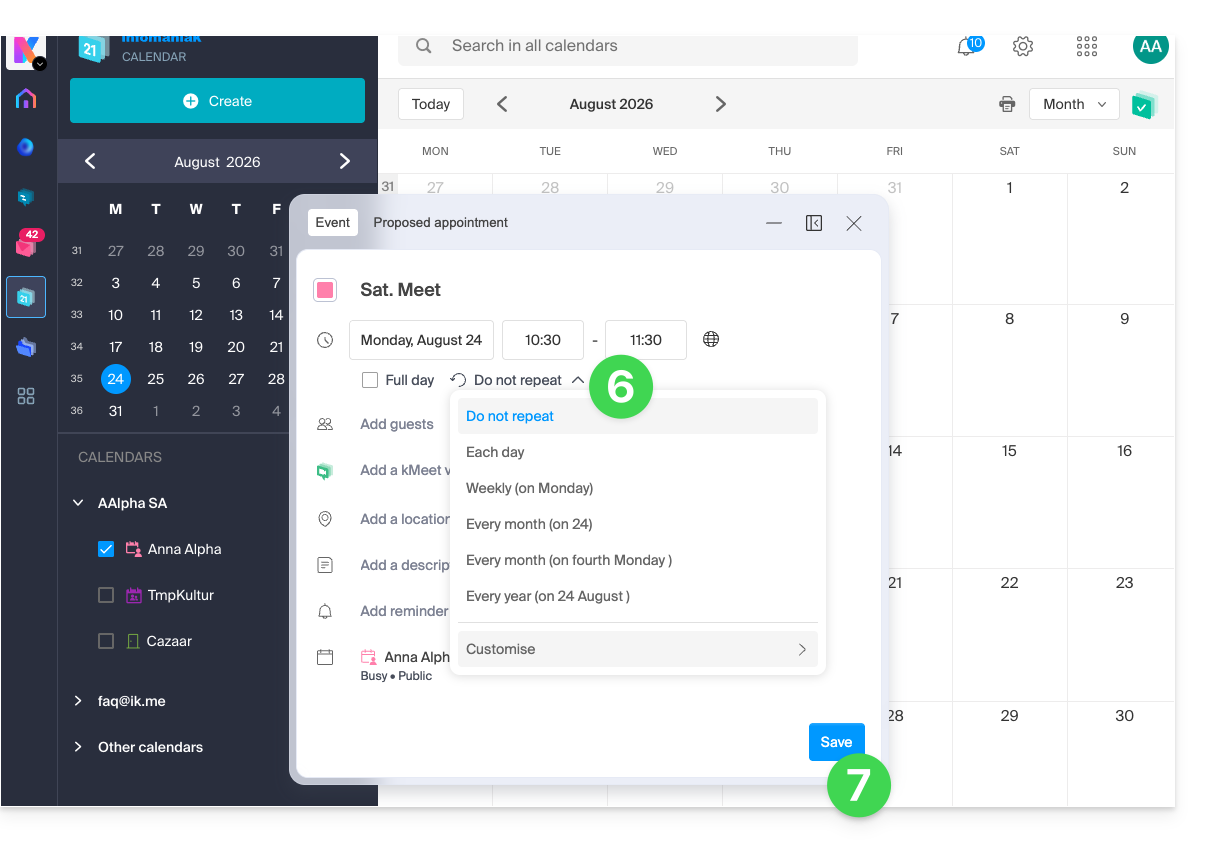
- Click on the time/date section:
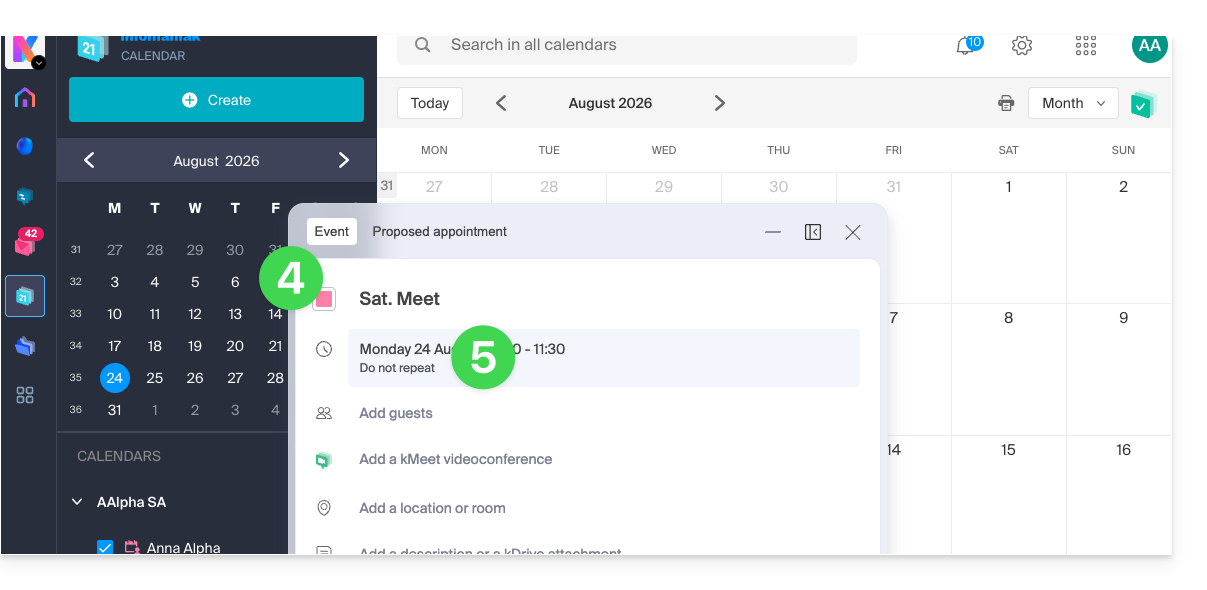
- Enable recurrence and customize it as needed.
- Save the recurring event at the bottom of the page:
Link to this FAQ: https://faq.infomaniak.com/1565
Has this FAQ been helpful?
This guide details the room booking feature (for meeting rooms, sports facilities, classrooms, etc.) available in the Infomaniak Web app Calendar (online service ksuite.infomaniak.com/calendar).
✘ NOT AVAILABLE with
my kSuite / my kSuite+ (ik.me, etik.com, ikmail.com)
Mail service Starter / Premium
Introduction
- You can create and associate physical meeting rooms with events in Calendar, for example, to organize an event in a specific location that has equipment and a limited number of seats.
- Each created room displays a dedicated calendar in the app, which can be shared (❓: help).
- Double (or multiple) room bookings are possible.
- Number of possible rooms per resource:
- kSuite Free = 1
- kSuite Standard = 2
- kSuite Business = 6
- kSuite Enterprise = 50
Configure meeting rooms
Prerequisites
- You must be at least an Administrator of the Organization (❓: help).
- Users with limited rights (collaborators and clients) who have access to this product will not be able to do this.
To create rooms that can be booked by employees:
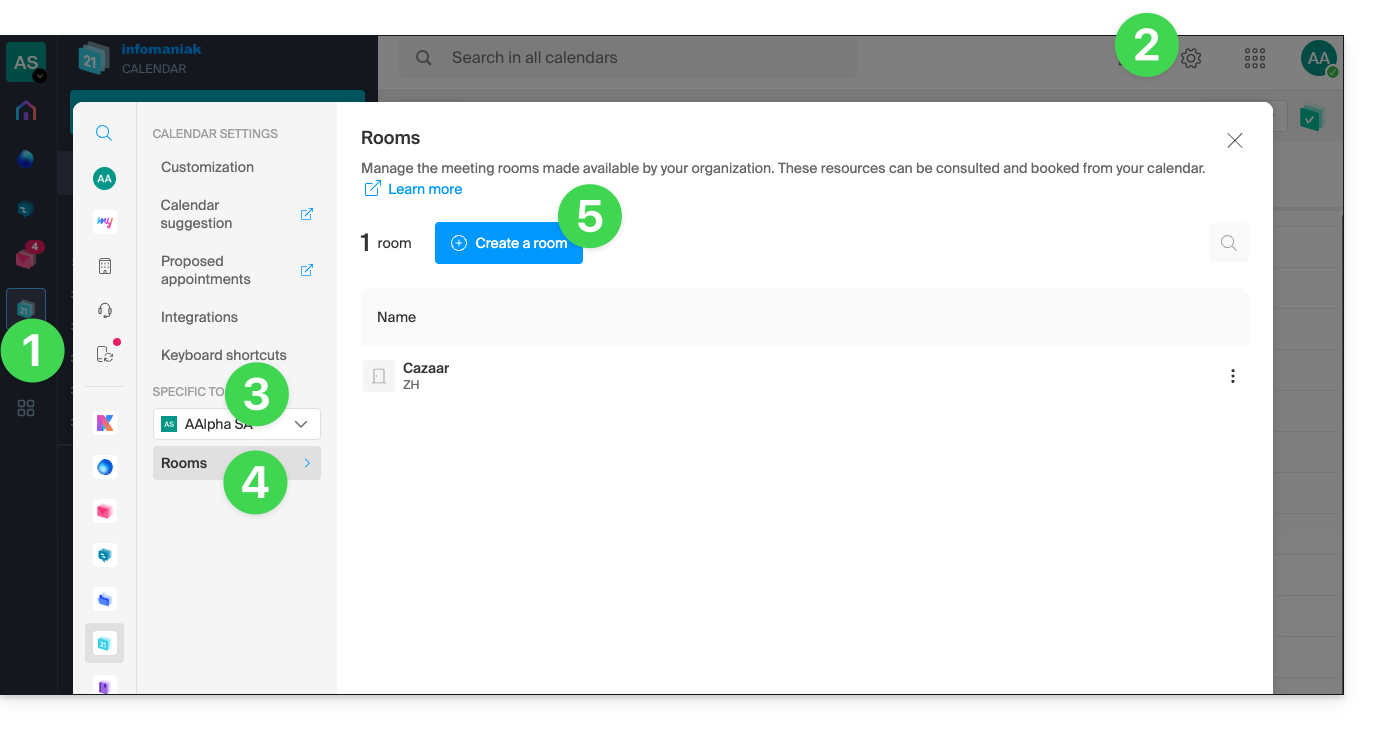
- Click here to access the Infomaniak Calendar web app (online service ksuite.infomaniak.com/calendar).
- Click on Settings in the top right corner.
- Check or select the relevant Organization from the dropdown menu in the left-hand sidebar.
- Click on Rooms in the left-hand menu.
- Click on the Create a room button:
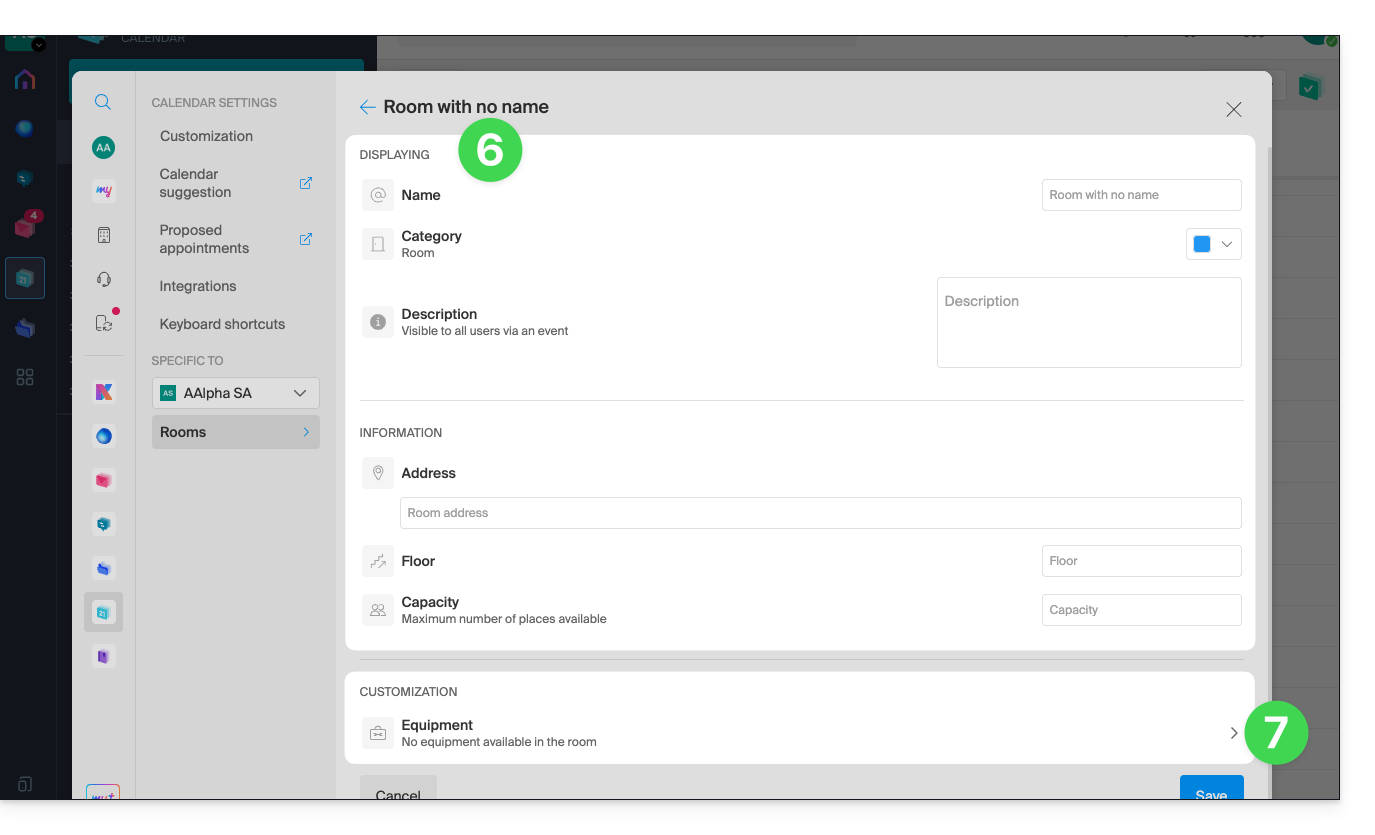
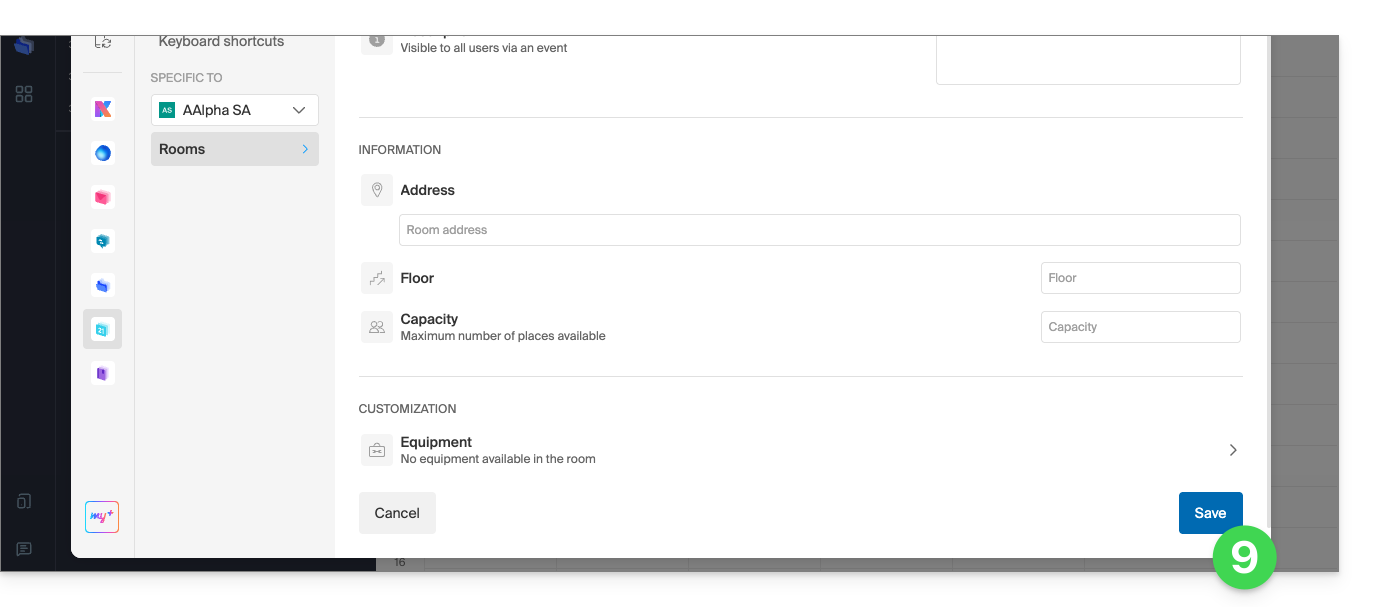
- Enter the essential information, such as the name, precise location (full address, floor), a color, and the maximum number of people that can be accommodated:
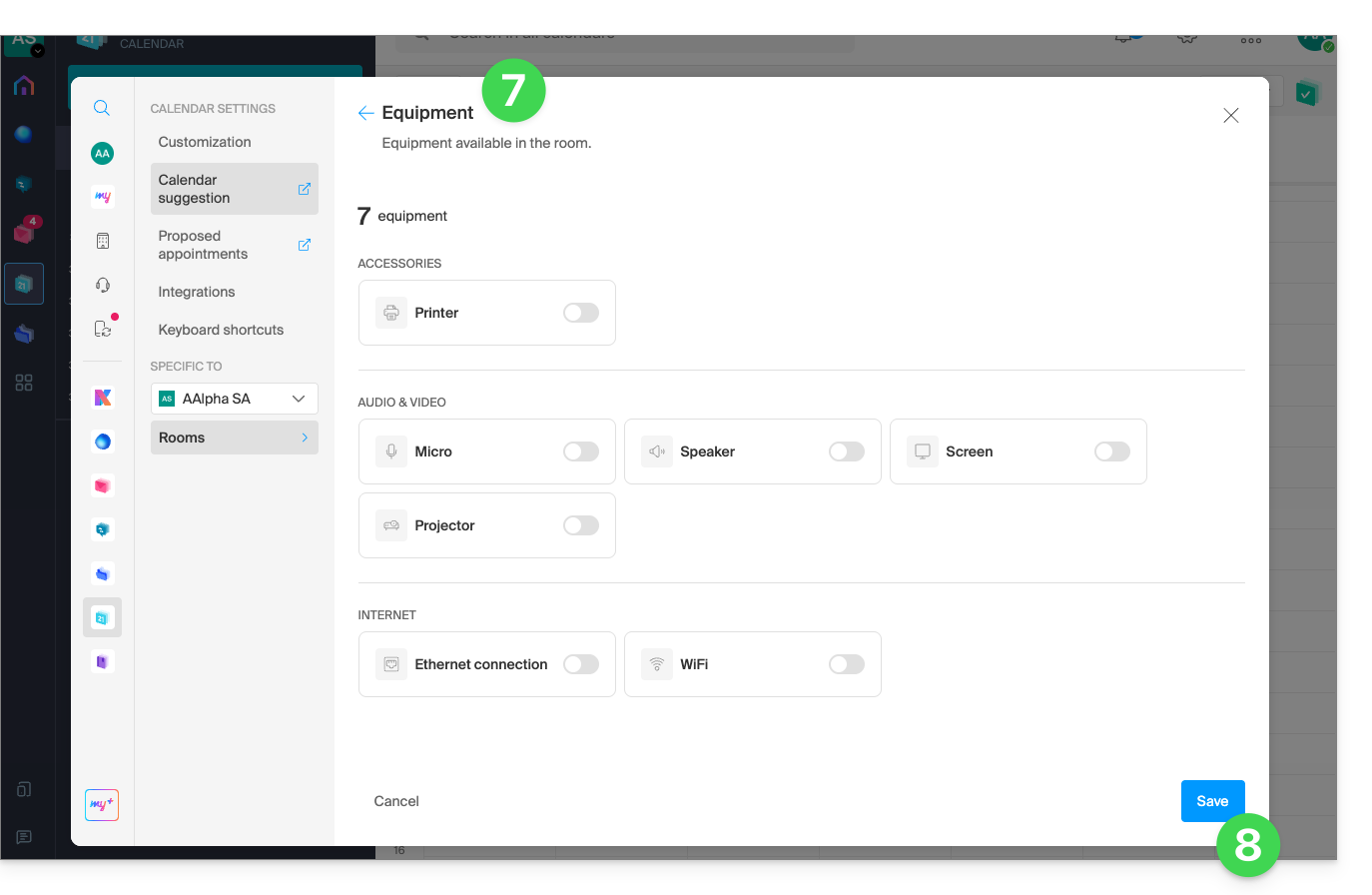
- Add any equipment that may be available in the room and on the floor in question.
- Click Save to save the material related to the room:
- Click Save to create the meeting room:
Actions on the created room
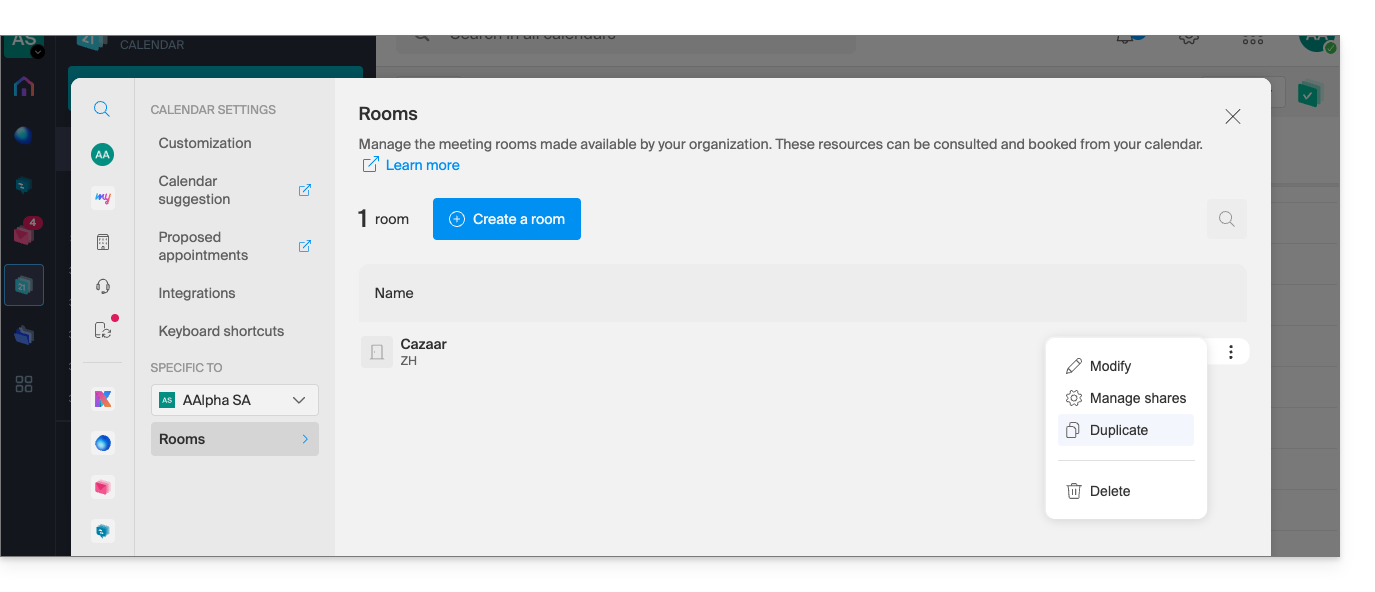
If you have several similar rooms, you can speed up their creation by duplicating the first one:
- Click on the action menu ⋮ to the right of the relevant room in the table that appears:
Create an event and associate it with a room
Once the room has been created and configured, simply create an event and associate it with the desired room:
- Click here to access the Infomaniak Calendar web app (online service ksuite.infomaniak.com/calendar).
- Click on the Create button in the top left corner.
- Click on Event.
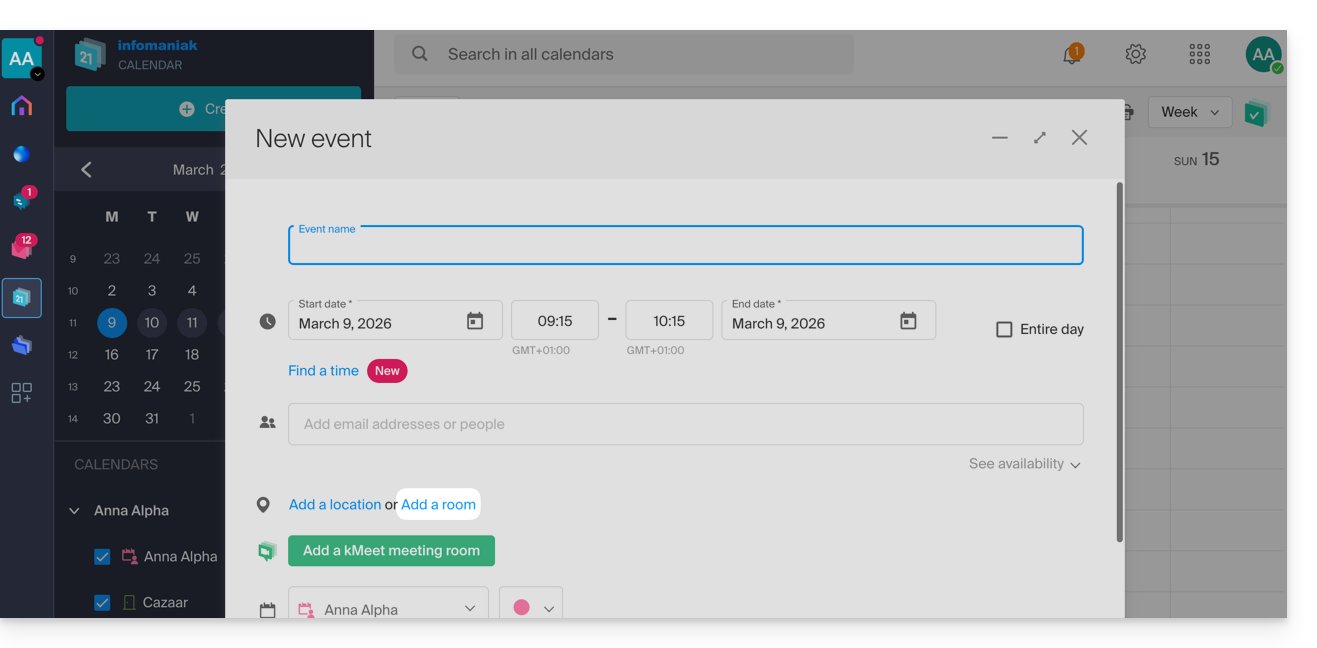
- Click on Add a room:
- Click in the Search for a room or location field to display the available rooms for the selected time slot (the 3 most recently booked rooms, from newest to oldest).
- Click Save to publish the event and its room in the calendar:
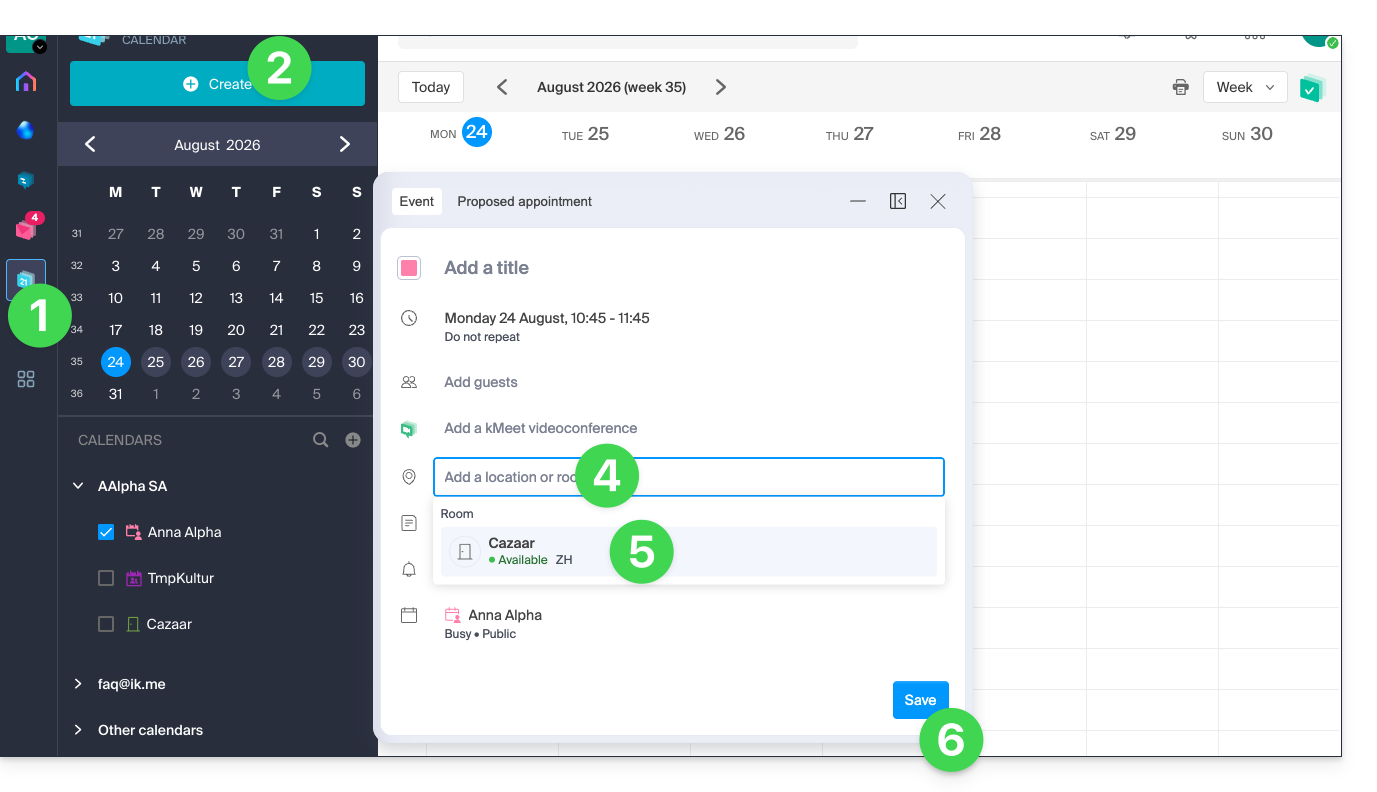
- You can find all the information about the chosen location on the event page in the calendar (and on the room's calendar - see below):
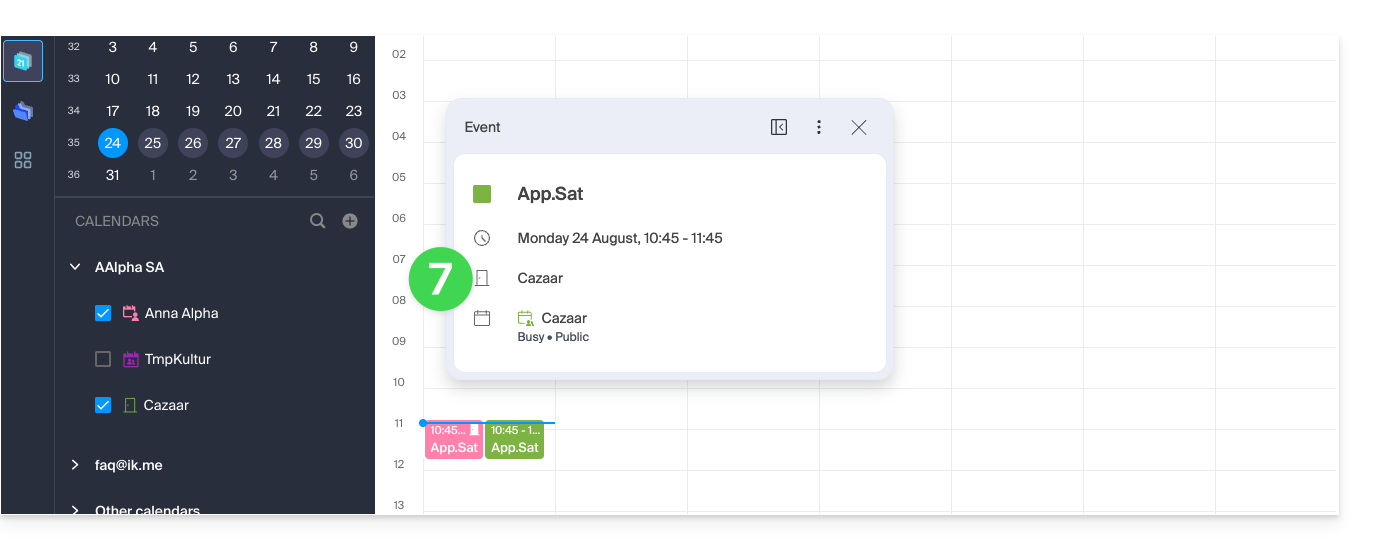
Overview of rooms and their occupancy
You can view an overview of each room's schedule to see its occupancy. When a room is created, a calendar associated with it is created in the Organization's calendars: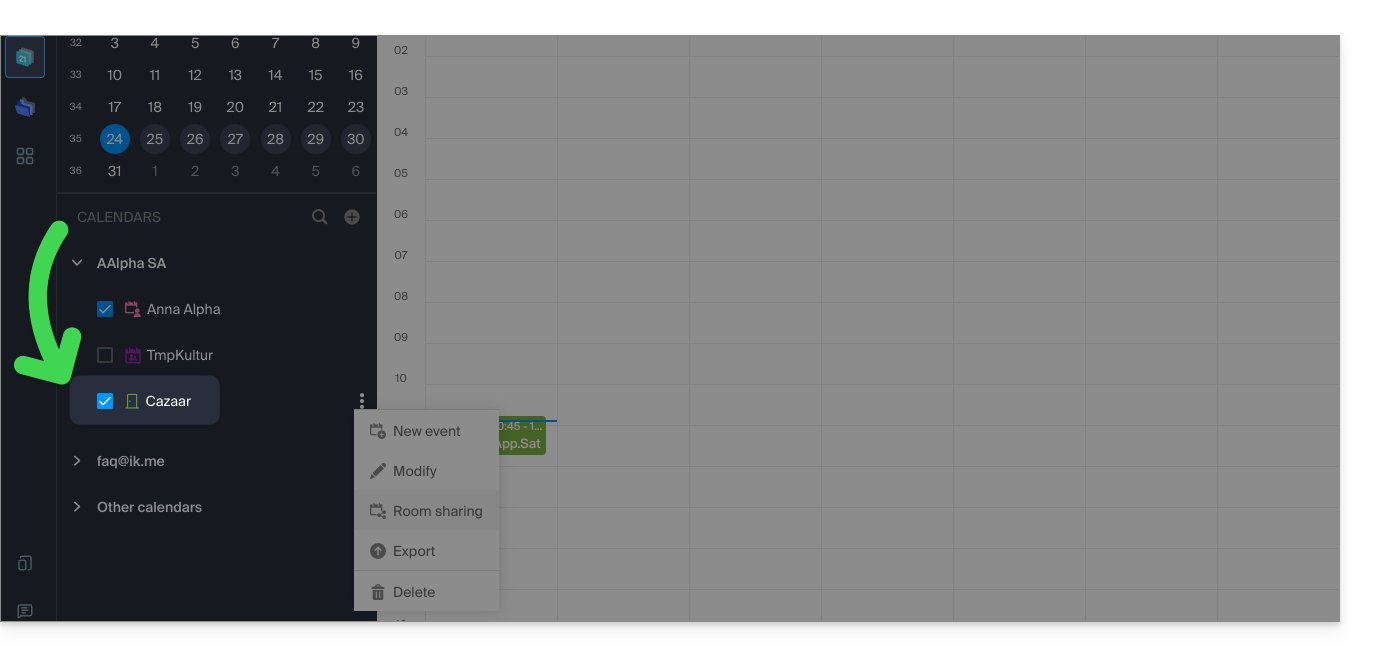
Your dedicated kSuite space also displays a real-time view of your room availability, with the option to book a room in just a few clicks, saving you time when organizing your meetings: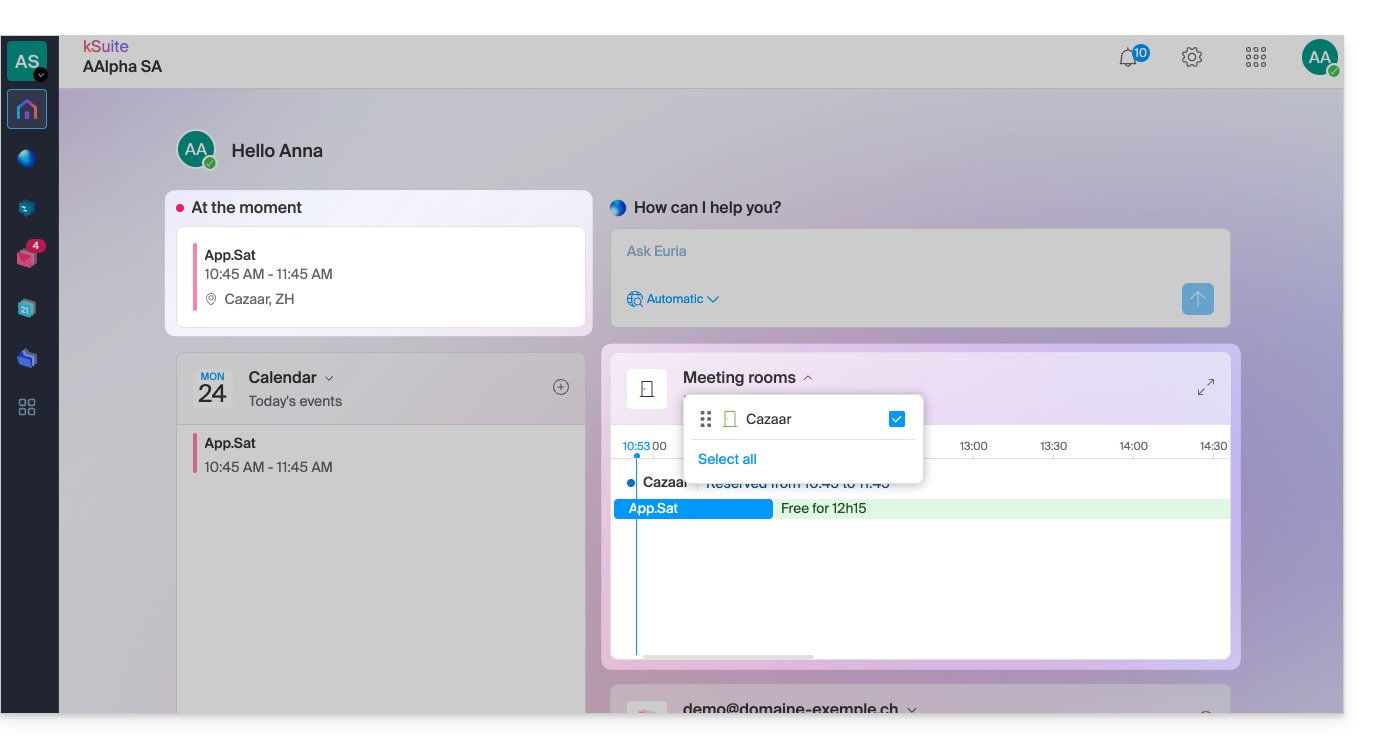
Link to this FAQ: https://faq.infomaniak.com/1329
Has this FAQ been helpful?
This guide explains how to suggest dates and times for meetings to multiple people using the Infomaniak Calendar web app (online service ksuite.infomaniak.com/calendar). Guests can then indicate their availability by voting for the time slots proposed by the organizer.
Introduction
- The functionality is similar to Doodle, but with a key difference: the organizer defines the guests precisely in advance (or as they go), and only these invited people can participate, unlike a poll that is accessible to anyone with the link.
- You can also access the feature while reading an email.
- To schedule a meeting based on the available times of each invitee, please refer to this other guide.
Suggest a meeting
To suggest a new joint event using a meeting request:
- Click here to access the Infomaniak Calendar web app (online service ksuite.infomaniak.com/calendar).
- Click on the Create button in the upper left corner.
- Click on Suggest a meeting:
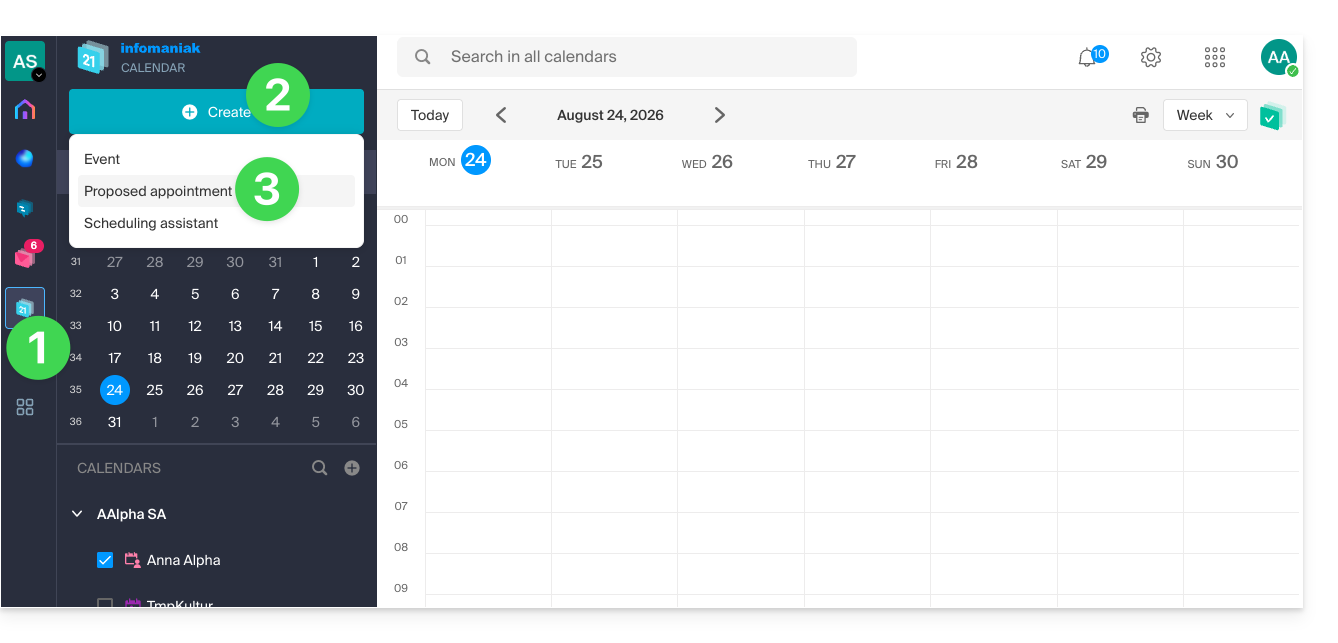
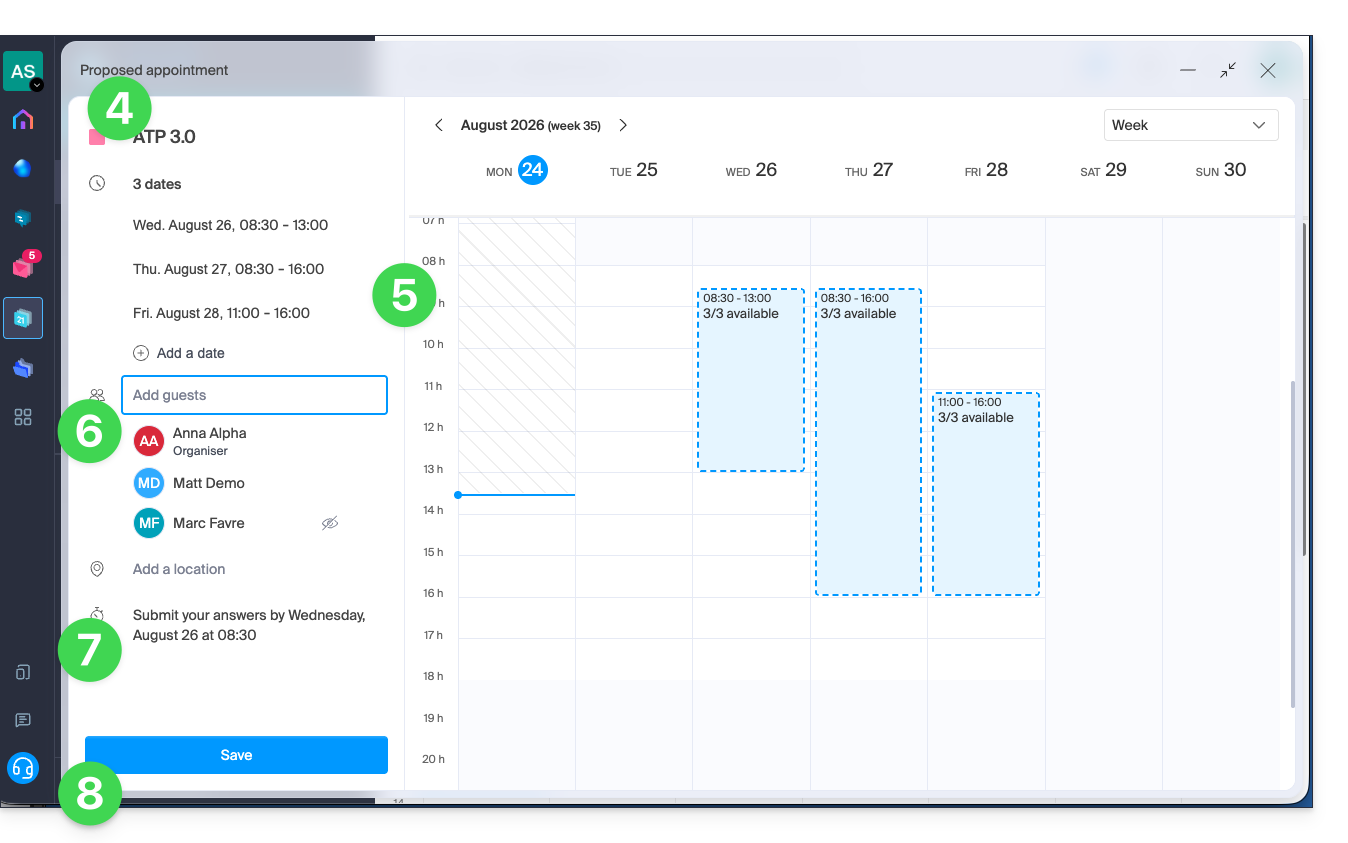
- Indicate the color and title (subject) of the event; the event location can be defined below.
- Enter the proposed dates/times manually or by clicking on the calendar displayed on the right.
- Enter the guests, using their email address if the guest is not a user of the Organization.
- Enter the deadline date/time after which it will no longer be possible to respond.
- Save the preferences using the button at the bottom of the page to create the invitation and date suggestions, for which guests will be able to vote:
Vote for one or more of the proposals
The invited user receives an email containing the organizer's various proposals; they can then indicate whether they are available during one or more of the proposed time slots.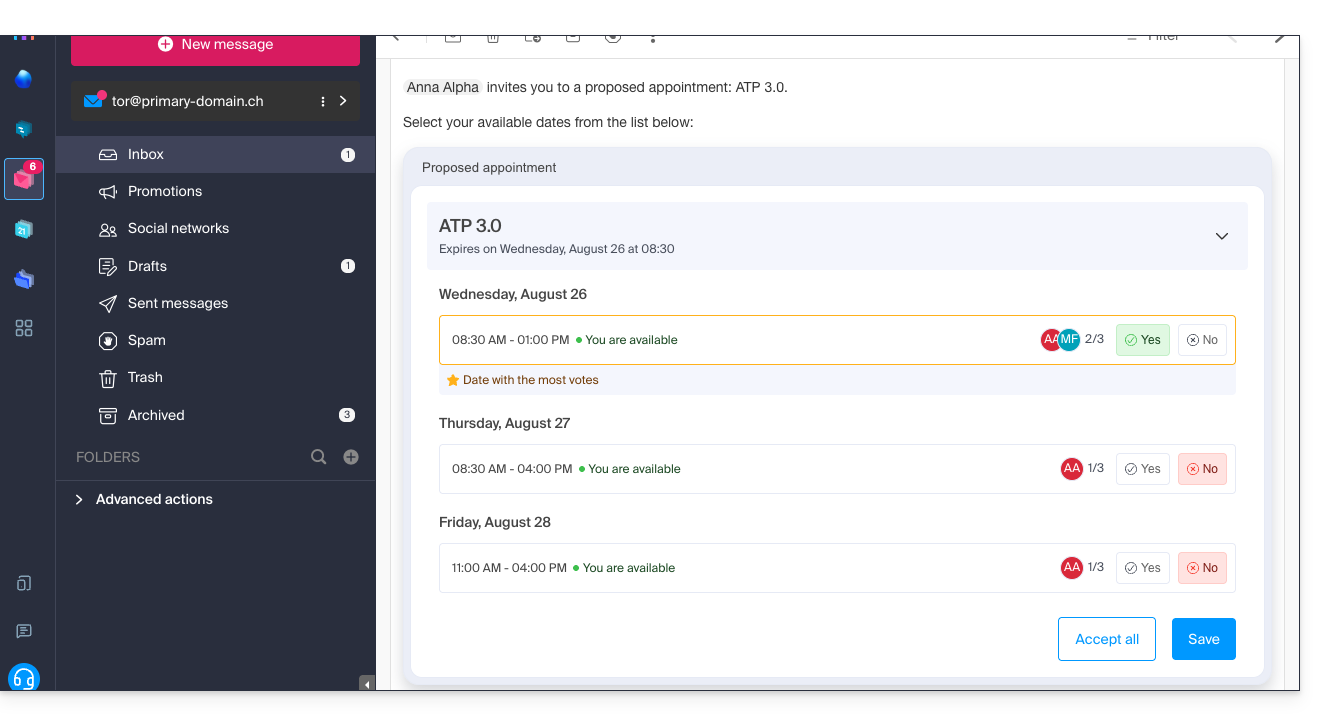
If the user is external to Infomaniak, or if they access their email via an email client such as Outlook, then managing their participation takes place in two steps: the email contains information and a link that leads to a simplified and neutral interface, allowing them to register their vote: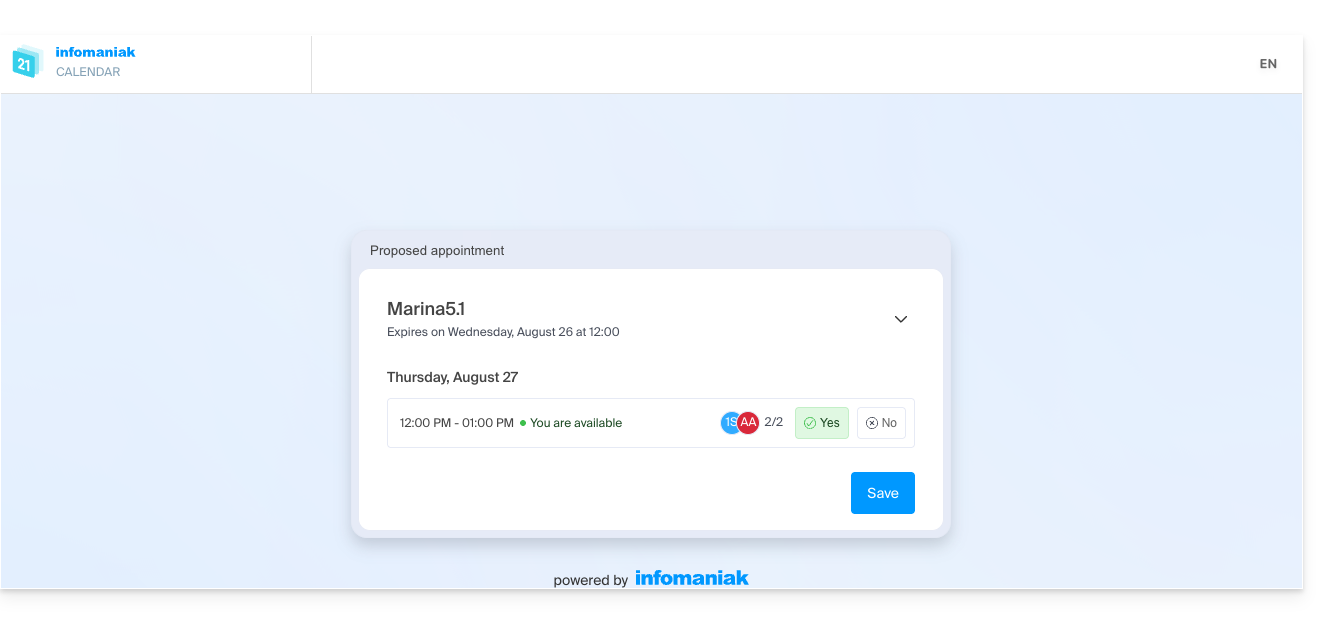
Decide on the date of the event based on the responses
The organizer can access the proposed meeting times and select one of the proposals as the final one:
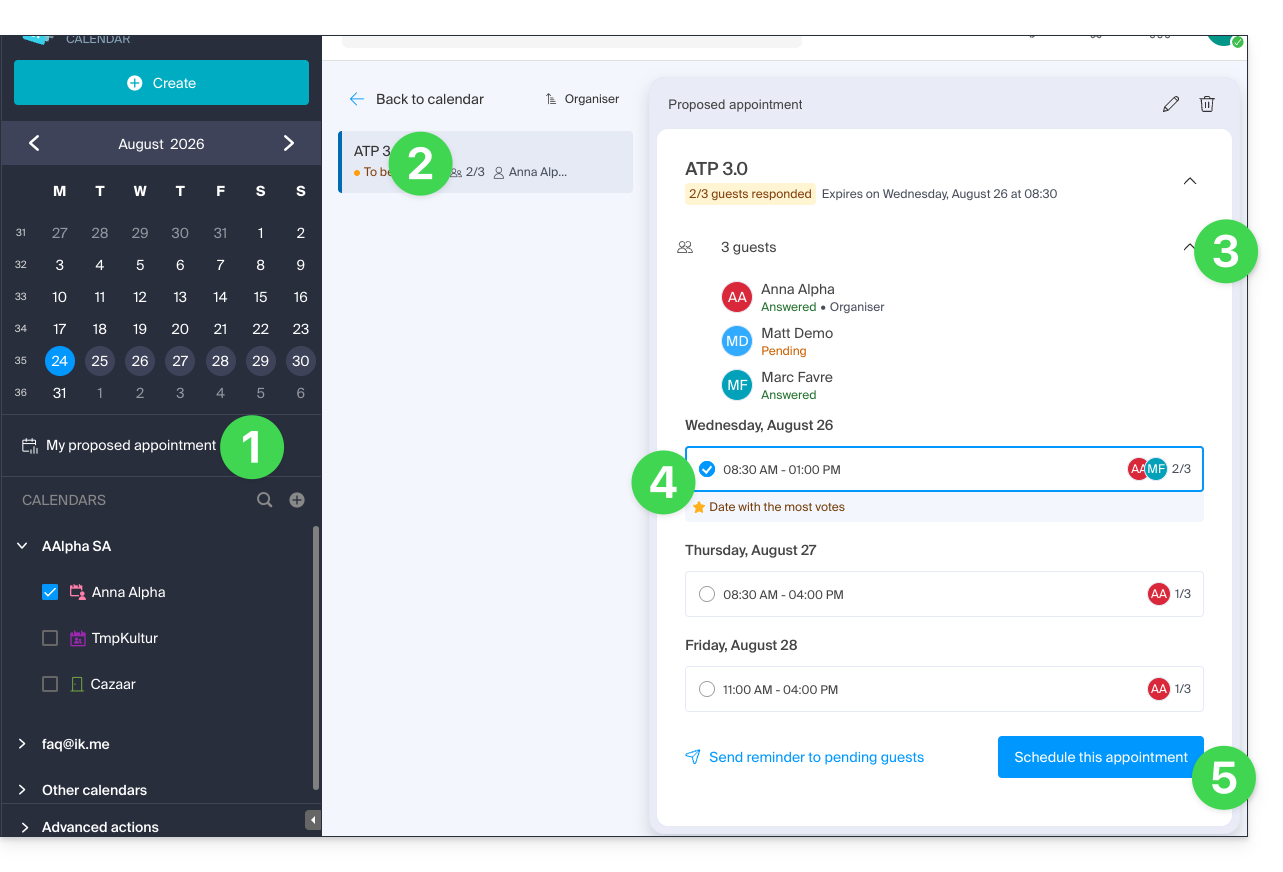
- Click on the left-hand side menu “My meeting proposals”.
- Click on the relevant suggestion.
- Click on the chevron to see the details of the guests who voted or did not vote.
- Click the radio button to select one option over another.
- Confirm the appointment by clicking the button in the bottom right corner:
- All that remains is to complete and validate the event creation, including its associated invitations:
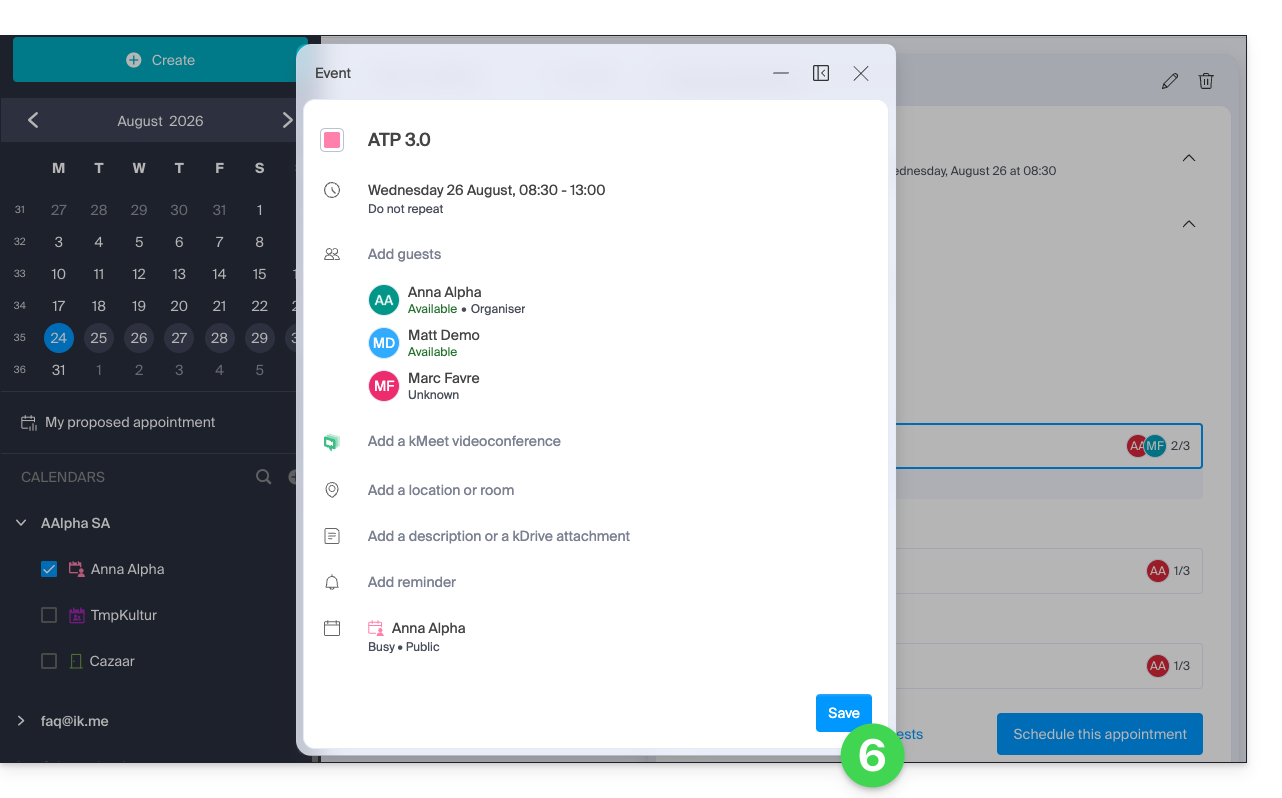
- In the same location, the meeting proposal is now defined as Scheduled.
- It is still possible to perform certain actions on the event later, including deleting it:
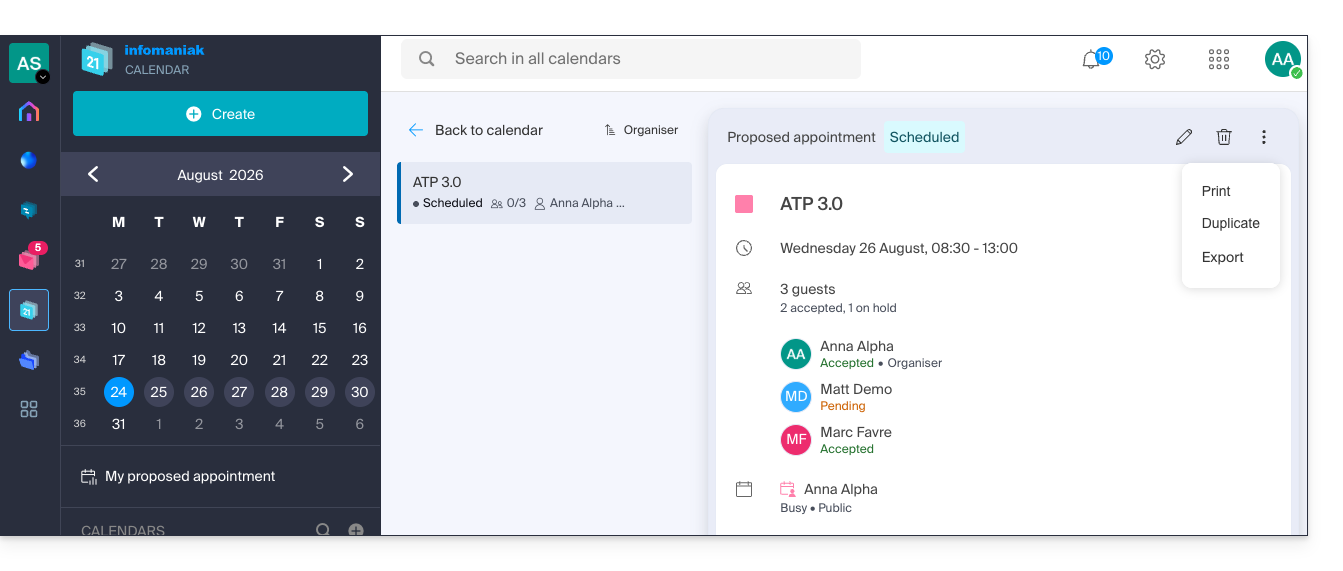
- Note: deleting a meeting proposal removes it from the dedicated menu, but will not automatically delete any associated event that may have been created in the meantime.
Link to this FAQ: https://faq.infomaniak.com/2928
Has this FAQ been helpful?
This guide explains how to add an attachment from kDrive to an event in a calendar using the Infomaniak Calendar web app (online service ksuite.infomaniak.com/calendar).
Introduction
- Some software or applications also allow you to add an attachment, and in this case, if you synchronize the calendar with your solution, the attached file can be up to a maximum size of 64 KB.
Add a kDrive attachment
When you create a new event on the Infomaniak Calendar web app (online service ksuite.infomaniak.com/calendar), you can add one or more attachments (links to files in kDrive):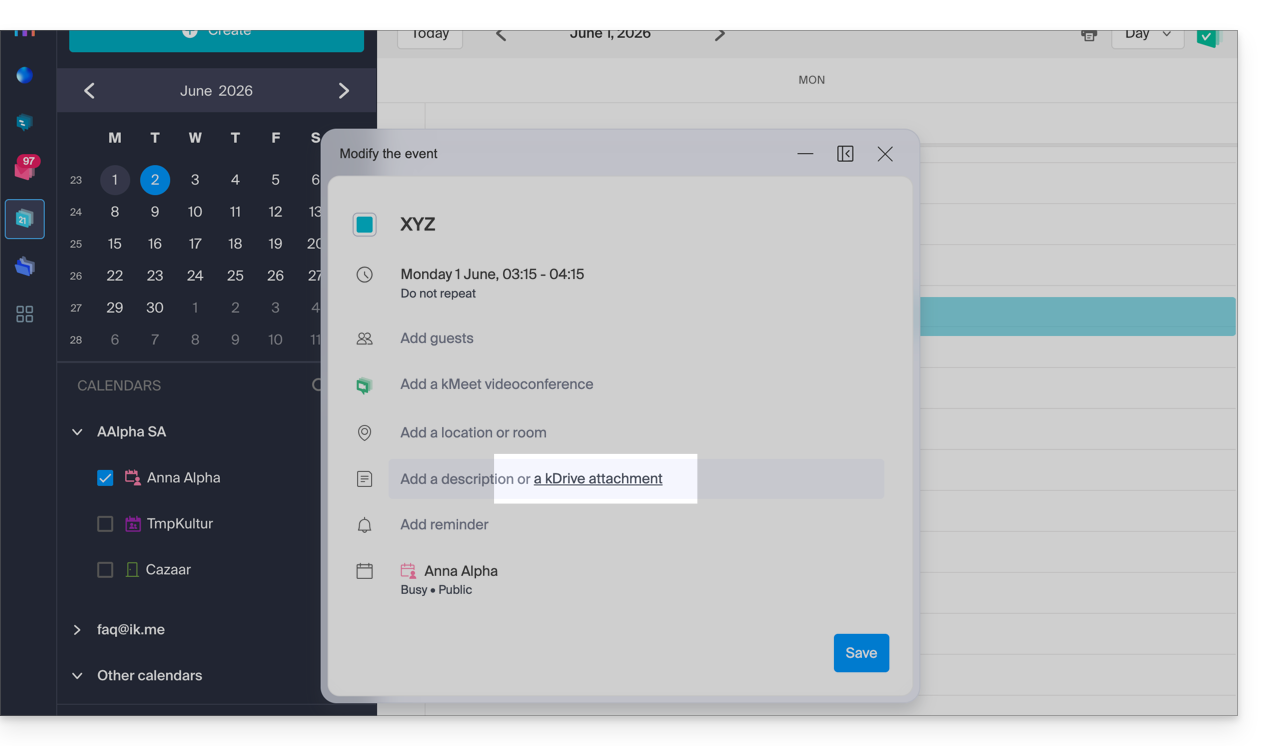
Then, click on the “Insert a kDrive link” link, and you will access kDrive directly from the Calendar event creation window: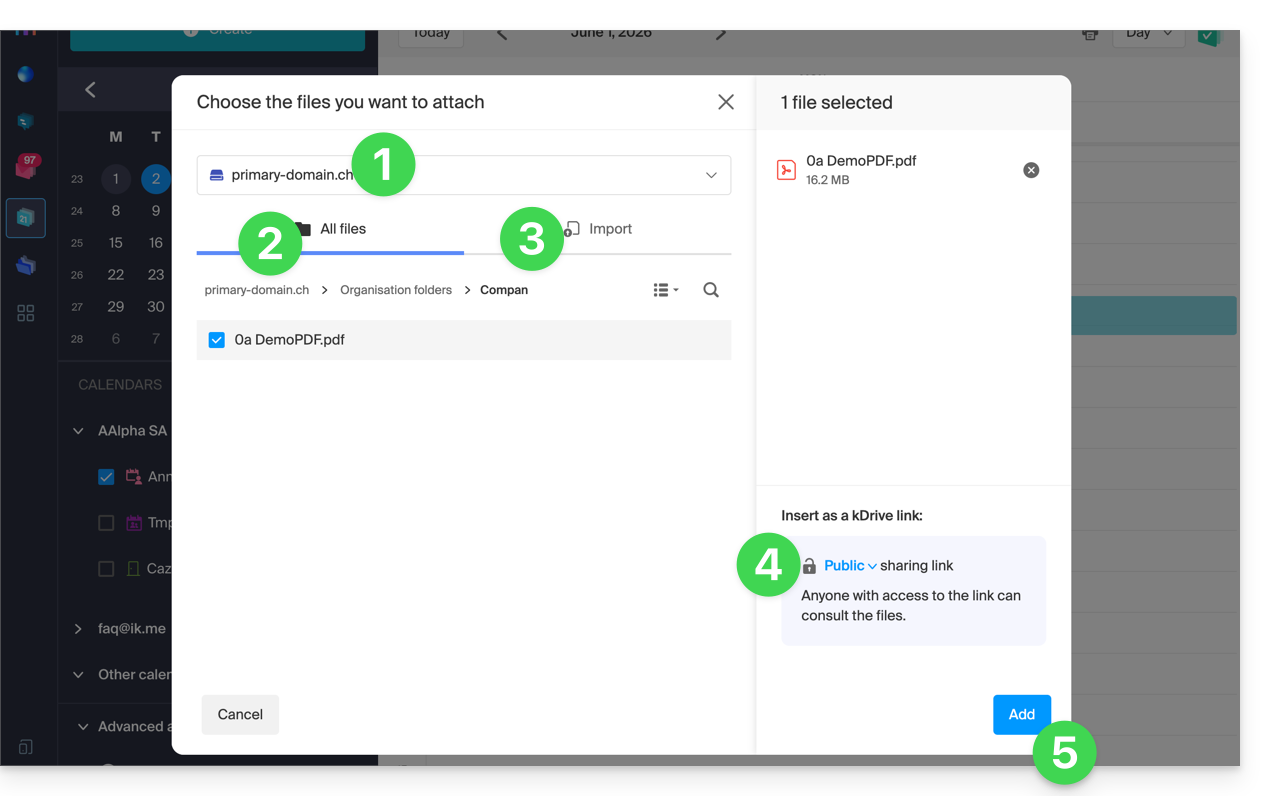
- Select kDrive if necessary.
- Browse and select the files to add to the event.
- Otherwise, import new documents that will be stored on kDrive.
- Once selected, choose whether their link should be:
- a public link (everyone can access it)
- a restricted link (only people with access can access it)
- Click on Add.
Whether the event is recurring or not, you can add files that will be shared with those who view the event in the calendar: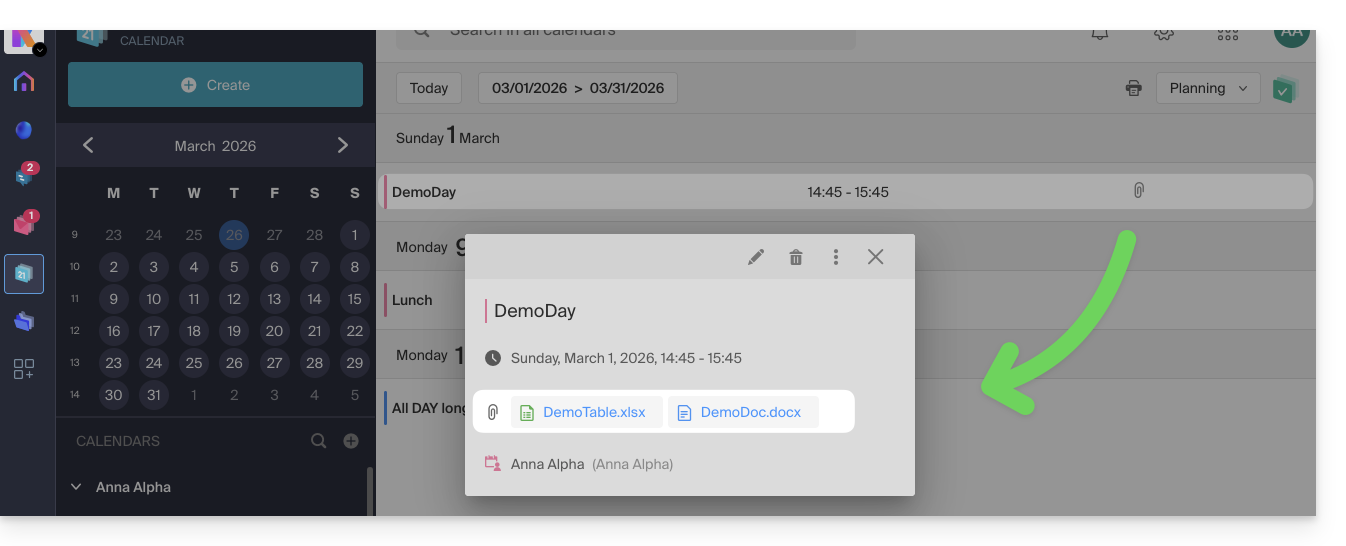
Guests who view the event details via a synchronized application, Outlook, Gmail, and others, will see the links in the description (as is the case for the possible kMeet link, for example, if a video conference is planned for the event).
Link to this FAQ: https://faq.infomaniak.com/1673
Has this FAQ been helpful?
This guide presents the Calendar and Calendly modules for Infomaniak's Site Creator.
Calendar Module
Start by logging in to the Infomaniak Manager with your credentials (user with the necessary rights for the product in question):
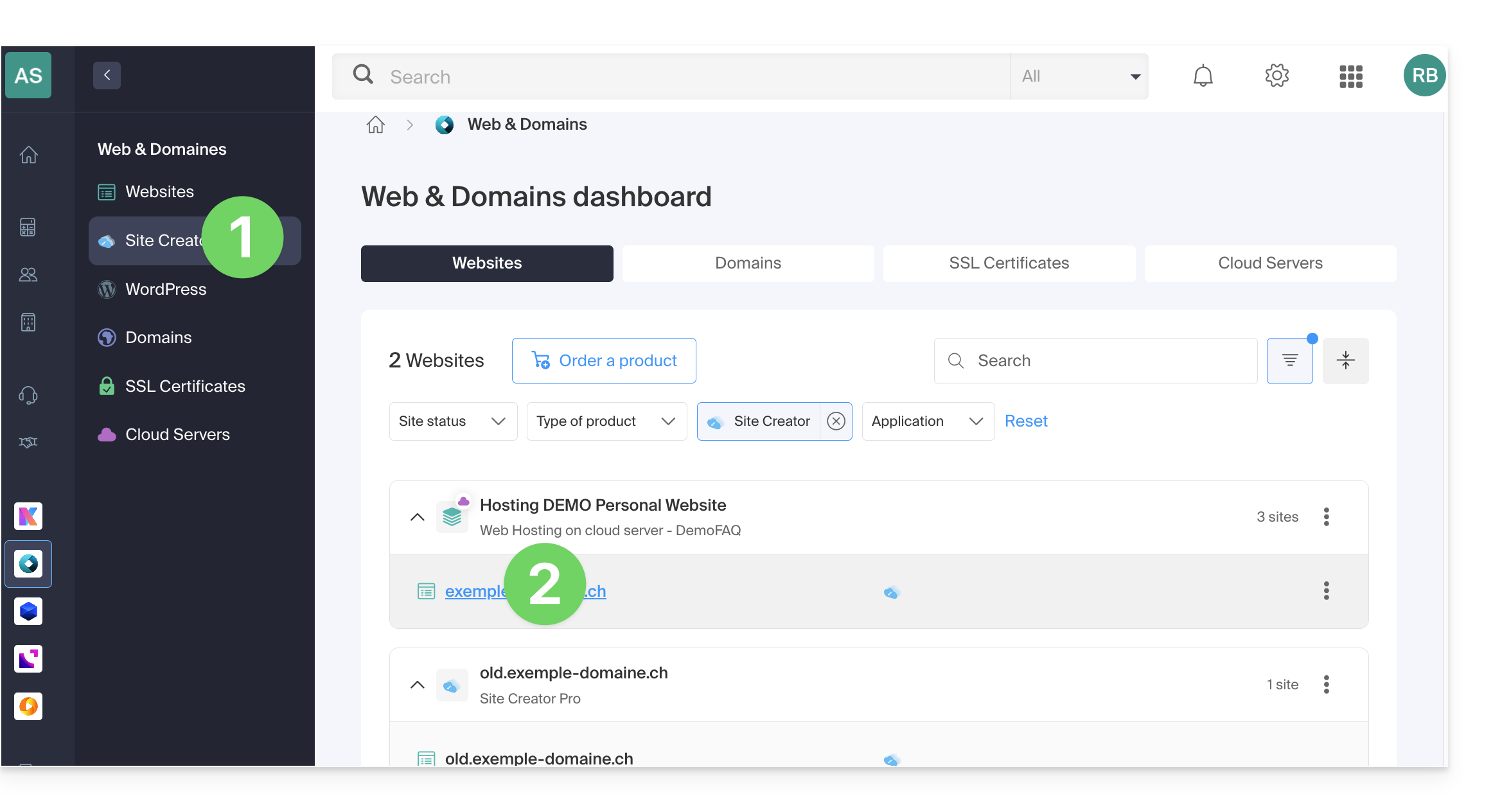
- Click here to access the hosting & site management section (filtered to display only Site Creator).
- If nothing is displayed, you may not be in the Organization to which your site is linked (❓: help).
- Click on the name of the Site Creator in question:
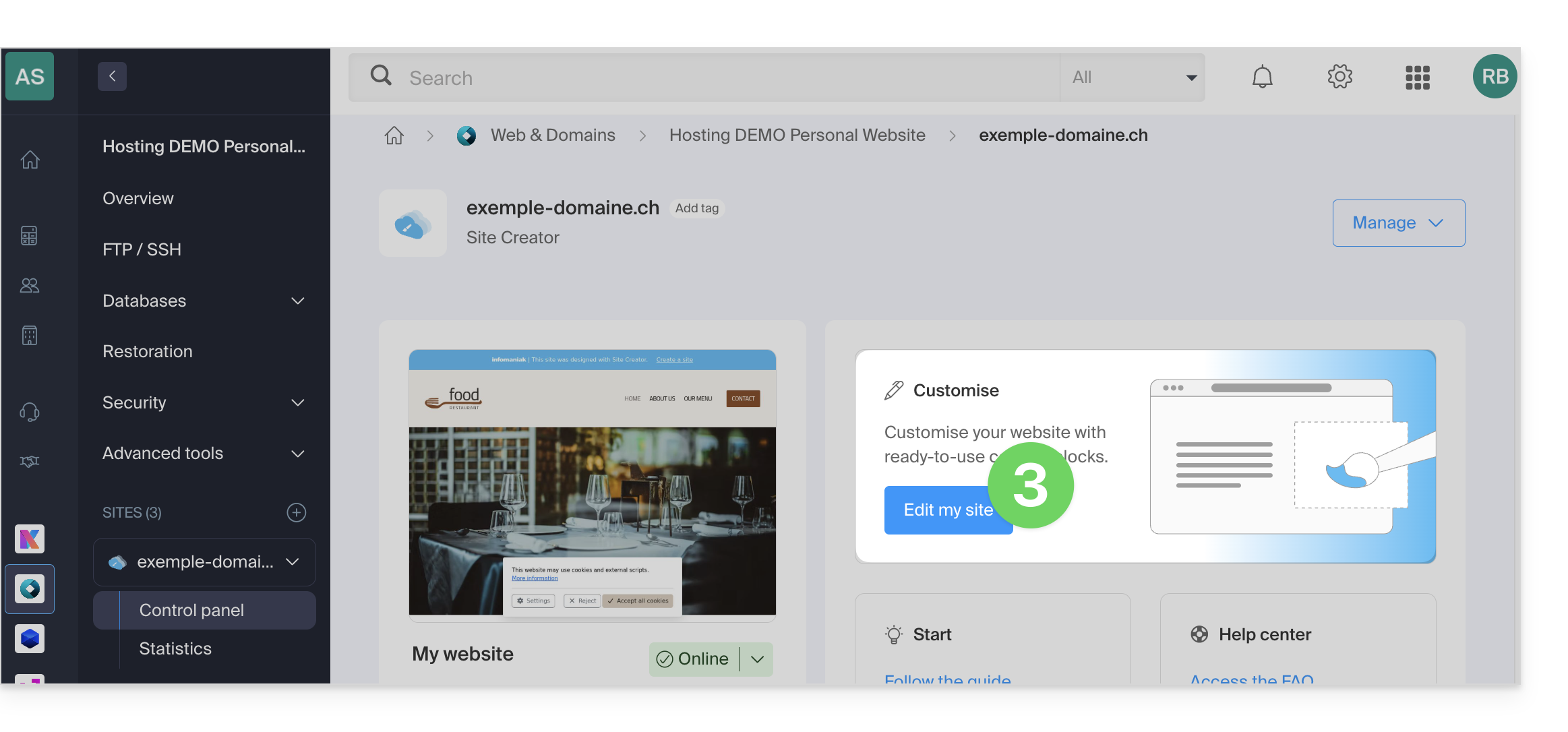
- Click on the button to edit your site:
Once in Site Creator:
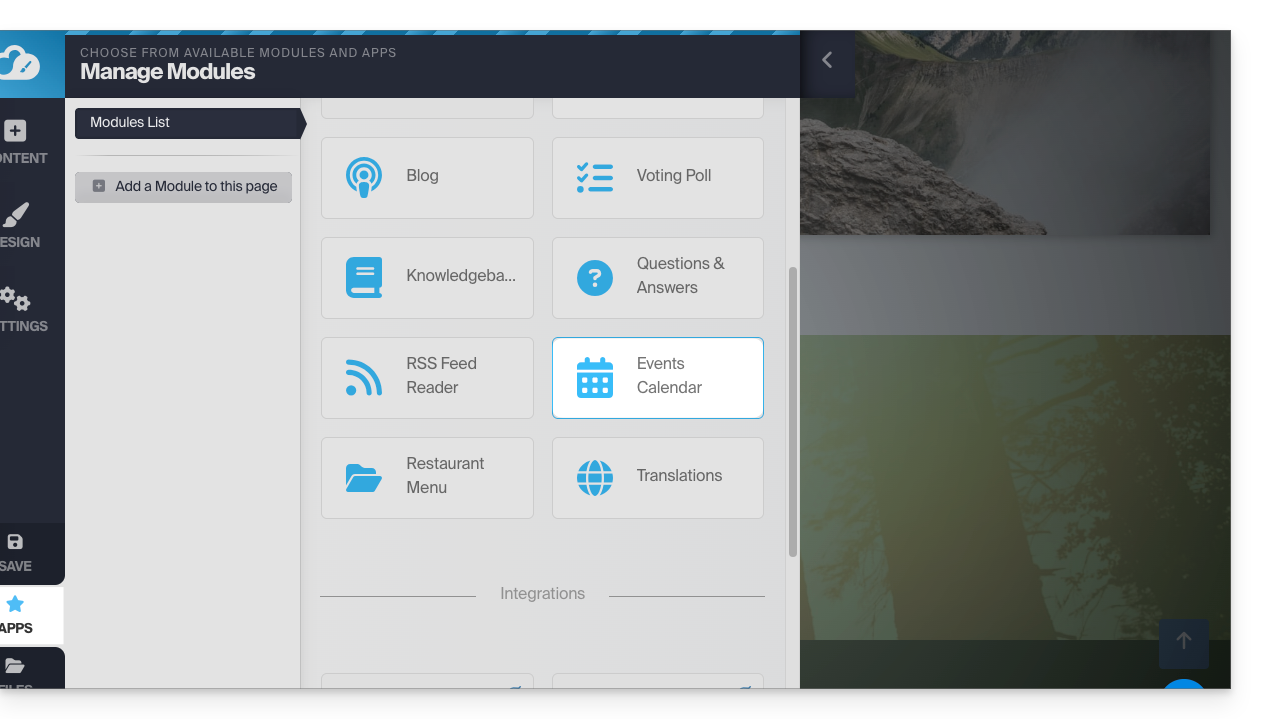
- Click on the Applications button in the left-hand menu.
- Click on Calendar:
Add events related to your activity that you want to display on your website in a dynamic way: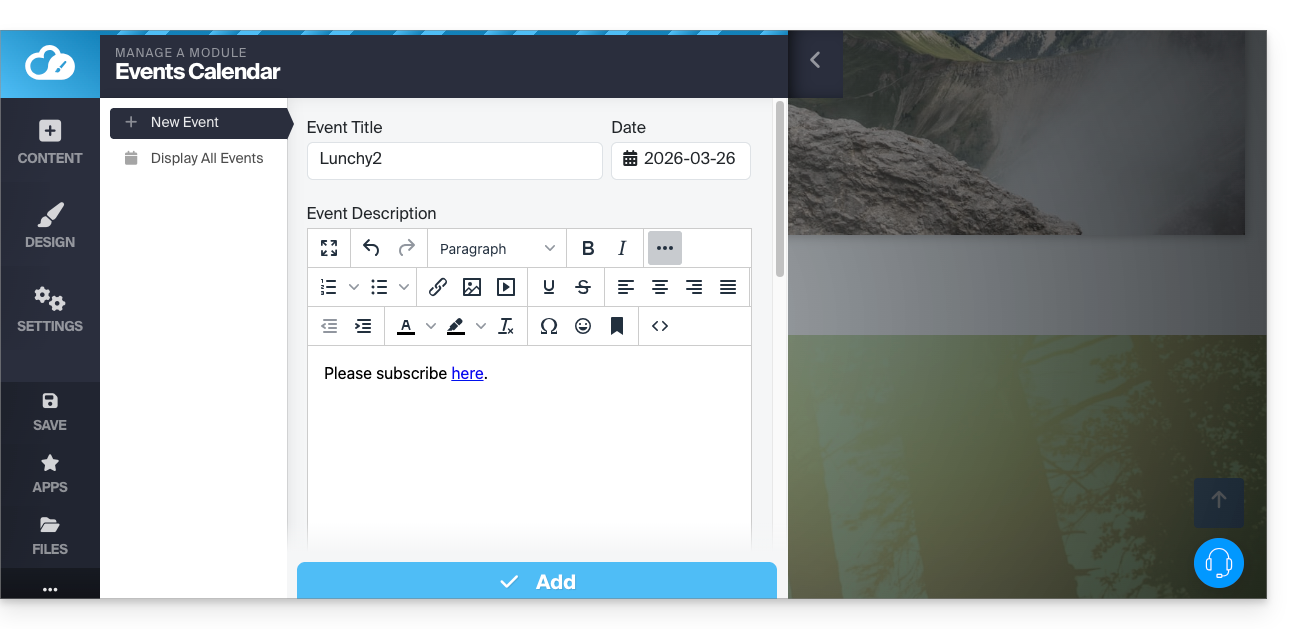
Once you have added a few events, you can view them on the calendar in the same place: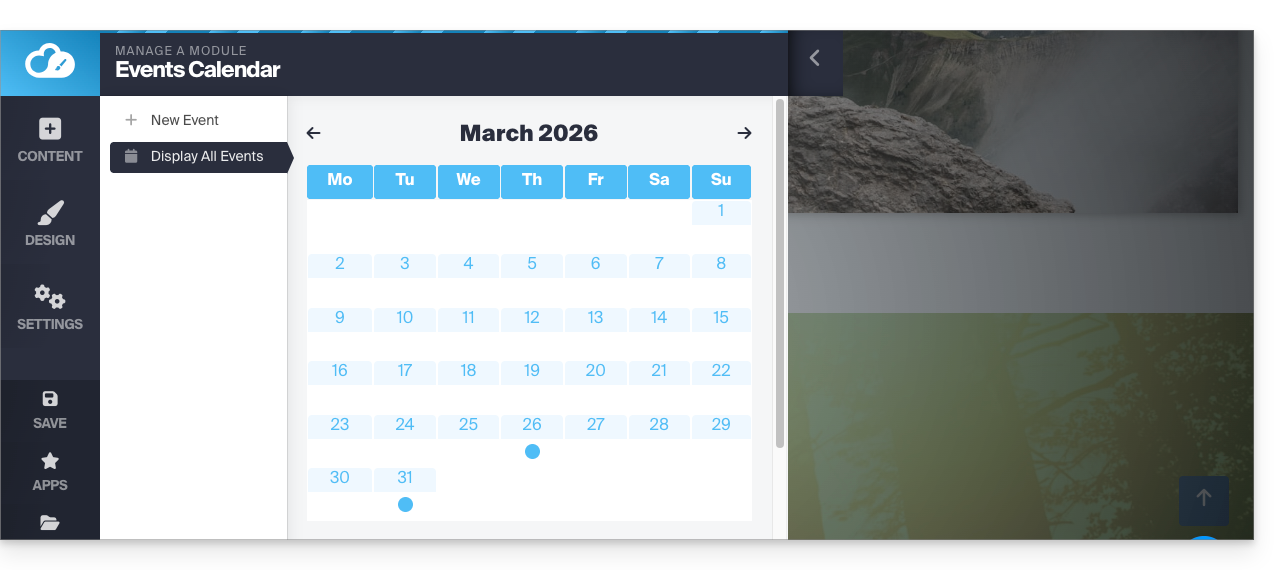
Then, insert the Calendar module in the desired location on your site: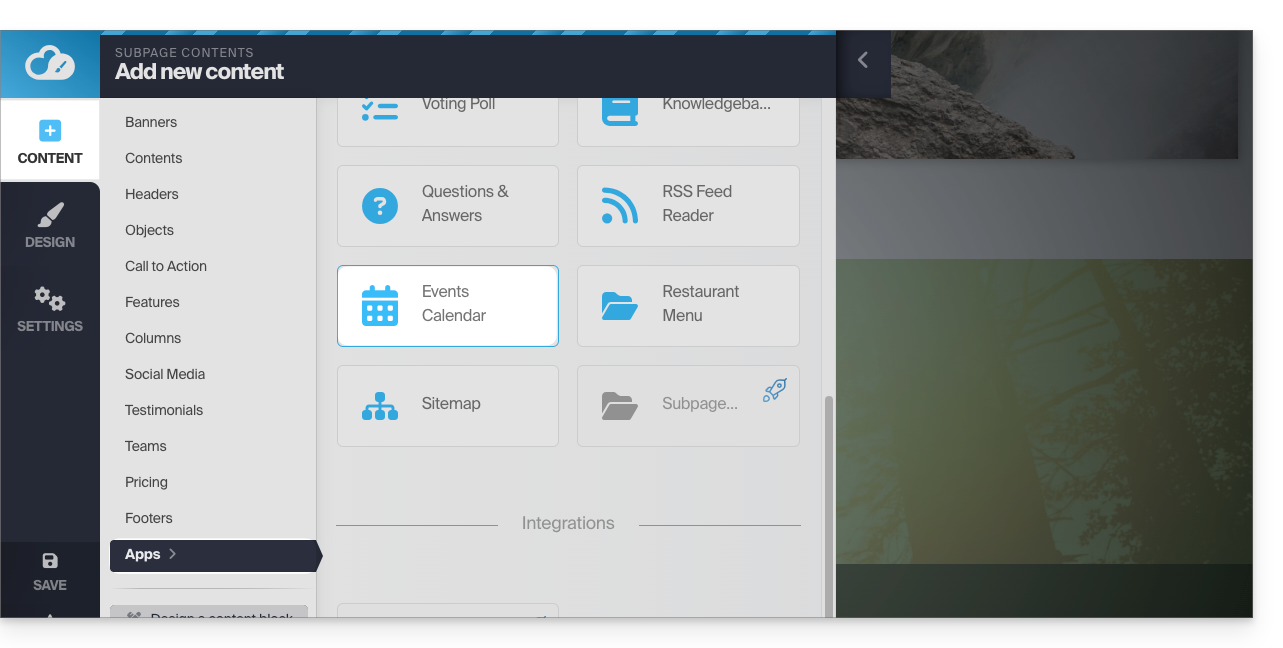
Your visitors will be able to see the scheduled events, including when you modify them in your calendar: 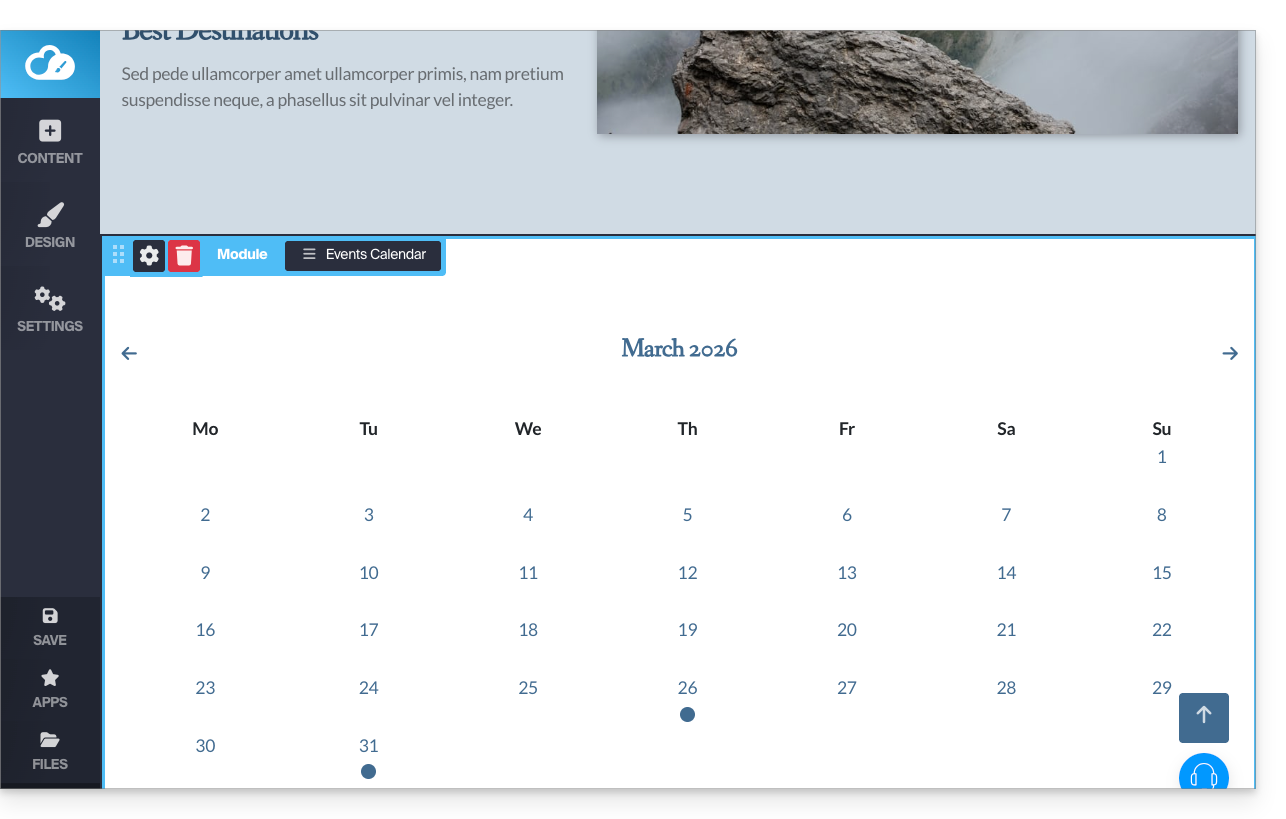
Calendly Module
✘ UNAVAILABLE with
Site Creator Free / Lite
This integration is possible if you have an account on the external Calendly service.
From Site Creator:
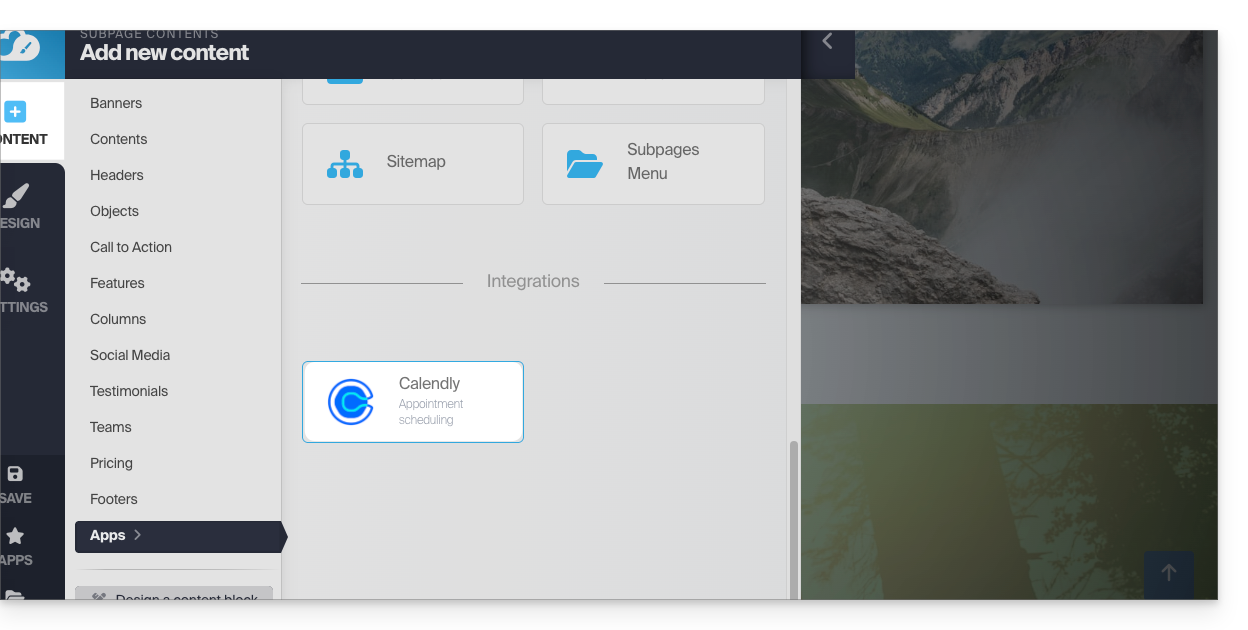
- Click on the Content button in the left-hand menu.
- Click on Apps in the left-hand menu.
- Click on Calendly to insert the module:
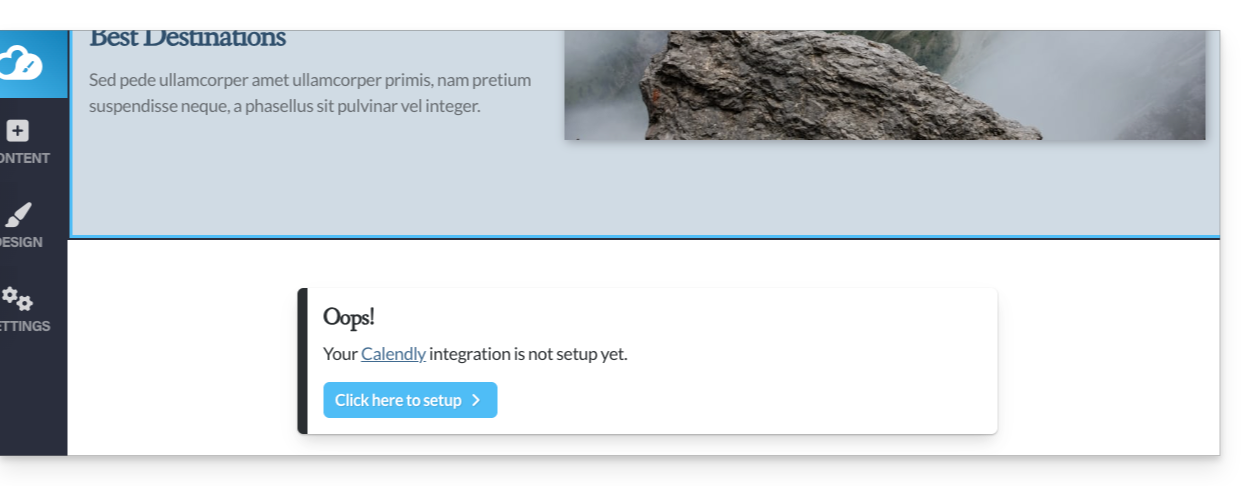
- Click to configure the application with the information related to your Calendly account:
Then, insert the Calendly module in the desired location on your site to access your Calendly information: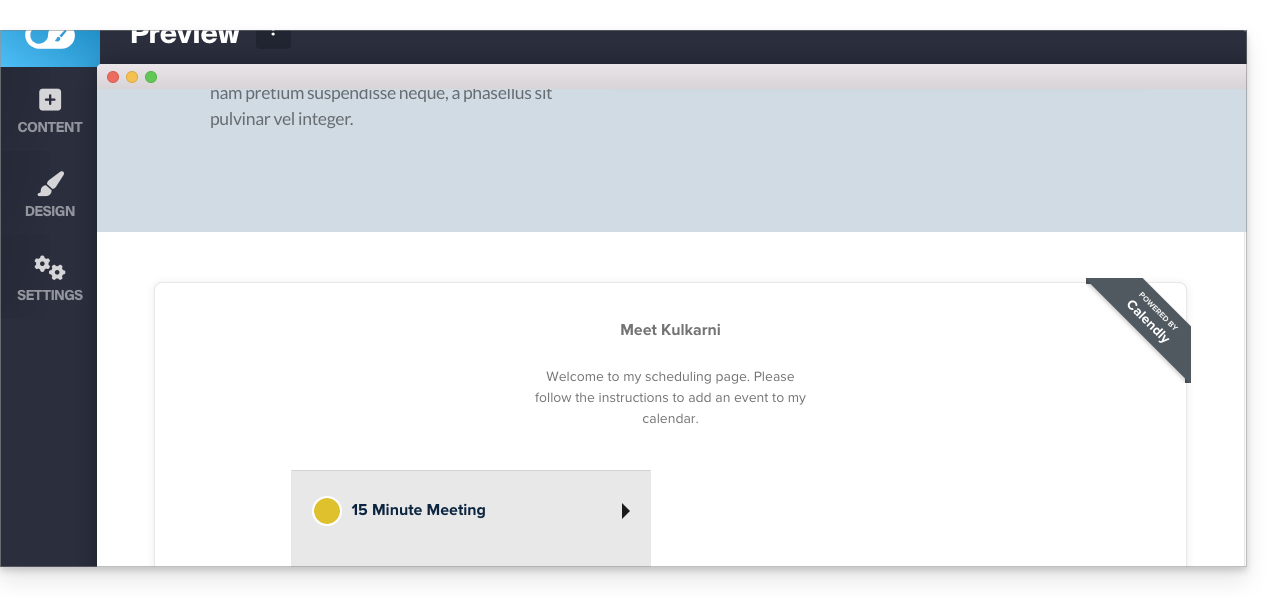
Link to this FAQ: https://faq.infomaniak.com/2578
Has this FAQ been helpful?
This guide concerns kSync, which allows you to create a new calendar or a new address book directly from an Android device.
Create a calendar or address book from the app
To do this:
- Open the kSync mobile app on your Android device.
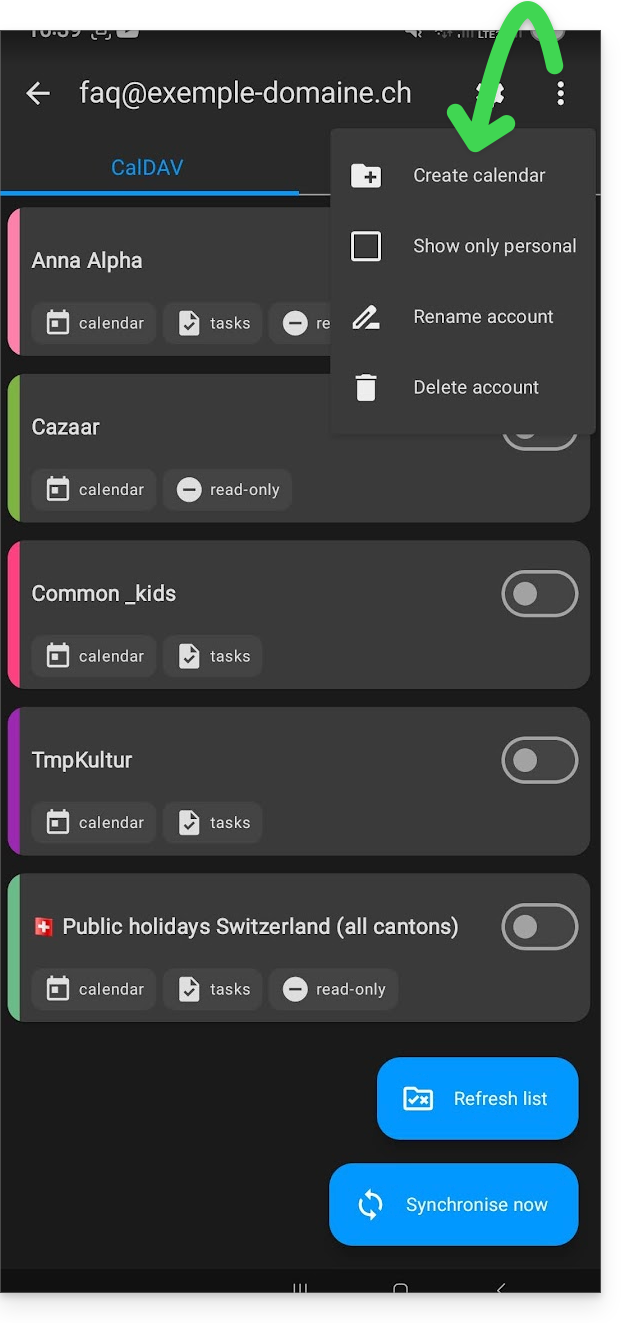
- Once logged in, click on the action menu ⋮ located in the top right corner.
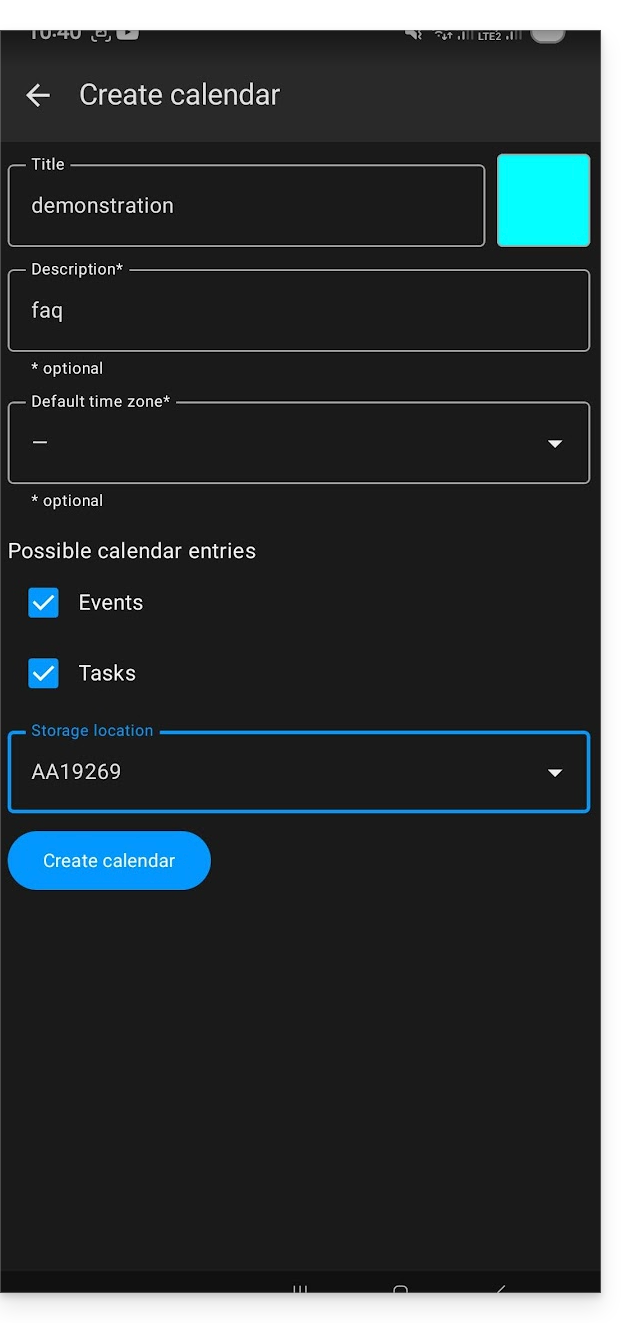
- Tap on Create a new address book / Calendar:
- Enter the name of the notebook or agenda and a color.
- Click on Create:
- If necessary, click the icon to refresh the list; your new item will appear in the list after a few seconds:
Your service will then be synchronized with the corresponding web app, here Calendar Infomaniak (online service ksuite.infomaniak.com/calendar):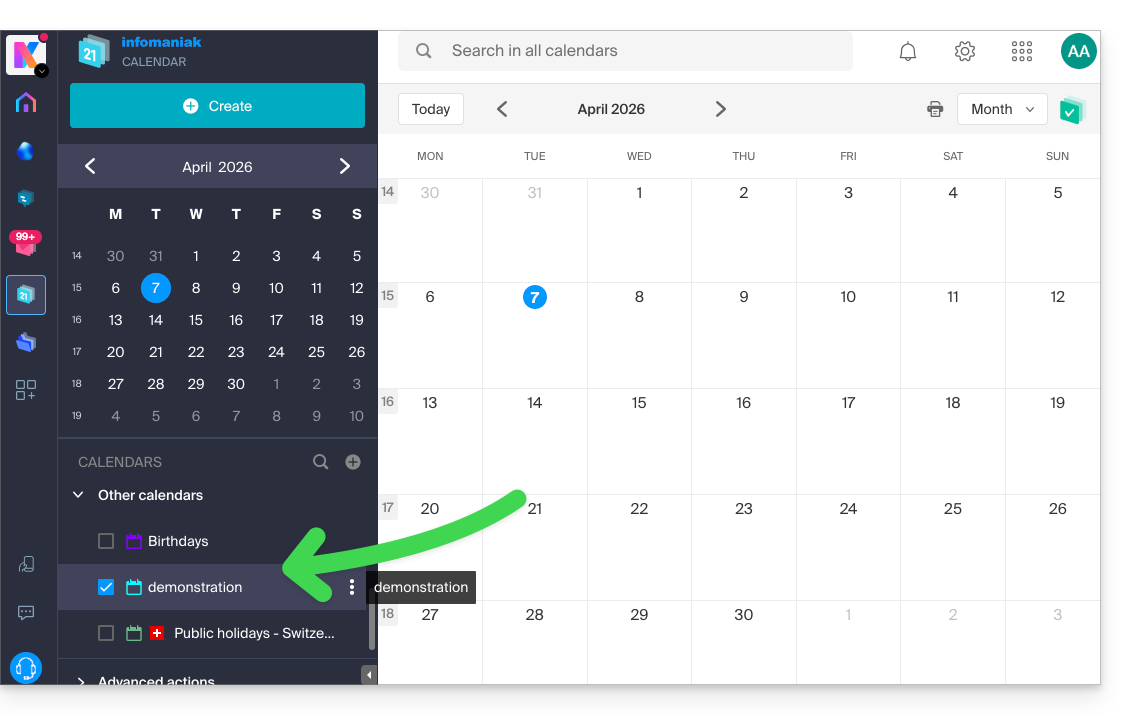
Link to this FAQ: https://faq.infomaniak.com/2299
Has this FAQ been helpful?
Are you no longer able to send or receive emails? Are you experiencing synchronization errors with your contacts & calendars? Follow the instructions in this guide to delete the problematic accounts and reconfigure them correctly.
Introduction
- Only follow these instructions to delete a mail account configured in IMAP (and not in POP3). Learn more
Delete the email address
To do this:
- Open Thunderbird.
- Right-click on the email address you want to delete and select Settings.
- Go to Account Management.
- Select Delete account and click Delete
- Refer to this other guide to properly reconfigure the email address
Delete contacts (in CardBook)
Now everything is integrated into Thunderbird, but if you still have an older version (which you should definitely update):
- Open Thunderbird.
- In CardBook, select the contact profile to delete.
- Click on the menu button with three horizontal lines ☰ in the top left corner of the interface, then click on Address Book and Delete Address Book.
- Confirm by clicking on OK.
- Refer to this other guide to reconfigure synchronization.
Delete the calendar (in Lightning)
Now everything is integrated into Thunderbird, but if you still have an older version (which you will need to update):
- Open Thunderbird.
- In Lightning, select the calendar profile you want to delete.
- Right-click on the calendar and select Unsubscribe from calendar.
- Confirm by clicking OK.
- Refer to this other guide to reconfigure synchronization.
Link to this FAQ: https://faq.infomaniak.com/2444
Has this FAQ been helpful?
This guide explains how to obtain and install an application on your computer from certain Infomaniak interfaces, such as the kSuite interface or those that allow you to directly manage your calendars or your address books.
Introduction
- A Progressive Web App (PWA) is an application designed for the web and offering an experience similar to that of a native application.
- PWAs are fast, accessible directly from your browser, and can offer features such as offline operation or sending notifications.
- Installing a PWA allows you to create an independent application on your computer, without going through a traditional store.
Install a progressive web app (PWA)
To download the PWA app (example here with Mail Infomaniak), depending on the browser used:
- Click here to access the Calendar Infomaniak web app.
- Once the page has loaded, check for the installation icon in the browser's address bar (often represented by a screen with a “+”):
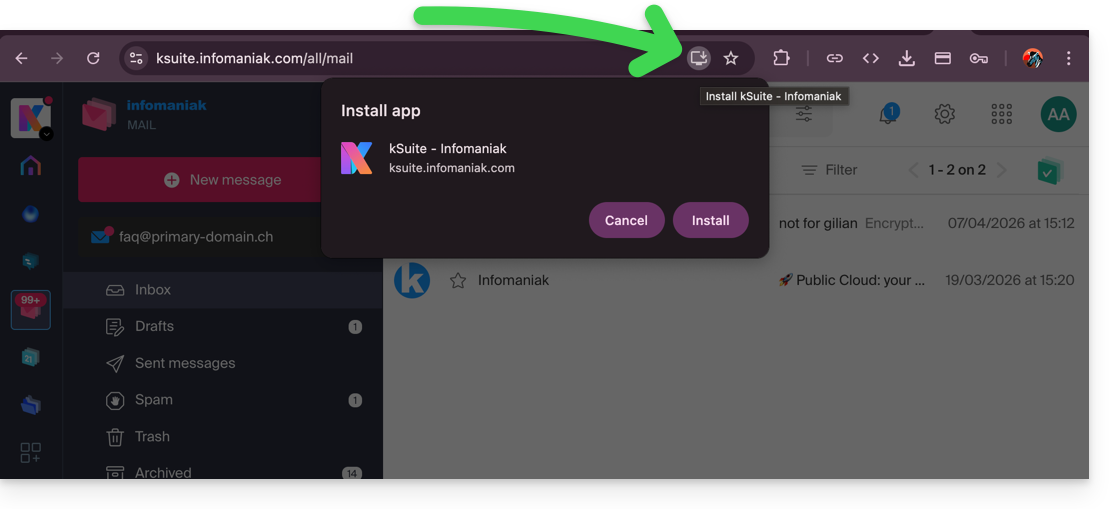
- Google Chrome / Chromium :
Click on the installation icon in the address bar, or open the ⋮ menu and click on Install [application name]. - Microsoft Edge :
Click on the Applications icon in the address bar or open the ⋯ menu, then select Applications > Install this site as an application. - Mozilla Firefox :
The installation of PWAs is not fully supported natively. However, it is possible to use alternative solutions (extensions or shortcuts) to simulate similar behavior. - Safari (macOS) :
From recent versions of macOS, open the File menu and click on Add to Dock to create a web application.
- Google Chrome / Chromium :
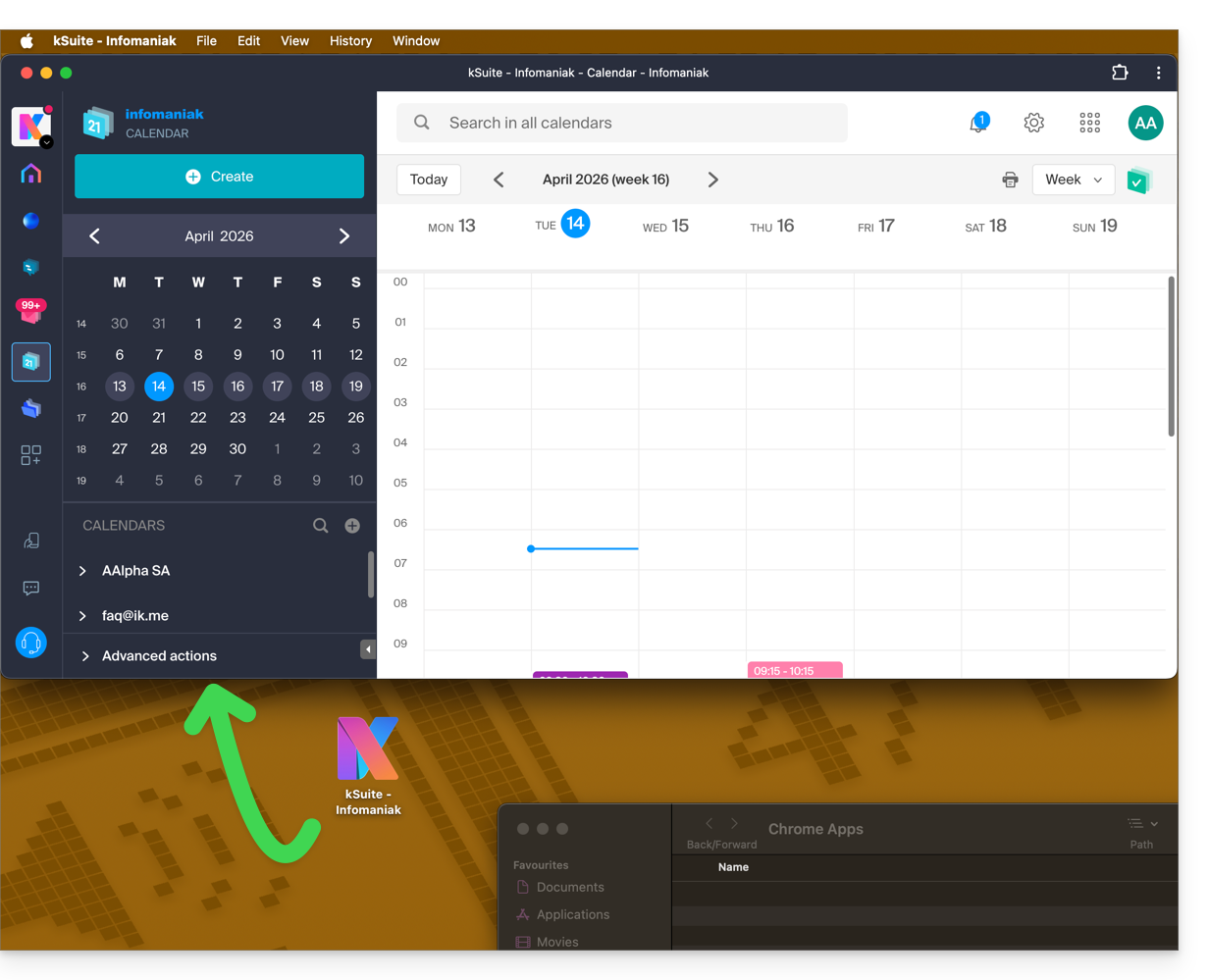
- The app is then available on your computer (example here with Calendar Infomaniak) and allows you to open the data while being completely independent of the browser:
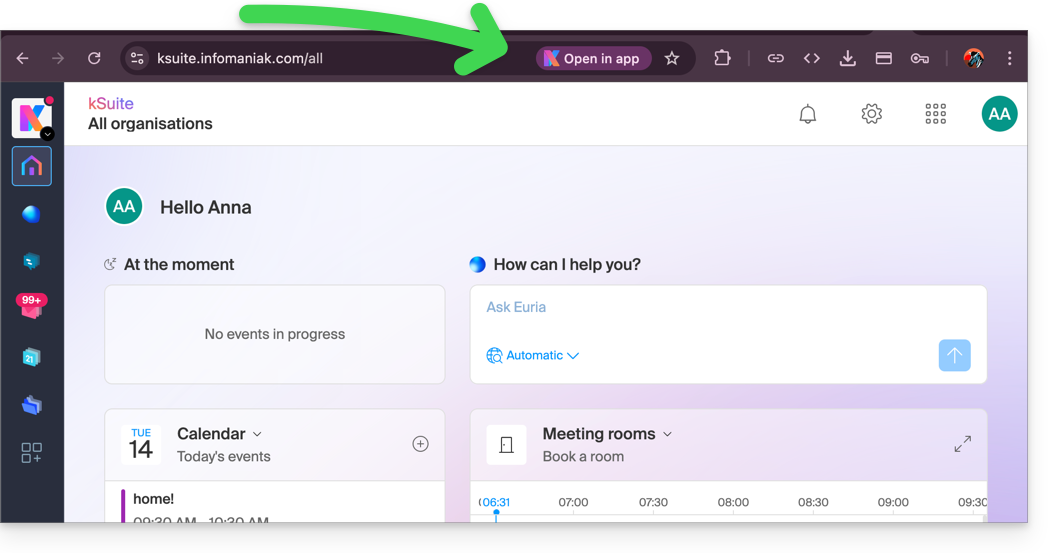
- When the app is detected on your computer, you can easily return to the app from the browser when you are on other Infomaniak pages (example here with a kSuite user space):
Remove the Infomaniak “PWA” app
To remove this local application system:
- Open the application you previously installed.
- Click on the action menu ⋮ or ⋯, depending on your browser.
- Select Uninstall or Remove app.
- Confirm the removal if necessary.
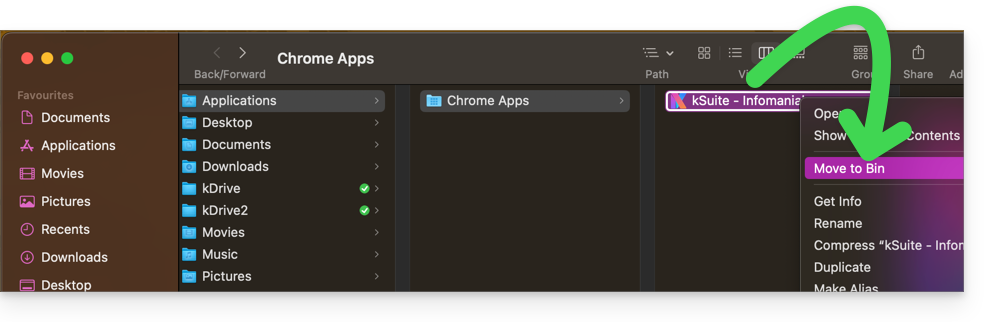
- You can also delete the application directly from your operating system (like any other application) or move the icon to the trash:
Link to this FAQ: https://faq.infomaniak.com/2872
Has this FAQ been helpful?
This guide explains how to receive event reminders from the Infomaniak Web app Calendar (online service ksuite.infomaniak.com/calendar) on a messaging system like kChat, so you can be notified in the chat thread of your choice when an event is approaching.
Introduction
- The kSuite Free plan is limited to 1 webhook.
Link the kChat webhook to Calendar
Prerequisites
- Create an incoming webhook on the kChat app to obtain a URL of the type
https://your-server-kchat.xyz/hooks/xxx-key-generated-xxx: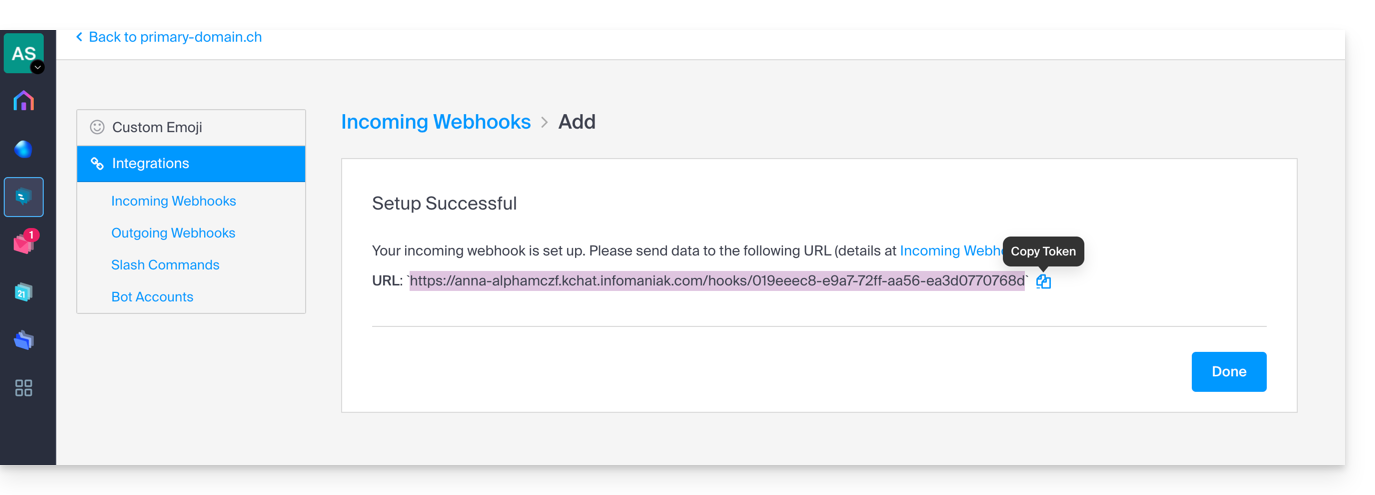
Next, to add the webhook for your chat system to the Calendar app:
- Click here to access the Infomaniak web Calendar app (online service ksuite.infomaniak.com/calendar).
- Click on Settings in the top right corner.
- Click on Integrations in the left-hand menu.
- Click on the Add a webhook button:
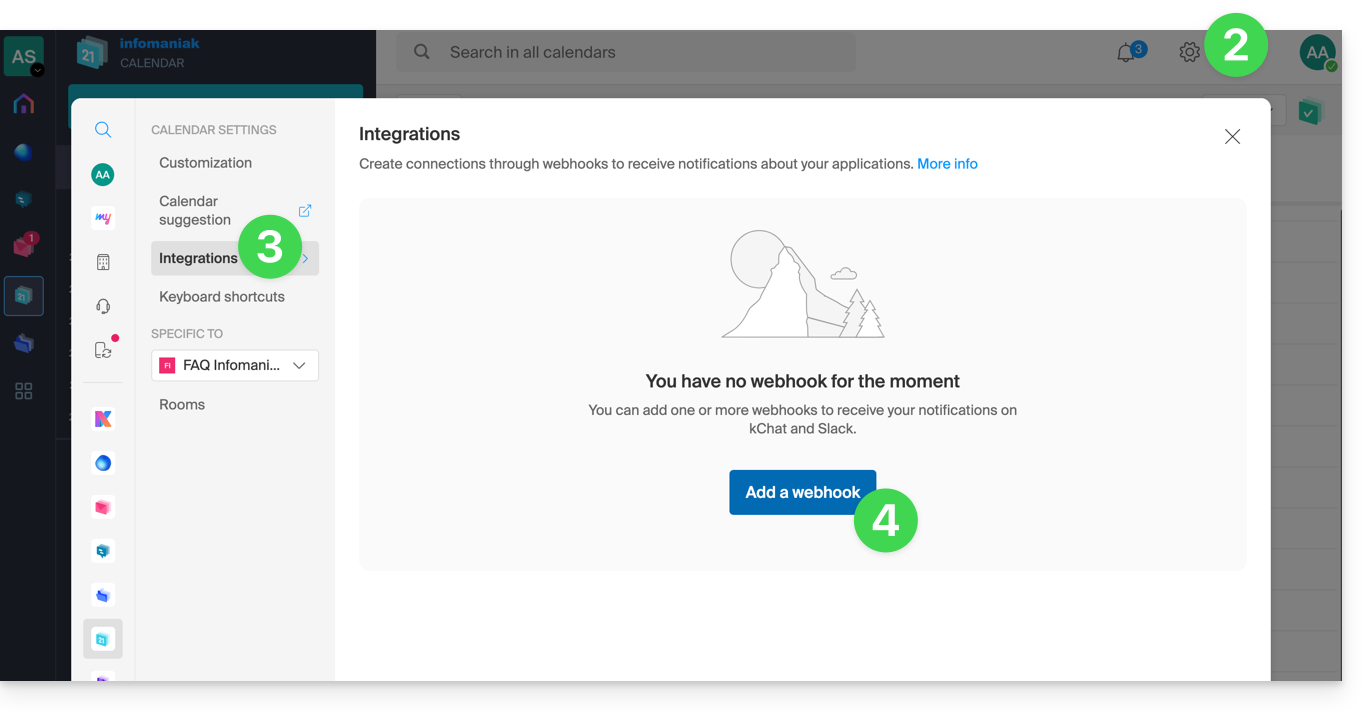
- Define:
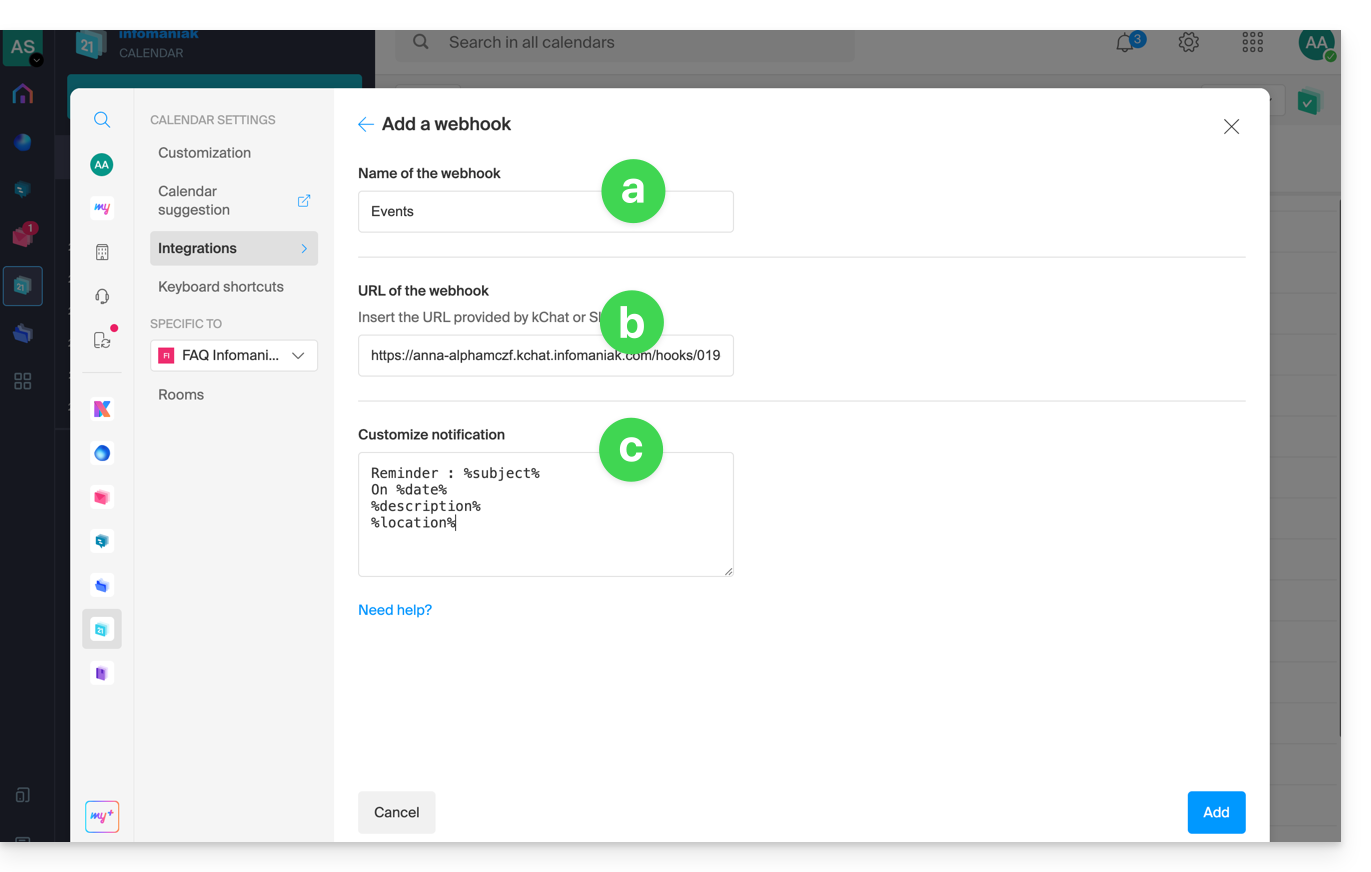
- A name to easily identify the webhook when adding reminders.
- The webhook URL (obtained from your chat system).
- The elements (automatically taken from your event and/or added manually here) and their layout in the message that will be sent:
- Insert %subject% to include the event subject.
- Insert %date% to include the event date.
- Insert %description% to include the event description.
- Insert %location% to include the event location, if applicable.
- Click the button to Add the configured item and see it created:
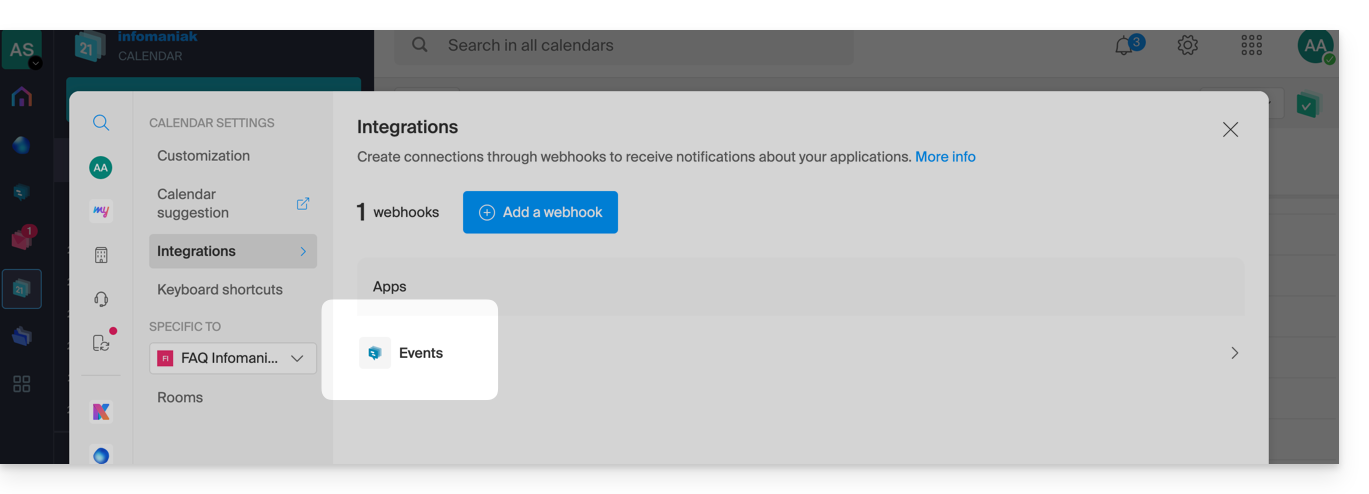
Create an event with chat reminder
Now that Calendar is linked to your messaging system account, you can choose to be notified in a chat when you add a reminder to an event:
- Click here to access the Infomaniak Calendar web app (online service ksuite.infomaniak.com/calendar).
- Click the Create button in the top left corner.
- Click on Event:
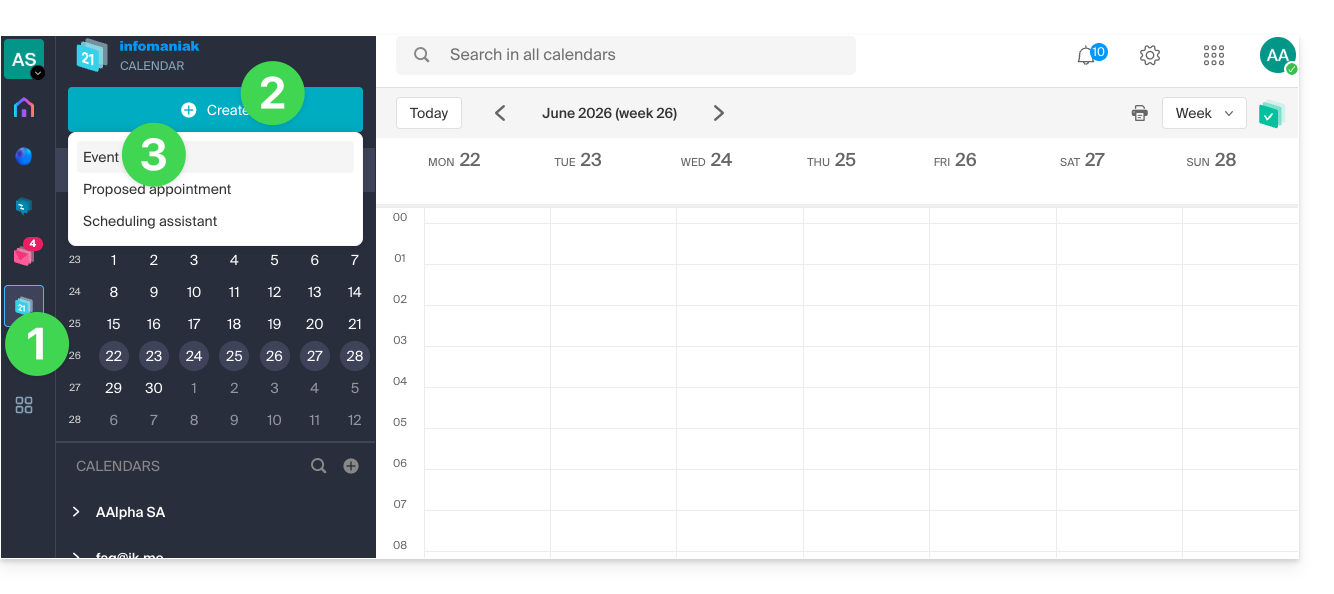
- You can also click on an existing event in the calendar to edit it.
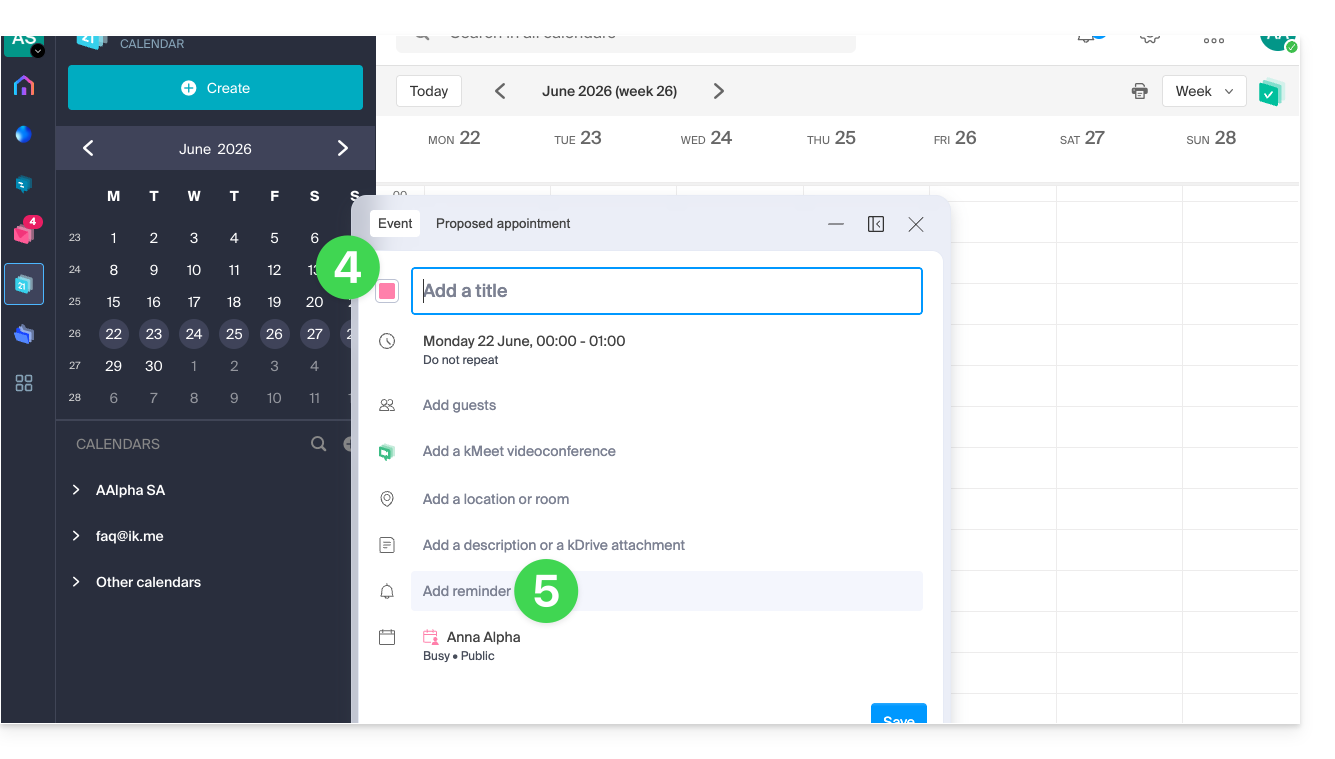
- Enter the event details.
- Click on Add reminder to configure it:
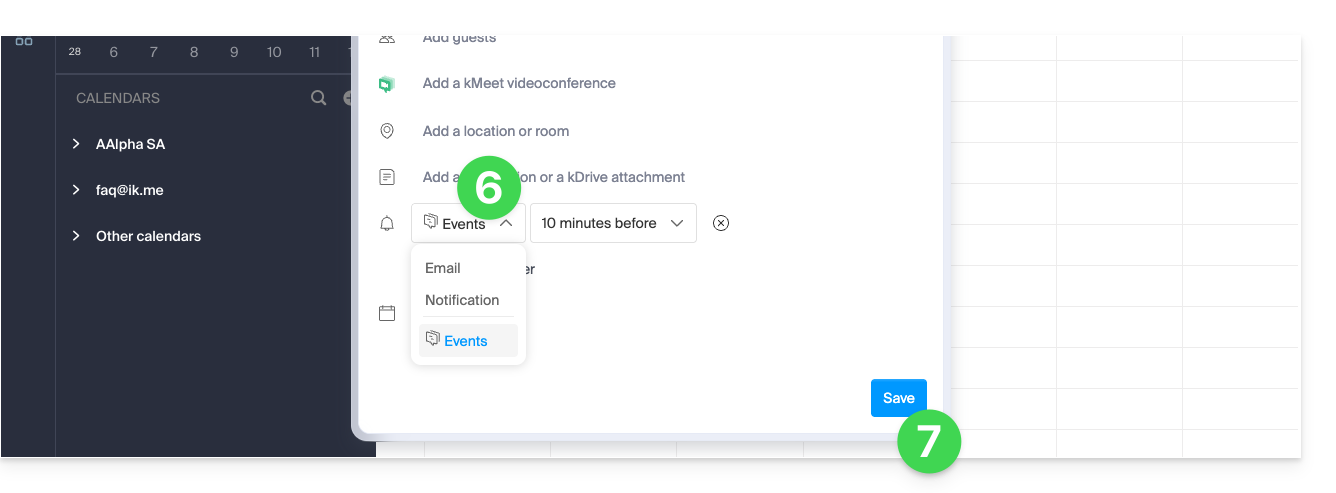
- In the dropdown menu for reminder types, select the webhook you configured (according to the name given in step 5a above).
- Save the event at the bottom of the page:
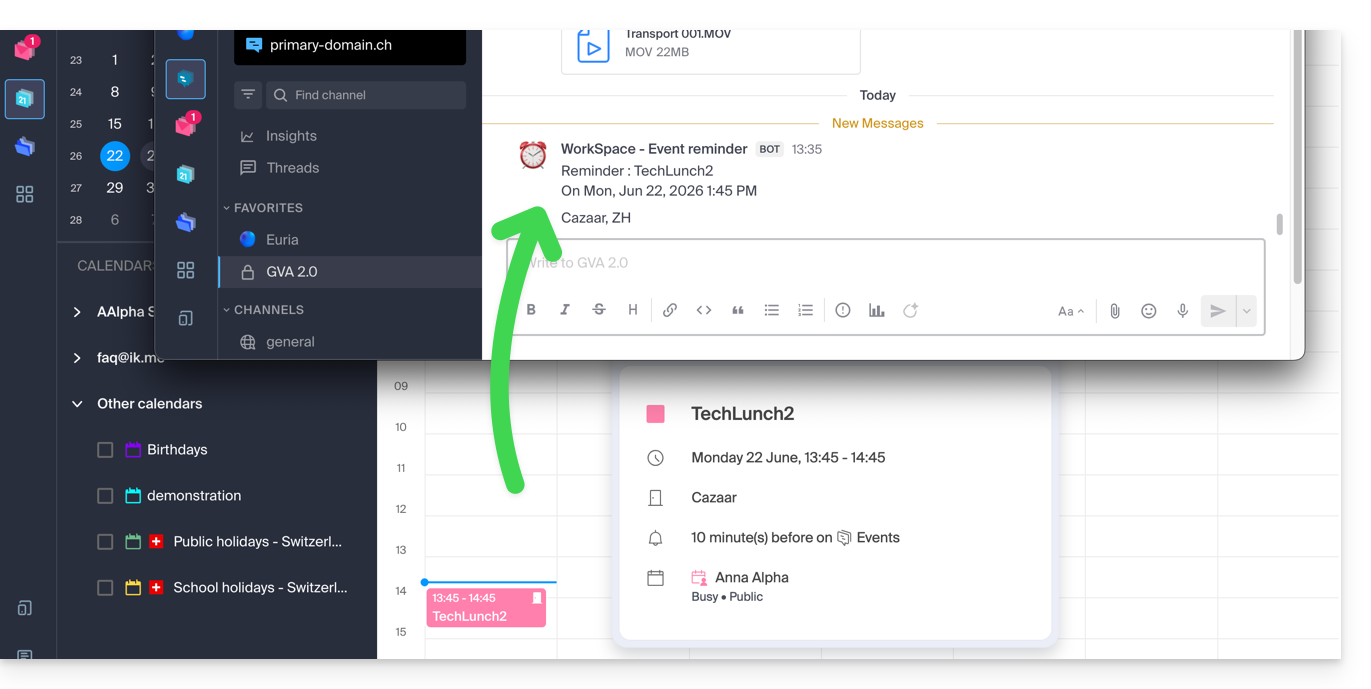
- When the reminder time arrives, a message (in the format configured in point 5c above) is sent to the event's recipient on the channel configured in the webhook (see prerequisites):
And on other messaging systems?
Slack
- Click here to access the Slack WebHooks.
- Choose the discussion thread where your reminders will appear (e.g. @slackbot or #general):
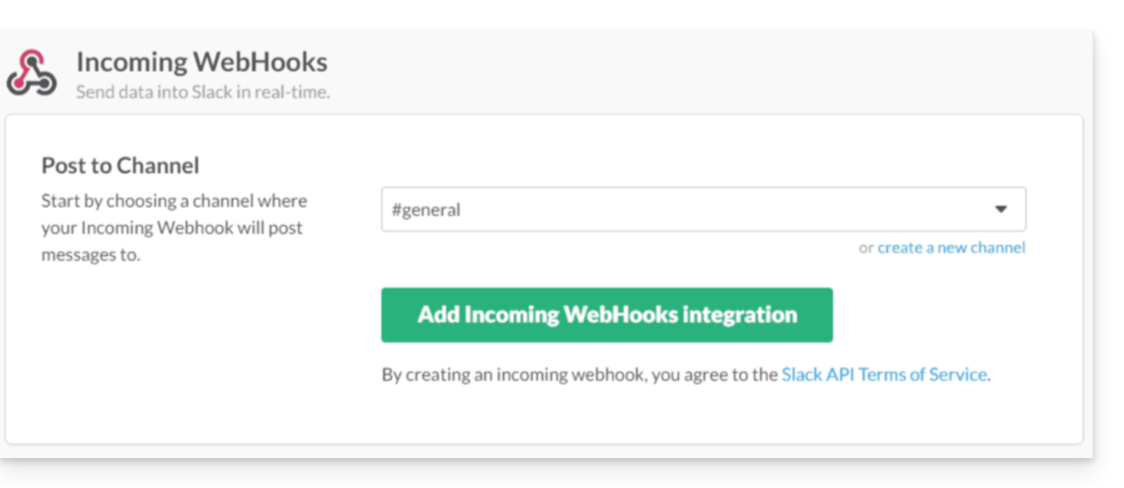
- Save to obtain the webhook URL.
Create additional webhooks to define reminders in other threads.
You can freely use Slack's formatting options in your notifications. Example in French:
N'oubliez pas de %subject% pour le %date%.
À prendre avec le jour J : %description%.
Lieu de l'event : %location%
Link to this FAQ: https://faq.infomaniak.com/2244
Has this FAQ been helpful?
This guide explains how to configure the synchronization of calendars and contacts Infomaniak with the desktop app Mozilla Thunderbird (desktop application on macOS / Windows / Linux).
Obtain the advanced URL
Prerequisites
- Obtain your synchronization details provided by the Infomaniak synchronization assistant:
- account address:
https://sync.infomaniak.com - username: for example
AB12345 - application password if two-factor authentication is enabled or your Infomaniak account password if you have not enabled 2FA
- account address:
To obtain a more detailed synchronization URL, which is generally required for synchronization with Thunderbird:
- Open the synchronization wizard for Infomaniak.
- Click on the blue Select a device link:
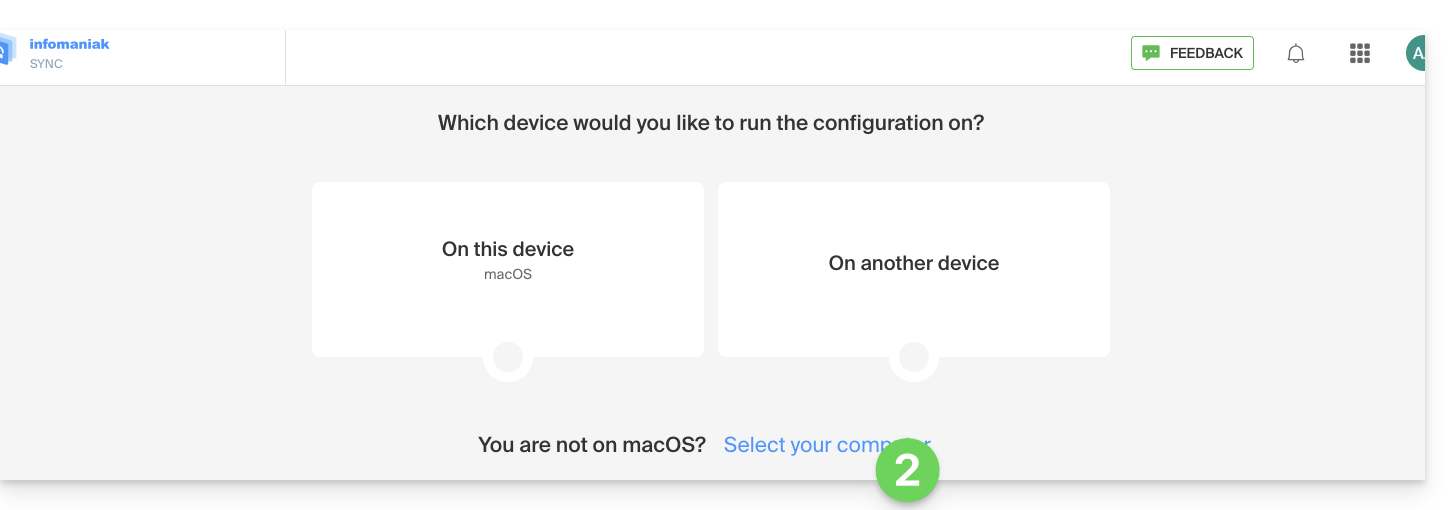
- Choose a GNU/Linux type synchronization.
- Note the complete synchronization URL displayed in step 4 of the wizard:

Synchronize calendars and address books
Connect to a CardDAV address book
With the latest versions of Thunderbird, synchronizing your Infomaniak calendars and address books is now available.immediately after configuring your email addresswithin the software: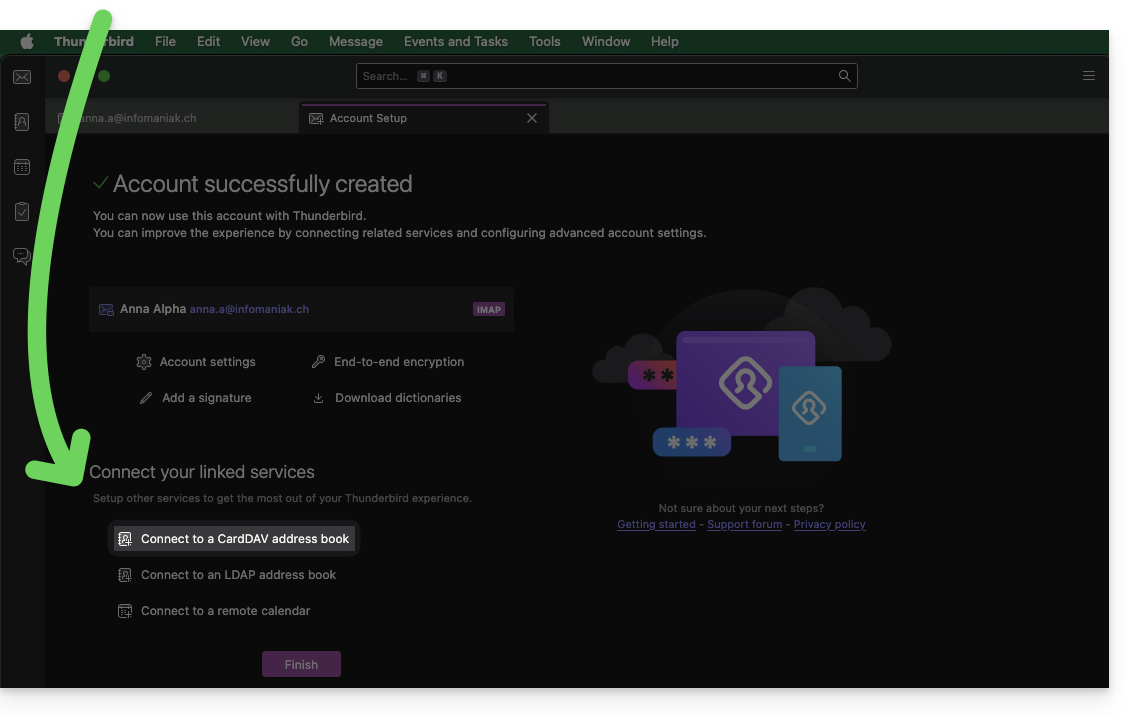
Click on it; the configuration will start:
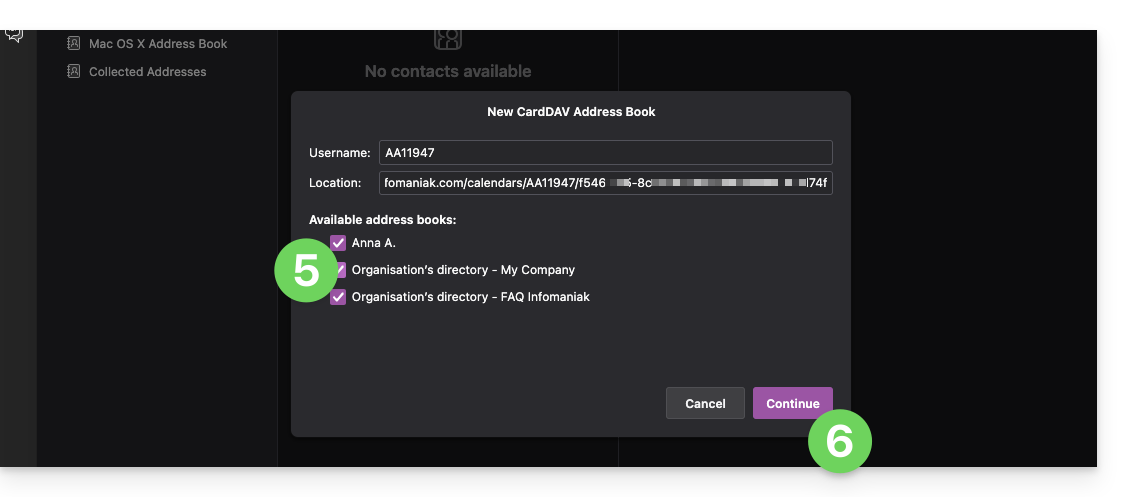
- Enter the short username and the advanced URL (see above).
- Click Continue.
- Thunderbird will then ask for the password (see above).
- Tap OK:

- Once authentication is complete, the application will display the address books associated with your Infomaniak account; choose which ones to synchronize.
- Tap Continue to complete:
Connect to a remote calendar
Add a new calendar in Thunderbird:
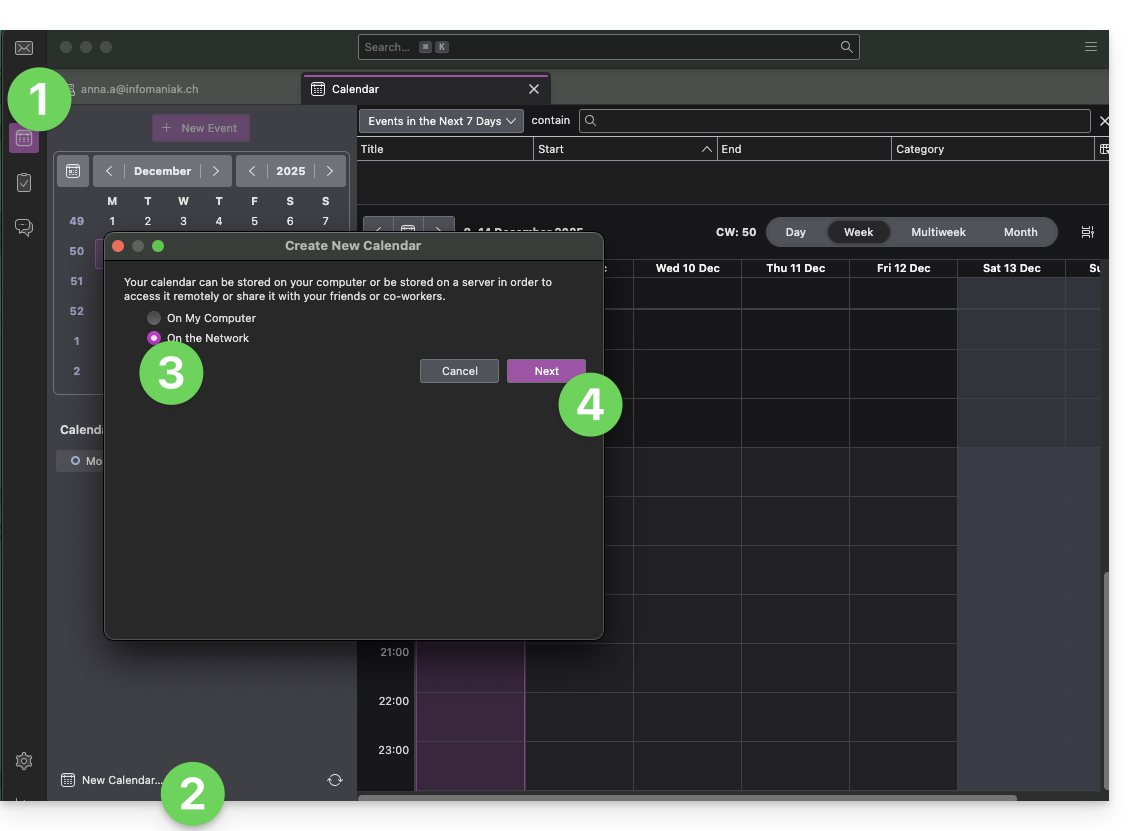
- If necessary, switch to Calendars.
- Click on New Calendar…
- Choose On the network.
- Click on Next:
- Enter the short username and the advanced URL (see above).
- Click the button to find the associated Calendars.
- Thunderbird will then ask for the password (see above).
- Tap OK:
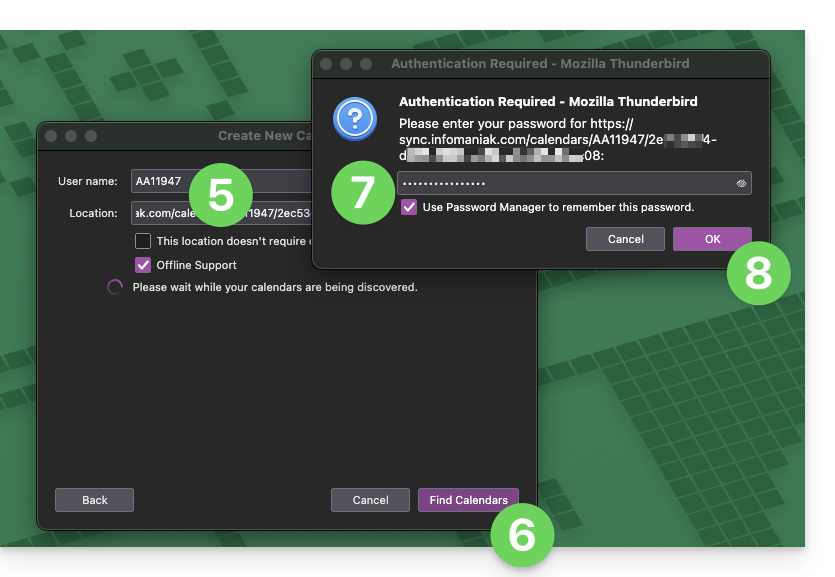
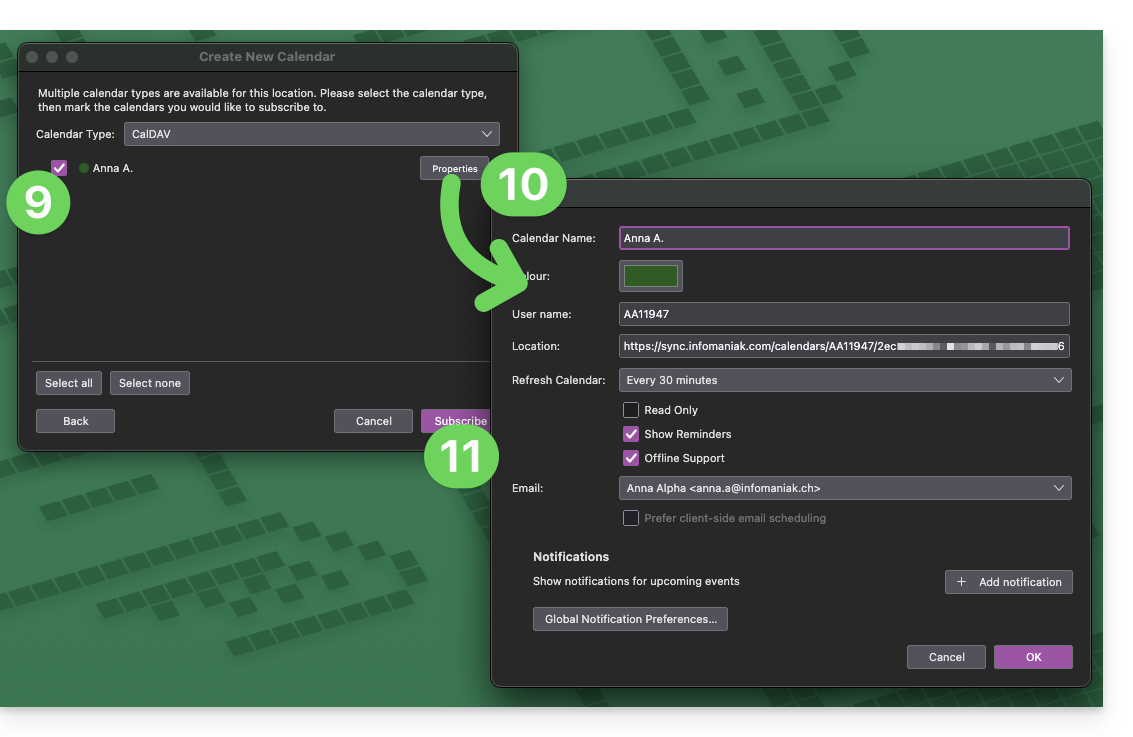
- Once authentication is complete, the application will display the calendars associated with your Infomaniak account; choose which calendars to synchronize.
- You can manage advanced properties of your calendars in Thunderbird if needed.
- Click the Subscribe button to complete the process:
Refer to this other guide if you need to troubleshoot a configuration issue with Thunderbird (email, contacts, calendars)…
Link to this FAQ: https://faq.infomaniak.com/2046
Has this FAQ been helpful?
This guide explains how to synchronise Microsoft Outlook* Windows contacts & calendars (only Office 365, 2024, 2021, 2019, 2016, 2013, 2010, 2007 versions) with the contacts & calendars hosted by Infomaniak, using an extension for Outlook available on caldavsynchronizer.org.
* The free versions of Outlook (New Outlook) and the macOS version cannot install an extension; they are therefore unfortunately incompatible with Infomaniak data!
Introduction
- There is a paid alternative for Windows, Evo Collaborator, which offers a pre-configured profile for Infomaniak.
Configure Outlook CalDav Synchronizer
Outlook CalDav Synchronizer allows you to synchronise contacts & calendars via CalDAV and CardDAV protocols, including multiple (non-shared) calendars:
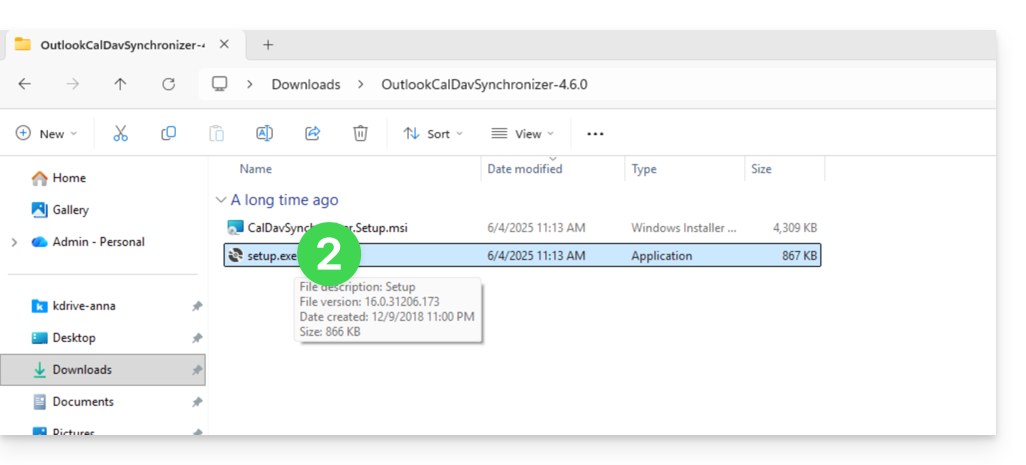
- Download CalDav Synchronizer for Outlook.
- Close Outlook and launch the installation of the plugin downloaded above:
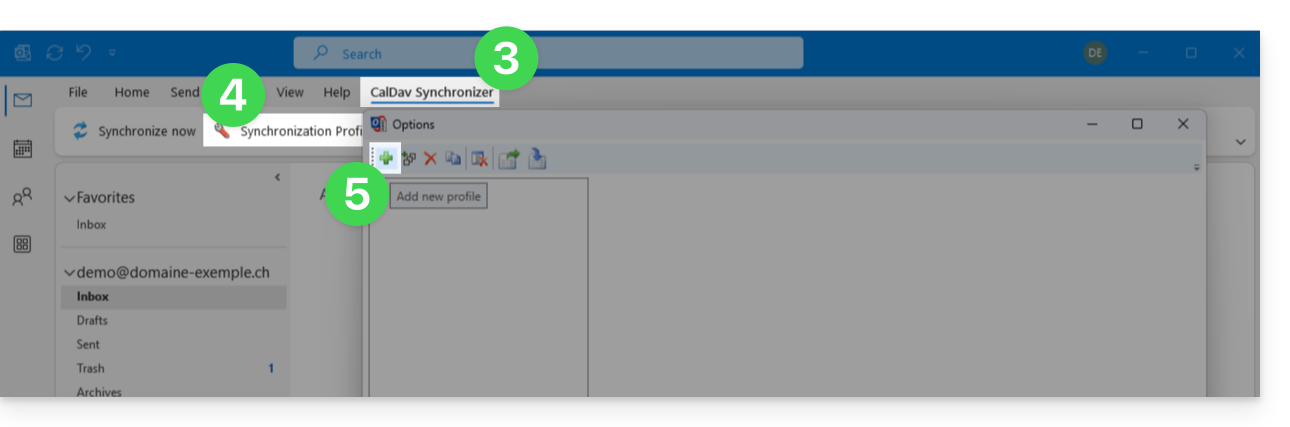
- Once the plugin is installed, open Outlook and click on the new CalDav Synchronizer tab.
- Click on Synchronisation Profiles.
- Click on the + icon to create a first profile (for the calendar or contacts – you will need to create a second profile later to synchronize both):
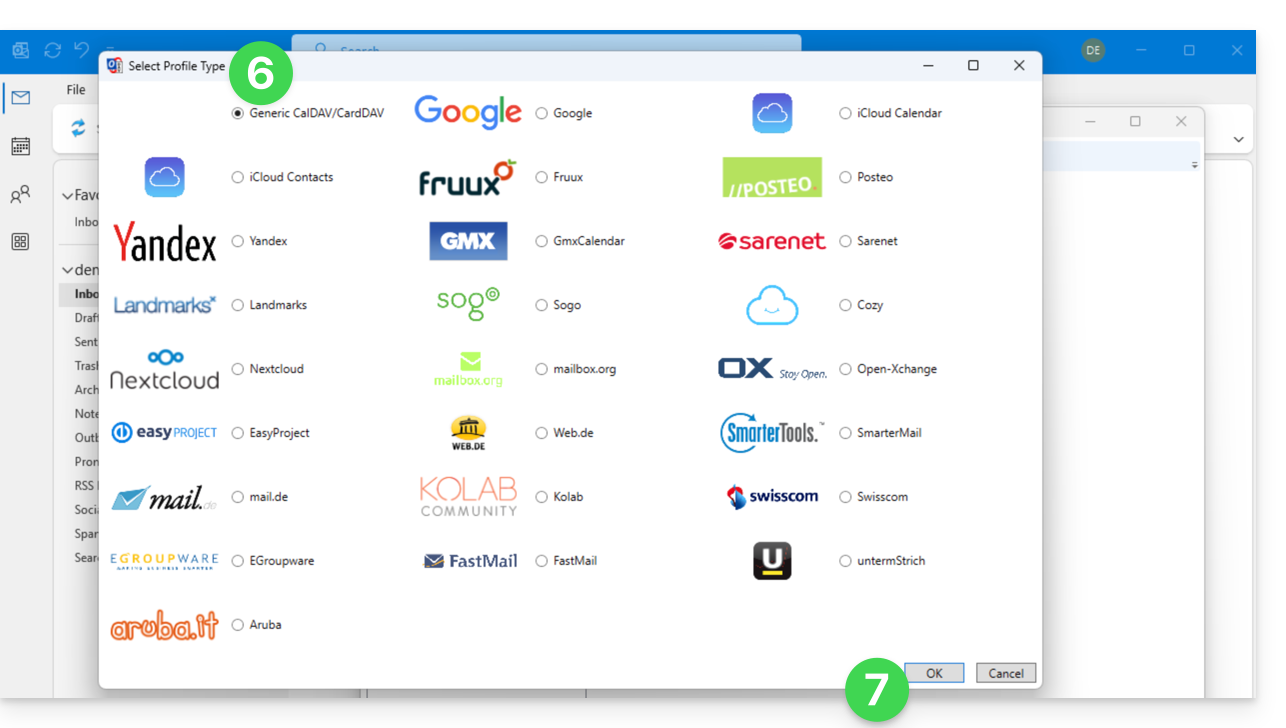
- Choose a generic profile type (first radio button).
- Click on the OK button:
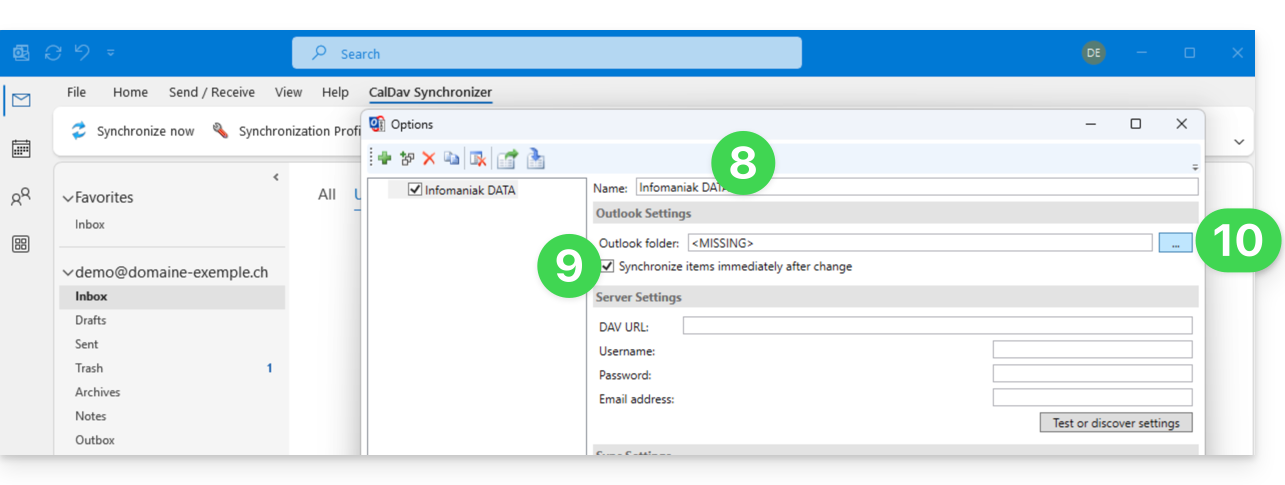
- Enter a profile name (e.g., the name of the Infomaniak calendar or address book you want to synchronize).
- Check the synchronization box.
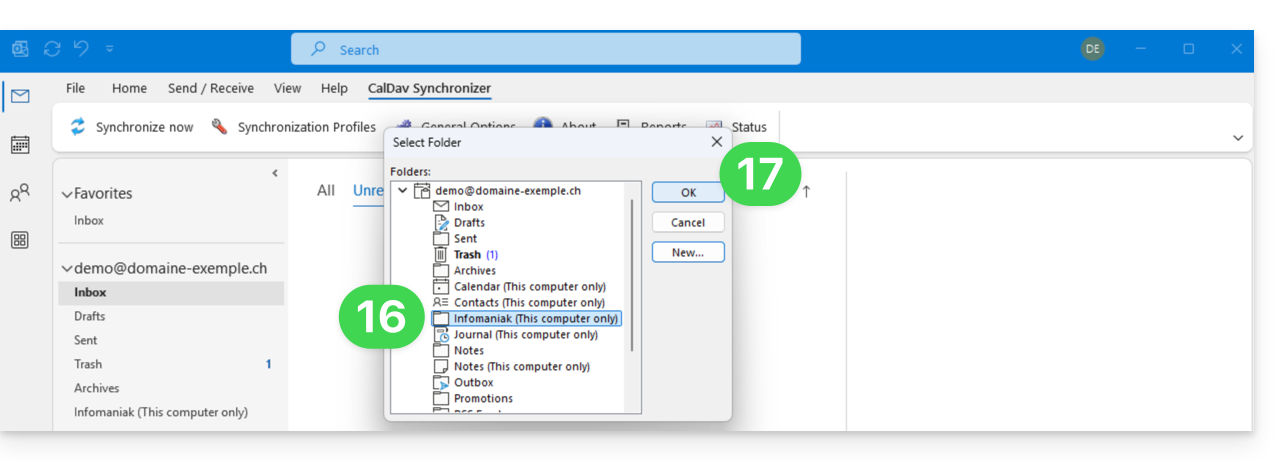
- Click on the [ ▪ ▪ ▪ ] button:
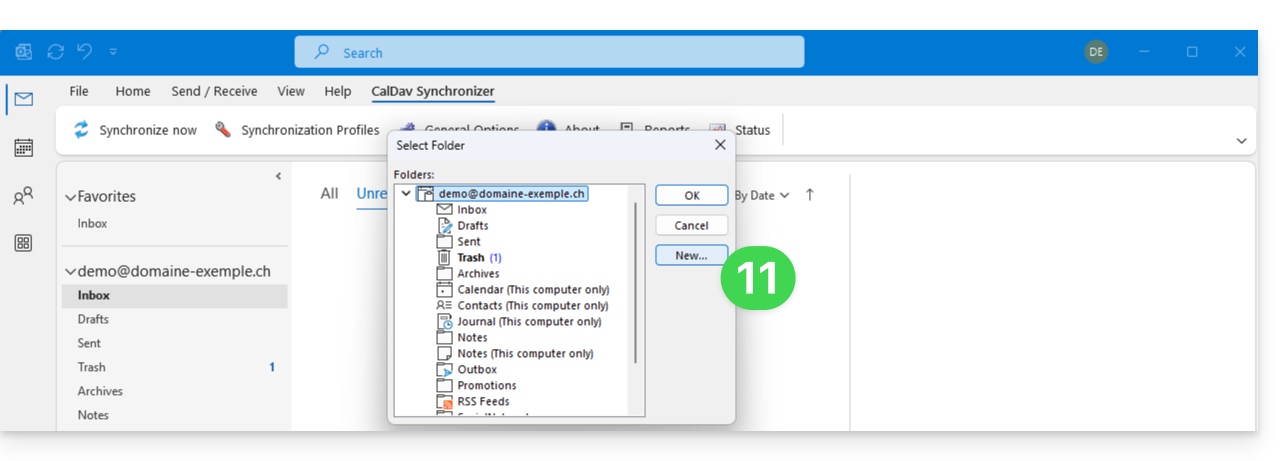
- Click on the New… button:
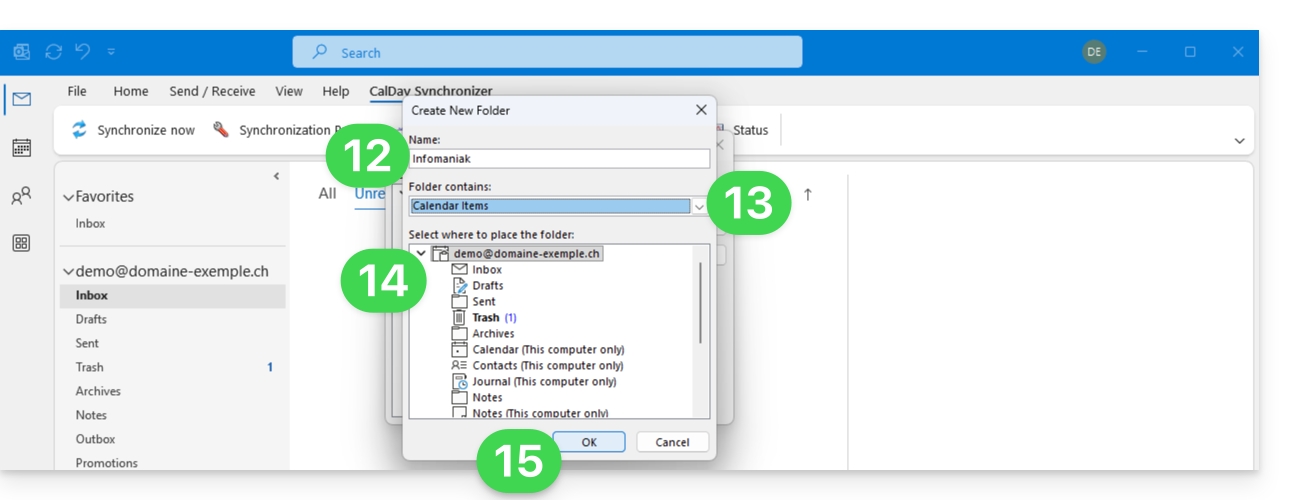
- Enter a name for the new folder.
- Choose the type of items the folder will contain (Calendar or Contacts).
- Click on the parent folder to create the folder within its structure.
- Confirm with the OK button:
- Select the newly created folder from the list.
- Confirm with OK:
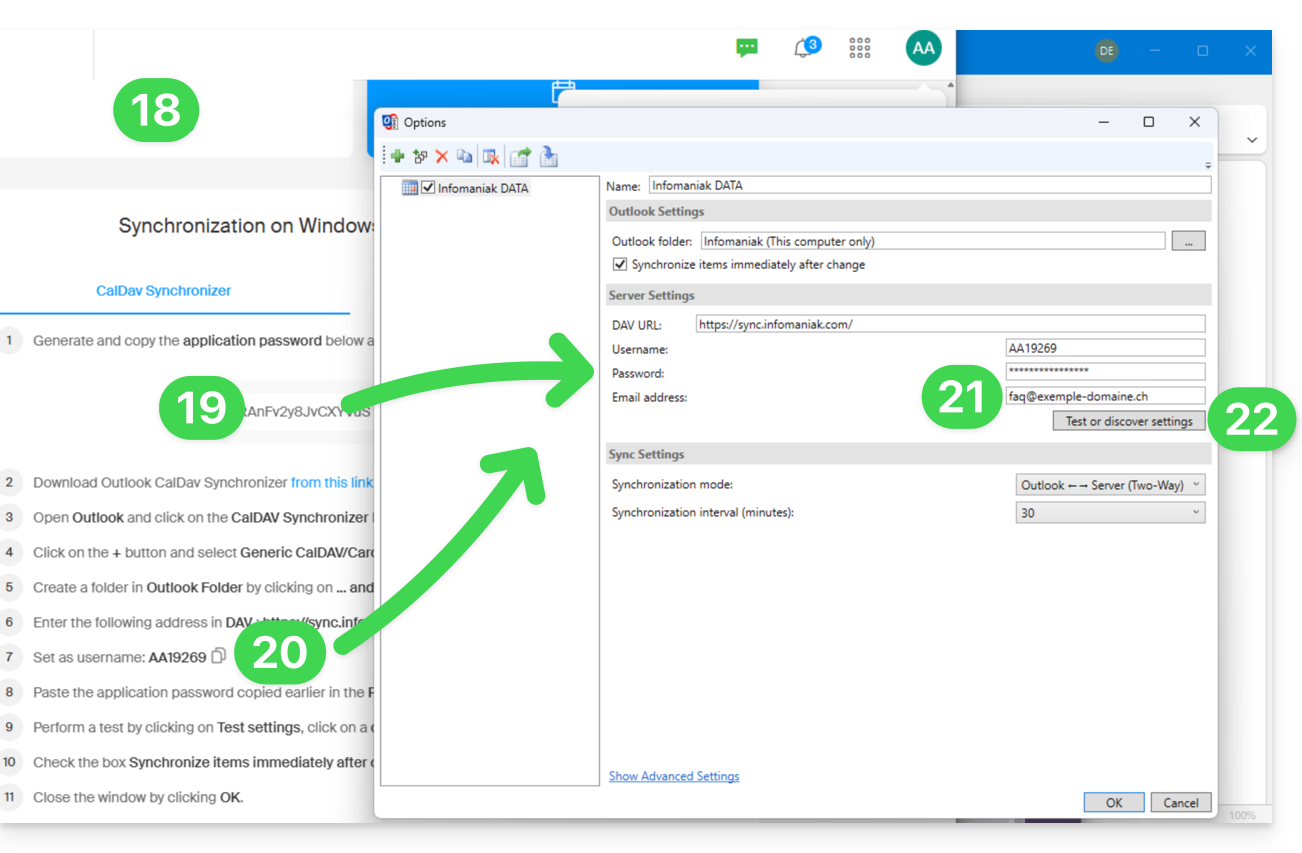
- Open the wizard https://config.infomaniak.com/ to obtain the information regarding synchronization with Outlook.
- Click the button to generate an application password (this allows you to bypass the 2FA for your user account for synchronization purposes only).
- Copy the information (password, URL, and username) obtained from config.infomaniak.com.
- Enter your email address, which is the address of your Infomaniak account.
- Click the button to Test the settings:
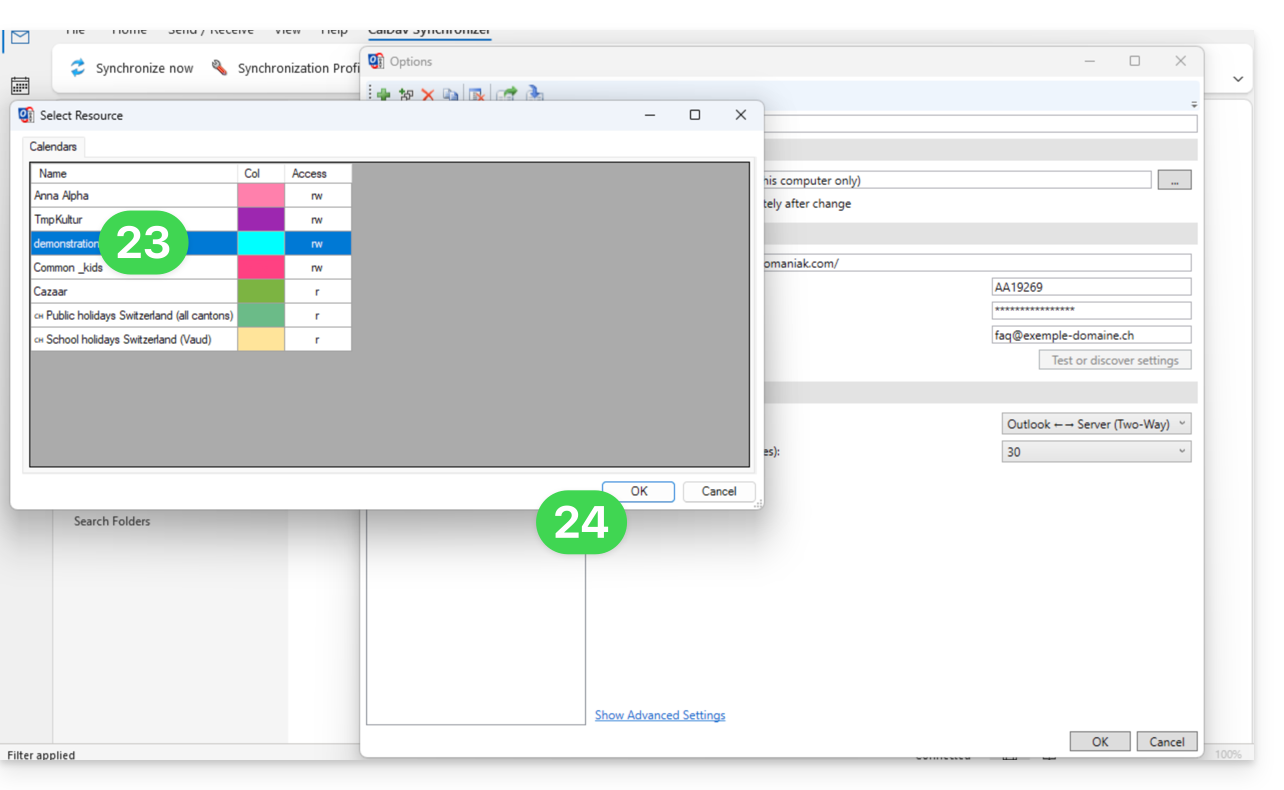
- In the window that opens, choose the Infomaniak calendar to synchronize.
- Click the OK button:
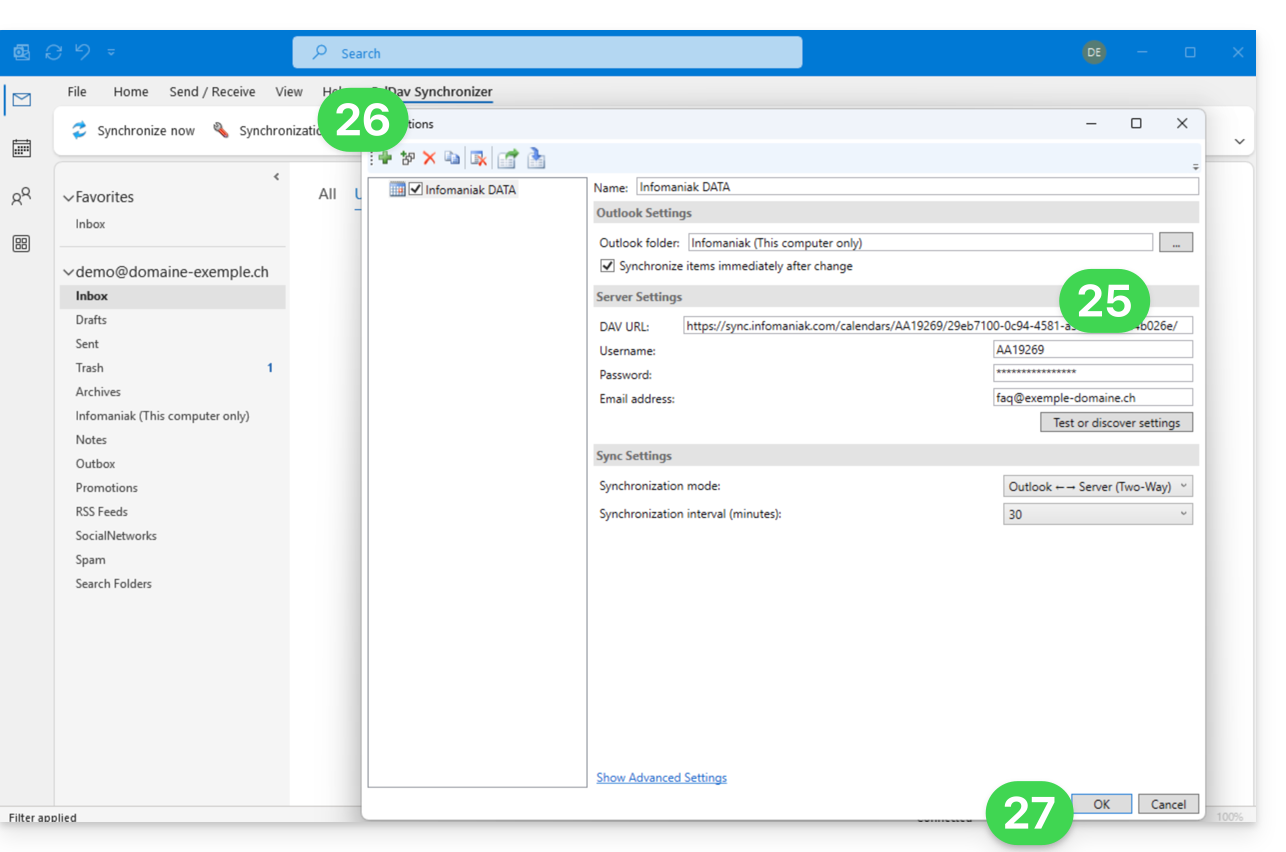
- Additional information may then appear automatically in some fields.
- Save a second profile if necessary (in this case, start again from step 5).
- Finish by clicking OK at the bottom right:
- A restart of Outlook may be required to update the added information, which will then be visible in the interface:
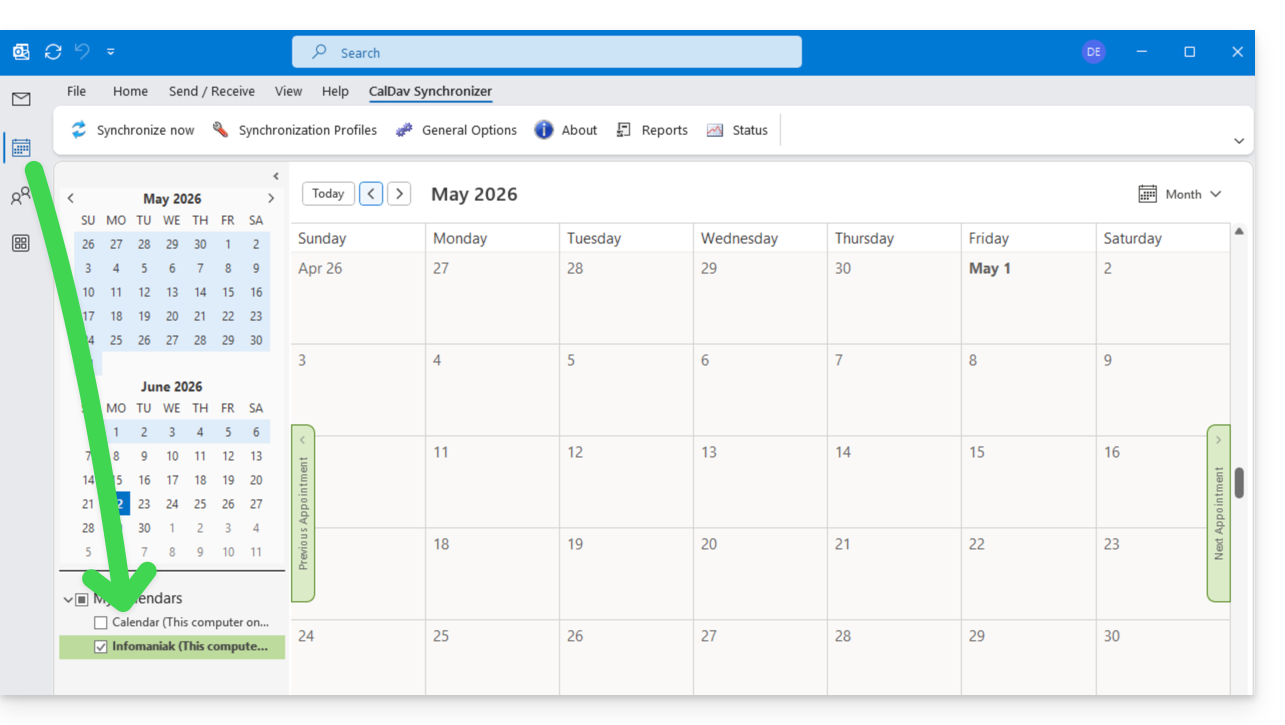
Resolving duplicate events
If you notice duplicate events in your Outlook calendar that are not duplicated on ksuite.infomaniak.com/calendar, apply these settings:
- Click to Show Advanced Settings.
- Click on Event Mapping Configuration.
- Check the box Use GlobalAppointmentID for UID attribute.
- Check the Cleanup duplicate events box.
- Save the changes by clicking the OK button:
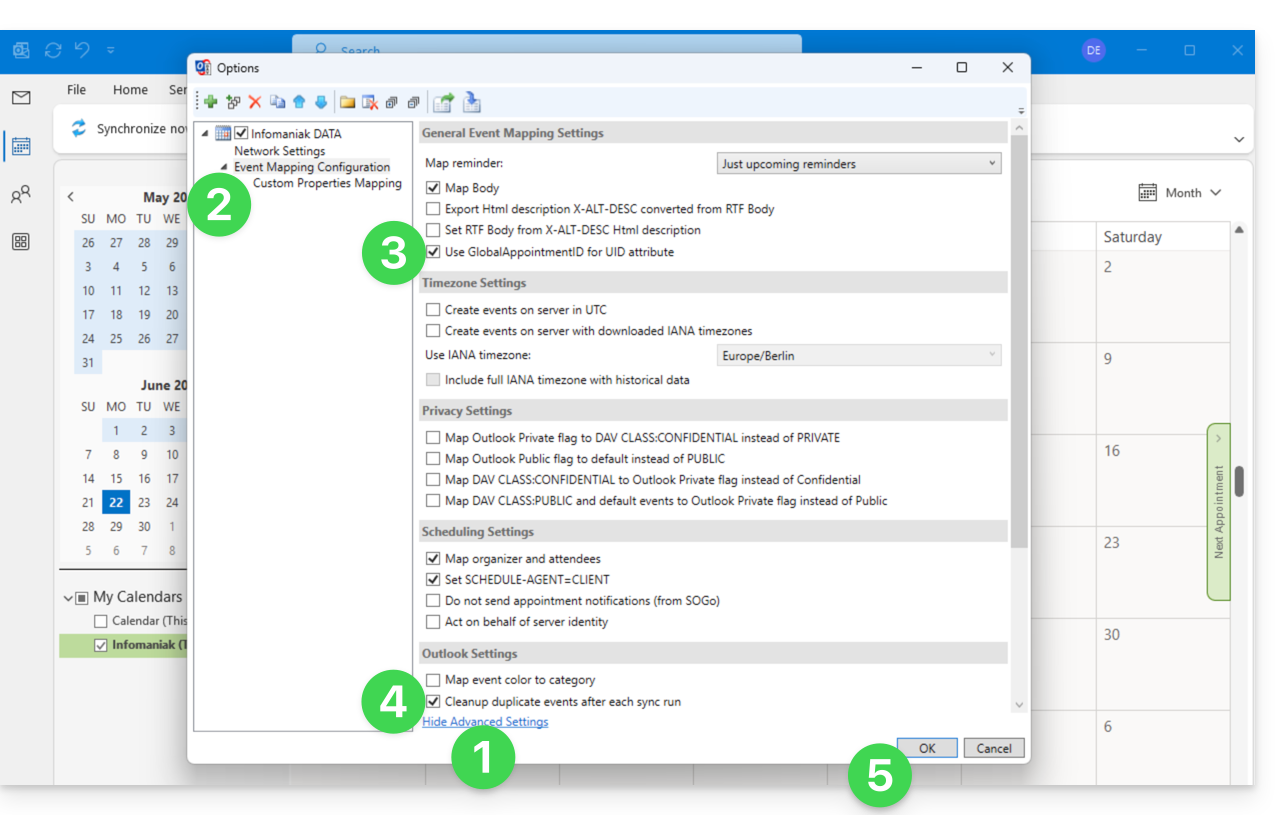
This removal of duplicate events, and therefore potentially duplicate invitations, may result in a notification of event rejection being sent to the organizer; however, this does not affect the participant's initial choice.
For advanced macOS users
There is an alternative for Outlook / Exchange on macOS, via the ews-caldav-sync Python script:
- Unlike an ICS file import provided by Outlook Web, which only includes the last few weeks of events, the script will import all calendar events, including recurring events, without importing tasks.
- Synchronization via this script is one-way, from Microsoft Exchange to the CalDAV server. It is recommended to run it at regular intervals.
Link to this FAQ: https://faq.infomaniak.com/2045
Has this FAQ been helpful?