Knowledge base
1000 FAQs, 500 tutorials and instructional videos. Here, there are only solutions!
Install a free "wildcard" SSL certificate
Update 10/13/2026
This guide explains how to generate a certificate signing request (CSR) for a domain name and all its subdomains with a Web Hosting plan (excluding free Starter plans), allowing you to encrypt the connection to your domain name and all its subdomains via a single SSL certificate.
Introduction
- The configuration allows for a "named site" and a "backup site"; to ensure this works without conflict, make sure that the wildcard and your specific subdomains do not overlap on the same web hosting:
- DNS level: the priority is natural: if a specific subdomain exists (e.g.,
prive.domain.xyz), it is used; otherwise, the request is redirected to the wildcard (*.domain.xyz). - Server level: it is necessary to be vigilant: if the wildcard and the specific subdomain are on the same server, the software implementation (Apache) decides; Apache processes requests according to the evaluation order of the configuration files.
- The risk: if the wildcard is evaluated first, it "captures" all traffic, making your specific subdomain inaccessible, even if it exists elsewhere.
- Therefore, you should not place the wildcard on the same hosting as a more specific subdomain that overlaps with it.
- DNS level: the priority is natural: if a specific subdomain exists (e.g.,
Setting up a Wildcard Certificate
1. Add a domain alias with an asterisk (*)
To add a wildcard alias (*) to your website:
- Click here to access the hosting & website management section in your Infomaniak Manager (❓: help).
- Click on the name of the website in question.
- Then, click on the down arrow to expand the Domains section of that website.
- Click on the Add a domain button:
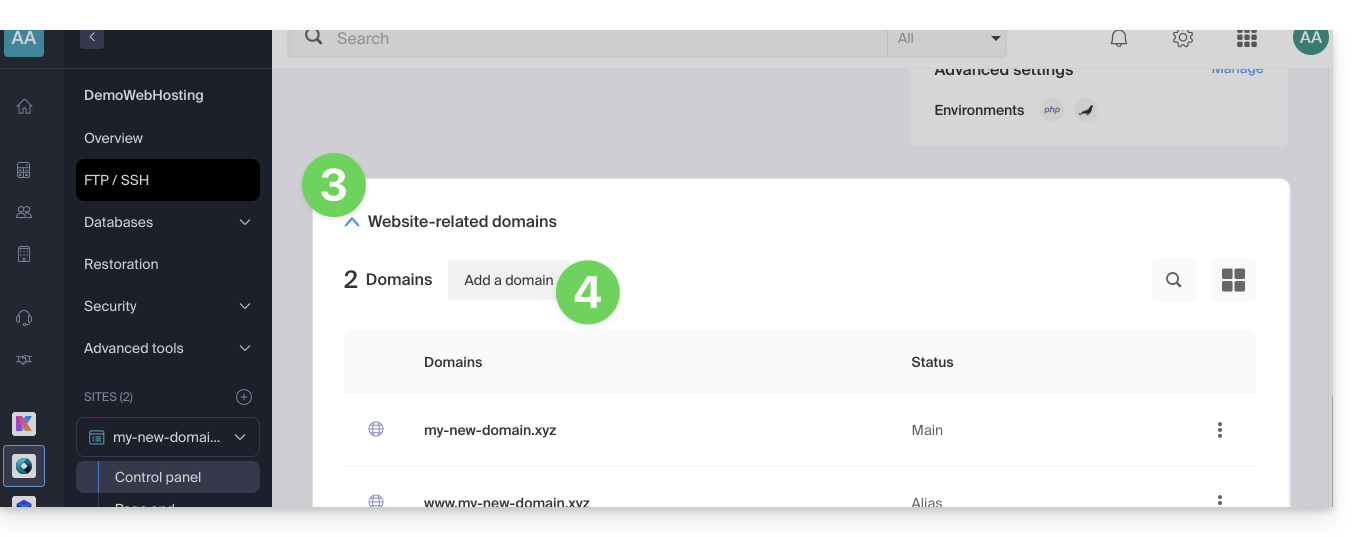
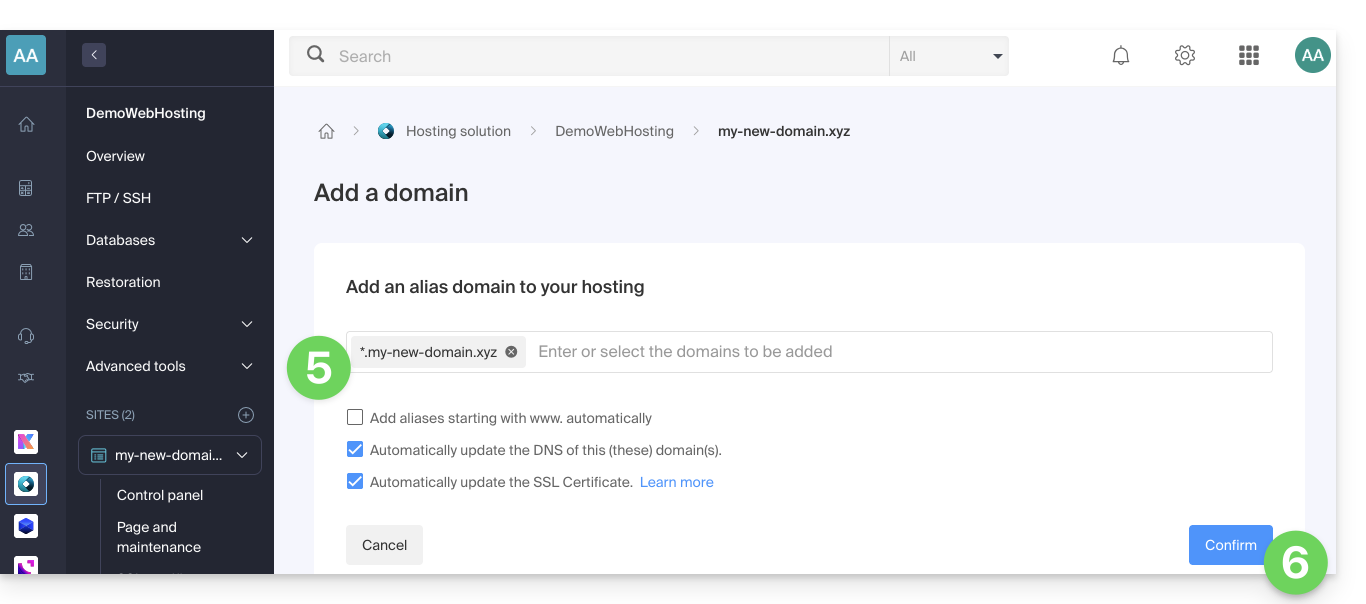
- Enter the domain name to add in the following format:
*.domain.xyz(the asterisk is required, followed by a period, and then the domain name of the website, which in this example is domain.xyz)
- Click the Confirm button to complete the process:
2. Install an SSL certificate or update it
Example of how to update the existing certificate to include the * wildcard subdomain:
- Click here to access the hosting & website management section in your Infomaniak Manager (❓: help).
- Click on the name of the website in question.
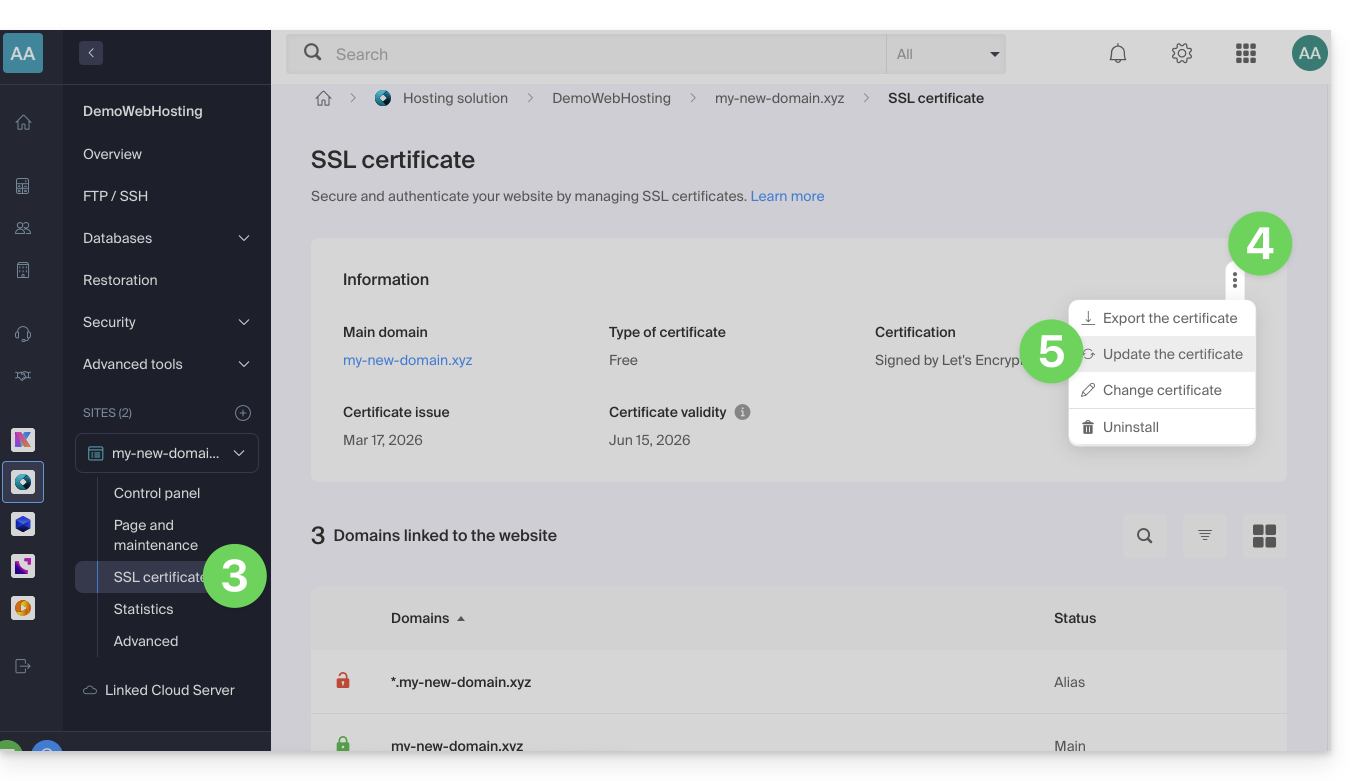
- Click on SSL Certificate in the left-hand menu.
- Click on the action menu ⋮ located on the right.
- Click on Update certificate:
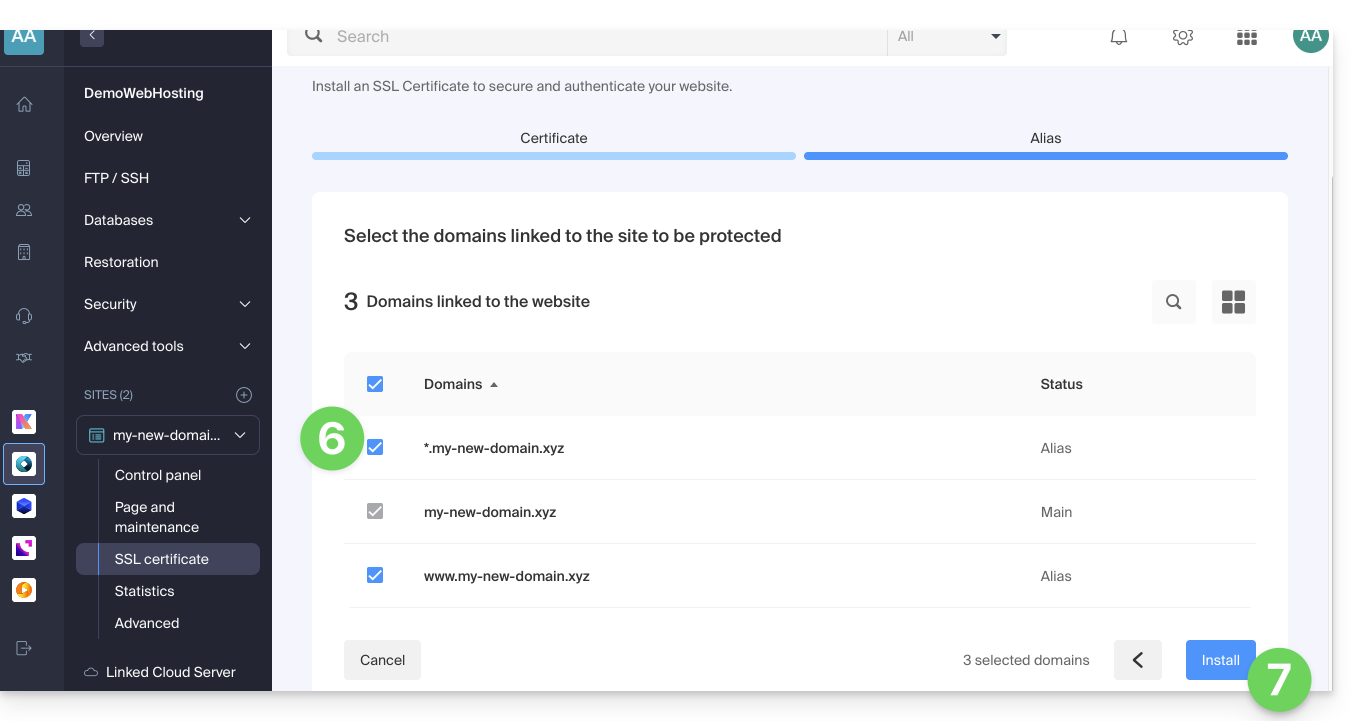
- Make sure the newly added subdomain is selected.
- Click the Install button at the bottom:
- Please wait while the process is created or updated.
Link to this FAQ: https://faq.infomaniak.com/2096
Has this FAQ been helpful?