Knowledge base
1000 FAQs, 500 tutorials and instructional videos. Here, there are only solutions!
This guide explains how to access a website's configuration in Infomaniak to display technical information such as the PHP version, the Apache version, or the enabled PHP extensions and modules.
View website technical information
To access the site management:
- Click here to access the hosting & site management section in your Infomaniak Manager (❓: help).
- Click on the name of the website in question.
- Click on Manage advanced settings:
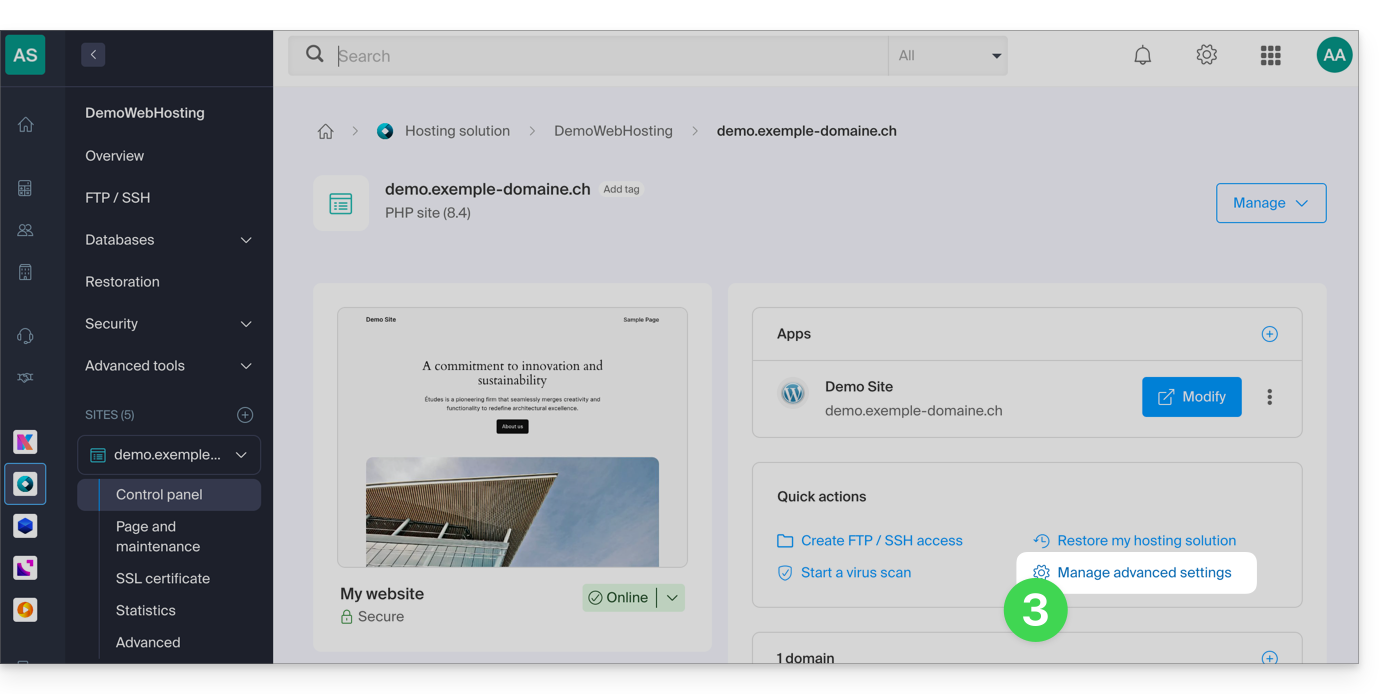
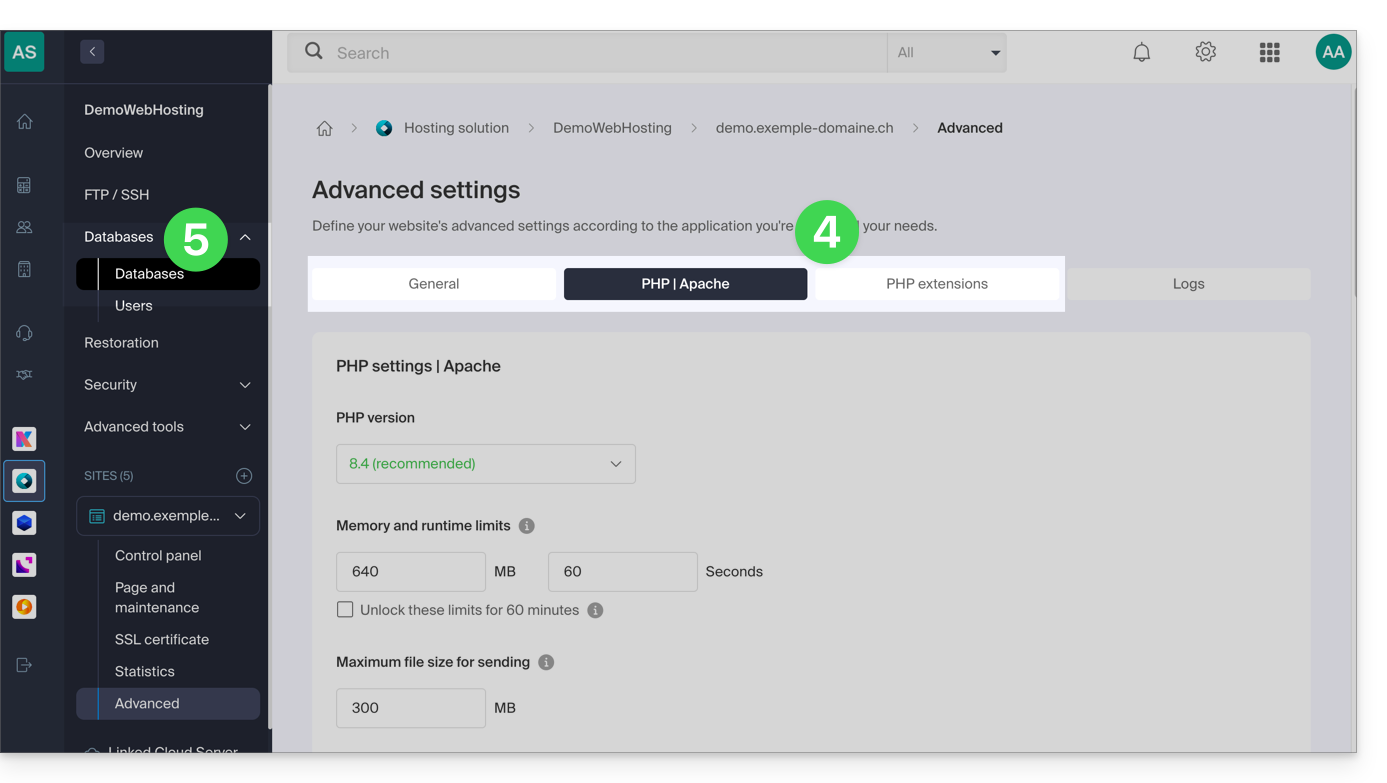
- Review the website information under the General, PHP / Apache, and PHP Extensions tabs.
- Click on Databases in the left-hand menu to view the MySQL version of the web hosting:
Link to this FAQ: https://faq.infomaniak.com/2116
Has this FAQ been helpful?
This guide explains how to run the open-source dependency manager Composer 2 using an SSH command.
Introduction
- Composer is an open-source dependency manager for PHP that allows you to define, install, and update the libraries required for a PHP project.
- Composer 1 has been deprecated since 2021 and no longer allows you to install new packages or perform updates since 2025.
- Only version 2 of Composer is now supported and available on all PHP versions from 7.2 to 8.3.
Run Composer 2
Composer 2 is already pre-installed and accessible via SSH. Therefore, there is no need to install it manually.
Simple usage
Connect to your hosting via SSH, then use the following command:
composerThis command will automatically execute Composer version 2, which is compatible with the PHP version currently in use in your session.
Check the active version
You can check the available Composer version with:
composer --versionExample output: Composer version 2.5.0 2022-12-20 10:44:08
Force a specific PHP version
If you want to run Composer with a specific PHP version, aliases are available. For example:
composer_php8.1 --versionor:
composer_php7.4These aliases allow you to run Composer 2 with the specified PHP interpreter, which is useful for testing or deploying a project on a target PHP version.
Link to this FAQ: https://faq.infomaniak.com/2118
Has this FAQ been helpful?
This guide concerns Laravel, an open-source web framework written in PHP that follows the model-view-controller (MVC) principle. Please also refer to their documentation.
Prerequisites
- Have a Shared Web Hosting or Cloud Server with the latest MySQL/MariaDB.
- Website running on PHP 8.2.
- Create an SSH access.
- Create a database.
Installing Laravel 11
To do this:
- Connect to the server via SSH (need help?).
- Navigate to the website directory by running the command “cd path-to-website” (e.g.
cd sites/laravel.domain.xyz). - Create a new project by running the command
composer create-project laravel/laravel example-app. - Edit the
.envfile at the root of the hosting to update the connection settings for the new database:- DB_CONNECTION=mysql
- DB_HOST=xxxx.myd.infomaniak.com
- DB_PORT=3306
- DB_DATABASE= the name of the MySQL database (xxxx_newbdd)
- DB_USERNAME= the MySQL user with the rights to this database
- DB_PASSWORD= its password
- Navigate to the project directory and deploy via SSH:
cd example-appphp artisan migrate - Modify the target directory to point to the "public" subdirectory of the project, here
/sites/laravel.domain.xyz/example-app/public.
Link to this FAQ: https://faq.infomaniak.com/2119
Has this FAQ been helpful?
This guide explains how to allow certain incoming and/or outgoing ports in the firewall(firewall) of a web hosting or a Cloud Server.
Introduction
- On a shared web hosting plan, it is only possible to open outgoing ports.
- On a Cloud Server, it is possible to open incoming and outgoing ports.
- Opening ports ensures the proper functioning of certain applications but may reduce the security of your hosting.
Access the tool and add a rule
To manage port openings from the Manager:
- Click here to access the hosting & website management section in your Infomaniak Manager (❓: help).
- Click on the name of the hosting in question.
- Click on Security in the left-hand menu.
- Click on Port Forwarding in the left-hand menu.
- Click on the Open a Port button:
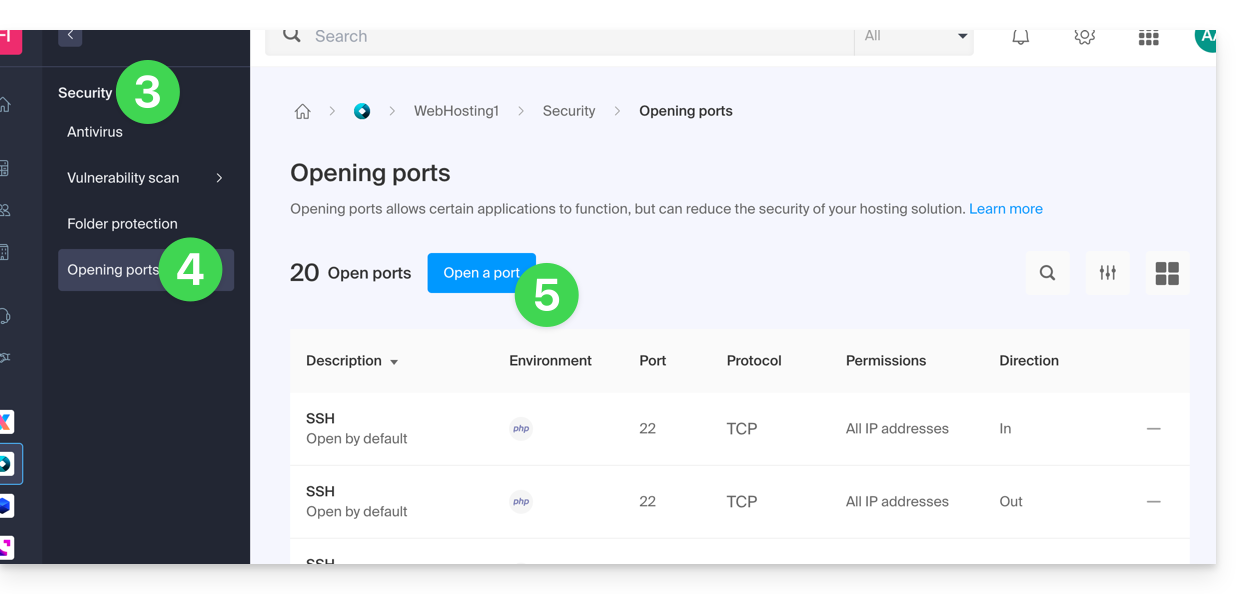
Open a port
You can only specify one port per rule, and only one IP address/host per field: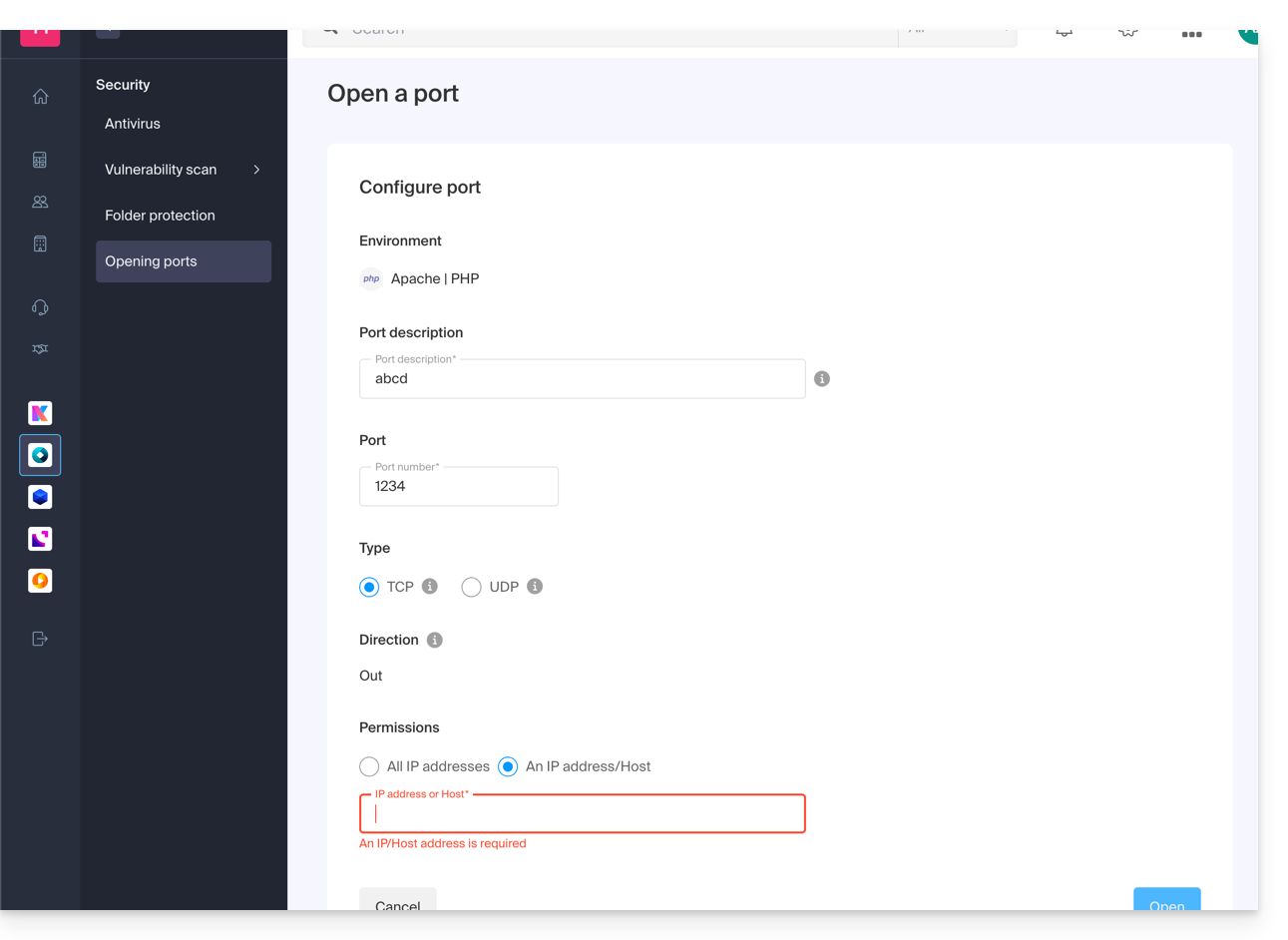
By specifying an IP address or host, the connection will only be allowed in the following cases:
Incoming rule: if the connection comes from this IP address or the specified hostOutgoing rule: if the connection is made to this IP address or host
The same applies to the connection "Type": if the protocol used for the connection is not the one specified in the rule, the connection is not allowed.
Globally open outgoing port 25
You can open outgoing port 25 from the manager if a destination host is specified.
With a Cloud Server, to open this port to the entire world, contact Infomaniak support and justify your request.
Ports opened by default
Once you access the port opening tool, you will find the list of ports that are open by default on the page.
With a Cloud Server, to exceptionally close some of the listed ports, contact Infomaniak support and justify your request.
The display may sometimes be spread across multiple pages: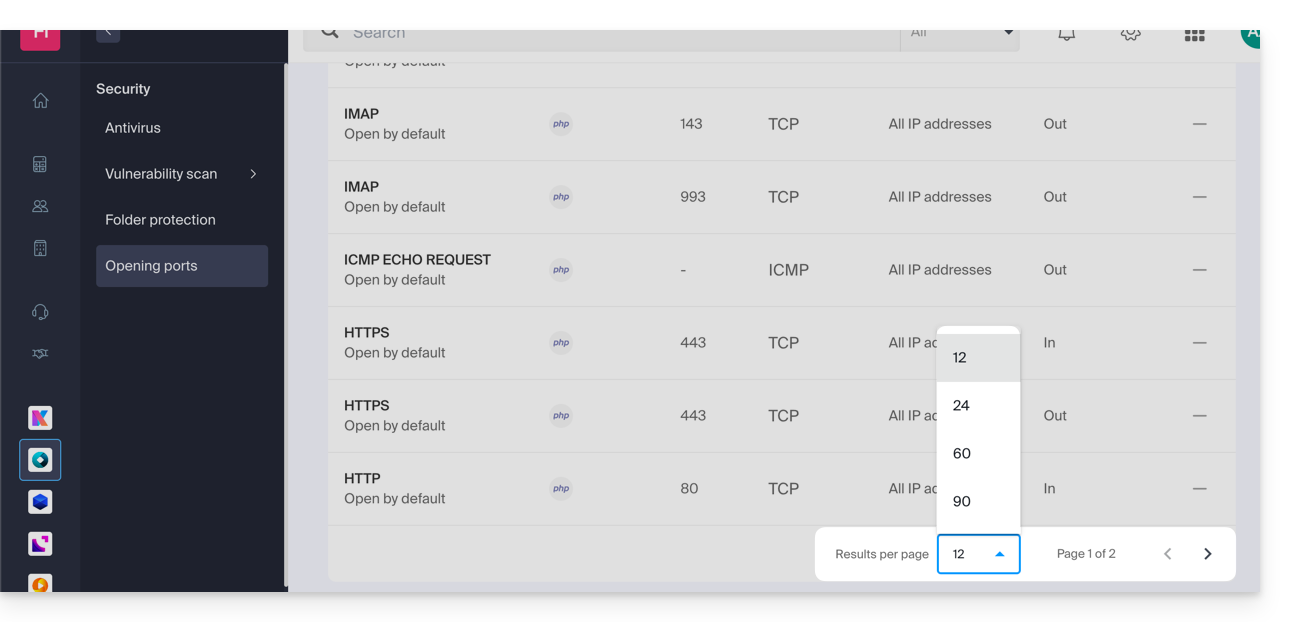
MySQL Ports
Regarding database ports, please refer to these guides:
Check the activity of a port (Cloud Server)
On Cloud Server, to check if an application is listening on a specific port (1234 in the example below) and to find out the name of the application in question, run the following command via SSH:
netstat -anpe | grep "1234" | grep "LISTEN"Link to this FAQ: https://faq.infomaniak.com/2126
Has this FAQ been helpful?
This guide explains how to migrate a shared web hosting account to a Cloud Server while recovering all its data, websites, databases, etc.
Introduction
- Please note:
- Database names and database user names are retained.
- FTP accounts are retained with the same names, but the host server changes to an address of the type
xxxx.ftp.infomaniak.com. - Website IPs will change, except for dedicated IPs.
- During this operation, statistics are reset.
- If you already have a Cloud Server, go directly to step 2 of this guide.
- To migrate a web hosting from a Cloud Server to another Cloud Server, please refer to this other guide.
- To migrate a web hosting from a Cloud Server to a shared web hosting, please refer to this other guide; please note that this is an operation you will need to perform manually.
1. Order a Cloud Server
To do this:
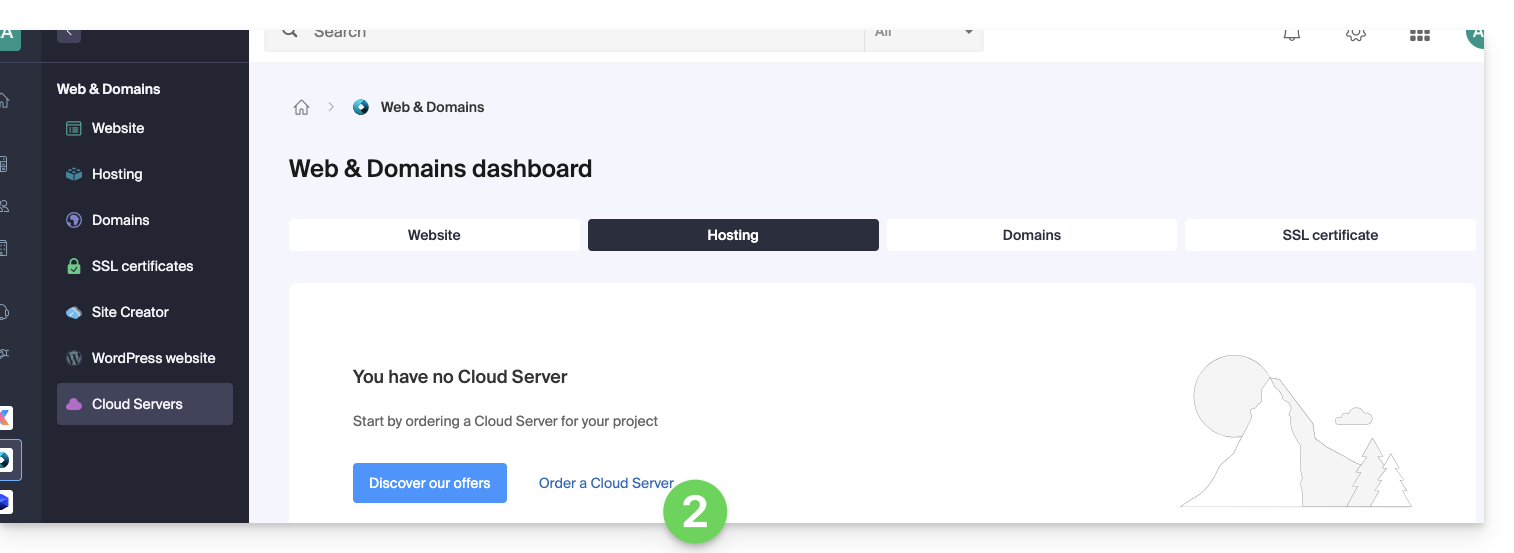
- Click here to access the Cloud Server management section in the Infomaniak Manager (need help?).
- Click on Order, choose a Managed Cloud Server, and follow the wizard to complete the order:
2. Migrate your hosting to the Cloud Server
Once the Cloud Server is up and running:
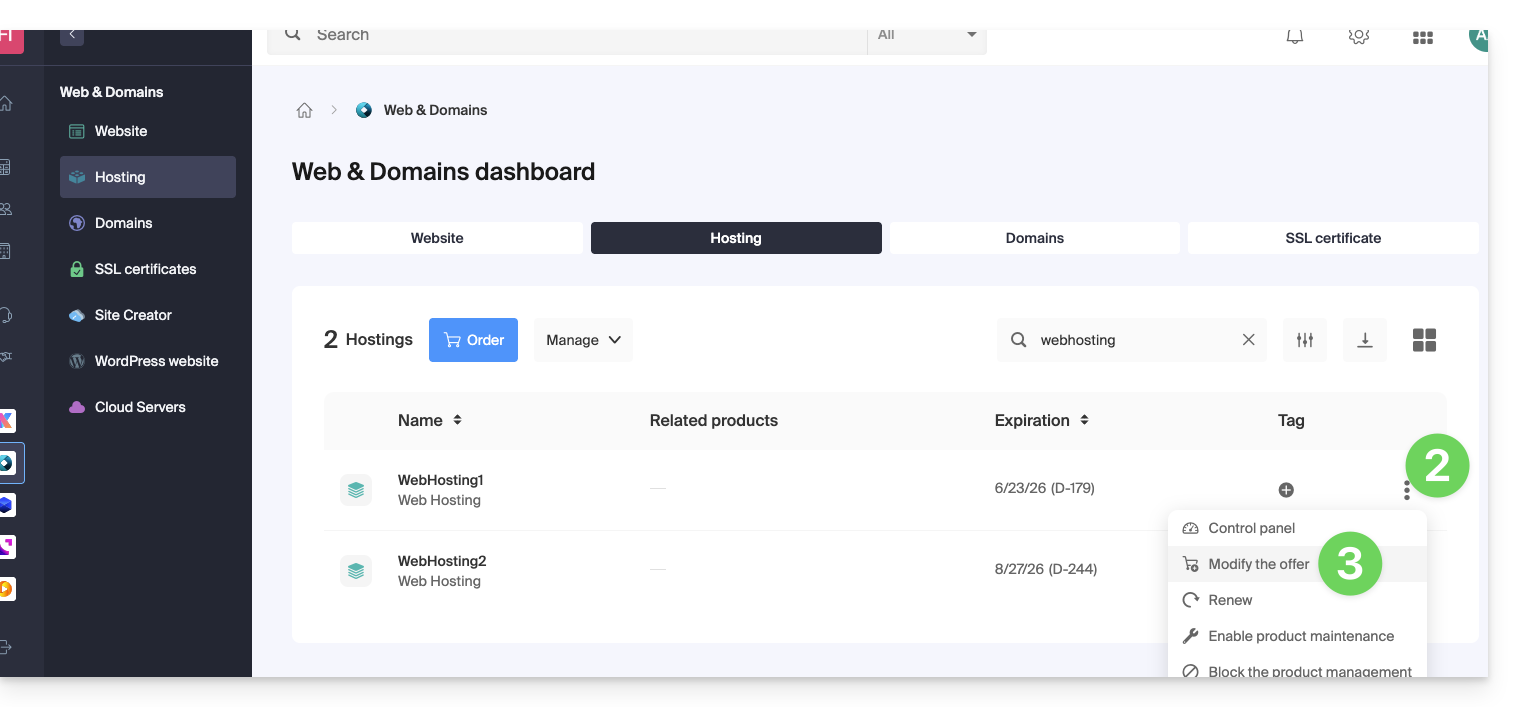
- Click here to access the hosting & website management section in your Infomaniak Manager (❓: help).
- Click on the action menu ⋮ located to the right of the item in question.
- Click on Modify offer:
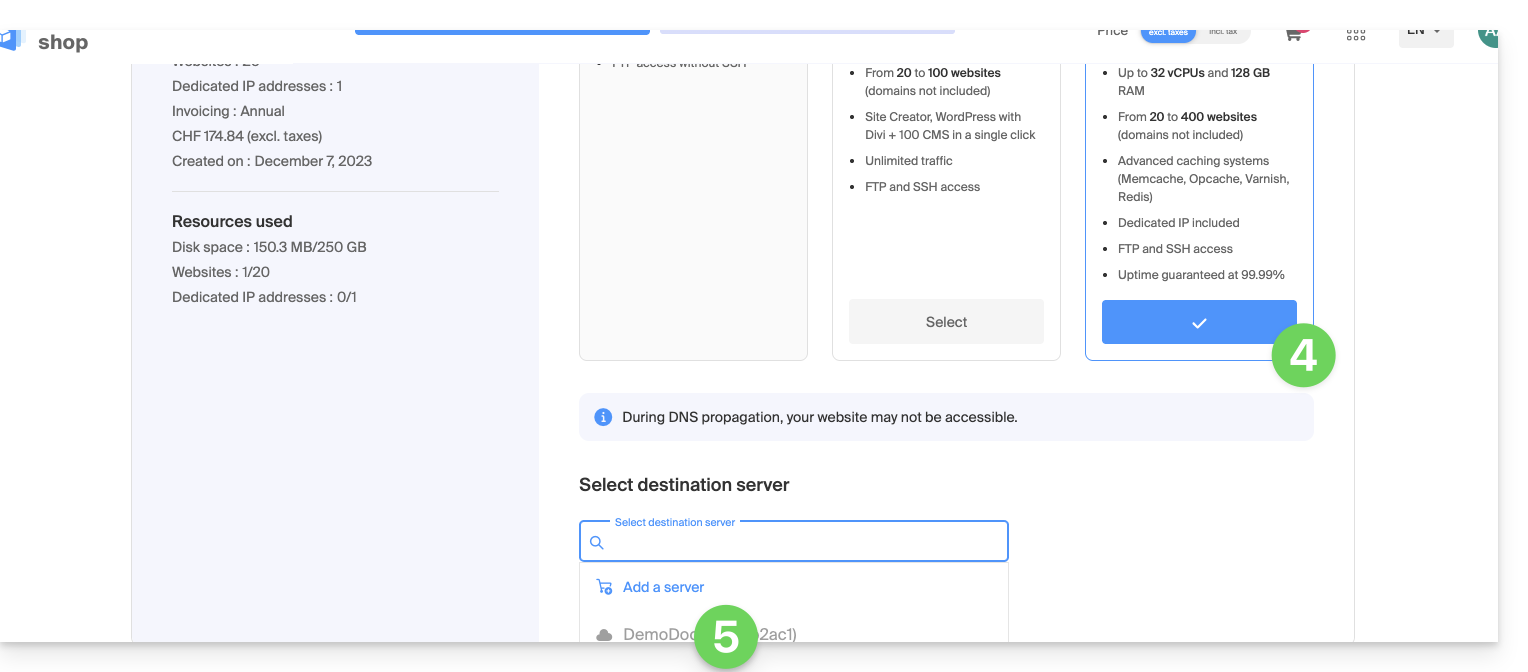
- Select the free transfer offer.
- Select the Cloud Server to which you want to migrate your hosting:
- Click the Next button at the bottom of the page and complete the procedure.
- Please wait while your hosting is being migrated; there will be a service interruption during the process.
Link to this FAQ: https://faq.infomaniak.com/2127
Has this FAQ been helpful?
This guide explains how to back up or export a MySQL/MariaDB database via the Infomaniak Manager or via SSH.
Export a database via the Manager
To export an Infomaniak database:
- Click here to access the hosting & website management section in your Infomaniak Manager (❓: help).
- Click on the name of the website in question.
- Click on the chevron to the right of Databases in the left-hand menu.
- Click on Databases in the left-hand menu.
- Click on the action menu ⋮ to the right of the relevant item in the table that appears.
- Click on Export (or on Download a backup):
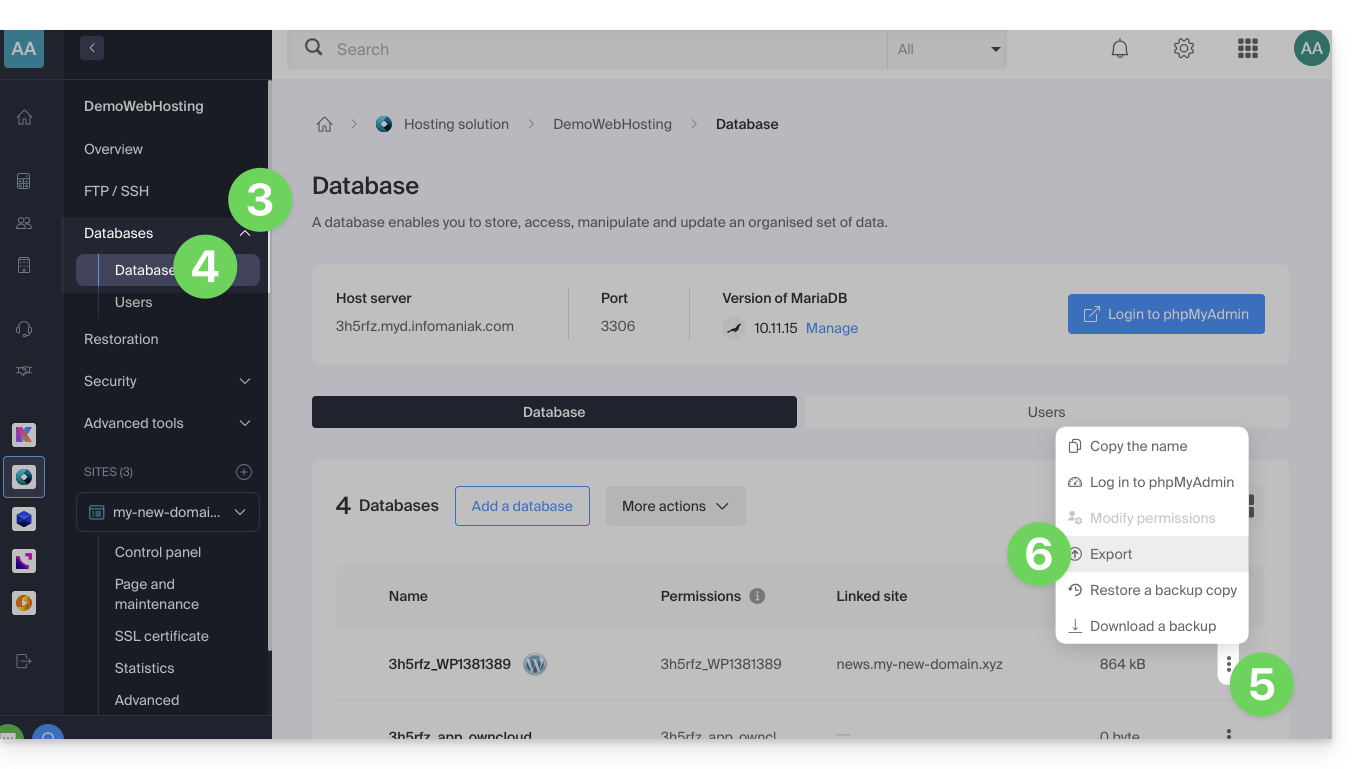
- Click on the export method and choose the database to download from the drop-down menu.
- Click on the Next button:
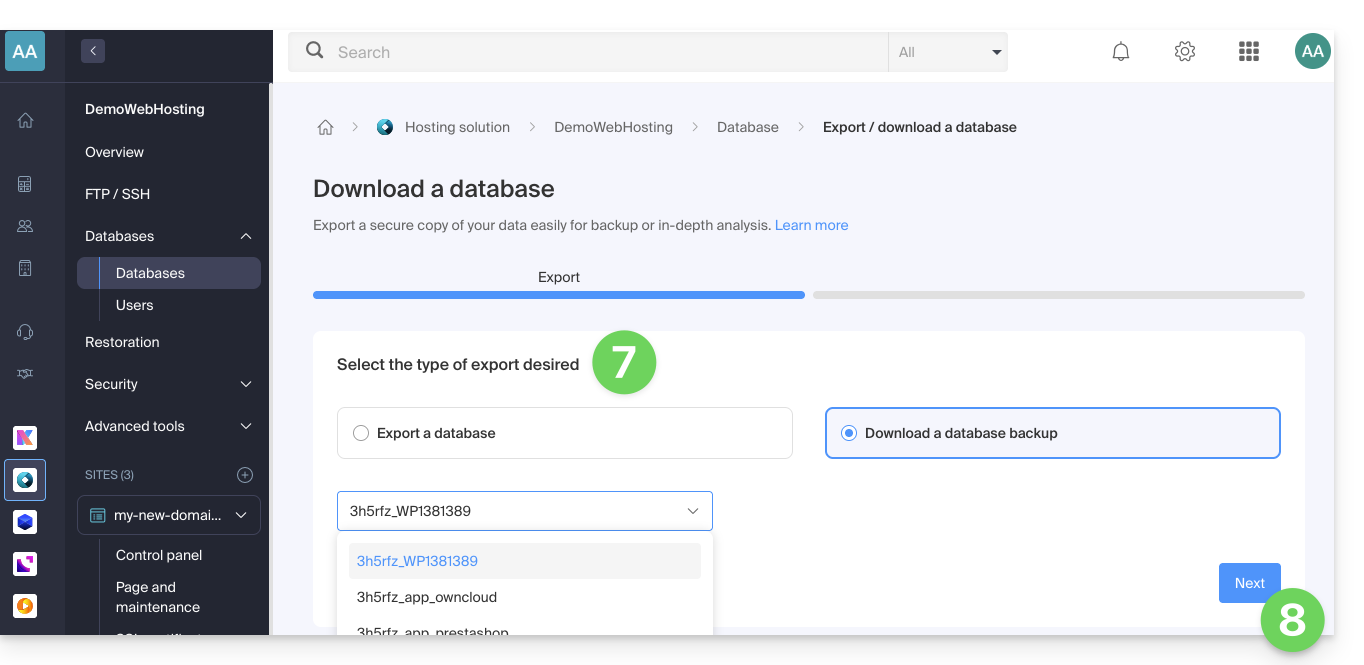
- Click on any desired instructions:
GzipcompressionDrop TableCreate Table if not existsInsert ignore into
- Click the Export button.
Export a database via SSH
If you are unable to export the database via the console, or if the database is large:
- If necessary, create an SSH account (❓: help).
- Connect to the server via SSH (❓: help).
Adapt and run the following SSH command to generate the export:
# Usage: mysqldump --host=[hostname] -u [username] --password=[password] [database_name] --no-tablespaces > [output_file.sql] mysqldump --host=db_host -u db_user --password=db_password db_name --no-tablespaces > backup.sql- Wait for the command to complete (the terminal may freeze for a few seconds).
From a terminal on your local machine, download the generated file via SCP (❓: help):
# Usage: scp [username]@[server_ip]:~/[remote_file.sql] [local_path]
scp user@server_ip:~/backup.sql ./backup.sql
Additional help
Example command to execute in step 3 of the second procedure:
# Example with standard credentials mysqldump --host=abcd.xyz.infomaniak.com -u abcd_test --password=your_secret_password abcd_test --no-tablespaces > backup.sql- Refer to this other guide if you are looking for information related to the MySQL server, the database username, and password.
Link to this FAQ: https://faq.infomaniak.com/2128
Has this FAQ been helpful?
This guide explains how to install a free SSL certificate from Let's Encrypt on a website hosted by Infomaniak.
Introduction
- Once the certificate is installed, your website will be accessible via
httpandhttps…- If necessary, automatically redirect all your visitors to the secure https site (❓: help).
- If you want to include a domain name alias recently added to your site that already had a certificate, you need to update it (❓: help).
- For multiple subdomains, please refer to this other guide.
- Let's Encrypt limits the installation of certificates (❓: help) to:
- 100 subdomains
- 20 certificates for 7 days per registered domain
- 5 unsuccessful requests per account per hostname per hour
Install a free SSL certificate on a website
Prerequisites
- For the installation to be possible, the DNS records for the domain name must be correctly configured to point to the website in question (❓: help).
- If a change has just been made at this level, some operations may not be functional immediately.
To access the websites in order to install an SSL certificate:
- Click here to access the hosting & website management section in your Infomaniak Manager (❓: help).
- Click on the action menu ⋮ located to the right of the website in question.
- Click on Install a certificate:
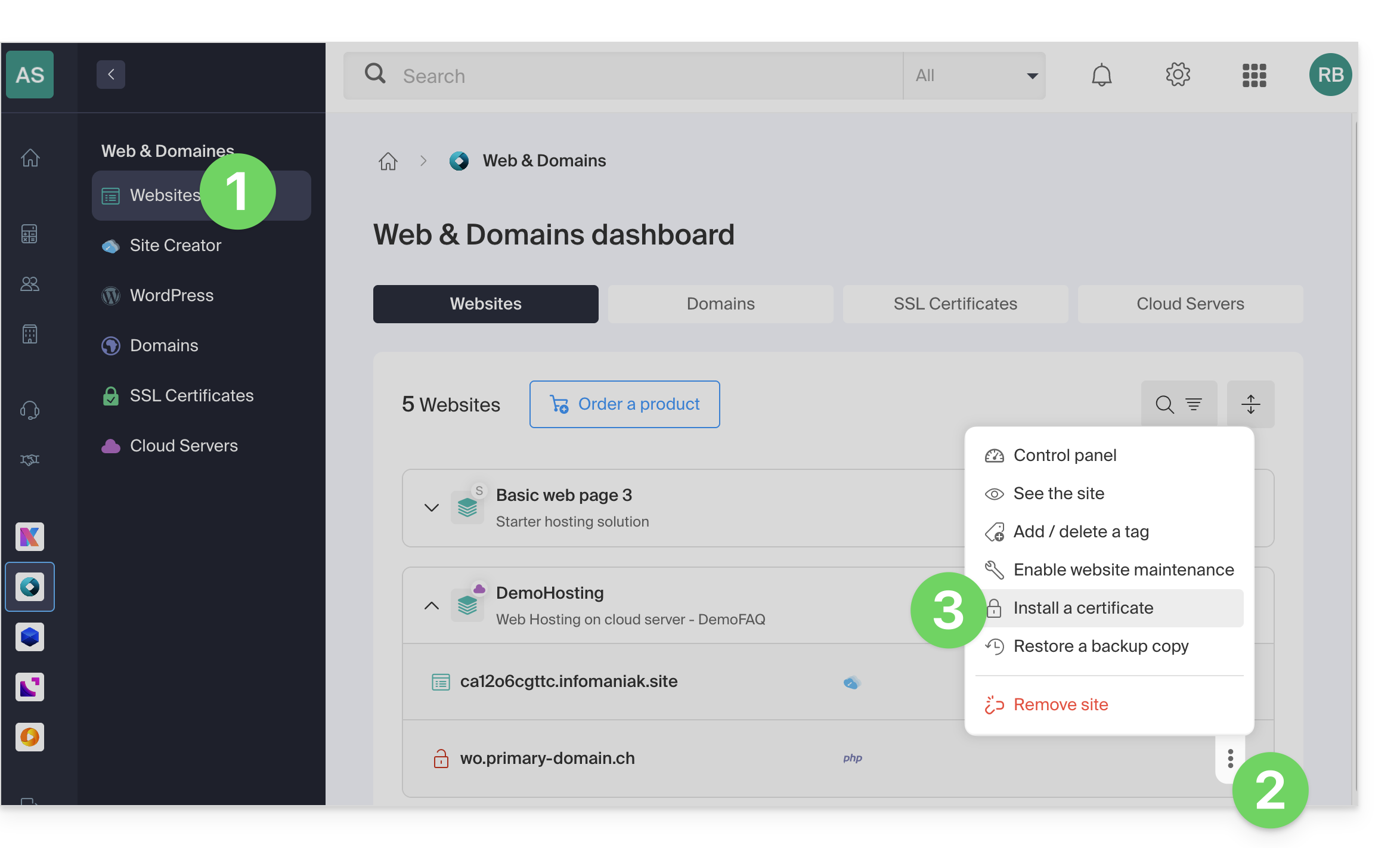
- Choose the free certificate:
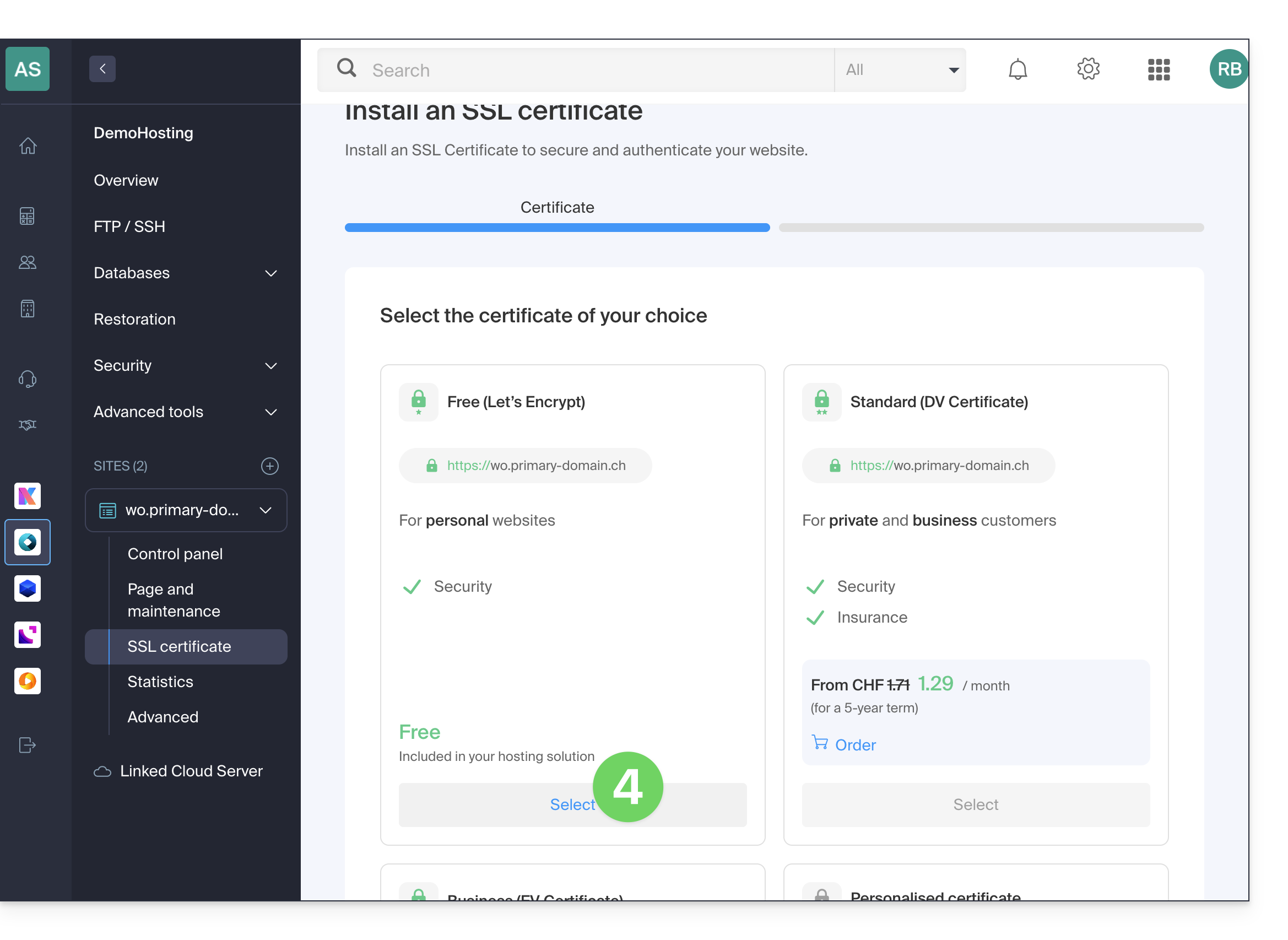
- Click on the Next button at the bottom of the page.
- Check or select the domains concerned.
- Click on the Install button:
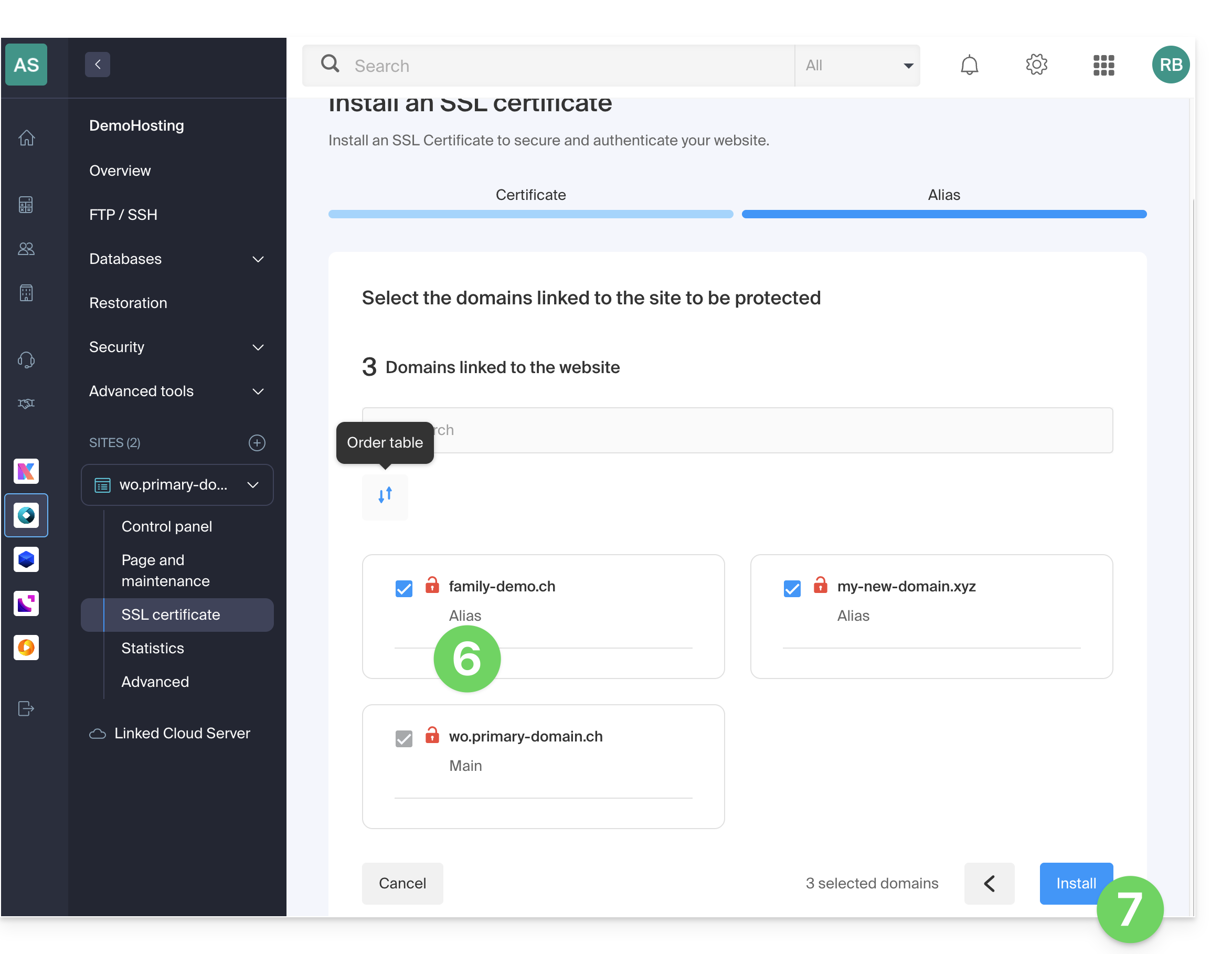
- Please wait a few minutes until the certificate is issued on the website.
Refer to this other guide if you encounter SSL errors and to this other guide specifically if you are using Cloudflare.
Link to this FAQ: https://faq.infomaniak.com/2130
Has this FAQ been helpful?
This guide suggests solutions for resolving common issues and frequent errors that may occur when you attempt to display your site in https after activating an SSL certificate.
A browser such as Brave, Chrome, Edge, Firefox, Opera, Safari… automatically displays the http version of the site when you try to access it via https
It is recommended to perform the following actions:
- Clear the cache of your applications or website.
- Check that the pages and scripts of the site do not contain redirects to the
httpversion of the site. - Check that the site's
.htaccessfile does not contain redirects to thehttpversion of the site. - Set the
httpsaddress of the site as the default:
The site is not displaying correctly (missing images, unsupported stylesheets, etc.) or displays a warning in the address bar
It is recommended to perform the following actions:
- Clear the cache of your applications or website.
- Check that the pages and scripts do not point to external resources using
http; the whynopadlock.com website can help you identify the insecure elements of your site. - Also, refer to this other guide on the subject.
"This webpage contains a redirect loop", "ERR_TOO_MANY_REDIRECTS"
If your browser displays this error, it is recommended that you perform the following actions:
- If the website uses a web application such as WordPress or Joomla, disable the extensions one by one to identify the one causing the problem.
- Check that the website's pages and scripts do not contain redirects to the http version of the site.
- Try to disable HSTS.
- If Prestashop is used, SSL must be activated on all pages:
- Add your SSL domain:
- Go to Preferences > SEO & URLs.
- In the "Shop URL" section, enter your site's address in the "SSL domain" field (without
https://, justwww.domain.xyz).
- Activate SSL:
- Go to Preferences > General Settings.
- At the top of the page, click on "Click here to use the HTTPS protocol before activating SSL mode."
- A new page will open with your site in the secure HTTPS version.
- Force the use of SSL on the entire site:
- Go back to Preferences > General Settings.
- Set the "Enable SSL" option to YES.
- Also, set "Force SSL for all pages" to YES.
- Add your SSL domain:
An old SSL certificate is displayed - clear the SSL cache
Browsers cache SSL certificates to speed up browsing. Normally, this is not a problem. However, when you are developing pages for your site or installing a new certificate, the browser's SSL status may be a hindrance. For example, you may not see the padlock icon in the browser's address bar after installing a new SSL certificate.
The first thing to do in this case is to make sure that the domain name points to the server's IP address (A and AAAA records), and if the wrong SSL certificate is still being returned, clear the SSL cache:
- Chrome: go to Settings and click on Settings. Click on Show advanced settings. Under Network, click on Change proxy settings. The Internet Properties dialog box appears. Click on the Content tab. Click on Clear SSL state, then click OK. See other solutions in this other guide.
- Firefox: go to History. Click on Clear Recent History, then select Active Connections and click on Clear Now.
Loss of CSS formatting
If the website is displayed without CSS styling, analyze the page loading process using the browser's Console. You may find mixed content errors related to your .css styles, which will need to be resolved so that they can be loaded correctly again.
Cloudflare
If you are using Cloudflare, please refer to this other guide for more information.
Link to this FAQ: https://faq.infomaniak.com/2131
Has this FAQ been helpful?
This guide explains how to disable or configure HSTS for a website.
Introduction
- When HSTS is enabled for a website, the server instructs the website visitor (if their browser, such as Brave, Chrome, Edge, Firefox, Opera, Safari, etc., is compatible) to replace all insecure links with secure links.
- Example:
http://www.domain.xyz.com/one/page/is automatically replaced withhttps://www.domain.xyz/one/page/. - After enabling an SSL certificate on a website, HSTS is configured as follows:
max-age=16000000.
Disable HSTS…
… with a CMS (WordPress, Joomla, etc.)
Include the following line in all pages generated by the CMS:
header( 'Strict-Transport-Security: max-age=0;' );For WordPress, you can, for example, add this directive to the functions.php file of your theme:
add_action( 'send_headers', 'add_header_xua' );
function add_header_xua() {
header( 'Strict-Transport-Security: max-age=0;' );
}
More details about WordPress
… with a PHP site
Include the following line in all PHP pages:
header( 'Strict-Transport-Security: max-age=0;' );To do this without having to modify each PHP page of a website, you can use the auto_prepend_file directive in the .user.ini file of the website in question:
auto_prepend_file=/home/clients/xxxx/web/hsts_disable.php... with the following hsts_disable.php file:
header( 'Strict-Transport-Security: max-age=0;' );
… with a website containing static content (no PHP)
Include this header in a .htaccess file:
# BEGIN DISABLE HSTS
<IfModule mod_headers.c>
Header always set Strict-Transport-Security "max-age=0; includeSubDomains;"
</IfModule>
# END DISABLE HSTS
Customize HSTS
The default value can be modified in your website's PHP files using the following directive:
header( 'Strict-Transport-Security: max-age=X; includeSubdomains; preload' );(X being the desired number of seconds).
Enable HSTS for all hosted subdomains
includeSubDomains; is enabled by default, and as its name suggests, it includes subdomains in "Strict Transport Security".
When a visitor accesses an insecure subdomain, the browser will automatically redirect to HTTPS and trigger a security error.
If this behavior is not desired, you should remove this header.
Clear the browser's HSTS cache…
… on Chrome
- In Chrome, type
chrome://net-internals/#hsts. - Enter the domain name in the text field in the "Delete domain security policies" section.
- Click the Delete button.
- Enter the domain name in the text field in the "Query HSTS" section.
- Click the Query button.
- The response should be "
Not found".
… on Safari
- With Safari, start by closing the browser.
- Delete the
~/Library/Cookies/HSTS.plistfile. - Reopen Safari.
… on Firefox
- With Firefox, close all tabs.
- Open the Firefox menu and click on History / Show History.
- Find the page for which you want to remove the HSTS preferences.
- Right-click on one of its entries.
- Choose Forget this site.
Link to this FAQ: https://faq.infomaniak.com/2133
Has this FAQ been helpful?
This guide provides information about the robots.txt file created by default for web hosting services where this file is missing.
Introduction
- The
robots.txtfile acts as a guide for search engine crawlers. - It is placed in the root directory of a website and contains specific instructions for these crawlers, indicating which directories or pages they are allowed to crawl and which they should ignore.
- However, please note that robots may choose to ignore these directives, making
robots.txta voluntary guide rather than a strict rule.
File content
If the robots.txt file is missing from a website on Infomaniak, a file with the same name is automatically generated with the following directives:
User-agent: *
Crawl-delay: 10
These directives instruct robots to space out their requests by 10 seconds, which prevents unnecessary overloading of the servers.
Bypassing the default robots.txt file
You can bypass the robots.txt file by following these steps:
- Create an empty
robots.txtfile (it will only serve as a placeholder so that the rules do not apply). - Manage the redirection of the URI (Uniform Resource Identifier)
robots.txtto the file of your choice using a.htaccessfile.
Example
<IfModule mod_rewrite.c>
RewriteEngine On
RewriteCond %{REQUEST_URI} /robots.txt$
RewriteRule ^robots\.txt$ index.php [QSA,L]
</IfModule>
Explanation
- The
mod_rewritemodule of Apache is enabled to allow redirects. - The condition
RewriteCond %{REQUEST_URI} /robots.txt$checks if the request concerns therobots.txtfile. - The rule
RewriteRule ^robots\.txt$ index.php [QSA,L]redirects all requests torobots.txttoindex.php, with the[QSA]option, which preserves the request parameters.
It is recommended to place these instructions at the beginning of the .htaccess file.
Link to this FAQ: https://faq.infomaniak.com/2136
Has this FAQ been helpful?
This guide is about IP addresses, specifically…
- …those assigned to websites/hosting/servers, dynamic or static IPs, shared or dedicated IPs,
- … assigned by your Internet Service Provider (ISP) when establishing an Internet connection to your Infomaniak product.
Introduction
- A dedicated or static IP address for a website is a permanent IP address that is specifically assigned to it.
- Unlike a shared IP address, which is used by multiple websites, a dedicated IP address ensures that only this platform is associated with that address.
- Dedicated IP addresses for websites are often used in cases where stability, customization, and security are important, such as hosting servers, configuring firewalls, or enabling SSL certificates (although it is possible to proceed without a dedicated IP address to install an SSL certificate (❓: help)).
- Here are the main advantages:
- Configuring a PTR entry (❓: help) or reverse DNS on dedicated IPs is useful, especially for installing a mail server, because some email providers check the PTR record before accepting emails sent from a server.
- Improved connection stability.
- Reduced risk of a bad reputation due to websites sharing the same IP address.
- Easier configuration of certain technical aspects.
- A dedicated IP can improve a website's search engine ranking (although there are differing opinions among SEO specialists).
- Attention: Infomaniak does not allow access to websites via HTTP(S) using dedicated IPs on managed servers; you must use a domain name (❓: help) that points to the IP, or use the preview URL (❓: help).
Add a dedicated IP to the website
To add a dedicated IP to your website, please refer to this guide.
If you are experiencing issues when directing web traffic to a specific port, please refer to this other guide.
Blocking the IP address (Internet connection)
If you can no longer access…
- … all your email addresses that you have with Infomaniak (which usually work fine) and this using an email software/client from a single Internet network (i.e., from the same IP address provided by your ISP)…
… or if you have unfortunately performed this type of operation:
- repeated failed connection attempts via FTP, SSH, or on access points such as the WordPress login…
- requests returning too many errors, such as a large number of 403 errors…
… your access to Infomaniak servers may be blocked following the banning of the IP address (banip / ipban) of your internet connection.
To resolve this, contact Infomaniak support by email, specifying the domain concerned and, above all, your public IP address.
Permanent unblocking (IP whitelisting)
With a Cloud Server, you can request that the IP address in question be permanently whitelisted, so that the blocking never happens again, regardless of the situation. To do this, you must:
- Have a dedicated IP associated with your Cloud Server.
- Be aware that Infomaniak will no longer block any potential attacks originating from this IP.; malicious attacks or access attempts originating from this address will no longer be automatically blocked by the security systems.
- Confirm via email and from a contact addressassociated with the account (owner or administrator), and that you understand and accept full responsibility in the event of an attack originating from this IP address.
Link to this FAQ: https://faq.infomaniak.com/2138
Has this FAQ been helpful?
This guide explains how to order, link, or remove a dedicated IP for a website.
Manage dedicated IPs on a hosting plan
Order one or more dedicated IP addresses
To do this:
- Click here to access the hosting & website management section in your Infomaniak Manager (❓: help).
- Click on the name of the website in question.
- Click on the chevron to the right of Advanced Tools in the left-hand menu.
- Click on Dedicated IPs in the left-hand menu.
- Click the button to order one or more IP addresses:
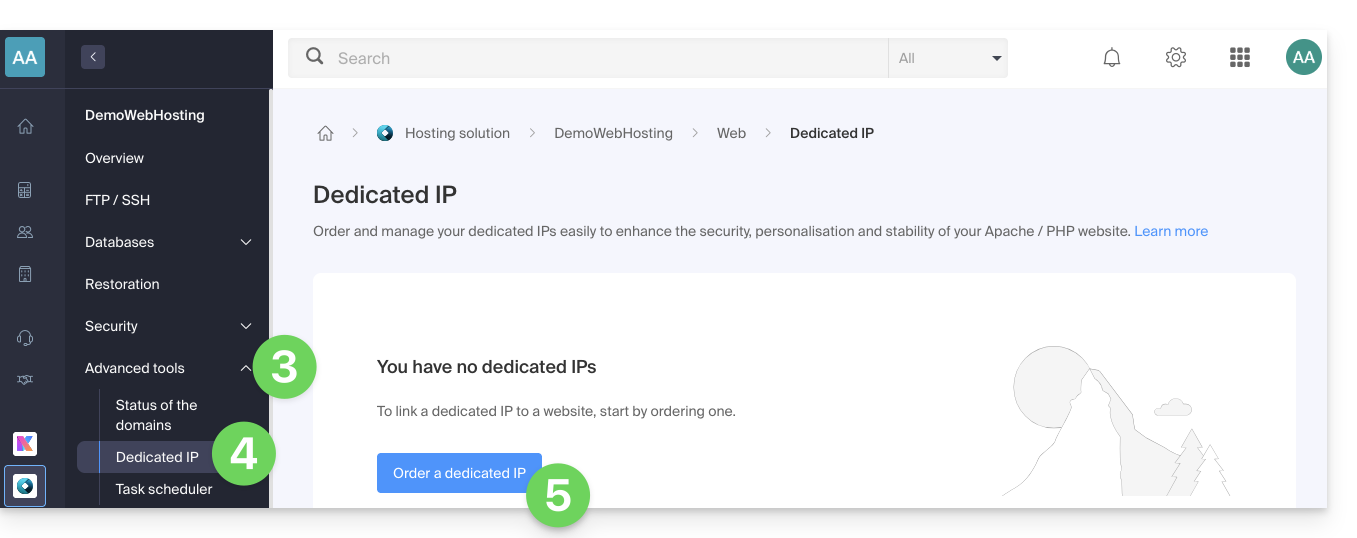
- Increase the quantity according to the number of IP addresses desired:
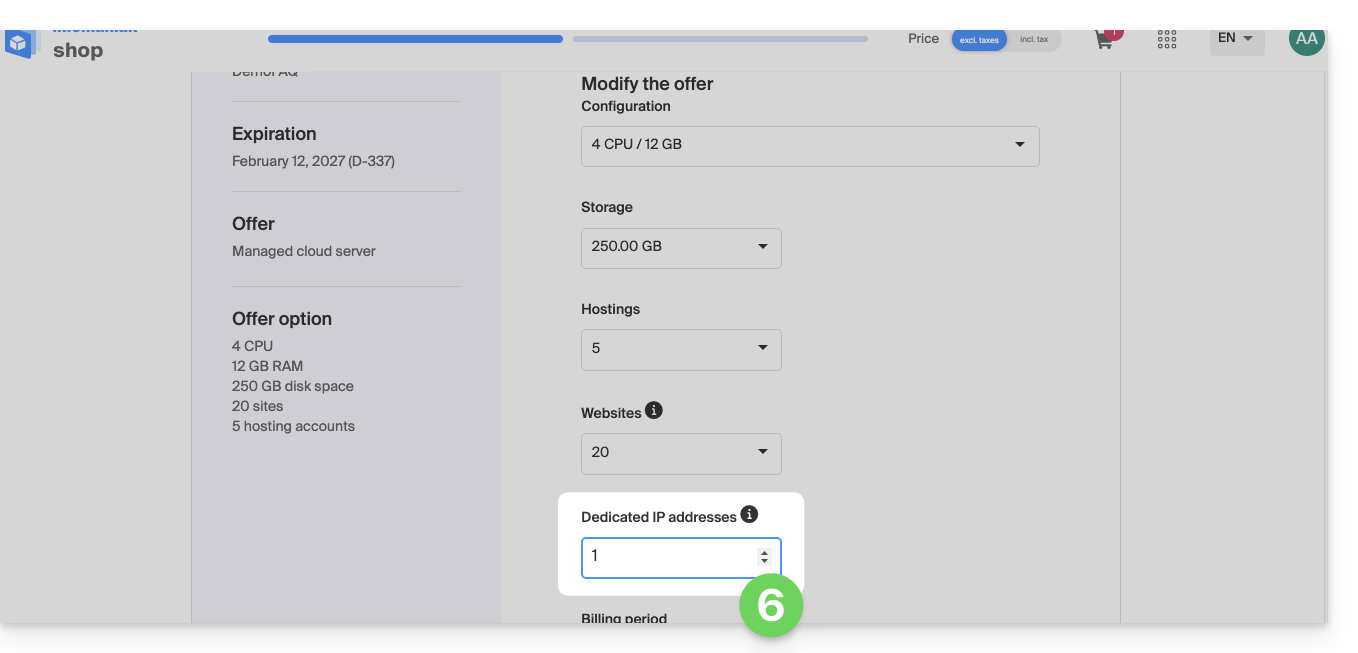
Order one or more additional dedicated IP addresses
To do this:
- Click here to access the hosting & website management section in your Infomaniak Manager (❓: help).
- Click on the name of the website in question.
- Click on the chevron to the right of Advanced tools in the left-hand menu.
- Click on Dedicated IPs in the left-hand menu.
- Click on the text to order one or more additional IP addresses:
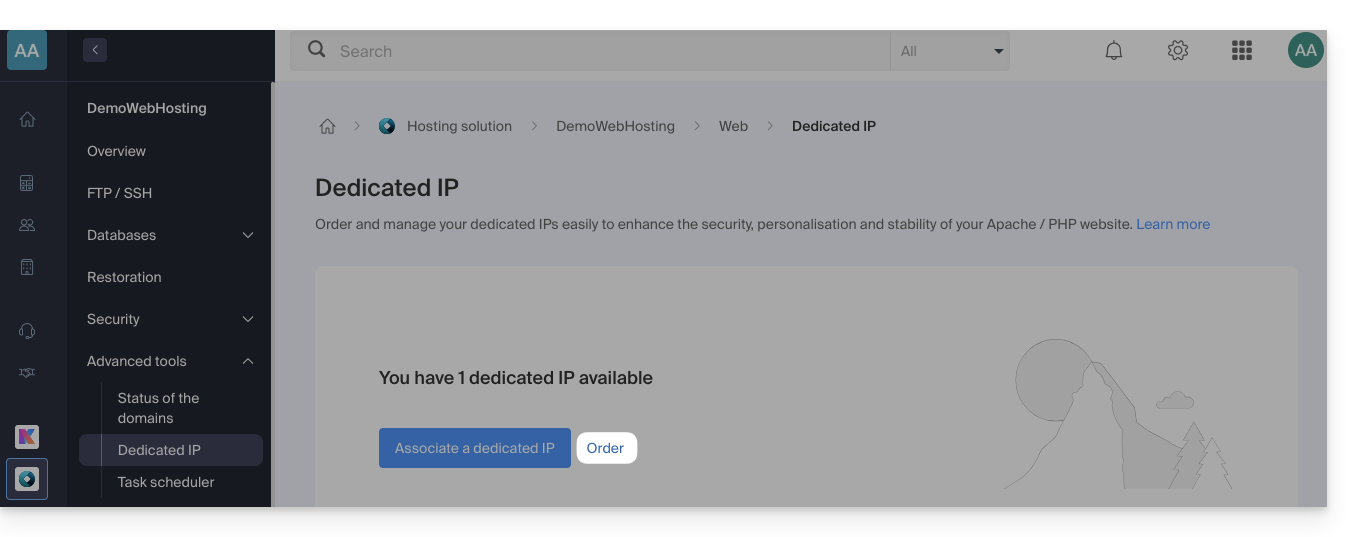
- Increase the quantity according to the number of IP addresses desired.
Link a dedicated IP address to a website on your hosting
Once the IP address has been ordered and paid for, please review the prerequisites below, as switching to a dedicated IP address for a website can cause a temporary interruption, especially if a Let's Encrypt SSL certificate is in use.
Prerequisites
- Start by reducing the TTL of the DNS records
AandAAAA(for@andwww) to 5 minutes. - Wait for the duration of the previous TTL before making any changes.
- The change below should be made during a period of low traffic to limit the disruption caused by the inevitable interruption.
- At the end of the process, you will need to wait for the new TTL to take effect so that the new configuration can propagate and the SSL certificate can be regenerated, then verify the site's accessibility via HTTPS to ensure that everything is working correctly.
To switch to a dedicated IP address:
- Click here to access the hosting & website management section in your Infomaniak Manager (❓: help).
- Click on the name of the website in question.
- Click on the chevron to the right of Advanced tools in the left-hand menu.
- Click on Dedicated IPs in the left-hand menu.
- Click the button to associate the IP with a website in your hosting account:
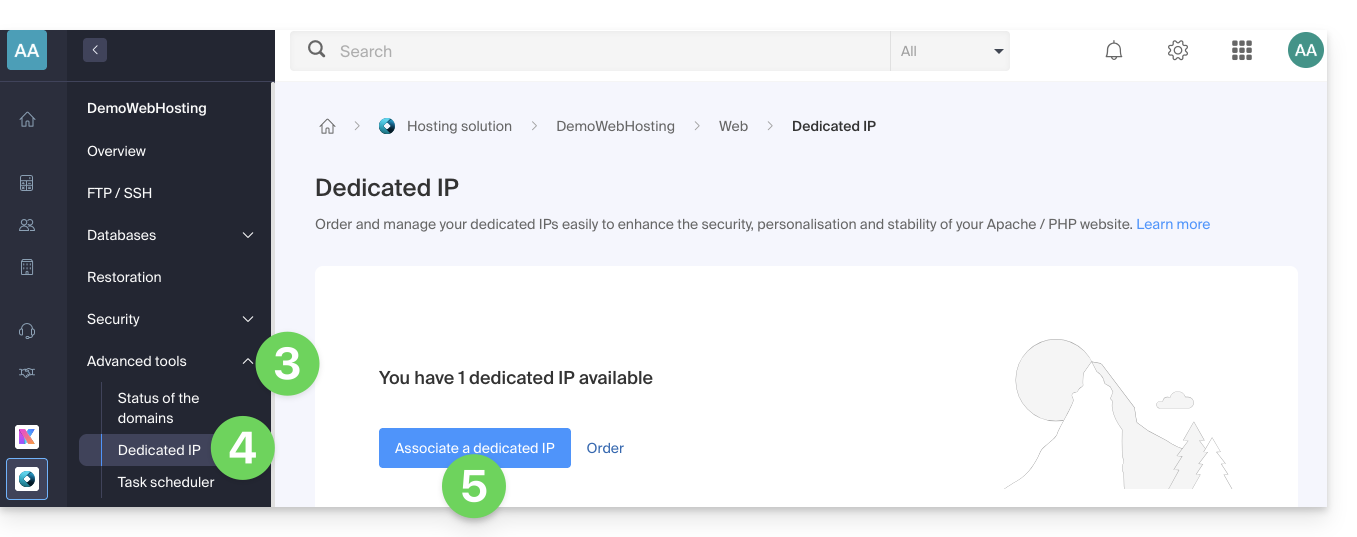
- Choose the website to which you want to assign the new IP address.
- Check the box after reading the warnings.
- Click the Associate button:
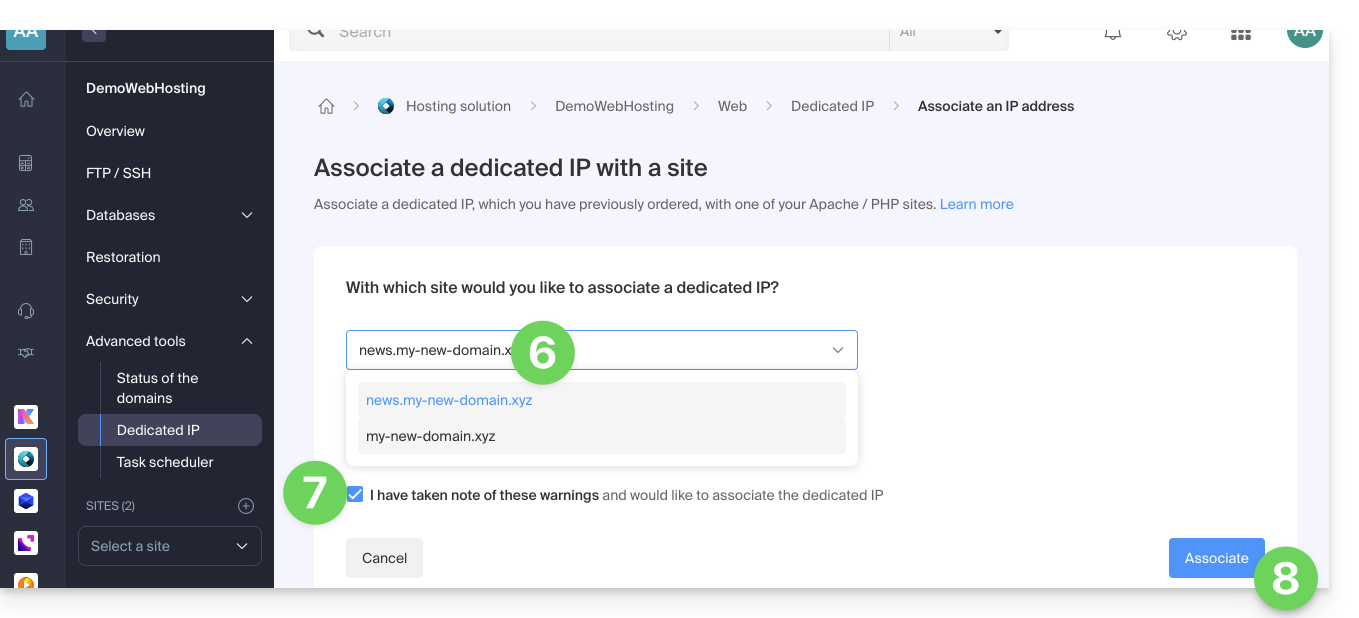
Remove a dedicated IP address from a website
Once the IP address is installed, to uninstall it:
- Click here to access the hosting & website management section in your Infomaniak Manager (❓: help).
- Click on the name of the website in question:
- Click on the chevron to the right of Advanced Tools in the left-hand menu.
- Click on Dedicated IPs in the left-hand menu.
- Click on the action menu ⋮ located to the right of the item in question.
- Choose Unlink:
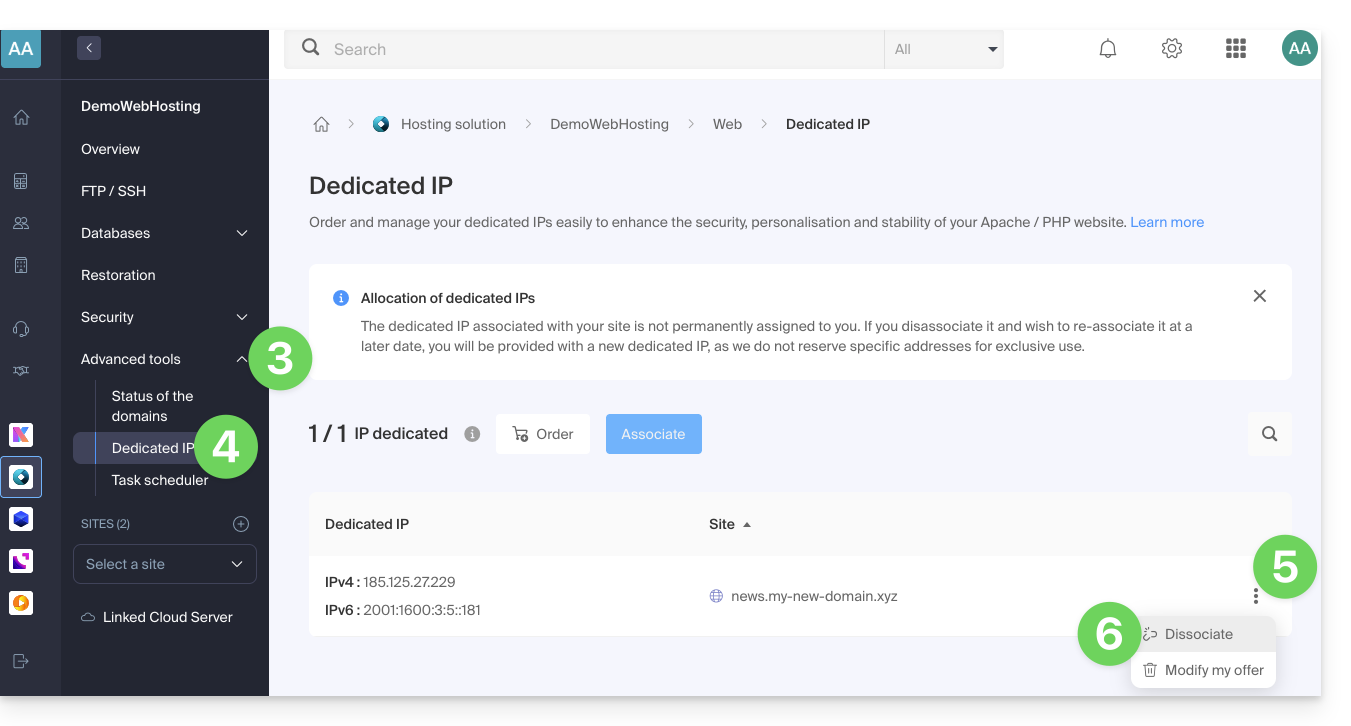
- Read the warnings and confirm the deletion to complete the IP uninstallation process.
Read this other guide if you are looking for information about potential issues related to your IP.
Link to this FAQ: https://faq.infomaniak.com/2139
Has this FAQ been helpful?
This guide explains how to migrate a Web Hosting service from MySQL to MariaDB.
Introduction
- MariaDB is an enhanced version of MySQL, featuring numerous powerful built-in features and many improvements in terms of usability, security, and performance:
- MariaDB has a larger connection pool supporting up to 200,000 connections, while MySQL has a smaller connection pool.
- When comparing the performance of MariaDB and MySQL, it is found that replication is faster in MariaDB and slower in MySQL; MariaDB is faster than MySQL overall.
- MariaDB is Open Source, while MySQL uses proprietary code in its Enterprise edition.
- The upgrade to MariaDB is irreversible, and all websites on your hosting will then run with this version of MariaDB.
- Check the compatibility of your scripts before proceeding.
- During this operation, the statistics are reset.
Using MariaDB as a replacement for MySQL
To migrate a web hosting to MariaDB:
- Click here to access the hosting & site management section in your Infomaniak Manager (❓: help).
- Click on the name of the relevant hosting.
- Click on Databases in the left-hand menu.
- Click on the Migrate to MariaDB link.
To migrate a Cloud Server, please refer to this other guide about migrating to a new generation of Cloud Server.
Link to this FAQ: https://faq.infomaniak.com/2147
Has this FAQ been helpful?
This guide details how to send emails from a website hosted by Infomaniak using the PHP mail() function, which is disabled by default.
Introduction
- Infomaniak strongly advises against using the PHP mail() function to send emails from your applications:
- Emails will be considered "unauthenticated" and will therefore be subject to limits.
- Their deliverability will be affected, which may harm your website.
- It is strongly recommended to use an authenticated SMTP sending methodfor sending emails from your applications; Infomaniak offers a dedicated service for this purpose.
Specify the sending address
To ensure that messages are sent correctly from your CMS/web application (and to avoid errors such as Could not instantiate mail function or sender mismatch), it is necessary to specify a valid address in the site settings on the Infomaniak platform:
- Click here to access the hosting & site management section in your Infomaniak Manager (❓: help).
- Click on the name of the website in question.
- Click on Manage advanced settings:
- From the General tab, enter an existing email address in the Sender Email field.
- Click the blue Save button:
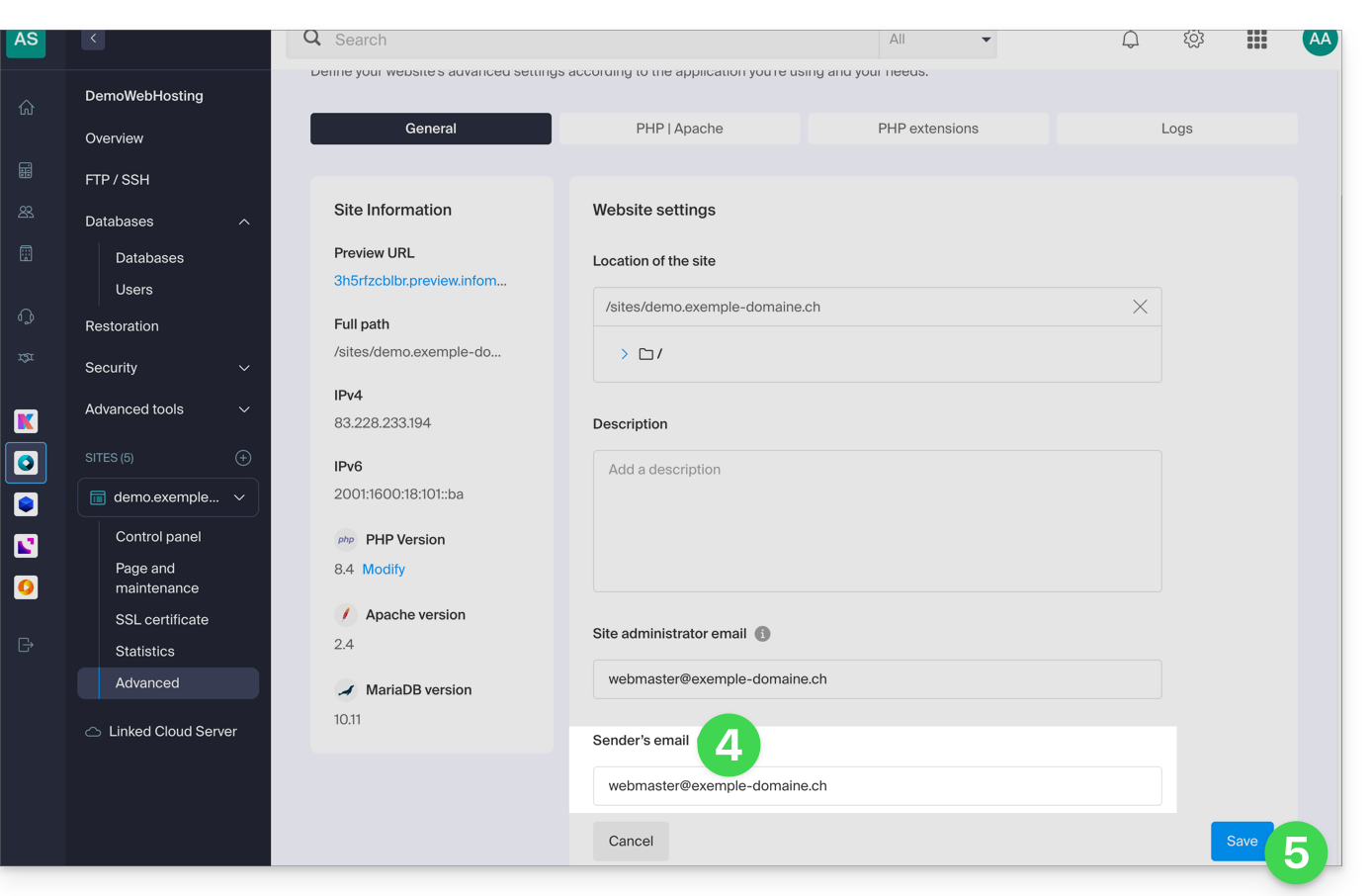
Re-enable the mail function
If you still want to use the PHP mail function, you will need to enable it for each of the websites on your Web Hosting account:
- Click here to access the hosting & website management section in your Infomaniak Manager (❓: help).
- Click on the name of the website in question.
- Click on Manage advanced settings:
- Click on the PHP / Apache tab:
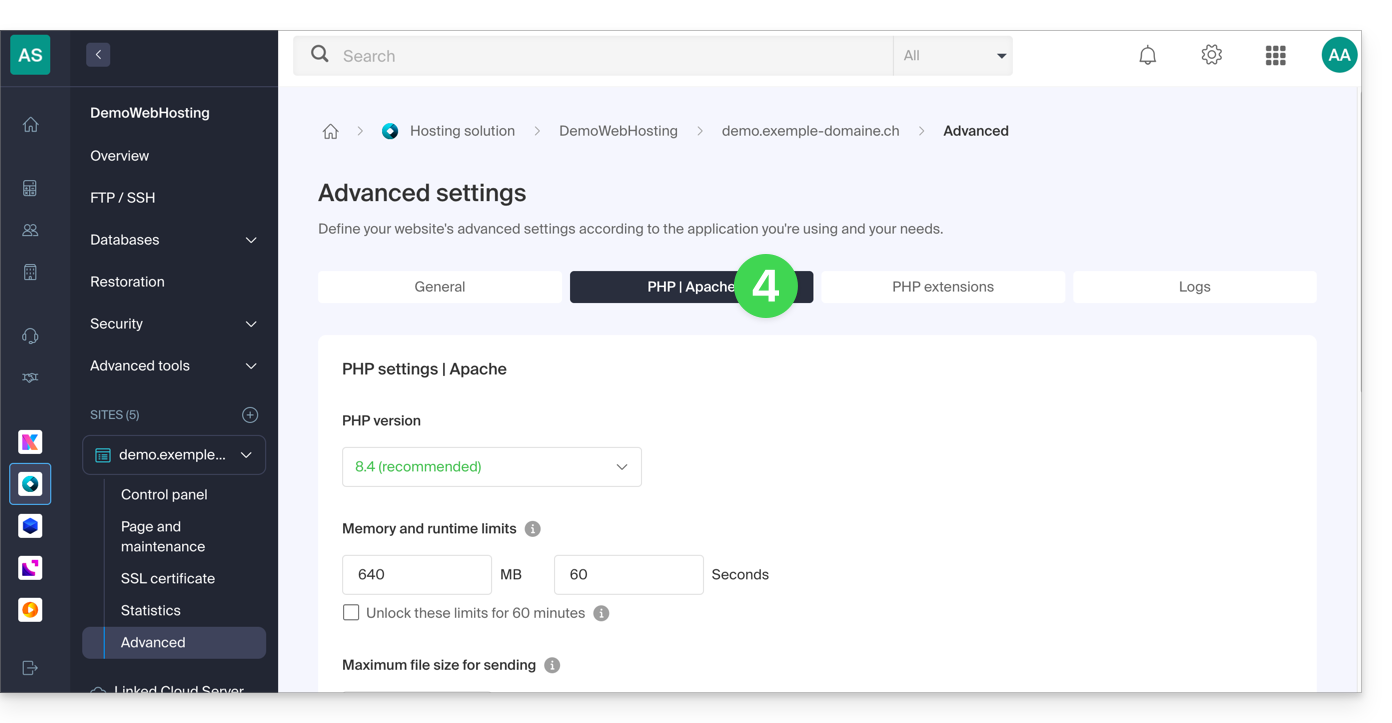
- Enable the mail function:
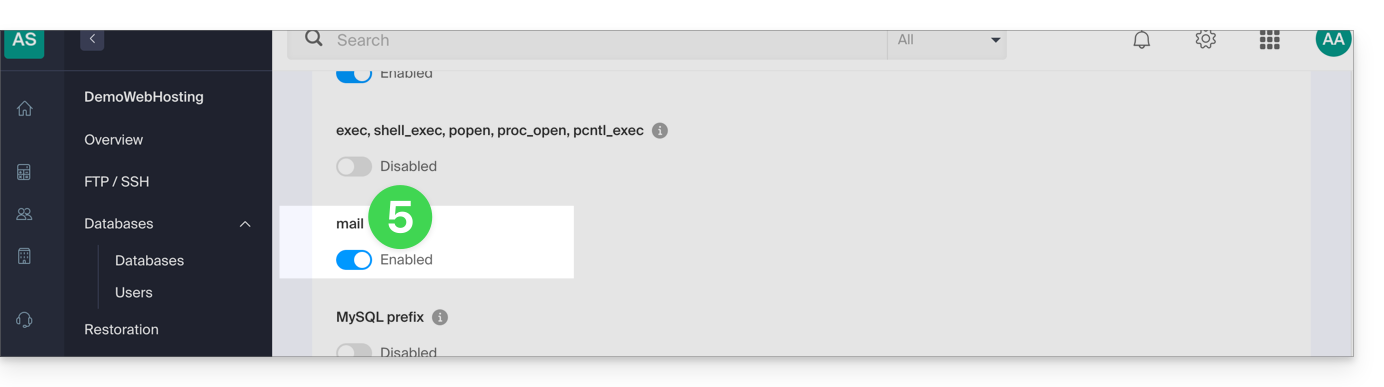
- Click the Save button at the bottom of the page to apply the changes.
PHP mail() examples…
… on WordPress
Configure the sending of the default contact form included with the Divi Builder:
- Log in to the WordPress administration panel.
- Go to the Divi editor of the page containing the contact form.
- Click on Settings to configure the Divi contact form:

- Under EMAIL, enter the email address that will receive the form submissions and save:

- By default, when a visitor uses the form to contact you, you will receive an email from
mail@le-nom-de-votre-site, and if you reply, the recipient will automatically be the email address provided by the visitor when filling out the contact form.
… on Prestashop
Enter the advanced settings of Prestashop:
- Specify the SMTP mode.
- Enter
localhostas the server. - Enter port
25. - Do not specify a username or password.

… on Joomla
Configure sending emails via PHPmail (not recommended) in Joomla:
- Log in to the administration panel of your Joomla site.
- Go to Configuration then Server.
- Do NOT enter anything in the Website Email field:
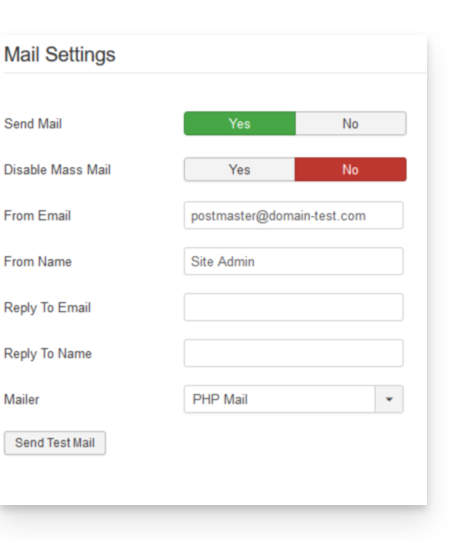
Unfortunately, this prevents any sending tests via the corresponding button, but it will work if you configure a contact form on your website. Click Save once the field is left blank.
PHP mail() function reply address
When sending an email using the PHP mail() function, the return-path will be set as root@h2web3.infomaniak.ch, for example. However, the Reply-To: header present in your form's code allows you to specify a valid reply address.
Link to this FAQ: https://faq.infomaniak.com/2150
Has this FAQ been helpful?
This guide explains why using an outdated version of PHP that is no longer officially supported is dangerous and how to use a more recent version of PHP with a website hosted by Infomaniak.
Is an outdated version of PHP dangerous?
When you use a PHP version that is (soon) vulnerable on one or more of your websites, a warning message will appear in the dashboard of the hosting accounts concerned.
The PHP language is constantly evolving, and when you use a PHP version that is no longer updated, you expose your website to security risks. Malicious individuals could, for example, exploit known security vulnerabilities to gain access to your site and modify its content. It is therefore strongly recommended to always use a recent version of PHP.
3 situations are possible:
- the PHP version is fully supported: no action is required
- this PHP version only receives security updates: it is recommended to use a more recent version of PHP
- the PHP version is no longer supported: it is strongly recommended to use a more recent version of PHP
Using a more recent version
The latest versions of PHP offer improved performance and accelerate website loading times.
Before using a more recent version of PHP, it is important to follow these precautions:
- If your website uses a CMS or web application(WordPress, Joomla, Drupal, etc.), ensure that the current version of the CMS is supported by the PHP version you wish to use.
- If your website was developed manually, consult the official PHP documentation to learn about the modified functions and any potential changes that may affect the operation of your code.
If a malfunction occurs after migrating to a newer version of PHP, it is sometimes possible to revert to a previous version, provided that it is still supported!
Link to this FAQ: https://faq.infomaniak.com/2151
Has this FAQ been helpful?
This guide details how to order a Web Hosting plan from Infomaniak.
You already have a hosting plan as a customer
Order additional hosting
- Click here to access the hosting & website management section in your Infomaniak Manager (❓: help).
- Click the button to Order:
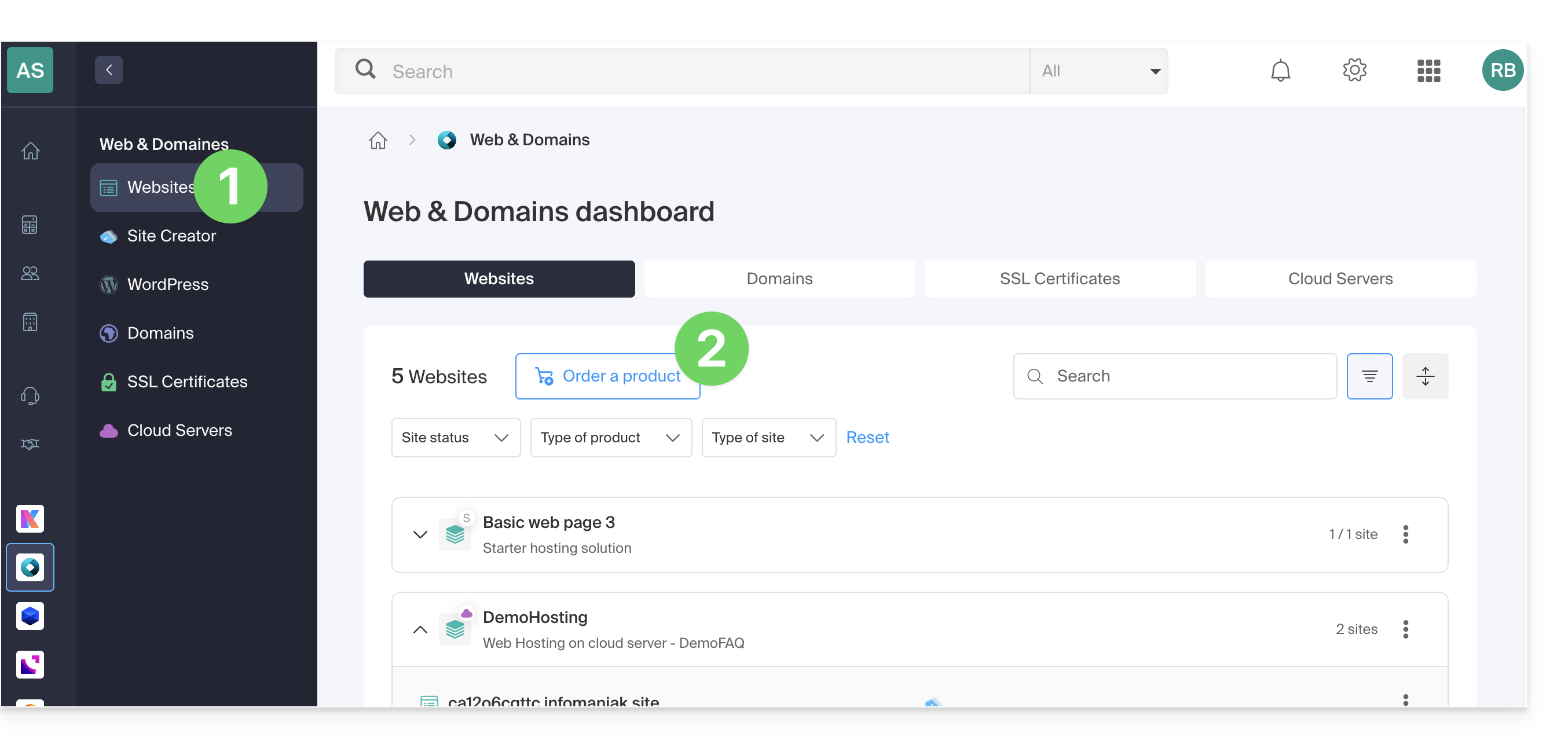
If you already have web hosting, you can also add a site to an existing hosting account (❓: help) without ordering or paying for new hosting (multi-site/multi-domain management).
No hosting yet
Order your first hosting plan
- If necessary, create a user account (❓: help).
- Click here to access your Infomaniak Manager.
- Click on Websites (Web & Domains section):
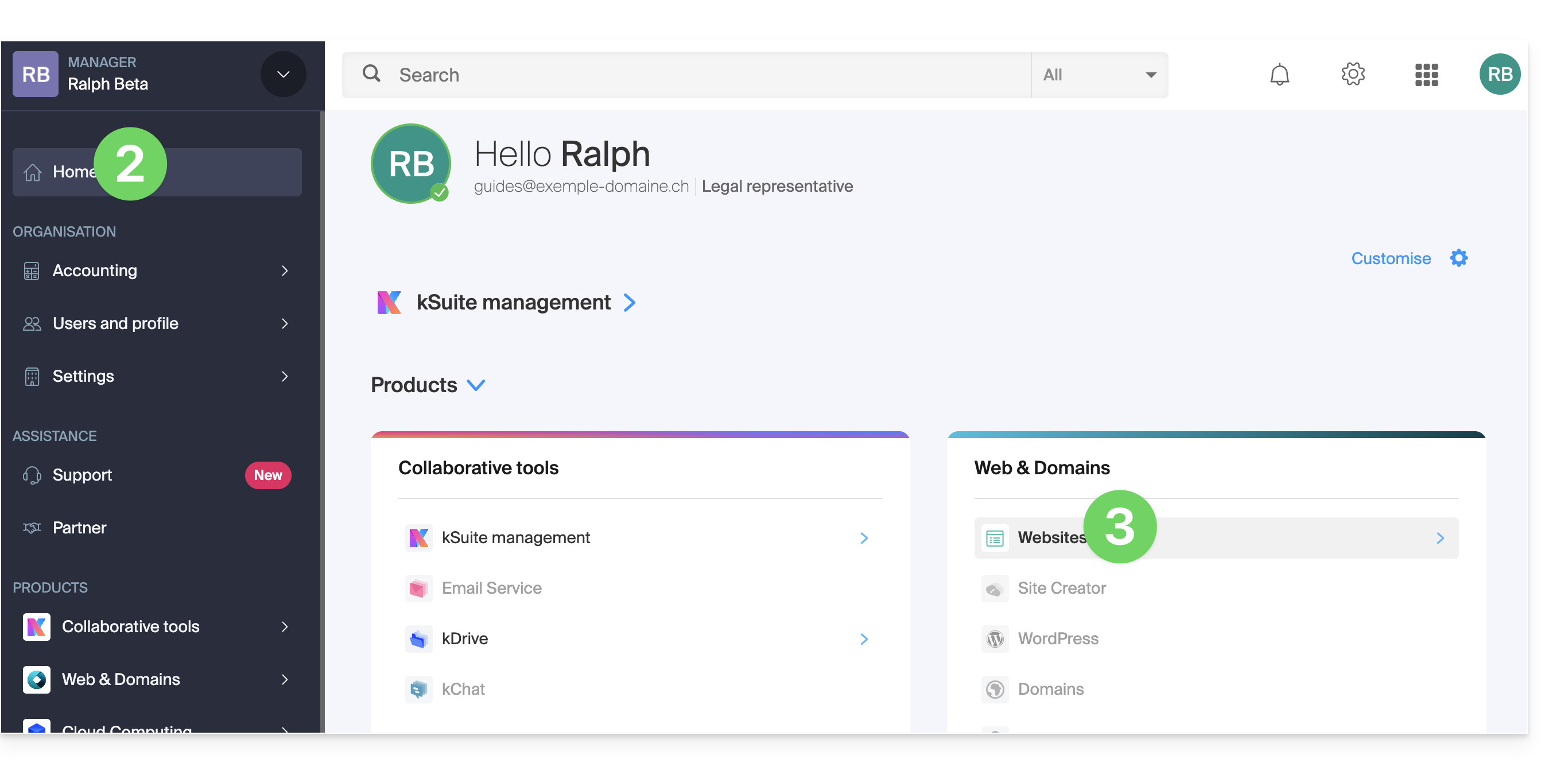
- Click to order a new hosting plan.
- Once in the store, make sure you are ordering within the desired Organization (select a different one from the list if necessary, or create a new one in step 6 below):
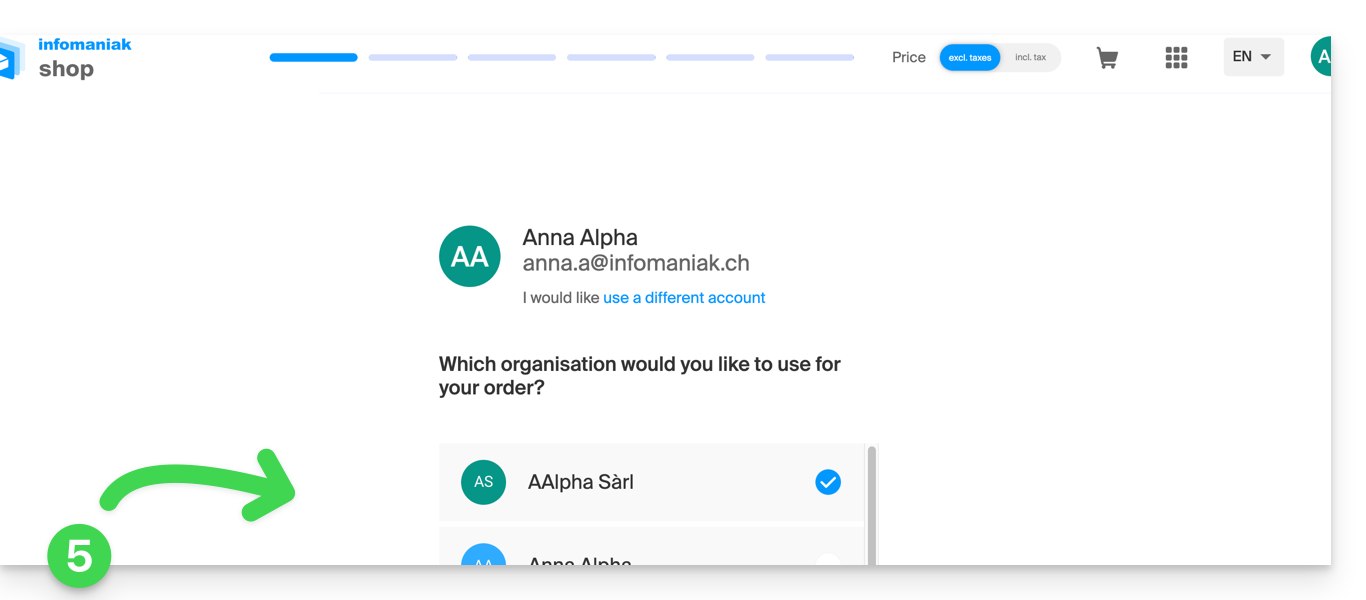
- Confirm your choice by clicking the blue button at the bottom of the page (or create a new Organization first if necessary, using the dedicated blue link):
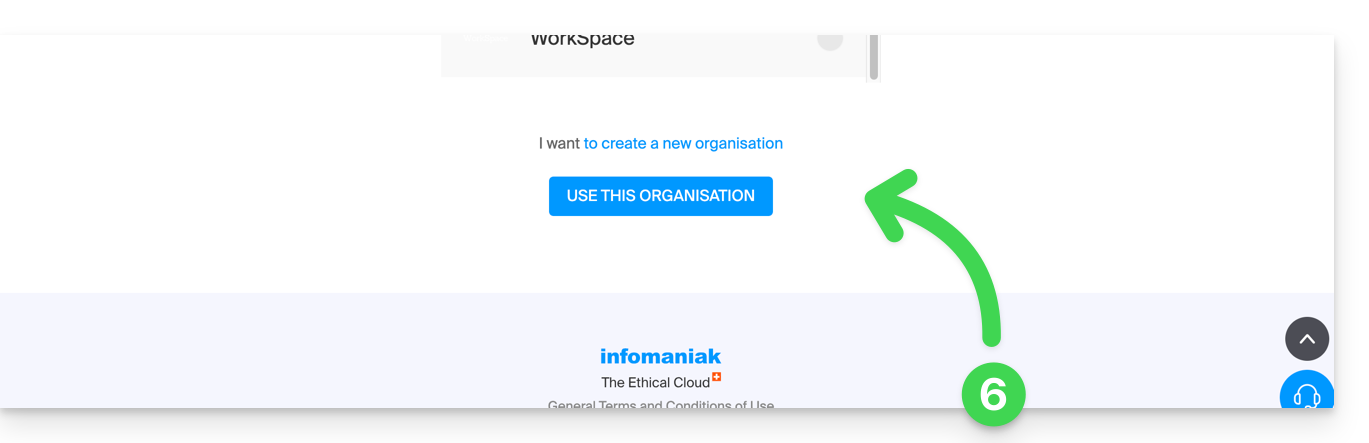
- At the top, enter the domain name for your hosting and click Search (even if you already manage it with another registrar):
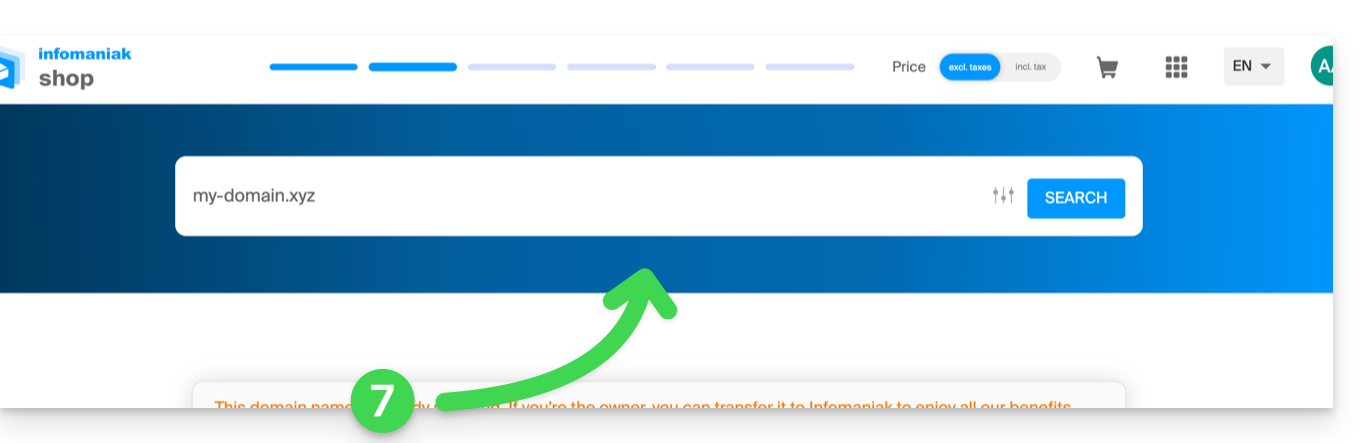
- Two scenarios are then possible:
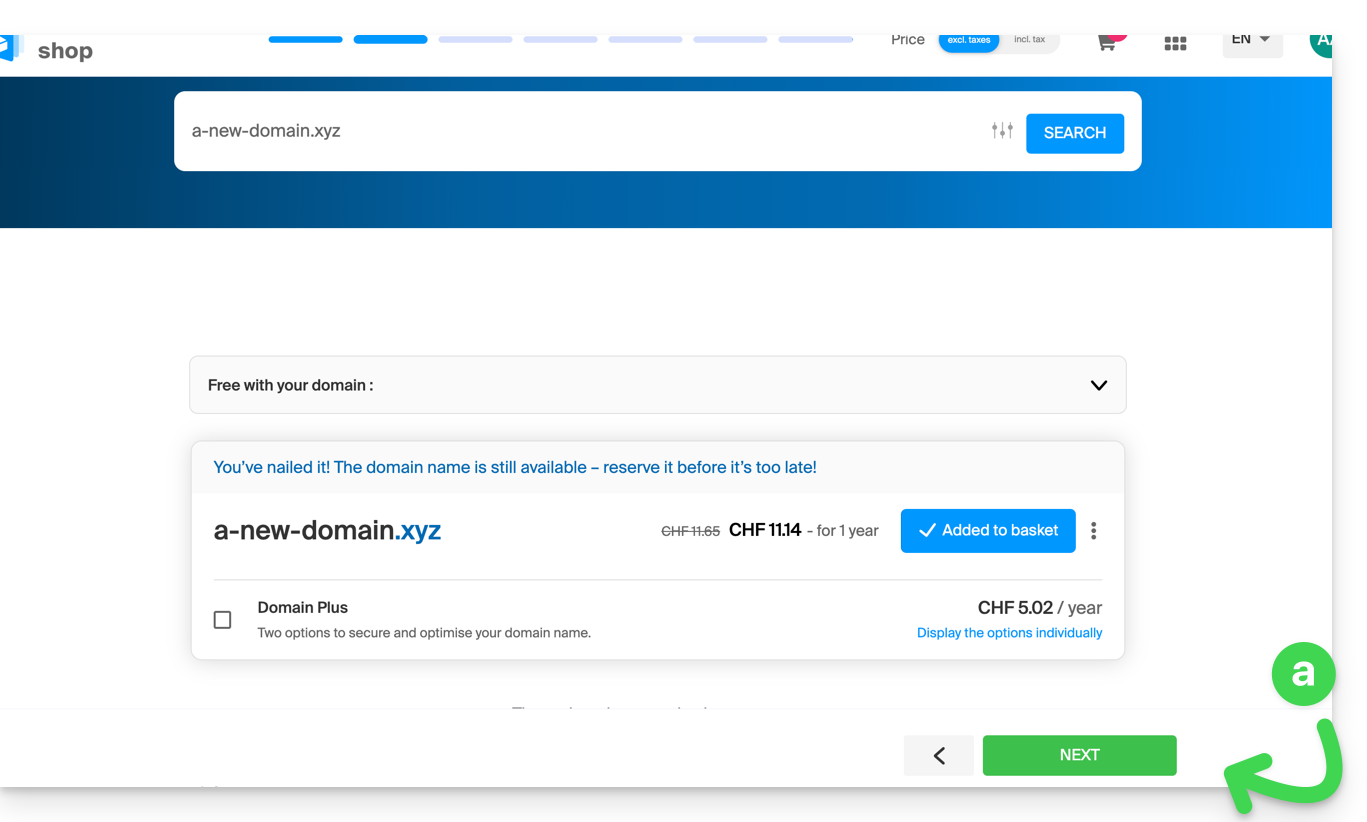
- You do not yet own the domain name: check the information and options on the screen, then click the Next button:
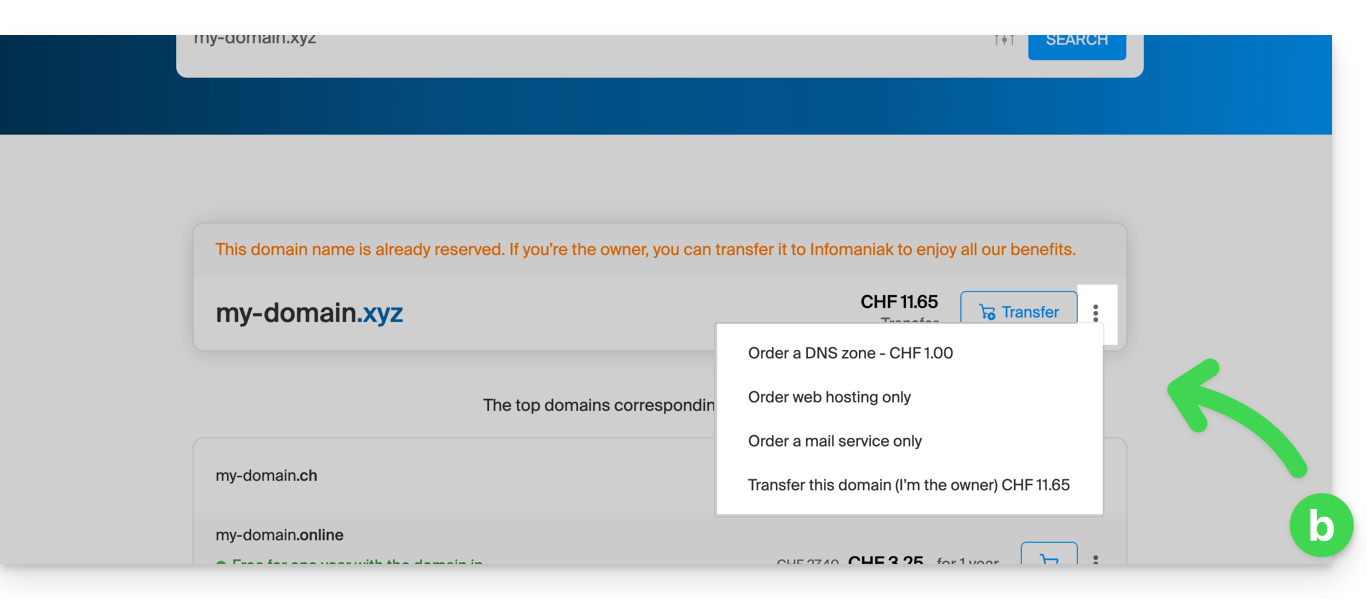
- You own and manage your domain names with another registrar: click the action menu ⋮ to the right of the domain name to Order hosting only:
- You do not yet own the domain name: check the information and options on the screen, then click the Next button:
- Choose the hosting that suits you.
- Click on Next.
- Complete the order.
Link to this FAQ: https://faq.infomaniak.com/2154
Has this FAQ been helpful?
This guide explains how to update an SSL certificate from Let's Encrypt for a website hosted by Infomaniak.
Introduction
- It may be necessary to regenerate a certificate after adding or removing aliases from a website in order to include the new domain names associated with the website.
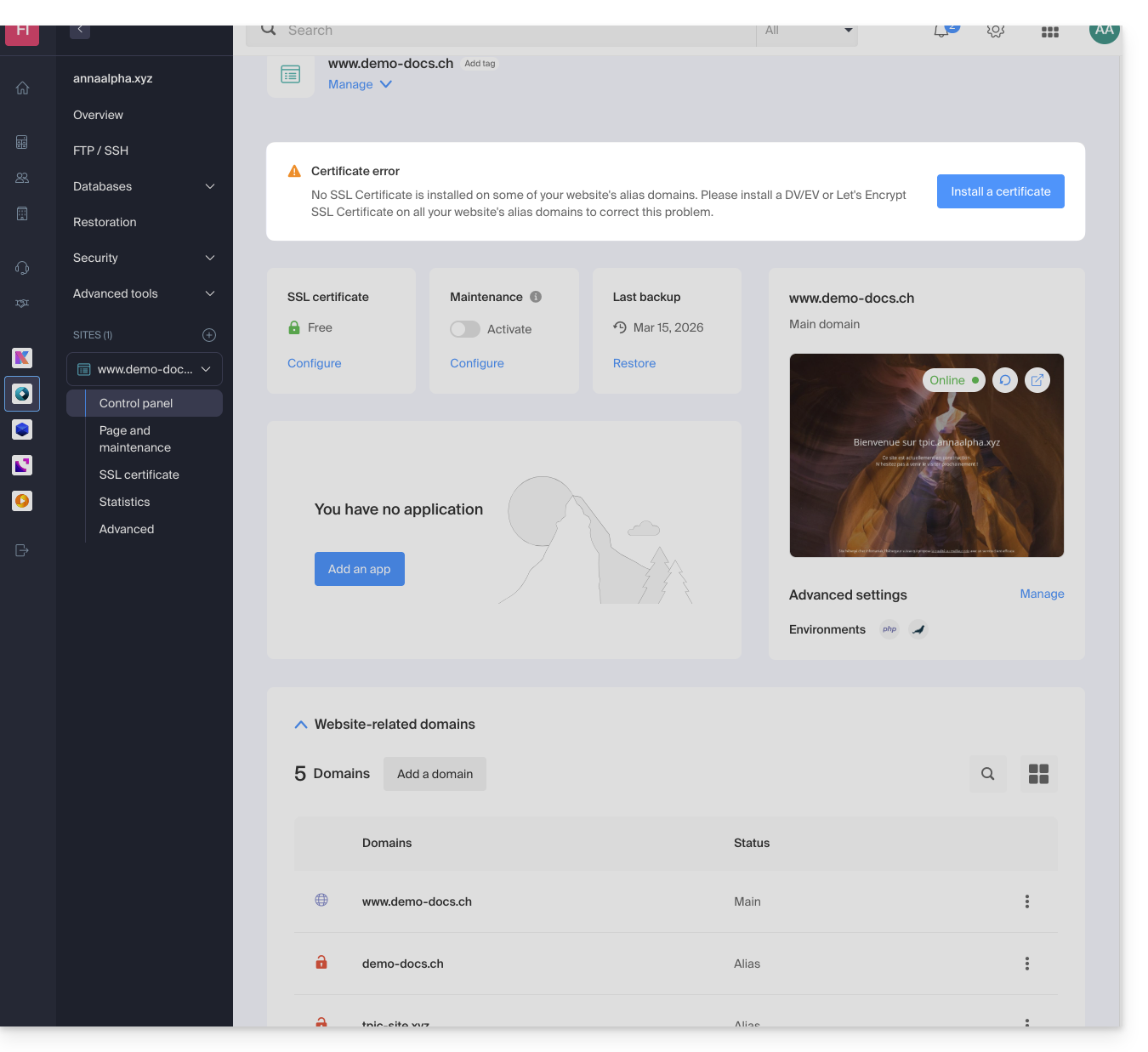
- The dashboard will clearly indicate that one of the domains associated with the website is not included in the SSL certificate:
Update a Let's Encrypt certificate
To access certificate management:
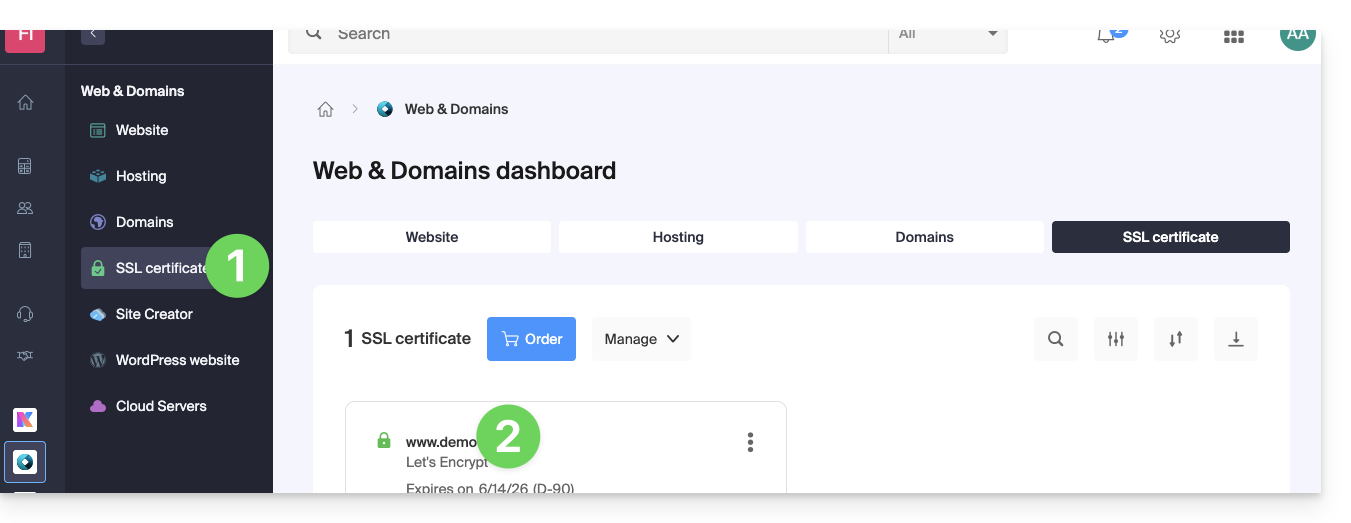
- Click here to access the management interface for your product in the Infomaniak Manager (❓: help).
- Click directly on the name assigned to the product in question:
- Click on the action menu ⋮.
- Click on Update certificate:
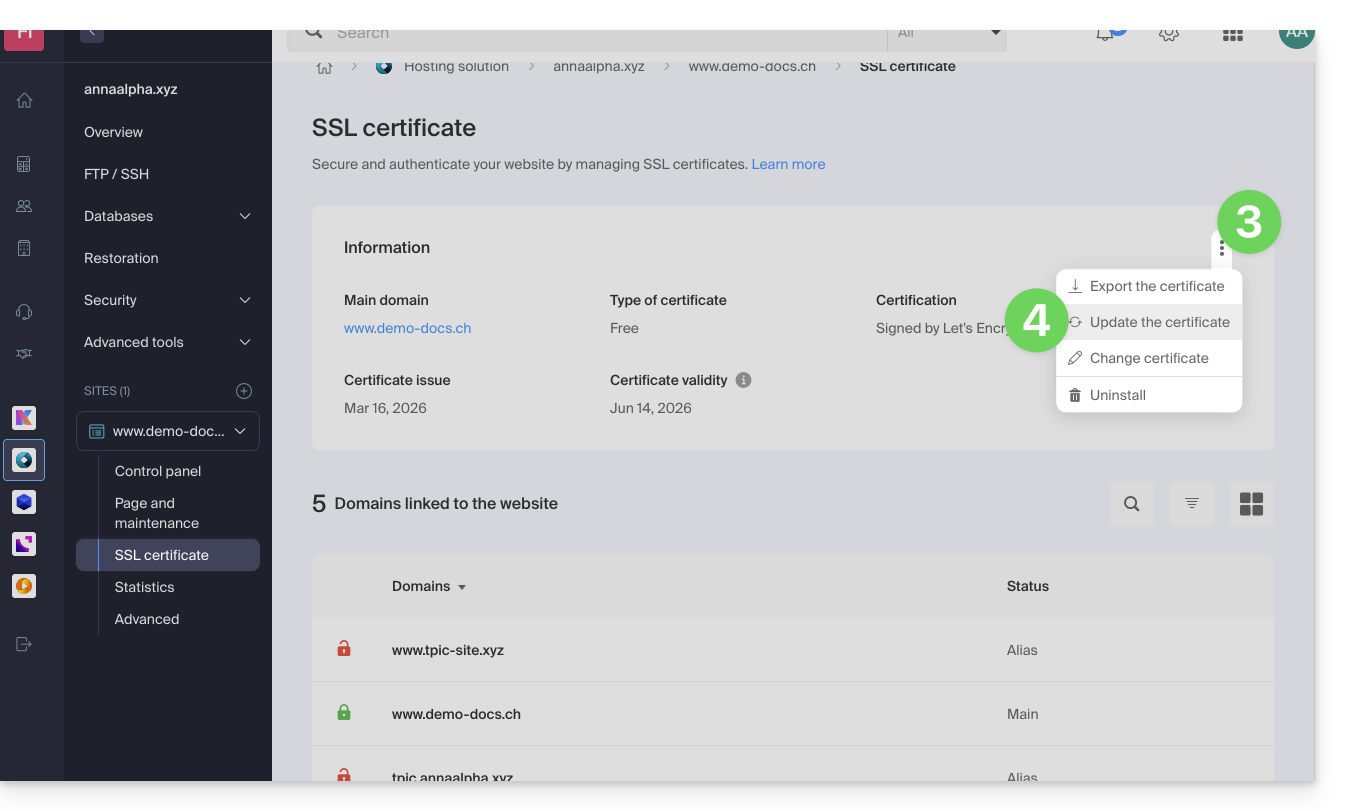
- Check or select the domains concerned.
- Click on the Install button:
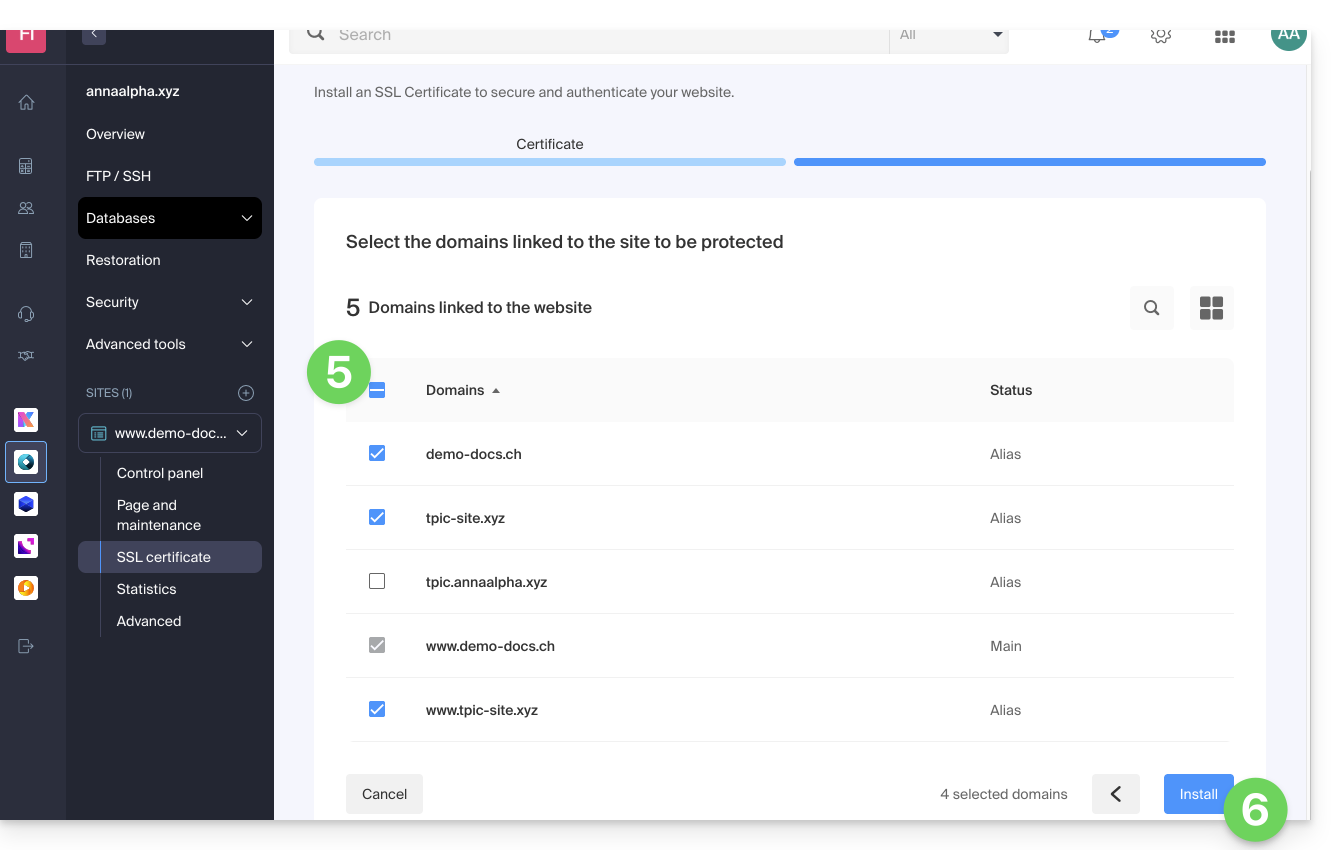
Link to this FAQ: https://faq.infomaniak.com/2155
Has this FAQ been helpful?
This guide explains how to configure the PHP settings for web hosting directly from the command line when running PHP scripts using PHP CLI (Command Line Interface).
Introduction
- This type of configuration can be useful when you need to temporarily modify certain parameters for a specific script or for a PHP session.
- These changes will only be valid for the execution of the current script and will not modify the global PHP configuration.
Modify PHP CLI Settings
For example, to temporarily modify the settings for a specific script without having to modify the global PHP server configuration, follow the method below. With the PHP CLI environment, you can specify multiple PHP settings at the same time by separating them with spaces.
Using the -d parameter
When running PHP from the command line, you can use the -d parameter to specify PHP configurations. This allows you to modify PHP settings for that specific execution. For example, to set the maximum execution time to 90 seconds, the memory limit to 256 MB, and disable safe mode, you can do so as follows:
php -d max_execution_time=90 -d memory_limit=256M -d safe_mode=Off -f test.php
Link to this FAQ: https://faq.infomaniak.com/2156
Has this FAQ been helpful?
This guide explains how to customize the limits of a website hosted on a shared Web Hosting plan or a Cloud Server.
Increase or adjust website limits
To access website management:
- Click here to access the hosting & website management section in your Infomaniak Manager (❓: help).
- Click on the name of the website in question.
- Click on Manage advanced settings:
- Click on the PHP / Apache tab:
You will be able to…
- … temporarily increase the memory limit (
memory_limit= 1280 MB) and the maximum script execution time (max_execution_time= 60 minutes) for 60 minutes: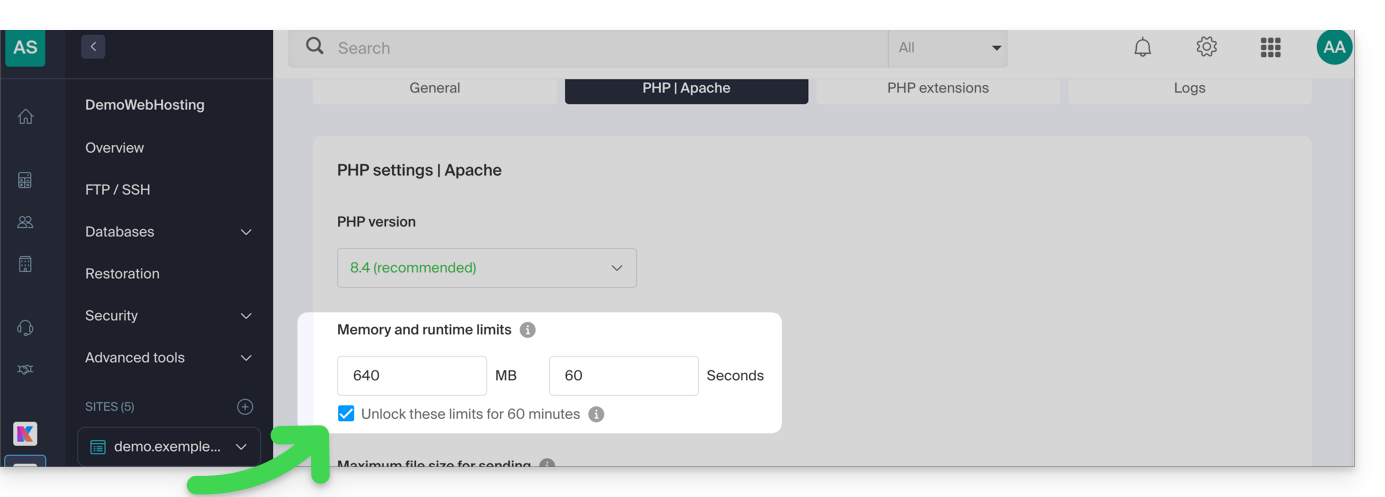
- This increase is possible a maximum of 10 times per year.
- … customize the limits of:
max_execution_time(in seconds)memory_limit(in MB)post_max_size&upload_max_filesize(maximum file size for uploads, in MB)- Cloud Server only:
Max children(refer to this other guide) - Cloud Server only:
Max input time
Don't forget to save the changes at the bottom of the page.
Maximum values per hosting type
| Limits | Shared | Cloud Server | CLI (Cloud Server only) |
|---|---|---|---|
| max_execution_time | 300 s | 3600 s | 0 (unlimited) s max |
| memory_limit | 1280 Mo | 2048 MB max | 512 MB max |
| post_max_size + upload_max_filesize | 9223372036854775807 Mo max | 9223372036854775807 Mo max | 48 MB max |
| max_children | 20 max | 20 (default, can be modified) | |
| simultaneous connections per IP | 30 max | 30 (default, can be modified) | |
| max_input_time | 0 (unlimited) | 0 (default, can be modified) | 0 (unlimited) |
| files (inodes) | no limit on the number of files per hosting account | ||
Link to this FAQ: https://faq.infomaniak.com/2158
Has this FAQ been helpful?
This guide explains how to replace, within an Infomaniak web hosting plan, the address of a website currently using a subdomain (https://dev.domain.xyz) with the main domain (https://domain.xyz).
Introduction
- Here's a summary of the steps:
- Start with a website created and accessible via the main domain's URL:
dev.domain.xyz. - Add an alias:
domain.xyz. - Reverse the two types (the main domain becomes an alias, and the alias becomes the main domain).
- Remove the old name:
dev.domain.xyz.
- Start with a website created and accessible via the main domain's URL:
- Note that the website's location remains in the original folder on the server; the name of this location may be in the form
/sites/dev.domain.xyz, but this has absolutely no impact on the website in production. - Also, refer to the latest chapter of this other guide.
Reverse a linked domain
Here are the detailed steps to switch from a website with a subdomain-type address to a direct address (here, dev.domaine-exemple.ch becomes domaine-exemple.ch):
- Click here to access the domain management section in your Infomaniak Manager (❓: help).
- Click on the name of the domain in question.
- Then, click on the down arrow to expand the Domains section of this site:
- Click on the Add a domain button:
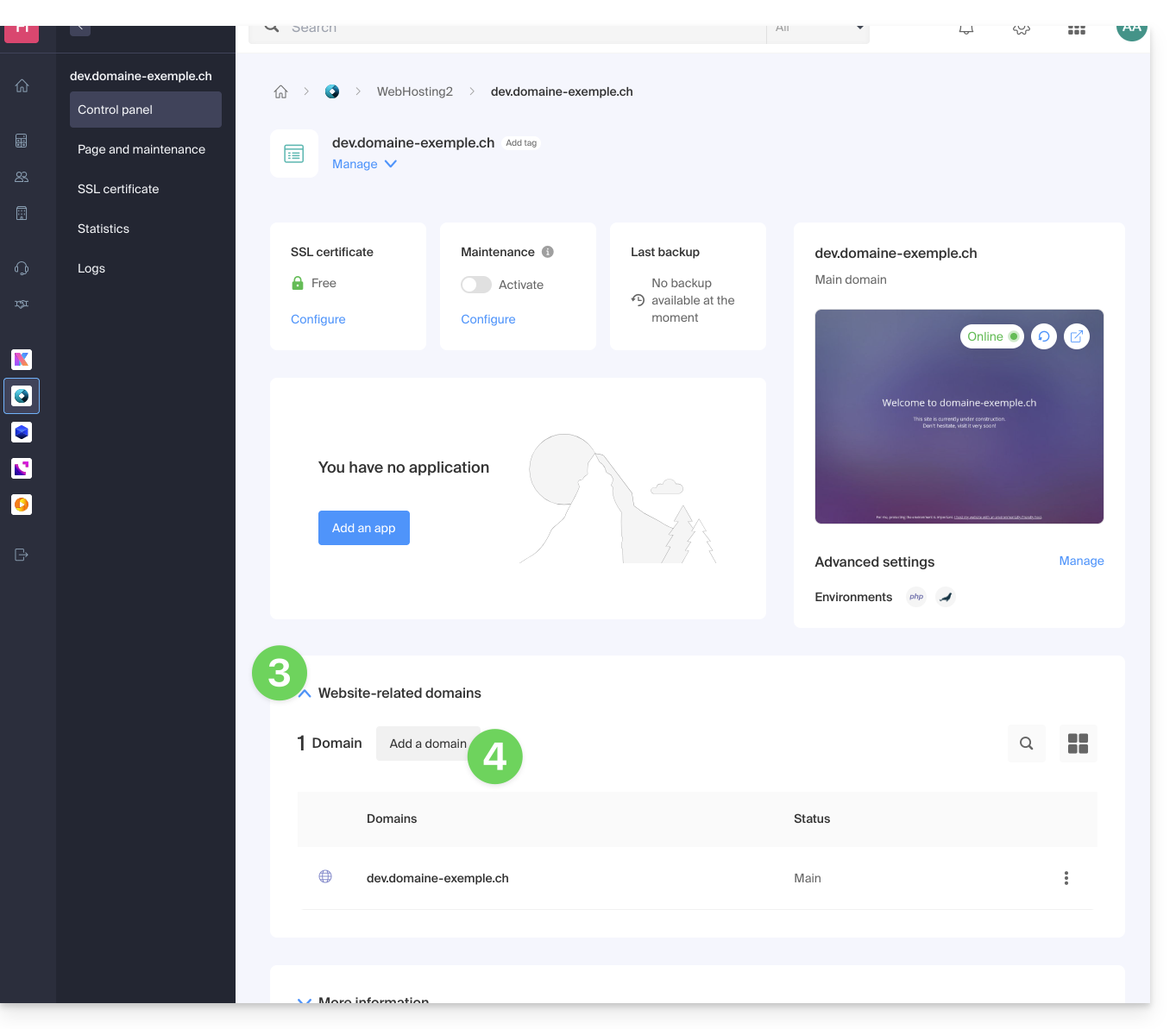
- Add the new desired name (if the domain name to be added is on the same Organization, it will be suggested in the list; otherwise, enter its spelling):
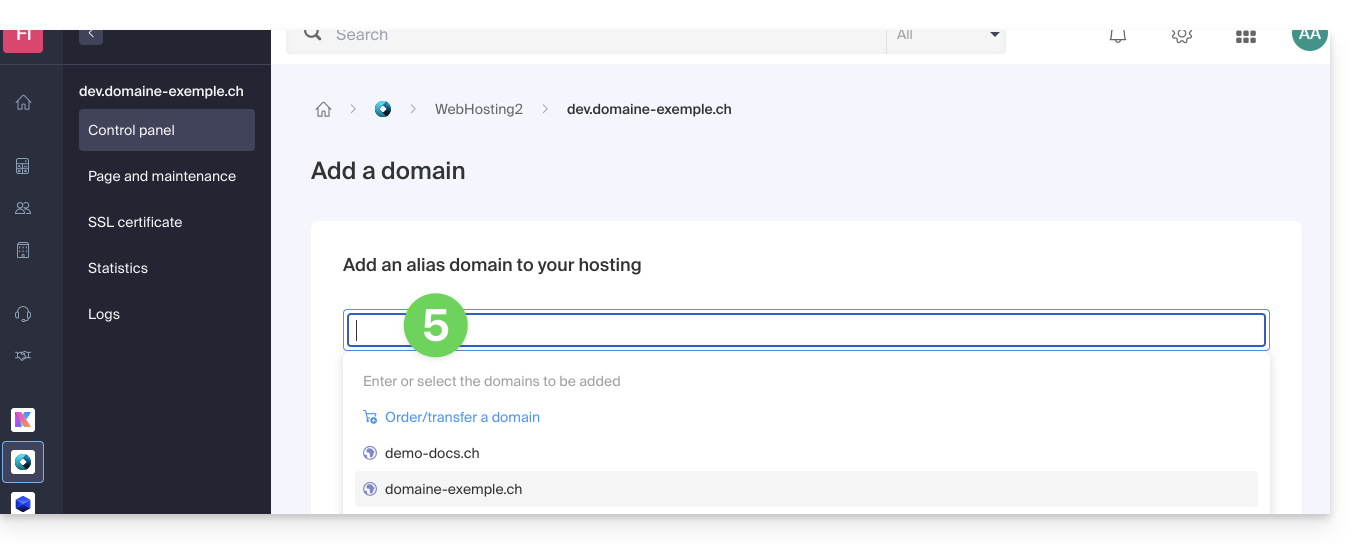
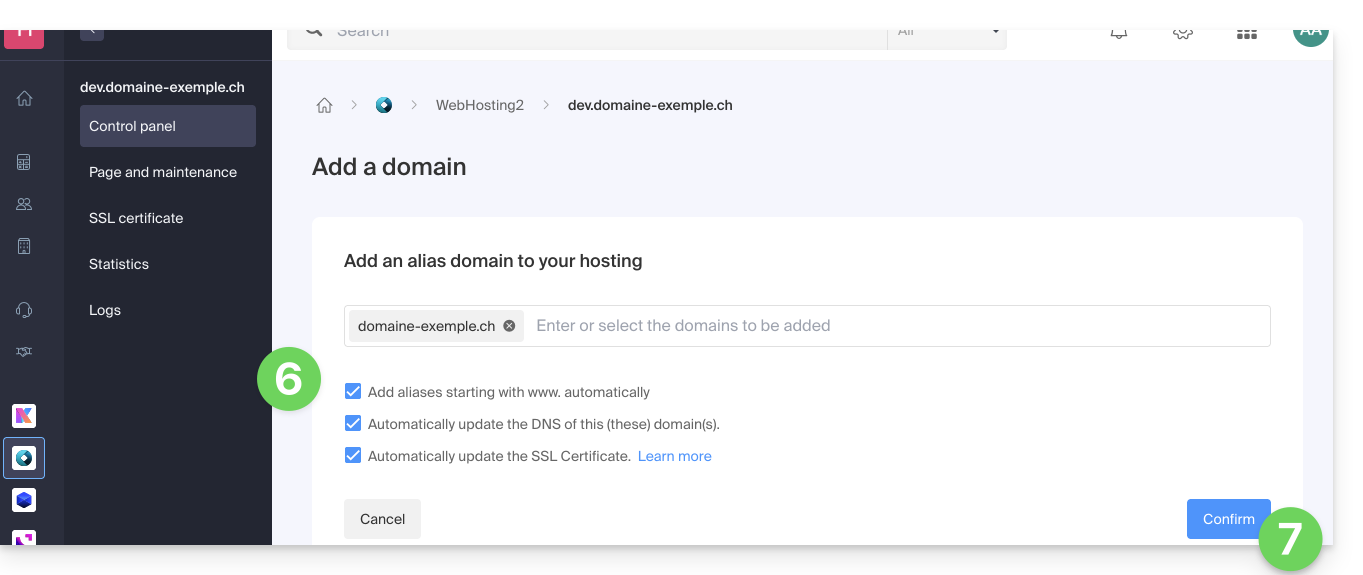
- Enable or disable the checkboxes:
- If the added domain is not in the form of a subdomain, you can request that the
wwwversion of the domain be added automatically. - Automatically update (if possible) the DNS records of the added domains.
- Automatically update the related SSL certificates (if possible).
- If the added domain is not in the form of a subdomain, you can request that the
- Click the button to Confirm and wait:
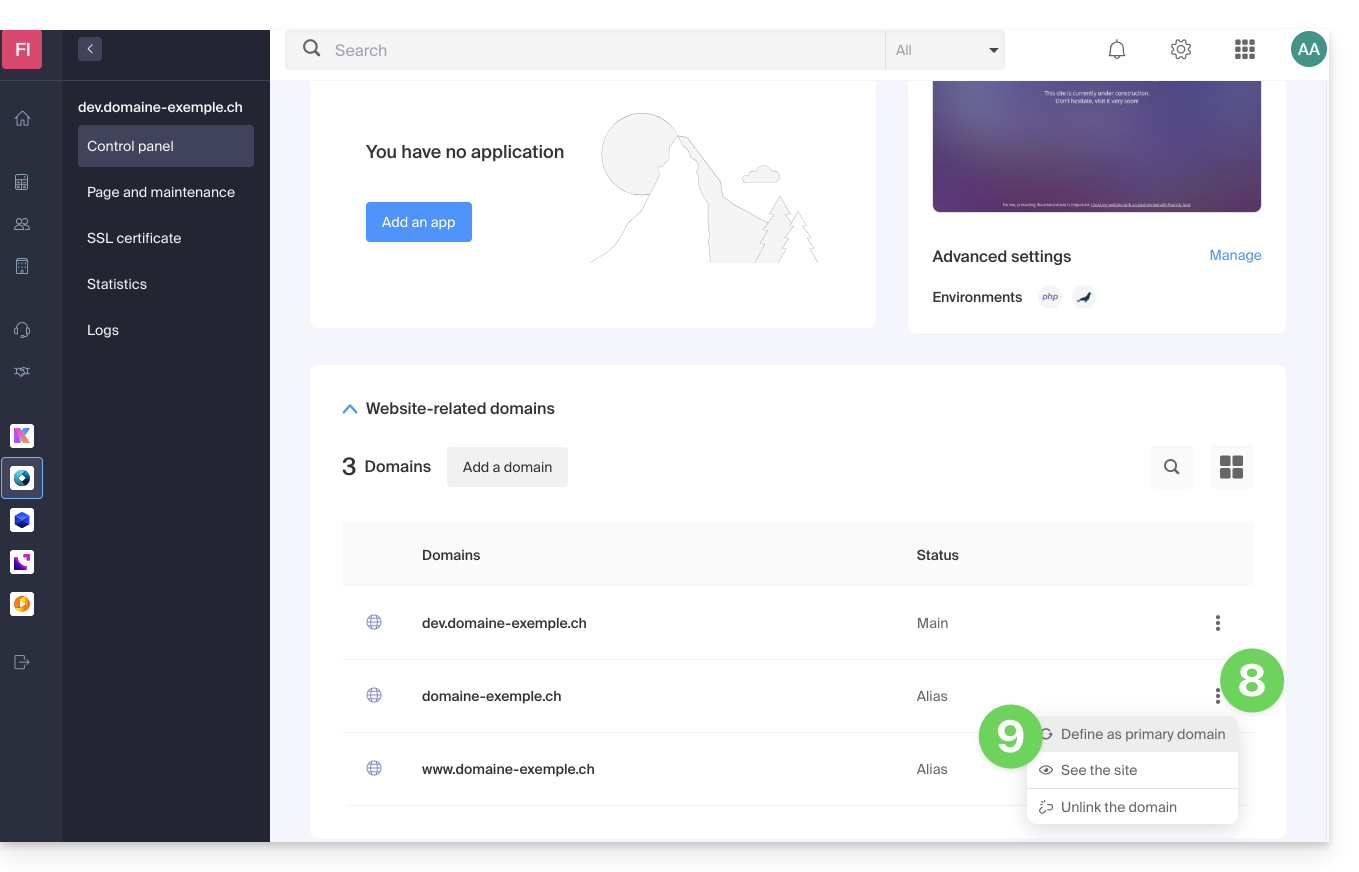
- Once added, click on the action menu ⋮ located to the right of the domain you just added and want to set as the primary domain:
- Choose to define the item as the primary domain:
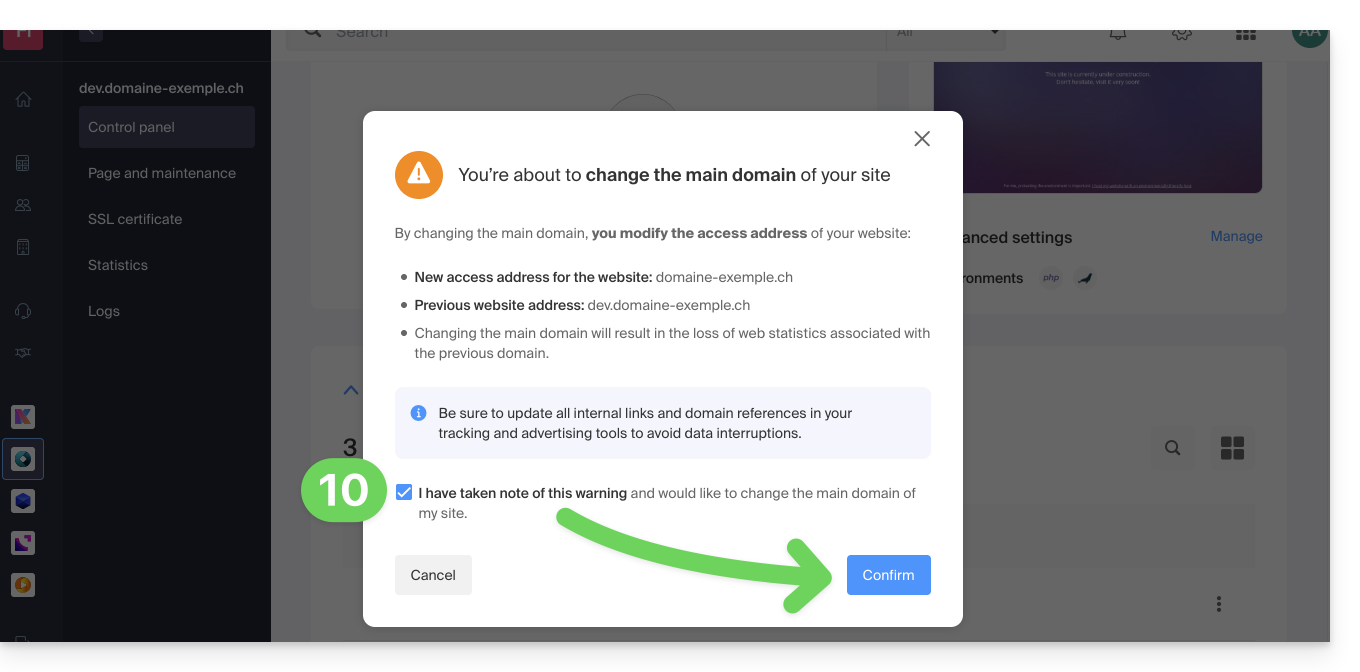
- Confirm the operation to proceed with the domain swap:
Link to this FAQ: https://faq.infomaniak.com/2160
Has this FAQ been helpful?