Knowledge base
1000 FAQs, 500 tutorials and instructional videos. Here, there are only solutions!
This guide explains how to contact and authorize Infomaniak Support to access your online productsand especially regarding their content, and provide useful details when submitting a support request.
Contact Infomaniak Support
Certain email addresses, such as support@infomaniak.com, are not intended to receive direct support requests.
Messages sent to these addresses are not processed by our teams and do not allow us to track your request.
To ensure proper handling, each request must be submitted solely through the support center:
- This process generates a ticket, automatically routes the request to the relevant department, and ensures complete follow-up until it is resolved.
- Once the request is registered, communication can then continue directly via email with support.
Before contacting support, we also recommend consulting the knowledge base, which contains many guides and answers to frequently asked questions.
Allow Support to access a type of content
Infomaniak Support may ask you to grant temporary access to a portion of your content; this helps save time in the diagnosis by avoiding unnecessary back-and-forth communication:
- This access is strictly limited to the context of the analysis and is only used to identify the source of the problem:
- Only Infomaniak employees directly handling your support request will have access.
- Access is only granted from Infomaniak's controlled facilities.
- In accordance with Infomaniak's privacy policy, your data will never be used for other purposes:
- You can revoke this access at any time.
- Otherwise, it will automatically expire after 7 days.
To allow Infomaniak to access a specific part of your services (granting access to one piece of content never grants access to others; each authorization is specific and independent):
- Click here to access access management in the Infomaniak Manager.
- Click on the toggle switch to allow access to the content of…
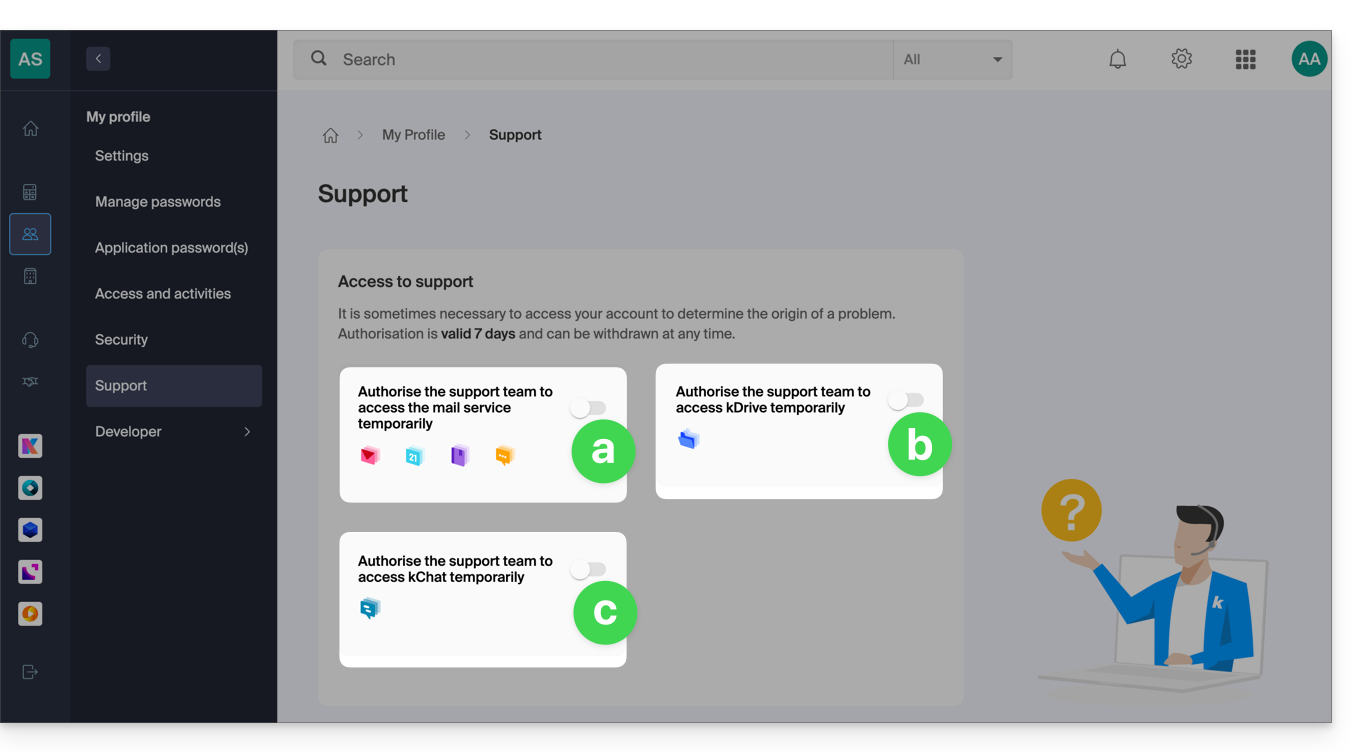
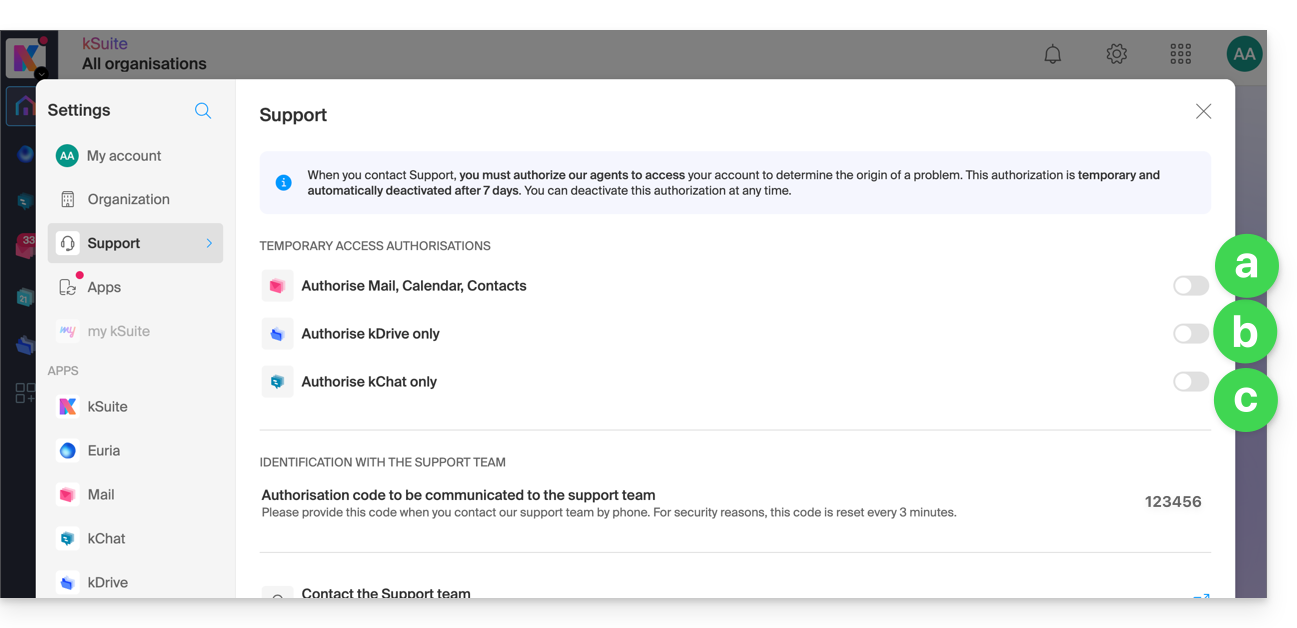
- … email addresses associated with the Mail web app from Infomaniak (online service ksuite.infomaniak.com/mail) + contacts & calendars,
- … folders from one or more existing kDrive accounts within the Organizations that the current user belongs to,
- … discussions from one or more existing kChat products within the Organizations that the current user belongs to.
With kSuite, you can also do this by clicking here or proceed as follows to achieve this:
- Click on the Settings icon in the top right corner of your kSuite window.
- Click on Support in the left-hand menu:
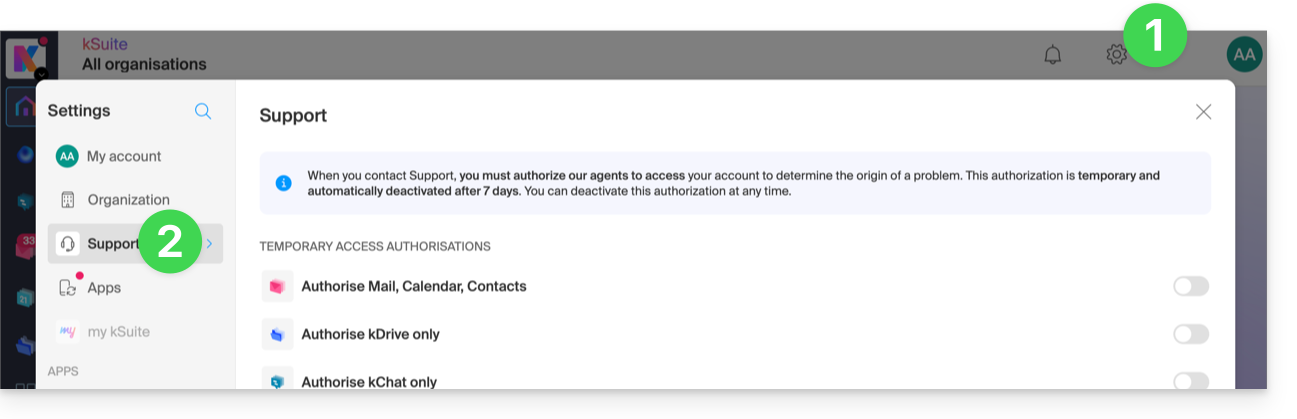
- Click on the toggle switch to allow access to the content of…
You can also easily share a single, specific email.
Taking screenshots
… on Windows
Microsoft offers a software program pre-installed that is dedicated to taking screenshots. But to take them manually:
- Display what you want to show on the screen.
- Press the PRINTSCREEN key on your keyboard once (or
PRTSCR,IMPR. ECRAN, etc.). - In Microsoft Word (or similar), go to "Edit" -> "Paste" to place your image on the page.
- Save your file.
- Repeat steps 1 to 5 as many times as the number of screenshots you want.
… on macOS
- Press the "
CMD" + "shift" (the upward-pointing arrow — Shift) + "3" keys simultaneously. - Each time you press these keys, an image file is created on your computer's desktop.
… on iOS (iPhone, iPad...)
- Simultaneously press the "
Power" + "Home" buttons (the only two physical buttons). - Then, retrieve the screenshots in the "Photos" app on your device.
… on Android (e.g. Samsung, LG or Huawei)
- Simultaneously press the “Volume Down” button (on the side) and the lock button.
- The captured image is automatically saved in a Screenshots folder in the gallery.
Copy the content of an alert window
… on Windows
To copy and paste an error message displayed in a Windows “popup” window as text, simply press the CTRL + C key on your keyboard to copy the message to the clipboard. You can then paste it (CTRL + V) into the body of the message you are sending.
Accessing the browser's JavaScript console
… on Windows
Chrome, Firefox, and Safari: enter the key combination CTRL + SHIFT + i
Internet Explorer and Edge: press the F12 key
… on macOS
Chrome: enter the key combination ⌘ + ⌥ + J
Safari: enter the key combination ⌘ + ⌥ + C
- Then, click on the icon with a crossed circle or similar to reset the log.
- Display the page of your website that is experiencing the issue.
- The console tab displays JavaScript errors and online resources that could not be found.
Link to this FAQ: https://faq.infomaniak.com/913
Has this FAQ been helpful?
This guide explains how to change the password for an FTP or FTP/SSH account for a website hosted on an Infomaniak Web Hosting plan.
Change the password for an existing FTP user
To modify FTP access:
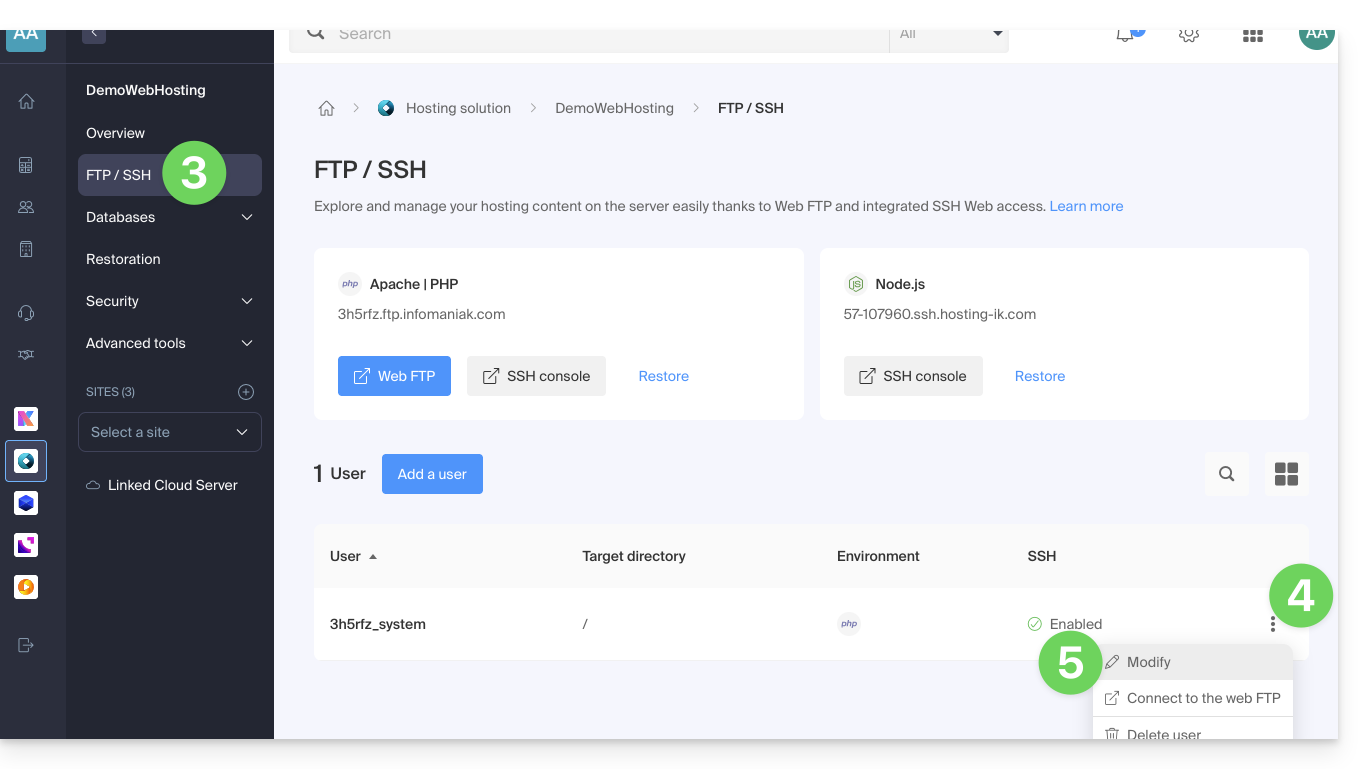
- Click here to access the hosting & site management section in your Infomaniak Manager (❓: help).
- Click on the name of the hosting account in question.
- Click on FTP / SSH in the left-hand menu.
- Click on the action menu ⋮ to the right of an existing account.
- Click on Edit:
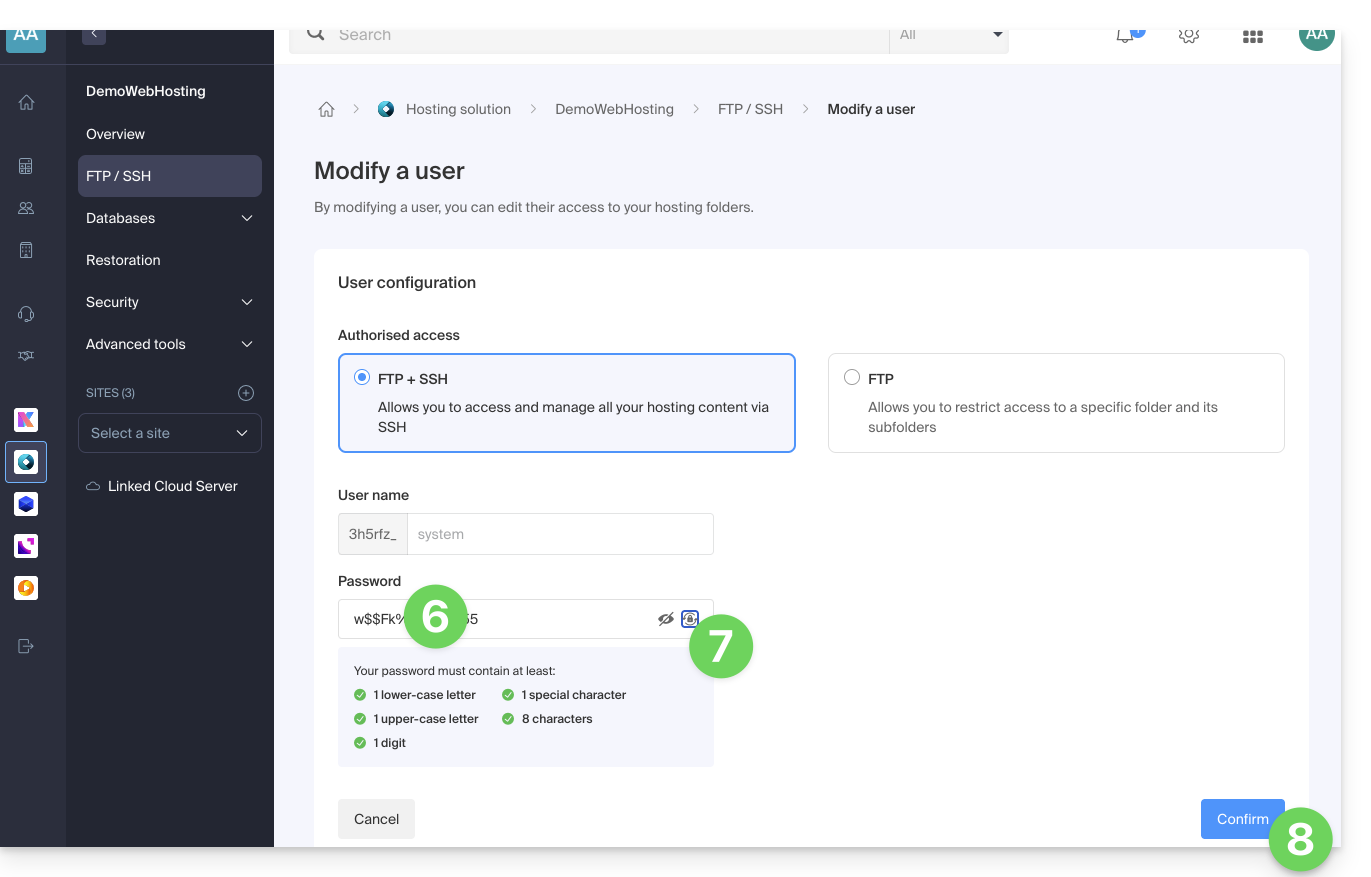
- Enter the new password that will be used for your FTP or SSH access.
- If needed, you can generate a strong password.
- Confirm the changes:
Link to this FAQ: https://faq.infomaniak.com/916
Has this FAQ been helpful?
This guide explains how to change the target folder where your website is stored on an Infomaniak Web Hosting plan.
Introduction
- On an Infomaniak web hosting plan, it is possible to install multiple websites with their own domain name (multisite management).
- Each of these sites is stored in a folder on your hosting plan, which is the target directory for the site. It is possible to freely change the target directory of a site. Example:
- The site
domain.xyzhas, for example, the/webfolder as its target directory… - You publish a site in a new subfolder of
/web, for example, called/web/v2… - By changing the target directory
/webof the sitedomain.xyzto/web/v2, the sitedomain.xyzwill display the content of the/web/v2folder without, of course, including this path in the web browser's address bar and without leaving access to any files that may still be located in/web.
- The site
- It is recommended not to create "
v2" in a subfolder of "web" but next to it, by creating the folder at the root of your hosting. - These folders actually exist on the server, but you are not required to connect via FTP to manage them.
Display the folder for your websites
To find information about the folder where your website is stored:
- Click here to access the hosting & website management section in your Infomaniak Manager (❓: help).
- Click on the name of the website in question.
- Then, click on the chevron to expand the Information section of this site.
- The highlighted information below indicates the location of the example site:

Modify the target or folder of a website
To manage the location of a website within the hosting:
- Click here to access the hosting & website management section in your Infomaniak Manager (❓: help).
- Click on the name of the website in question.
- Click on Manage in the Advanced settings section:

- Manage the desired location for the site.
- Click the Save button at the bottom of the page:

Link to this FAQ: https://faq.infomaniak.com/963
Has this FAQ been helpful?
This guide helps you identify and fix 404 errors, blank pages, or websites that do not displaywhen it is impossible to access the hosting from your browser.
Points to check
It is strongly recommended that you perform the following steps:
- Check your internet connection: visit a third-party website such as https://www.ch.ch or https://www.microsoft.com. If these addresses are inaccessible, contact your internet service provider (ISP) as the problem originates from your connection.
- Clear your browser's cache to force the page to refresh; learn more.
- Test the website's visibility to third parties: ask people outside your local network to test access, or use the https://downforeveryoneorjustme.com service to find out if the site is down for everyone or only for you.
- Use a proxy to simulate a connection to your site from another geographic location.
- Check that the domain name has not expired: hosting and the domain are two separate entities. Your hosting may be active with Infomaniak (check this in the Manager), while the domain has expired. Perform a WHOIS lookup and contact the registrar if necessary.
- Check the configuration file of your script or CMS to verify the database connection details (name, address, user, and password); learn more.
If the problem persists
Please contact Infomaniak support in writing, providing the following information:
- Name of the website in question.
- Your public IP address at the time of the tests (available on https://www.infomaniak.com/ip).
Link to this FAQ: https://faq.infomaniak.com/978
Has this FAQ been helpful?
This guide explains why a website may be "broken" or no longer display anything after a password change at the Web Hosting level.
Broken link with the database
When your website, and more specifically a script (CMS, WordPress, Prestashop, or any other application using MySQL databases), can no longer connect to the MySQL MariaDB database or another database, an error message may appear, such as:
Error connecting to the databaseDatabase Error: Unable to connect to the database: Could not connect to MySQLUnable to establish a connection to the database
Remember your last action…
If an error occurs on your site, always check the recent history. In this case, was there…
- … did you make any changes to the configuration file of the script in question? Has it been affected, modified, or moved?
Sometimes, the unintentional insertion of a space before or after a word can break the connection between the web server and the database server. Revert your file changes.
If necessary, restore an older version of the files that you recently modified. - … an action on the database password in the Infomaniak Manager?
If you change the password for your database via the Infomaniak Manager, then your script, which retrieves its information from the databases, will no longer display anything.Changing something in the Infomaniak Manager means you need to change it everywhere else. This change you made in the Manager also needs to be reflected in the script's configuration file by connecting via FTP and modifying the appropriate file, usually "wp-config.php", "configuration.php", or similar.
- … a server migration announced by Infomaniak?
If this error occurred following a server migration or another operation announced by email and related to the product in question, do not hesitate to contact Infomaniak support.
Link to this FAQ: https://faq.infomaniak.com/986
Has this FAQ been helpful?
This guide details how to manage access and security for your databases (MySQL, MariaDB, and MongoDB) on a managed Cloud Server.
Introduction
- The firewall is accessible in your Manager even if no Apache site is configured (useful for projects exclusively using Node.js, for example).
- Regarding access to MySQL databases from another Infomaniak web hosting account, please refer to this other guide.
- Regarding MongoDB:
- To ensure the security of your data, the system will block saving if you attempt to disable
local_onlymode without enablingauthentication. - Infomaniak's automatic backups do not include MongoDB databases.
- To ensure the security of your data, the system will block saving if you attempt to disable
Allow outbound access (Infomaniak → external)
From an Infomaniak Web Hosting or Cloud Server, requests to external databases are allowed by default without any port restrictions.
Allowing incoming access (external → Infomaniak)
To access your databases from outside, you must have a Cloud Server and open the corresponding ports in the firewall of your server:
- MySQL / MariaDB: port
3306(TCP) - MongoDB: port
27017(TCP)
Configure remote access for MongoDB
By default, MongoDB only accepts local connections.
Before making your instance public (remote access), you must create a user within your database.
To enable remote access via Fast Installer, you need to adjust the configuration while adhering to strict security rules.
- Click here to access the management of your Cloud Server in the Infomaniak Manager (need help?).
- Click directly on the name assigned to the Cloud Server in question.
- Click on Fast Installer in the left-hand menu.
- Click on MongoDB.
- Click on the action menu ⋮ to the right of the instance and choose Configure.
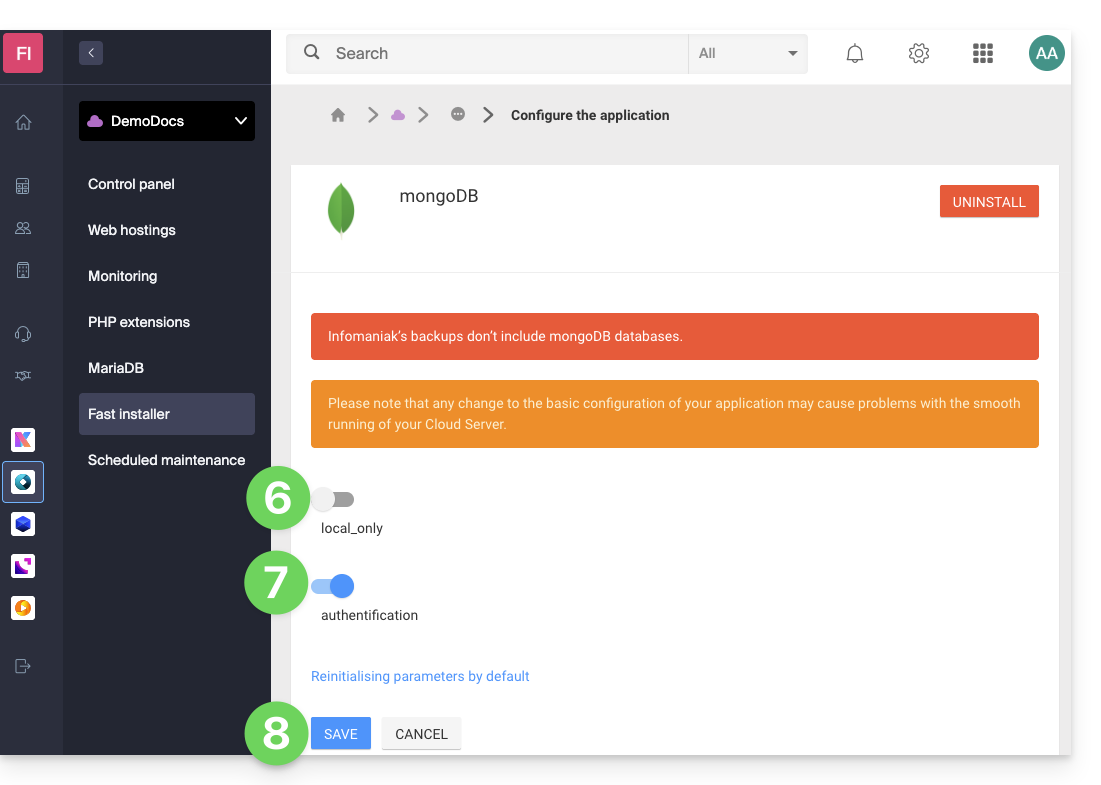
- Disable the
local_onlyoption. - Enable the
authenticationoption. - Save the changes:
Link to this FAQ: https://faq.infomaniak.com/1017
Has this FAQ been helpful?
This guide details how to back up data from your web hosting accounts (Starter, shared, or Cloud Server) using the restic application via the OpenStack Swift protocol on Swiss Backup, the backup solution in an independent Swiss cloud.
Introduction
- Other solutions exist for backing up your web data: learn more in this other guide.
Install Restic
Prerequisites
- Use a web hosting service.
- Own an Swiss Backup Infomaniak space with an available device quota (minimum 1) for a Cloud backup.
- Add 1 device of type Cloud to obtain the OpenStack Swift settings.
To do this:
Download the linux_amd64 binary from the restic GitHub repository:
wget -O restic.bz2 {{URL_8}}⚠️ The download link may change when a new version is released; version
0.14uses default compression.Unzip the archive and make the binary executable:
bunzip2 restic.bz2
chmod +x restic
Configure Restic
Creating an encryption key to encrypt data
- The key cannot be changed, and if lost, the data will no longer be readable.
- Place this key in a file that can be read by Restic.
Example of key generation:
openssl rand -base64 16 > restickey
Restic configuration
To configure the backup:
Create a resticconfig file with the following content, adapting it according to the information specific to your device:
echo "export OS_AUTH_URL={{URL_10}} export OS_REGION_NAME=RegionOne export OS_PROJECT_NAME=sb_project_SBI-XXXX export OS_PASSWORD='' export OS_USER_DOMAIN_NAME=default export OS_USERNAME=SBI-XXXX export OS_PROJECT_DOMAIN_NAME=default export RESTIC_REPOSITORY=swift:sb_project_SBI-XXXX:/bucket name export RESTIC_PASSWORD_FILE=restickey" > resticconfOS_AUTH_URLURL for accessing the Swiss Backup cluster (1)OS_PROJECT_NAMEandOS_USERNAME: replace SBI-XXXX with your IDOS_PASSWORD: replace with the password generated during activationRESTIC_REPOSITORY- replace SBI-XXXX with your ID
- replace the
bucket namewith the name you want to give to your container that stores the backups
RESTIC_PASSWORD_FILE: replace with the full path to the file containing the encryption key
Load the Restic configuration by running the following command:
source resticconfInitialize the bucket with the following command:
./restic -r $RESTIC_REPOSITORY init
(1) The indication "//swiss-backup02", "//swiss-backup03", etc. changes depending on the cluster number indicated in the Manager under Cloud storage information in the "Location" section; and if your Swiss Backup device was created before October 2020, you will need to use https://swiss-backup.infomaniak.com/identity/v3.
Back up your files
To back up your files, simply run the following command:
./restic backup
#Example: Backing up the entire hosting account
./restic backup ./
#Example: Backing up the “sites” folder
./restic backup sites/
The first snapshot takes a long time (several hours, depending on the amount of data) because all files are copied, while subsequent snapshots will use a differential approach.
Backing up databases
Restic can read data from stdin, allowing you to save the output of a program.
Use the following command to back up an individual MySQL database:
mysqldump --databases db_name -u db_username -p | restic backup --stdin --stdin-filename database_dump.sql To back up all databases, run the mysqldump command to extract all databases from the server, then redirect the output to Restic:
mysqldump -u -p --all-databases | restic backup --stdin --stdin-filename all_databases.sql
List backups
To list your backups, you can use the following command:
./restic snapshots
Restore a backup
You can restore a backup using the following command:
./restic restore --target
Automate
On Cloud Server, it is possible to add a cron job to automate the backup process.
This option is not available on shared hosting.
Link to this FAQ: https://faq.infomaniak.com/1019
Has this FAQ been helpful?
This guide explains how to download or export an SSL certificate from the Infomaniak Manager.
Introduction
- Downloading the certificate produces a file in
.zipformat. - The archive contains the
.keyand.crtfiles (as well as_windows.pfx&.protected.keydepending on the certificate type):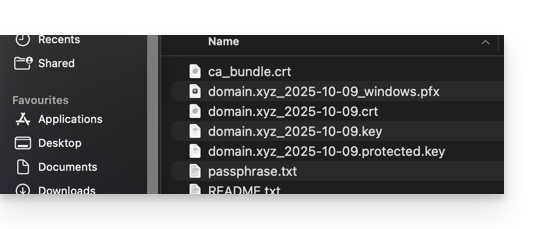
- It is recommended to store this certificate and its private key in a secure location, as the latter could be used to access your encrypted data.
Export or download an SSL certificate
To access your certificate management:
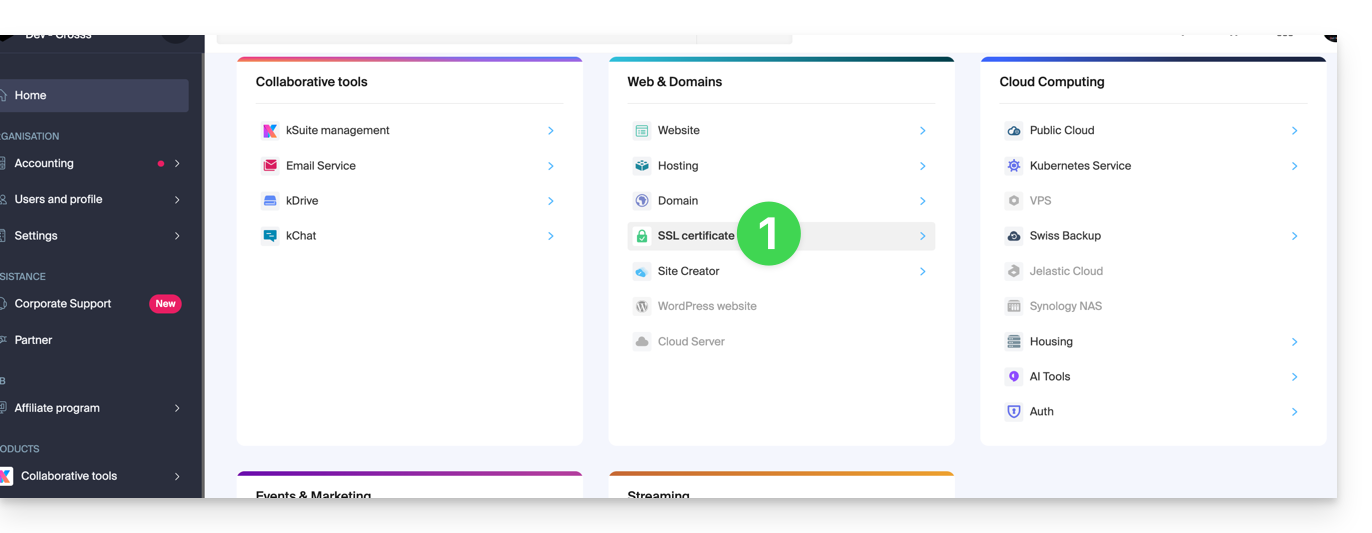
- Click here to access your product management in the Infomaniak Manager (need help?):
- Filter your certificate types if needed by clicking on the dedicated icon.
- Display the different types of certificates, such as Let's Encrypt, Sectigo DV & EV...
- Add the certificates that should be displayed.
- Apply the filters:
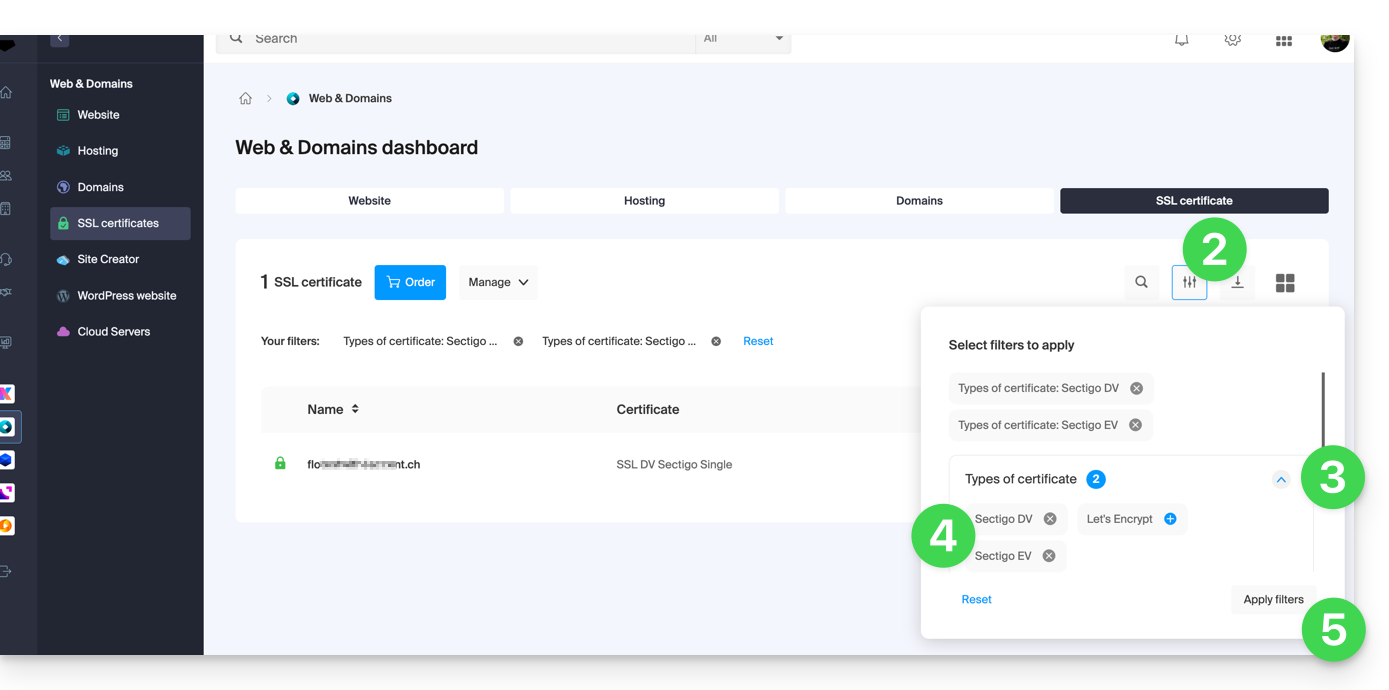
- The table now only displays the certificate types you have selected.
Export a Let's Encrypt certificate
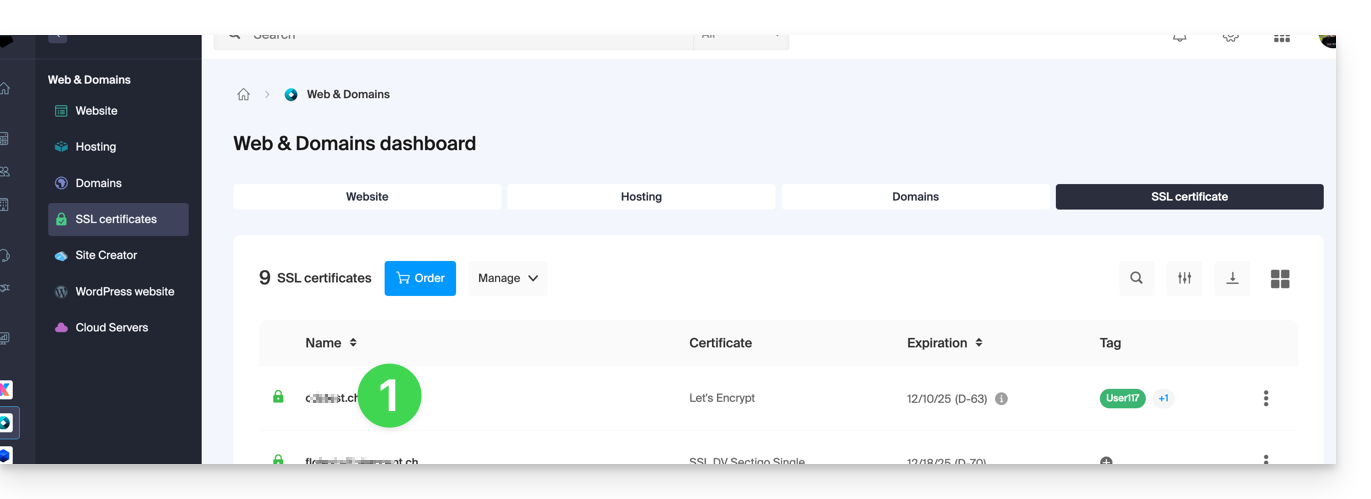
- Click directly on the name assigned to the Let's Encrypt certificate in the list:
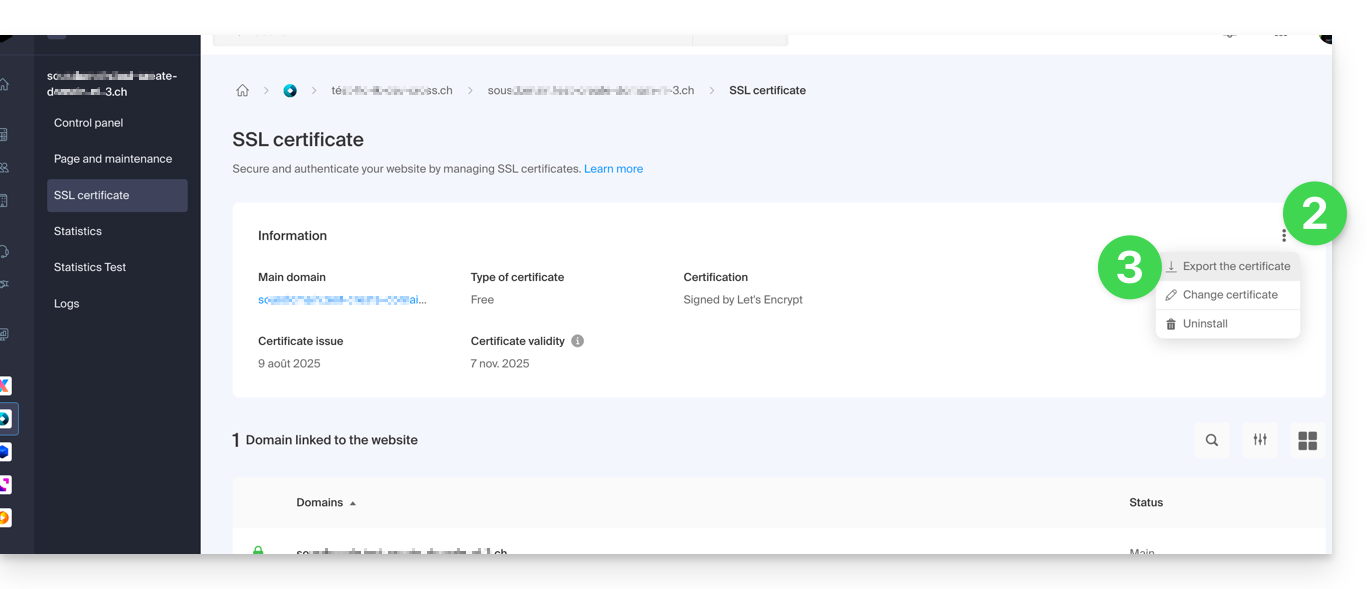
- Click on the action menu ⋮ to the right of the item in question in the table that appears.
- Choose Export the certificate and follow the instructions to download the archive to your device:
Exporting a Sectigo certificate
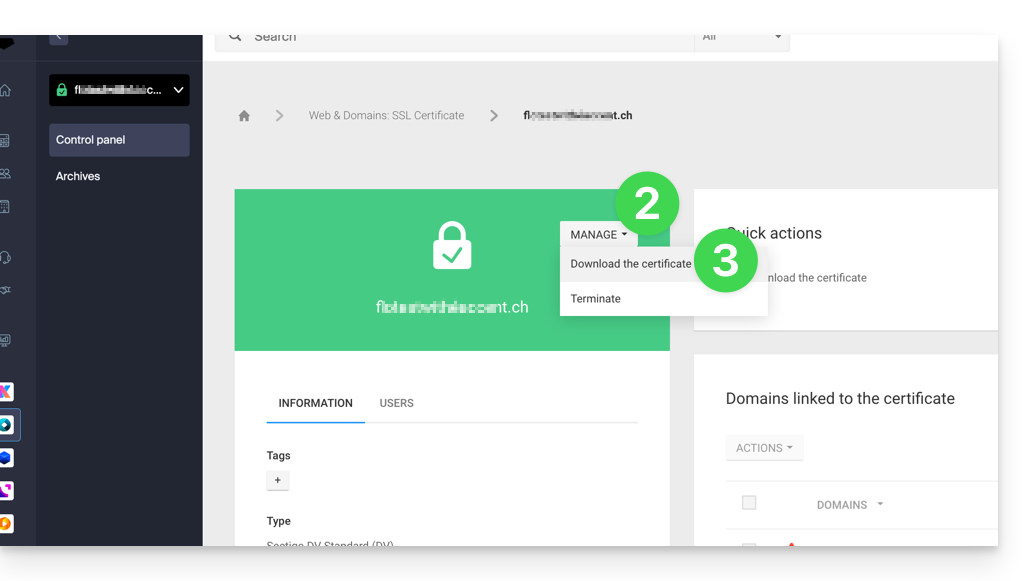
- Click directly on the name assigned to the certificate in the certificate list.
- Click on the Manage button.
- Click on Download the certificate and follow the instructions to download the archive to your device:
Link to this FAQ: https://faq.infomaniak.com/1034
Has this FAQ been helpful?
This guide explains how to resolve access errors to your Web Hosting following an IP address change (server migration, for example).
Introduction
- To save time, your system maintains a table that maps domain names to IP addresses.
- If the website changes its "location" (IP address), your computer tries to access the old address.
- Clearing the cache forces the system to request the new address from the DNS servers.
If your computer retains the old address in its memory,clearing the DNS cache can restore the connection.
Clear the DNS cache…
… on Windows
Use the command prompt to refresh your network settings:
- Open the Start menu.
- Type cmd and press Enter.
- In the black window that opens, type the following command and press Enter:
ipconfig /flushdns
… on macOS
On recent versions of macOS, the process is done via the Terminal:
- Open the Terminal (via Spotlight or Applications > Utilities).
- Copy and paste the following command:
sudo dscacheutil -flushcache; sudo killall -HUP mDNSResponder - Enter your session password (it will not be displayed while typing) and validate.
… on Linux
Most modern distributions use systemd-resolved. Open your terminal and run:
sudo resolvectl flush-caches
Note: If you are using an older service, the commandsudo systemctl restart nscd remains valid.
Link to this FAQ: https://faq.infomaniak.com/1041
Has this FAQ been helpful?
This guide offers solutions to address errors of the type “Malicious Site! The website has been reported as a malicious site and has been blocked based on your security preferences” (STOP! This Website Can Harm Your Computer! in English).
Who put up this message?
This error message or warning…
- … is NOT added by Infomaniak.
- … is generated based on Google's own data, using, among other things, https://www.stopbadware.org/.
- … may no longer appear directly because…
- … you are no longer indexed by Google.
- … you are using a browser that does not rely on Google's controls.
What to do?
If this does not concern the website you manage, please refer to Google's help page on this topic.
If the site is yours, please review the following advice:
- Check the source code of the published page: there is likely to be additional code compared to the pages that are still healthy; this may be a malicious iframe or some other inclusion…
- On the page in question, click on the "Why was this site blocked?" button and follow the instructions.
- Consult the Google documentation on this subject.
- Monitor the vulnerability detection tool, which may resolve the issue in the meantime.
Link to this FAQ: https://faq.infomaniak.com/1070
Has this FAQ been helpful?
This guide helps you resolve a potential 530 error by reducing the number of simultaneous FTP connections to your Web Hosting.
Resolving a 530 Error
The number of FTP connections that can be established simultaneously to an hosting's FTP space is limited to 25.
The error message 530 Sorry, the maximum number of clients (25) for this user are already connected generally appears after multiple simultaneous connections with an FTP software/client that does not handle disconnections properly or that tries to open multiple connections at the same time, thinking it will speed up the download.
Once you encounter this error, you must close the FTP program and then wait 30 minutes for the server to terminate the active connections so that you can reconnect.
You can also create a new FTP user and connect with that.
To avoid this situation with FileZilla, go to the Edit -> Settings menu, then go to the Transfers tab and set the number of simultaneous transfers to 2.
It is recommended to use the Web FTP in the Manager.
Link to this FAQ: https://faq.infomaniak.com/1082
Has this FAQ been helpful?
This guide explains how to manage files on a Web Hosting account using an FTP software/client.
Introduction
- To easily and quickly manage the files on your web hosting without having to install an application or enter FTP credentials, use the Web FTP (❓: help) in the Manager (it allows you to change file ownership and compress/decompress
zipfiles). - Regarding protocols supported by Infomaniak (FTP, SFTP, etc.) depending on your hosting plan (Starter, Node.js, etc.), please refer to this other guide.
Settings to provide for FTP software
Prerequisites
- Create an FTP / SSH account (❓: help).
- Install an FTP software/client such as Filezilla, Cyberduck, Commander One, Transmit, etc.
Regardless of the FTP software/client you use, the 3 essential parameters for configuring FTP access are always:
- Hostname: FTP server address
- username: FTP account name
- password: FTP account password
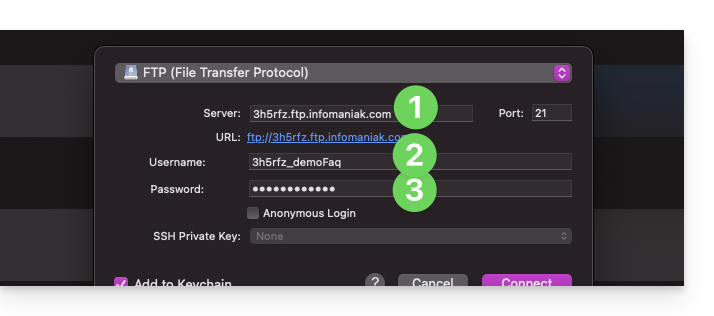
Get your hosting login details
You can find all the information in your Infomaniak Manager:
- Click here to access the hosting & website management section in your Infomaniak Manager (❓: help).
- Click on the name of the relevant hosting.
- Click on FTP (or FTP / SSH) in the left-hand menu.
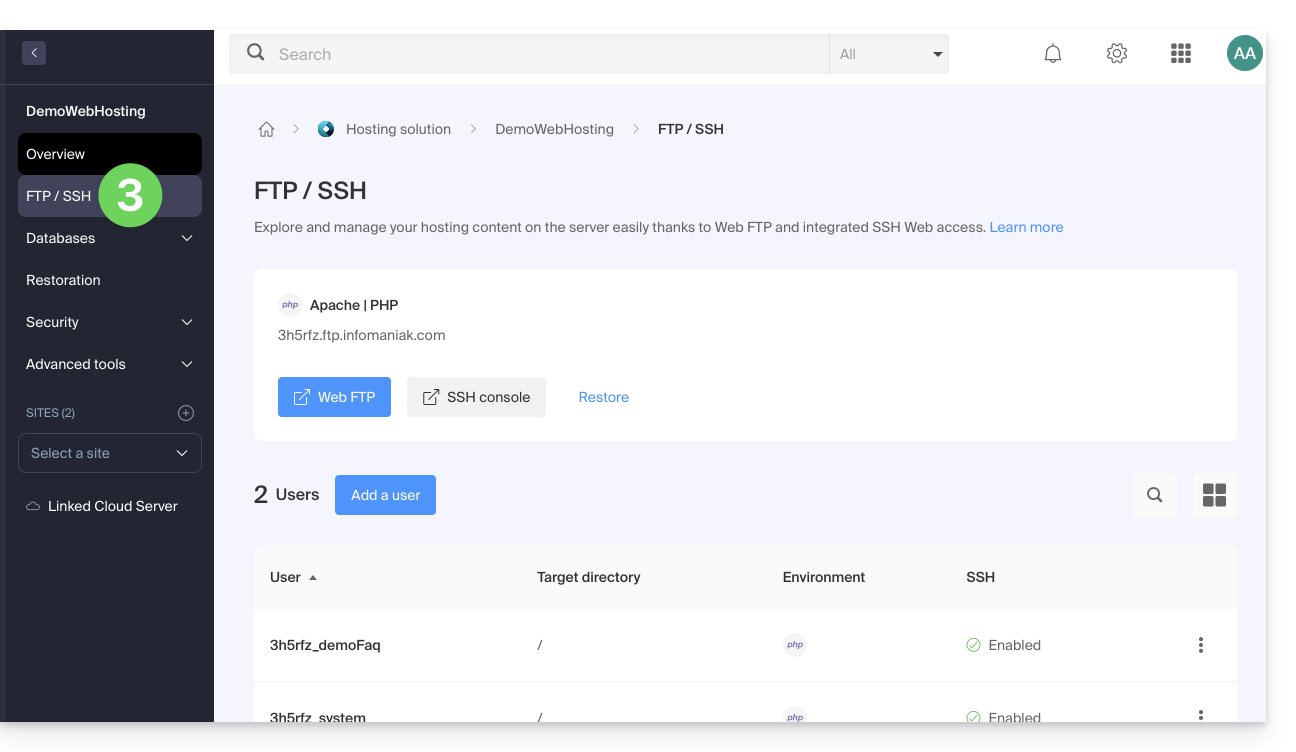
1. FTP hostname
The hostname to use in your FTP software/client is specified at the top of the page obtained in step 3 above, and an icon allows you to copy the address to the clipboard.
Starter plan - basic web page
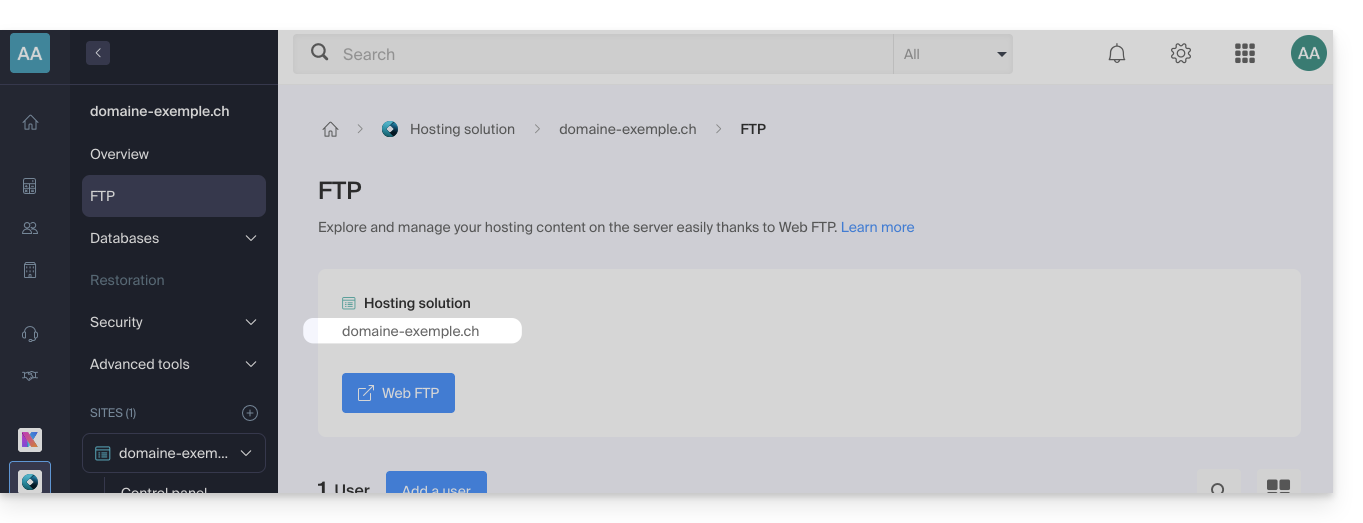
If the domain indicated is not working (e.g., it does not point to the hosting's IP address), use the IP address as the hostname, in the format 123.45.678.123 (refer to this other guide).
Paid Web Hosting
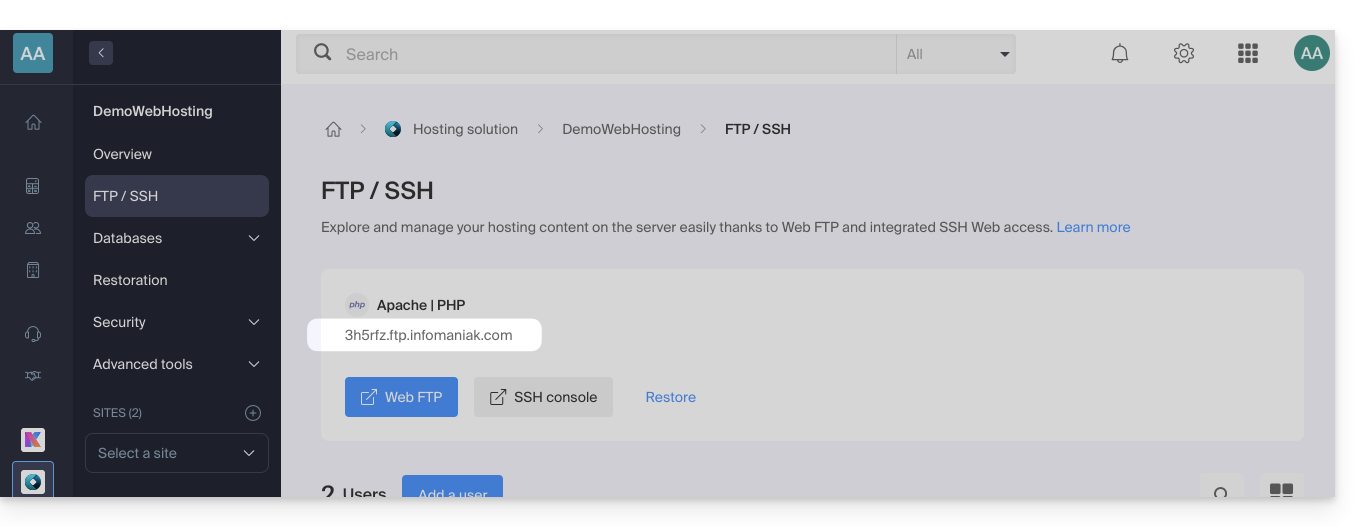
Use the hostname in the format xyzb.ftp.infomaniak.com, for example.
2. FTP Username
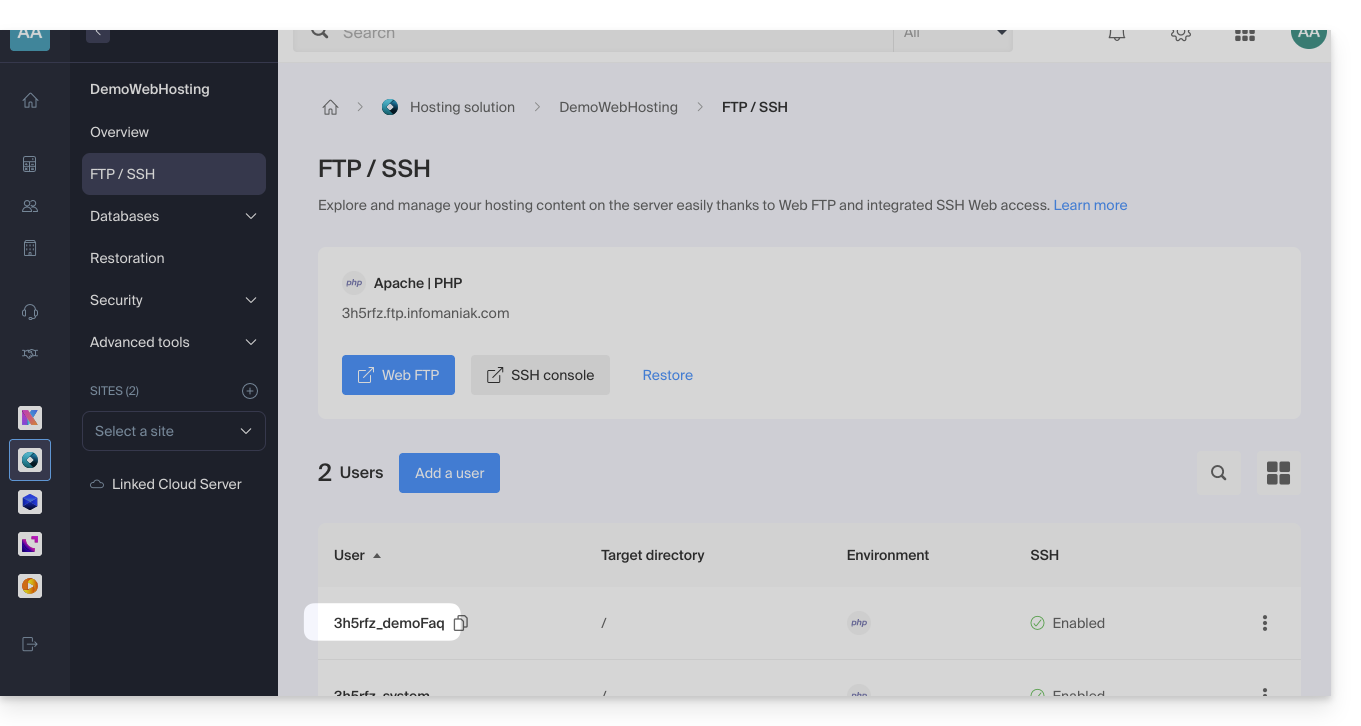
The username is the name of the account to be created in your Manager: xyzb_abcdefg for example.
3. FTP user password
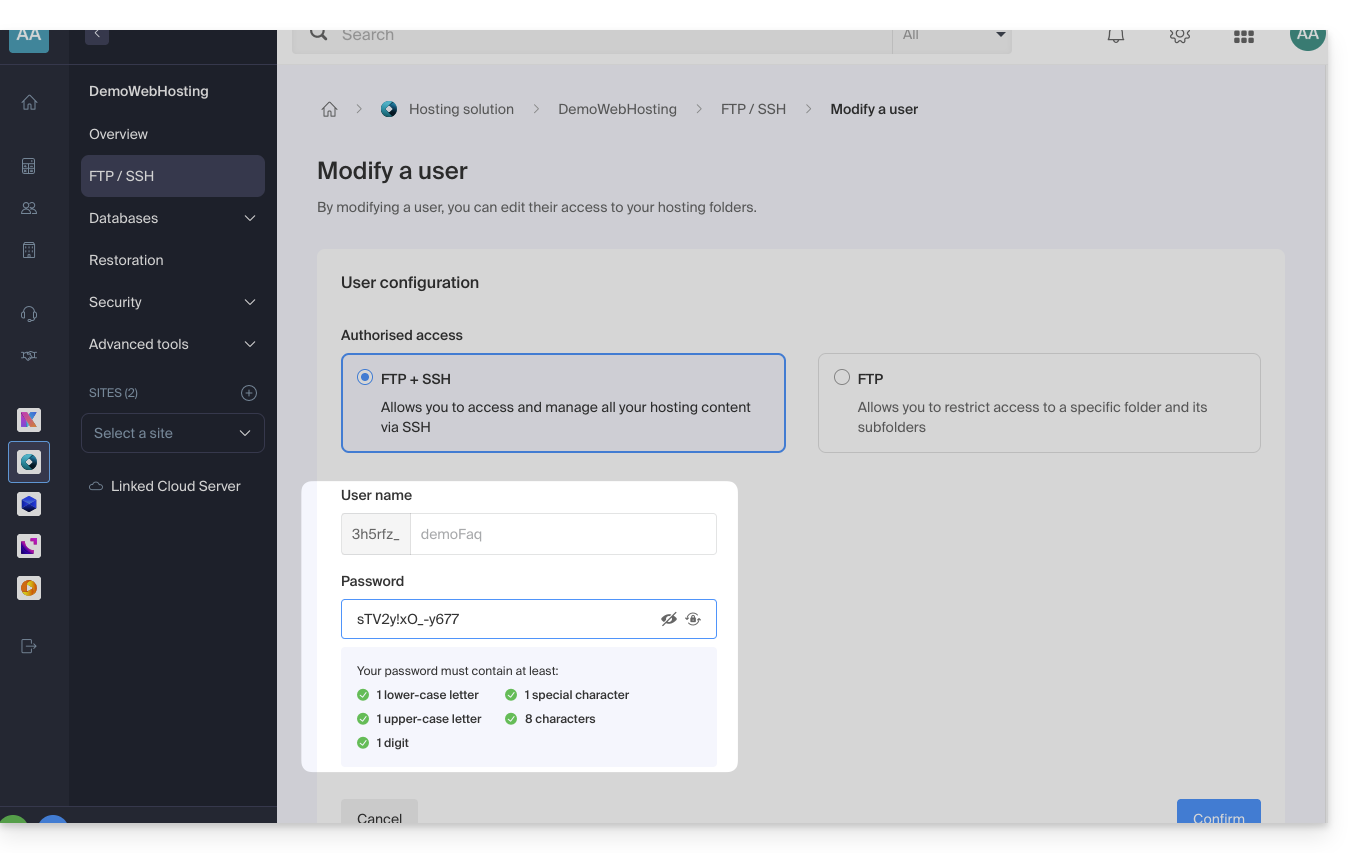
The FTP user password is set by the creator of the FTP account. If you forget it, edit the FTP account by clicking on it and set a new password.
It is not possible to display an existing password; you must set a new password if you no longer have the currently defined password.
Once the connection is established…
After entering the 3 required parameters, your FTP application should display the file structure of your hosting account: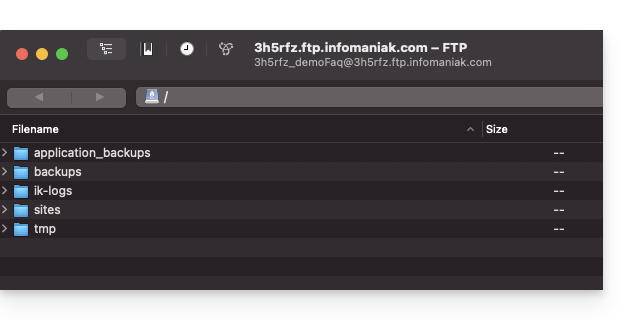
Link to this FAQ: https://faq.infomaniak.com/1083
Has this FAQ been helpful?
This guide concerns the MySQL query cache, which, when enabled, stores the results of previously executed queries in memory.
Introduction
- MySQL Query Cache speeds up subsequent identical queries by preventing them from being executed again.
- This can improve the overall performance of the database server by reducing the load and decreasing the response time for frequent queries.
query_cache_type ON or OFF?
On shared Web Hosting (i.e., excluding Cloud Server), the MySQL Query Cache is neither enabled nor can it be enabled.
On Cloud Server, enable MySQL Query Cache via Fast Installer.
Link to this FAQ: https://faq.infomaniak.com/1085
Has this FAQ been helpful?
This guide explains how to modify the value of the PHP directive include_path.
Modify the include_path
Like any other PHP setting, include_path is defined in the .user.ini file.
Here is an example of a path to use in your .user.ini file:
- The dot (
.) at the beginning allows the current directory to be included in the search. - Le point (
.) au début permet de conserver le répertoire courant dans la recherche. - The colon (
:) is used as a separator between the different folders.
Refer to this other guide about phpinfo to verify that your new directive has been taken into account (it may take a few minutes for the change to appear).
Although this method is still functional, using Composer's autoloader is now the preferred solution for managing includes.
Link to this FAQ: https://faq.infomaniak.com/1108
Has this FAQ been helpful?
This guide explains how to modify the error_reporting() directive on your website.
Enable error reporting
Specify the following 2 pieces of information in your .user.ini file:
display_errors=on
error_reporting=E_ALL & ~E_NOTICE & ~E_STRICT
If your browser displays no errors or warnings, then there are none.
Disable PHP error display
For WordPress, edit the wp-config.php file and replace the following line:
define('WP_DEBUG', false);by:
ini_set('display_errors','Off');
ini_set('error_reporting', E_ALL );
define('WP_DEBUG', false);
define('WP_DEBUG_DISPLAY', false);Alternatively, you can add the following code to the .user.ini file:
display_errors=offLink to this FAQ: https://faq.infomaniak.com/1115
Has this FAQ been helpful?
This guide is intended for developers and webmasters who are experiencing issues with the display of special characters (e.g., accents, Arabic characters, Chinese characters, emojis, etc.) on an Infomaniak website or in its database.
Introduction
- Common causes of incorrectly displayed characters that appear instead of special characters or emojis like
??:- PHP connection in
utf8instead ofutf8mb4 - MySQL table or column in
latin1orutf8instead ofutf8mb4 - SQL file encoded differently from the import setting
- Incorrectly encoded HTML/CSS/JS files
- Missing or incorrect charset declaration on the HTML, PHP, or HTTP side
- PHP connection in
- Common solutions:
- Use
utf8mb4everywhere: database, connections, tables, columns, files, headers - Validate the encoding of all files and dumps
- Test the display of emojis, accents, and other multilingual characters
- Use
- Also, refer to this other guide to force a different encoding when connecting to a MySQL database.
Use a text editor that supports saving in UTF-8 without BOM (Visual Studio Code, Sublime Text, Notepad++...)
1. Use UTF-8 or UTF-8MB4 everywhere
MySQL's utf8 encoding does not support 4-byte characters, such as emojis. These will be displayed as ??. Therefore, you should use utf8mb4, which is a true, complete implementation of UTF-8.
2. HTML – Correct encoding declaration
In the <head> of your HTML pages:
Also, make sure that the CSS/JS files are saved in UTF-8 (without BOM).
Assurez-vous aussi que les fichiers CSS/JS sont enregistrés en UTF-8 (sans BOM).
3. PHP – Enforce UTF-8 or UTF-8MB4
a) HTTP Headers
header('Content-Type: text/html; charset=utf-8');
b) MySQL connection (MySQL API)
b) Connexion MySQL (API MySQL)
$connection = mysql_connect($host, $user, $pass);
mysql_set_charset('utf8mb4', $connection);
c) PDO Connection
 $dsn = "mysql:host=localhost;dbname=ma_base;charset=utf8mb4";
$pdo = new PDO($dsn, $user, $pass, [
    PDO::ATTR_ERRMODE => PDO::ERRMODE_EXCEPTION
]);
4. MySQL database
a) Configuration in phpMyAdmin
- The database, tables, and columns must be in
utf8mb4_unicode_ciorutf8mb4_general_ci. - In the Operations tab, choose
utf8mb4_unicode_cifor the collation.
b) Useful SQL commands
ALTER DATABASE ma_base CHARACTER SET = utf8mb4 COLLATE = utf8mb4_unicode_ci;
ALTER TABLE ma_table CONVERT TO CHARACTER SET utf8mb4 COLLATE utf8mb4_unicode_ci;
c) After the PHP connection
mysqli_query($conn, "SET NAMES 'utf8mb4'");
mysqli_query($conn, "SET CHARACTER SET 'utf8mb4'");
5. .user.ini / .htaccess file
To force server-side encoding (Apache):
AddDefaultCharset utf-8
Header set Content-Type "text/html; charset=utf-8"
# For PHP
php_value default_charset UTF-8
php_value mbstring.internal_encoding UTF-8
6. Import/export SQL dumps
Errors such as é becoming ? or an emoji ☺ becoming ?? often stem from an encoding mismatch.
Check the encoding of the SQL file before importing. Use iconv if necessary:
iconv -f ISO-8859-1 -t UTF-8 dump.sql > dump_utf8.sqlIn phpMyAdmin, specify the import encoding (e.g. UTF-8, UTF-8MB4 or latin1) according to the file.
Link to this FAQ: https://faq.infomaniak.com/1124
Has this FAQ been helpful?
This guide explains how to use the Web FTP file manager, which allows you to easily and quickly manage the content of your Web Hosting.
Introduction
- The Web FTP / FTP Manager online service does not require any special access, provided you have management rights for a hosting account in the Infomaniak Manager and are logged in.
- Therefore, you do not need to have an FTP account and its password; the password for your Infomaniak account is sufficient.
- This allows you to:
- create files,
- navigate through directories,
- manage existing files (copy, rename, move, delete, unzip, etc.),
- edit and view text, PHP, and HTML files smaller than 1 MB,
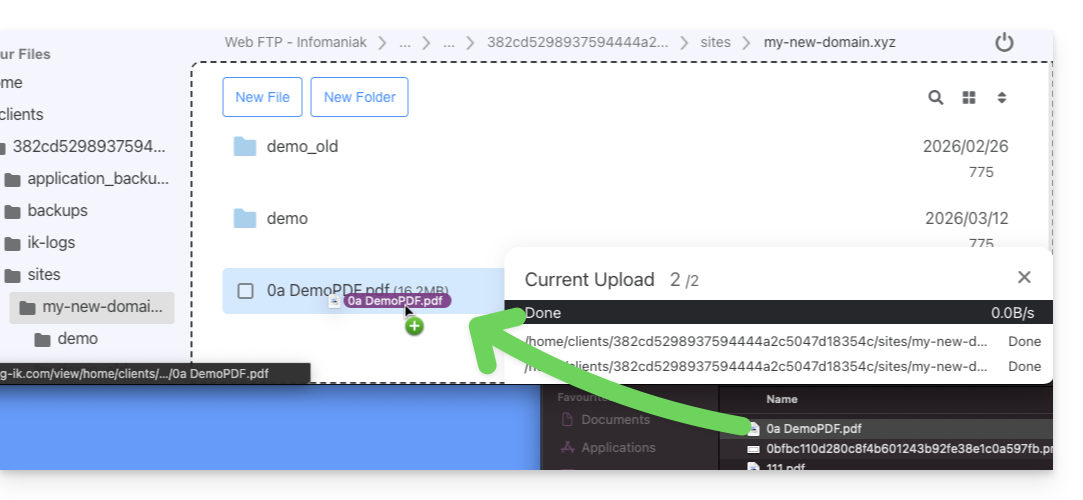
- transfer files smaller than 50 MB between your computer and the server:
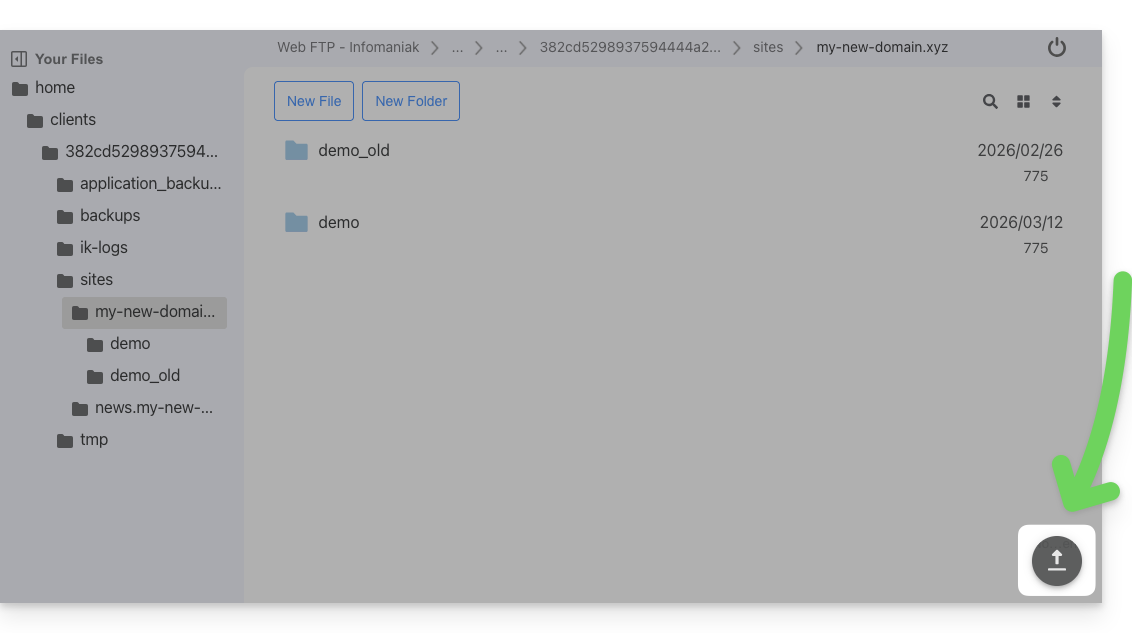
- including by dragging and dropping directly from your computer to the Web FTP window:
- to exceed this limit and for background work capabilities, resuming transfers after interruptions, and limiting transfer speeds, etc., use an FTP software/client (❓: help).
- including by dragging and dropping directly from your computer to the Web FTP window:
Access the server via Web FTP
To quickly access the website's server via FTP or SSH:
- Click here to access the hosting & website management section in your Infomaniak Manager (❓: help).
- Click on the name of the relevant hosting.
- Click on FTP / SSH in the left-hand menu.
- Click on the
Web FTPorSSH consolebuttons available to you: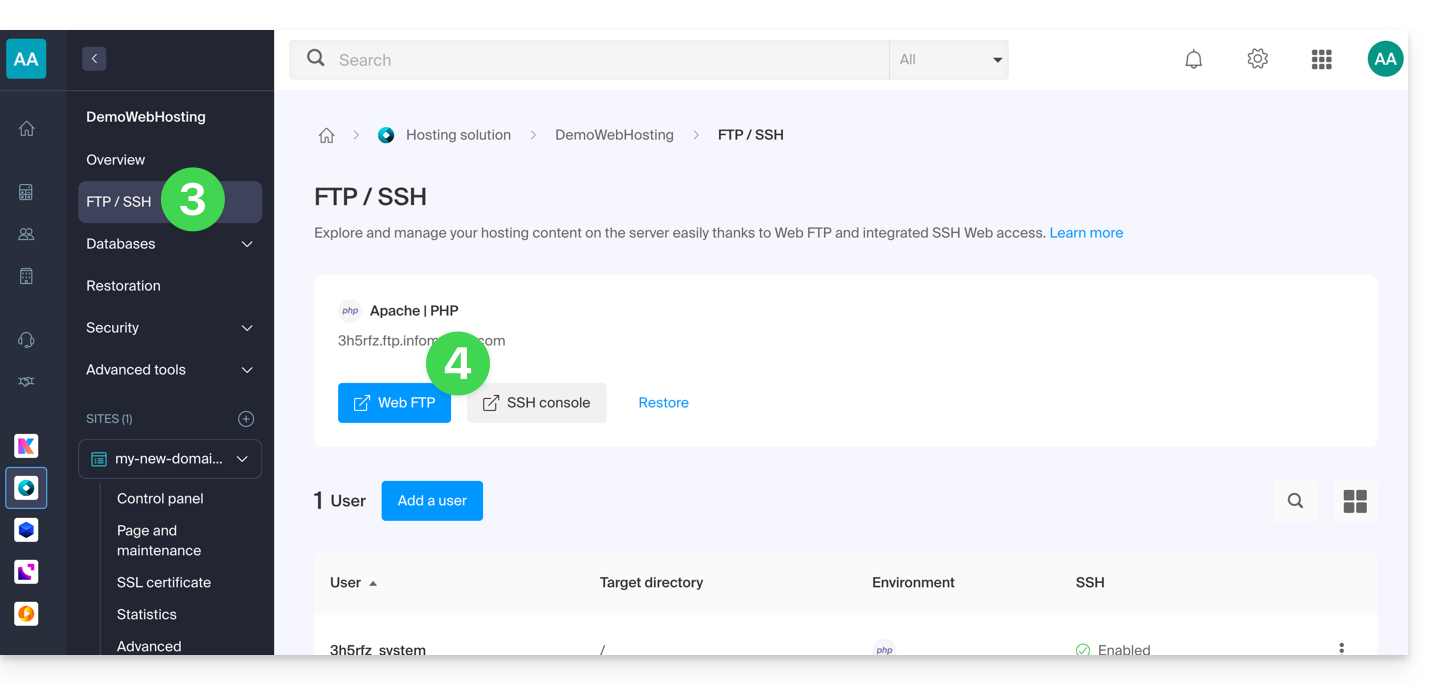
Link to this FAQ: https://faq.infomaniak.com/1130
Has this FAQ been helpful?
This guide explains how to optimize a website hosted on a Web Hosting plan to make it faster and provide a smooth browsing experience for all your visitors, regardless of their connection speed.
The role of the hosting provider
The loading speed of a website depends on many factors: server performance, the hosting provider's network infrastructure, the visitor's internet connection, and the website's own optimization.
As a hosting provider, Infomaniak strives to offer the best hosting by continuously improving its products and infrastructure:
- All hosting plans run on the latest generation SSD drives.
- The infrastructure benefits from over 70 Gbit/s of interconnection and redundancy with partners such as Cogent or Level3.
- To handle peak traffic, the servers use regularly updated 64-bit Intel Xeon processors. Shared servers typically use only 40% of their CPU power.
When you submit a support request regarding slowdowns, Infomaniak checks the following points:
- Your hosting server is operating normally and has not experienced any incidents in the last 48 hours.
- The network infrastructure has not experienced any disruptions during the same period.
The role of the website owner and webmaster
Infomaniak does not intervene in the content of the servers or in the development of websites. The creation and maintenance of a website are distinct professions, although they use the tools and services provided by the hosting provider.
Analyze the cause of slowdowns
Here are the steps to take if you notice slowdowns on your website:
- Apply the Google PageSpeed Insights recommendations. These points relate to the website design and not the server configuration. Consult this other guide if the test recommends enabling resource compression.
- If slowness is observed from abroad, activate DNS Fast Anycast.
- Install a caching system to reduce redundant database access and speed up page loading.
- Consider using a CDN.
- Test the server response time or TTFB.
- Scan your hosting to detect any viruses.
- Regularly purge your databases by deleting unnecessary entries.
- Use the latest version of PHP compatible with your website or CMS.
- Avoid images, counters, or media hosted on external servers: if they are unavailable, your site will appear slow.
- Disable unnecessary or resource-intensive WordPress extensions.
- Keep your CMS and web applications updated regularly.
- Limit the impact of overly aggressive indexing bots by configuring a Crawl-delay.
- Analyze the error logs: correcting errors generated by your site improves its performance.
- Review the slow logs to identify SQL queries that take more than 5 seconds to execute and optimize them (optimization examples).
- Add a server-side cache engine such as Memcached (available only on Cloud servers).
- Increase the max_children value (only on Cloud servers).
If the problem persists
If you or your webmaster cannot identify the cause of the slowdown, contact Infomaniak support in writing, providing the following information:
- Name of the hosted website.
- Precise dates and times when slowdowns occurred.
- Name of the database or FTP account potentially involved.
- Your public IP address during the tests (visible on https://www.infomaniak.com/ip).
- Type of slowdown (display, FTP transfers, etc.).
- Indicate whether you normally access the Infomaniak website during these episodes.
- Complete result of a traceroute to
84.16.66.66. - Result of a speed test on speedtest.net, selecting Infomaniak as the destination server.
If your needs evolve
If shared hosting is no longer sufficient, consider switching to a Cloud Server. Your website can be easily migrated to benefit from dedicated resources and advanced caching technologies.
Link to this FAQ: https://faq.infomaniak.com/1137
Has this FAQ been helpful?
This guide is intended for developers who want to use the Propel ORM on a hosting environment where command-line access is restricted.
Introduction
- The ORM allows you to link application objects to database tables. Data is manipulated via
PHPobjects rather than writing rawSQL. Propelis the abstraction layer that manages these interactions (relationships, joins, pagination) to simplify code maintenance.
Specific features & limitations
Propelis not pre-installed viaPear.- You must install it manually in your project.
- It is essential to download the "Conventional Package" version of
Propel.
- CLI commands (such as
propel-gen) cannot be executed on the server.- As a result,
Propelcan only be used in "Runtime" mode in production. Class generation (build) must be performed locally. - The workflow involves generating the code in a development environment and then transferring the resulting files to the server.
- As a result,
- Dependencies:
- All the libraries required for
Propelare available, with the exception ofPhing. - The absence of
Phingdoes not affect production, as this tool is only required during the local generation phase.
- All the libraries required for
Link to this FAQ: https://faq.infomaniak.com/1142
Has this FAQ been helpful?
This guide is intended for users who have chosen Infomaniak, a hosting provider committed to the planet: you will find below the details of the calculation method used to display CO2 on invoices, as well as some tips to reduce your own digital footprint.
Introduction
- For Web Hosting and Mail services, Infomaniak displays the amount of CO2 emitted annually, a figure based on a rigorous Life Cycle Assessment (LCA) method that combines two key factors:
- Material impact (Full life cycle)
- Using emission factors from the ResilioDB database, the calculation includes emissions generated during the manufacturing (BLD), transport (DIS), and end-of-life/recycling (EOL) of each piece of equipment (servers, RAM, disks, etc.).
- Energy impact (Actual consumption)
- The actual electricity consumption of the servers is measured via IPMI probes.
- This energy is then converted into CO2 equivalent using Infomaniak's specific energy mix, which is very low in carbon (11.77g CO2eq/kWh).
- Material impact (Full life cycle)
- The total impact is then distributed according to the customer's unit of usage (per hosted website or per mailbox).
What can you do?
If the hosting provider optimizes its infrastructure, the end-user also plays a key role. Here's how to reduce the environmental impact of your services.
For websites
The goal is to minimize the energy consumption of servers and visitors' devices:
- Technical optimization: Compress images, minify scripts, and use modern formats (WebP).
- Clean design: Limit autoplay videos, advertisements, and heavy scripts that consume bandwidth.
- Best practices: For WordPress in particular, it is recommended to consult the GreenIT guides.
For email
Email communication can also be optimized:
- Simplicity: Prefer plain text emails over HTML emails and limit the use of large, graphical signatures.
- Attachments: Prefer sending download links (via kDrive or SwissTransfer) instead of large attachments, or use compressed PDF format.
- Cleanup: Unsubscribe from unnecessary newsletters and use tracking tools to avoid sending emails that are not opened.
It is recommended to regularly monitor statistics to improve environmental performance. While waiting for Infomaniak's future integrated tools, it is possible to audit the impact of web pages via GreenFrame.io.
Link to this FAQ: https://faq.infomaniak.com/1160
Has this FAQ been helpful?