Knowledge base
1000 FAQs, 500 tutorials and instructional videos. Here, there are only solutions!
This guide covers website optimization, and more specifically, the use of a caching engine on your website.
Introduction
- When Infomaniak detects that your website is consuming more resources than other websites on the same server, an analysis is performed.
- Often, it is found that a simple modification of a query or parameter would optimize your site and reduce the server load.
- You will then be contacted by email with the instructions to follow, which frequently include the installation or activation of a caching engine.
- Resource consumption is not necessarily related to the number of visitors.
- A well-optimized, up-to-date site with a properly configured caching engine can handle several tens of thousands of daily visitors, while a poorly optimized site can consume far too many resources with only a few visits per day.
- A cache engine temporarily stores frequently used data to provide it more quickly during new requests.
- This significantly improves website speed and reduces the load on databases or web services.
- To install an advanced caching system (Redis, Memcached) on Cloud Server Infomaniak, please refer to this guide.
Enable a cache engine…
… on WordPress
WordPress has many caching plugins. Here are the most popular and effective ones:
- WP Rocket (paid, the most efficient and user-friendly "all-in-one" solution).
- WP Super Cache (free, developed by Automattic, very reliable).
- LiteSpeed Cache (free, extremely comprehensive).
Standard activation procedure:
- Log in to your WordPress administration panel.
- Go to Extensions > Add.
- Search for one of the plugins mentioned, install it, and then activate it.
- Configure the cache options: page caching, CSS/JS minification, and especially Lazy Load for images.
You should also consult this other guide on the subject.
… on Joomla (v4 & v5)
- Go to System > General Settings.
- Select the System tab.
- In the Cache Settings section, enable the cache (the Conservative mode is the safest to start with).
- Select the cache manager (Default file).
- Next, go to System > Plugins and make sure the System - Cache plugin is enabled to cache entire pages.
… on PrestaShop (v1.7 & v8+)
- Go to Advanced Settings > Performance.
- Smarty: check "Never recompile template files" (in production) and enable "Cache".
- CCC (Combine, Compress and Cache): enable all options (Smart CSS cache, Smart JS cache, Apache optimization).
- Cache: at the bottom of the page, enable "Use cache". On shared hosting, prioritize the file system; on Cloud Server, use Memcached.
… on Drupal (v9, v10 & v11)
Caching is natively integrated and very powerful in Drupal:
- Go to Settings > Development > Performance.
- Check "Cache pages for anonymous users".
- Define a duration for "Maximum cache expiration in the browser and proxy" (e.g., 10 minutes).
- Enable CSS and JavaScript file aggregation.
… on Contao (v4 & v5)
- The cache is now managed primarily via the
config/config.yamlconfiguration file or via the administration interface under Layout > Themes > Edit the page layout. - Define a "Cache expiration delay" for the page in question.
- Use the Contao Manager to clear the production cache (Symfony Cache) after structural changes.
Check the effectiveness
After activation, test your website with these free tools:
Link to this FAQ: https://faq.infomaniak.com/1162
Has this FAQ been helpful?
This guide explains how to report a phishing attemptwhich you would be a victim of.
Preamble
- Phishing is a fraud and scam attempt aimed at fraudulently obtaining sensitive information.
- Generally, the victim receives a message in their inbox that appears to be from Infomaniak, their bank, or a trusted organization, indicating that a problem has occurred with their account or in their daily life:
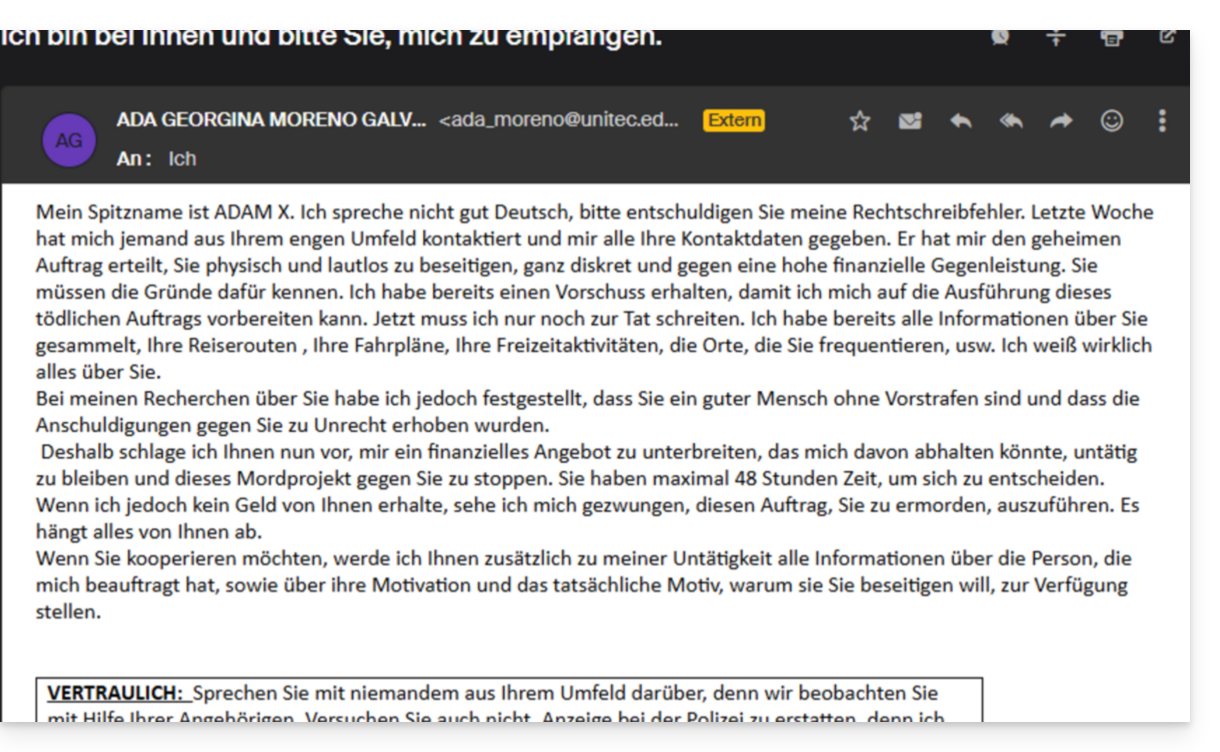
- The purpose of this identity theft is usually to get the user to voluntarily visit a page and provide private information that will then be used for various purposes, mainly financial ones.
- If it is not a “pretending to be something it is not”, but if it is simply an unsolicited advertising message, it is best to report it as Spam.
Report a Phishing Email
Prerequisites
- Check that the spam filter is active.
- For added security, enable the external email warning.
If you find an email of this type directly in your inbox, you can take action to reduce the number of these messages and eventually eliminate them from email systems:
- Click here to access the Infomaniak Mail web app (online service ksuite.infomaniak.com/mail).
- Open the phishing message.
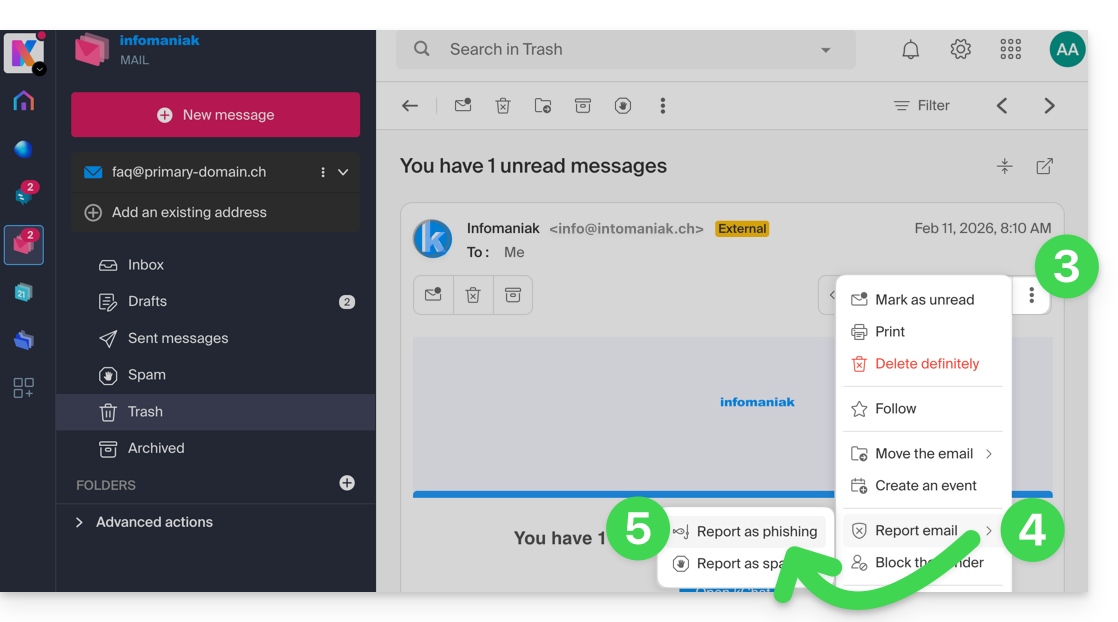
- Click on the action menu ⋮ on the right.
- Click on Report message.
- From the menu that appears, select Report as phishing:
- Confirm sending for processing.
- Delete the email.
Once you have clicked on Report as phishing, an email is automatically sent to Infomaniak with all the information needed to process the scam report.
In the event of a more serious problem (when the message is directly addressed to you by someone you know or a contact, and it is not a mass mailing), it is recommended to contact an organization such as report.ncsc.admin.ch.
Link to this FAQ: https://faq.infomaniak.com/1172
Has this FAQ been helpful?
This guide explains how to view the activity logs for files on your Infomaniak hosting server.
FTP space activity logs
To view the activity logs for your FTP space, contact Infomaniak support and request FTP logs. You will need to authenticate using the credentials for managing your web hosting.
The log is only updated if there has been FTP activity.
Help with reading logs: http://www.castaglia.org/proftpd/doc/xferlog.html
Link to this FAQ: https://faq.infomaniak.com/1177
Has this FAQ been helpful?
The possible information_schema indication does not concern you directly.
Please disregard it.
This is an internal MySQL database that provides a summary of the information from your own databases.
Link to this FAQ: https://faq.infomaniak.com/1181
Has this FAQ been helpful?
This guide concerns RTMP (Real-Time Messaging Protocol), a service that allows you to stream multimedia content in real time over the Internet:
- It is a proprietary protocol developed by Adobe, and its use requires the configuration of a dedicated RTMP server or the use of RTMP hosting services.
- Viewers can access the live stream using a RTMP-compatible media player, such as VLC.
By default, RTMP is blocked by Infomaniak's security rules..
- Refer to this other guide to open the corresponding port.
Link to this FAQ: https://faq.infomaniak.com/1201
Has this FAQ been helpful?
This guide is for you if you receive the The web host does not exist error when visiting a website address on an Infomaniak Web Hosting service.
Introduction
- This type of error most often occurs because your domain name is not correctly linked to your website (your domain name probably points to the wrong IP address or is incorrectly configured).
- Example: a domain
abc.xyzthat is incorrectly configured and points to an IPv4 address for a Starter hosting plan, and to an IPv6 address for a shared hosting plan…
- Example: a domain
Troubleshooting Domain - Website Linking Issues
To get your website back online:
- Check the DNS zone of your domain name, especially its A records.
- Correct them if necessary by indicating the IP address of your hosting.
- Any DNS addition/modification may take up to 48 hours to propagate (❓: help).
To do this, the easiest way is to use the DNS Diagnostic tool (❓: help) to automatically correct the settings, by grouping the products (❓: help) into the same Organization if necessary.
Link to this FAQ: https://faq.infomaniak.com/1213
Has this FAQ been helpful?
This guide explains how to prevent cyberattacks and how to avoid your website being hacked.
WordPress users: please refer to this dedicated article.
The role of the hosting provider
Infomaniak's job is to provide quality hosting, so it is essential to respond extremely quickly to the various and diverse attacks that any Internet player may be subject to. Infomaniak therefore does everything possible to take maximum precautions against hacking, in particular by keeping the different versions of the technologies used up to date.
In the event of a confirmed hacking incident, if it is possible to trace the perpetrator and the system was compromised due to a security flaw attributable to Infomaniak, and the integrity of the servers is at stake, Infomaniak will take matters into its own hands.
The role of the website owner and webmaster
If your website is hacked due to your own negligence (an outdated script, a security patch that has not been applied, etc.), Infomaniak will contact you to warn you about a problem that needs to be resolved quickly. Some organizations, such as Saferinternet, may also suspend the domain name, which will disable the website and email service.
Infomaniak cannot prevent exploits related to a bug in your PHP code or other code. If the hack is not detected, you will generally notice the intrusion fairly quickly through suspicious elements on your pages or by receiving numerous error emails.
It is therefore your responsibility to manage the evolution of your website over time and to ensure that it does not become neglected, even if this means hiring a webmaster whose job it is.
Infomaniak's recommendations
- Regularly update all your web applications (WordPress, Joomla, Drupal, ownCloud, etc.).
- Keep the PHP version of your website up to date on Infomaniak servers.
- Keep your website up to date by migrating to the new offers when they are offered to you.
- Add a protection system to your contact forms (captcha, etc.) and to any "recommend to a friend" tools.
- Run a antivirus scan of your hosting regularly.
- Monitor the vulnerability detection tool.
- Remove anything you haven't developed yourself and that the author hasn't updated/corrected for several months.
- Make regular backups of your site (refer to this other guide if you use WordPress) when everything is working correctly and keep them in a safe place (because automatic backups are only kept for a few days, which is sometimes not enough to revert to a previous state after you notice an intrusion).
- Visit ibarry.ch.
If a problem has occurred...
- Change the passwords for your web applications, your FTP accounts, and your databases after first checking that your computer is free of viruses.
- Restore a backup but Update everything that can be updated as soon as the restoration is complete.
- If you encounter a problem with a third-party software, contact its publisher directly or a Partner and consult the support policy as well as article 11.9 of the Infomaniak Terms of Service.
Please read these additional recommendations!
Link to this FAQ: https://faq.infomaniak.com/1214
Has this FAQ been helpful?
The CGID module for Apache has been disabled on shared web hosting plansfrom Infomaniak.
If necessary, you should consider upgrading to a Cloud Server if you are currently using shared web hosting. This can be done seamlessly: refer to this other guide for more information.
Link to this FAQ: https://faq.infomaniak.com/1248
Has this FAQ been helpful?
This guide concerns YAZ, a software library used to implement the Z39.50 protocol, an information retrieval and search protocol that enables communication between different library systems (ILS) such as PMB, which is widely used in France.
Infomaniak for efficient library management
On Infomaniak Web Hosting, PMB is supported and YAZ is enabled by default.
However, if you encounter errors such as Call to undefined function yaz_connect(), you will need to open ports via the Manager. Port 210 is the standard port used for Z39.50 communications, but do not hesitate to consult the documentation for your applications.
For older Infomaniak hosting plans, you should consider upgrading your plan.
Link to this FAQ: https://faq.infomaniak.com/1267
Has this FAQ been helpful?
This guide explains how to increase the max_children value on Cloud Server to increase the number of simultaneous PHP processes that can be used by your site. This will be very useful for resolving issues with infinite page loading on your site.
Introduction
- By default, on all hosting plans, the
max_childrenlimit is set to 20.- While it is possible to increase this value from the Infomaniak Manager, the
max_childrenlimit is automatically adjusted based on your Cloud Server configuration. - To increase this limit on shared hosting, migrate to a Cloud Server.
- While it is possible to increase this value from the Infomaniak Manager, the
- To understand how to calculate the most appropriate
max_childrenvalue, refer to this article.
Increase the max_children value
Prerequisites
- Make sure you have enough resources on the Cloud server.
- Ensure that all of the Cloud server's resources are not being used; if they are fully utilized, increasing the
max_childrenvalue will have no effect (Modify Cloud Server Resources). - Check the resource monitoring for your server. If the resources of your server are reached, it will be necessarycheck the optimization of your processes and website before considering increasing the
max_childrenvalue. - Check the PHP error logs in the
/ik-logsdirectory (master process PHP logs - file name: php-fpm.log) to see if the "max_children" limit has been exceeded... example of an error:[05-Jul-2024 09:08:58] WARNING: [pool www.infomaniak.ch] server reached max_children setting (20), consider raising it
To access the management of the PHP / Apache settings for the site for which you need to increase the max_children value on a Cloud Server, please refer to this other guide.
You will be able to…
- … choose a new value for
max_children: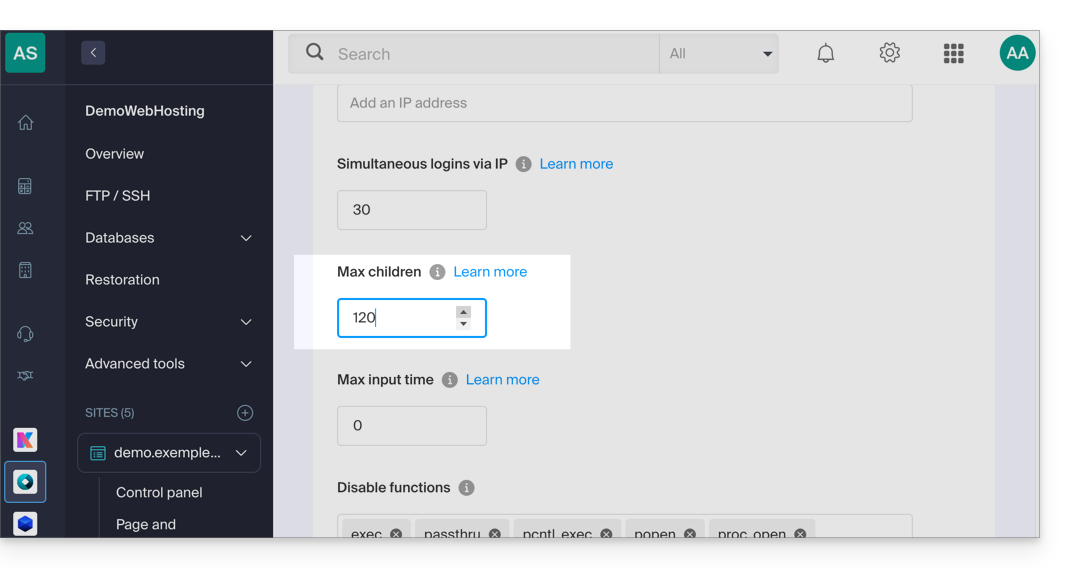
Don't forget to save the changes at the bottom of the page.
Limits based on the server
Limit the max_children based on the Cloud Server's resources:
| Cloud Server Configuration | max_children |
|---|---|
| 2 CPU / 6 GB RAM | 20 |
| 4 CPU / 12 GB RAM | 40 |
| 6 CPU / 18 GB RAM | 60 |
| 8 CPU / 24 GB RAM | 80 |
| 12 CPU / 36 GB RAM | 120 |
| 16 CPU / 48 GB RAM | 160 |
| 24 CPU / 72 GB RAM | 240 |
| 32 CPU / 96 or 128 GB RAM | 320 |
Link to this FAQ: https://faq.infomaniak.com/1270
Has this FAQ been helpful?
This guide is for you if you want to perform vulnerability tests on your website/server hosted by Infomaniak.
Allowed and restricted
You are free to perform vulnerability tests (SQL injection, XSS, etc.), intrusion tests, or penetration tests (pentests) on your Infomaniak hosting only under the following conditions:
- between 9 AM and 5 PM CET
- from Monday to Friday
- with the minimum attack package, regardless of the software used (e.g. AppScan)
- without ever launching any DoS or DDoS attacks (Denial of Service)
- by respecting the Infomaniak Terms of Service, in particular the shared service framework
Any misuse may result in early termination by Infomaniak.
Link to this FAQ: https://faq.infomaniak.com/1271
Has this FAQ been helpful?
This guide explains how to optimize the caching of web resources using HTTP headers.
Introduction
- A good caching strategy can significantly improve your website's performance by avoiding the unnecessary retransmission of unchanged files.
- Web caching relies on two complementary mechanisms:
- The cache validity period (via the
Expiresheader), which indicates how long a resource can be reused without contacting the server. - Conditional validation (via the
Last-Modified/If-Modified-Sinceheaders), which allows you to check if a resource has changed before re-downloading it.
- The cache validity period (via the
Configuring the cache duration with Expires
The Expires header allows you to specify a duration during which the browser can directly reuse resources from its local cache. Here's how to configure it in your .htaccess file:
- Create or open the
.htaccessfile in the root directory of your website (usually in/webor/sites/domain.xyz). Add the configuration for the
expiresmodule:<IfModule mod_expires.c>Define the appropriate cache durations for each type of resource:
ExpiresActive On
ExpiresByType text/html "access plus 1 week"
ExpiresByType image/jpeg "access plus 1 month"
ExpiresByType text/css "access plus 1 month"
ExpiresByType application/javascript "access plus 1 month"
These directives mean that:
- HTML pages will be cached for one week.
- JPEG images, CSS files, and JavaScript files will be cached for one month.
Adjust these durations according to the frequency with which your resources are updated.
Close the configuration section:
</IfModule>
Conditional validation with Last-Modified
Even when a resource has expired in the cache, it is not always necessary to download it completely again. The conditional validation mechanism allows the browser to check if its cached version is still up to date. This process works as follows:
- The server automatically sends a
Last-Modifiedheader with each resource, indicating its last modification date.- Apache handles this natively for static files - no additional configuration is required.
When the browser requests the resource again, it sends an
If-Modified-Sinceheader containing the date it has in its cache:GET /resource HTTP/1.1 Host: www.example.com If-Modified-Since: Wed, 21 Oct 2015 07:28:00 GMT- The server compares this date with the actual file modification date:
- If the file has not changed, it simply returns a
304 Not Modifiedcode, thus saving bandwidth. - If the file has been modified, it returns the new version with a
200 OKcode.
- If the file has not changed, it simply returns a
Link to this FAQ: https://faq.infomaniak.com/1282
Has this FAQ been helpful?
This guide explains why an FTP account (and most of the time Web Hosting as well) may suddenly become blocked.
Introduction
- Infomaniak uses an antivirus solution on all shared servers to combat the sending of viruses via FTP and scripts.
- The antivirus detects:
- potential FTP account hacks
- the intentional or unintentional sending of files (WordPress themes, fraudulent modules, etc.) containing malicious code lines or inclusions
Malicious File Detection
The antivirus scans all uploaded files smaller than 1 MB to prevent the upload of viruses, spam scripts, etc.
If a suspicious element is detected, the FTP account password is automatically changed, and the files in question on the server are locked (FTPban).
The FTP server then sends a message to the FTP client of the following type:
550 Virus Detected and Removed: botnet.infomaniak.5.UNOFFICIALor
550 Virus Detected and Removed: winnow.botnet.ff.trojans.15900.UNOFFICIAL
What to do if the account is blocked?
If your FTP account is suddenly blocked, you will receive an email; follow the procedure indicated in the email to resolve the issue. In particular:
- Clean up your site and analyze what you want to send to the server.
- Check if the web applications and CMS you use are up to date:
- Most hacks are caused by security vulnerabilities in outdated web applications or weak passwords.
Resolve the problem permanently
To prevent your site from being hacked and blocked again, take the following steps:
Do not republish the same infected files on your hosting, as the site would be blocked again.
- Update the web applications (WordPress, Joomla, etc.) and the extensions you are using.
- Remove any web applications that you are not using.
- Change the password for all your FTP accounts.
- Change the passwords to access web applications (WordPress, Joomla, etc.).
- Change the password for MySQL database users.
- Delete MySQL database users that you are not using.
- Use a different, complex password each time, with a minimum of 8 characters.
- Manually launch an antivirus scan on your hosting.
- Install and use an up-to-date antivirus program (regardless of the operating system).
- Refer to this other guide if you are looking for information on monitoring and resolving vulnerabilities in hosted scripts.
If your website is not working after a cleanup, you may need to replace some of the deleted files with healthy files.
Link to this FAQ: https://faq.infomaniak.com/1302
Has this FAQ been helpful?
This guide details the use of Perl or Python scripts on Infomaniak hosting and the management of their modules.
Prerequisites
- Shared Web Hosting: the CGI module is no longer available; therefore, running Perl and Python scripts is not supported.
- It is necessary to migrate to a Cloud Server.
- Managed Cloud Servers: to benefit from the latest technologies, it is possible to upgrade your Cloud Server.
Web Configuration (Apache/CGI)
To run Python or Perl scripts via Apache on a Cloud Server, the interpretation of files with the .py and .pl extensions is not enabled by default.
Using your FTP software/client or the Web FTP, add and adapt the following directive to the .htaccess file located in the folder containing your scripts:
AddHandler cgi-script .pl .cgi .py
Options +ExecCGI
Installing additional modules
On a Cloud Server, you have the option to install third-party libraries that are not included by default.
Python
- Installation is done via
PIP, which is a package manager used to install and manage packages written in Python. - Infomaniak offers
PIPandPIP3via the Fast Installer tool. - Once PIP is installed, you can install Python modules by specifying
--userwhen running the command. For example: pip3 install mysql-connector-python --user
Perl
- Perl modules can also be added via SSH (console). They need to be installed in the user directory, and their full path must be defined within the scripts.
Important technical information
- Interpreter path:
/usr/bin/python - Extensions: Scripts must have the
.pl,.cgi, or.pyextension. - Limitations: The
mod_pythonmodule is not supported.
Troubleshooting (CGIWrap)
If you encounter the following error when uploading an image:
CGIWrap Error: Execution of this script not permitted
Request Data:Extra Path Info: /dossier/.../image.PL.12.34.gif
The server interprets the file as a script because it contains ".PL" (or .PY) in its name. Solution: Simply rename the file to remove this extension (example: image-12-34.gif).
Link to this FAQ: https://faq.infomaniak.com/1307
Has this FAQ been helpful?
This guide explains how to resolve an issue when importing a .csv file into a MySQL table. The proposed alternative is to read the CSV file line by line using PHP and insert the data into the MySQL database.
"LOAD DATA LOCAL INFILE" function disabled
The LOAD DATA LOCAL INFILE function allows you to import a CSV file directly into a MySQL table. However, this feature is often exploited by attackers to gain unauthorized access to websites hosted on servers that allow it.
To prevent any security risks and protect customer data, Infomaniak has disabled the LOAD DATA LOCAL INFILE function. Users who import their CSV files via phpMyAdmin (without checking the “CSV via LOAD DATA” option) are not affected.
Here is an alternative method for importing data in CSV format into a MySQL table. The example below shows how to properly handle errors when opening the CSV file and inserting data into the database.
This script uses mysqli to connect to the database and prepared statements to insert the data. This ensures better security, optimal compatibility with recent versions of PHP, and simple integration into your project, whether in an existing script or a new file located in the /web directory:
$fileName = "data.csv";

// Connect to MySQL database using mysqli
$link = new mysqli("localhost", "username", "password", "database");

// Check database connection
if ($link->connect_error) {
   die("Connection failed: " . $link->connect_error);
}

// Open the CSV file for reading
if (($handle = fopen($fileName, "r")) !== FALSE) {

   // Read each line of the CSV file
   while (($data = fgetcsv($handle, 1000, ";")) !== FALSE) {

       // Prepare the SQL query dynamically
       $query = "INSERT INTO `test` VALUES (" . str_repeat('?,', count($data) - 1) . "?)";
       $stmt = $link->prepare($query);

       // Check if query preparation was successful
       if ($stmt === FALSE) {
           die("Query preparation failed: " . $link->error);
       }

       // Bind parameters (assuming all columns are strings)
       $types = str_repeat('s', count($data));
       $stmt->bind_param($types, ...$data);

       // Execute the query
       if (!$stmt->execute()) {
           die("Query execution failed: " . $stmt->error);
       }

       // Close the statement
       $stmt->close();
   }

   // Close the CSV file
   fclose($handle);

} else {
   echo "Error: unable to open the file.\n";
   exit(1);
}

// Close the database connection
$link->close();
?>
Get help
Unfortunately, it is impossible to specify exactly where in the script these lines of code should be inserted.
If this method causes problems (for example, when importing multiple CSV files simultaneously without any error messages), the structure of the tables or the indexing of the fields may be the cause. In this case, contact your webmaster for verification.
Also, consult the official PHP documentation regarding the fgetcsv() function.
Link to this FAQ: https://faq.infomaniak.com/1312
Has this FAQ been helpful?
This guide helps you protect the reputation of your domain name, to maintain the trust of internet users and service providers in your website or business, thereby facilitating the proper functioning of your email service.
Web reputation
There are different types of online reputation, including personal reputation, corporate reputation, and domain reputation.
Domain reputation is essentially a score that determines how email systems decide what to allow into users' inboxes. In essence, your domain reputation is a measure of the health and legitimacy of your domain. This reputation can be influenced by the security of your email and website.
For example, a domain's reputation may decrease if…
- … the website accessible at the domain's address is hacked, leading to the mass sending of fraudulent emails,
- … the domain's email service is being used to send unsolicited spam.
If your domain's reputation remains poor, your emails may be marked as spam and may not reach their intended recipients. This can harm email deliverability (see this other guide in English for more information).
Improve your domain reputation
By following these tips, you can improve your domain's reputation and, for example, boost all your email marketing efforts:
- Set up and verify SPF, DKIM, and DMARC records to help protect your domain against spoofing attacks.
- Check your domain's reputation using tools such as Google Postmaster Tools, Sender Score, Microsoft SNDS, McAfee, or Talos Intelligence, and identify any potential issues.
- Only send emails to users who have chosen to subscribe!
- Get trusted links or backlinks…
Refer to this other guide about RBLs.
Link to this FAQ: https://faq.infomaniak.com/1314
Has this FAQ been helpful?
This guide explains how to obtain the EPP code for your domain name at Hostpoint so that you can transfer it to Infomaniak.
Introduction
- The terms "
EPP", "AuthCode", "AuthInfo", "transfer code", and "authorization code" all refer to alphanumeric sequences specific to the domain, the main purpose of which is to verify the owner's authorization before a transfer between Registrars. - Refer to the main guide for the rest of the transfer procedure.
- ⚠️ This involves transferring a domain name that you own from a different provider than Infomaniak, so that the future management of this domain is handled by Infomaniak; therefore, this is not an internal transfer from one account holder to another, and the code you need to obtain is not a code for an internal transfer to your current provider.
Transfer the domain name to Infomaniak
To obtain the authorization code from your current provider:
- Refer to the complete procedure provided by Hostpoint to obtain the code and keep it in a safe place.
- Once you have obtained the authorization code, please refer to the main Infomaniak guide for information on the rest of the domain name transfer procedure.
Link to this FAQ: https://faq.infomaniak.com/1341
Has this FAQ been helpful?
This guide will help you if, for example, you want to deploy a package like pymysql and it requires a Python version higher than the default version offered on your hosting.
Introduction
- Anaconda is a free and open-source distribution of the Python and R programming languages; it aims to simplify package management and deployment.
- It is recommended to use Miniconda (a lightweight version of conda); it installs in your user space, avoiding any conflicts with the system Python and not requiring administrator privileges.
- Refer to the official documentation.
1. Download the installer
For example, the Linux 64-bit version for Python 3.11.
2. Verify integrity (SHA256 hash)
2. Contrôler l'intégrité (Hash SHA256)
user@server:~$ sha256sum Miniconda3-py311_23.10.0-1-Linux-x86_64.sh 6c714a33ea348303f909194246990422e698889417d74b9714856b3e9a7e6c3a Miniconda3-py311_23.10.0-1-Linux-x86_64.sh3. Start the installation
3. Lancer l'installation
The -b argument enables a silent installation. By default, Miniconda will be installed in ~/miniconda3.
user@server:~$ bash Miniconda3-py311_23.10.0-1-Linux-x86_64.sh -b
PREFIX=/home/clients/your_client_hash/miniconda3
Unpacking payload ...
Collecting package metadata (current_repodata.json): done
Solving environment: done
Executing transaction: done
installation finished.
4. Initialize and activate Conda
To use conda immediately and with each SSH connection:
user@server:~$ ~/miniconda3/bin/conda init bash
no change     /home/clients/your_client_hash/miniconda3/condabin/conda
...
modified      /home/clients/your_client_hash/.bashrc

user@server:~$ source ~/.bashrc
5. Install a package (example: pymysql)
Once activated, the prefix (base) appears before your command prompt. You can then install your tools without using sudo or --user.
(base) user@server:~$ python -V
Python 3.11.5

(base) user@server:~$ pip install pymysql
Collecting pymysql
  Downloading PyMySQL-1.1.0-py3-none-any.whl (44 kB)
Installing collected packages: pymysql
Successfully installed pymysql-1.1.0
Link to this FAQ: https://faq.infomaniak.com/1362
Has this FAQ been helpful?
This guide details the compatibility of Infomaniak Web hosting with IPv4 and IPv6.
Introduction
- Infomaniak supports both IPv4 and IPv6, thus enabling optimal connectivity for all users.
- Only Starter (free) hosting plans and older hosting plans are not compatible: upgrade to a Cloud Server or shared hosting.
- Compatibility with IPv4 and IPv6 means that Infomaniak's hosting service allows websites to be accessible to users using both IPv4 and IPv6 addresses.
- This ensures that your site can be visited by all types of devices and networks, providing an optimal experience for your users, regardless of the protocol they use to connect to the Internet.
IPv4, or Internet Protocol version 4
This is the first version of the Internet protocol, widely used since the 1980s. It uses 32-bit IP addresses, which allows for the identification and location of devices connected to the Internet. However, with the depletion of IPv4 addresses, it became necessary to develop a new version (read more below):
- Example of an IPv4 address: 192.168.0.1
- In this example, the IPv4 address consists of four groups of numbers separated by dots…
- Each group can contain a number from 0 to 255.
- The address 192.168.0.1 is often used to represent a local IP address in a private network.
- Find the IP address of your website: refer to this other guide…
- Obtain the public IP address of your current Internet connection: https://chk.me/ip
IPv6, or Internet Protocol version 6
This is the latest version of the Internet protocol introduced to solve the problem of IPv4 address exhaustion. IPv6 uses 128-bit IP addresses, offering a virtually unlimited address space. It also offers improved features such as security, quality of service, and automatic address configuration:
- Example of an IPv6 address: 2001:0db8:85a3:0000:0000:8a2e:0370:7334
- In this example, the IPv6 address consists of eight groups of numbers and letters separated by colons…
- Each group can contain a hexadecimal number from 0 to FFFF.
- The IPv6 address is much longer than the IPv4 address, thus offering a much larger address space.
Link to this FAQ: https://faq.infomaniak.com/1393
Has this FAQ been helpful?
This guide explains how to set up a WordPress network of sites to manage multiple sites from a single Infomaniak WordPress installation, with URLs of the type site1.domain.xyz, site2.domain.xyz, or even with domain1.com, domain2.com, etc.
Installing WordPress multisite
To get started:
- Install WordPress via Infomaniak on your hosting space with a primary domain name:

- This first WordPress site must be accessible and function correctly:

- This first WordPress site must be accessible and function correctly:
- Connect via FTP.
- Edit the
wp-config.phpfile of the first WordPress site in question. - Above the line "
/* That's all, stop editing! Happy blogging. */" (#94), copy and paste the codedefine('WP_ALLOW_MULTISITE', true);:
- Save your changes.
- Then, log in to the administration area of your WordPress site.
- Temporarily disable all WordPress plugins:

- Go to the TOOLS menu to create a Network:
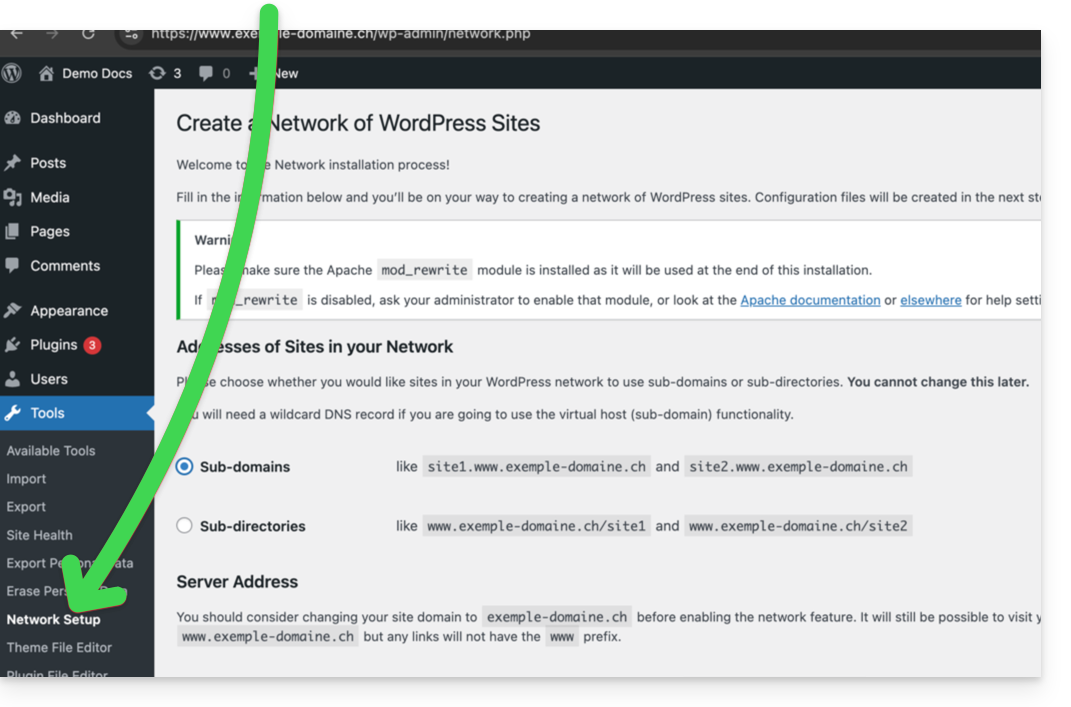
- Choose the method for creating your different WordPress sites (on subdomains)...
- Click on the installation button:

- Add the information displayed on the screen to the
wp-config.phpand.htaccessfiles on the server. - After reconnecting to your WordPress, you will have a new "My sites" menu where you can add and manage your different sites within the same network:

- Reactivate your deactivated plugins.
- In the Manager, add an alias to your website in the format
*.your-domain-here (the asterisk allows you to create a wildcard alias) with DNS update so that the correctCNAMEis automatically added to the zone:
- Install or update your SSL certificates:

- When you create a new website within the network, for example by naming it
home2, it will become accessible viahome2.domain.xyz, and so on:
Link to this FAQ: https://faq.infomaniak.com/1417
Has this FAQ been helpful?