Knowledge base
1000 FAQs, 500 tutorials and instructional videos. Here, there are only solutions!
Remove a website from a Web Hosting
This guide explains how to delete a site from a Web Hosting.
Preamble
- Once removed, the site will no longer appear on the Internet at its previous URL.
- The site quota available on your hosting will regain a free space.
Remove a site from a paid Web Hosting
To access the Web Hostings to remove a site from them:
- Click here to access the management of your hosting on the Infomaniak Manager (need help?).
- Click directly on the name assigned to the hosting concerned.
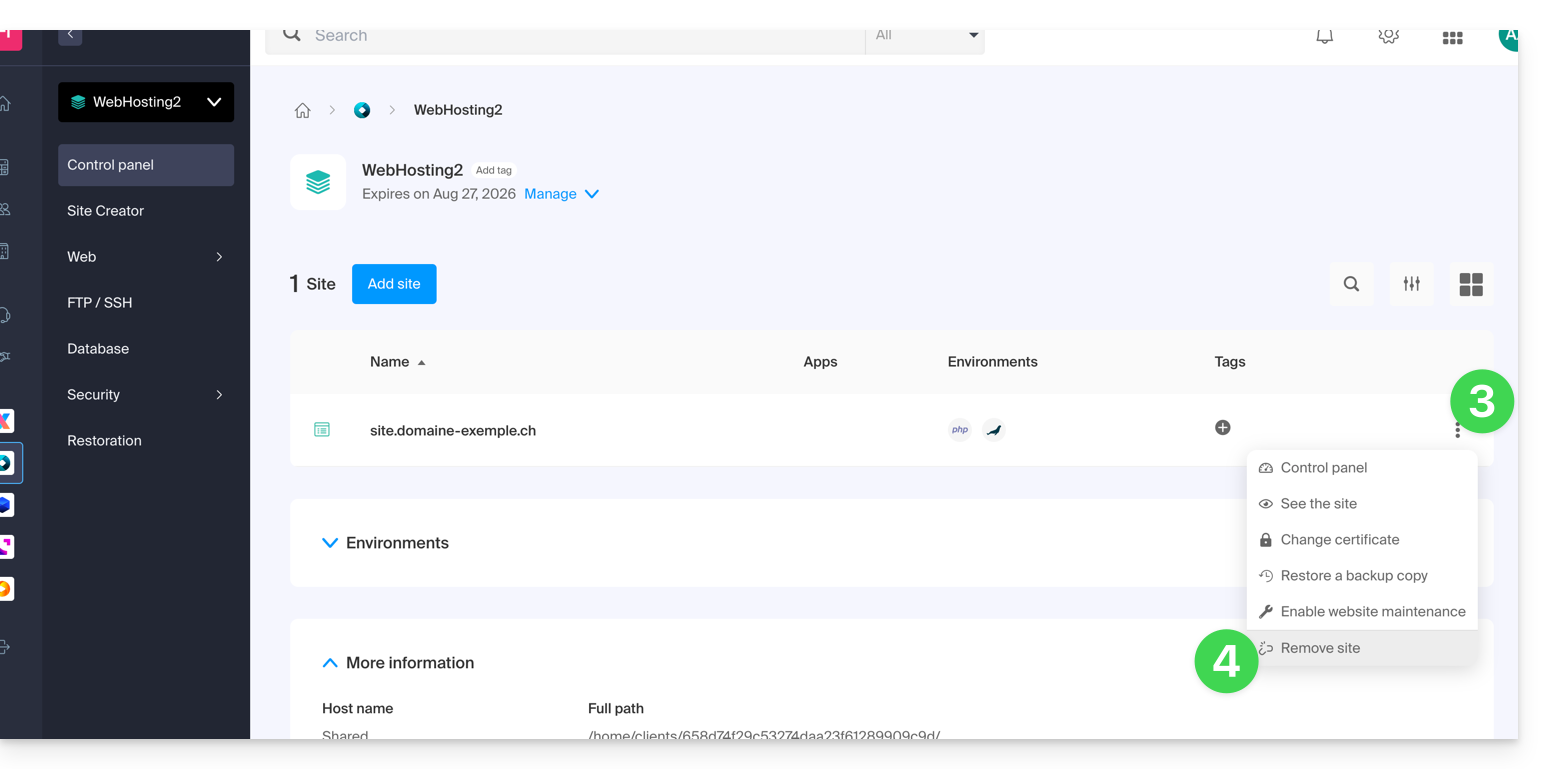
- Click on the action menu ⋮ to the right of the site concerned in the table that appears.
- Click on Remove the site:
Unlink a site from a free Starter hosting
A Starter hosting (basic web page) contains only one site that is specific to the domain name itself, therefore, unlike paid offers, it is not possible to have multisite or remove a site to replace it with another.
You must therefore directly cancel the Starter hosting:
- This will cancel your Starter Web Hosting product only, i.e. the part concerning your website without impacting other products, such as messaging or domain name, for example.
- You will have to confirm the cancellation request by email otherwise no data will be deleted.
- A cancellation confirmation is sent to any other administrators of the Organization.
- Backups will be irrevocably deleted upon cancellation, making any restoration impossible.
To cancel:
- Click here to access the management of your hosting on the Infomaniak Manager (need help?).
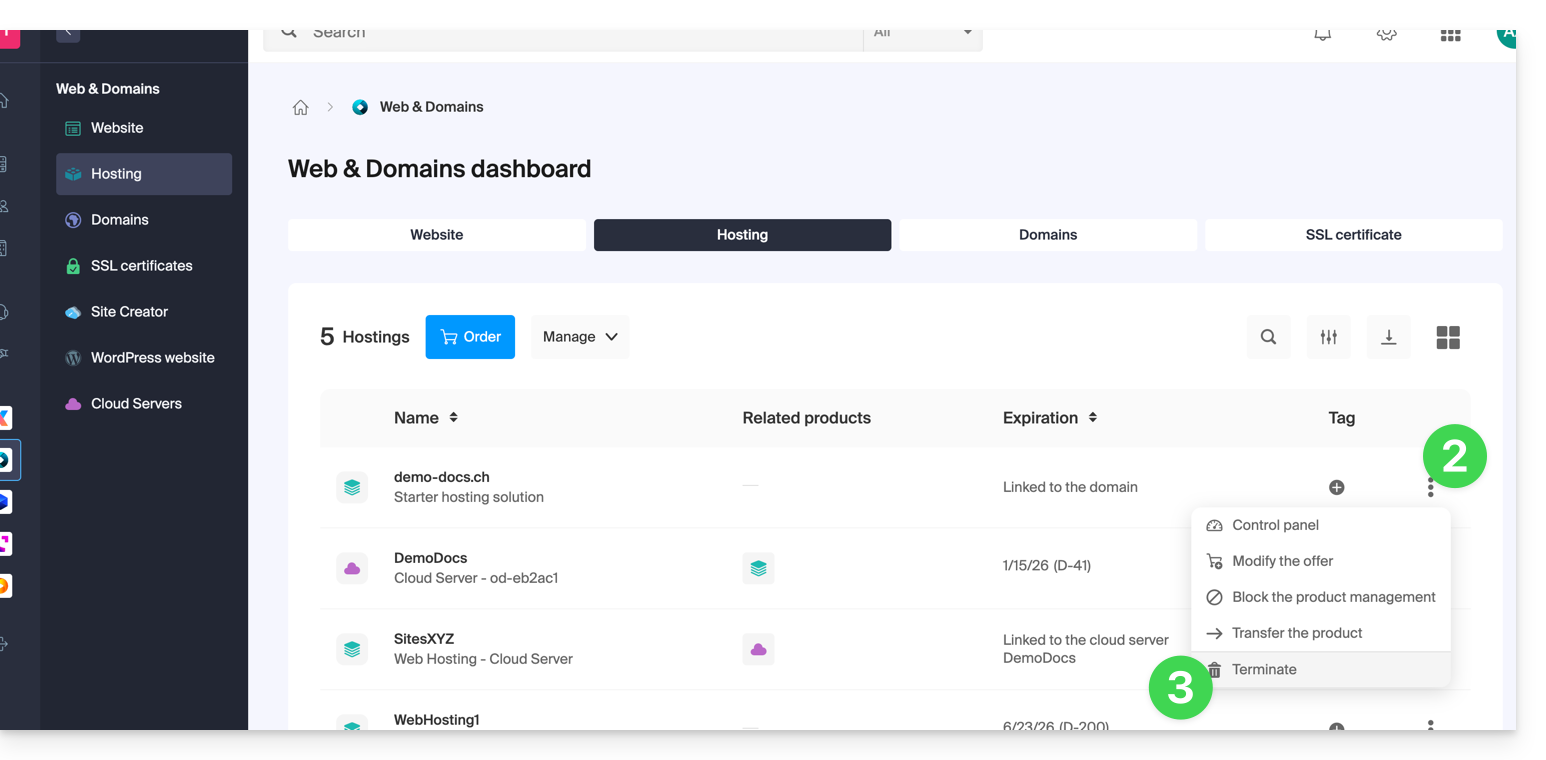
- Click on the action menu ⋮ located to the right of the hosting concerned.
- Select the option Cancel:
- Follow the procedure to the end.
Link to this FAQ: https://faq.infomaniak.com/2569
Has this FAQ been helpful?