Knowledge base
1000 FAQs, 500 tutorials and instructional videos. Here, there are only solutions!
Fixing a “Your connection is not private” error
This guide helps you diagnose and resolve the error "Your connection is not private" (or NET::ERR_CERT_AUTHORITY_INVALID). This security alert can affect both visitors to a site and its administrators.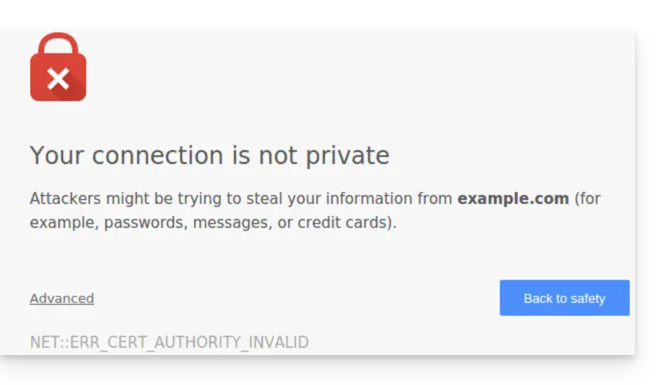
Preamble
- This alert is a protection mechanism for your browser.
- It indicates that a secure connection could not be established with the server for one of the following reasons:
- The site does not have an SSL/TLS security certificate.
- The installed certificate is expired or misconfigured.
- The connection between your device and the server is intercepted or disrupted.
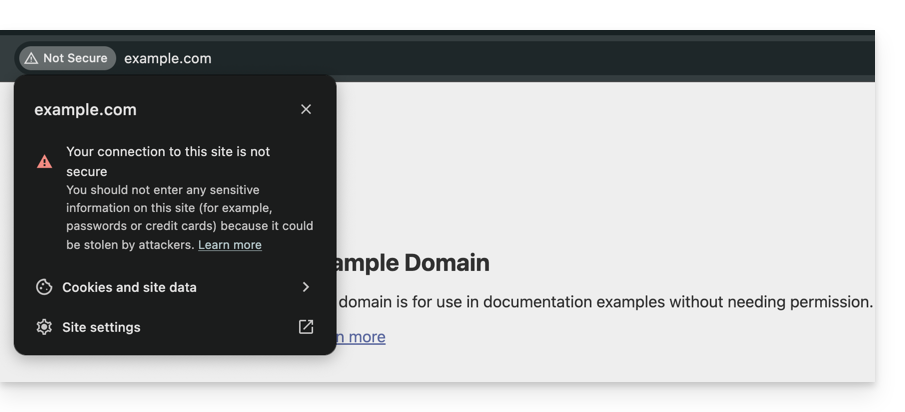
- Warning: on a site displaying this error, the data you enter (passwords, card numbers) are not encrypted and can be intercepted by third parties.
Solutions for visitors
If you encounter this error on a site you do not manage, the problem may sometimes come from your own configuration. Here are the points to check:
- Check the time on your device: if your computer or smartphone is not set to the correct date/time, the certificate validation will systematically fail.
- Test in private browsing: if the error disappears, clear your browser's cache and cookies.
- Check your network: avoid public Wi-Fi networks that may force their own login portals.
- Antivirus and Firewall: some security software analyzes HTTPS connections and can cause false positives.
Solutions for Infomaniak site owners
If you are the site administrator, you must ensure that your SSL certificate is active and valid to cover all your domain names.
1. Is the SSL certificate installed?
If your site is still in HTTP, you need to generate a certificate (free via Let's Encrypt or paid). Learn about the certificates available at Infomaniak.
Important: if you have added aliases (secondary domain names) to your site after installing SSL, you must update the certificate to include them.
2. Check validity and expiration
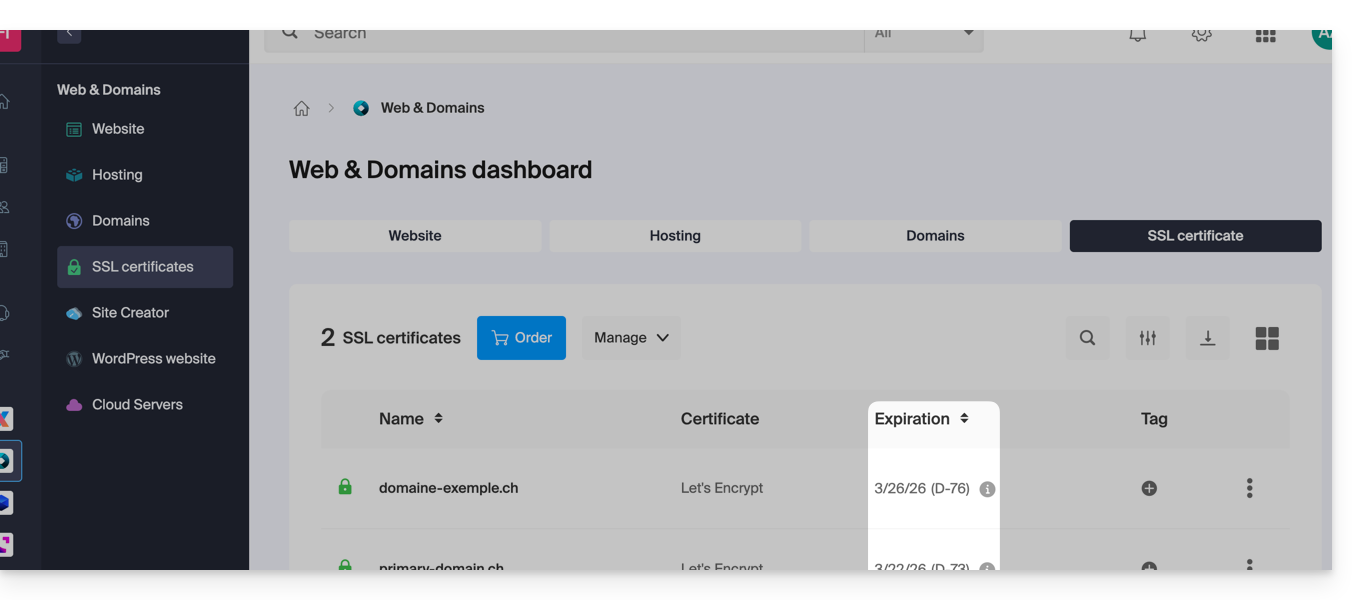
At Infomaniak, certificates are renewed automatically, but a technical issue may sometimes occur. To check the status of your certificate:
- Click here to access the management of your certificates in the Manager (need help?).
- Check the status and expiration date in the dashboard:
3. Force HTTPS and fix "Mixed Content"
If your certificate is valid but the error persists (or the padlock is not green), it is possible that your site is still loading elements (images, scripts) over HTTP. To fix this, refer to this other guide.
Link to this FAQ: https://faq.infomaniak.com/2833
Has this FAQ been helpful?